
MPFUB34 - Digital audio player MPMAN - Free user manual and instructions
Find the device manual for free MPFUB34 MPMAN in PDF.


User questions about MPFUB34 MPMAN
0 question about this device. Answer the ones you know or ask your own.
Ask a new question about this device
Download the instructions for your Digital audio player in PDF format for free! Find your manual MPFUB34 - MPMAN and take your electronic device back in hand. On this page are published all the documents necessary for the use of your device. MPFUB34 by MPMAN.
USER MANUAL MPFUB34 MPMAN
The player characteristics
Supports MP3 and WMA music format.
Supports stereo FM radio
Supports USB function
Supports two lines of lyrics display synchronization
Big display (128*32) LCD display
Voice equalizer
GUI (graphical user interfaces).
Inside the box:
(1) MP3 player one
(2) Stereo earphone one pair
(3) Installation disk one
(4) User's manual one
(5) USB cable one
(6) Battery 1.5V/"AAA" one
PC needs
(1) Pentium 100 MHz or faster
(2) Windows 98/2000/ ME/XP
(3) USB port
(4) 4 X CD-ROM driver or higher
(5) 15 MB of free space on hard disk
(6) 32 MB system memory
1.1 The player appearance interface
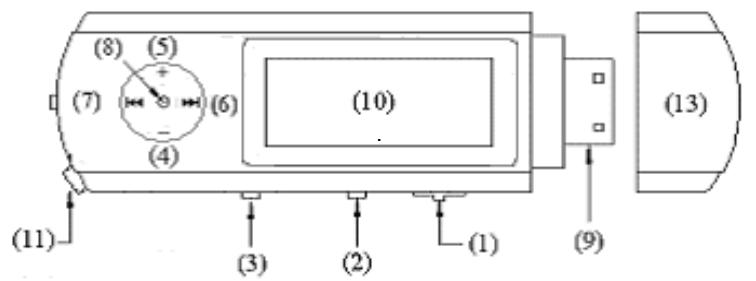
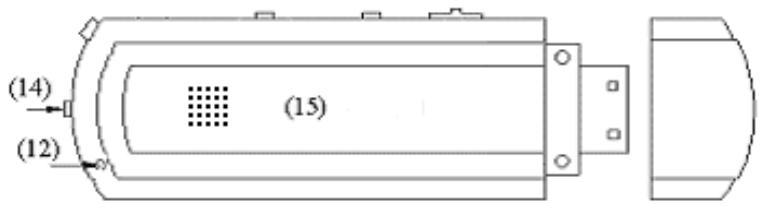
1.2 The buttons
(1) "HOLD" Keyboard lock switch
(2) "MENU" Switch modes, menu selection by pressing on button
(3) “REC” Rec/A-B
(4) “VOL-” Volume decrease/fast decrease
(5) “VOL+” Volume increase/fast increase
(6) “ ” NEXT/FWD
(7)“←”⇒ PREV/REV
(8) PLAY “▶■” ⇒ OPEN/PLAY/PAUSE/STOP/POWER OFF
(9) USB interface
(10) LCD Liquid crystal display
(11) PHONE “O” Earphone input jack
(12) MIC Built-in microphone
(13) USB cover
(14) Cord hole
(15) Battery cover
1.3 Push-button definition
Push-button includes four operation methods as short push, long push, push and hold, single push.
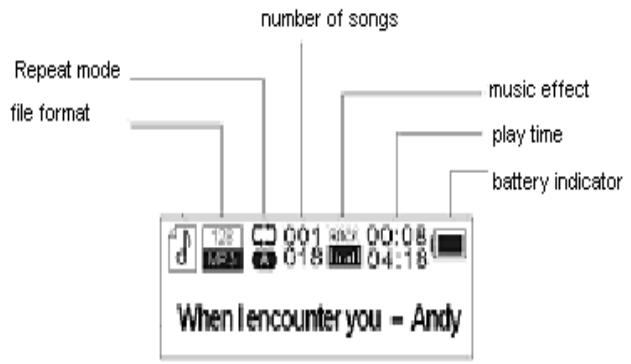
1.4 Display
This player adopts big LCD of 128*32
2 Operating instructions
2.1 Turning on the MP3 player
Push the "PLAY" button for several seconds. The LCD display will light up.
2.2 Main menu
Press the "MENU" button for several seconds, from any point in the menu, and the player returns automatically back to the main menu.
Five options:
| Music |
| Record |
| Replay |
| FM |
| System |
You can switch between options by sliding the “PLAY” button right “▶” or left “←”。Then push shortly on the “MENU” button to enter the submenu or confirm a function.
2.3 "Music" mode
Select "Music" mode in the main menu.
2.3.1 Stop menu
Press " MENU " button once to enter the stop submenu.
Four options:
- Local Folder
- Delete file
- Delete all
- Exit
2.3.1.1 Local folder

Local folder
Files can be stored in different folders (maximum 10 folders including root folder).
Create new folders in Windows explorer when MP3 is connected.
Open "external drive".
Create new folder
- Press " MENU " button to open Local folder
- Move PLAY button left or right to select the catalog
- Press “MENU ” button to confirm
2.3.1.2 Delete file
2.3.1.3 Delete all
Deletes all files of the current catalog
2.3.2 Play submenu
During playback, press " MENU "button to enter "Play submenu ":
Six options:
Repeat
Equalizer
Tempo Rate
Replay
Replay times
Replay gap
- Exit
2.3.2.1 Repeat
| Normal | All songs are played once |
| Repeat One | Repeats the current song |
| Folder | Plays all the music of a specific folder |
| Repeat Folder | Repeats the music of a specific folder |
| Repeat All | Repeats all the music. |
| Random | Plays music at random. |
| Intro | First 10 seconds of each song is played. |
2.3.2.2 Equalizer
Seven options:
- Natural
- Rock
- Pop
- Classic
- Soft
- Jazz
-DBB
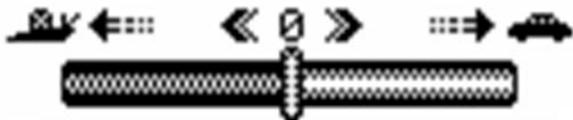
2.3.2.3 Tempo Rate
The music can be played faster or slower (only with MP3 files)
Change the rate by pushing the "PLAY" Button left or right.
2.3.2.4 Replay mode
-A-B replay

When replay mode is selected, the A-B icon is visible
Select the start point A (flashing) by sliding "PLAY" button right.
Select the end point B( flashing) by sliding "PLAY" button right.
The A-B section will be repeated continuously
Press "MENU" button to return to normal playback
-During replay, the play-rate can be changed with VOL+ or VOL-".
- Adding your voice to the A-B section
During playback of the A-B section, slide "PLAY" button to the right. The microphone icon appears and your voice is recorded. Slide "PLAY" button right again to stop the recording.

The A-B section + the voice recording will be repeated
2.3.2.5 Replay times
Here you are able to choose how many times (1-10) the A-B section will be repeated.
2.3.2.6 Replay gap
Choose the time (1-10 sec) between each A-B section.
2.3.3 Lyrics
This MP3 player supports **. Inc "Lyric files
Lyrics can be downloaded from the internet. Make sure that lrc-file has the same name as the corresponding song. For example:
If the song name is "Yesterday.mp3", the lyric file should be named "Yesterday.lrc"
MP3 and LRC file must be stored in the same folder!


Lyric included
Attention: A lyric can not be larger then 500 words.
2.4 Record mode
-Select "Record mode" in the main menu.
The unit can store 99 recordings in each folder with a maximum of 10 folders (including root folder)
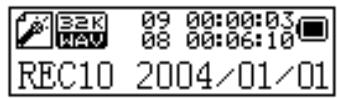
- Press "PLAY" button to start recording.
- Press "PLAY" button again to pause the recording (Time flashes).
- Press "PLAY" again to continue recording.
- Press and hold the "PLAY" button to stop recording.
2.4.1 Record submenu
In the Record mode, press "MENU" button once
3 options:
- Local folder
REC type - Exit
2.4.1.1 Local folder
cfr 2.3.1.1
2.4.1.2 REC type
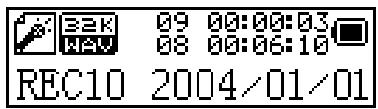
Four options:
- "Fine REC": high quality recording, wav format, good quality.
- "Long REC": lower quality recording, act format, uses less space
- "Fine VOR": wav format
- "Long VOR": act format
When using "VOR recording", the player enters into the state of "pause recording" if the microphone detects no sound. Recording starts again when sound is detected.
2.5 Replay mode
In this mode you can listen to the recordings created in "Record mode"
Select in the main menu "Replay mode".
2.5.1 Replay stop submenu
When playback is stopped, press "MENU" button to enter the Replay submenu.
2.5.1.1 Local folder (Stopsubmenu)
cfr 2.3.1.1
2.5.1.2 Delete file (Stopsubmenu)
2.5.1.3 Delete all (Stop submenu)
Deletes all files of the current catalog
2.5.2 Replay submenu
During playback, press "MENU" button to enter the Replay submenu.
4 options: - Repeat
- Tempo rate
- Replay
-Exit
Those options are similar to the music play submenu
2.6 FM mode
Choose in main menu "FM mode". Press "MENU" button to enter
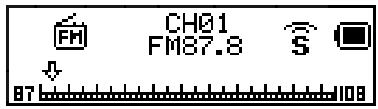
2.6.1 FM mode submenu
In "FM mode" press "MENU" button to enter the FM submenu 7 options:
- Save
-Delete - Delete all
- Normal band
- Japan band
- Fine rec
- Long rec
-Exit
Freq Mode
Move PLAY button once left or right to change frequency with 0.1Hz .
Move PLAY button left or right and hold for a few seconds.
Release the button when the frequency changes.
The tuner will search automatically for the next available station.
Search Station
Move PLAY button left or right to select a (stored) radio stations
Auto search
The tuner will search for available radio stations and automatically store them.
2.6.1.1 Save (radio station)
When searching a radio station manually, it can be stored with this function. Maximum 20 frequencies can be stored.
2.6.1.2 Delete broadcaster
With this function, stored stations can be removed.
2.6.1.3 Delete all broadcaster
With this function, all stored stations can be removed.
2.6.1.4 Normal band
87MHz - 108MHz
2.6.1.5 Japan band
76MHz -96MHz
2.6.1.6 Fine REC type
With this function music from a radio station can be recorded.
Press "PLAY" button to start recording.
Press PLAY button again to stop save the recording.
Exquisite recording which is the wav format and good voice quality
2.6.1.7 Long REC type
With this function music from a radio station can be recorded. Press "PLAY" button to start recording. Press PLAY button again to stop/save the recording. Long recording which is the act format and normal voice quality
2.7 Systems set up
Select "System" in the main menu
- System Time
Record type - Backlight
Light Color
Language - Power off
Replay mode - Contrast
Online Mode
Memory info - Firmware version
- Firmware upgrade
- Exit
2.7.1 System Time
Enter here the correct date and time.
Press VOL+ button and the year- number will start flashing.
Change the year number by pushing PLAY button left or right
Press again VOL+ button and the months will start flashing....
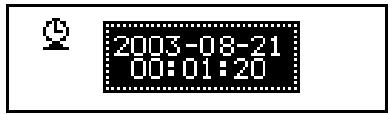
When date and time are correct, press "MENU" button to confirm.
2.7.2 Backlight
Adjust the backlight intensity between 0 and 30, by pushing "PLAY" button left or right.
Press "MENU" Button to confirm
2.7.3 Language
Change the language by moving "PLAY" button left or right.
Press "MENU" button to confirm.
2.7.4 Power off
- Off time
With this function the device will automatically shut down after a preset time. (0-60sec), when no button is touched and music is not playing. If time is set at 0 seconds, the function is cancelled.
- Sleeping mode
With this function the device will always shut down after a preset time (0-120 min).
If time is set at 0, the function is cancelled.
When the device is powered off, sleeping mode is set at 0.
2.7.5 Replay mode
Manual replay or auto replay
2.7.6 Contrast
Change contrast by moving "PLAY" button left or right.
Press "MENU" button to confirm.
2.7.7 Memory info
Gives a percentage of the used memory compared to the total memory size
2.7.8 Firmware version
Info about software version
2.8 USB disk use
The unit functions as a standard USB disk with most operating systems.
- Windows98 (driver needed)
- Windows 2000 and above (no need to install driver, the driver is automatically recognized by the PC)
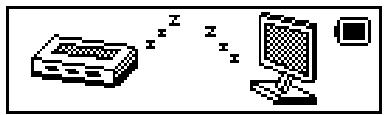
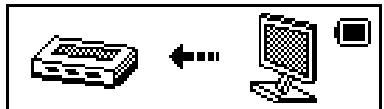
When connected with PC (battery not needed), the device can be in 3 different modes
- "wait" mode
- "download data" mode
- "send data" mode
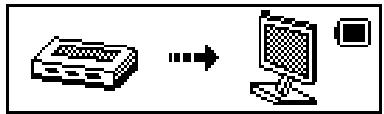
Attention!! Removing the device from the PC during data transfer can cause severe damage to the device!
2.9 Hold switch
When "HOLD" switch is moved left, the other buttons are inactive and "Hold icon" will light up.
2.10 Specification
(1) FLASH Memory
(2) music format
(3) FM
(4) FM sensitivity
(5) liquid crystal display monitor
(6) Display Color
(7)Languages
(8) Power supply
(9) USB2.0
(10) recording
(11) frequency response
(12) distortion
(13) baud rate
(14) weight
(15) size
128MB, 256MB, 512MB, 1GB
MP3, WMA, WAV
76MHz- 96MHz / 87MHz- 108MHz
6dB (100MHz)
128 × 32 lattices
Seven colors
English, French, Italian, German, Spanish, Dutch,
Swedish, Czech
1.5V/AAA
Read 1033K Byte/S, Write 995K Byte/S)
WAV (32K bps), ACT (8K bps)
20Hz~20KHz
< 0.1%
4Mbps
34g (Without battery)
88 mm × 28 mm × 18 mm( L × W × D)
3.0 Troubleshooting
If for any reason your player is blocked, you can simply do a firmware reset by taking out the battery and reinstall it afterwards.
FOR MORE INFORMATION DO NOT HESITATE TO VISIT OUR WEBSITE www.mpmaneurope.com