
SWS-A1 - Wall socket SILVERCREST - Free user manual and instructions
Find the device manual for free SWS-A1 SILVERCREST in PDF.


| Product Type | WiFi Wall Socket |
| Brand | SilverCrest |
| Model | SWS-A1 |
| Voltage | 230 V ~ |
| Frequency | 50 Hz |
| Maximum Current | 16 A |
| Maximum Power | 3680 W |
| Safety Class | Class I |
| Wireless Frequency | 2.412 - 2.462 GHz |
| Wireless Standard | IEEE 802.11 b/g/n |
| Static Power Consumption | < 0.9 W |
| Standby Power Consumption | < 0.65 W |
| Relative Humidity Range | 10% - 95% |
| Weight | Approx. 129 g |
| Dimensions (H x W x D) | 115 x 56 x 72 mm |
| App Availability | Google Play Store & App Store (free SilverCrest WiFi Plug app) |
| System Requirements | iOS 5.0+ or Android 4.0+ |
| Manual On/Off Button | Yes (LED on/off button) |
| LED WiFi Status Indicator | Yes (red/blue) |
| Timer Function | Set day and time for on/off |
| Countdown Function | Set delay before on/off |
| Absence Mode | Simulates presence (on/off every 30 min) |
| Lock Function | Prevent others from adding device |
| Cleaning Instructions | Remove from outlet, wipe with dry lint-free cloth; no solvents |
| Operating Temperature | Up to 35°C (normally ≤25°C) |
| Spare Parts / Repairability | Do not open; repairs by qualified personnel only |
| Warranty | 3 years (material/manufacturing defects) |
Frequently Asked Questions - SWS-A1 SILVERCREST
User questions about SWS-A1 SILVERCREST
0 question about this device. Answer the ones you know or ask your own.
Ask a new question about this device
Download the instructions for your Wall socket in PDF format for free! Find your manual SWS-A1 - SILVERCREST and take your electronic device back in hand. On this page are published all the documents necessary for the use of your device. SWS-A1 by SILVERCREST.
USER MANUAL SWS-A1 SILVERCREST
Operation and Safety Notes


CZ
Before reading, unfold the page containing illustrations and familiarize yourself with all functions of the product.
GB Operation and Safety Notes Page 51

natural_image
Gray gradient bar with no text or symbols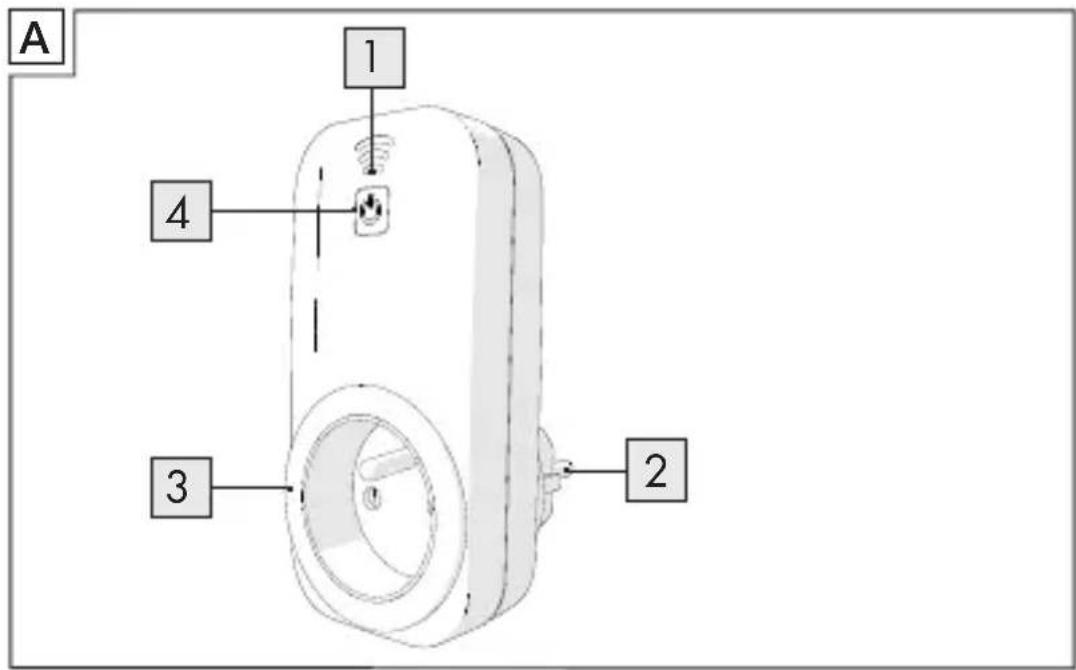
natural_image
Diagram of a digital wall-mounted device connected to an electrical outlet, showing internal wiring and a black arrow indicating connection (no text or symbols present)

Obsah
Úvod....8
Zamýšlené použití 8
natural_image
Abstract black ink brushstroke on white background, no text or symbols presentThomas Günther
Description of parts and controls 56
Scope of delivery 56
Trademark rights 57
Explanation of symbols 57
Safety notes....58
Installation....61
Select a suitable place for installation 61
Installation, connection to the network, and registration 61
Use 68
How to switch a device on/off manually....68
How to switch your device on/off using the app ...... 69
How to change the name and/or icon of your device 69
How to add a timer....73
How to add a count down time....75
How to add an Absence Mode....77
How to delete a Timer, Count Down or Absence setting 79
How to remove a WiFi socket....79
How to lock and unlock a WiFi socket....82
How to reset all settings 84
Forget Password 85
Maintenance 88
Troubleshooting 88
Cleaning and Maintenance 89
Disposal....90
Warranty and Service 91
Service address 91
Declaration of Conformity 93
Introduction
WiFi Socket
●Introduction

Congratulations on the purchase of your new WiFi socket. You have bought a quality product. This instruction manual is part of this product. They contain important information regarding safety, use and disposal. Please familiarise yourself with all operational and safety notes prior to using your WiFi socket. Use the WiFi socket only in the manner as described and for the areas of application as stated. If you pass this product on to a third party, make sure that you also pass this instruction manual on with it. Note: In this manual and in the app, a connected load will be referred to as a "device".
●Intended use
The WiFi socket is a piece of control technology. It serves to switch a connected device on or off, manually or automatically. Using the free SilverCrest WiFi Plug app and a wireless network, additional functions such as timer, countdown timer, and absence mode can be programmed. Altering this product or using it in a manner other than
intended can lead to serious injury. The manufacturer is not liable for damages incurred through the improper use of this product. This product is not intended for commercial use, only for private use.
●Technical Data
IAN: 103043
Model LIDL: SWS-A1
Voltage: 230 V \~
Frequency: 50 Hz
Maximum power: 16 A
Maximum power: 3680 W
Safety class: Class I
Wireless frequency: 2.412 GHz - 2.462 GHz
Wireless standard: IEEE 802.11 b/g/n
Static power consumption: <0.9 W
Standby power consumption: <0.65 W
Relative humidity: 10%\~95%
Weight: approx. 129 g
Dimensions: 115x56x72 mm
App availability: Google Play Store and AppStore
Introduction
System Requirements: iOS 5.0 or above and Android 4.0 or above
Manual version: V1.5
●Description of parts and controls (Figure A)
1 LED WiFi status indicator
2 Plug
3 Socket
4 LED on/off button (for manually switching a connected device on/off)
- Scope of delivery
Please dispose of the packing material and check that the consignment is complete. The manufacturer must be informed immediately of possibly incomplete consignments.
Contents of package:
1 WiFi socket
1 Instructions for use
●Trademark rights
The manufacturer has made every effort to protect the trademark information mentioned in this manual. All trademarks are the property of their respective holders.
General remark: Some of the product names mentioned in this manual are used only for the purpose of identification, and may be the property of their respective companies.
●Explanation of symbols

DANGER!
This symbol, together with the word "DANGER!", designates an imminent danger, which – if neglected – can lead to significant injuries and even death.

WARNING!
This symbol, together with the word "WARNING!", designates an imminent danger, which – if neglected – can lead to serious injuries.
Safety notes
CAUTION!
This symbol, together with the word "CAUTION!", designates a danger, which – if neglected – can lead to injuries and cause damage to property.
IMPORTANT!
The details listed here present important information relating to the operation of the WiFi socket.
●Safety notes

Please read all the safety information and instructions. The manufacturer is not liable for cases of material damage or personal injury caused by incorrect handling or non-
compliance with the safety instructions. In such cases, the warranty will be voided.
PLEASE KEEP THIS MANUAL FOR FUTURE REFERENCE!
DANGER! RISK OF FATAL INJURY OR ACCIDENT FOR CHILDREN AND PEOPLE WITH DISABILITIES!
Children and people with physical or intellectual disabilities or a lack
of knowledge or experience may use this product only when a person responsible for their safety has instructed or is supervising them. Children must always be supervised, to ensure that they do not play with the product. Cleaning of the product must not be carried out by children.
Keep the packing material out of reach of children. DANGER OF SUFFOCATION!
DANGER!
Please do not use the WiFi socket if you find that it has been damaged in any way. Damaged products can cause electrical shocks or electrocution.
■Only plug the WiFi socket into an earthed power point.
The WiFi socket is suitable for use in ambient temperatures that normally do not exceed 25^ C but may occasionally reach 35^ C.
■ Make sure that the WiFi socket is always accessible, so that in dangerous situations it can be removed from the power point as quickly as possible.
■Never plug one WiFi socket into another WiFi socket.
- Do not overload the WiFi socket by connecting devices that exceed the maximum indicated performance parameters of the WiFi socket.
■Do not connect any power boards to the WiFi socket. Overloading can cause fires resulting in injury or death.
Safety notes
In the event of unusual sounds, smells, or if the WiFi socket starts to smoke, it must be disconnected from the power point immediately. It must not be used again until a professional has examined it. Likewise, after the WiFi socket has come into contact with water or a similar substance, it must be disconnected from the mains immediately and examined by a professional.
- Do not use the WiFi socket after contact with moisture or fluids.
■Protect the WiFi socket from excessive artificial light.
In order to disconnect the WiFi socket completely from the mains, it must be pulled out of the power point. Make sure that a connected device is NOT disconnected from the mains, if it has been switched off via the WiFi socket. Please be aware that, when the WiFi socket is plugged into a power point, a small amount of current is used.
■The WiFi socket is suitable for use in dry indoor spaces.
■ Remove the WiFi socket from the power outlet during storms, lightning and whenever the product will not be used for a longer period of time.
- Never open the housing of the WiFi socket. An opened housing can cause electrical shocks or electrocution. Repairs may only be carried out by trained professionals or by our customer service department. During the warranty period, repairs must only be carried out by our customer service department, otherwise the warranty is void.
The WiFi socket is not suitable for children under three years of age.
●Installation
- Select a suitable place for installation
Ensure that:
- the WiFi socket is positioned close enough to your WiFi router.
- the WiFi signal will not be functionally interrupted at the desired place of installation due to obstacles or other electronic devices.
- the time on your mobile phone is set to universal time. The WiFi socket uses the time settings of your mobile phone. Timer tasks can only be implemented correctly when the time has been properly set.
●Installation, connection to the network, and registration
■ Search for the free SilverCrest WiFi Plug app in the AppStore or on Google Play, and install the app. At the moment, this app is only available on mobile phones.
■Make sure that the keypad of the mobile phone is not superimposed over the buttons of the SilverCrest WiFi Plug app. To hide your keypad, please consult the user manual of your mobile phone.
Installation
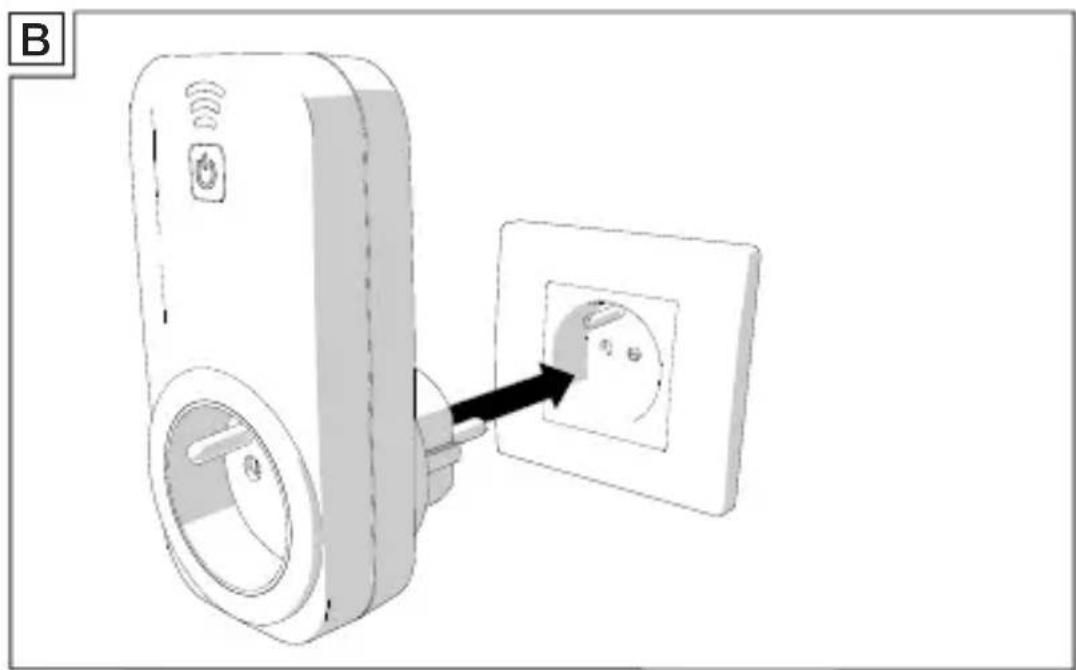
■ Connect the WiFi socket to the power outlet according to the instruction in figure A.
■Press and hold the LED on/off button 4 on the WiFi socket for five seconds, until the LED WiFi status indicator 1 flashes quickly in red.
■ Ensure your mobile phone is connected to your wireless network.
■Open the SilverCrest WiFi Plug app.
Installation
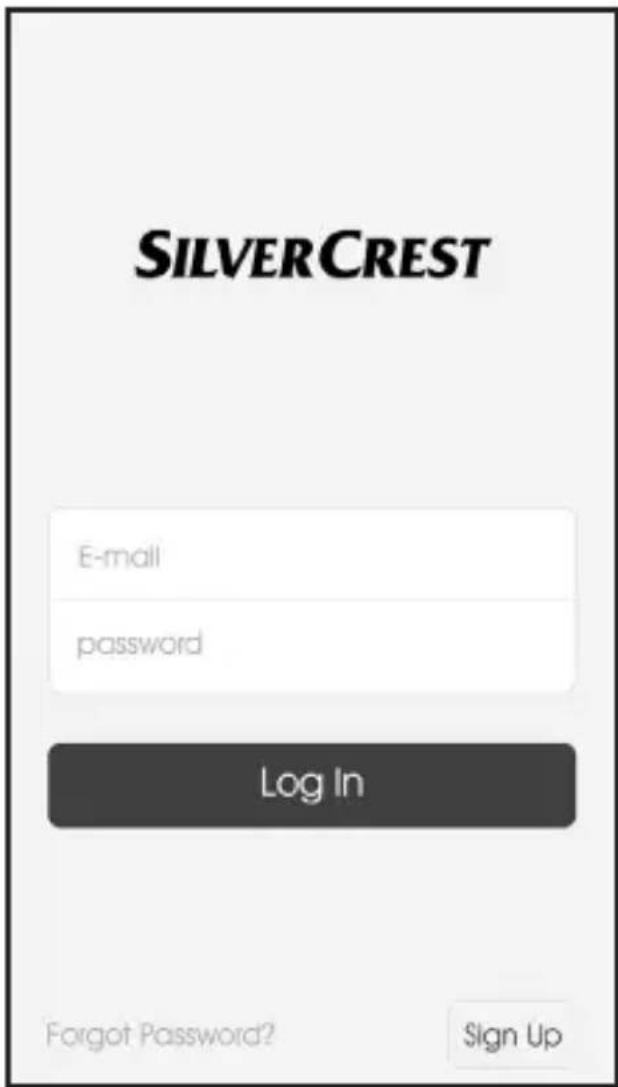
If you are using the app for the first time, press Sign Up. The "Sign Up" window is displayed. If you are already registered, log in using your registered email address and password by pressing on Log In.
Installation
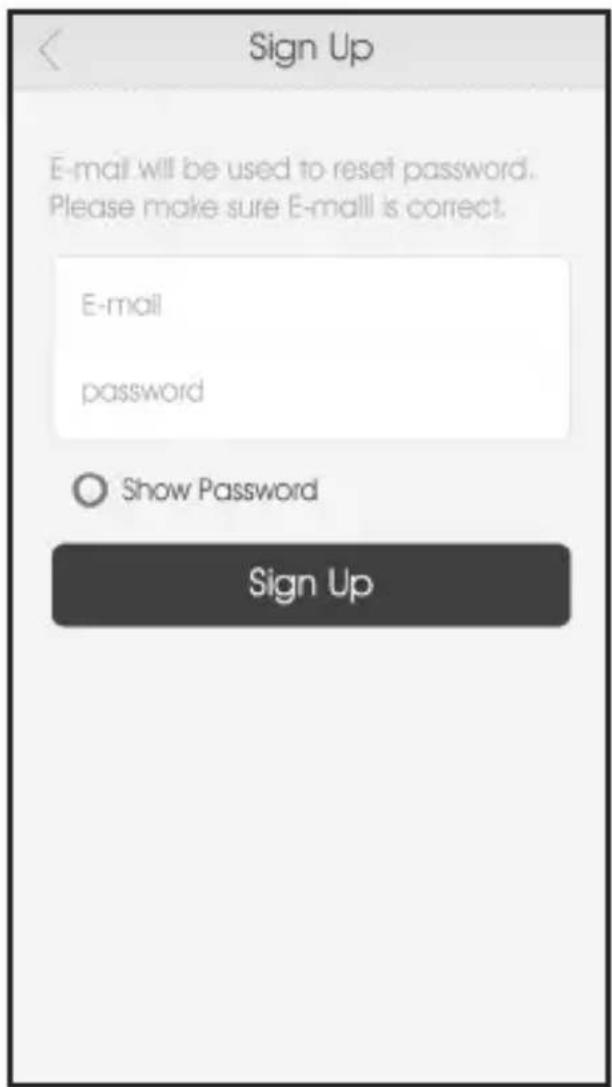
■ Enter the email address with which you would like to register, and input a password.
- Press Sign Up. If the registration is successful, the "Log In" window opens.
Installation
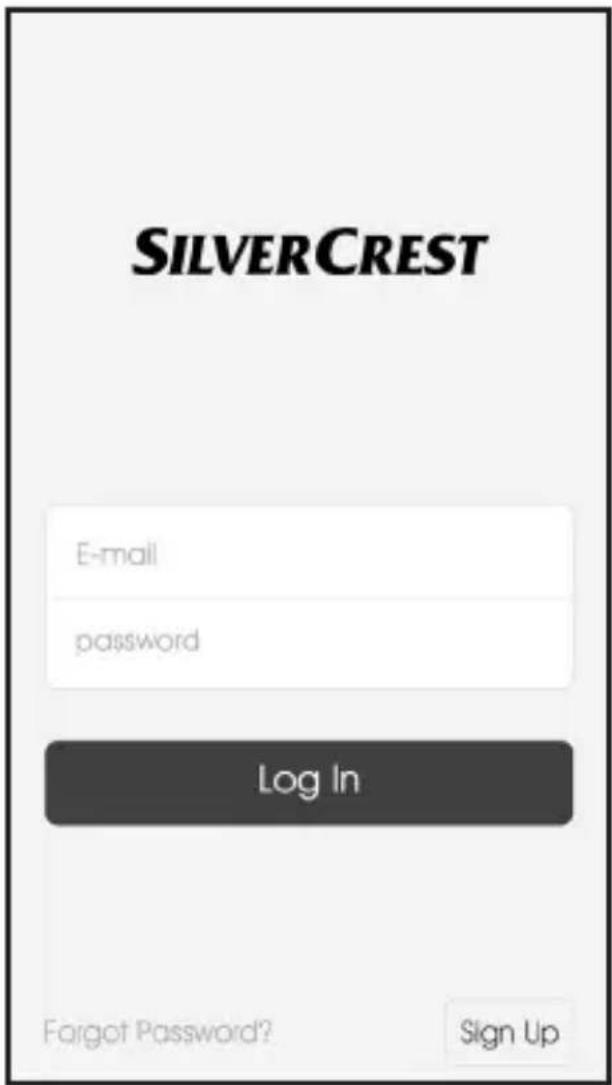
- Log in using your registered email address and password, and press Log In to confirm. The "WiFi Devices" window appears.
Installation
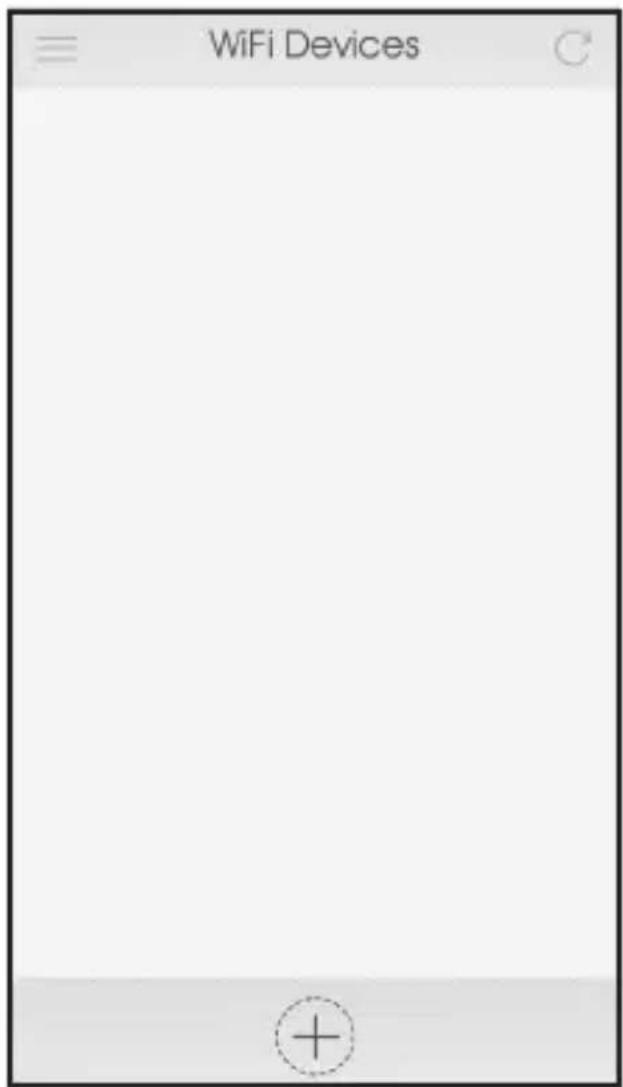
■Select the "+" icon.
- Your wireless network will be selected automatically. Add the password of your wireless network. Press Start. The connection has been established once the LED WiFi status indicator 1 on the WiFi socket turns blue and the app displays the WiFi socket.
Installation
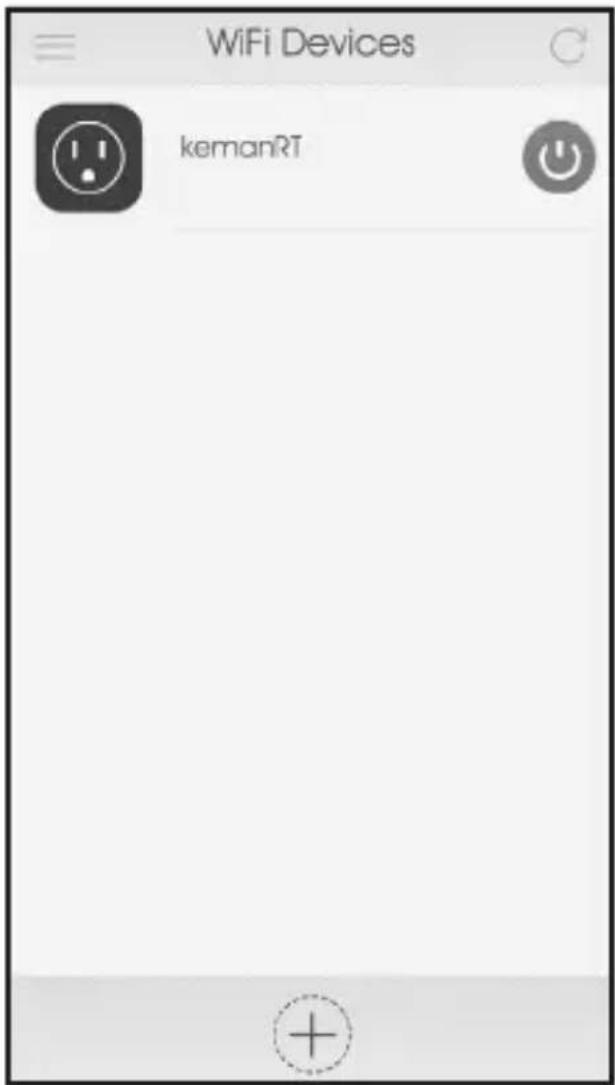
Note: When installing a new WiFi socket, it is automatically called "kemanRT". The method for changing this name is described in the chapter: "How to change the name and/or the symbol of your device".
Use
Use
IMPORTANT! Use the app to operate or change the settings of your WiFi socket. If you want to do this from an arbitrary location, then your WiFi socket must be connected to a WiFi network with internet access.
●How to switch a device on/off manually
- You can manually switch a connected device on or off at any time, even during a running program. Make sure that the device is connected, then press the LED on/off button 4 on the WiFi socket once in order to change the status. When the connected device is switched on, the indicator light in the LED on/off button 4 on the WiFi socket shines blue to confirm.
●How to switch your device on/off using the app
Even when a connected device is being controlled by means of a programmed timer, it is possible to switch a device on or off by means of the app.
■ Make sure that the device is connected. Open the SilverCrest WiFi Plug app. A list of found WiFi sockets is displayed.
- Press the virtual button, in order to switch the connected device on or off. The connected device is switched off, when the LED on/off button 4 on the WiFi socket no longer shines.
●How to change the name and/or icon of your device
- Open the SilverCrest WiFi Plug app. The list of synchronised WiFi sockets appears.
Use
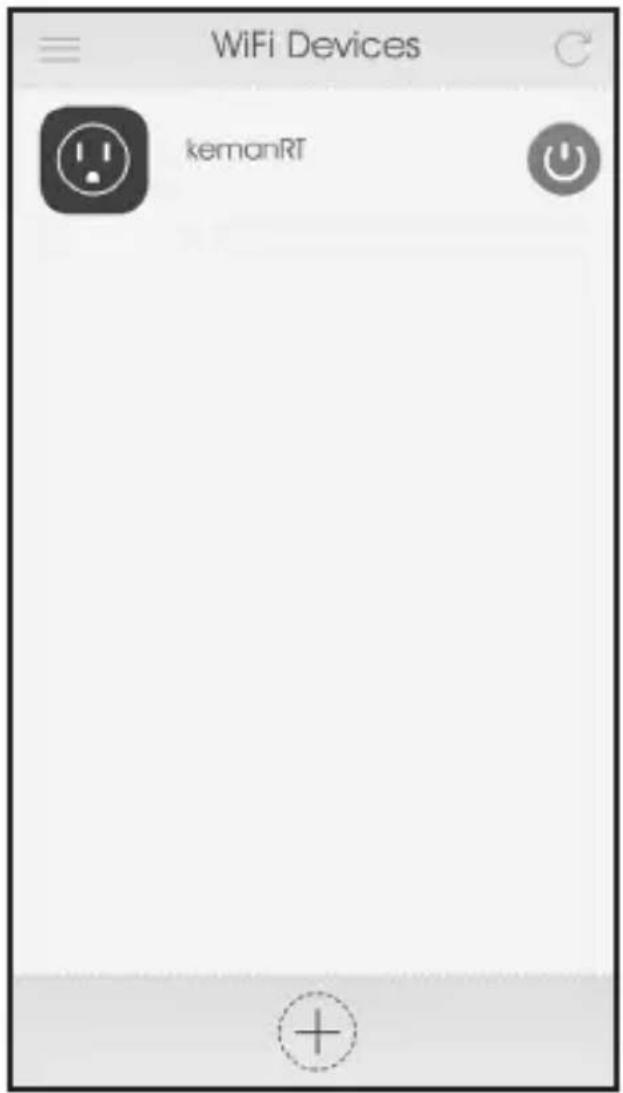
For improved clarity and when using multiple WiFi sockets, each socket can be assigned its own name. Select the WiFi socket whose name and/or symbol you would like to change. The WiFi Devices function list is displayed.
Use
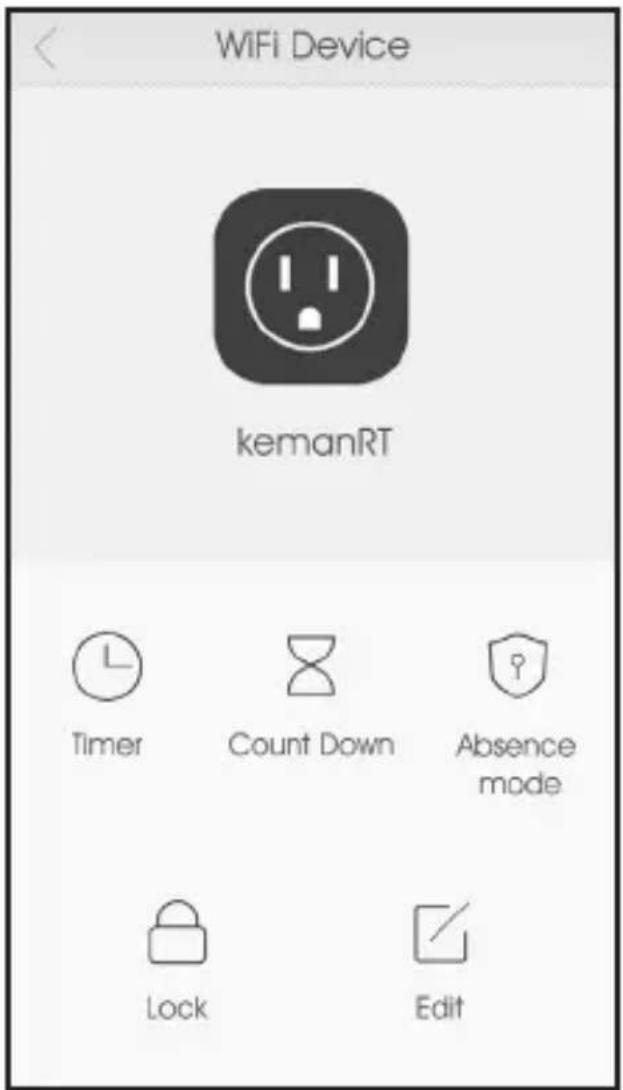
■ Select Edit. The Edit window appears.
Use
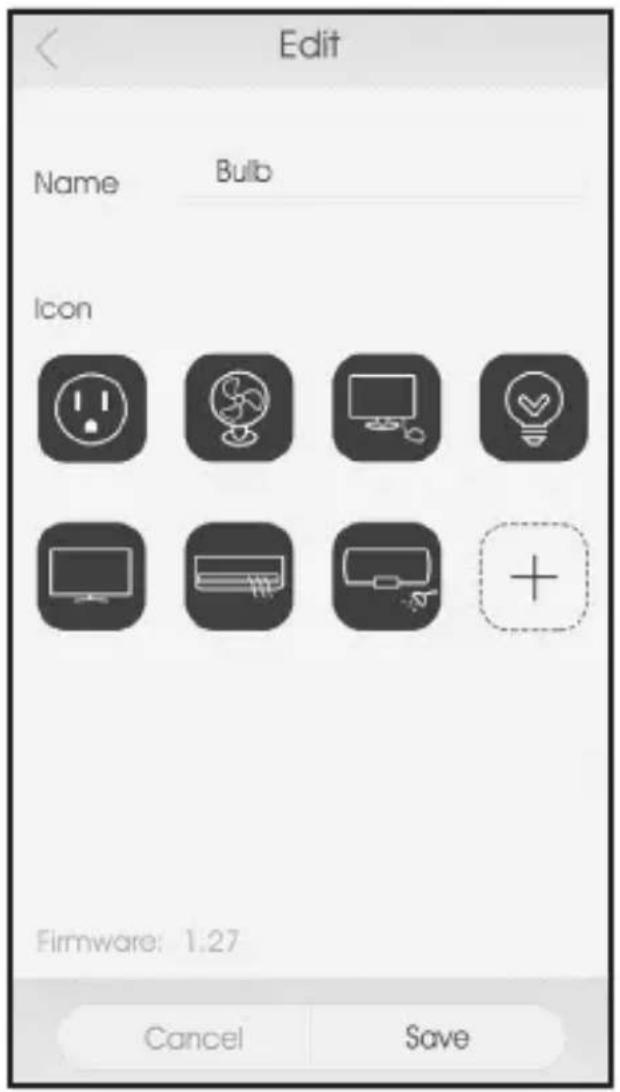
■Change the name of the WiFi socket in the "Name" field.
- Change the icon by selecting an icon from the list or select the "+" icon to choose your own image.
■Select Save.
●How to add a timer
■ Using the timer function you can set the day of the week and time at which a device connected to the WiFi socket should be switched on or off.
IMPORTANT! To ensure the speed and stability of the app, it is not possible to edit the Timer after it has been set. In order to change the settings, please delete the set time and add a new Timer.
To set a time, select the WiFi socket of which you want to set the timer. The WiFi Devices function list is displayed (see figure on page 71).
■ Select Timer. The Timer window appears.
■Select the "+" icon. The Add Timer window appears.
Use
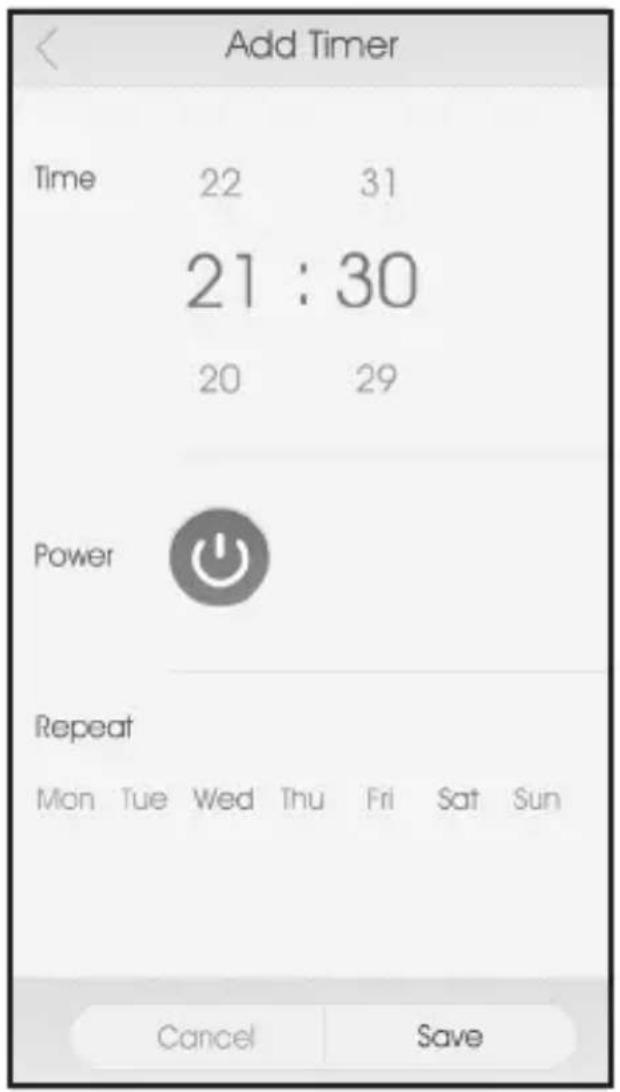
In the Time section, set the time. In the Power section, choose whether the connected device should be switched on or off. A connected device will be switched on if the virtual button is highlighted in orange. If the button is white, the device will be
switched off. In the Repeat section, choose the days on which the connected device should be switched on or off.
■Select Save.
■ Repeat these steps in order to add more times at which the connected device should switch itself on or off. All timers can be made active or inactive separately using a “slide switch”.
●How to add a count down time
- With the countdown function you can set the amount of time after which the connected device should automatically switch itself on or off.
In order to set a countdown timer, select the WiFi socket for which you would like to set the countdown timer. The WiFi Devices function list is displayed (see figure on page 71).
■ Select Count Down. The Count Down window appears.
■Select the "+" icon. The Add Count Down window appears.
Use
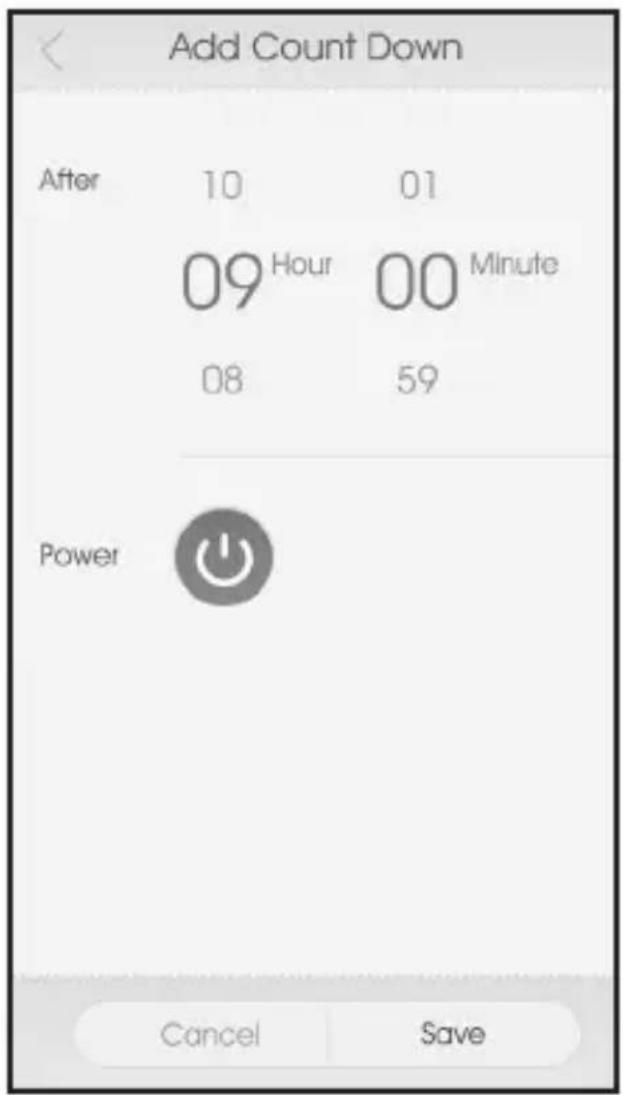
In the After section, set the count down time. In the Power section, choose whether the connected device should be switched on or off.
■ Select Save. The set countdown timer starts immediately.
●How to add an Absence Mode
■ Using the absence mode function, you can set a period of time in which your connected device automatically switches itself on and off every 30 minutes. When, for example, you set the absence mode for the period from 8 pm to 1 am, the connected device will automatically switch itself on and off every 30 minutes during this time period.
■ IMPORTANT! When using the Absence Mode, both the Timer and/or Count Down feature should be disabled.
In order to set an absence time, select the WiFi socket for which you would like to set the absence time. The WiFi Devices function list is displayed.
- Select Absence Mode. The "Absence Mode" window is displayed.
■Select the "+" icon. The Add Absence Mode window appears.
Use
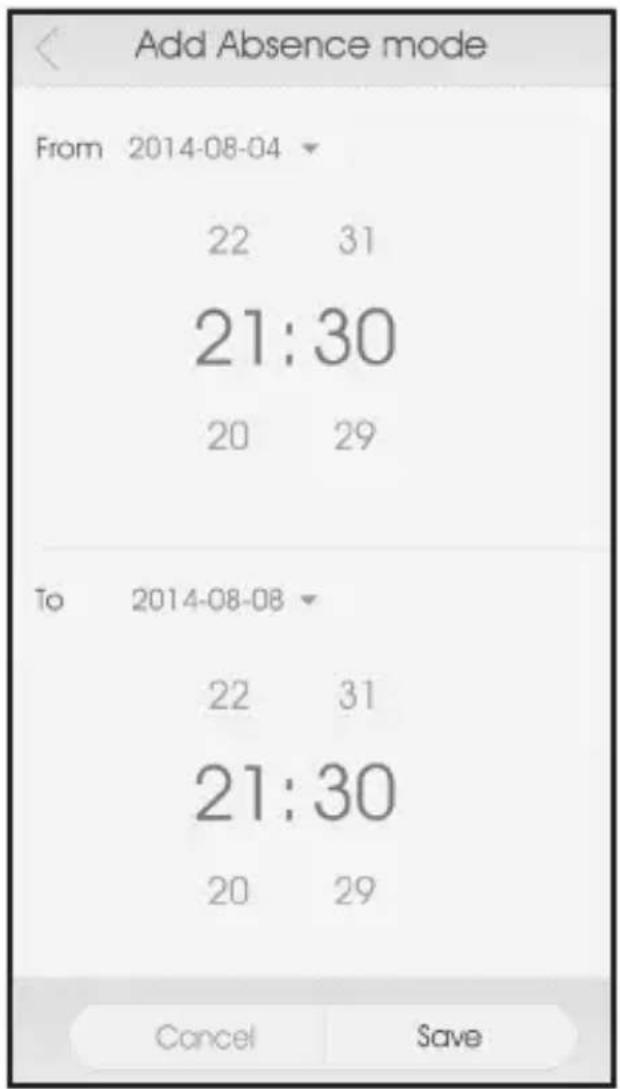
■ Set the time period in which your connected device should switch itself on and off every 30 minutes.
■Select Save.
●How to delete a Timer, Count Down or Absence setting
In order to delete the settings for a timer, a countdown timer, or the absence mode, select the WiFi socket for which would like to delete the settings. The WiFi Devices function list is displayed.
■ Select Timer, Count Down or Absence, depending on what you want to delete. The corresponding overview window is opened.
Tap on the setting that you would like to delete and keep it pressed until the Bin icon appears at the lower edge of the screen.
- Select the check box next to the setting you want to delete. You can select multiple settings if you want.
■ Select the Bin icon at the bottom of the screen.
■Select OK.
●How to remove a WiFi socket
In order to remove a WiFi socket, open the SilverCrest WiFi Plug app. The list of synchronised WiFi sockets appears.
Use
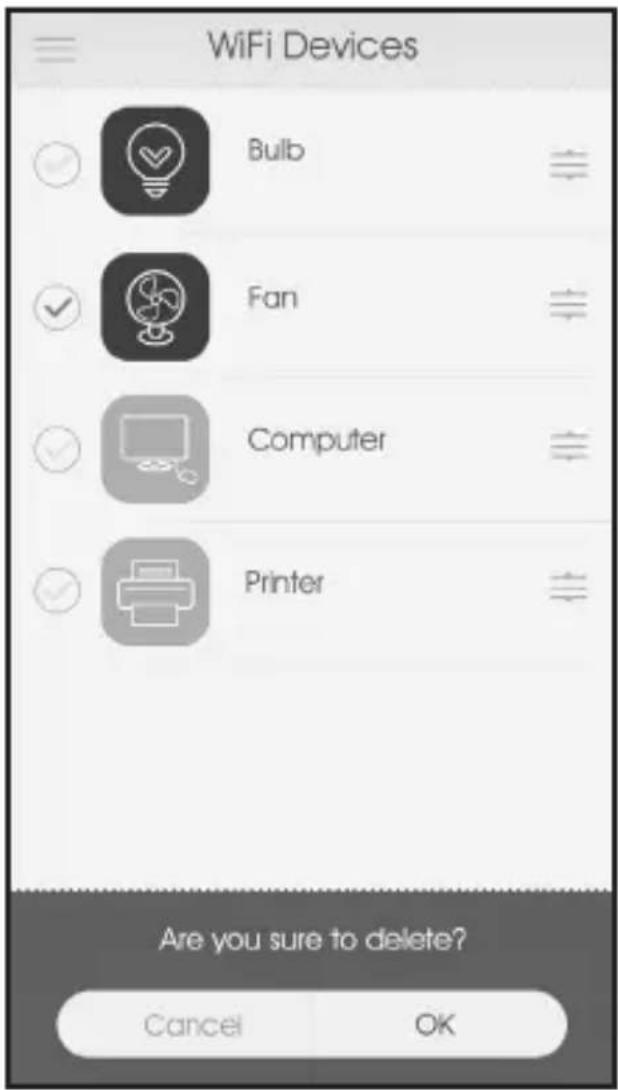
Tap on the WiFi socket that you would like to delete and keep it pressed until the Bin icon appears at the lower edge of the screen. Select the check box next to the device you want to delete. You can select multiple devices if you want.
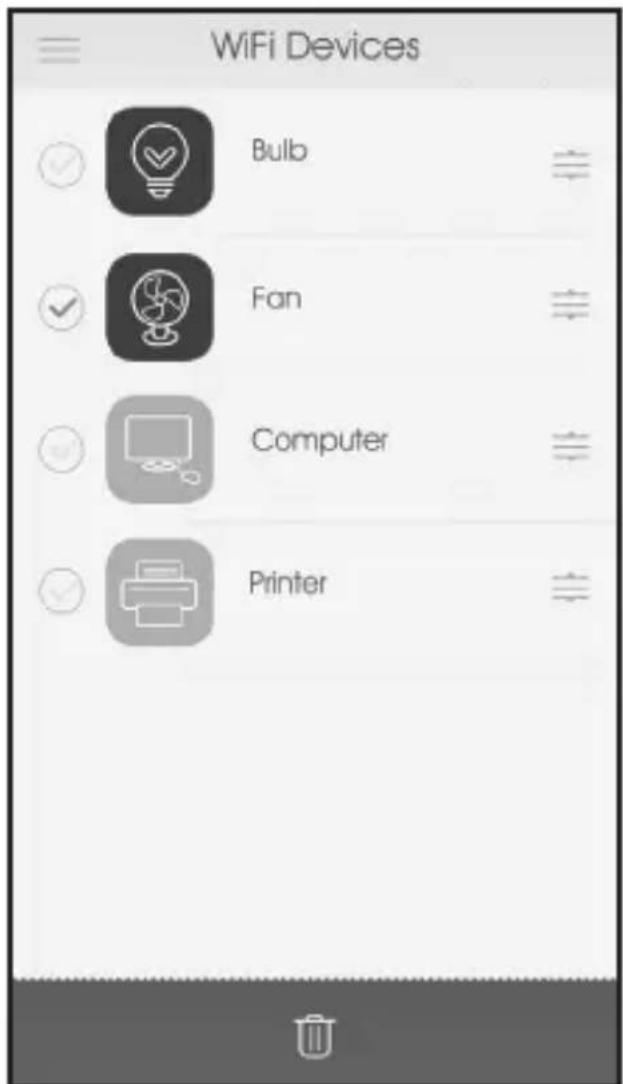
- Select the Bin icon at the bottom of the screen. - Select OK.
Use
●How to lock and unlock a WiFi socket
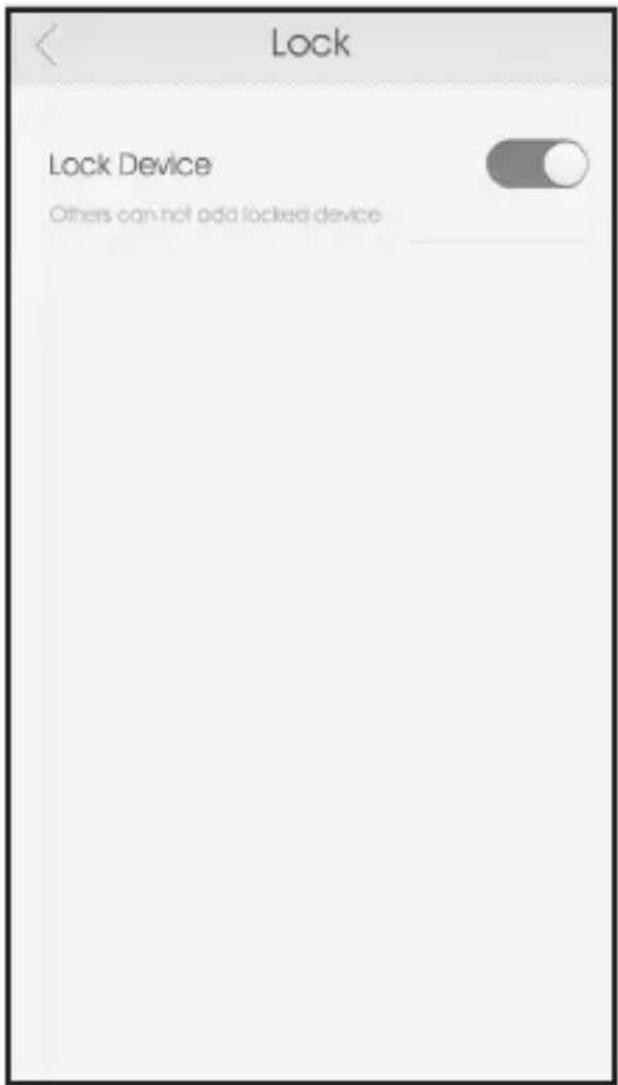
A WiFi socket can be locked so that other users cannot add the same socket to their lists.
In order to lock or unlock a WiFi socket, select the socket that you would like to lock or unlock. The WiFi Devices function list is displayed.
■ Select Lock. The Lock window appears.
- Lock or unlock the WiFi socket by dragging the switch to the ON or OFF position. Note: Slide switch on orange = locked or lock activated.
Use
Use
●How to reset all settings
It is possible to reset the WiFi socket and erase all settings.
In order to reset the WiFi socket, press and hold the LED on/off button 4 on the WiFi socket for longer than five seconds.
■Follow the installation steps, in order to establish a new connection.
●Forget Password
■Open the SilverCrest WiFi Plug app.
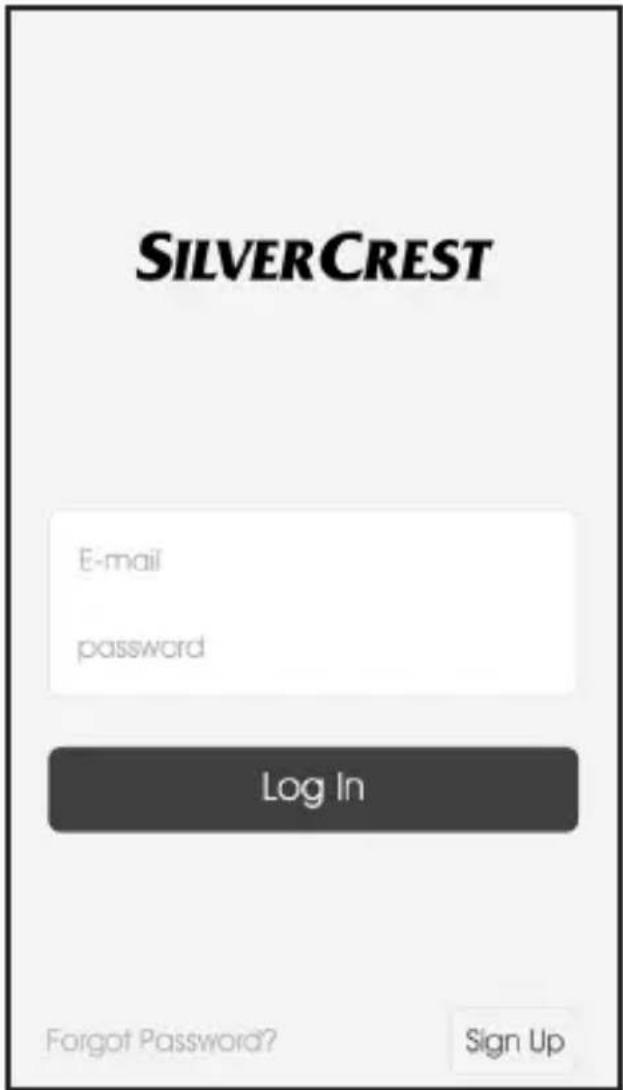
■Press Forgot password.
Use
■The "Forgot Password" window is displayed.
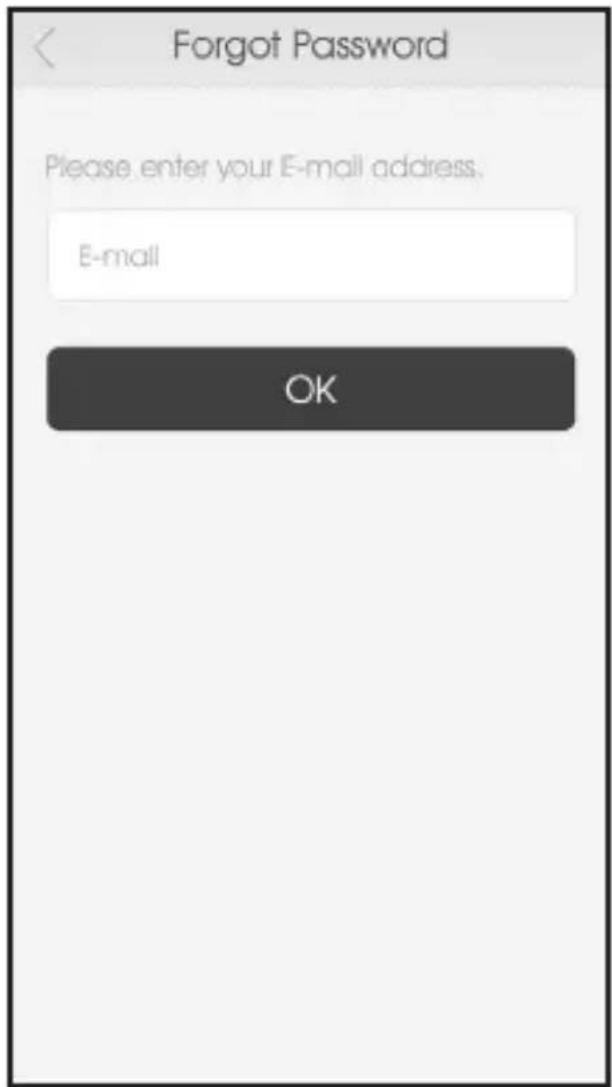
■ Enter the email address with which you registered, then press OK.
A link for changing your password will be sent to your registered email address. Please check your email inbox. Note: This process
may take a few minutes. Please also check your spam folder.
- Click on the link in the email. By clicking on the link you will be taken to a website where you can change your password. Note: Should this not occur, check the settings on your internet browser and/or copy the link directly into the address bar of your browser. The “Reset Password” window is displayed.
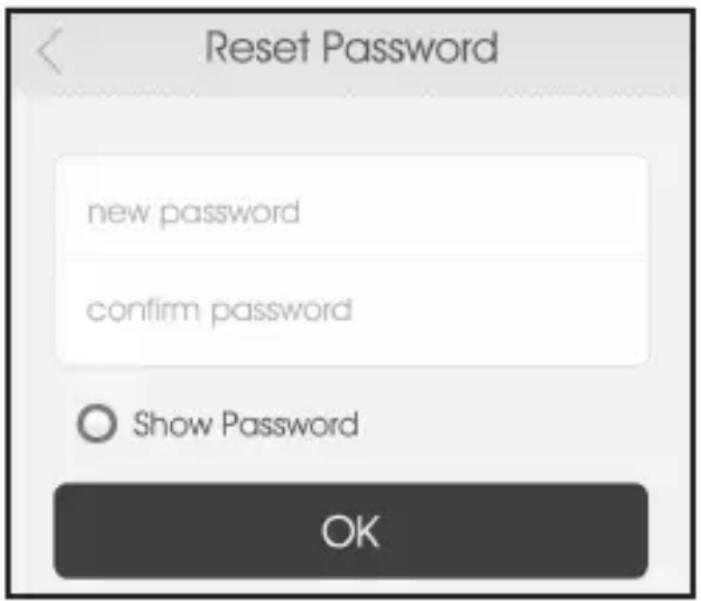
In the first input line, enter your new password; then confirm it by re-entering it in the second input line. After that, press OK.
■Once the new password has been successfully set, you will receive the message: "Success". If this message does not appear, repeat the process.
■Now open the SilverCrest WiFi Plug app.
Maintenance
■Please now enter your email address and your new password, then press Log In to confirm.
■The "WiFi Devices" window appears.
●Maintenance
WARNING!
Never open the housing of the WiFi socket. An opened housing can cause electrical shocks or electrocution. Repairs may only be carried out by trained professionals or by our customer service department. During the warranty period, repairs must only be carried out by our customer service department, otherwise the warranty is void.
■ Regularly check for updates of the SilverCrest WiFi Plug app.
●Troubleshooting
The WiFi socket contains sensitive electronic components. This means that placing the WiFi socket in proximity to objects that emit radio signals – such as mobile phones, walkie talkies, CB radios, remote controls, and microwaves - can lead to
Cleaning and Maintenance
interference. If interference occurs, move such objects away from the WiFi socket.
The WiFi socket uses radio signals. This means that placing the WiFi socket in proximity to electronic devices that emit radio signals can lead to interference. If interference occurs, move such objects away from the WiFi socket.
- Should the WiFi socket not function correctly, make sure that the power point being used has voltage. If necessary, check the function at a different power point. Furthermore, make sure that your mobile terminal device and the WiFi socket are (correctly) connected to the Internet. Make sure that your router is working properly. Possibly even delete the app and re-install it.
If a connected device does not work, make sure that the device is switched on and not on standby mode.
●Cleaning and Maintenance
Before the WiFi socket is cleaned, it must be removed from the power point.
■Clean the WiFi socket with a dry, lint-free cloth.
■ Never use detergents or other solvents to clean the WiFi socket.
■When not in use, store the product in a dry and cool space.
Disposal
●Disposal

The packaging is made of environmentally friendly materials, which may be disposed through your local recycling facilities.
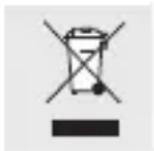
Do not dispose of electrical equipment in the household waste!
In accordance with European Directive 2012/19/EU relating to old electrical and electronic appliances and its translation into national law, used electrical equipment must be collected separately and recycled in an ecologically compatible way.
If you wish to part with the product, please dispose of it in accordance with the regulations applicable at such time. Advice is available from your local council.
●Warranty and Service
This product has a 3 year guarantee from the date of purchase extended only to the original buyer, not transferable. Please keep your receipt as proof of purchase. The guarantee applies to material or manufacturing defects only. It does not cover wear items or damage caused by improper use. Any modifications will void the guarantee. This warranty does not limit your legal rights. In the event of a warranty claim, please contact the service center. This is the only way to return your product free of charge.
●Service address
Please contact us before returning your defective WiFi socket. We will gladly also call you back! The warranty will be recognised only when the defective WiFi socket is accompanied by a copy of the receipt. We cannot accept parcels sent carriage forward, please request a return label.
Warranty and Service
Uni-Elektra GmbH
Kirchstrasse 48
72145 Hirrlingen
Germany
Tel.: +49 (0) 74 78 / 9 13 85-0
E-Mail: service@uni-elektra.de
IAN 103043
When making inquiries, please have your receipt and the product number (IAN 103043) ready.
Manufacturer
Uni-Elektra GmbH
Kirchstrasse 48
72145 Hirrlingen
Germany
Declaration of Conformity
●Declaration of Conformity
We, Uni-Elektra GmbH in Hirrlingen, Germany, hereby affirm that the WiFi socket (identification number: IAN 103043) complies with the following European directives:
Low Voltage Directive (LVD) 2006/95/EC
EMC Directive 2004/108/EC
R&TTE Directive 1999/5/EC
ErP Directive 2009/125/EC – Regulation 1275/2008
RoHS Directive 2011/65/EU
For the trademark supervisory authority a complete declaration of conformity has been lodged at the company Uni-Elektra GmbH.
Declaration of Conformity
Signature:

Mr Thomas Günther
Place: Hirrlingen, Germany



UNI-ELEKTRA GMBH
Kirchstrasse 48
72145 Hirrlingen
Germany
Stav informací · Version des informations · Versione delle informazioni · Stand van de informatie · Last Information Update: 01/2015 · Ident.-No.: 10194032014-CZ/GB
IAN 103043
- Obsah
- Introduction
- WiFi Socket
- ●Introduction
- ●Intended use
- ●Technical Data
- ●Description of parts and controls (Figure A)
- - Scope of delivery
- ●Trademark rights
- ●Explanation of symbols
- DANGER!
- WARNING!
- Safety notes
- CAUTION!
- IMPORTANT!
- ●Safety notes
- DANGER! RISK OF FATAL INJURY OR ACCIDENT FOR CHILDREN AND PEOPLE WITH DISABILITIES!
- Keep the packing material out of reach of children. DANGER OF SUFFOCATION!
- ●Installation
- - Select a suitable place for installation
- Ensure that:
- ●Installation, connection to the network, and registration
- Installation
- Use
- ●How to switch a device on/off manually
- ●How to switch your device on/off using the app
- ●How to change the name and/or icon of your device
- ●How to add a timer
- ●How to add a count down time
- ●How to add an Absence Mode
- ●How to delete a Timer, Count Down or Absence setting
- ●How to remove a WiFi socket
- ●How to lock and unlock a WiFi socket
- ●How to reset all settings
- ●Forget Password
- Maintenance
- ●Maintenance
- ●Troubleshooting
- Cleaning and Maintenance
- ●Cleaning and Maintenance
- Disposal
- ●Disposal
- Do not dispose of electrical equipment in the household waste!
- ●Warranty and Service
- ●Service address
- Warranty and Service
- IAN 103043
- Manufacturer
- Declaration of Conformity
- ●Declaration of Conformity
Brand : SILVERCREST
Model : SWS-A1
Category : Wall socket