
Turbo 3.5 - Smartphone INTEX - Free user manual and instructions
Find the device manual for free Turbo 3.5 INTEX in PDF.


| Product type | Smartphone |
| Brand | Intex |
| Model | Turbo 3.5 |
| Dimensions | 116 x 62 x 12 mm |
| Weight | 105 g |
| Display | 3.5 inch TFT LCD, 320x480 pixels |
| Processor | 1.3 GHz dual-core |
| RAM | 512 MB |
| Internal storage | 4 GB (expandable up to 32 GB via microSD) |
| Operating system | Android 5.1 Lollipop |
| Battery | Li-Ion 1500 mAh, removable |
| Power supply | 5V/1A charger via micro USB |
| Main camera | 2 MP with LED flash |
| Front camera | 0.3 MP |
| SIM card | Dual SIM (mini SIM + mini SIM) |
| Connectivity | Wi-Fi 802.11 b/g/n, Bluetooth 4.0, GPS |
| Sensors | Accelerometer, proximity |
| Audio | 3.5 mm headphone jack, speaker, FM radio |
| Main functions | Voice calls, SMS/MMS, internet, camera, video playback, music player, FM radio, organizer |
| Care and cleaning | Wipe with a soft dry cloth; avoid liquids, extreme temperatures, and direct sunlight |
| Safety | Use only approved chargers and batteries; do not disassemble; keep away from water and moisture |
| Spare parts and repairability | Battery, back cover, screen assembly, charging port available; service by authorized centers recommended |
| General information | Released 2016; available in black, white, blue |
Frequently Asked Questions - Turbo 3.5 INTEX
User questions about Turbo 3.5 INTEX
0 question about this device. Answer the ones you know or ask your own.
Ask a new question about this device
Download the instructions for your Smartphone in PDF format for free! Find your manual Turbo 3.5 - INTEX and take your electronic device back in hand. On this page are published all the documents necessary for the use of your device. Turbo 3.5 by INTEX.
USER MANUAL Turbo 3.5 INTEX
Dear INTEX customer,
Congratulations on becoming a proud owner of INTEX product. You have now joined the fraternity of millions of satisfied INTEX customers spread across the globe.
Intex Technologies is one of the fastest growing IT Hardware, Mobile Phones and Electronics Company. A well established brand, INTEX has kept pace with the technology needs of millions of IT hardware & electronics consumers and has been serving them with more than 300 user friendly, high quality, state-of-the-art yet simple products/solutions. The products have been in the market since 1996 and conform to global standards.
Brand INTEX covers a wide range of computer peripherals and accessories such as Computer Multimedia speakers, Cabinets, Keyboards, Mouse, UPS, Add-on cards, Webcams, Headphones, Laptop bags, etc. As a part of its diversification strategy, Intex also
offers an interesting range of PCs, TFT-LCD Monitors, Consumer Electronics (DVD Players), Home UPS & Mobile Phones.
Every INTEX product goes through a rigorous process of sample evaluation and approval before commercial launch. Customers look upon the brand as a value-for-money & feature-rich offering, supported by efficient after sales service.
We look forward to your patronage.
It would be our pleasure to receive feedback and suggestions you may have for improvements in the product(s) you are using.
Intex Technologies (I) Ltd
info@intextechnologies.com
www.intextechnologies.com
Helpline No. 1800-103-8822 (India)
Intex Way Gulf LLC
service@intexuae.com
www.intexuae.com
Toll Free No. 800-468-39823 (Dubai)
Tel: 00971 04 3931991
SAFETY TIPS
■ Use of wireless hands-free system (headphone, headset) with a low power Bluetooth emitter.
■ Make sure the cell phone has a low SAR.
- Keep your calls short or send a text message (SMS) (instead. This advice applies especially to children, adolescents and pregnant women).
- Use cell phone when the signal quality is good.
■ People having active medical implants should preferably keep the cell phone at least 15 cm away from the implant.
CONTENTS
1 SECURITY MEASURES ......10
1.1 SAFETY PRECAUTIONS.... 10
1.2 USE OF THE ENVIRONMENT 10
1.3 FAIR USE 11
1.4 ACCESSORIES AND BATTERIES 11
1.5 DATA BACKUP 11
2 GETTING USED....12
2.1 HOW TO INSTALL THE BATTERY 14
2.2 HOW TO REMOVE THE BATTERY.... 14
2.3 HOW TO CHARGE THE BATTERY 14
2.4 HOW TO INSTALL & REMOVE THE SIM CARD 15
3 IME....16
4 MAKE & RECEIVE CALLS....16
4.1 MAKE A CALL.... 16
4.2 MAKE AN EMERGENCY CALL 17
4.3 INTERNATIONAL CALLS 18
4.4 ANSWER THE CALL.... 19
4.5 ADJUST THE VOLUME 19
4.6 TALK HANDS-FREE 19
4.7 CALL WAITING 19
4.8 CALL OPTIONS 20
5 DIALER ....20
6 MESSAGING....21
6.1 WRITE MESSAGE.... 21
6.2 INBOX 22
6.3 DRAFTS 23
6.4 OUTBOX 23
6.5 SENT ITEMS 23
6.6 BROADCAST MESSAGES.... 23
6.7 TEMPLATES 24
6.8MESSAGES SETTINGS 24
6.8.1 Text message.... 24
6.8.2 Multimedia message 26
6.8.3 Service message....26
6.9 SMS BACKUP 26
6.10 SCHEDULE SMS.... 26
6.11 BLOCKLIST....27
7 PHONEBOOK 27
7.1 CONTACTS LIST 27
7.2 OPTIONS MENU.... 28
8 CALL LOGS....30
8.1 ALL CALLS 30
8.2 DIALED CALLS 30
8.3 MISSED CALLS 31
8.4 RECEIVED CALLS.... 31
9 CALENDAR ....31
10 CAMCORDER....32
11 SETTINGS ....34
11.1 DUAL SIM SETTINGS 34
11.2 PHONE SETTINGS.... 34
11.3 NETWORK SETTINGS.... 35
11.4 SECURITY SETTINGS 36
11.5 NOTIFICATION SETTINGS 36
11.6 CALL SETTINGS 36
11.6.1 SIM call settings 36
11.6.2 Advanced setting 38
11.7 RESTORE FACTORY SETTINGS 39
12 ALARM....39
13 IMAGE VIEWER ....40
14 CALCULATOR....41
15 FILE MANAGER ....41
16 SOUND RECORDER 42
17 CONNECTIVITY 42
18 TASKS....43
19 FM RADIO....43
20 WORLD CLOCK....44
21 SIM TOOLKIT....44
22 HEALTH 45
23 STOPWATCH....45
24 UNIT CONVERTER....45
25 ELECTRIC TORCH 45
26 AUDIO PLAYER....45
27 BLUETOOTH 47
28 BROWSER....48
28.1 HOMEPAGE.... 48
28.2 BOOKMARK.... 49
28.3 RECENT PAGES 49
28.4 SETTING 49
29 CURRENCY CONVERTER 49
30 EBOOK READER ....50
31 INTEX ZONE....50
32 JAVA ....51
32.1 JAVA 51
32.2 JAVA CONFIG 51
33 PROFILES....51
34VIDEO PLAYER 54
35 HAPPYEGG....54
36 HAPPYWAR ....54
1 Security measures
1.1 Safety Precautions
When mobile Phone use is prohibited or the use may cause interference or danger, please do not turn on it, and turn off the automatic startup function.
Please read and follow the simple rules to prevent dangerous and illegal use.
1.2 Use of the environment
When you take a plane the phone should be turned off, wireless devices may cause interference in aircraft.
In the hospital should be powered off, the phone may make some medical equipment (such as pacemakers, hearing aids, etc.) have an impact.
✿ At gas stations, oil depots, chemical plants, where blasting operations or near flammable materials and chemicals areas, do not
use the phone.
Do not use mobile phones while driving, before using, you should stop your car.
1.3 Fair Use
Just use your phone in the normal position.
When you connect it to other devices, please read the instructions for detailed and safety actions, do not connect incompatible products.
Only qualified personnel can install and repair the phone.
1.4 Accessories and batteries
Use only the specified batteries and accessories.
The use of any unauthorized accessories may affect the phone's performance, even lead to physical danger or in violation of state or the relevant provisions of communication terminal products.
1.5 Data Backup
Please note that back up all important data, so as to avoid loss.
2 Getting used
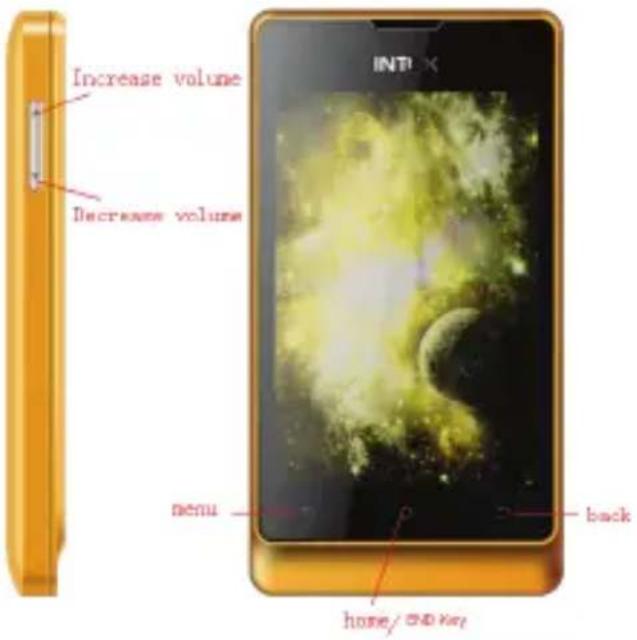
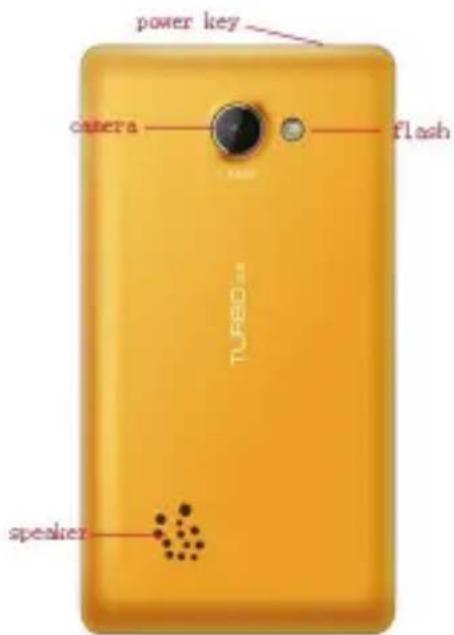
2.1 How to install the battery
✨ Open the back cover.
✨ Insert the battery into the battery slot.
✨ Close the phone cover.
2.2 How to remove the battery
✨ Open the back cover.
✧ Remove the battery from the battery slot.
Note: We recommend first off and then remove the battery to avoid loss of data in mobile phones.
2.3 How to charge the battery
Plug one end of the charger to the phone charging port, the other end into a household power outlet. Note: This machine can be connected to a computer USB port to charge.
When charging the battery level indicator on the screen icon was dynamic display, until the battery is full up.
✿ After charging, disconnect the power, then unplug the charger, so that the charger no-load.
2.4 How to install & remove the SIM card
The Phone supports two SIM cards. Before doing the following, make sure the phone is turned off and no charging.
✨ Open the back cover, remove the battery.
Make the golden contacts of the SIM card face down, Card gap facing the slot gap, and then put into it.
✨ Install the battery and close the battery cover.
SIM card's removal and installation steps are in reverse.
3 IME
This phone supports multiple languages input. The IME can be alternated by pressing the “switching” key in the edit interface. Then press the corresponding keys in the keyboard to input.
4 Make & receive calls
4.1 make a call
Enter the phone number in the standby screen, press the dial key with the selected SIM card to make calls.
When to input, press the right function key to delete the number.
During the call press the end key to end the call.
You can also choose from a number of direct contacts to
allocate;
✿ Press the right function key in the standby screen enter the phone
number screen, and press the navigation key to select to dial the number.
✨ Press dial key to call the selected number.
Directly in the call log can also call:
In the idle screen press the dial button to enter the call log.
✿ Press the navigation up and down keys to select the number to dial.
✨ Pressing the dial keys will make the call.
4.2 Make an emergency call
Within the GSM system, you can make an emergency call. When making an emergency call, please do not arbitrarily terminate the call. Phone without a SIM card can still make emergency calls.
✧ Enter the emergency number.
Press dial keys to make an emergency call.
Note: As with any mobile phone, due to the network coverage reasons or wireless signal transmission case, may not support the characteristics of the mobile phones. Some networks do not even support the 112 emergency call service. Thus, for particularly critical communications (eg medical emergencies), should not rely solely on mobile phones. Please check with your local network operator and reconciliation.
4.3 International calls
In the idle screen press "+" key then in turn enter the country code, area code and telephone number.
Press dial key to make international calls.
Note: International dialing code of some networks is not "+" sign, please be discretion.
4.4 Answer the call
If there have an incoming call, press the dial key to answer the phone, hang up the keys (press the Home key) to reject a call.
✿ Press the hang up key (press the Home key) to end the call.
4.5 Adjust the volume
During the call you can press the left side external volume key to adjust the volume.
4.6 Talk hands-free
During the call you can touch the “hands-free” key directly to opened or closed hands-free.
4.7 Call waiting
Conference call feature requires opening Call Waiting, If the network supports call waiting and you start this feature, During a call when there are new calls you will hear the call waiting tone, you can answer or reject the new call. Enter the "call waiting" feature to enable
or disable call waiting.
4.8 Call options
In the state of calling, touch the left function key to enter the call option.
In call option, You are able to maintain / restore, end the call, establish a new call, visit call logs, calls records, SMS, sound recording, DTMF(dual-tone multifrequency) and other operations.
5 Dialer
Click to dial interface. Input number can choose 'all' 'send MMS' 'send SMS'.
Click on the options can choose:1、Call 2、save to phonebook 3、
Dialer search.
6 Messaging
6.1 Write message
Text message:
Enter the interface of the message editing, input the message content, and touch the left function key to access the options menu;
Select "Options" to enter the menu where you can select "Send, insert commonly used statement, insert contact information, save messages" and other options
✧ Select "Send" or touch the OK key to enter the number inputting interface:
- Input number: input the recipient number directly;
- Add from Phonebook: enter the phonebook to select recipients.
✧ Enter the recipient number and then touch the OK button to send text messages.
Multimedia message:
Only when the network operator support, you can use this feature. And only the phone with compatible multimedia message features can receive and display properly.
✧ Enter the edit screen, press the left function button to enter the option menu.
✿ Able to choose “send”, “add to”, “add cc”, “add bcc”, “edit subject”, “edit content”, “preview”, “save”.
6.2 Inbox
◇ Inbox storage and manage the received messages. Into the inbox, touch screen option, open to view information.
✧ Inbox list interface according to options can be “view” “reply by sms” “reply by mms” “call sender” “forward” “delete” “delete all”
"delete several" operation.
6.3 Drafts
When edit a sms which saved as a draft message can be for viewing and management, operation in this feature, please refer to the Inbox.
6.4 Outbox
Outbox storage and manage the messages being sent and failed being sent. Please refer to the Inbox.
6.5 Sent items
✿ Sent messages storage and manage the messages sent and stored. Please refer to the Inbox.
6.6 Broadcast messages
✨ community radio is a one-way message service which the consultation service center provide for the user in the system, such as weather and traffic services. the community radio Received will
automatically be displayed in the standby screen, you can direct press the hang-up key cleared. For details, please consulting operator.
6.7 Templates
✧The phone presets numbers of the unit commonly used phrases, you can edit, remove, or take the phrase as the content of messages.
6.8 Messages settings
6.8.1 Text message
SIM
- Profile settings: setting the number of the SMS center
- Validity period: setting SMS validity period
- Message type: setting the type of SMS
- Delivery report: setting the switch of SMS report
- Reply path: setting the switch of reply path
-
Preferred connection: setting a preferred connection of the SMS
-
Voice Mail server: Each SIM card can be set two voice mail number in the settings, press the "1" key for a longtime to make available to listen to dial voice mail number voice messages. This function should be supported by the network operator.
✧ Memory status: The memory status of SIM card and the phone are visible.
✿ Text msg.counter: You can view the SIM card receiving and sending information quantity.
✧ Save sent item: setting the switch of the storage of sent messages.
✿ Preferred storage: setting the preferred position of the storage of SMS.
6.8.2 Multimedia message
Data account: setting data account
Common setting: able to check and set the status of “sending”, “retrieval”, “preferred storage”, “memory status”
6.8.3 Service message
Setting the switch of availability to receive the service message.
6.9 SMS Backup
✦ SMS Backup: Backup all mail information in.
✿ View Backup: To view the backup information.
6.10 Schedule SMS
✿ Edit time, contacts and information content, time to automatically send the information to the edit contacts.
6.11 Blocklist
✿ Set SMS blocklist, block list number message will be shielded.
7 Phonebook
This feature can view and manage the telephone number information in the machine and in the SIM card.
7.1 Contacts List
✿ Contacts list is displayed by default for all phonebook records in mobile phone and SIM card., you can press "options" to enter the menu, then select "Contacts Settings -> preferred storage location" to re-set the display of the phone book.
✧ In the list interface you can do the following:
- Select "add new contact", you can add a contact to a mobile phone or SIM card;
- Sliding touch screen or press the side key view records;
- You can search bar in the input alphabet quickly find contact;
- The selected contact can click touch screen option call or send a message;
- Select the options can perform the corresponding function;
- Can establish a group, add contacts to the group.
7.2 Options menu
In the Contacts Options menu you can do the following:
✿ View: check the detail of the current contact number.
✧ Sending text message: Sending messages to the current number.
✿ Sending multimedia message: Sending multimedia message to the current number.
✧ Call: Dial the current number; or make an IP phone call.
✿ Edit: Edit the detail of the current number.
✨ Delete: delete the current number.
✨ Copy: Copy the current number.
✧ Move: Move the current number.
✧ Add to blocklist: Add the current number to the blacklist.
Mark several: select the current or multiple contacts.
✨ Phonebook settings: Able to take operations below:
1、Preferred storage: Choose the preferred position of storage.
2、Speed dial: Turn on “speed dial” and set the number. Speed dial is available by pressing the corresponding key in the standby interface for a longtime.
3、Extra number: Owner numbers, fixed dial may be set.
4、Memory status: Memory status of SIM card and the phone can be checked.
5、Copy contacts: The numbers can be copied to SIM card from the phone or to the phone from SIM card.
6、Move contacts: The numbers can be moved to SIM card from the phone or to the phone from SIM card.
7、Delete all contacts: All numbers in the phone or in SIM card can be deleted.
8 Call logs
8.1 All calls
This function records the number or name recently dialed, missed and received. The options that can be chosen are “view”, “call”, “send text message”, “send multimedia message”, “save to phonebook”, “add to blocklist”, “edit before call”, “delete”, “advanced”.
8.2 Dialed calls
This function records the number or name recently called. for Operations please reference Missed calls.
8.3 Missed calls
This function records the number or name recently missed. for Operations please reference Missed calls.
8.4 Received calls
This function records the number or name recently received. for Operations please reference Missed calls.
9 Calendar
✧ Into the calendar can view the date, can touch screen switch to a different date.
✿ Press the "options" to enter menu, You can view, view all, add event, delete event, jump to date, go to today, go to weekly view, start of week operation.
10 Camcorder
◇ Into the camera, touch screen click pictures Icon is photographed.
✧ Touch screen click on the options menu, can carry out the following operations:
◆ EV: Set the exposure compensation.
◆ Switch to: Can choose photo album, video recorder.
◆ Capture mode: Able to set “normal” or “continuous shot”.
◆ Scene mode: Able to set “normal” or “night”.
◆ Image size: The image size can be set as “wallpaper”, “VGA”, “1.3 MP”.
◆ Flash: Flash can be set to off, force on.
◆ Self-timer: Can choose to delay 5S or 10S..
◆ White balance: Auto, daylight, tungsten, fluorescent, cloudy, incandescent.
◆ Effects: Normal, grayscale, sepia, sepia green, sepia blue, color invert.
◆ Adv.settings: For setting and operation to Storage, image qualities, shutter sound, anti-flicker, restore default.
✧ Into the camera, touch screen click on the camera icon.
✧ Touch screen click on the options menu, can carry out the following operations:
◆ EV: Set the exposure compensation.
◆ Switch to: Can choose video player, camera.
◆ Scene Mode: Able to set “normal” or “night”.
◆White Balance: Auto, Daylight, Tungsten, Fluorescent, Cloudy, Incandescent.
◆ Effects: Normal, Sepia, Sepia green, Sepia blue, Color
invert.
◆Record Limit: Unlimited, 15s, 30s or 60s.
◆Adv.settings: For setting and operation to Storage, Video quality, Anti-flicker, Restore default.
11 Settings
11.1 Dual SIM settings
Able to choose “Dual SIM open”, “Only SIM1 open” or “Only SIM2 open”.
11.2 Phone settings
✿ Time and date: Set the time, date and local city and its format.
✿ Schedule power on/off: Set up automatic open/shutdown of the time and switch. Open the automatic shutdown function, when the time is out the phone will automatic turn on/off.
◆Language: Set the language the phone displays.
◆International keyboards: Input method on the function set.
◆Widget manager: Set the X gadget window display function and sorting.
◆Shortcut manager: Setting a standby interface shortcut function.
✧Display: Setting “Wallpaper”“Menu page transition” “Screen auto lock”and “show owner number”.
✿ Flight mode: Setting the phone to be the common mode or the flight mode.
✿Misc.setting: Set the backlight brightness and lighting time.
11.3 Network settings
Setting to choose the network by hands or automatically.
11.4 Security settings
✿ SIM card security: This function can open or close the password lock. PIN number need to be input to power on the phone after it being locked. Remarks: SIM card would be locked after 3 times mistaking the PIN number, and then PUK number is necessary to unlock it.
✿ Phone security: Open this function, when boot you need to input password, the default password is 1234.
✨Data protection: Set the Data protection.
11.5 Notification settings
Set the messaging, call logs, downloads notification mode.
11.6 Call settings
11.6.1 SIM call settings
✧Call waiting: Set the status to be activated, deactivated, query
status. Note: This function depends on the network operator. Please ask the local network operator for more detail.
✧Call divert: The options are “Divert all voice calls”, “Divert if unreachable”, “Divert if no answer”, “Divert if busy”, “Divert all data calls”, “Cancel all diverts”. Note: This function depends on the network operator. Please ask the local network operator for more detail.
✧Call barring: The options are “All voice calls”, “International voice calls”, “International voice calls except to home”, “All voice calls”, “Voice calls when roaming”, “Cancel all”, “Change barring password”. Note: This function depends on the network operator. Please ask the local network operator for more detail.
✨Line switching: Able to switch line 1 or line 2.
11.6.2 Advanced setting
✧Blocklist: Able to open or close the blacklist and set the numbers of the blacklist.
Auto radial: Able to open or close the function of auto radial. When it's on, the phone shall redial automatically after you failed dialing.
◆Background sound: Set call background sound.
✧Call time reminder: You will be reminded when the call time reaches the time set before if it’s on.
Reject by SMS: After it's on, you may choose to reject by SMS when being called.
✧Connect notice: After it's on, reminding sound will be heard when making a call.
❖Answer mode: Able to set answer the call by pressing any key or
auto answer when headset mode.
11.7 Restore factory settings
This function will be used for some settings which need restore the default Settings. Choose the item and input factory password for confirmation (factory password is 1234), the related parameters will return to factory Settings.
12 Alarm
This feature can be set up 5 groups of alarm clock, set time to, mobile phone according to the set type of prompt prompt.
13 Image viewer
In [image viewer] interface, press the [option] can undertake the following function:
✧ View: Able to view the selected image.
✨ Image information: Review images for details.
✿ Browse style: Able to choose list style or matrix style.
✿ Send: Send the image by the means of Bluetooth or MMS.
Use as: Set the pictures selected as "home screen wallpaper" or "lock screen wallpaper".
✧ Rename: Change the name of the selected pictures.
✨ Delete: Delete the selected pictures.
Sort by: Sort the images by there names, types, times or sizes.
Mark several: Photo of mark, can be labeled photographs.
✨Storage: Set the default path of picture storage.
14 Calculator
This function can be a simple four operations add, subtract, multiply and divide.
15 File manager
File management features provide file management functions in the phone or in the T cards storage device. Enter file management, there will be the current storage device list.
✧ In the list, the phone and T card can be formatted and all data will be deleted.
✧ Select a folder, click on the options can do the following:
◆ Open: open the current file.
◆ New folder: build a new folder in the current storage device.
◆ Rename: rename the current file.
◆ Delete: delete the selected folders, this function for system folders is unavailable.
◆Sort by: according to folder name, date, size, sorting, type.
16 Sound recorder
Enters the recording function, can touch screen select start, stop, pause, play and other functions.
According to the options new record, play, append, rename, delete, list, settings, use as, send can be operation.
17 Connectivity
✨ Connection management: You can view the progress of the download.
✨ Data accounts: Setting data account.
18 Tasks
This function can create task, task time will be according to the task set prompt.
19 FM radio
✿ The phone has FM Radio function for listening broadcast, but the function is available only with the earphone inserting.
FM interface can touch screen intelligent handover and fine tuning, Click the menu can carry out the following operations:
✨ Channel List: For compiling channel name and rate.
✨ Manual Input: For inputting rate manually.
✧ Auto Search: For searching channels automatically and saving the
searched channels into Channel List.
Setting: For setting radio concerned parameters.
✨ Record: Showing the recorded sounds.
✿ File list: View, playback of the recorded audio files.
20 World clock
This function lets you view the world time, enter the options can set daylight-saving time switch.
21 SIM toolkit
In this function can be customized with some carriers applications and services, please consult the local operator.
22 Health
This machine is used for the user to provide health management.
23 Stopwatch
This machine is used for the user to provide a stopwatch.
24 Unit converter
The machine provides a converter unit for use by the user.
25 Electric torch
This machine is used for the user to provide a flashlight.
26 Audio player
Into the music play interface, can undertake the following operation :
◆Play / Pause
◆Stop playback
◆Press switch to front, after a song, long press to fast-forward rewind
◆Decrease volume
◆Increase volume
◆Access list, The list of songs by up and down navigation keys to move the cursor, According to the options you can perform the following operations
1、Play: The currently selected songs。
2、Details: You can view the selected songs specific information.
3、Refresh list: The song list refresh。
4、Settings: The list auto gen, repeat, shuffle, background play set。
27 Bluetooth
- Power: Setting the power of Bluetooth.
- Visibility: Setting the visibility of Bluetooth. When it's off, other phones can't search this phone though it has opened Bluetooth.
- My device: Searching the devices which has turned on Bluetooth nearby.
- Search audio device: Searching Bluetooth earphone nearby.
- My name: The name shows on other phones when Bluetooth is on and the phone is searched.
- Advanced: Setting the audio path and the position of storage and check the Bluetooth address.
28 Browser
The internetwork is the application platform which wireless communication combine with with Internet, it can make you get plentiful Internet information resources and electronic commerce application by phone.
Note:
- Your Internet service provider may not support the certain functions, in order to guarantee the normal operation of the browser line, please confirm your SIM card has support the Internet service.
- when you browse the web, it will costs related flow fee, the expenses please enquiry local operators.
28.1 Homepage
The choice will be directly connected to home page which you set in advance or the default.
28.2 Bookmark
Choosing a bookmark can visit the website which was set by the bookmark. You can reserve the commonly used web site in the favorites. Specific operation is as follows:
Add new bookmark: choose to add new bookmark, preserve after enter a new bookmark address and name.
28.3 Recent pages
Record your visited web addresses before.
28.4 Setting
Able to set the homepage of the browser, configuration files, data account, browser setting, favorite, security.
29 Currency converter
This machine is used for the user to provide a currency converter.
30 Ebook reader
Ebooks whose formats are txt can be read. Note: Txt files should be stored under T card's Ebook menu or in the phone.
When entering the reader, the files stored in the phone or T card are list in the interface. The options “open Ebook”, “global settings”, “book informations”, “delete”, “delete all files”, “sort by”, “help” are able to be operated. Among them, “global settings” has functions to set font size, scroll type, scroll speed and the storage position.
When reading, press the left function key to enter the menu. "Full screen on", "find", "jump to", "add bookmark", "go to bookmark", "delete bookmark", "auto scroll on", "close".
31 Intex Zone
This menu to Mobile Tracker, Auto call record, Games
Facebook, Google and other function operation.
- Mobile Tracker: Can undertake anti-theft tracking.
- Auto call record: Automatic call recording.
- Google: This machine is used for the user to provide Google.
32 Java
32.1 Java
This machine can be installed JAVA program for users.
32.2 Java Config
The configuration of Java was configured in this option.
33 Profiles
The phone provides a few profiles: general, silent, meeting, outdoor and my style. Select it, click left keys and you can choose to
activate, customize or reset the mode. Select "activate" and you activate the associated function. Select "reset" and you restore the profile to default mode. Select "customize" and you set associated function below:
☐Alert type: Able to set the alert type(alert way: ring, vibrate, silent, vibrate then ring)
Ring type: Able to set ring type(alert way: repeat, ascending, beep once).
SIM 1 incoming call: Able to set ringtone of SIM 1 incoming call.
SIM 2 incoming call: Able to set ringtone of SIM 2 incoming call.
☐Ringtone volume: Can touch screen or press the side key to adjust the volume.
✿SIM 1 message: Able to set ringtone of SIM 1 message.
✿SIM 2 message: Able to set ringtone of SIM 2 message.
Message volume: Can touch screen or press the side key to adjust the volume.
✿Keypad: Able to set the sound of keypad to be “silent”, “click”, “tone”.
✿Keypad volume: Can touch screen or press the side key to adjust the volume.
✧Touch vibration: Can open or close Touch vibration.
Power on: Set the tone when the phone is being powered on.
Power off: Set the tone when the phone is being shut down.
✨System alert: Set the system alert on or off.
34 Video player
This function can be stored in the mobile phone or memory card to play the video file in, Playback interface can be started, stopped, pause, fast-forward, rewind, full screen operation.
35 Happyegg
The machine provides a game Happyegg for users.
36 Happywar
The machine provides a game Happywar for users. Technical Information
Weight: 90 gram (with battery)
Size Length:114.2mm ×Width:*61.5mm ×Depth: 11.3mm
Networks: GSM 900/1800 MHz
SAR Value: 0.676 W/Kg–900 MHz; 0.392 W/Kg–1800MHz
Model: TURBO 3.5
Lithium Battery
Model: BR1054R
Nominal voltage: 3.7v
Nominal: 4.2v
Capacity rating: 1200 mAh
Continuous standby time*: 200 hrs
Continuous calling time: 4-5 hrs
* Depending on the network
Operation Temperature: -10\~+55 °C
The operation time of the battery depends on conditions such as:
• Transmitting power level
- Signal (distance between the phone and the base station)
• Network parameters defined by the operator
• Phone use (WAP, games, SMS)
- Charging procedure used
Exclusions:
Subject to the exclusions contained below:
-
Damage due to the improper use.
-
User does not follow the manual.
Explanation:
The company has the final right of the explanation for this document.
Software upgrades will not be announced.
All pictures are for reference only in the instruction book; please refer to the actual phone.
Disclaimer
© Intex. All rights reserved.
Features and specifications are subject to change without prior notice.
Certain mobile phone features may not be activated by your service provider, and / or their network setting may limit the feature's functionality. Services and some features such as GPRS, email may be dependent on the network, SIM card, as well as on the compatibility of the devices used and content formats supported and may require network/service subscription/solutions. Data transfers speeds are network dependent. Always contact your service provider for details or help. Talk and standby time is quoted in digital mode and are approximate; battery performance and the signal reception depend on network configuration, signal strength, type of SIM card, operating temperature, features selected as well as voice, data and other application usage pattern. The phones supports Bluetooth, A2DP, in order for Bluetooth devices to communicate with one another, they must utilize the same Bluetooth Profile. To determine the profiles
supported by other Intex products, visit www.intextechologies.com, for other devices, contact their respective manufacturers. Always demand for original Intex mobile phones to protect against buying tinkered and/or used, refurbished or tampered phones. The warranty is applicable only for Intex phones; the company is not responsible for any loss or theft. Always use Intex original Enhancements (including batteries) for safety. The use of any other type may invalidate and approval or warranty applying to the mobile phone and may be dangerous. The phone is designed to operate using Li-ion batteries approved by the phone manufactures. Using non approved batteries with the phone may result in poor performance and damage to the phone or its enhancements. The display and products visualization here are illustrative purposes only; Display / color of the phone may differ from that shown on the manual. All features, functionality and
other product specifications are based on the latest available information and are correct at the time of printing; however such product specifications are subject to change without notice. Copyrights are reserved. Intex is the trademark of INTEX TECHNOLOGIES (INDIA) LTD. which is registered. The unauthorized copying of copyrighted material is not legalized is inimical to the provisions of the copyright laws of India and other countries.
INFORMATION UNDER E-WASTE (MANAGEMENT AND HANDLING) RULES, 2011
For disposal of e-waste, please call our helpline no. or visit our website.
E-waste Helpline no. 1800-103-8822
Weblink:
http://intextechnologies.com/window_self/Waste%20Disposal.html
-
Do's for disposal of product
✧ Always drop your used electronic products, batteries, and packaging materials after the end of their life in nearest collection point or collection center
Separate the packaging material according to responsible waste disposal options and sorting for recycling.
The battery can easily be removed from the product for recycling. -
Don't of disposal of equipment
a) Never dump E-waste in garbage bins or municipal solid waste stream.
b) Do not dispose of your product as unsorted municipal waste.
c) Do not throw used batteries into household waste.
d) Do not dispose damaged or leaking Lithium Ion (Li-Ion) battery with normal household waste.

- Information on the consequences of improper handling, accidental breakage damage and improper recycling of the end of life product.
a) If batteries are not properly disposed of, it can cause harm to human health or the environment.
b) Placing of batteries or devices on or in heating devices, such as microwave ovens, stoves, or radiators and improper disposal of batteries may lead to explosion.
c) If the battery terminals are in contact with metal objects, it may cause a fire.
- SAFETY TIPS
- CONTENTS
- SECURITY MEASURES ......10
- GETTING USED....12
- IME....16
- MAKE & RECEIVE CALLS....16
- DIALER ....20
- MESSAGING....21
- PHONEBOOK 27
- CALL LOGS....30
- CALENDAR ....31
- CAMCORDER....32
- SETTINGS ....34
- ALARM....39
- BROWSER....48
- CURRENCY CONVERTER 49
- EBOOK READER ....50
- INTEX ZONE....50
- JAVA ....51
- PROFILES....51
- 34VIDEO PLAYER 54
- HAPPYEGG....54
- HAPPYWAR ....54
- Security measures
- Safety Precautions
- Use of the environment
- Fair Use
- Accessories and batteries
- Data Backup
- How to install the battery
- How to remove the battery
- How to charge the battery
- How to install & remove the SIM card
- IME
- Make & receive calls
- make a call
- allocate;
- Directly in the call log can also call:
- Make an emergency call
- International calls
- Answer the call
- Adjust the volume
- Talk hands-free
- Call waiting
- Call options
- Dialer
- Messaging
- Write message
- Text message:
- Multimedia message:
- Inbox
- Drafts
- Outbox
- Sent items
- Broadcast messages
- Templates
- Messages settings
- Text message
- Multimedia message
- Service message
- SMS Backup
- Schedule SMS
- Blocklist
- Phonebook
- Contacts List
- Options menu
- Call logs
- All calls
- Dialed calls
- Missed calls
- Received calls
- Calendar
- Camcorder
- Settings
- Dual SIM settings
- Phone settings
- Network settings
- Security settings
- Notification settings
- Call settings
- SIM call settings
- Advanced setting
- Restore factory settings
- Alarm
- Image viewer
- Calculator
- File manager
- Sound recorder
- Connectivity
- Tasks
- FM radio
- World clock
- SIM toolkit
- Health
- Stopwatch
- Unit converter
- Electric torch
- Audio player
- Bluetooth
- Browser
- Note:
- Homepage
- Bookmark
- Recent pages
- Setting
- Currency converter
- Ebook reader
- Intex Zone
- Java
- Profiles
- Video player
- Happyegg
- Happywar
- INFORMATION UNDER E-WASTE (MANAGEMENT AND HANDLING) RULES, 2011
Brand : INTEX
Model : Turbo 3.5
Category : Smartphone