
DP730AD38 - Digital photo frame Clas Ohlson - Free user manual and instructions
Find the device manual for free DP730AD38 Clas Ohlson in PDF.


| Product Type | 7" Digital Photo Frame |
| Brand | Clas Ohlson |
| Model | DP730AD38 |
| Screen Size | 7 inches (16:9 widescreen) |
| Screen Type | Color TFT LCD |
| Resolution | 800 x 480 pixels |
| Contrast Ratio | 350:1 |
| Brightness | 230 cd/m² |
| Response Time | 20 ms |
| Viewing Angle | 60° vertical, 40° horizontal |
| Input Voltage | 5V DC, 1A |
| Power Adaptor | 100-240V AC, 50/60 Hz |
| Memory Card Slot | SD, SDHC, MMC |
| USB Port | USB 2.0 |
| Internal Memory | 1 MB |
| Supported Image Format | JPEG |
| Slide Show Speed | 3 seconds to 1 hour |
| Photo Effects | Color, Monochrome, Sepia |
| Slide Effects | Random, Split horizontal in, and others |
| Display Modes | Auto fit, Optimal, Full |
| Language Support | English, Swedish, Finnish, Norwegian |
| Operating Temperature | 0°C to 40°C |
| Dimensions (W x H x D) | 202 x 142 x 23 mm |
| Cleaning | Use a soft damp cloth with mild detergent |
| Safety | Indoor use only; do not expose to water or open casing |
Frequently Asked Questions - DP730AD38 Clas Ohlson
User questions about DP730AD38 Clas Ohlson
0 question about this device. Answer the ones you know or ask your own.
Ask a new question about this device
Download the instructions for your Digital photo frame in PDF format for free! Find your manual DP730AD38 - Clas Ohlson and take your electronic device back in hand. On this page are published all the documents necessary for the use of your device. DP730AD38 by Clas Ohlson.
USER MANUAL DP730AD38 Clas Ohlson
7" Digital Photo Frame
Digital fotoram 7"
Digital fotoramme 7"
natural_image
Two black-and-white photos: one of a child looking up at a photo frame, the other of a woman's face with a handwritten signature (no readable text or symbols in the frames themselves)Art.no
Model
18-2843
DP730AD-UK
18-2844
DP730AD-UK
38-9050
DP730AD
38-9051
DP730AD
Ver. 20130628
clas ohlson
7" Digital Photo Frame
Art. no 18-2843 Model DP730AD-UK
18-2844
DP730AD-UK
38-9050
DP730AD
38-9051
DP730AD
Please read the entire instruction manual before using the product and save it for future reference. We reserve the right for any errors in text or images and any necessary changes made to technical data. If you have any questions regarding technical problems please contact Customer Services.
1. Product description
- 7" Widescreen Digital Picture Frame.
- Displays digital JPEG images.
- USB memory and memory card slots (SD/SDHC/MMC).
- Mains power adaptor.
2. Contents
- Digital Photo Frame
- Instruction manual
- Mains adaptor
- Stand
3. Safety
- Warning! Do not open the casing. Certain components within the product's casing carry dangerous currents. Contact with these may give you an electric shock.
- The product should only be repaired by qualified service technicians.
- The product should not be taken apart or modified.
- Do not place the product where there is a risk of it falling into water or other liquid. Do not place any objects containing liquid on the product, e.g. flower vases or soft drinks.
- Do not cover the ventilation openings. Do not place the product close to heat sources such as on top of the radiator or TV, or on e.g. the sofa which will block the ventilation openings.
- Always unplug the adaptor from the electrical outlet if the product is not be used for an extended period.
- The product is designed for 8–10 hours of continuous operation. Avoid any prolonged use. Allow the product to rest for a while before using it again.
- The product is intended for indoor use only.
- Do not expose the product to direct sunlight for prolonged periods.
- Do not use the product in damp, dusty, or dirty environments.
- Only use a lightly moistened soft cloth with a little washing up liquid to clean the screen.
- Do not disconnect the mains adaptor while the frame is in use. The attached memory storage device may be damaged. Neither should the connected memory storage device be removed when the frame is in use.
4. Buttons and functions
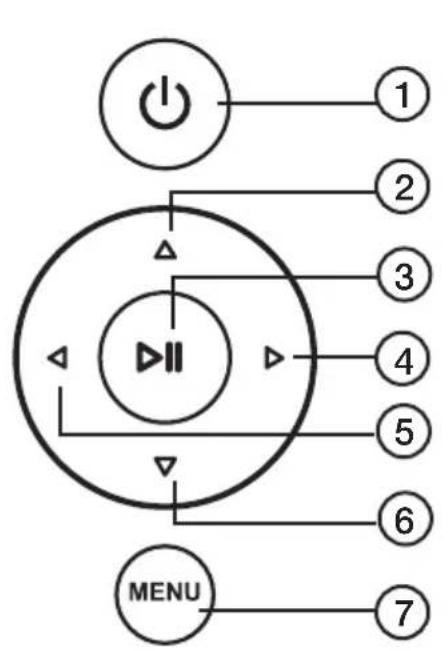
flowchart
graph TD
    A["Power"] --> B["Control Panel"]
    B --> C["Menu"]
    style A fill:#f9f,stroke:#333
    style B fill:#ccf,stroke:#333
    style C fill:#cfc,stroke:#333
    note1["①"] --> A
    note2["②"] --> B
    note3["③"] --> B
    note4["④"] --> B
    note5["⑤"] --> B
    note6["⑥"] --> B
    note7["⑦"] --> C
Rear buttons
- [ ⏻ Power On/Off.
- [▲] Move cursor up.
- [▶II] Start slideshow, pause or confirm.
- [▶] Move cursor right.
- [◀] Move cursor left.
- [▼] Move cursor down.
- [MENU] Return to main menu, or open file processing (copy/delete file).
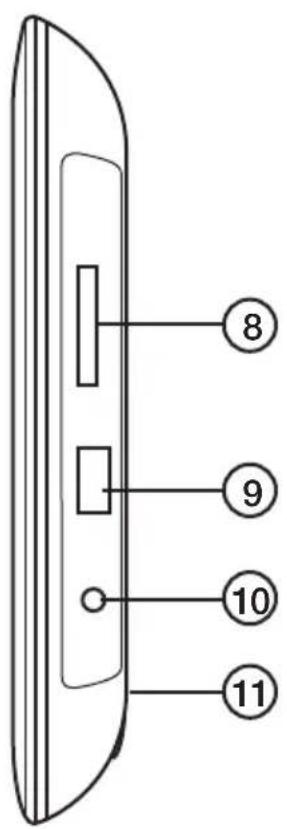
On the right hand side of the photo frame
- Memory card slot: SD/SDHC/MMC
- USB port
- DC 5 V
- Stand attachment oint
5. Use
This photo frame is intended for tabletop use.
- Screw the stand onto the back. (11).
- Peel off the protective film from the screen.
- Plug the mains adaptor into a wall socket and then plug the DC connector into the DC 5 V socket on the photo frame.
- Connect a SD/SDHC/MMC memory card or USB memory to the photo frame.
- Press [⏻] (1) to turn the photo frame on.
- The start-up page will be displayed.
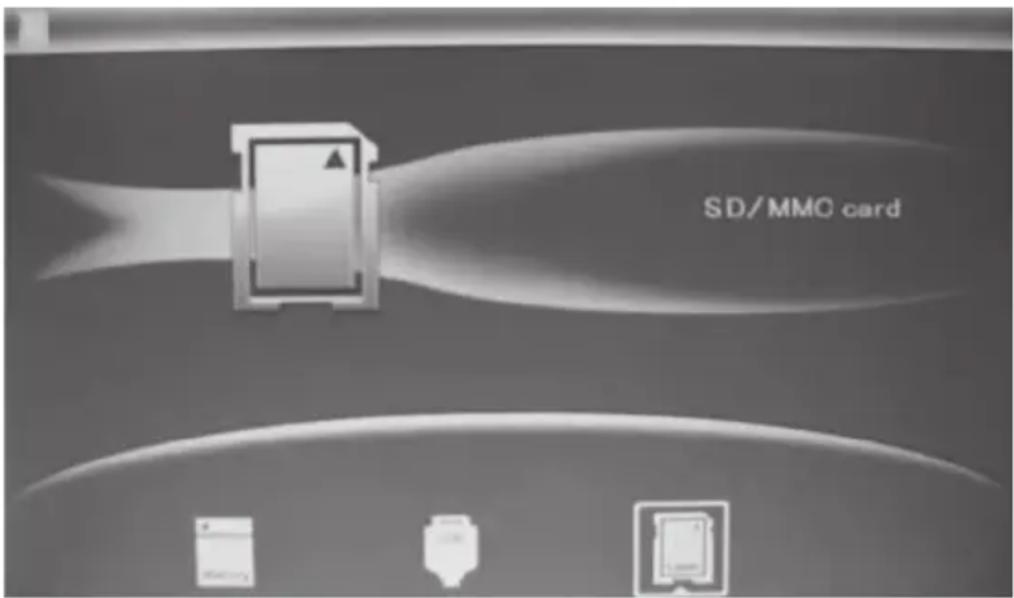
- A symbol for the connected memory will appear on the display and its images will be displayed as a slideshow straight away. (Select which memory device images are to be displayed, if there are several options).
- Press [MENU] (7) twice to display the main menu. Photo (images), File (displays list of images/folders in memory), Calendar (time and date) or Setup (settings).
6. Main menu
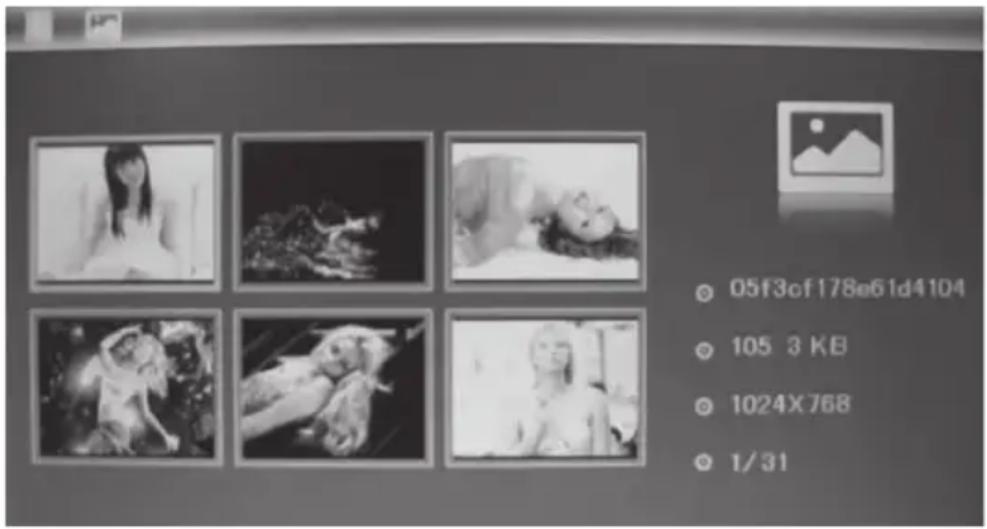
6.1 Photo – display of images in thumbnail size
- Highlight the desired connected memory device
- Highlight the Photo symbol (on the far left) using the arrow keys (4) (5).
- Highlight the desired image using the arrow keys (2) (4) (5) (6).
- Information about the highlighted image will be displayed: File name, file history, image size and image number/total number of images.
- Press [MENU] to return to the main menu.
- Press [▶II] to begin playing the slideshow from the highlighted image.
6.2 File – display of files and folder on the selected memory device
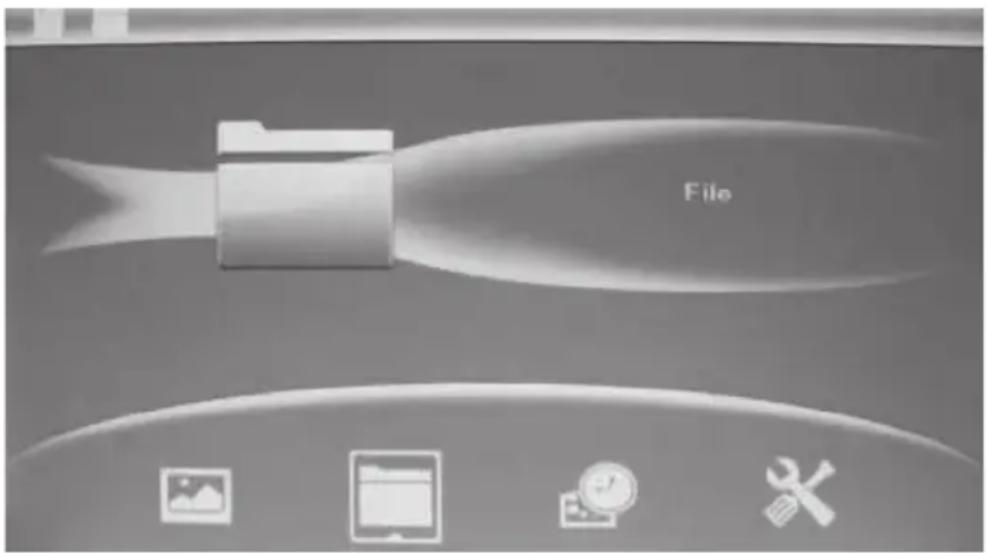
Highlight the desired memory device using the arrow keys (2) (4) (5) (6). Information about the files and folders on the memory device will be displayed. You can display JPEG images by pressing [▶II].
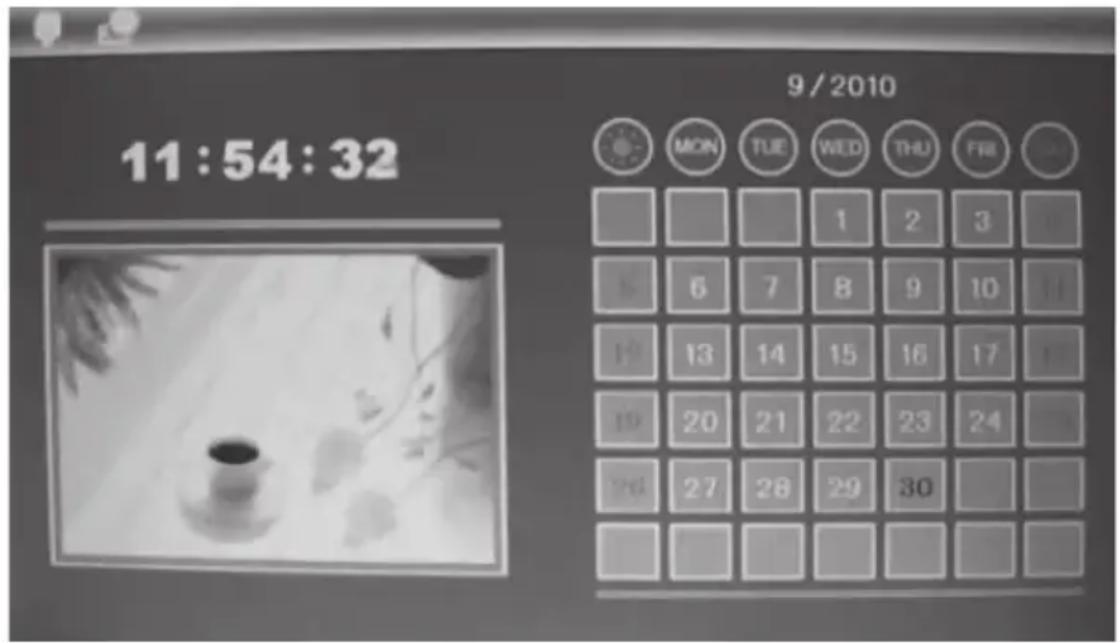
6.3 Calendar - display of time and date
- Press [MENU] twice to open the main menu.
- Move to the Calendar symbol using the arrow keys (4) (5).
- Press [▶II] to confirm.
- Setting the time and date:
- Open Setup and select Set time/date. Press [▶II]] (3) to confirm.
- The Year is highlighted, adjust if necessary using the arrow keys (4) (5). (In setup mode the highlighted text is red). Press [▶II] (3) to confirm.
- Set the month, date, hour, minute and seconds in the same way.
- Advance to Save Time using the arrow keys (2) (6) to save your settings. Press [▶II] (3) to confirm.
Setting the time format:
a. Advance to Set Time Format.
b. Press [▶II] (3) to confirm.
c. Select a 12 or 24 hour display.
d. Press [MENU] (7) twice to return to the main menu.
6.4 Setup
- Press [MENU] twice to open the main menu.
- Move to the Setup symbol using the arrow key [▶] (4).
- Press [▶II] (3) to confirm.
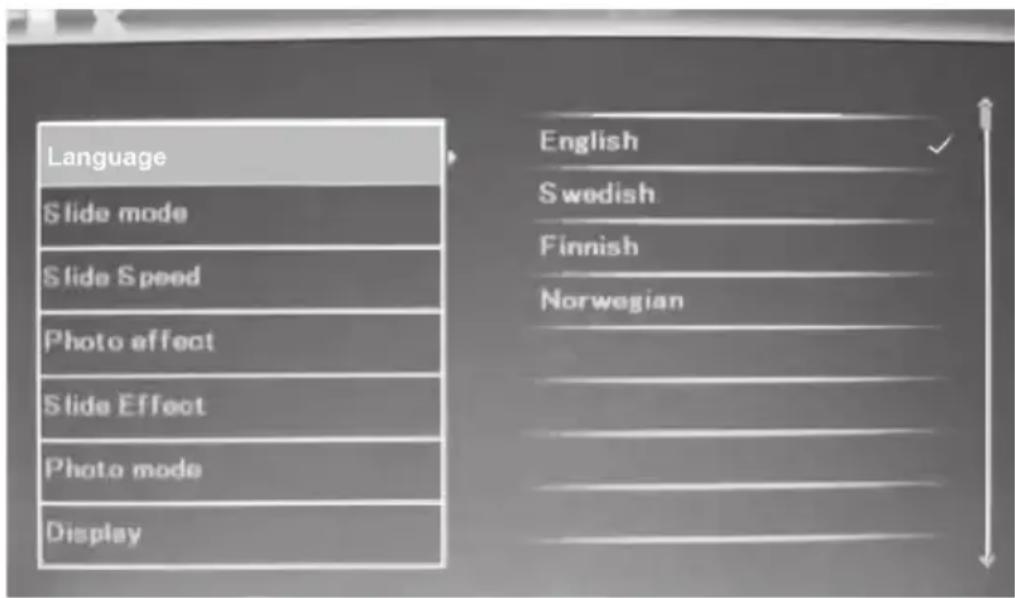
- The main menu has settings for:
a. Language – English, Swedish, Finnish or Norwegian.
b. Slide mode - 1 image, 4 images or 3 images.
c. Slide speed – from 3 seconds to 1 hour.
d. Photo effect – Colour, Monochrome (black&white), Sepia (sepia-toned).
e. Slide effect (transition effect) – Random, Split horizontal in, etc.
f. Photo mode (display size) – Auto fit, Optimal or Full.
g. Display – Contrast, Brightness, Saturation and Tint.
h. Set time/date.
i. Set time format (12/24 hour clock).
j. Format built-in memory.
k. Reset setting (return to default factory settings).
I. Exit (finish and return to normal display mode).
- Press [MENU] to return to normal display mode.
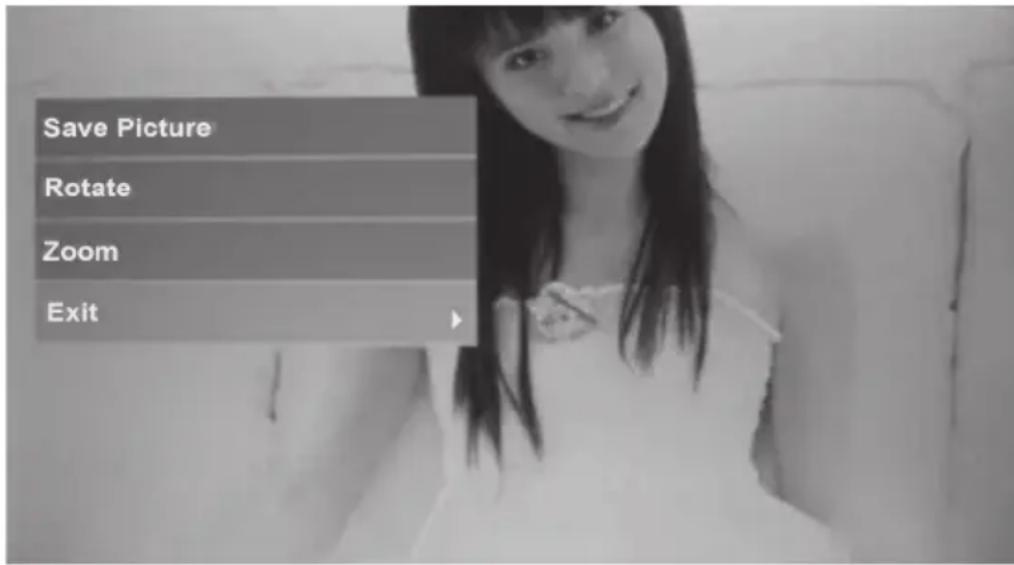
6.5 Copy, rotate or zoom images
- Highlight the connected USB memory or memory card.
- Highlight the Photo symbol (on the far left) using the arrow keys (4) (5).
- Highlight the desired image using the arrow keys (2) (4) (5) (6) and then press [▶II] to view the entire image.
- Push and hold [MENU] (7) for 3 seconds.
- You have now accessed the settings. Highlight a function: Save Picture, Rotate or Zoom.
- Make your settings using the [▶II] button.
- Highlight Save Picture and press [▶II] to save the image you have changed.
- Press [MENU] to return to normal display mode.
6.6 Deleting images
- Highlight the desired connected memory device.
- Highlight the File symbol using the arrow keys (4) (5).
- Highlight the desired file using the arrow keys (2) (6).
- Push and hold [MENU] (7) for 3 seconds.
- You have now accessed the settings. Highlight a function: Delete or Exit.
- Press [MENU] to return to normal display mode.
7. Care and maintenance
Wipe the surface clean using a soft, damp cloth. Never use solvents or strong detergents.
8. Troubleshooting guide
| Problem Solution | |
| The device does not start/no photo is shown. | Check that the mains adaptor is correctly connected. |
| The memory card cannot be read. | Make sure that the files on the memory card are supported by the device. See Specifications. |
| Some photos are uploaded quicker than others. | Images with high resolution take longer to load.Use images with lower resolution for quicker display.The recommended resolution is 800 x 600 pixels. |
9. Disposal
Follow local ordinances when disposing of this product. If you are unsure of how to dispose of this product, please contact your local authority.
10. Specifications
Screen 7"colour TFT LCD (16x9)
Resolution 800 (h) x 480 (v)
Viewing angle 60^ (left/right/vertically), 40^ (horizontally)
Contrast 350:1
Light intensity 230 cd/m²
Response time 20 ms
Input voltage 5 V DC, 1 A via the supplied mains adaptor
(100-240 V AC, 50/60 Hz)
USB port USB 2.0
Memory card slot SD (Secure Digital), MMC (Multimedia Card),
SDHC (Secure Digital High Capacity)
Internal memory 1 MB
Picture format JPEG
Operating temperature 0 °C to 40 °C (at humidity level of 10-85 % RH)
Size 202 x 142 x 23 mm
Digital fotoram 7"
Art. nr 18-2843 Modell DP730AD-UK
18-2844
DP730AD-UK
38-9050
DP730AD
38-9051
DP730AD
6.5 Kopiera, rotera eller zooma bilder
6.6 Radera bilder
SDHC (Secure Digital High Capacity)
Internt minne 1 MB
Bildformat JPEG
6.6 Slette bilder
SDHC (Secure Digital High Capacity)
Internminne 1 MB
Bildeformat JPEG
Postal 10 – 13 Market Place
Kingston Upon Thames
Surrey
KT1 1JZ
Deutschland
- 7" Digital Photo Frame
- Product description
- Contents
- Safety
- Buttons and functions
- Rear buttons
- On the right hand side of the photo frame
- Use
- Main menu
- Photo – display of images in thumbnail size
- File – display of files and folder on the selected memory device
- Calendar - display of time and date
- Setting the time format:
- Setup
- Copy, rotate or zoom images
- Deleting images
- Care and maintenance
- Troubleshooting guide
- Disposal
- Specifications
- Digital fotoram 7"
- Kopiera, rotera eller zooma bilder
- Radera bilder
- Slette bilder
- Deutschland
Brand : Clas Ohlson
Model : DP730AD38
Category : Digital photo frame