
nüvi 300 - Gps GARMIN - Free user manual and instructions
Find the device manual for free nüvi 300 GARMIN in PDF.


| Product type | Car navigation GPS |
| Brand | Garmin |
| Model | nüvi 300 |
| Dimensions (approx.) | 10,2 x 7,6 x 2 cm |
| Weight (approx.) | 150 g |
| Screen type | Color touch screen |
| Power supply | Built-in rechargeable lithium-ion battery, AC adapter (12 V) |
| Battery life | Up to several hours depending on use |
| Main functions | GPS navigation, address search, points of interest, routes with voice instructions, favorites management, detours |
| Multimedia functions | MP3 player, audiobook player (Audible format) |
| Traffic information | Compatible with FM TMC receiver (optional) |
| Connectivity | Mini-USB port, SD card slot |
| Mounting support | Windshield suction cup, swivel mount |
| Update | Via USB connection to computer |
| Care and cleaning | Clean the screen with a soft cloth, avoid prolonged exposure to sun |
| Safety | Lithium-ion battery: do not expose to high temperatures, remove from vehicle if left in sun |
| Spare parts / repairability | Mount, USB cable, AC adapter, suction cup available |
| General information | User manual available for download; website: www.garmin.com |
Frequently Asked Questions - nüvi 300 GARMIN
User questions about nüvi 300 GARMIN
0 question about this device. Answer the ones you know or ask your own.
Ask a new question about this device
Download the instructions for your Gps in PDF format for free! Find your manual nüvi 300 - GARMIN and take your electronic device back in hand. On this page are published all the documents necessary for the use of your device. nüvi 300 by GARMIN.
USER MANUAL nüvi 300 GARMIN
© 2005–2007 Garmin Ltd. or its subsidiaries
Garmin International, Inc.
1200 East 151st Street,
Olathe, Kansas 66062,
U.S.A.
Tel. 913/397.8200
or 800/800.1020
Fax 913/397.8282
Garmin (Europe) Ltd.
Unit 5, The Quadrangle,
Abbey Park Industrial
Estate, Romsey,
SO51 9DL, U.K.
Tel. 44/0870.8501241
Fax 44/0870.8501251
Garmin Corporation
No. 68, Jangshu 2nd Road,
Shijr, Taipei County, Taiwan
Tel. 886/2.2642.9199
Fax 886/2.2642.9099
All rights reserved. Except as expressly provided herein, no part of this manual may be reproduced, copied, transmitted, disseminated, downloaded or stored in any storage medium, for any purpose without the express prior written consent of Garmin. Garmin hereby grants permission to download a single copy of this manual onto a hard drive or other electronic storage medium to be viewed and to print one copy of this manual or of any revision hereto, provided that such electronic or printed copy of this manual must contain the complete text of this copyright notice and provided further that any unauthorized commercial distribution of this manual or any revision hereto is strictly prohibited.
Information in this document is subject to change without notice. Garmin reserves the right to change or improve its products and to make changes in the content without obligation to notify any person or organization of such changes or improvements. Visit the Garmin Web site (www.garmin.com) for current updates and supplemental information concerning the use and operation of this and other Garmin products.
Garmin ^® and nüvi ^® are trademarks of Garmin Ltd. or its subsidiaries, registered in the USA and other countries. These trademarks may not be used without the express permission of Garmin. Windows ^® is a registered trademark of Microsoft Corporation in the United States and/or other countries. Mac ^® and iTunes ^® are registered trademarks of Apple Computer, Inc.
February 2007 Part Number 190-00627-91 Rev. C Printed in Taiwan
nüvi® 300/350
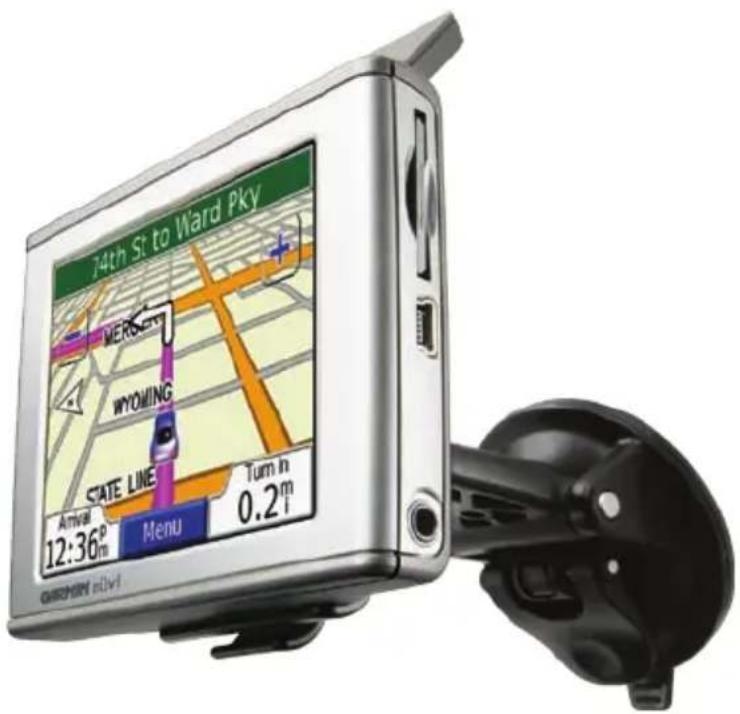
personal travel assistant

WARNING: See the Important Safety and Product Information guide in the product box for product warnings and other important information.
Check your state and local traffic laws before mounting. Currently, state laws in California and Minnesota prohibit drivers from using suction mounts on their windshields while operating motor vehicles. Other Garmin dashboard or friction mounting options should be used. See the Important Safety and Product Information guide for more details.
Mounting Your nüvi
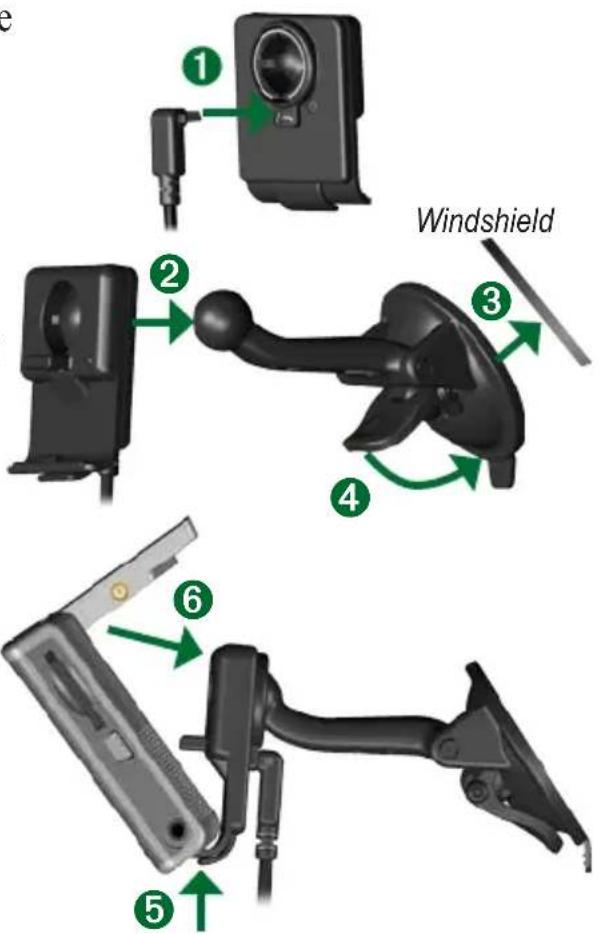
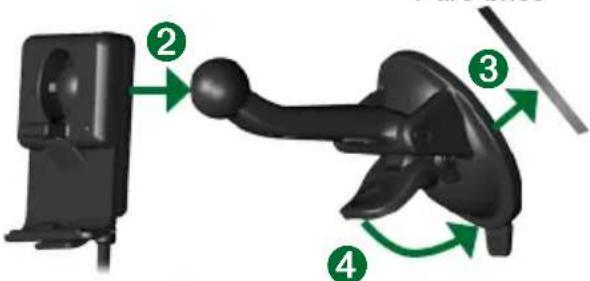
For a tight grip, clean and dry your windshield before mounting the suction cup.
- Plug the power cable into the back of the cradle.
- Snap the cradle onto the suction cup arm.
- Place the suction cup on the windshield.
- Flip the lever back, toward the windshield.
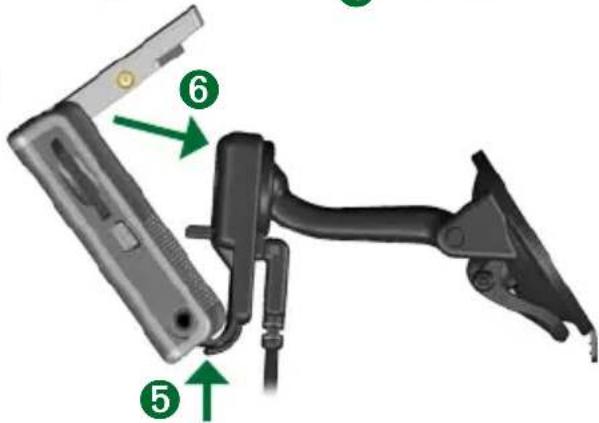
- Flip up the GPS antenna, and then fit the bottom of your nüvi into the cradle.
- Tilt the nüvi back until it snaps into place.
- Plug the power cable into a power receptacle in your vehicle. Your unit should turn on automatically if it is plugged in and your vehicle is running.
EN-2
WARNING: This product contains a lithium-ion battery. To prevent damage and risk of fire due to high temperatures, remove the unit from the vehicle or store it out of direct sunlight, such as in the glove box. For more information, see www.garmin.com/safety.
Charging Your nüvi
- Connect the nüvi to the mount, and start your vehicle.
- Connect the USB cable to the nüvi and your computer.
- Connect the AC adapter to a wall outlet and the mini-USB connector on the side of the nüvi. The AC adapter is included with the nüvi 350 only.
Turning On the nüvi
Press and hold the Power button on the top of the unit to turn it on. Follow the on-screen instructions to set up your nüvi; you only have to do this once. To turn your nüvi off, press and hold the Power button.
Acquiring Satellites
Before the nüvi can find your current location and navigate a route, you must do the following:
- Go outdoors to an open area, away from tall buildings and trees.
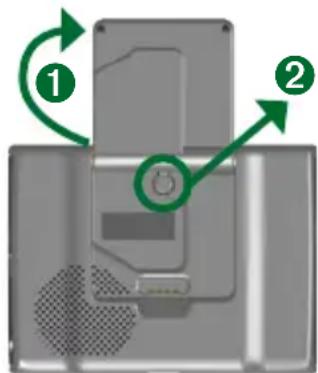
- Flip up the GPS antenna on the back of the nüvi, so that it is parallel to the ground.
- Turn on the nüvi.
Acquiring satellite signals can take a few minutes. The _ears indicate satellite strength.
More Information
Download the English owner's manual from www.garmin.com/products/nuvi. Click the Manuals link, and then click Download.
nüvi 350 users: You can access a PDF file of the owner's manual on the nüvi's internal memory. See page 7 for more information.
Finding Your Destination
- From the Menu page, touch Where to.
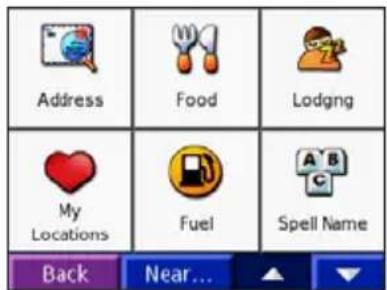
- Select a category, and a sub-category, if necessary. Touch and to more choices.
- Select a destination.
- Touch Go.
- Enjoy the route!
As you travel, your nüvi guides you to your destination with voice prompts, arrows on the map, and directions at the top of the Map page. If you depart from the original route, your nüvi recalculates the route and provides new route instructions.
Adding a Stop to the Route
You can add a stop to your route. The nüvi gives you directions to the stop and then to your final destination. Note: You can add only one stop to your route.
- While navigating a route, go to the Menu page, and touch Where to.
- Search for the extra stop.
- Touch Go.
- Touch Yes to add this stop before your destination. Or, touch No to make this your new final destination.
Taking a Detour
When navigating a route, touch Menu > Detour.
The nüvi attempts to get you back on your original route, as soon as possible. If the route you are currently taking is the only reasonable option, the nüvi might not calculate a detour.
Stopping the Route
When navigating a route, touch Menu > Stop.
Viewing the Map Page
From the Menu page, touch View map to open the Map page. The position icon 📋 shows your current location. Touch buttons on the Map page to see additional information.
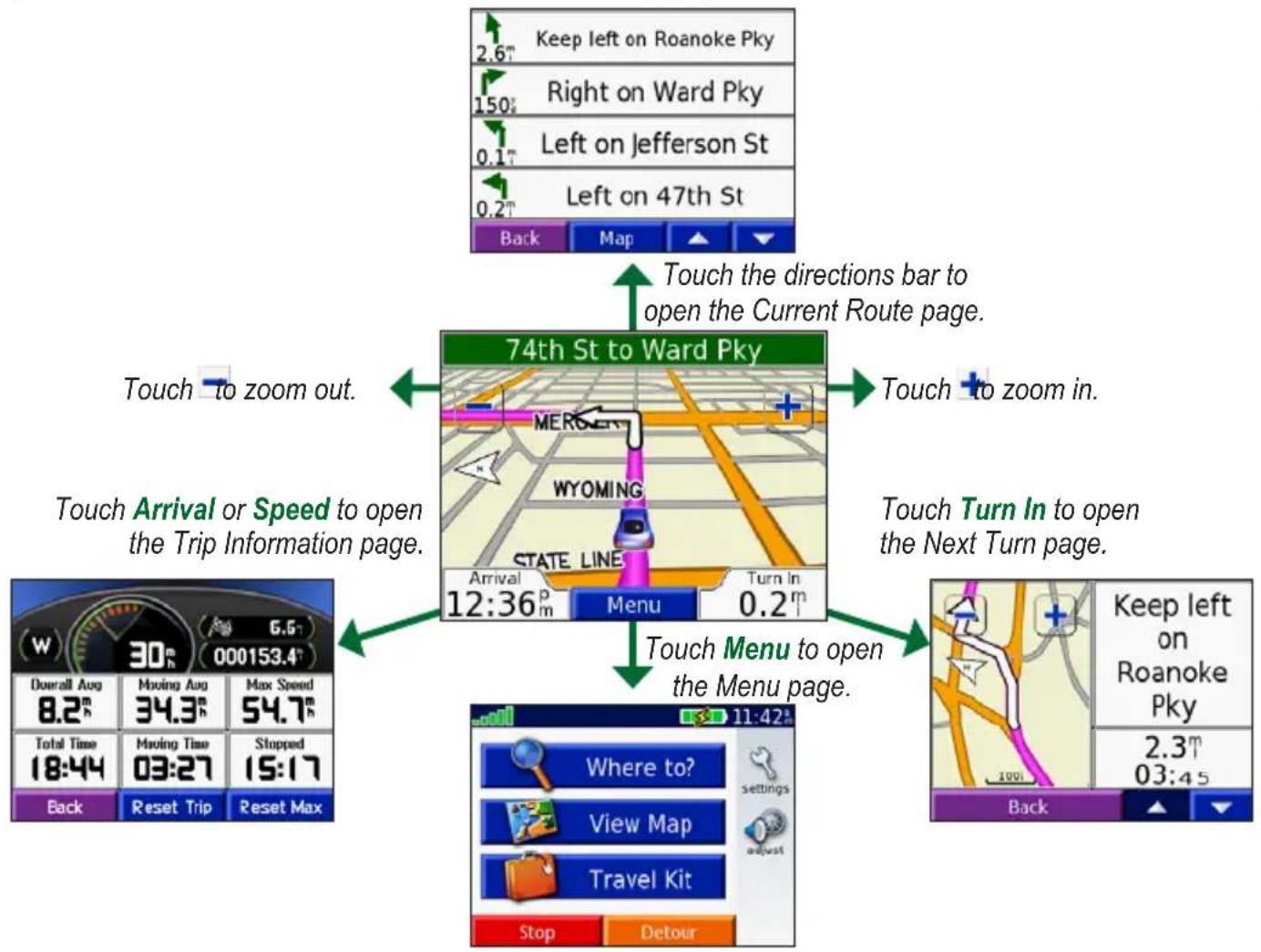
flowchart
graph TD
    A["74th St to Ward Pky"] -->|Touch the directions bar to open the Current Route page.| B["Menu"]
    A -->|Touch to zoom out.| C["Arrival or Speed to open the Trip Information page."]
    A -->|Touch to zoom in.| D["Turn In to open the Next Turn page."]
    A -->|Touch Menu to open the Menu page.| E["Stop"]
    A -->|Touch to exit| F["Return Path"]

Finding an Address
- From the Menu page, touch Where to >Address.
- Select the country (if necessary) and the state/region.
- Select or enter the city/postal code.
- Type the address number. Touch Done.
- Type the street name until a list of streets appears, or touch Done.
- Select the street.
- Select a city, if necessary.
- Select the address. Touch Go.
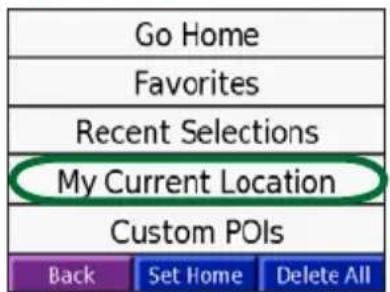
Saving Your Current Location
- From the Menu page, touch Where to.
- Touch My Locations > My Current Location.
- Touch Save > Yes.
Saving Places You Find
- After you have found a place you want to save, touch Save.
- Touch OK. The place is saved in My Locations > Favorites.

Finding Saved Places
- From the Menu page, touch Where to.
- Touch My Locations > Favorites.
Setting a Home Location
- Touch Where to > My Locations.
- Touch Set Home.
- Select an option to find and set your home location.
After you have set your home location, you can route to it at any time by touching Where to > My Locations > Go Home.
Adjusting the Volume and Brightness
To access the Quick Settings, quickly press and release the Power button. Move the sliders to adjust the volume and brightness. You can also touch on the Menu page to adjust the levels.
Touch Lock to prevent accidental screen taps. To unlock the screen, press the Power button and touch Unlock.
Loading Files on Your nüvi
Connect the mini-USB connector to the side of the nüvi. Connect the larger end of the cable to an available USB port on your computer.
Your nüvi internal memory and SD card appear as removable drives in My Computer on Windows® computers, and as mounted volumes on Mac® computers. Copy and paste files from your computer into the nüvi drives/volumes. When you are finished transferring files, click the Eject icon in your system tray on Windows computers, or drag the volume icon to the Trash on Mac computers. Unplug your nüvi.
Listening to MP3 Files
From the Menu page, touch Travel Kit > MP3 Player > Browse. Select a category. To play the entire category, touch Play All. To play one song, touch the title.

NOTE: The nüvi supports MP3 and M3U file; it does not support iTunes® M4A/M4P files.
Playing Audible Books
From the Menu page, touch Travel Kit > Audible Book Player > Browse. Select a category and a book.
Controlling Music and Books
Touch to adjust the volume. Tap to go to the beginning of the song/chapter; touch and hold to skip back. Tap to skip to the end of the song/chapter; touch and hold to skip ahead. Touch to pause the song/book. Touch to repeat. Touch to shuffle.

Traffic Information with an FM TMC Traffic Receiver
To access FM TMC traffic data, connect a GTM traffic receiver to the mini-USB connector on the side of the nüvi. For more information about Garmin FM traffic receivers, visit www.garmin.com/traffic.
Viewing Traffic Incidents
From the Menu page, touch to display traffic incidents in your area.
Avoiding Traffic
The Map page displays △ when there is a traffic incident on your current route or on the road on which you are traveling. To avoid a traffic incident, touch △, select a traffic incident, and touch Avoid.
Resetting Your nüvi
If your nüvi locks up (freezes up), turn off the nüvi and then back on. If this does not help, reset your nüvi:
- Unplug the power and USB cables to remove external power.
- Raise the antenna.
- Press the Reset button for about 3 seconds.
- Connect the nüvi to a power source using the power cable. The nüvi should automatically turn back on and operate normally.
Garmin ^® and nüvi ^® are trademarks of Garmin Ltd. or its subsidiaries, registered in the USA and other countries. These trademarks may not be used without the express permission of Garmin.
Windows ^® is a registered trademark of Microsoft Corporation in the United States and/or other countries. Mac ^® and iTunes ^® are registered trademarks of Apple Computer, Inc.
assistant personnel de voyage
natural_image
Close-up of a black electronic device with a green arrow pointing to its side (no text or symbols visible)Pare-brise
FR-2


For the latest free software updates (excluding map data) throughout the life of your Garmin products, visit the Garmin Web site at www.garmin.com.

© 2005–2007 Garmin Ltd. or its subsidiaries
Garmin International, Inc.
1200 East 151 ^st Street, Olathe, Kansas 66062, USA
Garmin (Europe) Ltd.
Liberty House, Houndown Business Park, Southampton, Hampshire, SO40 9RB UK
Garmin Corporation
No. 68, Jangshu 2 ^nd Road, Shijr, Taipei County, Taiwan
www.garmin.com
Part Number 190-00627-91 Rev. C
- nüvi® 300/350
- Mounting Your nüvi
- Charging Your nüvi
- Turning On the nüvi
- Acquiring Satellites
- More Information
- Finding Your Destination
- Adding a Stop to the Route
- Taking a Detour
- Stopping the Route
- Viewing the Map Page
- Finding an Address
- Saving Your Current Location
- Saving Places You Find
- Finding Saved Places
- Setting a Home Location
- Adjusting the Volume and Brightness
- Loading Files on Your nüvi
- Listening to MP3 Files
- Playing Audible Books
- Controlling Music and Books
- Traffic Information with an FM TMC Traffic Receiver
- Viewing Traffic Incidents
- Avoiding Traffic
- Resetting Your nüvi
Brand : GARMIN
Model : nüvi 300
Category : Gps