
LB100 - Lighting TP-LINK - Free user manual and instructions
Find the device manual for free LB100 TP-LINK in PDF.


| Product type | Smart LED bulb |
| Brand | TP-Link |
| Model | LB100 |
| Category | Lighting |
| Dimensions | 60 mm (diameter) x 110 mm (height) |
| Weight | 120 g |
| Power supply | 220-240 V AC, 50/60 Hz |
| Power | 9 W (60 W equivalent) |
| Luminous flux | 800 lumens |
| Color temperature | Warm white (2700K) to cool white (6500K), adjustable |
| Dimmable | Yes, via app |
| Connectivity | Wi-Fi 2.4 GHz (802.11 b/g/n) |
| Compatibility | iOS and Android |
| Main functions | Remote control, scheduling, scenes, voice control (Alexa, Google Assistant) |
| Beam angle | 220° |
| Base type | E27 |
| Lifespan | 15,000 hours |
| Humidity | Indoor use only |
| Operating temperature | 0°C to 40°C |
| Maintenance and cleaning | Clean with a dry cloth. Do not use liquids. |
| Safety | Disconnect before cleaning. Do not immerse. |
| Spare parts and repairability | Not applicable (sealed bulb). Not user repairable. |
Frequently Asked Questions - LB100 TP-LINK
User questions about LB100 TP-LINK
0 question about this device. Answer the ones you know or ask your own.
Ask a new question about this device
Download the instructions for your Lighting in PDF format for free! Find your manual LB100 - TP-LINK and take your electronic device back in hand. On this page are published all the documents necessary for the use of your device. LB100 by TP-LINK.
USER MANUAL LB100 TP-LINK
natural_image
Four identical incandescent light bulbs arranged in a row, each bulb with a standard LED and screw base (no text or symbols visible)Copyright © 2017 TP-Link. All rights reserved.
Specifications are subject to change without notice. TP-Link is a registered trademark of TP-Link Technologies Co., Ltd. Other brands and product names are trademarks or registered trademarks of their respective holders.
No part of the specifications may be reproduced in any form or by any means or used to make any derivative such as translation, transformation, or adaptation without permission from TP-Link Technologies Co., Ltd.
www.tp-link.com


MADE IN CHINA
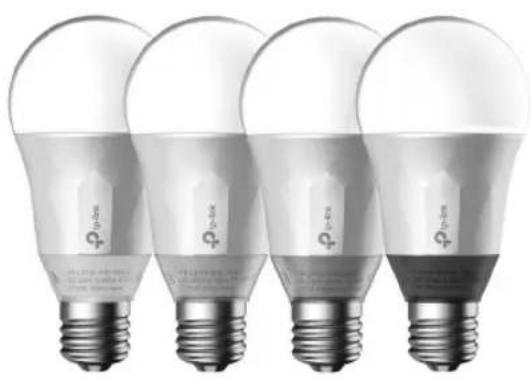
natural_image
Four identical incandescent light bulbs with standard LED diodes, shown from different angles (no text or symbols visible)Smart Wi-Fi LED Bulbs
- English
- Български
- Čeština
• Dansk • Suomi • Français
• Deutsch • ελληνικά • Magyar
• Italiano • Kažačša • Lietuvių - Nederlands
- Norsk
- Polski
- Português
- Română
- Русский язык
• Srpski • S lovenčina • Español
• Svenska • Türkçe • Українська мова
Contents
English....1
Български....4
Čeština....7
Dansk....10
Suomi 13
Français 16
Deutsch....19
Ελληνικά 22
Magyar 25
Italiano....28
Қазақша....31
Lietuvių....34
Nederlands.... 37
Norsk 40
Polski 43
Português....46
Română....49
Русский язык....52
Srpski....55
Slovenčina....58
Español 61
Svenska....64
Türkçe....67
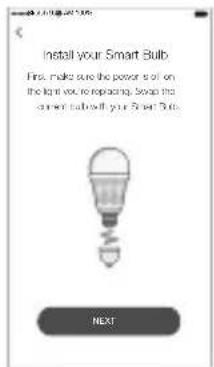
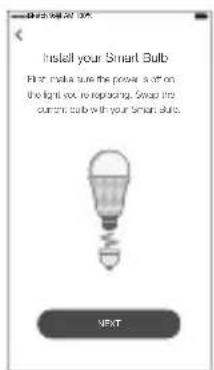
Before installing or replacing the Smart Bulbs, read and follow all precautions, including the following:
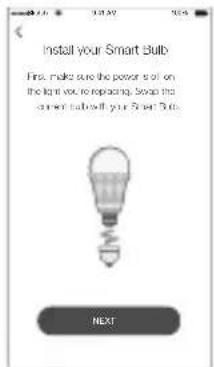
- WARNING: RISK OF ELECTRIC SHOCK OR BURNS. Switch OFF the light switch controlling the bulb and WAIT for the bulb to cool down before attempting to change it.
- Do not install the Smart Bulb with wet hands or when standing on wet or damp surfaces.
- Not suitable for use with standard in-wall dimmers. Dimmable via the app only.
- Suitable for use in operating environment between -20^ and 40^ (-4°F and 104°F).
• NOT FOR EMERGENCY LIGHTING.
Smart Wi-Fi LED Bulb Installation
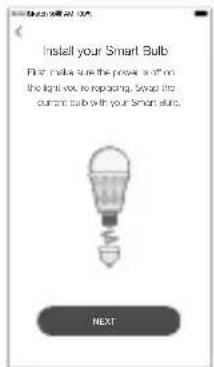
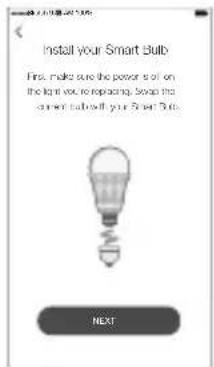
① Download Kasa for Mobile app from App Store or Google Play.
OR
Scan QR
code
② Connect mobile device to your 2.4GHz Wi-Fi network. Note: The Smart Bulbs only support 2.4GHz network.
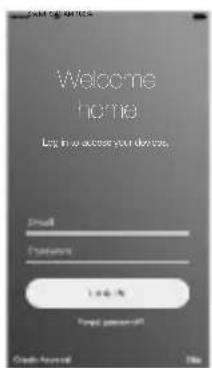
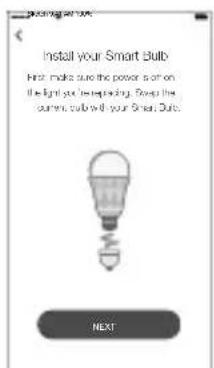
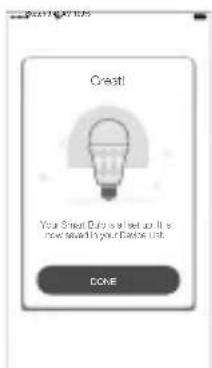
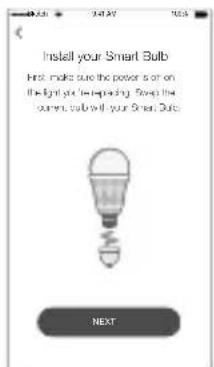
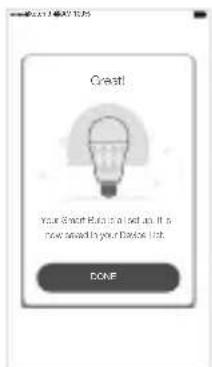
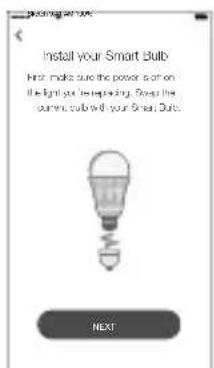
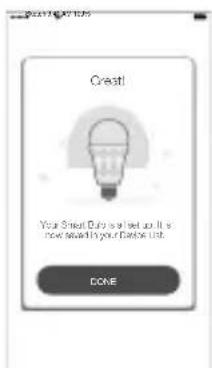
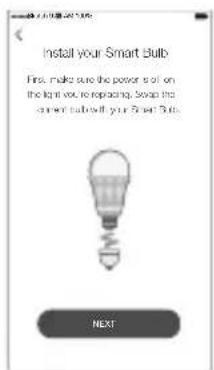
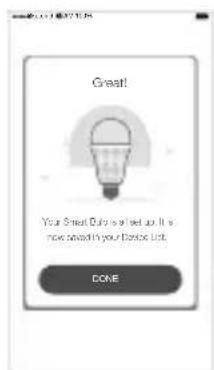
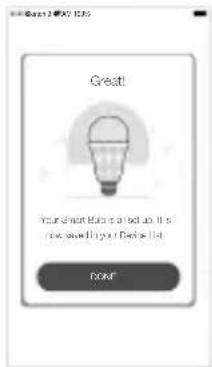
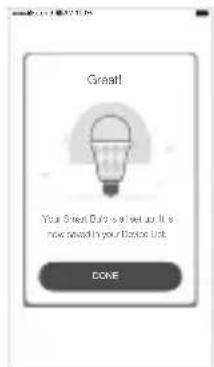
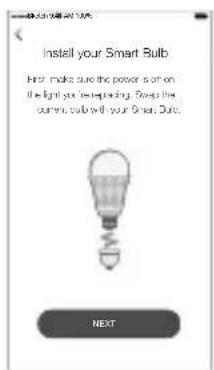
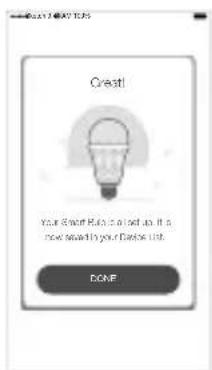
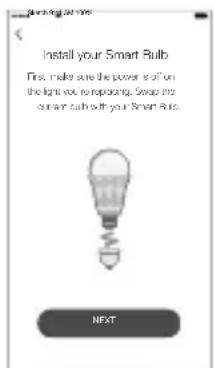
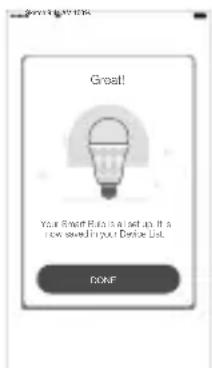
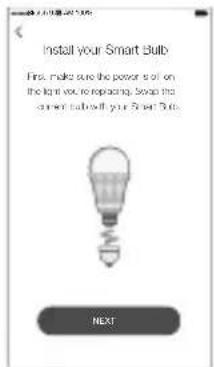
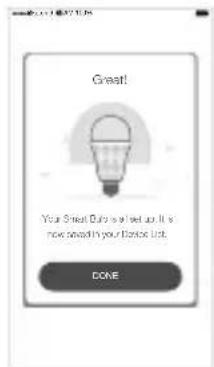
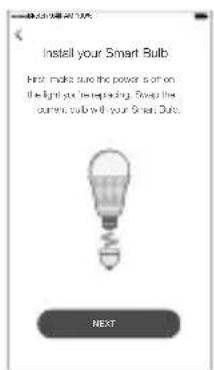
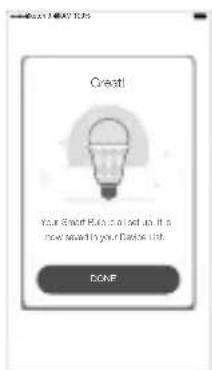
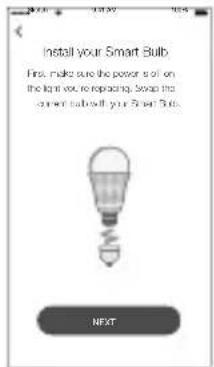
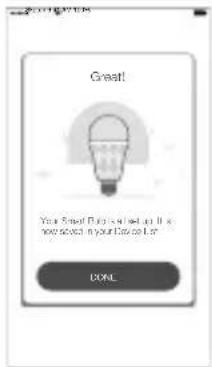
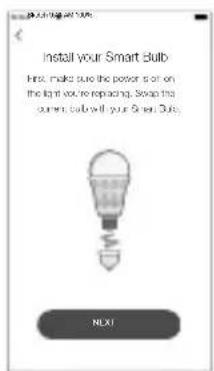
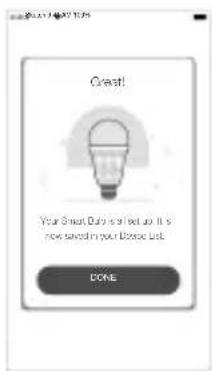
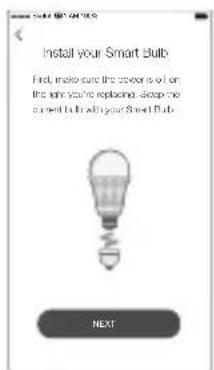
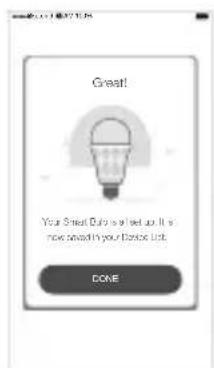
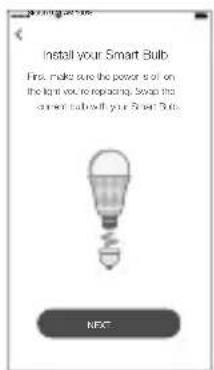
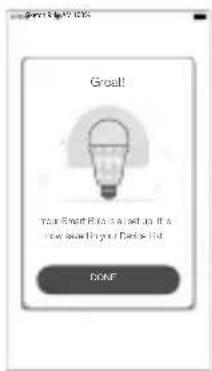
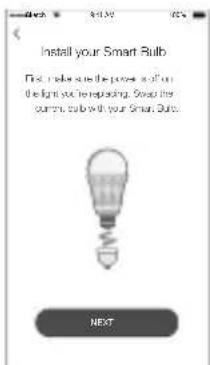
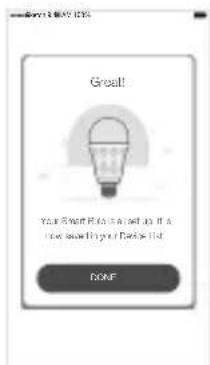
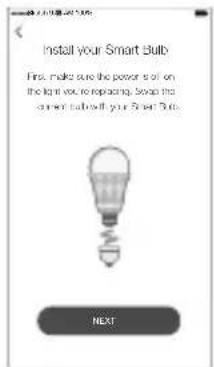
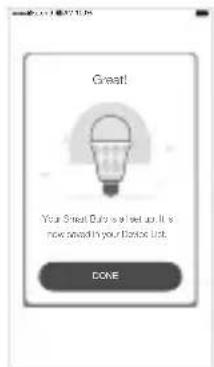
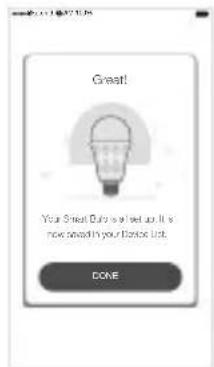
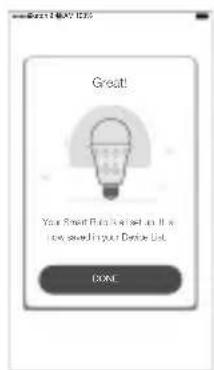
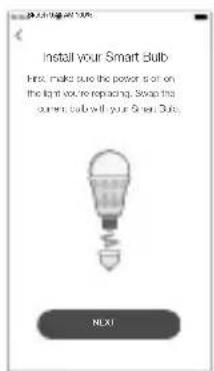
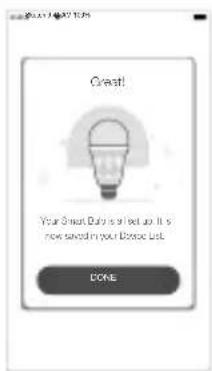
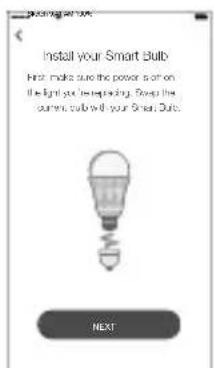
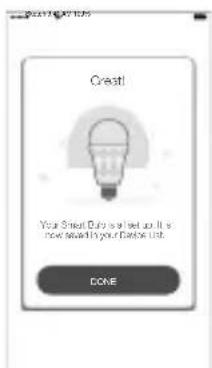
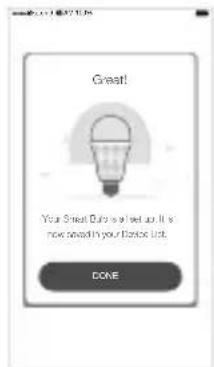
③ Launch Kasa and follow the in-app instructions to connect the Smart Bulb to your home network.
Frequently Asked Questions
1. The Smart Bulb appears offline or unreachable, what should I do?
- Check the light switch and make sure that it's switchd to ON. The Smart Bulb requires an "always-on" power supply to operate properly.
- Make sure you are connected to the same Wi-Fi network to control it locally. To control the Smart Bulb outside of your home, sign in to your Kasa account and enable Remote Control.
- Reset the Smart Bulb and reconnect it to your Wi-Fi network.
2. How do I reset my Smart Bulb?
- To reset without losing your configuration settings, turn the light switch controlling the bulb to OFF first, then flip the light switch on and off 3 times.
- To factory reset, turn the light switch controlling the bulb to OFF first, then flip the light switch on and off 5 times. Note that factory resetting the Smart Bulb will erase all of your custom settings, and you'll have to set it up again.
3. Can I control the Smart Bulbs from multiple devices?
Yes. Download Kasa for Mobile to your devices and sign in using the same Kasa account.
4. How do I pair the Smart Bulbs with Amazon Echo?
Visit www.tp-link.com/en/faq-944.html or within the Kasa Help section for pairing instructions.
Support
If you encounter any issues during installation or configuration, please visit www.tp-link.com/support for web support and troubleshooting information.
Safety Information
- Keep the device away from water, fire, humidity or hot environments.
- Do not attempt to disassemble, repair, or modify the device.
Please read and follow the above safety information when operating the device. We cannot guarantee that no accidents or damage will occur due to improper use of the device. Please use this product with care and operate at your own risk.
TP-Link hereby declares that the device is in compliance with the essential requirements and other relevant provisions of directives 2014/53/EU, 2009/125/EC and 2011/65/EU.
The original EU declaration of conformity may be found at http://www.tp-link.com/en/ce.

tp-link
Συχνές Ερωτήσεις
Domande Frequenti
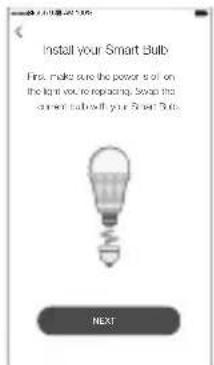
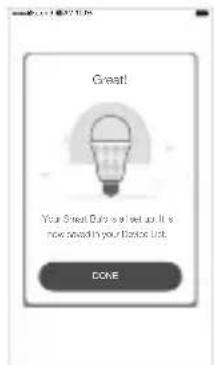
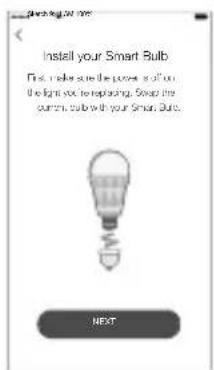
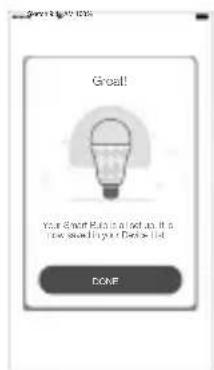
① Download Kasa for Mobile vanuit de App store of Google Play.
OF scan de QR code
Veelgestelde Vragen
Vanlige spørsmål
Perguntas Frequentes (FAQ)
Întrebări Frecvente
Često postavljana pitanja
1. Smart Bulb kao da je isključen ili je nedostupan, šta da uradim?
- Proverite strujni prekidač i proverite da li je u položaju UKLJUČENO. Da bi pravilno funkcionisao Smart Bulb mora neprestano da bude pod naponom.
- Proverite da li ste u istoj lokalnoj bežičnoj mreži da biste mogli da ga kontrolišete. Da biste ga kontrolisali kada ste van kuće, pristupite Vašem Kasa nalogu i omogućite Udaljeni pristup.
- Resetujte Smart Bulb i ponovo ga povežite na Vašu bežičnu mrežu.
Vanliga frågor
- Smart Wi-Fi LED Bulbs
- Contents
- Smart Wi-Fi LED Bulb Installation
- Frequently Asked Questions
- The Smart Bulb appears offline or unreachable, what should I do?
- How do I reset my Smart Bulb?
- Can I control the Smart Bulbs from multiple devices?
- How do I pair the Smart Bulbs with Amazon Echo?
- Support
- Safety Information
- tp-link
- Συχνές Ερωτήσεις
- Domande Frequenti
- Veelgestelde Vragen
- Vanlige spørsmål
- Perguntas Frequentes (FAQ)
- Întrebări Frecvente
- Često postavljana pitanja
- Smart Bulb kao da je isključen ili je nedostupan, šta da uradim?
- Vanliga frågor
Brand : TP-LINK
Model : LB100
Category : Lighting