
Kasa Smart KL400L10 - Lighting TP-LINK - Free user manual and instructions
Find the device manual for free Kasa Smart KL400L10 TP-LINK in PDF.


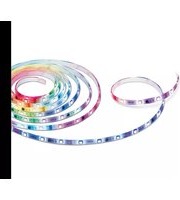
| Product Type | Smart LED Light Strip |
| Model | KL400L10 |
| Length | 10 ft (3 m) |
| Color Range | 16 million colors, multicolor zones |
| Brightness | Dimmable from 1% to 100% |
| Connectivity | Wi-Fi 2.4 GHz |
| Voice Control | Amazon Alexa, Google Assistant, Samsung SmartThings |
| App Control | Kasa Smart app (iOS/Android) |
| Cuttable | Yes, at marked cut lines |
| Mounting | 3M adhesive backing |
| Power Supply | 12V DC adapter (models T120100-2B1 or T120150-2B1) |
| Power Consumption | Max 18W (estimated) |
| Operating Temperature | -20°C to 40°C (-4°F to 104°F) |
| Operating Humidity | 10%-90% RH, non-condensing |
| Indoor Use Only | Yes, dry and damp locations |
| Scenes & Schedules | Yes, via app |
| Auto-Off Timer | Yes |
| Energy Monitoring | Yes, via app |
| Reset Options | Soft reset (5-10 sec hold), factory reset (10+ sec hold or app delete) |
| Weight | Approx. 0.5 lb (0.23 kg) with adapter |
| Dimensions (Controller) | Approx. 4.5 x 1.5 x 1 in |
Frequently Asked Questions - Kasa Smart KL400L10 TP-LINK
User questions about Kasa Smart KL400L10 TP-LINK
0 question about this device. Answer the ones you know or ask your own.
Ask a new question about this device
Download the instructions for your Lighting in PDF format for free! Find your manual Kasa Smart KL400L10 - TP-LINK and take your electronic device back in hand. On this page are published all the documents necessary for the use of your device. Kasa Smart KL400L10 by TP-LINK.
USER MANUAL Kasa Smart KL400L10 TP-LINK
Main Device Control 8
Configure Your Smart Light Strip 9
Create Scenes 15
Schedule A Scene 17
Auto-Off Timer 18
Reset Your Smart Light Strip 19
Works with Kasa 20
Authentication 21
About This Guide
This guide provides a brief introduction to Kasa Smart Light Strip and the Kasa Smart app, as well as regulatory information.
Features available in Kasa may vary by model and software version. Kasa availability may also vary by region. All images, steps, and descriptions in this guide are only examples and may not reflect your actual Kasa experience.
Conventions
In this guide, the following convention is used:
| Convention | Description |
| Teal | Key information appears in teal, including management page text such as menus, items, buttons and so on. |
| Underline | Hyperlinks are in teal and underlined. You can click to redirect to a website. |
| Note: | Ignoring this type of note might result in a malfunction or damage to the device. |
Support
- Specific product information can be found on the product page at https://www.tp-link.com/. • A Technical Community is provided for you to discuss our products at https://community.tp-link.com/.
- Our Technical Support contact information can be found at the Help center of the Kasa Smart app and the Contact Technical Support page at https://www.tp-link.com/support/.
- Videos about how to configure the Smart Light Strip features can be found on the Setup Videos page at https://www.tp-link.com/support/setup-video/#smart-bulbs.
Introduction
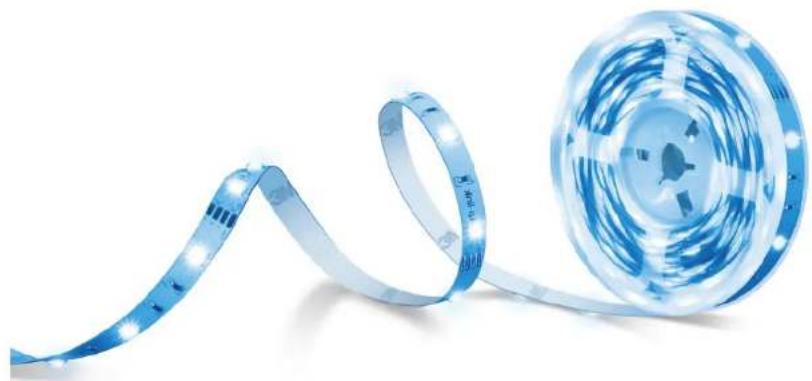
The Light Strip is part of the Kasa smart home family of products, including plugs, switches, cameras and more. You can simply download the Kasa Smart app, connect to Wi-Fi and enjoy. No special hardware is needed. 16 color zones and millions of colors are available for you to pick from and create your own scenes.
You can also control multiple smart home devices with the Kasa Smart app or use your voice for added convenience. With Kasa, your home is never more than a few taps away.
- Multicolor - Offers endless lighting possibilities with 16 million colors and dimming capabilities.
- Voice Control - Turn on or off, and change colors with simple voice commands.
- Set Schedules - Run your Light Strip automatically to fit any event with the Kasa Smart app.
- Flexible and Easy Install - The flexibility to bend and cut* allows you to stick it or place it in the exact spot you desire.
*Once cut, it cannot be reattached. Prevent accidental shocks by removing its power and then cutting along the strip's indicator lines.
• Group and Scenes - Combine your strip with other Kasa devices for seamless control with a single tap.
Set Up Your Smart Light Strip
Follow the steps below to set up your Light Strip via the Kasa Smart app.
Step 1. Download Kasa Smart App
Go to Google Play or the App Store or scan the QR code below to download and install the Kasa Smart app.
Step 2. Log In to Kasa Smart App
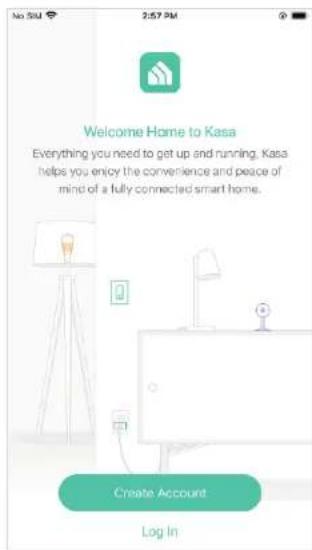
Open the app and use your TP-Link ID to log in. If you don't have a TP-Link ID, tap Create Account and the app will guide you through the rest.
Step 3. Add Your Devices
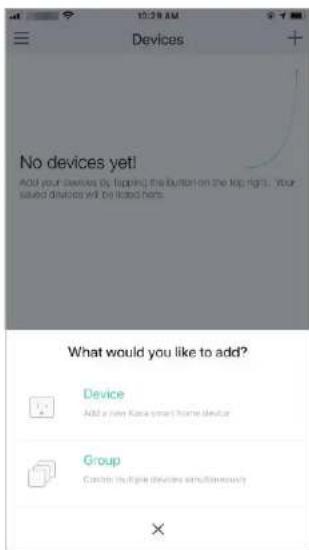
Tap the button in the app and select Device to add your new Light Strip. Follow app instructions to complete the setup.
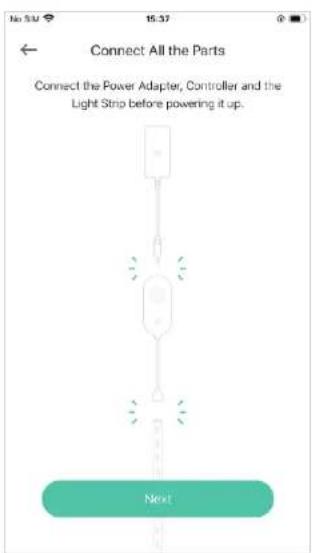
Step 4. Connect All the Parts
Connect the Power Adapter, Controller and the Light Strip before powering it up.
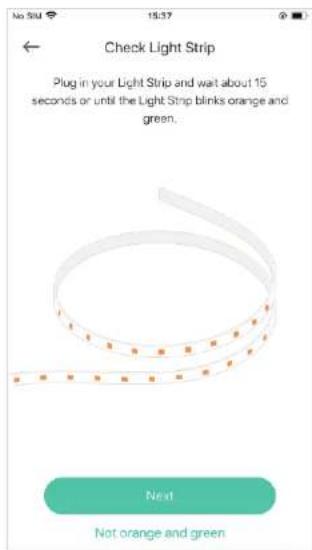
Step 5. Power Up Light Strip
Plug in the power adapter and wait until the Light Strip animates orange and green.
Note: Do not roll up when using. Spread out the Light Strip before connecting the power supply.
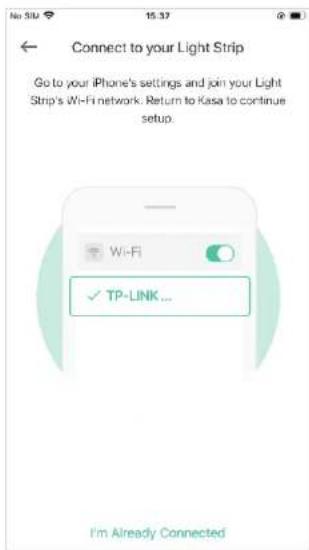
Step 6. Join Your Light Strip's Wi-Fi
Join your Light Strip's Wi-Fi to continue the setup.
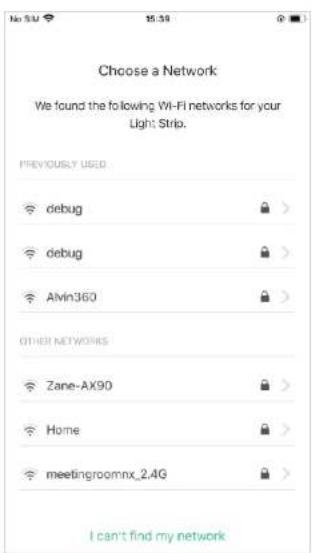
Step 7. Join Your Home's Wi-Fi
Select your home Wi-Fi to connect.
Step 8. Setup Complete
Now you can start using your Light Strip.
Install Your Smart Light Strip
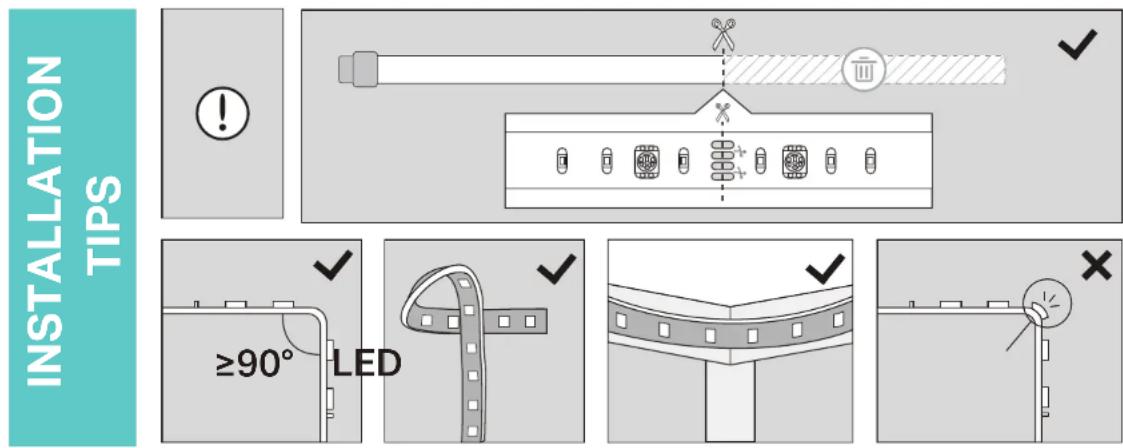
After you have set up the Light Strip via the Kasa Smart app, you can cut it to length-fit and attach it to any surface with the 3M adhesive. To avoid damaging your Light Strip, please note the following Installation Tips before installing the Light Strip.
Cut Only On Specific Areas of Light Strip
You can custom tailor the length of your Light Strip with scissors. Unplug the Light Strip and cut only on these specific areas or your Light Strip will no longer function.
Avoid Bending on LED Beads
The bend should be avoided just in the position of the LED components, so as not to damage the product and affect the life of the product.
Avoid Sharp Turns
Carefully roll the Light Strip into a clover or use a gentle hill when making 90° turns like those need behind a TV. Sharp bends can damage your Light Strip.
Avoid Sharp Corners
Use gentle weeps when bending Light Strip around corners and avoid creases as they may cause damage.
Step 1. Choose Location
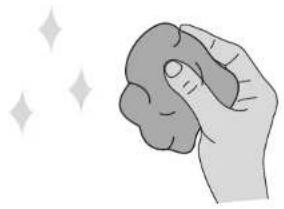
Choose a dry, clean, and smooth surface. Wipe off the dust. Otherwise, the Light Strip will be easily fall off.
Note: Choose a location that avoids static and stays away from water splashing.
Step 3. Stick Light Strip
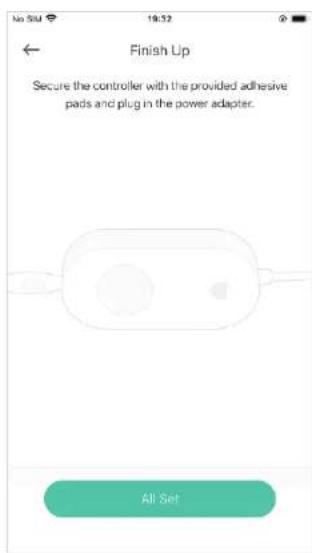
Stick the Light Strip and press over it about 10-15 seconds. Secure the controller with the adhesive pads. Do not move it to other place after it is attached.
INSTALL LIGHT STRIP
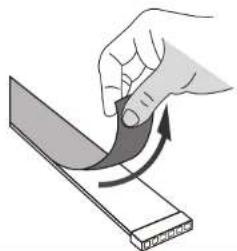
Step 2. Remove Adhesive Tape
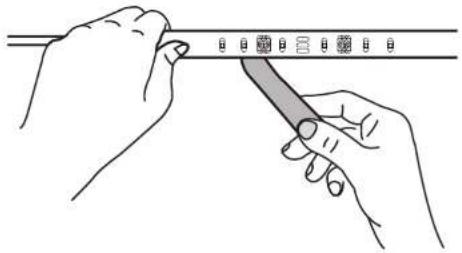
Unplug the Light Strip first. Peel away the 3M adhesive backing bit by bit and stick your Light Strip to the surface.
Note: Do not peel off the tape under the 3M adhesive backing.
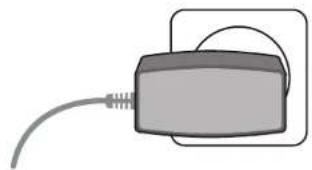
Step 4. Power Up Light Strip
Plug in the power adapter to power on your Light Strip.
Main Device Control
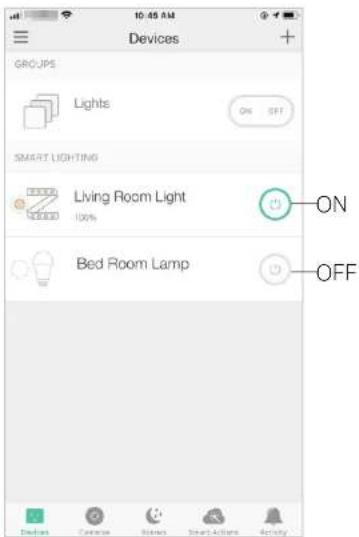
After you successfully set up your Light Strip, you will see the Devices page on the Kasa Smart app. You can add new devices, control multiple devices simultaneously in a group, configure account settings, and more.
Devices Page
On the Devices page, you can instantly turn on/off the Light Strip, adjust brightness or change colors.
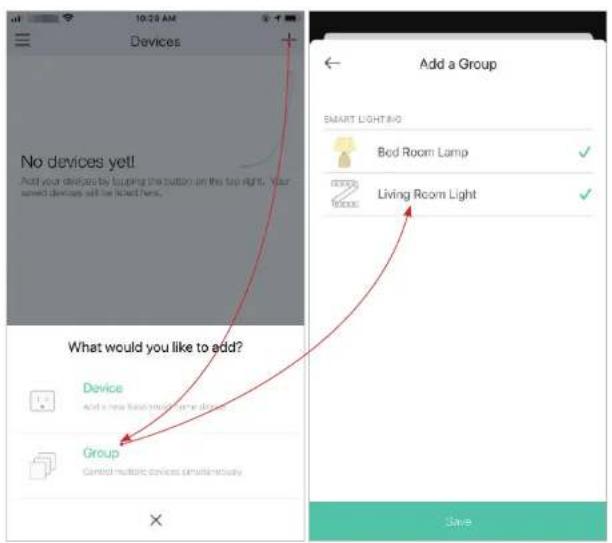
Add a Group
Tap + and select Group to add a group for controlling multiple devices simultaneously.
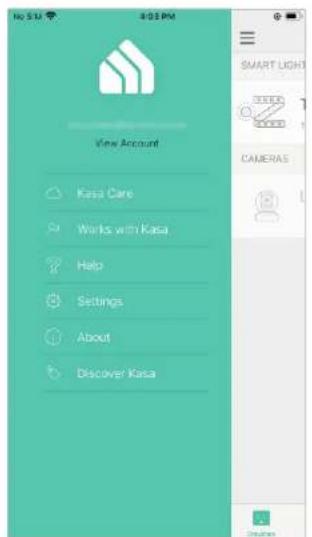
Configure Kasa Settings
Swipe right and you can configure settings for your Kasa account or get more information about Kasa.
Configure Your Smart Light Strip
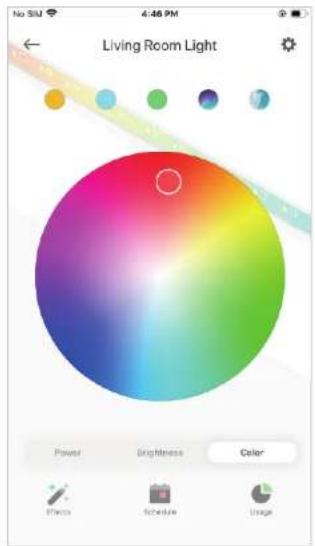
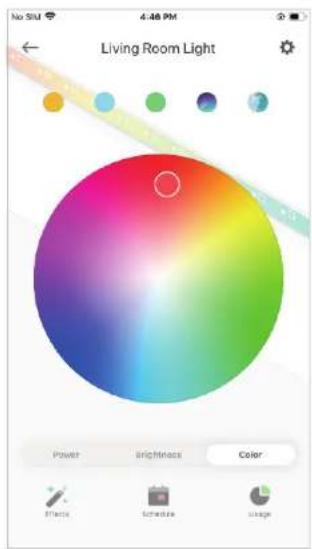
On the Devices page, tap a Light Strip and you can adjust the light brightness or color, set schedules, save a shortcut for a light effect, track energy consumption and configure the Light Strip settings.
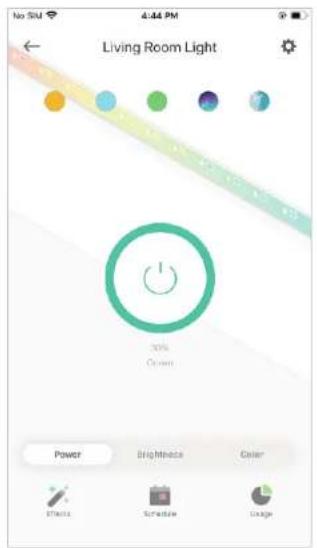
Power On/Off At One Tap
Quickly power on or off your Light Strip with a single button.
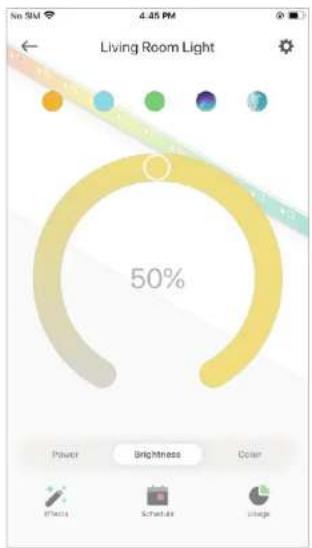
Adjust Brightness
Dim your Light Strip with a range from 1% to 100%.
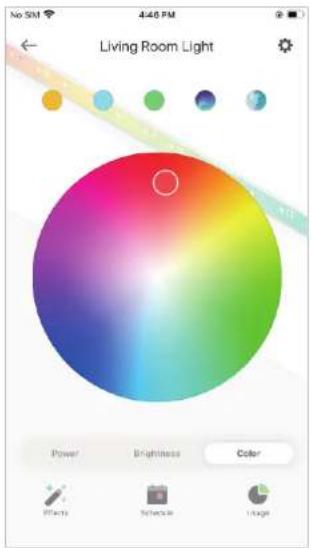
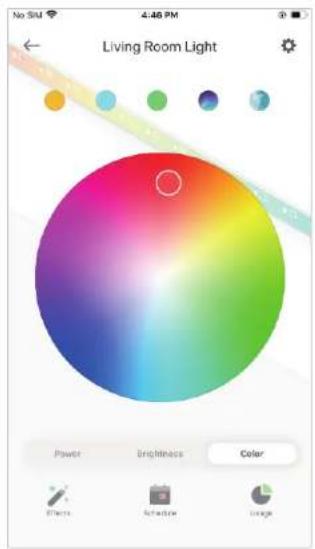
Adjust Color
Choose a preferred color for your Light Strip.
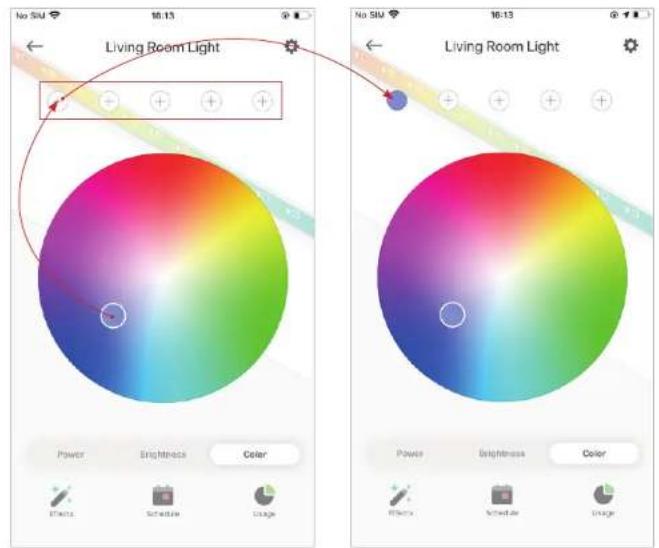
Add One-Tap Presets
To save a shortcut for a color effect, choose a color and brightness you want, then tap + and the current effect will be saved for quick access.
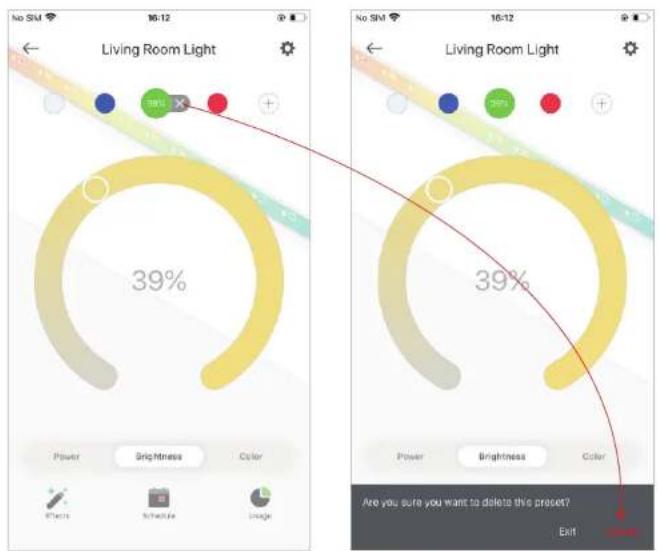
Delete Presets
To delete a preset, just select one and tap ×, and then tap Delete.
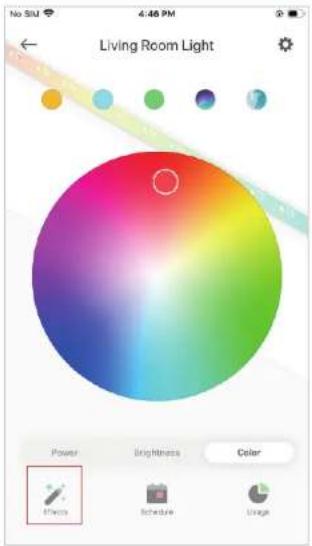
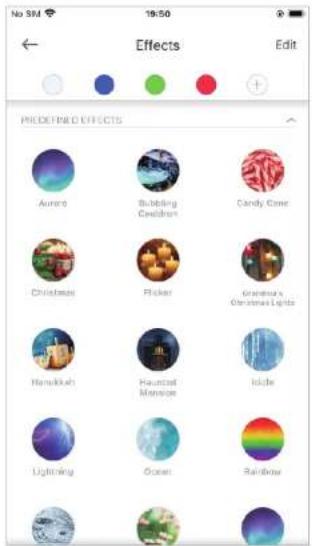
Add Effects
Tap Z and tap any color effect, then your Light Strip will go to the certain light effect instantly. You can also customize the color effect and apply it to your Light Strip in Customized Effects.
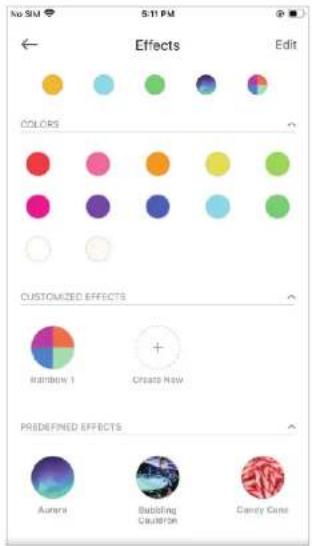
- Customized Effects
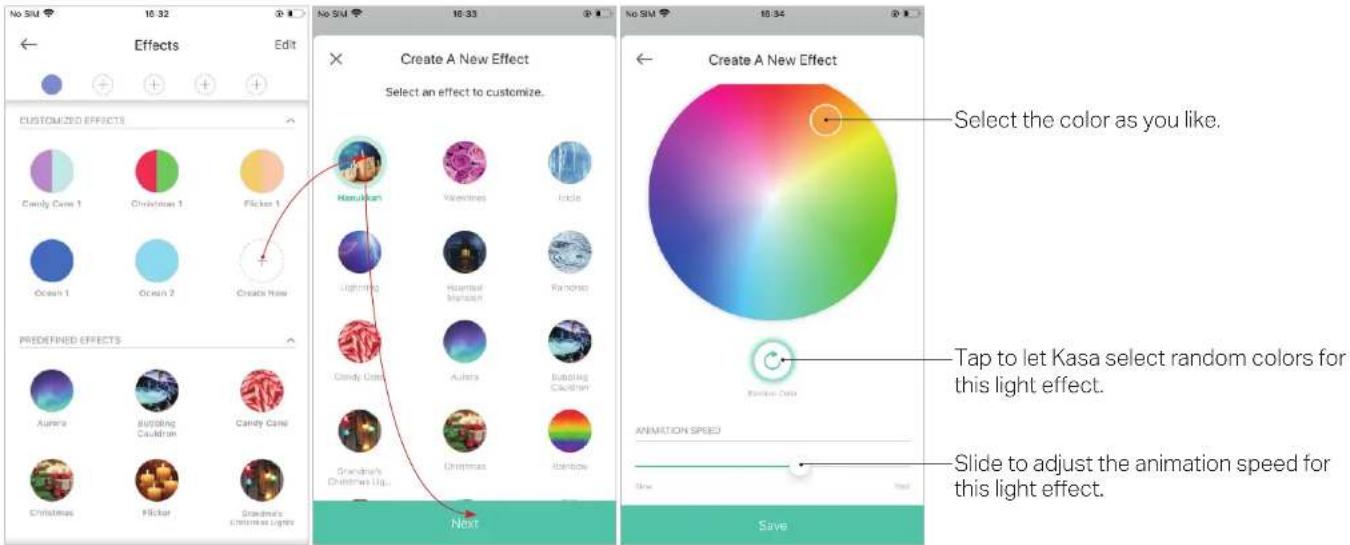
Your Light Strip provides you with multiple default lighting effects. You can select any of them and customize it as you want. Follow the steps below to customize a lighting effect.
- Tap Create New.
- Select an effect to customize, then tap Next.
- Customize the effect name, color effect and the animation speed as you want, then tap Save.
Add Schedules
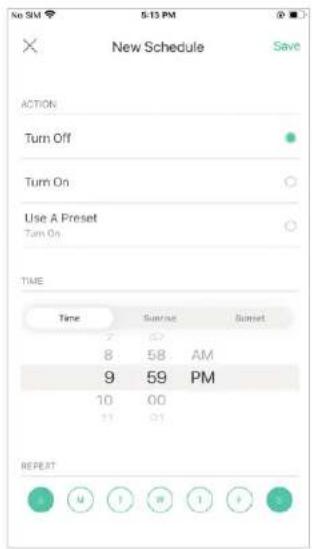
Tap to add schedules to simplify your daily routine by creating automatic On/Off actions.
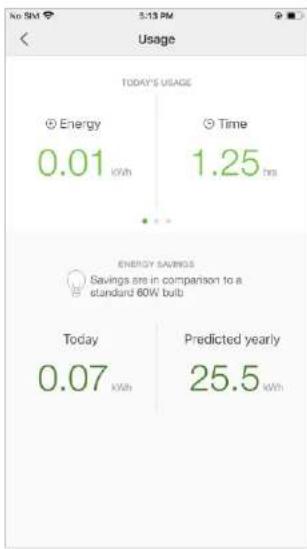
Track Energy Usage
Tap to view and track energy consumption of your Light Strip.
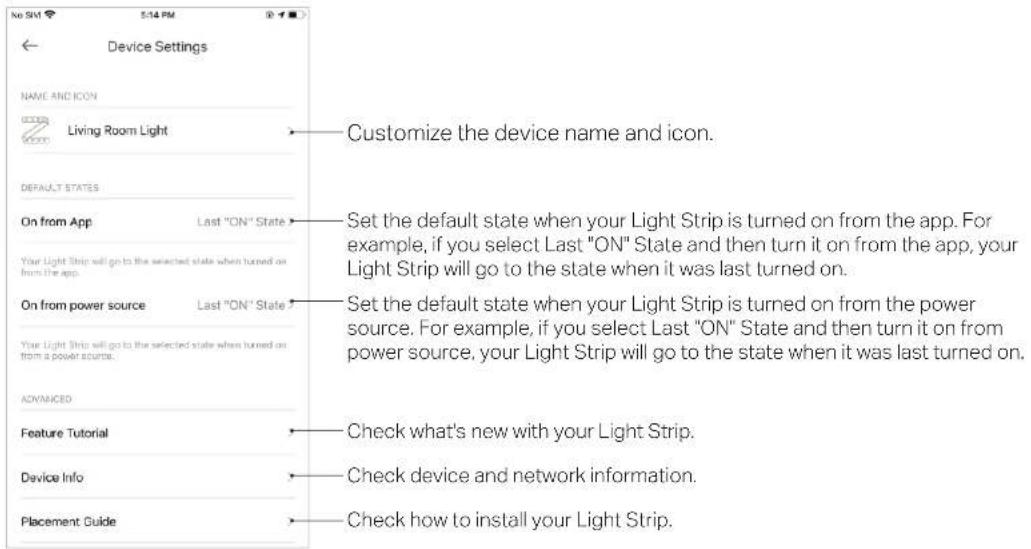
Configure Device Settings
Tap to configure device settings and check device information.
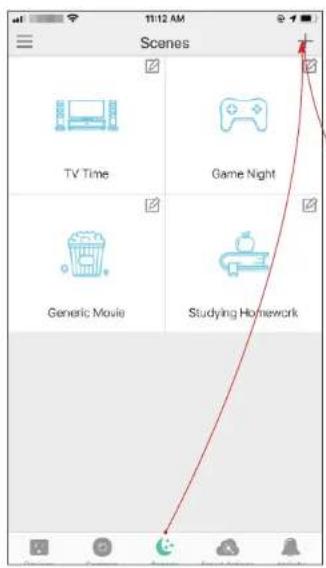
Create Scenes
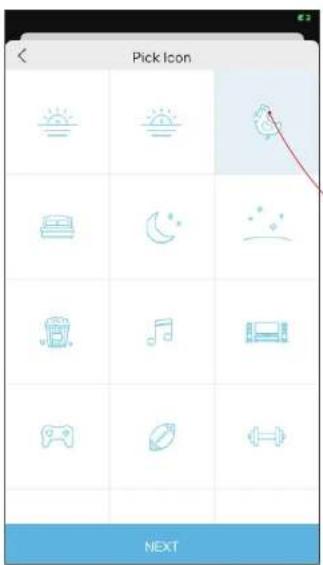
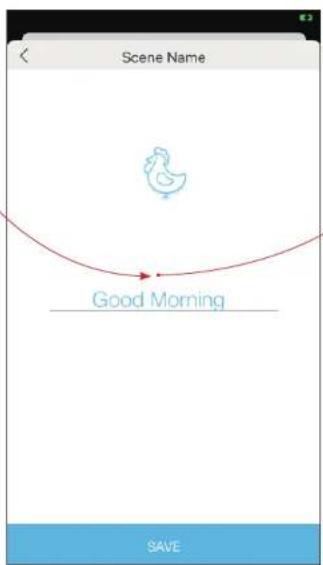
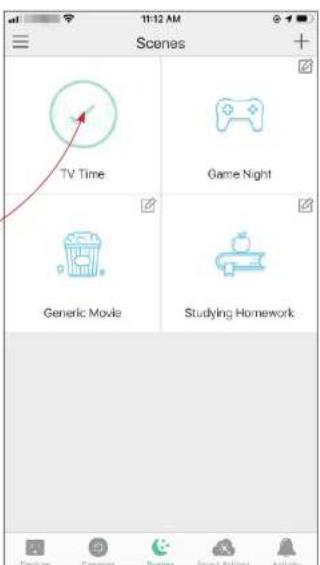
A scene is a preset group of smart devices that can be customized and activated simultaneously at the touch of a button from your smartphone or tablet, allowing you to easily set your mood, activity or fit any special occasion. This page allows you to preset how your smart home devices should act automatically at special occasions.
- On the Scenes page, tap + .
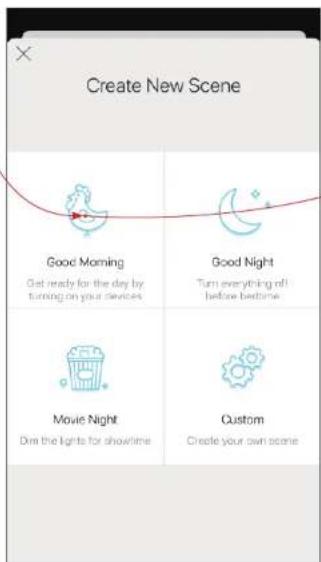
- Choose a default one or customize a new scene.
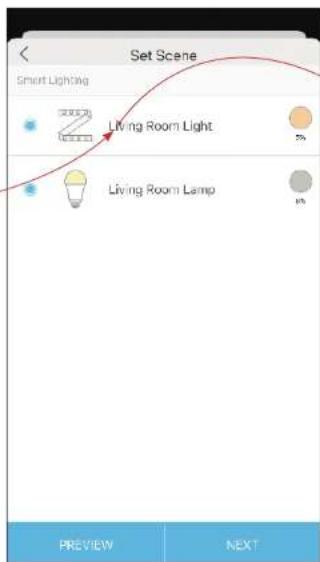
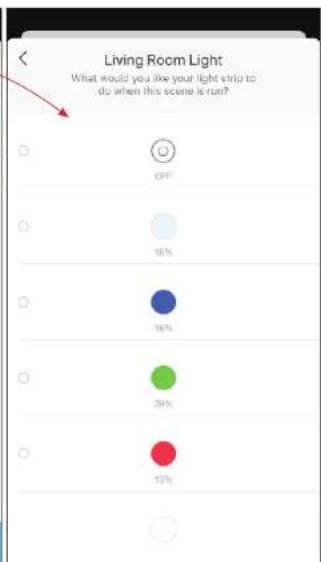
- Tap the Light Strip and set what you would like it to do when the scene is run.
- Pick an icon for your Light Strip.
- Set a name for the scene. 6. After creating the new scene, tap the scene to apply it.
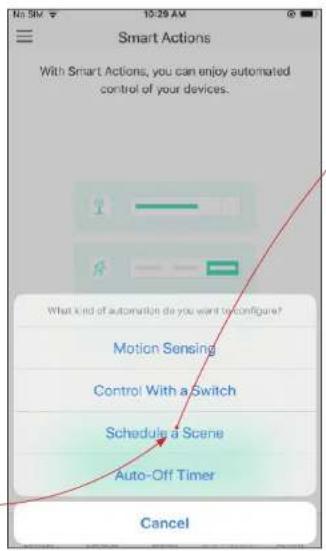
Schedule a Scene
After you create a scene, you can schedule it to be applied automatically at the specified time. For example, if you want to automatically apply your scene "TV Time" at 7:33 PM every weekday, follow the steps below.
- Go to the Smart Actions page and tap Add an Action.
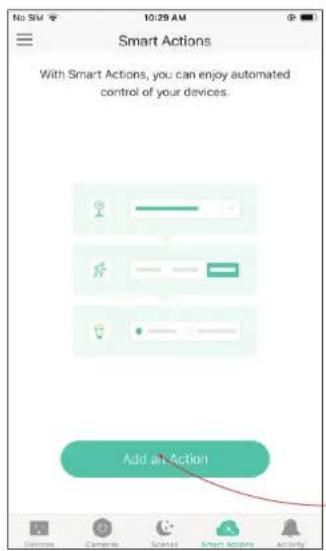
- Select Schedule a Scene. 3. Select a scene and set a time schedule for the scene.
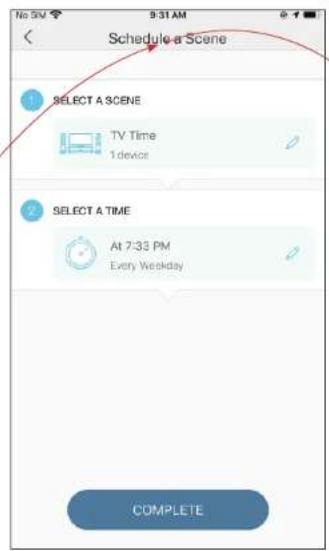
- Give this schedule a name to help you remember.

Auto-Off Timer
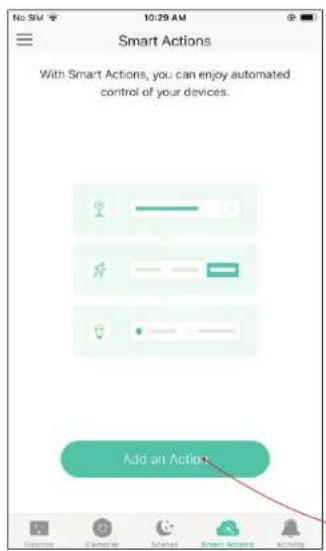
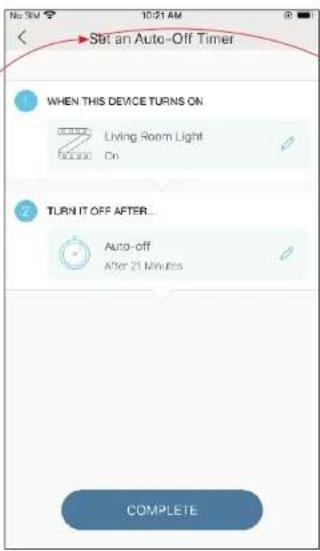
Whenever your smart bulb is turned on, you can turn it off after the designated amount of time by setting an auto-off timer for the device. For example, if you want your Light Strip to turn off automatically after being turned on for 21 minutes, follow the steps below:
- Go to the Smart Actions page and tap Add an Action.
- Select Auto-Off Timer.
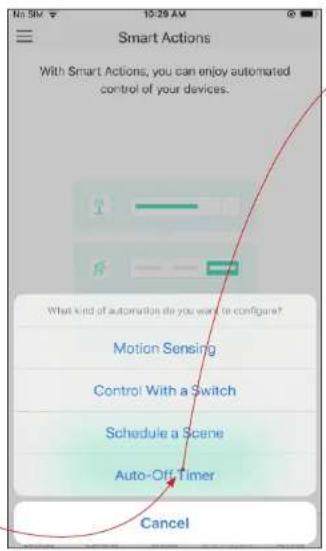
- Select a device and set the auto-off timer for the device.
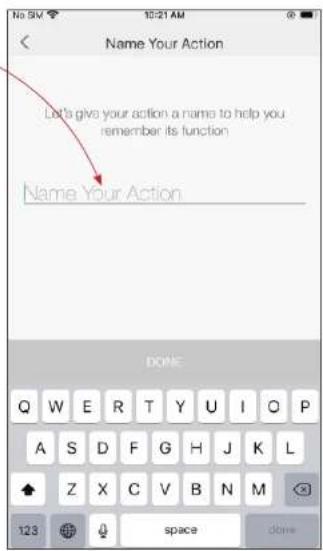
- Give this timer a name to help you remember.
Reset Your Smart Light Strip
There are two types of reset available: a soft reset which resets the Wi-Fi settings only, and a factory reset that erases all of your custom settings and restores them to factory defaults.
Soft Reset
Press and hold the light switch controller for more than 5 seconds but no more than 10 seconds and release. The Light Strip animating orange and green after that indicates a successful soft reset.
Factory Reset
Method 1:
Press and hold the light switch controller for 10 seconds or more and then release. The Light Strip animating orange and green after that indicates a successful factory reset.
Method 2:
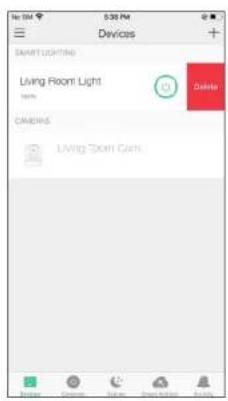
On the Devices page on Kasa Smart app, swipe left the Light Strip and tap Delete.
OR
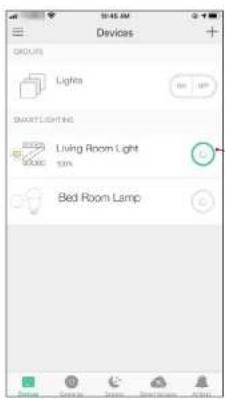
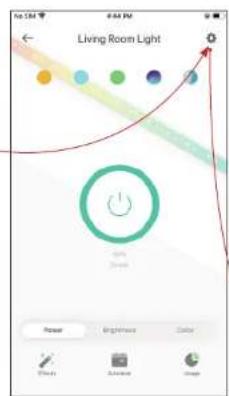
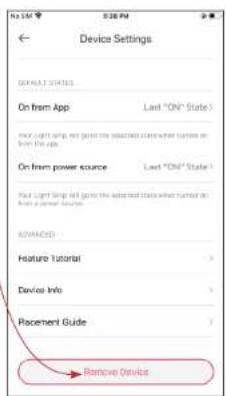
On the Devices page on Kasa Smart app, tap the Light Strip and tap ⚙ > Remove Device.
Works with Kasa
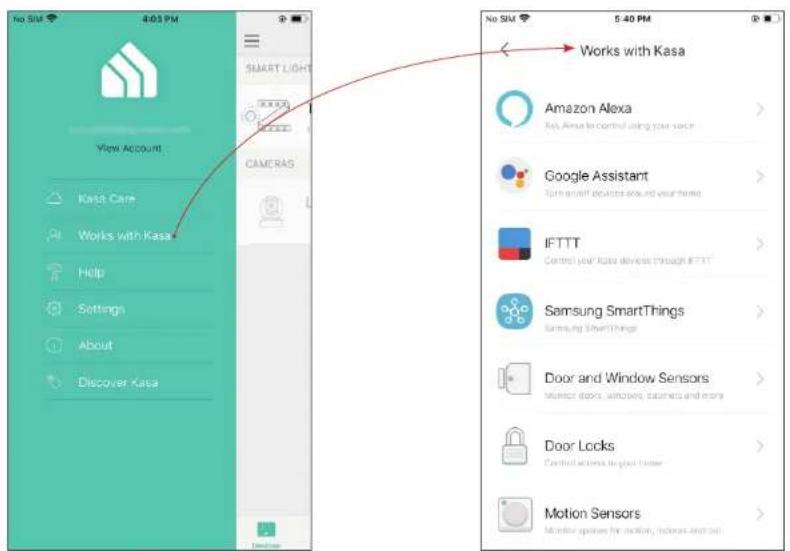
Use the Kasa app to pair your Light Strip with Amazon Alexa, Google Home Assistant, Samsung SmartThings, and other third-party services to enjoy a full hands-free experience. Kasa helps manage the rest of your smart home too, working with Nest to trigger changes when you arrive home or leave for the day.
Launch the Kasa Smart app, swipe right and you can go to Works with Kasa for detailed instructions.
Authentication
FCC Compliance Information Statement

Product Name: Kasa Smart Light Strip, Multicolor
Model Number: KL400L5 / KL400L10
| Component Name Model FCC ID | ||
| Kasa Smart Light Strip, Multicolor KL400L5 / KL400L10 2AXJ4KL400 | ||
| I.T.E. Power T120100-2B1 / T120150-2B1 N/A |
Responsible party:
TP-Link USA Corporation
Address: 10 Mauchly, Irvine, CA 92618
Website: https://www.tp-link.com/us/
Tel: +1 626 333 0234
This equipment has been tested and found to comply with the limits for a Class B digital device, pursuant to part 15 of the FCC Rules. These limits are designed to provide reasonable protection against harmful interference in a residential installation. This equipment generates, uses and can radiate radio frequency energy and, if not installed and used in accordance with the instructions, may cause harmful interference to radio communications. However, there is no guarantee that interference will not occur in a particular installation. If this equipment does cause harmful interference to radio or television reception, which can be determined by turning the equipment off and on, the user is encouraged to try to correct the interference by one or more of the following measures:
- Reorient or relocate the receiving antenna.
- Increase the separation between the equipment and receiver.
- Connect the equipment into an outlet on a circuit different from that to which the receiver is connected.
Consult the dealer or an experienced radio/TV technician for help.
This device complies with part 15 of the FCC Rules. Operation is subject to the following two conditions:
- This device may not cause harmful interference.
- This device must accept any interference received, including interference that may cause undesired operation.
Any changes or modifications not expressly approved by the party responsible for compliance could void the user's authority to operate the equipment.
Note: The manufacturer is not responsible for any radio or TV interference caused by unauthorized modifications to this equipment. Such modifications could void the user's authority to operate the equipment.
FCC RF Radiation Exposure Statement
This equipment complies with FCC RF radiation exposure limits set forth for an uncontrolled environment. This device and its antenna must not be co-located or operating in conjunction with any other antenna or transmitter.
"To comply with FCC RF exposure compliance requirements, this grant is applicable to only Mobile Configurations. The antennas used for this transmitter must be installed to provide a separation distance of at least 20 cm from all persons and must not be co-located or operating in conjunction with any other antenna or transmitter."
We, TP-Link USA Corporation, have determined that the equipment shown as above has been shown to comply with the applicable technical standards, FCC part 15. There is no unauthorized change is made in the equipment and the equipment is properly maintained and operated.
Issue Date: 2021.09.02
FCC compliance information statement

Product Name: I.T.E POWER SUPPLY
Model Number: T120100-2B1 / T120150-2B1
Responsible party:
TP-Link USA Corporation
Address: 10 Mauchly, Irvine, CA 92618
Website: http://www.tp-link.com/us/
Tel: +1 626 333 0234
This equipment has been tested and found to comply with the limits for a Class B digital device, pursuant to part 15 of the FCC Rules. These limits are designed to provide reasonable protection against harmful interference in a residential installation. This equipment generates, uses and can radiate radio frequency energy and, if not installed and used in accordance with the instructions, may cause harmful interference to radio communications. However, there is no guarantee that interference will not occur in a particular installation. If this equipment does cause harmful interference to radio or television reception, which can be determined by turning the equipment off and on, the user is encouraged to try to correct the interference by one or more of the following measures:
- Reorient or relocate the receiving antenna.
- Increase the separation between the equipment and receiver.
- Connect the equipment into an outlet on a circuit different from that to which the receiver is connected.
- Consult the dealer or an experienced radio/TV technician for help.
This device complies with part 15 of the FCC Rules. Operation is subject to the following two conditions:
- This device may not cause harmful interference.
- This device must accept any interference received, including interference that may cause undesired operation. Any changes or modifications not expressly approved by the party responsible for compliance could void the user's authority to operate the
equipment.
We, TP-Link USA Corporation, has determined that the equipment shown as above has been shown to comply with the applicable technical standards,
FCC Part 15. No unauthorized change is made in the equipment and the equipment is properly maintained and operated.
Issue Date: 2021.09.02
Canadian Compliance Statement
This device contains licence-exempt transmitter(s)/receiver(s) that comply with Innovation, Science and Economic Development Canada's licence-exempt RSS(s). Operation is subject to the following two conditions:
Radiation Exposure Statement:
This equipment complies with IC radiation exposure limits set forth for an uncontrolled environment. This equipment should be installed and operated with minimum distance 20cm between the radiator & your body.
Industry Canada Statement
CAN ICES-3 (B)/NMB-3(B)
CAN ICES-005(B)/NMB-005(B)
Safety Information
CAUTION: To reduce the risk of fire, electric shock, or injury to persons:
- For indoor use only.
- Do not place in reach of children. • NOT FOR EMERGENCY LIGHTING. • Light strips only connect to adjacent units.
- Suitable for surface and cabinet mounting.
- Operating Temperature: -20°C ~ 40°C (-4 °F ~ 104 °F)
- Operating Humidity: 10%~90%RH, Non-condensing
- Use only insulated staples or plastic ties to secure cords.
- Not intended for recessed installation in ceilings, or soffit.
- Do not use the device where wireless devices are not allowed.
- Keep the device away from water, fire, wet or hot environments.
- Adapter shall be installed near the equipment and shall be easily accessible.
- The maximum distance to the receptacle is determined by the length of adapter cord.
- Only use the control provided with or specified by these instructions to control this device.
- Switch off the power supply to the device and allow sufficient time for it to cool before handling it.
- Suitable for dry and damp locations, keep the device away from water, fire, wet or hot environments.
- Route and secure cords so that they will not be pinched or damaged when the cabinet is pushed to the wall.
- Do not use damaged charger to charge the device. Do not use any other charger than those recommended.
- Avoid placing controller box in areas surrounded by metal or near other devices designed to receive or transmit radio signals.
- Position the portable cabinet light with respect to the cabinet so the lamp replacement markings are able to be read during replacing.
- Please disconnect this strip from AC outlet before cleaning. Do not use liquid or detergent to clean the product. Only use a dry cloth. Drop or fall could cause injury.
- Use only power supplies which are provided by the manufacturer and in the original packing of this product. If you have any questions, please don't hesitate to contact us.
- The National Electrical Code (NEC) does not permit cords to be concealed where damage to insulation may go unnoticed. To prevent fire danger, do not run cord behind walls, ceilings, soffits, or cabinets where it may be inaccessible for examination. Cords should be visually examined periodically and immediately replaced when any damage is noted.
Please read and follow the above safety information when operating the device. We cannot guarantee that no accidents or damage will occur due to improper use of the device. Please use this product with care and operate at your own risk.
Explanation of the symbols on the product label
| SymbolExplanation | |
| AC voltage | |
 | DC voltage |
| For indoor use only | |
 | RECYCLINGThis product bears the selective sorting symbol for Waste electrical and electronic equipment (WEEE). This means that this product must be handled pursuant to European directive 2012/19/EU in order to be recycled or dismantled to minimize its impact on the environment.User has the choice to give his product to a competent recycling organization or to the retailer when he buys a new electrical or electronic equipment. |
- ABOUT THIS GUIDE
- CONVENTIONS
- SUPPORT
- INTRODUCTION
- SET UP YOUR SMART LIGHT STRIP
- STEP 1. DOWNLOAD KASA SMART APP
- STEP 2. LOG IN TO KASA SMART APP
- STEP 3. ADD YOUR DEVICES
- STEP 4. CONNECT ALL THE PARTS
- STEP 5. POWER UP LIGHT STRIP
- STEP 6. JOIN YOUR LIGHT STRIP'S WI-FI
- STEP 7. JOIN YOUR HOME'S WI-FI
- STEP 8. SETUP COMPLETE
- INSTALL YOUR SMART LIGHT STRIP
- CUT ONLY ON SPECIFIC AREAS OF LIGHT STRIP
- AVOID BENDING ON LED BEADS
- AVOID SHARP TURNS
- AVOID SHARP CORNERS
- STEP 1. CHOOSE LOCATION
- STEP 3. STICK LIGHT STRIP
- STEP 2. REMOVE ADHESIVE TAPE
- STEP 4. POWER UP LIGHT STRIP
- MAIN DEVICE CONTROL
- DEVICES PAGE
- ADD A GROUP
- CONFIGURE KASA SETTINGS
- CONFIGURE YOUR SMART LIGHT STRIP
- POWER ON/OFF AT ONE TAP
- ADJUST BRIGHTNESS
- ADJUST COLOR
- ADD ONE-TAP PRESETS
- DELETE PRESETS
- ADD EFFECTS
- ADD SCHEDULES
- TRACK ENERGY USAGE
- CONFIGURE DEVICE SETTINGS
- CREATE SCENES
- SCHEDULE A SCENE
- AUTO-OFF TIMER
- RESET YOUR SMART LIGHT STRIP
- SOFT RESET
- FACTORY RESET
- METHOD
- OR
- WORKS WITH KASA
- AUTHENTICATION
- RESPONSIBLE PARTY
- TP-LINK USA CORPORATION
- FCC RF RADIATION EXPOSURE STATEMENT
- FCC COMPLIANCE INFORMATION STATEMENT
- CANADIAN COMPLIANCE STATEMENT
- RADIATION EXPOSURE STATEMENT
- INDUSTRY CANADA STATEMENT
- SAFETY INFORMATION
Brand : TP-LINK
Model : Kasa Smart KL400L10
Category : Lighting