ManualGo.com
ARNOVA 10D G3 -4GB - Tablet ARCHOS - Free user manual and instructions
Find the device manual for free ARNOVA 10D G3 -4GB ARCHOS in PDF.



Download the instructions for your Tablet in PDF format for free! Find your manual ARNOVA 10D G3 -4GB - ARCHOS and take your electronic device back in hand. On this page are published all the documents necessary for the use of your device. ARNOVA 10D G3 -4GB by ARCHOS.
USER MANUAL ARNOVA 10D G3 -4GB ARCHOS
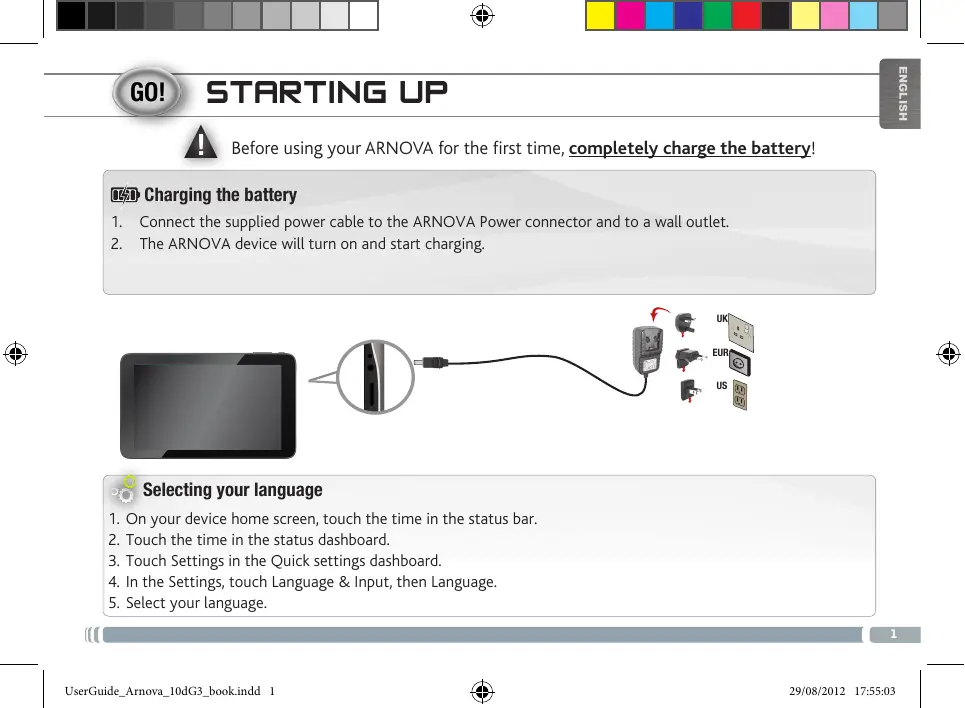
STARTING UP À Before using your ARNOVA for the first time, completely charge the battery! 9 Charging the battery
1. Connect the supplied power cable to the ARNOVA Power connector and to a wall outlet.
2. The ARNOVA device will turn on and start charging.
Selecting your language
1. On your device home screen, touch the time in the status bar.
2. Touch the time in the status dashboard.
3. Touch Settings in the Quick settings dashboard.
4. In the Settings, touch Language & Input, then Language
5. Select your language.
On/Off button: enables to turn on or turn off the device. Camera Power connector Micro-SD card slot Headphone jack USB Host port Mini-HDMI video output* D ® No mn 8 w N Mini-USB port: to connect your ARNOVA to your computer using the included USB cable in order to transfer files
PIN Your device is frozen. You can turn it off. Press the ON/OFF button @ for 10 seconds. & D à D >" Win optional Min-HDMI to HDMI cabl ))
For this procedure to work, you need to be in a WiFi zone that will allow you to connect to it. Every time the Ÿ° ARNOVA is in range of a network that you have already configured once, it will attempt to make a connection. How to configure a WiFi network From the status bar, at the bottom right hand of the screen, you can access the WiFi settings quickly.
Touch the time in the status bar. The status dashboard is displayed
2. Touch the time in the status dashboard, The setting dashboard is displayed below
3. Touch WiFi to open the WiFi settings.
4. Ifthe WiFi is off, slide the WiFi switch to the On position.
Once the WiFi is on, the ARNOVA wil scan for available WiFi networks Secured networks are indicated with a Lock icon. If the device finds a network that you connected to previously, it connects to it. Touch the network you want to connect to. Enter the required network information* and touch Connect. We recommend that you select Show password in order to be able to see the characters you are typing. Your ARNOVA will attempt to establish a connection to that WiFi access point.
- For free access WiFi points, there is no need to enter any special information, For secured networks, you will need a key (a series of numbers and/or Letters) of the typ: WEP, WPA, or WPA2. To obtain the exact connection parameters required, contact the Internet service provider.
Your ARNOVA device is equipped with a capacitive touchscreen. Use your Touch for text search fingertip to navigate. All apps button Tap on this icon to reveal all the Android" applications and widgets installed on your ARNOVA (games, various tools, etc.). You can copy them onto the Home screen. You can get more Android" applications from AppsLib
These are default Android" applications. Tap on an icon to open the corresponding application. You can customize the Home screen by adding/ removing shortcuts and widgets, changing the wallpaper etc. See next page. The navigation bar displays The status bar displays the Back, Home and Recent Apps buttons. notifications and system icons. Main Touchscreen buttons HS] The Back button - to go back to our previous EM The Search button - to type terms to search screen. your tablet and the web. PS The Home button - to return to the main screen. The Al apps button - to find all your apps and widgets. The Recent Apps button - to navigate among your apps. CRE OR list, swipe € Left or right. & 29/08/2012 17:55:13 UserGuide_Armova_104G3_bookindd 4 &
Ye. CUSTOMIZING YOUR PRODUCT The extended Home screen Navigate between different home screen panels by swiping left and right. Customizing the Home screen panels Zoom: in some apps = To change your wallpaper, hold your finger on the screen at an empty | | (such as Le location, then choose from the list. Browser, and Gallery) Arranging & working with apps you can zoom in and -_ To move a Home screen item, touch and hold your finger onto it until | OU by Placing two the positioning gridlines appear, then slide it to the desired location, ingers on H e scne and release your finger. ÉLQUEe and pinching To remove à Home screen item, touch and hold it, slide your finger fo cr ca towards the top of the screen and drop it over the Remove icon. rs ce Removing an item from the All apps screens will uninstall the item. spreading them apart (to zoom in). Greating application folders: you can combine several application icons in a will be combined. ap on Settings and choose a menu among | Connected to the WiFi, tap on the Appslib icon [a]. these categories: Wireless & networks, This online library has thousands of applications to Device, Personal, System. download and use. &::: the Settings À ‘Adding more applications with APPSLIB : with the ARNOVA
CUSTOMIZING YOUR PRODUCT
(Add widgets [Use the lock screen Widgets are like windows into your apps. They're available from an AI | To protect personal information, you can Apps tab for you to move onto your Home screens. adjust your tablet's Lock settings: To see your widgets: 1. From the Home or All Apps screen, touch the Settings icon .
1. Touch the All Apps icon BE on your Home screen. 2. Scroll down and touch Security.
: 3. Touch Screen lock.
2. Touch Widgets at the top of the screen. 4 Touch the type of lock you'd like to
3. From the main Widgets screen, you can: use.
= move between screens: Swipe Left or right. - draga micget to a Home screen. Touch and hold the widgets icon, | After you set a lock here, a lock screen is slide your Finger where you want to place it and lift your Finger. | displayed whenever your screen wakes You may be asked to make further choices before the widget up, requesting the pattern, PIN or other activates. If there isn't room where you have dropped it, the widget || specified key. won't be added to the Home screen. Extend the life of your battery -_ If you aren't using WiFi, use the Settings app to turn it off. Turn down screen brightness and set a shorter Sleep timeout: Settings > Device > Display. If you don't need it, turn off automatic syncing for all apps: Settings > Personal > Accounts & sync. Note that this means you need to sync manually to collect messages, email and other recent information, and won't receive notifications when updates occur. VD D Ur Amor 10468 ook 6 & mans sé
+) TRANSFERRING MEDIA For Windows: note that the below procedure requires at least Windows XP and Windows Media Player 11.
1. Connect your tablet to your computer using the USB cable.
Your device is automatically detected. It appears as an icon on “My Computer”.
2. You can transfer your media files to the ARNOVA by copy/pasting them into the respective folders.
3. Once all your file transfers are finished, close any program that may have read or written to the ARNOVA.
4. You can now unplug the USB cable.
For Macintosh: You first need to install the free Androïd File Transfer application (not included). Download from http:/Amww.android.com/filetransfer. After you install Android File Transfer, follow these steps:
1. lfyou are using Androïd File Transfer for the first time, double-click it to open it.
After you start Android File Transfer once, it opens automatically whenever you connect your device to your computer.
2. Connect your device to your computer with a USB cable.
Android File Transfer starts, if it's not already running, and opens a window that displays the contents of your device, along with storage space details at the bottom of the window.
3. You can transfer Your media files to the ARNOVA by copy/pasting them into the respective folders.
4. Once all your file transfers are finished, close any program that may have read or written to the ARNOVA.
5. You can now unplug the USB cable.
For Linux: You need to install MTP tools (not included). CT REZ Ur Amor 10668 ook 7 & mans 1s7
REGISTER YOUR PRODUCT! » On the web at http://arnovatech.com/register We recommend that you take a few minutes to register it (http://arnovatech.com/register). This will allow you to get access to ARNOVA technical support (http://amovatech.com/support). ?. NEED HELP? Q On our Website: see the Frequently Asked Questions section on http://amovatech.com/faq Contact our Technical Support Team: visit http:/arnovatech.com/support for e-mail support. Please register your product before contacting Technical Support (see Register your Product). As we are often updating and improving our products, your device's software may have a slightly different appearance or modified functionality than presented in this Quick Start Guide. ED ») Ur Amor 10468 ook # & mans rss
National restrictions This device is intended for home and office use in all EU countries (and other countries following the EU directive 1999/5/EC) without any limitation except for the countries mentioned below: Country Restriction Reason/remark Bulgaria None General authorization required for outdoor use and public service France Outdoor use Military Radiolocation use. Refarming limited to 10 mW of the 2.4 GHz band has been ongoing e.i.r.p. within the in recent years to allow current relaxed band 2454-2483.5 regulation. Full implementation planned MHz 2012 Italy None If used outside of own premises, general authorization is required. Luxembourg None General authorization required for network and service supply (not for spectrum) Norway Implemented This subsection does not apply for the geographical aera within a radius of 20 km From the centre of Ny-Alesund Russian Federation None Only for indoor applications Note: Frequency 2454-2483,5MHZ are restricted to indoor use in France. Consult the declaration of conformity on http:/mwwamovatech.com/products/declaration_conformity.html CC (CH Ur Amor GS ook 65 & mans 1506
Open Source Software Offer The software bundled with this product includes software files subject to certain open source license requirements. Such open source software files are subject solely to the terms of the relevant open source software license. Such open source software is provided on an “AS IS” basis to the maximum extent permitted by applicable law. For the open source files contained herein, please access “Open source license” section located at: Settings\About tabletiLegal information on the device for the relevant copyright and licensing terms. You may obtain a copy of Apache License, Version 2.0 at http://wwwapache.org/licenses/LICENSE-2.0. You may also obtain a copy of GNU General Public License, Version 2 at the Free Software Foundation, INC, 51 Franklin Street, Fifth Floor, Boston, MA 02110-13071, USA. Until the date that is three years after our last shipment of this product, you may obtain a copy of the source code corresponding to the binaries for any GPL-Licensed file by contacting ARNOVA customer service at http/wmwwamovatech.com and ARNOVA will send you a link to such source code or will provide instructions to get the source on a physical medium. This offer is valid to anyone in receipt of this information. AE) D ere Amor GS ook 66 & mans 1506