
ARCDISK - External hard drive ARCHOS - Free user manual and instructions
Find the device manual for free ARCDISK ARCHOS in PDF.



| Product type | External hard drive |
| Brand | ARCHOS |
| Model | ARCDISK |
| Dimensions | 74 x 112 x 15 mm |
| Weight | 152 g |
| Interface | USB 2.0 (compatible USB 1.1) |
| Buffer memory | 2 MB |
| Rotation speed | 4200 rpm |
| Power supply | Via USB port; optional 5 V power adapter |
| Connectors | Mini USB-B port, power connector |
| Supported operating systems | Windows 98 SE, ME, 2000, XP ; Mac OS 10.3.2 minimum |
| Activity indicator | Yes (lights up during access) |
| Safe removal | Yes (via the removal icon in the system tray) |
| Compatibility | IBM/AT compatible PC (Pentium 233 MHz minimum) |
| Warranty | Limited warranty (see manual) |
Frequently Asked Questions - ARCDISK ARCHOS
User questions about ARCDISK ARCHOS
0 question about this device. Answer the ones you know or ask your own.
Ask a new question about this device
Download the instructions for your External hard drive in PDF format for free! Find your manual ARCDISK - ARCHOS and take your electronic device back in hand. On this page are published all the documents necessary for the use of your device. ARCDISK by ARCHOS.
USER MANUAL ARCDISK ARCHOS
ENGLISH ARCDISK P. 3
MINIHD P. 7
FRENCH ARCDISK P. 13
MINIHD P. 16
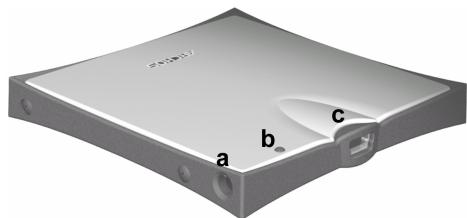
To power the ARCDisk from an external Archos 5-volt AC adapter.
b. Busy Light
It is on when the computer is accessing the hard drive. It is off when the drive is idle.
c. Mini USB-B port
Connect to your computer's USB port** (USB 1.1 or USB 2.0)
Dimensions: 76 x 77 (2.9" x 3") x 9 mm (.35") 20GB or 12mm (.47") 40GB
Weight: 75 g (2.7 oz) 20GB 98 g (3.5 oz) 40GB
Interface: USB 2.0 (USB 1.1 compatible)
Buffer: 2 MB
Disk Rotation Speed: 4200 rpm
PC System Requirements: IBM PC, AT compatible computer with Pentium 233MHz or higher processor. Windows 98SE, ME, 2000 or XP; one USB or USB 2.0 port.
Macintosh System Requirements: Macintosh OS 10.3.2 or better.
*The ARCDisk is powered by the USB connection to your computer. If, in the rare case, your computer does not supply the necessary power to the ARCDisk, you will need to use the optional Archos 5 volt AC adapter.
1 – Connect your ARCDisk to a USB port** of your computer with the included cable. 2 – Your computer will recognize it as a ‘Mass Storage Device’ and load up its mass storage device drivers automatically if necessary. 3 – The ARCDisk will appear in your Windows Explorer as another hard drive ARCDisk E: for example. 4 – Drag and Drop files to and from your ARCDisk as any other hard drive.
INSTALLATION UNDER WINDOWS 98SE
1 – Download the Win98SE ARCDisk drivers from the Archos web site www.archos.com. 2 – Connect your ARCDisk to a USB port** of your computer with the included cable. 3 – Windows 98SE will detect this new device and automatically start the installation wizard. Follow the on-screen instructions. Direct Windows to get the drivers from where you saved them to in step 1. 4 – The ARCDisk will appear in your Windows Explorer as another hard drive ARCDisk E: for example. 5 – Drag and Drop files to and from your ARCDisk as any other hard drive.
MAC OS INSTALLATION
1 – Connect your ARCDisk to a USB port** of your computer with the included cable. 2 – You computer will recognize it as a ‘Mass Storage Device’ and mount it. You will see a new hard drive on the Desktop called ARCDisk. 3 – Attention: if your Mac has USB 1.1 ports, the data transfer speed will be inferior to that of USB 2.0 transfer rates. 4 – Drag and Drop files to and from your ARCDisk as any other hard drive.
!! ATTENTION: Failure to disconnect correctly may lead to data loss !!
1 – Make sure all data transfers to and from your ARCDisk are finished. If a file from your ARCDisk is open in an application, you must close the file. Windows will not allow you to disconnect the device if a file from it is open. 2 – Click on the system tray remove icon (green arrow), select “safely remove” and follow the instructions. Wait until you get a message saying that you can safely unplug the device before disconnecting the USB cable (sometimes, even when files are closed in an application, you will have to quit the application). 3 – Windows will display a message indicating that it is safe to remove the hard drive. You can now unplug the USB cable from your computer or the ARCDisk itself.
** Do not use USB ports repeated through peripherals (such as keyboards) or with unpowered USB hubs.
a. Power Connector*
To power the MiniHD from an external Archos 5-volt AC adapter.
b. Busy Light
It is on when the computer is accessing the hard drive. It is off when the drive is idle.
c. Mini USB-B port
Connect to your computer's USB port** (USB 1.1 or USB 2.0)
d. Power Jumper
Only insert the jumper if you plan to use the MiniHD without the AC power adapter.
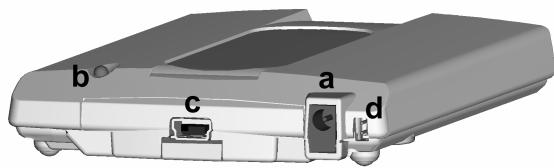
If powered by AC adapter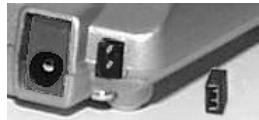
Remove Jumper
If AC adapter not used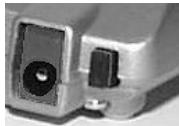
Insert Jumper
* If your computer cannot supply the necessary power to the MiniHD via its USB port, you should use the included AC power adapter (you will have to then remove the power jumper).
Dimensions: 74 x 112 x 15 mm (2.9" x 4.4" x .6")
Weight: 152 g (5.4 oz)
Interface: USB 2.0 (USB 1.1 compatible)
Buffer: 2 MB
Disk Rotation Speed: 4200 rpm
PC System Requirements: IBM PC, AT compatible computer with Pentium 233MHz or higher processor. Windows 98SE, ME, 2000 or XP; one USB or USB 2.0 port.
Macintosh System Requirements: Macintosh OS 10.3.2 or better.
INSTALLATION
With the exception of the use or not of the power jumper, the installation of the MiniHD is the same as that of the ARCDisk. Please use the ARCDisk installation instructions above.
Warranty and Limited Liability
This product is sold with a limited warranty and specific remedies are available to the original purchaser in the event the product fails to conform to the limited warranty. Manufacturer's liability may be further limited in accordance with its sales contract. In general, the manufacturer shall not be responsible for product damages caused by natural disasters, fire, static discharge, misuse, abuse, neglect, improper handling or installation, unauthorized repair, alteration or accident. In no event shall the manufacturer be liable for loss of data stored on disk media.
MANUFACTURER SHALL NOT BE LIABLE FOR ANY SPECIAL, INCIDENTAL OR CONSEQUENTIAL DAMAGES. EVEN IF INFORMED OF THE POSSIBILITY THEREOF IN ADVANCE.
Archos licensor(s) makes no warranties, express or implied, including, without limitation, the implied warranties of merchantability and fitness for a particular purpose, regarding the licensed materials. Archos's licensor(s) does not warrant, guarantee or make any representations regarding the use or the results of the use of the licensed materials in terms of its correctness, accuracy, reliability, correctness or otherwise. The entire risk as to the results and performance of the licensed materials is assumed by you. The exclusion of implied warranties is not permitted by some jurisdictions. The above exclusion may not apply to you.
In no event will Archos' licensor(s), and their directors, officers, employees or agents (collectively Archos' licensor) be liable to you for any consequential, incidental or indirect damages (including damages for loss of business profits, business interruption, loss of business information, and the like) arising out of the use of inability to use the licensed materials even if Archos' licensor has been advised of the possibility of such damages. Because some jurisdiction do not allow the exclusion or limitation of liability for consequential or incidental damages, the above limitations may not apply to you.
Please see your sales contract for a complete statement of warranty rights, remedies and limitation of liability.
Furthermore, warranty does not apply to:
Damages or problems resulting from misuse, abuse, accident, alteration or incorrect electrical current or voltage.
Any product tampered-with or damaged warranty seal or serial number label.
Any product without a warranty or serial number label.
Batteries and any consumable items delivered with or in the equipment.
Warnings and Safety Instructions
CAUTION
To prevent risks of electric shock, this unit must only be opened by qualified service personnel.
Power off and disconnect the power supply cable before opening the unit.
WARNING
To prevent fire or shock hazard, do not expose the unit to rain or moisture.
Copyright Notice
Copyright ARCHOS © 2004 All rights reserved.
This document may not, in whole or part, be copied, photocopied, reproduced, translated or reduced to any electronic medium or machine-readable form without prior consent, in writing, from ARCHOS. All brands and products names are registered trademarks and the property of their respective owners. Specifications are subject to change without notification. Errors and omissions accepted. Images and illustrations may not always match contents. Copyright ® ARCHOS. All rights reserved.
Disclaimer of warranty: to the extent allowed by applicable law, representations and warranties of non-infringement of copyrights or other intellectual property rights resulting from the use of the product under conditions other than as here above specified, are hereby excluded.
FCC Warning Statement
FCC Compliance
This equipment has been tested and found to comply with limits for a Class B digital device, pursuant to Part 15 of the FCC Rules. These limits are designed to provide reasonable protection against harmful interference in a residential installation. This equipment generates, uses and can radiate radio frequency energy and, if not installed and used in accordance with instructions, may cause harmful interference to radio communications. However, there is no guarantee that interference will not occur in a particular installation. If this equipment does cause harmful interference to radio or television reception, which can be determined by turning the equipment off and on, the user is encouraged to try to correct the interference by one or more of the following measures:
■ Reorient or relocate the receiving antenna. ■ Increase the separation between the equipment and receiver. ■ Connect the equipment into an outlet on a circuit different from that to which the receiver is connected. - Consult the dealer or an experienced radio/TV technician for help.
Note: During file transfer or in the PC mode, if the EUT or computer suddenly freezes or does not respond, it may be due to the electrostatic phenomenon. Please follow the procedures below to recover the operation:
Unplug the USB cable from the EUT
Close the software application on the computer (or reboot the computer if necessary).
Reconnect the USB cable to the EUT.
CAUTION: Modifications not authorized by the manufacturer may void the user's authority to operate this device.
FCC Part 15 - Operation is subject to the following two conditions:
- This device may not cause harmful interference;
- This device must accept any interference received, including interference that may cause undesired operation.
- If technical support (by telephone or email) determines that your product needs to be returned, please contact the place of purchase to have your product repaired or replaced (depending on the problem type). Customers who purchased directly from the Archos website should fill out the form on the website under Support: Product Returns.
- There is an FAQ (Frequently Asked Questions) section at the ARCHOS website www.archos.com, under Support: FAQ, that can help answer many of your questions.
- If you need technical help, you may contact ARCHOS directly in your own language via these phone numbers. For other countries, please use email technical support.
| Telephone Technical Support | E-mail Technical Support | |
| 949-609-1400 | (USA, Canada) | tech-support.us@archos.com |
| 01.70.20.00.30 | (France) | English (United States and Canada customers) |
| 0207-949-0115 | (UK) | |
| 069-6698-4714 | (Germany) | tech-support.eu@archos.com |
| 09-1745-6224 | (Spain) | English or French (Europe and the rest of the planet) |
| 02-4827-1143 | (Italy) | tech-support.de@archos.com |
| 02-050-405-10 | (Netherlands) | German (Germany) |
FRENCH
ARCDISK P. 13
MINIHD P. 16
Dimensions: 76 x 77 x 9 mm (20 GB) or 12 mm (40 GB)
Weight: 75 g (20 GB), 98 g (40 GB)
Interface: USB 2.0 (compatible with USB 1.1)
Remove the jumper
Insert the jumper
Dimensions: 20 GB 76 x 77 (2.9" x 3") x 9 mm (0.35") or 40 GB 12 mm (0.47")
Weight: 20 GB 75 g (2.7 oz) 40 GB 98 g (3.5 oz)
Dimensions: 76 x 77 (2.9" x 3") x 9 mm (0.35") 20GB or 12mm (0.47") 40GB
Weight: 75 g (2.7 oz) 20GB 98 g (3.5 oz) 40GB
Remove the jumper
Without the AC adapter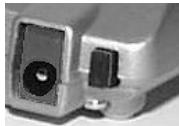
Place the jumper
c. Mini USB-B port
Remove jumper
Insert jumper
c. Mini USB-B port
To connect to the computer's USB port (USB 1.1 or USB 2.0)


- BUSY LIGHT
- MINI USB-B PORT
- INSTALLATION UNDER WINDOWS 98SE
- MAC OS INSTALLATION
- ATTENTION: FAILURE TO DISCONNECT CORRECTLY MAY LEAD TO DATA LOSS
- POWER CONNECTOR
- POWER JUMPER
- INSTALLATION
- WARRANTY AND LIMITED LIABILITY
- WARNINGS AND SAFETY INSTRUCTIONS
- CAUTION
- WARNING
- COPYRIGHT NOTICE
- COPYRIGHT ARCHOS © 2004 ALL RIGHTS RESERVED
- FCC WARNING STATEMENT
- FCC COMPLIANCE
- FRENCH
Brand : ARCHOS
Model : ARCDISK
Category : External hard drive