
Detective WIP 2M SMART - Home Automation Evolveo - Free user manual and instructions
Find the device manual for free Detective WIP 2M SMART Evolveo in PDF.


| Product Type | Indoor/Outdoor IP Security Camera |
| Resolution | 1080P (1920x1080) |
| Field of View | 101° wide-angle lens |
| Night Vision | Infrared up to 15 meters, automatic switching |
| Storage | MicroSD card (up to 128GB, not included) and optional cloud storage |
| Connectivity | Wi-Fi 2.4GHz (IEEE 802.11b/g/n) and Ethernet (RJ45) |
| Audio | Built-in microphone and speaker (two-way audio via app) |
| Motion Detection | Yes, with push notifications |
| Power Supply | DC 12V, 1A (adapter included) |
| Operating Temperature | -10°C to +50°C |
| App Compatibility | Smart Life (iOS & Android) |
| Installation | Wall-mountable, wired or wireless setup |
| Dimensions | Approx. 150 x 80 x 80 mm (estimated) |
| Weight | Approx. 400 g (estimated) |
| Warranty | 2 years (standard) |
Frequently Asked Questions - Detective WIP 2M SMART Evolveo
User questions about Detective WIP 2M SMART Evolveo
0 question about this device. Answer the ones you know or ask your own.
Ask a new question about this device
Download the instructions for your Home Automation in PDF format for free! Find your manual Detective WIP 2M SMART - Evolveo and take your electronic device back in hand. On this page are published all the documents necessary for the use of your device. Detective WIP 2M SMART by Evolveo.
USER MANUAL Detective WIP 2M SMART Evolveo
natural_image
White EVOLVE security camera with antenna and lens (no visible text or symbols on body)CZ
SK
EN
HU
RO
Obsah / Content / Tartalom / Cuprins
Česky....4
Slovensky....17
English 30
Magyar....43
Română 56
Obsah

Power on the device.

01:59
Add Manually

Select 2.4 GHz Wi-Fi Network and enter password.
If your Wi-Fi is 5GHz, please set it to be 2.4GHz. Common router setting method

DoMyNet_816C

12345678

6. Popis funkce
No.5, 17/F, Strand 50, 50 Bonham Strand, Sheung Wan, Hong Kong
Vyrobeno v Číně
Copyright © Abacus Electric, s.r.o.
www.evolveo.com
www.facebook.com/EvolveoCZ
2. Stiahnite si aplikáciu


4. APP pridat' zariadenie
Metoda 1: Zariadenia pre káblové pripojenie
2) V ponuke v pravom hornom rohu vyberte položku Cabel, zapnite zariadenie, pripojte zariadenie k domácemu smerovaču pomocou siet'ového kábla a skontrolujte, či svieti kontrolka. Potom kliknite na tlačidlo "Đalej".
Power on the device.

01:59
3) Kliknutím na znak + pridajte zariadenie.
Add Manually
2) Kliknutím na znak + pridajte zariadenie.
3) Zadajte názov a heslo WiFi na pripojenie zariadenia k hotspotu WiFi a kliknite na tlačidlo Ďalej.

Select 2.4 GHz Wi-Fi Network and enter password.
If your Wi-Fi is 5GHz, please set it to be 2.4GHz. Common router setting method

DoMyNet_816C

12345678

6. Popis funkcie
No.5, 17/F, Strand 50, 50 Bonham Strand, Sheung Wan, Hong Kong
Vyrobené v Číne
Copyright © Abacus Electric, s.r.o.
www.evolveo.com
www.facebook.com/EvolveoCZ
- Appearance of the product....30
- Download the APP....30
- Registration and login .... 31
- APP add device ....32
Method 1: Equipment for wired connection....32
Method 2: Wireless binding device .... 36 - Camera installation method ....39
- Function description....40
-
Troubleshooting ....40
-
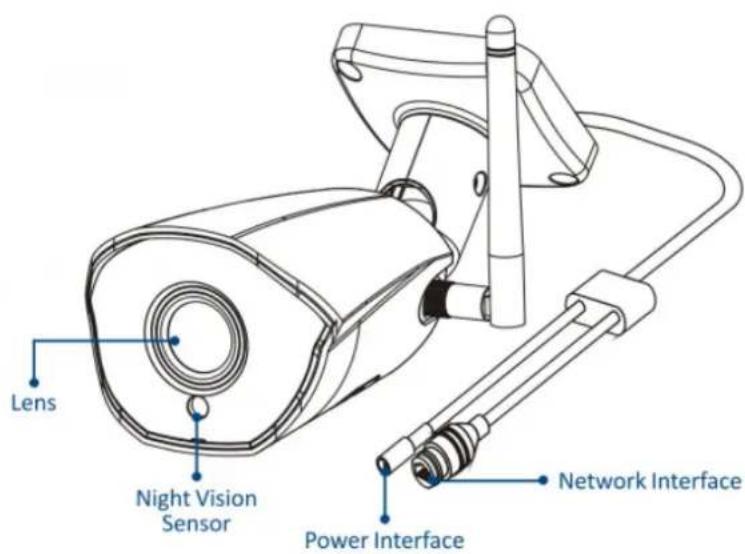
Appearance of the product
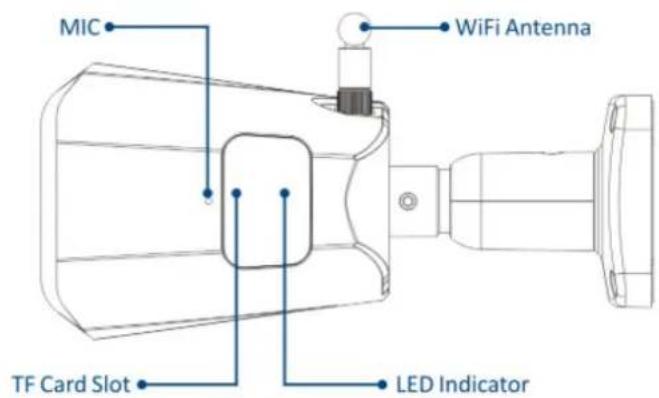
2. Download the APP
- Android users can download the "Smart Life" app via the APP Market.
- An iOS user can download the "Smart Life" app via the APP Store.
- Android and iOS users can scan the following QR code and download the "Smart Life" app.


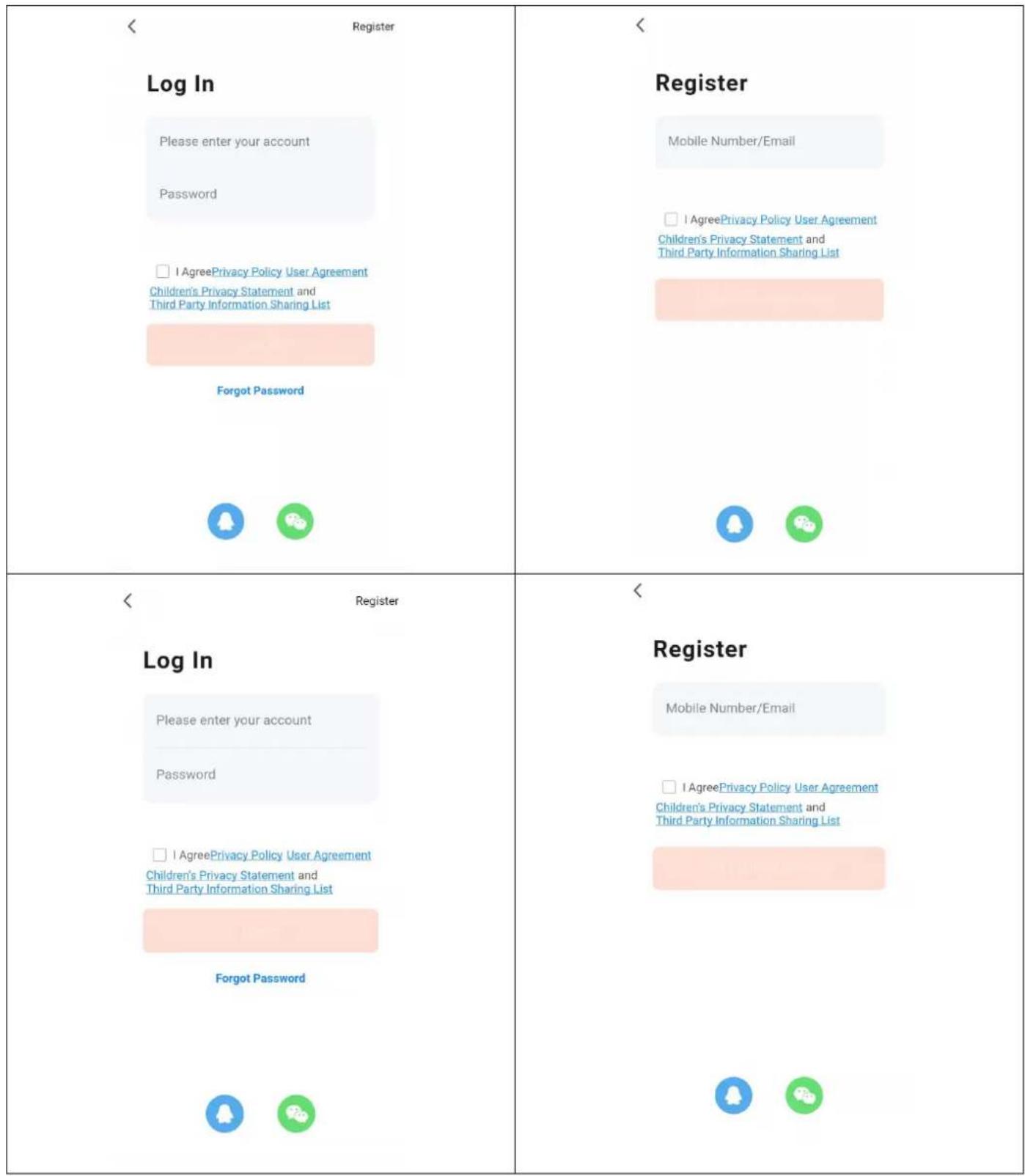
3. Registration and login
Open the "Smart Life" app and press the "Register" button to register a new account. If you have an account, you can log in with your account and password.
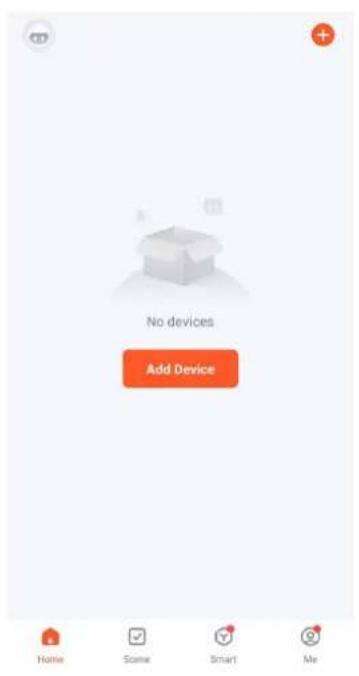
4. APP add device
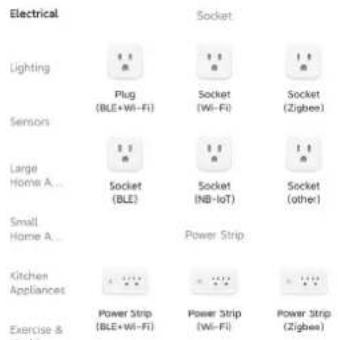
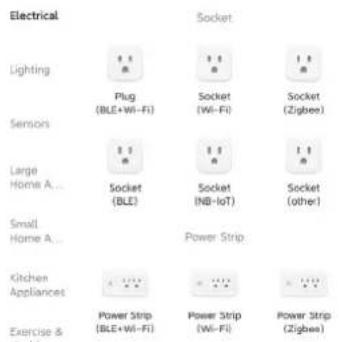
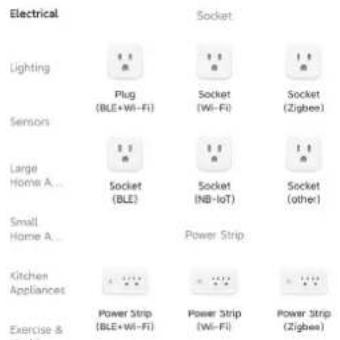
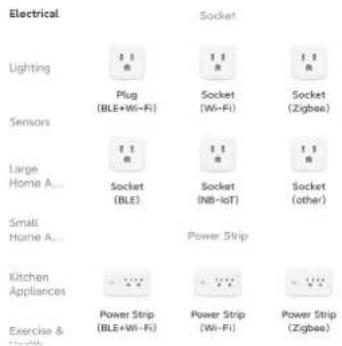
Click the "+" or "Add Device" button on the home page as shown below:
Method 1: Equipment for wired connection
Prerequisite: The mobile phone and the IPC device were connected to the same router.
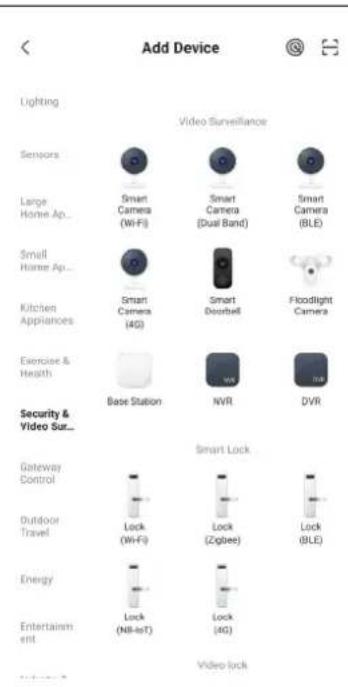
1. Add manually
1) Select "Security and video surveillance" - "Smart camera (Wi-Fi)".
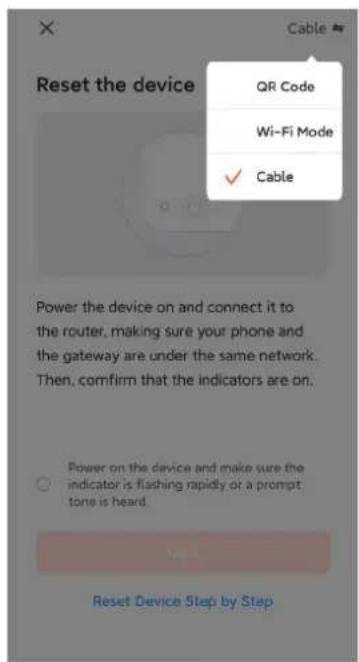
2) Select Cabel from the menu in the top right corner, turn on the device, connect the device to your home router with the network cable and check if the indicator light is on. Then click on the "Next" button.
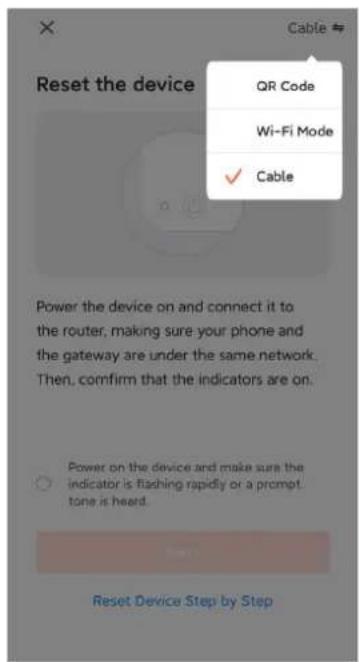
The search process can take up to two minutes, do not perform any operations during this time.
×
Adding device...
Power on the device.

01:59
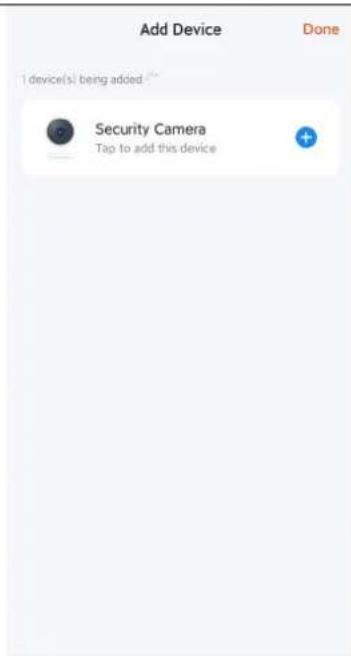
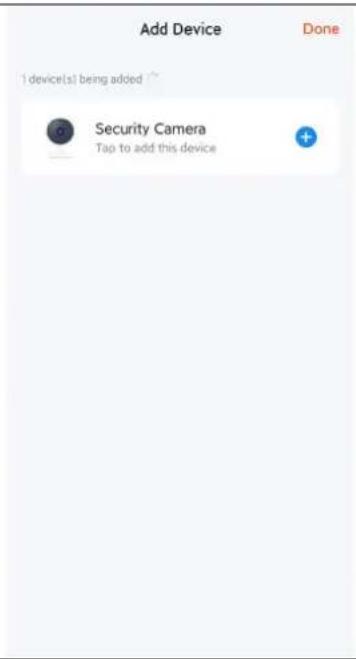
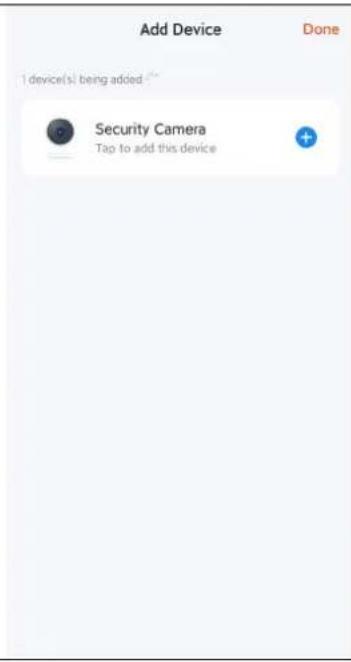
3) Click the + sign to add the device.
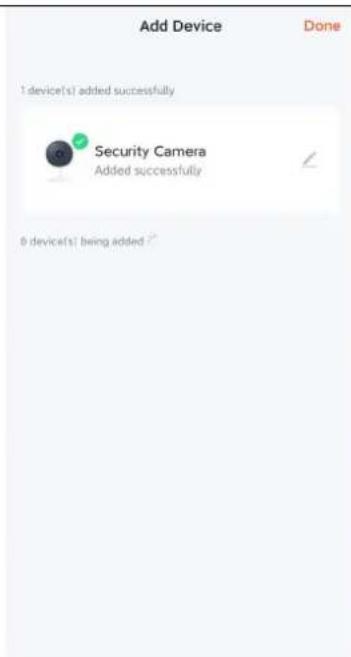
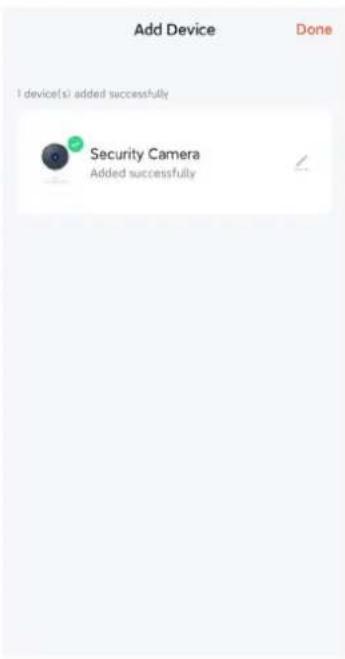
4) When the connection is successful, select the device name and click Done.
2. Automatic scanning
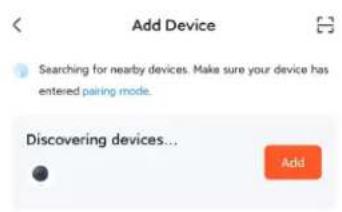
1) Make sure your device has entered pairing mode. Click on the "Add" button.
Add Manually
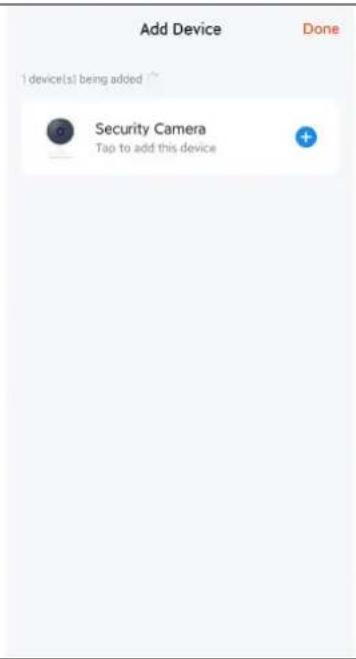
2) Click the + sign to add the device.
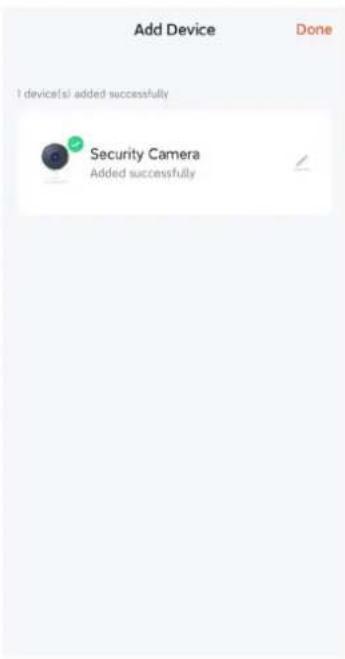
3) When the connection is successful, select the device name and click Done.
Method 2: Wireless binding device
Prerequisite: The device does not need to be connected to the mains cable.
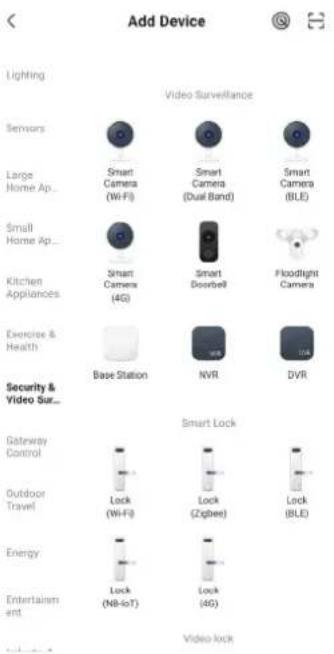
1) Select "Security and video surveillance"-Smart camera(Wi-Fi)".
2) Select the QR code in the top right corner. If the light on the camera is flashing, click Next.
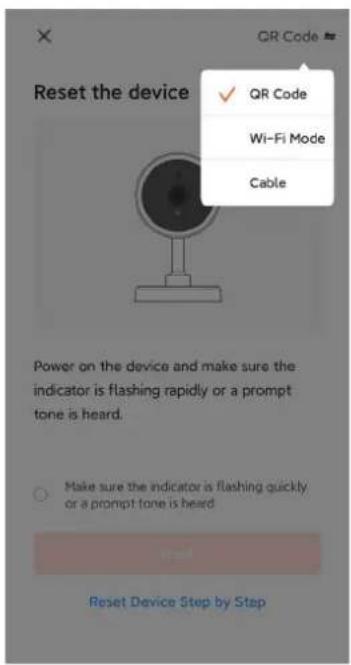
3) Enter the WiFi name and password to connect your device to the WiFi hotspot, and click Next.
×
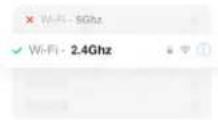
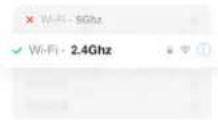
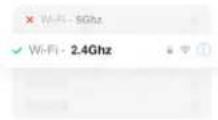
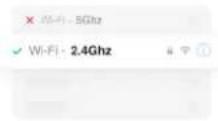
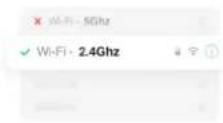
Select 2.4 GHz Wi-Fi Network and enter password.
If your Wi-Fi is 5GHz, please set it to be 2.4GHz. Common router setting method

DoMyNet_816C


12345678


4) Scan the QR code on the app screen using the camera lens. Once you hear the voice, the recognition is successful. Click on confirmation below.
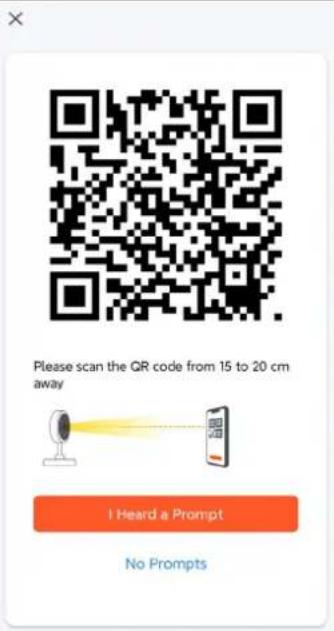
5) After confirmation, it will announce that it is connecting to the LAN and enter the countdown interface.
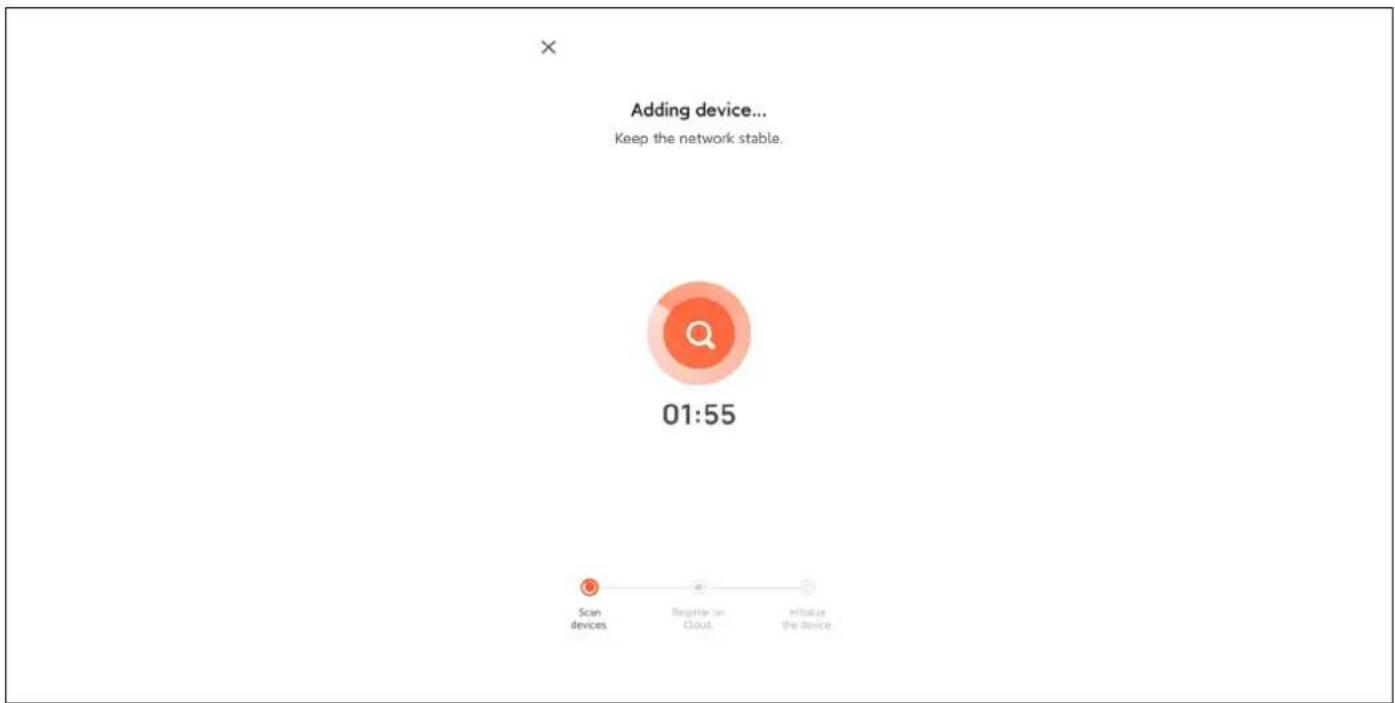
6) After successful binding, select the device name and click Done.
5. Camera installation method
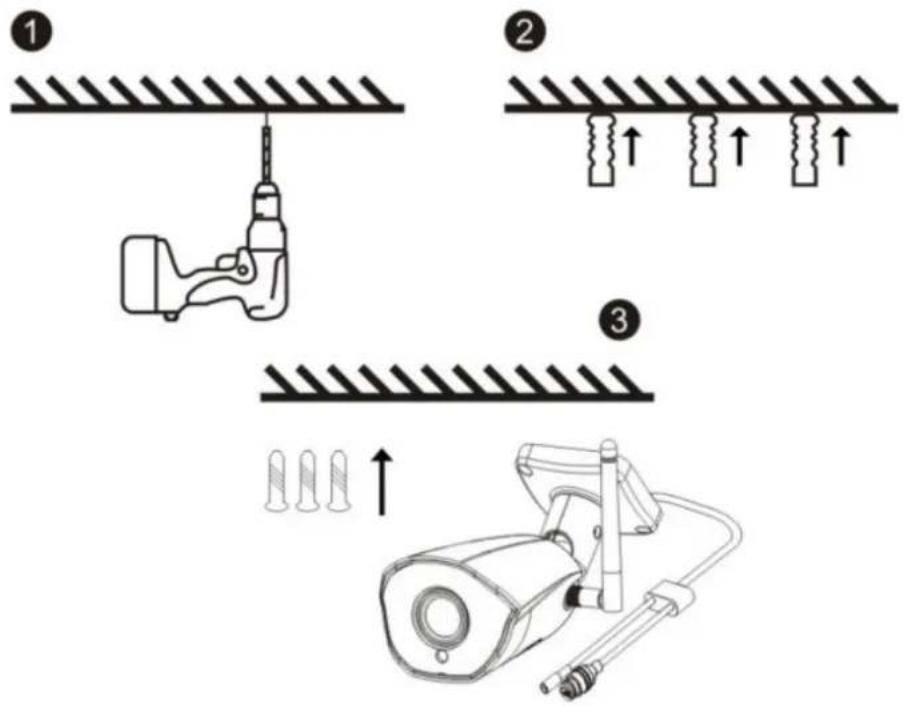
1) Drill three guide holes in the wall panels according to the position of the hole in the camera base;
2) Insert dowels into the holes;
3) Align the hole in the camera base with the dowels and then screw the device in.
6. Function description
- Image quality: resolution 1080P (1920*1080).
- Field of view: 101^ wide-angle lens, wide field of view.
- Infrared night vision: the camera automatically switches on the infrared night vision function depending on the ambient light; when switched on, the image is displayed in black and white at a distance of 15 metres.
- Video storage: recording and screenshots, support for long-term online recording and high-resolution screenshots, and support for storage and playback on a MicroSD card. Remark: When the MicroSD card is full, newly created video files will automatically overwrite the oldest video files.
- Motion detection: The camera supports motion detection and alarm function. If there is an intrusion in the detection area, alarm information is sent to the mobile phone in time.
- Sound MIC: the camera supports a built-in microphone (Microphone) and audio input. Through the app, you can not only watch the video in real time, but also listen to the audio transmitted from the camera.
- Cloud storage: If you purchase cloud storage, even if the camera is stolen or damaged, the footage will not be lost in the cloud. Remark: Cloud storage is provided by a third party and Abacus s.r.o. is not responsible for the data you store on the cloud!!!
7. Troubleshooting
1) Camera LED indicator and buzzer status:
| Status | LED light | Speaker |
| Starting the system | The blue light is on | No |
| Waiting for the distribution network | Blue light flashing | Di (three short notes) |
| Scanning a QR code | Blue light flashing | No |
| Successful scanning of the QR code | The blue light is on | Di (short tone) |
| Wi-Fi connection | The blue light is on | No |
| Successful connection to a WiFi network | The blue light is on | No |
| Failed to connect WiFi Blue light flashing | Di (four short notes) | |
| Reset success | Blue light flashing | Di (short notes) |
2) Make sure the camera is connected to a 2.4GHz WiFi network.
5G WiFi is not supported. Make sure the WiFi signal of the wireless router connected to the camera is within range.
3) Is the camera temperature normal?
When the camera is working normally, a slight temperature rise will occur, which is a normal phenomenon.
Feel free to use it. Operating temperature range: -10 ^ to +50 ^ .
4) What do I need to look out for when using the camera?
To achieve better night vision images, do not mount the camera near or point it at objects with reflective surfaces such as glass, so that will not cause the screen to be bright near or white in the distance.
The warranty does NOT cover:
- using the equipment for purposes other than those for which it is designed,
- installing firmware other than that installed on the device
- electrical or mechanical damage caused by improper use
- damage caused by natural elements such as water, fire, static electricity, power surges, etc.
- damage caused by repairs carried out by an unqualified person
- illegible serial number
- battery capacity drops after 6 months of use (6 month battery life guarantee)
Disposal
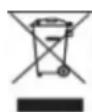
The crossed-out container symbol on the product, in the accompanying documentation or on the packaging reminds you that in EU countries, all electrical and electronic equipment, batteries and accumulators must be disposed of separately at the end of their useful life as part of sorted waste. Do not dispose of these products in unsorted municipal waste.


DECLARATION OF CONFORMITY
The company Abacus Electric, s.r.o. hereby declares that the product EVOLVEO Detective WIP 2M SMART meets the requirements of the standards and regulations that are relevant for the type of equipment.
The full text of the Declaration of Conformity can be found at ftp://ftp.evolveo.com/ce
Importer / Importer / Importer / Importer
Abacus Electric, s.r.o.
Planá 2, 370 01, Czech Republic
Producer / Producer / Manufacturer / Gyártó
Naxya Limited
No.5, 17/F, Strand 50, 50 Bonham Strand, Sheung Wan, Hong Kong
Made in China
Copyright © Abacus Electric, s.r.o.
www.evolveo.com
www.facebook.com/EvolveoCZ
All rights reserved.
The appearance and technical specifications of the product are subject to change without notice.
Tartalom
2. Az APP letöltése


Power on the device.

01:59
Add Manually
Select 2.4 GHz Wi-Fi Network and enter password.
If your Wi-Fi is 5GHz, please set it to be 2.4GHz. Common router setting method

DoMyNet_816C


12345678


6. Funkció leírása
No.5, 17/F, Strand 50, 50 Bonham Strand, Sheung Wan, Hong Kong Made in China
Copyright © Abacus Electric, s.r.o.
www.evolveo.com
www.facebook.com/EvolveoCZ
Minden jog fenntartva.
2. Descărcați APP

Power on the device.

01:59
2. Scanare automată
Select 2.4 GHz Wi-Fi Network and enter password.
If your Wi-Fi is 5GHz, please set it to be 2.4GHz. Common router setting method

DoMyNet_816C


12345678


5. Metoda de instalare a camerei
No.5, 17/F, Strand 50, 50 Bonham Strand, Sheung Wan, Hong Kong
Fabricat în China
Copyright © Abacus Electric, s.r.o.
www.evolveo.com
www.facebook.com/EvolveoCZ
| Camera Power Adaptor | ||
| Information published | Value and precision | Unit |
| Manufacturer's name or trade mark, commercial registration number and address | Zhuhai Bright Source Electronic Science&Technology Co.,LTD - | |
| Model identifier | CYH012S012V1000E | - |
| Input voltage | 100~240Vac | V |
| Input AC frequency | 50/60Hz+/-3Hz | Hz |
| Output voltage | 11.4~12.6Vdc | V |
| Output current | 1A | A |
| Output power | 12W | W |
| Average active efficiency | 83% | % |
| Efficiency at low load (10 %) | 83% | % |
| No-load power consumption | 0.1W | W |


- Obsah / Content / Tartalom / Cuprins
- Obsah
- Popis funkce
- Stiahnite si aplikáciu
- APP pridat' zariadenie
- Metoda 1: Zariadenia pre káblové pripojenie
- Popis funkcie
- Download the APP
- Registration and login
- APP add device
- Method 1: Equipment for wired connection
- Add manually
- Automatic scanning
- Method 2: Wireless binding device
- Select 2.4 GHz Wi-Fi Network and enter password.
- Camera installation method
- Function description
- Troubleshooting
- 2) Make sure the camera is connected to a 2.4GHz WiFi network.
- 3) Is the camera temperature normal?
- 4) What do I need to look out for when using the camera?
- The warranty does NOT cover:
- Disposal
- DECLARATION OF CONFORMITY
- Naxya Limited
- Tartalom
- Az APP letöltése
- Funkció leírása
- Descărcați APP
- Scanare automată
- Metoda de instalare a camerei
Brand : Evolveo
Model : Detective WIP 2M SMART
Category : Home Automation