PRATICO 2 - TV Stand MELICONI - Free user manual and instructions
Find the device manual for free PRATICO 2 MELICONI in PDF.



User questions about PRATICO 2 MELICONI
0 question about this device. Answer the ones you know or ask your own.
Ask a new question about this device
Download the instructions for your TV Stand in PDF format for free! Find your manual PRATICO 2 - MELICONI and take your electronic device back in hand. On this page are published all the documents necessary for the use of your device. PRATICO 2 by MELICONI.
USER MANUAL PRATICO 2 MELICONI
Thank you for choosing a Meliconi remote control.
Keep this booklet for future reference.
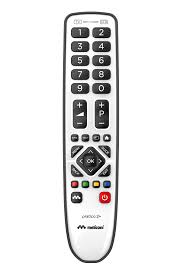
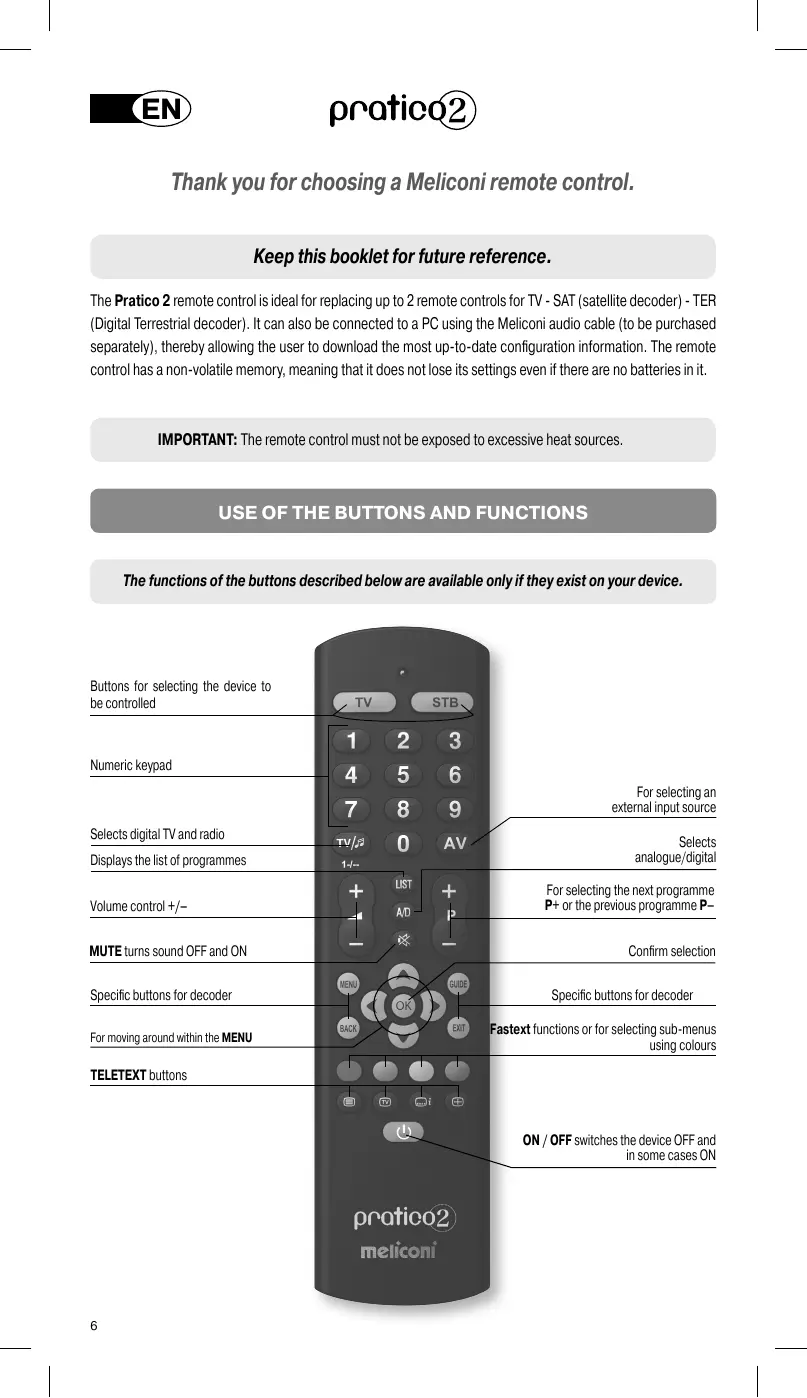
The Pratico 2 remote control is ideal for replacing up to 2 remote controls for TV - SAT (satellite decoder) - TER (Digital Terrestrial decoder). It can also be connected to a PC using the Meliconi audio cable (to be purchased separately), thereby allowing the user to download the most up-to-date configuration information. The remote control has a non-volatile memory, meaning that it does not lose its settings even if there are no batteries in it.
IMPORTANT: The remote control must not be exposed to excessive heat sources.
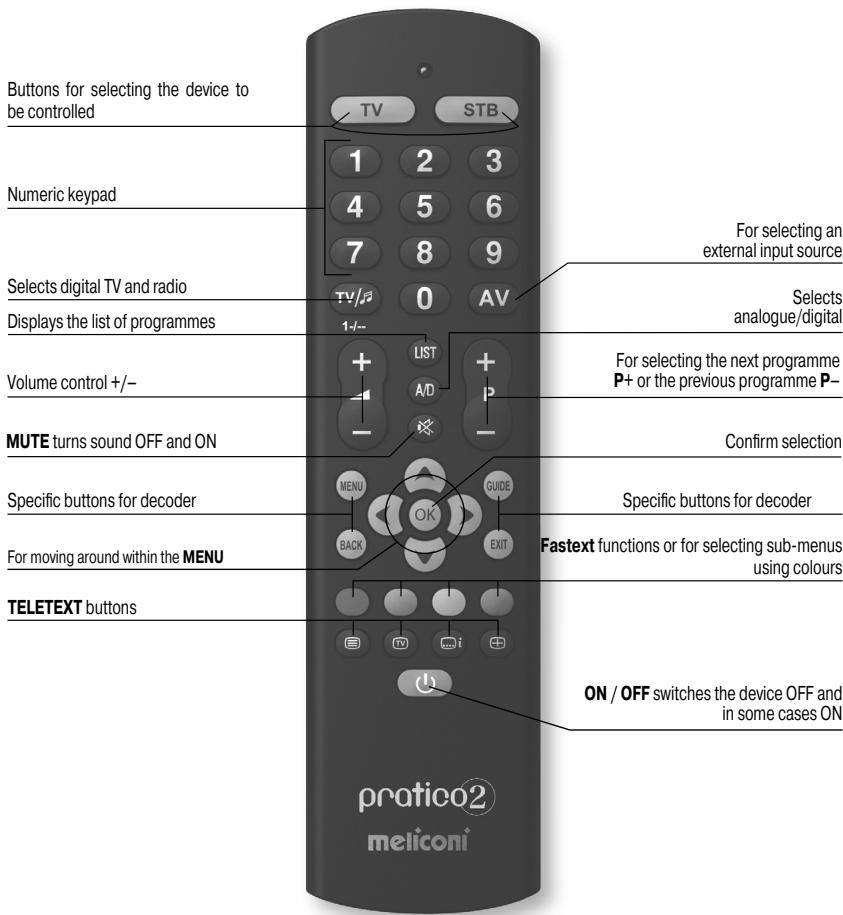
USE OF THE BUTTONS AND FUNCTIONS
The functions of the buttons described below are available only if they exist on your device.
INSERTING THE BATTERIES
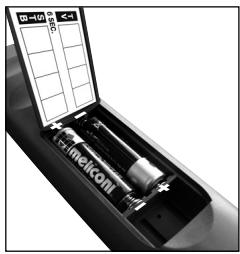
The remote control requires 2 new 1.5V alkaline AA/LR06 batteries. Insert them as illustrated.
Try pressing a number button and check that the red light remains lit continuously until you release the button. If the light flashes, the batteries inserted are not charged and are about to go flat, therefore you must substitute them.
Do not leave flat batteries inserted, as liquid may leak and damage the remote control
SETTING CODES
The Pratico 2 remote control is a universal remote with a memory containing data regarding numerous devices produced by different brands on the market.
Each original device has a specific code which must be used to set up the remote control.
So to use the Pratico 2 you must enter the specific code for each device you wish to control.
So use one of the following methods to identify the correct code and set it in your remote control:
A) -INTERNET (recommended)
B) - CELL PHONE (SMS)
C) - MANUAL SEARCH

SETTING CODES USING INTERNET
If you have an Internet connection available, follow the on-line guide on the www.meliconi.com/guide website to identify the specific codes for the devices you wish to command. Then set the codes manually in your MELICONI remote control as described in the ENTERING THE CODE DIRECTLY procedure.

SETTING CODES USING A CELL PHONE
(the service's fee and the only cost is that of sending the SMS, which naturally depends on the rates of the service operator in question)
Today, Meliconi gives customers who don't have internet the chance to receive the codes for programming their remote control directly on their cell phone.
Simply send an SMS to this number 0039 345 7518893 as follows: 2B, Type, Brand, Model
- Type = indicate the device to be controlled using one of the following abbreviations: TV - SAT - TER (terrestrial decoder)
- Brand, Model = to indicate the brand and the model of the device to be controlled.
Example: 2B, TV, PHILIPS, 32PFL3614 (if you don't know the model, don't write anything after the brand). Once you have received the SMS with the list of codes, set the first code in the remote control as described in the ENTERING THE CODE DIRECTLY section.
Point the MELICONI remote control at the device, which should already be ON and press the ON/OFF button. If the device does NOT switch off, try setting the consecutive code in the SMS list on the remote control.
When the device reacts check whether the other buttons are operating correctly too.
If they do, the remote control is ready to use.
If they don't, you are probably using an incorrect code destined for a very similar device; at this point ignore the SMS list and consult the SETTING CODES USING A MANUAL CODE section to find a more suitable code.
NOTE: If you don't receive an SMS on your cell phone or if the message says ERROR / NO CODE, it means the system has not been able to process the data you have sent. Do not try sending another SMS use the SETTING CODES USING A MANUAL SEARCH procedure instead.

SETTING CODES USING A MANUAL SEARCH
(only to be performed if the specific code could not be found)
- Switch on the device and select a programme.
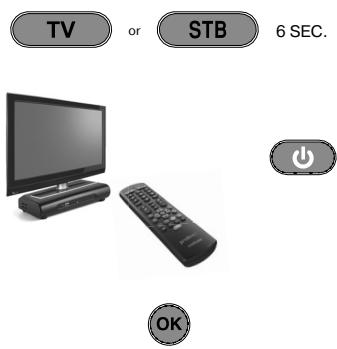
- Press and hold down for 6 seconds the device selection button corresponding to the device you wish to enter the code for.
- Release the button. The indicator light will flash. Point the remote control at the device and press the ON/OFF button. If the device does NOT switch off, press the same button again slowly (it may be necessary to press the button several times).
- When the device responds correctly, press OK. Three long flashes indicate that the operation has been carried out correctly.
CHECK
Check that the other buttons correspond to the functions of the original remote control; if not, it is likely that the code found is incorrect, but is used for a very similar device. In that case, repeat the procedure from point 2.
If the manual search for the code is successful, obtain the code in use by following the DISPLAY CODE IN USE procedure and make a note of it inside the battery cover.
NOTE: During the search the indicator stops flashing and the remote control exits the programming mode in the following cases:
- if for 12 seconds the button indicated is not pressed or if another button is pressed
- if the list of codes to find is terminated. If this happens, go to the www.meliconi.com website
ENTERING THE CODE DIRECTLY
(only to be performed if you know the specific code to be set)
- Press and hold down for 6 seconds the device selection button corresponding to the device you wish to enter the code for.
- Release the button. The indicator light will flash. Immediately enter the specific code previously found. (e.g. 1306)
- Three long flashes indicate a correct setting.


If they do not appear, repeat the procedure. If the result is still negative, it means the code indicated is not included in the remote control. So you need to load it via INTERNET. (see following section)
INTERNET UPDATE
Today you can download from the internet directly to your remote control the codes of the latest devices or those which will be brought out in future, codes which would not otherwise be available using traditional programming methods. To do this you need to purchase the special MELICONI Audiocable, which allows you to download the information you need onto any PC using an internet connection. Then go to the www.meliconi.com/guide website and follow the on-screen instructions.
DISPLAY CODE IN USE
If you set up the remote control using the MANUAL SEARCH procedure, obtain and make anote of the code in useas follows:
- Press and hold down for 6 seconds the device selection button corresponding to the device you wish to enter the code for.
- Release the button. The indicator light will flash. Press the TV/RADIO button for an instant.
- After a pause of several seconds, the indicator light produces four sets of flashes, spaced out, corresponding to the code to be obtained. Count the number of flashes. Each set of flashes corresponds to one figure in the code. Ten flashes correspond to the figure 0.
- Make a note of the code obtained on the label on the inside of the battery cover. You may need it in future.


1
3
0
6
Code obtained = 1306
PROBLEM
The device does not respond and the indicator light does not come on when a button is pressed.
The device does not respond but the indicator light comes on.
When you press a button the indicator light flashes and the device does not respond to commands.
The remote control does not execute all commands correctly.
SOLUTION
Check that the batteries are charged and inserted correctly and if necessary replace them with 2 new 1.5V AA/LR06 alkaline batteries.
Make sure that the remote control is pointing at the device and that there are no obstacles in the way. If necessary, enter the remote control code again by repeating the programming procedure.
Substitute the batteries, which are about to go flat.
You may be using an incorrect code.
Enter the remote control settings again by repeating the programming procedure.
INFO - LINE
If you have any questions about the new Pratico 2 remote control:
- read this Instructions Booklet carefully as it should allow you to solve most normal problems.
- consult the www.meliconi.com website where you will find all the answers you need quickly and easily.
2 year WARRANTY
The warranty is voided if the product is tampered with or used improperly.
Remote control model: Pratico 2
Purchase date
Retailer stamp
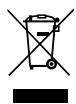
The symbol showing a wheeile bin with a cross through it which appears on the device indicates that at the end of its useful life the product must be collected separately from other waste. Therefore, at the end of the device's life, you must take it to appropriate centres for the differentiated collection of electrical and electronic waste, or return it to the retailer when purchasing a new device of equivalent type, on a one-for-one basis. Suitable differentiated collection to allow subsequent recycling of the decommissioned device, with no need to remove any remaining material. The use of this device is not intended for commercial use, nor for health and to promote the recycling of the materials of which the device is made. Improper disposal of the product by the user will be subject to the sanctions in Legislative Decree No. 22/1997 (article 50 and subsequent articles of Legislative Decree No. 22/1997).