USER MANUAL DS-5000 OLYMPUS
Thank you for purchasing an Olympus Digital Voice Recorder.
Please read these instructions for information about using the product correctly and safely.
Keep the instructions handy for future reference.
To ensure successful recordings, we recommend that you test the record function and volume before use.
Introduction
- The contents of this document may be changed in the future without advanced notice. Contact our Customer Support Center for the latest information relating to product names and model numbers.
- The utmost care has been taken to ensure the integrity of the contents of this document. In the unlikely event that a questionable item, error, or omission is found, please contact our Customer Support Center.
- Any liability for passive damages or damage of any kind occurred due to data loss incurred by a defect of the product, repair performed by the third party other than Olympus or an Olympus authorized service station, or any other reasons is excluded from the Olympus's liability.
Trademarks
Microsoft and Windows are registered trademarks of Microsoft Corporation.
Macintosh is a trademark of Apple Inc.
Intel and Pentium are registered trademarks of Intel Corporation.
SD and microSD are a trademark of SD card Association.
SDHC and microSDHC are a trademark of SD card Association.
Other product and brand names mentioned herein may be the trademarks or registered trademarks of their respective owners.

Table of Contents
Table of Contents 3
Safe and Proper Usage 4
General Precautions 5
1 Getting Started
Main Features 9
Memory Card 10
Identification of Parts 12
Installing Batteries 14
Charging Battery Pack 16
Using the Battery Pack 18
Using the AC Adapter 19
Turning ON the Recorder 20
Power Save Mode 20
Inserting and Ejecting a SD card ...... 21
Setting Time/Date (Time & Date) ...... 22
Setting Recording Destination
(Card Select) 24
2 Basic Operations
Recording 25
Playing 29
Erasing 31
3 Advanced Operations
Menu List 35
Learning to Use the Menu 39
Selecting Folders and Files 40
Displaying File Information 41
Device Lock Function 42
Setting Priority Levels (Priority) ...... 45
Setting the Author ID and Work Type .... 46
Verbal Comment 49
Index Marks 50
Inserting and Ejecting a microSD card .... 51
Formatting the Card (Format) 52
Customizing the Recorder 54
4 Managing Files on Your PC
DSS Player Software 55
Installing DSS Software 57
Uninstalling DSS Software 58
Using Online Help 59
Connecting Recorder to PC 60
Running DSS Player 62
Alarm Message List 63
Troubleshooting 64
Accessories (Optional) 65
Specifications 66
Technical Assistance and Support ..... 67
Before using your new recorder, read this manual carefully to ensure that you know how to operate it safely and correctly. Keep this manual in an easily accessible location for future reference.
Important Safety Precautions
Certain symbols are used in the user's manual and on this product to help protect users, their surroundings, and their property from possible injury or damage. Please familiarize yourself with the following definitions and meanings for each symbol before reading the precautions.

Signifies danger which may result in serious injury or death.

Indicates items or actions which may cause serious injury or death.

Indicates items or actions which may result in damage or personal injury.
Symbols prohibiting a specific action

Prohibited

Do not
disassemble
Symbols requiring a specific action

Mandatory

Unplug from power outlet
Convention Used In this Manual
- The word “card” is used to refer to the SD card and microSD card.
- The word “DSS Player” is used to refer to the DSS Player Pro R5 Dictation Module in Windows environment and DSS Player in Apple Macintosh environment.
- The Notes at the bottom of a page are used for additional information, exceptions, or related events.
-
Words in uppercase form such as PLAY or REC are used to describe a function, button, or switch position on the recorder.
-
Do not leave the recorder in hot, humid locations such as inside a closed automobile under direct sunlight or on the beach in the summer.
- Do not store the recorder in places exposed to excessive moisture or dust.
- Do not use organic solvents such as alcohol and lacquer thinner to clean the unit.
- Do not place the recorder on top of or near electric appliances such as TVs or refrigerators.
- Avoid recording or playing back near cellular phones or other wireless equipment, as they may cause interference and noise. If you experience noise, move to another place, or move the recorder further away from such equipment.
● Avoid sand or dirt. These can cause irreparable damage.
● Avoid strong vibrations or shocks.
- Do not disassemble, repair or modify the unit yourself.
- Do not operate the unit while operating a vehicle (such as a bicycle, motorcycle, or go-cart).
- Keep the unit out of the reach of children.
Recorded content in memory may be destroyed or erased by operating mistakes, unit malfunction, or during repair work.
It is recommended to back up and save important content to other media such as a computer hard disk.
Batteries/Rechargeable Battery Pack
⚠️ Danger
- Do not solder lead wires or terminals directly onto a battery or modify it.
- Do not connect the and terminals together. This may cause fire, overheating or electric shock.
- When carrying or storing the battery, be sure to put it in the provided case to protect its terminals. Do not carry or store the battery with any metal objects (such as key rings). If this warning is not followed, fire, overheating or electric shock may occur.
- Do not connect the batteries directly to a power outlet or a cigarette lighter of an automobile.
- Do not insert the batteries with their and terminals reversed.
- If any liquid from a battery gets into your eyes, promptly wash it off with clean water and consult your doctor at once.
- There is a hole from which gas escapes on the terminal. Do not cover or block it.
⚠ Warning
- Batteries should never be exposed to flame, heated, short-circuited or disassembled.
- Do not attempt to recharge alkaline, lithium or any other non-rechargeable batteries.
- Never use any battery with a torn or cracked outer cover.
- Keep batteries out of the reach of children.
- If you notice anything unusual when using this product such as abnormal noise, heat, smoke, or a burning odour:
① remove the batteries immediately while being careful not to burn yourself, and;
② call your dealer or local Olympus representative for service.
- Do not expose the rechargeable batteries to water. Do not allow water to contact the terminals.
- Do not remove or damage the battery insulating sheet.
- Do not use the batteries if you find something wrong with them such as leakage, color change or deformity.
- Unplug the charger if the charging is still incomplete after the specified time it should take.
- Should any battery liquid get on skin or clothing, promptly wash it off with clean water.
- Keep batteries away from fire.
Caution
- Rechargeable batteries are exclusively for use with Olympus digital voice recorder DS-5000/5000iD. Do not use them in combination with other equipment.
- Do not subject batteries to strong shocks.
- Do not use batteries of different types, voltages, and/or brand names.
- When using rechargeable batteries or battery pack, make sure they are charged at the same time.
- When using rechargeable batteries or battery pack that have not been used for a while, be sure to recharge them before use.
Cradle
Danger

- Never disconnect the AC adapter or power cord with a wet hand. This may cause electric shock or injury.

- Only use the included AC adapter with the cradle. Using it in combination with other AC adapters may cause overheating, fire, or malfunction.
⚠ Warning

- Never disassemble, modify, or repair the recorder yourself. This may cause fire, electric shock, or injury.
Do not disassemble

- Never use it in locations where it might come into contact with water (such as a bathroom). Getting the recorder wet may cause fire or electric shock.

- Do not drop the recorder or allow it to suffer a shock. This may cause damage, fire, or electric shock.

- Do not insert metal wires or similar objects. This may cause fire, overheating or electric shock.

- Keep out of the reach of children. Do not let children use this product without adult supervision.

Caution

- Do not use or store the Cradle in/ on an unstable place, such as a television set, etc. If it falls, it may cause injury or break.

- Unplug the AC adapter or power cord from the cradle and AC outlet when not using for extended periods of time. If this precaution is not followed and the cradle is damaged then fire may occur.
AC Adapter

Danger

- Be sure to use the AC Adapter with the proper voltage (AC 100 - 240 V). Using it with other voltage levels may cause fire, explosion, overheating, electric shock or injury.

- For safety, be sure to unplug the AC Adapter from the outlet before performing maintenance or cleaning. Also, never plug in or disconnect the power plug with a wet hand. This may cause electric shock or injury.
Unplug from power outlet

Warning
- Do not attempt to disassemble, repair or modify the AC adapter in any way.
- Keep foreign objects including water, metal, or flammable substances from getting inside the product.
- Do not moisten the AC adapter or touch it with a wet hand.
- Do not use the AC adapter in the vicinity of flammable gas (including gasoline, benzine and lacquer thinner).
In case
- ... the internal parts of the AC adapter are exposed because it has been dropped or otherwise damaged:
- ... the AC adapter is dropped in water, or if water, metal flammable substances or other foreign objects get inside it:
- ... you notice anything unusual when using the AC adapter such as abnormal noise, heat, smoke, or a burning odour:
① do not touch any of the exposed parts;
② immediately disconnect the power supply plug from the power outlet, and;
③ call your dealer or local Olympus representative for servicing. Continued use of the AC adapter under these circumstances could result in electric shock, fire or injury.

Caution

- Do not use the AC Adapter if the power plug is damaged or the plug is not completely connected to the outlet. This may cause fire, overheating, electric shock, short circuit or damage.

- Unplug the AC Adapter from AC outlet when not using. If this precaution is not followed, fire, overheating or electric shock may occur.
Unplug from power outlet

- Make sure to hold the plug when removing the power plug from the outlet. Do not bend the cord excessively or put a heavy object on it. This may cause fire, overheating, electric shock or damage.

- If something appears to be wrong with the AC Adapter, unplug the AC Adapter from the outlet and consult your nearest service center. Using the AC Adapter may cause fire, overheating, electric shock or injury.

- Do not use or keep the AC Adapter in very hot places, such as in direct sunlight, in a closed car on a sunny day, near a heater, on an electric carpet, etc. Do not use the AC Adapter if something is covering it (such as a blanket). This may cause fire, explosion, leakage or overheating.
1 Getting Started
Main Features
- Slide switch operation for ease of use and fast response.
● Supports two types of memory: SD card and microSD card (P.10).
- Three Programmable smart buttons F1, F2 and F3 (P.54).
● Recording and storing voice in Digital Speech Standard Pro (DS2 format).
- Two recording modes, QP (Quality Playback) mode or SP (Standard Playback) mode (P.37).
● Data encryption function for securing recordings on the device.
The recorder's Ni-MH Rechargeable Battery Pack can be charged in the recorder using the USB cable or the AC adapter (P.16, 17).
● Supports USB 2.0. High-Speed, which enables high-speed data transmission from the recorder to your computer.
- Five folders and up to 200 files/folder, for a maximum of 1000 recordings (P.25).
When using DSS Player, it is possible to create up to a maximum of seven folders (1,400 files) (P.54, 55).
● Large LCD screen with backlight.
● Device Lock function to prevent unauthorized access to device (P.42). Authentication system via password or fingerprint scan (P.42, 43). (DS-5000iD only)
- IndexMark function which is useful to search particular points in the dictation (P.50).
- Verbal comment function which allows transcriptionists to instantly search and play back instructions on their computer (P.49).
● Priority Setting (P.45).
- DSS Player software included (P.55). It is possible to customize the recorder in a number of ways.
This recorder uses dual memory in the form of SD card memory and built-in memory (microSD card), allowing you to record to the selected memory.
A removable microSD card is used for the built-in memory thus allowing you to remove your recording from the recorder safely in case of recorder malfunction or failure.
Compatible Cards
The recorder supports cards with memory capacity between 512 MB to 8 GB.
Settings and operating environment relating to the card
Check the latest operating information on the Olympus homepage (http://www.olympus.com/) when using cards other than the included card. In addition, refer to the following pages as well when handling the card.
- Inserting and Ejecting a SD card (P.21)
- Inserting and Ejecting a microSD card (P.51)
- Setting Recording Destination (Card Select) (P.24)
- Formatting the Card (Format) (P.52)
SD card
microSD card
SD card
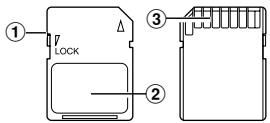
① Card Lock
SD card is equipped with a lock function. When the lock function is used, important data is protected by preventing it from being accidentally overwritten or erased.
When the lock function is set ♀SD will appear on the display.
② Index area
For writing down information identifying card or content.
Comes into contact with the recorder's signal read contacts.
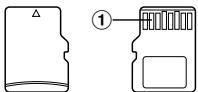
microSD card
Comes into contact with the recorder's signal read contacts.
Memory Sizes of Cards and Approximate Recording Times*1
| Memory Size | QP Mode | SP Mode |
| 512MB | 38 hr. 45 min. | 79 hr. 30 min. |
| 1GB | 77 hr. 40 min. | 159 hr. 05 min.* ^2 |
| 2GB | 157 hr. 55 min.* ^2 | 323 hr. 35 min.* ^2 |
| 4GB | 310 hr. 10 min.* ^2 | 635 hr. 25 min.* ^2 |
| 8GB | 631 hr. 15 min.* ^2 | 1293 hr. 15 min.* ^2 |
The above are the standard times, and the available recording time will vary depending on the card.
*1: Available recording time for one continuous file.
Available recording time may be shorter if many short recordings are made.
*2: Total recording time of several files. The maximum recording time per file is 99 hours 59 minutes.
Warning

- Do not touch the card contacts. That may damage the card.
- Do not place the card in locations with static electricity.
- Store the card in a location that is out of the reach of children. In case of accidental ingestion, consult a physician immediately.
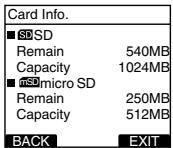
Information such as the memory capacity and remaining memory for installed cards can be displayed on the recorder (P.36).
Notes
- When initializing (formatting) a card, confirm that no necessary data is stored on the memory card beforehand. Initialization completely erases the existing data on the card.
- In some cases cards which have been formatted (initialized) by another device, such as a computer, cannot be recognized. Be sure to format them with this recorder before using.
- The card has a service life. When reaching the end of its life, writing or erasing data on the card will be disabled. In this case, replace the card.
- If you use a PC card adapter compatible with the card to save or delete some data on the card, the maximum recording time on the card may be decreased. To recover the original recording time, initialize/format the card in the recorder.
- Olympus will not be held liable for any data corruption or loss due to misuse of the media card.
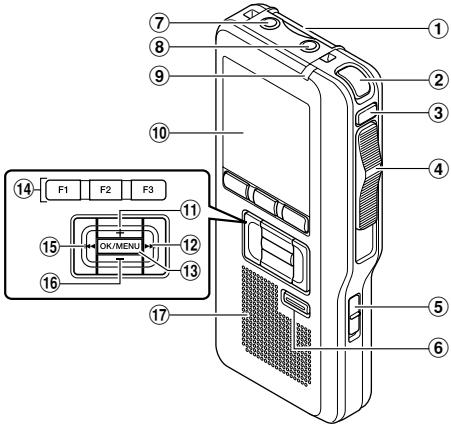
① SD card slot
② Built-in microphone
③ NEW button
④ Slide (REC/STOP/PLAY/REV) switch
⑤ POWER (ON/OFF) switch
⑥ ERASE button
⑦ EAR (Earphone) jack
⑧ MIC (Microphone) jack
⑨ Record/Play indicator light
⑩ Display (LCD panel)
⑪ VOLUME (+) button
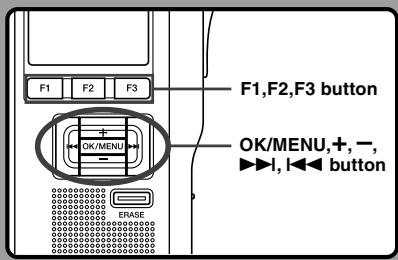
⑫ Fast Forward (▶▶l) button
⑬ OK/MENU button
⑭ Programmable smart button (F1,F2,F3)
⑮ Rewind (◄◄) button
⑯ VOLUME (−) button
⑰ Built-in speaker
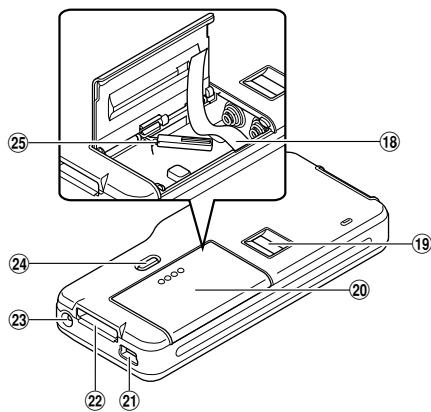
⑱ Battery removal tape
⑲ Fingerprint sensor*
⑳ Battery cover
②1 PC (USB) terminal
⑳ Cradle connector
⑳ Power jack
⑳ Battery cover release button
⑲ microSD card cover
Display Status Indicators
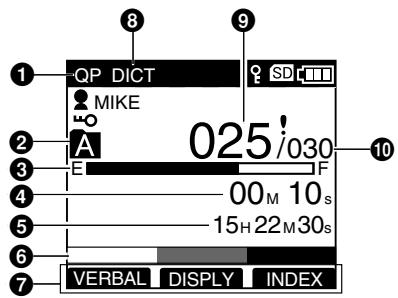
Display in the recording mode
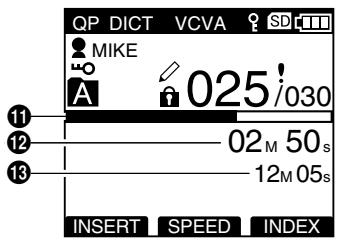
Display in the playback mode
① Record mode indicator
② Current folder
③ Memory remaining indicator (E/F bar)
④ Recording elapsed time
⑤ Remaining recording time
⑥ Level meter indicator
⑦ Button guide display
⑧ Microphone sensitivity indicator
⑨ Current file number
⑩ Total number of files in the folder
⑪ Playback position bar indicator
⑫ Current Playback time
⑬ Total recording time of the selected file
Author ID indicator
Battery indicator
SD SD card indicator
mSD microSD card indicator
VCVA VCVA (Variable Control Voice Actuator) indicator
Pending indicator
SD Card Lock indicator
Encryption indicator
! Priority indicator
Erase Lock indicator
Installing Batteries
This recorder can be used with either Ni-MH Rechargeable Battery Pack or AAA Alkaline Batteries.
Ni-MH Rechargeable Battery Pack (included)
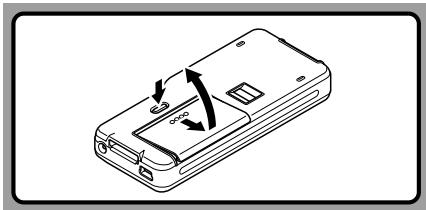
1 Lightly press down on the battery cover release button and open the battery cover, as shown in the illustration below.
natural_image
Line drawing of a mobile phone casing with an arrow indicating rotation and change (no text or symbols)
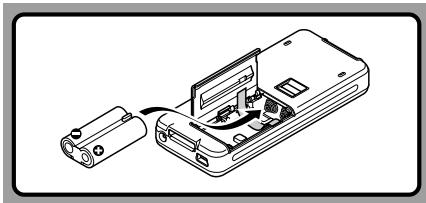
2 Insert the Ni-MH Rechargeable Battery Pack, observing the correct polarity as shown in the illustration below, and then close the battery cover.
natural_image
Line drawing of a device with an open lid and battery, showing internal components (no text or symbols)
When using the Ni-MH Rechargeable Battery Pack, insert it so that the flat surface with the polarities is facing down as shown in the illustration below. Exercise caution, as the directions inscribed inside the battery compartment apply to AAA batteries only. In addition, when inserting the battery pack, insert them so that the tape is under the battery pack, as shown in the illustration. The battery pack can then be removed easily by pulling up the tape.
When pulling on the tape the battery pack may suddenly pop out, so be sure to press down lightly the battery pack with your finger while pulling.
The battery pack needs to be fully charged in the recorder before initial use.
Recharging Battery Pack
The battery indicator on the display changes as the battery pack lose power.

When 📄 appears on the display, charge the battery pack as soon as possible.
When the battery pack charge is low, the recorder shuts down and [Battery Low] appears on the display.
Notes
- Removing the battery pack while the recorder is in use may corrupt the file.
- If power runs out during recording, current file will be lost or corrupted!.
- It is crucial to charge the battery pack once you see one hash mark on the LCD battery indicator.
- Remove the battery pack if you are not going to use the recorder for an extended period of time.
AAA Alkaline Batteries
Lightly press down on the battery cover release button and open the battery cover (P.14).
2 Insert two AAA batteries, observing the correct polarity as shown in the illustration below, and then close the battery cover.
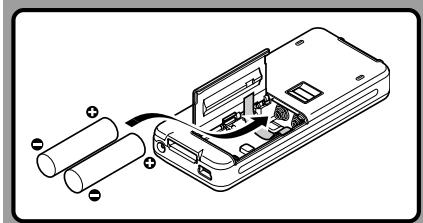
Insert the batteries in the direction inscribed on the inside of the recorder's battery compartment. In addition, when inserting the batteries, insert them so that the tape is under the batteries, as shown in the illustration. The batteries can then be removed easily by pulling up the tape. When pulling on the tape the batteries may suddenly pop out, so be sure to press down lightly the batteries with your finger while pulling.
The battery indicator on the display changes as the batteries lose power.
Replacing Batteries
When 📄 appears on the display, replace the batteries as soon as possible.
When the batteries are too weak, the recorder shuts down and [Battery Low] appears on the display.
Cautions Concerning the Battery
Warning

- Using batteries for which part or all of the external coating (insulating sheath) is peeling off or batteries which have ruptured may cause fluid leaks, overheating, and explosions. For this reason such batteries should absolutely not be used.
- Commercially available batteries for which part or all of the external coating (insulation sheath) has been peeled off should absolutely not be used.
Unusable batteries
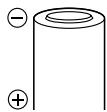

Batteries for which the entire external coating (insulating sheath) is peeled off (naked batteries), or those where it has partially been peeled off.
Notes
- Be sure to turn OFF the recorder before replacing the batteries. Removing the batteries while the recorder is in use may corrupt the card. If you are recording into a file and the batteries run out, you will lose your currently recorded file since the file header will not be written. It is crucial to replace the batteries when one hash mark in shown in the battery icon.
- Be sure to replace both batteries at the same time.
- Never mix old and new batteries, or batteries of different types and/or brands.
- If it takes longer than 1 minute to replace dead batteries, you may have to reset the time when you load new batteries.
- Remove the batteries if you are not going to use the recorder for an extended period of time.
You can charge the Ni-MH Rechargeable Battery Pack in the recorder using the cradle in combination with the USB cable or AC Adapter. Or by directly connecting the AC Adapter or USB cable to the recorder.
Battery pack need to be fully charged before first use.
Full charge time: Approximately 3 hours.
Charge the Ni-MH Rechargeable Battery Pack using the Cradle
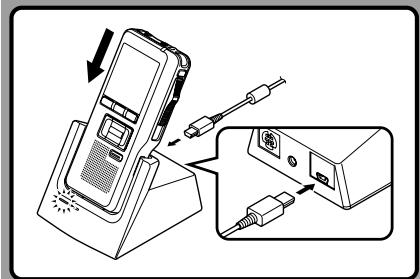
The Ni-MH Rechargeable Battery Pack in the recorder can be charged by connecting the AC adapter or USB cable to the cradle with the recorder set in it.
Charging using Cradle and AC Adapter
Connect the AC adapter to the cradle.
For connection procedures, see P.61.
When using the AC adapter for charging, connect the power plug to the cradle AC connector (P.19).
Firmly press the recorder all the way into the cradle as shown in the illustration.
CHARGE indicator light glows red and the charging starts.
The light goes out when the charging is complete.

Charging using Cradle and USB Cable
Connect the USB cable to the cradle.
For connection procedures, see P.61.
Turn the recorder's POWER switch OFF (P.20) and firmly press the recorder all the way into the cradle as shown in the illustration.
CHARGE indicator light glows red and the charging starts.
The light goes out when the charging is complete.
When the recorder is connected to a USB cable while its POWER switch is turned OFF, only charging will be performed, and the computer will not recognize it as a drive.
Directly Charging Through the Recorder
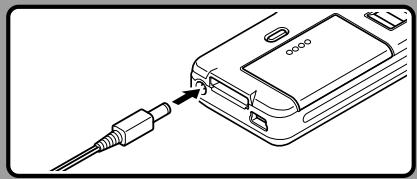
The Ni-MH Rechargeable Battery Pack in the recorder can be charged by connecting an AC adapter or USB cable to the recorder.
Charging using AC Adapter (no cradle)
Connect the AC adapter to the recorder.
For connection procedures, see P.19.
When using the adapter for charging, connect the power plug to the cradle AC connector.
natural_image
Diagram of a device with a cable inserted into a package, showing no text or symbols
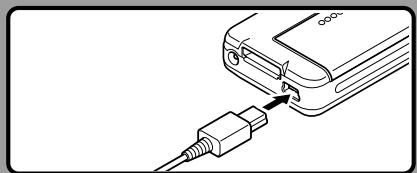
Charging using the USB cable (no cradle)
Connect a USB cable to the recorder while its POWER switch is turned OFF.
When the recorder is connected to a USB cable while its POWER switch is turned OFF, only charging will be performed, and the computer will not recognize it as a drive.
natural_image
Diagram showing a cable being inserted into a device (no text or symbols present)
Notes
- Charge the battery pack often for first few uses. Battery pack performs better after several full charge/discharge cycles.
- Battery packs other than the supplied battery pack cannot be charged.
- If you charge the battery pack right after charging is complete, it will take only few minutes to charge the battery pack.
- The PC must be ON when charging battery pack via the USB cable connection.
- Charging battery pack via the USB cable connection may not be successful depending on the power supply capacity of your PC. Use the AC adapter instead.
- Do not set or remove the recorder from the cradle while it is in operation.
- Do not charge the recorder with the USB hub connected.
- Do not attach or remove the rechargeable battery pack if the AC adapter or USB cable is connected.
The battery pack is exclusively for use with Olympus voice recorder DS-5000/5000iD. Never use them in combination with other equipment.
Discharging
Battery pack self-discharge while this is not in use. Be sure to charge them regularly before use.
Battery life
Over time, rechargeable battery packs gradually wear down. If you charge you battery pack regularly and you notice a decrease in usage time, then it is probably time to purchase a new battery pack.
Operating temperature
Rechargeable batteries, such as the battery pack, are chemical products. Batteries efficiency may fluctuate even when operating within the recommended temperature range. This is an inherent nature of such products.
Recommended temperature range for use
Discharging (when using appliance):
0^-42^/32^-107.6^
Charging:
5^ C-40^ C / 41^ F-104^ F
Storage:
-20^-30^/-4^-86^
Using the battery pack outside the above temperature range may result in declining efficiency and shorter battery life.
In order to prevent battery leakage or rust, remove the battery pack from the products when you will not be using them for a long time, and store them separately.
Notes
- This recorder is designed to fully charge battery pack regardless of their energy level. However, for best results when charging newly purchased battery pack or battery pack that have not been used for a long time (more than one month), it is recommended to fully charge the battery pack then discharge repeatedly for 2 to 3 times.
- When disposing battery packs, always observe the local laws and regulations. Contact you local recycling center for proper disposal methods.
- If Ni-MH rechargeable battery pack is not fully discharged, protect against short-circuiting (e.g. by taping the contacts) before disposing.
For customers in Germany
Olympus has a contract with the GRS (Joint Battery Disposal Association) in Germany to ensure environmentally friendly disposal.
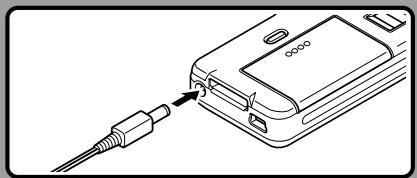
Use the AC adapter (Olympus Model A513, included) in cases where battery consumption is a concern, such as when recording for extended periods of time. Plug the AC adapter (Olympus Model A513 included) into a household power outlet and connect the power plug to the recorder's power connector (DC 5V). Always turn off the recorder before you connect power. Refer to P.16-P.17 regarding supplying power to the recorder and cradle with the aim of charging the Ni-MH Rechargeable Battery Pack (P.14).
natural_image
Line drawing of a device with a cable inserted into a package (no text or symbols)
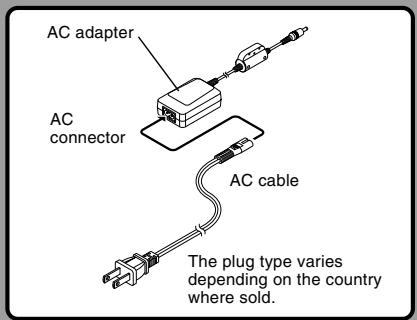
Warning

• Always stop recording before connecting or disconnecting power.

- When the AC adapter is not in use, disconnect the power supply plug from the power outlet.

- Use only the correct power supply voltage as indicated on the adapter.

- Do not use the AC adapter when connecting the recorder to the USB port.
Detecting abnormal voltage
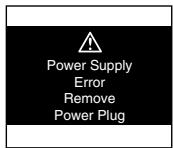
If the recorder detects a DC power voltage outside of the allowable voltage (allowable voltage: 4.6 to 5.5 V), then [Power Supply Error Remove Power Plug] will appear on the display and all operations will stop. The recorder will not be operable while abnormal voltage is detected. Use the included AC adapter (A513).
Turning ON the Recorder
With the battery charged in the recorder and the card inserted properly, the recorder is ready to work.
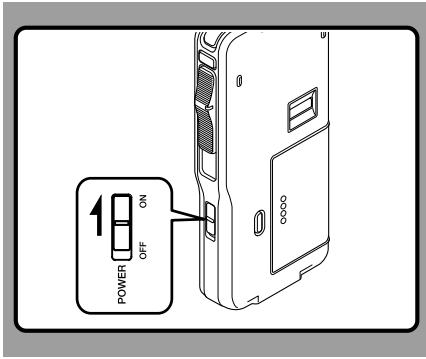
While the POWER switch on the side of the recorder is in the OFF position, none of the buttons or switch on the recorder will be active. Slide the power switch to the ON position to activate the recorder.
Power Save Mode
When the recorder is ON but not in use for 10 minutes, by default, it will switch to power save mode automatically. To reactivate the recorder again, operate any button or the slide switch.
Power Save Setting (Power Save)
You can set the time to enter Power Save mode from among [5 min.], [10 min.], [30 min.], [1 hour], and [Off].
To exit power save, press any button. The [Power Save] setting can be changed from the Menu. For more details, refer to "Menu List" (P.35) and "Learning to Use the Menu" (P.39).

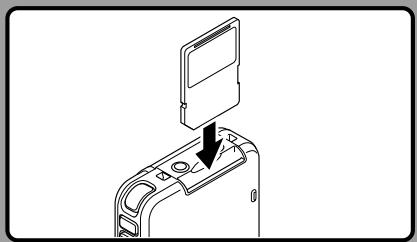
Insert the SD card into the card slot in the direction shown in the illustration until it clicks.
natural_image
Diagram of a device with a lid and a button, showing a mechanical assembly (no text or symbols)
This recorder uses a microSD card as its built-in memory. The microSD card has been preloaded. Refer to P.51 when removing or inserting the card during emergencies.
When Inserting a Card
The recorder message [Please Wait] on the display flashes for seconds.
Inserting an unselected card when the card selected via [Card Select] is not loaded will switch the recording destination to the unselected card. Inserting the selected card will revert the recording destination back.
Ejecting a SD card
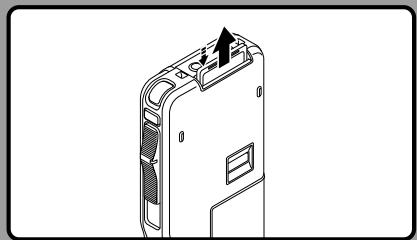
Push the SD card inward once to unlock it, and let it eject.
natural_image
Diagram of a device rear panel with a black arrow pointing to the top panel (no text or symbols present)
When Ejecting a Card
When a card selected through the [Card Select] is ejected, the recording destination will change over to the other card.
Notes
- Insert the card keeping it straight.
- The card stops with a click when it is inserted all the way.
- Inserting the card the wrong way or at an angle could damage the contact area or cause the card to jam.
- If the card is not inserted all the way, data may not be written to the card.
- Hold the card straight and pull it out.
- If a unformatted card is installed, the recorder will automatically display the menu format option (P.52).
- Never use any card in the recorder unless it has been formatted on this unit (P.52).
- Never remove the card while the recorder is in operation. This may damage the data.
- Releasing your finger quickly after pushing the card inward may cause it to eject forcefully out of the slot.
Setting Time/Date (Time & Date)
Setting the correct time and date on the recorder is very important since every file recorded on the recorder will have the date and time information as part of the file header. This will simplify the file management aspects later on.
The hour indicator will flash automatically when you load batteries before using the recorder for the first time, or after the recorder hasn't been used for a long time. However, when a Password or Fingerprint (DS-5000iD only) has been set as the device lock function (P.42), the recorder will go to the Time/Date set screen after verification (unlocking).
Select the item from [hour], [minute], [year], [month] and [day] with a flashing point.
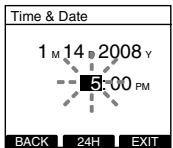
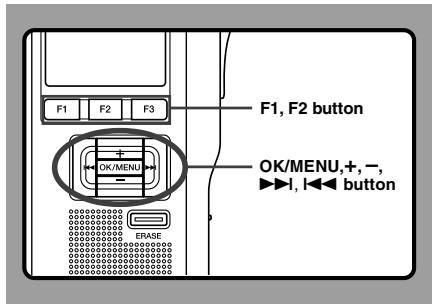
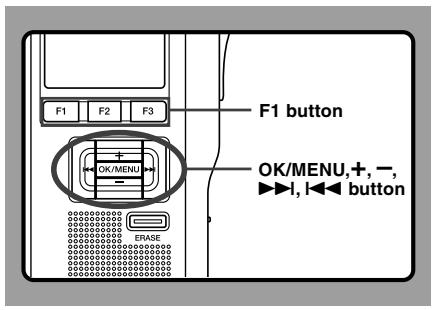
Follow the same steps by pressing the ▶▶▶ or ◀◀◀ button to select the next item, and press the + or - button to set.
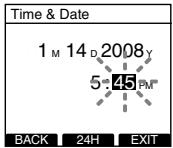
- You can choose between 12 and 24 hour display by pressing the F2(24H or 12H)* button while setting the hour and minute.
Example: 5:45 P.M.
5:45 PM 17:45
(Initial setting)
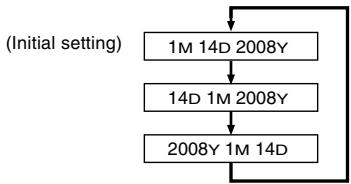
- You can choose the order of the year, month, day by pressing the F2(D/M/Y or Y/M/D or M/D/Y)* button while setting them.
Example: January 14, 2008
flowchart
graph TD
    A["(Initial setting)"] --> B["1M 14D 2008Y"]
    B --> C["14D 1M 2008Y"]
    C --> D["2008Y 1M 14D"]
    D --> E
*The display will vary depending on the status of the settings.
The clock will start from the set date and time. Press the OK/MENU button according to the time signal.
Notes
- If the slide switch is moved to a position other than STOP while setting the Time/Date, the Time/Date currently being set (un-finalized Time/Date) will be cancelled and it will revert to the previously set Time/Date.
- You can set the time and date from your PC using DSS Player software (P.55).
Changing the Time/Date
When the recorder's POWER switch is turned ON the [Time & Date] will be displayed for two seconds. If the [Time & Date] is not correct, set it using the procedure below.
See P.36, 38 regarding the menu.
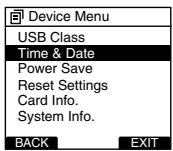
The Time/Date screen appears. The hour indicator flashes, indicating the start of the Time/Date setup process. The following steps are the same as Step 1 through Step 3 of "Setting Time/Date (Time & Date)" (P.22).
3 Press F1(BACK) or I◄◄ button to return to the [Main Menu] screen, then press F1(BACK) or I◄◄ button again to exit the setting.
Setting Recording Destination (Card Select)
By default, the recording destination is set to the [SD Card] at the factory. To change the recording destination, follow the procedure outlined below.
1 Select [Card Select] at the [Device Menu] screen and press OK/MENU or ▶▶▶ button.
Refer to P.36 regarding each menu item settings.
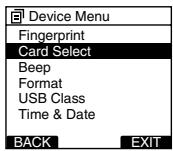
2 Press the + or - button to choose between [SD] and [micro SD].
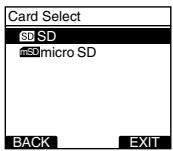
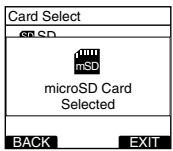
3 Press the OK/MENU button to complete the setup screen.
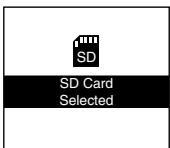
[SD Card Selected] or [microSD Card Selected] will light up on the display, and it will return to the [Device Menu] screen.
If the ◀◀◀ or F1(BACK) is pressed, the setting will be cancelled and it will return to the [Device Menu] screen.
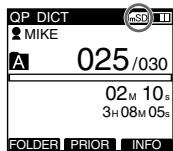
The recording destination (SD or mSD) that was set will appear on the display.
4 Press F1(BACK) or I◀◀ button to return to the [Main Menu] screen, then press F1(BACK) or I◀◀ button again to exit the setting.
2 Basic Operations
Recording
By default, the recorder has five folders, A, B, C, D, E and you can select folder by pressing the F1(FOLDER) button. These five folders can be selectively used to distinguish the kind of recording; for example, Folder A might be used to store private information, while Folder B might be dedicated to holding business information. Up to 200 messages can be recorded per folder.
Also, by default, the Recording Mode is QP.
Record Function
By default, the RECORD function is configured to record at the current position (overwrite).
However, that can be changed to any of the following settings:
- Append: Appends the recording to the end of the current file (P.26).
- Overwrite: Overwrites the recording starting at the current position in the file (P.27).
- Insert: Inserts the recording at the current position in the file (P.28).
Recording related settings can be configured to provide a suitable recording environment.
- Rec Mode (P.37)
• VCVA Recording (P.37)
- Mic Sense (P.37)
• Verbal Comment (P.49)
- Pending (P.37)
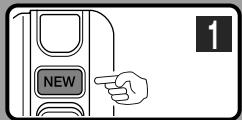
natural_image
Pure electrical circuit lines without any symbols
New Recording
Create a new file to record in.
When [The Worktype List is displayed when a new file is created] is set in DSS Player
(P.55) you can select the Work Type from the Work Type list.
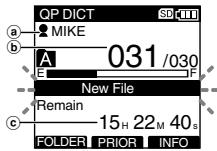
①Selected Author ID
bNew file number
©Remaining recording time
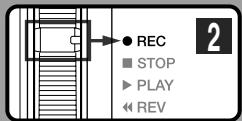
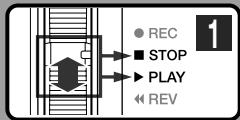
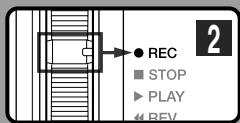
2 Move the slide switch to the REC position to start recording.
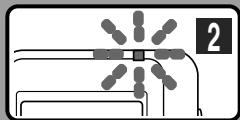
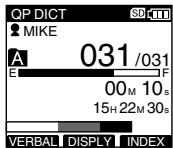
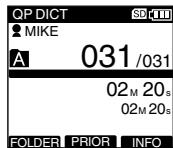
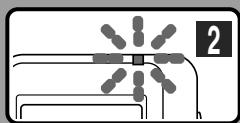
The record/play indicator light glows red. Aim the microphone at the sound source. When you press the F2 (DISPLY) button during recording, you can change the LCD screen displays.
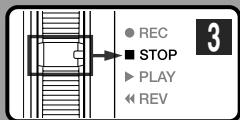
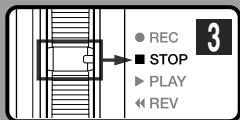
3 Move the slide switch to the STOP position to stop recording.
If you want to append additional recordings to the same file, move the slide switch to the REC position again.
Notes
- A beep will sound when the remaining recording time reaches 60 seconds, 30 seconds, and 10 seconds while recording.
- When remaining recording time is less than 60 seconds, the record/play indicator light starts flashing in red. When the recording time is decreasing to 30 or 10 seconds, the light flashes faster.
- [Memory Full] or [Folder Full] will be displayed when the memory or folder capacity is full.
- Delete any unnecessary files before recording any further (P.31) or transfer dictation files to your computer using DSS Player Software (P.55).
- Change the recording destination at [Card select] setting (P.24) or change to a card with free space.
flowchart
graph TD
    A["● REC"] --> B["■ STOP"]
    B --> C["▶ PLAY"]
    C --> D["◀ REV"]
natural_image
Pure electrical circuit lines without any symbols
Overwrite Recording
You can overwrite a previously recorded file from any point within the file.
Note that the overwritten recordings will be erased.
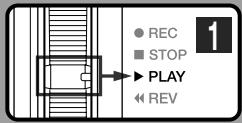
1 Select and play the file you want to overwrite.
Stop playback at the starting point of overwrite.
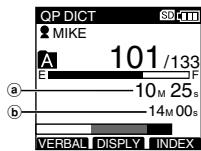
2 Move the slide switch to the REC position to start overwriting.
The record/play indicator light glows red.
ⒶRecording elapsed time
⑥Total recording time of the selected file
3 Move the slide switch to the STOP position to stop overwriting.
Note
- You cannot select a different recording mode (QP, SP) than that of the original file before overwrite recording.
natural_image
Pure electrical circuit lines without any symbols
Insert Recording
Additional recording can be inserted into previously recorded file.
1 Select and play the file you want to insert an additional recording into.
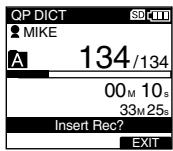
2 While playing the file, press the F1(INSERT) button to insert an additional recording.
[Insert Rec?] appears on the display.
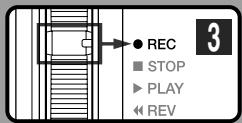
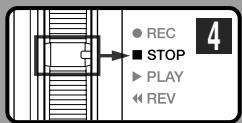
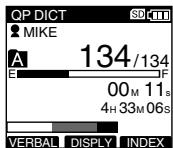
3 Move the slide switch to the REC position to start inserting an additional recording.
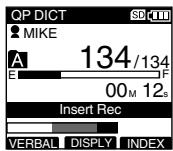
The record/play indicator light glows red.
[Insert Rec] and the remaining recording time will alternate on the display.
4 Move the slide switch to the STOP position to stop inserting the additional recording.

Notes
- If you place the slide switch in the STOP position for more than two seconds while moving the slide switch from the PLAY position to the REC position, the Insert recording will be cancelled.
- The recording time and date of the file is updated to the time and date of the inserted recording.
- You cannot select a different recording mode (QP, SP) than that of the original file before inserting.
natural_image
Pure electrical circuit lines without any symbols
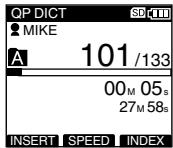
You can start playing a file at any point.
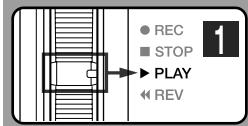
1 Select the file, then move the slide switch to the PLAY position to start playback.
The record/play indicator light glows green.
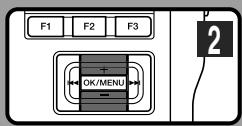
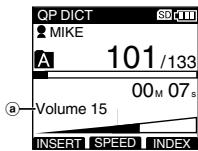
2 Press the + or - button to adjust the volume.
The display shows the volume level. You can choose between 0 to 30.
aVolume level
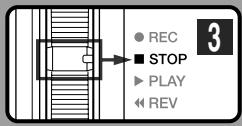
3 Move the slide switch to the STOP position at any point you want to stop the playback.
| Playback functions | Operation | How to Cancel |
| Fast Forward (FF) | Press the ▶▶I button once while stopped. | Move the slide switch to a position other than the STOP position. ➔ The recorder starts the operation of the set position. |
| Rewind (REW) | Press the I◀◀ button once while stopped. |
| Cue (CUE) | Hold the ▶▶I button while stopped or playing a file. | Release the button. |
| Review (REV) | Hold the I◀◀ button while stopped or playing a file. | Release the button. |
| Move the slide switch to the REV position. | Release the slide switch. |
| Playback Speed | Press the F2 (SPEED) button during playback. ➔ Every time the F2(SPEED) button is pressed, the playback speed will switch.Play( playback): Playback at normal speed.Slow Play (slow playback): Playback speed slows down (-50%), and “Slow play” will turn on.Fast Play (fast playback): Playback speed becomes faster (+50%), and “Fast play” will turn on. | — |
Notes
- If you press the ▶▶I button once while fast-forwarding or twice while stopped, the recorder will stop at the end of the file (F.SKIP).
- If you press the I◀◀ button once while rewinding or twice while stopped, the recorder will stop at the beginning of the file (B.SKIP). If the I◀◀ button is pressed within 2 seconds, the recorder skips to the beginning of the previous file.
- If you continue to press and hold the ▶▶▶I button while Fast Forwarding (FF) the recorder will F.SKIP continuously while the button is held.
- If you continue to press and hold the ◀◀◀ button while Rewinding (REW) the recorder will B.SKIP continuously while the button is held down.
Erasing a File
Erasing or deleting a file from any of the folder on the recorder is a very simple process.
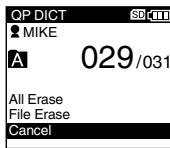
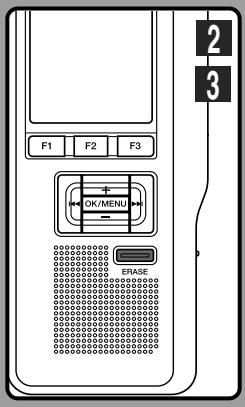
1 Select the file you want to erase.
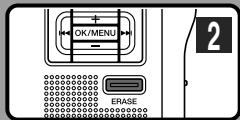
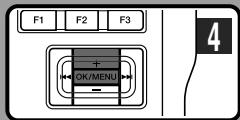
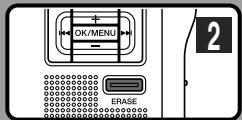
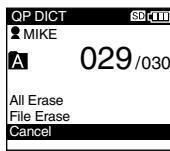
2 Press the ERASE button.
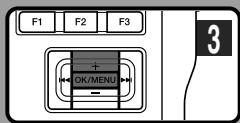
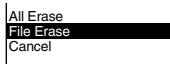
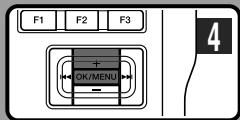
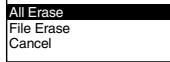
3 Press the + button and select [File Erase], then press the OK/MENU button.
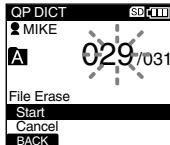
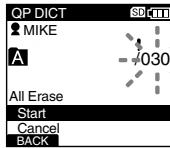
4 Press the + button and select [Start], then press the OK/MENU button.
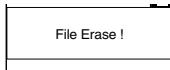
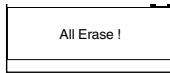
The display changes to [File Erase !] and erasing will start.
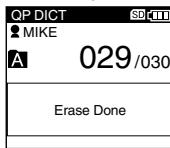
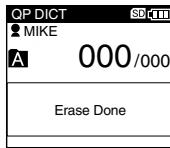
[Erase Done] is displayed when the file is erased. File numbers will be reassigned automatically.

Notes
- An erased file cannot be restored.
- Files cannot be erased in the following cases.
- File being set [Lock] (P.37).
- The SD card lock is turned on while the SD card is selected as the recording destination (P.10).

Erasing All Files in a Folder
All files in a folder can be erased simultaneously.
1 Select the folder you want to erase.
2 Press the ERASE button.
3 Press the + button and select [All Erase], then press the OK/MENU button.
4 Press the + button and select [Start], then press the OK/MENU button.
The display changes to [All Erase !] and erasing will start.
[Erase Done] is displayed when the files are erased. Any locked files in the folder will be reassigned new file numbers in ascending order.

Notes
Partially Erasing a File
You can erase a selected file in part.
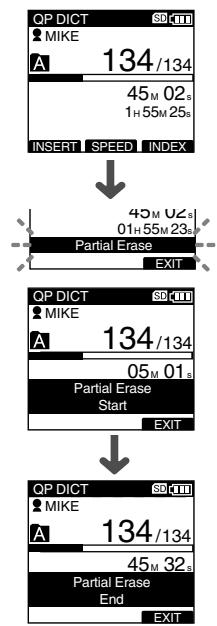
1 Start playback the file you want to erase partially.
2 Press the ERASE button at the point to start erasing.
While playback continues, [Partial Erase] will appear on the display.
3 Press the ERASE button at the point to end erasing.
The erase starting point (time) set in step 2 and the ending point (time) set in this step will alternate on the display for 8 seconds.
If you playback to the end of file or to the start position of the Verbal comment (P.49), that will mark the end position for the partial erase automatically.
flowchart
graph TD
    A["QP DICT MIKE"] --> B["134/134"]
    B --> C["45M 02s, 1h 55m 25s"]
    C --> D["INSERT SPEED INDEX"]
    D --> E["45M 02s, 01h 55m 23s"]
    E --> F["Partial Erase Exit"]
    F --> G["QP DICT MIKE"]
    G --> H["134/134"]
    H --> I["05M 01s, Partial Erase Start"]
    I --> J["EXIT"]
    J --> K["QP DICT MIKE"]
    K --> L["134/134"]
    L --> M["45M 32s, Partial Erase End"]
    M --> N["EXIT"]
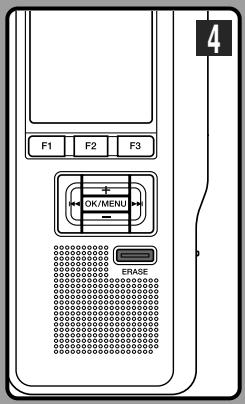
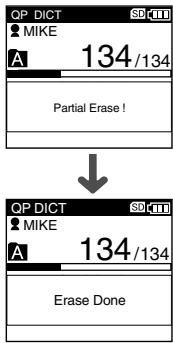
The display changes to [Partial Erase!] and erasing will start.
When [Erase Done] appears on the display, partial erase is complete.
Notes
- If the ERASE button is not pressed within 8 seconds after the [Starting point] and [Ending point] are alternately displayed, the recorder will revert to stop status.
- An erased file cannot be restored.
- Files cannot be Partial erased in the following cases.
- File being set [Lock] (P.37).
- Files that Verbal comment is being played back (P.49).
- The SD card lock is turned on while the SD card is selected as the recording destination (P.10).
3 Advanced Operations
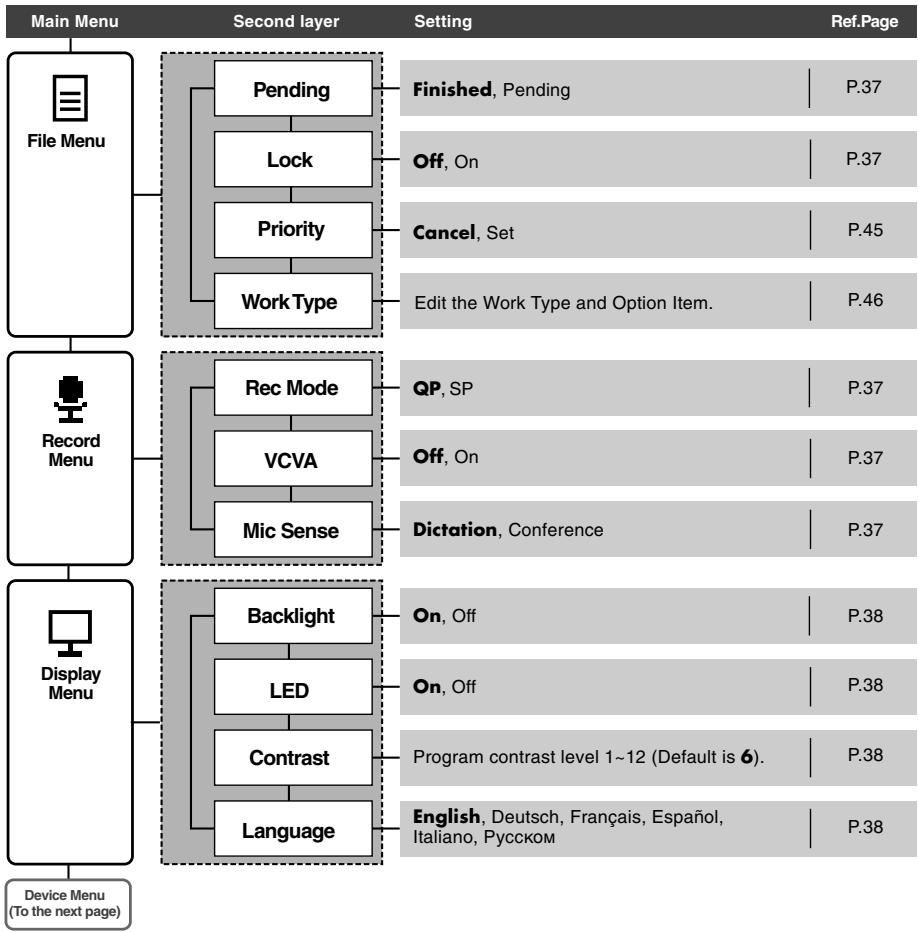
- Menu Setting (while the recorder is stopped, press the OK/MENU button)
flowchart
graph TD
    A["File Menu"] --> B["Pending"]
    A --> C["Lock"]
    A --> D["Priority"]
    A --> E["Work Type"]
    B --> F["Finished, Pending"]
    C --> G["Off, On"]
    D --> H["Cancel, Set"]
    E --> I["Edit the Work Type and Option Item."]
    J["Record Menu"] --> K["Rec Mode"]
    J --> L["VCVA"]
    J --> M["Mic Sense"]
    K --> N["QP, SP"]
    L --> O["Off, On"]
    M --> P["Dictation, Conference"]
    Q["Display Menu"] --> R["Backlight"]
    Q --> S["LED"]
    Q --> T["Contrast"]
    Q --> U["Language"]
    R --> V["On, Off"]
    S --> W["On, Off"]
    T --> X["Program contrast level 1~12 (Default is 6)."]
    U --> Y["English, Deutsch, Français, Español, Italiano, Русском"]
flowchart
graph TD
    A["Device Menu"] --> B["Fingerprint"]
    B --> C["Card Select"]
    C --> D["Beep"]
    D --> E["Format"]
    E --> F["USB Class"]
    F --> G["Time & Date"]
    G --> H["Power Save"]
    H --> I["Reset Settings"]
    I --> J["Card Info."]
    J --> K["System Info."]
    L["File Menu (To the page 35)"] --> B
    L --> K
    style A fill:#f9f,stroke:#333
    style L fill:#ccf,stroke:#333
Notes
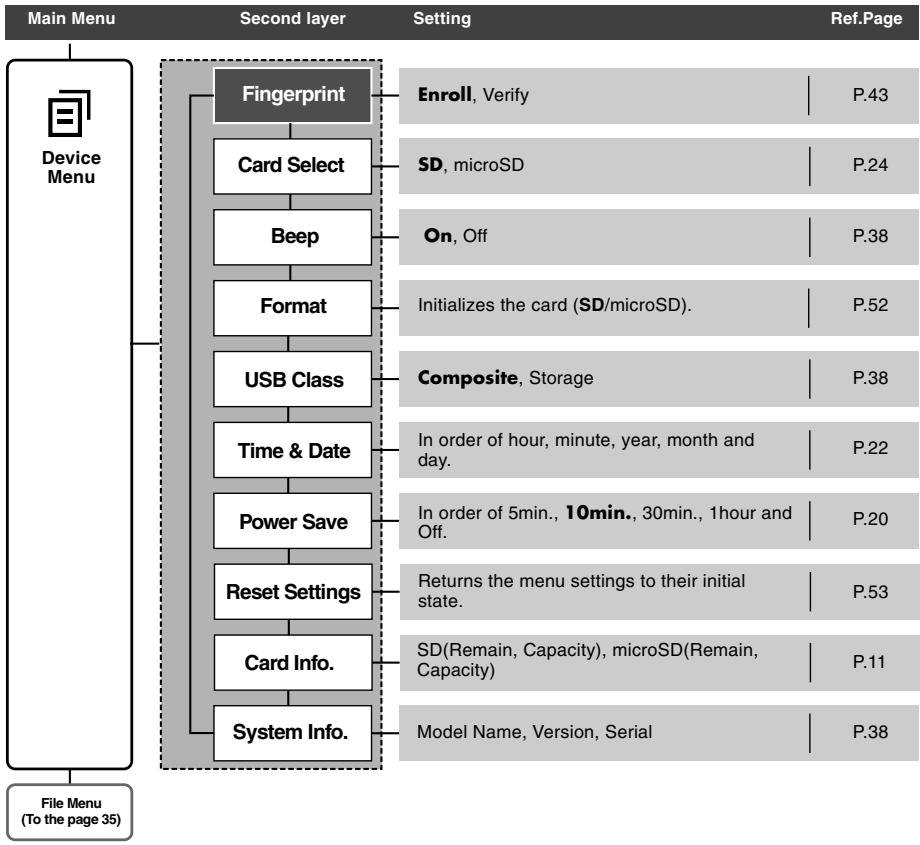
- The selectable language varies depending on the countries where the product was purchased.
- [Fingerprint] is a menu item for the DS-5000iD only (it will not appear on the DS-5000).
- Items appear in bold letters in the "Setting" column to indicate that they are the initial settings.
The Menus and Their Functions
This recorder is equipped with various functions other than those introduced in detail in this instruction. These can be set from the four menus categorized in the Main Menu.
| Function | Description | Setting |
| Pending | When you set [Pending] to the file, the file becomes “Pending file” and the editing sign of √ will appear on the display. If [Download file] is set to [Finished file] by DSS Player, the [Pending] file is not transferred and only [Finished] file (edited file) will be transferred to your PC. | →[Pending/Finished] |
| Lock | When a file is set to [Lock], Ⓜ will appear on the display, allowing you to prevent important files from accidental erase. Moreover, the file will not be erased even when all files within a folder are erased. | →[On/Off] |
| Priority | Please see P.45 for details. | —— |
| Work Type | Please see P.46 for details. | —— |
| Function | Description | Setting |
| Rec Mode | The recording mode can be selected from QP (Quality Play) and SP (Standard Play).You cannot select the QP mode when setting the recorder to the Classic DSS mode. | →[QP/SP] |
| VCVA | The Variable Control Voice Actuator (VCVA) is a function that starts recording automatically when the microphone senses that sounds have reached a preset threshold volume level, and automatically pauses when the volume drops below the threshold. The VCVA feature allows you to conserve memory by automatically stopping recording in instances like long silent periods during meetings.When this is enabled, will appear on the display. | →[On/Off] Press the ▶▶|or|◀◀button while recording to adjust the actuator level. |
| Mic Sense | You can switch between two microphone sensitivities to meet recording needs: [Dictation] for oral dictation and [Conference] which is suited for situations like meetings and conferences with a small number of people. The setting status will appear on the display as [Conference] or [Dictation]. | →[Dictation/ Conference] |
| Function | Description | Setting |
| Backlight | When the display backlight is set to [ON], the backlight will light up for about 10 seconds when a button is pressed. This is useful in that it allows you to check the display even in dark locations. | →[On/Off] |
| LED | You can set it so the Record/Play indicator light does not turn on. | →[On/Off] |
| Contrast | Display contrast can be adjusted from level 01 to 12. | →Press the + or - button to set the contrast level (level 01 to 12). |
| Language | You can select the display language for this recorder. The selectable language varies depending on the countries where the product was purchased. | →[English/Deutsch/Français/ Español/Italiano/Русском] |
● Device Menu
| Function | Description | Setting |
| Fingerprint | Please see P.43 for details. | —— |
| Card Select | Please see P.24 for details. | —— |
| Beep | When this is set to [ON], the recorder beeps to alert you to button operations or warn you of errors. | →[On/Off] |
| Format | Please see P.52 for details. | |
| USB Class | When connected to a computer, composite devices will be recognized as [Composite] and drives will be recognized as [Storage]. | →[Composite/Storage] |
| Time & Date | Please see P.22 for details. | —— |
| Power Save | Please see P.20 for details. | —— |
| Reset Settings | Please see P.53 for details. | —— |
| Card info. | Please see P.11 for details. | —— |
| System info. | System information about the recorder like its [Model Name], [Version] and [Serial] can be displayed. | —— |
To navigate through the different options in the Menu, use the Menu List flow chart (P.35) and the following steps to modify or change any settings.
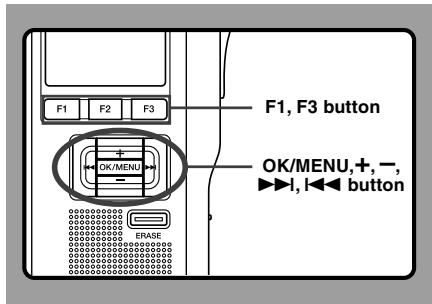
The [Main Menu] screen will appear on the display (P.35).
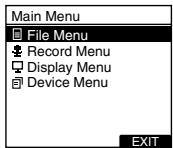
2 Press the + or - button to move to the [Main Menu] item to be set.
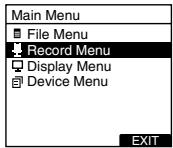
3 Press the OK/MENU or ▶▶▶ button. Move to the setting of the selected menu items.

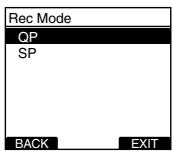
If press the ◀◀◀ or F1(BACK), the setting will be cancelled and it will return to the menu.
Pressing the F3(EXIT) button will cancel the contents being set and take you out of the MENU.
8 Press the F1(BACK) or I◀◀ button to return to the [Main Menu] screen, and then press F3(EXIT) or the I◀◀ button to complete the setting.
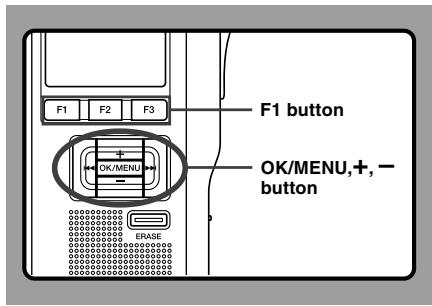
Changing Folders
1 Press the F1(FOLDER) button while the recorder is stopped.
The folder list screen will be displayed.
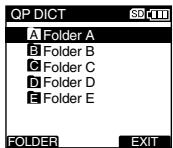
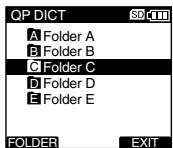
2 Select the folder by pressing the + or - button and then press the OK/MENU button.
This will change the folder.
You can switch folders by pressing the
F1(FOLDER) button.
Changing File
1 Press the ▶▶▶ or ◀◀◀ button while the file is being displayed.
This will change and display the file number order for files within the folder.
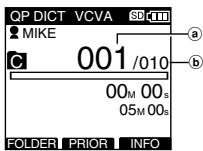
ⒶCurrent file number
⑥ Total number of recorded files in the folder
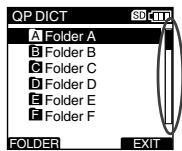
The scroll bar will appear when all of the items cannot be displayed in the menu or list display screen.
The recorder can display a variety of information related to the current file. It is also possible to go to the Work Type and Option Item edit screen.
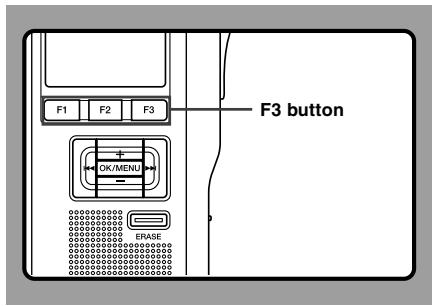
Refer to P.40 regarding file selection.
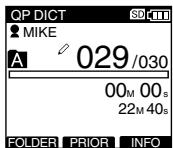
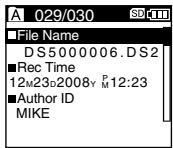
The following information will be displayed.
[File Name]...File name
[Rec Time]...Time and date the file was recorded.
[Author ID]...Display the Author ID of file.
[Work Type]...Displays the Work Type ID of file.
[Option Item]...Displays the Option Item which has been set.
Recorder access can be restricted by enabling the device lock function. Authentication via password and/or fingerprint verification (DS-5000iD only) can act as a safe guard for your data even in case the recorder is lost or left unattended.
Fingerprint registry (P.43) is performed by the recorder, while password registry can be performed by using DSS Player (P.55).
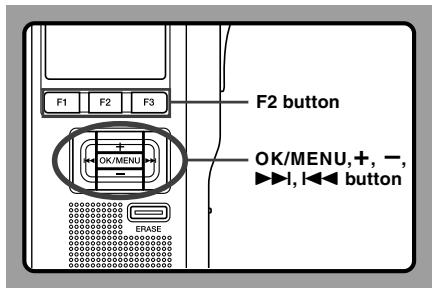
Unlocking the Recorder
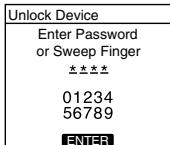
When the password registry and/or fingerprint registry is done, the recorder will prompt for password and/or fingerprint verifications (DS-5000iD only) on startup.
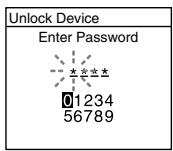
DS-5000
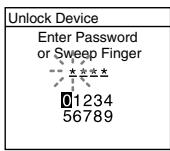
DS-5000iD
Unlock the recorder's device lock through the method below.
The default password when using the recorder for the first time is "0000".
Unlocking the Recorder with a Password
1 Select the numbers you want to enter by pressing the +,-,▶▶l or l◀◀ button to move the cursor.
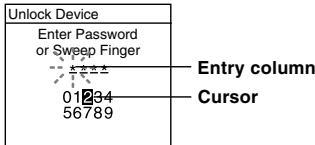
2 Press the OK/MENU button to select a number.
A * will appear in the selected first digit and the blinking cursor will move to the next one over (to the right). Repeat steps 1 and 2 to enter all four digits.
Pressing the ERASE button at any time will erase the last entry and move the cursor to the previous entry (to the left).
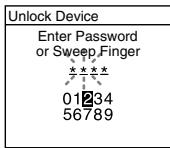
3 After all four digits have been entered, press the F2(ENTER) button.
If the 4 digit number entered matches the registered password then the startup message will appear and the recorder will start up.
Unlocking the Recorder Via Fingerprint Verification (Only DS-5000iD)
Slide the finger to be scanned for verification over the scanner window on the back side of the recorder in one sweeping motion from top down as shown in the illustration.
If [NG! Sweep Finger Again] is displayed, re-scan your finger or a different registered finger again. If there is no fingerprint match after 10 tries [Incorrect Fingerprint Enter Password] will be displayed and it is not possible to authenticate via fingerprint verification.
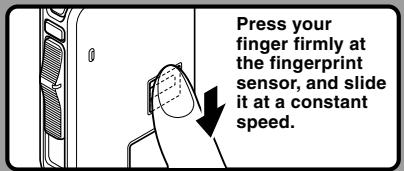
In case the fingerprint may not be scanned correctly, press your finger firmly against the sensor and sweep it.
Authentication Halt Mode
If there is no password match after five tries the recorder will enter password input halt mode for ten minutes.
After ten minutes have passed the mismatch history will be erased and it will once again return to the password input screen.
| Unlock Device |
| Enter Password |
| Device isLocked09 : 59 |
|
Fingerprint Registration (Fingerprint)
Fingerprint registration is performed on the recorder. By selecting an Author ID from the Author list (P.46) and then registering your fingerprint, you can associate it to your Author ID. You can register up to 10 fingerprint data.
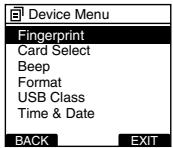
1 Select [Fingerprint] from the [Device Menu] screen and press OK/MENU or the ▶▶▶I button.
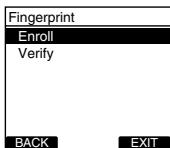
2 Press + or - to select [Enroll] and then press OK/MENU or the ▶▶1 button.
3 Press + or - to select a registration number and then press OK/MENU or the ▶▶▶ button.
When making a new registration, select a registration number that has not already been registered (✗ does not appear). When re-registering a fingerprint, select the previously registered number (✗ does appear).
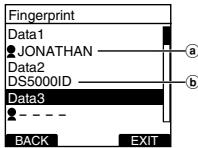
a Connection with Author ID
⑥ No connection with Author ID
When re-registering, the re-registration confirmation screen will appear and you can select [Yes] to continue with registration.
4 Recognizing your fingerprint (P.43). When [OK!] appears, repeat the same operation twice. If an error message appears, perform the scan once more according to the instructions on the screen.
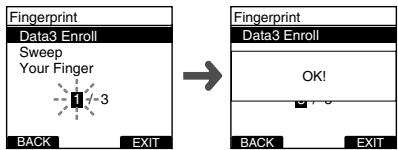
flowchart
graph TD
    A["Fingerprint Data3 Enroll"] --> B["→"]
    C["Sweep Your Finger"] --> D["→"]
    E["BACK EXIT"] --> F["Fingerprint Data3 Enroll"]
    G["OK!"] --> H["→"]
    I["BACK EXIT"] --> J["→"]
[Completed] displays when the fingerprint registration is complete.
Verifying the Registered Fingerprint Data
1 Select [Fingerprint] from the [Device Menu] screen and press OK/MENU or the ▶▶▶I button.
2 Press + or - to select [Verify] and then press the OK/MENU button.
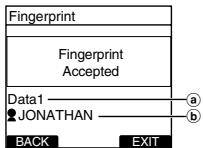
3 Recognizing your fingerprint (P.43). If your fingerprint data matches, [Fingerprint Accepted] will be displayed and the matching registration number will appear. In cases where there is a connection with an author, the Author ID will appear. If the fingerprint does not match, then [Incorrect Fingerprint] will appear and then it will return to the fingerprint scanning screen.
flowchart
graph TD
    A["Fingerprint"] --> B["Fingerprint Accepted"]
    B --> C["Data1"]
    C --> D["JONATHAN"]
    D --> E["EXIT"]
    style C fill:#f9f,stroke:#333
    style D fill:#ccf,stroke:#333
    style E fill:#cfc,stroke:#333
(a) Verified registration number
b Related Author ID
Erasing Fingerprint Data
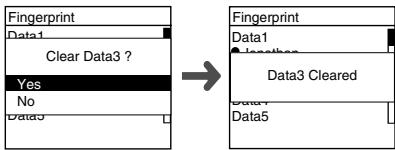
1 Select the registration number you want to erase and press the ERASE button. The method for Step 1 on P.43 will appear on the registration number list screen.
2 Press + or - to select [Yes] and then press the OK/MENU button.
flowchart
graph LR
    A["Fingerprint\nData1\nClear Data3 ?\Yes\nNo\nData5"] --> B["Fingerprint\nData1\nCleared\nData3\nData4\nData5"]
The erasing of the selected registration data will be completed.
Setting Priority Levels (Priority)
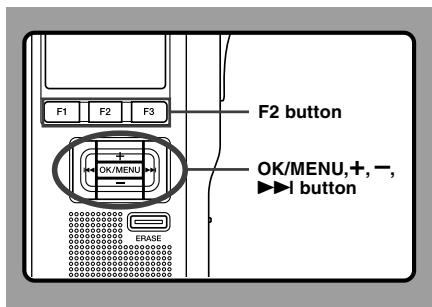
By default, F2 button is programmed with Priority function. The setting can also be performed from the menu.
You can set a priority level on each file recorded. You can choose between “HIGH” and “NORMAL” The default is Normal level.
To Set a Priority Level on a File
1 Select the file you want to perform the setting on and press the F2(PRIOR) button.
Each time the F2(PRIOR) button is pressed the Priority level will change (HIGH/NORMAL). When the HIGH level setting is selected, ! will appear on the display.
Perform the setting in the same manner after creating a NEW file.
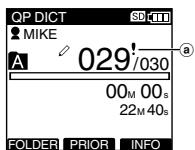
a Priority indicator
1 Choose the file which you would like to set the Priority level for.
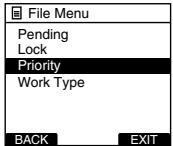
2 Select [Priority] from the [File Menu] screen and press OK/MENU or the ▶▶▶ button.
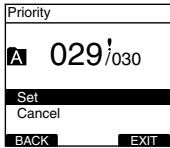
3 Press the + or - button to choose between [Set] and [Cancel], then press OK/MENU button.
[Set]...High Level.
[Cancel]...Normal Level.
Setting the Author ID and Work Type
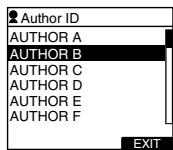
Every file recorded on the recorder will include the Author ID and Work Type as part of its header information. To create multiple Author IDs and Work Types on the recorder, use the bundled DSS Player software to create and upload a Data list (list of Author IDs and Work Types) to the recorder. For more details, refer to the online help for DSS Player (P.59). By default the Author ID is set to [DS5000].
Setting an Author ID
1 Turn ON the recorder.
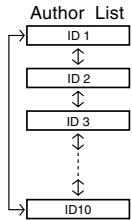
When [The Author List is displayed when the power is on] has been set through DSS Player (P.55), the registered Author ID List will appear.
flowchart
graph TD
    A["Author List"] --> B["ID 1"]
    B --> C["ID 2"]
    C --> D["ID 3"]
    D --> E["..."]
    E --> F["ID10"]
Recordings created afterward will have the selected Author ID in their headers.
Note
- Up to 10 Author ID entries can be registered (up to a maximum of 16 characters).
Setting the Work Type
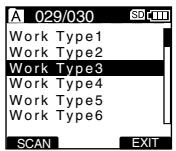
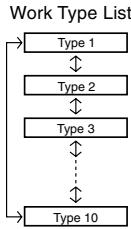
Up to 10 Work Types can be registered in the DSS Player software and uploaded to the recorder. Each Work Type can have up to 10 Option Items fields* associated with it. The Work Types and Option Items can be used on the recorder to populate the recording file header information.Refer to the online help for DSS Player (P.59) regarding registration/set up details and Option Item through DSS Player.
*Each Option Items field has a maximum of 20 characters limit for each of the field name and the field value. Preset default values can also be set for the option items to simplify data entry process.
1 Press the NEW button while in STOP mode.
When [The Worktype List is displayed when a new file is created] has been set through DSS Player (P.55), the Work Types uploaded to the recorder will appear in a list.
2 Press the + or - button to highlight a Work Type from the Work Type list.
flowchart
graph TD
    A["Type 1"] --> B["Type 2"]
    B --> C["Type 3"]
    C --> D["..."]
    D --> E["Type 10"]
3 Press the OK/MENU button to select the Work Type.
All recordings made with the new Work Type ID will have the new Work Type as part of the header information.
The selected Work Type and a maximum of 10 Option Items registered for that Work Type will be recorded in the New File header information. When [Set in the recorder] has been set for the Option Item ID within the selected Work Type, it will take you to the file information input screen (€ P.48). For more details, refer to the online help for DSS Player (€ P.59).
Editing the Work Type
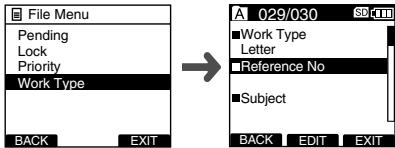
1 Select the file you want to edit its Work Type information (P.41).
2 Select [Work Type] from the [File Menu] screen and press OK/MENU or the ▶▶I button.
The Work Type setting screen will appear.
2 Press the F2(EDIT) button.
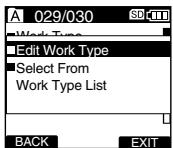
The modification method confirmation screen will appear.
4 Press the + or - to select [Edit Work Type] or [Select From Work Type List] and then press the OK/MENU button.
Edit Work Type...This will take you to the file information input screen and allow you to modify the Work Type information that has been set for the file.
Select from Work Type List...select a different Work Type from the Work Type list.
The input screen will be displayed.
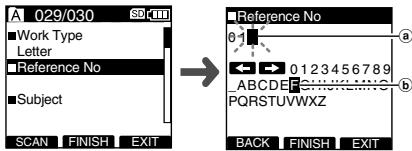
When inputting file information into a new file or an existing file, only eligible input characters as specified in the DSS Player can be entered.
Entering characters.
Enter characters through the following method.
● Character selection
+, -, |◀◀, ▶▶▶ button... Use these buttons to easily navigate the cursor up, down, left, and right among the displayed numbers, alphabet letters, and symbols.
● Character confirmation
OK/MENU button... Use this button to confirm your selection.
● Moving the entry column
→... Moves the entry column one space after (right).
←... Moves the entry column one space before (left).
Entry is performed by insert entry. When the character in the entry column has already been finalized, the character after the cursor will move one column to the right.
● Maximum entered character count
Option Item ID... 20 characters
● Cancelling the entered contents
Press the F1(BACK) button, to select [YES], and then press the OK/MENU button during entry...This will erase the entered contents for this item and return you to the file information input screen.
Press the F3(EXIT) button to select [YES], and then press the OK/MENU button during entry... This will erase all of the finalized contents for the items and take you to the NEW mode and take you to the paused mode for New Files or the state before entering Menu settings.
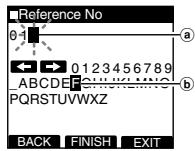
a Entry column
b Cursor
This will return you to the file information input screen. When inputting file information while creating a New File, pressing the F2(FINISH) button while inputting the bottom most Option Item ID in the items set as eligible for input will take you to the paused mode for the New File.
The data recorded with the F1(VERBAL) button being pressed during recording, is recorded as a Verbal comment position (a position within a file) in the header.
It is possible to instantly search and play back Verbal comment sections through DSS Player, thereby making it useful for things like giving instructions to transcriptionists.
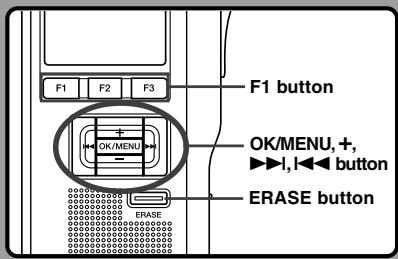
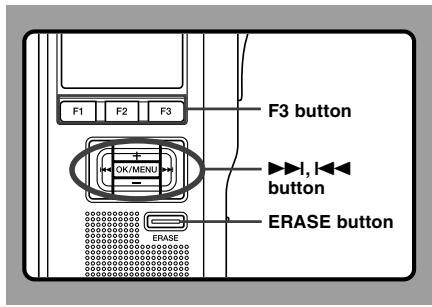
1 While recording, press and hold the F1(VERBAL) button, and release it when you want to stop.
Audio recorded while continuing to hold the F1(VERBAL) button will be recorded as Verbal Comment.
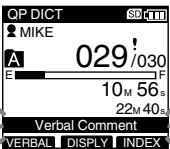
2 Hold the ▶▶▶ or ◀◀◀ button while playing a file.
The recorder stops for 1 second when it reaches the Verbal Comment.
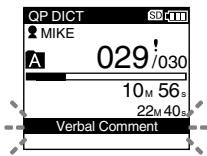
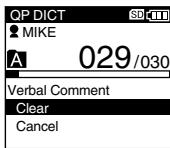
3 Press the ERASE button while playing back a Verbal Comment.
4 Press the + button to select [Clear] and then press the OK/MENU button.
The Verbal Comment is erased.
Notes
- Up to 32 Verbal Comment can be set in a file.
- When a file is locked or set to read-only, or when the SD card lock is enabled Verbal Comment cannot be erased. Clear the settings before erasing.
- When the recorder has been set to Classic DSS mode, Verbal comments cannot be recorded.
Index marks can be placed in a file during recording or playback. Index marks are used to provide a quick and easy way to identify important or significant parts within the file.
Setting an Index Mark
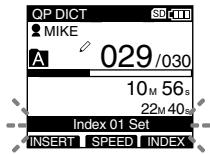
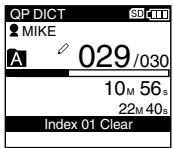
1 Press the F3(INDEX) button during recording or playback to set an index mark.
An index number appears on the display.
Locating an Index Mark
2 Hold the ▶▶▶ or ◀◀◀ button while playing a file.
The recorder stops for 1 second when it reaches the index mark.
Clearing an Index Mark
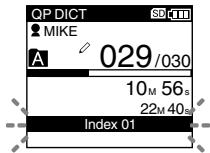
3 Locate the index mark you want to clear.
4 Press the ERASE button while the index number appears for approximately 2 seconds on the display.
The index mark is erased.
Notes
- Up to 32 indexmark can be set in a file.
- When a file is locked or set to read-only, or when the SD card lock is enabled Indexmark Comment cannot be erased. Clear the settings before erasing.
- When the recorder has been set to Classic DSS mode, index marks are limited to a maximum of 16 for each file.
Inserting and Ejecting a microSD card
When it is necessary to remove or insert the microSD card serving as the built-in memory in emergencies, use the method below to either remove or insert it.
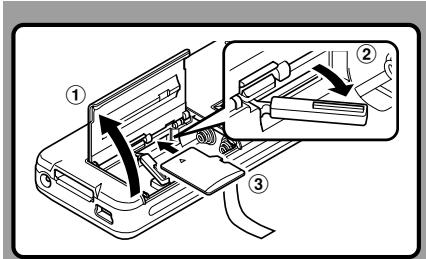
Inserting a microSD card
① Open the battery cover (P.14).
② Open the card cover inside the battery compartment.
③ Insert the microSD card into the card slot in the direction shown in the illustration until it clicks.
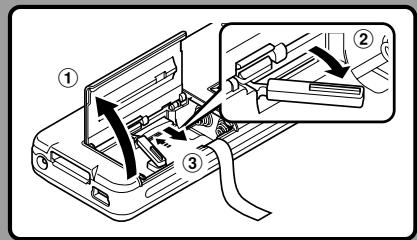
Ejecting a microSD card
① Open the battery cover (P.14).
② Open the card cover inside the battery compartment.
③ Push the microSD card inward once to unlock it, and let it eject.
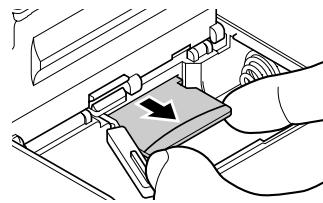
When it is Difficult to Eject the microSD card
The microSD card is sometimes difficult to take out. In this case, pick up a card with your fingers as shown in the illustration. Exercise caution when using things like tweezers, as there is the risk of accidentally damaging the card and rendering it unable to read data out.
natural_image
Illustration of hands operating a mechanical device with a highlighted component (no text or symbols visible)
Cards that have been used in non-Olympus devices, or cards that are not recognized by the recorder, must be formatted before they can be used with the recorder.
To familiarize yourself with the formatting process, read the steps below.
In terms of formatting, only selected cards can be formatted, the recorder's menu settings cannot be initialized. The initialization of menu items should be set up through DSS Player or the recorder's [Reset Settings].
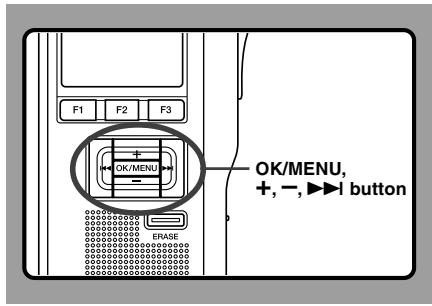
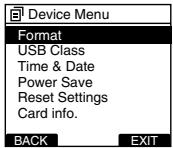
1 Select [Device Menu] from the [Format] screen and press OK/MENU or the ▶▶▶ button.
Refer to P.36 regarding the menu's various setting items.
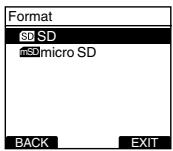
2 Press the + or - button to select [SD] or [microSD] and then press the OK/MENU or ▶▶▶ button.
3 Press the + or - button to highlight the [Start] option.
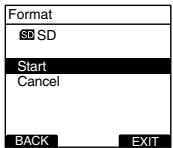
4 Press the OK/MENU button to confirm [Start] selection.
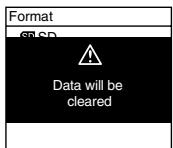
5 Press the + or - button again to highlight the [Start] option.
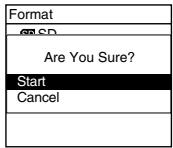
6 Press the OK/MENU button again to initiate the formatting process.
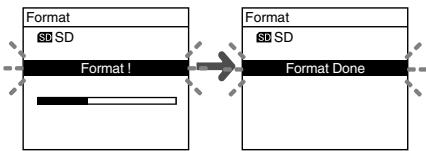
flowchart
graph LR
    A["Format I"] --> B["Format Done"]
    style A fill:#f9f,stroke:#333
    style B fill:#bbf,stroke:#333
[Format Done] displays when formatting ends.
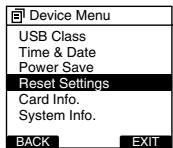
To return the recorder's menu settings to their original status from the time of purchase (initial settings), perform the setting from [Reset Settings] in the [Device Menu], or perform the same operation by using DSS Player.
Notes
- The time required to format cards differs depending on the capacity of cards. Do not interrupt the formatting process by the following operations. Doing so will damage the data or card.
- Remove the card.
- Remove the batteries.
- When the card is formatted, all the stored data, including locked files, are erased.
- If an unformatted card is inserted, the recorder automatically displays the format option in the menu.
- SD cards for which the SD card lock is enabled cannot be initialized.
Customizing the Recorder
You can customize various specifications of the recorder when using DSS Player (P.55). For more details, refer to the online help for DSS Player (P.59).
The Recorder's Customized Settings
You can change the allocated functions for the Programmable smart buttons (F1, F2, F3 buttons), the NEW button, and the slide switch.
□ Hands-Free settings
You can perform settings related to the Hands-Free operation with the Foot Switch (RS27/28 sold optional).
You can set the default values for each of the recorder's Menu items.
□ Security settings
You can perform various settings related to the recorder's device lock.
• Device lock function ON/OFF.
- Settings related to the timing for setting the device lock.
- Password settings.
- Changing the number of allowable input errors (mismatches) for the password.
☐ Author List settings
You can perform settings related to the Author, such as Author registration.
□ Work Type List settings
You can perform settings related to the Work Type, such as Work Type registration.
☐ Folder settings
You can perform various settings related to the recorder's folders.
□ Dictation settings
You can perform various settings related to the recorder's Dictation.
- Recording format (DSS Pro/Classic DSS) selection.
- Recording mode (Overwrite/Append/Insert) setting.
- Settings related to eligible files when downloading to a PC (All Files/Finished Files).
□ Alarm settings
You can set occasions for the recorder's alarm or beep noise to sound.
☐ Slide Switch Guide settings
You can set the Slide Switch Guide, which indicates the position of the Slide Switch on the recorder's LCD screen, to either enabled or disabled.
☐ Permission settings
You can perform various settings related to user authorization, such as prohibiting both file erasure and MENU settings.
□ Splash Message settings
You can set the contents that appear in the message which is displayed during startup.
□ Display settings
- You can select a default pattern for display during recording from 5 patterns.
- On the 2nd line of LCD, you can display File Name or Work Type instead of Author ID which is currently displayed in the NEW, STOP, REC, PLAY, CUE/REV, FF/REW or ERASE mode.
4 Managing Files on Your PC
DSS Player Software
The DSS Player is a fully featured software tool that provides a simple to use but sophisticated method of managing your recordings. Some of the features of the DSS Player are:
• Automatic startup of the application by connecting the device.
- Automatic download of Dictation by connecting the device.
- Backs up downloaded Dictation (Windows only).
- Automatic transmission of downloaded Dictation to addresses specified through e-mail and FTP (Windows only).
- Automatic transmission of transcribed documents through e-mail and FTP, as well as Dictation and link management (Windows only).
- Voice recorder's menu setting.
- Customize functions on the recorder (Windows only).
- Direct recording and editing of existing Dictation through Voice recorder's button and slide operation.
- Recording Instruction Comments and Verbal comments (Windows only).
- Encrypt the Dictation within the folder by encrypting the folder itself (Windows only).
Make sure that your computer meets the minimum requirements listed below. Please check with your system administrator or your Olympus Professional Dealer.
Minimum Requirement
Windows
| Operating System: | Windows 2000 Professional Service Pack4; Windows XP Professional/XP Home edition Service Pack2; Windows XP 64-bit; Windows Vista Ultimate/Enterprise/Business/Home Premium/Home Basic; Windows Vista Ultimate 64-bit edition/Enterprise 64-bit edition/Business 64-bit edition/Home Premium 64-bit edition/Home Basic 64-bit edition; Windows Server 2003; Windows Server 2003 x64 edition |
| CPU: | Windows 2000/XP: 500MHz processor or more Windows Vista: 800MHz processor or more Windows Server 2003: 550MHz processor or more |
| RAM: | Windows 2000/XP: 128MB or more Windows Vista: 512MB or more Windows Server 2003: 256MB or more |
| Hard drive space: | Dictation Module: 70MB or more; Microsoft .NET Framework Version 2.0: 150MB |
| Drive: | CD or DVD drive |
| Display: | 800 x 600 pixels or more, 65536 colors more |
| USB port: | One or more free ports |
| Audio I/O terminals: | Windows-compatible sound device |
Macintosh
| Operating System: | Mac OS 10.3.9 - 10.5 |
| CPU: | PowerPC G3; Intel Core/Duo |
| RAM: | 256MB or more (512MB or more is recommended) |
| Hard drive space: | 200MB or more |
| Display: | 1024 x 768 pixels or more, 32,000 colors more |
| USB port: | One or more free ports |
Note
• Macintosh version does not support voice recognition software.
Be sure to confirm the following before installation:
- Exit all running applications.
- Eject the floppy disk if you are using one.
- If you are running Windows 2000/XP/Vista or Mac OS X on the network, you need to log on as an Administrator.
Windows
For the Windows version, there is an installation method for individuals and one for administrators to install on multiple client PCs. An explanation of the installation method for individuals installing the software on a single PC will be provided here.
1 Insert Olympus DSS Player CD into the CD-ROM drive.
The installation program will start automatically. If the installation program does not start automatically, browse your CD-ROM drive and execute "setup.exe".
The launcher will startup.
Select the language you would like to install from the upper-left pull-down menu and click [Installation for Standalone System].
2 The Install Wizard will begin.
Once you have consented to the licensing agreement, enter your name, company name, and license ID number (serial number).
The license ID number is printed on the license ID card included inside the recorder package.
4 Proceed with the installation according to the instructions on the screen.
Macintosh
1 Insert Olympus DSS Player CD into the CD-ROM drive.
2 Double-click the CD icon.
Double-click the setup icon.
The Install Wizard will begin.
Once you have consented to the licensing agreement, follow the instructions on the screen to complete the installation.
4 Proceed with the installation according to the instructions on the screen.
5 You will be requested to restart, so conduct a restart by following the instructions.
Windows
1 Exit DSS Player program.
2 Click the [start] button on the taskbar.
3 Select [Add/Remove programs] from the [Control Panel].
A list of installed applications is displayed.
4 Select [Olympus DSS Player Pro], then click the [Change/Remove] button.
5 Proceed with the installation according to the instructions on the screen.
Macintosh
1 Exit DSS Player.
Delete the Preferences file.
Delete the [DSS Preference] file in the following location.
Macintosh HD:User:Library:Preferences
Delete the Executable file.
Delete the [DSS Player] file in the location where you installed the file.
Note
- The dictation files you made are stored in the [MESSAGE] folder. If you don't need them, delete them. You can confirm the location of the [MESSAGE] folder by clicking on [Options] in the [Tools] menu before uninstalling.
For information on the DSS Player usage and features, refer to the online Help.
To start online Help:
Windows
1 Click the [start] button, then select [All Programs], [Olympus DSS Player], [Dictation Help].
2 While DSS Player is running, select the [Help] menu, [Contents].
3 While DSS Player is running, press F1 on the keyboard.
Macintosh
While DSS Player is running, select [DSS Player Help] from the [Help] menu.
Note
- Online Help is available after the DSS Player is installed (P.57).
natural_image
Illustration of a cable being inserted into a device (no text or symbols visible)
natural_image
Diagram showing a device with an external cable connected to a package (no text or symbols visible)
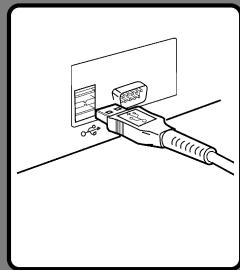
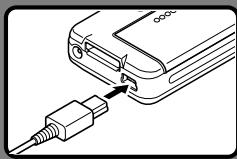
Connecting to Your PC Using the USB Cable
1 Turn ON the recorder (P.20).
2 Connect the USB connection cable to the USB port of the PC.
3 Confirm that the recorder has stopped and connect a USB cable to the connection port on the recorder.
If [Remote] is displayed on the recorder, it indicates proper connections.
Once you connect the recorder to your PC, the recorder will be powered through the USB cable. When the AC adapter is connected power will be supplied from the AC adapter.
Notes
- NEVER remove the card or disconnect the USB cable while the record/play indicator light is flashing. If you do, the data on the card will get destroyed.
- Some PCs may not supply sufficient power and the recorder fails to connect. Refer to your PC User's Manual regarding the USB port on your PC.
- Do not connect the recorder to a PC by using a USB hub. Make sure to connect to a USB port on your PC.
- Make sure to push the cable connector all the way in. Otherwise, the recorder may not operate properly.
Supported computers
Windows
Operating System: Windows 2000/XP/Vista
Supported computers: Windows computers equipped with more than one free USB port.
Macintosh
Operating System: Mac OS 10.3.9 - 10.5
Supported computers: Apple Macintosh series equipped with more than one free USB port.
Notes
- This is an operational environment for saving the files recorded by this recorder to your PC with USB connection.
- Even if operational environment is satisfied, we do not support upgraded OS, the multi-boot environment and self-modified computers.
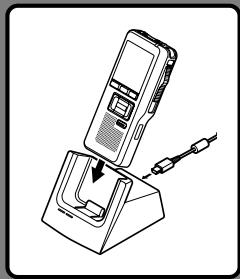
natural_image
Illustration of a handheld device with a cable inserted, showing internal components and a downward arrow (no text or symbols)
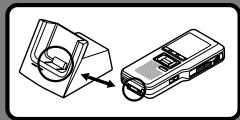
natural_image
Diagram showing a device being inserted into a housing, with no visible text or symbols.
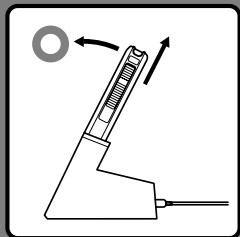
natural_image
Diagram of a mechanical device with a circular component and directional arrows indicating motion (no text or symbols)
Connecting to Your PC Using the Cradle
Place the recorder in the cradle
1 Connect the USB connection cable to the USB port of the PC.
2 The USB cable is connected with cradle as shown in figure.
3 Turn ON the recorder, then set the recorder in the cradle. If [Remote] is displayed on recorder, it indicates proper connection.
Disconnecting Recorder from PC
To avoid data corruption or loss, make sure that the recorder's record/play indicator light isn't flashing, before removing the recorder from the cradle or disconnect the cable from the recorder terminal.
Remove the Recorder from the Cradle
To prevent damage or loss of the data, confirm that the recording/ playback indicator light of this recorder is not on, and remove this recorder and USB connection cable from the cradle.
Notes
- Never touch the contact points at the bottom of the cradle, as that may cause bad connection.
- With a PC connected, the recorder cannot be operated with the foot switch (RS27/28). When connecting the recorder to a PC via the cradle, remove the foot switch.
Running DSS Player
By default, connecting the recorder to your PC, will start the application automatically. Connecting to your PC Using the Cradle.
Windows
Disabling Automatic Start
1 Right-click the Device Detector in the System Tray in the lower right-hand corner of the screen, then select [Settings startup application].
2 Click [DSS Player Pro].
The check mark on [DSS Player Pro] disappears.
Manual Start
1 Start Windows.
2 Click the [start] button, then select [All Programs].
All program menu will be displayed.
3 Select [Olympus DSS Player Pro], then click [Dictation Module].
Macintosh
Disabling Automatic Start
1 Click the Dock's System Preferences.
2 Click Device Detector.
The check mark on [DSS Player Pro] disappears.
3 Turn the automatic startup setting Off.
Manual Start
1 Start your Macintosh.
2 Double click the DSS Player icon for the folder in [Application] → [DSS Player]. All program menu will be displayed.
3 Register user information
The user's registration screen will be displayed at the time of initial startup. Please input the serial number. Please see the seal attached to the CD-ROM package included with the DSS Player, for the serial number. After the input has ended, click [OK] to complete the registration.
Alarm Message List
| Message | Meaning | Explanation | Action |
| Battery Low | Low battery power | Battery power is getting low. | Charge the battery pack or replace with new batteries. (P.14, 17). |
| Power Supply Error | Abnormal voltage detected | Voltage outside of the allowable limit has been detected. | Use the included AC Adapter (P.19). |
| File Protected | Erase-locked | Attempt to delete a locked file. | Unlock the file (P.37). |
| Index Full | Index full | The file is full of index marks (maximum of 32 marks). | Erase index marks that are no longer required (P.50). |
| Folder Full | Folder full | The folder is full of files (maximum of 200 files). | Erase unnecessary files (P.31). |
| Maximum number | The destination folder already has the maximum number of files (200). | Erase unnecessary files (P.31). |
| Erase Error | Erase failure | An error occurred while erasing. | Erase once again.When an Erase Error occurs format the card. |
| Card Error | Incompatible card | An incompatible card was inserted. | Insert a compatible card (P.21, 51). |
| Memory Full | Zero remaining memory | The card has no remaining memory. | Erase files that are no longer required or insert another card. |
| Format Error | Formatting error | There was an error while formatting the card. | Reformat the card (P.52). |
| System Error | System error | System error detected in the recorder. | This is a malfunction. Contact the place of purchase or Olympus Service Center for repair. |
| Insert Card | No card | There is no card inserted. | Insert a card (P.21, 51). |
Troubleshooting
| Symptom | Probable cause | Action |
| Nothing appears on the display | The batteries are not loaded properly. | Verify polarity is correct (P.14, 15). |
| The batteries are dead. | Replace with new batteries (P.15). |
| The recorder is in power off mode. | Turn the recorder ON (P.20). |
| Won’t start | The recorder is in power off mode. | Turn the recorder ON (P.20). |
| The batteries are dead. | Replace with new batteries (P.15). |
| Unable to record | The card does not have enough memory. | Erase unnecessary files or insert another card (P.21, 31, 51). |
| The card is unformatted. | Format the card (P.52). |
| The maximum number of files has been reached. | Check another folder. |
| The SD card is locked. | Unlock the SD card lock (P.10). |
| No playback tone heard | The earphone is connected. | Unplug the earphones to use the internal speaker. |
| The VOLUME button is set to 0. | Adjust the VOLUME button. |
| Unable to erase | The file is locked. | Unlock the file (P.37). |
| The SD card is locked. | Unlock the SD card lock (P.10). |
| Noise heard during playback | The recorder was shaken during recording. | — |
| The recorder was placed near a cell phone or fluorescent lamp while recording or during playback. | Move the recorder. |
| Recording level too low | The microphone sensitivity is too low. | Set the microphone sensitivity to Conference mode and try again (P.37). |
| Unable to set index marks | The maximum number of index marks (32) has been reached. | Erase unnecessary index marks (P.50). |
| The file is locked. | Unlock the file (P.37). |
| The SD card is locked. | Unlock the SD card lock (P.10). |
| Cannot find the recorded voice | Wrong folder. | Switch to the right folder. |
| Switch the recording card. | The recorder is recording to another card. |
| Cannot connect to a PC using a cradle | Sometimes a connection cannot be made with some PCs running Windows XP or Vista. | You need to change the PC’s USB settings. See DSS Player online help for details (P.59). |
Headset: E62, E102
Stereo headset for your PC. A helpful tool for PC based transcription.
Monaural binaural earphone: E20
Noise-cancellation microphone: ME12 (Dictation microphone)
Used to get crisp recordings of your own voice by reducing the effects of ambient noise. Recommended to improve the accuracy when using voice-recognition software.
External microphone: ME15
A lavalier omnidirectional microphone that clips to clothing. Used to record your own voice or people near you.
PC transcription kit: AS-5000
The AS-5000 transcription kit provides you with a PC-footswitch, a headset and DSS Player Pro Transcription Module for easy transcription of DSS recordings.
Foot switch: RS27/28
Connect to the USB cradle with DS-5000/DS-5000iD for hands-free transcription.
Connecting cord: KA333
Use to connect the microphone jack of this unit to a radio or other sound source.
Telephone pickup: TP7
Earphone type microphone can be plugged into your ear while phoning. The voice or conversation over the phone can be clearly recorded.
Ni-MH rechargeable battery: BR403
High-efficiency rechargeable long life batteries.
Highly sensitive noise-cancellation monaural microphone: ME52W
This microphone is used to record sound at a distance while minimizing surrounding noise.
micro SD, SD-card: 512 MB to 8 GB
Input level -70 dBv
Sampling frequency
QP mode: 16 kHz
SP mode: 12 kHz
Overall frequency response
QP mode: 200 to 7,000 Hz
SP mode: 200 to 5,000 Hz
Recording time (512 MB Card)
QP mode: 38 hours 45 minutes
SP mode: 79 hours 30 minutes
Alkaline battery life
Recording
QP mode: Approx. 24 hours
SP mode: Approx. 32 hours
Playback
All mode: Approx. 13 hours
Ni-MH Rechargeable Battery life
Recording
QP mode: Approx. 20 hours
SP mode: Approx. 28 hours
Playback
All mode: Approx. 10 hours
Speaker
Built-in ø23mm round dynamic speaker
MIC/EAR jack
ø3.5 mm mini-jack, impedance MIC
2 kΩ, EAR 8 Ω or more
Maximum working output (3 V DC)
250 mW or more (8 Ω speaker)
Rated voltage: 5 V
Batteries: Ni-MH Rechargeable Battery
Pack or Two AAA batteries
(LR03 or R03) or Two Ni-MH
rechargeable batteries
External dimensions
113.5 x 50.0 x 17 mm
(without protrusions)
Weight
110 g (Including Ni-MH Rechargeable Battery Pack)
* Specifications and design are subject to change without notice.
* Battery life is measured by Olympus. It varies greatly according to the type of batteries used and the conditions of use.
Technical Assistance and Support
DS-5000 is part of the Olympus Professional Dictation System. Your dealer is trained to troubleshoot and fix many common problems that you may be having with this system. If you encounter problems using your DS-5000/5000iD, we recommend that you contact your Olympus Professional Dealer that sold you the system. If your dealer cannot fix your problem, please call our technical hotline number or send an E-mail.
◆ For customers in the U.S. and Canada
Phone: 1-888-553-4448
E-mail: distec@olympus.com
◆ For customers in Europe
E-mail : dss.support@olympus-europa.com
Declaration of Conformity
Model Number: DS-5000/5000iD
Trade Name: DIGITAL VOICE RECORDER
Responsible Party: OLYMPUS IMAGING AMERICA INC.
Address: 3500 Corporate Parkway, P.O. Box 610, Center Valley, PA 18034-0610, U.S.A.
Telephone Number: 1-888-553-4448
This device Complies with Part 15 of the FCC Rules. Operation is subject to the following two conditions: (1) This device may not cause harmful interference, and (2) this device must accept any interference received, including interference that may cause undesired operation.

Tested To Comply
With FCC Standards
FOR HOME OR OFFICE USE
Canadian RFI
This digital apparatus does not exceed the Class B limits for radio noise emissions from digital apparatus as set out in the Radio Interference Regulations of the Canadian Department of Communications.
For customers in Europe

“CE” mark indicates that this product complies with the European requirements for safety, health, environment and customer protection.

This symbol [crossed-out wheeled bin WEEE Annex IV] indicates separate collection of waste electrical and electronic equipment in the EU countries.
Please do not throw the equipment into the domestic refuse.
Please use the return and collection systems available in your country for the disposal of this product.
(Premises/Goods delivery) Wendenstrasse 14-18, 20097 Hamburg, Germany. Tel. 040-237730
(Letters) Postfach 10 49 08. 20034 Hamburg, Germany.
OLYMPUS UK LTD.
Vision House 19, Colonial Way Watford Hertfordshire WD24 4JL, United Kingdom. Tel. 01923-83-1100
http://www.olympus.com/