DS-320 - Dictaphone OLYMPUS - Free user manual and instructions
Find the device manual for free DS-320 OLYMPUS in PDF.


| Product Type | Digital Voice Recorder |
| Brand | Olympus |
| Model | DS-320 |
| Dimensions (W x H x D) | Approximately 109 x 39 x 18 mm |
| Weight | Approximately 60 g (without batteries) |
| Power Source | 2 x AAA alkaline batteries |
| Battery Life (recording) | Up to 22 hours (LP mode) |
| Recording Media | Built-in flash memory (128 MB) + SD card slot |
| Recording Formats | DSS (Digital Speech Standard), WMA |
| Recording Modes | HQ, SP, LP |
| Maximum Recording Time | Approximately 44 hours (LP mode with 128 MB) |
| Playback Formats | DSS, WMA, MP3 |
| Microphone | Built-in stereo microphone |
| Speaker | Built-in 28mm dynamic speaker |
| Headphone Jack | 3.5 mm stereo mini jack |
| USB Interface | USB 2.0 (mini-B connector) |
| Power Saving | Auto power off after 30 minutes of inactivity |
| Maintenance | Clean exterior with a soft, dry cloth; avoid solvents |
| Safety | Keep away from water and extreme temperatures; use only recommended batteries |
| Spare Parts & Repairability | Contact Olympus support for replacement parts or service; device is not user-serviceable |
Frequently Asked Questions - DS-320 OLYMPUS
User questions about DS-320 OLYMPUS
0 question about this device. Answer the ones you know or ask your own.
Ask a new question about this device
Download the instructions for your Dictaphone in PDF format for free! Find your manual DS-320 - OLYMPUS and take your electronic device back in hand. On this page are published all the documents necessary for the use of your device. DS-320 by OLYMPUS.
USER MANUAL DS-320 OLYMPUS
Please read these instructions for information about using the product correctly and safely. Keep the instructions handy for future reference.
To ensure successful recordings, we recommend that you test the record function and volume before use.
For Safe and Correct Usage
Thank you for purchasing the Olympus Digital Voice Recorder DS-320. Before using your new recorder, read this manual carefully to ensure that you know how to operate it safely and correctly. Keep this manual in an easily accessible location for future reference.
- The warning symbols indicate important safety related information. To protect yourself and others from personal injury or damage to property, it is essential that you always follow the warnings and information provided.
General Precautions
- Do not leave the recorder in hot, humid locations such as inside a closed automobile under direct sunlight or on the beach in the summer.
- Do not store the recorder in places exposed to excessive moisture or dust.
- Do not use organic solvents such as alcohol and lacquer thinner to clean the unit.
- Do not place the recorder on top of or near electric appliances such as TVs or refrigerators.
- Avoid sand or dirt. These can cause irreparable damage.
- Avoid strong vibrations or shocks.
- Do not disassemble, repair or modify the unit yourself.
- Do not operate the unit while operating a vehicle (such as a bicycle, motorcycle, or go-cart).
- Keep the unit out of the reach of children.
- Do not use the unit aboard aircraft, in hospitals, or in other areas where its use is prohibited.
The copyrights for the “DSS Player” software and instruction manual are held by Olympus Optical Co., Ltd. IBM, PC/AT and ViaVoice are the trademarks or registered trademarks of International Business Machines Corporation.
Microsoft and Windows are registered trademarks of Microsoft Corporation.
Intel and Pentium are registered trademarks of Intel Corporation.
Macintosh and Apple are registered trademarks of Apple Computer, Inc.
Other product and brand names mentioned herein may be the trademarks or registered trademarks of their respective owners.
Batteries
Warning
- Batteries should never be exposed to flame, heated, short-circuited or disassembled.
- Do not attempt to recharge alkaline, lithium or any other non-rechargeable batteries.
- Never use any battery with a torn or cracked outer cover.
- Keep batteries out of the reach of children.
- If you notice anything unusual when using this product such as abnormal noise, heat, smoke, or a burning odor:
①remove the batteries immediately while being careful not to burn yourself, and;
②call your dealer or local Olympus representative for servicing.
AC Adapter
Warning
- Do not attempt to disassemble, repair or modify the AC adapter in any way.
- Keep objects including water, metal, or flammable substances from getting inside the product.
- Do not moisten the AC adapter or touch it with a wet hand.
- Do not use the AC adapter in the vicinity of flammable gas (including gasoline, benzine and lacquer thinner).
- Do not insert a dirty power supply plug into a power outlet.
- Do not damage the power cord.
In case
- ...the internal parts of the AC adapter are exposed because it has been dropped or otherwise damaged:
- ...the AC adapter is dropped in water, or if water, metal flammable substances or other foreign objects get inside it:
- ...you notice anything unusual when using the AC adapter such as abnormal noise, heat, smoke, or a burning odor:
①do not touch any of the exposed parts
②immediately disconnect the power supply plug from the power outlet, and
③call your dealer or local Olympus representative for servicing. Continued use of the AC adapter under these circumstances could result in electric shock, fire or injury.
Hardware Section
Table of Contents
Getting Started
Main Features 6
Identification of Parts 7
Preparing for Recording
Inserting Batteries 9
Hold 11
Replacing Batteries 10
Setting Time/Date 11
Using the AC Adapter.... 10
Setting an ID 13
Basic Operations
Recording.... 14
Erasing 21
Playing and Volume Control.... 18
Other Functions
Recording Modes 25
Index Marks 29
Microphone Sensitivity 26
Transferring Messages 30
Using the Variable Control Voice Actuator (VCVA) 27
System Sounds (Alarms) 31
Dictation Mode 28
Formatting 32
Reset 33
Other Information
Menu List 33
Specifications 35
Troubleshooting 34
Accessories (optional)...... 35
Software reference follows page 36.
DS-320 Main Features
Summary of product features:
- The DS-320 digital voice recorder stores highly compressed DSS format voice messages in 16MB integrated flash memory.
- The DS-320 supports two recording modes: SP (Standard Playback) mode and LP (Long Playback) mode. Continuous recording time is approximately 2 hours and 30 minutes* in SP mode and approximately 5 hours and 20 minutes* in LP mode.
- Recorded voice messages can be stored in two separate folders (up to 99 messages per folder) for easy identification at a later time.
- The Variable Control Voice Actuator (VCVA) helps save memory by pausing recording when it senses silence.
- Overwrite recording, insert recording and partial erasure functions make it easy to correct and edit recordings.
- The LCD panel includes a dot-matrix display which clearly displays message numbers, a real-time counter, remaining recording time, current time and date, operating mode, warnings, and other information.
* Maximum continuous recording time for a single message. Recording time may be shorter if you record many short messages. (Use the remaining recording time and recorded time indicators only as references.)
Identification of Parts
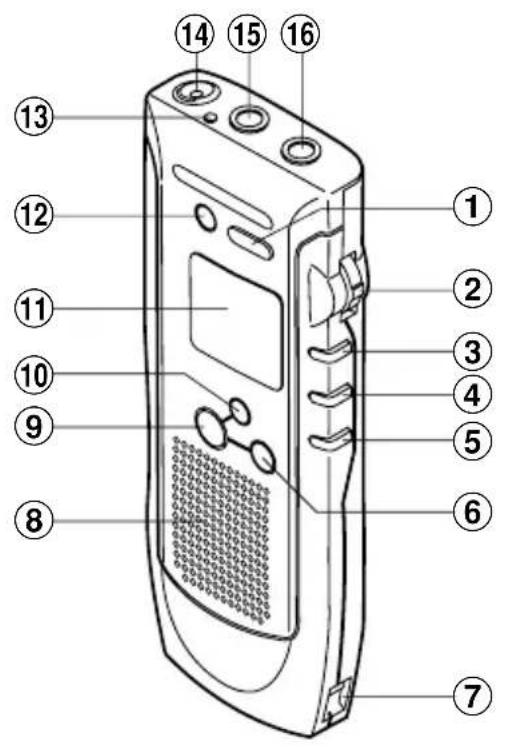
①SP DICT button
②MENU/VOL switch
③ PLAY button
④REW (Rewind) button
⑤FF (Fast Forward) button
⑥ STOP button
⑦Strap hook
⑧Built-in speaker
⑨REC (Record) button
⑩INDEX/FOLDER button
⑪ Display (LCD panel)
⑫ERASE button
⑬Record indicator lamp
⑭Built-in microphone
⑮ Earphone jack
⑯Microphone jack
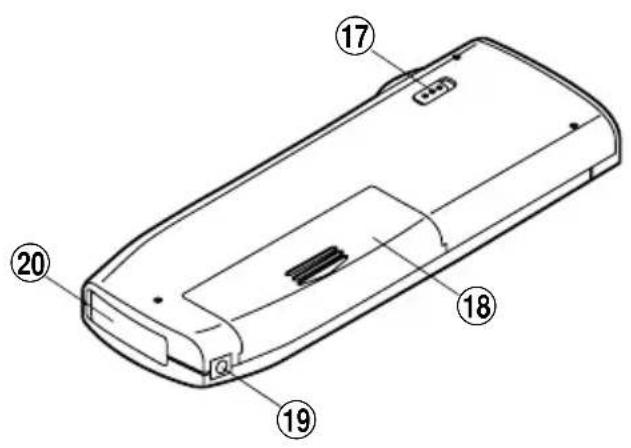
⑰HOLD switch
⑱Battery cover
⑲POWER jack
⑳PC I/F (interface) connector
Display (LCD Panel)
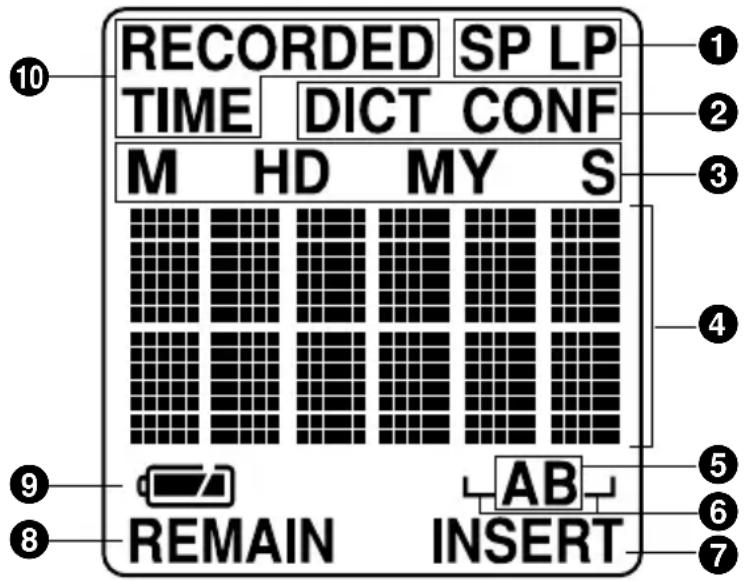
① Recording mode
② Microphone sensitivity
③ Month-date-year (M.D.Y.) and hour-minute-second (H.M.S.)
④ Elapsed time, remaining recording time, recording date and time indicators, menu display, etc.
⑤ Folders (A and B)
⑥ Message number display
⑦ Insert recording mark
⑧ Remaining recording time mark
⑨ Remaining battery indicator
⑩ Recording date/time mark
Standby Mode and Display Shut Off
If the recorder is stopped or paused for 30 minutes or longer, it goes into standby mode (power saving mode) and the display shuts off. To exit standby mode and turn on the display, press any one of the STOP, REC, PLAY, FF, or REW buttons, or the MENU/VOL switch. To put the recorder into standby mode (power saving mode) and shut off the display, put the HOLD switch in the HOLD position when the recorder is stopped or paused.
Inserting Batteries
natural_image
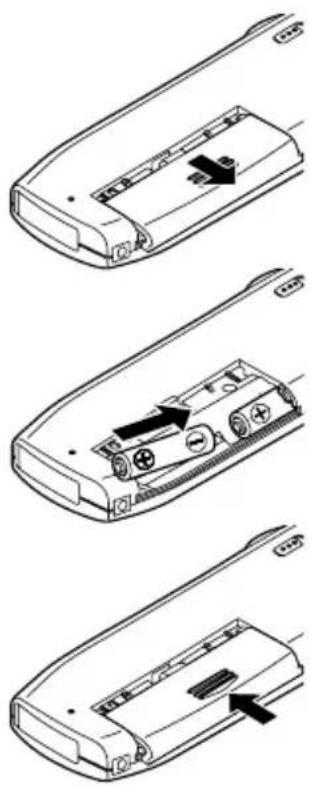
Three-step line drawing of a remote control panel with labeled ports and arrows indicating internal components (no text or symbols present)1 Slide open the battery cover.
2 Insert two AAA alkaline batteries, observing the correct polarity.
3 Close the battery cover completely.
The display will show the current date and time setting for 1 second before appearing as shown at right.
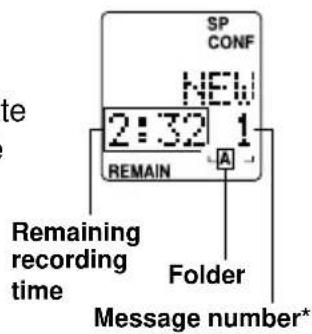
* The message number under "NEW" is the number of the next message to be recorded in this folder. For example, if you have three messages in this folder, you will see "4".
Note
If the battery cover is not closed completely, "OPEN" appears on the display and the recorder will not work.
OPEN
Replacing Batteries
If begins to flash on the display, stop the recorder and replace both batteries as soon as possible.
If [BATT] and appear on the display, the recorder will stop and will not operate. Replace both batteries immediately.
If the recorder fails to work properly after the batteries are replaced, see "Reset" on page 33.
Warning
- Be sure to stop the recorder before replacing the batteries. Unloading the batteries while the recorder is recording, erasing or otherwise accessing an audio file may corrupt the file.
- Use only specified batteries with this recorder.
- Never mix old and new batteries, or batteries of different types and/or brands.
- Remove the batteries if you are not going to use the recorder for an extended period of time.
Using the AC Adapter
natural_image
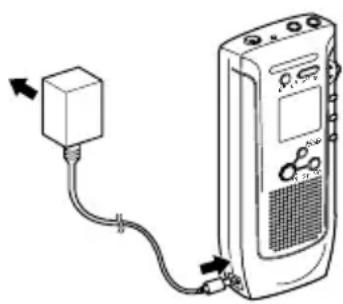
Line drawing of a device with a power outlet connected to a handheld device (no text or symbols visible)Plug in the optional AC adapter (Olympus Model A321 or A322) into a household power outlet and connect the power plug to the recorder's power connector (DC 3 V) as shown in the illustration. Do not connect the AC adapter to the recorder during recording. Always stop recording before connection. Otherwise it may not be possible to play back the voice data being recorded.
Warning
- Stop the recorder before disconnecting the AC adapter.
- When not using the recorder, always disconnect the AC adapter from the power outlet.
- Use only the correct power supply voltage as indicated on the adapter.
Hold
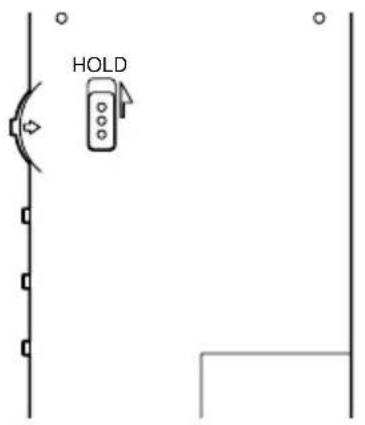
Setting the HOLD switch to the HOLD position locks the recorder. All buttons will be disabled and the display becomes blank. This is useful when the recorder is carried in a bag, briefcase, or your pocket because no buttons will work accidentally.
Remember to release the HOLD switch when using the recorder.
Notes
- When setting the HOLD switch to the HOLD position while playing a message, the recorder continues playing until reaching at the end of message.
- When setting the HOLD switch to the HOLD position while recording a message, the recorder continues recording until available recording time runs out.
- The recorder automatically stops and the display becomes blank after completion of playing or recording. All buttons are disabled as long as the switch is set to HOLD position. To stop playing or recording, you have to release the HOLD switch.
Setting Time/Date
All of your recorded messages will be stamped with the time and date that you finished recording. This feature is useful to manage your recordings.
If the time and date are not set, this information will be inaccurate.
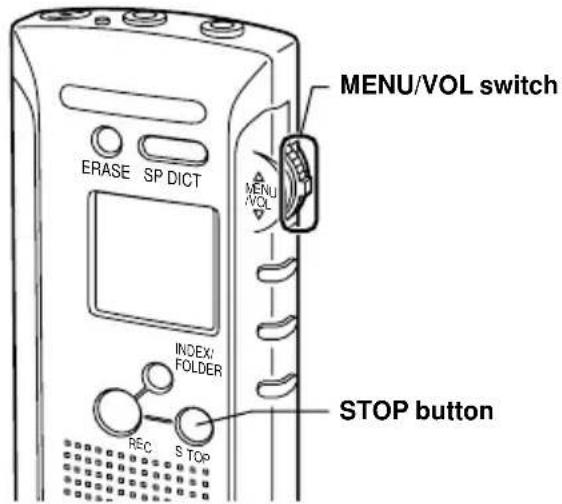
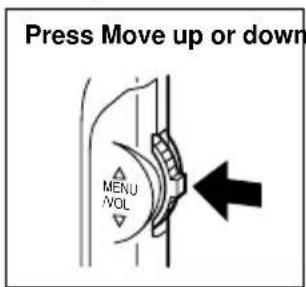
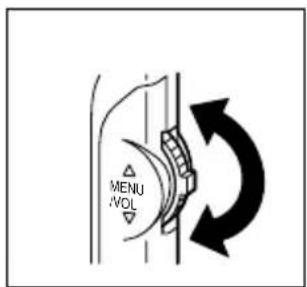
Using the MENU/VOL switch
Note
When batteries are inserted for the first time, the clock starts running from its initial state (January 1, 2000, 12 a.m.).
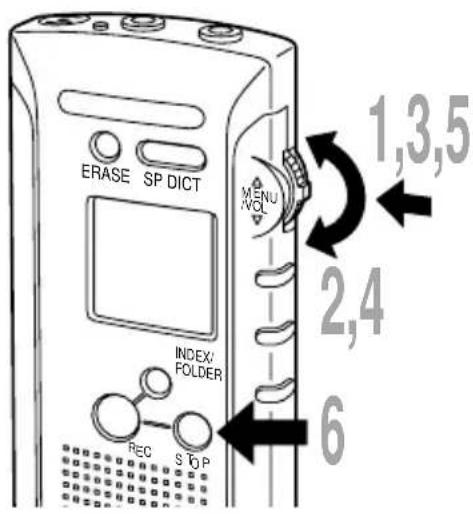
1 Press the MENU/VOL switch. The menu appears on the display.
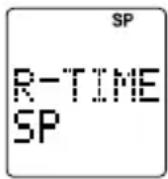
2 Move the MENU/VOL switch up to choose the screen with the flashing date/time indicator.
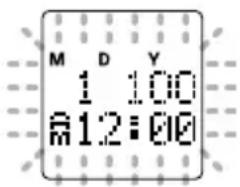
3 Press the MENU/VOL switch. The year cursor will flash.
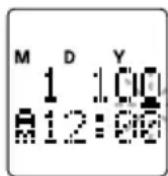
4 Move the MENU/VOL switch up or down to set the year.
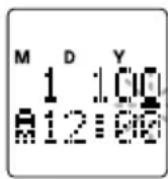
Continue to set the month, date, hour, and minute.
5 Press the MENU/VOL switch. The month cursor will flash.
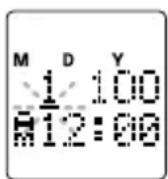
6 Set the month and press the MENU/VOL switch. The date cursor will flash.
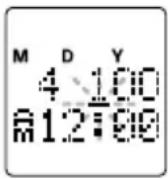
7 Set the date and press the MENU/VOL switch. The hour cursor will flash.
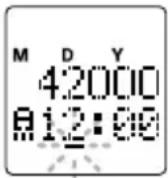
8 Set the hour and press the MENU/VOL switch. The minute cursor will flash.
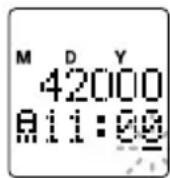
9 Set the minute and press the STOP button. This completes the date/time setup procedure.
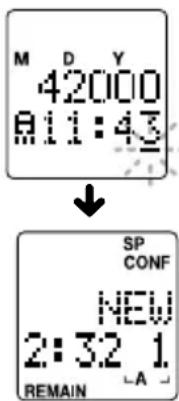
Note
If you leave the recorder idle for more than 3 minutes during setup, any settings entered to that point will be canceled.
Setting an ID
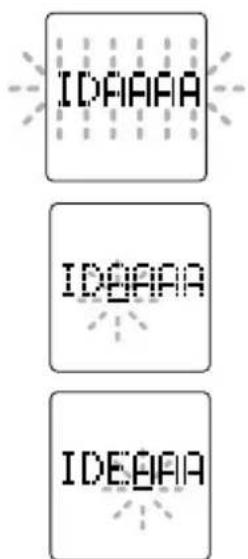
If an ID is set, it is automatically included in each message to help identify who recorded the message when it is transferred to a PC. Setting IDs is recommended for easier management of recorded messages. To set an ID, stop the recorder and follow these steps:
5 Press the MENU/VOL switch. Accepts the character and moves to the next position. Repeat the steps above to set a four-character ID.
1 Press the MENU/VOL switch. The menu appears on the display.
2 Move the MENU/VOL switch up to choose the "ID AAAA" screen.
3 Press the MENU/VOL switch. The cursor flashes at the first character position.
4 Move the MENU/VOL switch up or down to choose the first character.
Characters are selectable from A to Z and 0 through 9.
6 Press the STOP button.
This completes the ID setup procedure.
Note
If you leave the recorder idle for 3 minutes or longer during a setup operation, any settings entered to that point will be canceled.
Folders A and B can each hold up to 99 voice messages.
New Recording
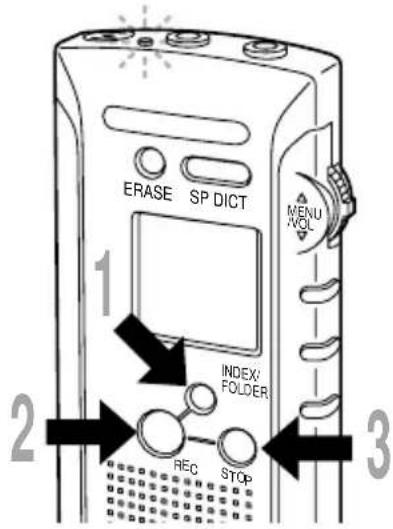
1 Press the INDEX/FOLDER button to choose a folder.
The INDEX/FOLDER button toggles between folder A and folder B each time you press it.
2 Press the REC button to start recording.
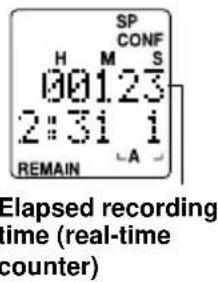
The recorder starts recording, and "REC" appears on the display for 2 seconds. The recording indicator lamp glows. Elapsed recording time appears on the display in hour-minute-second format (real-time counter).
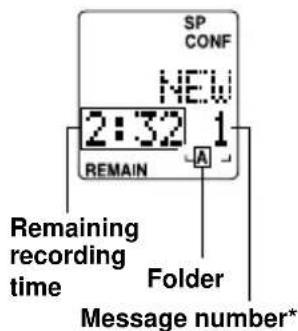
Press the STOP button to stop recording.
The recorder will stop recording, "NEW" appears on the display and the message number is incremented by one.
* The message number under "NEW" is the number of the next message to be recorded in this folder.
Pause Recording
Pause
Press the REC button while recording.
→ The elapsed recording time indicator on the display and the record indicator lamp will flash.
Resume Recording
Press the REC button again.
→ Recording will resume with the same message number.
Note
If you press the STOP button when the recorder is paused, the recorder will stop recording, "NEW" will appear on the display and the message number will be incremented by one.
Recording Settings
While the recorder is designed to record messages without requiring special settings, it offers a LP mode for long recordings, a DICT mode for dictation, and a Variable Control Voice Actuator (VCVA) to economize on memory usage. For more details see the relevant sections of the manual.
Recording modes:
SP (Standard Playback) mode/
LP (Long Playback) mode
→ P.25
Microphone sensitivity:
CONF (conference recording)/
DICT (dictation recording)
→ P.26
Variable Control Voice Actuator (VCVA):
OFF/ON → P.27
Notes
- When "FULL" appears on the display, you cannot record any more. To free up memory, you have to erase messages. (see page 21). To archive your recordings prior to erasing, you can transfer messages to a PC. (see software section).
- While recording is in progress, never disconnect or connect the AC adapter even if the recorder contains batteries. This may result in failure to play the recorded message.
- If the recorder is paused for 30 minutes or longer while recording, it enters standby mode and the display shuts off. (To release the recorder from standby mode and turn on the display, press any one of the STOP, REC, PLAY, FF, or REW buttons or the MENU/VOL switch.)
- See recording tips – for Record Meetings and Lectures. (P. 26)
Overwrite recording
You can overwrite a recorded message from any point by pressing the REC button while the recorder is stopped or paused.
Notes
- The previous recording will be erased.
- If the overwritten recording exceeds the recorded time of the previously recorded message, the next message is not erased.
Insert recording
You can insert recordings into previously recorded messages.
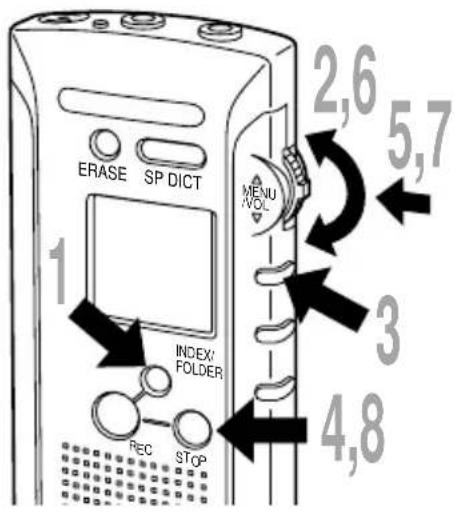
1 Press the INDEX/FOLDER button to choose a folder.
2 Move the MENU/VOL switch down to choose the message into which you want to insert recording.
3 Press the PLAY button to play the message.
4 Press the STOP button at the point where you want the insertion to start.
5 Press the MENU/VOL switch.
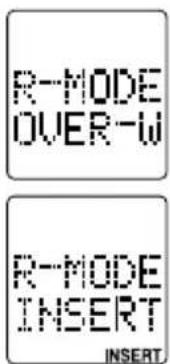
6 Move the MENU/VOL switch up or down to choose "R-MODE".
7 Press the MENU/VOL switch to choose "INSERT".
8 Press the STOP button.
Insert recording is now set.
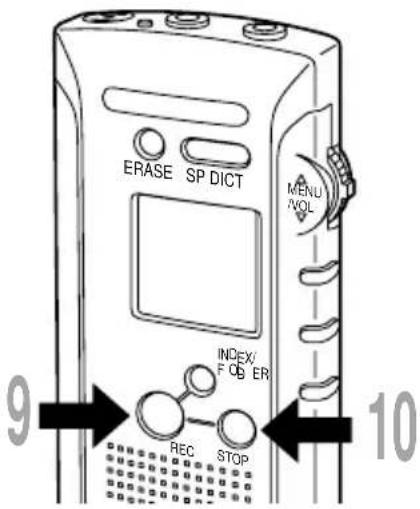
9 Press the REC button. The insert recording starts.
10 Press the STOP button. The insert recording stops.
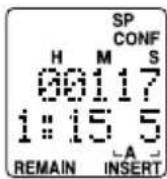
Notes
- Insert mode is only valid for one action. As soon as another operation (such as Playback) is executed, the recorder will go back to Overwrite mode.
- Insert recording will not work if there is no recording time available.
Listening While Recording Audio (Recording Monitor)
Insert an earphone into the earphone jack to monitor what is being recorded. (The volume is fixed.)
Playing and Volume Control
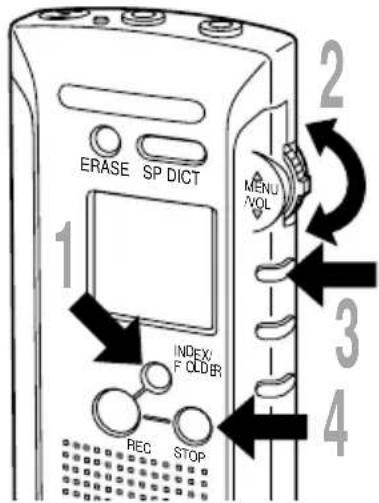
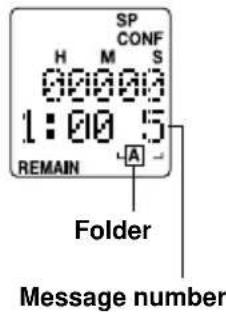
1 Press the INDEX/FOLDER button to choose a folder.
2 Move the MENU/VOL switch up or down to choose the message you want to play.
The time and date when the message was recorded are displayed.
3 Press the PLAY button. The recorder will start playin
The elapsed playing time appears on the display in hour-minute-second format (real-time counter). The length of the message being played is displayed below in hour-minute-second format.
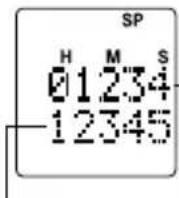
Length of the message being played (1 hour, 23 minutes, 45 seconds) Elapsed playing time (12 minutes, 34 seconds)
4 Press the STOP button to stop playing.
Notes
- The recording date and time appears on the display for 2 seconds at the beginning of each message.
- The recorder stops automatically when it finishes playing each message.
- Insert an earphone into the earphone jack to monitor playback. The built-in speaker will be turned off.
Volume Control
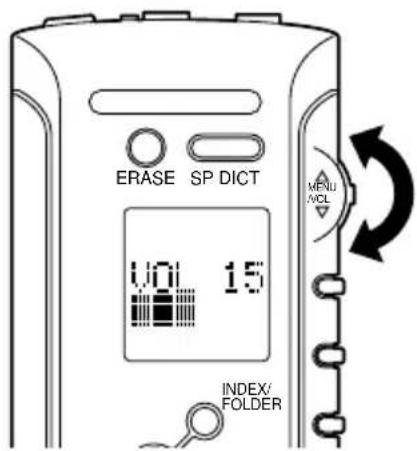
Move the MENU/VOL switch up or down while playing a message.
Moving the switch will show the current volume setting (0 to 30) on the display.
Moving the MENU/VOL switch up increases the volume.
Moving the MENU/VOL switch down decreases the volume.
Note
If you do not move the MENU/VOL switch for 4 seconds, the display will return to playing.
Warning
Do not turn the volume too high when listening with an earphone. You could damage your hearing.
Pause Playing
Pause
Press the PLAY button.
→ The elapsed playing time indicator on the display will flash.
Resume Playing
Press the PLAY button again.
→ Playing will resume at the point of interruption.
Notes
- The recorder will stop if you press the STOP button while it is paused.
- If the recorder is paused for 30 minutes or longer, it enters standby mode and the display shuts off. (To release the recorder from standby mode and turn on the display, press any one of the STOP, REC, PLAY, FF, or REW buttons or the MENU/VOL switch.)
Other Operations
| Operation | How to Cancel | |
| Fast Playback (FPLY) | Press the PLAY button for 1 second or longer while playing a message. | Press the PLAY button for 1 second or longer again.→The recorder will resume normal playback. |
| Fast Forward (FF) | Press the FF button while stopped. | Press the STOP button.→The recorder stops immediately. (If you do not press the STOP button, the recorder will skip to the end of the message and then stop automatically.) |
| Rewind (REW) | Press the REW button while stopped. | Press the STOP button.→The recorder stops immediately. (If you do not press the STOP button, the recorder will skip back to the beginning of the message and then stop automatically.) |
| Cue (CUE) (Fast Forward While Playing) | Press and hold the FF button while playing a message. | Release the FF button.→The recorder will resume normal playback. (If you do not release the FF button, the recorder will skip to the end of the message and then stop automatically.) |
| Review (REV) (Rewind While Playing) | Hold the REW button while playing a message. | Release the REW button.→The recorder will resume normal playback. (If you do not release the REW button, the recorder will skip back to the beginning of the message and then stop automatically.) |
- In FPLY, the recorder plays messages about 1.5 times faster than normal.
- If you press the FF button again during a fast-forward operation the recorder will skip to the beginning of the next message.
- If you press the REW button again during a rewind operation the recorder will skip to the beginning of that message.
- Parentheses denote mode indications that appear on the display. "FPLY" appears for 1 second when this mode is entered. "FF", "REW", "CUE", or "REV" appears during its mode.
Erasing One Message at a Time
A selected file can be erased from a folder.
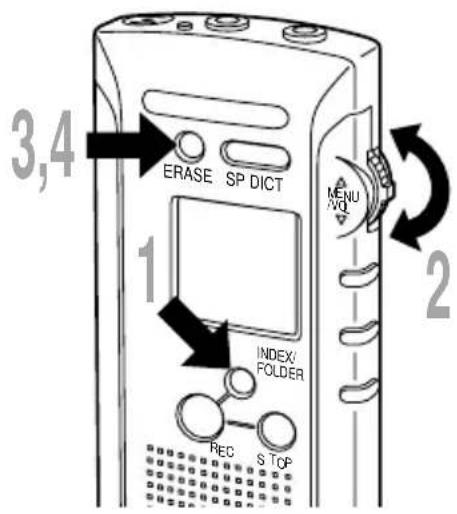
1 Press the INDEX/FOLDER button to choose the folder containing the message you want to erase.
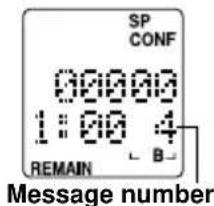
2 Move the MENU/VOL switch up or down to choose the number of the message you want to erase.
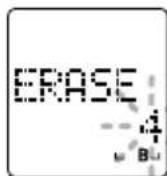
3 Press the ERASE button for 1 second or longer.
The message number will flash.
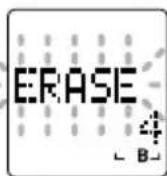
Press the ERASE button again.
"ERASE" flashes and then "OK" appears on the display to show the message is erased. Message numbers of subsequent messages are changed automatically, and available recording time increases approximately by the length of the erased message.
Notes
- If you do not press the ERASE button within 4 seconds after Step 3 above, or if you press the STOP button, the recorder will cancel message erasure and will return to the screen in Step 2.
- The remaining recording time available after message erasure depends on the recording mode (R-TIME) setting.
Erase All Messages from a Folder
All files in a folder can be erased simultaneously.
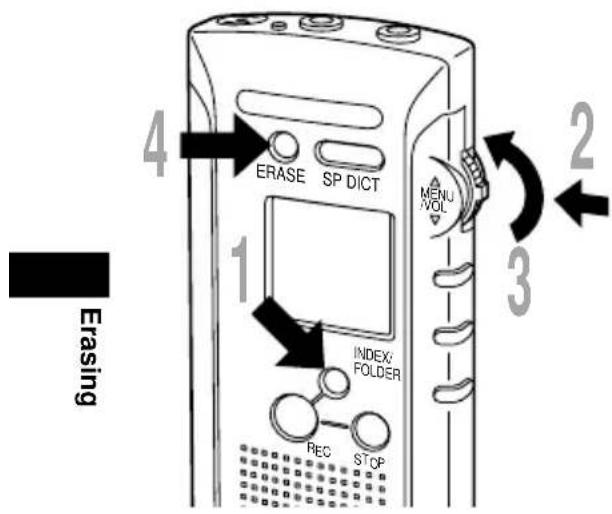
1 Press the INDEX/FOLDER button to choose the folder containing the messages you want to erase.
2 Press the MENU/VOL switch.
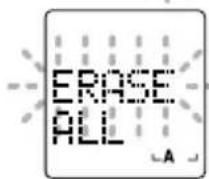
3 Move the MENU/VOL switch up to choose "ERASE ALL".
"ALL" and the folder name will flash.
4 Press the ERASE button for 1 second or longer.
"ERASE" flashes and then "OK" appears on the display to show the messages have been erased.
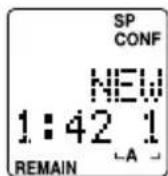
The recorder returns to the initial screen for the folder from which all messages have been erased, and available recording time increases approximately by the length of the erased messages.
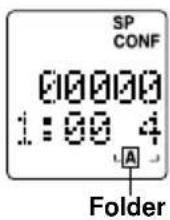

Notes
- If you do not press the ERASE button, or if you press the STOP button within 3 minutes after Step 3 above, the recorder will cancel message erasure and will return to the screen in Step 1.
- If a group of erased messages has recordings in both SP mode and LP mode, the total recording times of the erased messages and the increase in remaining recording time may not be equal.
To Partially Erase a Message
You can select part of a message to erase.
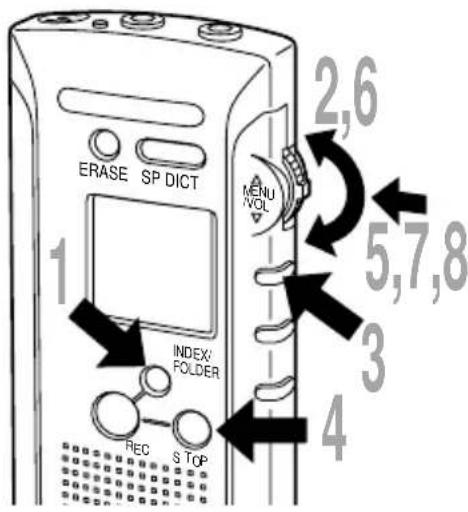
1 Press the INDEX/FOLDER button to choose a folder.
2 Move the MENU/VOL switch up or down to choose the message you want to partially erase.
3 Press the PLAY button to play the message.
4 Press the STOP button where you want the partial erasure to begin.
5 Press the MENU/VOL switch.
6 Move the MENU/VOL switch up to choose "ERASE".
7 Press the MENU/VOL switch. Playback resumes automatically.
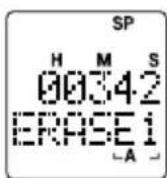
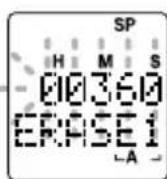
8 Press the MENU/VOL switch again at the point where you want the partial erasure to stop.
The erasure ending time indicator will flash.
(continued)
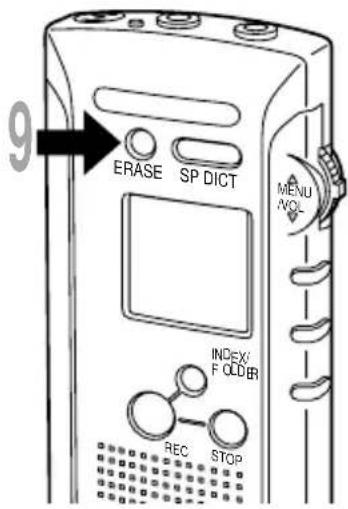
9 Press the ERASE button for 1 second or longer. "OK" appears on the display when the partial erasure is finished.
Remaining recording time is extended for about the length of the partial erasure.
Notes
- If you do not press the ERASE button within 4 seconds after Step 8 above, or if you press the STOP button, the recorder will return to STOP mode and partial erasure will be cancelled.
- Remaining recording time available after partial erasure depends on the recording mode (R-TIME) setting.
Recording Modes
The recorder provides approximately 2 hours and 30 minutes of continuous recording* in SP mode and approximately 5 hours and 20 minutes* in LP mode. The default is SP mode.
SP mode: Standard Playback mode
LP mode: Long Playback mode
*Recording time may be reduced if many short messages are recorded.
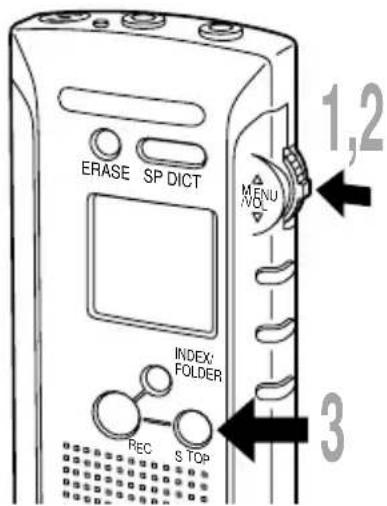
1 Press the MENU/VOL switch.
2 Press the MENU/VOL switch to choose the recording mode.
The MENU/VOL switch toggles between "SP" and "LP" modes each time you press it.

3 Press the STOP button. This completes the setup procedure.
Notes
- Recording mode cannot be changed in the middle of a message.
- The remaining recording time indicator is updated when recording mode is switched.
- SP mode is recommended in the following situations:
– A better quality recording is desired. - Meetings or lectures need to be clearly recorded.
- Messages will be transferred to a PC for speech-to-text conversion with voice recognition software.
Microphone Sensitivity
The sensitivity of the built-in microphone is adjustable to suit recording needs.
CONF (conference recording): High-sensitivity mode that records sounds from all directions.
DICT (dictation recording): Low-sensitivity mode suitable for dictation.
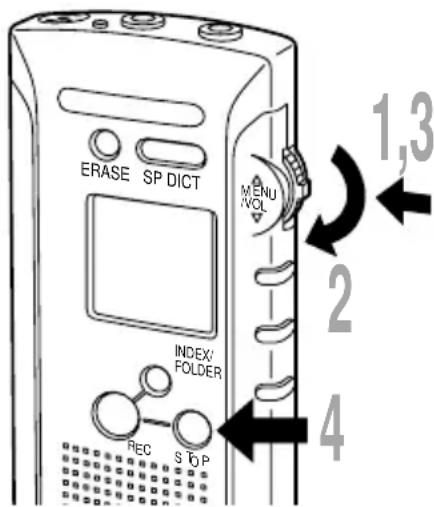
1 Press the MENU/VOL switch.
2 Move the MENU/VOL switch down to choose "M-SENS".
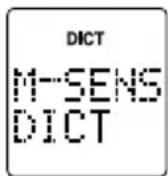
3 Press the MENU/VOL switch to choose microphone sensitivity.
The MENU/VOL switch toggles between “CONF” and “DICT” each time you press it.
Press the STOP button.
4 This completes the setup procedure.
Notes
- If an optional microphone is plugged into the microphone jack, its sensitivity can be switched.
- If the microphone sensitivity is set to DICT, the microphone will only record nearby sounds. Place the built-in microphone close to the speaker's mouth (2 to 4 inches).
Recording Meetings and Lectures
- Set the microphone sensitivity to CONF (conference recording) to record meetings or lectures.
- Meetings and lectures sometimes cannot be recorded clearly depending on the speakers' voices and ambient acoustic conditions. Recording in SP (Standard Playback) mode is recommended in these situations. (See Recording Modes .... P.25)
- If you are having trouble hearing the person speaking, it is likely that your recorder will not record it.
Using the Variable Control Voice Actuator (VCVA)
When the microphone senses that sounds have reached a preset volume, the built-in Variable Control Voice Actuator (VCVA) starts recording automatically, and stops when the volume drops. Particularly helpful for extended recording, the VCVA not only conserves memory by turning off recording during silent periods, but also makes playback more efficient and convenient by eliminating silent periods.
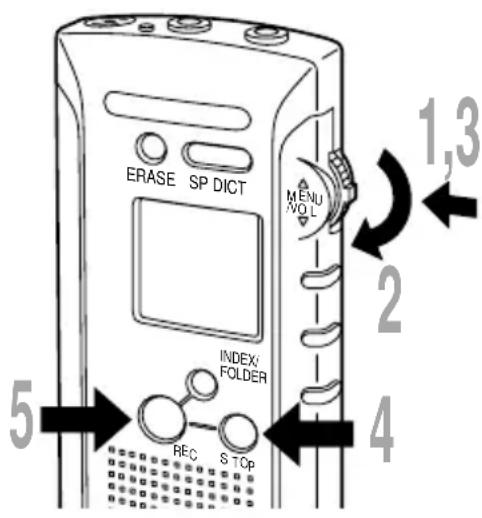
1 Press the MENU/VOL switch.
2 Move the MENU/VOL switch down to choose "VCVA".
3 Press the MENU/VOL switch to choose "ON".
4 Press the STOP button.
This completes the VCVA setup procedure.
5 Press the REC button. The recorder will start recording in VCVA mode.
Notes
- When the VCVA senses sound louder than its start/stop actuation level setting, recording starts automatically. When it senses silence for 3 seconds or longer, recording pauses automatically and the recorder enters standby mode.
- When recording is in progress, the record indicator lamp will glow. When the recorder is in standby mode, "VCVA" will flash on the display and the record indicator lamp will flash.
- Pressing the STOP button will stop recording whether the recorder is recording or in standby mode.
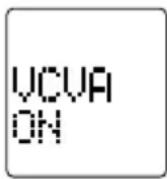
Using the Variable Control Voice Actuator (VCVA)
Adjusting the VCVA start/stop actuation level
Move the MENU/VOL switch up or down while recording to adjust the VCVA start/stop actuation level (1 to 30). The higher the level, the more sensitive the VCVA is.
Note
The VCVA start/stop actuation level also varies depending on the selected microphone sensitivity mode. For information about microphone sensitivity, see page 26.
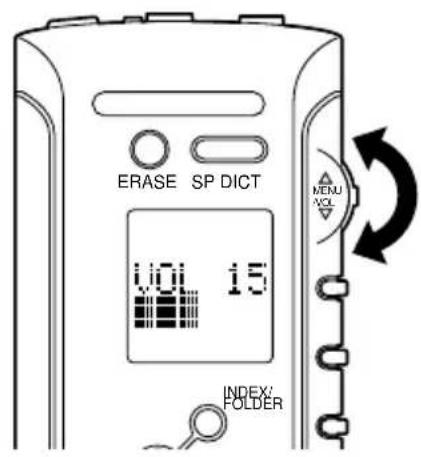
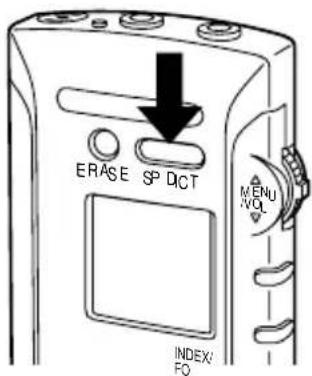
Dictation Mode
Simply pressing the SP DICT button sets up the recorder for dictating or for recording messages to be transferred to a PC for speech-to-text conversion using voice recognition software.
Dictation mode settings
Recording mode: SP
Microphone sensitivity: DICT
Alarm: OFF
To change settings from DICT mode, see the following pages:
To change recording mode: See P.25.
To change microphone sensitivity: See P.26.
To change alarm setting: See P.31.
Notes
- Place the built-in microphone close to the speaker's mouth (2 to 4 inches).
- Use of an optional ME12 noise-canceling microphone is recommended for recording with minimum ambient noise effects.
Index marks can be incorporated into a file during recording or playback to make it easy to locate interesting information.
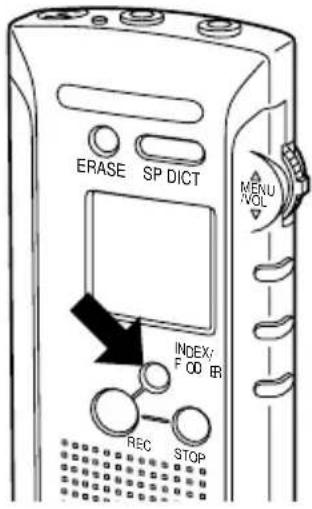
Press the INDEX/FOLDER button when the recorder is recording or paused while recording.
An index mark appears on the display, along with "INDX", and the record indicator lamp flashes.
When you play a message that has an index mark, the index mark appears on the display, along with "INDX", when the index point is reached.
Notes
• Additional index marks cannot be recorded while the record indicator lamp is flashing.
- A message can have up to 16 index marks.
Locating an Index Mark
Press the INDEX/FOLDER button while playing
The recorder will search for the next index mark in the message and continue playback from that point.
Press the INDEX/FOLDER button while fast-forwarding
The recorder will search for the next index mark in the message and then stop immediately.
Press the INDEX/FOLDER button while reversing
The recorder will search for the previous index mark in the message and then stop immediately.
Note
If INDEX is pressed during operation and no index marks are set in the direction that you are advancing (PLAY, FF or REW), the recorder will continue operation.
Transferring Messages
A recorded message can be transferred from one folder to the other.
The file is added as the last message in the destination folder.
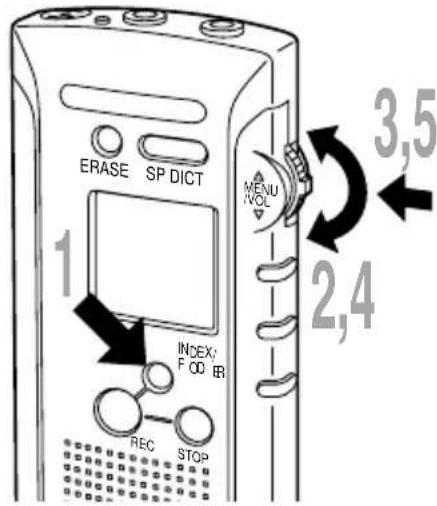
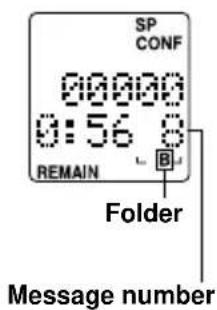
1 Press the INDEX/FOLDER button to choose the folder containing the message you want to move.
2 Move the MENU/VOL switch up or down to choose the number of the message you want to move.
3 Press the MENU/VOL switch.
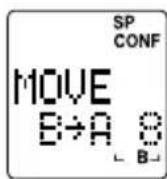
4 Move the MENU/VOL switch up to choose "MOVE".
The source folder is displayed on the left, and the destination folder on the right.
Press the MENU/VOL switch.
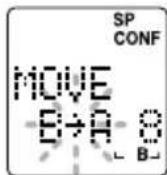
An arrow mark flashes and then "OK" appears on the display when the message is moved.
"NEW" appears on the display in the destination folder.
Canceling a move
In Step 5, press the STOP button before pressing the MENU/VOL switch.
The recorder will return to the screen in Step 2.
System Sounds (Alarms)
The recorder beeps to alert you to button operations or to warn you of errors. System sounds may be turned off.
1 Press the MENU/VOL switch.
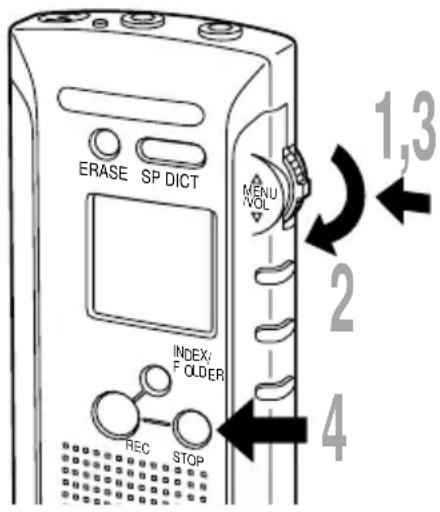
2 Move the MENU/VOL switch down to choose "ALARM".
3 Press the MENU/VOL switch to choose "ON" or "OFF".
The MENU/VOL switch toggles between "ON" and "OFF" each time you press it. The "OFF" setting disables the system sounds.
Press the STOP button.
This completes the setup procedure.
Guide of system sounds
Tone Explanation
| Beep, long beep, beep, long beep | · Available recording memory is exhausted.· The recorder has finished playing the last message. |
| Long beep every 15 seconds | Less than 90 seconds of available recording time is left while recording. |
| Low-pitched beep | The end or beginning of a message has been reached. |
| Beep | Recording has successfully started by pressing the REC button. |
| Beep, beep, beep, beep | Incompatible operation, such as trying to play while “NEW” appears on the display. |
Note
The built-in speaker will be shut off when using an earphone.
ALARM OFF
Formatting
If you want to initialize the built-in flash memory to its factory defaults, follow these steps:
1 Press the MENU/VOL switch.
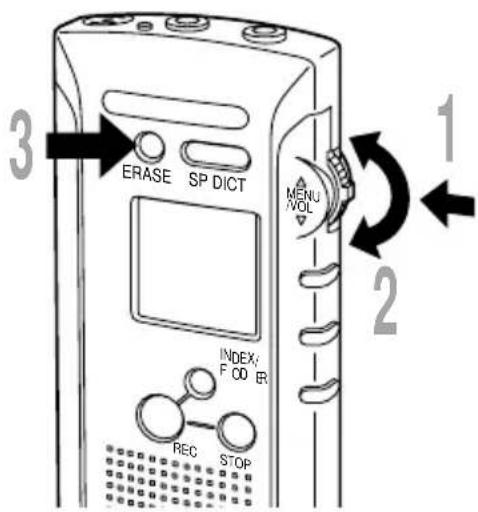
2 Move the MENU/VOL switch up or down to choose "FORMAT".
"YES?" will flash.
FORMAT YES?
Press the ERASE button for 1 second or longer.
"FORMAT" flashes and then "OK" appears on the display when formatting is complete.
To Abort Formatting
In Step 2, press the STOP button while "YES?" is flashing.
The recorder will return to the initial screen before Step 1.
Caution
Formatting will clear the flash memory of all recorded messages, and reinitialize the clock and other settings.
If you want to initialize the flash memory to its factory defaults, reset the recorder (P.33) after formatting.
Reset
natural_image
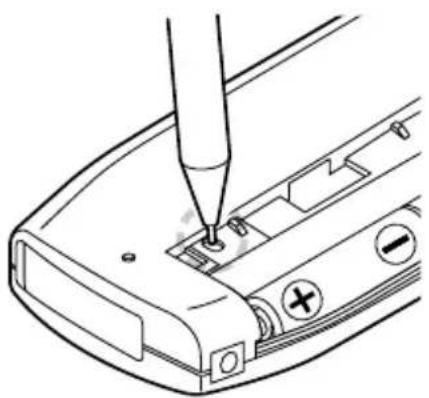
Line drawing of a screwdriver inserted into a battery casing with no visible text or symbolsIf the display or the recorder acts strangely, lightly press the reset button in the battery compartment with the tip of a ballpoint pen or a similar object.
Notes
- Do not use a sharp object such as a needle.
- Pressing the reset button may cause the clock to change. Verify the correct time and reset the time and date.
- Voice data is not erased when the recorder is reset.
Menu List
flowchart
graph TD
    A["Press the MENU/VOL switch"] --> B["R-TIME (P.25)"]
    B --> C["M-SENS (P.26)"]
    C --> D["VCVA (P.27)"]
    D --> E["R-MODE (P.16)"]
    E --> F["ALARM (P.31)"]
    F --> G["FORMAT (P.32)"]
    G --> H["ID (P.13)"]
    H --> I["TIME/DATE (P.11)"]
    I --> J["ERASE (P.23)"]
    J --> K["MOVE (P.30)"]
    K --> L["ERASE ALL (P.22)"]
    L --> M[": Move the MENU/VOL switch up and down."]
Notes
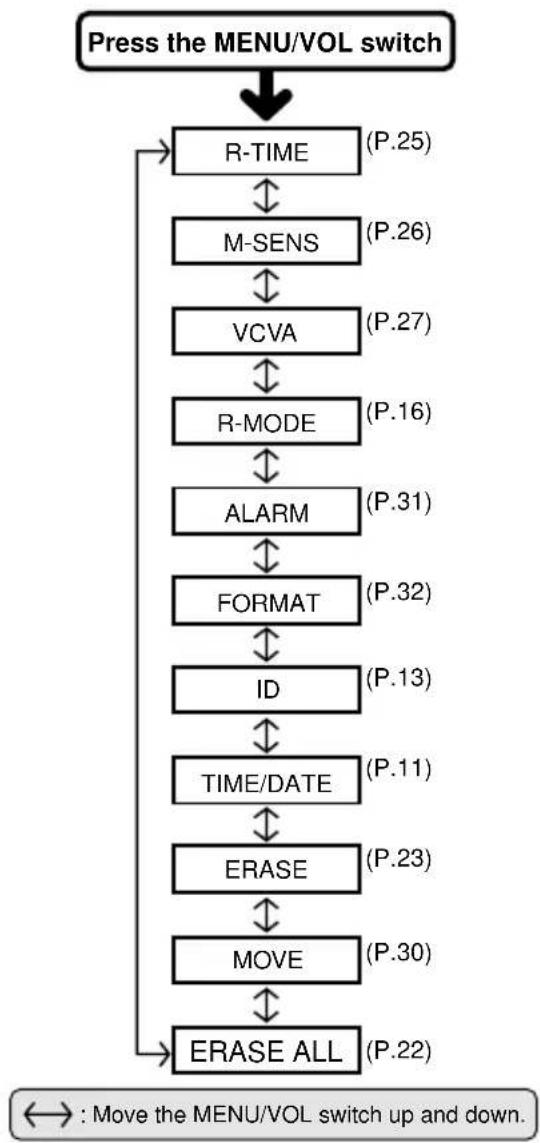
- Stop the recorder before choosing any menu settings.
- The recorder will stop if you leave it idle for 3 minutes or longer during menu setup operations.
Troubleshooting
Q.1 Nothing appears on the display
A.1 The batteries are not inserted properly. The batteries are drained.
The HOLD switch is set to the HOLD position.
The recorder is in standby mode.
Q.2 Won't run
A.2 The HOLD switch is set to the HOLD position.
The batteries are drained.
The battery cover is open.
Q.3 Unable to record
A.3 Recording time is used up.
Q.4 Record indicator lamp off
A.4 Recording time is used up. The HOLD switch is set to the HOLD position.
Q.5 Audible alarm sounds while recording
A.5 There is little remaining recording time. Recording time is used up.
Q.6 No sound or quiet sound during playback
A.6 The volume is probably turned down with the MENU/VOL switch.
Q.7 Unable to set index marks
A.7 All 16 index marks have been used already.
Q.8 Clock resets
A.8 The flash memory has been formatted.
Q.9 Incorrect time is shown
A.9 The batteries were replaced too slowly.
Q.10 AC adapter won't work
A.10 You are not using the proper AC adapter.
Q.11 "ERROR" appears on the display
A.11 Was the battery cover opened, or was the AC adapter connected or disconnected while formatting? If so, try reformatting (P.32).
Q.12 Unable to move messages
A.12 There are already 99 messages (the maximum) in the destination folder.
Q.13 "NEW" doesn't appear on the display when the STOP button is pressed while recording
A.13 You were recording the 99th message (the maximum).
Q.14 Cannot play a message
A.14 Does the display show "NEW"? If so, move the MENU/VOL switch down to move to a message that you want to play.
Specifications
Recording format
DSS (Digital Speech Standard)
Recording medium
16MB integrated flash memory
Input level -70 dBv
Overall frequency response
SP mode: 300 to 5,000 Hz
LP mode: 300 to 3,000 Hz
Recording time SP mode: Approx. 2 hours 30
minutes (1 message continuous recording)
LP mode: Approx. 5 hours 20
minutes (1 message continuous recording)
Speaker Built-in ø28 mm round dynamic speaker
Microphone jack ∅3.5 mm mini-jack, impedance 2 kΩ
Earphone jack 3.5 mm mini-jack, impedance 8
Maximum output (3 V DC)
100 mW or more (8 Ω speaker)
Power supply Rated voltage: 3 V
Batteries: Two AAA
batteries (LR03
or R03)
External power supply:
AC adapter
Battery life (Recording)
Approx. 11 hours (with alkaline batteries, based on our standard testing procedure)
External dimensions
116 (H) · 43 (W) · 14.5 (D) mm (without protrusions)
Weight 74 g (including batteries)
* Specifications and design are subject to change without notice.
* Battery life varies greatly according to type of batteries used and the conditions of use.
Accessories (optional)
Headset:E99
A helpful tool for transcription or concentrated work in busy office environments.
Conference microphone:ME7
A highly sensitive directional microphone (shotgun microphone). Used to record speakers at a distance.
External microphone:ME10*
A lavalier omnidirectional microphone that clips to clothing. Used to record your own voice or people near you.
Noise-Cancellation microphone:ME12
Used to get crisp recordings of your own voice by reducing the effects of ambient noise. Recommended to improve the accuracy when using voice-recognition software.
AC adapter:A321 (US and Canada) or A322 (Europe except U.K.)
Connecting cord:KA232*
Use to connect the microphone jack of this unit to a radio or other sound source.
Plug adapter:PA3
An adapter that connects devices such as microphones with 2.5 mm mini-plugs to the unit's 3.5 mm mini-jack.
* Use these accessories with the PA3 plug adapter.
PC Data Transfer Kit: AS-200W
Allows files to be transferred to a PC through a serial or a USB cable.
Software Section
Table of Contents
Important
Operating Environment 38
Features of DSS Player and IBM ViaVoice ... 38
How to Use This Manual 38
Preparation
Installing DSS Player Software .... 39
Installing IBM ViaVoice Software .... 40
Setting Up Your Microphone and Audio System for IBM ViaVoice ...... 42
Creating a Voice Model 44
Connecting the Digital Voice Recorder DS-320 .... 47
Let's Start
Starting DSS Player 48
Downloading Recorded Voice Data to a PC .... 48
Selected File Downloading Window...... 49
Selected File Downloading Procedure .... 50
Voice File Playback Window 51
Voice File Playback Procedure 52
Sending Voice Files by E-mail 53
Voice Recognition 54
Other Information
Converting File Formats 58
Uninstalling DSS Player or IBM ViaVoice ...58
Troubleshooting 59
Technical Assistance and Support ..... 59
Operating Environment
- Microsoft Windows 95, Windows 98, Windows 2000, or Windows NT Workstation 4.0 with Service Pack 5: Intel Pentium 300 MHz processor and 256K L2 cache or equivalent (including AMD-K6 with 256K L2 cache)
- Windows Me: Intel Pentium III 600 MHz and 256K L2 cache (including AMD-K6 with 256K L2 cache)
- 64 MB RAM for Windows 95/98/Me/NT 4.0
• 96 MB RAM for Windows 2000 - Windows 95/98/Me/NT 4.0/2000 compatible 16-bit sound card with microphone input jack
- 520 MB of available hard drive space
- Quad-speed CD-ROM drive or faster
- Serial port
- 800 x 600 dpi, 256 color display
Features of DSS Player and IBM ViaVoice
- PC storage and management of voice recordings made with the DS-320 digital voice recorder.
- Playback of voice files.
- Recording of voices directly on a PC using the DS-320 digital voice recorder.
- Conversion of DSS-format files into WAVE-format files.
- Transmission of voice files via e-mail.
- Conversion of recorded voices into text using voice recognition software.
Notes
- This document assumes that the reader is already acquainted with the basic operations of Windows 95/98/NT4/2000/Me.
- For more information on operating your specific PC, refer to your PC's user manual.
How to Use This Manual
This manual describes only the basic operations of DSS Player. Please refer to the online help for information about menus and other details.
- Online help is available once DSS Player has been installed.
Installing DSS Player Software
In order to use the PC link functions, you must first install DSS Player and IBM ViaVoice in your PC.
- When running Windows NT4/2000 through a network connection, it is required to log in as the Administrator or under a user name designated as an Administrator.
1 Insert the DSS Player CD-ROM in the CD-ROM drive.
The Installation program will start automatically.
- If setup does not take place automatically, use the following procedure (the CD-ROM drive name is assumed to be "D:"):
① Click the [Start] button and select [Run].
②Enter "D: ¥setup.exe" in the [Open] window and click the
2 The language selection screen is displayed.
DSS Player will be installed for the language selected here. Select the desired language.
3 A window entitled ["OLYMPUS DSS PLAYER SETUP"] appears. Be sure to exit all applications other than the installation program.
After exiting all applications, click
4 Confirm the licensing agreement.
You have to agree with this agreement to install DSS Player. Click
5 Selection of the installation destination directory.
Select the installation destination for DSS Player. Click
Selection of the program folder.
The program folder name can be changed here. If you do not want to change it, simply click
7 Confirmation of the start of file copy.
Check the contents of "Current Settings". Click
- If you want to change the program folder or installation folder, click
0 File copy.
DSS Player is installed automatically. Be patient. This may take a few minutes.
0 Completion of setup.
When installation is completed, click
- If you are asked to restart after installation is completed, click
to reboot the PC. - As soon as the installation of DSS Player is completed, the installation of IBM ViaVoice will automatically start.
Installing IBM ViaVoice Software
To use Voice recognition, you must also install IBM ViaVoice and then setup your sound system. During installation you will see the following windows. (This section does not show all windows you will see.)
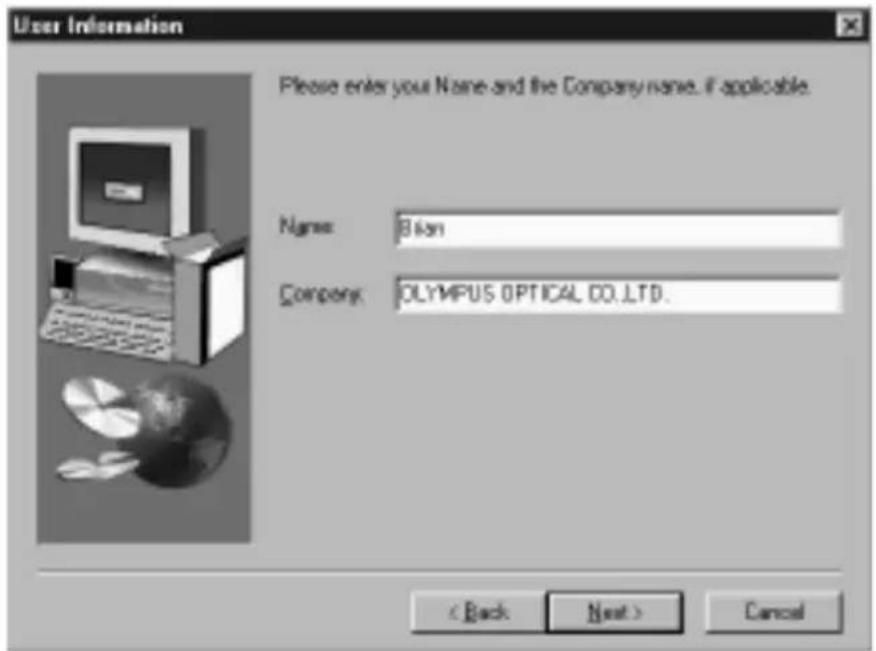
User Information
Type your name and company name, if appropriate. Click
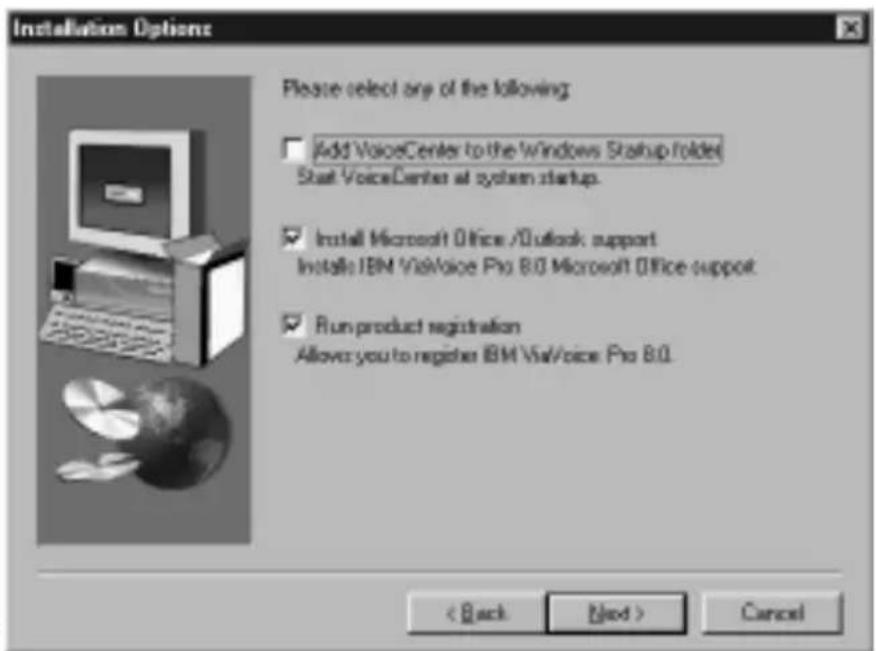
Installation Options
Select the install Options. To clear an Option, click on the tick mark in the box.
Select the option, if available, to install ViaVoice support for Microsoft Office only if you have Microsoft Office 97 or Office 2000 programs installed on your computer. This option includes support for dictation into Word and natural commands for Word, Excel and Outlook®.
If you choose not to install this support now, you can install it later.
Adobe® Acrobat® Reader
If Adobe Acrobat Reader is not already installed on your computer, select the option to have ViaVoice automatically start the Adobe Acrobat Reader installation program. Adobe Acrobat Reader enables you to view the ViaVoice Command Reference.
Click
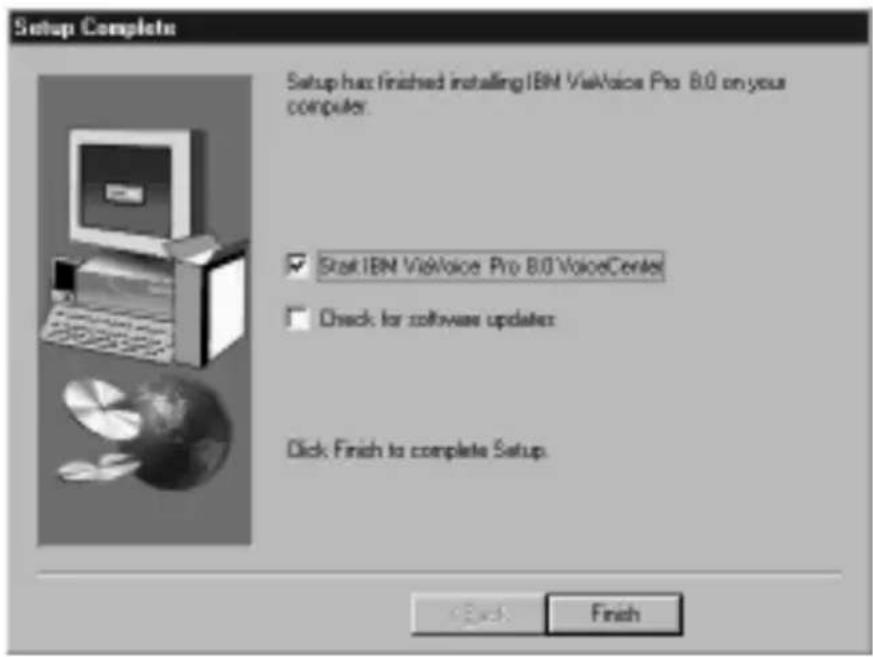
Setup Complete
This window indicates that you have successfully installed the software.
Setting Up Your Microphone and Audio System for IBM ViaVoice
Woody appears if you placed VoiceCentre in your StartUp folder. If Woody does not appear, start VoiceCentre by clicking [Start] → [Programs] → [IBM ViaVoice VoiceCentre].
Woody gives you a short presentation. (To skip this presentation, right-click on Woody and then select [Hide].) Then, the Audio Setup Wizard starts to help you set up the microphone and audio system so you can get started with ViaVoice.
![VisVoice User Wizard Welcome to the User Wizard Welcome to the User Wizard. Please enter your name. User Name: Brian Device: Microphone Voice Model: First Voice Model [Microphone] Language: US English View Help > Cancel](/content/2026/05/1040088/images/66ecbb90d5a305faa9def1b3fe1d906aec97c590796d71c091b9190196e4f086.jpg)
The name in the "User Name" field is probably the one you typed earlier. Leave it as it is, or type a name by which you want ViaVoice to know you. As you use ViaVoice, words you add and other enhancements you make go into your personal speech files. These files are associated with your user name.
You can use any name that contains the letters a to z in both uppercase and lowercase as well as numbers, but it must not contain typographic symbols (like " or /).
If other people will use your speech system, add their user names later but before they start ViaVoice for themselves. People using your speech system must have their own user names. 'Sharing' your user name with others will corrupt your personal speech files and cause recognition problems.
For now, ignore the other three fields and click
Audio Setup Wizard
This wizard presents several windows to help you set up your microphone. We recommend that you use the microphone that comes with the product until you are thoroughly comfortable with your speech system.
The Audio Setup Wizard will prompt you to identify the type of microphone and components you have.
With the microphone on, complete all audio tests that the Audio Setup Wizard presents to you.
At this window, for example, click
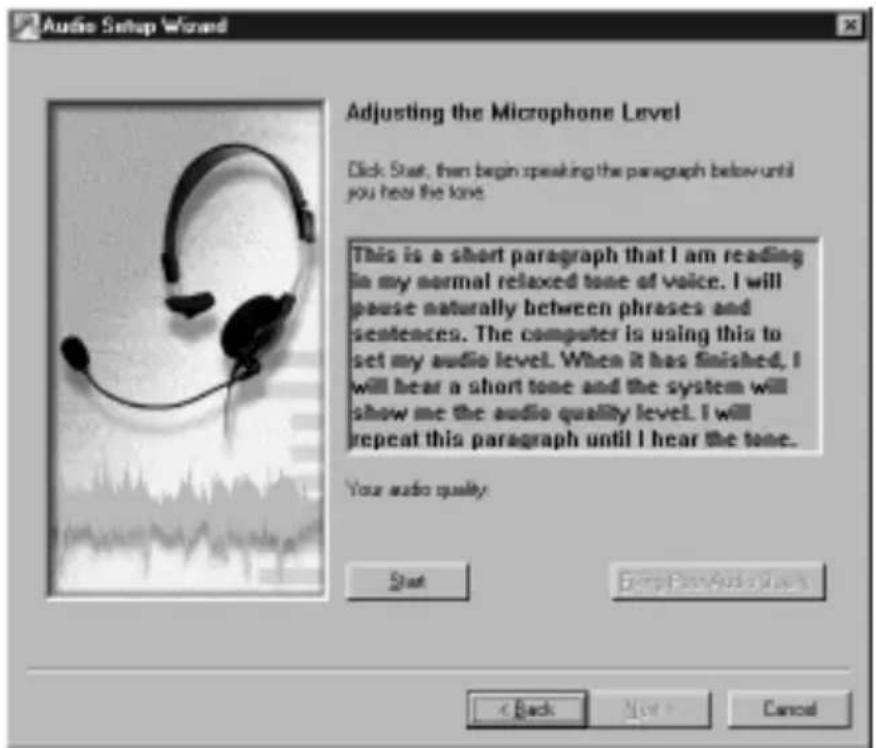
During these tests, the Audio Setup Wizard might display information windows or even start your Web browser to display a ViaVoice-related Web page. Use the information proposed by the wizard to solve any difficulty you might encounter during Audio Setup. ViaVoice needs these tests to be completed successfully to set up your system properly.
Creating a Voice Model
You must give ViaVoice a sample of your voice so that it can understand you. The User Wizard makes it easy for you to do this.
When you see this window, click
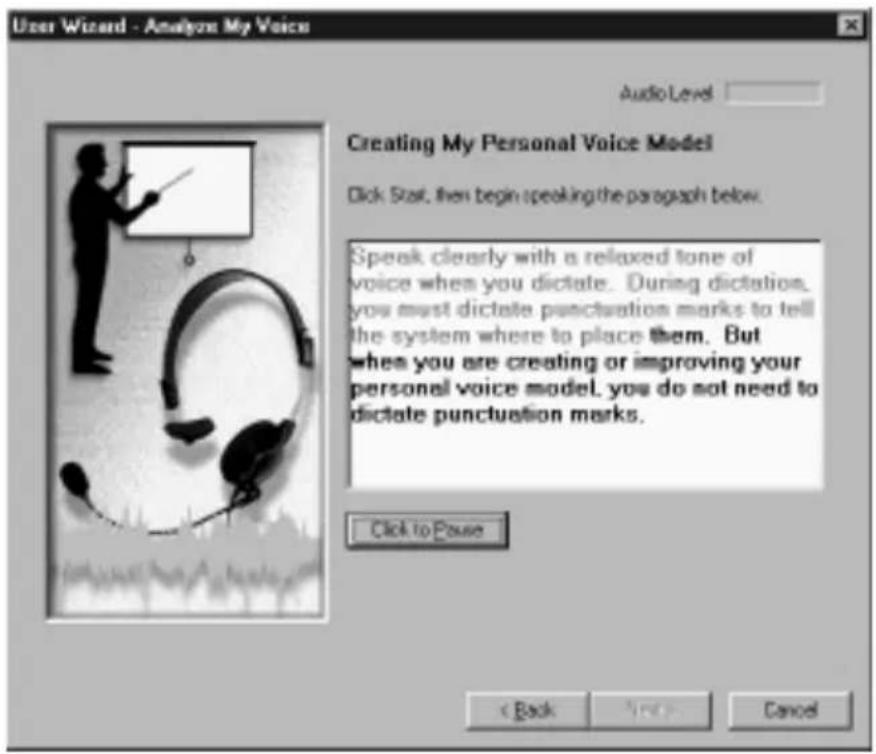
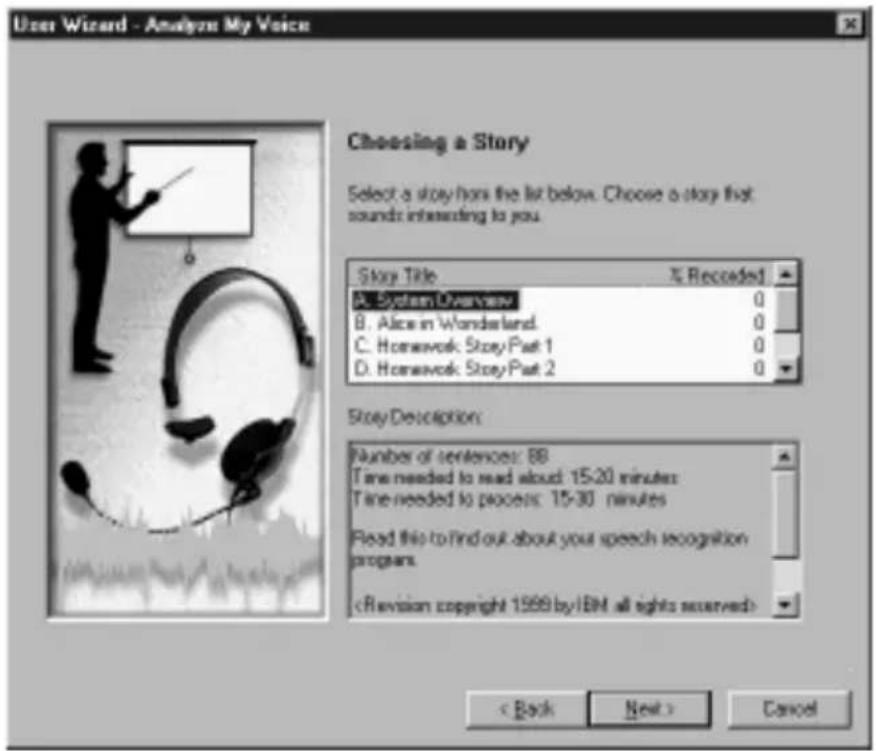
When you have finished reading this text aloud, ViaVoice displays the Choosing a Story window. Select the story that you want to read aloud for creating your voice model. If the story you want has two Parts, select Part 1 first. Read the story aloud using your normal speaking voice.
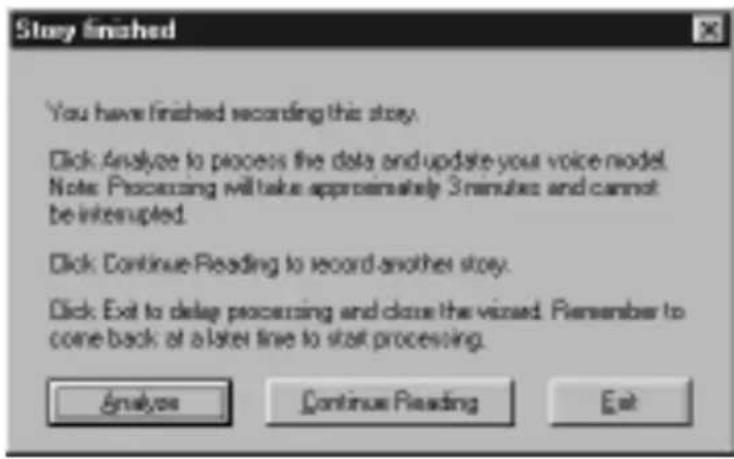
When ViaVoice has enough recorded data, you will see the Story Finished window. Click
You see this window after clicking
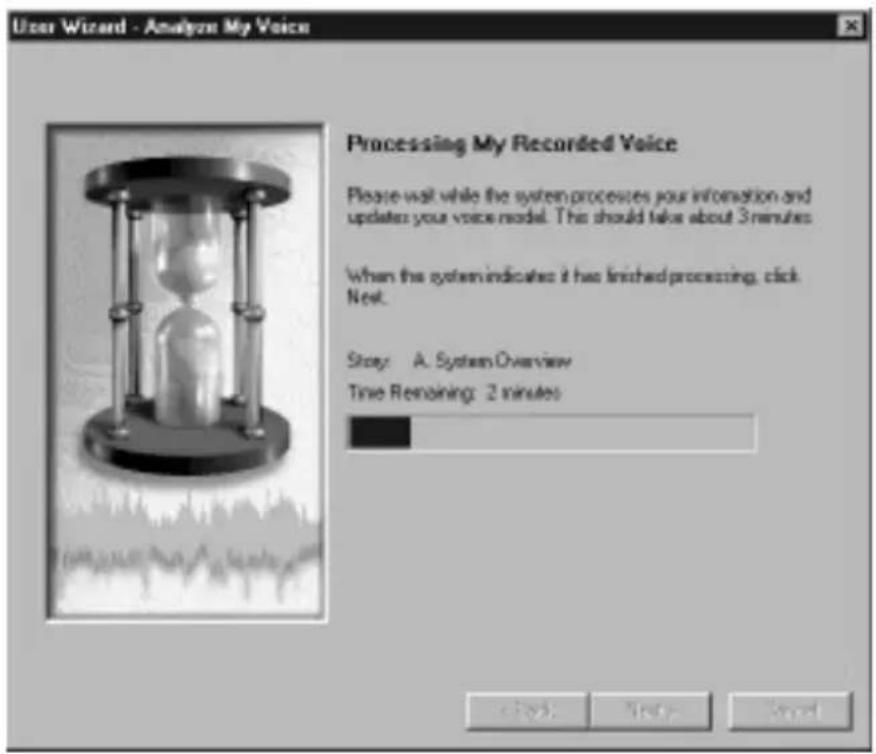
Wait until ViaVoice has fully processed your recording before turning off your computer or working with other processing-intensive programs.
Connecting the Digital Voice Recorder DS-320
Before connecting the KP3 serial connection cable to the DS-320 digital voice recorder, make sure that the HOLD switch is released and that the recorder is in stop mode.
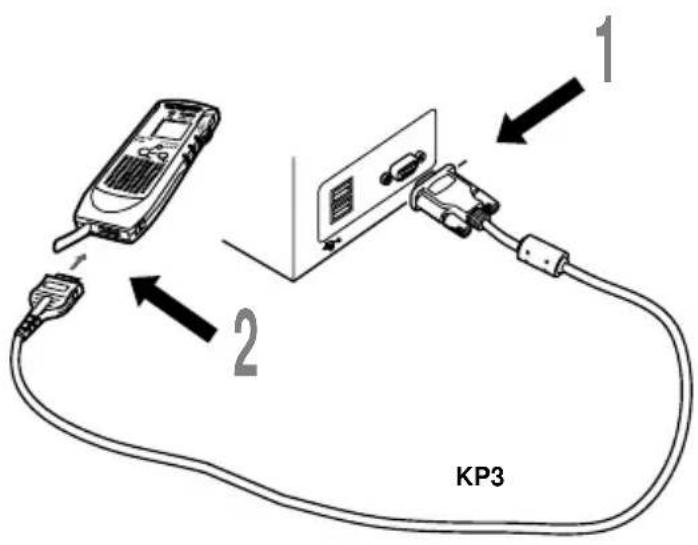
1 Connect the provided KP3 serial cable to the serial port of the PC.
2 Connect the other end of the provided serial cable to the DS-320 digital voice recorder.
- For details or locations of the serial port on your PC, refer to your PC's user manual.
- Do not unplug the serial connection cable during communication. Otherwise, the data may be corrupted.
Starting DSS Player
Start DSS Player as described below.
- The following procedure assumes that DSS Player is installed in the PC. For installation, see "Installing DSS Player Software".
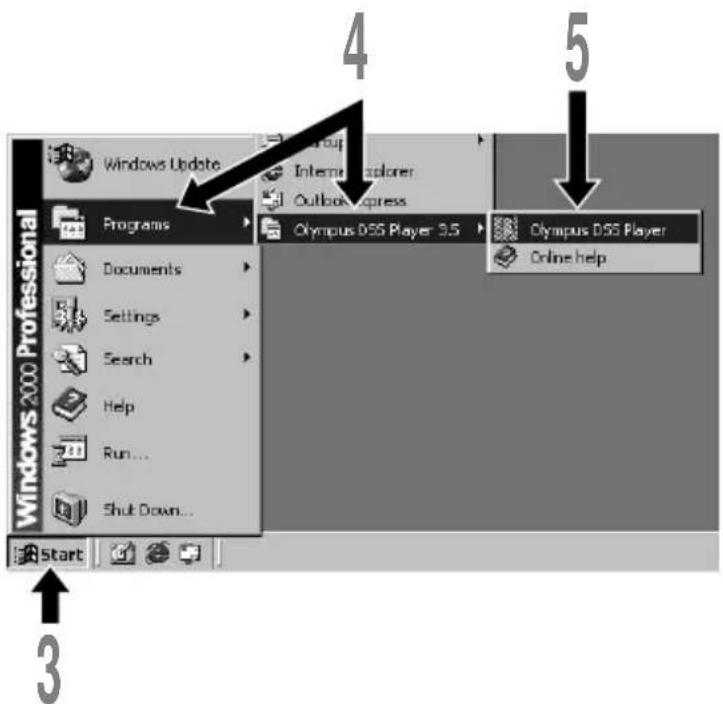
1 Start Windows.
2 Connect the DS-320 digital voice recorder.
For connections, see "Connecting Digital Voice Recorder DS-320".
3 Click the [Start] button.
4 Select [Programs] → [Olympus DSS Player 3.5].
5 Click [Olympus DSS Player].
- When DSS Player starts, the downloading window is displayed.
Downloading Recorded Voice Data to a PC
Downloading refers to transmitting voice files from the DS-320 digital voice recorder to the PC.
DSS Player provides the following two methods for downloading voice files in the PC.
- Downloading selected files
One or more voice files can be selected and downloaded to the PC.
- Downloading the folder
All voice files in a selected folder can be downloaded to the PC.
The following description explains how to download selected files. For information about downloading an entire folder.
Selected File Downloading Window
Voice files can be selected and downloaded using the downloading window, which is displayed immediately after the startup.
- To display the main window immediately after start up, open the [Option] menu and uncheck [Open Download Window After Start].
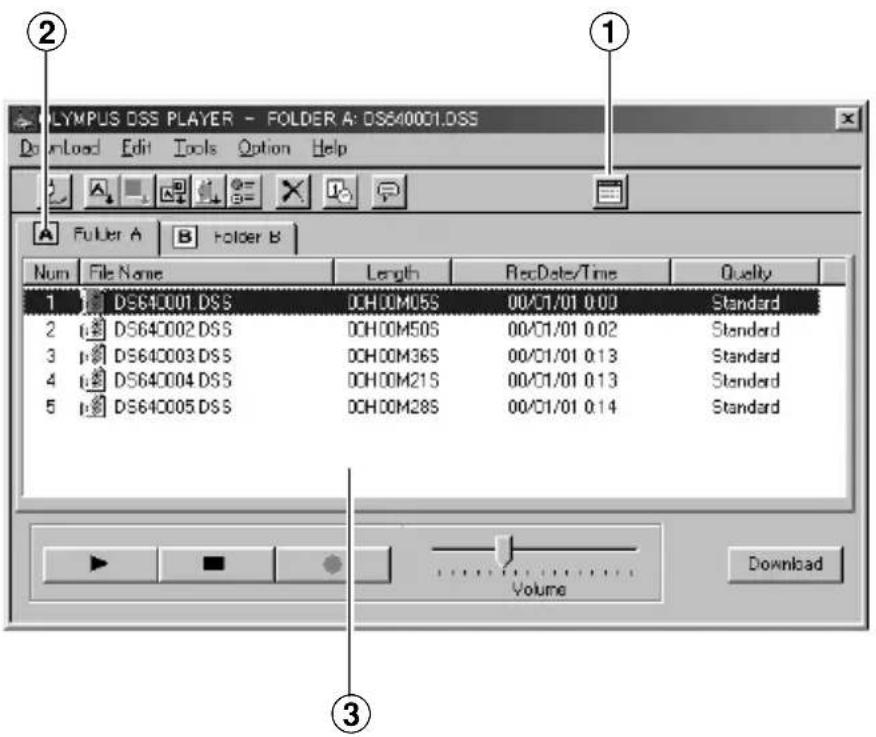
① Main Window button
Click to close the downloading window and open the main window.
②Folder
Select the folder in the DS-320 digital voice recorder.
③Folder View
Shows the list of voice files in the folder selected with ②.
Selected File Downloading Procedure
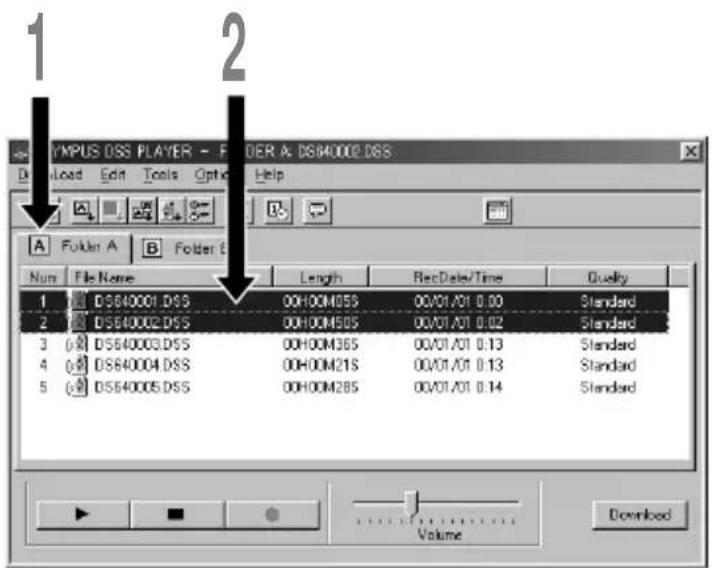
Selecting the folder.
Select the folder containing the voice files to be downloaded. The illustration shows the display when folder A is selected.
Selecting the voice files.
Select the voice files to be downloaded.
To select more than one voice file, hold the Ctrl or Shift key while selecting the voice files. The photo shows the display when two files are selected.
- To check the contents of a voice file, select it and click the Play button. The DS-320 digital voice recorder will play back the file.
Downloading the voice files.
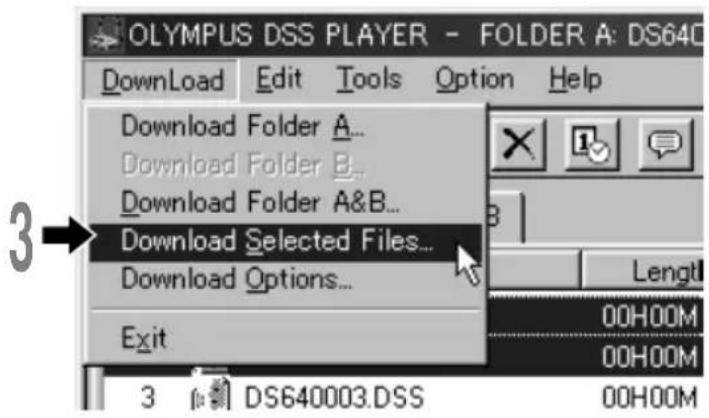
In the [DownLoad] menu, click [Download Selected Files].
- Be careful not to disconnect any cables during downloading.
- It is not possible to upload files from the PC to the DS-320 digital voice recorder.
- Download times may vary depending on the voice file sizes and PC performance.
Example) Downloading a voice file containing one hour of voice recorded in standard mode takes about 14 minutes with a serial
connection (when Pentium 300 MHz is used). When downloading a large voice file, it is recommended that you use the optional AC adapter as a power source.
- The downloading destinations are as shown below. To change a destination, click [Download Options] in the [Download] menu. Folder A files:C:\Program Files\Olympus\DssPly32\Message\Folder_A Folder B files:C:\Program Files\Olympus\DssPly32Message\Folder_B
- If a voice file has the same name as an already downloaded file, the newly downloaded file is saved under a different file name only when the recording dates of the two files are different. If the recording dates and times are the same as the existing file, the file will not be downloaded.
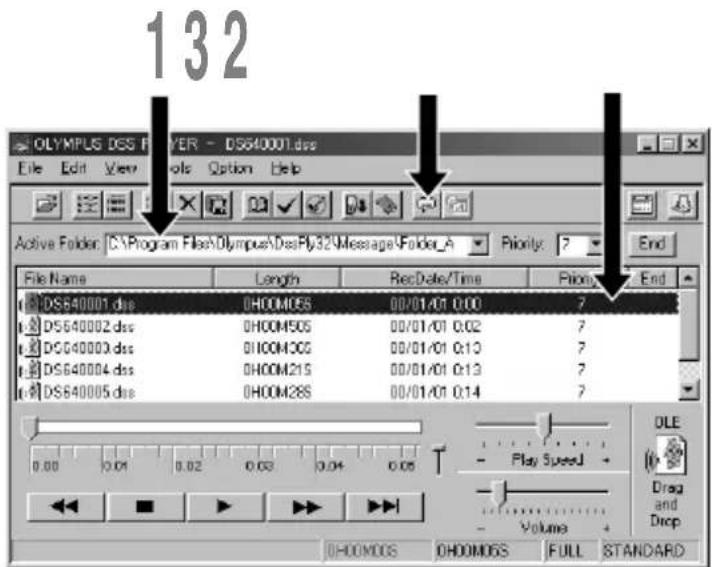
Voice File Playback Window
A voice file can be played back from the main window.
- To display the main window from the downloading window, click the Main Window button in the downloading window.
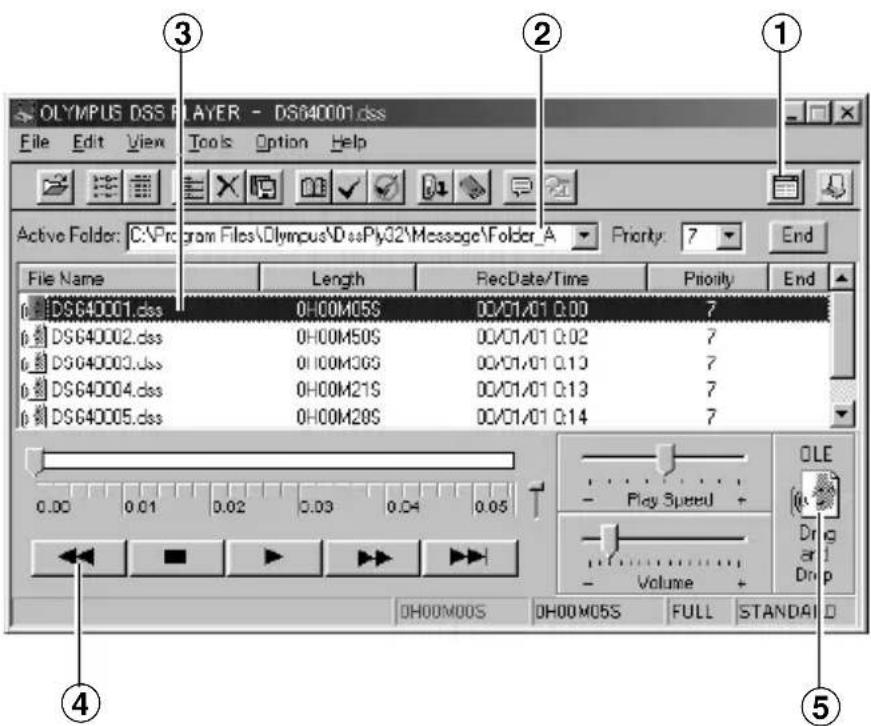
① Downloading Window button
Closes the main window and opens the downloading window.
②Current Folder
Provides selection of folders in the PC.
③Voice File list box
Shows the list of voice files in the folder selected in ②.
④Playback control buttons
Used for playing back or stopping audio files.
⑤OLE button
Click to export voice files to E-mail software or another application.
Voice File Playback Procedure
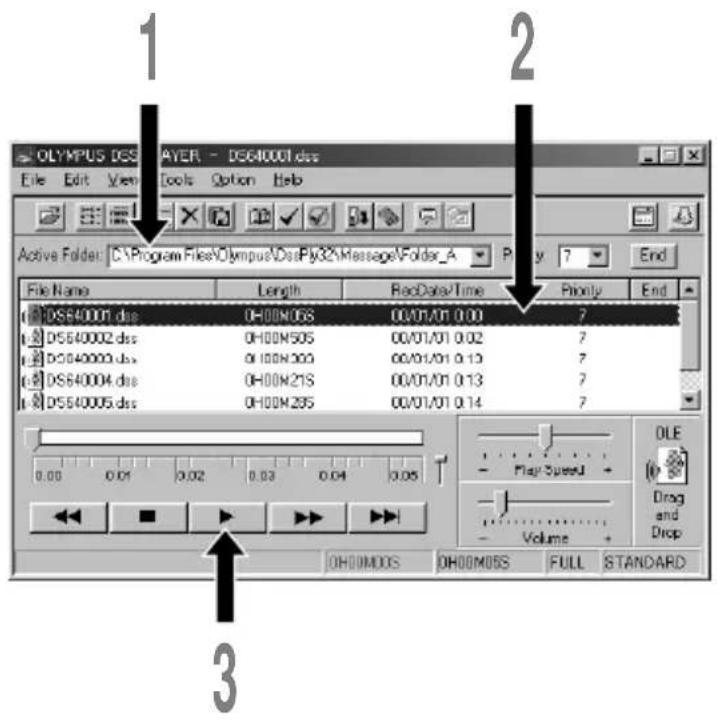
To play back a voice file.
1 Select the folder. From [Active Folder], select the folder containing the voice file you want to play back. The illustration shows the display when "C:\ProgramFiles\Olympus\DssPly32\Message\Folder_A" has been selected.
2 Select the voice file. Select the voice file from the voice file list box. The illustration shows the display when the file "DS640001.dss" is selected.
3 Play back the voice file. Press the Play button.
- For details on other operations including fast forward, fast reverse, stop, play speed control, volume control and time axis control, refer to the online help.
Sending Voice Files by E-mail
Voice files can be sent by E-mail, simply by attaching them to an e-mail message created with your e-mail software.
Attach voice files as described below.
For details on sending e-mail, refer to the instructions of your e-mail software.
1 Start DSS Player.
2 Launch your e-mail program and create a new message.
Attaching voice files.
From the Voice Files list box of DSS Player, select the voice files to be attached and drag-and-drop the OLE button to the mail creation window. (Move the files while holding the left button of the mouse and release the button on the destination.)
- If your mailing software does not support drag-and-drop, use the file attaching function of the mailing software and select the desired voice files from the folder containing voice files.
- Even if the e-mail recipient does not have DSS Player, the voice files can be played back using DSS Player-Lite. DSS Player-Lite can be downloaded free of charge at Olympus site http://www.olympusamerica.com/ or http://www.olympus-europa.com/.
Voice files can be converted into text with IBM ViaVoice.
Input Device Setup
To perform voice recognition of DSS-format files recorded with the DS-320 digital voice recorder, you first have to set up the input device for the DS-320 digital voice recorder with IBM ViaVoice.
![ViaVoice User Wizard Welcome to the User Wizard Welcome to the User Wizard. Please enter your name. User Name: OLYMPUS Device: Olympus DSS File Voice Model: First Voice Model [Olympus DSS File] Language: US English < Back Next > Cancel](/content/2026/05/1040088/images/bcd127bdb13156e3c1471efe94ba6b757d26de527deeebb341f04994ea6bf84a.jpg)
1 Click the [Start] button and select [Programs] → [IBM ViaVoice VoiceCenter].
2 Click the [ViaVoice] button of IBM ViaVoice VoiceCenter, then select [Tools] and [Analyze My Voice].
3 The [ViaVoice User Wizard] window appears.
Select [Olympus DSS File] in the [Device] list box, then click the
natural_image
Technical line drawing of a device with ports and a connector, no text or symbols presentThe [Audio Setup] window opens.
Perform audio setup by following the instructions displayed on your screen.
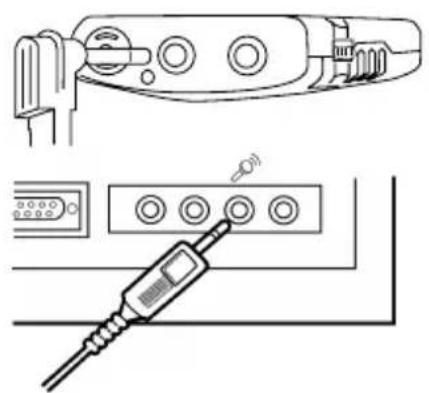
- For audio setup or enrolling using the DS-320 digital voice recorder, use the provided PC connection cable (KP4). Insert the L-shaped plug of the KP4 into the earphone jack of the DS-320 digital voice recorder and insert the straight plug into the microphone jack of the PC.
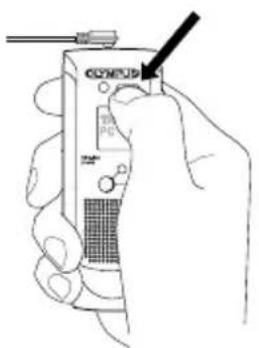
- It is sometimes necessary to input voice during audio setup or enrolling. To enable voice input, turn on the microphone while pressing and holding the SP DICT mode button on the DS-320 digital voice recorder.
Creating a Voice Model
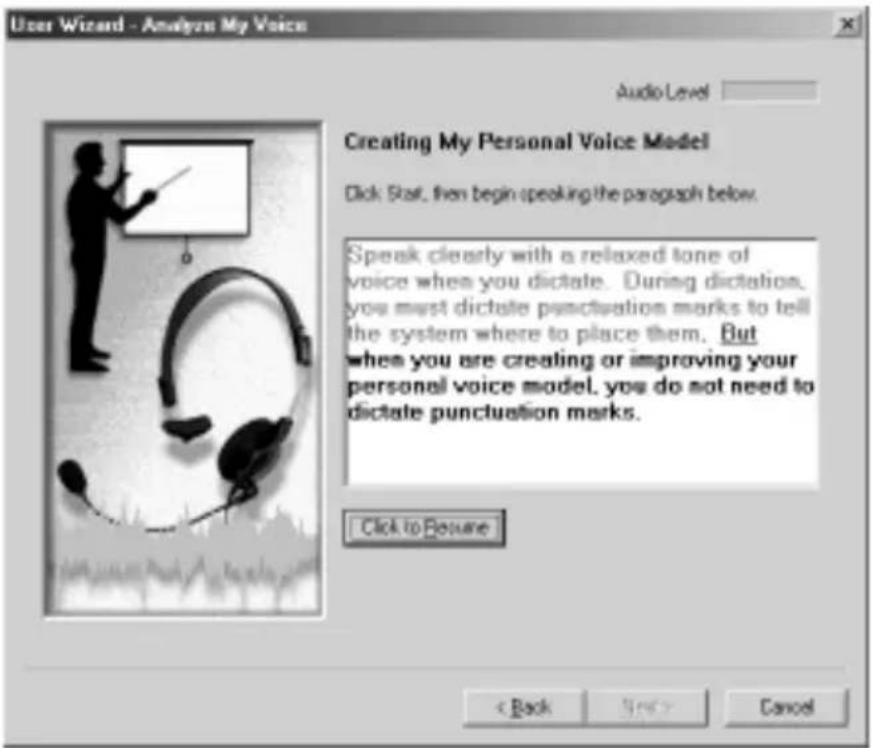
You must give ViaVoice a sample of your voice through the DS-320 microphone so that it can understand your recorded voice. The User Wizard makes it easy to do this.
When you see this window, click
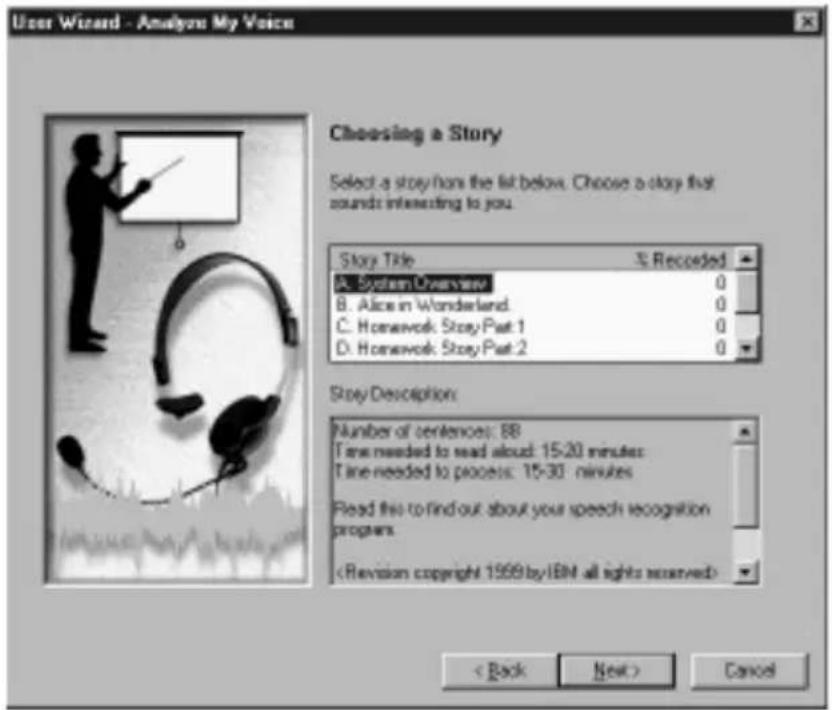
When you have finished reading the text aloud, ViaVoice displays the Choosing a Story window. Select the story that you want to read aloud for creating your voice model. If the story you want has two parts, select Part 1 first. Read the story aloud, speaking in a normal tone of voice.
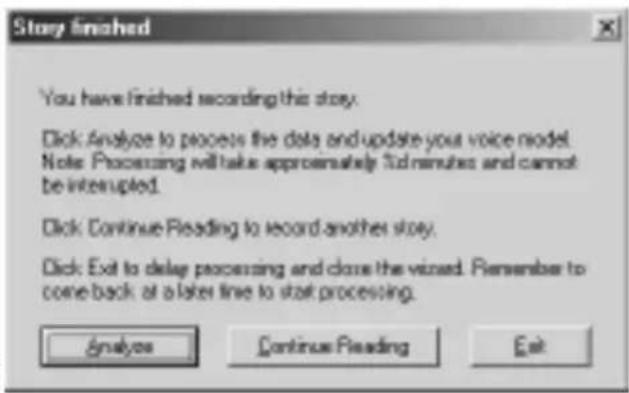
When ViaVoice has enough data, the Story Finished window will appear. Click
Executing Voice Recognition
Start voice recognition as described below.
1 Select the folder.
From the DSS Player main window, select the folder containing the voice file you want to process with voice recognition.
2 Select the voice file.
In the [Voice Files] list box, select the desired voice file.
3 Start of voice recognition. Click the [Start Voice Recognition] icon The voice recognition software window appears and voice recognition starts.
- For more details on the functions of IBM ViaVoice (such as correction of converted characters), refer to the ViaVoice's online help.

Notes on Recording for Voice Recognition
When recording voices for use in voice recognition, set up your DSS recorder as follows.
- Set the microphone sensitivity to "DICT".
- Set the recording mode to "SP".
- Set the Variable Control Voice Actuator (VCVA) to "OFF".
- Only record voices that have already been registered in the voice recognition software.
– Record in a relatively quiet environment. - Speak within 2 to 4 inches of the built-in microphone of the recorder.
-
Speak continuously.
-
Voice files recorded in the "LP" recording mode cannot be processed by voice recognition.
- Following situations are not suitable for voice recognition because the accuracy may be very low: -A conference or meeting where the voices of many people have been recorded.
—Seminar or lecture in which ambient noise tends to be recorded.
Converting File Formats
Use the [Save As] command in the [File] menu. To convert a voice file into the WAVE format, select [WAV File] as the file type. When a voice file is converted into the WAVE format, proprietary DSS format data (priority, index marking, etc.) will be lost.
- It is not possible to convert files from WAVE to DSS.
File Formats Handled by DSS Player
DSS Player can handle DSS format and WAVE format files.
- DSS format
This is the voice file format recorded by the DS-320. The file naming convention for this format is as follows.
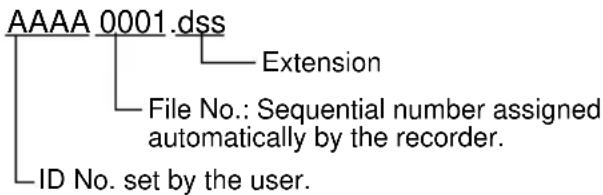
A DSS-format file needs only about 102 kB of data per minute in the SP mode or about 47 kB of data per minute in the LP mode. Index marking and priority can be set in this file.
- WAVE format
This is the Windows standard voice file format. WAVE files are indicated by the file extension: wav. The sound quality of wave files recorded with 11.025kHz, 16-bit monaural PCM, is equivalent to the SP mode of DSS format. The WAVE format requires 1.3 MB of data per minute. It does not show index marks and priority levels.
Uninstalling DSS Player or IBM ViaVoice
Uninstallation refers to removing software from a PC. Perform the following uninstallation procedure to remove DSS Player or IBM ViaVoice.
1 Click the [Start] button then select [Settings] → [Control Panel].
2 Double-click [Add / Remove Programs].
3 A list of installed applications is displayed.
Select [Olympus DSS Player] or [IBM ViaVoice] from the list.
4 Click [Add / Remove] (or [Change/Delete] with Windows 2000).
5 The file deletion confirmation window appears. Click
Deletion.
DSS Player or IBM ViaVoice will be deleted. This may take a few minutes.
- If any messages are displayed during the deletion procedure, read the message and perform operations as instructed.
7 End of uninstallation.
When uninstallation is completed, clickor .
Troubleshooting
If you have problems, check the following items before calling for service.
| Symptom | Possible Causes | Solution |
| Software cannot be installed | Insufficient hard disk capacity. | Make more space available. |
| The DS-320 cannot be recognized | A connection cable is unplugged. | Connect the connection cable. |
| DSS Player is not installed. | Install DSS Player. | |
| The HOLD switch of the DS-320 is set to HOLD. | Set the HOLD switch to hold-off position. | |
| The volume is too low | The speaker or headphone volume is set too low. | Increase the speaker or headphones volume. |
| The volume of Windows or DSS Player is set too low. | Increase the playback volume in Windows or DSS Player. | |
| The voice cannot be heard | The speaker or headphones is not connected. | Connect speakers or headphones. |
| The sound card is not connected. | Connect a sound card. | |
| The volume of Windows or DSS Player is set to 0. | Increase the playback volume in Windows or DSS Player. | |
| Muting is set to ON. | Release muting. | |
| The [Start Voice Recognition] button does not work | The voice recognition software is not installed. | Install the voice recognition software. |
| The voice recognition software is installed after DSS Player. | Install the voice recognition software before DSS Player. | |
| The File was recorded in LP mode. | Make sure that you use the SP recording mode for all voice recognition recordings. |
Technical Assistance and Support
The following are for only technical questions and support about OLYMPUS DSS player.
◆ Technical Hotline Number in the U.S. and Canada 1-888-553-4448
◆ User Support E-mail address in the U.S. and Canada distec@olympus.com
◆ The following are for only technical questions and support about IBM ViaVoice. http://www.ibm.com/software/speech/support/faqolympus.html
(Premises/ Goods delivery) Wendenstrasse 14-18, 20097 Hamburg, Germany. Tel. 040-237730
(Letters) Postfach 10 49 08. 20034 Hamburg. Germany.
OLYMPUS OPTICAL CO. (U.K.) LTD.
2-8 Honduras Street, London EC1Y 0TX, United Kingdom, Tel. 020-7253-2772
http://www.olympus.com
Declaration of Conformity
Model Number: DS-320
Trade Name: DIGITAL VOICE RECORDER
Responsible Party: OLYMPUS AMERICA INC.
Address: 2 Corporate Center Drive, Melville, NY 11747-3157, U.S.A.
Telephone Number: 1-800-622-6372
This device Complies with Part 15 of the FCC Rules. Operation is subject to the following two conditions: (1) This device may not cause harmful interference, and (2) this device must accept any interference received, including interference that may cause undesired operation.
Trade Name: DIGITAL VOICE RECORDER
Model Number: DS-320

Tested To Comply
With FCC Standards
FOR HOME OR OFFICE USE
Canadian RFI
This digital apparatus does not exceed the Class B limits for radio noise emissions from digital apparatus as set out in the Radio Interference Regulations of the Canadian Department of Communications.
