DS-3000 - Dictaphone OLYMPUS - Free user manual and instructions
Find the device manual for free DS-3000 OLYMPUS in PDF.


| Product Type | Digital Voice Recorder |
| Model | DS-3000 |
| Dimensions | Approx. 4.5 x 2.0 x 0.7 inches (115 x 51 x 18 mm) |
| Weight | Approx. 2.5 oz (70 g) including battery |
| Power Supply | 1 x AAA battery (alkaline or Ni-MH) |
| Battery Life | Up to 30 hours (LP mode, using alkaline) |
| Memory Type | Built-in flash memory (256 MB) |
| Recording Format | DSS (Digital Speech Standard) |
| Sampling Frequency | LP: 6.3 kHz, SP: 12.5 kHz, HQ: 16.0 kHz |
| Recording Modes | LP, SP, HQ |
| Maximum Recording Time | LP: 550 hours, SP: 275 hours, HQ: 110 hours |
| Display | LCD with backlight (date, time, folder, battery indicator) |
| Interface | USB 2.0 (Mini-B), headphone jack (3.5 mm), microphone jack (3.5 mm) |
| Supported OS | Windows 7, 8, 10; macOS (via DSS Player) |
| Playback Features | Variable speed playback, voice activation (VCVA), bookmark |
| Folder System | 5 folders (A, B, C, D, E) with up to 199 files each |
| Erase/Protect | Individual or all files; file protection available |
| Languages | English, French, German, Italian, Spanish (depending on model) |
| Materials | Plastic body with rubberized coating |
| Warranty | 1 year limited (varies by region) |
Frequently Asked Questions - DS-3000 OLYMPUS
User questions about DS-3000 OLYMPUS
0 question about this device. Answer the ones you know or ask your own.
Ask a new question about this device
Download the instructions for your Dictaphone in PDF format for free! Find your manual DS-3000 - OLYMPUS and take your electronic device back in hand. On this page are published all the documents necessary for the use of your device. DS-3000 by OLYMPUS.
USER MANUAL DS-3000 OLYMPUS
Please read these instructions for information about using the product correctly and safely. Keep the instructions handy for future reference.
To ensure successful recordings, we recommend that you test the record function and volume before use.
For Safe And Correct Usage
Thank you for purchasing the Olympus Digital Voice Recorder DS-3000. Before using your new recorder, read this manual carefully to ensure that you know how to operate it safely and correctly. Keep this manual in an easily accessible location for future reference.
- The warning symbols indicate important safety related information. To protect yourself and others from personal injury or damage to property, it is essential that you always heed the warnings and information provided.
Using the Online Manual
When you install the DSS Player Pro on your PC from the supplied CD-ROM, you can use an online superset version of this instructions manual, allowing you to learn more about the DS-3000 digital voice recorder. (For the procedure to install the DSS Player Pro, see the instructions manual for the DSS Player Pro.)
To open the online instructions manual, click on the “Start” button, point to “Programs,” then “Olympus DSS Player Pro,” and then click on “DS-3000 INSTRUCTIONS.”
General Precautions
- Do not leave the recorder in hot, humid locations such as inside a closed automobile under direct sunlight or on the beach in the summer.
- Do not store the recorder in places exposed to excessive moisture or dust.
- Do not use organic solvents such as alcohol and lacquer thinner to clean the unit.
- Do not place the recorder on top of or near electric appliances such as TVs or refrigerators.
- Avoid sand or dirt. These can cause irreparable damage.
- Avoid strong vibrations or shocks.
- Do not disassemble, repair or modify the unit yourself.
- Do not operate the unit while operating a vehicle (such as a bicycle, motorcycle, or go-cart).
- Keep the unit out of the reach of children.
IBM, PC/AT and ViaVoice are the trademarks or registered trademarks of International Business Machines Corporation.
Microsoft and Windows are registered trademarks of Microsoft Corporation.
Intel and Pentium are registered trademarks of Intel Corporation.
Macintosh and Apple are registered trademarks of Apple Computer, Inc.
Other product and brand names mentioned herein may be the trademarks or registered trademarks of their respective owners.
Batteries
Warning
- Batteries should never be exposed to flame, heated, short-circuited or disassembled.
- Do not attempt to recharge alkaline, lithium or any other non-rechargeable batteries.
- Never use any battery with a torn or cracked outer cover.
- Keep batteries out of the reach of children.
- If you notice anything unusual when using this product such as abnormal noise, heat, smoke, or a burning odor:
①remove the batteries immediately while being careful not to burn yourself, and;
②call your dealer or local Olympus representative for servicing.
AC Adapter
Warning
- Do not attempt to disassemble, repair or modify the AC adapter in any way.
- Keep objects including water, metal, or flammable substances from getting inside the product.
- Do not moisten the AC adapter or touch it with a wet hand.
- Do not use the AC adapter in the vicinity of flammable gas (including gasoline, benzine and lacquer thinner).
In case
- ...the internal parts of the AC adapter are exposed because it has been dropped or otherwise damaged:
- ...the AC adapter is dropped in water, or if water, metal flammable substances or other foreign objects get inside it:
- ...you notice anything unusual when using the AC adapter such as abnormal noise, heat, smoke, or a burning odor:
①do not touch any of the exposed parts
②immediately disconnect the power supply plug from the power outlet, and
③call your dealer or local Olympus representative for servicing. Continued use of the AC adapter under these circumstances could result in electric shock, fire or injury.
SmartMedia
Optional SmartMedia cards are available to add capacity as needed, in addition to the included 16MB SmartMedia card.
When purchasing SmartMedia cards of various memory capacities, specify 3 V (3.3 V) SmartMedia cards (in memory sizes of 4, 8, 16, 32, and 64MB) for the Olympus CAMEDIA digital camera series.
Notes
- Commercial 5 V SmartMedia cards cannot be used.
- This product is compatible with SmartMedia cards that have the copyright protection ID feature, and with SmartMedia cards without the ID feature. (Audio files recorded with this product are not protected by copyright law.)
- Never use SmartMedia cards with products that are not compliant with the SSFDC Forum* (including certain models of MP3 players).
* The SSFDC Forum is a voluntary organization committed to promoting SmartMedia as a de facto standard in the industry. The DS-3000 adheres to a format recommended by the SSFDC Forum.
Memory Sizes of SmartMedia Cards and Approximate Recording Times*
| Memory Size SP Mode LP Mode |
| 4MB 35 min. 1 hr.20 min. |
| 8MB 1 hr.15 min. 2 hr.45 min. |
| 16MB 2 hr.35 min. 5 hr.30 min. |
| 32MB 5 hr.10 min. 11 hr.10 min. |
| 64MB 10 hr.25 min. 22 hr.20 min. |
* Recording time is calculated using a single audio file recorded continuously. If audio files are recorded intermittently, recording time may be shorter than indicated.
Audio Recording Format
The DS-3000 stores highly compressed DSS (Digital Speech Standard) audio files on SmartMedia cards.
Write-protect SmartMedia
A write-protect seal (supplied with SmartMedia card) can be attached to a SmartMedia card to guard against accidental recording, erasing, and formatting.
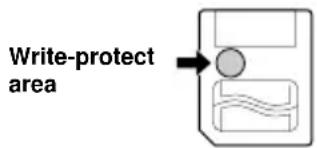
Attach the write-protect seal to the write-protect area to prevent valuable data from being erased accidentally.
Remove the write-protect seal before recording or erasing.
Notes
- Attach the write-protect seal to the write-protect area carefully, without letting the seal stick out, lift, or peel.
- Do not use commercial seals.
- Write-protect seals cannot be reused.
- A dirty write-protect seal may disable the write-protect feature. Wipe it with a soft, dry cloth.
- A SmartMedia card with a write-protect seal attached to it may not be write-protected when using the card with other products.
Table of Contents
Getting Started
Main Features 6
Identification of Parts 6
Preparing For Recording
Inserting Batteries 8
Inserting and Ejecting SmartMedia cards .... 9
Replacing Batteries 8
Setting Time/Date 11
Using the AC Adapter.... 8
Basic operations
Recording.... 12
Playing 15
Microphone Sensitivity 14
Erasing 17
Recording Modes 14
Other functions
Using the Variable Control Voice Actuator (VCVA) 18
Moving Files Across Folders 21
Index Marks 19
Assigning Folder Names 22
Locking Files 19
Setting Priority Levels 23
System Sounds 20
Setting Job Data 24
Alarm Playback Function 20
Dealer Option Items 25
Formatting SmartMedia 26
Transferring Data to a PC 26
Other Information
Hold.... 27
Troubleshooting 29
Reset 27
Specifications 30
Menu List 27
Accessories (optional).... 30
Alarm Message List 28
Technical Assistance and Support ...... 31
Main Features
- The DS-3000 digital voice recorder stores highly compressed DSS audio files on SmartMedia cards.
- The DS-3000 supports two recording modes: SP (Standard Playback) mode and LP (Long Playback) mode (→ P.14). The supplied 16MB SmartMedia card can store approximately 2 hours and 35 minutes of recordings* in SP mode and approximately 5 hours and 30 minutes* in LP mode. A 64MB SmartMedia card (sold separately) can hold up to 22 hours and 20 minutes* of recordings.
- The Variable Control Voice Actuator (VCVA) saves memory space by pausing recording when the recorder judges that there is no sound (→ P.18).
- Recorded audio files can be stored in three separate folders for easier identification in future use.
- Overwrite recording, insert recording, additional recording and partial erasure functions make it easy to correct and edit recordings.
- Furthermore, the AS-3000 transcription kit (sold separately) provides you with a PC-footswitch and the software DSS Player Pro Transcription Module for easy transcription of DSS recordings.
* The recording time available may be shorter than specified if a large number of short recordings are made. (Use the remaining time and recorded time only as references.)
Identification of Parts
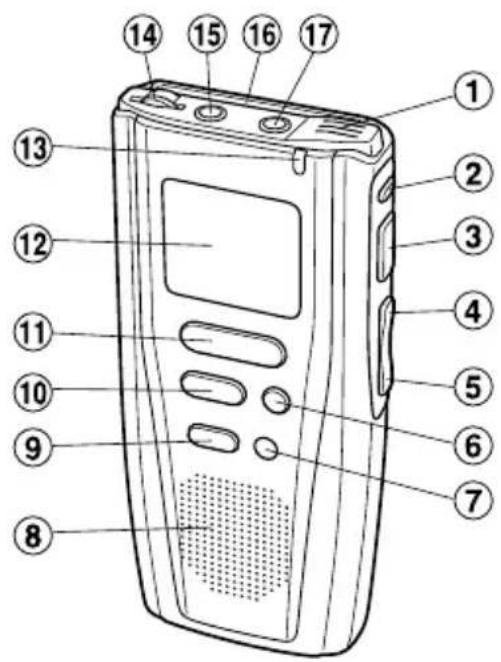
①Built-in microphone
②NEW button
③REC (Record) /SET button
④REW (Rewind) /- button
⑤FF (Fast Forward) /+ button
⑥INDEX button
⑦ERASE button
⑧Built-in speaker
⑨ FOLDER/MENU button
⑩ STOP button
⑪ PLAY button
⑫ Display (LCD panel)
⑬Record/Play indicator lamp
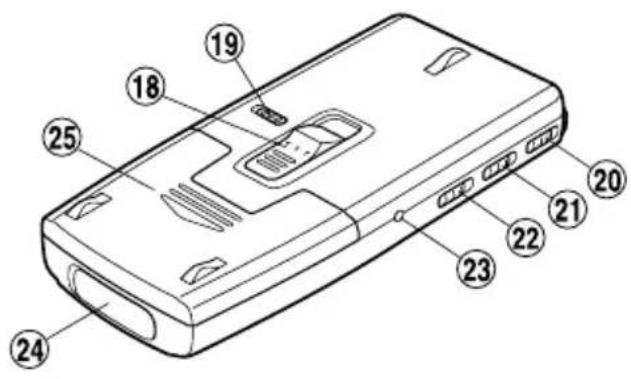
⑭VOLUME control
⑮ Earphone jack
⑯SmartMedia slot
⑰ Microphone jack
⑱SmartMedia ejection switch
⑲POWER/LOCK switch
⑳MICSENS (Microphone sensitivity) switch
②1VCVA switch
⑳HOLD switch
②3Power jack
⑳PC (USB) terminal
⑲Battery cover
Display (LCD Panel)
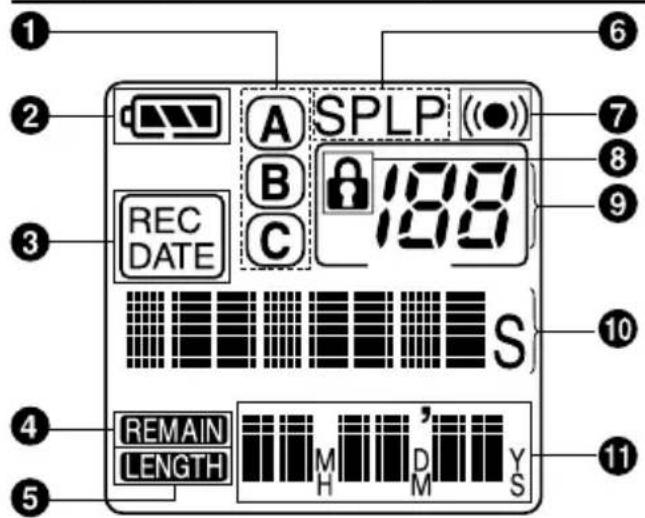
① Folder
② Battery indicator
③ Recording date/time mark
④ Remaining memory mark
⑤ Total file time mark
⑥ Record mode
⑦ Alarm mark
⑧ Erase lock mark
⑨ Current file
10 Current time, elapsed time, recording time, operation guides, menu display, etc.
⑪ Date, remaining memory, total recording time of the playing file, operation guides, etc.
Stopped State
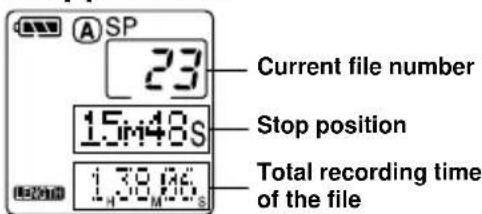
The display appears as shown below when recording or playback is stopped.
Inserting Batteries
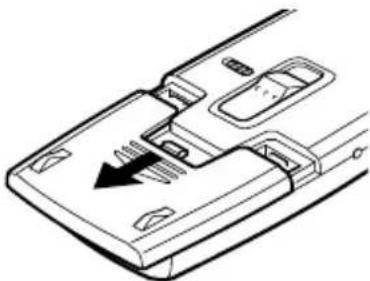
1 Slide open the battery cover.
natural_image
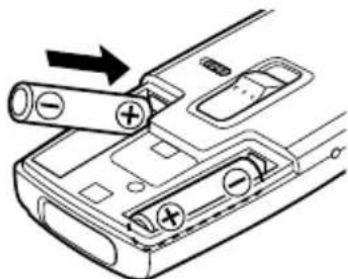
Diagram of a car interior showing airflow direction and component placement (no text or symbols)2 Insert two AAA alkaline batteries, observing the correct polarity.
natural_image
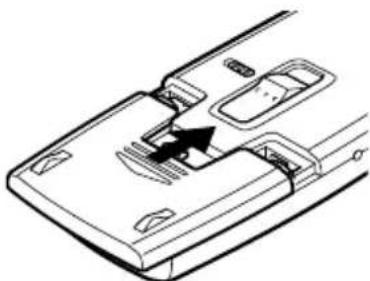
Diagram of a car interior showing battery and air vent components with an arrow indicating direction (no text or symbols)3 Close the battery cover completely.
natural_image
Diagram of a car interior showing airflow or movement with arrows indicating direction (no text or symbols)Replacing Batteries
The battery indicator on the display changes as the batteries lose power. "BATTERY-LOW"
"BATTERY LOW"

When the batteries are too weak, the recorder shuts down and "BATTERY LOW" appears on the display. When appears on the display, replace the batteries as soon as possible. AAA alkaline batteries are recommended.
Notes
- Be sure to stop the recorder before replacing the batteries. Unloading the batteries while the recorder is recording, erasing or otherwise accessing an audio file may corrupt the file.
- Be sure to replace both batteries at the same time.
- Never mix old and new batteries, or batteries of different types and/or brands.
- If it takes longer than 3 minutes to replace dead batteries, you may have to reset the time when you load fresh batteries.
- Remove the batteries if you are not going to use the recorder for an extended period of time.
Using the AC Adapter
natural_image
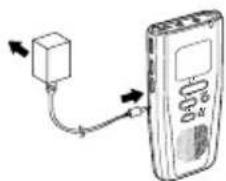
Simple line drawing of a device with a rectangular component connected to a digital display (no text or symbols)Plug the optional AC adapter (Olympus Model A321 or A322) into household power outlet and connect the power plug to the recorder's power connector (DC 3 V) as shown in the illustration. Always stop recording before connection. Otherwise it may not be possible to play back the voice data being recorded.
• Always stop recording before connection or disconnection.
- When not using the recorder, always disconnect the AC adapter from the power outlet.
- Use only the correct power supply voltage as indicated on the adapter.
- Do not use the AC adapter when connecting the recorder to the USB port.
Inserting and Ejecting SmartMedia cards
Inserting SmartMedia cards
Insert the SmartMedia card into the slot as shown below.
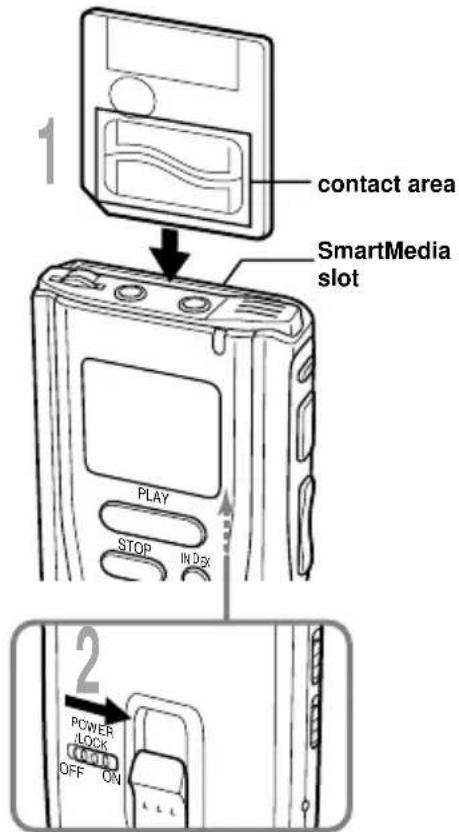
1 Insert the SmartMedia in the correct direction.
Push the SmartMedia card fully into position.
2 Set the POWER/LOCK switch to ON.
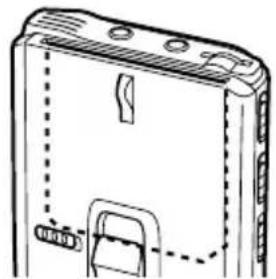
SmartMedia inserted fully into the slot
natural_image
Line drawing of a device casing with internal components and mounting holes (no text or symbols)When you set the POWER/LOCK switch to the ON position, "PLEASE WAIT" flashes on the display.
SmartMedia not inserted fully into the slot
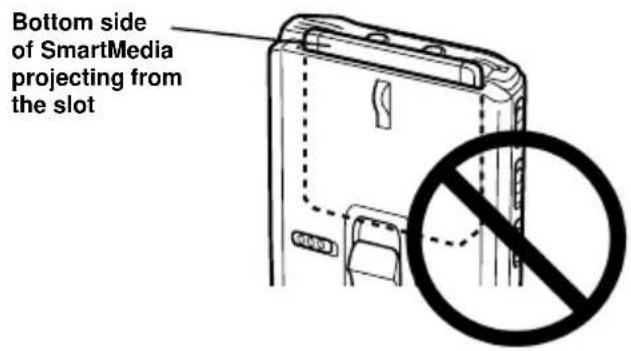
When you set the POWER/LOCK switch to the ON position, "INSERT CARD" flashes on the display for 2 seconds. Pressing any button with no SmartMedia card inserted causes "INSERT CARD" to appear again.
Push the SmartMedia card fully into position.
Notes
- If an unformatted SmartMedia card is inserted, "FORMAT YES?" will display automatically. Format the SmartMedia card (→ P.26).
- Never use any SmartMedia card other than one that has been formatted on this unit or on a CAMEDIA series Olympus digital camera (→ P.4).
Ejecting SmartMedia cards
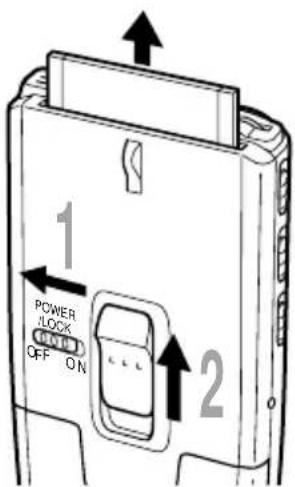
1 Set the POWER/LOCK switch to OFF.
The display disappears.
2 Raise the SmartMedia ejection switch.
Pull the SmartMedia card out with your fingers.
The SmartMedia ejection switch won't work if the POWER/LOCK switch is set to ON.
Attention
- SmartMedia cards are precision devices. Never force the cards when inserting them, or subject them to sharp blows.
- Avoid handling and storing SmartMedia cards in a hot, damp environment.
- Do not touch the contact area (gold electrodes) of the SmartMedia card with bare hands.
If a SmartMedia card gets dirty, wipe it with a soft, dry cloth.
- SmartMedia cards may be vulnerable to electrostatic data corruption. When carrying a SmartMedia card, put it in its case.
Remember to back up data from SmartMedia cards to a PC or other storage medium from time to time ( P.26).
- Corrupted, lost, or erased data cannot be restored.
Setting Time/Date
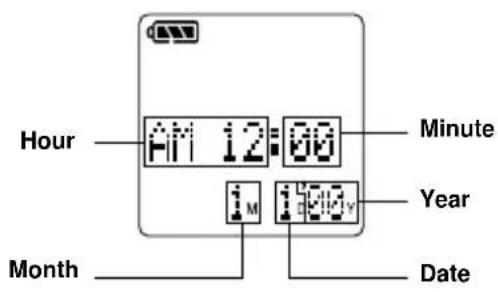
If you have set the time and date, information as to when an audio file is recorded is stored automatically with that file. The time and date setting is also needed to perform the alarm playback function ( P.20, 21).
Time/Date Screen
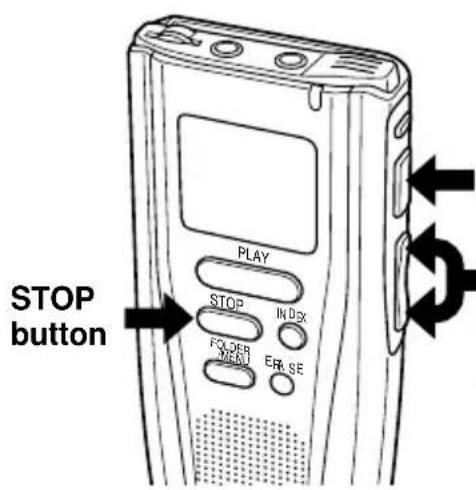
REC/SET button
(accepts a choice and moves on to the next item)
FF/+ or REW/- button
(alters a choice)
1 Press the FOLDER/MENU button for 1 second or longer.
The menu opens ( P.27).
2 Press the FF/+ or REW/− button to choose the time/date setup screen (TIME&DATE).
Press the REC/SET button.
Time/Date screen appears. The hour indicator flashes, indicating the start of the time/date setup process.
4 Repeat steps ① and ② to set the time and date:
Time and date setup proceeds in the order of hour, minute, year, month, and date.
①Press the FF/+ button or REW/− button to set a value.
②Press the REC/SET button to accept the value.
5 Press the STOP button to end.
This completes the time setup procedure.
Notes
- If you press the STOP button during the setup operation, the clock will use the items that were set to that point.
• Each press of the NEW button during setting toggles the display between the 12-hour and 24-hour system.
Recording
The recorder provides three folders, A, B, and C, and each message recorded in a folder is saved as a Digital Speech Standard (DSS) file. Up to 199 messages can be recorded per folder. Four recording modes are available: new, append, overwrite, and insert.
New Recording
Create a new file to record in.
1 Press the FOLDER/MENU button to choose a folder.
The folder name is displayed for 2 seconds.
2 Press the NEW button to create a new file.
3 Press the REC/SET button to start recording.
The record/play indicator lamp glows red. Aim the microphone at the sound source.
4 Press the STOP button to stop recording.
Notes
- If you press the PLAY button during recording, recording will stop, and play will start at the beginning of the file to which you were recording.
- If you press the NEW button during recording, recording will stop, and "NEW FILE" will appear on the display (as in Step 2).
- A beep will sound when remaining recording time reaches 60 seconds, 30 seconds, and 10 seconds while recording.
- While recording is in progress, never disconnect or connect the AC adapter even if the recorder contains batteries. This may result in failure to play the recorded file.
Pause Recording
Pause
Press the REC/SET button while recording.
→ "REC PAUSE" will flash on the display.
Resume Recording
Press the REC/SET button again.
Recording will resume at the point of interruption.
Note
The recorder stops when it has been left paused for 10 minutes or longer.
To instantly review a recording (Quick review)
Press the REW/– button while recording, and release it when you want to start playing a file. The recorder plays up to the quick review point, then stops.
You can add additional recording in the same file from that point.
Listening While Audio Is Recorded (Recording Monitor)
Insert the earphone into the earphone jack to monitor what is being recorded. (The volume is fixed.)
Append recording
Perform the procedure of "New Recording", then press the REC/SET button once again to append additional recording to the same file.
Note
You cannot select any recording mode other than that of the original file before append recording ( P.14).
Overwrite Recording
You can overwrite a previously recorded file from any point within the file.
Note that the overwritten recording will be erased.
1 Choose the file into which you want to overwrite.
(See Steps 1 and 2 in "Playing" (→ P.15).)
2 Press the PLAY button to play the file.
3 Press the STOP button where you want to start overwriting.
4 Press the REC/SET button to start overwriting.
5 Press the STOP button to stop overwriting.
Notes
- When you are overwriting and reach the end of the file, the recorder begins to append the additional recording.
- Append recording does not erase the next previously recorded file.
- Locked files cannot be overwritten (→ P.19).
- A SmartMedia card with a write-protect seal attached to it cannot be overwritten.
- You cannot select any recording mode other than that of the original file before overwrite recording (→ P.14).
Inserting Recording into Previous Files
Additional recording can be inserted into previously recorded files.
1 Choose the file into which you want to insert additional recording. (See Steps 1 and 2 in "Playing" (→ P.15).)
2 Press the PLAY button to play the file.
3 While playing a file, press the FOLDER/MENU button if you want to insert additional recording.
"INSERT REC?" appears on the display.
4 Press the REC/SET button to start inserting additional recording.
5 Press the STOP button to stop inserting additional recording.
Pause Insert Recording
Pause
Press the REC/SET button.
→ "INSERT PAUSE" flashes on the display.
Resume Insert Recording
Press the REC/SET button again.
Insert recording resumes.
Notes
- The recording time and date of the file into which recording has been inserted is updated to the time and date of when the inserted recording was recorded.
- You cannot select any recording mode other than that of the original file before insert recording ( P.14).
Microphone Sensitivity
Microphone sensitivity is adjustable to meet recording needs.
Using the MICSENS switch, choose between the CONF and DICT positions.
CONF : High-sensitivity mode that records sounds in all directions.
DICT : Low-sensitivity mode suited for dictation.
Notes
- An optional ME7 conference microphone is recommended for recording conferences in CONF mode if people speaking are located far away from the recorder.
- Choose DICT mode if you want to use voice-recognition software, such as ViaVoice from IBM.
Recording Modes
You can choose between two recording modes: SP (Standard Playback) mode and LP (Long Playback) mode. Choose one of the modes before you perform recording. Once you choose a mode, files are recorded in the selected mode as long as you do not change the mode.
1 Press the FOLDER/MENU button for 1 second or longer.
The menu opens ( P.27).
2 Press the FF/+ or REW/− button to open the Recording Mode Setup screen (REC MODE).
3 Press the REC/SET button.
The recording mode setup process begins.
4 Press the FF/+ or REW/− button to choose between SP and LP.
5 Press the REC/SET button.
The recording mode setup process ends.
6 Press the STOP button to close the menu.
Notes
- Choose SP mode for recording meetings or lectures with crisp clarity.
- Choose SP mode if you want to use voice-recognition software, such as ViaVoice from IBM.
- You cannot select any recording mode other than that of the original file before append, overwrite, or insert recording.
Playing
You can start playing a file at any point. The recorder stops automatically when it finishes playing each file.
1 Press the FOLDER/MENU button to choose a folder.
2 Press the FF/+ or REW/− button several times to choose the file that you want to play.
The time and date when the file was recorded are displayed.
3 Press the PLAY button to start playback.
The record/play indicator lamp glows green.
4 Adjust the VOLUME control to your liking.
Canceling Playback
Stop
Press the STOP button.
→The playback stops at the point where the STOP button was pressed.
- Press the PLAY button to resume the playback.
Pause
Press the PLAY button.
→ "PLAY PAUSE" flashes on the display.
Resume Playback
Press the PLAY button again.
→ Playback will resume at the point of interruption.
Note
The recorder stops when it has been left paused for 10 minutes or longer.
Playback Functions
To fast-forward
Press the FF/+ button once while stopped.
→ The recorder stops when it reaches the end of the file.
Note
If the FF/+ button is pressed at the end of a file, the recorder stops at the beginning of the next file, and the recording date/time of the file flash for 2 seconds. And if the FF/+ button is pressed while the recording date/time are flashing, the recorder skips to the beginning of the next file.
To skip
Press the FF/+ button once while fast-forwarding.
or
Press the FF/+ button twice while stopped.
→ The recorder skips to and stops at the end of the file.
To skip continuously
Continue pressing the FF/+ button while fast-forwarding.
To rewind
Press the REW/– button once while stopped.
→ The recorder stops when it reaches the beginning of the file.
Note
If the REW/– button is pressed at the beginning of a file, the recorder starts rewinding from the end of previous file.
To skip backward
Press the REW/– button once while rewinding. or
Press the REW/– button twice while stopped.
The recorder skips to, and stops at, the beginning of the file, and the recording date/time flash for 2 seconds.
Note
If the REW/– button is pressed while the recording are date/time flashing, the recorder skips to the beginning of the previous file.
To continuously skip backward
Continue pressing the REW/– button while rewinding.
Fast Playback
Hold the PLAY button for 1 second or longer while playing a file.
→ The recorder plays back at approximately 50% faster than normal rate.
• After fast playback is canceled, playback returns to normal rate.
Canceling Fast Playback
Hold the PLAY button for 1 second or longer again*.
→ Playback returns to normal rate.
* Press the PLAY button momentarily (for less than 1 second) to pause with fast playback enabled.
Cue (Fast Forward While Playing)
Hold the FF/+ button pressed while the recorder is stopped or playing a file.
The recorder stops when it reaches the end of the file.
Note
If an index mark is encountered in the middle of the file, the recorder stops at that point, the index number flashes momentarily, and then cueing proceeds when the FF/+ button is still pressed.
Canceling a Cue
Release the FF/+ button where you want the file played.
→ Playback begins.
Review (Fast Rewind While Playing)
Hold the REW/– button pressed while the recorder is stopped or playing a file.
→ The recorder starts playback automatically when it reaches the beginning of the file.
Note
If an index mark is encountered in the middle of the file, the recorder stops at that point, but will proceed with the review if the REW/– button is pressed.
Canceling the Review
Release the REW/– button where you want the file played.
→ Playback begins.
Erasing
Erasing One File at a Time
A selected file can be erased from a folder.
1 Press the FOLDER/MENU button to choose a folder.
2 Press the FF/+ or REW/− button several times to choose the file you want to erase.
3 Press the ERASE button. "FILE ERASE?" flashes on the display for 8 seconds.
4 Press the ERASE button again.
The display lights continuously to indicate erasing has started.
"ERASE DONE" is displayed when the file is erased. File numbers are incremented automatically.
Notes
- An erased file cannot be restored.
- Locked files cannot be erased (→ P.19).
- Files stored on a SmartMedia card with a write-protect seal attached to it cannot be erased (→ P.4).
Erase All Files from a Folder
All files in a folder can be erased simultaneously, except for locked files ( P.19).
1 Press the FOLDER/MENU button to choose the folder in which you want to erase all files.
2 Press the ERASE button for 3 seconds or longer.
"ALL ERASE?" flashes on the display for 8 seconds.
3 Press the ERASE button again. The display lights continuously to indicate erasing has started.
"ERASE DONE" is displayed when the files are erased. Locked files are reassigned file numbers in ascending order.
Notes
- It might take more than ten seconds to complete erasing tracks. Do not eject the SmartMedia card before erasing is finished.
- Files stored on a SmartMedia card with a write-protect seal attached to it cannot be erased (→ P.4).
To Partially Erase a File
You can erase a selected part of a file.
1 Choose the file from which you want to erase a part.
(See Steps 1 and 2 in "Playing" (→ P.15).)
2 Press the PLAY button to play the file.
3 Press the PLAY button once again where you want to start erasing.
The recorder pauses.
Press the ERASE button.
The recorder starts playback automatically, and the display shows the total recording time of the file being played and “ERASE” alternately.
5 Press the ERASE button once again where you want to stop erasing.
The erase starting point (time) set in step 3 and the ending point (time) set in this step appear on the display for 8 seconds alternately.
6 Press the ERASE button once again.
When “ERASE DONE” appears after “PARTIAL ERASE!”, partial erasing is completed.
Notes
- When the recorder finishes playback of the current track before you press the ERASE button, the erase starting point (time) and ending point (time) alternate on the display for 8 seconds, similar to Step 5.
- Locked files cannot be erased.
- A SmartMedia memory card with a write-protect seal attached to it cannot be erased.
Using the Variable Control Voice Actuator (VCVA)
When the microphone senses that sounds have reached a preset volume, the built-in Variable Control Voice Actuator (VCVA) starts recording automatically, and stops when the volume drops.
Particularly helpful for extended recording, the VCVA not only conserves memory by turning off recording during silent periods, but also makes playback more efficient and convenient.
1 Start recording with the VCVA switch set to ON.
When the volume falls to a preset level or lower, recording automatically pauses, and "STANDBY VCVA" flashes on the display. The record/play lamp glows when recording starts and flashes when recording pauses.
2 Using the VOLUME control, adjust the start/stop actuation level.
The higher the VOLUME control is set, the more sensitive the start/stop level becomes, allowing recording to automatically begin at a quieter level.
Notes
- The start/stop actuation level also varies depending on the selected microphone sensitivity mode (→ P.14).
- To ensure successful recordings, prior testing and adjustment of the start/stop actuation level is recommended.
Index Marks
Index marks can be incorporated into a file during recording or playback to make it easy to locate interesting information. Index marks enable faster access to important information by pressing the FF/+ or REW/− button.
Setting an Index Mark
Press the INDEX button during recording or playback to set an index mark.
An index mark is set and the index number appears on the display.
Clearing an Index Mark
1 Play the file with the index mark you want to clear.
2 Hold the FF/+ or REW/− button to choose the index mark to be cleared.
3 Press the ERASE button while the index number appears for about 2 seconds on the display.
The index mark is erased.
Index numbers are reassigned automatically.
Notes
- Up to 16 index marks can be set in a file. Attempting to set more index marks will cause "INDEX FULL" to appear on the display.
- Index marks cannot be set or cleared in a file stored on a SmartMedia card with a write-protect seal attached to it.
- Index marks cannot be set or cleared in a locked file.
Locking Files
Locking a file keeps important data from being accidentally erased.
Locked files are not erased when you choose to erase all files from a folder (→ P.17).
1 Choose the file you want to lock.
(See Steps 1 and 2 in "Playing" (→ P.15).)
2 Press the FOLDER/MENU button for 1 second or longer.
The menu opens ( P.27).
3 Press the FF/+ or REW/− button to open the locking screen (LOCK).
4 Press the REC/SET button.
The file locking setup process begins.
5 Press the FF/+ or REW/− button to choose between ON and OFF.
ON :Locks the file and prevents it from being erased.
OFF : Unlocks the file and allows it to be erased.
6 Press the REC/SET button to complete the setup process.
7 Press the STOP button to close the menu.
Notes
- You cannot append, overwrite, or insert recordings into locked files.
- You cannot set index marks in locked files.
- Files stored on a SmartMedia card with a write-protect seal attached to it cannot be locked.
- Locked files are erased when a SmartMedia card is formatted.
System Sounds
The recorder beeps to alert you to button operations or warn you of errors. System sounds may be turned off.
1 Press the FOLDER/MENU button for 1 second or longer.
The menu opens (→ P.27).
2 Press the FF/+ or REW/− button to open the system sound setup screen (BEEP).
Press the REC/SET button.
The system sound setup process begins.
4 Press the FF/+ or REW/− button to choose between ON and OFF.
5 Press the REC/SET button to complete the setup process.
6 Press the STOP button to close the menu.
Note
If the alarm playback function has been set, the alarm will sound at the scheduled time even if system sounds are turned off.
Alarm Playback Function
The alarm playback function can be set to play a selected file by pressing any button when the alarm tone sounds.
1 Choose the file to be played when the alarm sounds.
(See Steps 1 and 2 in "Playing" (→ P.15).)
2 Press the FOLDER/MENU button for 1 second or longer.
The menu opens (→ P.27).
3 Press the FF/+ or REW/− button to open the alarm playback setup screen (ALARM).
4 Press the REC/SET button. The alarm playback setup process begins.
5 Press the FF/+ or REW/− button to choose between ON and OFF.
ON: Enables alarm playback. OFF: Disables alarm playback.
6 Press the REC/SET button to complete the setup process.
When you choose ON, the alarm mark lights and the scheduled time setup process begins. The time indicator will flash. → Step 7
When you choose OFF, the alarm playback setup process ends, and the alarm mark disappears. → Step 11
7 Press the FF/+ or REW/− button to set the hour.
8 Press the REC/SET button to accept the hour.
The minute indicator flashes.
9 Press the FF/+ or REW/− button to set the minute.
10 Press the REC/SET button to accept the minute.
11 Press the STOP button to close the menu.
An alarm tone will sound at the scheduled time. Press any button while the alarm sounds to play the file you associated with the alarm.
Notes
- The alarm playback function can be set for only one file at a time.
- The alarm will sound at the scheduled time every day unless the alarm playback setting is cleared.
- The alarm will sound for 5 minutes and then stop.
- If you are using the recorder at the scheduled time, the alarm will sound after you're done.
- The alarm will sound at the scheduled time even if you are holding the recorder. The recorder begins to play the file associated with the alarm when you press any button.
- The alarm playback setting is cleared if the selected file is erased or the SmartMedia card is ejected.
- The alarm won't launch at the scheduled time if the POWER/LOCK switch is set to OFF.
Moving Files Across Folders
A recorded file can be transferred from one folder to another. The file is added at the end of existing files in the destination folder.
1 Choose the file you want to move. (See Steps 1 and 2 in "Playing" (→ P.15).)
2 Press the PLAY button to play the file.
3 Press the FOLDER/MENU button while playing the file.
"INSERT REC?" appears on the display.
4 Press the FOLDER/MENU button once again to select "FILE MOVE?."
Press the REC/SET button.
5 The destination folders blink on the display.
6 Press the FF/+ or REW/− button to choose a destination folder.
7 Press the REC/SET button to accept the chosen destination folder.
The file is moved.
Notes
- If the destination folder is full (a maximum of 199 files), "FOLDER FULL" appears on the display and files cannot be transferred to it.
- The file transfer process is aborted if you press the STOP button or leave the recorder idle for 8 seconds after you choose a destination folder.
- Files cannot be transferred from one folder to another on a SmartMedia card with a write-protect seal attached to it.
Assigning Folder Names
The three folders can each be assigned a name of up to eight characters.
The recorder comes with the following preset folder names: FOLDER A, FOLDER B, FOLDER C.
1 Press the FOLDER/MENU button for 1 second or longer.
The menu opens (→ P.27).
2 Press the FF/+ or REW/− button to open the folder name setup screen (FOLDER NAME).
Press the REC/SET button.
The folder name setup process begins.
4 Press the FF/+ or REW/− button to choose the folder you want to name.
5 Press the REC/SET button to accept the chosen folder.
The first character of the chosen folder's name flashes.
6 Press the FF/+ or REW/− button to choose characters.
Available characters are 0 to 9, A to Z, and space.
REC button: To input the selected character and advance the input position.
NEW button: Acts as a backspace.
ERASE button: To delete the flashing character.
INDEX button: Lets you insert one space.
7 When you have finished setting the folder name, press the REC/SET button for 1 second or longer.
This completes the folder naming procedure.
8 Press the STOP button to close the menu.
Notes
- The folder naming process ends automatically when the eighth character is set.
- Folder names can be changed only if a SmartMedia card is inserted.
- A SmartMedia card with a write-protect seal attached to it cannot be changed.
- When a SmartMedia card is formatted, folder names that you assigned will be reset to the initial names.
Setting Priority Levels
You can set a priority level for each file. You can choose between "HIGH" and "NORMAL." The default is NORMAL.
To Set a Priority Level for an Existing File
1 Choose the file to set a priority level.
(See Steps 1 and 2 in "Playing" (→ P.15).)
2 Press the INDEX button for longer than 1 second.
"PRIORITY NORMAL" is displayed.
3 Press the INDEX button to choose between "HIGH" and "NORMAL."
4 Press the REC/SET button to accept the choice.
To Set a Priority for a New File
1 Press the NEW button.
A new file is created.
2 Press the INDEX button for longer than 1 second.
"PRIORITY NORMAL" is displayed.
3 Press the INDEX button to choose between "HIGH" and "NORMAL."
4 Press the REC/SET button to accept the choice.
The recorder displays the new file once the priority is set.
Note
You may not be able to change the priority level for files recorded on another DS-3000.
Setting Job Data
You may record the name of the person who made the recording (Author ID) and code name for classification (Work Type) for each file automatically when recording is done.
Using the supplied DSS Player, importing a Job Data list (a list of these Author IDs and Work Types made on a PC) to the recorder saves you the bother of entering the IDs or Types.
The Author ID and Work Type are set as "AAAA" at the factory.
Setting an Author ID
1 Press and hold the FOLDER/MENU button for more than 1 second to open the menu (→ P. 27).
"AUTHOR ID" appears on the display.
Press the REC/SET button.
The Author ID currently assigned to the recorder appears on the display.
3 Press the FF/+ or REW/− button to select the Author ID that you want to assign to the recorder from the ID list*.
If you select an ID from the list, go to step 6.
* If no ID list is imported from a PC, the current MANUAL AUTHOR ID appears on the display. In such a case, proceed to step 4.
Press the REC/SET button.
The current MANUAL AUTHOR ID appears on the display with the first character flashing.
5 Press the FF/+ or REW/− button to choose characters.
Available characters are 0 to 9, A to Z, and space.
REC button: To input the selected character and advance the input position.
NEW button: Acts as a backspace.
ERASE button: To delete the flashing character.
INDEX button: Lets you insert one space.
6 After selecting or entering the Author ID, press and hold the REC/SET button for more than 1 second* to make it the current Author ID.
* If you selected an Anthor ID from the list in step 3, press the REC/SET button.
7 Press the STOP button to close the menu.
Notes
- An Author name must be of more than 4 and fewer than 17 characters.
- You must not use a space within the first four characters of an Author name.
- You cannot change the Author ID of a file which you have already recorded.
Setting a Work Type
1 Press and hold the FOLDER/MENU button for more than 1 second to open the menu (→ P. 27).
2 Press the FF/+ or REW/− button until “WORK TYPE” appears on the display.
3 Press the REC/SET button.
The Work Type currently assigned to the recorder appears on the display.
4 Press the FF/+ or REW/− button to select the Work Type that you want to assign to the recorder from the TYPE list*.
If you select a TYPE from the list, go to step 7.
* If no TYPE list is imported from a PC, the current MANUAL WORK TYPE appears on the display. In such a case, proceed to step 5.
5 Press the REC/SET button. The current MANUAL WORK TYPE appears on the display with the first character flashing.
6 Press the FF/+ or REW/− button to choose characters.
Available characters are 0 to 9, A to Z, and space.
REC button: To input the selected character and advance the input position.
NEW button: Acts as a backspace.
ERASE button: To delete the flashing character.
INDEX button: Lets you insert one space.
7 After selecting or entering the Work Type, press and hold the REC/SET button for more than 1 second* to make it the current Work Type.
* If you selected a Work Type from the list in step 4, press the REC/SET button.
8 Press the STOP button to close the menu.
Notes
- The Work Type must be of fewer than 17 characters. You can use a space anywhere in a filename.
- You cannot change the Work Type of a file which you have already recorded.
Dealer Option Items
Some additional options can be set by your Professional Olympus dictation dealer. For details on the functions and operation of this optional accessory, consult the dealer from whom you purchased the recorder.
Formatting SmartMedia
Formatting prepares SmartMedia cards for recording. SmartMedia cards that have been used on non-Olympus devices, or that can't be accessed by this unit, require formatting. The SmartMedia card that comes with this unit and Olympus SmartMedia cards are preformatted and can be used immediately following purchase.
1 Press the FOLDER/MENU button for 1 second or longer.
The menu opens (→ P.27).
2 Press the FF/+ or REW/− button to open the FORMAT screen (FORMAT YES/NO).
3 Press the REC/SET button. The formatting process is selected.
4 Press the FF/+ or REW/− button to choose "YES?".
5 Press the REC/SET button again. Formatting begins and an indicator flashes on the display.
"FORMAT DONE" displays when formatting ends.
Notes
- When a SmartMedia card is formatted, all the stored data, including locked files, is erased.
- A SmartMedia card with a write-protect seal attached to it cannot be formatted.
- After formatting a SmartMedia card, the display will show "NEW FILE".
Transferring Data to a PC
This recorder is equipped with a USB terminal to enable recorded voice data to be transferred to a PC. For more details on how to transfer data and voice recognition software, refer to the supplied DSS Player Pro manual.
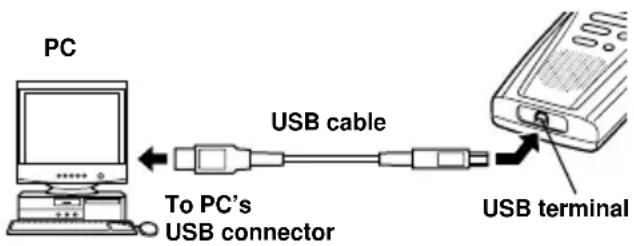
Stop the recorder before plugging in the USB cable. Do not use the AC adapter when connecting the recorder to the USB port. The USB port delivers the required power to the recorder.
Tip
When the SmartMedia card is ejected, data can be transferred from the SmartMedia card to a PC via a number of ways. See Page 30 for optional accessories to download SmartMedia through your PCMCIA, USB, or Floppy Disk drives.
Hold
All operation buttons are disabled. This feature is useful when the recorder has to be carried in a bag or pocket.
Setting the HOLD switch to the HOLD position.
When the recorder is in hold mode, the time shows on the display.
Remember to reset the HOLD switch when using the recorder. Setting the HOLD switch to the HOLD position locks the recorder. All buttons are disabled.
Reset
natural_image
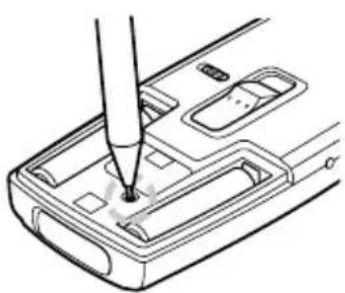
Line drawing of a device's internal components with a pen inserted, no text or symbols presentIf the display or the recorder acts strangely, lightly press the reset button in the battery compartment with the tip of a ballpoint pen or a similar object.
Notes
- Do not use a sharp object such as a needle.
- The time/date setup process launches automatically when you press the reset button. Set the time and date again (→ P.11).
- Audio data is not erased when the recorder is reset.
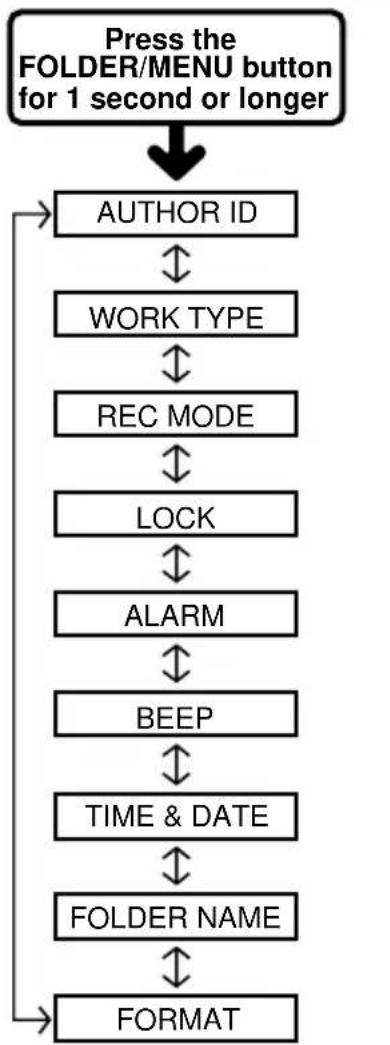
Menu List
flowchart
graph TD
    A["Press the FOLDER/MENU button for 1 second or longer"] --> B["AUTHOR ID"]
    B --> C["WORK TYPE"]
    C --> D["REC MODE"]
    D --> E["LOCK"]
    E --> F["ALARM"]
    F --> G["BEEP"]
    G --> H["TIME & DATE"]
    H --> I["FOLDER NAME"]
    I --> J["FORMAT"]
↑ : Press the FF /+ or REW/- button
Notes
- If you press the STOP button, the REC/SET button, or the FOLDER/MENU button during a menu setup operation, the recorder will stop and apply the items that were set to that point.
- The recorder will stop if you leave it idle for 3 minutes during a menu setup operation, when a selected item is not applied.
Alarm Message List
| Message | Meaning | Explanation | Action |
| BATTERY LOW | Low battery power | Battery power is getting low. | Replace with new batteries (→ P.8). |
| CARD LOCK | Write-protected | Tried to record to, or erase from, a SmartMedia card with a write-protect seal attached. | Remove the write-protect seal from the SmartMedia card and try again (→ P.4). |
| CARD ERROR | Incompatible SmartMedia | An incompatible SmartMedia card was inserted. | Insert a compatible SmartMedia card (→ P.9). |
| EJECT ERROR | SmartMedia ejection error | The SmartMedia card was ejected during an operation. | Reinsert the SmartMedia card. |
| FOLDER FULL | Folder full | The folder is full of files (maximum of 199 files). | Erase files that are no longer required, or insert another SmartMedia card. |
| FORMAT ERROR | Formatting error | An error was encountered while formatting. | Reinsert the SmartMedia card and then reformat it (→ P.26). |
| INDEX FULL | Index full | The file is full of index marks (maximum of 16 marks). | Erase index marks that are no longer required (→ P.19). |
| INSERT CARD | No card | There is no SmartMedia card inserted. | Insert a SmartMedia card (→ P.9). |
| LOCK ON | Erase-locked | Attempted to overwrite, insert additional recording to, or erase a locked file. | Unlock the file (→ P.19). |
| MEMORY FULL | Zero remaining memory | The SmartMedia card has no remaining memory. | Erase files that are no longer required or insert another SmartMedia card. |
| NO FILE | No file | No files were found in the folder. | Select another folder. |
| PRIORITY ERROR | Priority cannot be set for the file. | You tried to set a priority level for a file recorded on another recorder. | In such a case, you cannot set a priority for the file. |
| READONLY | Unrecordable | There is something wrong with the SmartMedia card. | Back up the data (→ P.26) and format the SmartMedia card. |
| SAME FILE | File cannot be transferred | A file with the same file name* already exists in the destination folder. | Transfer the file to another folder. |
| TRAIN PC | PC microphone indicator | The recorder is being used as a PC microphone**. | Refer to the supplied DSS Player Pro manual. |
* File names are assigned during recording for file management purposes.
**The recorder enters this state when you hold the NEW button.
Troubleshooting
| Symptom | Probable cause | Action |
| Nothing appears on the display. | The batteries are not loaded properly. | Verify polarity is correct. |
| The batteries are dead. | Replace with new batteries. | |
| The POWER/LOCK switch is set to OFF. | Set the POWER/LOCK switch to ON. | |
| If none of these suggestions works | Reset the recorder (→ P.27). | |
| Won't start | The recorder is in HOLD mode. | Release the recorder from HOLD (→ P.27). |
| The SmartMedia card is not formatted. | Format the SmartMedia card (→ P.26). | |
| The batteries are dead. | Replace with new batteries. | |
| Unable to record | The SmartMedia card has a write-protect seal attached to it. | Remove the seal. |
| The SmartMedia card is unformatted. | Format the SmartMedia card. | |
| The SmartMedia card does not have enough memory. | Erase unnecessary files or insert another SmartMedia card. | |
| The maximum number of files has been reached. | Check another folder. | |
| No playback tone heard | The earphone is connected. | Disconnect the earphone jack. |
| The VOLUME control is set to 0. | Adjust the VOLUME control. | |
| Unable to erase | The file is locked. | Unlock the file (→ P.19). |
| The SmartMedia card has a write-protect seal attached to it. | Remove the seal. | |
| Noise heard during playback | The recorder was shaken during recording. | — |
| The recorder was placed near a cell phone or fluorescent lamp while recording or during playback. | Move the recorder. | |
| Recording level too low | The microphone sensitivity is too low. | Set the microphone sensitivity to CONF mode and try again. |
| Unable to set index marks | The maximum number of index marks (16) has been reached. | Erase unnecessary index marks (→ P.19). |
| The SmartMedia card has a write-protect seal attached to it. | Remove the seal. | |
| The file is locked. | Unlock the file (→ P.19). | |
| Won't work with AC adapter | A non-standard AC adapter is being used. | Use the Olympus A321 (for US and Canada) or A322 (for Europe except U.K) AC adapter (Oprional). |
| Unable to eject the SmartMedia card | The POWER/LOCK switch is set to ON. | Set the POWER/LOCK switch to OFF. |
Specifications
Recording format
DSS (Digital Speech Standard)
Recording media
3 V (3.3 V) SmartMedia cards (4 to 64MB)
Card format SSFDC Forum-compliant
SmartMedia format
Input level -70 dBv
Sampling frequency
SP mode:12 kHz
LP mode: 8 kHz
Overall frequency response
SP mode:300 to 5,000 Hz
LP mode:300 to 3,000 Hz
Recording time SP mode:2 hours 35 minutes
(16MB card)
LP mode:5 hours 30 minutes
(16MB card)
Speaker Built-in ø28 mm round dynamic speaker
Microphone jack ∅3.5 mm mini-jack, impedance 2 kΩ
Earphone jack ∅3.5 mm mini-jack, impedance 8 Ω
Maximum working output (3 V DC)
100 mW or more (8 Ω speaker)
Input power requirement
Rated voltage:3 V
Batteries: Two AAA
batteries
(LR03 or R03)
External power supply:
AC adapter
Battery life (Recording or Playing)
Approx. 11 hours (with alkaline batteries, based on our standard testing procedure)
External dimensions
109.5 x 50.0 x 16.7 mm (without protrusions)
Weight 86 g (including batteries)
* Specifications and design are subject to change without notice.
* Battery life varies greatly according to type of batteries used and the conditions of use.
Accessories (optional)
SmartMedia cards of 4, 8, 16, 32, and 64MB:M-4/8/16/32/64
Olympus CAMEDIA digital camera series 3 V (3.3 V)
SmartMedia memory cards can be used.
PC card adapter:MA-2E
Allows files to be transferred to a PC that has a PC card slot or PC card drive.
FlashPath (floppy disk adapter):MAFP-2E
Allows files to be transferred to a PC with a 3.5" floppy disk drive.
USB SmartMedia reader/writer:MAUSB-1 (US and Canada) or MAUSB-2 (Europe)
Allows data to be transferred to and from a PC.
Conference microphone:ME7
A highly sensitive directional microphone (shotgun microphone). Used to record speakers at a distance.
External microphone:ME10\*
A lavalier omnidirectional microphone that clips to clothing. Used to record your own voice or people near you.
Noise-Cancellation microphone:ME12
Used to get crisp recordings of your own voice by reducing the effects of ambient noise. Recommended to improve the accuracy when using voice-recognition software.
AC adapter:A321 (US and Canada) or A322 (Europe except U.K.)
Connecting cord:KA232\*
Use to connect the microphone jack of this unit to a radio or other sound source.
Plug adapter:PA3
An adapter that connects devices such as microphones with 2.5 mm mini-plugs to the unit's 3.5 mm mini-jack.
PC Transcription kit: AS-3000
The AS-3000 transcription kit (sold separately) provides you with a PC-footswitch, a headset and the software DSS Player Pro Transcription Module for easy transcription of DSS recordings.
*Use these accessories with the PA3 plug adapter.
Technical Assistance and Support
DS-3000 is part of the Olympus Professional Dictation System. Your dealer is trained to troubleshoot and fix many common problems that you may be having with this system. If you encounter problems with use of DS-3000, we recommend that you contact your Olympus Professional Dealer that sold you the system. If your dealer cannot fix your problem, please call our technical hotline number or send E-mail.
◆ Technical Hotline Number in the U.S. and Canada
1-888-553-4448
◆ User Support E-mail address in the U.S. and Canada
distec@olympus.com
◆ Technical Hotline Number in Europe
Toll free number
00800 67 10 83 00
available for Austria, Belgium, Denmark,
France, Germany, Netherlands, Norway,
Sweden, Switzerland, United Kingdom
Charged numbers
+49 180 567 1083
available for Finland, Italy, Luxemburg, Portugal, Spain and Czech Republic
+49 40 23773 899
available for Greece, Croatia, Hungary and the rest of Europe
◆ User Support E-mail address in Europe dss.support@olympus-europa.com
◆ The following are for only technical questions and support about IBM ViaVoice.
http://www.ibm.com/software/speech/support/faqolympus.html
OLYMPUS®
(Premises/Goods delivery) Wendenstrasse 14-18, 20097 Hamburg, Germany. Tel. 040-237730
(Letters) Postfach 10 49 08. 20034 Hamburg. Germany.
OLYMPUS OPTICAL CO.(U.K.) LTD.
2-8 Honduras Street, London EC1Y 0TX, United Kingdom, Tel. 020-7253-2772
http://www.olympus.com
Declaration of Conformity
Model Number: DS-3000
Trade Name: DIGITAL VOICE RECORDER
Responsible Party: OLYMPUS AMERICA INC.
Address: 2 Corporate Center Drive, Melville, NY 11747-3157, U.S.A.
Telephone Number: 800-622-6372
This device Complies with Part 15 of the FCC Rules. Operation is subject to the following two conditions: (1) This device may not cause harmful interference, and (2) this device must accept any interference received, including interference that may cause undesired operation.

Tested To Comply
With FCC Standards
FOR HOME OR OFFICE USE
Canadian RFI
This digital apparatus does not exceed the Class B limits for radio noise emissions from digital apparatus as set out in the Radio Interference Regulations of the Canadian Department of Communications.
“CE” mark indicates that this product complies with the European requirements for safety, health, environment and customer protection.

