
LEGEND 850 LITE - SSD ADATA - Free user manual and instructions
Find the device manual for free LEGEND 850 LITE ADATA in PDF.


| Product Type | Solid State Drive (SSD) |
| Brand | ADATA |
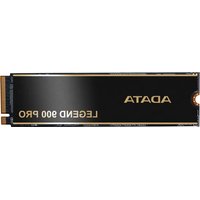
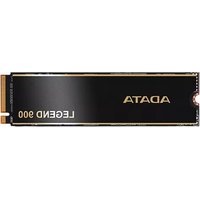
| Model | LEGEND 850 LITE |
| Form Factor | M.2 2280 |
| Interface | PCIe Gen3 x4 (NVMe 1.3) |
| Capacity | Up to 1TB (depending on model) |
| Sequential Read Speed | Up to 3500 MB/s |
| Sequential Write Speed | Up to 3000 MB/s |
| Operating Temperature | 0°C to 70°C |
| Storage Temperature | -40°C to 85°C |
| Power Consumption (Active) | Approx. 5.0W |
| Power Consumption (Idle) | Approx. 0.5W |
| Dimensions (L x W x H) | 80mm x 22mm x 3.5mm |
| Weight | Approx. 8g |
| Key Features | TRIM, S.M.A.R.T., ECC, LDPC, SLC Caching |
| Compatibility | Desktop PC, Laptop, PlayStation 5 (with M.2 slot) |
| Installation Tools Required | Phillips screwdrivers (3.5mm and 1.85-1.98mm) |
| Maintenance | No regular maintenance required; keep firmware updated |
| Warranty | Limited warranty (refer to product packaging) |
Frequently Asked Questions - LEGEND 850 LITE ADATA
User questions about LEGEND 850 LITE ADATA
0 question about this device. Answer the ones you know or ask your own.
Ask a new question about this device
Download the instructions for your SSD in PDF format for free! Find your manual LEGEND 850 LITE - ADATA and take your electronic device back in hand. On this page are published all the documents necessary for the use of your device. LEGEND 850 LITE by ADATA.
USER MANUAL LEGEND 850 LITE ADATA
natural_image
Colorful hummingbird logo with rainbow wings and stars against blue background (no text or symbols)ADATA®
INDEX
INSTALLING AN M.2 SSD ON A DESKTOP PC
| Chinese traditional 03 | Portuguese | 27 |
| Chinese simple 07 | Russian | 31 |
| English 11 | Romanian | 35 |
| German 15 | Spanish | 39 |
| Japanese 19 | Turkish | 43 |
| Korean | 23 |
INSTALLING AN M.2 SSD ON A LAPTOP PC
| Chinese traditional 47 | Portuguese | 71 | |
| Chinese simple 51 | Russian | 75 | |
| English | 55 | Romanian | 79 |
| German 59 | Spanish | 83 | |
| Japanese 63 | Turkish | 87 | |
| Korean | 67 |
HOW TO INSTALL AN M.2 SSD ON PLAYSTATION 5
| Chinese traditional 91 | Portuguese | 127 | |
| Chinese simple 97 | Russian | 133 | |
| English | 103 | Romanian | 139 |
| German | 109 | Spanish | 145 |
| Japanese | 115 | Turkish | 151 |
| Korean | 121 |
如何在桌機安裝
M.2固態硬碟

natural_image
Exterior view of a computer monitor displaying a colorful circular lens, next to a RAM module labeled 'ADATA' (no other text or symbols visible)更換前準備步驟

natural_image
Interior view of a computer case showing internal components and wiring (no visible text or symbols)1. 準備工具
2.備份資料
natural_image
Hand inserting a socket into a server rack unit (no visible text or labels)natural_image
Hand placing a hard disk into a black server tower case with visible internal components and tools (no text or symbols)1. 將主機機殼卸下
natural_image
Interior view of a computer motherboard showing CPU socket, RAM slots, and drive bays (no visible text or labels)natural_image
Close-up of a hand holding a black object in a computer motherboard, no visible text or symbols3. 對準M.2插槽、插上固態硬碟
natural_image
Close-up of hands operating a computer motherboard with a keyboard and monitor (no visible text or symbols)4.拴上螺絲固態硬碟
再以螺絲起子固定M.2固態硬碟。
natural_image
Hand placing a component into a black server rack with visible internal cables and hardware (no text or symbols)5.重新裝上機殼
natural_image
Close-up of a hand inserting a black rack into a server rack with multiple Ethernet connectors (no visible text or labels)natural_image
Exterior view of a computer monitor displaying a colorful circular lens, next to a RAM module labeled 'ADATA' (no other text or symbols visible)更换前准备步骤

natural_image
Interior view of a computer case showing internal components and wiring (no visible text or symbols)1. 准备工具
2. 备份数据
natural_image
Hand inserting a rack-mounted server into a black rack unit (no visible text or labels)natural_image
Hand placing a hard disk into a black server tower case with visible internal components and tools (no text or symbols)1. 将机箱侧板卸下
natural_image
Interior view of a computer motherboard showing CPU socket, RAM slots, and ventilation duct (no visible text or symbols)natural_image
Close-up of a hand inserting a component into a computer motherboard (no visible text or symbols)3. 对准M.2插槽、插上固态硬盘
natural_image
Close-up of hands assembling or adjusting a computer motherboard with visible circuit board and hardware (no text or symbols)4.拧上螺丝以固定固态硬盘
再以螺丝起子固定M.2固态硬盘。
natural_image
Hand placing a device into a black server rack with visible internal components (no text or symbols)5.重新装上机箱侧板
natural_image
Close-up of a hand inserting a black rack into a server rack with multiple Ethernet connectors (no visible text or labels)natural_image
Exterior view of a computer monitor displaying a colorful circular lens, next to a RAM module labeled 'ADATA' (no other text or symbols visible)BEFORE INSTALLATION

natural_image
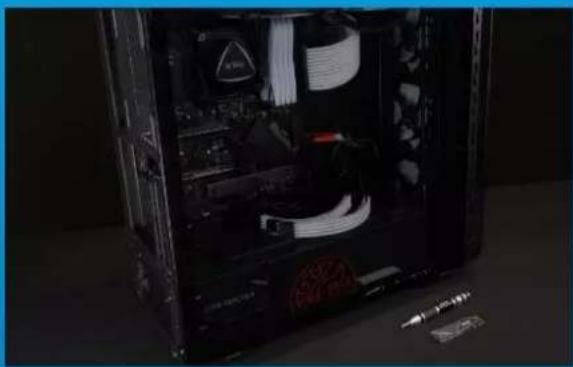
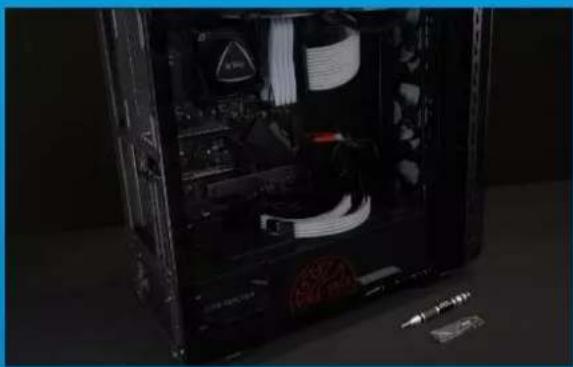
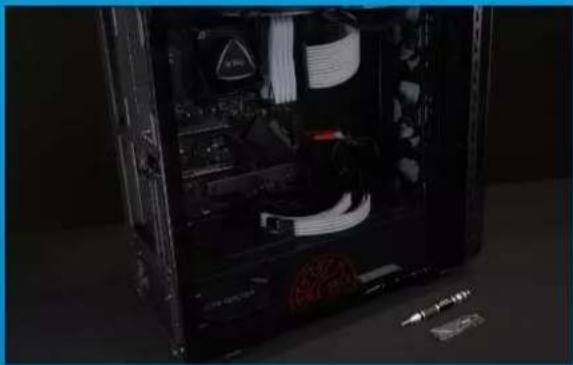
Interior view of a computer case showing internal components and wiring (no visible text or symbols)1.GATHERTHETHINGSYOU'LL NEED
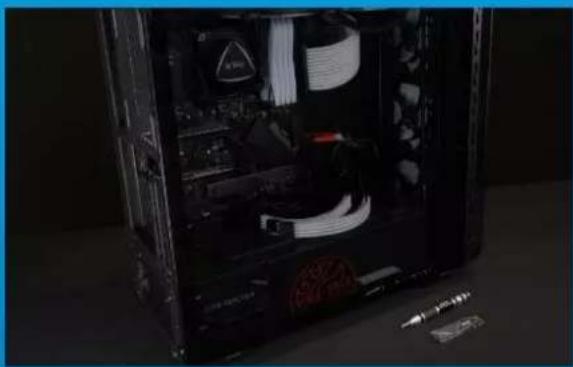
PC, Phillips screwdrivers, and ADATA M.2 SSD
*Please use a standard Phillips screwdriver (3.5mm) for disassembling the case; and a smaller Phillips screwdriver for installing the M.2 solid state drive as it uses screws with a diameter of 1.85-1.98mm

2.BACKUPYOURDATA
Make sureto backup the important data on your PC to an external device, such as an external HDD, before starting installation.

3. POWEROFF YOURPC
After backing up your data, power off your PC to avoid data loss or damage to other components during installation.

natural_image
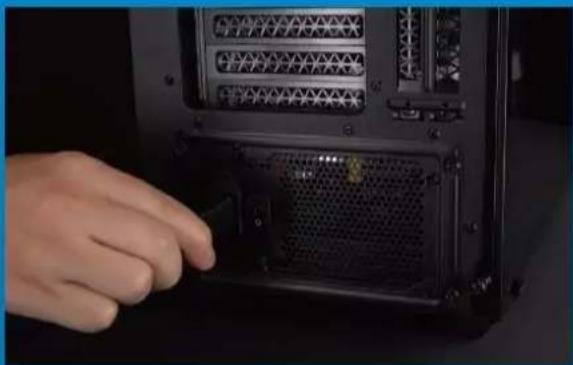
Hand inserting a rack-mounted server into a black rack unit (no visible text or labels)4.SWITCHOFFTHEPOWERSWITCH ANDUNPLUGPOWERCORD
This action is necessary to discharge residual power that can damage your PC and its components.
*The location of the power switch may vary by PC, please check your user manual.
INSTALLATION

natural_image
Hand placing a hard drive into a black internal computer tower case (no visible text or symbols)1.REMOVETHEPCCASE
Use the standard Philips screwdriver to remove the screws and then remove the PC case
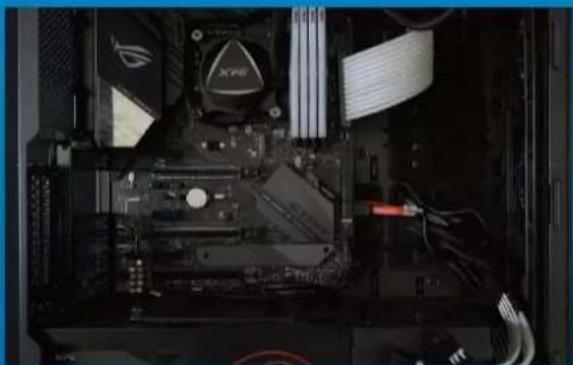
natural_image
Interior view of a computer motherboard with CPU socket, RAM slots, and monitor (no visible text or symbols)2. LOCATETHEM.2PCIESLOTAND CONFIRM THEREARESCREWS
Locate the M.2 PCIe slot, ensure the SSD will fit, and confirm there a rescrews present.
*The location of slots may vary by PC. Please check your PC's user manual for more information.
**Generally speaking, the screws that secure the SSD in place will be installed on the motherboard when the PC is shipped from the factory.
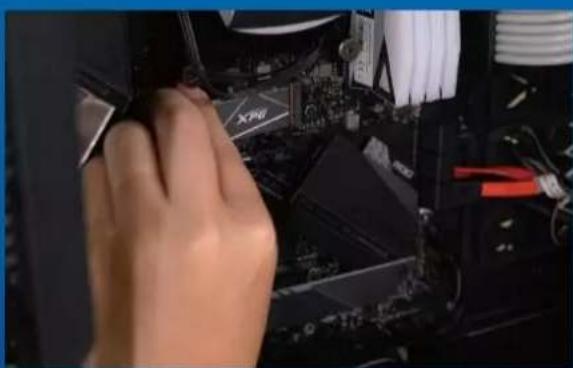
natural_image
Close-up of a hand holding a computer monitor with visible CPU socket and motherboard (no text or symbols)3.ALIGNTHEM.2SLOTANDINSERT THESOLIDSTATEDRIVE
Use your small Phillips screwdriverto remove the screwson the motherboard. Align the notches in the SSD with the ridges in the PCIe slot, then insert at a an angle. Give it afinal push to ensure it is securely in place.
* The slot has a foolproof design. Please insert the SSD in the direction corresponding to the pins on the solid state drive and the slot. Do not insert it forcibly to avoid damage to the product.
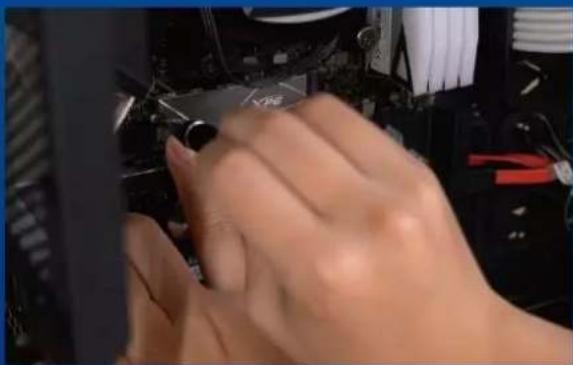
natural_image
Close-up of hands operating a computer motherboard with visible CPU socket and monitor (no text or symbols)4.FASTENTHESCREWSTOSECURE THESSD
Use your small Phillips screwdriver to secure the SSD into place.
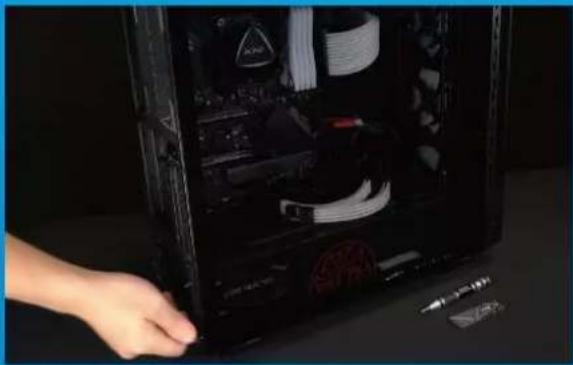
natural_image
Hand placing a device into a black server rack with visible internal components (no text or symbols)5.RESEMBLTHECASE
*Do not overtighten the screws as it may damage the screws ad back plate
natural_image
Close-up of a hand inserting a black rack into a server rack with multiple Ethernet connectors (no visible text or labels)6. PLUGINTHEPOWERCORDAND POWERONTHEPCTOCOMPLETE INSTALLATION
EINEM.2-SSDANEINEM DESKTOP-PCINSTALLIEREN

natural_image
Exterior view of a computer monitor displaying a colorful circular light pattern, next to a black RAM module labeled 'ADATA' (no other text or symbols visible)VOR DER INSTALLATION
natural_image
Interior view of a computer tower case showing exposed wiring, circuitry, and hardware (no visible text or symbols)1.ALLESNÖTIGE ZUSAMMENTRAGEN
2.IHREDATENSICHERN
natural_image
Hand inserting a rack-mounted server into a black rack unit (no visible text or labels)natural_image
Hand placing a hard drive into a black server rack with visible internal components (no text or symbols)1.PC-GEHÄUSE ENTFERNEN
natural_image
Interior view of a computer motherboard showing CPU socket, RAM slots, and monitor (no visible text or symbols)2.M.2-PCIE-STECKPLATZAUSFINDIG MACHENUNDSICHERSTELLEN, DASSSCHRAUBENVORHANDENSIND
natural_image
Close-up of a hand holding a tool interacting with electronic equipment (no visible text or symbols)3.M.2-STECKPLATZAUSRICHTEN UNDDASSOLID-STATE-DRIVE EINSETZEN
natural_image
Close-up of hands assembling electronic components with a tool (no visible text or symbols)4.SCHRAUBENZURFIXIERUNGDER SSDFESTZIEHEN
natural_image
Hand placing a device into a black server rack with visible internal components (no text or symbols)5.GEHÄUSEWIEDERZUSAMMENBAUEN
natural_image
Close-up of a hand inserting a black rack into a server rack with multiple Ethernet connectors (no visible text or labels)natural_image
Exterior view of a computer monitor displaying a colorful circular lens, next to a RAM module labeled 'ADATA' (no other text or symbols visible)交換前の準備
natural_image
Interior view of a computer case showing internal components and wiring (no visible text or symbols)1. 準備するもの
2. データのバックアップ
natural_image
Hand inserting a rack-mounted server into a black rack unit (no visible text or labels)natural_image
Hand placing a hard disk into a black server tower case with visible internal components (no text or symbols)1. パソコン本体のケースを取り外す
natural_image
Interior view of a computer motherboard showing CPU socket, RAM slots, and wiring (no readable text or symbols)natural_image
Close-up of a hand inserting a component into a computer motherboard (no visible text or symbols)3. M.2スロットにSSDを差し込む
natural_image
Close-up of a hand inserting a small electronic component into a computer motherboard (no visible text or symbols)4. SSDをねじで 固 定する
natural_image
Hand placing a device into a black server rack with visible internal components (no text or symbols)5. ケースを元の位置に取り付ける
natural_image
Close-up of a hand inserting a black rack into a server rack with multiple Ethernet connectors (no visible text or labels)natural_image
Exterior view of a computer monitor displaying a colorful circular light pattern, next to a black RAM module labeled 'ADATA' (no other text or symbols visible)설치하기 전에
natural_image
Interior view of a computer case showing internal components and wiring (no visible text or symbols)1.필요한 도구 준비
PC, Phillips스크루드라이버, ADATA M.2 SSD
2.데이터 백업
natural_image
Hand inserting a rack-mounted server into a black rack unit (no visible text or labels)natural_image
Hand placing a hard drive into a black internal computer tower case (no visible text or symbols)1.PC케이스 제거
natural_image
Interior view of a computer motherboard showing CPU socket, RAM slots, and wiring (no readable text or symbols)natural_image
Close-up of a hand holding a black object in a computer room with electronic equipment (no visible text or symbols)natural_image
Close-up of a hand inserting a small electronic component into a computer motherboard (no visible text or symbols)4.나사를 조여서SSD고정
natural_image
Hand placing a device into a black server rack with visible internal components (no text or symbols)5. 케이스 재조립
natural_image
Close-up of a hand inserting a black rack into a server rack with multiple Ethernet connectors (no visible text or labels)natural_image
Exterior view of a computer monitor displaying a colorful circular light pattern, next to a RAM module labeled 'ADATA' (no other text or symbols visible)ANTES DA INSTALAÇÃO
natural_image
Interior view of a computer case showing internal components and wiring (no visible text or symbols)1. REÚNA AS COISAS QUE VOCÊ PRECISA
2.FAÇA BACKUPDESEUSDADOS
natural_image
Hand inserting a rack-mounted server into a black rack unit (no visible text or labels)natural_image
Hand placing a hard disk into a black server tower case with visible internal components (no text or symbols)1.REMOVAOGABINETEDOPC
natural_image
Interior view of a computer motherboard showing CPU socket, RAM slots, and motherboard connections (no readable text or symbols)2.LOCALIZEOSLOTM.2PCIEE CONFIRMESEHÁ PARAFUSOS
natural_image
Close-up of a hand inserting a component into a computer motherboard (no visible text or symbols)3.ALINHEOSLOTM.2EINSIRAA UNIDADEDEESTADOSÓLIDO
natural_image
Close-up of a hand adjusting a mechanical component with a tool, no visible text or symbols4.APERTEOSPARAFUSOSPARA PRENDEROSSD
natural_image
Hand placing a device into a black server rack with visible internal components (no text or symbols)natural_image
Close-up of a hand inserting a black rack into a server rack with multiple Ethernet connectors (no visible text or labels)6.CONECTEOCABODE ALIMENTAÇÃOELIGUEOPCPARA COMPLETARAINSTALAÇÃO
УСТАНОВКА
ТВЕРДОТЕЛЬНОГО
НАКОПИТЕЛЯ М.2НА
НОУТБУК

natural_image
Interior view of a computer case showing internal components and wiring (no visible text or symbols)2.ЗАРЕЗЕРВИРУЙТЕ ДАННЫЕ
natural_image
Hand inserting a rack-mounted server into a black rack unit (no visible text or labels)natural_image
Hand placing a hard drive into a black computer tower case with visible internal components (no text or symbols)1. СНИМИТЕ ЗАДНЮЮ ПЛАСТИНУ ПК
natural_image
Interior view of a computer motherboard showing CPU socket, RAM slots, and monitor (no visible text or symbols)natural_image
Close-up of a hand operating a computer motherboard with visible circuitry and hardware (no text or symbols)natural_image
Close-up of hands assembling electronic components with a tool (no visible text or symbols)natural_image
Hand placing a device into a black server rack with visible internal components (no text or symbols)5.ЗАКРЕПИТЕ ЗАДНЮЮ ПЛАСТИН НА МЕСТЕ
natural_image
Close-up of a hand inserting a black rack into a server rack with multiple Ethernet connectors (no visible text or labels)natural_image
Exterior view of a computer RAM module next to a colorful circular display screen (no text or symbols on main subject)ÎNAINTE DE INSTALARE

natural_image
Interior view of a computer tower case showing internal components and wiring (no visible text or symbols)1.ADUNATILUCRURILEDECARE VETIAVEANEVOIE
2. FACETI O COPIE DE REZERVĂ A DATELOR
natural_image
Hand inserting a rack into a server rack with ventilation grilles (no visible text or labels)4. DECONECTATIALIMENTAREACU ENERGIEŞICABLULDE ALIMENTARE
natural_image
Hand placing a computer tower case with visible internal components and a screwdriver nearby (no text or symbols)1.SCOATETICARCASAPC-ULUI
natural_image
Interior view of a computer motherboard showing CPU socket, RAM slots, and drive bays (no visible text or labels)natural_image
Close-up of a hand adjusting a computer motherboard with visible CPU socket and hardware (no text or symbols)3. ALINIATI FANTA M.2 ŞI INTRODUCETI UNITATEASOLIDSTATE
natural_image
Close-up of hands assembling electronic components with a computer monitor and keyboard (no visible text or symbols)4. STRÂNGETI ŞURUBURILE PENTRU AFIXASSD
natural_image
Hand placing a component into a black server tower case with visible internal circuitry and hardware (no text or symbols)5.REASAMBLATICARCASA
natural_image
Hand inserting a rack into a server rack with multiple drive bays (no visible text or labels)6.CONECTATICABLULDE ALIMENTAREŞIPORNITIPC-UL PENTRUAFINALIZAINSTALAREA
INSTALARUNAUNIDADDE ESTADOSÓLIDO M.2EN
UNEQUIPODE
SOBREMESA
natural_image
Interior view of a computer case with exposed wiring and components (no visible text or symbols)1.REUNIRLOSELEMENTOSQUE NECESITARÁ
natural_image
Hand inserting a rack-mounted server into a black rack unit (no visible text or labels)natural_image
Hand placing a hard drive into a black server tower case (no visible text or symbols)1. QUITARLACARCASADELEQUIPO
natural_image
Interior view of a computer motherboard showing CPU socket, RAM slots, and motherboard connections (no readable text or symbols)natural_image
Close-up of a hand inserting a component into a computer motherboard (no visible text or symbols)3.ALINEARLARANURAM.2EINSERTAR LAUNIDADDEESTADOSÓLIDO
natural_image
Close-up of a hand adjusting a mechanical component with a tool, no visible text or symbolsnatural_image
Hand placing a device into a black server rack with visible internal components (no text or symbols)5.VOLVERAMONTARLACARCASA
natural_image
Close-up of a hand inserting a black rack into a server rack with multiple Ethernet connectors (no visible text or labels)natural_image
Exterior view of a computer monitor displaying a colorful circular light pattern, next to a black RAM module labeled 'ADATA' (no other text or symbols visible)KURULUMDAN Ö NCE

natural_image
Interior view of a computer tower case showing internal components and wiring (no visible text or symbols)1. İHTIYACINIZ OLACAK ŞEYLERI TOPLAYIN
PC, Phillips tornavidalar ve ADATA M.2 SSD
2. VERILERINIZI YEDEKLEYIN
natural_image
Hand inserting a socket into a server rack with ventilation grilles (no visible text or labels)4. GÜ Ç ANAHTARINI KAPATIN VE GÜ Ç KABLOSUNU Ç IKARIN
natural_image
Hand placing a hard disk into a black server tower case with visible internal components and a screwdriver nearby (no text or symbols)1. PC KASASINI Ç IKARIN
natural_image
Interior view of a computer motherboard showing CPU socket, RAM slots, and ventilation ducts (no readable text or symbols)2. M.2 PCIE YUVASINI BULUN VE VIDALARIN BULUNDUĞUNU DOĞRULAYIN
natural_image
Close-up of a hand holding a computer monitor with an open motherboard and CPU socket (no visible text or symbols)3. M.2 YUVASINI HIZALAYIN VE KATI HAL SÜ RÜ CÜ SÜ NÜ TAKIN
natural_image
Close-up of hands operating a computer monitor with a keyboard and drive (no visible text or symbols)4. SSD'YI SABITLEMEK IÇ IN VIDALARI SIKIN
natural_image
Hand placing a device into a black server rack with visible internal components (no text or symbols)5. DAVAYA BENZEYEN
natural_image
Close-up of a hand pressing a black rack-mounted server unit with multiple drive bays (no visible text or labels)6. KURULUMU TAMAMLAMAK IÇ IN GÜ Ç KABLOSUNU TAKIN VE BILGISAYARI AÇ IN
如何在筆電安裝 M.2固態硬碟
natural_image
Laptop displaying a black GPU chip with visible internal components, next to a blue-lit RAM module (no text or symbols on the chip or background)更換前準備步驟

1. 準備工具
natural_image
Close-up of human hands resting on a dark surface, no visible text or symbols4.將電源線及電池拔除
1. 將主機背板卸下
natural_image
Top-down view of a laptop chassis showing internal circuitry and ventilation (no text or symbols visible)natural_image
Close-up of a hand inserting a XPG into a computer motherboard with visible CPU socket and drive components (no text or symbols)3. 對準M.2插槽、插上固態硬碟
natural_image
Close-up of hands using a screwdriver to adjust a CPU socket with XPG chip (no visible text or symbols)4.拴上螺絲以固定固態硬碟
再以螺絲起子固定M.2固態硬碟。
5.重新盖上背板
natural_image
Close-up of hands resting on a dark surface, no visible text or symbolsnatural_image
Laptop keyboard with ADATA chip, showing front panel and side view (no readable text or symbols beyond branding)更换前准备步骤

1. 准备工具
2.备份数据
natural_image
Close-up of human hands resting on a dark surface, no visible text or symbols4. 将电源线及电池拔除
natural_image
Close-up of hands holding a small electronic device on a black laptop case (no visible text or symbols)1. 将电脑背板卸下
natural_image
Top-down view of a laptop showing internal circuit board and ventilation system (no text or symbols visible)natural_image
Close-up of a hand pressing a component labeled 'XFG' on a laptop keyboard (no readable text or symbols beyond the label)3. 对准M.2插槽、插上固态硬盘
natural_image
Close-up of hands using a screwdriver to adjust a XPG chip on a circuit board (no visible text or symbols)4.拴上螺丝以固定固态硬盘
再以螺丝起子固定M.2固态硬盘。
5.重新盖上背板
natural_image
Close-up of human hands resting on a dark surface, no visible text or symbolsnatural_image
Laptop keyboard with ADATA chip, showing front panel and side view (no readable text or symbols beyond branding)BEFORE INSTALLATION

1. GATHERTHETHINGS YOU'LL NEED
PC, Phillips screwdrivers, and ADATA M.2 SSD
*Please use a standard Phillips screwdriver (3.5mm) for disassembling the case; and a smaller Phillips screwdriver for installing the M.2 solid state drive as it uses screws with a diameter of 1.85-1.98mm.

2.BACKUPYOURDATA
Make sure to backup the important data on your PC to an external device, such as an external HDD, before starting installation.

3.POWEROFFYOURPC
After backing up your data, power off your PC to avoid data loss or damage to other components during installation.

natural_image
Close-up of hands resting on a dark surface with a small triangular logo in the background (no readable text or symbols)4.UNPLUGPOWERCORDAND BATTERY
This action is necessary to discharge residual power that can damage your PC and its components.
*The battery removal step applies only to laptops when it's possible to remove the battery. Tosee how to remove the battery, refer to your user manual.
INSTALLATION

natural_image
Close-up of hands installing a small electronic component on a laptop case (no visible text or symbols)1.REMOVEYOURPC'SBACKPLATE
Use your standard Phillips screwdriver to remove the screws from the back plate.
*If you are unsure how to do this, refer to your user manual

natural_image
Top-down view of a laptop showing internal circuit board and drive components (no text or symbols visible)2. LOCATETHEM.2PCIESLOTAND CONFIRM THEREARESCREWS
Locate the M.2 PCIe slot, ensure the SSD will fit and confirm there arescrews present.
*The location of slots may vary by PC. Please check your PC's user manual for more information.
**Generally speaking, the screws that secure the SSD in place will be installed on the motherboard when the laptop is shipped from the factory.

natural_image
Close-up of a hand inserting a XPG into a computer motherboard with visible CPU socket and circuit board (no text or symbols)3.ALIGNTHEM.2SLOTANDINSERT THESOLIDSTATEDRIVE
Use your small Phillips screwdriver to remove the screws on the motherboard. Align the notches in the SSD with the ridges in the PCIe slot, then insert at a an angle. Give it a final push to ensure it is securely in place.
*The slot has a foolproof design. Please insert the SSD in the direction corresponding to the pins on the solid state drive and the slot. Do not insert it forcibly to avoid damage to the product.

natural_image
Close-up of hands using a screwdriver to adjust a device with XPG logo (no visible text or symbols)4.FASTENTHESCREWSTOSECURE THESSD
Use your small Phillips screwdriver to secure the SSD into place.
*Do not overtighten the screws

5.SECURETHEBACKPLATEINTO PLACE
*Do not overtighten the screws as it may cause damage
natural_image
Close-up of human hands resting on a dark surface, no visible text or symbols6. PLUGINTHEPOWERCORDAND POWERONTHEPCTOCOMPLETE INSTALLATION
EINEM.2-SSDANEINEM LAPTOP-PCINSTALLIEREN
natural_image
Laptop keyboard with ADATA chip, showing front panel and side view (no readable text or symbols beyond branding)VOR DER INSTALLATION
1.ALLESNÖTIGE ZUSAMMENTRAGEN
2.IHREDATENSICHERN
natural_image
Close-up of hands resting on a dark surface with a small triangular logo in the background (no readable text or symbols)4.NETZKABELUNDAKKUTRENNEN
natural_image
Close-up of hands installing a small electronic component on a laptop case (no visible text or symbols)1.RÜCKPLATTE IHRESPCS ENTFERNEN
natural_image
Top-down view of a laptop showing internal circuit board and drive components (no text or symbols visible)2.M.2-PCIE-STECKPLATZAUSFINDIG MACHENUNDSICHERSTELLEN,DASS SCHRAUBENVORHANDENSIND
natural_image
Close-up of a hand pressing a component labeled 'XFG' on a laptop keyboard (no readable text beyond label)3.M.2-STECKPLATZAUSRICHTEN UNDDASSOLID-STATE-DRIVE EINSETZEN
natural_image
Close-up of hands using a screwdriver to adjust a device with XPG chip (no visible text or symbols)4.SCHRAUBENZURFIXIERUNG DERSSDFESTZIEHEN
5.RÜCKPLATTEWIEDEREINSETZEN
natural_image
Close-up of human hands resting on a dark surface, no visible text or symbolsnatural_image
Laptop with a black RAM module and a blue-lit keyboard, no visible text or symbols on the main components.交換前の準備

1. 準備するもの
2. データのバックアップ
natural_image
Close-up of human hands resting on a dark surface, no visible text or symbols4. 電源ーブルとバッテリーを取り外す
1. パソコンのバックパネルを取り外す
natural_image
Top-down view of a laptop computer showing internal circuit board and drive components (no text or symbols visible)natural_image
Close-up of a hand pressing a component labeled 'XPG' on a laptop keyboard (no readable text or symbols beyond branding)3. M.2スロットにSSDを差し込む
natural_image
Close-up of hands using a screwdriver to adjust a CPU chip into a motherboard (no visible text or symbols)4. SSDをねじで固定する
natural_image
Close-up of human hands resting on a dark surface, no visible text or symbolsnatural_image
Laptop with a black RAM module and a blue-lit keyboard, no visible text or symbols on the main components.설치하기 전에

1.필요한 도구 준비
PC, Phillips스크루드라이버, ADATA M.2 SSD
2.데이터 백업
natural_image
Close-up of hands resting on a dark surface with a small triangular logo in the background (no readable text or symbols)4.전원 코드와 배터리분리
natural_image
Close-up of hands installing a small electronic component on a black laptop back (no visible text or symbols)1.PC뒤판 제거
natural_image
Top-down view of a laptop computer showing internal circuitry and ventilation (no visible text or symbols)natural_image
Close-up of a hand inserting a CPU into a motherboard with visible components (no text or symbols)natural_image
Close-up of hands using a screwdriver to adjust a device on a circuit board (no visible text or symbols)4.나사를 조여서SSD고정
5.뒤판 제자리에 고정
natural_image
Close-up of hands resting on a dark surface, no visible text or symbolsnatural_image
Laptop with a black RAM module and a blue-lit keyboard, no visible text or symbols on the main components.ANTES DA INSTALAÇÃO

1. REÚNA AS COISAS QUE VOCÊ PRECISA
natural_image
Close-up of hands resting on a dark surface, no visible text or symbols1.REMOVAAPLACATRASEIRADO SEUPC
natural_image
Top-down view of a laptop computer showing internal circuitry and battery pack (no text or symbols visible)2.LOCALIZEOSLOTM.2PCIEE CONFIRMESEHÁ PARAFUSOS
natural_image
Close-up of a hand inserting a component into a computer motherboard with a CPU socket and drive unit (no visible text or symbols)3.ALINHEOSLOTM.2EINSIRAA UNIDADEDEESTADOSÓLIDO
natural_image
Close-up of hands using a screwdriver to adjust or repair a device component labeled 'XPG' (no readable text beyond label)4.APERTEOSPARAFUSOSPARA PRENDEROSSD
5.PRENDAAPLACATRASEIRANO LUGAR
natural_image
Close-up of human hands resting on a dark surface, no visible text or symbolsnatural_image
Close-up of human hands resting on a dark surface, no visible text or symbolsnatural_image
Close-up of hands installing a small electronic component on a laptop back (no visible text or symbols)1. СНИМИТЕ ЗАДНЮЮ ПЛАСТИНУ ПК
natural_image
Top-down view of a laptop chassis showing internal circuitry and ventilation (no text or symbols visible)natural_image
Close-up of a hand inserting a XPG into a computer motherboard with visible CPU socket and drive components (no text or symbols)natural_image
Close-up of hands using a screwdriver to adjust a CPU socket with XPG chip (no visible text or symbols)5.ЗАКРЕПИТЕ ЗАДНЮЮ ПЛАСТИН НА МЕСТЕ
natural_image
Close-up of human hands resting on a dark surface, no visible text or symbolsnatural_image
Laptop with visible RAM module and a CD-ROM drive, no text or symbols on the hardware componentsÎNAINTE DE INSTALARE
1.ADUNATILUCRURILEDECARE VETIAVEANEVOIE
2. FACETI O COPIE DE REZERVĂ A DATELOR
natural_image
Close-up of human hands resting on a dark surface, no visible text or symbols4. DECONECTATICABLULDE ALIMENTAREŞIBATERIA
1.SCOATEȚIPLACADINSPATEA PC-ULUI
natural_image
Top-down view of a laptop chassis showing internal circuitry and ventilation ducts (no text or symbols visible)natural_image
Close-up of a hand pressing a component labeled 'XPG' on a computer motherboard (no readable text or symbols beyond the logo)3. ALINIATI FANTA M.2 ŞI INTRODUCEȚI UNITATEASOLIDSTATE
natural_image
Close-up of hands using a screwdriver to adjust a device into a black CPU socket (no visible text or symbols)4. STRÂNGETI ŞURUBURILE PENTRUAFIXASSD
5. FIXAREA PLĂCII DIN SPATE ÎN POZITIE
natural_image
Close-up of human hands performing a physical exercise on a dark surface (no text or symbols visible)6.CONECTATICABLULDE ALIMENTAREŞIPORNITIPC-UL PENTRUAFINALIZAINSTALAREA
INSTALARUNAUNIDAD DEESTADOSÓLIDO M.2 ENUNEQUIPOPORTÁTIL
natural_image
Close-up of human hands resting on a dark surface, no visible text or symbols1. RETIRARLAPLACAPOSTERIOR DESUPC
natural_image
Top-down view of a laptop's rear open showing internal circuit board and drive components (no text or symbols visible)natural_image
Close-up of a hand pressing a CPU into a motherboard with visible components and a logo (no readable text or symbols)3.ALINEARLARANURAM.2E INSERTARLAUNIDADDEESTADO SÓLIDO
natural_image
Close-up of hands using a screwdriver to adjust a XPG chip on a computer motherboard (no visible text or symbols)5.ASEGURARLAPLACAPOSTERIOR ENSULUGAR
natural_image
Close-up of hands resting on a dark surface, no visible text or symbolsnatural_image
Laptop keyboard with ADATA chip, showing internal components and a blue background (no readable text or symbols on main subject)KURULUMDAN Ö NCE

1. İHTIYACINIZ OLACAK ŞEYLER TOPLAYIN
PC, Phillips tornavidalar ve ADATA M.2 SSD
2. VERILERINIZI YEDEKLEYIN
natural_image
Close-up of hands resting on a dark surface with a small triangular logo in the background (no readable text or symbols)4. GÜ Ç KABLOSUNU VE PILI Ç IKARIN
natural_image
Close-up of hands installing a small electronic component on a laptop case (no visible text or symbols)natural_image
Top-down view of a laptop showing internal circuit board and drive components (no visible text or symbols)2. M.2 PCIE YUVASINI BULUN VE VIDALARIN BULUNDUĞUNU DOĞRULAYIN
natural_image
Close-up of a hand inserting a XFG chip into a computer motherboard (no visible text or symbols)3. M.2 YUVASINI HIZALAYIN VE KATI HAL SÜ RÜ CÜ SÜ NÜ TAKIN
natural_image
Close-up of hands using a screwdriver to adjust or repair a device component labeled 'XPG' (no readable text beyond label)4. SSD'YI SABITLEMEK IÇ IN VIDALARI SIKIN
5. ARKA PLAKAYI YERINE SABITLEYIN
natural_image
Close-up of a person's lower legs and hands resting on a dark surface, no visible text or symbols4. KURULUMU TAMAMLAMAK IÇ IN GÜ Ç KABLOSUNU TAKIN VE BILGISAYARI AÇ IN
如何在PS5主機安裝
M.2固態硬碟

natural_image
Blue-tinted image of a PlayStation 3 console and a PC, both on a dark blue background (no visible text or symbols)安裝前準備步驟

natural_image
Product display featuring a game controller, two video cards, and a smartphone with a pen on a desk against a blue wall (no visible text or symbols)需要的工具有:
- 將PS5主機關機。

natural_image
Close-up of a white PlayStation controller and a black connected device on a desk (no visible text or symbols)3.移除所有主機上的線材跟裝置。
安裝固態硬碟步驟

natural_image
Hands holding a white rectangular object on a dark surface (no text or symbols visible)natural_image
Close-up of a white plastic panel edge with a slot, resting on a gray surface (no text or symbols visible)2.用左手緊握PS5主機的左上角。
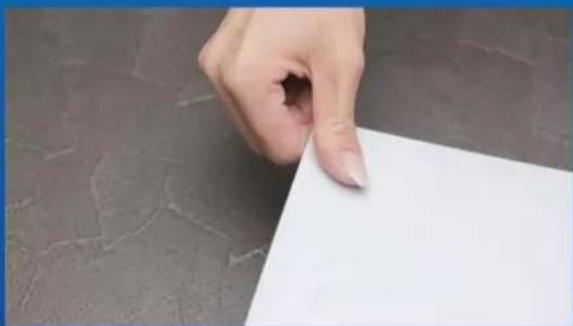
natural_image
Hand holding a white sheet of paper against a dark textured surface (no text or symbols visible)natural_image
Close-up of a mechanical component with a screwdriver inserted, showing internal structure (no visible text or symbols)natural_image
Close-up of a green electronic component with mounting holes and metallic fittings, mounted on a metal panel (no visible text or symbols)- 接著會看到綠色底的固態硬碟擴充插槽。

natural_image
Close-up of a green printed circuit board being inserted into a car tire (no visible text or symbols)natural_image
Close-up of a car's front panel showing internal components and battery pack (no text or symbols visible)natural_image
Close-up of a computer RAM module with a labeled gold memory card (no readable text beyond branding)- 再將螺絲旋緊,固定固態硬碟。

natural_image
Close-up of a mechanical component with a screwdriver inserted, showing internal structure (no visible text or symbols)- 重新蓋上擴充插上蓋。
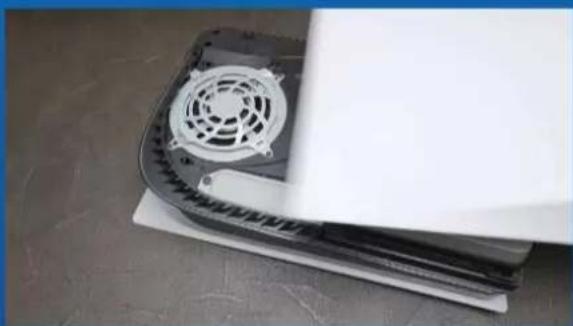
natural_image
Close-up of a black electronic device with a circular fan and ventilation grille, placed on a flat surface (no text or symbols visible)natural_image
Close-up of a white gaming device with black buttons and a white controller, placed on a textured floor (no visible text or symbols)- 重新連接電線並啟動您的PS5主機。
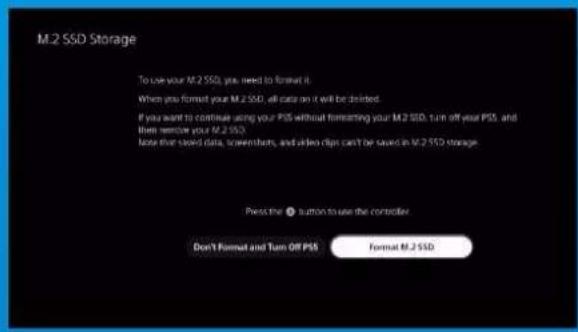
13. 按照重新格式化說明操作。

14. 您已完成!
natural_image
Blue-tinted image of a PlayStation 3 console and a PC, both on a dark blue background (no visible text or symbols)安装前准备步骤
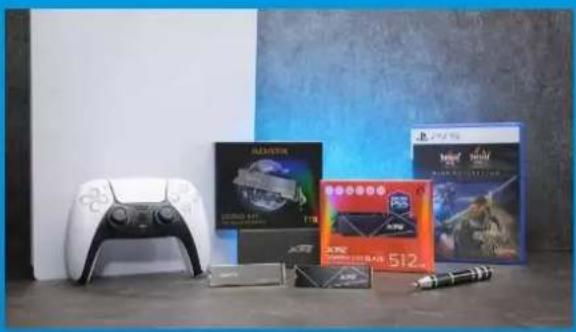
natural_image
Product display featuring a game controller, multiple video and audio cards, and a pen on a desk against a blue wall (no visible text or symbols)需要的工具有:
-ADATA M.2固态硬盘
-十字型螺丝刀
-PS5主机

- 将PS5主机关机。
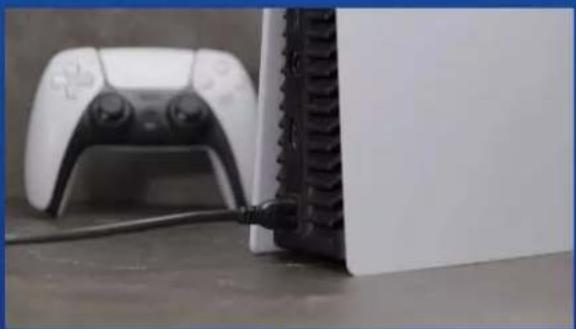
natural_image
Close-up of a white gaming controller next to a black Sony PC with visible cord and cable (no text or symbols)- 移除所有主机上的线材跟装置。
安装固态硬盘步骤
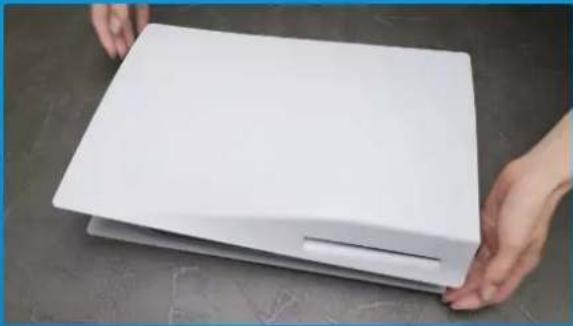
natural_image
Hands holding a white rectangular object on a dark surface (no text or symbols visible)natural_image
Close-up of a white plastic panel edge with a slot, resting on a gray surface (no text or symbols visible)- 用左手紧握PS5主机的左上角。

natural_image
Hand holding a white sheet of paper against a dark textured surface (no text or symbols visible)- 用右手拉动,然后向左滑动背板以拆除机壳上盖。

natural_image
Close-up of a mechanical component with a screwdriver inserted, showing internal structure (no text or symbols visible)- 松开螺丝以拆除固态硬盘扩充槽的盖子。

natural_image
Close-up of a green electronic component with mounting holes and metallic fittings, mounted on a metal panel (no visible text or symbols)- 接着会看到绿色底的固态硬盘扩充插槽。
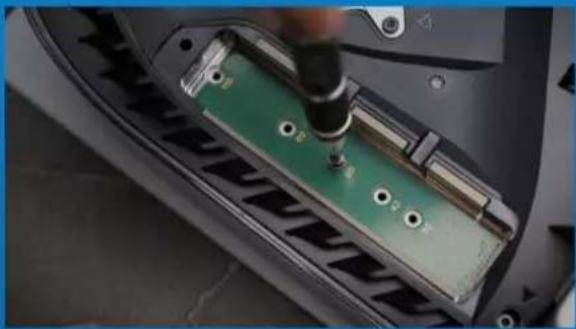
natural_image
Close-up of a green printed circuit board being inserted into a car tire (no visible text or symbols)natural_image
Close-up of a car's front panel showing internal components and battery pack (no text or symbols visible)natural_image
Close-up of a computer RAM module with a labeled gold memory card (no readable text beyond branding)- 再将螺丝旋紧,固定固态硬盘。

natural_image
Close-up of a mechanical component with a screwdriver inserted, showing internal structure (no visible text or symbols)- 重新盖上扩充插上盖。

natural_image
Close-up of a black electronic device with a circular fan and ventilation grille, placed on a flat surface (no text or symbols visible)natural_image
Close-up of a white gaming device with black buttons and a white controller, placed on a textured floor (no visible text or symbols)- 重新连接电线并启动您的PS5主机。

13. 按照重新格式化说明操作。

natural_image
Blue-tinted image of a PlayStation 3 console with a Sony DS card, next to a game controller (no visible text or symbols on the device body)
natural_image
Product display featuring a game controller, two video cards labeled '512', and a pen on a table (no visible text or symbols)WHATYOU'LL NEED:
- ADATA M.2 SSD
- Phillips head screwdriver
- PS5

- ENSURE YOU HAVE THE LATESTPS5 SOFTWARE UPDATES.

- TURN OFF YOUR PS5.

natural_image
Close-up of a white gaming controller next to a black electronic device with visible cables (no text or symbols)- DISCONNECT ALL CABLES AND DEVICES.
INSTALLATION
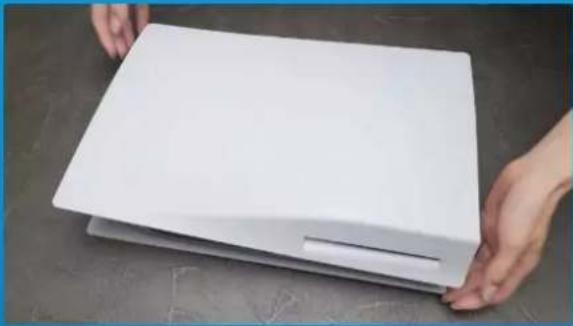
natural_image
Hands holding a white rectangular object on a dark surface (no text or symbols visible)- LAY THE PS5 FLAT WITH THE LOGO SIDE FACING DOWNWARDS.
natural_image
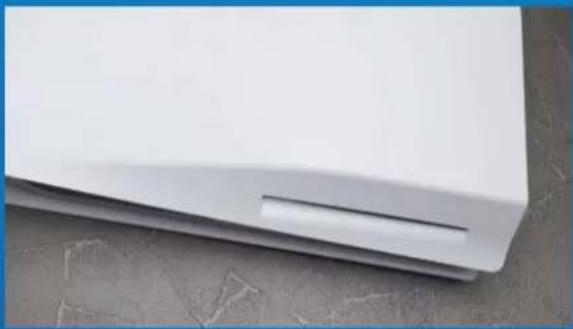
Close-up of a white plastic panel edge with a small slot, resting on a textured surface (no text or symbols visible)- FIRMLY GRAB THE UPPER LEFT HAND CORNER OF THE PS5 WITH YOUR LEFT HAND.
natural_image
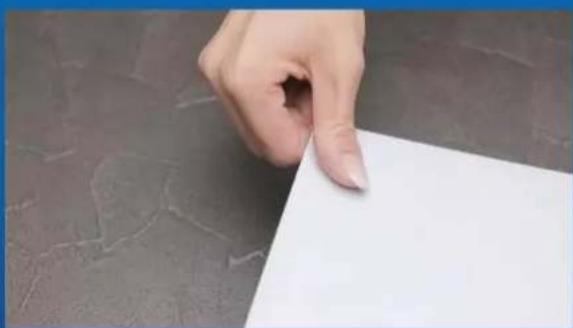
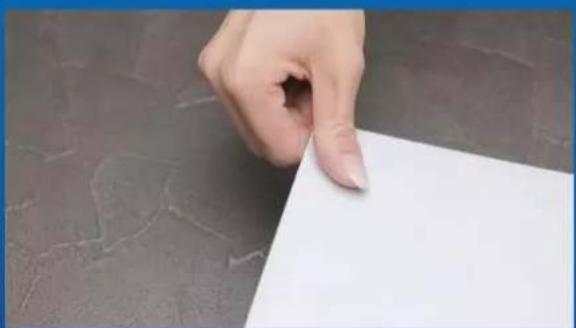
Hand holding a white sheet of paper against a dark textured surface (no text or symbols visible)- WITH YOUR RIGHT HAND, PULL AND THEN SLIDE THE BACKING PLATE TO THE LEFT TO REMOVE.
natural_image
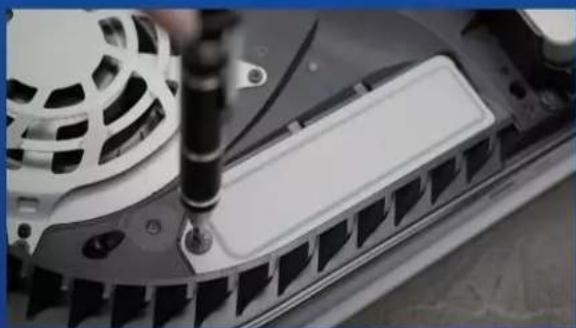
Close-up of a mechanical component with a screwdriver inserted, showing internal structure (no text or symbols visible)- LOOSEN THE SCREW TO REMOVE THE EXPANSION SLOT COVER.
natural_image
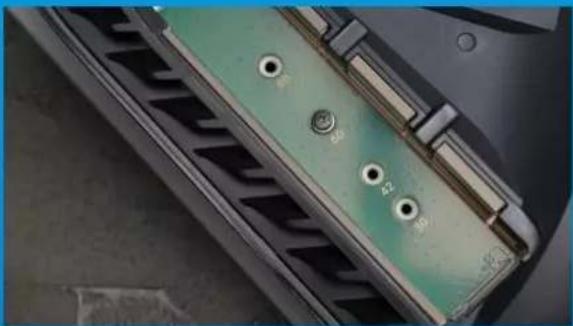
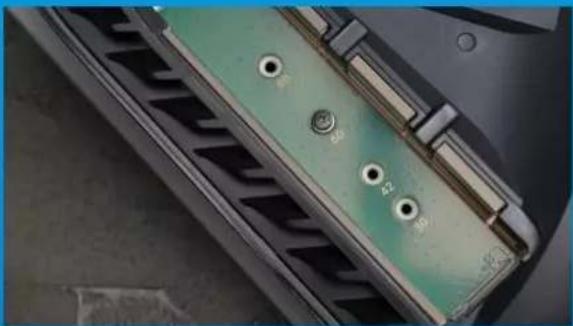
Close-up of a green electronic component with mounting holes and metallic fittings, mounted on a metal panel (no visible text or symbols)natural_image
Close-up of a green printed circuit board being inserted into a car tire (no visible text or symbols)- REMOVE THE SINGLE SCREW AND THE WASHER-LIKE STANDOFF UNDERNEATH.

natural_image
Close-up of a car's front panel showing internal components and mounting holes (no text or symbols visible)- PLACE THE STANDOFF IN THE HOLE THAT CORRESPONDS TO THE M.2 FORM FACTOR.

- CLICK THE GOLD CONNECTOR OF THE SSD INTO THE MATCHING INPUT NOTCH.

natural_image
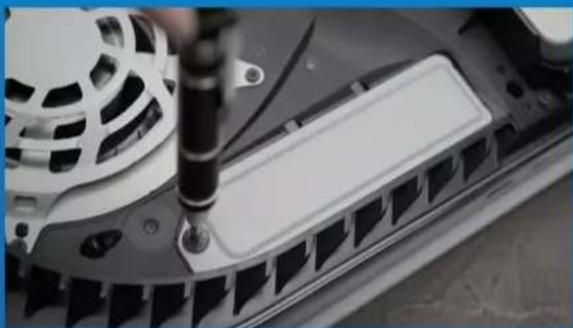
Close-up of a silver DATA RAM module with a screwdriver inserted, showing internal structure (no readable text or symbols beyond branding)- FASTEN THE SSD WITH THE SCREW.
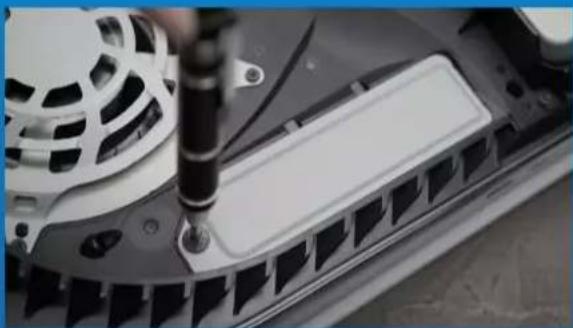
natural_image
Close-up of a mechanical component with a screwdriver inserted, showing internal structure (no text or symbols visible)10.REINSTALL THE EXPANSION SLOT COVER.
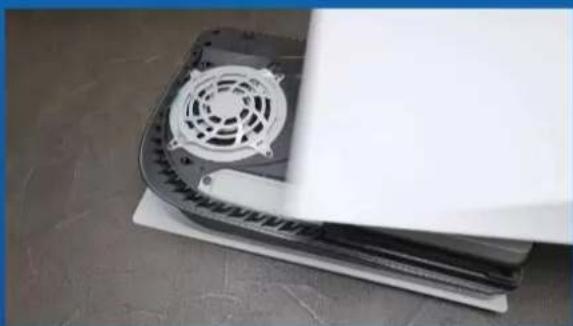
natural_image
Close-up of a black electronic device with a circular fan and mounting base, placed on a flat surface (no visible text or symbols)- REINSTALL THE BACKING PLATE BY SLIDING IT BACK AND PUSHING DOWNWARDS.

natural_image
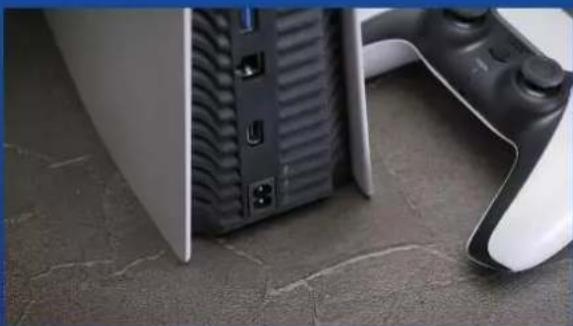
Close-up of a white gaming device with black buttons and a white controller on a textured floor (no visible text or symbols)- RE-ATTACH CABLES AND TURN ON YOUR PS5.

13. FOLLOW THE REFORMATTING INSTRUCTIONS.

14. YOU'RE DONE! YOU CAN NOW STORE GAMES AND APPS ONTO THE ADATA LEGEND 840.
INSTALLATION EINER M.2 SSD AUF PLAYSTATION®5

natural_image
Blue-tinted image of a PlayStation 3 console with a Sony DS card, next to a game controller (no visible text or symbols on the device body)VOR DER INSTALLATION

natural_image
Product display setup featuring a game controller, two video cards labeled 'Gladstone' and '512', and a stylus on a table (no visible text or symbols)WAS SIE BENÖ TIGEN:
- STELLEN SIE SICHER, DASS SIE DIE NEUESTEN PS5-SOFTWARE-UPDATES INSTALLLIERT HABEN.

- SCHALTEN SIE IHRE PS5 AUS.

natural_image
Close-up of a white gaming controller next to a black CPU socket connected by a cable (no visible text or symbols)- TRENNEN SIE ALLE KABEL UND GERÄ TE AB.
INSTALLATION

natural_image
Hands holding a white rectangular object on a dark surface (no text or symbols visible)- LEGEN SIE DIE PS5 FLACH HIN, SO DASS DAS LOGO NACH UNTEN ZEIGT.

natural_image
Close-up of a white plastic panel edge with a small slot, resting on a textured surface (no text or symbols visible)- GREIFEN SIE MIT IHRER LINKEN HAND FEST IN DIE LINKE OBERE ECKE DER PS5.
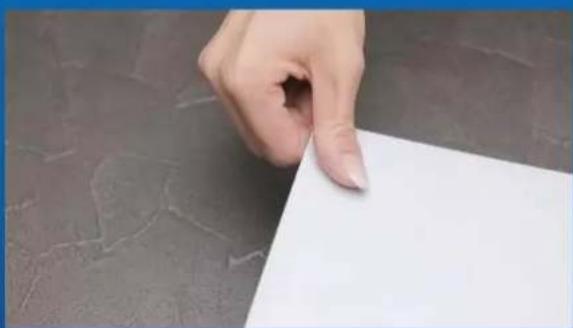
natural_image
Hand holding a white sheet of paper against a dark textured surface (no text or symbols visible)- ZIEHEN SIE MIT DER RECHTEN HAND AN DER TRÄ GERPLATTE UND SCHIEBEN SIE DIESE NACH LINKS, UM SIE ZU ENTFERNEN.
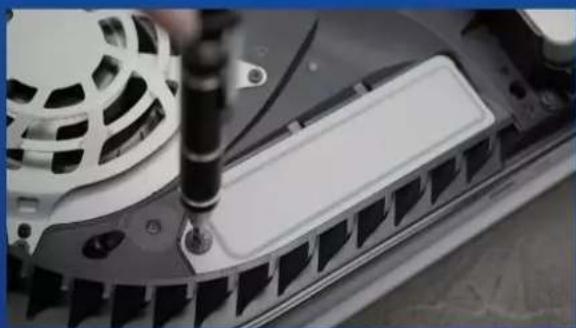
natural_image
Close-up of a mechanical component with a screwdriver inserted, showing internal structure (no text or symbols visible)natural_image
Close-up of a green electronic component with mounting holes and metallic fittings, mounted on a metal panel (no visible text or symbols)natural_image
Close-up of a green printed circuit board being inserted into a car tire (no visible text or symbols)natural_image
Close-up of a car's front panel showing internal components and battery pack (no text or symbols visible)- SETZEN SIE DEN ABSTANDHALTER IN DAS LOCH IM M.2-FORMFAKTOR.

- SETZEN SIE DEN GOLDENEN STECKER DER SSD IN DIE ENTSPRECHENDE AUSSPARUNG AM EINGANG EIN

natural_image
Close-up of a silver DATA RAM module with a screwdriver inserted, showing internal structure (no readable text or symbols beyond branding)- BEFESTIGEN SIE DIE SSD MITHILFE DER SCHRAUBE.
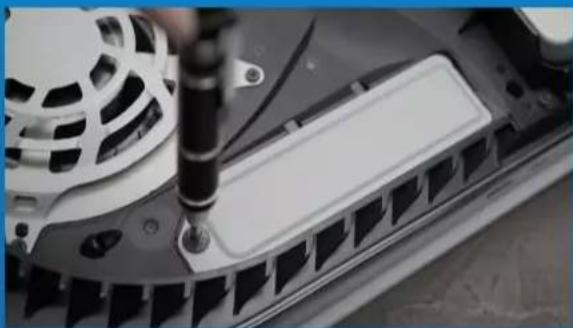
natural_image
Close-up of a mechanical component with a screwdriver inserted, showing internal structure (no visible text or symbols)natural_image
Close-up of a black electronic device with a circular fan and mounting base, placed on a flat surface (no visible text or symbols)natural_image
Close-up of a white gaming device with black buttons and a white controller on a textured floor (no visible text or symbols)natural_image
Blue-tinted image of a PlayStation 3 console with a Sony DS card, next to a game controller (no visible text or symbols on the device body)設置前の準備
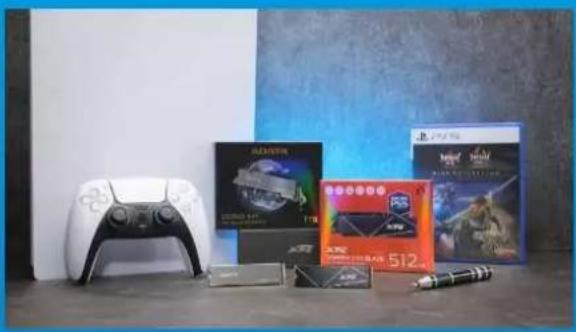
natural_image
Product display featuring a game controller, multiple video and audio cards, and a pen on a desk against a blue wall (no visible text or symbols)必要なもの:
- PS5の電源を切ります。

natural_image
Close-up of a white PlayStation controller and a black connected device on a desk (no visible text or symbols)natural_image
Hands holding a white rectangular object on a dark surface (no text or symbols visible)natural_image
Close-up of a white plastic panel edge with a cutout, resting on a textured surface (no text or symbols visible)natural_image
Hand holding a white sheet of paper against a dark tiled surface (no text or symbols visible)natural_image
Close-up of a mechanical component with a screwdriver inserted, showing internal structure (no text or symbols visible)natural_image
Close-up of a green electronic component with mounting holes and metallic fittings (no visible text or symbols)natural_image
Close-up of a green printed circuit board being inserted into a car tire (no visible text or symbols)natural_image
Close-up of a car's front panel showing internal components and battery pack (no text or symbols visible)natural_image
Close-up of a mechanical component with a screwdriver inserted, showing internal structure (no visible text or symbols)- 拡張スロットカバーを元に戻します。
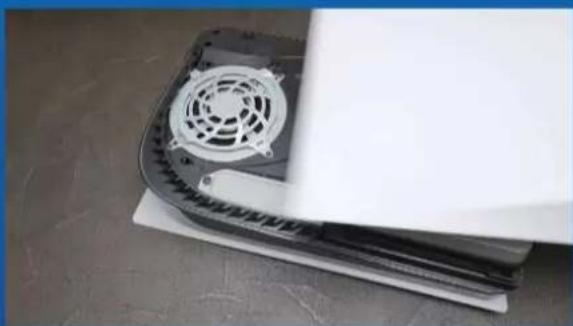
natural_image
Close-up of a black electronic device with a circular fan and ventilation grille, placed on a white surface (no visible text or symbols)natural_image
Close-up of a white gaming device with black buttons and a game controller on a textured floor (no visible text or symbols)- 再フォーマットの指示に従ってください。

natural_image
Blue-tinted image of a PlayStation 3 console and a PC, both on a dark blue background (no visible text or symbols)설치하기 전에

natural_image
Product display featuring a game controller, multiple video and audio cards, and a pen on a desk against a blue wall (no visible text or symbols)준비물:
- PS5를 꿈니다.

natural_image
Close-up of a white PlayStation controller and a black connected device on a desk (no visible text or symbols)natural_image
Hands holding a white rectangular object on a dark surface (no text or symbols visible)natural_image
Close-up of a white plastic panel edge with a slot, resting on a gray surface (no text or symbols visible)natural_image
Hand holding a white sheet of paper against a dark tiled surface (no text or symbols visible)natural_image
Close-up of a mechanical component with a screwdriver inserted, showing internal structure (no text or symbols visible)natural_image
Close-up of a green electronic component with mounting holes and metallic contacts, mounted on a metal panel (no visible text or symbols)5.이제 녹색 확장 슬롯이 보입니다

natural_image
Close-up of a green printed circuit board being inserted into a mechanical component, with a hand operating the tool (no visible text or symbols)natural_image
Close-up of a car's front panel showing internal components and mounting holes (no text or symbols visible)natural_image
Close-up of a computer RAM module with a labeled gold memory card (no readable text beyond branding)- 나사를 조여서 SSD를 고정합니다

natural_image
Close-up of a mechanical component with a screwdriver inserted, showing internal structure (no visible text or symbols)natural_image
Close-up of a black electronic device with a circular fan and ventilation grille, placed on a flat surface (no visible text or symbols)natural_image
Close-up of a white gaming device with black buttons and a white controller, placed on a textured floor (no visible text or symbols)natural_image
Blue-tinted image of a PlayStation 3 console and a PC, no visible text or symbols on the devices themselves.natural_image
Product display featuring a game controller, two video cards labeled '512', and a pen on a table (no visible text or symbols)- CERTIFIQUE-SE DE TER AS ATUALIZAÇÃO ES DE SOFTWARE DO PS5 MAIS RECENTES.

- DESLIGUE SEU PS5.

natural_image
Close-up of a white gaming controller next to a black electronic device with visible cables (no text or symbols)- DESCONECTE TODOS OS CABOS E DISPOSITIVOS.
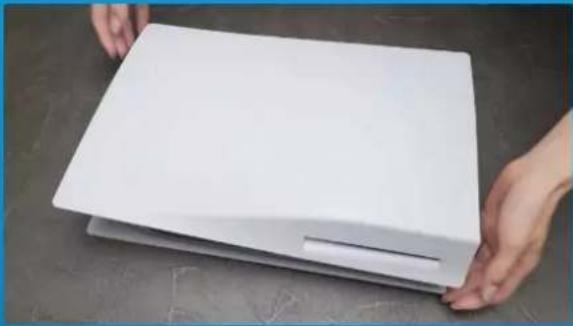
natural_image
Hands holding a white rectangular object on a dark surface (no text or symbols visible)- COLOQUE O PS5 NA HORIZONTAL COM O LADO DO LOGOTIPO VOLTADO PARA BAIXO.

natural_image
Close-up of a white plastic panel edge with a small slot, resting on a textured surface (no text or symbols visible)- SEGURE FIRMEMENTE O CANTO SUPERIOR ESQUERDO DO PS5 COM A MÃ O ESQUERDA.

natural_image
Hand holding a white sheet of paper against a dark textured surface (no text or symbols visible)- COM A MÃ O DIREITA, PUXE E DESLIZE A PLACA TRASEIRA PARA A ESQUERDA PARA RETIRA-LA.

natural_image
Close-up of a mechanical component with a screwdriver inserted, showing internal structure (no text or symbols visible)- AFROUXE O PARAFUSO PARA RETIRAR A TAMPA DO SLOT DE EXPANSÃ O.

natural_image
Close-up of a green electronic component with mounting holes and metallic fittings, mounted on a metal panel (no visible text or symbols)- VOCÊ DEVERÁ VER AGORA O SLOT DE EXPANSÃ O VERDE.

natural_image
Close-up of a green printed circuit board being inserted into a car tire (no visible text or symbols)- REMOVA O Ú NICO PARAFUSO E O ESPAÇ ADOR EM FORMA DE ARRUELA EMBAIXO.

natural_image
Close-up of a car's front panel showing internal components and battery pack (no text or symbols visible)- COLOQUE O ESPAÇ ADOR NO ORIFÍ CIO QUE CORRESPONDE AO FATOR DE FORMA M.2.

- CLIQUE NO CONECTOR DOURADO DO SSD NO ENTALHE DE ENTRADA CORRESPONDENTE.

natural_image
Close-up of a silver DATA RAM module with a screwdriver inserted, showing internal structure (no readable text or symbols beyond branding)- FIXE O SSD COM O PARAFUSO.

natural_image
Close-up of a mechanical component with a screwdriver inserted, showing internal structure (no visible text or symbols)- RECOLOQUE A TAMPA DO SLOT DE EXPANSÃ O.

natural_image
Close-up of a black electronic device with a circular fan and ventilation grille, placed on a flat surface (no visible text or symbols)- RECOLOQUE A PLACA TRASEIRA DESLIZANDO-A PARA TRÁ S E EMPURRANDO PARA BAIXO.

natural_image
Close-up of a white gaming device with black buttons and a white controller on a textured floor (no visible text or symbols)- RECONECTE OS CABOS E LIGUE SEU PS5.

- SIGA AS INSTRUÇ Ô ES DE REFORMATAÇ Â O.

- PRONTO! AGORA VOCÊ PODE ARMAZENAR JOGOS E APLICATIVOS NO SSD.
natural_image
Blue-tinted image of a PlayStation 3 console and a PC, no visible text or symbols on the devices themselves.natural_image
Product display of gaming consoles including a game controller, video games, and 512 chips on a plain surface (no visible text or symbols)- ВЫКЛЮЧИТЕ PS5.

natural_image
Close-up of a white gaming controller next to a black Sony 3.0 console with cable (no visible text or symbols)- ОТСОЕДИНИТЕ ВСЕ КАБЕЛИ И УСТРОЙСТВА.
УСТАНОВКА

natural_image
Hands holding a white rectangular object on a dark surface (no text or symbols visible)natural_image
Close-up of a white plastic panel edge with a slot, resting on a gray surface (no text or symbols visible)- ВОЗЬМИТЕСЬ ЗА ВЕРХНИЙ ЛЕВЫЙ УГОЛ PS5 ЛЕВОЙ РУКОЙ.

natural_image
Hand holding a white sheet of paper against a dark tiled surface (no text or symbols visible)natural_image
Close-up of a mechanical component with a screwdriver inserted, showing internal structure (no text or symbols visible)natural_image
Close-up of a green electronic component with mounting holes and metallic fittings, mounted on a metal panel (no visible text or symbols)natural_image
Close-up of a green printed circuit board being inserted into a car tire (no visible text or symbols)natural_image
Close-up of a car's front panel showing internal components and battery pack (no text or symbols visible)natural_image
Close-up of a computer RAM module with a labeled gold memory card (no readable text beyond branding)natural_image
Close-up of a mechanical component with a screwdriver inserted, showing internal structure (no visible text or symbols)natural_image
Close-up of a black electronic device with a circular fan and ventilation grille, placed on a white surface (no visible text or symbols)natural_image
Close-up of a white gaming device with black buttons and a game controller on a textured floor (no visible text or symbols)- ПОДКЛЮЧИТЕ КАБЕЛИ И ВКЛЮЧИТЕ PS5.

natural_image
Blue-tinted image of a PlayStation 3 console with a Sony DS card, next to a game controller (no visible text or symbols on the device body)Î NAINTE DE INSTALARE

natural_image
Product display set including a game controller, two video cards, and a stylus on a table (no visible text or symbols)DE CE AVETI NEVOIE:
- ASIGURAȚI-VĂ CĂ AVEȚI CELE MAI RECENTE ACTUALIZĂRI DE SOFTWARE PS5.

- OPRITI PS5.

natural_image
Close-up of a white gaming controller next to a black CPU socket connected by a cable (no visible text or symbols)- DECONECTAȚI TOATE CABLURILE ȘI DISPOZITIVELE.
INSTALARE

natural_image
Hands holding a white rectangular object on a dark surface (no text or symbols visible)- AŞEZATI PS5 LA ORIZONTALĂ, CU PARTEA CU SIGLA ORIENTATĂ ÎN JOS.

natural_image
Close-up of a white plastic panel edge with a small slot, resting on a textured surface (no text or symbols visible)- PRINDEȚI FERM COLȚUL DIN STĂ NGA SUS AL PS5 CĂ MĂ NA STĂNGĂ.

natural_image
Hand holding a white sheet of paper against a dark textured surface (no text or symbols visible)- CU MÂNA DREAPTĂ, TRAGEȚI ȘI APOI GLISAȚI PLACA DE SUPPORT SPRE STĂ NGA PENTRU A O SCOATE.
natural_image
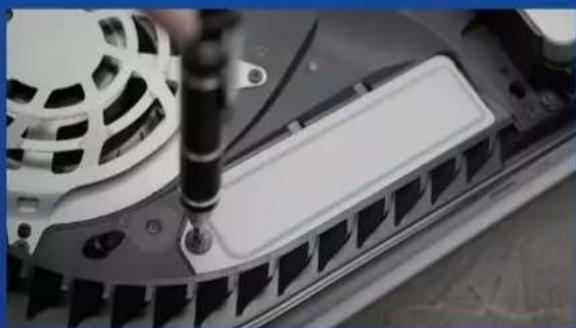
Close-up of a mechanical component with a screwdriver inserted, showing internal structure (no text or symbols visible)- SLĂBIȚI ȘURUBUL PENTRU A SCOATE CAPACUL FANTEI DE EXPANSIUNE.
natural_image
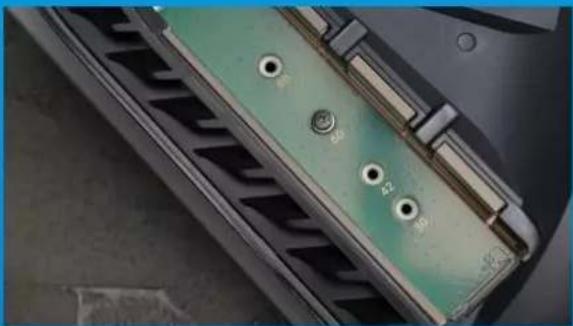
Close-up of a green electronic component with mounting holes and metallic fittings, mounted on a metal panel (no visible text or symbols)- ACUM AR TREBUI SĂ VEDEȚI SLOTUL DE EXPANSIUNE VERDE.

natural_image
Close-up of a green printed circuit board being inserted into a car tire (no visible text or symbols)natural_image
Close-up of a car's front panel showing internal components and battery pack (no text or symbols visible)- AŞEZATI DISTANTIERUL ÎN ORIFICIUL CARE CORESPUNDE FORMEI M.2.

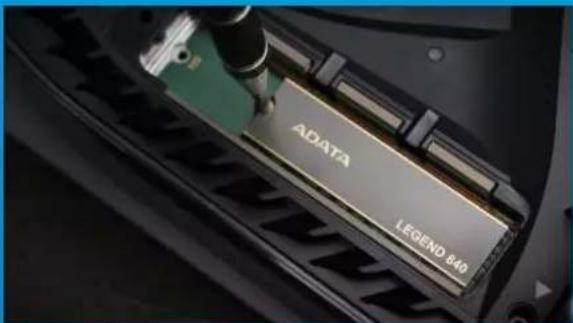
- FACETI CLIC PE CONECTORUL AURIU AL SSD- ULUI ÎN CRESTĂTURA DE INTRARE CORESPUNZĂTOARE.
natural_image
Close-up of a silver DATA RAM module with a screwdriver inserted, showing internal structure (no readable text or symbols beyond branding)- FIXAȚI SSD-UL CU AJUTORUL ȘURUBULUI.

natural_image
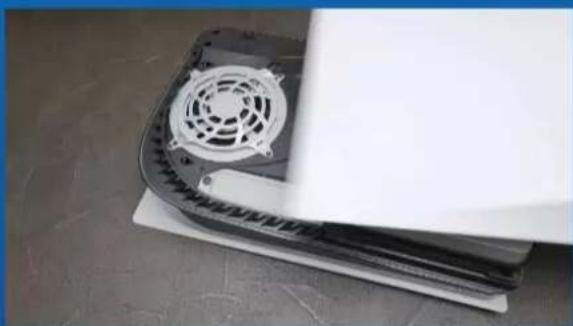
Close-up of a mechanical component with a screwdriver inserted, showing internal structure (no text or symbols visible)- REINSTALATI CAPACUL FANTEI DE EXPANSIUNE.
natural_image
Close-up of a black electronic device with a circular fan and ventilation grille, placed on a flat surface (no visible text or symbols)natural_image
Close-up of a white gaming device with black buttons and a white controller on a textured floor (no visible text or symbols)- RECONECTAȚI CABLURILE ȘI PÓRNITI PS5.
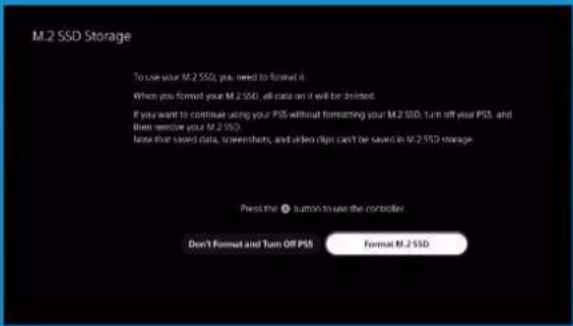
- URMAȚI INSTRUCTIUNILE DE REFORMATARE.

- AȚI TERMINAT! ACUM PUTETI STOCA JOCURI ȘI APLICATII PE SSD.
natural_image
Blue-tinted image of a PlayStation 3 console with a Sony DS card, next to a game controller (no visible text or symbols on the device body)natural_image
Product display set including a game controller, two video cards, and a stylus on a table (no visible text or symbols)LO QUE VAS A NECESITAR:
- SSD M.2 DE ADATA
- Destornillador Phillips
- PS5

- APAGA TU PS5.

natural_image
Close-up of a white gaming controller next to a black CPU socket connected by a cable (no visible text or symbols)- DESCONECTE TODOS LOS CABLES Y DISPOSITIVOS.

natural_image
Hands holding a white rectangular object on a dark surface (no text or symbols visible)natural_image
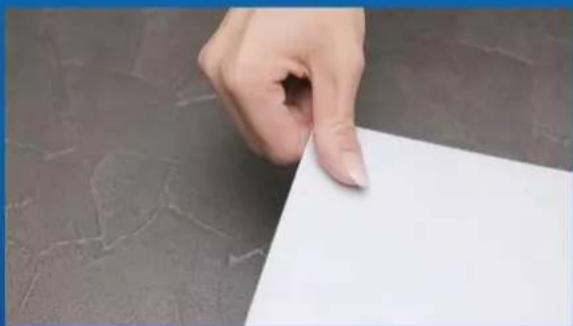
Close-up of a white plastic panel with a slot, resting on a textured surface (no text or symbols visible)- AGARRE FIRMEMENTE LA ESQUINA SUPERIOR IZQUIERDA DEL PS5 CON LA MANO IZQUIERDA.
natural_image
Hand holding a white sheet on a dark textured surface (no text or symbols visible)- TIRE DE LA PLACA DE APOYO CON LA MANO DERECHA Y DESLÍ CELA HACIA LA IZQUIERDA PARA EXTRAERLA.

natural_image
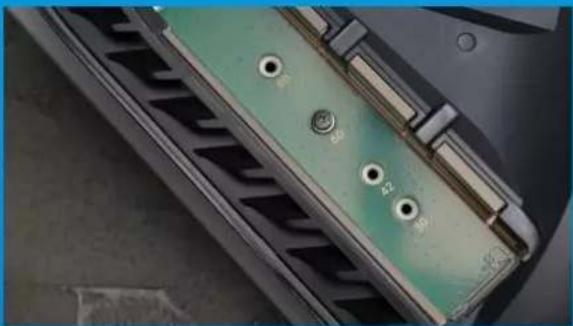
Close-up of a mechanical component with a screwdriver inserted, showing internal structure (no visible text or symbols)- AFLOJE EL TORNILLO PARA RETIRAR LA TAPA DE LA RANURA DE EXPANSIÓ N.
natural_image
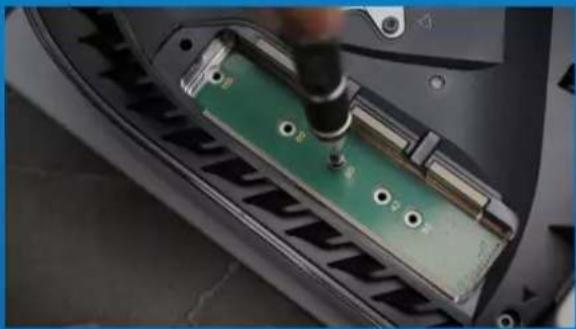
Close-up of a green electronic component with mounting holes and metallic fittings, mounted on a metal panel (no visible text or symbols)- AHORA VERÁ S LA RANURA DE EXPANSIÓ N DE COLOR VERDE.
natural_image
Close-up of a green printed circuit board being inserted into a car tire (no visible text or symbols)natural_image
Close-up of a car's front panel showing internal components and mounting holes (no text or symbols visible)natural_image
Close-up of a silver DATA RAM module with a screwdriver inserted, showing internal structure (no readable text or symbols beyond branding)- SUJETE EL SSD CON EL TORNILLO.

natural_image
Close-up of a mechanical component with a screwdriver inserted, showing internal structure (no visible text or symbols)- REINSTALE LA TAPA DE LA RANURA DE EXPANSIÓ N.
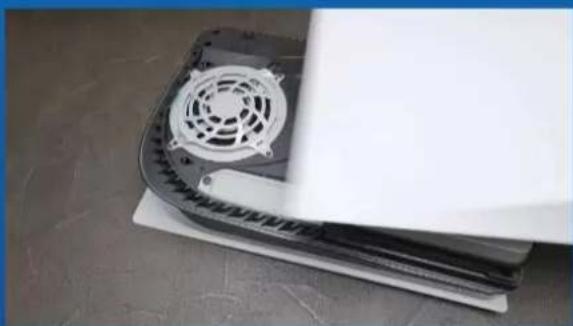
natural_image
Close-up of a black electronic device with a circular fan and ventilation grille, placed on a flat surface (no visible text or symbols)- REINSTALE LA PLACA DE APOYO DESLIZÁ NDOLA HACIA ATRÁ S Y EMPUJÁ NDOLA HACIA ABAJO.

natural_image
Close-up of a white gaming device with black buttons and a white controller on a textured floor (no visible text or symbols)- VUELVE A CONECTAR LOS CABLES Y ENCIENDE TU PS5.
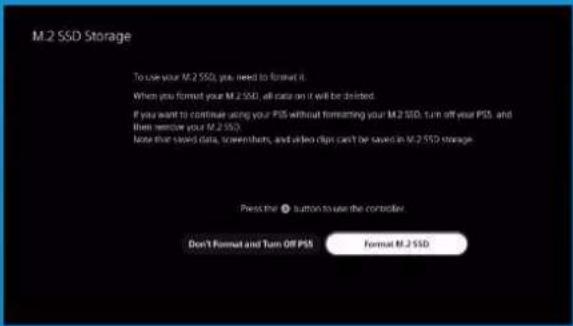
- SIGA LAS INSTRUCCIONES DE REFORMATEO.

natural_image
Blue-tinted image of a PlayStation 3 console with a Sony DS card, next to a game controller (no visible text or symbols on the device body)KURULUMDAN Ö NCE

natural_image
Product display featuring a game controller, two video cards labeled '512', and a pen on a table (no visible text or symbols)GEREKENLER:
- EN SON PS5 YAZILIM GÜ NCELLEMELERINE SAHIP OLDUĞUNUZDAN EMIN OLUN.
- PS5'INIZI KAPATIN.

natural_image
Close-up of a white gaming controller next to a black electronic device with visible cables (no text or symbols)- TÜ M KABLOLARI VE CIHAZLARI Ç IKARIN.
KURULUM

natural_image
Hands holding a white rectangular object on a dark surface (no text or symbols visible)- PS5'I LOGOLU TARAFI AŞAĞI BAKACAK ŞEKILDE DÜZ BIR ŞEKİLDE YATIRIN.
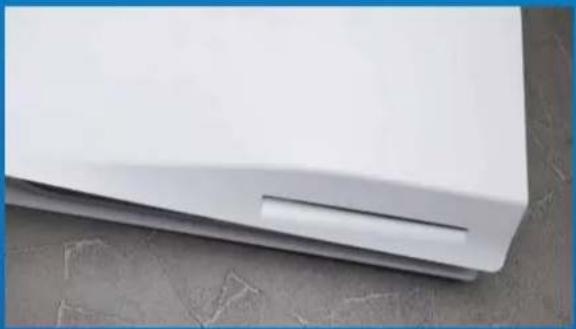
natural_image
Close-up of a white plastic panel edge with a small slot, resting on a gray surface (no text or symbols visible)- SOL ELINIZLE PS5'IN SOL ÜST KÖŞESINI SIKICA TUTUN.
natural_image
Hand holding a white sheet of paper against a dark textured background (no text or symbols visible)- SAĞ ELINIZLE DESTEK PLAKASINI Ç EKIP Ç IKARMAK İÇ IN SOLA KAYDIRIN.

natural_image
Close-up of a mechanical component with a screwdriver inserted, showing internal structure (no text or symbols visible)- GENİŞLETME YUVASI KAPAĞINI ÇIKARMAK IÇIN VIDAYI GEVŞETIN.
natural_image
Close-up of a green electronic component with mounting holes and metallic fittings, mounted on a metal panel (no visible text or symbols)- ARTIK YEŞIL GENİŞLETME YUVASINI GÖ RMELISINIZ.

natural_image
Close-up of a green printed circuit board being inserted into a car tire (no visible text or symbols)- TEK VIDAYI VE ALTINDAKI RONDELA BENZERI AYIRICIYI Ç IKARIN.

natural_image
Close-up of a car's front panel showing internal components and battery pack (no text or symbols visible)- AYIRICIYI M.2 FORM FAKTÖRÜNE KARŞILIK GELEN DELIĞE YERLEŞTIRIN.

- SSD'NIN ALTIN KONEKTÖRÜNÜ EŞLEŞEN GIRİŞ ÇENTIĞINE TIKLAYIN.

natural_image
Close-up of a silver DATA RAM module with a screwdriver inserted, showing internal structure (no readable text or symbols beyond branding)- SSD'YI VIDAYLA SABITLEYIN.
natural_image
Close-up of a mechanical component with a screwdriver inserted, showing internal structure (no text or symbols visible)- GENİŞLETME YUVASI KAPAĞINI YENIDEN TAKIN.

natural_image
Close-up of a black electronic device with a circular fan and mounting base, placed on a flat surface (no visible text or symbols)- DESTEK PLAKASINI GERIYE DOĞRU KAYDIRIP AŞAĞI DOĞRU ITEREK YENIDEN TAKIN.
natural_image
Close-up of a white gaming device with black buttons and a white controller on a textured floor (no visible text or symbols)- KABLOLARI YENIDEN TAKIN VE PS5'INIZI AÇ IN.

- YENIDEN BIÇ IMLENDIRME TALIMATLARINI IZLEYIN.

- TAMAMLADINIZ! ARTIK OYUNLARI VE UYGULAMALARI SSD'DE DEPOLAYABILIRSINIZ.

- ADATA®
- INDEX
- INSTALLING AN M.2 SSD ON A DESKTOP PC
- INSTALLING AN M.2 SSD ON A LAPTOP PC
- HOW TO INSTALL AN M.2 SSD ON PLAYSTATION 5
- 如何在桌機安裝
- M.2固態硬碟
- 更換前準備步驟
- 準備工具
- 2.備份資料
- 將主機機殼卸下
- 對準M.2插槽、插上固態硬碟
- 4.拴上螺絲固態硬碟
- 5.重新裝上機殼
- 更换前准备步骤
- 准备工具
- 备份数据
- 将机箱侧板卸下
- 对准M.2插槽、插上固态硬盘
- 4.拧上螺丝以固定固态硬盘
- 5.重新装上机箱侧板
- BEFORE INSTALLATION
- 1.GATHERTHETHINGSYOU'LL NEED
- 2.BACKUPYOURDATA
- POWEROFF YOURPC
- 4.SWITCHOFFTHEPOWERSWITCH ANDUNPLUGPOWERCORD
- INSTALLATION
- 1.REMOVETHEPCCASE
- LOCATETHEM.2PCIESLOTAND CONFIRM THEREARESCREWS
- 3.ALIGNTHEM.2SLOTANDINSERT THESOLIDSTATEDRIVE
- 4.FASTENTHESCREWSTOSECURE THESSD
- 5.RESEMBLTHECASE
- PLUGINTHEPOWERCORDAND POWERONTHEPCTOCOMPLETE INSTALLATION
- EINEM.2-SSDANEINEM DESKTOP-PCINSTALLIEREN
- VOR DER INSTALLATION
- 1.ALLESNÖTIGE ZUSAMMENTRAGEN
- 2.IHREDATENSICHERN
- 1.PC-GEHÄUSE ENTFERNEN
- 2.M.2-PCIE-STECKPLATZAUSFINDIG MACHENUNDSICHERSTELLEN, DASSSCHRAUBENVORHANDENSIND
- 3.M.2-STECKPLATZAUSRICHTEN UNDDASSOLID-STATE-DRIVE EINSETZEN
- 4.SCHRAUBENZURFIXIERUNGDER SSDFESTZIEHEN
- 5.GEHÄUSEWIEDERZUSAMMENBAUEN
- 交換前の準備
- 準備するもの
- データのバックアップ
- パソコン本体のケースを取り外す
- M.2スロットにSSDを差し込む
- SSDをねじで 固 定する
- ケースを元の位置に取り付ける
- 설치하기 전에
- 1.필요한 도구 준비
- 2.데이터 백업
- 1.PC케이스 제거
- 4.나사를 조여서SSD고정
- 케이스 재조립
- ANTES DA INSTALAÇÃO
- REÚNA AS COISAS QUE VOCÊ PRECISA
- 2.FAÇA BACKUPDESEUSDADOS
- 1.REMOVAOGABINETEDOPC
- 2.LOCALIZEOSLOTM.2PCIEE CONFIRMESEHÁ PARAFUSOS
- 3.ALINHEOSLOTM.2EINSIRAA UNIDADEDEESTADOSÓLIDO
- 4.APERTEOSPARAFUSOSPARA PRENDEROSSD
- 6.CONECTEOCABODE ALIMENTAÇÃOELIGUEOPCPARA COMPLETARAINSTALAÇÃO
- УСТАНОВКА
- ТВЕРДОТЕЛЬНОГО
- НАКОПИТЕЛЯ М.2НА
- НОУТБУК
- 2.ЗАРЕЗЕРВИРУЙТЕ ДАННЫЕ
- СНИМИТЕ ЗАДНЮЮ ПЛАСТИНУ ПК
- 5.ЗАКРЕПИТЕ ЗАДНЮЮ ПЛАСТИН НА МЕСТЕ
- ÎNAINTE DE INSTALARE
- 1.ADUNATILUCRURILEDECARE VETIAVEANEVOIE
- FACETI O COPIE DE REZERVĂ A DATELOR
- DECONECTATIALIMENTAREACU ENERGIEŞICABLULDE ALIMENTARE
- 1.SCOATETICARCASAPC-ULUI
- ALINIATI FANTA M.2 ŞI INTRODUCETI UNITATEASOLIDSTATE
- STRÂNGETI ŞURUBURILE PENTRU AFIXASSD
- 5.REASAMBLATICARCASA
- 6.CONECTATICABLULDE ALIMENTAREŞIPORNITIPC-UL PENTRUAFINALIZAINSTALAREA
- INSTALARUNAUNIDADDE ESTADOSÓLIDO M.2EN
- UNEQUIPODE
- SOBREMESA
- 1.REUNIRLOSELEMENTOSQUE NECESITARÁ
- QUITARLACARCASADELEQUIPO
- 3.ALINEARLARANURAM.2EINSERTAR LAUNIDADDEESTADOSÓLIDO
- 5.VOLVERAMONTARLACARCASA
- KURULUMDAN Ö NCE
- İHTIYACINIZ OLACAK ŞEYLERI TOPLAYIN
- VERILERINIZI YEDEKLEYIN
- GÜ Ç ANAHTARINI KAPATIN VE GÜ Ç KABLOSUNU Ç IKARIN
- PC KASASINI Ç IKARIN
- M.2 PCIE YUVASINI BULUN VE VIDALARIN BULUNDUĞUNU DOĞRULAYIN
- M.2 YUVASINI HIZALAYIN VE KATI HAL SÜ RÜ CÜ SÜ NÜ TAKIN
- SSD'YI SABITLEMEK IÇ IN VIDALARI SIKIN
- DAVAYA BENZEYEN
- KURULUMU TAMAMLAMAK IÇ IN GÜ Ç KABLOSUNU TAKIN VE BILGISAYARI AÇ IN
- 如何在筆電安裝 M.2固態硬碟
- 4.將電源線及電池拔除
- 將主機背板卸下
- 4.拴上螺絲以固定固態硬碟
- 5.重新盖上背板
- 2.备份数据
- 将电源线及电池拔除
- 将电脑背板卸下
- 4.拴上螺丝以固定固态硬盘
- GATHERTHETHINGS YOU'LL NEED
- 3.POWEROFFYOURPC
- 4.UNPLUGPOWERCORDAND BATTERY
- 1.REMOVEYOURPC'SBACKPLATE
- 5.SECURETHEBACKPLATEINTO PLACE
- EINEM.2-SSDANEINEM LAPTOP-PCINSTALLIEREN
- 4.NETZKABELUNDAKKUTRENNEN
- 1.RÜCKPLATTE IHRESPCS ENTFERNEN
- 2.M.2-PCIE-STECKPLATZAUSFINDIG MACHENUNDSICHERSTELLEN,DASS SCHRAUBENVORHANDENSIND
- 4.SCHRAUBENZURFIXIERUNG DERSSDFESTZIEHEN
- 5.RÜCKPLATTEWIEDEREINSETZEN
- 電源ーブルとバッテリーを取り外す
- パソコンのバックパネルを取り外す
- SSDをねじで固定する
- 4.전원 코드와 배터리분리
- 1.PC뒤판 제거
- 5.뒤판 제자리에 고정
- 1.REMOVAAPLACATRASEIRADO SEUPC
- 5.PRENDAAPLACATRASEIRANO LUGAR
- DECONECTATICABLULDE ALIMENTAREŞIBATERIA
- 1.SCOATEȚIPLACADINSPATEA PC-ULUI
- ALINIATI FANTA M.2 ŞI INTRODUCEȚI UNITATEASOLIDSTATE
- STRÂNGETI ŞURUBURILE PENTRUAFIXASSD
- FIXAREA PLĂCII DIN SPATE ÎN POZITIE
- INSTALARUNAUNIDAD DEESTADOSÓLIDO M.2 ENUNEQUIPOPORTÁTIL
- RETIRARLAPLACAPOSTERIOR DESUPC
- 3.ALINEARLARANURAM.2E INSERTARLAUNIDADDEESTADO SÓLIDO
- 5.ASEGURARLAPLACAPOSTERIOR ENSULUGAR
- İHTIYACINIZ OLACAK ŞEYLER TOPLAYIN
- GÜ Ç KABLOSUNU VE PILI Ç IKARIN
- ARKA PLAKAYI YERINE SABITLEYIN
- KURULUMU TAMAMLAMAK IÇ IN GÜ Ç KABLOSUNU TAKIN VE BILGISAYARI AÇ IN
- 如何在PS5主機安裝
- 安裝前準備步驟
- 需要的工具有:
- 安裝固態硬碟步驟
- 按照重新格式化說明操作。
- 您已完成!
- 安装前准备步骤
- 安装固态硬盘步骤
- 按照重新格式化说明操作。
- WHATYOU'LL NEED:
- FOLLOW THE REFORMATTING INSTRUCTIONS.
- YOU'RE DONE! YOU CAN NOW STORE GAMES AND APPS ONTO THE ADATA LEGEND 840.
- INSTALLATION EINER M.2 SSD AUF PLAYSTATION®5
- WAS SIE BENÖ TIGEN:
- 設置前の準備
- 必要なもの:
- 준비물:
- Î NAINTE DE INSTALARE
- DE CE AVETI NEVOIE:
- INSTALARE
- LO QUE VAS A NECESITAR:
- GEREKENLER:
- KURULUM
Brand : ADATA
Model : LEGEND 850 LITE
Category : SSD