ManualGo.com
KD-R901 - Car stereo JVC - Free user manual and instructions
Find the device manual for free KD-R901 JVC in PDF.


Download the instructions for your Car stereo in PDF format for free! Find your manual KD-R901 - JVC and take your electronic device back in hand. On this page are published all the documents necessary for the use of your device. KD-R901 by JVC.
USER MANUAL KD-R901 JVC
Having TROUBLE with operation? JVC V7
VC MANUEL D'INSTRUCTIONS
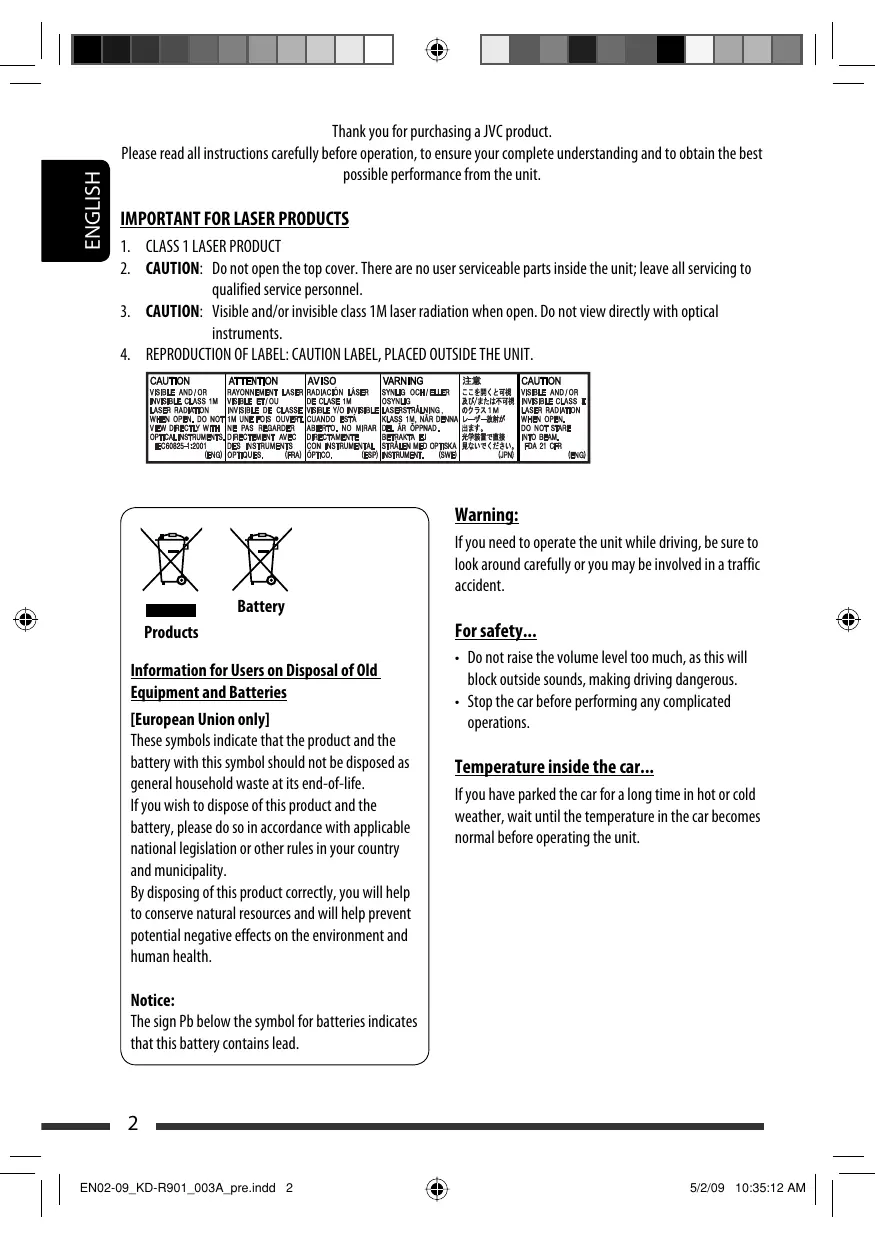
Thank you fr purchasing a JVC product. Please read all instructions carefuly before operation, to ensure your complete understanding and to obtain the best possible performance from the unit.
IMPORTANT FOR LASER PRODUCTS
1. CLASS 1 LASER PRODUCT
2. CAUTION: Do not open the top cover. There are no user serviceable parts inside the unit leave all servicing to
qualified service personnel.
3. CAUTION: Visible and/or invisible class 1M laser radiation when open. Do not view directly with optical
ENGLISH aumen —TaTemon [SO DANS TEE faunon Lseue moon à lvomeuer uses oucen user (nus cemeun |Ecenc eme [ieue moyen use cuss ou MALE DeCUeeu ou Laneren [neue cu LEE BNP de cu RE Ye rummucimequune 973 USE oiten Pepe eme See Lam, Mu La Go. (Ses LoRorepe lorecnivevre ler E: esta | (oran, RUE oem |Renecegu, l'RR 2 ro. "Es perte. Be) El me Enr If you need to operate the unit while driving, be sure to Look around carefuly or you may be involved in a traffic accident. == try N & Products For safety. & information for Users on Disposal of OI + Do notraise the volume level too much, as this will Information for Users on Disposal of Old block outside sounds, making driving dangerous. Equipment and Batteries 2 Stop the car before performing any complicated European Union only] operations. These symbol indicate that the product and the battery with this symbol should notbe disposedas | Temperature inside the ca general household waste at end. If you have parked the car for long time in hot or cold If you wish to dispose of this product and the ‘ . weather, wait until the temperature in the car becomes battery, please do soin accordance with applicable \ normal before operating the unit. national legislation or other rules in our country and munidpality. By disposing of this product correct, you will help to conserve natural resources and will help prevent potential negative effects on the environment and human health. Notice: The ign Pb belou the symbol for batteries indicates that this battery contains lead
Ii Detaching the control panel Avoid touching the connectors. I How to reset your unit
+ Your preset adjustments wil also be erased (except the registered Bluetooth device, see pages 15 and 16).
Mi How to forcibly eject a disc
Hold] Please Eject' appears on the display.
+ You can fordbly ject the loaded disc even ifthe dis is locked. To lock/unlock the disc, se page 12. + Be careful not to drop the disc when it ejects. + fthis does not work, reset your unit. | ENO2-09_KD-R901_ 009 findd 3 How to read this manual: + Go is used to indicate turn the control dial to make a selection, then press to confirm the selection. + < > isused to indicate the available items/ settings/operations in the <SET UP> menu. This unit is equipped with the steering wheel remote control function. + See the Installation/Connection Manual (separate volume for connection. + Some ofthe operations might be different with the steering wheel remote control function. Caution: Ifthe temperature inside the car is below 0°C, the movement of animation and text scroll will be halted on the display to prevent the display from being blurred. HI appears on the display. When the temperature increases, and the operating temperature is resumed, these functions will start working again. Caution on volume setting: Digital devices (CD/USB) produce very little noise compared with other sources. Lower the volume before playing these digital sources to avoid damaging the speakers by sudden increase of the output level. 3 — 10309 2:49:53 PM |
play demonstration and setting the clock M Canceling the + See also page 27. © Turn on the power.
Ex: When tuner is selected as the source
| REX | CONTENTS Detaching the control panel. Attaching the control panel How to reset your unit How to forcibly eject a dis INTRODUCTIONS Preparation. OPERATIONS Basic operations. 2 Using the control panel + Using the remote controller (RM-RK50).. Listening to the radio. Disc operations. USB operations … Using the Bluetooth® device = Connecting Bluetooth device forthe first time = Using the Bluetooth celular phone = Using the Bluetooth audio player. EXTERNAL DEVICES Listening to the CD changer Listening to the iPod/iPhon + When connected with the USB input terminal. = When connected th the interface adapter. Listening to the DAB tuner. Listening to the other external components. os À os | ENO2-09_KD-R901_003A pre.ndd 5 SETTINGS Selecting a preset sound mod: Menu operations. + Creating your own color—User Color 2 Setting the time for dimmer.… + Changing the Bluetooth setting REFERENCES More about this unit . Troubleshooting. Maintenance. Specifications. ENGLISH 5209 103548 au | |
Using the control panel En 31 EG" + FM/AM: Select preset station. + DAB: Select DAB service + CD/USB FRONT/USB REAR/CD-CH: Select folder. + iPod: Enter the main menu/Pause playback*?/ Confirm selection. + BTFRONT/BT REAR (Phone): Adjust the microphone volume (during a phone call conversation). + BTFRONT/BT REAR (Audio) *?: Select group/folder. Select the source.
+ Retum tothe previous menu. + iPod FRONT/iPod REAR: Switch the setting between <Headunit Mode> and <iPod Mode>* [Hold]. BT FRONT/BT REAR (Audio): Pause playback. Enter “Call Menu” screen. Enter <Quick Call> preset method [Hold]. (See page 33.) BT FRONT/BT REAR (Phone): — Answer incoming call. — End a call [Hold]. 13] + Turn on the power. Attenuate the sound (ifthe power is on). Turn offthe power [Hold]. BT FRONT/BT REAR (Phone): Switch the conversation media during a phone call conversation. Remote sensor AUX (auxiliary) input jack
Installing the lithium coin batte! (CR2025 CR2025 + Danger of explosion if battery is incorrectlyreplaced. Replace only with the same or equivalent type. + Battery shall not be exposed to excessive heat such as sunshine, fire, or the like. Hthe effectiveness ofthe remote controller decreases, replace the battery. | ENO2-09_KD-R901_003A pre.ndd 7 g the remote controller (RM-RK50) ss *1° Also known as “Control dial” in this manual. #2 You can still adust the volume during pause when the selected source is CD/USB FRONT/USB REAR/iPod FRONT/iPod REAR/BT FRONT/ BTREAR/iPod. Before resume playback, check to be sure that you have not raise the volume level too much. *3 For Bluetooth devices that support AVRCP 1.3. You cannot select these sources ifthey are not ready or not connected. 5 You cannot select these sources if they were disabled in the <SET UP> menu (see <Source Select> in Menu operations” on page 31). You can use this function only when <iPod Mode> is available for the connected iPod (see pages 21 and38).
rm] Before using the remote controller: & + Aimthe remote controller directly at the remote sensor on the unit. + DO NOT expose the remote sensor to bright light {direct sunlight or artificial lighting). Remote sensor Continued on the next page OPERATIONS 7 5209 103540 M | |
La LL ENGLISH [2 + Tums the power on if pressed brief or attenuates the sound when the power is on. Turms the power offif pressed and held. ll conversation if pressed briefly. Changes the FM/AM presetstations/DAB services. Changes the folder of the MP3/WMA/AAC (and WAY for USB operations). While playing an MP3 disc on an MP3-compatible CD changer: = Changes the disc if pressed briefly. = Changes the folder if pressed and held. While listening to an Apple iPod: Connected with the interface adapter: — Pauses or resumes playback with D w. — Enters the main menu with A U. (Now A U/D w/-«R/F» work as the menu selecting buttons.)
| ENO2-09_KD-R901_003A pre.indd 8 Suitches the conversation media during a phone [7] + Searches for stations/DAB services if pressed brief. + Searches for DAB ensembles if pressed and held. + Fast-forwards or reverses the track if pressed and held. + Changes the track if pressed briefly + While listening to an iPod (in menu selecting mode): Connected with the interface adapter: = Selects an item if pressed briefy. (Then, press D w to confirm the selection.) — Skips 10 items at a time if pressed and held + Reverse skip/forward skip for Bluetooth audio player. Warning (to prevent accidents and damage): + Do notinstall any battery other than CR2025 orits equivalent. + Do not leave the remote controller in a place (such as dashboards) exposed to direct sunlight for à long time. + Store the battery in à place where children cannot reach. + Do not recharge, short, disassemble, heat the battery, or dispose ofit in a fire. + Do not leave the battery with other metallic materials. + Donot poke the battery with tweezers or similar tools. + Wrap the battery with tape and insulate when throwing away or saving it. 52109 10:25:20 AM |
Select “FM” or “AM.” again Search for a station to listen—Auto Search. ‘When station is tuned in, searching stops. To stop searching, press the same button + You can also search for a station manually—Manual Search. Hold either one ofthe buttons until “M” appears on the display, then press it repeatediy. + When receiving an FM stereo broadcast with sufficient signal strength, the IST indicator lights up on the display.
rm] I Improving the FM reception (When an FM stereo broadcast is hard to receive, activate monaural mode for better reception. + See also page 30. ET wa
Ga <Tuner> S <stereo/Mono> S cmono> Reception improves, but stereo effect will be lost. The MO lights up on the display. To restore the stereo effect, repeat the same procedure to select <Stereo>. | ENO2-09_KD-R901_003A pre.ndd 9 Mi Storing stations in memory Automatic presetting (FM)—SSM (Strong- station Sequential Memory] You can preset up to 18 stations for FM. À While listening to a station, enter “SSM” screen. O Hold) & 2 Select the preset number range you want to store.
© mn Local FM stations with the strongest signals are searched and stored automatically. + To stop searching, press 4-4 V/»»1 A. “SSM 01-06" —+ “SSM 07-12" +—+ “SSM 13-18" To preset other 6 stations, repeat from step 1 again. Continued on the next page OPERATIONS
_| RE Manual presetting (FM/AM) You can preset up to 18 stations for FM and 6 stations 3 for AM. Be Ex: Storing FM station of 92.5 MHz into preset number OU “gun Z 4
M1 Selecting preset station
The following features are available only for FM Radio Data System stations. M1 Searching for FM Radio Data System programme—PTY Search You can tune in to a station broadcasting your favorite programme by searching for a PTY code. 1 The last selected PTY code appears. Hold] 2 Select one of your favorite programme types or a PTY code.
Start searching for your favorite programme. [um] [Press] Ifa station is broadcasting programme ofthe same PTY code as you have selected, that station is tunedin. PTY codes News, Affair, Info, Spor, Educate, Drama, Culture, Science, Varied, Pop M (music), Rock M (music), Easy M (music, Light M (music), Classics, Other M (musio, Weather, Finance, Children, Social, Religion, Phone In, Travel, Leisure, Jazz, Country, Nation M (musio, Oldies, Folk M (music), Document [Turn] — [Press]
| EM10-19_KD-R901_002A 1.indé 10 #1 Using the standby receptions TA Standby Reception TA Standby Reception allows the unit to switch temporarily to Traffic Announcement (TA) from any source other than AM. The volume changes to the preset TA volume level if the current level is lower than the preset level (see page 30). s209 110701 mm | |
To activate TA Standby Reception The TP (Traffic Programme) indicator either lights up or flashes. + Ifthe TP indicator lights up, TA Standby Reception is activated + Ifthe TP indicator flashes, TA Standby Reception is not yet activated. (This occurs when you are listening ‘to an FM station without the Radio Data System signals required for TA Standby Reception.) To activate the reception, tune in to another station providing these signals. The TP indicator will top flashing and remain it. To deactivate the TA Standby Reception The TP indicator goes off. PTY Standby Reception PTY Standby Reception allows the unit to switch temporarily to your favorite PTY programme from any source other than AM. To activate and select your favorite PTY code for PTY Standby Reception, see page 30. The PTY indicator either lights up or flashes. 2 HÉthe PTY indicator lights up, PTY Standby Reception isactivated. + lÉthe PTY indicator flashes, PTY Standby Reception is not yet activated. To adivate the reception, tune in to another station providing these signals. The PTY indicator will stop flashing and remain li. To deactivate the PTY Standby Reception, select <0ff> forthe PTY code (see page 30). The PTY indicator goes of. + When a DAB tuner is connected, TA/PTY Standby Reception also searches for services. (See also page 30) = The unit will not switch to Traffic Announcement or PTY programme when a call connection is established through “BT FRONT/BT REAR" | EM10-19_KD-R901_009A 3ndd 11 Mi Tracing the same programme — Network-Tracking Reception When driving in an area where FM reception is not suffident enough, this unit automatically tunes in to another FM Radio Data System station ofthe same network, possibly broadcasting the same programme with stronger signals (see the lustration below). When shipped from the factory, Network-Tracking Reception is activated. To change the Network-Tracking Reception setting, see <AF Regional> on page 30. + When the DAB tuner is connected, refer to “Tracing the same programme — Alternative Frequency Reception (DAB AF)" on page 24. Programme A broadcasting on different frequency areas (01-05) M] Automatic station selection — Programme Search Usually when you select a preset number, the station preset in that number is tuned in. Ifthe signals from the FM Radio Data System preset station are not sufficient for good reception, this unit, using the AF data, tunes in to another frequency possibly broadeasting the same programme as the original preset station is broadcasting The unit takes some time to tune in to another Station using programme search. + See also page 30. OPERATIONS
| EM10-19_KD-R901_002A 3.ndd 12 Turn on the power. Insert a disc. All tracks will be played repeatedly until you change the source or eject the disc. Stop playing and ejecting the disc © à El + “No Disc’ appears. Press SRC to listen to another playback source.
D wo © To cancelthe prohibition, repeat the same procedure. Pressing {or holding) the following buttons allows you [Press] Pause/resume playback. MP3/WMA/AAC: Select folder Press] Select track IHold]_Reverse/fast-forward track
Ext M Selecting a track/folder
[Turn] — [Press] + For MP3/WMA/AAC discs, select the desired folder, then the desired rack by repeating the control dial procedures = Toreturn to the previous menu, press BACK. Mi Selecting the playback modes You can use only one ofthe following playback modes at a time. T Enter “PLAYBACK MENU” screen. Hold] 2072109 s1022P4 | |
2 Trad: Repeats currenttrack [Turn] [Press] Folder: MP3/WMA/AAC: Repeats current Repeat = Random folder Folder: MP3/WMA/AAC: Random plays all tracks of current folder, then tracks of next folders Repeat Random [um] [Press] AI: Randomiyplaysalltracks + To cancel repeat play or random play, select “Off”. = Toreturn to the previous menu, press BACK. USB operations This uni is equipped with two USB input terminals (on the control panel and USB cable from the rear ofthe unit). You can use these two terminals at the same time. + You cn also connect a USB Bluetooth Adapter (KS-UBT1) and/or an Apple iPod/iPhone to the USB input terminal(s). For details ofthe operations, see pages 14-— 19 and 2123. This unit cn play MP3/WMA/AAC/WAY tracks stored in a USB mass storage class device (such as a USB & memory, Digital Audio Player, portable HDD, etc.). & Ci (C2) Turn on the power. Connect a USB device. USBmemory All tracks will be played repeatediy until you change the source or disconnect a device. and/or
USB cable from the ES rear ofthe unit Continued on the next page OPERATIONS 13 | EN10-19_KD-R901_003A pre.indd 13 52/09 10:36:03 mm | |
Ifa USB device has been attached... Cm) ÉD Playback starts from where it has been stopped CA vrcviousty. FA - l'a different USB device is currently attached, playback stats from the beginning. Stop playing and detaching the USB device Straightly pull it out from the USB input terminal. + “No USB” appears. Press SRC to listen to another playback source. You cn operate the USB device in the same way you operate the files on a disc. (See pages 12 and 13.) + You @n listen to WAV files by following the MP3/ WMA/AAC le operations listed on pages 12 and 13. Qautions: + Avoid using the USB device ifit might hinder your safety driving. + While “Reading” is shown on the display: — Do not pull out and attach the USB device repeatedly. — Do not pull out or attach another USB device. + Do not start the car engine if a USB device is connected. This unit may not be able to play the files depending on the type of USB device. Operation and power supply may not work as intended for some USB devices. You cannot connect a computer to the USB input terminal ofthe unit. Make sure all important data has been backed up to avoid losing the data. Electrostatic shock at connecting a USB device may quse abnormal playback of the device. In this case, disconnect the USB device then reset this unit and the USB device. Do not leave a USB device in the car, expose to direct sunlight, or high temperature to avoid deformation or use damages to the device. Some USB devices may not work immediately after you turn on the power. The detect time and response time may be very long or some USB devices (such as Digital Audio Player, HDD, etc.). For more details about USB operations, see pages 36 and 37.
Using the Bluetooth® devices O Bluetooth Bluetooth is a short-range wireless radio communication technology for the mobile device such as mobile phones, portable PC, and other devices. The Bluetooth devices can be connected without cables and communicate with each other. = Referto the ist (included in the box) to see the countries where you may use the Bluetooth® function. Bluetooth profile This unit supports the following Bluetooth profiles; HFP (Hands-Free Profile) 1.5 OPP (Object Push Profile 1.1 A2DP (Advanced Audio Distribution Profile) 1.2 AVRCP (Audio/Video Remote Control Profile) 1.3 Refer also tothe instructions supplied with the Bluetooth device. ns 1 2 | EN10-19_KD-R901_003A pre.indd 14 5209 103604 M | |
Features You can operate Bluetooth devices through the unit as follows: + Receiving a call + Making a all—from phone book, from call history (dialed number/received cal), by dialing number, by voice command 2 Informing you of the arrival of a SMS (Short Message Service) + Play back Bluetooth audio player Connecting a Bluetooth device for the first time ss Preparation: + Connectthe supplied USB Bluetooth Adapter (KS-UBT1) to one ofthe USB input terminals of the unit. + Operate the device to turn on its Bluetooth function. Turn on the power. Connect the USB Bluetooth Adapter, KS-UBTI. + Only one USB Bluetooth Adapter can be detected at a time. 5 ble from the rear ofthe unit You «n perform the following operations from the <SET UP> menu. + Pairing and delete pairing 2 Connect and disconnect a registered Bluetooth device (Phone/Audio) ET vo I ©: [Turn] + [Press] (ce <Bluetooth> É? <Device> Perfom the following operations.
Continued on the next page OPERATIONS 15 20209 3:12:37 PM |
Pairing and PIN code ‘When you connect à Bluetooth device to the unit for the first time, make pairing between the unit and the device. Pairing allows Bluetooth devices to communicate with each other. To make pairing, you may need to enter the PIN (Personal Identification Number) code of your Bluetooth device you want to connect. + Oncethe connection is established, it is registered in the unit even if you reset the unit. Up to five devices can be registered in total. + Only one device for Bluetooth phone and one for Bluetooth audio can be connected at a time. ENGLISH À Select <New Pairing>. [Turn] — [Press] 2 Entera PIN (Personal Identification Number) code to the unit. + You can enter any number you like (1-digit to 16-digit number). [Initial: 0000] — Some devices have their own PIN code. Enter the specified PIN code to the unit. EH] Move to the next (or previous) number position.
[2] Select a number. [Turn]
[3] Repeat steps [1 land [2 until you finish entering a PIN code. [4] Confirm the entry. [Press] Wait Pair” appears on the display.
| EN10-19_KD-R901_003A pre.indd 16 3 Use the Bluetooth device to search and connect. On the device to be connected, enter the same PIN code you hate jus entered for this unit. “Wait Pair” appears, then “Pairing OK" or Connected [Device Namel' appears on the display when the connections established. Now you can usethe device through the uni. © appears when Bluetooth connection is established. The device remains registered even after you disconnect the device. Use <Connect Phone> or <Connect Audio> (or activate <Auto Connect>) 0 connect the same device from next time on. (See page 33.) Deleting a registered di À Select <Delete Pairing>. 2 Select a device you want to delete. “Delete OK?” appears on the display. 3 Deletethe selection. OK” appears on the display when the device is deleted. + Toretumnto the previous menu, press BACK. 5209 103605 au | |
Connecting a registered device À Select <Connect Phone> or <Connect Audio>. 2 Select a device you want to connect. “Connecting..” appears then “Connected [Device Name” appears on the display when the device is connected. Disconnecting a registered device Select <Disconnect Phone> or <Disconnect Audio>. [Tum]— [Press] “Disconnecting” appears, then “Disconnected [Device NameJ” appears on the display when the device is disconnected. Using the Bluetooth cellular phone M Making a call Ÿ Enter“Call Menu” screen.
2 Selectthe method to make a call. [Tum]— [Press] | EN10-19_KD-R90_003A pre.indd 17 + “Dialed Calls"*: Shows the list ofthe phone numbers you have dialed. Go to the following step. + “Received Calls"*: Shows the list ofthe received calls. Go to the following step. + “Missed Calls"*: Shows the list ofthe missed ls. Go to the following step. + “Phonebook”: Shows the name/phone number of the phone book of the unit. Go to the following step. To copy the phone book memory, see pages 33 and 34. + “Dial Number”: Shows the “Dial Number” screen. See “How to enter phone number” on the following, + “Voice Dial” (Only accessible when the connected cellular phone has the voice recognition system): Speak the name (registered words) you want to «ll.
- Displays only when the dialed or received number is made through the unit. See also page 34 for “Phonebook Select”settings. 3 Select the name/phone number you want to all. [Turn] — [Press] + When the sound is stopped or interrupted during the use of a Bluetooth device, turn off, then turn on the unit — Ifthe sound is not yet restored, connect the device again. (See “Connecting a registered device” on the left column.) How to enter phone number 1] Select a number. [um]
| EN10-19_KD-R901_003A 3.ndé 18 [21 Move the entry position. [31 Repeat steps[1 |and[2]until you finish entering the phone number. [4] Confirm the entry. [Press] How to delete phone number + Only when <Manual Trans> is selected for <Phonebook Select> in Bluetooth setting menu (see page 34). [ Enter“Call Menu’ screen.
[2] Display the list of phone numbers using one ofthe calling method (see step 2 of“Making a call” on page 17). [31 Select the name/phone number you want to delete. [ur] [41 Enter the “Delete Entries” screen. A 0 [5] + Select “Delete” to delete the selected item. + Select “Delete AIl” to delete all the listed numbers in step[21. Delete Entries
% Delete All PUSH [Press] Mi Receiving/ending a phone call When a call comes i The source is automatically changed to “BT FRONT/ BTREAR" + The display wil flash in blue (see <Ring Color> on page 28 for setting). Name {or phone number, ifacquired) When <Auto Answer> is activate! The unit answers the incoming call automatically, see page 33. + To answer the incoming call when <Auto Answer> is deactivated © | ts
+ To adjustthe microphone volume during a phone all conversation: Œ VOL 30 MC o1 The adjustment will not affect the main volume. You cn preset the microphone volume (see pages 33 and 34) To endthe call orreject an incoming call + When <Auto Answer> is setto <Reject>, the unit rejects any incoming call. Switching conversation medi cellular phone) During à phone cal conversation. Then, continue your conversation Fe) , ar using the other media (the unit/ = Operations may be different according to the connected Bluetooth device. 17209 4:13:18 PM |
M Arriving of a SMS When a SMS comes in... Hthe cellular phone is compatible with SMS and <Message Notice> is set to <On> (see page 33), the unit rings to inform you of the message arrival. + “Received Message” appears on the display and the display lluminate in blue (see <Ring Color> on page 28 for setting). + You cannot read, edit, or send a message through the unit, Using the Bluetooth audio player ELLE + Operations and display indications differ depending on their availability on the connected audio player. Select "BT FRONT" or “BT REAR.” If playback does not start automatically, operate the Bluetooth audio player to start playback.
IPress] Resume playback [Press] Pause playback* Select group/folder*
- Operation maybe different according to the connected device. | EN10-19_KD-R901_003A 2ndd 19 Mi Selecting the playback modes You can use only one ofthe following playback modes ata time. + For Bluetooth devices that support AVRCP 1.3. À Enter“PLAYBACK MENU" screen. THold]
[Turn] —+ [Press] - |Tak Repeats current track FA all Repeats al tracks © |Group _: Repeatsall tracks of current group & AL Randomly plays all tracks En": Rnomypasa tas E [Group : Randomly plays all tracks ofthe È current group + To cancel repeat play or random play, select “Off”. = Toreturn to the previous menu, press BACK. = Refer also to pages 16 and 17 for connecting/ disconnecting/deleting a registered device. Bluetooth Information: Ifyou wish to receive more information about Bluetooth, visit the following JVC web site: <http://wwvejvcco jp/english/car/> (English website only). OPERATIONS
ED is recommended to use a JVC MP3-compatible CD changer (not supplied) with your unit. You can connect a CD CR changer to the CD changer jack on the rear ofthe unit. EA + You cn oniy play conventional CDs (induding CD Text and MP3 diss. Preparation: Make sure <Changer> is selected in the <Source Select> -»+ <Ext Input> setting, see page 31. ES) Select "CD-CH.” ET Enter “LIST” screen. Select a disc, folder, then the track. [um] — [Press] | Playback starts automatically. 2 Hfthere is no disc on the selected tray, the unit beeps. + To select another folder/track while playing (for MP3 discs), repeat steps 2 and 3 above until the desired folder/ tracks selected. The selection always start from disc number first. + Ifanother disc/folder is selected, playback starts from the 1st track ofthe selected disc/folder. Pressing (or holding) the following buttons allows you , & g g g " 3 & to. PI MP3: Select folders
EX [Press] Select track [Hold] Reverse/fast-forward track #1 Selecting the playback modes T Enter“PLAYBACK MENU” screen.
[_ Repeat Random | + Random = 20 | EN20-27_KD-R901_003A pre.indd 20 [Turn] — [Press] Track: Repeats currenttrack + Folder: MP3: Repeats all tracks of current È folder [Disc : Repeats all tracks ofthe current disc Folder: MP3: Randomly plays all tracks of the current folder, then tracks of the next folder Disc : Randomlyplaysalltracksof current disc Random A: Randomiyplaysalltradisofthe discs in the magazine 2 To cancel repeat play or random play, select "Of£” = Toreturn to the previous menu, press BACK. 5209 103707 au | |
| EN20-27_KD-R901_009A 1.indd 21 stening to the iPod/iPhone You can connect the iPod/iPhone using the following cable or adapter: Cable/adapter To operate USB 2.0 cable (accessory ofthe iPod/iPhone) to the USB input terminal | See “When connected with the USB input on the control panel or the USB cable from the rear ofthe unit terminal” below. Interface adapter for iPod, KS-PD100 (not supplied) to the CD changer jack on the rear ofthe unit See “When connected with the interface adapter” on page 22 + When iPod/iPhone devices are connected to both front and rear USB input terminals, the unit only detects and charges the first connected device. + Disconnecting the iPod/Phone wil stop playback. Press SRCto listen to another playback source + For details, refer also to the manual supplied with your Pod/iPhone.
2 Avoid using the iPod/iPhone fit might hinder your safety while drving. 2 Make sure ll important data has been backed up to avoid long the data. When connected with the USB input terminal es There are two control terminals in “iPod FRONT/ iPod REAR' source. + <Headunit Mode> : Control by this unit. + «iPod Mode> : Control by the connected iPod/iPhone. Preparation: Select the controling terminal, <Headunit Mode> or <iPod Mode> for iPod playbadk: + Press and hold BACK button. + Make the selection from <iPod Switch> setting, ee page 31. The operations explained belowrare under <Headunit Mode>. Œ® | Select'iPod FRONT” or“iPod REAR." Playback starts automatically. Select a song. Mi Selecting a track from the menu À Enterthe main menu. 2 Selectthe desired menu. [Turn] — [Press] Playlists <> Artists <— Albums + Songs ++ Podcasts «+ Genres <> Composers <—+ Audiobooks 3 Selectthe desired item. [Turn] — [Press] = Repeat this procedure until the desired trackis selected = Toreturn to the previous menu, press BACK. Continued on the next page EXTERNAL DEVICES 10209 susepu | |
Pressing {or holding) the following buttons allows you LPress] Pause/resume playback. ENGLISH Press] Select track IHold] Reverse/fast-forward track
One : Functions the same as ‘‘Repeat One” of the iPod. Repeal ‘Shuffle Albums” of the iPod. AID: Functionsthesameas "Repeat AI ofthe Pod Song: Functionsthe same as E “Shuffle Songs” ofthe iPod Ë 5 À [Abum® : Functionsthe same as + To cancel repeat play or random play, select “Off.” + “Random Album” is not available for some iPod.
- Functions only if you select “AN” for “Albums”in the main menu. + To return to the previous menu, press BACK. When connected with the interface adapter ms Preparation: Make sure <Changer> is selected in the <Source Select> —» <Ext Input> setting, ee page 31.
Mi Selecting a track from the menu Select “iPod.” Playback starts automatically. Select a song. À Enterthe main menu.
This mode will be canceled ifno operations are done for about 5 seconds. 2 Selectthe desired menu. Playlists <> Artists <— Albums <—» Songs ++ Genres <> Composers <-> (back tothe beginning) + Pressing and holding -@-« 7/21 A Skips 10 items at atime 3 Confirmthe selection.
+ Ifatrackis selected, playback starts automatically. + Press A to return to the previous menu.
1. See page 22 for operations.
a Pause/resume playback + “Random Album” functions only if you select "AI Albums" forAlbums” in the main menu. [Press] Select track [Hold] Reverse/fast-forward track tening to the DAB tuner Before operating, connect the JVC DAB tuner, KT-DB1000 (not supplied) to the CD changer jack on the rear ofthe unit. Preparation: Make sure <Changer> is selected in the <Source Select> -» <Ext Input> setting, see page 31. Select"DAB." ER Searching for an ensemble. When an ensemble is tuned in, searching tops. To stop searching, press the same button again. + You can als search for an ensemble manually—Manual Search. Hold either one ofthe buttons until“ M” appear on the display, then pressitrepeatedly. E Select a service (either primary or secondary) to listen to.
MM Storing DAB services in memory 3 You can preset six DAB services (primary). THold] Ex: Storing an ensemble (primary service) into the preset number "4." T_ Select a service you want (see steps 1 to 3 Preset number “4” appears on the display. above). 2 Select preset number “4.”
Continued on the next page
ns 2 2 | EN20-27_KD-R90_00ZA 3ndd 24 ENGLISH Mi Tuning in to a preset DAB service
#1 Activating/deactiv: Standby Reception + Operations are exactly the same as explained on pages 10 and 11 for FM Radio Data System stations. + You cannot store PTY codes separately for the DAB tuner and for the FM tuner. ing TA/PTY Mi Tracing the same programme— Alternative Frequency Reception (DAB AF) You can keep listening to the same programme by activating the Alternative Frequency Reception. + While receiving a DAB service: When drving in an area where a service cannot be received, this unit automatically tunes in to another ensemble or FM Radio Data System station, broadcasting the same programme. + While receiving an FM Radio Data System station: When driving in an area where a DAB service is broadcasting the same programme as the FM Radio Data System station is broadcasting, this unit automatically tunes in to the DAB service. When shipped from the factory, Alternative Frequency Reception activated. To deactivate the Alternative Frequency Reception, see page 30. To show the Dynamic Label Segment (DLS) information While listening to an ensemble that supports DLS... DAB A)DAB ‘Bayern 2 ME ÿ 1:0041 CRETE Lights up when receiving a senice providing Dynamic Label Segment (DLS)—DAB radio te. + The DLS display will be temporarily canceled when you operate the unit. 16/209 5446 au | |
stening to the other external components You can connect an external component to: + EXT'IN: CD changer jack on the rear of this unit using the following adapters (not supplied): — KS-U57: For connecting the component with pin jacks — KS-U58: For connecting the component with stereo mini jack Preparation: Make sure <ExtIn> is selected in the <Source Select> > <Ext Input> setting, see page 31 + AUX IN: AUX (auxliary) input jack on the control panel. Preparation: Make sure <Show> is selected in the <Source Select> > <AUX Source> setting, see page 31. (ES) Select “EXT IN” or “AUX IN.” —_ Turn on the connected component and start playing the source. (Ê Adjust the volume. [um] _ Adjust the sound as you want (see page 26). & Connecting an external component to the AUX input jack & — | Portable audi player, etc.
Selecting a preset sound mode You can select a preset sound mode suitable to the music genre from the <SET UP> menu. = See page 39 for the preset value for each sound mode. ET vu là O [Turn] = {Press] GS <EQ> S <Off/User/Rock/Classic/Pops/ ENGLISH Hip Hop/Jazz> + See page 28 for <Fad (faden)/Bal (balance)/Loud/Volume Adjust> settings. Wii Storing your own sound mode 4 Adjust the sound elements of the selected You «n store your own adjustments in memory. frequency range. sut 1 Select <E0>. ul av IA Ua ljust the requency. Hold [21 Press A / w to adjust the level. {Hold [3] Tum the control dial to adjust the Q-slope. Sound | Rangeñelectableitems |
À Gllupthe <SETUP> | 2 Selectthe desired item. 3 Repeat step 2 if necessary. menu. + To confirm the setting, press the un control dial. ET vw [run —+ [Press] + Toretun to the previous menu, press BACK. + To exit from the menu, press DISP or MENU. Initial: Underlined Category | Menu items Selectable settings, [reference page] e DEMO + On : Display demonstration will be activated automatically if 5 [Display no operation is done for about 20 seconds, [4]. © demonstration |: off : Cancel. GockDisplay*" |: On 2 Clocktime is shown on the display at ll times when the power is turned off. + Off : Gncels; pressing DISP will show the clock time for about 5 seconds when the power is turned off. # Set Clock 2 Adjustthe hour, then the minute, [4]. & ë (initial: 0:00) & 24H/12H + 12Hours : Select the time display mode, [4]. + 24Hours ClockAdjust*? |: Auto :_ The built-in dock is automatically adjusted using the CT clock time) data in the Radio Data System signal. + off : Gncels. e |A : Select a preset sound mode suitable to the music genre, [26]. “| Equalizer Off, User, Rock, Classic, Pops, Hip Hop, Jazz Color Select Coloro1 2 Selectone ofthe preset or user color for display and — Color 29, button (except T/P/DISP/OPEN/© ATT) illumination. User {For customized color settings, <User>, see pages 31 5 and32) © [Menu Color + On :_ Changes the display and button (except T/P/DISP/ OPEN/& ATT) illumination during menu, list search and playback mode operations. + off : Cancel. “1 the power supply i notinterrupted by turing offthe gnition Key of your car, it is recommended t select <0ff> to save the car battery 2 Take effect only when CT data received. Continued on the next page SETTINGS pt | EN20-27_KD-R901_ 009 findd 27 10809 5:26:22 pu | |
| REX | Category | Menu items Selectable settings, [reference page] = Ring Color“? + On When a call comes in, the display will flash in blue. ea + The display will change to the original color when you to] ë answer the all orthe incoming «al stops. & & When the unit receive a SMS, the display only lluminate in blue. + off Gncels Fad/Bal* |R6-F6 Fad:Press A / w to adjust the front and rear speaker Fader/Balance output balance. (Initial: 0) L6-R6 Bal: Press +4 V7/ pe À to adjust the left and right speaker output balance. (Initial: 0) Loud + Loudt/Loud2/ : Boost low and high frequencies to produce à Loudness Loud3 wel-balanced sound at a low volume level. + off Gncels Volume Adjust [Level -5 — Presetthe volume adjustment level of each source Level +5 (except FM), compared to the FM volume level. The (Initial: Level 0) volume level will automatically increase or decrease when you change the source. + Before making an adjustment, select the source you want to adjust. = FIX" appears on the display if“FM" is selected as the & source. & & [Subwoofer + LPF/Level Press @-4 W / »1 A to select the cutoff frequency to = the subwoofer. Off: All signals are sent to the subwoofer. LPF 55Hz/LPF 85H2/LPF 120Hz: Frequencies higher than 55 H2/85 Hz/120 Hzare cut of. Turn the control dial to adjustthe subwoofer output level Level 00 to Level 08 (Initial: Level 04 + Phase Turn the control dial to select the subwoofer phase. Odeg (normal) or 180deg (reverse) HPF Select the cutof frequency to the front/rear speakers. Set this to match the LPF High pass filter |settings. + 62Hz/95Hz/ : Frequencies lower than 62 Hz/95 Hz/135 Hz are cut off. 135Hz “off Allsignals are sent to the front/rear speakers. Beep + On Activates the key touch tone. Keytouchtone | Off Deactivates the Key touch tone. *2 Displayed only when USB Bluetooth Adapter (KS-UBT1) is connected. *# Ifyou are using a two-speaker system, set the fader level to <0>. *5 This adjustment will not affect the subwoofer output. ns 2 65 | EN28-37_KD-R90_002A 3ndé 28 17209 4:01:26 PM |
Category | Menu items Selectable settings, [reference page] Amplifier Gain*® |: HighPower : Vol00- Vol 50 £ + LowPower : Vol00—Vol 30 (Select ifthe maximum power of each E speaker is less than 50 W to prevent damaging the speaker.) Dimmer + On 2 Dims the display and button illumination. + Off : Cancels. + Auto 2 Dims the display when you turn on the headlights.*? + Time Set 2 Set the timer for dimmer, [32]. Any hour — Any hour (Initial: 18-07) Level Meter + Meter1 Select the different level meter patterns, [4]. - Meter2 +_ Press DISP to show the selected level meter. Scroll*® + One 2 Fortrack information: scrolls the track information only once. For DAB text: scrolls the detailed DAB text. - Auto : Fortrack information: repeats the scroll (in 5-second intervals). = For DAB text: scrolls the detailed DAB text. É - off : Fortrackinformation: cancel. ë For DAB text: shows only headline if any. Pressing DISP for more than one second can scroll the display regardless ofthe setting. & Tag Display On 2 Shows the Tag information while playing MP3/WMA/ AAC/WAV tracks. - off : Cancels. LCD Type + Negative : Negativepattemofthe display. + Positive : Positive pattern of the display. + Auto : Positive pattern will be selected during the day time”? while negative pattern will be used during the night time*. Contrast Level 01 2 Adjustthe display contrast to make the display — Level 08 indications clear and legible. (Initial: Level 05) *6 The volume level automatically changes to “Vol 30" if you change to <Low Power> with the volume level set higher than “Vol 30." +7 The luminaton control lead connection i required. (See “Istallation/Connection Manual") *8 Some characters or symbals will not be shown correct} (or wil be blanked) on the display
- Depends on the <Dimmer> setting. Continued on the next page
| REX | Category | Menu items Selectable settings, [reference page] = æ [Device (See pages 15 — 17 forsettings.) ä 5 5 ê U 35 |Settings (See pages 33 and 34 for settings.) Z E IF Band + Auto 2 Increases the tuner selectivity to reduce interference Intermediate noises between adjacent stations. (Stereo effect may be frequency band lost) + Wide : Subject to interference noises from adjacent stations, but sound quality will not be degraded and the stereo effect willremain. AFRegional*® |: AF 2 When the currently received signals become weak, the Alternative unit switches to another station (the programme may frequency/ differ from the one currently received), [11]. regionalization 2 The AF indicator lights up. reception + AFREG 2 When the currently received signals become weak, the unit switches to another station broadcasting the same programme. 2 The REG indicator lights up. 5 + Off :_ Cancel (not selectable when <DAB AF> is set to <On>). À [PSearhro + On : Adivates Programme Search, [11]. Programme search | Off : Cancel. & DAB AF*"! - On : Traces the programme among DAB services and FM Radio Altemative Data System stations, [24]. frequency reception | Off : Gnels. TAVolume*"® |Vol00-Vol50 : (Initial: Vol 15) Traffic (or Vol 00 announcement —Vol30)*12 volume PTY-Standby*® | Off, PTYcodes _: Activates PTY Standby Reception with one ofthe PTY PTY standby codes, [10]. Stereo/Mono*'* |- Stereo :_ Restore the stereo effect. + Mono 2 Adivate monaural mode to improve FM reception, but stereo effect will be lost, [9]. *10 Only for FM Radio Data System stations. *1 Displayed only when DAB tuner is connected. *12Depends on the amplifier gain control. +13 Displayed onÿy when the source is “FM.” ns 2 CO | EN28-37_KD-R90_002A 3.ndé 30 17209 401:41 PM |
Category | Menu items Selectable settings, [reference page] ExtInput**15 |. Changer 2 To use a JVC CD changer, [20] an Apple iPod/iPhone, External input 21], or DAB tuner, [23]. + Extin : Tolisten to a portable audio player (connected to the CD ÿ changer jack) [25]. S [AMSoure*s |: Show : Enable “AM in source selection, [6]. £ + Hide :_Disable “AM” in source selection. & (AUXSoure*” |: Show : Enable AUX IN”in source selection, [6]. + Hide : Disable “AUX IN” in source selection. Bluetooth + Show : Enable“BT FRONT/BT REAR" in source selection, [6] Audio*!® + Hide : Disable“BT FRONT/BT REAR in source selection. Z [DriveChange |: Selectto change the drive when a multiple drives device is connected to the 8 USB input terminal (FRONT/REAR). iPod Switch + Headunit Mode : Controls iPod playback through the unit. & liPod/Phone control|+ iPod Mode: Controls iPod playback through the iPod/iPhone. 3 [Audiobooks + Normal 2 You can select the playback speed ofthe “Audiobooks" Jspeedcontrolof |: Faster sound fil in your iPod/iPhone. “Audiobooks” |: Slower -_Initial selected item depends on your iPod/iPhone setting. #4 Displayed only if any source other than “CD-CH/iPod/EXT IN"iselected. #15 Not required for Bluetooth. *6Displayed only when any source other than “AM "selected. #17 Displayed only when any source other than “AUX IN" selected #1 Displayed only when any source other than “BT FRONT/BT REAR'i selected. #19 Displayed only when the source is “USB FRONT/USB REAR." #2 Displayed only wien the source is “iPod FRONT/iPod REAR ” Creating your own color —User Color ss You «an create your ou colors—<Day Color> or <Night Color>. <Day Coler> _: Colorforthe display and buttons. <Night Color> : Color for the display and buttons when the display is dimmed. To dim the display, see <Dimmer> on page 29.
Color Select 2N Color 28 Color 29 M © User Continued on the next page SETTINGS
3° Select <Day Color> or <Night Color>. Repeat this procedure until you have adjust all the three primary colors. TI If <00> is selected fo ll the primary colors, ü = k 5 [Turn] —+ [Press] nothing appear on the display.
ii 5 Confirmthe settings. D [Press] Ex.: When <Day Color> is selected Æ Select a primary color, then adjustthe level. 6 Exitfromthe setting. Œ aë-en— a A <Blue> | = Select <User> to show your oun colors for the D À buttons and display. [um | <00>++<31> & Setting the time for dimmer & You can set the start/end time for dimmer. 2. Adjustthe dimmer start time.
[Hoi Eur + [Press] 3 Adjustthe dimmer end time. [Turn] —+ [Press] [Turn] — [Press]
| REX | Changing the Bluetooth setting ss You «an change the settings listed on the following according to your preference Preparation: + Connectthe supplied USB Bluetooth Adapter {KS-UBT1) to one of the USB input terminals ofthe unit.
ET vo [Turn] — [Press] GS <Bluetooth> © <Settings> 2 Select asettingitem. [Turn] —+ [Press] <Quick Call> «+ <Auto Connect> <> <Auto Answer> <—> <Message Notice>* — <MICSetting> <—» <Ringing Tone> <— <Phonebook Trans> + <Phonebook Select> «+ <initialize> <—» <Information><+— (back to the beginning)
- Hfthe connected Bluetooth phone does not support SMS notification (via Bluetooth), the unit will not receive any notification upon the arrival of a SMS even when <Message Notice> is set to <On> 3 Change the setting accordingly. [Turn] — [Press] EN28-37_KD-R901_003A preindd 33 <Settings> menu (_: Initial) I Quick Call You can preset the Quick Call method. Hold to enter the selected method. = Appears only when a Bluetooth phone is connected. Dialed Calls: Show the ist ofthe numbers you have dialed. Received Calls: Show the ist ofthe numbers you have received. Missed Calls: Show the ist ofthe numbers you have missed. Phonebook: Show the ist ofthe phonebook Dial Number: Display the “Dial Number” screen. Voice Dial: Display the voice dilling screen. I Auto Connect When the unit is tumed on, the connection is established automatically with.. Last: The last connected Bluetooth device. No Bluetooth device. I Auto Answer Only for the device being connected for “BT FRONT {Phone)/BT REAR (Phone)." On: The unit answers the incoming calls automatically. The unit does not answer the calls automatically. Answer the calls manually. The unit rejects all incoming call. Reject: I Message Notice Only for the device being connected for “BT FRONT/ BT REAR (Phone)." On: The unitinforms you ofthe arival of a message by ringing and displaying Received Message." = The display illuminates in blue (see <Ring Color> on page 28). The unit does not inform you ofthe arival of a message. Continued on the next page SETTINGS
D MiCSetting Only for the device being connected for “BT FRONT/ pe BTREAR (Phone)." ÉD Adjustthe volume ofthe microphone connected to the 2 unit. [A Level 01/02/03 I Ringing Tone You «an preset the ringing source when a call/SMS comes in. In Unit; Call: Select your preferred ring tone when à call comes in. + Tone 1/2/3 Message: Select your preferred ring tone when a SMS comes in. - Tone 1/2/3 Your phone rings to alert you when a @ll/SMS comes in. In Phone: I Phonebook Trans You can copy the phone book memory ofa cellular phone into the unit. Enter the PIN code to the unit to transfer the phone book into the unit. You can transfer a maximum of 300 numbers. More about tl Ii Basic operations Turning on the power + By pressing SRC on the unit, you can also turn on the power. IFthe source is ready, playback also starts. Turning off the power + Hfyoutum offthe power while listening to a track, playback will start from where it had been stopped previously next time you turn on the power. I Phonebook Select You can preset the source of the phone book you want to synchronize + Selectable only when the connected phone supports Phonebook Auto Synchronize. AutoAccess Phone: Auto synchronize from the phone memory. AutoAccess SIM: Auto synchronize from the SIM ard. Manual Trans: Manually select the source to transfer. BH ini Ves: Initialize all the Bluetooth settings. No: Cancels I information IWCDevice Name: Shows the unit name. NC Address: Shows address of USB Bluetooth Adapter. NCSoftware Ver: Shows the software version. Connected Phone*: Shows connected phone name. Connected Audio”: | Shows connected audio device name.
- Displayed only when a Bluetooth phone/audio player is connected. General + Hfyou change the source while listening to a disc, playback stops. Next time you select CD” as the playback source, playback will star from where it had been stopped previously. Ifthe ejected disc is not removed within 15 seconds, the disc is automatically inserted again into the loading slot to protect it from dust. After ejecting a disc or removing a USB device, “No Disc” or“No USB” appears and you cannot operate some of the buttons. Insert another disc, reattach a USB device, or press SRC to select another playback source. ns 23 2 | EN28-37_KD-R901_003A pre.indd 34 52109 10:29:08 AM |
= Ifno operation is done for about 30 seconds after pressing MENU button or control dial, the operation will be canceled. Ii Tuner operations Storing st: memoi + During SSM search... — All previously stored stations are erased and the stations are stored anew. — When SSM is over, the station stored in the lowest preset number will be automatically tuned in. + When storing a station manually, the previously preset station is erased when a new station is stored in the same preset number. FM Radio Data System operations + Network-Tracking Reception requires two types ofRadio Data System signals—PI (Programme Identification) and AF (Alternative Frequency) to work correctly. Without receiving these data correctly, Network-Tracking Reception will not & operate correctly. + fa Traffic Announcements received by TA Standby Reception, the volume level automatically changes to the preset level (TA Volume) ifthe current level is lower than the preset level. + When Altemative Frequency Reception is activated {with AF selected), Network-Tracking Reception is also activated automatically. On the other hand, Network-Tracking Reception cannot be deactivated without deactivating Alternative Frequency Reception. (See page 30.) Ii Disc/USB operations Caution for DualDisc playback + The Non-DVD side of a “DualDisc” does not comply with the “Compact Disc Digital Audio” standard. Therefore, the use of Non-DVD side of a DualDisc on this product may not be recommended. | EN28-37_KD-R901_00SA pre.indd 35 General This unit has been designed to reproduce CDs/CD Texts, and CD-Rs (Recordable)/CD-RWs (Rewritable) in audio CD (CD-DA), MP3/WMA/AAC formats. + When a discis inserted upside down, “Please Eject” appears on the display. Press OPEN, then À to eject the disc. +_ In this manual, words “track” and “file” are interchangeably used. 2 While fast-forwarding or reversing on an MP3/WMA/ AAC/WAV file, you can only hear intermittent sound. = File/folder list may not appear correct too many hierarchies and folders are used. Playing a CD-R or CD-RW + Use only“fnalized” CD-Rs or CD-RWS. = This unit can only play back files ofthe same type as those which are detected first fa disc includes both audio CD (CD-DA) files and MP3/AWMA/AAC files. This unit can play back multi-session discs; however, undosed sessions will be skipped while playing. Some CD-Rs or CD-RWs may not play back on this & unit because of their disc characteristics, or forthe following reasons: — Discs are dirty or scratched. — Moisture condensation has occurred on the lens inside the unit. — The pickup lens inside the unit is dirty. — The files on the CD-R/CD-RW are written using the “Packet Write” method. — There are improper recording conditions (missing data, etc.) or media conditions (stained, scratched, warped, etc). CD-RWS may require a longer readout time since the reflectance of CD-RWs is lower than that of regular Os. Continued on the next page REFERENCES
+ Do not use the following CD-Rs or CD-RWs: — Discs with stickers labels, or a protective seal tuck ZT to the surface. ER -Discson which labels can be directly printedbyan CR ikietprinter. FA Using these discs under high temperature or high humiity may cause malfunctions or damage to the unit. Playing an MP3/WMA/AAC disc + This unit can play back MP3/WMA/AAC files with the extension code <.mp3>, <wma>, or <.mda> (regardiess ofthe letter case—upper/lower) + This unit can show the names of albums, artists {performer), and Tag (Version 1.0, 1.1, 2.2, 2.3, or 2.4) for MP3 files and show WMA/AAC Tag. + This unit can play back MP3/WMA/AAC files meeting the conditions below: Bit rate of MP3/WMA/AAC: 5 kbps — 320 kbps Sampling frequency of MP3: — 48 kHz, 44.1 kHz, 32 kHz (for MPEG-1) — 24 kHz, 22.05 kHz, 16 kHz (for MPEG-2) Sampling frequency of WMA: 8 kHz — 48 kHz Sampling frequency of AAC: 48 kHz, 44.1 kHz + The maximum number of characters for file/folder names is 25 characters (induding <.mp3>, <wma>, <.mda>); 128 characters for MP3/WMA/ AACTag. + This unit cn recognize a total of 20 000 files and 2 000 folders (999 files per folder). However, the display can show until 999 folders/fles. + This unit can play back files recorded in VBR (variable bit rate). Files recorded in VBR have a discrepancy in the elapsed time display, and do not show the actual elapsed time. In particular, this difference becomes noticeable after performing the search function. + This unit cannot play back the following files: — MP3 files encoded in MP3i and MP3 PRO format. — MP3 files encoded in an inappropriate format. — MP3 files encoded with Layer 1/2. — WMA files encoded in lossless, professional, and voice format. — WMA iles which are not based upon Windows Media® Audio. — WMA files copy-protected with DRM. — Files which have data such as AIFF, ATRAG, etc. = ‘The search function works but search speed is not constant. Playing MP3/WMA/AACÇ/WAN tracks from a USB device + Connecting a USB device automatically changes the source to “USB FRONT/USB REAR." While playing from a USB device, the playback order may diffe from the one from other players This unit may be unable to play back some USB devices or some files due to their characteristics or recording conditions. Depending on the shape ofthe USB devices and connection ports, some USB devices may not be attached propery orthe connection might be loose. When connecting a USB mass storage class device, refer also to ts instructions. This unit may not work properly with some USB hub or USB card reader. This unit is compatible with the USB Full-Speed. Ifthe connected USB device does not have the correct files, “No File” appears. This unit can show ID3 Tag (Version 1.0, 1.1, 2.2, 2.3, or 2.4) for MP3 and WMA/AAC/WAV Tag. This unit can play back MP3/WMA/AAC/WAV files meeting the conditions below: MP3: — Bitrate: 32 kbps — 320 kbps (MPEG-1) 8 kbps — 160 kbps (MPEG-2) = Sampling frequency: 48 kHz, 44.1 kHz, 32 KHz (for MPEG-1) 24 kHz, 22.05 kHz, 16 kHz (for MPEG-2) WMA: — Bitrate: 5 kbps — 320 kbps — Sampling frequency: 8 kHz — 48 kHz — Channel: 1 ch/2 ch AAC — Bitrate: 16 kbps — 320 kbps — Sampling frequency: 48 kHz, 44.1 kHz
— Channel: 1 ch/2 ch WAV: — Bitrate: Linear PCM at 705 kbps and 1 411 kbps — Sampling frequency: 44.1 kHz — Channel: 1 ch/2 ch + This unit can play back MP3 files recorded in VBR (variable bit rate). + The maximum number of characters for folder and file names is 25 characters (induding <.mp3>, <wma>, <ma>, <wav>); 128 characters for MP3/WMA/AAC/WAV Tag, + This unit can recognize a total of 20 000 files and 2000 folders (999 files per folder). However, the display can shows until 999 folders/files. + The unit cannot recognize a USB mass storage class device whose rating is other than 5 V and exceeds 500 mA. + USB devices equipped with special functions such as data security functions cannot be used with the unit. + Do not use a USB device with 2 or more partitions. + When connecting with a USB cable, use the USB 2.0 cable. + This unit may not recognized some of the USB device connected through a USB card reader. + This unit may not play back files in a USB device properly when using a USB extension cord. 2 This unit cannot assure proper functions or supply power to all types of USB devices. JB Bluetooth operations General + While driving, do not perform complicated operation such as dialing the numbers, using phone book, etc. (When you perform these operations, top your car in asafe place. + Some Bluetooth devices may not be connected to this unit depending on the Bluetooth version of the device. + Ifyou connect a different USB Bluetooth Adapter, allthe registered devices and information will be deared. = This unit may not work for some Bluetooth devices. + Connecting condition may vary depending on the drcumstances around you. | EN28-37_KD-R90_003A 3indd 37 + Ifyou turn offthe unit, detach the control panel, or unplug the USB Bluetooth Adapter during a phone «ll conversation, the Bluetooth connection is disconnected. Continue the conversation using your cellular phone. + When the unit is turned off, the device is disconnected. Icons for phone types These icons indicate the phone type ofnumber entries in the Phonebook These icons indicate the type of connected phone/ audio devices : Phone only FA: Prone/audio : Audio only Cellulr phone Household phone Office : General Other than above Unknown DRE E Warning messages for Bluetooth operations + Connection Error The device is registered but the connection has failed. Use <Connect Phone/Connect Audio> to connect the device again. (See page 17.) + Error Trythe operation again. If"Error” appears again, check the device supports the function you have tried. Please Wait. The unitis preparing to use the Bluetooth function. 1f the message does not disappear, turn off and turn on the unit, then connect the device again (or reset the unit). Please Reset... Reset the unit and try the operation again. “Please Reset. appears again, consult your nearest JVC car audio dealers. Continued on the next page REFERENCES
M iPod/iPhone operations = You an control the following types of Pods/iPhone: A) Connected with the USB cable: — iPod with video (5th Generation) *" — iPod dassic*" #2 — iPod nano — iPod nano (2nd Generation) = iPod nano (3rd Generation)*" *? — iPod nano (4th Generation) *":*? — iPod Touch*1.*2 — iPod Touch (2nd Generation) *".*2 — iPhone/iPhone 36*1.*2 (B) Connected with the interface adapter: — iPod with Click Wheel (Ath Generation) — iPod mini — iPod photo — iPod with video (5th Generation) — iPod dassic — iPod nano — iPod nano (2nd Generation) — iPod nano (3rd Generation) — iPod nano (4th Generation) ** #1 ftis not possible to browse video files on the “Videos” menu. #2 <iPod Mode> is available (see page 21). #2 ftis not possible to charge the battery through this unit. = Hfthe iPod does not play correcty, please update your iPod software to the latest version. For details about updating your iPod, visit <http://www.apple.com>. 2 When you turn on this unit, the iPod is charged through this unit. = The song order displayed on the selection menu of this unit may differ from that of the iPod. = The text information may not be displayed correctly: — Some characters such as accented letters cannot be shown correctly on the display. — Communication between the iPod and the unit is notstable. ENGLISH
2 Ifthetext information indudes more than 16 characters, it scroll on the display. This unit can display up to 40 characters for “iPod” and up to 64 characters for “iPod FRONT/iPod REAR" When operating an iPod, some operations may not be performed correctly or as intended. In this case, visit the following JVC web site: <http://wwv jvcco jp/english/car/> (English website only) Ii DAB = Only the primary DAB service can be preset even When you store a secondary service. + Apreviously reset DAB service is erased when a new DAB service is stored in the same preset number. Ii Menu operations <Auto> setting for <Dimmer> may not work correctly on some vehicles, particularly on those having a control dial for dimming, In this case, change the <Dimmer> setting to any other than <Auto>. If <LCD Type> is set to <Auto>, the display pattern will change to the <Positive> or <Negative> pattern depending on the <Dimmer> setting Ifyou change the <Amplifier Gain> setting from <High Power> to <Low Power> while the volume level is set higher than “Vol 30”, the unit automatically changes the volume level to “Vol 30."
| RU ) © CONSRRE DUR |
Preset value setting for each sound mode Preset value Sound mode Low Mid High Freg. | Level | Q | Freg. | Level | Q | Freg. | Level User 50 Hz 00 01.0! 1.0kHz 00 01.0! 10.0kHz 00 Rock 100 Hz +03 010! 1.0kHz 00 Q1.0) 10.0kHz +02 Q14 Classic 100 Hz +01 01.0! 1.0kHz 00 01.0) 10.0kHz +03 q14 Pops 100 Hz +02 01.0! 1.0kHz +01 01.0) 10.0kHz +02 Q14 Hip Hop 50 Hz +04 01.0! 1.0kHz 02 01.0) 10.0kHz +01 Q14 Jazz 100 Hz +03 01.0! 1.0kHz 00 01.0) 10.0kHz +03 Q14 Freq.: Frequency Q: Q-slope Available characters on the display Upper case Lower case ABCDEFGHIJKLMN abcecdef9hijkimn OPQOARSTUVWXY Zw oPdarstuvwx y zw Numbers and symbols o123845678otr#4s
CANON E EE EL TT 1 <
=>7@"s E bears no responsibility for any loss of data in an iPod/iPhone and/or USB mass storage class ) device while using this System. | EN38-47_KD-R901_003A pre.indd 39 REFERENCE:
WAR What appears to be trouble is not always serious. Check the following points before calling a service center.
te Symptoms Remedies/Causes + Sound cannot be heard from the speakers. | Adjustthe volume to the optimum level. . + Check the cords and connections. Ë + The unit does not work at all. Reset the unit (see page 3). + “Connect Error” appears on the display. Remove the control panel, wipe the connector, then attach it again (see page 3). + SM automatic presetting does not work. | Store stations manually. & |: Staticnoise while listening totheradio. | Connect the aerial firmly. |. “AM'cœnnotbe selected Check the <Source Select> -» <AM Source> setting (see page 31). = Disc cannot be played back. Insert the disc correctly. = CD-R/CD-RW cannot be played back. = Insert finalized CD-R/CD-RW. 2 Tracks on the CD-R/CD-RW cannot be : Finalize the CD-R/CD-RW with the component which skipped. you used for recording. a | Disccan neïther be played back nor ejected. |- Unlock the disc (see page 12). È + Ejectthe disc forcibly (see page 3). À |: niscsoundissometmesinterupted 2 Stop playback while driving on rough roads. à + Change the disc. + Check the cords and connections. 2 Disc cannot be recognized (“No Disc," Eject the disc forcibly (see page 3). “CD Loading Error,” or Eject Error” flashes). + ‘Please Eject” appears on the display. This occurs sometimes due to over-heating. Eject the disc or change to another playback source. ns Oo | EN38-47_KD-R901_002A 3.ndd 40 2072109 st322Pu | |
Symptoms Remedies/Causes = Disc cannot be played back. + Use a discwith MP3/WMA/AAC tracks recorded in 2 format compliant with 150 9660 Level 1, Level 2, Romeo, or Jolet. + Addthe extension code <.mp3>, <wma>, or <.m4a> to the file names. + Noise is generated. Skip to another track or change the disc. (Do not add the extension code <.mp3>, <.Wma>, or <.m4a> to non-MP3/WMA/AAC tracks.) + Alonger readout time is required Do not use to0 many hierarchical levels and folder. Reading” keeps flashing on the display) | Tadédo ot play backin the crderyou | Te playback rderis determined by the ile name Folder 2 | havintendedthemto play. with numbers on the initial as their names are sorted in £ numerical order. However, folder with no numbers on £ the initial of their names are sorted according to the file 3 system ofthe CD. & |+ The elapsed playingtime is not correct. | This sometimes occurs during playback. This is caused = by how the tracks are recorded on the disc (eg. variable bit rate). + ‘Please Eject’ appears on the display. Insert a disc that contains MP3/WMA/AAC tracks. + “No File” appears on the display. Selected folder is an empty folder”. Select another folder that contains MP3/WMA/AAC tracks. = “Not Support’ appears on the display and | Skip to the next track encoded in an appropriate format track skips. or to the next non-copy-protected WMA track. + Correct characters are not displayed (e.g. | This unit can only display letters (capital: À —Z, album name). small: à — 2), numbers, and a limited number of symbols (see page 39). + Noise is generated. The track played back is not an MP3/WMA/AACAWAV track. Skip to another file. (Do not add the extension code <mp3>, <mma>, <.m4a>, or <Mav> to non-MP3/ £ WMA/AAC/WAV trade.)
2 |* ‘Reading’ keepsflashing on the display. |: Readout time varies depending on the USB device. S + Do not use too many hierarchy or folders. + Turn offthe power then on again. + Do not pull out or connect the USB device repeatedly while “Reading” is displayed on the display.
- Folder that is physically empty or folder that contains data but does not contain valid MP3/WMA/AAC track. | EN38-47_KD-R901_003A pre.ndd 41 Continued on the next page REFERENCES
| REX | Symptoms Remedies/Causes + "No File’ appears on the display. Check whether the selected folder, the connected USB device, or the iPod/iPhone contains à playable ile. ENGLISH = ‘Read Failed” appears on the display The connected USB device is not working properly. Connect the USB device again. = Tradks/foders are not played backin the order you have intended. The playback order is determined by the file name. Folders with numbers on the initial of their names are sorted in numerical order. However, folders with no numbers on the initial of their names are sorted according to the file system ofthe USB device.
È + “Cannot Play” appears on the display. + Check whether the connected USB device or the iPod/ À |: “NoUSB" appears on te display. iPhone is compatible with this unit. S + Theunit cannot detectthe USB device. + The USB device is not connected properly. Connect the USB device again. + “Not Support’ appears onthe display and | Check whether the track is a playable file format. track skips. + Correct characters are not displayed (e.g. | This unit can only display letters (capital: À —Z, album name) small à 2) numbers, and a limited number of symbols (see page 39. + While playing a track, sound is sometimes _ | The tracks have not been propery copied into the USB interrupted. device. Copy tracks again into the USB device, and try again. + The unit does not detect the Bluetooth + Search from the Bluetooth device again. device. + Resetthe unit, When “Wait Pair’ appears on the display, search from the Bluetooth device again. + The unit does not make pairing with the Enter the same PIN code for both the unit and target £ | Bletooth device. device. À |: Ehoornoiseocurs. Adjustthe microphone unit‘ position. + Phone sound quality is poor. + Reduce the distance between the unit and the Bluetooth cellular phone. + Move the car to a place where you can get a better signal reception. ns 9 2. | EN38-47_ KD-R901_002A 3.ndd 42 17209 4:03:12 PM |
| REX | Symptoms Remedies/Causes + The sound is interrupted or skipped + Reduce the distance between the unit and the Bluetooth during playback of a Bluetooth audio audio player. player. + Disconnect the device connected for Bluetooth Phone. + Tum off, then turn on the unit. + Connect the player again, when the sound is not yet £ restored. © |: The connected audio player cannotbe |: Check whether the connected audio player supports = controlled. AVRCP (Audio/Video Remote Control Profile). (Operations depend on the connected audio player.) + Disconnect and connect the Bluetooth player again. + The unit does not response when you You may have tried to copy the same entries (as stored) to tried to copy the phonebook to the unit. _ | the unit. Press DISP or BACK to exit. + “NO Disc” appears on the display. Insert a disc'into the magazine. + “No Magazine” appears on the display. | Insert the magazine. ë + “Reset 08” appears on the display. Connect this unit and the CD changer correctiy and press £ the reset button ofthe CD changer. 8 | “Reset 01" —“Reset 07" appears onthe … | Press the reset button ofthe CD changer. & display. The CD changer does not work at al. Reset the unit (see page 3). + The iPod/iPhone does not turn on or does | + Check the connecting cable and its connection. not work. + Update the firmware version of the iPod/iPhone. + Charge the battery ofthe iPod/iPhone. + Reset the iPod/iPhone. + Check whether <iPod Switch> setting is appropriate g (see page 31). Æ |+ Thesoundis distorted. Deactivate the equalizer either on this unit or the iPod. & |: Playbackstops. The headphones are disconnected during playback. Restart the playback operation. + “Cannot Play” appears on the display. | No tracks are stored. Import tracks to the iPod. + “Restricted” appears on the display. Check whether the connected iPod/iPhone is compatible with this unit (see page 38). | EN38-47_KD-R901_002A 1.indé 43 Continued on the next page REFERENCES
Symptoms Remedies/Causes Z > |: “Nofiles” appears on the display. No tracks are stored. Import tracks to the iPod. ü Æ |: TheiPods controls do notworkafter | Resetthe iPod. Z S |. disconnectingfrom this unit. ml £ © |: “Disconnect’ appears on the display. | Checkthe connecting cable and ts connection. e | » = Charge the battery ê Æ [+ Nosound an be heard when connectng |: Discomect the eadphones om the iPod 3 | 2 | aniPodnano. nano. SE + Update the firmware version ofthe iPod nano. & |: ‘ResetO1" -"Reset07" appearsonthe | Disconnectthe adapter from both this unit and Æ | display. iPod. Then, connect it again. Æ |: “Reset 08" appears on the display. Check the connection between the adapter and ? this unit. = “No DAB Signal” appears on the display. Move to an area with stronger signals. | ‘Reset 08" appears on the display. Connect this unit and the DAB tuner corectiy and È reset the unit (see page 3). & |: ‘Antenna Power NG' appears on the display. Check the cords and connections. = The DAB tuner does not work at ll Reconnect this unit and the DAB tuner correciy and reset the unit (see page 3). 2 Microsoft and Windows Media are either registered trademarks or trademarks of Microsoft Corporation in the United States and/or other countries. The Bluetooth word mark and logos are owned by the Bluetooth SIG, Inc. and any use of such marks by Victor Company of Japan, Limited (JVC) is under license. Other trademarks and trade names are those oftheir respective owners. + “Made for iPod” means that an electronic accessory has been designed to connect specifically to iPod and has been certified by the developer to meet Apple performance standards. + “Works with iPhone” means that an electronic accessory has been designed to connect specifically to iPhone and has been certified by the developer to meet Apple performance standards. = Apple is not responsible for the operation of this device or its compliance with safety and regulatory standards 2 iPod is a trademark of Apple Inc, registered in the U.. and other countries. 2 iPhone is a trademark of Apple Inc. nn 2 | EN38-47_KD-R901_003A pre.indd 44
I How to dean the connectors Frequent detachment will deteriorate the connectors. To minimize this possibility, periodically wipe the connectors with a cotton swab or cloth moistened with alcohol, being careful not to damage the connectors. Connéctors I Moisture condensation Moisture may condense on the lens inside the unit in the following cases: + After starting the heater in the car. Hit becomes very humid inside the car. Should this occur, the unit may malfunction. In this «se, eject the disc and leave the unit tumed on for a few hours until the moisture has evaporated. I How to handle discs Whenremoving a discfrom its Centerhoder ase, press doun the center holder ofthe case and if the disc out, NS holding by the edges. + AWays hold the disc by the edges. Do not touch its recording surface. When storing disc in its case, gentyinser the disc around the center holder (with the printed surface facing up. + Make sure to store disc in cases after use. | EN38-47_KD-R901_003A pre.indd 45 I To keep discs clean A dirty disc may not play correctly. Sn Ifa disc does become dirty, wipe it with a soft lothin a straight line from center / À toedge. + Do not use any solvents (for example, conventional record deaner, spray, thinner, benzine, etc. to dean discs I To play new discs New discs may have some rough spots around the inner and outer edges. If such a disc is used, this unit may reject the disc. To remove these rough spots, rub the edges with a pendl or ball-point pen, etc. Do not use the following di . Single CD (8 cm) disc Warped disc & Sticker and sticker residue Stick-on label Loi
Transparent or semi- transparent parts on ts recording area
| RU ) © CONSRRE DUR |
PRODUIT LASER CLASSE 1
[4] Affichez l'écran “Delete Entri LEUCCS >=: Delete ONE Delete All