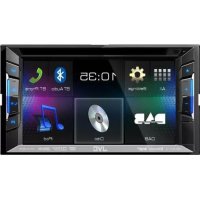
KWV215DBT - Car stereo JVC - Free user manual and instructions
Find the device manual for free KWV215DBT JVC in PDF.



User questions about KWV215DBT JVC
0 question about this device. Answer the ones you know or ask your own.
Ask a new question about this device
Download the instructions for your Car stereo in PDF format for free! Find your manual KWV215DBT - JVC and take your electronic device back in hand. On this page are published all the documents necessary for the use of your device. KWV215DBT by JVC.
USER MANUAL KWV215DBT JVC
KW-V41BT/KW-V215DBT/KW-V21BT/KW-V11
MONITOR WITH DVD RECEIVER
INSTRUCTION MANUAL
MONITOR MIT DVD-RECEIVER
BEDIENUNGSANLEITUNG
MONITEUR AVEC RÉCEPTEUR DVD
MODE D'EMPLOI
MONITOR MET DVD-ONTVANGER
GEBRUIKSAANWIJZING
JVCKENWOOD Corporation


Bluetooth®
Made for
iPod iPhone

DOLBY DIGITAL


Digital Audio Broadcasting
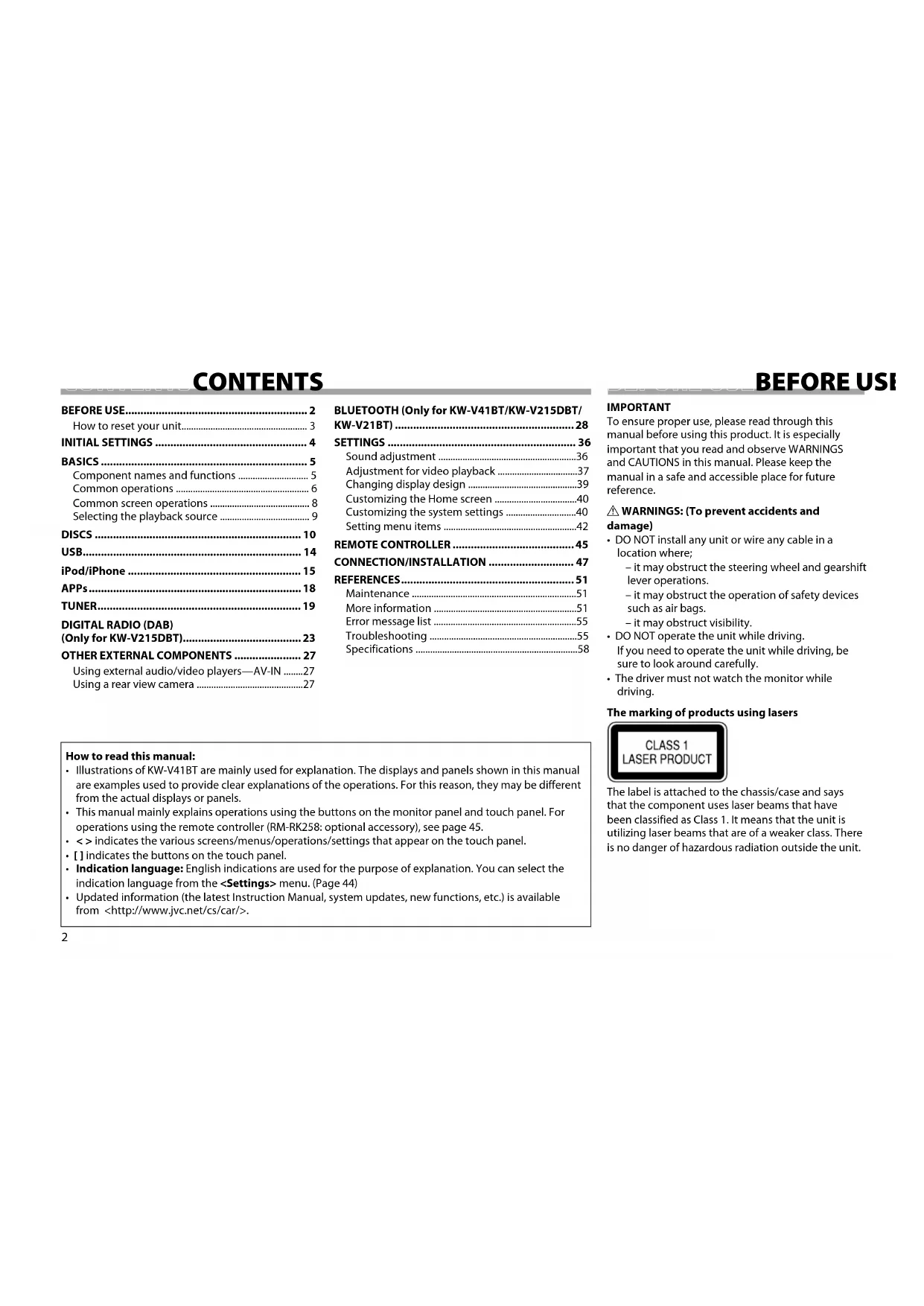
CONTENTS
BEFORE USE....2
How to reset your unit.... 3
INITIAL SETTINGS 4
BASICS 5
Component names and functions 5
Common operations 6
Common screen operations 8
Selecting the playback source 9
DISCS 10
USB....14
iPod/iPhone 15
APPs....18
TUNER....19
DIGITAL RADIO (DAB)
(Only for KW-V215DBT)....23
OTHER EXTERNAL COMPONENTS 27
Using external audio/video players—AV-IN .....27
Using a rear view camera 27
BLUETOOTH (Only for KW-V41BT/KW-V215DBT/
KW-V21BT) 28
SETTINGS 36
Sound adjustment ....36
Adjustment for video playback 37
Changing display design 39
Customizing the Home screen ....40
Customizing the system settings ....40
Setting menu items 42
REMOTE CONTROLLER 45
CONNECTION/INSTALLATION 47
REFERENCES....51
Maintenance ....51
More information 51
Error message list 55
Troubleshooting 55
Specifications 58
BEFORE USI
IMPORTANT
To ensure proper use, please read through this manual before using this product. It is especially important that you read and observe WARNINGS and CAUTIONS in this manual. Please keep the manual in a safe and accessible place for future reference.
⚠️ WARNINGS: (To prevent accidents and damage)
- DO NOT install any unit or wire any cable in a location where;
- it may obstruct the steering wheel and gearshift lever operations.
- it may obstruct the operation of safety devices such as air bags.
- it may obstruct visibility.
• DO NOT operate the unit while driving.
If you need to operate the unit while driving, be sure to look around carefully. - The driver must not watch the monitor while driving.
The marking of products using lasers
CLASS 1 LASER PRODUCT
The label is attached to the chassis/case and says that the component uses laser beams that have been classified as Class 1. It means that the unit is utilizing laser beams that are of a weaker class. There is no danger of hazardous radiation outside the unit.
How to read this manual:
- Illustrations of KW-V41BT are mainly used for explanation. The displays and panels shown in this manual are examples used to provide clear explanations of the operations. For this reason, they may be different from the actual displays or panels.
- This manual mainly explains operations using the buttons on the monitor panel and touch panel. For operations using the remote controller (RM-RK258: optional accessory), see page 45.
- < > indicates the various screens/menus/operations/settings that appear on the touch panel.
- [] indicates the buttons on the touch panel.
- Indication language: English indications are used for the purpose of explanation. You can select the indication language from the
menu. (Page 44) - Updated information (the latest Instruction Manual, system updates, new functions, etc.) is available from http://www.jvc.net/cs/car/.
BEFORE USE


Information on Disposal of Old Electrical and Electronic Equipment and Batteries (applicable for countries that have adopted separate waste collection systems)
Products and batteries with the symbol (crossed-out wheeled bin) cannot be disposed as household waste.
Old electrical and electronic equipment and batteries should be recycled at a facility capable of handling these items and their waste byproducts. Contact your local authority for details in locating a recycle facility nearest to you.
Proper recycling and waste disposal will help conserve resources whilst preventing detrimental effects on our health and the environment.
Notice: The sign "Pb" below the symbol for batteries indicates that this battery contains lead.
For Israel
Declaration of Conformity with regard to the EMC Directive 2004/108/EC
Declaration of Conformity with regard to the RoHS Directive 2011/65/EU
Manufacturer:
JVC KENWOOD Corporation
3-12 Moriya-cho, Kanagawa-ku, Yokohama-shi, Kanagawa, 221-0022, Japan
EU Representative:
JVC Technical Services Europe GmbH Konrad-Adenauer-Allee 1-11, D-61118 Bad Vilbel, Germany
⚠️ Cautions on the monitor:
- The monitor built into this unit has been produced with high precision, but it may have some ineffective dots. This is inevitable and is not considered defective.
- Do not expose the monitor to direct sunlight.
- Do not operate the touch panel using a ball-point pen or similar tool with a sharp tip. Touch the buttons on the touch panel with your finger directly (if you are wearing a glove, take it off).
- When the temperature is very cold or very hot...
- Chemical changes occur inside, causing malfunction.
– Pictures may not appear clearly or may move slowly. Pictures may not be synchronized with the sound or picture quality may decline in such environments.
For safety...
- Do not raise the volume level too much, as this will make driving dangerous by blocking outside sounds, and may cause hearing loss.
- Stop the car before performing any complicated operations.
Temperature inside the car...
If you have parked the car for a long time in hot or cold weather, wait until the temperature in the car becomes normal before operating the unit.
How to reset your unit
If the unit fails to operate properly, press the reset button.

text_image
KW-V41BT KW-V215DBT KW-V21BT KW-V11INITIAL SETTINGS
Initial setup
When you power on the unit for the first time or reset the unit, the initial setting screen appears.
- You can also change the settings on the
1 KW-V41BT

text_image
Initial Settings Demonstration ON OFF Language English Angle Enter AV-IN Post R-CAM Interrupt ON OFF Panel ColorKW-V215DBT/KW-V21BT/KW-V11

text_image
Initial Settings Demonstration ON OFF Language English AV Input AV-In iPod R-CAM Interrupt ON OFF User Customize Enter(Language> (Page 44)
Activate or deactivate the display demonstration.
Select the text language used for on-screen information.
- Set
<R-CAM
Interrupt> (Page 43)
Adjust the panel angle.
Select an external component connected to the iPod/AV-IN terminal to play.
Select [ON] when connecting the rear view camera.
Select the color of the buttons on the monitor panel. Select the display design.
2 Finish the procedure.

The Home screen is displayed.
- [AV Off] is selected initially. Select the playback source. (Page 9)
*1 Only for KW-V41BT.
*2 Only for KW-V215DBT/KW-V21BT/KW-V11.
Clock settings
1 Display the Home screen. KW-V41BTKW-V215DBT/KW-V21BT/KW-V11

text_image
HOME HOME2 Display the

text_image
0:28 AI Settings BT Audio BT Phone Tuner Dish USB3 Display the

text_image
System Volume Offset Volume Offset Settings Audio Display Input System Language Clock Beep OK FinishINITIAL SETTINGS
BASICS
4 Set the clock time.

text_image
Clock Synchronize OFF 10 28 Reset<Radio Data
Synchronizes the clock time with FM Radio Data System.
System> ^*1
Synchronizes the clock time with the digital radio (DAB).
Sets the clock manually. (See below.)
When selecting
Adjust the hour (①), then adjust the minute (②).
- Press [Reset] to set the minute to "00".

text_image
10 ① ②5 Finish the procedure.

*1 Only for KW-V41BT/KW-V21BT/KW-V11.
*2 Only for KW-V215DBT.
Component names and functions
Caution on the volume setting:
Digital devices produce very little noise compared with other sources. Lower the volume before playing these digital sources to avoid damaging the speakers by sudden increase of the output level.
KW-V41BT

text_image
1 2 JME 3 4 5 6 7 8 91 Screen (touch panel)
2 Monitor panel*
3 VOLUME -/+ button
Adjusts the audio volume. (Page 7)
4 ATT button
Attenuates the sound. (Page 7)
5 HOME/button
• Displays the Home screen. (Press) (Page 8)
- Turns on the power. (Press) (Page 6)
• Turns off the power. (Hold) (Page 6)
6 button
- Displays the
screen. (Press) (Page 31) - Activates the voice dialing. (Hold) (Page 33)
7 DISP/DISP OFF button
• Switches the screen. (Press)
- The screen switched to depends on the
- Turns off the screen. (Hold) (Page 7)
• Turns on the screen. (Hold) (Page 7)
8 ▲ (Eject) button
Ejects the disc (Tilts the monitor panel fully). (Page 10)
9 Reset button
Resets the unit. (Page 3)
* You can change the color of the buttons on the monitor panel. (Page 39)
BASICS
KW-V215DBT/KW-V21BT/KW-V11

text_image
1 2 3 4 5 10 KW-V215DBT/ KW-V11 KW-V21BT JVC 6 71 Reset button
Resets the unit. (Page 3)
|2| Loading slot
|3| ▲ (Eject) button
Ejects the disc. (Press) (Page 10)
4 Volume +/- button
Adjusts the audio volume. (Page 7)
5 USB input terminal (Page 49)
6 Monitor panel
|7| Screen (touch panel)
8 button
• Switches the screen. (Press)
- The screen switched to depends on the
• Turns off the screen. (Hold) (Page 7)
- Turns on the screen. (Hold) (Page 7)
9 HOME/button
• Displays the Home screen. (Press) (Page 8)
- Turns on the power. (Press) (See the right column.)
- Turns off the power. (Hold) (See the right column.)
10 For KW-V215DBT/KW-V21BT: / button
- Displays the
- Activates the voice dialing. (Hold) (Page 33)
For KW-V11: SRC button
Displays the source control screen. (Page 9)
11 EQ button
Displays the
Common operations
□ Turning on the power
KW-V41BTKW-V215DBT/KW-V21BT/KW-V11

text_image
HOME HOME□ Turning off the power
KW-V41BTKW-V215DBT/KW-V21BT/KW-V11

text_image
HOME (Hold) HOME (Hold)BASICS
□Adjusting the volume
To adjust the volume (00 to 35)
KW-V41BT
KW-V215DBT/
KW-V21BT/
KW-V11


Press + to increase, and press - to decrease.
- Holding the button increases/decreases the volume continuously.
To attenuate the sound (only for KW-V41BT)

The ATT indicator lights up.
To cancel the attenuation: Press the same button again.
□ Turning off the screen
KW-V41BTKW-V215DBT/KW-V21BT/KW-V11


To turn on the screen: Press and hold the same button on the monitor panel, or touch the display.
□Turning on/off the AV source
You can activate the AV function by selecting a source.
On the Home screen:

text_image
10:28 AI BT Audio BT Phone 10:28 Tuner Deep USB iPad BT Phone BT Audio AV-INY AV-OUT Control- You can also activate the AV function by selecting a source on the Home screen.
To turn off the AV source:

text_image
10:28 AI Audio BT Phone BT Audio AVN AV Ch Camera☐ Adjusting the panel angle (only for KW-V41BT)
1 Display the
- Press [▼] repeatedly to change the page on the

text_image
10:28 All Audio Display Input System Settings Audio Fader/Balance 50 Display Visualizer Flat Input Soundness DN OFF Settings Audio Menu Customize Enter Display Screen Adjust Enter Input Video Output NTSC PAL System Angle Enter2 Select an angle (0 - 6).

text_image
Angle Adjust 0 1 2 3 4 5 6 Off Position 0 Memory- To set the current position as the power off position, select [Memory] for
ENGLISH7
BASICS
Common screen operations
☐ Common screen descriptions
You can display other screens any time to change the source, show the information, or change the settings, etc.
Source control screen
Performs source playback operations.
- The operation buttons vary depending on the selected source.

text_image
TUNER FM1 P1 87.9MHz P6 Station Name Title/Artist Title/Artist Radio Text Radio Text Mode SSM ↑ T I MONO Text PTY AM F M Seek 10:28Gesture control on the source control screen:
You can also control playback by moving your finger on the touch panel as follows (for some sources, the gesture control is not available).
- Sliding the finger towards up/down: Functions same as pressing [☐ <]/[☐ >].
- Sliding the finger towards left/right: Functions same as pressing [|◀◀|]/[▶▶].
- Moving your finger clockwise or counterclockwise: increases/decreases the volume.

natural_image
Abstract directional arrow diagram with circular and curved arrows, no text or symbols presentHomescreen
Displays the source control screen/settings screen and changes the picture source.
- To display the Home screen, press HOME on the monitor panel.
- You can arrange the items to display on the Home screen. (Page 40)

text_image
1 2 10:28 3 Tuner Disc USBCommon operating buttons:
1 Displays all the sources. (Page 9)
2 Displays the
3 Changes the playback source. (Page 9)
screen
Changes the detailed settings. (Page 42)

text_image
Settings Audio Display Input System Fader/Balance Equalizer Loudness X'over Volume Offset GG Flat ON OFF Enter 1 2 3 4Common operating buttons:
1 Selects the menu category.
2 Returns to the previous screen.
3 Changes the page.
4 Displays the current source control screen.
□ Touch screen operations

text_image
3 1 4 21 Displays the video control menu while playing a video.

text_image
Menu Control Top Menu Zoom Aspect Put Ajust Audio Highlight Subtrile Cursor Angle2 Displays the source control screen while playing a video.

text_image
10:28 T91 C01 00:10:25 Mode Title- The operation buttons disappear when the screen is touched or when no operation is done for about 5 seconds.
3 Goes to the previous chapter/track.*
4 Goes to the next chapter/track.*
* Not available for video from an external component. Dragging your finger to the left or right functions in the same way as touching.
BASICS
Selecting the playback source
1 Display the Home screen. KW-V41BTKW-V215DBT/KW-V21BT/ KW-V11


2 Display [All] screen, then select the source.

text_image
10:28 All ST Audio ST Phone All 10:28 Tuner Dai USB iPad BT Produce BT Audio AI-N AV-Off Cave[Tuner] Switches to the radio broadcast. (Page 19)
[DAB]* 1 Switches to the digital audio broadcast (DAB). (Page 23)
[Disc] Plays a disc. (Page 10)
[USB] Plays files on a USB device. (Page 14)
[iPod] Plays an iPod/iPhone. (Page 15)
[BT Phone]*2 Displays the
[BT Audio]*2 Plays a Bluetooth audio player. (Page 35)
[AV-IN]*1 Switches to an external component connected to the iPod/AV-IN terminal on the rear panel. (Page 27)
[Apps]* Switches to the App screen from the connected iPod touch/iPhone. (Page 18)
[AV Off] Turns off the AV source. (Page 7)
[Camera] Displays the picture from the rear view camera. (Page 27)
*1 Only for KW-V215DBT.
*2 Only for KW-V41BT/KW-V215DBT/KW-V21BT.
*3 Appears only when
*4 Appears only when
☐ Selecting the playback source on the Home screen

text_image
AI Settings 10:28 BT Audio BT Phone Tuner Clo USB- You can change the items (other than [Settings]) to display on the Home screen. (Page 40)
DISCS
Playing a disc
- If a disc does not have a disc menu, all tracks on it will be played repeatedly until you change the source or eject the disc.
- For playable disc types/file types, see page 52.
☐ Inserting a disc
Insert a disc with the label side facing up.
KW-V41BT

text_image
V-V41BTKW-V215DBT/ KW-V21BT/KW-V11

The source changes to "DISC" and playback starts.
- The DISC IN indicator lights up while a disc is inserted.
- If "appears on the screen, the unit cannot accept the operation you have tried to do.
- In some cases, without showing operations will not be accepted.
- When playing back a multi-channel encoded disc, the multi-channel signals are downmixed to stereo.
□ Ejecting a disc
KW-V41BTKW-V215DBT/KW-V21BT/KW-V11

- When removing a disc, pull it horizontally.
- You can eject a disc when playing another AV source.
- If the ejected disc is not removed within 15 seconds, the disc is automatically inserted again into the loading slot to protect it from dust.
Closing the monitor panel (only for KW-V41BT)
After removing the disc, press ▲ on the monitor panel. The monitor panel closes.
Playback operations
When the operation buttons are not displayed on the screen, touch the area shown on the illustration. • To change settings for video playback, see page 37.

☐ Indications and buttons on the source control screen
For video playback

text_image
2 3 4 5 10:28 T01.00 00:10:28 Mode TitlePlayback information
- The information displayed on the screen differs depending on the type of disc/file being played back.
1 Media type
2 Playback mode (Page 13)
3 File type
4 DISC IN indicator
5 Current playback item information (title no./chapter no./folder no./file no./track no.)
6 Playing time
DISCS
Operation buttons
• Available buttons on the screen and operations differ depending on the type of disc/file being played back.
[Mode] Changes the settings for disc
playback on the
Selects a folder.

Selects playback mode.
(Page 13)

Displays the folder/track list. (See the far right column.)

Stops playback.

Starts/pauses playback.

- Selects a chapter/track. (Press)
- Reverse/forward search. (Hold)
Selects a title.

For audio playback

text_image
3 4 7 8 6 9 5 2 1 10:28 JVC Title Artist Album ModePlayback information
- The information displayed on the screen differs depending on the type of disc/file being played back.
1 Media type
2 Track/file information
- Pressing [◀] scrolls the text if not all of the text is shown.
3 Playback mode (Page 13)
4 File type
5 Current playback item information (folder no./file no./track no.)
6 Playback status
7 DISC IN indicator
8 Playing time
9 Jacket picture (Shown while playing if the file has tag data that includes the jacket picture)
Operation buttons
• Available buttons on the screen and operations differ depending on the type of disc/file being played back.
[Mode]
Changes the settings for disc playback on the

Selects a folder.

Selects playback mode. (Page 13)
Displays the folder/track list. (See the right column.)
[▶ III]
Starts/pauses playback.
[◀◀] [▶▶]
- Selects a track. (Press)
• Reverse/forward search. (Hold)
☐ Selecting a folder/track on the list
1

2 Select the folder (①), then the item in the selected folder (②).
- Repeat the procedure until you select the desired track.
- If you want to play all tracks in the folder, press [▶] on the right of the desired folder.

text_image
Folder Name Folder Name Folder Name Folder Name Folder Name Folder Name Folder Name Folder Name Folder Name Folder Name Folder Name Folder Name Folder Name Folder Name Folder Name Folder Name Folder Name Folder Name Folder Name Folder Name Folder Name Folder Name Folder Name Folder Name Folder Name Folder Name Folder Name Folder Name Folder Name Folder Name Folder Name Folder Name Folder Name Folder Name F50 10:28- You can change the page to display more items by pressing [▲]/[▼].
- Press [ ] to return to the root folder.
- Press [ ↑ ] to return to the upper layer.
DISCS
□ Video menu operations
You can display the video menu screen during video playback.
- The operation buttons disappear when the screen is touched or when no operation is done for about 5 seconds.

natural_image
Simple line drawing of a computer monitor with a cursor hovering over it (no text or symbols)For video playback except VCD
• Available buttons on the screen and operations differ depending on the type of disc/file being played back.

text_image
Menu Control Top Menu Menu Zoom Aspect PieAdja Audio subtle Cursor Angle[Zoom] Displays the picture size selecting screen. (Page 38)
[Aspect] Selects the aspect ratio. (Page 38)
[Pict Adjust] Displays the picture adjustment screen. (Page 37)
[Audio] Selects the audio type.
[Subtitle] Selects the subtitle type.
[Angle] Selects the view angle.
[Menu] Displays the disc menu (DVD).
[Top Menu] Displays the disc menu (DVD).
[Highlight] Switches to the direct disc menu mode. Touch the target item to select.
• To restore the screen, press DISP (for KW-V41BT)/☐(for KW-V215DBT/KW-V21BT/KW-V11) on the monitor panel.
[Cursor] Displays the menu/scene selecting screen.
- [▲] [▼] [◀] [▶]: Selects an item. - For DivX®: [◀] [▶] skips back or forward by about 5 minutes.
- [Enter]: Confirms the selection. - [Return]: Returns to the previous screen.
For VCD
[Menu] Displays the disc menu.
[Direct] Displays/hides the direct selecting buttons. (See below.)
[Audio] Selects the audio channel (ST: stereo, L: left, R: right).
[Return] Displays the previous screen or menu.
[Zoom] Displays the picture size selecting screen. (Page 38)
[Aspect] Selects the aspect ratio. (Page 38)
[Pict Adjust] Displays the picture adjustment screen. (Page 37)
- To deactivate the PBC function, stop playback, then use the direct selecting buttons to select a track number.
To select a track directly on a VCD

text_image
Zoom Aspect Picture Audio Direct Return Menu Control 1 2 3 4 5 7 8 9 Direct OK Enter Menu Zoom Aspect Picture Audio Direct Return- When you enter a wrong number, press [Direct/CLR] to delete the last entry.
DISCS
□ Selecting playback mode


Selects Random playback mode.

Selects Repeat playback mode.
• Available playback modes differ depending on the type of disc/file being played back.
- You cannot activate the repeat mode and the random mode at the same time.
- Each time you press the button, the playback mode changes. (The corresponding indicator lights up.)
- Available items differ depending on the type of disc/file being played back.
CHAP Repeats current chapter.
TITLERepeats current title.
SONGRepeats current track.
FOLDERRepeats all tracks of the current folder.
FOLDERRandomly plays all tracks of the current folder, then tracks of the next folder.
ALLRandomly plays all tracks.
To cancel Repeat/Random playback: Press the button repeatedly until the indicator disappears.
Settings for disc playback

Setting items
• Available items shown on the
| Select the initial disc menu language. (Initial: English) (Page 54) | |
| Select the initial audio language. (Initial: English) (Page 54) | |
| Select the initial subtitle language or turn subtitles off (Off). (Initial: English) (Page 54) | |
| When playing back a multi-channel disc, this setting affects the signals reproduced through the front and/or rear speakers.Dolby Surround: Select this to enjoy multi-channel surround sound by connecting an amplifier compatible with Dolby Surround.Stereo (initial): Normally select this. |
| You can change the dynamic range while playing Dolby Digital software.·Wide: Select this to enjoy a powerful sound at a low volume level with its full dynamic range.·Normal: Select this to reduce the dynamic range a little.·Dialog(initial): Select this to reproduce movie dialog more clearly. | |
| Select the monitor type to watch a wide screen picture on the external monitor.16:9(Initial) 4:3 LB 4:3 PS | |
| Select the playback file type when a disc contains different types of files.·Audio: Plays back audio files.·Still Image: Plays back picture files.·Video: Plays back video files.·Audio&Video(initial): Plays back audio files and video files. |
* For playable file types, see page 52. If the disc contains no files of the selected type, the existing files are played in the following priority: audio, video, then still picture.
Connecting a USB device
You can connect a USB mass storage class device such as a USB memory, Digital Audio Player etc. to the unit.
- For details about connecting USB devices, see page 49.
- You cannot connect a computer or portable HDD to the USB input terminal.
- For playable file types and notes on using USB devices, see page 53.
When a USB device is connected...
The source changes to "USB" and playback starts.
- All tracks in the USB device will be played repeatedly until you change the source.
To disconnect the USB device safely:
Press [▲], then disconnect the USB device after "No Device" appears.
Playback operations
When the operation buttons are not displayed on the screen, touch the area shown on the illustration.
- To change settings for video playback, see page 37.

☐ Indications and buttons on the source Operation buttons control screen • Available buttons

text_image
2 5 6 10:28 US3 JVC Title Artist Album ModePlayback information
- The information displayed on the screen differs depending on the type of file being played back.
1 Track/file information
- Pressing [◀] scrolls the text if not all of the text is shown.
2 Playback mode (See the right column.)
3 File type
4 Current playback item information (folder no./file no.)
5 Playback status
6 Playing time
7 Jacket picture (Shown while playing if the file has tag data that includes the jacket picture)
• Available buttons on the screen and operations differ depending on the type of file being played back.
[Mode]
Changes the settings on the
[▲]
Disconnects the USB device safely. Selects a folder.


[▶ II]
Selects random playback mode.*1 *2
- FOLDER: Randomly plays all tracks in the folder.
• ALL: Randomly plays all tracks.
Selects repeat playback mode. ^12
• SONG: Repeats the current track. - FOLDER: Repeats all tracks in the current folder.
Displays the folder/track list. (Page 15)
Starts/pauses playback.
- Selects a track. (Press)
- Reverse/forward search. (Hold)
*1 To cancel random or repeat mode, press the button repeatedly until the indicator disappears.
*2 You cannot activate the repeat mode and the random mode at the same time.
USB
☐ settings
Setting
[Audio] Plays back audio files.
[Still Image] Plays back picture files.
[Video] Plays back video files.
[Audio&Video] Plays back audio files and video files. (Initial)
- For playable files, see page 53. If the USB device contains no files of the selected type, the existing files are played in the following priority: audio, video, then still picture.
Setting
Select the monitor type to watch a wide screen picture on the external monitor.
[16:9] (Initial)

[4:3 LB]

[4:3 PS]

Setting
Press [Next]. Switches between internal memory and the memory source of the connected device (such as mobile phone).
☐ Selecting a folder/track on the list
1

2 Select the folder (①), then the item in the selected folder (②).
- Repeat the procedure until you select the desired track.
- If you want to play all tracks in the folder, press [▶] on the right of the desired folder.

text_image
Folder Name Folder Name Folder Name File Name Folder Name File Name Folder Name File Name Folder Name File Name 10:28- You can change the page to display more items by pressing [▲]/[▼].
- Press [ ] to return to the root folder.
- Press [ ↑ ] to return to the upper layer.
iPod/iPhone
• To use iPod touch/iPhone Apps, see page 18.
Preparation
□ Connecting iPod/iPhone
- For details about connecting iPod/iPhone, see page 49.
• For playable iPod/iPhone types, see page 53.
Connect your iPod/iPhone using the appropriate cable according to your purpose.
• To listen to music:
- For iPod/iPhone except for iPod nano (7th Generation)/iPod touch (5th Generation)/iPhone 5S/iPhone 5C/iPhone 5: USB 2.0 cable (accessory of iPod/iPhone)
- For iPod nano (7th Generation)/iPod touch (5th Generation)/iPhone 5S/iPhone 5C/iPhone 5: KS-U62 (optional accessory)
- To watch video and listen to music: USB Audio and Video cable for iPod/iPhone—KS-U59 (optional accessory)
- You cannot connect iPod nano (7th Generation)/iPod touch (5th Generation)/iPhone 5S/iPhone 5C/iPhone 5 with KS-U59.
iPod/iPhone
☐ Selecting preference settings for iPod/iPhone playback
When the source is "iPod"...
1

2

Setting
Select an appropriate input setting for
1 Turn off the AV source. On the Home screen:

text_image
10:28 All SP BT Audio BT Phone BT Audio AVN AV CH Centers2 Display the setting screen.

text_image
10:28 All Settings BT Audio BT Phone Settings Audio Fader/Balance 30 Display Equalizer Flat Input Soundness System Active Enter3

text_image
Settings Audio Display Input System AV Input R-CAM Interrupt Navigation Input Audio iPod On Off Phone Off[AV-IN] Select this when the iPod/iPhone is connected using KS-U62 (optional accessory) or the USB 2.0 cable (accessory of iPod/iPhone).
[iPod] Select this when the iPod/iPhone is connected using KS-U59 (optional accessory).
Playback operations
When the operation buttons are not displayed on the screen, touch the area shown on the illustration.
• To change settings for video playback, see page 37.

☐ Indications and buttons on the source control screen

text_image
2 5 6 10:28 iPod JVC Title Artist Album Mode7|1|3
Playback information
1 Song/video information
- Pressing [◀] scrolls the text if not all of the text is shown.
2 Playback mode (Page 17)
3 File type
4 Track no./Total track number
5 Playback status
6 Playing time
7 Artwork (Shown if the song contains Artwork)
• To change the Artwork display, see the far left column.
iPod/iPhone
Operation buttons
| [Mode] | Changes the settings for iPod/iPhone playback on thescreen. (Page 16) |
| [×] | Selects random playback mode.*1ALL: Functions the same as Shuffle Songs.ALBUM: Functions the same as Shuffle Albums. |
| [○] | Selects repeat playback mode.SONG: Functions the same as Repeat One.ALL: Functions the same as Repeat All. |
| [Q] | Displays the audio/video file list. (See the right column.) |
| [▶II] | Starts/pauses playback. |
| [I◄◄] [▶►I] | Selects an audio/video file.*2(Press)Reverse/forward search. (Hold) |
| *1To cancel random mode, press the button repeatedly until the indicator disappears.*2Resume playback is unavailable for video files. | |
☐ Selecting an audio/video file from the menu
1

2 Select the menu (♪: audio or □: video) (①), a category (②), then a desired item (③). - Select the item in the selected layer until a desired file starts playing. - If you want to play all items in the layer, pre [▶] on the right of the desired item.
Audio menu:

text_image
Pod 10:28 Playlists Artist 000300001 Artist Album Songs Podcasts Artist 000300002 Artist 000300003 Artist 000300004 Artist 000300005 ② ③ ①Video menu:

text_image
10:28 Video Playlist Artist 060000001 Movies Artist 060000002 Music Videos Artist 060000003 TV Shows Artist 060000004 Podcasts Artist 060000005- You can change the page to display more items by pressing [▲]/[▼].
- Press [ ] to return to the root folder.
- Press [ ↑] to return to the upper layer.
• Available categories differ depending on the type of your iPod/iPhone.
APPs
You can use Apps of the connected iPod touch/ iPhone on this unit.
- You cannot use Apps with iPod touch (5th Generation)/iPhone 5S/iPhone 5C/iPhone 5.
- For Apps you can use on this unit, visit http://www.jvc.net/cs/car/.
Preparation
1 Connect iPod touch/iPhone using KS-U59. (Page 49)
2 Select [iPod] for
Using an App
When the operation buttons are not displayed on the screen, touch the screen to show them.
• To change settings for video playback, see page 37.
□Playback operations
1 Start the App on your iPod touch/iPhone.
2 Select "Apps" as the source. On the Home screen:

text_image
10:28 All On On BT Audio BT Phone BT Audio Apps Off Persons☐ Operation buttons on the source control screen

natural_image
Black-and-white photo of a tank on a road with city skyline in background (no visible text or symbols)[▶] Starts playback.
[1] Pauses playback.
[◀◀] [▶▶] Selects an audio/video file. (Press) Reverse/forward search. (Hold)
[▶ III] Starts/pauses playback.
- You can operate some functions of the App on the touch panel.
- For some applications such as navigation applications, the operation buttons and information are not shown. You can perform the operations on the touch panel, such as scrolling the map.
- If "appears on the screen, the unit cannot accept the touch operation you have tried to do.
- You can also play back the audio/video using iPod/iPhone itself instead of the unit.
□ Switching to the App screen while listening to another source
- Select [iPhone] for
KW-V41BTKW-V215DBT/KW-V21BT/KW-V11


TUNER
Listening to the radio
☐ Indications and buttons on the source control screen

text_image
1 2 3 5 6 10 8 9 10:28 TUNER FM1 P1 87.6MHz P0 Station Name Title/Artist Radio Tex Radio Text P1 P4 P2 P5 P3 P6 Mode SSM T I MONO Text PTY A M FM SeekTuner reception information
1 STEREO/MONO indicator
- The STEREO indicator lights up when receiving an FM stereo broadcast with sufficient signal strength.
2 NEWS indicator
3 AF indicator
4 | T I indicator
5 Seek mode
6 LO indicator (Page 20)
7| Preset no.
8 RDS indicator: Lights up when receiving a Radio Data System station.
9 EON indicator: Lights up when a Radio Data System station is sending EON signals.
10 The station frequency currently tuned in
11 Band
12 Text information
- Pressing [◀] scrolls the text if not all of the text is shown.
- Pressing [Radio Text] switches the information between Radio Text, Radio Text Plus, and PTY code.
Operation buttons
[P1] - [P6] Selects a stored station. (Press) Stores the current station. (Hold)
[Mode] Changes the settings for tuner reception on the
[SSM] Presets stations automatically. (Page 20)
[TI]* Activates/deactivates TI standby reception mode. (Page 21)
[MONO]* Activates/deactivates monaural mode for better FM reception. (Stereo effect will be lost.)
• The MONO indicator lights up while monaural mode is activated.
[Text] Changes the display information. (See the right column.)
[PTY]* Enters PTY search mode. (Page 21)
[AM] Selects the AM band.
[FM] Selects the FM band.

[Seek] Changes the seek mode.
• AUTO1: Auto Search
- AUTO2: Tunes in stations in the memory one after another.
• MANUAL: Manual Search
[◀◀◀] [▶▶▶] Searches for a station.
Searches for a station. • The search method differs according to the selected seek mode. (See above.)
* Appears only when FM is selected as the source.
□ Changing the display information

text_image
10:28 TUNER FM1 P1 87.9MHz P1 P4 P6 Station Name Title/Artist Title/Artist Radio Text Radio Text P2 P5 P3 P6 Mode SSM I T I MOND Text PTY A M F M Seek 10:28 TUNER FM1 FM1 87.9 MHz P1 87.9MHz P4 105.9MHz P2 88.9MHz P5 106.9MHz P3 97.9MHz P6 107.9MHz Mode SSM I T I MOND Text PTY A M F M SeekThe preset list containing the station names for FM Radio Data System (when a PS signal is coming in) is displayed.
- Press [Text] again to display the text information for the station currently being received.
TUNER
□Tuning in FM stations only with strong signals—Local seek
1

2

text_image
Tuner Mode IF Band Width Auto Wire Local ON OFF AF Regional AF OFF Program Search ON OFF NEWS Standby ON OFF[ON] Select this to tune in only to stations with sufficient signal strength. The LO indicator lights up.
[OFF] Deactivate the function.
☐ Reducing interference during FM reception
1

2

text_image
Tuner Mode IF Band Width Local AF Regional Program Search NEWS Standby Auto Wire ON OFF ON OFF[Auto] Increases the tuner selectivity to reduce interference between adjacent stations. (Stereo effect may be lost.)
[Wide] Subject to interference from adjacent stations, but sound quality will not be degraded and the stereo effect will remain.
Presetting stations
□ Storing stations in the memory
You can preset 6 stations for each band.
Automatic presetting—SSM (Strong-station Sequential Memory) (For FM only)

text_image
TUNER FM1 P1 87.9MHz P0 Station Name Title/Artist Title/Artist Radio Test Radio Test Mode SSM T T I MONO Text PTY A M (Hold)Local stations with the strongest signals are found and stored automatically.
Manual presetting
1 Tune in to a station you want to preset.
(Page 19)
2 Select a preset number.

text_image
TUNER Station Name FM1 87.9 MHz P1 7.9MHz P4 105.9MHz P2 88.9MHz (Hold) P6 06.9MHz P3 97.9MHz P6 107.9MHz Mode SSM I T I MONO Text PTY A M F M Seek << >>The station selected in step 1 is stored.
TUNER
☐ Selecting a preset station

text_image
NEWS AT 10:28 TUNER Station Name FM1 87.9 MHz P1 87.9MHz P4 105.9MHz P2 88.9MHz P5 106.9MHz P3 97.9MHz P6 107.9MHz Mode 55M1 TI MONO Text PTY AM FM SeekFM Radio Data System features
□ Searching for FM Radio Data System programs—PTY Search
You can search for your favorite programs being broadcast by selecting the PTY code.
1

2 Select a PTY code.

text_image
PTY Mode News Cultures Current Affairs Alliance Information Varied Speech Sport Pop Music Education Rock Music Drama Easy Listening M- You can change the page to display more items by pressing [▲]/[▼].
PTY Search starts.
If there is a station broadcasting a program of the same PTY code as you have selected, that station is tuned in.
□Activating/deactivating TI/News Standby Reception
TI Standby Reception

text_image
10:28 TUNER FM1 P1 87.5M Ts P1 P4 PS Station Name Title/Artist Title/Artist Radio Text Radio Text P2 P5 P3 P6 Mode SSM T T F M O N D N C T E X T PTY A M F M SeekThe unit is in standby to switch to Traffic Information (TI) if available. (The TI indicator lights up in white.)
- If the TI indicator is lit in orange, tune into another station providing Radio Data System signals.
To deactivate TI Standby Reception: Press [TI]. (The TI indicator turns off.)
- The volume adjustment for Traffic Information is automatically memorized. The next time the unit switches to Traffic Information, the volume is set to the previous level.
- For KW-V215DBT: The TI Standby Reception can also be activated or deactivated from "DAB" source control screen. (Page 25)
TUNER
News Standby Reception
1

2

text_image
Tuner Mode IF Bend Width Local AF Regional Program Search NEWS StandbyThe unit is in standby to switch to News Program if available. (The NEWS indicator lights up.)
- If the NEWS indicator flashes, tune into another station providing Radio Data System signals.
To deactivate News Standby Reception: Select [OFF] for . (The NEWS indicator turns off.)
- The volume adjustment while receiving News is automatically memorized. The next time the unit switches to News, the volume is set to the previous level.
□Tracing the same program—Network-Tracking Reception
When driving in an area where FM reception is not sufficient enough, this unit automatically tunes in to another FM Radio Data System station of the same network, possibly broadcasting the same program with stronger signals.
- When shipped from the factory, Network-Tracking Reception is activated.
To change the Network-Tracking Reception setting
1

2

text_image
Tuner Mode IF Band Width Local AF Regional Program Search NEWS Standby[AF] Switch to another station. The program may differ from the one currently received (the AF indicator lights up).
[AF Reg] Switch to another station broadcasting the same program (the AF indicator lights up).
[OFF] Deactivate the function.
- The RDS indicator lights up when the Network-Tracking Reception is activated and an FM Radio Data System station is found.
□Automatic station selection—Program Search
Usually when you select preset stations, the preset station is tuned in.
If the signals from the preset FM Radio Data System station are not sufficient for good reception, this unit, using the AF data, tunes in to another station broadcasting the same program that the original preset station is broadcasting.
To activate Program Search
1

2

text_image
Tuner Mode IF Band Width Auto Wise Local ON OFF AF Regional AF AF Rog OFF Program Search ON OFF NEWiS Standby ON OFF- The unit takes some time to tune in to another station using program search.
To deactivate Program Search: Select [OFF] for .
DIGITAL RADIO (DAB)
(Only for KW-V215DBT)
About DAB (Digital Audio Broadcasting)
What is DAB system?
DAB (Digital Audio Broadcasting) is one of the digital radio broadcasting systems available today. It can deliver digital quality sound without any annoying interference or signal distortion. Furthermore, it can carry text and data.
In contrast to FM broadcast, where each program is transmitted on its own frequency, DAB combines several programs (called "services") to form one "ensemble."
The "Primary component" (main radio station) is sometimes accompanied by a "secondary component" which can contain extra programs or other information.
Listening to Digital Radio
☐ Indications and buttons on the source control screen

text_image
10:28 DA3 P1 CNOB (p) Service Service Label Ensemble Ensemble Label New Playing Text Information Mode DLS Text Q PTY TI SeekTuner reception information
1 Preset no.
2| Seek mode
3 T I indicator
4 DAB reception indicator
- The DAB indicator lights up when receiving an DAB broadcast.
- The MC indicator lights up when receiving an DAB multi component.
5 RDS indicator: Lights up when receiving a Radio Data System station.
6 Channel no.
7 Signal strength
8 Text information
- Pressing [<] scrolls the text if not all of the text is shown.
- Pressing [Now Playing] switches the information. Each time you press the button, the information and the button switch between [Audio Quality], [PTY], [Artists], [Title], [Now Playing], and [Next Program].
Operation buttons
[P1] – [P15] Selects a stored service. (Press) Stores the current service. (Hold)
[P>] Displays other preset numbers.
[Mode] Changes the settings for DAB reception on the
[Text] Changes the display information.
(Page 24)
[Q] Displays the
screen. (Page 24)
[PTY] Enters PTY search mode. (Page 25)
[Seek] Changes the seek mode.
- AUTO1: Auto Search
- AUTO2: Tunes in the services in the memory one after another.
- MANU: Manual Search
[i◄◄] [►►] Searches for an ensemble, service, and component.
• The search method differs according to the selected seek mode. (See above.)
DIGITAL RADIO (DAB)
□ Changing the display information

text_image
Mode Q PTY T1 Seek DLS Text 10:28 DA3 Service Label P1 Ch5B (↓) P1 Service Label P4 Service Label P2 Service Label P5 Service Label P3 Service Label P> Mode Q PTY T1 Seek DLS TextThe preset list of service labels is displayed.
- Press [Text] again to display the text information for the service or component currently being received.
□ Selecting a service from the list
1 Display the screen.

2 Select the list type.

text_image
List Type Select [P1_ [P2_ [P3_] Preset List Service List3 Select a service from the list.
On the

text_image
Preset List P1) Service label P2) Service label P3) Service label P4) Service label P5) Service label P6) Service label- You can change the page to display more items by pressing [▲]/[▼].
On the

text_image
Service List Service ServiceListchar PTY No PTY Ensemble EnsembleLich Audio Quality DAR - 100% A-Z Service Label Service Label Service Label Service Label Service Label Service Label Service Label- You can change the page to display more items by pressing [▲]/[▼].
- Press [A-Z] to search for the initial letter.
Pressing [A-Z] displays the
screen. Select the initial to start the search. - If you want to search with non-alphabetical characters, press [Other].
- Press and hold [C] to update the
.
DIGITAL RADIO (DAB)
Presetting services
□Storing services in the memory
You can preset 15 services.
1 Select a service you want to preset.
(Page 23)
2 Select a preset number.
• If you want to select a preset number between P6 – P15, press [P>] to display those numbers.

text_image
10:28 P4 Service Label P1 Ch50 (x) P1 Service Label P4 Service Label P2 Service Label (Hold) Service Label P3 Service Label P> Mode DLS Text Q PTY T1 SeekThe service selected in step 1 is stored.
Radio Data System features
□Searching for Radio Data System programs—PTY Search
You can search for your favorite programs being broadcast by selecting the PTY code.
1

2 Select a PTY code.

text_image
PTY Mode News Cultures Current Affairs Science Information Varied Speech Sport(Hold) Music Education Rock Music Drama Easy Listening M- You can change the page to display more items by pressing [▲]/[▼].
PTY Search starts.
If there is a service broadcasting a program of the same PTY code as you have selected, that service is tuned in.
- Only English/Spanish/French/German/Dutch/Portuguese are available for the text language here. If another language has been selected in
□Activating/deactivating TI Standby Reception

text_image
10:28 DAB P1 CMB (↓) Service Service Label Ensemble Ensemble Label Now Playing Text Information Mode DL5 Text PTY T# SeekThe unit is in standby to switch to Traffic Information (TI) if available. (The TI indicator lights up in white.)
- If the TI indicator is lit in orange, tune into another station providing Radio Data System signals.
To deactivate TI Standby Reception: Press [TI]. (The TI indicator turns off.)
- The volume adjustment for Traffic Information is automatically memorized. The next time the unit switches to Traffic Information, the volume is set to the previous level.
- The TI Standby Reception can also be activated or deactivated from "TUNER" source control screen. (Page 21)
DIGITAL RADIO (DAB)
Settings for Digital Audio Radio
You can set the Digital Radio related items.

text_image
Model T1 Seek DLS Text DAB Mode Priority ON OFF PTY Watch No PTY Announcement Select SET Searless Blend ON OFF Related Service ON OFFSetting items
| ON (initial): If the same service is provided by Digital Radio during Radio Data System reception, the unit automatically switches to Digital Radio. If the same service is provided by Radio Data System when reception of the service being provided by Digital Radio becomes poor, the unit automatically switches to Radio Data System.OFF: Deactivates. | |
| If the service of the set program type begins with the ensemble being received, the unit switches from any source to Digital Radio for service reception.Select the type of program using [◀] and [▶]. |
| If the service of the announcement item you activated begins with the ensemble being received, this unit switches from any source to the announcement received.*Set [ON] for the announcement items you need.News flash/Transport flash/Warning/Service/ Area weather flash/ Event announcement/ Special event/Programme information/Sport report/ Financial report- To deactivate all announcements, select [All OFF]. | |
| • ON (initial): Prevents audio break when switching from Digital Radio to Analog Radio.• OFF: Cancels. |
| • ON: When the current selected DAB service network is not available and found the related service, the unit offers to switch to the related service.• OFF (initial): Cancels. |
* The volume adjustment while receiving Announcement is automatically memorized. The next time the unit switches to Announcement, the volume is set to the previous level.
OTHER EXTERNAL COMPONENTS
Using external audio/video players—AV-IN
When the operation buttons are not displayed on the screen, touch the area shown on the illustration.
• To change settings for video playback, see page 37.

You can connect an external component to the iPod/AV-IN terminal. (Page 49)
Preparation:
Select [AV-IN] for
-
Starting playback
1 Connect an external component to the iPod/AV-IN terminal.
• To connect an external component, see page 49.
2 Select "AV-IN" as the source. (Page 9)
3 Turn on the connected component and start playing the source.
Using a rear view camera
• To connect a rear view camera, see page 49.
• To use a rear view camera, a REVERSE lead connection is required. (Page 48)
□Activating the rear view camera
1 Display the setting screen. On the Home screen:

natural_image
Black-and-white photo of a waterfront scene with a city skyline and a dock, no visible text or symbols.Playback information
1 AV-IN name
Operation buttons
[Mode] Changes the AV-IN name.
- Press [◀] or [▶] to select an AV-IN name.

text_image
10:28 All Settings BT Audio ST Phone Settings Audio Fader/Balance 50 Display Equalizer Flt Input Soundness ON OFF System2

text_image
Settings Audio Display Input System AV Input R-CAM Interrupt Navigation Input AV IN AV IN Fid On Off PhoneTo deactivate: Select [OFF] for
☐ Displaying the picture from the rear view camera
The rear view screen is displayed when you shift the gear to the reverse (R) position.

text_image
Check Surroundings before Backing Up.• To erase the caution message, touch the screen.
- You can change the setting of the picture using [Zoom]/[Aspect]/[Pict Adjust]. (Page 37)
To display the picture from the rear view camera manually
On the Home screen:

text_image
10:28 All GT Audio GT Phone GT Audio AV-IN AV-OH ControlTo exit the rear view screen: Press HOME on the monitor panel.
Information for using Bluetooth ^® devices

Bluetooth®
Bluetooth is a short-range wireless radio communication technology for mobile devices such as mobile phones, portable PCs, and other devices. Bluetooth devices can be connected without cables and communicate with each other.
Notes
- While driving, do not perform complicated operations such as dialing numbers, using the phonebook, etc. When you perform these operations, stop your car in a safe place.
- Some Bluetooth devices may not connect to this unit depending on the Bluetooth version of the device.
- This unit may not work for some Bluetooth devices.
- Connecting conditions may vary depending on your environment.
- For some Bluetooth devices, the device is disconnected when the unit is turned off.
Bluetooth Information: If you wish to receive more information about Bluetooth, visit the following JVC web site: http://www.jvc.net/cs/car/
Connecting Bluetooth devices
☐Registering a new Bluetooth device
When you connect a Bluetooth device to the unit for the first time, pair the unit and the device. Pairing allows Bluetooth devices to communicate with each other.
- The pairing method differs depending on the Bluetooth version of the device.
- For devices with Bluetooth 2.1: You can pair the device and the unit using SSP (Secure Simple Pairing) which only requires confirmation.
- For devices with Bluetooth 2.0: You need to enter a PIN code both on the device and unit for pairing.
- Once the connection is established, it is registered in the unit even if you reset the unit. Up to 5 devices can be registered in total.
- Only one device for Bluetooth phone and one for Bluetooth audio can be connected at a time.
- To use the Bluetooth function, you need to turn on the Bluetooth function of the device.
- To use the registered device, you need to connect the device to the unit. (Page 30)
Auto pairing
When
Pairing a Bluetooth device using SSP (for Bluetooth 2.1)
When the Bluetooth device is compatible with Bluetooth 2.1, a pairing request is sent from an available device.
1 Search "JVC KW-V" from your Bluetooth device.
2 Confirm the request both on the device and the unit.

text_image
256950 OK Pairing BT Pairing request. To Confirm BT Pairing. Please confirm the device display. Device : iPhone Name Passivity : 200000 Pair Cancel- Press [Cancel] to reject the request.
BLUETOOTH
Pairing a Bluetooth device using a PIN code (for Bluetooth 2.0)
1 Display the
- Press [▼] repeatedly to change the page on the

text_image
10:28 All Settings BT Audio BT Phone Settings Audio Fader/Balance 90 Display Equalizer Flat Input Loudness ON OFF System Lower Enter Volume Offset Settings Audio Bluetooth Setup Enter Display Initialize Enter Input DirX8 VOD Enter System System Information Enter2 Change the PIN code.
- If you skip changing the PIN code, go to step 3.
- The PIN code is initially set to "0000".
- The maximum number of digits in the PIN code is 16.

text_image
Bluetooth Setup Paired Device List Enter PIN Code 0000 Device Name AVCKW-V Device Address 11:20:03:40:06:00:37 Auto Connect CH OFF
text_image
PIN Code Set 0000 1 2 3 4 6 7 8 9 0 Enter Close- Press [Clear] to delete the last entry.
3 Search "JVC KW-V" from your Bluetooth device.
4 Select "JVC KW-V" for your Bluetooth device.

- If the PIN code is required, enter "0000" (initial).

When pairing is complete, the device is listed on

text_image
Paired Device List Phone1 Phone2 Phone3 Phone4 Phone5 TEL (HFP) Auto (A2CP) Remove- To use the paired device, connect the device on
BLUETOOTH
□ Connecting a registered Bluetooth device
1 Display the
2

text_image
Bluetooth Setup Paired Device List PIN Code Device Name Device Address Auto Connect OK OFF3 Select the device you want to connect (①), then select what you want to use the device for (②).

text_image
Paired Device List Phone1 Phone2 Phone3 Phone4 Phone5 ① ② Tel (HFP) Auto (ADOP) Remove[TEL (HFP)]: for mobile phone [Audio (A2DP)]: for Bluetooth audio player
- Selectable items depend on the device you are operating.
- If you connect a device while another device is connected, the device previously connected is disconnected and the connection for the newly connected device is established.
- When a Bluetooth mobile phone is connected, the signal strength and battery level are displayed when the information is acquired from the device.
To disconnect
Select [TEL (HFP)] or [Audio (A2DP)] to disconnect the Bluetooth device being used for that function on the
□Deleting a registered Bluetooth device
1 Display the
2

3 Select a device to delete (①), then delete the registration (②).

text_image
Piaired Device List Phone1 ① Tel (HP) Auto (ADP) Phone2 Phone3 Phone4 Phone5 RemoveA confirmation message appears. Press [Yes].
Using the Bluetooth mobile phone
□ Receiving a call
When a call comes in...

text_image
Calling Incoming Cell Name 123400000X- Call information is displayed if acquired.
- Phone operation is not available while the picture from the rear view camera is displayed. (Page 27)
To reject a call

text_image
Calling Incoming Call Name 123400000XWhen
Ending a call
While talking.

text_image
Connected Talking... MIC LEVEL +1 Name 124500000X ON -4 -7 NR LEVELBLUETOOTH
□Adjusting the volume of calls/earpiece/microphone
While talking.

text_image
Connected Talking... MIC LEVEL +1 Name 1245000000 MREC ON EC-LEVEL +4 NR-LEVEL -7- You can adjust the volume level between -20 to +8 (initial: 0).
- Use the monitor panel to adjust the call/earpiece volume. (Page 7)
☐ Switching between handsfree mode and phone mode
While talking...

text_image
Connected Talking... MAC LEVEL +1 Name 1245000000 MREC ON EC LEVEL -4 -7 + -Each time you press the button, the talking method is switched ( : handsfree mode / : phone mode).
□ Notification when SMS is received
If the mobile phone is compatible with SMS (Short Message Service), the unit tells you a message has been received when
- To read a received message, operate the mobile phone after stopping the car in a safe place.
- You cannot read, edit, or send a message through the unit.
- For some mobile phones, the notification message may not be shown even if the SMS function is supported.
☐ Reducing noise/adjusting the echo cancel level
While talking...
Activate the noise reduction/echo cancel function (①), then adjust the level (②).

text_image
Connected Talking... MK LEVEL +1 Name 1245XXXXXX MREC Off EG LEVEL -4 NR LEVEL -2 ① ②- To adjust the echo volume (between 1 to 10, initial: 4): Adjust
. - To adjust the noise reduction volume (between -5 to -20, initial: -7): Adjust
.
Making a call
1 Display the

text_image
10:28 AI BT Audio BT Phone 10:28 Tuner Dio USB iPad BT Phone- You can also display the
2 Select a method to make a call.

text_image
1 Hands Free 2 3 4 TEL Outgoing Incoming Missed Phonebook Mode Direct Number Voice 1234XXXXXXX 2345XXXXXXX 3456XXXXXXX No Preset No Preset No PresetFrom the phone book/call lists
2 Direct number entry
3 Voice dialing
|4| Preset list
• To preset, see page 33.
BLUETOOTH
From the phone book/call lists
1

text_image
Hands Free TEL Outgoing Incoming Missed Phonebook Mode 1234XXXXXX 2346XXXXXX 3456XXXXXX No Preset No Preset No Preset[Outgoing] From the dialed call list [Incoming] From the received call list
[Missed] From the missed call list [Phonebook] From the phone book
• To copy the phone book, see page 33.

text_image
Phonebook TEL Name1 2589XXXXXX Outgoing Name2 1234XXXXXX Incoming Name3 2345XXXXXX Missed Name4 3456XXXXXX Phonebook Name5 4567XXXXXX Mode Name6 5678XXXXXX Phone Solutions A-Z Add Delete- You can change the page to display more items by pressing [▲]/[▼].
2

text_image
Name 2589XXXXXX 1 2 3 Clear 4 5 6 8 9 0+ # Print- To use the A to Z search in the phone book: When the
1

text_image
Phonebook TEL Name1 2589XXXXXX Outgoing Name2 1234XXXXXX Incoming Name3 2345XXXXXX Missed Name4 3456XXXXXX Phonebook Name5 4567XXXXXX Mode Name6 5578XXXXXX2 Select the initial.
- If the initial is not a letter or number, press [Others].

text_image
A-Z Search 1 2 3 4 5 6 7 8 9 0 Q W E R T Y U I O P A S D F G H J K L Z X M B N M Offers3 Select a phone number from the list.

text_image
Phonebook TEL Dave 1289XXXXXX Outsping Dennis 5278XXXXXX Incoming Dolly 3528XXXXXX Missed Duke 4135XXXXXX Phonebook Mode Phone Bottom AZ Add Delete- To display the details of an entry: When the
is displayed, you can display the details of an entry and select a phone number if several phone numbers are registered.
1 Display the details of the desired entry.
2 Select a phone number to call.

text_image
Phonebook Detail TEL Name4 Outgoing 8785XXXXXX Incoming 3210XXXXXX Missed 3456XXXXXX Phone Add Delete Phonebook 2233XXXXXX Mode 3859XXXXXXDirect number entry
You can enter up to 32 numbers.

text_image
Direct Number Name 258XXXXXX 1 2 3 Clear 4 5 6 8 9 0/+ # Press- Press [Clear] to delete the last entry.
- Press and hold [0+] to add "+" to the phone number.
- Press [Preset] to save the entered phone number onto the preset list.
BLUETOOTH
Voice dialing
• Available only when the connected mobile phone has a voice recognition system.
1 Activate voice dialing.
On the

On the monitor panel:
KW-V41BTKW-V215DBT/
KW-V21BT

text_image
(Hold) (Hold)2 Say the name of the person you want to call.
- If the unit cannot find the target, the following screen appears. Press [Start], then say the name again.

text_image
Voice Recognition Please speak into the microphone. Next CancelTo cancel voice dialing: Press [Cancel].
□ Presetting phone numbers
You can preset up to 6 phone numbers.
1 Display the
2 Select an item from the phone book/call lists. (Page 32)
3 Select a phone number.

4 Select a preset number to store into.

- You can also preset a phone number entered on the
To delete the preset phone numbers: Initialize the settings from
□ Copying the phone book
You can copy the phone book memory of a mobile phone into the unit (up to 400 entries).
1 Display the
2

3

text_image
Phonebook TEL Name1 2569XXXXXX Outgoing Name2 1234XXXXXX Incoming Name3 2345XXXXXX Missed Name4 3456XXXXXX Phonebook Name5 4567XXXXXX
text_image
Add to Phonebook Please send phonebook data from your phone. PIN Code: 0000 Memory: 0400 FinishThe PIN code (initial: 0000) necessary for copying the phonebook from the mobile phone and the number of copied phone book entries are displayed.
4 Operate the target mobile phone.
- Refer to the instruction manual supplied with your mobile phone.
• To cancel the transfer, press [Finish].
5 Finish the procedure.

The phone book memory is copied from the mobile phone.
BLUETOOTH
About mobile phones compatible with Phone Book Access Profile (PBAP)
If your mobile phone supports PBAP, you can display the phone book and call lists on the touch panel screen when the mobile phone is connected.
• Phone book: up to 5 000 entries
• Dialed calls, received calls, and missed calls: up to 50 entries each
To display the phone book/call lists of the mobile phone or the unit

text_image
Phonebook TEL Name1 2589XXXXXXX Outgoing Name2 1234XXXXXXX Incoming Name3 2345XXXXXXX Missed Name4 3456XXXXXXX Phonebook Name5 4567XXXXXXX Mode Name6 5678XXXXXXX Phone Bottom A-Z Add Delete[Phone] Displays the phone book/call lists on the connected mobile phone.
[System] Displays the phone book/call lists copied to the unit.
☐ Deleting the phone number entries in the unit
1 Display the phone book/call list you want to delete. (Page 31)
2

text_image
Phonebook TEL Name1 2589XXXXXX Outgoing Name2 1234XXXXXX Incoming Name3 2345XXXXXX Missed Name4 3456XXXXXX Phonebook Name5 4567XXXXXX Mode Name6 5478XXXXXX- You cannot delete data when [Phone] is selected.
3 Select the item you want to delete.

text_image
Delete Phonebook TEL Name1 2589XXXXXX Outgoing Name2 1234XXXXXX Incoming Name3 2345XXXXXX Missed Name4 3456XXXXXX Phonebook Name5 4567XXXXXX Mode Name6 5678XXXXXX- Press [All] to delete all the numbers/names in the selected list.
A confirmation message appears. Press [Yes].
Settings for Bluetooth mobile phones
1 Display the
2

text_image
Hands Free TEL Outgoing Incoming Missed Phonebook Mode 1234XXXXXXX 2345XXXXXXX 3456XXXXXXX No Preset No Preset No Preset
text_image
Handsflee Mode TEL Phone Device Device Name Outgoing Auto Response ON OFF Incoming SMS Notify ON OFF Missed Ring Mode Sytem Phone Phonebook Ring Tone Change Enter ModeBLUETOOTH
Setting items
| Shows the connected phone device name. | |
| ON: The unit answers the incoming calls automatically .OFF (Initial): The unit does not answer the calls automatically. Answer the calls manually. | |
| ON (Initial): The unit informs you of the arrival of a message by ringing and displaying "Receiving Message".OFF : The unit does not inform you of the arrival of a message. | |
| System (Initial): The ring tone set on the unit is used.Phone: The ring tone set on the mobile phone is used. (This function may not work depending on the mobile phone.) | |
| Whenis set to, press [Enter], then select the ring tone for received calls and SMS from(Initial),,Call Tone: Selects the ring tone for phone calls.Message Tone: Selects the ring tone for SMS. |
Using the Bluetooth audio player
- To register a new device, see page 28. - To connect/disconnect a device, see page 30.
☐ Indications and buttons on the source control screen

text_image
10:28 Bluetooth Title Artist Album Audio Device- The operation buttons, indications and information displayed on the screen differ depending on the connected device.
Playback information
1 Playback mode
2 Track no.*
3 Playback status*1
4 Playing time*1
5 The signal strength and battery level (only when the information is acquired from the device)
6 Tag data (current track title/artist name/album title)*1
- Pressing [◀] scrolls the text if not all of the text is shown.
Operation buttons
[ ] Selects Repeat playback mode. ^1 ^2 [ ] Selects Random playback mode. ^1 ^2 [◀◀] [▶▶] Selects a track. (Press) Reverse/forward search. (Hold) ▶] Starts playback. [Ⅱ] Pauses playback.
*1 Available only for devices compatible with AVRCP 1.3.
*2 To cancel random and repeat mode, press the button repeatedly until the indicator disappears.
SETTINGS
Sound adjustment
□ Using the sound equalization
- The adjustment is memorized for each source until you adjust the sound again. If the source is a disc, the adjustment is stored for each of the following categories.
- DVD/VCD
- CD
- DivX/MPEG1/MPEG2/MP3/WMA/WAV
- You cannot adjust the sound when the AV source is turned off.
Selecting a preset sound mode
1 Display the

text_image
Settings Audio Fader/Balance 90 Display Equalizer Flat Input Loudness ON ON2 Select a sound mode.

text_image
Equalizer Flat Hard Rock Jazz Pops R&B Base Mid Base Mid Mid High High 0% 0 Low Level- You can change the page to display more items by pressing [▲]/[▼].
Storing your own adjustment—Customizing preset sound mode
1 Select a sound mode. (See the left column.)
2 Adjust the level of each band (①), then select the subwoofer level (②).

text_image
Equalizer Flat Hard Rock Jazz Pops R&B 0 2 1The adjustments are stored and
Storing your own adjustment—Adjusting the sound precisely
1 Select a sound mode. (See the left column.)
2 Display the adjustment screen.

3 Select a band.

text_image
Equalizer Freq 1KHz Q 1.00 SW Level 0 Base Mid Game Mid Mid High High4 Adjust the sound.

text_image
Equalizer Freq 1 KHz Q 1.00 DW Level 0 Base Mid Base Mid Mid High High Reset[Reset] Changes level of all bands to 0.
Adjusts the width of the frequency.
The adjustments are overwritten if the
• The adjustments are memorized until you adjust sound again.
• To make adjustment for other bands, repeat steps 3 and 4.
* Adjustable only when the subwoofer is activated. (Page 42)
SETTINGS
□Adjusting the crossover frequency
1 Display the

text_image
10:28 Settings Audio Fader/Balance 90 Display Equalizer Flat Input -Loudness ON OFF System X'over Enter Volume Offset2 Select the item to adjust (①), then make adjustments (②).

text_image
Xover HPF Front / Base LPF Subconverter Level 0 Phase Normal Reverse Freq 12MHz 100 14 MHz*1 Adjustable only when the subwoofer is activated. (Page 42)
*2 Not selectable when
Adjustment for video playback
□Adjusting the picture
You can adjust the picture quality.
1 Display the adjustment menu.

text_image
Menu Zoom Aspect Picture Audio Direct Return- When the App screen is displayed, you can press and hold DISP (for KW-V41BT)/☐ (for KW-V215DBT/KW-V21BT/KW-V11) on the monitor panel to switch to the picture adjustment menu.
2 Select [DIM ON] (dimmer on) or [DIM OFF] (dimmer off).

text_image
DIM ON DIM OFF Bright Contrast Black Color Tint Sharpness3 Adjust the picture (-15 to +15).

text_image
DIM OR DIM OFF Bright Contrast Black Color Tint Sharpness
* Adjustable only when the incoming signal is NTSC.
SETTINGS
□ Changing the aspect ratio
You can change the aspect ratio for video playback.
1 Display the adjustment menu.

text_image
Menu Zoom Aspept Print Add Audio Direct Return2 Select the aspect ratio.

natural_image
Exterior view of a modern office building (no signage)


* While DivX is played back with
□Zooming the picture
You can zoom the picture (
- When
1 Display the adjustment menu.

text_image
Menu Zoom Aspect Print Audio Direct Return2 Change the magnification (①), then move the zooming frame (②).

text_image
Street photo with visible store signboards and numbered location markers- The zoom function cannot be used for some video sources.
SETTINGS
Changing display design
1 Display the

2 Only for KW-V41BT: Select an item to change (background design: [Background]/panel color: [Panel Color]).

3 Select a background/panel color* 1. To select a background

text_image
User Customize Background Panel Color User *2To select a panel color\*1

text_image
User Customize Background/ False Color 83 User- Selecting [Scan] changes the illumination color gradually.
*1 Panel color is selectable only for KW-V41BT.
*2 Store your own scene beforehand. (See the right column.)
*3 Store your own color adjustment beforehand. (See below.)
☐ Making your own color adjustment (only for KW-V41BT)
1 Select [Panel Color] on the
2

text_image
User Edit3 Select the dimmer setting for the color (①), then adjust the color (②).

text_image
User Customize Background Page Color Red Green Blue 16 20 30 Dimmer ON OFF□ Storing your own scene for the background image
While playing a video or picture, you can capture an image and use the captured image as a background.
- You cannot capture copyrighted content and images from iPod/iPhone.
- When using a JPEG file as the background, make sure that the resolution is 800 x 480 pixels.
• The color of the captured image may lo different from that of the actual scene.
1 Play a video or picture.
2 Display the
3

4 Adjust the image.

natural_image
Pixelated digital interface with a white hand cursor icon pointing at it, surrounded by control buttons (no readable text or symbols)| [▲][▼][◀][▶] | Moves the zooming frame. |
| [⊕] | Magnifies the scene. (<OFF>,<Zoom1> - <Zoom3>) |
| [▶II]* | Starts/pauses playback. |
| [|▶]* | Advances scenes frame-by-frame. |
- To cancel the capture, press [Cancel].
SETTINGS
5 Capture the image displayed on the screen.

A confirmation message appears. Press [Yes] to store the newly captured image. (The existing image is replaced with the new one.)
- Press [No] to return to the previous screen.
* Not displayed when playing an external component connected to the iPod/AV-IN input terminal.
Customizing the Home screen
You can arrange the items to display on the Home screen.
1 Display the
- You can memorize the settings changed in the
menu and recall the memorized settings anytime. - The memorized settings are kept even when the unit is reset. (Page 3)
1 Display the

text_image
10:28 All Setting ST Audio ST Phone System Frequency Volume Offset 0
text_image
System SETUP Memory Enter Touch Panel Adjust Enter2

text_image
SETUP Memory Would you like to memory or recall the Audio & AV SETUP?- To cancel, press [No].
3 Select an operation.

text_image
SETUP Memory Please select the desired function from the choices below. Reset Memory Clear[Recall] Recalls the memorized settings. [Memory] Memorizes the current settings.
[Clear] Clears the currently memorized settings.
- To cancel, press [Cancel].
A confirmation message appears. Press [Yes]. - When you perform recall or clear, AV source is turned off after confirmation.
SETTINGS
□ Updating the system
You can update the system by connecting a USB device containing an update file.
- For system updates, visit http://www.jvc.net/cs/car/.
1 Create an update file, copy it to a USB device, and connect it to the unit.
• To connect a USB device, see page 49.
2 Display the
On the Home screen:
- Press [▼] repeatedly to change the page on the

text_image
10:28 All Setting BT Audio BT Phone System Status Volume Offset System Information Enter3

text_image
System Information Application Version 0.00.00 DVD Version 0001 System Version 0.00.00 Bluetooth Version 0001 DAB module Version 0001/1.23 (56) Update Update Update Update UpdateUpdates the system application.
Updates the DVD system application.
Updates the system.
Updates the Bluetooth application.
Updates the Digital Radio (DAB) module application.
It may take a while. If the update has been completed successfully, "Update Completed" appears. Reset the unit.
- If the update has failed, turn the power off and then on, and retry the update.
• Even if you have turned off the power during the update, you can restart the update after the power is turned on. The update will be performed from the beginning.
*1 Only for KW-V41BT/KW-V215DBT/KW-V21BT.
*2 Only for KW-V215DBT.
□Adjusting the touch position
You can adjust the touch position on the touch panel if the position touched and the operation performed do not match.
1 Display the
- Press [▼] repeatedly to change the page on the

text_image
10:28 System Touch Memory Enter Touch Panel Adjust Enter2 Touch the center of the marks at the lower left and at the upper right as instructed.

text_image
Touch Panel Adjust Cancel Reset ① ②- To reset the touch position, press [Reset].
- To cancel the current operation, press [Cancel].
ENGLISH41
SETTINGS
Setting menu items
□ Displaying the menu screen
On the Home screen:

text_image
10:28 Tuner Disc USB Settings Audio Display Input System Fader/Balance Equalizer Balance ON OFF Volume Offset- When changing settings for
and , turn off the AV source (Page 7). Other settings can be changed when the AV source is turned on. - Only for KW-V215DBT: You can change the
in the setting only when AV source is turned off. (page 9)

text_image
Fader / Balance Fader Balance CenterFader: Adjust the front and rear speaker output balance.
• F6 to R6 (Initial: 0)
- When using a two-speaker system, set the fader to the center (0).
Balance: Adjust the left and right speaker output balance.
• L6 to R6 (Initial: 0)
Press [▲]/[▼]/[◀]/[▶] or drag [⊕] to adjust.
- To clear the adjustment, press [Center].
Change the sound mode or adjust and store the equalization for each source. (Page 36)
- Flat (Initial)/Hard Rock/Jazz/Pops/R&B/Talk/User/Vocal Boost/Bass Boost/Classical/Dance
You can activate/deactivate loudness.
- ON (Initial): Boost low and high frequencies to produce a well-balanced sound at a low volume level. The LOUD indicator lights up.
- OFF: Cancels.
Adjust the crossover frequency. (Page 37)
Adjust and store the auto-adjustment volume level for each source. (For discs, the adjustment is stored for each of the following categories: DVD/VCD, CD, and DivX/MPEG1/MPEG2/MP3/WMA/WAV.) The volume level will automatically increase or decrease when you change the source.
- -15 to +6 (Initial: 0)
• ON (Initial): Activates the subwoofer.
• OFF: Deactivates the subwoofer.
Select your preferred bass boost level.
• OFF (Initial)/Level 1/Level 2
SETTINGS
setting screen
- Auto (Initial): Dims the screen and button illumination when you turn on the headlights.
- ON: Activates dimmer.
- OFF: Cancels.
◀User Customize>
Change the display design. (Page 39)
- ON: Displays the clock while a video source is played back.
- OFF (Initial): Cancels.
- ON (Initial): Activates the demonstration on the screen.
- OFF: Cancels.
• ON : Repeats scrolling.
- Once (Initial): Scrolls the displayed information once.
- OFF: Cancels.
Pressing [◀] scrolls the text regardless of this setting.
Change the items to display on the Home screen. (Page 40)
Adjust the brightness and blackness of the screen. Press [Enter] to display the setting screen, select
[DIM ON] (dimmer on)/[DIM OFF] (dimmer off), then change the following settings:
• Bright: Adjusts brightness.
- -15 to +15 (Initial: 0 for Dimmer On/+15 for Dimmer Off)
- Black: Adjusts blackness.
- -15 to +15 (Initial: 0)
Select the color system of the external monitor.
• NTSC, PAL (Initial)
\*2
Adjust the panel angle. (Page 7)
*1 "Please Power Off" appears when the setting is changed. Turn off the power, then turn on to enable the change.
*2 Only for KW-V41BT.
setting screen
\*
You can determine the use of the iPod/AV-IN terminal.
- AV-IN (Initial): Select to use the external component connected to the iPod/AV-IN terminal or iPod/iPhone connected using KS-U62 or a USB 2.0 cable. (Page 49)
- iPod: Select to use iPod/iPhone connected using KS-U59. (Page 49)
- ON (Initial): Displays the picture from the rear view camera when you shift the gear to the reverse (R) position.
• OFF: Select this when no camera is connected.
\*
- iPhone: Switches to the screen of App from the connected iPod touch/iPhone by pressing DISP (for KW-V41BT)/ ☐ (for KW-V215DBT/KW-V21BT/KW-V11) on the monitor panel. (Page 18)
- OFF: Switches to the current source control screen.
* To change the setting, turn off the AV source by pressing [AV Off] on the Home screen beforehand.
SETTINGS
setting screen
Select the text language used for on-screen information.
- English (Initial)/Español/Français/Deutsch/Italiano/Nederlands/Portugues/Türkçe/Pусский/العربية نارسيภาษาไทย 简体中文繁體中文/Bahasa Malaysia/Bahasa Indonesia - "Please Power Off" appears when the setting is changed. Turn off the power, then turn on to enable the change.
- GUI Language: Select a language used for displaying operation buttons and menu items. - English (Initial)/Local (the language selected above)
Adjust the clock time. (Page 4)
• ON (Initial): Activates the key-touch tone.
- OFF: Cancels.
You can memorize, recall, or clear the settings you have made. (Page 40)
Adjust the touch position of the buttons on the screen. (Page 41)
^#1
Configure settings for using a Bluetooth device, such as connection and other general operations.
- Paired Device List: Press [Enter] to show the list of registered devices. You can connect the device or delete the registration. (Page 30)
- PIN Code: Changes the PIN code of the unit. (Page 29)
- Device Name: Shows the device name to be shown on the Bluetooth device—JVC KW-V.
- Device Address: Shows the device address of the unit.
- Auto Connect:
- ON (Initial): The connection is automatically established with the last connected Bluetooth device when the unit is turned on.
- OFF: Cancels.
- Bluetooth HF/Audio: Select the speakers used for Bluetooth (both phone and audio player).
– Front Only: From front speakers only.
– All (Initial): From all speakers.
• Auto Pairing:
- ON (initial): Establishes pairing automatically with the connected iOS device (such as iPhone) even if the Bluetooth function is deactivated on the device. (Auto pairing may not work for some devices depending on the iOS version.)
- OFF: Cancels.
- Initialize: Hold [Enter] to initialize all settings you have made for using Bluetooth mobile phone and Bluetooth audio player.
^#2
• L-Band Tuning:
ON: Receives the L-Band width during Digital Audio reception.
- OFF (initial): Cancels
- Antenna Power:
- ON (initial): Supplies the power to the DAB aerial.
- OFF: Cancels
Initialize all settings you have made. Hold [Enter] to initialize the settings.
- After initializing the settings, adjust the settings on the
This unit has its own Registration Code. Once you have played back a file with the Registration Code recorded, this unit's Registration Code is overwritten for copyright protection.
- Press [Enter] to display the information.
• To return to the previous screen, press [OK].
Displays the version information of the software. You can update the software. (Page 41)
*1 Only for KW-V41BT/KW-V215DBT/KW-V21BT.
*2 Only for KW-V215DBT.
REMOTE CONTROLLER
To use the remote controller, purchase RM-RK258 separately.

text_image
VOL SBC ATT FM/▲ DISP INRLE JM/▼ DIRECT ASPECT 1 2 3 4 5 6 7 8 9 CLS 0 ENT JVCPreparation
□ Removing the battery sheet
Pull the battery sheet out from the remote controller to activate the battery.

☐ Changing the battery of the remote controller

- Use a commercially available button battery (CR2025).
- Insert the battery with the + and - poles aligned properly.
- If the effectiveness of the remote controller decreases, replace the battery.
Caution:
- Keep the battery out of reach of children and in original package until ready to use. Dispose of used batteries promptly. If swallowed contact physician immediately.
- Do not leave the battery near fire or under direct sunlight. A fire, explosion or excessive heat generation may result.
- Do not set the remote control in hot places such as on the dashboard.
- Danger of explosion if Lithium battery is incorrectly replaced. Replace only with the same or equivalent type.
Before using the remote controller:
- Aim the remote controller directly at the remote sensor on the unit.
- DO NOT expose the remote sensor to bright light (direct sunlight or artificial lighting).
REMOTE CONTROLLER
Operations using the remote controller (RM-RK258)
| Basic button functions | |
| ATT Attenuates/restores the sound. | |
| DISP | Switches the screen.The screen switched to depends on thesetting (Page 43). |
| FM/▲ /AM/▼ | Selects the preset stations.Selects a title/item/folder. |
| Tuner:- Searches for stations automatically.- Searches for stations manually.(Hold)DAB*1: Searches for an ensemble, service, and component.Selects a track.Reverse search/forward search. (Hold) | |
| VOL +/VOL - | Adjusts the volume level. |
| SRCSelects | the source. |
| ▶/II | Starts/pauses*2 playback. |
| Answers incoming calls.*3 | |
| 0-9 | Enters a number. (See the far right column.) |
| 1 – 6 Enters | preset station number. |
| ANGLETilts | the monitor panel.*4 |
| ASPECT | Changes the aspect ratio.• To check the current aspect ratio setting, operate on the touch panel. (Page 38) |
| ENT Confirms selection. | |
| DIRECT | Enters direct search mode. (See the right column.) |
| CLRErases | the misentry. |
*1 Only for KW-V215DBT.
*2 Does not work while listening to Bluetooth audio.
*3 Available for KW-V41BT/KW-V21BT only.
*1 Available for KW-V41BT only.
☐ Searching for an item directly Tuner frequency
1 Press DIRECT to enter the search mode.
2 Press number buttons to enter a frequency.
- To erase a misentry, press CLR (clear).
3 Press ENT to confirm the entry.
Chapter/title/folder/file/track on the disc/USB
1 Press DIRECT to enter the search mode.
• Each time you press DIRECT, the item to search for changes.
2 Press a number button to select a desired item.
• To erase a misentry, press CLR (clear).
3 Press ENT to confirm the selection.
Disc operations
Using the VCD menu
During PBC playback...
1 Press DIRECT to enter the search mode.
2 Press a number button to select the item you want to play.
3 Press ENT to confirm the selection.
CONNECTION/INSTALLATION
Before installing the unit
WARNING
- If you connect the ignition wire (red) and the battery wire (yellow) to the car chassis (ground), you may cause a short circuit, that in turn may start a fire. Always connect those wires to the power source running through the fuse box.
- Do not cut out the fuse from the ignition wire (red) and the battery wire (yellow). The power supply must be connected to the wires via the fuse.
⚠️ Precautions on installation and connection
- Mounting and wiring this product requires skills and experience. For best safety, leave the mounting and wiring work to professionals.
- Make sure to ground the unit to a negative 12 V DC power supply.
- Do not install the unit in a spot exposed to direct sunlight or excessive heat or humidity. Also avoid places with too much dust or the possibility of water splashing.
- Do not use your own screws. Use only the screws provided. If you use the wrong screws, you could damage the unit.
- If the power is not turned on ("Miswiring DC Offset Error", "Warning DC Offset Error" is displayed), the speaker wire may have a short circuit or have touched the chassis of the vehicle and the protection function may have been activated. Therefore, the speaker wire should be checked.
-
If your car's ignition does not have an ACC position, connect the ignition wires to a power source that can be turned on and off with the ignition key. If you connect the ignition wire to a power source with a constant voltage supply, such as with battery wires, the battery may be drained.
-
Only for KW-V41BT: If the console has a lid, make sure to install the unit so that the monitor panel will not hit the lid when closing and opening.
- If the fuse blows, first make sure the wires are not touching to cause a short circuit, then replace the old fuse with one with the same rating.
- Insulate unconnected wires with vinyl tape or other similar material. To prevent a short circuit, do not remove the caps on the ends of the unconnected wires or the terminals.
- Connect the speaker wires correctly to the terminals to which they correspond. The unit may be damaged or fail to work if you share the wires or ground them to any metal part in the car.
- When only two speakers are being connected to the system, connect both connectors either to the front output terminals or to the rear output terminals (do not mix front and rear). For example, if you connect the connector of the left speaker to a front output terminal, do not connect the connector to a rear output terminal.
• After the unit is installed, check whether the brake lamps, blinkers, wipers, etc. on the car are working properly. - Mount the unit so that the mounting angle is 30^ or less.
- Do not press hard on the panel surface when installing the unit to the vehicle. Otherwise scars, damage, or failure may result.
CAUTION
Install this unit in the console of your vehicle. Do not touch the metal part of this unit during and shortly after the use of the unit. Metal parts such as the heat sink and enclosure become hot.
□ Supplied accessories for installation
① Wiring harness x 1
② Trim plate x 1
③ Extension wire (2 m) x 1
④ Extraction keys x 2
⑤ Microphone (3 m) x 1 *
* Only for KW-V41BT/KW-V215DBT/KW-V21BT.
Installation procedure
1 To prevent a short circuit, remove the key from the ignition and disconnect the ⊖ battery.
2 Make the proper input and output wire connections for each unit.
3 Connect the speaker wires of the wiring harness.
4 Take Connector B on the wiring harness and connect it to the speaker connector in your vehicle.
5 Take Connector A on the wiring harness and connect it to the external power connector in your vehicle.
6 Connect the wiring harness connector to the unit.
7 Install the unit in your car.
8 Reconnect the ⊖ battery.
9 Press the reset button.
10 Configure
CONNECTION/INSTALLATION
Connection
□ Connecting wires to terminals

text_image
USB terminal (0.8 m): See page 49.*1 *1 Only for KW-V41BT. *2 Only for KW-V215DBT. *3 For KW-V41BT/KW-V21BT/KW-V11: The appearance of the aerial terminal is different from the illustration. *4 Only for KW-V41BT/KW-V215DBT/KW-V21BT. **10 A fuse** FUSE 10A See page 49. *2 Connect the aerial cord to the aerial terminal.*3 REVERSE Purple with white stripe (Reverse sensor wire) PRK SW Light green (Parking sensor wire) *3 Connect to the vehicle's reverse lamp harness when using the optional rear view camera. **1 Light blue with yellow stripe (Steering remote control wire) (STEERING WHEEL REMOTE) To the OE remote adapter matching your car • If no connections are made, do not let the cable come out from the tab. **1 Yellow (Battery wire) Red (Ignition wire) Red (A7) Yellow (A4) Connector A Connector B Connecting the ISO connectors You may need to modify the wiring of the supplied wiring harness as illustrated below. **1 Red (Ignition wire) Red (A7) Unit Vehicle Yellow (Battery wire) Yellow (A4) Default wiring **1 Pin Color and functions of Connector A and B A4 Yellow Battery A5 Blue with white stripe Power control A6 Orange with white stripe Dimmer A7 Red Ignition (ACC) A8 Black Ground connection B1 Purple Right speaker ⊕ (rear) B2 Purple with black stripe Right speaker ⊖ (rear) B3 Gray Right speaker ⊕ (front) B4 Gray Right speaker ⊖ (front)CONNECTION/INSTALLATION
□ Connecting a USB device/iPod/iPhone
iPod nano (7th
Generation)
iPod/iPhone except
iPod touch (5th
Generation)/iPod touch
Generation)/iPhone
(5th Generation)/iPhone
5S/iPhone 5C/iPhone 5
5S/iPhone 5C/iPhone 5
(commercially available)
(commercially available)

text_image
USB device (commercially available) KS-U62 (optional accessory) 0.8 m USB 2.0 cable (accessory of iPod/iPhone) 0.8 m KS-U59 (optional accessory) 1.8 m KW-V41BT KW-V215DBT KW-V21BT KW-V11 (Front panel)□Connecting external components

text_image
000000 RUS TBA MIC iPod/SS-M 1 2 3 4 5 6 71 | i Pod/AV-IN
- Connect the following type of 4-pole mini plug:

① Left audio
② Right audio
③ Ground
④ Composite video
2 Video output (Yellow)
3 Rear preout*1
• Audio left output (White)
• Audio right output (Red)
4 DAB aerial input *2
5 Front preout*1
• Audio left output (White)
• Audio right output (Red)
6 Subwoofer preout (monaural output)*1
- Subwoofer left output (White)
- Subwoofer right output (Red)
7 Rear view camera input (Yellow)
*1 When connecting an external amplifier, connect its ground wire to the chassis of the car; otherwise the unit may be damaged.
*2 Only for KW-V215DBT
☐ Connecting microphone for Bluetooth (only for KW-V41BT/KW-V215DBT/KW-V21BT)
Connect the microphone (⑤) to MIC terminal.
- To install the microphone, peel off the adhesive tape, fix on the installation position, then adjust the direction of the microphone to face the driver. After installing, fix the microphone cable to the car with clamps (commercially available).

text_image
Diagram showing audio cable connection with labeled components and a close-up of an audio device labeled 'FUSE 10A' connected to a microphone.ENGLISH49
CONNECTION/INSTALLATION
Installing/removing the unit
□ Installing the unit

natural_image
Technical diagram showing assembly of a mechanical component with a magnified inset view (no text or symbols)- Bend the tabs of the mounting sleeve with a screwdriver or similar utensil and attach it in place.
☐ Installing the trim plate
Attach the trim plate (②).

natural_image
Diagram of a box being inserted into a frame, showing internal structure and an arrow indicating direction (no text or symbols)□ Removing the trim plate
1 Engage the catch pins on the extraction key (④) and remove the two locks on the lower part. Lower the frame and pull it forward.

text_image
Diagram illustrating a mechanical or electrical component with labeled parts and an inset showing magnified views of a component.2 Remove from the upper two catches.

natural_image
Diagram showing a right-angle switch mounted on a line next to a rectangular block (no text or symbols)- The frame can be removed from the top side in the same manner.
□ Removing the unit
1 Remove the trim plate. (See the left column.)
2 Insert the two extraction keys (④), then pull them as illustrated so that the unit can be removed.

natural_image
Illustration of hands using a tool to adjust or install a rectangular component (no text or symbols visible)- Be careful to avoid injury from the catch pins on the extraction key.
REFERENCES
Maintenance
☐ Caution on cleaning the unit
Do not use any solvent (for example, thinner, benzine, etc.), detergent, or insecticide. This may damage the monitor or the unit.
Recommended cleaning method:
Gently wipe the panel with a soft, dry cloth.
□ Moisture condensation
Moisture may condense on the lens inside the unit in the following cases:
• After starting the heater in the car.
• If it becomes very humid inside the car.
Should this occur, the unit may malfunction. In this case, eject the disc and leave the unit turned on for a few hours until the moisture evaporates.
How to handle discs
- When removing a disc from its case, press down the center holder of the case and lift the disc out, holding it by the edges.

- Always hold the disc by the edges. Do not touch its recording surface.
- When storing a disc in its case, gently insert the disc around the center holder (with the printed surface facing up).
- Make sure to store discs in their cases after use.
To keep discs clean
Dirty discs may not play correctly. If a disc does become dirty, wipe it with a soft cloth in a straight line from center to edge.

- Do not use any solvents (for example, conventional record cleaner, spray, thinner, benzine, etc.) to clean discs.
To play new discs
New discs may have some rough spots around the inner and outer edges. If such a disc is used, this unit may reject the disc.

- To remove these rough spots, rub the edges with a pencil or ball-point pen, etc.
More information
File playback
Playing DivX files
- This unit can play back DivX files with the extension code <.divx> , <.div> , or <.avi> (regardless of the letter case—upper/lower).
- Audio stream should conform to MP3 or Dolby Digital.
- Files encoded in the interlaced scanning mode may not be played back correctly.
- The maximum bit rate for video signals (average) is 4 Mbps.
Playing MPEG1/MPEG2 files
- This unit can play back MPEG1/MPEG2 files with the extension code <.mpg> , <.mpeg> , or <.mod> .
- The stream format should conform to MPEG system/program stream.
The file format should be MP@ML (Main Profile at Main Level)/SP@ML (Simple Profile at Main Level)/MP@LL (Main Profile at Low Level).
• Audio streams should conform to MPEG1 Audio Layer-2 or Dolby Digital. - The maximum bit rate for video signals (average) is 4 Mbps.
Playing JPEG files
- This unit can play back JPEG files with the extension code <.jpg> or <.jpeg>.
- This unit can play back JPEG files that are at 32 x 32 to 8 192 x 7 680 resolution. It may take time to display the file depending on its resolution.
- This unit can play back baseline JPEG files. Progressive JPEG files or lossless JPEG files cannot be played.
REFERENCES
Playing MP3/WMA/WAV files
- This unit can play back files with the extension code <.mp3> , <.wma> , or <.wav> (regardless of the letter case—upper/lower).
- This unit can play back files that meet the conditions below:
- Bit rate:
MP3/WMA: 32 kbps — 320 kbps
– Sampling frequency:
48 kHz, 44.1 kHz, 32 kHz (for MPEG1)
24 kHz, 22.05 kHz, 16 kHz (for MPEG2)
48 kHz, 44.1 kHz, 32 kHz, 22.05 kHz (for WMA) 44.1 kHz (for WAV)
- This unit can show ID3 Tag Version 1.0/1.1/2.2/2.3/2.4 (for MP3).
- This unit can also show WAV/WMA Tag.
- This unit can play back files recorded in VBR (variable bit rate).
- Files recorded in VBR have a discrepancy in elapsed time indication.
- This unit cannot play back the following files:
- MP3 files encoded with MP3i and MP3 PRO format.
- MP3 files encoded with Layer 1/2.
– WMA files encoded with lossless, professional, and voice format. - WMA files which are not based upon Windows Media® Audio.
- WMA files copy-protected with DRM.
- This unit can display jacket pictures that meet the conditions below:
– Picture size: 32 x 32 to 1 232 x 672 resolution
– Data size: less than 650 KB.
- File type: JPEG
□ Disc playback
playable disc types
| Disc type Recording format, | file type, etc. |
| DVD• DTS sound cannot be reproduced or emitted from this unit. | DVD Video*1 |
| DVD Recordable/Rewritable (DVD-R/-RW*, +R/+RW*3)• DVD Video: UDF bridge• DivX/MPEG1/MPEG2/JPEG/MP3/WMA/WAV: ISO 9660 level 1, level 2, Romeo, Joliet | • DVD Video• DivX/MPEG1/MPEG2• JPEG• MP3/WMA/WAV |
| Dual Disc DVD side | |
| CD/VCD | • VCD (Video CD)• Audio CD/CD Text (CD-DA) |
| CD Recordable/Rewritable (CD-R/-RW)• ISO 9660 level 1, level 2, Romeo, Joliet | • VCD (Video CD)• CD-DA• MPEG1/MPEG2• JPEG• MP3/WMA/WAV |
*1 DVD Region code: 2
If you insert a DVD Video disc of an incorrect Region Code, "Region Code Error" appears on the screen.
*2 DVD-R recorded in multi-border format is also playable (except for dual layer discs). DVD-RW dual layer discs are not playable.
*3 It is possible to play back finalized +R/+RW (Video format only) discs. "DVD" is selected as the disc type when a +R/+RW disc is loaded. +RW double layer discs are not playable.
Unplayable discs
- Unplayable disc types and formats are as follows: - DVD-Audio/DVD-ROM discs
- MPEG4/AAC/DVD-VR/DVD+VR/DVD-RAM recorded in the DVD-R/RW or +R/+RW
- DTS-CD, SVCD (Super Video CD), CD-ROM, CD-I (CD-I Ready)
- DivX/MPEG4/AAC recorded in the CD-R/RW
• Discs that are not round.
• Discs with coloring on the recording surface or discs that are dirty.
- Recordable/Rewritable discs that have not been finalized.
- 8 cm discs. Attempting to insert using an adapter may cause malfunction.
DualDisc playback
The Non-DVD side of a "DualDisc" does not comply with the "Compact Disc Digital Audio" standard. Therefore, the use of Non-DVD side of a DualDisc on this product cannot be recommended.
REFERENCES
Playing Recordable/Rewritable discs
- This unit can recognize a total of 5 000 files and 250 folders (a maximum of 999 files per folder).
- Use only "finalized" discs.
- This unit can play back multi-session discs; however, unclosed sessions will be skipped while playing.
- Some discs or files may not be played back due to their characteristics or recording conditions.
☐ About data stored in the connected USB device/iPod/iPhone
- We bear no responsibility for any loss of data in an iPod/iPhone and USB mass storage class device while using this unit.
USB playback
playable files on a USB device
- This unit can play JPEG/DivX /MPEG1/MPEG2*/MP3/WMA/WAV files stored in a USB mass storage class device.
- This unit can recognize a total of 5 000 files and 250 folders (a maximum of 999 files per folder).
- Make sure all important data has been backed up to avoid losing the data.
* Except for MPEG2 files recorded by JVC Everio camcorder (extension code <.mod>).
Notes on using a USB device:
- This unit may not play back files in a USB device properly when using a USB extension cable.
- USB devices equipped with special functions such as data security functions cannot be used with the unit.
-
Do not use a USB device with 2 or more partitions.
-
Depending on the shape of the USB devices and connection ports, some USB devices may not be attached properly or the connection might be loose.
- This unit cannot recognize a USB device whose rating is other than 5 V and exceeds 1 A.
- This unit may not recognize a memory card inserted into the USB card reader.
- Connect only one USB device to the unit at a time. Do not use a USB hub.
- When connecting with a USB cable, use the USB 2.0 cable.
- The maximum number of characters (when the characters are 1 byte):
– Folder names: 50 characters
- File names: 50 characters
- Avoid using the USB device if it might affect driving safety.
- Do not pull out and connect the USB device repeatedly while "Reading" is shown on the screen.
- Electrostatic shock when connecting a USB device may cause abnormal playback of the device. In this case, disconnect the USB device then reset this unit and the USB device.
- Operation and power supply may not work as intended for some USB devices.
- Do not leave a USB device in the car, or expose to direct sunlight or high temperatures to avoid deformation or damage to the device.
□ Notes on playing iPod/iPhone
- iPod/iPhone that can be connected to this unit: Made for
- i Pod with video
-
i Pod classic
-
iPod nano (7th Generation)*
- iPod nano (6th Generation)
- iPod nano (5th Generation)
- iPod nano (4th Generation)
- iPod nano (3rd Generation)
- iPod touch (5th Generation)*
- iPod touch (4th Generation)
- iPod touch (3rd Generation)
- iPod touch (2nd Generation)
-
iPod touch (1st Generation)
-
i Phone 5S*
- i Phone 5C*
- i Phone 5*
- i Phone 4S
- i Phone 4
- i Phone 3GS
- i Phone 3G
- i Phone
* You cannot watch video when connecting iPod nano (7th Generation)/iPod touch (5th Generation)/iPhone 5S/iPhone 5C/iPhone 5.
- When operating iPod/iPhone, some operations may not be performed correctly or as intended. In this case, visit the following JVC web site: http://www.jvc.net/cs/car/
- For some iPod/iPhone models, the performance may be abnormal or unstable during operation. In this case, disconnect the iPod/iPhone device, then check its condition. If the performance is not improved or slow, reset your iPod/iPhone.
- When you turn on this unit, the iPod/iPhone is charged through the unit.
- The text information may not be displayed correctly.
REFERENCES
☐ Language codes (for DVD language selection)
| AA | Afar | GL | Galician | MI | Maori | SO | Somali |
| AB | Abkhazian | GN | Guarani | MK | Macedonian | SQ | Albanian |
| AF | Afrikaans | GU | Gujarati | ML | Malayalam | SR | Serbian |
| AM | Ameharic | HA | Hausa | MN | Mongolian | SS | Siswati |
| AR | Arabic | HI | Hindi | MO | Moldavian | ST | Sesotho |
| AS | Assamese | HR | Croatian | MR | Marathi | SU | Sundanese |
| AY | Aymara | HU | Hungarian | MS | Malay (MAY) | SW | Swahili |
| AZ | Azerbaijani | HY | Armenian | MT | Maltese | TA | Tamil |
| BA | Bashkir | IA | Interlingua | MY | Burmese | TE | Telugu |
| BE | Byelorussian | IE | Interlingue | NA | Nauru | TG | Tajik |
| BG | Bulgarian | IK | Inupiak | NE | Nepali | TH | Thai |
| BH | Bihari | IN | Indonesian | NO | Norwegian | TI | Tigrinya |
| BI | Bislama | IS | Icelandic | OC | Occitan | TK | Turkmen |
| BN | Bengali, Bangla | IW | Hebrew | OM | (Afan) Oromo | TL | Tagalog |
| BO | Tibetan | JA | Japanese | OR | Oriya | TN | Setswana |
| BR | Breton | JI | Yiddish | PA | Panjabi | TO | Tonga |
| CA | Catalan | JW | Javanese | PL | Polish | TR | Turkish |
| CO | Corsican | KA | Georgian | PS | Pashto, Pushto | TS | Tsonga |
| CS | Czech | KK | Kazakh | QU | Quechua | TT | Tatar |
| CY | Welsh | KL | Greenlandic | RM | Rhaeto-Romance | TW | Twi |
| DZ | Bhutani | KM | Cambodian | RN | Kirundi | UK | Ukrainian |
| EL | Greek | KN | Kannada | RO | Rumanian | UR | Urdu |
| EO | Esperanto | KO | Korean (KOR) | RW | Kinyarwanda | UZ | Uzbek |
| ET | Estonian | KS | Kashmiri | SA | Sanskrit | VI | Vietnamese |
| EU | Basque | KU | Kurdish | SD | Sindhi | VO | Volapuk |
| FA | Persian | KY | Kirghiz | SG | Sangho | WO | Wolof |
| FI | Finnish | LA | Latin | SH | Serbo-Croatian | XH | Xhosa |
| FJ | Fiji | LN | Lingala | SI | Singhalese | YO | Yoruba |
| FO | Faroese | LO | Laothian | SK | Slovak | ZU | Zulu |
| FY | Frisian | LT | Lithuanian | SL | Slovenian | ||
| GA | Irish | LV | Latvian, Lettish | SM | Samoan | ||
| GD | Scots Gaelic | MG | Malagasy | SN | Shona | ||
Error message list
If an error occurs while using the unit, a message appears. Take appropriate action according to the following message/remedy/cause list.
"No Signal":
- Start the playback on the external component connected to the iPod/AV-IN terminal.
- Check the cords and connections.
- Signal input is too weak.
"Miswiring DC Offset Error"/"Warning DC Offset Error":
- A speaker cord has shorted or it has come into contact with the car chassis. Wire or insulate the speaker cord as appropriate, then reset the unit. (Pages 3 and 48)
"Parking Off":
- No playback picture is shown when the parking brake is not engaged.
"Authorization Error":
- Check whether the connected iPod/iPhone is compatible with this unit. (Page 53)
"USB Device Error":
• The USB power voltage is abnormal.
- Turn off and turn on the unit.
- Connect another USB device.
"Panel Mecha Error":
- The panel does not work properly. Reset the unit.
"Connection Error":
- The device is registered but the connection has failed. Connect the registered device. (Page 30)
"Please Wait...":
- The unit is preparing to use the Bluetooth function. If the message does not disappear, turn off and turn on the unit, then connect the device again (or reset the unit).
"No Voice Device":
- The connected mobile phone does not have a voice recognition system.
"No Data":
- No phone book data is contained in the connected Bluetooth phone.
"Initialize Error":
- The unit has failed to initialize the Bluetooth module. Try the operation again.
"Dial Error":
- Dialing has failed. Try the operation again.
"Hung Up Error":
- The call has not ended yet. Park your car, and use the connected mobile phone to end the call.
"Pick Up Error":
• The unit has failed to receive a call.
"Antenna Error":
- The antenna has a short-circuit and the protective circuit has activated.
- Check the Digital Radio antenna. If a passive antenna without a booster is used, set Antenna power to "OFF".
Troubleshooting
What appears to be trouble is not always serious. Check the following points before calling a service center.
- For operations with the external components, refer also to the instructions supplied with the adapters used for the connections (as well as the instructions supplied with the external components).
General
No sound comes out of the speakers.
- Adjust the volume to the optimum level.
- Check the cords and connections.
No picture is displayed on the screen.
• Turn on the screen. (Page 7)
The unit does not work at all.
- Reset the unit. (Page 3)
The remote controller\* does not work.
- Replace the battery.
* Purchase RM-RK258 separately.
The App screen is not displayed even when DISP (for KW-V41BT) or ☐(for KW-V215DBT/KW-V21BT/KW-V11) is pressed.
- Select an appropriate setting for
The desired source button ([AV-IN] or [Apps]) cannot be selected on the Home screen.
- Select an appropriate setting for
REFERENCES
□ Discs in general
Recordable/Rewritable discs cannot be played back.
- Insert a finalized disc.
- Finalize the discs with the component which you used for recording.
Tracks on the Recordable/Rewritable discs cannot be skipped.
- Insert a finalized disc.
- Finalize the discs with the component which you used for recording.
Playback does not start.
- The file format is not supported by the unit.
No picture appears on the external monitor.
- Connect the video cord correctly.
- Select the correct input on the external monitor.
☐ DivX/MPEG1/MPEG2/JPEG/MP3/WMA/WAV
Discs cannot be played back.
- Record the tracks using a compliant application on the appropriate discs. (Page 52)
- Add appropriate extension codes to the file names.
Tracks are not played back as you have intended them to play.
- Playback order may differ from the one played back using other players.
USB
"Reading" does not disappear from the screen.
- Turn the power off and on again.
While playing a track, sound is sometimes interrupted.
- The tracks are not properly copied onto the USB device. Copy the tracks again, and try again.
iPod/iPhone
No sound comes out of the speakers.
- Disconnect the iPod/iPhone, then connect it again.
- Select another source, then reselect "iPod".
The iPod/iPhone does not turn on or does not work.
- Check the connecting cable and its connection.
- Update the firmware version.
- Charge the battery.
- Reset the iPod/iPhone.
Sound is distorted.
- Deactivate the equalizer either on this unit or the iPod/iPhone.
A lot of noise is generated.
- Turn off (unchecked) "VoiceOver" of the iPod/iPhone. For details, visit http://www.apple.com.
No operations are available when playing back a track containing Artwork.
- Operate the unit after the Artwork has loaded.
Sound does not synchronize with the video.
- Select [iPod] for
Videos cannot be played.
- Connect with USB Audio and Video cable JVC
KS-U59. Other cables cannot be used.
- Select [iPod] for
Videos have no sound.
- Connect with USB Audio and Video cable JVC KS-U59. Other cables cannot be used.
- Select [iPod] for
REFERENCES
Tuner
SSM automatic presetting does not work.
- Store stations manually. (Page 20)
Static noise while listening to the radio.
- Connect the aerial firmly.
☐ Digital Radio (DAB) (only for KW-V215DBT)
Cannot receive an ensemble.
- Your area is not covered by the ensemble.
The DAB aerial is not properly extended or positioned.
- Adjust the aerial and try the ensemble scanning again.
- Connect an active aerial (not supplied).
AV-IN
No picture appears on the screen.
- Turn on the video component if it is not on.
- Connect the video component correctly.
☐ Bluetooth (only for KW-V41BT/KW-V215DBT/KW-V21BT)
Phone sound quality is poor.
- Reduce the distance between the unit and the Bluetooth mobile phone.
- Move the car to a place where you can get a better signal reception.
The sound is interrupted or skipped while using a Bluetooth audio player.
- Reduce the distance between the unit and the Bluetooth audio player.
- Disconnect the device connected for Bluetooth phone.
- Turn off, then turn on the unit.
- (If the sound is not yet restored) connect the player again.
The connected audio player cannot be controlled.
- Check whether the connected audio player supports AVRCP (Audio Video Remote Control Profile).
Bluetooth device does not detect the unit.
- Search from the Bluetooth device again.
The unit does not pair with the Bluetooth device.
- For devices compatible with Bluetooth 2.1: Register the device using a PIN code. (Page 29)
- For devices compatible with Bluetooth 2.0: Enter the same PIN code for both the unit and target device. If the PIN code of the device is not indicated in its instructions, try "0000" or "1234".
Echo or noise occurs.
- Adjust the microphone unit position.
- Make sure that the noise reduction/echo cancel function is activated. Adjust the echo volume and the noise reduction volume. (Page 31)
The unit does not respond when you try to copy the phone book to the unit.
- You may have tried to copy the same entries (as stored) to the unit.
REFERENCES
Specifications
| Monitor section | |
| Picture Size (W x H) | |
| KW-V41BT: 6.95 inches (diagonal) wide | |
| 156.6 mm × 81.6 mm | |
| KW-V215DBT/KW-V21BT/KW-V11: | |
| 6.2 inches (diagonal) wide | |
| 137.5 mm × 77.2 mm | |
| Display System | Transparent TN LCD panel |
| Drive System TFT active matrix system | |
| Number of Pixels | 1 152 000 (800H × 480V × RGB) |
| Effective Pixels | 99.99% |
| Pixel Arrangement | |
| RGB striped arrangement | |
| Back Lighting LED | |
DVD player section
| D/A Converter 24 bit | |
| Audio Decoder | Linear PCM/Dolby Digital/MP3/WMA/WAV |
| Video Decoder | MPEG1/MPEG2/DivX/JPEG |
| Wow & Flutter | Below Measurable Limit |
| Frequency Response | |
| 96 kHz Sampling: | 20 Hz – 22 000 Hz |
| 48 kHz Sampling: | 20 Hz – 22 000 Hz |
| 44.1 kHz Sampling: | 20 Hz – 20 000 Hz |
| Total Harmonic Distortion | |
| 0.010% (1 kHz) | |
| Signal to Noise Ratio | |
| 99 dB (DVD-Video 96 kHz) | |
| Dynamic Range | 99 dB (DVD-Video 96 kHz) |
| Disc Format | DVD-Video/VIDEO-CD/CD-DA |
| Sampling Frequency | |
| 44.1 kHz/48 kHz/96 kHz | |
| Quantifying Bit Number | |
| 16/20/24 bit | |
USB interface section
| USB Standard | USB 2.0 Full Speed |
| Compatible Devices | |
| Mass storage class | |
| File System | FAT 12/16/32 |
| Maximum Power Supply Current | |
| DC 5 V | ==1 A |
| D/A Converter | 24 bit |
| Audio Decoder | MP3/WMA/WAV |
| Video Decoder | MPEG1/MPEG2/DivX/JPEG |
☐ Bluetooth section (only for KW-V41BT/KW-V215DBT/KW-V21BT)
| Technology | Bluetooth 2.1 + EDR |
| Frequency | 2.402 GHz – 2.480 GHz |
| Output Power | +4 dBm (MAX), 0 dBm (AVE),Power Class 2 |
| Maximum Communication RangeLine of sight approx. 10 m | |
| Audio Codec | SBC |
| Profile | HFP (Hands Free Profile) 1.5SPP (Serial Port Profile) 1.1SDP (Service Discovery Profile)A2DP (Advanced AudioDistribution Profile) 1.2AVRCP (Audio/Video RemoteControl Profile) 1.3OPP (Object Push Profile) |
| P | BAP (Phonebook Access Profile)1.0GAP (Generic Access Profile) |
REFERENCES
| Digital tuner (DAB) section (only for KW-V215DBT) | |
| Frequency Range | |
| L-BAND: | 1 452.960 MHz – 1 490.624 MHz |
| BAND III: | 174.928 MHz – 239.200 MHz |
| Sensitivity –100 dBm | |
| Signal to Noise Ratio | |
| 90 dB | |
| DAB Aerial Connector | |
| Connector type: SMB | |
| Output Voltage: 14.4 V (11 V – 16 V allowable) | |
| Maximum Current: <100 mA | |
FM tuner section
| Frequency Range (50 kHz)87.5 MHz to 108.0 MHz |
| Usable Sensitivity (S/N: 30 dB Dev 22.5 kHz)6.2 dBf (0.56 μV/75 Ω) |
| Quieting Sensitivity (S/N: 46 dB Dev 22.5 kHz)15.2 dBf (1.58 μV/75 Ω) |
| Frequency Response (± 3.0 dB)30 Hz – 15 kHz |
| Signal to Noise Ratio68 dB (MONO) |
| Selectivity (± 400 kHz)≥ 80 dB |
| Stereo Separation 40 dB (1 kHz) |
□ LW tuner section
| Frequency Range (9 kHz)153 kHz – 279 kHz |
| Usable Sensitivity 45 μV |
□ MW tuner section
| Frequency Range (9 kHz)531 kHz – 1 611 kHz |
| Usable Sensitivity 28.5 μV |
| □Video section |
| Color System of External Video InputNTSC/PAL |
| External Video Input Level (RCA/mini jack)1 Vp-p/75 Ω |
| Video Output Level (RCA jack)1 Vp-p/75 Ω |
Audio section
| Maximum Power (Front & Rear)50 W × 4 | |
| Full Bandwidth Power (Front & Rear)(PWR DIN45324, +B=14.4 V)30 W × 4 | |
| Preout Level | 4 V/10 kΩ |
| Preout Impedance ≤ 600 Ω | |
| Speaker Impedance | 4 Ω - 8 Ω |
| Parametric Equalizer (5 Band) | |
| Bass : | 63 Hz, 80 Hz, 100 Hz, 125 Hz, ±10 dB |
| Mid Bass : | 200 Hz, 250 Hz, 315 Hz, 400 Hz, ±10 dB |
| Mid: | 0.63 kHz, 0.8 kHz, 1.0 kHz, 1.25 kHz, ±10 dB |
| Mid High: | 2.0 kHz, 2.5 kHz, 3.15 kHz, 4.0 kHz, ±10 dB |
| High: | 6.3 kHz, 8.0 kHz, 10.0 kHz, 12.5 kHz, ±10 dB |
General
| Operating Voltage14.4 V (10.5 V – 16 V allowable) |
| Maximum Current Consumption10 A |
| Installation Dimensions (W × H × D)KW-V41BT: 182 mm × 111 mm × 165 mmKW-V215DBT/KW-V21BT/KW-V11:182 mm × 111 mm × 160 mm |
| Operational Temperature Range-10°C – +60°C |
| Weight (Main Unit)KW-V41BT: 2.6 kgKW-V215DBT/KW-V21BT/KW-V11:1.9 kgDesign and specifications are subject to change without notice. |
REFERENCES
□ Trademarks and licenses
- Manufactured under license from Dolby Laboratories. Dolby and the double-D symbol are trademarks of Dolby Laboratories.
- "DVD Logo" is a trademark of DVD Format/Logo Licensing Corporation registered in the US, Japan and other countries.
- Microsoft and Windows Media are either registered trademarks or trademarks of Microsoft Corporation in the United States and/or other countries.
- "Made for iPod," and "Made for iPhone" mean that an electronic accessory has been designed to connect specifically to iPod, or iPhone, respectively, and has been certified by the developer to meet Apple performance standards. Apple is not responsible for the operation of this device or its compliance with safety and regulatory standards. Please note that the use of this accessory with iPod, or iPhone may affect wireless performance. iPhone, iPod, iPod classic, iPod nano, and iPod touch are trademarks of Apple Inc., registered in the U.S. and other countries.
• Lightning is a trademark of Apple Inc. - This item incorporates copy protection technology that is protected by U.S. patents and other intellectual property rights of Rovi Corporation. Reverse engineering and disassembly are prohibited.
-
Font for this product is designed by Ricoh.
-
DivX Certified® to play DivX® video, including premium content.
- DivX ^ , DivX Certified ^ and associated logos are trademarks of Rovi Corporation or its subsidiaries and are used under license.
- ABOUT DIVX VIDEO: DivX® is a digital video format created by DivX, LLC, a subsidiary of Rovi Corporation. This is an official DivX Certified® device that has passed rigorous testing to verify that it plays DivX video. Visit divx.com for more information and software tools to convert your files into DivX videos.
- ABOUT DIVX VIDEO-ON-DEMAND: This DivX Certified® device must be registered in order to play purchased DivX Video-on-Demand (VOD) movies. To obtain your registration code, locate the DivX VOD section in your device setup menu (Page 44). Go to vod.divx.com for more information on how to complete your registration.
- THIS PRODUCT IS LICENSED UNDER THE MPEG-4 VISUAL PATENT PORTFOLIO LICENSE FOR THE PERSONAL AND NON-COMMERCIAL USE OF A CONSUMER FOR (i) ENCODING VIDEO IN COMPLIANCE WITH THE MPEG-4 VISUAL STANDARD ("MPEG-4 VIDEO") AND/OR (ii) DECODING MPEG-4 VIDEO THAT WAS ENCODED BY A CONSUMER ENGAGED IN A PERSONAL AND NON-COMMERCIAL ACTIVITY AND/OR WAS OBTAINED FROM A VIDEO PROVIDER LICENSED BY MPEG LA TO PROVIDE MPEG-4 VIDEO. NO LICENSE IS GRANTED OR SHALL BE IMPLIED FOR ANY OTHER USE. ADDITIONAL INFORMATION INCLUDING THAT RELATING TO PROMOTIONAL, INTERNAL AND COMMERCIAL USES AND LICENSING MAY BE OBTAINED FROM MPEG LA, LLC. SEE HTTP://WWW.MPEGLA.COM.
- The Bluetooth® word mark and logos are registered trademarks owned by Bluetooth SIG, Inc. and any use of such marks by JVC KENWOOD Corporation is under license. Other trademarks and trade names are those of their respective owners.
For KW-V41BT/KW-V215DBT/KW-V21BT

Declaration of Conformity with regard to the EMC Directive 2004/108/EC Declaration of Conformity with regard to the R&TTE Directive 1999/5/EC
Declaration of Conformity with regard to the RoHS Directive 2011/65/EU Manufacturer:
JVC KENWOOD Corporation
3-12 Moriya-cho, Kanagawa-ku, Yokohama-shi, Kanagawa, 221-0022, Japan
EU Representative:
JVC Technical Services Europe GmbH
Konrad-Adenauer-Allee 1-11, D-61118 Bad Vilbel, Germany
English
Hereby, JVC KENWOOD declares that this unit "KW-V41BT/KW-V215DBT/KW-V21BT" is in compliance with the essential requirements and other relevant provisions of Directive 1999/5/EC.
Français
KW-V215DBT
KW-V21BT
KW-V11

text_image
Initial Settings Demonstration Language Angle AV Input R-CAM Interrupt Panel ColorKW-V215DBT/KW-V21BT/KW-V11

text_image
Initial Settings Demonstration ON OFF Language English AV Input AV-IN Prof R-CAM Interrupt ON OFF User Customize Entertext_image
Settings Audio Language English Display Clock OFF Input Beep SystemKW-V215DBT/KW-V21BT/KW-V11

text_image
1 2 3 4 5 10 KW-V215DBT/ KW-V11 KW-V21BT JVC 6 7□ Erschallen
KW-V41BT KW-V215DBT/KW-V21BT/KW-V11

text_image
HOME HOME□ Auschalten
KW-V41BT KW-V215DBT/KW-V21BT/KW-V11

KW-V41BT KW-V215DBT/ KW-V21BT/KW-V11
(Gedrückthalten)
(Gedrückthalten)
natural_image
Abstract directional arrows and a curved arrow symbol on black background (no text or labels)Home-Schirmbild
KW-V215DBT/ KW-V21BT/KW-V11

KW-V41BT KW-V215DBT/KW-V21BT/KW-V11


natural_image
Simple line drawing of a computer monitor with a cursor hovering over it (no text or symbols)text_image
10:28 All BT Audio BT Phone BT Audio AV-PR AV-PR Camera
text_image
an. 10:28 All Settings BT Audio BT Phone Settings Audio Display Input System Fader/Balance Equalizer Soundness A CMER OK ON OFF Enter3

text_image
Settings Audio Display Input System AV Input AV-IR I-Pol R-CAM Interrupt ON OFF Navigation Input PTree OFFnatural_image
Black-and-white photo of a city skyline with waterfront and buildings, no visible text or symbolsKW-V41BT KW-V215DBT/KW-V21BT/KW-V11


TUNER
Rundfunkempfang
text_image
Tuner Mode IF Bend Width Local AF Regional Program Search NEWS Standbytext_image
Tuner Mode IF Band Width Auto Wide Local ON OFF AF Regional AF AF Off Program Search ON OFF NEWS Standby ON Offtext_image
10:28 DA3 P1 Ch08 (p) Service Service Label Ensemble Ensemble Label New Playing Text Information Mode DLS Text Q PTY TI Seektext_image
Mode Q PTY T1 Seek DL5 Text 10:28 DA3 Service Label P1 Ch5B (↓) P1 Service Label P4 Service Label P2 Service Label P5 Service Label P3 Service Label P > Mode Q PTY T1 Seek DL5 Texttext_image
List Type Select IP1_ IP2_ IP3_ Preset List Service Listtext_image
Service List Service ServiceListar PTY No PFT Enersemble Ensemblatch Audio Quality DASH-13Maple A-Z Service Label Service Label Service Label Service Label Service Label Service Label Service Labeltext_image
10:28 DAB P1 CHB (↓) Service Service Label Ensemble Ensemble Label Now Playing Text Information Mode DL5 Text Q PTY Tio. Seektext_image
Mode T1 Seek DLS Text DAB Mode Priority ON OFF PTY Watch No PTY Announcement Select SET Searless Blend ON OFF Related Service ON OFF
Einstellpunkte
natural_image
Black-and-white photo of a waterfront cityscape with a large bridge and distant buildings (no visible text or symbols)Wiedergabe-Information
| 1 | AV-IN name
Bedientasten
text_image
10:28 Settings Audio Fader/Balance 00 Display Equalizer Flat Input System Soundness ON OFF2

text_image
Settings Audio Display Input System AV Input AV-EN Pout R-CAM Interrupt On OFF Navigation input Phonetext_image
Check Surroundings before Backing Uptext_image
256950 OK Pairing BT Pairing request. To Confirm BT Pairing. Please confirm the device display. Device : iPhone Name Passkury : 256950 Pairing Canceltext_image
Bluetooth Setup Paired Device List Enter PIN Code 5000 Device Name AVCKW-V Device Address 01:20:03:40:06:00:07 Auto Connect OK OFF PIN Code Set 0000 1 2 3 4 6 7 8 9 0 Enter Closetext_image
Paired Device List Phone1 Tel (HFP) Phone2 Audio (A20P) Phone3 Phone4 Phone5 Removetext_image
Bluetooth Setup Paired Device List PIN Code Device Name Device Address Auto Connect OK OFFtext_image
Paired Device List Phone1 Phone2 Phone3 Phone4 Phone5 ① ② Tel (HFP) Auto TADOT Removetext_image
Paired Device List Phone1 Phone2 Phone3 Phone4 Phone5 ① Tel (HFP) Auto (ADP) Removetext_image
Connected Talking... MIC LEVEL +1 Name 1245XXXXXXX ON -4 NR LEVEL -7BLUETOOTH
text_image
Connected Talking... MIC LEVEL +1 Name 124SXXXXXX NREC ON EC LEVEL +4 -7 NR LEVELtext_image
Connected Talking... MIC LEVEL +1 Name 1245XXXXXX MREC ON EG-LEVEL OR-LEVEL OR-LEVEL ① ②text_image
A-Z Search 1 2 3 4 5 6 7 8 9 0 Q W E R T Y U I O P A S D F G H J K L Z X M B N M Orderstext_image
Phonebook TEL Dave 1289XXXXXX Outgoing Dennis 5278XXXXXX Incoming Daily 3528XXXXXX Missed Duke 4135XXXXXX Phonebook Mode Phone System A-Z Add Deletetext_image
Phonebook Detail TEL Name4 Outgoing 8765XXXXXXX Incoming 3210XXXXXXX Missed 3456XXXXXXX Phonebook 2233XXXXXXX Mode 3859XXXXXXX Phone Button Add Deletetext_image
Voice Recognition Please speak into the microphone. Next Canceltext_image
Phonebook TEL Name1 2569XXXXXX Outgoing Name2 1234XXXXXX Incoming Name3 2345XXXXXX Missed Name4 3456XXXXXX Phonebook Name5 4367XXXXXX Add to Phonebook Please send phonebook data from your phone. PIN Code: 0000 Memory: 0400 Finishtext_image
Handsfree Mode TEL Phone Device Device Name Outgoing Auto Response ON OFF Incoming SMS Notify ON OFF Missed Ring Mode Sythem Phone Phonebook Ring Tone Change Enter ModeBLUETOOTH
Einstellpunkte
text_image
Settings Audio Display Input Fader/Balance Equalizer Loudness 10:28 AT Audio AT Phone ON ONtext_image
Equalizer Flat Hard Rock Jazz Pops R&B Bass Mid Base Mid Mid High High 0 0 50 Leveltext_image
Equalizer Flat Hard Rock Jazz Pops R&B New Level Base Mid Base Mid Mid / High High 0 1text_image
Equalizer Freq 1KHz Q 1.00 SW Level 0 Base Mid Base Mid Mid High Hightext_image
Equalizer Freq 1 KHz Q 1.00 SW Level 0 Bass Mid Bass Mid Mid High High Resettext_image
DIM ON DIM OFF Bright Contrast Black Color Tint Sharpnesstext_image
DIM OR DIM OFF Bright Contrast Black Color Tint Sharpnessnatural_image
Exterior view of a modern office building (no signage)text_image
Black-and-white photo of a parked car with numbered annotations pointing to the front panel, including 'FULL' and 'ROOM' signage.text_image
Settings Audio Fader/Balance 00 Display Emulator Tim Input Blurredness ON OFF
text_image
Settings Audio Display Input System Dimmer User Customize O2D Clock Auto Enter ON OKtext_image
User Customize Background Panel Copy User *2text_image
Screenshot of a video editing interface with a hand cursor icon pointing to a pixelated grid background[▲][K][H][I]
text_image
System SETUP Memory Enter Touch Panel Adjust Enter2

text_image
SETUP Memory Would you like to memory or recall the Audio & AV SETUP?text_image
SETUP Memory Please select the desired function from the choices below. Recall Memory Cleartext_image
10:28 All Sweagee BT Audio BT Phone System Lockiness Enter Volume Offset System SETUP Memory Enter Touch Panel Adjust Entertext_image
Touch Panel Adjust Cancel Reset ①text_image
10:28 Tuner Dec USB Settings Audio Display Input System Fader/Balance Equalizer Volume Offset 90 ON OFF Color- Flat (Anfänglich)/Hard Rock/Jazz/Pops/R&B/Talk/User/Vocal Boost/Bass Boost/Classical/Dance
5S/iPhone 5C/iPhone 5
text_image
000000 IEC 36A IEC USB USB-Rs 1 2 3 4 5 6 71 iPod/AV-IN
text_image
Diagram showing cable connection and device layout with labeled components including USB, audio, and control buttonsDEUTSCH 4¢
natural_image
Technical illustration of a mechanical assembly with a bracket and a close-up view of a tool (no text or symbols present)natural_image
Diagram of a box being inserted into a frame, showing the arrow and labeled component (no text or symbols present)text_image
Diagram illustrating a mechanical or electrical component with labeled parts and directional arrows, including magnified circular insets showing internal components.natural_image
Diagram showing a mechanical component with an arrow indicating direction, alongside a separate schematic view (no text or symbols)natural_image
Illustration of hands using a tool to adjust or install a rectangular component (no text or symbols visible)*1 DVD Regionalcode: 2
- iPod with video
-
iPod classic
-
iPod nano (7th Generation)*
- iPod nano (6th Generation)
- iPod nano (5th Generation)
- iPod nano (4th Generation)
- iPod nano (3rd Generation)
- iPod touch (5th Generation)*
- iPod touch (4th Generation)
- iPod touch (3rd Generation)
- iPod touch (2nd Generation)
- iPod touch (1st Generation)
- iPhone 5S*
- iPhone 5C*
- iPhone 5*
- iPhone 4S
- iPhone 4
- iPhone 3GS
- iPhone 3G
- iPhone
KW-V215DBT/KW-V21BT/KW-V11:
6,2 Zoll (diagonal) breit
137,5 mm x 77,2 mm
Displaysystem Transparentes TN LCD-Panel
Ansteuerungssystem
A2DP (Advanced Audio
Distribution Profile) 1.2
AVRCP (Audio/Video Remote
Control Profile) 1.3
OPP (Object Push Profile)
PBAP (Phonebook Access Profile)
1.0
GAP (Generic Access Profile)
ZUR BEZUGNAHME
- The Bluetooth® word mark and logos are registered trademarks owned by Bluetooth SIG, Inc. and any use of such marks by JVC KENWOOD Corporation is under license. Other trademarks and trade names are those of their respective owners.
Für KW-V41BT/KW-V215DBT/KW-V21BT

Hereby, JVC KENWOOD declares that this unit "KW-V41BT/KW-V215DBT/KW-V21BT" is in compliance with the essential requirements and other relevant provisions of Directive 1999/5/EC.
Français
natural_image
Technical line drawing of a device with two views showing internal components (no text or symbols)RÉGLAGES INITIAUX
Réglages initiaux
text_image
Initial Settings Demonstration ON OFF Language English Angle Enter AV-In Pod AV Input R-CAM Interrupt ON OFF Panel ColorKW-V215DBT/KW-V21BT/KW-V11

text_image
Initial Settings Demonstration ON OFF Language English AV Input AV-IN Pfd R-CAM Interrupt ON OFF User Customize Entertext_image
System Volume Offset Volume Offset Settings Audio Display Input System Language Clock Beep English OFF ON OKKW-V215DBT/KW-V21BT/KW-V11

text_image
1 2 3 4 5 10 KW-V215DBT/ KW-V11 KW-V21BT JVC 6 7KW-V215DBT/ KW-V21BT/ KW-V11


KW-V41BT KW-V215DBT/KW-V21BT/KW-V11

natural_image
Abstract diagram with arrows and a curved arrow, no text or symbols presentÉcrand'accueil
text_image
Settings Audio Display Input System Fader/Balance GO Equalizer Flat Loudness ON OFF X'over Enter Volume Offset 1 2 3 4[AV Off] Met hors service la source AV. (Page 7)
KW-V215DBT/
KW-V21BT/KW-V11

KW-V41BT KW-V215DBT/KW-V21BT/KW-V11

text_image
2 3 4 5 10:28 TUI CIN 00:10:28 Mode Titlenatural_image
Simple line drawing of a computer monitor with a cursor hovering over it (no text or symbols)text_image
10:28 Settings Audio Fader/Balance 90 Display Equalizer Flat Input Soundness On Off System A Cover Enter3

text_image
Settings Audio Display Input System AV Input R-CAM Interrupt Navigation Input Air-Off On OFF Press OFFnatural_image
Black-and-white photo of a city skyline with a person in the foreground and a laptop displaying '10:28' (no readable text or symbols on the main scene)KW-V41BT KW-V215DBT/KW-V21BT/KW-V11


TUNER
Écoute de la radio
text_image
Tuner Mode IF Bend Width Local AF Regional Program Search NEWS Standbytext_image
Tuner Mode IF Band Width Auto Wide Local ON OFF AF Regional AF AF Off Program Search ON OFF NEWS Standby ON Offtext_image
Tuner Mode IF Bond Width Auto Wise Local ON OFF AF Regional AF AF Reg OFF Program Search ON OFF NEWS Standby ON OFFtext_image
10:28 DA3 P1 Ch08 (p) Service Service Label Ensemble Ensemble Label New Playing Text Information Mode DLS Text Q PTY TI Seektext_image
Mode DLS Text Q PTY T1 Seek 10:28 DA3 Service Label P1 Ch5B (↓) P1 Service Label P4 Service Label P2 Service Label P5 Service Label P3 Service Label P> Mode DLS Text Q PTY T1 Seektext_image
List Type Select [P1_ [P2_ [P3_] Preset List Service Listtext_image
Service List Service ServiceListar PTY No PTY Ensemble EnsembleLynch Audio Quality DAR-100kbps A-Z Service Label Service Label Service Label Service Label Service Label Service Label Service Labeltext_image
PTS Mode News Cultures Current Affairs Science Information Varied Speech Sport Maintenance Education Pressee Drama Case Listening Mtext_image
10:28 DAB P1 CHB (↓) Service Service Label Ensemble Ensemble Label Now Playing Text Information Mode DLS Text Q PTY Tio. Seektext_image
Model T1 Seek DLS Text DAB Mode Priority ON OFF PTY Watch No PTY Announcement Select SET Searless Blend ON OFF Related Service ON OFFRéglages possibles
natural_image
Black-and-white photo of a cityscape with a large bridge and distant buildings, no visible text or symbols.text_image
Check Sumstances before Backing Uptext_image
Pairing BT Pairing request. To Preform BT Pairing. Please confirm the device display. Device iPhone Name Firmware 208500 Pair Canceltext_image
Bluetooth Setup Paired Device List Enter PIN Code 0000 Device Name AVCKW-V Device Address 01:20:03:40:06:00:07 Auto Connect OK Off
text_image
PIN Code Set 0000 1 2 3 4 6 7 8 9 0 Enter Closetext_image
Paired Device List Phone1 Phone2 Phone3 Phone4 Phone5 TEL (HFP) Auto (ADP) Removetext_image
Bluetooth Setup Paired Device List EMR PIN Code 8000 Device Name AICHM-V Device Address 11:30:03:40 05:00:27 Auto Connect ON OFFtext_image
Paired Device List Phone1 Phone2 Phone3 Phone4 Phone5 Tel (HFP) Auto (ADOP) Removetext_image
Piaired Device List Phone1 ① Phone2 Auto (A2OR) Phone3 Phone4 Phone5 Removetext_image
Connected Talking... MIC LEVEL +1 Name 124500000X ON -4 -7 NR LEVELBLUETOOTH
text_image
Connected Talking... MIC LEVEL +1 Name 1245XXXXXX MREG ON EC LEVEL -7 NR LEVELtext_image
Connected Talking... MAC LEVEL Name 124500000X MREC ON EC LEVEL -4 -7 -7text_image
Connected Talking... MIC LEVEL + - Name 1245XXXXXX NREC ON EC LEVEL NR LEVEL ① ②text_image
A-Z Search 1 2 3 4 5 6 7 8 9 0 Q W E R T Y U I O P A S D F G H J K L Z X M B N M Otherstext_image
Phonebook TEL Dave 1289XXXXXX Outgoing Dennis 5278XXXXXX Incoming Dolly 3528XXXXXX Missed Duke 4135XXXXXX Phonebook Modetext_image
Phonebook Detail TEL Name4 Outgoing 8785000000 Incoming 3210000000 Missed 3456000000 Phonebook 2233000000 Mode 3859000000 Phone Add Deletetext_image
Voice Recognition Please speak into the microphone. Start Canceltext_image
Add to Phonebook Please send phonebook data from your phone. PIN Code: 0000 Memory: 0400 Finishtext_image
Handslide Mode TEL Phone Device Device Name Outgoing Auto Response ON OFF Incoming SMS Notify ON OFF Missed Ring Mode System Phone Phosbook Ring Tone Change Enter ModeBLUETOOTH
Réglages possibles
text_image
10:28 Settings Audio Fader/Balance 90 Display Equalizer Flat Input Loudness ON ONtext_image
Equalizer Flat Hard Rock Jazz Pops R&B Bass Mid Base Mid Mid High High 0 0 50 Leveltext_image
Equalizer Flat Hard Rock Jazz Pops R&B New Level Base Mid Range Mid Mid High High 0 1text_image
Equalizer Freq 1KHz Q 1.00 SW Level 0 Base MBit Base Mid Mid High High4 Ajustez le son.

text_image
Equalizer Freq 1 KHz Q 1.00 SW Level 0 Bass Mid Bass Mid Mid High High Resettext_image
X'over HPF Front / Rear LPF Subwave Level 0 Phase Normal Reverse Freq 12MHz ① ②text_image
DIM ON DIM OFF Bright Contrast Black Color Tint Sharpnesstext_image
DIM OR DIM OFF Bright Contrast Black Color Tint Sharpnessnatural_image
Exterior view of a modern office building (no signage)text_image
Black-and-white photo of a parked car with numbered annotations pointing to the front panel, including 'FULL' and 'ROOM' signage.text_image
Bar OK ① ②natural_image
Pixelated digital interface with a hand cursor icon pointing at it, surrounded by play buttons and navigation arrows (no readable text or symbols)text_image
Menu Customize iT Audio iT Phone Tuner Doc USBtext_image
System SETUP Memory Enter Touch Panel Adjust Enter2

text_image
SETUP Memory Would you like to memory or recall the Audio & AV SETUP?text_image
SETUP Memory Please select the desired function from the choices below. Recall Memory Cleartext_image
Touch Panel Adjust Cancel Reset ① ②- Flat (Réglage initial)/Hard Rock/Jazz/Pops/R&B/Talk/User/Vocal Boost/Bass Boost/Classical/Dance
5 Préamplification avant*1
text_image
Diagram showing cable connection and audio device interface with labeled components and directional arrowsFRANÇAIS 49
natural_image
Technical diagram showing assembly of a mechanical component with a magnified inset view (no text or symbols)text_image
Diagram illustrating a mechanical assembly with labeled components and directional arrows, including magnified detail views.□ Installation de la plaque de garniture
Fixez la plaque de garniture (②).

natural_image
Diagram of a box being inserted into a frame, showing the arrow and labeled component (no text or symbols present)natural_image
Diagram showing a mechanical component with an arrow indicating direction, no text or symbols presentnatural_image
Illustration of hands using a tool to adjust or install a rectangular component (no text or symbols visible)- iPod with video
-
iPod classic
-
iPod nano (7th Generation)*
- iPod nano (6th Generation)
- iPod nano (5th Generation)
- iPod nano (4th Generation)
- iPod nano (3rd Generation)
- iPod touch (5th Generation)*
- iPod touch (4th Generation)
- iPod touch (3rd Generation)
- iPod touch (2nd Generation)
- iPod touch (1st Generation)
- iPhone 5S*
- iPhone 5C*
- iPhone 5*
- iPhone 4S
- iPhone 4
- iPhone 3GS
- iPhone 3G
- iPhone
"Authorization Error":
KW-V215DBT/KW-V21BT/KW-V11:
Écran large de 6,2 pouces (diagonal)
137,5 mm × 77,2 mm
Système d'affichage
Panneau LCD TN transparent
Médiums, aigus : 2,0 kHz, 2,5 kHz, 3,15 kHz, 4,0 kHz, ±10 dB
Haut : 6,3 kHz, 8,0 kHz, 10,0 kHz, 12,5 kHz, ±10 dB
Généralités
- The Bluetooth® word mark and logos are registered trademarks owned by Bluetooth SIG, Inc. and any use of such marks by JVC KENWOOD Corporation is under license. Other trademarks and trade names are those of their respective owners.
Pour le KW-V41BT/KW-V215DBT/KW-V21BT

Hereby, JVC KENWOOD declares that this unit "KW-V41BT/KW-V215DBT/KW-V21BT" is in compliance with the essential requirements and other relevant provisions of Directive 1999/5/EC.
Français
KW-V215DBT
KW-V21BT
KW-V11

BASISINSTELLINGEN
Basinstelingen
text_image
Initial Settings Demonstration ON OFF Language English Angle Enter AV-3N PdI R-CAM Interrupt ON OFF Panel ColorKW-V215DBT/KW-V21BT/KW-V11

text_image
Initial Settings Demonstration ON OFF Language English AV Input AV-In Pvd R-CAM Interrupt ON OFF User Customize Entertext_image
System Volume Offset Volume Offset Settings Audio Display Input System Language Clock Beep English OFF ON OKtext_image
Diagram showing two labeled buttons with icons and a numbered callout, likely from a software interface or control panel.5 Voltooi de procedure.

KW-V215DBT/KW-V21BT/KW-V11

text_image
1 2 3 4 5 10 KW-V215DBT/ KW-V11 KW-V21BT JVC 6 7KW-V41BT KW-V215DBT/
KW-V21BT/KW-V11


natural_image
Abstract diagram with directional arrows and a curved arrow, no text or symbols presentStartscherm
KW-V215DBT/ KW-V21BT/KW-V11

KW-V41BT KW-V215DBT/KW-V21BT/KW-V11

natural_image
Illustration of a hand cursor clicking on a screen (no text or symbols)natural_image
Black-and-white photo of a city skyline with buildings and a waterfront, no visible text or symbols[▶]
KW-V41BT KW-V215DBT/KW-V21BT/KW-V11


TUNER
text_image
Tuner Mode IF Bend Width Local AF Regional Program Search NEWS Standbytext_image
Tuner Mode IF Band Width Auto Wide Local ON OFF AF Regional AF AF Off Program Search ON NEWS Standby ON Off[AF]
text_image
Tuner Mode IF Band Width Auto Wise Local ON OFF AF Regional AF AF Reg OFF Program Search ON OFF NEWS Standby ONMeer over DAB (Digital Audio Broadcasting)
text_image
10:28 DA3 P1 Ch08 (p) Service Service Label Ensemble Ensemble Label New Playing Text Information Mode DLS Text Q PTY TI Seektext_image
Mode Q PTY TI Seek DLS Text 10:28 DA3 Service Label P1 Ch5B (↓) P1 Service Label P4 Service Label P2 Service Label P5 Service Label P3 Service Label P> Mode Q PTY TI Seek DLS Texttext_image
Service List Service Label Service Label Service Label Service Label Service Label Service Label Service Label Service Label A-ZVastleggen van services
text_image
Mode T1 Seek DLS Text DAB DAB Mode Priority ON OFF PTY Watch No PTY Announcement Select SET Searless Blend ON OFF Related Service ON OFFnatural_image
Black-and-white photo of a cityscape with a large bridge and distant buildings, no visible text or symbols.Weergave-informatie
1 AV-IN naam
Bedieningstoetsen
[Mode] Veranderen van AV-IN naam.
text_image
Check Surroundings before Backing Uptext_image
Pairing BT Pairing request. To preform BT Pairing. Please confirm the device display. Device iPhone Name Passory 200000 Canceltext_image
Bluetooth Setup Paired Device List Enter PIN Code 0000 Device Name AVCKW-V Device Address 01:20:03:40:06:00:07 Auto Connect OK Off
text_image
PIN Code Set 0000 1 2 3 4 6 7 8 9 0 Enter Closetext_image
Paired Device List Phone1 Phone2 Phone3 Phone4 Phone5 TEL (HFP) Auto (A2CP) Passwordtext_image
Bluetooth Setup Paired Device List PIN Code Device Name Device Address Auto Connect OK OFFtext_image
Paired Device List Phone1 Phone2 Phone3 Phone4 Phone5 ① TIL (HFP) Auto ADCP ② Removetext_image
Pained Device List Phone1 ① Phone2 Auto (AOP) Phone3 Phone4 Phone5 Removetext_image
Connected Talking... MIC LEVEL +1 Name 124500000X ON -4 -7 NR LEVELBLUETOOTH
text_image
Connected Talking... MIC LEVEL +1 Name 124500000X MREC ON BIG LEVEL +4 NR LEVEL -7text_image
Connected Talking... MIC LEVEL Name 124500000X MREC ON EC LEVELS OR LEVEL ① ②text_image
10:28 AI BT Audio BT Phone 10:28 Tuner Dec USB iPad BT Phonetext_image
A-Z Search 1 2 3 4 5 6 7 8 9 0 Q W E R T Y U I O P A S D F G H J K L Z X M B N M Otherstext_image
Phonebook TEL Dave 1289XXXXXX Outsping Dennis 5278XXXXXX Incoming Dolly 3528XXXXXX Missed Duke 4135XXXXXX Phonebook Mode Phone Bottom A-Z Add Deletetext_image
Voice Recognition Please speak into the microphone. Next Canceltext_image
Add to Phonebook Please send phonebook data from your phone. PIN Code: 0000 Memory: 0400 Finishtext_image
Handslide Mode TEL Outgoing Incoming Missed Phonebook Mode Phone Device Auto Response SMS Notify Ring Mode Ring Tone Change Device Name ON OFF ON OFF System Phone EnterBLUETOOTH
text_image
Settings Audio Fader/Balance 90 Display Equalizer Full Input Loudness ON ONtext_image
Equalizar Flat Hard Rock Jazz Pops R&B Base Mid Base Mid Mid High High 0 0 0 0 0 0 0 0 0 0 0 0 0 0 0 0 0 0 0 0 0 0 0 0 0 0 0 0 0 0 0 0 0 0 0 0 0 0 0 0 0 0 0 0 0 0 0 0 0 0 1text_image
Equalizer Flat Hard Rock Jazz Pops R&B 0 Base Mid Base Mid Mid High High SW Lamptext_image
Equalizer Freq 1 KHz Q 1.00 Over Level 0 Base Mid Base Mid Mid High Hightext_image
Equalizer Freq 1 KHz Q 1.00 SW Level 0 Base Mid Base Mid Mid High High Reset2 Kies [DIM ON] (dimmer aan) of [DIM OFF] (dimmer uit).

text_image
DIM ON DIM OFF Bright Contrast Black Color Tint Sharpnesstext_image
DIM OR DIM OFF Bright Contrast Black Color Tint Sharpnessnatural_image
Exterior view of a modern office building (no signage)text_image
Street photo with visible store signboards and numbered location markerstext_image
User Customize Background Panel Copy User x2text_image
User Customize Background Panel Color User 43text_image
Save ① Edit ②text_image
Capture Cancel[▲][▼][◀][▶]
text_image
System SETUP Memory Enter Touch Panel Adjust Enter2

text_image
SETUP Memory Would you like to memory or recall the Audio & AV SETUP?- Druk op [No] om te annuleren.
text_image
SETUP Memory Please select the desired function from the choices below. Recall Memory Clear[Recall] Tonen van de vastgelegde instellingen.
text_image
Touch Panel Adjust Cancel Reset ①text_image
Diagram showing cable connection and audio device interface with labeled components and directional arrowsNEDERLANDS 49
natural_image
Technical line drawing of a mechanical component with a close-up view showing a hand pressing a tool (no text or symbols present)natural_image
Diagram of a box being inserted into a frame, showing internal structure and motion direction (no text or symbols)text_image
Diagram illustrating a mechanical or optical setup with labeled components and directional arrows, including a magnified inset showing circular views.natural_image
Diagram showing a directional arrow pointing to a rectangular object with a handle, no text or symbols presentnatural_image
Illustration of hands using a tool to adjust or install a rectangular object, with no visible text or symbols.- iPod with video
-
iPod classic
-
iPod nano (7th Generation)*
- iPod nano (6th Generation)
- iPod nano (5th Generation)
- iPod nano (4th Generation)
- iPod nano (3rd Generation)
- iPod touch (5th Generation)*
- iPod touch (4th Generation)
- iPod touch (3rd Generation)
- iPod touch (2nd Generation)
- iPod touch (1st Generation)
- iPhone 5S*
- iPhone 5C*
- iPhone 5*
- iPhone 4S
- iPhone 4
- iPhone 3GS
- iPhone 3G
- iPhone
"Authorization Error":
KW-V215DBT/KW-V21BT/KW-V11:
6,2 inches (diagonaal) breed
137,5 mm x 77,2 mm
Displaysysteem Transparent TN LCD-paneel
A2DP (Advanced Audio
Distribution Profile) 1.2
AVRCP (Audio/Video Remote
Control Profile) 1.3
OPP (Object Push Profile)
PBAP (Phonebook Access Profile)
1.0
GAP (Generic Access Profile)
REFERENTIES
KW-V215DBT/KW-V21BT/KW-V11:
1,9 kg
Hereby, JVC KENWOOD declares that this unit "KW-V41BT/KW-V215DBT/KW-V21BT" is in compliance with the essential requirements and other relevant provisions of Directive 1999/5/EC.
Français
Having TROUBLE with operation?
Please reset your unit
Refer to page of How to reset your unit
