 ManualGo.com
 KD-G424 - Car stereo JVC - Free user manual and instructions
Find the device manual for free KD-G424 JVC in PDF.


Download the instructions for your Car stereo in PDF format for free! Find your manual KD-G424 - JVC and take your electronic device back in hand. On this page are published all the documents necessary for the use of your device. KD-G424 by JVC.
USER MANUAL KD-G424 JVC
INSTRUCTIONS MANUAL DE INSTRUCCIONES MANUEL D’INSTRUCTIONS For customer Use: Enter below the Model No. and Serial No. which are located on the top or bottom of the cabinet. Retain this information for future reference. Model No. Serial No.
Cover_KD-AR370_320[J]2.indd 2
10/21/05 4:47:02 PM ENGLISH INFORMATION (For U.S.A.) This equipment has been tested and found to comply with the limits for a Class B digital device, pursuant to Part 15 of the FCC Rules. These limits are designed to provide reasonable protection against harmful interference in a residential installation. This equipment generates, uses, and can radiate radio frequency energy and, if not installed and used in accordance with the instructions, may cause harmful interference to radio communications. However, there is no guarantee that interference will not occur in a particular installation. If this equipment does cause harmful interference to radio or television reception, which can be determined by turning the equipment off and on, the user is encouraged to try to correct the interference by one or more of the following measures: – Reorient or relocate the receiving antenna. – Increase the separation between the equipment and receiver. – Connect the equipment into an outlet on a circuit different from that to which the receiver is connected. – Consult the dealer or an experienced radio/TV technician for help.
Thank you for purchasing a JVC product. Please read all instructions carefully before operation, to ensure your complete understanding and to obtain the best possible performance from the unit.
How to reset your unit
• Your preset adjustments will also be erased. • If a disc is loaded, it will eject. Be careful not to drop the disc.
How to forcibly eject a disc
• If this does not work, reset your unit. • Be careful not to drop the disc when it ejects.
How to use the MODE button If you press MODE, the unit goes into functions mode, then the number buttons and 5/∞ buttons work as different function buttons.
Caution: Changes or modifications not approved by JVC could void the user’s authority to operate the equipment.
Ex.: When number button 2 works as MO (monaural) button.
IMPORTANT FOR LASER PRODUCTS 1. CLASS 1 LASER PRODUCT 2. CAUTION: Do not open the top cover. There are no user serviceable parts inside the unit; leave all servicing to qualified service personnel. 3. CAUTION: Visible and invisible laser radiation when open and interlock failed or defeated. Avoid direct exposure to beam.
Time countdown indicator To use these buttons for their original functions again after pressing MODE, wait for 5 seconds without pressing any of these buttons until the functions mode is cleared or press MODE again.
2 EN02-05KD-AR370_320[J]f.indd 2
11/15/05 5:23:02 PM Press briefly.
Press repeatedly. Press either one. Press and hold until your desired response begins. Press and hold both buttons at the same time. The following marks are used to indicate... : Built-in CD player operations. : External CD changer operations. : Indicator displayed for the corresponding operation.
How to detach/attach the control panel
CONTENTS Control panel — KD-AR370 and KD-G320 4 Remote controller — RM-RK50 5 Getting started 6
ENGLISH How to read this manual • Button operations are mainly explained with the illustrations in the table below. • Some related tips and notes are explained in “More about this unit” (see pages 20 – 22).
Radio operations 7 Disc operations 8 Playing a disc in the unit 8 Playing discs in the CD changer 9
Sound adjustments 11 General settings — PSM 12 Satellite radio operations 15 iPod®/D. player operations 18 Other external component operations ... 20 More about this unit 20 Maintenance 23 Troubleshooting 24 Specifications 27 Warning: If you need to operate the unit while driving, be sure to look ahead carefully or you may be involved in a traffic accident.
For safety... • Do not raise the volume level too much, as this will block outside sounds, making driving dangerous. • Stop the car before performing any complicated operations.
Temperature inside the car... If you have parked the car for a long time in hot or cold weather, wait until the temperature in the car becomes normal before operating the unit.
Display window a Disc information indicators—TAG (ID3 Tag), (folder), (track/file) s Disc type indicators—WMA, MP3 d Playback source indicators— CH: Lights up only when CD-CH is selected as the playback source. DISC: Lights up for the built-in CD player. f Playback mode / item indicators— RND (random), (disc), (folder), RPT (repeat) g LOUD (loudness) indicator h EQ (equalizer) indicator j Sound mode (C-EQ: custom equalizer) indicators—JAZZ, CLASSIC, HIP HOP, POPS, ROCK, USER k Tr (track) indicator l Source display / Volume level indicator / Main display z Tuner reception indicators—ST (stereo), MO (monaural)
4 EN02-05KD-AR370_320[J]f.indd 4
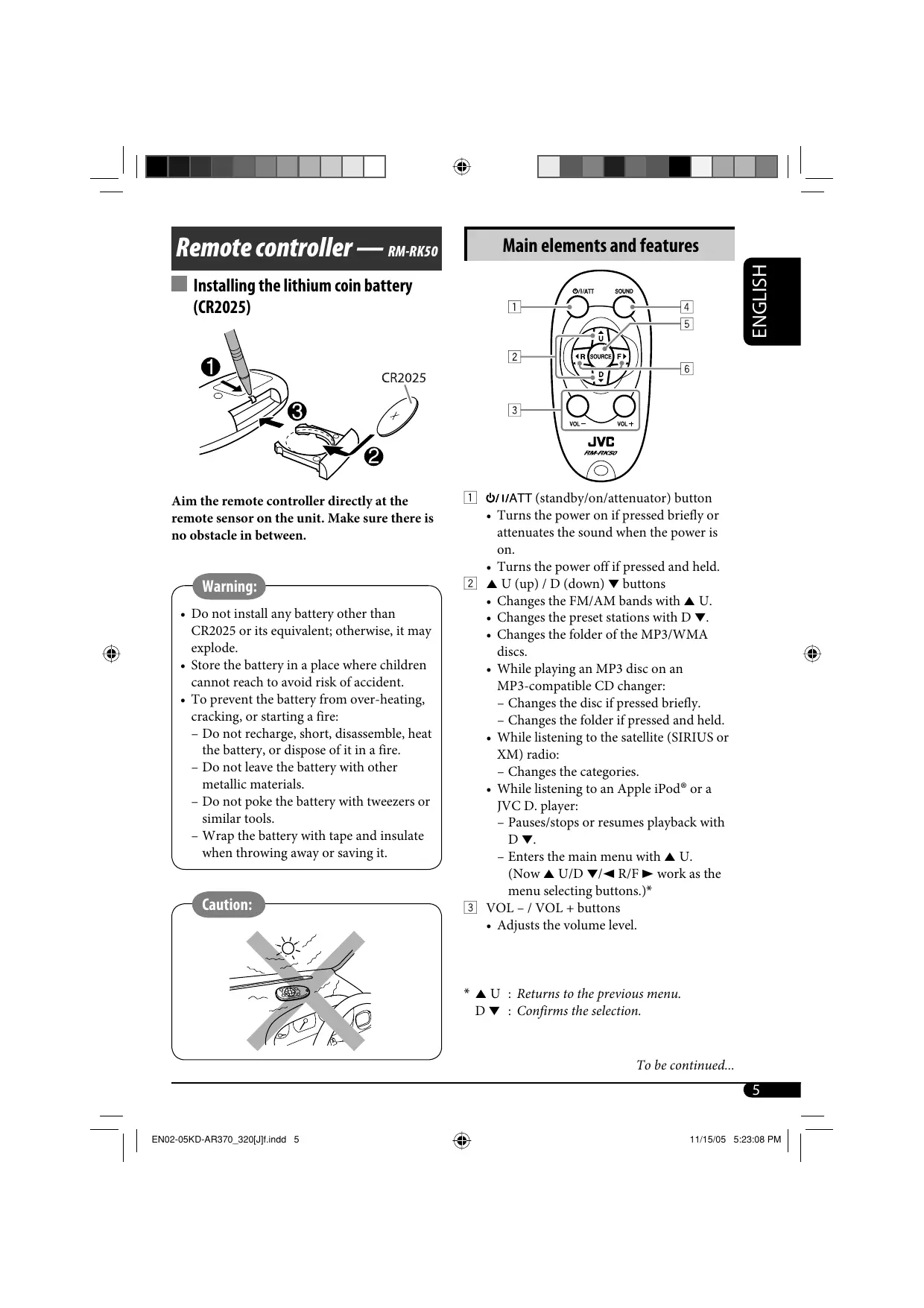
10/28/05 5:32:19 PM Remote controller — RM-RK50
ENGLISH Main elements and features
Installing the lithium coin battery (CR2025)
Aim the remote controller directly at the remote sensor on the unit. Make sure there is no obstacle in between.
Warning: • Do not install any battery other than CR2025 or its equivalent; otherwise, it may explode. • Store the battery in a place where children cannot reach to avoid risk of accident. • To prevent the battery from over-heating, cracking, or starting a fire: – Do not recharge, short, disassemble, heat the battery, or dispose of it in a fire. – Do not leave the battery with other metallic materials. – Do not poke the battery with tweezers or similar tools. – Wrap the battery with tape and insulate when throwing away or saving it.
(standby/on/attenuator) button • Turns the power on if pressed briefly or attenuates the sound when the power is on. • Turns the power off if pressed and held. 2 5 U (up) / D (down) ∞ buttons • Changes the FM/AM bands with 5 U. • Changes the preset stations with D ∞. • Changes the folder of the MP3/WMA discs. • While playing an MP3 disc on an MP3-compatible CD changer: – Changes the disc if pressed briefly. – Changes the folder if pressed and held. • While listening to the satellite (SIRIUS or XM) radio: – Changes the categories. • While listening to an Apple iPod® or a JVC D. player: – Pauses/stops or resumes playback with D ∞. – Enters the main menu with 5 U. (Now 5 U/D ∞/2 R/F 3 work as the menu selecting buttons.)* 3 VOL – / VOL + buttons • Adjusts the volume level.
4 SOUND button • Selects the sound mode (C-EQ: custom equalizer). 5 SOURCE button • Selects the source. 6 2 R (reverse) / F (forward) 3 buttons • Searches for stations if pressed briefly. • Fast-forwards or reverses the track if pressed and held. • Changes the tracks if pressed briefly. • While listening to the satellite radio: – Changes the channels if pressed briefly. – Changes the channels rapidly if pressed and held. • While listening to an iPod or a D. player (in menu selecting mode): – Selects an item if pressed briefly. (Then, press D ∞ to confirm the selection.) – Skips 10 items at a time if pressed and held.
Volume level appears.
Getting started Basic operations
Adjust the sound as you want. (See pages 11 and 12.)
Caution on volume setting: Discs produce very little noise compared with other sources. Lower the volume before playing a disc to avoid damaging the speakers by the sudden increase of the output level.
To drop the volume in a moment (ATT) * You cannot select these sources if they are not ready or not connected.
To restore the sound, press it again.
To turn off the power
6 EN06-11KD-AR370_320[J]f.indd 6
Start searching for a station.
• See also “General settings — PSM” on pages 12 – 14.
When a station is received, searching stops. To stop searching, press the same button again.
ENGLISH Basic settings
To tune in to a station manually 1 Canceling the display demonstrations
In step ! above... 1
Select “DEMO,” then “DEMO OFF.”
2 Setting the clock Select “CLOCK H” (hour), then adjust the hour. Select “CLOCK M” (minute), then adjust the minute.
2 Select a desired station frequency.
Finish the procedure.
To check the current clock time when the power is turned off
When an FM stereo broadcast is hard to receive
Lights up when monaural mode is activated. Reception improves, but stereo effect will be lost.
Ÿ Lights up when receiving an FM stereo broadcast with sufficient signal strength.
To restore the stereo effect, repeat the same procedure. “MONO OFF” appears and the MO indicator goes off.
Selected band appears.
7 EN06-11KD-AR370_320[J]2.indd 7
10/21/05 4:46:42 PM ENGLISH Storing stations in memory You can preset six stations for each band.
FM station automatic presetting— SSM (Strong-station Sequential Memory)
Listening to a preset station
Select the preset station (1 – 6) you want.
Select the FM band (FM1 – FM3) you want to store into. or
2 3 “SSM” flashes, then disappears when automatic presetting is over. Local FM stations with the strongest signals are searched and stored automatically in the FM band.
Manual presetting Ex.: Storing FM station of 92.5 MHz into preset number 4 of the FM1 band.
To check the other information while listening to an FM or AM station Clock Ô Frequency
Disc operations Playing a disc in the unit All tracks will be played repeatedly until you change the source or eject the disc.
2 3 Preset number flashes for a while.
To stop play and eject the disc
8 EN06-11KD-AR370_320[J]2.indd 8
10/21/05 4:46:43 PM Playing discs in the CD changer
To fast-forward or reverse the track
To go to the next or previous tracks
* If you have changed the external input setting to “EXT IN” (see page 14), you cannot select the CD changer.
ENGLISH All discs in the magazine will be played repeatedly until you change the source. • Ejecting the magazine will also stop playing.
To go to the next or previous folders (only for MP3 or WMA discs)
Select a disc. For disc number from 01 – 06:
For MP3 discs: For WMA discs:
For disc number from 07 – 12:
About MP3 and WMA discs MP3 and WMA “tracks” (words “file” and “track” are used interchangeably) are recorded in “folders.”
About the CD changer It is recommended to use a JVC MP3-compatible CD changer with your unit. • You can also connect other CH-X series CD changers (except CH-X99 and CH-X100). These units are not compatible with MP3 discs. • You cannot play any WMA disc in the CD changer. • You cannot use the KD-MK series CD changers with this unit. • Disc text information recorded in the CD Text can be displayed when a JVC CD Text compatible CD changer is connected. • For connection, see Installation/Connection Manual (separate volume).
To locate a particular track (for CD) or folder (for MP3 or WMA discs) directly To select a number from 01 – 06:
To select a number from 07 – 12:
• To use direct folder access on MP3/WMA discs, it is required that folders are assigned with 2-digit numbers at the beginning of their folder names—01, 02, 03, and so on. To select a particular track in a folder (for MP3 or WMA discs):
9 EN06-11KD-AR370_320[J]2.indd 9
10/21/05 4:46:44 PM ENGLISH Other main functions
Changing the display information
Skipping tracks quickly during play Only possible on JVC MP3-compatible CD changer
While playing an audio CD or a CD Text
• For MP3 or WMA discs, you can skip tracks within the same folder. Ex.: To select track 32 while playing a track whose number is a single digit (1 to 9)
While playing an MP3 or a WMA*2 disc • When “TAG DISP” is set to “TAG ON” (see page 14)
2 • When “TAG DISP” is set to “TAG OFF” Each time you press the button, you can skip 10 tracks. • After the last track, the first track will be selected and vice versa.
3 : Clock with the current track number : Elapsed playing time with the current track number
Prohibiting disc ejection You can lock a disc in the loading slot.
*1 If the current disc is an audio CD, “NO NAME” appears. *2 Only for the built-in CD player. *3 If an MP3/WMA file does not have Tag information, folder name and file name appear. In this case, the TAG indicator will not light up.
To cancel the prohibition, repeat the same procedure.
10 EN06-11KD-AR370_320[J]f.indd 10
11/15/05 5:23:38 PM You can use only one of the following playback modes at a time.
Sound adjustments You can select a preset sound mode suitable to the music genre (C-EQ: custom equalizer).
ENGLISH Selecting the playback modes
Select your desired playback mode. 7 Repeat play Ex.: When “ROCK” is selected
TRK RPT : The current track. FLDR RPT*1 : All tracks of the current folder. DISC RPT*2 : All tracks of the current disc. RPT OFF : Cancels. 7 Random play
FLDR Plays at random RND*1
DISC RND MAG RND*2 RND OFF
: All tracks of the current folder, then tracks of the next folder and so on. : All tracks of the current disc. : All tracks of the inserted discs. : Cancels.
*1 Only while playing an MP3 or a WMA disc. *2 Only while playing discs in the CD changer.
Preset values Indication (For)
ON CLASSIC (Classical music)
OFF POPS (Light music)
ON JAZZ (Jazz music)
OFF Adjusting the sound You can adjust the sound characteristics to your preference.
Indication [Range] BAS*1 (bass) Adjust the bass. [–06 to +06] TRE*1 (treble) Adjust the treble. [–06 to +06]
General settings — PSM You can change PSM (Preferred Setting Mode) items (except “SID”) listed in the table that follows.
FAD*2 (fader) Adjust the front and rear speaker balance. [R06 to F06] BAL*3 (balance) Adjust the left and right speaker balance. [L06 to R06] LOUD*1 (loudness) Boost low and high frequencies to produce a well-balanced sound at low volume level. [LOUD ON or LOUD OFF]
Ex.: When “DIMMER” is selected
Adjust the PSM item selected.
Repeat steps 2 and 3 to adjust other PSM items if necessary.
Finish the procedure.
SUB.W*4 (subwoofer) Adjust the subwoofer output level. [00 to 08] VOL (volume) Adjust the volume. [00 to 30 or 50*5] *1 When you adjust the bass, treble, or loudness, the adjustment you have made is stored for the currently selected sound mode (C-EQ) including “USER.” *2 If you are using a two-speaker system, set the fader level to “00.” *3 This adjustment cannot affect the subwoofer output. *4 This takes effect only when a subwoofer is connected. Displayed only when “L/O MODE” is set to “WOOFER” (see page 14). *5 Depending on the amplifier gain control setting. (See page 14 for details.)
12 EN12-17KD-AR370_320[J]f.indd 12
11/23/05 11:52:50 AM Selectable settings, [reference page]
DEMO Display demonstration
DEMO ON : [Initial]; Display demonstration will be activated automatically if no operation is done for about 20 seconds, [7]. DEMO OFF : Cancels.
CLOCK H Hour adjustment
1 – 12, [7] [Initial: 1 (1:00)]
CLOCK M Minute adjustment
00 – 59, [7] [Initial: 00 (1:00)]
CLK ADJ*1 Clock adjustment
: [Initial]; The built-in clock is automatically adjusted using the clock data provided via the satellite radio channel. : Cancels.
T-ZONE*1, *2 Time zone
Select your residential area from one of the following time zones for clock adjustment. EASTERN [Initial] “ ATLANTIC “ NEWFOUND “ ALASKA “ PACIFIC “ MOUNTAIN “ CENTRAL “ (back to the beginning)
DST*1, *2 Daylight savings time
Activate this if your residential area is subject to DST. ON : [Initial]; Activates daylight savings time. OFF : Cancels.
SIRIUS ID The 12-digit SIRIUS identification number scrolls on the display 5 seconds after “SID” is selected, [15]. • Press SEL to resume the previous display.
ON OFF TEL*4 Telephone muting
MUTING 1/MUTING 2: Select either one which mutes the sounds while using a cellular phone. OFF : [Initial]; Cancels.
ONCE : [Initial]; Scrolls the disc information once. AUTO : Repeats scrolling (5-second intervals in between). OFF : Cancels. • Pressing DISP for more than one second can scroll the display regardless of the setting.
Displayed only when SIRIUS Satellite radio or XM Satellite radio is connected. Displayed only when “CLK ADJ” is set to “AUTO.” Displayed only when SIRIUS Satellite radio is connected. Only for KD-AR370. Some characters or symbols will not be shown correctly (or will be blanked) on the display.
WOOFER*1 Subwoofer cutoff frequency
LOW MID HIGH EXT IN*2 External input
: Frequencies lower than 90 Hz are sent to the subwoofer. : [Initial]; Frequencies lower than 135 Hz are sent to the subwoofer. : Frequencies lower than 180 Hz are sent to the subwoofer. : [Initial]; To use a JVC CD changer, [9], a JVC compatible satellite (SIRIUS/XM) tuner, [15], an Apple iPod or a JVC D. player, [18]. : To use any other external component than the above, [20].
L/O MODE Line output mode
When connecting amplifiers and/or subwoofer, set this correctly. REAR : [Initial]; Select if the both LINE OUT terminals are used for connecting the speakers through the external amplifiers. WOOFER : Select if the FRONT LINE OUT terminals are used for connecting a subwoofer through an external amplifier.
TAG DISP Tag display
: [Initial]; Shows the Tag information while playing MP3/ WMA tracks, [10]. : Cancels.
AMP GAIN Amplifier gain control
You can change the maximum volume level of this unit. LOW PWR : VOL 00 – VOL 30 (Select this if the maximum power of the speaker is less than 50 W to prevent them from being damaged.) HIGH PWR : [Initial]; VOL 00 – VOL 50
AREA Tuner channel interval
AREA US AREA SA AREA EU
: [Initial]; When using in North/Central/South America. AM/FM intervals are set to 10 kHz/200 kHz. : When using in South American countries where FM interval is 100 kHz. AM interval is set to 10 kHz. : When using in any other areas. AM/FM intervals are set to 9 kHz/50 kHz (100 kHz during auto search).
*1 Displayed only when “L/O MODE” is set to “WOOFER.” *2 Displayed only when one of the following sources is selected—FM, AM, or DISC.
14 EN12-17KD-AR370_320[J]f.indd 14
11/21/05 10:28:13 AM This unit is satellite (SAT) Radio Ready— compatible with both SIRIUS Satellite radio and XM Satellite radio.
Activate your SIRIUS subscription after connection: 1
Before operating your satellite radio: • For connection, see Installation/Connection Manual (separate volume). • Refer also to the Instructions supplied with your SIRIUS Satellite radio or XM Satellite radio. • “SIRIUS” and the SIRIUS dog logo are registered trademarks of SIRIUS Satellite Radio Inc. • XM and its corresponding logos are registered trademarks of XM Satellite Radio Inc. • “SAT Radio,” the SAT Radio logo and all related marks are trademarks of SIRIUS Satellite Radio Inc., and XM Satellite Radio, Inc.
JVC DLP starts updating all the SIRIUS channels. Once completed, JVC DLP tunes in to the preset channel, CH184. 3 Check your SIRIUS ID, see page 13. 4 Contact SIRIUS on the internet at
<http://activate.siriusradio.com/> to activate your subscription, or you can call SIRIUS toll-free at 1-888-539SIRIUS (7474). “SUB UPDT PRESS ANY KEY” scrolls on the display once subscription has been completed.
Listening to the satellite radio Connect either one of the following (separately purchased) to the CD changer jack on the rear of this unit. • JVC SIRIUS radio DLP—Down Link Processor, for listening to the SIRIUS Satellite radio. • XMDirectTM Universal Tuner Box using a JVC Smart Digital Adapter—XMDJVC100 (not supplied), for listening to the XM Satellite radio. GCI (Global Control Information) update: • If channels are updated after subscription, updating starts automatically. “UPDATING” flashes and no sound can be heard. • Update takes a few minutes to complete. • During update, you cannot operate your satellite radio.
ENGLISH Satellite radio operations
Activate your XM subscription after connection: • Only Channel 0, 1, and 247 are available before activation. 1
XMDirectTM Universal Tuner Box starts updating all the XM channels. “Channel 1” is tuned in automatically. 3 Check your XM Satellite radio
ID labelled on the casing of the XMDirect Universal Tuner Box, or tune into “Channel 0” (see page 17).
TM To be continued...
the internet at <http://xmradio. com/activation/> to activate your subscription, or you can call 1-800XM-RADIO (1-800-967-2346). Once completed, the unit tunes in to one of the available channels (Channel 4 or higher).
Listening to the XM Satellite radio
Select a channel for listening.
Listening to the SIRIUS Satellite radio
Holding the button changes the channels rapidly.
2 Searching for category/channel
You can tune in to all the channels of every category by selecting “ALL.” Selecting a particular category (SPORTS, ENTERTAINMENT, etc.) allows you to enjoy only the channels from the selected category.
Select a channel for listening.
You can search for programs by category (Category Search) or channel number (Channel Search). • In Category Search, you can tune in to the channels of the selected category. Category Search begins from the currently selected channel. The selected channel number flashes on the display. • In Channel Search, you can tune in to all channels (including non-categorised channels).
Select a category (Category Search). • For Channel Search, skip this step.
Holding the button changes the channels rapidly. • When changing the category or channel, invalid and unsubscribed channels are skipped.
16 EN12-17KD-AR370_320[J]2.indd 16
10/21/05 4:45:54 PM Select a channel for listening.
Storing channels in memory You can preset six channels for each band. Ex.: Storing a channel into preset number 4.
Current channel number
Tune in to a channel you want.
2 Ex.: When you select “COUNTRY” for Category Search If no operation is done for about 15 seconds, Category Search is canceled. In Channel Search, channel name and channel number appear on the display during search.
Preset number flashes for a while.
Listening to a preset channel
• While searching, invalid and unsubscribed channels are skipped.
Checking the XM Satellite radio ID Select either SIRIUS Satellite radio or XM Satellite radio.
While selecting “XM1,” “XM2,” or “XM3,” select “Channel 0.”
Select the preset channel (1 – 6) you want.
The display alternately shows “RADIO ID” and the 8-digit (alphanumeric) ID number. To cancel the ID number display, select any channel other than “Channel 0.”
To change the display information while listening to a channel
Clock = Category name = Channel name = Artist name = Composer name* = Song/program name/title = (back to the beginning) * Only for SIRIUS Satellite radio.
17 EN12-17KD-AR370_320[J]2.indd 17
10/21/05 4:45:55 PM ENGLISH
iPod®/D. player operations ⁄
• Make sure the equalizer on the iPod or D. player is deactivated.
This unit is ready for operating an Apple iPod or a JVC D. player from the control panel. Before operating your iPod or D. player: Connect either one of the following (separately purchased) to the CD changer jack on the rear of this unit. • Interface adapter for iPod®—KS-PD100 for controlling an iPod. • D. player interface adapter—KS-PD500 for controlling a D. player. • For connection, see Installation/Connection Manual (separate volume). • For details, refer also to the manual supplied with the interface adapter.
Caution: Make sure to turn off this unit or turn off the vehicle’s ignition switch before connecting or disconnecting the iPod or D. player.
Adjust the sound as you want. (See pages 11 and 12.)
To pause*1 or stop*2 playback To resume playback, press it again.
To fast-forward or reverse the track To go to the next or previous tracks *1 For iPod *2 For D. player
Selecting a track from the menu Preparations: Make sure “CHANGER” is selected for the external input setting, see page 14.
Enter the main menu.
Now the 5/∞/4 /¢ buttons work as the menu selecting buttons*3. Playback starts automatically from where it has been paused*1 or stopped*2 previously.
11/21/05 10:29:18 AM Confirm the selection.
To move back to the previous menu, press 5.
• If a track is selected, playback starts automatically. • If the selected item has another layer, you will enter the layer. Repeat steps 2 and 3 until the desired track is played. • Holding 4 /¢ can skip 10 items at a time. *3 The menu selecting mode will be canceled: – If no operations are done for about 5 seconds. – When you confirm the selection of a track.
ALBM RND*4 Functions the same as “Shuffle Albums” of the iPod.
SONG RND/RND ON Functions the same as “Shuffle Songs” of the iPod or “Random Play On” of the D. player. RND OFF Cancels. *4 For iPod: Only if you select “ALL” in “ALBUMS” of the main “MENU.”
To check other information while listening to an iPod or a D. player
Selecting the playback modes
Select your desired playback mode. 7 Repeat play
ONE RPT Functions the same as “Repeat One” of the iPod or “Repeat Mode One” for the D. player. ALL RPT Functions the same as “Repeat All” of the iPod or “Repeat Mode All” for the D. player. RPT OFF Cancels.
19 EN18-23KD-AR370_320[J]f.indd 19
11/25/05 12:02:25 PM ENGLISH Other external component operations
More about this unit Basic operations
You can connect an external component to the CD changer jack on the rear using the Line Input Adapter—KS-U57 (not supplied) or AUX Input Adapter—KS-U58 (not supplied). • For connection, see Installation/Connection Manual (separate volume).
Turning on the power
For listening to the satellite radio, iPod, or D. player, refer to pages 15 – 19.
• If you turn off the power while listening to a disc, disc play will start from where playback has been stopped previously, next time you turn on the power.
• By pressing SRC on the unit, you can also turn on the power. If the source is ready, playback also starts.
Turning off the power
Tuner operations If “EXT IN” does not appear, see page 14 and select the external input (“EXT IN”).
Turn on the connected component and start playing the source. Adjust the volume.
Storing stations in memory • During SSM search... – All previously stored stations are erased and stations are stored newly. – Received stations are preset in No. 1 (lowest frequency) to No. 6 (highest frequency). – When SSM is over, the station stored in No. 1 will be automatically tuned in. • When storing a station manually, the previously preset station is erased when a new station is stored in the same preset number.
Disc operations Adjust the sound as you want. (See pages 11 and 12.)
To check the other information while listening to an external component
Clock Ô EXT IN Caution for DualDisc playback • The Non-DVD side of a “DualDisc” does not comply with the “Compact Disc Digital Audio” standard. Therefore, the use of NonDVD side of a DualDisc on this product may not be recommended.
General • This unit has been designed to reproduce CDs/CD Texts, and CD-Rs (Recordable)/ CD-RWs (Rewritable) in audio CD (CD-DA), MP3 and WMA formats. • When a disc had been loaded, selecting “DISC” for the playback source starts disc play.
20 EN18-23KD-AR370_320[J]f.indd 20
11/24/05 4:28:16 PM Playing an MP3/WMA disc
• When a disc is inserted upside down, the disc automatically ejects. • Do not insert 8 cm (3-3/16") discs (single CD) and unusual shape discs (heart, flower, etc.) into the loading slot.
• This unit can play back MP3/WMA files with the extension code <.mp3> or <.wma> (regardless of the letter case—upper/lower). • This unit can show the names of albums, artists (performer), and Tag (Version 1.0, 1.1, 2.2, 2.3, or 2.4) for MP3 files and for WMA files. • This unit can display only one-byte characters. No other characters can be correctly displayed. • This unit can play back MP3/WMA files meeting the conditions below: – Bit rate: 8 kbps — 320 kbps – Sampling frequency: 48 kHz, 44.1 kHz, 32 kHz (for MPEG-1) 24 kHz, 22.05 kHz, 16 kHz (for MPEG-2) – Disc format: ISO 9660 Level 1/Level 2, Romeo, Joliet, Windows long file name • The maximum number of characters for file/ folder names vary among the disc format used (includes 4 extension characters—<.mp3> or <.wma>). – ISO 9660 Level 1: up to 12 characters – ISO 9660 Level 2: up to 31 characters – Romeo: up to 128 characters – Joliet: up to 64 characters – Windows long file name: up to 128 characters • This unit can play back files recorded in VBR (variable bit rate). Files recorded in VBR have a discrepancy in elapsed time display, and do not show the actual elapsed time. Especially, after performing the search function, this difference becomes noticeable. • This unit can recognize a total of 512 files, of 200 folders, and of 8 hierarchies.
Playing a disc • While fast-forwarding or reversing on an MP3 or WMA disc, you can only hear intermittent sounds.
Playing a CD-R or CD-RW • Use only “finalized” CD-Rs or CD-RWs. • This unit can play back only files of the same type which are first detected if a disc includes both audio CD (CD-DA) files and MP3/ WMA files. • This unit can play back multi-session discs; however, unclosed sessions will be skipped while playing. • Some CD-Rs or CD-RWs may not play back on this unit because of their disc characteristics, or for the following reasons: – Discs are dirty or scratched. – Moisture condensation occurs on the lens inside the unit. – The pickup lens inside the unit is dirty. – CD-R/CD-RW on which the files are written with “Packet Write” method. – There are improper recording conditions (missing data, etc.) or media conditions (stained, scratched, warped, etc.). • CD-RWs may require a longer readout time since the reflectance of CD-RWs is lower than that of regular CDs. • Do not use the following CD-Rs or CD-RWs: – Discs with stickers, labels, or a protective seal stuck to the surface. – Discs on which labels can be directly printed by an ink jet printer. Using these discs under high temperatures or high humidities may cause malfunctions or damage to the unit.
ENGLISH Inserting a disc
21 EN18-23KD-AR370_320[J]f.indd 21
11/15/05 5:31:30 PM ENGLISH
• This unit cannot play back the following files: – MP3 files encoded with MP3i and MP3 PRO format. – MP3 files encoded in an inappropriate format. – MP3 files encoded with Layer 1/2. – WMA files encoded with lossless, professional, and voice format. – WMA files which are not based upon Windows Media® Audio. – WMA files copy-protected with DRM. – Files which have the data such as WAVE, ATRAC3, etc. • The search function works but search speed is not constant.
Changing the source • If you change the source, playback also stops (without ejecting the disc). Next time you select “DISC” for the playback source, disc play starts from where it has been stopped previously.
Ejecting a disc • If the ejected disc is not removed within 15 seconds, the disc is automatically inserted again into the loading slot to protect it from dust. (Disc will not play this time.)
General settings—PSM • If you change the “AMP GAIN” setting from “HIGH PWR” to “LOW PWR” while the volume level is set higher than “VOL 30,” the unit automatically changes the volume level to “VOL 30.”
• To know more about SIRIUS Satellite radio or to sign up, visit «http://www.sirius.com». • For the latest channel listings and programming information, or to sign up for XM Satellite radio, visit «http://www.xmradio. com».
iPod® or D. player operations • When you turn on this unit, the iPod or D. player is charged through this unit. • While the iPod or D. player is connected, all operations from the iPod or D. player are disabled. Perform all operations from this unit. • The text information may not be displayed correctly. – Some characters such as accented letters cannot be shown correctly on the display. – Depends on the condition of communication between the iPod or D. player and the unit. • If the text information includes more than 8 characters, it scrolls on the display (see also page 13). This unit can display up to 40 characters.
Notice: When connecting an iPod or a D. player, some operations may not be performed correctly or as intended. In this case, visit the following JVC web site: For iPod users: <http://www.jvc.co.jp/ english/car/support/ks-pd100/index.html> For D. player users: <http://www.jvc.co.jp/ english/car/support/ks-pd500/index.html>
Satellite radio operations • You can also connect the JVC SIRIUS radio PnP (Plug and Play), using the JVC SIRIUS radio adapter, KS-U100K (not supplied) to the CD changer jack on the rear. By turning on/off the power of the unit, you can turn on/off the JVC PnP. However, you cannot control it from this unit.
• Microsoft and Windows Media are either registered trademarks or trademarks of Microsoft Corporation in the United States and/or other countries. • iPod is a trademark of Apple Computer, Inc., registered in the U.S. and other countries.
22 EN18-23KD-AR370_320[J]f.indd 22
11/21/05 10:17:16 AM How to clean the connectors Frequent detachment will deteriorate the connectors. To minimize this possibility, periodically wipe the connectors with a cotton swab or cloth moistened with alcohol, being careful not to damage the connectors.
To keep discs clean A dirty disc may not play correctly. If a disc does become dirty, wipe it with a soft cloth in a straight line from center to edge. • Do not use any solvent (for example, conventional record cleaner, spray, thinner, benzine, etc.) to clean discs.
To play new discs New discs may have some rough spots around the inner and outer edges. If such a disc is used, this unit may reject the disc. To remove these rough spots, rub the edges with a pencil or ball-point pen, etc.
Moisture condensation Moisture may condense on the lens inside the CD player in the following cases: • After starting the heater in the car. • If it becomes very humid inside the car. Should this occur, the CD player may malfunction. In this case, eject the disc and leave the unit turned on for a few hours until the moisture evaporates.
How to handle discs When removing a disc from Center holder its case, press down the center holder of the case and lift the disc out, holding it by the edges. • Always hold the disc by the edges. Do not touch its recording surface. When storing a disc into its case, gently insert the disc around the center holder (with the printed surface facing up). • Make sure to store discs into the cases after use.
Do not use the following discs: Warped disc
11/15/05 5:31:33 PM ENGLISH Troubleshooting What appears to be trouble is not always serious. Check the following points before calling a service center.
• Sound cannot be heard from the speakers.
• Adjust the volume to the optimum level. • Check the cords and connections.
• The unit does not work at all.
Reset the unit (see page 2).
• SSM automatic presetting does not work.
Store stations manually.
• Static noise while listening to the radio.
Connect the antenna firmly.
• Disc cannot be played back.
Insert the disc correctly.
• CD-R/CD-RW cannot be played back. • Tracks on the CD-R/CD-RW cannot be skipped.
• Insert a finalized CD-R/CD-RW. • Finalize the CD-R/CD-RW with the component which you used for recording.
• Disc can be neither played back nor ejected.
• Unlock the disc (see page 10). • Eject the disc forcibly (see page 2).
• Disc sound is sometimes interrupted.
• Stop playback while driving on rough roads. • Change the disc. • Check the cords and connections.
• “NO DISC” appears on the display.
Insert a playable disc into the loading slot.
• Disc cannot be played back.
• Use a disc with MP3/WMA tracks recorded in the format compliant with ISO 9660 Level 1, Level 2, Romeo, or Joliet. • Add the extension code <.mp3> or <.wma> to the file names.
• Noise is generated.
Skip to another track or change the disc. (Do not add the extension code <.mp3> or <.wma> to non-MP3 or WMA tracks.)
• A longer readout time is required (“CHECK” keeps flashing on the display).
Do not use too many hierarchies and folders.
24 EN24-27KD-AR370_320[J]f.indd 24
• Tracks do not play back in the order you have intended them to play.
Playback order is determined when the files are recorded.
• Elapsed playing time is not correct.
This sometimes occurs during play. This is caused by how the tracks are recorded on the disc.
• “NO FILES” appears on the display.
Insert a disc that contains MP3/WMA tracks.
• Correct characters are not displayed (e.g. album name).
This unit can only display letters (upper case), numbers, and a limited number of symbols.
• “NO DISC” appears on the display.
Insert a disc into the magazine.
• “NO MAG” appears on the display.
Insert the magazine.
• “RESET 8” appears on the display.
Connect this unit and the CD changer correctly and press the reset button of the CD changer.
• “RESET 1” – “RESET 7” appears on the display.
Press the reset button of the CD changer.
• The CD changer does not work at all.
Reset the unit (see page 2).
• “CALL 1-888-539-SIRIUS TO SUBSCRIBE” scrolls on the display while listening to the SIRIUS Satellite radio.
Starts subscribing SIRIUS Satellite radio (see page 15).
• No sound can be heard. “UPDATING” appears on the display.
The unit is updating the channel information and it takes a few minutes to complete.
• Either “NO SIGNAL” scrolls or “NO SIGNL” appears on the display.
Move to an area where signals are stronger.
• Either “NO ANTENNA” scrolls or “ANTENNA” appears on the display.
Connect the antenna firmly.
• “NO CH” appears on the display for about 5 seconds, then returns to the previous display while listening to the SIRIUS Satellite radio.
No broadcast on the selected channel. Select another channel or continue listening to the previous channel.
• “NO (information)*” scrolls on the display while listening to the SIRIUS Satellite radio. • “---” appears on the display while listening to the XM Satellite radio.
No text information for the selected channel.
ENGLISH MP3/WMA playback
iPod/D. player playback
• “---” appears on the display for about 2 seconds, then returns to the previous channel while listening to the XM Satellite radio.
Selected channel is no longer available or is unauthorized. Select another channel or continue listening to the previous channel.
• “OFF AIR” appears on the display while listening to the XM Satellite radio.
Selected channel is not broadcasting at this time. Select another channel or continue listening to the previous channel.
• “LOADING” appears on the display while listening to the XM Satellite radio.
The unit is loading the channel information and audio. Text information are temporarily unavailable.
• “RESET 8” appears on the display. • Satellite radio does not work at all.
Reconnect this unit and the satellite radio correctly, then reset the unit.
• The iPod or D. player does not turn on or does not work.
• Check the connecting cable and its connection. • Update the firmware version. • Change the battery.
• Buttons do not work as intended.
The functions of the buttons have been changed. Press MODE before performing the operation.
• The sound is distorted.
Deactivate the equalizer either on the unit or the iPod/D. player.
• “NO IPOD” or “NO DP” appears on the display.
Check the connecting cable and its connection.
The headphones are disconnected during playback. Restart the playback operation using the control panel (see page 18).
• No sound can be heard when connecting an iPod nano.
Disconnect the headphones from the iPod nano.
• No sound can be heard. • “ERROR 01” appears on the display when connecting a D. player.
Disconnect the adapter from the D. player. Then, connect it again.
• “NO FILES” or “NO TRACK” appears on the display.
No tracks are stored. Import tracks to the iPod or D. player.
• “RESET 1” – “RESET 7” appears on the display.
Disconnect the adapter from both the unit and iPod/D. player. Then, connect it again.
• “RESET 8” appears on the display.
Check the connection between the adapter and this unit.
• The iPod’s or D. player’s controls do not work after disconnecting from this unit.
Reset the iPod or D. player.
26 EN24-27KD-AR370_320[J]f.indd 26
11/21/05 10:30:16 AM AUDIO AMPLIFIER SECTION Power Output: 18 W RMS × 4 Channels at 4 Ω and ≤ 1% THD+N Signal to Noise Ratio: 80 dBA (reference: 1 W into 4 Ω) Load Impedance: 4 Ω (4 Ω to 8 Ω allowance) Tone Control Range: Bass: ±10 dB at 100 Hz Treble: ±10 dB at 10 kHz Frequency Response: 40 Hz to 20 000 Hz Line-Out Level/Impedance: 2.5 V /20 kΩ load (full scale) Output Impedance: 1 kΩ Subwoofer-Out Level/Impedance: 2.0 V /20 kΩ load (full scale) Other Terminal: CD changer
TUNER SECTION Frequency Range: FM: 87.5 MHz to 107.9 MHz (with channel interval set to 100 kHz or 200 kHz) 87.5 MHz to 108.0 MHz (with channel interval set to 50 kHz) AM: 530 kHz to 1 710 kHz (with channel interval set to 10 kHz) 531 kHz to 1 602 kHz (with channel interval set to 9 kHz) [FM Tuner] Usable Sensitivity: 11.3 dBf (1.0 μV/75 Ω) 50 dB Quieting Sensitivity: 16.3 dBf (1.8 μV/75 Ω) Alternate Channel Selectivity (400 kHz): 65 dB Frequency Response: 40 Hz to 15 000 Hz
Stereo Separation: 35 dB Capture Ratio: 1.5 dB CD PLAYER SECTION Type: Compact disc player Signal Detection System: Non-contact optical pickup (semiconductor laser) Number of Channels: 2 channels (stereo) Frequency Response: 5 Hz to 20 000 Hz Dynamic Range: 96 dB Signal-to-Noise Ratio: 98 dB Wow and Flutter: Less than measurable limit MP3 Decoding Format: MPEG1/2 Audio Layer 3 Max. Bit Rate: 320 kbps WMA (Windows Media® Audio) Decoding Format: Max. Bit Rate: 192 kbps
ENGLISH Specifications
GENERAL Power Requirement: Operating Voltage: DC 14.4 V (11 V to 16 V allowance) Grounding System: Negative ground Allowable Operating Temperature: 0°C to +40°C (32°F to 104°F) Dimensions (W × H × D): Installation Size (approx.): 182 mm × 52 mm × 150 mm (7-3/16" × 2-1/16" × 5-15/16") Panel Size (approx.): 188 mm × 58 mm × 11 mm (7-7/16" × 2-5/16" × 7/16") Mass (approx.): 1.4 kg (3.1 lbs) (excluding accessories) Design and specifications are subject to change without notice. If a kit is necessary for your car, consult your telephone directory for the nearest car audio speciality shop.
[AM Tuner] Sensitivity: 20 μV Selectivity: 35 dB
27 EN24-27KD-AR370_320[J]f.indd 27
11/24/05 8:42:00 AM Having TROUBLE with operation? Please reset your unit Refer to page of How to reset your unit
Still having trouble??
USA ONLY Call 1-800-252-5722 http://www.jvc.com We can help you!
EN, SP, FR © 2005 Victor Company of Japan, Limited
ENGLISH ESPAÑOL FRANÇAIS This unit is designed to operate on 12 V DC, NEGATIVE ground electrical systems. If your vehicle does not have this system, a voltage inverter is required, which can be purchased at JVC car audio dealers.
Esta unidad está diseñada para funcionar con 12 V de CC, con sistemas eléctricos de masa NEGATIVA. Si su vehículo no posee este sistema, será necesario un inversor de tensión, que puede ser adquirido en los concesionarios de JVC de equipos de audio para automóviles.
Cet appareil est conçu pour fonctionner sur des sources de courant continu de 12 V à masse NEGATIVE. Si votre véhicule n’offre pas ce type d’alimentation, il vous faut un convertisseur de tension, que vous pouvez acheter chez un revendeur d’autoradios JVC.
WARNINGS ADVERTENCIAS AVERTISSEMENTS To prevent short circuits, we recommend that you disconnect the battery’s negative terminal and make all electrical connections before installing the unit. • Be sure to ground this unit to the car’s chassis again after installation.
Para evitar cortocircuitos, recomendamos que desconecte el terminal negativo de la batería y que efectúe todas las conexiones eléctricas antes de instalar la unidad. • Asegúrese de volver a conectar a masa esta unidad al chasis del automóvil después de la instalación.
Pour éviter tout court-circuit, nous vous recommandons de débrancher la borne négative de la batterie et d’effectuer tous les raccordements électriques avant d’installer l’appareil. • Assurez-vous de raccorder de nouveau la mise à la masse de cet appareil au châssis de la voiture après l’installation.
Notes: • Replace the fuse with one of the specified rating. If the fuse blows frequently, consult your JVC car audio dealer. • It is recommended to connect to the speakers with maximum power of more than 50 W (both at the rear and at the front, with an impedance of 4 Ω to 8 Ω). If the maximum power is less than 50 W, change “AMP GAIN” setting to prevent the speakers from being damaged (see page 14 of the INSTRUCTIONS). • To prevent short-circuit, cover the terminals of the UNUSED leads with insulating tape. • The heat sink becomes very hot after use. Be careful not to touch it when removing this unit.
Notas: • Reemplace el fusible por uno con la corriente especificada. Si el fusible se quemase frecuentemente consulte con su concesionario de JVC de equipos de audio para automóviles. • Se recomienda conectar los altavoces con una potencia máxima de más de 50 W (tanto atrás como adelante, con una impedancia de 4 Ω a 8 Ω). Si la potencia máxima es de menos de 50 W, cambie “AMP GAIN” para evitar daños en los altavoces (consulte la página 14 del MANUAL DE INSTRUCCIONES). • Para evitar cortocircuitos, cubra los cables NO UTILIZADOS con cinta aislante. • El sumidero térmico estará muy caliente después del uso. Asegúrese de no tocarlo al desmontar esta unidad.
Remarques: • Remplacer le fusible par un de la valeur précisée. Si le fusible saute souvent, consulter votre revendeur d’autoradios JVC. • Il est recommandé de connecter des enceintes avec une puissance de plus de 50 W (les enceintes arrière et les enceintes avant, avec une impédance comprise entre 4 Ω et 8 Ω). Si la puissance maximum est inférieure à 50 W, changez “AMP GAIN” pour éviter d’endommager vos enceintes (voir page 14 du MANUAL D’INSTRUCTIONS). • Pour éviter les court-circuits, couvrir les bornes des fils qui ne sont PAS UTILISÉS avec de la bande isolante. • Le dissipateur de chaleur devient très chaud après usage. Faire attention de ne pas le toucher en retirant cet appareil.
PRECAUTIONS on power supply and speaker connections:
PRECAUCIONES sobre las conexiones de la fuente de alimentación y de los altavoces:
PRECAUTIONS sur l’alimentation et la connexion des enceintes:
• DO NOT connect the speaker leads of the power cord to the car battery; otherwise, the unit will be seriously damaged. • BEFORE connecting the speaker leads of the power cord to the speakers, check the speaker wiring in your car.
• NO conecte los conductores de altavoz del cable de alimentación a la batería de automóvil, pues podrían producirse graves daños en la unidad. • ANTES de conectar a los altavoces los conductores de altavoz del cable de alimentación, verifique el conexionado de altavoz de su automóvil.
• NE CONNECTEZ PAS les fils d’enceintes du cordon d’alimentation à la batterie; sinon, l’appareil serait sérieusement endommagé. • AVANT de connecter les fils d’enceintes du cordon d’alimentation aux enceintes, vérifiez le câblage des enceintes de votre voiture.
Parts list for installation and connection
11/18/05 11:11:18 AM INSTALLATION (IN-DASH MOUNTING)
INSTALACION (MONTAJE EN EL TABLERO DE INSTRUMENTOS)
INSTALLATION (MONTAGE DANS LE TABLEAU DE BORD)
The following illustration shows a typical installation. If you have any questions or require information regarding installation kits, consult your JVC car audio dealer or a company supplying kits. • If you are not sure how to install this unit correctly, have it installed by a qualified technician.
Before removing the unit, release the rear section.
• The fuse blows. * Are the red and black leads connected correctly?
• El fusible se quema. * ¿Están los conductores rojo y negro correctamente conectados?
• Le fusible saute. * Les fils rouge et noir sont-ils racordés correctement?
• Power cannot be turned on. * Is the yellow lead connected?
• No es posible conectar la alimentación. * ¿Está el cable amarillo conectado?
• L’appareil ne peut pas être mise sous tension. * Le fil jaune est-elle raccordée?
• No sound from the speakers. * Is the speaker output lead short-circuited?
• No sale sonido de los altavoces. * ¿Está el cable de salida del altavoz cortocircuitado?
• Pas de son des enceintes. * Le fil de sortie d’enceinte est-il court-circuité?
• Sound is distorted. * Is the speaker output lead grounded? * Are the “–” terminals of L and R speakers grounded in common?
• Noise interfere with sounds. * Is the rear ground terminal connected to the car’s chassis using shorter and thicker cords? • Unit becomes hot. * Is the speaker output lead grounded? * Are the “–” terminals of L and R speakers grounded in common? • This unit does not work at all. * Have you reset your unit?
Instal1-2_KD-AR370[J]f.indd 2
11/18/05 11:11:25 AM ENGLISH ESPAÑOL ELECTRICAL CONNECTIONS A CONEXIONES ELECTRICAS Connect the colored leads of the power cord in the order specified in the illustration below.
*2 Before checking the operation of this unit prior to installation,
Before connecting: Check the wiring in the vehicle carefully. Incorrect connection may cause serious damage to this unit. The leads of the power cord and those of the connector from the car body may be different in color.
You can connect amplifiers to upgrade your car stereo system. • Connect the remote lead (blue with white stripe) to the remote lead of the other equipment so that it can be controlled through this unit. • Disconnect the speakers from this unit, connect them to the amplifier. Leave the speaker leads of this unit unused.
*5 iPod is a trademark of Apple Computer, Inc., registered in the U.S. and other countries.
*6 Signal cord supplied with your JVC Computer, Inc., registrada en los EE.UU. y otros países. *5 iPod est une marque de commerce d’Apple Computer, Inc., enregistrée aux États-Unis et dans les autres pays.
*7 Signal cord supplied with your
Cover_KD-G421[EX_EU]f.indd 2
11/22/05 5:42:39 PM ENGLISH Thank you for purchasing a JVC product. Please read all instructions carefully before operation, to ensure your complete understanding and to obtain the best possible performance from the unit.
IMPORTANT FOR LASER PRODUCTS 1. CLASS 1 LASER PRODUCT 2. CAUTION: Do not open the top cover. There are no user serviceable parts inside the unit; leave all servicing to qualified service personnel. 3. CAUTION: Visible and invisible laser radiation when open and interlock failed or defeated. Avoid direct exposure to beam. 4. REPRODUCTION OF LABEL: CAUTION LABEL, PLACED OUTSIDE THE UNIT.
How to reset your unit
How to use the MODE button If you press MODE, the unit goes into functions mode, then the number buttons and 5/∞ buttons work as different function buttons. Ex.: When number button 2 works as MO (monaural) button.
• Your preset adjustments will also be erased.
How to forcibly eject a disc Time countdown indicator
• If this does not work, reset your unit. • Be careful not to drop the disc when it ejects.
To use these buttons for their original functions again after pressing MODE, wait for 5 seconds without pressing any of these buttons until the functions mode is cleared or press MODE again.
How to detach/attach the control panel Detaching...
2 EN02-05KD-G421[EX_EU]f.indd 2
11/22/05 5:43:33 PM CONTENTS Control panel 4 Getting started 5 Basic operations 5
ENGLISH How to read this manual • Button operations are mainly explained with the illustrations in the table below. • Some related tips and notes are explained in “More about this unit” (see pages 21 – 23).
Radio operations 6 FM RDS operations 7 Searching for your favorite FM RDS programme ... 7
Disc operations 9 Press either one. Press and hold until your desired response begins. Press and hold both buttons at the same time. The following marks are used to indicate... : Built-in CD player operations. : External CD changer operations. : Indicator displayed for the corresponding operation.
Playing a disc in the unit 9 Playing discs in the CD changer 9
Sound adjustments 12 General settings — PSM 13 DAB tuner operations 16 iPod®/D. player operations 17 Other external component operations ... 19 Remote controller — RM-RK60 20 More about this unit 21 Maintenance 24 Troubleshooting 24 Specifications 27
Warning: If you need to operate the unit while driving, be sure to look ahead carefully or you may be involved in a traffic accident.
Note: Only for [EX] model users in UK and European countries For security reasons, a numbered ID card is provided with this unit, and the same ID number is imprinted on the unit’s chassis. Keep the card in a safe place, as it will help the authorities to identify your unit if stolen.
For safety... • Do not raise the volume level too much, as this will block outside sounds, making driving dangerous. • Stop the car before performing any complicated operations.
Temperature inside the car... If you have parked the car for a long time in hot or cold weather, wait until the temperature in the car becomes normal before operating the unit.
3 EN02-05KD-G421[EX_EU]f.indd 3
Display window a Disc type indicators—WMA, MP3 s Playback source indicators— CH: Lights up only when CD-CH is selected as the playback source. DISC: Lights up for the built-in CD player. d Playback mode / item indicators— (disc), (folder), RND (random), RPT (repeat) f LOUD (loudness) indicator g EQ (equalizer) indicator h Sound mode (C-EQ: custom equalizer) indicators—JAZZ, CLASSIC, HIP HOP POPS, ROCK, USER j Tr (track) indicator k Disc information indicators—TAG (ID3 (folder), (track/file) Tag), l Source display / Volume level indicator / Main display z RDS indicators—TP, PTY, AF, REG x Tuner reception indicators—ST (stereo), MO (monaural)
4 EN02-05KD-G421[EX_EU]f.indd 4
11/22/05 5:43:40 PM Adjust the sound as you want. (See pages 12 and 13.)
To drop the volume in a moment (ATT)
To restore the sound, press it again.
To turn off the power
* You cannot select these sources if they are not ready or not connected.
Basic settings • See also “General settings — PSM” on pages 13 – 15.
1 Canceling the display demonstrations Select “DEMO,” then “DEMO OFF.”
2 Setting the clock Select “CLOCK H” (hour), then adjust the hour. Select “CLOCK M” (minute), then adjust the minute. Select “24H/12H,” then “24H” (hour) or “12H” (hour).
Volume level appears.
Volume level indicator
Finish the procedure.
Caution on volume setting: Discs produce very little noise compared with other sources. Lower the volume before playing a disc to avoid damaging the speakers by the sudden increase of the output level.
To check the current clock time when the power is turned off 5
EN02-05KD-G421[EX_EU]f.indd 5
11/22/05 5:43:41 PM ENGLISH Radio operations
When an FM stereo broadcast is hard to receive
Lights up when monaural mode is activated. Lights up when receiving an FM stereo broadcast with sufficient signal strength.
Selected band appears.
Reception improves, but stereo effect will be lost. To restore the stereo effect, repeat the same procedure. “MONO OFF” appears and the MO indicator goes off.
Start searching for a station.
Storing stations in memory You can preset six stations for each band.
When a station is received, searching stops. To stop searching, press the same button again.
FM station automatic presetting— SSM (Strong-station Sequential Memory)
To tune in to a station manually
Select the FM band (FM1 – FM3) you want to store into.
In step ! above... 1
2 3 2 Select a desired station frequency. “SSM” flashes, then disappears when automatic presetting is over. Local FM stations with the strongest signals are searched and stored automatically in the FM band.
6 EN06-11KD-G421[EX_EU]f.indd 6
11/22/05 5:44:13 PM Ex.: Storing FM station of 92.5 MHz into preset number 4 of the FM1 band.
FM RDS operations What you can do with RDS RDS (Radio Data System) allows FM stations to send an additional signal along with their regular programme signals. By receiving the RDS data, this unit can do the following: • Programme Type (PTY) Search (see the following) • TA (Traffic Announcement) and PTY Standby Receptions (see pages 8 and 14) • Tracing the same programme automatically —Network-Tracking Reception (see page 9) • Programme Search (see page 14)
Listening to a preset station
Select the preset station (1 – 6) you want.
Searching for your favorite FM RDS programme You can tune in to a station broadcasting your favorite programme by searching for a PTY code. • To store your favorite programme types, see page 8.
~ The last selected PTY code appears.
To check the current clock time while listening to an FM (non-RDS) or AM station
Select one of your favorite preset programme types.
• For FM RDS stations, see page 9. Frequency Ô Clock
or Select one of the PTY codes (see page 9).
Start searching for your favorite programme.
Using the standby receptions TA Standby Reception TA Standby Reception allows the unit to switch temporarily to Traffic Announcement (TA) from any source other than AM. The volume changes to the preset TA volume level if the current level is lower than the preset level (see page 14).
If there is a station broadcasting a programme of the same PTY code as you have selected, that station is tuned in.
Storing your favorite programme types You can store six favorite programme types. Preset programme types in the number buttons (1 to 6):
Select a PTY code (see page 7).
To activate TA Standby Reception The TP (Traffic Programme) indicator either lights up or flashes. • If the TP indicator lights up, TA Standby Reception is activated. • If the TP indicator flashes, TA Standby Reception is not yet activated. (This occurs when you are listening to an FM station without the RDS signals required for TA Standby Reception.) To activate TA Standby Reception, tune in to another station providing these signals. The TP indicator will stop flashing and remain lit.
To deactivate the TA Standby Reception The TP indicator goes off.
Select the preset number (1 – 6) you want to store into.
PTY Standby Reception PTY Standby Reception allows the unit to switch temporarily to your favorite PTY programme from any source other than AM.
Ex.: When “ROCK M” is selected
Repeat steps 1 and 2 to store other PTY codes into other preset numbers.
Finish the procedure.
To activate and select your favorite PTY code for PTY Standby Reception, see page 14. The PTY indicator either lights up or flashes. • If the PTY indicator lights up, PTY Standby Reception is activated. • If the PTY indicator flashes, PTY Standby Reception is not yet activated. To activate PTY Standby Reception, tune in to another station providing these signals. The PTY indicator will stop flashing and remain lit. To deactivate the PTY Standby Reception, select “OFF” for the PTY code (see page 14). The PTY indicator goes off.
8 EN06-11KD-G421[EX_EU]f.indd 8
11/22/05 5:44:21 PM When driving in an area where FM reception is not sufficient enough, this unit automatically tunes in to another FM RDS station of the same network, possibly broadcasting the same programme with stronger signals (see the illustration below).
Disc operations Playing a disc in the unit All tracks will be played repeatedly until you change the source or eject the disc.
ENGLISH Tracing the same programme— Network-Tracking Reception
When shipped from the factory, NetworkTracking Reception is activated. To change the Network-Tracking Reception setting, see “AF-REG” on page 14. Programme A broadcasting on different frequency areas (01 – 05)
To stop play and eject the disc
Playing discs in the CD changer All discs in the magazine will be played repeatedly until you change the source. • Ejecting the magazine will also stop playing.
~ * If you have changed the external input setting to “EXT IN” (see page 15), you cannot select the CD changer.
To check the current clock time while listening to an FM RDS station Station name (PS) = Station Frequency = Programme type (PTY) = Clock = (back to the beginning)
Select a disc. For disc number from 01 – 06:
For disc number from 07 – 12:
NEWS, AFFAIRS, INFO, SPORT, EDUCATE, DRAMA, CULTURE, SCIENCE, VARIED, POP M (music), ROCK M (music), EASY M (music), LIGHT M (music), CLASSICS, OTHER M (music), WEATHER, FINANCE, CHILDREN, SOCIAL, RELIGION, PHONE IN, TRAVEL, LEISURE, JAZZ, COUNTRY, NATION M (music), OLDIES, FOLK M (music), DOCUMENT To be continued....
9 EN06-11KD-G421[EX_EU]f.indd 9
11/22/05 5:44:22 PM ENGLISH About MP3 and WMA discs MP3 and WMA “tracks” (words “file” and “track” are used interchangeably) are recorded in “folders.”
To locate a particular track (for CD) or folder (for MP3 or WMA discs) directly To select a number from 01 – 06:
About the CD changer It is recommended to use a JVC MP3compatible CD changer with your unit. • You can also connect other CH-X series CD changers (except CH-X99 and CH-X100). These units are not compatible with MP3 discs. • You cannot play any WMA disc in the CD changer. • You cannot use the KD-MK series CD changers with this unit. • Disc text information recorded in the CD Text can be displayed when a JVC CD Text compatible CD changer is connected. • For connection, see Installation/Connection Manual (separate volume).
To select a number from 07 – 12:
• To use direct folder access on MP3/WMA discs, it is required that folders are assigned with 2-digit numbers at the beginning of their folder names—01, 02, 03, and so on.
To select a particular track in a folder (for MP3 or WMA discs):
To fast-forward or reverse the track
To go to the next or previous tracks
To go to the next or previous folders (only for MP3 or WMA discs) For MP3 discs: For WMA discs:
10 EN06-11KD-G421[EX_EU]f.indd 10
11/22/05 5:44:23 PM Changing the display information
Skipping tracks quickly during play While playing an audio CD or a CD Text
ENGLISH Other main functions
Only possible on JVC MP3-compatible CD changer • For MP3 or WMA discs, you can skip tracks within the same folder.
While playing an MP3 or a WMA*2 disc
Ex.: To select track 32 while playing a track whose number is a single digit (1 to 9)
• When “TAG DISP” is set to “TAG ON” (see page 15)
• When “TAG DISP” is set to “TAG OFF”
Each time you press the button, you can skip 10 tracks. • After the last track, the first track will be selected and vice versa.
Prohibiting disc ejection You can lock a disc in the loading slot.
: Elapsed playing time with the current track number : Clock with the current track number
*1 If the current disc is an audio CD, “NO NAME” appears. *2 Only for the built-in CD player. *3 If an MP3/WMA file does not have Tag information, folder name and file name appear. In this case, the TAG indicator will not light up.
To cancel the prohibition, repeat the same procedure.
11 EN06-11KD-G421[EX_EU]f.indd 11
11/22/05 5:44:24 PM ENGLISH Selecting the playback modes You can use only one of the following playback modes at a time.
Sound adjustments You can select a preset sound mode suitable to the music genre (C-EQ: custom equalizer).
1 Select your desired playback mode.
TRK RPT : The current track. FLDR RPT*1 : All tracks of the current folder. DISC RPT*2 : All tracks of the current disc. RPT OFF
ON CLASSIC (Classical music)
OFF POPS (Light music)
ON JAZZ (Jazz music)
FLDR RND*1 : All tracks of the current folder, then tracks of the next folder and so on. DISC RND : All tracks of the current disc. MAG RND*2 : All tracks of the inserted discs. RND OFF : Cancels.
Adjusting the sound You can adjust the sound characteristics to your preference.
*1 Only while playing an MP3 or a WMA disc. *2 Only while playing discs in the CD changer.
You can change PSM (Preferred Setting Mode) items listed in the table that follows.
ENGLISH General settings — PSM Ex.: When “TRE” is selected
BAS*1 (bass) Adjust the bass. [–06 to +06] TRE*1 (treble) Adjust the treble. [–06 to +06] FAD*2 (fader) Adjust the front and rear speaker balance. [R06 to F06]
Ex.: When “DIMMER” is selected
Adjust the PSM item selected.
LOUD*1 (loudness) Boost low and high frequencies to produce a well-balanced sound at low volume level. [LOUD ON or LOUD OFF]
Repeat steps 2 and 3 to adjust the other PSM items if necessary.
VOL (volume) Adjust the volume. [00 to 30 or 50*3]
Finish the procedure.
BAL (balance) Adjust the left and right speaker balance. [L06 to R06]
*1 When you adjust the bass, treble, or loudness, the adjustment you have made is stored for the currently selected sound mode (C-EQ) including “USER.” *2 If you are using a two-speaker system, set the fader level to “00.” *3 Depending on the amplifier gain control setting. (See page 15 for details.)
Selectable settings, [reference page]
DEMO Display demonstration
DEMO ON : [Initial]; Display demonstration will be activated automatically if no operation is done for about 20 seconds, [5]. DEMO OFF : Cancels.
CLOCK H Hour adjustment
0 – 23 (1 – 12), [5] [Initial: 0 (0:00)]
CLOCK M Minute adjustment
00 – 59, [5] [Initial: 00 (0:00)]
24H/12H Time display mode
12H O 24H, [5] [Initial: 24H]
CLK ADJ*1 Clock adjustment
: [Initial]; The built-in clock is automatically adjusted using the CT (clock time) data in the RDS signal. : Cancels.
When the received signals from the current FM RDS station or DAB AF-REG*1 service become weak... Alternative frequency/ : [Initial]; Switches to another station (or service) regionalization reception AF (the programme may differ from the one currently received), [9, 17]. • The AF indicator lights up. AF REG : Switches to another station broadcasting the same programme. • The AF and REG indicators light up. OFF : Cancels (not selectable when “DAB AF” is set to “AF ON”). PTY-STBY*1 PTY standby
Activates PTY Standby Reception with one of the PTY codes, [8]. OFF [Initial] = PTY codes, [9] = (back to the beginning)
TA VOL*1 Traffic announcement volume
[Initial: VOL 15]; VOL 00 — VOL 30 or 50*2, [8, 21]
P-SEARCH*1 Programme search
: Using the AF data, the unit tunes in to another frequency broadcasting the same programme as the original preset RDS station is if the preset station signals are not sufficient. : [Initial]; Cancels.
*1 Only for FM RDS stations. *2 Depends on the amplifier gain control.
14 EN12-15KD-G421[EX_EU]f.indd 14
11/28/05 3:45:04 PM Selectable settings, [reference page]
DAB AF*3 Alternative frequency reception
: [Initial]; Traces the programme among DAB services and FM RDS stations, [9, 17]. : Cancels.
DAB VOL*3 DAB volume adjustment
You can adjust the volume level (VOL –12 — VOL +12) of DAB tuner to match the FM sound level and store it in memory. [Initial: VOL 00]
ON OFF TEL Telephone muting
MUTING 1/MUTING 2 : Select either one which mutes the sounds while using a cellular phone. OFF : [Initial]; Cancels.
ONCE : [Initial]; Scrolls the disc information once. AUTO : Repeats scrolling (5-second intervals in between). OFF : Cancels. • Pressing DISP for more than one second can scroll the display regardless of the setting.
: Dims the display illumination of this unit. : [Initial]; Cancels.
: [Initial]; Shows the Tag information while playing MP3/WMA tracks, [11]. : Cancels.
AMP GAIN Amplifier gain control
You can change the maximum volume level of this unit. LOW PWR : VOL 00 – VOL 30 (Select this if the maximum power of the speaker is less than 50 W to prevent them from being damaged.) HIGH PWR : [Initial]; VOL 00 – VOL 50
IF BAND Intermediate frequency filter
AUTO WIDE ENGLISH Indications
: [Initial]; Increases the tuner selectivity to reduce interference noises between close stations. (Stereo effect may be lost.) : Subject to interference noises from adjacent stations, but sound quality will not be degraded and the stereo effect will remain.
*3 Displayed only when DAB tuner is connected. *4 Some characters or symbols will not be shown correctly (or will be blanked) on the display. *5 Displayed only when one of the following sources is selected—FM, AM, or DISC.
15 EN12-15KD-G421[EX_EU]f.indd 15
11/22/05 5:44:50 PM ENGLISH DAB tuner operations
Select a service (either primary or secondary) to listen to.
What is DAB system? Digital Audio Broadcasting (DAB) can deliver digital quality sound without any annoying interference and signal distortion. Furthermore, it can carry text, pictures, and data. When transmitting, DAB combines several programmes (called “services”) to form one “ensemble.” In addition, each “service”—called “primary service”—can also be divided into its components (called “secondary service”). A typical ensemble has six or more programmes (services) broadcast at the same time. By connecting the DAB tuner, this unit can do the following: • Tracing the same programme automatically —Alternative Frequency Reception (see “DAB AF” on page 15). It is recommended to use DAB tuner KT-DB1000 with your unit. If you have another DAB tuner, consult your JVC IN-CAR ENTERTAINMENT dealer. • Refer also to the Instructions supplied for your DAB tuner.
To tune in to an ensemble manually Start searching for an ensemble, as in step ! on the left column. 1
2 Select the desired ensemble frequencies.
Storing DAB services in memory You can preset six DAB services (primary) for each band.
Select a service you want (see steps ~ to ⁄ on the left column).
Select the preset number (1 – 6) you want to store into.
Start searching for an ensemble.
When an ensemble is received, searching stops. To stop searching, press the same button again.
Preset number flashes for a while.
iPod®/D. player operations This unit is ready for operating an Apple iPod or a JVC D. player from the control panel.
Select the preset DAB service (primary) number (1 – 6) you want.
If the selected primary service has some secondary services, pressing the same button again will tune in to the secondary services.
Tracing the same programme— Alternative Frequency Reception You can keep listening to the same programme by activating the Alternative Frequency Reception. • While receiving a DAB service: When driving in an area where a service cannot be received, this unit automatically tunes in to another ensemble or FM RDS station, broadcasting the same programme. • While receiving an FM RDS station: When driving in an area where a DAB service is broadcasting the same programme as the FM RDS station is broadcasting, this unit automatically tunes in to the DAB service.
Before operating your iPod or D. player: Connect either one of the following (separately purchased) to the CD changer jack on the rear of this unit. • Interface adapter for iPod®—KS-PD100 for controlling an iPod. • D. player interface adapter—KS-PD500 for controlling a D. player. • For connection, see Installation/Connection Manual (separate volume). • For details, refer also to the manual supplied with the interface adapter.
Caution: Make sure to turn off this unit or turn off the vehicle’s ignition switch before connecting or disconnecting the iPod or D. player.
Preparations: Make sure “CHANGER” is selected for the external input setting, see page 15.
When shipped from the factory, Alternative Frequency Reception is activated. To deactivate the Alternative Frequency Reception, see page 14 and 15.
To change the display information while tuning to an ensemble
Service name = Ensemble name = Channel number = Frequency = Clock = (back to the beginning)
ENGLISH Tuning in to a preset DAB service
Playback starts automatically from where it has been paused*1 or stopped*2 previously.
Adjust the sound as you want. (See pages 12 and 13.)
Confirm the selection. To move back to the previous menu, press 5.
• Make sure the equalizer on the iPod or D. player is deactivated.
• If a track is selected, playback starts automatically. • If the selected item has another layer, you will enter the layer. Repeat steps 2 and 3 until the desired track is played. • Holding 4 /¢ can skip 10 items at a time.
To pause*1 or stop*2 playback To resume playback, press it again.
To fast-forward or reverse the track To go to the next or previous tracks
*3 The menu selecting mode will be canceled: – If no operations are done for about 5 seconds. – When you confirm the selection of a track.
*1 For iPod *2 For D. player
Selecting the playback modes
1 Selecting a track from the menu
Enter the main menu.
Select your desired playback mode. 7 Repeat play
Now the 5/∞/ 4 /¢ buttons work as the menu selecting buttons*3.
Select the desired menu.
ONE RPT Functions the same as “Repeat One” of the iPod or “Repeat Mode One” for the D. player. ALL RPT Functions the same as “Repeat All” of the iPod or “Repeat Mode All” for the D. player.
18 EN16-23KD-G421[EX_EU]f.indd 18
11/22/05 5:45:18 PM ALBM RND*4 Functions the same as “Shuffle Albums” of the iPod. SONG RND/RND ON Functions the same as “Shuffle Songs” of the iPod or “Random Play On” of the D. player.
Other external component operations You can connect an external component to the CD changer jack on the rear using the Line Input Adapter—KS-U57 (not supplied) or AUX Input Adapter—KS-U58 (not supplied). • For connection, see Installation/Connection Manual (separate volume).
For listening to the iPod or D. player, refer to pages 17 – 19.
*4 For iPod: Only if you select “ALL” in “ALBUMS” of the main “MENU.”
To check other information while listening to an iPod or a D. player
If “EXT IN” does not appear, see page 15 and select the external input (“EXT IN”).
Turn on the connected component and start playing the source. Adjust the volume.
Adjust the sound as you want. (See pages 12 and 13.)
To check the clock time while listening to an external component EXT IN Ô Clock
19 EN16-23KD-G421[EX_EU]f.indd 19
11/25/05 12:01:16 PM ENGLISH Remote controller — RM-RK60
Main elements and features
This unit can be remotely controlled as instructed here (with an optionally purchased remote controller). We recommend that you use remote controller RM-RK60 with your unit.
Installing the lithium coin battery (CR2025)
Aim the remote controller directly at the remote sensor on the unit. Make sure there is no obstacle in between.
Warning: • Do not install any battery other than CR2025 or its equivalent; otherwise, it may explode. • Store the battery in a place where children cannot reach to avoid risk of accident. • To prevent the battery from over-heating, cracking, or starting a fire: – Do not recharge, short, disassemble, heat the battery, or dispose of it in a fire. – Do not leave the battery with other metallic materials. – Do not poke the battery with tweezers or similar tools. – Wrap the battery with tape and insulate when throwing away or saving it.
(standby/on attenuator) button • Turns the power on if pressed briefly or attenuates the sound when the power is on. • Turns the power off if pressed and held. 2 SRC (source) button • Selects the source. 3 R (reverse) / F (forward) buttons • Searches for stations (or services) if pressed briefly. • Searches for ensembles if pressed and held. • Fast-forwards or reverses the track if pressed and held. • Changes the tracks if pressed briefly. • While listening to an Apple iPod or a JVC D. player (in menu selecting mode): – Selects an item if pressed briefly. (Then, press D (down) to confirm the selection.) – Skips 10 items at a time if pressed and held. 4 SOUND button • Selects the sound mode (C-EQ: custom equalizer).
* U (up) : Returns to the previous menu. D (down) : Confirms the selection.
The unit is equipped with the steering wheel remote control function. • See the Installation/Connection Manual (separate volume) for connection.
More about this unit Basic operations Turning on the power • By pressing SRC button on the unit, you can also turn on the power. If the source is ready, playback also starts.
5 U (up) / D (down) buttons • Changes the FM/AM/DAB bands with U (up). • Changes the preset stations with D (down). • Changes the folder of the MP3/WMA discs. • While playing an MP3 disc on an MP3-compatible CD changer: – Changes the disc if pressed briefly. – Changes the folder if pressed and held. • While listening to an iPod or a D. player: – Pauses/stops or resumes playback with D (down). – Enter the main menu with U (up). (Now U/D/R/F work as the menu selecting buttons.)* 6 VOLUME – /+ buttons • Adjusts the volume level.
Turning off the power • If you turn off the power while listening to a disc, disc play will start from where playback has been stopped previously, next time you turn on the power.
Tuner operations Storing stations in memory • During SSM search... – All previously stored stations are erased and stations are stored newly. – Received stations are preset in No. 1 (lowest frequency) to No. 6 (highest frequency). – When SSM is over, the station stored in No. 1 will be automatically tuned in. • When storing a station manually, the previously preset station is erased when a new station is stored in the same preset number.
FM RDS operations • Network-Tracking Reception requires two types of RDS signals—PI (Programme Identification) and AF (Alternative Frequency) to work correctly. Without receiving these data correctly, NetworkTracking Reception will not operate correctly. • If a Traffic Announcement is received by TA Standby Reception, the volume level automatically changes to the preset level (TA VOL) if the current level is lower than the preset level.
21 EN16-23KD-G421[EX_EU]f.indd 21
11/22/05 5:45:21 PM ENGLISH
• When Alternative Frequency Reception is activated (with AF selected), NetworkTracking Reception is also activated automatically. On the other hand, NetworkTracking Reception cannot be deactivated without deactivating Alternative Frequency Reception. (See page 14.) • If you want to know more about RDS, visit «http://www.rds.org.uk».
Disc operations Caution for DualDisc playback • The Non-DVD side of a “DualDisc” does not comply with the “Compact Disc Digital Audio” standard. Therefore, the use of NonDVD side of a DualDisc on this product may not be recommended.
General • This unit has been designed to reproduce CDs/CD Texts, and CD-Rs (Recordable)/ CD-RWs (Rewritable) in audio CD (CD-DA), MP3 and WMA formats. • When a disc had been loaded, selecting “DISC” for the playback source starts disc play.
Inserting a disc • When a disc is inserted upside down, the disc automatically ejects. • Do not insert 8 cm discs (single CD) and unusual shape discs (heart, flower, etc.) into the loading slot.
Playing a disc • While fast-forwarding or reversing on an MP3 or WMA disc, you can only hear intermittent sounds.
Playing a CD-R or CD-RW • Use only “finalized” CD-Rs or CD-RWs. • This unit can play back only files of the same type which are first detected if a disc includes both audio CD (CD-DA) files and MP3/ WMA files.
• This unit can play back multi-session discs; however, unclosed sessions will be skipped while playing. • Some CD-Rs or CD-RWs may not play back on this unit because of their disc characteristics, or for the following reasons: – Discs are dirty or scratched. – Moisture condensation occurs on the lens inside the unit. – The pickup lens inside the unit is dirty. – CD-R/CD-RW on which the files are written with “Packet Write” method. – There are improper recording conditions (missing data, etc.) or media conditions (stained, scratched, warped, etc.). • CD-RWs may require a longer readout time since the reflectance of CD-RWs is lower than that of regular CDs. • Do not use the following CD-Rs or CD-RWs: – Discs with stickers, labels, or a protective seal stuck to the surface. – Discs on which labels can be directly printed by an ink jet printer. Using these discs under high temperatures or high humidities may cause malfunctions or damage to the unit.
Playing an MP3/WMA disc • This unit can play back MP3/WMA files with the extension code <.mp3> or <.wma> (regardless of the letter case—upper/lower). • This unit can show the names of albums, artists (performer), and Tag (Version 1.0, 1.1, 2.2, 2.3, or 2.4) for MP3 files and for WMA files. • This unit can display only one-byte characters. No other characters can be correctly displayed. • This unit can play back MP3/WMA files meeting the conditions below: – Bit rate: 8 kbps — 320 kbps – Sampling frequency: 48 kHz, 44.1 kHz, 32 kHz (for MPEG-1) 24 kHz, 22.05 kHz, 16 kHz (for MPEG-2) – Disc format: ISO 9660 Level 1/Level 2, Romeo, Joliet, Windows long file name
22 EN16-23KD-G421[EX_EU]f.indd 22
11/22/05 5:45:21 PM Changing the source • If you change the source, playback also stops (without ejecting the disc). Next time you select “DISC” for the playback source, disc play starts from where it has been stopped previously.
General settings—PSM • If you change the “AMP GAIN” setting from “HIGH PWR” to “LOW PWR” while the volume level is set higher than “VOL 30,” the unit automatically changes the volume level to “VOL 30.”
• The maximum number of characters for file/ folder names vary among the disc format used (includes 4 extension characters—<.mp3> or <.wma>). – ISO 9660 Level 1: up to 12 characters – ISO 9660 Level 2: up to 31 characters – Romeo: up to 128 characters – Joliet: up to 64 characters – Windows long file name: up to 128 characters • This unit can play back files recorded in VBR (variable bit rate). Files recorded in VBR have a discrepancy in elapsed time display, and do not show the actual elapsed time. Especially, after performing the search function, this difference becomes noticeable. • This unit can recognize a total of 512 files, of 200 folders, and of 8 hierarchies. • This unit cannot play back the following files: – MP3 files encoded with MP3i and MP3 PRO format. – MP3 files encoded in an inappropriate format. – MP3 files encoded with Layer 1/2. – WMA files encoded with lossless, professional, and voice format. – WMA files which are not based upon Windows Media® Audio. – WMA files copy-protected with DRM. – Files which have the data such as WAVE, ATRAC3, etc. • The search function works but search speed is not constant.
DAB tuner operations • Only primary DAB services can be presetted even when you store a secondary service. • A previously preset DAB service is erased when a new DAB service is stored in the same preset number.
iPod® or D. player operations • When you turn on this unit, the iPod or D. player is charged through this unit. • While the iPod or D. player is connected, all operations from the iPod or D. player are disabled. Perform all operations from this unit. • The text information may not be displayed correctly. – Some characters such as accented letters cannot be shown correctly on the display. – Depends on the condition of communication between the iPod or D. player and the unit. • If the text information includes more than 8 characters, it scrolls on the display (see also page 15). This unit can display up to 40 characters.
Notice: When operating an iPod or a D. player, some operations may not be performed correctly or as intended. In this case, visit the following JVC web site: For iPod users: <http://www.jvc.co.jp/ english/car/support/ks-pd100/index.html> For D. player users: <http://www.jvc.co.jp/ english/car/support/ks-pd500/index.html>
• If the ejected disc is not removed within 15 seconds, the disc is automatically inserted again into the loading slot to protect it from dust. (Disc will not play this time.)
23 EN16-23KD-G421[EX_EU]f.indd 23
11/22/05 5:45:22 PM ENGLISH Maintenance How to clean the connectors Frequent detachment will deteriorate the connectors. To minimize this possibility, periodically wipe the connectors with a cotton swab or cloth moistened with alcohol, being careful not to damage the connectors.
Moisture condensation Moisture may condense on the lens inside the CD player in the following cases: • After starting the heater in the car. • If it becomes very humid inside the car. Should this occur, the CD player may malfunction. In this case, eject the disc and leave the unit turned on for a few hours until the moisture evaporates.
How to handle discs When removing a disc from Center holder its case, press down the center holder of the case and lift the disc out, holding it by the edges. • Always hold the disc by the edges. Do not touch its recording surface.
When storing a disc into its case, gently insert the disc around the center holder (with the printed surface facing up). • Make sure to store discs into the cases after use.
To keep discs clean A dirty disc may not play correctly. If a disc does become dirty, wipe it with a soft cloth in a straight line from center to edge. • Do not use any solvent (for example, conventional record cleaner, spray, thinner, benzine, etc.) to clean discs.
To play new discs New discs may have some rough spots around the inner and outer edges. If such a disc is used, this unit may reject the disc. To remove these rough spots, rub the edges with a pencil or ball-point pen, etc. Do not use the following discs: Warped disc Sticker
Troubleshooting What appears to be trouble is not always serious. Check the following points before calling a service center.
• Sound cannot be heard from the speakers.
• Adjust the volume to the optimum level. • Check the cords and connections.
• The unit does not work at all.
Reset the unit (see page 2).
• SSM automatic presetting does not work.
Store stations manually.
• Static noise while listening to the radio.
Connect the aerial firmly.
24 EN24-27KD-G421[EX_EU]f.indd 24
• Disc cannot be played back.
Insert the disc correctly.
• CD-R/CD-RW cannot be played back. • Tracks on the CD-R/CD-RW cannot be skipped.
• Insert a finalized CD-R/CD-RW. • Finalize the CD-R/CD-RW with the component which you used for recording.
• Disc can be neither played back nor ejected.
• Unlock the disc (see page 11). • Eject the disc forcibly (see page 2).
• Disc sound is sometimes interrupted.
• Stop playback while driving on rough roads. • Change the disc. • Check the cords and connections.
• “NO DISC” appears on the display.
Insert a playable disc into the loading slot.
• Disc cannot be played back.
• Use a disc with MP3/WMA tracks recorded in the format compliant with ISO 9660 Level 1, Level 2, Romeo, or Joliet. • Add the extension code <.mp3> or <.wma> to the file names.
• Noise is generated.
Skip to another track or change the disc. (Do not add the extension code <.mp3> or <.wma> to non-MP3 or WMA tracks.)
• A longer readout time is required (“CHECK” keeps flashing on the display).
Do not use too many hierarchies and folders.
• Tracks do not play back in the order you have intended them to play.
Playback order is determined when the files are recorded.
• Elapsed playing time is not correct.
This sometimes occurs during play. This is caused by how the tracks are recorded on the disc.
• “NO FILES” appears on the display.
Insert a disc that contains MP3/WMA tracks.
• Correct characters are not displayed (e.g. album name).
This unit can only display letters (upper case), numbers, and a limited number of symbols.
• “NO DISC” appears on the display.
Insert a disc into the magazine.
• “NO MAG” appears on the display.
Insert the magazine.
• “RESET 8” appears on the display.
Connect this unit and the CD changer correctly and press the reset button of the CD changer.
• “RESET 1” – “RESET 7” appears on the display.
Press the reset button of the CD changer.
• The CD changer does not work at all.
Reset the unit (see page 2).
11/22/05 5:45:46 PM DAB iPod/D. player playback
• “noSIGNAL” appears on the display.
Move to an area with stronger signals.
• “RESET 8” appears on the display.
Connect this unit and the DAB tuner correctly and reset the unit (see page 2).
• “ANTENANG” appears on the display.
Check the cords and connections.
• The DAB tuner does not work at all.
Reconnect this unit and the DAB tuner correctly and reset the unit (see page 2).
• The iPod or D. player does not turn on or does not work.
• Check the connecting cable and its connection. • Update the firmware version. • Change the battery.
• Buttons do not work as intended.
The functions of the buttons have been changed. Press MODE before performing the operation.
• The sound is distorted.
Deactivate the equalizer either on the unit or the iPod/D. player.
• “NO IPOD” or “NO DP” appears on the display.
Check the connecting cable and its connection.
The headphones are disconnected during playback. Restart the playback operation using the control panel (see page 18).
• No sound can be heard when connecting an iPod nano.
Disconnect the headphones from the iPod nano.
• No sound can be heard. • “ERROR 01” appears on the display when connecting a D. player.
Disconnect the adapter from the D. player. Then, connect it again.
• “NO FILES” or “NO TRACK” appears on the display.
No tracks are stored. Import tracks to the iPod or D. player.
• “RESET 1” – “RESET 7” appears on the display.
Disconnect the adapter from both the unit and iPod/D. player. Then, connect it again.
• “RESET 8” appears on the display.
Check the connection between the adapter and this unit.
• The iPod’s or D. player’s controls do not work after disconnecting from this unit.
Reset the iPod or D. player.
26 EN24-27KD-G421[EX_EU]f.indd 26
11/22/05 5:45:47 PM AUDIO AMPLIFIER SECTION Maximum Power Output: Front: 50 W per channel Rear: 50 W per channel Continuous Power Output (RMS): Front: 19 W per channel into 4 Ω, 40 Hz to 20 000 Hz at no more than 0.8% total harmonic distortion. Rear: 19 W per channel into 4 Ω, 40 Hz to 20 000 Hz at no more than 0.8% total harmonic distortion. Load Impedance: 4 Ω (4 Ω to 8 Ω allowance) Tone Control Range: Bass: ±10 dB at 100 Hz Treble: ±10 dB at 10 kHz Frequency Response: 40 Hz to 20 000 Hz Signal-to-Noise Ratio: 70 dB Line-Out Level/Impedance: 2.5 V/20 kΩ load (full scale) Output Impedance: 1 kΩ Other Terminals: CD changer, Steering wheel remote input
TUNER SECTION Frequency Range: FM: 87.5 MHz to 108.0 MHz AM: (MW) 522 kHz to 1 620 kHz (LW) 144 kHz to 279 kHz [FM Tuner] Usable Sensitivity: 11.3 dBf (1.0 μV/75 Ω) 50 dB Quieting Sensitivity: 16.3 dBf (1.8 μV/75 Ω) Alternate Channel Selectivity (400 kHz): 65 dB Frequency Response: 40 Hz to 15 000 Hz Stereo Separation: 30 dB Capture Ratio: 1.5 dB [MW Tuner] Sensitivity: 20 μV Selectivity: 35 dB [LW Tuner]
Sensitivity: 50 μV CD PLAYER SECTION Type: Compact disc player Signal Detection System: Non-contact optical pickup (semiconductor laser) Number of Channels: 2 channels (stereo) Frequency Response: 5 Hz to 20 000 Hz Dynamic Range: 96 dB Signal-to-Noise Ratio: 98 dB Wow and Flutter: Less than measurable limit MP3 Decoding Format: MPEG1/2 Audio Layer 3 Max. Bit Rate: 320 kbps WMA (Windows Media® Audio) Decoding Format: Max. Bit Rate: 192 kbps
ENGLISH Specifications
GENERAL Power Requirement: Operating Voltage: DC 14.4 V (11 V to 16 V allowance) Grounding System: Negative ground Allowable Operating Temperature: 0°C to +40°C Dimensions (W × H × D): Installation Size (approx.): 182 mm × 52 mm × 150 mm Panel Size (approx.): 188 mm × 58 mm × 11 mm Mass (approx.): 1.4 kg (excluding accessories)
Design and specifications are subject to change without notice. • Microsoft and Windows Media are either registered trademarks or trademarks of Microsoft Corporation in the United States and/or other countries. • iPod is a trademark of Apple Computer, Inc., registered in the U.S. and other countries.
27 EN24-27KD-G421[EX_EU]f.indd 27
11/26/05 5:31:24 PM Having TROUBLE with operation? Please reset your unit Refer to page of How to reset your unit
Vous avez des PROBLÈMES de fonctionnement? Réinitialisez votre appareil Référez-vous à la page intitulée Comment réinitialiser votre appareil
EN, FR © 2005 Victor Company of Japan, Limited
1105DTSMDTJEIN EN, FR © 2005 Victor Company of Japan, Limited
ENGLISH FRANÇAIS This unit is designed to operate on 12 V DC, NEGATIVE ground electrical systems. If your vehicle does not have this system, a voltage inverter is required, which can be purchased at JVC IN-CAR ENTERTAINMENT dealers.
Cet appareil est conçu pour fonctionner sur des sources de courant continu de 12 V à masse NEGATIVE. Si votre véhicule n’offre pas ce type d’alimentation, il vous faut un convertisseur de tension, que vous pouvez acheter chez un revendeur d’autoradios JVC.
WARNINGS AVERTISSEMENTS To prevent short circuits, we recommend that you disconnect the battery’s negative terminal and make all electrical connections before installing the unit. • Be sure to ground this unit to the car’s chassis again after installation.
Pour éviter tout court-circuit, nous vous recommandons de débrancher la borne négative de la batterie et d’effectuer tous les raccordements électriques avant d’installer l’appareil. • Assurez-vous de raccorder de nouveau la mise à la masse de cet appareil au châssis de la voiture après l’installation.
Notes: • Replace the fuse with one of the specified rating. If the fuse blows frequently, consult your JVC IN-CAR ENTERTAINMENT dealer. • It is recommended to connect to the speakers with maximum power of more than 50 W (both at the rear and at the front, with an impedance of 4 Ω to 8 Ω). If the maximum power is less than 50 W, change “AMP GAIN” setting to prevent the speakers from being damaged (see page 15 of the INSTRUCTIONS). • To prevent short-circuit, cover the terminals of the UNUSED leads with insulating tape. • The heat sink becomes very hot after use. Be careful not to touch it when removing this unit.
Remarques: • Remplacer le fusible par un de la valeur précisée. Si le fusible saute souvent, consulter votre revendeur d’autoradios JVC. • Il est recommandé de connecter des enceintes avec une puissance de plus de 50 W (les enceintes arrière et les enceintes avant, avec une impédance comprise entre 4 Ω et 8 Ω). Si la puissance maximum est inférieure à 50 W, changez “AMP GAIN” pour éviter d’endommager vos enceintes (voir page 15 du MANUEL D’INSTRUCTIONS). • Pour éviter les court-circuits, couvrir les bornes des fils qui ne sont PAS UTILISÉS avec de la bande isolante. • Le dissipateur de chaleur devient très chaud après usage. Faire attention de ne pas le toucher en retirant cet appareil.
Heat sink Dissipateur de chaleur
PRECAUTIONS on power supply and speaker connections:
PRECAUTIONS sur l’alimentation et la connexion des enceintes:
• DO NOT connect the speaker leads of the power cord to the car battery; otherwise, the unit will be seriously damaged. • BEFORE connecting the speaker leads of the power cord to the speakers, check the speaker wiring in your car.
• NE CONNECTEZ PAS les fils d’enceintes du cordon d’alimentation à la batterie; sinon, l’appareil serait sérieusement endommagé. • AVANT de connecter les fils d’enceintes du cordon d’alimentation aux enceintes, vérifiez le câblage des enceintes de votre voiture.
Parts list for installation and connection
Liste des pièces pour l’installation et raccordement
The following parts are provided for this unit. If any item is missing, consult your JVC IN-CAR ENTERTAINMENT dealer immediately.
The following illustration shows a typical installation. If you have any questions or require information regarding installation kits, consult your JVC IN-CAR ENTERTAINMENT dealer or a company supplying kits. • If you are not sure how to install this unit correctly, have it installed by a qualified technician.
Before removing the unit, release the rear section.
• The fuse blows. * Are the red and black leads connected correctly?
• Le fusible saute. * Les fils rouge et noir sont-ils racordés correctement?
• Power cannot be turned on. * Is the yellow lead connected?
• L’appareil ne peut pas être mise sous tension. * Le fil jaune est-elle raccordée?
• No sound from the speakers. * Is the speaker output lead short-circuited?
• Pas de son des enceintes. * Le fil de sortie d’enceinte est-il court-circuité?
• Sound is distorted. * Is the speaker output lead grounded? * Are the “–” terminals of L and R speakers grounded in common?
• Le son est déformé. * Le fil de sortie d’enceinte est-il à la masse? * Les bornes “–” des enceintes gauche et droit sont-elles mises ensemble à la masse?
• Noise interfere with sounds. * Is the rear ground terminal connected to the car’s chassis using shorter and thicker cords?
• Interférence avec les sons. * La prise arrière de mise à la terre est-elle connectée au châssis de la voiture avec un cordon court et épais?
• This unit becomes hot. * Is the speaker output lead grounded? * Are the “–” terminals of L and R speakers grounded in common?
• L’appareil devient chaud. * Le fil de sortie d’enceinte est-il à la masse? * Les bornes “–” des enceintes gauche et droit sont-elles mises ensemble à la masse?
• This unit does not work at all. * Have you reset your unit?
B Connections without using the ISO connectors / Connexions sans l’utilisation des connecteurs ISO Before connecting: Check the wiring in the vehicle carefully. Incorrect connection may cause serious damage to this unit. The leads of the power cord and those of the connector from the car body may be different in color.
Connect the colored leads of the power cord in the order specified in the illustration below. Connect the aerial cord. Finally connect the wiring harness to the unit.
You can connect an amplifier to upgrade your car stereo system. • Connect the remote lead (blue with white stripe) to the remote lead of the other equipment so that it can be controlled through this unit. • Disconnect the speakers from this unit, connect them to the amplifier. Leave the speaker leads of this unit unused.
*5 Cut the rear speaker leads of the car’s ISO
connector and connect them to the amplifier.
*7 Connecting cord supplied for your CD changer or DAB tuner
Cover_KD-G421[EY]006A_f.indd 2
11/26/05 2:34:29 PM ENGLISH Thank you for purchasing a JVC product. Please read all instructions carefully before operation, to ensure your complete understanding and to obtain the best possible performance from the unit.
IMPORTANT FOR LASER PRODUCTS 1. CLASS 1 LASER PRODUCT 2. CAUTION: Do not open the top cover. There are no user serviceable parts inside the unit; leave all servicing to qualified service personnel. 3. CAUTION: Visible and invisible laser radiation when open and interlock failed or defeated. Avoid direct exposure to beam. 4. REPRODUCTION OF LABEL: CAUTION LABEL, PLACED OUTSIDE THE UNIT.
How to reset your unit
How to use the MODE button If you press MODE, the unit goes into functions mode, then the number buttons and 5/∞ buttons work as different function buttons. Ex.: When number button 2 works as MO (monaural) button.
• Your preset adjustments will also be erased.
How to forcibly eject a disc Time countdown indicator
• If this does not work, reset your unit. • Be careful not to drop the disc when it ejects.
To use these buttons for their original functions again after pressing MODE, wait for 5 seconds without pressing any of these buttons until the functions mode is cleared or press MODE again.
How to detach/attach the control panel Detaching...
2 EN02-05KD-G421[EX_EU]f.indd 2
11/22/05 5:43:33 PM CONTENTS Control panel 4 Getting started 5 Basic operations 5
ENGLISH How to read this manual • Button operations are mainly explained with the illustrations in the table below. • Some related tips and notes are explained in “More about this unit” (see pages 21 – 23).
Radio operations 6 FM RDS operations 7 Searching for your favorite FM RDS programme ... 7
Disc operations 9 Press either one. Press and hold until your desired response begins. Press and hold both buttons at the same time. The following marks are used to indicate... : Built-in CD player operations. : External CD changer operations. : Indicator displayed for the corresponding operation.
Playing a disc in the unit 9 Playing discs in the CD changer 9
Sound adjustments 12 General settings — PSM 13 DAB tuner operations 16 iPod®/D. player operations 17 Other external component operations ... 19 Remote controller — RM-RK60 20 More about this unit 21 Maintenance 24 Troubleshooting 24 Specifications 27
Warning: If you need to operate the unit while driving, be sure to look ahead carefully or you may be involved in a traffic accident.
For security reasons, a numbered ID card is provided with this unit, and the same ID number is imprinted on the unit’s chassis. Keep the card in a safe place, as it will help the authorities to identify your unit if stolen.
For safety... • Do not raise the volume level too much, as this will block outside sounds, making driving dangerous. • Stop the car before performing any complicated operations.
Temperature inside the car... If you have parked the car for a long time in hot or cold weather, wait until the temperature in the car becomes normal before operating the unit.
3 EN02-05KD-G421[EY]f.indd 3
Display window a Disc type indicators—WMA, MP3 s Playback source indicators— CH: Lights up only when CD-CH is selected as the playback source. DISC: Lights up for the built-in CD player. d Playback mode / item indicators— (disc), (folder), RND (random), RPT (repeat) f LOUD (loudness) indicator g EQ (equalizer) indicator h Sound mode (C-EQ: custom equalizer) indicators—JAZZ, CLASSIC, HIP HOP POPS, ROCK, USER j Tr (track) indicator k Disc information indicators—TAG (ID3 (folder), (track/file) Tag), l Source display / Volume level indicator / Main display z RDS indicators—TP, PTY, AF, REG x Tuner reception indicators—ST (stereo), MO (monaural)
4 EN02-05KD-G421[EX_EU]f.indd 4
11/22/05 5:43:40 PM Adjust the sound as you want. (See pages 12 and 13.)
To drop the volume in a moment (ATT)
To restore the sound, press it again.
To turn off the power
* You cannot select these sources if they are not ready or not connected.
Basic settings • See also “General settings — PSM” on pages 13 – 15.
1 Canceling the display demonstrations Select “DEMO,” then “DEMO OFF.”
2 Setting the clock Select “CLOCK H” (hour), then adjust the hour. Select “CLOCK M” (minute), then adjust the minute. Select “24H/12H,” then “24H” (hour) or “12H” (hour).
Volume level appears.
Volume level indicator
Finish the procedure.
Caution on volume setting: Discs produce very little noise compared with other sources. Lower the volume before playing a disc to avoid damaging the speakers by the sudden increase of the output level.
To check the current clock time when the power is turned off 5
EN02-05KD-G421[EX_EU]f.indd 5
11/22/05 5:43:41 PM ENGLISH Radio operations
When an FM stereo broadcast is hard to receive
Lights up when monaural mode is activated. Lights up when receiving an FM stereo broadcast with sufficient signal strength.
Selected band appears.
Reception improves, but stereo effect will be lost. To restore the stereo effect, repeat the same procedure. “MONO OFF” appears and the MO indicator goes off.
Start searching for a station.
Storing stations in memory You can preset six stations for each band.
When a station is received, searching stops. To stop searching, press the same button again.
FM station automatic presetting— SSM (Strong-station Sequential Memory)
To tune in to a station manually
Select the FM band (FM1 – FM3) you want to store into.
In step ! above... 1
2 3 2 Select a desired station frequency. “SSM” flashes, then disappears when automatic presetting is over. Local FM stations with the strongest signals are searched and stored automatically in the FM band.
6 EN06-11KD-G421[EX_EU]f.indd 6
11/22/05 5:44:13 PM Ex.: Storing FM station of 92.5 MHz into preset number 4 of the FM1 band.
FM RDS operations What you can do with RDS RDS (Radio Data System) allows FM stations to send an additional signal along with their regular programme signals. By receiving the RDS data, this unit can do the following: • Programme Type (PTY) Search (see the following) • TA (Traffic Announcement) and PTY Standby Receptions (see pages 8 and 14) • Tracing the same programme automatically —Network-Tracking Reception (see page 9) • Programme Search (see page 14)
Listening to a preset station
Select the preset station (1 – 6) you want.
Searching for your favorite FM RDS programme You can tune in to a station broadcasting your favorite programme by searching for a PTY code. • To store your favorite programme types, see page 8.
~ The last selected PTY code appears.
To check the current clock time while listening to an FM (non-RDS) or AM station
Select one of your favorite preset programme types.
• For FM RDS stations, see page 9. Frequency Ô Clock
or Select one of the PTY codes (see page 9).
Start searching for your favorite programme.
Using the standby receptions TA Standby Reception TA Standby Reception allows the unit to switch temporarily to Traffic Announcement (TA) from any source other than AM. The volume changes to the preset TA volume level if the current level is lower than the preset level (see page 14).
If there is a station broadcasting a programme of the same PTY code as you have selected, that station is tuned in.
Storing your favorite programme types You can store six favorite programme types. Preset programme types in the number buttons (1 to 6):
Select a PTY code (see page 7).
To activate TA Standby Reception The TP (Traffic Programme) indicator either lights up or flashes. • If the TP indicator lights up, TA Standby Reception is activated. • If the TP indicator flashes, TA Standby Reception is not yet activated. (This occurs when you are listening to an FM station without the RDS signals required for TA Standby Reception.) To activate TA Standby Reception, tune in to another station providing these signals. The TP indicator will stop flashing and remain lit.
To deactivate the TA Standby Reception The TP indicator goes off.
Select the preset number (1 – 6) you want to store into.
PTY Standby Reception PTY Standby Reception allows the unit to switch temporarily to your favorite PTY programme from any source other than AM.
Ex.: When “ROCK M” is selected
Repeat steps 1 and 2 to store other PTY codes into other preset numbers.
Finish the procedure.
To activate and select your favorite PTY code for PTY Standby Reception, see page 14. The PTY indicator either lights up or flashes. • If the PTY indicator lights up, PTY Standby Reception is activated. • If the PTY indicator flashes, PTY Standby Reception is not yet activated. To activate PTY Standby Reception, tune in to another station providing these signals. The PTY indicator will stop flashing and remain lit. To deactivate the PTY Standby Reception, select “OFF” for the PTY code (see page 14). The PTY indicator goes off.
8 EN06-11KD-G421[EX_EU]f.indd 8
11/22/05 5:44:21 PM When driving in an area where FM reception is not sufficient enough, this unit automatically tunes in to another FM RDS station of the same network, possibly broadcasting the same programme with stronger signals (see the illustration below).
Disc operations Playing a disc in the unit All tracks will be played repeatedly until you change the source or eject the disc.
ENGLISH Tracing the same programme— Network-Tracking Reception
When shipped from the factory, NetworkTracking Reception is activated. To change the Network-Tracking Reception setting, see “AF-REG” on page 14. Programme A broadcasting on different frequency areas (01 – 05)
To stop play and eject the disc
Playing discs in the CD changer All discs in the magazine will be played repeatedly until you change the source. • Ejecting the magazine will also stop playing.
~ * If you have changed the external input setting to “EXT IN” (see page 15), you cannot select the CD changer.
To check the current clock time while listening to an FM RDS station Station name (PS) = Station Frequency = Programme type (PTY) = Clock = (back to the beginning)
Select a disc. For disc number from 01 – 06:
For disc number from 07 – 12:
NEWS, AFFAIRS, INFO, SPORT, EDUCATE, DRAMA, CULTURE, SCIENCE, VARIED, POP M (music), ROCK M (music), EASY M (music), LIGHT M (music), CLASSICS, OTHER M (music), WEATHER, FINANCE, CHILDREN, SOCIAL, RELIGION, PHONE IN, TRAVEL, LEISURE, JAZZ, COUNTRY, NATION M (music), OLDIES, FOLK M (music), DOCUMENT To be continued....
9 EN06-11KD-G421[EX_EU]f.indd 9
11/22/05 5:44:22 PM ENGLISH About MP3 and WMA discs MP3 and WMA “tracks” (words “file” and “track” are used interchangeably) are recorded in “folders.”
To locate a particular track (for CD) or folder (for MP3 or WMA discs) directly To select a number from 01 – 06:
About the CD changer It is recommended to use a JVC MP3compatible CD changer with your unit. • You can also connect other CH-X series CD changers (except CH-X99 and CH-X100). These units are not compatible with MP3 discs. • You cannot play any WMA disc in the CD changer. • You cannot use the KD-MK series CD changers with this unit. • Disc text information recorded in the CD Text can be displayed when a JVC CD Text compatible CD changer is connected. • For connection, see Installation/Connection Manual (separate volume).
To select a number from 07 – 12:
• To use direct folder access on MP3/WMA discs, it is required that folders are assigned with 2-digit numbers at the beginning of their folder names—01, 02, 03, and so on.
To select a particular track in a folder (for MP3 or WMA discs):
To fast-forward or reverse the track
To go to the next or previous tracks
To go to the next or previous folders (only for MP3 or WMA discs) For MP3 discs: For WMA discs:
10 EN06-11KD-G421[EX_EU]f.indd 10
11/22/05 5:44:23 PM Changing the display information
Skipping tracks quickly during play While playing an audio CD or a CD Text
ENGLISH Other main functions
Only possible on JVC MP3-compatible CD changer • For MP3 or WMA discs, you can skip tracks within the same folder.
While playing an MP3 or a WMA*2 disc
Ex.: To select track 32 while playing a track whose number is a single digit (1 to 9)
• When “TAG DISP” is set to “TAG ON” (see page 15)
• When “TAG DISP” is set to “TAG OFF”
Each time you press the button, you can skip 10 tracks. • After the last track, the first track will be selected and vice versa.
Prohibiting disc ejection You can lock a disc in the loading slot.
: Elapsed playing time with the current track number : Clock with the current track number
*1 If the current disc is an audio CD, “NO NAME” appears. *2 Only for the built-in CD player. *3 If an MP3/WMA file does not have Tag information, folder name and file name appear. In this case, the TAG indicator will not light up.
To cancel the prohibition, repeat the same procedure.
11 EN06-11KD-G421[EX_EU]f.indd 11
11/22/05 5:44:24 PM ENGLISH Selecting the playback modes You can use only one of the following playback modes at a time.
Sound adjustments You can select a preset sound mode suitable to the music genre (C-EQ: custom equalizer).
1 Select your desired playback mode.
TRK RPT : The current track. FLDR RPT*1 : All tracks of the current folder. DISC RPT*2 : All tracks of the current disc. RPT OFF
ON CLASSIC (Classical music)
OFF POPS (Light music)
ON JAZZ (Jazz music)
FLDR RND*1 : All tracks of the current folder, then tracks of the next folder and so on. DISC RND : All tracks of the current disc. MAG RND*2 : All tracks of the inserted discs. RND OFF : Cancels.
Adjusting the sound You can adjust the sound characteristics to your preference.
*1 Only while playing an MP3 or a WMA disc. *2 Only while playing discs in the CD changer.
You can change PSM (Preferred Setting Mode) items listed in the table that follows.
ENGLISH General settings — PSM Ex.: When “TRE” is selected
BAS*1 (bass) Adjust the bass. [–06 to +06] TRE*1 (treble) Adjust the treble. [–06 to +06] FAD*2 (fader) Adjust the front and rear speaker balance. [R06 to F06]
Ex.: When “DIMMER” is selected
Adjust the PSM item selected.
LOUD*1 (loudness) Boost low and high frequencies to produce a well-balanced sound at low volume level. [LOUD ON or LOUD OFF]
Repeat steps 2 and 3 to adjust the other PSM items if necessary.
VOL (volume) Adjust the volume. [00 to 30 or 50*3]
Finish the procedure.
BAL (balance) Adjust the left and right speaker balance. [L06 to R06]
*1 When you adjust the bass, treble, or loudness, the adjustment you have made is stored for the currently selected sound mode (C-EQ) including “USER.” *2 If you are using a two-speaker system, set the fader level to “00.” *3 Depending on the amplifier gain control setting. (See page 15 for details.)
Selectable settings, [reference page]
DEMO Display demonstration
DEMO ON : [Initial]; Display demonstration will be activated automatically if no operation is done for about 20 seconds, [5]. DEMO OFF : Cancels.
CLOCK H Hour adjustment
0 – 23 (1 – 12), [5] [Initial: 0 (0:00)]
CLOCK M Minute adjustment
00 – 59, [5] [Initial: 00 (0:00)]
24H/12H Time display mode
12H O 24H, [5] [Initial: 24H]
CLK ADJ*1 Clock adjustment
: [Initial]; The built-in clock is automatically adjusted using the CT (clock time) data in the RDS signal. : Cancels.
When the received signals from the current FM RDS station or DAB AF-REG*1 service become weak... Alternative frequency/ : [Initial]; Switches to another station (or service) regionalization reception AF (the programme may differ from the one currently received), [9, 17]. • The AF indicator lights up. AF REG : Switches to another station broadcasting the same programme. • The AF and REG indicators light up. OFF : Cancels (not selectable when “DAB AF” is set to “AF ON”). PTY-STBY*1 PTY standby
Activates PTY Standby Reception with one of the PTY codes, [8]. OFF [Initial] = PTY codes, [9] = (back to the beginning)
TA VOL*1 Traffic announcement volume
[Initial: VOL 15]; VOL 00 — VOL 30 or 50*2, [8, 21]
P-SEARCH*1 Programme search
: Using the AF data, the unit tunes in to another frequency broadcasting the same programme as the original preset RDS station is if the preset station signals are not sufficient. : [Initial]; Cancels.
*1 Only for FM RDS stations. *2 Depends on the amplifier gain control.
14 EN12-15KD-G421[EY]f.indd 14
11/28/05 3:50:15 PM Selectable settings, [reference page]
DAB AF*3 Alternative frequency reception
: [Initial]; Traces the programme among DAB services and FM RDS stations, [9, 17]. : Cancels.
DAB VOL*3 DAB volume adjustment
You can adjust the volume level (VOL –12 — VOL +12) of DAB tuner to match the FM sound level and store it in memory. [Initial: VOL 00]
ON OFF TEL Telephone muting
MUTING 1/MUTING 2 : Select either one which mutes the sounds while using a cellular phone. OFF : [Initial]; Cancels.
ONCE : [Initial]; Scrolls the disc information once. AUTO : Repeats scrolling (5-second intervals in between). OFF : Cancels. • Pressing DISP for more than one second can scroll the display regardless of the setting.
: Dims the display illumination of this unit. : [Initial]; Cancels.
: [Initial]; Shows the Tag information while playing MP3/WMA tracks, [11]. : Cancels.
AMP GAIN Amplifier gain control
You can change the maximum volume level of this unit. LOW PWR : VOL 00 – VOL 30 (Select this if the maximum power of the speaker is less than 50 W to prevent them from being damaged.) HIGH PWR : [Initial]; VOL 00 – VOL 50
IF BAND Intermediate frequency filter
AUTO WIDE ENGLISH Indications
: [Initial]; Increases the tuner selectivity to reduce interference noises between close stations. (Stereo effect may be lost.) : Subject to interference noises from adjacent stations, but sound quality will not be degraded and the stereo effect will remain.
*3 Displayed only when DAB tuner is connected. *4 Some characters or symbols will not be shown correctly (or will be blanked) on the display. *5 Displayed only when one of the following sources is selected—FM, AM, or DISC.
15 EN12-15KD-G421[EX_EU]f.indd 15
11/22/05 5:44:50 PM ENGLISH DAB tuner operations
Select a service (either primary or secondary) to listen to.
What is DAB system? Digital Audio Broadcasting (DAB) can deliver digital quality sound without any annoying interference and signal distortion. Furthermore, it can carry text, pictures, and data. When transmitting, DAB combines several programmes (called “services”) to form one “ensemble.” In addition, each “service”—called “primary service”—can also be divided into its components (called “secondary service”). A typical ensemble has six or more programmes (services) broadcast at the same time. By connecting the DAB tuner, this unit can do the following: • Tracing the same programme automatically —Alternative Frequency Reception (see “DAB AF” on page 15). It is recommended to use DAB tuner KT-DB1000 with your unit. If you have another DAB tuner, consult your JVC IN-CAR ENTERTAINMENT dealer. • Refer also to the Instructions supplied for your DAB tuner.
To tune in to an ensemble manually Start searching for an ensemble, as in step ! on the left column. 1
2 Select the desired ensemble frequencies.
Storing DAB services in memory You can preset six DAB services (primary) for each band.
Select a service you want (see steps ~ to ⁄ on the left column).
Select the preset number (1 – 6) you want to store into.
Start searching for an ensemble.
When an ensemble is received, searching stops. To stop searching, press the same button again.
Preset number flashes for a while.
iPod®/D. player operations This unit is ready for operating an Apple iPod or a JVC D. player from the control panel.
Select the preset DAB service (primary) number (1 – 6) you want.
If the selected primary service has some secondary services, pressing the same button again will tune in to the secondary services.
Tracing the same programme— Alternative Frequency Reception You can keep listening to the same programme by activating the Alternative Frequency Reception. • While receiving a DAB service: When driving in an area where a service cannot be received, this unit automatically tunes in to another ensemble or FM RDS station, broadcasting the same programme. • While receiving an FM RDS station: When driving in an area where a DAB service is broadcasting the same programme as the FM RDS station is broadcasting, this unit automatically tunes in to the DAB service.
Before operating your iPod or D. player: Connect either one of the following (separately purchased) to the CD changer jack on the rear of this unit. • Interface adapter for iPod®—KS-PD100 for controlling an iPod. • D. player interface adapter—KS-PD500 for controlling a D. player. • For connection, see Installation/Connection Manual (separate volume). • For details, refer also to the manual supplied with the interface adapter.
Caution: Make sure to turn off this unit or turn off the vehicle’s ignition switch before connecting or disconnecting the iPod or D. player.
Preparations: Make sure “CHANGER” is selected for the external input setting, see page 15.
When shipped from the factory, Alternative Frequency Reception is activated. To deactivate the Alternative Frequency Reception, see page 14 and 15.
To change the display information while tuning to an ensemble
Service name = Ensemble name = Channel number = Frequency = Clock = (back to the beginning)
ENGLISH Tuning in to a preset DAB service
Playback starts automatically from where it has been paused*1 or stopped*2 previously.
Adjust the sound as you want. (See pages 12 and 13.)
Confirm the selection. To move back to the previous menu, press 5.
• Make sure the equalizer on the iPod or D. player is deactivated.
• If a track is selected, playback starts automatically. • If the selected item has another layer, you will enter the layer. Repeat steps 2 and 3 until the desired track is played. • Holding 4 /¢ can skip 10 items at a time.
To pause*1 or stop*2 playback To resume playback, press it again.
To fast-forward or reverse the track To go to the next or previous tracks
*3 The menu selecting mode will be canceled: – If no operations are done for about 5 seconds. – When you confirm the selection of a track.
*1 For iPod *2 For D. player
Selecting the playback modes
1 Selecting a track from the menu
Enter the main menu.
Select your desired playback mode. 7 Repeat play
Now the 5/∞/ 4 /¢ buttons work as the menu selecting buttons*3.
Select the desired menu.
ONE RPT Functions the same as “Repeat One” of the iPod or “Repeat Mode One” for the D. player. ALL RPT Functions the same as “Repeat All” of the iPod or “Repeat Mode All” for the D. player.
18 EN16-23KD-G421[EX_EU]f.indd 18
11/22/05 5:45:18 PM ALBM RND*4 Functions the same as “Shuffle Albums” of the iPod. SONG RND/RND ON Functions the same as “Shuffle Songs” of the iPod or “Random Play On” of the D. player.
Other external component operations You can connect an external component to the CD changer jack on the rear using the Line Input Adapter—KS-U57 (not supplied) or AUX Input Adapter—KS-U58 (not supplied). • For connection, see Installation/Connection Manual (separate volume).
For listening to the iPod or D. player, refer to pages 17 – 19.
*4 For iPod: Only if you select “ALL” in “ALBUMS” of the main “MENU.”
To check other information while listening to an iPod or a D. player
If “EXT IN” does not appear, see page 15 and select the external input (“EXT IN”).
Turn on the connected component and start playing the source. Adjust the volume.
Adjust the sound as you want. (See pages 12 and 13.)
To check the clock time while listening to an external component EXT IN Ô Clock
19 EN16-23KD-G421[EX_EU]f.indd 19
11/25/05 12:01:16 PM ENGLISH Remote controller — RM-RK60
Main elements and features
This unit can be remotely controlled as instructed here (with an optionally purchased remote controller). We recommend that you use remote controller RM-RK60 with your unit.
Installing the lithium coin battery (CR2025)
Aim the remote controller directly at the remote sensor on the unit. Make sure there is no obstacle in between.
Warning: • Do not install any battery other than CR2025 or its equivalent; otherwise, it may explode. • Store the battery in a place where children cannot reach to avoid risk of accident. • To prevent the battery from over-heating, cracking, or starting a fire: – Do not recharge, short, disassemble, heat the battery, or dispose of it in a fire. – Do not leave the battery with other metallic materials. – Do not poke the battery with tweezers or similar tools. – Wrap the battery with tape and insulate when throwing away or saving it.
(standby/on attenuator) button • Turns the power on if pressed briefly or attenuates the sound when the power is on. • Turns the power off if pressed and held. 2 SRC (source) button • Selects the source. 3 R (reverse) / F (forward) buttons • Searches for stations (or services) if pressed briefly. • Searches for ensembles if pressed and held. • Fast-forwards or reverses the track if pressed and held. • Changes the tracks if pressed briefly. • While listening to an Apple iPod or a JVC D. player (in menu selecting mode): – Selects an item if pressed briefly. (Then, press D (down) to confirm the selection.) – Skips 10 items at a time if pressed and held. 4 SOUND button • Selects the sound mode (C-EQ: custom equalizer).
* U (up) : Returns to the previous menu. D (down) : Confirms the selection.
The unit is equipped with the steering wheel remote control function. • See the Installation/Connection Manual (separate volume) for connection.
More about this unit Basic operations Turning on the power • By pressing SRC button on the unit, you can also turn on the power. If the source is ready, playback also starts.
5 U (up) / D (down) buttons • Changes the FM/AM/DAB bands with U (up). • Changes the preset stations with D (down). • Changes the folder of the MP3/WMA discs. • While playing an MP3 disc on an MP3-compatible CD changer: – Changes the disc if pressed briefly. – Changes the folder if pressed and held. • While listening to an iPod or a D. player: – Pauses/stops or resumes playback with D (down). – Enter the main menu with U (up). (Now U/D/R/F work as the menu selecting buttons.)* 6 VOLUME – /+ buttons • Adjusts the volume level.
Turning off the power • If you turn off the power while listening to a disc, disc play will start from where playback has been stopped previously, next time you turn on the power.
Tuner operations Storing stations in memory • During SSM search... – All previously stored stations are erased and stations are stored newly. – Received stations are preset in No. 1 (lowest frequency) to No. 6 (highest frequency). – When SSM is over, the station stored in No. 1 will be automatically tuned in. • When storing a station manually, the previously preset station is erased when a new station is stored in the same preset number.
FM RDS operations • Network-Tracking Reception requires two types of RDS signals—PI (Programme Identification) and AF (Alternative Frequency) to work correctly. Without receiving these data correctly, NetworkTracking Reception will not operate correctly. • If a Traffic Announcement is received by TA Standby Reception, the volume level automatically changes to the preset level (TA VOL) if the current level is lower than the preset level.
21 EN16-23KD-G421[EX_EU]f.indd 21
11/22/05 5:45:21 PM ENGLISH
• When Alternative Frequency Reception is activated (with AF selected), NetworkTracking Reception is also activated automatically. On the other hand, NetworkTracking Reception cannot be deactivated without deactivating Alternative Frequency Reception. (See page 14.) • If you want to know more about RDS, visit «http://www.rds.org.uk».
Disc operations Caution for DualDisc playback • The Non-DVD side of a “DualDisc” does not comply with the “Compact Disc Digital Audio” standard. Therefore, the use of NonDVD side of a DualDisc on this product may not be recommended.
General • This unit has been designed to reproduce CDs/CD Texts, and CD-Rs (Recordable)/ CD-RWs (Rewritable) in audio CD (CD-DA), MP3 and WMA formats. • When a disc had been loaded, selecting “DISC” for the playback source starts disc play.
Inserting a disc • When a disc is inserted upside down, the disc automatically ejects. • Do not insert 8 cm discs (single CD) and unusual shape discs (heart, flower, etc.) into the loading slot.
Playing a disc • While fast-forwarding or reversing on an MP3 or WMA disc, you can only hear intermittent sounds.
Playing a CD-R or CD-RW • Use only “finalized” CD-Rs or CD-RWs. • This unit can play back only files of the same type which are first detected if a disc includes both audio CD (CD-DA) files and MP3/ WMA files.
• This unit can play back multi-session discs; however, unclosed sessions will be skipped while playing. • Some CD-Rs or CD-RWs may not play back on this unit because of their disc characteristics, or for the following reasons: – Discs are dirty or scratched. – Moisture condensation occurs on the lens inside the unit. – The pickup lens inside the unit is dirty. – CD-R/CD-RW on which the files are written with “Packet Write” method. – There are improper recording conditions (missing data, etc.) or media conditions (stained, scratched, warped, etc.). • CD-RWs may require a longer readout time since the reflectance of CD-RWs is lower than that of regular CDs. • Do not use the following CD-Rs or CD-RWs: – Discs with stickers, labels, or a protective seal stuck to the surface. – Discs on which labels can be directly printed by an ink jet printer. Using these discs under high temperatures or high humidities may cause malfunctions or damage to the unit.
Playing an MP3/WMA disc • This unit can play back MP3/WMA files with the extension code <.mp3> or <.wma> (regardless of the letter case—upper/lower). • This unit can show the names of albums, artists (performer), and Tag (Version 1.0, 1.1, 2.2, 2.3, or 2.4) for MP3 files and for WMA files. • This unit can display only one-byte characters. No other characters can be correctly displayed. • This unit can play back MP3/WMA files meeting the conditions below: – Bit rate: 8 kbps — 320 kbps – Sampling frequency: 48 kHz, 44.1 kHz, 32 kHz (for MPEG-1) 24 kHz, 22.05 kHz, 16 kHz (for MPEG-2) – Disc format: ISO 9660 Level 1/Level 2, Romeo, Joliet, Windows long file name
22 EN16-23KD-G421[EX_EU]f.indd 22
11/22/05 5:45:21 PM Changing the source • If you change the source, playback also stops (without ejecting the disc). Next time you select “DISC” for the playback source, disc play starts from where it has been stopped previously.
General settings—PSM • If you change the “AMP GAIN” setting from “HIGH PWR” to “LOW PWR” while the volume level is set higher than “VOL 30,” the unit automatically changes the volume level to “VOL 30.”
• The maximum number of characters for file/ folder names vary among the disc format used (includes 4 extension characters—<.mp3> or <.wma>). – ISO 9660 Level 1: up to 12 characters – ISO 9660 Level 2: up to 31 characters – Romeo: up to 128 characters – Joliet: up to 64 characters – Windows long file name: up to 128 characters • This unit can play back files recorded in VBR (variable bit rate). Files recorded in VBR have a discrepancy in elapsed time display, and do not show the actual elapsed time. Especially, after performing the search function, this difference becomes noticeable. • This unit can recognize a total of 512 files, of 200 folders, and of 8 hierarchies. • This unit cannot play back the following files: – MP3 files encoded with MP3i and MP3 PRO format. – MP3 files encoded in an inappropriate format. – MP3 files encoded with Layer 1/2. – WMA files encoded with lossless, professional, and voice format. – WMA files which are not based upon Windows Media® Audio. – WMA files copy-protected with DRM. – Files which have the data such as WAVE, ATRAC3, etc. • The search function works but search speed is not constant.
DAB tuner operations • Only primary DAB services can be presetted even when you store a secondary service. • A previously preset DAB service is erased when a new DAB service is stored in the same preset number.
iPod® or D. player operations • When you turn on this unit, the iPod or D. player is charged through this unit. • While the iPod or D. player is connected, all operations from the iPod or D. player are disabled. Perform all operations from this unit. • The text information may not be displayed correctly. – Some characters such as accented letters cannot be shown correctly on the display. – Depends on the condition of communication between the iPod or D. player and the unit. • If the text information includes more than 8 characters, it scrolls on the display (see also page 15). This unit can display up to 40 characters.
Notice: When operating an iPod or a D. player, some operations may not be performed correctly or as intended. In this case, visit the following JVC web site: For iPod users: <http://www.jvc.co.jp/ english/car/support/ks-pd100/index.html> For D. player users: <http://www.jvc.co.jp/ english/car/support/ks-pd500/index.html>
• If the ejected disc is not removed within 15 seconds, the disc is automatically inserted again into the loading slot to protect it from dust. (Disc will not play this time.)
23 EN16-23KD-G421[EX_EU]f.indd 23
11/22/05 5:45:22 PM ENGLISH Maintenance How to clean the connectors Frequent detachment will deteriorate the connectors. To minimize this possibility, periodically wipe the connectors with a cotton swab or cloth moistened with alcohol, being careful not to damage the connectors.
Moisture condensation Moisture may condense on the lens inside the CD player in the following cases: • After starting the heater in the car. • If it becomes very humid inside the car. Should this occur, the CD player may malfunction. In this case, eject the disc and leave the unit turned on for a few hours until the moisture evaporates.
How to handle discs When removing a disc from Center holder its case, press down the center holder of the case and lift the disc out, holding it by the edges. • Always hold the disc by the edges. Do not touch its recording surface.
When storing a disc into its case, gently insert the disc around the center holder (with the printed surface facing up). • Make sure to store discs into the cases after use.
To keep discs clean A dirty disc may not play correctly. If a disc does become dirty, wipe it with a soft cloth in a straight line from center to edge. • Do not use any solvent (for example, conventional record cleaner, spray, thinner, benzine, etc.) to clean discs.
To play new discs New discs may have some rough spots around the inner and outer edges. If such a disc is used, this unit may reject the disc. To remove these rough spots, rub the edges with a pencil or ball-point pen, etc. Do not use the following discs: Warped disc Sticker
Troubleshooting What appears to be trouble is not always serious. Check the following points before calling a service center.
• Sound cannot be heard from the speakers.
• Adjust the volume to the optimum level. • Check the cords and connections.
• The unit does not work at all.
Reset the unit (see page 2).
• SSM automatic presetting does not work.
Store stations manually.
• Static noise while listening to the radio.
Connect the aerial firmly.
24 EN24-27KD-G421[EX_EU]f.indd 24
• Disc cannot be played back.
Insert the disc correctly.
• CD-R/CD-RW cannot be played back. • Tracks on the CD-R/CD-RW cannot be skipped.
• Insert a finalized CD-R/CD-RW. • Finalize the CD-R/CD-RW with the component which you used for recording.
• Disc can be neither played back nor ejected.
• Unlock the disc (see page 11). • Eject the disc forcibly (see page 2).
• Disc sound is sometimes interrupted.
• Stop playback while driving on rough roads. • Change the disc. • Check the cords and connections.
• “NO DISC” appears on the display.
Insert a playable disc into the loading slot.
• Disc cannot be played back.
• Use a disc with MP3/WMA tracks recorded in the format compliant with ISO 9660 Level 1, Level 2, Romeo, or Joliet. • Add the extension code <.mp3> or <.wma> to the file names.
• Noise is generated.
Skip to another track or change the disc. (Do not add the extension code <.mp3> or <.wma> to non-MP3 or WMA tracks.)
• A longer readout time is required (“CHECK” keeps flashing on the display).
Do not use too many hierarchies and folders.
• Tracks do not play back in the order you have intended them to play.
Playback order is determined when the files are recorded.
• Elapsed playing time is not correct.
This sometimes occurs during play. This is caused by how the tracks are recorded on the disc.
• “NO FILES” appears on the display.
Insert a disc that contains MP3/WMA tracks.
• Correct characters are not displayed (e.g. album name).
This unit can only display letters (upper case), numbers, and a limited number of symbols.
• “NO DISC” appears on the display.
Insert a disc into the magazine.
• “NO MAG” appears on the display.
Insert the magazine.
• “RESET 8” appears on the display.
Connect this unit and the CD changer correctly and press the reset button of the CD changer.
• “RESET 1” – “RESET 7” appears on the display.
Press the reset button of the CD changer.
• The CD changer does not work at all.
Reset the unit (see page 2).
11/22/05 5:45:46 PM DAB iPod/D. player playback
• “noSIGNAL” appears on the display.
Move to an area with stronger signals.
• “RESET 8” appears on the display.
Connect this unit and the DAB tuner correctly and reset the unit (see page 2).
• “ANTENANG” appears on the display.
Check the cords and connections.
• The DAB tuner does not work at all.
Reconnect this unit and the DAB tuner correctly and reset the unit (see page 2).
• The iPod or D. player does not turn on or does not work.
• Check the connecting cable and its connection. • Update the firmware version. • Change the battery.
• Buttons do not work as intended.
The functions of the buttons have been changed. Press MODE before performing the operation.
• The sound is distorted.
Deactivate the equalizer either on the unit or the iPod/D. player.
• “NO IPOD” or “NO DP” appears on the display.
Check the connecting cable and its connection.
The headphones are disconnected during playback. Restart the playback operation using the control panel (see page 18).
• No sound can be heard when connecting an iPod nano.
Disconnect the headphones from the iPod nano.
• No sound can be heard. • “ERROR 01” appears on the display when connecting a D. player.
Disconnect the adapter from the D. player. Then, connect it again.
• “NO FILES” or “NO TRACK” appears on the display.
No tracks are stored. Import tracks to the iPod or D. player.
• “RESET 1” – “RESET 7” appears on the display.
Disconnect the adapter from both the unit and iPod/D. player. Then, connect it again.
• “RESET 8” appears on the display.
Check the connection between the adapter and this unit.
• The iPod’s or D. player’s controls do not work after disconnecting from this unit.
Reset the iPod or D. player.
26 EN24-27KD-G421[EX_EU]f.indd 26
11/22/05 5:45:47 PM AUDIO AMPLIFIER SECTION Maximum Power Output: Front: 50 W per channel Rear: 50 W per channel Continuous Power Output (RMS): Front: 19 W per channel into 4 Ω, 40 Hz to 20 000 Hz at no more than 0.8% total harmonic distortion. Rear: 19 W per channel into 4 Ω, 40 Hz to 20 000 Hz at no more than 0.8% total harmonic distortion. Load Impedance: 4 Ω (4 Ω to 8 Ω allowance) Tone Control Range: Bass: ±10 dB at 100 Hz Treble: ±10 dB at 10 kHz Frequency Response: 40 Hz to 20 000 Hz Signal-to-Noise Ratio: 70 dB Line-Out Level/Impedance: 2.5 V/20 kΩ load (full scale) Output Impedance: 1 kΩ Other Terminals: CD changer, Steering wheel remote input
TUNER SECTION Frequency Range: FM: 87.5 MHz to 108.0 MHz AM: (MW) 522 kHz to 1 620 kHz (LW) 144 kHz to 279 kHz [FM Tuner] Usable Sensitivity: 11.3 dBf (1.0 μV/75 Ω) 50 dB Quieting Sensitivity: 16.3 dBf (1.8 μV/75 Ω) Alternate Channel Selectivity (400 kHz): 65 dB Frequency Response: 40 Hz to 15 000 Hz Stereo Separation: 30 dB Capture Ratio: 1.5 dB [MW Tuner] Sensitivity: 20 μV Selectivity: 35 dB [LW Tuner]
Sensitivity: 50 μV CD PLAYER SECTION Type: Compact disc player Signal Detection System: Non-contact optical pickup (semiconductor laser) Number of Channels: 2 channels (stereo) Frequency Response: 5 Hz to 20 000 Hz Dynamic Range: 96 dB Signal-to-Noise Ratio: 98 dB Wow and Flutter: Less than measurable limit MP3 Decoding Format: MPEG1/2 Audio Layer 3 Max. Bit Rate: 320 kbps WMA (Windows Media® Audio) Decoding Format: Max. Bit Rate: 192 kbps
ENGLISH Specifications
GENERAL Power Requirement: Operating Voltage: DC 14.4 V (11 V to 16 V allowance) Grounding System: Negative ground Allowable Operating Temperature: 0°C to +40°C Dimensions (W × H × D): Installation Size (approx.): 182 mm × 52 mm × 150 mm Panel Size (approx.): 188 mm × 58 mm × 11 mm Mass (approx.): 1.4 kg (excluding accessories)
Design and specifications are subject to change without notice. • Microsoft and Windows Media are either registered trademarks or trademarks of Microsoft Corporation in the United States and/or other countries. • iPod is a trademark of Apple Computer, Inc., registered in the U.S. and other countries.
27 EN24-27KD-G421[EY]f.indd 27
11/26/05 5:35:34 PM Having TROUBLE with operation? Please reset your unit Refer to page of How to reset your unit
Haben Sie PROBLEME mit dem Betrieb? Bitte setzen Sie Ihr Gerät zurück Siehe Seite Zurücksetzen des Geräts
Затруднения при эксплуатации? Пожалуйста, перезагрузите Ваше устройство Для получения информации о перезагрузке Вашего устройства обратитесь на соответствующую страницу
EN, GE, RU © 2005 Victor Company of Japan, Limited
1105DTSMDTJEIN EN, GE, RU © 2005 Victor Company of Japan, Limited
This unit is designed to operate on 12 V DC, NEGATIVE ground electrical systems. If your vehicle does not have this system, a voltage inverter is required, which can be purchased at JVC IN-CAR ENTERTAINMENT dealers.
To prevent short circuits, we recommend that you disconnect the battery’s negative terminal and make all electrical connections before installing the unit. • Be sure to ground this unit to the car’s chassis again after installation.
Zur Vermeidung von Kurzschlüssen empfehlen wir, daß Sie den negativen Batterieanschluß abtrennen und alle elektrischen Anschlüsse herstellen, bevor das Gerät eingebaut wird. • Sicherstellen, daß das Gerät nach dem Einbau a Chassis des Fahrzeugs geerdet wird.
Для предотвращения коротких замыканий мы рекомендуем Вам отсоединить отрицательный разъем аккумулятора и осуществить все подключения перед установкой устройства. • После установки обязательно заземлите данное устройство на шасси автомобиля.
Notes: • Replace the fuse with one of the specified rating. If the fuse blows frequently, consult your JVC IN-CAR ENTERTAINMENT dealer. • It is recommended to connect to the speakers with maximum power of more than 50 W (both at the rear and at the front, with an impedance of 4 Ω to 8 Ω). If the maximum power is less than 50 W, change “AMP GAIN” setting to prevent the speakers from being damaged (see page 15 of the INSTRUCTIONS). • To prevent short-circuit, cover the terminals of the UNUSED leads with insulating tape. • The heat sink becomes very hot after use. Be careful not to touch it when removing this unit.
Hinweise: • Die Sicherung mit einer der entsprechenden Nennleistung ersetzen. Brennt die Sicherung häufig durch, wenden Sie sich an ihren JVC Autoradiohändler. • Es wird empfohlen, Lautsprecher mit einer Maximalleistung von mehr als 50 W anzuschließen (sowohl hinten als auch vorne, mit einer Impedanz von 4 Ω bis 8 Ω). Wenn die Maximalleistung weniger als 50 W beträgt, stellen Sie „AMP GAIN“ anders ein, um Schäden an den Lautsprechern zu vermeiden (siehe Seite 15 der BEDIENUNGSANLEITUNG). • Zur Vermeidung eines Kurzschlusses die Anschlußklemmen der NICHT VERWENDETEN Leitungen mit Isolierklebeband umwickeln. • Das Abstrahlblech wird nach dem Gebrauch sehr heiß. Beim Ausbau des Geräts darauf achten, das Abstrahlblech nicht zu berühren.
Примечания: • Заменяйте предохранитель другим предохранителем указанного класса. Если предохранитель сгорает слишком часто, обратитесь к дилеру автомобилнего специалиста JVC. • Рекомендуется подключать динамики с максимальной мощностью более 50 Вт (к задней и передней панели устройства, с полным сопротивлением от 4 Ω до 8 Ω). Если максимальная мощность динамиков менее 50 Вт, перейдите в режим “AMP GAIN”, чтобы предотвратить их повреждение (см. ИНСТРУКЦИИ ПО ЭКСПЛУАТАЦИИ на стр. 15). • Для предотвращения короткого замыкания заклейте НЕИСПОЛЬЗУЕМЫЕ концы изолирующей лентой. • Радиатор во время использования сильно нагревается. Старайтесь его не трогать во время удаления устройства.
PRECAUTIONS on power supply and speaker connections:
VORSICHTSMASSREGELN beim Anschließen der Stromversorgung und Lautsprecher:
ПРЕДОСТЕРЕЖЕНИЯ по питанию и подключению громкоговорителей:
• DO NOT connect the speaker leads of the power cord to the car battery; otherwise, the unit will be seriously damaged. • BEFORE connecting the speaker leads of the power cord to the speakers, check the speaker wiring in your car.
• Die Lautsprecherleitungen des Netzkabels NICHT an der Autobatterie anschließen, da sonst das Gerät schwer beschädigt wird. • VOR dem Anschließen der Lautsprecherleitungen des Spannunsgversorgungskabels an die Lautsprecher, die Lautsprecherverdrahtung in Ihrem Auto überprüfen.
• НЕ подключайте провода громкоговорителей к аккумулятору автомобиля, иначе устройство будет повреждено. • ПЕРЕД подключением проводов громкоговорителей к кабелю питания громкоговорителя проверьте схему соединений громкоговорителей в Вашем автомобиле.
Parts list for installation and connection
EINBAU (IM ARMATURENBRETT)
УСТАНОВКА (УСТАНОВКА В ПРИБОРНУЮ ПАНЕЛЬ)
The following illustration shows a typical installation. If you have any questions or require information regarding installation kits, consult your JVC IN-CAR ENTERTAINMENT dealer or a company supplying kits. • If you are not sure how to install this unit correctly, have it installed by a qualified technician.
Before removing the unit, release the rear section.
The fuse blows. Are the red and black leads connected correctly? Power cannot be turned on. Is the yellow lead connected? No sound from the speakers. Is the speaker output lead short-circuited? Sound is distorted. Is the speaker output lead grounded? Are the “–” terminals of L and R speakers grounded in common? Noise interfere with sounds. Is the rear ground terminal connected to the car’s chassis using shorter and thicker cords? This unit becomes hot. Is the speaker output lead grounded? Are the “–” terminals of L and R speakers grounded in common? This unit does not work at all. Have you reset your unit?
разъемов ISO Before connecting: Check the wiring in the vehicle carefully. Incorrect connection may cause serious damage to this unit. The leads of the power cord and those of the connector from the car body may be different in color.
Cut the ISO connector. Connect the colored leads of the power cord in the order specified in the illustration below. Connect the aerial cord.
Vor dem Anschließen: Die Verdrahtung im Fahrzeug sorgfältig überprüfen. Falsche Anschlüsse können ernsthafte Schäden am Gerät hervorrufen. Die Leiter des Stromkabels und die Leiter des Anschlusses im Fahrzeug können sich farblich unterscheiden.
Finally connect the wiring harness to the unit.
You can connect an amplifier to upgrade your car stereo system. • Connect the remote lead (blue with white stripe) to the remote lead of the other equipment so that it can be controlled through this unit. • Disconnect the speakers from this unit, connect them to the amplifier. Leave the speaker leads of this unit unused.
For installation and connections, refer to the separate manual.
INSTRUCTIONS GET0351-001A [UI]
Cover_KD-G424[UI]1.indd 2
11/24/05 9:42:13 AM Thank you for purchasing a JVC product. Please read all instructions carefully before operation, to ensure your complete understanding and to obtain the best possible performance from the unit.
IMPORTANT FOR LASER PRODUCTS 1. CLASS 1 LASER PRODUCT 2. CAUTION: Do not open the top cover. There are no user serviceable parts inside the unit; leave all servicing to qualified service personnel. 3. CAUTION: Visible and invisible laser radiation when open and interlock failed or defeated. Avoid direct exposure to beam. 4. REPRODUCTION OF LABEL: CAUTION LABEL, PLACED OUTSIDE THE UNIT.
Warning: If you need to operate the unit while driving, be sure to look ahead carefully or you may be involved in a traffic accident.
Caution on volume setting: Discs produce very little noise compared with other sources. Lower the volume before playing a disc to avoid damaging the speakers by the sudden increase of the output level.
How to forcibly eject a disc
• If this does not work, reset your unit. • Be careful not to drop the disc when it ejects.
How to detach/attach the control panel
How to reset your unit Detaching...
• Your preset adjustments will also be erased. • If a disc is loaded, it will eject. Be careful not to drop the disc. Attaching...
2 EN02-05_KD-G424[UI]1.indd 2
11/23/05 7:23:16 PM How to read this manual • Button operations are mainly explained with the illustrations in the table below. • Some related tips and notes are explained in “More about this unit” (see pages 17 – 19). Press briefly.
Press repeatedly. Press either one. Press and hold until your desired response begins. Press and hold both buttons at the same time. The following marks are used to indicate... : Built-in CD player operations. : External CD changer operations. : Indicator displayed for the corresponding operation.
CONTENTS Control panel 4 Remote controller — RM-RK50 5 Getting started 6 Basic operations 6
Radio operations 7 Disc operations 8 Playing a disc in the unit 8 Playing discs in the CD changer 8
Sound adjustments 11 General settings — PSM 12 iPod®/D. player operations 14 Other external component operations ... 16 Maintenance 16 More about this unit 17 Troubleshooting 19 Specifications 21
How to use the MODE button If you press MODE, the unit goes into functions mode, then the number buttons and 5/∞ buttons work as different function buttons. Ex.: When number button 2 works as MO (monaural) button.
For safety... • Do not raise the volume level too much, as this will block outside sounds, making driving dangerous. • Stop the car before performing any complicated operations. Time countdown indicator To use these buttons for their original functions again after pressing MODE, wait for 5 seconds without pressing any of these buttons until the functions mode is cleared or press MODE again.
Temperature inside the car... If you have parked the car for a long time in hot or cold weather, wait until the temperature in the car becomes normal before operating the unit.
3 EN02-05_KD-G424[UI]1.indd 3
Display window a Disc information indicators—TAG (ID3 Tag), (folder), (track/file) s Disc type indicators—WMA, MP3 d Playback source indicators— CH: Lights up only when CD-CH is selected as the playback source. DISC: Lights up for the built-in CD player. f Playback mode / item indicators— RND (random), (disc), (folder), RPT (repeat) g LOUD (loudness) indicator h EQ (equalizer) indicator j Sound mode (C-EQ: custom equalizer) indicators—JAZZ, CLASSIC, HIP HOP, POPS, ROCK, USER k Tr (track) indicator l Source display / Volume level indicator / Main display z Tuner reception indicators—ST (stereo), MO (monaural)
4 EN02-05_KD-G424[UI]1.indd 4
11/23/05 7:23:19 PM Remote controller — RM-RK50
Main elements and features
Installing the lithium coin battery (CR2025)
1 Aim the remote controller directly at the remote sensor on the unit. Make sure there is no obstacle in between.
Warning: • Do not install any battery other than CR2025 or its equivalent; otherwise, it may explode. • Store the battery in a place where children cannot reach to avoid risk of accident. • To prevent the battery from over-heating, cracking, or starting a fire: – Do not recharge, short, disassemble, heat the battery, or dispose of it in a fire. – Do not leave the battery with other metallic materials. – Do not poke the battery with tweezers or similar tools. – Wrap the battery with tape and insulate when throwing away or saving it.
(standby/on/attenuator) button • Turns the power on if pressed briefly or attenuates the sound when the power is on. • Turns the power off if pressed and held. 5 U (up) / D (down) ∞ buttons • Changes the FM/AM bands with 5 U. • Changes the preset stations with D ∞. • Changes the folder of the MP3/WMA discs. • While playing an MP3 disc on an MP3-compatible CD changer: – Changes the disc if pressed briefly. – Changes the folder if pressed and held. • While listening to an Apple iPod® or a JVC D. player: – Pauses/stops or resumes playback with D ∞. – Enters the main menu with 5 U. (Now 5 U/D ∞/2 R/F 3 work as the menu selecting buttons.)* VOL – / VOL + buttons • Adjusts the volume level. SOUND button • Selects the sound mode (C-EQ: custom equalizer). SOURCE button • Selects the source.
6 2 R (reverse) / F (forward) 3 buttons • Searches for stations if pressed briefly. • Fast-forwards or reverses the track if pressed and held. • Changes the tracks if pressed briefly. • While listening to an iPod or a D. player (in menu selecting mode): – Selects an item if pressed briefly. (Then, press D ∞ to confirm the selection.) – Skips 10 items at a time if pressed and held.
To drop the volume in a moment (ATT) To restore the sound, press it again.
To turn off the power
Adjust the sound as you want. (See pages 11 and 12.)
• See also “General settings — PSM” on pages 12 and 13.
* You cannot select these sources if they are not ready or not connected.
Select “DEMO,” then “DEMO OFF.”
2 Setting the clock Select “CLOCK H” (hour), then adjust the hour. Select “CLOCK M” (minute), then adjust the minute.
Volume level appears.
Finish the procedure.
To check the current clock time when the power is turned off
Volume level indicator
6 EN06-11_KD-G424[UI]1.indd 6
11/23/05 7:26:14 PM Radio operations
When an FM stereo broadcast is hard to receive
~ Ÿ Lights up when monaural mode is activated. Lights up when receiving an FM stereo broadcast with sufficient signal strength.
Selected band appears.
Reception improves, but stereo effect will be lost. To restore the stereo effect, repeat the same procedure. “MONO OFF” appears and the MO indicator goes off.
Start searching for a station.
Storing stations in memory You can preset six stations for each band.
FM station automatic presetting— SSM (Strong-station Sequential Memory)
When a station is received, searching stops. To stop searching, press the same button again.
To tune in to a station manually
In step ! above... 1
Select the FM band (FM1 – FM3) you want to store into.
2 3 2 Select a desired station frequency. “SSM” flashes, then disappears when automatic presetting is over. Local FM stations with the strongest signals are searched and stored automatically in the FM band.
7 EN06-11_KD-G424[UI]1.indd 7
11/23/05 7:26:16 PM Manual presetting Ex.: Storing FM station of 92.5 MHz into preset number 4 of the FM1 band.
Disc operations Playing a disc in the unit
All tracks will be played repeatedly until you change the source or eject the disc. Preset number flashes for a while.
Listening to a preset station
Select the preset station (1 – 6) you want.
To stop play and eject the disc
Playing discs in the CD changer All discs in the magazine will be played repeatedly until you change the source. • Ejecting the magazine will also stop playing.
~ * If you have changed the external input setting to “EXT IN” (see page 13), you cannot select the CD changer.
Select a disc. For disc number from 01 – 06:
To check the other information while listening to an FM or AM station
For disc number from 07 – 12:
8 EN06-11_KD-G424[UI]1.indd 8
11/23/05 7:26:17 PM About MP3 and WMA discs MP3 and WMA “tracks” (words “file” and “track” are used interchangeably) are recorded in “folders.”
To go to the next or previous folders (only for MP3 or WMA discs) For MP3 discs: For WMA discs:
About the CD changer It is recommended to use a JVC MP3-compatible CD changer with your unit. • You can also connect other CH-X series CD changers (except CH-X99 and CH-X100). These units are not compatible with MP3 discs. • You cannot play any WMA disc in the CD changer. • You cannot use the KD-MK series CD changers with this unit. • Disc text information recorded in the CD Text can be displayed when a JVC CD Text compatible CD changer is connected. • For connection, see Installation/Connection Manual (separate volume).
To locate a particular track (for CD) or folder (for MP3 or WMA discs) directly To select a number from 01 – 06:
To select a number from 07 – 12:
To fast-forward or reverse the track
To go to the next or previous tracks
• To use direct folder access on MP3/WMA discs, it is required that folders are assigned with 2-digit numbers at the beginning of their folder names—01, 02, 03, and so on.
To select a particular track in a folder (for MP3 or WMA discs):
9 EN06-11_KD-G424[UI]1.indd 9
11/23/05 7:26:18 PM Other main functions
Changing the display information
Skipping tracks quickly during play Only possible on JVC MP3-compatible CD changer
While playing an audio CD or a CD Text
• For MP3 or WMA discs, you can skip tracks within the same folder. Ex.: To select track 32 while playing tracks whose number is a single digit (1 to 9)
While playing an MP3 or a WMA*2 disc
• When “TAG DISP” is set to “TAG ON” (see page 13)
2 • When “TAG DISP” is set to “TAG OFF” Each time you press the button, you can skip 10 tracks. • After the last track, the first track will be selected and vice versa.
3 : Clock with the current track number : Elapsed playing time with the current track number
Prohibiting disc ejection You can lock a disc in the loading slot.
*1 If the current disc is an audio CD, “NO NAME” appears. *2 Only for the built-in CD player. *3 If an MP3/WMA file does not have Tag information, folder name and file name appear. In this case, the TAG indicator will not light up.
To cancel the prohibition, repeat the same procedure.
10 EN06-11_KD-G424[UI]1.indd 10
11/23/05 7:26:19 PM Selecting the playback modes You can use only one of the following playback modes at a time.
Sound adjustments You can select a preset sound mode suitable to the music genre (C-EQ: custom equalizer).
Select your desired playback mode. 7 Repeat play Ex.: When “ROCK” is selected
BAS TRE LOUD TRK RPT : The current track. FLDR RPT*4 : All tracks of the current folder. DISC RPT*5 : All tracks of the current disc.
ON CLASSIC (Classical music)
OFF POPS (Light music)
ON JAZZ (Jazz music)
DISC RND All tracks of the current folder, then tracks of the next folder and so on. : All tracks of the current disc.
MAG RND*5 : All tracks of the inserted discs. RND OFF : Cancels. *4 Only while playing an MP3 or a WMA disc. *5 Only while playing discs in the CD changer.
Adjusting the sound You can adjust the sound characteristics to your preference.
General settings — PSM You can change PSM (Preferred Setting Mode) items listed in the table that follows.
Indication [Range] (bass) Adjust the bass. [–06 to +06]
Adjust the PSM item selected.
TRE*1 (treble) Adjust the treble. [–06 to +06] FAD*2 (fader) Adjust the front and rear speaker balance. [R06 to F06] BAL*3 (balance) Adjust the left and right speaker balance. [L06 to R06] LOUD*1 (loudness) Boost low and high frequencies to produce a well-balanced sound at low volume level. [LOUD ON or LOUD OFF] SUB.W*4
Ex.: When “DIMMER” is selected
(subwoofer) Adjust the subwoofer output level. [00 to 08]
Repeat steps 2 and 3 to adjust other PSM items if necessary.
VOL (volume) Adjust the volume. [00 to 30 or 50*5]
Finish the procedure.
When you adjust the bass, treble, or loudness, the adjustment you have made is stored for the currently selected sound mode (C-EQ) including “USER.” If you are using a two-speaker system, set the fader level to “00.” This adjustment cannot affect the subwoofer output. This takes effect only when a subwoofer is connected. Displayed only when “L/O MODE” is set to “WOOFER” (see page 13). Depending on the amplifier gain control setting. (See page 13 for details.)
12 EN12-17_KD-G424[UI]1.indd 12
11/24/05 9:48:57 AM Indications
Selectable settings, [reference page]
DEMO Display demonstration
DEMO ON : [Initial]; Display demonstration will be activated automatically if no operation is done for about 20 seconds, [6]. DEMO OFF : Cancels.
CLOCK H Hour adjustment
1 – 12, [6] [Initial: 1 (1:00)]
CLOCK M Minute adjustment
00 – 59, [6] [Initial: 00 (1:00)]
ON OFF SCROLL*6 Scroll
ONCE : [Initial]; Scrolls the disc information once. AUTO : Repeats scrolling (5-second intervals in between). OFF : Cancels. • Pressing DISP for more than one second can scroll the display regardless of the setting.
WOOFER*7 Subwoofer cutoff frequency
: Dims the display illumination of this unit. : [Initial]; Cancels.
: Frequencies lower than 90 Hz are sent to the subwoofer. : [Initial]; Frequencies lower than 135 Hz are sent to the subwoofer. : Frequencies lower than 180 Hz are sent to the subwoofer.
CHANGER : [Initial]; To use a JVC CD changer, [8], an Apple iPod or a JVC D. player, [14]. EXT IN : To use any other external component than the above, [16].
When connecting the amplifier or subwoofer, set this correctly. REAR : [Initial]; Select if the REAR LINE OUT terminals are used for connecting the speakers through an external amplifier. WOOFER : Select if the REAR LINE OUT terminals are used for connecting a subwoofer through an external amplifier.
TAG DISP Tag display
TAG ON TAG OFF AMP GAIN Amplifier gain control
: [Initial]; Shows the Tag information while playing MP3/ WMA tracks, [10]. : Cancels.
You can change the maximum volume level of this unit. LOW PWR : VOL 00 – VOL 30 (Select this if the maximum power of the speaker is less than 50 W to prevent them from being damaged.) HIGH PWR : [Initial]; VOL 00 – VOL 50
*6 Some characters or symbols will not be shown correctly (or will be blanked) on the display. *7 Displayed only when “L/O MODE” is set to “WOOFER.” *8 Displayed only when one of the following sources is selected—FM, AM, or DISC.
13 EN12-17_KD-G424[UI]1.indd 13
iPod®/D. player operations ⁄
• Make sure the equalizer on the iPod or D. player is deactivated.
This unit is ready for operating an Apple iPod or a JVC D. player from the control panel. Before operating your iPod or D. player: Connect either one of the following (separately purchased) to the CD changer jack on the rear of this unit. • Interface adapter for iPod®—KS-PD100 for controlling an iPod. • D. player interface adapter—KS-PD500 for controlling a D. player. • For connection, see Installation/Connection Manual (separate volume). • For details, refer also to the manual supplied with the interface adapter.
Adjust the sound as you want. (See pages 11 and 12.)
To pause*1 or stop*2 playback To resume playback, press it again.
To fast-forward or reverse the track To go to the next or previous tracks *1 For iPod *2 For D. player
Make sure to turn off this unit or turn off the vehicle’s ignition switch before connecting or disconnecting the iPod or D. player.
Selecting a track from the menu
Enter the main menu.
Preparations: Make sure “CHANGER” is selected for the external input setting, see page 13.
Now the 5/∞/4 /¢ buttons work as the menu selecting buttons*3.
Playback starts automatically from where it has been paused*1 or stopped*2 previously.
Confirm the selection.
To move back to the previous menu, press 5.
• If a track is selected, playback starts automatically. • If the selected item has another layer, you will enter the layer. Repeat steps 2 and 3 until the desired track is played. • Holding 4 /¢ can skip 10 items at a time. *3 The menu selecting mode will be canceled: – If no operations are done for about 5 seconds. – When you confirm the selection of a track.
ALBM RND*4 Functions the same as “Shuffle Album” of the iPod. SONG RND/RND ON Functions the same as “Shuffle Songs” of the iPod or “Random Play On” of the D. player. RND OFF Cancels. *4 For iPod: Only if you select “ALL” in “ALBUMS” of the main “MENU.”
To check the other information while listening to an iPod or a D. player
Selecting the playback modes
Select your desired playback mode. 7 Repeat play
ONE RPT Functions the same as “Repeat One” of the iPod or “Repeat Mode One” for the D. player. ALL RPT Functions the same as “Repeat All” of the iPod or “Repeat Mode All” for the D. player. RPT OFF Cancels.
15 EN12-17_KD-G424[UI]1.indd 15
11/23/05 7:26:43 PM Other external component operations You can connect an external component to the CD changer jack on the rear using the Line Input Adapter—KS-U57 (not supplied) or AUX Input Adapter—KS-U58 (not supplied). • For connection, see Installation/Connection Manual (separate volume).
Maintenance How to clean the connectors Frequent detachment will deteriorate the connectors. To minimize this possibility, periodically wipe the connectors with a cotton swab or cloth moistened with alcohol, being careful not to damage the connectors.
For listening to the iPod or D. player, refer to pages 14 and 15. Connector
Moisture condensation If “EXT IN” does not appear, see page 13 and select the external input (“EXT IN”).
Turn on the connected component and start playing the source. Adjust the volume.
Moisture may condense on the lens inside the CD player in the following cases: • After starting the heater in the car. • If it becomes very humid inside the car. Should this occur, the CD player may malfunction. In this case, eject the disc and leave the unit turned on for a few hours until the moisture evaporates.
Adjust the sound as you want. (See pages 11 and 12.)
To check the other information while listening to an external component
Clock Ô EXT IN Center holder When removing a disc from its case, press down the center holder of the case and lift the disc out, holding it by the edges. • Always hold the disc by the edges. Do not touch its recording surface. When storing a disc into its case, gently insert the disc around the center holder (with the printed surface facing up). • Make sure to store discs into the cases after use.
To keep discs clean A dirty disc may not play correctly. If a disc does become dirty, wipe it with a soft cloth in a straight line from center to edge. • Do not use any solvent (for example, conventional record cleaner, spray, thinner, benzine, etc.) to clean discs.
16 EN12-17_KD-G424[UI]1.indd 16
11/23/05 7:26:44 PM Disc operations
To play new discs New discs may have some rough spots around the inner and outer edges. If such a disc is used, this unit may reject the disc. To remove these rough spots, rub the edges with a pencil or ball-point pen, etc. Do not use the following discs: Warped disc Sticker
Sticker residue Stick-on label
Caution for DualDisc playback • The Non-DVD side of a “DualDisc” does not comply with the “Compact Disc Digital Audio” standard. Therefore, the use of NonDVD side of a DualDisc on this product may not be recommended.
General • This unit has been designed to reproduce CDs/CD Texts, and CD-Rs (Recordable)/ CD-RWs (Rewritable) in audio CD (CD-DA), MP3 and WMA formats. • When a disc has been loaded, selecting “DISC” for the playback source starts disc play.
More about this unit Basic operations Turning on the power • By pressing SRC on the unit, you can also turn on the power. If the source is ready, playback also starts.
Turning off the power • If you turn off the power while listening to a disc, disc play will start from where playback has been stopped previously, next time you turn on the power.
Tuner operations Storing stations in memory • During SSM search... – All previously stored stations are erased and stations are stored newly. – Received stations are preset in No. 1 (lowest frequency) to No. 6 (highest frequency). – When SSM is over, the station stored in No. 1 will be automatically tuned in. • When storing a station manually, the previously preset station is erased when a new station is stored in the same preset number.
• When a disc is inserted upside down, the disc automatically ejects. • Do not insert 8 cm discs (single CD) and unusual shape discs (heart, flower, etc.) into the loading slot.
Playing a disc • While fast-forwarding or reversing on an MP3 or WMA disc, you can only hear intermittent sounds.
Playing a CD-R or CD-RW • Use only “finalized” CD-Rs or CD-RWs. • This unit can play back only files of the same type which are first detected if a disc includes both audio CD (CD-DA) files and MP3/ WMA files. • This unit can play back multi-session discs; however, unclosed sessions will be skipped while playing. • Some CD-Rs or CD-RWs may not play back on this unit because of their disc characteristics, or for the following reasons: – Discs are dirty or scratched. – Moisture condensation occurs on the lens inside the unit. – The pickup lens inside the unit is dirty.
17 EN12-17_KD-G424[UI]1.indd 17
– CD-R/CD-RW on which the files are written with “Packet Write” method. – There are improper recording conditions (missing data, etc.) or media conditions (stained, scratched, warped, etc.). • CD-RWs may require a longer readout time since the reflectance of CD-RWs is lower than that of regular CDs. • Do not use the following CD-Rs or CD-RWs: – Discs with stickers, labels, or a protective seal stuck to the surface. – Discs on which labels can be directly printed by an ink jet printer. Using these discs under high temperatures or high humidities may cause malfunctions or damage to the unit.
Playing an MP3/WMA disc • This unit can play back MP3/WMA files with the extension code <.mp3> or <.wma> (regardless of the letter case—upper/lower). • This unit can show the names of albums, artists (performer), and Tag (Version 1.0, 1.1, 2.2, 2.3, or 2.4) for MP3 files and for WMA files. • This unit can display only one-byte characters. No other characters can be correctly displayed. • This unit can play back MP3/WMA files meeting the conditions below: – Bit rate: 8 kbps — 320 kbps – Sampling frequency: 48 kHz, 44.1 kHz, 32 kHz (for MPEG-1) 24 kHz, 22.05 kHz, 16 kHz (for MPEG-2) – Disc format: ISO 9660 Level 1/Level 2, Romeo, Joliet, Windows long file name • The maximum number of characters for file/ folder names vary among the disc format used (includes 4 extension characters—<.mp3> or <.wma>). – ISO 9660 Level 1: up to 12 characters – ISO 9660 Level 2: up to 31 characters – Romeo: up to 128 characters – Joliet: up to 64 characters – Windows long file name: up to 128 characters
• This unit can play back files recorded in VBR (variable bit rate). Files recorded in VBR have a discrepancy in elapsed time display, and do not show the actual elapsed time. Especially, after performing the search function, this difference becomes noticeable. • This unit can recognize a total of 512 files, of 200 folders, and of 8 hierarchies. • This unit cannot play back the following files: – MP3 files encoded with MP3i and MP3 PRO format. – MP3 files encoded in an inappropriate format. – MP3 files encoded with Layer 1/2. – WMA files encoded with lossless, professional, and voice format. – WMA files which are not based upon Windows Media® Audio. – WMA files copy-protected with DRM. – Files which have the data such as WAVE, ATRAC3, etc. • The search function works but search speed is not constant.
Changing the source • If you change the source, playback also stops (without ejecting the disc). Next time you select “DISC” for the playback source, disc play starts from where it has been stopped previously.
Ejecting a disc • If the ejected disc is not removed within 15 seconds, the disc is automatically inserted again into the loading slot to protect it from dust. (Disc will not play this time.)
General settings—PSM • If you change the “AMP GAIN” setting from “HIGH PWR” to “LOW PWR” while the volume level is set higher than “VOL 30,” the unit automatically changes the volume level to “VOL 30.”
18 EN18-21_KD-G424[UI]1.indd 18
iPod® or D. player operations
• When you turn on this unit, the iPod or D. player is charged through this unit. • While the iPod or D. player is connected, all operations from the iPod or D. player are disabled. Perform all operations from this unit. • If the text information includes more than 8 characters, it scrolls on the display (see also page 13). This unit can display up to 40 characters.
When operating an iPod or a D. player, some operations may not be performed correctly or as intended. In this case, visit the following JVC web site: For iPod users: <http://www.jvc.co.jp/ english/car/support/ks-pd100/index.html> For D. player users: <http://www.jvc.co.jp/ english/car/support/ks-pd500/index.html>
Troubleshooting What appears to be trouble is not always serious. Check the following points before calling a service center.
Symptoms • Sound cannot be heard from the speakers. • The unit does not work at all. • SSM automatic presetting does not work. • Static noise while listening to the radio. • Disc cannot be played back. • CD-R/CD-RW cannot be played back. • Tracks on the CD-R/CD-RW cannot be skipped. • Disc can be neither played back nor ejected. • Disc sound is sometimes interrupted.
• “NO DISC” appears on the display. • Disc cannot be played back.
• Noise is generated.
Remedies/Causes • Adjust the volume to the optimum level. • Check the cords and connections. Reset the unit (see page 2). Store stations manually. Connect the antenna firmly. Insert the disc correctly. • Insert a finalized CD-R/CD-RW. • Finalize the CD-R/CD-RW with the component which you used for recording. • Unlock the disc (see page 10). • Eject the disc forcibly (see page 2). • Stop playback while driving on rough roads. • Change the disc. • Check the cords and connections. Insert a playable disc into the loading slot. • Use a disc with MP3/WMA tracks recorded in the format compliant with ISO 9660 Level 1, Level 2, Romeo, or Joliet. • Add the extension code <.mp3> or <.wma> to the file names. Skip to another track or change the disc. (Do not add the extension code <.mp3> or <.wma> to non-MP3 or WMA tracks.) To be continued...
19 EN18-21_KD-G424[UI]1.indd 19
11/23/05 7:27:15 PM CD changer
Symptoms • A longer readout time is required (“CHECK” keeps flashing on the display). • Tracks do not play back in the order you have intended them to play. • Elapsed playing time is not correct.
Do not use too many hierarchies and folders.
• “NO FILES” appears on the display.
Playback order is determined when the files are recorded. This sometimes occurs during play. This is caused by how the tracks are recorded on the disc. Insert a disc that contains MP3/WMA tracks.
• Correct characters are not displayed (e.g. album name). • “NO DISC” appears on the display.
This unit can only display letters (upper case), numbers, and a limited number of symbols. Insert a disc into the magazine.
• “NO MAG” appears on the display.
Insert the magazine.
• “RESET 8” appears on the display.
Connect this unit and the CD changer correctly and press the reset button of the CD changer. Press the reset button of the CD changer.
• “RESET 1” – “RESET 7” appears on the display. • The CD changer does not work at all. • The iPod or D. player does not turn on or does not work. • Buttons do not work as intended. • The sound is distorted.
iPod/D. player playback
• “NO IPOD” or “NO DP” appears on the display. • Playback stops.
• No sound can be heard when connecting an iPod nano. • No sound can be heard. • “ERROR 01” appears on the display when connecting a D. player. • “NO FILES” or “NO TRACK” appears on the display. • “RESET 1” – “RESET 7” appears on the display. • “RESET 8” appears on the display. • The iPod’s or D. player’s controls do not work after disconnecting from this unit.
Reset the unit (see page 2). • Check the connecting cable and its connection. • Update the firmware version. • Change the battery. The functions of the buttons have been changed. Press MODE before performing the operation. Deactivate the equalizer either on the unit or the iPod/D. player. Check the connecting cable and its connection. The headphones are disconnected during playback. Restart the playback operation using the control panel (see page 14). Disconnect the headphones from the iPod nano. Disconnect the adapter from the D. player. Then, connect it again. No tracks are stored. Import tracks to the iPod or D. player. Disconnect the adapter from both the unit and iPod/D. player. Then, connect it again. Check the connection between the adapter and this unit. Reset the iPod or D. player.
20 EN18-21_KD-G424[UI]1.indd 20
11/23/05 7:27:16 PM Specifications AUDIO AMPLIFIER SECTION Maximum Power Output: Front: 50 W per channel Rear: 50 W per channel Continuous Power Output (RMS): Front: 19 W per channel into 4 Ω, 40 Hz to 20 000 Hz at no more than 0.8% total harmonic distortion. Rear: 19 W per channel into 4 Ω, 40 Hz to 20 000 Hz at no more than 0.8% total harmonic distortion. Load Impedance: 4 Ω (4 Ω to 8 Ω allowance) Tone Control Range: Bass: ±10 dB at 100 Hz Treble: ±10 dB at 10 kHz Frequency Response: 40 Hz to 20 000 Hz Signal-to-Noise Ratio: 70 dB Line-Out Level/Impedance: 2.5 V/20 kΩ load (full scale) Subwoofer-Out Level/Impedance: 2.0 V/20 kΩ load (full scale) Output Impedance: 1 kΩ Other Terminal: CD changer
TUNER SECTION Frequency Range: FM: 87.5 MHz to 108.0 MHz AM: 531 kHz to 1 602 kHz [FM Tuner] Usable Sensitivity: 11.3 dBf (1.0 μV/75 Ω) 50 dB Quieting Sensitivity: 16.3 dBf (1.8 μV/75 Ω) Alternate Channel Selectivity (400 kHz): 65 dB Frequency Response: 40 Hz to 15 000 Hz Stereo Separation: 30 dB Capture Ratio: 1.5 dB [AM Tuner]
Sensitivity: 20 μV Selectivity: 35 dB CD PLAYER SECTION Type: Compact disc player Signal Detection System: Non-contact optical pickup (semiconductor laser) Number of Channels: 2 channels (stereo) Frequency Response: 5 Hz to 20 000 Hz Dynamic Range: 96 dB Signal-to-Noise Ratio: 98 dB Wow and Flutter: Less than measurable limit MP3 Decoding Format: MPEG1/2 Audio Layer 3 Max. Bit Rate: 320 kbps WMA (Windows Media® Audio) Decoding Format: Max. Bit Rate: 192 kbps
GENERAL Power Requirement: Operating Voltage: DC 14.4 V (11 V to 16 V allowance) Grounding System: Negative ground Allowable Operating Temperature: 0°C to +40°C Dimensions (W × H × D): Installation Size (approx.): 182 mm × 52 mm × 150 mm Panel Size (approx.): 188 mm × 58 mm × 11 mm Mass (approx.): 1.4 kg (excluding accessories) Design and specifications are subject to change without notice. • Microsoft and Windows Media are either registered trademarks or trademarks of Microsoft Corporation in the United States and/or other countries. • iPod is a trademark of Apple Computer, Inc., registered in the U.S. and other countries.
21 EN18-21_KD-G424[UI]1.indd 21
11/24/05 9:47:32 AM Having TROUBLE with operation? Please reset your unit Refer to page of How to reset your unit
EN © 2005 Victor Company of Japan, Limited
Rear_KD-G424[UI]1.indd 2
1105DTSMDTJEIN EN © 2005 Victor Company of Japan, Limited
This unit is designed to operate on 12 V DC, NEGATIVE ground electrical systems. If your vehicle does not have this system, a voltage inverter is required, which can be purchased at JVC car audio dealers.
INSTALLATION (IN-DASH MOUNTING)
WARNINGS The following illustration shows a typical installation. If you have any questions or require information regarding installation kits, consult your JVC car audio dealer or a company supplying kits. • If you are not sure how to install this unit correctly, have it installed by a qualified technician.
To prevent short circuits, we recommend that you disconnect the battery’s negative terminal and make all electrical connections before installing the unit. • Be sure to ground this unit to the car’s chassis again after installation.
Notes: • Replace the fuse with one of the specified rating. If the fuse blows frequently, consult your JVC car audio dealer. • It is recommended to connect to the speakers with maximum power of more than 50 W (both at the rear and at the front, with an impedance of 4 Ω to 8 Ω). If the maximum power is less than 50 W, change “AMP GAIN” setting to prevent the speakers from being damaged (see page 13 of the INSTRUCTIONS). • To prevent short-circuit, cover the terminals of the UNUSED leads Heat sink with insulating tape. • The heat sink becomes very hot after use. Be careful not to touch it when removing this unit. *1 When you stand the unit,
PRECAUTIONS on power supply and speaker connections:
be careful not to damage the fuse on the rear.
• DO NOT connect the speaker leads of the power cord to the car battery; otherwise, the unit will be seriously damaged. • BEFORE connecting the speaker leads of the power cord to the speakers, check the speaker wiring in your car.
Do the required electrical connections.
Parts list for installation and connection The following parts are provided for this unit. After checking them, please set them correctly.
Bend the appropriate tabs to hold the sleeve firmly in place.
Removing the unit A/B Hard case/Control panel
Before removing the unit, release the rear section.
Insert the two handles, then pull them as illustrated so that the unit can be removed.
TROUBLESHOOTING Fire wall
When installing the unit without using the sleeve In a Toyota car for example, first remove the car radio and install the unit in its place. *2 Not supplied for this unit.
• The fuse blows. * Are the red and black leads connected correctly?
Flat type screws (M5 × 8 mm)*2
• Power cannot be turned on. * Is the yellow lead connected? • No sound from the speakers. * Is the speaker output lead short-circuited?
• Sound is distorted. * Is the speaker output lead grounded? * Are the “–” terminals of L and R speakers grounded in common?
• Noise interfere with sounds. * Is the rear ground terminal connected to the car’s chassis using shorter and thicker cords?
• This unit becomes hot. * Is the speaker output lead grounded? * Are the “–” terminals of L and R speakers grounded in common?
Install the unit at an angle of less than 30˚.
• This unit does not work at all. * Have you reset your unit?
Flat type screws (M5 × 8 mm)*2
Note : When installing the unit on the mounting bracket, make sure to use the 8 mm-long screws. If longer screws are used, they could damage the unit.
1 Instal1-2_KD-G424_002A_1.indd 1
11/24/05 10:28:53 AM ELECTRICAL CONNECTIONS A Typical connections
Before connecting: Check the wiring in the vehicle carefully. Incorrect connection may cause serious damage to this unit. The leads of the power cord and those of the connector from the car body may be different in color.
Connect the colored leads of the power cord in the order specified in the illustration below. Connect the antenna cord. Finally connect the wiring harness to the unit. To external components (see diagram
*1 Not supplied for this unit. Line out (see diagram
To metallic body or chassis of the car
To a live terminal in the fuse block connecting to the car battery (bypassing the ignition switch) (constant 12 V)
Red To an accessory terminal in the fuse block Fuse block
Blue To the automatic antenna if any (250 mA max.) Blue with white stripe
*2 Before checking the operation of this unit prior to
To the remote lead of other equipment (200 mA max.)
installation, this lead must be connected, otherwise power cannot be turned on.
White with black stripe
Gray with black stripe
Left speaker (front)
B Green with black stripe
Purple with black stripe
Right speaker (front)
Connecting the external amplifier or subwoofer
Right speaker (rear)
*3 Firmly attach the ground wire to the metallic body or to the chassis of the car—to the place uncoated with paint (if coated with paint, remove the paint before attaching the wire). Failure to do so may cause damage to the unit.
You can connect an amplifier to upgrade your car stereo system. • Connect the remote lead (blue with white stripe) to the remote lead of the other equipment so that it can be controlled through this unit. • Disconnect the speakers from this unit, connect them to the amplifier. Leave the speaker leads of this unit unused.
*4 Signal cord (not supplied for this unit) Y-connector (not supplied for this unit) To the remote lead of other equipment or automatic antenna if any
Set “L/O MODE” to “REAR” (See page 13 of the INSTRUCTIONS.)
Remote lead (Blue with white stripe)
Set “L/O MODE” to “WOOFER” (See page 13 of the INSTRUCTIONS.) You can also connect a subwoofer to the REAR LINE OUT terminals.
You can connect a power amplifier for rear speakers.
JVC Amplifier Subwoofer Rear speakers
Connecting the external components
CD changer, Apple iPod®, or JVC D. player • Set “CHANGER” for the external input setting (See page 13 of the INSTRUCTIONS.) Apple iPod (separately purchased)
You can connect these components as illustrated below. The iPod*5 or D. player can be connected using an interface adapter (not supplied)— KS-PD100 (for iPod) or KS-PD500 (for D. player).
CAUTION : • Before connecting the external components, make sure that the unit is turned off. or JVC D. player (separately purchased)
*5 iPod is a trademark of Apple Computer, Inc., registered in the U.S. and other countries.
JVC CD changer *6 Connecting cord supplied for your CD changer CD changer jack
Other external component • Set “EXT IN” for the external input setting (See page 13 of the INSTRUCTIONS.) External component
For installation and connections, refer to the separate manual.
INSTRUCTIONS GET0350-001A [U/UH]
Cover_KD-G425[U_UH]f.indd 2
11/9/05 2:53:52 PM ENGLISH Thank you for purchasing a JVC product. Please read all instructions carefully before operation, to ensure your complete understanding and to obtain the best possible performance from the unit.
IMPORTANT FOR LASER PRODUCTS 1. CLASS 1 LASER PRODUCT 2. CAUTION: Do not open the top cover. There are no user serviceable parts inside the unit; leave all servicing to qualified service personnel. 3. CAUTION: Visible and invisible laser radiation when open and interlock failed or defeated. Avoid direct exposure to beam. 4. REPRODUCTION OF LABEL: CAUTION LABEL, PLACED OUTSIDE THE UNIT.
Warning: If you need to operate the unit while driving, be sure to look ahead carefully or you may be involved in a traffic accident.
Caution on volume setting: Discs produce very little noise compared with other sources. Lower the volume before playing a disc to avoid damaging the speakers by the sudden increase of the output level.
How to forcibly eject a disc
• If this does not work, reset your unit. • Be careful not to drop the disc when it ejects.
How to detach/attach the control panel
How to reset your unit Detaching...
• Your preset adjustments will also be erased. • If a disc is loaded, it will eject. Be careful not to drop the disc. Attaching...
2 EN02-05_KD-G425[U_UH]f.indd 2
11/9/05 2:53:02 PM Press briefly.
Press repeatedly. Press either one. Press and hold until your desired response begins. Press and hold both buttons at the same time. The following marks are used to indicate... : Built-in CD player operations. : External CD changer operations. : Indicator displayed for the corresponding operation.
CONTENTS Control panel 4 Remote controller — RM-RK50 5 Getting started 6
ENGLISH How to read this manual • Button operations are mainly explained with the illustrations in the table below. • Some related tips and notes are explained in “More about this unit” (see pages 17 – 19).
Radio operations 7 Disc operations 8 Playing a disc in the unit 8 Playing discs in the CD changer 8
Sound adjustments 11 General settings — PSM 12 iPod®/D. player operations 14 Other external component operations ... 16 Maintenance 16 More about this unit 17 Troubleshooting 19 Specifications 21
How to use the MODE button If you press MODE, the unit goes into functions mode, then the number buttons and 5/∞ buttons work as different function buttons. Ex.: When number button 2 works as MO (monaural) button.
For safety... • Do not raise the volume level too much, as this will block outside sounds, making driving dangerous. • Stop the car before performing any complicated operations. Time countdown indicator To use these buttons for their original functions again after pressing MODE, wait for 5 seconds without pressing any of these buttons until the functions mode is cleared or press MODE again.
Temperature inside the car... If you have parked the car for a long time in hot or cold weather, wait until the temperature in the car becomes normal before operating the unit.
3 EN02-05_KD-G425[U_UH]f.indd 3
Display window a Disc information indicators—TAG (ID3 Tag), (folder), (track/file) s Disc type indicators—WMA, MP3 d Playback source indicators— CH: Lights up only when CD-CH is selected as the playback source. DISC: Lights up for the built-in CD player. f Playback mode / item indicators— RND (random), (disc), (folder), RPT (repeat) g LOUD (loudness) indicator h EQ (equalizer) indicator j Sound mode (C-EQ: custom equalizer) indicators—JAZZ, CLASSIC, HIP HOP, POPS, ROCK, USER k Tr (track) indicator l Source display / Volume level indicator / Main display z Tuner reception indicators—ST (stereo), MO (monaural)
4 EN02-05_KD-G425[U_UH]f.indd 4
11/9/05 2:53:06 PM Remote controller — RM-RK50
ENGLISH Main elements and features
Installing the lithium coin battery (CR2025)
1 Aim the remote controller directly at the remote sensor on the unit. Make sure there is no obstacle in between.
Warning: • Do not install any battery other than CR2025 or its equivalent; otherwise, it may explode. • Store the battery in a place where children cannot reach to avoid risk of accident. • To prevent the battery from over-heating, cracking, or starting a fire: – Do not recharge, short, disassemble, heat the battery, or dispose of it in a fire. – Do not leave the battery with other metallic materials. – Do not poke the battery with tweezers or similar tools. – Wrap the battery with tape and insulate when throwing away or saving it.
(standby/on/attenuator) button • Turns the power on if pressed briefly or attenuates the sound when the power is on. • Turns the power off if pressed and held. 5 U (up) / D (down) ∞ buttons • Changes the FM/AM bands with 5 U. • Changes the preset stations with D ∞. • Changes the folder of the MP3/WMA discs. • While playing an MP3 disc on an MP3-compatible CD changer: – Changes the disc if pressed briefly. – Changes the folder if pressed and held. • While listening to an Apple iPod® or a JVC D. player: – Pauses/stops or resumes playback with D ∞. – Enters the main menu with 5 U. (Now 5 U/D ∞/2 R/F 3 work as the menu selecting buttons.)* VOL – / VOL + buttons • Adjusts the volume level. SOUND button • Selects the sound mode (C-EQ: custom equalizer). SOURCE button • Selects the source.
6 2 R (reverse) / F (forward) 3 buttons • Searches for stations if pressed briefly. • Fast-forwards or reverses the track if pressed and held. • Changes the tracks if pressed briefly. • While listening to an iPod or a D. player (in menu selecting mode): – Selects an item if pressed briefly. (Then, press D ∞ to confirm the selection.) – Skips 10 items at a time if pressed and held.
To drop the volume in a moment (ATT) To restore the sound, press it again.
To turn off the power
Adjust the sound as you want. (See pages 11 and 12.)
• See also “General settings — PSM” on pages 12 and 13.
* You cannot select these sources if they are not ready or not connected.
Select “DEMO,” then “DEMO OFF.”
2 Setting the clock Select “CLOCK H” (hour), then adjust the hour. Select “CLOCK M” (minute), then adjust the minute.
Volume level appears.
Finish the procedure.
To check the current clock time when the power is turned off
Volume level indicator
6 EN06-11_KD-G425[U_UH]f.indd 6
11/9/05 2:52:41 PM When an FM stereo broadcast is hard to receive
ENGLISH Radio operations ~ Ÿ
Lights up when monaural mode is activated. Lights up when receiving an FM stereo broadcast with sufficient signal strength.
Selected band appears.
Reception improves, but stereo effect will be lost. To restore the stereo effect, repeat the same procedure. “MONO OFF” appears and the MO indicator goes off.
Start searching for a station.
Storing stations in memory You can preset six stations for each band.
FM station automatic presetting— SSM (Strong-station Sequential Memory)
When a station is received, searching stops. To stop searching, press the same button again.
To tune in to a station manually
In step ! above... 1
Select the FM band (FM1 – FM3) you want to store into.
2 3 2 Select a desired station frequency. “SSM” flashes, then disappears when automatic presetting is over. Local FM stations with the strongest signals are searched and stored automatically in the FM band.
7 EN06-11_KD-G425[U_UH]f.indd 7
11/9/05 2:52:44 PM ENGLISH Manual presetting Ex.: Storing FM station of 92.5 MHz into preset number 4 of the FM1 band.
Disc operations Playing a disc in the unit
All tracks will be played repeatedly until you change the source or eject the disc. Preset number flashes for a while.
Listening to a preset station
Select the preset station (1 – 6) you want.
To stop play and eject the disc
Playing discs in the CD changer All discs in the magazine will be played repeatedly until you change the source. • Ejecting the magazine will also stop playing.
~ * If you have changed the external input setting to “EXT IN” (see page 13), you cannot select the CD changer.
Select a disc. For disc number from 01 – 06:
To check the other information while listening to an FM or AM station
For disc number from 07 – 12:
8 EN06-11_KD-G425[U_UH]f.indd 8
11/9/05 2:52:45 PM MP3 and WMA “tracks” (words “file” and “track” are used interchangeably) are recorded in “folders.”
To go to the next or previous folders (only for MP3 or WMA discs)
ENGLISH About MP3 and WMA discs
For MP3 discs: For WMA discs:
About the CD changer It is recommended to use a JVC MP3-compatible CD changer with your unit. • You can also connect other CH-X series CD changers (except CH-X99 and CH-X100). These units are not compatible with MP3 discs. • You cannot play any WMA disc in the CD changer. • You cannot use the KD-MK series CD changers with this unit. • Disc text information recorded in the CD Text can be displayed when a JVC CD Text compatible CD changer is connected. • For connection, see Installation/Connection Manual (separate volume).
To locate a particular track (for CD) or folder (for MP3 or WMA discs) directly To select a number from 01 – 06:
To select a number from 07 – 12:
To fast-forward or reverse the track
To go to the next or previous tracks
• To use direct folder access on MP3/WMA discs, it is required that folders are assigned with 2-digit numbers at the beginning of their folder names—01, 02, 03, and so on.
To select a particular track in a folder (for MP3 or WMA discs):
9 EN06-11_KD-G425[U_UH]f.indd 9
11/9/05 2:52:46 PM ENGLISH Other main functions
Changing the display information
Skipping tracks quickly during play Only possible on JVC MP3-compatible CD changer
While playing an audio CD or a CD Text
• For MP3 or WMA discs, you can skip tracks within the same folder. Ex.: To select track 32 while playing tracks whose number is a single digit (1 to 9)
While playing an MP3 or a WMA*2 disc
• When “TAG DISP” is set to “TAG ON” (see page 13)
2 • When “TAG DISP” is set to “TAG OFF” Each time you press the button, you can skip 10 tracks. • After the last track, the first track will be selected and vice versa.
3 : Clock with the current track number : Elapsed playing time with the current track number
Prohibiting disc ejection You can lock a disc in the loading slot.
*1 If the current disc is an audio CD, “NO NAME” appears. *2 Only for the built-in CD player. *3 If an MP3/WMA file does not have Tag information, folder name and file name appear. In this case, the TAG indicator will not light up.
To cancel the prohibition, repeat the same procedure.
10 EN06-11_KD-G425[U_UH]f.indd 10
11/15/05 4:39:03 PM You can use only one of the following playback modes at a time.
Sound adjustments You can select a preset sound mode suitable to the music genre (C-EQ: custom equalizer).
ENGLISH Selecting the playback modes
Select your desired playback mode. 7 Repeat play Ex.: When “ROCK” is selected
BAS TRE LOUD TRK RPT : The current track. FLDR RPT*4 : All tracks of the current folder. DISC RPT*5 : All tracks of the current disc.
ON CLASSIC (Classical music)
OFF POPS (Light music)
ON JAZZ (Jazz music)
DISC RND All tracks of the current folder, then tracks of the next folder and so on. : All tracks of the current disc.
MAG RND*5 : All tracks of the inserted discs. RND OFF : Cancels. *4 Only while playing an MP3 or a WMA disc. *5 Only while playing discs in the CD changer.
Adjusting the sound You can adjust the sound characteristics to your preference.
General settings — PSM You can change PSM (Preferred Setting Mode) items listed in the table that follows.
Indication [Range] (bass) Adjust the bass. [–06 to +06]
Adjust the PSM item selected.
TRE*1 (treble) Adjust the treble. [–06 to +06] FAD*2 (fader) Adjust the front and rear speaker balance. [R06 to F06] BAL*3 (balance) Adjust the left and right speaker balance. [L06 to R06] LOUD*1 (loudness) Boost low and high frequencies to produce a well-balanced sound at low volume level. [LOUD ON or LOUD OFF] SUB.W*4
Ex.: When “DIMMER” is selected
(subwoofer) Adjust the subwoofer output level. [00 to 08]
Repeat steps 2 and 3 to adjust other PSM items if necessary.
VOL (volume) Adjust the volume. [00 to 30 or 50*5]
Finish the procedure.
When you adjust the bass, treble, or loudness, the adjustment you have made is stored for the currently selected sound mode (C-EQ) including “USER.” If you are using a two-speaker system, set the fader level to “00.” This adjustment cannot affect the subwoofer output. This takes effect only when a subwoofer is connected. Displayed only when “L/O MODE” is set to “WOOFER” (see page 13). Depending on the amplifier gain control setting. (See page 13 for details.)
12 EN12-17_KD-G425[U_UH]f.indd 12
11/23/05 12:10:09 PM Selectable settings, [reference page]
DEMO Display demonstration
DEMO ON : [Initial]; Display demonstration will be activated automatically if no operation is done for about 20 seconds, [6]. DEMO OFF : Cancels.
CLOCK H Hour adjustment
1 – 12, [6] [Initial: 1 (1:00)]
CLOCK M Minute adjustment
00 – 59, [6] [Initial: 00 (1:00)]
ON OFF SCROLL*6 Scroll
ONCE : [Initial]; Scrolls the disc information once. AUTO : Repeats scrolling (5-second intervals in between). OFF : Cancels. • Pressing DISP for more than one second can scroll the display regardless of the setting.
WOOFER*7 Subwoofer cutoff frequency
: Dims the display illumination of this unit. : [Initial]; Cancels.
: Frequencies lower than 90 Hz are sent to the subwoofer. : [Initial]; Frequencies lower than 135 Hz are sent to the subwoofer. : Frequencies lower than 180 Hz are sent to the subwoofer.
CHANGER : [Initial]; To use a JVC CD changer, [8], an Apple iPod or a JVC D. player, [14]. EXT IN : To use any other external component than the above, [16].
When connecting the amplifier or subwoofer, set this correctly. REAR : [Initial]; Select if the REAR LINE OUT terminals are used for connecting the speakers through an external amplifier. WOOFER : Select if the REAR LINE OUT terminals are used for connecting a subwoofer through an external amplifier.
TAG ON TAG OFF AMP GAIN Amplifier gain control
: [Initial]; Shows the Tag information while playing MP3/ WMA tracks, [10]. : Cancels.
You can change the maximum volume level of this unit. LOW PWR : VOL 00 – VOL 30 (Select this if the maximum power of the speaker is less than 50 W to prevent them from being damaged.) HIGH PWR : [Initial]; VOL 00 – VOL 50
*6 Some characters or symbols will not be shown correctly (or will be blanked) on the display. *7 Displayed only when “L/O MODE” is set to “WOOFER.” *8 Displayed only when one of the following sources is selected—FM, AM, or DISC.
13 EN12-17_KD-G425[U_UH]f.indd 13
11/22/05 9:21:41 AM ENGLISH
iPod®/D. player operations ⁄
• Make sure the equalizer on the iPod or D. player is deactivated.
This unit is ready for operating an Apple iPod or a JVC D. player from the control panel. Before operating your iPod or D. player: Connect either one of the following (separately purchased) to the CD changer jack on the rear of this unit. • Interface adapter for iPod®—KS-PD100 for controlling an iPod. • D. player interface adapter—KS-PD500 for controlling a D. player. • For connection, see Installation/Connection Manual (separate volume). • For details, refer also to the manual supplied with the interface adapter.
Adjust the sound as you want. (See pages 11 and 12.)
To pause*1 or stop*2 playback To resume playback, press it again.
To fast-forward or reverse the track To go to the next or previous tracks *1 For iPod *2 For D. player
Make sure to turn off this unit or turn off the vehicle’s ignition switch before connecting or disconnecting the iPod or D. player.
Selecting a track from the menu
Enter the main menu.
Preparations: Make sure “CHANGER” is selected for the external input setting, see page 13.
Now the 5/∞/4 /¢ buttons work as the menu selecting buttons*3.
Playback starts automatically from where it has been paused*1 or stopped*2 previously.
11/22/05 9:22:52 AM Confirm the selection.
To move back to the previous menu, press 5.
• If a track is selected, playback starts automatically. • If the selected item has another layer, you will enter the layer. Repeat steps 2 and 3 until the desired track is played. • Holding 4 /¢ can skip 10 items at a time. *3 The menu selecting mode will be canceled: – If no operations are done for about 5 seconds. – When you confirm the selection of a track.
ALBM RND*4 Functions the same as “Shuffle Albums” of the iPod.
SONG RND/RND ON Functions the same as “Shuffle Songs” of the iPod or “Random Play On” of the D. player. RND OFF Cancels. *4 For iPod: Only if you select “ALL” in “ALBUMS” of the main “MENU.”
To check the other information while listening to an iPod or a D. player
Selecting the playback modes
Select your desired playback mode. 7 Repeat play
ONE RPT Functions the same as “Repeat One” of the iPod or “Repeat Mode One” for the D. player. ALL RPT Functions the same as “Repeat All” of the iPod or “Repeat Mode All” for the D. player. RPT OFF Cancels.
15 EN12-17_KD-G425[U_UH]f.indd 15
11/25/05 12:07:12 PM ENGLISH Other external component operations You can connect an external component to the CD changer jack on the rear using the Line Input Adapter—KS-U57 (not supplied) or AUX Input Adapter—KS-U58 (not supplied). • For connection, see Installation/Connection Manual (separate volume).
Maintenance How to clean the connectors Frequent detachment will deteriorate the connectors. To minimize this possibility, periodically wipe the connectors with a cotton swab or cloth moistened with alcohol, being careful not to damage the connectors.
For listening to the iPod or D. player, refer to pages 14 and 15. Connector
Moisture condensation If “EXT IN” does not appear, see page 13 and select the external input (“EXT IN”).
Turn on the connected component and start playing the source. Adjust the volume.
Moisture may condense on the lens inside the CD player in the following cases: • After starting the heater in the car. • If it becomes very humid inside the car. Should this occur, the CD player may malfunction. In this case, eject the disc and leave the unit turned on for a few hours until the moisture evaporates.
Adjust the sound as you want. (See pages 11 and 12.)
To check the other information while listening to an external component
Clock Ô EXT IN Center holder When removing a disc from its case, press down the center holder of the case and lift the disc out, holding it by the edges. • Always hold the disc by the edges. Do not touch its recording surface. When storing a disc into its case, gently insert the disc around the center holder (with the printed surface facing up). • Make sure to store discs into the cases after use.
To keep discs clean A dirty disc may not play correctly. If a disc does become dirty, wipe it with a soft cloth in a straight line from center to edge. • Do not use any solvent (for example, conventional record cleaner, spray, thinner, benzine, etc.) to clean discs.
16 EN12-17_KD-G425[U_UH]f.indd 16
11/15/05 4:44:11 PM New discs may have some rough spots around the inner and outer edges. If such a disc is used, this unit may reject the disc. To remove these rough spots, rub the edges with a pencil or ball-point pen, etc. Do not use the following discs: Warped disc Sticker
Sticker residue Stick-on label
Caution for DualDisc playback • The Non-DVD side of a “DualDisc” does not comply with the “Compact Disc Digital Audio” standard. Therefore, the use of NonDVD side of a DualDisc on this product may not be recommended.
ENGLISH Disc operations
General • This unit has been designed to reproduce CDs/CD Texts, and CD-Rs (Recordable)/ CD-RWs (Rewritable) in audio CD (CD-DA), MP3 and WMA formats. • When a disc has been loaded, selecting “DISC” for the playback source starts disc play.
More about this unit Basic operations Turning on the power • By pressing SRC on the unit, you can also turn on the power. If the source is ready, playback also starts.
Turning off the power • If you turn off the power while listening to a disc, disc play will start from where playback has been stopped previously, next time you turn on the power.
Tuner operations Storing stations in memory • During SSM search... – All previously stored stations are erased and stations are stored newly. – Received stations are preset in No. 1 (lowest frequency) to No. 6 (highest frequency). – When SSM is over, the station stored in No. 1 will be automatically tuned in. • When storing a station manually, the previously preset station is erased when a new station is stored in the same preset number.
• When a disc is inserted upside down, the disc automatically ejects. • Do not insert 8 cm discs (single CD) and unusual shape discs (heart, flower, etc.) into the loading slot.
Playing a disc • While fast-forwarding or reversing on an MP3 or WMA disc, you can only hear intermittent sounds.
Playing a CD-R or CD-RW • Use only “finalized” CD-Rs or CD-RWs. • This unit can play back only files of the same type which are first detected if a disc includes both audio CD (CD-DA) files and MP3/ WMA files. • This unit can play back multi-session discs; however, unclosed sessions will be skipped while playing. • Some CD-Rs or CD-RWs may not play back on this unit because of their disc characteristics, or for the following reasons: – Discs are dirty or scratched. – Moisture condensation occurs on the lens inside the unit. – The pickup lens inside the unit is dirty.
17 EN12-17_KD-G425[U_UH]f.indd 17
11/15/05 4:44:13 PM ENGLISH
– CD-R/CD-RW on which the files are written with “Packet Write” method. – There are improper recording conditions (missing data, etc.) or media conditions (stained, scratched, warped, etc.). • CD-RWs may require a longer readout time since the reflectance of CD-RWs is lower than that of regular CDs. • Do not use the following CD-Rs or CD-RWs: – Discs with stickers, labels, or a protective seal stuck to the surface. – Discs on which labels can be directly printed by an ink jet printer. Using these discs under high temperatures or high humidities may cause malfunctions or damage to the unit.
Playing an MP3/WMA disc • This unit can play back MP3/WMA files with the extension code <.mp3> or <.wma> (regardless of the letter case—upper/lower). • This unit can show the names of albums, artists (performer), and Tag (Version 1.0, 1.1, 2.2, 2.3, or 2.4) for MP3 files and for WMA files. • This unit can display only one-byte characters. No other characters can be correctly displayed. • This unit can play back MP3/WMA files meeting the conditions below: – Bit rate: 8 kbps — 320 kbps – Sampling frequency: 48 kHz, 44.1 kHz, 32 kHz (for MPEG-1) 24 kHz, 22.05 kHz, 16 kHz (for MPEG-2) – Disc format: ISO 9660 Level 1/Level 2, Romeo, Joliet, Windows long file name • The maximum number of characters for file/ folder names vary among the disc format used (includes 4 extension characters—<.mp3> or <.wma>). – ISO 9660 Level 1: up to 12 characters – ISO 9660 Level 2: up to 31 characters – Romeo: up to 128 characters – Joliet: up to 64 characters – Windows long file name: up to 128 characters
• This unit can play back files recorded in VBR (variable bit rate). Files recorded in VBR have a discrepancy in elapsed time display, and do not show the actual elapsed time. Especially, after performing the search function, this difference becomes noticeable. • This unit can recognize a total of 512 files, of 200 folders, and of 8 hierarchies. • This unit cannot play back the following files: – MP3 files encoded with MP3i and MP3 PRO format. – MP3 files encoded in an inappropriate format. – MP3 files encoded with Layer 1/2. – WMA files encoded with lossless, professional, and voice format. – WMA files which are not based upon Windows Media® Audio. – WMA files copy-protected with DRM. – Files which have the data such as WAVE, ATRAC3, etc. • The search function works but search speed is not constant.
Changing the source • If you change the source, playback also stops (without ejecting the disc). Next time you select “DISC” for the playback source, disc play starts from where it has been stopped previously.
Ejecting a disc • If the ejected disc is not removed within 15 seconds, the disc is automatically inserted again into the loading slot to protect it from dust. (Disc will not play this time.)
General settings—PSM • If you change the “AMP GAIN” setting from “HIGH PWR” to “LOW PWR” while the volume level is set higher than “VOL 30,” the unit automatically changes the volume level to “VOL 30.”
18 EN18-21_KD-G425[U_UH]f.indd 18
11/15/05 4:53:18 PM Notice:
• When you turn on this unit, the iPod or D. player is charged through this unit. • While the iPod or D. player is connected, all operations from the iPod or D. player are disabled. Perform all operations from this unit. • If the text information includes more than 8 characters, it scrolls on the display (see also page 13). This unit can display up to 40 characters.
When operating an iPod or a D. player, some operations may not be performed correctly or as intended. In this case, visit the following JVC web site: For iPod users: <http://www.jvc.co.jp/ english/car/support/ks-pd100/index.html> For D. player users: <http://www.jvc.co.jp/ english/car/support/ks-pd500/index.html>
iPod® or D. player operations
Troubleshooting What appears to be trouble is not always serious. Check the following points before calling a service center.
Symptoms • Sound cannot be heard from the speakers. • The unit does not work at all. • SSM automatic presetting does not work. • Static noise while listening to the radio. • Disc cannot be played back. • CD-R/CD-RW cannot be played back. • Tracks on the CD-R/CD-RW cannot be skipped. • Disc can be neither played back nor ejected. • Disc sound is sometimes interrupted.
• “NO DISC” appears on the display. • Disc cannot be played back.
• Noise is generated.
Remedies/Causes • Adjust the volume to the optimum level. • Check the cords and connections. Reset the unit (see page 2). Store stations manually. Connect the antenna firmly. Insert the disc correctly. • Insert a finalized CD-R/CD-RW. • Finalize the CD-R/CD-RW with the component which you used for recording. • Unlock the disc (see page 10). • Eject the disc forcibly (see page 2). • Stop playback while driving on rough roads. • Change the disc. • Check the cords and connections. Insert a playable disc into the loading slot. • Use a disc with MP3/WMA tracks recorded in the format compliant with ISO 9660 Level 1, Level 2, Romeo, or Joliet. • Add the extension code <.mp3> or <.wma> to the file names. Skip to another track or change the disc. (Do not add the extension code <.mp3> or <.wma> to non-MP3 or WMA tracks.) To be continued...
19 EN18-21_KD-G425[U_UH]f.indd 19
11/22/05 9:24:11 AM MP3/WMA playback CD changer
ENGLISH Symptoms • A longer readout time is required (“CHECK” keeps flashing on the display). • Tracks do not play back in the order you have intended them to play. • Elapsed playing time is not correct.
Do not use too many hierarchies and folders.
• “NO FILES” appears on the display.
Playback order is determined when the files are recorded. This sometimes occurs during play. This is caused by how the tracks are recorded on the disc. Insert a disc that contains MP3/WMA tracks.
• Correct characters are not displayed (e.g. album name). • “NO DISC” appears on the display.
This unit can only display letters (upper case), numbers, and a limited number of symbols. Insert a disc into the magazine.
• “NO MAG” appears on the display.
Insert the magazine.
• “RESET 8” appears on the display.
Connect this unit and the CD changer correctly and press the reset button of the CD changer. Press the reset button of the CD changer.
• “RESET 1” – “RESET 7” appears on the display. • The CD changer does not work at all. • The iPod or D. player does not turn on or does not work. • Buttons do not work as intended. • The sound is distorted.
iPod/D. player playback
• “NO IPOD” or “NO DP” appears on the display. • Playback stops.
• No sound can be heard when connecting an iPod nano. • No sound can be heard. • “ERROR 01” appears on the display when connecting a D. player. • “NO FILES” or “NO TRACK” appears on the display. • “RESET 1” – “RESET 7” appears on the display. • “RESET 8” appears on the display. • The iPod’s or D. player’s controls do not work after disconnecting from this unit.
Reset the unit (see page 2). • Check the connecting cable and its connection. • Update the firmware version. • Change the battery. The functions of the buttons have been changed. Press MODE before performing the operation. Deactivate the equalizer either on the unit or the iPod/D. player. Check the connecting cable and its connection. The headphones are disconnected during playback. Restart the playback operation using the control panel (see page 14). Disconnect the headphones from the iPod nano. Disconnect the adapter from the D. player. Then, connect it again. No tracks are stored. Import tracks to the iPod or D. player. Disconnect the adapter from both the unit and iPod/D. player. Then, connect it again. Check the connection between the adapter and this unit. Reset the iPod or D. player.
20 EN18-21_KD-G425[U_UH]f.indd 20
11/22/05 9:24:14 AM AUDIO AMPLIFIER SECTION Maximum Power Output: Front: 50 W per channel Rear: 50 W per channel Continuous Power Output (RMS): Front: 19 W per channel into 4 Ω, 40 Hz to 20 000 Hz at no more than 0.8% total harmonic distortion. Rear: 19 W per channel into 4 Ω, 40 Hz to 20 000 Hz at no more than 0.8% total harmonic distortion. Load Impedance: 4 Ω (4 Ω to 8 Ω allowance) Tone Control Range: Bass: ±10 dB at 100 Hz Treble: ±10 dB at 10 kHz Frequency Response: 40 Hz to 20 000 Hz Signal-to-Noise Ratio: 70 dB Line-Out Level/Impedance: 2.5 V/20 kΩ load (full scale) Subwoofer-Out Level/Impedance: 2.0 V/20 kΩ load (full scale) Output Impedance: 1 kΩ Other Terminal: CD changer
TUNER SECTION Frequency Range: FM: 87.5 MHz to 108.0 MHz AM: 531 kHz to 1 602 kHz [FM Tuner] Usable Sensitivity: 11.3 dBf (1.0 μV/75 Ω) 50 dB Quieting Sensitivity: 16.3 dBf (1.8 μV/75 Ω) Alternate Channel Selectivity (400 kHz): 65 dB Frequency Response: 40 Hz to 15 000 Hz Stereo Separation: 30 dB Capture Ratio: 1.5 dB [AM Tuner]
Sensitivity: 20 μV Selectivity: 35 dB CD PLAYER SECTION Type: Compact disc player Signal Detection System: Non-contact optical pickup (semiconductor laser) Number of Channels: 2 channels (stereo) Frequency Response: 5 Hz to 20 000 Hz Dynamic Range: 96 dB Signal-to-Noise Ratio: 98 dB Wow and Flutter: Less than measurable limit MP3 Decoding Format: MPEG1/2 Audio Layer 3 Max. Bit Rate: 320 kbps WMA (Windows Media® Audio) Decoding Format: Max. Bit Rate: 192 kbps
ENGLISH Specifications
GENERAL Power Requirement: Operating Voltage: DC 14.4 V (11 V to 16 V allowance) Grounding System: Negative ground Allowable Operating Temperature: 0°C to +40°C Dimensions (W × H × D): Installation Size (approx.): 182 mm × 52 mm × 150 mm Panel Size (approx.): 188 mm × 58 mm × 11 mm Mass (approx.): 1.4 kg (excluding accessories) Design and specifications are subject to change without notice. • Microsoft and Windows Media are either registered trademarks or trademarks of Microsoft Corporation in the United States and/or other countries. • iPod is a trademark of Apple Computer, Inc., registered in the U.S. and other countries.
21 EN18-21_KD-G425[U_UH]f.indd 21
11/23/05 6:59:42 PM Having TROUBLE with operation? Please reset your unit Refer to page of How to reset your unit
EN, TH © 2005 Victor Company of Japan, Limited
Rear_KD-G425[U_UH]f.indd 2
1105DTSMDTJEIN EN, TH © 2005 Victor Company of Japan, Limited
This unit is designed to operate on 12 V DC, NEGATIVE ground electrical systems. If your vehicle does not have this system, a voltage inverter is required, which can be purchased at JVC car audio dealers.
¥È„™È√–∫∫π’È µÈÕß„™È‡§√◊ËÕß·ª≈ß°√–· ‰ø™Ë«¬ ´÷Ëß “¡“√∂À“´◊ÈÕ‰¥È®“°√È“π¢“¬‡§√◊ËÕ߇ ’¬ß√∂¬πµÏ JVC WARNINGS
To prevent short circuits, we recommend that you disconnect the battery’s negative terminal and make all electrical connections before installing the unit. • Be sure to ground this unit to the car’s chassis again after installation.
‡æ◊ËÕªÈÕß°—π°“√‡°‘¥‰øøÈ“≈—¥«ß®√ ¢Õ·π–π”„ÀȪ≈¥¢—È«·∫µ‡µÕ√’Ë≈∫ÕÕ° ·≈È«®÷ßµËÕ “¬‰ø°ËÕ𵑥µ—È߇§√◊ËÕß • µ√«® Õ∫„ÀÈ·πË„®«Ë“‰¥È‡¥‘𠓬¥‘πµËÕ√–À«Ë“߇§√◊ËÕß°—∫µ—«∂—ß √∂¬πµÏ„À¡Ë·≈È«À≈—ß®“°µ‘¥µ—Èß
À¡“¬‡Àµÿ: • „™Èæ‘°—¥®”‡æ“–·∑πø‘« À“°ø‘« Ï¢“¥∫ËÕ¬ „ÀȪ√÷°…“√È“ π¢“¬‡§√◊ËÕ߇ ’¬ß√∂¬πµÏ JVC • Replace the fuse with one of the specified rating. If the fuse blows frequently, consult your JVC car audio • ¢Õ·π–π”„ÀȵËÕ≈”‚æß ∑’Ë¡’°”≈—ߢ—∫ ß ÿ¥‡°‘π°«Ë“ 50 W (∑—ÈߥȓπÀπÈ“·≈–¥È“πÀ≈—ß ¡’§Ë“§«“¡µÈ“π∑“π 4 Ω ∂÷ß 8 Ω) dealer. ∂È“°”≈—ߢ—∫µË”°«Ë“ 50 W „Àȇª≈’ˬπ§Ë“ “AMP GAIN” ‡æ◊ËÕªÈÕß°—π‰¡Ë„ÀÈ≈”‚æß™”√ÿ¥ (¥ŸÀπÈ“ 13 §”·π–π”) • It is recommended to connect to the speakers with maximum power of more than 50 W (both at • °“√ªÈÕß°—π°“√≈—¥«ß®√ ®–µÈÕßæ—π¢—È« “¬µ–°—Ë« ∑’ˉ¡Ë„™È·≈È«¥È«¬‡∑ ªæ—𠓬‰ø the rear and at the front, with an impedance of 4 Ω to 8 Ω). If the maximum power is less than • ·ºËπ√–∫“¬§«“¡√ÈÕπ®–√ÈÕπ¡“°À≈—ß®“°„™È √–¡—¥√–«—ßլ˓‰ª —¡º— ‡¡◊ËÕ∂Õ¥™ÿ¥ª√–°Õ∫π’È 50 W, change “AMP GAIN” setting to prevent the speakers from being damaged (see page 13 of the Notes:
INSTRUCTIONS). • To prevent short-circuit, cover the terminals of the UNUSED leads with insulating tape. • The heat sink becomes very hot after use. Be careful not to touch it when removing this unit.
PRECAUTIONS on power supply and speaker connections:
¢ÈÕ§«√√–«—ß ”À√—∫°“√µËÕ·À≈Ë߮˓¬°”≈—ß·≈–≈”‚æß:
• DO NOT connect the speaker leads of the power cord to the car battery; otherwise, the unit will be seriously damaged. • BEFORE connecting the speaker leads of the power cord to the speakers, check the speaker wiring in your car.
Parts list for installation and connection
√“¬°“√ Ë«πª√–°Õ∫ ”À√—∫µ‘¥µ—Èß·≈–‡™◊ËÕ¡µËÕ°—π
The following parts are provided for this unit. After checking them, please set them correctly.
24/11/05 2:42:38 PM INSTALLATION (IN-DASH MOUNTING)
°“√µ‘¥µ—Èß (°“√ª√–°Õ∫·ºßÀπÈ“ª—∑¡Ï‡¢È“)
The following illustration shows a typical installation. If you have any questions or require information regarding installation kits, consult your JVC car audio dealer or a company supplying kits. • If you are not sure how to install this unit correctly, have it installed by a qualified technician.
¿“æµ—«Õ¬Ë“ßµËÕ‰ªπ’È· ¥ß∂÷ß°“√µ‘¥µ—Èß·∫∫∑—Ë«‰ª À“°§ÿ≥¡’ª—≠À“À√◊ÕµÈÕß°“√¢ÈÕ¡Ÿ≈‡°’ˬ«°—∫™ÿ¥µ‘¥µ—Èß °√ÿ≥“ª√÷°…“°—∫ºŸÈ¢“¬‡§√◊ËÕ߇ ’ ¬ß√∂¬πµÏ JVC ¢Õß∑Ë“πÀ√◊Õ∫√‘…— • ™ÿ¥ª√–°Õ∫ ∂È“§ÿ≥‰¡Ë·πË„®«Ë“µ‘¥µ—Èß™ÿ¥ª√–°Õ∫π’∂È Ÿ°µÈÕßÀ√◊Õ‰¡Ë „ÀÈÀ“™Ë“ߺŸÈ‡™’ˬ«™“≠‡ªÁπºŸÈµ‘¥µ—Èß
Do the required electrical connections.
µËÕ “¬‰øµ“¡∑’Ë°”À𥉫È∑—ÈßÀ¡¥
Bend the appropriate tabs to hold the sleeve firmly in place.
Before removing the unit, release the rear section.
°ËÕπ®–∂Õ¥™ÿ¥ª√–°Õ∫ „ÀȪ≈¥ÀπÈ“µ—¥ Ë«π∑È“¬°ËÕπ
Insert the two handles, then pull them as illustrated so that the unit can be removed.
In a Toyota car for example, first remove the car radio and install the unit in its place.
·∑Ëπ√Õß√—∫*2 Install the unit at an angle of less than 30˚.
µ‘¥µ—Èß™ÿ¥ª√–°Õ∫∑’Ë¡ÿ¡µË”°«Ë“ 30˚ Õß»“
: When installing the unit on the mounting bracket, make sure to use the 8 mm-long screws. If longer screws are used, they could damage the unit.
• The fuse blows. * Are the red and black leads connected correctly?
ø‘« Ï¢“¥ ¡’°“√‡™◊ËÕ¡ “¬µ–°—Ë« ’¥”·≈– ’·¥ßլ˓ß∂Ÿ°µÈÕßÀ√◊Õ‰¡Ë
• Power cannot be turned on. * Is the yellow lead connected?
‰¡Ë “¡“√∂‡ª‘¥‡§√◊ËÕ߉¥È ¡’°“√‡™◊ËÕ¡ “¬µ–°—Ë« ’‡À≈◊ÕßÀ√◊Õ‰¡Ë
• No sound from the speakers. * Is the speaker output lead short-circuited?
• Sound is distorted. * Is the speaker output lead grounded? * Are the “–” terminals of L and R speakers grounded in common? • Noise interfere with sounds. * Is the rear ground terminal connected to the car’s chassis using shorter and thicker cords? • This unit becomes hot. * Is the speaker output lead grounded? * Are the “–” terminals of L and R speakers grounded in common? • This unit does not work at all. * Have you reset your unit?
°“√‡™◊ËÕ¡‚¥¬„™È ‰øøÈ“
Typical connections / °“√‡™◊ËÕ¡µËÕ·∫∫ª°µ
Before connecting: Check the wiring in the vehicle carefully. Incorrect connection may cause serious °ËÕ•∑”°“•‡™•ËÕ¡µËÕ: µ•«®†Õ•°“•‡¥‘•†“¬‰ø„•••¬•µÏլ˓ߕ–¡—¥•–«—լ˓„ÀȺ‘¥æ•“¥„•°“•‡™•ËÕ¡µËÕ™ÿ¥ª•–°Õ•™ÿ¥•’ damage to this unit. The leads of the power cord and those of the connector from the car body may be different in color.
°“•‡™•ËÕ¡µËÕº‘¥æ•“¥Õ“®∑”„Àȇ°‘¥§«“¡‡†’¬À“¬•È“¬·•ß°—•™ÿ¥ª•– °Õ••’ȉ¥È“•µ–°—Ë«¢Õ߆“¬‰ø ·•–¢ÕßÕÿª°••ÏµËÕ‡™•ËÕ¡®“°µ—«• ß••Õ“®¡’’ ∑’ˉ¡Ë‡À¡•Õ•°— 1 µËÕ “¬‰ø ’µ“¡≈”¥—∫∑’Ë√–∫ÿ„π√Ÿª¥È“π≈Ë“ß 2 ‡™◊ËÕ¡µËÕ°—∫“¬Õ“°“» 3 ÿ¥∑È“¬ µËÕ Ë«π§«∫§ÿ¡°“√‡¥‘𠓬‰ø‡¢È“°—∫™ÿ¥ª√–°Õ∫™ÿ¥π’È
Connect the colored leads of the power cord in the order specified in the illustration below. Connect the antenna cord. Finally connect the wiring harness to the unit.
To external components (see diagram
™ËÕ߇ ’¬∫µËÕ¢ÕßÕÿª°√≥Ï¿“¬πÕ° (¥Ÿ·ºπ¿Ÿ¡‘
Rear ground terminal
Line out (see diagram
To metallic body or chassis of the car
µËÕ°—∫‚§√ß‚≈À–À√◊Õ‡™ ´‘ ¢Õß√∂¬πµá
To a live terminal in the fuse block connecting to the car battery (bypassing the ignition switch) (constant 12 V)
To an accessory terminal in the fuse block
µËÕ°—∫¢—È« Ë«πª√–°Õ∫„π·ºßø‘« *2 Before checking the operation of this unit prior to installation, this lead must be connected, otherwise power cannot be turned on.
Blue with white stripe
To the remote lead of other equipment (200 mA max.)
µËÕ‡¢È“°—∫Õª°√≥ÏÕË◊π (¢π“¥ Ÿß ¸¥
White with black stripe
Gray with black stripe
Green with black stripe
Purple with black stripe
Left speaker (front)
Right speaker (front)
Right speaker (rear)
You can connect an amplifier to upgrade your car stereo system. • Connect the remote lead (blue with white stripe) to the remote lead of the other equipment so that it can be controlled through this unit. • Disconnect the speakers from this unit, connect them to the amplifier. Leave the speaker leads of this unit unused.
To the remote lead of other equipment or automatic antenna if any
Set “L/O MODE” to “REAR” (See page 13 of the INSTRUCTIONS.) µ—Èߧ˓ “L/O MODE” ‡ªÁπ “REAR” (¥ŸÀπÈ“ 13 §”·π–π”)
Remote lead (Blue with white stripe)
µËÕ “¬°—∫Õÿª°√≥ÏÕ◊ËπÀ√◊Õ‡ “Õ“°“»Õ—µ‚π¡—µ‘∂È“¡’
“¬µ–°—Ë«•–¬–‰°• ( ’πÈ”‡ß‘π≈“¬¢“«)
You can connect a power amplifier for rear speakers.
≈”‚æßÀπÈ“ Set “L/O MODE” to “WOOFER” (See page 13 of the INSTRUCTIONS.) µ—Èߧ˓ “L/O MODE” ‡ªÁπ “WOOFER” (¥ŸÀπÈ“ 13 §”·π–π”) You can also connect a subwoofer to the REAR LINE OUT terminals. ∑Ë“π¬—ß “¡“√∂µËÕ´—∫«Ÿø‡øÕ√χ¢È“°—∫™ËÕßµËÕ —≠≠“≥ REAR LINE OUT ‰¥È
*3 Firmly attach the ground wire to the metallic body or to the chassis of the car—to the place uncoated with paint (if coated with paint, remove the paint before attaching the wire). Failure to do so may cause damage to the unit.
À√◊Õ‡§√◊ËÕ߇≈Ëπ JVC D. • Set “CHANGER” for the external input setting (See page 13 of the INSTRUCTIONS.) / µ—Èߧ˓ “CHANGER” ‡ªìπ°“√§Ë“√—∫ —≠≠“≥Õÿª°√≥Ï¿“¬πÕ° (¥ŸÀπÈ“ You can connect these components as illustrated below. The iPod*5 or D. player can be connected using an interface adapter (not supplied)—KS-PD100 (for iPod) or KS-PD500 (for D. player).
CAUTION / ¢ÈÕ§«√√–«—ß:
Apple iPod (separately purchased)
• Before connecting the external components, make sure that the unit is turned off. • °ËÕπ®–‡™◊ËÕ¡µËÕ°—∫Õÿª°√≥Ï¿“¬πÕ° °√ÿ≥“µ√«® Õ∫„ÀÈ·πË„®«Ë“ªî¥‡§√◊ËÕßÕ¬ŸË
or JVC D. player (separately purchased)
Cover_KD-G425_004A_f.indd 2
11/22/05 7:41:04 PM ENGLISH Thank you for purchasing a JVC product. Please read all instructions carefully before operation, to ensure your complete understanding and to obtain the best possible performance from the unit.
IMPORTANT FOR LASER PRODUCTS 1. CLASS 1 LASER PRODUCT 2. CAUTION: Do not open the top cover. There are no user serviceable parts inside the unit; leave all servicing to qualified service personnel. 3. CAUTION: Visible and invisible laser radiation when open and interlock failed or defeated. Avoid direct exposure to beam. 4. REPRODUCTION OF LABEL: CAUTION LABEL, PLACED OUTSIDE THE UNIT.
Warning: If you need to operate the unit while driving, be sure to look ahead carefully or you may be involved in a traffic accident.
Caution on volume setting: Discs produce very little noise compared with other sources. Lower the volume before playing a disc to avoid damaging the speakers by the sudden increase of the output level.
How to forcibly eject a disc
• If this does not work, reset your unit. • Be careful not to drop the disc when it ejects.
How to detach/attach the control panel
How to reset your unit Detaching...
• Your preset adjustments will also be erased. • If a disc is loaded, it will eject. Be careful not to drop the disc. Attaching...
2 EN02-05_KD-G425[U_UH]f.indd 2
11/9/05 2:53:02 PM Press briefly.
Press repeatedly. Press either one. Press and hold until your desired response begins. Press and hold both buttons at the same time. The following marks are used to indicate... : Built-in CD player operations. : External CD changer operations. : Indicator displayed for the corresponding operation.
CONTENTS Control panel 4 Remote controller — RM-RK50 5 Getting started 6
ENGLISH How to read this manual • Button operations are mainly explained with the illustrations in the table below. • Some related tips and notes are explained in “More about this unit” (see pages 17 – 19).
Radio operations 7 Disc operations 8 Playing a disc in the unit 8 Playing discs in the CD changer 8
Sound adjustments 11 General settings — PSM 12 iPod®/D. player operations 14 Other external component operations ... 16 Maintenance 16 More about this unit 17 Troubleshooting 19 Specifications 21
How to use the MODE button If you press MODE, the unit goes into functions mode, then the number buttons and 5/∞ buttons work as different function buttons. Ex.: When number button 2 works as MO (monaural) button.
For safety... • Do not raise the volume level too much, as this will block outside sounds, making driving dangerous. • Stop the car before performing any complicated operations. Time countdown indicator To use these buttons for their original functions again after pressing MODE, wait for 5 seconds without pressing any of these buttons until the functions mode is cleared or press MODE again.
Temperature inside the car... If you have parked the car for a long time in hot or cold weather, wait until the temperature in the car becomes normal before operating the unit.
3 EN02-05_KD-G425[U_UH]f.indd 3
Display window a Disc information indicators—TAG (ID3 Tag), (folder), (track/file) s Disc type indicators—WMA, MP3 d Playback source indicators— CH: Lights up only when CD-CH is selected as the playback source. DISC: Lights up for the built-in CD player. f Playback mode / item indicators— RND (random), (disc), (folder), RPT (repeat) g LOUD (loudness) indicator h EQ (equalizer) indicator j Sound mode (C-EQ: custom equalizer) indicators—JAZZ, CLASSIC, HIP HOP, POPS, ROCK, USER k Tr (track) indicator l Source display / Volume level indicator / Main display z Tuner reception indicators—ST (stereo), MO (monaural)
4 EN02-05_KD-G425[U_UH]f.indd 4
11/9/05 2:53:06 PM Remote controller — RM-RK50
ENGLISH Main elements and features
Installing the lithium coin battery (CR2025)
1 Aim the remote controller directly at the remote sensor on the unit. Make sure there is no obstacle in between.
Warning: • Do not install any battery other than CR2025 or its equivalent; otherwise, it may explode. • Store the battery in a place where children cannot reach to avoid risk of accident. • To prevent the battery from over-heating, cracking, or starting a fire: – Do not recharge, short, disassemble, heat the battery, or dispose of it in a fire. – Do not leave the battery with other metallic materials. – Do not poke the battery with tweezers or similar tools. – Wrap the battery with tape and insulate when throwing away or saving it.
(standby/on/attenuator) button • Turns the power on if pressed briefly or attenuates the sound when the power is on. • Turns the power off if pressed and held. 5 U (up) / D (down) ∞ buttons • Changes the FM/AM bands with 5 U. • Changes the preset stations with D ∞. • Changes the folder of the MP3/WMA discs. • While playing an MP3 disc on an MP3-compatible CD changer: – Changes the disc if pressed briefly. – Changes the folder if pressed and held. • While listening to an Apple iPod® or a JVC D. player: – Pauses/stops or resumes playback with D ∞. – Enters the main menu with 5 U. (Now 5 U/D ∞/2 R/F 3 work as the menu selecting buttons.)* VOL – / VOL + buttons • Adjusts the volume level. SOUND button • Selects the sound mode (C-EQ: custom equalizer). SOURCE button • Selects the source.
6 2 R (reverse) / F (forward) 3 buttons • Searches for stations if pressed briefly. • Fast-forwards or reverses the track if pressed and held. • Changes the tracks if pressed briefly. • While listening to an iPod or a D. player (in menu selecting mode): – Selects an item if pressed briefly. (Then, press D ∞ to confirm the selection.) – Skips 10 items at a time if pressed and held.
To drop the volume in a moment (ATT) To restore the sound, press it again.
To turn off the power
Adjust the sound as you want. (See pages 11 and 12.)
• See also “General settings — PSM” on pages 12 and 13.
* You cannot select these sources if they are not ready or not connected.
Select “DEMO,” then “DEMO OFF.”
2 Setting the clock Select “CLOCK H” (hour), then adjust the hour. Select “CLOCK M” (minute), then adjust the minute.
Volume level appears.
Finish the procedure.
To check the current clock time when the power is turned off
Volume level indicator
6 EN06-11_KD-G425[U_UH]f.indd 6
11/9/05 2:52:41 PM When an FM stereo broadcast is hard to receive
ENGLISH Radio operations ~ Ÿ
Lights up when monaural mode is activated. Lights up when receiving an FM stereo broadcast with sufficient signal strength.
Selected band appears.
Reception improves, but stereo effect will be lost. To restore the stereo effect, repeat the same procedure. “MONO OFF” appears and the MO indicator goes off.
Start searching for a station.
Storing stations in memory You can preset six stations for each band.
FM station automatic presetting— SSM (Strong-station Sequential Memory)
When a station is received, searching stops. To stop searching, press the same button again.
To tune in to a station manually
In step ! above... 1
Select the FM band (FM1 – FM3) you want to store into.
2 3 2 Select a desired station frequency. “SSM” flashes, then disappears when automatic presetting is over. Local FM stations with the strongest signals are searched and stored automatically in the FM band.
7 EN06-11_KD-G425[U_UH]f.indd 7
11/9/05 2:52:44 PM ENGLISH Manual presetting Ex.: Storing FM station of 92.5 MHz into preset number 4 of the FM1 band.
Disc operations Playing a disc in the unit
All tracks will be played repeatedly until you change the source or eject the disc. Preset number flashes for a while.
Listening to a preset station
Select the preset station (1 – 6) you want.
To stop play and eject the disc
Playing discs in the CD changer All discs in the magazine will be played repeatedly until you change the source. • Ejecting the magazine will also stop playing.
~ * If you have changed the external input setting to “EXT IN” (see page 13), you cannot select the CD changer.
Select a disc. For disc number from 01 – 06:
To check the other information while listening to an FM or AM station
For disc number from 07 – 12:
8 EN06-11_KD-G425[U_UH]f.indd 8
11/9/05 2:52:45 PM MP3 and WMA “tracks” (words “file” and “track” are used interchangeably) are recorded in “folders.”
To go to the next or previous folders (only for MP3 or WMA discs)
ENGLISH About MP3 and WMA discs
For MP3 discs: For WMA discs:
About the CD changer It is recommended to use a JVC MP3-compatible CD changer with your unit. • You can also connect other CH-X series CD changers (except CH-X99 and CH-X100). These units are not compatible with MP3 discs. • You cannot play any WMA disc in the CD changer. • You cannot use the KD-MK series CD changers with this unit. • Disc text information recorded in the CD Text can be displayed when a JVC CD Text compatible CD changer is connected. • For connection, see Installation/Connection Manual (separate volume).
To locate a particular track (for CD) or folder (for MP3 or WMA discs) directly To select a number from 01 – 06:
To select a number from 07 – 12:
To fast-forward or reverse the track
To go to the next or previous tracks
• To use direct folder access on MP3/WMA discs, it is required that folders are assigned with 2-digit numbers at the beginning of their folder names—01, 02, 03, and so on.
To select a particular track in a folder (for MP3 or WMA discs):
9 EN06-11_KD-G425[U_UH]f.indd 9
11/9/05 2:52:46 PM ENGLISH Other main functions
Changing the display information
Skipping tracks quickly during play Only possible on JVC MP3-compatible CD changer
While playing an audio CD or a CD Text
• For MP3 or WMA discs, you can skip tracks within the same folder. Ex.: To select track 32 while playing tracks whose number is a single digit (1 to 9)
While playing an MP3 or a WMA*2 disc
• When “TAG DISP” is set to “TAG ON” (see page 13)
2 • When “TAG DISP” is set to “TAG OFF” Each time you press the button, you can skip 10 tracks. • After the last track, the first track will be selected and vice versa.
3 : Clock with the current track number : Elapsed playing time with the current track number
Prohibiting disc ejection You can lock a disc in the loading slot.
*1 If the current disc is an audio CD, “NO NAME” appears. *2 Only for the built-in CD player. *3 If an MP3/WMA file does not have Tag information, folder name and file name appear. In this case, the TAG indicator will not light up.
To cancel the prohibition, repeat the same procedure.
10 EN06-11_KD-G425[U_UH]f.indd 10
11/15/05 4:39:03 PM You can use only one of the following playback modes at a time.
Sound adjustments You can select a preset sound mode suitable to the music genre (C-EQ: custom equalizer).
ENGLISH Selecting the playback modes
Select your desired playback mode. 7 Repeat play Ex.: When “ROCK” is selected
BAS TRE LOUD TRK RPT : The current track. FLDR RPT*4 : All tracks of the current folder. DISC RPT*5 : All tracks of the current disc.
ON CLASSIC (Classical music)
OFF POPS (Light music)
ON JAZZ (Jazz music)
DISC RND All tracks of the current folder, then tracks of the next folder and so on. : All tracks of the current disc.
MAG RND*5 : All tracks of the inserted discs. RND OFF : Cancels. *4 Only while playing an MP3 or a WMA disc. *5 Only while playing discs in the CD changer.
Adjusting the sound You can adjust the sound characteristics to your preference.
General settings — PSM You can change PSM (Preferred Setting Mode) items listed in the table that follows.
Indication [Range] (bass) Adjust the bass. [–06 to +06]
Adjust the PSM item selected.
TRE*1 (treble) Adjust the treble. [–06 to +06] FAD*2 (fader) Adjust the front and rear speaker balance. [R06 to F06] BAL*3 (balance) Adjust the left and right speaker balance. [L06 to R06] LOUD*1 (loudness) Boost low and high frequencies to produce a well-balanced sound at low volume level. [LOUD ON or LOUD OFF] SUB.W*4
Ex.: When “DIMMER” is selected
(subwoofer) Adjust the subwoofer output level. [00 to 08]
Repeat steps 2 and 3 to adjust other PSM items if necessary.
VOL (volume) Adjust the volume. [00 to 30 or 50*5]
Finish the procedure.
When you adjust the bass, treble, or loudness, the adjustment you have made is stored for the currently selected sound mode (C-EQ) including “USER.” If you are using a two-speaker system, set the fader level to “00.” This adjustment cannot affect the subwoofer output. This takes effect only when a subwoofer is connected. Displayed only when “L/O MODE” is set to “WOOFER” (see page 13). Depending on the amplifier gain control setting. (See page 13 for details.)
12 EN12-17_KD-G425[U_UH]f.indd 12
11/23/05 12:10:09 PM Selectable settings, [reference page]
DEMO Display demonstration
DEMO ON : [Initial]; Display demonstration will be activated automatically if no operation is done for about 20 seconds, [6]. DEMO OFF : Cancels.
CLOCK H Hour adjustment
1 – 12, [6] [Initial: 1 (1:00)]
CLOCK M Minute adjustment
00 – 59, [6] [Initial: 00 (1:00)]
ON OFF SCROLL*6 Scroll
ONCE : [Initial]; Scrolls the disc information once. AUTO : Repeats scrolling (5-second intervals in between). OFF : Cancels. • Pressing DISP for more than one second can scroll the display regardless of the setting.
WOOFER*7 Subwoofer cutoff frequency
: Dims the display illumination of this unit. : [Initial]; Cancels.
: Frequencies lower than 90 Hz are sent to the subwoofer. : [Initial]; Frequencies lower than 135 Hz are sent to the subwoofer. : Frequencies lower than 180 Hz are sent to the subwoofer.
CHANGER : [Initial]; To use a JVC CD changer, [8], an Apple iPod or a JVC D. player, [14]. EXT IN : To use any other external component than the above, [16].
When connecting the amplifier or subwoofer, set this correctly. REAR : [Initial]; Select if the REAR LINE OUT terminals are used for connecting the speakers through an external amplifier. WOOFER : Select if the REAR LINE OUT terminals are used for connecting a subwoofer through an external amplifier.
TAG ON TAG OFF AMP GAIN Amplifier gain control
: [Initial]; Shows the Tag information while playing MP3/ WMA tracks, [10]. : Cancels.
You can change the maximum volume level of this unit. LOW PWR : VOL 00 – VOL 30 (Select this if the maximum power of the speaker is less than 50 W to prevent them from being damaged.) HIGH PWR : [Initial]; VOL 00 – VOL 50
*6 Some characters or symbols will not be shown correctly (or will be blanked) on the display. *7 Displayed only when “L/O MODE” is set to “WOOFER.” *8 Displayed only when one of the following sources is selected—FM, AM, or DISC.
13 EN12-17_KD-G425[U_UH]f.indd 13
11/22/05 9:21:41 AM ENGLISH
iPod®/D. player operations ⁄
• Make sure the equalizer on the iPod or D. player is deactivated.
This unit is ready for operating an Apple iPod or a JVC D. player from the control panel. Before operating your iPod or D. player: Connect either one of the following (separately purchased) to the CD changer jack on the rear of this unit. • Interface adapter for iPod®—KS-PD100 for controlling an iPod. • D. player interface adapter—KS-PD500 for controlling a D. player. • For connection, see Installation/Connection Manual (separate volume). • For details, refer also to the manual supplied with the interface adapter.
Adjust the sound as you want. (See pages 11 and 12.)
To pause*1 or stop*2 playback To resume playback, press it again.
To fast-forward or reverse the track To go to the next or previous tracks *1 For iPod *2 For D. player
Make sure to turn off this unit or turn off the vehicle’s ignition switch before connecting or disconnecting the iPod or D. player.
Selecting a track from the menu
Enter the main menu.
Preparations: Make sure “CHANGER” is selected for the external input setting, see page 13.
Now the 5/∞/4 /¢ buttons work as the menu selecting buttons*3.
Playback starts automatically from where it has been paused*1 or stopped*2 previously.
11/22/05 9:22:52 AM Confirm the selection.
To move back to the previous menu, press 5.
• If a track is selected, playback starts automatically. • If the selected item has another layer, you will enter the layer. Repeat steps 2 and 3 until the desired track is played. • Holding 4 /¢ can skip 10 items at a time. *3 The menu selecting mode will be canceled: – If no operations are done for about 5 seconds. – When you confirm the selection of a track.
ALBM RND*4 Functions the same as “Shuffle Albums” of the iPod.
SONG RND/RND ON Functions the same as “Shuffle Songs” of the iPod or “Random Play On” of the D. player. RND OFF Cancels. *4 For iPod: Only if you select “ALL” in “ALBUMS” of the main “MENU.”
To check the other information while listening to an iPod or a D. player
Selecting the playback modes
Select your desired playback mode. 7 Repeat play
ONE RPT Functions the same as “Repeat One” of the iPod or “Repeat Mode One” for the D. player. ALL RPT Functions the same as “Repeat All” of the iPod or “Repeat Mode All” for the D. player. RPT OFF Cancels.
15 EN12-17_KD-G425[U_UH]f.indd 15
11/25/05 12:07:12 PM ENGLISH Other external component operations You can connect an external component to the CD changer jack on the rear using the Line Input Adapter—KS-U57 (not supplied) or AUX Input Adapter—KS-U58 (not supplied). • For connection, see Installation/Connection Manual (separate volume).
Maintenance How to clean the connectors Frequent detachment will deteriorate the connectors. To minimize this possibility, periodically wipe the connectors with a cotton swab or cloth moistened with alcohol, being careful not to damage the connectors.
For listening to the iPod or D. player, refer to pages 14 and 15. Connector
Moisture condensation If “EXT IN” does not appear, see page 13 and select the external input (“EXT IN”).
Turn on the connected component and start playing the source. Adjust the volume.
Moisture may condense on the lens inside the CD player in the following cases: • After starting the heater in the car. • If it becomes very humid inside the car. Should this occur, the CD player may malfunction. In this case, eject the disc and leave the unit turned on for a few hours until the moisture evaporates.
Adjust the sound as you want. (See pages 11 and 12.)
To check the other information while listening to an external component
Clock Ô EXT IN Center holder When removing a disc from its case, press down the center holder of the case and lift the disc out, holding it by the edges. • Always hold the disc by the edges. Do not touch its recording surface. When storing a disc into its case, gently insert the disc around the center holder (with the printed surface facing up). • Make sure to store discs into the cases after use.
To keep discs clean A dirty disc may not play correctly. If a disc does become dirty, wipe it with a soft cloth in a straight line from center to edge. • Do not use any solvent (for example, conventional record cleaner, spray, thinner, benzine, etc.) to clean discs.
16 EN12-17_KD-G425[U_UH]f.indd 16
11/15/05 4:44:11 PM New discs may have some rough spots around the inner and outer edges. If such a disc is used, this unit may reject the disc. To remove these rough spots, rub the edges with a pencil or ball-point pen, etc. Do not use the following discs: Warped disc Sticker
Sticker residue Stick-on label
Caution for DualDisc playback • The Non-DVD side of a “DualDisc” does not comply with the “Compact Disc Digital Audio” standard. Therefore, the use of NonDVD side of a DualDisc on this product may not be recommended.
ENGLISH Disc operations
General • This unit has been designed to reproduce CDs/CD Texts, and CD-Rs (Recordable)/ CD-RWs (Rewritable) in audio CD (CD-DA), MP3 and WMA formats. • When a disc has been loaded, selecting “DISC” for the playback source starts disc play.
More about this unit Basic operations Turning on the power • By pressing SRC on the unit, you can also turn on the power. If the source is ready, playback also starts.
Turning off the power • If you turn off the power while listening to a disc, disc play will start from where playback has been stopped previously, next time you turn on the power.
Tuner operations Storing stations in memory • During SSM search... – All previously stored stations are erased and stations are stored newly. – Received stations are preset in No. 1 (lowest frequency) to No. 6 (highest frequency). – When SSM is over, the station stored in No. 1 will be automatically tuned in. • When storing a station manually, the previously preset station is erased when a new station is stored in the same preset number.
• When a disc is inserted upside down, the disc automatically ejects. • Do not insert 8 cm discs (single CD) and unusual shape discs (heart, flower, etc.) into the loading slot.
Playing a disc • While fast-forwarding or reversing on an MP3 or WMA disc, you can only hear intermittent sounds.
Playing a CD-R or CD-RW • Use only “finalized” CD-Rs or CD-RWs. • This unit can play back only files of the same type which are first detected if a disc includes both audio CD (CD-DA) files and MP3/ WMA files. • This unit can play back multi-session discs; however, unclosed sessions will be skipped while playing. • Some CD-Rs or CD-RWs may not play back on this unit because of their disc characteristics, or for the following reasons: – Discs are dirty or scratched. – Moisture condensation occurs on the lens inside the unit. – The pickup lens inside the unit is dirty.
17 EN12-17_KD-G425[U_UH]f.indd 17
11/15/05 4:44:13 PM ENGLISH
– CD-R/CD-RW on which the files are written with “Packet Write” method. – There are improper recording conditions (missing data, etc.) or media conditions (stained, scratched, warped, etc.). • CD-RWs may require a longer readout time since the reflectance of CD-RWs is lower than that of regular CDs. • Do not use the following CD-Rs or CD-RWs: – Discs with stickers, labels, or a protective seal stuck to the surface. – Discs on which labels can be directly printed by an ink jet printer. Using these discs under high temperatures or high humidities may cause malfunctions or damage to the unit.
Playing an MP3/WMA disc • This unit can play back MP3/WMA files with the extension code <.mp3> or <.wma> (regardless of the letter case—upper/lower). • This unit can show the names of albums, artists (performer), and Tag (Version 1.0, 1.1, 2.2, 2.3, or 2.4) for MP3 files and for WMA files. • This unit can display only one-byte characters. No other characters can be correctly displayed. • This unit can play back MP3/WMA files meeting the conditions below: – Bit rate: 8 kbps — 320 kbps – Sampling frequency: 48 kHz, 44.1 kHz, 32 kHz (for MPEG-1) 24 kHz, 22.05 kHz, 16 kHz (for MPEG-2) – Disc format: ISO 9660 Level 1/Level 2, Romeo, Joliet, Windows long file name • The maximum number of characters for file/ folder names vary among the disc format used (includes 4 extension characters—<.mp3> or <.wma>). – ISO 9660 Level 1: up to 12 characters – ISO 9660 Level 2: up to 31 characters – Romeo: up to 128 characters – Joliet: up to 64 characters – Windows long file name: up to 128 characters
• This unit can play back files recorded in VBR (variable bit rate). Files recorded in VBR have a discrepancy in elapsed time display, and do not show the actual elapsed time. Especially, after performing the search function, this difference becomes noticeable. • This unit can recognize a total of 512 files, of 200 folders, and of 8 hierarchies. • This unit cannot play back the following files: – MP3 files encoded with MP3i and MP3 PRO format. – MP3 files encoded in an inappropriate format. – MP3 files encoded with Layer 1/2. – WMA files encoded with lossless, professional, and voice format. – WMA files which are not based upon Windows Media® Audio. – WMA files copy-protected with DRM. – Files which have the data such as WAVE, ATRAC3, etc. • The search function works but search speed is not constant.
Changing the source • If you change the source, playback also stops (without ejecting the disc). Next time you select “DISC” for the playback source, disc play starts from where it has been stopped previously.
Ejecting a disc • If the ejected disc is not removed within 15 seconds, the disc is automatically inserted again into the loading slot to protect it from dust. (Disc will not play this time.)
General settings—PSM • If you change the “AMP GAIN” setting from “HIGH PWR” to “LOW PWR” while the volume level is set higher than “VOL 30,” the unit automatically changes the volume level to “VOL 30.”
18 EN18-21_KD-G425[U_UH]f.indd 18
11/15/05 4:53:18 PM Notice:
• When you turn on this unit, the iPod or D. player is charged through this unit. • While the iPod or D. player is connected, all operations from the iPod or D. player are disabled. Perform all operations from this unit. • If the text information includes more than 8 characters, it scrolls on the display (see also page 13). This unit can display up to 40 characters.
When operating an iPod or a D. player, some operations may not be performed correctly or as intended. In this case, visit the following JVC web site: For iPod users: <http://www.jvc.co.jp/ english/car/support/ks-pd100/index.html> For D. player users: <http://www.jvc.co.jp/ english/car/support/ks-pd500/index.html>
iPod® or D. player operations
Troubleshooting What appears to be trouble is not always serious. Check the following points before calling a service center.
Symptoms • Sound cannot be heard from the speakers. • The unit does not work at all. • SSM automatic presetting does not work. • Static noise while listening to the radio. • Disc cannot be played back. • CD-R/CD-RW cannot be played back. • Tracks on the CD-R/CD-RW cannot be skipped. • Disc can be neither played back nor ejected. • Disc sound is sometimes interrupted.
• “NO DISC” appears on the display. • Disc cannot be played back.
• Noise is generated.
Remedies/Causes • Adjust the volume to the optimum level. • Check the cords and connections. Reset the unit (see page 2). Store stations manually. Connect the antenna firmly. Insert the disc correctly. • Insert a finalized CD-R/CD-RW. • Finalize the CD-R/CD-RW with the component which you used for recording. • Unlock the disc (see page 10). • Eject the disc forcibly (see page 2). • Stop playback while driving on rough roads. • Change the disc. • Check the cords and connections. Insert a playable disc into the loading slot. • Use a disc with MP3/WMA tracks recorded in the format compliant with ISO 9660 Level 1, Level 2, Romeo, or Joliet. • Add the extension code <.mp3> or <.wma> to the file names. Skip to another track or change the disc. (Do not add the extension code <.mp3> or <.wma> to non-MP3 or WMA tracks.) To be continued...
19 EN18-21_KD-G425[U_UH]f.indd 19
11/22/05 9:24:11 AM MP3/WMA playback CD changer
ENGLISH Symptoms • A longer readout time is required (“CHECK” keeps flashing on the display). • Tracks do not play back in the order you have intended them to play. • Elapsed playing time is not correct.
Do not use too many hierarchies and folders.
• “NO FILES” appears on the display.
Playback order is determined when the files are recorded. This sometimes occurs during play. This is caused by how the tracks are recorded on the disc. Insert a disc that contains MP3/WMA tracks.
• Correct characters are not displayed (e.g. album name). • “NO DISC” appears on the display.
This unit can only display letters (upper case), numbers, and a limited number of symbols. Insert a disc into the magazine.
• “NO MAG” appears on the display.
Insert the magazine.
• “RESET 8” appears on the display.
Connect this unit and the CD changer correctly and press the reset button of the CD changer. Press the reset button of the CD changer.
• “RESET 1” – “RESET 7” appears on the display. • The CD changer does not work at all. • The iPod or D. player does not turn on or does not work. • Buttons do not work as intended. • The sound is distorted.
iPod/D. player playback
• “NO IPOD” or “NO DP” appears on the display. • Playback stops.
• No sound can be heard when connecting an iPod nano. • No sound can be heard. • “ERROR 01” appears on the display when connecting a D. player. • “NO FILES” or “NO TRACK” appears on the display. • “RESET 1” – “RESET 7” appears on the display. • “RESET 8” appears on the display. • The iPod’s or D. player’s controls do not work after disconnecting from this unit.
Reset the unit (see page 2). • Check the connecting cable and its connection. • Update the firmware version. • Change the battery. The functions of the buttons have been changed. Press MODE before performing the operation. Deactivate the equalizer either on the unit or the iPod/D. player. Check the connecting cable and its connection. The headphones are disconnected during playback. Restart the playback operation using the control panel (see page 14). Disconnect the headphones from the iPod nano. Disconnect the adapter from the D. player. Then, connect it again. No tracks are stored. Import tracks to the iPod or D. player. Disconnect the adapter from both the unit and iPod/D. player. Then, connect it again. Check the connection between the adapter and this unit. Reset the iPod or D. player.
20 EN18-21_KD-G425[U_UH]f.indd 20
11/22/05 9:24:14 AM AUDIO AMPLIFIER SECTION Maximum Power Output: Front: 50 W per channel Rear: 50 W per channel Continuous Power Output (RMS): Front: 19 W per channel into 4 Ω, 40 Hz to 20 000 Hz at no more than 0.8% total harmonic distortion. Rear: 19 W per channel into 4 Ω, 40 Hz to 20 000 Hz at no more than 0.8% total harmonic distortion. Load Impedance: 4 Ω (4 Ω to 8 Ω allowance) Tone Control Range: Bass: ±10 dB at 100 Hz Treble: ±10 dB at 10 kHz Frequency Response: 40 Hz to 20 000 Hz Signal-to-Noise Ratio: 70 dB Line-Out Level/Impedance: 2.5 V/20 kΩ load (full scale) Subwoofer-Out Level/Impedance: 2.0 V/20 kΩ load (full scale) Output Impedance: 1 kΩ Other Terminal: CD changer
TUNER SECTION Frequency Range: FM: 87.5 MHz to 108.0 MHz AM: 531 kHz to 1 602 kHz [FM Tuner] Usable Sensitivity: 11.3 dBf (1.0 μV/75 Ω) 50 dB Quieting Sensitivity: 16.3 dBf (1.8 μV/75 Ω) Alternate Channel Selectivity (400 kHz): 65 dB Frequency Response: 40 Hz to 15 000 Hz Stereo Separation: 30 dB Capture Ratio: 1.5 dB [AM Tuner]
Sensitivity: 20 μV Selectivity: 35 dB CD PLAYER SECTION Type: Compact disc player Signal Detection System: Non-contact optical pickup (semiconductor laser) Number of Channels: 2 channels (stereo) Frequency Response: 5 Hz to 20 000 Hz Dynamic Range: 96 dB Signal-to-Noise Ratio: 98 dB Wow and Flutter: Less than measurable limit MP3 Decoding Format: MPEG1/2 Audio Layer 3 Max. Bit Rate: 320 kbps WMA (Windows Media® Audio) Decoding Format: Max. Bit Rate: 192 kbps
ENGLISH Specifications
GENERAL Power Requirement: Operating Voltage: DC 14.4 V (11 V to 16 V allowance) Grounding System: Negative ground Allowable Operating Temperature: 0°C to +40°C Dimensions (W × H × D): Installation Size (approx.): 182 mm × 52 mm × 150 mm Panel Size (approx.): 188 mm × 58 mm × 11 mm Mass (approx.): 1.4 kg (excluding accessories) Design and specifications are subject to change without notice. • Microsoft and Windows Media are either registered trademarks or trademarks of Microsoft Corporation in the United States and/or other countries. • iPod is a trademark of Apple Computer, Inc., registered in the U.S. and other countries.
21 EN18-21_KD-G425[U_UH]f.indd 21
11/23/05 6:59:42 PM Having TROUBLE with operation? Please reset your unit Refer to page of How to reset your unit
Ada MASALAH dengan cara pengoperasian? Setel kembali unit Anda Lihat halaman mengenai Bagaimana mereset unit anda
EN, IN © 2005 Victor Company of Japan, Limited
1105DTSMDTJEIN EN, IN © 2005 Victor Company of Japan, Limited
ENGLISH INDONESIA This unit is designed to operate on 12 V DC, NEGATIVE ground electrical systems. If your vehicle does not have this system, a voltage inverter is required, which can be purchased at JVC car audio dealers.
Alat penerima ini didisain untuk beroperasi hanya pada 12 V DC, sistem listrik tanah NEGATIVE. Jika kendaraan anda tidak memiliki sistem ini, sebuah pembalik tegangan diperlukan, yang mana dapat dibeli di penyalur-penyalur audio mobil JVC.
WARNINGS PERINGATAN To prevent short circuits, we recommend that you disconnect the battery’s negative terminal and make all electrical connections before installing the unit. • Be sure to ground this unit to the car’s chassis again after installation.
• Replace the fuse with one of the specified rating. If the fuse blows frequently, consult your JVC car audio dealer. • It is recommended to connect to the speakers with maximum power of more than 50 W (both at the rear and at the front, with an impedance of 4 Ω to 8 Ω). If the maximum power is less than 50 W, change “AMP GAIN” setting to prevent the speakers from being damaged (see page 13 of the INSTRUCTIONS). • To prevent short-circuit, cover the terminals of the UNUSED leads with insulating tape. • The heat sink becomes very hot after use. Be careful not to touch it when removing this unit.
PRECAUTIONS on power supply and speaker connections:
TINDAKAN-TINDAKAN PENCEGAHAN pada suplai power dan sambungan-sambungan speaker:
• DO NOT connect the speaker leads of the power cord to the car battery; otherwise, the unit will be seriously damaged. • BEFORE connecting the speaker leads of the power cord to the speakers, check the speaker wiring in your car.
• JANGAN sambungkan ujung-ujung speaker dari kabel power ke baterai mobil; sebaliknya, alat penerima tersebut akan secara serius rusak. • SEBELUM menyambung ujung-ujung speaker dari kabel power ke speaker-speaker, cek perkabelan speaker dalam mobil anda.
Parts list for installation and connection
Daftar bagian-bagian untuk pemasangan dan penyambungan
The following parts are provided for this unit. After checking them, please set them correctly.
The following illustration shows a typical installation. If you have any questions or require information regarding installation kits, consult your JVC car audio dealer or a company supplying kits. • If you are not sure how to install this unit correctly, have it installed by a qualified technician.
Before removing the unit, release the rear section.
: When installing the unit on the mounting bracket, make sure to use the 8 mm-long screws. If longer screws are
used, they could damage the unit. : Ketika memasang alat penerima pada breket bingkai, pastikan untuk menggunakan sekrup-sekrup panjang– 8 mm. Jika sekrup yang lebih panjang digunakan, maka dapat merusak alat penerima.
PEMECAHAN MASALAH TROUBLESHOOTING • The fuse blows. * Are the red and black leads connected correctly?
• Sekring meledak. * Apakah ujung-ujung merah dan hitam tersambung dengan benar?
• Power cannot be turned on. * Is the yellow lead connected?
• Power tidak dapat dihidupkan. * Apakah ujung kuning sudah tersambung?
• No sound from the speakers. * Is the speaker output lead short-circuited?
• Tidak ada suara dari speaker. * Apakah ujung keluaran speaker terhubung pendek?
• Sound is distorted. * Is the speaker output lead grounded? * Are the “–” terminals of L and R speakers grounded in common?
• Suara terdistorsi. * Apakah ujung keluaran speaker sudah ditanahkan? * Apakah terminal-terminal “–” dari speaker-speaker L dan R sudah ditanahkan secara umum?
• Noise interfere with sounds. * Is the rear ground terminal connected to the car’s chassis using shorter and thicker cords?
• Berisik yang mengganggu suara-suara. * Apakah terminal tanahan belakang tersambung ke casis mobil menggunakan kabel-kabel terpendek dan tertebal?
• This unit becomes hot. * Is the speaker output lead grounded? * Are the “–” terminals of L and R speakers grounded in common?
• Alat penerima menjadi panas. * Apakah ujung keluaran speaker sudah ditanahkan? * Apakah terminal-terminal “–” dari speaker-speaker L dan R sudah ditanahkan secara umum?
• This unit does not work at all. * Have you reset your unit?
Connect the colored leads of the power cord in the order specified in the illustration below. Connect the antenna cord. Finally connect the wiring harness to the unit.
You can connect an amplifier to upgrade your car stereo system. • Connect the remote lead (blue with white stripe) to the remote lead of the other equipment so that it can be controlled through this unit. • Disconnect the speakers from this unit, connect them to the amplifier. Leave the speaker leads of this unit unused.
Front speakers Speaker-speaker depan
You can connect these components as illustrated below. The iPod*5 or D. player can be connected using an interface adapter (not supplied)—KS-PD100 (for iPod) or KS-PD500 (for D. player).
Apple iPod (separately purchased) Apple iPod (dibeli terpisah)
or atau JVC D. player (separately purchased) JVC D. player (dibeli terpisah)
For installation and connections, refer to the separate manual.
INSTRUCTIONS GET0350-005A [UT]
Cover_KD-G425_005A_f.indd 2
11/22/05 7:41:52 PM ENGLISH Thank you for purchasing a JVC product. Please read all instructions carefully before operation, to ensure your complete understanding and to obtain the best possible performance from the unit.
IMPORTANT FOR LASER PRODUCTS 1. CLASS 1 LASER PRODUCT 2. CAUTION: Do not open the top cover. There are no user serviceable parts inside the unit; leave all servicing to qualified service personnel. 3. CAUTION: Visible and invisible laser radiation when open and interlock failed or defeated. Avoid direct exposure to beam. 4. REPRODUCTION OF LABEL: CAUTION LABEL, PLACED OUTSIDE THE UNIT.
Warning: If you need to operate the unit while driving, be sure to look ahead carefully or you may be involved in a traffic accident.
Caution on volume setting: Discs produce very little noise compared with other sources. Lower the volume before playing a disc to avoid damaging the speakers by the sudden increase of the output level.
How to forcibly eject a disc
• If this does not work, reset your unit. • Be careful not to drop the disc when it ejects.
How to detach/attach the control panel
How to reset your unit Detaching...
• Your preset adjustments will also be erased. • If a disc is loaded, it will eject. Be careful not to drop the disc. Attaching...
2 EN02-05_KD-G425[U_UH]f.indd 2
11/9/05 2:53:02 PM Press briefly.
Press repeatedly. Press either one. Press and hold until your desired response begins. Press and hold both buttons at the same time. The following marks are used to indicate... : Built-in CD player operations. : External CD changer operations. : Indicator displayed for the corresponding operation.
CONTENTS Control panel 4 Remote controller — RM-RK50 5 Getting started 6
ENGLISH How to read this manual • Button operations are mainly explained with the illustrations in the table below. • Some related tips and notes are explained in “More about this unit” (see pages 17 – 19).
Radio operations 7 Disc operations 8 Playing a disc in the unit 8 Playing discs in the CD changer 8
Sound adjustments 11 General settings — PSM 12 iPod®/D. player operations 14 Other external component operations ... 16 Maintenance 16 More about this unit 17 Troubleshooting 19 Specifications 21
How to use the MODE button If you press MODE, the unit goes into functions mode, then the number buttons and 5/∞ buttons work as different function buttons. Ex.: When number button 2 works as MO (monaural) button.
For safety... • Do not raise the volume level too much, as this will block outside sounds, making driving dangerous. • Stop the car before performing any complicated operations. Time countdown indicator To use these buttons for their original functions again after pressing MODE, wait for 5 seconds without pressing any of these buttons until the functions mode is cleared or press MODE again.
Temperature inside the car... If you have parked the car for a long time in hot or cold weather, wait until the temperature in the car becomes normal before operating the unit.
3 EN02-05_KD-G425[U_UH]f.indd 3
Display window a Disc information indicators—TAG (ID3 Tag), (folder), (track/file) s Disc type indicators—WMA, MP3 d Playback source indicators— CH: Lights up only when CD-CH is selected as the playback source. DISC: Lights up for the built-in CD player. f Playback mode / item indicators— RND (random), (disc), (folder), RPT (repeat) g LOUD (loudness) indicator h EQ (equalizer) indicator j Sound mode (C-EQ: custom equalizer) indicators—JAZZ, CLASSIC, HIP HOP, POPS, ROCK, USER k Tr (track) indicator l Source display / Volume level indicator / Main display z Tuner reception indicators—ST (stereo), MO (monaural)
4 EN02-05_KD-G425[U_UH]f.indd 4
11/9/05 2:53:06 PM Remote controller — RM-RK50
ENGLISH Main elements and features
Installing the lithium coin battery (CR2025)
1 Aim the remote controller directly at the remote sensor on the unit. Make sure there is no obstacle in between.
Warning: • Do not install any battery other than CR2025 or its equivalent; otherwise, it may explode. • Store the battery in a place where children cannot reach to avoid risk of accident. • To prevent the battery from over-heating, cracking, or starting a fire: – Do not recharge, short, disassemble, heat the battery, or dispose of it in a fire. – Do not leave the battery with other metallic materials. – Do not poke the battery with tweezers or similar tools. – Wrap the battery with tape and insulate when throwing away or saving it.
(standby/on/attenuator) button • Turns the power on if pressed briefly or attenuates the sound when the power is on. • Turns the power off if pressed and held. 5 U (up) / D (down) ∞ buttons • Changes the FM/AM bands with 5 U. • Changes the preset stations with D ∞. • Changes the folder of the MP3/WMA discs. • While playing an MP3 disc on an MP3-compatible CD changer: – Changes the disc if pressed briefly. – Changes the folder if pressed and held. • While listening to an Apple iPod® or a JVC D. player: – Pauses/stops or resumes playback with D ∞. – Enters the main menu with 5 U. (Now 5 U/D ∞/2 R/F 3 work as the menu selecting buttons.)* VOL – / VOL + buttons • Adjusts the volume level. SOUND button • Selects the sound mode (C-EQ: custom equalizer). SOURCE button • Selects the source.
6 2 R (reverse) / F (forward) 3 buttons • Searches for stations if pressed briefly. • Fast-forwards or reverses the track if pressed and held. • Changes the tracks if pressed briefly. • While listening to an iPod or a D. player (in menu selecting mode): – Selects an item if pressed briefly. (Then, press D ∞ to confirm the selection.) – Skips 10 items at a time if pressed and held.
To drop the volume in a moment (ATT) To restore the sound, press it again.
To turn off the power
Adjust the sound as you want. (See pages 11 and 12.)
• See also “General settings — PSM” on pages 12 and 13.
* You cannot select these sources if they are not ready or not connected.
Select “DEMO,” then “DEMO OFF.”
2 Setting the clock Select “CLOCK H” (hour), then adjust the hour. Select “CLOCK M” (minute), then adjust the minute.
Volume level appears.
Finish the procedure.
To check the current clock time when the power is turned off
Volume level indicator
6 EN06-11_KD-G425[U_UH]f.indd 6
11/9/05 2:52:41 PM When an FM stereo broadcast is hard to receive
ENGLISH Radio operations ~ Ÿ
Lights up when monaural mode is activated. Lights up when receiving an FM stereo broadcast with sufficient signal strength.
Selected band appears.
Reception improves, but stereo effect will be lost. To restore the stereo effect, repeat the same procedure. “MONO OFF” appears and the MO indicator goes off.
Start searching for a station.
Storing stations in memory You can preset six stations for each band.
FM station automatic presetting— SSM (Strong-station Sequential Memory)
When a station is received, searching stops. To stop searching, press the same button again.
To tune in to a station manually
In step ! above... 1
Select the FM band (FM1 – FM3) you want to store into.
2 3 2 Select a desired station frequency. “SSM” flashes, then disappears when automatic presetting is over. Local FM stations with the strongest signals are searched and stored automatically in the FM band.
7 EN06-11_KD-G425[U_UH]f.indd 7
11/9/05 2:52:44 PM ENGLISH Manual presetting Ex.: Storing FM station of 92.5 MHz into preset number 4 of the FM1 band.
Disc operations Playing a disc in the unit
All tracks will be played repeatedly until you change the source or eject the disc. Preset number flashes for a while.
Listening to a preset station
Select the preset station (1 – 6) you want.
To stop play and eject the disc
Playing discs in the CD changer All discs in the magazine will be played repeatedly until you change the source. • Ejecting the magazine will also stop playing.
~ * If you have changed the external input setting to “EXT IN” (see page 13), you cannot select the CD changer.
Select a disc. For disc number from 01 – 06:
To check the other information while listening to an FM or AM station
For disc number from 07 – 12:
8 EN06-11_KD-G425[U_UH]f.indd 8
11/9/05 2:52:45 PM MP3 and WMA “tracks” (words “file” and “track” are used interchangeably) are recorded in “folders.”
To go to the next or previous folders (only for MP3 or WMA discs)
ENGLISH About MP3 and WMA discs
For MP3 discs: For WMA discs:
About the CD changer It is recommended to use a JVC MP3-compatible CD changer with your unit. • You can also connect other CH-X series CD changers (except CH-X99 and CH-X100). These units are not compatible with MP3 discs. • You cannot play any WMA disc in the CD changer. • You cannot use the KD-MK series CD changers with this unit. • Disc text information recorded in the CD Text can be displayed when a JVC CD Text compatible CD changer is connected. • For connection, see Installation/Connection Manual (separate volume).
To locate a particular track (for CD) or folder (for MP3 or WMA discs) directly To select a number from 01 – 06:
To select a number from 07 – 12:
To fast-forward or reverse the track
To go to the next or previous tracks
• To use direct folder access on MP3/WMA discs, it is required that folders are assigned with 2-digit numbers at the beginning of their folder names—01, 02, 03, and so on.
To select a particular track in a folder (for MP3 or WMA discs):
9 EN06-11_KD-G425[U_UH]f.indd 9
11/9/05 2:52:46 PM ENGLISH Other main functions
Changing the display information
Skipping tracks quickly during play Only possible on JVC MP3-compatible CD changer
While playing an audio CD or a CD Text
• For MP3 or WMA discs, you can skip tracks within the same folder. Ex.: To select track 32 while playing tracks whose number is a single digit (1 to 9)
While playing an MP3 or a WMA*2 disc
• When “TAG DISP” is set to “TAG ON” (see page 13)
2 • When “TAG DISP” is set to “TAG OFF” Each time you press the button, you can skip 10 tracks. • After the last track, the first track will be selected and vice versa.
3 : Clock with the current track number : Elapsed playing time with the current track number
Prohibiting disc ejection You can lock a disc in the loading slot.
*1 If the current disc is an audio CD, “NO NAME” appears. *2 Only for the built-in CD player. *3 If an MP3/WMA file does not have Tag information, folder name and file name appear. In this case, the TAG indicator will not light up.
To cancel the prohibition, repeat the same procedure.
10 EN06-11_KD-G425[U_UH]f.indd 10
11/15/05 4:39:03 PM You can use only one of the following playback modes at a time.
Sound adjustments You can select a preset sound mode suitable to the music genre (C-EQ: custom equalizer).
ENGLISH Selecting the playback modes
Select your desired playback mode. 7 Repeat play Ex.: When “ROCK” is selected
BAS TRE LOUD TRK RPT : The current track. FLDR RPT*4 : All tracks of the current folder. DISC RPT*5 : All tracks of the current disc.
ON CLASSIC (Classical music)
OFF POPS (Light music)
ON JAZZ (Jazz music)
DISC RND All tracks of the current folder, then tracks of the next folder and so on. : All tracks of the current disc.
MAG RND*5 : All tracks of the inserted discs. RND OFF : Cancels. *4 Only while playing an MP3 or a WMA disc. *5 Only while playing discs in the CD changer.
Adjusting the sound You can adjust the sound characteristics to your preference.
General settings — PSM You can change PSM (Preferred Setting Mode) items listed in the table that follows.
Indication [Range] (bass) Adjust the bass. [–06 to +06]
Adjust the PSM item selected.
TRE*1 (treble) Adjust the treble. [–06 to +06] FAD*2 (fader) Adjust the front and rear speaker balance. [R06 to F06] BAL*3 (balance) Adjust the left and right speaker balance. [L06 to R06] LOUD*1 (loudness) Boost low and high frequencies to produce a well-balanced sound at low volume level. [LOUD ON or LOUD OFF] SUB.W*4
Ex.: When “DIMMER” is selected
(subwoofer) Adjust the subwoofer output level. [00 to 08]
Repeat steps 2 and 3 to adjust other PSM items if necessary.
VOL (volume) Adjust the volume. [00 to 30 or 50*5]
Finish the procedure.
When you adjust the bass, treble, or loudness, the adjustment you have made is stored for the currently selected sound mode (C-EQ) including “USER.” If you are using a two-speaker system, set the fader level to “00.” This adjustment cannot affect the subwoofer output. This takes effect only when a subwoofer is connected. Displayed only when “L/O MODE” is set to “WOOFER” (see page 13). Depending on the amplifier gain control setting. (See page 13 for details.)
12 EN12-17_KD-G425[U_UH]f.indd 12
11/23/05 12:10:09 PM Selectable settings, [reference page]
DEMO Display demonstration
DEMO ON : [Initial]; Display demonstration will be activated automatically if no operation is done for about 20 seconds, [6]. DEMO OFF : Cancels.
CLOCK H Hour adjustment
1 – 12, [6] [Initial: 1 (1:00)]
CLOCK M Minute adjustment
00 – 59, [6] [Initial: 00 (1:00)]
ON OFF SCROLL*6 Scroll
ONCE : [Initial]; Scrolls the disc information once. AUTO : Repeats scrolling (5-second intervals in between). OFF : Cancels. • Pressing DISP for more than one second can scroll the display regardless of the setting.
WOOFER*7 Subwoofer cutoff frequency
: Dims the display illumination of this unit. : [Initial]; Cancels.
: Frequencies lower than 90 Hz are sent to the subwoofer. : [Initial]; Frequencies lower than 135 Hz are sent to the subwoofer. : Frequencies lower than 180 Hz are sent to the subwoofer.
CHANGER : [Initial]; To use a JVC CD changer, [8], an Apple iPod or a JVC D. player, [14]. EXT IN : To use any other external component than the above, [16].
When connecting the amplifier or subwoofer, set this correctly. REAR : [Initial]; Select if the REAR LINE OUT terminals are used for connecting the speakers through an external amplifier. WOOFER : Select if the REAR LINE OUT terminals are used for connecting a subwoofer through an external amplifier.
TAG ON TAG OFF AMP GAIN Amplifier gain control
: [Initial]; Shows the Tag information while playing MP3/ WMA tracks, [10]. : Cancels.
You can change the maximum volume level of this unit. LOW PWR : VOL 00 – VOL 30 (Select this if the maximum power of the speaker is less than 50 W to prevent them from being damaged.) HIGH PWR : [Initial]; VOL 00 – VOL 50
*6 Some characters or symbols will not be shown correctly (or will be blanked) on the display. *7 Displayed only when “L/O MODE” is set to “WOOFER.” *8 Displayed only when one of the following sources is selected—FM, AM, or DISC.
13 EN12-17_KD-G425[U_UH]f.indd 13
11/22/05 9:21:41 AM ENGLISH
iPod®/D. player operations ⁄
• Make sure the equalizer on the iPod or D. player is deactivated.
This unit is ready for operating an Apple iPod or a JVC D. player from the control panel. Before operating your iPod or D. player: Connect either one of the following (separately purchased) to the CD changer jack on the rear of this unit. • Interface adapter for iPod®—KS-PD100 for controlling an iPod. • D. player interface adapter—KS-PD500 for controlling a D. player. • For connection, see Installation/Connection Manual (separate volume). • For details, refer also to the manual supplied with the interface adapter.
Adjust the sound as you want. (See pages 11 and 12.)
To pause*1 or stop*2 playback To resume playback, press it again.
To fast-forward or reverse the track To go to the next or previous tracks *1 For iPod *2 For D. player
Make sure to turn off this unit or turn off the vehicle’s ignition switch before connecting or disconnecting the iPod or D. player.
Selecting a track from the menu
Enter the main menu.
Preparations: Make sure “CHANGER” is selected for the external input setting, see page 13.
Now the 5/∞/4 /¢ buttons work as the menu selecting buttons*3.
Playback starts automatically from where it has been paused*1 or stopped*2 previously.
11/22/05 9:22:52 AM Confirm the selection.
To move back to the previous menu, press 5.
• If a track is selected, playback starts automatically. • If the selected item has another layer, you will enter the layer. Repeat steps 2 and 3 until the desired track is played. • Holding 4 /¢ can skip 10 items at a time. *3 The menu selecting mode will be canceled: – If no operations are done for about 5 seconds. – When you confirm the selection of a track.
ALBM RND*4 Functions the same as “Shuffle Albums” of the iPod.
SONG RND/RND ON Functions the same as “Shuffle Songs” of the iPod or “Random Play On” of the D. player. RND OFF Cancels. *4 For iPod: Only if you select “ALL” in “ALBUMS” of the main “MENU.”
To check the other information while listening to an iPod or a D. player
Selecting the playback modes
Select your desired playback mode. 7 Repeat play
ONE RPT Functions the same as “Repeat One” of the iPod or “Repeat Mode One” for the D. player. ALL RPT Functions the same as “Repeat All” of the iPod or “Repeat Mode All” for the D. player. RPT OFF Cancels.
15 EN12-17_KD-G425[U_UH]f.indd 15
11/25/05 12:07:12 PM ENGLISH Other external component operations You can connect an external component to the CD changer jack on the rear using the Line Input Adapter—KS-U57 (not supplied) or AUX Input Adapter—KS-U58 (not supplied). • For connection, see Installation/Connection Manual (separate volume).
Maintenance How to clean the connectors Frequent detachment will deteriorate the connectors. To minimize this possibility, periodically wipe the connectors with a cotton swab or cloth moistened with alcohol, being careful not to damage the connectors.
For listening to the iPod or D. player, refer to pages 14 and 15. Connector
Moisture condensation If “EXT IN” does not appear, see page 13 and select the external input (“EXT IN”).
Turn on the connected component and start playing the source. Adjust the volume.
Moisture may condense on the lens inside the CD player in the following cases: • After starting the heater in the car. • If it becomes very humid inside the car. Should this occur, the CD player may malfunction. In this case, eject the disc and leave the unit turned on for a few hours until the moisture evaporates.
Adjust the sound as you want. (See pages 11 and 12.)
To check the other information while listening to an external component
Clock Ô EXT IN Center holder When removing a disc from its case, press down the center holder of the case and lift the disc out, holding it by the edges. • Always hold the disc by the edges. Do not touch its recording surface. When storing a disc into its case, gently insert the disc around the center holder (with the printed surface facing up). • Make sure to store discs into the cases after use.
To keep discs clean A dirty disc may not play correctly. If a disc does become dirty, wipe it with a soft cloth in a straight line from center to edge. • Do not use any solvent (for example, conventional record cleaner, spray, thinner, benzine, etc.) to clean discs.
16 EN12-17_KD-G425[U_UH]f.indd 16
11/15/05 4:44:11 PM New discs may have some rough spots around the inner and outer edges. If such a disc is used, this unit may reject the disc. To remove these rough spots, rub the edges with a pencil or ball-point pen, etc. Do not use the following discs: Warped disc Sticker
Sticker residue Stick-on label
Caution for DualDisc playback • The Non-DVD side of a “DualDisc” does not comply with the “Compact Disc Digital Audio” standard. Therefore, the use of NonDVD side of a DualDisc on this product may not be recommended.
ENGLISH Disc operations
General • This unit has been designed to reproduce CDs/CD Texts, and CD-Rs (Recordable)/ CD-RWs (Rewritable) in audio CD (CD-DA), MP3 and WMA formats. • When a disc has been loaded, selecting “DISC” for the playback source starts disc play.
More about this unit Basic operations Turning on the power • By pressing SRC on the unit, you can also turn on the power. If the source is ready, playback also starts.
Turning off the power • If you turn off the power while listening to a disc, disc play will start from where playback has been stopped previously, next time you turn on the power.
Tuner operations Storing stations in memory • During SSM search... – All previously stored stations are erased and stations are stored newly. – Received stations are preset in No. 1 (lowest frequency) to No. 6 (highest frequency). – When SSM is over, the station stored in No. 1 will be automatically tuned in. • When storing a station manually, the previously preset station is erased when a new station is stored in the same preset number.
• When a disc is inserted upside down, the disc automatically ejects. • Do not insert 8 cm discs (single CD) and unusual shape discs (heart, flower, etc.) into the loading slot.
Playing a disc • While fast-forwarding or reversing on an MP3 or WMA disc, you can only hear intermittent sounds.
Playing a CD-R or CD-RW • Use only “finalized” CD-Rs or CD-RWs. • This unit can play back only files of the same type which are first detected if a disc includes both audio CD (CD-DA) files and MP3/ WMA files. • This unit can play back multi-session discs; however, unclosed sessions will be skipped while playing. • Some CD-Rs or CD-RWs may not play back on this unit because of their disc characteristics, or for the following reasons: – Discs are dirty or scratched. – Moisture condensation occurs on the lens inside the unit. – The pickup lens inside the unit is dirty.
17 EN12-17_KD-G425[U_UH]f.indd 17
11/15/05 4:44:13 PM ENGLISH
– CD-R/CD-RW on which the files are written with “Packet Write” method. – There are improper recording conditions (missing data, etc.) or media conditions (stained, scratched, warped, etc.). • CD-RWs may require a longer readout time since the reflectance of CD-RWs is lower than that of regular CDs. • Do not use the following CD-Rs or CD-RWs: – Discs with stickers, labels, or a protective seal stuck to the surface. – Discs on which labels can be directly printed by an ink jet printer. Using these discs under high temperatures or high humidities may cause malfunctions or damage to the unit.
Playing an MP3/WMA disc • This unit can play back MP3/WMA files with the extension code <.mp3> or <.wma> (regardless of the letter case—upper/lower). • This unit can show the names of albums, artists (performer), and Tag (Version 1.0, 1.1, 2.2, 2.3, or 2.4) for MP3 files and for WMA files. • This unit can display only one-byte characters. No other characters can be correctly displayed. • This unit can play back MP3/WMA files meeting the conditions below: – Bit rate: 8 kbps — 320 kbps – Sampling frequency: 48 kHz, 44.1 kHz, 32 kHz (for MPEG-1) 24 kHz, 22.05 kHz, 16 kHz (for MPEG-2) – Disc format: ISO 9660 Level 1/Level 2, Romeo, Joliet, Windows long file name • The maximum number of characters for file/ folder names vary among the disc format used (includes 4 extension characters—<.mp3> or <.wma>). – ISO 9660 Level 1: up to 12 characters – ISO 9660 Level 2: up to 31 characters – Romeo: up to 128 characters – Joliet: up to 64 characters – Windows long file name: up to 128 characters
• This unit can play back files recorded in VBR (variable bit rate). Files recorded in VBR have a discrepancy in elapsed time display, and do not show the actual elapsed time. Especially, after performing the search function, this difference becomes noticeable. • This unit can recognize a total of 512 files, of 200 folders, and of 8 hierarchies. • This unit cannot play back the following files: – MP3 files encoded with MP3i and MP3 PRO format. – MP3 files encoded in an inappropriate format. – MP3 files encoded with Layer 1/2. – WMA files encoded with lossless, professional, and voice format. – WMA files which are not based upon Windows Media® Audio. – WMA files copy-protected with DRM. – Files which have the data such as WAVE, ATRAC3, etc. • The search function works but search speed is not constant.
Changing the source • If you change the source, playback also stops (without ejecting the disc). Next time you select “DISC” for the playback source, disc play starts from where it has been stopped previously.
Ejecting a disc • If the ejected disc is not removed within 15 seconds, the disc is automatically inserted again into the loading slot to protect it from dust. (Disc will not play this time.)
General settings—PSM • If you change the “AMP GAIN” setting from “HIGH PWR” to “LOW PWR” while the volume level is set higher than “VOL 30,” the unit automatically changes the volume level to “VOL 30.”
18 EN18-21_KD-G425[U_UH]f.indd 18
11/15/05 4:53:18 PM Notice:
• When you turn on this unit, the iPod or D. player is charged through this unit. • While the iPod or D. player is connected, all operations from the iPod or D. player are disabled. Perform all operations from this unit. • If the text information includes more than 8 characters, it scrolls on the display (see also page 13). This unit can display up to 40 characters.
When operating an iPod or a D. player, some operations may not be performed correctly or as intended. In this case, visit the following JVC web site: For iPod users: <http://www.jvc.co.jp/ english/car/support/ks-pd100/index.html> For D. player users: <http://www.jvc.co.jp/ english/car/support/ks-pd500/index.html>
iPod® or D. player operations
Troubleshooting What appears to be trouble is not always serious. Check the following points before calling a service center.
Symptoms • Sound cannot be heard from the speakers. • The unit does not work at all. • SSM automatic presetting does not work. • Static noise while listening to the radio. • Disc cannot be played back. • CD-R/CD-RW cannot be played back. • Tracks on the CD-R/CD-RW cannot be skipped. • Disc can be neither played back nor ejected. • Disc sound is sometimes interrupted.
• “NO DISC” appears on the display. • Disc cannot be played back.
• Noise is generated.
Remedies/Causes • Adjust the volume to the optimum level. • Check the cords and connections. Reset the unit (see page 2). Store stations manually. Connect the antenna firmly. Insert the disc correctly. • Insert a finalized CD-R/CD-RW. • Finalize the CD-R/CD-RW with the component which you used for recording. • Unlock the disc (see page 10). • Eject the disc forcibly (see page 2). • Stop playback while driving on rough roads. • Change the disc. • Check the cords and connections. Insert a playable disc into the loading slot. • Use a disc with MP3/WMA tracks recorded in the format compliant with ISO 9660 Level 1, Level 2, Romeo, or Joliet. • Add the extension code <.mp3> or <.wma> to the file names. Skip to another track or change the disc. (Do not add the extension code <.mp3> or <.wma> to non-MP3 or WMA tracks.) To be continued...
19 EN18-21_KD-G425[U_UH]f.indd 19
11/22/05 9:24:11 AM MP3/WMA playback CD changer
ENGLISH Symptoms • A longer readout time is required (“CHECK” keeps flashing on the display). • Tracks do not play back in the order you have intended them to play. • Elapsed playing time is not correct.
Do not use too many hierarchies and folders.
• “NO FILES” appears on the display.
Playback order is determined when the files are recorded. This sometimes occurs during play. This is caused by how the tracks are recorded on the disc. Insert a disc that contains MP3/WMA tracks.
• Correct characters are not displayed (e.g. album name). • “NO DISC” appears on the display.
This unit can only display letters (upper case), numbers, and a limited number of symbols. Insert a disc into the magazine.
• “NO MAG” appears on the display.
Insert the magazine.
• “RESET 8” appears on the display.
Connect this unit and the CD changer correctly and press the reset button of the CD changer. Press the reset button of the CD changer.
• “RESET 1” – “RESET 7” appears on the display. • The CD changer does not work at all. • The iPod or D. player does not turn on or does not work. • Buttons do not work as intended. • The sound is distorted.
iPod/D. player playback
• “NO IPOD” or “NO DP” appears on the display. • Playback stops.
• No sound can be heard when connecting an iPod nano. • No sound can be heard. • “ERROR 01” appears on the display when connecting a D. player. • “NO FILES” or “NO TRACK” appears on the display. • “RESET 1” – “RESET 7” appears on the display. • “RESET 8” appears on the display. • The iPod’s or D. player’s controls do not work after disconnecting from this unit.
Reset the unit (see page 2). • Check the connecting cable and its connection. • Update the firmware version. • Change the battery. The functions of the buttons have been changed. Press MODE before performing the operation. Deactivate the equalizer either on the unit or the iPod/D. player. Check the connecting cable and its connection. The headphones are disconnected during playback. Restart the playback operation using the control panel (see page 14). Disconnect the headphones from the iPod nano. Disconnect the adapter from the D. player. Then, connect it again. No tracks are stored. Import tracks to the iPod or D. player. Disconnect the adapter from both the unit and iPod/D. player. Then, connect it again. Check the connection between the adapter and this unit. Reset the iPod or D. player.
20 EN18-21_KD-G425[U_UH]f.indd 20
11/22/05 9:24:14 AM AUDIO AMPLIFIER SECTION Maximum Power Output: Front: 50 W per channel Rear: 50 W per channel Continuous Power Output (RMS): Front: 19 W per channel into 4 Ω, 40 Hz to 20 000 Hz at no more than 0.8% total harmonic distortion. Rear: 19 W per channel into 4 Ω, 40 Hz to 20 000 Hz at no more than 0.8% total harmonic distortion. Load Impedance: 4 Ω (4 Ω to 8 Ω allowance) Tone Control Range: Bass: ±10 dB at 100 Hz Treble: ±10 dB at 10 kHz Frequency Response: 40 Hz to 20 000 Hz Signal-to-Noise Ratio: 70 dB Line-Out Level/Impedance: 2.5 V/20 kΩ load (full scale) Subwoofer-Out Level/Impedance: 2.0 V/20 kΩ load (full scale) Output Impedance: 1 kΩ Other Terminal: CD changer
TUNER SECTION Frequency Range: FM: 87.5 MHz to 108.0 MHz AM: 531 kHz to 1 602 kHz [FM Tuner] Usable Sensitivity: 11.3 dBf (1.0 μV/75 Ω) 50 dB Quieting Sensitivity: 16.3 dBf (1.8 μV/75 Ω) Alternate Channel Selectivity (400 kHz): 65 dB Frequency Response: 40 Hz to 15 000 Hz Stereo Separation: 30 dB Capture Ratio: 1.5 dB [AM Tuner]
Sensitivity: 20 μV Selectivity: 35 dB CD PLAYER SECTION Type: Compact disc player Signal Detection System: Non-contact optical pickup (semiconductor laser) Number of Channels: 2 channels (stereo) Frequency Response: 5 Hz to 20 000 Hz Dynamic Range: 96 dB Signal-to-Noise Ratio: 98 dB Wow and Flutter: Less than measurable limit MP3 Decoding Format: MPEG1/2 Audio Layer 3 Max. Bit Rate: 320 kbps WMA (Windows Media® Audio) Decoding Format: Max. Bit Rate: 192 kbps
ENGLISH Specifications
GENERAL Power Requirement: Operating Voltage: DC 14.4 V (11 V to 16 V allowance) Grounding System: Negative ground Allowable Operating Temperature: 0°C to +40°C Dimensions (W × H × D): Installation Size (approx.): 182 mm × 52 mm × 150 mm Panel Size (approx.): 188 mm × 58 mm × 11 mm Mass (approx.): 1.4 kg (excluding accessories) Design and specifications are subject to change without notice. • Microsoft and Windows Media are either registered trademarks or trademarks of Microsoft Corporation in the United States and/or other countries. • iPod is a trademark of Apple Computer, Inc., registered in the U.S. and other countries.
21 EN18-21_KD-G425[U_UH]f.indd 21
11/23/05 6:59:42 PM Having TROUBLE with operation? Please reset your unit Refer to page of How to reset your unit
EN, CT © 2005 Victor Company of Japan, Limited
Rear_KD-G425_005A_f.indd 2
1105DTSMDTJEIN EN, CT © 2005 Victor Company of Japan, Limited
ENGLISH This unit is designed to operate on 12 V DC, NEGATIVE ground electrical systems. If your vehicle does not have this system, a voltage inverter is required, which can be purchased at JVC car audio dealers.
To prevent short circuits, we recommend that you disconnect the battery’s negative terminal and make all electrical connections before installing the unit. • Be sure to ground this unit to the car’s chassis again after installation.
Վ̊ഠཔçܿᙯϚϯ༫ʹጅ˃ۮçᔃළྐЖ࠷ڄçՓӕЉྐཔ௲Ϧé ëϰ༬ҭ݉ੁͬઆ͵ጆڅϚሉࡍ๙ોгԿԾê ٍิ! ëӕۘᎳീӦಗᖃ࠷׆மࡩۘڄᎳീéϨۘسᎳീગጛᖢçቁώJVCԆԾࡖᛏ˜ኀੋ༿é ë݈֜ۮಙᑵڄఛʨ᎔ʈ̷ᏻʨؠ50 Wçմۇӏ4 Ω - 8 ΩéϨسఛʨ̷ʮؠ 50 Wçቁቆओ“AMP GAIN”ࡩ׆ç̣Վ̊ಙᑵ๑ᖢéኌ՟·იاएࡗ୶ڄé ëՎ̊ྐഠཔçቁ·ഽሇઘ̸уͶՠΈྐለڄၷʪé ëʹጅ՟·݈çಞᇊ݃̕ᇊéϕЏçϚ୰̳ʹጅइçʮ˻ʿ࠱᙮ညಞᇊ̕é
Notes: • Replace the fuse with one of the specified rating. If the fuse blows frequently, consult your JVC car audio dealer. • It is recommended to connect to the speakers with maximum power of more than 50 W (both at the rear and at the front, with an impedance of 4 Ω to 8 Ω). If the maximum power is less than 50 W, change “AMP GAIN” setting to prevent the speakers from being damaged (see page 13 of the INSTRUCTIONS). • To prevent short-circuit, cover the terminals of the UNUSED leads with insulating tape. • The heat sink becomes very hot after use. Be careful not to touch it when removing this unit.
PRECAUTIONS on power supply and speaker connections:
• DO NOT connect the speaker leads of the power cord to the car battery; otherwise, the unit will be seriously damaged. • BEFORE connecting the speaker leads of the power cord to the speakers, check the speaker wiring in your car.
ë˞ˢӖಚᑶወዘሉોᏄોгྑЗèѵ۲͵ጆઆᘸࡍ๒ᖣê ëϚӕಙᑵለᏃвಙᑵ˃ۮçᐓފԆԾʕڄಙᑵለཔé
Parts list for installation and connection
The following parts are provided for this unit. After checking them, please set them correctly.
A/B Hard case/Control panel ഢୢվࡒػ
I Rubber cushion ጁሗՎ࿑
The following illustration shows a typical installation. If you have any questions or require information regarding installation kits, consult your JVC car audio dealer or a company supplying kits. • If you are not sure how to install this unit correctly, have it installed by a qualified technician.
ʓࡒڄ࿌༱ڷΕʄյڄܓϯ༫ദҺéϨسЉᖅçᄔ࠱Љᘕࢭ˔άڄཊऄçቁώJVC ԆԾࡖᛏ˜ኀੋࢭ˔άաᏻ˙͌༿é ëϨسʿᇧ׆Ϩщᇧϙϯ༫ʹጅçᏻቁϐतڄӑிʆ࢜գϯ༫é
Do the required electrical connections. නмᄔྐڄཔé
Bend the appropriate tabs to hold the sleeve firmly in place. Ҿᛮጅೋߴڄдçӕ͙ࢭጅೋԕ֣Ϛᄭڷ ˖ػé
*1 When you stand the unit, be careful not to damage the fuse on the rear. *1 ৹ʹጅइçʮ˻ʿ࠱๑ᖢנ௰ۘڄᎳീé
Before removing the unit, release the rear section.
Ϛ؛ֈʹጅۮçᏻઅʹጅ݈௰֜׆֣ڄ௰˜ᖑළé
Insert the two handles, then pull them as illustrated so that the unit can be removed. ݝ࿌Εçઅղ̕ػܓӕ˾ʈ̿ᆥç݈ძᗌ ϙનղώ͙ղ̕ӕ˾çʹጅᎲ˃̳é
Install the unit at an angle of less than 30˚. અʹጅϯ༫Ϛ˲ؠ30˚ڄԴܾé
: When installing the unit on the mounting bracket, make sure to use the 8 mm-long screws. If longer screws are
!ӕʹጅϯ༫ϚЁࣙʕइçੀͫ՟·8 mmڄۂᒘീਐéϨ՟·ཫڄۂᒘീਐç๑ᖢʹጅé
used, they could damage the unit.
TROUBLESHOOTING • The fuse blows. * Are the red and black leads connected correctly?
•ۙᎴുጜᔄê *ᐓ߹ފиለᏃ֜෨иለᏃݵѴ᙮ᇧ%
• Power cannot be turned on. * Is the yellow lead connected?
•ྑກˀ়ોê *ᐓފ෦иለᏃݵѴʕ%
• No sound from the speakers. * Is the speaker output lead short-circuited?
•ಚᑶወԆЊᑶࡗê *ᐓފಙᑵ᎔̳ለᏃݵѴഠཔ%
• Sound is distorted. * Is the speaker output lead grounded? * Are the “–” terminals of L and R speakers grounded in common?
•ᑶࡗ͜ॳê *ᐓފಙᑵ᎔̳ၷʪݵѴϙ% *ᐓފಙᑵ(ͣڄL)è͆(R) ၷʪ࠷ڄ(–) ݵѴθψϙ%
• Noise interfere with sounds. * Is the rear ground terminal connected to the car’s chassis using shorter and thicker cords?
•ࡗʹᓿࡗᛐê *݈ϙၷʪႩԾԽݵѴ՟·ཛഠ֜ཛ۹ྐڄለ%
• This unit becomes hot. * Is the speaker output lead grounded? * Are the “–” terminals of L and R speakers grounded in common?
•͵ጆഛᇋê *ᐓފಙᑵ᎔̳ၷʪݵѴϙ% *ᐓފಙᑵ(ͣڄL)è͆(R) ၷʪ࠷ڄ(–) ݵѴθψϙ%
• This unit does not work at all. * Have you reset your unit?
ELECTRICAL CONNECTIONS A Typical connections / նڅܔોሉ̅٘
Before connecting: Check the wiring in the vehicle carefully. Incorrect connection may cause serious ોሉ̥!ۯஅᐓފԆԾ˖ڄለཔéʿᇧڄለࠓʹጅᘷࡌ๑ᖢé ྐʍለ˺ڄለ֜ԾԽڄ˺ለϚᖄиʕ̈́Љʿψé
damage to this unit. The leads of the power cord and those of the connector from the car body may be different in color.
1 ՜ຖʓ࿌Ε˃ЎҺྐለڄᖄиለé 2 અ˭ለྐڄለ৹գé 3 ఛ݈çӕለӧڄᏃϚʹጅʕé
Connect the colored leads of the power cord in the order specified in the illustration below. Connect the antenna cord. Finally connect the wiring harness to the unit.
To external components (see diagram в͙இάኌ࿌ ڷ
Rear ground terminal ʹጅ݈ࠌϙၷʪ 15 A fuse 15 AۘᎳീ Antenna terminal ˭ለၷʪ
Line out (see diagram ) ᎔̳ၷʪኌ࿌ ڷ
*1 Not supplied for this unit. *1 ʿᎲʹጅಏաé
To a live terminal in the fuse block connecting to the car battery (bypassing the ignition switch) (constant 12 V) вۘᎳീవ˔˖ۈڄᚙၷʪçۘᎳീవ˔ؠԾ༫ྐЖߟ
·ؠअཔᓭ̑ළᘕ׆ݔ12 V Fuse block ۘᎳീవ˔
To an accessory terminal in the fuse block вۘᎳീవ˔˖ۈڄᚙၷʪ
*2 Before checking the operation of this unit prior to installation, this lead must be connected, otherwise power cannot be turned on. *2 ʹጅ͵ϯ༫इçනмʳѕٶٜᐓۮ˃ފç ͫෝӕለʕçѴ۱ʿළ૧ྐé
To the automatic antenna if any (250 mA max.)
White with black stripe ΎиઘЉ෨иঙ
Gray with black stripe НиઘЉ෨иঙ
Left speaker (front) ͣಙᑵۮ
To the remote lead of other equipment (200 mA max.)
в͏ɾށᄭڄჲለఛʨ200 mA Green with black stripe ႋиઘЉ෨иঙ
Right speaker (front) ͆ಙᑵۮ
Purple with black stripe ാиઘЉ෨иঙ
Left speaker (rear) ͣಙᑵ݈
Right speaker (rear) ͆ಙᑵ݈
You can connect an amplifier to upgrade your car stereo system. • Connect the remote lead (blue with white stripe) to the remote lead of the other equipment so that it can be controlled through this unit. • Disconnect the speakers from this unit, connect them to the amplifier. Leave the speaker leads of this unit unused.
You can connect a power amplifier for rear speakers. ݈̈́ಙᑵ̷؞ʨé
Set “L/O MODE” to “WOOFER” (See page 13 of the INSTRUCTIONS.) આ “L/O MODE” “ ׇWOOFER” (ኍՠΈკبऐ୷څ13 ࡘê) You can also connect a subwoofer to the REAR LINE OUT terminals. ʛ̣̈́અඟࡌјࡖಙᑵвREAR LINE OUTၷʪé *3 Firmly attach the ground wire to the metallic body or to the chassis of the car—to the place uncoated with paint (if coated with paint, remove the paint before attaching the wire). Failure to do so may cause damage to the unit. *3 અϙለႩہᚙԾᝂږԆԾנᇟႌંçளᏻ༳ԅЉூٛွᕒႵϨسʵดʕٛွçϚ ྐለۮçઅٛွս̓éϨسʿᆟਭç̈́๑ᖢʹጅé
Connecting the external components / ોյ̨͚௱
CD changer, Apple iPod®, or JVC D. player / CDಘၫወéApple iPod® JVC D. player • Set “CHANGER” for the external input setting (See page 13 of the INSTRUCTIONS.) / આ͚௱᎕ʉׇг“CHANGER” (ಘၫወ) (ኍՠΈკبऐ୷څ13 ࡘê) ̣̈́નʓ࿌Εஇάé ̣̈́՟·ߍࡒቱʿక—KS-PD100 (iPod·KS-PD500* player· iPod*5 *playeré
You can connect these components as illustrated below. The iPod*5 or D. player can be connected using an interface adapter (not supplied)—KS-PD100 (for iPod) or KS-PD500 (for D. player).
Apple iPod (separately purchased) Apple iPod ͏͙ᒯ
• Before connecting the external components , make sure that the unit is turned off. • ͙௰இά˃ۮçζᇧʹ׆ጅʵᘕé
JVC D. player (separately purchased) JVC D. player ͏͙ᒯ
JVC CD changer JVC CDಘၫወ
CD changer jack CD ಗၪࣙ
*5 iPod is a trademark of Apple Computer, Inc., registered in the U.S. and other countries. *5 iPod ݵApple Computer, Inc. ăᙧྐس༃˙͌ĄϚࠀ˪մ̧ࣁٌ̰ੋڄᆤé
Cover_KD-G427[EE]f.indd 2
11/22/05 5:50:53 PM ENGLISH Thank you for purchasing a JVC product. Please read all instructions carefully before operation, to ensure your complete understanding and to obtain the best possible performance from the unit.
IMPORTANT FOR LASER PRODUCTS 1. CLASS 1 LASER PRODUCT 2. CAUTION: Do not open the top cover. There are no user serviceable parts inside the unit; leave all servicing to qualified service personnel. 3. CAUTION: Visible and invisible laser radiation when open and interlock failed or defeated. Avoid direct exposure to beam. 4. REPRODUCTION OF LABEL: CAUTION LABEL, PLACED OUTSIDE THE UNIT.
How to reset your unit
How to use the MODE button If you press MODE, the unit goes into functions mode, then the number buttons and 5/∞ buttons work as different function buttons. Ex.: When number button 2 works as MO (monaural) button.
• Your preset adjustments will also be erased.
How to forcibly eject a disc Time countdown indicator
• If this does not work, reset your unit. • Be careful not to drop the disc when it ejects.
To use these buttons for their original functions again after pressing MODE, wait for 5 seconds without pressing any of these buttons until the functions mode is cleared or press MODE again.
How to detach/attach the control panel Detaching...
2 EN02-05KD-G427[EE]f.indd 2
11/22/05 5:52:00 PM Press briefly.
CONTENTS Control panel 4 Remote controller — RM-RK50 5 Getting started 6
ENGLISH How to read this manual • Button operations are mainly explained with the illustrations in the table below. • Some related tips and notes are explained in “More about this unit” (see pages 21 – 23).
Radio operations 7 FM RDS operations 8 Searching for your favorite FM RDS programme ... 8
Press either one. Press and hold until your desired response begins. Press and hold both buttons at the same time. The following marks are used to indicate... : Built-in CD player operations. : External CD changer operations. : Indicator displayed for the corresponding operation.
Disc operations 10 Playing a disc in the unit 10 Playing discs in the CD changer 10
Sound adjustments 13 General settings — PSM 14 DAB tuner operations 17 iPod®/D. player operations 18 Other external component operations ... 20 More about this unit 21 Maintenance 24 Troubleshooting 24 Specifications 27
Warning: If you need to operate the unit while driving, be sure to look ahead carefully or you may be involved in a traffic accident.
Caution on volume setting: Discs produce very little noise compared with other sources. Lower the volume before playing a disc to avoid damaging the speakers by the sudden increase of the output level.
For safety... • Do not raise the volume level too much, as this will block outside sounds, making driving dangerous. • Stop the car before performing any complicated operations.
Temperature inside the car... If you have parked the car for a long time in hot or cold weather, wait until the temperature in the car becomes normal before operating the unit.
3 EN02-05KD-G427[EE]f.indd 3
11/22/05 5:52:06 PM ENGLISH Control panel Parts identification Display window
Display window a Disc type indicators—WMA, MP3 s Playback source indicators— CH: Lights up only when CD-CH is selected as the playback source. DISC: Lights up for the built-in CD player. d Playback mode / item indicators— (disc), (folder), RND (random), RPT (repeat) f LOUD (loudness) indicator g EQ (equalizer) indicator h Sound mode (C-EQ: custom equalizer) indicators—JAZZ, CLASSIC, HIP HOP POPS, ROCK, USER j Tr (track) indicator k Disc information indicators—TAG (ID3 (folder), (track/file) Tag), l Source display / Volume level indicator / Main display z RDS indicators—TP, PTY, AF, REG x Tuner reception indicators—ST (stereo), MO (monaural)
4 EN02-05KD-G427[EE]f.indd 4
11/22/05 5:52:07 PM Remote controller — RM-RK50
ENGLISH Main elements and features
Installing the lithium coin battery (CR2025)
Aim the remote controller directly at the remote sensor on the unit. Make sure there is no obstacle in between.
• Do not install any battery other than CR2025 or its equivalent; otherwise, it may explode. • Store the battery in a place where children cannot reach to avoid risk of accident. • To prevent the battery from over-heating, cracking, or starting a fire: – Do not recharge, short, disassemble, heat the battery, or dispose of it in a fire. – Do not leave the battery with other metallic materials. – Do not poke the battery with tweezers or similar tools. – Wrap the battery with tape and insulate when throwing away or saving it.
(standby/on/attenuator) button • Turns the power on if pressed briefly or attenuates the sound when the power is on. • Turns the power off if pressed and held. 5 U (up) / D (down) ∞ buttons • Changes the FM/AM/DAB bands with 5 U. • Changes the preset stations with D ∞. • Changes the folder of the MP3/WMA discs. • While playing an MP3 disc on an MP3-compatible CD changer: – Changes the disc if pressed briefly. – Changes the folder if pressed and held. • While listening to an Apple iPod® or a JVC D. player: – Pauses/stops or resumes playback with D ∞. – Enter the main menu with 5 U. (Now 5 U/D ∞/2 R/F 3 work as the menu selecting buttons.)* VOL – / VOL + buttons • Adjusts the volume level. SOUND button • Selects the sound mode (C-EQ: custom equalizer). SOURCE button • Selects the source.
6 2 R (reverse) / F (forward) 3 buttons • Searches for stations (or services) if pressed briefly. • Searches for ensembles if pressed and held. • Fast-forwards or reverses the track if pressed and held. • Changes the tracks of the disc if pressed briefly. • While listening to an iPod or a D. player (in menu selecting mode): – Selects an item if pressed briefly. (Then, press D ∞ to confirm the selection.) – Skips 10 items at a time if pressed and held.
Volume level appears.
Volume level indicator
To drop the volume in a moment (ATT) To restore the sound, press it again.
To turn off the power
Adjust the sound as you want. (See pages 13 and 14.)
Basic settings • See also “General settings — PSM” on pages 14 – 16.
2 1 Canceling the display demonstrations
* You cannot select these sources if they are not ready or not connected.
Select “DEMO,” then “DEMO OFF.”
2 Setting the clock Select “CLOCK H” (hour), then adjust the hour. Select “CLOCK M” (minute), then adjust the minute. Select “24H/12H,” then “24H” (hour) or “12H” (hour).
Finish the procedure.
To check the current clock time when the power is turned off 6 EN06-11KD-G427[EE]f.indd 6
11/22/05 5:52:40 PM When an FM stereo broadcast is hard to receive
ENGLISH Radio operations ~ Ÿ
Lights up when monaural mode is activated. Lights up when receiving an FM stereo broadcast with sufficient signal strength.
Selected band appears.
Reception improves, but stereo effect will be lost. To restore the stereo effect, repeat the same procedure. “MONO OFF” appears and the MO indicator goes off.
Start searching for a station.
Storing stations in memory You can preset six stations for each band.
When a station is received, searching stops. To stop searching, press the same button again.
FM station automatic presetting— SSM (Strong-station Sequential Memory)
Note: FM1 and FM2: 87.5 MHz – 108.0 MHz FM3: 65.00 MHz – 74.00 MHz
To tune in to a station manually
Select the FM band (FM1 – FM3) you want to store into.
In step ! above... 1
3 “SSM” flashes, then disappears when automatic presetting is over. 2 Select a desired station frequency.
Local FM stations with the strongest signals are searched and stored automatically in the FM band.
7 EN06-11KD-G427[EE]f.indd 7
11/22/05 5:52:47 PM ENGLISH Manual presetting Ex.: Storing FM station of 92.5 MHz into preset number 4 of the FM1 band.
FM RDS operations What you can do with RDS RDS (Radio Data System) allows FM stations to send an additional signal along with their regular programme signals. By receiving the RDS data, this unit can do the following: • Programme Type (PTY) Search (see the following) • TA (Traffic Announcement) and PTY Standby Receptions (see pages 9 and 15) • Tracing the same programme automatically —Network-Tracking Reception (see page 10) • Programme Search (see page 15)
3 Preset number flashes for a while.
Listening to a preset station
Select the preset station (1 – 6) you want.
Searching for your favorite FM RDS programme You can tune in to a station broadcasting your favorite programme by searching for a PTY code. • To store your favorite programme types, see page 9.
~ The last selected PTY code appears.
To check the current clock time while listening to an FM (non-RDS) or AM station
Select one of your favorite preset programme types.
• For FM RDS stations, see page 10. Frequency Ô Clock
or Select one of the PTY codes (see page 10).
8 EN06-11KD-G427[EE]f.indd 8
11/22/05 5:52:48 PM Start searching for your favorite programme.
Using the standby receptions TA Standby Reception TA Standby Reception allows the unit to switch temporarily to Traffic Announcement (TA) from any source other than AM. The volume changes to the preset TA volume level if the current level is lower than the preset level (see page 15).
If there is a station broadcasting a programme of the same PTY code as you have selected, that station is tuned in.
Storing your favorite programme types You can store six favorite programme types. Preset programme types in the number buttons (1 to 6):
To activate TA Standby Reception The TP (Traffic Programme) indicator either lights up or flashes. • If the TP indicator lights up, TA Standby Reception is activated. • If the TP indicator flashes, TA Standby Reception is not yet activated. (This occurs when you are listening to an FM station without the RDS signals required for TA Standby Reception.) To activate TA Standby Reception, tune in to another station providing these signals. The TP indicator will stop flashing and remain lit.
To deactivate the TA Standby Reception The TP indicator goes off.
Select the preset number (1 – 6) you want to store into.
PTY Standby Reception PTY Standby Reception allows the unit to switch temporarily to your favorite PTY programme from any source other than AM.
Ex.: When “ROCK M” is selected
Repeat steps 1 and 2 to store other PTY codes into other preset numbers.
Finish the procedure.
To activate and select your favorite PTY code for PTY Standby Reception, see page 15. The PTY indicator either lights up or flashes. • If the PTY indicator lights up, PTY Standby Reception is activated. • If the PTY indicator flashes, PTY Standby Reception is not yet activated. To activate PTY Standby Reception, tune in to another station providing these signals. The PTY indicator will stop flashing and remain lit. To deactivate the PTY Standby Reception, select “OFF” for the PTY code (see page 15). The PTY indicator goes off.
9 EN06-11KD-G427[EE]f.indd 9
11/22/05 5:52:48 PM ENGLISH Tracing the same programme— Network-Tracking Reception When driving in an area where FM reception is not sufficient enough, this unit automatically tunes in to another FM RDS station of the same network, possibly broadcasting the same programme with stronger signals (see the illustration below).
Disc operations Playing a disc in the unit All tracks will be played repeatedly until you change the source or eject the disc.
When shipped from the factory, NetworkTracking Reception is activated. To change the Network-Tracking Reception setting, see “AF-REG” on page 15. Programme A broadcasting on different frequency areas (01 – 05)
To stop play and eject the disc
Playing discs in the CD changer All discs in the magazine will be played repeatedly until you change the source. • Ejecting the magazine will also stop playing.
~ * If you have changed the external input setting to “EXT IN” (see page 16), you cannot select the CD changer.
To check the current clock time while listening to an FM RDS station Station name (PS) = Station Frequency = Programme type (PTY) = Clock = (back to the beginning)
Select a disc. For disc number from 01 – 06:
For disc number from 07 – 12:
NEWS, AFFAIRS, INFO, SPORT, EDUCATE, DRAMA, CULTURE, SCIENCE, VARIED, POP M (music), ROCK M (music), EASY M (music), LIGHT M (music), CLASSICS, OTHER M (music), WEATHER, FINANCE, CHILDREN, SOCIAL, RELIGION, PHONE IN, TRAVEL, LEISURE, JAZZ, COUNTRY, NATION M (music), OLDIES, FOLK M (music), DOCUMENT
10 EN06-11KD-G427[EE]f.indd 10
11/22/05 5:52:49 PM MP3 and WMA “tracks” (words “file” and “track” are used interchangeably) are recorded in “folders.”
To locate a particular track (for CD) or folder (for MP3 or WMA discs) directly
ENGLISH About MP3 and WMA discs
To select a number from 01 – 06:
About the CD changer It is recommended to use a JVC MP3compatible CD changer with your unit. • You can also connect other CH-X series CD changers (except CH-X99 and CH-X100). These units are not compatible with MP3 discs. • You cannot play any WMA disc in the CD changer. • You cannot use the KD-MK series CD changers with this unit. • Disc text information recorded in the CD Text can be displayed when a JVC CD Text compatible CD changer is connected. • For connection, see Installation/Connection Manual (separate volume).
To select a number from 07 – 12:
• To use direct folder access on MP3/WMA discs, it is required that folders are assigned with 2-digit numbers at the beginning of their folder names—01, 02, 03, and so on.
To select a particular track in a folder (for MP3 or WMA discs):
To fast-forward or reverse the track
To go to the next or previous tracks
To go to the next or previous folders (only for MP3 or WMA discs) For MP3 discs: For WMA discs:
11 EN06-11KD-G427[EE]f.indd 11
11/22/05 5:52:50 PM ENGLISH Other main functions
Changing the display information
Skipping tracks quickly during play While playing an audio CD or a CD Text Only possible on JVC MP3-compatible CD changer • For MP3 or WMA discs, you can skip tracks within the same folder.
While playing an MP3 or a WMA*2 disc
Ex.: To select track 32 while playing a track whose number is a single digit (1 to 9)
• When “TAG DISP” is set to “TAG ON” (see page 16)
• When “TAG DISP” is set to “TAG OFF”
Each time you press the button, you can skip 10 tracks. • After the last track, the first track will be selected and vice versa.
Prohibiting disc ejection You can lock a disc in the loading slot.
: Elapsed playing time with the current track number : Clock with the current track number
*1 If the current disc is an audio CD, “NO NAME” appears. *2 Only for the built-in CD player. *3 If an MP3/WMA file does not have Tag information, folder name and file name appear. In this case, the TAG indicator will not light up.
To cancel the prohibition, repeat the same procedure.
12 EN12-15KD-G427[EE]f.indd 12
11/22/05 5:53:13 PM You can use only one of the following playback modes at a time.
Sound adjustments You can select a preset sound mode suitable to the music genre (C-EQ: custom equalizer).
1 Select your desired playback mode.
ENGLISH Selecting the playback modes
TRK RPT : The current track. FLDR RPT*1 : All tracks of the current folder. DISC RPT*2 : All tracks of the current disc. RPT OFF
ON CLASSIC (Classical music)
OFF POPS (Light music)
ON JAZZ (Jazz music)
FLDR RND*1 : All tracks of the current folder, then tracks of the next folder and so on. DISC RND : All tracks of the current disc. MAG RND*2 : All tracks of the inserted discs. RND OFF : Cancels.
Adjusting the sound You can adjust the sound characteristics to your preference.
*1 Only while playing an MP3 or a WMA disc. *2 Only while playing discs in the CD changer.
ENGLISH General settings — PSM You can change PSM (Preferred Setting Mode) items listed in the table that follows.
1 Ex.: When “TRE” is selected
BAS*1 (bass) Adjust the bass. [–06 to +06] TRE*1 (treble) Adjust the treble. [–06 to +06] FAD*2 (fader) Adjust the front and rear speaker balance. [R06 to F06]
Ex.: When “DIMMER” is selected
Adjust the PSM item selected.
LOUD*1 (loudness) Boost low and high frequencies to produce a well-balanced sound at low volume level. [LOUD ON or LOUD OFF]
Repeat steps 2 and 3 to adjust the other PSM items if necessary.
VOL (volume) Adjust the volume. [00 to 30 or 50*3]
Finish the procedure.
BAL (balance) Adjust the left and right speaker balance. [L06 to R06]
*1 When you adjust the bass, treble, or loudness, the adjustment you have made is stored for the currently selected sound mode (C-EQ) including “USER.” *2 If you are using a two-speaker system, set the fader level to “00.” *3 Depending on the amplifier gain control setting. (See page 16 for details.)
14 EN12-15KD-G427[EE]f.indd 14
11/22/05 5:53:21 PM Selectable settings, [reference page]
DEMO Display demonstration
DEMO ON : [Initial]; Display demonstration will be activated automatically if no operation is done for about 20 seconds, [6]. DEMO OFF : Cancels.
CLOCK H Hour adjustment
0 – 23 (1 – 12), [6] [Initial: 0 (0:00)]
CLOCK M Minute adjustment
00 – 59, [6] [Initial: 00 (0:00)]
24H/12H Time display mode
12H O 24H, [6] [Initial: 24H]
CLK ADJ*1 Clock adjustment
AUTO OFF ENGLISH Indications
: [Initial]; The built-in clock is automatically adjusted using the CT (clock time) data in the RDS signal. : Cancels.
When the received signals from the current FM RDS station or DAB AF-REG*1 service become weak... Alternative frequency/ : [Initial]; Switches to another station (or service) regionalization reception AF (the programme may differ from the one currently received), [10, 18]. • The AF indicator lights up. AF REG : Switches to another station broadcasting the same programme. • The AF and REG indicators light up. OFF : Cancels (not selectable when “DAB AF” is set to “AF ON”). PTY-STBY*1 PTY standby
Activates PTY Standby Reception with one of the PTY codes, [9]. OFF [Initial] = PTY codes, [10] = (back to the beginning)
TA VOL*1 Traffic announcement volume
[Initial: VOL 15]; VOL 00 — VOL 30 or 50*2, [9, 21]
P-SEARCH*1 Programme search
: Using the AF data, the unit tunes in to another frequency broadcasting the same programme as the original preset RDS station is if the preset station signals are not sufficient. : [Initial]; Cancels.
*1 Only for FM RDS stations. *2 Depends on the amplifier gain control.
DAB AF*3 Alternative frequency reception
AF ON DAB VOL*3 DAB volume adjustment
You can adjust the volume level (VOL –12 — VOL +12) of DAB tuner to match the FM sound level and store it in memory. [Initial: VOL 00]
ON OFF TEL Telephone muting
MUTING 1/MUTING 2 : Select either one which mutes the sounds while using a cellular phone. OFF : [Initial]; Cancels.
ONCE : [Initial]; Scrolls the disc information once. AUTO : Repeats scrolling (5-second intervals in between). OFF : Cancels. • Pressing DISP for more than one second can scroll the display regardless of the setting.
: [Initial]; Traces the programme among DAB services and FM RDS stations, [10, 18]. : Cancels.
: Dims the display illumination of this unit. : [Initial]; Cancels.
: [Initial]; Shows the Tag information while playing MP3/WMA tracks, [12]. : Cancels.
AMP GAIN Amplifier gain control
You can change the maximum volume level of this unit. LOW PWR : VOL 00 – VOL 30 (Select this if the maximum power of the speaker is less than 50 W to prevent them from being damaged.) HIGH PWR : [Initial]; VOL 00 – VOL 50
IF BAND Intermediate frequency filter
: [Initial]; Increases the tuner selectivity to reduce interference noises between close stations. (Stereo effect may be lost.) : Subject to interference noises from adjacent stations, but sound quality will not be degraded and the stereo effect will remain.
*3 Displayed only when DAB tuner is connected. *4 Some characters or symbols will not be shown correctly (or will be blanked) on the display. *5 Displayed only when one of the following sources is selected—FM, AM, or DISC.
16 EN16-23KD-G427[EE]f.indd 16
Select a service (either primary or secondary) to listen to.
What is DAB system? Digital Audio Broadcasting (DAB) can deliver digital quality sound without any annoying interference and signal distortion. Furthermore, it can carry text, pictures, and data. When transmitting, DAB combines several programmes (called “services”) to form one “ensemble.” In addition, each “service”—called “primary service”—can also be divided into its components (called “secondary service”). A typical ensemble has six or more programmes (services) broadcast at the same time. By connecting the DAB tuner, this unit can do the following: • Tracing the same programme automatically —Alternative Frequency Reception (see “DAB AF” on page 16). It is recommended to use DAB tuner KT-DB1000 with your unit. If you have another DAB tuner, consult your JVC IN-CAR ENTERTAINMENT dealer. • Refer also to the Instructions supplied for your DAB tuner.
ENGLISH DAB tuner operations
To tune in to an ensemble manually Start searching for an ensemble, as in step ! on the left column. 1
2 Select the desired ensemble frequencies.
Storing DAB services in memory You can preset six DAB services (primary) for each band.
Select a service you want (see steps ~ to ⁄ on the left column).
Select the preset number (1 – 6) you want to store into.
Start searching for an ensemble.
When an ensemble is received, searching stops. To stop searching, press the same button again.
Preset number flashes for a while.
17 EN16-23KD-G427[EE]f.indd 17
11/22/05 5:53:47 PM ENGLISH Tuning in to a preset DAB service
iPod®/D. player operations This unit is ready for operating an Apple iPod or a JVC D. player from the control panel.
Select the preset DAB service (primary) number (1 – 6) you want.
If the selected primary service has some secondary services, pressing the same button again will tune in to the secondary services.
Tracing the same programme— Alternative Frequency Reception You can keep listening to the same programme by activating the Alternative Frequency Reception. • While receiving a DAB service: When driving in an area where a service cannot be received, this unit automatically tunes in to another ensemble or FM RDS station, broadcasting the same programme. • While receiving an FM RDS station: When driving in an area where a DAB service is broadcasting the same programme as the FM RDS station is broadcasting, this unit automatically tunes in to the DAB service.
Before operating your iPod or D. player: Connect either one of the following (separately purchased) to the CD changer jack on the rear of this unit. • Interface adapter for iPod®—KS-PD100 for controlling an iPod. • D. player interface adapter—KS-PD500 for controlling a D. player. • For connection, see Installation/Connection Manual (separate volume). • For details, refer also to the manual supplied with the interface adapter.
Caution: Make sure to turn off this unit or turn off the vehicle’s ignition switch before connecting or disconnecting the iPod or D. player.
Preparations: Make sure “CHANGER” is selected for the external input setting, see page 16.
When shipped from the factory, Alternative Frequency Reception is activated. To deactivate the Alternative Frequency Reception, see page 15 and 16.
To change the display information while tuning to an ensemble
Playback starts automatically from where it has been paused*1 or stopped*2 previously.
Service name = Ensemble name = Channel number = Frequency = Clock = (back to the beginning)
18 EN16-23KD-G427[EE]f.indd 18
11/22/05 5:53:48 PM Adjust the sound as you want. (See pages 13 and 14.)
Confirm the selection. To move back to the previous menu, press 5.
• Make sure the equalizer on the iPod or D. player is deactivated.
• If a track is selected, playback starts automatically. • If the selected item has another layer, you will enter the layer. Repeat steps 2 and 3 until the desired track is played. • Holding 4 /¢ can skip 10 items at a time.
To pause*1 or stop*2 playback To resume playback, press it again.
To fast-forward or reverse the track To go to the next or previous tracks
*3 The menu selecting mode will be canceled: – If no operations are done for about 5 seconds. – When you confirm the selection of a track.
*1 For iPod *2 For D. player
Selecting the playback modes
1 Selecting a track from the menu
Enter the main menu.
Select your desired playback mode. 7 Repeat play
Now the 5/∞/ 4 /¢ buttons work as the menu selecting buttons*3.
Select the desired menu.
ONE RPT Functions the same as “Repeat One” of the iPod or “Repeat Mode One” for the D. player. ALL RPT Functions the same as “Repeat All” of the iPod or “Repeat Mode All” for the D. player.
ALBM RND*4 Functions the same as “Shuffle Albums” of the iPod. SONG RND/RND ON Functions the same as “Shuffle Songs” of the iPod or “Random Play On” of the D. player.
Other external component operations You can connect an external component to the CD changer jack on the rear using the Line Input Adapter—KS-U57 (not supplied) or AUX Input Adapter—KS-U58 (not supplied). • For connection, see Installation/Connection Manual (separate volume).
For listening to the iPod or D. player, refer to pages 18 – 20.
*4 For iPod: Only if you select “ALL” in “ALBUMS” of the main “MENU.”
To check other information while listening to an iPod or a D. player
If “EXT IN” does not appear, see page 16 and select the external input (“EXT IN”).
Turn on the connected component and start playing the source. Adjust the volume.
Adjust the sound as you want. (See pages 13 and 14.)
To check the clock time while listening to an external component EXT IN Ô Clock
20 EN16-23KD-G427[EE]f.indd 20
11/25/05 12:04:06 PM Turning off the power
• If you turn off the power while listening to a disc, disc play will start from where playback has been stopped previously, next time you turn on the power.
Caution for DualDisc playback
Basic operations Turning on the power
• By pressing SRC button on the unit, you can also turn on the power. If the source is ready, playback also starts.
• When Alternative Frequency Reception is activated (with AF selected), NetworkTracking Reception is also activated automatically. On the other hand, NetworkTracking Reception cannot be deactivated without deactivating Alternative Frequency Reception. (See page 15.) • If you want to know more about RDS, visit «http://www.rds.org.uk».
More about this unit
• The Non-DVD side of a “DualDisc” does not comply with the “Compact Disc Digital Audio” standard. Therefore, the use of NonDVD side of a DualDisc on this product may not be recommended.
Storing stations in memory • During SSM search... – All previously stored stations are erased and stations are stored newly. – Received stations are preset in No. 1 (lowest frequency) to No. 6 (highest frequency). – When SSM is over, the station stored in No. 1 will be automatically tuned in. • When storing a station manually, the previously preset station is erased when a new station is stored in the same preset number.
FM RDS operations • Network-Tracking Reception requires two types of RDS signals—PI (Programme Identification) and AF (Alternative Frequency) to work correctly. Without receiving these data correctly, NetworkTracking Reception will not operate correctly. • If a Traffic Announcement is received by TA Standby Reception, the volume level automatically changes to the preset level (TA VOL) if the current level is lower than the preset level.
General • This unit has been designed to reproduce CDs/CD Texts, and CD-Rs (Recordable)/ CD-RWs (Rewritable) in audio CD (CD-DA), MP3 and WMA formats. • When a disc had been loaded, selecting “DISC” for the playback source starts disc play.
Inserting a disc • When a disc is inserted upside down, the disc automatically ejects. • Do not insert 8 cm discs (single CD) and unusual shape discs (heart, flower, etc.) into the loading slot.
Playing a disc • While fast-forwarding or reversing on an MP3 or WMA disc, you can only hear intermittent sounds.
21 EN16-23KD-G427[EE]f.indd 21
11/22/05 5:53:51 PM ENGLISH Playing a CD-R or CD-RW • Use only “finalized” CD-Rs or CD-RWs. • This unit can play back only files of the same type which are first detected if a disc includes both audio CD (CD-DA) files and MP3/ WMA files. • This unit can play back multi-session discs; however, unclosed sessions will be skipped while playing. • Some CD-Rs or CD-RWs may not play back on this unit because of their disc characteristics, or for the following reasons: – Discs are dirty or scratched. – Moisture condensation occurs on the lens inside the unit. – The pickup lens inside the unit is dirty. – CD-R/CD-RW on which the files are written with “Packet Write” method. – There are improper recording conditions (missing data, etc.) or media conditions (stained, scratched, warped, etc.). • CD-RWs may require a longer readout time since the reflectance of CD-RWs is lower than that of regular CDs. • Do not use the following CD-Rs or CD-RWs: – Discs with stickers, labels, or a protective seal stuck to the surface. – Discs on which labels can be directly printed by an ink jet printer. Using these discs under high temperatures or high humidities may cause malfunctions or damage to the unit.
Playing an MP3/WMA disc • This unit can play back MP3/WMA files with the extension code <.mp3> or <.wma> (regardless of the letter case—upper/lower). • This unit can show the names of albums, artists (performer), and Tag (Version 1.0, 1.1, 2.2, 2.3, or 2.4) for MP3 files and for WMA files. • This unit can display only one-byte characters. No other characters can be correctly displayed.
• This unit can play back MP3/WMA files meeting the conditions below: – Bit rate: 8 kbps — 320 kbps – Sampling frequency: 48 kHz, 44.1 kHz, 32 kHz (for MPEG-1) 24 kHz, 22.05 kHz, 16 kHz (for MPEG-2) – Disc format: ISO 9660 Level 1/Level 2, Romeo, Joliet, Windows long file name • The maximum number of characters for file/ folder names vary among the disc format used (includes 4 extension characters—<.mp3> or <.wma>). – ISO 9660 Level 1: up to 12 characters – ISO 9660 Level 2: up to 31 characters – Romeo: up to 128 characters – Joliet: up to 64 characters – Windows long file name: up to 128 characters • This unit can play back files recorded in VBR (variable bit rate). Files recorded in VBR have a discrepancy in elapsed time display, and do not show the actual elapsed time. Especially, after performing the search function, this difference becomes noticeable. • This unit can recognize a total of 512 files, of 200 folders, and of 8 hierarchies. • This unit cannot play back the following files: – MP3 files encoded with MP3i and MP3 PRO format. – MP3 files encoded in an inappropriate format. – MP3 files encoded with Layer 1/2. – WMA files encoded with lossless, professional, and voice format. – WMA files which are not based upon Windows Media® Audio. – WMA files copy-protected with DRM. – Files which have the data such as WAVE, ATRAC3, etc. • The search function works but search speed is not constant.
22 EN16-23KD-G427[EE]f.indd 22
• If you change the source, playback also stops (without ejecting the disc). Next time you select “DISC” for the playback source, disc play starts from where it has been stopped previously.
Ejecting a disc • If the ejected disc is not removed within 15 seconds, the disc is automatically inserted again into the loading slot to protect it from dust. (Disc will not play this time.)
General settings—PSM • If you change the “AMP GAIN” setting from “HIGH PWR” to “LOW PWR” while the volume level is set higher than “VOL 30,” the unit automatically changes the volume level to “VOL 30.”
Notice: When operating an iPod or a D. player, some operations may not be performed correctly or as intended. In this case, visit the following JVC web site: For iPod users: <http://www.jvc.co.jp/ english/car/support/ks-pd100/index.html> For D. player users: <http://www.jvc.co.jp/ english/car/support/ks-pd500/index.html>
ENGLISH Changing the source
Available characters on the display Available characters Display indications
DAB tuner operations • Only primary DAB services can be presetted even when you store a secondary service. • A previously preset DAB service is erased when a new DAB service is stored in the same preset number.
iPod® or D. player operations • When you turn on this unit, the iPod or D. player is charged through this unit. • While the iPod or D. player is connected, all operations from the iPod or D. player are disabled. Perform all operations from this unit. • The text information may not be displayed correctly. – Some characters such as accented letters cannot be shown correctly on the display. – Depends on the condition of communication between the iPod or D. player and the unit. • If the text information includes more than 8 characters, it scrolls on the display (see also page 16). This unit can display up to 40 characters.
23 EN16-23KD-G427[EE]f.indd 23
11/22/05 5:53:52 PM ENGLISH Maintenance How to clean the connectors Frequent detachment will deteriorate the connectors. To minimize this possibility, periodically wipe the connectors with a cotton swab or cloth moistened with alcohol, being careful not to damage the connectors.
Moisture condensation Moisture may condense on the lens inside the CD player in the following cases: • After starting the heater in the car. • If it becomes very humid inside the car. Should this occur, the CD player may malfunction. In this case, eject the disc and leave the unit turned on for a few hours until the moisture evaporates.
How to handle discs When removing a disc from Center holder its case, press down the center holder of the case and lift the disc out, holding it by the edges. • Always hold the disc by the edges. Do not touch its recording surface.
When storing a disc into its case, gently insert the disc around the center holder (with the printed surface facing up). • Make sure to store discs into the cases after use.
To keep discs clean A dirty disc may not play correctly. If a disc does become dirty, wipe it with a soft cloth in a straight line from center to edge. • Do not use any solvent (for example, conventional record cleaner, spray, thinner, benzine, etc.) to clean discs.
To play new discs New discs may have some rough spots around the inner and outer edges. If such a disc is used, this unit may reject the disc. To remove these rough spots, rub the edges with a pencil or ball-point pen, etc. Do not use the following discs: Warped disc Sticker
Troubleshooting What appears to be trouble is not always serious. Check the following points before calling a service center.
• Sound cannot be heard from the speakers.
• Adjust the volume to the optimum level. • Check the cords and connections.
• The unit does not work at all.
Reset the unit (see page 2).
• SSM automatic presetting does not work.
Store stations manually.
• Static noise while listening to the radio.
Connect the aerial firmly.
24 EN24-27KD-G427[EE]f.indd 24
• Disc cannot be played back.
Insert the disc correctly.
• CD-R/CD-RW cannot be played back. • Tracks on the CD-R/CD-RW cannot be skipped.
• Insert a finalized CD-R/CD-RW. • Finalize the CD-R/CD-RW with the component which you used for recording.
• Disc can be neither played back nor ejected.
• Unlock the disc (see page 12). • Eject the disc forcibly (see page 2).
• Disc sound is sometimes interrupted.
• Stop playback while driving on rough roads. • Change the disc. • Check the cords and connections.
• “NO DISC” appears on the display.
Insert a playable disc into the loading slot.
• Disc cannot be played back.
• Use a disc with MP3/WMA tracks recorded in the format compliant with ISO 9660 Level 1, Level 2, Romeo, or Joliet. • Add the extension code <.mp3> or <.wma> to the file names.
• Noise is generated.
Skip to another track or change the disc. (Do not add the extension code <.mp3> or <.wma> to non-MP3 or WMA tracks.)
• A longer readout time is required (“CHECK” keeps flashing on the display).
Do not use too many hierarchies and folders.
• Tracks do not play back in the order you have intended them to play.
Playback order is determined when the files are recorded.
• Elapsed playing time is not correct.
This sometimes occurs during play. This is caused by how the tracks are recorded on the disc.
• “NO FILES” appears on the display.
Insert a disc that contains MP3/WMA tracks.
• Correct characters are not displayed (e.g. album name).
This unit can only display letters (upper case), numbers, and a limited number of symbols.
• “NO DISC” appears on the display.
Insert a disc into the magazine.
• “NO MAG” appears on the display.
Insert the magazine.
• “RESET 8” appears on the display.
Connect this unit and the CD changer correctly and press the reset button of the CD changer.
• “RESET 1” – “RESET 7” appears on the display.
Press the reset button of the CD changer.
• The CD changer does not work at all.
Reset the unit (see page 2).
11/22/05 5:54:19 PM DAB iPod/D. player playback
• “noSIGNAL” appears on the display.
Move to an area with stronger signals.
• “RESET 8” appears on the display.
Connect this unit and the DAB tuner correctly and reset the unit (see page 2).
• “ANTENANG” appears on the display.
Check the cords and connections.
• The DAB tuner does not work at all.
Reconnect this unit and the DAB tuner correctly and reset the unit (see page 2).
• The iPod or D. player does not turn on or does not work.
• Check the connecting cable and its connection. • Update the firmware version. • Change the battery.
• Buttons do not work as intended.
The functions of the buttons have been changed. Press MODE before performing the operation.
• The sound is distorted.
Deactivate the equalizer either on the unit or the iPod/D. player.
• “NO IPOD” or “NO DP” appears on the display.
Check the connecting cable and its connection.
The headphones are disconnected during playback. Restart the playback operation using the control panel (see page 19).
• No sound can be heard when connecting an iPod nano.
Disconnect the headphones from the iPod nano.
• No sound can be heard. • “ERROR 01” appears on the display when connecting a D. player.
Disconnect the adapter from the D. player. Then, connect it again.
• “NO FILES” or “NO TRACK” appears on the display.
No tracks are stored. Import tracks to the iPod or D. player.
• “RESET 1” – “RESET 7” appears on the display.
Disconnect the adapter from both the unit and iPod/D. player. Then, connect it again.
• “RESET 8” appears on the display.
Check the connection between the adapter and this unit.
• The iPod’s or D. player’s controls do not work after disconnecting from this unit.
Reset the iPod or D. player.
26 EN24-27KD-G427[EE]f.indd 26
11/22/05 5:54:19 PM AUDIO AMPLIFIER SECTION Maximum Power Output: Front: 50 W per channel Rear: 50 W per channel Continuous Power Output (RMS): Front: 19 W per channel into 4 Ω, 40 Hz to 20 000 Hz at no more than 0.8% total harmonic distortion. Rear: 19 W per channel into 4 Ω, 40 Hz to 20 000 Hz at no more than 0.8% total harmonic distortion. Load Impedance: 4 Ω (4 Ω to 8 Ω allowance) Tone Control Range: Bass: ±10 dB at 100 Hz Treble: ±10 dB at 10 kHz Frequency Response: 40 Hz to 20 000 Hz Signal-to-Noise Ratio: 70 dB Line-Out Level/Impedance: 2.5 V/20 kΩ load (full scale) Output Impedance: 1 kΩ Other Terminal: CD changer
TUNER SECTION Frequency Range: FM1/FM2: 87.5 MHz to 108.0 MHz FM3: 65.00 MHz to 74.00 MHz AM: (MW) 522 kHz to 1 620 kHz (LW) 144 kHz to 279 kHz [FM Tuner] Usable Sensitivity: 11.3 dBf (1.0 μV/75 Ω) 50 dB Quieting Sensitivity: 16.3 dBf (1.8 μV/75 Ω) Alternate Channel Selectivity (400 kHz): 65 dB Frequency Response: 40 Hz to 15 000 Hz Stereo Separation: 30 dB Capture Ratio: 1.5 dB [MW Tuner] Sensitivity: 20 μV Selectivity: 35 dB [LW Tuner]
Sensitivity: 50 μV CD PLAYER SECTION Type: Compact disc player Signal Detection System: Non-contact optical pickup (semiconductor laser) Number of Channels: 2 channels (stereo) Frequency Response: 5 Hz to 20 000 Hz Dynamic Range: 96 dB Signal-to-Noise Ratio: 98 dB Wow and Flutter: Less than measurable limit MP3 Decoding Format: MPEG1/2 Audio Layer 3 Max. Bit Rate: 320 kbps WMA (Windows Media® Audio) Decoding Format: Max. Bit Rate: 192 kbps
ENGLISH Specifications
GENERAL Power Requirement: Operating Voltage: DC 14.4 V (11 V to 16 V allowance) Grounding System: Negative ground Allowable Operating Temperature: 0°C to +40°C Dimensions (W × H × D): Installation Size (approx.): 182 mm × 52 mm × 150 mm Panel Size (approx.): 188 mm × 58 mm × 11 mm Mass (approx.): 1.4 kg (excluding accessories)
Design and specifications are subject to change without notice. • Microsoft and Windows Media are either registered trademarks or trademarks of Microsoft Corporation in the United States and/or other countries. • iPod is a trademark of Apple Computer, Inc., registered in the U.S. and other countries.
27 EN24-27KD-G427[EE]f.indd 27
11/26/05 6:04:14 PM Having TROUBLE with operation? Please reset your unit Refer to page of How to reset your unit
Затруднения при эксплуатации? Пожалуйста, перезагрузите Ваше устройство Для получения информации о перезагрузке Вашего устройства обратитесь на соответствующую страницу
EN, RU © 2005 Victor Company of Japan, Limited
This unit is designed to operate on 12 V DC, NEGATIVE ground electrical systems. If your vehicle does not have this system, a voltage inverter is required, which can be purchased at JVC IN-CAR ENTERTAINMENT dealers.
To prevent short circuits, we recommend that you disconnect the battery’s negative terminal and make all electrical connections before installing the unit. • Be sure to ground this unit to the car’s chassis again after installation.
Для предотвращения коротких замыканий мы рекомендуем Вам отсоединить отрицательный разъем аккумулятора и осуществить все подключения перед установкой устройства. • После установки обязательно заземлите данное устройство на шасси автомобиля.
Notes: • Replace the fuse with one of the specified rating. If the fuse blows frequently, consult your JVC IN-CAR ENTERTAINMENT dealer. • It is recommended to connect to the speakers with maximum power of more than 50 W (both at the rear and at the front, with an impedance of 4 Ω to 8 Ω). If the maximum power is less than 50 W, change “AMP GAIN” setting to prevent the speakers from being damaged (see page 16 of the INSTRUCTIONS). • To prevent short-circuit, cover the terminals of the UNUSED leads with insulating tape. • The heat sink becomes very hot after use. Be careful not to touch it when removing this unit.
Примечания: • Заменяйте предохранитель другим предохранителем указанного класса. Если предохранитель сгорает слишком часто, обратитесь к дилеру автомобилнего специалиста JVC. • Рекомендуется подключать динамики с максимальной мощностью более 50 Вт (к задней и передней панели устройства, с полным сопротивлением от 4 Ω до 8 Ω). Если максимальная мощность динамиков менее 50 Вт, перейдите в режим “AMP GAIN”, чтобы предотвратить их повреждение (см. ИНСТРУКЦИИ ПО ЭКСПЛУАТАЦИИ на стр. 16). • Для предотвращения короткого замыкания заклейте НЕИСПОЛЬЗУЕМЫЕ концы изолирующей лентой. • Радиатор во время использования сильно нагревается. Старайтесь его не трогать во время удаления устройства.
PRECAUTIONS on power supply and speaker connections:
ПРЕДОСТЕРЕЖЕНИЯ по питанию и подключению громкоговорителей:
• DO NOT connect the speaker leads of the power cord to the car battery; otherwise, the unit will be seriously damaged. • BEFORE connecting the speaker leads of the power cord to the speakers, check the speaker wiring in your car.
• НЕ подключайте провода громкоговорителей к аккумулятору автомобиля, иначе устройство будет повреждено. • ПЕРЕД подключением проводов громкоговорителей к кабелю питания громкоговорителя проверьте схему соединений громкоговорителей в Вашем автомобиле.
Parts list for installation and connection
Список деталей для установки и подключения
The following parts are provided for this unit. If any item is missing, consult your JVC IN-CAR ENTERTAINMENT dealer immediately.
The following illustration shows a typical installation. If you have any questions or require information regarding installation kits, consult your JVC IN-CAR ENTERTAINMENT dealer or a company supplying kits. • If you are not sure how to install this unit correctly, have it installed by a qualified technician.
Before removing the unit, release the rear section.
• The fuse blows. * Are the red and black leads connected correctly?
• Сработал предохранитель. * Правильно ли подключены черный и красный провода?
• Power cannot be turned on. * Is the yellow lead connected?
• Питание не включается. * Подключен ли желтый провод?
• No sound from the speakers. * Is the speaker output lead short-circuited?
• Звук не выводится через громкоговорители. * Нет ли короткого замыкания на кабеле выхода громкоговорителей?
• Sound is distorted. * Is the speaker output lead grounded? * Are the “–” terminals of L and R speakers grounded in common?
• Звук искажен. * Заземлен ли провод выхода громкоговорителей? * Заземлены ли разъемы “–” правого (R) и левого (L) громкоговорителей?
• Noise interfere with sounds. * Is the rear ground terminal connected to the car’s chassis using shorter and thicker cords?
• Шум мешает звучанию. * Соединен ли находящийся сзади зажим заземления с шасси автомобиля с помощью более короткого и тонкого шнуров?
• Unit becomes hot. * Is the speaker output lead grounded? * Are the “–” terminals of L and R speakers grounded in common?
• Устройство нагревается. * Заземлен ли провод выхода громкоговорителей? * Заземлены ли разъемы “–” правого (R) и левого (L) громкоговорителей?
• This unit does not work at all. * Have you reset your unit?
B Connections without using the ISO connectors / Подключение без использования разъемов ISO Before connecting: Check the wiring in the vehicle carefully. Incorrect connection may cause serious damage to this unit. The leads of the power cord and those of the connector from the car body may be different in color.
Cut the ISO connector. Connect the colored leads of the power cord in the order specified in the illustration below. Connect the aerial cord. Finally connect the wiring harness to the unit.
11/28/05 2:00:18 PM C Connecting the external amplifier / Подключение внешних усилителей You can connect an amplifier to upgrade your car stereo system. • Connect the remote lead (blue with white stripe) to the remote lead of the other equipment so that it can be controlled through this unit. • Disconnect the speakers from this unit, connect them to the amplifier. Leave the speaker leads of this unit unused.
*3 Firmly attach the ground wire to the
JVC Amplifier JVC-усилитель
Rear speakers Задние громкоговорители Front speakers (see diagram ) Передние громкоговорители (см. схему )
*5 Cut the rear speaker leads of the car’s ISO connector and connect them to the amplifier.