ManualGo.com
KD-G721 - Car stereo JVC - Free user manual and instructions
Find the device manual for free KD-G721 JVC in PDF.


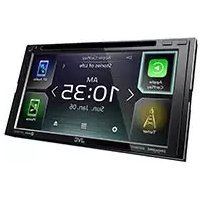
Download the instructions for your Car stereo in PDF format for free! Find your manual KD-G721 - JVC and take your electronic device back in hand. On this page are published all the documents necessary for the use of your device. KD-G721 by JVC.
USER MANUAL KD-G721 JVC
| RE T | & CR ER | | Thank you for purchasing a JVC product. Please read all instructions carefully before operation, to ensure your complete understanding and to obtain the best possible performance from the unit.
IMPORTANT FOR LASER PRODUCTS
1. CLASS 1 LASER PRODUCT
2. CAUTION: Do not open the top cover. There are no user serviceable parts inside the unit leave
all servicing to qualified service personnel.
3. CAUTION: Visible and invisible laser radiation when open and interlock failed or defeated.
Avoid direct exposure to beam.
(fs ur Ii How to reset your unit Bi How to use the MODE button If you press MODE, the unit goes into functions mode, then the number buttons and A/V buttons work as different function buttons. Ex: When number button 2 works as MO (monaural) button. 8 uo & + Your preset adjustments will also be erased. D CR Eh How to forcibly eject a disc MUR 2. TOOLS un [uma mr eu oise. Ksennocx cxassc #0P3 AFRO
ER, Time countdown indicator “PLEASE” and “EJECT” appear alternately on To use these buttons for their original the display. functions again after pressing MODE, wait for 5 seconds without pressing any of these buttons Note: Only for [EX] model users in UK and European countries + Ifthis does not work, reset your unit. For security reasons, a numbered ID card + Be careful not to drop the disc when it ejects. is provided with this unit, and the same ID number is imprinted on the units chassis. "a until the functions mode is cleared or press MODE again. Keep the card in a safe place, as it will help the authorities to identify your unit if stolen.
- Rx: | Eh How to read this manual CONTENTS + Button operations are mainly explained with Radio operations .… Press repeatedly. FM RDS operations. Searching for your favorite FM RDS programme … 9 & Press either Disc/USB memory operations. one. Playing a disc in the unit Playing discs in the CD changer. Press and hold until your Playing from a USB memory desired response begins Sound adjustments… Press and hold both General settings — PSM buttons at the same time h Title assignment. The following marks are used to indicate iPod°/D. player operations … Oo) : Built-in CD player operations. Other external component operation: : External CD changer operations. DAB tuner operations
- the illustrations in the table below. Z + Some related tips and notes are explainedin Control panel —«:672an4K0-671 en “More about this unit” (see pages 22 - 25). U Remote controller — rmat5o… 0) PA p. 4
: External USB memory operations. | More about this unit … : Indicator displayed for the Maintenance … corresponding operation. Troubleshooting Specifications . If you need to operate the unit while driving, be sure to look ahead carefully or you may be involved in a traffic accident. For safet + Do not raise the volume level too much, as this will block outside sounds, making driving dangerous. + Stop the car before performing any complicated operations. Caution on volume setting: Dises produce very little noise compared with other sources. Lower the volume before playing a disc to avoid damaging the speakers by the sudden increase of the output level. Temperature inside the car... If you have parked the car for a long time in hot or cold weather, wait until the temperature in the car becomes normal before operating the unit.
_|' mn © CR ER | | ENGLISH
Control panel 22 and KD-G7. Parts identification ON GE EH El & [M BW Ge) 3e Un E2 13 NA 18 tn ls ha E [] BAND button [S] USB (Universal Serial Bus) input terminal (2 + Control dial [0] SRC (source) button + @/1 ATT (standby/on attenuator) button [1] Lu (control panel release) button GB] DISP (display) button [2] SEL (select) button [4] Remote sensor F3] MODE button + DO NOT expose the remote sensor to [4] EQ (equalizer) button strong light (direct sunlight or artificial [5] MO (monaural) button lighting). F6] SSM (Strong-station Sequential Memory) [5] Display window button [6] A (up) / # (down) buttons 17] Number buttons [1 T/P (traffic programme/programme type) F8] RPT (repeat) button button [9] RND (random) button [8] Æ (eject) button 0] 7 44/1 A buttons BB How to detach/attach the control panel Detaching... Attaching... CAUTION: The lever comes out if you pressed the £ button while the panel is detached. If this happens, push the lever back into lock position before attaching the panel. | ENO2-07_ KD-G722_003À findd 4
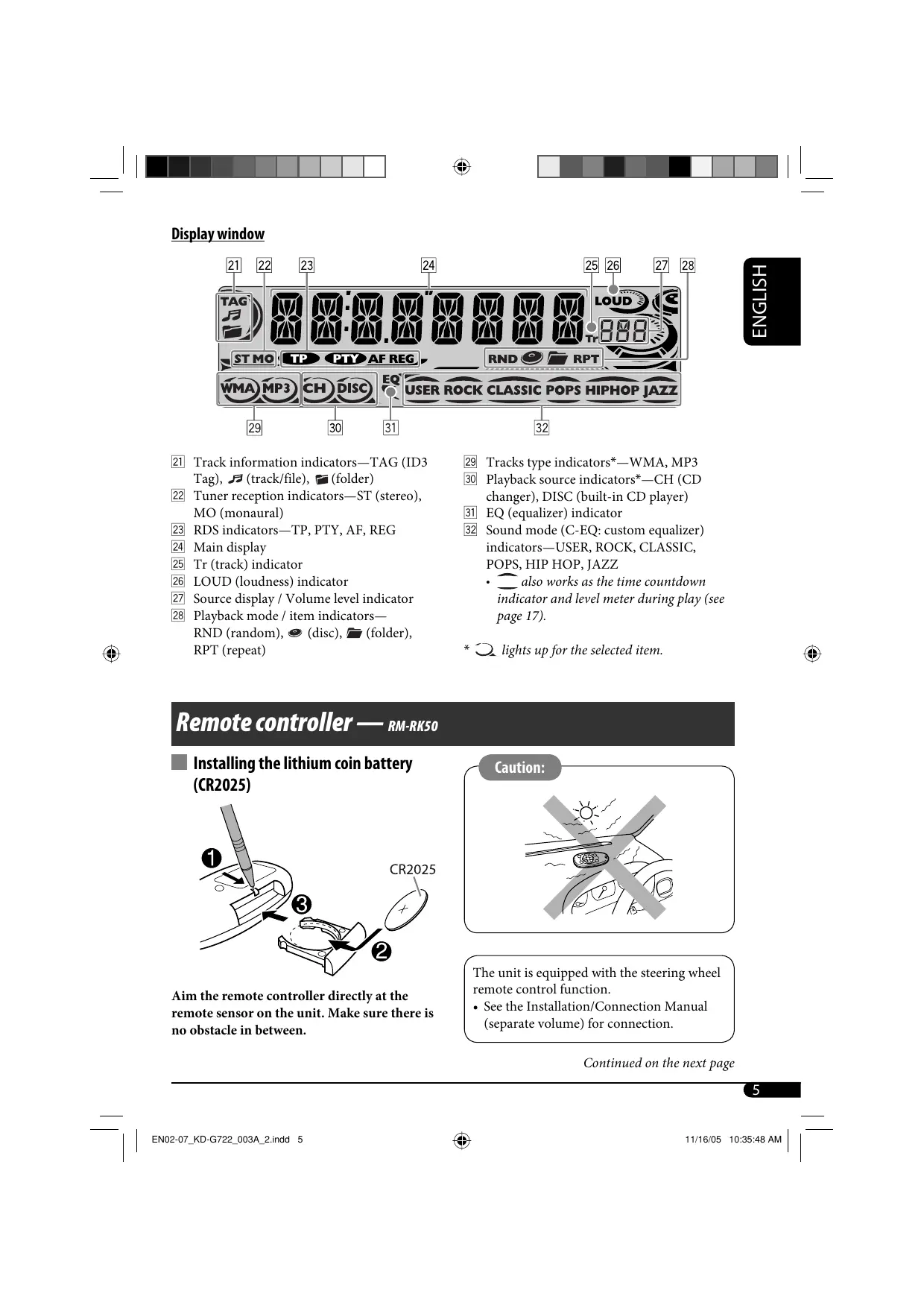
. also works as the time countdown RND (random), @ (disc), & (folder), RPT (repeat)
- 2 lights up for the selected item. indicator and level meter during play (see Remote controllel M-RKSO I installing the lithium coin battery (CR2025) Aim the remote controller directly at the remote sensor on the unit. Make sure there is no obstacle in between. CR2025 remote control function. (separate volume) for connection. The unit is equipped with the stecring wheel + See the Installation/Connection Manual Continued on the next page | ENO2-07_KD-G722_009A 2indd 5
-ŒD— — + Do not install any battery other than CR2025 or its equivalent; otherwise, it may explode. + Store the battery in a place where children cannot reach to avoid risk of accident. + To prevent the battery from over-heating, cracking, or starting a fire: — Do not recharge, short, disassemble, heat the battery, or dispose of it in a fire. — Do not leave the battery with other metallic materials. — Do not poke the battery with tweezers or similar tools. — Wrap the battery with tape and insulate when throwing away or saving it. Main elements and features Ur ' ee
A] G/VATT (standby/on/attenuator) button + Turns the power on if pressed briefly or attenuates the sound when the power is on. + Turns the power off if pressed and held. 2] A U (up) / D (down) w buttons + Changes the FM/AM/DAB bands with AU. + Changes the preset stations (or services) with D w. + Changes the folder of the MP3/WMA/ USB. + While playing an MP3 disc on an MP3-compatible CD changer: — Changes the disc if pressed briefly. — Changes the folder if pressed and held. + While listening to an Apple iPod® or a JVC D. player: — Pauses/stops or resumes playback with D y. — Enter the main menu with A U. (Now A U/D w/4R/F » work as the menu selecting buttons.)* GB] VOL-/VOL+ buttons + Adjusts the volume level. [4] SOUND button + Selects the sound mode (C-EQ: custom equalizer). [5] SOURCE button + Selects the source. [6] R (reverse) / F (forward) æ buttons + Searches for stations (or services) if pressed briefly. + Searches for ensembles if pressed and held. + Fast-forwards or reverses the track if pressed and held. + Changes the tracks if pressed briefly. + While listening to an iPod or a D. player (in menu selecting mode): - Selects an item if pressed briefly. (Then, press D Y to confirm the selection.) — Skips 10 items at a time if pressed and held.
To drop the volume in a _ Getting started moment (AT)
Basi : To restore the sound, FANS ra asicoperations mm | in à (1 Turn on the power. To turn offthe power Z [ | Fa FA — f Ÿ Basic settings
> Ÿ + See also “General settings — PSM” on pages 16-18.
- You cannot select these sources if they are not ready or not connected. (3) sa ® 7 2 1] Canceling the display &
+ demonstrations ® For FM/AM tuner Select “DEMO,” then “DEMO OFF.” FM1—> FM2 —> FM3 [2] Setting the clock AM Select “CLOCK H” (hour), then adjust the hour. For DAB tuner Select “CLOCK M” (minute), then PART DAB2— DAB3 — adjust the minute. Select “24H/12H,” then “24H” (hour) or “12H” (hour). O Adjust the volume. _e 3 Finish the procedure. Volume level appears. Dal "172€ vUL a (RIRE To check the current dock time while the power is turned off BOX ma mes cn Disc user roc euassic rors HoPljazz| Volume level indicator 6 Adjust the sound as you want. (See page 15.)
Rx: | Radio operations FM1/FM2/FM3/AM ENGLISH
a? Ç FMI> FM2 => PIB ÆæS AM Lights up when receiving an FM stereo broadcast with suffcent signal strength ) 883. (uma mes cu Die GER ROCK cLassic rors HIPHor| Selected band appears. [3] Start searching for a station.
® When a station is received, searching stops. To stop searching, press the same button again. To tune in to a station manually In step @ above...
ma mes en one EE When an FM stereo broadcast is hard to receive
Lights up when monaural mode is activated. ) MONO
Reception improves, but stereo effect will be lost. To restore the stereo effect, repeat the same procedure. “MONO OFF” appears and the MO indicator goes off. Storing stations in memory You can preset six stations for each band. D FM station automatic presetting— & SSM (Strong-station Sequential Memory) À Select the FM band (FM1 - FM3) you want to store into.
3 osu nl B— = ia mp3 CH oise User Rock “SSM” appears, then disappears when automatic presetting is over. Local FM stations with the strongest signals are searched and stored automatically in the FM band.
_|' mn © CR ER | | I Manual presetting Ex: Storing FM station of 92.5 MHz into preset FMRDS operations number 4 of the FMI band. Z What you can do with RDS = 1 F RDS (Radio Data System) allows FM stations OU ® pau D FI FN FN to send an additional signal along with their Z 2 AM regular programme signals. By receiving the RDS data, this unit can do the 2 ESS S 03e vi ) 9 C.2 + Programme Type (PTY) Search (see the D TZ following) tam cn o5e us + TA (Traffic Announcement) and PTY Standby Receptions (see pages 10 and 16) 3 Preset number flashes for a while.» Tracing the same programme automatically —Network-Tracking Reception (see page 11) + Programme Search (see page 17) enterrement Searching for your favorite FM RDS programme ms A A 4 You can tune in to a station broadcasting your DEC OANEESENEE favorite programme by searching for a PTY 1 code. DOVE LE FMI F2 > PIB + To store your favorite programme types, see ® ÆæÆS AM page 10. 2 Select the preset station (1 - 6) you C1] Ce The last selected PTY want. code appears. Zu eu os àù nur mo OC CD ©) ©) Select one of your favorite programme types. 2e Bu su àù war emo es} az) (EL) To check the current dock time while listening to an FM (non-RDS) or AM station or + For FM RDS stations, see page 11. “ elect one of the codes (see = Sel f the PTY codes (( XX Frequency <—> Clock page 10). Continued on the next page
© sut searching for your favorite programme. Ifthere is a station broadcasting a programme of the same PTY code as you have selected, that station is tuned in. PTY codes NEWS, AFFAIRS, INFO, SPORT, EDUCATE, DRAMA, CULTURE, SCIENCE, VARIED, POP M (music), ROCK M (music), EASY M (music), LIGHT M (music), CLASSICS, OTHER M (music),
WEATHER, FINANCE, CHILDREN, SOCIAL, RELIGION, PHONE
IN, TRAVEL, LEISURE, JAZZ, COUNTRY, NATION M (music), OLDIES, FOLK M (music), DOCUMENT Storing your favorite programme types You can store six favorite programme types. Preset programme types in the number buttons 1t06):
POPM | ROCKM] EASY M [CLASSICS] AFFAIRS] VARIED À Select a PTY code (see page 9). 2 Select the preset number (1 - 6) you want to store into. Ju eu sun w nur mo © © ©) © © ©) Hol..
cu Due Een noc euasne ot one Enr aaen Ex.: When ROCK M" is selected 3 Repeat steps 1 and 2 to store other PTY codes into other preset numbers. 4 Finish the procedure. Using the standby receptions I TA Standby Reception TA Standby Reception allows the unit to switch temporarily to Traffic Announcement (TA) from any source other than AM. The volume changes to the preset TA volume level if the current level is lower than the preset level (see page 17). To activate TA Standby Reception The TP (Traffic Programme) indicator either lights up or flashes. + Ifthe TP indicator lights up, TA Standby Reception is activated. Ifthe TP indicator flashes, TA Standby Reception is not yet activated. (This occurs when you are listening to an FM station without the RDS signals required for TA Standby Reception.) To activate TA Standby Reception, tune in to another station providing these signals. The TP indicator will stop flashing and remain lit. To deactivate the TA Standby Reception The TP indicator goes off. I PTY Standby Reception PTY Standby Reception allows the unit to switch temporarily to your favorite PTY programme from any source other than AM. To activate and select your favorite PTY code for PTY Standby Reception, see page 16. The PTY indicator either lights up or flashes. + Ifthe PTY indicator lights up, PTY Standby Reception is activated. | ENO8-17_KD-G722_009A 2indd 10
| REX | Ifthe PTY indicator flashes, PTY Standby Reception is not yet activated. DisUSB memory To activate PTY Standby Reception, tune in ZT to another station providing these signals. The [a] PTY indicator will stop flashing and remain O ht Playing a discin the unit mms To deactivate the PTY Standby Reception, AI tracks will be played repeatedly until you select “OFF” for the PTY code (see page 16). change the source or eject the disc. The PTY indicator goes off. Trading the same programme— Network-Tracking Reception When driving in an area where FM reception is not sufficient enough, this unit automatically To stop play and eject the disc tunes in to another FM RDS station ofthe EX same network, possibly broadcasting the same programme with stronger signals (see the illustration below). diccci Playing discs in the CD changer ms When shipped from the factory, Netwark- Al discs in the magazine will be played à Tracking Reception is activated. repeatedly until you change the source. ® To change the Network-Tracking Recepti 0 change the Network-Tracking Reception + Ejecting the magazine will also stop playback. setting, see “AF-REG” on page 16. Programme À broadcasting on different frequency areas o ; (01-05) € 0 7 DH (EXT IN) ss * If you have changed the external input setting to “EXT IN” (see page 17), you cannot select the CD changer. © sua ais. For disc number from 01 - 06: Je Bu ou Où wur mo To check the current dock (sn e>) € ©) ©) stening to an FM RDS station K ER | à For disc number from 07 - 12: Station name (PS) — Station Frequency —> Programme type (PTY) —> Clock — (back to the ù N beginning) Continued on the next page
Playing from a USB memory mm This unit can play MP3/WMA tracks stored in a USB memory. Al tracks in the USB memory will be played repeatedly until you change the source. + Removing the USB memory will also stop playback. USB input terminal USB memory Ifa USB memory has been attached...
Playback starts from where it has been stopped previously. + Ifa different USB memory is currently attached, playback starts from the beginning. To eject the USB memory, straightly pull it out from the unit. + Avoid using the USB memory ifit might hinder your safety driving. + Make sure all important data has been backed up to avoid losing the data. About MP3 and WMA tracks MP3 and WMA “tracks” (words “file” and “track” are used interchangeably) are recorded in “folders.” About the CD changer Itis recommended to use a JVC MP3-compatible CD changer with your unit. + You can also connect MP3-incompatible CD changers. However, these units are not compatible with MP3 discs. You cannot use the CH-X99, CH-X100, and KD-MK series CD changers with this unit. You cannot play any WMA disc in the CD changer. Disc text information recorded in the CD Text can be displayed when a JVC CD Text compatible CD changer is connected. For connection, see Installation/Connection Manual (separate volume). To fast-forward or reverse the track <&)O0= CEE To go to the next or previous tracks 6 FES, cos) To go to the next or previous folders (only for
Rx: | To locate a particular track (for CD) or folder 2 à Tradk1 to 9 —> Track 10 (for MP3/ WMA/USB) directl ES SL — for MP3/ WMA/! re LS > 20 To select a number from 01 06: Each time you press the button, you can Zéo ouo ou ïù nur ww skip 10 tracks. (2) ©) ©) + After the last track, the first track will be selected and vice versa. ENGLISH To select a number from 07 - 12: Zu eu os wù ner va 3 [CS Trad 31 D — enjejeren]e re + To use direct folder access on MP3/WMA/ USB, it is required that folders are assigned with 2-digit numbers at the beginning of their folder names—01, 02, 03, and so on. I Prohibiting disc ejection You can lock a disc in the loading slot. To select a particular track in a folder (for MP3/WMA/USB):
Other main functions To cancel the prohibition, repeat the same procedure. I Skipping tracks quickly during play Only possible on JVC fuma ma eu 859) W'sennocx cxassc rors minor jar MP3-compatible CD changer + For MP3/WMA/USB, you can skip tracks within the same folder. Ex: To select track 32 while playing a track whose number is a single digit (1 to 9)
Rx: | CR LUE | Changing the display information | Selecting the playback modes TE, You can use only one of the following playback + modes at a time. ENGLISH D While playing an audio CDoraCDText 1 CAJ--CB ]- nisctitie/performer*: À racktiien 1 2 Select your desired playback mode. y" playl = Repeat play D While playing an MP3/WMA°: disc or a user USB memory { + When “TAG DISP” is set to “TAG ON” S (see page 18) Mode Plays repeatedly A]- _ Album name / performer TRKRPT _ : The current track. @D (folder name”) FLDR RPT* : AI tracks ofthe current L folder. ©) > Tracktitle (file name*) J DISC RPT* : All tracks of the current disc. RPTOFF : F. + When “TAG DISP” is set to “TAG OFF” O) - ® Flernome Œ> S- 12 AND ile name (>) + à CA] : Elapsed playing time with the current Mode Plays at random track number FLDR RND*:: AI tracks of the current .a P . folder, then tracks of the next : Clock with the current track number folder and so on. D DISCRND _: All tracks of the current disc #1 Jfthe current disc is an audio CD, or USB memory. €D@ NO NAME” MAG RND*: : AI tracks of the inserted ‘NO NAME” appears. dise ED “? Only for the built-in CD player and external RNDOFF _: Cane 1 USB memory.
- Ifan MP3/WMA file does not have Tag #1 Only while playing a media (MP3/WMA/ information, folder name and file name USB). appear. In this case, the TAG indicator will + Only while playing dises in the CD not light up. changer.
| RE T | & CR ER | | Sound adjustments Indication, [Range] BAS*! (bass), [-06 to +06] You can select a preset sound mode suitable to Adjust the bass. the music genre (C-EQ: custom equalizer). TRES (treblo), [-06 to +06] Adjust the treble.
FAD*? (fader), [RO6 to FO6] Adjust the front and rear speaker balance. ENGLISH 2 7% USER -> ROCK > CLASSIC BAL (balance), [L06 to RO06] LR Adjust the left and right speaker balance. EX: JAZZ <- HIP HOP <- POPS J ESP à LOUD*1 (loudness), [LOUD ON or LOUD OFF] Preset values! Bas | TRE | LouD Boost low and high frequencies to produce a Indication (For) (bass) | (treble) |(loudness) well-balanced sound at low volume level. USER (Flat sound) 00 00 | OFF SUB.W*: (subwoofer), [00 to 08] ROCK Adjust the subwoofer output level. (Rock or disco music) | 3 | #21 | ON VOL (volume), [00 to 30 or 50*1] CLassic on Lo lo Adjust the volume. (Classical music) *1_ When you adjust the bass, treble, or loudness, POPS (Lightmusio) | +04 | +01 | OFF the adjustment you have made is stored for ë the currently selected sound mode (C-EQ) " HIP HOP . 402 | 00 | oN including “USER.” ® (Funk or rap music) *2_1f you are using a twvo-speaker system, set the JAZZ (Jazz music) +02 | +03 | OFF fader level to “00.” #3 This takes effect only when a subwoofer is connected. #1 Depending on the amplifier gain control | Adjusting the sound setting. (See page 18 for details.) You can adjust the sound characteristics to your preference.
Indication pattern changes as you adjustthe level. TRE +065 LA MP3 CH DISc. WUsER ROCK cLAsSIC POPS HIPHOP Jazz Ex: When ‘TRE is selected
General settings — PSM You can change PSM (Preferred Setting Mode) 3. Adjust the PSM item selected. items listed in the table that follows. |
ETS 2 Select a PSMitem. 4 Repeat steps 2 and 3 to adjust the other PSM items if necessary. 5 Finish the procedure. (SES Indications Selectable settings, [reference page] DEMO DEMO ON : {Initial}; Display demonstration will be activated Display demonstration automatically if no operation is done for about 20 seconds, [7]. DEMO OFF : Cancels.
CLOCKH 0-23(1-12), [7]
Hour adjustment [Initial: 0 (0:00)] CLOCKM 00-59, [7] Minute adjustment {Initial: 00 (0:00)] 24H/12H 12H 2 24H, [7] Time display mode {Initial: 24H] CLK ADJ AUTO : {Initial}; The built-in clock is automatically adjusted Clock adjustment using the CT (clock time) data in the RDS signal. OFF : Cancels. AF-REG When the received signals from the current FM RDS station become Alternative frequency/ weak... regionalization AF : [Initial]; Switches to another station (the programme reception may differ from the one currently received), [11]. + The AF indicator lights up. AFREG : Switches to another station broadcasting the same programme. + The AF and REG indicators light up. OFF + Cancels (not selectable when “DAB AF” is set to “AF ON"). PTY-STBY Activates PTY Standby Reception with one of the PTY codes, [10]. PTY standby OFF [Initial] — PTY codes, [10] -> (back to the beginning) | ENO8-17_KD-G722 009A 3indd 16
| RE T | & CR ER | | Indications Selectable settings, [reference page] TAVOL [initial VOL 15]; VOL 00 — VOL 30 or 50*1, [10] I Traffic announcement a
volume U P-SEARCH oN + Using the AF data, the unit tunes in to another frequency ME Programme search broadcasting the same programme as the original preset RDS station is if the preset station signals are not sufficient. OFF : [Initial]; Cancels. DAB AF*? AFON : [Initial]: Traces the programme among DAB services Alternative frequency and FM RDS stations, [11, 22]. reception AFOFF : Cancels. DAB VOL* You can adjust the volume level (VOL -12 — VOL +12) of DAB tuner DAB volume to match the FM sound level and store it in memory. adjustment [Initial: VOL 00] LEVEL ON : [Initial]; Activates the audio level indicator. Audio level meter OFF : Cancels; sound mode indicator is shown. DIMMER AUTO : [Initial]: Dims the display when you turn on the Dimmer headlights. ON : Activates dimmer. OFF : Cancels. ® TEL MUTING 1/MUTING 2 : Select either one which mutes the sounds Telephone muting while using a cellular phone. OFF : [Initial]; Cancels. SCROLL*3 ONCE : [Initial]; Scrolls the track information once. Scroll AUTO : Repeats scrolling (5-second intervals in between). OFF : Cancels. + Pressing DISP for more than one second can scroll the display regardless of the setting. WOOFER LOW : Frequencies lower than 90 Hz are sent to the subwoofer. Subwoofer cutoff MID : [Initial]; Frequencies lower than 135 Hz are sent to the frequency subwoofer. HIGH : Frequencies lower than 180 Hz are sent to the subwoofer. EXTIN* CHANGER : [Initial]: To use a JVC CD changer, [11], an Apple iPod External input or a JVC D. player, [19]. EXTIN To use any other external component than the above, [20]. #1 Depends on the amplifier gain control (see page 18). #2 Displayed only when DAB tuner is connected. #5 Some characters or symbols will not be shown correctly (or will be blanked) on the display. # Displayed only when one of the following sources is selected—FM, AM, CD, or USB. Continued on the next page
| RE T | & CR ER | | Indications Selectable settings, [reference page] EM TAG DISP TAGON : {Initial}; Shows the Tag information while playing MP3/ 2 Tag display WMA tracks, [14]. OU TAGOFF : Cancels. [ND AMP GAIN You can change the maximum volume level of this unit. Amplifier gain control LOWPWR : VOL 00 - VOL 30 (Select this if the maximum power of the speaker is less than 50 W to prevent them from being damaged.) HIGH PWR : [Initial]; VOL 00 - VOL 50 IF BAND AUTO : [Initial]; Increases the tuner selectivity to reduce Intermediate frequency interference noises between close stations. (Stereo effect filter may be lost.) WIDE + Subject to interference noises from adjacent stations, but sound quality will not be degraded and the stereo effect will remain. Title assignment You can assign titles to CDs (both in the unit and the CD changer). You can assign up to 30 discs and each title up to 32 characters. + You cannot assign a title to a CD Text, an MP3/WMA disc, or a USB memory. [2] Move to the next (or previous) character position.
À Select the sources. + For CDs in this unit: Insert a CD. + For CDs in the CD changer: Select “CD-CH,” then select a disc number. B] Repeat steps [1] and [2] until you finish entering the title. 4 Finish the procedure. 2 Enter the title assignment mode. EN - ER To erase the entire title
E In step 2 on the left. - Ed rem TE Ex: When "CD'isselected as the source 3 Assigna title. Available characters [Select a character. ABCDEFGHIJKLMN OPQARSTUVWXYZO 1! / 23456789 -/< >
iPod°/D. player operations This unit is ready for operating an Apple iPod or a JVC D. player from the control panel. Before operating your iPod or D. player: Connect either one of the following (separately purchased) to the CD changer jack on the rear ofthis unit. + Interface adapter for iPod®—KS-PD100 for controlling an iPod. + D. player interface adapter—KS-PD500 for controlling a D. player. + For connection, see Installation/Connection Manual (separate volume). + For details, refer also to the manual supplied with the interface adapter. Make sure to turn off this unit or turn off the vehidle’s ignition switch before connecting or disconnecting the iPod or D. player. Preparations: Make sure “CHANGER” is selected for the external input setting, see page 17.
ll IPOD/D.PLAYER > -— et - Playback starts automatically from where it has been paused*! or stopped*? previously. (3 Adjust the volume.
© à just the sound as you want. (See page 15.) + Make sure the equalizer on the iPod or D. player is deactivated. To pause“: or stop*? playback To resume playback, press it again. To fast-forward or reverse the track To go to the next or previous tracks *1 For iPod #2 For D. player Selecting a track from the menu 1 Enter the main menu.
Now the A/V/V Hd/»» A buttons work as the menu selecting buttons*3. #3 The menu selecting mode will be canceled: — Ifno operations are done for about 5 seconds. — When you confirm the selection of a track. Continued on the next page | EM8-23 KD-G722 009A findé 19
+ GENRES +» COMPOSER <— (back to the beginning) ENGLISH For D. player:
PLAYLIST <> ARTIST ++ ALBUM <> GENRE
<— TRACK ++ (back to the beginning) Confirm the selection.
If a track is selected, playback starts automatically. Ifthe selected item has another layer, you will enter the layer. Repeat steps 2 and 3 until the desired track is played. Holding V H@/æ»1 A can skip 10 items at a time. To move back to the previous menu, press À. | Selecting the playback modes Select your desired playback mode. = Repeat play
Functions the same as “Repeat One” of the iPod or “Repeat Mode — One” for the D. player. ALL RPT Functions the same as “Repeat AI” of the iPod or “Repeat Mode + AI” for the D. player. RPT OFF Cancels. m Randomplay (210
ALBM RND* D (æ) Functions the same as “Shuffle Albums” of the iPod.
Functions the same as “Shuffle Songs” of the iPod or “Random Play — On” ofthe D. player. RND OFF Cancels.
- For iPod: Only if you select “ALL” in “ALBUMS” of the main “MENU.” To check other information while listening to an iPod or a D. player EN, Other external component operations You can connect an external component to the CD changer jack on the rear using the Line Input Adapter—KS-U57 (not supplied) or AUX Input Adapter—KS-U58 (not supplied). + For connection, see Installation/Connection Manual (separate volume). For listening to the USB memory, see pages
12 - 14; For iPod or D. player, see pages 19 - 20.
EXTIN (or CD-CH) > IF“EXT IN” does not appear, see page 17 and select the external input (“EXT IN”). | EN18-23 KD-G722 009A findé 20
_|' mn ® CR ER | | @ sus on the connected component @ and start playing the source. ©. DAB1/DAB2/DAB3 > -- ä [3] Adjust the volume. ZÆS - à = Z f 2 LE > vas > use mu K > DAB3 © sut searching for an ensemble. O Adjust the sound as you want. (See page 15.) When an ensemble is received, searching . stops. To check the current dock time while To stop searching, press the same button listening to an external component again. ER, © sac service (either primary or secondary) to listen to. DAB tuner operations @® Wh at is DAB system? Digital Audio Broadcasting (D'AB) can To tunein to an ensemble manuall deliver digital quality sound without any Start searching for an ensemble, as in step @ annoying interference and signal distortion. above... Furthermore, it can carry text, pictures, and 1 Re ToiX data. When transmitting, DAB combines several programmes (called “services”) to form one “ensemble.” In addition, each “service”— called “primary service” —can also be divided [2] Select a desired ensemble frequency. into its components (called “secondary service”). A typical ensemble has six or more programmes (services) broadcast at the same time. By connecting the DAB tuner, this unit can do = TZ the following: Storing DAB services in memory + Tracing the same programme automatically — Alternative Frequency Reception (see “DAB AF” on page 17). It is recommended to use DAB tuner KT-DB1000 with your unit. If you have another DAB tuner, consult your JVC IN-CAR ENTERTAINMENT dealer. + Refer also to the Instructions supplied for your DAB tuner. Continued on the next page You can preset six DAB services (primary) for each band. À Select a service you want (see above).
Rx: | When shipped from the factory, Alternative Frequency Reception is activated. Du Guo ou 0 ver eue To deactivate the Alternative Frequency © © © © Ce) Reception, see page 17. To change the display information while tuning to an ensemble
Service name —» Ensemble name — Channel number > Frequency —» Clock — (back to the beginning) 2 Select the preset number (1 - 6) you want to store into. ENGLISH Preset number flashes for a while. D DAJEPNLES (ma mes cn Disc K'User rock eLassIc Por HiPhor Jazz) | Tuning in to a preset DAB service 1 me More about this unit A orccboutti unit | DAB3 Basic operations 2 Select the preset DAB service Turning on the power (primary) number (1 - 6) you want. + By pressing SRC on the unit, you can also JEo SuO o8sM 10 "sr 10 turn on the power. If the source is ready, (=2) GS) © © playback also starts. &) NN . ©] Turning off the power If the selected primary service has some + If you turn off the power while listening to a secondary services, pressing the same disc, disc play will start from where playback button again will tune in to the secondary has been stopped previously, next time you services. turn on the power. Tuner operations Trading the same programme— à es Alternative Frequency Reception Storingstations in memory + During SSM search... You can keep listening to the same programme - All previously stored stations are erased and by activating the Alternative Frequency stations are stored newly. Reception. - Received stations are preset in No. 1 (lowest + While receiving a DAB service: frequency) to No. 6 (highest frequency). When driving in an area where a service - When SSM is over, the station stored in cannot be received, this unit automatically No. 1 will be automatically tuned in. tunes in to another ensemble or FM RDS + When storing a station manually, the station, broadcasting the same programme. previously preset station is erased when a new + While receiving an FM RDS station: station is stored in the same preset number. When driving in an area where a DAB service is broadcasting the same programme as the FM RDS station is broadcasting, this unit automatically tunes in to the DAB service.
FM RDS operations Playing a CD-R or CD-RW Use only “finalized” CD-Rs or CD-RW. Network-Tracking Reception requires two types of RDS signals—PI (Programme + ‘This unit can play back only files ofthe same [ES Identification) and AF (Alternative type which are first detected if a disc includes en Frequency) to work correctly. Without both audio CD (CD-DA) files and MP3/ OU receiving these data correctly, Network- WMA files. Z : à : ii Tracking Reception will not operate correctly. + This unit can play back multi-session discs; + Ifa Traffic Announcement is received by however, unclosed sessions will be skipped TA Standby Reception, the volume level while playing. automatically changes to the preset level (TA + Some CD-Rs or CD-RWS may not play VOL) if the current level is lower than the back on this unit because of their disc preset level. characteristics, or for the following reasons: + When Alternative Frequency Reception — Discs are dirty or scratched. is activated (with AF selected), Network- - Moisture condensation occurs on the lens Tracking Reception is also activated inside the unit. automatically. On the other hand, Network- = The pickup lens inside the unit is dirty. Tracking Reception cannot be deactivated - CD-R/CD-RW on which the files are without deactivating Alternative Frequency written with “Packet Write” method. Reception. (See page 16.) — There are improper recording conditions + If you want to know more about RDS, visit (missing data, etc.) or media conditions <httpi//www.rds.orguko. (stained, scratched, warped, etc.). CD-RWs may require a longer readout time Disc operations mom since the reflectance of CD-RW is lower than that of regular CDs. & Caution for DualDisc playback + Do not use the following CD-Rs or CD-RW: + The Non-DVD side of a “DualDisc” does — Discs with stickers, labels, or a protective not comply with the “Compact Disc Digital seal stuck to the surface. Audio” standard. Therefore, the use of Non- - Dises on which labels can be directly DVD side of a DualDise on this product may printed by an ink jet printer. not be recommended. Using these discs under high temperatures or high humidities may cause malfunctions or General damage to the unit. + This unit has been designed to reproduce CDs/CD Texts, and CD-Rs (Recordable)/ Playing an MP3/WMA disc CD-RWs (Rewritable) in audio CD (CD-DA), + This unit can play back MP3/WMA files MP3, and WMA formats. with the extension code <.mp3> or <wma> (regardless of the letter case—upper/lower). Inserting a disc + This unit can show the names of albums, + When a disc is inserted upside down, artists (performer), and Tag (Version 1.0, 1.1, “PLEASE” and “EJECT” appear alternately on 2.2, 2.3, or 2.4) for MP3 files and for WMA the display. Press À to eject the disc. files. + Do not insert 8 cm dises (single CD) and + This unit can display only one-byte unusual shape dises (heart, flower, etc.) into characters. No other characters can be the loading slot. correctly displayed. Playing a disc + While fast-forwarding or reversing on an MP3 or WMA disc, you can only hear intermittent sounds. sounds. Continued on the next page
This unit can play back MP3/WMA files meeting the conditions below: - Bit rate: 8 kbps — 320 kbps - Sampling frequency: 48 kHz, 44.1 kHz, 32 kHz (for MPEG-1) 24 kHz, 22.05 kHz, 16 kHz (for MPEG-2) - Disc format: ISO 9660 Level 1/Level 2, Romeo, Joliet, Windows long file name The maximum number of characters for file/ folder names vary among the disc format used (includes 4 extension characters—<.mp3> or <wma>). — ISO 9660 Level 1: up to 12 characters — ISO 9660 Level 2: up to 31 characters - Romeo*: up to 128 (72) characters - Joliet*: up to 64 (36) characters - Windows long file name*: up to 128 (72) characters
- The parenthetic figure is the maximum number of characters for file/folder names in case the total number of files and folders is 313 or more. This unit can play back files recorded in VBR (variable bit rate). Files recorded in VBR have a discrepancy in elapsed time display, and do not show the actual elapsed time. Especially, after performing the search function, this difference becomes noticeable. This unit can recognize a total of 512 files, of 200 folders, and of 8 hierarchies. This unit cannot play back the following files: - MP3 files encoded with MP3i and MP3 PRO format. - MP3 files encoded in an inappropriate format. - MP3 files encoded with Layer 1/2. - WMA files encoded with lossless, professional, and voice format. - WMA files which are not based upon Windows Media® Audio. - WMA files copy-protected with DRM. - Files which have the data such as WAVE, ATRAC3, etc. The search function works but search speed is not constant. Playing MP3/WMA tracks from a USB memory + While playing from a USB memory, the playback order may differ from other players. This unit may be unable to play back some USB memories due to their characteristics or recording conditions. Depending on the shape of the USB memories and connection ports, some USB memories may not be attached properly or the connection might be loose. + Itis not recommended to use a USB memory wider than 20 mm as it will block you from pressing the Æ button. Ifthe connected USB memory does not have the correct files, “NO FILES” appears and the unit returns to the previous source. This unit can show Tag (Version 1.0, 1.1, 2.2, 2.3, or 2.4) for MP3 files and for WMA files. This unit can play back MP3/WMA files meeting the conditions below: - Bitrate: MP3: 32 kbps — 320 kbps (MPEG-1) 8 kbps — 160 kbps (MPEG-2/2.5) WMA:5 kbps — 320 kbps - Sampling frequency: MP3: 48 kHz, 44.1 kHz, 32 kHz (MPEG-1) 24 kHz, 22.05 kHz, 16 kHz (MPEG-2) 12 kHz, 11.025 kHz, 8 kHz (MPEG-2.5) WMA:8 kHz — 48 kHz This unit can play back MP3 files recorded in VBR (variable bit rate). The maximum number of characters for folder and file names is 25 characters; 128 characters for MP3/WMA tag information. This unit can recognize a total of 2 500 files and 250 folders (999 files per folder). This unit cannot play back the following files: - MP3 files encoded with MP3i and MP3 PRO format. - MP3 files encoded in an inappropriate format. - MP3 files encoded with Layer 1/2. Changing the source + If you change the source, playback also stops. Next time you select the same source again, playback starts from where it has been stopped previously. Ejecting a disc + Ifthe ejected disc is not removed within 15 seconds, the disc is automatically inserted again into the loading slot to protect it from dust. (Disc will not play this time.) | EN24-29_KD-G722 003A find 24
| RE T | & CR ER | | General settings —PSM am DAB tuner operations Em + “AUTO” setting for “DIMMER” may not + Only primary DAB services can be presetted work correctly on some vehicles, particularly even when you store a secondary service. Z on those having a control dial for dimming. + A previously preset DAB service is erased er In this case, change the “DIMMER” setting to when a new DAB service is stored in the same KB] any other than “AUTO.” preset number. Z + If you change the “AMP GAIN” setting from “HIGH PWR” to “LOW PWR” while the volume level is set higher than “VOL 30,” the unit automatically changes the volume levelto /{41111021111114 2 “VOL 30.” I How to clean the connectors Frequent detachment will deteriorate the connectors. To minimize this possibility, periodically wipe the connectors with a cotton swab or cloth moistened with alcohol, being careful not to damage the connectors. Title assignment mm + If you try to assign titles to more than 30 discs, “NAMEFULL” appears. Delete unwanted titles before assignment. + Titles assigned to discs in the CD changer can also be shown if you play back the disc from the unit and vice versa. iPod° or D. player operations sm + When you turn on this unit, the iPod or D. player is charged through this unit. + While the iPod or D. player is connected, all he iPod or D. player is con Connector & operations from the iPod or D. player are . . @ disabled. Perform all operations from this I Moisture condensation unit. Moisture may condense on the lens inside the + The text information may not be displayed CD player in the following cases: correctly. + After starting the heater in the car. - Some characters such as accented letters + Ifitbecomes very humid inside the car. cannot be shown correctly on the display. Should this oceur, the CD player may - Dependk on the condition of malfunction, In this case, eject the disc and communication between the iPod or leave the unit turned on for a few hours until D. player and the unit. + Ifthe text information includes more than 8 characters, it scrolls on the display (see also page 17). This unit can display up to 40 the moisture evaporates. I How to handle discs characters. When removing a disc from Center holder its case, press down the center Notice: holder of the case and lift the When operating an iPod or a D. player, disc out, holding it by the edges. some operations may not be performed + Always hold the disc by the correctly or as intended. In this case, visit the edges. Do not touch its recording surface. following JVC web site: When storing a disc into its case, gently insert For iPod users: <http://www.jve.co.jp/ the disc around the center holder (with the english/car/support/ks-pd100/index.html> | printed surface facing up). For D. player users: <http://www.jve.co.jp/ + Make sure to store discs into the cases after english/car/support/ks-pd500/index.html> use. Continued on the next page
I To keep discs clean I To play new discs A dirty dise may not play correctly. New discs may have some rough If a disc does become dirty, wipe it spots around the inner and outer with a soft cloth in a straight line | edges. Ifsuch a disc is used, this from center to edge. unit may reject the disc. + Do not use any solvent (for example, To remove these rough spots, rub the edges conventional record cleaner, spray, thinner, with a pencil or ball-point pen, etc. benzine, etc.) to clean discs. Do not use the following discs: Sticker € — Stick-on label Warped disc = ZAR Sticker residue 2 LS CZ Troubleshooting What appears to be trouble is not always serious. Check the following points before calling a service center. Symptoms Remedies/Causes = | + Sound cannot be heard from the + Adjust the volume to the optimum level. &| speakers. + Check the cords and connections. $ | + Theunit does not workatall. Reset the unit (see page 2). + SSM automatic presetting does not | Store stations manually. Z| work Ê | + Static noise while listening to the Connect the aerial firmly. radio. + Disc cannot be played back. Insert the disc correctly. + CD-R/CD-RW cannot be played + Insert a finalized CD-R/CD-RW. back. + Finalize the CD-R/CD-RW with the component & | + Tracks onthe CD-R/CD-RW cannot which you used for recording. À] _ beskipped. | + Disc can be neither played back nor L+ Unlock the disc (see page 13). E ejected. + Eject the disc forcibly (see page 2). + Disc sound is sometimes interrupted. | + Stop playback while driving on rough roads. + Change the disc. + Check the cords and connections. | + Disccannot be played back. + Use a disc with MP3/WMA tracks recorded in ÈË the format compliant with ISO 9660 Level 1, Ê Level 2, Romeo, or Joliet. É + Add the extension code <.mp3> or <wma> to Ë the file names.
| REX | & CHR DEN | Symptoms Remedies/Causes + Noise is generated. Skip to another track or change the disc. (Do not fa add the extension code <.mp3> or <wma> to ra non-MP3 or WMA tracks.) O + A longer readout time is required Do not use too many hierarchies and folders. Z #) (CHECK keeps flashing on the ml &| display). | + Tracks do not play back in the order | Playback order is determined when the files are S | you have intended them to play. recorded. £ | + Elapsed playing time is not correct. | This sometimes oceurs while playing, This is caused by how the tracks are recorded on the disc. “NO FILES” appears on the display. Insert a disc that contains MP3/WMA tracks. Correct characters are not displayed | This unit can only display letters (upper case), e.g. album name). numbers, and a limited number of symbols. Noise is generated. The track played back is not an MP3/WMA track. Skip to another file. (Do not add the extension code <.mp3> or <-wma> to non-MP3 or WMA tracks.) + “CHECK” keeps flashing on the + Readout time varies depending on the USB display. memory. + Do not use too many hierarchy and folders. + Turn offthe power then on again. & “NO FILES” flashes on the display. | Attach a USB memory that contains tracks encoded in an appropriate format. & | « “NOT SUPP” appears onthe display [The trackis unplayable. Æ| andtrackskips. È + “READ” and “FAILED” appear + The attached USB memory may be | alternately on the display, then malfunctioning, or may not have been formatted & | returns to the previous source. correctly. The files included in the USB memory
are corrupted. + Do not pull out or attach the USB memory repeatedly while “CHECK” appears on the display. + Correct characters are not displayed | This unit can only display letters (upper case), e:g. album name). numbers, and a limited number of symbols. + While playing a track, soundis MP3/WMA tracks have not been properly copied sometimes interrupted. into the USB memory. Copy MP3/WMA tracks again into the USB memory, and try again. Continued on the next page
Remedies/Causes “NO DISC” appears on the display. Insert a disc into the magazine. “NO MAG? appears on the display. Insert the magazine. display. 3] + “RESET 8” appearsonthe display. | Connect this unit and the CD changer correctly 5 and press the reset button of the CD changer. & | + “RESETI”-“RESET7"appearson | Press the reset button ofthe CD changer. the display. + The CD changer does not workat all. Reset the unit (see page 2). + The iPod or D. player does notturn + Check the connecting cable andits connection. on or does not work. + Update the firmware version. + Change the battery. + Buttons do not work as intended. ‘The functions ofthe buttons have been changed. Press MODE before performing the operation. + The sound is distorted. Deactivate the equalizer either on the unit or the iPod/D. player. + “NO IPOD” or “NO DP” appears on Check the connecting cable and its connection. the display. | + Playbackstops. ‘The headphones are disconnected during È playback. Restart the playback operation using the É control panel (see page 19). S | + Nosoundcan be heard when Disconnect the headphones from the iPod nano. £ connecting an iPod nano. & | + No sound can be heard. Disconnect the adapter from the D. player. Then, Ê + “ERROR 01” appears on the display connect it again. when connecting a D. player. + “NO FILES” or “NO TRACK” No tracks are stored. Import tracks to the iPod or appears on the display. D. player. + “RESET 1” -“RESET 7”appearson | Disconnect the adapter from both the unit and the display. iPod/D. player. Then, connect it again. + “RESET 8” appears onthe display. | Checkthe connection between the adapter and this unit. + TheiPod's or D. player controls do Reset the iPod or D. player. not work after disconnecting from this unit. + “noSIGNAL” appears on the display. Move to an area with stronger signals. + “RESET 8” appears onthe display. Connect this unit and the DAB tuner correctly and reset the unit (see page 2). 2 | + “ANTENANG? appears on the Check the cords and connections. + The DAB tuner does not work at all. Reconnect this unit and the DAB tuner correctly and reset the unit (see page 2). | EN24-29_KD-G722 009A 3indd 28
Maximum Power Output: Front: 50 W per channel Rear: 50 W per channel Continuous Power Output (RMS): Front: 19 W per channel into 4 Q, 40 Hz to 20 000 Hz at no more than 0.8% total harmonic distortion. Rear: 19 W per channel into 4 Q, 40 Hz to 20 000 Hz at no more than 0.8% total harmonic distortion. Load Impedance: 4 Q (4 Q to 8 Q allowance) Tone Control Range: Bass: +10 dB at 100 Hz Treble: +10 dB at 10 kHz Frequency Response: 40 Hz to 20 000 Hz Signal-to-Noise Ratio: 70 dB Line-Out Level/Impedance:
Output Impedance: 1 kQ Subwoofer-Out Level/Impedance:
Other Terminals: CD changer, Steering wheel remote input
Frequency Range: FM: 87.5 MHz to 108.0 MHz AM: (MW) 522 kHz to 1 620 kHz (LW) 144 kHz to 279 KHz [FM Tuner] Usable Sensitivity: 11.3 dBf (1.0 uV/75 Q) 50 dB Quieting Sensitivity:
16.3 dBf (1.8 nV/75 Q)
Alternate Channel Selectivity (400 kHz): 65 dB Frequency Response: 40 Hz to 15 000 Hz Stereo Separation: 30 dB [MW Tuner] Sensitivity: 20 uV Selectivity: 35 dB [LW Tuner] Sensitivity: 50 uV
I CD PLAYER/USB MEMORY SECTION
Type: Compact dise player Signal Detection System: Non-contact optical pickup (semiconductor laser) Number of Channels: 2 channels (stereo) Frequency Response: 5 Hz to 20 000 Hz Dynamic Range: 96 dB Signal-to-Noise Ratio: 98 dB Wow and Flutter: Less than measurable limit MP3 Decoding Format: MPEG1/2 Audio Layer 3 Max. Bit Rate: 320 kbps WMA (Windows Media® Audio) Decoding Format: Max. Bit Rate: 192 kbps Playable USB memory: Format: FAT 12/16/32 Storage: Less than 4 GB (1 partition type) Playable Audio Format: MP3/WMA Max. Current: Less than 500 mA I GENERAL Power Requirement: Operating Voltage: DC 144 V (11 V to 16 V allowance) Grounding System: Negative ground Allowable Operating Temperature: 0°C to +40°C Dimensions (W x H x D): Installation Size (approx.): 182 mm x 52 mm x 152 mm Panel Size (approx): 188 mm x 58 mm x 11 mm Mass (approx.}: 14 kg (excluding accessories) Design and specifications are subject to change without notice. + Microsoft and Windows Media are either registered trademarks or trademarks of Microsoft Corporation in the United States and/or other countries. iPod is a trademark of Apple Computer, Inc., registered in the US. and other countries. ENGLISH
2x, 5& 3 ss go =" TTM
(2 EN, FR © 2005 Victor Company of Japan, Limited 1205DTSMDTJEIN | | Rear KD:6722 ca 2imad 2 & nGoS 10:35:07 Au | |