
HuddleView - Video Conferencing System HuddleCamHD - Free user manual and instructions
Find the device manual for free HuddleView HuddleCamHD in PDF.


| Brand | HuddleCamHD |
| Model | HuddleView |
| Product Type | Video Conferencing System with Auto Framing |
| Optical Zoom | 12X |
| Field of View (Wide) | 72.5° |
| Field of View (Tele) | 6.3° |
| Reference Camera Lens | Fixed 2.4mm, FOV 86° (H) x 52° (V) |
| Video Outputs | 3G-SDI, DVI-D, USB 3.0, IP Stream (RTSP/RTMP) |
| Audio Input | Audio Line In (embeds over IP stream) |
| Control Interface | RS-232/RS-485 (VISCA, Pelco-D), Ethernet (Software) |
| Power Supply | DC 12V, included |
| Included Accessories | Power Supply, USB 3.0 A-B Cable, IR Remote, RS-232 Control Cable, Software Installation Disk, User Manual |
| Tracking Technology | Auto Framing with reference camera and adjustable zones |
| OSD Menu | Video, Exposure, White Balance, Pan/Tilt/Zoom, System settings |
| IR Remote Control | Full control including Power, Home, Menu, Presets, Tracking |
| Network Connectivity | Ethernet with DHCP/Static IP, RTSP/RTMP streaming |
| Firmware Upgrade | Via Remote Configuration interface |
| Safety Compliance | Use specified voltage, avoid bright light, do not disassemble |
| Cleaning | Use a blower for lens dust; avoid chemicals |
Frequently Asked Questions - HuddleView HuddleCamHD
User questions about HuddleView HuddleCamHD
0 question about this device. Answer the ones you know or ask your own.
Ask a new question about this device
Download the instructions for your Video Conferencing System in PDF format for free! Find your manual HuddleView - HuddleCamHD and take your electronic device back in hand. On this page are published all the documents necessary for the use of your device. HuddleView by HuddleCamHD.
USER MANUAL HuddleView HuddleCamHD
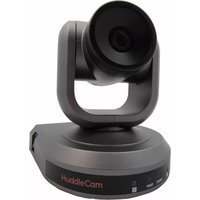
HuddleCamHD HuddleView
natural_image
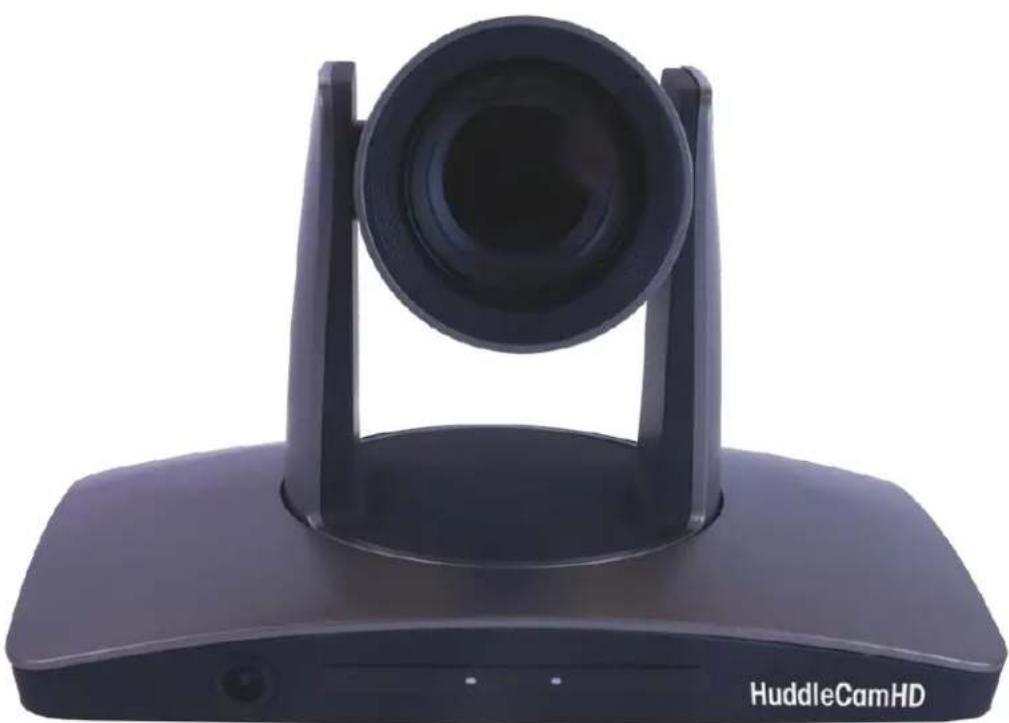
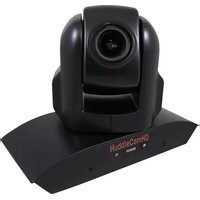
Black HuddleCamHD video camera with lens and stand (no text or symbols on device body)Auto Framing Camera
Installation & Operation Manual
Table of Contents
Precautions Page 3
Safety Tips Page 3
What's in the Box Page 3
Physical Descriptions...... Page 4
Front View of Camera Page 4
Rear View of Camera Page 5
Basic Connection Instructions Page 6
Network setup...... Page 6
SDI Connections...... Page 6
USB Connection Page 6
DVI Connection Page 6
Interface Descriptions Page 7
Tracking Software Page 7
Device Management Interface...... Page 7
Connect Camera Page 9
Network Configuration Page 10
Remote Configuration Page 10
Remove Camera Page 13
Configure Video Settings...... Page 14
On Screen Display (OSD) Page 17
Video Page 17
Exposure Page 17
White Balance Page 18
Pan Tilt Zoom Page 18
Systems Page 19
Status Page 19
Restore Defaults Page 19
Using the IR Remote Page 20
VISCA Commands Page 22
ACK / Completion Page 22
Error Messages...... Page 22
Commands Page 23
Inquiry Commands Page 26
Tips & Tricks...... Page 28
Care of the Unit Page 28
Troubleshooting Page 29
Notes Page 30

HuddleCamHD
152 Robbins Rd, Downingtown, PA, 19335, USA - HuddleCamHD.com | 1 800 - 486-5276
Precautions
Safety Tips
- Please read this manual carefully before using the camera.
- Avoid damage from stress, violent vibration or liquid intrusion during transportation, storage, or installation.
- Take care of the camera during installation to prevent damage to the camera case, ports, lens, or PTZ mechanism.
- Do not apply excessive voltage, use only the specified voltage. Otherwise, you may experience an electrical shock.
- Keep the camera away from strong electromagnetic sources.
- Do not aim the camera at bright light sources (e.g. bright lights, the sun, etc.) for extended periods of time.
- Do not clean the camera with any active chemicals or corrosive detergents.
- Do not disassemble the camera or any of the camera's components. If problems arise, please contact your authorized dealer.
- After long term operation, moving components can wear down. Contact your authorized dealer for repair.
What's in the Box
Supplied Hardware
• 12X HuddleView Camera
- Power Supply
• 3m / 9.8' USB 3.0 A-B Cable
- User Manual
- IR Remote
• RS-232 control cable
- Software Installation Disk

HuddleCamHD
152 Robbins Rd, Downingtown, PA, 19335, USA - HuddleCamHD.com | 1 800 - 486-5276
Physical Descriptions
Front View of Camera
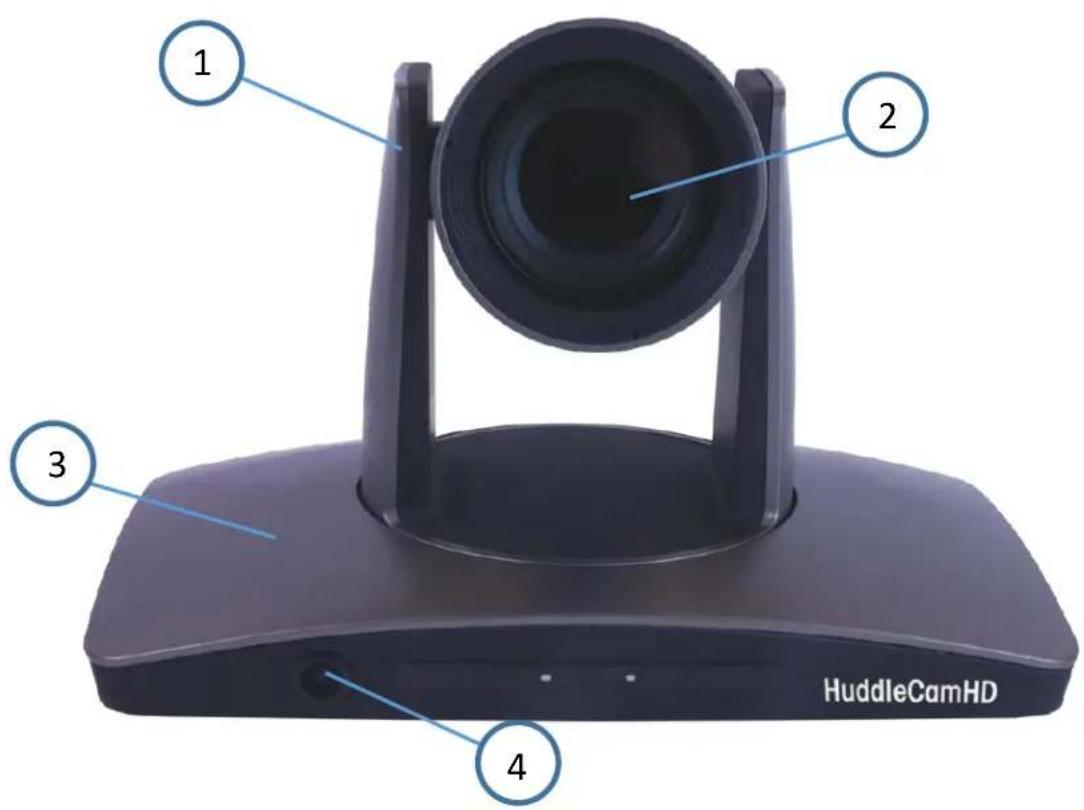
- Tracking Camera Head
- Tracking Camera Lens
12X Optical Zoom
Field of View: 6.3°(Tele) \~ 72.5° (Wide) - Reference Camera Body
- Reference Camera Lens
Fixed 2.4mm Lens
Field of View: 86° (Horizontal) / 52° (Vertical)

HuddleCamHD
152 Robbins Rd, Downingtown, PA, 19335, USA - HuddleCamHD.com | 1 800 - 486-5276
Back of the Camera
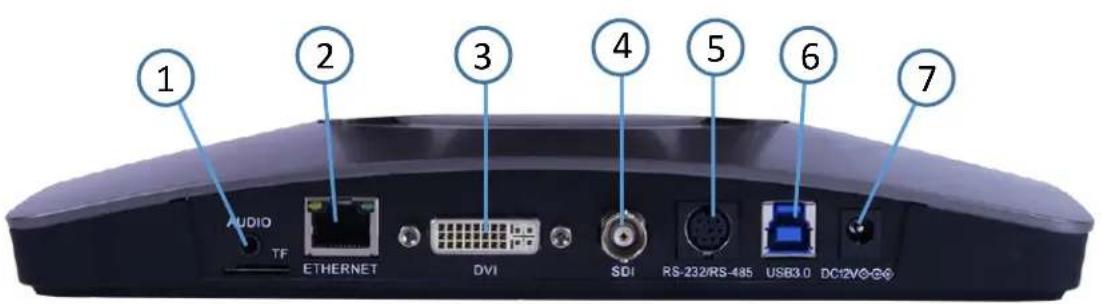
- Audio Line in
a. Embeds over IP Stream
- Network Connection
a. Allows for software connection & RTSP/RTMP Streaming
-
DVI-D Connection
-
3G-SDI Connection
-
VISCA Connection
a. Allows for joystick control of camera
- USB 3.0 Connection
a. Note: IP Stream, DVI-D, 3G-SDI, & USB 3.0 connections are all simultaneous
- DC12V Power Connection

HuddleCamHD
152 Robbins Rd, Downingtown, PA, 19335, USA - HuddleCamHD.com | 1 800 - 486-5276
Basic Connection Instructions
To Configure the Camera
- Connect a live network connection, from a network with a DHCP server, to the camera.
- Connect the included Power Supply to the camera.
- Wait for camera to come to Home Position.
- Install the HuddleView software on your Windows PC on the same network as the camera
- Open the HuddleView software to connect to your camera
Note: To pull the main RTSP stream please use the following URL
rtsp://
(example: rtsp://192.168.111.85:3750/main.h264)
Note: To pull the sub RTSP stream please use the following URL
rtsp://
(example: rtsp://192.168.111.85:3750/sub.h264)
Note: To pull the low quality 3rd or 4th RTSP stream please use the following URL
rtsp://
(example: rtsp://192.168.111.85:3750/<3 or 4>.h264)
SDI Connection
- Connect an SDI cable to the SDI output on the camera.
- Connect the SDI cable to your equipment with an available SDI input.
a. Camera will auto adjust frame rate & resolution upon connecting to a video software
USB Connection
- Connect a USB 3.0 cable to the USB output on the camera.
- Connect the USB 3.0 output to an available USB 3.0 port on your PC
a. Camera will auto adjust frame rate & resolution upon connecting to a video software
DVI Connection
- Connect a DVI cable to the DVI output of the camera.
- Connect the DVI cable to your equipment with an available DVI input.
a. Camera will auto adjust frame rate & resolution upon connecting to a video software
NOTE: Failure to follow these sequences may result in no connection.

HuddleCamHD
152 Robbins Rd, Downingtown, PA, 19335, USA - HuddleCamHD.com | 1 800 - 486-5276
Interface Descriptions
Tracking Software
Device Management Interface
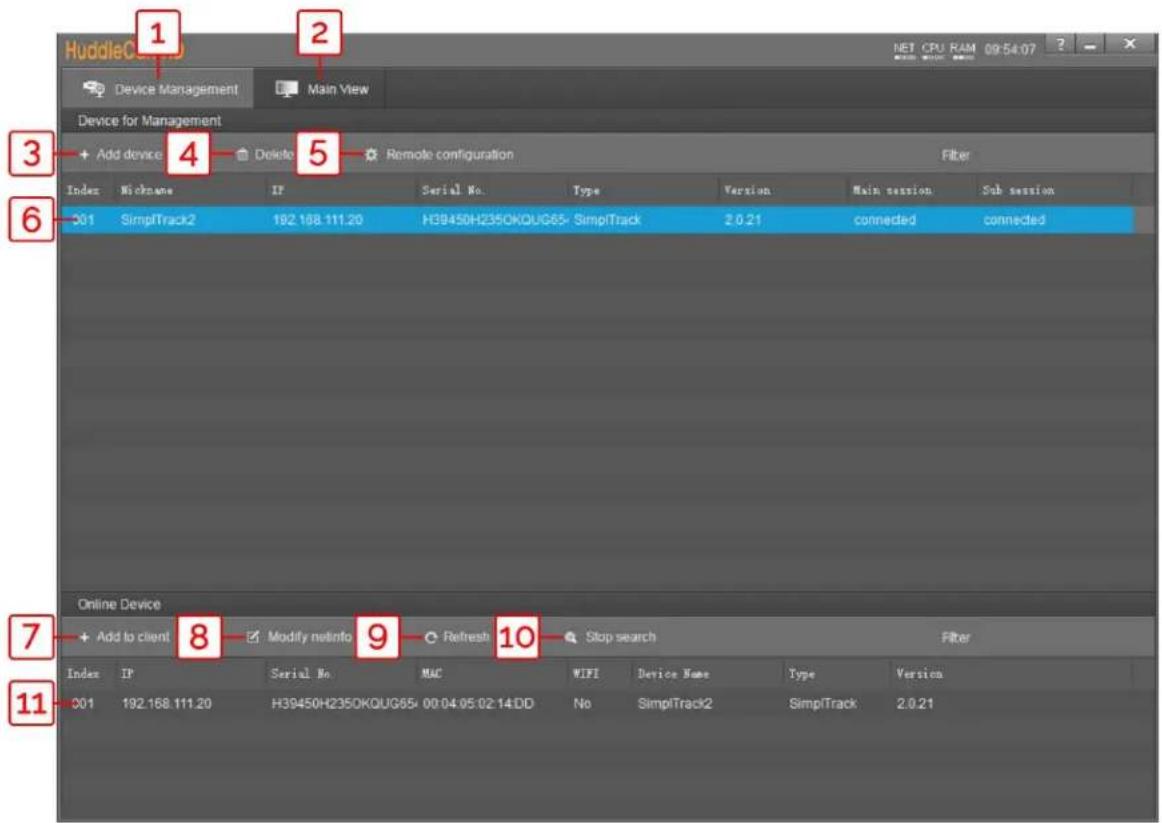
1 Device Management interface
2 Video configuration interface
3 Manually add device using IP address, Port number, Username & Password
4 Delete selected device from Device Management list
5 Configure network settings of camera
6 *Selected* device within Device Management
7 Add selected camera from Online Device section
8 Modify network settings of selected Online Device
9 Refresh Online Device list
10 Start/Stop searching for Online Devices
11 *Unselected* device from Online Device section

HuddleCamHD
152 Robbins Rd, Downingtown, PA, 19335, USA - HuddleCamHD.com | 1 800 - 486-5276
Video Configuration Interface
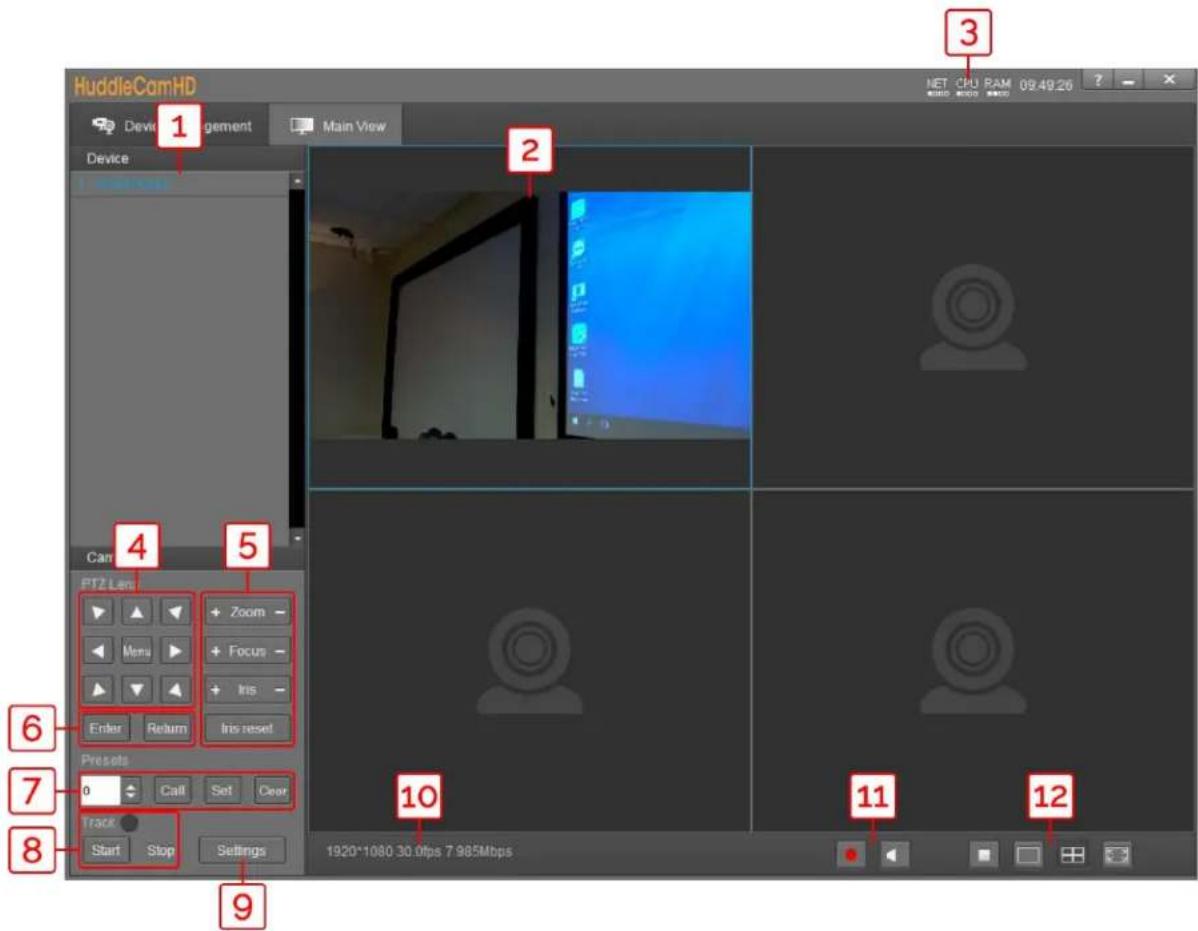
1 Cameras connected to Device Management
2 Camera video feed
3 PC performance & time
4 Pan, Tilt, & OSD Menu control
5 Lens control
6 OSD Menu enter/return
7 Preset control
8 Enable/Disable tracking
9 Open tracking settings
10 Connected camera resolution & frame rate
11 Enable/Disable recording
12 Stop video, full screen, and gallery view

HuddleCamHD
152 Robbins Rd, Downingtown, PA, 19335, USA - HuddleCamHD.com | 1 800 - 486-5276
Connect Camera
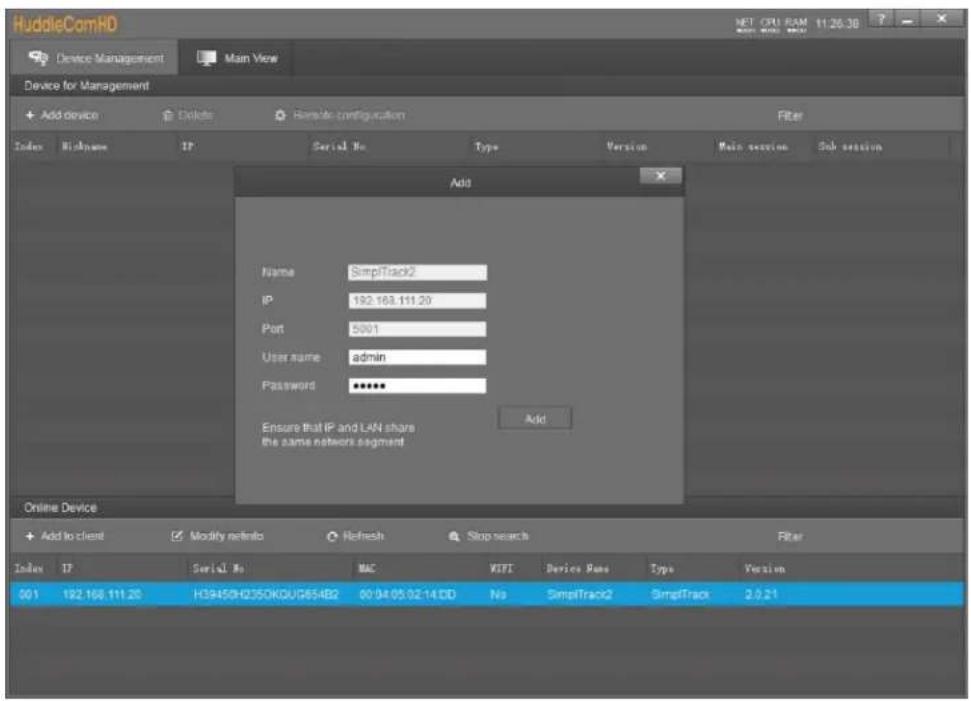
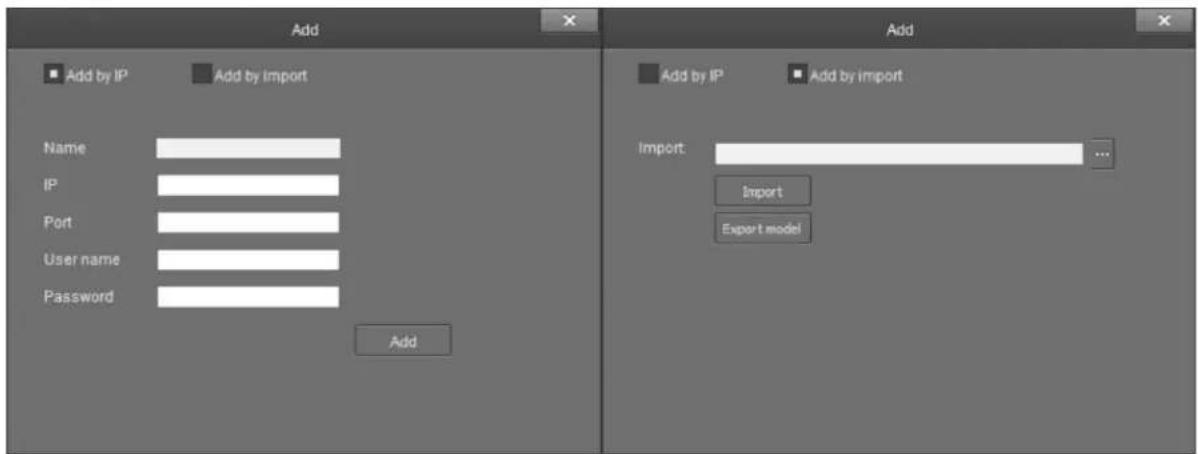
To add a camera to the Device Management list, you can go about this by searching in the Online Device section, or by using the + Add Device button in the Device Management section.
When utilizing the Online Device section, you can simply click Search, and the Tracking Software will automatically search your network for any HuddleView & SimplTrack2 cameras. Select the camera and click + Add to Client to add it to the Device Management list.
When utilizing the + Add Device button within the Device Management section, you can connect your camera through it's IP address, Port number, Username & Password; or you can Import a *.csv file.

HuddleCamHD
152 Robbins Rd, Downingtown, PA, 19335, USA - HuddleCamHD.com | 1 800 - 486-5276
Network Configuration
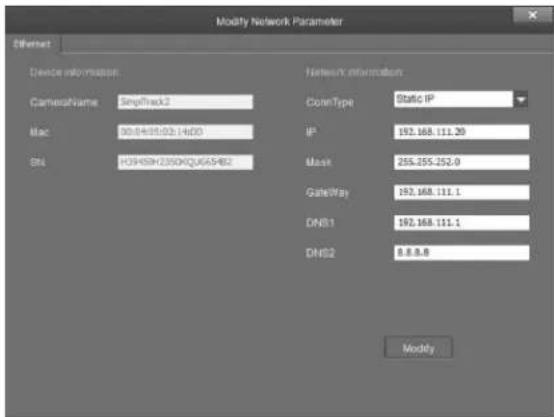
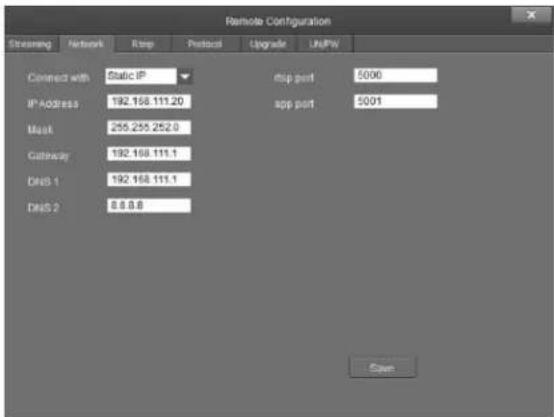
To configure the network settings, select the from the Online Device list and click Modify Netinfo. You can also adjust the network settings of a connected camera by selecting it from the Device Management list and clicking Remote Configuration, then traversing to the Network section.
Remote Configuration
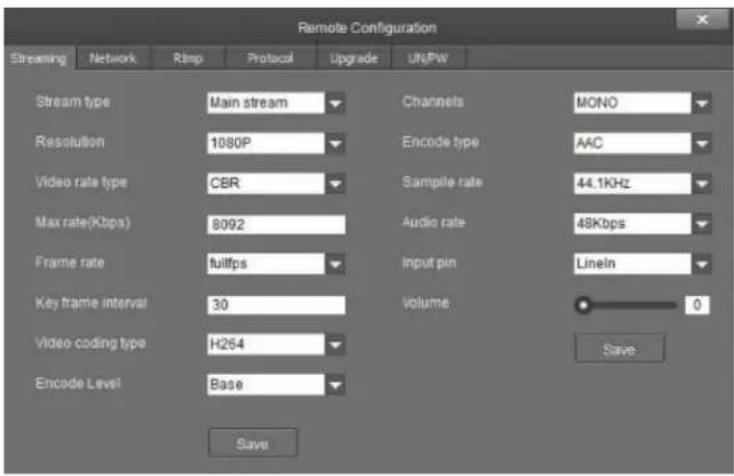
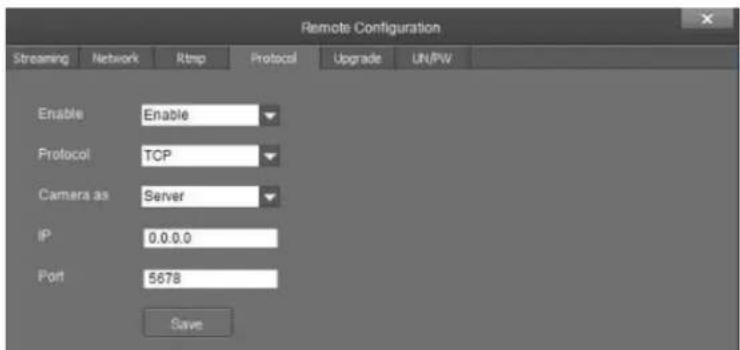
Remote Configuration includes: Streaming, Network, RTMP, Protocol, Upgrade, & Username/Password
The Streaming category allows you to configure the Main Stream (PTZ camera), Sub Stream (reference camera), Stream 3 & Stream 4.

HuddleCamHD
152 Robbins Rd, Downingtown, PA, 19335, USA - HuddleCamHD.com | 1 800 - 486-5276
Remote Configuration (Continued)
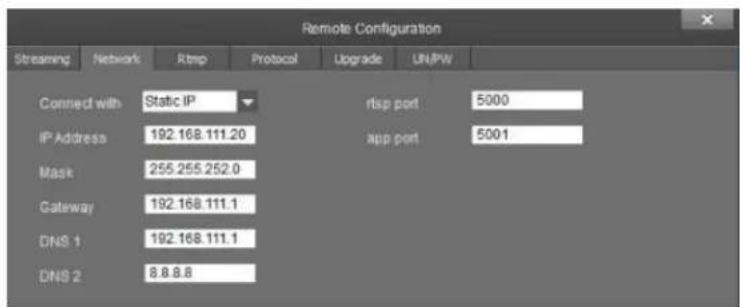
The Network category allows you to assign a dynamic or static IP address for the camera, in addition to settings the port numbers for RTSP & control.
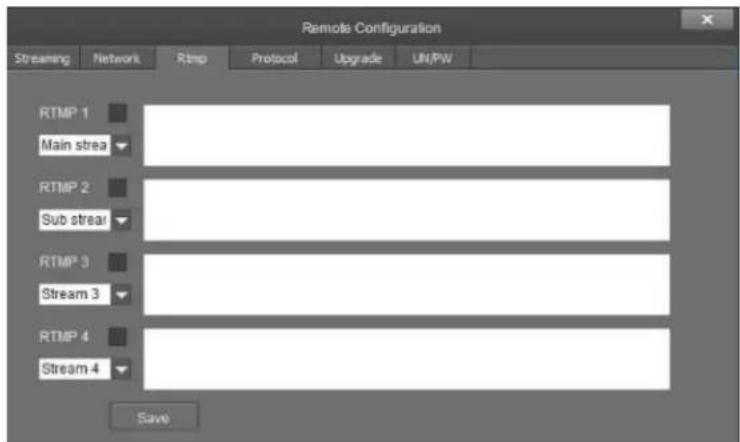
The RTMP category allows you to define a RTMP server.
The Protocol category allows you to set the control parameters of the camera.

HuddleCamHD
152 Robbins Rd, Downingtown, PA, 19335, USA - HuddleCamHD.com | 1 800 - 486-5276
Remote Configuration (Continued)
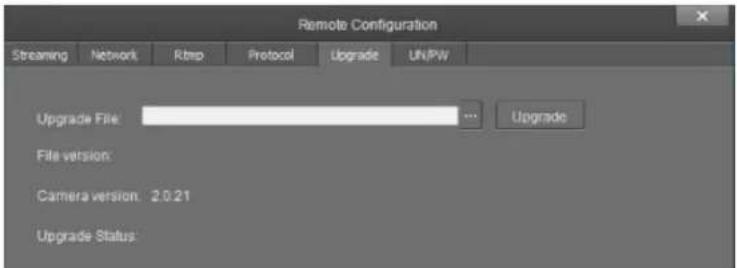
The Upgrade category allows you to upgrade the firmware of the camera.
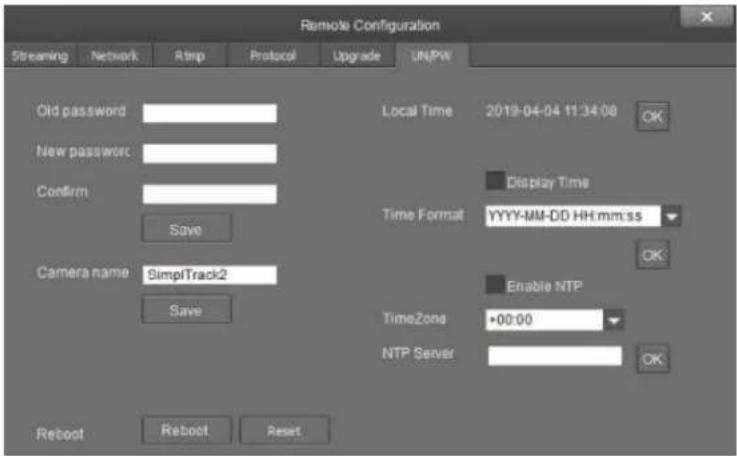
The Username/Password category allows you to change the device name, password, and adjust the time format.

HuddleCamHD
152 Robbins Rd, Downingtown, PA, 19335, USA - HuddleCamHD.com | 1 800 - 486-5276
Remove Camera
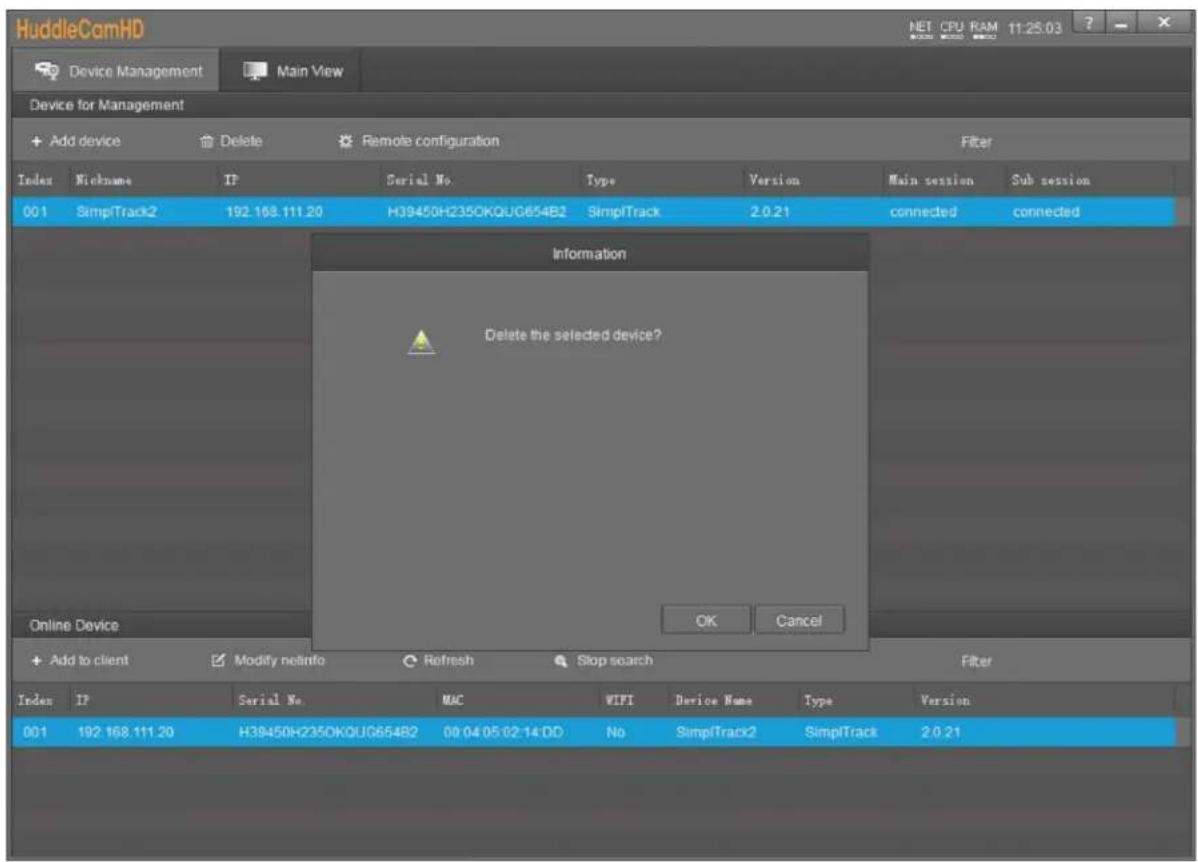
To remove a camera from the Device Management list, first select it, then click the Delete button above the list. You will be prompted with a confirmation window to remove the camera. Click OK to remove the device or Cancel to keep the current settings.

HuddleCamHD
152 Robbins Rd, Downingtown, PA, 19335, USA - HuddleCamHD.com | 1 800 - 486-5276
Configure Video Settings
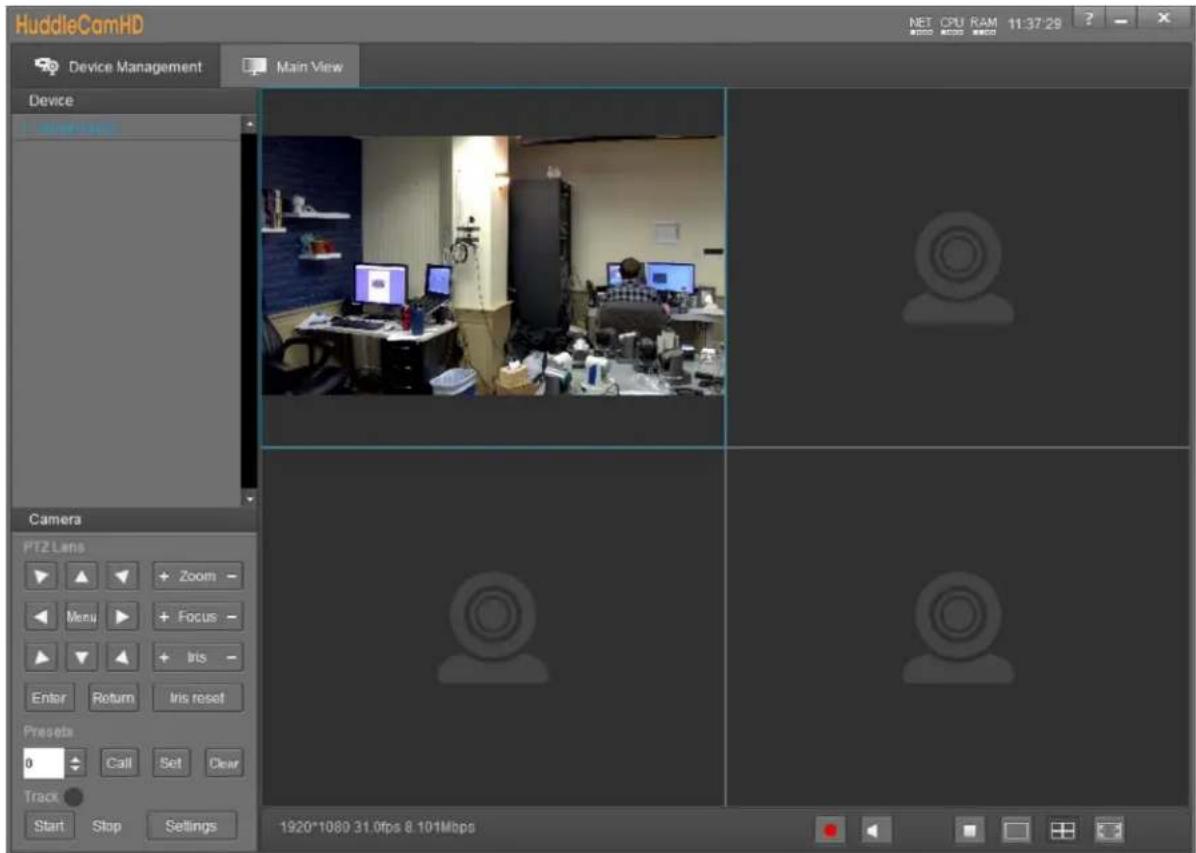
In the Video Interface you can view and control up to four cameras simultaneously. You have full control over Pan, Tilt, Zoom, Focus, Iris, OSD Menu, Presets & Tracking Settings.
You must first select one of the cameras from the video feed in order to adjust the settings.

HuddleCamHD
152 Robbins Rd, Downingtown, PA, 19335, USA - HuddleCamHD.com | 1 800 - 486-5276
Configure Tracking Settings
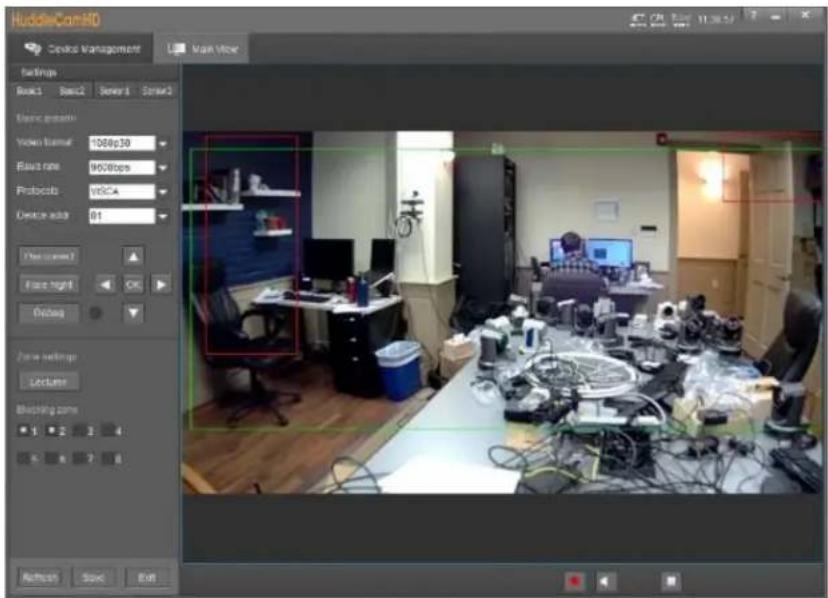
To adjust the Tracking Parameters of the selected camera, you must click the Settings button in the tracking control area. Once opened, you can add and remove tracking & blocking zones, change video resolution & frame rate, baud rate, control protocol, device address, and correct the position of camera.
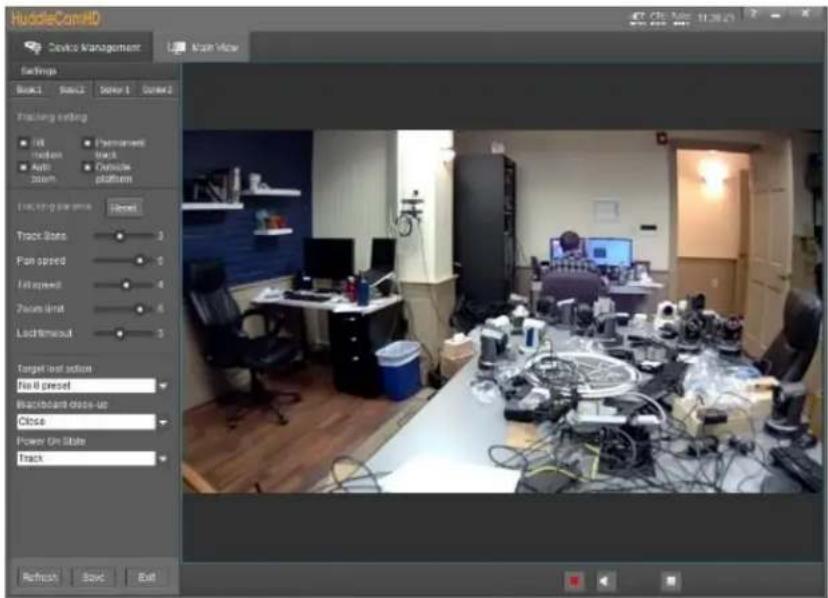
Within Basic2 settings, you can enable or disable tilt, permanent track, auto zoom, & outside platform. In addition, you can adjust the tracking sensitivity, pan speed, tilt speed, zoom limit, and what happens when the camera loses its target.

HuddleCamHD
152 Robbins Rd, Downingtown, PA, 19335, USA - HuddleCamHD.com | 1 800 - 486-5276
Configure Tracking Settings (Continued)
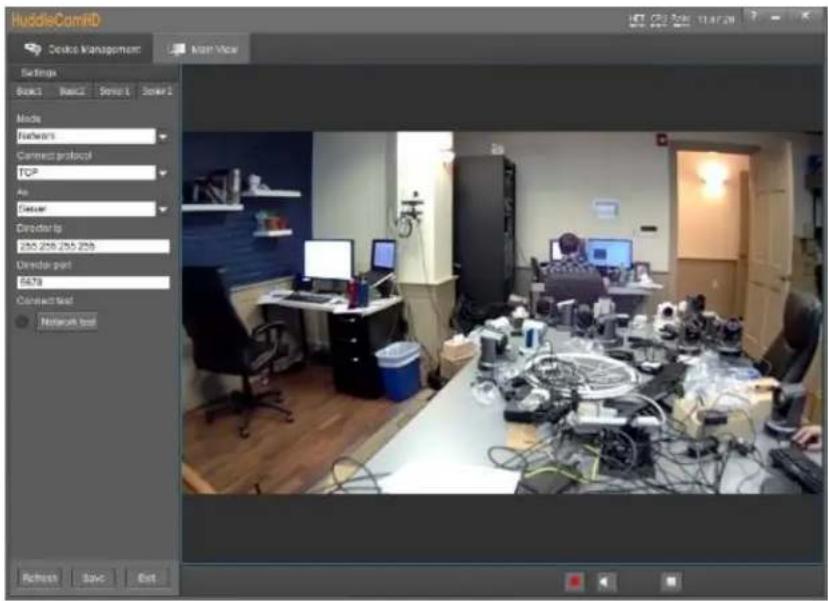
The Senior 1 settings tab is disabled and will be enabled with future updates.
Senior 2 allows for network control via TCP or UDP and allows the camera to act as a server or client for receiving commands.

HuddleCamHD
152 Robbins Rd, Downingtown, PA, 19335, USA - HuddleCamHD.com | 1 800 - 486-5276
On Screen Display (OSD)
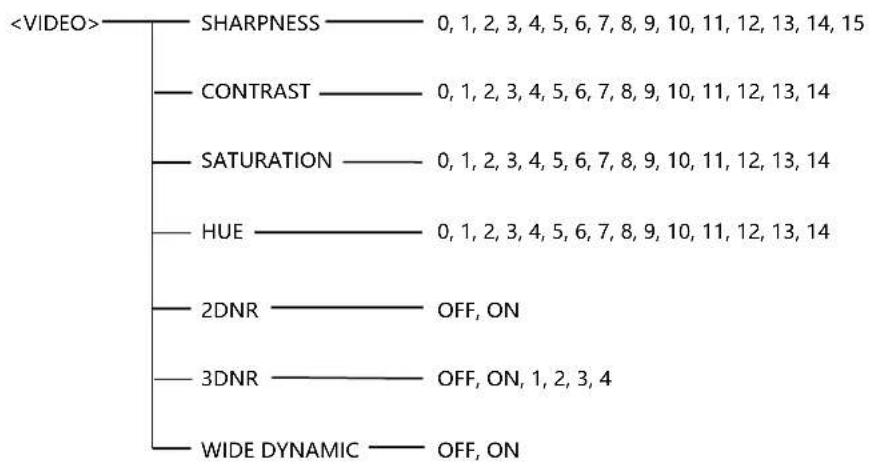
flowchart
graph TD
    A["<VIDEO>"] --> B["SHARPNESS"]
    A --> C["CONTRAST"]
    A --> D["SATURATION"]
    A --> E["HUE"]
    A --> F["2DNR"]
    A --> G["3DNR"]
    A --> H["WIDE DYNAMIC"]
    B --> I["0, 1, 2, 3, 4, 5, 6, 7, 8, 9, 10, 11, 12, 13, 14, 15"]
    C --> J["0, 1, 2, 3, 4, 5, 6, 7, 8, 9, 10, 11, 12, 13, 14"]
    D --> K["0, 1, 2, 3, 4, 5, 6, 7, 8, 9, 10, 11, 12, 13, 14"]
    E --> L["0, 1, 2, 3, 4, 5, 6, 7, 8, 9, 10, 11, 12, 13, 14"]
    F --> M["OFF, ON"]
    G --> N["OFF, ON, 1, 2, 3, 4"]
    H --> O["OFF, ON"]
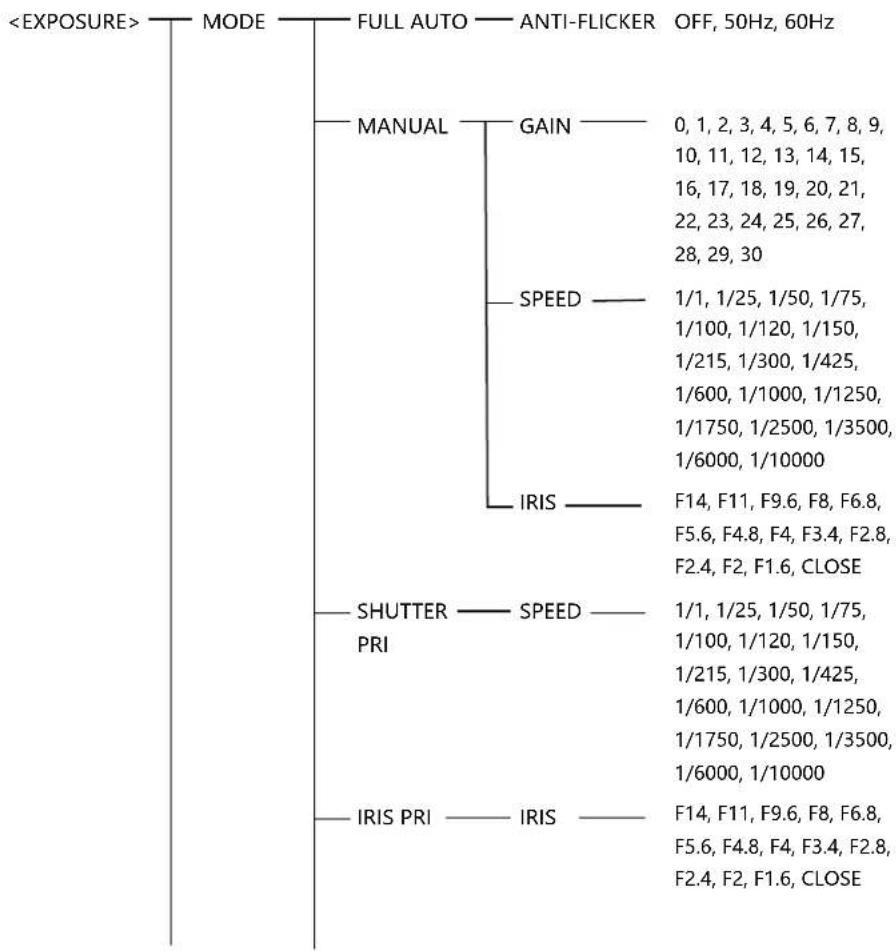
flowchart
graph TD
    A["<EXPOSURE>"] --> B["MODE"]
    B --> C["FULL AUTO — ANTI-FLICKER OFF, 50Hz, 60Hz"]
    C --> D["MANUAL"]
    D --> E["GAIN"]
    E --> F["0, 1, 2, 3, 4, 5, 6, 7, 8, 9, 10, 11, 12, 13, 14, 15, 16, 17, 18, 19, 20, 21, 22, 23, 24, 25, 26, 27, 28, 29, 30"]
    D --> G["SPEED"]
    G --> H["1/1, 1/25, 1/50, 1/75, 1/100, 1/120, 1/150, 1/215, 1/300, 1/425, 1/600, 1/1000, 1/1250, 1/1750, 1/2500, 1/3500, 1/6000, 1/10000"]
    G --> I["IRIS"]
    I --> J["F14, F11, F9.6, F8, F6.8, F5.6, F4.8, F4, F3.4, F2.8, F2.4, F2, F1.6, CLOSE"]
    A --> K["SHUTTER — SPEED"]
    K --> L["1/1, 1/25, 1/50, 1/75, 1/100, 1/120, 1/150, 1/215, 1/300, 1/425, 1/600, 1/1000, 1/1250, 1/1750, 1/3500, 1/6000, 1/10000"]
    A --> M["IRIS PRI — IRIS"]
    M --> N["F14, F11, F9.6, F8, F6.8, F5.6, F4.8, F4, F3.4, F2.8, F2.4, F2, F1.6, CLOSE"]

HuddleCamHD
152 Robbins Rd, Downingtown, PA, 19335, USA - HuddleCamHD.com | 1 800 - 486-5276
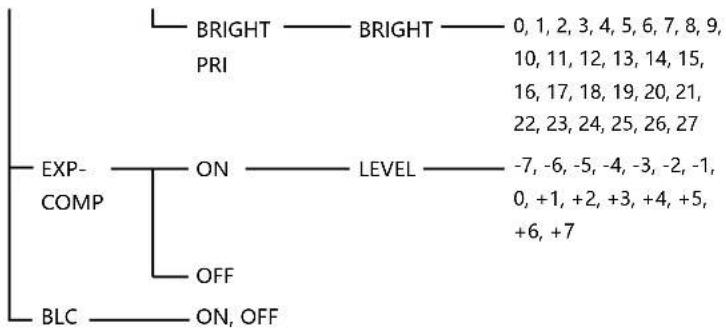
flowchart
graph TD
    A["BRIGHT"] --> B["PRI"]
    C["EXP-COMP"] --> D["ON"]
    E["OFF"] --> F["LEVEL"]
    G["BLC"] --> H["ON, OFF"]
    I["0, 1, 2, 3, 4, 5, 6, 7, 8, 9, 10, 11, 12, 13, 14, 15, 16, 17, 18, 19, 20, 21, 22, 23, 24, 25, 26, 27"] --> J["-7, -6, -5, -4, -3, -2, -1, 0, +1, +2, +3, +4, +5, +6, +7"]
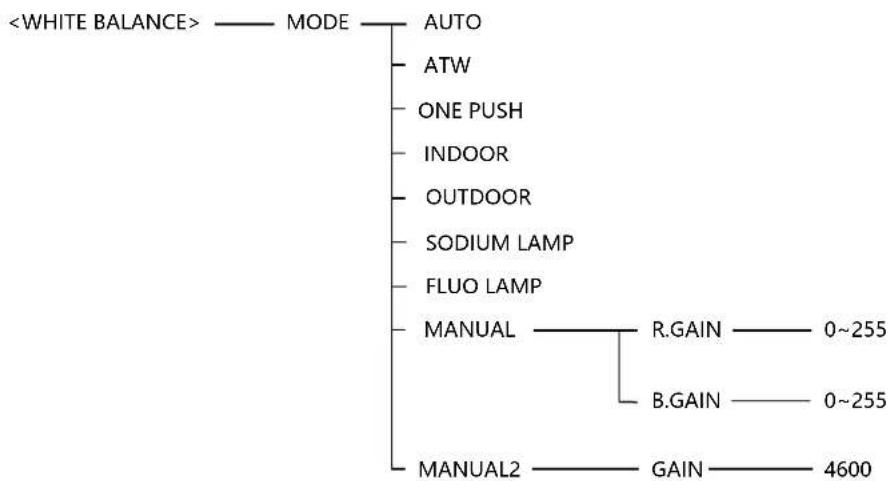
flowchart
graph TD
    A["<WHITE BALANCE>"] --> B["MODE"]
    B --> C["AUTO"]
    C --> D["ATW"]
    D --> E["ONE PUSH"]
    E --> F["INDOOR"]
    F --> G["OUTDOOR"]
    G --> H["SODIUM LAMP"]
    H --> I["FLUO LAMP"]
    I --> J["MANUAL"]
    J --> K["R.GAIN 0~255"]
    J --> L["B.GAIN 0~255"]
    J --> M["MANUAL2 GAIN 4600"]
flowchart
graph TD
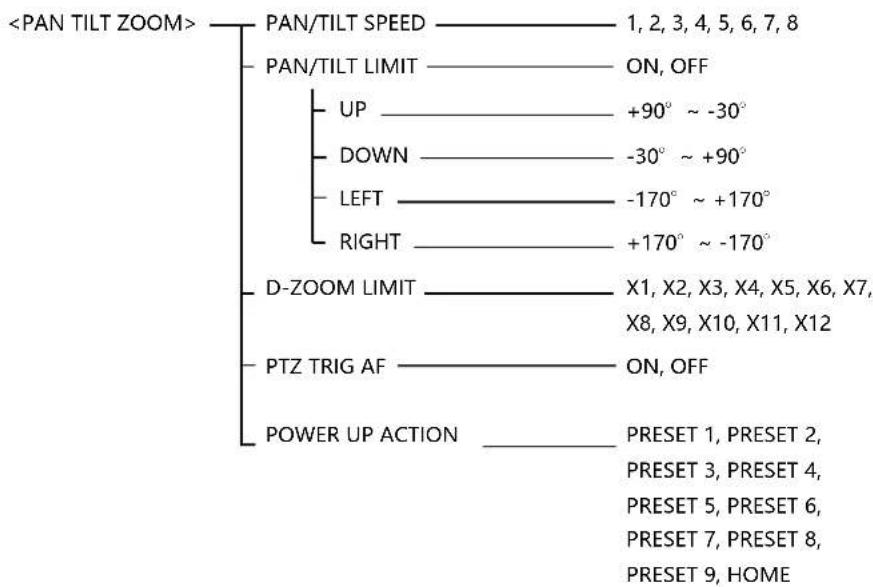
    A["<PAN TILT ZOOM>"] --> B["PAN/TILT SPEED"]
    A --> C["PAN/TILT LIMIT"]
    A --> D["D-ZOOM LIMIT"]
    A --> E["PTZ TRIG AF"]
    A --> F["POWER UP ACTION"]
    B --> G["1, 2, 3, 4, 5, 6, 7, 8"]
    C --> H["ON, OFF"]
    D --> I["UP +90° ~ -30°"]
    D --> J["DOWN -30° ~ +90°"]
    D --> K["LEFT -170° ~ +170°"]
    D --> L["RIGHT +170° ~ -170°"]
    I --> M["X1, X2, X3, X4, X5, X6, X7, X8, X9, X10, X11, X12"]
    J --> N["ON, OFF"]
    K --> O["ON, OFF"]
    L --> P["ON, OFF"]
    M --> Q["PRESET 1, PRESET 2, PRESET 3, PRESET 4, PRESET 5, PRESET 6, PRESET 7, PRESET 8, PRESET 9, HOME"]

HuddleCamHD
152 Robbins Rd, Downingtown, PA, 19335, USA - HuddleCamHD.com | 1 800 - 486-5276
flowchart
graph TD
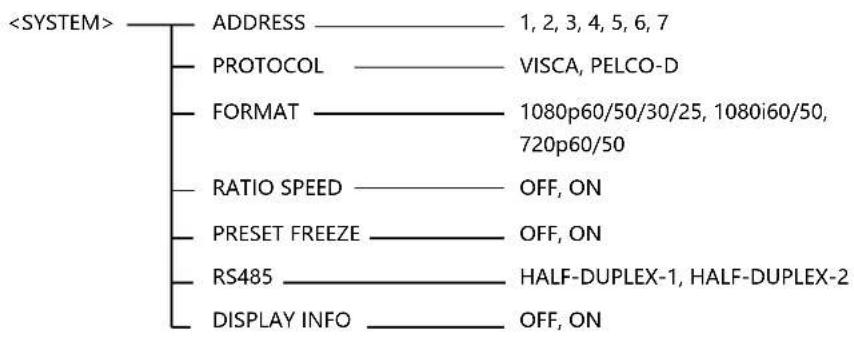
    A["ADDRESS"] --> B["1, 2, 3, 4, 5, 6, 7"]
    C["PROTOCOL"] --> D["VISCA, PELCO-D"]
    E["FORMAT"] --> F["1080p60/50/30/25, 1080i60/50, 720p60/50"]
    G["RATIO SPEED"] --> H["OFF, ON"]
    I["PRESET FREEZE"] --> J["OFF, ON"]
    K["RS485"] --> L["HALF-DUPLEX-1, HALF-DUPLEX-2"]
    M["DISPLAY INFO"] --> N["OFF, ON"]

HuddleCamHD
152 Robbins Rd, Downingtown, PA, 19335, USA - HuddleCamHD.com | 1 800 - 486-5276
Using the IR Remote
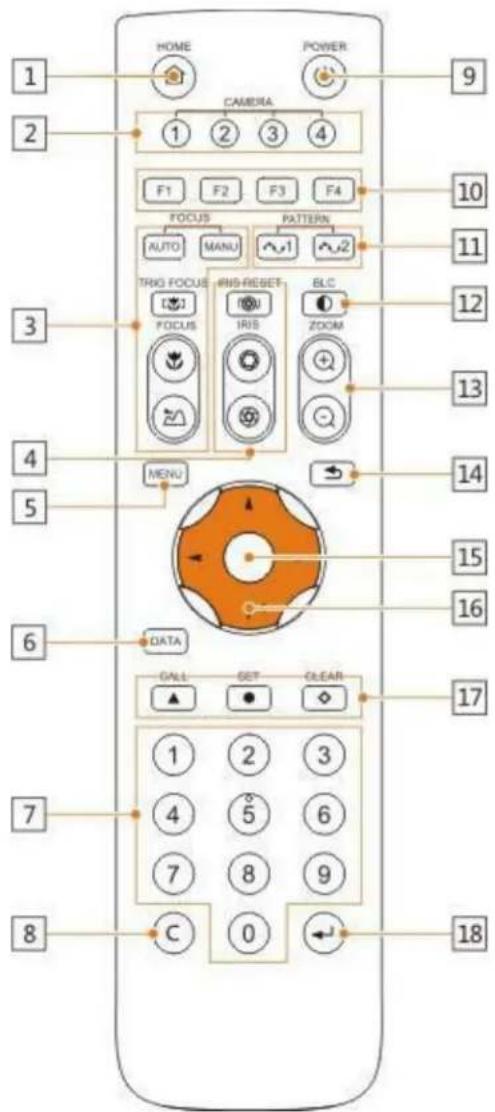
1. HOME Button
Press the HOME Button to send the camera to the initial position where pan and tilt is 0.
2. Camera Selection Button
Use to switch between IR channels for multiple camera control. For example, 4 is address 4.
3. Focus
Use "AUTO" or "MANU" to select auto or manual focus. Trig Focus enables auto focus whenever the camera is zoomed. Near/Far allows for focus adjustment while in manual focus.
4. Iris
Press Iris Reset to set iris back to default value or use Open/Close to open and close the Iris.
5. Menu
Use to open/close the OSD Menu.
6. Data Button
Use the Data Button to enable/disable display of pan/tilt angle, zoom time, and other prompt messages.
7. Number Keys
Used for inputting numbers such as preset number.
8. Cancel Button
Cancel number input.
9. Power Button
User to power on/off the camera.
10. Shortcut Buttons (F1, F2, F3, F4)
Use these buttons for shortcut commands. (Shown below)
11. Pattern Buttons
Use to activate Pattern Scan 1 and Pattern Scan 2
12. BLC Button
Use to enable/disable Backlight Compensation.
13. Zoom buttons
Use to zoom in or zoom out.
14. Back Button
Use the Back Button to go back to the previous menu
15. OK Button
In OSD Menu: select the corresponding option
Out of OSD Menu: adjust pan/tilt control speed
Ver. 1.1 - 4-19

HuddleCamHD
152 Robbins Rd, Downingtown, PA, 19335, USA - HuddleCamHD.com | 1 800 - 486-5276
16. Direction/Menu Operation
In OSD Menu: traverse OSD Menu
Out of OSD Menu: pan & tilt camera
17. Preset Settings
Use the Number Keys to input a preset number, then press call, store, clear to perform the corresponding command.
18. Enter
After inputting numbers, press this button to confirm.
IR Remote Shortcuts
- [F1] > [1] > [ENTER] - Change camera to Device Address 1
- [F1] > [2] > [ENTER] - Change camera to Device Address 2
- [F1] > [3] > [ENTER] - Change camera to Device Address 3
- [F1] > [4] > [ENTER] - Change camera to Device Address 4
• [F1] > [5] > [ENTER] - Start Tracking
• [F1] > [6] > [ENTER] - End Tracking

HuddleCamHD
152 Robbins Rd, Downingtown, PA, 19335, USA - HuddleCamHD.com | 1 800 - 486-5276
VISCA Commands
ACK/Completion Messages
| Command Messages | Comments | |
| ACK | z0 4y FF(y:Socket No.) | Returned when the command is accepted. |
| Completion | z0 5y FF(y:Socket No.) | Returned when the command has been executed. |
Error Messages
| Command Messages | Comments | |
| Syntax Error | z0 60 02 FF | Returned when the command format is different or when a command with illegalcommand parameters is accepted. |
| Command Buffer Full | z0 60 03 FF | Indicates that two sockets are already being used(executing two commands) and thecommand could not be accepted when received. |
| Command Canceled | z0 6y 04 FF(y:Socket No.) | Returned when a command which is being executed in a socket specified by the cancel command is canceled. The completion message for the command is not returned. |
| No Socket | z0 6y 05 FF(y:Socket No.) | Returned when no command is executed in a socket specified by the cancelcommand, or when an invalid socket number is specified. |
| Command Not Executable | z0 6y 41 FF(y:Execution commandSocket No. Inquiry command:0) | Returned when a command cannot be executed due to current conditions. Forexample, when commands controlling the focus manually are received during auto focus. |
z = Device address + 8

HuddleCamHD
152 Robbins Rd, Downingtown, PA, 19335, USA - HuddleCamHD.com | 1 800 - 486-5276
Commands
| Command Set | Command | Command Packet | Comments |
| AddressSet | Broadcast | 88 30 01 FF | Address setting |
| IF_Clear | Broadcast | 88 01 00 01 FF | I/F Clear |
| CommandCancel | 8x 2p FF | p: Socket No.(=1or2) | |
| CAM_Power | On | 8x 01 04 00 02 FF | Power ON/OFF |
| Off | 8x 01 04 00 03 FF | ||
| CAM_Zoom | Stop | 8x 01 04 07 00 FF | |
| Tele(Standard) | 8x 01 04 07 02 FF | ||
| Wide(Standard) | 8x 01 04 07 03 FF | ||
| Tele(Variable) | 8x 01 04 07 2p FF | p=0 (Low) to 7 (High) | |
| Wide(Variable) | 8x 01 04 07 3p FF | ||
| Direct | 8x 01 04 47 0p 0q 0r 0s FF | pqrs: Zoom Position | |
| CAM_Focus | Stop | 8x 01 04 08 00 FF | |
| Far(Standard) | 8x 01 04 08 02 FF | ||
| Near(Standard) | 8x 01 04 08 03 FF | ||
| Far(Variable) | 8x 01 04 08 2p FF | p=0 (Low) to 7 (High) | |
| Near(Variable) | 8x 01 04 08 3p FF | ||
| Direct | 8x 01 04 48 0p 0q 0r 0s FF | pqrs: Focus Position | |
| Auto Focus | 8x 01 04 38 02 FF | AF ON/OFF | |
| Manual Focus | 8x 01 04 38 03 FF | ||
| Auto/Manual | 8x 01 04 38 10 FF | ||
| One Push Trigger | 8x 01 04 18 01 FF | One Push AF Trigger | |
| CAM_ZoomFocus | Direct | 8x 01 04 47 0p 0q 0r 0s0t 0u 0v 0w FF | pqrs: Zoom Positiontuvw: Focus Position |
| CAM_WB | Auto | 8x 01 04 35 00 FF | Normal Auto |
| Indoor | 8x 01 04 35 01 FF | Indoor mode | |
| Outdoor | 8x 01 04 35 02 FF | Outdoor mode | |
| One Push WB | 8x 01 04 35 03 FF | One Push WB mode | |
| Manual | 8x 01 04 35 05 FF | Manual Control mode | |
| One push trigger | 8x 01 04 10 05 FF | One Push WB Trigger | |
| CAM_RGain | Reset | 8x 01 04 03 00 FF | Manual Control of R Gain |
| Up | 8x 01 04 03 02 FF | ||
| Down | 8x 01 04 03 03 FF | ||
| Direct | 8x 01 04 43 00 00 0p 0q FF | pq: R Gain | |
| CAM_BGain | Reset | 8x 01 04 04 00 FF | Manual Control of B Gain |
| Up | 8x 01 04 04 02 FF | ||
| Down | 8x 01 04 04 03 FF | ||
| Direct | 8x 01 04 44 00 00 0p 0q FF | pq: B Gain |

HuddleCamHD
152 Robbins Rd, Downingtown, PA, 19335, USA - HuddleCamHD.com | 1 800 - 486-5276
Commands (Continued)
| Command Set | Command | Command Packet | Comments |
| CAM_AE | Full Auto | 8x 01 04 39 00 FF | Automatic Exposure mode |
| Manual | 8x 01 04 39 03 FF | Manual Control mode | |
| Shutter Priority | 8x 01 04 39 0A FF | Shutter Priority Automatic Exposure | |
| Iris Priority | 8x 01 04 39 0B FF | Iris Priority Automatic Exposure mode | |
| Bright | 8x 01 04 39 0D FF | Bright Mode (Manual control) | |
| CAM_Shutter | Reset | 8x 01 04 0A 00 FF | Shutter Setting |
| Up | 8x 01 04 0A 02 FF | ||
| Down | 8x 01 04 0A 03 FF | ||
| Direct | 8x 01 04 4A 00 00 0p 0q FF | pq: Shutter Position | |
| CAM_Iris | Reset | 8x 01 04 0B 00 FF | Iris Setting |
| Up | 8x 01 04 0B 02 FF | ||
| Down | 8x 01 04 0B 03 FF | ||
| Direct | 8x 01 04 4B 00 00 0p 0q FF | pq: Iris Position | |
| CAM_Gain | Reset | 8x 01 04 0C 00 FF | Gain Setting |
| Up | 8x 01 04 0C 02 FF | ||
| Down | 8x 01 04 0C 03 FF | ||
| Direct | 8x 01 04 4C 00 00 0p 0q FF | pq: Gain Position | |
| CAM_Bright | Reset | 8x 01 04 0D 00 FF | Bright Setting |
| Up | 8x 01 04 0D 02 FF | ||
| Down | 8x 01 04 0D 03 FF | ||
| Direct | 8x 01 04 4D 00 00 0p 0q FF | pq: Bright Position | |
| CAM_ExpComp | On | 8x 01 04 3E 02 FF | Exposure Compensation ON/OFF |
| Off | 8x 01 04 3E 03 FF | ||
| Reset | 8x 01 04 0E 00 FF | Exposure Compensation Amount Setting | |
| Up | 8x 01 04 0E 02 FF | ||
| Down | 8x 01 04 0E 03 FF | ||
| Direct | 8x 01 04 4E 00 00 0p 0q FF | pq: ExpComp Position | |
| CAM_Backlight | On | 8x 01 04 33 02 FF | Back Light Compensation ON/OFF |
| Off | 8x 01 04 33 03 FF | ||
| CAM_Aperture | Reset | 8x 01 04 02 00 FF | Aperture Control |
| Up | 8x 01 04 02 02 FF | ||
| Down | 8x 01 04 02 03 FF | ||
| Direct | 8x 01 04 42 00 00 0p 0q FF | pq: Aperture Gain | |
| CAM_PictureEffect | Off | 8x 01 04 63 00 FF | Picture Effect Setting |
| Neg.Art | 8x 01 04 63 02 FF | ||
| B&W | 8x 01 04 63 04 FF | ||
| CAM_Memory | Reset | 8x 01 04 3F 00 pp FF | pp: Memory Number (=0 to 255)Corresponds to 0 to 255 on the Remote Commander. |
| Set | 8x 01 04 3F 01 pp FF | ||
| Recall | 8x 01 04 3F 02 pp FF | ||
| SYS_Menu | Off | 8x 01 06 06 03 FF | Turns off the menu screen. |

HuddleCamHD
152 Robbins Rd, Downingtown, PA, 19335, USA - HuddleCamHD.com | 1 800 - 486-5276
Commands (Continued)
| Command Set | Command | Command Packet | Comments |
| CAM_IDWrite | 8x 01 04 22 0p 0q 0r 0s FF | pqrs: Camera ID (=0000 to FFFF) | |
| IR_Receive | On | 8x 01 06 08 02 FF | IR(rcmote commander) receive ON/OFF |
| Off | 8x 01 06 08 03 FF | ||
| Information Display | On | 8x 01 7E 01 18 02 FF | ON/OFF of the Operation status display |
| Off | 8x 01 7E 01 18 03 FF | ||
| Pan-tiltDrive | Up | 8x 01 06 01 VV WW 03 01 FF | VV: Pan speed 0 x01 (low speed) to 0 x18 (high speed)WW: Tilt Speed 0 x 01 (low speed) to 0 x14 (high speed)YYYY: Pan PositionZZZZ: Tilt Position |
| Down | 8x 01 06 01 VV WW 03 02 FF | ||
| Left | 8x 01 06 01 VV WW 01 03 FF | ||
| Right | 8x 01 06 01 VV WW 02 03 FF | ||
| UpLeft | 8x 01 06 01 VV WW 01 01 FF | ||
| UpRight | 8x 01 06 01 VV WW 02 01 FF | ||
| DownLeft | 8x 01 06 01 VV WW 01 02 FF | ||
| DownRight | 8x 01 06 01 VV WW 02 02 FF | ||
| Stop | 8x 01 06 01 VV WW 03 03 FF | ||
| AbsolutePosition | 8x 01 06 02 VV WW0Y 0Y 0Y 0Y 0Z 0Z 0Z 0Z FF | ||
| RelativePosition | 8x 01 06 03 VV WW0Y 0Y 0Y 0Y 0Z 0Z 0Z 0Z FF | ||
| Home | 8x 01 06 04 FF | ||
| Reset | 8x 01 06 05 FF | ||
| Pan-tiltLimitSet | LimitSet | 8x 01 06 07 00 0W0Y 0Y 0Y 0Y 0Z 0Z 0Z 0Z FF | W: 1 UpRight 0: DownLeftYYYY: Pan Limit PositionZZZZ: Tilt Position |
| CAM_AutoFrameTrigger | One Push Auto Frame | 8x 01 0E 24 6C 0p 0p FF | P: seconds |

HuddleCamHD
152 Robbins Rd, Downingtown, PA, 19335, USA - HuddleCamHD.com | 1 800 - 486-5276
Inquiry Commands
| Inquiry Command | Command Packet | Inquiry Packet | Comments |
| CAM_PowerInq | 8x 09 04 00 FF | y0 50 02 FF | On |
| y0 50 03 FF | Off (Standby) | ||
| y0 50 04 FF | Internal power circuit error | ||
| CAM_ZoomPosInq | 8x 09 04 47 FF | y0 50 0p 0q 0r 0s FF | pqrs: Zoom Position |
| CAM_FocusModeInq | 8x 09 04 38 FF | y0 50 02 FF | Auto Focus |
| y0 50 03 FF | Manual Focus | ||
| CAM_FocusPosInq | 8x 09 04 48 FF | y0 50 0p 0q 0r 0s FF | pqrs: Focus Position |
| CAM_WBModeInq | 8x 09 04 35 FF | y0 50 00 FF | Auto |
| y0 50 01 FF | In Door | ||
| y0 50 02 FF | Out Door | ||
| y0 50 03 FF | One Push WB | ||
| y0 50 05 FF | Manual | ||
| CAM_RGainInq | 8x 09 04 43 FF | y0 50 00 00 0p 0q FF | pq: R Gain |
| CAM_BGainInq | 8x 09 04 44 FF | y0 50 00 00 0p 0q FF | pq: B Gain |
| CAM_AEModeInq | 8x 09 04 39 FF | y0 50 00 FF | Full Auto |
| y0 50 03 FF | Manual | ||
| y0 50 0A FF | Shutter Priority | ||
| y0 50 0B FF | Iris Priority | ||
| y0 50 0D FF | Bright | ||
| CAM_ShutterPosInq | 8x 09 04 4A FF | y0 50 00 00 0p 0q FF | pq: Shutter Position |
| CAM_IrisPosInq | 8x 09 04 4B FF | y0 50 00 00 0p 0q FF | pq: Iris Position |
| CAM_GainPosInq | 8x 09 04 4C FF | y0 50 00 00 0p 0q FF | pq: Gain Position |
| CAM_BrightPosInq | 8x 09 04 4D FF | y0 50 00 00 0p 0q FF | pq: Bright Position |
| CAM_ExpCompModeInq | 8x 09 04 3E FF | y0 50 02 FF | On |
| y0 50 03 FF | Off | ||
| CAM_ExpCompPosInq | 8x 09 04 4E FF | y0 50 00 00 0p 0q FF | pq: ExpComp Position |
| CAM_BacklightModeInq | 8x 09 04 33 FF | y0 50 02 FF | On |
| y0 50 03 FF | Off | ||
| CAM_ApertureInq | 8x 09 04 42 FF | y0 50 00 00 0p 0q FF | pq: Aperture Gain |
| CAM_PictureEffectModeInq | 8x 09 04 63 FF | y0 50 00 FF | Off |
| y0 50 02 FF | Neg.Art | ||
| y0 50 04 FF | B&W | ||
| CAM_MemoryInq | 8x 09 04 3F FF | y0 50 0p FF | p: Memory number last operated. |
| SYS_MenuModeInq | 8x 09 06 06 FF | y0 50 02 FF | On |
| y0 50 03 FF | Off | ||
| CAM_IDInq | 8x 09 04 22 FF | y0 50 0p 0q 0r 0s FF | pqrs: Camera ID |

HuddleCamHD
152 Robbins Rd, Downingtown, PA, 19335, USA - HuddleCamHD.com | 1 800 - 486-5276
Inquiry Commands (Continued)
| Inquiry Command | Command Packet | Inquiry Packet | Comments | |
| CAM_VersionInq | 8x 09 00 02 FF | y0 50 00 01mn pq rs tu vw FF | mnpq: Model Code (0504)rstu: ROM versionvw: Socket Number (=02) | |
| Information Display | 8x 09 7E 01 18 FF | y0 50 02 FF | On | |
| y0 50 03 FF | Off | |||
| VideoSystemInq | 8x 09 06 23 FF | y0 50 00 FF | 1920 x1080i/60 | 60 Hz system |
| y0 50 01 FF | 1920 x1080p/30 | |||
| y0 50 02 FF | 1280 x720p/60 | |||
| y0 50 03 FF | 1280 x720p/30 | |||
| y0 50 07 FF | 1920 x1080p/60 | |||
| y0 50 08 FF | 1920 x1080i/50 | 50 Hz system | ||
| y0 50 09 FF | 1920 x1080p/25 | |||
| y0 50 0A FF | 1280 x720p/50 | |||
| y0 50 0B FF | 1280 x 720p/25 | |||
| y0 50 0F FF | 1920 x1080p/50 | |||
| IR_Receive | 8x 09 06 08 FF | y0 50 02 FF | On | |
| y0 50 03 FF | Off | |||
| Pan-tiltMaxSpeedInq | 8x 09 06 11 FF | y0 50 ww zz FF | ww = Pan Max Speedzz = Tilt Max Speed | |
| Pan-tiltPosInq | 8x 09 06 12 FF | y0 50 0w 0w 0w 0w0z 0z 0z 0z FF | www = Pan Positionzzzz = Tilt Position | |
| Pan-tiltModelInq | 8x 09 06 10 FF | y0 50 pq rs FF | pqrs: Pan/Tilt Status | |
| CAM_AnalyticsInq | 8x 01 0E 24 6E 00 00 FF | |tracking status on/off||currentX,Y,Z| [#][human][date poweredon|[date command was sent] | Inquires tracking status, current PTZposition, faces in sight, & when thecommand was sent | |

HuddleCamHD
152 Robbins Rd, Downingtown, PA, 19335, USA - HuddleCamHD.com | 1 800 - 486-5276
Tips and Tricks
The “Stage”: Imagine your subject moving around within the available presentation space and take note of the extremes, left or right and up or down, your presenter may happen to present from. The area you have just noted is what we will call our stage and is what you want to ensure is captured by the reference camera. Within this stage we normally want to set the priority tracking area to slightly above the presenter’s head for the top boundary and just above the audience’s heads for the bottom boundary.
Shot Composition: For a nice tight shot around the subject, the camera must be within 8m (26 feet) of the subject. Beyond that, composition will be sacrificed for distance.
Motion: The faster the subject moves, the larger the shot composition should be. Depending on the subject, and desired impact, this is something that can require a bit of trial and error to find that perfect composition to high motion ratio.
Keep it Simple: When diving into the Advanced Parameters section of the software, think about what you're trying to capture. Only enable the features you need to properly track within your "stage." As an example, if you have a presenter at the front of the room only moving left or right do not enable Auto-Zoom or Auto-Tilt, as you're just inviting undesired tracking results.
Plan Ahead: Before any event, large or small, test your entire setup as far in as possible. Waiting until the last minute is never a good idea.
Care of the Unit
Remove dust or dirt on the surface of the lens with a blower (commercially available).

HuddleCamHD
152 Robbins Rd, Downingtown, PA, 19335, USA - HuddleCamHD.com | 1 800 - 486-5276
Troubleshooting
| Problem | Possible Cause | Solution |
| No movement or image after power on | Power supply failure | Check power supply |
| Power adapter damaged | Replace power adapter | |
| Power cable connection is loose | Check & reconnect | |
| No self-testing after powered on, or with motor noise | Not enough power | Check & reconnect power cable connection |
| Mechanical failure | Send for authorized repair | |
| After power on, self-test successfully, but not controllable | Wrong address / protocol / baud rate | Check & set again |
| Wrong connection or open circuit of RS-485/RS422 or RS-232 cable | Check & reconnect | |
| Video loss when pans / tilts / zooms | Not enough power | Check & reconnect power cable |
| Video cable not properly connected | Replace with a tested cable | |
| Auto tracking has locked on the wrong subject / object with no motion | Lack of adequate lighting on the subject | Increase proper lighting on subject / stage. If the problem persists attempt to move the camera closer to the stage. |
| Too complex of a scene with slightly improper lighting | ||
| The tracking camera seems to be off from the reference camera settings | The camera has been moved | Manually move camera back into place or rebuild tracking zones |
| A manual tracking / reference camera recalibration is required | Enter the Advanced Parameters settings and click the Pos Correct button. Once the tracking camera stops moving, align the crosshairs of the tracking camera to match the crosshairs of the reference camera. | |
| The camera is tracking slightly below or above the subject | A manual height recalibration is required | Enter the Advanced Parameters settings and click the Debug button. Have your subject stand in place within facing the tracking camera. Once a rectangle is around the face, use the Up and Down buttons to adjust tracking height. |
| Having trouble finding / connecting to camera on the network | No DHCP Server available | Connect to camera and set a static IP in the Configuration interface |
| Multiple Network Connections | Disable any secondary and or tertiary network connections on your Windows PC |

HuddleCamHD
152 Robbins Rd, Downingtown, PA, 19335, USA - HuddleCamHD.com | 1 800 - 486-5276
Notes



- HuddleCamHD HuddleView
- Table of Contents
- HuddleCamHD
- Precautions
- Safety Tips
- What's in the Box
- Supplied Hardware
- Physical Descriptions
- Back of the Camera
- Basic Connection Instructions
- To Configure the Camera
- SDI Connection
- USB Connection
- DVI Connection
- Interface Descriptions
- Tracking Software
- Connect Camera
- Network Configuration
- Remote Configuration
- Remove Camera
- Configure Tracking Settings
- Using the IR Remote
- HOME Button
- Camera Selection Button
- Focus
- Iris
- Menu
- Data Button
- Number Keys
- Cancel Button
- Power Button
- Shortcut Buttons (F1, F2, F3, F4)
- Pattern Buttons
- BLC Button
- Zoom buttons
- Back Button
- OK Button
- Direction/Menu Operation
- Preset Settings
- Enter
- IR Remote Shortcuts
- VISCA Commands
- Tips and Tricks
- Care of the Unit
Brand : HuddleCamHD
Model : HuddleView
Category : Video Conferencing System