
BT41 - Network card / adapter Yealink - Free user manual and instructions
Find the device manual for free BT41 Yealink in PDF.


| Product Type | Bluetooth USB Dongle |
| Brand | Yealink |
| Model | BT41 |
| Category | Network Card / Adapter |
| Bluetooth Version | V4.2 (backward compatible with 1.1, 1.2, 2.0, 3.0, 4.0, 4.1) |
| Compatibility | Yealink Bluetooth-enabled phones and Bluetooth headsets |
| Working Range | Up to 10 meters (32 feet) |
| Dimensions (approx.) | 2.5 x 1.5 x 0.5 cm |
| Weight (approx.) | 5 g |
| Power Supply | USB bus powered (from phone) |
| Hot Plug Support | Yes |
| Package Contents | USB Dongle, User Guide |
| Operating Temperature | 0°C to 40°C (32°F to 104°F) |
| Storage Temperature | -30°C to 70°C (-22°F to 160°F) |
| Relative Humidity | 5% to 90% (non-condensing) |
| Main Functions | Pairing, answering calls, adjusting volume, ending calls |
| Maintenance and Cleaning | Use a soft, dry, anti-static cloth. Disconnect power before cleaning. |
| Safety Precautions | Keep away from water, heat, and children. Do not disassemble. |
| Regulatory Certifications | FCC Part 15, IC RSS, RoHS, WEEE |
| Warranty | Limited to unit itself under normal use |
Frequently Asked Questions - BT41 Yealink
User questions about BT41 Yealink
0 question about this device. Answer the ones you know or ask your own.
Ask a new question about this device
Download the instructions for your Network card / adapter in PDF format for free! Find your manual BT41 - Yealink and take your electronic device back in hand. On this page are published all the documents necessary for the use of your device. BT41 by Yealink.
USER MANUAL BT41 Yealink
This Bluetooth USB dongle BT41 adds Yealink phones (Bluetooth-enabled) connectivity to a wide variety of Bluetooth Headset, compatible with Bluetooth specification V4.2 and backwards compatible with 1.1, 1.2, 2.0 and 3.0, 4.0 and 4.1.
Package Contents
The following items are included in your package. If you find anything missing, contact your system administrator.
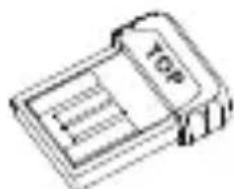
USB Dongle

User Guide
Assembling the USB Dongle
Assemble the USB dongle, as shown below:

1
To pair and connect the Bluetooth headset to a phone:
- Turn on the Bluetooth headset.
- Long press the multifunction key on the Bluetooth headset until the LED indicator alternately flashes red and blue.
The Bluetooth headset is in pairing mode. - Assemble the USB dongle.
- Activate the Bluetooth feature on the phone.
Refer to corresponding user guide of the phone to activate the Bluetooth feature.
- Select Scan on the phone.
The phone starts searching for Bluetooth headsets within the working range of 10 meters (32 feet) and displays all detected Bluetooth headsets.
Note: The USB dongle provided by Yealink supports hot plug. You can plug and unplug the USB dongle without rebooting the phone.
Answering Calls
To answer an incoming call:
- With the Bluetooth headset paired and connected, press the multifunction key on the Bluetooth headset to answer an incoming call.
If there is already an active call on the phone, the original call is placed on hold after answering the new incoming call.
Adjusting the Earphone Volume
To adjust the earphone volume during a call:
With the Bluetooth headset paired and connected, you can do the following:
- Press the Volume key (+) on the Bluetooth headset to increase the volume.
- Press the Volume key (-) on the Bluetooth headset to decrease the volume.
Ending Calls
With the Bluetooth headset paired and connected, press the multifunction key on the Bluetooth headset to end a call.
Troubleshoothing
Why can't the phone detect the Bluetooth headset?
- Ensure the Bluetooth headset is turned on.
- Ensure the Bluetooth headset is in pairing mode when the phone is searching for Bluetooth headsets.
Why there is a noise?
- Check the battery level. If the battery level is low, charge the Bluetooth headset.
- Ensure the Bluetooth headset and the phone are within the working range of 10 meters (32 feet) and there is no obvious interference (walls, doors, etc.) between them.
Regulatory Notices
Operating Ambient Temperatures
- Operating temperature: +32 to 104°F (0 to 40°C)
• Relative humidity: 5% to 90%, noncondensing
• Storage temperature: -22 to +160°F (-30 to +70°C)
Warranty
Our product warranty is limited only to the unit itself, when used normally in accordance with the operating instructions and the system environment. We are not liable for damage or loss resulting from the use of this product, or for any claim from a third party. We are not liable for problems with Yealink device arising from the use of this product; we are not liable for financial damages, lost profits, claims from third parties, etc., arising from the use of this product.
Explanation of the symbols
- DC symbol
is the DC voltage symbol.
• WEEE Warning symbol

To avoid the potential effects on the environment and human health as a result of the presence of hazardous substances in electrical and electronic equipment, end users of electrical and electronic equipment should understand the meaning of the crossed-out wheeled bin symbol. Do not dispose of WEEE as unsorted municipal waste and have to collect such WEEE separately.
Restriction of Hazardous Substances Directive (RoHS)
This device complies with the requirements of the EU RoHS Directive. Statements of compliance can be obtained by contacting support@yealink.com.
Safety Instructions
Save these instructions. Read these safety instructions before use!
General Requirements
Before you install and use the device, read the safety instructions carefully and observe the situation during operation.
- During the process of storage, transportation, and operation, please always keep the device dry and clean, avoid collision and crash.
- Please attempt not to dismantle the device by yourself. In case of any discrepancy, please contact the appointed maintenance center for repair.
- Please refer to the relevant laws and statutes while using the device. Legal rights of others should be respected as well.

Environmental Requirements
- Place the device at a well-ventilated place. Do not expose the device under direct sunlight.
- Keep the device dry and free of dusts.
- Do not place the device on or near any inflammable or fire-vulnerable object, such as rubber-made materials.
- Keep the device away from any heat source or bare fire, such as a candle or an electric heater.

Operating Requirements
- Do not let a child operate the device without guidance.
- Do not let a child play with the device or any accessory in case of accidental swallowing.
- Please use the accessories provided or authorized by the manufacturer only.
- Before plugging or unplugging any cable, make sure that your hands are completely dry.
- Do not spill liquid of any kind on the product or use the equipment near water, for example, near a bathtub, washbowl, kitchen sink, wet basement or near a swimming pool.
- During a thunderstorm, stop using the device and disconnect it from the power supply. Unplug the power plug and the Asymmetric Digital Subscriber Line (ADSL) twisted pair (the radio frequency cable) to avoid lightning strike.
- If the device is left unused for a rather long time, disconnect it from the power supply and unplug the power plug.
- When there is smoke emitted from the device, or some abnormal noise or smell, disconnect the device from the power supply, and unplug the power plug immediately.
- Contact the specified maintenance center for repair.
- Do not insert any object into equipment slots that is not part of the product or auxiliary product.
- Before connecting a cable, connect the grounding cable of the device first. Do not disconnect the grounding cable until you disconnect all other cables.

Cleaning Requirements
- Before cleaning the device, disconnect it from the power supply.
• Use a piece of soft, dry and anti-static cloth to clean the device.
Troubleshooting
The usage environment is out of operating temperature range.
- Use in the operating temperature range.
The cable between the unit and the Yealink device is connected incorrectly.
- Connect the cable correctly.
You cannot connect the cable properly.
- You may have connected a wrong Yealink device.
- Use the correct power supply.
Some dust, etc., may be in the port.
- Clean the port.
Contact your dealer or authorized service facility for any further questions.
FCC Statement
This device complies with part 15 of the FCC Rules. Operation is subject to the following two conditions: (1) this device may not cause harmful interference, and (2) this device must accept any interference received, including interference that may cause undesired operation.
Any Changes or modifications not expressly approved by the party responsible for compliance could void the user's authority to operate the equipment.
IC Statement
This device complies with Industry Canada's licence-exempt RSSs. Operation is subject to the following two conditions:
(1) this device may not cause interference; and
(2) this device must accept any interference, including interference that may cause undesired operation of the device. CAN ICES-3(B) Le présent appareil est conforme aux CNR d'Industrie Canada applicables aux appareils radio exempts de licence.
Radiation Exposure Statement
This equipment complies with FCC and IC radiation exposure limits set forth for an uncontrolled environment. This equipment should be installed and operated with minimum distance 20cm between the radiator and your body.
309, 3rd Floor, No.16, Yun Ding North Road, Huli District, Xiamen City, Fujian, P.R. China
YEALINK (EUROPE) NETWORK TECHNOLOGY B.V.
Strawinskylaan 3127, Atrium Building, 8th floor, 1077ZX Amsterdam, The Netherlands
YEALINK (USA) NETWORK TECHNOLOGY CO., LTD.
999 Peachtree Street Suite 2300, Fulton, Atlanta, GA, 30309, USA
Made in China
About Yealink
Yealink is a global leading provider of enterprise communication and collaboration solutions, offering video conferencing service to worldwide enterprises. Focusing on research and development, Yealink also insists on innovation and creation. With the outstanding technical patents of cloud computing, audio, video and image processing technology, Yealink has built up a panoramic collaboration solution of audio and video conferencing by merging its cloud services with a series of endpoints products. As one of the best providers in more than 140 countries and regions including the US, the UK and Australia, Yealink ranks No.1 in the global market share of SIP phones shipments.
Technical Support
Visit Yealink WIKI (http://support.yealink.com/) for the latest firmware, guides, FAQ, Product documents, and more. For better service, we sincerely recommend you to use Yealink Ticketing system (https://ticket.yealink.com) to submit all your technical issues.


BT41-EN
YEALINK(XIAMEN) NETWORK TECHNOLOGY CO.,LTD.
Web: www.yealink.com
Copyright©2019 YEALINK(XIAMEN) NETWORK
TECHNOLOGY CO.,LTD.All rights reserved.
- PACKAGE CONTENTS
- ASSEMBLING THE USB DONGLE
- TO PAIR AND CONNECT THE BLUETOOTH HEADSET TO A PHONE
- ANSWERING CALLS
- TO ANSWER AN INCOMING CALL
- ADJUSTING THE EARPHONE VOLUME
- TO ADJUST THE EARPHONE VOLUME DURING A CALL
- ENDING CALLS
- TROUBLESHOOTHING
- WHY CAN'T THE PHONE DETECT THE BLUETOOTH HEADSET
- WHY THERE IS A NOISE
- REGULATORY NOTICES
- WARRANTY
- GENERAL REQUIREMENTS
- ENVIRONMENTAL REQUIREMENTS
- OPERATING REQUIREMENTS
- CLEANING REQUIREMENTS
- TROUBLESHOOTING
- FCC STATEMENT
- IC STATEMENT
- RADIATION EXPOSURE STATEMENT
- ABOUT YEALINK
- TECHNICAL SUPPORT
Brand : Yealink
Model : BT41
Category : Network card / adapter