
ScaleoView W19-1 - Screen FUJITSU - Free user manual and instructions
Find the device manual for free ScaleoView W19-1 FUJITSU in PDF.


| Product Type | LED-backlit LCD monitor |
| Screen Size | 19 inches (48.3 cm) widescreen |
| Native Resolution | 1440 x 900 (WXGA+) |
| Brightness | 250 cd/m² |
| Contrast Ratio | 1000:1 (static) |
| Response Time | 5 ms |
| Viewing Angle | 170° horizontal, 160° vertical |
| Input Connectors | 1 x VGA, 1 x DVI-D |
| Dimensions (with stand) | 18.5 x 14.5 x 7.9 inches (470 x 368 x 200 mm) |
| Weight | Approximately 8.8 lbs (4.0 kg) |
| Power Supply | 100-240 V AC, 50/60 Hz, internal |
| Power Consumption (typical) | 25 W (operating), <1 W (standby) |
| VESA Mounting | 100 x 100 mm |
| Features | Auto adjustment, ECO mode, anti-glare coating |
| Cleaning | Use a soft, dry cloth; avoid harsh chemicals |
| Safety | CE, FCC, RoHS compliant; Kensington lock slot |
| Spare Parts | Power cord, VGA cable; contact Fujitsu for replacements |
| Reparability | No user-serviceable parts; refer to qualified service |
| General Information | Manufacturer: Fujitsu; Model: ScaleoView W19-1; Year: circa 2009 |
Frequently Asked Questions - ScaleoView W19-1 FUJITSU
User questions about ScaleoView W19-1 FUJITSU
0 question about this device. Answer the ones you know or ask your own.
Ask a new question about this device
Download the instructions for your Screen in PDF format for free! Find your manual ScaleoView W19-1 - FUJITSU and take your electronic device back in hand. On this page are published all the documents necessary for the use of your device. ScaleoView W19-1 by FUJITSU.
USER MANUAL ScaleoView W19-1 FUJITSU
Additional information....1
Important notes....2
Safety notes....2
Power cable 3
Transport 3
Disposal and recycling 3
Cleaning 4
CE marking....4
Checking the contents of the consignment....4
Connecting the monitor 5
Operation of the monitor....6
Troubleshooting....7
Assembling the monitor base 9

Introduction
This manual contains important information for correct set-up of your LCD monitor.
A screen controller with VGA interface is required to control the LCD monitor. The monitor processes the data supplied to it by the screen controller. The screen controller/the associated driver software is responsible for setting the modes (resolution and refresh rate).
When putting the monitor into operation for the first time, the screen display should be optimally adapted to the screen controller used and adjusted in accordance with your needs.
Target group
You don't need to be an "expert" to perform the operations described here. However, please observe the safety information given in the operating instructions of the computer and in this manual!
In the event of any problems occurring, please contact your sales outlet or our help desk.
Notational conventions
The meanings of the symbols and fonts used in this manual are as follows:

Pay particular attention to text marked with this symbol. Failure to observe this warning endangers your life, destroys the device, or may lead to loss of data.

Supplementary information, remarks, and tips follow this symbol.
▶ Text which follows this symbol describes activities that must be performed in the order shown. "Quotation marks" indicate names of chapters or terms.
This font indicates filenames and menu items.
This font indicates screen outputs.
Additional information
Details of how you set the resolution and refresh rate are provided in the documentation on your screen controller/the associated driver software.
Important notes

In this chapter you will find information regarding safety which is essential to take note of with your monitor.
Safety notes
This device complies with the relevant safety regulations for data processing equipment, including electronic office machines for use in an office environment. If you have any questions, contact your sales outlet or our help desk.
- The display surface of the LCD monitor is sensitive to pressure and scratches. You should therefore be careful with the display surface so as to avoid lasting damage (Newton rings, scratches).
- If the device is brought into the installation site from a cold environment, condensation can form. Before operating the device, wait until it is absolutely dry and has reached approximately the same temperature as the installation site.
- To ensure sufficient ventilation, the intake and exhaust air openings of the monitor must never be blocked.
- The monitor automatically sets itself to a mains voltage in the range of 100 V to 240 V. Ensure that the local mains voltage lies within these limits.
- Ensure that the power socket on the device or the grounded mains outlet is freely accessible.
- The ON/OFF switch does not disconnect the device from the mains voltage. To completely disconnect the mains voltage, remove the power plug from the socket.
- The monitor is equipped with a power cable that complies with safety standards.
- Lay all cables so that nobody can stand on them or trip over them. When attaching the device, observe the relevant notes in the "Connecting the monitor" chapter.
- If you use a different data cable from the one supplied, ensure that it is adequately shielded. CE conformance and optimum picture quality are guaranteed only if you use the data cable supplied.
- No data transfer cables should be connected or disconnected during a thunderstorm.
- Make sure that no objects (e.g. jewellery chains, paper clips, etc.) or liquids get inside the device (danger of electric shock, short circuit).
- The device is not waterproof! Never immerse the device in water and protect it from spray water (rain, sea water).
-
In emergencies (e.g. damaged casing, elements or cables, penetration of liquids or foreign matter), switch off the unit, disconnect the power plug and contact your sales outlet or our help desk.
-
The monitor must be disposed of in accordance with the local regulations for disposal of special waste. The screen background lighting contains mercury. You must observe the applicable handling and disposal safety regulations for fluorescent tubes.
- Only qualified technicians should repair the device. Unauthorised opening and incorrect repair may greatly endanger the user (electric shock, fire risk).
- Use a screen saver with moving images and activate the power management for your monitor to prevent still images from "burning in".
- The screen may only be operated in the wide format ( 0^ landscape mode). Turning with a swivel arm or wall bracket mounted is not permitted.
- Store this manual close to the device. If you pass the device on to third parties, you should pass this manual on with it.
Power cable
To guarantee safe operation, use the cable supplied. Use the following guidelines if it is necessary to replace the original cable set.
- The female/male receptacles of the cord set must meet IEC60320/CEE-22 requirements.
- The cable has to be HAR-certified or VDE-certified. The mark HAR or VDE will appear on the outer sheath.
- For devices which are mounted on a desk or table, type SVT or SJT cable sets may be used.
- The cable set must be selected according to the rated current for your device.
- If necessary, replace the original power cable with a regular grounded 3-core mains lead.
Transport
- Transport the monitor with care and only in its original packaging or another corresponding packaging fit to protect it against knocks and jolts.
- Never drop the LCD monitor (danger of glass breakage).
Disposal and recycling
This device has been manufactured to the highest possible degree from materials which can be recycled or disposed of in a manner that is not environmentally damaging. The device may be taken back after use to be recycled, provided that it is returned in a condition that is the result of normal use. Any components not reclaimed will be disposed of in an environmentally acceptable manner.
If you have any questions on disposal, please contact your local office, our help desk, or:
| Germany Belgium Switzerland | ||
| Fujitsu SiemensComputersGmbHRemarketing undRecyclingD-33106 PaderbornTel.: +49 5251 / 81 80 10Fax: +49 5251 / 81 80 15http://www.fujitsu-siemens.de/wvm | RECUPELBoulevard Reyers, 80B-1030 BrusselsTel.: +32 2 / 706 86 16Fax: +32 2 / 706 86 13E-Mail: info@recupel.behttp://www.recupel.be | SWICOSchweizerischerWirtschaftsverband der Informations-, Kommunikations- und OrganisationstechnikA list of the SWICOAcceptance places can be found at:http://www.swico.ch |

Cleaning
- Always pull out the power plug before you clean the monitor.
- Do not clean any interior parts yourself, leave this job to a service technician.
- Do not use any cleaning agents that contain abrasives or may corrode plastic.
- Ensure that no liquid will run into the system.
- Ensure that the ventilation areas of the monitor are free.
- The display surface of the LCD monitor is sensitive to pressure and scratches. Clean it only using a soft, slightly moistened cloth.
Wipe the monitor casing with a dry cloth. If the monitor is particularly dirty, use a cloth which has been moistened in mild domestic detergent and then carefully wrung out.
CE marking

The shipped version of this device complies with the requirements of the EEC directives 89/336/EEC "Electromagnetic compatibility" and 73/23/EEC "Low voltage directive".
Checking the contents of the consignment

The display surface of the LCD monitor is sensitive to pressure and scratches. Always hold the device by the casing!
▶ Unpack all the individual parts.
▶ Check the delivery for damage incurred during transportation.
▶ Check whether the delivery agrees with the details in the delivery note. The complete LCD monitor package includes:
- one monitor
- one data cable (D-SUB)
- one power cable
- one Warranty Booklet
– this "Getting Started" manual
Should you discover that the delivery does not correspond to the delivery note, notify your local sales outlet immediately.
We recommend that you keep the original packaging material. You may need the packaging in the future if you need to transport your device.
Connecting the monitor

Please take note of the safety information in the "Important notes" chapter.
CE conformance and optimum picture quality are guaranteed only if you use the data cable supplied.
Do not cover the ventilation openings of the monitor.
The computer power plug must be pulled out!
▶ Be sure that the monitor and the computer are switched off.
Connecting cables to the monitor
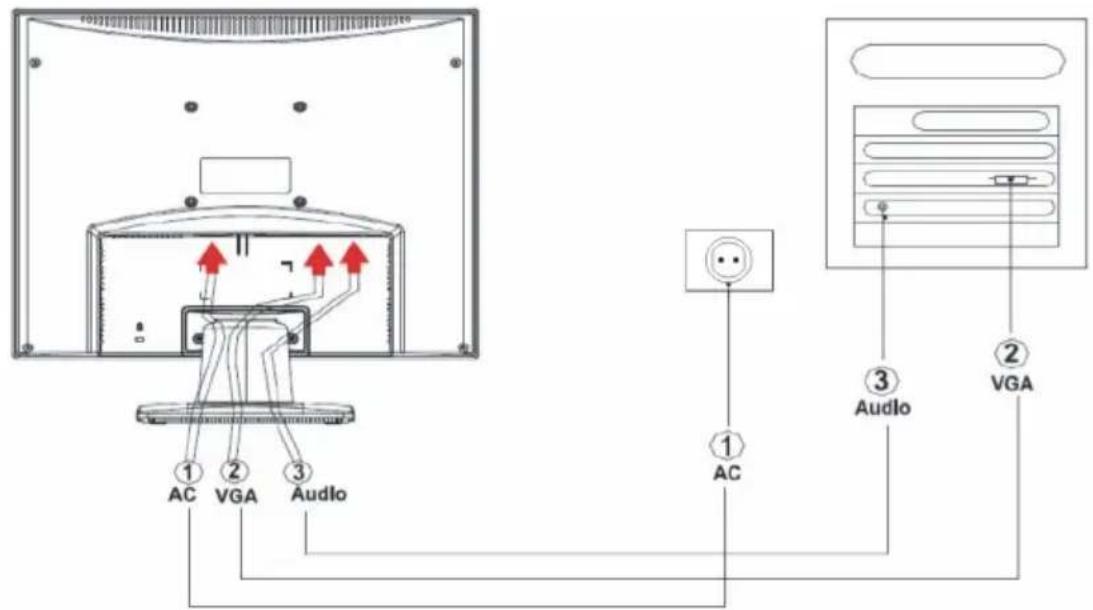
▶ If the data cable is not firmly connected to the monitor:
Connect one of the connectors of the data cable to the D-SUB connector on the monitor and secure the plug-in connection by tightening the locking screws.
Plug the power cable supplied into the power connector of the monitor.
Connecting cables to the computer
Information on the computer connections and interfaces is contained in the operating manual for your computer.

If your computer has two monitor ports ("onboard" screen controller and separate graphics card), the monitor port for the separate graphics card is usually active.
▶ Connect the data cable to the (active) monitor port on the computer and secure the plug-in connection by tightening the safety screws.
Connect the connector of the power cable supplied into a properly earthed mains outlet and ensure a secure connection.
▶ Plug the power connector of the computer into a properly grounded mains outlet.

When you start working with your monitor for the first time you should install the appropriate graphics drivers for your application software. Details of how to do this are provided in the documentation on your screen controller/the associated driver software.
Operation of the monitor
Adjusting rake
The rake of the monitor can be adjusted forward and back from its vertical position.
▶ Grasp the monitor with both hands on the right and left edge of the casing and adjust it to the desired rake.
Switching the monitor on/off
natural_image
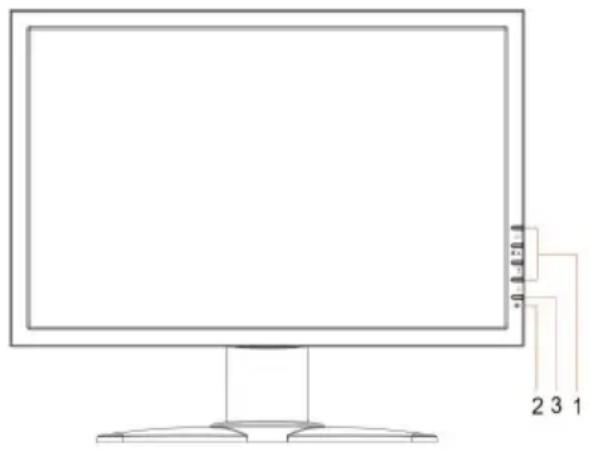
Line drawing of a computer monitor with base and stand, no text or symbols present1 = Buttons for the OSD menu (On-Screen-display)
2 = Power indicator
3 = ON/OFF switch
The ON/OFF switch is used for switching the monitor on and off.
The power indicator glows green or blue when the monitor and computer are switched on. The power indicator lights up yellow when the monitor does not receive a video signal or is in the energy saving mode. The power indicator goes off when the monitor is switched off.
When you switch the computer system on, you must proceed in the following order:
▶ First switch the LCD monitor on with the ON/OFF switch.
▶ Then switch on the computer.
Troubleshooting
Should an error occur, first check the following points. If the distortion is still not eliminated, the monitor should, if possible, be checked on another computer.
If you are unable to solve the problem, please inform our help desk.
| Having this problem? Check the following points: | |
| No screen display(power indicator does not light) | ▶ Check whether the monitor is switched on.▶ Check whether the power cable on the monitor is connected correctly.▶ Check whether the computer is switched on. |
| No screen display(power indicator lights) | ▶ Check whether the computer is switched on.▶ Check whether the data cable for the monitor is correctly attached to the monitor port on the computer.▶ Press any key on the computer keyboard - the computer may be in energy saving mode.▶ Alter the brightness and/or contrast until you get a picture. |
| Message:No Video Input | ▶ Check whether the data cable for the monitor is correctly attached to the monitor port on the computer.▶ Check whether the computer is switched on. |
| Message:Frequency out of range: ## kHz/ ## Hz.Please change the display mode to 1440x900 with 60 Hz. | The input signal (horizontal frequency and refresh rate) does not correspond to the technical monitor data.▶ Adjust the video frequency range using the computer software (see documentation for your computer or your graphics card). |
| Picture position not correct The monitor recognises an undefined mode. | ▶ Carry out the auto-adjustment of the monitor (with the AUTO button - if present - or via the OSD menu).▶ Set the picture position with the OSD menu. |
| Picture is shaking | ▶ Check whether the data cable for the monitor is correctly attached to the monitor port on the computer.▶ Carry out the auto-adjustment of the monitor (with the AUTO button - if present - or via the OSD menu). |
Picture disturbances (vertical lines) | ▶ Carry out the auto-adjustment of the monitor (with the AUTO button - if present - or via the OSD menu). |
Picture disturbances (horizontal lines, picture noise) | ▶ Carry out the auto-adjustment of the monitor (with the AUTO button - if present - or via the OSD menu). |
| Picture is too light or too dark | ▶ Carry out the auto-adjustment of the monitor (with the AUTO button - if present - or via the OSD menu).▶ Correctly set the contrast and brightness with the OSD menu if the auto-adjustment function does not supply satisfactory results. |
Permanently unlit or lit pixels
The standard of production techniques today cannot guarantee an absolutely fault-free screen display. A few isolated constant lit or unlit pixels may be present. The maximum permitted number of pixels faults is stipulated in the stringent international standard ISO 13406-2 (Class II).
Example: a 15" flat-screen monitor with a resolution of 1024 x 768 has 1024 x 768 = 786432 pixels. Each pixel consists of three subpixels (red, green and blue), so there are almost 2.4 million dots in total. According to ISO 13406-2 (Class II), a maximum of 4 pixels and 5 subpixels may be defective, i.e. a total of 17 faulted dots.
A 17" flat-screen monitor with a resolution of 1280 x 1024 has 1280 x 1024 = 1310720 pixels. Each pixel consists of three subpixels (red, green and blue), so there are almost 4 million dots in total. According to ISO 13406-2 (Class II), a maximum of 6 pixels and 7 subpixels may be defective, i. e. a total of 25 faulted dots.
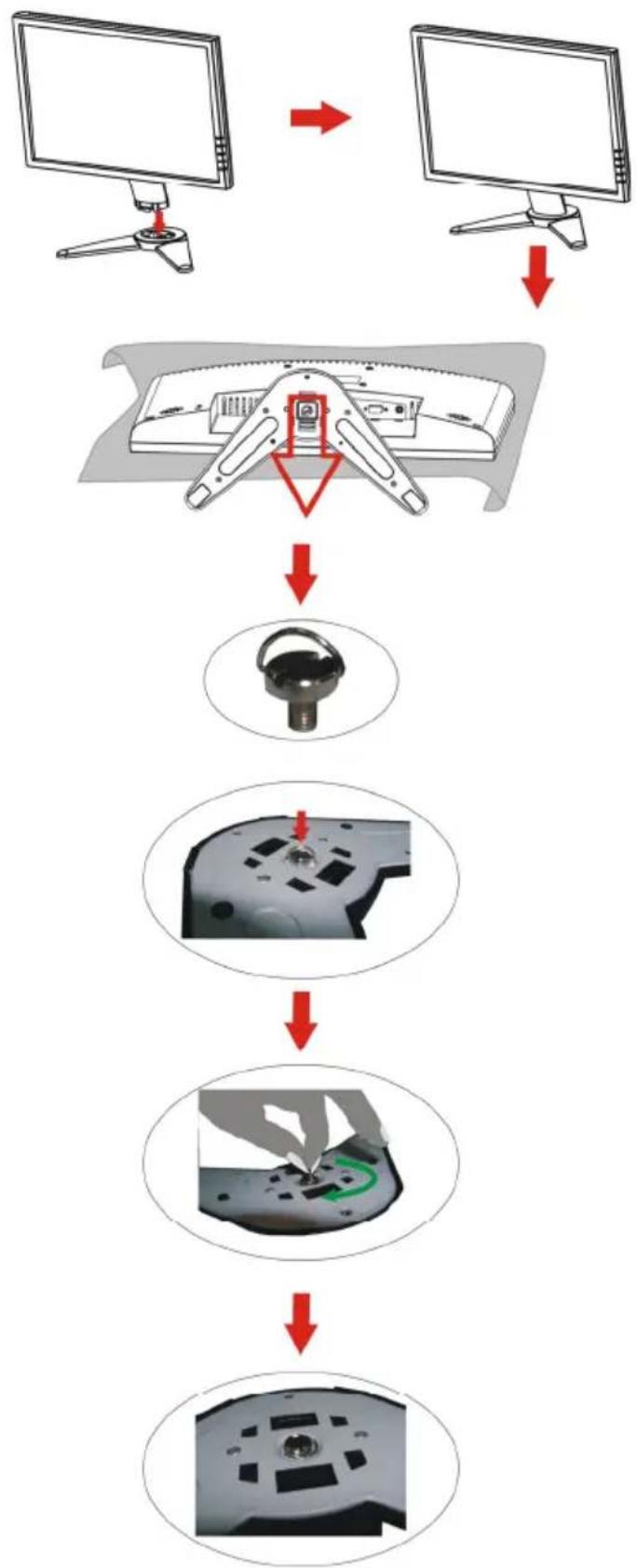
Assembling the monitor base

The display surface of the LCD monitor is sensitive to pressure and scratches. Therefore, lay the monitor on a soft surface when mounting or removing the monitor base.
flowchart
graph TD
    A["Computer monitor"] --> B["Device with sensor"]
    B --> C["Component 1: Headset"]
    C --> D["Component 2: Display with circular head"]
    D --> E["Component 3: Display with green ring"]
    E --> F["Component 4: Display with circular head"]
Declaration of Conformity
This device complies with Part 15 of the FCC Rules. Operation is subject to the following two conditions:
(1) this device may not cause harmful interference, and
(2) this device must accept any interference received, including interference that may cause undesired operation.
Product Type:
PC monitor
Product Name:
Scaleoview
Model:
W19-1
Name of Responsible Party: Fujitsu Siemens Computers, Inc.
| 1250 | E. | Arques | Avenue | |
| Sunnyvale, | CA | 94085 | ||
| U | . | S | A |
Contact Person:
Bernd
Schrötle-Henning
Phone No.:
(408)
834-0306
Fax No.:
(408)
746-8299
We, Fujitsu Siemens Computers, Inc., hereby declare that the equipment bearing the product name and model number specified above was tested conforming to the applicable FCC rules under the most accurate measurement standards possible, and that all the necessary steps have been taken and are in force to assure that production units of the same equipment will continue to comply with the Commissions requirements.

- Introduction
- Target group
- Notational conventions
- Additional information
- Important notes
- Safety notes
- Power cable
- Transport
- Disposal and recycling
- Cleaning
- CE marking
- Checking the contents of the consignment
- Connecting the monitor
- Connecting cables to the monitor
- Connecting cables to the computer
- Operation of the monitor
- Adjusting rake
- Switching the monitor on/off
- Troubleshooting
- Permanently unlit or lit pixels
- Assembling the monitor base
- Declaration of Conformity
Brand : FUJITSU
Model : ScaleoView W19-1
Category : Screen