
T620 - Mouse LOGITECH - Free user manual and instructions
Find the device manual for free T620 LOGITECH in PDF.
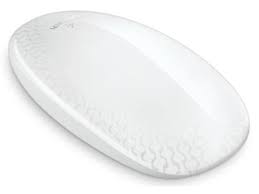



| Product type | Wireless touch mouse |
| Brand | Logitech |
| Model | T620 |
| Connection | 2.4 GHz via Unifying receiver |
| Buttons | 3 (left, right, middle click) + touch strip |
| Power | 2 AA batteries (not included) |
| Weight | 121 g |
| Range | Up to 10 m (typical) |
| System compatibility | Windows, macOS (with Logitech software) |
| Included software | Logitech Options (download) |
| Touch functions | Vertical and horizontal scrolling, customizable gestures |
| Battery indicator | Red LED when batteries low |
| Number of connectable devices | Up to 6 with a single Unifying receiver |
| Maintenance | Clean with a soft, slightly damp cloth |
| Warranty | 2 years (depending on country) |
Frequently Asked Questions - T620 LOGITECH
User questions about T620 LOGITECH
0 question about this device. Answer the ones you know or ask your own.
Ask a new question about this device
Download the instructions for your Mouse in PDF format for free! Find your manual T620 - LOGITECH and take your electronic device back in hand. On this page are published all the documents necessary for the use of your device. T620 by LOGITECH.
USER MANUAL T620 LOGITECH
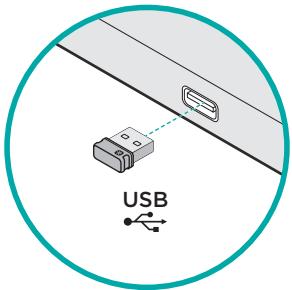
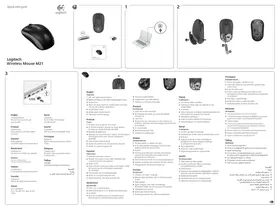
1. Plug in the receiver
Plug the Unifying receiver into a USB port.
2. Power on the mouse
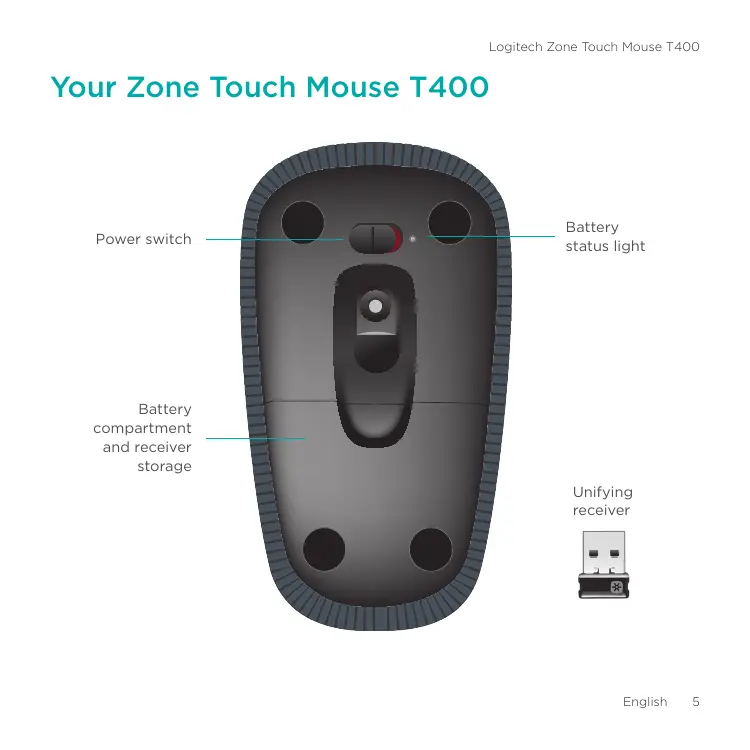
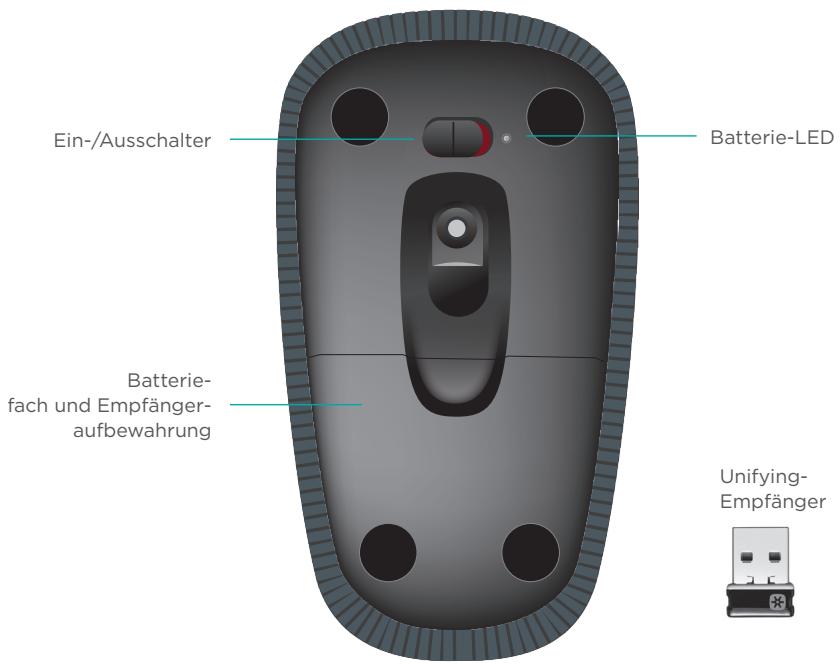
Move the power switch to the On position.
Check the battery status light. Red means it's time to change the battery.
Power switch in the On position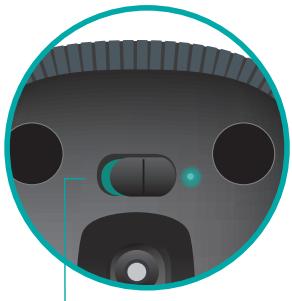
3. Software installation
You are prompted to install Logitech software that enhances your Touch Mouse experience with additional gestures, smoother performance, and personalized settings.

Follow the onscreen instructions to complete installation.

No prompt?
Download the software from:
www.logitech.com/download/t400
Visit the Product Page
While you're online, check out the Zone Touch Mouse T400 Product Page, your destination for world-class support.
www.logitech.com/support/t400
In addition to software, you'll find tutorials, troubleshooting tips, and guidelines for using your new Touch Mouse.
The Product Page is also home to live forums that connect you to a global community of knowledgeable users.
Using the mouse
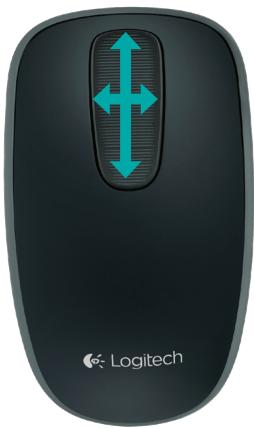
One finger scrolling
Swipe up, down, or sideways on the touch strip.
Clicking
The Touch Mouse provides full 3-button operation. Click the left, right, or middle area of the mouse surface.
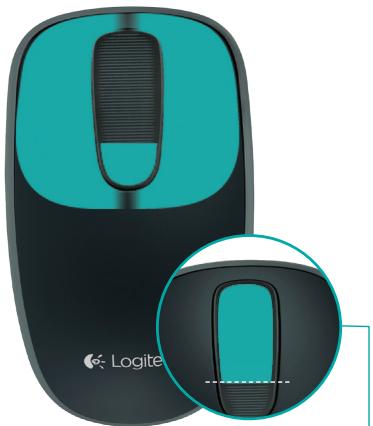
Click the top 2/3 of the touch strip to go to the Windows Start screen.
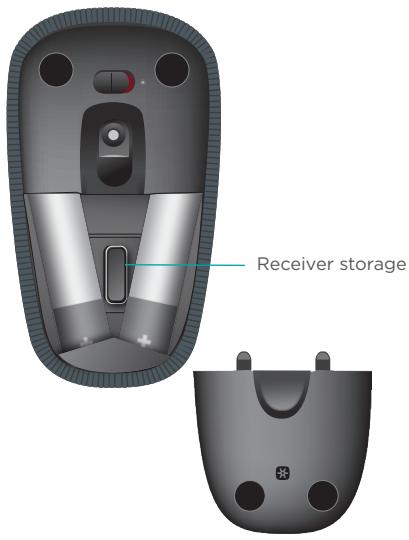
Replace batteries
Remove the battery cover and insert new batteries into the compartment.
Unifying
Logitech Unifying technology connects up to six compatible Logitech mice and keyboards to the same receiver, using only one USB port for multiple devices. To learn more, visit:
www.logitech.com/support/unifying

unifying
Troubleshooting
Touch Mouse not working?
- Restart the mouse by turning it off and then back on.
- Check if your Unifying receiver is properly connected to a USB port.
- Move the Unifying receiver to another USB port on your computer. (Try connecting directly to your computer instead of using a USB hub.)
- Remove any metallic objects near the mouse.
- If the status light blinks red, replace the battery.
Zone Touch Mouse T400
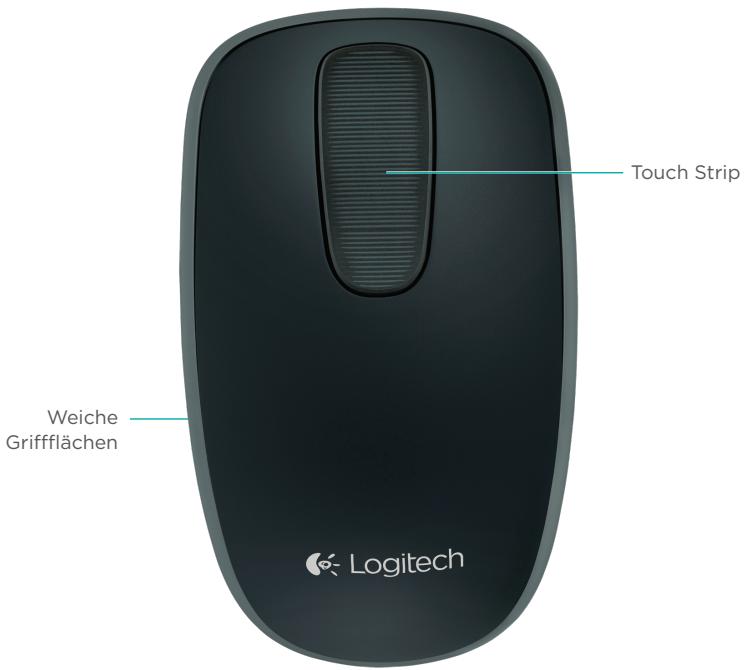
Zone Touch Mouse T400
www.logitech.com/support/unifying

Troubleshooting
www.logitech.com/support/unifying
unifying
Troubleshooting
www.logitech.com/support/unifying

unifying
www.logitech.com/support/unifying

unifying
www.logitech.com/support/unifying

unifying
www.logitech.com/support/unifying

unifying
Troubleshooting
Is the Touch Mouse not working?
www.logitech.com/support/unifying

unifying
Troubleshooting
Your Zone Touch Mouse T400
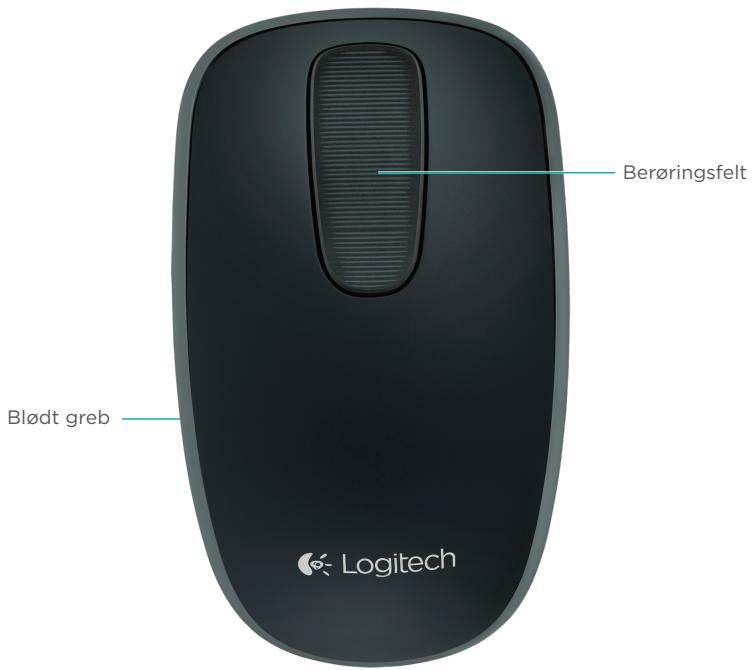
Your Zone Touch Mouse T400
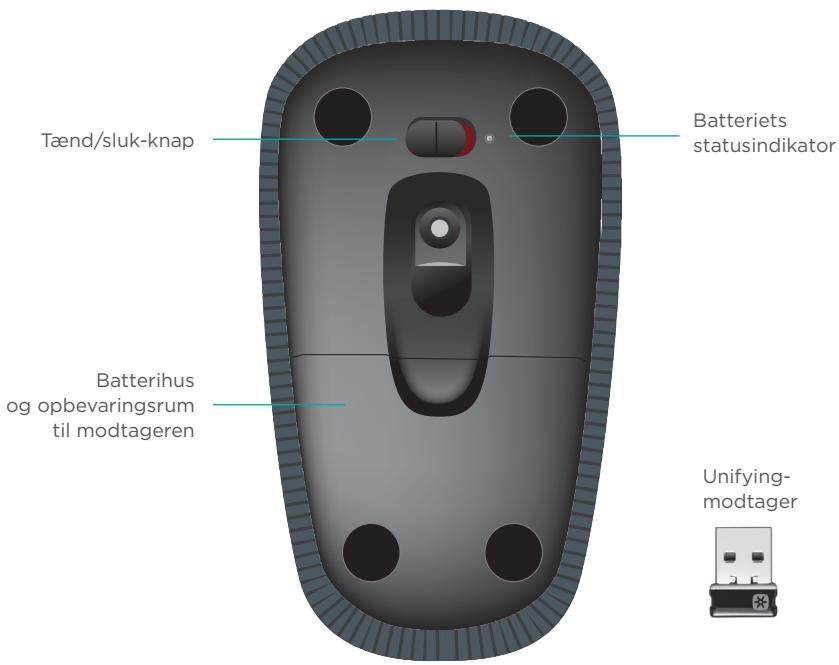
Install your mouse
1. Plug in the receiver
Finally, connect the receiver to a USB port.
2. Turn on the mouse
The switch should be set to "On".
www.logitech.com/support/unifying

unifying
Troubleshooting
Is your Touch Mouse not working?
www.logitech.com/support/unifying

unifying
Troubleshooting
Is your Touch Mouse not working?
www.logitech.com/support/unifying

Troubleshooting
www.logitech.com/support/unifying

unifying
www.logitech.com/support/unifying

unifying
Troubleshooting


- PLUG IN THE RECEIVER
- POWER ON THE MOUSE
- SOFTWARE INSTALLATION
- NO PROMPT
- VISIT THE PRODUCT PAGE
- WWW.LOGITECH.COM/SUPPORT/T
- USING THE MOUSE
- ONE FINGER SCROLLING
- CLICKING
- REPLACE BATTERIES
- UNIFYING
- TROUBLESHOOTING
- TOUCH MOUSE NOT WORKING
- ZONE TOUCH MOUSE T
- IS THE TOUCH MOUSE NOT WORKING
- YOUR ZONE TOUCH MOUSE T
- INSTALL YOUR MOUSE
- TURN ON THE MOUSE
- IS YOUR TOUCH MOUSE NOT WORKING
Brand : LOGITECH
Model : T620
Category : Mouse