
6086 - Cellphone NOKIA - Free user manual and instructions
Find the device manual for free 6086 NOKIA in PDF.



| Product Type | Mobile Phone |
| Brand | NOKIA |
| Model | 6086 |
| Dimensions (approx.) | 108 x 46 x 18 mm |
| Weight (approx.) | 95 g |
| Display Type | 128x160 pixel color TFT screen |
| Power Source | BL-5B Lithium-Ion battery (900 mAh) |
| Talk Time | Up to 5 hours |
| Standby Time | Up to 300 hours |
| Main Functions | Calls, SMS, phonebook, FM radio, alarm, game |
| FM Radio | Yes, built-in with wired antenna |
| Phonebook | Up to 500 contacts |
| Messages | SMS, EMS, MMS |
| Connectivity | Infrared, USB cable (optional) |
| Internal Memory | 4 MB shared |
| Customization | Wallpapers, polyphonic ringtones, themes |
| Care and Cleaning | Clean with a soft, dry cloth. Avoid solvents. |
| Security | PIN code, PUK code, keypad lock |
| Spare Parts and Repairability | Battery, cover, accessories available online |
| General Information | User manual available as PDF on notice-facile.com |
Frequently Asked Questions - 6086 NOKIA
User questions about 6086 NOKIA
0 question about this device. Answer the ones you know or ask your own.
Ask a new question about this device
Download the instructions for your Cellphone in PDF format for free! Find your manual 6086 - NOKIA and take your electronic device back in hand. On this page are published all the documents necessary for the use of your device. 6086 by NOKIA.
USER MANUAL 6086 NOKIA
The crossed-out wheeled bin means that within the European Union the product must be taken to separate collection at the product end-of-life. This applies to your device but also to any enhancements marked with this symbol. Do not dispose of these products as unsorted municipal waste. For more information, see product Eco-Declaration or country specific information at www.nokiausa.com.
Part No. 9255567, Issue No. 1
Copyright © 2007 Nokia. All rights reserved.
Reproduction, transfer, distribution or storage of part or all of the contents in this document in any form without the prior written permission of Nokia is prohibited.
Nokia, Nokia Connecting People, Pop-Port, PC Suite, and the Nokia Original Enhancements logos are trademarks or registered trademarks of Nokia Corporation. Other product and company names mentioned herein may be trademarks or tradenames of their respective owners.
Nokia tune is a sound mark of Nokia Corporation.
US Patent No 5818437 and other pending patents. T9 text input software Copyright (C) 1997-2007. Tegic Communications, Inc. All rights reserved.

Includes RSA BSAFE cryptographic or security protocol software from RSA Security.

POWERED
Java and all Java-based marks are trademarks or registered trademarks of Sun Microsystems, Inc.
Bluetooth is a registered trademark of Bluetooth SIG, Inc.
This product is licensed under the MPEG-4 Visual Patent Portfolio License (i) for personal and noncommercial use in connection with information which has been encoded in compliance with the MPEG-4 Visual Standard by a consumer engaged in a personal and noncommercial activity and (ii) for use in connection with MPEG-4 video provided by a licensed video provider. No license is granted or shall be implied for any other use. Additional information, including that related to promotional, internal, and commercial uses, may be obtained from MPEG LA, LLC. See http://www.mpegl.com.
Nokia operates a policy of ongoing development. Nokia reserves the right to make changes and improvements to any of the products described in this document without prior notice.
TO THE MAXIMUM EXTENT PERMITTED BY APPLICABLE LAW, UNDER NO CIRCUMSTANCES SHALL NOKIA OR ANY OF ITS LICENSORS BE RESPONSIBLE FOR ANY LOSS OF DATA OR INCOME OR ANY SPECIAL, INCIDENTAL, CONSEQUENTIAL OR INDIRECT DAMAGES HOWSOEVER CAUSED.
THE CONTENTS OF THIS DOCUMENT ARE PROVIDED "AS IS". EXCEPT AS REQUIRED BY APPLICABLE LAW, NO WARRANTYES OF ANY KIND, Either EXPRESS OR IMPLIED, INCLUDING, BUT NOT LIMITED TO, THE IMPLIED WARRANTYES OF MERCHANTABILITY AND FITNESS FOR A PARTICULAR PURPOSE, ARE MADE IN RELATION TO THE ACCURACY, RELIABILITY OR CONTENTS OF THIS DOCUMENT. NOKIA RESERVES THE RIGHT TO REVISE THIS DOCUMENT OR WITHDRAW IT AT ANY TIME WITHOUT PRIOR NOTICE.
This device complies with Directive 2002/95/EC on the restriction of the use of certain hazardous substances in electrical and electronic equipment.
The availability of particular products may vary by region. Please check with the Nokia dealer nearest to you.
Export controls
This device may contain commodities, technology, or software subject to export laws and regulations from the U.S. and other countries. Diversion contrary to law is prohibited.
FCC/Industry Canada Notice
Your device may cause TV or radio interference (for example, when using a telephone in close proximity to receiving equipment). The FCC or Industry Canada can require you to stop using your telephone if such interference cannot be eliminated. If you require assistance, contact your local service facility. This device complies with part 15 of the FCC rules. Operation is subject to the following two conditions: (1) This device may not cause harmful interference, and (2) this device must accept any interference received, including interference that may cause undesired operation. Any changes or modifications not expressly approved by Nokia could void the user's authority to operate this equipment.
Warranty and reference information
- Contact Nokia 3
Get help 4
Find your phone label 4
Updates. 4
Register your phone. 4
E-newsletters. 4 - Nokia One-Year Limited Warranty.. 5
- Message from the CTIA 9
- Message from the FDA 12
9241365
Issue 2
LEGAL INFORMATION
Part No. 9241365, Issue No. 2
Copyright © 2005 Nokia. All rights reserved.
Reproduction, transfer, distribution or storage of part or all of the contents in this document in any form without the prior written permission of Nokia is prohibited.
Nokia, Nokia Connecting People, and the Nokia Original Enhancements logos are trademarks or registered trademarks of Nokia Corporation. All other product and company names mentioned herein may be trademarks or tradenames of their respective owners.
UNDER NO CIRCUMSTANCES SHALL NOKIA BE RESPONSIBLE FOR ANY LOSS OF DATA OR INCOME OR ANY SPECIAL, INCIDENTAL, AND CONSEQUENTIAL OR INDIRECT DAMAGES HOWSOEVER CAUSED.
THE CONTENTS OF THIS DOCUMENT ARE PROVIDED "AS IS." EXCEPT AS REQUIRED BY APPLICABLE LAW, NO WARRANTYES OF ANY KIND, Either EXPRESS OR IMPLIED, INCLUDING, BUT NOT LIMITED TO, THE IMPLIED WARRANTYES OF MERCHANTABILITY AND FITNESS FOR A PARTICULAR PURPOSE, ARE MADE IN RELATION TO THE ACCURACY AND RELIABILITY OR CONTENTS OF THIS DOCUMENT. NOKIA RESERVES THE RIGHT TO REVISE THIS DOCUMENT OR WITHDRAW IT AT ANY TIME WITHOUT PRIOR NOTICE.
1. Contact Nokia
If you ever need to call Nokia Care Contact Center, you will need to provide specific information about your phone. Whether you are calling about your device or an enhancement, have the equipment with you when you call. If a Nokia representative asks a specific question about the enhancement, you will have it available for quick reference.
Nokia Care Contact Center, USA
Nokia Inc.
4630 Woodland Corporate Blvd.
Suite #160
Tampa, Florida 33614
Tel: 1-888-NOKIA-2U
(1-888-665-4228)
Fax: 1-813-249-9619
Web site: www.nokiausa.com/support
In Canada call:
Tel: 1-888-22-NOKIA
(1-888-226-6542)
Web site: www.nokia.ca
For TTY/TDD users only:
1-800-24-NOKIA (1-800-246-6542)
Get help
Find your phone label
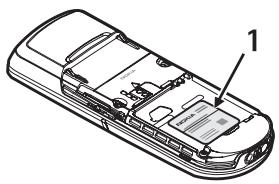
If you need to call the Nokia Care Contact Center or your service provider, you will need to provide specific information about your phone. This information is provided on the phone label (1), which is on the back of the phone (under the battery). It contains the model and serial numbers, as well as other important information about your phone.
To help Nokia promptly answer your questions, please have the following information available before contacting the Nokia Care Contact Center:
- Your phone model number
Type number
International mobile equipment identity (IMEI) or electronic serial number (ESN) - Your zip code
The phone or enhancement in question
Updates
Check www.nokiausa.com/support or your local Nokia Web site for the latest version of this guide, additional information, downloads, and services related to your Nokia product. You may also download free configuration settings such as MMS, GPRS, e-mail, and other services for your phone model at www.nokiausa.com/phonesettings.
If you still require assistance, check the list of local Nokia contact centers at www.nokiausa.com/customerservice or www.nokiausa.com/contact_us.
Register your phone
Make sure to register your phone at www.warranty.nokiausa.com or call 1-888-NOKIA-2U (1-888-665-4228) so that we can serve your needs better if you should need to call a customer center or to have your phone repaired.
E-newsletters
When you register your phone, you can sign up for the Nokia e-newsletter, Nokia Connections. You will receive tips and tricks on using your phone, enhancement information, and special offers.
2. Nokia One-Year Limited Warranty
Nokia Inc. ("Nokia") warrants that this cellular phone ("Product") is free from defects in material and workmanship that result in Product failure during normal usage, according to the following terms and conditions:
- The limited warranty for the Product extends for ONE (1) year beginning on the date of the purchase of the Product. This one year period is extended by each whole day that the Product is out of your possession for repair under this warranty.
- The limited warranty extends only to the original purchaser ("Consumer") of the Product and is not assignable or transferable to any subsequent purchaser/ end-user.
- The limited warranty extends only to Consumers who purchase the Product in the United States of America.
- During the limited warranty period, Nokia will repair, or replace, at Nokia's sole option, any defective parts, or any parts that will not properly operate for their intended use with new or refurbished replacement items if such repair or replacement is needed because of product malfunction or failure during normal usage. No charge will be made to the Consumer for any such parts. Nokia will also pay for the labor charges incurred by Nokia in repairing or replacing the defective parts. The limited warranty does not cover defects in appearance, cosmetic, decorative or structural items, including framing, and any non-operative parts. Nokia's limit of liability under the limited warranty shall be the actual cash value of the Product at the time the Consumer returns the Product for repair, determined by the price paid by the Consumer for the Product less a reasonable amount for usage. Nokia shall not be liable for any other losses or damages. These remedies are the Consumer's exclusive remedies for breach of warranty.
- Upon request from Nokia, the Consumer must prove the date of the original purchase of the Product by a dated bill of sale or dated itemized receipt.
- The Consumer shall bear the cost of shipping the Product to Nokia. Nokia shall bear the cost of shipping the Product back to the Consumer after the completion of service under this limited warranty.
- The Consumer shall have no coverage or benefits under this limited warranty if any of the following conditions are applicable:
a) The Product has been subjected to abnormal use, abnormal conditions, improper storage, exposure to moisture or dampness, unauthorized modifications, unauthorized connections, unauthorized repair, misuse, neglect, abuse, accident, alteration, improper installation, or other acts which are not the fault of Nokia, including damage caused by shipping.
b) The Product has been damaged from external causes such as collision with an object, or from fire, flooding, sand, dirt, windstorm, lightning, earthquake or damage from exposure to weather conditions, an Act of God, or battery leakage, theft, blown fuse, or improper use of any electrical source, damage caused by computer or internet viruses, bugs, worms, Trojan Horses, cancelbots or damage caused by the connection to other products not recommended for interconnection by Nokia.
c) Nokia was not advised in writing by the Consumer of the alleged defect or malfunction of the Product within fourteen (14) days after the expiration of the applicable limited warranty period.
d) The Product serial number plate or the enhancement data code has been removed, defaced or altered.
e) The defect or damage was caused by the defective function of the cellular system or by inadequate signal reception by the external antenna, or viruses or other software problems introduced into the Product.
- Nokia does not warrant uninterrupted or error-free operation of the Product. If a problem develops during the limited warranty period, the Consumer shall take the following step-by-step procedure:
a) The Consumer shall return the Product to the place of purchase for repair or replacement processing.
b) If "a" is not convenient because of distance (more than 50 miles) or for other good cause, the Consumer shall ship the Product prepaid and insured to Nokia. See www.nokiausa.com/support for the address of the repair center nearest you.
c) The Consumer shall include a return address, daytime phone number and/or fax number, complete description of the problem, proof of purchase and service agreement (if applicable). Expenses related to removing the Product from an installation are not covered under this limited warranty.
d) The Consumer will be billed for any parts or labor charges not covered by this limited warranty. The Consumer will be responsible for any expenses related to reinstatement of the Product.
e) Nokia will repair the Product under the limited warranty within 30 days after receipt of the Product. If Nokia cannot perform repairs covered under this limited warranty within 30 days, or after a reasonable number of attempts to repair the same defect, Nokia at its option, will provide a replacement Product or refund the purchase price of the Product less a reasonable amount for usage. In some states the Consumer may have the right to a loaner if the repair of the Product takes more than ten (10) days.
Please contact the Nokia Care Contact Center at the telephone number listed at the end of this warranty if you need a loaner and the repair of the Product has taken or is estimated to take more than ten (10) days.
f) If the Product is returned during the limited warranty period, but the problem with the Product is not covered under the terms and conditions of this limited warranty, the Consumer will be notified and given an estimate of the charges the Consumer must pay to have the Product repaired, with all shipping charges billed to the Consumer. If the estimate is refused, the Product will be returned freight collect. If the Product is returned after the expiration of the limited warranty period, Nokia's normal service policies shall apply and the Consumer will be responsible for all shipping charges.
-
You (the Consumer) understand that the product may consist of refurbished equipment that contains used components, some of which have been reprocessed. The used components comply with Product performance and reliability specifications.
-
ANY IMPLIED WARRANTY OF MERCHANTABILITY, OR FITNESS FOR A PARTICULAR PURPOSE OR USE, SHALL BE LIMITED TO THE DURATION OF THE FOREGOING LIMITED WRITTEN WARRANTY. OTHERWISE, THE FOREGOING LIMITED WARRANTY IS THE CONSUMER'S SOLE AND EXCLUSIVE REMEDY AND IS IN LIEU OF ALL OTHER WARRANTYES, EXPRESS OR IMPLIED. NOKIA SHALL NOT BE LIABLE FOR SPECIAL, INCIDENTAL, PUNITIVE OR CONSEQUENTIAL DAMAGES, INCLUDING BUT NOT LIMITED TO LOSS OF ANTICIPATED BENEFITS OR PROFITS, LOSS OF SAVINGS OR REVENUE, LOSS OF DATA, PUNITIVE DAMAGES, LOSS OF USE OF THE PRODUCT OR ANY ASSOCIATED EQUIPMENT, COST OF CAPITAL, COST OF ANY SUBSTITUTE EQUIPMENT OR FACILITIES, DOWNTIME, THE CLAIMS OF ANY THIRD PARTIES, INCLUDING CUSTOMERS, AND INJURY TO PROPERTY, RESULTING FROM THE PURCHASE OR USE OF THE PRODUCT OR ARISING FROM BREACH OF THE WARRANTY, BREACH OF CONTRACT, NEGLIGENCE, STRICT TORT, OR ANY OTHER LEGAL OR EQUITABLE THEORY, EVEN IF NOKIA KNEW OF THE LIKELIHOOD OF SUCH DAMAGES. NOKIA SHALL NOT BE LIABLE FOR DELAY IN RENDERING SERVICE UNDER THE LIMITED WARRANTY, OR LOSS OF USE DURING THE PERIOD THAT THE PRODUCT IS BEING REPAIRED.
-
Some states do not allow limitation of how long an implied warranty lasts, so the one year warranty limitation may not apply to you (the Consumer). Some states do not allow the exclusion or limitation of incidental and consequential damages, so certain of the above limitations or exclusions may not apply to you (the Consumer). This limited warranty gives the Consumer specific legal rights and the Consumer may also have other rights which vary from state to state.
-
Nokia neither assumes nor authorizes any authorized service center or any other person or entity to assume for it any other obligation or liability beyond that which is expressly provided for in this limited warranty including the provider or seller of any extended warranty or service agreement.
- This is the entire warranty between Nokia and the Consumer, and supersedes all prior and contemporaneous agreements or understandings, oral or written, relating to the Product, and no representation, promise or condition not contained herein shall modify these terms.
- This limited warranty allocates the risk of failure of the Product between the Consumer and Nokia. The allocation is recognized by the Consumer and is reflected in the purchase price.
- Any action or lawsuit for breach of warranty must be commenced within eighteen (18) months following purchase of the Product.
- Questions concerning this limited warranty may be directed to: Nokia Inc.
Telephone: 1-888-NOKIA-2U (1-888-665-4228)
Facsimile: (813) 249-9619
TTY/TDD Users Only: 1-800-24-NOKIA (1-800-246-6542)
Website: www.nokiausa.com/support
3. Message from the CTIA
(Cellular Telecommunications & Internet Association) to all users of mobile phones
^© 2001 Cellular Telecommunications & Internet Association. All Rights Reserved. 1250 Connecticut Avenue, NW Suite 800, Washington, DC 20036.
Phone: (202) 785-0081
Safety is the most important call you will ever make.
A Guide to Safe and Responsible Wireless Phone Use
Tens of millions of people in the U.S. today take advantage of the unique combination of convenience, safety and value delivered by the wireless telephone. Quite simply, the wireless phone gives people the powerful ability to communicate by voice—almost anywhere, anytime—with the boss, with a client, with the kids, with emergency personnel or even with the police. Each year, Americans make billions of calls from their wireless phones, and the numbers are rapidly growing. But an important responsibility accompanies those benefits, one that every wireless phone user must uphold. When driving a car, driving is your first responsibility. A wireless phone can be an invaluable tool, but good judgment must be exercised at all times while driving a motor vehicle—whether on the phone or not. The basic lessons are ones we all learned as teenagers. Driving requires alertness, caution and courtesy. It requires a heavy dose of basic common sense—keep your head up, keep your eyes on the road, check your mirrors frequently and watch out for other drivers. It requires obeying all traffic signs and signals and staying within the speed limit. It means using seatbelts and requiring other passengers to do the same. But with wireless phone use, driving safely means a little more. This brochure is a call to wireless phone users everywhere to make safety their first priority when behind the wheel of a car. Wireless telecommunications is keeping us in touch, simplifying our lives, protecting us in emergencies and providing opportunities to help others in need. When it comes to the use of wireless phones, safety is your most important call.
■ Wireless Phone "Safety Tips"
Below are safety tips to follow while driving and using a wireless phone which should be easy to remember.
- Get to know your wireless phone and its features such as speed dial and redial. Carefully read your instruction manual and learn to take advantage of valuable features most phones offer, including automatic redial and memory. Also, work to memorize the phone keypad so you can use the speed dial function without taking your attention off the road.
- When available, use a hands-free device. A number of hands-free wireless phone accessories are readily available today. Whether you choose an installed mounted device for your wireless phone or a speaker phone accessory, take advantage of these devices if available to you.
- Position your wireless phone within easy reach. Make sure you place your wireless phone within easy reach and where you can grab it without removing your eyes from the road. If you get an incoming call at an inconvenient time, if possible, let your voice mail answer it for you.
- Suspend conversations during hazardous driving conditions or situations. Let the person you are speaking with know you are driving; if necessary, suspend the call in heavy traffic or hazardous weather conditions. Rain, sleet, snow and ice can be hazardous, but so is heavy traffic. As a driver, your first responsibility is to pay attention to the road.
- Do not take notes or look up phone numbers while driving. If you are reading an address book or business card, or writing a "to do" list while driving a car, you are not watching where you are going. It's common sense. Don't get caught in a dangerous situation because you are reading or writing and not paying attention to the road or nearby vehicles.
- Dial sensibly and assess the traffic; if possible, place calls when you are not moving or before pulling into traffic. Try to plan your calls before you begin your trip or attempt to coincide your calls with times you may be stopped at a stop sign, red light or otherwise stationary. But if you need to dial while driving, follow this simple tip—dial only a few numbers, check the road and your mirrors, then continue.
-
Do not engage in stressful or emotional conversations that may be distracting. Stressful or emotional conversations and driving do not mix—they are distracting and even dangerous when you are behind the wheel of a car. Make people you are talking with aware you are driving and if necessary, suspend conversations which have the potential to divert your attention from the road.
-
Use your wireless phone to call for help. Your wireless phone is one of the greatest tools you can own to protect yourself and your family in dangerous situations—with your phone at your side, help is only three numbers away. Dial 9-1-1 or other local emergency number in the case of fire, traffic accident, road hazard or medical emergency. Remember, it is a free call on your wireless phone!
- Use your wireless phone to help others in emergencies. Your wireless phone provides you a perfect opportunity to be a "Good Samaritan" in your community. If you see an auto accident, crime in progress or other serious emergency where lives are in danger, call 9-1-1 or other local emergency number, as you would want others to do for you.
- Call roadside assistance or a special wireless nonemergency assistance number when necessary. Certain situations you encounter while driving may require attention, but are not urgent enough to merit a call for emergency services. But you still can use your wireless phone to lend a hand. If you see a broken-down vehicle posing no serious hazard, a broken traffic signal, a minor traffic accident where no one appears injured or a vehicle you know to be stolen, call roadside assistance or other special non-emergency wireless number.
Careless, distracted individuals and people driving irresponsibly represent a hazard to everyone on the road. Since 1984, the Cellular Telecommunications Industry Association and the wireless industry have conducted educational outreach to inform wireless phone users of their responsibilities as safe drivers and good citizens. As we approach a new century, more and more of us will take advantage of the benefits of wireless telephones. And, as we take to the roads, we all have a responsibility to drive safely. The wireless industry reminds you to use your phone safely when driving. For more information, please call 1-888-901-SAFE.
For updates:
http://www wow-com.com/consumer/issues/driving/articles.cfm?ID=85
4. Message from the FDA
The U.S. Food and Drug Administration (FDA) provides the following consumer information about wireless phones.
See http://www.fda.gov/cellphones/ for updated information.
Do wireless phones pose a health hazard?
The available scientific evidence does not show that any health problems are associated with using wireless phones. There is no proof, however, that wireless phones are absolutely safe. Wireless phones emit low levels of radiofrequency energy (RF) in the microwave range while being used. They also emit very low levels of RF when in the stand-by mode. Whereas high levels of RF can produce health effects (by heating tissue), exposure to low level RF that does not produce heating effects causes no known adverse health effects. Many studies of low level RF exposures have not found any biological effects. Some studies have suggested that some biological effects may occur, but such findings have not been confirmed by additional research. In some cases, other researchers have had difficulty in reproducing those studies, or in determining the reasons for inconsistent results.
What is FDA's role concerning the safety of wireless phones?
Under the law, FDA does not review the safety of radiation-emitting consumer products such as wireless phones before they can be sold, as it does with new drugs or medical devices. However, the agency has authority to take action if wireless phones are shown to emit radiofrequency energy (RF) at a level that is hazardous to the user. In such a case, FDA could require the manufacturers of wireless phones to notify users of the health hazard and to repair, replace or recall the phones so that the hazard no longer exists.
Although the existing scientific data do not justify FDA regulatory actions, FDA has urged the wireless phone industry to take a number of steps, including the following:
- Support needed research into possible biological effects of RF of the type emitted by wireless phones;
- Design wireless phones in a way that minimizes any RF exposure to the user that is not necessary for device function; and
- Cooperate in providing users of wireless phones with the best possible information on possible effects of wireless phone use on human health.
FDA belongs to an interagency working group of the federal agencies that have responsibility for different aspects of RF safety to ensure coordinated efforts at the federal level. The following agencies belong to this working group:
National Institute for Occupational Safety and Health
Environmental Protection Agency
Federal Communications Commission
Occupational Safety and Health Administration
National Telecommunications and Information Administration
The National Institutes of Health participates in some interagency working group activities, as well.
FDA shares regulatory responsibilities for wireless phones with the Federal Communications Commission (FCC). All phones that are sold in the United States must comply with FCC safety guidelines that limit RF exposure. FCC relies on FDA and other health agencies for safety questions about wireless phones.
FCC also regulates the base stations that the wireless phone networks rely upon. While these base stations operate at higher power than do the wireless phones themselves, the RF exposures that people get from these base stations are typically thousands of times lower than those they can get from wireless phones. Base stations are thus not the primary subject of the safety questions discussed in this document.
What is FDA doing to find out more about the possible health effects of wireless phone RF?
FDA is working with the U.S. National Toxicology Program and with groups of investigators around the world to ensure that high priority animal studies are conducted to address important questions about the effects of exposure to radiofrequency energy (RF). FDA has been a leading participant in the World Health Organization International Electromagnetic Fields (EMF) Project since its inception in 1996. An influential result of this work has been the development of a detailed agenda of research needs that has driven the establishment of new research programs around the world. The Project has also helped develop a series of public information documents on EMF issues. FDA and the Cellular Telecommunications & Internet Association (CTIA) have a formal Cooperative Research and Development Agreement (CRADA) to do research on wireless phone safety. FDA provides the scientific oversight, obtaining input from experts in government, industry, and academic organizations. CTIA-funded research is conducted through contracts to independent investigators. The initial research will include both laboratory studies and studies of wireless phone users. The CRADA will also include a broad assessment of additional research needs in the context of the latest research developments around the world.
What steps can I take to reduce my exposure to radiofrequency energy from my wireless phone?
If there is a risk from these products--and at this point we do not know that there is--it is probably very small. But if you are concerned about avoiding even potential risks, you can take a few simple steps to minimize your exposure to radiofrequency
energy (RF). Since time is a key factor in how much exposure a person receives, reducing the amount of time spent using a wireless phone will reduce RF exposure.
If you must conduct extended conversations by wireless phone every day, you could place more distance between your body and the source of the RF, since the exposure level drops off dramatically with distance. For example, you could use a headset and carry the wireless phone away from your body or use a wireless phone connected to a remote antenna.
Again, the scientific data do not demonstrate that wireless phones are harmful. But if you are concerned about the RF exposure from these products, you can use measures like those described above to reduce your RF exposure from wireless phone use.
What about children using wireless phones?
The scientific evidence does not show a danger to users of wireless phones, including children and teenagers. If you want to take steps to lower exposure to radiofrequency energy (RF), the measures described above would apply to children and teenagers using wireless phones. Reducing the time of wireless phone use and increasing the distance between the user and the RF source will reduce RF exposure. Some groups sponsored by other national governments have advised that children be discouraged from using wireless phones at all. For example, the government in the United Kingdom distributed leaflets containing such a recommendation in December 2000. They noted that no evidence exists that using a wireless phone causes brain tumors or other ill effects. Their recommendation to limit wireless phone use by children was strictly precautionary; it was not based on scientific evidence that any health hazard exists.
Do hands-free kits for wireless phones reduce risks from exposure to RF emissions?
Since there are no known risks from exposure to RF emissions from wireless phones, there is no reason to believe that hands-free kits reduce risks. Hands-free kits can be used with wireless phones for convenience and comfort. These systems reduce the absorption of RF energy in the head because the phone, which is the source of the RF emissions, will not be placed against the head. On the other hand, if the phone is mounted against the waist or other part of the body during use, then that part of the body will absorb more RF energy. Wireless phones marketed in the U.S. are required to meet safety requirements regardless of whether they are used against the head or against the body. Either configuration should result in compliance with the safety limit.
Do wireless phone accessories that claim to shield the head from RF radiation work?
Since there are no known risks from exposure to RF emissions from wireless phones, there is no reason to believe that accessories that claim to shield the head from those emissions reduce risks. Some products that claim to shield the user from RF absorption use special phone cases, while others involve nothing more than a metallic accessory attached to the phone. Studies have shown that these products generally do not work as advertised. Unlike "hand-free" kits, these so-called "shields" may interfere with proper operation of the phone. The phone may be forced to boost its power to compensate, leading to an increase in RF absorption. In February 2002, the Federal trade Commission (FTC) charged two companies that sold devices that claimed to protect wireless phone users from radiation with making false and unsubstantiated claims. According to FTC, these defendants lacked a reasonable basis to substantiate their claim.
How does FCC Audit Cell Phone RF?
After FCC grants permission for a particular cellular telephone to be marketed, FCC will occasionally conduct "post-grant" testing to determine whether production versions of the phone are being produced to conform with FCC regulatory requirements. The manufacturer of a cell phone that does not meet FCC's regulatory requirements may be required to remove the cell phone from use and to refund the purchase price or provide a replacement phone, and may be subject to civil or criminal penalties. In addition, if the cell phone presents a risk of injury to the user, FDA may also take regulatory action. The most important post-grant test, from a consumer's perspective, is testing of the RF emissions of the phone. FCC measures the Specific Absorption Rate (SAR) of the phone, following a very rigorous testing protocol. As is true for nearly any scientific measurement, there is a possibility that the test measurement may be less than or greater than the actual RF emitted by the phone. This difference between the RF test measurement and actual RF emission is because test measurements are limited by instrument accuracy, because test measurement and actual use environments are different, and other variable factors. This inherent variability is known as "measurement uncertainty." When FCC conducts post-grant testing of a cell phone, FCC takes into account any measurement uncertainty to determine whether regulatory action is appropriate. This approach ensures that when FCC takes regulatory action, it will have a sound, defensible scientific basis.
FDA scientific staff reviewed the methodology used by FCC to measure cell phone RF, and agreed it is an acceptable approach, given our current understanding of the risks presented by cellular phone RF emissions. RF emissions from cellular phones have not been shown to present a risk of injury to the user when the measured SAR is less than the safety limits set by FCC (an SAR of 1.6 w/kg). Even in a case where
the maximum measurement uncertainty permitted by current measurement standards was added to the maximum permissible SAR, the resulting SAR value would be well below any level known to produce an acute effect. Consequently, FCC's approach with measurement uncertainty will not result in consumers being exposed to any known risk from the RF emitted by cellular telephones.
FDA will continue to monitor studies and literature reports concerning acute effects of cell phone RF, and concerning chronic effects of long-term exposure to cellular telephone RF (that is, the risks from using a cell phone for many years). If new information leads FDA to believe that a change to FCC's measurement policy may be appropriate, FDA will contact FCC and both agencies will work together to develop a mutually-acceptable approach.
Updated July 29, 2003
4630 Woodland Corporate Blvd.
Suite #160
Tampa, Florida 33614
Tel: 1-888-NOKIA-2U
(1-888-665-4228)
Fax: 1-813-249-9619
Pág. Web: www.nokiausa.com/support
En Canadá:
Tel: 1-888-22-NOKIA
(1-888-226-6542)
Pág. Web: www.nokia.ca
http://www wow-com.com/consumer/issues/driving/articles.cfm?ID=85
National Institute for Occupational Safety and Health
Environmental Protection Agency
Federal Communications Commission
Occupational Safety and Health Administration
National Telecommunications and Information Administration
General information. 9
Access codes. 9
Copyright protection. 10
Configuration settings service..... 10
Download content and applications. 10
1. Get started 11
Install the SIM card and battery.... 11
Charge the battery. 12
Memory card installation 12
Switch the phone on and off. 13
Open the fold 14
Normal operating position 14
Antenna 14
Wrist strap. 15
2. Your phone 16
Keys and parts. 16
Standby mode 17
Indicators and icons. 19
Keys lock (keyguard) 20
3. Call functions 21
Make a call 21
1-touch dialing. 21
Enhanced voice dialing. 21
Answer or decline a call 22
Options during a call. 22
4. Phone menus 23
Menu views. 23
Access a menu function. 23
-
Voice notes 24
-
Log 25
7. t-zones 26
Technology background 26
Service provider. 26
Access service 26
Browse 27
Security settings. 28
Bookmarks. 29
Download settings. 29
t-zones inbox 29
Cache memory 30
Browser security 30
8. Instant messaging 33
Register with an IM service. 33
Login 33
Begin an IM session 34
Receive and reply to messages..... 34
Return to chat session. 34
Contacts 34
Conversation options. 35
Set your availability 35
Log off service. 35
9. Messaging 37
Text messages 37
SIM messages. 39
Picture messages. 39
Nokia Xpress audio messaging. 42
Voice messages. 43
Info messages 43
Service commands. 43
Delete messages. 43
Message settings. 44
10. Fun & Apps 46
Gallery 46
Games and Applications 46
Media 48
Organizer. 52
-
Phonebook 55
Search 55
Save names and phone numbers.... 55
Save numbers, items, or an image.. 55
Copy a contact. 56
Edit contact details. 56
Delete contacts or details. 56
Business cards. 56
Settings 56
Groups. 57
1-touch dialing 57
Service and my numbers. 57
12.Settings 58
WLAN/Wi-Fi 58
Profiles. 61
Themes 62
Tones 62
Display 62
Time and date 64
My shortcuts. 64
Connectivity 65
Call 70
Phone 70
Enhancements. 71
Configuration. 72
Security 73
Restore factory settings. 73
Phone software updates. 74 -
Operator menu 75
- SIM services 76
- Computer connectivity.... 77
USB data storage. 77
Nokia PC Suite. 77
EGPRS, GPRS, HSCSD, and CSD.... 77
Data communication applications. 77
Bluetooth 78
16. Enhancements 79
17. Battery information 80
Charging and discharging 80
Nokia battery authentication guidelines. 81
Care and maintenance 83
Additional safety information 84
Index 90
Read these simple guidelines. Not following them may be dangerous or illegal.
Read the complete user guide for further information.

SWITCH ON SAFELY
Do not switch the phone on when wireless phone use is prohibited or when it may cause interference or danger.

ROAD SAFETY COMES FIRST
Obey all local laws. Always keep your hands free to operate the vehicle while driving. Your first consideration while driving should be road safety.

INTERFERENCE
All wireless phones may be susceptible to interference, which could affect performance.

SWITCH OFF IN HOSPITALS
Follow any restrictions. Switch the phone off near medical equipment.

SWITCH OFF IN AIRCRAFT
Follow any restrictions. Wireless devices can cause interference in aircraft.

SWITCH OFF WHEN REFUELING
Do not use the phone at a refueling point. Do not use near fuel or chemicals.

SWITCH OFF NEAR BLASTING
Follow any restrictions. Do not use the phone where blasting is in progress.

USE SENSIBLY
Use only in the normal position as explained in the product documentation. Do not touch the antenna unnecessarily.

QUALIFIED SERVICE
Only qualified personnel may install or repair this product.

ENHANCEMENTS AND BATTERIES
Use only approved enhancements and batteries. Do not connect incompatible products.

WATER-RESISTANCE
Your phone is not water-resistant. Keep it dry.

BACK-UP COPIES
Remember to make back-up copies or keep a written record of all important information stored in your phone.

CONNECTING TO OTHER DEVICES
When connecting to any other device, read its user guide for detailed safety instructions. Do not connect incompatible products.

EMERGENCY CALLS
Ensure the phone is switched on and in service. Press the end key as many times as needed to clear the display and return to the start screen. Enter the emergency number, then press the call key. Give your location. Do not end the call until given permission to do so.
About your device
The wireless device described in this guide is approved for use on the GSM 850, 900, 1800, and 1900 networks. Contact your service provider for more information about networks.
When using the features in this device, obey all laws and respect the privacy and legitimate rights of others, including copyrights.
When taking and using images or video clips, obey all laws and respect local customs as well as privacy and legitimate rights of others.

Warning: To use any features in this device, other than the alarm clock, the device must be switched on. Do not switch the device on when wireless device use may cause interference or danger.
Network services
To use the phone you must have service from a wireless service provider. Many of the features in this device depend on features in the wireless network to function. These network services may not be available on all networks or you may have to make specific arrangements with your service provider before you can utilize network services. Your service provider may need to give you additional instructions for their use and explain what charges will apply. Some networks may have limitations that affect how you can use network services. For instance, some networks may not support all language-dependent characters and services.
For your safety
Your service provider may have requested that certain features be disabled or not activated in your device. If so, they will not appear on your device menu. Your device may also have been specially configured. This configuration may include changes in menu names, menu order, and icons. Contact your service provider for more information.
This device supports WAP 2.0 protocols (HTTP and SSL) that run on TCP/IP protocols. Some features of this device, such as multimedia messaging service (MMS), browsing, instant messaging, remote synchronization, and content downloading using the browser or MMS, require network support for these technologies.
Shared memory
The following features in this device may share memory: the Gallery, contacts, text messages, multimedia messages, instant messages, calendar, to-do notes, and Java^TM games and applications. Use of one or more of these features may reduce the memory available for the remaining features sharing memory. For example, saving many Java applications may use all of the available memory. Your device may display a message that the memory is full when you try to use a shared memory feature. In this case, delete some of the information or entries stored in the shared memory features before continuing. Some of the features, such as text messages, may have a certain amount of memory specially allotted to them in addition to the memory shared with other features.
General information
Congratulations on your purchase of this Nokia mobile phone. Some of its other features include a calendar, a clock, an alarm clock, a radio, and a built-in camera.
Access codes
Security code
The security code (5 to 10 digits) helps to protect your phone against unauthorized use. The preset code is 12345. To change the code, and to set the phone to request the code, see "Security," p. 73.
If you enter an incorrect security code five times in succession, the phone ignores further entries of the code. Wait for five minutes, and enter the code again.
PIN codes
The personal identification number (PIN) code and the universal personal identification number (UPIN) code (4 to 8 digits) help to protect your SIM card against unauthorized use. See "Security," p. 73. The PIN code is usually supplied with the SIM card. To set the phone to request the PIN code, see "Security," p. 73.
The PIN2 code (4 to 8 digits) may be supplied with the SIM card and is required for some functions.
The module PIN is required to access the information in the security module. See "Security module," p. 30. The module PIN is supplied with the SIM card if the SIM card has a security module in it.
The signing PIN is required for the digital signature. See "Digital signature," p. 32. The signing PIN is supplied with the SIM card if the SIM card has a security module in it.
PUK codes
The personal unblocking key (PUK) code and the universal personal unblocking key (UPUK) code (8 digits) are required to change a blocked PIN code and UPIN code, respectively. The PUK2 code is required to change a blocked PIN2 code. If the codes are not supplied with the SIM card, contact your service provider for the codes.
Restriction password
The restriction password (4 digits) is required when using Call restrictions.
See "Security," p. 73. You can obtain the password from your service provider.
If you enter an incorrect restriction password three times in succession,
the password is blocked. Contact your service provider for assistance.
Copyright protection
Copyright protections may prevent some images, music (including ringing tones), and other content from being copied, modified, transferred, or forwarded.
■ Configuration settings service
To use some of the network services, such as mobile internet services, MMS, or remote internet server synchronization, your phone needs the correct configuration settings. You may be able to receive the settings directly as a configuration message. After receiving the settings, you must save them on your phone. The service provider may provide a PIN that is needed to save the settings. For more information on availability of the settings, contact your service provider.
When you receive a configuration message, Configuration sett. received is displayed.
To save the settings, select Show > Save. If the phone requests Entertsettings' PIN; enter the PIN code for the settings, and select OK. To receive the PIN code, contact the service provider that supplies the settings. If no settings are saved, these settings are saved and set as default configuration settings. Otherwise, the phone asks
Activate saved configuration settings?
To discard the received settings, select Show > Discard.
To edit the settings, see "Configuration," p. 72.
Download content and applications
You may be able to download content (for example, themes, tones, and video clips) to the phone (network service). Select the download function (for example, in the Gallery menu). To access the download function, see the respective menu descriptions.
For the availability of different services, pricing, and fees, contact your service provider.

Important: Use only services that you trust and that offer adequate security and protection against harmful software.
1. Get started
Install the SIM card and battery
Always switch the device off, and disconnect the charger before removing the battery.
Keep all SIM cards out of the reach of small children.
For availability and information on using SIM card services, contact your SIM card vendor. This may be the service provider or other vendor.
The SIM card and its contacts can easily be damaged by scratches or bending, so be careful when handling, inserting, or removing the card.
To install the SIM card:
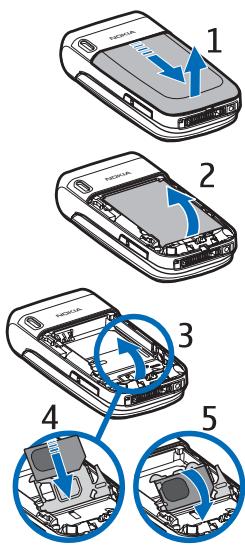
- Press firmly and slide the top of the back cover to release it; then remove the back cover by lifting it from the phone.
- After you have removed the back cover, insert your fingernail under the battery, and lift it as shown.
- Place a fingernail in the middle of the metal SIM card holder. Then, unlatch and swing the SIM card holder open.
- Insert the SIM card into the holder as shown, beveled corner first, with the gold-colored contacts on the SIM card face up (away from the phone).
- Swing the SIM card holder closed. The gold-colored contacts on the SIM card meet the gold-colored contacts on the inside of the phone. Gently press the SIM card holder into the phone until it clicks into place.
Get started
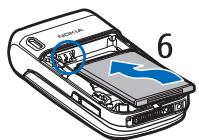
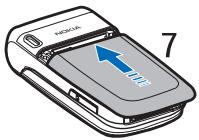
- Replace the battery, by positioning it (with the label side facing up), so the gold-colored contacts match up with those on the phone. Slide the battery in until it snaps into place.
- Slide the back cover until it locks into place.
Charge the battery
- Connect the charger to a standard wall outlet.
- Insert the charger plug into the round jack in the bottom of the phone. If the battery is completely discharged, it may take a few minutes before the charging indicator appears on the display or before any calls can be made.
- Disconnect the charger from the phone when the battery is fully charged.
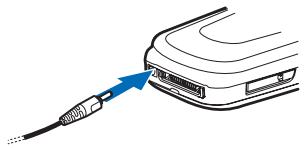
You can use the phone while the charger is connected. The charging time depends on the charger and the battery used. For example, charging a BL-5C battery with the AC-3 charger takes approximately 2 hours and 20 minutes while the phone is in the standby mode.
Memory card installation
Keep all microSD memory cards out of the reach of small children.

Use only compatible microSD cards approved by Nokia for use with this device. Nokia uses approved industry standards for memory cards, but some brands may not be fully compatible with this device. Incompatible cards may damage the card and the device and corrupt data stored on the card.
You can use a memory card to extend the memory of the Gallery. See "Gallery," p. 46. You can insert or change the memory card without turning the phone off.
Insert a microSD card
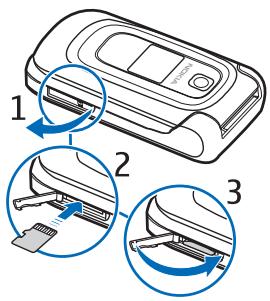
To insert a memory card, use a fingernail as a lever, place it in the recessed area of the memory card holder, and swing the holder open (1). Place the memory card in the card holder (2). Make sure that the memory card is properly inserted and that the gold-colored contacts on the card are facing upwards. Close the memory card holder (3).
You can use the memory card to save your multimedia files, such as video clips, sound files, and images, in the Gallery.
Remove the microSD card

Important: Do not remove the memory card in the middle of an operation when the card is being accessed. Removing the card in the middle of an operation may damage the memory card as well as the device, and data stored on the card may be corrupted.
To remove the memory card, use a fingernail as a lever, place it in the recessed area of the memory card holder, and swing the holder open. Push gently with a fingernail against the card to loosen it from the holder. Pull the card out. Close the memory card holder.
Format the memory card
To format the memory card, see "Format memory card," p. 46.
Switch the phone on and off
Press and hold the end key until the phone switches on or off. If the phone asks for a PIN, enter the code, and select OK.
Plug and play service
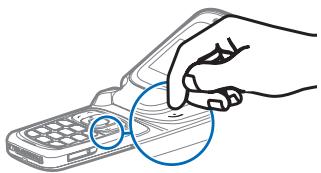
When you turn on your phone for the first time, and the phone is in the standby mode, you are prompted to get the configuration settings from your service provider (network service). Confirm or decline the query. See Connect to service provider support in "Configuration," p. 72 and "Configuration settings service," p. 10.
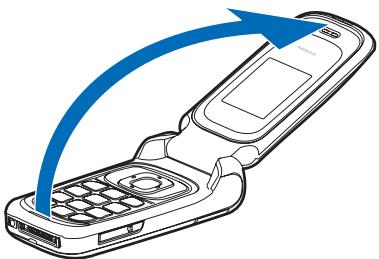
Open the fold
When you open the fold of the phone, it opens up to approximately 155 degrees. Do not try to force the fold open more.
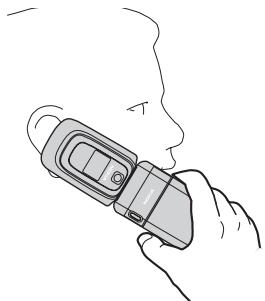
Normal operating position
Use the phone only in its normal operating position.
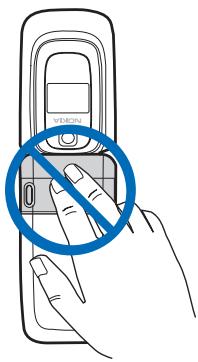
Antenna
Your device has an internal antenna.

Note: As with any other radio transmitting device, do not touch the antenna unnecessarily when the device is switched on. Contact with the antenna affects call quality and may cause the device to operate at a higher power level than otherwise needed. Avoiding contact with the antenna area when operating the device optimizes the antenna performance and the battery life.
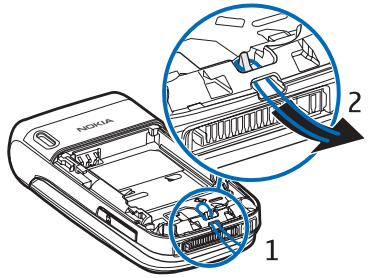
Wrist strap
To attach a wrist strap to the phone, remove the back cover from the phone and thread a strap as shown in the picture.
2. Your phone
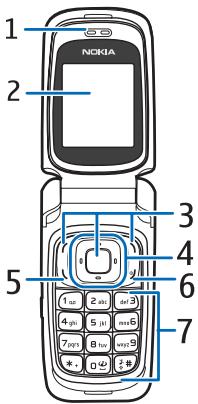
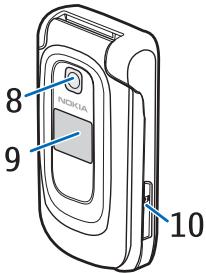
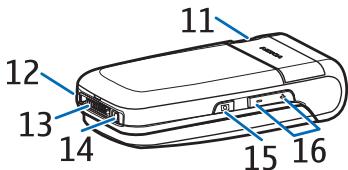
Keys and parts
Earpiece (1)
Main display (2)
Left, middle, and right selection keys (3)
Four-way navigation key (4)
Call key (5)
End key (6)
Keys (7)
Camera lens (8)
Mini display (9)
Memory card holder (10)
Loudspeaker (11)
Microphone (12)
Pop-Port connectorTM (13)
Charger connector (14)
Camera release key (15)
Volume key (16)
Standby mode
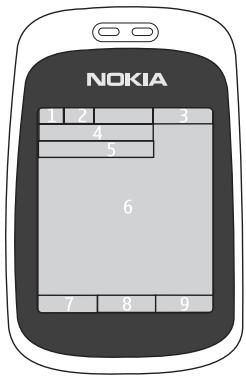
When you turn on your phone, the first screen that appears is the start screen, which indicates your phone is in the standby mode. When your phone is in the standby mode, the selection keys access specific functions, and the indicators appear on the start screen. Indicators show the status of the phone.
Display
Network signal strength (1)
Battery charge status (2)
- Clock (3) - If the time is set to appear on the display. See "Time and date," in "Settings," p. 64.
Name of the service provider or the operator logo (4)
- Calendar (5) - The date is displayed if it is set to appear on the display and the active standby is not set. See "Active standby mode," p. 18 and "Time and date," p. 64.
Active standby (6) - See "Active standby mode," on p. 18.
- Left selection key (7) - Go to or a shortcut to another function. See "Left selection key," p. 64.
- Middle selection key (8) - Menu.
- Right selection key (9) - May be t-zones, an operator specific name to access an operator specific web site, or a shortcut to a function that you selected. See "Right selection key," p. 64.
Active standby mode
In the active standby mode, the phone can display separate content item windows, such as general indicators and operator logo (1), shortcuts (2), audio functions (3), and the calendar (4).
To select whether the active standby is shown, see Active standby in "Standby mode settings," p. 62. The active standby is in passive mode when the middle selection key (5) is Menu; you can only view content.
To activate the navigation mode and scroll through the content, use the navigation key.
To change the key for accessing the navigation mode, see Active standby key in "Standby mode settings," p. 62. When the
arrow indicators are shown, you can scroll the item left and right.
To personalize and organize the active standby content, select Options, and select a corresponding option. See "Standby mode settings," p. 62.
To exit the navigation mode, select Exit. If no keys are pressed after a certain period of time, the phone automatically returns to the passive mode.
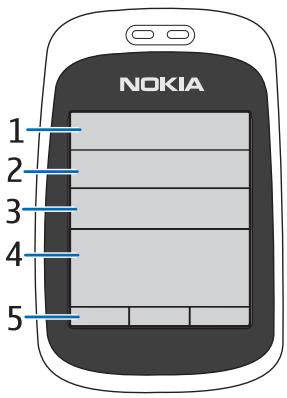
Content items in navigation mode
Shortcut bar - To select a shortcut, scroll to the function you want, and select it.
To change or organize the shortcuts when in the navigation mode, select Options > Personalize.
Radio - To turn on the radio, scroll to and select it. To start the radio channel search, scroll and hold left or right.
Calendar - To view today's notes, select the one you want. To view the notes for the previous or next days, scroll left or right.
My note - To enter a note, select the content window, write your note, and save it.
Countdown timer - To start the countdown timer, select the content item. The remaining time with a note is shown.
General indicators - To show standby indicators, such as date, cell info display, info messages, and closed user group index. The date is shown if the calendar is not selected as active standby content.
Standby mode shortcuts
To access the list of dialed numbers, press the call key once. See "Make a call," p. 21.
To call your voice mailbox (network service) when you have saved your voice mailbox number in the phone, press and hold 1.
To connect to a browser service, press and hold 0.
To set shortcut functions for the navigation key, see Navigation key in "My shortcuts," p. 64.
To make a call by pressing a number key with an assigned phone number, see "1-touch dialing," p. 21.
To toggle between the Normal profile and the Silent profile, press and hold #.
Indicators and icons
Your phone has two types of identifiers: indicators and icons.
Indicators
See "Standby mode," p. 17 for information on indicators.
Icons
Icons are graphical representations of a specific item or situation. The following list describes each icon.

You have unread messages in the Inbox folder.

You have unsent, canceled, or failed messages in the Outbox folder.

The phone logged a missed call.

You received one or several instant messages and you are connected to the instant messaging service.

The keys are locked.

The alarm clock is set to On.

The phone does not ring for an incoming call or text message.

The countdown timer is running.

The stopwatch is running in the background.

The phone is registered to the GPRS or EGPRS network.
Your phone
G/E A GPRS or EGPRS connection is established.
The GPRS or EGPRS connection is suspended (on hold), for example, if there is an incoming or outgoing call during an EGPRS or GPRS dial-up connection.
A Bluetooth connection is active.
2 If you have two phone lines, the second phone line is selected.
All incoming calls are forwarded to another number.
The loudspeaker is activated or the music stand is connected to the phone.
Calls are limited to a closed user group.
The timed profile is selected.
Calls are routed over a wireless local network (WLAN)/wireless fidelity (Wi-Fi). See "WLAN/Wi-Fi," p. 58.
Keys lock (keyguard)
The keyguard disables the keys to prevent accidental keystresses.
- To lock the keys, select Menu and press * within 3.5 seconds.
- To unlock the keys, select Unlock and press * within 1.5 seconds.
- To enable automatic keyguard, select Menu > Settings > Phone > Automatic keyguard > On. Set the delay in minutes and seconds in which the keys lock.
If the Security keyguard is set to On, enter the security code, if requested.
To answer a call when the keyguard is on, press the call key. When you end or decline the call, the keys automatically lock.
When the keyguard is on, calls to the official emergency number programmed into your device may still be possible. Enter the emergency number and press the call key.
For information about Security keyguard, see "Phone," p. 70.
3. Call functions
Make a call
- Enter the phone number, including the area code. To delete an incorrect character, select Clear.
For international calls, press* twice for the international prefix (the + character replaces the international access code), then enter the country code, the area code without the leading 0, if necessary, and the phone number.
- To call the number, press the call key.
- To end the call or to cancel the call attempt, press the end key, or select Options > End call.
1-touch dialing
Assign a phone number to one of the 1-touch-dialing keys, 2 to 9. Call the number by one of the following ways:
- Press a 1-touch-dialing key, then press the call key.
- If 1-touch dialing is set to On, press and hold a 1-touch-dialing key until the call begins. See 1-touch dialing in "Call," p. 70.
Enhanced voice dialing
To make a phone call, say the name that is saved in the contact list of the phone. A voice command is added automatically to all entries in the contact list of the phone.
Make a voice dialing call
If an application is sending or receiving data using a packet data connection, end the application before you use voice dialing.
Voice commands are language-dependent. To set the language, see Voice recognition language in "Phone," p. 70.

Note: Using voice tags may be difficult in a noisy environment or during an emergency, so you should not rely solely upon voice dialing in all circumstances.
- In the standby mode, press and hold the right selection key. A short tone is played and Speak now is displayed.
If you are using a compatible headset with the headset key, press and hold the headset key to start the voice dialing.
Call functions
- Say the voice command clearly. If the voice recognition is successful, a list of matches is shown. The phone plays the voice command of the match on the top of the list. After about 1.5 seconds, the phone dials the number or, if the result is not the correct one, scroll to another entry, and select to dial the entry. Using voice commands to carry out a selected phone function is similar to voice dialing. See Voice commands in "My shortcuts," p. 64.
Answer or decline a call
To answer the call, open the fold or press the call key. To mute the ringing tone if the fold is open, select Silence or, if the fold is closed, press the volume up or down key.
To decline an incoming call if the fold is open, press the end key.
If Forward if not available is activated in your voice mailbox, the call is forwarded to your voice mail. If not, the call is declined. See Call forwarding in "Call," p. 70.
To answer and end a call if a compatible headset (supplied with the headset key) is connected to the phone, press the headset key.
Call waiting
Call waiting is a network service. To answer the waiting call during an active call, press the call key. The first call is put on hold. To end the active call, press the end key.
To activate the Call waiting function, see "Call," p. 70.
Options during a call
Many of the options that you can use during a call are network services. For availability, contact your service provider.
To increase or decrease the volume during a call, press the volume up or down key on the side of the phone.
Select Options during a call and from the following options:
Call options are Hold or Unhold, Mute or Unmute, Phonebook, Menu, Lock keypad,
Record, Loudspeaker or Handset, New call, End call, End all calls, and the following:
Touch tones - to send tone strings
Swap - to switch between the active call and the call on hold
Transfer calls - to connect a call on hold to an active call and disconnect yourself
Conference — to make a conference call that allows up to five persons to take part in a conference call
Private call - to discuss privately in a conference call.

Warning: Do not hold the device near your ear when the loudspeaker is in use, because the volume may be extremely loud.
4. Phone menus
Phone features are grouped according to function and are accessed through the main menus of your phone. Each main menu contains submenus and lists from which you can select or view items and personalize phone features. Scroll to access these menus and submenus.
Some menus may not be available, depending on your network. For more information, contact your service provider.
Menu views
Your phone may have two types of menu views: List and Grid.
In the List interface, images introduce every menu. Scroll to navigate through the menus. As you scroll through the menus, the menu number appears in the upper right corner of the display. Below the menu number is a scroll bar with a tab. The tab moves up or down as you scroll through the menus, providing a visual representation of your current position in the menu structure.
In the Grid interface, multiple menu icons appear on a single display. Use the four-way navigation key to scroll through the icons. The name of the menu appears at the top of the display and the icon for the selected menu is outlined.
To change the menu view, select Menu > Options > Main menu view > List or Grid.
Access a menu function
- Select Menu and the menu you want.
- If the menu contains submenus, select the one that you want.
- If the selected menu contains further submenus, select the one that you want.
- To return to the previous menu level, select Back. To exit the menu, select Exit.
5. Voice notes
Use Voice notes to create and send voice mails directly to a recipient's mobile or e-mail.
Select Menu > Voice notes to display the voice recorder. See "Nokia Xpress audio messaging," p. 42.
6. Log
The phone logs the phone numbers of identified missed, received, and dialed calls, and the approximate length of your calls. The phone logs missed and received calls only if the network supports these functions and the phone is turned on and within the network's service area.
To view the information on your calls, select Menu > Log > Missed calls, Received calls, or Dialed numbers. To view your recent missed and received calls and the dialed numbers chronologically, select Call log. To view the contacts to whom you most recently sent messages, select Message recipients.
To view the approximate information on your recent communications, select Menu > Log > Call timers.
To view how many text and multimedia messages you have sent and received, select Menu > Log > Message log.

Note: The actual invoice for calls and services from your service provider may vary, depending on network features, rounding off for billing, taxes, and so on.
Some timers, including the life timer, may be reset during service or software upgrades.
7. t-zones
Your phone has a built-in browser, which can be used to connect to selected services on the mobile internet. Many wireless mobile internet access features are network-dependent, and some features may not be available. Contact your service provider for more information.
Technology background
A technology called wireless application protocol (WAP) is to mobile devices what the world wide web (WWW) is to personal computers.
Most WAP sites are made up of text and hyperlinks. Some pages even contain low-resolution graphics or require data input.
You may not be able to view all the details of the mobile internet pages, as page appearance may vary due to screen size.
Service provider
Because mobile internet content is designed to be viewed from your phone, your service provider is now your mobile internet service provider as well. It is likely that your service provider has created a home page and set up your WAP browser to go to this page when you log on to the mobile internet. Once at your service provider's home page, you may find links to a number of other sites.
Access service
Set up service
You may receive the configuration settings required for browsing as a configuration message from the service provider that offers the service that you want to use. See "Configuration settings service," p. 10. You can also enter all the configuration settings manually. See "Configuration," p. 72.
Activate the settings
Ensure that the t-zones settings of the service you want to use are activated.
- Select Menu > t-zones Settings > Configuration settings > Configuration. Only the configurations that support the browsing service are shown.
-
Select a service provider, Default, or t-zones for browsing.
-
Select Account and a browsing service account contained in the active configuration settings.
- To perform manual user authentication for intranet connections, select Display terminal window > Yes.
Connect to a service
There are several ways to connect to a service.
- To open the service's home page, select Menu > t-zones > t-zones; or in the standby mode, press and hold 0.
To select a bookmark, select Menu > t-zones > Bookmarks. - To select the last viewed web site, select Menu > t-zones > Last web address.
- To enter the address of the service, select Menu > t-zones > Go to address, enter the address of the service, and select OK.
Browse
It should not be necessary to manually configure the browser on your phone. Normally this is done by your service provider once you have subscribed to the feature. Contact your service provider if you have problems using the browser.
After you make a connection to the service, you can start browsing its pages. The function of the phone keys may vary in different services. Follow the text guides on the phone display. For more information, contact your service provider.
If EGPRS or GPRS is selected as the data bearer, either E or G is shown in the top left of the display during browsing. If you receive a call or a text message, or make a call during an EGPRS or GPRS connection, or is shown in the top right of the display to indicate that the EGPRS or GPRS connection is suspended (on hold). After a call, the phone tries to reconnect the EGPRS or GPRS connection.
Phone keys
- To browse through the page, press the scroll key in any direction.
- To select a highlighted item, press the call key.
To enter letters and numbers, press the keys, 0 to 9.
To enter special characters, press *.
Options
Beside the options available on your device, your service provider may offer other options.
t-zones
Direct calling
The browser supports functions that you can access while browsing. You can make a phone call or save a name and a phone number from a page.
Appearance settings
While browsing, select Options > Other options > Appearsettings or, in the standby mode, select Menu > t-zones > Settings > Appearance settings and one of the following options:
Text wrapping >0n - to set the text to continue on the next line in the display. If you select Off, the text is abbreviated.
Show images > No — to hide pictures on the page. This can speed up the browsing of pages that contain a lot of pictures.
Alerts > Alert for unsecure connection > Yes – to set the phone to alert when an encrypted connection changes to an unencrypted one during browsing
Alerts > Alert for unsecure items > Yes - to set the phone to alert when an encrypted page contains a nonsecure item. These alerts do not guarantee a secure connection. For more information, see "Browser security," p. 30.
Character encoding > Content encoding - to select the encoding for the browser page content.
Character encoding > Unicode (UTF-8) web addresses > On - to set the phone to send a URL as a UTF-8 encoding. You may need this setting when you access a web page created in a foreign language.
Screen size > Full or Small— to set the screen layout
JavaScript > Enable - to enable JavaScript™.
Security settings
Cookies
A cookie is data that a site saves in the cache memory of your phone. Cookies are saved until you clear the cache memory. See "Cache memory," p. 30.
While browsing, select Options > Other options > Security > Cookie settings; or in the standby mode, select Menu > t-zones > Settings > Security settings > Cookies. To allow or prevent the phone from receiving cookies, select Allow or Reject.
Scripts over secure connection
You can select whether to allow the running of scripts from a secure page. The phone supports wireless markup language (WML) scripts. While browsing, select Options > Other options > Security > WMLScript sett.; or in the standby mode, select Menu > t-zones > Settings > Security settings > WMLScripts over secure connection. To allow the scripts, select Allow.
■ Bookmarks
You can save page addresses as bookmarks in the phone memory.
- While browsing, select Options > Bookmarks; or in the standby mode, select Menu > t-zones > Bookmarks.
- Scroll to a bookmark, and select it or press the call key to make a connection to the page associated with the bookmark.
- Select Options to view, edit, delete, or send the bookmark; create a new bookmark; or move the bookmark to a folder.
Your device may have some bookmarks loaded for sites not affiliated with Nokia. Nokia does not warrant or endorse these sites. If you choose to access them, you should take the same precautions, for security or content, as you would with any internet site.
Receive
When you have received a bookmark that is sent as a bookmark, 1 bookmark received is displayed. The received bookmark is saved automatically to Bookmarks. To view it, select Show > Bookmarks.
Download settings
To automatically save all downloaded files in the Gallery, select Menu > t-zones > Settings > Downloading settings > Automatic saving > On.
t-zones inbox
The phone is able to receive service messages (pushed messages) sent by your service provider (network provider). Service messages are notifications (for example, news headlines). These messages may contain a text message or an address of a service.
To access the t-zones inbox in the standby mode, when you have received a service message, select Show. If you select Exit, the message is moved to the t-zones inbox. To access the t-zones inbox later, select Menu > t-zones > t-zones inbox.
t-zones inbox settings
Select Menu > t-zones > Settings > t-zones inbox settings.
To set whether you want to receive service messages, select t-zones messages > On or Off.
To set the phone to receive service messages only from content authors approved by the service provider, select Message filter > On. To view the list of the approved content authors, select Trusted channels.
To set the phone to automatically activate the browser from the standby mode when the phone has received a service message, select Automatic connection > On. If you select Off, the phone activates the browser only after you select Go when the phone has received a service message.
Cache memory
A cache is a memory location that is used to store data temporarily. If you have tried to access or have accessed confidential information requiring passwords, empty the cache after each use. The information or services you have accessed is stored in the cache.
To empty the cache, while browsing, select Options > Other options > Clear the cache.
To empty the cache, while in the standby mode, select Menu > t-zones > Clear the cache.
Browser security
Security features may be required for some services, such as online banking or shopping. For such connections you need security certificates and possibly a security module, which may be included on your SIM card. For more information, contact your service provider.
Security module
The security module improves security services for applications requiring a browser connection and allows you to use a digital signature. The security module may contain certificates as well as private and public keys. The certificates are saved in the security module by the service provider.
Select Menu > Settings > Security > Security module settings and one of the following options:
Security module details - to display the security module title, manufacturer, and serial number
Module PIN request — to set the phone to ask for the module PIN when using services provided by the security module. Enter the code, and select On. To disable the module PIN request, select Off.
Change module PIN - to change the module PIN, if allowed by the security module. Enter the current module PIN code, then the new code twice.
Change signing PIN - to change the signing PIN code for the digital signature. Select the signing PIN you want to change. Enter the current PIN code, then enter the new code twice.
See also "Access codes," p. 9.
Certificates

Important: Even if the use of certificates makes the risks involved in remote connections and software installation considerably smaller, they must be used correctly in order to benefit from increased security. The existence of a certificate does not offer any protection by itself; the certificate manager must contain correct, authentic, or trusted certificates for increased security to be available. Certificates have a restricted lifetime. If Expired certificate or Certificate not valid yet is shown even if the certificate should be valid, check that the current date and time in your device are correct.
Before changing any certificate settings, you must make sure that you really trust the owner of the certificate and that the certificate really belongs to the listed owner.
There are three kinds of certificates: server certificates, authority certificates, and user certificates. You may receive these certificates from your service provider. Authority certificates and user certificates may also be saved in the security module by the service provider.
To view the list of the authority or user certificates downloaded into your phone, select Menu > Settings > Security > Authority certificates or User certificates.
The security indicator is displayed during a connection, if the data transmission between the phone and the content server is encrypted.
The security icon does not indicate that the data transmission between the gateway and the content server (or place where the requested resource is stored) is secure. The service provider secures the data transmission between the gateway and the content server.
t-zones
Digital signature
You can make digital signatures with your phone if your SIM card has a security module. Using the digital signature can be the same as signing your name to a paper bill, contract, or other document.
To make a digital signature, select a link on a page, such as the title of the book you want to buy and its price. The text to sign is displayed, which may include the amount and date.
Check that the header text is Read and that the digital signature icon is displayed.

If the digital signature icon does not appear, there is a security breach.
You should not enter any personal data such as your signing PIN.
To sign the text, read all of the text first, and select Sign.
The text may not fit within a single screen. Therefore, make sure to scroll through and read all of the text before signing.
Select the user certificate you want to use. Enter the signing PIN (see "Access codes," p. 9), and select OK. The digital signature icon disappears and the service may display a confirmation of your purchase.
8. Instant messaging
You can take text messaging to the next level by experiencing instant messaging (IM) (network service) in a wireless environment. You can engage in IM with friends and family, regardless of the mobile system or platform (like the internet) they are using, as long as you all use the same IM service.
Before you can start using IM, you must first register with the instant messaging service you want to use and obtain a unique ID and password before you can use IM. See "Register with an IM service,"p. 33 for more information.

Note: Depending on your IM service provider, you may not have access to all of the features described in this guide and your menus may be different.
To check the availability and costs and to subscribe to the IM service, contact your wireless service provider and the IM service provider from whom you receive your unique ID, password, and settings.
While you are logged in and connected to the IM service, you can exit the IM application and use the other functions of the phone, and the IM session and conversations remain active in the background.
Register with an IM service
You can do this by registering over the internet with the IM service provider you have selected to use. During the registration process, you will have the opportunity to create the unique ID and password of your choice. For more information about signing up for IM services, contact your wireless service provider or an IM service provider.
Login
- Select Menu > I.M.
A list of available IM services is displayed.
- Select the IM service you want to use and enter your unique ID and password. If you have already logged in to an IM service before, the unique ID you used previously is displayed automatically.
- Select Login.
Depending on the IM service provider you are using, these may not be the exact menu items displayed.
You can choose to save your password so you do not have to enter it each time you sign in, or you can choose to log in automatically and skip the login menu when you select the IM application.
Begin an IM session
You can send instant messages to anyone if you have the person's unique ID and you use the same IM service.
To begin an IM session, do the following:
- From your contacts list, select a contact who is online.
Some IM service providers also allow sending instant messages to contacts who are not online.
- To send a message to a person who is not in your contacts list, select Options, the option to send a message, and enter the unique ID of the person.
A conversation menu is displayed, with the contact's name displayed at the top.
- Enter a message. When you finish the message, select Send.
Receive and reply to messages
If you have an active IM conversation open and receive an instant message from the contact with whom you are chatting, the new message notification sound plays and the message appears in the conversation. As the conversation progresses, the most recent message appears at the bottom of the menu, causing the previous messages to move up if the screen is full. To reply, enter your message and select Send.
If you receive an instant message when you have the IM application open, but do not have an active conversation open, the new message notification sound plays. Also, a new IM icon is displayed next to the name of the message sender under the conversations section of the contacts list.
If you receive an instant message when you are logged in to the IM service but do not have the IM application open on your phone, a message is displayed telling you that a new IM message has been received. Select Start to open the IM application, and view the new message.
Return to chat session
From the IM contacts list, select Conversations. This list displays all IM conversations and group chats in which you are currently participating. To view a conversation or continue chatting, select a group name or contact name.
Contacts
You can add the names of contacts with whom you interact frequently by IM to the contacts list.
Add a new contact
To add a contact to the contacts list, select Options > Add contact. Enter the contact's unique ID for the IM service and select OK.
Remove a contact
From the contacts list, select the contact you want to remove, and select Options > Remove contact > OK.
Conversation options
You can save an open conversation to be available for viewing, even after you end the conversation.
To save a conversation, while you have it open, select Options > Save, edit the name, if you want, and select Save.
To view a saved conversation, from the contacts list, select Options > Saved convers. Scroll to the conversation name you want, and select Open.
To rename a saved conversation, from the contacts list, select Options > Saved convers. Scroll to the conversation name you want, and select Options > Rename. Rename the conversation, and select OK.
To delete a saved conversation, from the contacts list, select Options > Saved convers. Scroll to the conversation name you want, and select Options > Delete > OK.
Set your availability
You can determine if other users can tell whether you are available or not. From the contacts list, highlight your name at the top of the menu, and select Options > My status > Available, Away, or Invisible.
Log off service
Exit the IM application
From the contacts list, you can exit the IM application, but still be connected to the IM service. Select Exit to return to the main menu. If you open IM again, you do not need to log in again.
You can receive instant messages from your contacts when using your phone for other purposes, such as playing a game. If you are connected to your IM service, but you have not used your IM application for some time, you may be automatically disconnected from the IM service. The next time you open the IM application, you must log in again.
Instant messaging
Log out of IM
To disconnect from the IM service, you must log out. From the contacts list, select Options >Logout > OK.
You are taken to the login screen of the IM service provider, where you can return to the IM service provider selection list, exit the IM application, or select an IM service and log in again.
9. Messaging
You can use mobile messages to keep in touch with friends, family, and business associates by using the short message service (SMS), which is a network service. Not all messaging features are available in all wireless networks. Contact your service provider for availability and subscription information.
When sending messages, your phone may display the words Message sent. This is an indication that the message has been sent by your device to the message center number programmed into your device. This is not an indication that the message has been received at the intended destination. For more details about messaging services, check with your service provider.
Text messages
Your device supports the sending of text messages beyond the character limit for a single message. Longer messages are sent as a series of two or more messages. Your service provider may charge accordingly. Characters that use accents or other marks, and characters from some language options, such as Chinese, take up more space, which limits the number of characters that can be sent in a single message.
You can use predefined templates to help you write text messages. Before you can send any text messages, you need to configure the message settings. See "Message settings," p. 44.
Text entry
To enter text while writing messages, use traditional or predictive text input. When using traditional text input, press a number key, 1 to 9, repeatedly until the character you want is displayed. In predictive text input you can enter a letter with a single keystress.
When you write text, appears at the top left of the display, which indicates predictive text input, and is displayed, which indicates traditional text input. abc, abc, or ABC is displayed next to the text input indicator, which indicates the character case. To change the character case, press #. 123 indicates number mode. To change from the letter to number mode, press and hold #, and select Number mode.
Settings
To set the writing language to a different language, select Options > Writing language. Predictive text input is only available for the languages listed.
Messaging
To set the predictive text input option, select Options > Prediction on, or to set traditional text input option, select Options > Prediction off.
To quickly set predictive text input on or off when writing text, press # twice, or select and hold Options.
Predictive text input
Predictive text input allows you to write text quickly by using the phone keys and a built-in dictionary.
- Start writing a word, using the keys 2 to 9, and press each key only once for one letter. The word changes after each keystroke.
- When you finish writing the word and it is correct, press 0.
- If a displayed word is not correct, press * repeatedly, or select Options > Matches. When the word that you want is displayed, select Use.
- If the ? character is displayed after the word, the word you intended to write is not in the dictionary. To add the word to the dictionary, select Spell. The phone displays the entered letters. Enter the word (traditional text input is used) and select Save.
Traditional text input
Press a number key, 1 to 9, repeatedly until the character you want is displayed. Not all characters available under a number key are printed on the key. The characters available depends on the selected writing language. See "Settings," p. 37.
If the next letter you want is located on the same key as the current one, wait until the cursor is displayed or scroll and enter the letter.
To access the most common punctuation marks and special characters, press 1. To insert a space, press 0.
If you want more characters, press *.
Write and send
- Select Menu > Messaging > Create message > Text message and enter the recipient's phone number in the To: field.
- To retrieve a phone number from Phonebook, select Add > Contact.
To send the message to multiple recipients, add the contacts you want one by one.
To send the message to persons in a group, select Contact group and the group you want.
To retrieve the contacts to which you recently sent messages, select Recently used.
- Scroll down and enter a message. See "Text entry," p. 37.
- To insert a template to the text message, select Options > Use template and the template you want to insert.
- To see how the message will look to the recipient, select Options > Preview.
- To send the message, select Send.
Read and reply
When you receive messages, either 1 message received or N messages received is displayed, where N is the number of new messages.
- To view a new message, select Show. To view it later, select Exit.
To read the message later, select Menu > Messaging > Inbox. If more than one message has been received, select the message that you want to read. indicates an unread message in Inbox. - While reading a message, select Options and delete or forward the message, edit the message as a text message, move it to another folder, or view or extract message details. You can also copy text from the beginning of the message to your phone calendar as a reminder note.
- To reply to a message, select Reply > Text message, Picture msg., or Voice notes.
- Scroll down and enter a message in the Message: field. See "Text entry," p. 37. To change the message type for your reply message, select Options > Change msg. type.
- To send the message, select Send.
SIM messages
SIM messages are text messages that are saved to your SIM card. You can copy or move those messages to the phone memory, but not vice versa. Received messages are saved to the phone memory.
To read SIM messages, select Menu > Messaging > Options > SIM messages.
Picture messages

Note: Only devices that have compatible features can receive and display multimedia messages. The appearance of a message may vary depending on the receiving device.
A multimedia message can contain text, sound, a picture, a calendar note, a business card, or a video clip. If the message is too large, the phone may not be able to receive it. Some networks allow text messages that include an internet address where you can view the multimedia message.
Messaging
You cannot receive multimedia messages during a call or an active browsing session over GSM data. Because delivery of multimedia messages can fail for various reasons, do not rely solely upon them for essential communications.
Write and send
The wireless network may limit the size of picture messages. If the inserted picture exceeds this limit, the device may make it smaller so that it can be sent by MMS.
To set the settings for multimedia messaging, see "Picture messages," p. 45. To check availability and to subscribe to the multimedia messaging service, contact your service provider.
- Select Menu > Messaging > Create message > Picture msg..
- Enter a message. See "Text entry," p. 37.
Your phone supports multimedia messages that contain several pages (slides). A message can contain a calendar note and a business card as attachments. A slide can contain text, one image, and one sound clip; or text and a video clip.
- To insert a slide in the message, select New; or select Options > Insert > Slide.
- To view the message before sending it, select Options > Preview.
- Scroll down, and select Send. See "Message sending," p. 40.
- Enter the recipient's phone number in the To: field.
To retrieve a phone number from Phonebook, select Add > Contact.
To send the message to multiple recipients, add the contacts you want one by one.
To send the message to persons in a group, select Contact group and the group you want.
To retrieve the contacts to which you recently sent messages, select Recently used.
Message sending
When you finish writing your message, to send the message, select Send or press the call key. The phone saves the message in the Outbox folder and sending starts. If you select Save sent messages > Yes, the sent message is saved in the Sent items folder. See "General settings," p. 44.

Note: When the phone is sending the message, the animated 品 is shown. Actual receipt of a message depends on a number of factors. For more details about messaging services, check with your service provider.
It takes more time to send a multimedia message than to send a text message. While the message is being sent, you can use other functions on the phone. If an interruption occurs while the message is being sent, the phone tries to resend the message a few times. If these attempts fail, the message remains in the Outbox folder. You can try to resend it later.
To cancel the sending of the messages in the Outbox folder, scroll to the desired message, and select Options > Cancel sending.
Read and reply

Important: Exercise caution when opening messages. Multimedia message objects may contain malicious software or otherwise be harmful to your device or PC.
When you receive multimedia messages, either Picture message received or N messages received is displayed, where N is the number of new messages.
- To read the message, select Show. To view it later, select Exit.
To read the message later, select Menu > Messaging > Inbox. In the list of messages, indicates an unread message. Select the message that you want to view.
- To view the whole message if the received message contains a presentation, select Play.
To view the files in the presentation or the attachments, select Options > Objects or Attachments.
- To reply to the message, select Options > Reply > Text message, Picture msg., or Voice notes. Write the reply message.
To change the message type for your reply message, select Options > Change msg. type. The new message type may not support all the content that you have added.
- To send the message, select Send. See "Message sending," p. 40.
Memory full
When you receive a message and the memory for the messages is full, Memory full. Unable to receive msgs. is shown. To delete old messages, select OK > Yes and the folder. Scroll to the message you want, and select Delete.
To delete more than one message at the same time, scroll to one of the messages you want to delete, and select Options > Mark. Scroll to each additional message you want to delete, and select Mark or, to delete all the messages, select Options > Mark all. When you have finished marking the messages you want to delete, select Options > Delete marked.
Folders
The phone saves received text and multimedia messages in the Inbox folder.
To set the phone to save the sent messages in the Sent items folder, see Save sent messages in "General settings," p. 44.
To see any message you want to send later and have saved as a draft in the Drafts folder, select Menu > Messaging > Drafts.
You can move your messages to the Saved items folder. To organize your Saved items sub folders, select Menu > Messaging > Saved items > Saved messages or a folder you added. To add a new folder for your messages, select Options > Add folder. To delete or rename a folder, scroll to the folder you want, and select Options > Delete folder or Rename folder.
Your phone has templates. To create a new template, save or copy a message as a template. To access the template list, select Menu > Messaging > Saved items > Templates.
Nokia Xpress audio messaging
You can use the multimedia message service to create and send voice messages conveniently. Multimedia messaging service must be activated before you can use audio messages.
Create an audio message
- Select Menu > Messaging > Create message > Voice notes, and to start recording.
- To stop recording, select and a message screen is displayed.
- To view the available options, select Options.
- Enter the recipient's phone number in the To: field.
To retrieve a phone number from Phonebook, select Add > Contact.
To send the message to multiple recipients, add the contacts you want one at a time.
To send the message to persons in a group, select Contact group and the group you want.
To retrieve the contacts to which you recently sent messages, select Recently used.
- To send the message, select Send.
Receive an audio message
When your phone receives audio messages, either 1 voice note received, or N messages received is displayed, where N is the number of new messages. To open the message, select Play; or if more than one message is received, select Show > Play. To listen to the message later, select Exit. Select Options to see the available options.
Voice messages
If you subscribe to voice mail (network service), your service provider will furnish you with a voice mailbox number. You need to save this number to your phone to use voice mail. When you receive a voice message, your phone lets you know by beeping, displaying a message, or both. If you receive more than one message, your phone displays the number of messages received.
To call your voice mailbox, select Menu > Messaging > Voice mail > Listen to voicemails. To enter, find, or edit your voice mailbox number, select Voice mailbox number.
If supported by the network, 00 indicates new voice messages. Select Listen to call your voice mailbox number.
Info messages
With the Info messages network service, you can receive short text messages from your service provider. To check availability, topics, and the relevant topic numbers, contact your service provider.
Service commands
Use the Service commands editor to enter and send service requests (also known as USSD commands) to your service provider. Contact your service provider for information about specific service commands. Select Menu > Messaging > Service commands.
Delete messages
To delete messages one by one, select Menu > Messaging > Delete messages > By message and the folder from which you want to delete messages. Scroll to the message you want to delete, and select Delete.
To delete more than one message at the same time, scroll to one of the messages you want to delete, and select Options > Mark. Scroll to each additional message you want to delete, and select Mark or, to delete all the messages, select Options > Mark all. When you have finished marking the messages you want to delete, select Options > Delete marked.
Messaging
To delete all messages from a folder, select Menu > Messaging > Delete messages > By folder and the folder from which you want to delete the messages. Depending on the folder, the phone asks if you want to delete the messages. To delete, select Yes. Otherwise, if the folder contains unread messages or messages that are waiting to be sent, the phone asks whether you want to keep them. To keep these messages, select Yes.
To delete all messages from all folders, select Menu > Messaging > Delete messages > All messages > Yes.
Message settings
General settings
General settings are common for text and multimedia messages.
Select Menu > Messaging > Message settings > General settings and one of the following options:
Save sent messages >Yes - to set the phone to save the sent messages in the Sent items folder
Overwriting in Sent items - to select if overwriting takes place when messages are sent and the message memory is full
Font size - to select the font size used in messages
Graphical smileys > Yes - to set the phone to replace character-based smileys with graphical ones.
Text messages
The text message settings affect the sending, receiving, and viewing of text and SMS e-mail messages.
Select Menu > Messaging > Message settings > Text messages and one of the following options:
Delivery reports — to select whether the network sends delivery reports about your messages (network service)
Message centers > Add center — to set the phone number and name of the message center that is required for sending text messages. You receive this number from your service provider.
Message center in use - to select the message center in use
Use packet data > Yes - to set GPRS as the preferred SMS bearer
Character support > Full – to select all characters in the messages to be sent as viewed. If you select Reduced, characters with accents and other marks may be converted to other characters. When writing a message, you can check how the message will look to the recipient by previewing the message. See "Write and send," p. 38.
Reply via same center > Yes — to allow the recipient of your message to send you a reply using your message center (network service)
Picture messages
The multimedia message settings affect the sending, receiving, and viewing of multimedia messages and audio messages.
You may receive the configuration settings for multimedia messaging as a configuration message. See "Configuration settings service," p. 10. You can also enter the settings manually. See "Configuration," p. 72.
Select Menu > Messaging > Message settings > Picture messages and one of the following options:
Delivery reports > On - to ask the network to send delivery reports about your messages (network service)
Image size (picture msg.s.) - to define the default image size used in multimedia messages
Default slide timing - to define the default time between slides in multimedia messages
Allow picture message reception > Yes or No - to receive or block the multimedia message. If you select In home network, you cannot receive multimedia messages when outside your home network. The default setting of the multimedia message service is generally In home network.
Incoming picture messages - to allow the reception of multimedia messages automatically, manually after being prompted, or to decline the reception. This setting is not shown if Allow picture message reception is set to No.
Allow advertisements - to receive or decline advertisements. This setting is not shown if Allow picture message reception is set to No or Incoming picture messages is set to Reject.
Configuration settings > Configuration — only the configurations that support multimedia messaging are shown. Select a service provider, Default, or t-zones for multimedia messaging. Select Account and a multimedia messaging service account contained in the active configuration settings.
The Fun & Apps menu contains the Gallery, Games & Apps, Media, and Organizer menus.
■ Gallery
In this menu, you can manage graphics, images, recordings, and tones. These files are arranged in folders.
Your phone supports an activation key system to protect acquired content. Always check the delivery terms of any content and activation key before acquiring them, as they may be subject to a fee.
The files stored in the Gallery use the memory capacity of the phone. You can use a compatible memory card to extend the memory capacity to store images, themes, graphics, ringing tones, video clips, and sound clips in the Gallery.
To manage the files and folders, do the following:
- Select Menu > Fun &Apps > Gallery. A list of folders is shown. If a memory card is inserted in the phone, the folder Memory card, (unformat.), or the name of the memory card is shown.
- Scroll to the folder you want. To view a list of files in the folder, select Open. For the available options, select Options.
- Scroll to the file you want to view, and select Open. For the available options, select Options.
Format memory card
To format a new memory card, select Menu > Fun Et Apps > Gallery. Scroll to the memory card folder, and select Options > Format mem. card.
Games and Applications
Games
Your phone software includes some games.
Launch
Select Menu > Fun EtApps > Games EtApps > Games, scroll to the game you want, and select Open.
For options related to a game, see "Other application options," p. 47.
Downloads
Select Menu > Fun & Apps > Games & Apps > Options > Downloads > Game downloads. The list of available bookmarks is shown.

Important: Only install and use applications and other software from sources that offer adequate security and protection against harmful software.
Settings
To set sounds, lights, and shakes for the game, select Menu > Fun & Apps > Games & Apps > Options > App. settings.
Collection
Your phone software includes some Java applications, such as a world clock.
Launch an application
Select Menu > Fun EtApps > Games EtApps > Collection, scroll to an application, and select Open, or press the call key.
Other application options
Delete - to delete the application or application set from the phone
Update version - to check if a new version of the application is available for download from the t -zones (network service)
Web page — to provide further information or additional data for the application from an internet page (network service). It is only shown if an internet address has been provided with the application.
App. access - to restrict the application from accessing the network. Different categories are shown. Select in each category one of the available permissions.
Details - to give additional information about the application.
Download applications

Important: Only install and use applications and other software from sources that offer adequate security and protection against harmful software.
Your phone supports J2ME™ Java applications. Make sure that the application is compatible with your phone before downloading it (network service).
You can download new Java applications in different ways:
- Select Menu > Fun &Apps > Games &Apps > Options > Downloads > App. downloads and the list of available bookmarks is shown.
For the availability of different services, pricing, and fees, contact your service provider.
Use the game download function. See "Downloads," p. 47.
Fun & Apps
- Use the Nokia Application Installer from Nokia PC Suite to download the applications to your phone.
Your device may have some bookmarks loaded for sites not affiliated with Nokia. Nokia does not warrant or endorse these sites. If you choose to access them, you should take the same precautions, for security or content, as you would with any internet site.
Media
Camera
You can take photos or record video clips with the built-in camera. The camera lens is on the front of the phone. The color display works as a viewfinder.
Take a photo
- Select Menu > Fun & Apps > Media > Camera > Capture or press the camera key, and select Capture.
The phone saves the photo in Gallery > Images unless you set the phone to use the memory card to save photos.
- To take another photo, select Back.
- To zoom in or out, press the four-way navigation key up or down.
- To take up to five photos in quick succession, select Options > Img. sequence on > Sequen. To take another photo, select Options > New image.
The higher the resolution, the fewer photos you can take sequentially.
- To send the photo as a multimedia message, select Send.
- To set a timer to delay capturing a photo for 10 seconds, select Options > Self-timer on > Start.
A beep sounds while the self-timer is running. It beeps faster when the camera is about to capture the photo. After the timeout, the camera takes the photo and saves the photo in Gallery > Images.
To take a photo when the lighting is dim, the camera automatically adjusts a longer exposure time so the photo quality is better.
This Nokia device supports an image capture resolution up to 640x480 pixels.
The image resolution in these materials may appear different.
Record a video clip
Select Menu > Fun & Apps > Media > Camera > Options > Video > Record.
To pause recording, select Pause; to resume recording, select Continue. To stop recording, select Stop. The phone saves the recording in Gallery > Video clips.
To view the options, select Options.
Camera settings
Select Menu > Fun &tApps > Media > Camera > Options > Settings and edit the available settings.
Camera effects
Select Menu > Fun & Apps > Media > Camera > Options > Effects and one of the available options.
Media player
With the media player you can view, play, and download files, such as images, audio, video and animated images. You can also view compatible streaming videos from a network server (network service).
Select Menu > Fun Et Apps > Media > Media player > Open gallery, Bookmarks, or Go to address.
Select Menu > Fun Et Apps > Media > Media player > FF/Rew interval to set the step width for fast forward or rewind.
Set for streaming service
You may receive the configuration settings required for the streaming as a configuration message from the service provider. See "Configuration settings service," p. 10. To enter the settings manually, see "Configuration," p. 72.
Select Menu > Fun Et Apps > Media > Media player > Streaming sett. and one of the following options:
Configuration - Only the configurations that support streaming are displayed. Select a service provider, Default, or Personal config.
Account - Select a streaming service account contained in the active configuration settings.
Radio
The FM radio depends on an antenna other than the wireless device antenna. A compatible headset or enhancement needs to be attached to the device for the FM radio to function properly.

Warning: Listen to music at a moderate level. Continuous exposure to high volume may damage your hearing.
Select Menu > Fun Et Apps > Media > Radio. To use the graphical keys , , , or on the phone display, scroll left or right to the key you want, and select it.
Save channels
- To start the channel search, select and hold or. To change the radio frequency in 0.05 MHz steps, press or
- To save the channel to a memory location 1 to 9, press and hold the corresponding number key.
- To save the channel in the memory location from 10 to 20, press 1 or 2, and press and hold the number key (0 to 9) you want.
- Enter the name of the channel, and select OK.
Listen
- Select Menu > Fun Et Apps > Media > Radio.
- To scroll to the channel you want, select , , or press the headset key.
- To select a radio channel location, briefly press the corresponding number keys.
- Select Options and one of the following options:
Turn off - to turn off the radio
Save station - to save a new channel by entering the channel's name
- Loudspeaker or Headset — to listen to the radio using the loudspeaker (limited to FM radio) or headset. Keep the headset connected to the phone. The lead of the headset functions as the radio antenna.
Mono output or Stereo output - to listen to the radio in monophonic sound or in stereo
Stations - to select the list of saved channels. To delete or rename a channel or edit the visual service ID, scroll to the channel you want, and select
Options > Delete station or Rename.
Search all stations - to start automatic search and save function for all available radio channels. The search picks up only the strongest available radio channels.
Set frequency - to enter the frequency of the radio channel you want.
You can normally make a call or answer an incoming call while listening to the radio. During the call, the volume of the radio is muted.
When an application using a packet data or HSCSD connection is sending or receiving data, it may interfere with the radio.
Recorder
You can record pieces of speech, sound, or an active call. This is useful when recording a name and phone number for writing them down later.
Record sound
- Select Menu > Fun &Apps > Media > Recorder.
- To start recording, select . To start recording during a call, select Options > Record. While recording a call, all parties to the call hear a faint beeping sound. When recording a call, hold the phone in the normal position near to your ear.
- To stop recording, select
The recording is saved in Gallery > Recordings.
- To listen to the latest recording, select Options > Play last recorded.
- To send the last recording using bluetooth or as a multimedia message, select Options > Send last recorded.
List of recordings
- Select Menu > Fun &Apps > Media > Recorder > Options > Recordings list. The list of folders in the Gallery is shown.
- Open Recordings to see the list with recordings.
- Select Options to select options for files in the Gallery. See "Gallery," p. 46.
Define a storage folder
To use a folder other than Recordings as the default folder in the Gallery, select Menu > Fun & Apps > Media > Recorder > Options > Select memory and a folder from the list.
Equalizer
You can control the sound quality when using the media player by amplifying or attenuating frequency bands.
- Select Menu > Fun EtApps > Media > Equalizer.
- To activate a set, scroll to one of the equalizer sets, and select Activate.
- To view, edit, or rename a selected set, select Options > View, Edit, or Rename. Not all sets can be edited or renamed.
Stereo widening
This function can only be used if your Nokia mobile phone is connected to a compatible stereo headset.
To enhance the sound that is available in stereo with a wider stereo effect, select Menu > Fun &Apps > Media > Stereo widening > On.
Organizer
Your Nokia mobile phone has many useful features for organizing your everyday life. The following features are found in Organizer: alarm clock, calendar, to-do list, notes, calculator, timer, and stopwatch.
Alarm clock
The alarm clock uses the time format set for the clock. The alarm clock works even when the phone is turned off if there is enough power in the battery.
To set the alarm, select Menu > Fun &Apps > Organizer > Alarm clock > Alarm time and enter the alarm time. To change the alarm time when the alarm time is set, select On. To set the phone to alert you on selected days of the week, select Repeat alarm.
To select the alarm tone or set a radio channel as the alarm tone, select Menu > Fun & Apps > Organizer > Alarm clock > Alarm tone. If you select the radio as an alarm tone, connect the headset to the phone. The phone uses the last channel you listened to as the alarm, and the alarm plays through the loudspeaker. If you remove the headset or switch off the phone, the default alarm tone replaces the radio.
To set a snooze time-out, select Snooze time-out and the time you want.
Alert tone and message
The phone sounds an alert tone and flashes Alarm! and the current time on the display, even if the phone is switched off. To stop the alarm, select Stop. If you let the phone continue to sound the alarm for a minute, or select Snooze, the alarm stops for the selected snooze time-out and then resumes.
If the alarm time is reached while the device is switched off, the device switches itself on and starts sounding the alarm tone. If you select Stop, the device asks whether you want to activate the device for calls. Select No to switch off the device or Yes to make and receive calls. Do not select Yes when wireless phone use may cause interference or danger.
Calendar
The calendar helps you keep track of reminders, calls that you need to make, meetings, and birthdays.
Select Menu > Fun EtApps > Organizer > Calendar.
The current day is indicated by a frame in the month view. If there are any notes set for the day, the day is in bold type. To view the day notes, select View. To view a week, select Options > Week view. To delete all notes in the calendar, select the month or week view and Options > Delete all notes.
Other options for the calendar day view are make a note; delete, edit, or move a note; copy a note to another day; send a note with Bluetooth wireless technology; or send a note as a text message or picture message to the calendar of another compatible phone.
In Options > Settings, you can set the date and time settings. In the Auto-delete notes option, you can set the phone to delete old notes automatically after a specified time.
Make a note
Select Menu > Fun & Apps > Organizer > Calendar, the date you want, and Options > Make a note and one of the following note types: Meeting, Call, Birthday, Memo or Reminder.
Note alarm
The phone beeps and displays the note. If a call note appears, to call the displayed number, press the call key. To stop the alarm and to view the note, select View. To stop the alarm for 10 minutes, select Snooze. To stop the alarm without viewing the note, select Exit.
To-do list
To save a note for a task that you have to do, select a priority level for the note, and mark it as done when you have completed it. Notes can be sorted by priority or by date.
To-do notes
- Select Menu > Fun EtApps > Organizer > To-do list.
- If no note is added, select Add note; otherwise, select Options > Add.
- Write the note, select the priority, set the deadline and the alarm type for the note, and select Save.
- To view a note, scroll to it, and select View.
Notes
To use Notes to write and send notes to compatible devices, use SMS or MMS.
- Select Menu > Fun EtApps > Organizer > Notes.
- To make a note if one is not added, select Add note; otherwise, select Options > Make a note.
- Write the note, and select Save.
- To view a note, scroll to it, and select View.
Calculator
The calculator in your phone provides basic arithmetic and trigonometric functions; calculates the square, the square root, and the inverse of a number; and converts currency values.

Note: This calculator has limited accuracy and is designed for simple calculations.
Select Menu > Fun &Apps > Organizer > Calculator. Press # for a decimal point. Scroll to the desired operation or function, or select it from the Options.
To save the exchange rate, select Options > Exchange rate. To perform the currency conversion, enter the amount to be converted, and select Options > In domestic or In foreign.
Timer
- Select Menu > Fun EtApps > Organizer > Timer > Normal timer; enter the alarm time in hours, minutes, and seconds; and select OK.
You can write your own note text, which will display when the time expires.
- To start the timer, select Start.
- To change the countdown time, select Change time.
- To stop the timer, select Stop timer.
If the alarm time is reached when the phone is in the standby mode, the phone sounds a tone and flashes the note text (if it is set) or Countdown completed. To stop the alarm, press any key. If no key is pressed, the alarm automatically stops within 60 seconds. To stop the alarm and to delete the note text, select Exit. To restart the countdown timer, select Restart.
Stopwatch
You can measure time, take intermediate times, or take lap times using the stopwatch. During timing, the other functions of the phone can be used. To set the stopwatch timing in the background, press the end key.
Using the stopwatch or allowing it to run in the background when using other features increases the demand on battery power and reduces the battery life.
11. Phonebook
In Phonebook, you can store and manage contact information, such as names, phone numbers, and addresses. You can save names and numbers in the internal memory of the phone, the SIM card memory, or in a combination of the two.
Names and numbers saved in the SIM card memory, are indicated by
Search
Select Menu > Phonebook > Names and scroll through the list of contacts or enter the first letter of the name you are trying to find.
Save names and phone numbers
Names and numbers are saved in the used memory. Select Menu > Phonebook > Names > Options > Add new contact and enter the last name, first name, and phone number.
Save numbers, items, or an image
In the phone memory for contacts, you can save different types of phone numbers and short text items per name. You can also assign a ringing tone to a contact.
The first number you save is automatically set as the default number and it is indicated with a frame around the number type indicator (for example, ). When you select a name, the default number is used unless you select another number.
- Make sure that the memory in use is either Phone or Phone and SIM.
- Scroll to the name to which you want to add a new number or text item, and select Details > Options > Add detail.
- To add a number, select Number and one of the number types.
- To add another detail, select a text type, an image from the Gallery, or a new image.
- To change the number type, scroll to the number you want, and select Options > Change type. To set the selected number as the default number, select Set as default.
- Enter the number or text item; to save it, select Save.
- To return to standby mode, select Back > Exit.
Copy a contact
Find the contact you want to copy, and select Options > Copy contact. You can copy names and phone numbers from the phone contact memory to the SIM card memory or vice versa. The SIM card memory can save names with one phone number attached to them.
Edit contact details
- Find the contact you want to edit, select Details; and scroll to the name, number, text item, or image you want.
- To edit a name, number, or text item, or to change an image, select Options > Edit.
You cannot edit an ID when it is on the IM contacts or the Subscribed names list.
Delete contacts or details
To delete all the contacts and the details attached to them from the phone or SIM card memory, select Menu > Phonebook > Delete all contacts > From phone mem. or From SIM card. Confirm with the security code.
To delete a contact, find the contact you want, and select Options > Delete contact.
To delete a number, text item, or an image attached to the contact, find the contact, and select Details. Scroll to the desired detail, and select Options > Delete > Delete number, Delete detail, or Delete image. Deleting an image from contacts does not delete it from the Gallery.
Business cards
You can send and receive a person's contact information from a compatible device that supports the vCard standard as a business card.
To send a business card, find the contact whose information you want to send, and select Details > Options > Send bus. card > Via picture msg., Via text message, or Via Bluetooth.
When you have received a business card, select Show > Save to save the business card in the phone memory. To discard the business card, select Exit > Yes.
Settings
Select Menu > Phonebook > Settings and one of the following options:
Memory in use - to select the SIM card or phone memory for your contacts.
Select Phone and SIM to recall names and number from both memories. In that case, when you save names and numbers, they are saved in the phone memory.
Phonebook view - to select how the names and numbers in Phonebook are displayed.
Name display - to select whether the contact's first or last name is displayed first.
Font size - to set the font size for the list of contacts.
Memory status - to view the free and used memory capacity.
Groups
Select Menu > Phonebook > Groups to arrange the names and phone numbers saved in the memory into caller groups with a different ringing tone and a group image.
1-touch dialing
To assign a number to a 1-touch-dialing key, select Menu > Phonebook > 1-touch dialing and scroll to the 1-touch-dialing number that you want.
Select Assign or, if a number has already been assigned to the key, select Options > Change. Select Find and the contact you want to assign. If the 1-touch dialing function is off, the phone asks whether you want to activate it.
To make a call using 1-touch dialing, see "1-touch dialing," p. 21.
Service and my numbers
Select Menu > Phonebook and one of the following options:
Service numbers - to call the service numbers of your service provider if the numbers are included on your SIM card (network service)
My numbers — to view the phone numbers assigned to your SIM card. This is only shown if the numbers are included on your SIM card.
12. Settings
Use this menu to set or change your WLAN/Wi-Fi settings, profiles, themes, personal shortcuts, time and date settings, connectivity settings, call settings, phone settings, main display settings, mini display settings, tone settings, enhancement settings, configuration settings, security settings, and to restore factory settings.

WLAN/Wi-Fi

Important: Always enable one of the available encryption methods to increase the security of your wireless LAN connection. Using encryption reduces the risk of unauthorized access to your data.

Note: Some places, like France, have restrictions on the use of wireless LAN. Check with your local authorities for more information.
Your device supports voice calls over the internet (internet calls) and attempts emergency calls primarily over cellular networks. If an emergency call using cellular networks is not successful, your device attempts an emergency call through your net call provider. Due to the established nature of cellular telephony, you should use cellular networks for emergency calls, if possible. If you have cellular network coverage available, make sure that your cellular phone is switched on and ready to make calls before you attempt an emergency call. The capability for an emergency call using internet telephony depends on the availability of a wireless local area network (WLAN) and your net call provider's implementation of emergency call capabilities. Contact your net call provider to check the internet telephony emergency call capability.
This device can detect and connect to a WLAN through call over local access. This unlicensed mobile access (UMA) technology allows a seamless handoff of mobile voice and data from a wide area cellular network to WLAN or wireless fidelity (Wi-Fi), so it is possible to connect at a high speed to the internet from virtually anywhere.
Before you can start using UMA, you must first obtain a UMA account with your service provider. The proper settings may already be configured in your phone because this device was specially designed to detect and connect to WLAN/Wi-Fi. For more information, contact your service provider.
If you move the device to another location within the wireless LAN and out of range of a WLAN/Wi-Fi access point, the roaming function can automatically connect your device to another access point that belongs to the same network. As long as you remain within a range of access points that belong to the same network, your device can stay connected to the network.
A WLAN/Wi-Fi connection is established when you create a data connection using a WLAN/Wi-Fi access point. The active WLAN/Wi-Fi connection is ended when you end the data connection.
Features using WLAN/Wi-Fi, or allowing such features to run in the background while using other features, increase the demand on battery power and reduce the battery life.
Turn on WLAN/Wi-Fi
Select Menu > Settings > Wi-Fi > Wi-Fi radio > On.
Quick connect
Quick connect allows you to connect to an open network with the best signal strength.
- From the standby mode, select Go to > Quick connect or, from the Wi-Fi menu, select Quick connect.
- If you have not connected to WLAN/Wi-Fi first, a message asks if you want to turn on WLAN/Wi-Fi first. Select Yes.
- If you are already connected to another network, a message asks if you want to disconnect from that network. Select Yes.
The phone searches for networks and when the network with the best signal strength is found, a message is displayed, which confirms the network connection. If you have not saved the network, a message asks if you want to save it. Select Yes or No if you want to save the network or not. If no available networks can be found, No quick connect networks available is displayed.
Available networks
The list of available networks displays all the available networks to which you can connect. indicates that a network is connected and indicates that a network is saved.
A network may be hidden and can only be found by searching for its service set identifier (SSID). AnSSID is a code attached to all packets on a wireless network in order to identify each packet as part of that network. All wireless devices attempting to communicate with each other must share the sameSSID.
- Select Menu > Settings > Wi-Fi > Available networks.
- If you have not already connected to WLAN/Wi-Fi, a message asks if you want to turn on WLAN/Wi-Fi. Select Yes.
The phone searches for available networks and, when the networks are found, they are listed in signal strength order.
Settings
- Scroll to the network you want, and select Connect.
A message is displayed, which confirms the network connection. If you have not saved the network, a message asks if you want to save it. - Select Yes or No to indicate whether to save the network.
- To save an available network to which you have not connected, select Options > Save.
- To update the list of available networks, select Options > Refresh. If the list of available networks is empty, select Refresh.
- To locate a hidden network, select Options > Hidden networks, enter the SSID of the network you want to find, and select OK.
- To disconnect from the network, select Disconn..
Saved networks
The list of saved networks consists of all the networks you have saved on your phone. The name of the network and the connection setting is displayed. The networks are listed in order of priority and the network with the highest priority is automatically the first one where a connection attempt is made.
- Select Menu > Settings > Wi-Fi > Saved networks.
- Scroll to the network you want, and select Connect.
- If you have not already connected to WLAN/Wi-Fi, a message asks if you want to turn on WLAN/Wi-Fi. Select Yes.
A message is displayed, which confirms the network connection.
- To rename a saved network, scroll to the network you want, and select Options > Rename. Select Clear as many times as necessary to delete the network name, enter the new network name, and select OK.
- To forward the settings of a saved network, scroll to the network you want, select Options > Forward settings, enter the security code (the preset code is 12345), and select OK. Enter a phone number, and select Send.
- To change the priority of a saved network, select Options > Organize priority, scroll to the network you want, and select Move > Move up, Move down, Move to top, or Move to bottom > Done > Yes.
Each saved network has its individual connection settings, which offer different ways to connect to the network. Scroll to the network you want, select Options > Conn. setting, and one of the following options:
Ask first - to be asked to be connected to a network when it becomes available
Automatic - to be connected to the network automatically
Manual - to be connected to the network only when done manually.
Other options for saved networks are: edit a saved network's settings, delete a saved network, or add a new network.
Add to saved networks
You can also add a network to the saved networks list from the Wi-Fi menu. You can either manually enter a network, for which you must have a valid SSID, or select from the available networks.
To save from available networks, do the following:
- To save a network from the available networks, select Available networks.
- If you have not already connected to WLAN/Wi-Fi, a message asks if you want to turn on WLAN/Wi-Fi. Select Yes.
The phone searches for available networks and when the networks are found, they are listed in signal strength order.
- Scroll to the network you want, and select Options > Save.
- Select Clear as many times as necessary to delete the network name and enter the new network name.
- Select OK.
Turn off WLAN/Wi-Fi while connected
Select Menu > Settings > Wi-Fi > Wi-Fi radio > Off.
Wi-Fi call settings
Configuration—to select which UMA configuration to use
Account - to select which UMA account to use.
Connection failure
You may not be able to connect to the network at times. Try connecting to the network later because this may only be a temporary error. If the connection still fails, contact your service provider.
Login failure
If you attempt to login to a network without a UMA subscription, the message Contact your service provider is displayed.
Profiles
Your phone has various setting groups, called profiles, for which you can personalize the phone tones for different events and environments.
Settings
Select Menu > Settings > Profiles and a profile.
- To activate the selected profile, select Activate.
- To personalize the profile, select Customize, and select the setting you want to change, then make the changes.
- To set the profile to be active until a certain time (up to 24 hours), select Timed and set the time you want the profile setting to end. When the time set for the profile expires, the previous profile (that was not timed) becomes active.
Themes
You can change the look of your phone display by activating a theme. A theme can include a wallpaper image, a ringing tone, a screen saver, and a color scheme. Themes are stored in the Gallery.
Select Menu > Settings > Themes and one of the following options:
Select theme - to set a theme in your phone. A list of folders in the Gallery opens. Open the Themes folder, and select a theme.
Theme downloads - to open a list of links to download more themes.
See "Download settings," p. 29.
Tones
You can change the settings of the selected active profile.
Select Menu > Settings > Tones and edit the available settings. You can find the same settings when you personalize a profile in the Profiles menu. See "Profiles," p. 61.
To set the phone to ring only upon calls from phone numbers that belong to a selected caller group, select Alert for: Scroll to the caller group you want or All calls, and select Mark.
Display
With display settings, you can personalize your display view of the phone.
Main display
You can select display settings for the start screen (main display).
Standby mode settings
Select Menu > Settings > Main display and one of the following options:
Wallpaper - to display a background picture (wallpaper) on the start screen.
Select Wallpapers and from the following:
-
Image or
-
Slide set and an image or a slide from the Gallery or
- Open Camera.
Select Graphic downloads to download more graphics.
Active standby - to display the active standby. Select one of the following options:
- Personalize view - to change the content and to reorganize the content on the display Options > Move content.
- Active standby key — to change the key for accessing the navigation mode. The same setting is also in the My shortcuts menu. See "Enabling active standby," p. 65.
Standby mode font color - to select the color for the texts on the display in the standby mode
Navigation key icons - to set the scroll key icons that are shown in the standby mode
Fold animation - to select whether an animation is shown when you open and close the fold. The fold animation is only visible if it is supported by and selected from the active theme set in your phone. See "Themes," on p. 62.
Operator logo - to set your phone to display or hide the operator logo.
Cell info display > On - to receive information from the service provider depending on the network cell used (network service).
Screen saver
To select a screen saver, select Menu > Settings > Main display > Screen saver > Screen savers > Image, Slide set, Video clip, Open Camera, Analog clock, or Digital clock. To download more screen savers, select Graphic downloads. To enter the time after which the screen saver is activated, select Time-out. To activate the screen saver, select On.
Font size
This feature allows you to select the font size for Messaging and Phonebook.
Select Menu > Settings > Main display > Font size and one of the following:
Messaging — to select the font size you want to use for messages. Select Normal font or Large font.
Contacts - to select the font size you want to display your contacts' names.
Select Normal font or Large font.
Mini display
You can select display settings for the mini display on the front of your phone.
Settings
Screen saver
Select Menu > Settings > Mini display > Screen saver > Analog clock or Digital clock. To enter the time after which the screen saver is activated, select Time-out. To activate the screen saver, select On.
Time and date
Select Menu > Settings > Time and date and one of the following options:
Time — to set the phone to show or hide the clock in the standby mode, adjust the time, and select the time zone and the time format
Date — to set the phone to show or hide the date in the standby mode, set the date, and select the date format and date separator
Auto-update of date & time (network service) — to set the phone to automatically update the time and date to the appropriate time zone.
My shortcuts
You can set your most frequently used functions to be quickly accessed through the My shortcuts feature.
Left selection key
To select a function from the list for the left selection key, select Menu > Settings > My shortcuts > Left selection key. See also "Standby mode," p. 17.
To activate a function in the standby mode if the left selection key is Go to, select Go to and the function you want on your personal shortcut list.
Select Options and from the following options:
Select options - to add a function to the shortcut list or to remove one. Scroll to the function, and select Mark or Unmark.
Organize - to rearrange the functions on your personal shortcut list. Scroll to the function you want to move, and select Move. Scroll to where you want to move the function, and select OK. Repeat this process, if you want to move another function. When you have completed rearranging the functions you want, select Done > Yes.
Right selection key
To set a specific function (from a predefined list) to the right selection key, select Menu > Settings > My shortcuts > Right selection key. This function can be used only if it is supported by your service provider.
Navigation key
This key allows you to scroll up, down, left, and right. To assign other phone functions (from a predefined list) to the navigation key, select Menu > Settings > My shortcuts > Navigation key. Scroll to the key you want, select Change and a function from the list. To remove a shortcut function from the key, select (empty). To reassign a function for the key, select Assign.
Enabling active standby
This function allows you to select how the active standby mode is activated. Select Menu > Settings > My shortcuts > Active standby key > Navigation key up, Navigat. key down, or Nav. key up/down.
Voice commands
You can call contacts and carry out phone functions by saying voice commands. Voice commands are language-dependent. To set the language, see Voice recognition language in "Phone," p. 70.
To select the phone functions to activate with a voice command, select Menu > Settings > My shortcuts > Voice commands and a folder. Scroll to a function you want. ⑤ indicates that the voice tag is activated. To deactivate the voice command, select Options > Remove. To activate the voice tag, select Add. To play the activated voice command, select Playback. To use voice commands, see "Enhanced voice dialing," p. 21.
To manage the voice commands, scroll to a phone function, and select from the following options:
Edit or Remove — to change or deactivate the voice command of the selected function Remove all — to deactivate voice commands to all functions in the voice commands list.
Connectivity
You can connect the phone to compatible devices, using Bluetooth wireless technology or USB data cable (CA-53) connection. You can also define the settings for EGPRS or GPRS dial-up connections.
Bluetooth wireless technology
This device is compliant with Bluetooth Specification 2.0 supporting the following profiles: hands-free, headset, network access, object push profile, file transfer profile, dial-up networking profile, SIM access profile, serial port profile, service discovery application profile, personal area network profile, advanced audio distribution profile, and audio video remote control profile. To ensure interoperability between other devices supporting Bluetooth technology, use Nokia approved enhancements for this model. Check with the manufacturers of other devices to determine their compatibility with this device.
There may be restrictions on using Bluetooth technology in some locations. Check with your local authorities or service provider.
Features that use Bluetooth technology, or allow such features to run in the background while using other features, increase the demand on battery power and reduce the battery life.
Bluetooth technology allows you to connect the phone to a compatible Bluetooth device within 10 meters (33 feet). Because devices using Bluetooth technology communicate using radio waves, your phone and the other devices do not need to be in direct line-of-sight, although the connection can be subject to interference from obstructions, such as walls or from other electronic devices.
To set up a Bluetooth connection, do the following:
- Select Menu > Settings > Connectivity > Bluetooth.
- To activate or deactivate the Bluetooth function, select Bluetooth > On or Off.
- indicates an active Bluetooth connection.
- To find compatible Bluetooth audio devices, select Search for audio enhancements and the device that you want to connect to the phone.
To find any Bluetooth device in range, select Paired devices. Select New to list any Bluetooth device in range. Scroll to a device, and select Pair.
- Enter the Bluetooth passcode of the device to associate (pair) the device to your phone. You must only give this passcode when you connect to the device for the first time. Your phone connects to the device and you can start data transfer.
Settings
To define how your phone is shown to other Bluetooth devices, select Menu > Settings > Connectivity > Bluetooth > My phone's visibility or My phone's name.
Operating the phone in hidden mode is a safer way to avoid malicious software.
Do not accept Bluetooth connectivity from sources you do not trust.
Another alternative is to turn off the Bluetooth functionality. This does not affect other functions of the phone.
Connection
Select Menu > Settings > Connectivity > Bluetooth. To check which Bluetooth connection is currently active, select Active devices. To view a list of Bluetooth devices that are currently paired with the phone, select Paired devices.
Select Options to access available options, depending on the status of the device and the Bluetooth connection.
Packet data
General packet radio service (GPRS) is a network service that allows mobile phones to send and receive data over an internet protocol (IP)-based network. GPRS is a data bearer that enables wireless access to data networks such as the internet.
Enhanced GPRS (EGPRS) is similar to GPRS, but enables faster connections. For more information on availability of EGPRS or GPRS and data transfer speed, contact your service provider.
The applications that may use EGPRS or GPRS are MMS, video streaming, browsing sessions, remote SyncML, Java application downloading, and the PC dial-up.
When you have selected GPRS as a data bearer, the phone uses EGPRS instead of GPRS, if this is available in the network. You cannot select between EGPRS and GPRS, but for some applications you may be able to select GPRS or GSM data (circuit-switched data, CSD).
To define how to use the service, select Menu > Settings > Connectivity > Packet data > Packet data connection and one of the following options:
When needed — to set the packet data registration and connection to established when an application using packet data needs it and closed when you end the application.
Settings
Always online - to set the phone to automatically register to a packet data network when you switch the phone on. G or E indicates that the GPRS or EGPRS service is available.
If you receive a call or a text message, or make a call during a GPRS or EGPRS connection, or indicates that the GPRS or EGPRS connection is suspended (on hold).
Packet data settings
You can connect the phone using Bluetooth wireless technology or USB data cable connection to a compatible PC and use the phone as a modem to enable EGPRS or GPRS connectivity from the PC.
To define the settings for EGPRS or GPRS connections from your PC, select Menu > Settings > Connectivity > Packet data > Packet data settings > Active access point and activate the access point you want to use. Select Edit active access point > Alias for access point, enter a name to change the access point settings, and select OK. Select Packet data access point, enter the access point name (APN) to establish a connection to an EGPRS or GPRS network, and select OK.
You can also set the EGPRS or GPRS dial-up service settings (access point name) on your PC, by using the One Touch Access software. See "Nokia PC Suite," p. 77. If you have set the settings both on your PC and on your phone, the PC settings are used.
Data transfer and synchronization
Synchronize your data from calendar, notes, and contacts with another compatible device (for example, a mobile phone), a compatible PC, or a remote internet server (network service).
Your phone allows data transfer with a compatible PC or another compatible device when using the phone without a SIM card. When you use the phone without a SIM card, some functions appear dimmed in the menus and cannot be used. To synchronize with a remote internet server is not possible without a SIM card.
To copy or synchronize data from your phone, the name of the device and the settings must be in the list of partners in transfer contacts. If you receive data from another compatible device, the partner is automatically added to the list, using the contact data from the other device. Server sync and PC sync settings are the original items in the list.
To add a new partner to the list, such as a new device, select Menu > Settings > Connectivity > Data transfer > Options > Add contact > Phone sync or Phone copy and enter the settings according to the transfer type.
To edit the copy and synchronize settings, select a contact from the partner list, and select Options > Edit.
To delete a selected partner, select Options > Delete> OK. You cannot delete Server sync and Phone sync.
Data transfer with a compatible device
For synchronization, Bluetooth wireless technology is used. The other device is in the standby mode.
To start a data transfer, select Menu > Settings > Connectivity > Data transfer and the transfer partner from the list other than Server sync and PC sync. Based on the settings, the selected data is copied or synchronized. The other device also must be activated to receive data.
Synchronize from a compatible PC
To synchronize data from calendar, notes, and contacts from a compatible PC, use Bluetooth wireless technology or a USB data cable (CA-53). You also need the correct version of Nokia PC Suite software for your phone installed on the PC. See "Computer connectivity," p. 77 for information about Nokia PC Suite.
Synchronize the data in the phone contacts, calendar, and notes to correspond with the data of your compatible PC by starting the synchronization from the PC.
Synchronize from a server
To use a remote internet server, you have to subscribe to a synchronization service. For more information and the settings required for this service, contact your service provider. You may receive the settings as a configuration message. See "Configuration settings service," p. 10 and "Configuration," p. 72.
If you have saved data on the remote internet server, you can synchronize your phone by starting the synchronization from your phone.
Select Menu > Settings > Connectivity > Data transfer > Server sync > Initializing sync or Initializing copy.
If the contacts or calendar are full, synchronizing may take up to 30 minutes to complete when synchronizing for the first time or after an interrupted synchronization.
USB data cable
You can use the USB data cable to transfer data between the memory card inserted in the phone and a compatible PC or a printer supporting PictBridge. You can also use the USB data cable with Nokia PC Suite.
Settings
To activate the memory card for data transfer or picture printing, connect the data cable; when the phone displays USB data cable connected. Select mode., select OK and one of the following options:
Nokia mode - to use the cable for Nokia PC Suite
Music sync - to sync your phone with the music files on your compatible PC
Data storage - to activate the memory card for data transfer
To change the USB mode, select Menu > Settings > Connectivity > USB data cable > Nokia mode, Music sync, or Data storage.
Call
Select Menu > Settings > Call and one of following options:
Call forwarding — to forward your incoming calls (network service). Call forwarding and call restrictions cannot be active at the same time. See Call restrictions in "Security," p. 73.
Anykey answer >0 on - to answer an incoming call by briefly pressing any key, except the left and right selection keys, volume key, camera key, or the end key.
Answer when fold is opened > On - to set your phone to answer a call when you open the fold. If the setting is off, you must press the call key after you open the fold.
Automatic redial > On - to set your phone to make a maximum of 10 attempts to connect the call after an unsuccessful call attempt.
1-touch dialing > On - to dial the names and phone numbers assigned to the 1-touch dialing keys, 2 to 9. To dial, press and hold the corresponding number key.
Call waiting > Activate - to set the network to notify you of an incoming call while you have a call in progress (network service). See "Call waiting," p. 22.
Summary after call >0 on - to briefly display the approximate duration of the call after each call.
Send my caller ID > Yes - to show your phone number to the person you are calling (network service). To use the setting agreed upon with your service provider, select Set by network.
Phone
Select Menu > Settings > Phone and one of the following options:
Language settings > Phone language — to set the display language of your phone. If you select Automatic, the phone selects the language according to the information on the SIM card.
- To select the USIM card language, select SIM language.
- To set a language for the voice playback, select Voice recognition language. See "Make a voice dialing call," p. 21 and Voice commands in "My shortcuts," p. 64.
Memory status - to view the free memory and the used memory for each function in the list.
Automatic keyguard - to set the keys to lock automatically. Choose On and the time-out to activate the keyguard or Off to set the automatic keyguard off.
Security keyguard — to set the phone to ask for the security code when you unlock the keyguard. Enter the security code, and select On. When the keyguard is on, calls still may be possible to the official emergency number programmed into your device.
Flight query — to set the phone to ask if Flight mode should be used each time the phone is turned on. In Flight mode, all radio connections are turned off. Flight mode should be used in areas sensitive to radio emissions.
Welcome note — to create the welcome note you would like to be shown briefly when the phone is turned on.
Phone updates — to view the current phone software version, to download new phone software and, to install downloaded phone software. See "Phone software updates," p. 74.
Operator selection > Automatic - to set the phone automatically to select one of the cellular networks available in your area. With Manual, you can select a network that has a roaming agreement with your service provider.
Help text activation - to select whether the phone displays help texts.
Start-up tone - to select whether the phone plays a start-up tone when the phone is turned on.
Switch off tone — to select whether the phone plays a switch off tone when the phone is turned off. This menu is only visible if the tone exists in Themes or is part of the power-down functionality of your service provider.
Fold close handling - to select whether closing the fold causes the phone to go to standby mode or to keep all running applications open.
Enhancements
This menu is shown only if the phone is or has been connected to a compatible mobile enhancement, other than the charger.
Select Menu > Settings > Enhancements. You can select an enhancement menu if the corresponding enhancement is or has been connected to the phone.
Depending on the enhancement, select from one of the following options:
Settings
Default profile — to select the profile that you want to be automatically activated when you connect to the selected enhancement.
Automatic answer — to set the phone to answer an incoming call automatically after five seconds. If Incoming call alert is set to Beep once or Off, automatic answer is off.
Lights — to set the lights permanently On. Select Automatic to set the lights on for 15 seconds after a keypress.
Ignition detector > On — to automatically switch off the phone approximately 20 seconds after you switch off the car ignition, when the phone is connected to the full car kit.
TTY/TDD > Use TTY > Yes – to use text phone settings instead of headset settings.
Configuration
You can configure your phone with settings that are required for certain services to function correctly. The services are multimedia messaging, instant messaging, synchronization, streaming, and browser. Your service provider may also send you these settings as a configuration message.
To save the configuration settings received as a configuration message, see "Configuration settings service," p. 10.
Select Menu > Settings > Configuration and one of the following options:
Default configuration settings - to view the service providers saved in the phone. Scroll to a service provider, and select Details to view the applications that the configuration settings of this service provider supports. To set the configuration settings of the service provider as default settings, select Options > Set as default. To delete configuration settings, select Delete.
Activate default in all applications - to activate the default configuration settings for supported applications.
Preferred access point - to view the saved access points. Scroll to an access point, and select Options > Details to view the name of the service provider, data bearer, and packet data access point or GSM dial-up number.
Connect to service provider support — to download the configuration settings from your service provider, if this is supported by your service provider
Device manager settings - to allow or prevent the phone from receiving phone software updates. This option may not be available, depending on your phone. See "Phone software updates," p. 74.
Personal configuration settings — to add new personal accounts for various services manually and to activate or delete them. To add a new personal account, if you have not added any, select Add new. Otherwise, select Options > Add new. Select the service type and enter each of the required parameters. The parameters differ according to the selected service type. To delete or activate a personal account, scroll to it, and select Options > Delete or Activate.
Security
When security features that restrict calls are in use (such as, call restricting, closed user group, and fixed dialing) calls still may be possible to the official emergency number programmed into your device.
Select Menu > Settings > Security and one of the following options:
PIN code request — to set the phone to ask for your PIN or UPIN code every time the phone is switched on. Some SIM cards do not allow the code request to be turned off.
Call restrictions - to restrict incoming calls to and outgoing calls from your phone (network service). A password is required.
Fixed dialing — to restrict your outgoing calls to selected phone numbers, if this function is supported by your SIM card.
Closed user group - to specify a group of people whom you can call and who can call you (network service).
Security level > Phone — the phone asks for the security code whenever a new SIM card is inserted into the phone. Select Memory and the phone asks for the security code when the SIM card's memory is selected and you want to change the memory in use.
Access codes - to set the PIN code or UPIN code in use or to change the security code, PIN code, UPIN code, PIN2 code, and call restrictions password.
Code in use - to select whether the PIN code or UPIN code should be active.
Authority certificates or User certificates — to view the list of the authority or user certificates downloaded into your phone. See "Certificates," p. 31.
Security module settings - to view Security module details, activate Module PIN request, or change the module PIN and signing PIN. See also "Access codes," p. 9.
Restore factory settings
To reset some of the menu settings to their original values, select Menu > Settings > Restore settings and enter the security code. Data that you have entered or downloaded is not deleted. For example, names and numbers in Phonebook are not affected.
Settings
Phone software updates
You may initiate phone software updates from the Phone updates menu. Also, your service provider may initiate the updates by sending them over the air directly to your device. This function is known as firmware over the air (FOTA).

Warning: If you install a software update, you cannot use the device, even to make emergency calls, until the update is completed and the device is restarted. Be sure to back up data before accepting a FOTA update.
Download
Select Menu > Settings > Phone > Phone updates to request available phone software updates from your service provider. Select Current software details to display the current software version. Select Install software update to download and install a phone software update (if an update is available). Follow the instructions on the display.

Important: Only install and use applications and other software from sources that offer adequate security and protection against harmful software.
Install
Select Install software update to start the installation, if you cancelled the installation after the download. The software update may take several minutes.

Note: If there are problems with the download or installation, contact your service provider.
13. Operator menu
Your service provider may have programmed an operator-specific menu into your phone. If this menu exists in your phone, its functions depend entirely upon the service provider. Contact your service provider for more information.
14. SIM services
Your SIM card may provide additional services that you can access. This menu is displayed only if it is supported by your SIM card. The name and contents of the menu depend on the SIM card.
For availability, rates, and information on using SIM services, contact your service provider.
To access these services, it may be necessary to send messages or make a phone call for which you may be charged.
15. Computer connectivity
You can access the internet when your phone is connected to a compatible PC through Bluetooth or USB data cable (CA-53) connection. You can use your phone with a variety of PC connectivity and data communications applications.
USB data storage
You can use the USB data cable to transfer data between the memory card inserted in the phone and a compatible PC. See "USB data cable," p. 69. After transferring data, ensure that it is safe to unplug the USB data cable from the PC.
Nokia PC Suite
Nokia PC Suite software is available for your phone. Nokia PC Suite is a collection of powerful tools that you can use to manage your phone features and data. Each component is a separate program that includes online helps. Nokia PC Suite software, installation instructions, and other documentation is provided free of charge and can be downloaded from the software downloads of the Nokia web site: www.nokiausa.com/pcsuite.
EGPRS, GPRS, HSCSD, and CSD
You can use the enhanced GPRS (EGPRS), general packet radio service (GPRS), high-speed circuit switched data (HSCSD), circuit-switched data (CSD), and GSM data services with your phone.
For availability and subscription to data services, contact your service provider.
The use of HSCSD services consumes the phone battery faster than normal voice or data calls. You may need to connect the phone to a charger for the duration of data transfer. See "Packet data settings," p. 68.
Data communication applications
For information on using a data communication application, refer to the documentation provided with it.
Making or answering phone calls during a computer connection is not recommended, as it might disrupt the operation.
Bluetooth
Use Bluetooth technology to connect your compatible laptop to the internet. Your phone must have activated a service provider that supports internet access and your PC has to support Bluetooth PAN (Personal Area Network). After connecting to the network access point (NAP) service of the phone and pairing with your PC your phone automatically opens a packet data connection to the internet. PC Suite software installation is not necessary when using the NAP service of the phone.
See "Bluetooth wireless technology," p. 66.
16. Enhancements
To enhance phone functionality, a range of enhancements is available for you. Select any of these items to help accommodate your specific communication needs.
Check the model number of any charger before use
with this device. This device is intended for use when
supplied with power from the AC-3 charger. This device uses BL-5C batteries.


Warning: Use only batteries, chargers, and enhancements approved by Nokia for use with this particular model. The use of any other types may invalidate any approval or warranty, and may be dangerous.
For availability of approved enhancements, please check with your dealer.
A few practical rules about accessories and enhancements
- Keep all accessories and enhancements out of the reach of small children.
- When you disconnect the power cord of any accessory or enhancement, grasp and pull the plug, not the cord.
- Check regularly that enhancements installed in a vehicle are mounted and are operating properly.
- Installation of any complex car enhancements must be made by qualified personnel only.
17. Battery information
Charging and discharging
Your device is powered by a rechargeable battery. The full performance of a new battery is achieved only after two or three complete charge and discharge cycles. The battery can be charged and discharged hundreds of times, but it will eventually wear out. When the talk and standby times are noticeably shorter than normal, replace the battery. Use only Nokia approved batteries, and recharge your battery only with Nokia approved chargers designated for this device.
If a replacement battery is being used for the first time or if the battery has not been used for a prolonged period, it may be necessary to connect the charger, then disconnect and reconnect it to begin charging the battery.
Unplug the charger from the electrical plug and the device when not in use. Do not leave a fully charged battery connected to a charger, since overcharging may shorten its lifetime. If left unused, a fully charged battery will lose its charge over time.
If the battery is completely discharged, it may take a few minutes before the charging indicator appears on the display or before any calls can be made.
Use the battery only for its intended purpose. Never use any charger or battery that is damaged.
Do not short-circuit the battery. Accidental short-circuiting can occur when a metallic object such as a coin, clip, or pen causes direct connection of the positive (+) and negative (-) terminals of the battery. (These look like metal strips on the battery.) This might happen, for example, when you carry a spare battery in your pocket or purse. Short-circuiting the terminals may damage the battery or the connecting object.
Leaving the battery in hot or cold places, such as in a closed car in summer or winter conditions, will reduce the capacity and lifetime of the battery. Always try to keep the battery between 15^ and 25^ (59°F and 77°F). A device with a hot or cold battery may not work temporarily, even when the battery is fully charged. Battery performance is particularly limited in temperatures well below freezing.
Do not dispose of batteries in a fire as they may explode. Batteries may also explode if damaged. Dispose of batteries according to local regulations. Please recycle when possible. Do not dispose as household waste.
Nokia battery authentication guidelines
Always use original Nokia batteries for your safety. To check that you are getting an original Nokia battery, purchase it from an authorized Nokia dealer, look for the Nokia Original Enhancements logo on the packaging, and inspect the hologram label using the following steps:
Successful completion of the four steps is not a total assurance of the authenticity of the battery. If you have any reason to believe that your battery is not an authentic original Nokia battery, you should refrain from using it, and take it to the nearest authorized Nokia service point or dealer for assistance. Your authorized Nokia service point or dealer will inspect the battery for authenticity. If authenticity cannot be verified, return the battery to the place of purchase.
Authentication hologram
- When looking at the hologram on the label, you should see the Nokia connecting hands symbol from one angle and the Nokia Original Enhancements logo when looking from another angle.
- When you angle the hologram left, right, down, and up, you should see 1, 2, 3, and 4 dots on each side respectively.
- Scratch the side of the label to reveal a 20-digit code, for example, 12345678919876543210. Turn the battery so that the numbers are facing upwards. The 20-digit code reads starting from the number at the top row followed by the bottom row.
- Confirm that the 20-digit code is valid by following the instructions at www.nokia.com/batterycheck.
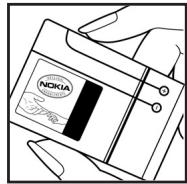
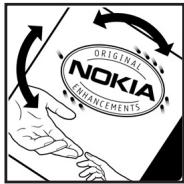
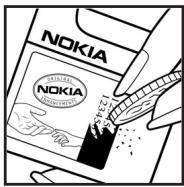
What if your battery is not authentic?
If you cannot confirm that your Nokia battery with the hologram on the label is an authentic Nokia battery, please do not use the battery. Take it to the nearest authorized Nokia service point or dealer for assistance. The use of a battery that is not approved by the manufacturer may be dangerous and may result in poor performance and damage to your device and its enhancements. It may also invalidate any approval or warranty applying to the device.
To find out more about original Nokia batteries, visit www.nokia.com/battery.
Care and maintenance
Your device is a product of superior design and craftsmanship and should be treated with care. The suggestions below will help you protect your warranty coverage.
- Keep the device dry. Precipitation, humidity, and all types of liquids or moisture can contain minerals that will corrode electronic circuits. If your device does get wet, remove the battery and allow the device to dry completely before replacing it.
- Do not use or store the device in dusty, dirty areas. Its moving parts and electronic components can be damaged.
- Do not store the device in hot areas. High temperatures can shorten the life of electronic devices, damage batteries, and warp or melt certain plastics.
- Do not store the device in cold areas. When the device returns to its normal temperature, moisture can form inside the device and damage electronic circuit boards.
- Do not attempt to open the device other than as instructed in this guide.
- Do not drop, knock, or shake the device. Rough handling can break internal circuit boards and fine mechanics.
- Do not use harsh chemicals, cleaning solvents, or strong detergents to clean the device.
- Do not paint the device. Paint can clog the moving parts and prevent proper operation.
- Use a soft, clean, dry cloth to clean any lenses (such as camera, proximity sensor, and light sensor lenses).
- Use only the supplied or an approved replacement antenna. Unauthorized antennas, modifications, or attachments could damage the device and may violate regulations governing radio devices.
Use chargers indoors. - Always create a backup of data you want to keep (such as contacts and calendar notes) before sending your device to a service facility.
All of the above suggestions apply equally to your device, battery, charger, or any enhancement. If any device is not working properly, take it to the nearest authorized service facility for service.
Additional safety information
Small children
Your device and its enhancements may contain small parts. Keep them out of the reach of small children.
Operating environment
Remember to follow any special regulations in force in any area, and always switch off your device when its use is prohibited or when it may cause interference or danger. Use the device only in its normal operating positions. This device meets RF exposure guidelines when used either in the normal use position against the ear or when positioned at least 1.5 centimeters (5/8 inch) away from the body. When a carry case, belt clip, or holder is used for body-worn operation, it should not contain metal and should position the device the above-stated distance from your body. To transmit data files or messages, this device requires a quality connection to the network. In some cases, transmission of data files or messages may be delayed until such a connection is available. Ensure the above separation distance instructions are followed until the transmission is completed.
Parts of the device are magnetic. Metallic materials may be attracted to the device. Do not place credit cards or other magnetic storage media near the device because information stored on them may be erased.
Medical devices
Operation of any radio transmitting equipment, including wireless phones, may interfere with the functionality of inadequately protected medical devices. Consult a physician or the manufacturer of the medical device to determine if they are adequately shielded from external RF energy or if you have any questions. Switch off your device in health care facilities when any regulations posted in these areas instruct you to do so. Hospitals or health care facilities may be using equipment that could be sensitive to external RF energy.
Pacemakers
Pacemaker manufacturers recommend that a minimum separation of 15.3 centimeters (6 inches) be maintained between a wireless phone and a pacemaker to avoid potential interference with the pacemaker. These recommendations are consistent with the independent research by and recommendations of Wireless Technology Research. Persons with pacemakers should do the following:
Always keep the device more than 15.3 centimeters (6 inches) from the pacemaker
Not carry the device in a breast pocket
- Hold the device to the ear opposite the pacemaker to minimize the potential for interference.
If you suspect interference, switch off your device, and move the device away.
Hearing aids
Some digital wireless devices may interfere with some hearing aids. If interference occurs, consult your service provider.
Vehicles
RF signals may affect improperly installed or inadequately shielded electronic systems in motor vehicles such as electronic fuel injection systems, electronic antiskid (antilock) braking systems, electronic speed control systems, and air bag systems. For more information, check with the manufacturer, or its representative, of your vehicle or any equipment that has been added.
Only qualified personnel should service the device or install the device in a vehicle. Faulty installation or service may be dangerous and may invalidate any warranty that may apply to the device. Check regularly that all wireless device equipment in your vehicle is mounted and operating properly. Do not store or carry flammable liquids, gases, or explosive materials in the same compartment as the device, its parts, or enhancements. For vehicles equipped with an air bag, remember that air bags inflate with great force. Do not place objects, including installed or portable wireless equipment in the area over the air bag or in the air bag deployment area. If in-vehicle wireless equipment is improperly installed and the air bag inflates, serious injury could result.
Using your device while flying in aircraft is prohibited. Switch off your device before boarding an aircraft. The use of wireless teledevices in an aircraft may be dangerous to the operation of the aircraft, disrupt the wireless telephone network, and may be illegal.
Potentially explosive environments
Switch off your device when in any area with a potentially explosive atmosphere and obey all signs and instructions. Potentially explosive atmospheres include areas where you would normally be advised to turn off your vehicle engine. Sparks in such areas could cause an explosion or fire resulting in bodily injury or even death. Switch off the device at refueling points such as near gas pumps at service stations.
Observe restrictions on the use of radio equipment in fuel depots, storage, and distribution areas; chemical plants; or where blasting operations are in progress. Areas with a potentially explosive atmosphere are often, but not always, clearly marked. They include below deck on boats, chemical transfer or storage facilities, vehicles using liquefied petroleum gas (such as propane or butane), and areas where the air contains chemicals or particles such as grain, dust, or metal powders.
Emergency calls

Important: Wireless phones, including this device, operate using radio signals, wireless networks, landline networks, and user-programmed functions. Because of this, connections in all conditions cannot be guaranteed. You should never rely solely on any wireless device for essential communications like medical emergencies.
To make an emergency call:
- If the device is not on, switch it on. Check for adequate signal strength. Some networks may require that a valid SIM card is properly inserted in the device.
- Press the end key as many times as needed to clear the display and ready the device for calls.
- Enter the official emergency number for your present location. Emergency numbers vary by location.
- Press the call key.
If certain features are in use, you may first need to turn those features off before you can make an emergency call. Consult this guide or your service provider for more information.
When making an emergency call, give all the necessary information as accurately as possible. Your wireless device may be the only means of communication at the scene of an accident. Do not end the call until given permission to do so.
Certification information (SAR)
This mobile device meets guidelines for exposure to radio waves.
Your mobile device is a radio transmitter and receiver. It is designed not to exceed the limits for exposure to radio waves recommended by international guidelines. These guidelines were developed by the independent scientific organization ICNIRP and include safety margins designed to assure the protection of all persons, regardless of age and health.
The exposure guidelines for mobile devices employ a unit of measurement known as the Specific Absorption Rate or SAR. The SAR limit stated in the ICNIRP guidelines is 2.0 watts/kilogram (W/kg) averaged over 10 grams of tissue. Tests for SAR are conducted using standard operating positions with the device transmitting at its highest certified power level in all tested frequency bands. The actual SAR level of an operating device can be below the maximum value because the device is designed to use only the power required to reach the network. That amount changes depending on a number of factors such as how close you are to a network base station. The highest SAR value under the ICNIRP guidelines for use of the device at the ear is 1.15 W/kg.
Use of device accessories and enhancements may result in different SAR values. SAR values may vary depending on national reporting and testing requirements and the network band. Additional SAR information may be provided under product information at www.nokiausa.com.
Your mobile device is also designed to meet the requirements for exposure to radio waves established by the Federal Communications Commission (USA) and Industry Canada. These requirements set a SAR limit of 1.6W / kg averaged over one gram of tissue. The highest SAR value reported under this standard during product certification for use at the ear is 1.00W / kg , and when properly worn on the body is 0.59W / kg . Information about this device model can be found at http://www.fcc.gov/oet/fccid by searching the equipment authorization system using and FCC ID: LJPRM-260.
Talk and standby times
This section provides information about battery talk times, and standby times. Be aware that the information in this section is subject to change. For more information, contact your service provider.
Operation times are estimates only and depend on signal strength, phone use, network conditions, features used, battery age and condition (including charging habits), temperatures to which the battery is exposed, and many other factors. The following times are approximate with the BL-5C, 970 mAh Li-ion battery:
Talk time: up to 5 hours
Standby time: up to 240 hours
Technical Information
| Feature | Specification |
| Weight | 3.69 ounces (104.5 grams) 2.95 ounces (83.5 grams) without battery |
| Size | Volume: 5.13 cubic inches (84 ccm) Length: 3.6 in. (91.5 mm) Width: 1.81 in. (46 mm) Thickness: 0.91 in. (23 mm) |
| Frequency range | RM-260 GSM 850 824-849 MHz (TX) 869-894 MHz (RX) GSM 900 880-915 MHz (TX) 925-960 MHz (RX) GSM 1800 1710-1785 MHz (TX) 1805-1865 MHz (RX) GSM 1900 1850-1910 MHz (TX) 1930-1990 MHz (RX) |
| Transmitter output power | Up to 2 W |
| Battery | BL-5C, 970 mAh |
| Battery voltage | 3.7 V dc |
| Operating temperature | 59 °F to + 77 °F 15 °C to + 25 °C |
Numerics
1-touch dialing 21, 57, 70
A
access codes 9
accessories 79
activate t-zones settings 26
activestandby18,65
add to saved networks 61
alarm clock 52
alert tone and message 52
antenna 14
application download 10
applications 46
audio messaging 42
available networks 59
B
battery
authentication 81
charge 12, 80
charge status 17
information 80
installation 11
Bluetooth
computer connectivity 78
connection 67
set up connection 66
settings 67
wireless technology 66, 69
bookmarks
browser 29
receive 29
browser 26
business cards 56
C
cache memory 30
calculator 54
calendar 17, 18, 52
calendar note 39
call
end 21
functions 21
make 21
settings, Wi-Fi 61
timers 25
voice mail 43
waiting 22
call key 16
call log 25
call settings 58
caller groups 57
calls
1-touch dialing 21
answer 22
decline 22
international 21
options during 22
voice dialing 21
camera
effects 49
lens 16
record a video clip 48
settings 49
take a photo 48
use 48
care 83
certificates 31
certification information 87
channel search 50
charge the battery 12
circuit switched data (CSD) 77
circuit-switched data (CSD) 67
clock settings 64
codes
PIN9
PUK 9
restriction 10
security 9
UPIN 9
computer connectivity 77
configuration 72
configuration settings service 10
connect to a web service 27
connection failure 61
connection settings 60
connectivity
computer 77
contacts 55
cookies 28
copy contact 56
countdown timer 18, 54
CSD 77
D
data communication 77
data transfer 69
date settings 64
define a storage folder 51
delete
contact details 56
contacts 56
messages 43
dialed numbers 25
dialing 21, 57, 70
dictionary 38
digital signature 32
direct calling 28
display settings 62
downloads
applications 10, 47
content 10
games 47
phone software updates 74
settings 29
E
earpiece 16
edit contact details 56
EGPRS 67, 77
emergency calls 86
end call 21
end key 16
enhanced GPRS (EGPRS) 77
enhancement settings 71
enhancements 79
equalizer 51
F
factory settings 73
firmware over the air (FOTA) 74
folders
define for storage 51
outbox 40
saved items 42
sent items 42
font size 63
Fun & Apps 46
G
gallery 46
game settings 47
games 46
general packet
radio service (GPRS) 67, 77
GPRS 67, 77
groups 57
H
hands-free 66
help text 71
high-speed circuit switched data
(HSCSD) 77
HSCSD 77
Index
1
icons 19
indicators 19
individual connection settings 60
info messages 43
installation
battery 11
phone software updates 74
SIM card 11
instant messaging 33
internet 26
J
Java applications 47
K
keyguard 20
keys 16
keys lock 20
L
language
options 37
writing 37
launch game 46
left selection key 64
lights 72
list of recordings 51
lock the keys 20
log 25
login failure 61
loudspeaker 16, 50
M
main display 62
maintenance 83
media
camera 48
radio 49
recorder 50
media player 49
memory
cache 30
capacity 46
copy 56
full 41, 44
select 73
shared 8
SIM 55
status 57, 71
memory card
format 46
installation 12
slot 16
memory in use 57
menu 23
menu views
grid 23
list 23
message center number 37
message settings 44
messages
audio 42
info 43
multimedia 39
picture 45
read and reply 41
sending 40
SIM 39
templates 42
text 37
voice 43
microSD
insert 13
remove 13
mini display 63
missed calls 25
MMS 8
modem settings 68
multimedia message settings 44
multimedia messages 39
multimedia messaging service (MMS) 8
my numbers 57
my shortcuts 64
N
names 55
navigation 23
navigationkey16,65
navigation mode 18
network
GSM 7
services 7
signal strength 17
Nokia PC Suite 77
note alarm 53
note creation 53
notes 53
0
operator logo 63
operator menu 75
organizer 52
overview
keys and parts 16
other features 9
P
packet data 67, 78
packet data settings 68
parts 16
PC
connectivity 77
synchronization 69
PC Suite 77
personalize the phone 61
phone keys 27
phone settings 70
phone software updates 74
phonebook 55
photos 48
picture messages 45
PIN codes 9, 73
plug and play service 13
Pop-Port connector 16
predictive text input 38
profiles 61
PUK codes 9
punctuation marks 38
0
quick connect 59
R
radio
channel selection 50
FM antenna 49
save channels 50
read text message 39
receive bookmarks 29
received calls 25
record a call 51
recorder 50
recordings list 51
reply to a text message 39
restriction password 10
right selection key 64
ringing tones 46
S
safety
additional information 84
certification information (SAR) 87
emergency calls 86
enhancements 79
explosive environments 86
guidelines 6
hearing aids 85
medical devices 84
operating environment 84
pacemakers 84
SAR 87
vehicles 85
SAR 87
Index
save
names and phone numbers 55
numbers, items, images 55
radio channels 50
saved networks 60, 61
screen saver
main display 63
mini display 64
script settings 29
scroll key 27,63
search for contact 55
security
browser 30
certificates 31
codes 9
module 30
settings 28, 73
selection keys 16, 17, 64, 70
send multimedia message 40
send text message 38
server synchronization 10, 69
service
commands 43
numbers 57
service numbers 57
service set identifier (SSID) 59
services 26
set up service 26
settings
Bluetooth 67
call 58, 70
camera 49
clock 64
configuration 72
connectivity 65
contacts 56
date 64
display 62
enhancements 71
game 47
main display 62
menu 58
messages 44
mini display 63
modem 68
my shortcuts 64
packet data 68
phone 70
profile 61
restore factory 73
security 73
shortcuts 64
standby mode 62
streaming service 49
themes 62
time 64
tones 62
t-zones inbox 30
writing language 37
shared memory 8
shortcuts
in standby mode 19
personal 58
selection 18
signal strength 17
SIM
card installation 11
services 76
SMS
short message service 37
templates 42
sound quality control 51
speaker phone. See loudspeaker.
special characters 38
standby mode 17
standby mode settings 62
standby mode shortcuts 19
stereo widening 51
stopwatch 54
wrap 15
streaming service 49
streaming videos 49
subscribed names list 56
summary after call 70
switch on and off 13
symbols 19
synchronization 68
T
take a photo 48
templates 42
text
message 37
writing 37
text entry 37
text message settings 44
themes 62
time settings 64
timer 54
to-do list 53
to-do notes 53
tones 62
traditional text input 37, 38
t-zones
activate settings 26
bookmarks 29
connect to a service 27
inbox 29
menu 26
U
unlicensed mobile access (UMA) 58
unlock the keys 20
UPIN code 9, 73
USB
data cable 69
data storage 77
V
video clip 48
voice
commands 65
tags 21, 65
voice dialing
make a call 21
voice mailbox 19
voice messages 43
voice notes 24
volume key 16
W
wallpaper 62
web
bookmarks 29
connect 27
services 26
wireless fidelity (Wi-Fi) 58
wireless local area network (WLAN) 58
wireless markup language (WML) 29
WLAN/Wi-Fi 58
WML 29
wrist strap 15
write multimedia message 40
write text message 38
writing language 37
writing text 37, 38
Notes
Nokia 6086 Manual del Nombre
9255567
Edisión 1
INFORMATION LEGAL

This product is licensed under the MPEG-4 Visual Patent Portfolio License (i) for personal and noncommercial use in connection with information which has been encoded in compliance with the MPEG-4 Visual Standard by a consumer engaged in a personal and noncommercial activity and (ii) for use in connection with MPEG-4 video provided by a licensed video provider. No license is granted or shall be implied for any other use. Additional information, including that related to promotional, internal, and commercial uses, may be obtained from MPEG LA, LLC. See http://www.mpegla.com.
Servizio Plug and play
Pantalla principal (2)
Conector Pop-PortTM (13)
servicio plug and play 111
- Export controls
- FCC/Industry Canada Notice
- Warranty and reference information
- LEGAL INFORMATION
- Contact Nokia
- Nokia Care Contact Center, USA
- Get help
- Find your phone label
- Updates
- Register your phone
- E-newsletters
- Nokia One-Year Limited Warranty
- Message from the CTIA
- (Cellular Telecommunications & Internet Association) to all users of mobile phones
- A Guide to Safe and Responsible Wireless Phone Use
- ■ Wireless Phone "Safety Tips"
- Message from the FDA
- Do wireless phones pose a health hazard?
- What is FDA's role concerning the safety of wireless phones?
- What is FDA doing to find out more about the possible health effects of wireless phone RF?
- What steps can I take to reduce my exposure to radiofrequency energy from my wireless phone?
- What about children using wireless phones?
- Do hands-free kits for wireless phones reduce risks from exposure to RF emissions?
- Do wireless phone accessories that claim to shield the head from RF radiation work?
- How does FCC Audit Cell Phone RF?
- General information. 9
- Get started 11
- Your phone 16
- Call functions 21
- Phone menus 23
- t-zones 26
- Instant messaging 33
- Messaging 37
- Fun & Apps 46
- SWITCH ON SAFELY
- ROAD SAFETY COMES FIRST
- INTERFERENCE
- SWITCH OFF IN HOSPITALS
- SWITCH OFF IN AIRCRAFT
- SWITCH OFF WHEN REFUELING
- SWITCH OFF NEAR BLASTING
- USE SENSIBLY
- QUALIFIED SERVICE
- ENHANCEMENTS AND BATTERIES
- WATER-RESISTANCE
- BACK-UP COPIES
- CONNECTING TO OTHER DEVICES
- EMERGENCY CALLS
- About your device
- Network services
- For your safety
- Shared memory
- General information
- Access codes
- Security code
- PIN codes
- PUK codes
- Restriction password
- Copyright protection
- ■ Configuration settings service
- Download content and applications
- Get started
- Install the SIM card and battery
- Get started
- Charge the battery
- Memory card installation
- Insert a microSD card
- Remove the microSD card
- Format the memory card
- Switch the phone on and off
- Plug and play service
- Open the fold
- Normal operating position
- Antenna
- Wrist strap
- Your phone
- Keys and parts
- Standby mode
- Display
- Active standby mode
- Content items in navigation mode
- Standby mode shortcuts
- Indicators and icons
- Indicators
- Icons
- Your phone
- Keys lock (keyguard)
- Call functions
- Make a call
- 1-touch dialing
- Enhanced voice dialing
- Make a voice dialing call
- Call functions
- Answer or decline a call
- Call waiting
- Options during a call
- Phone menus
- Menu views
- Access a menu function
- Voice notes
- Log
- t-zones
- Technology background
- Service provider
- Access service
- Set up service
- Activate the settings
- Connect to a service
- Browse
- Phone keys
- Options
- Direct calling
- Appearance settings
- Security settings
- Cookies
- Scripts over secure connection
- ■ Bookmarks
- Receive
- Download settings
- t-zones inbox
- t-zones inbox settings
- Cache memory
- Browser security
- Security module
- Certificates
- Digital signature
- Instant messaging
- Register with an IM service
- Login
- Begin an IM session
- Receive and reply to messages
- Return to chat session
- Contacts
- Add a new contact
- Remove a contact
- Conversation options
- Set your availability
- Log off service
- Exit the IM application
- Log out of IM
- Messaging
- Text messages
- Text entry
- Settings
- Messaging
- Predictive text input
- Traditional text input
- Write and send
- Read and reply
- SIM messages
- Picture messages
- Message sending
- Memory full
- Folders
- Nokia Xpress audio messaging
- Create an audio message
- Receive an audio message
- Voice messages
- Info messages
- Service commands
- Delete messages
- Message settings
- General settings
- ■ Gallery
- Format memory card
- Games and Applications
- Games
- Launch
- Downloads
- Collection
- Launch an application
- Other application options
- Download applications
- Fun & Apps
- Media
- Camera
- Take a photo
- Record a video clip
- Camera settings
- Camera effects
- Media player
- Set for streaming service
- Radio
- Save channels
- Listen
- Recorder
- Record sound
- List of recordings
- Define a storage folder
- Equalizer
- Stereo widening
- Organizer
- Alarm clock
- Alert tone and message
- Calendar
- Make a note
- Note alarm
- To-do list
- To-do notes
- Notes
- Calculator
- Timer
- Stopwatch
- Phonebook
- Search
- Save names and phone numbers
- Save numbers, items, or an image
- Copy a contact
- Edit contact details
- Delete contacts or details
- Business cards
- Groups
- Service and my numbers
- Settings
- WLAN/Wi-Fi
- Turn on WLAN/Wi-Fi
- Quick connect
- Available networks
- Saved networks
- Add to saved networks
- Turn off WLAN/Wi-Fi while connected
- Wi-Fi call settings
- Connection failure
- Login failure
- Profiles
- Themes
- Tones
- Main display
- Standby mode settings
- Screen saver
- Font size
- Mini display
- Time and date
- My shortcuts
- Left selection key
- Right selection key
- Navigation key
- Enabling active standby
- Voice commands
- Connectivity
- Bluetooth wireless technology
- Connection
- Packet data
- Packet data settings
- Data transfer and synchronization
- Data transfer with a compatible device
- Synchronize from a compatible PC
- Synchronize from a server
- USB data cable
- Call
- Phone
- Enhancements
- Configuration
- Security
- Restore factory settings
- Phone software updates
- Download
- Install
- Operator menu
- SIM services
- Computer connectivity
- USB data storage
- Nokia PC Suite
- EGPRS, GPRS, HSCSD, and CSD
- Data communication applications
- Bluetooth
- Enhancements
- A few practical rules about accessories and enhancements
- Battery information
- Charging and discharging
- Nokia battery authentication guidelines
- Authentication hologram
- Care and maintenance
- Additional safety information
- Small children
- Operating environment
- Medical devices
- Pacemakers
- Hearing aids
- Vehicles
- Potentially explosive environments
- To make an emergency call:
- Certification information (SAR)
- Talk and standby times
- Technical Information
- Numerics
- A
- B
- C
- D
- E
- F
- G
- H
- Index
- 1
- J
- K
- L
- M
- N
- 0
- P
- R
- S
- T
- U
- V
- W
- Nokia 6086 Manual del Nombre
- INFORMATION LEGAL
- Servizio Plug and play
Brand : NOKIA
Model : 6086
Category : Cellphone