
CTV 2203 - TV AEG - Free user manual and instructions
Find the device manual for free CTV 2203 AEG in PDF.


| Product Type | 22-inch LCD TV |
| Screen Diagonal | 22" (56 cm) |
| Panel Type | 16:9 TFT LCD |
| Resolution | 1920 x 1080 (Full HD) |
| Contrast Ratio | 8000:1 |
| Response Time | 5 ms |
| Power Supply | AC 100-240V~, 50/60 Hz |
| Power Consumption (Operational) | 70 W |
| Power Consumption (Standby) | <1 W |
| Protection Class | I (earthed) |
| Tuner | DVB-T (digital) and ATV (analog) |
| Connectivity | HDMI, VGA, SCART, Component, Composite, USB, Headphone, CI slot |
| PVR Recording | Yes (via USB, DTV mode) |
| Time Shift | Yes |
| Teletext | Yes |
| EPG | Yes (DVB-T) |
| Remote Control | Yes, incl. batteries (2x AAA) |
| Stand Included | Yes |
| Maintenance | Clean screen with soft, dry cloth; do not use solvents |
| Safety Features | Overvoltage protection, auto sleep, child lock, hotel mode |
Frequently Asked Questions - CTV 2203 AEG
User questions about CTV 2203 AEG
0 question about this device. Answer the ones you know or ask your own.
Ask a new question about this device
Download the instructions for your TV in PDF format for free! Find your manual CTV 2203 - AEG and take your electronic device back in hand. On this page are published all the documents necessary for the use of your device. CTV 2203 by AEG.
USER MANUAL CTV 2203 AEG
natural_image
Front view of a black AEG computer monitor with blank screen (no text or symbols on the device itself)2 Deutsch
natural_image
Close-up of a wall-mounted device with two switches labeled 'LOCK' and 'UNLOCK', mounted on a grid-patterned surface (no text beyond labels)8 Deutsch
natural_image
Close-up of a wall-mounted device with two rotary switches labeled 'LOCK' and 'UNLOCK', mounted on a grid-patterned surface (no text beyond labels)7.3 Ricerca manuale ATV

i NOTA:
Before using this device, carefully read this user manual and keep it together with the Warranty Certificate, cashier receipt and if possible, the original package inclusive its interior packing. If you hand on the device to any third person, include the user manual as well.
- To avoid the risk of fire or electric shock, do not expose the device to rain or humidity. Do not operate near water (e.g. in bathrooms, swimming pools and wet basements). The device is not intended to be operated in rooms with high humidity.
- Moving the device from cold to warm surroundings may cause condensation inside the device. Leave the device for several hours turned off.
- Ensure that no foreign objects enter the device.
- Only use the device for the private intended use. This device is not intended for commercial use.
- Do not use the appliance outdoors. Protect from heat, direct sunlight, moisture and sharp edges.
- When installing the device, do not cover any of the ventilation openings. Keep on all sides at least 10cm distance for proper ventilation.
- Never open the enclosure of the device. Improper repairs may cause significant hazards to the user. In case the device or the mains cable are damaged, do not operate the device and have it repaired by an expert. Regularly check the mains cable for damage.
- Disconnect from mains power supply if not used for a longer period of time and remove the batteries from the remote control.
- Always take hold of the plug when disconnecting from mains power supply; do not pull the cable.
- Select a suitable location for the device, such as a dry, level and slip-proof surface when you can easily operate the device.
- Protect the screen from solvents to avoid damage.
- Do not touch the display unnecessarily, do not put pressure on its surface and do not touch it with pointed or sharp objects.
- Stop using the device if it does not work as usual. Immediately disconnect from mains power supply and contact the authorised service centre if you notice odours or smoke.
- During storms disconnect from mains power supply.
- This is a protection class I device and must be connected to a properly installed, earthed and easily accessible wall outlet. Ensure that your mains power matches the specifications on the type label.
- Ensure that during installation mains cord and other cables are not squeezed or pinched.
- Route the mains cord in such way that it does not become a trip hazard.
- The device is not completely disconnected from mains power supply after turning it off with the main switch. For this remove the power plug from the wall outlet.
- Do not use a cable longer than 70 cm for USB connection. This may cause malfunctions.
These symbols may be found on the device and are intended as warnings:


The lightning flash is intended to alert the user to the presence of dangerous voltage within the device.
The exclamation mark is intended to alert the user to the presence of important operating and maintenance instruction accompanying this device.
Children and disabled persons
- For the safety of your children, keep any packing parts (plastic bags, cartilage, Styrofoam etc.) out of their reach.

WARNING! Don't let small children play with foils for danger of suffocation!
- This device is not intended for use by persons (including children) with reduced physical, sensory or mental capabilities, or lack of experience and/or knowledge unless they have been given supervision or instructions concerning the use of the device by a person responsible for their safety.
- Supervise children to ensure they do not play with the device.
Symbols in this user manual
Important notes for your safety are marked distinctively. Pay absolute attention to them to avoid accidents and damage to the device:

WARNING:
Warns of dangers for your health and indicates potential risks of injury.

CAUTION:
Indicates potential dangers for the device or other objects.

NOTE: Highlights tips and information for you.
Contents
- Important Safety Precautions....50
- Device Overview 53
2.1 Location of Controls and Connections....53
2.2 Rear View (Connection)....53 - Remote control....54
3.1 Button Functions....54
3.2 Insert Batteries ....54 - Before Installation....55
4.1 Scope of Delivery 55
4.2 Assemble Device 55
4.3 Connect Antenna Cable 55
4.4 Power Connection ....56
4.5 Initial Installation....56
4.6 Select Source 56 - Connect External Devices.... 56
- Basic Operation 57
6.1 Turn TV Set On/Off 57
6.2 Select Channel....57
6.3 Adjust Volume....57
6.4 Shortcuts....58
6.5 OSD Menu Structure....58 - Search and Edit Channel....58
7.1 Auto Scan....59
7.2 DTV Manual Scan....59
7.3 ATV Manual Scan....59
7.4 Edit Channels....59 - Programme Info (EPG - only for DVB-T) 60
- PVR Recording and Time Shift Function (Only in DTV Mode) 61
9.1 PVR Settings....61
9.2 Direct PVR Recording (Manual)....62
9.3 Programmed PVR Recordings....62
9.4 Programmed Recording with EPG (Electronic Programme Guide)....63
9.5 PVR Playback....63
9.6 Time Shift Function....63 - USB Mode 64
- Display CI Information (Only Encrypted (Pay TV) DVB-T Channels) 64
- Set Picture and Sound....64
ENGLISH
12.1 Change Picture Settings....64
12.2 Noise Reduction....65
12.3 Change Aspect Ratio....65
12.4 PC Picture Settings....65
12.5 Change Sound Settings....66
12.6 Further Sound Settings....66
13. Current Time and Timer 66
13.1 Current Time....66
13.2 On Time and Off Time 67
13.3 Sleep Timer....67
13.4 Auto Sleep....67
13.5 Time Zone 67
14. Teletext....68
15. Special Functions 68
15.1 Lock....68
15.2 Language Settings....70
15.3 Default....70
16. Troubleshooting....70
17. Technical Specifications....71
18. Meaning of the "Wheelie Bin" Symbol....71
2. Device Overview
2.1 Location of Controls and Connections
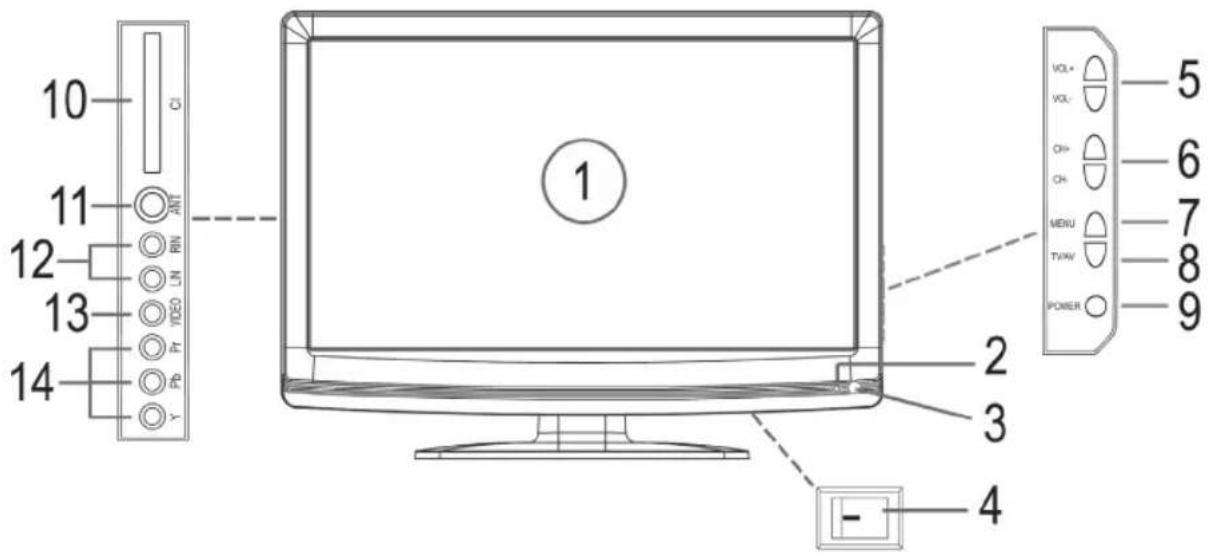
1 LCD display
2 Sensor for the remote control
3 Status indicator (operation = blue, standby = red)
4 On/Off switch
5 VOL+/VOL- Adjust volume. In menu navigate one position right/left/confirm selection.
6 CH+/CH- Select channel (next/previous channel number). In menu navigate one position up/down.
7 MENU Open/close OSD menu
8 TV/AV Select signal source
9 POWER Switch device to standby mode
10 CI Common Interface slot (optional) IMPORTANT: Only for encrypted (Pay-TV) DVB-T channels! Ask your service provider or your dealer for DVB-T Pay-TV in your area!
11ANT 75 ohm antenna input
12 RIN / LIN Audio inputs (right / left)
13 VIDEO Composite video input
14 Y / Pb / Pr Component video input
2.2 Rear View (Connection)
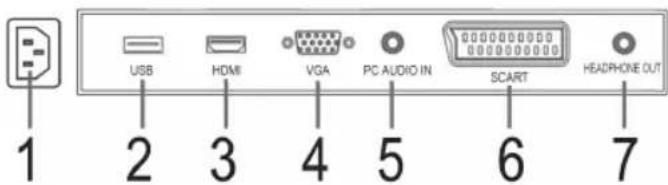
1 Mains power connection
2 USB port
3 HDMI input
4 VGA PC input
5 PC AUDIO IN audio input
6 SCART connection
7 HEADPHONE OUT - earphones connection
3. Remote control
3.1 Button Functions
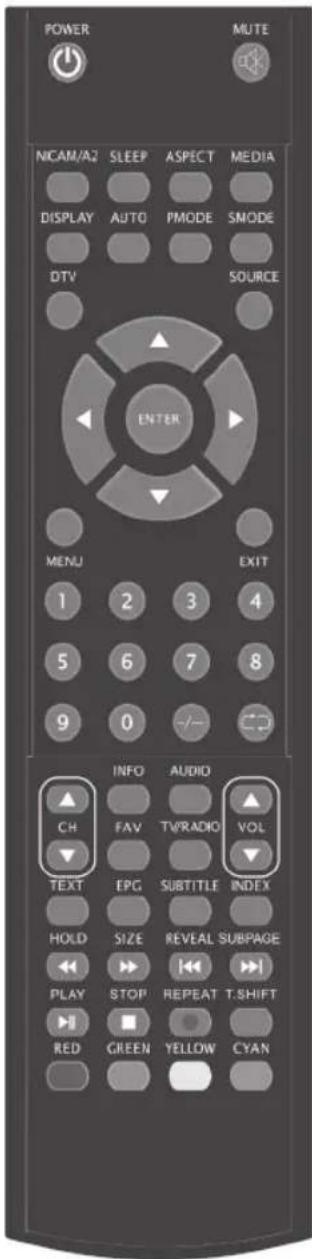
RED/GREEN/YELLOW/CYAN: Access colour-coded pages in Teletext mode. In menu mode channel edit.
POWER ⏻: Turn device on/off.
MUTE: Mute sound.
NICAM/A2: In ATV mode cycle through audio channels Stereo/ Mono/Dual Mono (if broadcast).
SLEEP: Activate interval for auto off.
ASPECT: Select aspect ratio.
MEDIA: Access media menu.
DISPLAY: Display channel information.
AUTO: In PC mode auto adjust screen.
PMODE: Select picture mode: Standard, Mild, User, Dynamic.
SMODE: Select sound mode: Standard, Music, User, Dynamic.
DTV: Access DTV mode directly.
SOURCE: Access signal source menu.
Arrow buttons (▲▼▶◀): Navigate OSD menu.
ENTER: Confirm input.
MENU: Access OSD menu.
EXIT: Exit OSD menu or return to previous menu.
Numeric buttons: Enter channel number.
-/- -: Display channel list.
: Toggle between current and previous channel.
CH ▲/▼. Select next/previous channel.
INFO: Display current channel information.
AUDIO: Select audio language (if broadcast in DVB-T mode).
FAV: Display favourite list.
TV/RADIO: Toggle between TV and Radio in DTV mode (if radio channels are available in your area).
VOL ▲/▼ Increase or decrease volume.
TEXT: Activate Teletext / superimpose Teletext on TV picture / deactivate Teletext.
EPG: Display Electronic Programme Guide in DTV mode.
SUBTITLE: Select subtitle language (if broadcast in DVB-T mode).
INDEX: Display Teletext time. Display Index page (100) in Teletext mode (ATV only).
HOLD / ◀: Hold Teletext page / rewind in USB playback mode.
SIZE / ▶: Enlarge current Teletext page / fast forward in USB playback mode.
REVEAL / ◀: Display hidden Teletext information / skip to previous file in USB mode.
SUBPAGE /▶: Select subpage in ATV mode / skip to next file in USB mode.
▶ II PLAY: Start and pause playback in USB mode.
■ STOP: Stop playback (in USB mode).
- REPEAT: Start PVR recording (DTV only) / Repeat file(s) in USB mode.
T.SHIFT: Start timeshift playback.
3.2 Insert Batteries
- Open the battery compartment at the rear.
- Inser 2 x 1.5V batteries type R03/AAA ein. Observe correct polarity (see battery compartment)!
- Close the battery compartment again.
During longer periods of non-use remove the batteries to avoid battery leakage.
WARNING:
- Protect batteries from heat and direct sunlight. Do not dispose of batteries by burning, danger of explosion!
- Keep batteries away from children. They are no toys.
- Do not force batteries open.
- Avoid contact with metal objects (rings, mails, screws, etc.), risk of short circuit!
- Short-circuited batteries can heat up and even ignite, risk of burns.
- For your own safety cover battery terminals with sticky tape during transport.
- In case of battery leakage avoid contact with eyes and mucous membranes. After contact wash your hands, rinse eyes with clear water and contact physician with persistent troubles.
CAUTION:
- Do not use odd battery types or fresh and exhausted batteries.
- Do not dispose of batteries with the household trash. Return exhausted batteries to collection points or your dealer.
i NOTE:
- If the remote control range shortens the batteries are exhausted and must be replaced.
- Do not use rechargeable batteries.
- Protect batteries from heat and direct sunlight. Do not dispose of batteries by burning, danger of explosion!
- Remove exhausted batteries from the device. Remove the batteries during longer periods of non-use to avoid battery leakage.
- Wash thoroughly after coming into contact with battery acid.
4. Before Installation
4.1 Scope of Delivery
After unpacking ensure that the following parts were included:
• TV set
• Stand and four Phillips screws
- Mains cord
- Remote control (incl. 2 x 1.5V batteries type LR03 AAA)
- User manual
4.2 Assemble Device
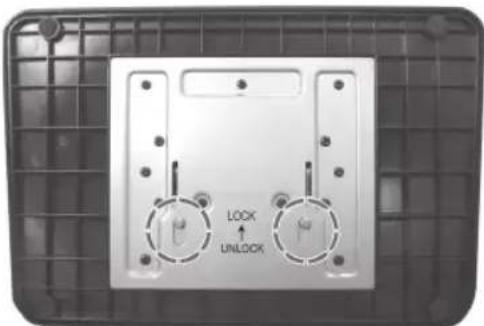
- Attach the stand with the four Phillips screws.

CAUTION TIPPING HAZARD:
Use two lock bars under the stand to lock the joint to prevent the TV set from tipping over. Slide the lock bars to LOCK position (see Figure).
- Remove the protective film from remote control and TV set, if attached.
- Place the TV set on a stable, level surface. Ensure that the surface can carry the TV's weight.
- Protect the device from extreme heat and humidity.
- Ensure sufficient ventilation on all sides. When placed in a wall unit leave at least 20cm on top and 10cm distance at the sides for ventilation.
natural_image
Front panel of a device showing two rotary switches labeled 'LOCK' and 'UNLOCK' with no visible text or symbols beyond the labels.4.3 Connect Antenna Cable
The TV set features a tuner to receive TV signals via antenna/cable and DVB-T signals.
△ CAUTION:
- Connect the antenna cable before connecting to mains power supply.
-
DVB-T reception: The device is intended for reception via passive DVB-T antenna.
-
Connect the DVB-T antenna to ANT input.
- In the source menu (press SOURCE button) select DTV.
Other Antenna Connections
For optimum trouble-free picture quality use a dual shielded 75 ohm antenna cable.
- Connect a 75 ohm antenna cable to the antenna wall outlet.
- Connect the other end to antenna input ANT at the rear of the device.
- In the source menu (press SOURCE button) select ATV.
i NOTE:
To be able to watch TV you first have to search for channels ( see "4.5 Initial Installation" on page 56).
4.4 Power Connection
The TV set is designed for AC 100-240V\~ 50/60Hz.
- Connect the mains cord to AC-INPUT and a wall outlet.

CAUTION:
Connect all devices before connecting the TV set to mains power supply. The wall outlet must be freely accessible at all times.
4.5 Initial Installation
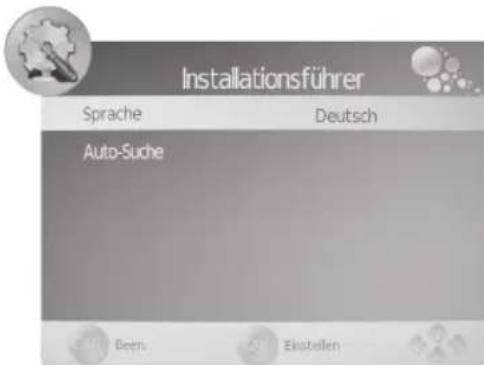
When turning the TV set on for the first time a window is displayed to select the menu language and to start auto scan (Auto-Suche).
- Toggle the main switch at the right bottom of the device to turn the TV set on. The window Installationsführer is displayed.
- Press ENTER to confirm German as OSD language or press the arrow buttons ▶/ on the remote control and ENTER to select your language. The item Auto Scan is highlighted.
- Press ENTER. Press the arrow buttons ▶ to select the country of your location.
-
Press ENTER twice to start auto scan. This process will take a few minutes. Progress is displayed on screen.
-
After auto scan is finished channel 1 is shown.
-
After a few seconds the window will disappear or press EXIT to close the window.
4.6 Select Source
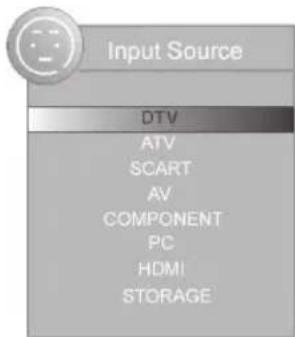
- In on mode press the SOURCE button. The source menu (connected devices) is displayed.
- Press the arrow buttons ▲/▼ on the remote control or CH +/- on the device to select the desired source.
- Press ENTER or VOL +/- on the device to confirm.
i NOTE:
Press the EXIT button to exit the menu without changes.
5. Connect External Devices
Your TV set features a variety of connectors for different devices (e.g. DVD recorder, PC, camera and set top box).
IMPORTANT! Ensure that your TV set and all devices to be connected are turned off before connection. Observe the user manuals of devices to be connected.
SCART Connector
The SCART connector at the rear transmits analogue image and sound signals in good quality. Connect here devices such as VCR, satellite receiver, game console or Pay-TV decoder.
- Connect the device via full-featured SCART cable to the SCART connector.
- In the source menu (press SOURCE button) select SCART.
VIDEO Connectors
Connect for instance a video camera via RCA connectors LIN, RIN and VIDEO.
- Connect the device via RCA cable to VIDEO, LIN and RIN connectors.
IMPORTANT! Observe the colour coding of the cables when using AV cable (video = yellow, audio L = white and audio R = red).
- In the source menu (press SOURCE button) select AV.
PC Connector
- Use a VGA cable to connect the monitor connector of the PC with the VGA connector on the TV set.
- Use an audio cable to connect the audio connector of the PC with PC AUDIO IN on the TV set.
- In the source menu (press SOURCE button) select PC.
Component Connector
The component connector Y Pb Pr transmits analogue image signals of external devices, e.g. AV receiver or DVD recorder in very good quality.
- Use a component cable (purchase separately at your dealer) with 3 RCA connectors to connect component output of the external device with the inputs Y Pb Pr on the TV set.
- Use an audio cable to connect the audio output of the external device with the audio connectors LIN and RIN on the TV set.
- In the source menu (press SOURCE button) select COMPONENT.
HDMI Connector
The HDMI connector transmits digital image and sound signals of external devices in very good quality.
- Use an HDMI cable (purchase separately at your dealer) to connect the HDMI connector of the external device with the HDMI connector on your TV set.
- In the source menu (press SOURCE button) select HDMI.
6. Basic Operation
All settings can be performed comfortably with the remote control and the OSD menu. The basic functions can also be performed with the buttons on the TV set. In this user manual we generally describe operation with remote control.
6.1 Turn TV Set On/Off
- To turn the TV set on toggle the main switch at the bottom right. It starts in the previously selected mode and selected source. In standby mode (status indicator red) press the POWER button on the remote control. The status indicator turns blue and the TV set turns on.
- Perss the POWER button on the remote control to turn the device off again (standby mode).
- To turn the TV set completely off toggle the main switch at the bottom right.
i NOTE:
Turn the TV set off completely if you are not using it, as it uses a small amount of power in standby mode. Even after turning the device off with the main switch it is not completely disconnected from mains power supply. For this you must disconnect the power plug from the wall outlet.
6.2 Select Channel
- Press the CH▲/▼ buttons or numeric buttons 0-9 to select the desired channel.
- Press the button on the remote control to return to the previous channel.
- Press -/- - to display the channel list. Press the arrow buttons (▲▼▶◀) to highlight a channel and press ENTER to display the channel on screen.
6.3 Adjust Volume
- Press the VOL ▲/▼buttons to adjust the volume.
ENGLISH
- Press the MUTE button to temporarily mute the sound. Press MUTE or VOL to unmute the sound again.
6.4 Shortcuts
AUDIO Select audio language (only if supported by broadcaster)
SOURCE Select external device
PMODE Select picture mode
SMODE Select sound mode
SLEEP Set sleep timer
ASPECT Select aspect ratio
TEXT Access Teletext
INFO Display channel information
SUBTITLE Select subtitle language (only if supported by broadcaster)
6.5 OSD Menu Structure
The OSD (On Screen Display) menu serves to select and set the different functions.
- Press the MENU button to display the OSD menu. The main menu items are shown above.
- First press / to select the desired main menu item. The submenus are displayed below.
- Press the arrow button to select a submenu. The first row of the submenu is highlighted.
- Press ENTER or to activate a submenu.
- Press the MENU button to return to the main menu.
Submenus
- Press the arrow buttons / to select a submenu item. Here you can:
- either perform settings with the arrow buttons /.
- or press ENTER to open a further setting window and perform settings here with the arrow buttons / .
Return to Main Menu
To select a different item from the main menu first exit the active submenu.
- Press the MENU button to return step by step until the main menu header (e.g. CHANNEL) is highlighted in colour.
- In the submenu press the button until the main menu header (e.g. CHANNEL) is highlighted in colour.
Exit Menus
- Press the MENU button to exit the menus step by step or press the EXIT button to exit the menu. Your changes are saved.
NOTE: After a few seconds idling the menu disappears automatically.
7. Search and Edit Channel
Your TV set can receive DVB-T signals as well as conventional analogue signals (e.g. via cable). The received channels during auto scan depend on the connection to the antenna input: your DVB-T antenna for DVB-T reception or analogue cable tuner. Both methods can be saved in the channel list – but generally you will only use one kind of reception. For both methods auto scan and manual search are available.
- DVB-T channels are displayed as DTV in the OSD menu.
- Analogue channels are displayed as ATV in the OSD menu.
7.1 Auto Scan
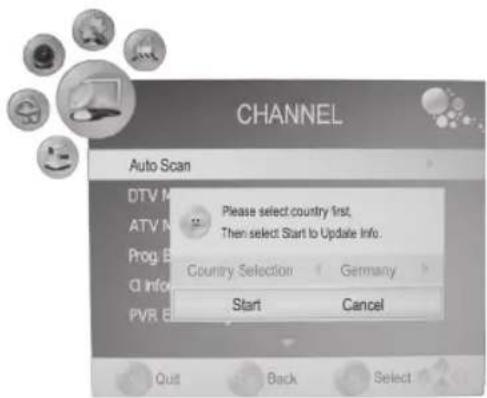
- Press the MENU button to display the OSD main menu.
- Press ▼ in CHANNEL menu to select Auto Scan.
- Press ENTER. Press the arrow buttons ↕ to select the country of your location.
- Press ENTER twice to start auto scan. This will take a few minutes. The progress is shown on screen.
- After auto scan channel 1 is displayed.
- The window closes automatically after a few seconds or press EXIT to close it.
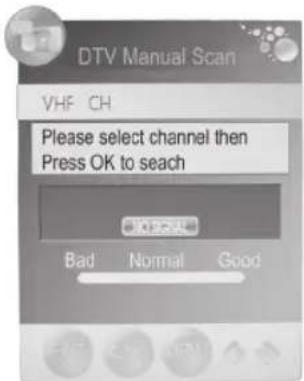
7.2 DTV Manual Scan
- Select a position in the channel list to save a new channel.
- Press the MENU button to display the OSD main menu.
- Press the arrow button ▼ to select item DTV Manual Scan and press ENTER.
- Press the arrow buttons to select a channel. The signal strength of the selected channel is displayed. If no signal is received on the selected channel NO SIGNAL is displayed. In this case select a different channel.
- Press ENTER to start the manual scan.
- After finishing the manual scan the number of found channels is displayed. Press EXIT to close the window.
7.3 ATV Manual Scan
To receive analogue channels an analogue antenna signal (e.g. external antenna or cable tuner) must be connected. Analogue channels are displayed as ATV (TV) in the OSD menu. If previously DVB-T channels were saved the new analogue channel is added to this list. The digital channels are not overwritten.
- Press the MENU button to display the OSD main menu.
- Press ▼ in CHANNEL menu to select ATV Manual Scan and press ENTER.
- Under Storage To press ◀ to select the position in the channel list for the new analogue channel.
- Press ▲ to highlight Search.
- Press 🖼️ to start the manual scan. The changing frequency is displayed during the scan. After a channel is found the sound is activated again.
- Press the red button to save the channel.
- To scan for additional channels first select a position in the channel list for the new analogue channel with Storage To and then restart the scan.
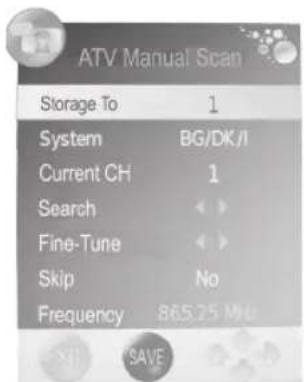
In this menu you can also perform the following settings: System: is generally not changed. Current CH: shows which channel is active in the background. Press ▶ and ENTER to change. Fine-Tune: Press ▶ to change the frequency in small steps. Skip: Select YES to skip the channel if selecting the channels with CH ▶ Frequency: Shows the current frequency.
7.4 Edit Channels
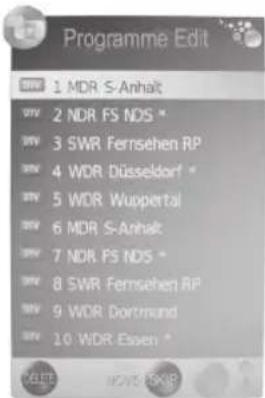
After auto scan all channels are saved in found sequence. You can add channels in the favourite list (FAV) or change the sequence by moving or skipping channels.
ENGLISH
Move Channel
- Press the MENU button to display the OSD main menu.
- Press ▼ in CHANNEL menu to select Programme Edit and press ENTER.
- Press ▲/▼to highlight the channel to be moved.
- Press the yellow button. The channel is marked yellow.
- Press /ʌto move the channel to the desired position.
- Press ENTER to save the channel in the desired position.
- Repeat steps 5-6 to move further channels.
- Press EXIT to exit the menu and save the changes.
Skip Channel
The highlighted channels can only be accessed with the numeric buttons 0–9. Selecting the channel with CH ▲/▼ is not possible.
- Press the MENU button to display the OSD main menu.
- Press ▼ in CHANNEL menu to select Programme Edit and press ENTER.
- Press /▲to highlight the channel to be skipped.
- Press the blue button. SKIP is displayed behind the channel name.
- Press EXIT to exit the menu and save the changes.
To unlock the channel select the highlighted channel and press the blue button again.
Save DVB-T Channel to Favourite List
Save your favourite channels in the favourite list. Access the list with FAV.
- Press the MENU button to display the OSD main menu.
- Press ▼ in CHANNEL menu to select Programme Edit and press ENTER.
- Press ▲/▼ to highlight the channel to be saved in the favourite list.
- Press the FAV button. A heart icon is displayed behind the channel name.
- Press EXIT to exit the menu and save the changes.
To delete the channel from the favourite list select the highlighted channel and press the FAV button again.
Rename Channel (only in ATV mode)
- Press the MENU button to display the OSD main menu.
- Press ▼ in CHANNEL menu to select Programme Edit and press ENTER.
- Press /▲ to highlight the channel to be renamed.
- Press the green button.
- Change the name with the arrow buttons.
- Press ENTER and press EXIT to exit the menu and save the changes.
Delete Channel
- Press the MENU button to display the OSD main menu.
- Press ▼ in CHANNEL menu to select Programme Edit and press ENTER.
- Press /▲to highlight the channel to be deleted.
- Press the red button. Delete is displayed behind the channel name.
- Press the red button again for the channel to be deleted.
- Press EXIT to exit the menu and save the changes.
8. Programme Info (EPG - only for DVB-T)
The Electronic Program Guide (EPG) is broadcast by many, but not all, programme providers. The contents can also greatly vary.
The EPG shows a daily overview of current or upcoming programmes with their respective broadcasting times.
- Press the EPG button to open the programme info.
- Use the following buttons for changes:
◄/► Select previous/next programmes on the current channel.
▲/▼ Select channel.
ENTER: Access selected channel.
INFO: Display detail information about selected programmes.
Yellow
button: Activate date. The dateline is highlighted. Press ◀ to access programme info for other days.
- REPEAT: Open recording window ( see "9.4 Programmed Recording with EPG" on page 63). Green button: Access schedule list in recording window.
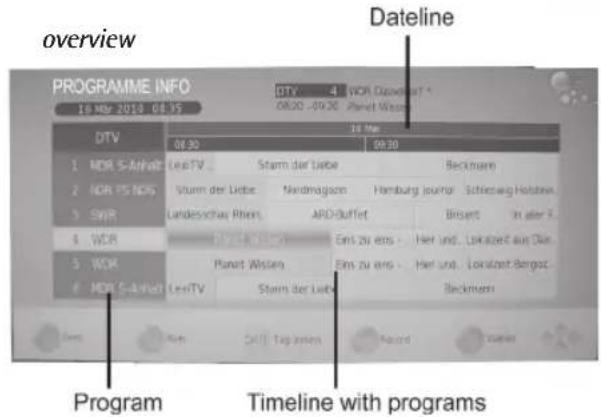
EXIT: Exit detail informationen or EPG.
Save Programmes
EPG allows you to save the programme start. The programmes are displayed in the schedule list. In on mode 10 seconds before programme start a prompt is shown asking you to switch channels. If no button is pressed or if you press ENTER to confirm the channel is switched. To carry on watching the current programme select No and press ENTER to confirm.
- Press the EPG button to open the EPG window.
- Press the arrow buttons ▲/▼/▲▶ select the channel and the desired programme.
- Press the REPEAT button.
- In the next window confirm the values with ENTER or change the values. The recorder schedule list with all saved programmes is displayed.
- Press EXIT to close the window.
9. PVR Recording and Time Shift Function (Only in DTV Mode)
Important! Before recording the media must be formatted. Existing files are deleted. Check to make sure that no important information is saved on the media. Format the media according to "9.1 PVR Settings" ( see page 61).
9.1 PVR Settings
- Press the MENU button to display the OSD main menu.
- In the main menu select CHANNEL, press ▼ to select PVR File System and press ENTER.
- Select Disk
Select "DISK C:" and "OK" and press ENTER to confirm.
- Check PVR File System
Check the connected USB device. Select OK to check the disk.
- Format
Select OK to format the disk.
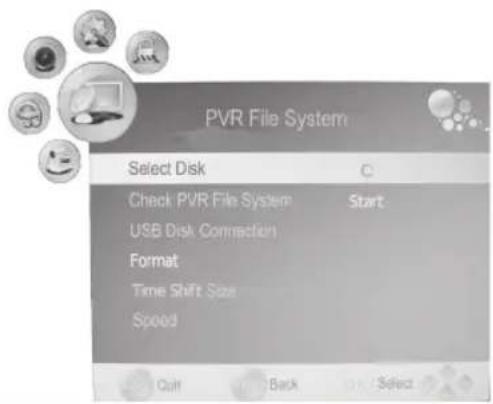
△ CAUTION Existing files are deleted!
Connected PVR media must be formatted! The device writes specific files to the disk.
Now set the desired disk capacity (File System Size).
PVR File Size
- Press ◀/▶ to select the desired media capacity (1GB...to...Max).
- Select OK and press ENTER to confirm. The USB device is now formatted and the PVR files are created (Create PVR file System...).
NOTE: This can take several minutes according to disk capacity.
Now select the Time Shift Size.
- Press ◀/▶ to select the desired Time Shift Size (size between 512MB...All).
i NOTE:
Selecting ALL for the time shift function uses the maximum disk capacity, and for further recordings is no capacity left.
• Max. Record Time
Press the arrow button▶, to select the recording time between 1 and 6 hours.
9.2 Direct PVR Recording (Manual)
- In DTV mode select the programme to be recorded.
- Press the • REPEAT button. The info bar is displayed.
The recording time is displayed left below the REC button. On the right the remaining recording time is displayed.
i NOTE:
Press the • REPEAT button again to minimize the info bar. This leaves a flashing button bottom right on the screen.
- Press the ■ STOP button to finish recording.
i NOTE:
- In recording mode you can press POWER ⏻ to set the device to sleep mode. The recording continues and the standby indicator flashes.
- Press the T.SHIFT button to pause the current recording ( see "9.6 Time Shift Function" on page 63)
9.3 Programmed PVR Recordings
- In DTV mode select the channel to be programmed.
- Press the MENU button to display the OSD main menu.
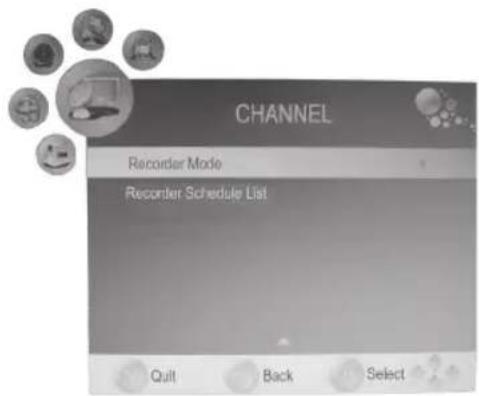
- In the main menu select CHANNEL, press ▼ to select Recorder Mode and press the arrow button ▶
- Enter the recording parameters:
Programme: (displays current programme)
Mode: Auto (immediate recording), Once, Daily, Weekly
Start Date: Press the arrow button and enter the desired start date with
Start Time: Enter the desired start time. Then select "close" and press ENTER to confirm.
End Date: Press the arrow button and enter / the desired end date.
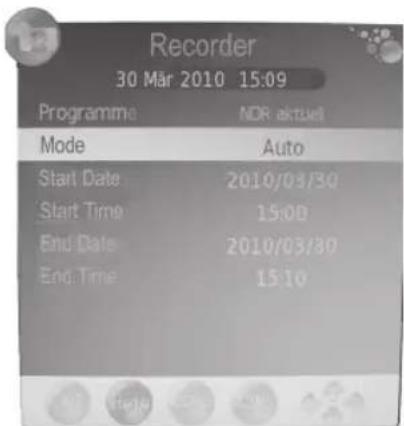
End Time: Enter the end time. Then select "close" and press ENTER to confirm.
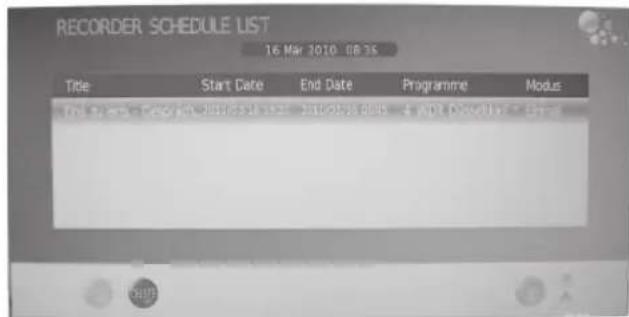
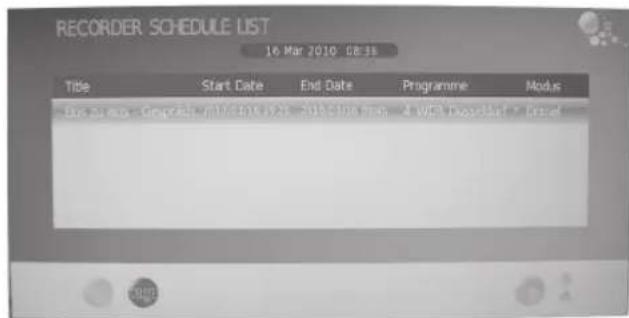
- Press ENTER again to save the entered recording data. Now the recorder schedule list is displayed, in which all programmed programmes are displayed.
i NOTE:
In the Recorder Schedule List individual programmes can be deleted with the red button.
- To review alle scheduled programmes select in the main menu CHANNEL, press the arrow button ▼ to select Recorder Schedule List and press the arrow button ▶.
9.4 Programmed Recording with EPG (Electronic Programme Guide)
- Press the EPG button to access the electronic programme guide.
- Press the arrow buttons to select the desired channel and/or programme.
- Press the • REPEAT button. The recorder window is displayed.
- Press ENTER to confirm the entered times.
Programming is finished and the dates are shown in the Recorder Schedule List.
9.5 PVR Playback
- Press the INDEX button to display your recordings.
- Repeatedly press the INDEX button to sort the recordings by Programme, Channel, Time.
- Press ▲/▼to select the desired recording.
- Press ▶tJ start playback.
- Press STOP to end playback.
i NOTE:
Press the T.SHIFT button to pause playback ( see "9.6 Time Shift Function" on page 63).
9.6 Time Shift Function
The time shift function allows you to interrupt a programme and to continue viewing it later. A USB device with sufficient capacity must be connected. Time shift size list set after formatting ( see "9.1 PVR Settings" on page 61).
- Press the T.SHIFT button. The image is "frozen". On the bottom of the screen the elapsed time is displayed.
- Press ▶II to activate time shift playback.
i NOTE:
Press EXIT to hide the info bar. The time shift logo is displayed bottom left on the screen.
- Press ▶▶/◀◀ to skip forward and back in the time window.
- Press ↗ to activate the search.
- Press T.SHIFT to pause playback again.
Press ■ STOP to exit the function.
A-B Repeat
In time shift mode you can define a section to be automatically repeated. This is indicated with the letters A and B below the playback icon.
- In time shift playback mode press ▶II once to mark the starting point of the section to be repeated.
- Press ▶ again to mark the end point of the section to be repeated. The marked section is now repeated.
Press the ■ STOP button to stop repeat mode.
10. USB Mode
- Connect your USB device directly at the USB port at the rear of the unit.
- Press the SOURCE button and select USB. The USB menu is displayed.
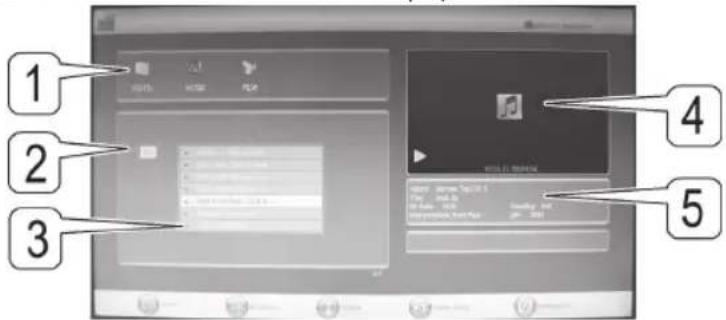
1: Status window Shows current playback mode.
2: Directory window Shows path.
3: File window Show files in current path.
4: Preview window Photo preview window.
5: Information window Shows information about current file.
- Press ◀/▶ to select the playback mode and press ENTER to confirm. The currently selected playback mode is highlighted.
i NOTE:
- Press EXIT to return to playback selection mode.
- In photo and movie playback mode press to show image/movie in full screen mode.
- Press the blue button to turn the TV screen off.
- For further operation observe the instructions at the bottom of the screen.
- Press ▶▶/◀ to skip to the next/previous file.
- Music files: Press>>>/« to search within the file forward or back. Press▶II to return to normal playback mode.
- Press the ■ STOP button to stop playback.
11. Display CI Information (Only Encrypted (Pay TV) DVB-T Channels)
- Press the MENU button to display the OSD main menu.
- Press ▼ to select CI Information and press ENTER.
If a CI module and smart card are connected the information is displayed.
i NOTE:
Encrypted DVB-T channels are not available in all areas. Ask your programme provider or dealer for further information.
12. Set Picture and Sound
12.1 Change Picture Settings
Your TV set comes with 3 preset and one manually adjustable picture settings (Standard, Mild, User and Dynamic). Press the PMODE button to cycle through the options. Select User to access your user-defined picture settings.
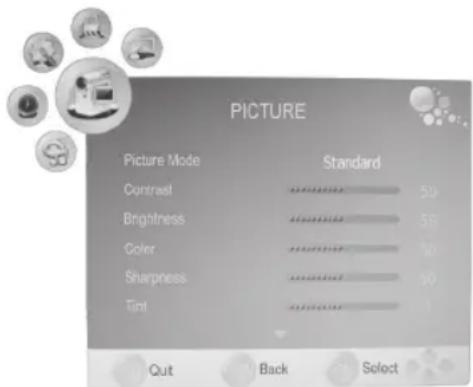
Define Picture Mode
- Press the MENU button to display the OSD main menu.
- Press the arrow button ▶ until the menu PICTURE is activated.
- Press the arrow button ▼ to highlight Picture Mode and press ◀/▶ to select User.
- The following items are activated and can be changed.
Contrast / Brightness / Color / Sharpness and Tint (only activated for NTSC signals). - Press ▼ to access the desired item and set the value with the arrow buttons ↕▶
-
Press the MENU button to access the complete picture menu for further changes.
-
Press EXIT to exit the menu and save the changes.
Set Colour Temperature
Your TV set comes with 3 preset and one manually adjustable colour temperature settings (Standard, Cool, User and Warm).
- Press the MENU button to display the OSD main menu.
- Press the arrow button ▶ until the menu PICTURE is activated
- Press the arrow button ▼ to highlight Colour Temperature and press ◀/▶ to select User.
- The following items are activated and can be changed: Red / Green / Blue.
- Press ▼ to access the desired item and set the value with the arrow buttons / ◀▶
- Press the MENU button to access the complete picture menu for further changes.
- Press EXIT to exit the menu and save the changes.
12.2 Noise Reduction
This function reduces the noise and increases the image quality with weak signals.
- Press the MENU button to display the OSD main menu.
- Press the arrow button ▶ until the menu PICTURE is activated.
- Press the arrow button ▼ to highlight Noise Reduction.
- Press ↕ to activate or deactivate the function.
- Press EXIT to exit the menu and save the changes.
12.3 Change Aspect Ratio
Your TV set comes with 5 aspect ratios: AUTO, 4:3, 16:9, ZOOM1 and ZOOM2. Press the ASPECT button to cycle through the options.
- Press ASPECT once to display the current setting.
- Press ASPECT again to change the setting.
i NOTE:
If set to AUTO to correct format is automatically selected. This setting can also be performed in the PICTURE menu.
12.4 PC Picture Settings
If a PC is connected to the TV set and PC is selected as the source, then the PICTURE menu additionally includes the item PC Setup. Set position and synchronisation for desktop here.
ENGLISH
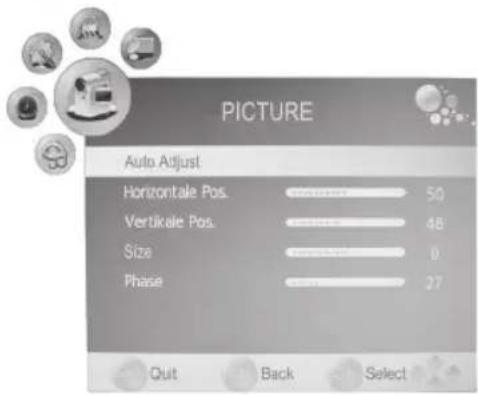
- Press the MENU button to display the OSD main menu.
- Select the PICTURE menu.
- Press the arrow button ▼ to highlight PC Setup and press ENTER.
- Press the arrow button ▼ to select the picture setting to be changed:
- Horizontal Pos. (horizontal desktop position)
- Vertical Pos. (vertical desktop position)
- Size
-
Phase (synchronisation)
-
Set the value with the arrow buttons /
-
Press EXIT to exit the menu and save the changes.
12.5 Change Sound Settings
Your TV set comes with 4 preset and one manually adjustable sound settings (Standard, Music, Movie, Sports and User). Press the SMODE button to cycle through the options. Select User to access your user-defined sound settings.
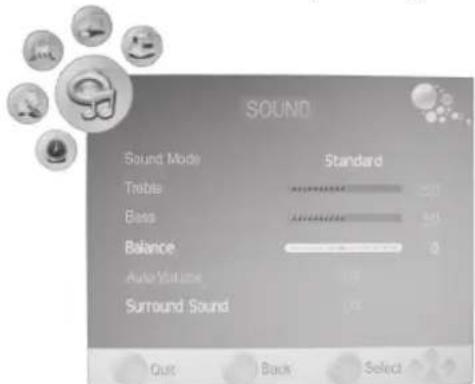
Set Audio Mode
- Press the MENU button to display the OSD main menu.
- Press the arrow button ▶ until the menu SOUND is activated.
- Press the arrow button ▼ to highlight SOUND Mode and press ◀ to select User.
- The following items are activated and can be changed: Treble / Bass / Balance (can also be changed in presets)
- Press ▼ to access the desired item and set the value with the arrow buttons ↩▶
- Press EXIT to exit the menu and save the changes.
12.6 Further Sound Settings
- Select Auto Volume to adjust different volume, e.g. when changing the channel.
-
Surround Sound means that the sound is produced in surround sound mode.
-
Press the MENU button to display the OSD main menu.
- Press the arrow button ▶ until the menu SOUND is activated.
- Press the arrow button ▼ to highlight Auto Volume or Surround Sound.
- Press ↕ activate or deactivate the function.
- Press EXIT to exit the menu and save the changes.
13. Current Time and Timer
13.1 Current Time
In DVB-T mode the TV set automatically detects the current time. In ATV mode the current time can be set manually.
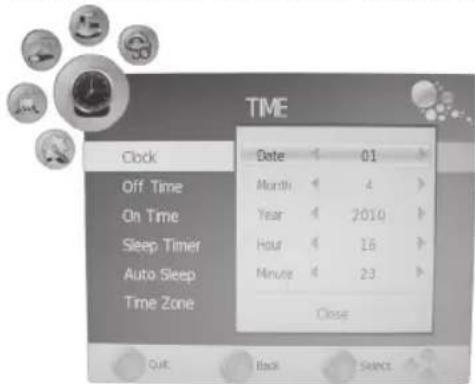
- Press the MENU button to display the OSD main menu.
- Press the arrow button ▶ until the menu TIME is activated.
- Press the arrow button ▼ to highlight Clock.
- Press ENTER to access the function.
- Enter the values such as date with the arrow buttons /
- Press ▼ to highlight Close after all values are entered.
- Press ENTER to save the values.
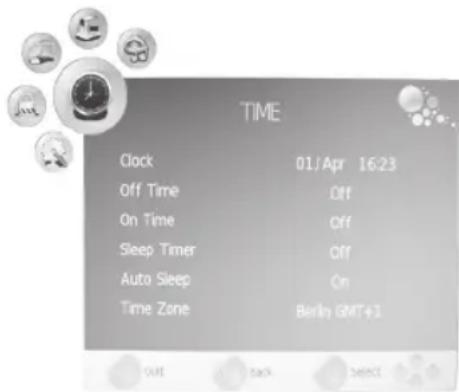
13.2 On Time and Off Time
On Time and Off Time define the time when the TV set turns on and off. You can define different periods.
i NOTE:
These functions turn your TV set on from standby mode or into standby mode. If your TV set is turned off with the main switch this functions is invalid.
- Press the MENU button to display the OSD main menu.
- Press the arrow button until the menu TIME is activated.
- Press the arrow button ▼ to highlight Off Time or On Time.
- Press ENTER to access the function.
- Press the arrow buttons to highlight and change the displayed functions.
- Repeat: Define if the setting is to be performed once or regularly. Select between: (Off, Once, Daily, Mon-Fri, Mon-Sat, Sat-Sun or Sun).
- Hour / Minute: Set the off time.
Off Time:
On Time:
- Activate: Define if the setting is to be performed once or regularly. Select between: (Off, Once, Daily, Mon-Fri, Mon-Sat, Sat-Sun or Sun).
- Hour / Minute: Set the on time.
- Volume: Set the volume that the TV set turns on with.
- Mode: DTV - if DVBT antenna is connected / ATV - if external antenna or cable tuner is connected / RADIO if available the TV set can turn on with a radio station.
-
Num: Set the cahnnel number that the TV set turns on with.
-
Press EXIT to exit the menu or press MENU to return to the previous menu. The changes are saved.
13.3 Sleep Timer
You can set your TV set to automatically turn off after a preset period of time. The sleep timer is deleted and must be set again if you turn the TV set off during sleep timer setting. Set the sleep timer interval between Off and 240Min.
- Repeatedly press the SLEEP button on the remote control until the desired time is displayed. The menu disappears after a few seconds and the TV set turns off after the preset interval.

NOTE: You can also perform this setting in the TIME menu.
13.4 Auto Sleep
With auto sleep activated the TV set automatically turns into standby mode after not receiving a signal for 10 minutes.
- Press the MENU button to display the OSD main menu.
- Press the arrow button ▶ until the menu TIME is activated.
- Press the arrow button ▼ to highlight Auto Sleep.
- Press ▶to activate or deactivate the function.
- Press EXIT to exit the menu and save the changes.
13.5 Time Zone
- Press the MENU button to display the OSD main menu.
- Press the arrow button ▶ until the menu TIME is activated.
- Press the arrow button ▼ to highlight Time Zone.
- Press the arrow buttons ↕ to select the desired time zone.
- Press EXIT to exit the menu and save the changes.
14. Teletext
Teletext is a free information service of the broadcaster. It is transmitted with the TV signal and needs no further equipment. Not all stations offer Teletext. Teletext information is generally divided into areas, themes and pages. Some themes cover several pages (2/3 page two of three), others contain hidden information (quiz answers, VPS times, etc.).
Teletext On / Mix Mode / Off
Press the TEXT button on the remote control to cycle through the Teletext functions
- turn on,
- activate mix mode with the TV image behind the Teletext display and
- turn off.
Colour Buttons
Nearly all Teletext pages feature coloured text fields at the bottom of the screen (red, green, yellow, blue). Press the colour buttons on the remote control to access the themes/pages directly, which are displayed in the coloured fields.
Access Pages with Numeric Buttons
The current 3-digit page number is displayed in the rop left corner on screen. The page numbers are always entered with 3 digits with the numeric buttons. It takes a few seconds until the page is displayed.
Access Subpages
- Select the desired Teletext page (with subpages).
- Press the arrow buttons ◀ to select the subpage. The number of subpages for the current Teletext page is displayed at the bottom of the screen.
Hold Function
Press the HOLD button to pause and continue the automatic access of subpages.
Display Size
- Press the SIZE button to change the Teletext font size and to toggle in large font mode between top and bottom half of the page.
Hidden Information
Teletext pages with games or riddles often contain the hidden answers.
- Press the REVEAL button to display the answer. Not all broadcasters support this function.
Access Index Page (ATV only)
- Press the INDEX button to display the index page (generally page 100).
15. Special Functions
15.1 Lock
This menu allows you to set different locks and to change the Password. Enter the preset password 0000 to open the menu.
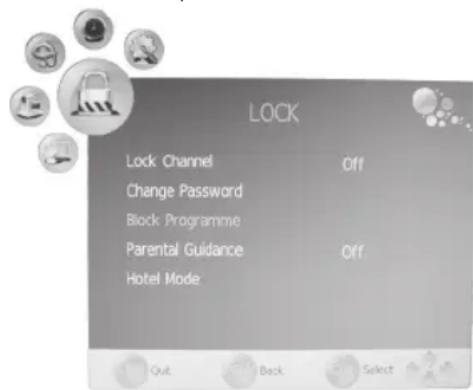
- Press the MENU button to display the OSD main menu.
- Press the arrow button ▶ until the menu LOCK is activated.
- Press ENTER to open the function.
- Enter the password (preset 0000).
- This procedure must be repeated every time the menu is accessed.
Lock Channel
With activated function (On), the CHANNEL menu is not displayed to prevent modifications by unauthorised persons.
Change Password
- Highlight the item Change Password and press ENTER.
- Enter your new password twice. It is valid after second input.
- Perform further changes or press EXIT to exit the menu.
i NOTE:
If you forget your password enter the master password 8899 to select a new password.
Block Programme
You can block individual programmes. These programmes can only be accessed after entering the password. The programme block is valid until unlocked or resetting the TV set with Default.
i NOTE:
The function Block Programme is only available with the function Lock Channel activated (On).
- Highlight the item Block Programme and press ENTER.
- Press ▲ or ▼ to select the programme to be blocked.
- Press the green button to block the programme. A lock icon is displayed behind the channel name.
- Block further programmes or press EXIT to exit the menu. The programmes are blocked.
To unlock access the menu Block Programme and mark the channel to be unlocked; press the green button again. The lock icon disappears.
Parental Guidance
The menu item Parental Guidance is invalid, as DVB-T broadcasters do not transmit the necessary signal.
Hotel Mode
- Press the MENU button to display the OSD main menu.
- Press the arrow button until LOCK is activated.
-
Press the arrow button ▼ to highlight Hotel Mode and press ENTER. Perform the settings with the arrow buttons ◀▶
-
Hotel Lock: Select On to be able to select one of the following items.
- Lock Channel: If On is selected the CHANNEL menu is not displayed ( see "Lock Channel" on page 69).
- Set Source: Select the source with which you want the device to turn on with.
- Channel Number: Select the channel number with which you want the device to turn on with.
- Picture Lock: If On is selected the PICTURE menu is not accessible.
- Key Lock: All buttons on the TV set are locked.
- Max Volume: Set the maximum volume for the device.
- Source Lock: Lock input sources for the device.
- Clear Lock: Press the arrow button▶to delete all hotel mode settings and to deactivate the function.
| Hotel Mode | |
| Hotel Lock | Off |
| Lock Channel | Off |
| Set Source | Off |
| Channel Number : | |
| Picture Lock | Off |
| Key Lock | Off |
| Max Volume | 100 |
| Source Lock | |
| Clear Lock | |
70
ENGLISH
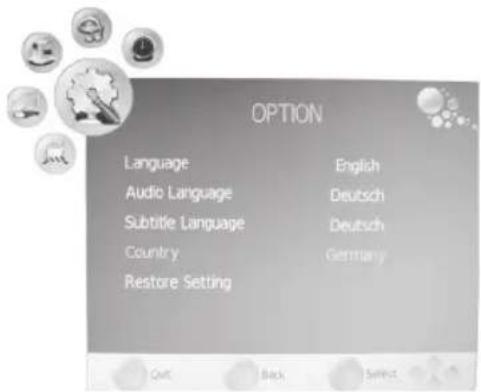
15.2 Language Settings
- Press the MENU button to display the OSD main menu.
- Press the arrow button ▶ until OPTION is activated.
-
Press the arrow button ▼o highlight the item:
-
Language: Press the arrow buttons ↕ to select the OSD language.
- Audio Language: Press ENTER and press the arrow buttons to select the audio language.
-
Subtitle Language: Press ENTER and press the arrow buttons to select the subtitle language.
-
Press EXIT to exit the menu and save the changes.

NOTE:
The functions Audio Language and Subtitle Language are only valid if the broadcaster transmits subtitles or a second soundtrack (with a different language).
15.3 Default
With reset to default settings all user-defined settings are deleted. Your personal password is not deleted.
- Press the MENU button to display the OSD main menu.
- Press the arrow button ▶ until OPTION is activated.
- Press the arrow button ▼ to highlight Restore Setting and press ENTER.
- Press ◀ to highlight Yes and press ENTER.
16. Troubleshooting
Before contacting customer support try to solve the problem with the tips from the following table:
| Problem Possible cause and proposal for solution | |
| No image, status LED not on | Check if the main switch at bottom right of the device is set to ON.Check if the mains plug sits properly in the wall outlet.Check mains power on the wall outlet with a different device or connect TV set to different wall outlet. |
| Check if the signal cables from source devices are properly connected.Check if the source device is turned on. | |
| Image flickers | Check if the input signal of the source device matches the specifications of the TV set. |
| Check if the PC menu settings match the video output settings of the PC.Set the values again. | |
| TV set cannot be turned on. | Check if the mains plug sits properly in the wall outlet.Check if the main switch at bottom right of the device is set to ON. |
| No sound. | Check if the audio cables are properly connected.Check the volume.Check if the earphones are connected. |
| Volume too low. | Check the volume.Set the volume.Check if the volume is limited in the hotel mode menu. |
| Snowy image. Check if antenna or antenna cable are damaged. | |
| Remote control does not work. | Check if the batteries are exhausted.Check if the batteries make proper contact and are inserted with the correct polarity.Ensure that no obstacles are between remote control and sensor.Check if strong light sources shine onto the sensor. |
Defective Pixels
Defective pixels are no TFT panel malfunction. Production-related defective pixels cannot be avoided. Just like convergence defects for cathode ray tubes are defective pixels only a tolerance value.
Our TFT panels offer best value for price and quality.
Defective pixels can be caused by pressure on the panel.
Complex testing procedures during and after manufacture ensure that all defective pixels of our TFT panels are below the respective tolerance level.
The number of defective pixels depends on the kind of pixel and/or sub pixel defect, resolution and panel size.
17. Technical Specifications
| LCD panel | Diagonal 22" (56cm) | |
| Panel type 16:9 TFT LCD | ||
| Resolution 1920 x 1080 | ||
| Contrast ratio 8000:1 | ||
| Response time 5ms | ||
| Power supply | Device AC 100-240V~ 50/60Hz | |
| Protection class I | ||
| Power consumption <1W (standby), 70W | ||
Specifications are subject to change!
This device has been tested according to all relevant current CE guidelines, such as electromagnetic compatibility and low voltage directives, and has been constructed in accordance with the latest safety regulations.
18. Meaning of the "Wheelie Bin" Symbol
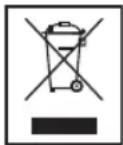
Take care of our environment, do not dispose of electrical appliances via the household waste.
Dispose of obsolete or defective electrical appliances via municipal collection points.
Please help to avoid potential environmental and health impacts through improper waste disposal.
You contribute to recycling and other forms of utilization of old electric and electronic appliances.
Your municipality provides you with information about collecting points.
- Deutsch
- Deutsch
- Ricerca manuale ATV
- i NOTA:
- Children and disabled persons
- Symbols in this user manual
- WARNING:
- CAUTION:
- Contents
- ENGLISH
- Device Overview
- Location of Controls and Connections
- Rear View (Connection)
- Remote control
- Button Functions
- Insert Batteries
- i NOTE:
- Before Installation
- Scope of Delivery
- Assemble Device
- CAUTION TIPPING HAZARD:
- Connect Antenna Cable
- △ CAUTION:
- Other Antenna Connections
- Power Connection
- Initial Installation
- Select Source
- Connect External Devices
- SCART Connector
- VIDEO Connectors
- PC Connector
- Component Connector
- HDMI Connector
- Basic Operation
- Turn TV Set On/Off
- Select Channel
- Adjust Volume
- Shortcuts
- OSD Menu Structure
- Submenus
- Return to Main Menu
- Exit Menus
- Search and Edit Channel
- Auto Scan
- DTV Manual Scan
- ATV Manual Scan
- Edit Channels
- Move Channel
- Skip Channel
- Save DVB-T Channel to Favourite List
- Rename Channel (only in ATV mode)
- Delete Channel
- Programme Info (EPG - only for DVB-T)
- Save Programmes
- PVR Recording and Time Shift Function (Only in DTV Mode)
- PVR Settings
- PVR File Size
- Direct PVR Recording (Manual)
- Programmed PVR Recordings
- Programmed Recording with EPG (Electronic Programme Guide)
- PVR Playback
- Time Shift Function
- A-B Repeat
- USB Mode
- Display CI Information (Only Encrypted (Pay TV) DVB-T Channels)
- Set Picture and Sound
- Change Picture Settings
- Define Picture Mode
- Set Colour Temperature
- Noise Reduction
- Change Aspect Ratio
- PC Picture Settings
- Change Sound Settings
- Set Audio Mode
- Further Sound Settings
- Current Time and Timer
- Current Time
- On Time and Off Time
- Off Time:
- On Time:
- Sleep Timer
- Auto Sleep
- Time Zone
- Teletext
- Teletext On / Mix Mode / Off
- Colour Buttons
- Access Pages with Numeric Buttons
- Access Subpages
- Hold Function
- Display Size
- Hidden Information
- Access Index Page (ATV only)
- Special Functions
- Lock
- Lock Channel
- Change Password
- Block Programme
- Parental Guidance
- Hotel Mode
- Language Settings
- NOTE:
- Default
- Troubleshooting
- Defective Pixels
- Technical Specifications
- Meaning of the "Wheelie Bin" Symbol
Brand : AEG
Model : CTV 2203
Category : TV