
PW-E510 - Uncategorized SHARP - Free user manual and instructions
Find the device manual for free PW-E510 SHARP in PDF.


User questions about PW-E510 SHARP
0 question about this device. Answer the ones you know or ask your own.
Ask a new question about this device
Download the instructions for your Uncategorized in PDF format for free! Find your manual PW-E510 - SHARP and take your electronic device back in hand. On this page are published all the documents necessary for the use of your device. PW-E510 by SHARP.
USER MANUAL PW-E510 SHARP
natural_image
Line drawing of a laptop computer with open lid and keyboard (no text or symbols)
ELECTRONIC DICTIONARY
BEDIENUNGSANLEITUNG
OPERATION MANUAL
DEUTSCH 1
ENGLISH ...... E-1
natural_image
Technical line drawing of a mechanical component with no visible text or symbols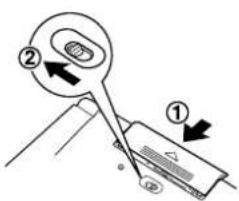
natural_image
Simple line drawing of a pen inserted into a notepad with a small circular mark (no text or symbols)Admin. Administration, Administrative
adv. adverb
Aeronaut. Aeronautics
Agric. Agriculture
Alch. Alchemy
Amer. American, America
Anat. Anatomy
Anglican Ch. Anglican Church
Anglo-Ind. Anglo-Indian
Ant. Antiquity
Anthrop. Anthropology
arch. archaic
Archaeol. Archaeology
Archit. Architecture
art. article
Astrol. Astrology
Astron. Astronomy
Astronaut. Astronautics
attrib. attributive
Austral. Australian, Australia
Bacteriol. Bacteriology
Bibl. Biblical
Bibliog. Bibliography
Biochem. Biochemistry
Biol. Biology
Bookk. Bookkeeping
Bot. Botany
Brit. British, Britain
Can. Canadian, Canada
Chem. Chemistry
Cinemat. Cinematography
coll. colloquial
collect. collective
comb. combination
Commerc. Commerce, Commercial
Communication Res. Communication Research
compar. comparative
condit. conditional
conj. conjunction
Constr. Construction
constr. construed
contr. contracted form
def. definite
Dent. Dentistry
derog. derogatory
dial. dialect
Diplom. Diplomacy
Dressm. Dressmaking
Eccl. Ecclesiastical
Ecol. Ecology
Econ. Economics
Educ. Education
Electr. Electricity
ellipt. elliptical
emphat. emphatic
esp. especially
Ethnol. Ethnology
Ethol. Ethology
euphem. euphemistic
excl. exclamation, exclamatory
expr. expressing
fem. feminine
fig. figurative
Footb. Football
Gastr. Gastronomy
Geneal. Genealogy
Geog. Geography
Geol. Geology
Geom. Geometry
Graph. Arts Graphic Arts
Her. Heraldry
Hist. History, Historical
Horol. Horology
Hort. Horticulture
Hydraulic Engin. Hydraulic Engineering
imper. imperative
impers. impersonal
incl. including
Ind. Indian, India
indef. indefinite
Information Sci. Information Science
int. interjection
interrog. interrogative
Int. Law International Law
Ir. Irish, Ireland
iron. ironical
joc. jocular
Journ. Journalism
lang. language
Ling. Linguistics
Lit. Literature
lit. literal
Magn. Magnetism
Managem. Management
masc. masculine
Math. Mathematics
Mech. Mechanics
Mech. Engin. Mechanical Engineering
Med. Medicine
Metalw. Metalwork
Metaph. Metaphysics
Meteorol. Meteorology
Mil. Military
Min. Mineralogy
Motor Veh. Motor Vehicles
Mount. Mountaineering
Mus. Music
Mythol. Mythology
n. noun
Nat. Sci. Natural Science
Naut. Nautical
neg. negative
N. Engl. Northern English
ns. nouns
Nucl. Engin. Nuclear Engineering
Nucl. Phys. Nuclear Physics
Num. Numismatics
N. Z. New Zealand
obj. object
Oceanog. Oceanography
Ornith. Ornithology
P Proprietary name
Palaeont. Palaeontology
Parapsych. Parapsychology
Parl. Parliament
pass. passive
Pharm. Pharmacy
Philat. Philately
Philos. Philosophy
Phonet. Phonetics
Photog. Photography
phr(s). phrase(s)
Phys. Physics
Physiol. Physiology
pl. plural
poet. poetical
Polit. Politics
poss. possessive
postpos. postpositive
p. p. past participle
pred. predicative
pref. prefix
Prehist. Prehistory
prep. preposition
pres. present
pres. p. present participle
pr. n. proper noun
pron. pronoun
Pros. Prosody
prov. proverbial
Psych. Psychology
p. t. past tense
Railw. Railways
RC Ch. Roman Catholic Church
refl. reflexive
rel. relative
Relig. Religion
Res. Research
Rhet. Rhetoric
rhet. rhetorical
S. Afr. South African, South Africa
sb. somebody
Sch. School
Sci. Science
Scot. Scottish, Scotland
Shipb. Shipbuilding
sing. singular
sl. slang
Sociol. Sociology
Soc. Serv. Social Services
Soil Sci. Soil Science
St. Exch. Stock Exchange
sth. something
subord. subordinate
suf. suffix
superl. superlative
Surv. Surveying
symb. symbol
tech. technical
Teleph. Telephony
Telev. Television
Theol. Theology
Univ. University
usu. usually
v. aux. auxiliary verb
Vet. Med. Veterinary Medicine
v.i. intransitive verb
voc. vocative
v. refl. reflexive verb
v.t. transitive verb
v. t. & i. transitive and intransitive verb
W. Ind. West Indian, West Indies
Woodw. Woodwork
Zool. Zoology
Autoren
Great Clarendon Street, Oxford ox2 6dp
Oxford University Press is a department of the University of Oxford.
It furthers the University's objective of excellence in research, scholarship,
and education by publishing worldwide in
Oxford New York
Athens Auckland Bangkok Bogotá Buenos Aires Calcutta
Cape Town Chennai Dar es Salaam Delhi Florence Hong Kong Istanbul
Karachi Kuala Lumpur Madrid Melbourne Mexico City Mumbai
Nairobi Paris São Paulo Singapore Taipei Tokyo Toronto Warsaw
with associated companies in Berlin Ibadan
Oxford is a registered trade mark of Oxford University Press
in the UK and in certain other countries
Published in the United States
by Oxford University Press Inc., New York
© Oxford University Press and Bibliographisches Institut & F. A. Brockhaus AG 1990, 1997, 1999
Second Edition
Oxford University Press
Michael Clark
Bernadette Mohan
Robin Sawers
Gunhild Prowe
Neil Morris
Roswitha Morris
Data Input
Muriel Ranivoalison
Susan Wilkin
Tabitha Tuckett
Anne McConnell
Dudenverlag
Olaf Thyen
Kusenberg, Kurt: Mal was andres. Reinbek: rororo 113, 1960. – EA 1954.
Thank you for purchasing the SHARP Electronic Dictionary, model PW-E510.
The PW-E510 contains data based on the following dictionaries (see page E-5):
After reading this manual, store it in a convenient location for future reference.
NOTICE
- SHARP will not be liable nor responsible for any incidental or consequential economic or property damage caused by misuse and/or malfunction of this product and its peripherals, unless such liability is acknowledged by law.
- The specification of this product and its accessories, as well as information provided in this manual, is subject to change without prior notice.
CAUTION
- Do not carry the PW-E510 in the back pocket of slacks or trousers.
- Do not apply excessive physical pressure on the LCD panel because the glass material may break.
- Do not drop the PW-E510 or apply excessive force to it. Bending the unit unduly can damage it.
- Do not subject the PW-E510 to extreme temperatures. Do not expose the unit to an extremely humid or dusty environment.
- Do not apply extreme force when pressing the keys.
- Sharp or hard objects can scratch and damage the unit. Make sure it is adequately protected when carried with other objects.
- Since this product is not waterproof, do not use it or store it where fluids, for example water, can splash onto it. Raindrops, water spray, juice, coffee, steam, perspiration, etc. will also cause malfunction.
- Clean only with a soft, dry cloth. Do not use solvents.
- Use only a SHARP approved service facility.
NOTES
- All company and/or product names are trademarks and/or registered trademarks of their respective holders.
CONTENTS
Getting Started
Using the PW-E510 for the first time E-3
Layout E-6
Basic Operation E-8
Looking up a word by Filter search E-14
Looking up a word by Filter search E-18
Looking up a word by Filter search E-22
Further information E-23
Searching quotations and idioms E-24
Further information E-24
Using the Super Jump function
How to use the Super Jump function E-25
Using the History function
How to use the History function ...... E-27
Using the Calculator function
Prior to initiating calculations ...... E-28
Calculation examples E-28
Using the Converter function
Replacing the battery E-31
Reset procedure if trouble occurs E-32
Specifications E-32
Troubleshooting E-33
Product support E-33
Getting Started
Using the PW-E510 for the first time
Be sure to perform the following operations before using the PW-E510 for the first time.
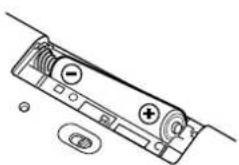
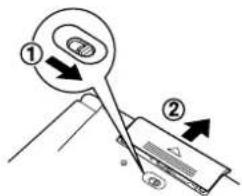
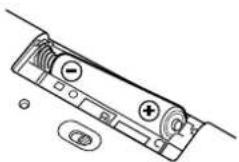
- Set the battery replacement switch on the bottom of the unit to the 'REPLACE BATTERY' position.
- Remove the battery cover.
- Insert the one battery. Make sure the battery polarity is correct.
- Replace the battery cover.
- Set the battery replacement switch to the 'NORMAL OPERATION' position.
natural_image
Technical line drawing of a mechanical device with no visible text or symbols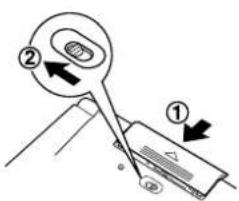
- Open the unit and press ON/OFF to turn the power on.
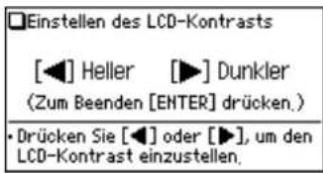
The LCD contrast screen will appear.
- Should a different screen appear, follow the reset procedure on page E-32.
-
If the power cannot be turned on:
-
Make sure the battery replacement switch is placed at the 'NORMAL OPERATION' position, then press ON/OFF again.
-
If the power still cannot be switched on, try following steps 1 through 6 in the above procedure again.
-
Adjust the LCD contrast by using ▶, and press ENTER.
The key sound on/off screen will appear.
- Select ☐ or ☑ to turn the key sound on/off.
The main menu screen will appear.
- The LCD contrast and the key sound settings can be adjusted later in the Set-up menu (Menü-Einstellungen).
Turning the power on/off
The power can be switched on by pressing the keys listed below. To turn off the power, press ON/OFF.
| Key | Display status upon start-up |
| ON/OFF | Restores the display as it was before the unit was switched off (Resume function). |
| MENU | The main menu screen appears. |
| DE-DEEN-DEDE-ENZITATECALC | The main display of each dictionary and/or function appears (Direct-on function) |
Auto power off function
To save the battery, the PW-E510 will automatically turn its power off if no key operations are detected for a set period of time. The activation interval initial setting is 5 minutes, but it can be adjusted by following the directions on page E-11.
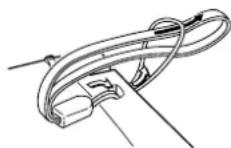
To attach a commercially available strap
A carrying strap can be attached, as shown in the picture below.
Caution:
- Do not swing the unit by the strap, or use excessive force to pull the strap. Doing so will cause a malfunction or hardware damage to the unit.
Back of the unit
Key notation used in this manual
- All keys are framed (A ^A , for instance); exceptions are found in the Calculator section, where the numeral entries are shown with real numbers.
- K e ys are often assigned with more than one function. The appropriate key/ function will be shown according to the input status.
@ will be shown as either Ⓠ, ‘1’ or ‘1’ depending on the input status.
G will be shown as either G or + depending on the input status.
- The functions indicated with green typeface are second functions. Press and release 2nd, then press an appropriate key.
2nd ? directs to press and release 2nd, then press ? (M). 2nd ZURÜCK directs to press and release 2nd, then press ZURÜCK (A).
Data contained in the PW-E510
The dictionary data contained in this unit is based on the following dictionaries:
* All rights reserved. No part of this publication may be reproduced, stored in a retrieval system, or transmitted, in any form or by any means, without the prior permission in writing of 'Bibliographisches Institut & F. A. Brockhaus AG', or as expressly permitted by law, or under terms agreed with the appropriate reprographics rights organization. Enquiries concerning reproduction outside the scope of the above should be sent to the Rights Department, 'Bibliographisches Institut & F. A. Brockhaus AG'.
- The data content of each Dictionary is mostly retained faithful to the original. However, some sections of the dictionary contents have had to be altered due to the limitations of the LCD display and for other reasons; these modifications have been implemented under the provisions of the publisher(s). In some rare cases, misspellings and/or mistypings may be found; these are 'errors' that have been retained unmodified from the source Dictionaries.
Note:
- F or full information on the contents of the dictionaries, see Introductions on pages 34–70.
- This product does not contain some of the appendix data found in the book version of each dictionary.
- This product does not contain the illustrations and photographs found in the book version of Duden – Zitate und Redewendungen.
- In this manual, ‘Duden – Zitate und Redewendungen’ refers to ‘Duden – Das große Buch der Zitate und Redewendungen’.
Layout
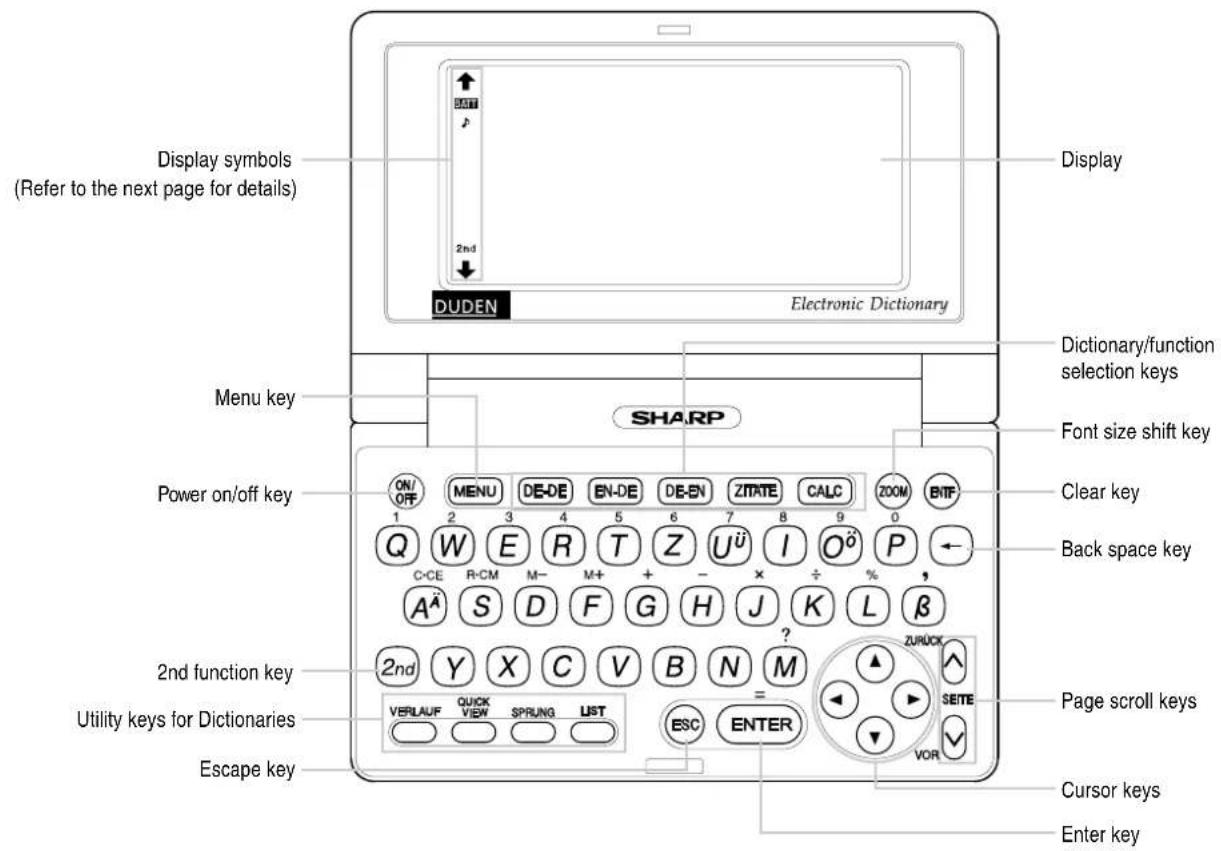
Key assignments Display symbols
DE-DE : Opens the input screen for Duden – Deutsches Universalwörterbuch
EN-DE : Opens the input screen for Duden-Oxford – Großwörterbuch Englisch (Englisch-Deutsch)
DE-EN : Opens the input screen for Duden-Oxford – Großwörterbuch Englisch (Deutsch-Englisch)
ZIPATE : Opens the input screen for Duden – Zitate und Redewendungen
CALC : Opens the calculator function screen
VERLAUF : Opens the history list of each Dictionary
QUICK VIEW : B r ings up a 'digest' view of descriptions
: Initiates a definition search of a term in a detail view of each Dictionary
LIST : Opens the alphabetical order list of each Dictionary
2nd : 2nd function key
Activates the second function (printed in green) assigned to the next key pressed.
BATT This symbol will be displayed when the battery level is low. Promptly replace the old battery with a new one.
Indicates that the key sound (beep) is set to ON.
2nd Indicates that 2nd has been pressed.
These arrows suggest that more contents can be browsed by scrolling up/down the window.
▲ ▼ : Press to scroll up/down per text row.
∧ ∨ : Press to scroll up/down per visible window.
Note:
- In this manual, symbols are not shown in the display examples.
- Certain symbols may appear on the display only when the LCD contrast is set to dark. Please ignore these symbols as they are not used by this product.
Operation guidance message
A brief guidance message may appear at the bottom of the screen to help you utilise functions more effectively.
Basic Operation
Inputting words for a dictionary search
In this section, the basic search operation is described. For details, refer to the manual chapter for each dictionary.
Find definitions of 'freundlich' in Duden – Deutsches Universalwörterbuch.
-
Press DE-DE to display the input screen for Duden – Deutsches Universalwörterbuch, then input 'freund'. The entries starting with 'freund' is listed.
-
Enter "I" to narrow down the list further. If the desired word is found, then you do not need to type any more letters.
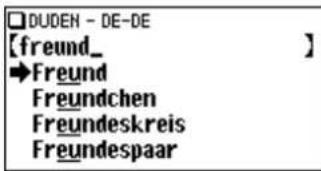
- Press ESC to go back to the previous view. - Press LIST to list the headwords in Duden – Deutsches Universalwörterbuch.
Note:
- To learn different searching methods from those above, refer to the manual chapter for each dictionary.
Selecting a dictionary / function in the main menu
Press MENU.
The main menu appears.
- Select an item by its index number using the number keys (① through ⑥). The initial screen of the selected item appears.
- The desired item can also be selected by using the ▲▼ keys, followed by pressing the ENTER key.
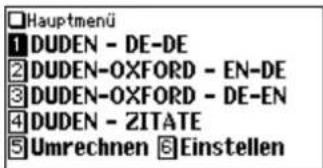
List view: selecting an item; scrolling
Press DE-DE to display the initial screen of Duden – Deutsches Universalwörterbuch, then press ENTER. The list view of Duden – Deutsches Universalwörterbuch appears.
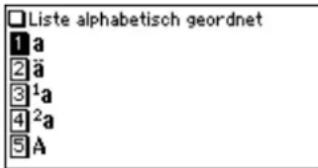
Selecting an item or a word
Use the corresponding number key to the index number on the left of each item, or use the ▲ or ▼ key to place the cursor on the desired item, followed by pressing the ENTER key.
Scrolling the view
'↑' and/or '↓' may appear on the left side of the screen, indicating that more information can be browsed by scrolling up/down the view.
1) Press ▼ once to scroll down one text row. To scroll back one text row, press ▲ once.
2) Press ☑ to scroll down a page. Press ∧ to scroll the page up.
- Press and hold these keys to continuously scroll the lines/pages.
Filter search view: selecting an item; scrolling
Press DE-DE, then type A^A , and B. 'ab' is entered, and words starting from 'ab' listed.
![□DUDEN - DE-DE [ab_ ] →ab A. B. Abakus abänderbar](/content/2026/05/789125/images/750fbd72c3c4a60c40191e43dc42917aa91ec3b117c022e3684604a8d9db57a6.jpg)
Selecting each entry
Use ▼ ▲ to place the cursor (indicated as □ on the left of the listed items) at the desired entry, then press ENTER. The detail view of the entry appears.
Scrolling the view
Refer to the section 'Scrolling the view' in the previous section, 'List view: selecting an item; scrolling'.
Detail view: scrolling
Press DE-DE, then type A^A , and ENTER. The detail view with definitions appears.
'and/or' may appear on the left side of the screen, indicating that more information can be browsed by scrolling up/down the view. Use ▼ ▲ or ▼ ▲.
Scrolling up/down to the previous/next entry header
Press 2nd VOR to show the next entry header. To show the previous entry header, press 2nd ZURÜCK.
Other useful keys
ESC : Restores the previous view
ENTF : Shows the input screen of each Dictionary or the initial display of a function
LIST : Shows the list view starting from the previously displayed header
Shifting the displayed character size (ZOOM)
Press the ZOOM key to shift the character size to be displayed.
12 dot-based (vertical pixel resolution) or 9 dot-based characters can be selected. For instance, press ZOOM to display the 12 dot characters to 9 dot characters. Press ZOOM again to toggle back the displayed characters to 12 dot-base.
12 dot-based (default)
- The character size setting will be retained until the next time ZOOM is pressed.
• The ZOOM key is functional in the following views:
• The list view, detail view or filter search view of each Dictionary
• The Super Jump window
Recalling the terms previously searched (VERLAUF)
The history of up to 30 items in each dictionary is automatically stored, and can be recalled easily by selecting the word in the history list. (For more information, see page E-27.)
Listing a summary of detail view items (QUICK VIEW)
The Quick View function suppresses some examples and additional information, and lists out the main sections and senses from each detail view entry. Use this function to browse quickly through the summary of an entry.
- In the detail view shown on page E-10, press QUICK VIEW.
The Quick View screen appears.
□Quick View
- While the relevant sense or section is on the screen, select the desired item by the index number. The detail view of the selected sense/section appears.
- Press QUICK VIEW in the Quick View to display the detail view.
Searching a word on the screen (SPRUNG)
A word or jump icon (↑ in the detail view can be selected for searching. (For more information, see page E-25.)
Press MENU to display the main menu, then press 6. The set-up menu appears.
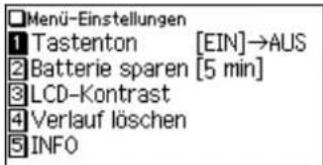
Select a desired item to change the setting.
• T o delete the history list, see page E-27.
Setting the key sound on/off (Tastenton)
The key sound (a short audible beep when a key is pressed) can be set to on or off.
- Press Ⓑ MENU, 6, then 1, to toggle the key sound on or off.
A splash message appears to indicate the change of setting, then the main menu will be displayed.
Setting the Auto power off activation time (Batteriesparmodus)
This product automatically turns its power off to save the battery. The turn-off time is set to five minutes by default.
- Press ⒰MENU, 6, then 2.
The Auto power off setting screen appears.
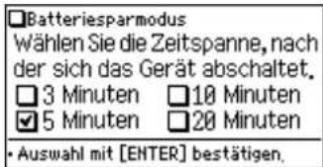
- Use the ▲, ▼, ◀ and ▶ keys to place the check mark on the desired duration, then press ENTER.
The time will be set, then the main menu will be displayed.
Adjusting the LCD contrast (LCD-Kontrast)
Select this menu item to adjust the LCD contrast.
- Press MENU, 6, then 3.
- To adjust the LCD contrast, use the ◀ (Lighter) key or ▶ (Darker) key, then press ENTER to return to the main menu.
Displaying the Copyright information (Copyrights)
The copyright information of each dictionary can be browsed.
- Press ⒰MENU, 6, 5, then 1, to display the copyright information.
Starting Auto Demo mode (Auto-Demo)
Activate the Auto demo for a guided tour through the key features of the product.
- Press MENU, 6, 5, then 2, to start the Auto demo mode.
- Press ESC or ENTER to end the Auto demo mode and return to the main menu.
Inputting Characters
Methods of inputting characters are described in this section.
Character entry
A simple example of inputting characters is shown below.
Enter a word 'Gefäß' for search.
- Press DE-DE to open the input screen of Duden – Deutsches Universalwörterbuch.
- Type 'Gefäß'.
On the keyboard, press G, E, F, A ^A , then B.
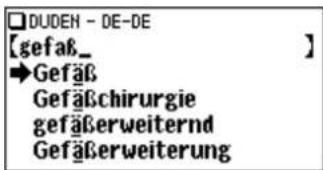
- To enter accented characters, enter their unaccented equivalents. For characters such as 'ä', 'ö', 'ü', and 'œ', enter 'a', 'o', 'u' and 'oe' respectively.
- Use the Ⓗ key to enter 'B'.
- While entering characters, exclude characters such as spaces, hyphens, apostrophes, slashes, and periods.
| Word Entry for search | |
| anno currente annocurrente | |
| U-Bahn ubahn | |
| Rock 'n' Roll rocknroll | |
| c/o co | |
| z. B. zb |
- Convert uppercase letters to lowercase. This is also applicable to the capitalized first letter of a noun.
Deleting unnecessary characters
-
Press DE-DE to open the input screen of Duden – Deutsches Universalwörterbuch.
-
Type 'rangehen'.
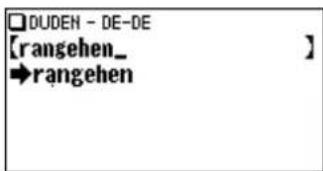
-
While the cursor is at the end of the string, press ← four times to delete 'ehen'.
-
Next, press ▶ twice to move the cursor under the letter 'n'.
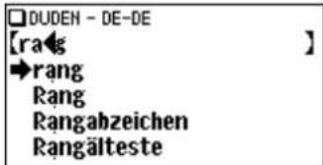
- Press ← once to delete a character on the left of cursor. 'a' will be deleted.
Adding characters
- In the above example, press ① to insert a letter 'i' on the left of the cursor. The search will be narrowed with the word 'ring'.
![☐DUDEN - DE-DE [ring] ] →ring Ring ringartig Ringbuch](/content/2026/05/789125/images/61fb87fe60a717893af5b30c182fb0b0dfeb985a041ea3b54ffa5a17cf6ebf81.jpg)
Note:
- Press ENTF to delete all characters entered.
Using Duden – Deutsches Universalwörterbuch
In this Dictionary, definitions of a word can be found by entering its spelling. Features such as Phrase search, Spellcheck, Crossword solver, and Anagram solver are also available.
Looking up a word by Filter search
A definition of a word can be looked up by inputting its spelling.
Find the definition of 'Fortschritt'.
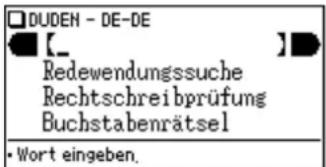
- Press DE-DE to open Duden - Deutsches Universalwörterbuch. The input screen appears.
As you type, candidates for matching narrow. If the desired word is found, then there is no need to type any more letters.
-
While '→' appears on the left of 'Fortschritt', press ENTER. The detail view of the word appears.
-
To browse contents on the next/previous page, press ▼ or ▼. You may also find the Quick View function useful.
- If a word selected is a close derivative of a headword, it may not have its own definitions. In these cases, it is helpful to scroll up within the detail view to find the definitions of the headword itself.
- To search for a word in the detail view, use the Super Jump function.
-
Press ESC to return to the previous screen.
-
Press LIST to list the headwords in Duden – Deutsches Universalwörterbuch.
- To search a different word, simply input a new spelling for the word, or press or -DE to go to the dictionary's input screen.
If there is no match found
As you input the spelling of the desired word, the dictionary will narrow down the matching candidates. If the match is narrowed down to none (i. e. no word starting with the spelling is found in the Dictionary), the message 'Ähnliche Wörter' appears.
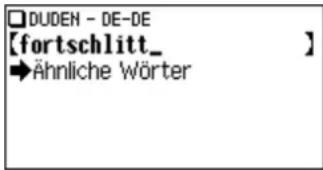
In this case, press ENTER to list the dictionary entries alphabetically after the entered spelling.
Note about entering characters
While entering characters, exclude characters such as spaces, hyphens, apostrophes, slashes, and periods. See page E-12 for details.
Note:
- The wildcard character '?' must not be entered in the input field of the Dictionary. The wildcard character '?' can be used in the Crossword solver (see page E-16).
- Up to 24 characters can be entered in the input field of the Dictionary. When searching words containing 25 characters or more, narrow down the search to select the words from the list manually.
To search for idioms or phrasal verbs, enter up to three words in the input field. The phrases containing ALL the entered words can be searched for.
Search for a phrase containing 'Herz' and 'geben'.
- Press DE-DE to open Duden – Deutsches Universalwörterbuch.
Press ▼ once to place the cursor at the 'Redewendungssuche', then press ENTER.
The input screen of the Phrase search appears.
- Input 'Herz', press ▼, followed by 'geben'.
To input more than one word, input each word in the separate input field.
Use the ▼▲ keys to move the cursor. Each input field can accommodate up to 24 characters.
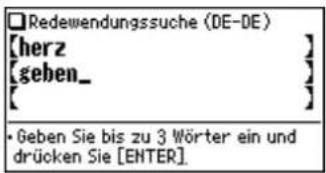
A list of phrases containing the words appears.
- Select the desired index of the phrase using the number key(s). The definition of the selected phrase is displayed.
- Press ESC to return to the previous view.
- Press LIST to list the index of phrases containing the words.
- To search for a new phrase, simply begin inputting new words, or press (ENTF) to go back to the input screen to start a new search.
The spellcheck function can be helpful when the exact spelling of a query word is not known.
You are not sure whether 'Satelit' or 'Satellit' is correct.
- Press DE-DE, ▼, ▼, then ENTER, to open the input screen of the spellcheck function.
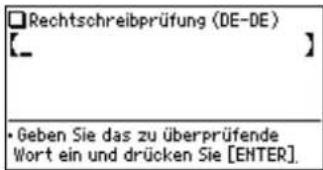
Words with similar spellings will be listed.
- While 'Suche... Zum Beenden [ENTER] drücken' is visible, press ENTER to stop the search. Note that if the search is interrupted, the list of possible results may not include all the closest matches.
- If the word is typed with the correct spelling, it will appear at the top of the displayed list.
-
In the list, select a desired word using the number keys. The detail view with descriptions of the word is displayed.
-
If a word selected is not in its original form, and cannot be found as a headword, then the detail view of the word's original form will be displayed. It may be necessary to scroll down within the detail view to find the desired word form.
- Press ESC to go back to the previous view.
- Press LIST to list the headwords in Duden – Deutsches Universalwörterbuch.
Note:
- Up to 100 words may be displayed in the list.
If the list of words do not appear as expected:
- Searching words with particular spellings may take more time to complete than others.
- If no word is given, a message 'Nicht gefunden!' will momentarily be displayed, followed by the input screen of the spellcheck function. In this case you may wish to start the search again with a new spelling for the word.
Use a wildcard character '?' to search for words with ambiguous spellings. Place the appropriate number of '?' characters in the places of characters yet to be determined.
Find a matching word for a query 'r???ter'.
- Press DE-DE to open Duden – Deutsches Universalwörterbuch.
- Press ▼ three times to place the cursor at the 'Buchstabenrätsel', then press ENTER
The solver menu appears.
- Press ① . The Crossword solver's input screen appears.
- Type 'r???ter' into the input field. Press②nd ? three times to enter '???'.
- Press ENTER to start the search.
A list of the wildcard matches appear. Up to 100 words may be displayed in the list.
- In the list, select a desired word using the number keys.
The detail view with definitions of the selected word appears.
- Press ESC to return to the previous view.
- Press LIST to list the headwords inDuden – Deutsches Universalwörterbuch.
- To initiate another search, simply type in the new spelling or present to return to the input screen of the Crossword solver.
Anagram solver (Anagramm lösen)
A word or series of letters can be entered to find any matching anagrams found in Duden – Deutsches Universalwörterbuch.
Find anagrams for 'Lauf'.
- Press DE-DE to open Duden – Deutsches Universalwörterbuch.
- Press ▼ three times to place the cursor at the 'Buchstabenrätsel', then press ENTER. The solver menu appears.
- Press ②. The input screen of the Anagram solver appears.
- Place 'Lauf' in the input field, then press ENTER to initiate the search. Up to 100 words may be displayed in the list.
- In the list of matches, use the number keys to select a word.
The detail view with definitions of the selected word appears.
- Press ESC to return to the previous view.
- Press LIST to list the headwords in Duden – Deutsches Universalwörterbuch.
- T o initiate another search, simply type in the new spelling or pressENTF to return to the input screen of the Anagram solver.
Further information
For further information on using this dictionary, see pages 34–51.
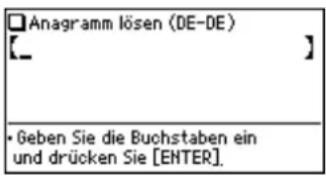
In this Dictionary, definitions (in German) of an English word can be found by entering its spelling. Features such as Phrase search, Spellcheck, Crossword solver, and Anagram solver are also available for English words.
Looking up a word by Filter search
A definition of an English word can be looked up by inputting its spelling.
Find the definition of 'advance'.
The input screen appears.
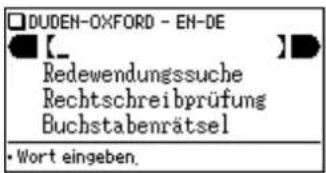
As you type, candidates for matching narrow. If the desired word is found, then there is no need to type any more letters.
-
While '→' appears on the left of 'advance', press ENTER. The detail view of the word appears.
-
To browse contents on the next/previous page, press ▼ or ▼. You may also find the Quick View function useful.
- If a word selected is a close derivative of a headword, it may not have its own definitions. In these cases, it is helpful to scroll up within the detail view to find
the definitions of the headword itself.
- T o search for a word in the detail view, use the Super Jump function.
- Press ESC to return to the previous screen.
- Press LIST to list the headwords in Duden-Oxford – Großwörterbuch Englisch (Englisch-Deutsch).
- T o search a different word, simply input a new spelling for the word, or press ENTF or EN-DE to go to the dictionary's input screen.
If there is no match found
The same view / message appears as for Duden – Deutsches Universalwörterbuch. See page E-14 for details.
Note about entering characters
While entering characters, exclude characters such as spaces, hyphens, apostrophes, slashes, and periods. See page E-12 for details.
Note:
- The wildcard character '?' must not be entered in the input field of the Dictionary. The wildcard character '?' can be used in the Crossword solver (see page E-20).
- Up to 24 characters can be entered in the input field of the Dictionary. When searching words containing 25 characters or more, narrow down the search to select the words from the list manually.
To search for idioms or phrasal verbs, enter up to three words in the input field. The phrases containing ALL the entered words can be searched for.
Search for a phrase containing 'take' and 'care'.
The input screen of the Phrase search appears.
- Input 'take', press ▼, followed by 'care'.
To input more than one word, input each word in the separate input field. Use the ▼▲ keys to move the cursor. Each input field can accommodate up to 24 characters.
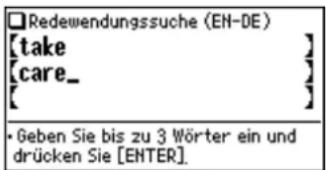
A list of phrases containing the words appears.
-
Select the desired index of the phrase using the number key(s). The definition of the selected phrase is displayed.
-
Press ESC to return to the previous view.
- Press LIST to list the index of phrases containing the words.
- To search for a new phrase, simply begin inputting new words, or press (ENTF) to go back to the input screen to start a new search.
The spellcheck function can be helpful when the exact spelling of a query word is not known.
You are not sure whether 'liason' or 'liaison' is correct.
- Press (EN-DE), ▼, ▼, then (ENTER), to open the input screen of the Spellcheck function.
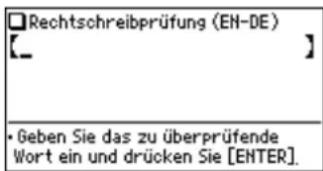
Words with similar spellings will be listed.
- While 'Suche... Zum Beenden [ENTER] drücken' is visible, press ENTER to stop the search. Note that if the search is interrupted, the list of possible results may not include all the closest matches.
-
If the word is typed with the correct spelling, it will appear at the top of the displayed list.
-
In the list, select a desired word using the number keys. The detail view with descriptions of the word is displayed.
-
If a word selected is not in its original form, and cannot be found as a headword, then the detail view of the word's original form will be displayed. It may be necessary to scroll down within the detail view to find the desired word form.
- Press ESC to go back to the previous view.
- Press LIST to list the headwords in Duden-Oxford – Großwörterbuch Englisch (Englisch-Deutsch).
Note:
- Up to 100 words may be displayed in the list.
If the list of words do not appear as expected:
- Searching words with particular spellings may take more time to complete than others.
- If no word is given, a message 'Nicht gefunden!' will momentarily be displayed, followed by the input screen of the spellcheck function. In this case you may wish to start the search again with a new spelling for the word.
Use a wildcard character '?' to search for words with ambiguous spellings. Place the appropriate number of '?' characters in the places of characters yet to be determined.
Find a matching word for a query 'ma???n'.
The solver menu appears.
-
Press ①. The Crossword solver's input screen appears.
-
Type 'ma???n' into the input field. Press 2nd ? three times to enter '???'.
- Press ENTER to start the search.
A list of the wildcard matches appear. Up to 100 words may be displayed in the list.
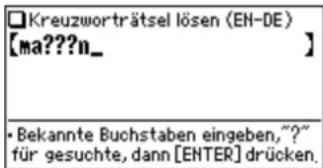
- In the list, select a desired word using the number keys.
The detail view with definitions of the selected word appears.
- Press ESC to return to the previous view.
- Press LIST to list the headwords in Duden-Oxford – Großwörterbuch Englisch (Englisch-Deutsch).
- To initiate another search, simply type in the new spelling or pressENTF to return to the input screen of the Crossword solver.
Anagram solver (Anagramm lösen)
- In the list of matches, use the number keys to select a word.
The detail view with definitions of the selected word appears.
- Press ESC to return to the previous view.
- Press LIST to list the headwords in Duden-Oxford – Großwörterbuch Englisch (Englisch-Deutsch).
- To initiate another search, simply type in the new spelling or pressENTF to return to the input screen of the Anagram solver.
Further information
For further information on using this dictionary, see pages 52–63.
In this Dictionary, definitions (in English) of a German word can be found by entering its spelling, with Phrase search available for use.
Looking up a word by Filter search
A definition of a German word can be looked up by inputting its spelling.
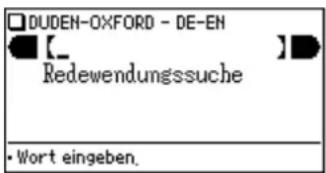
Find the definition of 'geben'.
The spelling input screen appears.
- Input 'geben'.
As you type, options are narrowed. If the desired word is found, then you do not need to type any more letters.
- While ➤' appears on the left of 'geben', press ENTER. The detail view of the word appears.
If there is no match found
The same view / message appears as for Duden – Deutsches Universalwörterbuch. See page E-14 for details.
Note about entering characters
While entering characters, exclude characters such as spaces, hyphens, apostrophes, slashes, and periods. See page E-12 for details.
Note:
- Up to 24 characters can be entered in the input field. When searching words containing 25 characters or more, narrow down the search to select the words from the list manually.
To search for idioms or phrasal verbs, enter up to three words in the input field. The phrases containing ALL the entered words can be searched for.
Search for a phrase containing 'Herz' and 'geben'.
The input screen of the Phrase search appears.
See instructions on page E-15 for the rest of the Phrase search details.
Further information
For further information on using this Dictionary, see pages 52–63.
In this Dictionary, quotations and idioms can be searched for.
Searching quotations and idioms
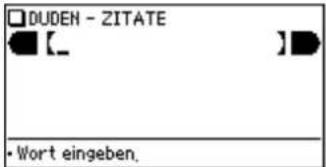
The first word of an entire phrase (excluding the article of the word, etc.) can be entered for a search.
As you type, the match narrows. If the desired word is found, then you do not need to type any more letters.
- While '→' appears to the left of 'Es', press ENTER. The list of quotations/ idioms containing 'es' appears.
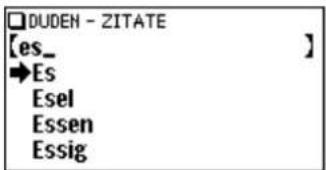
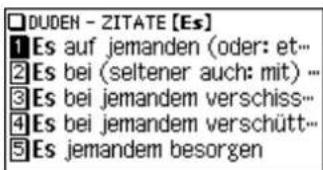
- Select the desired index of the quotation/idiom using the number key ('V' and '1' in this example). The detailed view of the selected quotation/phrase is displayed.
• T o browse contents on the next/previous page, press ▼ ▲ or ▼
• The Quick View function cannot be activated from this screen.
- To search a word in the detail view, or to search for an item indicated by, use the Super Jump function.
- Press ESC to return to the previous screen.
If there is no match found
The matching headers narrows down as you type. If the match is narrowed down to none, a message 'Ähnliche Wörter' will be displayed. Press ENTER to list the headers that alphabetically follow the entered string.
Note about entering characters
While entering characters, exclude characters such as spaces, hyphens, apostrophes, slashes, and periods. See page E-12 for details.
Further information
For further information on using this dictionary, see pages 64–70.
Using the Super Jump function
Use the Super Jump function to select any word in the detail view of each dictionary, then initiate a search based on the selected word.
How to use the Super Jump function
Initiate a Super Jump search via Duden – Deutsches Universalwörterbuch.
-
In Duden – Deutsches Universalwörterbuch, show the detail view of the word 'Rokoko'.
-
Press SPRUNG. The cursor appears to select the first word in the view.
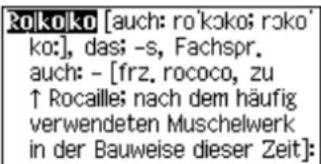
-
Use the ▼▲▶◀ keys to move the cursor (and its selection of word) to a desired word.
-
The pressing of SPRUNG moves the cursor to the next.
-
The Jump icon (↑) can be selected in Duden – Zitate und Redewendungen only. In another Dictionary, select the word immediately after the Jump icon instead.
-
While the desired word is selected, press ENTER.
The Super Jump window appears to display selectable items.
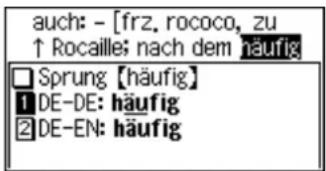
- A list of matching words is displayed. If no match is found, then a list of up to 30 closely spelled words per Dictionary will be searched and displayed. If the search returns zero results, a message 'Nicht gefunden!' appears momentarily.
- A variant, a word of inflected form, or a segment of a component verb may not be initiated for a Super Jump search.
- Press DE-DE, EN-DE or DE-EN instead of pressing ENTER, to specify the Dictionary to jump to.
-
If only one match is found, or if the Jump icon (↑) is selected, then the description of the item will be displayed in the Super Jump window instead.
-
Use the number keys to select a desired word in the list (Press 1 in this example).
The definition of the selected word is displayed in the Super Jump window.
- Press ESC to go back to the previous view.
-
When '↑' and/or '↓' appears on the left side of the window, ▼ ▲ or ∨ △ can be used to scroll the window.
-
Press ENTER to jump to the definition of the selected word.
The detail view of the selected word appears.
- Press ESC to display the previous view.
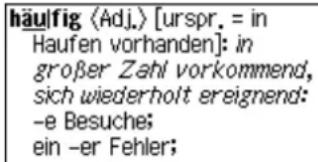
About the detail view after the Jump
- The behaviour and function of the detail view is the same as the detail view after an ordinary search.
- Press (ENTF) at the detail view to go back to the Dictionary's input screen.
- A chain of multiple Super Jump actions can be backtracked up to 10 times by pressing the ESC key.
Using the History function
Use the History function to recall a headword or phrase previously searched in the Dictionaries.
How to use the History function
Recall the search history in Duden – Deutsches Universalwörterbuch.
-
Press DE-DE to open Duden – Deutsches Universalwörterbuch.
-
Press VERLAUF. The history view appears, with the most recent search placed at the top of the list.
When '↑' and/or '↓' appears on the left side of the window, ▼ ▲ or ▼ △ can be used to scroll the window.
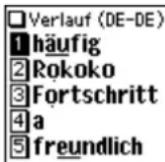
- Use the number keys to select a desired word in the list.
The detail view of the selected word appears.
Note:
- Each Dictionary has its own history list. Additionally, phrase search history list of each of Duden – Deutsches Universalwörterbuch and Duden-Oxford – Großwörterbuch Englisch (Englisch-Deutsch, and Deutsch-Englisch) is made.
- To view the history list, pressVERLAUF at the initial screen of each Dictionary, and the initial screen of each phrase search.
- T r uncated words in the list are indicated with trailing ‘...’ at the end.
• Each history list can contain up to 30 items.
Deleting a history item
- Display the history list on the screen.
- Use the ▼ or ▲ key to place the cursor on the item to be deleted. The reverse colour indicates the selected item.
- Press ← A confirmation dialog for deletion appears.
- Press ☐. The selected item is deleted.
Deleting the history list of a Dictionary
- Press Ⓑ MENU, then Ⓞ to open the Set-up menu.
- Press ④ to select 'Verlauf löschen'.
- Use the number keys to select the history list you wish to delete. A confirmation dialog for deletion appears.
- T o delete all history lists, select 'ALLES'.
- Selecting 'Nur DE-DE', 'Nur EN-DE' or 'Nur DE-EN' will also delete the history list of each phrase search.
- Press ☐. The selected history is deleted and the main menu appears.
Using the Calculator function
The built-in calculator in the Electronic Dictionary can perform twelve-digit arithmetic calculations with memory function. To access the Calculator function, press CALC.
Prior to initiating calculations
- This product uses a comma ^' , as a decimal separator; a period is used as a thousand separator.
- Before performing any calculation, press R·CM R·CM ENTF to clear the memory and the display.
- To start a calculation with a negative number, place a subtraction sign by pressing - at the beginning of the calculation.
- If you wish to correct a wrong entry, press C·CE and re-enter the figure.
- In the calculation examples found in this section, indications and icons that may appear on the screen ('=', 'M+', 'M-', '+', '-', 'x', and '÷') are abbreviated or are not shown. These icons appear to show you the interim result of calculations. For example, the '=' icon appears on the screen when (≡) or (%) is pressed, while icons such as 'M+' and '+' appear after each corresponding key has been pressed.
- An 'M' is shown when a value other than 0 is put in the memory. To clear the content of the memory, press ·CM twice. Note that the pressing of + or - also functions as = .
- Press ENTER to enter '='. To input ',' (decimal separator), press ^8 .
- An error message 'E' is displayed if:
- the integer section of a calculation result exceeds 12 digits
• the memory exceeds 12 digits - an attempt is made to divide a number by zero.
Press C-CE to clear the error condition.
Calculation examples
| Example | Operation | Display |
| (-24) ÷ 4 - 2 = | C-CE - 24 ÷ 4 - 2 = | -8, |
| 34 + 57 = | 34 + 57 = The second figure (57) | 91, |
| 45 + 57 = | 45 = becomes the constant. | 102, |
| (Subtraction and division are performed in the same way as above.) | ||
| 68 × 25 = | 68 × 25 = The first figure (68) | 1.700, |
| 68 × 40 = | 40 = becomes the constant. | 2.720, |
| What is 10% of 200? | 200 × 10 % | 20, |
| What percentage is 9 of 36? | 9 ÷ 36 % | 25, |
| 200 + (200 × 10 %) = | 200 + 10 % | 220, |
| 500 - (500 × 20 %) = | 500 - 20 % | 400, |
| (4^3/2) = | 4 × = = × = | 4.096, |
| 1/8 | 8 ÷ = | 0,125 |
| 25 × 5 = | R-CM R-CM 25 × 5 M+ | ^M 125, |
| -) 84 ÷ 3 = | 84 ÷ 3 M- | ^M 28, |
| +) 68 + 17 = | 68 + 17 M+ | ^M 85, |
| (Total) = | R-CM | ^M 182, |
| R-CM R-CM 12 + 14 M+ | ^M 26, | |
| 135 × (12 + 14) = | 135 × R-CM = | ^M 3.510, |
| (12 + 14) ÷ 5 = | R-CM ÷ 5 = | ^M 5,2 |
| R-CM R-CM ENTF | 0, | |
| 123456789098 × 145 = | 123456789098 × 145 = | ^E 17,9012344192 |
| C-CE | 17,9012344192 | |
| (17,9012344192 × 10 ^12 = 17901234419200) | ||
Using the Converter function
The Converter function consists of two converters: the Currency converter, and the Metric converter.
One conversion rate can be set.
Set the following rate: €1 = US\$ 1,2
-
Press MENU 5 1 to access the Currency converter.
-
Press ⚠. The input fields for the currency name and rate appear.
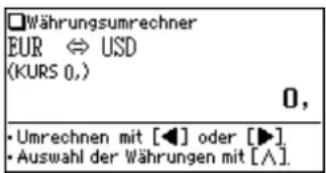
-
Use the ▲▼ keys to place the cursor at the desired input field, then input the currency name and its rate. In this example, press▼ and input '1,2'.
-
The currency name field of currency converter is temporarily pre-defined, as seen in the above example.
- When inputting the desired currency name, press ENTF to clear the input field and use no more than four letters. Use the ▶ keys to set the cursor on the left/right of the currently selected input field.
- In the left input field, enter the base currency name. In the input field on the right, place the currency name of which you wish to set the conversion rate.
-
Up to 10 digits (excluding the decimal point) can be entered in the currency rate input field.
-
Press ENTER. The currency name and its rate are set.
Converting currencies
The conversion calculation can be performed using the previously set conversion rate.
Convert €180 to US\when setting the rate: €1 = US\ 1,2.
- Press MENU 5 1 to display the currency converter.
- Input '180'. You may input a simple formula, such as '36×5=', instead.
- Press ▶ to execute the conversion from € to US\. The converted value of US\ 216 is displayed.
- Pressing ◀ executes a US\$-to-€ conversion. In this case, the converted value of €150 will be displayed.
- The ◀ and ▶arrows on the screen indicate the direction of conversion.
- To initiate conversion of a different value, just enter the value to be converted, or press ·CE to clear the value in the input field prior to entering the new conversion.
- Press ESC to return to the Converter menu.
Conversions between different units of measurement (length, mass, etc.) can be performed.
Convert 40 feet to metres.
-
Press MENU 5 2 to access the Metric converter.
-
Use ▲ ▼ to select 'Umrechnungen [Längenmaß 2]'.
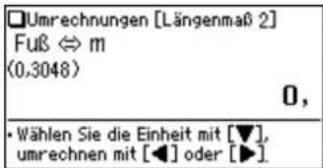
-
Input '40'. You may input a simple formula, such as '25 + 15 =', instead.
-
Press ▶. The value in feet is converted to the metric value.
-
Press ▶ to convert from the metric value to feet. In this case, the given value '40' will be taken as the metric value to be converted to feet.
- The ◀ and ▶arrows on the screen indicate the direction of conversion.
- T o initiate conversion of a different value, just enter the value to be converted, or press ·CE to clear the value in the input field prior to entering the new conversion.
- Use the ▼ or ▲ key to select one of the other Metric converters.
- Press ESC to return to the Converter menu.
Units capable of being converted
The following conversion formulae can be utilised.
Temperatur (temperature): ^ F ^ C
Volumen 1 (volume 1): Pint ⇔ Liter
Volumen 2 (volume 2): Gallone (UK) ⇔ Liter
Volumen 3 (volume 3): Gallone (US) ⇔ Liter
Replacing the battery
Battery used
- Use only the specified alkaline battery.
| Type | Size / Model | Quantity |
| Alkaline battery | Size “AAA” / LR03 | 1 |
Precautions
- Fluid from a leaking battery accidentally entering an eye could result in serious injury. Should this occur, wash with clean water and immediately consult a doctor.
- Should fluid from a leaking battery come in contact with your skin or clothes, immediately wash with clean water.
- If the product is not to be used for some time, to avoid damage to the unit from a leaking battery, remove it and store in a safe place.
- Do not leave an exhausted battery inside the product. It may leak and damage the product.
- Keep batteries out of the reach of children.
- Incorrect handling of batteries may introduce risk of explosion.
- Do not throw batteries into a fire as they may explode.
- Make sure the new battery is the correct type before fitting.
- When installing, orientate the battery correctly as indicated in the unit.
- The battery packaged with this product may be partially exhausted during the shipment and/or storage period, and may need to be replaced sooner than expected.
When to replace the battery
Replace the battery immediately in the following cases:
- When BATT is displayed.
- When the message 'Bitte die Batterie ersetzen!' appears upon turning the power on.
Note:
- If you do not follow the procedure describing the battery replacement, the History list, as well as the Calculator's memory, may be cleared or altered. Also, Currency converter and the Set-up menu configurations may be reset.
Replacement procedure
- Switch off the power by pressing ON/OFF.
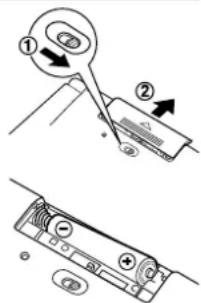
- Set the battery replacement switch located on the bottom of the unit to the 'REPLACE BATTERY' position.
- Remove the battery cover.
- Remove the used battery and insert the one new battery. Make sure the battery polarity is correctly orientated.
- Replace the battery cover.
- Set the battery replacement switch to the 'NORMAL OPERATION' position.
- Open the unit and press ON/OFF to turn the power on.
The LCD contrast screen appears.
- If the power cannot be switched on, try following steps 2 through 7 in the above procedure again. Should this fail, then follow the reset procedure on the following page.
- Follow the instructions on the screen to adjust the LCD contrast, as well as to set the key sound on/off configuration (see steps 7 through 8 of the procedure on page E-3.)
Reset procedure if trouble occurs
Exposure to a strong physical shock or powerful electrical fields may render the keys inoperable, to the point that the power cannot be switched on. If such case is suspected, try following the procedure below.
Reset procedures
- Press the RESET switch located on the bottom of the unit, with the tip of a ball-point pen or similar object. Do not use an object with a breakable or sharp tip.
natural_image
Simple line drawing of a pen inserted into a notepad with a small circular mark (no text or symbols)-
Press ☐ to initialize the unit.
-
A message 'Bereit!' is momentarily displayed, followed by the LCD contrast adjustment screen.
-
If is selected, then the unit will not be initialized.
-
Follow the instructions on the screen to adjust the LCD contrast, as well as to set the key sound on/off configuration (see steps 7 through 8 of the procedure on page E-3.)
Note:
- The reset procedure will clear the History list, and Calculator's memory, as well as to reset the Currency converter and the Set-up menu configurations. To avoid these, you may press N at step two of the above.
- Occasionally when corruption of data etc. occurs, the reset procedure may automatically be initiated upon pressing of the RESET switch or the ON/OFF key. When this occurs, the message 'Bereit!' will be displayed, followed by the LCD contrast screen. Follow the instructions on the LCD contrast, as well as to set the key sound on/off configuration.
Specifications
Model: PW-E510
Product name: Electronic Dictionary
Display: 159
× 80 dot matrix LCD
Number of entries:
- Duden – Deutsches Universalwörterbuch: Approx. 250,000 words, idioms, and usage examples.
- Duden-Oxford – Großwörterbuch Englisch: Approx. 300,000 glossary words/idioms and approx. 470,000 translations.
- Duden – Zitate und Redewendungen: Approx. 15,000 classical and modern quotations, and fixed idioms.
Calculator function: 12-digit calculation of addition, subtraction, multiplication, division, percentage, memory calculation, etc.
Converter function: 12-digit conversion of currency and measurement
Power consumption: 0.11 W
Operating temperature: 0°C - 40°C (32°F - 104°F)
Power supply: 1.5 V ... (DC): Alkaline battery LR03 (size "AAA") × 1
Battery life: Approx. 200 hours If data is continuously displayed at 25^ C ( 77^ F) Note: May vary according to various usage conditions
Weight (including battery): Approx. 148 g (0.33 lb)
Dimensions (when closed): 125 mm (W) × 79.4 mm (D) × 16.8 mm (H) 4-29/32" (W) × 3-1/8" (D) × 21/32" (H)
Accessories: Alkaline battery LR03 (size "AAA") × 1, operation manual
Troubleshooting
Refer to the list of possible symptoms, and solutions may be found here.
The unit cannot be switched on.
- Check if the battery is not drained. See page E-31.
- Check the battery replacement switch; it should be set at the 'NORMAL OPERATION' position. See page E-3.
- Check the polarity of the battery. See page E-3.
- Verify the LCD contrast setting; the power may be switched on, but the message on the screen may not be visible. See page E-12.
- If the above settings appear normal, then press the RESET switch. See page E-32.
The screen is dark or light.
- Adjust the LCD contrast. See page E-12.
The key sound cannot be heard.
• The key sound may be set to OFF. See page E-11.
The unit does not respond to a key press.
- Press the RESET switch. See page E-32.
The unit shuts off automatically.
- The Auto power off function is in action. The activation interval of the Auto power off function can be adjusted. See page E-11.
The desired word cannot be found.
- A variant form of the word may have been entered. Enter the original form.
Product support
If you have read this operation manual, but you still require product support, you can visit our web site at:
http://www.sharp.de/electronic-dictionary/
MEMO
In Europe:
This equipment complies with the requirements of Directive 89/336/EEC as amended by 93/68/EEC.