
Impera S - Smartphone Allview - Free user manual and instructions
Find the device manual for free Impera S Allview in PDF.


| Product Type | Smartphone |
| Brand | Allview |
| Model | Impera S |
| Dimensions | 144.85 x 72.1 x 8.75 mm |
| Weight | 156.2 g |
| Display | 5.0 inch IPS LCD, 1280 x 720 pixels, capacitive multitouch |
| Operating System | Windows Phone 8.1 |
| CPU | MSM8212, 1.2 GHz Quad Core |
| GPU | Adreno 302 |
| RAM | 1 GB |
| Internal Storage | 8 GB flash |
| Expandable Storage | microSD (T-Flash) card slot |
| Rear Camera | 8 MP with LED flash, touch focus |
| Front Camera | 2 MP |
| Battery | Li-Polymer 2000 mAh, removable |
| Charger | DC 5V, 1000 mA |
| Standby Time | Up to 200 hours |
| Talk Time | Up to 500 minutes |
| Network | 2G: 900/1800 MHz; 3G: UMTS 900/2100 MHz |
| Data | HSPA+, EDGE Class 10, GPRS Class 12 |
| Connectivity | WiFi 802.11 b/g/n, Bluetooth 4.0 with A2DP and EDR, micro USB 2.0, 3.5mm audio jack |
| Sensors | G-sensor, proximity sensor, light sensor |
| Audio | Speaker, vibration, audio ringtone, FM radio |
| GPS | Yes |
| Languages Supported | Romanian, English, German, Hungarian, Czech, Dutch, Polish, Serbian, etc. |
| Package Contents | Phone, user manual, warranty card, charger, USB data cable, earphones |
Frequently Asked Questions - Impera S Allview
User questions about Impera S Allview
0 question about this device. Answer the ones you know or ask your own.
Ask a new question about this device
Download the instructions for your Smartphone in PDF format for free! Find your manual Impera S - Allview and take your electronic device back in hand. On this page are published all the documents necessary for the use of your device. Impera S by Allview.
USER MANUAL Impera S Allview
natural_image
Front view of a black smartphone with blank screen and control buttons (no visible text or symbols)ALLVIEW®
Impera S
EN USER MANUAL....4
BG РЬКОВОДСТВО ЗА УПОТРЕБА....18
CZ UŽIVATELSKÁ PŘÍRUČKA....31
2
| EN | BG | CZ | DE | HU | |||||
| 1 | Power button | 1 | Бутоньт за захранванс | 1 | tlačitko napájení | 1 | Power-Taste | 1 | Bekapcsoló gomb |
| 2 | Speaker | 2 | говорител | 2 | reproduktor | 2 | Lautsprecher | 2 | Hangszóró |
| 3 | Micro USB plug | 3 | Micro USB щенсел | 3 | Micro USB | 3 | Micro-USB | 3 | Micro USB |
| 4 | Light sensor | 4 | светлинен сензор | 4 | světelný senzor | 4 | Lichtsensor | 4 | fényérzékelő |
| 5 | Volume buttons | 5 | сила на звука | 5 | tlačitka hlasitosti | 5 | Lautstärketasten | 5 | Hangerő gombok |
| 6 | Earphones jack | 6 | слушалки жак | 6 | Sluchátka jack | 6 | Kopfhörerbuchse | 6 | Fülhallgató jack |
| 7 | Led Flash | 7 | Led Flash | 7 | Led Flash | 7 | LED-Blitz | 7 | LED vaku |
| 8 | Main camera | 8 | Назад камера | 8 | zpět fotoaparát | 8 | Zurück Kamera | 8 | Hátulsó kamera |
| 9 | Front camera | 9 | Предна камера | 9 | Přední fotoaparát | 9 | zweite Kamera | 9 | Elülső kamera |
| NL | PL | RO | SR | ||||||
| 1 | uit-knop | 1 | przycisk zasilania | 1 | Buton pornire | 1 | Dugme za uključivanje | ||
| 2 | sprcker | 2 | głośnik | 2 | Difuzor | 2 | Mikrofon | ||
| 3 | Micro-USB-stekker | 3 | Micro USB plug | 3 | Mufa Micro USB | 3 | Utičnica USB | ||
| 4 | Lichtsensor | 4 | czujnik światła | 4 | Senzor lumina | 4 | svetlosni senzor | ||
| 5 | volumeknoppen | 5 | przyciski głośności | 5 | Butoane volum | 5 | Dugme za jačinu zvuka | ||
| 6 | Oortelefoon-aansluiting | 6 | Sluchawki jack | 6 | Mufa casti | 6 | Utičnica za zvučnike | ||
| 7 | LED-flitser | 7 | Led Flash | 7 | Led Flash | 7 | Led Flash | ||
| 8 | Terug camera | 8 | Tylna kamera | 8 | Camera principala | 8 | Kamera pozadi | ||
| 9 | Camera vooraan | 9 | aparat z przodu | 9 | Camera frontala | 9 | Kamera spreda |
NOTICES FOR THE USE OF PHONE
CAUTION! Please read carefully this instructions and follow them, in the case of dangerous situations.
Driving safety: It is recommended not to use the phone while driving. If you use it however, turn on the Handsfree mode.
Turn off your phone while in an aircraft.
Interference caused by mobile phones affects aviation safety, and thus is illegal to use it on the plane. Please make sure that your mobile phone is turned off when you are on the plane.
In hospital: When using the phone in a hospital must submit to the relevant rules specified by the hospital. Any interference caused by wireless devices may affect the performance of the phone.
Approved service: Only approved repair shops can repair mobile phones. If you open the phone and try to fix it yourself you will void the warranty of the product.
Accessories and batteries: Only accessories and batteries approved by the producer can be used.
Emergency calls: Make sure the phone is turned on and enabled if you wish to make an emergency call, press the call key and confirm the location, explain what happened and do not close the call.
The battery and charging the battery: It is recommended to fully charge before first use of the device. Do not expose the battery to temperatures above 40^ C. Do not dispose the battery in fire or drop anywhere. Return defective batteries in special centers or to the supplier center.
Warning: We take no responsibility for situations where the phone is used other than as provided in the manual. Our company reserves the right to make changes in the content of the manual without making this public. These changes will be posted on the company website to the product it amends.
The contents of this manual may be different from that in the product. In this last case will be considered.
To avoid the problems that might occur with the service shops approved by Visual Fan Ltd. (because Visual Fan reserves the right to stop the collaboration with any service shop which was previously approved and mentioned in the warranty card on the date on which the product batch was sold on the market), before taking a product to the service shop, please check the updated list of approved service shops on Allview website at the section: "Support&Service – Approved service".
4 En
GETTING STARTED
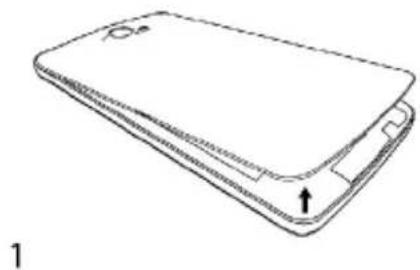
Open the battery cover
Push the battery cover upwards.
natural_image
Line drawing of a smartphone rear panel with a handle and mounting bracket (no text or symbols)Install SIM Card
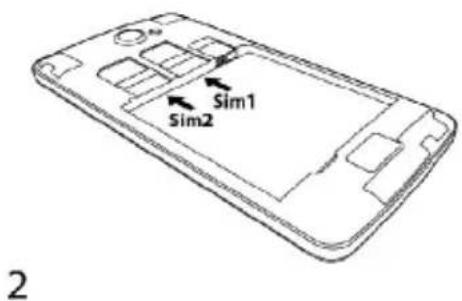
This phone supports double SIM/USIM cards standby, before you power on the phone, make sure there is at least one SIM/USIM card is inserted in either USIM/SIM card slot.
5 En
Note:
Please insert or remove the cards when the phone is power off, or the phone may be damaged.
Install Memory Card
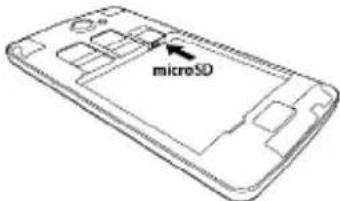
Aim at the T-Flash card slot and push the T-Flash card gently, and the card will be inserted correctly.
Note: 3
● If the memory card is failed, please check whether it is correctly placed at good contact of metal point.
- Please insert or remove the T-Flash card when the phone is power off, otherwise the T-Flash card or the phone might get damaged and the data on the T-Flash card could be lost.
Power on/off
In power off status, long press the power key on right side for about 2 seconds to power on your phone. In power on status, long press power key for about 2 seconds to power off your phone.
Battery Charging
You can charge the battery by connecting the phone either to a pc USB port or to the provided standard charger use the provided standard USB cable.
Note: In order to ensure normal operation of the phone, please make sure to use the designated charger.
6 En
Tap To act on items on the screen, such as application, settings icons and options, to type letters and symbols using the onscreen keyboard, or to press onscreen buttons, you simply touch down your finger on them and then lift your finger without change the touch down position in a short time.
Tap & hold Touch down your finger on the screen without lifting up or moving for about 2 seconds. This action will pop-up an special options list or active some special actions.
Drag Touch down your finger on screen and move without lifting up to scroll options, switch screens and other contents displayed on screen.
Flick Drag quickly and release, To scroll through a list or move quickly, flick across the touch screen, When you flick a long list, tap the screen to stop it from scrolling.
Pinch In some applications (such as Maps, Browser, and Gallery), you can zoom in and out by placing two fingers on the screen at once and pinching them together (to zoom out) or spreading them apart (to zoom in).
Using Keys
Power key: Press the power key to lock/unlock your screen. Press and hold Power key to power on/off the phone.
Volume key: Press the volume keys to change the ring volume (on the home screen) or the earpiece volume (during a call). Press the volume button will cancel ringtones when incoming calls.
Search key: Press search key to open bing search or Cortana.
Win key: Press Win key to close any menu or app and return to the start screen. On the start screen, tap an app to open it. Press and hold Win key to enter to tools feedback hub.
Back key: Opens the previous screen you were working in. If the onscreen keyboard is open, closes the keyboard.
7 En
Power on/off
Power on the phone
Press and hold the power key until the phone vibrates.
Power off the phone
Press and hold the power key, and drag the lock screen down.
Microsoft account
With a Microsoft account, you can access all Microsoft services with a single username and password on your computer or phone.
To create a Microsoft account later, open a Microsoft app or service on your phone. Or on the start screen, swipe left, and tap Settings > email+accounts > add an account.
Enter start screen
When you sign in, you will enter the start screen. Then you can pin your favorite apps, websites, and much more to the start screen, and move or resize tiles as you like.
To switch between the start screen and the apps menu, simply swipe left or right.
Screen Lock & Display off
On the start screen, swipe left, tap Settings > lock screen > Screen times out after, and select the length of time after which the keys and screen are locked automatically.
To protect your phone against unauthorized use, you can define a security code, and set your phone to lock itself automatically when you're not using it.
- On the start screen, swipe left, and tap Settings > lock screen.
- Switch password to On, and type in a security code (at least 4 digits).
- Tap Require a password after, and define the length of time after which the phone is locked automatically.
Press the power key, drag the lock screen up, and type in your security code to unlock your phone.
8 En
Personalize the start screen
You can set your most-used apps on the start screen. You can pin your favorite apps to the start screen, and move or resize tiles as you like.
To pin an app, swipe left to go to the apps menu. Tap and hold the app, and tap pin to start.
To move an icon, tap and hold the icon, drag and drop it to the new location, and tap the screen.
To resize, tap and hold the icon, and tap the arrow icon.
You can change the size of the icon, the bigger the icon is, the more info it can show.
To unpin the icon, tap and hold the icon, and tap.
Kids corner
Switch the kid's start screen on
On the start screen, swipe left, and tap Settings > kid's corner, then switch Kids Corner to On. Choose which content your kids can use.
Go to your own start screen
Press the power key twice, and swipe up on your own lock screen. If you've set a password, type it in.
Go back to the kid's start screen
On your own lock screen, swipe left, and on the kid's lock screen, swipe up.
Change your theme
You can change the display colors to match your taste and mood.
-
On the start screen, swipe left, and tap Settings > start+theme.
-
Tap Background or Accent color.
Take a screenshot
You can capture your screen by pressing the power key and Volume up key at the same time.
Status bar
The Status bar appears at the top of every screen. It displays icons indicating your phone's status and notifications.
| Icon | Description |
 | Signal strength |
 | Battery power level |
 | The battery is charging. |
 | Your phone is roaming and not on your home mobile network. |
| Vibrate mode is switched on. | |
| Silent mode is switched on. | |
| Airplane mode is switched on. |
To open the Notifications panel:
- Drag the Status bar down from the top of the screen.
Using sensors
Proximity Sensor detects how close an object is to the surface of the screen. This is typically used to detect when your
face is pressed up against the screen, such as during a phone call. (While talking on the phone, the sensor detects talk activity and locks the keypad to prevent accidental key presses).
Light Sensor lets you use the ambient light level to adjust the screen brightness/contrast.
Gravity sensor detects your phone's acceleration direction and takes responding actions according to the running application.
- Rotate the screen display when you rotate the device while using some features. To set the interface to keep the orientation when you rotate the device, select Settings -> Screen rotation, Switch Rotation lock to On.
- Take actions according to the gravity's real time orientation angle, typically used in games.
- Responding to your actions such swing the device in some applications.
OneDrive
OneDrive is cloud storage for all your documents and photos, so you can access, share, or restore them if needed. You can also set it to back up your stuff automatically, so when you take a photo or a video, it's copied to your cloud album.
With OneDrive, you can easily access your photos, documents, and other stuff you have uploaded from any of your devices.
Before you update or download content, you need connect to the internet and then sign in to you Microsoft account.
There are several places where you can access your stuff on OneDrive. You can save photos to OneDrive in the Photos hub, or manage your office documents in the Office hub.
Contact
Contacts gives you quick and easy access to the people you want to reach. When you first turn on your phone and sign into your account, any contacts existing in account are downloaded to your phone. After that, your contacts are synchronized: any changes you make to your contacts on the phone or the web are made in both places, the next time you sync. Contacts from accounts are also synced in this way.
Information about your contacts is shared with other applications, such as Gmail, Messaging, and so on.
If you have more than one account with contact information, Contacts joins duplicates into a single entry. You can also manage that process manually.
Call
Make a call:
Tap on start screen or on the apps menu.
- Tap 📋 to enter dial board screen, enter the phone number and tap call button to make a call.
- Tap to enter contact list, tap the contact and then tap mobile phone after entering another screen.
Answer/Reject a call:
When a call incomes in, tap answer to answer a call, tap ignore to reject an incoming call, tap text reply to send a text message and then reject the all.
During a call conversation, press the side volume key to adjust volume, tap at bottom to hold the call, tap to open the loudspeaker, etc.

Messaging
You can use Messaging to exchange text messages (SMS) and multimedia messages (MMS) with your friends on their mobile phones.
You can send text (SMS) messages of up to 160 characters to another mobile phone. If you keep typing after the limit, your message will exchange to two message automatically.
Multimedia (MMS) messages can contain text and a picture, a recorded voice, an audio file, a video, or a picture slideshow.
Tap on start screen or on the apps menu to access message.
When new message received, a popup message will be shown on the notification bar, drag down the bar and tap on the message to read.
Multimedia
Camera is a combination camera and camcorder that you use to shoot and share pictures and videos. Pictures and videos are stored on the phone's SD card or phone.
Photos is used to view pictures and play videos that you've taken with Camera, downloaded, or copied onto your SD card or phone. You can perform basic editing tasks on pictures and set them as your wallpaper or contact picture.
Music collects all audio files from your SD card or phone to play.
Video collects all video files from your SD card or phone to play.
Download from Store
To download from Store, you need to be signed in to your Microsoft account on your phone. When you're signed in, you are offered content compatible with your phone.
You can search for and download content directly to your phone, or browse Store content on your computer and send links from there to your phone by text message.
Using services or downloading content may cause the transfer of large amounts of data, which may result in data costs.
Download an app, game, or other item
You can download free apps, games, or other stuff, or buy more content for your phone.
- Tap Store.
- Tap an item to view its details.
- If the item has a price, tap buy, or to try the item for free for a limited time, tap try. If the item is free, tap install.
- If you're not signed in to your Microsoft account, sign in now.
- Follow the instructions shown on your phone.
When the download is complete, you can open or view the item, or continue browsing for more content. The content type determines where the item is stored in your phone: music can be found in the Music hub, videos can be found in the Video hub, games can be found in the Games hub, and apps can be found in the apps menu.
Office
Microsoft Office Mobile
You can work through Microsoft Office Mobile when you away from your office.
Go to the Office hub to create and edit Word documents and Excel workbooks.
In the office hub, tap Office, you can create, view or edit Microsoft Office documents.
Continue with a document on another device
When working on an Office document, tap ...> save as..... > Save to > OneDrive. You can save your Office document on
OneDrive and continue your work on another device.
You can now open the document from OneDrive on another device and continue where you left off.
SPECIFICATIONS
| General | Language | Ro, En, De, Hu |
| Network | 2G:900/1800/MHz; 3G:UMTS 900/2100 MHz | |
| Dimensions | Dimensions | 144,85x72,1x8,75mm |
| Weight | 156,2g | |
| Display | Type | IPS LCD, 5", 1280x720 px |
| Touchscreen | Capacitive touchscreen, multitouch | |
| Characteristics | OS | Windows Phone 8.1 |
| CPU | MSM8212, 1,2 GHz Quad Core | |
| GPU | ADRENO302 | |
| GPS | Yes | |
| Radio | Yes | |
| Flash memory | 8GB | |
| RAM memory | 1GB | |
| Widget | Yes | |
| Multitasking | Yes | |
| Sound | 3.5mm jack | Yes |
| Speaker | Yes | |
| Audio file playing | Yes | |
| Alert type | Vibrations, audio ringtone | |
| Video | Render | HD video formats with 720p resolution |
| Internet render | HD with 720p resolution | |
| Camera | Camera resolution | 8MP / 2MP |
| Video recording | 864x480 | |
| Touchfocus | Yes | |
| Led flash | Yes | |
| Data | 3G | HSPA+ |
| EDGE | Yes Class10 | |
| GPRS | Yes Class 12 | |
| Bluetooth | 4.0 with A2DP and EDR | |
| WLAN | WiFi 802.11 b/g/n | |
| USB | Yes 2.0, micro USB | |
| Sensors | G-senzor | Yes |
| Proximity sensor | Yes | |
| Light sensor | Yes | |
| Internet | Social networking | Yes |
| Battery | Capacity | Li-Polymer 2000 mAh |
| Charger type | DC 5V, 1000 mA | |
| Stand by | Up to 200 hours | |
| Calling time | Up to 500 minutes | |
| Package content | Phone, user manual, warranty card, charger, usb data cable, earphones | |
DECLARATION OF CONFORMITY
We, SC VISUAL FAN SRL, importer located in Brasov, 61 Brazilor STR., registered at the Commerce Chamber Brasov no. J08/818/2002, CUI 14724950, assures, guarantee and declare on our own responsibility, in accordance with art.4 from HG nr. 1.022/2002 regarding the statute of the products and services that can jeopardize life, health, work security and environmental protection, that:
The product Impera S – mobile phone ALLVIEW brand - and the accessories that came with the product: 220V charger, headphones and battery don't jeopardize life, health, work security and environmental protection and they are according to:
-Directive. 2011/65/EU regarding the restriction of use of certain substances in electrical and electronic equipment.
- The Stipulations of HG nr.982/2007 witch transpose the essential requirements specified in Direction 2004/108/CE, regarding electromagnetically compatibility;
- The Direction regarding the low voltage equipment users assurance 73/32/CEE, modified by Direction 93/68/CEE (HG 457/2003) and tests EN 55013:2001+A1:2003+A2:2006, EN 55020:2007, EN 610000-3-2:2006, EN 61000-3-3:1995+A1:2001+A2:2005;
- The Direction regarding the radio and telecommunication equipments R&TTE 1999/5/CE (HG 88/303).
- The safety requirements of the European Directive 2001/95/EC and of EN standards 60065:2002/A12:2011 and EN 60950-1:2006/A12:2011, EN62209-1 (2006 r.), EN62311 (2008) of the decibels level emitted by the sold devices.
The Product described upstairs in this Declaration and all the accessories are according to the next standards:
- Health EN 50360, EN 50361;
- Safety EN 6095-1;
- EMC EN 301 489-1-7/17;
- Radio spectrum EN 301511 EN 300328;
After the performed tests emerge that the samples comply with the upstairs specification, as the test results show. Documentation is stored on VISUAL FAN LTD - Brasov, 61 Brazilor STR.
Also available on web:"www.allviewmobile.com"
CE 0700 Director
SAR: 0,437 W/kg COTUNA GHEORGHE
17 En

natural_image
Line drawing of a smartphone rear panel with a small arrow pointing to the side panel (no text or symbols)natural_image
Line drawing of a smartphone rear panel with a small arrow pointing to the side panel (no text or symbols)Instalace SIM karty
natural_image
Line drawing of a smartphone showing front panel and side cover (no text or symbols)natural_image
Line drawing of a smartphone rear panel with a handle and mounting bracket (no text or symbols)1
"Support&Service – Approved Service".
INLEIDING
natural_image
Line drawing of a smartphone rear panel with a small screen and mounting bracket (no text or symbols)natural_image
Line drawing of a smartphone showing front panel and side cover (no text or symbols)natural_image
Line drawing of a smartphone showing front panel and side cover (no text or symbols)Instalarea cartelei SIM
natural_image
Line drawing of a smartphone with a handle and mounting bracket (no text or symbols)Unošenje SIM kartice 1
- ALLVIEW®
- Impera S
- NOTICES FOR THE USE OF PHONE
- En
- GETTING STARTED
- Install SIM Card
- Note:
- Install Memory Card
- Note: 3
- Power on/off
- Battery Charging
- En
- Using Keys
- En
- Power on the phone
- Power off the phone
- Microsoft account
- Enter start screen
- Screen Lock & Display off
- En
- Personalize the start screen
- Kids corner
- Switch the kid's start screen on
- Go to your own start screen
- Go back to the kid's start screen
- Change your theme
- Take a screenshot
- Status bar
- To open the Notifications panel:
- Using sensors
- OneDrive
- Contact
- Call
- Make a call:
- Answer/Reject a call:
- Messaging
- Multimedia
- Download from Store
- Download an app, game, or other item
- Office
- Microsoft Office Mobile
- Continue with a document on another device
- DECLARATION OF CONFORMITY
- Instalace SIM karty
- INLEIDING
- Instalarea cartelei SIM
- Unošenje SIM kartice 1
Brand : Allview
Model : Impera S
Category : Smartphone