Q2 Cloud - Smartphone Allview - Free user manual and instructions
Find the device manual for free Q2 Cloud Allview in PDF.


User questions about Q2 Cloud Allview
0 question about this device. Answer the ones you know or ask your own.
Ask a new question about this device
Download the instructions for your Smartphone in PDF format for free! Find your manual Q2 Cloud - Allview and take your electronic device back in hand. On this page are published all the documents necessary for the use of your device. Q2 Cloud by Allview.
USER MANUAL Q2 Cloud Allview
natural_image
Black and white photo of a black ALLVIEW mobile phone with keyboard, keypad, and control buttons (no readable text beyond branding)Contents
ATTENTION AND PRECAUTIONS...... 4
FOR YOUR SAFETY 4
SECURITY REQUIREMENTS 5
MAINTENANCE 5
YOUR PHONE 7
GETTING STARTED....9
BATTERY....9
REMOVING AND INSTALLING BATTERY 9
CONNECTING TO NETWORK....10
INSERTING AND REMOVING SIM CARD.... 11
INSERTING AND REMOVING MEMORY CARD 11
DIALING EXTENSION NUMBER OF FIXED-LINE TELEPHONE 14
DIALING INTERNATIONAL CALLS 14
DIALING PHONE NUMBERS IN THE CALL RECORDS 15
EMERGENCY CALLS 15
ANSWERING A CALL 15
CALL RECORDS 15
CALL OPTIONS 15
USING THE MENUS.... 17
ACCESSING A MENU FUNCTION.... 17
EXITING A MENU FUNCTION.... 17
LIST OF MENU FUNCTIONS 17
PHONEBOOK.... 19
ADD NEW CONTACT 19
English
SEARCHING FOR A CONTACT 19
MESSAGES.... 20
WRITE MESSAGE 20
CONVERSATIONS 20
DRAFTS 20
OUTBOX....20
ARCHIVE 20
DELETE MESSAGES 20
BROADCAST MESSAGES 20
TEMPLATES 21
MESSAGE SETTINGS 21
CAMERA 22
MULTIMEDIA.... 23
VIDEO PLAYER 23
IMAGE VIEWER 23
PHOTO EDITOR 23
ENTERING (ABC AND ABC) 28
ENTERING NUMBERS 28
ENTERING SYMBOLS....28
ENTERING PL/ES/FR/DE/IT/RU/BG/PT/CS/HU/NL/HR/RO/EL 28
Attention and Precautions
For your safety

Remember to comply with legal requirements and local restrictions when using the phone, for example, in aero plane, petrol stations, hospital or while driving

Always keep your handsfree to operate the vehicle while driving. Your first consideration while driving should be road safety. Don't use handset while driving.

As per the law, phone should not be used at refueling point near fuel or chemicals.

Mobile phones can interfere with the functioning of medical devices such as hearing aids or pacemakers. Keep at least 20 cm(9 inches) between the phone and pacemaker. When using the mobile phone hold it to the ear which is furthest away from the pacemaker. For more information, consult your doctor.

All wireless phones may be susceptible to interference, which could affect performance. The phone may cause interference in the vicinity of TV sets, radios and PCs.
The mains voltage (V) specified on the power supply unit must not be exceeded.

Otherwise the charging device may be damaged.
The power supply must be plugged into an easily accessible AC mains power socket when charging the battery. The only way to turn off the charging device after charging the battery is to unplug it.

Only qualified personnel may install or repair this product.

When connecting to any other product, read its user guide for detailed safety instructions. Do not connect incompatible products.

Use only approved enhancements and batteries. Do not connect incompatible products.
English
Security Requirements
Before making or answering a call, you should pay attention to the local laws about the use of wireless mobile phones and take them into account in practical use.
Traffic safety
Pay attention to traffic safety. Do not use your mobile phone while driving. Park before making or answering a call.
Flight Safety
Please turn off your GSM mobile phone before the airplane takes off in order to protect airplane's communication system from interference.
Using mobile phone before the plane taking off should get aircrew's permission according to safety regulations.
Environment Safety
Do not use your mobile phone near precision electronic equipment. Radio wave interference may cause malfunctioning of such electronic equipment and other problems.
Operating of mobile phone may interfere with medical devices like hearing aids and pacemakers.
Do not use your phone in a potentially dangerous atmosphere. Please strictly observe with the restrictions on the use of wireless devices.
Maintenance
Battery instructions
When the phone automatically turns off or indicates the alarm information of power shortage, please charge the battery in time.
For the first few times, please charge the battery fully.
When not in use, please separate the battery with power supply. Overcharging will shorten the life of the battery.
Do not expose your products to extreme high or low temperatures. Do not expose the battery to temperatures above+40°C.
Do not use damaged battery.
Do not expose your mobile phone to direct sunlight or in hot areas. High temperatures can shorten the life of electronic devices.
Do not expose the battery into fire or throw it away. Return the wear-out battery to the provider or put it in the appointed recycle place. Do not put it in familial rubbish.
Follow these guidelines to protect your products :
English
keep the products out of children's reach
Keep your product dry. Do not expose it to liquid or moisture.
Do not short-circuit the battery, as this can cause excessive heat to bring about fire.
Do not expose your mobile phone to direct sunlight or in hot areas. High temperatures can shorten the life of electronic devices.
Do not attempt to disassemble the mobile phone and battery by yourself.
Non-expert handling of the devices may damage them.
Prevent liquid from leaking into your phone.
Please use original accessories. Using any unauthorized accessories may affect your mobile phone's performance.
Note: The performance of your phone depends on your local network operator's card and how you actually use it. We are not responsible for any damages due to inappropriate use.
Please read these brief rules. Violation of these rules might cause danger or break laws.
Your Phone
Phone Overview
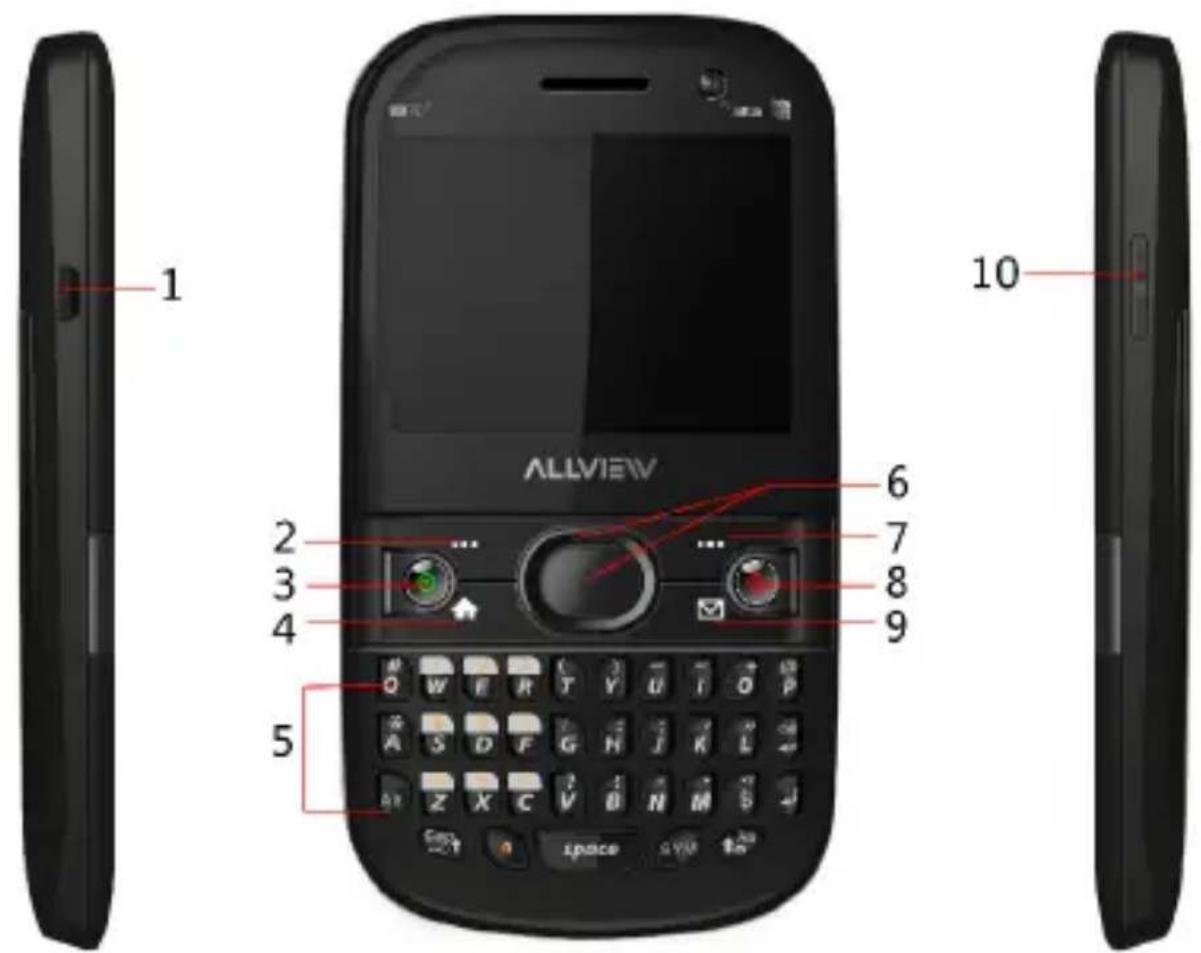
1 Charger jack 6 OK key&Navigation key
2 Left soft key/Phonebook 7 Right soft key
key
3 Dial key 8 End key
4 Menu key 9 Messages key
5 Qwerty 10 Volume key
Key functions
| Keys | Description |
| [Dial key] | Press to perform one of the following:Open recent call logCall a contact when a contact |
English
| name/number is highlighted | |
| [Menu key] | Press to open a list of actions available on the current screen. |
| [End key] | When on a call, press to hang up.When not on a call:Press and hold to power on/off the phone.Press to back to idle screen. |
| [Messages key] | In idle screen, press this key can access Messages. |
| [OK key] | In idle screen, press OK key to access shortcut menu, press navigation key to select menus. |
| [Navigation key] | The key is split into 4 directional keys: up, down, left and right. Move the cursor up, down, left and right in edit mode.Press the directional key in idle interface to enter the corresponding function interface. |
Getting Started
Battery
The battery at its initial condition is charged to 50 % full, and can be used after unwrapping.
Removing and installing battery
For removing:
A. Push the battery back cover;
B. Lift the battery up as indicated by the arrow;
C. Take the battery out.
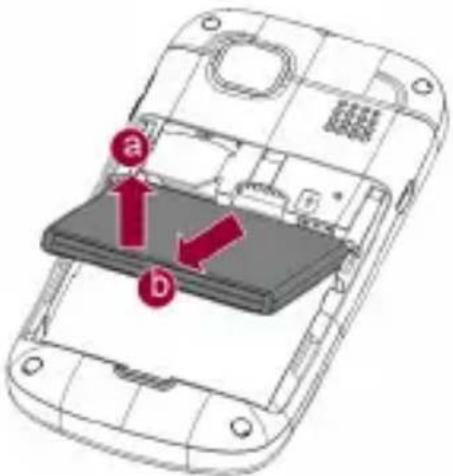
Warning: Make sure to power off the phone before taking out SIM card, battery, otherwise your SIM card might be damaged.
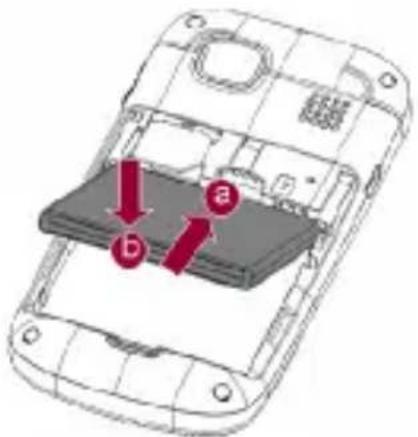
For installing:
A. Place the metal contact points of the battery upward and flush with metal contact points in the battery bay, then insert the bottom of battery into battery bay.
B. Place the back cover of the battery onto the phone squarely, and push in the direction of the arrow till it clicks into place.
Charging Battery
While charging, the power supply indicator at phone's screen icon zone will flash in a rotation manner, if the phone is off while charging, a charging screen will still appear, indicating that the phone is recharging. If the phone is still being overused while the power supply is insufficient, the recharging indicator will appear on the screen after the recharging has started for a while.
When the power supply indicator at the screen's icon zone shows full and stops flashing, it means charging has completed. If it takes place when the phone is off, the screen will display charging-finished icon. The process generally takes about 2.5 hours. It is normal that the battery, the phone and the charger will become hot during the charging process.
Once charging is completed, disconnect the phone and the charger from the AC power supply.
Note: Battery must be charged in a well ventilated place with surrounding temperature at -10^ +55^ , and it is imperative that a charger provided by manufacturer is used. Using unauthorized charger might cause danger, which also violates warranty terms prescribed by the manufacturer. If the charging temperature is too high or too low, the phone will automatically give warning and stop charging, so as to prevent damages to battery.
Connecting to Network
SIM card
A valid SIM (Subscriber Identity Module) card must be inserted in the phone before using it.
All information related to making connection to the network are recorded in the chips of SIM card, including the names, phone numbers and short messages you have stored in the SIM card Phone book. In order to prevent loss or damage of
English
the info in the SIM card, it is necessary to avoid touching metal contact surface, and keep SIM card far from electricity current and magnet.
Inserting and removing SIM card
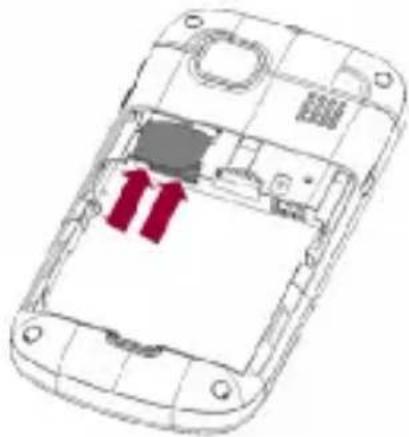
Power off the phone; remove battery and other external power connection, as shown in the image.
Insert SIM card into SIM card socket.
When you need to remove SIM card, please power off the phone first, remove battery, then remove the card.
natural_image
Diagram of a smartphone showing internal components with two red arrows indicating movement or flow (no text or symbols present)Inserting and removing memory card
Power off the phone; remove battery and other external power connection. Insert memory card into card slot as shown in the image.
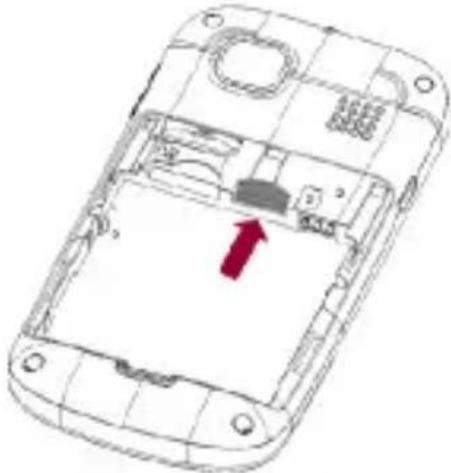
natural_image
Line drawing of a smartphone interior showing internal components and a red arrow indicating a location (no text or symbols present)Power on/off phone
To power on, please press and hold the End key. Then the screen will display the prompts like Enter phone password, SIMcard password in sequential order as
English
per the setting done by user. Once the appropriate password is entered, the phone will search for network connection and latch accordingly to the appropriate network.
To power off, please press and hold the End key.
PIN and PUK
To prevent illegal usage, PIN (Personal Identification Number) code is adopted to encrypt for protection of your SIM card. Selecting this option and if having set up PIN code protection, you have to enter PIN code each time you power on the phone.
Press and hold the End key to power on the phone;
Enter PIN code, use Back key to delete input-errors, Menu key for "OK". For instance, if PIN setting is 1234, then enter the following input: 1 2 3 4 "OK".
If there are three consecutive input errors, your SIM card will be locked up by the network, the phone will inquire PUK code.
Note: Your service provider will set up a standard PIN (4 to 8 digits) number for your SIM card; you should change it into your private password as soon as possible. PUK code will be provided by the network provider.
Phone lock
The phone lock protects your phone from unauthorized use. The default phone lock code is 1122. You can change it into any numeric string of 4 to 8 digits.
If the phone lock function is enabled, you need to enter the correct phone lock code when the phone is powered on or in the standby mode.
Locking the Keypad
To unlock the keypad, press leftsoft key and *key. If the Auto Keypad Lock function is enabled and the phone is idle for a preset period in standby mode, the keypad is locked automatically.
Note: When the keypad is locked, you can press Send key to answer an incoming call or make emergency calls.
English
Connecting to network
After SIM card is successfully unlocked, the phone will automatically search available network (with searching showing on the screen). Once the connection is made, the name of the service provider will be displayed on the screen. At this time your phone has been connected to the service network.
Note: If the screen prompts "Emergency", this means you have moved out of the normal network coverage (service range) or your card has not passed authentication, but you can still transmit emergency calls based on signal strength.
Basic Functions
Making a call
When the logo of service provider appears on the display screen, you can dial or receive calls. The info bar at the upper left corner of the display screen shows network signal strength (when there are 5 info bars the signal is at its strongest). The call quality is very likely to be affected by obstructions.
Making domestic calls
Enter phone number, and then press Send key to make the call. If the user needs to change phone number, press Back key "Clear" back and delete numbers. Dialing animation will be displayed on the screen during dialing. Call state info will be shown on the screen after the called party ends the call
You can enter and dial domestic call following the order:
(Area code) (Phone number) (Dial)
Dialing extension number of fixed-line telephone
Some extension numbers of fixed-line telephone cannot be connected directly, you must dial the power board phone number, then press p key, then dial extension number.
You can dial extension numbers of fixed-line telephone in the following order: (Area code) (Power board number) P (Extension number) Send key
Dialing international calls
To make an international call, you may press + key till the screen displays the pre-digit symbol "+" for international long distance call, which will enable you to make a call from any country without knowing the local international access code.
You can enter numbers in the following sequence to make an international call: (+) (Country code) (complete phone number) (Send key)
After inputting prefix number, input the code and the complete phone number of the wanted country. The country code follows usual practice, such as Germany 49, UK 44, Sweden 46, India 91 etc.
Like making an international call, the "0" before city code number should be dropped.
English
Dialing phone numbers in the call records
Every phone number you have dialed or received will be stored in the list of phone call records. The latest dialed, received and missed numbers will be listed, according to their types, in the respective menu of dialed calls, received calls and missed calls. When call record list is full, the old numbers will automatically be deleted. To view the list, do the followings:
In standby state press Send key to view the record for all calls.
All phone numbers in the list can be dialed directly by pressing the Send key. When the list is displayed, press "OK" to read the details, then "options" to Save or Delete the number.
Emergency calls
As long as in the network service range (which can be confirmed by checking the signal strength bars on the top left corner of the screen), you can always call emergency service. If your network supplier does not provide roaming service in your area, the screen will display "Emergency", to inform you that only emergency call is permitted. If you are within the network service range, you can also make emergency calls even without the SIM card.
Answering a call
An incoming call can be accepted with the single press of Send key. If earphone has been connected, use the button on the earphone to answer a call, and if it is not convenient for you to press it, set automatic answer as on, assuring that the earphone is plugged on, so as to answer calls automatically while the phone rings or vibrates. If Any Key answer function is chosen, then a call can be answered on pressing any key, other than End key and Back key.
Call records
Your phone can also store call records of the latest missed calls, received calls, dialed calls, the time of last call as well as total amount of received calls and total dialed calls for you.
Call options
In call connected state, pressing Menu key "Options" can enter call option, or pressing OK key "H-Free" to activate speaker, under activated-hands free
English
condition, press OK key "H-held" to power off speaker. Operation methods of call options are the same with that of Function menu.
This call options can only be viewed during call process, moreover, the functions of call waiting, call holding, and conference calls need service support, please contact your service provider for details.
In the call options, you can make the following operations:
Hold Single call: Make the current call hold.
End Single call: End the current call.
New call: Enter new dialing interface.
Phonebook: Enter Phone book menu.
Messages: Enter Short message menu. Owing to restriction of network engagement, MMS function is barred during call process.
Sound Recorder: Record the current call.
Background sound: Setup the background sound for the current calling.
Mute: On selecting silence during a incoming call, the ringer will be muted.
DTMF: Operations of DTMF powering on and off
Conference*: Enter multiple party conference call state. By following the prompts, you can have the following functions: receive waiting calls, add them into multiple party call, maintain the multiple party call, talk privately with one party of the conference while maintaining all other callers, connect one party in the call conference with another party while exiting the multiple party call oneself, maintain one party of the multiple party call and end current call and all other maintained calls.
Note: The menu marked * items will only appear in special circumstances. For conference function, it is necessary to apply for service supply to corresponding service operator.
English
Using the menus
The phone offers a range of functions that allow you to tailor it to your needs. These functions are arranged in menus and submenus which can be accessed by scrolling or using the appropriate shortcut.
Accessing a menu function
- Press Menu key in standby mode.
- Press Navigaiton key to scroll to the desired main menu.
- Press OK key to enter the main menu.
If the main menu contains any submenus, reach the desired one with Direction key.
Exiting a menu function
You can return to the previous menu level by press End key.
List of menu functions
English
1 Camera
2 Multimedia
2-1 Video player
2-3 Image viewer
2-4 Photo editor
2-5 Sound recorder
2-6 FM radio
3 Music
4 Notes
5 Calendar
6 Email
7 Tools
7-1 Alarm
7-2 World clock
7-3 Tasks
7-4 Calculator
7-5 Currency converter
7-6 Stopwatch
7-7 Ebook reader
8 Settings
8-1 Dual SIM switch
8-2 Dual SIM settings
8-3 Phone settings
8-4 Profiles
8-5 Call Center
8-6 Filemanager
8-7 Java
8-8 Network settings
8-9 Security settings
8-10 Restore factory settings
8-11 Connectivity
8-12 Sound effects
9 Connectivity
9-1 Conn. management
9-2 Data account
9-3 WiFi AP
9-4 Bluetooth
9-5 WiFi
10 NEWS
11 WEATHER
12 EBUDDY
13 SNAPTU
14 STUN
15 ALLVIEW STORE
Phonebook
Add new contact
- Press Phonebook key, select "Phonebook>Options > Add new contact".
- Press left soft key (Options) to select, caller groups, phonebook settings.
- Edit contact.
- Finish editing, press left soft key (Option), then select Save or Cancel.
Searching for a Contact
- Press Phonebook key, and enter phonebook.
- In phonebook list, enter the name, or the first letter of the name to search.
Messages
Write message
Create a new short message.
- Enter text
-
Press the left soft key (Options) and select the required items, including Send to, Input method, Input method options, Edit options, Add picture, Add soud, Add video, Add subject, Slide options, Switch to MMS, Advanced, Save, and so on.
-
Press the left soft key (Options) and select send to, then add number or select for phonebook.
Note: Short message center in some cities and areas do not support long short messages with over 140 English letters.
Conversations
View received conversations messages.
Drafts
Drafts stores SMS/MMS unprepared for sending for future revision and sending.
Outbox
Outbox stores SMS/MMS selected for storage during message sending.
Archive
To save your favorite messages.
Delete messages
Can choose delete meseeages from Inbox, Drafts, Outbox, Sent messages and All messages.
Broadcast messages
Broadcast message refers to the public message sent by service provider. Using broadcasting of short message service, you can receive info on various topics from the service provider, such as weather, taxis, hospital, etc. For detailed info of relevant topics available, please contact your local service provider.
English
Templates
Text message
The phone is pre-set with 10 common phrases, which can be either edited or deleted. You can also define some templates.
Multimedia message
The phone is pre-set with 5 common MMS.
Message settings
You can set SMS, MMS and Service message.
English
Camera
- Select Menu >Camera
- Press left soft key (Options), and then select to view the photo album or set relevant parameters.
- Press OK key to take a photo.
- After taking photos, press Right soft key to take another photo, the previous photo will be saved automatically. Press Left soft key (Options) to delete or editor the photo, or select forward.
Multimedia
Video player
- Select Menu > Multimedia > Video player.
- The keypad operations during video playback are as follows:
- Press OK key to play/pause the current video.
- Press up/down key to adjust the volume.
- Long press right/ left key to fast forward or rewind.
- Press Left/Right to choose the previous/next audio file;
- Press up/down key to adjust the volume.
- Press Right soft key (Back) to return to the main menu.
Image viewer
- Select Menu > Multimedia > Image viewer.
- Press Menu key (Options) and select view, browse style, use as and so on.
Photo editor
- Select Menu > Multimedia > Photo editor.
- Select Photo artist or Image tiles, and press OK key to access the option.
- If you have accessed Photo artist, select a picture, press OK key, and select Auto resize, Main LCD clip, Manual clip, or Clip help. If you have accessed Image tiles, select 2 image tiles, 4 image tiles, or 9 image tiles.
Sound recorder
- Select Menu > Multimedia > Sound Recorder.
- Press Menu key (Options) and select Record.
During the recording process, press OK key to pause/continue. - Press Back key (Stop) to stop recording.
FM radio
The headset cable suggest connect to the handset as antenna while playing FM.
- Connect a compatible headset to the phone.
- Select Menu > Multimedia >FM radio to activate the FM radio.
After loading, the phone plays a program.
English
-
On the FM Radio screen, you can do as follows:
-
Press side key to adjust the volume.
-
Press left/right key to tune by 0.1 MHz.
-
Press Menu key (Options) and select Channel list, Manual input, Auto search, Settings and so on.
English
Music
- Select Menu > Music
- Press Left soft key (List) and select refresh list, settings.
Access the Music Player interface and adjust the Play and Pause of the music by the OK key.
- Press Left/Right key to choose the previous/next audio file;
- Press up/down key to adjust the volume.
- Press Right soft key (Back) to return to the main menu.
Java
Select Menu > Settings>Java.
Installing applications
- Press Menu key, and then select File manager, select installation files have the extension .jar or .jad
- Press Menu key (Options) and then select Install and follow the instructions in the phone.
- Select Phone or Memory card to install
- The application will be installed in Java folder.
Removing applications
- Press Menu key, and then select Games > Java.
- Press Menu key (Options) and then select Delete, confirm with Yes.
English
Bluetooth
Select Menu > Connectivity > Bluetooth.
Power: on/off Bluetooth function
Visibility:set this device is visible.
My device: show the devices which had matched with my device.
Search audio device: show the devices which is hands-free.
My name: Show host device name, you can change device name.
Advanced: Include the following:
Audio path: set up voice to transfer path for Bluetooth headset or remain in the machine.
Storage: set up the storage, such as phone, memory card, or always ask.
Sharing permission: you can select full control or read only.
My address: show my address.
Input method
Changing the Text Input Mode
The indicator of the current text input mode is displayed in the upper left corner of the screen. You can press to change the text input mode.
Indicator
Text Input Mode
abc
Traditional input mode
123
Number input mode
Note: Press Back key (Clear) once to delete the last entered character. Press and hold Back key (Clear) for about 3s to clear all the entered characters at a time.
In any text input mode (except the "123" mode), press to enter a space.
Entering (ABC and abc)
In the "ABC" or "abc" input mode, you can press a key labeled the desired letters.
Entering Numbers
In the "123" input mode, press a key labeled the desired number. In the "ABC" or "abc" input mode, press alt key then input a number.
Entering Symbols
To any input modes, press Symbol key to display a symbol.
These lists just for reference, if your problems can NOT be resolved according them, please contact with the local distributor.
English
| Question | Reason and Solution |
| Can NOT power on | Must long press the key at least 3 seconds.Check the battery is installed correctly.Whether the battery runs out, charge it and wait a few minutes |
| Can NOT connect the network | The strength of signal is weak, please move to other place where the signal is stronger.Maybe you are out of the service area of your network operator.Check whether your SIM card is valid. |
| There are some popup messages | Check whether the SIM Card is inserted correctly.The mobile phone is locked, you must input the password.The PIN code is needed if your SIM card is locked by you or some others.The PUK code is needed when you input wrong PIN code 3 times continuously, input the correct PUK code or contact with your network operator. |
| The voice quality is NOT good during call | Check whether the volume is suitable.Check the signal strength in signal indicator. If the level is low, you should move to another place where the level is high.The time is the call rush hour, the network can not carry so many calls. |
| The standby time of battery becomes short | The low signal strength will shorten your battery standby time.The battery runs out its life, please change the battery. |
English
| SIM card error | ☑ SIM card connect point is dirty, please clean it with soft and dry cloth or something.☑ SIM card is NOT inserted correctly.☑ SIM card is broken, please contact with your network operator. |
| Can NOT make a call | ☑ Make sure you press after dialing numbers.☑ Make sure you have enough money associated with your SIM card.☑ Make sure your SIM card is valid.☑ Check whether the dialing out function is barred in call settings.☑ Check whether the FDN is set in call settings. |
| Can NOT be called by others | ☑ Make sure your mobile phone is ON, and the network is connected.☑ Make sure there is enough money associated with your SIM card.☑ Make sure your SIM card is valid.☑ Check whether the incoming call is barred in Call Settings.☑ Check whether the caller number is in black list. |
| Can NOT charge the battery | ☑ Check the connector connects well.☑ Check the temperature is suitable.☑ Battery or charger is damaged, please change a new one. |
| Some functions do NOT work | ☑ Check the operation is correct☑ Make sure the operation is support by your network operator or your SIM card.☑ Make sure the condition needed by this function is meted. |