
MC 4416 CD/MP3 - Hi-Fi System AEG - Free user manual and instructions
Find the device manual for free MC 4416 CD/MP3 AEG in PDF.
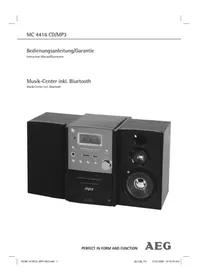


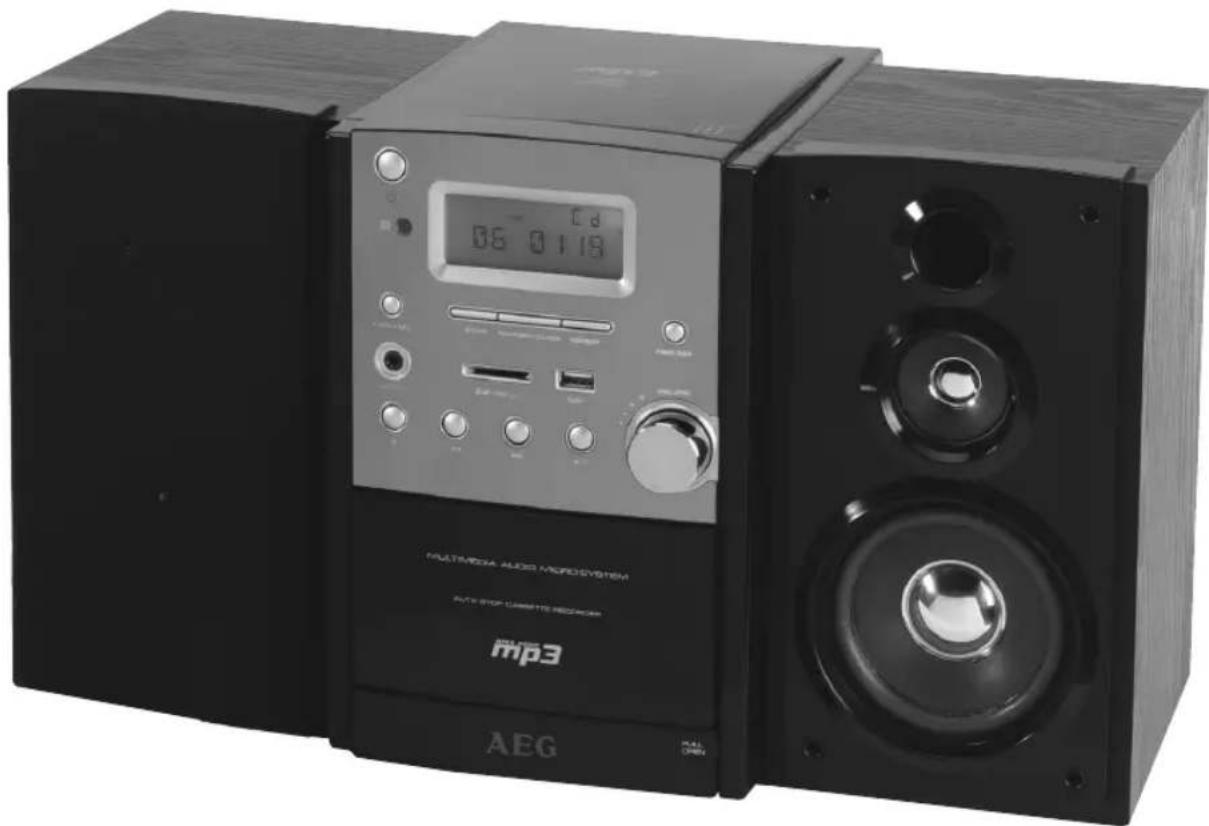
| Product Type | Hi-Fi System with CD/MP3 Player |
| Brand | AEG |
| Model | MC 4416 CD/MP3 |
| Dimensions (W x H x D) | Approx. 430 x 140 x 320 mm |
| Weight | Approx. 4.5 kg |
| Power Supply | AC 230V ~ 50Hz |
| Power Consumption | 50 W (operation), <1 W (standby) |
| Disc Playback | CD, CD-R, CD-RW, MP3-CD |
| Radio Tuner | FM/AM (MW) with presets |
| Audio Output Power | 2 x 20 W RMS (stereo) |
| Speaker System | 2-way bass reflex, 5.25" woofer + 1" tweeter |
| Audio Inputs | AUX (3.5 mm stereo jack) |
| Audio Outputs | Headphone (3.5 mm), Speaker terminals |
| CD Player Functions | Program, Repeat, Random, Intro |
| Equalizer Presets | Rock, Pop, Classic, Jazz, Flat |
| Display | LED dot matrix with clock |
| Remote Control | Included, IR |
| Additional Features | Alarm clock, Sleep timer, Headphone jack |
| Cabinet Material | MDF with vinyl finish |
| Included Accessories | Remote control, AM loop antenna, FM wire antenna, User manual |
| Care and Cleaning | Wipe with a soft, dry cloth; avoid solvents |
| Safety | Class II, double insulation; keep away from moisture |
| Spare Parts and Repairability | Available through AEG service centers; common parts stocked |
Frequently Asked Questions - MC 4416 CD/MP3 AEG
User questions about MC 4416 CD/MP3 AEG
0 question about this device. Answer the ones you know or ask your own.
Ask a new question about this device
Download the instructions for your Hi-Fi System in PDF format for free! Find your manual MC 4416 CD/MP3 - AEG and take your electronic device back in hand. On this page are published all the documents necessary for the use of your device. MC 4416 CD/MP3 by AEG.
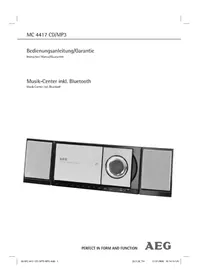
USER MANUAL MC 4416 CD/MP3 AEG
Instruction Manual/Guarantee
Music center incl. Bluetooth
Music center incl. Bluetooth
PERFECT IN FORM AND FUNCTION
AEG
English
Contents
Overview of the Components ......Page 3
Instruction Manual Page 13
Technical Data Page 20
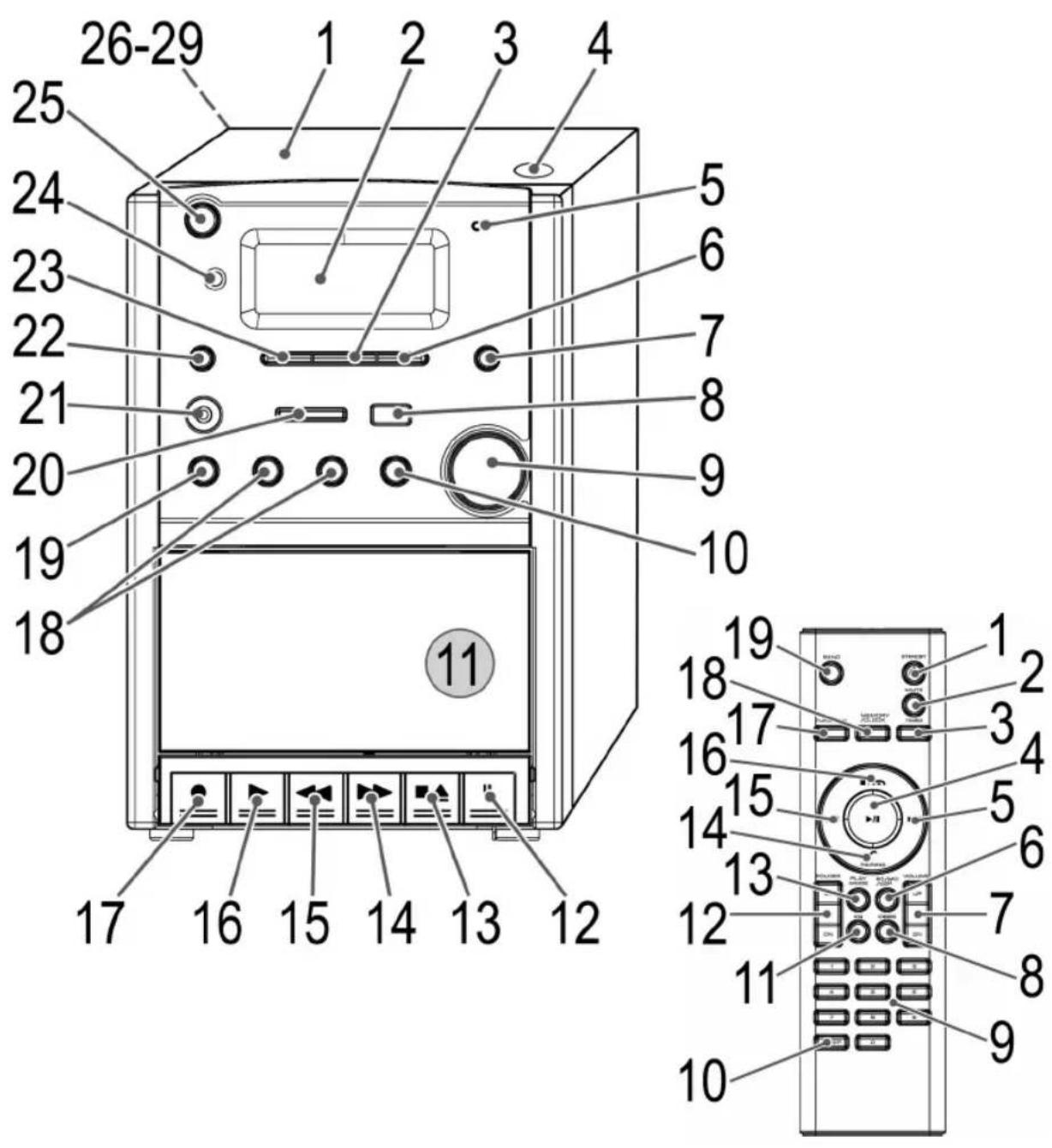
Overview of the Components
4 English
General Safety Instructions
Read the operating instructions carefully before putting the appliance into operation and keep the instructions including the warranty, the receipt and, if possible, the box with the internal packing. If you give this device to other people, please also pass on the operating instructions.
- To avoid the risk of fire or an electric shock, you should not expose the device to rain or moisture. Consequently, do not use the device in the immediate vicinity of water - for example near a bath tub, a swimming pool or in a damp cellar.
- Use the device only for the intended purpose.
- Only connect the device to a properly installed plug socket. Ensure that the specified voltage matches the voltage of the plug socket.
- When using an external mains supply, pay attention to the correct polarity and voltage. Always insert the batteries in the correct direction.
- Assemble the device in such a way that the ventilation openings are not covered.
- Never open the housing of the device. Incorrect repairs can pose a significant risk to the user. If the device is damaged, especially the mains supply cable, do not operate it any longer; have it repaired by an expert. Regularly check the mains supply cable for damage.
- For safety reasons, a broken or damaged mains lead may only be replaced by an equivalent lead from the manufacturer, our customer service department, or a similarly qualified person.
- If the device is not used for an extended period, remove the plug from the socket or take out the batteries.
These symbols may be found on the machine and are intended to indicate the following:

The lightning symbol warns the user of parts inside the device that carry dangerously high voltage.

The symbol with an exclamation mark alerts the user to important operating or maintenance instructions in the accompanying documentation.

Devices bearing this symbol work with a "class 1 laser" for reading CDs. The built-in safety switches are designed to prevent exposure to dangerous laser light, which is invisible to the human eye, when the CD compartment is opened.
Under no circumstances should these safety switches be bypassed or tampered with, as this could result in exposure to the laser light.
Children and Frail Individuals
- To ensure your children's safety, keep all packaging (plastic bags, boxes, polystyrene, etc.) out of their reach.
WARNING!
Caution! Do not allow small children to play with the foil as there is a danger of suffocation!
- In order to protect children or frail individuals from the hazards of electrical equipment, please ensure that this device is only used under supervision. This device is not a toy. Do not allow small children to play with it.
Symbols in these Instructions for Use
Important information for your safety is specially marked. It is essential to comply with these instructions in order to avoid accidents and prevent damage to the machine:
WARNING:
This warns you of dangers to your health and indicates possible injury risks.
CAUTION:
This refers to possible hazards to the machine or other objects.
NOTE: This highlights tips and information.
Special safety information
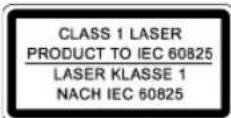
This device works with a class 1 laser.
Overview of the Components
| 1 | CD | compartment |
| 2 | LCD | display |
| 3 MEMORY/CLOCK button (memory/time) | ||
| 4 OPEN/CLOSE (open/close) CD compartment | ||
| 5 | Mikrophon | |
| 6 | /PAIRING/ANSWER button(connect/answer) | |
| 7 | /HANG UP button(End call/reject) | |
| 8 | USB | connection |
9 VOLUME (volume) control
10 ▶/II button (Play/Pause) 11 Cassette compartment 12 II Pause button - cassette 13 ■ ▲ Stop/Eject button - cassette 14 ▶▶ Forward button - cassette 15 ◀◀ Reverse button - cassette 16 ▶ Playback button - cassette 17 ● Recording button - cassette 18 ▶▶▶I/I◀◀ buttons (forward search/reverse search) 19 STOP button 20 SD/MMC Card slot 21 LINE IN connection
22 FUNCTION Function selector button
| 23 | BAND | button |
| 24 | IR Sensor for the remote control | |
| 25 | button (Standby/On) | |
Reverse Side (not shown)
26 FM ANT. throw-out aerial
27 SPEAKERS R/L Loudspeaker connections
28 HEADPHONES Headphones connection
29 Mains connection
Remote Control
1 STANDBY button
2 MUTE (sound off) button
| 3 | TIMER | button |
| 4 | ▶/II button (Play/Pause) | |
| 5 | ▶▶I button (forward search) | |
| 6 | ST/MO/ID3 | button |
7 VOLUME UP/DN (volume) buttons
| 8 | DBBS | button |
| 9 | Number | buttons |
| 0 | SLEEP | button |
| 11 | EQ | button |
12 FOLDER UP/DN buttons
(up / down album/Radio memory preset)
13 PLAY MODE button (repeat/random)
| 14 | /PAIRING button |
| 15 | |◀◀ button (reverse search) |
| 16 | ■/button |
17 FUNCTION Function selector button
18 MEMORY/CLOCK button (memory/time)
19 BAND button
Intended Use
This device is used for:
• The reception of radio programmes - Playing back/recording audio cassettes - Playing back audio/MP3 CDs - Playing back files via Bluetooth • Telephoning using a hands-free kit via Bluetooth.
It is intended exclusively for this purpose and may only be used as such. It may only be used in the manner described in these instructions for use. The device must not be used for commercial purposes.
Any other use of this device is considered to be contrary to the intended use and may result in damage to materials or even personal injury.
The firm ETV – Elektro-Technische Vertriebsgesellschaft mbH does not accept any liability for damage caused as a result of the use of this device contrary to its intended use.
Start-up of the device/Introduction
- Read the operating instructions thoroughly before the start-up!
- Select an appropriate location for the device, e.g. a dry, flat, non-slip surface on which the device can be easily operated. • Make sure that the device is adequately ventilated!
- Connect the loudspeakers to the back of the music centre to the sockets marked "Speaker R and L" (27).
- Remove the protective film from the display if it is still present.
Power Supply
- Insert the plug into a properly installed 230 V, 50 Hz power socket.
- Please ensure that the mains voltage corresponds to the information on the type plate.
- The stored time and stations are lost as soon as the power supply is interrupted.
Setting the Time (in Standby Mode)
- Press the MEMORY/CLOCK button (3/18 on the remote control). The words "12 HR" appear in the display.
- Use the ▶▶I/I◀◀ buttons (18/5/15) to choose between the 24 hour and 12 hour display. Press the MEMORY/CLOCK button to confirm.
i NOTE:
The following appears in the case of the 12 hour display
AM = in the morning, PM = in the afternoon/evening.
- Press the ▶▶▶I/I◀◀ buttons to set the hours. Press the MEMORY/CLOCK button to confirm.
- Press the ▶▶▶I/I◀◀ buttons in order to set the minutes.
- Press the MEMORY/CLOCK button again to store the time.
Remote Control Batteries (not supplied)
- Open the lid of the battery compartment on the back of the remote control.
- Insert 2 batteries of type R03 "AAA" 1.5 V. Ensure that the polarity is correct (see the floor of the battery compartment)!
- If the remote control is not used for a prolonged period, remove the batteries in order to prevent battery acid leaking.
△ CAUTION:
- Different battery types or new and used batteries must not be used together.
- Batteries are not to be disposed of together with domestic wastes. Dispose of the used batteries at the relevant collection bin or at your dealer's.
WARNING:
Do not expose the batteries to high temperatures or direct sunlight. Never throw batteries into the fire. There is a danger of explosion!
CD deck transport protection
- Please open the CD compartment (1) by pressing the OPEN/CLOSE (open/close) button (4).
- Remove the transport protection from the CD player if present before use.
General Operation
i NOTE:
Some keys are to be found both on the device itself and on the remote control. Keys with the same designation have the same function.
○ STANDBY (25/1)
Switch the device to the standby mode with the ⏻ STANDBY button (the time is displayed). If this button is pressed once more, the device switches on again.
Volume (9/7)
This is used to set the individual volume. The letters „VOL“ and a figure appear in the display. This corresponds to the volume that has been set as far as „VOL MAX“ or „VOL MIN“.
HEADPHONES Headphone Socket (28)
Please use headphones with a 3.5 mm stereo jack plug; these should be inserted into the headphone socket. The loudspeakers are then switched off.
DBBS (8 on the remote control)
To increase or decrease the bass output.
DBB ON = on, DBB OFF = off.
Infrared remote control
For operating the music centre from a distance of up to 5 metres without a lead. If the range of the remote control is reduced, the batteries have to be replaced. During operation ensure that there is nothing blocking the direct line between the remote control and the sensor (24) on the machine.
USB Connection (8)
This device has been developed in accordance with the latest technical developments in the USB field. Unfortunately the large number of different types of USB storage media on offer today makes it impossible to guarantee full compatibility with all USB storage media. For this reason there may be problems in rare cases with playing back from USB storage media. This is not a malfunction of the device.
- In order to switch on the device please press the STANDBY switch (25/1).
- Now press the FUNCTION button (22/17) to select the USB mode. INSERT USB appears in the display.
- Connect a USB storage medium.
- Press ▶/II (10/4) to play back the music data.
For operating instructions please see the section "Playing CDs/MP3s".
△ CAUTION:
Before removing the USB storage medium, switch the device to TUNER operation using the FUNCTION button.
SD/MMC Card Slot (20)
- If you would like to play back data on an SD/MMC card, insert it into the opening provided.
- Now press the FUNCTION button (22/17) to select the CARD mode. INSERT CARD appears in the display.
- Press ▶/II (10/4) to play back the music data.
For operating instructions, please see the section "Playing CDs/MP3s".
LINE IN socket
To connect analogue replay devices. Via this socket you can also hear the sound of other playback devices such as MP3 players, CD players, etc. through the loudspeakers.
- Please connect the external device with a 3.5 mm stereo jack plug to the LINE IN socket (21).
- Press the FUNCTION button (22/17) repeatedly until "AUX" appears in the display.
- Through the loudspeakers you can hear the playback of the sound from the external device; with the VOLUME control (9) you can change the volume. The CD buttons do not have any function.
- For the remaining procedure, please see the operating instructions of the external sound source.
i NOTE:
Adjust the volume of the external device to a comfortable level.
Listening to the Radio
- Press the FUNCTION button (22/17) repeatedly until "TUNER" appears in the display.
- Press the BAND button (23/19) to select between FM or MW.
VHF = FM, Medium wave = MW (mono)
- Tune in to the desired station with the help of the ▶▶I/I◀◀ buttons (18/5/15).
- The FM.ST control lamp „O(“ (in the display) only lights up if the selected station is being received in stereo quality. If reception is too weak and there is noise on the station being received, this lamp will flicker. Try to improve reception by turning and bending or twisting and altering the length of the antenna (26). In the case of FM stations you can use the ST/MO/ID3 button (6 on the remote control) to switch between MONO and STEREO reception. Where reception is bad we recommend switching to MONO.
- An aerial is integrated into the device for the reception of AM stations. The machine can be aligned to the station by turning it. In this frequency band programs are transmitted in „mono" only.
- If you have found the desired station, press the MEMORY/CLOCK button (3/18 on the remote control). The word MEMORY lights up and the station memory number flashes.
- In order to select the program location, press the FOLDER UP/DN buttons (12 on the remote control).
- To store this position, press the MEMORY/CLOCK button.
To select a stored station press the FOLDER UP or FOLDER DN button (12 on the remote control).
Cassette Operation
Playing Cassettes
- Press the FUNCTION button (22/17) repeatedly until "TAPE" appears in the display.
- Press the ■ ▲ stop/eject button (13) to open the cassette compartment (11).
- Push a recorded audio cassette, with the tape downwards and the listening side facing forwards, into the compartment (full reel to the left). Then close the cassette compartment again.
- Press the ▶ playback key (16) to listen to the tape.
- With the ■ ▲ stop/eject key you can stop playback.
- Wind the tape forwards or backwards if necessary in the direction of the arrow keys
▶▶ = forwards (14), ◀◀ = reverse (15).
- Always press the ■ ▲ stop/eject key when changing the direction or stopping the tape. This prevents damage to the machine and the tape.
- If the ■ ▲ stop/eject button is pressed again the flap of the cassette compartment opens.
- In order to interrupt playback briefly, press the II pause button (12). Pressing again continues playback.
Recording Cassettes
- Place an audio cassette with the side you wish to listen to facing downwards (full reel on the left). Ensure that the cassette is not copy-protected (the copy protection tab on the top narrow side of the cassette must not have been removed).
- Select the source from which you wish to record with the function switch (19) and then start playback from this source if necessary. The sound source which you are listening to is the one from which the recording is made. The recording level is controlled automatically. Any changes to the sound and volume do not affect the recording.
- Please press the ● record button (17) (the ▶ playback button is automatically pressed down at the same time). Recording now begins. All previous recordings are automatically erased.
- The recording can be interrupted briefly using the II pause key, or stopped by means of the ■ ▲ stop/eject button.
Playing CDs/MP3
This is how you play a CD
- Press the FUNCTION button (22/17) repeatedly until "DISC" appears in the display.
- In order to open the CD compartment (1), press the OPEN/CLOSE (open/close) button (4).
- Insert a CD with the printed side facing up and close the CD deck.
4. AUDIO CDs:
In the display the symbol "DISC" appear together with the number of tracks and the total playing time. Press the ▶/II button (10/4) to play back the CD. The CD is played from the first track onwards. The track currently being played and the time that has elapsed are shown in the display.
CDs in MP3 Format:
In the display the symbols "DISC" and "MP3" appear together with the number of folders e.g. A04 and the total number of tracks (e.g. T126). Press the ▶/II key to play the CD. The CD is played back from the first track onwards and from the first folder. The song currently being played and the time that has elapsed are shown in the display. With the FOLDER UP or FOLDER DN (12 on the remote control) you can select the individual folders.
- In order to remove a CD, please press the STOP (■/☐) button (19/16), open the CD compartment and lift the CD out carefully.
Always keep the CD deck closed.
i NOTE:
- In the case of CDs in MP3 format that contain folders, when the device changes to a different folder, 01 appears for the first track of the new folder.
- If a disc is inserted incorrectly or no disc is inserted, the letters "READING" and "NO DISC" appear in the display.
- Playback of CDs produced by the user cannot be guaranteed due to the large variety of software and CD media available.
Description of the CD buttons
▶/II (9/4)
You can briefly interrupt and resume playback using this button. The elapsed playing time flashes in the display. Pressing again continues playback.
▶▶I/I◀◀ (18/5/15)
With an audio CD or a CD in MP3 format playing:
With ▶▶I you can jump to the next or previous track, etc. If the button is kept pressed down, the machine starts to search through the tracks (the sound is muted).
The I◀◀ button can be used as follows:
Press once = This starts the current track again from the beginning.
Press twice = This jumps back to the previous track.
Press three times = This plays the song before, etc. If the button is kept pressed down, the machine starts to search through the tracks (the sound is muted).
In radio mode:
To tune the desired radio station.
STOP (■/n) (19/16)
The CD stops.
MUTE (2 on the remote control)
Used for switching off the sound immediately. The word "MUTE" flashes in the display. To cancel this function, press the MUTE key again.
EQ (11 on the remote control)
(Preset equalizer function). Various sound modes are available (CLASSIC, ROCK, POP, JAZZ, FLAT).
ST/MO/ID3 (6 on the remote control)
In FM radio mode:
To change between STEREO and MONO.
For a CD in MP3 format:
Keep pressed down: If ID-3 Tag information has been stored this appears in the display in the form of an LED ticker display. Keep the button pressed down again to switch the function off again.
PLAY MODE (13 on the remote control)
Press once: (the
emits a fixed light). The current track is repeated continuously.
Press twice: (the ALL emits a fixed light).
The whole CD is played continuously.
Press three times: the display shows "×" and the track number that is to be played first. All tracks are played back in random order.
Press four times: all functions are cancelled. The normal play mode is resumed.
Only for CDs in MP3 format:
Press once: the current track is repeated continuously (appears in the display).
Press twice: the selected folder of the MP3 CD is repeated continuously (ALBUM appears in the display). With the FOLDER UP/DN buttons (12 on the remote control) you can select the individual folders.
Press three times: the whole CD is played continuously (CALL appears in the display).
Press four times: the display shows " and the track number that is to be played first. All tracks are played back in random order.
Press five times: the function is deactivated and the CD is played in the normal mode.
FOLDER UP/DN (12 on the remote control)
Only for CDs in MP3 format:
Press these buttons during playback in order to move one folder upwards or downwards. The display, e.g. A001T001, appears briefly. Then the MP3 CD begins to play back automatically. If this button is pressed in stop mode the display also appears briefly. Then start playback with the ▶/II button.
In radio mode:
To tune the desired radio station.
SLEEP (10 on the remote control)
With the device switched on, this sets the period in 10-minute steps from 90 to 10 minutes, after which the device switches to standby. Press the button repeatedly until the required duration is shown in the display. When this function is activated, the "2" symbol appears in the display. The device switches off automatically after the set time.
To call up the remaining time, press the SLEEP button. This time can also be subsequently shortened or switched off again (OFF).
TIMER (3 on the remote control)
You can set the device so that it switches on and off again at a certain time.
- Switch the device to standby mode with the ⏻ STANDBY button (the time is displayed).
- Keep the TIMER button pressed down until "SELECT SOURCES" appears in the display. Use the FUNCTION button (22/17) to select the switch-on mode.
- Press the TIMER button and use the VOLUME UP/DN buttons (9/7) to select the switch-on volume VOL.
- When the TIMER button is pressed, the word "SET ON TIMER" appears in the display.
- Press the TIMER button again. The hours figure begins to flash. Use the ▶▶▶I/I◀◀ buttons (18/5/15) to select the switch-on time (hours).
- Press the TIMER button and use the ▶▶▶I/I◀◀ buttons to select the switch-on time (minutes).
- When the TIMER button is pressed, the word "SET OFF TIMER" appears in the display. Press the TIMER button again. The hours figure begins to flash.
- When setting the switch-off time, please proceed in the same way as described above.
- Press the TIMER button again. The device switches back to standby. "④" appears in the display and the timer is activated.
To deactivate the timer, press the TIMER button. The symbol "©" disappears from the display.
MEMORY/CLOCK (3/18)
This is used for setting the time, storing stations, and programming playback.
If this button is pressed down for approximately 3 seconds, the time is shown briefly in the display.
Programmed Play
This can be used to program any desired sequence of tracks.
- Press the STOP (■/ ) key (19/16).
- Press the MEMORY/CLOCK key (3/18 on the remote control). "01 PR 01" ("track" PR "memory location") appears in the display together with the word PROG. Use the ▶▶▶I/I◀◀ buttons (18/5/15) to select the desired track and then press the MEMORY/CLOCK button again. The display changes to memory slot PR 02.
- Select the next track with the ▶▶▶I/I◀◀ key and press the MEMORY/CLOCK key again. Repeat the procedure until all the desired tracks are selected.
i NOTE:
In the case of CDs in MP3 format you can use the FOLDER UP/DN buttons (12 on the remote control) to select the individual folders. The first track number of the respective folder is displayed.
- Press the ▶/II key (10/4). The playback starts. The first track number selected appears in the display. The words "DISC" and "PROG" appear in the display. Press this button to pause briefly the playback.
- Press once the STOP (■/○) key to stop the playback while retaining the program. The programmed number of tracks, e.g. 08 PROG is shown in the display.
- To resume the playback of the program press first the MEMORY/CLOCK key once and then the ▶/II key.
- To delete the program, press the STOP (■/■) key twice. PROG CLEAR is shown briefly in the display and the word PROG goes off.
The device stops automatically once the entire sequence of programmed tracks is completed. 08 PROG is shown in the display, for example. The programmed order of tracks remains in the memory until you change to a different mode, remove the CD from the CD compartment or switch off the device.
It is also possible to combine the programmed tracks with the REPEAT function. After you have programmed and started the device, please press the PLAY MODE button (13 on the remote control) up to three times and then you can use the functions as described under „PLAY MODE“.
Playing back Music in MP3 Format
With this device it is possible to play back pieces of music in MP3 format. The device also supports all standard CD types: CD, CD-RW, CD-R.
This machine is able to play MP3 CDs. Up to 200 tracks can be compressed and stored on these CDs. Your machine detects an MP3 CD automatically (the total number of tracks and folders appears in the display). If you would like to play one of these CDs, proceed as described under „Playing CDs/MP3". Tracks can be programmed as described under „Playing Back Programmed Tracks".
Please note:
There are a number of different recording and compression methods, as well as quality differences between CDs and self-recorded CDs.
Furthermore, the music industry does not adhere to fixed standards (copy protection).
For these reasons it is possible that in rare cases there are problems with the playback of CDs and MP3 CDs. This is not a malfunction of the device.
Bluetooth Operation
Bluetooth technology is a wireless radio connection between devices over a short distance.
NOTE:
The working radius is restricted to approximately 3 metres.
Currently Bluetooth technology is mainly used for the hands-free operation of mobile telephones. With this device it is possible to use both the hands-free function and play back music from a device which is compatible with Bluetooth.
i NOTE:
In order to be able to use this mode the connected device must support the A2DP profile.
- A2DP (Advanced Audio Distribution Profile) A Bluetooth profile that is required in order to transfer stereo music and audio files between playback devices and receiving devices without wires.
For Optimum Sound Quality during a Telephone Call
Do not set the volume too high. Otherwise there may be feedback (a whistling noise) from the loudspeakers.
Registering Devices (PAIRING)
Before you can use the Bluetooth function, the devices have to be paired with one another.
As there are many different models and manufacturers of such devices, it is only possible here to give a general description of how to operate such devices. For more detailed information please see the operating instructions of your Bluetooth device.
i NOTE:
- The Bluetooth function has to be activated on your device (e.g. mobile telephone).
- It is not possible to pair several Bluetooth devices simultaneously with the radio.
- Press the FUNCTION button (22/17) repeatedly until "BLUETOOTH" appears in the display.
- Hold the /PAIRING/ANSWER button (6/14) down. "PAIRING" appears in the display.
- Register the radio in your mobile telephone as described in the operating instructions for your mobile telephone. The device designation "102BT" appears as a choice in your mobile telephone.
- Now enter the password "0000" in your mobile telephone. The radio is now registered in your mobile telephone.
- Once the registration has been successfully performed, " appears in the display of the radio together with the name of the mobile telephone.
i NOTE:
- Depending on the make of your mobile telephone, you may have to repeat the registration (PAIRING).
- Bluetooth compatibility cannot be guaranteed for devices which are put on the market in future.
- In order to guarantee an optimum connection, please ensure that the battery of your mobile telephone is fully charged.
- Some makes of mobile telephone have an energy-saving mode. Please deactivate the energy-saving mode, as you may otherwise have problems when telephoning via Bluetooth.
i NOTE:
- In order to be able to conduct an incoming or outgoing telephone call Bluetooth has to remain activated in your mobile telephone. This also applies to the playing back of music files via the A2DP profile. Please consult the operating instructions for your mobile telephone.
- Please ensure that you speak in the direction of the built-in microphone. The connection of an external microphone is not possible.
Transferring Music (A2DP)
- Press the FUNCTION button (22/17) repeatedly until "BLUETOOTH" appears in the display.
- If you have not done so already, connect the devices as described in the previous paragraph.
- Select and start the desired music file on your Bluetooth device.
Note:
Turn the volume of your Bluetooth device to a comfortable level.
Outgoing Calls
- Press the FUNCTION button (22/17) repeatedly until "BLUETOOTH" appears in the display.
- If you have not done so already, connect the devices as described in the previous paragraph.
- Dial the appropriate telephone number with your mobile phone in the usual manner. "DIALING" appears in the display.
- As soon as the person you are calling answers, the word "CALLING" appears in the display.
- To hang up, press the ■/○/HANG UP button (7/16). "CALL END" appears in the display.
Incoming Calls
In the case of incoming calls, a ringing tone is heard from the loudspeakers, and if the caller has a CLIP (Calling Line Identification Presentation) capable telephone, the caller's number appears in the display of the radio. Otherwise, "IN CALL" appears in the display.
- To accept an incoming call, press the /PAIRING/ANSWER button (6/14) to confirm. You will now hear the caller through the loudspeakers.
- To terminate the call, press the ■/HANG UP button (7/16). "CALL END" appears in the display.
Note:
- You can transfer the call back to your mobile phone. To do so, keep the PAIRING/ANSWER button pressed. "TRANSFER" appears in the display.
20
English
Note:
- Depending on the features of your mobile telephone, you will hear either your own ringing tone or the standard ringing tone of the radio.
Cleaning and Maintenance
• Always remove the mains plug before cleaning the machine. Any marks on the surface can be wiped off with a slightly damp cloth without any additives.
Technical Data
Model: MC 4416 CD/MP3
Power supply: 230 V, 50 Hz
Output rating: 100 W PMPO
Protection class: II
Net weight: 3.1 kg
Radio section:
Frequency ranges: VHF / FM 87.5 - 108.0 MHz; MW / AM 522 - 1620 kHz
This device has been tested according to all relevant current CE guidelines, such as electromagnetic compatibility and low voltage directives, and has been constructed in accordance with the latest safety regulations.
Subject to technical changes without prior notice!

Meaning of the "Dustbin" Symbol
Protect our environment: do not dispose of electrical equipment in the domestic waste.
Please return any electrical equipment that you will no longer use to the collection points provided for their disposal.
This helps avoid the potential effects of incorrect disposal on the environment and human health.
This will contribute to the recycling and other forms of reutilisation of electrical and electronic equipment.
Information concerning where the equipment can be disposed of can be obtained from your local authority.


- MUSIC CENTER INCL. BLUETOOTH
- ENGLISH
- GENERAL SAFETY INSTRUCTIONS
- CHILDREN AND FRAIL INDIVIDUALS
- WARNING
- SYMBOLS IN THESE INSTRUCTIONS FOR USE
- CAUTION
- SPECIAL SAFETY INFORMATION
- OVERVIEW OF THE COMPONENTS
- INTENDED USE
- START-UP OF THE DEVICE/INTRODUCTION
- POWER SUPPLY
- SETTING THE TIME (IN STANDBY MODE)
- REMOTE CONTROL BATTERIES (NOT SUPPLIED)
- △ CAUTION
- GENERAL OPERATION
- I NOTE
- ○ STANDBY (25/1)
- VOLUME (9/7)
- HEADPHONES HEADPHONE SOCKET (28)
- DBBS (8 ON THE REMOTE CONTROL)
- INFRARED REMOTE CONTROL
- USB CONNECTION (8)
- SD/MMC CARD SLOT (20)
- LINE IN SOCKET
- LISTENING TO THE RADIO
- CASSETTE OPERATION
- PLAYING CASSETTES
- RECORDING CASSETTES
- PLAYING CDS/MP
- THIS IS HOW YOU PLAY A CD
- AUDIO CDS
- CDS IN MP3 FORMAT
- DESCRIPTION OF THE CD BUTTONS
- II (9/4)
- MUTE (2 ON THE REMOTE CONTROL)
- EQ (11 ON THE REMOTE CONTROL)
- ST/MO/ID3 (6 ON THE REMOTE CONTROL)
- PLAY MODE (13 ON THE REMOTE CONTROL)
- FOLDER UP/DN (12 ON THE REMOTE CONTROL)
- SLEEP (10 ON THE REMOTE CONTROL)
- TIMER (3 ON THE REMOTE CONTROL)
- MEMORY/CLOCK (3/18)
- PROGRAMMED PLAY
- PLAYING BACK MUSIC IN MP3 FORMAT
- PLEASE NOTE
- BLUETOOTH OPERATION
- NOTE
- FOR OPTIMUM SOUND QUALITY DURING A TELEPHONE CALL
- REGISTERING DEVICES (PAIRING)
- TRANSFERRING MUSIC (A2DP)
- OUTGOING CALLS
- INCOMING CALLS
- CLEANING AND MAINTENANCE
- TECHNICAL DATA
- MEANING OF THE "DUSTBIN" SYMBOL
Brand : AEG
Model : MC 4416 CD/MP3
Category : Hi-Fi System