CTV 732 - Portable DVD Player CLATRONIC - Free user manual and instructions
Find the device manual for free CTV 732 CLATRONIC in PDF.


| Product Type | Portable DVD Player |
| Brand | Clatronic |
| Model | CTV 732 |
| Display Size | 7 inch TFT LCD |
| Display Resolution | 800 x 480 pixels |
| Disc Playback | DVD, DVD±R/RW, CD, CD-R/RW |
| Media File Support | MPEG4, AVI, MP3, WMA, JPEG |
| Battery Type | Rechargeable Lithium-Ion |
| Battery Life | Approx. 3–5 hours |
| Power Supply | AC 100–240V, 50/60 Hz; DC 12V car adapter |
| Audio Output | Built-in speakers, 3.5mm headphone jack |
| Video Output | Composite AV (RCA) out |
| Additional Ports | USB 2.0, SD/MMC card slot |
| Dimensions (W x H x D) | Approx. 20 x 3 x 15 cm |
| Weight | Approx. 0.8 kg |
| Region Code | 2 (Europe) – changeable via remote |
| Screen Swivel | 180° rotation |
| Remote Control | Included |
| Car Mount | Included |
| Manufacturer | Clatronic GmbH |
Frequently Asked Questions - CTV 732 CLATRONIC
User questions about CTV 732 CLATRONIC
0 question about this device. Answer the ones you know or ask your own.
Ask a new question about this device
Download the instructions for your Portable DVD Player in PDF format for free! Find your manual CTV 732 - CLATRONIC and take your electronic device back in hand. On this page are published all the documents necessary for the use of your device. CTV 732 by CLATRONIC.
USER MANUAL CTV 732 CLATRONIC
natural_image
Exterior view of a modern open TV with antenna and CD/DVD card (no visible text or symbols)LCD-FERNSEHER/DVD-PLAYER MIT DVB-T-RECEIVER LCD TELEVISION SET/DVD PLAYER WITH DVB-T RECEIVER
CTV 732 DVB-T/DVD
DEUTSCH
ENGLISH
Inhalt
Overview of the Components ...... Page 3
Instruction Manual...... Page 38
SD-Card
Multi Media Card
Memory-Stick
Type of equipment LCD Television Set/
DVD Player with DVB-T Receiver
Model CTV 732 DVB-T/DVD
Voltage DC 9V, 2A
Output 15 W
Dimensions (W x H x D) 260 x 29.6 x 182 mm
Weight 1 kg
Laser Semiconductor laser
Signal format PAL/NTSC
Signal noise distance >= 80 dB
Video output 1.0 V (P-P) 75 Ω
Analogue Audio output 1.4 V (rms)
Operating environment 0°C bis 40°C, level base
Compatible media ■ DVD-Video (DVD Disc, DVD ±R/RW)
MPEG-4 Video (von CD/DVD Disc, DVD±R/RW, CD-R/RW)
Audio CD (von CD Disc, CD-R/RW)
Video CD (von CD Disc, CD-R/RW)
MP3 files (von CD/DVD Disc, DVD±R/RW, CD-R/RW)
Regional 2 (= Europe, Greenland, South Africa, Egypt and Middle East, Japan)
©
Many thanks!
We are pleased that you have decided to purchase the CTV 732 DVB-T/DVD LCD television set/DVD player with DVB-T receiver! We would like to wish you much joy with your machine and thank you for your purchase!
Symbols in this operating manual
Important instructions for your safety are especially marked. You must follow these instructions to avoid accidents and damage to the machine:
WARNING:
Warns against dangers to your health and indicates potential risks of injury.
ATTENTION:
Indicates potential hazards for the player or other objects.
i NOTE: Highlights tips and information for you.
Manufacturer address
Clatronic International GmbH
Industriering Ost 40
47906 Kempen
We reserve the right to make technical and design-related changes in the course of ongoing product improvements.
Safety instructions
Operating manual
Read the complete operating manual before using the player.
Keep the manual in a safe place. If you pass the player on to a third party, pass on the operating manual as well.
Non-compliance with this manual can lead to severe injuries or damage to the machine.
We assume no liability for damage caused as a result of non-compliance with this operating manual.
The player may only be used in households for private use. It is not suitable for commercial use.
Children
Do not leave the machine unattended, and do not use it if children or persons who cannot assess the risk are nearby.
Children or persons who cannot assess the risks are not allowed to use the player. Keep the player out of reach.
Packaging material must not be used to play with. There is a risk of suffocation.
Power supply
The machine is operated with electrical current, which means there is in principle a risk of electric shock. For this reason, pay particular attention to the following:
☐ Never touch the plug with wet hands.
If you want to pull the plug out of the plug socket, always pull directly on the plug. Never pull on the cable as it could tear.
Make sure that the power cable is not bent, caught or run over and that it does not come into contact with heat sources.
Make sure that the power cable is not wound around the device while in operation.
Never place the machine on the power cable while it is being operated.
Only use extension cables that are designed for the power consumption level of the machine.
Keep the appliance away from rain and any moisture.
Only operate the machine if the electrical voltage stated on the type plate beneath the machine agrees with the voltage on your plug socket. The wrong voltage can destroy the machine.
Do not stand vases etc. on the appliance. Water could seep into the appliance.
Do not open the appliance.
Pull out the mains plug if the appliance is not to be used over a longer period of time.
Take care that nobody can trip over the power supply cable.
Laser
This appliance is classified as laser appliance of class 1 (CLASS 1 LASER). The associated label is attached to the outside of the appliance.
Laser beams can damage the eyes. Therefore observe the following:
Do not open the appliance. Do not attempt to dismantle the appliance.
In order to avoid any danger: Have service work only carried out by the manufacturer or an authorized service workshop.
©
Setting up and connecting
Unpacking
Unpack the appliance and all accessories and check that the contents are complete.
ATTENTION:
Always transport/send the player in its original packaging to prevent it from being damaged. Keep the packaging for this purpose. Dispose of unnecessary packaging material in accordance with the regulations applicable in your country.
NOTE:
Get in touch with your dealer immediately if you notice damage caused by transport.
Setting up
- Place the player on a stable, heat resistant, horizontal and level surface. Keep a distance of at least 10 cm from walls and objects.
- Connect the device to a properly installed power socket.
Starting up
WARNING:
Leaking out battery acid can damage your health. Remove the battery from the battery compartment as soon as it is exhausted or if the remote control is not going to be used for a longer period of time. Wipe up leaked out battery acid with a cloth. In case of skin contact immediately wash the affected area. Seek medical advice if battery acid has been swallowed. In case of contact with your eyes wash out the eyes and seek medical advice.
ATTENTION:
Mismatching battery types or new and used batteries must never be used together. Different battery types have different properties. Do not use old and new batteries together. The mutual use of old and new batteries can shorten the lifetime of the new batteries and possibly result in leakage of the old batteries. When disposing of old batteries you should strictly comply with the legal and environmental regulations applicable in your country. Do not throw batteries into fi re!
NOTE:
The lifetime of the enclosed batteries may be shortened because of storage.
- Open and remove the battery compartment cover.
- Insert two batteries of type AAA/R03 (1.5 V), ensure correct polarity (+ and -). Start with the negative pole (-).
- Attach and close the battery compartment cover.
NOTE:
The signals from the remote control are transmitted to the DVD-Player by infrared light. You should therefore take care that the DVD-Player is not exposed to the direct sunlight. This could make the transmission of signals from the remote control to the DVD-Player impossible.
Effective range of the remote control
If you want to use the remote control it has to be pointed at the remote control sensor on the front of the device. The distance between remote control and sensor should not exceed 7m. The angle of the remote control to the remote control sensor to right, left, top and bottom should not exceed 30°.
Power Supply
A. With the alternating current adapter
The alternating current adapter works with alternating current of between 100 V and 240 V, but
In Europe the mains lead (supplied) may only be connected to an alternating current power source of 230-240 V.
When connecting to an alternating current source outside Europe a plug adapter must be used that conforms to the socket.
ATTENTION:
The supplied mains lead and alternating current adapter should only be used for this device. Do not use it with other equipment.
If the device is not going to be used for a prolonged period the mains lead must be removed from the power socket.
B. With the adapter for the cigarette lighter
The 9 V cigarette lighter adapter is used in vehicles that have a 12 V power supply with negative earth.
Precautionary Measures:
This device may only be used with the original vehicle adapter, as a different adapter can damage the device.
The original vehicle adapter may only be used for this device. Do not use it for other equipment.
While you are driving the vehicle it is forbidden to adjust the device or watch videos and CDs.
Please ensure that the device is firmly installed and cannot fall inside the vehicle in the case of an accident.
If the cigarette lighter is dirty, poor conductivity will make the connection hot. Please ensure that the adapter is only inserted into a clean cigarette lighter connection.
After use the 9 V adapter should be removed from the device and from the cigarette lighter socket.
C. With the rechargeable battery
Charge up the battery before initial use.
The rechargeable battery is intended for portable use and for the viewing of DVDs out of doors.
Recharging the Battery
- Remove the rechargeable battery from the device (if it is currently being used).
-
Insert the cable of the alternating current adapter into the DC IN 9V socket on the right-hand side of the battery.
-
Connect the mains lead of the alternating current adapter to a correctly installed shockproof socket. The charging indicator lights up in red.
ATTENTION:
The supplied mains lead and alternating current adapter are only intended for use with this device. Do not use it with other equipment.
If the device is not going to be used for a prolonged period the mains lead must be removed from the power socket.
Do not recharge the battery while the DVD player is being operated.
Charging is finished when the charge indicator changes to green. Remove the mains lead from the alternating current adapter and then the battery from the charging device.
Inserting and Removing the Rechargeable Battery
Inserting:
Insert the battery into the corresponding opening on the back of the device until it clicks into place. Then push the lock (1) on the underside of the device to the " position.
Removing:
Push the lock (1) on the underside of the device to the „” position. Keep the lock (2) pressed down in the „” position and pull on the battery at the same time.
NOTE:
If the power of the rechargeable battery falls, playback stops.
If the words „LOW BATTERY“ appear on the screen, the charge of the battery is low. The battery has to be charged up.
Do not short-circuit the terminals.
☐ Only the original adapter and the original charging device should be used to charge up the battery.
☐ Remove the battery. (Even if the device is switched off it still uses a small amount of electricity. This may cause an overload of the battery and malfunctions).
Charge up the battery shortly before the next time it is used.
If the battery is not going to be used for a prolonged period it must be discharged and stored in a cool, dry and dark place.
Never throw into a fire or water; do not heat.
Do not open the charged battery. Repairs must be carried out by a qualified technician.
©
Digital
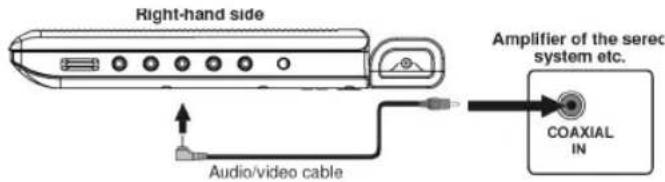
Connect the Coaxial cable for transmission of digital Audio signals to your play-back device or your amplifier.
- Insert the audio plug into the socket on the right-hand side of the device (Fig. 1/23).
- Plug the Audio jack into the corresponding socket on your playback device or your amplifier.
Connecting other Playback Devices
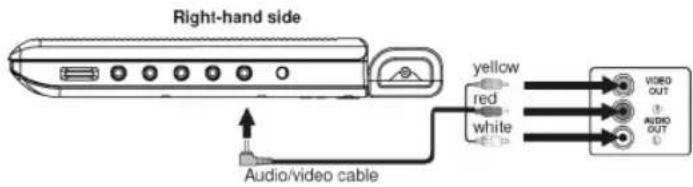
In order to play back the picture from another playback device (e.g. digital camera) on the LCD screen, connect the audio/video cable to the AV IN socket (Fig. 1/22) and the other end to the playback device. Press the AV IN/OUT button (Fig. 1/10) in order to switch the device over to AV IN operation.
i NOTE:
If you would like to display the picture from the internal DVD player on the LCD screen, press the AV IN/OUT button (Fig. 1/10) again.
Antenna connections
Antenna Input (Fig. 1/25)
i NOTE:
Please ensure that it is possible to receive DVB-T signals in your area. Information on the transmission area is available on the Internet under: http://www.ueberallfernsehen.de, or from your specialist dealer.
This device has a built-in DVB-T receiver.
In order to be able to receive digital terrestrial channels with the built-in DVB receiver it is necessary to connect your permanently installed house aerial.
If you are located in the central section of the transmission area you can also use an optional passive or active DVB-T aerial.
- Connect the cable from your DVB-T aerial system or your DVB-T room aerial to the ANT. socket on the left-hand side of the device.
Inputs on the side of the device
USB Input (on the left-hand side of the device) (Fig. 1/16)
Insert a USB storage medium into the corresponding socket on the left-hand side of the device.
Memory Card Slot (on the left-hand side of the device) (Fig. 1/15)
Insert an MMC/SD or MS storage card into the card slot on the left-hand side of the device.
Switching on the player (Abb. 1/1)
Turn on the main switch of the DVD player by moving the „POWER ON/OFF“ switch on the left-hand side of the device to the „ON“ position.
About the DVD-Player
With this DVD-Player you can play a vast variety of DVD-formats Page 39, „Technical data“.
However, you must be aware that in many cases DVDs are encrypted with a so-called “Regional Code”. This specifies for which region in the world the DVD is intended. As an example, the DVDs marked with regional code “1” are intended for the USA and Canada. DVDs with regional code “2” are for use in Europe.
NOTE:
With your DVD-Player you can only play DVDs with regional code “2”. There are both lots of burning and compressing methods as well as high quality differences in (burned) CDs/DVDs. Moreover, the music industry has not yet agreed on a fixed standard for copy protection. This may, in very isolated cases, result in problems when relaying CDs, DVDs and MP3 CDs. This is no malfunction of the player.
Furthermore, there may be isolated problems when playing CDs or DVDs which were created on a PC (e.g. holiday photographs). In case of problems check the settings of the DVD writing program on your computer. You should in particular make sure that the DVD has been finalized. For further information on this matter please refer to the operating manual of your recorder.
Input Not Possible
If a function or input selected by you is not possible, the adjacent symbol is shown on the screen.
Terminology
Track: "Track" is the designation for sections on an Audio-CD. This may be a song, the set of a symphony, etc.
Title/Chapter: Video-DVDs are divided into "Title" and „Chapters“. A „Title" may be e.g. a particular film, the „Chapters" may be subsections of this film.
MPEG4: Your DVD player is also suitable for playing back files that have been compressed using the MPEG-4 system (short for Moving Picture Experts Group-4). MPEG-4 is a compression method by means of which large quantities of data can be reduced without any noticeable loss of picture and sound quality.
Changing the Screen Settings
By repeatedly pressing the MODE (Fig. 1/12; Fig. 2/22) button you can select brightness, contrast, colour hue and the screen mode (16:9 or 4:3). Adjust the settings with the cursor buttons (▶/◀).
ENGLISH
Using the remote control
Loading a CD/DVD
Playing media
You transmit commands to the DVD-Player via remote control. It is thus important to point the end of the remote control towards the DVD-Player.
- Press the ▲ OPEN (Fig. 1/4) button on the device. The CD/DVD tray opens.
- Place the CD/DVD on the tray.
- Close the CD compartment (Fig. 1/3) again. After a short while the type of the loaded medium is displayed (e.g. „DVD“).
Understanding the onscreen CD-menu
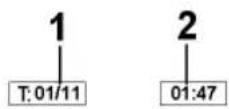
When playing CDs the following status information is displayed on screen:
Current track/total number of tracks (1).
Time (2): This provides information about the duration and the remaining play time. By standard the play time expired of the current track is displayed. The display is in hours, minutes and seconds. Press the DISPLAY-button (Fig. 2/13) once or several times to have further times displayed.
The following possibilities are available for selection
- time remaining to the end of the track,
- playback time of the CD so far,
- time remaining to the end of the CD.
Understanding the onscreen DVD-menu
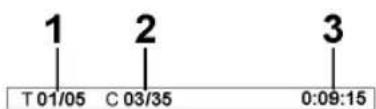
When playing DVDs you can view the on-screen menu by pressing the DISPLAY-button (Fig. 2/13).
DVD-menu
Current title/total number of titles (1).
Current chapter/total number of chapters (2).
Time (3): This provides information about the duration and the remaining play time. By standard the play time expired of the current title is displayed. The display is in hours, minutes and seconds. Press the DISPLAY-button (Fig. 2/13) once or several times to have further times displayed. The following possibilities are available for selection
- time remaining to the end of the title,
- expired playing time of the chapter
- time remaining to the end of the chapter.
Starting the replay
- Place the CD/DVD on the CD/DVD-tray → Page 50, "Loading a CD/DVD".
- Press the „▶II“-button (Fig. 2/21) on the remote control.
i NOTE:
If the replay does not start or the replay is of poor quality, you should check the default settings of the DVD-Player.
Interrupting the replay
- Press the „▶II“-button (Fig. 2/21) on the remote control. The replay is interrupted, the currently visible image is „frozen“.
- Press the „▶II“-button (Fig. 2/21) on the remote control to restart the „normal“ replay.
Changing Audio-Language/Audio-Mode
Press the AUDIO-button (Fig. 2/18) several times to change the Audio language. The available audio languages depend on the DVD.
i NOTE:
If the medium does not support this function (e.g. a CD), you can use this button to change the Audio mode and set it e.g. to „Mono“ or „Stereo“.
Showing subtitles
Press the SUBTITLE-button (Fig. 2/5) to display the current subtitle status. Press the button several times if you would like to activate or deactivate the subtitle function or if you want to choose a different subtitle language. The available subtitle languages depend on the DVD.
Stopping the replay
Press the „■“-button (Fig. 2/20) during replay. The replay stops.
Press the „▶II“-button (Fig. 2/21) again, to continue the replay from the last position.
Press the „■“-button (Fig. 2/20) twice to stop the replay completely. Press the „▶II“-button (Fig. 2/21) again, to replay the CD/DVD from the beginning.
Selecting previous chapter/track
Press the ◄◀◀ button (Fig 2/25) to jump to the start of the previous chapter or track.
Selecting next chapter/track
Press the ▶▶I button (Fig 2/26) to jump to the start of the next chapter or track.
Selecting track directly
Enter the number of the desired chapter/track with the Numerical Buttons on the remote control (Fig. 2/3).
Replay of the chapter/track starts after a short while.
Accessing a section via menu
The on-screen menu enables comfortable access to any sections of a medium. To do this, proceed as follows:
- Select the desired category by repeatedly pressing the button GOTO button (Fig. 2/1).
- Now move to the point from which the replay should start. Depending on the type of medium this may be a track number, a chapter or even a point in time. The input must be made with the Numerical Buttons (Fig. 2/3). Playback begins after a short time.
©
Changing the viewing angle
Some DVDs offer the possibility to select the viewing angle.
Press the ANGLE /TTX-button (Fig. 2/4) to change the viewing angle.
NOTE:
If changing the Viewing Angle is not possible, the message „ “ will be displayed.
Repeat pressing the button to choose a different viewing angle, or to return to the original viewing angle.
Adjusting the volume
The desired volume can be set with the volume control (Fig. 1/24) on the device.
Creating a playlist (CD/DVD)
You may want to replay the titles, e.g. on a CD, in a different order to the order determined by the producer. The function „Create Playlist“ you can create your own playing order.
CD:
To do this, proceed as follows:
- Press the PRO/EPG-button (Fig. 2/12). A table is displayed. Here you can enter the desired order of the tracks (in the case of CDs) or chapters/titles (for DVDs).
NOTE:
However, your playlist will be lost when switching off the DVD-Players or when inserting a new CD/DVD.
DVD:
-
Use the Cursor Buttons (Fig. 2/8) to navigate in the table.
-
Enter the desired track (in the case of CDs) or the desired title and chapter (for DVDs) at the appropriate position in the table. Use the Numerical Buttons (Fig. 2/3) for this purpose.
-
Use the Cursor Buttons (Fig. 2/8) to select the command "Start" at the bottom of the screen to save the input.
-
Press the ENTER-button (Fig. 2/7) on the remote control to confirm this command.
Deleting a playlist (CD/DVD)
- Press the PRO/EPG-button. You will now see a table (Fig. CD or Fig. DVD).
- Use the Cursor Buttons (Fig. 2/8) to manoeuvre to the command "Stop" at the bottom of the table.
- Press the ENTER-button (Fig. 2/7) on the remote control to confirm this command.
- Press the PRO/EPG button to terminate this procedure.
Working in fi le mode
As well as being able to play back „normal“ fi lms or music from CDs/DVDs, this DVD player is also able to play back video or audio fi les from CDs or DVDs which are stored in the fi le system. Such media are frequently available if you create CDs of digital photographs or MP3 music on your computer.
Using CD/DVD
Using a memory card
- Place the CD or DVD on the tray Page 50, „Loading a CD/DVD“.
- Select the desired file(s) and start the replay Page 55, „Selecting file/ directory and starting replay“.
The following memory cards can be used:
SD-Card
Multi Media Card
Memory-Stick
- Insert the memory card into the card reader (Fig. 1/15).
- Press the SOURCE button (Fig. 2/15) on the remote control in order to turn the DVD player to the file mode.
- Select the desired file(s) und start playback Page 55, „Selecting a file/ directory and starting playback“.
- If you would like to change back to DVD mode, press the SOURCE button (Fig. 2/15) repeatedly.
i NOTE:
In order to find out which files can be played back the DVD player now reads the contents of the storage medium. In the case of large storage media this procedure may take a long time. During this time you will see the words „WAITING“ on the screen.
If you have connected an output device to the USB socket its content is displayed first. Press the SOURCE (Fig. 2/15) button a second time to display the contents of the memory card.
Using a USB medium
By means of the USB connection it is possible to connect various USB storage media to the DVD player. Examples of such devices are USB memory sticks or digital cameras.
This device has been developed in accordance with the latest technical developments in the USB fi eld. Unfortunately the large number of different types of USB storage media on offer today makes it impossible to guarantee full compatibility with all USB storage media. For this reason there may be problems in rare cases with playing back from USB storage media. This is not a malfunction of the device.
- Insert a USB storage medium into the corresponding connection of the DVD player (Fig. 1/16).
- Press the SOURCE button (Fig. 2/15) on the remote control in order to switch the DVD player to the file mode.
i NOTE:
In order to find out which files can be played back the DVD player now reads the contents of the storage medium. In the case of large storage media this procedure may take a long time. During this time you will see the words „WAITING“ on the screen.
- Select the desired file(s) and start playback Page 55, „Selecting a file/ directory and starting playback“.
- If you would like to change back to DVD mode, press the SOURCE button (Fig. 2/15) repeatedly.
Selecting fi le/directory and starting replay
Media may contain numerous data/files and directories. You must therefore first determine the data to be played.
- If necessary, insert the CD or DVD into the drive or connect a USB storage medium.
- A two-column menu window appears in which the directories (if there are any directories present) or the files are listed on the left.
- Use the Cursor buttons (Fig. 2/8) to select the desired directory of file in the left-hand list.
- Select this by pressing the ENTER button (Fig. 2/7).
File: Once you have selected a file, this is now displayed directly or played back.
Directory: If you have called up a directory, a list of files now opens.
Here too you can select the desired file with the Cursor buttons and the ENTER button (Fig. 2/7). If you have selected a file, this is now displayed or played back.
Please note:
There are both lots of burning and compressing methods as well as high quality differences in CDs/DVDs and burned CDs/DVDs.
For this reason there may occasionally be problems when fi les are played back (for example files are displayed but cannot be played back). This is no malfunction of the player.
i NOTE:
With the „◀” button (Fig. 2/8) you can return from the files to the directories.
Stopping the replay
Press the „■“-button (Fig. 2/20) on the remote control to stop the replay.
Viewing pictures
The DVD player is excellently suitable for viewing digital photographs. These photos may be stored only any medium (DVD, CD, etc.) supported by the DVD player.
i NOTE:
- Please ensure a suitable size of the photos. Large size photos may take some time to be displayed or may not be displayed at all. It is of advantage if the size of the photo corresponds with the screen size of the playback device. For TVs this is normally 1024x576 pixel (TV-aspect 16:9) or 768x576 (TV-aspect 4:3).
- Please note that any conversion generally involves a loss of data with respect to the original format.
Start the replay of photos by selecting the file from which the replay shall start Page 55, „Selecting file/directory and starting replay“.
i NOTE:
After a few seconds a preview picture appears on the right-hand side in the two-column menu window.
Scrolling
Manual: Press the I◀◀ (Fig. 2/25) or ▶▶I -button (Fig. 2/26) on the remote control to scroll forward or back.
Automatic: Press the ENTER button (Fig. 2/7). The pictures change automatically.
Rotating a photo
You can use the Cursor buttons to rotate a photo during replay:
Rotate clockwise for 90°: Cursor Button ▶
Rotate counter-clockwise for 90°: Cursor Button „◀“
Changing the default settings
A large number of default settings can be comfortably changed via the screen menu.
Press the SETUP-button (Fig. 2/9) on the remote control to start the menu for changing the default settings.
NOTE:
Many of these default settings can be changed via both the remote control and the menu. The difference is: If you change the default settings via the remote control, these changes will only be valid until the DVD-Player is switched off or the DVD is changed.
However, any changes made in the menu are permanent.
Understanding the menu structure
The Setup menu has two menu levels:
Main menu: The main level is represented by graphical symbols.
Sub-menu: The corresponding sub-menu options can be found under each of the main menu options.
Using the menu
Navigation and selection
Use the Cursor Buttons (Fig. 2/8) (▶/◀) on the remote control to browse through the main menu.
In contrast to this, you must use the Cursor Buttons (▼/▲) to move in the sub-menu.
Select a menu option with the ENTER-button (Fig. 2/7).
Use the ENTER-button also to select an option (e.g. "PAL" in the illustration on the left). The selected option (in the example „PAL") is now highlighted.
©
Angle Mark (Camera Angle)
If the DVD contains sequences recorded from different camera angles you can use the ANGLE/TTX button (Fig. 2/4) to select the various camera angles. This function is only available if the DVD contains scenes with various camera angles.
Before you can use this function it has to be activated.
On: The angle symbol is shown on the screen.
Off: No angle symbol is shown on the screen.
OSD Language
Here you can select the language of the on-screen displays.
Digital Output
Here you specify the settings for the digital Audio output.
SPDIF Off: Output of an analogue Audio signal, but no digital signal.
SPDIF/RAW: Output of a digital Audio signal. Use this setting if your amplifier is no two-channel stereo amplifier.
SPDIF/PCM: Output of a digital Audio signal that is converted to a 2-channel signal. Use this setting if your amplifier is a two-channel stereo amplifier.
i NOTE:
If there is no Audio output, even though you connected the DVD-Player to an amplifier, you will most likely have chosen an incorrect setting for the Audio output.
Closed Captions
Some DVDs contain commentaries that accompany the film, e.g. subtitles for the hard of hearing.
On: The commentary is displayed.
Off: No commentaries are displayed.
©
©
©
NOTE:
The DVB-T settings menu can only be selected during DVB-T operation.
Zone (location)
Here you can select the region where you are located.
Time zone
Here you can select the time zone corresponding to your location. This is synchronised by the reception signal to Greenwich Mean Time (GMT). The automatic setting of the time is carried out in accordance with your selection.
In the majority of Europe:
Normal time = GMT +1
Summer time = GMT +2
Age lock
Here you can select the age of the child lock or deactivate the setting.
If you have activated the child lock option, the corresponding information is compared with the age set by you (if such information is transmitted by the respective station). If a programme is intended for an older age group than the age you have set, the programme cannot be shown.
NOTE:
You are asked to put in the password. This is identical to the one you entered in the menu „Password Setup Page/Password“.
Channel Setting
Automatic Scan
Select this type of scan to search for channels through the entire reception frequency range of the receiver.
-
Select the „Start“ command.
-
Confirm the confirmation prompt shown with the ENTER button (Fig.2/7).
The channel search is now performed automatically and may take several minutes.
NOTE:
- If you would like to interrupt the procedure, press the PBC/SCAN (Fig. 2/19) button and acknowledge the confirmation prompt with the ENTER button (Fig. 2/7).
- By pressing the PBC/SCAN button (Fig. 2/19) you can also activate the automatic channel search.
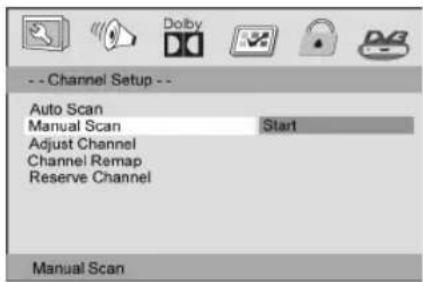
Manual Scan
NOTE:
In this type of search it is necessary to know the frequency of the channel you are searching for. This can be obtained either on the Internet or directly from the respective channel provider.
Select this type of scan in order to specifically search a certain channel or a certain frequency for programmes.
- Select the „Start“ command.
- Confirm the confirmation prompt shown with the ENTER button (Fig.2/7).
- The manual search window opens. Use the numerical buttons (Fig. 2/3) to enter the desired frequency and select the „SCAN“ command. In the frequency range that has been entered a search is carried out for channels that can be received.
NOTE:
If you would like to interrupt the procedure, press the PBC/SCAN button (Fig. 2/19).
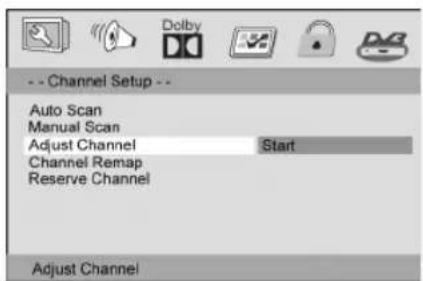
Setting the Channel
Select the „Start“ command. The channel setting menu appears. Use the cursor buttons (Fig. 2/8) to select the channel that you would like to modify.
- Favourite: Press the ☐/FAV button (Fig. 2/28) to include the currently selected channel in the favourites list.
- Delete: Press the REPEAT/DEL button (Fig. 2/11) to jump over the currently selected channel when switching over.
- Protected: Press the I/PROT button (Fig. 2/27) to protect the currently selected channel. You will then be asked to enter the password. If you now want to select the channel, you will be asked once more to enter the password.
To leave the channel setting menu, select the „EXIT“ command and confirm with the ENTER button (Fig. 2/7).
NOTE:
The password is identical to the one you entered in the menu „Password Setup Page/Password“.
Sorting the Channels
- Select the „Start“ command. The channel sorting menu appears.
- Use the cursor buttons (Fig. 2/8) to select the channel you would like to move.
- Press the ENTER button (Fig. 2/7) and use the cursor buttons to select the new channel slot.
- Press the ENTER button again.
In order to leave the channel sorting menu, select the „EXIT“ command and confirm with the ENTER button (Fig. 2/7).
Reserved Channels
Start: The programmes that you have reserved are shown.
Notify time: Here you can set the desired reminder time for the reserved programmes.
The DVB-T Receiver
The signals received from the aerial cannot be processed by a television set. They are processed in the built-in DVB receiver in such a way that audio and video signals (AV) are available at its outputs, which are then passed on to the television set.
DVB-T stands for:
Digital Video Broadcasting Terrestrial: a digital, universal transmission technology for pictures, graphics, sound and text, i.e. for data in every conceivable form and in every possible appropriate quality.
EPG (Electronic Programme Guide)
i NOTE:
This function can only be used if it is supported by the selected station.
The built-in DVB-T receiver has an electronic programme magazine. This makes it possible to depict the information of the individual channels on the screen. You can acquire an overview of the programmes that are currently being transmitted or the programmes of the day.
The EPG Function allows you:
• to show information on programme content on the screen.
- to highlight programmes for which a reminder window is automatically shown at the beginning of the programme.
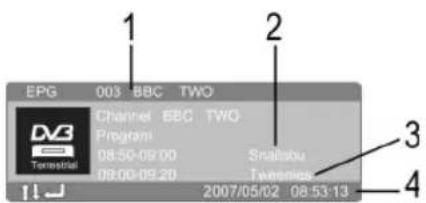
In order to access the EPG menu, press the PROG/EPG (Fig. 2/12) button during DVB-T operation. The EPG information window appears:
- Current channel (1).
- Current programme (2).
• Following programme (3).
• Current date and time (4).
Use the cursor buttons (Fig. 2/8) to select the „Channel“ line and confirm with the ENTER (Fig. 2/7) button in order to display more EPG information.
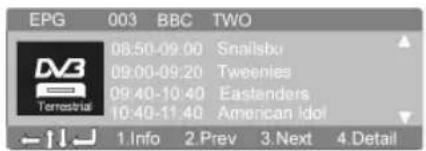
The displayed window shows the programmes of the same day. With the cursor buttons (Fig. 2/8) you can scroll through the information.
The buttons that you can use for the navigation are shown at the bottom left-hand edge. The „←” arrow corresponds to the ENTER button.
Additional information can be called up with the number keys (1-4).
• 1. Info: Further information on the programme.
• 2. Prev: Programme of the previous day.
• 3. Next: Programme of the following day.
• 4. Detail: Contents of the programme.
Reserving Programmes
From the EPG menu it is possible to reserve programmes.
- Use the cursor buttons (Fig. 2/8) to select the desired programme and press the ENTER (Fig. 2/7) button to confirm.
- An information window appears. Select „OK“ to reserve the programme or „Cancel“ to cancel the procedure. Confirm your selection with the ENTER button.
The reserved programme is now listed in the DVB-T menu (reserved programmes).
Deleting reserved programmes
- If you would like to delete the reserved programme again, select „channel setup/reserved channel/start“ in the DVB-T settings menu.
- Use the cursor buttons (Fig. 2/8) to select the corresponding programme and confirm with the ENTER button (Fig. 2/7).
- Confirm the confirmation prompt with the ENTER button.
Teletext
Press the ANGLE/TTX button (Fig. 2/4) to call up the teletext function. Enter the desired teletext page with the help of the numerical buttons (Fig. 2/3). The number you have entered is shown in the top left-hand corner of the screen. After you have entered the desired teletext page number your television set searches for the page. As the teletext pages cannot all be transmitted at the same time it may take a few seconds until your set has found the page.
For all teletext operators page 100 shows the list of contents.
- Use the „I” or MENU button (Fig. 2/25, 24) to scroll one page forwards or backwards.
- By pressing the ZOOM button (Fig. 2/23) the teletext group shown in the yellow fi eld is called up.
- By pressing the „□□I“ button (Fig. 2/26) the teletext block shown in the blue fi eld is called up.
In order to turn off the teletext, press the ANGLE/TTX (Fig. 2/4) button again.
Selecting favourites
By repeatedly pressing the „FAV“ button (Fig. 2/28) you can switch through the previously selected favourite channels. (For selecting favourites see the DVB-T menu „Setting the channel“.)
Troubleshooting
Before sending the machine to the Customer Services, use the following table to check whether you can rectify the fault yourself.
| Fault | Possible cause | Solution |
| The power supply light does not light | No power supply | ⚠ WARNING:Before searching for the fault, please turn the device off. |
| During battery operation: check whether the battery has clicked into place.During mains adapter operation: Put the mains plug in correctly, if necessary, check the socket is working with another appliance. | ||
| no power supply/ mains switch switched off | Switch the player on by the mains switch (Fig. 1/1). | |
| No image displayed on screen | During operation with a television set:Video cable not correctly connected | ⚠ WARNING:Before searching for the fault, please turn the device off.Check the correct fi t of the Video cable. Make sure that the jacks are tightly in the sockets. |
| no DVD/CD inserted Insert a CD/DVD. | ||
| DVD/CD not compatible Use only compatible media. | ||
| DVD/CD incorrectly placed in CD/DVD-tray | Turn the CD/DVD around. | |
| CD/DVD is dirty Clean the CD/DVD around. | ||
| CD/DVD is damaged Use a different CD/DVD. | ||
| Incorrect settings Check the settings of your DVD-Player. | ||
| The child protection system is activated | Deactivate the child protection. | |
| No response when pressing button | Power supply problem or static charging of appliance | Switch off the main switch and pull out the mains plug. Insert the mains plug into the socket and switch the player on again. |
| No sound | During operation with a television set:Audio cable not connected | WARNING:Before searching for the fault, please turn the device off.Check the correct fi t of the Audio cable. Make sure that the jacks are tightly in the sockets. |
| Volume turned to low Increase the volume by turning the VOL volume control (Fig. 1/24) on the device. | ||
| Headphones not correctly inserted Check that the headphones are correctly positioned. | ||
| Amplifier switched off | If you use an amplifier for Audio output: check whether the amplifier is switched on. | |
| Incorrect settings Check the settings of your DVD-Player. | ||
| The remote control does not work | Wrong direction The remote control is not pointed towards the DVD-Player. | |
| Too far away | Make sure that the remote control is not further than 7 m away from the player. | |
| Batterie empty Replace the batteries in the remote control. | ||
| Titles are played in wrong order | Playlist is used Delete the playlist. | |
| DVD cannot be played DVD has not been finalized Use a finalized DVD. | ||
| No DVB-T reception | The station being received is too weak for reception via the telescopic aerial. | Realign the aerial or connect your house or room aerial. |
| No DVB-T reception in your region. | ||
| The station being received is too weak. | Realign the aerial. | |
| Mosaic similar picture | The station being received is too weak. | Realign the aerial. |
©
OSD Menu overview
| **GENERAL SETUP PAGE ** -- DVB-T SETUP PAGE -- | |||
| TV DISPLAY 4:3 PANSCAN AREA GERMANY4:3 LETTERBOX SPAIN16:9 UKWide Squeeze FRANCE | |||
| ANGLE MARK ON ITALY | OFF NETHERLANDS | ||
| OSD LANGUAGE TIME ZONE CHANGE | |||
| DIGITAL OUTPUT SPDIF/OFF | PARENTAL AGE | 4 | 5611121314151718DISABLE |
| SPDIF/RAW | |||
| SPDIF/PCM | |||
| CLOSED CAPTIONS | ON 7 | ||
| OFF 8 | |||
| SCREEN SAVER | ON 9 | ||
| OFF 10 | |||
| **ANALOG AUDIO SETUP PAGE ** | |||
| DOWNMIX | LT/RT | ||
| STEREO | |||
| 3D SURROUND | |||
| OFF 16 | |||
| **DOLBY DIGITAL SETUP ** | |||
| DUAL MONO | STEREO | CHANNEL SETUP | |
| L-MONO | |||
| R-MONO | |||
| MIX-MONO | |||
| DYNAMIC | -- CHANNEL SETUP -- | ||
| AUTO SCAN START | |||
| MANUAL SCAN START | |||
| ADJUST CHANNEL START | |||
| CHANNEL REMAP START | |||
| RESERVE CHANNEL STARTNOTIFY TIME | |||
| **PREFERENCE PAGE ** | |||
| TV TYPE | PAL | ||
| NTSC | |||
| PBC | ON | ||
| OFF | |||
| AUDIO | |||
| SUBTITLE | |||
| DISC MENU | |||
| PARENTAL | 1 KID SAFE | ||
| 2 G | |||
| 3 PG | |||
| 4 PG 13 | |||
| 5 PGR | |||
| 6 R | |||
| 7 NC17 | |||
| 8 ADULT | |||
| DEFAULT | RESET | ||
| **PASSWORD SETUP PAGE ** | |||
| PASSWORD MODE | ON | ||
| OFF | |||
| PASSWORD | CHANGE | ||
HSI70NE
©
- DEUTSCH
- ENGLISH
- Inhalt
- Safety instructions
- Operating manual
- Children
- Power supply
- Laser
- Setting up and connecting
- Unpacking
- ATTENTION:
- NOTE:
- Setting up
- Starting up
- WARNING:
- Effective range of the remote control
- With the alternating current adapter
- With the adapter for the cigarette lighter
- Precautionary Measures:
- With the rechargeable battery
- Recharging the Battery
- Inserting and Removing the Rechargeable Battery
- Digital
- Connecting other Playback Devices
- i NOTE:
- Antenna connections
- Antenna Input (Fig. 1/25)
- About the DVD-Player
- Playing media
- DVD-menu
- Interrupting the replay
- Changing Audio-Language/Audio-Mode
- Showing subtitles
- Stopping the replay
- Selecting previous chapter/track
- Selecting next chapter/track
- Selecting track directly
- Accessing a section via menu
- Changing the viewing angle
- Adjusting the volume
- Creating a playlist (CD/DVD)
- CD:
- DVD:
- Deleting a playlist (CD/DVD)
- Working in fi le mode
- Selecting fi le/directory and starting replay
- Please note:
- Viewing pictures
- Scrolling
- Rotating a photo
- Changing the default settings
- Understanding the menu structure
- Using the menu
- Angle Mark (Camera Angle)
- OSD Language
- Digital Output
- Closed Captions
- Time zone
- Age lock
- Channel Setting
- Manual Scan
- Setting the Channel
- Sorting the Channels
- Reserved Channels
- The DVB-T Receiver
- EPG (Electronic Programme Guide)
- Reserving Programmes
- Deleting reserved programmes
- Teletext
- Selecting favourites
- Troubleshooting
- OSD Menu overview
Brand : CLATRONIC
Model : CTV 732
Category : Portable DVD Player