
Stockholm - TV SEG - Free user manual and instructions
Find the device manual for free Stockholm SEG in PDF.


User questions about Stockholm SEG
0 question about this device. Answer the ones you know or ask your own.
Ask a new question about this device
Download the instructions for your TV in PDF format for free! Find your manual Stockholm - SEG and take your electronic device back in hand. On this page are published all the documents necessary for the use of your device. Stockholm by SEG.
USER MANUAL Stockholm SEG
text_image
2018 Mtrs 2 10:15-10:45 10:45-11:15 Room for Improvement Location, Location, Location Signal Quality 42% 93%Unit and Accessories
natural_image
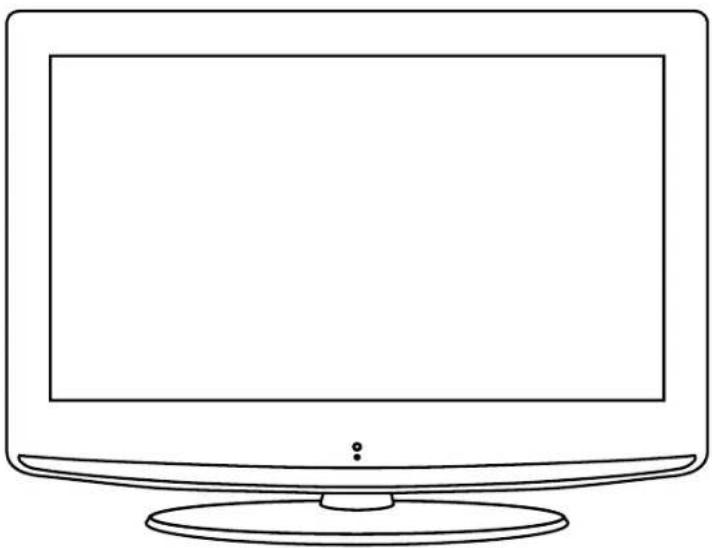
Line drawing of a flat-screen computer monitor with a blank screen and stand (no text or symbols)TV set
text_image
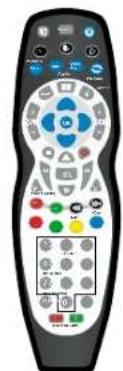
Front panel of a remote control with labeled buttons and ports in EnglishRemote Control

natural_image
Black cable with a connector, no visible text or symbolsPower cable

Batteries for Remote Control
User Guide
Quick Start Guide
PVR Guide
Stockholm 68.6cm (27") LCD-TV
Getting Started
Front view
SWITCH: Power on/off
-Remote Control Window (keep clear)
LED Indicator
- (IR) Infrared Receiver: Receives IR signals from the remote control. (Power on/Standby) LED Indicator: Press POWER button to turn on and standby
Indicator on(Red) Standby mode
Indicator on(Green) Power on mode
The effective receiving scope for the signal is 5-8 meters from the front of the remote control window, and 30^ to the left or right side and 20^ above or below the control window. - The functions of the buttons are described as below:
Power: Turn on/standby the TV set.
TV/AV: Press to display the input source menu.
MENU: Press to display the OSD menu, Press again to exit the menu.
CH+/-: press to increase (CH+) or decrease (CH-) channel number.
VOL+/-: press to increase (VOL+) or decrease (VOL-) the volume level.
To turn on the LCD TV
Press on the back of the LCD TV to first.
Power on
Power off
©
©

text_image
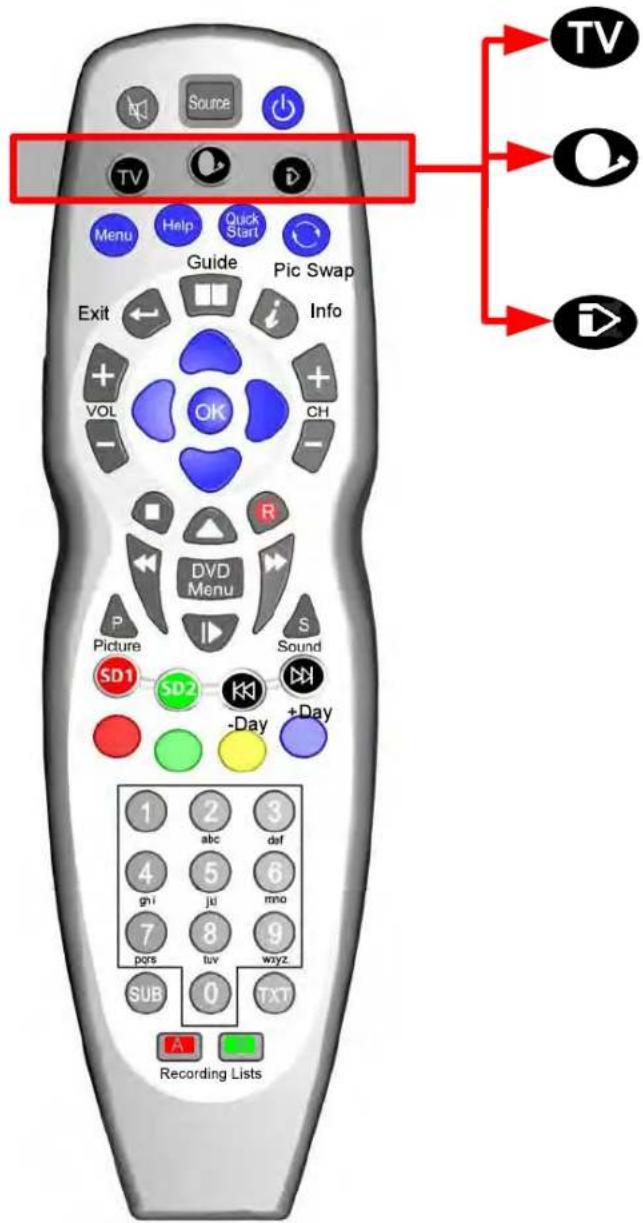
Source TV Menu Help Quick Start Guide Pic Swap Exit Info VOL OK CH - R DVD Menu P Picture S Sound SD1 SD2 -Day +Day SUB 0 TXT Recording Lists TV Q iDThis button puts the Remote in TV control mode
This button puts the Remote in a Multi Satellite control mode
* A number of modes are available. See below for details
This button puts the Remote into an Internet Player mode. This is only used on some TVs and Digital Boxes

To Set the Multi-Satellite Mode button
The Sat button is programmable in the remote and can be set as follows:
To set the button if you have no Satellite Receiver: Press and at the same time press 0.
If you have a Satellite Receiver with Recorder (Known as "Plus" type) Press and at the same time press 1.
If you have a Satellite Receiver with High Definition (Known as "HD" type) Press and at the same time press 2.
If you have a normal Digital Satellite Receiver (Known as "Digital" type) Press and at the same time press 3.
If you want to use this button to switch on the DVD Player* Press and at the same time press 4.
* DVD Player only fitted on certain models.
O + 0 NO SAT RECEIVER
O + 1 \~ SAT +
+ 2 SAT HD
Q + 3 \~ SAT DIGITAL
Menu Operation
Basic TV operation
Turning on and off the TV
TURN ON THE LCD TV:
- Connect the power cable to the mains supply and turn on the power by using the "POWER SWITCH" on the left hand side of the TV set. The standby indicator on the front of the TV will light up in red.
- Press the Power button on the right hand side of the TV or the power button on the remote control to turn on the TV, the indicator will light green.
TURN OFF THE LCD TV
- Press the Power button on the right hand side of the TV or the power button on the remote control to turn the TV off into standby mode, the indicator will light red.
- To turn off the TV completely, set the POWER SWITCH on the left hand side of the TV set to the 0 position, the indicator light will extinguish.
First time installation
Note: When the TV is turned on for the first time the "First time installation" menu will be displayed.
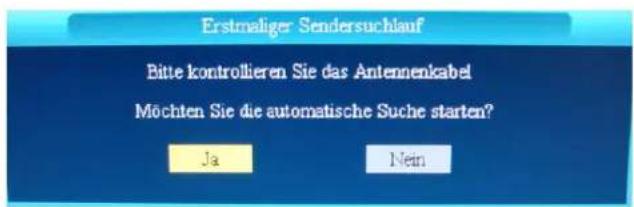
Please make sure the TV aerial is plugged into the RF socket at the rear of the TV. Make sure the Yes option is highlighted in yellow, then press the "OK" button on the remote control to start the tuning procedure. This process will find and store all available ATV and DTV channels. By pressing the "Quick start" button, the "First Time Installation" can be recalled at any time.
Volume adjustment
- Press VOL+/- to adjust the volume.
- If you want to switch the sound OFF, press the MUTE ☐.
- You can cancel this function by pressing MUTE or VOL+ button.
Choosing a TV channel
-
Using the CH+/- on the front panel or on the remote control.
-
Press CH+ to increase channel number.
-
Press CH- to decrease channel number.
-
Use 0-9 digit buttons to change channel:
Simply press a one digit number to choose the required channel or for a two digit number press the two digits of that number for example: digits 2 and 3 for channel 23.
How to adjust the OSD screen
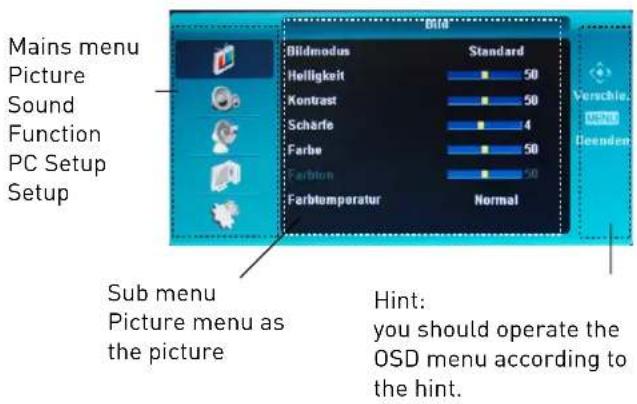
- Press the MENU button to display the main menu as below.
- Use 🎯 buttons to select menu, and press button to enter the menu.
text_image
Mains menu Picture Sound Function PC Setup Setup Sub menu Picture menu as the picture Bildmodus Standard Helligkeit 50 Kontast 50 Scharfe 4 Farbe 50 Ferbion 50 Farbtemperatur Normal Hint: you should operate the OSD menu according to the hint.Selecting input source
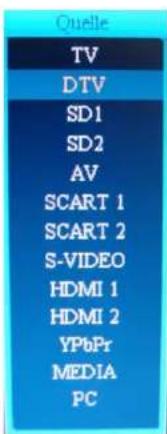
You can display the input source menu by pressing the SOURCE button on the remote control or the TV/AV button on the TV, press buttons to select, and press OK button to confirm.
text_image
Quelle TV DTV SD1 SD2 AV SCART 1 SCART 2 S-VIDEO HDMI 1 HDMI 2 YPbPr MEDIA PCIn this manual, the OSD (On Screen Display) may be different from your TV's because it is just example to help the TV operation.
PICTURE menu options
Press the MENU button on your TV or on the remote control then use the buttons to select the picture menu, press the button to enter the menu (see picture below).
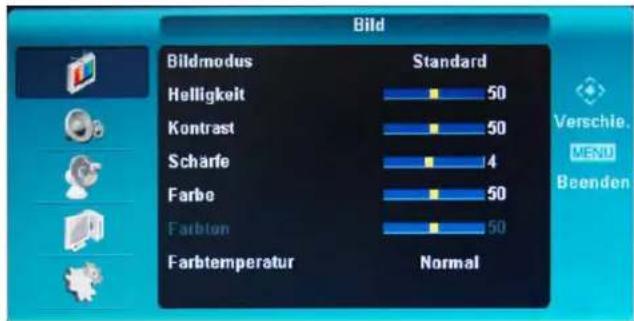
- Use the buttons to select what you want to adjust in the Picture menu.
- Press the buttons to adjust.
- When you are satisfied with the adjustment, press the MENU button.
Picture Mode
Select the type of picture which best corresponds to your viewing requirements by selecting Picture Mode in Picture menu. You can select the picture mode directly by pressing the Picture button on the remote control.
Note: Only in USER mode is it possible to adjust the five options below manually.
Brightness
Contrast
Colour (This option is not available in PC Source)
Sharpness
Tint (This option is only available in the NTSC system)
Color Temperature: Select an optimum colour temperature from the options Normal, Cold and Warm.
SOUND menu options
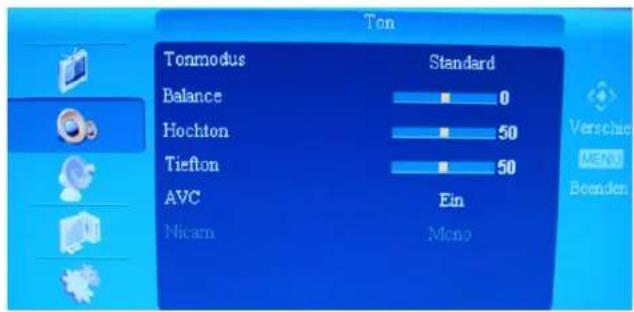
Press the MENU button on your TV or on the remote control then use the buttons to select the Sound menu, press the button to enter the menu (see picture below).
text_image
Ton Tonmodus Standard Balance 0 Hochton 50 Tiefton 50 AVC Ein Nicam Mono
- Use the 🔊 buttons to select what you want to adjust in the Sound menu.
- Press the 📁 buttons to adjust.
- When you are satisfied with the adjustment, press the MENU button.
Sound Mode
Select the type of sound which best corresponds to your listening requirements by selecting Sound Mode in the Sound menu. You can select the Sound mode directly by pressing the Sound button on the remote control.
Note: Only in USER mode is it possible to adjust the three options below manually.
Balance
Bass
Treble
AVC: Turn on/off the Auto Volume Control function. Nicam: Mono / Stereo options (only available in ATV mode)
SETUP menu options
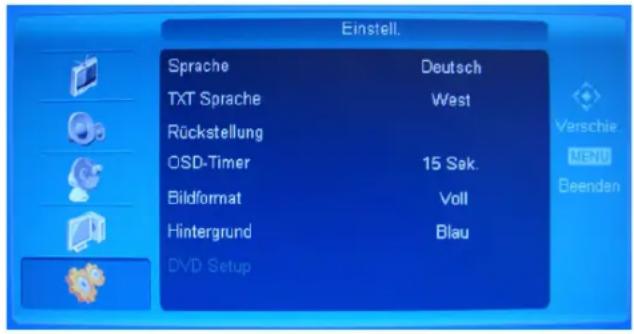
Press the MENU button on your TV or on the remote control then use the buttons to select the Setup menu, press the button to enter the menu (see picture below).
- Use the buttons to select what you want to adjust in the Setup menu.
- Press the buttons to adjust.
- When you are satisfied with the adjustment, press the MENU button.
Language: Select the OSD language. Options are Deutsch / English
TXT Language: Select the region TXT language (set west for UK) not available in DTV source.
Reset: Reset all the settings.
OSD Time: Select the duration of time that the menu stays on the screen.
Size: Select from Full, Panorama, Zoom, Auto, 16:9, 4:3.
Background: Select background colour Blue / Black (not available in DTV source).
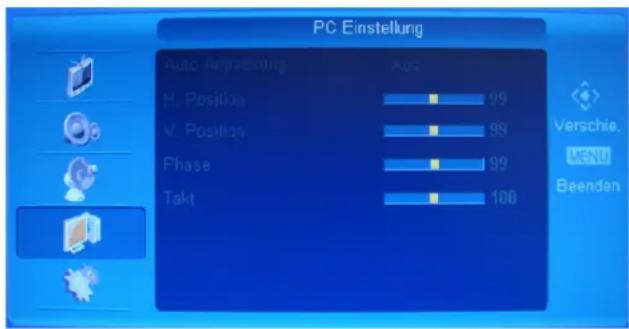
PC SETUP menu options
The PC SETUP menu is only available in PC mode. Press the MENU button on your TV or on the remote control then use the buttons to select the PC
Setup menu, press the button to enter the menu (see picture below).
text_image
PC Einstellung Auto Amplification H. Position V. Position Phase Takt 99 99 99 100 Verschie. MENI Beenden- Use the 🎨 buttons to select what you want to adjust in the PC Setup menu.
- Press the buttons to adjust.
- When you are satisfied with the adjustment, press the MENU button.
Auto Adjust: Turn on/off the Auto Adjust function. The TV will adjust H-Position, V-Position, Phase and Clock automatically to make the screen displays best when the function is turned on.
H-Position: Adjust the Horizontal position of the PC Screen.
V-Position: Adjust the Vertical position of the PC Screen. Phase: When necessary, adjust the pixel phase of the picture to avoid picture interface.
Clock: Customize the time of any vertical bars or stripes visible on the screen background.
Stockholm 68.6cm (27") LCD-TV
Channel menu options
The Channel menu is only available in TV mode. Press the MENU button on your TV or on the remote control then use the buttons to select the
Channel menu, press the button to enter the menu (see picture below).
Search menu and manual search the frequency for the channel.
Note: Before you perform Manual Tuning, you must choose the country where you are by selecting the Country option.
Fine Tune: Fine tune the frequency for the channel when signals are weak.
Skip: When the skip function is activated to a channel, this channel will be skipped when browsing through the channels using the CH+/- button.
Country: Select the country.
Program Table:
Press the button to enter Program Table menu as below,
Channel
Information
-
Use the buttons to select what you want to adjust in the Channel menu.
-
Press the buttons to adjust.
-
When you are satisfied with the adjustment, press the MENU button.
Press the buttons to view the hidden options.
Operations
Swap: Swap two channels' position.
Select the channel, and press RED button, then select the channel you want to swap, and press OK button to swap.
Move: Move a channel.
Select the channel, and press GREEN button to pick-up, then select the position you want the channel to be moved to, and press OK button.
Copy: Copy a channel.
Select the channel, and press YELLOW button to copy, then select the position you want the channel to be copied to, and press OK button.
Delete: Delete a channel.
Select the channel, and press BLUE button to delete the channel.
Channel: Select the current channel for setting.
Color System: Select the Color System for the current channel—AUTO, PAL, SECAM.
Sound System: Select the Sound System for the current channel—AUTO, BG, DK, I, L, L', M.
Auto Search: Press button to search all the TV's channel automatically.
When the auto searching procedure is complete, the channels will be automatically allocated to their correct channel number positions.
: Select the channel.
: Select the page of the channels.
EDIT: button on the remote control.
You can press the OK button on the channel table to enter the Channel Editor menu. You can name the channel, change the sound system, fine tune the channel or skip the channel.
Note:
-
Before you perform Auto Searching, you must choose the country where you are by selecting the Country option.
-
The auto searching will not stop until the procedure is complete, unless you press the menu or exit buttons.
Manual Search: Press button to enter the Manual
-
Use the buttons to select what you want to adjust in the Channel Editor menu.
-
Press the 🎨 buttons to adjust.
-
When you are satisfied with the adjustment, press the MENU button.
Channel name menu
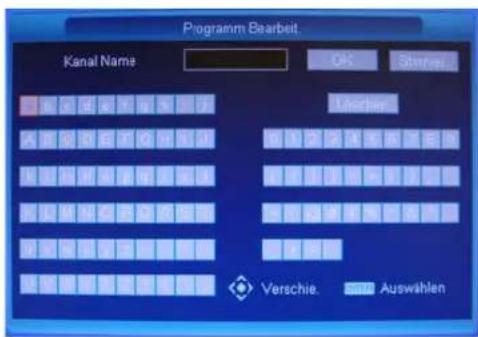
Select the letters by buttons, and use the button to confirm. The editor table can be used to confirm a name, cancel a name or delete letters in a name.
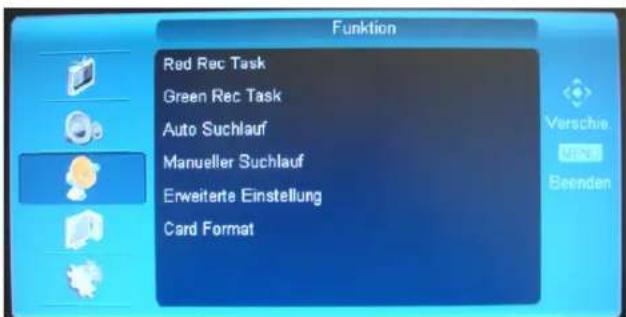
DTV Function menu options
The Function menu is only available in DTV mode. Press the MENU button on your TV or on the remote control then use the buttons to select the
Function menu, press the button to enter the menu (see picture below).
-
Use the buttons to select what you want to adjust in the Function menu.
-
Press the buttons to adjust.
-
When you are satisfied with the adjustment, press the MENU button.
Red Rec Task: Opens the Timer Recording list menu for the red card. Green Rec Task: Opens the Timer Recording list menu for the green card.
Auto Search: Press button to start the DTV channel search procedure.
Manual Search: Press button to enter the manual search menu, search the frequency for the required channel.
Card Format: This option gives you the choice of formatting the Green or Red card.
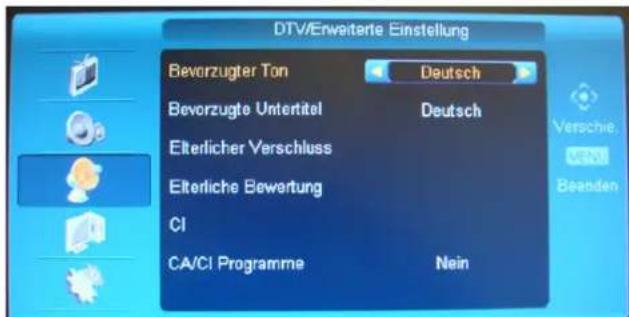
Advanced Setting: Press button to enter the menu as below:
-
Use the buttons to select what you want to adjust in the Function/Advanced Setting menu.
-
Press the buttons to adjust.
-
When you are satisfied with the adjustment, press the MENU button.
Preferred Audio: When the current programme has several language options, choose a language.
Preferred Subtitle: When the current programme has several subtitle options, choose a subtitle.
Parental Lock: Set the password to use the Parental rating option. See below on this page how to set the password.
Parental rating: Using the set password enter the parental rating menu.
CI: Common Interface shows info and details stored on your pay as you view card.
CA/CI Programme: Select YES if you are using a pay as you view card.
Parental Lock: Setting or modify the Parental lock.
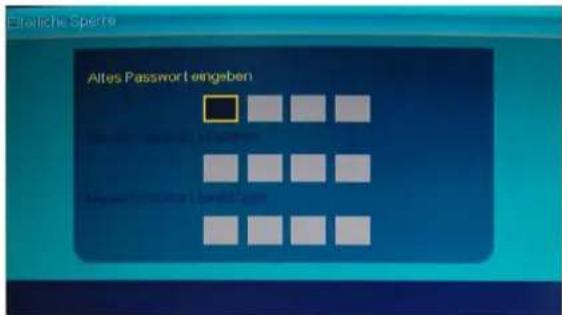
- Initial Password is 0000.
- Change your password in the code entry box using the number keys (0-9).
- Input new password to the Enter New Password entry box using the number keys (0-9).
- Enter the same new password in the Confirm New Password entry box using the numbers(0-9).
You can exit the password setting window, by pressing the Menu or Exit button.
©
©
©
©
©
Herstellergarantie
service@schmid-electronics.de