NEO2 CMO-3589-BK - Mouse Connect IT - Free user manual and instructions
Find the device manual for free NEO2 CMO-3589-BK Connect IT in PDF.


User questions about NEO2 CMO-3589-BK Connect IT
0 question about this device. Answer the ones you know or ask your own.
Ask a new question about this device
Download the instructions for your Mouse in PDF format for free! Find your manual NEO2 CMO-3589-BK - Connect IT and take your electronic device back in hand. On this page are published all the documents necessary for the use of your device. NEO2 CMO-3589-BK by Connect IT.
USER MANUAL NEO2 CMO-3589-BK Connect IT
POUŽÍVATELŠKÝ MANUÁL
HASZNÁLATI ÚTMUTATÓ
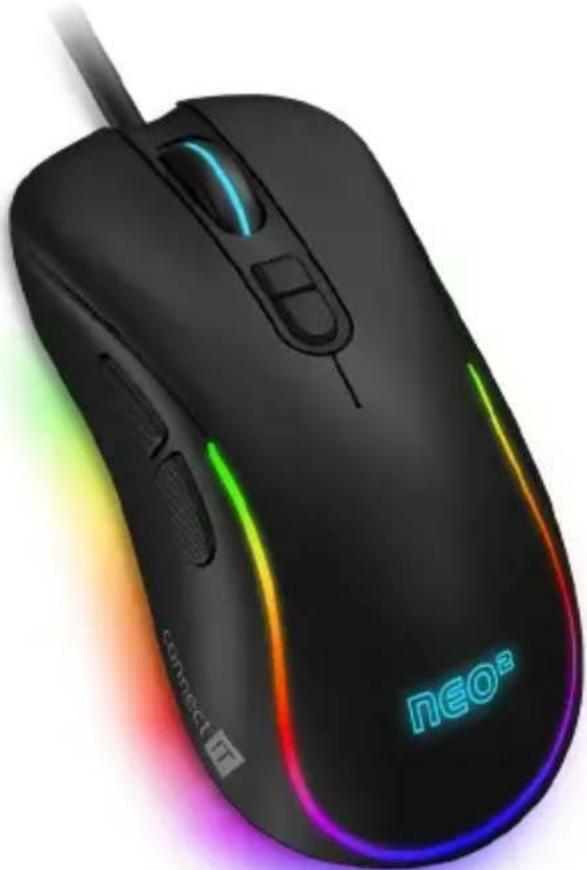
natural_image
Black NEO® computer mouse with glowing blue and green laser lines, no visible text or symbols on the device itself.EN PROFESSIONAL GAMING MOUSE
DE PROFI GAMING-MAUS
CZ PROFESIONÁLNÍ HERNÍ MYŠ
SK PROFESIONÁLNA HERNÁ MYŠ
HU PROFI GAMER EGÉR
CMO-3589 series
THANK YOU
FOR BUYING A CONNECT IT PRODUCT.
Do you want to be the first to know about other news of CONNECT IT? Follow us on social media.

YouTube

connectit
- Before putting this product into operation please read through the User's Manual carefully, even if you are already familiar with the use of similar products. Use the product only as described in this User's Manual.
- Keep this User's Manual for future reference. It is an integral part of the product and may contain important instructions for commissioning this product, its operation and cleaning.
- Make sure that all other people handling this product are familiar with this Manual. If you hand the product over to other people, make sure that they read this User's Manual, which shall be given to them together with the product.
We recommend keeping the original packaging of the product, proof of purchase and the warranty card, if supplied, at least for the warranty period. In case of transport, we recommend packing the product in the original packaging, in which it has been delivered in, as it protects it best against damage during transport.
Scan this QR code to get the latest version of the User's Manual. In your smartphone, open the QR code reader application and point the smartphone at this code – the page for downloading the latest version of the User's Manual will open:
text_image
QR code containing a small animal icon in the center, likely linking to a digital resource or website.You can also find the latest version of the User's Manual on our website www.connectit-europe.com
The text and technical specifications are subject to change.
1 Technical specification
- 7 buttons including scroll wheel
• 14 RGB backlight modes
● Backlight mode that responds to sounds from the computer
● Ergonomic design for 3 gaming mouse grips (Claw/Fingertip/Palm) - SW for free
- Instant 725 precise and sensitive optical sensor
- Huano mechanical switches (5 million clicks lifetime)
● 17 levels of resolution from 200 to 7200 DPI
• 125 Hz polling rate
- 20G acceleration
● Gold-plated USB-A connector
- 150 cm premium braided cable
● Easy Plug & Play installation
- USB 2.0 backward compatible with USB 1.1
● Dimensions: 121 x 65 x 39 mm
- Weight: 105 g
System requirements: Universal Windows and Mac OS compatibility (product features not supported by Mac OS may not work properly)
2 Description of Each Part
1 Left mouse button
2 Right mouse button
3 Scroll wheel
4 DPI - Toggle
5 RGB mode switching
6 Forward button
7 Back button
8 USB-A connector
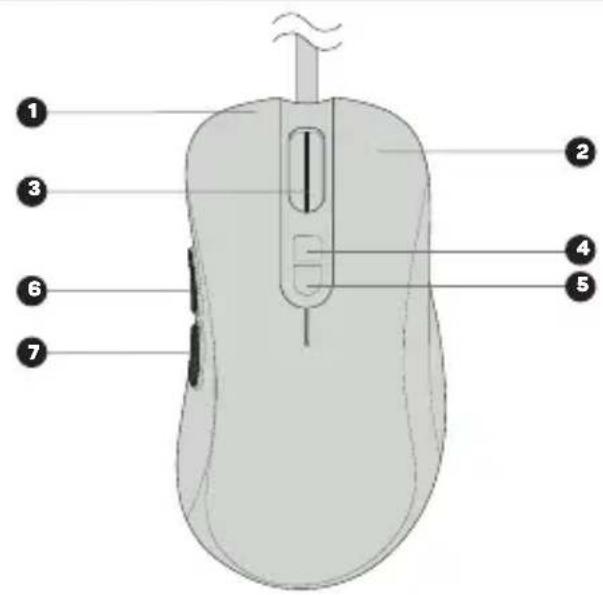
text_image
Diagram of a computer mouse with numbered parts labeled 1 through 7 for identification.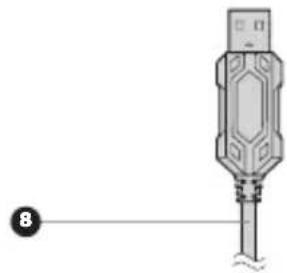
natural_image
Diagram of a screwdriver with a labeled connector (no text or symbols present)3 Installation
Plug the gaming mouse into the computer and install the software that is available at
www.connectit-europe.com
- Click on Next.
- Select the destination folder and click Next to confirm. To select a different destination folder, click Browse, select another folder, and then click OK.
- Press the Install button to start the program installation.
- Click Finish to complete the installation.
4 Software
This mouse comes with user software where you can create macros, reconfigure mouse buttons, edit mouse properties, change mouse backlighting and all of this can be stored in 4 different user profiles.
User profiles
The software has tabs for up to 4 user profiles. You can save individual profiles to disk (Export) or upload already created profiles (Import). Changes made to the profile can be saved by clicking „Apply”; if you do not wish to save the changes, click „Cancel”.

text_image
Profile I Profile II Profile III Profile IV Import Export Reset Apply Cancel connect ITSelecting profiles
Each of the buttons can also be assigned to switch to a specific profile. There are 4 profiles to choose from, which can be pre-customized according to your preferences.
Button settings
In this section the software allows you to reconfigure each button on the mouse, provided that at least one button is set with the Left click function. You can choose from the following options:
Classical functions
| Left click When the button is pressed, it performs a left mouse click. | |
| Middle click When the button is pressed, it performs a scroll wheel click. | |
| Right click When the button is pressed, it performs a right mouse click. | |
| Backward When the button is pressed, it performs the back function. | |
| Forward When the button is pressed, it performs the forward function. | |
| DPI Loop | When the button is pressed, it changes the DPI setting according to the specification in the "Advanced settings" section |
Extended functions
| Show desktop When the button is pressed, it minimizes all active windows. | |
| Double click | When the button is pressed, it performs a double-click of the left mouse button. The interval between each click can be controlled in the „Advanced settings" section. |
| Rapid fire | Pressing and holding a button will trigger a sequence that continuously repeats the left mouse click while the button is held. The interval between each click can be controlled in the „Advanced settings" section. |
| LED loop When the button is pressed, the backlight mode is switched. | |
| DPI + When the button is pressed, the DPI level increases. | |
| DPI - When the button is pressed, the DPI level decreases. | |
Windows functions
| Copy Press the button to copy the selected file, folder, text, etc. | |
| Paste When the button is pressed, the selected file, folder, text, etc. to be copied is pasted. | |
| My Computer Press the button to open the This Computer window. | |
| Undo Press the button to undo the last change made in the active window. | |
| Lock PC Press the button to lock the computer. | |
| Close window Press the button to close the active window. | |
| Select All | When the button is pressed, all possible contents in the active window are selected. |
| Search When you press the button, a search of documents and websites is activated. | |
Multimedia functions
| Browser When the button is pressed, the Internet browser opens. | |
| Media player Press the button to open the media player. | |
| When the button is pressed, the e-mail client is activated. | |
| Volume up | When the button is pressed, the volume level increases. |
| Volume down | When the button is pressed, the volume level decreases. |
| Previous track | When the button is pressed, the previous audio/video track is played. |
| Next track | When the button is pressed, the next audio/video track is played. |
| Mute Pressing the button mutes the audio track. | |
| Play/Pause | Press the button to play/pause the audio/video track. |
| Calculator Press the button to open the calculator. | |
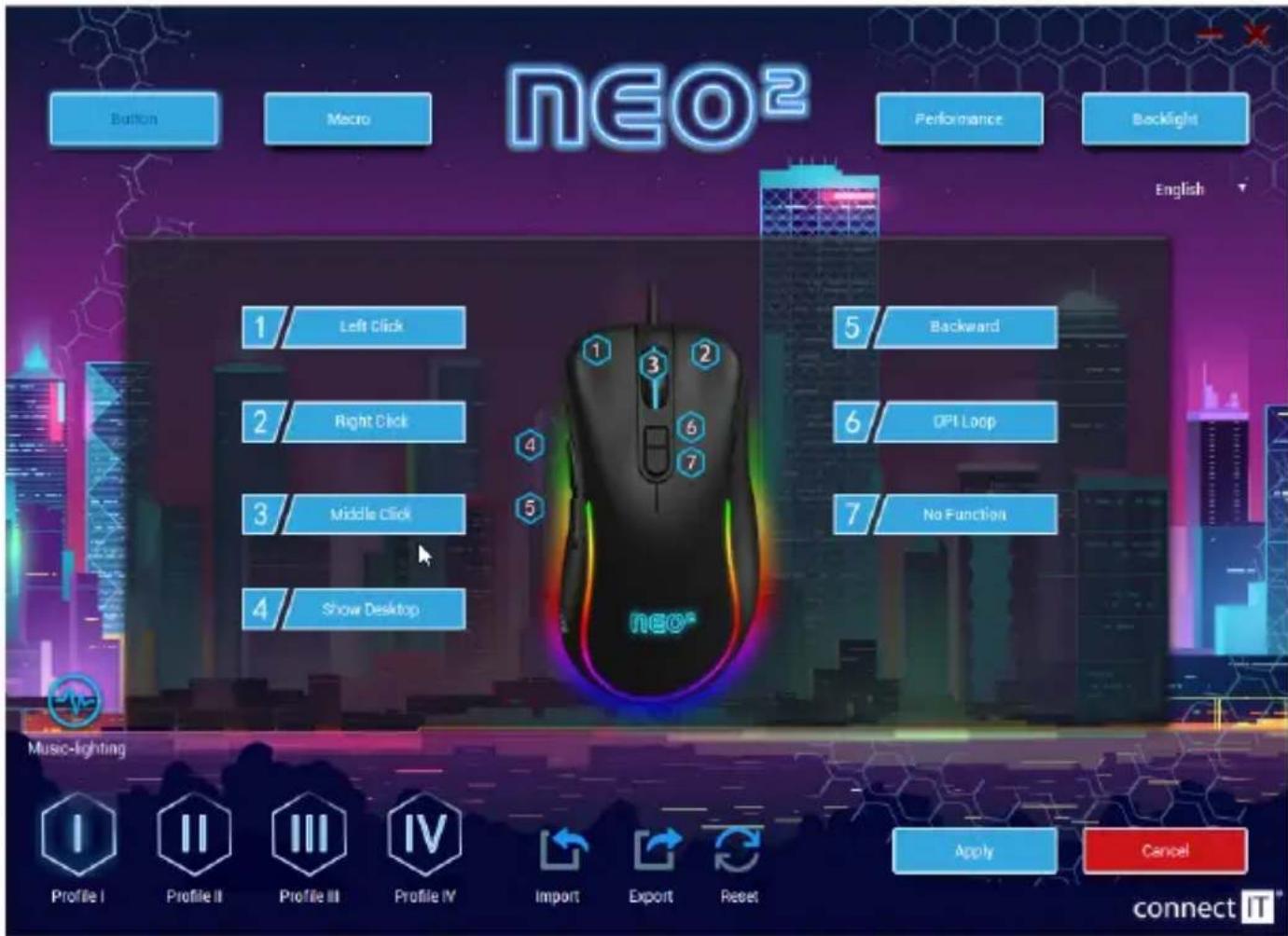
text_image
neo2 Button Macro Performance Backlight English 1 Left Click 2 Right Click 3 Middle Click 4 Show Desktop 5 Backward 6 DPI Loop 7 No Function Music-lighting Profile I Profile II Profile III Profile IV Import Export Reset Apply Cancel connect ITMacro
Each of the buttons can be assigned macros, which you can create beforehand in the „Macro“ tab. When selecting a macro, you first select the „Macro group“ and then select the macro you want to use.
You can create macros in this section. Right-click in the column labeled „Macro list“ to open a table with the following selection:
New macro group Creates a group for macros arrangement.
Add a new macro Creates an "empty" macro to record into
Delete Deletes the selected macro or group of macros.
Reset all macro groups Deletes all macro groups at once.
Rename Renames the selected macro or group of macros
Import macro group Imports a group of saved macros from your storage.
Export macro group Exports a group of macros from the software to your storage.
How to create a macro:
- Right-click in the left column labeled "Macro List". You will need to create a new macro group first.
- Rename the macro group as needed. Right-click on the macro group and then left-click on "Add new macro" in the software.
- Rename the macro and when you are ready to load the macro, left-click on [▶].
- Press the desired keys and stop recording the macro with the symbol (■).
- In the right column „Macro content“ you will see what you have uploaded and here you can adjust the delay.
- You can assign the macro you have created to individual buttons in the "Button settings" section.
You can further edit the created macro, if you click on the symbol (▶) in the software, the following menu will open:
| Insert before | Inserts in front of the selected location - a left mouse click, a mouse wheel press, and a right mouse click. |
| Insert after | Inserts behind the selected location - a left mouse click, a mouse wheel press, and a right mouse click. |
| Insert XY | Inserts an instruction to move the mouse cursor along the X and Y axis on the selected location. |
| Insert DPI | Inserts an instruction to reset the DPI to the previous value or an instruction to set the DPI value to the desired size at the marked location. |
| Insert LED | Inserts backlight control into the macro, where you can adjust the duration, backlight mode and colour. |
| Insert Delay Inserts delay into the macro. | |
You can also edit the macro by right-clicking on an item in the macro to open a menu of these options:
| Change parameters Change parameters of the selected element in the macro. |
| Delete option Deletes an element from the macro. |
You can also adjust how you activate the macro in three ways:
| Loop to release | You activate the macro by pressing and holding the appropriate key; this will repeat continuously until you release the key. |
| Loop to re-click | You activate the macro by pressing the appropriate key; this will repeat continuously until you press this key again. |
| Start the loop | Starts the macro by pressing the respective key. You can also set how many times the macro will repeat. |
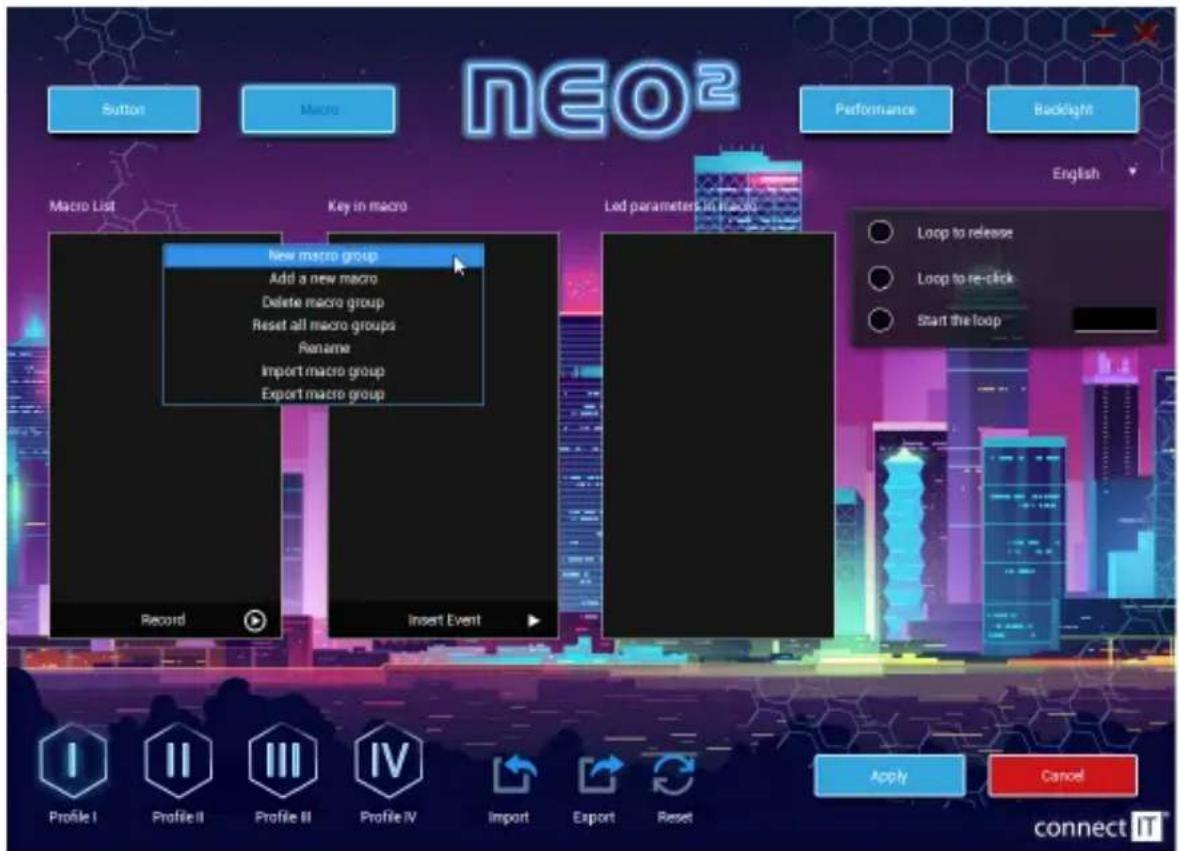
text_image
NEO² Button Macro Performance Backlight Macro List Key in macro New macro group Add a new macro Delete macro group Reset all macro groups Rename Import macro group Export macro group Record Insert Event Led parameters in macro Loop to release Loop to re-click Start the loop Profile I Profile II Profile III Profile IV Import Export Reset Apply Cancel connect ITPerformance
In this section you can adjust:
■ Mouse sensitivity in levels from 1 to 11.
■ Scroll speed in levels 1 to 11
■ Double-click speed ranging from 8 ms to 300 ms
■ Mouse DPI size in 17 levels - 200/400/600/800/1000/1200/1400/1600/1800/2000/2400/3200/4000/4800/5600/6400/7200 DPI. DPI can be stored in 6 categories and each category can be assigned a colour.
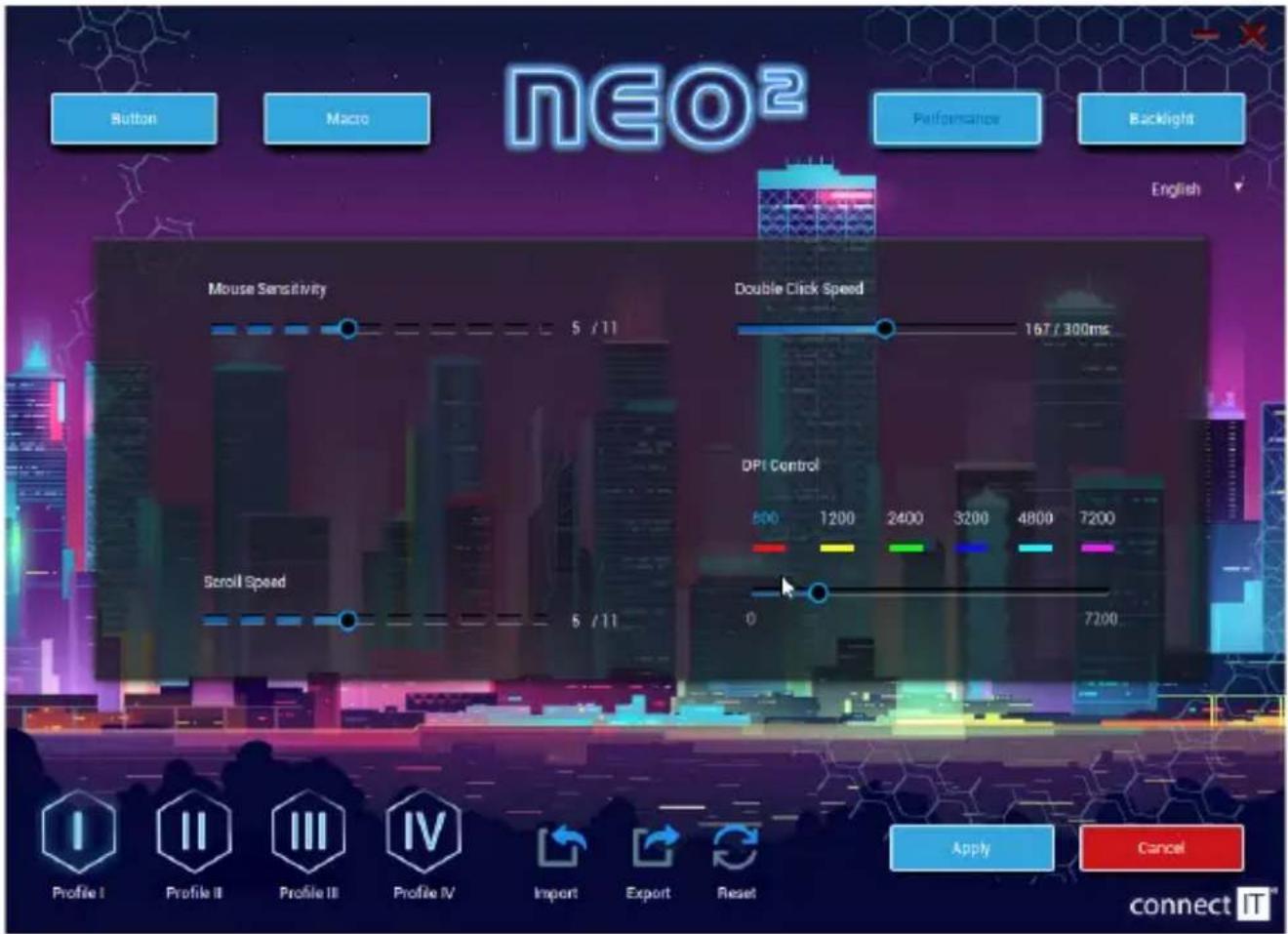
text_image
NEO² Button Macro Performance Backlight English Mouse Sensitivity 5 / 11 Double Click Speed 167 / 300ms DPI Control 800 1200 2400 3200 4800 7200 0 7200 Scroll Speed 5 / 11 Profile I Profile II Profile III Profile IV Import Export Reset Apply Cancel connect ITBacklight
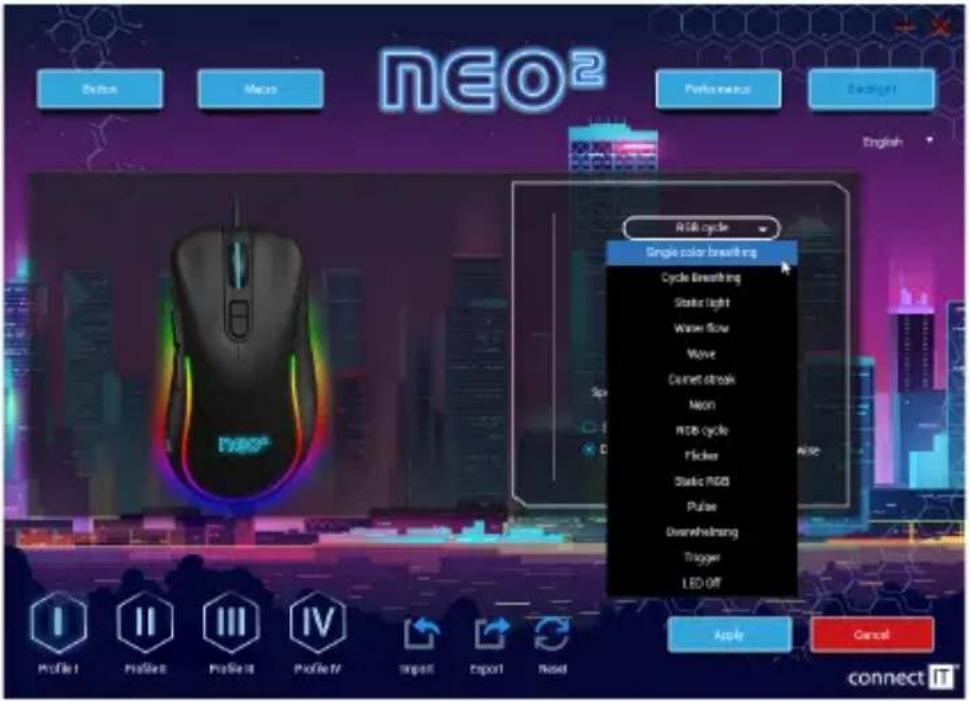
You have a choice of 13 different backlight modes that can be further customized with this mouse. There is also the option to turn the backlight off completely.
| Single color breathing | You can set the speed at which the effect repeats with this backlight mode. The colour of this mode depends on the colour set at each DPI level in the „Advanced settings" section. |
| Cycle breathing You can set the speed and select the backlight colours for this backlight mode. | |
| Static light | You can adjust the brightness for this backlight mode. The colour of this mode depends on the colour set at each DPI level in the „Advanced settings" section. |
| Water flow | You can set the speed, brightness, direction and select the colours of the effect in this backlight mode. |
| Wave | You can set the speed, brightness, direction and select the colours of the effect in this backlight mode. |
| Comet streak | You can set the speed, brightness, direction and select the colours of the effect in this backlight mode. |
| Neon You can set the speed of the effect in this backlight mode. | |
| RGB cycle You can set the speed and direction of the effect in this backlight mode. | |
| Flicker You can set the speed of the effect in this backlight mode. | |
| Static RGB - | |
| Pulse You can set the speed and direction of the effect in this backlight mode. | |
| Overwhelming You can set the speed of the effect in this backlight mode. | |
| Trigger | In this mode, you can set how the mouse backlight responds to individual button presses. Each of the buttons can be set to a different type of response and these types are – Cycle breathing, Water flow, Wave and Comet streak. The response settings can be adjusted in the tabs of each backlight mode. |
| LED OFF Switch off the backlight completely. | |
Sound activated color illumination
This mouse backlight mode can be activated in the "Button Settings" section. For this effect, you can choose one of 3 ways for the mouse backlight to react to a given sound being played on the computer (music or video games). The options are: Wave, Flicker and Starlight.
text_image
NEO2 Red cycle Single color breathing Cycle Breathing Stroke Light Water Flow Wave Connect stroke Neon RGB cycle Picker Static RGB Pulse Overwhelming Trigger LED OFF Apply Cancel Connect IT5 Notices
INSTRUCTIONS AND INFORMATION REGARDING THE DISPOSAL OF USED PACKAGING MATERIALS
Packaging materials and old appliances shall preferably be recycled. The packaging materials of this product can be disposed of as sorted waste. The same applies to the plastic bags made of polyethylene (PE) and other materials – please hand them over for recycling.
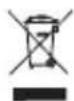
DISPOSAL OF WASTE ELECTRICAL & ELECTRONIC EQUIPMENT
In accordance with the European Directive 2012/19/EU on waste electrical and electronic equipment (WEEE), this appliance is labeled with this symbol on the product or its packaging to indicate that this product shall not be treated as household waste. It must be disposed of at a collection site for recycling of waste electrical and electronic equipment. The proper disposal of this product helps to prevent adverse impacts on the environment and human health, which could otherwise result from improper waste disposal. The disposal shall be carried out in accordance with waste management regulations. For more detailed information about the recycling of this product, contact the local authorities, household waste disposal services or the shop where you have bought the product. For proper disposal, renewal and recycling, hand the products over to the designated collection sites. Alternatively, in some EU or other European countries, you can return the products to your local dealer when buying an equivalent new product. The proper disposal of this product helps to preserve valuable natural resources and prevent potential adverse impacts on the environment and human health, which could result from improper waste disposal. For details, contact your local authorities or the nearest collection facility. In case of improper disposal of this type of waste, fines may be imposed in accordance with national legislation.
For business entities in the EU countries
If you want to dispose of electrical and/or electronic equipment, please contact your dealer or supplier for the necessary information.
Disposal in other countries outside the European Union
This symbol is valid in the European Union. If you want to dispose of this product, contact your local authorities or your dealer for the necessary information about the proper way of disposal.
In accordance with the law, we provide the take-back, processing and free environmentally friendly disposal of electrical and electronic equipment through the collective system of REMA System, a.s. The main purpose is to protect the environment by ensuring the efficient recycling of waste electrical and electronic equipment.
For the current list of collection sites, see the web www.rema.cloud
This product meets all the basic requirements of the applicable EU directives. It is CE marked. This mark indicates the conformity of the product's technical characteristics with the applicable technical regulations.
The EU Declaration of Conformity is available at www.connectit-europe.com

WIR DANKEN IHNEN
FÜR DEN KAUF EINES PRODUKTS VON CONNECT IT.
text_image
QR code containing embedded logo of a cow and elephant, likely for digital scanning or linking to online content.text_image
Diagram of a computer mouse with numbered parts labeled 1 through 7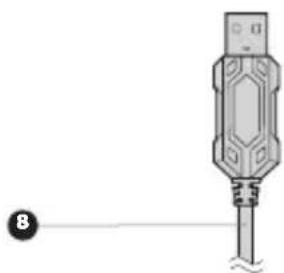
natural_image
Illustration of a USB connector with a terminal cable (no text or symbols)3 Software-Installation
text_image
Profile I Profile II Profile III Profile IV Import Export Reset Apply Cancel connect ITProfilauswahl
text_image
neo² Button Macro Performance Backlight English 1 Left Click 2 Right Click 3 Middle Click 4 Show Desktop 5 Backward 6 DPI Loop 7 No Function Music-lighting Profile I Profile II Profile III Profile IV Import Export Reset Apply Cancel connectMakros (Macro)
text_image
NEO² Button Macro Performance Backlight English Macro List Key in macro New macro group Add a new macro Delete macro group Reset all macro groups Rename Import macro group Export macro group Led parameters in macro Record Insert Event Loop to release Loop to re-click Start the loop Profile I Profile II Profile III Profile IV Import Export Reset Apply Cancel connect ITPerformance
Sound activated color illumination
text_image
NEO² Button Mars Performance Backlight English RGB cycle Single color breathing Cycle Washinging Static Light Water Flow Wave Curnet stroke Neon RGB cycle Picker Static RGB Pulse Overwhelming Trigger LED OFF Apply Cancel Profile 1 Profile 2 Profile 3 Profile 4 Input Export Reset connect IT5 Hinweis
text_image
QR code containing embedded logo of a cow and elephant, likely for digital scanning or linking to online content.text_image
Diagram of a computer mouse with numbered parts labeled 1 through 7 for identification.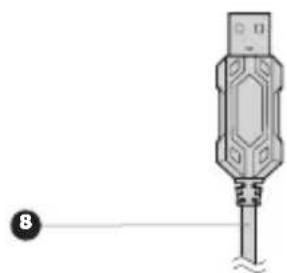
natural_image
Illustration of a USB connector with a cable, showing internal structure and wiring (no text or symbols)3 Instalace
text_image
Profile I Profile II Profile III Profile IV Import Export Reset Apply Cancel connect ITVýběr profilů
text_image
neo² Button Macro Performance Backlight English 1 Left Click 2 Right Click 3 Middle Click 4 Show Desktop 5 Backward 6 DPI Loop 7 No Function Music-lighting Profile I Profile II Profile III Profile IV Import Export Reset Apply Cancel connect IT®Makra (Macro)
text_image
neo2 Button Macro Performance Backlight Macro List Key in macro New macro group Add a new macro Delete macro group Reset all macro groups Rename Import macro group Export macro group Record Insert Event Led parameters in macro Loop to release Loop to re-click Start the loop Profile I Profile II Profile III Profile IV Import Export Reset Apply Cancel connect ITSound activated color illumination
text_image
NEO² Before Macro Performance Backlight English Paco® Single color breathing Cycle Breathing Stroke Light Water Flow Wave Connect shrink Mean R36 cycle Flicker Stroke RGB Pulse Disinshelung Trigger LED Off Apply Cancel connect IT5 Upozornění
POKYNY A INFORMACE O NAKLÁDÁNÍ S POUŽITÝM OBALEM
text_image
QR code containing embedded logo of a cow and elephant, likely for digital scanning or linking to online content.text_image
Diagram of a computer mouse with numbered parts labeled 1 through 7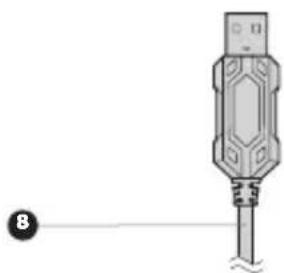
natural_image
Illustration of a USB connector with a cable, shown in 3D perspective (no text or symbols)3 Inštalácia
text_image
Profile I Profile II Profile III Profile IV Import Export Reset Apply Cancel connect ITVýber profilov
text_image
neo2 Button Macro Performance Backlight English 1 Left Click 2 Right Click 3 Middle Click 4 Show Desktop 5 Backward 6 DPI Loop 7 No Function Music-lighting Profile I Profile II Profile III Profile IV Import Export Reset Apply Cancel connect ITMakrá (Macro)
text_image
NEO² Button Macro Performance Backlight English Macro List Key in macro New macro group Add a new macro Delete macro group Reset all macro groups Rename Import macro group Export macro group Record Insert Event Led parameters in macro Loop to release Loop to re-click Start the loop Profile I Profile II Profile III Profile IV Import Export Reset Apply Cancel connect ITRozšírené nastavenia (Advanced settings)
Sound activated color illumination
text_image
NEO² Suisse Macro Performance Backlight English RGB cycle Single color breathing Cycle Breathing Stroke Light Water Flow Wave Connect shrink Mean RGB cycle Flicker Stroke RGB Pulse Disarrheiting Trigger LED Off Apply Cancel Profile 1 Profile2 Profile3 Profile IV Import Export Reset connect IT5 Upozornenia
POKYNY A INFORMÁCIE O ZAOBCHÁDZANÍ S POUŽITÝM OBALOM
text_image
QR code containing embedded logo and elephant icon in centertext_image
Diagram of a computer mouse with numbered parts labeled 1 through 7 for identification.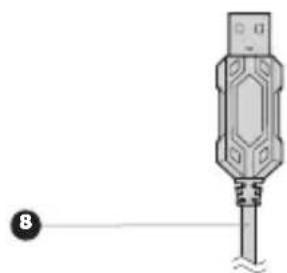
natural_image
Diagram of a USB connector with a cable, showing internal structure and wiring (no text or symbols)3 Telepítés
text_image
Profile I Profile II Profile III Profile IV Import Export Reset Apply Cancel connect ITProfil kiválasztása
text_image
neo² Button Macro Performance Backlight English 1 Left Click 2 Right Click 3 Middle Click 4 Show Desktop 5 Backward 6 DPI Loop 7 No Function Music-lighting Profile I Profile II Profile III Profile IV Import Export Reset Apply Cancel connect IT®Makrók (Macro)
text_image
NEO² Button Macro Performance Backlight English Macro List Key in macro New macro group Add a new macro Delete macro group Reset all macro groups Rename Import macro group Export macro group Led parameters in macro Record Insert Event Loop to release Loop to re-click Start the loop Profile I Profile II Profile III Profile IV Import Export Reset Apply Cancel connect ITSound activated color illumination
text_image
NEO² Suisse Macro Performance Backlight English RGB cycle Single color breathing Cycle Breathing Stroke Light Water Flow Wave Connect shrink Mean RGB cycle Flicker Stroke RGB Pulse Dissevelung Trigger LED Off Apply Cancel Profile 1 Profile2 Profile3 Profile IV Import Export Reset connect IT5 Figyelmeztetés
natural_image
Two stylized animal figures, one in teal and one in black, walking side by side (no text or symbols)connect IT®
MANUFACTURER
HERSTELLER
VÝROBCE
VÝROBCA
GYÁRTÓ
IT TRADE, a.s.
Brtnická 1486/2
101 00 Praha 10
Czech Republic
tel.: +420 734 777 444
service@connectit-europe.com
www.connectit-europe.com
