ManualGo.com
DEH-P6200BT - Bluetooth Car Stereo PIONEER - Free user manual and instructions
Find the device manual for free DEH-P6200BT PIONEER in PDF.



Download the instructions for your Bluetooth Car Stereo in PDF format for free! Find your manual DEH-P6200BT - PIONEER and take your electronic device back in hand. On this page are published all the documents necessary for the use of your device. DEH-P6200BT by PIONEER.
USER MANUAL DEH-P6200BT PIONEER
English DEH-P6200BT Français CD RECEIVER AUTORADIO CD RADIO CD Español Operation Manual Mode d’emploi Manual de instrucciones Contents Thank you for purchasing this PIONEER product. To ensure proper use, please read through this manual before using this product. It is especially important that you read and observe WARNINGs and CAUTIONs in this manual. Please keep the manual in a safe and accessible place for future reference. Before You Start Information to User 4 For Canadian model 4 About this unit 4 After-sales service for Pioneer products 5 In case of trouble 5 Visit our website 5 Demo mode 5 Resetting the microprocessor 5 Operating this unit Head unit 7 Optional remote control 7 Display indication 8 Basic Operations 9 Using Bluetooth telephone 9 – Setting up for hands-free phoning 9 – Basic Operations 10 Menu operations identical for function settings/audio adjustments/initial settings/ lists 10 Tuner 10 – Basic Operations 10 – Storing and recalling stations 11 – Switching the display 11 – Using iTunes tagging 11 – Function settings 11 CD/CD-R/CD-RW and USB storage devices 12 – Basic Operations 12 – Displaying text information 12 – Selecting and playing files/tracks from the name list 13 – Advanced operations using special buttons 13 – Function settings 13 iPod 14 – Basic Operations 14 – Displaying text information 14
– Browsing for a song 14 – Advanced operations using special buttons 15 – Function settings 15 Bluetooth Telephone 16 – Connection menu operation 16 – Phone menu operation 18 – Function and operation 19 Audio Adjustments 19 Initial Settings 20 Other Functions 22 – Using an AUX source 22 – Using the PGM button 22 Available accessories HD Radioä tuner 24 – Basic Operations 24 – Storing and recalling stations 24 – Switching the display 24 – Using iTunes tagging 24 – Function settings 24 XM tuner 24 – Basic Operations 25 – Storing and recalling stations 25 – Selecting an XM channel directly 25 – Advanced operations using special buttons 25 – Function settings 25 – Selecting a channel from a channel category 25 – Displaying the Radio ID 26 SIRIUS Satellite Radio tuner 26 – Basic Operations 26 – Storing and recalling stations 26 – Selecting a SIRIUS channel directly 27 – Advanced operations using special buttons 27 – Function settings 27 Contents English – Selecting a channel from a channel category 28 – Using the Instant Replay function 28 Additional Information Troubleshooting 29 Error messages 29 Handling guideline 31 Compressed audio compatibility (disc, USB) 32 iPod compatibility 34 Sequence of audio files 34 Bluetooth profiles 34 Copyright and trademark 35 Specifications 36
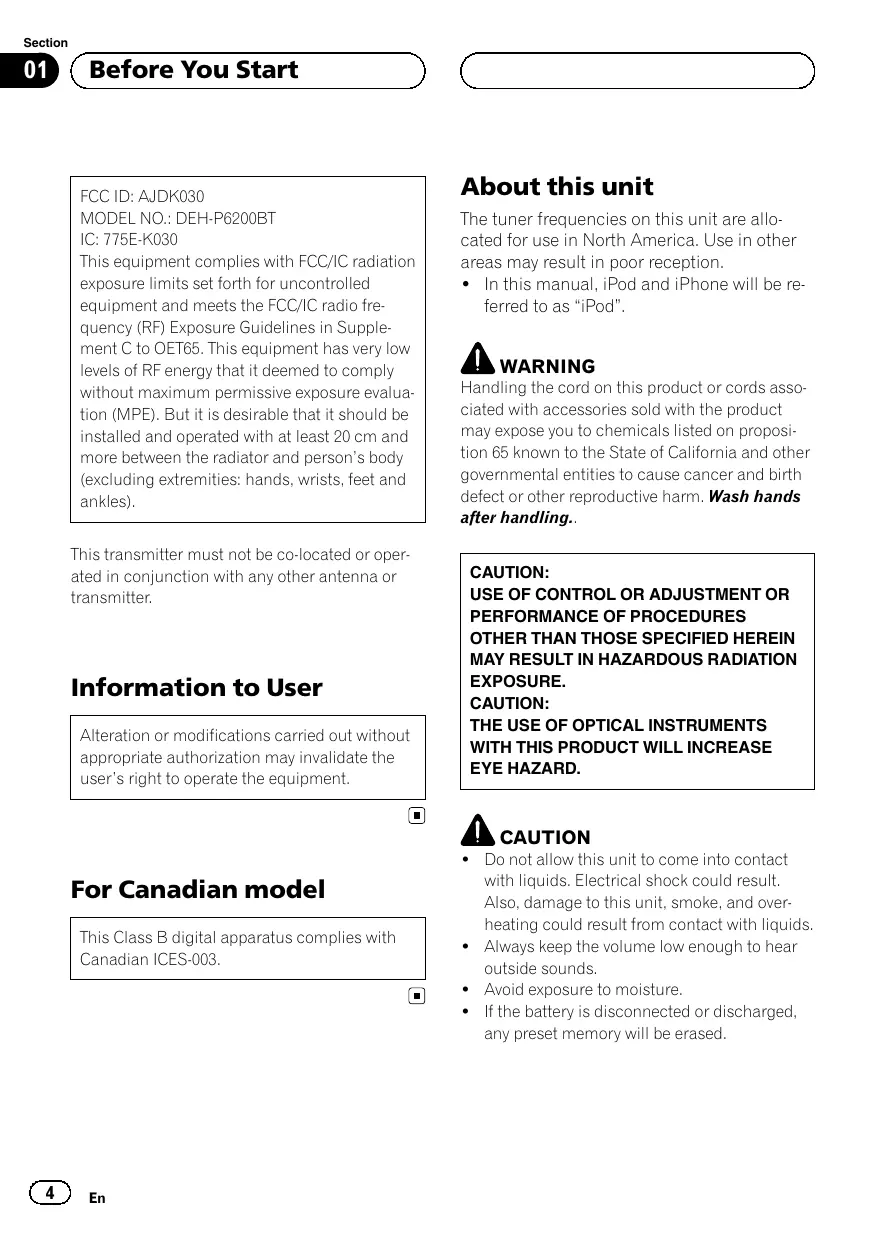
MODEL NO.: DEH-P6200BT
IC: 775E-K030 This equipment complies with FCC/IC radiation exposure limits set forth for uncontrolled equipment and meets the FCC/IC radio frequency (RF) Exposure Guidelines in Supplement C to OET65. This equipment has very low levels of RF energy that it deemed to comply without maximum permissive exposure evaluation (MPE). But it is desirable that it should be installed and operated with at least 20 cm and more between the radiator and person’s body (excluding extremities: hands, wrists, feet and ankles). This transmitter must not be co-located or operated in conjunction with any other antenna or transmitter. Information to User Alteration or modifications carried out without appropriate authorization may invalidate the user’s right to operate the equipment. About this unit The tuner frequencies on this unit are allocated for use in North America. Use in other areas may result in poor reception. ! In this manual, iPod and iPhone will be referred to as “iPod”. WARNING Handling the cord on this product or cords associated with accessories sold with the product may expose you to chemicals listed on proposition 65 known to the State of California and other governmental entities to cause cancer and birth defect or other reproductive harm. Wash hands after handling.. CAUTION:
USE OF CONTROL OR ADJUSTMENT OR
PERFORMANCE OF PROCEDURES
OTHER THAN THOSE SPECIFIED HEREIN
MAY RESULT IN HAZARDOUS RADIATION
THE USE OF OPTICAL INSTRUMENTS
WITH THIS PRODUCT WILL INCREASE
EYE HAZARD. CAUTION For Canadian model This Class B digital apparatus complies with Canadian ICES-003.
! Do not allow this unit to come into contact with liquids. Electrical shock could result. Also, damage to this unit, smoke, and overheating could result from contact with liquids. ! Always keep the volume low enough to hear outside sounds. ! Avoid exposure to moisture. ! If the battery is disconnected or discharged, any preset memory will be erased. Section Before You Start The serial number is located on the bottom of this unit. For your own security and convenience, be sure to record this number on the enclosed warranty card. English Important (Serial number)
In case of trouble Should this unit fail to operate properly, please contact your dealer or nearest authorized PIONEER Service Station. Visit our website After-sales service for Pioneer products Please contact the dealer or distributor from where you purchased this unit for after-sales service (including warranty conditions) or any other information. In case the necessary information is not available, please contact the companies listed below: Please do not ship your unit to the companies at the addresses listed below for repair without advance contact. U.S.A. Pioneer Electronics (USA) Inc.
CUSTOMER SUPPORT DIVISION
P.O. Box 1760 Long Beach, CA 90801-1760 800-421-1404 CANADA Pioneer Electronics of Canada, Inc.
CUSTOMER SATISFACTION DEPARTMENT
300 Allstate Parkway Markham, Ontario L3R 0P2 1-877-283-5901 905-479-4411 For warranty information please see the Limited Warranty sheet included with this unit. http://www.pioneerelectronics.com ! Learn about product updates (such as firmware updates) for your product. ! Register your product to receive notices about product updates and to safeguard purchase details in our files in the event of loss or theft. ! Access owner's manuals, spare parts information, service information, and much more. Demo mode Important Failure to connect the red lead (ACC) of this unit to a terminal coupled with ignition switch on/off operations may lead to battery drain. The demo automatically starts when the ignition switch is set to ACC or ON while the unit is turned off. Turning off the unit does not cancel demo mode. To cancel the demo mode, press /DISP/SCRL. Press /DISP/SCRL again to start. Operating the demo while the ignition switch is set to ACC may drain battery power. Resetting the microprocessor The microprocessor must be reset in the following situations:
Section Before You Start
! Before using this unit for the first time after installation ! If the unit fails to operate properly ! When strange or incorrect messages appear on the display RESET button
Remove the front panel. 2 Press RESET with a pen tip or other pointed instrument.
Section Operating this unit
Optional remote control
The remote control CD-R510 is sold separately.
Part /CON- (list) h k
1 to 6 Part Operation
FUNC Press to select functions. Press and hold to recall the initial setting menu when the sources are off.
Thumb pad Press to display the list depending on the source. Move to perform manual seek tuning, fast forward, reverse and track search controls. Also used for controlling functions.
DIRECT Press to directly select the desired channel for XM/SIRIUS tuner.
CLEAR Press to cancel the input number when 0 to 9 are used.
0 to 9 buttons Press to directly select the desired channel or preset tuning. Buttons 1 to 6 can operate the preset tuning. Press and hold one of the buttons 1 to 6 to preset the desired station.
OFF/H Press to start talking on the phone while operating a phone.
/DISP/SCRL indicator Lights up when your cellular phone is connected via Bluetooth wireless technology. CAUTION Use an optional Pioneer USB cable (CD-U50E) to connect the USB audio player/USB memory as any device connected directly to the unit will protrude out from the unit and may be dangerous. Do not use unauthorized products.
Indicator Part Operation ON/H While operating the phone, press to end a call or reject an incoming call. ATT Press to quickly lower the volume level by about 90%. Press once more to return to the original volume level. PGM Press to operate the preprogrammed functions for each source. (Refer to Using the PGM button on page 22.) AUDIO Press to select an audio function.
Indicator State Main display section Tuner: band and frequency Built-in CD, USB storage device and iPod: elapsed playback time and text information When an SMS is received by the connected cellular phone, a message is displayed to notify you of the reception.
(artist) The disc (track) artist name is displayed. Artist search refinement on the iPod browsing function is in use.
(disc) The disc (album) name is displayed. Album search refinement on the iPod browsing function is in use.
(list) The list function is operated.
A lower tier of folder or menu exists. It flashes when a song/album related to the song currently playing is selected from iPod.
LOC The local seek tuning is on.
5 (stereo) The selected frequency is being broadcasted in stereo.
(folder repeat) Folder repeat is on. When repeat function is on, only is displayed.
(folder random) Folder random is on. When random function is on, only is displayed.
The track (song) name is displayed. A playable audio file has been selected while operating the list. Song search refinement on the iPod browsing function is in use. An upper tier of folder or menu exists.
Shuffle or shuffle all function is on while the iPod source is being selected. The sound retriever function is on. CTRL (control mode) is set to iPod. (tag) (auto answer) Tagged song is broadcasting. While storing tag data on this unit, flashes. Shows when the automatic answering function is on. Section Operating this unit Important ! Handle gently when removing or attaching the front panel. ! Avoid subjecting the front panel to excessive shock. ! Keep the front panel out of direct sunlight and high temperatures. ! To avoid damage to the device or vehicle interior, remove any cables and devices attached to the front panel before detaching it. Removing the front panel to protect your unit from theft 1 Press the detach button to release the front panel. 2 Grab the front panel and remove. 3 Always keep the detached front panel in a protection device such as a protection case. Re-attaching the front panel 1 Slide the front panel to the left until it clicks. Front panel and the head unit are connected on the left side. Make sure that the front panel has been properly connected to the head unit. Selecting a source 1 Press SRC/OFF to cycle between: XM TUNER (XM tuner)—SIRIUS (SIRIUS tuner)— HD Radio (HD Radio tuner)/TUNER (tuner)—CD (CD player)—USB (USB storage device)/USBiPod (iPod connected using USB input)—EXTERNAL (external unit 1)—EXTERNAL (external unit 2)—AUX1 (AUX1)—AUX2 (AUX2) English Basic Operations
Adjusting the volume 1 Turn M.C. to adjust volume. Notes ! When this unit’s blue/white lead is connected to the vehicle’s auto-antenna relay control terminal, the vehicle’s antenna extends when this unit’s source is turned on. To retract the antenna, turn the source off. ! If the HD Radio tuner is connected to this unit, tuner source is skipped. Using Bluetooth telephone Important 2 Press the right side of the front panel until it is firmly seated. If you can’t attach the front panel to the head unit successfully, try again. However, forcing the front panel into place may result in damage. Turning the unit on 1 Press SRC/OFF to turn the unit on. Turning the unit off 1 Press SRC/OFF and hold until the unit turns off. ! Since this unit is on standby to connect with your cellular phone via Bluetooth wireless technology, using it without the engine running can drain the battery power. ! Operations may vary depending on the kind of cellular phone. ! Advanced operations that require attention such as dialing numbers on the monitor, using the phone book, etc., are prohibited while driving. Park your vehicle in a safe place when using these advanced operations. Setting up for hands-free phoning Before you can use the hands-free phoning function you must set up the unit for use with your cellular phone.
Operating this unit 1 Connection Operate the Bluetooth telephone connection menu. Refer to Connection menu operation on page 16. 2 Function settings Operate the Bluetooth telephone function menu. Refer to Phone menu operation on page 18. Basic Operations Making a phone call 1 Refer to Phone menu operation on page 18. Answering an incoming call 1 When a call is received, press M.C. ! You can also perform this operation by pushing M.C. Ending a call 1 Press PHONE/ /CONNECT. Rejecting an incoming call 1 When a call is received, press PHONE/ NECT. /CON- Answering a call waiting 1 When a call is received, press M.C. ! You can also perform this operation by pushing M.C. ! The estimated call time appears in the display (this may differ slightly from the actual call time). Menu operations identical for function settings/audio adjustments/initial settings/lists Returning to the previous display Returning to the previous list/category (the folder/category one level higher) 1 Press /DISP/SCRL. Returning to the main menu Returning to the top tier of list/category 1 Press /DISP/SCRL. Returning to the ordinary display Canceling the initial setting menu 1 Press BAND/ESC. Returning to the ordinary display from the list/category 1 Press BAND/ESC. Switching between callers on hold 1 Press M.C. Canceling call waiting 1 Press PHONE/ /CONNECT. Tuner Adjusting the other party’s listening volume 1 Push M.C. up or down while talking on the phone. Basic Operations Turning private mode on and off. 1 Press BAND/ESC while talking on the phone. Switching the information display 1 Press /DISP/SCRL while talking on the phone. ! Press and hold /DISP/SCRL to scroll. Notes ! If private mode is selected on the cellular phone, hands-free phoning may not be available.
Selecting a band 1 Press BAND/ESC until the desired band (FM1, FM2, FM3 for FM or AM) is displayed. Manual tuning (step by step) 1 Push M.C. left or right. Section Operating this unit Seeking 1 Push and hold M.C. left or right. You can cancel seek tuning by pushing M.C. left or right. While pushing and holding M.C. left or right, you can skip stations. Seek tuning starts as soon as you release M.C. Storing and recalling stations You can easily store up to six stations for each band as presets. Using preset tuning buttons 1 When you find a station that you want to store in memory, press one of the preset tuning buttons (1 to 6) and hold until the preset number stops flashing. 2 Press one of the preset tuning buttons (1 to 6) to select the desired station. Using the preset screen 1 Press to switch to the preset screen. 2 Use M.C. to store the selected frequency in the memory. Turn to change the preset number. Press and hold to store. 3 Use M.C. to select the desired station. Turn to change the station. Press to select. — iPod nano 3rd generation — iPod nano 4th generation — iPod classic — iPod classic 120GB — iPod touch — iPod touch 2nd generation — iPhone — iPhone 3G However, tag information can be stored in this unit even while other iPod models are used. The song information (tag) can be saved from the broadcasting station to your iPod. The songs will show up in a playlist called “Tagged playlist” in iTunes the next time you sync your iPod. Then you can directly buy the songs you want from the iTunes Music Store. English Preset tuning 1 Push M.C. up or down.
Storing the tag information to this unit 1 Tune in to the broadcast station. appears in the display 2 Press and hold M.C. if while the desired song is broadcasting. Storing the tagged information to your iPod 1 Connect the iPod to this unit and transfer this unit’s tag information to the iPod. Function settings
Press M.C. to display the main menu. 2 Turn M.C. to change the menu option and press to select FUNCTION. Switching the display Selecting the desired text information 1 Press /DISP/SCRL. Program service name—song title—artist name Scrolling the text information to the left 1 Press and hold /DISP/SCRL. Using iTunes tagging 3 Turn M.C. to select the function. After selecting, perform the following procedures to set the function. BSM (best stations memory) BSM (best stations memory) automatically stores the six strongest stations in the order of their signal strength. 1 Press M.C. to turn BSM on. ! To cancel, press M.C. again. This function can be operated with the following iPod models. — iPod 5th generation
Operating this unit Local (local seek tuning) Local seek tuning lets you tune in to only those radio stations with sufficiently strong signals for good reception. 1 Press M.C. to display the setting mode. 2 Turn M.C. to select the desired setting. FM: OFF—Level 1—Level 2—Level 3—Level 4 AM: OFF—Level 1—Level 2 The larger the setting number, the higher the signal level. The highest level setting allows reception of only the strongest stations; while lower settings let you receive progressively weaker stations. 3 Press M.C. to confirm the selection. Note Operation is complete even if the menu is cancelled before being confirmed. CD/CD-R/CD-RW and USB storage devices Fast forwarding or reversing 1 Push and hold M.C. left or right. Returning to root folder 1 Press and hold BAND/ESC. Switching between compressed audio and CD-DA 1 Press BAND/ESC. Notes ! When playing compressed audio, there is no sound during fast forward or reverse. ! USB storage device that can be charged via USB will be recharged when plugged in and the ignition switch is set to ACC or ON. ! Disconnect USB storage devices from the unit when not in use. ! If plug and play is on and a USB storage device is present, depending on the type of device, the source may switch to USB automatically when you turn on the engine. Please change plug and play setting as necessary. Refer to USB PnP (plug and play) on page
Basic Operations Displaying text information Playing a CD/CD-R/CD-RW 1 Insert the disc into the disc loading slot with the label side up. ! If a disc has already been inserted, press SRC/ OFF to select the built-in CD player. Ejecting a CD/CD-R/CD-RW 1 Press h (eject). Playing songs on a USB storage device 1 Open the USB connector cover. 2 Plug in the USB storage device using a USB cable. Stopping playback of files on a USB storage device 1 You may disconnect the USB storage device at anytime. Selecting a folder 1 Push M.C. up or down. Selecting a track 1 Push M.C. left or right.
Selecting the desired text information 1 Press /DISP/SCRL. CD TEXT discs: Track number and play time— disc title—disc artist name—track title—track artist name WMA/MP3/AAC: Play time—folder name—file name—track title—artist name—album title— genre—comment—bit rate—folder and track numbers WAV: Play time—folder name—file name—track title—artist name—album title—genre—comment—sampling frequency—folder and track numbers Scrolling the text information to the left 1 Press and hold /DISP/SCRL. Section Operating this unit
! Incompatible text stored with the audio file may not be displayed or may be displayed incorrectly. ! Depending on the version of iTunes used to write MP3 files onto a disc, comment information may be incorrectly displayed. ! When Windows Media Player 11 is used to encode the WAV files, text information can be displayed. ! When playing back VBR (variable bit rate)-recorded WMA files, the average bit rate value is displayed. ! When playing back VBR (variable bit rate)-recorded AAC files, the average bit rate value is displayed. However, depending on the software used to decode AAC files, VBR may be displayed. When playing back VBR (variable bit rate)-recorded MP3 files, VBR is displayed instead of bit rate value. English Notes Note Track title list will display the list of track titles on a CD TEXT disc. Advanced operations using special buttons Selecting a repeat play range 1 Press 3/ to cycle between the following: CD/CD-R/CD-RW ! Disc – Repeat all tracks ! Track – Repeat the current track ! Folder – Repeat the current folder External storage device (USB, SD) ! All – Repeat all files ! Track – Repeat the current file ! Folder – Repeat the current folder Playing tracks in random order 1 Press 2/ to turn random play on or off. Tracks in a selected repeat range are played in random order. Pausing playback 1 Press 6/PAUSE to pause or resume. Selecting and playing files/ tracks from the name list 1 Press (list) to switch to the file/track name list mode. Enhancing compressed audio and restoring rich sound (sound retriever) 1 Press S.Rtrv/SAT to cycle between: OFF (off)—1—2 1 is effective for low compression rates, and 2 is effective for high compression rates. 2 Use M.C. to select the desired file name (or folder name). Changing the file or folder name 1 Turn M.C. Playing 1 When a file or track is selected, press M.C. Viewing a list of the files (or folders) in the selected folder 1 When a folder is selected, press M.C. Playing a song in the selected folder 1 When a folder is selected, press and hold M.C. Function settings
Press M.C. to display the main menu. 2 Turn M.C. to change the menu option and press to select FUNCTION. 3 Turn M.C. to select the function. After selecting, perform the following procedures to set the function.
Operating this unit Notes Repeat (repeat play) 1 Press M.C. to display the setting mode. 2 Turn M.C. to select a repeat play range. For details, refer to Selecting a repeat play range on the previous page. 3 Press M.C. to confirm the selection. Random (random play) 1 Press M.C. to turn random play on or off. Pause (pause) ! If the ignition switch is set to ACC or ON, the iPod battery will be charged while connected. ! While the iPod is connected to this unit, the iPod cannot be turned on or off unless the control mode is set to iPod. ! Disconnect headphones from the iPod before connecting to this unit. ! The iPod will turn off about two minutes after the ignition switch is set to OFF. 1 Press M.C. to pause or resume. S.Rtrv (sound retriever) Automatically enhances compressed audio and restores rich sound. 1 Press M.C. to display the setting mode. 2 Turn M.C. to select the desired setting. For details, refer to Enhancing compressed audio and restoring rich sound (sound retriever) on the previous page. 3 Press M.C. to confirm the selection. Displaying text information Selecting the desired text information 1 Press /DISP/SCRL. Play time—song title—artist name—album title —number of songs Scrolling the text information to the left 1 Press and hold /DISP/SCRL. Note Note Operation is complete even if the menu is cancelled before being confirmed. Incompatible text saved on the iPod will not be displayed by the unit. Browsing for a song iPod Basic Operations Playing songs on an iPod 1 Open the USB connector cover. 2 Connect an iPod to the USB cable using an iPod Dock Connector. Selecting a track (chapter) 1 Push M.C. left or right. Fast forwarding or reversing 1 Push and hold M.C. left or right.
1 Press (list) to switch to the top menu of the list search.
Use M.C. to select a category/song. Changing the name of song or category 1 Turn M.C. Playlists—artists—albums—songs—podcasts— genres—composers—audiobooks Playing 1 When a song is selected, press M.C. Seeing a list of songs in the selected category 1 When a category is selected, press M.C. Section Operating this unit Searching the list by alphabet 1 When a list for the selected category is displayed, press /LIST to switch to alphabet search mode. 2 Turn M.C. to select a letter. 3 Press M.C. to display the alphabetical list. ! If alphabet search is aborted, NOT FOUND is displayed. Note Depending on the number of files in the iPod, there may be a delay when displaying a list. Advanced operations using special buttons Selecting a repeat play range 1 Press 3/ to cycle between the following: ! One – Repeat the current song ! All – Repeat all songs in the selected list Playing all songs in random order (shuffle all) 1 Press 2/ to turn shuffle all on. Playing songs related to the currently playing song You can play songs from the following lists.
- Album list of the currently playing artist
- Song list of the currently playing album
- Album list of the currently playing genre 1 Press and hold M.C. to switch to the link play mode. 2 Turn M.C. to change the mode; press to select. ! Artist – Plays an album of the artist currently being played. ! Album – Plays a song from the album currently being played. ! Genre – Plays an album from the genre currently being played. The selected song/album will be played after the currently playing song. ! The selected song/album may be canceled if you operate functions other than link search (e.g. fast forward and rewind). ! If no related albums/songs are found, NOT FOUND is displayed. ! Depending on the song selected to play, the end of the currently playing song and the beginning of the selected song/album may be cut off. English Playing a song in the selected category 1 When a category is selected, press and hold M.C.
Operating this unit’s iPod function from your iPod This function is not compatible with the following iPod models. — iPod nano 1st generation — iPod 5th generation This unit’s iPod function allows you to conduct operations from your iPod and listen to it using your car’s speakers. ! Press 1/iPod to switch the control mode. ! iPod – This unit’s iPod function can be operated from the connected iPod. ! AUDIO – This unit’s iPod function can be operated from this unit. Enhancing compressed audio and restoring rich sound (sound retriever) Refer to Enhancing compressed audio and restoring rich sound (sound retriever) on page 13. Function settings
Section Operating this unit
3 Turn M.C. to select the function. After selecting, perform the following procedures to set the function. Repeat (repeat play)
Refer to Repeat (repeat play) on page 14. However the repeat range is different from CD/external storage device. Refer to Selecting a repeat play range on the previous page. The playback speed of audiobook can be changed. 1 Press M.C. to display the setting mode. 2 Turn M.C. to select your favorite setting. ! Faster – Playback at a speed faster than normal ! Normal – Playback at normal speed ! Slower – Playback at a speed slower than normal 3 Press M.C. to confirm the selection. S.Rtrv (sound retriever) Shuffle (shuffle) 1 Press M.C. to display the setting mode. 2 Turn M.C. to select your favorite setting. ! Songs – Play back songs in the selected list in random order. ! Albums – Play back songs from a randomly selected album in order. ! OFF – Cancel random play. 3 Press M.C. to confirm the selection. Shuffle all (shuffle all)
Press M.C. to turn shuffle all on. To turn off, set Shuffle in the FUNCTION menu to off. Link play (link play) 1 Press M.C. to display the setting mode. 2 Turn M.C. to change the mode; press to select. For details about the settings, refer to Playing songs related to the currently playing song on the previous page. CTRL (control mode) 1 Press M.C. to select your favorite setting. For details about the settings, refer to Operating this unit’s iPod function from your iPod on the previous page.
Refer to S.Rtrv (sound retriever) on page 14. Notes ! Operation is complete even if the menu is cancelled before being confirmed. ! Switching the control mode to iPod pauses song playback. Operate the iPod to resume playback. ! The following functions are still accessible from the unit even if the control mode is set to iPod. — Volume — Fast forward/reverse — Track up/down — Pausing — Switching the text information ! When the control mode is set to iPod, operations are limited as follows: — Only CTRL (control mode), Pause (pause) and S.Rtrv (sound retriever) functions are available. — The browse function cannot be operated from this unit. Pause (pause)
Refer to Pause (pause) on page 14. Audiobooks (audiobook speed) Bluetooth Telephone Connection menu operation Important Be sure to park your vehicle and apply the parking brake when performing this operation.
Section Operating this unit # You cannot operate this step during a call. 2 Turn M.C. to select the function. After selecting, perform the following procedures to set the function. Device list (connecting or disconnecting a cellular phone from the device list) 1 Press M.C. to display the setting mode. 2 Turn M.C. to select the name of a device you want to connect/disconnect. 3 Press M.C. to connect/disconnect the selected cellular phone. If the connection is established, * is indicated on the device name. Delete device (deleting a cellular phone from the device list) 1 Press M.C. to display the setting mode. 2 Turn M.C. to select the name of a device you want to delete. ! Press and hold M.C. to switch the BD address and device name. 3 Press M.C. to display Delete YES. 4 Press M.C. to delete a cellular phone information from the device list. ! While this function is in use, do not turn off the engine. Add device (connecting a new cellular phone) 1 Press M.C. to start searching. ! To cancel, press M.C. while searching. 2 Turn M.C. to select a device from the device list. ! If the desired device is not displayed, select Search again. 3 Press and hold M.C. to switch the BD address and device name. 4 Press M.C. to connect the selected cellular phone. ! To complete the connection, check the device name (DEH-P6200BT) and enter the link code on your cellular phone. ! PIN code is set to 0000 as the default. You can change this code. Refer to PIN code (PIN code input) on this page. ! If five devices are already paired, Memory full is displayed and it is not possible to perform this operation. In this case, delete a paired device first. English 1 Press and hold PHONE/ /CONNECT to display the connection menu.
SPCL. Device (setting a special device) Bluetooth devices that are difficult to establish a connection with are called special devices. If your Bluetooth device is listed as a special device, select the appropriate one. 1 Press M.C. to display the setting mode. 2 Use M.C. to select a special device. Turn to change the menu option. Press to select. ! If five devices are already paired, Memory full is displayed and it is not possible to perform this operation. In this case, delete a paired device first. 3 Turn M.C. to display this unit’s device name, BD address and pincode. 4 Use a cellular phone to connect to this unit. ! To complete the connection, check the device name (DEH-P6200BT) and enter the link code on your cellular phone. ! PIN code is set to 0000 as the default. You can change this code. Refer to PIN code (PIN code input) on this page. Auto CONN (connecting to a Bluetooth device automatically) 1 Press M.C. to turn automatic connection on or off. Visible (setting the visibility of this unit)
Operating this unit To check the availability of this unit from other devices, Bluetooth visibility of this unit can be turned on. 1 Press M.C. to turn the visibility of this unit on or off. ! While setting SPCL. Device, Bluetooth visibility of this unit is turned on temporarily. PIN code (PIN code input) To connect your cellular phone to this unit via Bluetooth wireless technology, you need to enter a PIN code on your phone to verify the connection. The default code is 0000, but you can change it with this function. 1 Press M.C. to display the setting mode. 2 Push M.C. up or down to select a number. 3 Push M.C. right to move the cursor to the next position. 4 After inputting PIN code, press and hold M.C. PIN code can be stored in memory. ! After inputting 8 digits PIN code, push M.C. right to store in memory. ! After inputting, pushing M.C. right or pressing M.C. returns you to the PIN code input display, and you can change the PIN code. Missed Calls (missed call history) Dialed Calls (dialed call history) REC’D Calls (received call history) 1 Press M.C. to display Missed Calls (missed call history), Dialed Calls (dialed call history) or REC’D Calls (received call history). 2 Turn M.C. to select a name or phone number. 3 Press M.C. to make a call. 4 When you find a phone number that you want to store in memory, press and hold one of the preset tuning buttons (1 to 6). ! Press one of preset buttons 1 to 6 to recall the desired preset number. Phone book (phone book)
Device INFO (BD (Bluetooth device) address display)
1 Press M.C. to display the setting mode. 2 Push M.C. left to switch to the BD address. Pushing M.C. right returns to the device name.
Phone menu operation
Important Be sure to park your vehicle and apply the parking brake when performing this operation. 1 Press PHONE/ the phone menu. /CONNECT to display
The phone book in your cellular phone will be transferred automatically when the phone is connected to this unit. Depending on the cellular phone, the phone book may not be transferred automatically. In this case, operate your cellular phone to transfer the phone book. The visibility of this unit should be on. Refer to Visible (setting the visibility of this unit) on the previous page. Press M.C. to display ALPH SRCH (alphabetical list). Turn M.C. to select the first letter of the name you are looking for. ! Press and hold M.C. to select the desired character type. Press M.C. to display a registered name list. Turn M.C. to select the name you are looking for. Press M.C. to display the phone number list. Turn M.C. to select a phone number you want to call. ! When you find a phone number that you want to store in memory, press and hold one of the preset tuning buttons (1 to 6). ! Press one of preset buttons 1 to 6 to recall the desired preset number. Press M.C. to make a call. Dial preset (preset phone numbers) 2 Turn M.C. to select the function. After selecting, perform the following procedures to set the function.
1 Press M.C. to display the setting mode. 2 Use M.C. to select the desired preset number. Turn to change the menu option. Press to select. ! You can also press one of the preset number buttons 1 to 6 to select a number. 3 Press M.C. to make a call. Section Operating this unit
English Phone FUNC (phone function) FAD/BAL (fader/balance adjustment) You can set Auto ANSR and Ring tone from this menu. For details, refer to Function and operation on this page. 1 Press M.C. to display the setting mode. 2 Press M.C. to cycle between fader and balance. 3 Turn M.C. to adjust the speaker balance. Adjustment range (front/rear): F-F15 to F-R15 Adjustment range (left/right): B-L15 to B-R15 ! Select F-0 when only using two speakers. ! When the rear output setting is SUBW, you cannot adjust front/rear speaker balance. Refer to SW control (rear output and subwoofer setting) on page 21. Function and operation 1 Display Phone FUNC. Refer to Phone FUNC (phone function) on this page. Preset EQ (equalizer recall) 2 Press M.C. to display the function menu. 3 Turn M.C. to select the function. After selecting, perform the following procedures to set the function. 1 Press M.C. to display the setting mode. 2 Turn M.C. to select an equalizer curve. Powerful—Natural—Vocal—Custom1—Custom2—Flat—Super bass ! When Flat is selected no adjustments are made to the sound. 3 Press M.C. to confirm the selection. Auto ANSR (automatic answering) Graphic EQ (equalizer adjustment) 1 Press M.C. to turn automatic answering on or off. You can adjust the currently selected equalizer curve setting as desired. Adjusted equalizer curve settings are stored in Custom1 or Custom2. ! A separate Custom1 curve can be created for each source. If you make adjustments when a curve other than Custom2 is selected, the equalizer curve settings will be stored in Custom1. ! A Custom2 curve that is common for all sources can be created. If you make adjustments when the Custom2 curve is selected, the Custom2 curve will be updated. 1 Press M.C. to display the setting mode. 2 Press M.C. to cycle between equalizer band and level. 3 Press M.C. to switch to equalizer band and then turn M.C. to select. 100Hz—315Hz—1.25kHz—3.15kHz—8kHz 4 Press M.C. to switch to level and then turn M.C. to adjust. Adjustment range: +6 to –6 Ring tone (ring tone select) 1 Press M.C. to turn the ring tone on or off. Audio Adjustments
Press M.C. to display the main menu. 2 Turn M.C. to change the menu option and press to select AUDIO. 3 Turn M.C. to select the audio function. After selecting, perform the following procedures to set the audio function. Loudness (loudness) Loudness compensates for deficiencies in the lowand high-frequency ranges at low volume. 1 Press M.C. to display the setting mode. 2 Turn M.C. to select the desired setting. OFF (off)—Low (low)—Mid (mid)—High (high) 3 Press M.C. to confirm the selection.
Operating this unit SW setting 1 (subwoofer on/off setting) SLA (source level adjustment) This unit is equipped with a subwoofer output which can be turned on or off. 1 Press M.C. to display the setting mode. 2 Turn M.C. to select the desired setting. Normal (normal phase)—Reverse (reverse phase)—OFF (subwoofer off) 3 Press M.C. to confirm the selection. SLA (Source Level Adjustment) lets you adjust the volume level of each source to prevent radical changes in volume when switching between sources. ! When selecting FM as the source, you cannot switch to SLA. ! Settings are based on the FM volume level, which remains unchanged. Before adjusting source levels, compare the FM volume level with the level of the source you wish to adjust. ! The AM volume level can also be adjusted with this function. 1 Press M.C. to display the setting mode. 2 Turn M.C. to adjust the source volume. Adjustment range: +4 to –4 3 Press M.C. to confirm the selection. SW setting 2 (subwoofer adjustment) The cut-off frequency and output level can be adjusted when the subwoofer output is on. Only frequencies lower than those in the selected range are outputted from the subwoofer. 1 Press M.C. to display the setting mode. 2 Press M.C. to cycle between cut-off frequency and output level of subwoofer. 3 Press M.C. to switch to cut-off frequency and then turn M.C. to select cut-off frequency. 50Hz—63Hz—80Hz—100Hz—125Hz 4 Press M.C. to switch to output level and then turn M.C. to adjust output level. Adjustment range: +6 to -24 Note Operation is complete even if the menu is cancelled before being confirmed. HPF setting (high pass filter adjustment) When you do not want low sounds from the subwoofer output frequency range to play from the front or rear speakers, turn on the HPF (high pass filter). Only frequencies higher than those in the selected range are output from the front or rear speakers. 1 Press M.C. to display the setting mode. 2 Turn M.C. to select the cut-off frequency. OFF (off)—50Hz—63Hz—80Hz—100Hz—125Hz 3 Press M.C. to confirm the selection. Initial Settings 1 Press SRC/OFF and hold until the unit turns off. 2 Press M.C. and hold until the initial setting menu appears in the display. Bass booster (bass boost) 1 Press M.C. to display the setting mode. 2 Turn M.C. to adjust the level. Adjustment range: 0 to +6 3 Press M.C. to confirm the selection. 3 Turn M.C. to select the initial setting. After selecting, perform the following procedures to set the initial setting. Language (multi language) Menu language related to Bluetooth telephone can be changed. ! Some characters may not be displayed properly. 1 Press M.C. to display the setting mode. 2 Turn M.C. to select the language. English—ESPAÑOL Clock set (setting the clock)
Section Operating this unit Clock (clock on/off setting) 1 Press M.C. to turn the clock display on or off. Warning (warning tone setting) If the front panel is not detached from the head unit within four seconds of turning off the ignition, a warning tone sounds. You can turn off the warning tone. 1 Press M.C. to turn the warning tone on or off. AUX1/AUX2 (auxiliary input setting) Activate this setting when using an auxiliary device connected to this unit. 1 Press M.C. to turn AUX on or off. USB PnP (plug and play) This setting allows you to switch your source to USB/ USB-iPod automatically. 1 Press M.C. to turn the plug and play on or off. ON – When USB storage device/iPod is connected, the source is automatically switched to USB/USB-iPod. If you disconnect your USB storage device/iPod, this unit’s source is turned off. OFF – When USB storage device/iPod is connected, the source is not switched to USB/USBiPod automatically. Please change the source to USB/USB-iPod manually. Brightness (display brightness setting) 1 Press M.C. to display the setting mode. 2 Turn M.C. to switch the brightness setting. High (high)—Low (low) 3 Press M.C. to confirm the selection. SW control (rear output and subwoofer setting) This unit’s rear output (rear speaker leads output) can be used for full-range speaker (Full) or subwoofer (SUBW) connection. If you switch the rear output setting to SUBW, you can connect a rear speaker lead directly to a subwoofer without using an auxiliary amp. 1 Press M.C. to switch the rear output setting. ! When no subwoofer is connected to the rear output, select Full (full-range speaker). ! When a subwoofer is connected to the rear output, select SUBW (subwoofer). English 1 Press M.C. to display the setting mode. 2 Press M.C. to select the segment of the clock display you wish to set. Hour—Minute As you select segments of the clock display, the selected segment flashes. 3 Turn M.C. to adjust the clock.
DEMO (demo display setting) 1 Press M.C. to turn the demo display on or off. Ever SCRL (scroll mode setting) When Ever Scroll is set to ON, recorded text information scrolls continuously in the display. Set to OFF if you prefer the information to scroll just once. 1 Press M.C. to turn the ever scroll on or off. BT clear (resetting the Bluetooth wireless technology module) Bluetooth telephone data can be deleted. To protect personal information, we recommend deleting this data before transferring the unit to other persons. The following settings will be deleted. ! phone book entries on the Bluetooth telephone ! preset numbers on the Bluetooth telephone ! registration assignment of the Bluetooth telephone ! call history of the Bluetooth telephone ! information of the connected Bluetooth telephone 1 Press M.C. to show the confirmation display. YES is displayed. Clearing memory is now on standby. If you do not want to reset phone memory, push M.C. left. The display reverts. 2 Press M.C. to clear the memory. Cleared is displayed and the settings are deleted. ! While this function is in use, do not turn off the engine. BT VER INFO (Bluetooth version display) You can display the system versions of this unit and of Bluetooth module. 1 Press M.C. to display the information.
Operating this unit S/W update (updating the software) This function is used to update this unit with the latest software. For information on the software and updating, refer to our website. ! Never turn the unit off while the software is being updated. 1 Press M.C. to display the data transfer mode. Follow the on-screen instructions to finish updating the software. Note Operation is complete even if the menu is cancelled before being confirmed. AUX2 source: When connecting an auxiliary device using an IP-BUS-RCA Interconnector (sold separately) % Use an IP-BUS-RCA Interconnector such as the CD-RB20/CD-RB10 (sold separately) to connect this unit to an auxiliary device featuring RCA output. For more details, refer to the IP-BUS-RCA Interconnector owner’s manual. This auxiliary device is automatically set to AUX2. # This type of connection can only be made if the auxiliary device has RCA outputs. Selecting AUX as the source Other Functions Using an AUX source Up to two auxiliary devices such as VCR or portable devices (sold separately) can be connected to this unit. When connected, auxiliary devices are automatically read as AUX sources and assigned to AUX1 or AUX2. The relationship between AUX1 and AUX2 sources is explained below. % Press SRC/OFF to select AUX as the source. # AUX cannot be selected unless the auxiliary setting is turned on. For more details, refer to AUX1/AUX2 (auxiliary input setting) on the previous page. Using the PGM button You can operate the preprogrammed functions for each source by using PGM. About AUX1 and AUX2 There are two methods to connect auxiliary devices to this unit. AUX1 source: When connecting auxiliary device using a stereo mini plug cable % Insert the stereo mini plug into the AUX input jack. For more details, refer to the installation manual. This auxiliary device is automatically set to AUX1.
% Press PGM to turn pause on when selecting the following sources: ! CD – CD player ! USB /USB-iPod – USB/iPod # To turn pause off, press PGM again. % Press PGM and hold to turn BSM on when selecting tuner or “HD Radio” as the source. Press PGM and hold until the BSM turns on. # To cancel the storage process, press PGM again. Section Operating this unit
English % Press PGM to select the desired channel select setting when selecting XM TUNER or SIRIUS as the source. Press PGM repeatedly to switch between the following channel select settings: CH number (channel number select setting) —Category (channel category select setting) % Press PGM to turn function 1 on when selecting EXTERNAL (external unit 1/external unit 2) as the source.
Section Available accessories
HD Radioä tuner You can use this unit to control an HD Radio tuner (e.g. GEX-P20HD), which is sold separately. For details concerning operation, refer to the HD Radio tuner’s operation manual. 3 Turn M.C. to select the function. After selecting, perform the following procedures to set the function. BSM (best stations memory) Refer to BSM (best stations memory) on page 11. Local (local seek tuning) Refer to Local (local seek tuning) on page 12. Basic Operations Operations are the same as those of the tuner. (Refer to Basic Operations on page 10.) Storing and recalling stations Operations are the same as those of the tuner. (Refer to Storing and recalling stations on page 11.) Switching the display Desired information can be displayed while tag information has been broadcasting. Selecting the desired text information 1 Press /DISP/SCRL. Broadcast frequency/station name—broadcast frequency/artist name—broadcast frequency/ song title—broadcast frequency/program type Seek mode (seek mode) Seek tuning setting can be changed between digital station seek (HD) and analog station seek (All) depending on the reception status. 1 Press M.C. to display the setting mode. 2 Turn M.C. to select your favorite setting. All—HD Blending (reception mode) If a digital broadcast reception condition gets poor, this unit automatically switches to the analog broadcast of the same frequency level. If this function is set to on, the tuner switches between digital broadcast and analog broadcast automatically. If this function is off, reception will be conducted within an analog broadcast. 1 Press M.C. to turn this function on or off. Note Operation is complete even if the menu is cancelled before being confirmed. Scrolling the text information to the left 1 Press and hold /DISP/SCRL. XM tuner Using iTunes tagging Operations are the same as those of the tuner. (Refer to Using iTunes tagging on page 11.) Function settings
You can use this unit to control an XM satellite digital tuner (GEX-P920XM), which is sold separately. For details concerning operation, refer to the XM tuner’s operation manuals. This section provides information on XM operations with this unit which differs from that described in the XM tuner’s operation manual. ! With this unit, you can operate two additional functions: XM channel direct selection and preset channel list. Section Available accessories Select an XM band. 1 Press BAND/ESC. ! Band can be selected from XM1, XM2 or XM3. Selecting a channel (step by step) 1 Push M.C. left or right. ! If you push and hold M.C. left or right, you can increase or decrease the channel number continuously. ! You can also perform tuning from a desired channel category. (Refer to Selecting a channel from a channel category on this page.) Switching the XM display 1 Press and hold /DISP/SCRL. Storing and recalling stations Operations are the same as those of the tuner. (Refer to Storing and recalling stations on page 11.) Selecting an XM channel directly When using the optional remote control, you can select the channel directly by entering the desired channel number. 1 Press DIRECT. The channel number input display appears. 2 Press 0 to 9 to enter the desired channel number. ! You can cancel the input number by pressing CLEAR. 3 Press DIRECT. The channel of the entered number is selected. ! After entering the number input mode, if you do not perform an operation within about eight seconds, the mode is automatically canceled. English Basic Operations
Advanced operations using special buttons Selecting the channel select mode 1 Press S.Rtrv/SAT repeatedly to select the desired channel select setting. CH number (channel number select setting)— Category (channel category select setting) Function settings
Press M.C. to display the main menu. 2 Turn M.C. to change the menu option and press to select FUNCTION. 3 Turn M.C. to select the function. After selecting, perform the following procedures to set the function. CH select (channel select mode setting) You have two methods for selecting a channel: by number and by category. When selecting by number, channels in any category can be selected. Select by category to narrow your search down to only channels in a particular category. 1 Press M.C. to display the setting mode. 2 Turn M.C. to select the desired setting. CH number (channel number select setting)— Category (channel category select setting) Note Operation is complete even if the menu is cancelled before being confirmed. Selecting a channel from a channel category 1 Switch the channel select settings to Category. Refer to Selecting the channel select mode on this page or CH select (channel select mode setting) on this page.
Available accessories 2 Push M.C. up or down to select the desired channel category. 3 Push M.C. left or right to select the desired channel in the selected channel category. Displaying the Radio ID 1 Select the channel select settings to CH number. Refer to Selecting the channel select mode on the previous page or CH select (channel select mode setting) on the previous page. 2 Push M.C. left or right to select RADIO ID. # If you select another channel, display of the ID code is canceled. # RADIO ID and the ID codes are repeatedly displayed one after the other. SIRIUS Satellite Radio tuner You can use this unit to control a SIRIUS Satellite Radio tuner, which is sold separately. When the SIRIUS tuner is used together with this unit, some operations differ slightly from those described in the SIRIUS operation manual. This manual provides information on these points. For all other information on using the SIRIUS tuner, please refer to the SIRIUS operation manual. Basic Operations Select a SIRIUS band. 1 Press BAND/ESC. ! Band can be selected from SR1, SR2 or SR3. Selecting a channel (step by step) 1 Push M.C. left or right. ! If you push and hold M.C. left or right, you can increase or decrease the channel number continuously. ! You can also perform tuning from a desired channel category. (Refer to Selecting a channel from a channel category on page 28.) Switching the SIRIUS display 1 Press and hold /DISP/SCRL. Play time—Channel number—Channel name— Category name—Artist name—Song title/program title—Composer name ! The play time is displayed during Instant Replay mode. Refer to Using the Instant Replay function on page 28. ! Play time display indicates the time inverted from the live broadcast. The play time is displayed as a negative number. Displaying the Radio ID 1 Push M.C. left or right to select CH 000. ! To select CH 000, set the channel select setting to CH number. About the channel select setting, refer to CH select (channel select mode setting) on the next page. Note It may take a few seconds before you can hear anything while this unit acquires and processes the satellite signal when you change the source to a SIRIUS tuner or select a channel. Storing and recalling stations Operations are the same as those of the tuner. (Refer to Storing and recalling stations on page 11.)
Section Available accessories Operations are the same as those of the XM tuner. (Refer to Selecting an XM channel directly on page 25.) Advanced operations using special buttons Selecting the channel select mode Refer to Selecting the channel select mode on page Pause Refer to Pausing playback on page 13. Function settings
Press M.C. to display the main menu. This system can alert you when games involving your favorite teams are about to start. To use this function you need to set up a game alert for the teams in advance. ! To use this function, a Pioneer SIRIUS bus interface (e.g. CD-SB10) is required. ! To use this function, a SIRIUS plug-and-play unit with a Game Alert Function is required. ! For details, refer to the SIRIUS plug-and-play unit’s manuals. ! You can also operate this function when a SIRPNR2 is connected to this unit. ! The Game Alert function is off at the default setting. ! Once you select the teams, you need to turn the Game Alert function on. 1 Press M.C. to turn the Game Alert on or off. ! When a game of the selected team is about to start (or is currently playing) on a different station, Game alert is displayed. Press and hold M.C. to switch to that station, and you can listen to that game. English Selecting a SIRIUS channel directly
Team setting (team setting) 2 Turn M.C. to change the menu option and press to select FUNCTION. 3 Turn M.C. to select the function. After selecting, perform the following procedures to set the function. CH select (channel select mode setting) You have two methods for selecting a channel: by number and by category. When selecting by number, channels in any category can be selected. Select by category to narrow your search down to only channels in a particular category. Refer to CH select (channel select mode setting) on page 25. G-Alert (game alert setting) 1 Press M.C. to select a desired league. 2 Turn M.C. to select a desired team. 3 Press and hold M.C. to store the selected team in the memory. The game alert function is activated for that team. 4 Repeat these steps to select other teams. Up to 12 teams can be selected. ! When you have already selected 12 teams, FULL is displayed and additional teams cannot be selected. In this case, first delete a selected team and then try again. Game INFO (game information) If any games of the selected teams are currently playing, you can display information on the games and tune in to the broadcast channel. You can display information on the games while enjoying the sound from the station you are currently tuned in to. You can also tune in to the broadcast channel when you wish to. 1 Turn M.C. to select a game. ! The game score will be updated automatically. 2 Press M.C. to switch to the other station and listen to the game. ! If you have not selected any teams, NOT SET is displayed. ! When games involving your favorite teams are not currently playing, NO GAME is displayed.
Available accessories Pause (pause) 1 Refer to Pause (pause) on page 14. Selecting a channel from a channel category Operations are the same as those of the XM tuner. (Refer to Selecting a channel from a channel category on page 25.) Using the Instant Replay function The following functions can be operated in Instant Replay mode. ! To use this function, a Pioneer SIRIUS bus interface (e.g. CD-SB10) is required. ! To use this function, a SIRIUS plug-andplay unit with an Instant Replay Function is required. ! For details, refer to the SIRIUS plug-andplay unit’s manuals. Using Instant Replay mode 1 When SIRIUS tuner is selected as the source, press and hold S.Rtrv/SAT. ! When BAND/ESC is pressed, instant replay mode is canceled. ! When another source is selected, instant replay mode is canceled. Select a track 1 Push M.C. left or right. Fast forward or reverse 1 Push and hold M.C. left or right, and then release.
Appendix Additional Information Built-in CD Player Message Symptom Cause The display automatically returns to the ordinary display. You did not per- Perform operation form any opera- again. tion within about 30 seconds. Action (Reference page) Select the repeat The repeat play Depending on play range again. range changes the repeat play unexpectedly. range, the selected range may change when selecting another folder or track, or when fast forwarding/reversing. Subfolders cannot be played when Folder (folder repeat) is selected. Select another repeat play range. NO XXXX ap- There is no text information empears when a display is chan- bedded. ged (NO TITLE, for example). Switch the display or play another track/file. A subfolder is not played back. English Troubleshooting Cause ERROR-11, 12, The disc is dirty. 17, 30 The disc is scratched. ERROR-15 The inserted disc Replace the disc. is blank ERROR-22, 23 Unsupported CD Replace the disc. format Format read Sometimes there is a delay between the start of playback and when you start to hear any sound. NO AUDIO The inserted disc Replace the disc. does not contain any playable files. SKIPPED The inserted disc Replace the disc. contains DRM protected WMA files. Replace the disc. All the files on the inserted disc are embedded with DRM. Demo mode is on. Press /DISP/ SCRL to cancel demo mode. PROTECT The unit is malfunctioning. There is interference. You are using a device, such as a cellular phone, that transmits electromagnetic waves near the unit. Move electrical devices that may be causing the interference away from the unit. USB storage device When you contact your dealer or your nearest Pioneer Service Center, be sure to note the error message. Replace the disc. ERROR-10, 11, There is an elec- Turn the ignition 12, 15, 17, 30, trical or mechan- switch OFF and back ON, or switch ical error. to a different source, then back to the CD player. The display is illuminated when the unit is turned off. Error messages Action Clean the disc. Wait until the message disappears and you hear sound. Message Cause Action NO DEVICE When plug and play is off, no USB storage device is connected. ! Turn the plug and play on. ! Connect a compatible USB storage device. Format read Sometimes there is a delay between the start of playback and when you start to hear any sound. Wait until the message disappears and you hear sound.
Appendix Additional Information Message Cause Action Message Cause Action NO AUDIO There are no songs. Transfer the audio files to the USB storage device and connect. ERROR-19 Communication failed. The connected USB storage device has security enabled Follow the USB storage device instructions to disable the security. The connected USB storage device contains WMA files embedded with Windows Mediaä DRM 9/10 Play an audio file not embedded with Windows Media DRM 9/10. Perform one of the following operations. –Turn the ignition switch OFF and back ON. –Disconnect the USB storage device. –Change to a different source. Then, return to the USB source. ERROR-23 All the files in the USB storage device are embedded with Windows Media DRM 9/10 Transfer audio files not embedded with Windows Media DRM 9/10 to the USB storage device and connect. USB storage device is not formatted with FAT16 or FAT32 USB storage device should be formatted with FAT16 or FAT32. Message Cause Action The connected USB storage device is not supported by this unit. Connect a USB Mass Storage Class compliant device. NO DEVICE When plug and play is off, no USB storage device or iPod is connected. ! Turn the plug and play on. ! Connect a compatible iPod. Not compatible USB device Disconnect your device and replace it with a compatible USB storage device. Format read Wait until the message disappears and you hear sound. The USB connector or USB cable has shortcircuited. Check that the USB connector or USB cable is not caught in something or damaged. Sometimes there is a delay between the start of playback and when you start to hear any sound. ERROR-19 Communication failed. The connected USB storage device consumes more than 500 mA (maximum allowable current). Disconnect the USB storage device and do not use it. Turn the ignition switch to OFF, then to ACC or ON and then connect only compliant USB storage devices. Disconnect the cable from the iPod. Once the iPod's main menu is displayed, reconnect the iPod and reset it. iPod failure Disconnect the cable from the iPod. Once the iPod's main menu is displayed, reconnect the iPod and reset it. SKIPPED PROTECT
iPod Appendix Additional Information Cause Action ERROR-16 Update the iPod The iPod firmware versions are version. old. iPod failure Disconnect the cable from the iPod. Once the iPod's main menu is displayed, reconnect the iPod and reset it.
Non-compatible iPod Disconnect your device and replace it with a compatible iPod. CHECK USB Make sure the conThe iPod operates correctly but nection cable for does not charge the iPod has not shorted out (e.g., not caught in metal objects). After checking, turn the ignition switch OFF and back ON or disconnect the iPod and reconnect. STOP There are no songs. English Message Bluetooth Telephone Message Cause Action ERROR-10 The power failed for the Bluetooth module of this unit. Turn the ignition switch OFF and then to ACC or ON. If the error message is still displayed after performing the above action, please contact your dealer or an authorized Pioneer Service Station. Handling guideline Discs and player Use only discs featuring either of following two logos. Transfer songs to the iPod. Select a list that There are no songs in the cur- contains songs. rent list. Use 12-cm disc. Do not use 8-cm disc or an adapter for 8-cm disc. iTunes tagging Message Cause TAG ERROR-01 iPod is full. Action Delete unnecessary data from the iPod. TAG ERROR-02 This unit’s mem- Transfer the tag ory is full. data to the iPod. This unit can store the tag data up to TAG ERROR-03 Tag data transfer Check the iPod failed. and try again. TAG ERROR-04 Tag data capturing failed. Use only conventional, fully circular discs. Do not use shaped discs. Try again. Do not insert anything other than a CD into the CD loading slot. Do not use cracked, chipped, warped, or otherwise damaged discs as they may damage the player. Unfinalized CD-R/CD-RW disc playback is not possible. Do not touch the recorded surface of the discs. Store discs in their cases when not in use.
Appendix Additional Information Avoid leaving discs in excessively hot environments including under direct sunlight. To ensure proper operation, connect the dock connector cable from the iPod directly to this unit. Do not attach labels, write on or apply chemicals to the surface of the discs. Firmly secure the iPod when driving. Do not let the iPod fall onto the floor, where it may become jammed under the brake or accelerator pedal. To clean a CD, wipe the disc with a soft cloth outward from the center. Condensation may temporarily impair the player’s performance. Leave it to adjust to the warmer temperature for about one hour. Also, wipe any damp discs with a soft cloth. Playback of discs may not be possible because of disc characteristics, disc format, recorded application, playback environment, storage conditions, and so on. For details, refer to the manuals for the iPod. About iPod settings ! When an iPod is connected, this unit changes the EQ (equalizer) setting of the iPod to off in order to optimize the acoustics. When you disconnect the iPod, the EQ returns to the original setting. ! You cannot set Repeat to off on the iPod when using this unit. Repeat is automatically changed to All when the iPod is connected to this unit. Road shocks may interrupt disc playback. Read the precautions for discs before using them. USB storage device Connections via USB hub are not supported. Do not connect anything other than a USB storage device. Firmly secure the USB storage device when driving. Do not let the USB storage device fall onto the floor, where it may become jammed under the brake or accelerator pedal. Address any questions you have about your USB storage device to the manufacturer of the device. DualDiscs DualDiscs are two-sided discs that have a recordable CD for audio on one side and a recordable DVD for video on the other. Since the CD side of DualDiscs is not physically compatible with the general CD standard, it may not be possible to play the CD side with this unit. Frequent loading and ejecting of a DualDisc may result in scratches on the disc. Serious scratches can lead to playback problems on this unit. In some cases, a DualDisc may become stuck in the disc loading slot and will not eject. To prevent this, we recommend you refrain from using DualDisc with this unit. Please refer to the information from the disc manufacturer for more detailed information about DualDiscs. Do not leave the USB storage device in any place with high temperatures. Depending on the USB storage device, the following problems may occur. ! Operations may vary. ! The storage device may not be recognized. ! Files may not be played back properly. ! The device may generate noise in the radio. Compressed audio compatibility (disc, USB) WMA iPod
File extension: .wma Do not leave the iPod in direct sunlight for extended amounts of time. Doing so may cause the iPod to malfunction from the extreme rise in temperature. Bit rate: 48 kbps to 320 kbps (CBR), 48 kbps to 384 kbps (VBR) Do not leave the iPod in places with high temperatures. Windows Media Audio Professional, Lossless, Voice/ DRM Stream/Stream with video: No
Sampling frequency: 32 kHz, 44.1 kHz, 48 kHz Appendix Additional Information English Disc MP3 File extension: .mp3 Bit rate: 8 kbps to 320 kbps Playable folder hierarchy: up to eight tiers (A practical hierarchy is less than two tiers.) Playable folders: up to 99 Sampling frequency: 8 kHz to 48 kHz (32 kHz, 44.1 kHz, 48 kHz for emphasis) Playable files: up to 999 Compatible ID3 tag version: 1.0, 1.1, 2.2, 2.3, 2.4 (ID3 tag Version 2.x is given priority over Version 1.x.) Multi-session playback: Yes File system: ISO 9660 Level 1 and 2, Romeo, Joliet Packet write data transfer: No M3u playlist: No MP3i (MP3 interactive), mp3 PRO: No Regardless of the length of blank section between the songs of the original recording, compressed audio discs play with a short pause between songs. WAV File extension: .wav USB storage device Quantization bits: 8 and 16 (LPCM), 4 (MS ADPCM) Playable folder hierarchy: up to eight tiers (A practical hierarchy is less than two tiers.) Sampling frequency: 16 kHz to 48 kHz (LPCM), 22.05 kHz and 44.1 kHz (MS ADPCM) Playable folders: up to 1 500 Playable files: up to 15 000 AAC Compatible format: AAC encoded by iTunes File extension: .m4a Sampling frequency: 11.025 kHz to 48 kHz Playback of copyright protected files: No Partitioned USB storage device: Only the first playable partition can be played. There may be a slight delay when starting playback of audio files on a USB storage device with numerous folder hierarchies. Transmission rate: 16 kbps to 320 kbps, VBR Apple Lossless: No AAC file bought on the iTunes Store (.m4p file extension): No Supplemental information CAUTION Pioneer accepts no responsibility for data lost on the USB storage device even if that data is lost while using this unit. Only the first 32 characters can be displayed as a file name (including the file extension) or a folder name. This unit may not operate correctly depending on the application used to encode WMA files. There may be a slight delay when starting playback of audio files embedded with image data.
This unit supports only the following iPod models. Supported iPod software versions are shown below. Older versions may not be supported. ! iPod nano 4th generation (software version 1.0.3) ! iPod nano 3rd generation (software version 1.1.3) ! iPod nano 2nd generation (software version 1.1.3) ! iPod nano 1st generation (software version 1.3.1) ! iPod touch 2nd generation (software version 3.0) ! iPod touch 1st generation (software version 3.0) ! iPod classic 120GB (software version 2.0.1) ! iPod classic (software version 1.1.2) ! iPod 5th generation (software version 1.3) ! iPhone 3GS (software version 3.0) ! iPhone 3G (software version 3.0) ! iPhone (software version 3.0) Depending on the generation or version of the iPod, some functions can not be operated. Operations may vary depending on the software version of iPod. When using an iPod, iPod Dock Connector to USB Cable is required. Pioneer CD-IU50 interface cable is also available. For details, consult your dealer. About the file/format compatibility, refer to iPod manuals. Audio Book, Podcast: Yes
Level 1 Level 2 Level 3 Level 4 : Folder : Compressed audio file 01 to 05: Folder number 1 to 6: Playback sequence Disc Folder selection sequence or other operation may differ depending on the encoding or writing software. USB storage device Playback sequence is the same as recorded sequence in the USB storage device. To specify the playback sequence, the following method is recommended. 1 Create the file name including numbers that specify the playback sequence (e.g., 001xxx. mp3 and 099yyy.mp3). 2 Put those files into a folder. 3 Save the folder containing files on the USB storage device. Pioneer accepts no responsibility for data lost on the iPod even if that data is lost while using this unit. However, depending on the system environment, you may not be able to specify the playback sequence. For USB portable audio players, the sequence is different and depends on the player. Sequence of audio files Bluetooth profiles The user cannot assign folder numbers and specify playback sequences with this unit. ! In order to use Bluetooth wireless technology, devices must be able to interpret certain profiles. This unit is compatible with the following profiles. — GAP (Generic Access Profile) — SDP (Service Discovery Protocol) — OPP (Object Push Profile) — HFP (Hands Free Profile) — PBAP (Phone Book Access Profile) CAUTION
Appendix Additional Information Bluetooth Windows Media and the Windows logo are trademarks or registered trademarks of Microsoft Corporation in the United States and/or other countries. This product includes technology owned by Microsoft Corporation and cannot be used or distributed without a license from Microsoft Licensing, Inc. English Copyright and trademark iPod
The Bluetooth word mark and logos are registered trademarks owned by Bluetooth SIG, Inc. and any use of such marks by Pioneer Corporation is under license. Other trademarks and trade names are those of their respective owners. iTunes Apple and iTunes are trademarks of Apple Inc., registered in the U.S. and other countries. MP3 Supply of this product only conveys a license for private, non-commercial use and does not convey a license nor imply any right to use this product in any commercial (i.e. revenuegenerating) real time broadcasting (terrestrial, satellite, cable and/or any other media), broadcasting/streaming via internet, intranets and/ or other networks or in other electronic content distribution systems, such as pay-audio or audio-on-demand applications. An independent license for such use is required. For details, please visit http://www.mp3licensing.com. iPod is a trademark of Apple Inc., registered in the U.S. and other countries. “Made for iPod” means that an electronic accessory has been designed to connect specifically to iPod and has been certified by the developer to meet Apple performance standards. Apple is not responsible for the operation of this device or its compliance with safety and regulatory standards. iPhone WMA iPhone is a trademark of Apple Inc. “Works with iPhone” means that an electronic accessory has been designed to connect specifically to iPhone and has been certified by the developer to meet Apple performance standards.
Appendix Additional Information Apple is not responsible for the operation of this device or its compliance with safety and regulatory standards. SAT Radio The SAT RADIO READY mark indicates that the Satellite Radio Tuner for Pioneer (i.e., XM tuner and Sirius satellite tuner which are sold separately) can be controlled by this unit. Please inquire to your dealer or nearest authorized Pioneer service station regarding the satellite radio tuner that can be connected to this unit. For satellite radio tuner operation, please refer to the satellite radio tuner owner’s manual. ! The system will use direct satellite-to-receiver broadcasting technology to provide listeners in their cars and at home with crystal-clear sound seamlessly from coast to coast. Satellite radio will create and package over 100 channels of digital-quality music, news, sports, talk and children’s programming. ! “SAT Radio”, the SAT Radio logo and all related marks are trademarks of Sirius Satellite Radio Inc., and XM Satellite Radio Inc. HD Radioä Technology ! HD Radioä and the HD Radio Ready logo are proprietary trademarks of iBiquity Digital Corporation. Dimensions (W × H × D): DIN Chassis ..................... 178 mm × 50 mm × 165 (7 in. × 2 in. × 6-1/2 in.) Nose ........................... 188 mm × 58 mm × 23 mm (7-3/8 in.× 2-1/4 in.× 7/8 in.) Chassis ..................... 178 mm × 50 mm × 165 (7 in.× 2 in.× 6-1/2 in.) Nose ........................... 170 mm × 48 mm × 23 mm (6-3/4 in.× 1-7/8 in.× 7/8 in.) Weight .......................................... 1.4 kg (3.1 lbs) Audio Maximum power output ....... 50 W × 4 50 W × 2/4 W + 70 W × 1/2 W (for subwoofer) Continuous power output ... 22 W × 4 (50 Hz to 15 000 Hz, 5 % THD, 4 W load, both channels driven) Load impedance ...................... 4 W to 8 W × 4 4 W to 8 W × 2 + 2 W × 1 Preout maximum output level ..................................................... 4.0 V Equalizer (5-Band Graphic Equalizer): Frequency .......................... 100/315/1.25k/3.15k/8k Hz Gain ...................................... ±12 dB HPF: Frequency .......................... 50/63/80/100/125 Hz Slope .................................... –12 dB/oct Subwoofer (mono): Frequency .......................... 50/63/80/100/125 Hz Slope .................................... –18 dB/oct Gain ...................................... +6 dB to –24 dB Phase .................................. Normal/Reverse Bass boost: Gain ...................................... +12 dB to 0 dB CD player Specifications General Power source ............................. 14.4 V DC (10.8 V to 15.1 V allowable) Grounding system ................... Negative type Maximum current consumption ..................................................... 10.0 A