
DEH-P610BT - Car stereo PIONEER - Free user manual and instructions
Find the device manual for free DEH-P610BT PIONEER in PDF.



| Product Type | Car stereo with CD player, USB, iPod, Bluetooth |
| Brand | Pioneer |
| Model | DEH-P610BT |
| Dimensions (W × H × D) - DIN | 178 mm × 50 mm × 162 mm (chassis) 188 mm × 58 mm × 24 mm (front panel) |
| Weight | 1.3 kg |
| Power supply | 14.4 V DC (10.8 V - 15.1 V), negative ground |
| Maximum current consumption | 10 A |
| Maximum output power | 50 W × 4 channels |
| Continuous output power | 22 W × 4 (50 Hz - 15,000 Hz, THD 5%, 4 Ω) |
| Compatible audio formats | CD-Audio, CD-R/RW, MP3, WMA, AAC, WAV |
| Connectivity | Bluetooth 2.0 + EDR (hands-free, audio streaming), USB, AUX input (3.5 mm jack) |
| Main functions | FM/AM tuner (18 presets), CD player, USB/iPod playback, Bluetooth telephony, 3-band equalizer, loudness correction, high-pass filter, subwoofer output |
| Display | LCD screen with text information (titles, artists, etc.) |
| Security | Detachable anti-theft front panel, lock function |
| Maintenance and cleaning | Clean the front panel with a soft, dry cloth. Use a soft cloth for discs, wiping from the center outward. |
| Spare parts and repairability | Front panel, remote control (CR2025), optional USB cable (CD-U50E). Contact Pioneer after-sales service for repairs. |
| General information | Operating temperature: -10 °C to +60 °C. Complies with FCC and IC standards. |
Frequently Asked Questions - DEH-P610BT PIONEER
User questions about DEH-P610BT PIONEER
0 question about this device. Answer the ones you know or ask your own.
Ask a new question about this device
Download the instructions for your Car stereo in PDF format for free! Find your manual DEH-P610BT - PIONEER and take your electronic device back in hand. On this page are published all the documents necessary for the use of your device. DEH-P610BT by PIONEER.
USER MANUAL DEH-P610BT PIONEER
Thank you for purchasing this PIONEER product.
Please read through this manual before using the product for the first time, to ensure proper use. After reading, please keep the manual in a safe and accessible place for future reference.
01 Before You Start
Information to User 5
For Canadian model 5
About this unit 5
About this manual 6
After-sales service for Pioneer products 6
Visit our website 6
Features 7
Operating environment 7
Protecting your unit from theft 7
- Removing the front panel 7
- Attaching the front panel 8
Resetting the microprocessor 8
Use and care of the remote control 8
- Installing the battery 8
- Using the remote control 9
02 What's what
Head unit 10
Remote control 11
Display indication 12
03 Basic Operations
Power ON/OFF 14
- Turning the unit on 14
- Turning the unit off 14
Selecting a source 14
Adjusting the volume 14
04 Tuner
Basic Operations 15
Storing and recalling broadcast frequencies 15
- Using the remote control 15
Introduction to advanced operations 15
Storing the strongest broadcast frequencies 16
Tuning in strong signals 16
05 Built-in CD Player
Basic Operations 17
Displaying text information on disc 17
Selecting a track directly 18
Selecting tracks from the track title list 18
Selecting files from the file name list 18
Introduction to advanced operations 19
Selecting a repeat play range 19
Playing tracks in random order 19
Scanning folders and tracks 19
Pausing playback 20
Using advanced sound retriever 20
Entering disc titles 20
06 Playing songs on USB storage device
Basic Operations 21
Displaying text information of an audio file 21
Selecting a track directly 21
Selecting files from the file name list 21
Introduction to advanced operations 21
- Function and operation 21
07 Playing songs on iPod
Basic Operations 23
Browsing for a song 23
- Searching songs by category 23
- Searching by alphabet in the list 23
Displaying text information on iPod 24
Introduction to advanced operations 24
- Function and operation 24
Playing songs in a random order (shuffle) 24
Playing all songs in a random order (shuffle all) 25
Playing songs related to the currently playing song 25
Operating this unit's iPod function from your iPod 25
Changing audiobook speed 26
08 Using Bluetooth wireless technology
Connecting a Bluetooth device 27
- Introduction to connection operations 27
- Using a Bluetooth device to pair 28
- Pairing from this unit 28
- Disconnecting a Bluetooth device 29
- Deleting a paired Bluetooth device 29
- Connecting a paired Bluetooth device and selecting a service 29
- Connecting to a Bluetooth device automatically 30
- Displaying system version for repair 30
- Displaying BD (Bluetooth Device) address 30
- Editing device name 30
- Entering PIN code for Bluetooth wireless connection 31
- Setting up for Bluetooth audio 32
– Basic Operations 32 - Introduction to advanced operations 32
- Playing songs on a Bluetooth audio player 32
- Stopping playback 32
- Setting up for hands-free phoning 33
- Making a phone call 33
- Taking a phone call 34
- Using the phone number list 34
- Calling a number in the phone book 35
- Using the missed, received and dialed call lists 35
- Introduction to advanced operations 36
- Transferring entries to the phone book 36
- Setting automatic answering 36
- Adjusting the intended party's listening volume 37
- Switching the ring tone 37
Bluetooth Audio 31
Bluetooth Telephone 33
- Making a call by entering phone number 37
- Setting the private mode 37
09 Audio Adjustments
Introduction of audio adjustments 38
Using balance adjustment 38
Using the equalizer 38
- Recalling equalizer curves 38
- Adjusting equalizer curves 39
– Fine-adjusting equalizer curve 39
Adjusting loudness 39
Using subwoofer output 40
- Adjusting subwoofer settings 40
Using the high pass filter 40
Boosting the bass 41
Adjusting source levels 41
10 Initial Settings
Adjusting initial settings 42
Selecting the language 42
Setting the date 42
Setting the clock 42
Switching the warning tone 43
Switching the auxiliary setting 43
Setting the rear output and subwoofer output 43
Setting the internal power amplifier 44
Switching the ever scroll 44
Activating the BTAUDIO source 44
Resetting the Bluetooth wireless technology module 44
Updating the software about Bluetooth connection 45
11 Other Functions
Using the AUX source 46
- About AUX1 (auxiliary device 1) and AUX2 (auxiliary device 2) 46
- AUX1 (auxiliary device 1) source: 46
- AUX2 (auxiliary device 2) source: 46
- Selecting AUX as the source 46
- Setting the AUX title 46
Turning the clock display on or off 46
Switching the display indication and button illumination 46
SMS (Short Message Service) Reception Notification Function 47
Using the external unit 47
- Selecting the external unit as the source 47
- Basic operation 47
- Advanced operations 47
Using the PGM button 48
12 Available accessories
XM tuner 49
- Listening to XM Satellite Radio 49
- Switching the XM display 49
- Selecting an XM channel directly 49
- Storing and recalling broadcast stations 49
- Selecting the XM channel select mode 49
- Displaying the Radio ID 50
SIRIUS Satellite Radio tuner 50
- Listening to SIRIUS Satellite Radio 50
- Switching the SIRIUS display 50
- Selecting a SIRIUS channel directly 51
- Storing and recalling broadcast stations 51
- Introduction of advanced operations 51
- Selecting the SIRIUS channel select mode 51
- Using the Game Alert function 51
- Displaying the Radio ID 53
- Using Instant Replay function 53
HD Radio™ tuner 53
- Basic Operations 53
- Storing and recalling broadcast frequencies 53
-
Switching the display 53
-
Introduction to advanced operations 54
- Switching the seek mode 54
- Switching the reception mode 54
Multi-CD Player 54
– Basic Operations 54
- Using CD TEXT functions 55
- Selecting a track directly 55
- Introduction to advanced operations 55
- Using compression and bass emphasis 56
- Using ITS playlists 56
- Using disc title functions 57
Additional Information
Troubleshooting 58
Error messages 58
Handling guideline of discs and player 60
Dual Discs 60
Compressed audio compatibility 61
Handling guideline and supplemental information 61
- Compressed audio files on the disc 61
- USB audio player/USB memory 61
Example of a hierarchy 62
- The sequence of audio files on the disc 62
- The sequence of audio files on USB memory 62
iPod compatibility 63
About handling the iPod 63
- About iPod settings 63
Bluetooth profiles 63
Copyright and trademark notice 64
Specifications 66
Information to User
FCC ID: AJDK023
This device complies with Part 15 of FCC Rules and RSS-Gen of IC Rules. Operation is subject to the following two conditions: (1) this device may not cause interference, and (2) this device must accept any interference, including interference that may cause undesired operation of this device.
MADE IN CHINA
This equipment has been tested and found to comply with the limits for a class B digital device, pursuant to Part 15 of the FCC Rules.
These limits are designed to provide reasonable protection against harmful interference in a residential installation.
This equipment generates, uses and can radiate radio frequency energy and, if not installed and used in accordance with the instructions, may cause harmful interference to radio communications. However, there is no guarantee that interference will not occur in a particular installation.
If this equipment dose cause harmful interference to radio or television reception, which can be determined by turning the equipment off and on, the user is encouraged to try to correct the interference by one or more of the following measures:
• Reorient or relocate the receiving antenna.
- Increase the separation between the equipment and receiver.
- Connect the equipment into an outlet on a circuit different from that to which the receiver is connected.
- Consult the dealer or an experienced radio/TV technician for help.
Alteration or modifications carried out without appropriate authorization may invalidate the user's right to operate the equipment.
- This transmitter must not be co-located or operated in conjunction with any other antenna or transmitter.
- This equipment complies with FCC/IC radiation exposure limits set forth for uncontrolled equipment and meets the FCC/IC radio frequency (RF) Exposure Guidelines in Supplement C to OET65 and RSS-102 of the IC radio frequency (RF) exposure rules. This equipment has very low levels of RF energy that it is deemed to comply without testing of specific absorption ratio (SAR).
For Canadian model
This Class B digital apparatus complies with Canadian ICES-003.

About this unit
The tuner frequencies on this unit are allocated for use in North America. Use in other areas may result in poor reception.

WARNING
Handling the cord on this product or cords associated with accessories sold with the product may expose you to chemicals listed on proposition 65 known to the State of California and other governmental entities to cause cancer and birth defects or other reproductive harm. Wash hands after handling.
CAUTION:
USE OF CONTROL OR ADJUSTMENT OR PERFORMANCE OF PROCEDURES OTHER THAN THOSE SPECIFIED HEREIN MAY RESULT IN HAZARDOUS RADIATION EXPOSURE.
CAUTION:
THE USE OF OPTICAL INSTRUMENTS WITH THIS PRODUCT WILL INCREASE EYE HAZARD.

CAUTION
- Do not allow this unit to come into contact with liquids. Electrical shock could result. Also, damage to this unit, smoke, and overheating could result from contact with liquids.
- Keep this manual handy as a reference for operating procedures and precautions.
- Always keep the volume low enough so that you can hear sounds from outside the vehicle.
- Protect this unit from moisture.
- If the battery is disconnected or discharged, the preset memory will be erased and must be reprogrammed.

Important (Serial number)
The serial number is located on the bottom of this unit. For your own security and convenience, be sure to record this number on the enclosed warranty card.
About this manual
This unit features a number of sophisticated functions ensuring superior reception and operation. All the functions have been designed for the easiest possible use, but many are not self-explanatory. This operation manual will help you benefit fully from this unit's potential and to maximize your listening enjoyment. We recommend that you familiarize yourself with the functions and their operation by reading through the manual before you begin using this unit. It is especially important that
you read and observe WARNINGS and CAUTIONS in this manual.
After-sales service for Pioneer products
Please contact the dealer or distributor from where you purchased this unit for after-sales service (including warranty conditions) or any other information. In case the necessary information is not available, please contact the companies listed below:
Please do not ship your unit to the companies at the addresses listed below for repair without advance contact.
U.S.A.
Pioneer Electronics (USA) Inc. CUSTOMER SUPPORT DIVISION
P.O. Box 1760
Long Beach, CA 90801-1760
800-421-1404
CANADA
Pioneer Electronics of Canada, Inc. CUSTOMER SATISFACTION DEPARTMENT 300 Allstate Parkway Markham, Ontario L3R 0P2 1-877-283-5901 905-479-4411
For warranty information please see the Limited Warranty sheet included with this unit.
Visit our website
Visit us at the following site:
http://www.pioneerelectronics.com
1 Register your product. We will keep the details of your purchase on file to help you refer to this information in the event of an insurance claim such as loss or theft.
2 Receive updates on the latest products and technologies.
3 Download owner's manuals, order product catalogues, research new products, and much more.
Features
This unit is compatible with a wide variety of file formats and media/storage devices.
File format compatibility
- WMA
- MP3
- AAC
- WAV
For details about compatibility, refer to Compressed audio compatibility on page 61.
Media/storage device compatibility
- CD/CD-R/CD-RW
- USB portable audio player/USB memory Make inquiries to the manufacturer about your USB portable audio player/USB memory. For details about the supported device, refer to Specifications on page 66.
iPod compatibility
This unit can control and listen to songs on an iPod.
In this manual, iPod and iPhone will be referred to as iPod.
For details about the supported iPod, refer to iPod compatibility on page 63.
Hands-free phoning
This unit realizes effortless hands-free phoning with Bluetooth wireless technology.
Bluetooth audio player compatibility
When you use this unit with a Bluetooth audio player featuring Bluetooth wireless technology, you can control the Bluetooth audio player.

CAUTION
- Pioneer accepts no responsibility for data lost on the USB memory/USB portable audio
player even if that data is lost while using this unit.
- Pioneer accepts no responsibility for data lost on the iPod even if that data is lost while using this unit.
Operating environment
This unit should be used within the temperature ranges shown below.
Operating temperature range: -10 °C to +60 °C (14 °F to 140 °F)
EN300328 ETC test temperature: -20 °C and +55 °C (-4 °F and 131 °F)
Protecting your unit from theft
The front panel can be detached to deter theft.

Important
- Handle gently when removing or attaching the front panel.
- Avoid subjecting the front panel to excessive shock.
- Keep the front panel out of direct sunlight and high temperatures.
- Before detaching, be sure to remove the AUX/USB cable and USB device from the front panel. If they are not removed, this unit, any connected devices or the vehicle interior may be damaged.
Removing the front panel
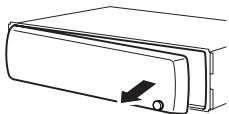
1 Press ⬇ (detach) to release the front panel.
2 Grab the front panel and remove.
natural_image
Line drawing of a door handle with a button and arrow indicating direction (no text or symbols)3 Put the front panel into the provided protective case for safe keeping.
Attaching the front panel
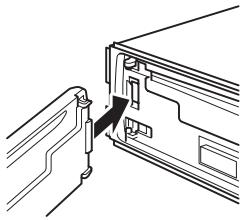
1 Slide the front panel to the left until it clicks.
Front panel and the head unit are jointed on the left side. Make sure that the front panel has been jointed to the head unit.
natural_image
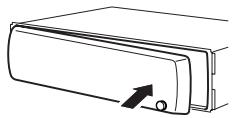
Diagram of a device with a connector inserted into a folder (no text or symbols visible)2 Press the right side of the front panel until it is firmly seated.
- If you can't attach the front panel to the head unit successfully, try again. Front panel may be damaged if you attach the front panel forcedly.
natural_image
Line drawing of a door handle with an arrow indicating direction (no text or symbols)
Resetting the microprocessor
The microprocessor must be reset under the following conditions:
- Prior to using this unit for the first time after installation
• If the unit fails to operate properly - When strange or incorrect messages appear on the display
1 Remove the front panel.
Refer to Removing the front panel on the previous page.
2 Press RESET with a pen tip or other pointed instrument.
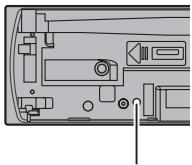
natural_image
Diagram of a device rear panel showing internal components and a button (no text or symbols)RESET button

Use and care of the remote control
Installing the battery
Slide the tray on the back of the remote control out and insert the battery with the plus (+) and minus (−) poles aligned properly.
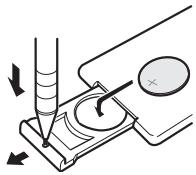
natural_image
Diagram of a precision measurement setup with tool and magnified view (no text or symbols)
WARNING
- Keep the battery out of the reach of children. Should the battery be swallowed, consult a doctor immediately.
- Batteries (battery pack or batteries installed) shall not be exposed to excessive heat such as sunshine, fire or the like.

CAUTION
• Use one CR2025 (3 V) lithium battery.
- Remove the battery if the remote control is not used for a month or longer.
- There is a danger of explosion if the battery is incorrectly replaced. Replace only with the same or equivalent type.
- Do not handle the battery with metallic tools.
- Do not store the battery with metallic objects.
- If the battery leaks, wipe the remote control completely clean and install a new battery.
Before You Start
- When disposing of used batteries, comply with governmental regulations or environmental public institutions' rules that apply in your country/area.
- "Perchlorate Material – special handling may apply.
See www.dtsc.ca.gov/hazardouswaste/perchlorate. (Applicable to California, U.S.A.)”
Using the remote control
Point the remote control in the direction of the front panel to operate.
- The remote control may not function properly in direct sunlight.

Important
- Do not store the remote control in high temperatures or direct sunlight.
- Do not let the remote control fall onto the floor, where it may become jammed under the brake or accelerator pedal.
Head unit
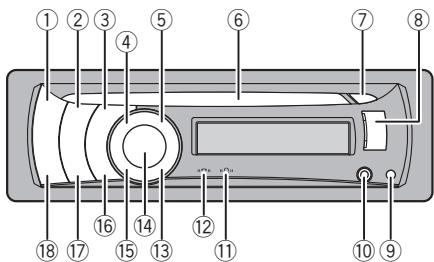
text_image
Labeled diagram of a device interior with numbered components for identification① SRC/OFF button
Press to cycle through all the available sources. Press and hold to turn the unit off.
② iPod button
Press to turn random function on or off while using CD or USB.
While using an iPod, press to shuffle all tracks.
Press and hold to switch the control mode while using an iPod.
For details, refer to Operating this unit's iPod function from your iPod on page 25.
③ SW/BASS button
Press to switch to subwoofer setting menu. When operating subwoofer menu, press to switch menu.
Press and hold to switch to bass boost menu.
④ /LIST button
Press to display the track title list, folder list, file list or preset channel list depending on the source.
Press and hold to switch to link play mode while using an iPod.
For details, refer to Playing songs related to the currently playing song on page 25.
⑤ PHONE/ Bahrain MENU button
Press to display the phone book list. While operating a phone call, press to end a call, reject an incoming call or cancel making a call.
Press and hold to select TELEPHONE as a source.
⑥ Disc loading slot
Insert a CD/CD-R/CD-RW to play.
⑦ ▲ (eject) button
Press to eject a CD/CD-R/CD-RW.
⑧ USB port
Use to connect a USB storage device and an iPod.
- When connecting, open up the USB connector lid.
- Use an optional Pioneer USB cable (CD-U50E) to connect the USB audio player/USB memory to the USB port. Since the USB audio player/USB memory is projected forward from the unit, it is dangerous to connect directly.
Do not use the unauthorized product.
⑨ (detach) button
Press to remove the front panel from the head unit.
⑩ AUX input jack (3.5 mm stereo jack)
Use to connect an auxiliary device.
⑪ “Ω” indicator
Lights up when your Bluetooth audio player is connected via Bluetooth wireless technology.
⑫ “” indicator
Lights up when your cellular phone is connected via Bluetooth wireless technology.
- When selecting a source other than TELEPHONE, it flashes while using hands-free phoning.
⑬ MUTE/HOLD button
Press to turn off the sound. To turn on the sound, press again.
While talking on the phone, press to put the call on hold.
⑭ MULTI-CONTROL
Move to perform manual seek tuning, fast forward, reverse and track search controls. When a call comes in, press to answer the incoming call.
Also used for controlling functions.
Turn to increase or decrease the volume.
- While using hands-free phoning, you can select END VOLUME and switch END VOLUME and PRIVATE in FUNCTION by pressing MULTI-CONTROL.
⑮ DISP/SCRL button
Press to select different displays.
Press and hold to scroll through the text information.
⑯ S.Rtrv/SAT MODE button
Press to switch advanced sound retriever settings.
- When XM tuner or SIRIUS tuner is selected as the source, press to change the channel select mode.
- When SIRIUS tuner is selected as the source, press and hold to perform the Instant Replay mode.
⑰ CLOCK/DISP OFF button
Press to change to the clock display.
Press and hold to turn the display indication and button illumination off or on.
⑱ BAND/ESC button
Press to select among three FM bands and one AM band.
Press to return to the ordinary display when operating the menu.
Remote control
Operation is the same as when using the buttons on the head unit.
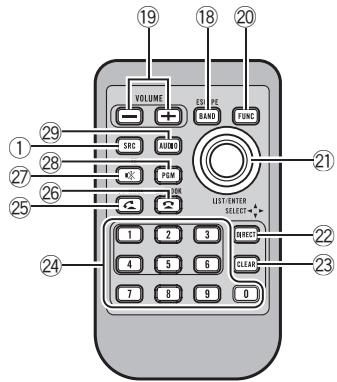
text_image
19 18 20 VOLUME EVI FE BAND FUNC SRC AUDIO PDM LIST-ENTER SELECT + 1 2 3 DIRECT 4 5 6 CLEAR 7 8 9 0 ① ② ③ ④ ⑤ ⑥ ⑦ ⑧ ⑨ ⑩ ⑪ ⑫ ⑬ ⑭ ⑮ ⑯ ⑰ ⑱ ⑲ ⑳ ㉑ ㉒ ㉓ ㉔⑲ VOLUME buttons
Press to increase or decrease the volume.
⑳ FUNCTION button
Press to select functions.
②1 Thumb pad
Move to perform manual seek tuning, fast forward, reverse and track search controls. Also used for controlling functions.
Functions are the same as
MULTI-CONTROL except for volume control.
②2 DIRECT button
Press to directly select the desired track.
Press to enter a phone number while operating a phone source.
②3 CLEAR button
Press to cancel the input number when 0 to 9 are used.
⑳ 0 to 9 buttons
Press to directly select the desired track or preset tuning. Buttons 1 to 6 can operate the preset tuning for the tuner.
Press to enter a phone number while operating a phone source.
⑲ (off hook) button
Press to start talking on the phone while operating a phone source.
②6 (on hook) button
While operating the phone source, press to end a call or reject an incoming call.
⑳ (mute) button
Press to turn off the sound. To turn on the sound, press again.
⑳ PGM button
Press to operate the preprogrammed functions for each source. (Refer to Using the PGM button on page 48.)
⑲ AUDIO button
Press to select an audio function.
Display indication
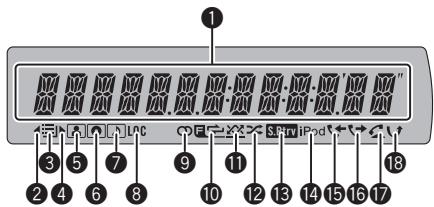
text_image
1 3 5 7 9 11 12 13 14 15 16 17 18 2 4 6 8① Main display section
Displays band, frequency, elapsed playback time and other settings.
- Tuner
Band and frequency are displayed. - Built-in CD player, USB storage device, iPod
Elapsed playback time and literal information are displayed.
② ◀ indicator
Appears when an upper tier of folder or menu exists.
③ ≡ (list) indicator
Appears when operating list function.
4 ▶ indicator
Appears when a lower tier of folder or menu exists.
⑤ (artist) indicator
Appears when the disc (track) artist name is displayed on the main display section.
Appears when artist search refinement on the iPod browsing function is in use.
6 (disc) indicator
Appears when the disc (album) name is displayed on the main display section.
Appears when album search refinement on the iPod browsing function is in use.
⑦ (song) indicator
Appears when the track (song) name is displayed on the main display section.
Appears when song search refinement on the iPod browsing function is in use.
8 LOC indicator
Appears when local seek tuning is on.
⑨ ○ (stereo) indicator
Appears when the selected frequency is being broadcast in stereo.
⑩ F→ (folder repeat) indicator
Appears when folder repeat is on.
When repeat function is on, only is displayed.
⑪ (folder random) indicator
Appears when folder random is on.
When random function is on, only ✗ is displayed.
⑫ ✕ (shuffle) indicator
Appears when shuffle function is on while the iPod source is being selected.
13 S.Rtrv (Sound Retriever) indicator
Appears when Sound Retriever function is on.
For details, refer to Using advanced sound retriever on page 20.
14 iPod indicator
Appears when CONTROL (control mode) is set to IPOD.
For details about the control mode, refer to Operating this unit's iPod function from your iPod on page 25.
15 ← (received call) indicator
Appears when received call list is displayed while telephone source is being selected.
16 ↩ (dialled call) indicator
Appears when dialled call list is displayed while telephone source is being selected.
⑰ (auto answer) indicator
Shows when the automatic answering function is on (Refer to Setting automatic answering on page 36).
18 ∪ (missed call) indicator
Appears when there are missed call log. Appears when missed call list is displayed while telephone source is being selected.
Power ON/OFF
Turning the unit on
- Press SRC/OFF to turn the unit on.
Turning the unit off
- Press SRC/OFF and hold until the unit turns off.
Selecting a source
You can select a source you want to listen to. To switch to the built-in CD player, load a disc in the unit. Refer to page 17.
- Press SRC/OFF repeatedly to switch between the following sources.
XM TUNER (XM tuner)—SIRIUS (SIRIUS tuner)—HD RADIO (HD Radio tuner)— TUNER (tuner)—COMPACT DISC (built-in CD player)—MULTI CD (multi-CD player)—USB (USB storage device)/USB-IPOD (iPod connected using USB input)—EXTERNAL (external unit 1)—EXTERNAL (external unit 2)— AUX (auxiliary unit 1)—AUX (auxiliary unit 2) —BT AUDIO (Bluetooth audio)

Notes
- In the following cases, the sound source will not change.
— When no unit corresponding to the selected source is connected.
— When there is no disc or magazine in the player.
— When AUX (auxiliary input) is set to off (refer to page 43).
— When the BT AUDIO source is set to off (refer to Activating the BT AUDIO source on page 44).
- If the HD Radio tuner is connected to this unit, tuner source is skipped.
- When an USB storage device or iPod is not connected to the USB port of this unit, NO DEVICE is displayed.
- Auxiliary unit 1 is set to on by default. Turn off the auxiliary unit 1 when not in use (refer to Switching the auxiliary setting on page 43).
- Charging the portable audio player using car's DC power source while connecting it to AUX input may generate noise. In this case, stop charging.
- External unit refers to a Pioneer product (such as ones available in the future) that, although incompatible as a source, enables control of basic functions with this unit. Two external units can be controlled with this unit. When two external units are connected, the external unit is automatically allocated to external unit 1 or external unit 2 by this unit.
- When this unit's blue/white lead is connected to the vehicle's auto-antenna relay control terminal, the vehicle's antenna extends when this unit's source is turned on. To retract the antenna, turn the source off.
Adjusting the volume
- Turn MULTI-CONTROL to adjust the sound level.
Basic Operations
- Selecting a band
Press BAND/ESC.
■ Band can be selected from among FM1, FM2, FM3 or AM.
● Manual tuning (step by step)
Push MULTI-CONTROL left or right.
- Seeking tuning
Push and hold MULTI-CONTROL left or right, and then release.
■ You can cancel seek tuning by pushing MULTI-CONTROL left or right.
■ While pushing and holding MULTI-CONTROL left or right, you can skip stations. Seek tuning starts as soon as you release
MULTI-CONTROL.
Storing and recalling broadcast frequencies
You can easily store up to six broadcast frequencies for later recall.
- Six stations for each band can be stored in memory.
1 Press Ⓞ/LIST.
Preset screen is displayed.
2 Use MULTI-CONTROL to store the selected frequency in memory.
Turn to change the preset number. Press and hold to store.
3 Use MULTI-CONTROL to select the desired station.
Turn to change the station. Press to select.
■ You can also change the station by pushing MULTI-CONTROL up or down.
■ To return to the ordinary display, press
BAND/ESC or Ⓠ/LIST.
■ If you do not operate the list within about 30 seconds, the display automatically returns to the ordinary display.
Using the remote control
- When you find a frequency that you want to store in memory, press one of preset tuning buttons 1 to 6 and hold until the preset number stops flashing.
The number you have pressed will flash in the preset number indicator and then remain lit. The selected radio station frequency has been stored in memory.
The next time you press the same preset tuning button the radio station frequency is recalled from memory.

Note
You can also recall radio station frequencies assigned to preset tuning numbers by pushing
MULTI-CONTROL up or down during the frequency display.
Introduction to advanced operations
1 Press MULTI-CONTROL to display the main menu.
2 Use MULTI-CONTROL to select FUNCTION.
Turn to change the menu option. Press to select.
The function menu is displayed.
3 Turn MULTI-CONTROL to select the function.
BSM (best stations memory)—LOCAL (local seek tuning)

Note
To return to the ordinary display, press
BAND/ESC.
Storing the strongest broadcast frequencies
BSM (best stations memory) lets you automatically store the six strongest broadcast frequencies.
1 Display the function menu.
Refer to Introduction to advanced operations on the previous page.
2 Use MULTI-CONTROL to select BSM in the function menu.
3 Press MULTI-CONTROL to turn BSM on.
The six strongest broadcast frequencies are stored in the order of their signal strength.
■ To cancel, press MULTI-CONTROL again.
Tuning in strong signals
Local seek tuning lets you tune in only those radio stations with sufficiently strong signals for good reception.
1 Display the function menu.
Refer to Introduction to advanced operations on the previous page.
2 Use MULTI-CONTROL to select LOCAL in the function menu.
3 Press MULTI-CONTROL to turn local seek tuning on.
■ To turn local seek tuning off, press MULTI-CONTROL again.
4 Push MULTI-CONTROL left or right to set the sensitivity.
FM: LEVEL1—LEVEL2—LEVEL3—LEVEL4
AM: LEVEL1—LEVEL2
Larger setting number is higher level. The highest level setting allows reception of only the strongest stations, while lower settings let you receive progressively weaker stations.
Basic Operations
- Inserting a CD/CD-R/CD-RW into the disc loading slot
Playback will automatically start.
- When loading a CD/CD-R/CD-RW, face the label side of a disc up.
● Ejecting a CD/CD-R/CD-RW
Press ▲ (eject).
- Selecting a folder
Push MULTI-CONTROL up or down.
- You cannot select a folder that does not have a compressed audio file recorded in it.
● Fast forwarding or reversing
Push and hold MULTI-CONTROL left or right.
- When playing compressed audio, there is no sound on fast forward or reverse.
- Selecting a track
Push MULTI-CONTROL left or right.
- Returning to root folder
Press and hold BAND/ESC.
■ If folder 01 (ROOT) contains no files, playback commences with folder 02.
● Switching between compressed audio and CD-DA
Press BAND/ESC.
■ This operation is available only when playing CD-EXTRA or MIXED-MODE CDs.
■ If you have switched between compressed audio and CD-DA, playback starts at the first track on the disc.

Notes
- The built-in CD player can play back audio CD and compressed audio recorded on a CD-ROM. (Please see the following section for files that can be played back. Refer to page 61.)
- Read the precautions for the player and discs in the following section. Refer to page 60.
-
A disc has already been inserted, press SRC/OFF to select the built-in CD player.
-
There is sometimes a delay between starting up disc playback and the sound being issued. When being read, FORMAT READ is displayed.
- If an error message is displayed, refer to Error messages on page 58.
- Playback is carried out in order of file number. Folders are skipped if they contain no files. (If folder 01 (ROOT) contains no files, playback commences with folder 02.)
- You can eject the CD by pressing and holding ▲ (eject) with eject position when the CD loading or ejecting cannot operate properly.
Displaying text information on disc
- Press DISP/SCRL to select the desired text information.
For title entered CD
Play time—disc title
For CD TEXT discs
Play time—disc title—disc artist name—track title—track artist name
For WMA/MP3/AAC
Play time—folder name—file name—track title—artist name—album title—comment—bit rate—folder and file numbers
For WAV
Play time—folder name—file name—sampling frequency—folder and file numbers

Notes
- You can scroll to the left of the title by pressing and holding DISP/SCRL.
- Audio CD that contains certain information such as text and/or number is CD TEXT.
- If the characters recorded on the audio file are not compatible with this unit, those characters will not be displayed.
- If specific information is not recorded on a disc, title or name is not displayed.
-
The text information of some audio files may not be correctly displayed.
-
Depending on the version of iTunes used to write MP3 files onto a disc, comment information may not be correctly displayed.
- Depending on the version of Windows Media™ Player used to encode WMA files, album names and other text information may not be correctly displayed.
- When Ever Scroll is set to ON at the initial setting, text information scrolls continuously in the display. Refer to Switching the ever scroll on page 44.
Selecting a track directly
When using the remote control, you can select a track directly by entering the desired track number.
When audio files are being played back, you can select track in the current folder.
1 Press DIRECT.
Track number input display appears.
2 Press 0 to 9 to enter the desired track number.
- You can cancel the input number by pressing CLEAR.
3 Press DIRECT.
The track for the entered number will play.

Note
After entering the number input mode, if you do not perform an operation within about eight seconds, the mode is automatically canceled.
Selecting tracks from the track title list
Track title list lets you see the list of track titles on a CD TEXT disc and select one of them to play back.
1 Press ☐/LIST to switch to the track title list mode.
2 Use MULTI-CONTROL to select the desired track title.
Turn to change the track title. Press to play.
■ You can also change the track title by pushing MULTI-CONTROL up or down.
■ To return to the ordinary display, press BAND/ESC or 📄/LIST.
■ If you do not operate the list within about 30 seconds, the display automatically returns to the ordinary display.
Selecting files from the file name list
File name list lets you see the list of file names (or folder names) and select one of them to playback.
1 Press ☐/LIST to switch to the file name list mode.
Names of files and folders appear in the display.
2 Use MULTI-CONTROL to select the desired file name (or folder name).
Turn to change the name of file or folder.
— when a file is selected, press to play.
— when a folder is selected, press to see a list of files (or folders) in the selected folder.
— when a folder is selected, press and hold to play a song in the selected folder.
■ You can also play the file by pushing MULTI-CONTROL right.
■ You can also play a song in the selected folder by pushing and holding MULTI-CONTROL right.
■ To return to the previous list (the folder one level higher), push MULTI-CONTROL left.
■ To return to the ordinary display, press BAND/ESC or Ⓞ/LIST.
■ If you do not operate the list within about 30 seconds, the display automatically returns to the ordinary display.
Introduction to advanced operations
1 Press MULTI-CONTROL to display the main menu.
2 Use MULTI-CONTROL to select FUNCTION.
Turn to change the menu option. Press to select.
The function menu is displayed.
3 Turn MULTI-CONTROL to select the function.
REPEAT (repeat play)—RANDOM (random play)—SCAN (scan play)—PAUSE (pause)—S.RTRV (advanced sound retriever)—TITLE INPUT (disc title input)

Notes
- To return to the ordinary display, press BAND/ESC.
- If you do not operate functions except for TITLE INPUT within about 30 seconds, the display automatically returns to the ordinary display.
- When playing a compressed audio disc or CD TEXT disc, you cannot switch to disc title input display.
Selecting a repeat play range
1 Display the function menu.
Refer to Introduction to advanced operations on this page.
2 Use MULTI-CONTROL to select REPEAT in the function menu.
3 Press MULTI-CONTROL to select the repeat range.
• DISC – Repeat all tracks
- TRACK – Repeat the current track
- FOLDER – Repeat the current folder
■ If you select another folder during repeat play, the repeat play range changes to disc repeat.
■ Performing track search or fast forward/reverse during TRACK (track repeat) changes the repeat play range to disc/folder.
- When FOLDER (folder repeat) is selected, it is not possible to play back a subfolder of that folder.
Playing tracks in random order
Tracks in a selected repeat range are played in random order.
- Press 📧/ iPod to turn random play on.
Tracks play in a random order.
■ To turn random play off, press ✕/ iPod again.

Note
You can also turn this function on or off in the menu that appears by using
MULTI-CONTROL.
Scanning folders and tracks
Scan play searches the song within the selected repeat range.
1 Display the function menu.
Refer to Introduction to advanced operations on this page.
2 Use MULTI-CONTROL to select SCAN in the function menu.
3 Press MULTI-CONTROL to turn scan play on.
The first 10 seconds of each track is played.
4 When you find the desired track press MULTI-CONTROL to turn scan play off.
■ If the display has automatically returned to the playback display, select SCAN again by using MULTI-CONTROL.
■ After scanning of a disc (folder) is finished, normal playback of the tracks begins.
Pausing playback
1 Display the function menu.
Refer to Introduction to advanced operations on the previous page.
2 Use MULTI-CONTROL to select PAUSE in the function menu.
3 Press MULTI-CONTROL to turn pause on.
Playback of the current track pauses.
■ To turn pause off, press MULTI-CONTROL again.
Using advanced sound retriever
Advanced sound retriever function automatically enhances compressed audio and restores rich sound.
- Press S.Rtrv/SAT MODE repeatedly to select the desired setting.
OFF (off)—1—2
■ 2 is more effective than 1.

Note
You can also perform this operation in the menu that appears by using MULTI-CONTROL.
Entering disc titles
Use the disc title input feature to store up to 48 CD titles in the unit. Each title can be up to 10 characters long.
1 Play the CD that you want to enter a title for.
2 Display the function menu.
Refer to Introduction to advanced operations on the previous page.
3 Use MULTI-CONTROL to select TITLE INPUT in the function menu.
4 Press DISP/SCRL to select the desired character type.
Press DISP/SCRL repeatedly to switch between the following character types:
Alphabet—Numbers
5 Push MULTI-CONTROL up or down to select a letter of the alphabet.
6 Push MULTI-CONTROL left or right to move the cursor to the previous or next character position.
7 Move the cursor to the last position by pushing MULTI-CONTROL right after entering the title.
When you push MULTI-CONTROL right one more time, the entered title is stored in memory.
8 Press BAND/ESC to return to the play-back display.

Notes
- Titles remain in memory, even after the disc is removed from the unit, and are recalled when the disc is reinserted.
- After data for 48 discs are stored in the memory, data for a new disc overwrites the oldest one.
- If you connect a multi-CD player, you can input disc titles for up to 100 discs.
- When a multi-CD player that does not support disc title functions is connected, you cannot enter disc titles in this unit.
Playing songs on USB storage device
For details about the supported device, refer to Specifications on page 66.
Basic Operations
- Selecting a folder
Push MULTI-CONTROL up or down.
● Fast forwarding or reversing
Push and hold MULTI-CONTROL left or right.
- Selecting a track
Push MULTI-CONTROL left or right.
- Returning to root folder
Press and hold BAND/ESC.

Notes
- Optimum performance of this unit may not be obtained depending on the connected USB storage device.
- If folder 01 (ROOT) contains no files, playback commences with folder 02.
- When the USB portable audio player having battery charging function is connected to this unit and the ignition switch is set to ACC or ON, the battery is charged.
- You can disconnect the USB storage device anytime you want to finish listening to it.
- If you do not use an USB storage device, disconnect it from this unit.
- When the USB portable audio player/USB memory is disconnected from this unit during playback, NO DEVICE is displayed.
Displaying text information of an audio file
The operation is the same as that of the built-in CD player.
Refer to Displaying text information on disc on page 17.
Selecting a track directly
The operation is the same as that of the built-in CD player.
Refer to Selecting a track directly on page 18.
Selecting files from the file name list
The operation is the same as that of the built-in CD player.
Refer to Selecting files from the file name list on page 18.
Introduction to advanced operations
1 Press MULTI-CONTROL to display the main menu.
2 Use MULTI-CONTROL to select FUNCTION.
Turn to change the menu option. Press to select.
The function menu is displayed.
3 Turn MULTI-CONTROL to select the function.
REPEAT (repeat play)—RANDOM (random play)—SCAN (scan play)—PAUSE (pause)—
S.RTRV (advanced sound retriever)
Function and operation
REPEAT, RANDOM, SCAN, PAUSE and
S.RTRV operations are basically the same as that of the built-in CD player.
Playing songs on USB storage device
| Function name | Operation |
| REPEAT | Refer to Selecting a repeat play range on page 19.However, the repeat play ranges you can select are different from that of the built-in CD player. The repeat play ranges of the USB portable audio player/USB memory are:TRACK– Repeat just the current fileFOLDER– Repeat the current folderALL– Repeat all files |
| RANDOM | Refer to Playing tracks in random order on page 19. |
| SCAN | Refer to Scanning folders and tracks on page 19. |
| PAUSE | Refer to Pausing playback on page 20. |
| S.RTRV | Refer to Using advanced sound retriever on page 20. |

Notes
- To return to the ordinary display, press BAND/ESC.
- If you select another folder during repeat play, the repeat play range changes to ALL.
- If you perform track search or fast forward/reverse during TRACK, the repeat play range changes to FOLDER.
- When FOLDER is selected, it is not possible to play back a subfolder of that folder.
- After file or folder scanning is finished, normal playback of the files begins again.
Playing songs on iPod
For details about the supported iPod, refer to iPod compatibility on page 63.
Basic Operations
● Fast forwarding or reversing
Push and hold MULTI-CONTROL left or right.
- Selecting a track (chapter)
Push MULTI-CONTROL left or right.

Notes
- Read the precautions for iPod in the following section. Refer to page 63.
- If an error message is displayed, refer to Error messages on page 58.
- When the ignition switch is set to ACC or ON, the iPod's battery is charged while the iPod is connected to this unit.
- While the iPod is connected to this unit, the iPod cannot be turned on or off.
- Before connecting the iPod to this unit, disconnect the headphones from the iPod.
- The iPod is turned off about two minutes after the ignition switch is set to OFF.
Browsing for a song
Operations to control an iPod with this unit is designed to be as close to the iPod as possible to make operation and song search easy.
- Depending on the number of files in the iPod, there may be a delay when displaying a list.
- If the characters recorded on the iPod are not compatible with this unit, those characters are not displayed.
Searching songs by category
1 Press ⚫/LIST to switch to the browsing mode.
2 Use MULTI-CONTROL to select a category.
Turn to change the category. Press to select.
PLAYLISTS (playlists)—ARTISTS (artists)—
ALBUMS (albums)—SONGS (songs)—
PODCASTS (podcasts)—GENRES (genres)—
COMPOSERS (composers)—AUDIOBOOKS (audiobooks)
List for the selected category is displayed.
■ You can start playback throughout the selected category by pressing and holding
MULTI-CONTROL. You can also perform this operation by pushing and holding
MULTI-CONTROL right.
■ You can also change the category by pushing MULTI-CONTROL up or down.
■ You can also select the category by pushing MULTI-CONTROL right.
■ To return to the previous category, push MULTI-CONTROL left.
■ To return to the top tier of categories, push and hold MULTI-CONTROL left.
■ To return to the ordinary display, press BAND/ESC.
■ If you do not operate the list within about 30 seconds, the display automatically returns to the ordinary display.
3 Repeat step 2 to find a song you want to listen to.
■ When you select PODCASTS, an episode list is displayed.
Searching by alphabet in the list
1 Use MULTI-CONTROL to select a category.
Turn to change the category. Press to select.
2 When a list for the selected category is displayed, press Ⓐ/LIST to switch to alphabet search mode.
ABC SEARCH is displayed.
3 Turn MULTI-CONTROL to select a letter of the alphabet.
4 Press MULTI-CONTROL to display the alphabetical list.
The list is displayed starting from the selected letter of the alphabet.
■ If alphabet search fails, NOT FOUND is displayed.
Displaying text information on iPod
- Press DISP/SCRL to select the desired text information.
Play time—song title—artist name—album title—number of songs

Notes
- If the characters recorded on the iPod are not compatible with this unit, those characters are not displayed.
- You can scroll the text information to the left by pressing and holding DISP/SCRL.
- When Ever Scroll is set to ON at the initial setting, text information scrolls continuously in the display. Refer to Switching the ever scroll on page 44.
Introduction to advanced operations
1 Press MULTI-CONTROL to display the main menu.
2 Use MULTI-CONTROL to select FUNCTION.
Turn to change the menu option. Press to select.
The function menu is displayed.
3 Turn MULTI-CONTROL to select the function.
REPEAT (repeat play)—SHUFFLE (shuffle)—SHUFFLE ALL (shuffle all)—LINK (link play)—CONTROL (control mode)—PAUSE (pause)—
A-BOOKS (audiobook speed)—S.RTRV (advanced sound retriever)
Function and operation
REPEAT, PAUSE and S.RTRV operations are basically the same as that of the built-in CD player.
| Function name | Operation |
| REPEAT | Refer toSelecting a repeat play range on page 19.However, the repeat play ranges you can select are different from that of the built-in CD player. The repeat play ranges of the iPod are:ONE– Repeat the current songALL– Repeat all songs in the selected list |
| PAUSE | Refer toPausing playbackon page 20. |
| S.RTRV | Refer toUsing advanced sound re-trieveron page 20. |

Notes
- To return to the ordinary display, press BAND/ESC.
- If you do not operate functions within about 30 seconds, the display automatically returns to the ordinary display.
- When CONTROL is set to IPOD, only CONTROL, PAUSE and S.RTRV can be operated.
Playing songs in a random order (shuffle)
1 Display the function menu.
Refer to Introduction to advanced operations on this page.
2 Use MULTI-CONTROL to select SHUFFLE in the function menu.
3 Press MULTI-CONTROL to select your favorite setting.
- SONGS – Play back songs in the selected list in random order.
- ALBUMS – Play back songs from a randomly selected album in order.
- OFF – Cancel random play.
Playing all songs in a random order (shuffle all)
- Press 📧/ iPod to turn shuffle all on.
All songs on the iPod play randomly.
■ To turn shuffle all off, set SHUFFLE in the FUNCTION menu to off.

Note
You can also turn this function on in the menu that appears by using MULTI-CONTROL.
Playing songs related to the currently playing song
Songs related to the currently playing song are played. You can play songs of the following lists.
— Album list of currently playing artist
— Song list of currently playing album
— Album list of currently playing genre
- Depending on the number of files in the iPod, there may be a delay when displaying a list.
1 Press and hold ≡/LIST to switch to the link play mode.
2 Use MULTI-CONTROL to select the desired mode.
Push MULTI-CONTROL left or right to change the mode; press to select.
• ARTISTS – Plays the album of currently playing artist.
- ALBUMS – Plays the song of currently playing album.
- GENRES – Plays the album of currently playing genre.
SEARCHING flashes while searching the list and then the playback of the list starts.
■ If the related albums/songs are not found, NOT FOUND is displayed.

Note
You can also turn this function on in the menu that appears by using MULTI-CONTROL.
Operating this unit's iPod function from your iPod
This function cannot be operated with the following iPod models.
— iPod nano first generation
— iPod fifth generation
This unit's iPod function can be operated from your iPod. Sound can be heard from the car's speakers, and operation can be conducted from your iPod.
1 Press 📧/iPod and hold to switch the control mode.
Each pressing and holding 📧/iPod switches the control mode as follows:
- IPOD – This unit's iPod function can be operated from the connected iPod.
- AUDIO – This unit's iPod function can be operated from this unit.
2 When you select IPOD, operate the connected iPod to select a song and play.
■ Switching the control mode to IPOD pauses song playback. Operate the iPod to start play-back.
■ Even if the control mode is set to IPOD, following functions are available from this unit.
- Volume
- Fast forward/reverse
- Track up/down
- Pausing
- Switching the text information

Notes
- You can also turn this function on or off in the menu that appears by using
MULTI-CONTROL.
- When the control mode is set to IPOD, operations are limited as follows:
— Functions other than CONTROL (control mode), PAUSE (pause) and S.RTRV (advanced sound retriever) cannot be selected.
— The volume can only be controlled from this unit.
Changing audiobook speed
While listening to an audiobook on iPod, playback speed can be changed.
1 Display the function menu.
Refer to Introduction to advanced operations on page 24.
2 Use MULTI-CONTROL to select
A-BOOKS in the function menu.
3 Press MULTI-CONTROL to select your favorite setting.
- FASTER – Playback faster than normal speed
• NORMAL – Playback in normal speed - SLOWER – Playback slower than normal speed ☐
Using Bluetooth wireless technology
Connecting a Bluetooth device
Before using the Bluetooth audio player and Bluetooth telephone, you need to connect Bluetooth device to this unit. Please read the following section and connect correctly.
If you use Bluetooth device with this unit for the first time, read the following section.
- Using a Bluetooth device to pair on the next page
• Pairing from this unit on the next page
If your Bluetooth device has already been paired, read the following section.
- Connecting a paired Bluetooth device and selecting a service on page 29
If your Bluetooth device needs to be disconnected from this unit, read the following section.
- Disconnecting a Bluetooth device on page 29
Also, you can use other convenient functions listed below. You can use these functions when needed.
- Deleting a paired Bluetooth device on page 29
- Connecting to a Bluetooth device automatically on page 30
- Displaying system version for repair on page 30
- Displaying BD (Bluetooth Device) address on page 30
• Editing device name on page 30 - Entering PIN code for Bluetooth wireless connection on page 31

Note
Before you can use the devices featuring Bluetooth wireless technology, you may need to enter the PIN code into this unit. If your device requires a PIN code to establish a connection, look for the code on the device or in its accompanying documentation. Refer to Entering PIN code for Bluetooth wireless connection on page 31.
Introduction to connection operations
1 Select BT AUDIO or TELEPHONE as a source.
To select BTAUDIO, press SRC/OFF. To select TELEPHONE, press and hold PHONE/☐/BT MENU.
2 Press MULTI-CONTROL to display the main menu.
3 Use MULTI-CONTROL to select CONNECTION.
Turn to change the menu option. Press to select.
The connection menu is displayed.
4 Turn MULTI-CONTROL to select the function.
OPEN DEVICE (open a connection to the device)—SEARCH DEVICE (search device)—DISCONNECT (disconnect device)—DELETE DEVICE (delete device)—PAIRED DEVICE (service setting)—A.CONNECT (automatic connection setting)—BT VER. INFO (version information)—DEVICE INFO (device information)—DEVICE EDIT (editing the device name)—PINCODE INPUT (pin code input)

Notes
- If a Bluetooth device is not connected to this unit yet, DISCONNECT function is not available.
- If a Bluetooth device is not paired with this unit yet, DELETE DEVICE and PAIRED DEVICE function is not available.
- To return to the ordinary display, press BAND/ESC.
Using Bluetooth wireless technology
- If you do not operate functions except for OPEN DEVICE, SEARCH DEVICE, DISCONNECT, DEVICE EDIT and PINCODE INPUT within about 30 seconds, the display automatically returns to the ordinary display.
- If you do not operate OPEN DEVICE and SEARCH DEVICE within 30 seconds after the Bluetooth device is paired, the display automatically returns to the ordinary display.
Using a Bluetooth device to pair
1 Display the connection menu.
Refer to Introduction to connection operations on the previous page.
2 Use MULTI-CONTROL to select OPEN DEVICE.
■ If there is previous connection log in this unit, you can select the Bluetooth device from PAIRED DEVICE.
Refer to Connecting a paired Bluetooth device and selecting a service on the next page.
3 Push MULTI-CONTROL up or down to select the special device.
- Bluetooth devices that are difficult to establish connection is called special device. If your Bluetooth device is listed in the special device, select the appropriate one.
4 Press MULTI-CONTROL to open the connection.
READY will be displayed.
This unit is now on standby for connection from Bluetooth device.
■ If five devices are already paired,
MEMORY FULL is displayed and it is not possible to perform the pairing operation. In this case, delete a paired device first. Refer to Deleting a paired Bluetooth device on the next page.
- Push MULTI-CONTROL left or right to display the device name, BD address and PIN code of this unit.
5 Use your Bluetooth device to establish connection.
Connection method is different depending on the Bluetooth device. See the manual of your Bluetooth device to establish connection. When the connection is established, PAIRED is displayed.
■ If the connection fails, ERROR is displayed. In this case, try again from the beginning.
■ PIN code is set to 0000 as the default. You can change this code. Refer to Entering PIN code for Bluetooth wireless connection on page 31.
Pairing from this unit
1 Display the connection menu.
Refer to Introduction to connection operations on the previous page.
2 Use MULTI-CONTROL to select SEARCH DEVICE.
3 Push MULTI-CONTROL up or down to select a device.
4 Press MULTI-CONTROL to start searching.
While searching, SEARCHING flashes. When available Bluetooth devices are found, device name or BD address (if names cannot be obtained) is displayed.
■ To cancel searching, press MULTI-CONTROL again.
■ If five devices are already paired,
MEMORY FULL is displayed and it is not possible to perform the pairing operation. In this case, delete a paired device first. Refer to Deleting a paired Bluetooth device on the next page.
■ If no device can be found, NOT FOUND is displayed. In this case, check the status of Bluetooth device and search again.
5 Push MULTI-CONTROL up or down to select a device name you want to connect.
■ If only one device was found, this step cannot be performed.
■ Push MULTI-CONTROL left or right to display the device name and BD address.
Using Bluetooth wireless technology
6 Press MULTI-CONTROL to establish connection.
While connecting, PAIRING flashes. If the connection is established, PAIRED is displayed.
■ If the connection fails, ERROR is displayed. In this case, try again from the beginning.
■ PIN code is set to 0000 as the default. You can change this code. Refer to Entering PIN code for Bluetooth wireless connection on page 31.
Disconnecting a Bluetooth device
This function can be operated only when the Bluetooth wireless connection is being established.
1 Display the connection menu.
Refer to Introduction to connection operations on page 27.
2 Use MULTI-CONTROL to select DISCONNECT.
3 Push MULTI-CONTROL up or down to select a device.
■ If only one device was found, this step cannot be performed.
4 Press MULTI-CONTROL to disconnect the Bluetooth wireless connection.
While disconnecting, DISCONNECTING flashes. When the Bluetooth wireless connection is terminated, DISCONNECTED is displayed.
■ If multiple Bluetooth devices have been connected and you wish to disconnect them, press MULTI-CONTROL and then select the device. In this case, repeat operation from step 3.
Deleting a paired Bluetooth device
1 Display the connection menu.
Refer to Introduction to connection operations on page 27.
2 Use MULTI-CONTROL to select DELETE DEVICE.
3 Push MULTI-CONTROL up or down to select a device.
■ If only one device was found, this step cannot be performed.
- Push MULTI-CONTROL left to display the BD address.
■ If device name cannot be obtained, BD address is displayed.
4 When the device name is being displayed, push MULTI-CONTROL right to display DELETE YES.
Deleting device is now on standby.
■ If you do not want to delete the device, push MULTI-CONTROL left.
5 Press MULTI-CONTROL to delete the device.
While deleting, DELETING flashes. After the device is deleted, DELETED is displayed.
Connecting a paired Bluetooth device and selecting a service
Bluetooth service of the paired device can be selected. You can choose a Bluetooth service from PHONE service, AVRCP service or A2DP service.
1 Display the connection menu.
Refer to Introduction to connection operations on page 27.
2 Use MULTI-CONTROL to select PAIRED DEVICE.
3 Push MULTI-CONTROL up or down to select a device.
■ If only one device was found, this step cannot be performed.
■ Push MULTI-CONTROL left or right to switch the BD address and device name.
■ If device name cannot be obtained, BD address is displayed.
4 Press MULTI-CONTROL to display the service select screen.
Using Bluetooth wireless technology
5 Push MULTI-CONTROL up or down to select the service. PHONE—AVRCP—A2DP
■ “*” is displayed on the connected service.
■ Profile that is not compatible with the connected device cannot be selected.
6 Press MULTI-CONTROL to start or stop the selected service.
Connecting to a Bluetooth device automatically
It is possible to set the automatic connection between your Bluetooth device and this unit. If this function is set to on, connection between your Bluetooth device and this unit will take place automatically as soon as the two devices are less than a few meters apart.
- Initially, this function is set to on.
1 Display the connection menu.
Refer to Introduction to connection operations on page 27.
2 Use MULTI-CONTROL to select A.CONNECT.
3 Press MULTI-CONTROL to turn automatic connection on.
If your Bluetooth device is ready for Bluetooth wireless connection, connection to this unit is automatically established.
■ To turn automatic connection off, press MULTI-CONTROL again.
Displaying system version for repair
Should this unit fails to operate properly and you consult your dealer for repair, you may be asked to indicate the system versions of this unit and of Bluetooth module. You can display the versions and confirm them.
1 Display the connection menu.
Refer to Introduction to connection operations on page 27.
2 Use MULTI-CONTROL to select BT VER. INFO.
The system (microprocessor) version of this unit is displayed.
3 Push MULTI-CONTROL left to switch to the version of the Bluetooth module of this unit.
- Pushing MULTI-CONTROL right returns to the system version of this unit.
Displaying BD (Bluetooth Device) address
This unit displays the BD address of this unit.
1 Display the connection menu.
Refer to Introduction to connection operations on page 27.
2 Use MULTI-CONTROL to select DEVICE INFO in the function menu.
3 Push MULTI-CONTROL left to switch to the BD address.
12-digit hexadecimal string is displayed.
- Pushing MULTI-CONTROL right returns to the device name.
Editing device name
You can edit the device name.
The device name is set to PIONEER BT as default.
1 Display the connection menu.
Refer to Introduction to connection operations on page 27.
2 Use MULTI-CONTROL to select DEVICE EDIT.
3 Press DISP/SCRL to select the desired character type.
Press DISP/SCRL repeatedly to switch between the following character types:
Alphabet—Numbers
Using Bluetooth wireless technology
4 Push MULTI-CONTROL up or down to select a letter of the alphabet.
■ Device name can be up to 32 characters long.
5 Push MULTI-CONTROL left or right to move the cursor to the previous or next character position.
6 After editing device name, press MULTI-CONTROL to store in this unit.
Entering PIN code for Bluetooth wireless connection
To connect your Bluetooth device to this unit via Bluetooth wireless technology, you need to enter PIN code on your Bluetooth device to verify the connection. The default code is 0000, but you can change this in this function.
- With some Bluetooth devices, you don't need to enter the PIN code.
1 Display the connection menu.
Refer to Introduction to connection operations on page 27.
2 Use MULTI-CONTROL to select PINCODE INPUT.
3 Push MULTI-CONTROL up or down to select a number.
4 Push MULTI-CONTROL left or right to move the cursor to the previous or next position.
5 After inputting PIN code (up to 16 digits), press MULTI-CONTROL to store in this unit.
- Pushing MULTI-CONTROL right in the confirmation display returns you to the PIN code input display, and you can change the PIN code.
■ If an invalid character has been entered, subsequent characters are not displayed.
■ If an invalid character has been entered in the beginning, PIN code cannot be stored in memory.
Bluetooth Audio

Important
- Depending on the Bluetooth audio player connected to this unit, the operations available with this unit are limited to the following two levels:
— A2DP profile (Advanced Audio Distribution Profile): Only playing back songs on your audio player is possible.
— AVRCP profile (Audio/Video Remote Control Profile): Playing back, pausing, selecting songs, etc., are possible.
- Since there are a number of Bluetooth audio players available on the market, operations with your Bluetooth audio player using this unit vary extensively. Refer to the instruction manual that came with your Bluetooth audio player as well as this manual while operating your player on this unit.
- Information about songs (e.g. the elapsed playing time, song title, song index, etc.) cannot be displayed on this unit.
- While you are listening to songs on your Bluetooth audio player, refrain from using on your cellular phone as much as possible. If you use your cellular phone, the signal from your cellular phone may cause noise on the song playback.
- When you are talking on a cellular phone connected to this unit via Bluetooth wireless technology, song playback from your Bluetooth audio player connected to this unit is muted.
- While using Bluetooth audio player, automatic connection of Bluetooth telephone cannot be performed.
- Even if you are listening to a song on your Bluetooth audio player and you switch to another source, song playback continues.
Using Bluetooth wireless technology
Setting up for Bluetooth audio
Before you can use the Bluetooth audio function you must set up the unit for use with your Bluetooth audio player. This entails establishing a Bluetooth wireless connection between this unit and your Bluetooth audio player, and pairing your Bluetooth audio player with this unit.
- Connecting and pairing
For detailed instructions on connecting your phone to this unit via Bluetooth wireless technology, see following section. Connecting a Bluetooth device on page 27.
Basic Operations
● Fast forwarding or reversing
Push and hold MULTI-CONTROL left or right.
- Selecting a track
Push MULTI-CONTROL left or right.
- Starting playback
Press BAND/ESC.
Introduction to advanced operations
1 Press MULTI-CONTROL to display the main menu.
2 Use MULTI-CONTROL to select FUNCTION.
Turn to change the menu option. Press to select.
The function menu is displayed.
3 Turn MULTI-CONTROL to select the function.
PLAY (play)—STOP (stop)—PAUSE (pause)

Notes
- To return to the ordinary display, press BAND/ESC.
- If you do not operate functions within about 30 seconds, the display automatically returns to the ordinary display.
Function and operation
PAUSE is the same as that of the built-in CD player.
| Function name | Operation |
| PAUSE | Refer to Pausing playback on page 20. |
Playing songs on a Bluetooth audio player
1 Display the function menu.
Refer to Introduction to advanced operations on this page.
2 Use MULTI-CONTROL to select PLAY in the function menu.
3 Press MULTI-CONTROL to start play-back.
Stopping playback
1 Display the function menu.
Refer to Introduction to advanced operations on this page.
2 Use MULTI-CONTROL to select STOP in the function menu.
3 Press MULTI-CONTROL to stop the playback.
Using Bluetooth wireless technology
Bluetooth Telephone

Important
- Since this unit is on standby to connect with your cellular phone via Bluetooth wireless technology, using this unit without running the engine can result in battery drainage.
- Advanced operations that require your attention such as dialing numbers on the monitor, using phone book, etc., are prohibited while you are driving. When you need to use these advanced operations, stop your vehicle in a safe place.
- Depending on the cellular phone connected to this unit, the operations available with this unit may be limited.
Setting up for hands-free phoning
Before you can use the hands-free phoning function you must set up the unit for use with your cellular phone. This entails establishing a Bluetooth wireless connection between this unit and your phone, pairing your phone with this unit, adjusting the volume level and adjusting the microphone angle.
1 Connecting and pairing
For detailed instructions on connecting your phone to this unit via Bluetooth wireless technology, see following section. Connecting a Bluetooth device on page 27.
2 Volume adjustment
Adjust the earpiece volume on your cellular phone for comfort. When adjusted, the volume level is recorded in this unit as the default setting.
- Caller's voice volume and ring volume may vary depending on the type of cellular phone.
- If the difference between the ring volume and caller's voice volume is big, overall volume level may become unstable.
■ Before disconnecting the cellular phone from this unit, make sure to adjust the volume to a proper level. If the volume is muted (zero level) on your cellular phone, the volume level of your cel-
lular phone remains muted even after the cellular phone is disconnected.
3 Microphone angle adjustment
The microphone needs to be pointed toward the person speaking.
Making a phone call
Dial a number
The most basic way to make a call is to simply dial the number. For detailed instructions, refer to Making a call by entering phone number on page 37.
Calling a number in the Phone Book or the Call History
For detailed instructions, refer to Calling a number in the phone book on page 35 and Using the missed, received and dialed call lists on page 35.
Voice recognition
If your cellular phone features voice recognition technology, you can make a call by voice commands.
- Operation varies depending on the type of cellular phone. Refer to the instruction manual that came with your cellular phone for detailed instructions.
1 Press BAND/ESC and hold until CANCEL appears in the display.
When VOICE DIAL ON is displayed, voice recognition function is ready.
■ If your cellular phone does not feature voice recognition function, NO VOICE DIAL appears in the display and operation is not possible.
2 Pronounce the name of your contact.
Using Bluetooth wireless technology
Taking a phone call
Answering or rejecting an incoming call
● Answering an incoming call
When a call comes in, press MULTI-CONTROL.
- End a call
Press PHONE/☐/BT MENU.
- Rejecting an incoming call
When a call comes in, press PHONE// BT MENU.

Note
The estimated call time appears in the display (this may differ slightly from the actual call time).
Operating a call waiting
- Answering a call waiting
When a call comes in, press MULTI-CONTROL.
- End all calls
Press PHONE/☐/BT MENU.
- Switch between callers on hold
Push MULTI-CONTROL up.
- Rejecting call waiting
Press PHONE/☐/BT MENU.

Notes
- To end the call, both you and your caller need to hang up the phone.
- While in standby mode, you can recall PHONE BOOK by pushing MULTI-CONTROL down.
- While in standby mode, you can recall MISSED CALLS by pushing MULTI-CONTROL up.
- While in standby mode, you can recall DIALED CALLS by pushing MULTI-CONTROL right.
- While in standby mode, you can recall RCVED CALLS by pushing MULTI-CONTROL left.
Using the phone number list

Important
- Be sure to park your vehicle and apply the parking brake when operating the list.
- List can be called up from all sources. The methods to call up the list are different by the source.
1 Press PHONE/☐/BT MENU to switch to the phone number list mode.
■ If TELEPHONE is selected as the source, press ⚫/LIST to switch to the phone number list mode.
2 Use MULTI-CONTROL to select a category.
Turn to change the menu option. Press to select.
PHONE BOOK (phone book list)— MISSED CALLS (missed call list)— DIALED CALLS (dialed call list)— RCVED CALLS (received call list)
- For more detailed information about PHONE BOOK, see the following section. Calling a number in the phone book on the next page.
- For more detailed information about MISSED CALLS, DIALED CALLS and RCVED CALLS, see the following section. Using the missed, received and dialed call lists on the next page.
■ If no names are stored, phone numbers are displayed.
Using Bluetooth wireless technology
Calling a number in the phone book
While this unit and your cellular phone are being connected, the phone book of this unit is automatically synchronized with that of the cellular phone. However, the synchronization may not be performed depending on the type of cellular phone. In this case, you will need to set up the phone book manually. To set up the phone book, see the following section. Transferring entries to the phone book on the next page.
After finding the number you want to call in the phone book, you can select the entry and make the call.
1 Press PHONE/☐/BT MENU to switch to the phone number list mode.
■ If TELEPHONE is selected as the source, press
LIST to switch to the phone number list mode.
2 Use MULTI-CONTROL to select PHONE BOOK.
Turn to change the menu option. Press to select.
3 Turn MULTI-CONTROL to select the first letter of the name you are looking for.
- You can also perform the same operation by pushing MULTI-CONTROL up or down.
■ The order of the first name and last name may be different from that of the cellular phone.
4 Press MULTI-CONTROL to display entries.
The display shows the first Phone Book entry starting with that letter (e.g. “Ben”, “Brian” and “Burt” when “B” is selected).
5 Turn MULTI-CONTROL to select a phone book entry you want to call.
- You can also perform the same operation by pushing MULTI-CONTROL up or down.
6 Press MULTI-CONTROL to display the phone number list of the selected entry.
- You can also display the phone number list of the selected entry by pushing MULTI-CONTROL right.
- You can scroll literal information by pressing and holding DISP/SCRL. To stop scrolling, press DISP/SCRL.
■ If several phone numbers are included in an entry, select one by turning MULTI-CONTROL.
■ If you want to go back and select another entry, push MULTI-CONTROL left.
7 Press MULTI-CONTROL to make a call.
8 To end the call, press PHONE/2/BT MENU.
Using the missed, received and dialed call lists
The 80 most recent calls dialed, received, and missed are stored in memory. You can browse them and call numbers from these lists.
1 Press PHONE/☐/BT MENU to switch to the phone number list mode.
■ If TELEPHONE is selected as the source, press
LIST to switch to the phone number list mode.
2 Use MULTI-CONTROL to select MISSED CALLS, DIALED CALLS or RCVED CALLS.
Turn to change the menu option. Press to select.
3 Turn MULTI-CONTROL to select a phone number.
Turning MULTI-CONTROL to change the phone numbers stored in the list.
■ You can also change the phone number by pushing MULTI-CONTROL up or down.
■ You can switch the name and phone number by pressing DISP/SCRL.
- You can scroll literal information by pressing and holding DISP/SCRL. To stop scrolling, press DISP/SCRL.
Using Bluetooth wireless technology
■ If you do not operate anything within about 30 seconds, the list display is canceled automatically.
4 Press MULTI-CONTROL to make a call.
5 To end the call, press PHONE/☐/BT MENU.
Introduction to advanced operations
1 Press and hold PHONE/☐/BT MENU to switch to TELEPHONE.
2 Press MULTI-CONTROL to display the main menu.
3 Use MULTI-CONTROL to select FUNCTION.
The function menu is displayed.
Turn to change the menu option. Press to select.
4 Turn MULTI-CONTROL to select the function.
PH B TRANSFER (phone book transfer)—A.ANSWER (automatic answer setting)—END VOLUME (Adjust the intended party's listening volume)—RING TONE (ring tone select)—NUMBER DIAL (call by entering number)—PRIVATE (private mode)

Notes
- To return to the playback display, press BAND/ESC.
- If you do not operate functions other than PH B TRANSFER, and NUMBER DIAL within about 30 seconds, the display automatically returns to the ordinary display.
- You can operate PRIVATE only while talking on the phone.
- If Bluetooth telephone is not connected to this unit, NUMBER DIAL cannot be operated.
Transferring entries to the phone book
Phone books in your cellular phone can be transferred to this unit by using your cellular phone.
- 1 000 entries for each user (max. 5 devices) can be stored in the phone book. Each independent entry can hold five phone numbers and genres.
1 Display the function menu.
Refer to Introduction to advanced operations on this page.
2 Use MULTI-CONTROL to select PH B TRANSFER.
3 Press MULTI-CONTROL to enter the phone book transfer standby mode.
WAIT is displayed.
4 Use the cellular phone to perform phone book transfer.
Perform phone book transfer using the cellular phone. For detailed instructions, refer to the instruction manual that came with your cellular phone.
When phone book transfer is completed, DATA TRANSFER is displayed.
Setting automatic answering
1 Display the function menu.
Refer to Introduction to advanced operations on this page.
2 Use MULTI-CONTROL to select A.ANSWER.
3 Press MULTI-CONTROL to turn automatic answering on.
■ To turn automatic answering function off, press MULTI-CONTROL again.
Using Bluetooth wireless technology
Adjusting the intended party's listening volume
To maintain the good speech quality, this unit can adjust the intended party's listening volume. If the volume is not enough for intended party, adjust this function.
1 Display the function menu.
Refer to Introduction to advanced operations on the previous page.
2 Use MULTI-CONTROL to select END VOLUME.
3 Push MULTI-CONTROL left or right to select the desired setting.
1—2—3—4—5
■ This function can be performed even while talking on the phone.
■ Settings can be stored for each device.
Switching the ring tone
You can select whether to use this unit's ring tone or not. If this function is set to on, ring tone from this unit will sound.
1 Display the function menu.
Refer to Introduction to advanced operations on the previous page.
2 Use MULTI-CONTROL to select RING TONE.
3 Press MULTI-CONTROL to turn ring tone on.
To turn ring tone off, press MULTI-CONTROL again.
Making a call by entering phone number

Important
Be sure to park your vehicle and apply the parking brake when performing this operation.
1 Display the function menu.
Refer to Introduction to advanced operations on the previous page.
2 Use MULTI-CONTROL to select NUMBER DIAL.
3 Push MULTI-CONTROL up or down to select a number.
4 Push MULTI-CONTROL left or right to move the cursor to the previous or next position.
■ Up to 32 digits can be entered.
5 When you finish entering the number, press MULTI-CONTROL.
Call confirmation appears.
6 Press MULTI-CONTROL to make a call.
7 To end the call, press PHONE/☐/BT MENU.
Setting the private mode
During a conversation, you can switch to private mode (talking directly on your cellular phone).
1 Display the function menu.
Refer to Introduction to advanced operations on the previous page.
2 Use MULTI-CONTROL to select PRIVATE.
3 Press MULTI-CONTROL to turn private mode on.
To turn private mode off, press
MULTI-CONTROL again.
Introduction of audio adjustments
1 Press MULTI-CONTROL to display the main menu.
2 Use MULTI-CONTROL to select AUDIO.
Turn to change the menu option. Press to select.
The audio menu is displayed.
3 Turn MULTI-CONTROL to select the audio function.
FADER (balance adjustment)—P.EQ (equalizer recall)—EQ (equalizer adjustment)—EQ (equalizer fine adjustment)—LOUDNESS (loudness)—SUB W1 (subwoofer on/off setting)—SUB W2 (subwoofer setting)—HPF (high pass filter)—BASS BOOST (bass boost)—SLA (source level adjustment)

Notes
- To return to the playback display, press BAND/ESC.
- If TELEPHONE is selected as a source, only FADER (balance adjustment) can be operated.
- You can select the SUB W2 only when subwoofer output is turned on in SUB W1.
- When selecting FM as the source, you cannot switch to SLA.
- If you do not operate functions within about 30 seconds, the display automatically returns to the ordinary display.
Using balance adjustment
You can change the fader/balance setting so that it can provide the ideal listening environment in all occupied seats.
1 Display the audio menu.
Refer to Introduction of audio adjustments on this page.
2 Use MULTI-CONTROL to select FADER in the audio function menu.
■ If the balance setting has been previously adjusted, BALANCE will be displayed.
3 Push MULTI-CONTROL up or down to adjust front/rear speaker balance.
F 15 to R 15 is displayed as the front/rear speaker balance moves from front to rear.
■ F/R 0 is the proper setting when only two speakers are used.
■ When the rear output setting is
Rear SP :SUB W, you cannot adjust front/rear speaker balance. Refer to Setting the rear output and subwoofer output on page 43.
4 Push MULTI-CONTROL left or right to adjust left/right speaker balance.
L 15 to R 15 is displayed as the left/right speaker balance moves from left to right.
Using the equalizer
The equalizer lets you adjust the equalization to match the car's interior acoustic characteristics as desired.
Recalling equalizer curves
There are six stored equalizer curves which you can easily recall at any time. Here is a list of the equalizer curves.
| Display | Equalizer curve |
| POWERFUL | Powerful |
| NATURAL | Natural |
| VOCAL | Vocal |
| CUSTOM | Custom |
| FLAT | Flat |
| S-BASS | Super bass |
- CUSTOM is an adjusted equalizer curve that you create.
- When FLAT is selected, no supplement or correction is made to the sound. This is useful to check the effect of the equalizer curves by switching alternatively between FLAT and a set equalizer curve.
1 Display the audio menu.
Refer to Introduction of audio adjustments on the previous page.
2 Use MULTI-CONTROL to select P.EQ.
3 Push MULTI-CONTROL left or right to select the equalizer.
Adjusting equalizer curves
The factory supplied equalizer curves can be adjusted to a fine degree (nuance control).
1 Display the audio menu.
Refer to Introduction of audio adjustments on the previous page.
2 Use MULTI-CONTROL to select EQ (equalizer adjustment).
3 Push MULTI-CONTROL left or right to select the equalizer band to adjust. LOW (low)—MID (mid)—HIGH (high)
4 Push MULTI-CONTROL up or down to adjust the level of the equalization band.
+6 to -6 is displayed as the level is increased or decreased.
- You can then select another band and adjust the level.
Fine-adjusting equalizer curve
You can adjust the center frequency and the Q factor (curve characteristics) of each currently selected curve band (LOW/MID/HI).
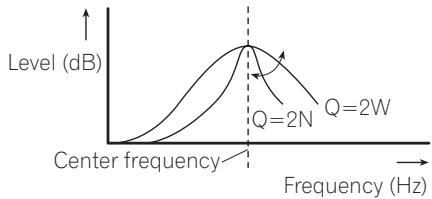
line
| Frequency (Hz) | Level (dB) for Q=2N | Level (dB) for Q=2W | | -------------- | ------------------- | ------------------- | | 0 | 0 | 0 | | Q=2N | Peak | Q=2W | | >Q=2N | Decreasing | Decreasing |1 Display the audio menu.
Refer to Introduction of audio adjustments on the previous page.
2 Use MULTI-CONTROL to select EQ (equalizer fine adjustment).
3 Push MULTI-CONTROL left or right to select the frequency to adjust.
Low: 40HZ—80HZ—100HZ—160HZ
Mid: 200HZ—500HZ—1KHZ—2KHZ
High: 3KHZ—8KHZ—10KHZ—12KHZ
4 Push MULTI-CONTROL up or down to adjust the Q factor.
2W—1W—1N—2N
Adjusting loudness
Loudness compensates for deficiencies in the low- and high-sound ranges at low volume.
1 Display the audio menu.
Refer to Introduction of audio adjustments on the previous page.
2 Use MULTI-CONTROL to select LOUDNESS.
3 Press MULTI-CONTROL to turn loudness on.
Loudness level (e.g., MID) appears in the display.
■ To turn loudness off, press MULTI-CONTROL again.
4 Push MULTI-CONTROL left or right to select the desired level.
LOW (low)—MID (mid)—HIGH (high)
Using subwoofer output
This unit is equipped with a subwoofer output which can be turned on or off.
Also, phase can be selected between normal and reverse.
1 Press SW/BASS to display the subwoofer setting mode.
Press SW/BASS repeatedly to switch between the subwoofer setting modes in the following order.
SUB W1 (subwoofer on/off setting) setting mode—SUB W2 (subwoofer setting) setting mode
2 Select SUB W1 setting mode.
3 Press MULTI-CONTROL to turn subwoofer output on.
NORMAL appears in the display. Subwoofer output is now on.
■ To turn subwoofer output off, press MULTI-CONTROL again.
4 Push MULTI-CONTROL left or right to select the phase of subwoofer output.
Push MULTI-CONTROL left to select reverse phase and REV appears in the display. Push MULTI-CONTROL right to select normal phase and NORMAL appears in the display.

Note
You can also switch to this setting mode in the menu that appears by using MULTI-CONTROL.
Adjusting subwoofer settings
When the subwoofer output is on, you can adjust the cut-off frequency and the output level of the subwoofer.
- When the subwoofer output is on, you can select SUB W2.
1 Press SW/BASS to display the subwoofer setting mode.
Press SW/BASS repeatedly to switch between the subwoofer setting modes in the following order.
SUB W1 (subwoofer on/off setting) setting mode—SUB W2 (subwoofer setting) setting mode
2 Select SUB W2 setting mode.
3 Push MULTI-CONTROL left or right to select cut-off frequency.
Only frequencies lower than those in the selected range are outputted from the subwoofer.
4 Push MULTI-CONTROL up or down to adjust the output level of the subwoofer.
Each time MULTI-CONTROL is pushed up or down, subwoofer level increases or decreases. +6 to -24 is displayed as the level is increased or decreased.

Note
You can also switch to this setting mode in the menu that appears by using
MULTI-CONTROL.
Using the high pass filter
When you do not want low sounds from the subwoofer output frequency range to play from the front or rear speakers, turn on the HPF (high pass filter). Only frequencies higher than those in the selected range are output from the front or rear speakers.
1 Display the audio menu.
Refer to Introduction of audio adjustments on page 38.
2 Use MULTI-CONTROL to select HPF.
3 Press MULTI-CONTROL to turn high pass filter on.
80Hz appears in the display. High pass filter is now on.
■ If the high pass filter has been previously adjusted, the frequency of that previously selected will be displayed instead of 80Hz.
■ To turn high pass filter off, press MULTI-CONTROL again.
4 Push MULTI-CONTROL left or right to select cut-off frequency.
Only frequencies higher than those in the selected range are output from the front or rear speakers.
Boosting the bass
Bass boost function boosts the bass level of sound.
1 Press and hold SW/BASS to display BASS BOOST setting mode.
2 Push MULTI-CONTROL up or down to select a desired level.
0 to +6 is displayed as the level is increased or decreased.

Note
You can also switch to this setting mode in the menu that appears by using
MULTI-CONTROL.
Adjusting source levels
SLA (source level adjustment) lets you adjust the volume level of each source to prevent radical changes in volume when switching between sources.
- Settings are based on the FM volume level, which remains unchanged.
1 Compare the FM volume level with the level of the source you wish to adjust.
2 Display the audio menu.
Refer to Introduction of audio adjustments on page 38.
3 Use MULTI-CONTROL to select SLA.
4 Push MULTI-CONTROL up or down to adjust the source volume.
Each time MULTI-CONTROL is pushed up or down, source volume increases or decreases. +4 to -4 is displayed as the source volume is increased or decreased.

Notes
- The AM volume level can also be adjusted with source level adjustments.
- The built-in CD player and the multi-CD player are set to the same source level adjustment volume automatically.
- External unit 1 and external unit 2 are set to the same source level adjustment volume automatically.
Adjusting initial settings
Using the initial settings, you can customize various system settings to achieve optimal performance from this unit.
1 Press SRC/OFF and hold until the unit turns off.
2 Press MULTI-CONTROL and hold until the initial setting menu appears in the display.
3 Turn MULTI-CONTROL to select one of the initial settings.
LANGUAGE (language selection)—CALENDAR (calendar)—CLOCK (clock)—WARNING (warning tone)—AUX1 (auxiliary input 1)—AUX2 (auxiliary input 2)—REAR SP (rear output and subwoofer output)—AMP (power amp setting)—EVERSCROLL (ever scroll)—BT AUDIO (Bluetooth audio)—BT MEMORY CLR (clearing Bluetooth memory)—S/W UPDATE (software update)
Use the following instructions to operate each particular setting.
■ To cancel initial settings, press BAND/ESC.
Selecting the language
For your convenience, this unit equips multiple language display. You can select the language best suited to your first language.
1 Display the initial setting menu.
Refer to Adjusting initial settings on this page.
2 Use MULTI-CONTROL to select LANGUAGE in the initial setting menu.
3 Push MULTI-CONTROL left or right to select the language.
ENG (English)—ESPANOL (Spanish)
4 Press MULTI-CONTROL to determine the selection.
Setting the date
Use these instructions to set the date.
1 Display the initial setting menu.
Refer to Adjusting initial settings on this page.
2 Use MULTI-CONTROL to select CALENDAR in the initial setting menu.
3 Push MULTI-CONTROL left or right to select the segment of the calendar display you wish to set.
Pushing MULTI-CONTROL left or right will select one segment of the calendar display: Day—Month—Year
As you select segments of the calendar display the segment selected will blink.
4 Push MULTI-CONTROL up or down to set the date.
Pushing MULTI-CONTROL up will increase the selected day or month. Pushing MULTI-CONTROL down will decrease the selected day or month.
Setting the clock
Use these instructions to set the clock.
1 Display the initial setting menu.
Refer to Adjusting initial settings on this page.
2 Use MULTI-CONTROL to select CLOCK in the initial setting menu.
3 Push MULTI-CONTROL left or right to select the segment of the clock display you wish to set.
Pushing MULTI-CONTROL left or right will select one segment of the clock display: Hour—Minute
As you select segments of the clock display, the selected segment blinks.
■ You can match the clock to a time signal by pressing MULTI-CONTROL.
- If 00 to 29, the minutes are rounded down. (e.g., 10:18 becomes 10:00.)
Initial Settings
- If 30 to 59, the minutes are rounded up. (e.g., 10:36 becomes 11:00.)
4 Push MULTI-CONTROL up or down to put a clock right.
Switching the warning tone
If the front panel is not detached from the head unit within four seconds of turning off the ignition, a warning tone sounds. You can turn off the warning tone.
1 Display the initial setting menu.
Refer to Adjusting initial settings on the previous page.
2 Use MULTI-CONTROL to select
WARNING in the initial setting menu.
3 Press MULTI-CONTROL to turn warning tone on.
■ To turn warning tone off, press MULTI-CONTROL again.
Switching the auxiliary setting
Auxiliary devices connected to this unit can be activated individually. Set each AUX source to ON when using. For more information about connecting or using auxiliary devices, refer to Using the AUX source on page 46.
1 Display the initial setting menu.
Refer to Adjusting initial settings on the previous page.
2 Use MULTI-CONTROL to select AUX1/AUX2.
3 Press MULTI-CONTROL to turn AUX1/AUX2 on.
■ To turn AUX off, press MULTI-CONTROL again.
Setting the rear output and subwoofer output
This unit's rear output (rear speaker leads output and RCA rear output) can be used for full-range speaker (Rear SP:REAR) or subwoofer (Rear SP:SUB W) connection. If you switch the rear output setting to Rear SP:SUB W, you can connect a rear speaker lead directly to a subwoofer without using an auxiliary amp. Initially, the unit is set for rear full-range speaker connection (Rear SP:REAR).
1 Display the initial setting menu.
Refer to Adjusting initial settings on the previous page.
2 Use MULTI-CONTROL to select REAR SP in the initial setting menu.
3 Press MULTI-CONTROL to switch the rear output setting.
Pressing MULTI-CONTROL will switch between Rear SP:REAR (full-range speaker) and Rear SP:SUB W (subwoofer) and that status will be displayed.
- When no subwoofer is connected to the rear output, select Rear SP :REAR (full-range speaker).
■ When a subwoofer is connected to the rear output, select Rear SP:SUB W (subwoofer).

Notes
- Even if you change this setting, there is no output unless you turn the subwoofer output on (refer to Using subwoofer output on page 40).
- If you change this setting, subwoofer output in the audio menu will return to the factory settings.
- Both rear speaker lead outputs and RCA rear output are switched simultaneously in this setting.
Setting the internal power amplifier
This unit features high power amplifier. However, in particular system, external amplifiers are used instead of internal amplifier. If you use external amplifiers in order to establish a multi-amp system, and don't use internal amplifier, it is recommended to turn off the internal amplifier. Turning off internal amplifier reduces the noise that comes from the behavior of internal amplifier.
1 Display the initial setting menu.
Refer to Adjusting initial settings on page 42.
2 Use MULTI-CONTROL to select AMP.
3 Press MULTI-CONTROL to turn the internal power amplifier on.
■ To turn the internal power amplifier off, press MULTI-CONTROL again.
Switching the ever scroll
When Ever Scroll is set to ON, recorded text information scrolls continuously in the display. Set to OFF if you prefer the information to scroll just once.
1 Display the initial setting menu.
Refer to Adjusting initial settings on page 42.
2 Use MULTI-CONTROL to select EVERSCROLL in the initial setting menu.
3 Press MULTI-CONTROL to turn the ever scroll on.
■ To turn the Ever Scroll off, press MULTI-CONTROL again.
Activating the BT AUDIO source
You need to activate the BT AUDIO source in order to use a Bluetooth audio player.
This setting is set to on by default. If you do not use BTAUDIO, you can turn it off.
1 Display the initial setting menu. Refer to Adjusting initial settings on page 42.
2 Use MULTI-CONTROL to select BT AUDIO in the initial setting menu.
3 Press MULTI-CONTROL to turn the BT AUDIO source on.
■ To turn the BT AUDIO source off, press MULTI-CONTROL again.
Resetting the Bluetooth wireless technology module
Bluetooth telephone and Bluetooth Audio data can be deleted. To protect personal information, we recommend deleting this data before transferring the unit to other persons. The following settings will be deleted.
- phone book entries on the Bluetooth telephone
- registration assignment of Bluetooth telephone
• call history of Bluetooth telephone - history of the most recently connected Bluetooth audio
1 Display the initial setting menu. Refer to Adjusting initial settings on page 42.
2 Use MULTI-CONTROL to select BT MEMORY CLR.
3 Push MULTI-CONTROL right to show a confirmation display.
YES is displayed. Clearing memory is now on standby.
■ If you do not want to reset phone memory, push MULTI-CONTROL left. The display reverts.
4 Press MULTI-CONTROL to clear the memory.
CLEARED is displayed and the settings are deleted.
Updating the software about Bluetooth connection
This function is used to update this unit with the latest software. For about software and updating, refer to our website.

Important
Never turn the unit off while the software is being updated.
1 Display the initial setting menu.
Refer to Adjusting initial settings on page 42.
2 Use MULTI-CONTROL to select S/W UPDATE.
3 Press MULTI-CONTROL to display the data transfer mode.
■ To finish the updating, follow the on-screen instructions.
Using the AUX source
Up to two auxiliary devices such as VCR or portable devices (sold separately) can be connected to this unit. When connected, auxiliary devices are automatically read as AUX sources and assigned to AUX1 (auxiliary device 1) or AUX2 (auxiliary device 2). The relationship between AUX1 (auxiliary device 1) and AUX2 (auxiliary device 2) sources is explained below.
About AUX1 (auxiliary device 1) and AUX2 (auxiliary device 2)
There are two methods to connect auxiliary devices to this unit.
AUX1 (auxiliary device 1) source:
When connecting auxiliary device using a stereo mini plug cable
- Insert the stereo mini plug into the input jack on this unit.
For more details, refer to What's what on page 10.
This auxiliary device is automatically set to AUX1 (auxiliary device 1).
AUX2 (auxiliary device 2) source:
When connecting auxiliary device using an IP-BUS-RCA Interconnector (sold separately)
- Use an IP-BUS-RCA Interconnector such as the CD-RB20/CD-RB10 (sold separately) to connect this unit to auxiliary device featuring RCA output.
For more details, refer to the IP-BUS-RCA Interconnector owner's manual.
This auxiliary device is automatically set to AUX2 (auxiliary device 2).
- You can only make this type of connection if the auxiliary device has RCA outputs.
Selecting AUX as the source
- Press SRC/OFF to select AUX as the source.
■ If the auxiliary setting is not turned on, AUX cannot be selected. For more details, refer to Switching the auxiliary setting on page 43.
Setting the AUX title
The title displayed for the AUX1 (auxiliary device 1) or AUX2 (auxiliary device 2) source can be changed.
1 After you have selected AUX as the source, use MULTI-CONTROL and select FUNCTION to display TITLE INPUT.
2 Enter a title in the same way as the built-in CD player.
For details concerning operation, refer to Entering disc titles on page 20.
Turning the clock display on or off
You can turn the clock display on or off.
- Even when the sources are off, the clock display appears on the display.
- Press CLOCK/DISP OFF to turn the clock display on or off.
Each press of CLOCK/DISP OFF turns the clock display on or off.
■ The clock display disappears temporarily when you perform other operations, but the clock display appears again after 25 seconds.
Switching the display indication and button illumination
Display indication and button illumination can be switched on or off.
● Press and hold CLOCK/DISP OFF.
Pressing and holding CLOCK/DISP OFF switches the display indication and button illumination on or off.
■ While the display indication is turned off, CLOCK/DISP OFF button lights up.
■ Even if the display indication is turned off, operation can be conducted. If operation is conducted while the display indication is off, display will light up for a few seconds and then turn off again.
SMS (Short Message Service) Reception Notification Function
When an SMS is received by the connected cellular phone, a message is displayed for 8 seconds to notify you of the reception. A beep tone also sounds at that time.

Note
When an SMS is received while a menu screen is displayed, the display of the menu is cancelled.
Using the external unit
External unit refers to a Pioneer product (such as ones available in the future) that, although incompatible as a source, enables control of basic functions with this unit. Two external units can be controlled with this unit. When two external units are connected, the external unit is automatically allocated to external unit 1 or external unit 2 by this unit.
Basic operations of the external unit are explained below. Allocated functions are different depending on the connected external unit. For details concerning functions, refer to external unit's owner's manual.
Selecting the external unit as the source
- Press SRC/OFF to select EXTERNAL as the source.
Basic operation
Functions allocated to the following operations are different depending on the connected external unit. For details concerning functions, refer to the connected external unit's owner's manual.
- Press BAND/ESC.
● Press and hold BAND/ESC.
● Push MULTI-CONTROL left or right. - Push and hold MULTI-CONTROL left or right.
● Push MULTI-CONTROL up or down.
Advanced operations
1 Press MULTI-CONTROL to display the main menu.
2 Use MULTI-CONTROL to select FUNCTION.
Turn to change the menu option. Press to select.
3 Turn MULTI-CONTROL to select the function.
FUNC1 (function 1)—FUNC2 (function 2)—FUNC3 (function 3)—FUNC4 (function 4)—AUTO/MANU (auto/manual)
- You can also turn FUNC1 on or off by pressing PGM on the remote control.

Note
To return to the ordinary display, press
BAND/ESC.
Using the PGM button
You can operate the preprogrammed functions for each source by using PGM on the remote control.
- Press PGM to turn pause on when selecting the following sources:
• COMPACT DISC – Built-in CD player
- USB – USB portable audio player/USB memory
- USB-IPOD – iPod
• BT AUDIO – Bluetooth audio player
• MULTI CD – Multi-CD player
■ To turn pause off, press PGM again.
- Press PGM and hold to turn BSM on when selecting tuner as the source.
Press PGM and hold until the BSM turns on.
■ To cancel the storage process, press PGM again.
XM tuner
Listening to XM Satellite Radio
You can use this unit to control an XM satellite digital tuner (GEX-P920XM), which is sold separately.
For details concerning operation, refer to the XM tuner's operation manuals. This section provides information on XM operations with this unit which differs from that described in the XM tuner's operation manual.
- With this unit, you can operate two additional functions: XM channel direct selection and preset channel list.
- Selecting an XM band
Press BAND/ESC.
■ Band can be selected from XM1, XM2 or XM3.
- Selecting a channel
Push MULTI-CONTROL left or right.
■ If you push and hold MULTI-CONTROL left or right, you can increase or decrease channel number continuously.
- You can also perform tuning from a desired channel category. (Refer to Selecting a channel in the channel category on the next page.)
Switching the XM display
- Press DISP/SCRL to switch the XM display.
Selecting an XM channel directly
You can select an XM channel directly by entering the desired channel number.
1 Press DIRECT on the remote control.
Channel number input display appears.
2 Use 0 to 9 on the remote control to input the desired channel number.
■ To cancel the input numbers, press CLEAR on the remote control.
3 Press DIRECT on the remote control.
The XM channel of entered number is selected.

Note
After entering the number input mode, if you do not perform an operation within about eight seconds, the mode is automatically canceled.
Storing and recalling broadcast stations
You can easily store up to six broadcast stations for later recall.
- Six stations for each band can be stored in memory.
1 Press ≡/LIST.
Preset screen is displayed.
2 Use MULTI-CONTROL to store the selected station in memory.
Turn to change the preset number. Press and hold to store.
The XM preset number you have selected will flash and then remain lit. The selected station has been stored in memory.
3 Use MULTI-CONTROL to select the desired station.
Turn to change the station; press to select.
■ You can also change the station by pushing MULTI-CONTROL up or down.
■ If you do not operate the list within about 30 seconds, the display is automatically returned to the ordinary display.
Selecting the XM channel select mode
You have two methods for selecting a channel: by number and by category. When selecting by number, channels in any category can be selected. Select by category to narrow your search down to only channels in a particular category.
- Press S.Rtrv/SAT MODE repeatedly to select the desired channel select setting. CH NUMBER (channel number select setting) —CATEGORY (channel category select setting)
■ If you do not operate the function within about 30 seconds, the display is automatically returned to the channel display.

Note
You can also perform this operation in the menu that appears by using MULTI-CONTROL.
Selecting a channel in the channel category
1 Switch the channel select settings to CATEGORY.
Refer to Selecting the XM channel select mode on the previous page.
2 Push MULTI-CONTROL up or down to select the desired channel category.
3 Push MULTI-CONTROL left or right to select the desired channel in the selected channel category.
Displaying the Radio ID
Channel number select setting
1 Select the channel select settings to CH NUMBER.
Refer to Selecting the XM channel select mode on the previous page.
2 Push MULTI-CONTROL left or right to select RADIO ID.
■ If you select another channel, display of the ID code is canceled.
■ Display of the ID code repeats displaying RADIO ID and the ID code one after the other.
SIRIUS Satellite Radio tuner Listening to SIRIUS Satellite Radio
You can use this unit to control a SIRIUS Satellite Radio tuner, which is sold separately. When the SIRIUS tuner is used together with this unit, some operations differ slightly from those described in the SIRIUS operation manual. This manual provides information on these points. For all other information on using the SIRIUS tuner, please refer to the SIRIUS operation manual.
- Selecting a SIRIUS band Press BAND/ESC.
■ Band can be selected from SR1, SR2 or SR3.
- Selecting a channel
Push MULTI-CONTROL left or right.
■ If you push and hold MULTI-CONTROL left or right, you can increase or decrease channel number continuously.
- You can also perform tuning from a desired channel category. (Refer to Selecting the SIRIUS channel select mode on the next page.)

Note
It may take a few seconds before you can hear anything while this unit acquires and processes the satellite signal when you change the source to SIRIUS tuner or select a channel.
Switching the SIRIUS display
- Press DISP/SCRL to switch the SIRIUS display.
Each press of DISP/SCRL changes the SIRIUS display in the following order:
Play time—Channel number—Channel name—Category name—Artist name—Song title/program title—Composer name
■ Play time is displayed during the Instant Replay mode. Refer to Using Instant Replay function on page 53.
■ Play time display indicates the time inverted from the live broadcast. Play time is displayed in negative number.
Selecting a SIRIUS channel directly
You can select a SIRIUS channel directly by entering the desired channel number.
The operation is the same as that of the XM tuner.
Refer to Selecting an XM channel directly on page 49.
Storing and recalling broadcast stations
You can easily store up to six broadcast stations for later recall.
- Six stations for each band can be stored in memory.
1 Press Ⓞ/LIST.
Preset screen is displayed.
2 Use MULTI-CONTROL to store the selected station in memory.
Turn to change the preset number. Press and hold to store.
The SIRIUS preset number you have selected will flash and then remain lit. The selected station has been stored in memory.
3 Use MULTI-CONTROL to select the desired station.
Turn to change the station; press to select.
■ You can also change the station by pushing MULTI-CONTROL up or down.
■ If you do not operate the list within about 30 seconds, the display is automatically returned to the ordinary display.
Introduction of advanced operations
1 Press MULTI-CONTROL to display the main menu.
2 Use MULTI-CONTROL to select FUNCTION.
The function selection menu is displayed. Turn to change the menu option. Press to select.
3 Turn MULTI-CONTROL to select the function.
MODE (channel select mode setting)— G-ALERT (game alert setting)—
TEAM SETTING (team setting)—GAME INFO (game info)—PAUSE (pause)

Notes
- To return to the ordinary display, press BAND/ESC.
- If you do not operate functions within about 30 seconds, the display is automatically returned to the ordinary display.
- During the Instant Replay mode, you can select PAUSE (pause). Refer to Using Instant Replay function on page 53.
- PAUSE is the same as that of the built-in CD player. (Refer to Pausing playback on page 20.)
Selecting the SIRIUS channel select mode
You have two methods for selecting a channel: by number and by category. When selecting by number, channels in any category can be selected. Select by category to narrow your search down to only channels in a particular category.
The operation is the same as that of the XM tuner.
Refer to Selecting the XM channel select mode on page 49.
Using the Game Alert function
This system can alert you when games involving your favorite teams are about to start. To use this function you need in advance to set up a game alert for the teams.
Available accessories
- To use this function, Pioneer SIRIUS bus interface (e.g. CD-SB10) is required.
- To use this function, SIRIUS plug-and-play unit with Game Alert Function is required.
- For details, refer to SIRIUS plug-and-play unit's manuals.
- You can also operate this function when SIR-PNR2 is connected to this unit.
Selecting teams for Game Alert
1 Display the function selection menu.
Refer to Introduction of advanced operations on the previous page.
2 Use MULTI-CONTROL to select TEAM SETTING in the function menu.
3 Push MULTI-CONTROL left or right to select a desired league.
League names are switched in the display.
4 Push MULTI-CONTROL up or down to select a desired team.
Teams in the selected category are switched in the display.
5 Press MULTI-CONTROL to store the selected team in memory.
The game alert function will start on that team.
■ To turn the Game Alert off of the selected team, press MULTI-CONTROL again.
- When you have already made 12 team selections, FULL is displayed and additional team selection is not possible. In this case, first delete the team selection and then try again.
6 Repeat these steps for selecting other teams.
Up to 12 teams can be selected.
Switching the Game Alert on or off
Once you made team selections, you need to turn the Game Alert function on.
- The Game Alert function is on at the default setting.
1 Display the function selection menu. Refer to Introduction of advanced operations on the previous page.
2 Use MULTI-CONTROL to select G-ALERT in the function menu.
3 Press MULTI-CONTROL to turn the Game Alert on.
The Game Alert function is now on.
■ To turn the Game Alert function off, press MULTI-CONTROL again.
When the game of the selected team starts
When a game of the selected team is about to start (or is currently playing) on a different station, G-ALERT is displayed. Press and hold MULTI-CONTROL to switch to that station, and you can listen to that game.
- If you do not operate the function within about 10 seconds, the display is automatically returned.
Displaying game information
If games of your selected teams are currently playing, you can display information of the games and tune to the broadcast channel. You can display information of the games while enjoying the sound from currently tuning station. You can also tune to the broadcast channel when you wish to.
1 Display the function selection menu. Refer to Introduction of advanced operations on the previous page.
2 Use MULTI-CONTROL to select GAME INFO in the function menu.
The game information of your selected team is displayed.
3 Push MULTI-CONTROL up or down to select a game.
The game is displayed, followed by more detailed game information.
• Game score will be updated automatically.
4 Press MULTI-CONTROL to switch to that station to listen to the game.

Notes
- If you have not made any team selections, NOT SET is displayed.
- When games involving your favorite teams are not currently playing, NO GAME is displayed.
Displaying the Radio ID
If you select 000, the ID code is displayed.
- Push MULTI-CONTROL left or right to select 000.

Note
To select 000, set the channel select setting to CH NUMBER. About the channel select setting, refer to Selecting the SIRIUS channel select mode on page 51.
Using Instant Replay function
Following functions can be operated during the Instant Replay mode.
- To use this function, Pioneer SIRIUS bus interface (e.g. CD-SB10) is required.
- To use this function, SIRIUS plug-and-play unit with Instant Replay Function is required.
- For details, refer to SIRIUS plug-and-play unit's manuals.
● Performing the Instant Replay mode
When SIRIUS tuner is selected as the source, press and hold S.Rtrv/SAT MODE.
■ In the following conditions, tuner exits from the Instant Replay mode.
— When BAND/ESC is pressed
— When another source is selected
- Selecting a track
Push MULTI-CONTROL left or right.
● Fast forwarding or reversing
Push and hold MULTI-CONTROL left or right for about one second and release.
HD Radio™ tuner
Basic Operations
You can use this unit to control an HD Radio tuner (e.g. GEX-P20HD), which is sold separately.
For details concerning operation, refer to the HD Radio tuner's operation manual.
- Selecting a band
Press BAND/ESC.
■ Band can be selected from among FM1, FM2, FM3 or AM.
● Manual tuning (step by step)
Push MULTI-CONTROL left or right.
- Seeking tuning
Push and hold MULTI-CONTROL left or right, and then release.
■ You can cancel seek tuning by pushing MULTI-CONTROL left or right.
Storing and recalling broadcast frequencies
The operation is the same as that of the tuner. (Refer to Storing and recalling broadcast frequencies on page 15.)
Switching the display
Desired information can be displayed.
- Press DISP/SCRL.
Press DISP/SCRL repeatedly to switch between the following settings:
Broadcast frequency/station name—artist name—song title—program type
■ Only when the tuner has been tuned in to an HD Radio broadcasting, display can be changed.
Available accessories
- When the tuner has been tuned in to an HD Radio broadcasting, default display is changed into station name instead of frequency.
Introduction to advanced operations
1 Press MULTI-CONTROL to display the main menu.
2 Use MULTI-CONTROL to select FUNCTION.
Turn to change the menu option. Press to select.
The function menu is displayed.
3 Turn MULTI-CONTROL to select the function.
BSM (best stations memory)—LOCAL (local seek tuning)—SEEK MODE (seek mode)—BLENDING (reception mode)
Function and operation
BSM and LOCAL operations are basically the same as that of the tuner.
| Function name | Operation |
| BSM | Refer to Storing the strongest broadcast frequencies on page 16. |
| LOCAL | Refer to Tuning in strong signals on page 16. |

Note
To return to the playback display, press
BAND/ESC.
Switching the seek mode
There are two methods of seek tuning settings, one is HD (Digital broadcasting stations seek) and the other is ALL (normal seek).
1 Use MULTI-CONTROL to select SEEK MODE in the function menu.
Refer to Introduction to advanced operations on this page.
2 Press MULTI-CONTROL to select your favorite setting.
ALL—HD
Switching the reception mode
If a digital broadcast reception condition gets poor, this unit automatically switches to the analog broadcast of the same frequency level. If this function is set to on, the tuner switches between digital broadcast and analog broadcast automatically. If this function is off, reception will be conducted within an analog broadcast.
1 Use MULTI-CONTROL to select BLENDING in the function menu.
Refer to Introduction to advanced operations on this page.
2 Press MULTI-CONTROL to select your favorite setting.
ON—OFF
Multi-CD Player
Basic Operations
You can use this unit to control a multi-CD player, which is sold separately.
- Only functions described in this manual are supported by 50-disc multi-CD players.
- This unit is not designed to operate disc title list functions with a 50-disc multi-CD player. For information about the disc title list functions, refer to Selecting discs from the disc title list on page 57.
- Selecting a disc
Push MULTI-CONTROL up or down.
● Fast forwarding or reversing
Push and hold MULTI-CONTROL left or right.
- Selecting a track
Push MULTI-CONTROL left or right.

Notes
- When multi-CD player completes preparatory operations, READY is displayed.
- If an error message is displayed, refer to the multi-CD player owner's manual.
- If there are no discs in the multi-CD player magazine, NO DISC is displayed.
Using CD TEXT functions
You can use these functions only with a CD TEXT compatible multi-CD player.
The operation is the same as that of the built-in CD player.
Refer to Displaying text information on disc on page 17.
Selecting a track directly
The operation is the same as that of the built-in CD player.
Refer to Selecting a track directly on page 18.
Introduction to advanced operations
You can only use COMP/DBE (compression and DBE) with a multi-CD player that supports them.
1 Press MULTI-CONTROL to display the main menu.
2 Use MULTI-CONTROL to select FUNCTION.
Turn to change the menu option. Press to select.
The function menu is displayed.
3 Turn MULTI-CONTROL to select the function.
REPEAT (repeat play)—RANDOM (random play)—SCAN (scan play)—PAUSE (pause)—
COMP/DBE (compression and DBE)—ITS-P (ITS play)—ITS-M (ITS programming)—
TITLE INPUT (disc title input)
■ If you do not operate functions other than ITS-M and TITLE INPUT within about 30 seconds, the display automatically returns to the ordinary display.
- When playing a CD TEXT disc on a CD TEXT compatible multi-CD player, you cannot switch to TITLE INPUT. The disc title is already recorded on the CD TEXT disc.
Function and operation
REPEAT, RANDOM, SCAN, PAUSE and TITLE INPUT operations are basically the same as that of the built-in CD player.
| Function name | Operation |
| REPEAT | Refer to Selecting a repeat play range on page 19.However, the repeat play ranges you can select are different from that of the built-in CD player. The repeat play ranges of the multi-CD player are:MCD – Repeat all discs in the multi-CD playerTRACK – Repeat just the current trackDISC – Repeat the current disc |
| RANDOM | Refer to Playing tracks in random order on page 19. |
| SCAN | Refer to Scanning folders and tracks on page 19. |
| PAUSE | Refer to Pausing playback on page 20. |
| TITLE INPUT | Refer to Entering disc titles on page 20. |

Notes
- To return to the playback display, press BAND/ESC.
- If you select other discs during repeat play, the repeat play range changes to MCD.
- If you perform track search or fast forward/reverse during TRACK, the repeat play range changes to DISC.
- After track or disc scanning is finished, normal playback of the tracks begins again.
Using compression and bass emphasis
You can only use these functions with a multi-CD player that supports them.
COMP (compression) and DBE (dynamic bass emphasis) functions lets you adjust the sound playback quality of the multi-CD player.
1 Display the function menu.
Refer to Introduction to advanced operations on the previous page.
2 Use MULTI-CONTROL to select COMP/DBE in the function menu.
■ If the multi-CD player does not support COMP/DBE, NO COMP is displayed when you attempt to select it.
3 Press MULTI-CONTROL to select your favorite setting.
OFF—COMP1—COMP2—OFF—DBE1—DBE2
Using ITS playlists
ITS (instant track selection) lets you make a playlist of favorite tracks from the multi-CD player magazine. After you have added your favorite tracks to the playlist, you can turn on ITS play and play just those selections.
You can use ITS to enter and play back up to 99 tracks per disc from up to 100 discs (with the disc titles). (With multi-CD players sold before the CDX-P1250 and CDX-P650, up to 24 tracks can be stored in the playlist.)
Creating a playlist with ITS programming
1 Play a CD that you want to program.
Push MULTI-CONTROL up or down to select the CD.
2 Display the function menu.
Refer to Introduction to advanced operations on the previous page.
3 Use MULTI-CONTROL to select ITS-M in the function menu.
4 Select the desired track by pushing MULTI-CONTROL left or right.
5 Push MULTI-CONTROL up to store the currently playing track in the playlist.
COMPLETED is displayed and the currently playing selection is added to your playlist.
6 Press BAND/ESC to return to the play-back display.

Note
After data for 100 discs is stored in memory, data for a new disc will overwrite the oldest one.
Playback from your ITS playlist
ITS play lets you listen to the tracks that you have entered into your ITS playlist. When you turn on ITS play, tracks from your ITS playlist in the multi-CD player begin to play.
1 Select the repeat range.
Refer to Playing tracks in random order on page 19.
2 Display the function menu.
Refer to Introduction to advanced operations on the previous page.
3 Use MULTI-CONTROL to select ITS-P in the function menu.
4 Press MULTI-CONTROL to turn ITS play on.
ITS-P appears in the display. Playback begins of those tracks from your playlist within the previously selected MCD or DISC ranges.
■ If no tracks in the current range are programmed for ITS play, then EMPTY is displayed.
■ To turn ITS play off, press MULTI-CONTROL again.
Erasing a track from your ITS playlist
You can delete a track from your ITS playlist if ITS play is on.
1 Play the CD with the track you want to delete from your ITS playlist, and turn ITS play on.
Refer to Playback from your ITS playlist on this page.
2 Display the function menu.
Refer to Introduction to advanced operations on page 55.
3 Use MULTI-CONTROL to select ITS-M in the function menu.
4 Select the desired track by pushing MULTI-CONTROL left or right.
5 Push MULTI-CONTROL down to erase the track from your ITS playlist.
The currently playing selection is erased from your ITS playlist and playback of the next track begins.
■ If there are no tracks from your playlist in the current range, ITS EMPTY is displayed and normal playback resumes.
6 Press BAND/ESC to return to the play-back display.
Erasing a CD from your ITS playlist
You can delete all tracks of a CD from your ITS playlist if ITS play is off.
1 Play the CD that you want to delete from your ITS playlist, and turn ITS play off.
2 Display the function menu.
Refer to Introduction to advanced operations on page 55.
3 Use MULTI-CONTROL to select ITS-M in the function menu.
4 Push MULTI-CONTROL down to erase all tracks on the currently playing CD from your ITS playlist.
All tracks on the currently playing CD are deleted from your playlist and DELETED is displayed.
5 Press BAND/ESC to return to the play-back display.
Using disc title functions
You can input CD titles and display the titles. Then, you can easily search for and play a desired disc.
Entering disc titles
Use the disc title input feature to store up to 100 CD titles (with ITS playlist) into the multi-CD player. Each title can be up to 10 characters long.
For details concerning operation, refer to Entering disc titles on page 20.
- Titles remain in the memory even after the disc is removed from the magazine, and are recalled when the disc is reinserted.
- After data for 100 discs is stored in memory, data for a new disc will overwrite the oldest one.
Displaying disc titles
The operation is the same as that of the built-in CD player.
Refer to Displaying text information on disc on page 17.
Selecting discs from the disc title list
Disc title list lets you see the list of disc titles entered in the multi-CD player and select one of them to play back.
1 Press ☐/LIST to switch to the disc title list mode during the playback display.
2 Use MULTI-CONTROL to select the desired disc title.
Turn to change the disc title. Press to play.
■ You can also change the disc title by pushing MULTI-CONTROL up or down.
■ When playing CD TEXT disc, push
MULTI-CONTROL right to see a list of the tracks in the selected disc. Push MULTI-CONTROL left to return to the disc list.
■ If no title is entered for a disc, NO DISC TITLE is displayed.
■ NO DISC is displayed next to the disc number when there is no disc in the magazine.
- If you do not operate the list within about 30 seconds, the display automatically returns to the ordinary display.
Additional Information
Troubleshooting
Bluetooth audio/telephone
| Symptom | Cause | Action |
| The audio of the Bluetooth audio source is not played back. | A Bluetooth-connected cellular phone is currently in a phone call. | The audio will be played back when the call is completed. |
| A Bluetooth-connected cellular phone is currently in operation. | Do not operate the cellular phone at this time. | |
| A call was made with a Bluetooth-connected cellular phone and then immediately terminated. As a result, communication between this unit and the cellular phone was not terminated properly. | Reconnect the Bluetooth connection between this unit and the cellular phone. |

Error messages
When you contact your dealer or your nearest Pioneer Service Center, be sure to have the error message recorded.
Built-in CD Player
| Message | Cause | Action |
| ERROR-11, 12, 17, 30 | Dirty disc | Clean disc. |
| Scratched disc | Replace disc. | |
| ERROR-10, 11, 12, 15, 17, 30, A0 | Electrical or mechanical | Turn the ignition switch OFF and back ON, or switch to a different source, then back to the CD player. |
| ERROR-15 | The inserted disc does not contain any data | Replace disc. |
| ERROR-22, 23 | The CD format cannot be played back | Replace disc. |
| NO AUDIO | The inserted disc does not contain any files that can be played back | Replace disc. |
| SKIPPED | The inserted disc contains WMA files that are protected by DRM | Replace disc. |
| PROTECT | All the files on the inserted disc are secured by DRM | Replace disc. |
USB audio player/USB memory
| Message | Cause | Action |
| NO AUDIO | No songs | Transfer the audio files to the USB portable audio player/USB memory and connect. |
| USB memory with security enabled is connected | Follow the USB memory instructions to disable the security. | |
| NO DEVICE | The USB storage device or iPod is not connected to the USB port of this unit. | Connect a compatible USB storage device. |
| SKIPPED | The connected USB portable audio player/USB memory contains WMA files that are protected by Windows MediaTM DRM 9/10 | Play an audio file not protected by Windows Media DRM 9/10. |
| PROTECT | All the files on the connected USB portable audio player/USB memory are protected by Windows Media DRM 9/10 | Transfer audio files not protected by Windows Media DRM 9/10 to the USB portable audio player/USB memory and connect. |
Additional Information
| N/A USB | The USB device connected to is not supported by this unit. | Connect a USB portable audio player or USB memory that is USB Mass Storage Class compliant. |
| CHECK USB | The USB connector or USB cable is short-circuited. | Confirm that the USB connector or USB cable is not caught in something or damaged. |
| The connected USB portable audio player/USB memory consumes more than 500 mA (maximum allowable current). | Disconnect the USB portable audio player/USB memory and do not use it. Turn the ignition switch to OFF, then to ACC or ON and then connect the compliant USB portable audio player/USB memory. | |
| ERROR-19 | Communication failure | Perform one of the following operations.-Turn the ignition switch OFF and back ON.-Disconnect the USB portable audio player/USB memory.-Change to a different source. Then, return to the USB portable audio player/USB memory. |
| ERROR-23 | USB device is not formatted with FAT16 or FAT32 | USB device should be formatted with FAT16 or FAT32. |
iPod
| Message | Cause | Action |
| ERROR-19 | Communication failure | Disconnect the cable from iPod.Once iPod main menu is displayed, connect the cable again.Reset the iPod. |
| iPod failure | Disconnect the cable from iPod.Once iPod main menu is displayed, connect the cable again.Reset the iPod. | |
| ERROR-16, 18 | Old version of iPod | Update the iPod version. |
| iPod failure | Disconnect the cable from iPod.Once iPod main menu is displayed, connect the cable again.Reset the iPod. | |
| ERROR-A1 CHECK USB | iPod is not charged but operates correctly | Check if the connection cable for iPod shorted out (e.g., not caught in metal objects). After checking, turn the ignition switch OFF and back ON or disconnect the iPod and connect again. |
| NO SONGS | No songs | Transfer the songs to iPod. |
| STOP | No songs in the current list | Select a list that contains the songs. |
| NO DEVICE | The USB storage device or iPod is not connected to the USB port of this unit. | Connect a compatible iPod. |
Additional Information
Bluetooth audio/telephone
| Message | Cause | Action |
| ERROR-10 | Power failure of the Bluetooth module of this unit | Turn the ignition switch OFF and then to ACC or ON. If the error message is displayed again after the action, please contact your dealer or an authorized Pioneer Service Station. |

Handling guideline of discs and player
- Use only discs featuring either of following two logos.


- Use only conventional, fully circular discs. Do not use shaped discs.


- Use 12-cm or 8-cm CD. Do not use an adapter when playing 8-cm CDs.
- Do not insert anything other than a CD into the CD loading slot.
- Do not use cracked, chipped, warped, or otherwise damaged discs as they may damage the player.
- Unfinalized CD-R/CD-RW disc playback is not possible.
- Do not touch the recorded surface of the discs.
-
Store discs in their cases when not in use.
-
Avoid leaving discs in excessively hot environments including under direct sunlight.
- Do not attach labels, write on or apply chemicals to the surface of the discs.
- To clean a CD, wipe the disc with a soft cloth outward from the center.
- Condensation may temporarily impair the player's performance. Leave it to adjust to the warmer temperature for about one hour. Also, wipe any dump discs with a soft cloth.
- Playback of discs may not be possible because of disc characteristics, disc format, recorded application, playback environment, storage conditions, and so on.
- Text information may not be correctly displayed depending on the recorded environment.
• Road shocks may interrupt disc playback. - Read the precautions for discs before using them.
Dual Discs
- Dual Discs are two-sided discs that have a recordable CD for audio on one side and a recordable DVD for video on the other.
- Since the CD side of Dual Discs is not physically compatible with the general CD standard, it may not be possible to play the CD side with this unit.
- Frequent loading and ejecting of a Dual Disc may result in scratches on the disc. Serious scratches can lead to playback problems on this unit. In some cases, a Dual Disc may become stuck in the disc loading slot and will not eject. To prevent this, we recommend you refrain from using Dual Disc with this unit.
- Please refer to the information from the disc manufacturer for more detailed information about Dual Discs.
Additional Information
Compressed audio compatibility
WMA
- Compatible format: WMA encoded by Windows Media Player
- File extension: .wma
• Bit rate: 5 kbps to 320 kbps (CBR), VBR
• Sampling frequency: 8 kHz to 48 kHz - Windows Media Audio 9 Professional, Lossless, Voice: No
MP3
- File extension: .mp3
• Bit rate: 8 kbps to 320 kbps (CBR), VBR - Sampling frequency: 8 kHz to 48 kHz (32, 44.1, 48 kHz for emphasis)
- Compatible ID3 tag version: 1.0, 1.1, 2.2, 2.3 (ID3 tag Version 2.x is given priority than Version 1.x.)
- M3u playlist: No
• MP3i (MP3 interactive), mp3 PRO: No
AAC
- Compatible format: AAC encoded by iTunes
- File extension: .m4a
• Bit rate: 8 kbps to 320 kbps
• Sampling frequency: 8 kHz to 44.1 kHz
• Transmission rate: 16 kbps to 320 kbps - Apple Lossless: No
WAV
- File extension: .wav
- Compatible format: Linear PCM (LPCM), MS ADPCM
- Quantization bits: 8 and 16 (LPCM), 4 (MS ADPCM)
- Sampling frequency: 16 kHz to 48 kHz (LPCM), 22.05 kHz to 44.1 kHz (MS AD-PCM)
Handling guideline and supplemental information
- There may be a slight delay when starting playback of audio files encoded with image data.
- Only 32 characters from beginning can be displayed as a file name (including the file extension) or a folder name.
- The text information of some audio files may not be correctly displayed.
- This unit may not operate correctly depending on the application used to encode WMA files.
Compressed audio files on the disc
- ISO 9660 Level 1 and 2 compliant. Romeo and Joliet file systems are both compatible with this player.
• Multi-session playback is possible. - Compressed audio files are not compatible with packet write data transfer.
- Regardless of the length of blank section between the songs of original recording, compressed audio discs play with a short pause between songs.
USB audio player/USB memory
CAUTION
Pioneer accepts no responsibility for data lost on the USB memory/USB portable audio player even if that data is lost while using this unit.
- This unit can play back files in the USB portable audio player/USB memory that is USB Mass Storage Class. However, copyright protected files that are stored in the USB devices cannot be played back.
- You cannot connect a USB portable audio player/USB memory to this unit via a USB hub.
- Partitioned USB memory is not compatible with this unit.
Additional Information
- Depending on the kind of USB portable audio player/USB memory you use, this unit may not recognize the USB audio player/USB memory or audio files may not be played back properly.
- Do not leave the USB portable audio player/USB memory in direct sunlight for extended amounts of time. Extended exposure to direct sunlight can result in USB portable audio player/USB memory malfunction due to the resulting high temperature.
- Do not leave the USB portable audio player/USB memory in high temperature.
- Firmly secure the USB portable audio player/USB memory when driving. Do not let the USB portable audio player/USB memory fall onto the floor, where it may become jammed under the brake or accelerator pedal.
- Depending on the USB devices connected to this unit, it may generate noise in the radio.
- There may be a slight delay when starting playback of audio files on a USB portable audio player/USB memory with numerous folder hierarchies.
- Do not connect anything other than the USB portable audio player/USB memory.
- Operations may vary depending on the kind of USB audio player and a USB memory.
Example of a hierarchy
Folder
♪: Compressed audio file
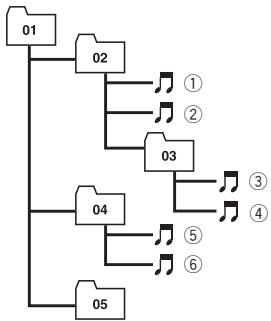
flowchart
graph TD
    01 --> 02
    02 --> 1
    02 --> 2
    03 --> 3
    03 --> 4
    04 --> 5
    04 --> 6
    05 --> 6
Level 1 Level 2 Level 3 Level 4
The sequence of audio files on the disc
- This unit assigns folder numbers. The user cannot assign folder numbers.
- Folder selection sequence or other operation may be altered depending on the encoding or writing software.
- Up to 999 files on a CD (-R/-RW) can be played back.
- Up to 99 folders on a disc can be played back.
The sequence of audio files on USB memory
For USB portable audio players, the sequence is different from that of USB memory and depends on the player.
- 01 to 05 represent assigned folder numbers. ① to ⑥ represent the playback sequence. The user cannot assign folder numbers and specify the playback sequence with this unit.
- Playback sequence of the audio file is the same as recorded sequence in the USB device.
- To specify the playback sequence, the following method is recommended.
Additional Information
1 Create the file name including numbers that specify the playback sequence (e.g., 001xxx.mp3 and 099yyy.mp3).
2 Put those files into a folder.
3 Record the folder containing files into the USB device.
However, depending on the system environment, you cannot specify the file playback sequence.
- Up to 65 535 files on a USB portable audio player/USB memory can be played back.
- Up to 6000 folders on a USB portable audio player/USB memory can be played back.
iPod compatibility
- This unit supports only the following iPod models. Supported iPod software versions are shown below. Older versions of iPod software may not be supported.
— iPod nano first generation (software version 1.3.1)
— iPod nano second generation (software version 1.1.3)
— iPod nano third generation (software version 1.1.2)
— iPod fifth generation (software version 1.3.0)
— iPod classic (software version 1.1.2)
— iPod touch (software version 2.0)
— iPhone 3G (software version 2.0)
— iPhone (software version 2.0)
- Depending on the generation or version of the iPod, some functions can not be operated.
- Operations may vary depending on the software version of iPod.
About handling the iPod

CAUTION
- Pioneer accepts no responsibility for data lost on the iPod even if that data is lost while using this unit.
- Do not leave the iPod in direct sunlight for extended amounts of time. Extended exposure to direct sunlight can result in iPod malfunction due to the resulting high temperature.
- Do not leave the iPod in a high temperature.
- Firmly secure the iPod when driving. Do not let the iPod fall onto the floor, where it may become jammed under the brake or accelerator pedal.
For details, refer to the iPod's manuals.
About iPod settings
- When an iPod is connected, this unit changes the EQ (equalizer) setting of the iPod to Flat in order to optimize the acoustics. When you disconnect the iPod, the EQ returns to the original setting.
- You cannot set Repeat to off on the iPod when using this unit. Even if you set Repeat to off on the iPod, Repeat is automatically changed to All when connecting the iPod to this unit.
Bluetooth profiles
- In order to use Bluetooth wireless technology, devices must be able to interpret certain profiles. This unit is compatible with the following profiles.
— A2DP (Advanced Audio Distribution Profile)
— AVRCP (Audio/Video Remote Control Profile)
— GAP (Generic Access Profile)
— SDP (Service Discovery Protocol)
— OPP (Object Push Profile)
— HFP (Hands Free Profile)
— PBAP (Phone Book Access Profile)
— SPP (Serial Port Profile)
Additional Information
Copyright and trademark notice
WMA

text_image
Plays Windows Media™Windows Media and the Windows logo are trademarks or registered trademarks of Microsoft Corporation in the United States and/or other countries.
- This product includes technology owned by Microsoft Corporation and cannot be used or distributed without a license from Microsoft Licensing, Inc.
MP3
Supply of this product only conveys a license for private, non-commercial use and does not convey a license nor imply any right to use this product in any commercial (i.e. revenue-generating) real time broadcasting (terrestrial, satellite, cable and/or any other media), broadcasting/streaming via internet, intranets and/or other networks or in other electronic content distribution systems, such as pay-audio or audio-on-demand applications. An independent license for such use is required. For details, please visit
http://www.mp3licensing.com.
Bluetooth

text_image
Bluetooth®The Bluetooth ^® word mark and logos are registered trademarks owned by Bluetooth SIG, Inc. and any use of such marks by Pioneer
Corporation is under license. Other trademarks and trade names are those of their respective owners.
- Bluetooth is a short-range wireless radio connectivity technology that is developed as a cable replacement for mobile phones, handheld PCs and other devices. Bluetooth operates in 2.4 GHz frequency range and transmits voice and data at speeds up to 1 megabit per second. Bluetooth was launched by a special interest group (SIG) that comprises of Ericsson Inc., Intel Corp., Nokia Corp., Toshiba and IBM in 1998, and it is currently developed by nearly 2 000 companies worldwide.
iPod

text_image
Made for iPodiPod is a trademark of Apple Inc., registered in the U.S. and other countries.
iPhone

text_image
Works with iPhoneiPhone is a trademark of Apple Inc.
iTunes
iTunes is a trademark of Apple Inc., registered in the U.S. and other countries.
SAT Radio

Additional Information
The SAT RADIO READY mark indicates that the Satellite Radio Tuner for Pioneer (i.e., XM tuner and Sirius satellite tuner which are sold separately) can be controlled by this unit. Please inquire to your dealer or nearest authorized Pioneer service station regarding the satellite radio tuner that can be connected to this unit. For satellite radio tuner operation, please refer to the satellite radio tuner owner's manual.
- The system will use direct satellite-to-receiver broadcasting technology to provide listeners in their cars and at home with crystal-clear sound seamlessly from coast to coast. Satellite radio will create and package over 100 channels of digital-quality music, news, sports, talk and children's programming.
- "SAT Radio", the SAT Radio logo and all related marks are trademarks of Sirius Satellite Radio inc., and XM Satellite Radio Inc.
HD Radio Technology
- HD Radio™ and the HD Radio Ready logo are proprietary trademarks of iBiquity Digital Corp.
Additional Information
Specifications
General
Power source .... 14.4 V DC (10.8 V to 15.1 V allowable)
Grounding system ...... Negative type
Max. current consumption 10.0 A
Dimensions (W × H × D): DIN
Chassis .... 178 mm × 50 mm × 162 mm (7 in. × 2 in. × 6-3/8 in.)
Nose .... 188 mm × 58 mm × 24 mm (7-3/8 in. × 2-1/4 in. × 1 in.)
D
Chassis ....178 mm × 50 mm × 162 mm (7 in. × 2 in. × 6-3/8 in.)
Nose .... 170 mm × 46 mm × 24 mm (6-3/4 in. × 1-3/4 in. × 1 in.)
Weight 1.3 kg (2.9 lbs)
Audio
Maximum power output ..... 50 W × 4 50 W × 2/4 Ω + 70 W × 1/2 Ω (for subwoofer)
Continuous power output ...22 W × 4 (50 Hz to 15 000 Hz, 5 % THD, 4 Ω load, both channels driven)
Load impedance ....4 Ω to 8 Ω × 4 4 Ω to 8 Ω × 2 + 2 Ω × 1
Preout max output level ..... 4 V
Equalizer (3-Band Parametric Equalizer): Low
Frequency 40/80/100/160 Hz
Q Factor .... 0.35/0.59/0.95/1.15 (+6 dB when boosted)
Gain .... ±12 dB
Mid
Frequency ...... 200/500/1k/2k Hz
Q Factor .... 0.35/0.59/0.95/1.15 (+6 dB when boosted)
Gain ±12 dB
High
Frequency 3.15k/8k/10k/12.5k Hz
Q Factor .... 0.35/0.59/0.95/1.15 (+6 dB when boosted)
Gain ±12 dB
HPF:
Frequency 50/63/80/100/125 Hz
Slope ...... -12 dB/oct
Subwoofer (mono):
Frequency 50/63/80/100/125 Hz
Slope ......-18 dB/oct
Gain ....+6 dB to -24 dB
Phase ...... Normal/Reverse
Bass boost:
Gain ....+12 dB to 0 dB
CD player
System .... Compact disc audio system
Usable discs .... Compact disc
Signal-to-noise ratio .....94 dB (1 kHz) (IHF-A network)
Number of channels ...... 2 (stereo)
MP3 decoding format ...... MPEG-1 & 2 Audio Layer 3
WMA decoding format ...... Ver. 7, 7.1, 8, 9, 10, 11 (2ch audio) (Windows Media Player)
AAC decoding format ...... MPEG-4 AAC (iTunes encoded only) (.m4a) (Ver. 7.7 and earlier)
WAV signal format ....Linear PCM & MS ADPCM (Non-compressed)
USB
USB standard specification .... USB 2.0 full speed
Maximum current supply .... 500 mA
Minimum memory capacity 256 MB
USB Class ...... MSC (Mass Storage Class)
File system ...... FAT16, FAT32
MP3 decoding format ...... MPEG-1 & 2 Audio Layer 3
WMA decoding format ...... Ver. 7, 7.1, 8, 9, 10, 11 (2ch audio) (Windows Media Player)
AAC decoding format ...... MPEG-4 AAC (iTunes encoded only) (.m4a) (Ver. 7.7 and earlier)
WAV signal format ....Linear PCM & MS ADPCM (Non-compressed)
FM tuner
Frequency range 87.9 MHz to 107.9 MHz
Usable sensitivity ....9 dBf (0.8 V/75 , mono, S/N: 30 dB)
Signal-to-noise ratio 72 dB (IHF-A network)
AM tuner
Frequency range ....530 kHz to 1710 kHz (10 kHz)
Usable sensitivity 25 μV (S/N: 20 dB)
Signal-to-noise ratio 62 dB (IHF-A network)
Additional Information
Bluetooth
Version ...... Bluetooth 2.0 + EDR certified
Output power ....+4 dBm Max. (Power class 2)
CEA2006 Specifications

text_image
Amplifier Power Standard CEA-2006 CompliantPower output .... 14 W RMS × 4 Channels (4 Ω and ≤ 1 % THD+N)
S/N ratio 91 dBA (reference: 1 W into 4 Ω)

Note
Specifications and the design are subject to modifications without notice due to improvements.
Table des matières
Pioneer Electronics (USA) Inc.
CUSTOMER SUPPORT DIVISION
P.O. Box 1760
Long Beach, CA 90801-1760
800-421-1404
CANADA
300 Allstate Parkway
Markham, Ontario L3R 0P2
1-877-283-5901
905-479-4411
natural_image
Line drawing of a door handle with an arrow indicating direction (no text or symbols)natural_image
Diagram of a device with a cable inserted into a connector (no text or symbols visible)natural_image
Line drawing of a mechanical component with an arrow indicating direction (no text or symbols)
natural_image
Diagram of a device rear panel showing internal components and a finger pointing to a button (no text or symbols present)Touche RESET

natural_image
Diagram of a laboratory procedure showing a pipette and a magnified view of a circular object (no text or symbols present)
ATTENTION
text_image
Labeled diagram of a device interior with numbered components for identification① Touche SRC/OFF
Accentuation des graves
—PAUSE (pause)—COMP/DBE (compression
text_image
Plays Medium Mediumtext_image
Works with iPhonePhase ...... Normale/Inverse
Ver. 7, 7.1, 8, 9, 10, 11 (2 ca- naux audio) (Windows Media Player)
Ver. 7, 7.1, 8, 9, 10, 11 (2 ca- naux audio) (Windows Media Player)
text_image
Amplifier Power Standard CEA CEA-2006 CompliantPioneer Electronics of Canada, Inc. CUSTOMER SATISFACTION DEPARTMENT 300 Allstate Parkway Markham, Ontario L3R 0P2 1-877-283-5901 905-479-4411
natural_image
Line drawing of a door handle with a scroll wheel and arrow indicating direction (no text or symbols)natural_image
Diagram of a device's internal structure showing a connector inserted into a folder (no text or symbols present)natural_image
Diagram of a door handle with an arrow indicating direction (no text or symbols)
natural_image
Diagram of a device rear panel showing internal components and a finger pointing to a button (no text or symbols present)Botón RESET

natural_image
Illustration of a pipette dispensing liquid into a container with a magnified view (no text or symbols)
ADVERTENCIA
text_image
Labeled diagram of a device interior with numbered components for identification① Botón SRC/OFF
FM: LEVEL1—LEVEL2—LEVEL3—LEVEL4 AM: LEVEL1—LEVEL2
— SDP (Service Discovery Protocol)
— OPP (Object Push Profile)
— HFP (Hands Free Profile)
— PBAP (Phone Book Access Profile)
— SPP (Serial Port Profile)
Aviso de copyright y marcas registradas
WMA

text_image
Plays Windows Media™text_image
Works with iPhonetext_image
Amplifier Power Standard CEA CEA-2006 CompliantPotencia de salida .... 14 W RMS × 4 canales (4 Ω
$$ y \leq 1 \% \text {THD} + N) $$
Register your product at
http://www.pioneerelectronics.com
See "Visit our website" page
4-1, MEGURO 1-CHOME, MEGURO-KU
PIONEER ELECTRONICS (USA) INC.
P.O. Box 1540, Long Beach, California 90801-1540, U.S.A.
TEL: (800) 421-1404
PIONEER EUROPE NV
Haven 1087, Keetberglaan 1, B-9120 Melsele, Belgium/Belgique
TEL: (0) 3/570.05.11
PIONEER ELECTRONICS ASIACENTRE PTE. LTD.
253 Alexandra Road, #04-01, Singapore 159936
TEL: 65-6472-7555
PIONEER ELECTRONICS AUSTRALIA PTY. LTD.
178-184 Boundary Road, Braeside, Victoria 3195, Australia
TEL: (03) 9586-6300
PIONEER ELECTRONICS OF CANADA, INC.
300 Allstate Parkway, Markham, Ontario L3R 0P2, Canada
TEL: 1-877-283-5901
TEL: 905-479-4411
PIONEER ELECTRONICS DE MEXICO, S.A. de C.V.
Blvd.Manuel Avila Camacho 138 10 piso
Col.Lomas de Chapultepec, Mexico, D.F. 11000
TEL: 55-9178-4270
先鋒股份有限公司
總公司:台北市中山北路二段44號13樓
電話:(02) 2521-3588
先鋒電子(香港)有限公司
香港九龍尖沙嘴海港域世界商業中心
9樓901-6室
電話:(0852) 2848-6488
Published by Pioneer Corporation.
Copyright © 2009 by Pioneer Corporation.
All rights reserved.