HP F310 - Video camera

F310 - Video camera HP - Free user manual and instructions

Find the device manual for free F310 HP in PDF.

📄 68 pages English EN Download 💬 AI Question 10 questions ⚙️ Specs
Notice HP F310 - page 4
Pick your language and provide your email: we'll send you a specifically translated version.
Product typeIn-car video camera (dashcam)
BrandHP
ModelF310
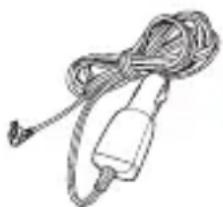
Power supplyCigarette lighter adapter (12V)
Internal batteryLi-Polymer (rechargeable)
StorageMicro SDHC card class 6 or higher (not included)
Built-in GPSYes, for location and radar alerts
Video recordingAutomatic on engine start
Emergency recordingTriggered manually or by collision detection
Motion detectionYes (activates in standby mode)
Speed limit alertYes, adjustable from 50 to 200 km/h
Radar managementUp to 200 speed camera positions
Operating temperature-10°C to 60°C (14°F to 140°F)
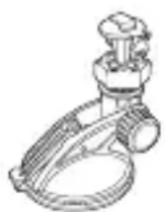
MountingSuction cup mount on windshield
RotationVertical and horizontal (360°)
Maintenance and cleaningClean with a soft dry cloth
SafetyDo not disassemble, avoid liquids and dust
Spare parts / repairabilityPower adapter, suction cup mount (contact retailer)
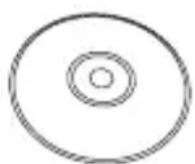
General informationComplete manual on CD-ROM included

Frequently Asked Questions - F310 HP

How to install the HP F310 camera in my vehicle?
Attach the device to the suction cup mount, then place the mount on the windshield. Connect the cigarette lighter adapter to the camera and the vehicle's socket. The camera turns on automatically when the engine starts.
Which memory card to use with the HP F310?
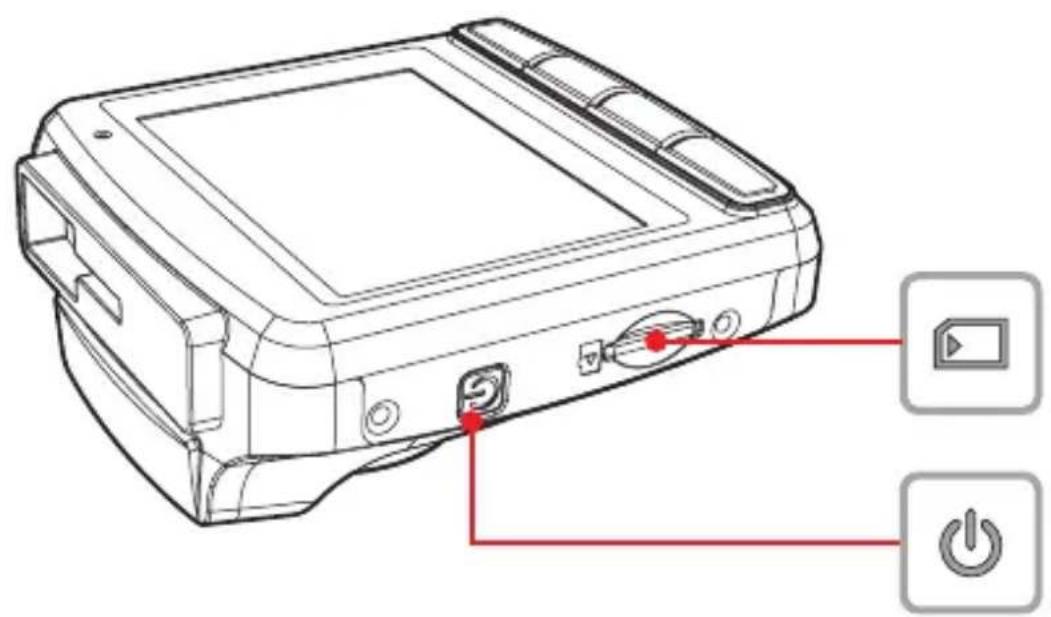
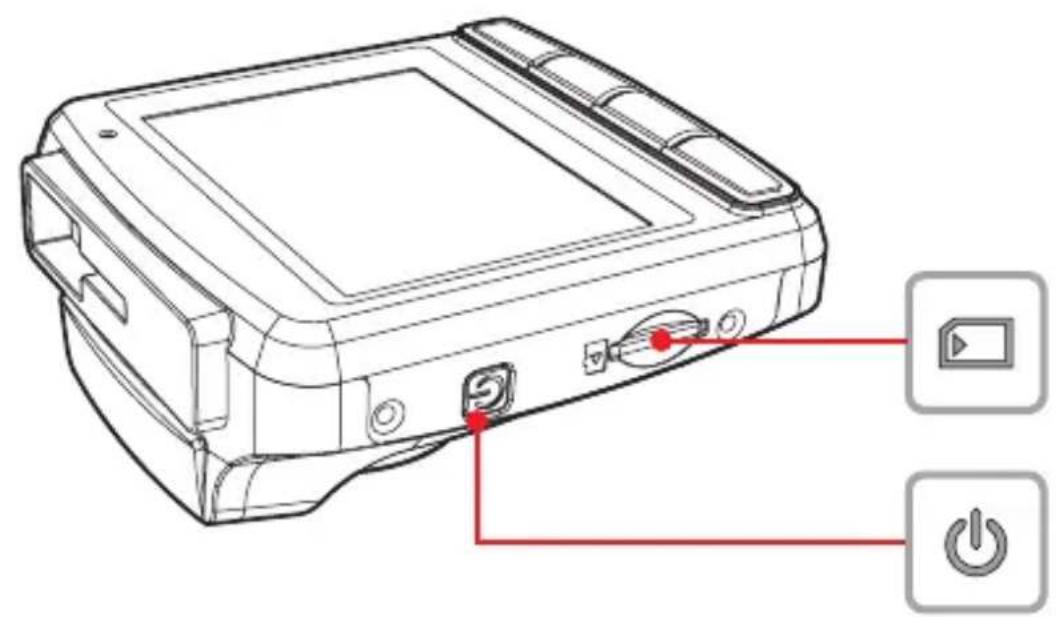
Use a micro SDHC card of class 6 or higher. Insert it with the gold contacts facing back until it locks.
How to activate emergency recording?
During recording, press the OK button. The message 'Emergency' appears and the file is protected from automatic deletion.
Does motion detection work continuously?
No, it only activates in standby mode. When motion is detected, recording starts automatically.
What to do if the 'Emergency file full' message appears?
The device automatically deletes the oldest emergency file to create a new one. You can also save important files on a computer.
How to add a speed camera in the HP F310?
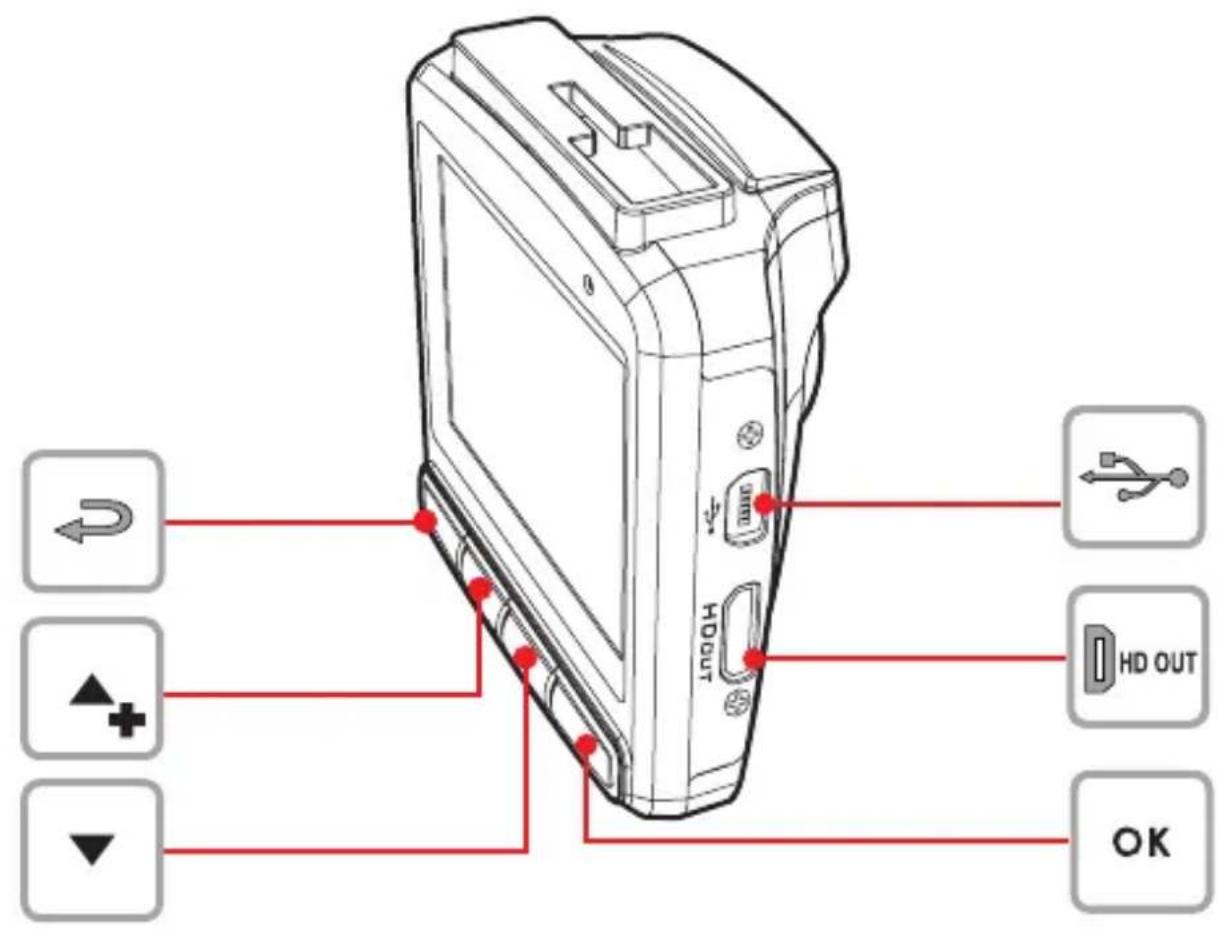
After GPS localization, press the ▲/ button to manually add up to 200 speed cameras. The device emits an alert upon approach.
Why is my GPS location not accurate?
GPS accuracy can be affected by buildings, tunnels, forests, or tinted windows. Make sure the windshield is not metallized.
How to adjust the speed limit?
In the menu, use the ▲/▼ buttons to set the limit between 50 km/h and 200 km/h. An alert signal sounds when exceeded.
Can I use the camera without the cigarette lighter adapter?
The device operates on internal battery, but charging is done via the adapter. Without power, battery life is limited.
What to do if the screen displays an error message?
Try resetting the device by holding down the power button for 5 seconds. If the problem persists, consult the complete manual on CD-ROM.

User questions about F310 HP

0 question about this device. Answer the ones you know or ask your own.

Ask a new question about this device

The email remains private: it is only used to notify you if someone responds to your question.

No questions yet. Be the first to ask one.

Download the instructions for your Video camera in PDF format for free! Find your manual F310 - HP and take your electronic device back in hand. On this page are published all the documents necessary for the use of your device. F310 by HP.

USER MANUAL F310 HP

natural_image HP logo in white on black circular background (no text or symbols)

f310

Car Camcorder

For the full version of the f310 product user manual go to: www.hp.com/support

  • Please do not disassemble or use any way to modify the product by yourself, which may damage the product or cause electric shock.
  • Keep away from the reach of children or animals.
  • Do not use if liquid or foreign object enters the product. Contact your dealer for assistance if this occurs.
  • Do not operate the Car Recorder with wet hands; it may cause electric shock.
  • Do not place or store the product in an environment of high temperature to avoid damage. The camera is designed for use in the temperature between -10^ and 60^ (14°F and 140°F).
  • Do not store the product in the dusty / sandy / dirty place, or the area which is close to air condition/ heater. Damage may occur if exposed to these elements.
  • This product is not intended to use to record barcodes.
  • For more details about the product operation and trouble shooting, please read the User Manual located on the CDROM disc included with your camcorder.
  • We reserve the right to change any content or technical rule without prior notification.
  • If the environmental temperature reaches or exceeds 45, the internal Li-Polymer battery may not charge. However, the camcorder will continue to operate when powered by the car adapter.
  • Due to local laws and vehicles safety considerations, do not manually operate the device while driving.
  • The results of GPS positioning are only for reference, and should not affect the actual driving situation. The system also cannot ensure the location accuracy.
  • GPS location accuracy may differ depending on weather and location such as high buildings, tunnels, undergrounds, or forests. GPS satellite signals cannot pass through solid materials (except glass). Tinted window will also affect the performance of the GPS satellite reception.
  • GPS reception performance on each device may differ. The system cannot determine the accuracy of the location results from different devices.
  • Hewlett-Packard Company is NOT responsible for the loss of any data/ content during operation.
  • Before you start using the camcorder, it assumes that you agree to the above statement.

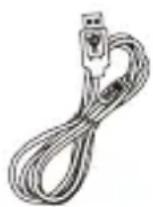
Accessories

HP F310 - Accessories - 1

HP F310 - Accessories - 2

HP F310 - Accessories - 3

HP F310 - Accessories - 4

HP F310 - Accessories - 5

natural_image Line drawing of a cordless cable with a plug and connector (no text or symbols)

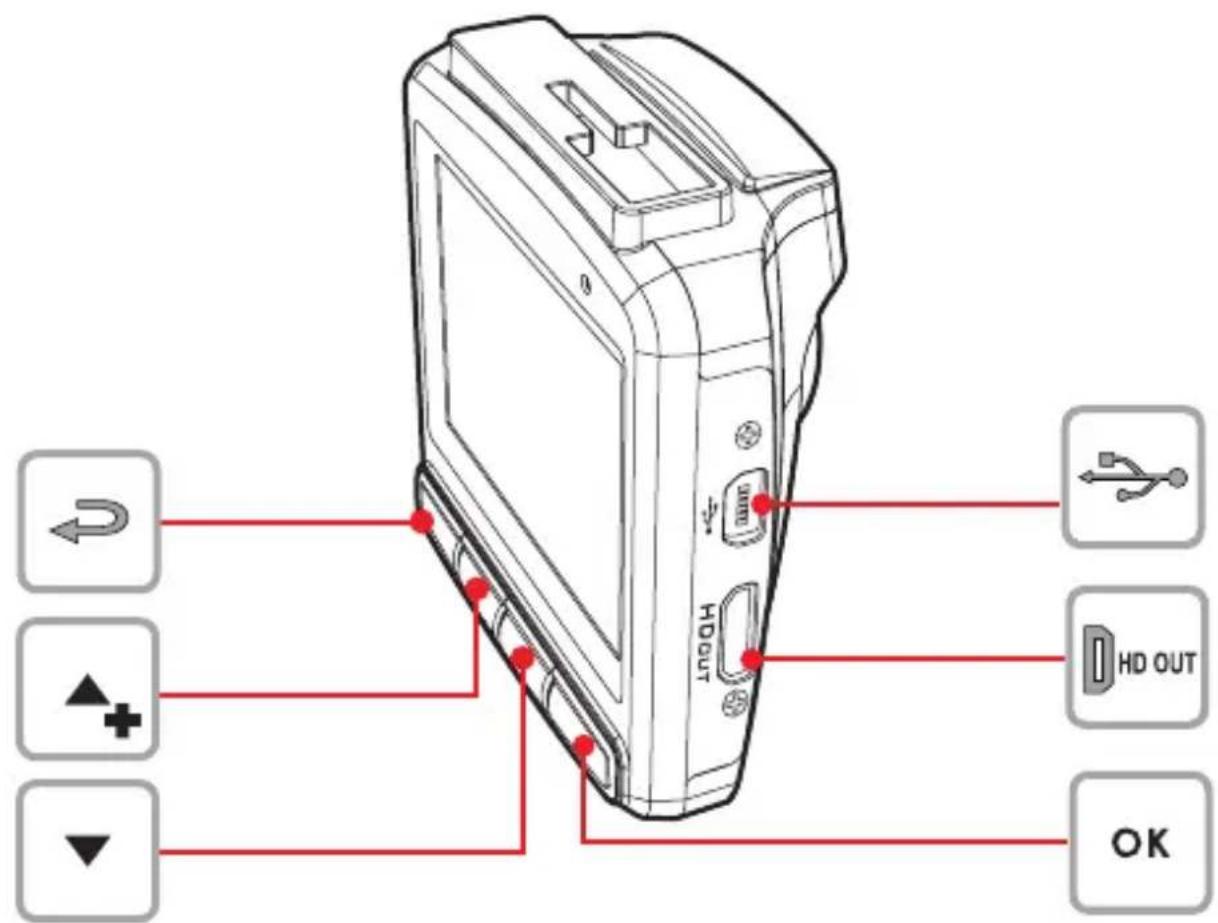
HDOUT OK

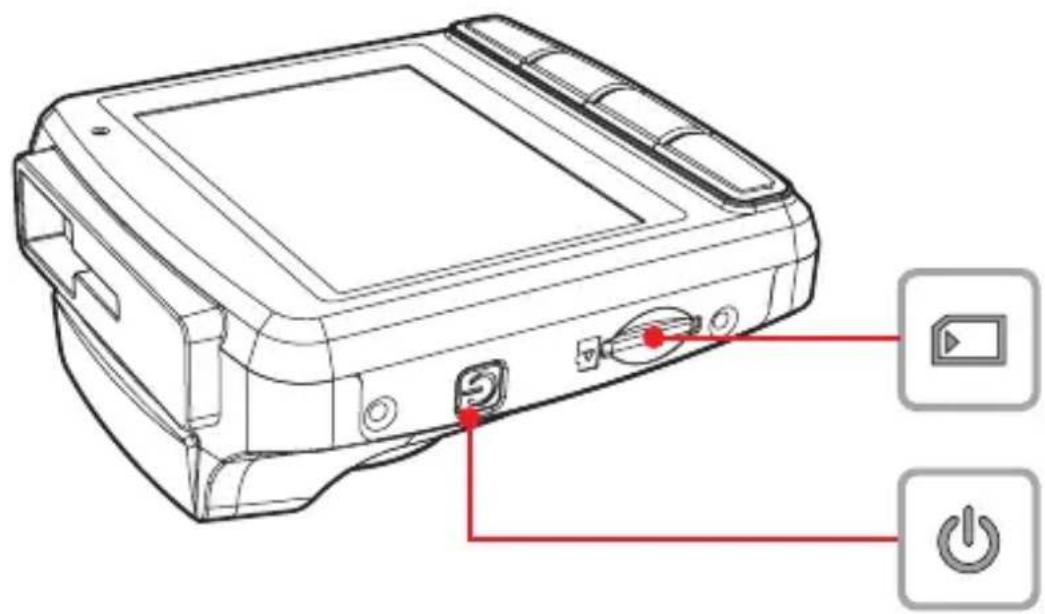
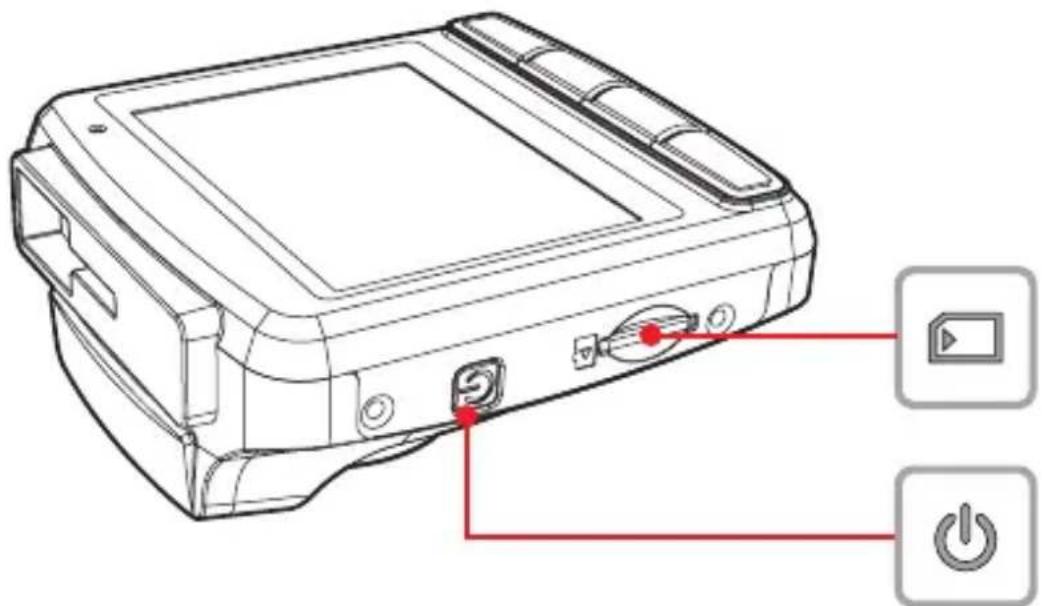
Diagram of a device rear panel with labeled buttons and control icons, including play button and power button.

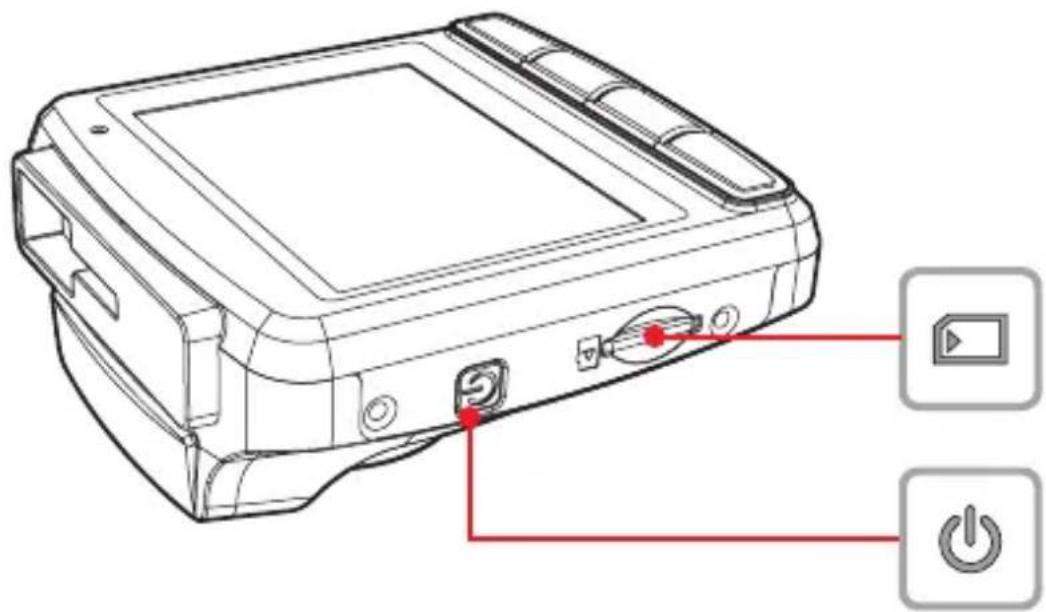
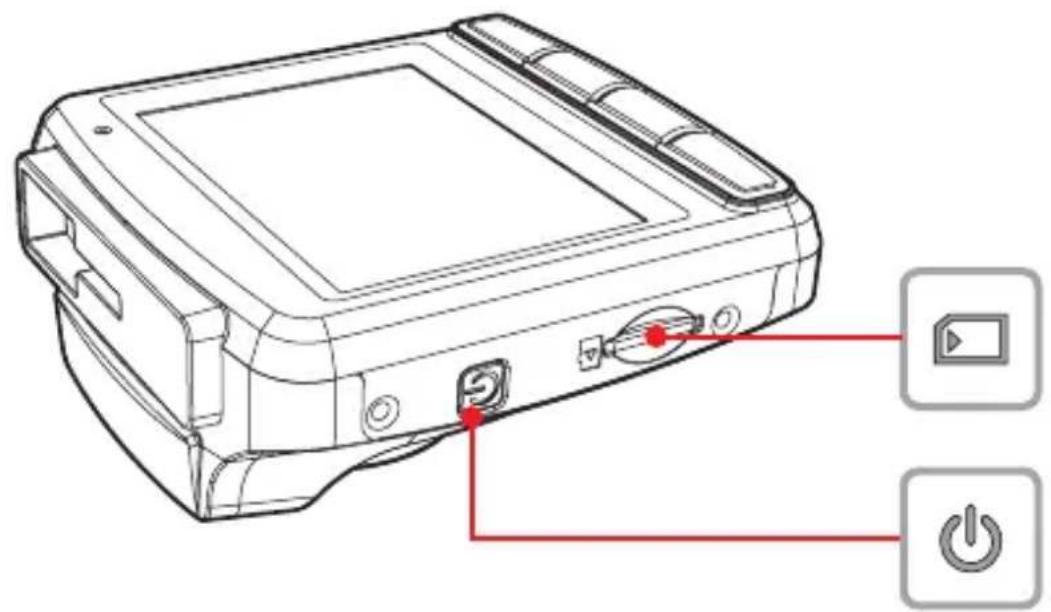
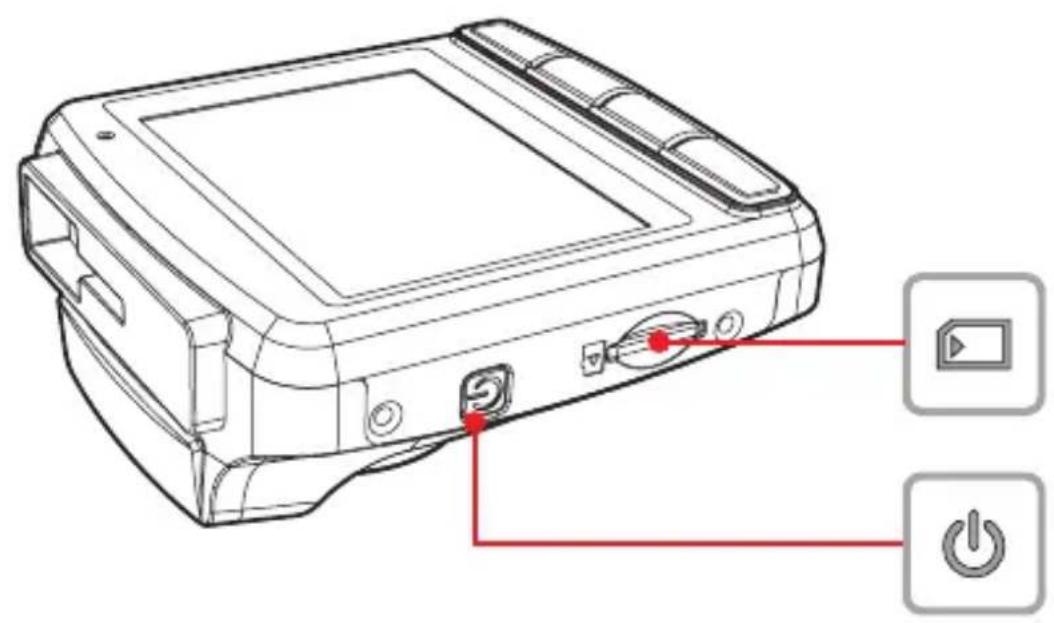
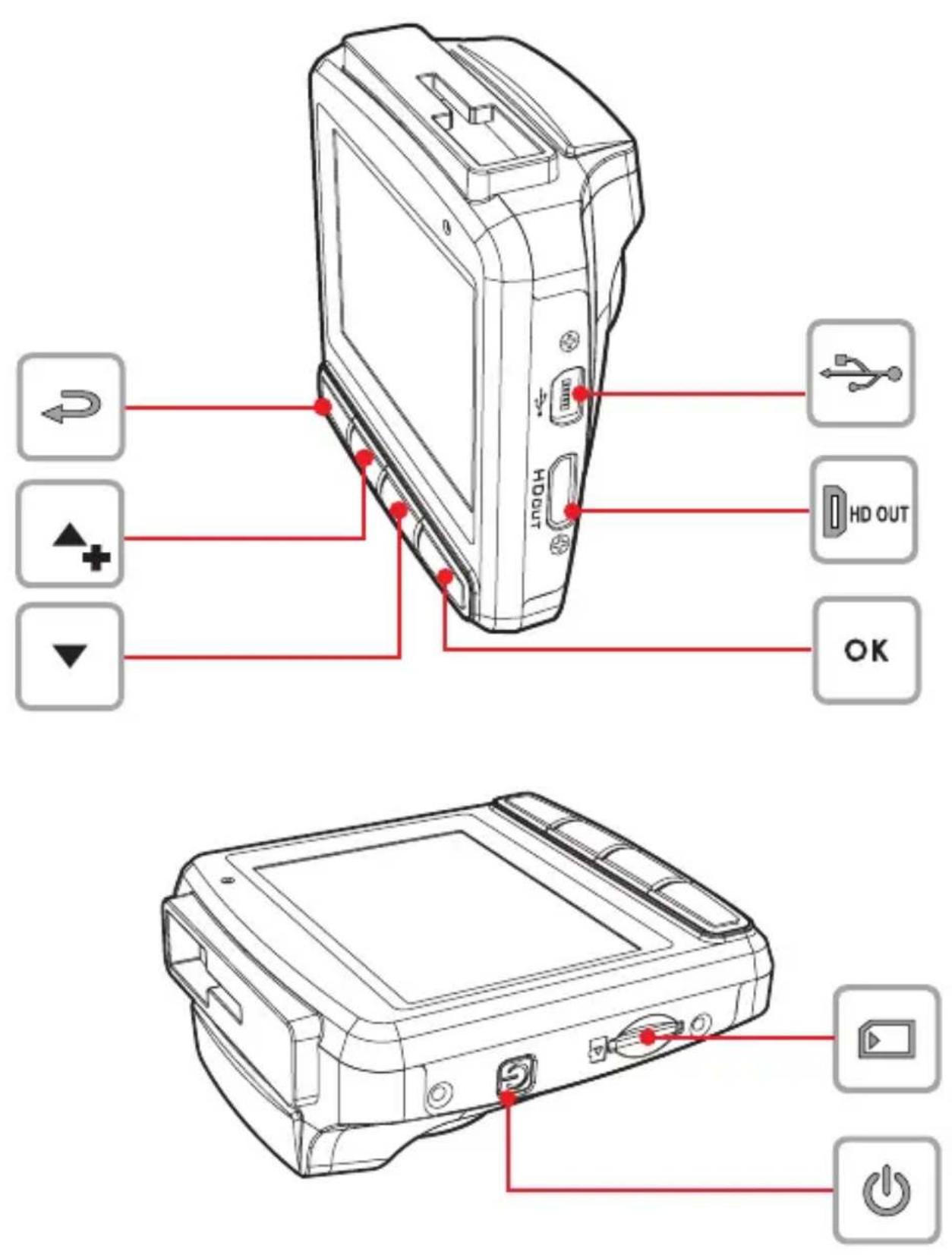
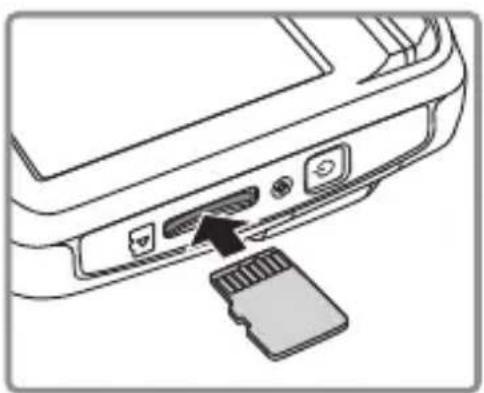
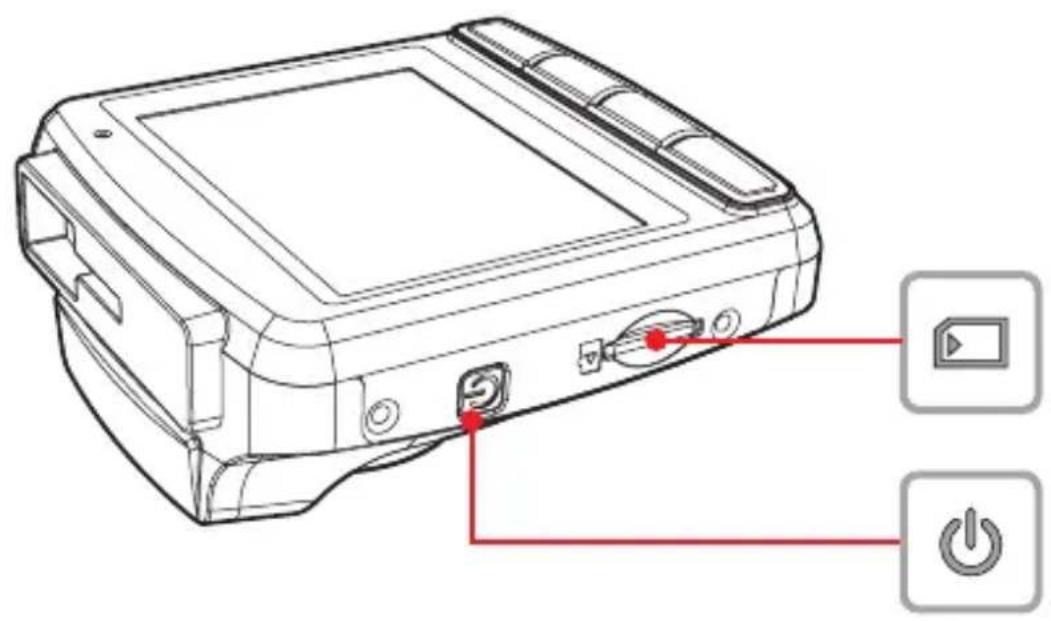
Insert the Micro SDHC Card / Connect to Power (Please use class 6 or above the micro SDHC cards for this camcorder.)

Insert the memory card with the gold contacts facing the back of the device. Push the memory card until it clicks into place. Push to eject the memory card out of the slot.
HP F310 - Insert the Micro SDHC Card / Connect to Power (Please use class 6 or above the micro SDHC cards for this camcorder.) - 1

natural_image Diagram of a device rear panel showing a USB drive and card slot (no text or symbols)

HP F310 - Insert the Micro SDHC Card / Connect to Power (Please use class 6 or above the micro SDHC cards for this camcorder.) - 2

natural_image Interior view of a car dashboard and steering wheel, showing dashboard, steering wheel, and dashboard (no text or symbols)

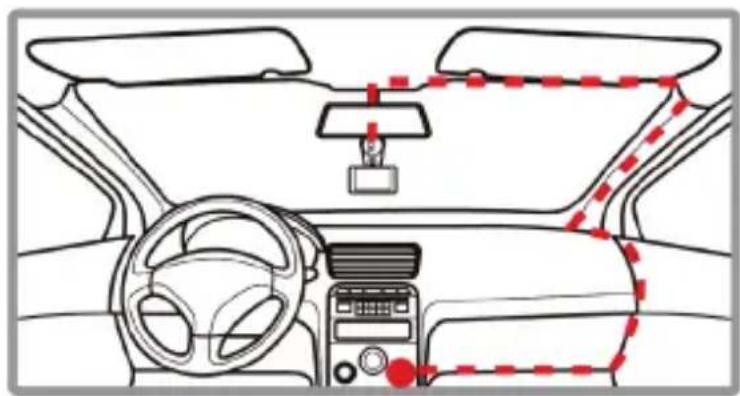
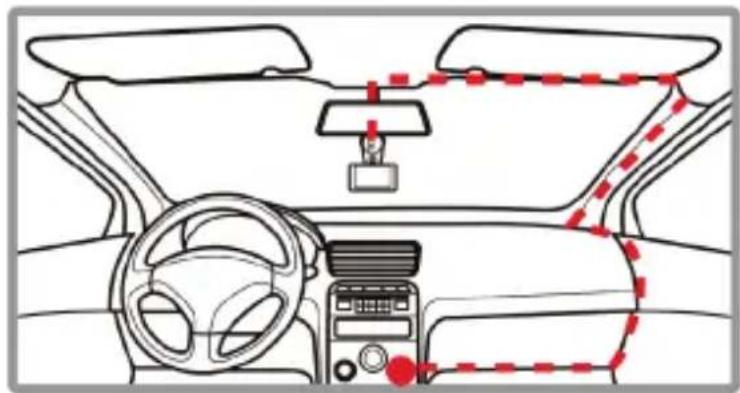
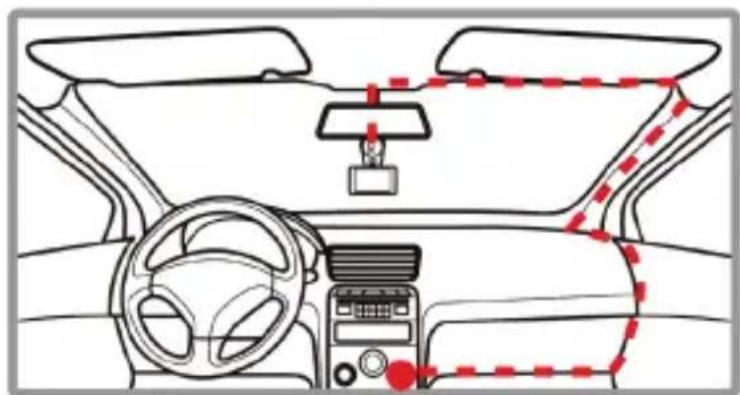
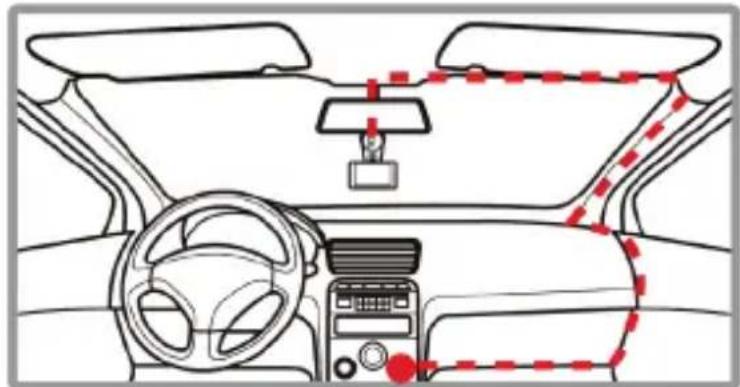
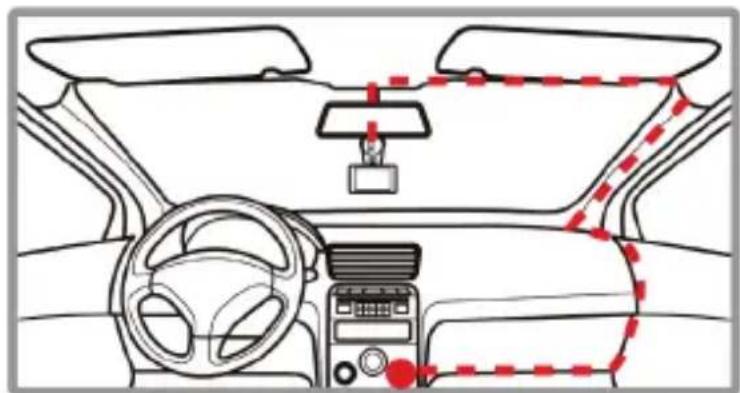
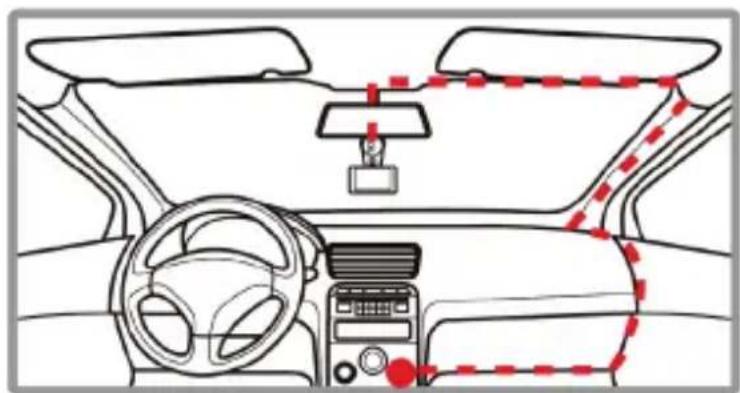
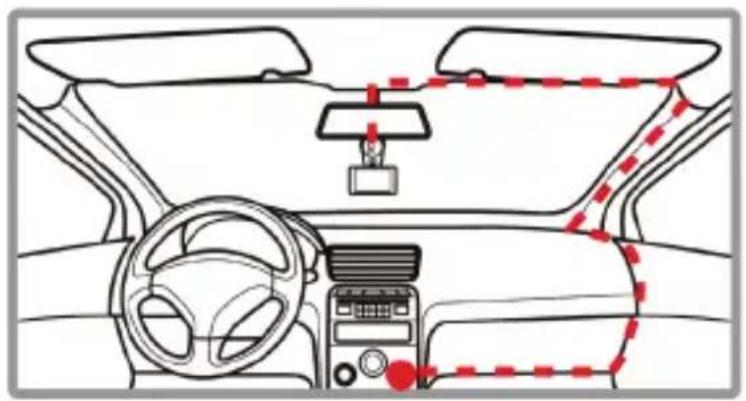
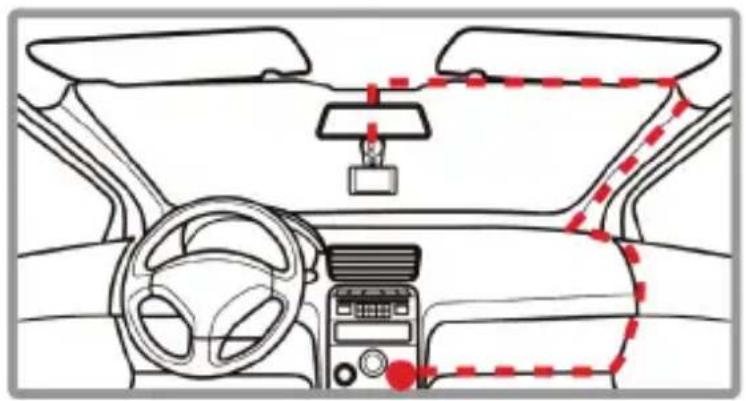
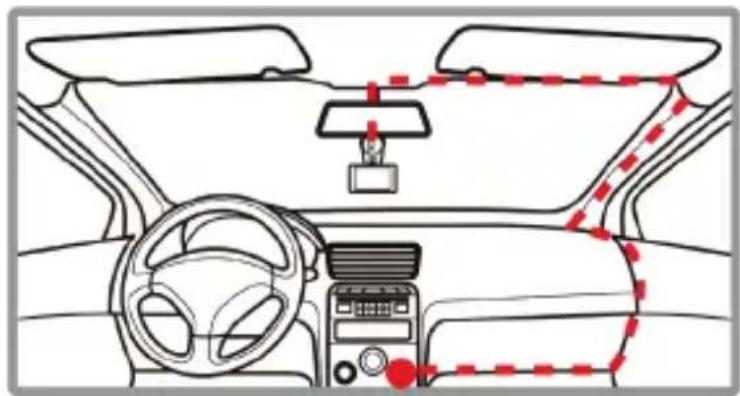
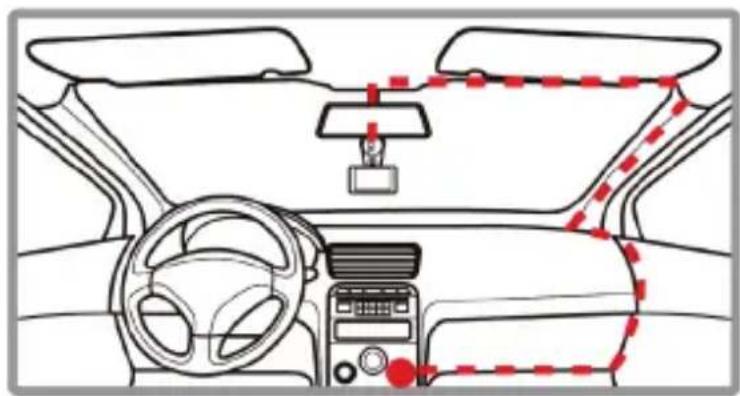
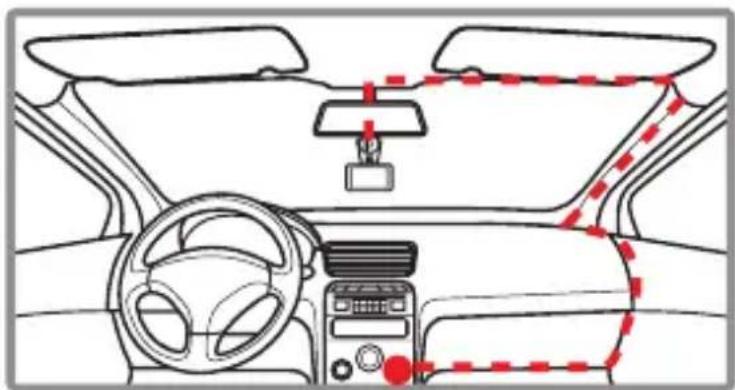
Connect the car adapter to the power connector of the Mobile Camera and then plug the other end to the vehicle's lighter socket.

( Note: this is only a recommended configuration. You may choose another way to route the power cable.)

Install in Vehicles
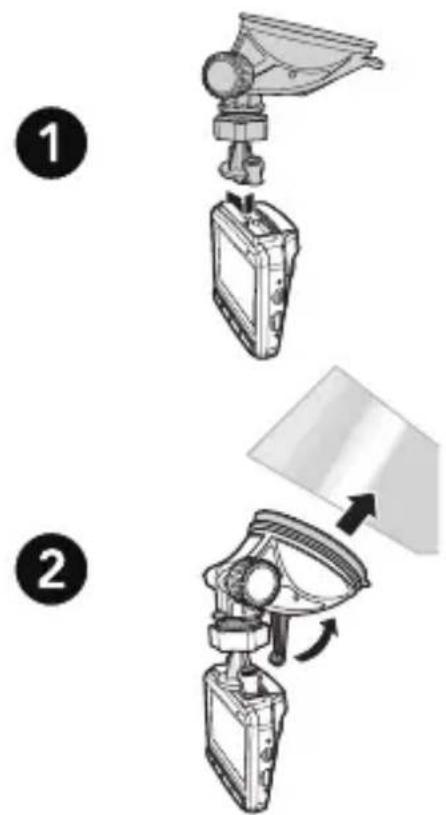
Diagram showing two steps of a device assembly or installation, labeled 1 and 2, with arrows indicating motion direction.

Attach the bracket to the device.Slide it into the bracket holder until you hear a click.

With the suction-cup laying flat, position the suction-cup on the windshield.

Adjust Device Position
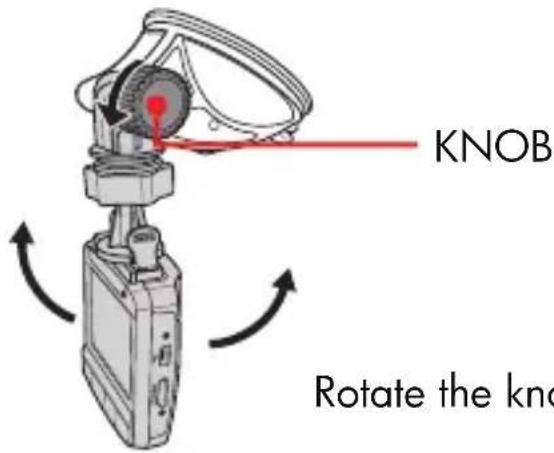
KNOB Rotate the kno

Rotate the knob to swivel the device vertically.
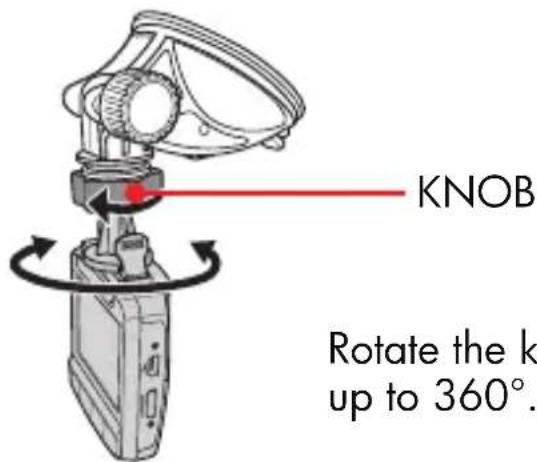
KNOB Rotate the k up to 360°.

Rotate the knob to swivel the device horizontally up to 360°.

Manual Power / Auto Power

Manual Power On/Off

  • To manually turn on the power, press the Power button.
  • To turn off, press and hold the Power button for at least 2 seconds.
  • To reset, press and hold the Power button for at least 5 seconds.

- Once the vehicle engine is started, the Mobile Camera automatically starts recording.

- Once the vehicle engine shuts down, the Mobile Camera automatically saves the recording and turns off the power within 10 seconds.

HP F310 - Manual Power On/Off - 1

natural_image Hand cursor clicking a button with a power symbol (no text or numbers present)

Taking Snapshot / Emergency Recording

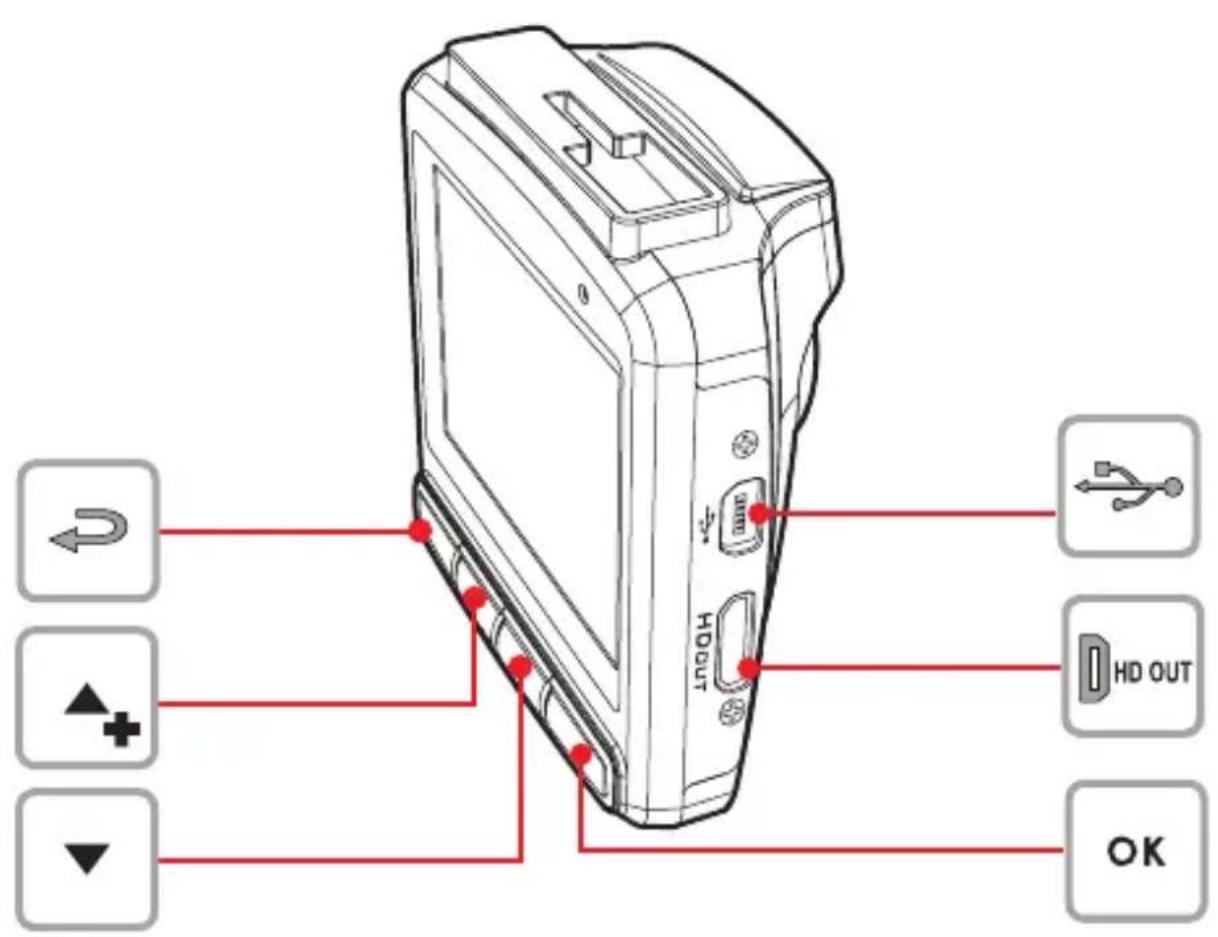
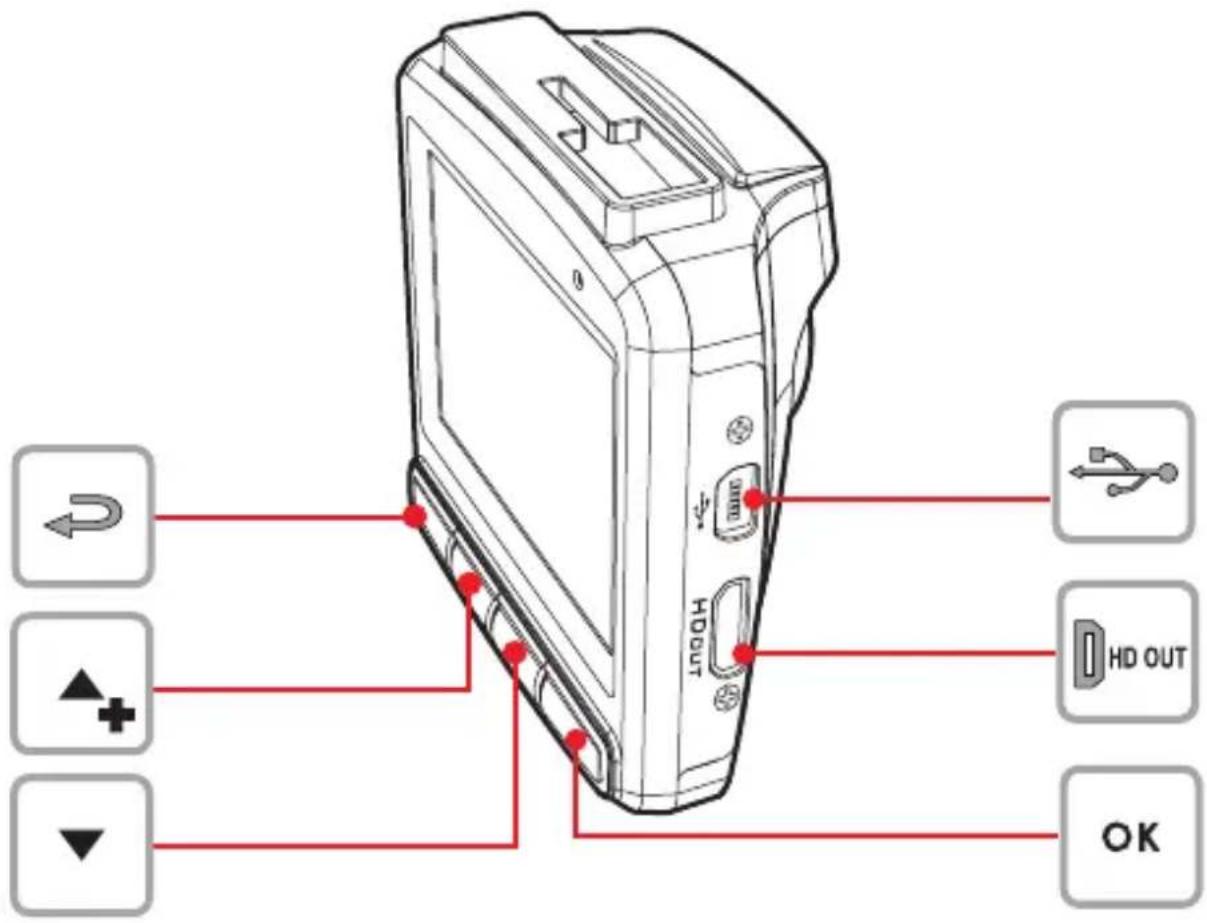
You can also use this device to take snapshots of the current scene. From the standby screen, press the ▼ button to take a snapshot. If recording is in progress, press the ▼ button to stop the recording first.
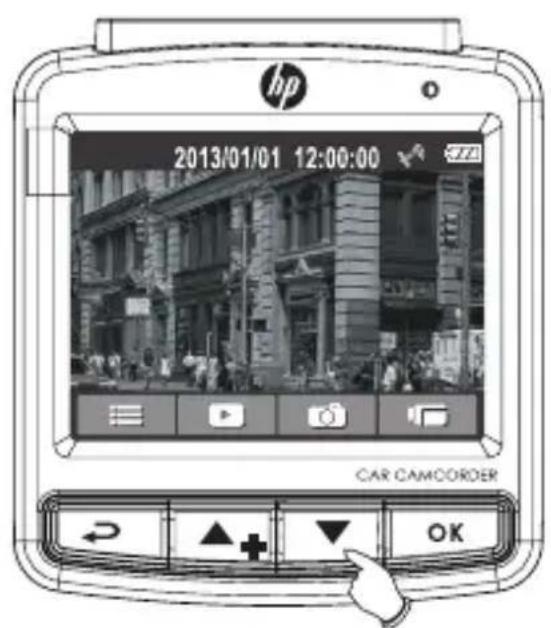
hp 2013/01/01 12:00:00 CAR CAMCORDER

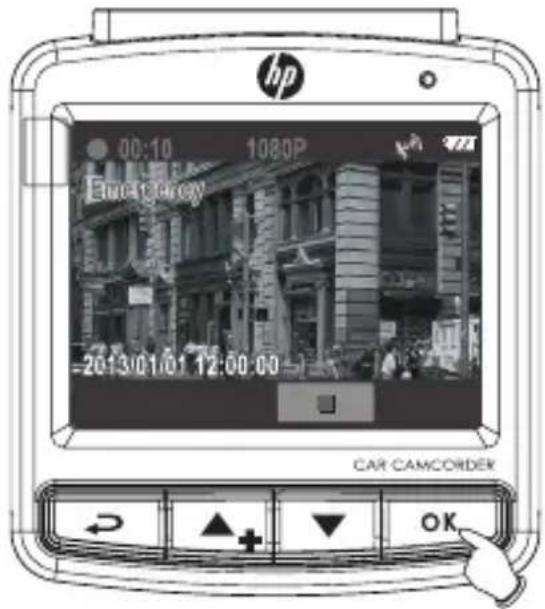
hp 00:10 1080P Electricity 2013/01/01 12:00:00 CAR CAMCORDER OK

During Video Recording, press the OK button to enter emergency recording mode, the "Emergency" message will be shown immediately on the upper left corner of the screen, and the recorded file will be protected. If the Collision Detection function is enabled and a collision is detected, the device will automatically trigger the emergency recording feature.

Motion Detection

Enable/Disable the motion detection. If this function is enabled and the power off button is pressed, the system alert message, "Press OK Key to Power off, or enter motion detection after 10sec.", will pop on the screen. Under motion detection mode, the device will automatically start recording when any object movement is detected.

The alert message of "Emergency files are full" will pop up on the screen when the emergency recording files are full, and the oldest emergency file will be automatically deleted when a new emergency recording file is created.

Speed Position Management

After satellite locates your position, you can manually add up to 200 speed camera (Traffic enforcement camera) locations into the system.
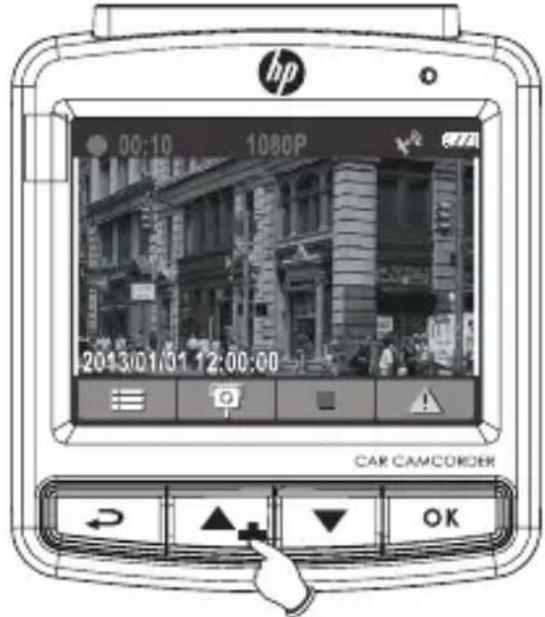
hp 00:10 1080P 2013/01/01 12:00:00 CAR CAMCORDER OK

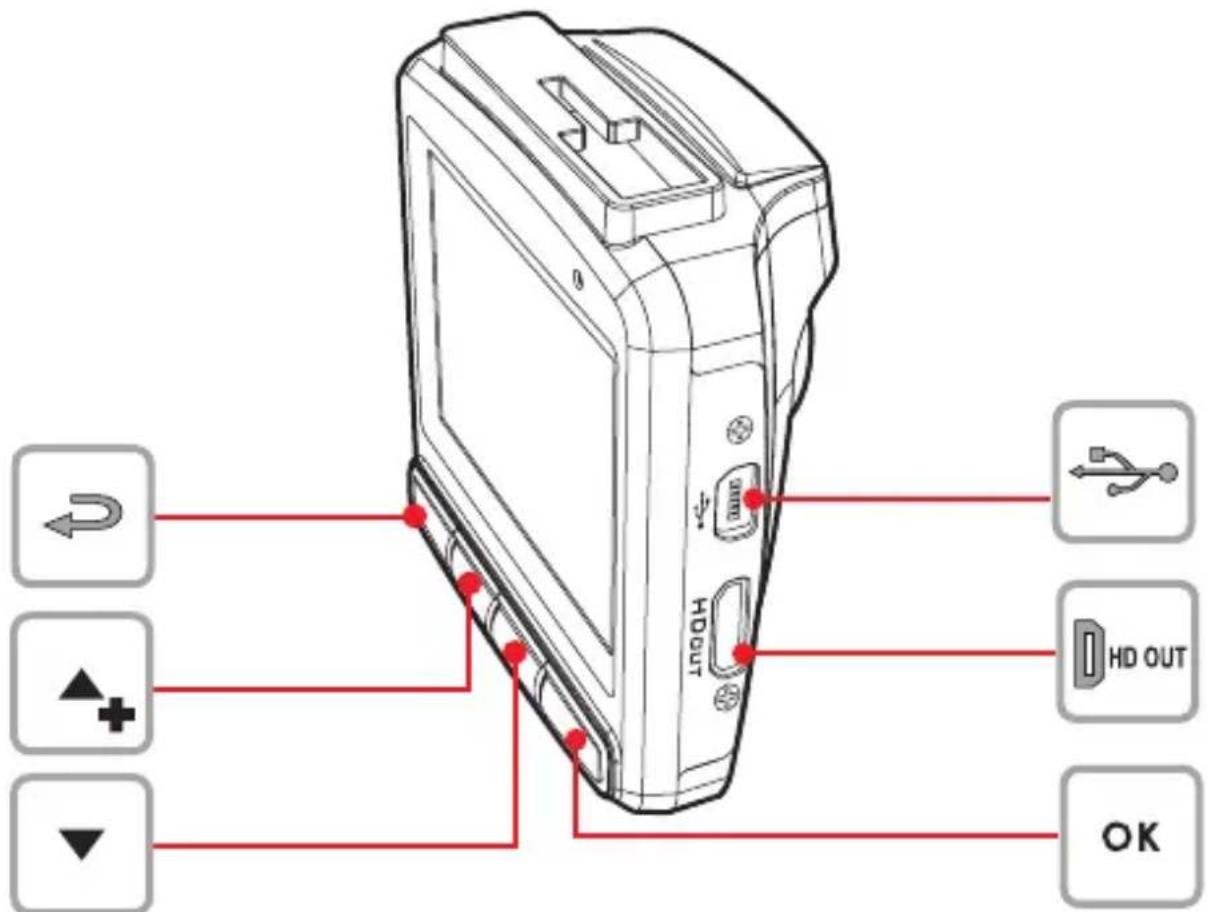
Press the ▲/+ button to add a speed cam point.

Speed Limit Alert

Set a customized maximum speed limit. When the vehicle speed exceeds the maximum, a warning tone is automatically triggered and a warning message is displayed on the screen.
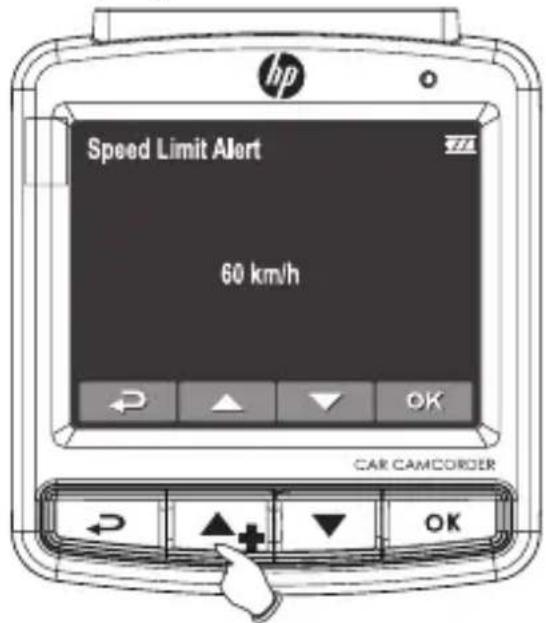
Speed Limit Alert 60 km/h CAR CAMCORDER

Press ▲/▼ button to set the speed limit. You can set the speed limit from 50km/h to 200 km/h.
natural_image Line drawing of a cord with a plug and cable (no text or symbols)

FRANCAIS

Diagram of a device rear panel with labeled buttons and power indicators

natural_image Diagram of a car rear panel showing a switch, battery, and card slot (no text or symbols)

HP F310 - FRANCAIS - 2

natural_image Interior view of a car dashboard and steering wheel, showing dashboard, steering wheel, and dashboard (no text or symbols)
natural_image Hand cursor clicking a button with an 'Power' symbol (no text or numbers present)
natural_image Line drawing of a cord with a plug and cable (no text or symbols)

Diagram of a device rear panel with labeled buttons and indicators for USB, HD output, and OK functions.

Diagram of a device rear panel with labeled buttons and power indicators

natural_image Line drawing of a device rear panel with a USB flash drive inserted (no text or symbols)

HP F310 - FRANCAIS - 5

natural_image Interior view of a car dashboard and steering wheel, showing steering wheel, dashboard, and steering wheel (no text or symbols)
natural_image Hand cursor clicking a button with a power symbol (no text or numbers present)
natural_image Simple line drawing of a cord with a plug and connector (no text or symbols)

Italiano

Diagram of a device rear panel with labeled buttons and control icons, including play button and power button.

natural_image Line drawing of a car rear panel showing a switch, battery, and card slot (no text or symbols)

HP F310 - Italiano - 2

natural_image Interior view of a car dashboard and steering wheel, showing steering wheel, dashboard, and steering wheel (no text or symbols)
natural_image Hand cursor clicking a button with an 'Power' symbol (no text or numbers present)
natural_image Line drawing of a cord with a plug and cable (no text or symbols)

Diagram of a device rear panel with labeled buttons and power indicators

Inserte la tarjeta Micro SDHC / Conecte a la corriente

natural_image Line drawing of a device rear panel with a USB flash drive and an arrow pointing to the component (no text or symbols)

HP F310 - Inserte la tarjeta Micro SDHC / Conecte a la corriente - 1

natural_image Interior view of a car dashboard and steering wheel, showing steering wheel, dashboard, and steering wheel (no text or symbols)
natural_image Hand cursor clicking a button with a power symbol (no text or numbers present)
natural_image Line drawing of a cord with a plug and cable (no text or symbols)

HD OUT OK

Diagram of a device rear panel with labeled buttons and power indicators

natural_image Diagram of a computer rear panel showing a USB drive and card slot (no text or symbols)

HP F310 - Inserte la tarjeta Micro SDHC / Conecte a la corriente - 4

natural_image Interior view of a car dashboard and steering wheel, showing steering wheel, dashboard, and steering wheel (no text or symbols)
natural_image Hand cursor clicking a button with a power symbol (no text or numbers present)
natural_image Line drawing of a cord with a plug and cable (no text or symbols)

PORTUGUÊS EUROPEU

natural_image Diagram of a device rear panel showing a switch, battery, and card slot (no text or symbols)

HP F310 - PORTUGUÊS EUROPEU - 1

natural_image Interior view of a car dashboard and steering wheel, showing steering wheel, dashboard, and steering wheel (no text or symbols)
natural_image Hand cursor clicking a button with a power symbol (no text or numbers present)
natural_image Line drawing of a cable with a plug and connector (no text or symbols)

Dansk

Produktoversigt

HDOUT OK

Diagram of a digital camera with labeled buttons and power indicators for playback and power functions

natural_image Line drawing of a device rear panel with a black arrow pointing to a card slot (no text or symbols)

HP F310 - Produktoversigt - 3

natural_image Interior view of a car dashboard and steering wheel, showing steering wheel, dashboard, and steering wheel (no text or symbols)
natural_image Hand cursor clicking a button with an 'Power' symbol (no text or numbers present)
natural_image Line drawing of a cord with a plug and cable (no text or symbols)

HP F310 - Produktoversigt - 4

natural_image Line drawing of a device rear panel with a black arrow pointing to a card slot (no text or symbols)

HP F310 - Produktoversigt - 5

natural_image Interior view of a car dashboard and steering wheel (no text or symbols visible)
natural_image Hand cursor clicking a button with a power symbol (no text or numbers present)
natural_image Line drawing of a cord with a plug and cable (no text or symbols)

Diagram of a device rear panel with labeled buttons and indicators for USB, HD, and OK functions.

Diagram of a device rear panel with labeled buttons and power indicators

natural_image Diagram of a computer rear panel showing a USB drive and card slot (no text or symbols)

HP F310 - Produktoversigt - 8

natural_image Interior view of a car dashboard and steering wheel, showing steering wheel, dashboard, and steering wheel (no text or symbols)
natural_image Hand cursor clicking a button with a power symbol (no text or numbers visible)
natural_image Line drawing of a cord with a plug and connector (no text or symbols)

HD OUT OK

Diagram of a device rear panel with labeled buttons and power indicators

natural_image Line drawing of a device rear panel with a USB flash drive and an arrow pointing to the internal component (no text or symbols)

HP F310 - Produktoversigt - 11

natural_image Interior view of a car dashboard and steering wheel, showing steering wheel, dashboard, and steering wheel (no text or symbols)
natural_image Hand cursor clicking a button with a power symbol (no text or numbers present)
Manual assistant
Powered by Anthropic
Waiting for your message
Product information

Brand : HP

Model : F310

Category : Video camera