
F150 - Video camera HP - Free user manual and instructions
Find the device manual for free F150 HP in PDF.


| Brand | HP |
| Model | F150 |
| Product Type | Wireless Mini Camcorder |
| Video Resolution | 1080p Full HD (estimated) |
| Photo Resolution | Up to 12 MP (estimated) |
| Recording Modes | Video, Photo, Direct Streaming, Cloud Streaming |
| Connectivity | Wi-Fi (2.4 GHz), USB 2.0 |
| Memory Card | microSD (not included, supports up to 32 GB) |
| Power Source | Built-in rechargeable lithium-ion battery via USB port |
| Battery Life | Approximately 2 hours (estimated) |
| Dimensions | 60 x 40 x 20 mm (estimated) |
| Weight | Approximately 50 g (estimated) |
| Controls | Power button, Mode button, Record button |
| Indicators | LED lights for Video Mode, Direct Mode, Cloud Mode |
| Compatible Software | HP Ucam app (iOS/Android), PC APP |
| Cloud Streaming | Supports Ustream (live streaming) |
| Direct Streaming | Wireless to PC, smartphone or tablet |
| Mounting | Not specified; can be handheld or tripod (tripod not included) |
| Included Accessories | None listed; USB cable likely included |
| Maintenance | Clean with dry, soft cloth; avoid liquids |
| Safety | Do not expose to moisture or extreme temperatures; use only as directed |
| Warranty | Limited HP warranty (check support site) |
| Manufacturer Support | www.hp.com/support |
Frequently Asked Questions - F150 HP
User questions about F150 HP
0 question about this device. Answer the ones you know or ask your own.
Ask a new question about this device
Download the instructions for your Video camera in PDF format for free! Find your manual F150 - HP and take your electronic device back in hand. On this page are published all the documents necessary for the use of your device. F150 by HP.
USER MANUAL F150 HP
Wireless Mini Camcorder Mini enregistreur pour voiture sans fil Wireless Mini-Camcorder Wireless Mini Camcorder Mini videocámara Wireless Ασύρματη Μίνι Βιντεοκάμερα Mini câmara gravadora sem fio Trådløs Mini Videooptager Bezprzewodowa Mini Kamera Draadloze Mini Camcorder Kablosuz Mini Kamera Беспроводная Мини-Видеокамера
Quick Start Guide Guide de démarrage rapide Quickstart-Anleitung Guida Veloce all'Avviamento Guía de inicio rápido Γρήγορος Οδηγός Εκκίνησης Guia rápido de instruções Hurtig Start Guide Szybki przewodnik Snelstartgids Hızlı Başlangıç Kılavuzu Руководство пользователя
For the full version of the f150 product user manual go to: www.hp.com/support
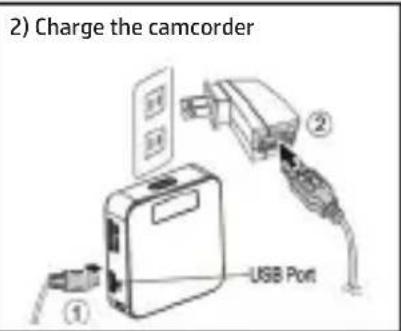
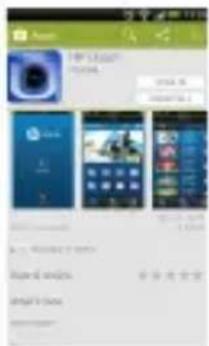
3) Install PC APP for the PC from the HP Wireless Mini Camcorder f150 or download and install HP Ucam for a Mobile device from the Google Play or Apple Store

Camera Operation
Modes of operation
The camera has three modes: Video in Direct Streaming mode, Photo in Direct Streaming mode, and Cloud Streaming.
NOTE: Pressing the Mode button switches between camera modes (Video, Photo) and Streaming modes (Direct, Cloud)

Video
The initial power up will put the camcorder in Video Direct mode. If not in Video Direct mode, press the Mode button until desired mode is selected.
- Press Record button to capture video, press again to stop

Photos
Press Mode button to select Photo Direct mode.
-Press Record button to take pictures.
Streaming modes

Direct Streaming
![graph LR A["Comedy Icon"] --> B["Laptop"] B --> C["Laptop"]](/content/2026/05/761358/images/ac8ab35b2154dc566d8390bceab8563f9a4df3b80cd2942e77faea6fbb64e2d8.jpg)
Connect the camcorder wirelessly to your laptop/PC, smartphone or tablet.
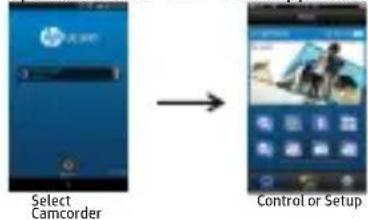
1) Press and hold the power button until an audible beep sounds and the Video Mode and Direct Mode icons are illuminated on the rear of the camcorder. 2) The camcorder is now in Video Direct mode and ready to connect to a wireless notebook/PC, smartphone or tablet. Please wait for the Direct Mode LED (or) to stop flashing before opening the PC/Android/iOS application. 3) Open the PC APP or HP Ucam application and follow the connection steps:

Cloud Streaming
![graph LR A["Router"] --> B["Wireless Router"] B --> C["Hot Spot"] C --> D["Cloud Server"] D --> E["Laptop"]](/content/2026/05/761358/images/744581840bc483791a90f6109fe488d5a92dbfd9050bfb4069abd49bf0bc160f.jpg)
Connect the camcorder to a Cloud server (Ustream) via an access point (AP) or mobile Hotspot for Internet live video and monitoring.
http://www.ustream.tv/
For additional information and a full version of the User Manual visit the www.hp.com/support or search YouTube™ for videos which explain the f150 in greater detail.
Camera Operation
Camera Operation
Driftformer
The camera has three modes: Video in Direct Streaming mode, Photo in Direct Streaming mode, and Cloud Streaming.
Camera Features
Operating Modes

Cloud Streaming
![graph LR A["Router"] --> B["Hot Spot"] B --> C["Cloud Server"] C --> D["Laptop"] style A fill:#f9f,stroke:#333 style B fill:#ccf,stroke:#333 style C fill:#cfc,stroke:#333 style D fill:#fcc,stroke:#333](/content/2026/05/761358/images/a244ef86ce0587c359c8f987272a2ac5ac5b0b7fa8ecc8df71391bfa6880a69a.jpg)

Brand : HP
Model : F150
Category : Video camera