
NV-VZ10ENC - Lecteur vidéo cassette PANASONIC - Free user manual and instructions
Find the device manual for free NV-VZ10ENC PANASONIC in PDF.


| Product Type | VHS-C Camcorder (Movie Camera) |
| Model | NV-VZ10ENC |
| Brand | Panasonic |
| Power Source | DC 7.2 V (Battery) or DC 7.9 V (AC Adaptor) |
| Power Consumption | 4.7 W (Finder), 6.3 W (LCD Monitor) |
| Tape Format | VHS-C Cassette |
| Recording/Playback Time | LP: 2 hours with EC60 tape |
| Video System | CCIR 625 lines, 50 fields, PAL colour |
| Image Sensor | 1/5-inch CCD |
| Lens | 22:1 Power Zoom, F1.6, focal length 2.9–63.8 mm, filter diameter 43 mm |
| Monitor | 2.5-inch Colour LCD Monitor |
| Finder | 0.24-inch Electronic Finder (adjustable) |
| Standard Illumination | 1,400 lx |
| Operating Temperature | 0°C–40°C |
| Operating Humidity | 10%–80% |
| Weight (without Battery) | Approx. 850 g |
| Dimensions (W x H x D) | Approx. 88 mm x 118 mm x 231 mm |
| AC Adaptor Input | AC 100–240 V, 50/60 Hz |
| AC Adaptor Output | DC 7.9 V, 8.5 W (operation); DC 8.4 V, 0.7 A (charging) |
| Video Output Level | 1.0 Vp-p, 75 ohm |
| Audio Output Level/Impedance | -6 dBV (47 kohm loaded)/less than 1 kohm, monaural |
| Key Features | Full Auto Mode, Digital Effects (Stabilizer, Zoom, Mosaic, Stretch, Negative, Solarisation, Sepia, B/W), Digital Fade, 0 Lux Night View, Motion Sensor Recording, Manual WB/Focus, Program AE, Remote Control (NV-VZ10 only) |
| Maintenance | Clean lens and body with soft cloth; use video head cleaning cassette for clogged heads; avoid condensation |
| Safety | Do not expose to rain/moisture; no user-serviceable parts; use only recommended accessories; keep away from children |
| Repairability | Refer servicing to qualified personnel; button-type battery replaceable; no user-replaceable parts inside |
Frequently Asked Questions - NV-VZ10ENC PANASONIC
User questions about NV-VZ10ENC PANASONIC
0 question about this device. Answer the ones you know or ask your own.
Ask a new question about this device
Download the instructions for your Lecteur vidéo cassette in PDF format for free! Find your manual NV-VZ10ENC - PANASONIC and take your electronic device back in hand. On this page are published all the documents necessary for the use of your device. NV-VZ10ENC by PANASONIC.
USER MANUAL NV-VZ10ENC PANASONIC
Operating Instructions
natural_image
Line drawing of a video camera with a remote control unit (no text or symbols)NV-RZ9EN/
ENC/EU
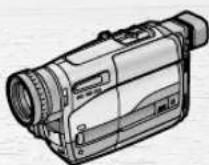
NV-RZ10EN/A
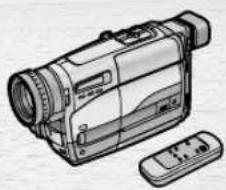
natural_image
Illustration of a digital video camera with a remote control unit (no text or symbols)液晶監視顯示器
LCD Monitor
ЖКИ видеомонитор
LCD شاشة المراقبة
遥控器
Remote Controller
Before use, please read these instructions completely.
Information for Your Safety
WARNING
To reduce the risk of fire or shock hazard and annoying interference, use only the recommended accessories and do not expose this equipment to rain or moisture.
Do not remove the cover (or back); there are no user serviceable parts inside. Refer servicing to qualified service personnel.
Movie Camera
The rating plate is on the underside of the Movie Camera.
AC Adaptor
The rating plate is on the underside of the AC Adaptor.
As this equipment gets hot during use, operate it in a well ventilated place; do not install this equipment in a confined space such as a bookcase or similar unit.
■Carefully read the Operating Instructions and use the Movie Camera correctly.
Injury or material damage resulting from any kind of use that is not in accordance with the operating procedures explained in these Operating Instructions are the sole responsibility of the user.
These Operating Instructions apply to models NV-VZ9, NV-VZ10, NV-RZ9 and NV-RZ10. However, all illustrations show the model NV-VZ10.
Please note that the actual controls and components, menu items, etc. of your Movie Camera may look somewhat different from those shown in the illustrations in these Operating Instructions.
■Try out the Movie Camera.
Be sure to try out the Movie Camera before recording your first important event and check that it records properly and functions correctly.
■The manufacturer is not liable for loss of recorded contents.
The manufacturer shall in no event be liable for the loss of recordings due to malfunction or defect of this Movie Camera, its accessories or cassettes.
■Carefully observe copyright laws.
Recording of pre-recorded tapes or discs or other published or broadcast material for purposes other than your own private use may infringe copyright laws. Even for the purpose of private use, recording of certain material may be restricted.
目錄
If you want to start using the Movie Camera immediately, be sure to read at least the pages marked with ♠.
Preparations
Standard Accessories 10
Controls and Components 12
The 3 Types of Power Supply 18
●Supplying Power from an AC Mains Socket 18
●Supplying Power with the Battery 20
Using the LCD Monitor 26
Using the Menus 28
Menu Functions 30
Adjusting the Brightness and Colour
Level of the LCD Monitor/Finder 38
♠Inserting/Ejecting the Cassette 40
- Selecting the Correct Tape Length 42
- Confirming the Remaining Tape Time 42
Adjusting the Finder 44
Adjusting the Grip Belt 44
Attaching the Lens Cap 44
Inserting the Button-type Battery 46
Setting the Date and Time 48
- Recording with the Date/Time/Title Superimposed in the Picture 50
Basic Operations
▲Recording in the Full Auto Mode 52
Checking the End of a Recorded Scene (Recording Check Function) 56
- Viewing Recorded Scenes During Recording Pause (Camera Search Function) 56
Recording Backlit Scenes (Backlight Mode) 56
Zooming In/Out 58
●Voice Zoom 58
- Recording Extra Close-up Shots of Small Subjects (Macro Close-up Function) 58
♠Playback 60
●Watching Playback on the Movie Camera 60
- Playing Back on a VCR (Using the Supplied Cassette Adaptor) 62
●High-Speed Rewinding 64
- Eliminating Picture Distortions (Manual Tracking Adjustment) 64
- Cue Playback 66
- Review Playback 66
- Still Playback 66
Watching Playback on a TV 68
After Use 68
- Cleaning the Finder 68
- Cleaning the LCD Monitor 68
- Cleaning the Movie Camera Body 68
- Cleaning the Lens 68
先進操作
淡入/淡出 70
使用特殊效果(數位效果) 72
- 選擇需要的數位效果....72
- Selecting a Desired Digital Effect 72
●Digital Effects 1 [EFFECT1] 74
●Digital Effects 2 [EFFECT2] 76
●Using the Super Image Stabilizer Function 78
- Using the Digital Zoom Function 80
- Digital Fade 82
Motion-Sensor-Controlled Recording 84
Recording in Dark Places Without Any
Illumination (0 Lux Night View Function) 88
Recording with Manual White Balance Adjustment ..... 90
- Colour Temperature and White Balance Adjustment 92
Recording with Manual Focus Adjustment 94
Recording in Special Situations (Programme AE) ...... 96
先進操作
遥控器使用器....100
- 將電池插入遙控器 102
Using the Remote Controller 100
- Inserting the Batteries into the Remote Controller 102
Recording Yourself with the LCD Monitor Facing Forward 104
Recording with Pre-programmed Titles Inserted in the Picture 108
Creating Your Own Titles and Inserting Them During Recording (Digital Superimposer Function) 112
- Inserting Your Own Title at the Beginning of a Recording 114
- Inserting Your Own Title During Recording .... 114 Using the Tape Counter Indication .... 116
- Checking the Elapsed Tape Time .... 116
- Using the Memory Stop Function .... 120 Dubbing (Copying) .... 122
Precautions, Technical Information, etc.
Precautions 124
●Precautions for the Movie Camera 124
●Precautions for the AC Adaptor 124
●Precautions for the Battery 126
●Precautions for the Cassette 126
- Causes of Condensation and Remedy 128
●Video Head Clogging and Remedy 128
How the White Balance (Tint) Adjustment Works ...... 130
How the Focus Adjustment Works .... 130
Indications 132
- Demonstration Mode 138
Optional Accessories 140
Specifications 142
Before Requesting Service (Problems & Solutions) ..... 144
1.2.3.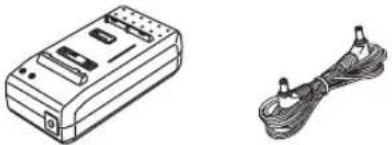 | [A][B][C]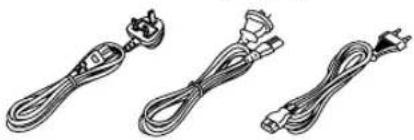 | 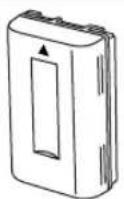 |
4. | 5.6.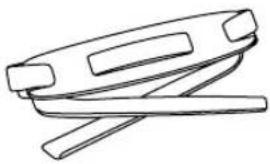 | 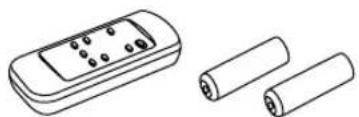 |
7.8. | 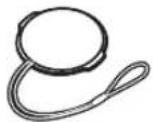 |
中文
標準附件
- 交流轉接器 (→18·20·124)
給攝錄影機供電或對電池充電。
直流輸入纜線 (→ 18)
將交流轉接器連接至攝錄影機。
- 交流電源纜線 (→18,20)
將交流轉接器連接至交流電源插座。
Standard Accessories
- AC Adaptor ( 18, 20, 124)
To supply power to the Movie Camera and to charge the Battery.
DC Input Lead ( 18)
To connect the AC Adaptor to the Movie Camera.
- AC Mains Lead ( 18, 20)
To connect the AC Adaptor to an AC mains socket.
[A] Hong Kong Special Administrative Region of China
[B] Australia and New Zealand
[C] Areas other than Hong Kong Special Administrative Region of China, Australia and New Zealand
*The supplied AC Mains Lead depends on Movie Camera Model
| Model No. | Type of Mains Lead |
| NV-VZ10ENH | [A] |
| NV-VZ10A, NV-RZ10A | [B] |
| NV-VZ10EN/ENC,NV-VZ9EN/EU,NV-RZ10EN,NV-RZ9EN/ENC/EU | [C] |
- Battery ( 20, 126)
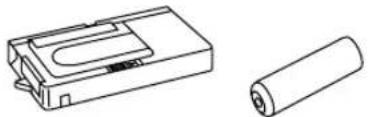
To supply power to the Movie Camera. - Cassette Adaptor and Battery ( 62)
- Shoulder Strap ( 16)
- Remote Controller and Batteries for Remote Controller ( 100, 102) (NV-VZ10/RZ10 only)
- Button-Type Battery ( 46)
To supply power to the Movie Camera's built-in clock.
- Lens Cap ( 44)
中文
控制和組件
1 超級畫面穩定指示燈[图标] 72,78)
2 數位效果指示燈[ D ] (72,80,82)
3 攝錄影機狀態燈[CAMERA] (→ 52)
4 放影機狀態燈[VCR] (→60)
5 0-Lux 拍攝開關[0 LUX OFF/ON]→88)
6 白色平衡感應器 ( 130)
7 遙控感應器 ( 100)(僅限於NV-VZ10/RZ10)
8 內藏紅外線光束發射器 ( 88)
9 鏡頭蓋夾 ( 44)
10 麥克風
11 信號燈 (→54)
12 淡化鈕[FADE] 70,82)
13 聚焦鈕FOCUS
項目設定鈕[SET] 28)
軌跡調整鈕 (→64)
Controls and Components
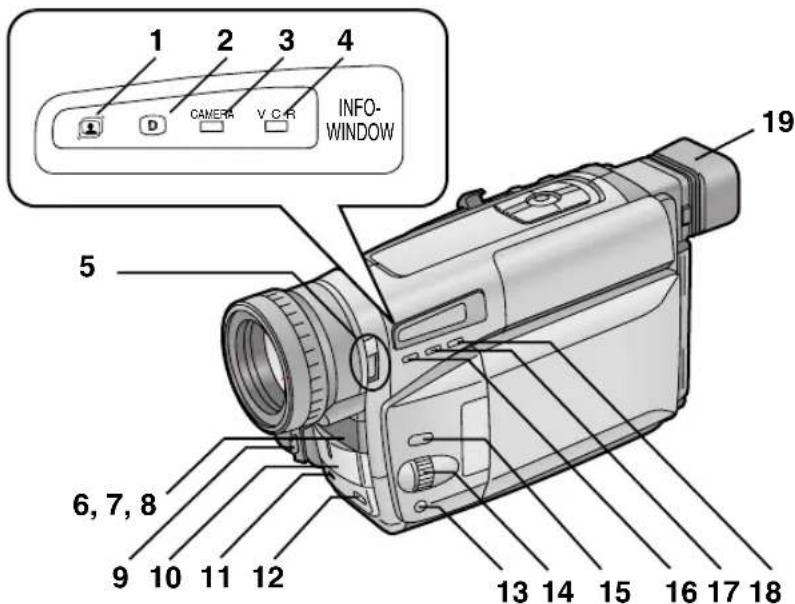
1 Super Image Stabilizer Indication Lamp [图标] (→ 72, 78)
2 Digital Effect Indication Lamp [D] (→ 72, 80, 82)
3 Camera Mode Lamp [CAMERA] ( 52)
4 VCR Mode Lamp [VCR] (→ 60)
5 0-Lux Recording Switch [0 LUX OFF/ON] (→ 88)
6 White Balance Sensor (→ 130)
7 Remote Control Sensor (→ 100) (NV-VZ10/RZ10 only)
8 Built-in Infra-red Beam Emitters ( 88)
9 Lens Cap Holder ( 44)
10 Microphone
11 Tally Lamp ( 54)
12 Fade Button [FADE] ( 70, 82)
13 Focus Button [FOCUS] ( 94)
Item Set Button [SET] (→ 28)
Tracking Button ( 64)
14 Multi-Function Dial [▲▼/MF/TRACKING] (→ 28, 64, 94)
15 Menu Button [MENU] ( 28)
16 Auto Exposure Selector Button [PROG. AE] (→ 52, 90, 94, 96)
17 Digital Image Store Button [STORE] (→ 112)
Digital Image Superimposer Button [OFF/ON]
(→ 112, 114)
18 Colour Selector Button for Digital Fade/Digital Image [COLOUR] ( 82, 112)
19 Eyecup
中文
20 反向尋影鈕-SEARCH
倒帶/倒帶尋影/高速倒帶鈕◀◀
錄影檢查鈕[▶] (→56)
21 停止鈕■
22 正向尋影鈕[SEARCH+] (→ 56)
快進 / 快進尋影鈕[▶▶] (→ 66)
23 白色平衡鈕W.B
暫停鈕[Ⅱ] (→66)
24 放影鈕▶
逆光鈕[BLC] (→56)
25 液晶顯示監視器打開桿▲OPEN
(僅限於限NV-VZ9/VZ10)
26 液晶顯示監視器 (→ 26,38,68) (僅限於 NV-VZ9/VZ10)
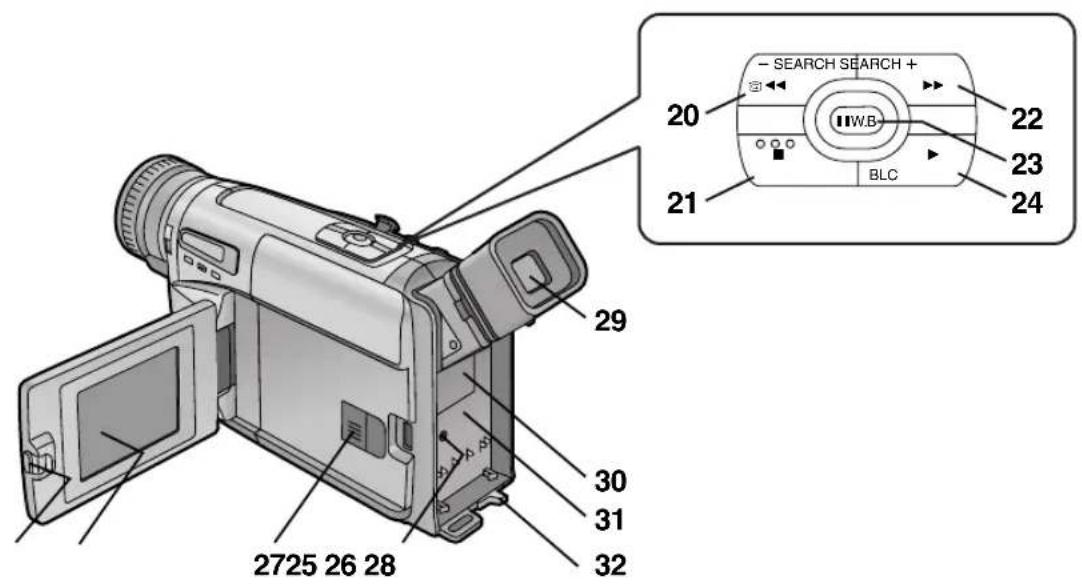
20 Reverse Search Button [−SEARCH] (→ 56)
Rewind/Review/High-Speed Rewind Button [◀◀]
(→ 60, 64, 66)
Recording Check Button [[▶]] (→ 56)
21 Stop Button [■] (→ 60)
22 Forward Search Button [SEARCH+] (→ 56)
Fast Forward/Cue Button [▶▶] (→ 66)
23 White Balance Button [W.B] (→ 90)
Pause Button [Ⅱ] (→ 66)
24 Playback Button [▶] (→ 60)
Backlight Button [BLC] (→ 56)
25 LCD Monitor Open Lever [▲OPEN] (→ 26) (NV-VZ9/VZ10 only)
26 LCD Monitor ( 26, 38, 68) (NV-VZ9/VZ10 only)
Due to limitations in LCD production technology, there may be some tiny bright or dark spots on the LCD Monitor screen. However, this is not a malfunction and does not affect the recorded picture.
27 Cassette Compartment Lock Button [LOCK] (→ 40)
28 DC Input Socket [DC IN] (→ 18)
29 Finder (→ 44, 68)
Due to limitations in LCD production technology, there may be some tiny bright or dark spots on the Finder screen, the whole screen may have a slight colour cast, and flickering may occur. However, this is not a malfunction and does not affect the recorded picture.
30 Cover of the Button-type Battery's Compartment [BACKUP BATTERY] (→ 46)
31 Battery Holder ( 20)
32 Battery Eject Lever [◀BATTERY EJECT] (→ 20)
中文
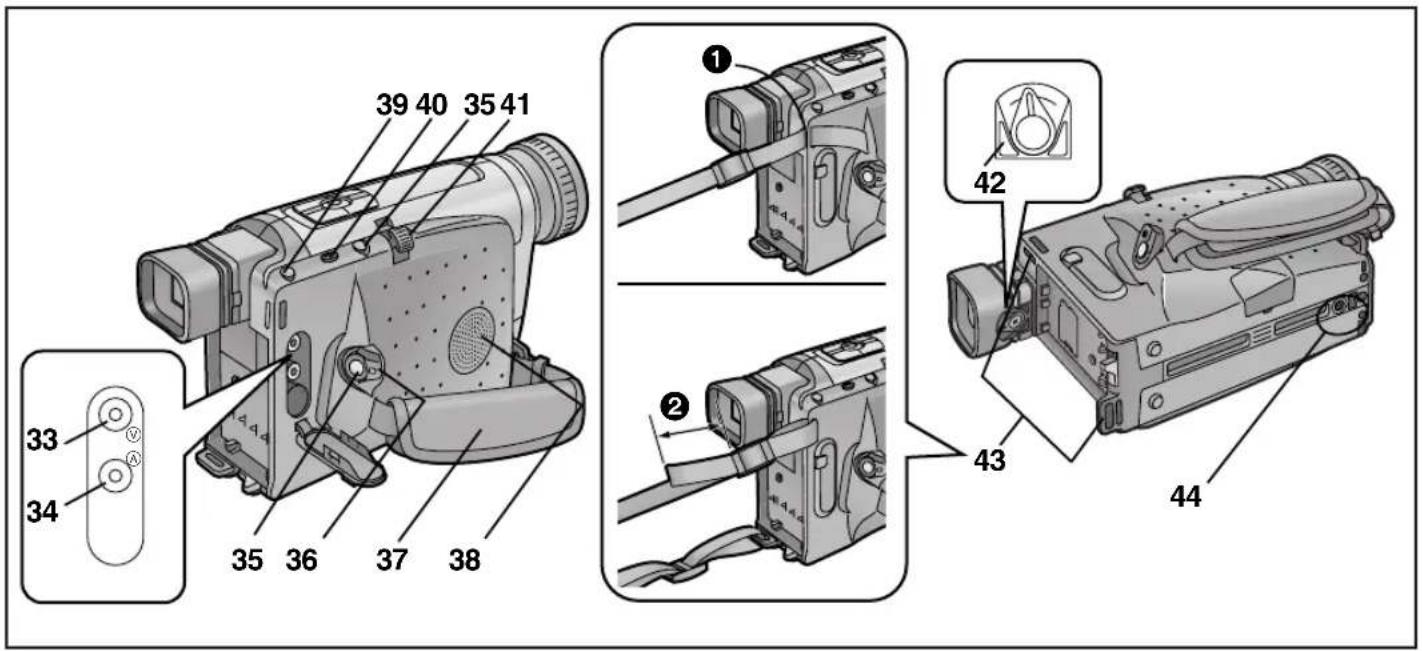
Use either of these buttons depending on the recording angle.
36 Off/On Mode Selector Switch [CAMERA/OFF/VCR] (→ 44, 52, 60, 68)
37 Grip Belt ( 44)
38 Speaker ( 60) (NV-VZ9/VZ10 only)
39 Cassette Eject Button [▲ EJECT] (→ 40)
40 Date/Time/Title Button [DATE/TITLE] (→ 50, 110)
41 Zoom Lever [W/T] ( 58, 80)
Volume Adjustment Lever [-VOL+] ( 60) (NV-VZ9/VZ10 only)
42 Eyepiece Corrector Lever ( 44)
43 Shoulder Strap Holders
Pull one end of the Shoulder Strap through the Shoulder Strap Holder ①.
Fold the end of the Shoulder Strap back, pull it through the Shoulder Strap Length Adjuster.
Pull it out more than 2 cm ② from the Shoulder Strap Length Adjuster so that it cannot slip off.
44 Tripod Receptacle
中文
三種電源
The 3 Types of Power Supply
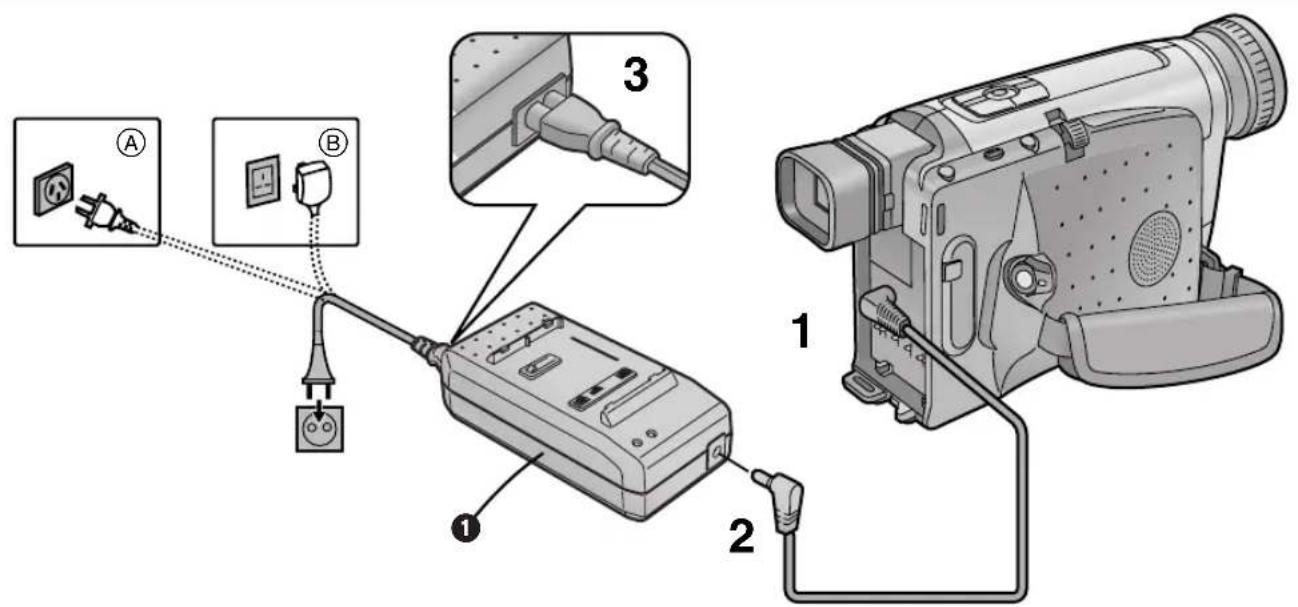
1) AC Adaptor ① (supplied) to supply power from an AC mains socket
2) Car Battery Charger (optional) to supply power from the cigarette lighter socket in a vehicle
3) Battery (supplied) ( 20)
Supplying Power from an AC Mains Socket
1 Connect the DC Input Lead to the [DC IN] Socket on the Movie Camera.
2 Connect the other end of the cable to the [DC OUT] Socket on the AC Adaptor.
3 Connect the AC Mains Lead to the AC Adaptor and to an AC mains socket.
- The AC Mains Lead's outlet plug cannot be pushed fully into the AC Adaptor socket. A gap will remain as shown above.
Ⓐ: Australia and New Zealand
⑧: Hong Kong Special Administrative Region of China
- Before connecting the DC Input Lead to the Movie Camera, be sure to set the [CAMERA/OFF/VCR] Switch to [OFF].
- The AC Adaptor features automatic universal voltage adjustment (AC 100–240 V, 50/60 Hz), therefore, there is no need for any manual voltage adjustment for use in other countries.
中文
由電池供電
在使用電池前請先將其充電。
1 裝上電池。
Supplying Power with the Battery
Charge the Battery before using it.
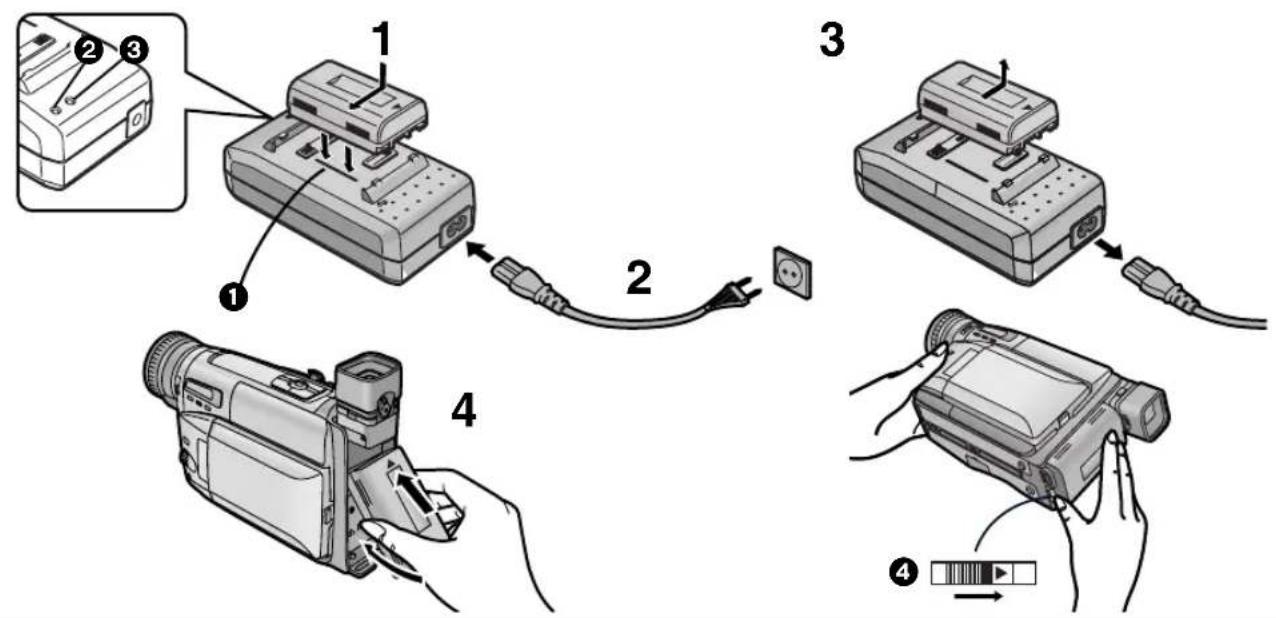
1 Attach the Battery.
- Align the Battery with line 1 and push it in the direction of the arrow while holding it down.
- When charging, do not connect the DC Input Lead to the AC Adaptor.
2 Connect the AC Mains Lead to the AC Adaptor and an AC mains socket.
- The [POWER] Lamp ② and the [CHARGE] Lamp ③ light and charging starts.
- If the [CHARGE] Lamp ③ does not light even though the Battery is attached, remove the Battery and then re-attach it.
3 Remove the Battery by sliding it in the opposite direction of Step 1 above.
4 Insert the Battery with its top (so that the arrow points upward) into the top Battery Holder and press the bottom of it toward the Movie Camera until it locks with a click.
Removing the Battery from the Movie Camera
Hold the Battery firmly to prevent it from dropping and pull it off while sliding the [◀BATTERY EJECT] Lever ④ in the direction of the arrow.
- Before removing the Battery, set the [CAMERA/OFF/VCR] Switch to [OFF].
■Charging Lamp [CHARGE]
Lit: During charging
Off: The Battery is fully charged.
- When first charging a Battery that is completely discharged as a result of being in storage for an extended period of time, etc., the [POWER] Lamp and the [CHARGE] Lamp both flash.
- Charge the Battery at a room temperature between 10°C and 30°C.
- During recording or charging, the Battery becomes warm. However, this is normal.
- To ensure precise indication of the remaining battery power, always use a fully charged Battery when attaching a Battery.
| NV-VZ9/VZ10 | NV-RZ9/RZ10 | ||
CGR-V14CGR-V14S![PANASONIC NV-VZ10ENC - ■Charging Lamp [CHARGE] - 1](/content/2026/05/760626/images/7d357c6359e916996e69e4f3787b61a31feb7b603d5d6f0896e6abaa3f65d9d8.jpg) | A | 2 h 40 min. | 2 h 40 min. |
| B | 2 h. (1 h 20 min.) | 2 h. | |
CGR-V26S![PANASONIC NV-VZ10ENC - ■Charging Lamp [CHARGE] - 2](/content/2026/05/760626/images/2106d8ded05932ee8dcd41174a18f222640841bf46606f5f7ea62cc20a97ca5b.jpg) | A | 4 h 50 min. | 4 h 50 min. |
| B | 4 h. (2 h 40 min.) | 4 h. | |
CGR-V53S![PANASONIC NV-VZ10ENC - ■Charging Lamp [CHARGE] - 3](/content/2026/05/760626/images/20b2eddd8e7c986c922a6bee682da336b436a18171ba4e826643232f1a0c2b85.jpg) | A | 10 h 20 min. | 10 h 20 min. |
| B | 8 h. (5 h 20 min.) | 8 h. |
中文
■Charging Time and Maximum Continuous Recording Time in the Manual Recording Mode
Ⓐ Charging Time for a Full Charge
B Maximum Continuous Recording Time
- “1 h 10 min.” stands for “1 hour and 10 minutes”.
●The Battery Model CGR-V14 is supplied.
- The times shown in the above chart are approximations. The figures in parentheses show the recording time when using the *LCD Monitor.
*LCD Monitor: NV-VZ9/VZ10 only
Maximum Continuous Recording Time means the duration of continuous recording performed at an ambient temperature of 25^ C and 60% relative humidity. In actual recording, however, the use of the zoom and other functions increases the power consumption, and higher or lower temperatures reduce the Battery's ability to generate electricity. Therefore, the actual recording time per Battery may be approximately 30%–50% shorter than listed above.
CGR-V14 CGR-V14S
■Checking the Remaining Battery Power
You can confirm the remaining charge in the attached Battery in the Finder or on the *LCD Monitor. This also shows you approximately how much more continuous recording time you can get from the attached Battery. The indicated time does not change in 1-minute steps.
The above illustrations show how the Remaining Battery Operation Time Indication changes according to the remaining operation time.
*LCD Monitor: NV-VZ9/VZ10 only
①: Actual remaining battery operation time
(A): Remaining Battery Operation Time Indication (This indication does not appear when recording in the Mirror Mode.) (→ 106) (NV-VZ9/VZ10 only)
Remaining Battery Operation Time Indication
This Indication shows the remaining duration of continuous recording at an ambient temperature of 25^ C when a fully charged Battery was attached. Therefore, in the following cases, the actual available recording time is different from the times shown above:
When Recording Is Not Performed Continuously
In most cases, you will frequently start and stop recording, turn the Movie Camera on and off, use the zoom and other functions, all of which consume power. Therefore, the actual available recording time from the Battery is approximately 30%–50% shorter than listed. (→ 22)
When the Ambient Temperature Is Extremely Low or Extremely High
The characteristics of the Battery vary according to the ambient temperature, and at a very low temperature, the possible recording time becomes extremely short. In addition, the Remaining Battery Operation Time Indication on the Movie Camera decreases a little faster than at an ambient temperature of 25^ C.
(At a higher temperature, it tends to decrease more slowly.)
When the Service Life of the Battery Has Reached Its End When the operation time even after full charging is too short for normal use, the service life of the Battery has reached its end. ( 126)
中文
液晶顯示監視器的使用
(僅限於NV-VZ9/VZ10)
Improved LCD backlight transmission makes the picture extra bright. In addition, special coating of the LCD's surface diffuses the light from outside to minimize light reflection, so the picture has vivid colours and is easy to see.
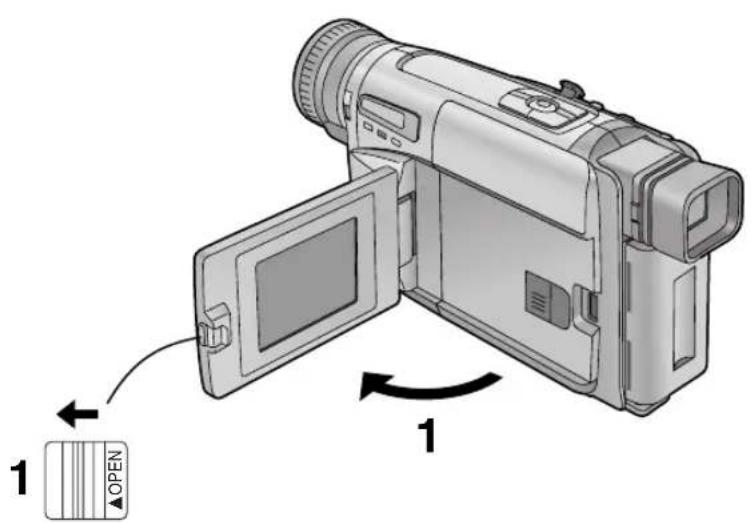
1 Slide the [▲OPEN] Lever to the left and simultaneously open the LCD Monitor in the direction of the arrow approximately 90°.
Closing the LCD Monitor
Turn the LCD Monitor back toward the Movie Camera body until it locks with a click.
- The picture seen on the LCD Monitor looks slightly stretched vertically, however, the actually recorded picture remains unaffected by this.
- Return the LCD Monitor to its vertical position before closing it. Also, make sure that the Cassette Compartment is securely closed before closing the LCD Monitor.
- Opening the LCD Monitor automatically turns the Finder off. However, when you turn the LCD Monitor so that is faces forward, the Finder turns on again.
- When the Movie Camera is very cold when turning it on, the picture on the LCD Monitor is darker than normally. However, as it reaches normal temperature, it regains its normal brightness.
- To remove fingerprints, wipe the LCD Monitor with a soft cloth.
- Do not expose the LCD Monitor to direct sunlight. When sunlight falls onto the LCD Monitor, it may be difficult to view the picture.
Extremely high precision technology is employed to produce the LCD Monitor. The result is more than 99.99% active pixels with a mere 0.01% of the pixels inactive or always lit. However, this is not a malfunction and does not affect the recorded picture.
中文
使用菜單屏幕
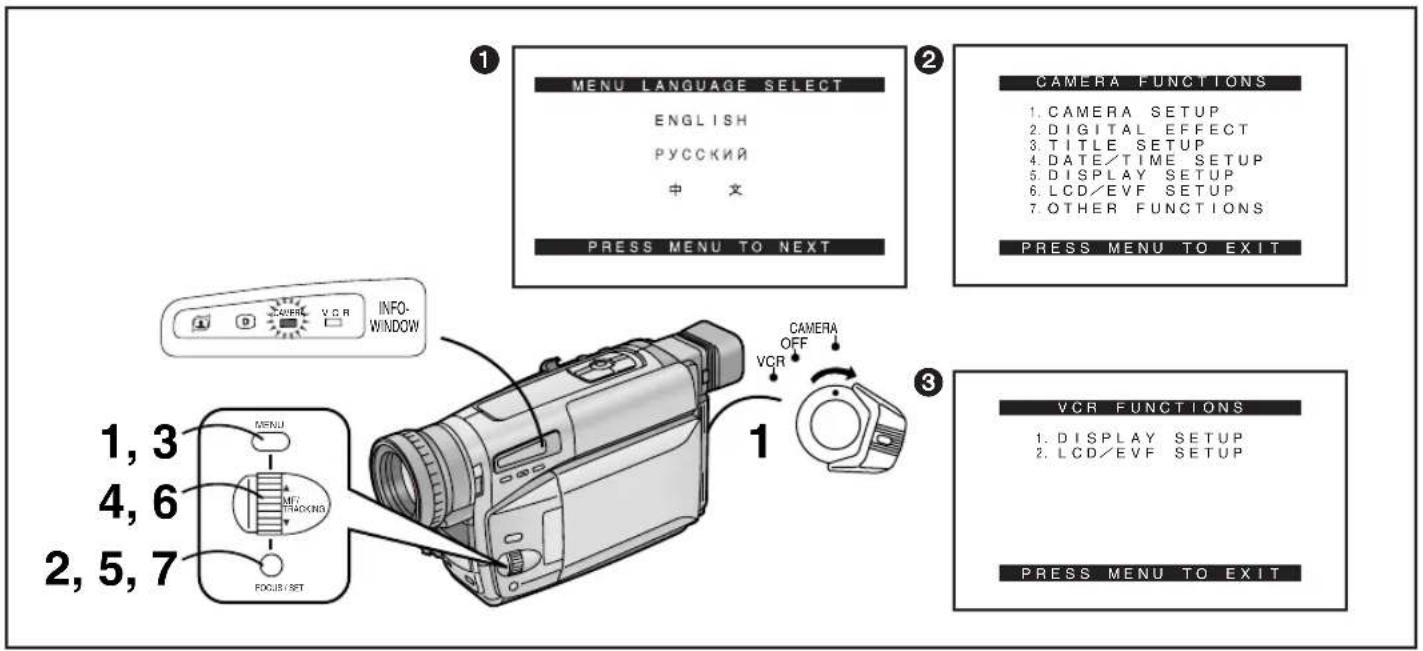
This Movie Camera displays the settings of various functions in menus to make it easy to select the desired functions and settings.
1 Set the [CAMERA/OFF/VCR] Switch either to [CAMERA] or [VCR] while keeping the [MENU] Button pressed.
•The [MENU LANGUAGE SELECT] Menu 1 appears.
2 Press the [SET] Button to select the desired language.
- Even if you select Chinese, the sub-menus are displayed in English.
3 Press the [MENU] Button.
- When you press this button while the [CAMERA] Lamp is lit in red, the Camera Mode Menu ② appears. When you press this button while the [VCR] Lamp is lit in green, the VCR Mode Menu ③ appears.
4 Turn the [▲▼] Dial to select the desired sub-menu.
- Turning the [▲▼] Dial changes the highlighted item.
5 Press the [SET] Button to display the selected sub-menu.
6 Turn the [▲▼] Dial to select the item to be set.
7 Press the [SET] Button to set the selected item to the desired mode.
Exiting the Menu
Press the [MENU] Button again.
- The method for making settings on the [DATE/TIME SETUP] Sub-Menu ( 48) and [LCD/EVF SETUP] Sub-Menu ( 38) differs slightly from that of other Sub-Menus.
- You can display the menu during playback, but not during recording. Also, it is possible to start playback while the menu is displayed, but if you start recording, the displayed menu disappears.
- Do not turn off the power while performing a menu operation.
中文
菜單功能
The illustrations of the menus are for explanation purposes only and the actual menus may be somewhat different.
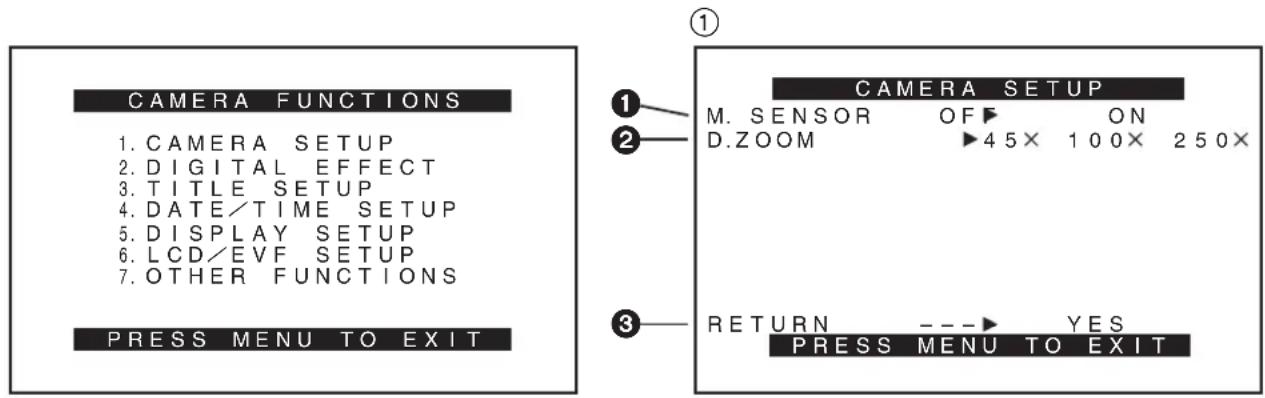
Camera Mode Main-Menu [CAMERA FUNCTIONS]
- CAMERA SETUP
- DIGITAL EFFECT
- TITLE SETUP
- DATE/TIME SETUP
- DISPLAY SETUP
- LCD/EVF SETUP (NV-VZ9/VZ10) EVF SETUP (NV-RZ9/RZ10)
- OTHER FUNCTIONS
[CAMERA SETUP] Sub-Menu ①
① Motion-Sensor-Controlled Recording [M.SENSOR] (→ 84)
② Digital Zoom [D.ZOOM] ( 80)
③Returning to the Main-Menu [RETURN]
If you set [RETURN] to [YES], the menu changes back to the Main-Menu.
中文
攝錄影機狀態主菜單[CAMERA FUNCTIONS] (摄像功能) (續)
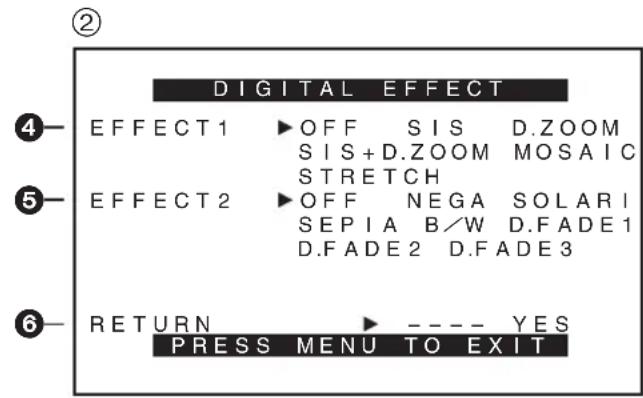
DIGITAL EFFECT子菜單②
④ 數位效果效1[EFFECT1]→(72, 74)
⑤ 數位效果效2[EFFECT2]→(72, 76)
⑥ 返回主菜單[RETURN]
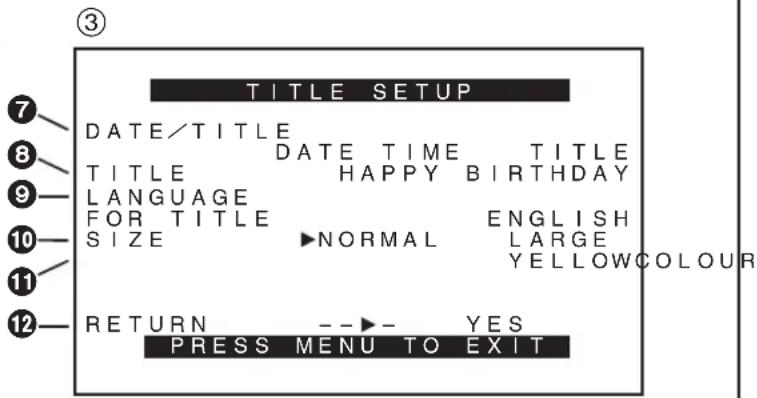
TITLE SETUP子菜單③
Camera Mode Main-Menu [CAMERA FUNCTIONS] (Continued)
[DIGITAL EFFECT] Sub-Menu ②
④ Digital Effects 1 [EFFECT1] ( 72, 74)
⑤ Digital Effects 2 [EFFECT2] ( 72, 76)
⑥Returning to the Main-Menu [RETURN]
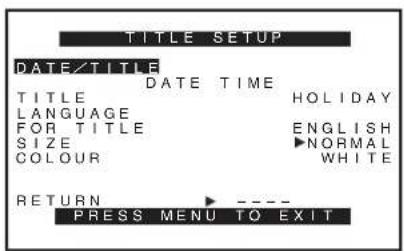
[TITLE SETUP] Sub-Menu ③
⑦ Date/Time/Title Indication [DATE/TITLE] (→ 50)
⑧ Title [TITLE] ( 108)
⑨ Language of the Title [LANGUAGE FOR TITLE] (→ 108)
⑩ Size of the Title [SIZE] ( 110)
⑪Colour of the Date/Time/Title Indication [COLOUR] (→ 108)
⑫Returning to the Main-Menu [RETURN]
④
⑤
⑥
![LCD/EVF SETUP LCD BRIGHTNESS [ - ] | | | | ---- [ + ] LCD COLOUR [ - ] | | | | ---- [ + ] EVF BRIGHTNESS [ - ] | | | | ---- [ + ] PRESS MENU TO RETURN](/content/2026/05/760626/images/b5b03a64ab4f6b6c44a007dd503ca24bf6cdcd94cb5c1a27c327584ac6c46555.jpg)
⑦
中文
攝錄影機狀態主菜單[CAMERA FUNCTIONS] (摄像功能) (續)
Camera Mode Main-Menu [CAMERA FUNCTIONS] (Continued)
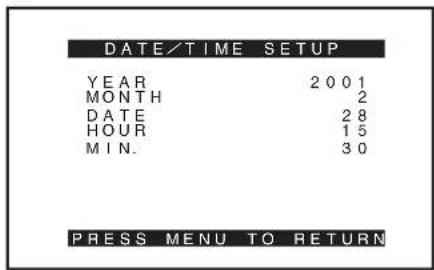
[DATE/TIME SETUP] Sub-Menu ④ (→ 48)
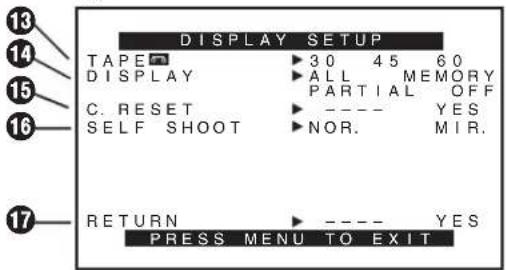
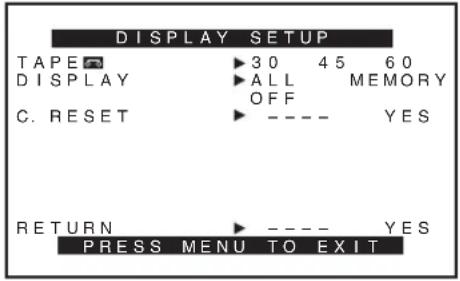
[DISPLAY SETUP] Sub-Menu ⑤
⑬ Tape Length [TAPE] (→ 42)
14 Counter Display Mode [DISPLAY] (→ 118)
15 Counter Reset [C.RESET] (→ 116)
16 Self-Recording [SELF SHOOT] (→ 104) (NV-VZ9/VZ10 only)
⑰Returning to the Main-Menu [RETURN]
[LCD/EVF SETUP] Sub-Menu ⑥ (→ 38)
(LCD Monitor adjustment is only for models NV-VZ9 and NV-VZ10.)
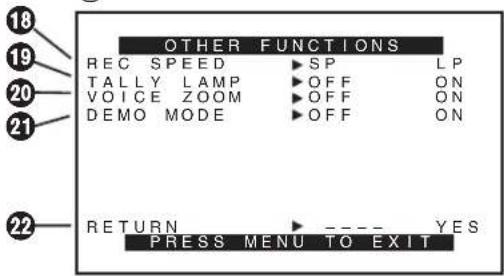
[OTHER FUNCTIONS] Sub-Menu ⑦
18 Recording Speed Mode [REC SPEED]
You can select the desired recording speed (SP Mode or LP Mode) by selecting the corresponding setting for [REC SPEED] on the [OTHER FUNCTIONS] Sub-Menu. ●[SP] means Standard Play. [LP] means Long Play.
19 Recording Lamp [TALLY LAMP] (→ 54)
20 Voice Zoom [VOICE ZOOM] (→ 58)
② Demonstration Mode [DEMO MODE] (→ 138)
22Returning to the Main-Menu [RETURN]
①
②
![LCD/EVF SETUP LCD BRIGHTNESS [ - ] | | | | - - - - [ + ] LCD COLOUR [ - ] | | | | - - - - [ + ] EVF BRIGHTNESS [ - ] | | | | - - - - [ + ] PRESS MENU TO RETURN](/content/2026/05/760626/images/7a1770cbe38fd537f0f12b913f6f753b23cce83cedbaa49ad3cb35ce88abb3af.jpg)
中文
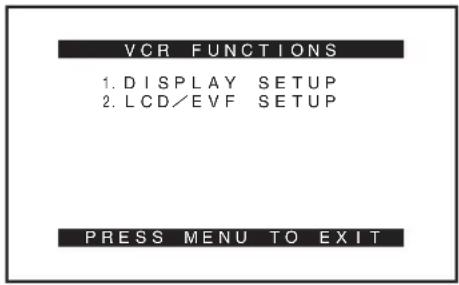
放影機狀態主菜單VCR FUNCTIONS
- DISPLAY SETUP (屏幕显示設定)
- LCD/EVF SETUP (LCD/EVF 設定) (NV-VZ9/VZ10) EVF SETUP (EVF 設定) (NV-RZ9/RZ10)
DISPLAY SETUP子菜單①
[DISPLAY SETUP] Sub-Menu ①
All items on the [DISPLAY SETUP] Sub-Menu are the same as those on the [DISPLAY SETUP] Sub-Menu of the [CAMERA FUNCTIONS] Main-Menu.
[LCD/EVF SETUP] Sub-Menu ② ( 38)
(LCD Monitor adjustment is only for models NV-VZ9 and NV-VZ10.)
![LCD/EVF SETUP LCD BRIGHTNESS [-] | | | --- [+] LCD COLOUR [-] | | | --- [+] EVF BRIGHTNESS [-] | | | --- [+] PRESS MENU TO RETURN](/content/2026/05/760626/images/10fd0b85f15e0fee798d11d994f018ce88b5c1b01a59e239fc6cf59b00862371.jpg)
natural_image
Two views of a digital camera showing the opening and disassembly process, with no visible text or symbols.中文
Adjusting the Brightness and Colour Level of the LCD Monitor/Finder (LCD Monitor adjustment is only for models NV-VZ9 and NV-VZ10.)
If you select the [LCD/EVF SETUP] or the [EVF SETUP] Sub-Menu of the [VCR FUNCTIONS] or the [CAMERA FUNCTIONS] Main-Menu, the following items are displayed.
LCD Brightness [LCD BRIGHTNESS]
To adjust the brightness of the picture on the LCD screen.
LCD Colour Level [LCD COLOUR]
To adjust the colour saturation of the picture on the LCD screen.
Finder Brightness [EVF BRIGHTNESS]
To adjust the brightness of the picture in the Finder.
1 Press the [SET] Button to select the item that you want to adjust.
2 Turn the [▲▼] Dial to increase or decrease the vertical bars of the Bar Indication.
- The Bar Indication is divided into 8 steps. The more vertical bars are shown, the stronger is the brightness or colour saturation.
Exiting the Menu
Press the [MENU] Button twice.
- These adjustments have no influence on the actual picture recorded.
■Adjusting the Angle of the LCD Monitor
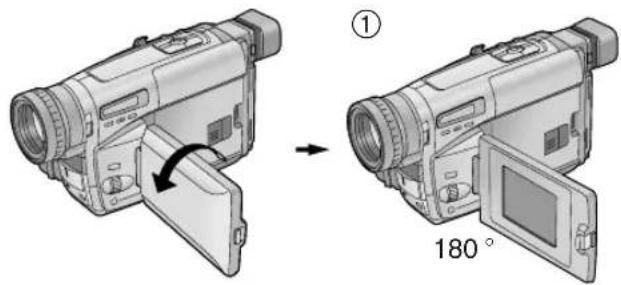
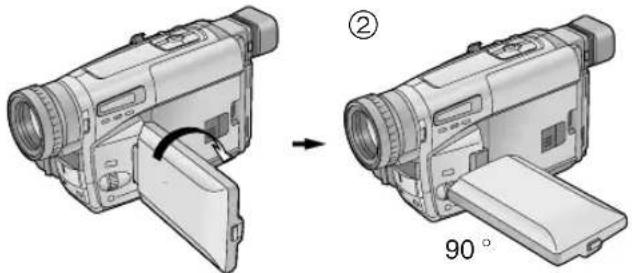
The LCD Monitor rotates upward a maximum of 180^ ① and downward a maximum of 90^ ② from its normal vertical position. Trying to forcefully rotate it beyond this range could seriously damage the Movie Camera.
中文
插入/取出錄影帶時
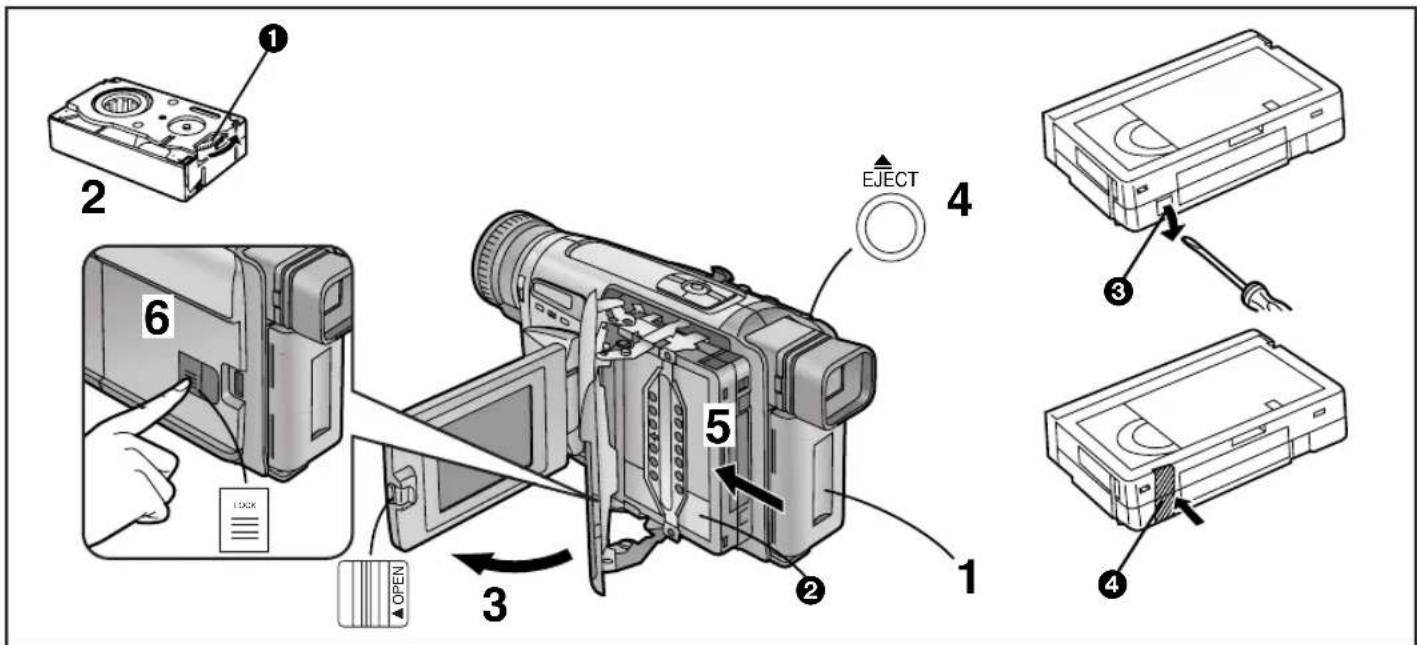
Inserting/Ejecting the Cassette
1 Connect the AC Adaptor or attach a charged Battery. ( 18, 20)
2 Turn the cog wheel ① to tighten the tape.
3 Slide the [▲OPEN] Lever to the left and simultaneously open the LCD Monitor in the direction of the arrow approximately 90°. (NV-VZ9/VZ10 only)
- Be sure to keep the LCD Monitor in its vertical position, so that the Cassette Compartment Cover, when it opens, does not hit the LCD Monitor.
4 Press the [▲ EJECT] Button.
5 Insert the cassette with the cassette window ② facing outward and push it all the way in.
6 Close the Cassette Compartment by pressing the [LOCK] Button.
- If the AC Adaptor or Battery is used to supply power, it is possible to insert or eject the cassette without turning on the Movie Camera.
- If a cassette with broken out erasure prevention tab is inserted, the [☐] Indication flashes.
■ Preventing Accidental Erasure of Recordings
●Recording on a previously recorded cassette erases the existing scenes and sound.
- To protect important recordings against accidental erasure, use a screwdriver to break out the tab ③ on the cassette (some cassettes have sliding-type tabs).
- To be able to record again on a protected cassette, firmly cover the hole where the tab was with two layers of adhesive tape 4.
中文
設定正確的磁帶長度時
ENGLISH
Selecting the Correct Tape Length
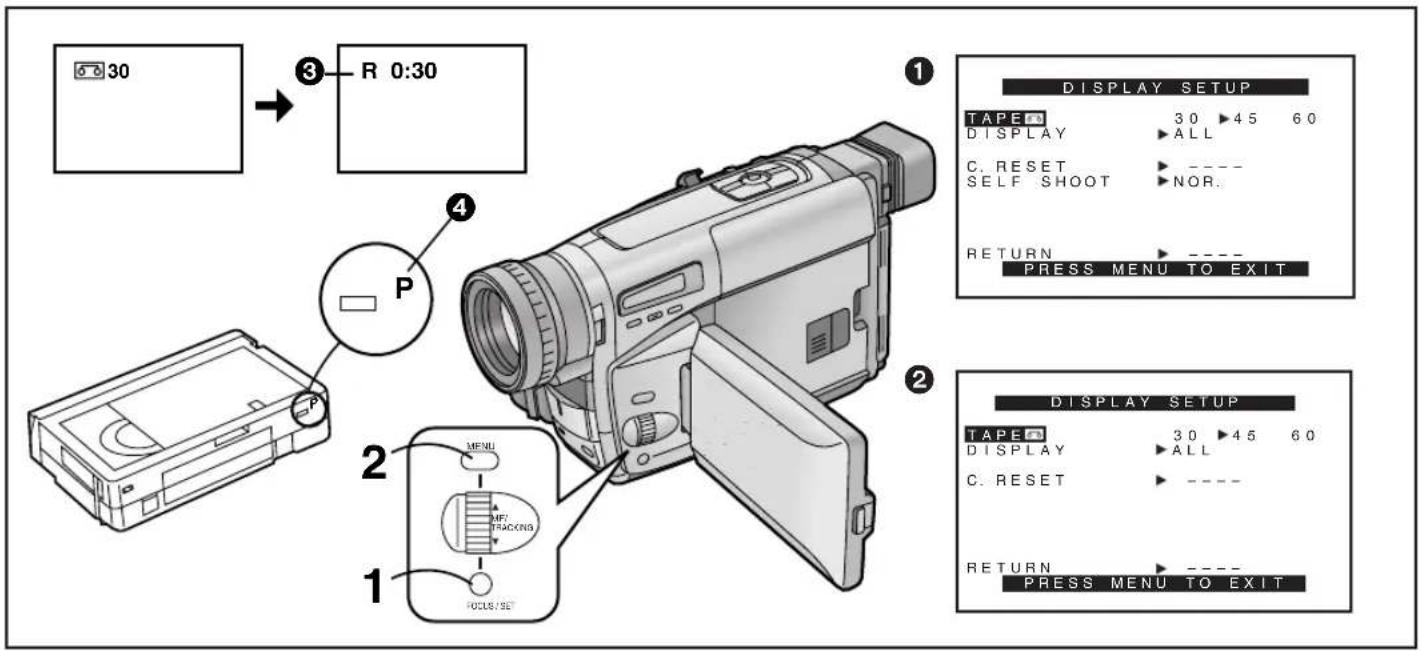
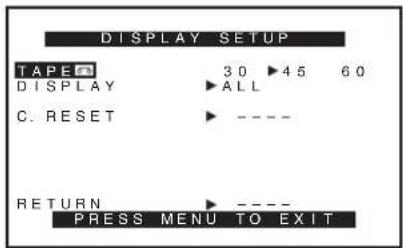
To ensure that the Remaining Tape Time Indication displayed during recording and playback is correct, you need to set the tape length that matches that of the inserted cassette.
After selecting [TAPE] on the [DISPLAY SETUP] Sub-Menu... (→ 28)
1 Press the [SET] Button to select the correct tape length.
- The selected tape length is marked with the [▶] Mark. - The Tape Length Indications change in the following order:
![PANASONIC NV-VZ10ENC - Press the [SET] Button to select the correct tape length. - 1](/content/2026/05/760626/images/86bf231a7d656048e05c8ba639828f53acb259656c56d2434872e8e577896b42.jpg)
flowchart
graph LR
    A["30"] --> B["45"]
    B --> C["60"]
    A --> D["30"]
    B --> E["45"]
    C --> F["60"]
2 Press the [MENU] Button to exit the menu.
①: Camera Mode
②: VCR Mode
Confirming the Remaining Tape Time
During recording and playback, the Remaining Tape Time Indication ③ is automatically displayed, so you always know how much time you have left on the cassette. However, to ensure correct display of the remaining tape time, the tape length of the cassette being used must be set correctly on the Movie Camera.
- When recording or playback starts, the Tape Length Indication disappears, and in its place the [R] Indication ③ flashes while the remaining tape time is being calculated. A few seconds later, the Remaining Tape Time Indication appears. ([R] means Remaining.)
- When the remaining tape time is less than 2 minutes, the [R] Indication and the Remaining Tape Time Indication start to flash.
When you use a cassette bearing the [P] mark ④ or other special types of cassettes, the Remaining Tape Time Indication may not be very precise.
flowchart
graph TD
    A["0:00.00"] --> B["0:00.00"]
    B --> C["1"]
    C --> D["2"]
    D --> E["3"]
    E --> F["4"]
    F --> G["5"]
    G --> H["6"]
    H --> I["7"]
    I --> J["8"]
    J --> K["9"]
    K --> L["10"]
    L --> M["11"]
    M --> N["12"]
    N --> O["13"]
    O --> P["14"]
    P --> Q["15"]
    Q --> R["16"]
    R --> S["17"]
    S --> T["18"]
    T --> U["19"]
    U --> V["20"]
中文
電子尋像器調整
Adjusting the Finder
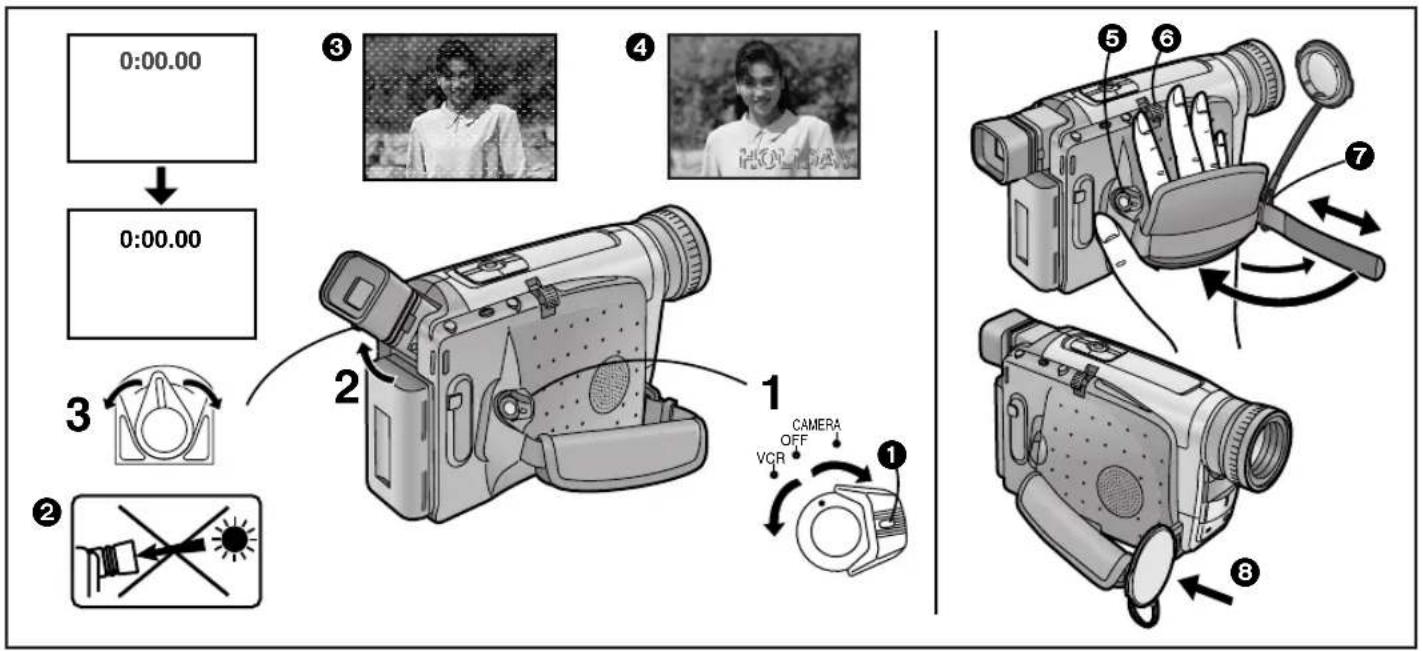
Before using the Finder, adjust it to your eyesight so that the indications in the Finder are clear and easy to read.
1 Set the [CAMERA/OFF/VCR] Switch to [CAMERA] or [VCR]. Turn the switch while pressing the button ①.
2 If necessary, adjust the angle of the Finder by tilting it upward.
3 Adjust by turning the Eyepiece Corrector Lever.
Never aim the Movie Camera with its Finder or Lens directly at the sun; this could damage internal parts of the unit. ②
If sunlight or other strong light enters the Finder, sparkling noise occurs on the Finder screen. ③ If you block off the light, this phenomenon disappears after a few minutes and does not affect the recorded picture.
If a subject with strong contrast or a menu is displayed in the Finder, a ghost image may remain temporarily. ④ However, this is not a malfunction and does not affect the recorded picture.
Adjusting the Grip Belt
Adjust the length of the Grip Belt so that you can easily press the Recording Start/Stop Button ⑤ with your thumb and push the [W/T] Zoom Lever ⑥ with your index or middle finger.
Attaching the Lens Cap
Attach the shorter loop of the Lens Cap Cord to the Grip Belt. ⑦ You can attach the Lens Cap to the Lens Cap Holder on the Grip Belt. ⑧
中文
插入鈕扣式電池
Inserting the Button-type Battery
Before setting the date and time, insert the button-type battery (supplied).
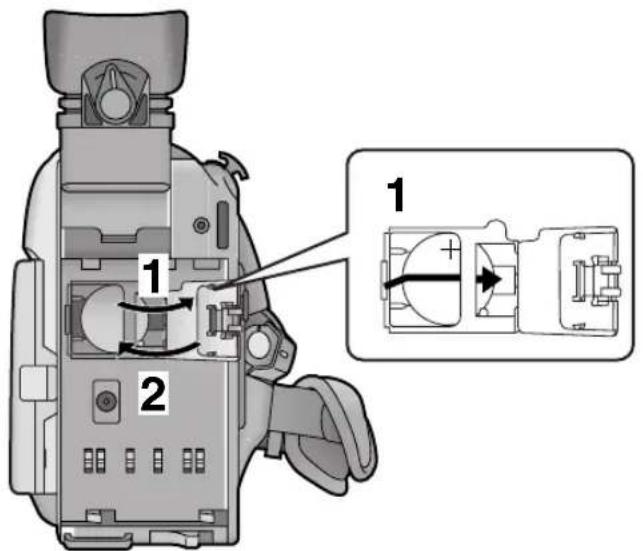
1 Open the [BACKUP BATTERY] Cover and insert the button-type battery so that its (+) side is visible.
2 Close the [BACKUP BATTERY] Cover.
- Before inserting or removing the button-type battery, be sure to set the [CAMERA/OFF/VCR] Switch to [OFF].
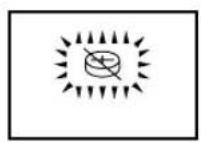
- When the button-type battery is exhausted, the [💡] Indication flashes. In this case, replace it with a new CR2025 battery.
(The life of the battery is about 3 years.)
- To make it easier to remove the button-type battery, use a pointed object.
- The internal clock works even when the Movie Camera is turned off, and it consumes power from the button-type battery.
CAUTION
Danger of explosion if battery is incorrectly replaced. Replace only with the same or equivalent type recommended by the equipment manufacturer. Discard used batteries according to manufacturer's instructions.
WARNING
Risk of fire, explosion and burns. Do not recharge, disassemble, heat above 100°C or incinerate. Keep the Button-Type battery out of the reach of children. Never put Button-Type battery in mouth. If swallowed call your doctor.
flowchart
graph TD
    A["CAMERA FUNCTIONS"] --> B["1. CAMERA SETUP"]
    B --> C["2. DIGITAL EFFECT"]
    C --> D["3. TITLE SETUP"]
    D --> E["4. DATE/TIME SETUP"]
    E --> F["5. DISPLAY SETUP"]
    F --> G["6. LCD/EVF SETUP"]
    G --> H["7. OTHER FUNCTIONS"]
    H --> I["PRESS MENU TO EXIT"]
    I --> J["DATE/TIME SETUP"]
    J --> K["YEAR 2001"]
    K --> L["MONTH 10"]
    L --> M["DATE 15"]
    M --> N["HOUR 14"]
    N --> O["MIN 30"]
    O --> P["PRESS MENU TO RETURN"]
中文
設定日期和時間
Setting the Date and Time
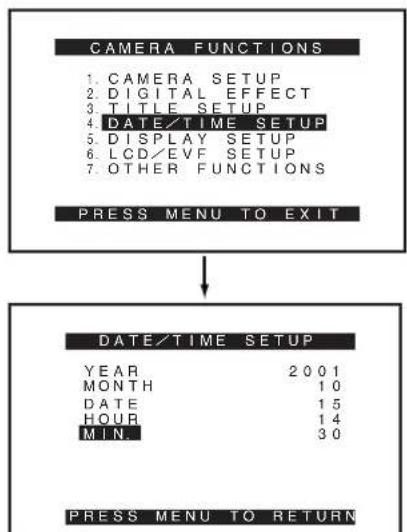
If you select the [DATE/TIME SETUP] Sub-Menu of the [CAMERA FUNCTIONS] Main-Menu, the menu shown above appears.
The initial setting of date and time is 0:00, 1st January, 2000.
For example: To set the clock to 15th October 2001, 14:30.
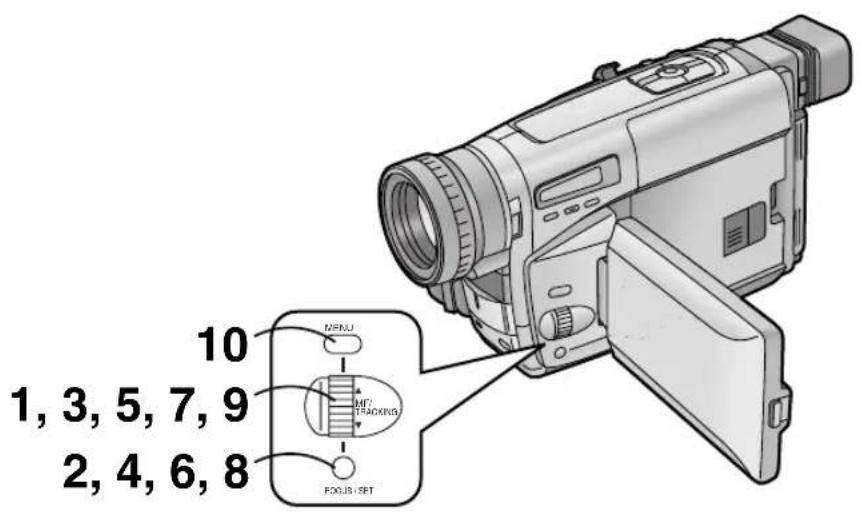
1 Turn the [▲▼] Dial to set to [2001].
●The years change in the following order: ...1990...1991...2000...2089...1990...
2 Press the [SET] Button to select [MONTH].
3 Turn the [▲▼] Dial to set to [10].
4 Press the [SET] Button to select [DATE].
5 Turn the [▲▼] Dial to set to [15].
6 Press the [SET] Button to select [HOUR].
7 Turn the [▲▼] Dial to set to [14].
8 Press the [SET] Button to select [MIN].
9 Turn the [▲▼] Dial to set to [30].
10 Press the [MENU] Button to finish the date and time setting.
- The operation of the clock starts from [00] seconds.
- Pressing the button one more time makes the menu disappear.
- If you select the [DATE/TIME SETUP] Sub-Menu when the button-type battery is not inserted into the Movie Camera or is exhausted, the Main-Menu disappears and the [💡] Indication flashes instead. Insert a new button-type battery (→ 46) and then set the date and time again.
- As the Movie Camera's built-in clock is subject to slight imprecision, be sure to check the indicated time before recording.
●The clock employs the 24-hour system.
1
12:30 15.10.2001
4
HOLIDAY 15.10.2001
2
5
3
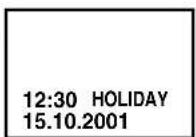
6
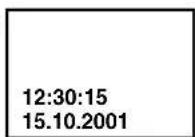
中文
在畫面中添加日期/時間/題名進行拍攝時
Recording with the Date/Time/Title Superimposed in the Picture
After displaying the [TITLE SETUP] Sub-Menu... (→ 28)
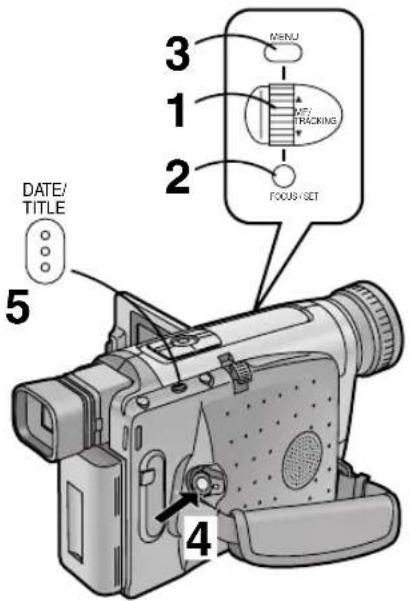
1 Turn the [▲▼] Dial to select [DATE/TITLE].
2 Press the [SET] Button to select the desired indication.
•The indications change in the order ① to ⑥.
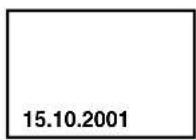
① Date and Time→② Date→
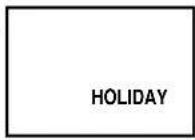
③ Date, Time and Title → ④ Date and Title →
⑤ Title→⑥ Date and Time with seconds→
- If the button-type battery for the built-in clock is not inserted into the Movie Camera or is exhausted, only the title is displayed. (→ 46)
3 Press the [MENU] Button to exit the menu.
●The selected Date/Time/Title Indication appears.
4 Press the Recording Start/Stop Button to start recording.
■Deleting the Date/Time/Title Indication
5 During recording or when the Movie Camera is in the Recording Pause Mode, press the [DATE/TITLE] Button to make the Date/Time/Title Indication disappear.
- After turning the Movie Camera off and then on again, the previously selected Date/Time/Title Indication is no longer displayed. To make it appear again, press the [DATE/TITLE] Button once.
- Be sure to turn the Movie Camera off before removing the Battery or disconnecting the AC Adaptor. Disconnecting the power supply while the Movie Camera is on erases the Date/Time/Title Indication (→ 108) stored in memory.
中文
用全自動狀態進行拍攝時
Recording in the Full Auto Mode
The Full Auto Mode adjusts the white balance and focus automatically. However, if you want, you can also adjust either one or both of them manually. (→ 90, 94)
When recording in a dimly lit location, the picture may become noisy and less sharp, so we recommend that you use the IR/Video DC Light (optional), etc. to brighten up the scene.
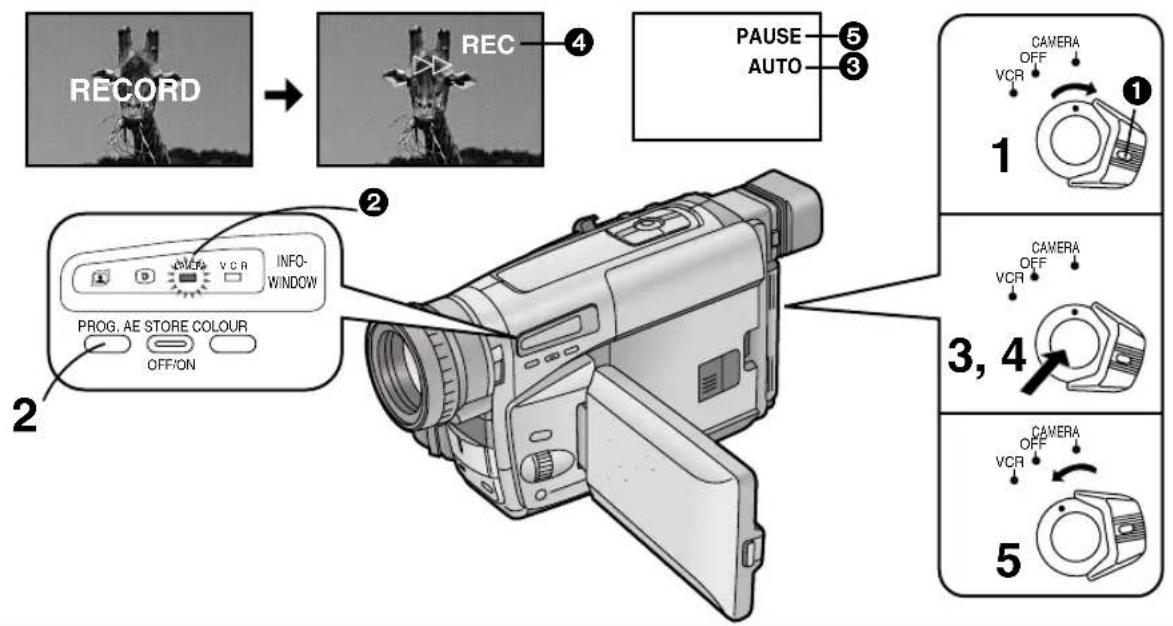
1 Set the [CAMERA/OFF/VCR] Switch to [CAMERA].
- Turn the switch while pressing the button 1.
•The [CAMERA] Lamp ② lights.
2 Press the [PROG. AE] Button repeatedly until the [AUTO] Indication ③ appears.
●The initial setting is [AUTO].
3 Press the Recording Start/Stop Button to start recording.
- Recording starts and the [▶▶] Indication and the [REC] Indication ④ appear. The Tally Lamp (→ 54) remains lit during recording. ([REC] means Recording.)
4 To pause recording:
Press the Recording Start/Stop Button again.
•The [PAUSE] Indication 5 appears.
5 To finish recording:
Set the [CAMERA/OFF/VCR] Switch to [OFF].
natural_image
Illustration of a digital camera with labeled parts (no text or symbols present)中文
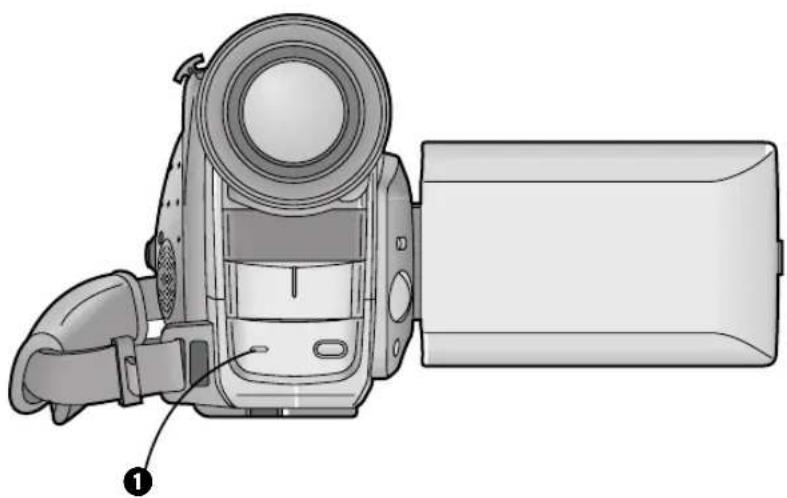
信號燈①
If you do not want the Tally Lamp to light during recording, set [TALLY LAMP] on the [OTHER FUNCTIONS] Sub-Menu to [OFF]. (→ 28)
- If you leave the Movie Camera in the Recording Pause Mode for more than 6 minutes, it automatically switches off to protect the tape and to conserve battery power. To resume recording from this condition, set the [CAMERA/OFF/VCR] Switch to [OFF] and then to [CAMERA] again.
1
4
2

3

中文
檢查錄過場景的結尾時
(拍攝檢查功能)
Checking the End of a Recorded Scene (Recording Check Function)
To play back the final few seconds of the last recorded scene in the Recording Pause Mode.
1 Press the [G] Button briefly in the Recording Pause Mode.
- The [CHK] Indication ① appears. After that, the Movie Camera returns to the Recording Pause Mode and is ready for recording the next scene. ([CHK] means Check.)
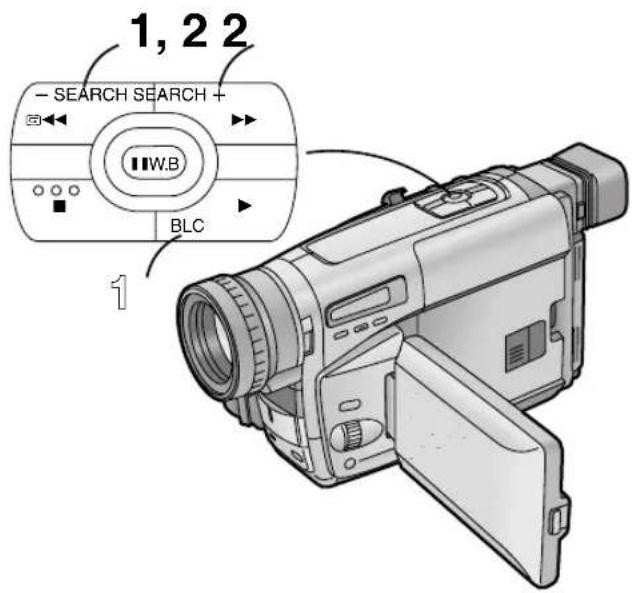
Viewing Recorded Scenes During Recording Pause (Camera Search Function)
This function makes it easy to search for a point in a previously recorded scene or cassette from which you want to start recording a new scene. In addition, it ensures smooth scene-to-scene transitions free from picture distortion.
2 Keep the [-SEARCH] Button (or the [SEARCH+] Button) pressed in the Recording Pause Mode.
②: Reverse Search
③: Forward Search
Recording Backlit Scenes (Backlight Mode)
To prevent the backlit subject from being recorded very dark. Under some conditions, this function may not work properly.
1 Keep the Backlight Button [BLC] pressed. • The picture brightens up as a whole. ④
![[W] 1× V:ZOOM 10× V:ZOOM 22× V:ZOOM [T] 1 -VOL+ W T](/content/2026/05/760626/images/1edd22cddb01d745a3e1ee97f4cd026442e40b7d7f59bf2e9524afbbc7ea32ab.jpg)
中文
拉近/拉遠變焦
Recording close-ups of your subjects and recording wide-angle shots add special effects to your videos.
1 To record a wider view (Zooming-out): Push the [W/T] Zoom Lever toward [W]. To enlarge your subject (Zooming-in): Push the [W/T] Zoom Lever toward [T].
●The Zoom Magnification Indication appears for a few seconds.
- The further you push the [W/T] Zoom Lever toward [W] or [T], the faster the zooming speed becomes.
- In the maximum telephoto setting (when you have zoomed in), precise focusing is only possible for subjects that are more than 1.8 m from the lens.
Voice Zoom
This function makes it possible to record the voices of distant persons slightly louder and more clearly, by emphasizing the frequency range of human voices according to the zoom position of the Movie Camera's lens. To activate the Voice Zoom Function, set [VOICE ZOOM] on the [OTHER FUNCTIONS] Sub-Menu of the [CAMERA FUNCTIONS] Main-Menu to [ON]. (→ 28)
•The [V.ZOOM] Indication ① appears.
●The Voice Zoom Function works within the zoom range up to 14×: above that point, its effect remains unchanged.
- Depending on the distance of the person(s) and the surrounding sounds, the Voice Zoom Function may not have much effect.
Recording Extra Close-up Shots of Small Subjects (Macro Close-up Function)
When the zoom magnification is 1×, the Movie Camera can focus on subjects down to a distance of approximately 5 mm between lens and subject. This allows recording very small subjects such as insects.
- When using the Macro Close-up Function, we recommend that you use the IR/Video DC Light (optional), etc. rather than the 0 Lux Night View Function to brighten up the scene.
中文
放影
在攝錄影機上觀看放影時
您可觀看已拍攝場景的播放。
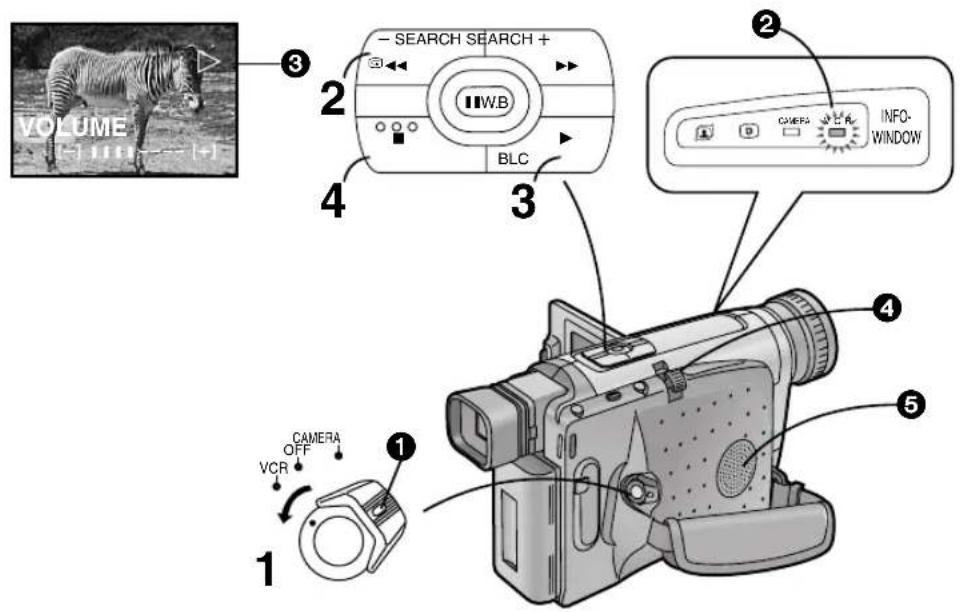
Watching Playback on the Movie Camera
You can watch playback of the recorded scenes.
1 Set the [CAMERA/OFF/VCR] Switch to [VCR].
- Turn the switch while pressig the button 1.
•The [VCR] Lamp ② lights.
2 Press the [◀◀] Button.
- The tape starts to rewind. When the tape reaches the beginning, the rewinding automatically stops.
3 Press the [▶] Button.
- Playback starts and the [▷] Indication ③ appears.
- When the tape reaches the end, it automatically rewinds to the beginning.
■ Stopping Playback
4 Press the [■] Button.
■ Adjusting the Sound Volume (NV-VZ9/VZ10 only)
Push the [-VOL+] Lever ④ toward [+] to increase the volume or push it toward [-] to decrease the volume. The [VOLUME] Indication appears and the number of bars increases or decreases. When you release the Lever, this indication disappears.
You can also adjust the volume with the *Remote Controller. Increase the volume by pressing the [T] Button, or decrease it by pressing the [W] Button.
This adjustment is only possible during playback.
*Remote Controller: NV-VZ10 only
- Because the speaker 5 contains a magnet, do not bring a cassette near the speaker. It could adversely influence the recorded content.
natural_image
Line drawing of a rectangular electronic device with a handle and internal components (no text or symbols)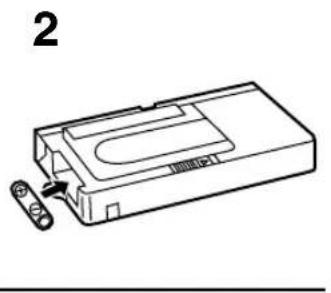
natural_image
Line drawing of a device with a scroll wheel and internal components (no text or symbols)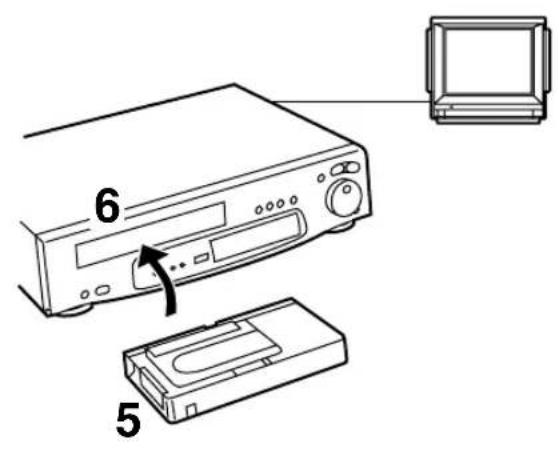
natural_image
Line drawing of a rectangular electronic device with an internal component and an arrow indicating direction (no text or symbols)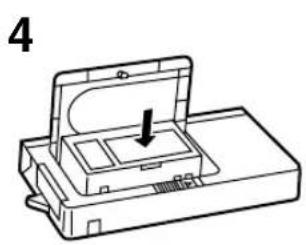
natural_image
Line drawing of a device with an arrow pointing to a component (no text or symbols)中文
在錄影機上放影時
(使用附带的磁带轉接器)
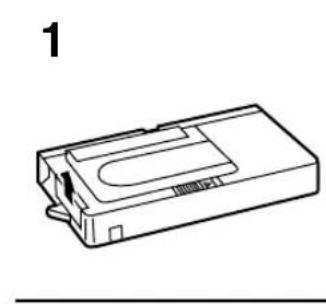
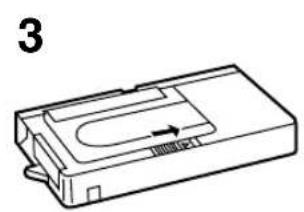
Playing Back on a VCR (Using the Supplied Cassette Adaptor)
By using the supplied Cassette Adaptor, you can play back compact cassettes in your VCR in the same way as full-size cassettes.
1 Push the Battery Compartment Cover upward and remove it.
2 Insert the supplied battery and then re-attach the Battery Compartment Cover.
3 Slide the Open Lever in the direction of the arrow.
4 Insert the recorded cassette and close the Top Cover.
5 Insert the Cassette Adaptor into the VCR.
6 Start playback on the VCR.
After use, take out the cassette from the Cassette Adaptor.
中文
高速倒带
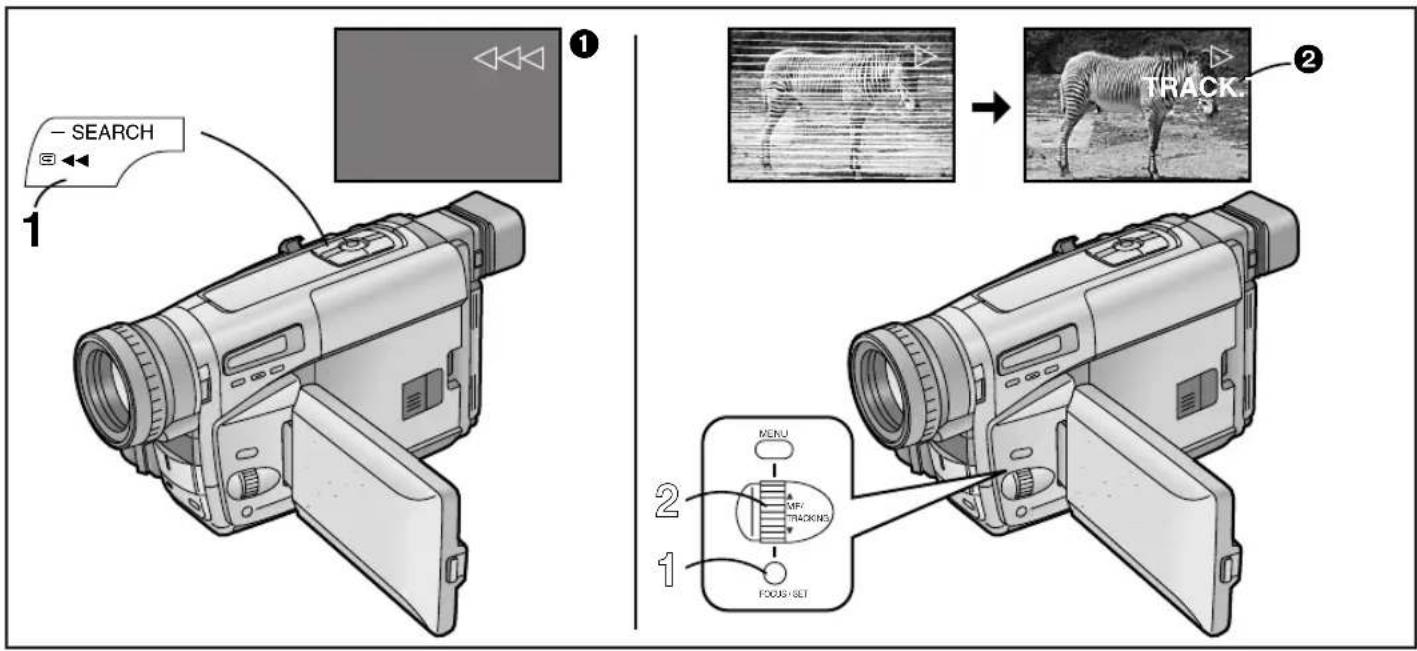
High-Speed Rewinding
1 Press the [◀◀] Button for more than 1 second in the Stop Mode.
•The [◀◀◀] Indication ① appears.
- During High-Speed Rewinding, the tape winding sound is louder.
- When rewinding the tape to the beginning, the Movie Camera automatically changes over from the High-Speed Rewinding Mode to the Rewinding Mode near the beginning of the tape, and it switches over to the Stop Mode at the beginning of the tape.
- When using the Remote Controller, press the [◀◀] Button for more than 3 seconds. (NV-VZ10/RZ10 only)
- During High-Speed Rewinding, the Tape Counter shows [0:00.00].
Eliminating Picture Distortions (Manual Tracking Adjustment)
This Movie Camera adjusts the tracking automatically. With certain cassettes, however, the tracking adjustment may not be precise. In this case, adjust the tracking manually.
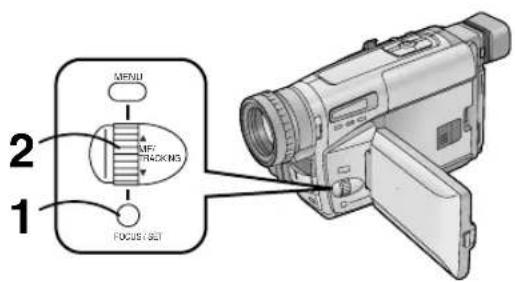
1 Press the [FOCUS/SET] Button briefly during playback.
•The [TRACK.] Indication ② appears.
2Turn the [TRACKING] Dial to adjust the tracking.
- The Tracking Adjustment Function is automatically cancelled when the [TRACKING] Dial is not turned for 5 seconds.
- It may not be possible to remove the noise bars completely.
- It is not possible to adjust the tracking when a menu is displayed.
- If you eject the cassette after adjusting the tracking, the adjusted setting is cancelled.
Returning to the Auto Tracking Mode
Press the [FOCUS/SET] Button for more than 2 seconds during playback.
中文
快進尋影放影時
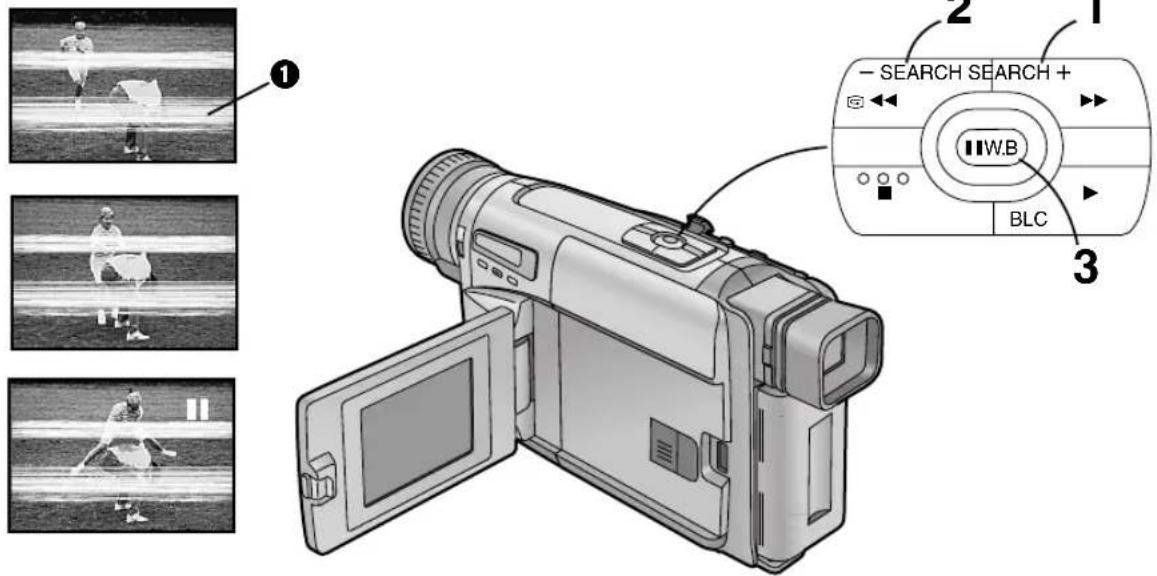
1 Keep the [▶▶] Button pressed during normal playback.
Review Playback
2 Keep the [◀◀] Button pressed during normal playback.
Search Lock Function
For longer Cue or Review Playback, press the Cue Button [▶▶] or the Review Button [◀◀] only briefly. As this locks the search function, you do not need to keep the button pressed for a long time.
- To resume normal playback, press the [▶] Button.
Still Playback
3 Press the [11] Button during normal playback.
Resuming Normal Playback
Press the [11] Button again.
- In the Cue, Review and Still Playback Modes, horizontal noise bars ① appear in the picture, or the picture may become black and white or distorted.
- The horizontal noise bars have a different pattern in the SP Mode and LP Mode.
- During Cue or Review Playback, no indications are displayed on the LCD Monitor. (NV-VZ9/VZ10 only)
- If you leave the Movie Camera in the Still Playback Mode for about 6 minutes, it automatically switches over to the Stop Mode. And, if the Movie Camera is being powered by the Battery, it switches off completely after a further 6 minutes.
中文
在電視機上觀看放影時
Watching Playback on a TV
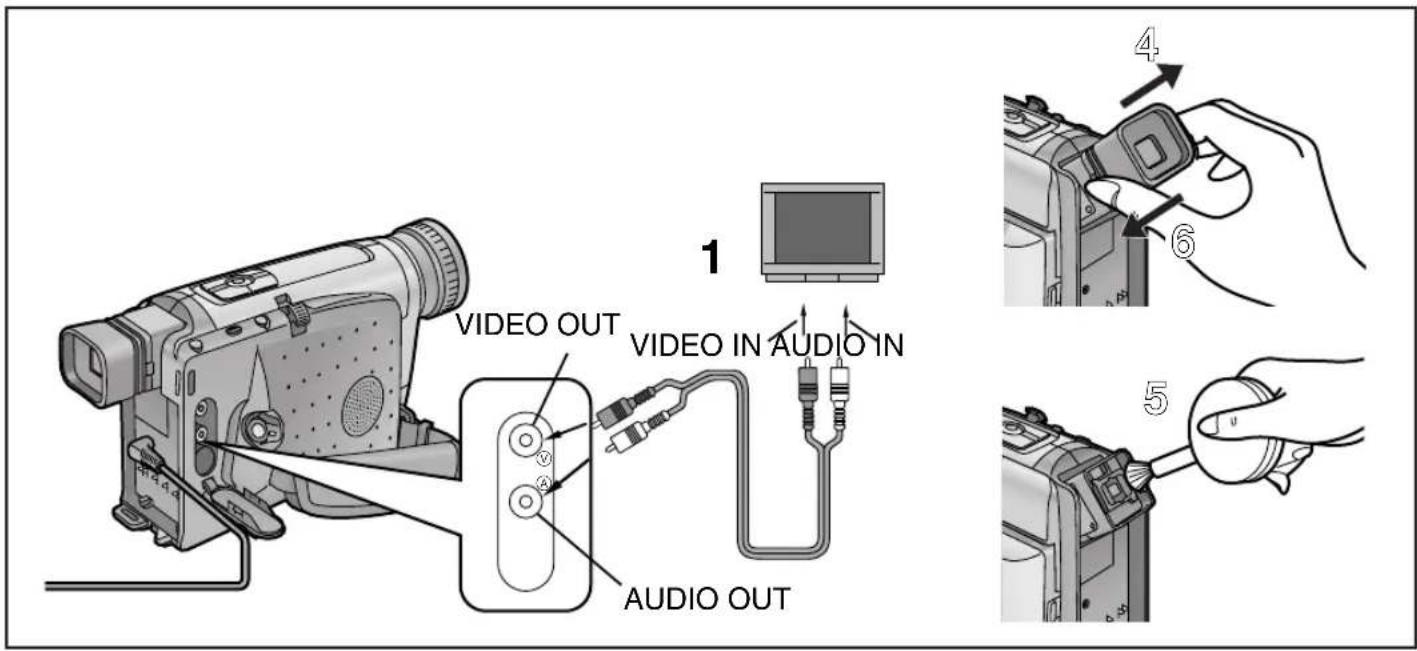
By connecting the Movie Camera to a TV, you can watch playback of the recorded scenes on the TV screen. Before connecting, turn off both the Movie Camera and the TV for safety's sake.
1 Use the AV Cable (not supplied) to connect the Movie Camera with the TV.
After Use
1 Take out the cassette. (→ 40)
2 Set the [CAMERA/OFF/VCR] Switch to [OFF].
3 Disconnect the AC Adaptor or remove the Battery.
Cleaning the Finder
If dust has entered the Finder...
4 Push the Buttons on both sides of the Finder and remove it in the direction of the arrow.
5 Remove dust with a blower brush (not supplied).
- If you use a cotton swab or similar to clean the inside of the Finder, use it very carefully to prevent scratching the screen inside the Finder.
To re-attach the Finder, push it forward onto the Finder Tube until it locks with a click.
Cleaning the LCD Monitor (NV-VZ9/VZ10 only)
Clean the LCD Monitor with a soft cloth or a blower brush.
Cleaning the Movie Camera Body
Wipe it with a soft cloth.
Cleaning the Lens
Clean the lens with a soft cloth or a blower brush.
中文
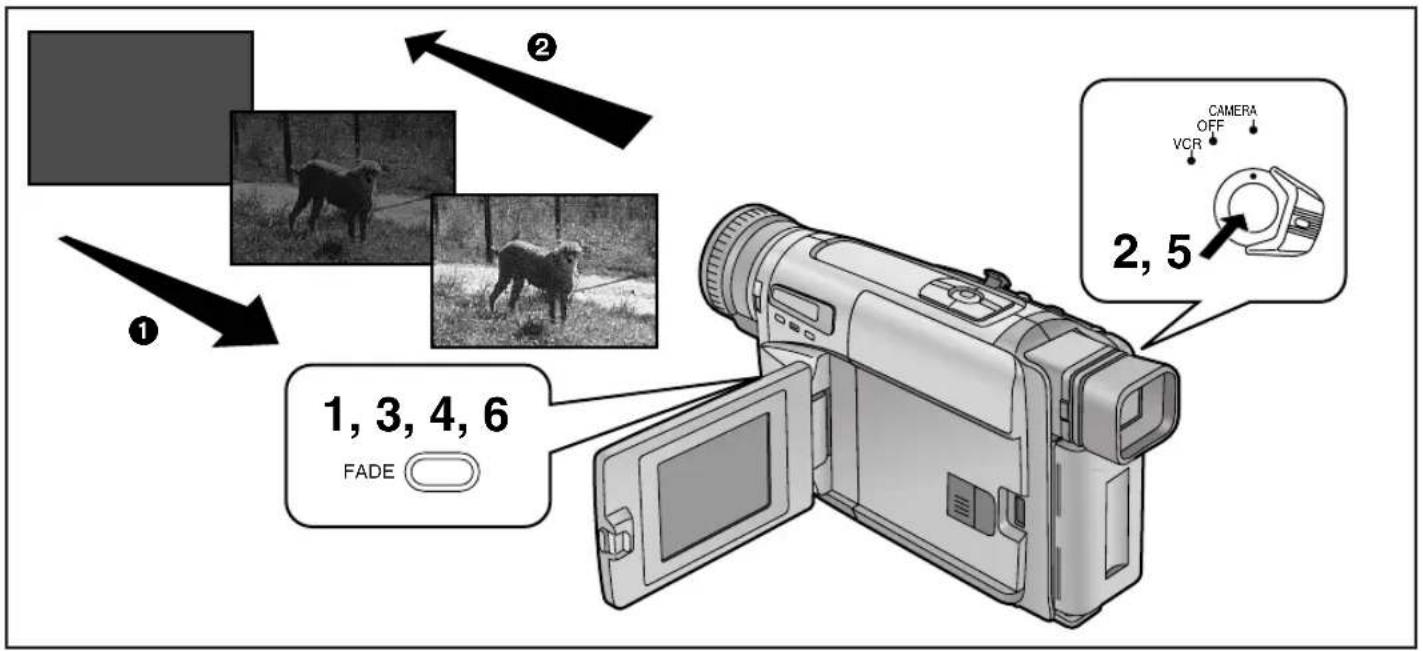
淡入/淡出
■淡入①
Fading in lets you make the picture (and sound) appear gradually at the beginning of a recording.
1 With the Movie Camera in the Recording Pause Mode, keep the [FADE] Button pressed.
2 When the picture has completely disappeared, press the Recording Start/Stop Button to start recording.
3 Approximately 3–4 seconds later, release the [FADE] Button.
■Fading Out ②
Fading out lets you make the picture (and sound) disappear gradually at the end of a recording.
4 During recording, keep the [FADE] Button pressed.
5 After the picture has completely disappeared, press the Recording Start/Stop Button to stop recording.
6 Release the [FADE] Button.
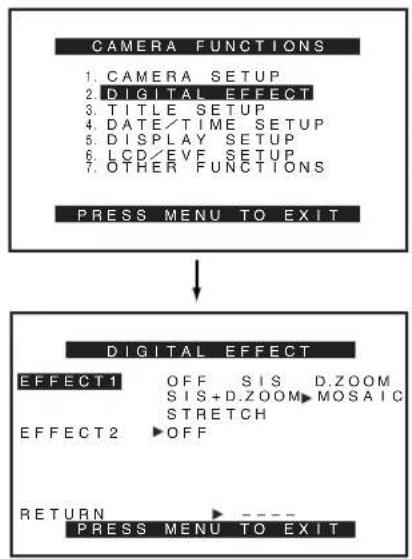
flowchart
graph TD
    A["CAMERA FUNCTIONS"] --> B["PRESS MENU TO EXIT"]
    B --> C["DIGITAL EFFECT"]
    C --> D["EFFECT1 OFF SIS D.ZOOM SIS+D.ZOOM MOSAIC STRETCH"]
    C --> E["EFFECT2 OFF"]
    C --> F["RETURN ---- PRESS MENU TO EXIT"]
中文
使用特殊效果(數位效果)
In addition to the Super Image Stabilizer and Digital Zoom, this Movie Camera offers you various digital effect modes to make it easy to enhance your scenes in many creative ways.
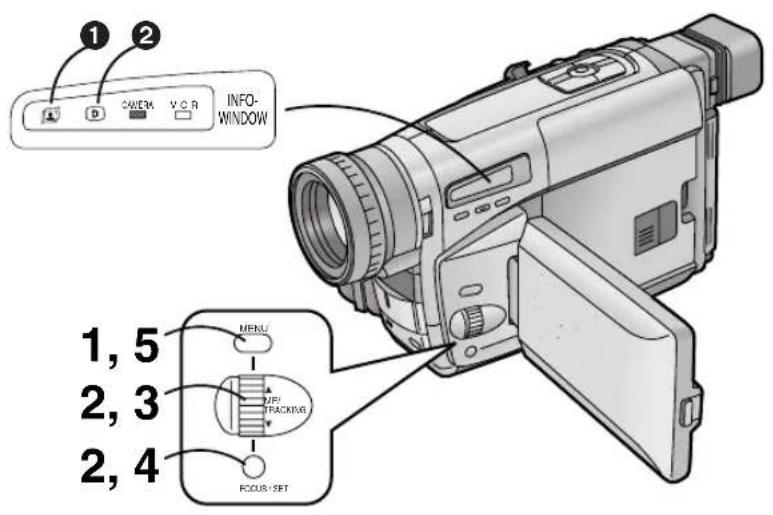
Selecting a Desired Digital Effect
1 Press the [MENU] Button.
●The [CAMERA FUNCTIONS] Main-Menu appears.
2 Turn the [▲▼] Dial to select [DIGITAL EFFECT] and then press the [SET] Button.
•The [DIGITAL EFFECT] Sub-Menu appears.
3 Turn the [▲▼] Dial to select [EFFECT1] or [EFFECT2].
4 Press the [SET] Button to select the desired digital effect.
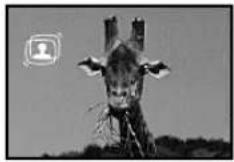
- When you select the Super Image Stabilizer Mode ( 78) , the [图标] Lamp ① lights. When you select any other digital effect, the [图标] Lamp ② lights.
5 Press the [MENU] Button to exit the menu.
- If you set the [CAMERA/OFF/VCR] Switch to [OFF] and then set it to [CAMERA] again, the indication of the selected digital effect flashes for a few seconds to inform you of the selected setting.
- If you have set [EFFECT2] on the [DIGITAL EFFECT] Sub-Menu to [B/W] or [SEPIA], it is not possible to manually adjust the white balance. (→ 90)
Cancelling the Digital Effect
Set [EFFECT1] or [EFFECT2] on the [DIGITAL EFFECT] Sub-Menu to [OFF].
1
2
3
4
5

中文
數位效果效[EFFECT1]
① Super Image Stabilizer Mode [ ] (→ 78)
This prevents shaky pictures when recording in the tele range or from a moving vehicle.
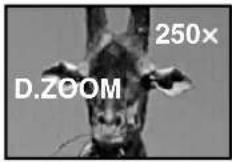
② Digital Zoom Mode [D.ZOOM] (→ 80)
It enlarges the subject beyond the optical zooming range.
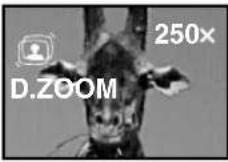
③Super Image Stabilizer and Digital Zoom Mode [ /D.ZOOM]
This combination mode allows recording in the extreme tele range and prevents shaky pictures.
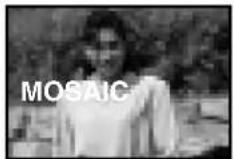
4 Mosaic Mode [MOSAIC] The picture becomes mosaic-like.
⑤ Stretch Mode [STRETCH]
The picture is stretched horizontally while its height remains unchanged.
1
![PANASONIC NV-VZ10ENC - 數位效果效[EFFECT1] - 1](/content/2026/05/760626/images/c89ace961033f88590cb9d229b259b5c54f7f10ad74a1e9f73313d7ad39c7e52.jpg)
2
![PANASONIC NV-VZ10ENC - 數位效果效[EFFECT1] - 2](/content/2026/05/760626/images/4a477052bfa9878633f5abdd219f4174c71ed39938706ca4c421bfaaf3a024fb.jpg)
3
![PANASONIC NV-VZ10ENC - 數位效果效[EFFECT1] - 3](/content/2026/05/760626/images/21deea36d9608fddcaa9bce3b4decfac5f99947d24a0389ee4dccbd01bb83a4a.jpg)
4
![PANASONIC NV-VZ10ENC - 數位效果效[EFFECT1] - 4](/content/2026/05/760626/images/2e5ca9a9063354cc72c7dc6f4e9ad9b58f73a8dbf481a387e113dae383910e68.jpg)
5
![PANASONIC NV-VZ10ENC - 數位效果效[EFFECT1] - 5](/content/2026/05/760626/images/5fc03cf916d24326e261193888871f36f4b884b319759cb3361b312d4381b431.jpg)
6
![PANASONIC NV-VZ10ENC - 數位效果效[EFFECT1] - 6](/content/2026/05/760626/images/6af084205d7502c1aa717de932587fa47eec67bd79f630ebd8c8bf4efba8c960.jpg)
7
![PANASONIC NV-VZ10ENC - 數位效果效[EFFECT1] - 7](/content/2026/05/760626/images/70d716331545d613d864663ae7e1165b2b6df54ff1efc1462e6d763b3e929135.jpg)
中文
數位效果效[DEFECT2]
① 負片狀態[NEGA]
圖像色彩顛倒,如同照片的底片一樣。
② 曝光過久狀態[SOLARI]
以繪畫一般的效果拍攝圖像。
③ 棕色狀態[SEPIA]
用棕色調拍攝場景,類似舊照片的色彩。
④ 黑白狀態[B/W]
將以黑白兩色拍攝圖像。
Digital Effects 2 [EFFECT2]
① Negative Mode [NEGA]
The picture has reversed colours similar to photographic negatives.
②Solarisation Mode [SOLARI]
The picture has an effect similar to a painting.
③Sepia Mode [SEPIA]
Scenes have a brown tint similar to the colour of old photographs.
④Black & White Mode [B/W]
The picture is in black and white.
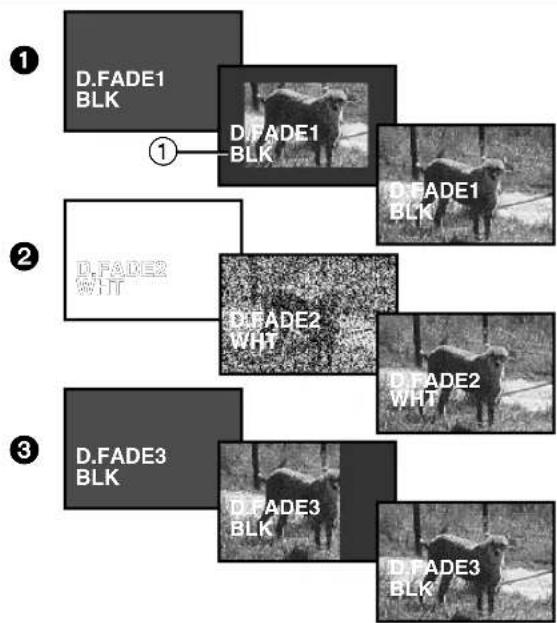
5 Digital Fade 1 Mode [D.FADE1] (→ 82)
The picture fades in starting at the centre and extending toward the edges and fades out in reverse direction.
⑥ Digital Fade 2 Mode [D.FADE2] (→ 82)
The picture fades in and fades out in small dots similar to snow melting or falling.
⑦ Digital Fade 3 Mode [D.FADE3] (→ 82)
The picture fades in with a wipe effect and fades out.
![PANASONIC NV-VZ10ENC - Digital Effects 2 [EFFECT2] - 1](/content/2026/05/760626/images/2866cdb34579d6c1284e130747846e3e67587e47d1ffea2f8e2bd0263974f06d.jpg)
natural_image
Two black-and-white photos of a giraffe, one showing a head with teeth and the other showing a camera icon (no text or symbols)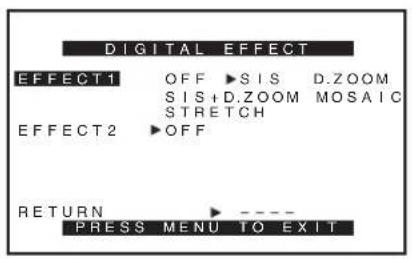
中文
怎樣使用超級畫面穩定功能
Using the Super Image Stabilizer Function
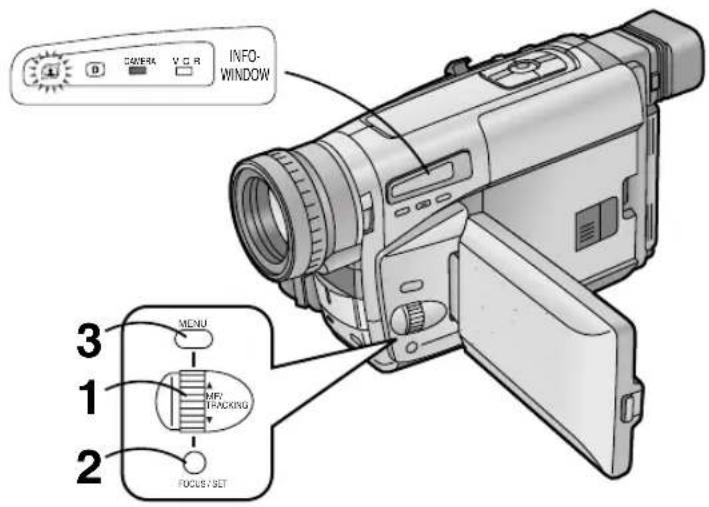
In recording situations where shaking of the Movie Camera is likely to happen, for example when you have zoomed in on a distant subject or when you record while walking, you can use this function to stabilize the image.
- In case of very strong camera shake, it may not be possible to stabilize the picture.
After displaying the [DIGITAL EFFECT] Sub-Menu... (→ 72)
1 Turn the [▲▼] Dial to select [EFFECT1].
2 Press the [SET] Button to select [SIS] or [SIS+D.ZOOM].
•The [图标] and/or [图标] Lamp lights.
3 Press the [MENU] Button to exit the menu.
•The [icon] and/or [D.ZOOM] Indication appear.
Cancelling the Super Image Stabilizer Function
Set [EFFECT1] on the [DIGITAL EFFECT] Sub-Menu to [OFF].
■In the Following Recording Conditions, the Picture Stabilizing Effect May Not Be Sufficient:
- Subjects with horizontal or vertical stripes
- Flat subjects
- Dark subjects (In this case, the [icon] Indication flashes. Increase the amount of light.)
- Subjects under many fluorescent lamps
●Under fluorescent lamps, the picture brightness may fluctuate and the colours may be unnatural. This happens because the shutter speed has been adjusted as well.
中文
怎樣使用數位變焦功能
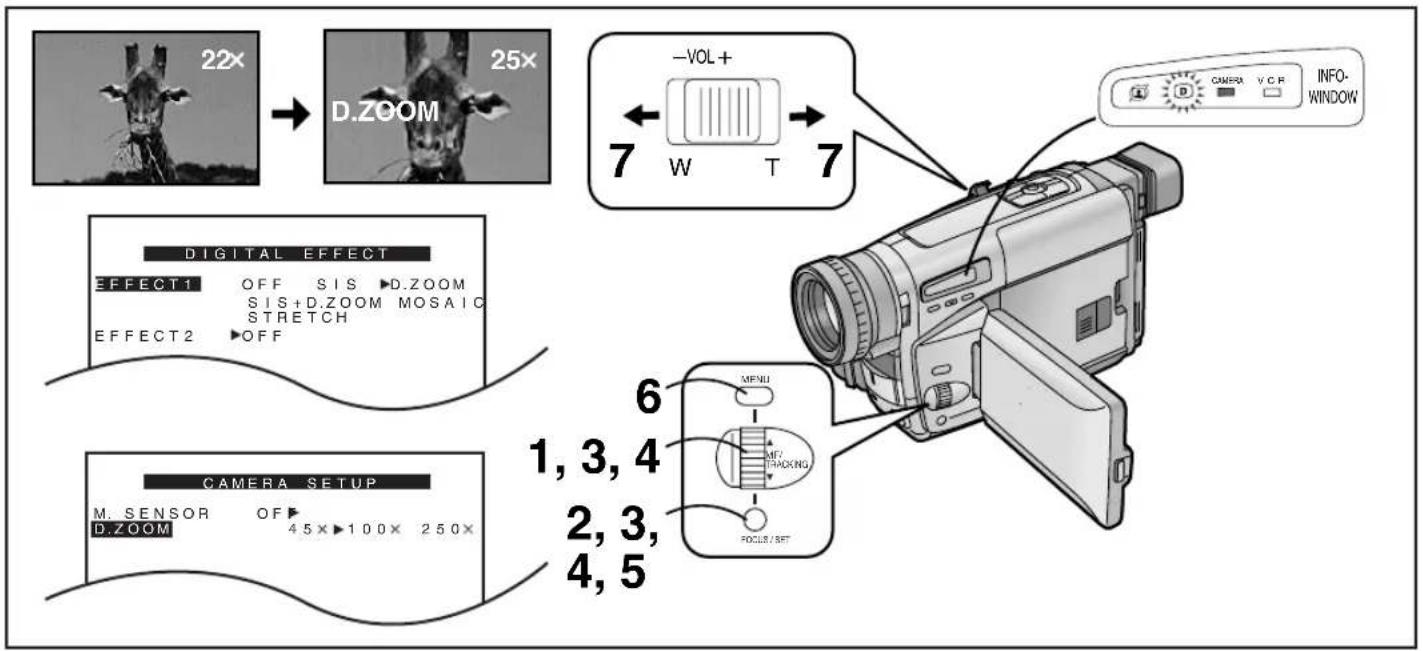
This function is convenient when you want to enlarge a very distant subject even more than is possible with the normal (optical) zoom which offers a magnification range of 1 × -22 × . For the Digital Zoom Function, you can choose between up to 45 × , up to 100 × and up to 250 × magnification.
After displaying the [DIGITAL EFFECT] Sub-Menu... (→ 72)
1 Turn the [▲▼] Dial to select [EFFECT1].
2 Press the [SET] Button to select [D.ZOOM] or [SIS+D.ZOOM].
•The [D] and/or [icon] Lamp lights.
3 Turn the [▲▼] Dial to select [RETURN] and then press the [SET] Button to select [YES].
●The [CAMERA FUNCTIONS] Main-Menu appears.
4 Select [D.ZOOM] on the [CAMERA SETUP] Sub-Menu. (→ 28)
5 Press [SET] Button to select the desired digital zoom range (up to 45×, up to 100× or up to 250×).
6 Press the [MENU] Button to exit the menu.
- The [D.ZOOM] and/or [icon] Indication appear.
7 Push the [W/T] Zoom Lever toward [T] or [W] to zoom in or out as desired.
- When using the Digital Zoom Function, the picture quality is somewhat reduced.
- Within the digital zoom range (23×-250×), it is not possible to adjust the white balance manually or to cancel the manually adjusted white balance setting.
Cancelling the Digital Zoom Function
Set [EFFECT1] on the [DIGITAL EFFECT] Sub-Menu to [OFF].
中文
數位淡化功能
有3種數位淡化狀態可供選擇。
① 數位淡化淡1 [D.FADE1]
② 數位淡化淡2 [D.FADE2]
③ 數位淡化淡3 [D.FADE3]
There are 3 Digital Fade Modes available.
①Digital Fade 1 [D.FADE1]
②Digital Fade 2 [D.FADE2]
③Digital Fade 3 [D.FADE3]
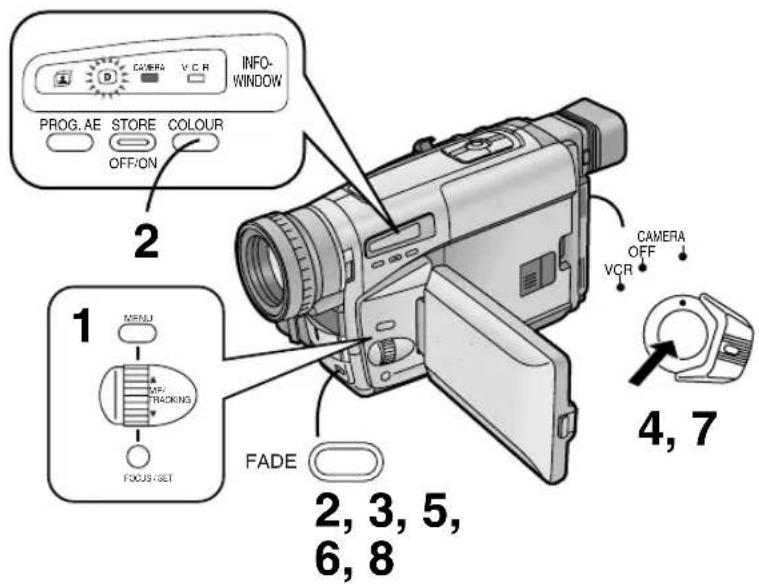
1 Set [EFFECT2] on the [DIGITAL EFFECT] Sub-Menu to [D.FADE1], [D.FADE2] or [D.FADE3].
•The [D] Lamp lights.
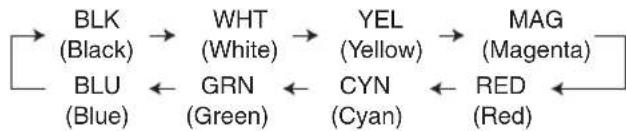
2 While keeping the [FADE] Button pressed, repeatedly press the [COLOUR] Button until the desired colour ① is displayed.
●The colours of the Digital Fade change in the following order:
flowchart
graph LR
    A["BLK (Black)"] --> B["WHT (White)"]
    B --> C["YEL (Yellow)"]
    C --> D["MAG (Magenta)"]
    E["BLU (Blue)"] <--_F["GRN (Green)"]
    F <--_G["CYN (Cyan)"]
    G <--_H["RED (Red)"]
    H <--_I["-->"]
■Fading In
3 With the Movie Camera in the Recording Pause Mode, keep the [FADE] Button pressed.
- The picture disappears gradually with the selected digital fade effect.
4 When the picture has completely disappeared, press the Recording Start/Stop Button to start recording.
5 Approximately 3–4 seconds later, release the [FADE] Button.
■Fading Out
6 During recording, keep the [FADE] Button pressed.
7 After the picture has completely disappeared, press the Recording Start/Stop Button to stop recording.
8 Release the [FADE] Button.
Cancelling the Selected Digital Fade Function
Set [EFFECT2] on the [DIGITAL EFFECT] Sub-Menu to [OFF].
flowchart
graph TD
    A["STDBY\nMOTION SENSOR"] --> B["REC\nMOTION SENSOR"]
    B --> C["CAMERA FUNCTIONS\n1. CAMERA SETUP\n2. DIGITAL EFFECT\n3. TITLE SETUP\n4. DATE/TIME SETUP\n5. DISPLAY SETUP\n6. LCD/EVF SETUP\n7. OTHER FUNCTIONS\nPRESS MENU TO EXIT"]
    C --> D["CAMERA SETUP\nM. SENSOR OFF ON\nD.ZOOM 45X\nRETURN PRESS MENU TO EXIT"]
    D --> E["1, 5\n2, 3\n2, 4\nMENU\nOFF\PHOCKING\nFOCUS SET"]
中文
移動感應器控制拍攝
Motion-Sensor-Controlled Recording
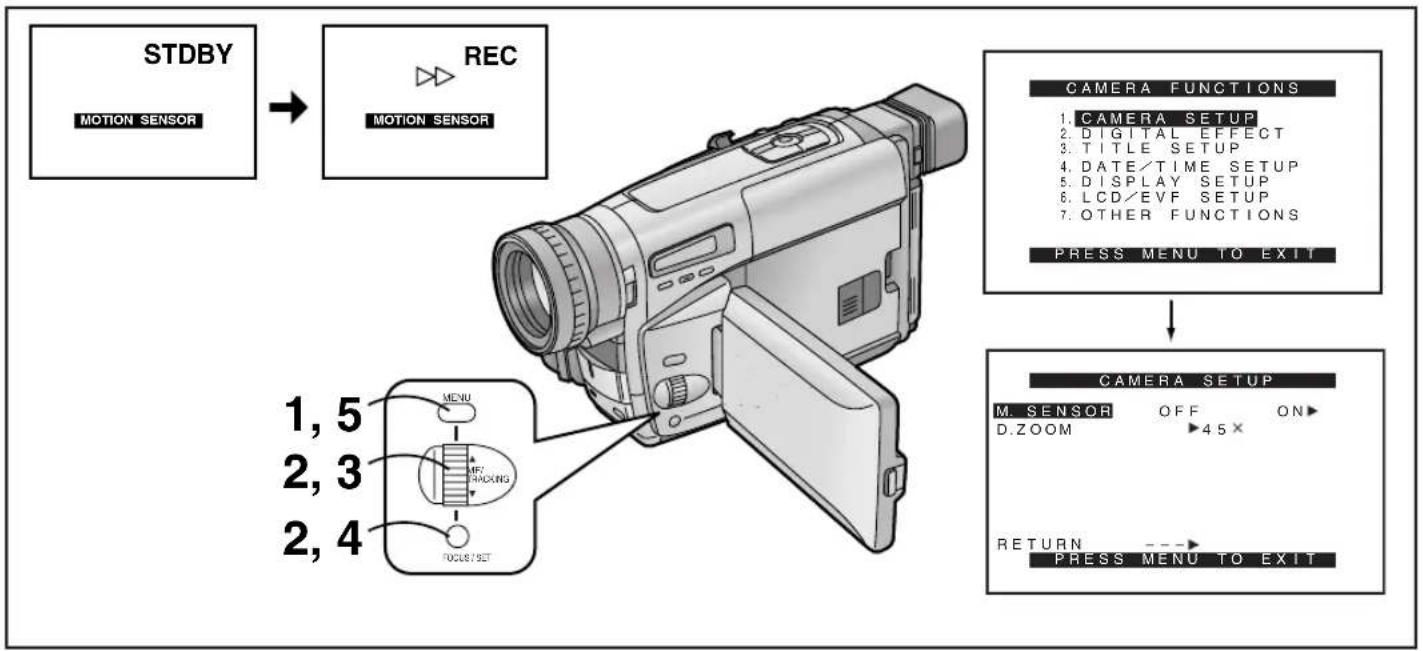
In this mode, recording automatically starts when the built-in Motion Sensor detects some movement in the picture.
1 Press the [MENU] Button.
●The [CAMERA FUNCTIONS] Main-Menu appears.
2 Turn the [▲▼] Dial to select [CAMERA SETUP] and then press the [SET] Button.
●The [CAMERA SETUP] Sub-Menu appears.
3 Turn the [▲▼] Dial to select [M.SENSOR].
4 Press the [SET] Button to select [ON].
5 Press the [MENU] Button to exit the menu.
- The Motion Sensor Function Stand-by [STDBY] Indication appears.
- Approximately 1 second after the Movie Camera's Motion Sensor has detected movement in the picture, recording automatically starts. Approximately 10 seconds after movement in the picture has stopped, recording automatically stops and the Movie Camera is in the Motion Sensor Function Stand-by Mode.
- When the Movie Camera remains in the Motion Sensor Function Stand-by Mode for more than 6 minutes, the Finder or *LCD Monitor turns off.
When the Motion Sensor again detects movement in the picture, recording automatically restarts after approximately 4 seconds, and the Finder or *LCD Monitor turns on.
*LCD Monitor: NV-VZ9/VZ10 only
Cancelling the Motion Sensor Function During Stand-by Set [M.SENSOR] on the [CAMERA SETUP] Sub-Menu to [OFF].
Cancelling the Motion Sensor Function During Recording Press the Recording Start/Stop Button for 2 seconds.
中文
■In the Following Recording Situations, the Motion Sensor May Not Work Correctly:
●A white wall or another single-colour background behind the subject.
●A subject with horizontal, vertical or oblique stripes.
- Sudden changes in the surrounding brightness.
- Exposure of the Movie Camera to slight shocks or vibration.
- Extremely slow or fast movement of the subject.
●Very little movement of the subject.
- Recording in a dimly lit place. (The [MOTION SENSOR] Indication flashes.)
●A very small subject.
●Movement of the subject near the edge of the picture.
●A background with horizontal or vertical stripes.
- To prevent accidental recording start caused by Movie Camera movement, the Movie Camera should be mounted on a tripod or be otherwise secured in a very stable position.
- Although you can select a digital effect on the [DIGITAL EFFECT] Sub-Menu when [M.SENSOR] on the [CAMERA SETUP] Sub-Menu is set to [ON], the Motion Sensor Function has priority and the selected digital effect is automatically cancelled.
- When [M.SENSOR] on the [CAMERA SETUP] Sub-Menu is set to [ON], it is not possible to manually start recording by pressing the Recording Start/Stop Button or to activate the Recording Check or Camera Search Function.
- When you use the AC Adaptor to power the Movie Camera, the Motion Sensor Function Stand-by Mode will continue when no movement is detected in the picture, even when the tape has reached the end during recording. When you use the Battery to power the Movie Camera, it remains in the Motion Sensor Function Stand-by Mode until the Battery is discharged, at which time the [CAMERA] Lamp flashes for a few seconds.
- To ensure correct functioning of the Motion Sensor Function, the moving subject should be quite large in the picture. Therefore, when you have zoomed the lens to the maximum wide-angle position, the distance between lens and subject should preferably be within about 2 metres. For subjects at larger distances, be sure to zoom in accordingly.
- The Movie Camera requires time to set up before recording starts. Therefore, the beginning of movement is not recorded.
- If there is a power interruption, the Motion Sensor Function is cancelled.
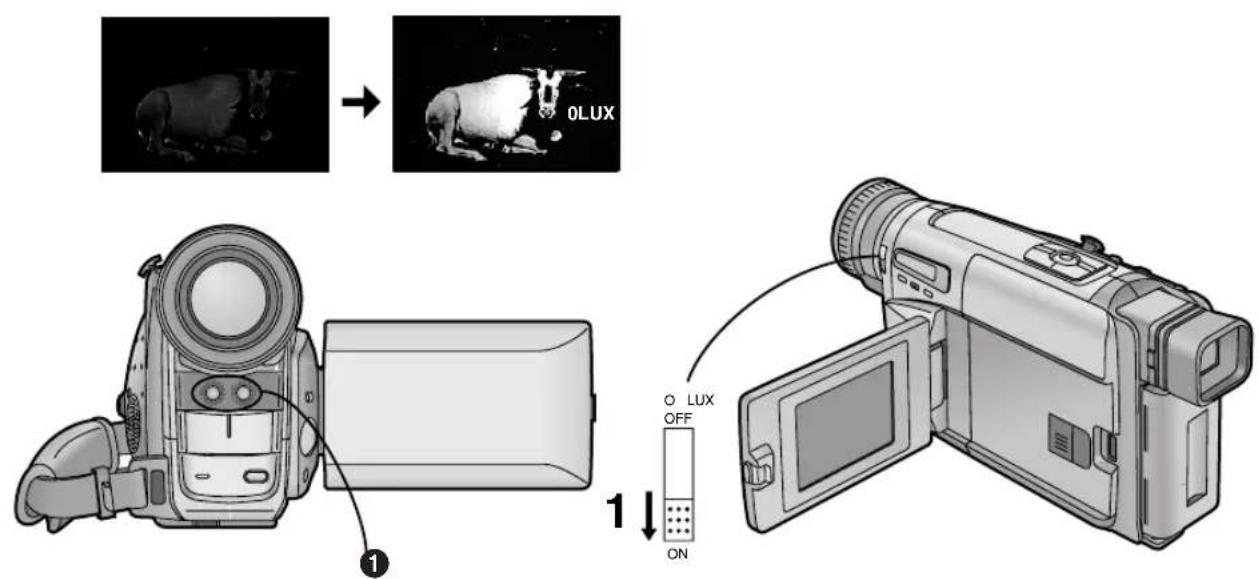
中文
Recording in Dark Places Without Any Illumination (0 Lux Night View Function)
This function is convenient when you want to record at night in places without any illumination, for example for observing the behaviour of nocturnal animals, etc. In this mode, the Movie Camera emits infrared rays which makes it possible to record subjects that are invisible to the naked eye.
1 Set the [0 LUX OFF/ON] Switch to [ON] to make the [0LUX] Indication appear.
- The built-in Infra-red Beam Emitters ① light. Be careful not to cover them with your hand when recording.
- Do not use the 0 Lux Night View Function in brightly lit places and never aim the Movie Camera against the sun, as this could cause irreparable damage.
●The playback picture of scenes recorded with the 0 Lux Night View Function will be in black and white. - If you change the setting of the [0 LUX OFF/ON] Switch during recording, a switching noise is also recorded.
- When recording with the 0 Lux Night View Function, it is not possible to adjust the white balance manually or to cancel the manually adjusted white balance setting.
- It is not possible to use any of the Programme AE Modes when the 0 Lux Night View Mode is activated.
- When using the 0 Lux Night View Function, the subject should be within 3 metres from the Movie Camera.
- When the automatic focusing is not precise, adjust the focus manually.
- If you do not want the Tally Lamp to light during recording using the 0 Lux Night View Function, set [TALLY LAMP] on the [OTHER FUNCTIONS] Sub-Menu to [OFF].
- As the iris is fully opened in the 0 Lux Night View Mode, subjects in white or other light colours may be recorded whitish, blurred and with weak contrast.
- If you use the 0 Lux Night View Function together with the Motion-Sensor-Controlled Recording Function, recording starts automatically when the Movie Camera's built-in Motion Sensor detects some movement in the picture. This combined function is convenient for easy, unattended animal observation recordings at night.
Cancelling the 0 Lux Night View Function
Set the [0 LUX OFF/ON] Switch to [OFF] to make the [0LUX] Indication disappear.
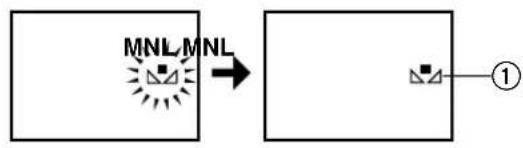
flowchart
graph LR
    A["MNL/MNL"] --> B["Process Step"]
    B --> C["①"]
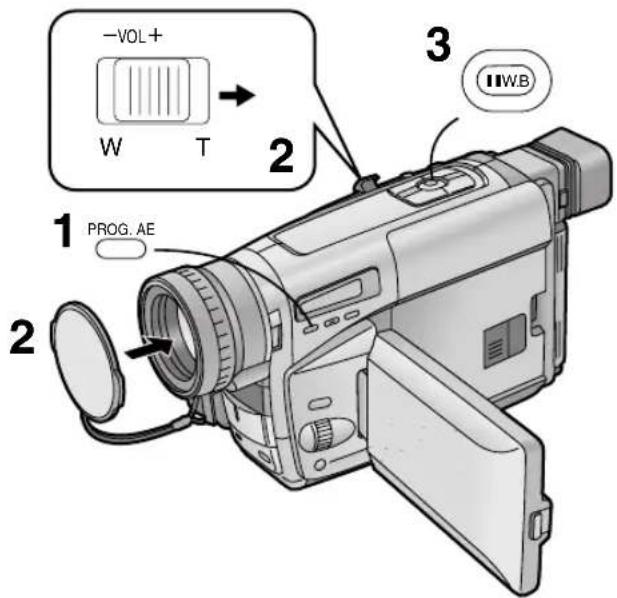
中文
用手動白色平衡調節進行拍攝時
Recording with Manual White Balance Adjustment
With this Movie Camera, you can also adjust the white balance manually.
Use this mode for special subjects and recording conditions, for which the Full Auto Mode is not suitable, and for light sources outside the range ① (→ 92). Use it also when you want to manually adjust the white balance for each new scene as professionals do.
1 Press the [PROG. AE] Button repeatedly until an indication other than [AUTO] Indication appears.
2 Attach the White Lens Cap and zoom in until the entire screen is white.
3 Keep the [W.B] Button pressed until the [■4] Indication ① stops flashing and remains lit.
- When the Sepia Mode, Black & White Mode or 0 Lux Night View Mode is used, it is not possible to manually adjust the white balance. Also, if the white balance was manually adjusted, it cannot be cancelled, even if you press the [W.B] Button.
In the following cases, the [■] Indication flashes:
- During manual adjustment of the white balance. (If the surroundings are dark and the white balance cannot be adjusted, the [■] Indication keeps flashing.)
- When the previously set white balance setting is maintained.
- When you are trying to adjust the white balance in the digital zoom range (23×-250×). In this case, first adjust the white balance in the optical zoom range (1×-22×) and then zoom back to within the Digital Zoom Mode.
Cancelling the Manual White Balance Mode
Press the [W.B] Button once. Or, press the [PROG. AE]
Button repeatedly until the [AUTO] Indication appears.
Subjects and Recording Conditions Not Suitable for Recording in the Full Auto Mode
- Subjects with dark surfaces
- When moving the Movie Camera from outdoors to indoors while recording
- Subjects lit by different light sources
- Subjects lit by mercury-vapour or natrium lamps
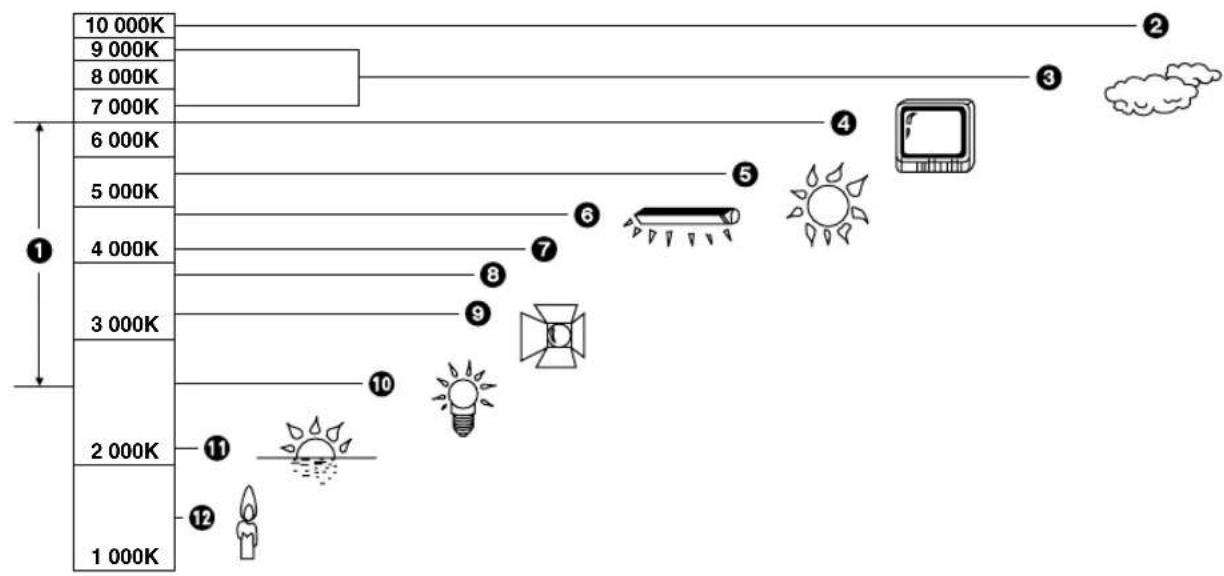
中文
色溫和白色平衡調節
Colour Temperature and White Balance Adjustment
Every light source has its own colour temperature measured in Kelvin (K). The higher the Kelvin value, the more bluish the light; the lower the value, the more reddish the light. The Kelvin value is related to the tint of the light, but not directly to its brightness.
The range ① indicated in the illustration above shows the light sources for which this Movie Camera can provide precise white balance adjustment and, therefore, natural colours in the recorded pictures, when using the Full Auto Mode. For light sources outside this range, adjust the white balance manually. (→ 90) Also, additional lighting may be necessary.
1 Control range of this Movie Camera's Auto White Balance Adjustment Mode
②Blue sky
③Cloudy sky (Rain)
④ TV screen
5Sunlight
⑥ White fluorescent lamp
⑦2 hours after sunrise or before sunset
⑧1 hour after sunrise or before sunset
⑨Halogen light bulb
10 Incandescent light bulb
⑪ Sunrise or sunset
12 Candlelight
1
2
中文
用手動聚焦調節進行拍攝時
Recording with Manual Focus Adjustment
This makes it possible to adjust the focus manually for subjects and recording situations for which automatic focusing is not precise.
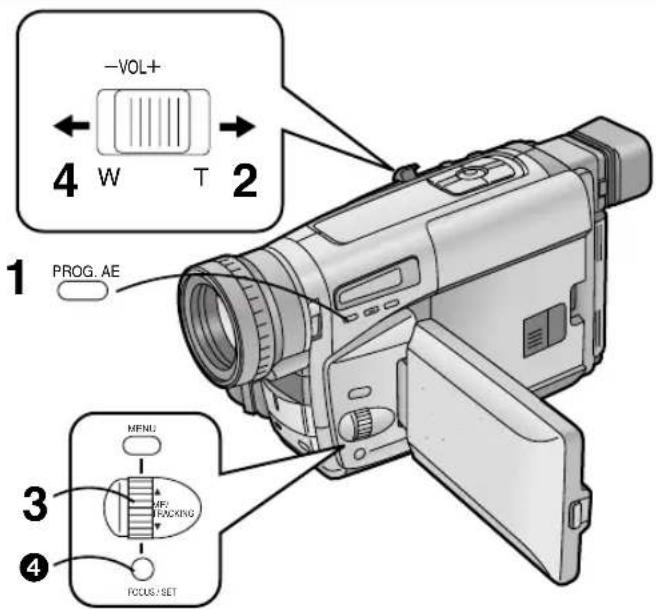
1 Press the [PROG. AE] Button repeatedly until an indication other than [AUTO] Indication appears.
2 Keep the [W/T] Zoom Lever pushed toward [T] to zoom in on the subject. ①
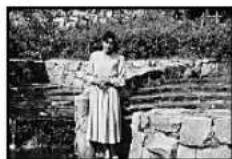
- Zooming in on the subject before adjusting the focus ensures that the subject remains precisely focused even when you later zoom out. ②
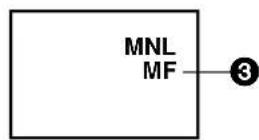
3 Turn the [MF] Dial to adjust the focus.
- The [MF] Indication ③ appears. ([MF] means Manual Focus.)
4 Push the [W/T] Zoom Lever toward [W] to zoom out as desired.
Cancelling the Manual Focus Mode
Press the [FOCUS] Button 4 once to make the [MF] Indication disappear. Or, press the [PROG. AE] Button repeatedly until the [AUTO] Indication appears.
Subjects and Recording Conditions Not Suitable for Recording in the Full Auto Mode
- Subjects with dark surfaces
- Subjects with shiny surfaces or a lot of light reflection
-Subjects with weak contrast - Subjects with part of it near and part of it far away from the Movie Camera
- Subjects without vertical contours
-Subjects with fast movement - Subjects behind moving objects
- Subjects behind glass covered by dirt, dust or water drops
1
4
2

5
3
中文
在各種情況下拍攝(程序AE)
Recording in Special Situations (Programme AE)
This function lets you select Automatic Exposure settings optimized for special recording situations.
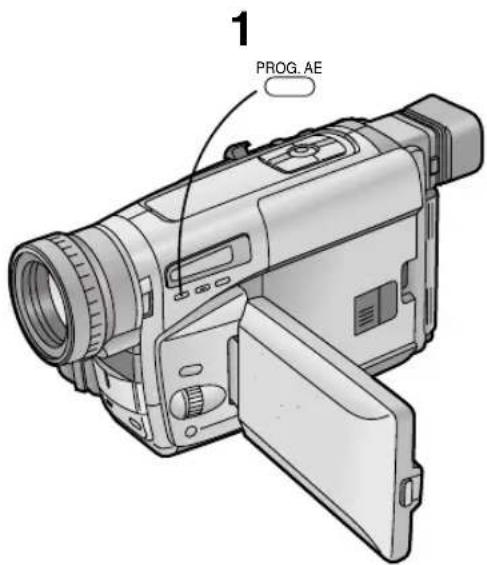
1 Press the [PROG. AE] Button repeatedly until the indication of the desired mode ([ ], [ ], [ ], [ ] or [ ] appears.
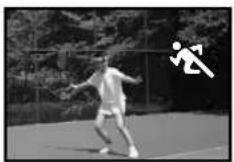
①Sports Mode [ ] To record scenes with fast-moving subjects such as sports scenes.
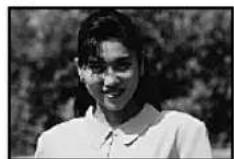
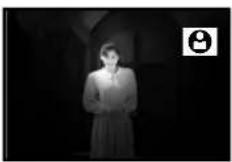
② Portrait Mode [图标] To make subjects stand out sharply from the background.
③Low Light Mode [▲] To record dark scenes more brightly.
4Spotlight Mode [💡] To record subjects under spotlights (party, theatre, etc.).
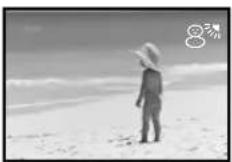
⑤ Surf & Snow Mode [87] To record subjects in brightly lit surroundings (ski slopes, beach, etc.).
- During recording, it is not possible to change the recording mode ([AUTO], [MNL], [✗], [●], [▲], [●], [8#]), even if you press the [PROG. AE] Button. - It is not possible to use any of the Programme AE Modes when the 0 Lux Night View Mode is activated.
Cancelling the Selected Programme AE Function Press the [PROG. AE] Button repeatedly until none of the above indications are displayed.
中文
運動狀態
- When playing back scenes recorded in the Sports Mode, you can enjoy slow motion and still playback of very sharp images with fine details.
- Avoid recording under fluorescent, mercury-vapour or natrium lamps as the colour and the brightness of the playback picture may fluctuate.
- When recording subjects lit by strong lights or with much light reflection, the playback picture may contain vertical streaks of light.
- When the scene is not sufficiently lit, the [ ] Indication flashes.
- When using this mode for recording indoors, the playback picture may flicker.
Portrait Mode
- When using this mode for recording indoors, the playback picture may flicker.
Low Light Mode
- It may not be possible to sufficiently brighten up extremely dark scenes.
- The use of this mode for recording may cause noise in the playback picture.
Spotlight Mode
- When using this mode, the recorded picture may be extremely dark.
- If a subject is extremely bright, the recorded picture may be whitish.
Surf & Snow Mode
- If a subject is extremely bright, the recorded picture may be whitish.
中文
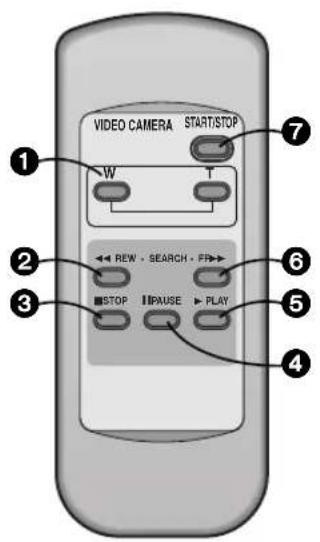
Using the Remote Controller (NV-VZ10/RZ10 only)
The Remote Controller lets you take part in the action and control the recording operation from in front of the Movie Camera.
■ Buttons on the Remote Controller
The buttons with the same mark as on the Movie Camera generally have the same function.
① Zoom Buttons [W/T] ( 58, 60, 80)
②Rewind/Review Button [◀◀]
To start review playback. (→ 66)
To rewind the tape. ( 60)
To rewind the tape at high speed. (→ 64)
To activate the Camera Search Function. (→ 56)
To activate the Recording Check Function. (→ 56)
③ Stop Button [■] (→ 60)
④ Pause Button [11] (→ 66)
⑤ Playback Button [▶] (→ 60)
⑥ Fast-forward/Cue Button [▶▶]
To start cue playback. ( 66)
To fast-forward the tape.
To activate the Camera Search Function. (→ 56)
⑦ Recording Start/Stop Button [START/STOP] (→ 52)
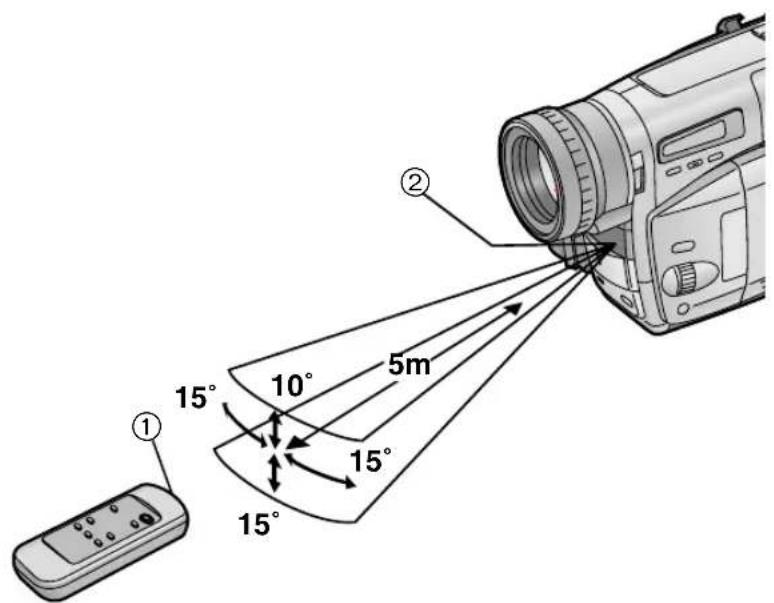
■ Conditions for Correct Operation of the Remote Controller
- The distance to the Movie Camera must not be more than 5 metres.
●The Transmitter Window ① on the Remote Controller or the Remote Control Sensor ② on the Movie Camera must not be exposed to direct sunlight and not be covered with clothes, etc. - When operating the Zoom Function with the Remote Controller, it is not possible to vary the zooming speed. Also, there is a slight delay between pressing the Zoom Buttons on the Remote Controller and the mechanical zoom adjustment on the Movie Camera.
- Within a distance of about 1 metre, it is also possible to use the Remote Controller from the side ([MENU] Button side). (NV-VZ10 only)
1
natural_image
3D illustration of a mobile phone casing with internal components and directional arrows indicating rotation (no text or symbols)2
natural_image
Diagram of a remote control casing with battery pack and housing (no text or symbols)3
natural_image
Illustration of a mobile phone casing with a scroll wheel (no text or symbols)中文
將電池插入遙控器
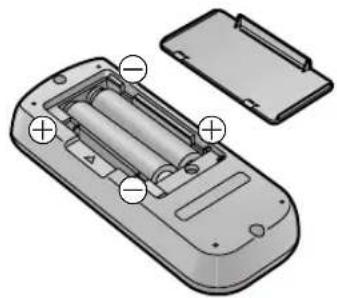
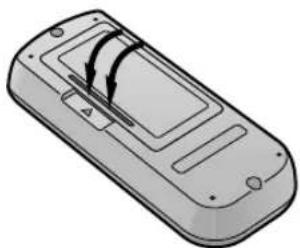
Inserting the Batteries into the Remote Controller
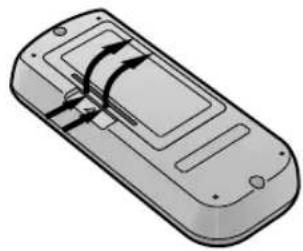
1 Remove off the Battery Cover.
2 Insert the batteries with the polarity (⊕ and ⊖) correctly aligned.
3 Replace the Battery Cover.
■Replacing the Batteries
The life of the batteries is about 1 year.
When the batteries are exhausted, purchase two new "AAA", "UM-4" or "R03" type batteries and insert them in the same way as explained above.
- Do not mix old batteries with new batteries.
- Do not mix different battery types, i.e. Alkaline and Manganese.
- Do not use rechargeable (Ni-Cd) batteries.
- Do not short-circuit the batteries.
- When you do not use the Remote Controller for a long time, take out the batteries and store them in a cool, dry place.
flowchart
graph TD
    A["CAMERA FUNCTIONS"] --> B["2, 5"]
    B --> C["2, 3"]
    C --> D["2, 4"]
    D --> E["90° 1 OPEN"]
    E --> F["7, 8"]
    F --> G["180° 6"]
    G --> H["7, 8"]
    H --> I["1"]
中文
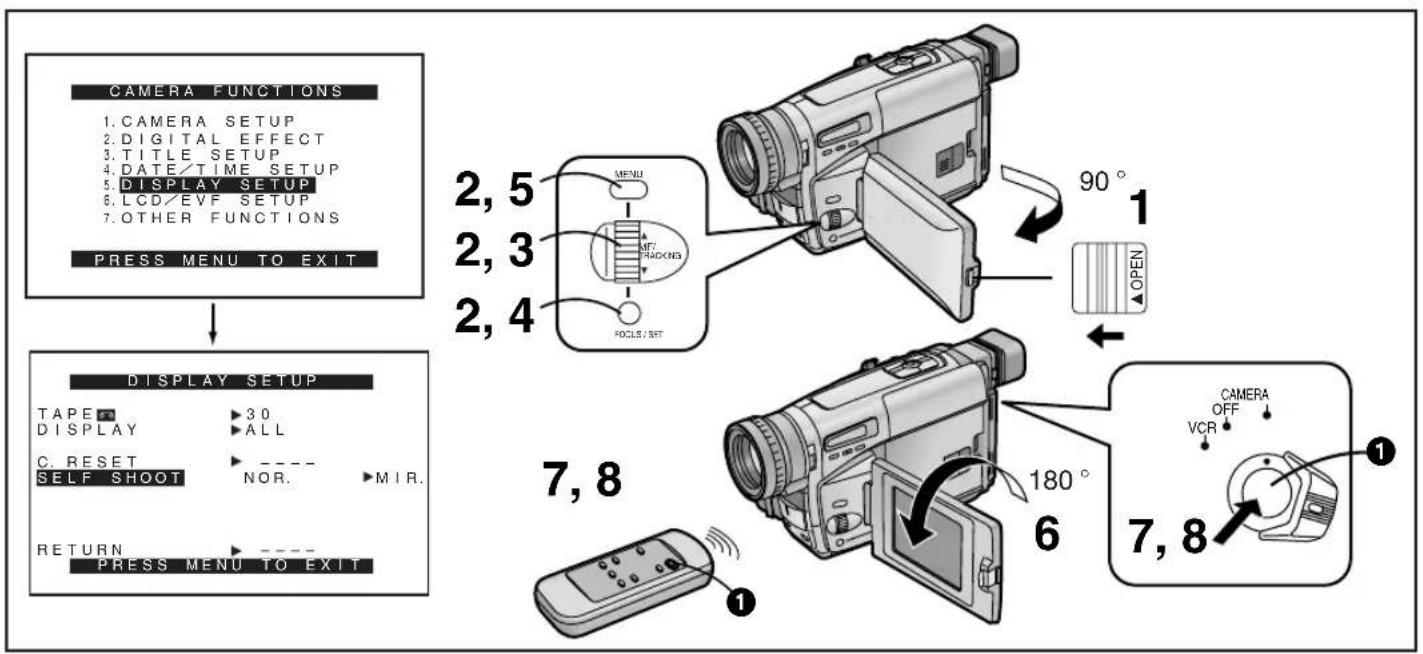
Recording Yourself with the LCD Monitor Facing Forward (NV-VZ9/VZ10 only)
Turning the LCD Monitor so that it faces forward, allows you to aim the Movie Camera and view the picture in the Finder, while the persons in front of the camera can check the picture on the LCD Monitor during recording. If you mount the Movie Camera on a tripod and use the *Remote Controller, you can also take part in the action that you are recording and check the picture from the front on the LCD Monitor.
*Remote Controller: NV-VZ10 only
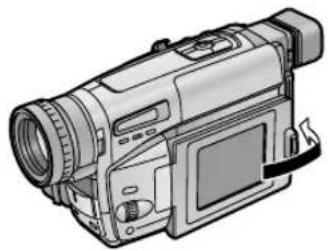
1 Slide the [▲OPEN] Lever to the left and simultaneously open the LCD Monitor in the direction of the arrow approximately 90^ .
2 Display the [DISPLAY SETUP] Sub-Menu. (→ 28)
3 Turn the [▲▼] Dial to select [SELF SHOOT].
4 Press the [SET] Button to select the desired mode ([NOR.] or [MIR.]).
•[NOR.] means Normal Mode.
•[MIR.] means Mirror Mode. ( 106)
5 Press the [MENU] Button to exit the menu.
6 Turn the LCD Monitor until it faces forward approximately 180°.
7 Press the Recording Start/Stop Button ①.
■Stopping Recording
8 Press the Recording Start/Stop Button ①.
natural_image
Illustration of a digital video camera with an attached screen and control panel, showing no text or symbols on the device itself.1
natural_image
Line drawing of a video camera with lens and screen (no text or symbols)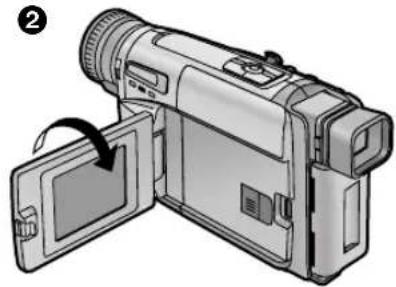
natural_image
Illustration of a digital video camera with an open screen and a scroll wheel (no text or symbols)中文
■鏡面狀態
When recording yourself with the LCD Monitor facing forward, the picture shown on it the way it is being recorded may be difficult to get used to.
This is because we usually look at ourselves in the mirror, so we see a mirror-image and this feels more natural. This Movie Camera features the Mirror Mode which displays the picture as a mirror-image.
However, even if you have selected in the Mirror Mode, the picture is recorded in the normal way.
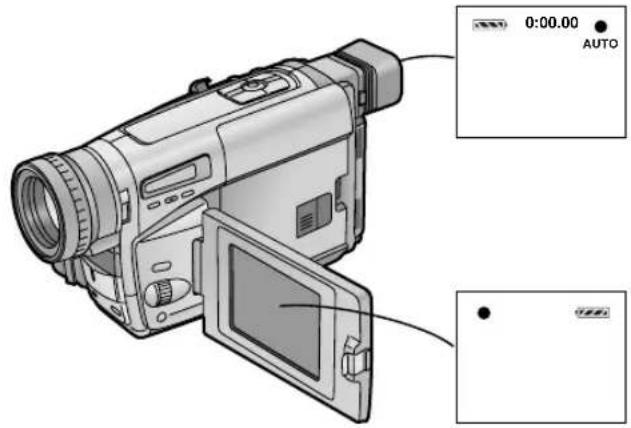
In the Mirror Mode, only the following indications can be displayed on the LCD Monitor and in the Finder:
[●]: Recording Mode Indication
[110]: Recording Pause Mode Indication
[▶]: Remaining Battery Indication
[☐]: General Warning/Alarm Indication
(In addition to these four indications, the Counter Indication and the Programme AE Mode Indications can also appear in the Finder.)
When you want to confirm other indications, return the LCD Monitor to position ① or ② shown in the illustration above. Especially when the [!] Indication is displayed, be sure to return the LCD Monitor to position ① or ② so that you can confirm the actual Warning/Alarm Indication.
- If you turn the LCD Monitor so that it faces forward, the Finder also automatically turns on. However, in the following cases, the Finder turns off:
- Changing from the Camera to the VCR Mode.
- Closing the LCD Monitor with the screen facing outward (as shown above 1).
- It is not possible to display and record the Date, Time and/or Title Indication in the Mirror Mode.
中文
將編排好的題名插入畫面中進行拍攝時
Recording with Pre-programmed Titles Inserted in the Picture
You can insert one of 10 pre-programmed titles in recordings of special occasions such as weddings and birthday parties. These titles are available in 8 languages.
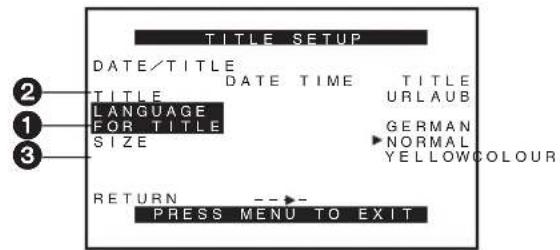
After selecting [LANGUAGE FOR TITLE] ① on the [TITLE SETUP] Sub-Menu... (→ 28)
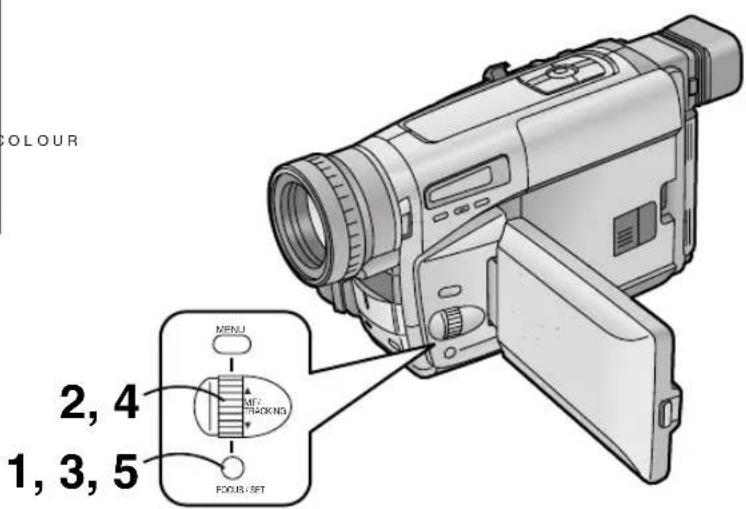
1 Press the [SET] Button to select the desired language.
• The languages change in the following order:

flowchart
graph LR
    A["ENGLISH GERMAN FRENCH"] --> B["ITALIAN"]
    C["ARABIC CHINESE RUSSIAN SPANISH"] --> B
2 Turn the [▲▼] Dial to select [TITLE] ②.
3 Press the [SET] Button to select the desired title.
- The titles change in the order shown below. (In the other available languages, they are arranged in the same order.)
[HOLIDAY]→[HAPPY BIRTHDAY]→ [WEDDING]→[FAMILY]→[PARTY]→ [THE END]→[CONGRATULATIONS]→ [MERRY CHRISTMAS]→[HAPPY MEMORIES] →[HAPPY NEW YEAR]→[HOLIDAY]→
4 Turn the [▲▼] Dial to select [COLOUR] ③.
5 Press the [SET] Button to select the desired colour.
- You can select the colour of the title from among 8 colours.
●The colours for the title change in the following order:

flowchart
graph LR
    A["WHITE YELLOW MAGENTA"] --> B["RED"]
    C["BLACK BLUE GREEN CYAN"] <--_D["Black Blue Green CYAN"]
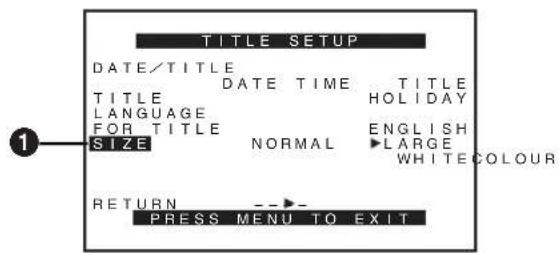
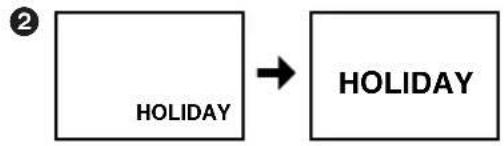
flowchart
graph LR
    A["2"] --> B["HOLIDAY"]
    B --> C["HOLIDAY"]
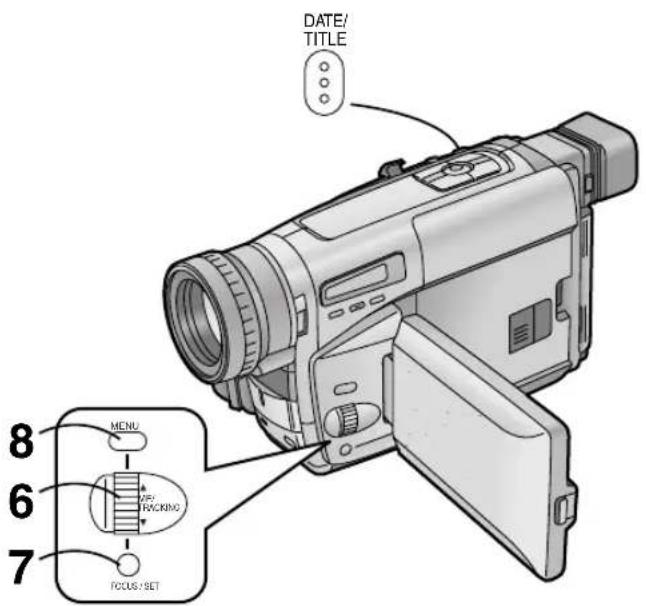
中文
Recording with Pre-programmed Titles Inserted in the Picture (Continued)
6 Turn the [▲▼] Dial to select [SIZE] ①.
7 Press the [SET] Button to select the desired size ([NORMAL] or [LARGE]).
- You can choose either of 2 sizes for the title.
- When you change the title size from [NORMAL] to [LARGE], the Title Indication changes as shown above ②.
8 Press the [MENU] Button to exit the menu.
- When a large-size title is displayed, some indications do not appear even if the corresponding modes are activated.
- If you set [SIZE] on the [TITLE SETUP] Sub-Menu to [LARGE], the large [RECORD] and [PAUSE] Indications, which usually appear briefly when you start or stop recording, do not appear.
- The Date/Time/Title Indication remains displayed when you exit the [TITLE SETUP] Sub-Menu after having change the language of the title (→ 108), the type of Date/Time/Title Indication (→ 50), the title itself (→ 108), the size of the title or the colour of the title (→ 108).
Recording with Pre-programmed Title Inserted in the Picture
During recording, press the [DATE/TITLE] Button to make the title appear.
Deleting the Title
Press the [DATE/TITLE] Button to make the title disappear.

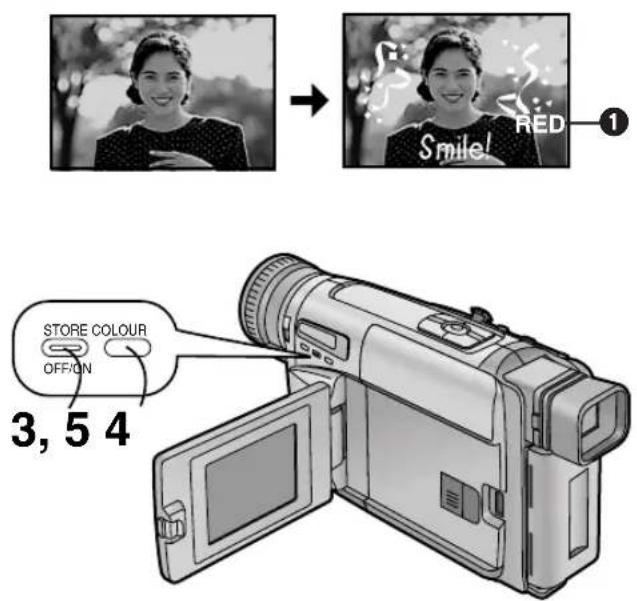
中文
Creating Your Own Titles and Inserting Them During Recording (Digital Superimposer Function)
This function lets you store the image of a handwritten title, signboard, printed title, (or some similar object with strong contrast) in the Movie Camera's digital image memory. You can then change the dark parts of this image to a desired colour and superimpose it during recording.
1 Prepare a title that has strong contrast (e.g. write with a thick black marker).
2 With the Movie Camera in the Recording Pause Mode, aim it at the title.
- If the Full Auto Mode does not provide a sharp picture, adjust the focus manually. (→ 94)
- When you want to capture a small title, use the Macro Close-up Function. (→ 58)
- Aim the Movie Camera so that the title is in the centre of the screen to ensure that the title does not get clipped at the edges.
3 Press the [STORE] Button for more than 2 seconds.
- The title is now stored in the digital image memory and it remains displayed.
4 Press the [COLOUR] Button repeatedly until the desired colour ① is displayed.
●The colours of the title change in the following order:
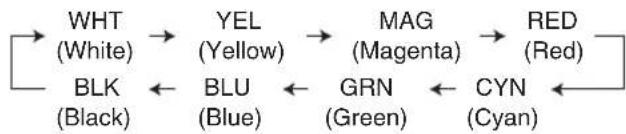
flowchart
graph LR
    A["WHT (White)"] --> B["YEL (Yellow)"]
    B --> C["MAG (Magenta)"]
    C --> D["RED (Red)"]
    E["BLK (Black)"] <--_F["BLU (Blue)"]
    F <--_G["GRN (Green)"]
    G <--_H["CYN (Cyan)"]
    H <--_I["Red"]
5 Press the [OFF/ON] Button briefly to make the title disappear.
- Pressing the [OFF/ON] Button briefly repeatedly makes the title appear and disappear.
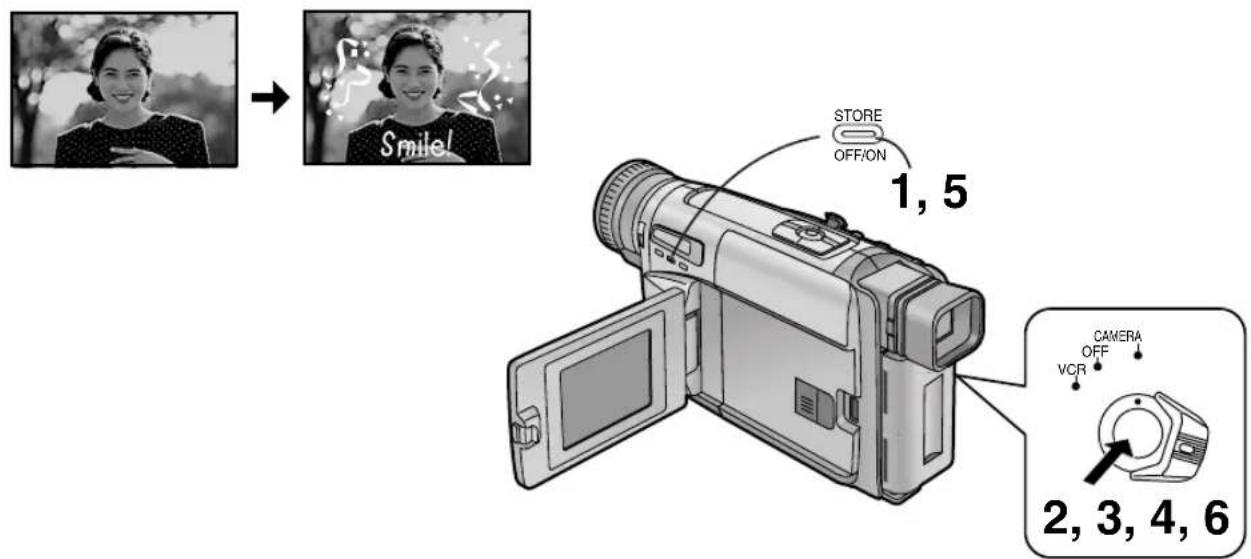
中文
在拍攝的開始部分插入您獨自的題名
Inserting Your Own Title at the Beginning of a Recording
1 Press the [OFF/ON] Button briefly to make the title appear.
- Confirm that the colour indicated is suitable for the intended scene. If necessary, change the colour (→ 112).
2 Press the Recording Start/Stop Button to start recording.
- To make the title disappear while recording of the scene continues, press the [OFF/ON] Button briefly.
3 Press the Recording Start/Stop Button to stop recording.
Inserting Your Own Title During Recording
4 Press the Recording Start/Stop Button to start recording.
5 At the point where you want to insert the title, press the [OFF/ON] Button briefly to make the title appear.
- To make the title disappear while recording of the scene continues, press the [OFF/ON] Button briefly.
6 Press the Recording Start/Stop Button to stop recording.
- The title stored in the digital image memory may be automatically cancelled when you store a new title.
- The title stored in the digital image memory may be automatically cancelled or it may be missing partially when the Battery is removed, the AC Adaptor is disconnected or the Battery becomes discharged.
- By displaying the title which you stored in the digital image memory and using the Digital Fade 1, Digital Fade 2 or Digital Fade 3 Function, you can fade the title together with the picture.
- It is not possible to apply the Negative Effect when storing a title in the digital image memory.
- After turning the Movie Camera off and then on again, the title that had been displayed in the picture is no longer displayed. To make it appear again, press the [OFF/ON] Button briefly.
2
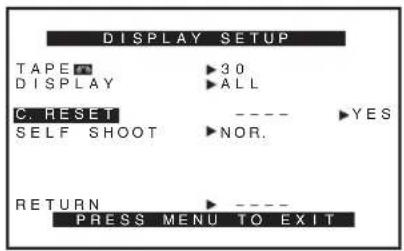
1
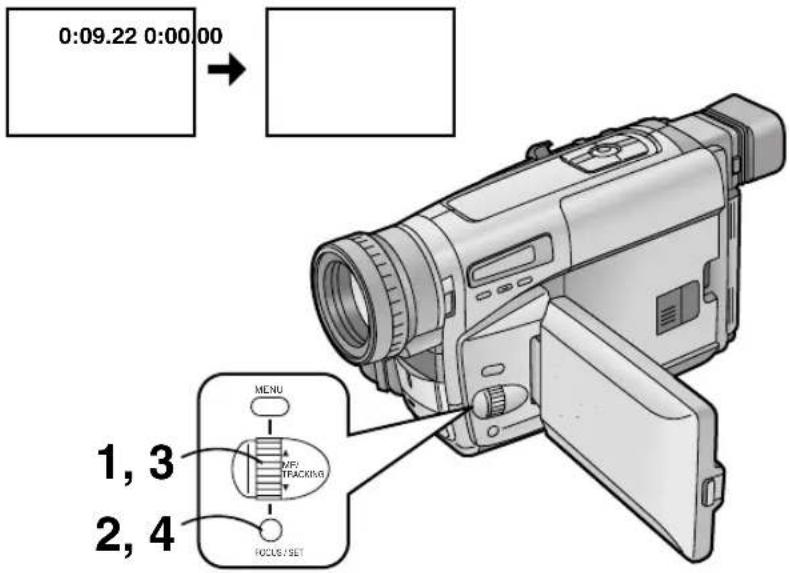
3
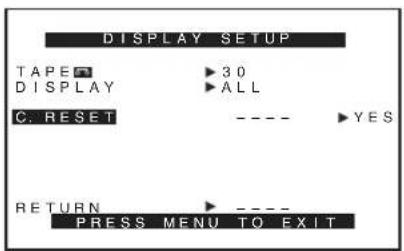
中文
使用磁帶計時器指示時
Using the Tape Counter Indication
The Tape Counter Indication is convenient for the following 2 purposes: to check the Elapsed Tape Time (described below), and to use the Memory Stop Function ( 120).
Checking the Elapsed Tape Time
The Tape Counter Indication shows the elapsed tape time both during recording or playback.
You can freely reset this indication (return the counter to [0:00.00] ①). Therefore, by resetting the counter to zero when you start recording or playback, you can check the tape time that has elapsed from that point.
After displaying the [DISPLAY SETUP] Sub-Menu... (→ 28)
1 Turn the [▲▼] Dial to select [DISPLAY].
2 Press the [SET] Button to select [ALL].
3 Turn the [▲▼] Dial to select [C.RESET].
4 Press the [SET] Button to select [YES].
- When recording or playback starts, the elapsed tape time is indicated in hours, minutes and seconds. During playback of parts of the tape on which no recording has been made, this indication does not change.
- If you rewind the tape further than the tape counter position [0:00.00], the minus sign [-] appears in front of the Tape Counter Indication.
- The Tape Counter Indication is automatically reset to [0:00.00] when you take out the cassette, remove the Battery or use the High-Speed Rewinding Function.
②: Camera Mode
③: VCR Mode
A
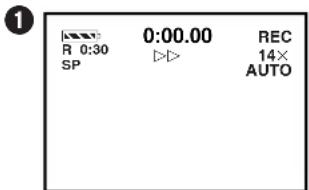
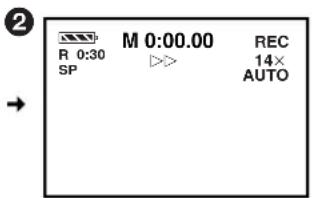
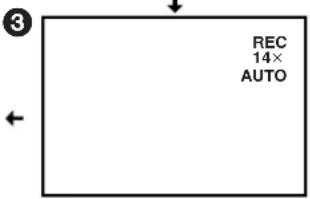
B
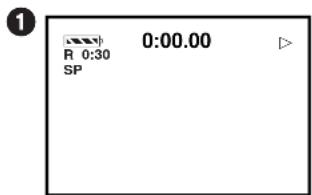
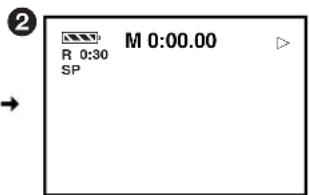

natural_image
Simple black line drawing of a right angle with an angle symbol (no text or labels)
natural_image
Empty rectangular frame with a small arrow and triangle symbol at top-left corner (no text or labels)中文
■磁帶計時器指示的改變
■Changing the Tape Counter Indication
By changing the setting for [DISPLAY] on the [DISPLAY SETUP] Sub-Menu of the [VCR FUNCTIONS] or the [CAMERA FUNCTIONS] Main-Menu, the Counter Display Mode can be changed in the order shown in the above illustrations 1–4.
Camera Mode A
1ALL: Elapsed Tape Time Indication (initial setting)
②MEMORY: Memory Stop Indication and Elapsed Tape Time Indication ( 120)
③PARTIAL: No Counter Indication
Only a few indications are displayed so that all parts of the picture can be seen clearly. However, when you turn on the Movie Camera, all indications initially appear for a few seconds to inform you of the selected settings.
- In this condition, if you switch the Movie Camera over to the VCR Mode and then back to the Camera Mode, [ALL] is automatically selected for the Tape Counter Indication.
4 OFF: No Counter Indication
In this mode, only the Operation Mode Indications and Warning/Alarm Indications can appear. However, when turning on the Movie Camera, all indications appear for a few seconds to inform you of the selected settings.
VCR Mode Ⓑ
1ALL: Elapsed Tape Time Indication (initial setting)
②MEMORY: Memory Stop Indication and Elapsed Tape Time Indication ( 120)
③OFF: No Counter Indication
In this mode, only the Operation Mode Indications and Warning/Alarm Indications can appear.
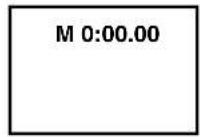
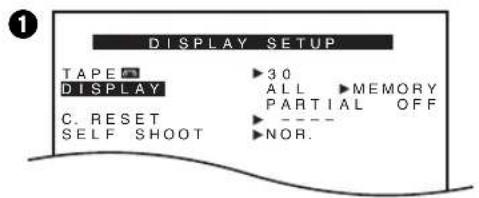
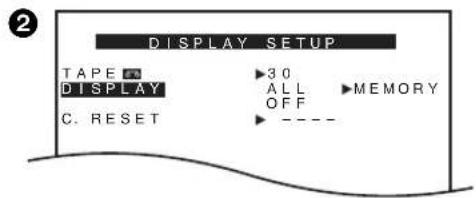
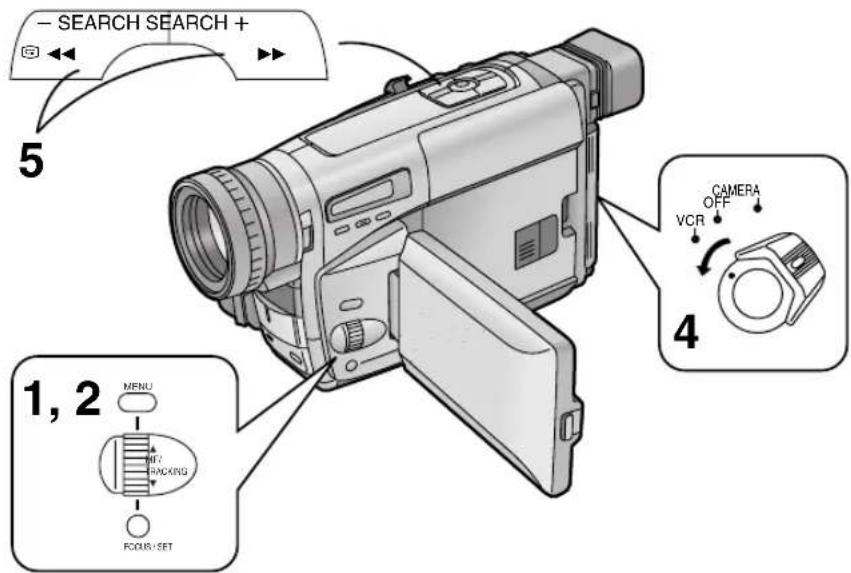
中文
使用記憶停止功能時
Using the Memory Stop Function
This function is convenient for temporarily marking a tape position during recording or playback so that you can easily find it again later for playback.
1 Reset the Tape Counter to zero at the tape position from which you want to play back later. (→ 116)
2 Set [DISPLAY] on the [DISPLAY SETUP] Sub-Menu of the [CAMERA FUNCTIONS] ① or the [VCR FUNCTIONS] Main-Menu ② to [MEMORY].
3 Start playback or recording.
4 After playback or recording is finished:
Set the [CAMERA/OFF/VCR] Switch to [VCR].
5 Press the [▶▶] or [◀◀] Button.
•The tape automatically stops approximately at the position at which you reset the counter to zero.
- During High-Speed Rewinding, the Tape Counter shows [0:00.00]. However, this does not activate the Memory Stop Function.
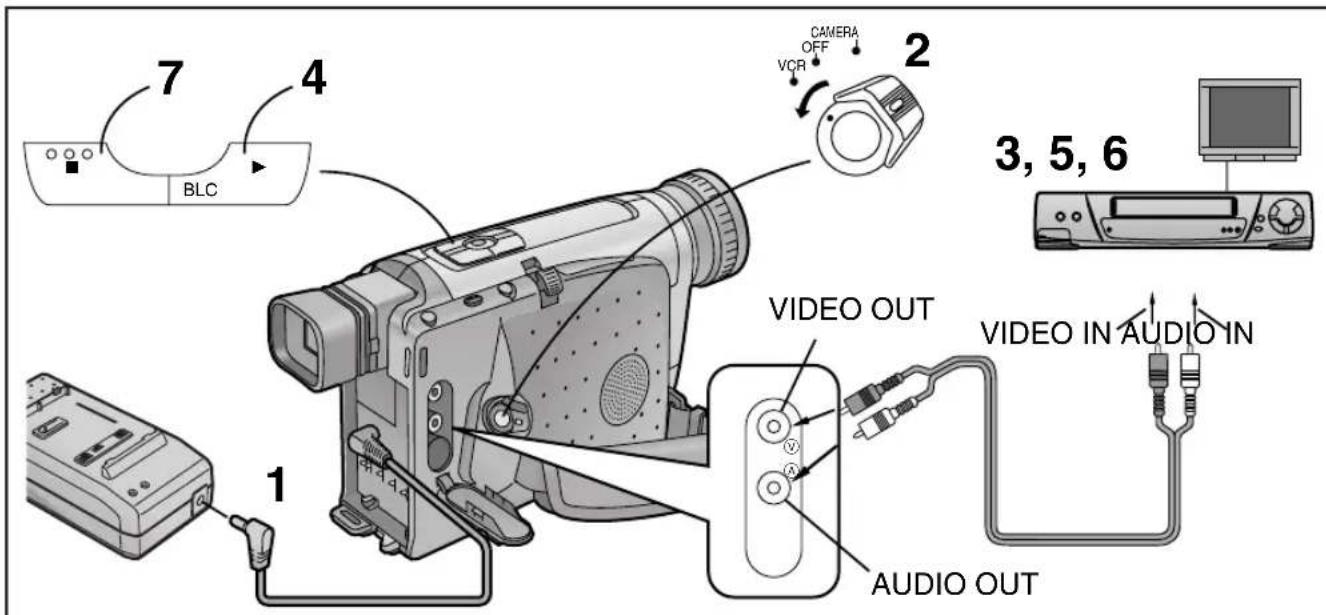
中文
拷貝(複製)
By connecting the AV Cable (not supplied), you can copy the cassette recorded with this Movie Camera onto a VCR.
1 Connect the AC Adaptor.
2 Insert the recorded cassette into the Movie Camera and put it in the VCR Mode.
3 Insert an unrecorded cassette into the VCR and put it in the Recording Pause Mode.
4 Start playback on the Movie Camera.
5 Start recording on the VCR.
6 After reaching the end of the original recording: Stop recording on the VCR.
7 Stop playback on the Movie Camera.
- As the picture quality on the dubbed cassette is slightly reduced, we recommend that you select the standard speed (SP Mode) on the VCR for dubbing. (SP means Standard Play.)
- If your VCR is equipped with an Edit Switch, turn it on to ensure optimum picture quality of the dubbed cassette.
注意事項
攝錄影機的注意事項
Precautions for the Movie Camera
In the event of abnormal operation (e.g. if the unit emits smoke or an unusual smell), immediately stop operating the unit and consult qualified service personnel.
For Australia or New Zealand:
Consult the Panasonic Customer Care Centre on 132600.
■To prevent fire, electric shock and malfunction, observe the following points:
- Do not disassemble the Movie Camera or make any alterations to it.
- Protect against spray water and sand.
- Take care that water splashes (especially seawater) or dust do not enter the Movie Camera. If seawater has accidentally splashed onto the Movie Camera, moisten a soft cloth with tap water, wring it out well and carefully wipe the camera body with it. Then thoroughly wipe it with a soft, dry cloth.
- Do not insert any foreign objects.
- Do not cover with a cloth during use.
- Do not subject to strong vibrations or mechanical shocks.
- Do not use in places with oily smoke and a lot of dust.
- If a thunderstorm approaches, stop using the Movie Camera. (If you are using the AC Adaptor, disconnect it from the AC mains socket taking care not to touch any metal parts.)
- Do not use near magnetized equipment.
- Do not use near a radio or TV.
- Do not use near a cell phone because doing so may cause noise to adversely affect the picture and sound.
- Do not use with the cassette compartment facing down.
- Do not aim the Lens or Finder directly at the sun; the lens collects light and the resulting heat could deform internal precision parts and cause irreparable damage to the Movie Camera.
- Do not leave in a closed car on a summer day. The inside temperature becomes higher than you imagine and this could damage the Movie Camera.
- Do not wash with water.
Water might leak into the Movie Camera and cause an electric shock or fire.
- Do not use a cleaning fluid, benzine, thinner or other chemicals for cleaning. They might not only change the colour and damage the surface of the camera body, but might also increase the risk of fire if there is an open flame or heater nearby.
● Never leave the Movie Camera in places with high temperature.
■Precautions for Storing the Movie Camera
Be sure to take out the cassette and remove the Battery before storing.
Avoid the following places:
- Places with high temperature and high relative humidity Recommended temperature: 15°C–25°C Recommended relative humidity: 40%–60%
- Places exposed to direct sunlight
- In direct contact with rubber or plastic products for a long time
• In reach of children
Precautions for the AC Adaptor
■Observe the following points:
- Use only for the specified Movie Camera and Battery.
- Do not handle with wet hands.
To unplug the AC Mains Lead, be sure to pull it out by the plug, not by the cable.
- Do not forcefully bend the cables or alter them.
- Do not operate very close to a radio, TV etc.
中文
電池的注意事項
Precautions for the Battery
The Battery's ability to generate electric energy is based on a chemical reaction. If the Battery is incorrectly handled, it could cause leakage, excessive rise in temperature, fire or explosion.
■Observe the Following Points:
- Use only the specified AC Adaptor or Car Battery Charger to charge the Battery, and use the Battery only for this Movie Camera.
- When you have finished using the Movie Camera, be sure to remove the Battery.
If you leave the Battery attached to the Movie Camera, a small amount of electricity is consumed even if the [CAMERA/OFF/VCR] Switch is set to [OFF], and this reduces the Battery's charge. Leaving the Battery attached to the Movie Camera for a very long time could discharge it excessively and this could make charging impossible.
- Do not allow metal objects such as keys and necklaces to touch the battery terminals.
Short-circuiting may occur and generate heat, and this could cause the Battery to explode. Be especially careful when storing or carrying the Battery in a bag. - Do not deform or alter the Battery.
- When the operation time even after proper charging is too short for normal use, the service life of the Battery has reached its end.
- If the Battery becomes too warm, a protection function is activated and it puts the Battery temporarily out of operation.
- Do not throw the Battery into a fire. This could cause it to explode.
■Precautions for Storing the Battery
Avoid the following places, as they could shorten the service life of the Battery:
- Places with extremely high temperature and high relative humidity
Recommended temperature: 15°C–25°C Recommended relative humidity: 40%–60%
- Places with oily smoke and a lot of dust The terminals of the Battery might rust.
- Before you store the Battery for a long time, perform playback or other operations to completely use up the remaining charge in the Battery. Then remove it from the Movie Camera and store it. We recommend that you reactivate the Battery about once a year by charging it and then completely using up the charge before storing it again.
Precautions for the Cassette
When you have finished using the Movie Camera, rewind the tape to the beginning and take the cassette out of the Movie Camera. If you store the cassette for a long time, fast-forward and then rewind it at least once a year to expose the tape to fresh air.
Observe the following points to prevent deformation of the cassette case and deterioration of the picture and sound quality.
- Do not subject the cassette to strong vibration or mechanical shocks.
- Do not place it near magnetized equipment.
- Avoid places where the temperature can become very high.
中文
凝結濕氣的原因和處理方法
Causes of Condensation and Remedy
When condensation has formed inside the Movie Camera and on the tape, recording becomes impossible. In addition, the tape might remain in contact with the heads and this could seriously damage the Movie Camera.
■Main Causes of Condensation
- When the Movie Camera is brought from a cold to a warm place.
- When the Movie Camera is taken outdoors from inside an air-conditioned car or house.
- When the heating is turned on in a cold room.
- When the Movie Camera is exposed to the cold breeze from an air-conditioner.
- When the Movie Camera is in a very hot or humid place or in a place with steam.
■Symptoms of Condensation
When turning on the Movie Camera, the Condensation Indication [U10/♠] appears.
(A few seconds later, the Movie Camera automatically turns itself off.)
■Remedy as Follows:
- Take out the cassette.
- Keep the Cassette Compartment open and wait a few hours.
- A few hours later, turn on the Movie Camera and confirm that the Condensation Indication is not displayed any more. For added safety, wait about 1 more hour.
■To Prevent Condensation from Forming
When bringing the Movie Camera from a very cold to a warm place, keep it in a tightly closed plastic bag or something similar for 1 to 2 hours before using it again.
■When the Lens Is Fogged up
Turn the Movie Camera on and wait for about 1 hour until it has reached about the same temperature as its surroundings.
Video Head Clogging and Remedy
If the video heads become dirty and clogged with dust, the picture quality deteriorates.
■Symptoms of Dirty Video Heads
- When turning on the Movie Camera, the [U11/✗] Indication appears for the first few seconds.
- When playing back a cassette on the Movie Camera and watching the picture on a connected TV, white noise bars appear in the picture. However, if the heads are extremely dirty, the playback picture cannot be seen at all.
■Remedy as Follows:
Use a video head cleaning cassette to clean the heads. Carefully follow the instructions for its use as too much cleaning wears down the heads. If the playback picture is not clear after cleaning, it means that the video heads are worn out. Consult qualified service personnel.
中文
白色平衡(色調)調節的工作原理
How the White Balance (Tint) Adjustment Works
Video recording takes place under various light sources, from sunlight as the main natural light source to a wide range of artificial light sources such as fluorescent lamps. As each of these light sources has a different colour temperature, each of them gives the colours of the subject a slightly different tint. Human eyes can easily adjust to different kinds of lighting and recognize an object as having the same colour, even under different light sources.
The eye of the Movie Camera (lens), however, cannot adapt to the change in lighting and is influenced by the lighting. Therefore, depending on the light source, the picture would be recorded with a bluish or reddish tint. To minimize the influence of the lighting on the colours of the subject, an adjustment called White Balance Adjustment is necessary.
■Auto White Balance
This Movie Camera offers both Auto White Balance Adjustment and Manual White Balance Adjustment. When the Movie Camera is in the Full Auto Mode, the internal system of the Movie Camera automatically determines the temperature of the light and compensates the tint of the subject accordingly. White is the basic colour by which the tint is determined. Because this adjustment is performed based on the white colour, it is called White Balance Adjustment. The optimum settings for several light sources are stored in the memory of the Movie Camera. The internal microcomputer compares the colour temperature of the light received by the White Balance Sensor positioned on the front of the Movie Camera with the colour stored in memory, and selects the setting for the most similar tint.
Be careful not to cover the White Balance Sensor ( 12) with your hand, etc.
■Manual White Balance
Although this Movie Camera stores the optimum settings for several light sources in memory to correctly judge the white colour, it cannot cope with all light sources. Therefore, to record under those types of lighting ( 90, 92) which cannot be correctly adjusted with Auto White Balance Adjustment, use Manual White Balance Adjustment. ( 90)
How the Focus Adjustment Works
If you look at an object through a magnifying glass and move it closer or further away from your eye, you will reach a point where the object becomes clearly visible. Being focused or in focus means that the subject can be seen with optimum clarity and sharpness. The distance between the lens and the point where the rays of light come together is called Focal Distance or Focal Length and depends on the size and shape of the lens.
Human eyes have lenses too, and when we look at objects at different distances, the shape of these lenses changes automatically so that we can always see the objects clearly.
■Auto Focus Adjustment
The image of the subject enters the Movie Camera through the lens and is converted into an electrical signal (video signal) for recording onto tape. Based on this signal, the Auto Focus System automatically adjusts the focal distance by moving the focusing lens forward or backward.
The focus is adjusted on the subject in the centre of the Finder.
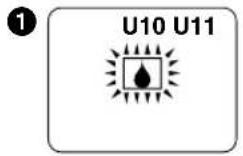
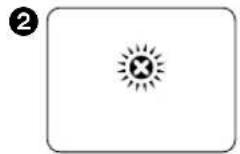
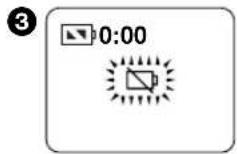
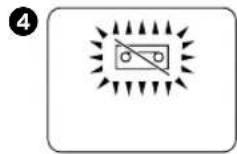
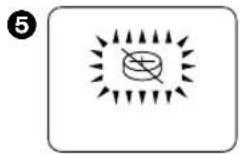
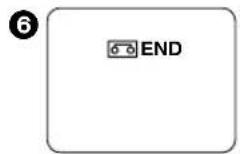
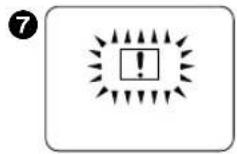
中文
尋像器指示
■警告/報警指示
① 凝結濕氣 (→ 128)
② 影像磁頭髒污 (→ 128)
③ 剩餘電池電力
■Warning/Alarm Indications
① Condensation ( 128)
② Video Head Clogging (→ 128)
3 Remaining Battery Power
When the remaining battery power is used up, the Movie Camera automatically switches off. Replace the Battery with a fully charged one.
4 Cassette
No cassette is inserted. Or the tab of the inserted cassette is broken out. Insert a cassette with an intact tab.
⑤ Button-type Battery ( 46)
The button-type battery is exhausted or is not inserted.
6 End of the Tape
When the tape has reached its end, this indication appears. Insert a new cassette.
7 General Warning/Alarm Indication (NV-VZ9/VZ10 only) If you record with the LCD Monitor facing forward using the Mirror Mode ( 106), this indication appears instead of the actual Warning/Alarm Indication.
8
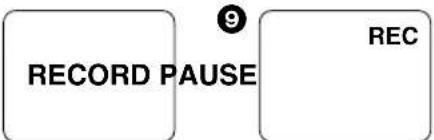
flowchart
graph LR
    A["RECORD PAUSE"] --> B["REC"]
    style A fill:#fff,stroke:#000
    style B fill:#fff,stroke:#000
13
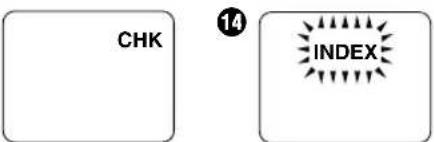
18
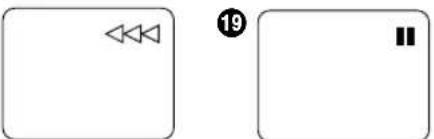
23
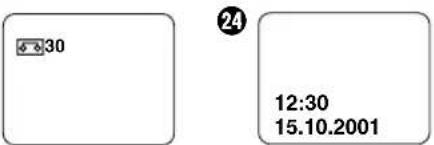
10
15
20
25
11
16
21
26

12
17
22
27
中文
■拍攝和放影指示
■Recording and Playback Indications
⑧ Recording Mode (large indication) (→ 52)
⑨ Recording Mode (small indication) (→ 52)
⑩ Tape Movement during Recording (→ 52)
⑪ Recording Pause Mode (large indication) (→ 52)
12 Recording Pause Mode (small indication) (→ 52)
13 Recording Check Mode ( 56)
14 Index Signal Recording Mode
An index signal is automatically recorded (and the [INDEX] Indication flashes briefly while it is being recorded) when you:
- Start recording after connecting the AC Adaptor or attaching the Battery.
- Start recording after inserting a cassette.
- Start recording after changing from the VCR to the Camera Mode.
The recording of index signals makes it possible to use the VHS Index Search or Intro Scan Function during playback on a VCR equipped with these functions.
(Refer to the operating instructions of your VCR.)
15 Playback Mode (→ 60)
Camera Search Mode ( 56)
16 Fast Forward/Cue Playback Mode ( 66)
⑰ Rewind/Review Playback Mode (→ 66)
Camera Search Mode (→ 56)
18 High-Speed Rewinding Mode (→ 64)
⑲ Still Playback Mode (→ 66)
20 Elapsed Tape Time ( 116)
When the tape is rewound further than the position [0:00.00], the minus sign [-] appears in front of the Elapsed Tape Time Indication.
② Elapsed Tape Time with activated Memory Stop Function ( 120)
22 Remaining Tape Time (→ 42)
23 Tape Length ( 42)
24 Date and Time ( 50)
25 Title (small indication) (→ 110)
26 Title (large indication) ( 110)
27 Full Auto Mode (→ 52)
28
33
38
43
29
34
39
44
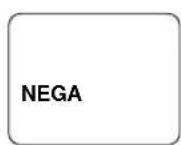
30
35
40
45
31
36
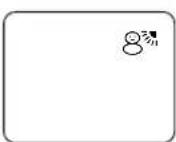
41
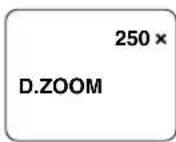
46
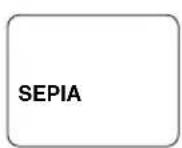
32
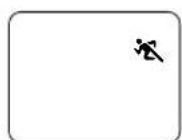
37
42
47
中文
28 錄影速度狀態 (→34)
29 變焦放大率 (→ 58)
30 手動白色平衡狀態 (→ 90)
31 手動拍攝狀態 (→ 90, 94)
32 運動狀態 (→ 96)
33 素描特寫狀態 (→96)
34 弱光狀態 (→ 96)
35 聚光燈狀態 (→ 96)
36 碎浪和雪地狀態 (→ 96)
37 手動聚焦狀態 (→94)
38 磁跡調節狀態 (→64)
39 數位圖像用色彩指示 (112)
40 超級畫面穩定狀態 (→78)
41 數位變焦狀態 (→80)
42 馬賽克狀態 (→ 74)
43 加寬狀態 (→ 74)
44 負片狀態 (→ 76)
45 曝光過久狀態 (→76)
46 棕色狀態 (→ 76)
47 黑白狀態 (→ 76)
ENGLISH
28 Recording Speed Mode ( 34)
29 Zoom Magnification ( 58)
30 Manual White Balance Mode ( 90)
31 Manual Recording Mode (→ 90, 94)
32 Sports Mode ( 96)
33 Portrait Mode ( 96)
34 Low Light Mode ( 96)
35 Spotlight Mode ( 96)
36 Surf & Snow Mode ( 96)
37 Manual Focus Mode (→ 94)
38 Tracking Adjustment Mode ( 64)
39 Colour Indication for Digital Image ( 112)
40 Super Image Stabilizer Mode ( 78)
41 Digital Zoom Mode ( 80)
42 Mosaic Mode ( 74)
43 Stretch Mode ( 74)
44 Negative Mode ( 76)
45 Solarisation Mode ( 76)
46 Sepia Mode ( 76)
47 Black & White Mode (→ 76)
48
49
50
51
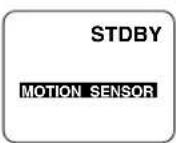
52
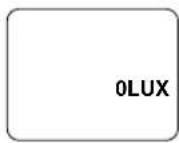
53
54
中文
When the Movie Camera is turned on and in the Camera Mode without any cassette inserted, and you leave it for 10 minutes without activating any function, it automatically switches over to the Demonstration Mode which demonstrates its many functions.
- You can also start the Demonstration Mode by setting [DEMO MODE] on the [OTHER FUNCTIONS] Sub-Menu of the [CAMERA FUNCTIONS] Main-Menu to [ON] and then exiting the menu.
- Pressing a button or displaying a menu temporarily suspends the Demonstration Mode. However, if you leave the Movie Camera in this condition without activating any function for more than approximately 10 minutes, the Demonstration Mode resumes.
- If you do not want the Demonstration Mode to be activated, set [DEMO MODE] on the menu to [OFF].
- If you set the [CAMERA/OFF/VCR] Switch to [CAMERA] while pressing the [▶] Button, [DEMO MODE] on the menu is automatically set to [ON] and the Demonstration Mode starts immediately.
- If you set the [CAMERA/OFF/VCR] Switch to [CAMERA] while pressing the [■] Button, [DEMO MODE] is automatically set to [OFF].
1. VW-AS7E/B/A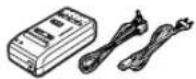 | 2. CGR-V14S 3.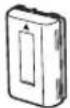 | CGR-V26S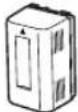 | 4. CGR-V53S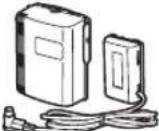 | 5. VW-KBC7E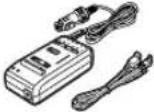 | 6. VW-LF43WE |
7. 8W-LT4314WE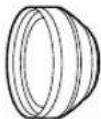 | VW-LW4307WE | 9. VZ-CT55E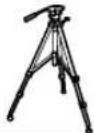 | 10. VW-TCA7E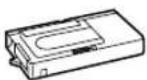 | 11.VZ-LDR10E | 12.VW-SK11E |
中文
選購附件
Optional Accessories
- AC Adaptor
- Battery Pack (Lithium-Ion)
- Battery Pack (Lithium-Ion)
- Battery Pack (Lithium-Ion)
- Car Battery Charger
- Filter Kit
- Tele Conversion Lens
- Wide Conversion Lens
- Tripod
- Cassette Adaptor
- IR/Video DC Light (Halogen & Infra-red) (It requires the Shoe Adaptor for attaching to the Movie Camera.)
- Shoe Adaptor (for attaching the IR/Video DC Light)
Some accessories are not available in some countries.
規格
VHS-C 攝錄影機
您的安全信息
電源: 直流7.2V(電池)
直流7.9V(交流轉接器)
耗電量
(電池操作時): (NV-VZ9/VZ10)
4.7 W(使用電子尋像器時)
6.3 W(使用液晶顯示監視器時)
(NV-RZ9/RZ10) 4.7 W
錄影帶規格: VHS-C 錄影帶
拍攝/放影時間:LP狀態下;2小時
(使用 EC60 錄影帶時)
影像
VHS-C Movie Camera Information for your safety
Power Source: DC 7.2 V (Battery)
DC 7.9 V (AC Adaptor)
Power Consumption
(Battery Operation): (NV-VZ9/VZ10)
4.7 W (When using Finder)
6.3 W (When using LCD Monitor)
(NV-RZ9/RZ10) 4.7 W
Tape Format: VHS-C Cassette
Recording/Playback Time: LP; 2 hours with EC60
VIDEO
Television System: CCIR; 625 lines, 50 fields
PAL colour signal
Output Level: VIDEO OUT (PHONO);
1.0 Vp-p, 75 ohm terminated
AUDIO
Output Level/
Impedance: AUDIO OUT (PHONO);
-6 dBV (47 kohm loaded)/
less than 1 kohm
1 track (Normal-Monaural)
Image Sensor: 1/5-inch CCD Image Sensor
Lens: 22:1 Power Zoom Lens
(Optical capability)
F1.6
Focal Length; 2.9–63.8 mm
Digital AI Auto Focus/Auto Iris
Filter Diameter; 43 mm
Monitor: (NV-VZ9/VZ10 only)
2.5-inch Colour LCD Monitor
Finder: 0.24-inch Electronic Finder
Standard Illumination: 1,400 lx
Operating Temperature: 0°C–40°C
Operating Humidity: 10%–80%
Weight: (NV-VZ9/VZ10)
Approx. 850 g (without Battery)
(NV-RZ9/RZ10)
Approx. 740 g (without Battery)
Dimensions: (NV-VZ9/VZ10)
Approx. 88 (W)×118 (H)×231 (D) mm
(NV-RZ9/RZ10)
Approx. 81(W)×118 (H)×231 (D) mm
AC Adaptor
Information for your safety
Power Source: AC 100–240 V, 50/60 Hz
Power Consumption: 20 W
DC Output: DC 7.9 V, 8.5 W
(Movie Camera Operation)
DC 8.4 V, 0.7 A
(Battery Charging)
Weight: Approx. 180 g
(without AC Mains Lead)
Dimensions: Approx. 72 (W)×43 (H)×143 (D) mm
Weight and dimensions shown are approximate.
Specifications are subject to change without notice.
要求服務之前(故障和解決辦法)
電源
P1:攝錄影機電源不能打開。
Before Requesting Service (Problems & Solutions)
Power Supply
P1: The Movie Camera does not turn on.
S1: Is the Battery or the AC Adaptor connected correctly? Confirm the connection. ( 18, 20)
P2: The Movie Camera has turned off automatically.
S2: If you leave the Movie Camera in the Recording Pause Mode for more than 6 minutes, it automatically switches off to protect the tape and to conserve battery power. To resume recording from this condition, set the [CAMERA/OFF/VCR] Switch to [OFF] and then to [CAMERA] again. (→ 54)
P3: The Movie Camera quickly turns off.
S3-1: Is the Battery discharged? When the Remaining Battery Operation Time Indication shows "0:00" or the [☐] Indication is flashing, the Battery is discharged. Charge the Battery or attach a fully charged Battery. (→ 20)
S3-2: Has condensation formed? If the Movie Camera is brought from a cold to a warm place, condensation may form inside. In this case, the Movie Camera automatically switches off and no operations can be performed except taking out the cassette. Wait until the Condensation Indication disappears (approximately 2–3 hours). (→ 128)
Cassette
P1: The Remaining Tape Time Indication is not correct.
S1: Is the tape length of the inserted cassette correctly selected? Select the correct tape length. (→ 42)
P2: The Movie Camera and cassettes underwent security X-ray inspection at an airport. Does this affect the cassettes?
S2: No, this has no negative influence on the Movie Camera or the cassettes.
P3: When playing back a cassette that was stored for some time, the picture is distorted.
S3: The cassette was stored in an unsuitable place (dusty, humid, hot, etc.) or near strongly magnetized objects or equipment. Unfortunately, there is no remedy. Always store the cassettes correctly. ( 126)
Recording
P1: No picture appears in Finder. (NV-VZ9/VZ10 only)
S1: LCD Monitor is open (Except when recording with LCD Monitor facing forward). Securely close LCD Monitor. ( 26)
P2: Picture on LCD Monitor is not clear. (NV-VZ9/VZ10 only)
S2: Picture quality is not properly adjusted. Adjust picture quality. ( 38)
要求服務之前(故障和解決辦法)(續)
拍攝(續)
Before Requesting Service (Problems & Solutions) (Continued)
Recording (Continued)
P3: Recording does not start when pressing the Recording Start/Stop Button.
S3: The tab of the inserted cassette is broken out. Insert a cassette with intact tab. Or cover the hole where the tab was with two layers of adhesive tape. ( 40)
P4: The Date/Time/Title Indication is not displayed.
S4-1: This is due to incorrect operation of the [DATE/TITLE] Button and/or the [MENU] Button. Press the [MENU] Button and set the desired Date/Time/Title Indication. Then press the [DATE/TITLE] Button so that the Date/Time/Title Indication appears. (→ 50)
S4-2: The button-type battery is exhausted. Replace it with a new one. ( 46)
Playback
P1: No playback picture is reproduced when pressing the [▶] Button.
S1: Is the [CAMERA/OFF/VCR] Switch set to [VCR]? When it is set to [CAMERA], no playback function can be operated. (→ 60)
P2: The playback picture is distorted or contains noise bars.
S2-1: The tape in the cassette is loose. Tighten it. ( 40)
S2-2: The video heads are dirty. Clean them with an optional video head cleaning cassette. (→ 128)
S2-3: The tracking is not adjusted correctly. Adjust the tracking correctly. ( 64)
P3: The playback picture is not in colour.
S3: The colour adjustment on the TV is not made properly. Adjust the colour control on the TV.
Remote Controller (NV-VZ10/RZ10 only)
P1: The Remote Controller does not work.
S1-1: The batteries in the Remote Controller are exhausted. Replace them with new "AAA", "UM-4" or "R03" type batteries. ( 102)
S1-2: The Remote Controller and/or the Movie Camera are exposed to strong light. Prevent strong light from falling on the Remote Controller and/or Movie Camera when using the Remote Controller.
Demonstration Mode
P1: The Movie Camera remains in the Demonstration Mode.
S1: The Demonstration Mode is designed for explaining the versatile functions of this Movie Camera. To switch this mode off, set [CAMERA/OFF/VCR] Switch to [OFF], then set it to [CAMERA] again while pressing the [■] Button. Or, set [DEMO MODE] on the [OTHER FUNCTIONS] Sub-Menu to [OFF]. (→ 138)
- Information for Your Safety
- WARNING
- Movie Camera
- AC Adaptor
- 目錄
- Preparations
- Basic Operations
- 先進操作
- Precautions, Technical Information, etc.
- 中文
- 標準附件
- Standard Accessories
- 控制和組件
- Controls and Components
- 三種電源
- The 3 Types of Power Supply
- Supplying Power from an AC Mains Socket
- 由電池供電
- 裝上電池。
- Supplying Power with the Battery
- Attach the Battery.
- Connect the AC Mains Lead to the AC Adaptor and an AC mains socket.
- Remove the Battery by sliding it in the opposite direction of Step 1 above.
- Insert the Battery with its top (so that the arrow points upward) into the top Battery Holder and press the bottom of it toward the Movie Camera until it locks with a click.
- Removing the Battery from the Movie Camera
- ■Charging Lamp [CHARGE]
- ■Charging Time and Maximum Continuous Recording Time in the Manual Recording Mode
- CGR-V14 CGR-V14S
- ■Checking the Remaining Battery Power
- Remaining Battery Operation Time Indication
- When Recording Is Not Performed Continuously
- When the Ambient Temperature Is Extremely Low or Extremely High
- 液晶顯示監視器的使用
- (僅限於NV-VZ9/VZ10)
- Slide the [▲OPEN] Lever to the left and simultaneously open the LCD Monitor in the direction of the arrow approximately 90°.
- Closing the LCD Monitor
- 使用菜單屏幕
- Exiting the Menu
- 菜單功能
- Camera Mode Main-Menu [CAMERA FUNCTIONS]
- Adjusting the Brightness and Colour Level of the LCD Monitor/Finder (LCD Monitor adjustment is only for models NV-VZ9 and NV-VZ10.)
- LCD Brightness [LCD BRIGHTNESS]
- LCD Colour Level [LCD COLOUR]
- Finder Brightness [EVF BRIGHTNESS]
- ■Adjusting the Angle of the LCD Monitor
- 插入/取出錄影帶時
- Inserting/Ejecting the Cassette
- ■ Preventing Accidental Erasure of Recordings
- 設定正確的磁帶長度時
- ENGLISH
- Selecting the Correct Tape Length
- Press the [SET] Button to select the correct tape length.
- Press the [MENU] Button to exit the menu.
- Confirming the Remaining Tape Time
- 電子尋像器調整
- Adjusting the Finder
- Adjusting the Grip Belt
- Attaching the Lens Cap
- 插入鈕扣式電池
- Inserting the Button-type Battery
- CAUTION
- 設定日期和時間
- Setting the Date and Time
- 在畫面中添加日期/時間/題名進行拍攝時
- Recording with the Date/Time/Title Superimposed in the Picture
- 用全自動狀態進行拍攝時
- Recording in the Full Auto Mode
- 信號燈①
- 檢查錄過場景的結尾時
- (拍攝檢查功能)
- Checking the End of a Recorded Scene (Recording Check Function)
- Press the [G] Button briefly in the Recording Pause Mode.
- Viewing Recorded Scenes During Recording Pause (Camera Search Function)
- Keep the [-SEARCH] Button (or the [SEARCH+] Button) pressed in the Recording Pause Mode.
- Recording Backlit Scenes (Backlight Mode)
- 拉近/拉遠變焦
- To record a wider view (Zooming-out): Push the [W/T] Zoom Lever toward [W]. To enlarge your subject (Zooming-in): Push the [W/T] Zoom Lever toward [T].
- Voice Zoom
- Recording Extra Close-up Shots of Small Subjects (Macro Close-up Function)
- 放影
- 在攝錄影機上觀看放影時
- Watching Playback on the Movie Camera
- 在錄影機上放影時
- (使用附带的磁带轉接器)
- Playing Back on a VCR (Using the Supplied Cassette Adaptor)
- 高速倒带
- High-Speed Rewinding
- Eliminating Picture Distortions (Manual Tracking Adjustment)
- Returning to the Auto Tracking Mode
- 快進尋影放影時
- Review Playback
- Search Lock Function
- Still Playback
- Resuming Normal Playback
- 在電視機上觀看放影時
- Watching Playback on a TV
- After Use
- Cleaning the Finder
- Cleaning the LCD Monitor (NV-VZ9/VZ10 only)
- Cleaning the Movie Camera Body
- Cleaning the Lens
- 淡入/淡出
- ■淡入①
- ■Fading Out ②
- 使用特殊效果(數位效果)
- Selecting a Desired Digital Effect
- Cancelling the Digital Effect
- 數位效果效[EFFECT1]
- 數位效果效[DEFECT2]
- Digital Effects 2 [EFFECT2]
- 怎樣使用超級畫面穩定功能
- Using the Super Image Stabilizer Function
- 怎樣使用數位變焦功能
- Cancelling the Digital Zoom Function
- 數位淡化功能
- ■Fading In
- Cancelling the Selected Digital Fade Function
- 移動感應器控制拍攝
- Motion-Sensor-Controlled Recording
- ■In the Following Recording Situations, the Motion Sensor May Not Work Correctly:
- Recording in Dark Places Without Any Illumination (0 Lux Night View Function)
- Set the [0 LUX OFF/ON] Switch to [ON] to make the [0LUX] Indication appear.
- Cancelling the 0 Lux Night View Function
- 用手動白色平衡調節進行拍攝時
- Recording with Manual White Balance Adjustment
- In the following cases, the [■] Indication flashes:
- Cancelling the Manual White Balance Mode
- Subjects and Recording Conditions Not Suitable for Recording in the Full Auto Mode
- 色溫和白色平衡調節
- Colour Temperature and White Balance Adjustment
- 用手動聚焦調節進行拍攝時
- Recording with Manual Focus Adjustment
- Cancelling the Manual Focus Mode
- 在各種情況下拍攝(程序AE)
- Recording in Special Situations (Programme AE)
- 運動狀態
- Portrait Mode
- Low Light Mode
- Spotlight Mode
- Surf & Snow Mode
- Using the Remote Controller (NV-VZ10/RZ10 only)
- ■ Buttons on the Remote Controller
- ■ Conditions for Correct Operation of the Remote Controller
- 將電池插入遙控器
- Inserting the Batteries into the Remote Controller
- ■Replacing the Batteries
- Recording Yourself with the LCD Monitor Facing Forward (NV-VZ9/VZ10 only)
- ■鏡面狀態
- In the Mirror Mode, only the following indications can be displayed on the LCD Monitor and in the Finder:
- 將編排好的題名插入畫面中進行拍攝時
- Recording with Pre-programmed Titles Inserted in the Picture
- Recording with Pre-programmed Titles Inserted in the Picture (Continued)
- Recording with Pre-programmed Title Inserted in the Picture
- Deleting the Title
- Creating Your Own Titles and Inserting Them During Recording (Digital Superimposer Function)
- 在拍攝的開始部分插入您獨自的題名
- Inserting Your Own Title at the Beginning of a Recording
- Inserting Your Own Title During Recording
- 使用磁帶計時器指示時
- Using the Tape Counter Indication
- Checking the Elapsed Tape Time
- ■磁帶計時器指示的改變
- ■Changing the Tape Counter Indication
- Camera Mode A
- VCR Mode Ⓑ
- 使用記憶停止功能時
- Using the Memory Stop Function
- 拷貝(複製)
- 注意事項
- 攝錄影機的注意事項
- Precautions for the Movie Camera
- For Australia or New Zealand:
- ■To prevent fire, electric shock and malfunction, observe the following points:
- ■Precautions for Storing the Movie Camera
- Precautions for the AC Adaptor
- ■Observe the following points:
- 電池的注意事項
- Precautions for the Battery
- ■Precautions for Storing the Battery
- Precautions for the Cassette
- 凝結濕氣的原因和處理方法
- Causes of Condensation and Remedy
- ■Main Causes of Condensation
- ■Symptoms of Condensation
- ■Remedy as Follows:
- ■To Prevent Condensation from Forming
- ■When the Lens Is Fogged up
- Video Head Clogging and Remedy
- ■Symptoms of Dirty Video Heads
- 白色平衡(色調)調節的工作原理
- How the White Balance (Tint) Adjustment Works
- ■Auto White Balance
- ■Manual White Balance
- How the Focus Adjustment Works
- ■Auto Focus Adjustment
- 尋像器指示
- ■警告/報警指示
- ■Warning/Alarm Indications
- ■拍攝和放影指示
- ■Recording and Playback Indications
- 選購附件
- Optional Accessories
- 規格
- 要求服務之前(故障和解決辦法)
- 電源
- Before Requesting Service (Problems & Solutions)
- Power Supply
- Cassette
- Recording
- 要求服務之前(故障和解決辦法)(續)
- 拍攝(續)
- Before Requesting Service (Problems & Solutions) (Continued)
- Playback
- Remote Controller (NV-VZ10/RZ10 only)
- Demonstration Mode
Brand : PANASONIC
Model : NV-VZ10ENC
Category : Lecteur vidéo cassette