
M6 - Media player FiiO - Free user manual and instructions
Find the device manual for free M6 FiiO in PDF.


| Product Type | High-Resolution Digital Audio Player |
| Brand | FiiO |
| Model | M6 |
| Processor | Samsung Exynos 7270 (14nm) |
| DAC | Dual AK4490EN |
| Memory | 2GB RAM, 2GB native storage, expandable via microSD up to 512GB |
| Display | 3.2-inch IPS touchscreen, 480x800 pixels |
| Audio Outputs | 3.5mm PO/LO (shared), USB Type-C for USB DAC |
| Bluetooth | Version 4.2; supports SBC, aptX, aptX-HD, LDAC, HWA |
| Wi-Fi | 2.4GHz 802.11 b/g/n |
| Charging | DC 5V 2A via USB Type-C; full charge in approx. 2 hours |
| Battery | Internal rechargeable lithium-ion battery |
| Operating System | Deeply customized Android |
| Dimensions (approx.) | 105 × 55 × 12 mm |
| Weight (approx.) | 100 g |
| Music App | FiiO Music with 10-band graphic EQ, playlist management, and gesture controls |
| Wireless Streaming | Wi-Fi, Bluetooth, AirPlay (via FiiO Music) |
| USB DAC Support | Yes (Windows driver required; Mac plug-and-play) |
| Firmware Update | Over-the-air (OTA) or local update via microSD |
| Power-off Timer | Sleep timer (0-120 min) and idle power-off (0-50 min) |
| Key Lock Customization | Select which buttons are active when screen is off |
| Maintenance | Clean with a soft, dry cloth; avoid moisture |
| Safety | Keep away from water, heat sources, and direct sunlight |
Frequently Asked Questions - M6 FiiO
User questions about M6 FiiO
0 question about this device. Answer the ones you know or ask your own.
Ask a new question about this device
Download the instructions for your Media player in PDF format for free! Find your manual M6 - FiiO and take your electronic device back in hand. On this page are published all the documents necessary for the use of your device. M6 by FiiO.
USER MANUAL M6 FiiO
All the below illustrating pictures are for reference only.
M6 Complete User Manual
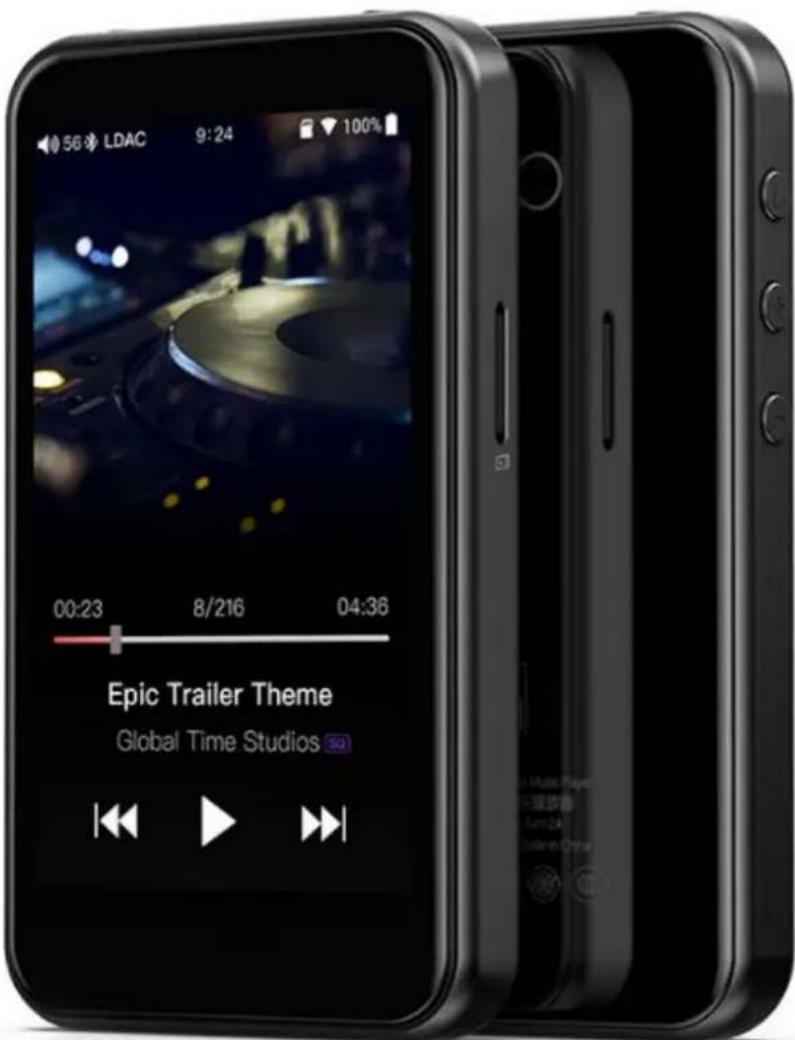
Foreword:
Thank you for purchasing FiiO's high resolution lossless music player M6. To let you better utilize the M6 to enjoy high-quality music, we have prepared this complete user manual. We hope this manual will help you get to know the M6 and unleash its full potential.
Contents
●Introduction...... 3
- Buttons and ports introduced ...... 4
- Buttons and ports explained 4
- Main menu and Drop-down menu interface: 5
-
Settings interface: 6
-
WiFi 6
- Bluetooth function 7
Bluetooth transmitter 7
Bluetooth receiver 8
- Audio 9
Select output 10
Digital filter mode 10
Wireless playback quality 11
Balance....11
In-line remote 12
USB DAC 12
AirPlay 13
- Key-lock Settings 14
- General 14
About device....15
Power-off Timer 15
Apps 16
Brightness level 16
Sleep 17
Language setting....17
Factory data reset....19
●Firmware Update....19
- Status bar....21
●Technical Support 21
●FiiO Music 22
- APP homepage 22
- Quickly locate all music 24
- Gestures 24
- Function menu 25
- Now playing 25
- Tap buttons 26
- Gesture operations 26
- EQ 28
- Introduction
The M6 is a high fidelity, high resolution digital audio player, using Samsung 14nm Exynos 7270, Dual AK4490EN DACs, 2GB native memory, and support external Micro SD Card storage (512GB), 480* 800 LG IPS screen, supporting multi-touch. TheType C interface supports charging, file transfer, USB Audio output; Bluetooth 4.2 supports SBC/ aptX/ aptX-HD/ LDAC/HWA. With a deeply-customized Android, the system runs at a fast and smooth speed, with simple operation; every interface is methodical and crisp. Built-in professional custom music player "FiiO Music", and pre-install Cloud Music, MOOV, Tidal, KKBOX for more joy.
1. Buttons and ports introduced
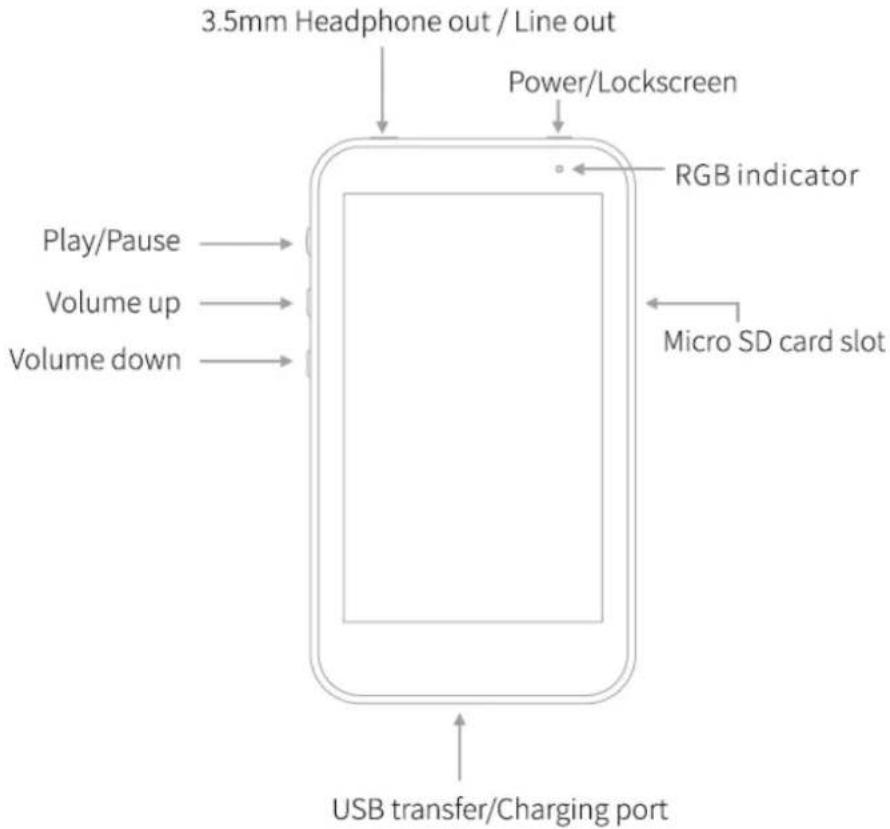
2. Buttons and ports explained
1) Touchscreen (16 million colors, 480x800 pixels): Displays the user interface and other information; for operating the unit via screen touches and/or in conjunction with buttons on the unit;
2) Power / Lock: While M6 is powered off, hold for 2s to turn on; while powered on, hold to display power off / reboot menu; press briefly while powered on to turn screen on / off; Press and hold for 10 seconds to reboot.
3) Volume “+” / “-” button: When the screen is ON, press briefly to change volume by one increment, hold down to change volume continuously until the maximum volume (“+” button) is reached or the player is muted (“-” button); When the screen is OFF, press briefly to change volume by one increment, hold down to skip to Previous/Next track.
4) Play / Pause: Press while playing to pause music, press while paused to continue playback;
5) Micro SD card slot: Supporting up to 512GB capacity
6) Indicator light: Red light will be on for some seconds and then off during the boot; light is OFF in working condition, red light when charging, turn off indicator light when power off;
7) Type C USB data/ charging port: Used for charging, transmitting data, USB Audio output. The DC5V 2A adapter is recommended for charging and can be fully charged in 2 hours.
8) 3.5mm PO/LO: Shared Phone/line output port. Switch between the two outputs in M6 Settings ->Audio -> Select output.
CTIA-spec headsets with in-line remote control supported with the following remote control operation (single button remotes and main button of multi-button remotes supported):
Volume Up/Down: click to turn up/down the volume once, hold to turn up/down the volume continuously to Max volume/Mute;
Play / Pause: press main button once briefly to toggle between play and pause;
Next track: double-click main button quickly;
Previous track: triple-click main button quickly;
- Main menu and Drop-down menu interface:
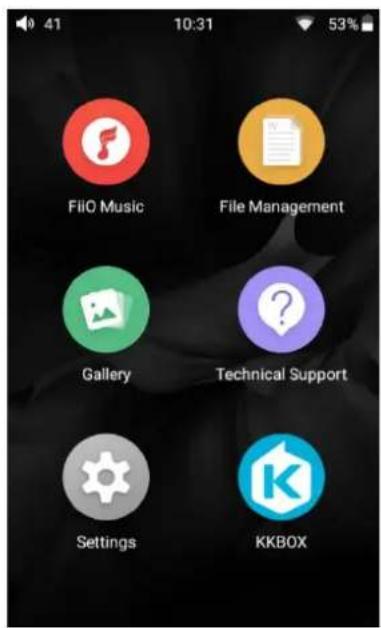
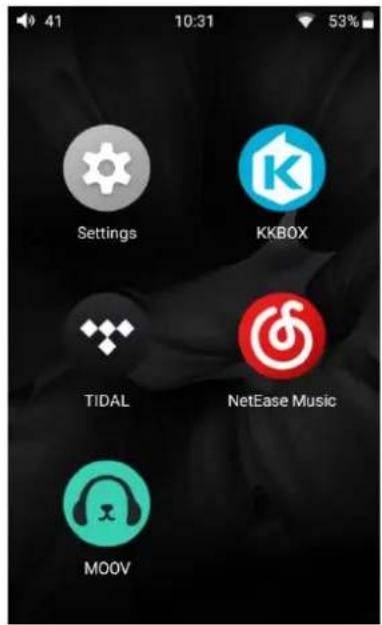
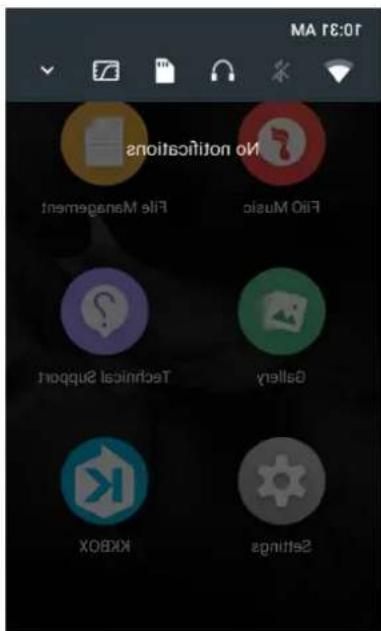
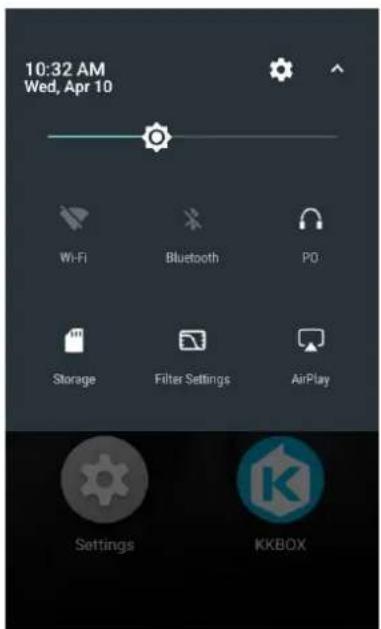
- Settings interface:
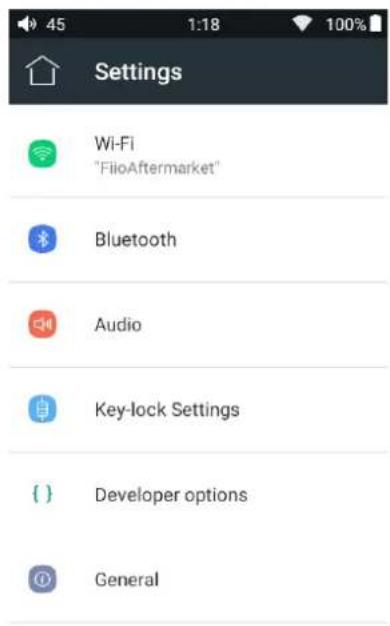
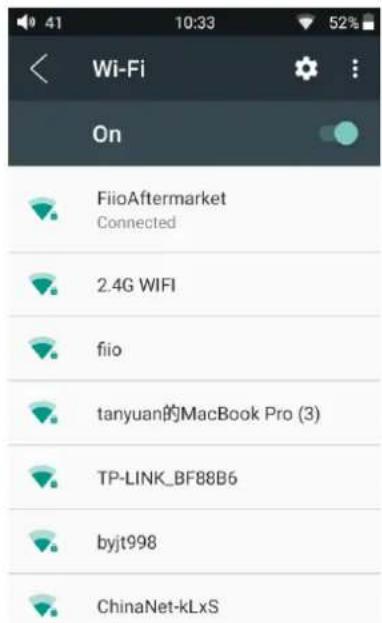
1. WiFi
The M6 may connect to the Internet or other network resources to obtain music resources or perform other Android functions;
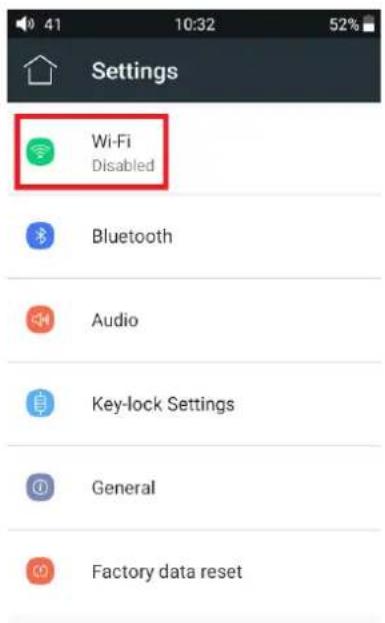
To connect the M6 to WiFi devices / hotspots:
1) Tap the WLAN in setting as shown in the picture below;
2) Click the WiFi switch to the right (ON) and the M6 will automatically search for and display available WiFi connections;
3) Tap the name of the WiFi network you wish to connect to and enter the password if prompted, and the M6 will connect to the network:
2. Bluetooth function
M6 supports virtually all Bluetooth formats including the high-resolution ones for your ultimate listening pleasure, including: aptX-HD (also backwards compatible with aptX), LDAC and HWA. M6 can also be a Bluetooth transmitter or a Bluetooth receiver.
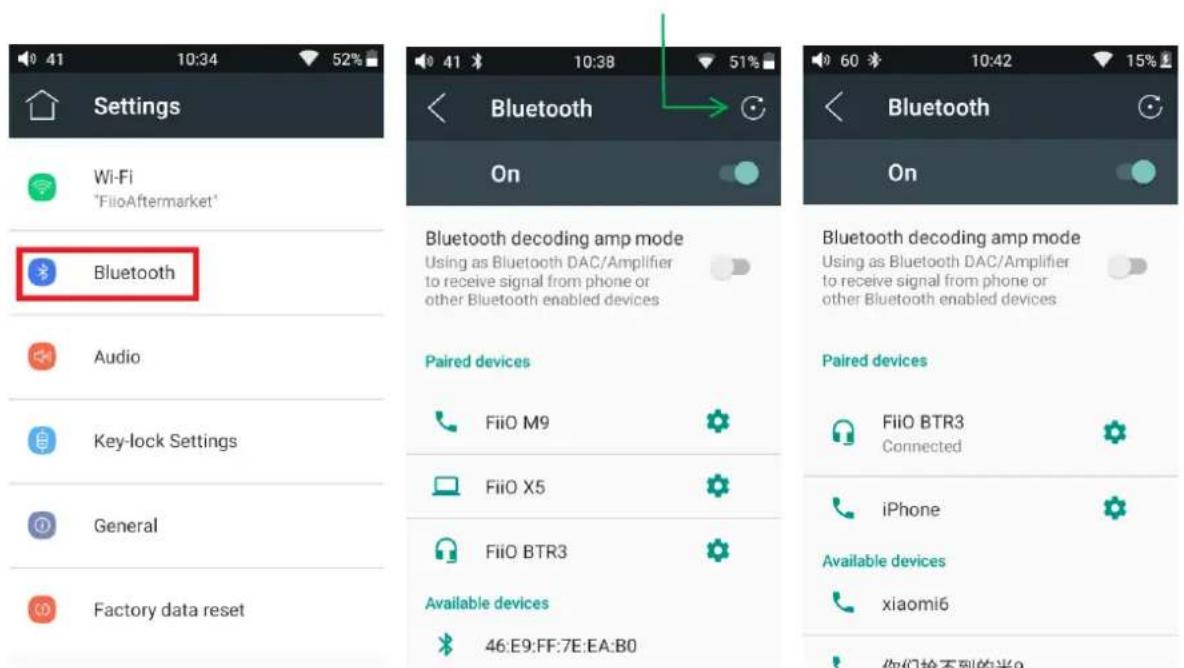
Bluetooth transmitter
To use the M6 with new Bluetooth devices (e.g. Bluetooth earphones, speakers, remote controls), the M6 must first be paired with the device as follows:
1) Tap the Bluetooth in setting as shown in the picture below;
2) If Bluetooth on the M6 is off, turn it on by clicking the switch on the upper right to the "ON" position on the right;
3) Tap "SEARCH FOR DEVICES" at the bottom of the screen to have the M6 search for and display nearby Bluetooth devices;
4) Tap the name of your Bluetooth device to pair with it. Successfully paired devices will appear under the "PAIRED DEVICES" list:
Refresh to search Blutooth
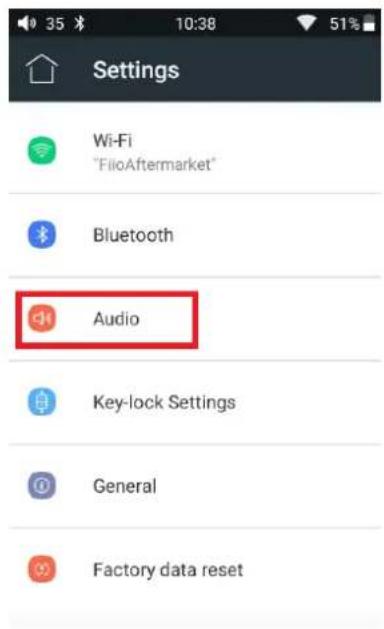
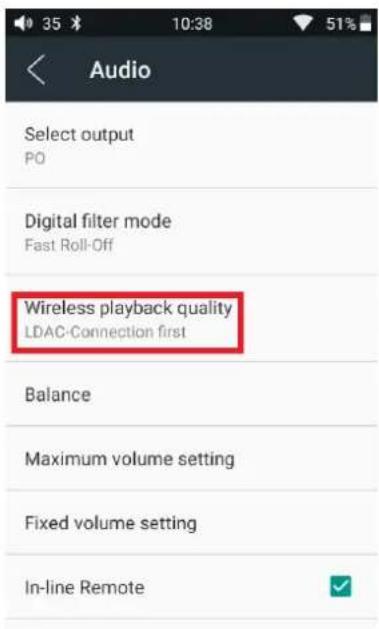
Before connecting Bluetooth device, you can select the Bluetooth audio codec which you want to use as follows:
1) Enter the Settings-Audio settings interface
2) Click on the Wireless Playback quality, select the one you want to use, then disconnect the current connection and connect with your Bluetooth device again.
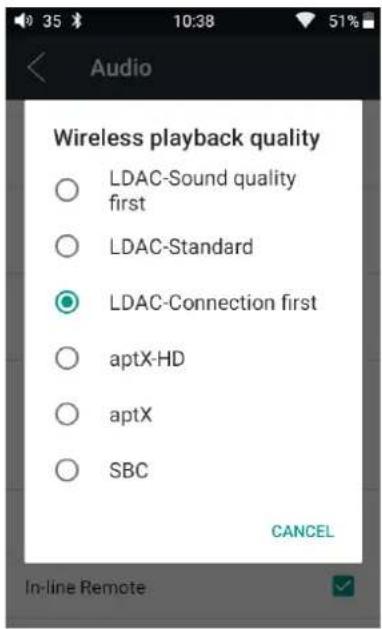
Note:
- If you already connect with one Bluetooth device, it is necessary to disconnect the Bluetooth connection in order to switch the Bluetooth audio code successfully before reconnecting with the Bluetooth device. (The switching between the three modes of LDAC can work in real time.)
- When you turn on the Bluetooth, M6 will automatically connect to the latest available device.
Bluetooth receiver
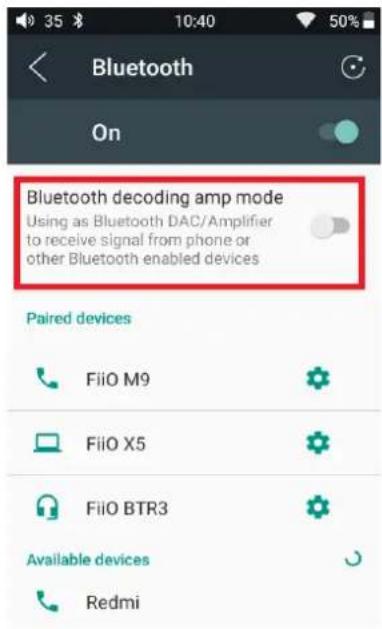
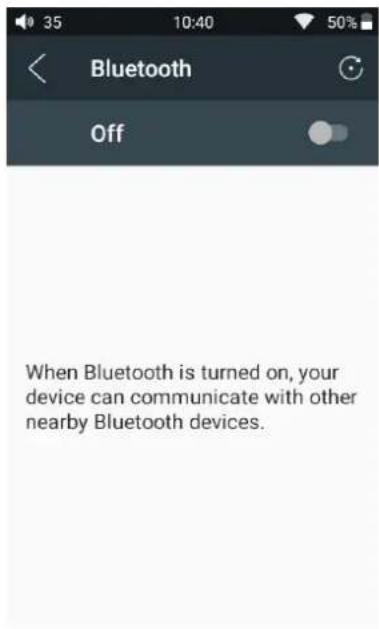
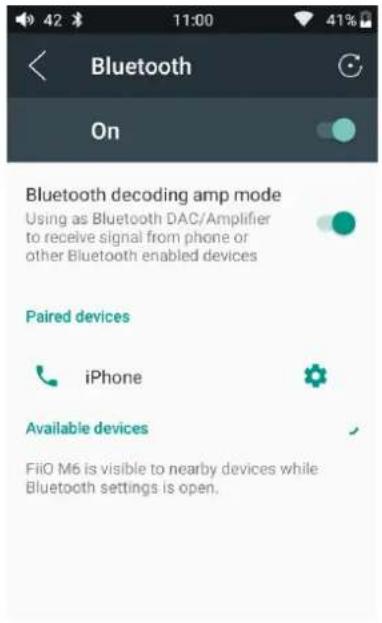
When M6 is connected to a new Bluetooth device (such as the mobile phone) as a Bluetooth receiver, turn on the "Bluetooth decoding amp mode" in the Bluetooth settings interface, then the Bluetooth will turned off automatically, turn on the Bluetooth again and you are in Bluetooth receive mode now! (It only supports SBC and LDAC now, and it is required to upgrade to the latest firmware.)
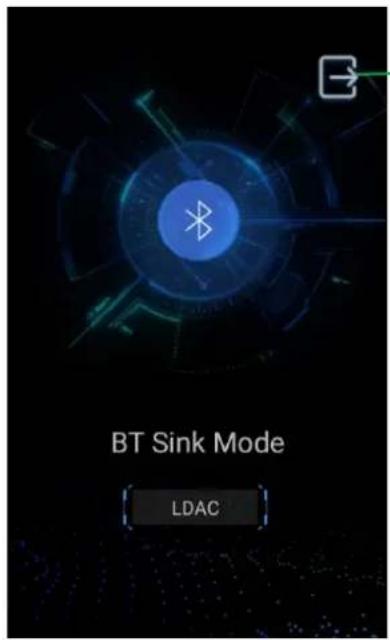
→ Disconnect
3. Audio
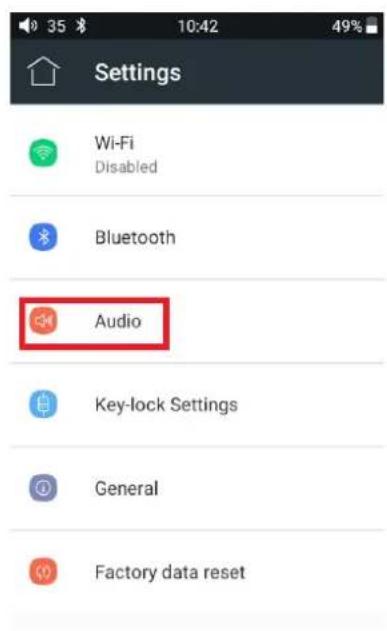
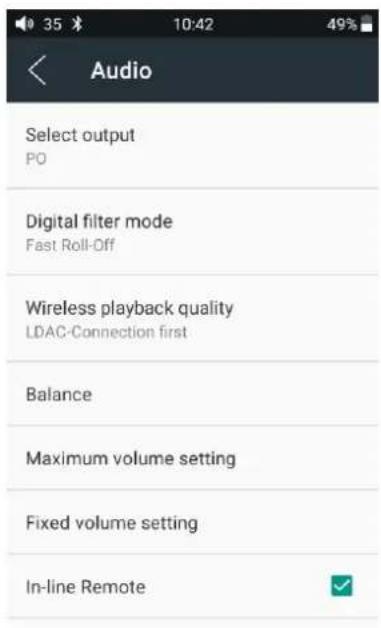
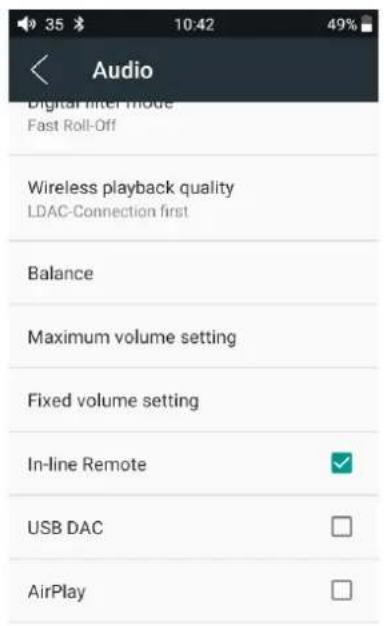
Select output
Switch the output between PO(Headphone output) / LO(Line out);
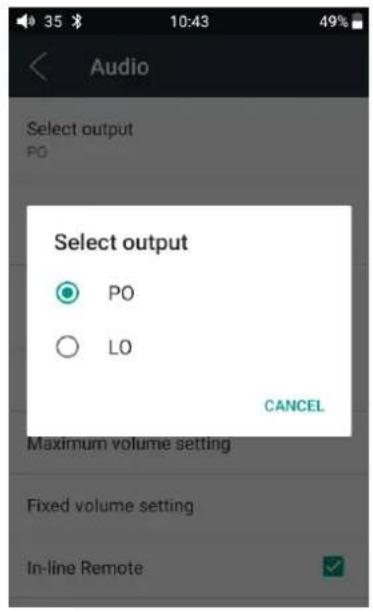
Digital filter mode
To set the filter modes: Fast Roll-Off Filter, Slow Roll-Off Filter, Minimum Phase;
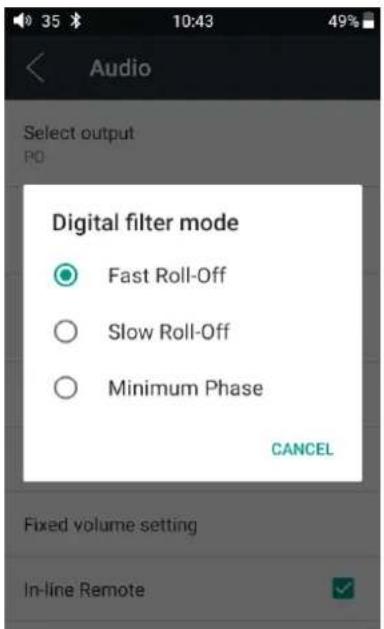
Wireless playback quality
When the Bluetooth receiver supports multiple Bluetooth audio codecs such as BTR3), you can select which you want to use.
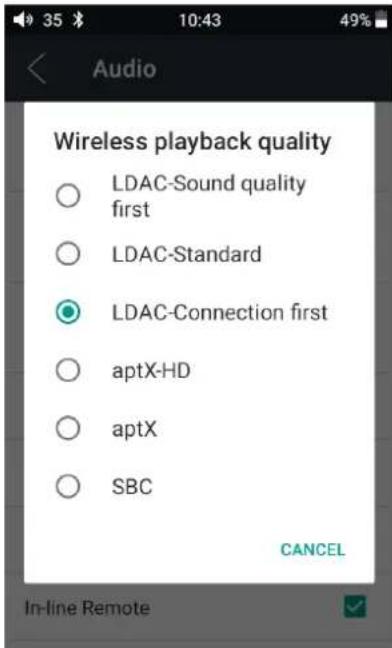
Balance
Set the Balance between the left and right channels. From being biased leftmost (L10) through centre (0) to rightmost (R10), there are 21 settings available.
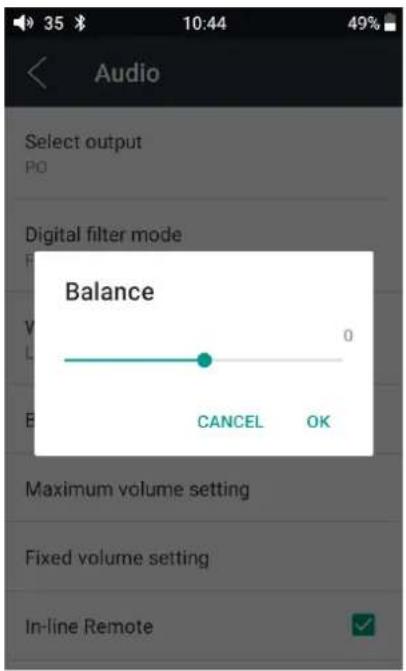
In-line remote
Response to in-line remotes on connected headsets may be enabled or disabled by your choice.

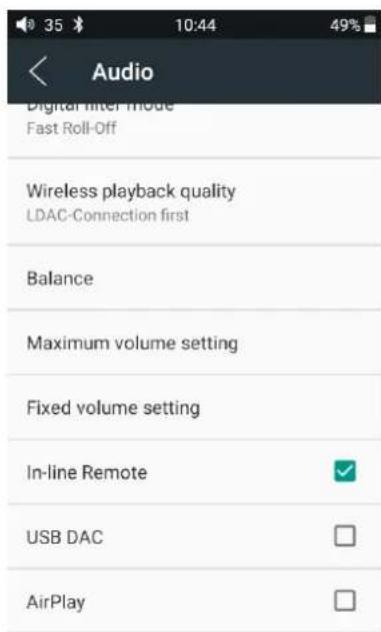
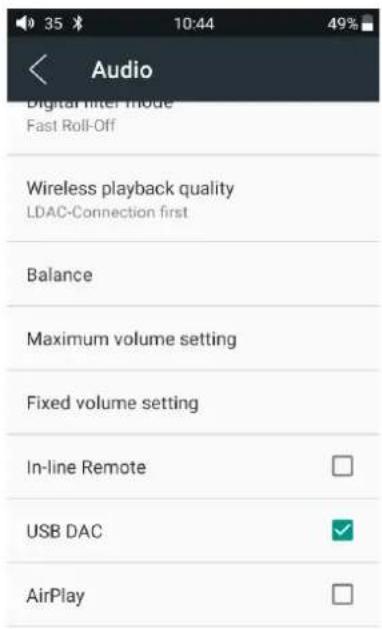
USB DAC
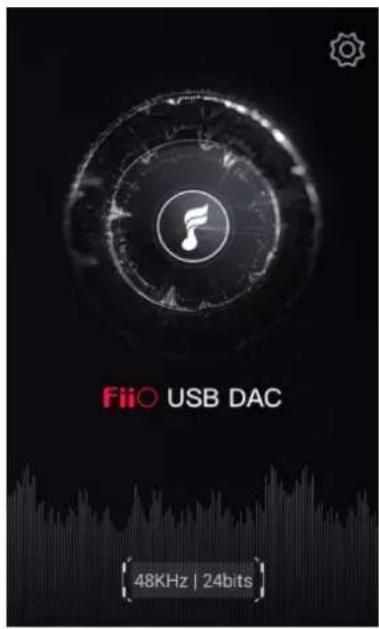
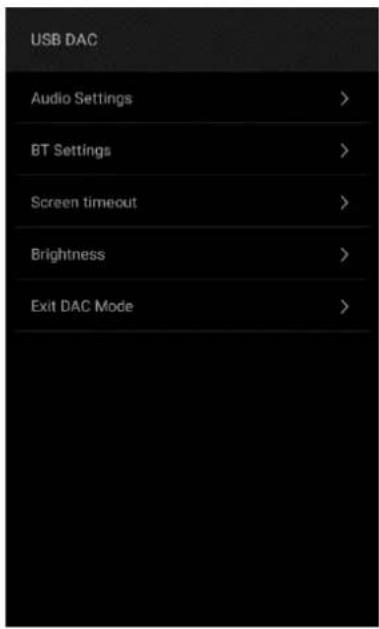
Check “USB DAC” and connect the M6 with computer via USB cable. (If you’re using Windows system, please install the driver at https://www.fiio.com/Driver_Download; MAC system doesn’t need to install the DAC driver.
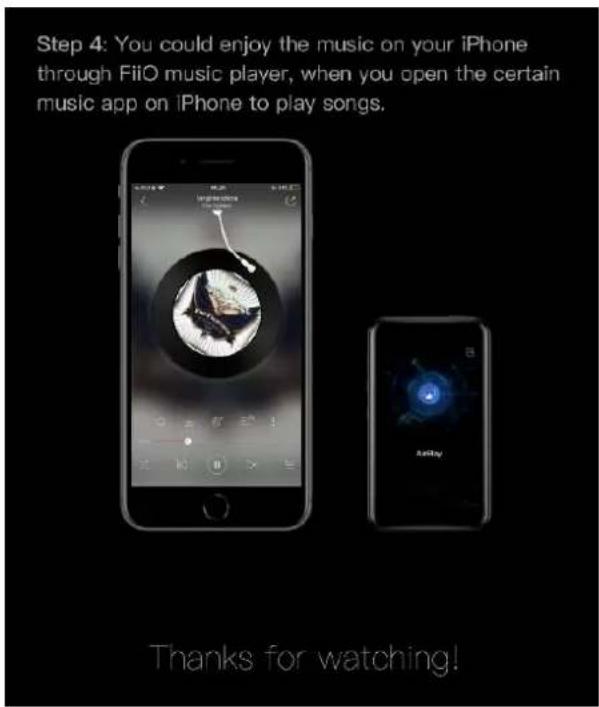
AirPlay
The toturial about AirPlay function
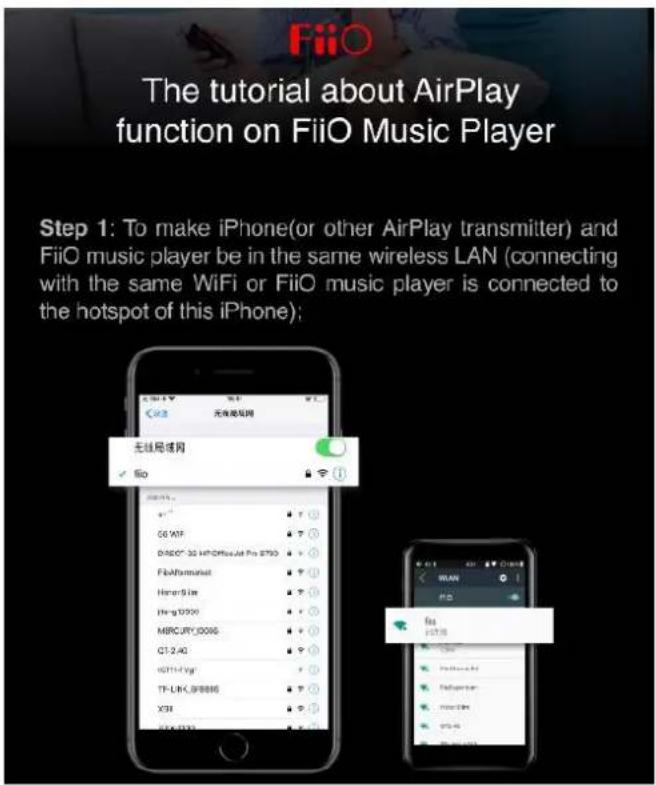
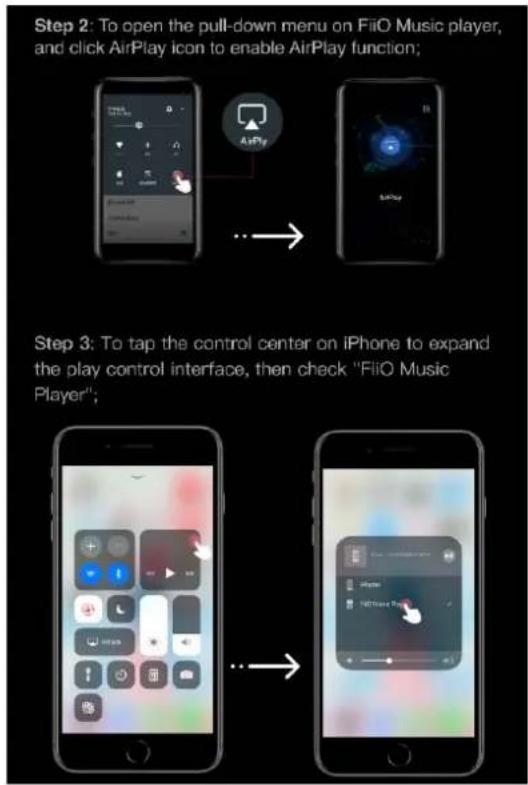
flowchart
graph TD
    A["Step 2: To open the pull-down menu on FliO Music player, and click AirPlay icon to enable AirPlay function;"] --> B["Step 3: To tap the control center on iPhone to expand the play control interface, then check 'FliO Music Player';"]
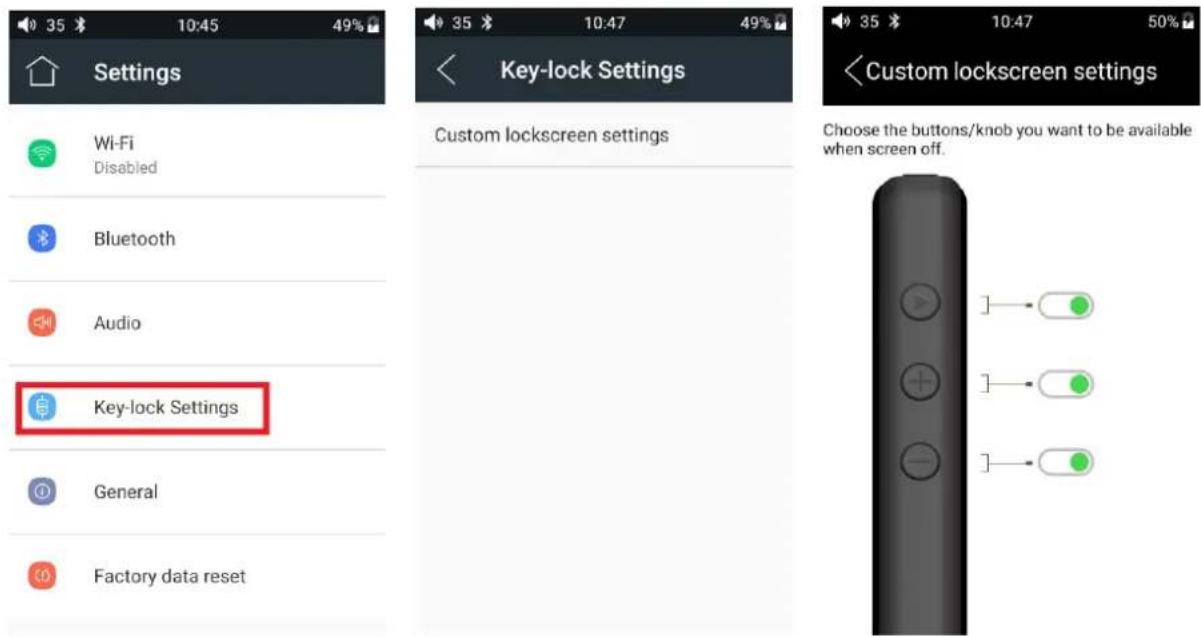
4. Key-lock Settings
You can choose the buttons/knob you want to be available when the screen is off.
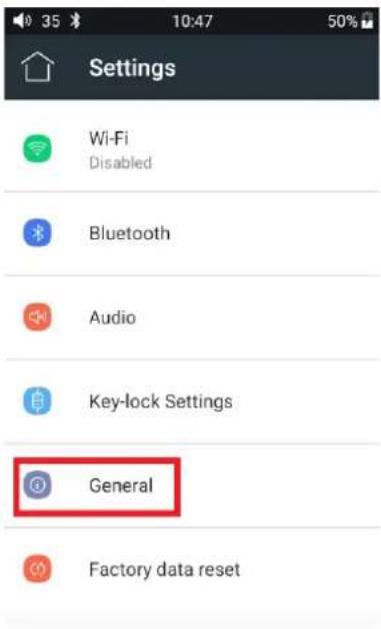
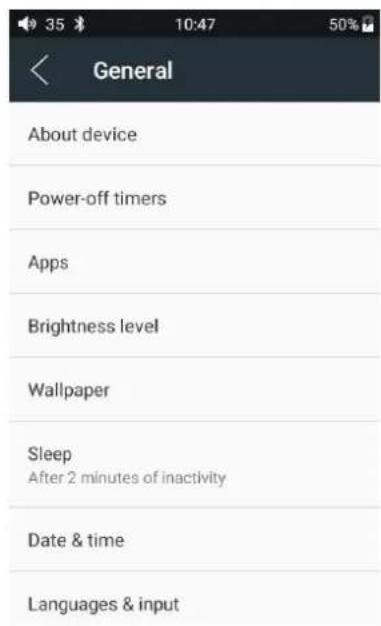
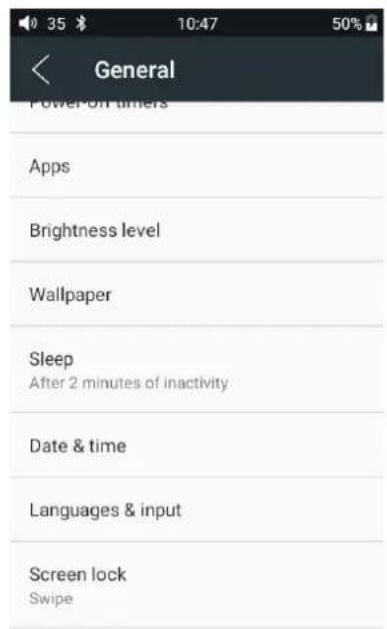
5. General
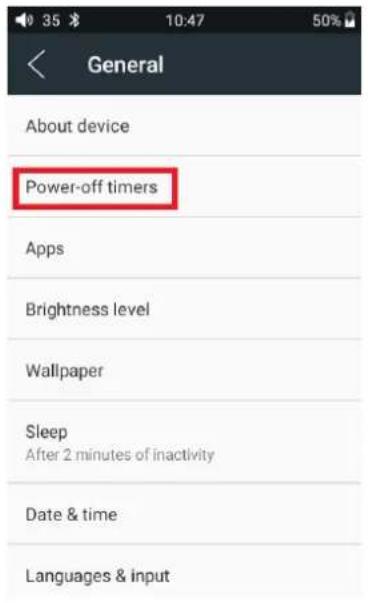
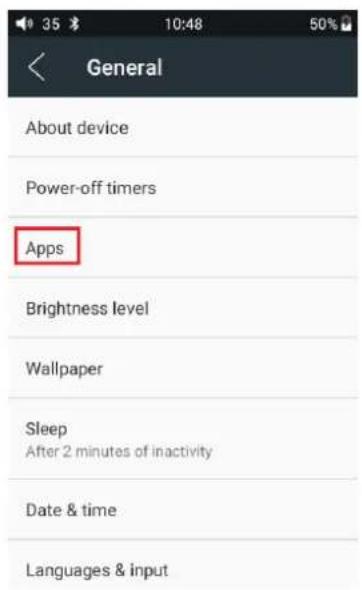
General includes About device, Power-off timers, Apps, Brightness level, Wallpaper, Sleep, Date& time, Language &Input, Screen lock. Here are a few common function's introductions.
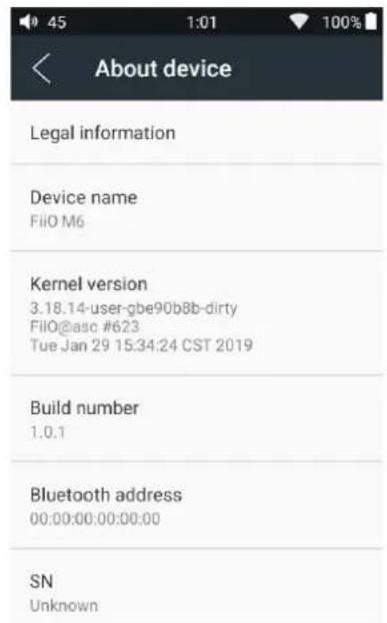
About device
You can view Device name, Build number, etc.
Power-off Timer
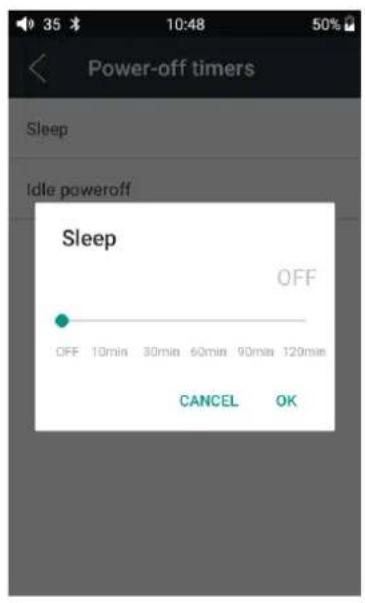
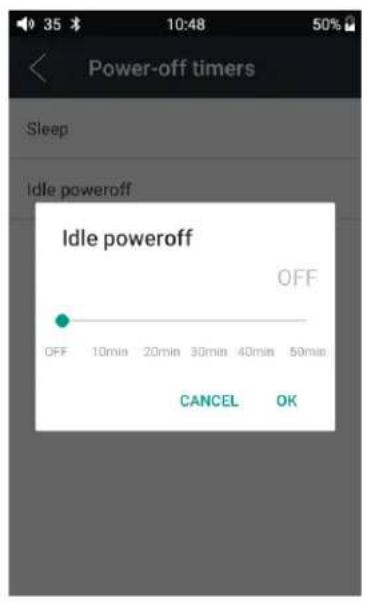
Power-off timer includes two categories, namely "Sleep" and "Idle power off":
Sleep: once the pre-set power-off time is expired, M6 will power off automatically, no matter whether it is playing or not. The power-off time can be set to any value between 0 to 120 minutes. By default the sleep power off is turned off, and it will restore to the default settings once the power-off time is expired.
Idle power off: once the pre-set power-off time is expired and no operation is performed during the time period, M6 will power off automatically. The timer can be set to any value between 0 to 50 minutes. By default the sleep power off is turned off, and it will restore to the default settings once the power-off time is expired.
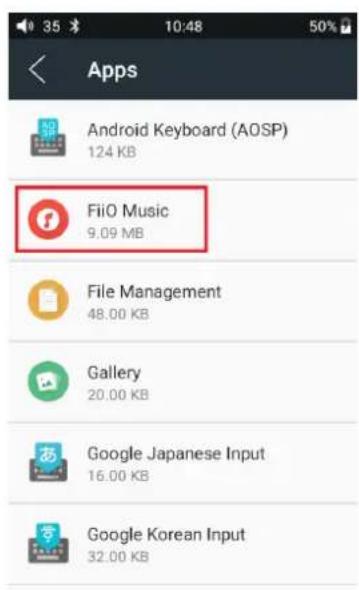
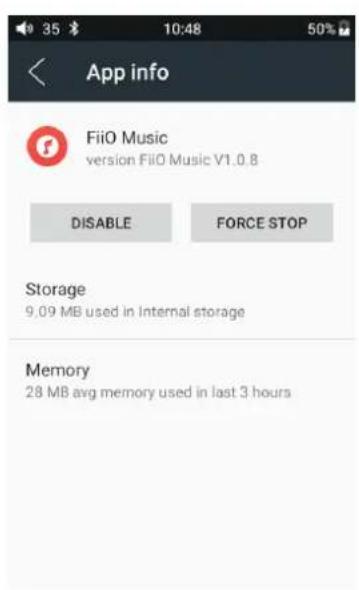
Apps
M6 app can be disabled or forced to stop. The memory and RAM can also be checked
Brightness level
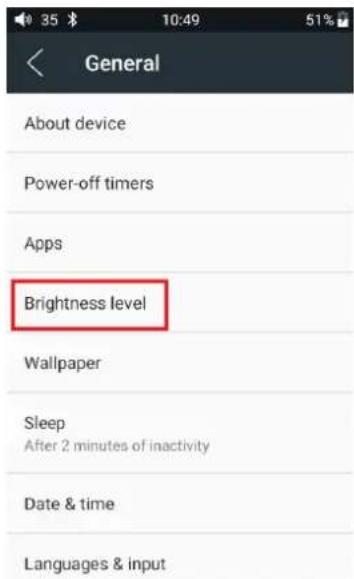
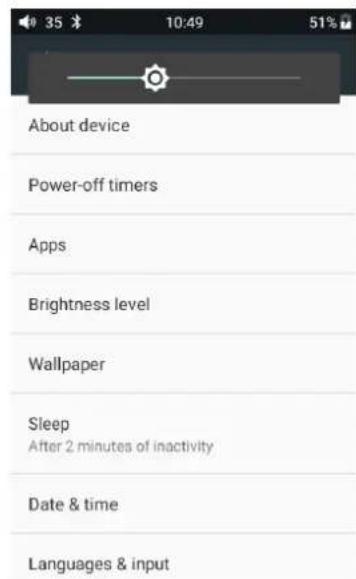
The brightness can be adjusted according to the environment.
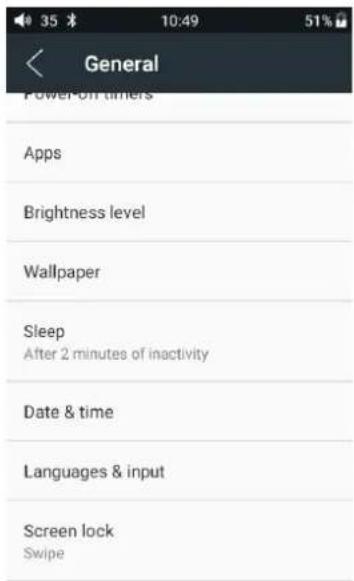
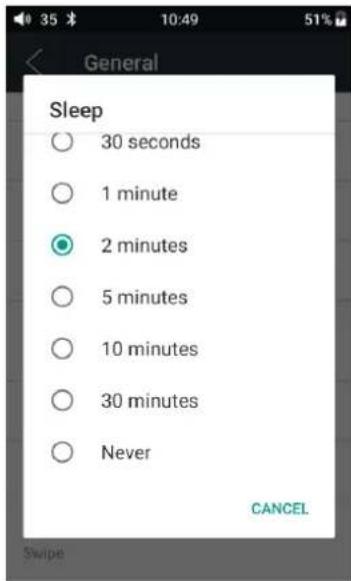
Sleep
Specify after how much time of inactivity (no button presses, screen touches or playing) M6 will enter sleep mode. In Sleep mode, M6 would have low power consumption. To short press the Power button can wake up M6 from Sleep mode.
Language setting
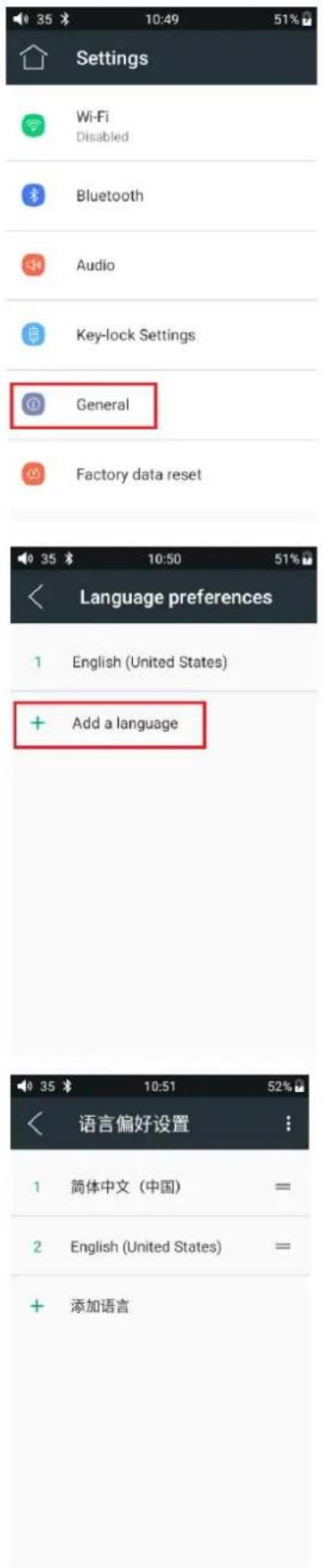
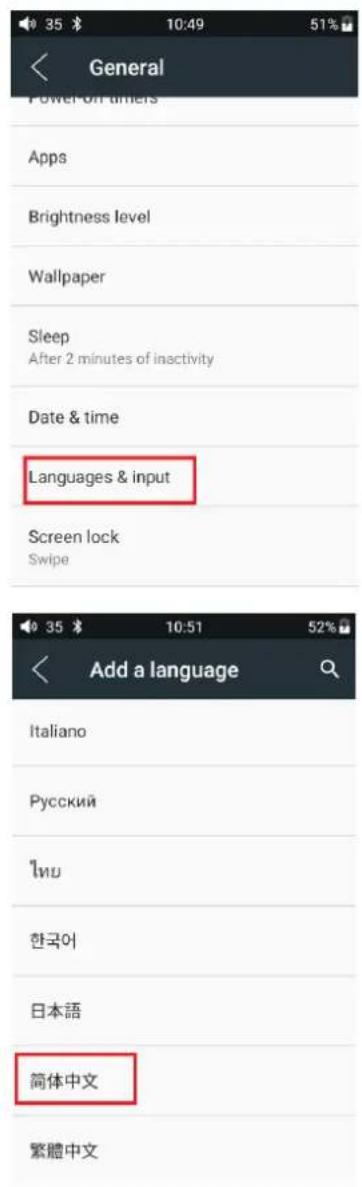
- “Settings”-“General”-“Language & input”, and “Languages” in sequence, which will bring you to the “Language preference setting” interface.
- Press "Add a language"
- Select a language
- After selecting the language, you should press the “=” icon on the right side of the target language and drag the language to the head of the list. Switching language can only be completed
after this operation.

Factory data reset
“Factory data reset” will clean all the user data in memory and restore to the original default settings. Please backup important data in advance.
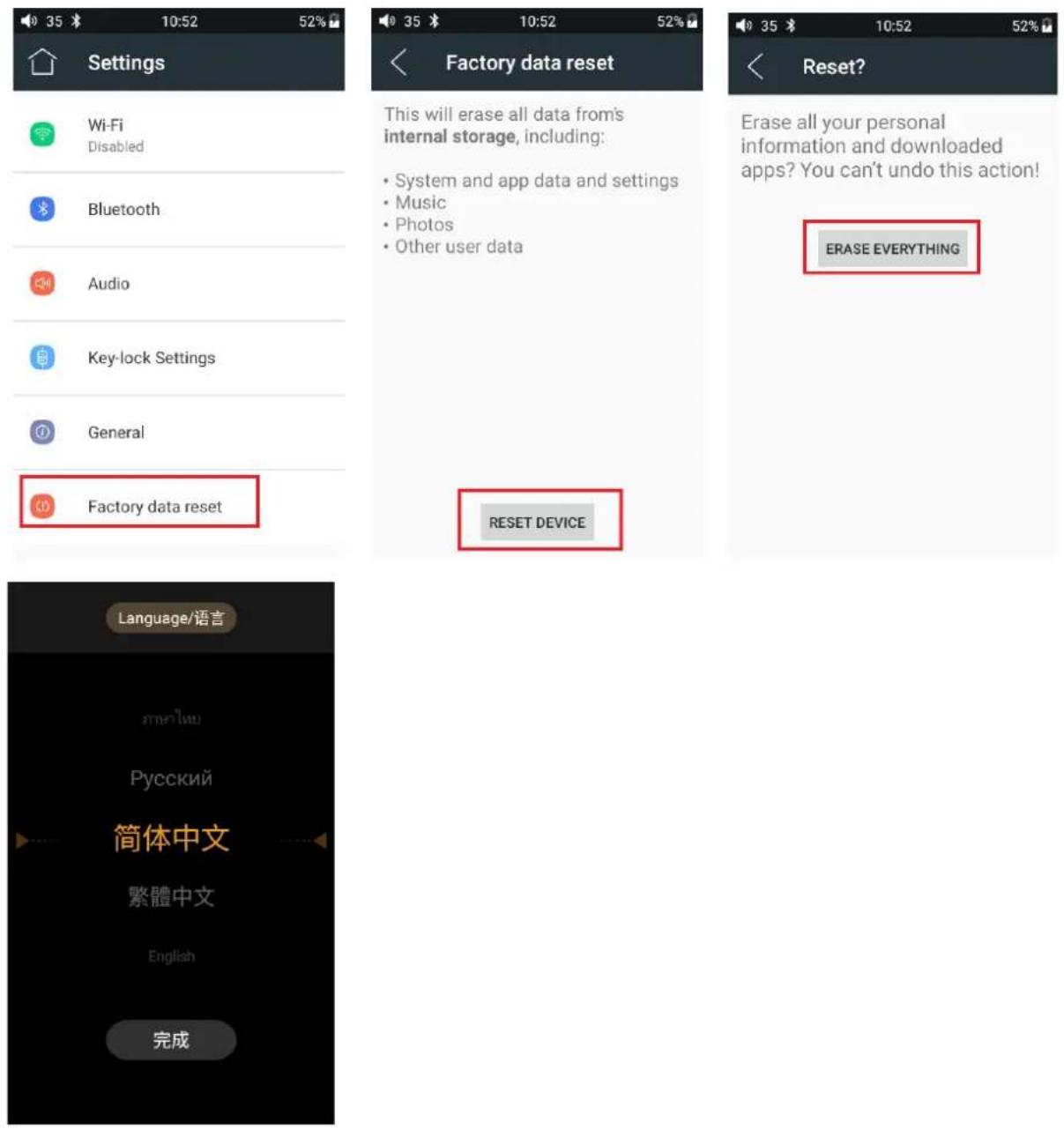
Wi-Fi Disabled
Bluetooth
Audio
Key-lock Settings
General
Factory data reset
This will erase all data from's internal storage, including:
• System and app data and settings
- Music
- Photos
- Other user data
Erase all your personal information and downloaded apps? You can't undo this action!
- Firmware Update
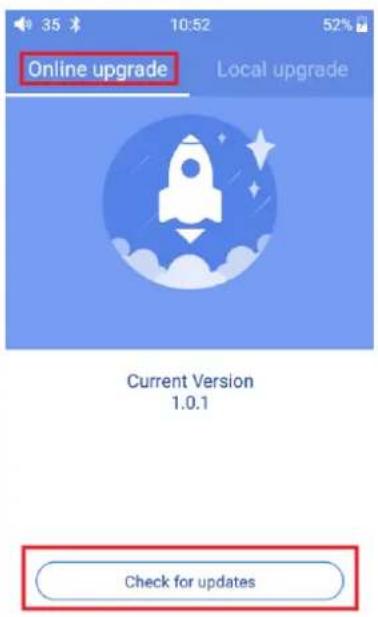
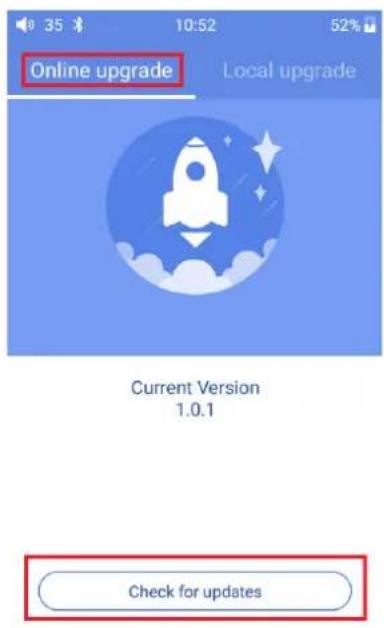
You can select OTA updates or choose Local updates.
OTA updates requires a stable WiFi network, and once you press the “check for updates” button, M6 will automatically look for updates online. If a new version firmware is available, it will notify
you the new version, and then the update can be performed accordingly.
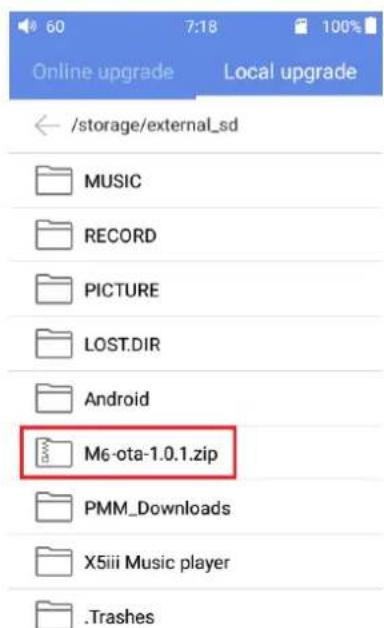
For local package update, the following steps need to be followed:
- Download the firmware from FiiO official website, such as "M6-ota-1.0.1.zip", and copy this firmware file to the root directory of your micro SD. Note that the file should not be unzipped, and you are recommended not to modify the file name.
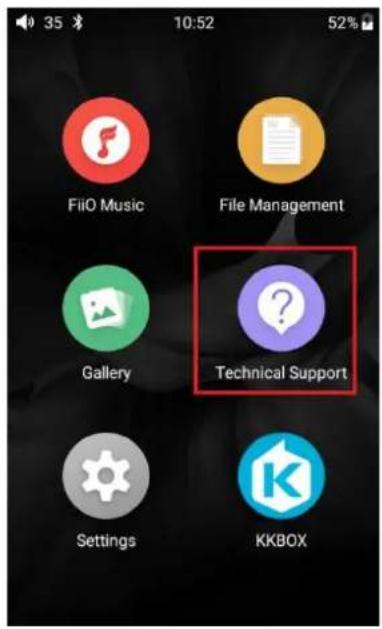
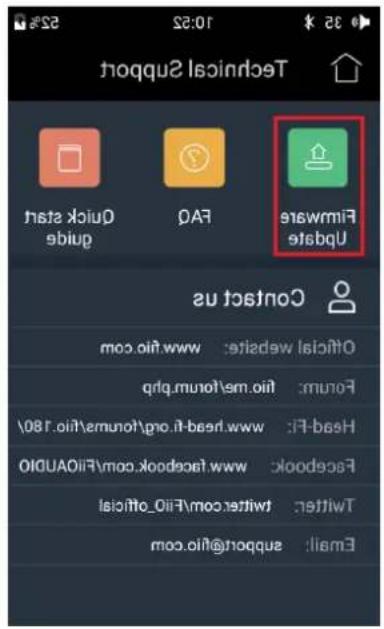
- Press "Technical Support >Firmware Update>Local upgrade" accordingly, locate the firmware file in the "Local upgrade" interface, and then choose the firmware file.
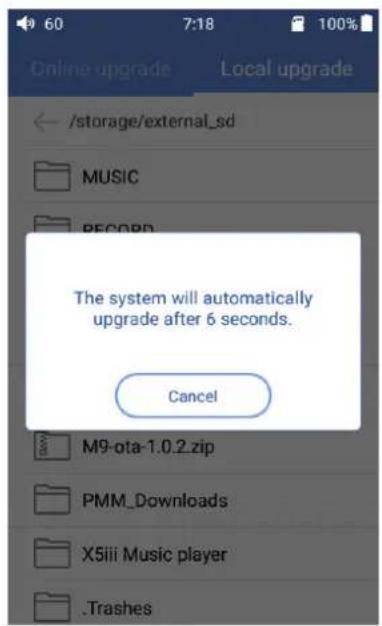
- Press "confirm" button on the prompt window, and then M6 will be rebooted and the update will be completed automatically.
Attention
- Please ensure the battery power is more than 30%, or the device is connected to a power supply.
- Please ensure the firmware file is selected.
- Please do not perform any operation on M6 while updating, and if the update is not successful, you can hold POWER and PLAY buttons simultaneously for about 10 seconds to reboot the device.
- Status bar
The status bar on top of the screen can indicate the working status.

1——volume icon
3—Bluetooth status
5——current time
7—inserted with micro SD card
9—the remaining battery in percentage
2——current volume
4—Bluetooth codec format
6—POplug(included PO,LO)
8——WiFi connected
- Technical Support
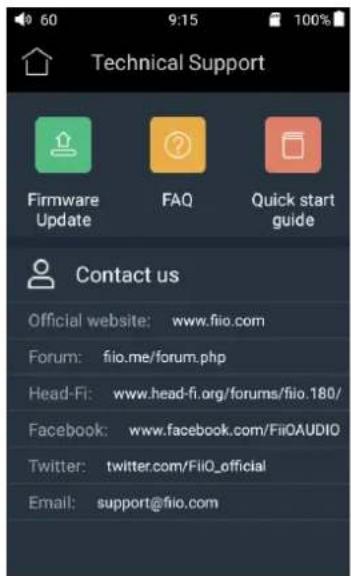
Tap the Technical support icon on the home screen to enter the technical support menu, where the following options are provided:
Firmware update: you can choose the online upgrade or select a local package to update the M6's firmware;
FAQ: List the solutions for some FAQ;
Quick start guide: tap to view the quick start guide for the M6.
•FiiO Music
The M6 comes with the FiiO Music app, a music playing application that has been highly customized to make full use of the audio hardware of the M6 and tailored to the usage needs of advanced music enthusiasts.
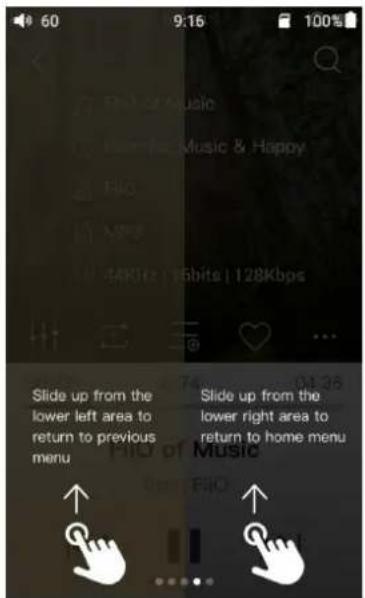
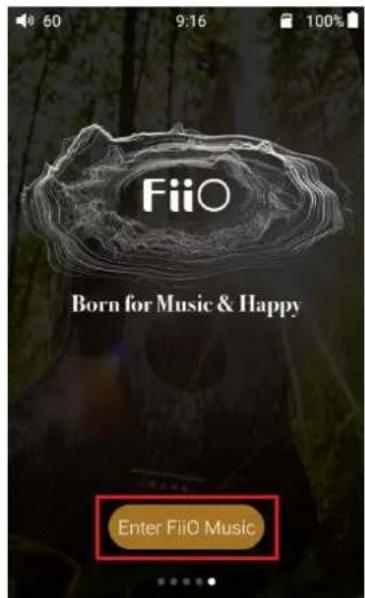
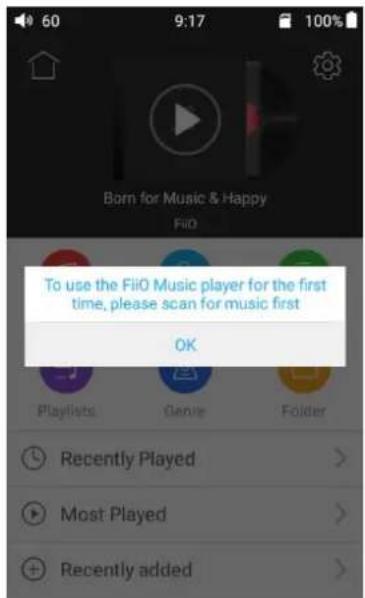
On first launch of FiiO Music, an illustration of the guide to the app will appear. Below is the introduction of FiiO Music app.
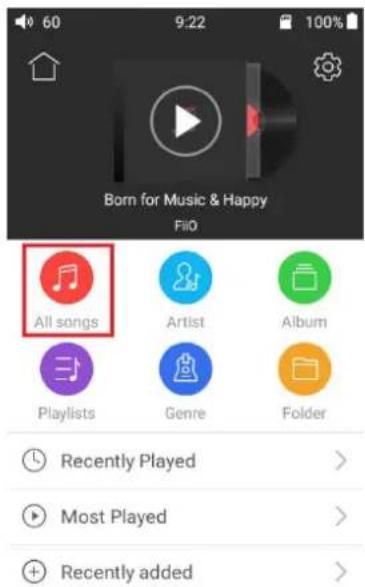
1. APP homepage
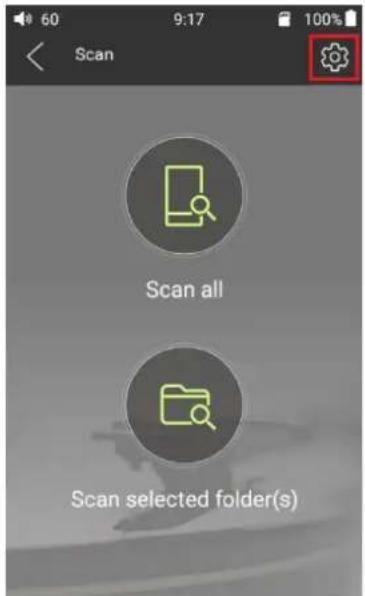
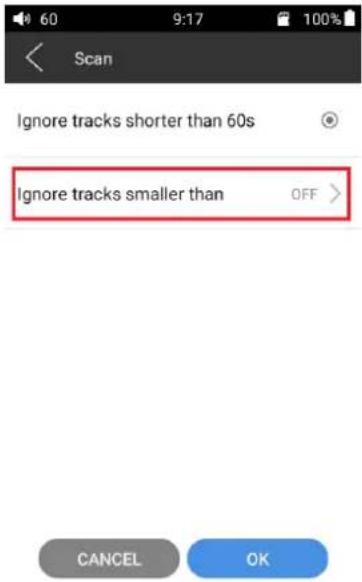
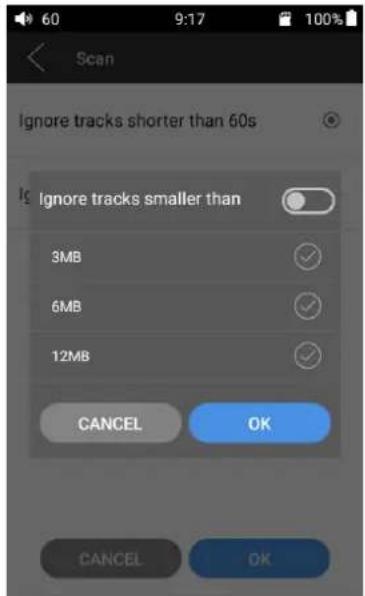
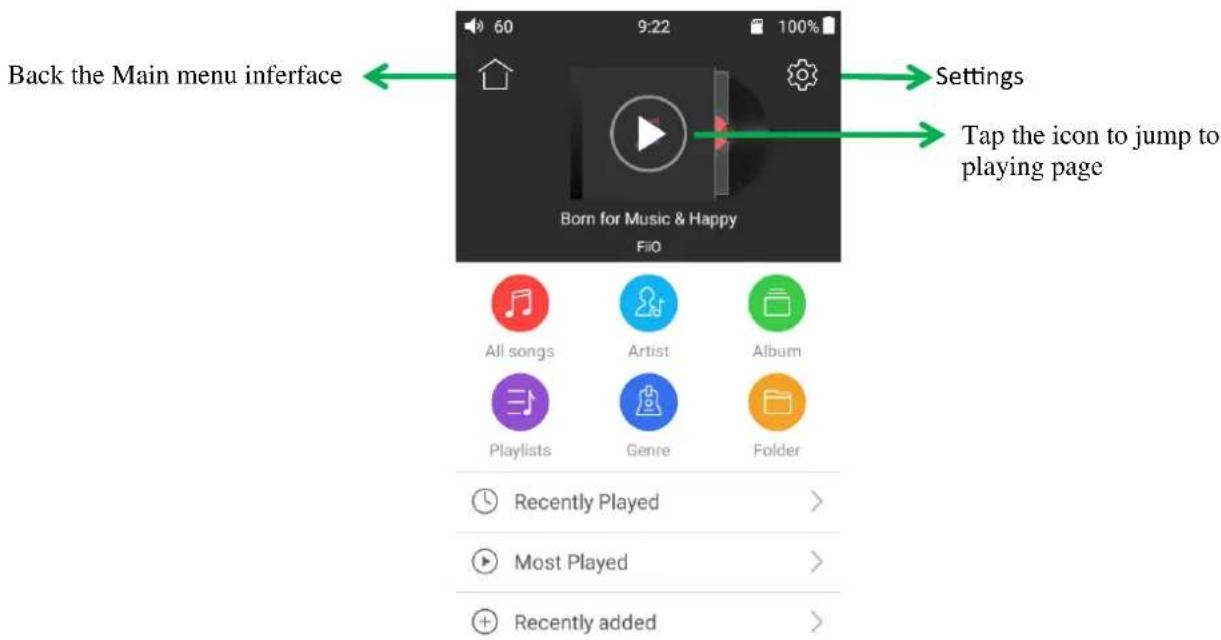
On launching the FiiO Music app, the following homepage will appear. The following functions can be performed on the homepage:
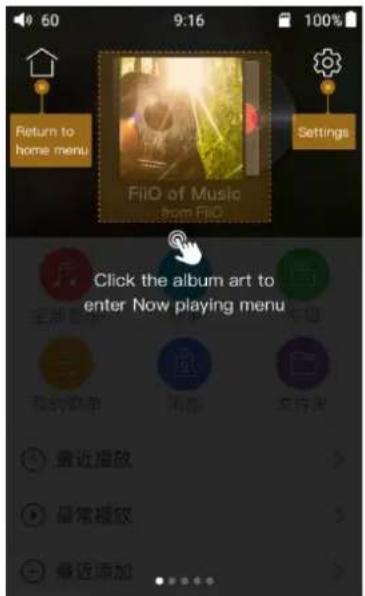
Settings: tap the icon to go to app settings options;
Return to desktop: tap the icon to return to main screen;
Playing page: tap the icon to jump to playing page;
Recently played: Lists your recently played songs according to the time it is played;
Most played: Lists your most popular songs according to playback frequency;
Recently added: Lists the tracks that are recently added to the library.
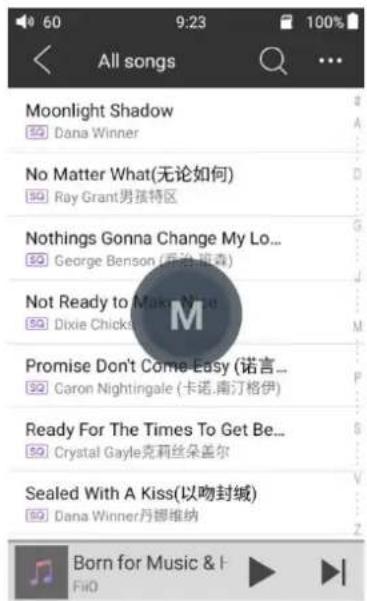
2. Quickly locate all music
When the list is ordered by alphabet (tap the blue circle to the lower right and select the “A->Z” option), you can slide your finger over the alphabet list to the right of the screen and quickly jump to the part of the list that starts with the selected letter.
3. Gestures
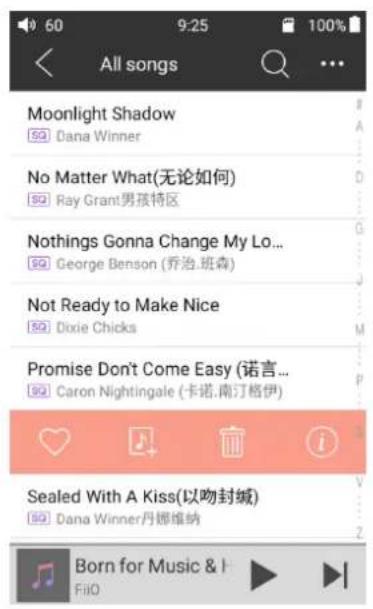
Sliding your finger from right to left over a list item to enable the shortcuts menu and tap on the icons to perform the operations.
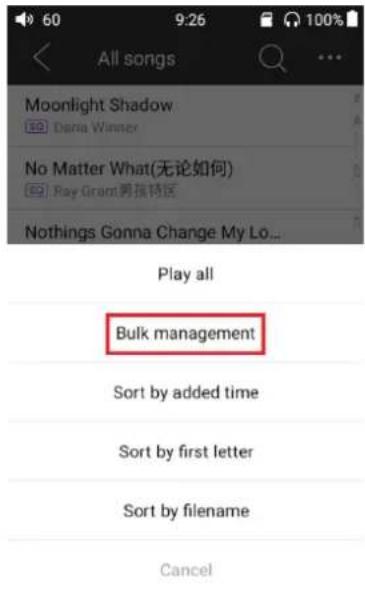
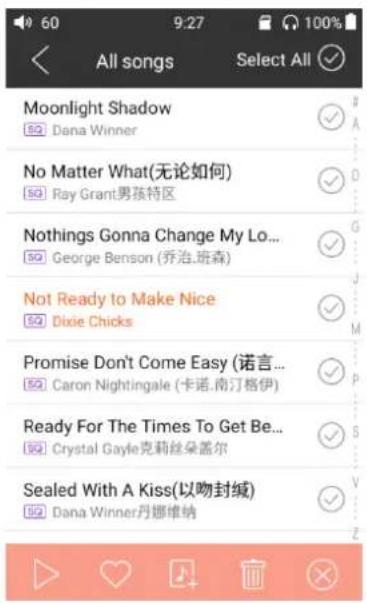
4. Function menu
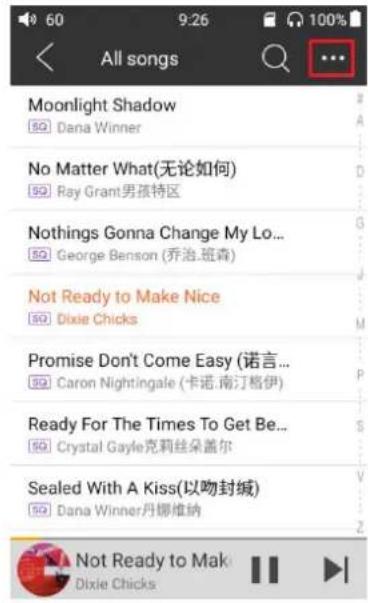
Tap the shortcuts icon of function menu, the following functions can be performed. Selected sort order: sort by added time, sort by first letter, sort by filename.
Bulk management: batched playback, batched adds to my favorite, batched add to playlist, batched delete, exit batch operation
5. Now playing
The Now Playing screen support frequently used taps and cool gesture actions, as below:


flowchart
graph LR
    A["Play mod"] --> B["EQ"]
    C["Prey/Boutrack"] <--_D["Next track"]
    E["More functions"] --> F["Add to favorites"]
    E --> G["Add to palylist"]
6. Tap buttons
The tap buttons from top to bottom on the playing screen:
1) Return: return to Original path
2) Search: Tap to show a full screen search pane for all songs on the M6. Searching for track title, album name and artist name are supported. Recent searching history is saved;
3) Equalizer: tap to the equalizer settings;
4) Play mode: Tap to choose between Play All once, Loop Single, Shuffle and Loop All;
5) Add to playlist: Tap to show playlists screen, tap to add the present song to a playlist of your choosing.
6) Add to Favorites: Tap to add the present track to the Favorites playlist;
7) More functions: Tap to view track info or delete the present track;
8) Previous track
9) Play / Pause: Tap to Play or Pause the present track
10) Next track
7. Gesture operations
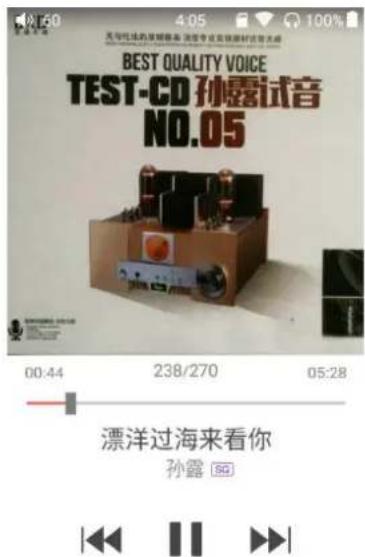
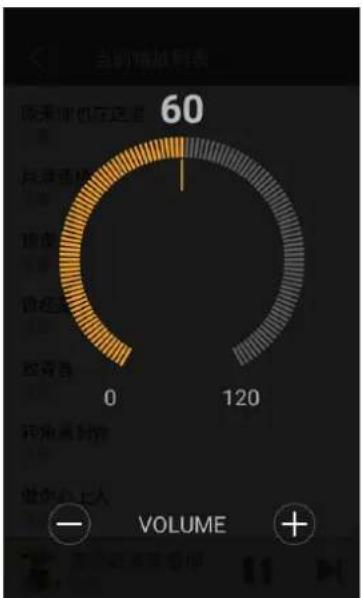
Switch displaying information: Click on the middle of the album cover to switch between displaying the album cover, lyrics, ID3 info.
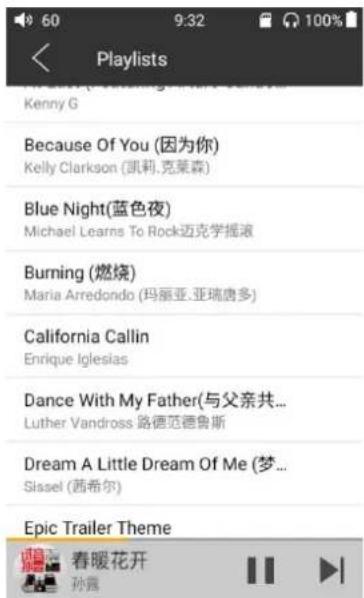
View playlist: slide in from left edge to view the current list of songs queued for play; tap any song on the list to jump to that song;
Adjust volume: Scroll the volume knob to show a full screen volume pane, no operation for 2s or click "Back" button, this pane will disappear;
Slide to fast forward/rewind: tap anywhere on the progress bar below the album cover area to fast forward or rewind playing;
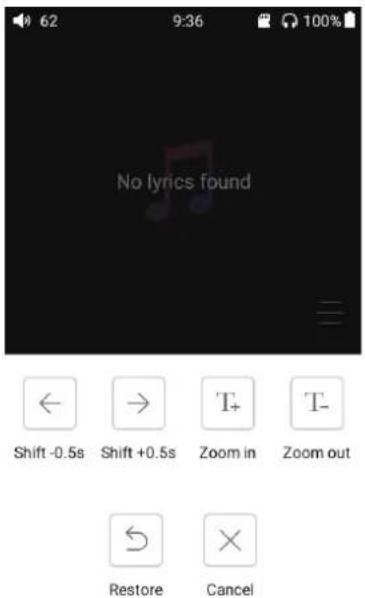
Note: While in the lyrics display page, you can adjust the playback progress by sliding over the lyrics, adjust lyrics timeline or adjust font size.
8. EQ
FiiO Music has built-in a graphic equalizer. One may choose between the given genre presets directly, or adjust the ten frequency bands from 20 to 20kHz independently from -6 to +6 dB, thus satisfying your personalized listening needs.
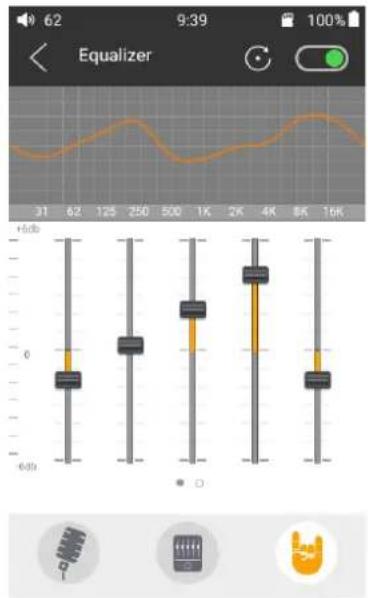
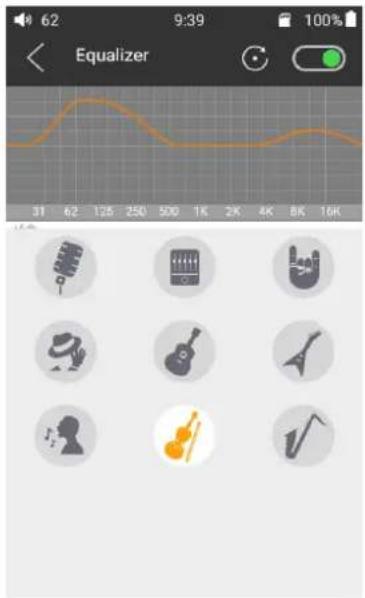
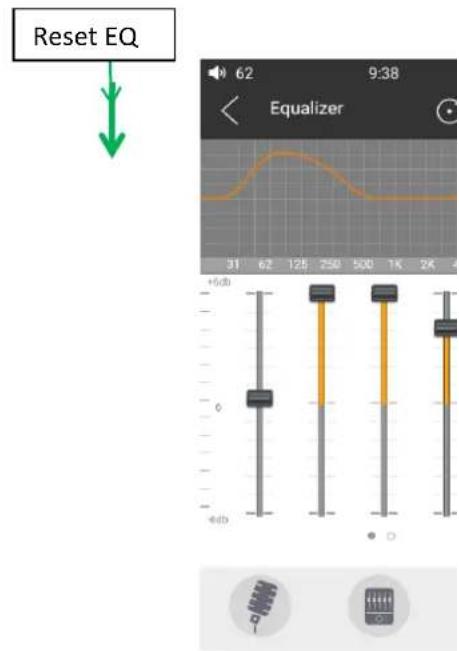
1) Choose preset EQ: Swipe up from the bottom of the screen to show the full list of EQ presets, tap icon to switch the equalizer.
2) Customize EQ: to customize an EQ setting as below:
a. Tap the button on the upper right to the right to activate the equalizer.
b. Choose the genre preset to be adjusted (e.g. "User Defined");
c. Drag a vertical slider to adjust its corresponding frequency up and down. The EQ curve above changes to reflect your adjustments.
Swipe left or right over the sliders to move between the low and high frequency sliders;
d. Press the Back button to the lower right to exit and save changes;
3) Reset EQ: Tap the reset button at the upper right corner to reset the present EQ preset to its genre default.
Note: If a factory reset is performed on the M6, all EQ settings will be reset to defaults.


- M6 Complete User Manual
- Foreword:
- Contents
- - Introduction
- Buttons and ports introduced
- Buttons and ports explained
- - Settings interface:
- WiFi
- Bluetooth function
- Bluetooth transmitter
- Note:
- Bluetooth receiver
- Audio
- Select output
- Digital filter mode
- Wireless playback quality
- Balance
- In-line remote
- USB DAC
- AirPlay
- Key-lock Settings
- General
- About device
- Power-off Timer
- Apps
- Brightness level
- Sleep
- Language setting
- Factory data reset
- - Firmware Update
- Attention
- - Status bar
- - Technical Support
- •FiiO Music
- APP homepage
- Quickly locate all music
- Gestures
- Function menu
- Now playing
- Tap buttons
- Gesture operations
- EQ
Brand : FiiO
Model : M6
Category : Media player