
M3K - Media player FiiO - Free user manual and instructions
Find the device manual for free M3K FiiO in PDF.


| Product Type | Portable High-Resolution Music Player |
| Brand | FiiO |
| Model | M3K |
| Max Sample Rate | 384 kHz / 32-bit |
| Supported Audio Formats | MP3, WAV, WMA, APE, FLAC, AAC, Ogg Vorbis, DSD, ISO |
| Max Micro SD Card Capacity | 512 GB |
| Playback Modes | Sequential, Loop, Single Loop, Shuffle |
| Equalizer | 5-band EQ with presets |
| Recording | Built-in microphone, MP3 or WAV format |
| USB Mode | Storage (Mass Storage) and DAC (USB Audio) |
| Power Supply | Built-in rechargeable Li-ion battery, DC 5V/2A via Micro USB |
| Charging Time | Approximately 2 hours (with 5V/1A charger) |
| Battery Life | Up to 20 hours (estimated typical usage) |
| Display | Monochrome LCD screen with status bar |
| Headphone Output | 3.5mm stereo jack (3-segment and 4-segment) |
| Controls | Physical buttons and touch bar |
| Firmware Upgrade | Via SD card (M3K.fw file) |
| Care & Cleaning | Keep away from moisture; clean with a soft dry cloth |
| Safety | Use recommended charger (5V/2A); force shutdown with 10s press if frozen |
Frequently Asked Questions - M3K FiiO
User questions about M3K FiiO
0 question about this device. Answer the ones you know or ask your own.
Ask a new question about this device
Download the instructions for your Media player in PDF format for free! Find your manual M3K - FiiO and take your electronic device back in hand. On this page are published all the documents necessary for the use of your device. M3K by FiiO.
USER MANUAL M3K FiiO
M3K Complete user manual
(This manual is for use only for reference, and is subject to change without notice.)
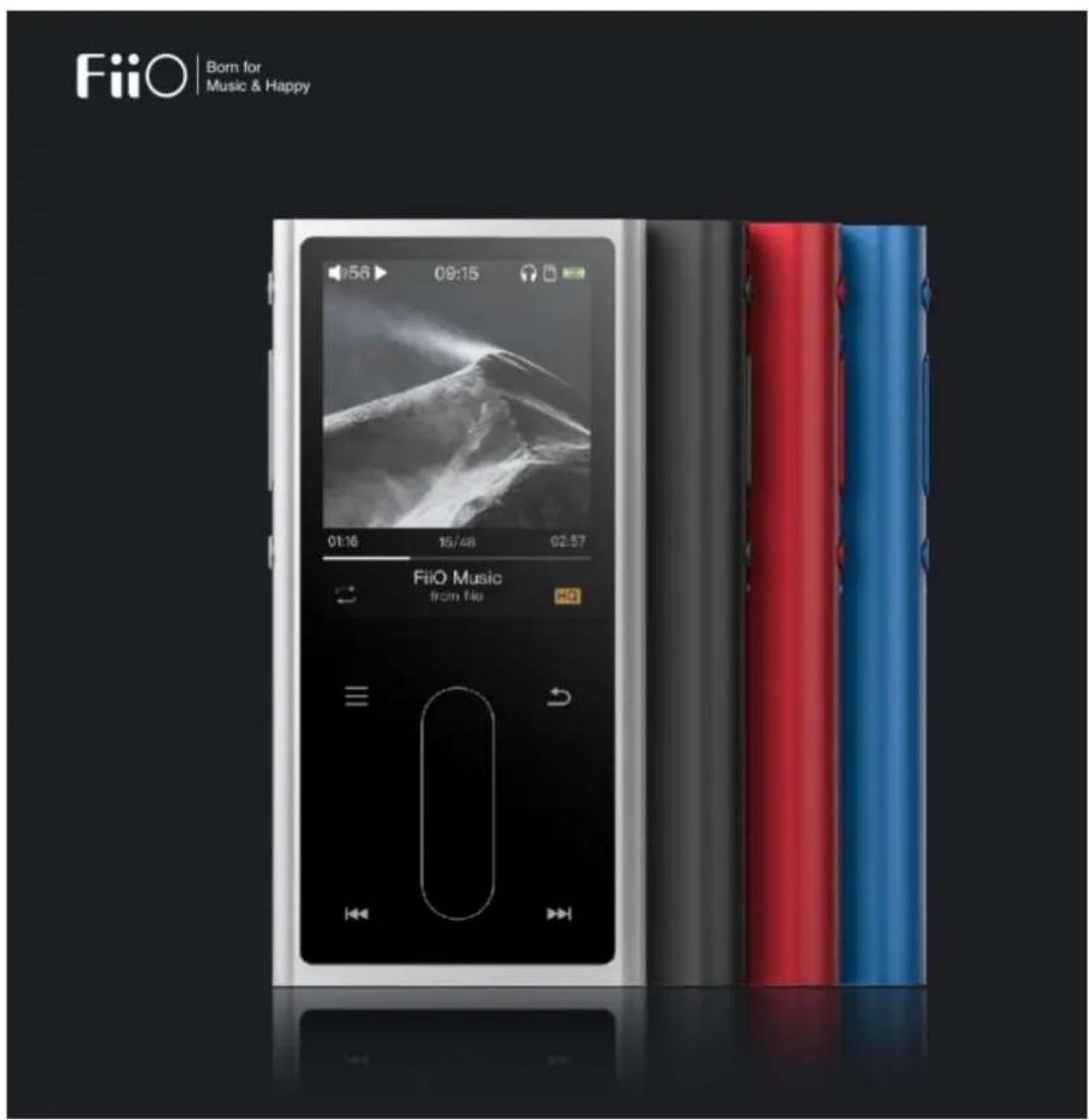
Foreword:
Thank you for purchasing the 384KHz/32Bit portable high resolution music player M3K, launched by FiiO Company (Note: This article is referred to as M3 in the following). To let you better utilize the M3 to enjoy high-quality music, we have prepared this complete user manual and collected answers of some frequently asked questions by users. We hope this manual will help you get to know the M3 and unleash its full potential.
Contents
1 Overview.... - 1 -
2 Buttons and Ports.... - 1 -
2.1 Buttons/Ports Diagram:.... - 1 -
2.2 Buttons and ports introduced....- 2 -
2.2.1 Power/lock button....- 2 -
2.2.2 Volume up....- 2 -
2.2.3 Volume down....- 2 -
2.2.4 Confirm button.... - 2 -
2.2.5 Shortcuts button....- 2 -
2.2.6 Touch bar.... - 2 -
2.2.7 Up/Prev.track/Rewind.... - 2 -
2.2.8 Back....- 3 -
2.2.9 Down/Next track/Fast forward....- 3 -
2.2.10 USB transfer/Charging....- 3 -
2.2.11 Micro SD card slot....- 3 -
2.2.12 Headphone out jack.... - 3 -
2.2.13 Microphone.... - 3 -
3 Introduction of display.... - 3 -
3.1 Power on/off and home page.... - 3 -
3.2 Main screen.... - 4 -
3.3 Lock screen clock.... - 4 -
3.4 Status Bar....- 5 -
3.5 Browse Files.... - 5 -
3.6 Recording....- 6 -
3.7 Category....- 7 -
3.7.1 All songs.... - 7 -
3.7.2 Artist....- 7 -
3.7.3 Album....- 7 -
3.7.4 Genre....- 7 -
3.7.5 Favorites....- 7 -
3.7.6 Playlists....- 7 -
3.7.7 Recently added.... - 7 -
3.8 Play settings.... - 8 -
3.8.1 Play mode.... - 8 -
3.8.2 Resume mode....- 8 -
3.8.3 Playback gap.... - 8 -
3.8.4 Max volume....- 9 -
3.8.5 Default volume.... - 9 -
3.8.6 Fixed volume setting....- 9 -
3.8.7 Balance.... - 9 -
3.8.8 Equalizer.... - 9 -
3.8.9 Play through folders....- 9 -
3.9 system settings....- 10 -
3.9.1 Update Media lib.... - 10 -
3.9.2 Brightness.... - 11 -
3.9.3 Screen timeout.... - 11 -
3.9.4 Idle standby.... - 11 -
3.9.5 Sleep.... - 11 -
3.9.6 USB mode.... - 11 -
3.9.7 Multifunction button....- 12 -
3.9.8 Button light.... - 12 -
3.9.9 Theme.... - 12 -
3.9.10 Recording quality....- 13 -
3.9.11 Lockscreen clock.... - 13 -
3.9.12 Time setting.... - 13 -
3.9.13 Date setting.... - 14 -
3.9.14 Language....- 14 -
3.9.15 Storage formatting.... - 14 -
3.9.16 Factory restore....- 14 -
3.9.17 About M3.... - 15 -
3.10 Now playing screen.... - 15 -
3.11 Shortcuts menu.... - 16 -
4 Other operations....- 17 -
4.1 Songs added to favorites....- 17 -
4.2 Songs removed from Favorites....- 18 -
4.3 Songs added to the playlist....- 18 -
4.4 songs removed from the playlist....- 19 -
4.5 Delete playlist....- 19 -
4.6 Delete files of songs.... - 20 -
4.7 External list.... - 20 -
4.8 Shortcut operation.... - 20 -
4.9 Song of preference.... - 20 -
5 Firmware upgrade....- 21 -
6 Notes and precautions....- 21 -
7 FAQs....- 22 -
7.1 How may the M3 be charged?...... - 22 -
7.2 What is the charging current of M3? 22 -
7.3 How long does it take to charge the..M3?......- 22 -
7.4 Can I listen to songs on the M3 while charging..it?----22 -
7.5 Can M3 be charged with other Micro USB cable? 22 -
7.6 Why does the M3 charge so slowly or not at all through a front USB port on a desktop..computer?
7.7 How to judge the status of M3 charging? 22 -
7.8 Which operating systems does M3 support for copying songs? 22 -
7.9 What USB ports does the M3 support? 22 -
7.10 Does the M3 support file be directly dragged and deleted by the file manager on the .compute22 -
7.11 Does the M3 online computer need to be installed with a..driver?......- 23 -
7.12 How to check whether my M3 has the latest firmware?......- 23 -
7.13 How to upgrade the M3 firmware?......- 23 -
7.14 What to do if the update fails? Would my M3 be bricked? 23 -
7.15 What cards do the M3 support?......- 23 -
7.16 Is the M3 picky about cards?...... - 23 -
7.17 What size card does the M3 support?......- 23 -
7.18 How to format SD card into FAT32 format?......- 23 -
7.19 All files on the SD card cannot be displayed on..M3....- 23 -
7.20 Files on the SD card (FAT32) only show partial files .on..M3....- 24 -
7.21 How do I reset the database files in..M3?......- 24 -
7.22 What formats of SD card does the M3 support for recording?......- 24 -
7.23 M3 supports APE, why my APE can't play.... 24 -
7.24 Does M3 support CUE sheets?......- 24 -
7.25 The SD card have CUE files. Why M3 can't support...it?......- 24 -
7.26 Why can't I see the CUE file in the browse..file?......- 24 -
7.27 How do you set it to play across different folders?......- 24 -
7.28 Why do my lyrics not show?......- 24 -
7.29 Why is the cue playing screen displaying garbled characters?......- 24 -
7.30 Why do my new songs not appear under any category? 24 -
7.31 Why does the total number of files displayed by M3 differ from the actual number of files that I copied the micro SD card? - 25 -
7.32 How to get longer battery life for the..M3?......- 25 -
1 Overview
The M3 is a portable high resolution music player , using high performance codec chip , special audio algorithm system and high performance audio phase-locked loop are adopted , supporting lossy and lossless music formats including MP3,WAV, WMA, APE, FLAC, AAC , Ogg Vorbis , DSD and ISO. A maximum sample rate of 384kHz/32 bit is supported and other features include CUE sheets. The main panel adopts touch button to operation and uniform LED to instruction.It's a portable high-performance music player. The following sections are an illustrated guide to using the M3.
2 Buttons and Ports
2.1 Buttons/Ports Diagram:

①Power/lock button
②Volume up
③Volume down
④Confirm button
⑤Shortcuts button
⑥Touch bar
⑦Up/Prev.track/Rewind
⑧Back
⑨Down/Next track/Fast forward
⑩USB transfer/Charging
⑪Micro SD card slot
⑫Headphone out jack
⑬Microphone
2.2 Buttons and ports introduced
2.2.1 Power/lock button
When M3 is powered off, hold the button for 2 seconds and release it and the M3 will press brief pause);
when M3 is on, press the button briefly to lock /unlock the player, or hold the button for a power off (hold for 10 seconds for a forced shutdown).
2.2.2 Volume up
when the display is on, Press briefly to change Volume up button by one increment, hold down volume continuously until maximum.
If the player is in the playing state when the display is off, press and hold the Volume up next track.
2.2.3 Volume down
when the display is on, Press briefly to change volume down by one decrease, hold down t continuously until to the mute.
If the player is in the playing state when the display is off, press and hold the volume do the previous track.
2.2.4 Confirm button
If the player is in the playing state when the display is off or lock screen: press briefly to play/pause, in other menus, Shortly press to determine the operation or switch the set value function.
2.2.5 Shortcuts button
Shortly press to pop up the shortcut menu of the current screen. Different shortcut button are different screens. For example, if you press the shortcuts button to pop up the shortcut menu or screen, you can switch between playback mode, EQ shortcut, add songs to Favorites, etc. operating
2.2.6 Touch bar
Slide the touch bar up or down to scroll the cursor, switch the display page, etc. Shortly p area as the confirm function - this touch bar is only effective under the bright screen.
2.2.7 Up/Prev.track/Rewind
In the now playing screen, Shortly press to play the previous track, long press to rewind the In the non-now playing screen, it is used to scroll up to select a menu item.
2.2.8 Back
In any screen, Shortly press once, press the entry path to return step by step; long press menu screen.
While player is playing, Shortly press on the main menu screen to enter the music now play
2.2.9 Down/Next track/Fast forward
In the now playing screen, Shortly press to switch the next song, long press to fast forward in the non-now playing screen, used to scroll down to select the menu item.
2.2.10 USB transfer/Charging
For data exchange, battery charged, etc.
2.2.11 Micro SD card slot
Supporting standard Micro SD card, up to 512G capacity maximum.
2.2.12 Headphone out jack
3.5mm headphone output screen, supporting a 3-segment and 4-segment headphones (not suppo the headset wire control).
2.2.13 Microphone
Microphone hole (Do not cover it when recording, so as not to affect the recording effect)
3 Introduction of display
3.1 Power on/off and home page
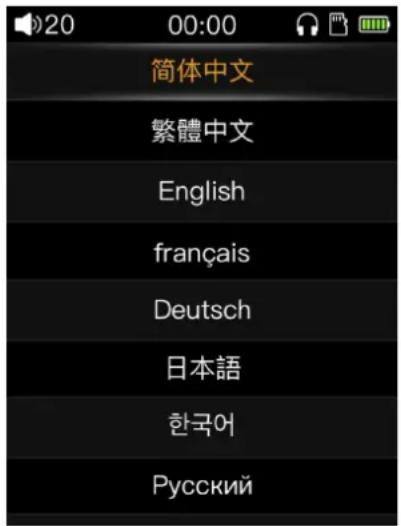
Press and hold the power button when M3 is off, it will start up in about 2s; when you time, the language selection screen will appear. You can slide the cursor through the touch bar the corresponding display language and press the confirm button to confirm and save you choice switch other languages in the system settings - Switch other languages). As shown in the figure
Press and hold the power button during the power-on state, and the player will turn off after
animation appears.
(Note: If you are unable to shut down normally when there is a crash, you can press and button for 10 seconds to force shutdown)
3.2 Main screen
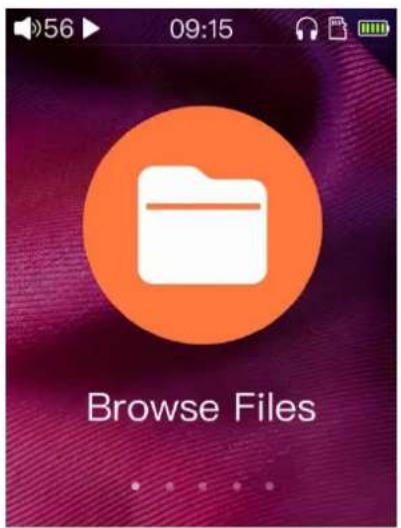
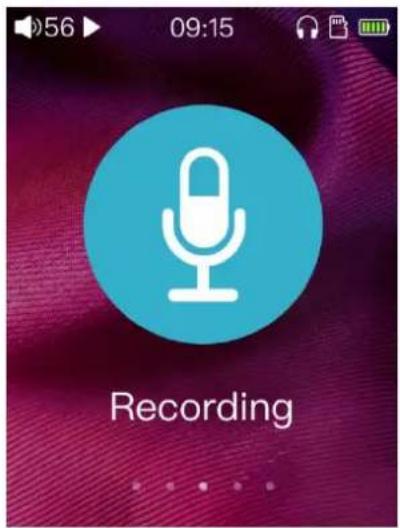
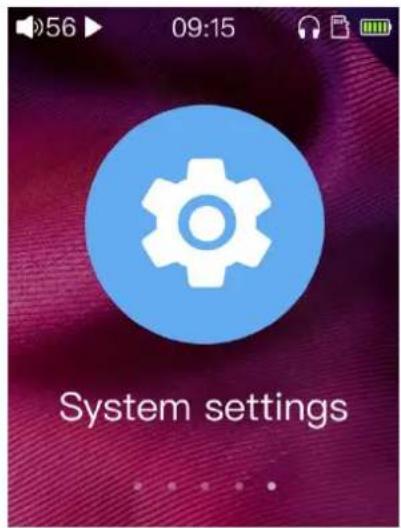
In the main screen, you can scroll the cursor by sliding the touch bar, select the correspondence required, and then press the touch bar or the side confirm button to enter the project.
3.3 Lock screen clock

In the system setting, when the "lock screen clock" item is turned on, when the player reaches to automatically lock the screen (screen off) or the user presses the power button to manually press the power button to activate the screen, the figure above will appear.
In this screen, you can slide the touch bar up or down to unlock, enter the display screen screen, or you can press the power button again to unlock the screen.
The user can set the "Lock Screen Clock" item of the system setting to off, so that the lo
screen will not appear when M3 wakes up.
In the lock screen clock screen, if M3 is playing, then press and hold the volume up butto next song (Shortly press is still the volume up); long press the volume down button to switch t (Shortly press is still the volume minus); Shortly press the confirm button on the side of the play/pause.As the same when screen is off.
3.4 Status Bar

The status bar is as figure shown above:
① volume icon and current volume value
② play status
③ clock
④ sleep opened icon
⑤ headphone insert icon
⑥ SD card status
⑦ battery icon
(Note: Some icons need to be displayed in the corresponding state, and the icons displayed states may not be the same)
3.5 Browse Files
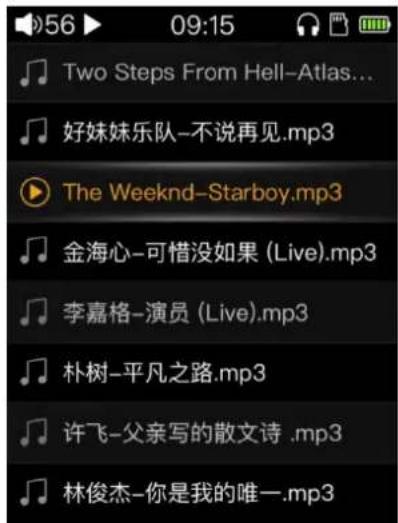
From the “Browse Files” in the main screen, you need to insert the SD card, you can dire the files in the SD card. Move the cursor over the song you want and press the confirm button to play it. The icon of the currently playing icon will be displayed in front of the currently playing song's name, By default, songs will be played in the order of the folders.
3.6 Recording
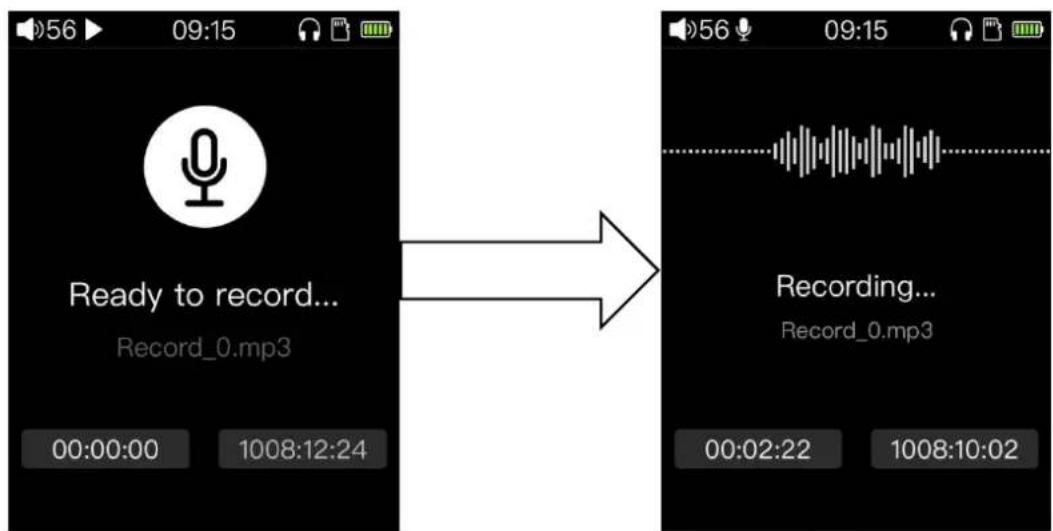
After clicking into the recording screen, the above picture will appear. At this moment, the re-start. Press the confirm button shortly to start recording. As shown in the right figure above, the displays the recording icon.
The recording screen has two clocks. The left clock is displayed as the recording duration that has been recorded. The right one shows the rest time of recording, based on the available card.
After the recording starts, you can pause the recording or continue recording by Shortly pressi button (the screen on M3 will prompts).
If you don't need to record, press the back button shortly to pop up the recording stop price and press OK to stop recording. Press the Back button again after recording stops, the recording save selection will pop up, and you can save the recording file as needed. The recording file will be saved in Record in the root directory of the SD card.
(Note: 1 Please insert the SD card before recording, and make sure that the SD card has end capacity to save the recording file. If the SD card is not inserted, the recording cannot be standard
2 During the recording process, songs cannot be played at the same time, and the recording be exited before stopping record. When you need to play the song, please stop the recording fi song first and then enter the recording, the playing will stop automatically after the recording is
3.7 Category
(Note: Before using the function of category, please update media library in "System Settings Media Lib". After that, the system will classify the songs according to the ID3 information of the
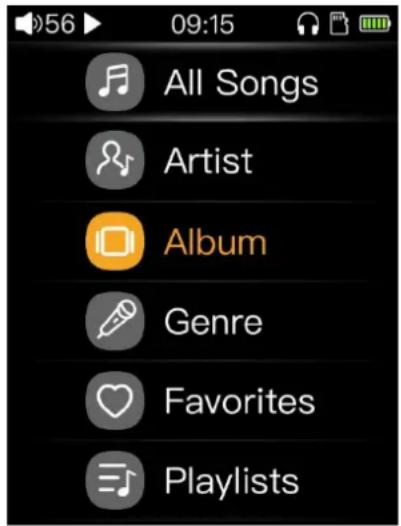
3.7.1 All songs
All songs: All songs are summarized in this list, here you can see all the songs that can be
3.7.2 Artist
The songs will be categorized according to the artists marked in ID3, and the artists will be follows according to the album; songs without an artist will be classified as "Unknown artists".
3.7.3 Album
The songs will be sorted according to the album marked in ID3, and songs without album in classified into "Unknown albums".
3.7.4 Genre
The songs will be sorted according to the genre marked in ID3, and songs without the genre be classified into "Unknown genre".
3.7.5 Favorites
Users can choose and add their favorite songs to this list. For the method of adding songs, subsequent introduction of this document.
3.7.6 Playlists
Users can create multiple lists and add songs to the list. Please refer to the subsequent introduction of this document for how to add a list of songs.
3.7.7 Recently added
After updating the music library, the list will be the last 50 songs added according to the SD card copy file, which can quickly identify the recently added songs.
3.8 Play settings
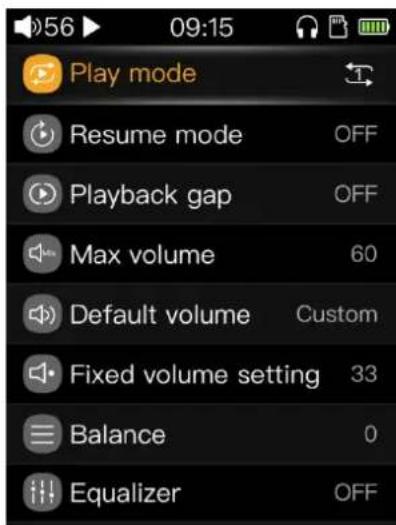
3.8.1 Play mode
The default playback mode is Sequential play. After the current list is played, the song will "Play through folders" is ON, it will jump to the next list to continue playing until the last list. Shortly press the confirm button to switch to:
Loop play: The song will play in the list all the time;
Single loop: The song will play the current song all the time (you can also switch other so
Single play: M3 will stop playing after the current song is played;
Shuffle play: The song will play randomly in the current list.
3.8.2 Resume mode
The default is off. At this moment, after the shutdown and restart in the playback state, the main screen and will not automatically play the song before last shutdown. Shortly press the confirm button to switch to:
Song: Press the power button to turn off the M3 during playback. After turning it on again, start playing the song played when the previous shutdown, and the song will start playing from
Position: Press the power button to turn off the M3 during playback. When it is turned on automatically start playing the song played when the previous shutdown, and the song will continue the progress of the playback.
3.8.3 Playback gap
The default is off. At this moment, the song will be switched according to the system default song will not be processed specially. Shortly press the confirm button to switch to:
Gapless: In the same format, the same sample rate and the same bits depth, when the syste switches songs, the song can be specially seamlessly connected, so that the sound is consistent interruption of song switching (some exceptive formats such as MP3 can't).
3.8.4 Max volume
Press the confirm button to pop up the adjustment screen. In this screen, slide the touch ba previous/next button to adjust the volume value. The value can be adjusted to any value between
This function is to limit the maximum output volume. When this parameter is changed, the vc played by this unit cannot be adjusted more then the setting value.
3.8.5 Default volume
The default is memory. At this setting, the volume before the shutdown will be memorized ex is turned off. Shortly press the confirm button to switch to:
Custom: Each time you turn it on, the volume will be the value of the "Fixed volume settir
3.8.6 Fixed volume setting
Press the confirm button to pop up the adjustment screen. At this screen, slide the touch by previous/next button to adjust the volume value. The value can be adjusted to any value between (requires the "Default volume" option is setting to "custom").
3.8.7 Balance
Shortly press the confirm button to enter the adjustment screen, slide the touch bar or press previous/next button to adjust, the maximum support left channel ten steps(about 5dB), right chan (about 5dB) of the adjustment.
3.8.8 Equalizer
bar
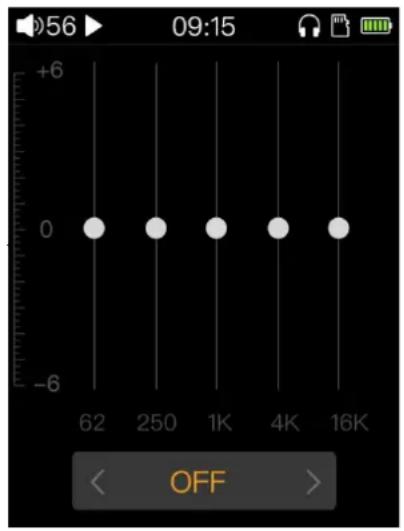
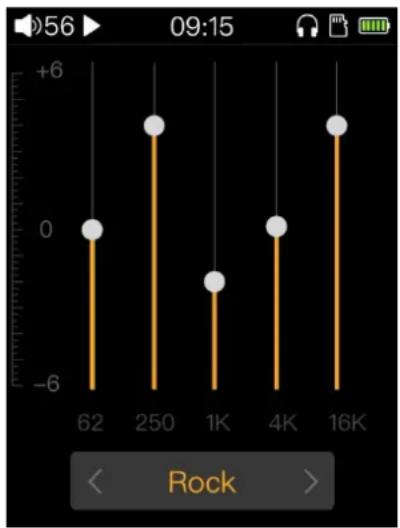
| Scale | Value | |---|---| | 62 | 0 | | 250 | +4 | | 1K | -3 | | 4K | 0 | | 16K | +4 |The default is off. At this moment, the song output is the native, and the system will not be the sound. Shortly press the confirm button to enter the equalizer screen. As shown in the figure switch different preset equalizers for listening different effects by sliding the touch bar or pressing previous/next button.
3.8.9 Play through folders
The default is on, after entering the playing from the browse file or the classified playlist, in
play mode, or loop play mode or shuffle play mode, when finish the current list songs, system will jump to the next folder or list's songs to continue playing. Shortly press the confirm button to s feature doesn't work, songs playing only in the current folder or list).
3.9 system settings
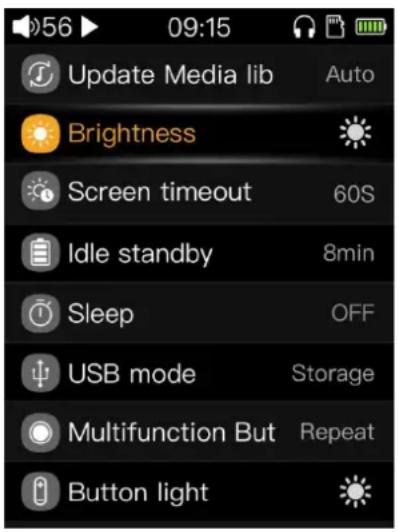
3.9.1 Update Media lib
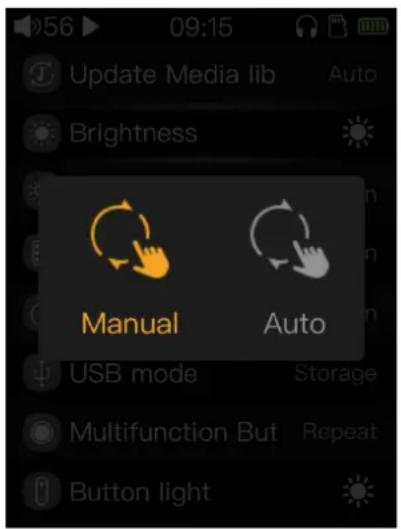
The media library can be updated by manual mode or automatic mode. Manual means that I not automatically update the media library under any circumstances. Users need to manually click update the media library. Automatic means that as long as the USB cable is pull out after con computer to copy data. The media library is automatically updated after disconnecting the computer after inserting the SD card.
Shortly press the confirm button to enter the “manual/automatic” selection screen. Select “Auto/M sliding the touch bar or pressing the previous/next button; press the confirm button to start updat library. Do not perform other operations such as lock screen or power off during the process of updating the media library, otherwise the update may fail. (Press the Back button during the update process to update if deeded.) After updating is finished, the Update Complete screen will pop up.
3.9.2 Brightness
Press the confirm button to enter the brightness adjustment screen, then adjust the brightness sliding the touch bar or pressing the previous/next button. The brightness level can be selected between 1 and 10.
3.9.3 Screen timeout
Whether M3 is playing or not, the M3's screen will automatically turn off when the accumulat is reached without any operation of M3.
Press the confirm button to enter the screen timeout adjustment screen, and change the value touch bar or pressing the previous/next button. The screen time can be set to 30s, 40s, 50s, 6 ON ("ON" means always stays on and does not automatically turn off the screen).
3.9.4 Idle standby
In the non-playing state (or playback pause, playback stop, etc.), the player automatically enters standby state at the moment no operation is performed on the player reaches the idle standby setting value. The low consumption electrode can effectively save power and improve the working life of the whole more, moreover, in this state, Shortly press the power button (or insert USB cable for charge) to activate wake up immediately, and it will memorize and display the previous use status, eliminating Wait 1 boot.
Shortly press the confirm button to enter the idle standby setting screen, and then adjust the different time values by sliding the touch bar or pressing the previous/next button. When set to OFF, the func (Note: 1 In the state of recording or computer connection, the idle standby is invalid; 2 In the case of USB charging, after the idle standby' gets effect,M3 will power off)
3.9.5 Sleep
Whether M3 is playing or not, even the player has been operated all the time, when the first the player will enter the deep standby state when the sleep standby set value time reaches.
Press the confirm button to enter the sleep standby setting screen, then adjust the different t by sliding the touch bar or pressing the previous/next button. When set to OFF, this function is disabled.
(Note: 1 Sleep is invalid during recording and computer connection;
2 In the case of connecting USB charging, when sleep time reaches ,M3 will power off,charging appear;
3 After the sleep is turned on, the status bar has a corresponding icon indication;
4 Sleep is the same as Idle standby. But the condition they take effect are different. The sleep when the player restarts or the player enters standby (including Idle standby or sleep). The sle switched to the off state.)
3.9.6 USB mode
Select the USB mode and press the confirm button to switch between the storage and DAC the storage mode is selected, data can be transmitted from a computer by the USB cable. Whe selected, the M3 can be connected to the computer through the USB cable to perform audio de
external sound card.
(Note: windows7/8/10 of 32bit or 64bit systems need to go to the official website to download a the driver package has detailed installation instructions. System of OSX does not need to install a set M3 to DAC mode and connect to the computer with a USB cable; system of windows xp only storage is supported, USB DAC is not supported)
3.9.7 Multifunction button
The multifunction button refers to the confirm button (the button on the side of the fuselage that is at the bottom one). By selecting different settings through this item, different functions can be realized. When the Playback Control is selected, in the now playing screen, shortly press it can be realized as the play/pause operation, while the non-play screen is Shortly pressed, the confirm button can be used; when the item is selected as the Repeat, in the now playing screen v the screen is on, this button is the repeat control. Under the other screens, this button is still used as the confirm button.
The repeat function is used as follows:
natural_image
Snow-covered mountain peak at dusk with digital interface overlay (no readable text or symbols on the mountain itself)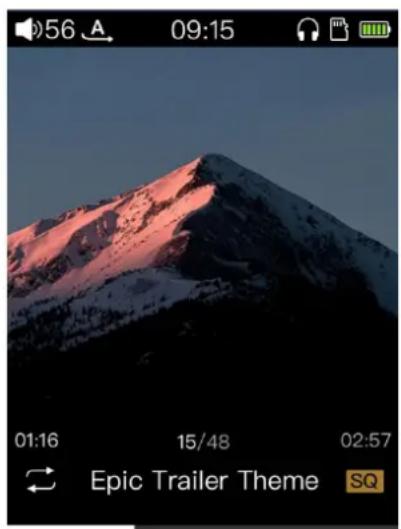
natural_image
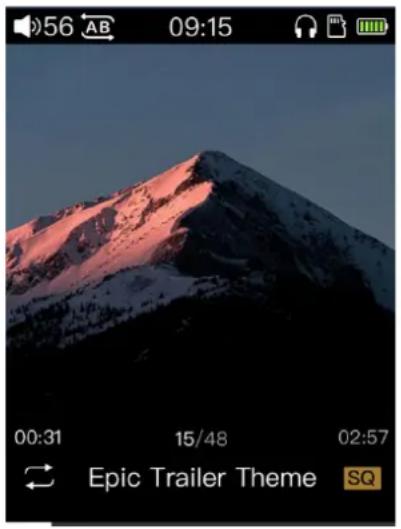
Snow-capped mountain peak at dusk with camera interface overlay (no text on mountain)First, you need to set the “Multifunction button” to “Repeat”. When you play music in the screen for the first time press the side confirm button (hereinafter referred to as “Repeat button”) for the first time, the machine will press the Repeat button from 00:00 to the current time. In one position (such as 01:00), the loop repeats playback. At this moment,
the status bar displays the AB mark icon, as shown in the left figure. When the repeat button is pressed again in the state, the song will be pressed from the last time the repeat button is pressed (means 01:00)M3 resume normal playba During normal playback (assuming 02:00), when the repeat button is pressed again, the song wil loop repeat playback in the last two pressed position intervals (from 01:00 to 02:00).
(Note: After switching songs, the original repeat mark information will not be memorized)
3.9.8 Button light
Press the confirm button to enter the adjustment screen. Slide the touch bar to adjust the brightness of the butto indicator. When the brightness level is adjusted to the lowest level, the button light will be off.
3.9.9 Theme
Shortly press the confirm button to enter the adjustment screen, slide the touch bar to select the corresponding theme, and then press the confirm button again to confirm the select.
3.9.10 Recording quality
This item is used to select the format of recording saving file. When "Low" is selected, the recording file will be saved in the SD card by MP3 format. When "High" is selected, the recording will be saved by WAVE format.
3.9.11 Lockscreen clock
When the Lockscreen clock is turned on, when M3 reaches the time setting value of Screen manually press the power button to lock the screen (off the screen), and then press the power up, it will enter the Lockscreen clock screen first. In this screen, shortly press the side power but touch bar to unlock.
Shortly press the confirm button to set this item to off. When the player lock screen (off so will directly enter the system screen, and the lockscreen clock screen will no longer be displayed
3.9.12 Time setting
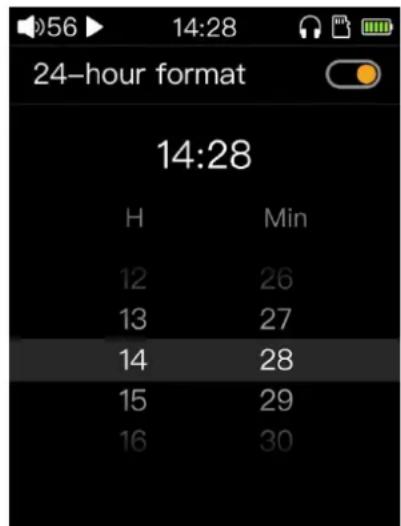
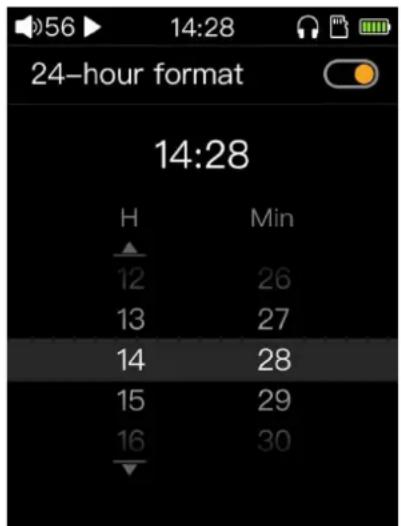
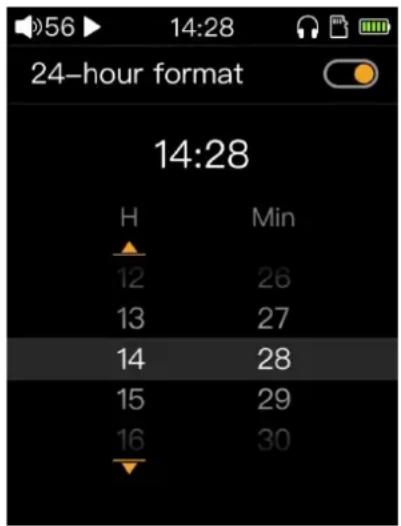
Time setting entry.
Press the confirm button to enter the time setting screen, as shown figure above. After enter the cursor is displayed on the “24-hour format” (above Figure 1). At this moment, press the con switch the 24-hour format to open or close.
Then slide the touch bar or press the “next button” to move the cursor to the “H” column 2 above). Shortly press the confirm button to enter the adjustment mode (the cursor turns yellow), the touch bar or press the previous or next button to adjust the corresponding time (above Figure 3). After the adjustment is completed, press the Back button to exit the adjustment mode. Then slide the touch bar or press a button to move the cursor to the “Min” column to adjust the “minute” time.
Exiting this screen after all adjustments are completed will automatically save the settings.
3.9.13 Date setting
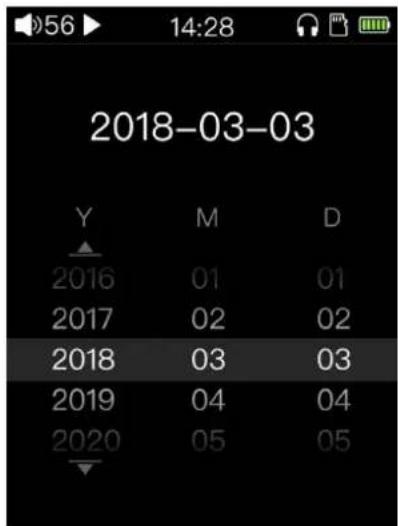
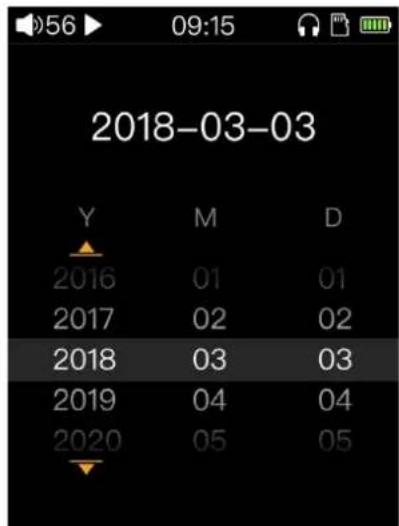
After entering this screen, the cursor will appear on the "Y" setting, as shown in Figure 1, the column to be adjusted, press the confirm button to enter the adjustment mode (the cursor to shown in Figure 2 above), and then touch by sliding Or press the previous/next button to adjust date. After the setting is completed, press the back button to save the setting. (The same is true for the month and day settings)
3.9.14 Language
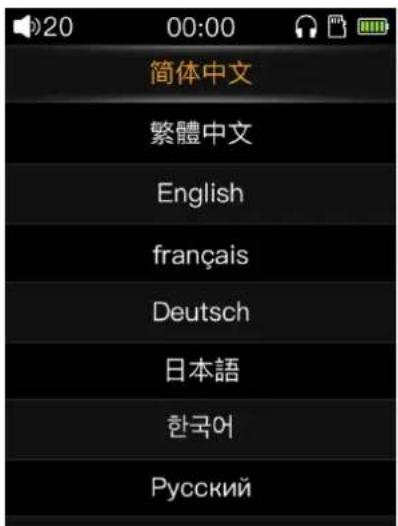
M3 supports multiple languages like Simplified Chinese, Traditional Chinese, English, French, German, Japanese, Korean, Russian, Spanish, Thai, and Italian, about 11 languages in all.
3.9.15 Storage formatting
When it is recognized that there is a SD card insertion state, select Storage formatting and confirm, the external SD card will be formatted into FAT32 format, formatting will make all files in the SD c choose to do backup work before formatting it.
3.9.16 Factory restore
When the system is abnormal or you need to restore the player to the factory default settin this item to restore the settings. After restoring the factory settings, the artist, album, style, and recently added songs of the classified category will be cleared, please re-update the media library.
3.9.17 About M3
Press the confirm button to enter this screen. The first page of this screen is displayed as (M3K), the firmware version, the total capacity of the SD card, the available capacity of the SD of (updated) tracks, the SN code, and the NB code.
Users can slide the touch bar or press the previous/next button to view the electronic quick
3.10 Now playing screen
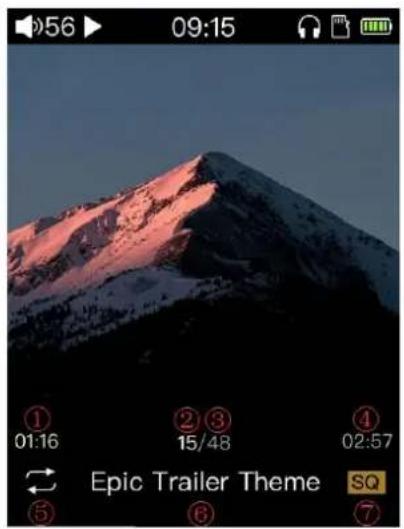
The now playing screen is as shown Upper left:
① current song playback progress display
② current song's number songs in the list
③ total songs of current songs
④ current song's length
⑤ play mode icon
⑥ current playing song's title
⑦ song's quality grade icon
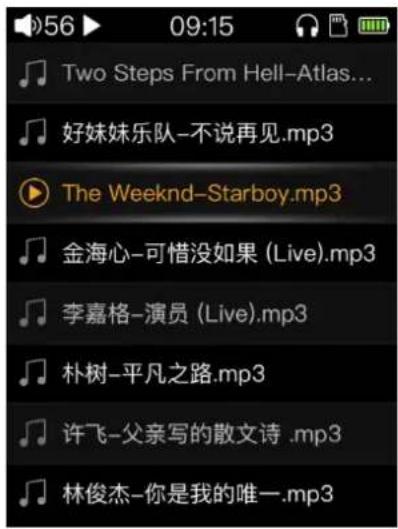
Slide the touch bar on the now playing screen, the current song list will pop up, and you any song in the list to play, as shown in the figure above.
3.11 Shortcuts menu
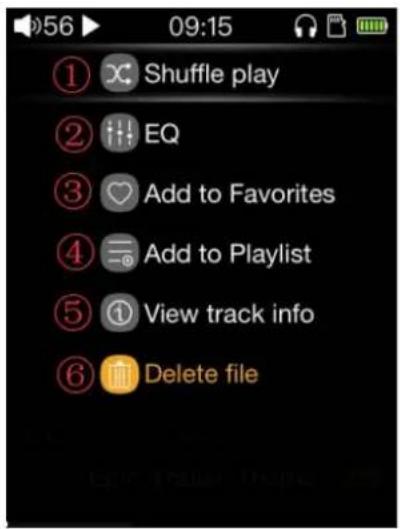
In the now playing screen, Shortly press the shortcuts button to enter the shortcuts menu screen above. Users can switch and operate some common functions through the shortcut menu Quickly.
①Play mode switch, you can switch different play modes by pressing the confirm button.
② Equalizer switch, Shortly press the confirm button to enter the equalizer selection screen, select the corresponding equalizer as needed.
③ Add songs to favorites, Shortly press the confirm button to add songs to Favorites list, or remove songs from the list of favorites.
④Add songs to the playlist
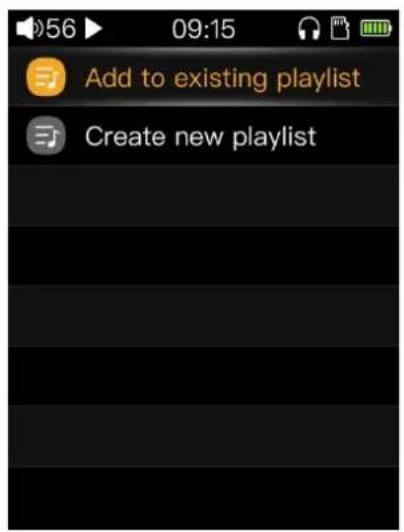
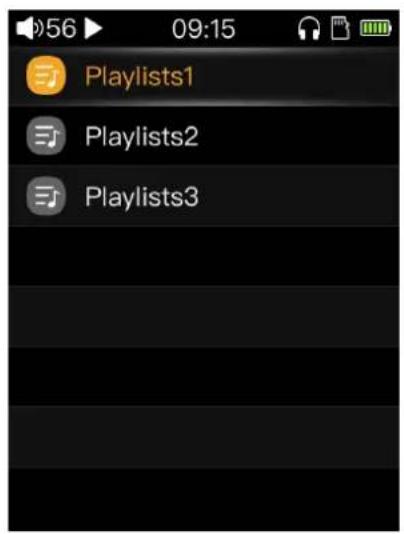
Shortly press the confirm button to enter the upper left screen (only the "New Playlist" item when entering for the first time). In this screen, you can choose to create a new playlist, or a existing playlist, as shown in the right figure above. Select the list you want to add and press complete the operation.
⑤ Shortly press the confirm button to view the song's information, as shown the left one bel
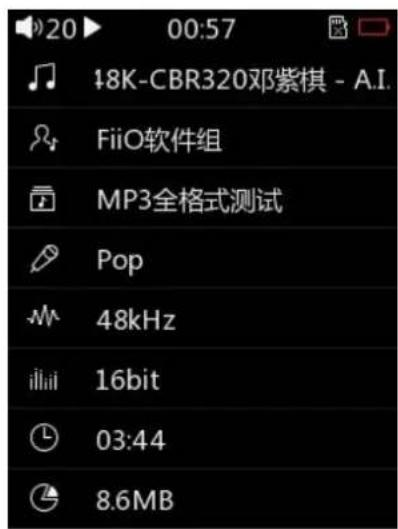
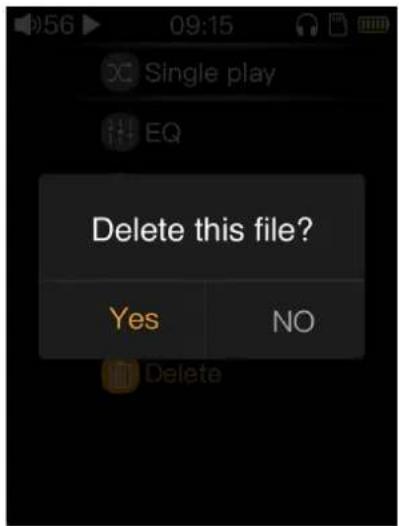
⑥ Shortly press the confirm button and the delete dialog box pops up. You can select the corresponding option to decide whether to delete the song as needed.
(Note: a. The delete operation here is to delete the song's file, the song file will be lost after recoverable!
b. CUE and ISO songs cannot be deleted)
4 Other operations
4.1 Songs added to favorites
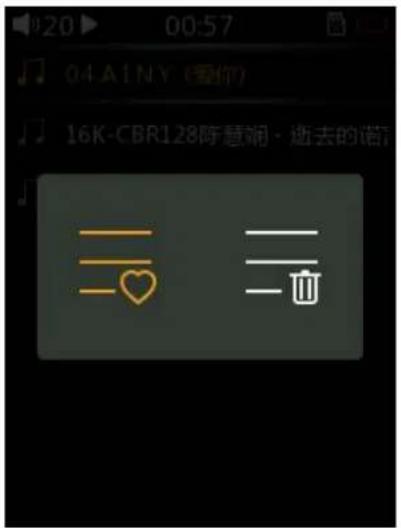
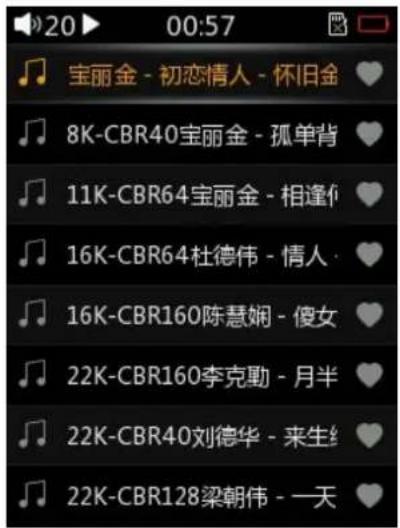
From main screen -Category - Favorite ,enter Favorites song's list screen, Shortly press the sl to pop-up menu in this screen, as shown in Figure 1 (the left icon in the menu indicates that to Favorites in batches, the right one indicates that the songs are removed from Favorites in ba "Add" icon(the left one) and press the confirm button to enter the songs' selection screen, as sh (you need to update the media library in advance. If there is no update library, songs will not
In the song selection screen, slide the touch bar up or down to move the cursor to choose
press the previous/next button to select (or deselect) the track, as shown in Figure 3, (with a r that it has been selected, no red heart indicates Unchecked) Press the confirm button when the complete, the player will add the selected tracks to Favorites list and a success prompt will pop up. At this point you can continue to choose to add to Favorites, or press the back button to exit the selection
The method above is to add songs to Favorites in bulk. You can also add songs to Favor that is, in the now playing screen, Shortly press the shortcut pop-up menu to select add songs (detailed operation refer to the “Shortcuts menu” section for instructions).
(Note: Added to Favorites songs, will no longer appear in the selection list; the same song once, can not be added repeatedly)
4.2 Songs removed from Favorites
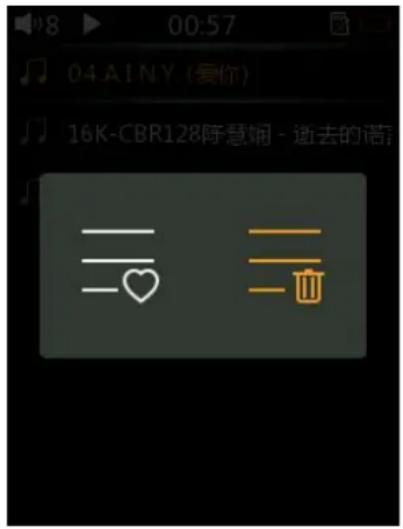
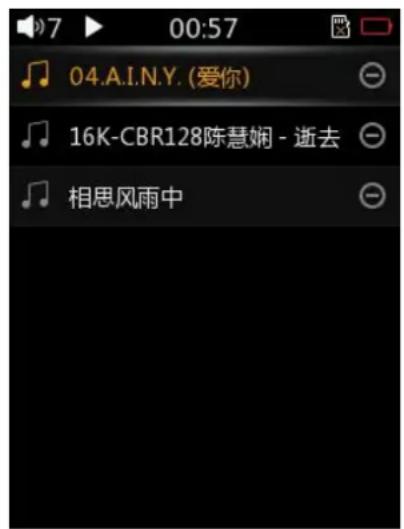
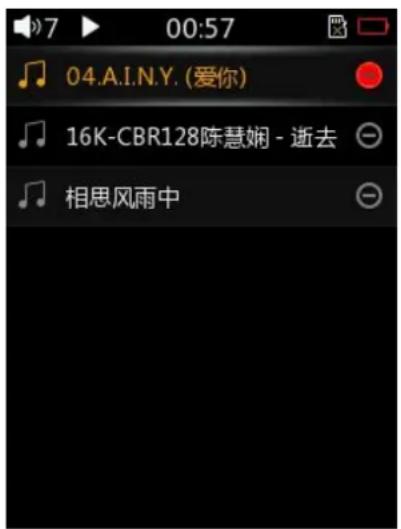
Similar to the operation of "Songs added to favorites", in the list of Favorites list, Shortly press the shortcuts button to pop-up selection menu, select the "Delete" menu(icon on the right), as shown in Figure 2 confirm button and jump to the songs selection list screen, as shown in Figure 2. Slide the touch to move the cursor to select tracks, press the previous track/next button to select (or uncheck) in Figure 3 above (with a red mark to indicate selection, no indication is not selected), after the completed press the confirm button and the selected song will be removed from Favorites list.
(Note: The song removes Favorites just to move the song out of the list, the song's file is file of songs will not be deleted here)
4.3 Songs added to the playlist
In the shortcuts menu that pops up in the now playing screen by pressing the shortcuts but choose to add the song to the playlist (for details, refer to the “shortcuts menu” section).
4.4 songs removed from the playlist
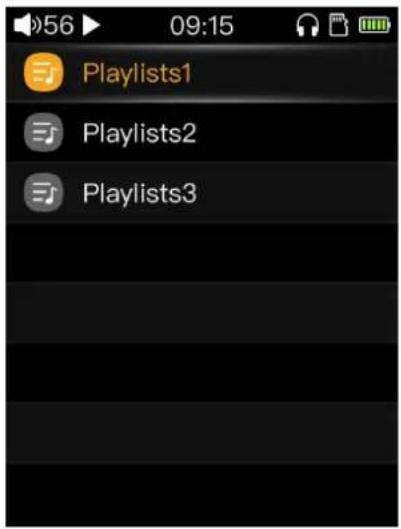
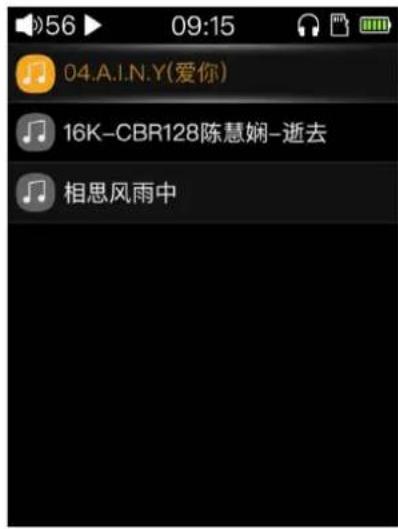
From the Category-playlists to the playlists screen, as shown in Figure 1, press the confirm but list of songs, as shown in Figure 2 above.
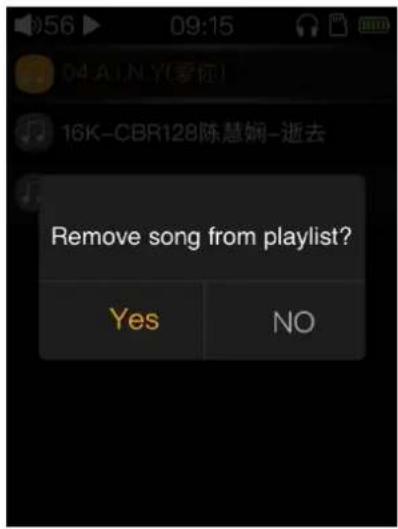
In the song's list screen, move the cursor to the song you want to remove, then Shortly p button to pop up the removal menu. As shown in Figure 3 above, then select "Yes" to confirm operation. After the removal is successful, the deletion will be prompted.
(Note: The song removes the playlist just to move the song out of the list, the song's file is
4.5 Delete playlist
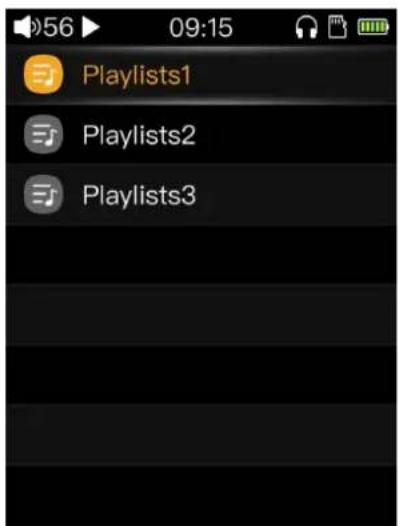
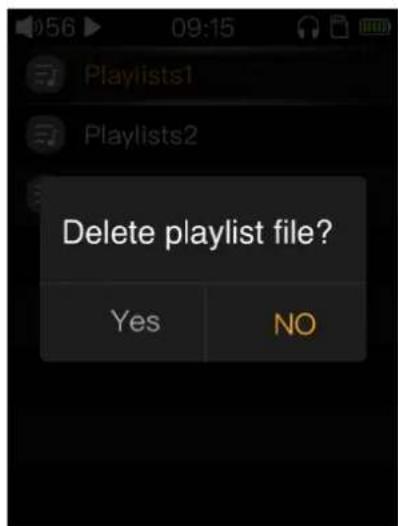
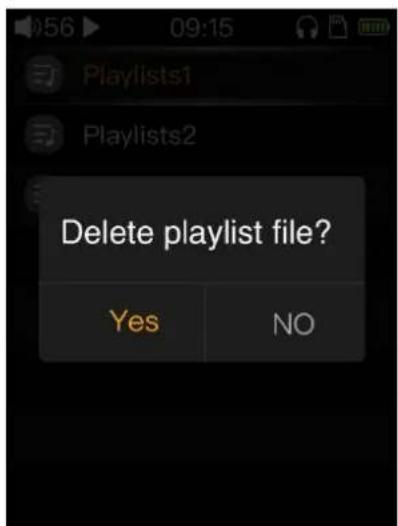
From the Category-playlist to the playlist screen, as shown in Figure 1, move the cursor to deleted by sliding the touch bar. Shortly press the shortcuts button to pop up the operation mer Figure 2, select "Yes" and confirm to delete The list file, as shown in Figure 3. The songs ad the list file is deleted will all disappear (just disappear from the list and will not affect to the
4.6 Delete files of songs
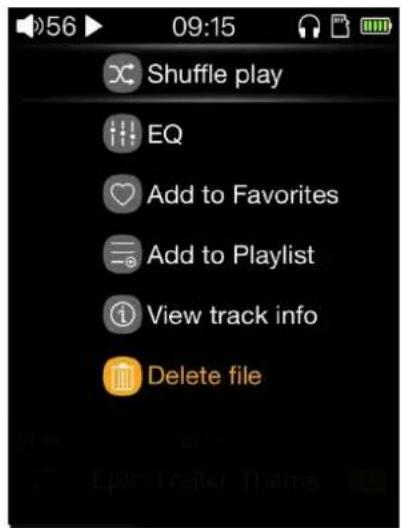
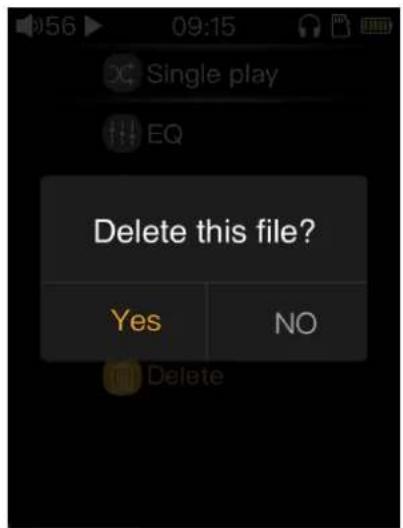
Press the shortcuts button in the now playing screen, and select "Delete file" in the pop-up shortcuts menu. As shown in Figure 1, the delete dialog box will pop up. As shown in Figure 2 above, select "Yes" to confirm the song and delete the song. After the song is deleted, There is a corresponding prompt box.
(Note: a. The delete operation here is to delete the file, the file will be lost after deletion, it b. CUE and ISO songs cannot be deleted)
4.7 External list
M3 supports external playlists (.m3u or .m3u8 suffix files). Also, it supports the external list of and relative path. Users can create an external list according to their needs, and then copy the to the SD card to use in the player.
The external list production method can refer to the FiiO's official website or ask for the cus (Note: M3 does not support editing external lists directly in the player)
4.8 Shortcut operation
① In any screen (except the recording screen), long press the back button to jump directly to the main screen.
② In the main screen, if M3 is playing, shortly press the back button to jump to the now playing screen.
③ In the storage screen( connected to the computer), long press the back button to exit the storage mode without pulling out the USB.
④ When a song is playing, in the state of the lockscreen clock (or lock screen/off screen), long press the volume plus button to switch the next song; long press the volume down button to switch to the shortly press the confirm button on the side of M3 to play/pause the player.
4.9 Song of preference
① Player has one song inside after leave factory. By default, when the user gets the player, it can be found from the list of the Category like “All Songs”, “Artist”, “Album”, “Style” and “Recently Added”.
② If you don't love this song, you can delete it in the shortcut menu that pops up by pressing the shortcuts button, and then update the media library. The song will no longer appear.
③ Song Recovery: If you want to get the song back after accidentally deleting it, you can enter the system settings, select “Restore Factory Settings”, the song will reappear in several lists of Category.
5 Firmware upgrade
Improper operations during firmware update may cause the M3K to malfunction! Please read the firmware update guide carefully before proceeding.
Update procedures:
Please go to our website to download firmware. Download link: http://www.fiio.net/en/supports; cop M3K.fw to the root directory of an FAT32-formatted SD card.
- Turn off the M3K and insert the card into the slot on M3K (if not already inserted).
- Hold the "Volume up" button and then also hold the "Power/Lock" button to turn on the M3K in firmware update mode. The following firmware update dialogs will appear:
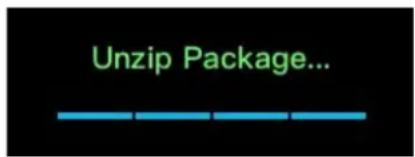
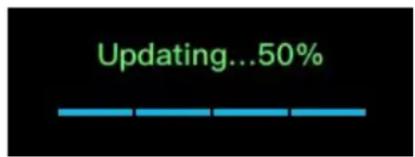
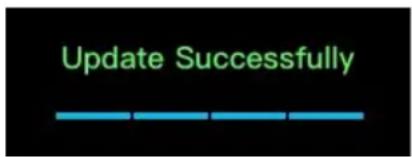
Unzip Package... Updating...50% Update Successfully
Before proceeding:
- Choose a micro SD card with FAT32 file system. If update fails, try using a card of 32 format it using the M3K (back up data on the card first), copy M3K.fw inside again and attempt
- Firmware update will not affect files stored on the card.
- Ensure M3K is sufficiently charged (preferably fully charged) before the update to prevent p during the update.
- Do not operate the M3K while the update is in progress.
- Please delete the M3K.fw file after the firmware update.
- Please update the media library after the firmware update.
6 Notes and precautions
★M3K will skip any songs it has trouble in decoding to prevent hang-up.
★If the voltage from the charging adapter is too high, the M3K may be damaged. Please cl appropriate charger; a DC 5V/2A USB charging adapter is recommended.
★In the likely event that the M3K hangs up, you may hold the power button for 10 seconds to force a shutdown.
★You need to first update M3K's media library before using the function of "Play by category" and "Play all".
★Please charge the battery on a regular basis to secure the battery life if it's to be left unused for a long time. Batteries should not be exposed to direct sunlight, fire or other such high-temperature conditions.
7 FAQs
7.1 How may the M3 be charged?
The M3 may be charged by any USB port or USB charger. Charging via a dedicated USB charger of DC 5V and 1A or above will be faster.
7.2 What is the charging current of M3?
When the M3 is charged by the computer's USB port, the player will automatically adjust the according to the current that the computer can provide;
When the M3 is charged with an external adapter, the charging current is 500mA\~1A.
7.3 How long does it take to charge the M3?
A full charge through a dedicated USB charger as recommended (DC 5V, 1A and above) takes hours.
7.4 Can I listen to songs on the M3 while charging it?
Yes, but it is recommended to charge in the off state, because charging while listening to the charging full time to prolong, and also cause slight fever in the player. Please pay attention machine in a ventilated position to ensure that the player can dissipate normally.
7.5 Can M3 be charged with other Micro USB cable?
The supplied USB cable or a quality replacement is recommended. A poor quality USB cable slow charging or no charging.
7.6 Why does the M3 charge so slowly or not at all through a front USB port o computer?
The front USB ports on a desktop computer are connected to the motherboard through long which cause too much voltage drop when connected to high current draw equipment like the M3.
7.7 How to judge the status of M3 charging?
When the M3 is charging, the battery icon in the status bar at the upper end of the play (it is power off, the display will show a large battery icon to indicate charging). If the battery icon stops scrolling, the M3 is fully charged.
7.8 Which operating systems does M3 support for copying songs?
The M3 supports 32/64bit Windows XP / 7 / 8 / 10 and Mac OS X.
7.9 What USB ports does the M3 support?
The M3 supports USB 2.0 and all standards backwards-compatible with USB 2.0 (e.g. USB 3, C via adapter cable).
7.10 Does the M3 support file be directly dragged and deleted by the file manager computer?
Yes.
7.11 Does the M3 online computer need to be installed with a driver?
No, M3 is completely free of drive.
7.12 How to check whether my M3 has the latest firmware?
- Your M3's current firmware version can be checked at Settings→System Settings→Player information.
- The latest firmware for the M3 can be found at https://www.fiio.com/supports
- Write an email to support@fiio.net or call 4000426826 to contact customer service for the
7.13 How to upgrade the M3 firmware?
The upgrade steps and precautions for M3 have been described in detail above and will not here.
7.14 What to do if the update fails? Would my M3 be bricked?
The M3 should not be bricked during the cause of any firmware update attempt, as long as fail during update (so charge the M3 fully before updating). In the rare case that the M3 is bricked, please contact support@fiio.net for assistance.
7.15 What cards do the M3 support?
The M3 supports micro SD cards (also known as TF cards), including SDHC and SDXC card
7.16 Is the M3 picky about cards?
The M3 has been tested to support major brands such as Sandisk and Kingston very well. It is beyond our ability to test every other brand out there, but any genuine card from a reputable brand sh M3. To prevent slow card speeds causing the M3 to stall while playing or be unable to play high bitrate lossless tracks, please use micro SD cards of Class 6 or above.
7.17 What size card does the M3 support?
After testing, M3 currently supports cards up to 512G.
7.18 How to format SD card into FAT32 format?
It is recommended to insert the SD card into the M3 card slot and format it into FAT32 i Format. You can also use the card reader to load the SD card to connect to the computer. A to find the card, right click and press the prompt. Quick formatted to FAT32 format. Note: SD cards of 64G and above cannot be formatted directly into FAT32 format by system of Windows. Please format them tools. You can consult FiiO customer service for technical support.
7.19 All files on the SD card cannot be displayed on M3.
1 After inserting the SD card into M3, enter the system and store the About M3 to check memory and available capacity are normal (compared with the SD card display on the computer); capacity is not normal on M3, please try Format the SD card and copy the songs again;
2 If the SD card capacity is normal, please confirm that the copied song in the SD card - copy the song from the SD card to the computer, the normal playback of the computer mear is normal; if the computer can not play, please delete Recopy after the track;
3 If the above two methods cannot solved the problem, please use another SD card or pSD card on other machines for verification.
7.20 Files on the SD card (FAT32) only show partial files on M3.
1 Please enter the all songs, sort play and browse files to view the songs,
2 If you can see all the files in "Browse Files", but "All songs" and "Category" only see s update the media library;
7.21 How do I reset the database files in M3?
Remove the SD card, update the media library when there is no card. Or choose to restore settings in the system settings.
7.22 What formats of SD card does the M3 support for recording?
M3 supports FAT32, NTFS, exFAT format's SD card for recording.
7.23 M3 supports APE, why my APE can't play.
APE comes in 5 levels of compression, including Fast, Normal, High, Extra High and Insane. Extra High and Insane encoded APEs are not supported while Normal and High encoded APEs are only sup 192k/24bit or below.
7.24 Does M3 support CUE sheets?
The M3 supports external cue sheets for identifying and playing a cue'd music file as separate tracks, which will be automatically tracked during playback.
7.25 The SD card have CUE files. Why M3 can't support it?
M3 does not support CUE files embedded in song files, and not support if the file names of CUE files are different.
7.26 Why can't I see the CUE file in the browse file?
Since it has been already been used by the M3 to split the cue'd file into multiple tracks
7.27 How do you set it to play across different folders?
After successfully updating the media library, set the play mode to loop mode or shuffle mode of all songs, and select the song to start playing.
7.28 Why do my lyrics not show?
The M3 only supports external .lrc files, named after the music file it lyricizes.
7.29 Why is the cue playing screen displaying garbled characters?
M3 currently supports ANSI, Unicode, UTF-8 encoding formats, other encoding formats not.
7.30 Why do my new songs not appear under any category?
TheM3 can only sort your new songs into these categories after they have been added into
database. Please set the Update Media Library setting to automatic, or manually update the media adding your new songs.
7.31 Why does the total number of files displayed by M3 differ from the actual null copied into the micro SD card?
The total number displayed by the M3 indicates the total number of files playable by the M3
7.32 How to get longer battery life for the M3?
- Turn on "Idle standby". When this is set to on, the player will enter standby after the s music is playing and the user does not press any buttons on the player.
- Lower the backlight brightness to reduce power consumption.
- Set the "Screen timeout" to the minimum value, so that the player turns off the screen automatically after the set delay when no buttons have been pressed and the scroll wheel hasn't


- M3K Complete user manual
- Foreword:
- Contents
- system settings....- 10 -
- Now playing screen.... - 15 -
- Other operations....- 17 -
- Overview
- Buttons and Ports
- Buttons/Ports Diagram:
- Buttons and ports introduced
- Power/lock button
- Volume up
- Volume down
- Confirm button
- Shortcuts button
- Touch bar
- Up/Prev.track/Rewind
- Back
- Down/Next track/Fast forward
- USB transfer/Charging
- Micro SD card slot
- Headphone out jack
- Microphone
- Introduction of display
- Power on/off and home page
- Main screen
- Lock screen clock
- Status Bar
- Browse Files
- Recording
- Category
- All songs
- Artist
- Album
- Genre
- Favorites
- Playlists
- Recently added
- Play settings
- Play mode
- Resume mode
- Playback gap
- Max volume
- Default volume
- Fixed volume setting
- Balance
- Equalizer
- Play through folders
- system settings
- Update Media lib
- Brightness
- Screen timeout
- Idle standby
- Sleep
- USB mode
- Multifunction button
- Button light
- Theme
- Recording quality
- Lockscreen clock
- Time setting
- Date setting
- Language
- Storage formatting
- Factory restore
- About M3
- Now playing screen
- Shortcuts menu
- Other operations
- Songs added to favorites
- Songs removed from Favorites
- Songs added to the playlist
- songs removed from the playlist
- Delete playlist
- Delete files of songs
- External list
- Shortcut operation
- Song of preference
- Firmware upgrade
- Update procedures:
- Before proceeding:
- Notes and precautions
- FAQs
- How may the M3 be charged?
- What is the charging current of M3?
- How long does it take to charge the M3?
- Can I listen to songs on the M3 while charging it?
- Can M3 be charged with other Micro USB cable?
- Why does the M3 charge so slowly or not at all through a front USB port o computer?
- How to judge the status of M3 charging?
- Which operating systems does M3 support for copying songs?
- What USB ports does the M3 support?
- Does the M3 support file be directly dragged and deleted by the file manager computer?
- Why does the total number of files displayed by M3 differ from the actual null copied into the micro SD card?
- How to get longer battery life for the M3?
Brand : FiiO
Model : M3K
Category : Media player