
X5 - Media player FiiO - Free user manual and instructions
Find the device manual for free X5 FiiO in PDF.


| Product Type | High-Resolution Digital Audio Player |
| Brand | FiiO |
| Model | X5 |
| Display | Touchscreen, 480x800 pixels, 16.7 million colors |
| Operating System | Android 5.1 (customized) with Pure Music Mode |
| Audio Formats | DSD, DXD, WAV, WMA, APE, FLAC, AAC, AIFF, ALAC, Ogg Vorbis, MP3 (up to 384kHz/32bit) |
| Internal Storage | 32 GB |
| Expandable Storage | Dual micro SD slots, each up to 256 GB (total 512 GB) |
| Battery Capacity | 3400 mAh Li-poly |
| Playback Time | Approximately 10 hours |
| Charging Time | 2 hours with Quick Charge (DC 9V/12V 2A), 4 hours with standard (DC 5V 2A) |
| Charging Port | Micro USB (11-pin) |
| Audio Outputs | 3.5mm headphone jack, 2.5mm TRRS balanced output, 3.5mm line/coaxial out |
| Wireless Connectivity | Bluetooth, Wi-Fi (802.11 b/g/n) |
| Equalizer | 10-band graphic equalizer with presets and custom mode |
| Lowpass Filter Modes | 5 modes: Sharp, Slow, Short delay Sharp, Short delay Slow, Super Slow |
| Gain Settings | High and Low |
| Channel Balance | Adjustable L10 to R10 (21 steps) |
| Special Features | Gapless playback, CUE sheet support, Play through folders, USB DAC mode, FiiO Market for apps |
Frequently Asked Questions - X5 FiiO
User questions about X5 FiiO
0 question about this device. Answer the ones you know or ask your own.
Ask a new question about this device
Download the instructions for your Media player in PDF format for free! Find your manual X5 - FiiO and take your electronic device back in hand. On this page are published all the documents necessary for the use of your device. X5 by FiiO.
USER MANUAL X5 FiiO
(Note: X5 3rd Gen would be referred to X5 in the below guide) All the below illustrang pictures are for reference only.
X5 Users' Guide
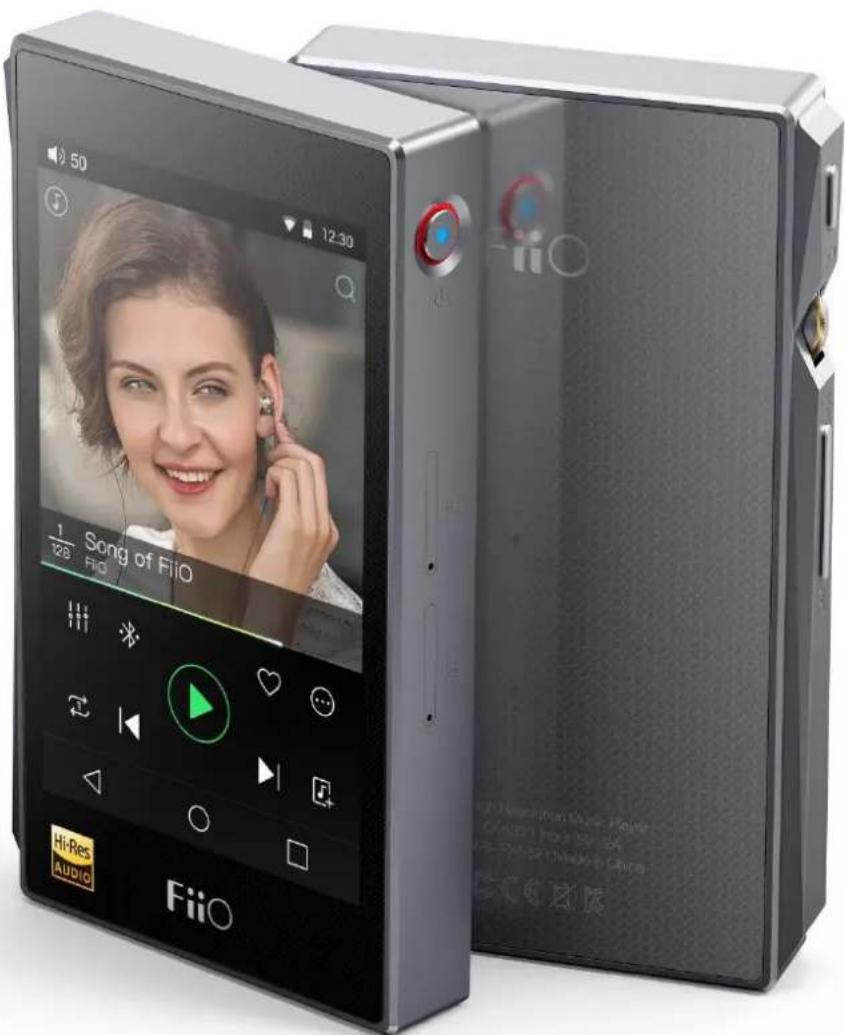
Foreword:
Thank you for purchasing FiiO's X5, our 384kHz /32bit / DSD high resolu on lossless music player. To let you beer ulize the X5 to enjoy high-quality music, we have prepared this complete user manual and collected and answered some frequently asked quesons by users. We hope this manual will help you get to know the X5 and unleash its full potenal.
Contents
A. Introducon....4
B. Buons and ports introduced .... 4
- Pictorial guide to buons and ports .... 4
- Buons and ports explained .... 5
C. Pure Music / Android Mode switch....6
- Switching from Android to Pure Music mode....6
- Switching from Pure Music to Android mode....6
D. Wireless connecvity 7
- Bluetooth....7
- WiFi....8
E. Firmware update....9
- Over-the-air automac updates ....9
- Local updates....10
- Over-the-air manual updates....11
- Notes and Precauons....12
F. Pictorial guide to operang the X5 13
- Andriod mode....13
1) Status bar 13
2) Nocaons panel....13
3) Quick Sengs menu 14
4) FiiO Market 15
5) Technical support....15
6)X5 Sengs 16
- FiiOMusic....23
1) App homepage....23
2) Local music....24
3) Now playing 26
4) Equalizer....28
- Pure Music Mode 29
G. X5 FAQ 29
- Charging....29
How large is the X5's battery? How long will it last? 29
How may the X5 be charged? 29
How long does it take to fully charge the X5? 29
Can be X5 be used while charging? 29
Does the X5 display accurate baery levels? 30
What to do if the X5 gets hot while charging and playing at the same me?......30
- Transferring songs .... 30
What operang systems does the X5 support? 30
What USB ports is the X5 compatible with? 30
What are the transfer rates of the X5? 30
The X5 is connected to my computer. Now how to transfer songs from the computer to the X5? ...... 30
Is driver installaon required for transferring songs? 30
- Firmware updates .... 31
How to tell whether the X5 has the latest rmware? 31
Would the X5 be bricked if update fails? What to do if the X5 is bricked? 31
- Storage 31
Does the X5 contain internal storage? Is removable storage supported? 31
Is the X5 picky about cards? 31
- Playing music 31
Why can my APE les not be played by the X5? 31
Does the X5 support CUE sheets? 32
Why is my cue sheet not supported? 32
Why does X5 not show the cue le in the micro SD card when browsing les? 32
How to listen to all the music folders on the X5 one by one without switching folders manually? 32
Why do the songs I've copied into the X5 not appear in any lis ng (except Folder view) in FiiO Music? .....32
- Connecting with other audio equipment 32
How to connect the X5 Line Out to other equipment? What to connect it to? 32
The X5 does not get detected by my computer for le transfers? 32
How to connect the X5's S/PDIF / coaxial digital output to other equipment? What to connect it to? ...... 33
Why does my HT receiver never play the rst ten seconds of music from my X5? 33
- Other operations....33
How to get longer baery life for the X5? 33
Why is the X5 a bit sluggish in responding at mes? 33
Why does the X5 get a lile hot in operaon? 34
Why can't I go to the home screen by pressing the home buon? 34
Why can't I see the se ngs menu when I swipe down from the top of the touch screen? 34
Does the X5 support 256GB micro SD cards? 35
Does the X5 coaxial digital output support DoP? At what rate? 35
Why can my X5 not receive OTA updates / why is the OTA update so slow? 35
Why somemes it shows "0 new songs added to media library" after updang? 35
A. Introducon
The X5 is a high delity, high resolution digital audio player, running on Android 5.1 and supporting various music formats such as DSD, DXD, WAV, WMA, APE, FLAC, AAC, AIFF, ALAC, Ogg Vorbis, MP3 etc. at up to 384kHz / 32bit, also supporting such professional features as nave DSD decoding, CUE sheets, gapless playback, playing automatically through folders, and graphic equalizers. X5 also comes with Bluetooth.
Based on Android, the X5 allows the user to use his own choice of any Android music player app, and also comes with its nave player app FiiO Music, which has been customized in response to research on users' usage habits for a quick and smooth music listening experience. Meanwhile, the X5 supports WiFi conncon, which allows you to enjoy streaming music for more enhanced music experience.
B. Buons and ports introduced
1. Pictorial guide to buons and ports
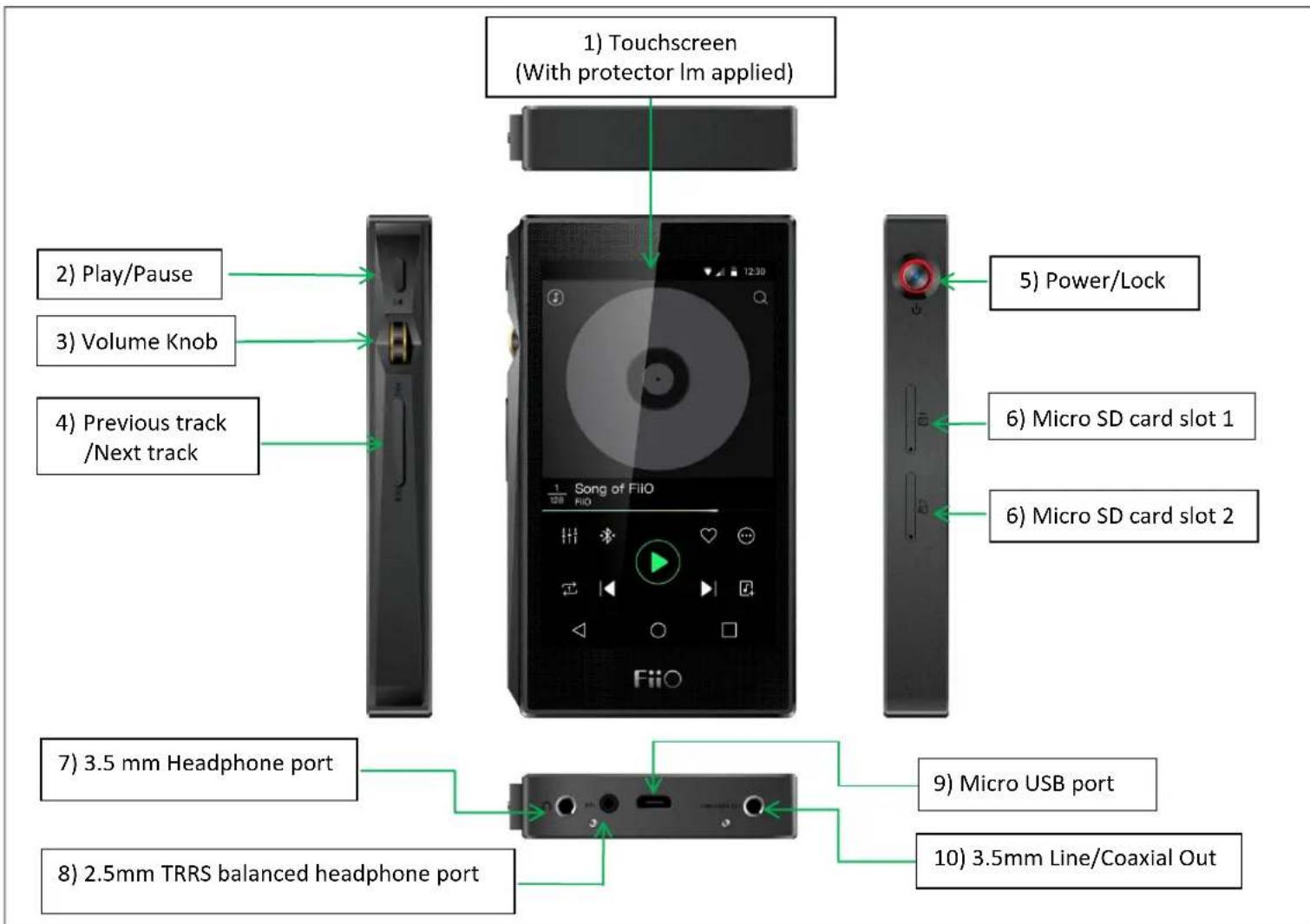
2. Buons and ports explained
1) Touchscreen (16.7 million colors, 480x800 pixels): Displays the user interface and other informaon; for operang the unit via screen touches and/or in conjuncon with buons on the unit;
2) Play / Pause: Press while playing to pause music, press while paused to connue playback;
3) Volume knob: Scroll up to turn up the volume, scroll down to turn down the volume.
4) Previous / next track: Press to skip to the previous or next track;
5) Power / Lock: While X5 is powered o, hold for 2s to turn on; while powered on, hold to display power o / reboot menu; press briefy while powered on to turn screen on / o; Press and hold for 15 seconds to reset.
6) Micro SD card slot: Dual micro SD card slots each supporting up to 256GB capacity
7) 3.5mm headphone port: Connect your headphones here. CTIA-spec headsets with in-line remote control supported with the following remote control operaon (single buon remotes and main buon of mul-buon remotes supported):
Volume Up/Down: click to turn up/down the volume by one step, hold to turn up/down the volume connuously to Max volume/Mute
Play / Pause: press main buon once briefy to toggle between play and pause;
Next track: double-click main buon quickly;
Previous track: triple-click main buon quickly;
8) 2.5mm balanced headphone output: Supports 2.5mm TRRS balanced headphone
9) Micro USB port (11-pin): for charging, data transfer, USB DAC funcon and conneccon to FiiO docks; It's recommended to use a Quick Charge adapter (DC9/12V 2A) for charging. X5's supposed to be fully charged within 2 hours when in Quick Charge mode. With DC5V/2A adapter, it's supposed to be fully charged within 4 hours.
10) 3.5mm line / S/PDIF coaxial output: Shared line / coaxial output port. Switch between the two outputs in X5 sengs -> Sound Sengs -> Mulfunconal Output.
C. Pure Music / Android Mode switch
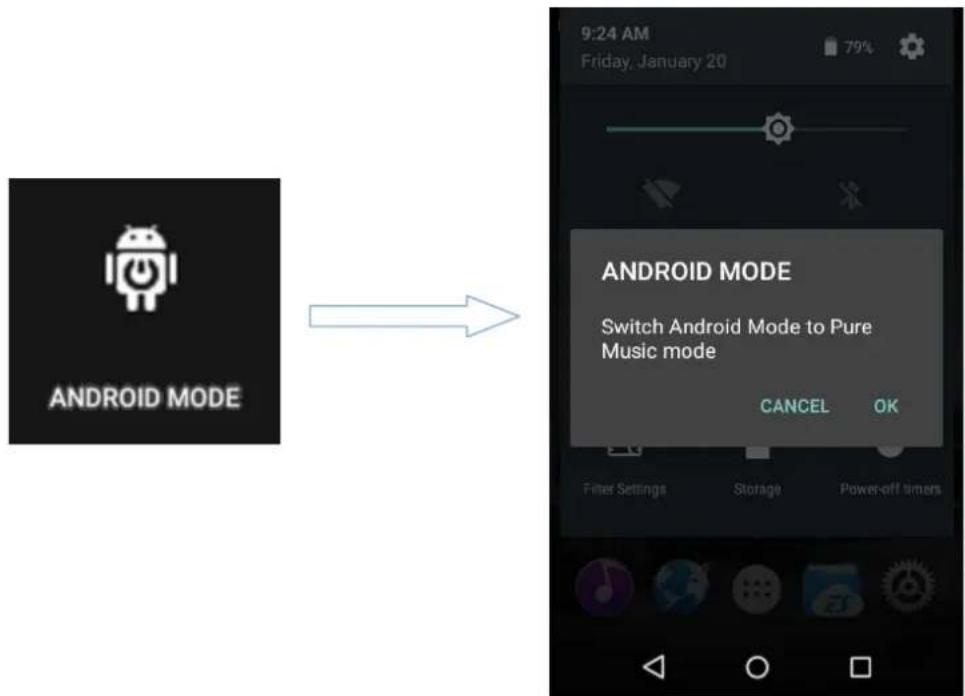
1. Switching from Android to Pure Music mode
While in Android mode, Pull down the Quick Sengs menu from the top of the touchscreen and tap on the “Android Mode” icon; the player will prompt you on whether to switch the mode. Press OK to switch the X5 to Pure Music mode, allowing uninterrupted music enjoyment with the built in FiiO Music app.
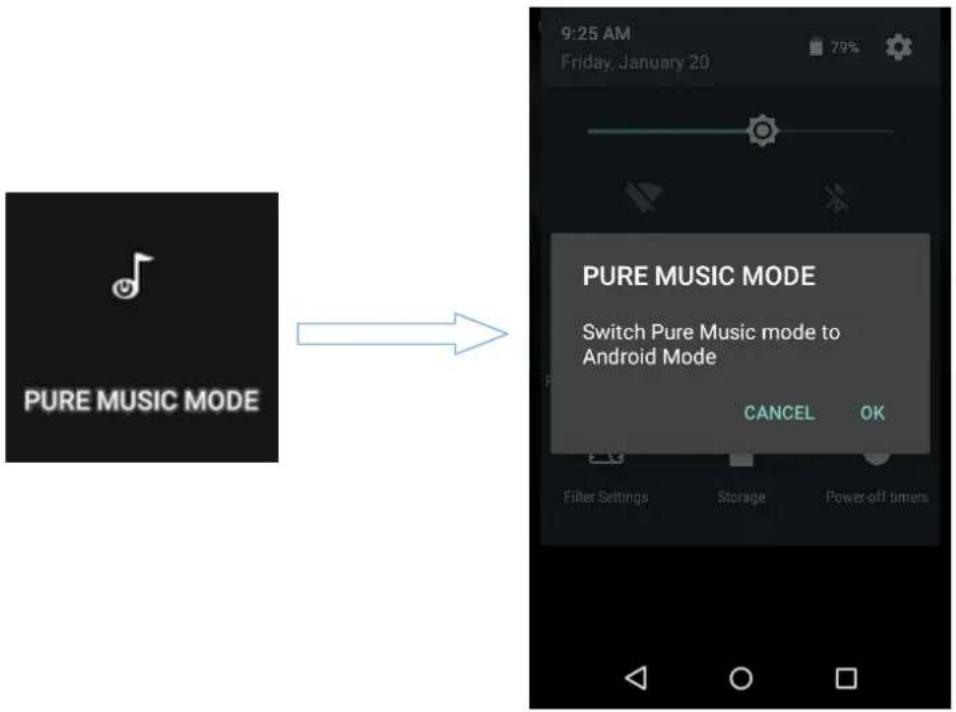
2. Switching from Pure Music to Android mode
While in Pure Music mode, Pull down the Quick Sengs menu from the top of the touchscreen and tap on the “Pure Music Mode” icon; the player will prompt you on whether to switch the mode. Press OK to switch the X5 to Android mode, allowing a rich music experience with 3 ^rd party Android app compatibility.
D. Wireless connecvity
The supportability of Bluetooth and WiFi on X5 enables users to expand the X5's func on by wireless conncon.
1. Bluetooth
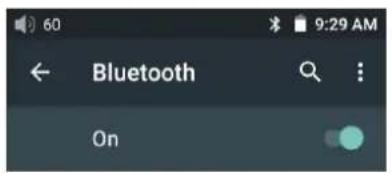
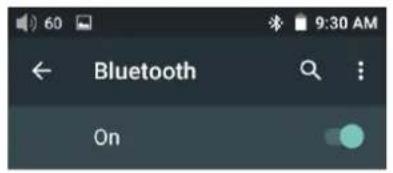
To use the X5 with new Bluetooth devices (e.g. Bluetooth earphones, speakers, remote controls), the X5 must rst be paired with the device as follows:
1) Pull down the Quick Sengs menu from the top of the touchscreen and hold your nger on the Bluetooth icon to open the Bluetooth sengs menu;
2) If Bluetooth on the X5 is o, turn it on by icking the switch on the upper right to the "ON" posi on the right;
3) Tap "SEARCH FOR DEVICES" at the bottom of the screen to have the X5 search for and display nearby Bluetooth devices:
4) Tap the name of your Bluetooth device to pair with it. Successfully paired devices will appear under the "PAIRED DEVICES" list:
Available devices

FiiO RM1
FiiO X5 is visible to nearby devices while Bluetooth settings is open.
Paired devices

FiiO RM1
Connected

Available devices

EDIFIER S1000
FiiO X5 is visible to nearby devices while Bluetooth settings is open.


Notes: The X5 will pair with the device it last paired with by preference.
2. WiFi
The X5 may connect to the Internet or other network resources to obtain music resources or (in Android mode) perform other Android funcons; it may also stream music to WiFi audio devices
To connect the X5 to WiFi devices / hotspots:
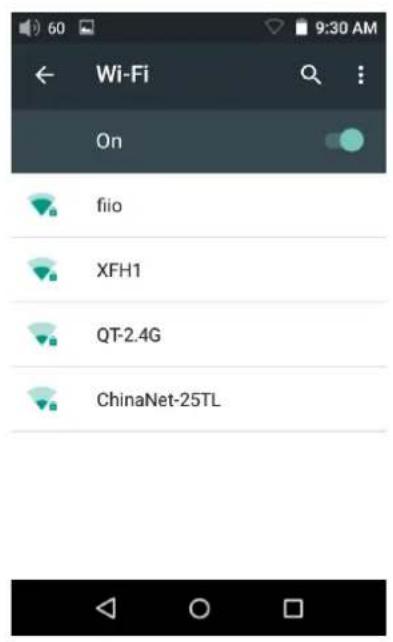
1) Pull down the Quick Sengs menu from top of the touchscreen and hold your nger on the Wi-Fi icon to enter the Wi-Fi sengs menu;
2) Slide the WiFi switch to the right (ON) and the X5 will automatically search for and display available WiFi connexons:
3) Tap the name of the WiFi network you wish to connect to and enter the password if prompted, and the X5 will connect to the network:
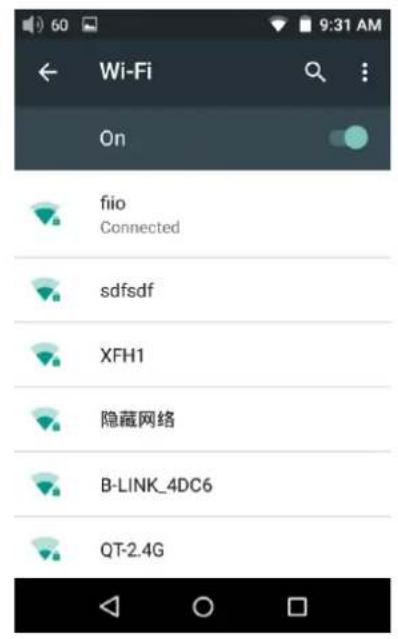
Note: when its WiFi is on, the X5 will connect to the WiFi network it last connected to by preference.
E. Firmware updates
Improper operaon during rmware updates may cause the unit to malfuncon! Please read the following instrucons for rmware updates carefully before proceeding.
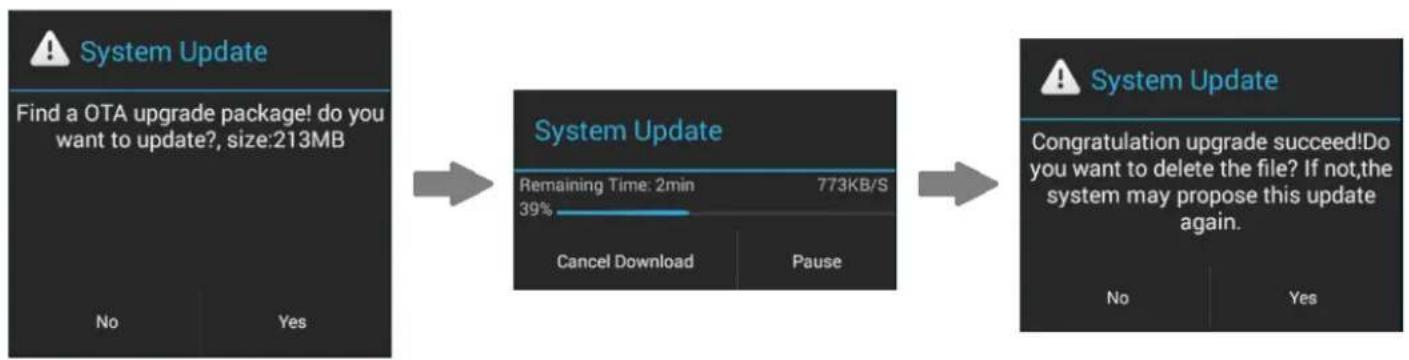
1. Over-the-air automac updates
1) Turn on the X5's WiFi and connect to the internet with a suitable hotspot
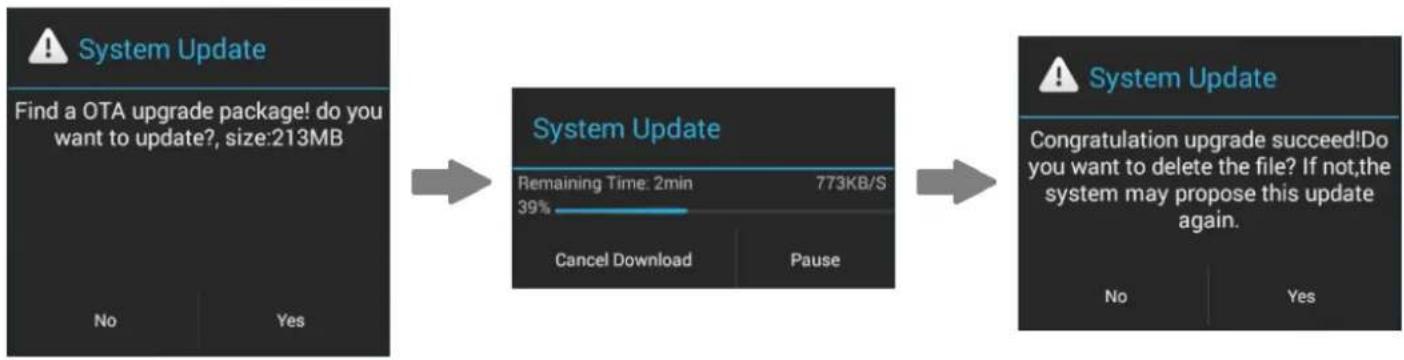
2) The X5 would check for over-the-updates and prompt for updang automacally if a newer rmware version is found:
3) Tap "Yes" and the X5 will download the update and install it automatically when download is complete.
Note:
a) You may tap the home buon to dismiss the download screen and connue using the X5;
b) Please connect to a high speed network to save download me;
c) The package download may be stopped and resumed;
d) Do not aempt to operate the X5 when the update proper is ongoing.
4) Aer the update is complete, please delete the update package as prompted.
flowchart
graph LR
    A["System Update\nFind a OTA upgrade package! do you want to update?, size:213MB\nNo\nYes"] --> B["System Update\nRemaining Time: 2min\n39%\nCancel Download\nPause"]
    B --> C["System Update\nCongratulations upgrade succeed! Do you want to delete the file? If not, the system may propose this update again.\nNo\nYes"]
2. Local Updates
1) Copy the update zip le provided by FiiO to the internal storage or the SD card inserted into the SD card slot 1 of the X5. (it is recommended to copy to the root directory of either; rmware updates will not act the les or music contained in the X5.)
- Do not rename or extract the zip le.
To copy les to the X5:
- Connect the X5 to the computer via the provided USB cable.
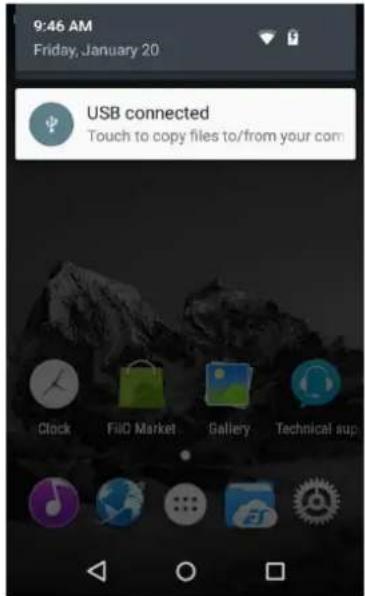
- The "USB connected" screen should pop up automatically. Tap "Turn on USB storage" near the boom.
If the "USB connected" screen does not appear automatically, pull down the no ca ons panel from the top of the touchscreen and tap on "USB connected" to bring it up.
- The internal storage and SD cards of the X5 will appear as USB drives on the connected computer.
- Copy les (e.g. the update zip) to the Internal Storage or to the Micro SD card 1.
Safely eject the two drives from the computer (e.g. right-click each drive and choose "Eject").
2) Go to the Android homescreen, tap "Technical support" ->Firmware Update. In the le browser, nd the downloaded zip le in internal_sd or external_sd1 and tap on it. The system will prompt you to conrm whether to update the X5 with the selected zip le:
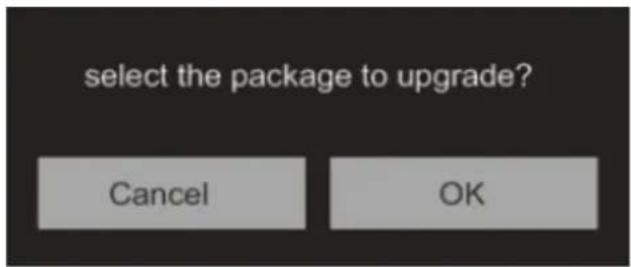
3) Tap "OK" to start the update. Do not attempt to operate the X5 while the update is ongoing.
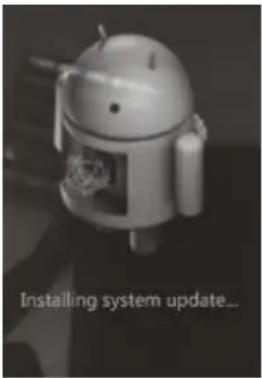
4) The X5 will reboot twice, once in update mode, then back into Android mode. The update process is complete when the Android lockscreen appears.
3. Over-the-air manual updates
If you have cancelled the over-the-air automac rmware update and want to upgrade to the latest rmware later, you can choose to manually start the upgrade.
1) Turn on the X5's WiFi and connect to the internet with a suitable hotspot
2) Select "Technical support" on the desktop >"Firmware update">"Online Upgrade" under android mode, choose the update le and following dialogue would pop up.
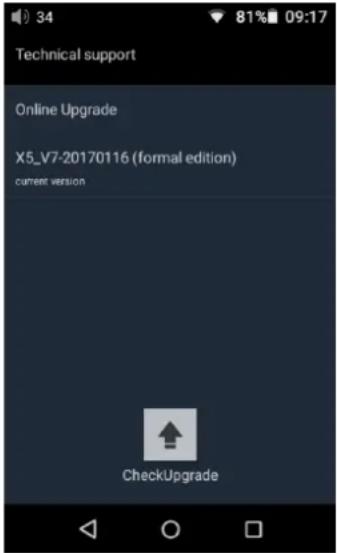
3) Click "Check Upgrade" then The X5 would check for over-the-updates and prompt for updang automacally if a newer rmware version is found:
4) Tap "Yes" and the X5 will download the update and install it automatically when download is complete.
5) Aer the update is complete, please delete the update package as prompted.
flowchart
graph LR
    A["System Update\nFind a OTA upgrade package! do you want to update?, size:213MB\nNo\nYes"] --> B["System Update\nRemaining Time: 2min\n39%\nCancel Download\nPause"]
    B --> C["System Update\nCongratulations upgrade succeed! Do you want to delete the file? If not, the system may propose this update again.\nNo\nYes"]
4. Notes and Precauons
1) Make sure the X5 is adequately charged (preferably fully charged) for the update process to prevent power failure during the update.
2) If update fails, check that you selected the correct update zip le;
3) Please ensure adequate storage capacity if you need to use internal storage to upgrade(recommended to operate when there's over 1GB storage available for use).
4) Do not aempt to operate the X5 while the update is ongoing.
F. Pictorial guide to operang the X5
1. Android Mode
The Android interface of the X5 is similar to that of other Android device, for an intuitive operang experience.
1) Status bar
The status bar at the top of the screen displays various info on the current status of the X5:
| 1 2 | 3 4 | 5 6 | 7 | 8 | 9 | 10 | 11 | 12 |
| Info on the current status : | ||||||||
| 1——Volume icon | 2——Current volume level | |||||||
| 3——USB connected | 4——FiiO Music | |||||||
| 5——Bluetooth on | 6——S/PDIF connected | |||||||
| 7——Headphone connected | 8——Balanced headphone connected | |||||||
| 9——WiFi on | 10——Battery level | |||||||
| 11——Battery icon (charging) | 12——Time | |||||||
2) Nocaons panel
The nocaons panel displays various system nocaons. Pull down from the top status bar to show the nocaons panel. Pull up from the boom of the panel or tap the back or home buons to dismiss the panel.
3) Quick Sengs menu
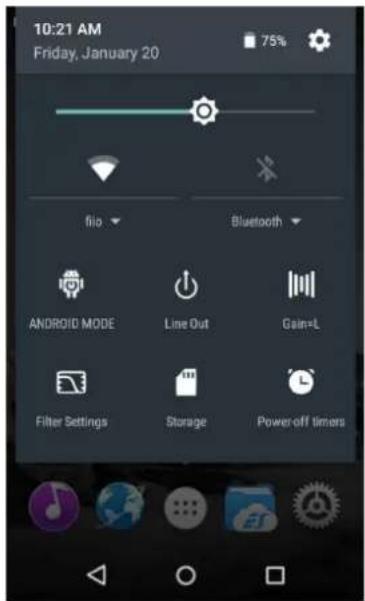
The Quick Sengs menu shows some of the commonly used sengs icons for the X5 in one full page. To enable the Quick Sengs menu, pull down from the top of the screen to enable the nocaon panel, then pull down the nocaon panel to enable the Quick Sengs menu. Pull up from the boom of the menu or tap the back or home buons to dismiss the panel.
The following quick sengs icons are shown:
Sengs: tap to show full sengs menu (useful in Pure Music mode);
Baery: shows current baery level. Tap to show full baery info;
Brightness: tap to show brightness adjustment slider;
WiFi: tap to turn WiFi on / o; hold to show WiFi sengs menu;
Bluetooth: tap to turn Bluetooth on / o; hold to show
Bluetooth sengs menu.
Current operaon mode (Android / Pure Music mode):
tap this to switch to the other operaon mode;
Line out/Coaxial out: click to switch between Line out and Coaxial out
Gain: click to switch between High gain and Low gain
Filter Sengs: click Filter Sengs to enter the Audio Sengs then click Lowpass Iter mode to switch between 5 Iter modes
Storage: click to switch to USB DAC mode
Power-o mers: click to enter Power-o mers seng to set the sleep or idle power o funcons
4) FiiO Market
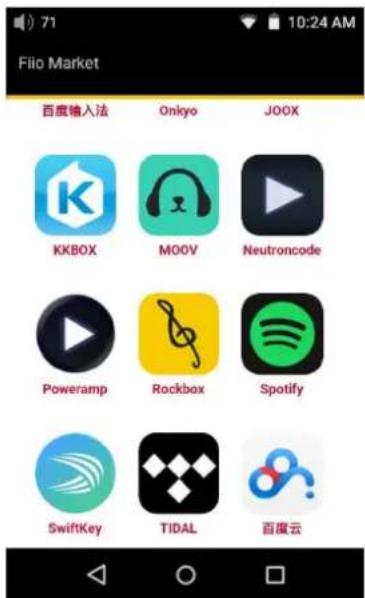
With the X5 connected to the internet via WiFi (see sec on D.2), Tap "FiiO Market" on the Android homescreen to show a list of socially recommended apps for which compatibility with the FiiO X5 has been rigorously tested.
Slide up and down to view the full list of apps.
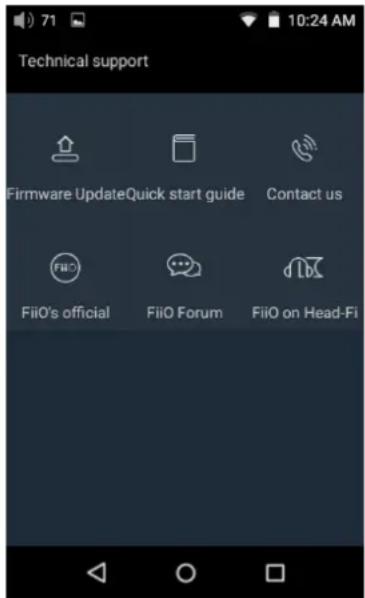
5) Technical support
Tap "technical support" on the Android homescreen to enter the technical support menu, with the
following opons:
Firmware update: tap to manually select an update zip package for upda ng the X5's rmware
Quick start guide: tap to view the quick start guide for the X5.
Contact Us: Click for the FiiO ocial plaorms and contact informaon (Internet conncon required)
FiiO's o cial website: Tap to go to FiiO's ocial website (Internet conncon required), to receive the latest news and info on our products (including the X5);
FiiO Forum: Tap to enter FiiO's FiiO forum (Internet connec on required), to interact with other music lovers online;
FiiO on Head-Fi: Visit the FiiO forum page on Head-Fi (Internet conncon required)
6) X5 Sengs
The X5 runs FiiO's Android-based OS, which has been deeply customized for opmal audio performance from Android. Thus, some of the sengs opons dier from usual Android sengs and will be explained below:
To enter Sengs, tap the cog icon (on the lower right of the homescreen by default). You may also enter the app drawer and tap the cog icon there labelled "Se ngs".
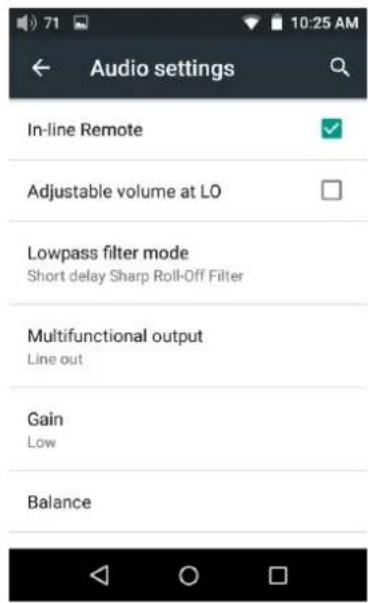
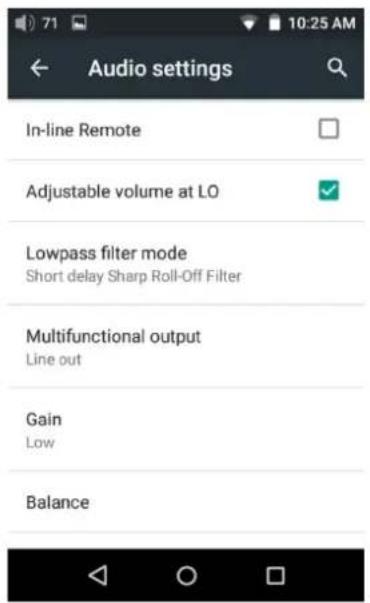
a) Audio Sengs—In-line remote
Response to in-line remotes on connected headsets may be enabled or disabled by your choice.
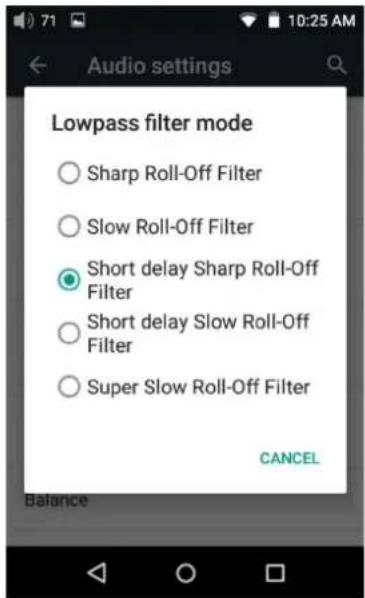
b) Audio sengs—lowpass Iter mode
To set the Iter modes: Sharp Roll-O Filter, Slow Roll-O Filter, Short delay Sharp Roll-O Filter, Short delay Slow Roll-O Filter, Super Slow Roll-O Filter
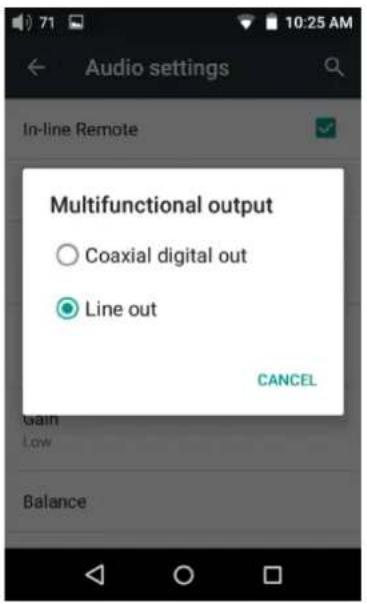
c) Audio sengs—Mulfunconal Output
The 3.5mm output port at the boom right of the X5 may output analog line signal or coaxial digital S/PDIF signals. This menu item lets you choose between the two.
d) Audio seings—Adjustable volume at LO
Adjustable volume at LO: on/o
This allows you to set whether the volume through Line Out can be controlled by adjusting the volume level or not.
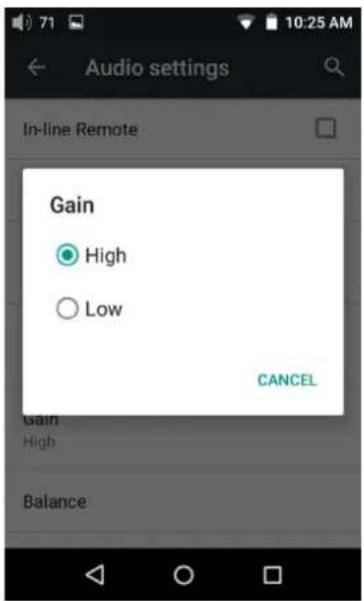
e) Audio sengs—Gain
Sets the gain level of the headphone output to be either High (high volume) or Low (low volume).
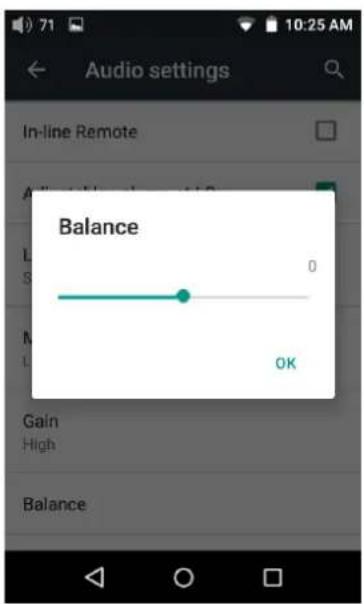
f) Audio sengs—Channel balance
Sets the volume balance between the le and right channels. From being biased lemost (L10) through centred (0) to rightmost (R10), there are 21 sengs available.
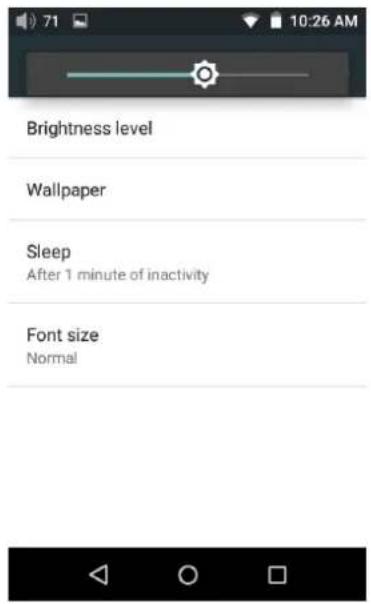
g) Display—Brightness level
To set the brightness of the screen to a comfortable level according the actual environment.
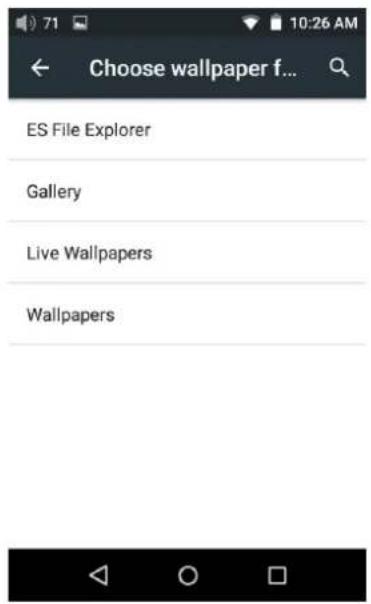
h) Display—Wallpaper
To set the wallpaper at your preference
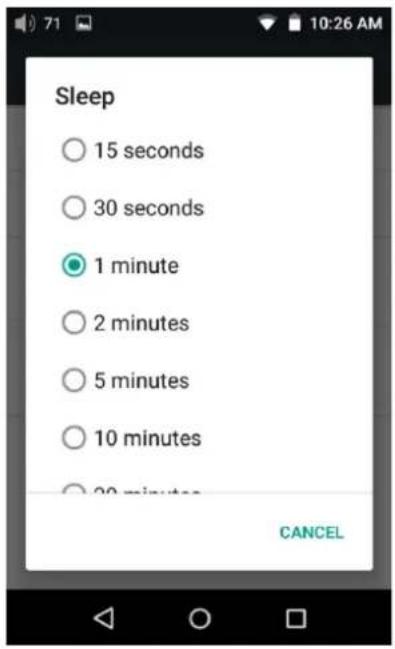
i) Display—Sleep
Specify aer how much me of inactivity (no buon presses, screen touches or playing) X5 will enter sleep mode. In Sleep mode, X5 would have low power consumption. Short press the Power buon to wake up X5 from Sleep mode.
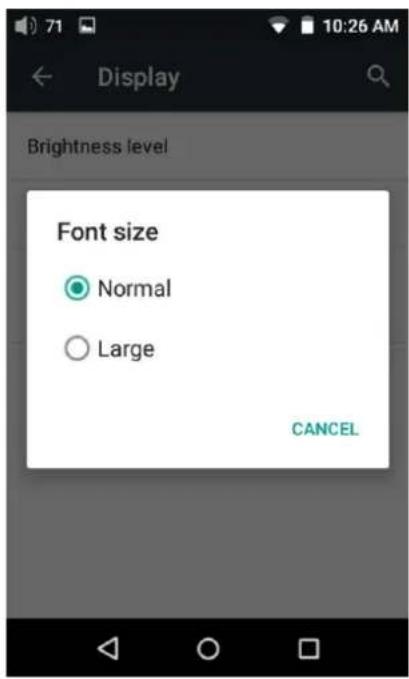
j) Display—Font Size
Choose the font size at your personal preference
k) Power-o mers—Sleep
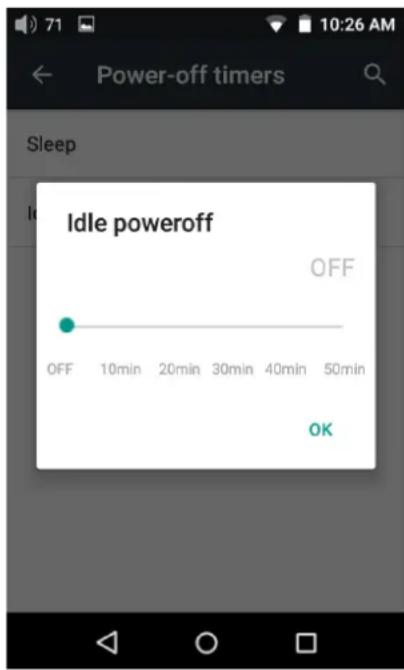
"Sleep" can be used to turn o the X7 aer a set me, regardless of acvity. This may be useful for e.g. bedside listening.
The sleep mer may be set to any number of minutes between 0 (OFF; no mer) and 120.
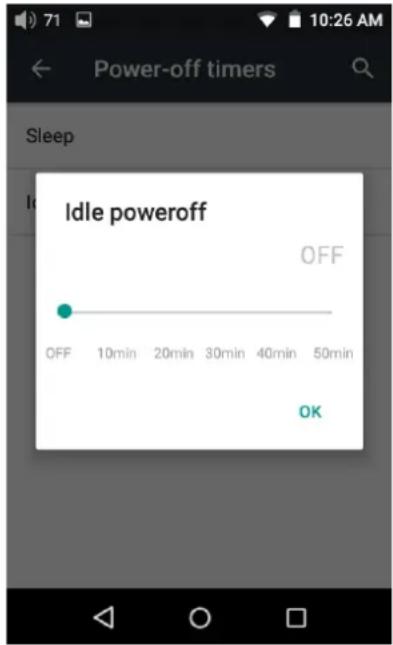
Idle powero is a seng for turning o the X5 aer a set period of detected inacvity (no buon presses, screen touches or playing). The Idle powero mer may be set to any number of minutes between 0 (OFF; no mer) and 50.
The X5 includes the FiiO Music app, a music player applicaon that has been highly customized to make full use of the audio hardware of the X5 and tailored to the usage needs of advanced music enthusiasts.
On rst launch of FiiO Music, a pictorial guide to the app will appear. Below is a
reproducon of the pictorial guide along with further guiding descripon.
- The pictorial guide can be recalled at any me by tapping Sengs (cog icon on upper le of app homepage)->Help (near boom of menu).
- On first launch of FiiO Music, you will be prompted to scan for music on your X5. Tap “scan all” to scan all loca ons on the X5 automa cally, or “scan selected folder(s)” to manually select loca ons to be scanned.
1) App homepage
On launching the FiiO Music app, the following homepage appears (shown with guide annotaons here). The following funcons can be performed on the homepage:
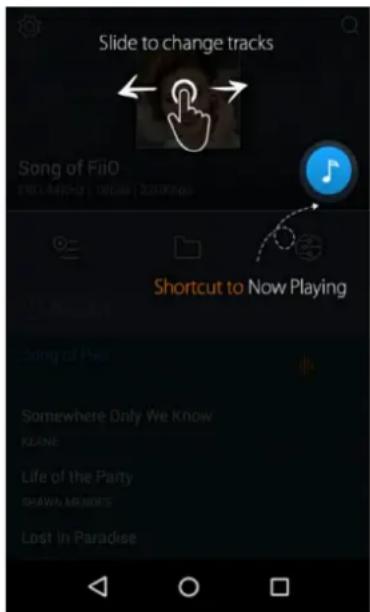
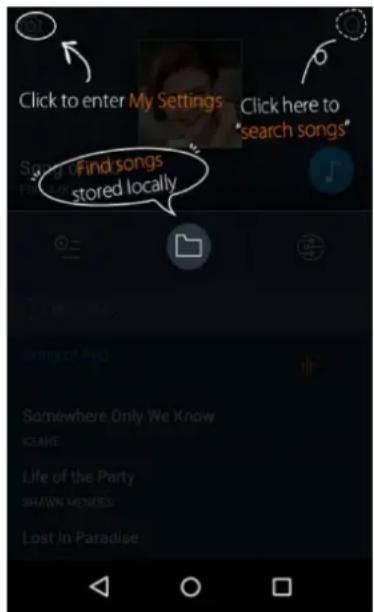
Random track: Tap the album art window at the top to play a random song from your collecon (media library scan must be completed rst); slide your nger le over the window to switch to the next track, or right for the previous track;
Shortcut to Now Playing: tap on the round music note buon to the upper right to jump to the Now Playing screen (for which operaon is detailed further below);
Sengs: tap the cog icon to the upper le to show various app sengs opons;
Search: tap on the magnifying glass icon at the upper right corner to quickly search for a song in your X5;
Play playlists: Tap the list icon on the le to browse playlists, including Favorites playlist and other user-dened playlists (does not include M3U le-based playlists, which can be found via le browsing);
Local music: Tap the folder icon in the middle to enter the main music browsing menu for all songs stored locally on the X5, including on the inserted micro SD card;
DLNA: Tap the DLNA symbol on the right to connect to a DLNA-enabled network and browse music on your network.
Recently played: Lists your recently played songs according to the me when played;
Most played: Lists your most popular songs according to playback frequency;
Recently added: Lists the tracks that are recently added to the library
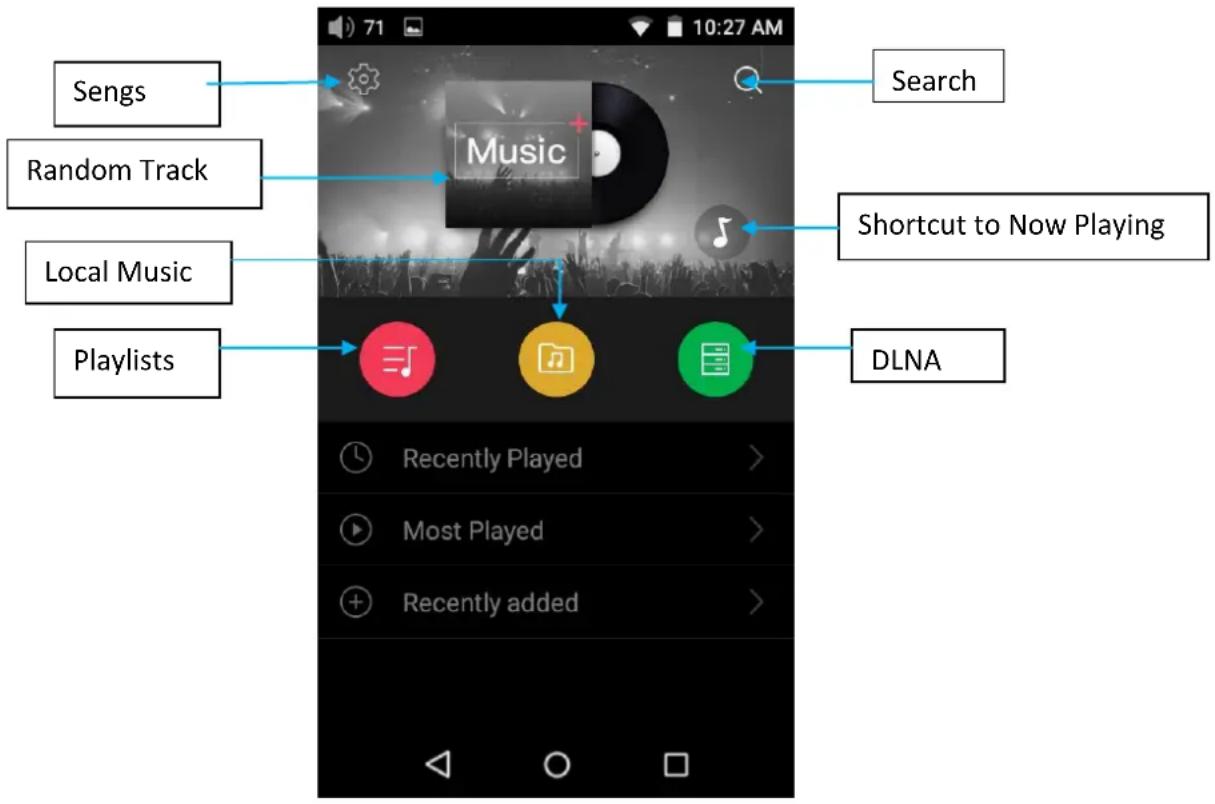
Note: playlists, local music, DLNA, recently played and most played can be selected / unselected for display and their display eects customized in Sengs->UI Personalizaon within the app.
1) Local music
The “Local music” screen displays the songs stored in your X5 in 5 dierent lisngs. From le to right, they are:
Songs: shows all songs in one list according to the chosen order. (Tap the blue circle in the lower right to choose between sorng by number of tracks in the folder and alphabecal order)
Arsts: displays all arsts that performed in at least one track stored in your X5 according to the chosen order. (Tap the blue circle in the lower right to choose between sorng by number of tracks performed by the arst and name of the arst)
Tap on an arst to view a lisng of all songs performed by the arst; or tap the rst icon to the right of the arst name to view a list of albums by the arst instead; tap on an album to view the tracks within that album.
Tap on the name of a song/track to play that track.
Albums: displays all albums stored in your X5 according to the chosen order. (Tap the blue circle in the
lower right to choose between sorng by number of tracks in the album and album name)
Tap an album to view the tracks within that album. Tap a track to play.
Genre: displays the names of all genres represented by at least one song on your X5, according to the chosen order. (Tap the blue circle in the lower right to choose between sorng by number of tracks of that genre and genre name)
Tap the name of a genre to view all songs of that genre;
Folder view: performs as a folder browser showing all directories on your X5's internal storage and inserted micro SD card, but only showing playable music les.
Note: Tap on the shortcut icon"..." and you can select the sorng method or edit the list.
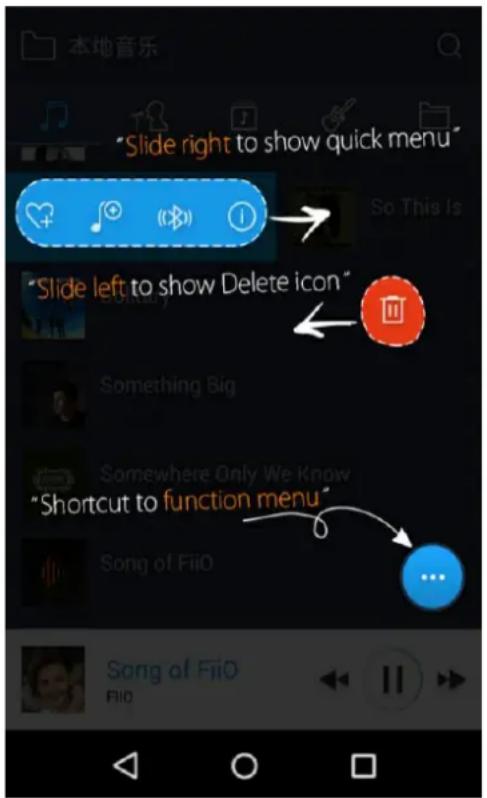
Sliding your nger right over a list item reveals four opons. From le to right they are:
Add to favorites: add the song or the songs contained in the list item to the Favorites playlist.
Add to playlist: add the song or the songs contained in the list item to a playlist of your choosing.
Play over Bluetooth: play the song or the songs contained in the list item over Bluetooth.
Track Info (only shown when a parcular song / track is selected): shows various info on the selected track, including ID3 tag info, song length, bitrate, etc
a) Alphabet scrolling
When the list is ordered by alphabet (tap the blue circle to the lower right and select the "A->Z" op on), you can slide your nger over the alphabet list to the right of the screen and quickly jump to the part of the list that starts with the selected leer.
b) Gestures
Sliding your nger from le to right over a list item to enable the shortcuts menu and tap on the icons to perform the corresponding operaons. Sliding from right to le over a list item reveals an opon to delete the item. (or format a drive, if “internal storage” or “SD card” is selected in folder view...) Tap on the red bu on and you will be prompted to conrm the delete acon.
c) The black/blue circle at the lower right
Tap the black/blue circle at the lower right and you'll be given various op ons:
Choose song order of the list: e.g. sort by number of tracks in list item, alphabecal order;
Batch operaon: Tap the pencil icon and checkboxes will appear to the right of the list. Tap the checkboxes to select the list items you want, then tap the batch operaon desired at the boom. From le to right they are: play, add to favorites, add to playlist, (cancel operaon), and delete.
3) Now playing
The Now Playing screen has buons to tap on as well as places you can acvate with neat gesture acons, as detailed below:
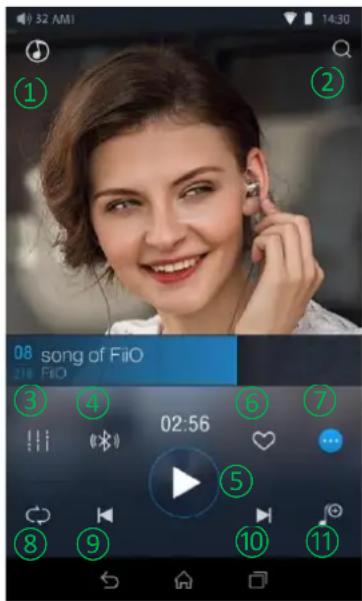
a) Buons explained
Referring to the numbering of the buons above, the buons in this screen are as follows:
1) Home: return to App homepage (see secon F.2.1);
2) Search: Tap to show a full screen search pane for all songs on the X5. Searching of track tle, album name and arst name are supported. Recent searches are saved;
3) Equalizer: tap to open the equalizer control panel;
4) Play via Bluetooth: buon to toggle between playing the present track through Bluetooth or wired headphones. Opens Bluetooth pairing screen if no Bluetooth audio devices are connected (see secon D.1);
5) Play / Pause: Plays / pauses the present track, whichever is applicable;
6) Add to Favorites: Tap to add the present track to the Favorites playlist;
7) More funcons: Tap to view track info or delete the present track;
8) Play mode: Tap to choose between Play All once, Loop Single, Shue and Loop All;
9) Previous track
10) Next track
11) Add to playlist: adds the present song to a playlist of your choosing
b) Gesture operaons
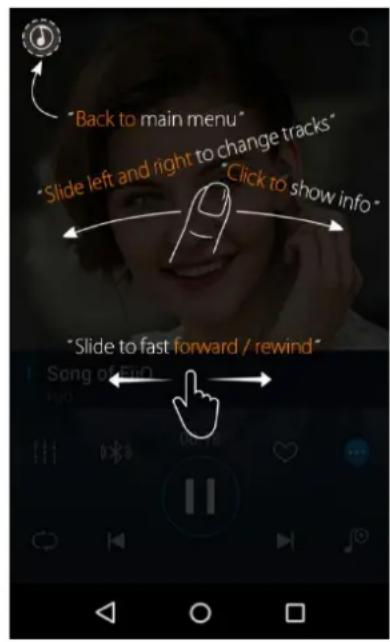
Slide le and right on the album cover to change tracks.
Click on the middle of the album cover to switch between displaying the album cover, lyrics, ID3 info and VU meter.
For tracks with syned lyrics you may scroll up and down the lyrics to jump to the corresponding part of the track. Tap on the gear icon at the lower right of the lyrics display to show additional opons such as font size.
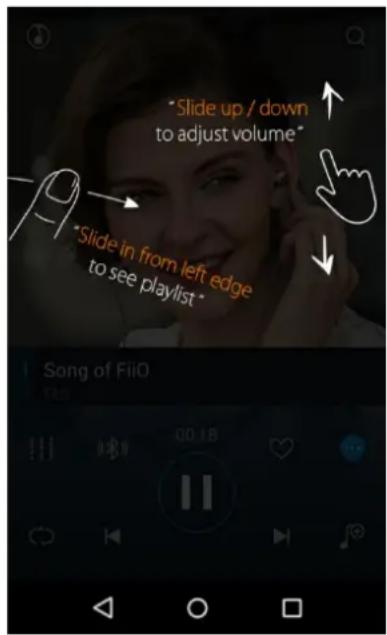
View playlist: slide in from le edge to view the current list of songs queued for play; tap any song on the list to jump to that song;
Tap outside of the playlist on the le to close the list;
Adjust volume: slide up / down on the right edge of the album cover area to adjust the volume.
No operaon for 2s or click "Back" buon, it can hide the volume adjustment window
Slide to fast forward/rewind: tap anywhere on the progress bar below the album cover area to jump to the corresponding part of the track now playing;
Note: While in the lyrics display page, you can adjust the playback progress by sliding over the lyrics, adjust
lyrics meline or adjust font size.
4) Equalizer
FiiO Music incorporates a graphic equalizer. One may choose between the given genre presets directly, or adjust the ten frequency bands from 31 to 16000Hz independently from -6 to +6 dB, thus sasfying your personalized listening needs and adapng to your listening equipment.
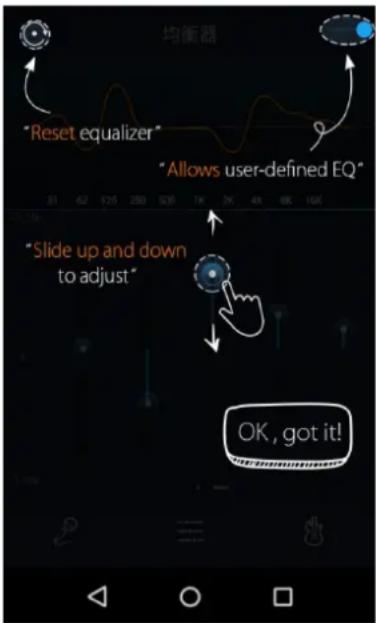
Master EQ switch: Slide the lever on the upper right to the right to acvate the equalizer.
Choose preset EQ: Swipe up from the boom of the screen (above the homescreen buon) to show the full list of EQ presets. The corresponding genres are:
Pop (User Dened) Rock
Dance Blues Metal
Vocal Classical Jazz
(each of these genre presets may be customized as shown below)
Customize EQ: to customize an EQ seng:
- Turn on the equalizer;
- Choose the genre preset to be adjusted (e.g. "User De ned");
- Drag a vercal slider to adjust its corresponding frequency up and down. The EQ curve above changes to react your adjustments.
Swipe le or right over the sliders to move between the low and high frequency sliders;
Press the Back buon to the lower right to exit and save changes;
Reset EQ: Tap the reset buon at the upper le corner to reset the present EQ preset to its genre default.
If a factory reset is performed on the X5, all EQ sengs will be reset to defaults.
3. Pure Music Mode
The operaon of the X5 in Pure Music mode is similar to in Android mode, with the exception that the X5 will be in FiiO Music all the me. In this mode, all background Android processes will be disabled to allow for a smoother music experience.
To switch to Android mode, pull down the Quick Sengs menu from the top of the touchscreen and tap on the "Pure Music Mode" icon to switch to Android mode.
G. FAQ
1. Charging
How large is the X5's baery? How long will it last?
A: The X5 ulizes a 3400mAh rechargeable Li-poly baery, for roughly 10 hours of play me in normal use.
You may refer to hp://io.net/en/products/65/parameters, "Baery Life Test Conditions", for the conditions under which the baery life of the X5 was tested.
How may the X5 be charged?
A: The X5 ulizes a micro USB port for charging and is compatible with all USB power sources:
①X5 supports both normal charge and quick charge. It's recommended to use a quick charge adapter (DC9/12V 2A) to charge X5. It could be fully charged within 2 hours in Quick Charge mode.
② Connecng to computer USB port (however charging will take longer because of low current limit of computer USB ports)
③ Using USB AC power adapter (output voltage DC 5V; output current of 2A).
How long does it take to fully charge the X5?
A: It could be fully charged within 2 hours using a quick charge adapter (DC 9V/12V 2A) and within 4 hours using a DC5V2A adapter.
Can X5 be used while charging?
A: The X5 ulizes a high-quality power management circuit to ensure its reliability.
① The X5 may be used while charging without performance degradation or damage to the person or the X5.
② The temperature of the X5 will rise somewhat when charging and playing; this is normal.
③ Charging me of the X5 from empty to full will be lengthened as a result of part of the charging current being diverted to power the X5.
Does the X5 display accurate baery levels?
A: Yes, the X5 includes a coulomb meter for its baery and gives accurate baery readouts.
What to do if the X5 gets hot while charging and playing at the same me?
A: As noted above the X5 can be charged and used at the same me without harm. Nevertheless you may choose to turn o the X5 for charging.
2. Transferring songs
What operang systems does the X5 support?
A: The X5 supports windows XP and x86 and x64 versions of Windows 7, 8 and 10, as well as Apple's Mac OS. Linux is supported in general, however full compatibility with all the variees of Linux is not guaranteed.
What USB ports is the X5 compatible with?
A: The X5 is a USB 2.0 device and is compatible with all USB ports backwards compatible with USB2.0, including USB3.0 and USB-C, the laer via suitable adapter cables.
What are the transfer rates of the X5?
A: Transfer rate depends on the data format and the micro SD card used. Using a Sandisk Class 10 SD card, the following results were obtained using the ATTO Disk Benchmark:
Internal memory: writes 8MB/s, reads 15MB/s (approx.)
Micro SD card: writes 12MB/s, reads 15MB/s (approx.)
Micro SD card used: Sandisk Class 10
Tesng app: ATTO Disk Benchmark
The X5 is connected to my computer. Now how to transfer songs from the computer to the X5?
A: Simply drag and drop folders of music from your computer to the X5, which appears as a regular removable USB drive. If you prefer to use a music library management program on your computer, you may use any management program that supports library management of connected regular removable USB drives.
Is driver installaon required for transferring songs?
A: No.
3. Firmware updates
How to tell whether the X5 has the latest rmware?
A: The X5 will automacally look for the latest rmware online whenever it is connected to the internet via WiFi. Other than that, you may also manually check the firmware version on your X5 (Android Sengs -> About X5 -> Build number) against the rmware versions listed at hp://www.io.net/en/supports/43 .
You may also pay aenon to general FiiO news at
www.io.net or community news at hp://www.head-.org/f/180/io.
Would the X5 be bricked if update fails? What to do if the X5 is bricked?
A: Please ensure that the X5 is well charged, preferably fully charged, before updang. The X5 should not brick during update even if it fails. Nevertheless, if your X5 is bricked, please contact us at support@io.net and we will help you with it.
4. Storage
Does the X5 contain internal storage? Is removable storage supported?
A: The X5 comes with 32GB of internal storage and presently supports two micro SD cards of up to 256GB capacity (512GB for two).
Is the X5 picky about cards?
A: From our tesng, the X5 supports all major SD card brands. To prevent slow card speeds causing dropouts when listening to music of high bitrates (such as 384kHz/24bit APEs and DSD128), cards of Class 10 or above are recommended.
5. Playing music
Why can my APE les not be played by the X5?
A: APE comes in 5 compression rates, Fast, Normal, High, Extra High, and Insane. The X5 may play up to Fast, Normal, and High compression APEs of up to 384kHz/24bit, and Extra High and Insane APEs of up to
192kHz/24bit. Please check whether the track you are aempng to play is supported by the X5.
Does the X5 support CUE sheets?
A: The X5 supports external cue sheets for iden fying and playing a cue'd music le as separate tracks.
Why is my cue sheet not supported?
A: Embedded cue sheets are not supported. Also please make sure that the .cue file is named the same as the music le that it cues.
Why does X5 not show the cue le in the micro SD card when browsing les?
A: Since it has been already been used by the X5 to split the cue'd le into mul ple tracks (which are shown).
How to listen to all the music folders on the X5 one by one without switching folders manually?
A: Play sengs->Play through folders may be set to On to set the X5 to skip automacally from the last song in one folder to the rst song in the next folder when playing from a folder lisng.
Why do the songs I've copied into the X5 not appear in any lisng (except Folder view) in FiiO Music?
A: Please go to FiiO Music Sengs->Scan for songs to index your songs into the list.
6. Connecng with other audio equipment
How to connect the X5 Line Out to other equipment? What to connect it to?
A: First, make sure that the Mulfunconal Output (Secon F.1.6.c) is set to Line Out. Then connect the LINE/COAX OUT port on top of the X5 to the line in / aux in port of your equipment via an appropriate interconnect. The Line Out is a standard high level line output and is for connecng to line inputs such as that on headphone amplifiers, AV receivers, loudspeaker preamps, powered speakers, etc. The default line output level is high (2V) and can damage headphones. In any case, headphones are not meant to be connected to a line output and will perform poorly.
The X5 does not get detected by my computer for le transfers?
A: The X5 may be connected to the computer as a standard USB storage device or as a DAC (for outpung audio being played by the computer). Disconnect the X5's USB connec on, pull down the se ngs menu
from the top of the touchscreen and check that the USB connec on is set to "storage" rather than "DAC"; then plug the X5 back in. You will be prompted to "Turn on USB storage". (the prompt can also be brought up manually by pulling down the nocaons panel from the top of the touchscreen and tapping the "USB connected" no ca on.)
How to connect the X5's S/PDIF / coaxial digital output to other equipment? What to connect it to?
A: First, make sure that the Mulfunconal Output (Secon F.1.6.c) is set to Coaxial digital out. Then connect the LINE/COAX OUT port on top of the X5 to the provided S/PDIF adapter cable. (It's the short cable with a 3.5mm jack on one end and a single RCA port on the other.) Then connect the other end of the adapter cable to your equipment's coaxial S/PDIF input with an appropriate RCA coaxial cable.
Note: Dierent manufacturers may have dierent pin-out denion of the coaxial cable plug. Please use the coaxial cable supplied with the X5 to avoid the no output problem resulting from incompatibility.
Why does my HT receiver never play the rst ten seconds of music from my X5?
A: If the HT receiver is not explicitly set to receive audio from the coaxial port, it takes approximately ten seconds to detect that audio is not coming in through the HDMI port and switch to the coaxial port. In this case, please set the HT receiver's audio input to Coaxial.
7. Other operaons
How to get longer baery life for the X5?
A: a) Set the display to sleep aer a certain period of inactivity (system Sengs->Display->Sleep), and lock the screen before pung the X5 in your pocket, so that the touchscreen does not connue accepting input in your pocket and keep your X5 acve.
b) Turning down the backlight brightness and turning o the pulsar light can also save baery.
c) Go to X5's system se ngs -> Power-o mers -> Idle powero to set the Idle powero mer; And aer the set me of inacvity, X5 will power o automacally to save power.
Why is the X5 a bit sluggish in responding at mes?
A: a) High bitrate lossless tracks, particularly 384k/24bit APEs or DSD les, take more hardware resources to decode, possibly causing slowdowns in the player UI. You may convert such APEs to FLACs or uncompressed WAVs using programs such as foobar2000 on the computer rst to make it easier on the
player. The sound quality will be the same.
b) Massive songs stored in the micro SD card might also result in operaon delay.
c) Massive les of non-music formats like photos, videos stored in the Micro SD card might cost extra me on idencaon.
d) Playing high bitrate les or DSD les from slow micro SD card might cause stuering. Class 10 or above genuine micro SD cards are recommended.
e) Disordered les (such as various APE albums and CUE les all put into one folder) might slow down the loading speed. It's recommended to create folders in this method: rst create folder of dierent arststhen create subfolders of dierent albums under the arst folder.
f) Dierent formats or bit rate les stored together might increase processing me. It's recommended to create dierent folders to store dierent format les and choose playback by folders to avoid X5 switching decoder frequently.
Why does the X5 get a lile hot in operaon?
A: The X5 ulizes an SoC with high clock speed, a separate DAC, and (also separately) a high power headphone amplifier and independent analog volume control in the amplicaon stage, thus dissipang way more power than consumer DAPs typically performing computaon, DAC and amplicaon all on the SoC. Apart from outpung more power to your headphones, a lot of this power is also dissipated as heat, thus causing the X5 to heat up slightly in operaon; but this does not endanger the X5 or the listener in any way.
Why can't I go to the homescreen by pressing the home buon?
A: Please check the X5 operaon mode you are currently in by pulling down the sengs menu from the top of the touchscreen. If you're in Pure Music mode, tap on the mode icon to switch to Android mode, a 'er that you will be able to access the Android homescreen.
Note: You can pull down from the top of the screen twice to enable the Quick sengs menu and view the current system mode.
Why can't I see the Quick sengs menu when I pull down from the top of the touchscreen?
A: There are two levels of pull-down menus. Aer the rst pulling down, you will see the nocaon panel and aer the second pulling down you will see the Quick sengs menu.
Does the X5 support 256GB micro SD cards?
A: Yes.
Does the X5 coaxial digital output support DoP? At what rate?
A: DoP output will be supported in future updates at up to 2.8224mHz/1bit (DSD64).
Why can my X5 not receive OTA updates / why is the OTA update so slow?
A: The update download may be slow owing to network constraints, at the FiiO server's end, in the intermediary network, at your Internet ISP, your WiFi router, or owing to poor WiFi reception by the X5 (move closer to the router / hotspot). In any case, you may press the Home buon to dismiss the update download progress bar and connue using the X5 normally while the update downloads. You may even switch the X5 o and on and the update download will connue.
Why somemes it shows "0 new songs added to media library" aer updang?
A: X5 has adopted the incremental update method. If the songs had already been added to library, then they wouldn't be added in the next scanning. Therefore it would show "0 song added to media library" after the update. And this is not an update failure. Because of the incremental update scheme, the player is able to support the "Recently added" funcon and also save the scanning me.


- X5 Users' Guide
- Foreword:
- Contents
- Introducon
- Buons and ports introduced
- Pictorial guide to buons and ports
- Buons and ports explained
- Pure Music / Android Mode switch
- Switching from Android to Pure Music mode
- Switching from Pure Music to Android mode
- Wireless connecvity
- Bluetooth
- WiFi
- Firmware updates
- Over-the-air automac updates
- Local Updates
- Over-the-air manual updates
- Notes and Precauons
- Pictorial guide to operang the X5
- Android Mode
- 1) Status bar
- 2) Nocaons panel
- 3) Quick Sengs menu
- 4) FiiO Market
- 5) Technical support
- 6) X5 Sengs
- a) Audio Sengs—In-line remote
- b) Audio sengs—lowpass Iter mode
- c) Audio sengs—Mulfunconal Output
- d) Audio seings—Adjustable volume at LO
- e) Audio sengs—Gain
- f) Audio sengs—Channel balance
- g) Display—Brightness level
- h) Display—Wallpaper
- i) Display—Sleep
- j) Display—Font Size
- k) Power-o mers—Sleep
- 1) App homepage
- 1) Local music
- a) Alphabet scrolling
- b) Gestures
- c) The black/blue circle at the lower right
- 3) Now playing
- a) Buons explained
- b) Gesture operaons
- 4) Equalizer
- Customize EQ: to customize an EQ seng:
- Pure Music Mode
- FAQ
- Charging
- How may the X5 be charged?
- How long does it take to fully charge the X5?
- Can X5 be used while charging?
- Does the X5 display accurate baery levels?
- What to do if the X5 gets hot while charging and playing at the same me?
- Transferring songs
- What operang systems does the X5 support?
- What USB ports is the X5 compatible with?
- What are the transfer rates of the X5?
- The X5 is connected to my computer. Now how to transfer songs from the computer to the X5?
- Is driver installaon required for transferring songs?
- Firmware updates
- How to tell whether the X5 has the latest rmware?
- Would the X5 be bricked if update fails? What to do if the X5 is bricked?
- Storage
- Does the X5 contain internal storage? Is removable storage supported?
- Is the X5 picky about cards?
- Playing music
- Why can my APE les not be played by the X5?
- Does the X5 support CUE sheets?
- Why is my cue sheet not supported?
- Why does X5 not show the cue le in the micro SD card when browsing les?
- How to listen to all the music folders on the X5 one by one without switching folders manually?
- Why do the songs I've copied into the X5 not appear in any lisng (except Folder view) in FiiO Music?
- Connecng with other audio equipment
- How to connect the X5 Line Out to other equipment? What to connect it to?
- The X5 does not get detected by my computer for le transfers?
- How to connect the X5's S/PDIF / coaxial digital output to other equipment? What to connect it to?
- Why does my HT receiver never play the rst ten seconds of music from my X5?
- Other operaons
- How to get longer baery life for the X5?
- Why is the X5 a bit sluggish in responding at mes?
- Why does the X5 get a lile hot in operaon?
- Why can't I go to the homescreen by pressing the home buon?
- Why can't I see the Quick sengs menu when I pull down from the top of the touchscreen?
- Does the X5 support 256GB micro SD cards?
- Does the X5 coaxial digital output support DoP? At what rate?
- Why can my X5 not receive OTA updates / why is the OTA update so slow?
- Why somemes it shows "0 new songs added to media library" aer updang?
Brand : FiiO
Model : X5
Category : Media player