FiiO

M11 Pro - Media player FiiO - Free user manual and instructions

Find the device manual for free M11 Pro FiiO in PDF.

📄 37 pages English EN Download 💬 AI Question
Notice FiiO M11 Pro - page 1
Pick your language and provide your email: we'll send you a specifically translated version.

User questions about M11 Pro FiiO

0 question about this device. Answer the ones you know or ask your own.

Ask a new question about this device

The email remains private: it is only used to notify you if someone responds to your question.

No questions yet. Be the first to ask one.

Download the instructions for your Media player in PDF format for free! Find your manual M11 Pro - FiiO and take your electronic device back in hand. On this page are published all the documents necessary for the use of your device. M11 Pro by FiiO.

USER MANUAL M11 Pro FiiO

All the below illustrating pictures are for reference only.

M11 Pro Complete User Manual
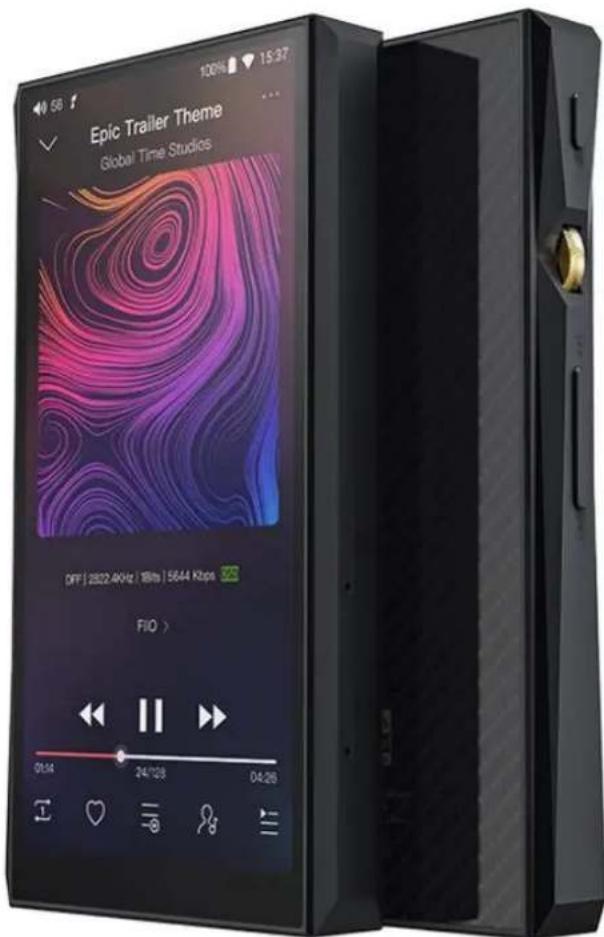
FiiO M11 Pro - M11 Pro Complete User Manual - 1

text_image Epic Trailer Theme Global Time Studios OFF | 2522.4KHz | 18fps | 5644 Kbps FIO > 0:54 24/128 04:26

Foreword:

Thank you for purchasing FiiO's high resolution lossless music player M11 Pro. To help you better utilize the M11 Pro to enjoy high-quality music, we have prepared this complete user manual. We hope this manual could help you get to know the M11 Pro and unleash its full potential.

Contents

1、Pictorial guide to buttons and ports 4
2、Buttons and ports explained 6

- Technical support 29

The M11 Pro is a high fidelity, high resolution digital audio player, featuring Samsung 14nm Exynos 7872, dual AK4497EQ DACs, THX AAA-78 balanced amplifier architecture, 3GB RAM, 64GB internal storage as well as external storage via its micro SD slot (theoretically supporting up to 2TB). The digital audio player is equipped with a 5.15-inch 18: 9 HD display, running on a deep customized Android 7.0, coupled with an in-house developed professional music playback APP, "FiiO Music". The result is an implementation which is responsive and simple to operate. It supports PO / LO / BAL (both 2.5mm and 4.4mm) / SPDIF outputs and also supports USB Audio / USB DAC / Bluetooth receiver functionalities. In the area of Wireless, The M11 Pro not only supports dual-band WiFi and Bluetooth 4.2 protocol but also supports an array of high-quality Bluetooth codecs not limited to aptX, aptX-HD, LDAC and HWA (LHDC). One can play music continuously for at least 9.5 hours or let it go in deep sleep mode for 55 days allowing one to enjoy it any time.

- Buttons and ports introduced

1、Pictorial guide to buttons and ports
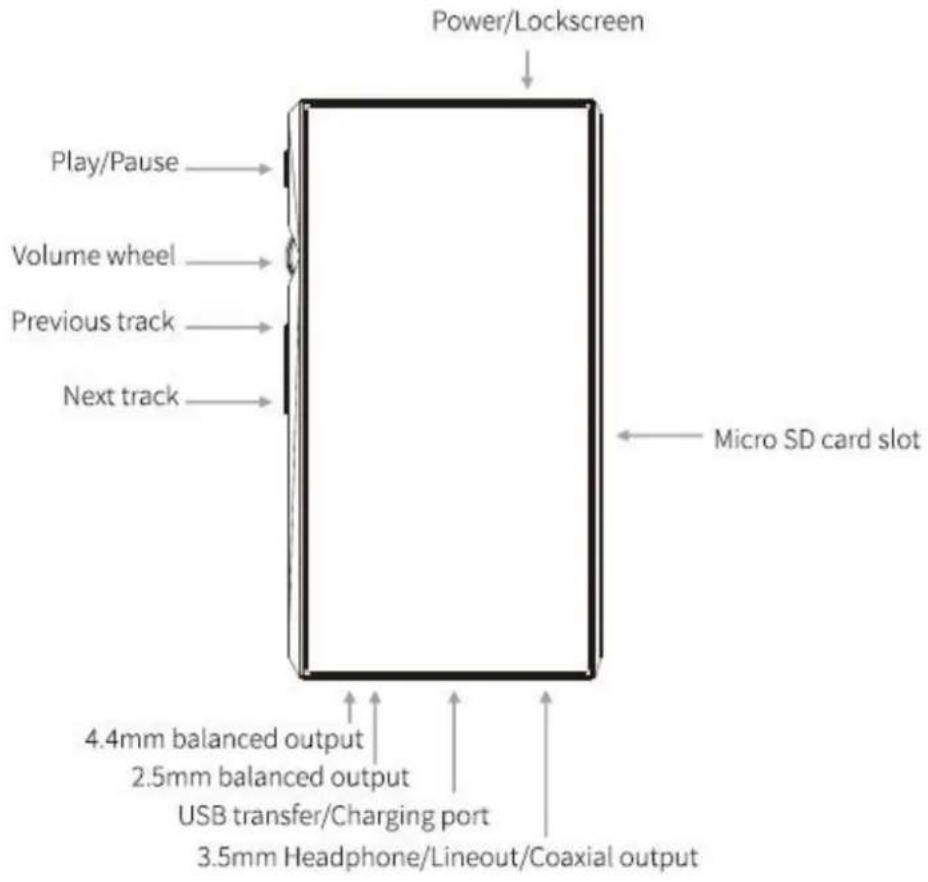
FiiO M11 Pro - 1、Pictorial guide to buttons and ports - 1

text_image Power/Lockscreen Play/Pause Volume wheel Previous track Next track Micro SD card slot 4.4mm balanced output 2.5mm balanced output USB transfer/Charging port 3.5mm Headphone/Lineout/Coaxial output

2、Buttons and ports explained

1) 5.15 inches IPS Hi-Res incell screen (1440x720 pixels): displays the user interface and other information; for operating the unit via screen touches in conjunction with buttons on the unit.
2) Power / Lock: While M11 Pro is powered off, holding for 2s to turn on; while powered on, hold to display power off / reboot menu; press briefly while powered on to turn screen on / off; hold the power button for 10 seconds to reset.
3) Play / Pause: press while playing to pause, press while paused to continue playback.
4) Volume knob: scroll up to turn up the volume, scroll down to turn down.
5) Previous track: short press to play the previous track; long press to rewind the track quickly.
6) Next track: short press to play the next track; long press to fast forward the track.
7) Micro SD card slot: supporting an external Micro SD card storage (theoretically up to 2T extension).
8) Type C USB data/ charging port: used for charging, transmitting data, USB Audio output. The QC2.0 adapter is recommended for charging and can be filled in about 2 hours.
9) 4.4mm balanced headphone output: supports 4.4mm TRRS balanced headphone.
10) 2.5mm balanced headphone output: supports 2.5mm TRRRS balanced headphone.
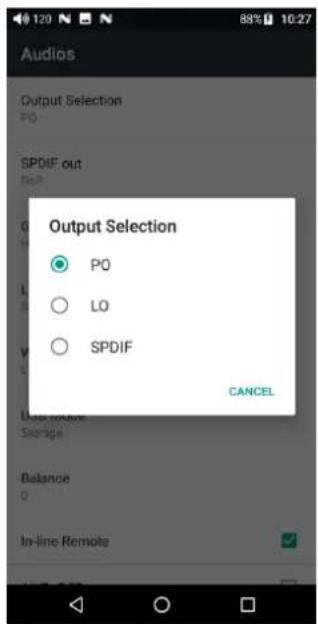
11) 3.5mm PO/LO/SPDIF coaxial output: shared phone/line/coaxial output port. Switch between the three outputs in M11 Pro Settings ->Audio Settings ->Multifunctional Output.
CTIA-spec headsets with in-line remote control supported with the

following remote control operation (single button remotes and main button of multi-button remotes supported):

Volume Up/Down: click to turn up/down the volume by one step, hold to turn up/down the volume continuously to Max volume/Mute;

Play / Pause: press main button once briefly to toggle between play and pause;

Next track: double-click main button quickly;

Previous track: triple-click main button quickly.

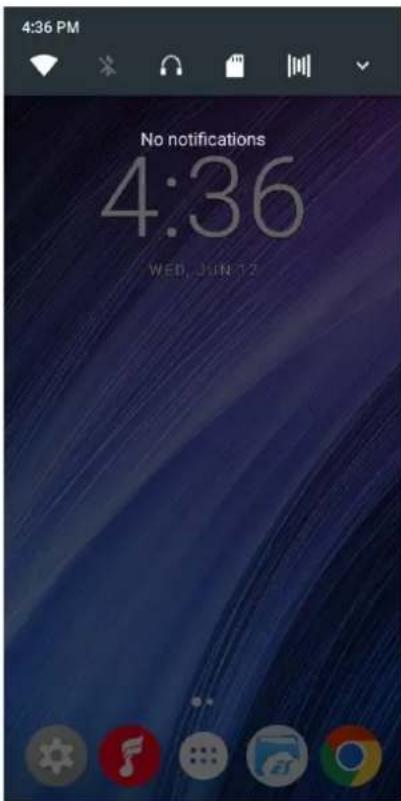
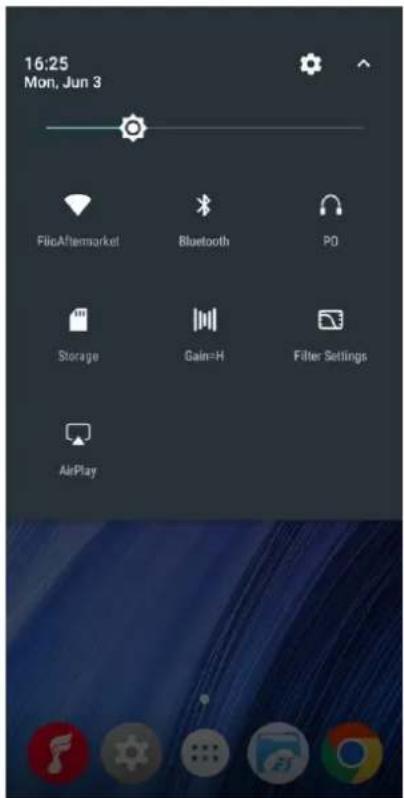
●Main interface and drop-down display
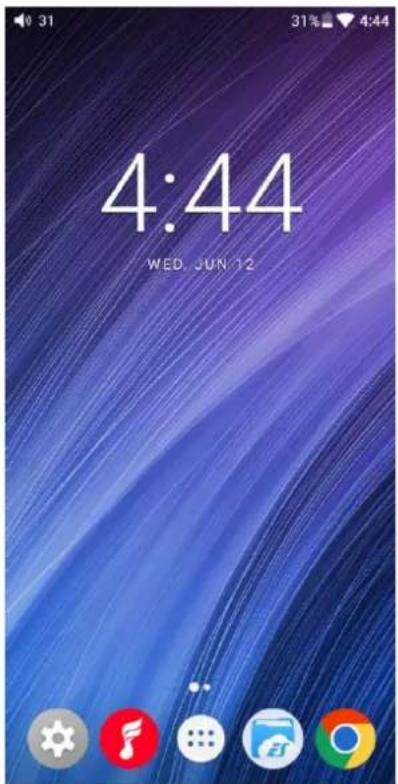
FiiO M11 Pro - 2、Buttons and ports explained - 1

text_image 4:44 WED. JUN 12

FiiO M11 Pro - 2、Buttons and ports explained - 2

text_image Search Apps... Applications Chrome Clock Downloads ES File Explo.. FiiQ Music Gallery Settings Technical Su..

FiiO M11 Pro - 2、Buttons and ports explained - 3

text_image 4:36 PM No notifications 4:36 WED, JUN 12

FiiO M11 Pro - 2、Buttons and ports explained - 4

text_image 16:25 Mon, Jun 3 FileAftermarket Bluetooth PO Storage Gain=H Filter Settings AirPlay

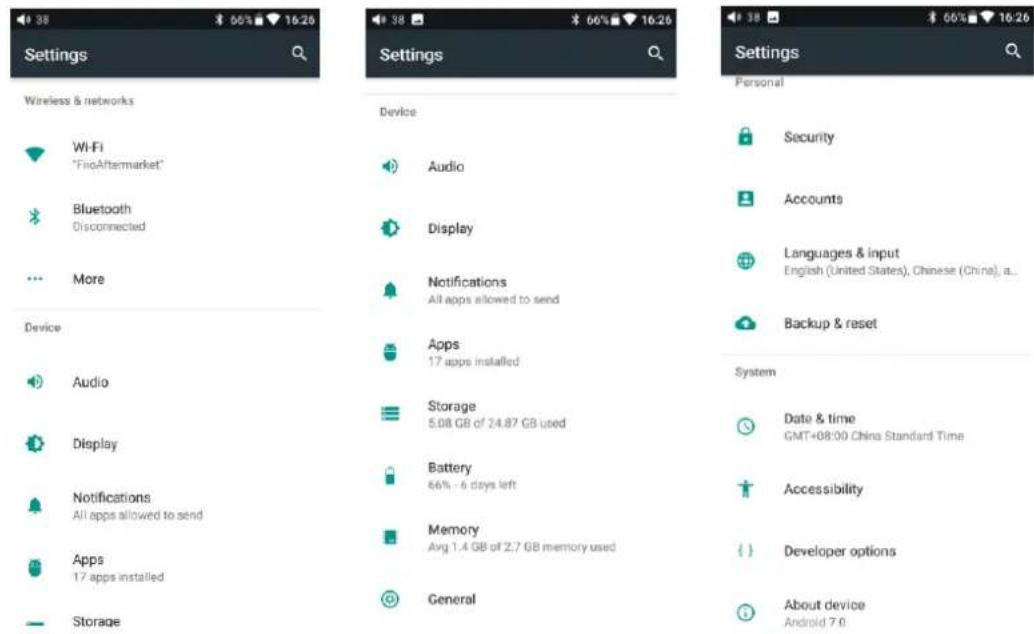
- Setting interface

FiiO M11 Pro - - Setting interface - 1

text_image Settings Wireless & networks WiFi "FireAftermarket" Bluetooth Disconnected More Device Audio Display Notifications All apps allowed to send Apps 17 apps installed Storage Settings Device Audio Display Display Notifications All apps allowed to send Apps 17 apps installed Storage 5.08 GB of 24.87 GB used Battery 66% - 6 days left Memory Avg 1.4 GB of 2.7 GB memory used General Settings Personal Security Accounts Languages & input English (United States), Chinese (China), a... Backup & reset System Date & time GMT+08:00 China Standard Time Accessibility Developer options About device Android 7.0

1、WiFi

The M11 Pro may connect to the Internet or other network resources to obtain music resources or perform other Android functions;

To connect the M11 Pro to WiFi devices / hotspots:

1) Tap the WLAN in setting as shown in the picture below;
2) Slide the WiFi switch to the right (ON) and the M11 Pro will automatically search for and display available WiFi connections;
3) Tap the name of the WiFi network you wish to connect to and enter the password if prompted, then the M11 Pro will connect to the network:
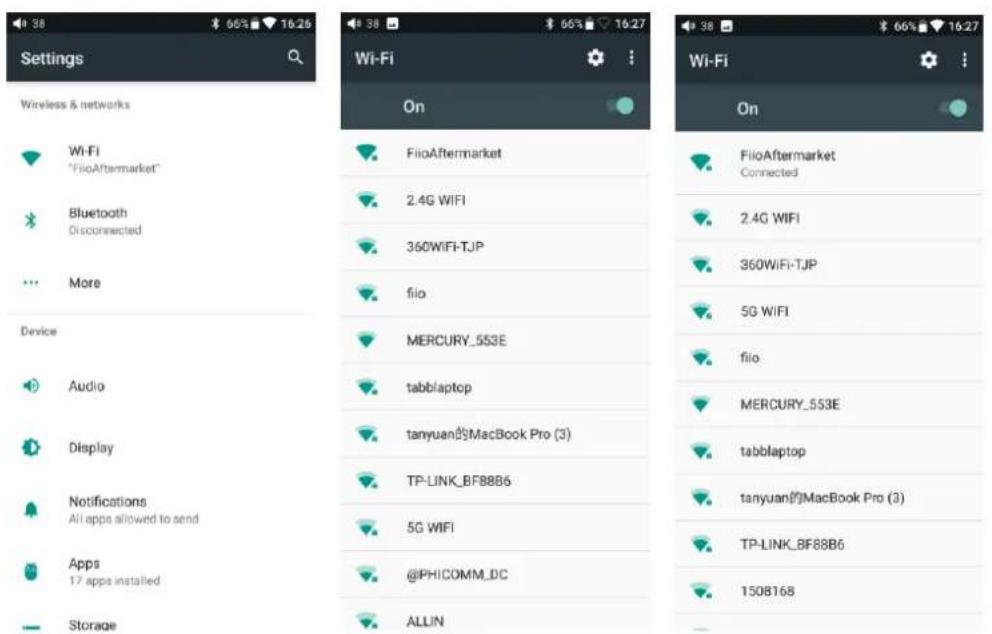
FiiO M11 Pro - 1、WiFi - 1

text_image Settings Wireless & networks Wi-Fi "FilioAftermarket" Bluetooth Disconnected More Device Audio Display Notifications All apps allowed to send Apps 17 apps installed Storage Wi-Fi On FiioAftermarket 2.4G WIFI 360WIFI-TJP filo MERCURY_553E tabblaptop tanyuan的MacBook Pro (3) TP-LINK_BF88B6 5G WIFI @PHICOMM_DC ALLIN Wi-Fi On FiioAftermarket Connected 2.4G WIFI 360WIFI-TJP 5G WIFI filo MERCURY_553E tabblaptop tanyuan的MacBook Pro (3) TP-LINK_BF88B6 1508168

2. Bluetooth

M11 Pro supports multiple Bluetooth codecs and supports both transmission and receiving, which is convenient for users to expand M11 Pro functions through wireless connection.

Using M11 Pro as a Bluetooth transmitter:

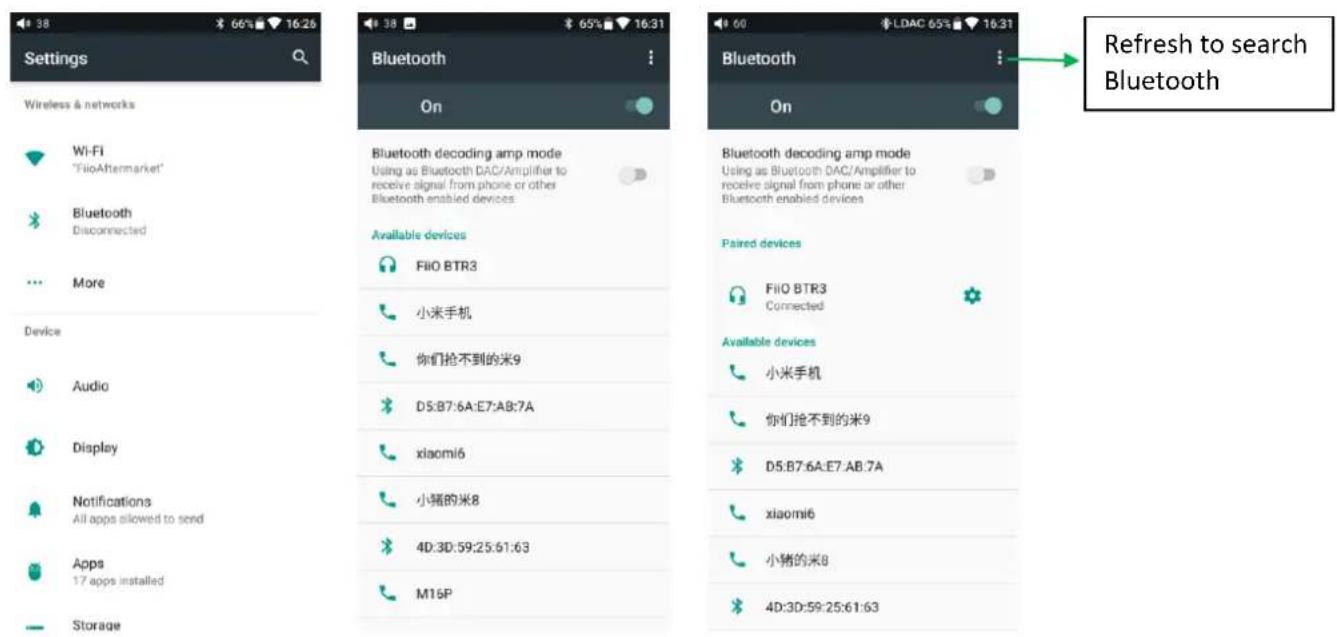
To use the M11 Pro with new Bluetooth devices (e.g. Bluetooth earphones, speakers, remote controls), the M11 Pro must first be paired with the device as follows:

1) Tap the Bluetooth in setting as shown in the picture below;
2) If Bluetooth on the M11 Pro is off, turn it on by flicking the switch on the upper right to the "ON" position on the right;
3) Tap "SEARCH FOR DEVICES" at the bottom of the screen to have the M11 Pro searched for and displayed nearby Bluetooth devices;
4) Tap the name of your Bluetooth device to pair with it. Successfully paired devices will appear under the "PAIRED DEVICES" list.
FiiO M11 Pro - Using M11 Pro as a Bluetooth transmitter: - 1

text_image Settings Wireless & networks Wi-Fi "FileAftermarket" Bluetooth Disconnected More Device Audio Display Notifications All apps allowed to send Apps 17 apps installed Storage Bluetooth decoding amp mode Using as Bluetooth DAC/Amplifier to receive signal from phone or other Bluetooth enabled devices Available devices FliO BTR3 小米手机 你们抢不到的米9 D5:B7:6A:E7:AB:7A xiaomi6 小猪的米8 4D:3D:59:25:61:63 M16P Bluetooth decoding amp mode Using as Bluetooth DAC/Amplifier to receive signal from phone or other Bluetooth enabled devices Paired devices FliO BTR3 Connected Available devices 小米手机 你们抢不到的米9 D5:B7:6A:E7:AB:7A xiaomi6 小猪的米8 4D:3D:59:25:61:63 Refresh to search Bluetooth

Before you connect to Bluetooth, you can select the Bluetooth audio code which you want to use as follows:

1) Enter the Settings-Audio settings interface;
2) Click on the Wireless Play, select the one you want to use, then disconnect the current connection and connect with your Bluetooth device again.

FiiO M11 Pro - Using M11 Pro as a Bluetooth transmitter: - 2

text_image Settings Wireless & networks Wi-Fi Bluetooth Disabled More Device Audio Display Notifications All apps allowed to send Apps 22 apps installed Audio Output Selection PO SPDIF out DoP Gain HIGH Lowpass filter mode Short delay Sharp Roll-Off Filter Wireless playback quality LDAC-Normal mode USB Mode USB DAC Balance 0 In-line Remote Audio Output Selection PO Wireless playback quality LDAC-Quality priority mode LDAC-Normal mode aptX-HD aptX SBC CANCEL Balance In-line Remote

Note:

  1. If you have already connected one Bluetooth device, it is necessary to disconnect

the Bluetooth connection in order to switch the Bluetooth audio code successfully before reconnecting with the Bluetooth device. (The switching between the three modes of LDAC can work in real time.)

  1. When you turn on the Bluetooth, M11Pro will automatically connect to the latest available device.

Using M11 Pro as a Bluetooth receiver

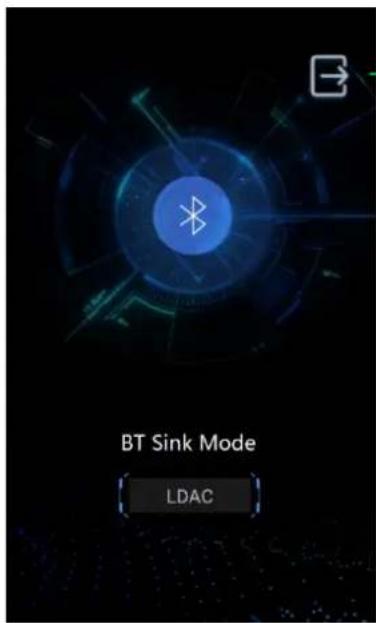
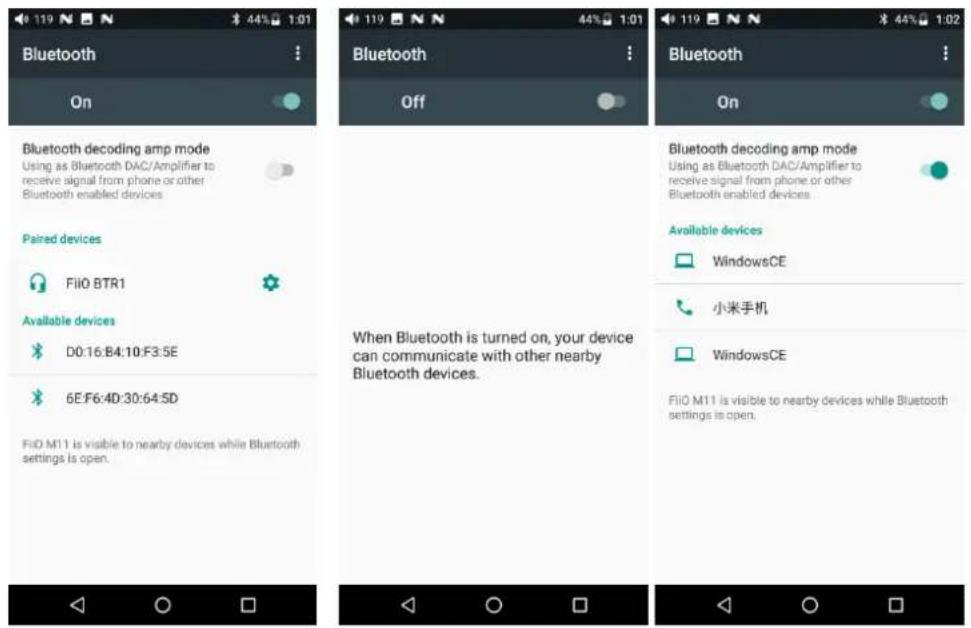
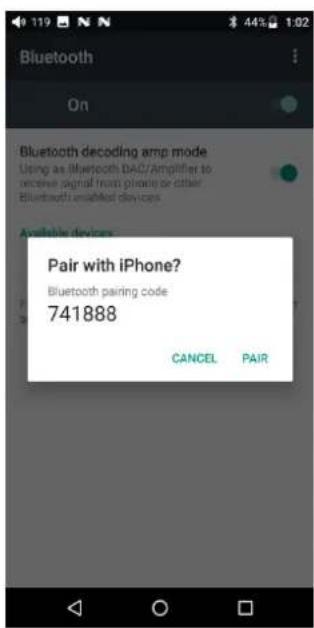
When M11 Pro is connected to the new Bluetooth device (such as the mobile phone) as a Bluetooth receiver, turn on the "Bluetooth decoding mode" in the Bluetooth settings interface, then the Bluetooth will turned off automatically. Turn on the Bluetooth again and you are in Bluetooth receive mode now.
FiiO M11 Pro - Using M11 Pro as a Bluetooth receiver - 1

text_image Bluetooth On Bluetooth decoding amp mode Using as Bluetooth DAC/Amplifier to receive signal from phone or other Bluetooth enabled devices Paired devices FliO BTR1 Available devices D0:16:B4:10:F3:5E 6E:F6:4D:30:64:5D FliO M11 is visible to nearby devices while Bluetooth settings is open. Bluetooth Off When Bluetooth is turned on, your device can communicate with other nearby Bluetooth devices. Bluetooth decoding amp mode Using as Bluetooth DAC/Amplifier to receive signal from phone or other Bluetooth enabled devices Available devices WindowsCE 小米手机 WindowsCE FliO M11 is visible to nearby devices while Bluetooth settings is open.

FiiO M11 Pro - Using M11 Pro as a Bluetooth receiver - 2

text_image Bluetooth On Bluetooth decoding amp mode Using as Bluetooth DAC/Amplifier to receive signal from phone or other Bluetooths enabled devices Pair with iPhone? Bluetooth pairing code 741888 CANCEL PAIR

FiiO M11 Pro - Using M11 Pro as a Bluetooth receiver - 3

text_image BT Sink Mode LDAC

Disconnect

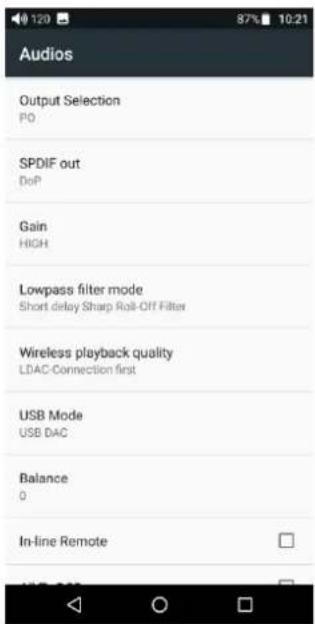
3、Audio

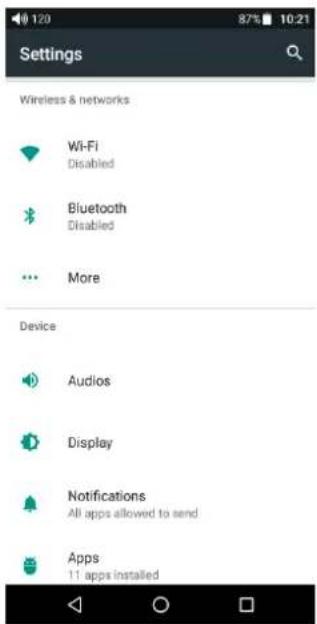
Multifunctional Output

Switch the output in PO/LO/SPIDIF Coaxial
FiiO M11 Pro - Multifunctional Output - 1

text_image Settings Wireless & networks Wi-Fi Disabled Bluetooth Disabled More Device Audios Display Notifications All apps allowed to send Apps 11 apps installed

FiiO M11 Pro - Multifunctional Output - 2

text_image Audios Output Selection PO SPDIF out DoP Gain HIGH Lowpass filter mode Short delay Sharp Roll-Off Filter Wireless playback quality LDAC-Connection first USB Mode USB DAC Balance 0 In-line Remote

FiiO M11 Pro - Multifunctional Output - 3

text_image Audios Output Selection PO SPDIF out Output Selection PO LO SPDIF CANCEL Base mode Storage Balance Q In-line Remote

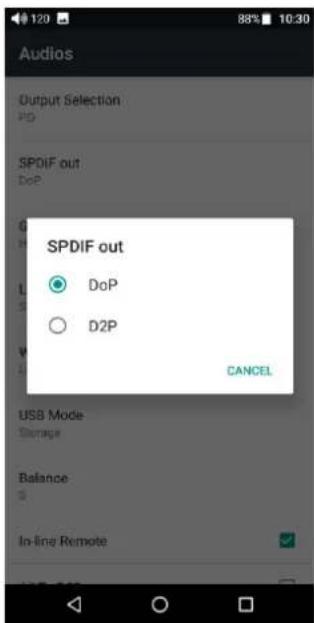
SPDIF Coaxial output:

You can choose between DOP and D2p modes. In D2P mode, DSD will Converted

to PCM output. In DOP mode, it will original output what you input (The amplifier should support DSD or there will be noise when you play DSD in DOP mode)
FiiO M11 Pro - SPDIF Coaxial output: - 1

text_image Audios Output Selection PD SPDIF out DoP SPDIF out DoP D2P CANCEL USB Mode Storage Balance: In-line Remote

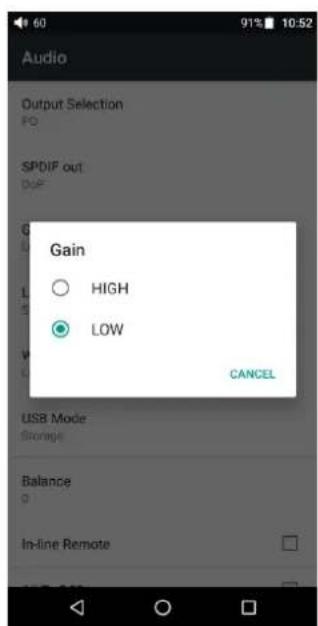
Gain

Sets the gain level of the headphone output to be either High (high volume) or Low (low volume).
FiiO M11 Pro - Gain - 1

text_image Audio Output Selection PO SPDIP out DUE Gain ○ HIGH ● LOW CANCEL USB Mode Storage Balance 0 In-line Remote

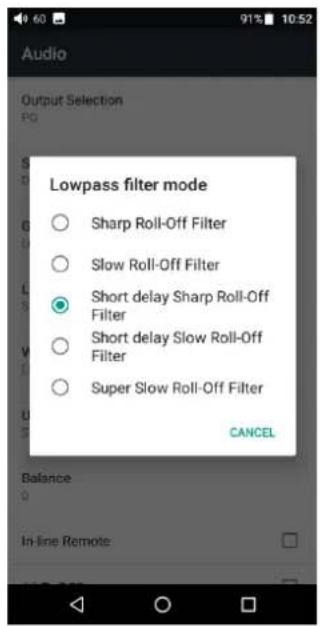
Digital filter mode

To set the filter modes: Sharp Roll-Off Filter, Slow Roll-Off Filter, Short delay

Sharp Roll-Off Filter, Short delay Slow Roll-Off Filter, Super Slow Roll-Off Filter.
FiiO M11 Pro - Digital filter mode - 1

text_image Audio Output Selection PG Lowpass filter mode Sharp Roll-Off Filter Slow Roll-Off Filter Short delay Sharp Roll-Off Filter Short delay Slow Roll-Off Filter Super Slow Roll-Off Filter CANCEL Balance In-line Remote

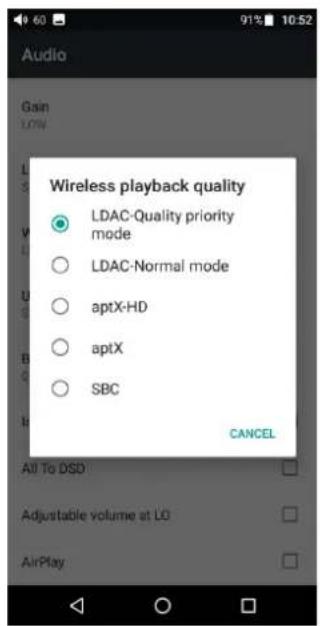
Wireless playback quality

When the Bluetooth receiver supports multiple Bluetooth audio encodes (such as BTR3), you can select which you want to use.
FiiO M11 Pro - Wireless playback quality - 1

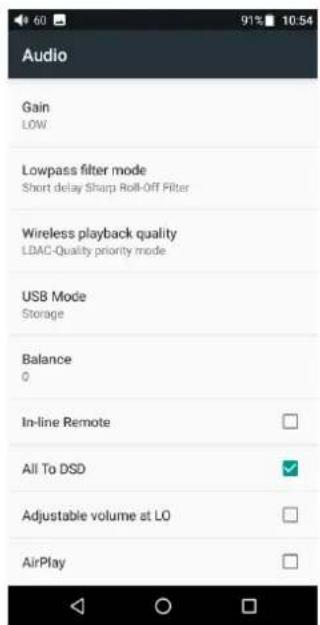
text_image Audio Gain LOW Wireless playback quality LDAC-Quality priority mode LDAC-Normal mode aptX-HD aptX SBC CANCEL All To DSD Adjustable volume at LO AirPlay

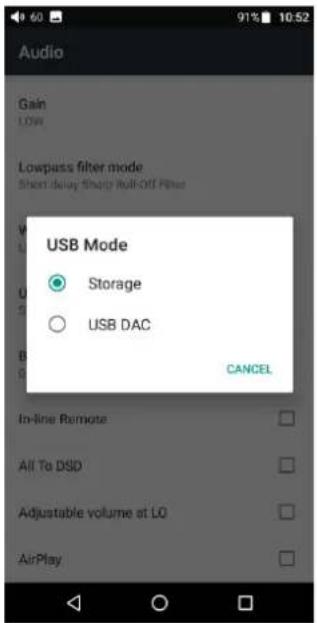
USB mode

Storage and USB DAC mode are provided. If the system of your computer is Windows, please download USB DAC driver on our website and follow relevant

instructions to install and use M11 Pro as an USB DAC. MAC computer do not need the driver.

Download Link: https://www.fiio.com/Driver_Download
FiiO M11 Pro - USB mode - 1

text_image Audio Gain LOW Lowpass filter mode Short delay (slow) Roll-Off Filter USB Mode Storage USB DAC CANCEL In-line Remote All To DSP Adjustable volume at LO AirPlay

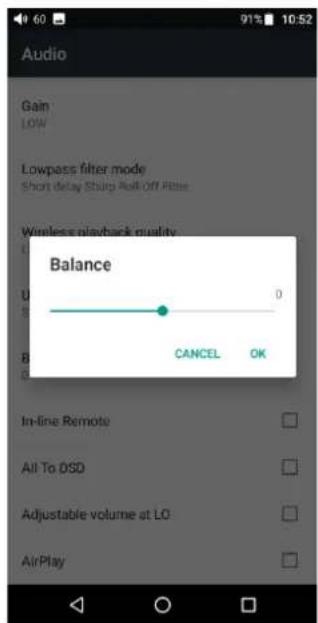
Channel balance

Set the volume balance between the left and right channels. From being biased leftmost (L10) through the centre (0) to rightmost (R10), there are 21 settings available.
FiiO M11 Pro - Channel balance - 1

text_image Audio Gain LOW Lowpass filter mode Short delay Strig Roll Off Rise Wireless playback quality Balance 0 CANCEL OK In-line Remote All To DSD Adjustable volume at LO AirPlay

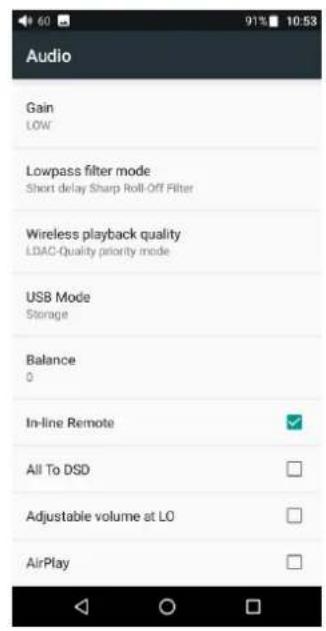
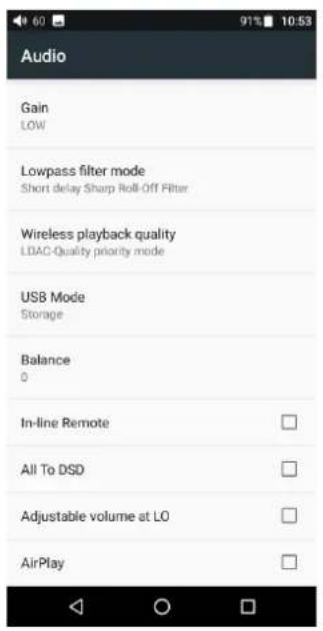
In-line remote

Response to in-line remotes on connected headsets may be enabled or disabled by your choice.
FiiO M11 Pro - In-line remote - 1

text_image Audio Gain LOW Lowpass filter mode Short delay Sharp Roll-Off Filter Wireless playback quality LDAC-Quality priority mode USB Mode Storage Balance 0 In-line Remote All To DSD Adjustable volume at LO AirPlay

FiiO M11 Pro - In-line remote - 2

text_image Audio Gain LOW Lowpass filter mode Short delay Sharp Roll-Off Filter Wireless playback quality LDAC-Quality priority mode USB Mode Storage Balance 0 In-line Remote All To DSD Adjustable volume at LO AirPlay

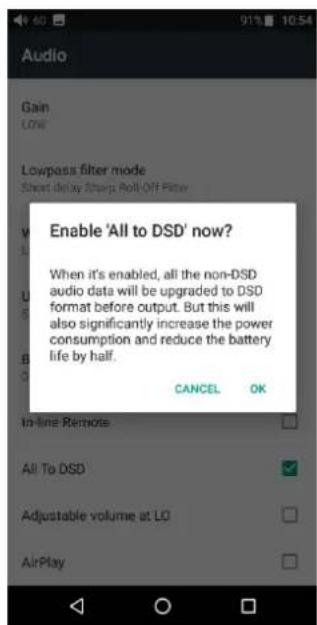
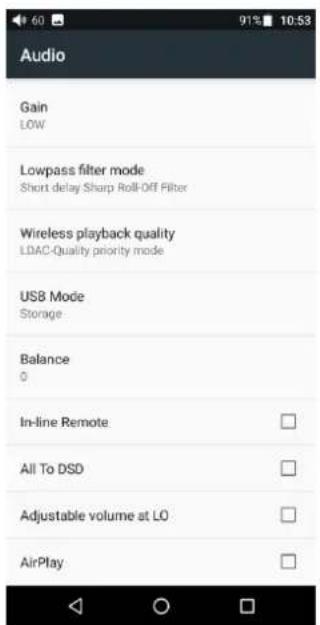
ALL to DSD

In ALL to DSD mode, PCM will be converted to DSD64 output.
FiiO M11 Pro - ALL to DSD - 1

text_image Audio Gain LOW Lowpass filter mode Short delay Sharp Roll-Off Filter Wireless playback quality LDAC-Quality priority mode USB Mode Storage Balance 0 In-line Remote All To DSD Adjustable volume at LO AirPlay

FiiO M11 Pro - ALL to DSD - 2

text_image Audio Gain LOW Lowpass filter mode Short delay Sturg Roll-Off Filter Enable 'All to DSD' now? When it's enabled, all the non-DSD audio data will be upgraded to DSD format before output. But this will also significantly increase the power consumption and reduce the battery life by half. CANCEL OK In-line Remote All To DSD Adjustable volume at LO AirPlay

FiiO M11 Pro - ALL to DSD - 3

text_image Audio Gain LOW Lowpass filter mode Short delay Sharp Roll-Off Filter Wireless playback quality LBAC-Quality priority mode USB Mode Storage Balance 0 In-line Remote All To DSD Adjustable volume at LO AirPlay

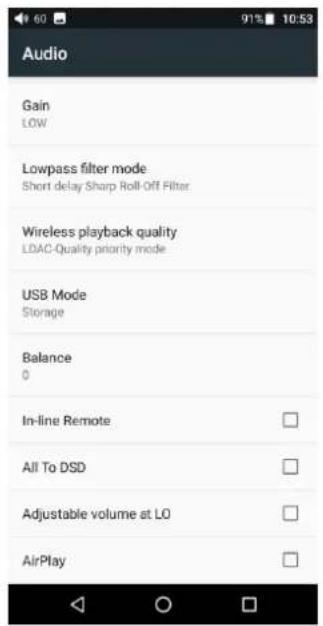
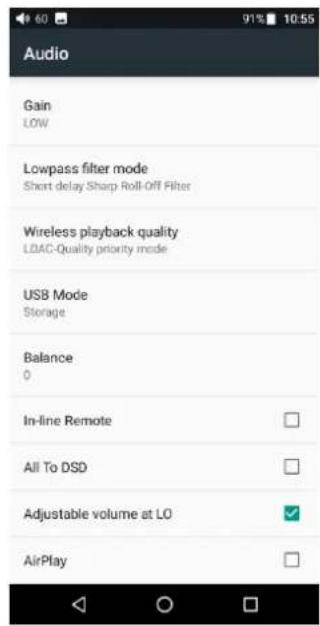
Adjustable volume at LO: on/off

This allows you to set whether the volume through Line Out, it can be controlled by adjusting the volume level or not.
FiiO M11 Pro - ALL to DSD - 4

text_image Audio Gain LOW Lowpass filter mode Short delay Sharp Roll-Off Filter Wireless playback quality LDAP-Quality priority mode USB Mode Storage Balance 0 In-line Remote All To DSD Adjustable volume at LO AirPlay

FiiO M11 Pro - ALL to DSD - 5

text_image Audio Gain LOW Lowpass filter mode Short delay Sharp Roll-Off Filter Wireless playback quality LDAC-Quality priority mode USB Mode Storage Balance 0 In-line Remote All To DSD Adjustable volume at LO AirPlay

AirPlay

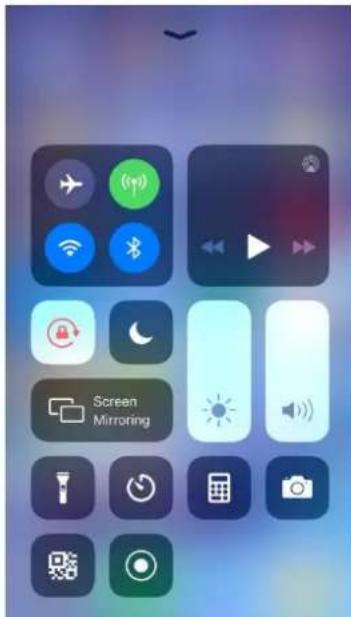
1) Connect to the same WiFi

FiiO M11 Pro - AirPlay - 1

text_image Audio Gain LOW Lowpass filter mode Short delay Sharp Roll-Off Filter Wireless playback quality LDAP-Quality priority mode USB Mode Storage Balance 0 In-line Remote All To DSD Adjustable volume at LO AirPlay Settings WLAN WLAN fioqetest Unsecured Network CHOOSE A NETWORK... ChinaNet-bigd ChinaNet-prHv fiio FiiO-market2 fio-qe fiio-qe5GHz fiio-sy1 fioqetest_5G Other... Wi-Fi On fioqetest Connected Add network

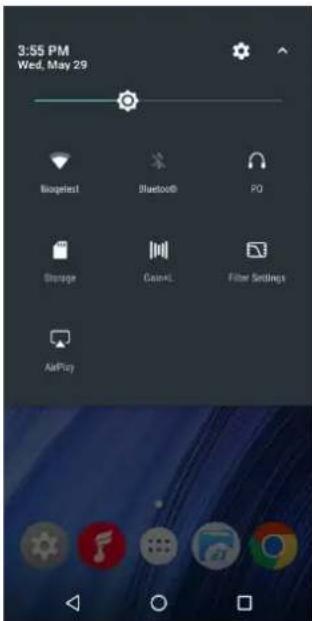
2) Click AirPlay on M11 Pro

FiiO M11 Pro - AirPlay - 2

text_image 3:55 PM Wed. May 29 Biopedia1 Bluetooth® PO Storage Geacel Filter Settings AirPlay

FiiO M11 Pro - AirPlay - 3

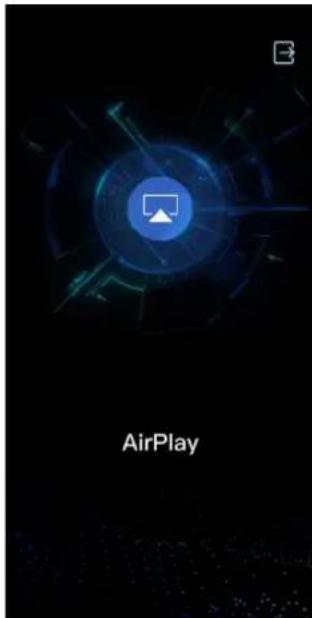
text_image AirPlay

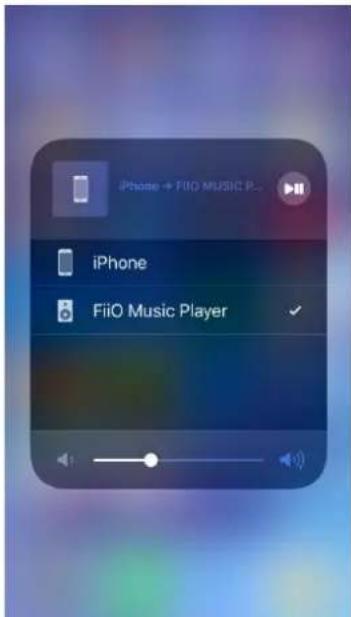
3) Click the device AirPlay button, and then choose FiiO Music Player to connect.
FiiO M11 Pro - AirPlay - 4

text_image Screenshot of a mobile app interface showing app icons and a 'Screen Mirroring' tab with Chinese text.

FiiO M11 Pro - AirPlay - 5

text_image iPhone → FiiO MUSIC P... iPhone FiiO Music Player

4) Playing music on your device, you can listen on M11 PRO.

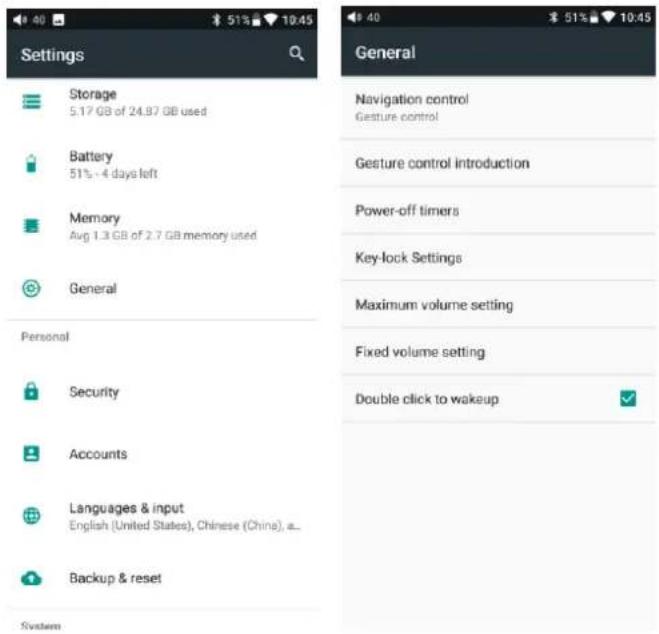
4、General

General includes Navigation control, Power-off timers, Key-lock settings, Maximum volume settings, Fixed volume settings, Double click to wakeup. Here are

a few common functions' introductions.
FiiO M11 Pro - 4、General - 1

text_image Settings Storage 5.17 GB of 24.97 GB used Battery 51% - 4 days left Memory Avg 1.3 GB of 2.7 GB memory used General Personal Security Accounts Languages & input English (United States), Chinese (China), a... Backup & reset System General Navigation control Gesture control Gesture control introduction Power-off timers Key-lock Settings Maximum volume setting Fixed volume setting Double click to wakeup

Operation method

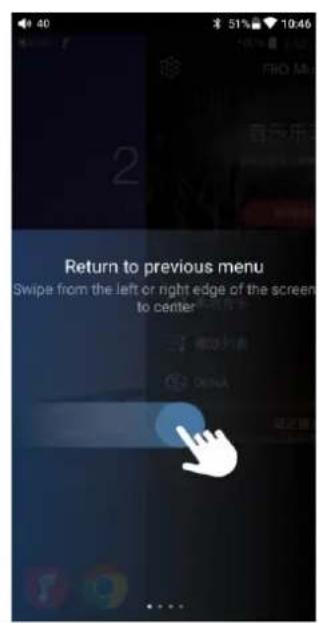
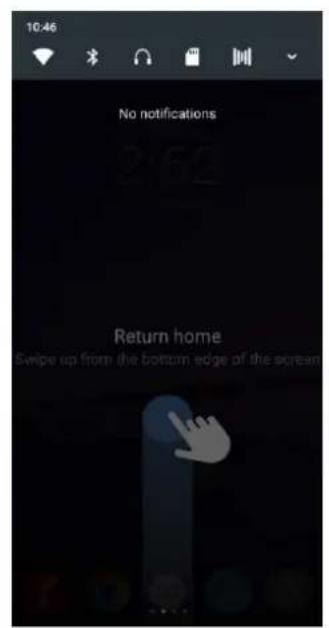
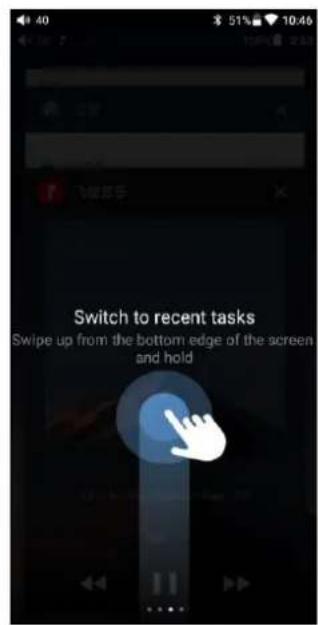
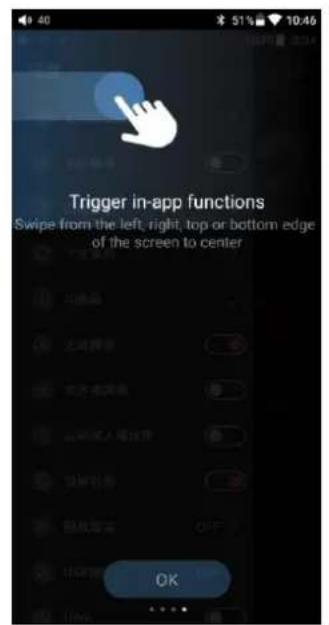
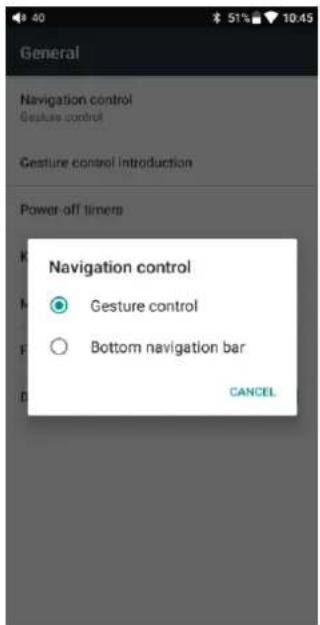
There are two operation modes: “gesture operation” and “virtual key”. Choose the right way to operate according to your habits.
FiiO M11 Pro - Operation method - 1

text_image General Navigation control Gesture control Gesture control introduction Power-off timers Navigation control Gesture control Bottom navigation bar CANCEL

Gesture control introduction

FiiO M11 Pro - Gesture control introduction - 1

text_image 40 51% 10:46 2 Return to previous menu Swipe from the left or right edge of the screen to center

FiiO M11 Pro - Gesture control introduction - 2

text_image 10:46 No notifications 2:52 Return home Swipe up from the bottom edge of the screen

FiiO M11 Pro - Gesture control introduction - 3

text_image Switch to recent tasks Swipe up from the bottom edge of the screen and hold

FiiO M11 Pro - Gesture control introduction - 4

text_image Trigger in-app functions Swipe from the left, right, top or bottom edge of the screen to center OK

Power-off timers

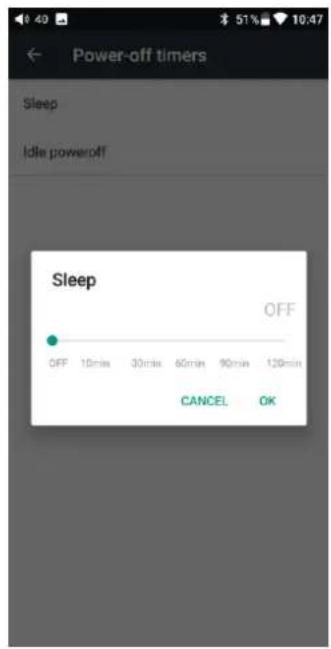
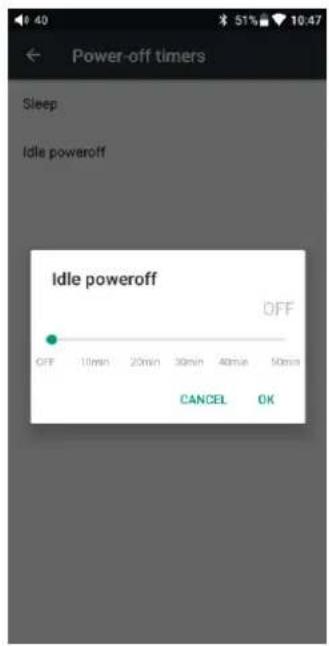
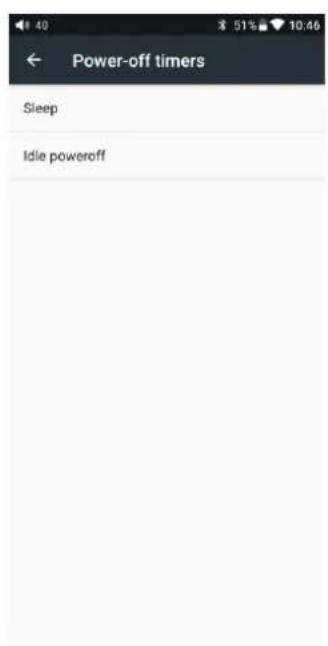
Power-off timers includes "Idle poweroff" and "Sleep":

Sleep: the device will automatically shut down when the time reaches to the setting value. This time can be set to any integer value between 0 and 120 minutes. Note that when the setting is OFF, the sleep function is off.

Idle poweroff: When the device is not operated, the time reaches to the set value and the device will automatically turn off. The time of “Idle poweroff” can be set to any integer value between 0 and 50 minutes. Note that when the setting is OFF, this

function is off.
FiiO M11 Pro - Power-off timers - 1

text_image Power-off timers Sleep Idle poweroff

FiiO M11 Pro - Power-off timers - 2

text_image Power-off timers Sleep Idle poweroff Sleep OFF OFF 10min 30min 60min 90min 120min CANCEL OK

FiiO M11 Pro - Power-off timers - 3

text_image Power-off timers Sleep Idle poweroff Idle poweroff OFF OFF 10min 20min 30min 40min 50min CANCEL OK

Lock key settings

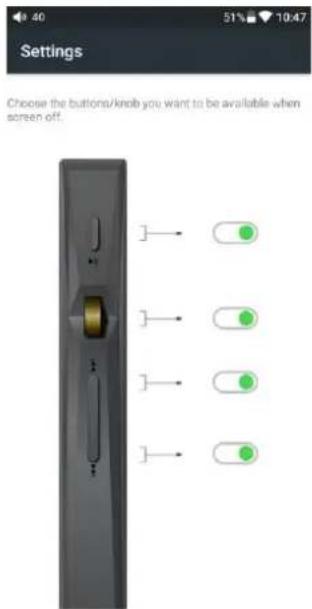
You can choose whether the button will take effect when the screen is locked.
FiiO M11 Pro - Lock key settings - 1

text_image Settings Choose the buttons/knob you want to be available when screen off.

Maximum volume settings

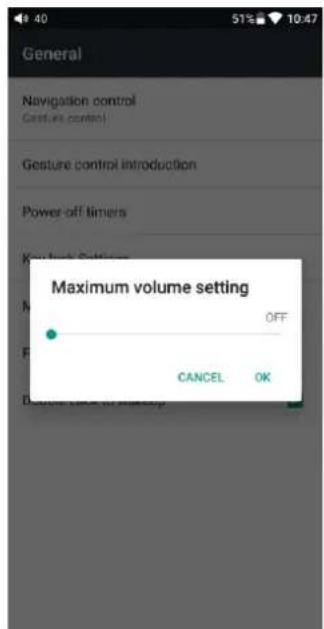
Prevent the volume from suddenly increasing due to misoperation. Please set the appropriate maximum volume before listening to help protect your hearing.
FiiO M11 Pro - Maximum volume settings - 1

text_image General Navigation control Gesture control Gesture control introduction Power-off timers Maximum volume setting OFF CANCEL OK

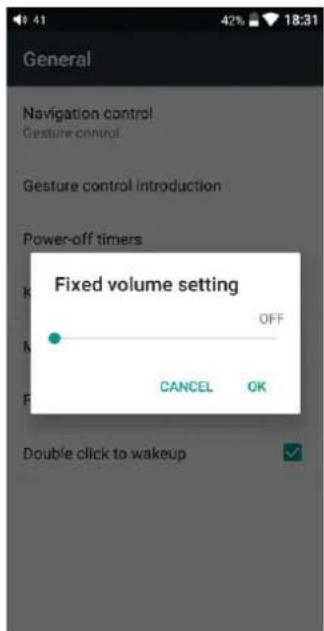
Fixed volume settings

The default boot volume is 60; you can set the appropriate boot volume.
FiiO M11 Pro - Fixed volume settings - 1

text_image General Navigation control Gesture control Gesture control introduction Power-off timers Fixed volume setting OFF CANCEL OK Double click to wakeup

Double click to wake up

When “Double-click wake-up” is checked, after the display screen is locked, double-click the screen to wake up the display.

FiiO M11 Pro - Double click to wake up - 1

text_image General Navigation control Gesture control Gesture control introduction Power-off timers Key-lock Settings Maximum volume setting Fixed volume setting Double click to wakeup

5、Display

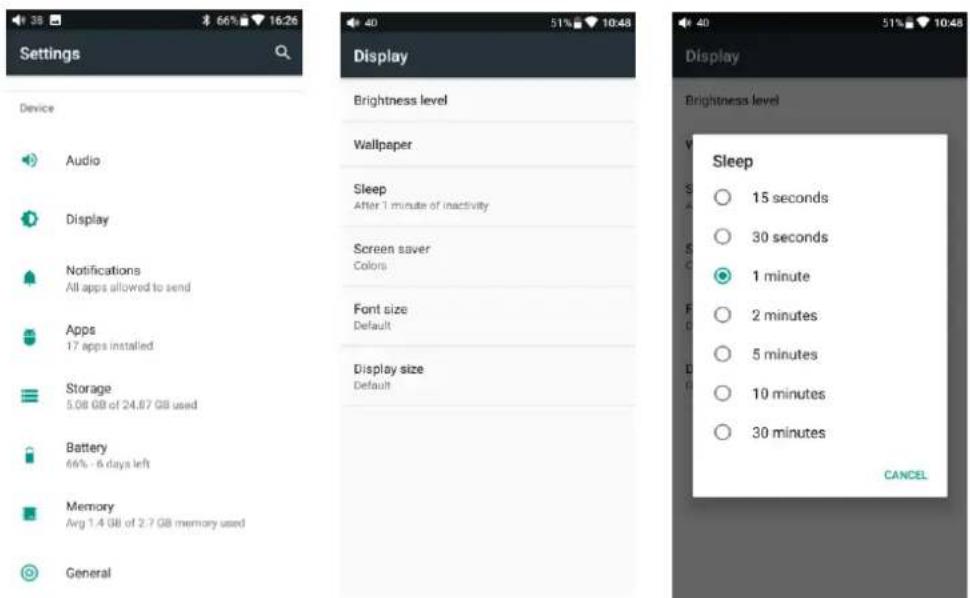
Display includes brightness, wallpaper, hibernation, screen saver, font size, display size. The following is a detailed description of several common function items.

Sleep

Set the time to go to sleep when there is no operation. After the machine enters sleep for ten minutes, it enters low power mode. You can short press the “Power/Lock Screen” button to wake it up.
FiiO M11 Pro - Sleep - 1

text_image Settings Device Audio Display Notifications All apps allowed to send Apps 17 apps installed Storage 5.08 GB of 24.87 GB used Battery 66% - 6 days left Memory Avg 1.4 GB of 2.7 GB memory used General Display Brightness level Wallpaper Sleep After 1 minute of inactivity Screen saver Colors Font size Default Display size Default Display Sleep 15 seconds 30 seconds 1 minute 2 minutes 5 minutes 10 minutes 30 minutes CANCEL

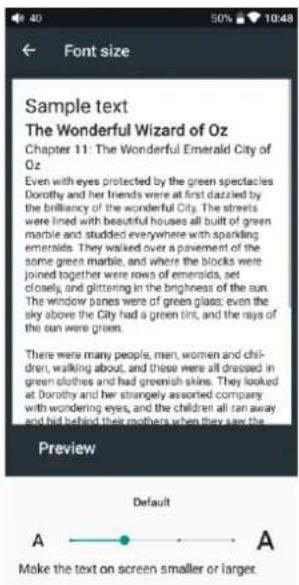
Font size

You can choose the appropriate font display, including small, default, large, and maximum four fonts.

FiiO M11 Pro - Font size - 1

text_image Font size Sample text The Wonderful Wizard of Oz Chapter 11: The Wonderful Emerald City of Oz Even with eyes protected by the green spectacles Dorothy and her friends were at first dressed by the brillanty of the wonderful City. The streets were lined with beautiful houses all built of green marble and sludded everywhere with sparkling emeralds. They walked over a pavement of the same green marble, and where the blocks were joined together were rows of emeralds, set clouds, and offering in the brightness of the sun. The window panes were of green grass, even the sky above the City had a green tint, and the rays of the sun were green. There were many people, men, women and children, walking about, and there were all dressed in green clothes, and had greenish skirts. They looked at Dorothy and her strongly assorted company with wondering eyes, and the children all run away and bed behind their mothers when they saw the Lion, but no one spoke to them. Many shops stood on the street, and Dorothy saw that everything in them with green, green cavity and green popcorn were offered for sale, as well as green shows, green hats and green clothes of all sorts. At one place a man was selling green lemonade, and when the children bought it Dorothy could see that they paid for it with green pennies. There seemed to be an house not animals of my kind. Preview Small A A Make the text on screen smaller or larger.

FiiO M11 Pro - Font size - 2

text_image Sample text The Wonderful Wizard of Oz Chapter 11: The Wonderful Emerald City of Oz Even with eyes protected by the green spectacles Dorothy and her friends were at first dazzled by the brilliancy of the wonderful City. The streets were lined with beautiful houses all built of green marble and studded everywhere with sparkling emeralds. They walked over a pavement of the same green marble, and where the blocks were joined together were rows of emeralds, set closely, and glittering in the brightness of the sun. The window panes were of green glass; even the sky above the City had a green tint, and the rays of the sun were green. There were many people, men, women and children, walking about, and these were all dressed in green clothes and had greenish skins. They looked at Dorothy and her strangely assorted company with wondering eyes, and the children all ran away and bid behind their mothers when they saw the Preview Default A A Make the text on screen smaller or larger.

FiiO M11 Pro - Font size - 3

text_image Sample text The Wonderful Wizard of Oz Chapter 11: The Wonderful Emerald City of Oz Even with eyes protected by the green spectacles Dorothy and her friends were at first dazzled by the brilliancy of the wonderful City. The streets were lined with beautiful houses all built of green marble and studded everywhere with sparkling emeralds. They walked over a pavement of the same green marble, and where the blocks were joined together were rows of emeralds. Preview Largest A A Make the text on screen smaller or larger.

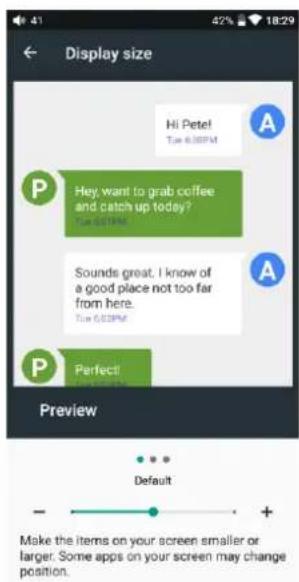
Display size

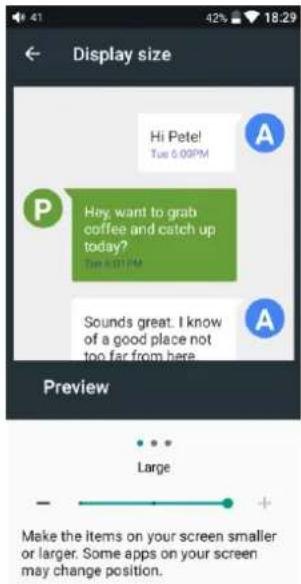
You can choose from three levels of display size, including small, default, and large. Display size is reflected both in the display icon and text.

FiiO M11 Pro - Display size - 1

text_image Display size Hi Peter! Tue 0:30PM P Hey, want to grab coffee and catch up today? Buy 0:30PM Sounds great. I know of a good place not too far from here. Tue 0:30PM A P Perfect! Buy 0:30PM Preview ... Small Make the items on your screen smaller or larger. Some apps on your screen may change position.

FiiO M11 Pro - Display size - 2

text_image Display size Hi Petel! Tue 6:00PM P Hey want to grab coffee and catch up today? Tue 6:00PM A Sounds great, I know of a good place not too far from here. Tue 6:00PM A P Perfect! Preview Default Make the items on your screen smaller or larger. Some apps on your screen may change position.

FiiO M11 Pro - Display size - 3

text_image Display size Hi Pete! Tue 6:00PM P Hey, want to grab coffee and catch up today? Tue 6:00PM Sounds great. I know of a good place not too far from here. Preview Large Make the items on your screen smaller or larger. Some apps on your screen may change position.

6、Language settings

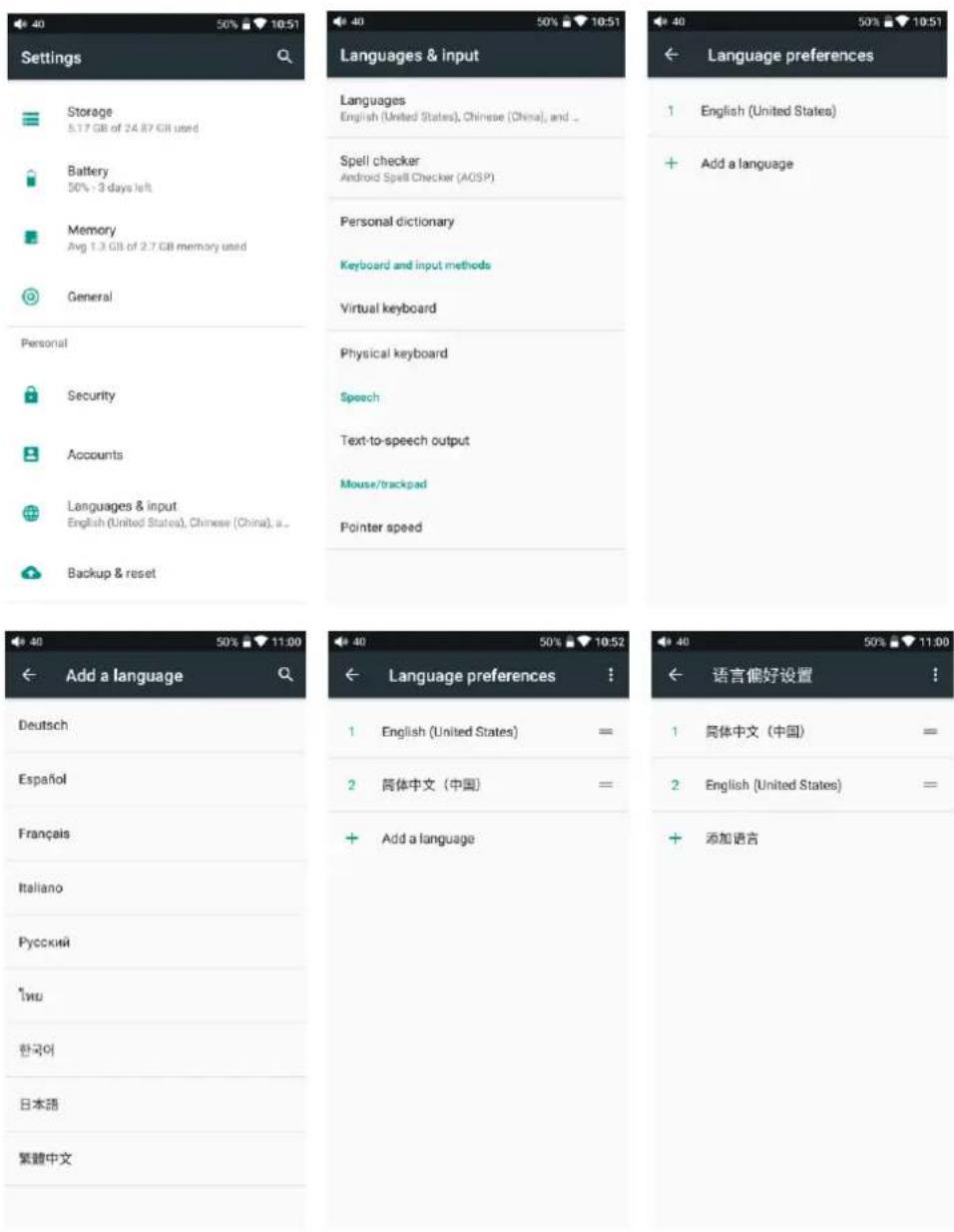
  1. Press “setting”, “language & input”, and “languages” in sequence, which will bring you to the “language preference setting” interface;
  2. Press "Add a language";

  3. Select a language;

  4. After selecting the language, you should press the “=” icon on the right side of the target language and drag the language to the head of the list. The switching of language can only be completed after this operation.
FiiO M11 Pro - 6、Language settings - 1

text_image Settings Storage 5.17 GB of 24.87 GB used Battery 50% - 3 days left Memory Avg 1.3 GB of 2.7 GB memory used General Personal Security Accounts Languages & input English (United States), Chinese (China), a... Backup & reset Languages & input Languages English (United States), Chinese (China), and _ Spell checker Android Spell Checker (AGSP) Personal dictionary Keyboard and input methods Virtual keyboard Physical keyboard Speech Text-to-speech output Mouse/trackpad Pointer speed Add a language Deutsch Español Français Italiano Русский Типи 한국어 日本語 繁體中文 Language preferences 1 English (United States) = 2 简体中文(中国) = + Add a language Language preferences 1 简体中文(中国) = 2 English (United States) = + 添加语言

7、Backup & reset

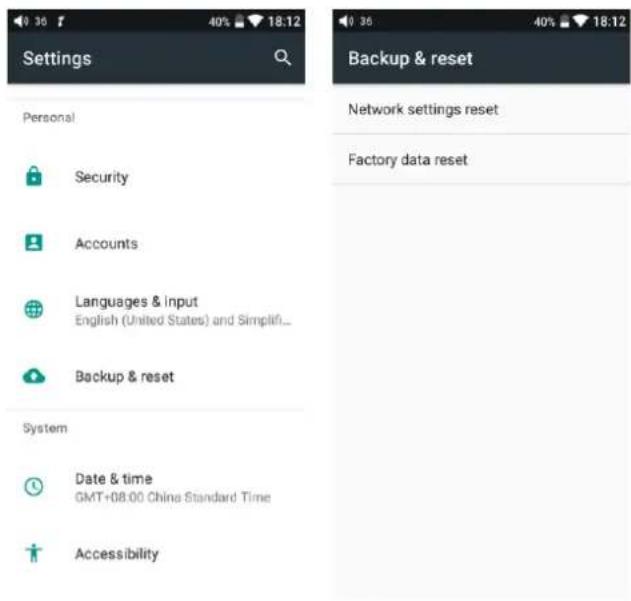
"Network settings reset" will reset all network settings, including WiFi and

Bluetooth.

“Factory data reset” will erase all data from your internal storage and restore to the original default settings. Please backup important files in advance.
FiiO M11 Pro - Bluetooth. - 1

text_image Settings Personal Security Accounts Languages & input English (United States) and Simplifi... Backup & reset System Date & time GMT+08.00 Chine Standard Time Accessibility Backup & reset Network settings reset Factory data reset

- Firmware update

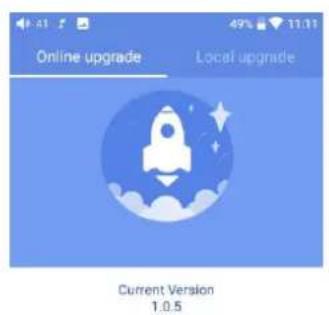
You can select OTA update or local update.

OTA update requires a stable connection to Wi-Fi, and once you press the “check update” button, M11 Pro will automatically look for new versions online. If a new version is available, it will notify you of the new version, and then the update can be performed accordingly.

For local update, the following steps need to be followed:

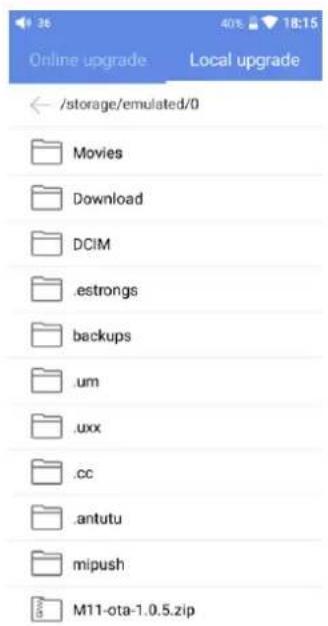
1) Download the firmware from FiiO official website, such as “M11 Pro-ota-1.0.3.zip”, and copy this firmware file to Micro SD. Note that the file should not be unzipped, and you are recommended not to modify the file name.
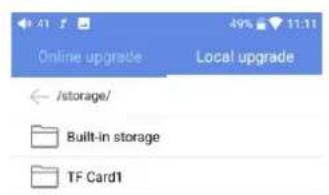
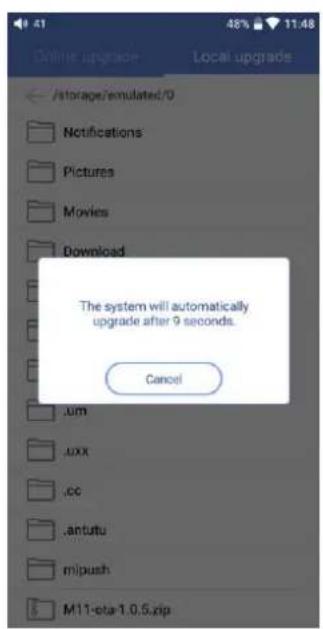
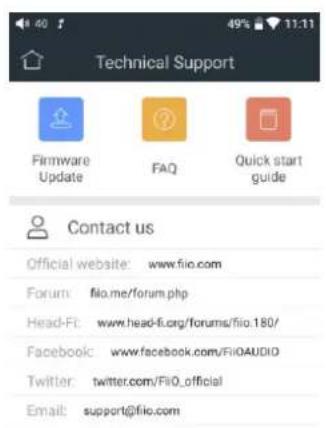
2) Press “technical support > local update” accordingly, locating the firmware file in the “local update” interface, on the main interface, press the firmware file.
FiiO M11 Pro - - Firmware update - 1

text_image Technical Support Firmware Update FAQ Quick start guide Contact us Official website: www.fiio.com Forum: filo.me/forum.php Head-Ft: www.head-fi.org/forums/filo.180/ Facebook: www.facebook.com/FiIOAUDIO Twitter: twitter.com/FiIO_official Email: support@filo.com

FiiO M11 Pro - - Firmware update - 2

text_image Online upgrade Local upgrade Current Version 1.0.5

FiiO M11 Pro - - Firmware update - 3

text_image Online upgrade Local upgrade /storage/ Built-in storage TF Card1

FiiO M11 Pro - - Firmware update - 4

FiiO M11 Pro - - Firmware update - 5

text_image /storage/emulated/0 Movies Download DCIM .estrongs backups .um .uxx .cc .antutu mipush M11-ota-1.0.5.zip

FiiO M11 Pro - - Firmware update - 6

text_image Online upgrade Local upgrade /storage/emulated/0 Notifications Pictures Movies Download The system will automatically upgrade after 9 seconds. Cancel .um .xx .cc .antutu mipush M11-eta-1.0.5.zip

3) Please wait patiently after clicking, M11 Pro will start the firmware update automatically.
4) Upon completion of firmware update, M11 Pro will restart itself automatically. It can be used normally after restarting.

Note:

1) Please ensure the battery power is sufficient before updating (full power will be the best), otherwise the update may fail.
2) If the update fails, please check whether the correct updating firmware is used.

3) Do not manipulate M11 Pro during updating.

- Status bar

The status bar at the top of screen shows all kinds of status information about M11 Pro

FiiO M11 Pro - - Status bar - 1

text_image 56 LDAC 100% 15:37 1 2 3 4 5 6 7 8 9 10 11 12 13 14

1——current volume
3——running app
5—download completed
7——screen shot
9——storage mode connecting with computer
11——PO plug(included PO, LO, Spdif)
13——WiFi
2—hide icons
4—downloading
6——firmware update prompt
8—micro SD card inserted
10——Blue tooth codec format
12—remaining battery in percentage
14——current time

- Technical support

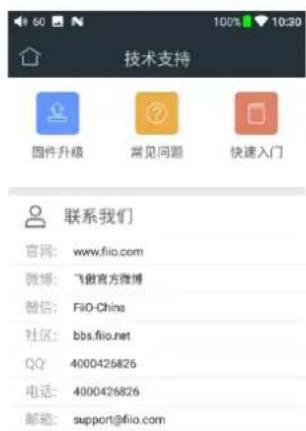
Click the “technical support” icon in the main interface to enter the technical support interface, which includes our contact information and the following functionalities:

  1. Firmware update: you can choose from online update or browsing local firmware update
  2. FAQ: some frequently asked questions are listed with corresponding solutions given
  3. Quick start: click to read a quick guide book to M11 Pro
FiiO M11 Pro - - Technical support - 1

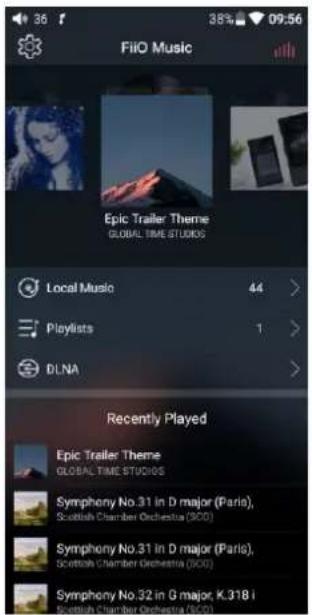
M11 Pro embeds FiiO Music, a professional audio playback software, specifically designed for Android open-source system and specially built for flagship-level music players. Main functionalities of it are introduced with graphics below.

1. Homepage

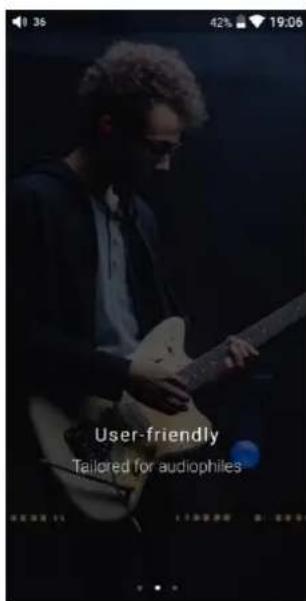
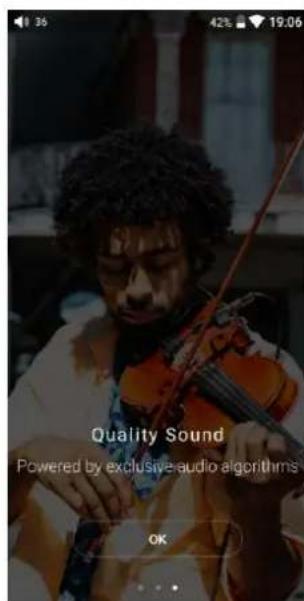
FiiO Music will enter the homepage when started, as shown below:

FiiO M11 Pro - Homepage - 1

text_image Professional Covering almost all audio formats

FiiO M11 Pro - Homepage - 2

text_image User-friendly Tailored for audiophiles

FiiO M11 Pro - Homepage - 3

text_image Quality Sound Powered by exclusive audio algorithms OK

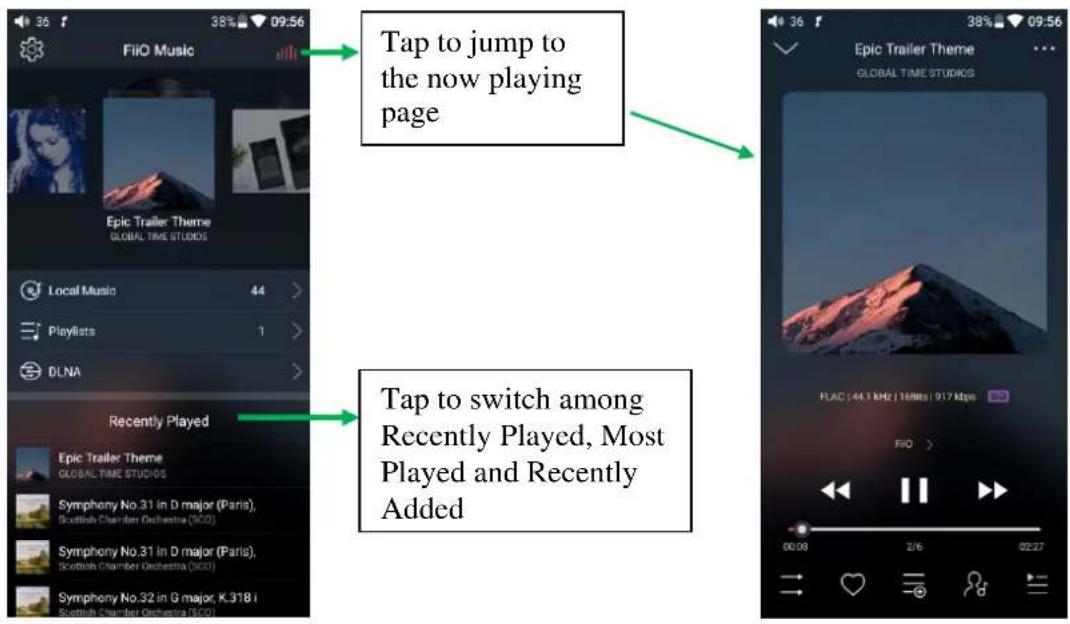
Setting icon: press the icon to enter the setting page;

Playing interface: press the icon to enter the playing interface;

Recently played: a list of recently played songs is presented chronologically;

Frequently played: a list of songs is presented according to frequency of playing;

Recently added: a list of recently added songs is presented chronologically;
FiiO M11 Pro - Homepage - 4

text_image Tap to jump to the now playing page Tap to switch among Recently Played, Most Played and Recently Added

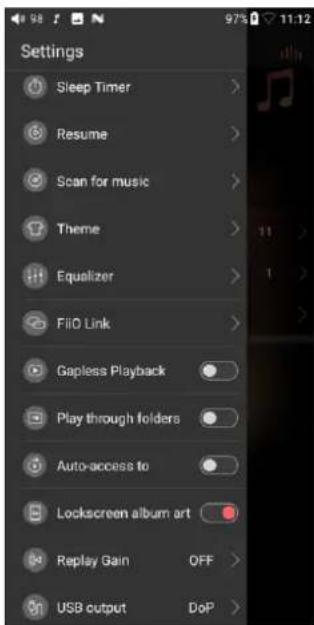
Settings
FiiO M11 Pro - Homepage - 5

text_image FiiO Music Epic Trailer Theme GLOBAL TIME STUDIOS Local Music 44 > Playlists 1 > DLNA > Recently Played Epic Trailer Theme GLOBAL TIME STUDIOS Symphony No.31 in D major (Paris), Scottish Chamber Orchestra (SOD) Symphony No.31 in D major (Paris), Scottish Chamber Orchestra (SOD) Symphony No.32 in G major, K.318 i Scottish Chamber Orchestra (SOD)

FiiO M11 Pro - Homepage - 6

text_image Settings Sleep Timer > Resume > Scan for music > Theme > Equalizer > FliD Link > Gapless Playback Play through folders Auto-access to Lockscreen album art Replay Gain OFF > USB output DoP >

2、Quickly locate all the songs

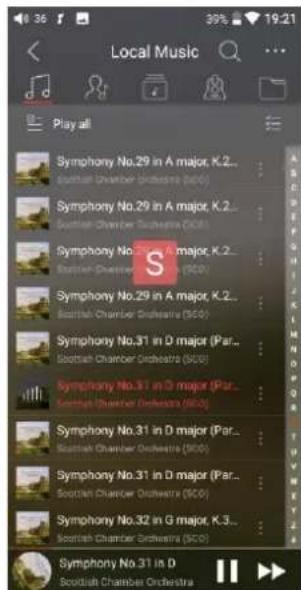
Slide on the letter bar at the right side of the screen, and the corresponding initial letter will appear at the screen center. Release your finger at the corresponding initial letter, and the list will jump to the songs corresponding to that initial letter.
FiiO M11 Pro - 2、Quickly locate all the songs - 1

text_image Local Music Play all Symphony No.29 in A major, K.2... Scottish Chamber Orchestra (SCO) Symphony No.29 in A major, K.2... Scottish Chamber Orchestra (SCO) Symphony No.31 in A major, K.2... Scottish Chamber Orchestra (SCO) Symphony No.29 in A major, K.2... Scottish Chamber Orchestra (SCO) Symphony No.31 in D major (Par... Scottish Chamber Orchestra (SCO) Symphony No.31 in D major (Par... Scottish Chamber Orchestra (SCO) Symphony No.31 in D major (Par... Scottish Chamber Orchestra (SCO) Symphony No.32 in G major, K.3... Scottish Chamber Orchestra (SCO) Symphony No.31 in D Scottish Chamber Orchestra

3、Functionalities corresponding to "all-songs" interface

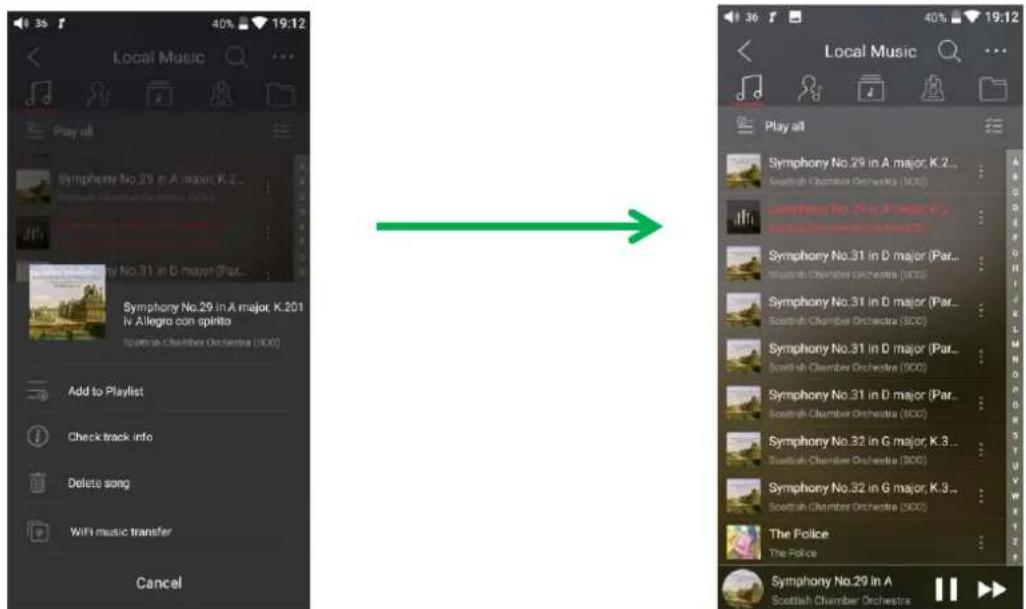
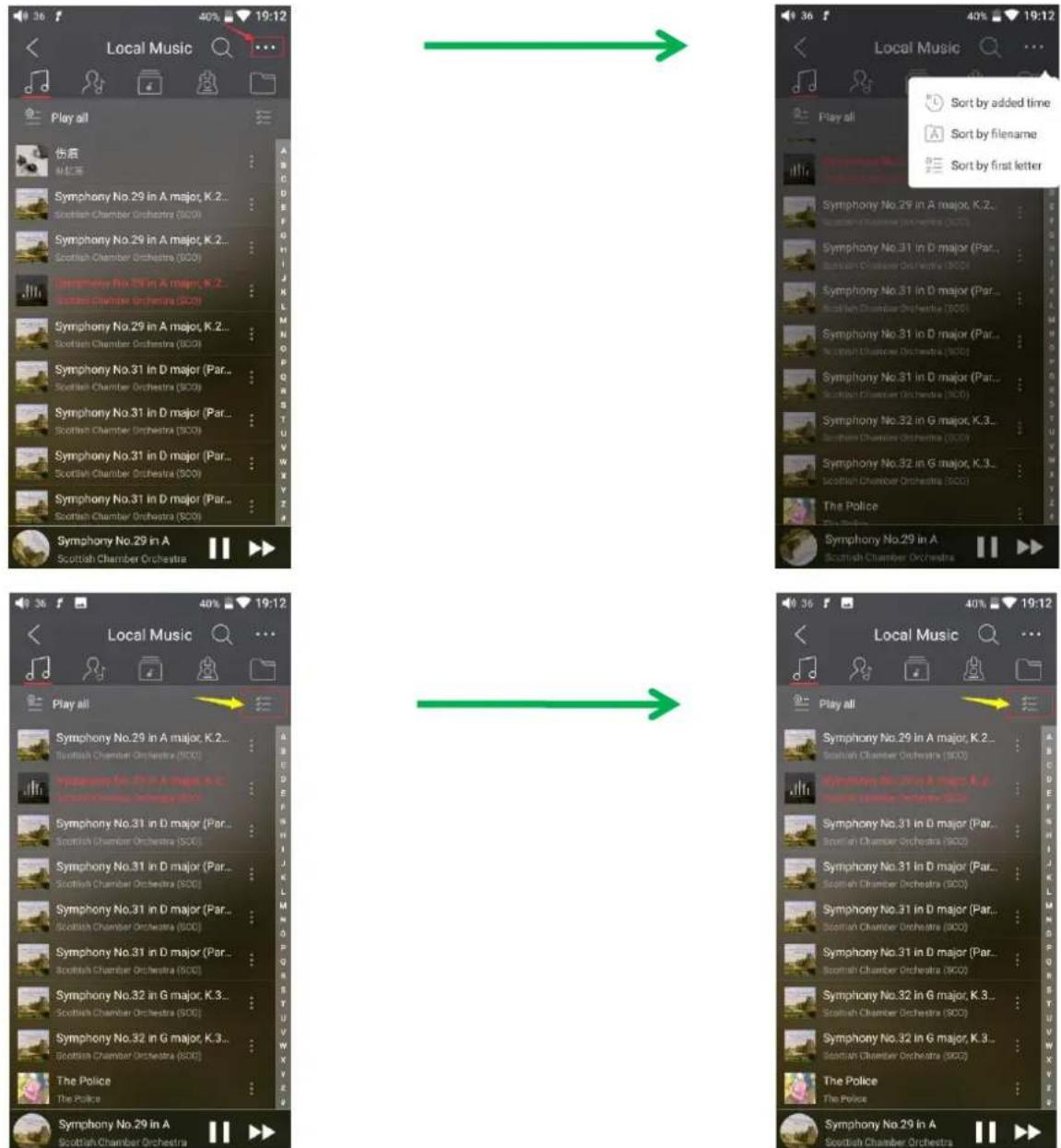
Click the icon ( ) at the right of each song to see the hidden menu. Click the icons in the menu to execute corresponding functionality.
FiiO M11 Pro - 3、Functionalities corresponding to "all-songs" interface - 1

text_image Local Music Play all Symphony No.29 in A major, K.2... Impower Flaming/Chamber Orchestra (SOO) Symphony No.31 in G major (Par... Symphony No.29 in A major, K.201 iv Allegro con splitto Scottish Chamber Orchestra (SOO) Add to Playlist Check track info Delete song WiFi music transfer Cancel Local Music Play all Symphony No.29 in A major, K.2... Scottish Chamber Orchestra (SOO) Symphony No.29 in A major, K.2... Impower Flaming/Chamber Orchestra (SOO) Symphony No.31 in D major (Par... Scottish Chamber Orchestra (SOO) Symphony No.31 in D major (Par... Scottish Chamber Orchestra (SOO) Symphony No.31 in D major (Par... Scottish Chamber Orchestra (SOO) Symphony No.31 in D major (Par... Scottish Chamber Orchestra (SOO) Symphony No.32 in G major, K.3... Scottish Chamber Orchestra (SOO) Symphony No.32 in G major, K.3... Scottish Chamber Orchestra (SOO) The Police The Police Symphony No.29 in A Scottish Chamber Orchestra

The following functionalities can be done in the hidden menu:

  1. Select sorting method: sort according to file name, adding time, or initial letters alphabetically.
  2. Bulk management: batch play, song transfer through Wi-Fi, adds to My Favorites as a group, add to Playlist as a group, delete as a group, and exit batch management.
FiiO M11 Pro - 3、Functionalities corresponding to "all-songs" interface - 2

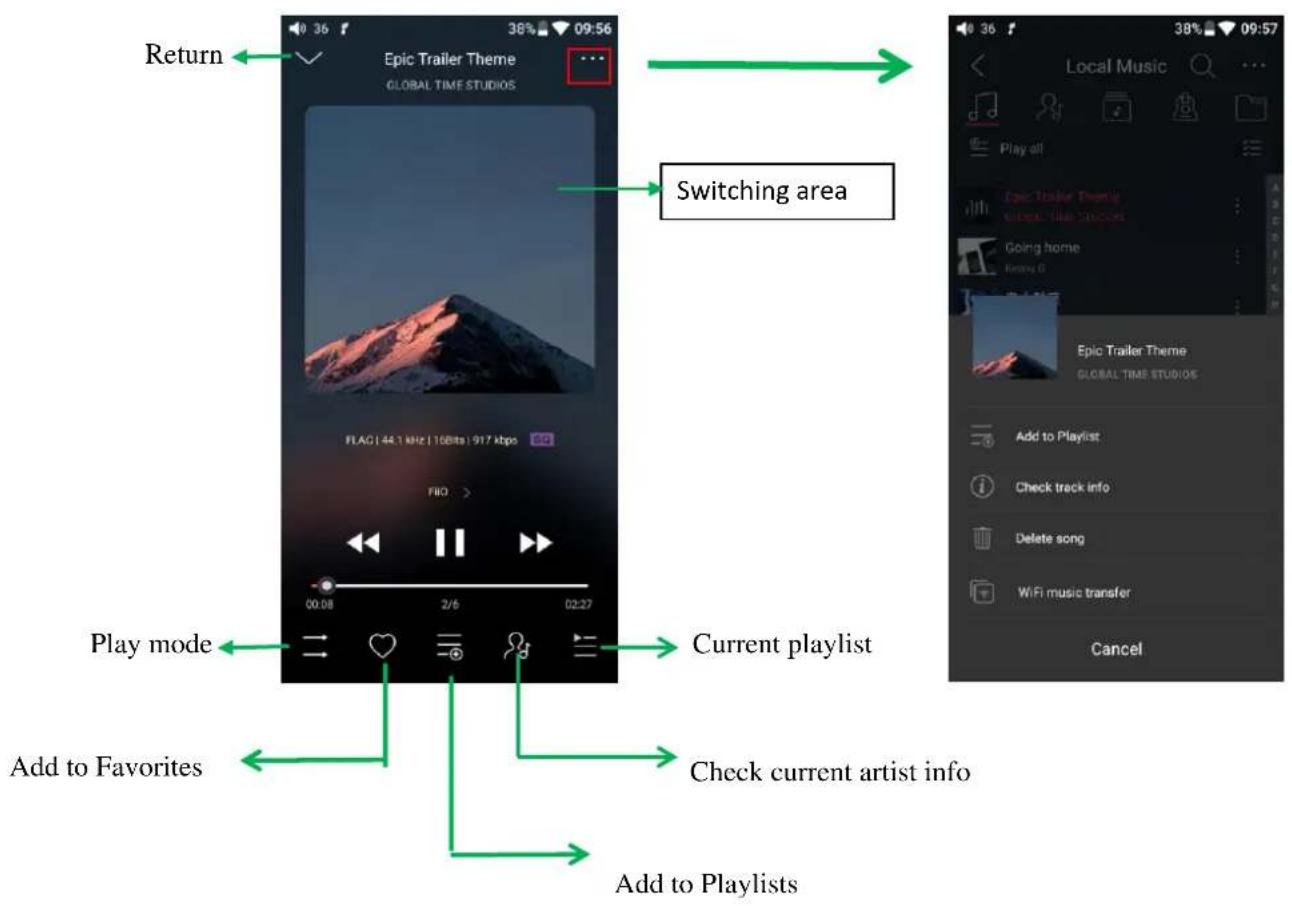
4、Now playing interface

FiiO M11 Pro - 4、Now playing interface - 1

text_image Return Epic Trailer Theme GLOBAL TIME STUDIOS Switching area Play mode Add to Favorites Current playlist Check current artist info Add to Playlists Local Music Play all Epic Trailer Theme GLOBAL TIME STUDIOS Going home Honey G Epic Trailer Theme GLOBAL TIME STUDIOS Add to Playlist Check track info Delete song WiFi music transfer Cancel

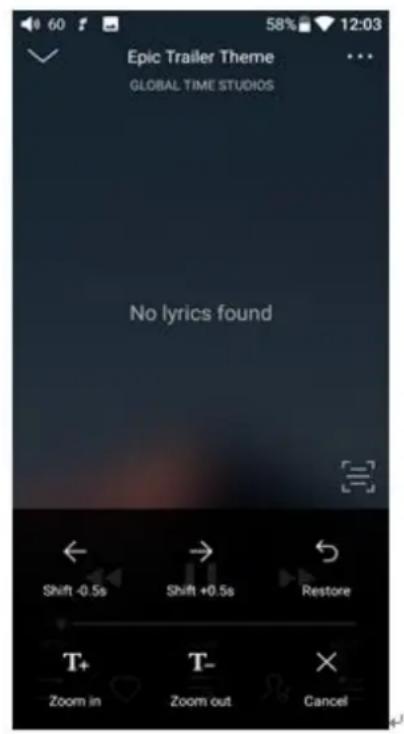
Switching area: clicking on the center area of album cover enables you to switch between album cover and lyrics; sliding to the left or right enables you to switch between songs.

Adjusting the volume: after rolling the volume roller, press the right side to jump out of the volume popup; the volume popup will be hidden after 2-second vacant time or pressing other areas.

Slide to fast forward/rewind: tap anywhere on the progress bar below the album cover area to jump to the corresponding part of the track now playing.

Note: While in the lyrics display page, you can adjust the playback progress by sliding over the lyrics, adjust lyrics timeline or adjust font size.

FiiO M11 Pro - 4、Now playing interface - 2

text_image Epic Trailer Theme GLOBAL TIME STUDIOS No lyrics found

FiiO M11 Pro - 4、Now playing interface - 3

text_image Epic Trailer Theme GLOBAL TIME STUDIOS No lyrics found Shift -0.5s Shift +0.5s Restore Zoom in Zoom out Cancel

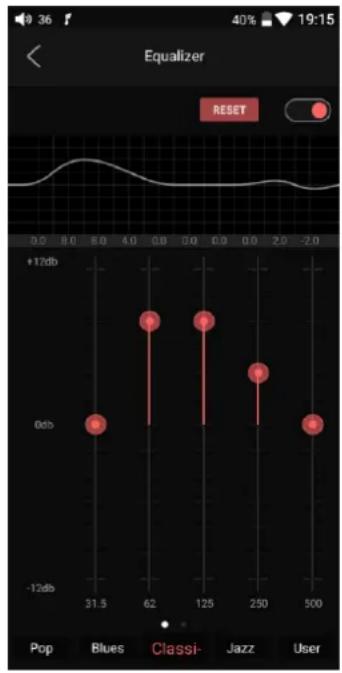
5、Professional Equalizer

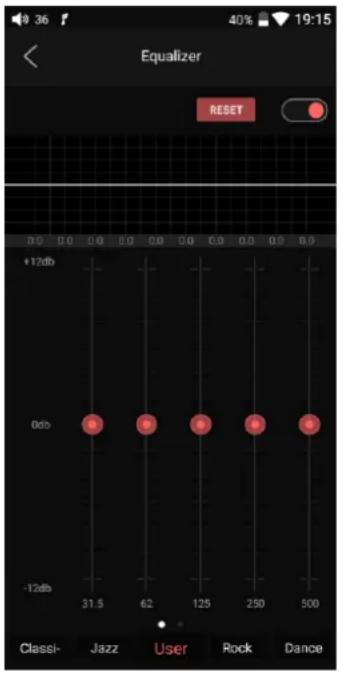
FiiO Music incorporates a graphic equalizer. One may choose between the given genre presets directly, or adjust the ten frequency bands from 20 to 20000Hz independently from -12 to +12 dB, thus satisfying your personalized listening needs and adapting to your listening equipment.

1) Choose preset EQ: swipe up from the bottom of the screen to show the full list of EQ presets, tap icon to switch the equalizer you chose.
2) Customize EQ: after switching to the customized EQ, drag the control icon of the corresponding frequency and move up/down to slightly adjust the EQ curve (swipe left or right to change pages in the frequency point area); change the frequency points you want to adjust in turn, and EQ takes effect simultaneously;

3) Reset EQ: Tap the reset button at the upper right corner to reset the present EQ preset to its genre default.

Note: if a factory reset is performed on the M11 Pro, all EQ settings will be reset to defaults.
FiiO M11 Pro - 5、Professional Equalizer - 1

text_image Equalizer RESET +12db 0db -12db 31.5 62 125 250 500 Classi- Jazz User Rock Dance

FiiO M11 Pro - 5、Professional Equalizer - 2

line | Frequency | Value | | --------- | ----- | | 31.5 | -12db | | 62 | 0db | | 125 | 0db | | 250 | -12db | | 500 | 0db |

•MQA

MQA (Master Quality Authenticated)

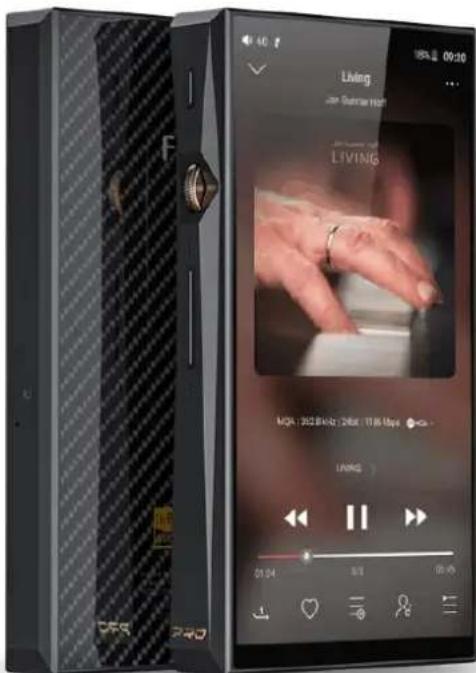
M11Pro includes MQA technology, which enables you to play back MQA audio files and streams, delivering the sound of the original master recording.

The green or blue dot next to MQA logo indicates that the unit is decoding and playing an MQA stream or file, and denotes provenance to ensure that the sound is identical to that of the source material. It glows blue to indicate it is playing an MQA Studio file, which has either been approved in the studio by the artist/producer or has been verified by the copyright owner.
FiiO M11 Pro - MQA (Master Quality Authenticated) - 1

text_image Living Jah Sutman Hoh LIVING MGA: 302 Bokr. 24bit / TIR Maps LIVING 01:04 9:11 05:45

Visit mqa.co.uk for more information.

MQA and the Sound Wave Device are registered trade marks of MQA Limited.© 2016

Manual assistant
Powered by Anthropic
Waiting for your message
Product information

Brand : FiiO

Model : M11 Pro

Category : Media player