
A19-5 ECO - Screen FUJITSU - Free user manual and instructions
Find the device manual for free A19-5 ECO FUJITSU in PDF.


| Product Type | LCD Monitor |
| Model | A19-5 ECO |
| Display Diagonal | 48 cm (19 inches) |
| Dot Pitch | 0.294 mm |
| Maximum Resolution | 1280 x 1024 |
| Viewable Picture Size (W x H) | 376.3 mm x 301 mm |
| Dimensions (with base, W x H x D) | 412 mm x 402 mm x 200.3 mm |
| Weight (without packaging) | Approx. 4.5 kg |
| Horizontal Frequency | 31 kHz – 82 kHz |
| Refresh Rate | 56 Hz – 76 Hz |
| Maximum Pixel Rate | 165 MHz |
| Power Supply | 100 V – 240 V, 50/60 Hz (auto-switching) |
| Power Consumption (Normal) | < 28 W |
| Power Consumption (Power Saving) | < 1 W |
| Video Input | Analogue (D-SUB 15-pin) |
| Audio | Integrated speakers (1.0 W left + 1.0 W right), Audio In jack |
| Display Technology | TFT Active Matrix (Thin Film Transistor) |
| Color Support | Up to 16.7 million colors |
| VESA Mount | FPMPMI compliant, 100 mm hole spacing |
| Special Features | Power management, OSD menu, Kensington lock slot, DDC/CI |
| Compliance | CE, ENERGY STAR, TCO'03, GS |
| Environmental Class | 3K2 (DIN IEC 721) - 15 to 35 °C, 20-85% humidity |
| Pixel Error Class (ISO 9241-3) | Class II |
Frequently Asked Questions - A19-5 ECO FUJITSU
User questions about A19-5 ECO FUJITSU
0 question about this device. Answer the ones you know or ask your own.
Ask a new question about this device
Download the instructions for your Screen in PDF format for free! Find your manual A19-5 ECO - FUJITSU and take your electronic device back in hand. On this page are published all the documents necessary for the use of your device. A19-5 ECO by FUJITSU.
USER MANUAL A19-5 ECO FUJITSU
A17-5 ECO / A19-5 ECO

Doyouhave...
...anytechnicalquestionsorproblems?
Pleasecontact:
- our Service Desk
•yoursalespartner
•yoursalesoffice
The latest information about our products, useful tips, updates etc. is available onourwebsite:" http://ts.fujitsu.com/support/"
FurtherinformationcanbefoundintheServiceDesklist:
"http://ts.fujitsu.com/support/servicedesk.html"
FUJITSU
Copyright
© Fujitsu Technology Solutions 2009
2009/09
Published by
Fujitsu Technology Solutions GmbH
http://ts.fujitsu.com/support
All rights reserved, including intellectual property rights. Technical data subject to modifications and delivery subject to availability. Any liability that the data and illustrations are complete, actual or correct is excluded. Designations may be trademarks and/or copyrights of the respective manufacturer, the use of which by third parties for their own purposes may infringe the rights of such owner. For further information see http://ts.fujitsu.com/terms_of_use.html
Order-No. Fujitsu Technology Solutions: A26361-K1338-Z220-1-7619, Edition 1
FUJITSUA17-5ECO/A19-5ECO
OperatingManual
YourLCDscreen...1
Importantnotes 3
Gettingstarted7
Operation 13
Notesonergonomiccolouradjustment21
Troubleshooting 22
Explanatoryinformationabout
standardISO9241-3 24
Technical data 25
Windows 7, Windows Vista and Windows XP are registered trademarks of Microsoft Corporation.
VESA, DDC and DPMS are registered trademark of Video Electronics Standards Association.
All other trademarks referred to in this publication are trademarks of the respective owners, whose legal protection is hereby recognised.
Copyright©FujitsuTechnologySolutionsGmbH2009
Allrights, including rightsoftranslation, reproductionbyprinting, copyingorsimilar methods, ofthewholedocumentorpartsthereof, arereserved.
Offenderswillbelieablefordamages.
All rights reserved, including rights created by patent grant or registration of a utility model or design.
Subjecttoavailabilityandtechnicalmodifications.
Noliabilityforcontentorprintingerrors.
Contents
YourLCDscreen....1
Targetgroup 1
Furtherinformation 2
Notationalconventions....2
Important notes 3
Safetyinstructions 3
Powercable 4
Transportingthedevic e 4
Cleaningthedevice 4
CEmarking 5
EnergyStar 5
Disposalandrecycling 6
Getting started 7
Unpacking and checking the delivery 7
Settingupthedevice 7
Setting up an ergonomic video workstation 8
Adjustingtheinclination 9
Removingmonitor base 10
Connecting the device 11
Connecting cables to the monitor 11
Connecting cables to the computer 12
Operation 13
Switchingthe deviceonandoff 13
Notesonpower management 14
Changingthe monitorsettings 15.
Changingthe monitor settings with the buttons of the control panel 15
Changingth e monitorsettings using the OSD menu 16....
Noteson ergonomic colour adjustment ....
Troubleshooting 22
Explanatory information about standard ISO 9241-3 24
Technical data 25
VESA-DDC-compatible VGA interface 26...
Preseto perating modes 26
Mostfr equentoperatingmodes.... 26
SUBDpo rt 27
YourLCDscreen...
hasawholerangeofusefulfeaturesandfunctions,e.g.:
• TFTdisplay(ThinFilmTransistor; activematrix)
- minimalspacerequirementstha nkstoslimcasing
- optimumergonomic characteristics (totally distortion-free, excellent picture definition and colour purity right into the corners)
•highdegreeofbrightnessandg oodcontrast
•highresolution(1280x1024)
•presentationofupto16.7milli oncolours(inconjunctionwithanappropriatedisplayadapter)
• automaticscanningofhorizontalfrequenciesfrom31to82kHzandrefreshrates (vertical frequencies) from 56 to 76 Hz (absolutely flicker-free)
•digitalscreencontrollerwithm icroprocessorforstoring26differentmonitormodes
•freelyadjustablecolouralignmentformatchingthescreencolourstothe coloursofvariousinputandoutputdevices
- convenientoperationviainteg ratedOSD(On-Screen-display)menu
• VESA-DDCcompatibility
•VESA-FPMPMIcompatibility(Fla Mountingdeviceforswivelarman tPanelMonitorPhysicalMountingInterface)-dwallbracket
- Plug&Playcapability
•powermanagementforreducingp owerconsumptionwhenthecomputerisnotinuse
•CompliancewiththerecommendationsaccordingtoTCO'03
- themonitorfulfillsallGS("Gepr üfteSicherheit", CertifiedSecurity)requirements.
ThisoperatingmanualcontainsimportantinformationyourequiretostartupandrunyourLCDmonitor.
Agraphicscard(displayadapter)withVGAinterfaceoradigitaldisplayadapterwithDVI interface is required to control the LCD monitor. The monitor processes the data suppliedtoitbythedisplayadapter.Thedisplayadapterortheassociateddriversoftware isresponsibleforsettingthemodes(resolutionandrefreshrate).
When putting the monitor into operation for the first time, the screen display should be optimally adapted to the display adapter used and adjusted in accordance with your needs (see chapter "Changingthemonitorsettings", Page 15).
Target group
Youdon'tneedtobean"expert "toperformtheoperationsdescribedhere.
Nonetheless, it is important to always observethes safety notes given in the operating instructions for the computation erandin this manual.
Intheeventofanyproblems,p lease contact your sales office or our Service Desk.
Furtherinformation
Detailsofhowyousettheresolutionandrefreshrateareprovidedinthedocumentation foryourdisplayadapterandtheassociateddriversoftware.
Forergonomicreasons, ascreenresolutionof1280x1024pixelsisrecommended.
Becauseofthetechnologyused(activematrix)anLCDmonitorprovidesatotally flicker-freepictureevenwitharefreshrateof60Hz.
Notationalconventions
 | Payparticularattentiontotextmarkedwiththissymbol.Failuretoobserve these warningscouldposearisktohealth,damagethedeviceorlead tolossofdata.Thwarrantywillbeinvalidatedifthedevicebecomes defective throughfailuretoobservethesewarnings. | |
 | Indicatesimportantinformationfortheproperuseofthedevice. | |
| ▶ | Indicatesanactivitythatmustbeperformed | |
| ↳ | Indicatesaresult | |
| Thisfont | indicatesdataenteredusingthekeyboardinaprogramdialogueorat the command line, e.g. your password (Name123) or a command used to startaprogram(start.exe) | |
| Thisfont | indicatesinformationthatisdisplayonthescreenbyaprogram,e.g.: Installationiscomplete. | |
| Thisfont | indicates•termsandtextsusedinasoftwareinterface,e.g.:ClickonSave• names of programs or files, e.g. Windows or setup.exe. | |
| "Thisfont" | indicates•cross-referencestoanothersection,e.g."Safetyinformation"•cross-referencestoanexternalsource,e.g.awebaddress:Formore information,goto" http://ts.fujitsu.com"•NamesofCDs,DVDsandtitlesordesignationsofothermaterials,e.g.: "CD/DVDDrivers&Utilities"or"Safety"Manual | |
| Key | indicatesakeyonthekeyboard,e.g: F10 | |
| Thisfont | indicatestermsandtextsthatareemphasisedorhighlighted,e.g.:Do notswitchoffthedevice | |
Importantnotes
In this chapter you will find information regarding safety which it is essential to take note of when working with your device.
Safetyinstructions
This device complies with there including electronic officema any questions about whether this please contact your sales offi
levantsafetyregulationsfordataprocessingequipment, chinesforuseinanofficeenvironment. If you have edevicecanbeusedintheintendedenvironment, ceorourServiceDesk.
•Thedisplaysurfaceofthedevi becarefulwiththedisplaysu ceissensitivetopressureandscratches. Youshouldtherefore rfaceinordertoavoidlastingdamage(scratches).
- If the device is brought into the installationsite from acold environment, condensation can form. Before operating the device, wait until it is absolutely dry and has reached approximately the same temperature at the installationsite.
- Wheninstallingandoperati ngthedevice,pleaseobservethenotesonenvironmental conditionsinChapter" Technicaldata",Page25aswellastheinstructionsinChapter "Settingupanergonomicvid eoworkstation",Page8.
• To ensure sufficient ventilation, the air inlet and outlet openings of the device must be kept clear.
•The device automatically set makesure that the local mai sitself to the correct voltage within the range from 100V to 240V. nsvoltage is neither higher nor lower than this range.
- Ensure that the powers octon the device and themains outlet are freely accessible.
•TheON/OFFswitchdoesnotdi fullyfromthemainssupply, sconnectthemonitorfromthemainsvoltage.Todisconnect disconnectthepowerplugfromthesocket.
- The device is equipped with powerercable that complies with safety standards.
•Usethesuppliedpowercableo nly.
- Laythecablesinsuchawaythattheydonotcreateahazard(dangeroftripping) and cannot be damaged. When connecting the device, observe the relevant notesinchapter" Connectingthedevice",Page11.
•Nodatatransfercablesshou ldbeconnectedordisconnectedduringathunderstorm.
- Makesurethatnoobjects(e.g.jewellerychains,paperclips,etc.)orliquidsget insidethedevice(dangerofelectricshock,shortcircuit).
•The device is not waterproof if from spray water (rain, se ! Never immersethed device in water and protect awater).
- Inanemergency(e.g.damagedcasing,operationcontrolsorcables,penetration ofliquidsorforeignmatter),switchoffthedevice,disconnectthepowerplug andcontactyoursalesoutletorourServiceDesk.
•Repairstothedevicemusto andincorrectrepairmaygr nlybeperformedbyqualifiedtechnicians.Unauthorisedopening eatlyendangertheuser(electricshock, firerisk).
- Only use the screen resolution settings and refresh rates specified in Chapter "Technical data", Page 25. Otherwise you may damage the device. If you are in any doubt, contact your sales outlet or our Service Desk.
- Useascreensaverwithmovi ngimagesandactivatethepowermanagementfor yourmonitortopreventst illimagesfrom"burningin".
- If you operate the device with the swivel armor wall bracket, it must not be turned by 180^ .
- The device may only be operated in the wide format (0° landscape mode). The button of the control panel are located at the bottom in the middle of the monitor.
- Storethismanualclosetothedevice.Ifyoupassthedeviceontothird parties,youshouldpassthismanualonwithit.
- Werecommendthatyouplaceyourdeviceonadurable,non-slipsurface.Inview of the many different finishes and varnishes used on furniture, it is possible that the feetofthedevicemaymarkthesurfacetheystandon.
- To ensure sufficient ventilation, the air supply and air outlet openings of themonitormustneverbeblocked.
Powercable
Usethesuppliedpowercableonly.
Usethefollowingguidelinesifitisnecessarytoreplacetheoriginalcableset.
• The female/male receptacles of the cord set must meet IEC60320/CEE-22 requirements.
- The cable has to be HAR-certified or VDE-certified. The mark HAR or VDEwillappearontheoutersheath.
- For devices which are mounted on a desk or table, type SVT or SJT cable sets may be used. For devices which sit on the floor, only SJT type cable sets may be used.
- Thecablesetmustbeselectedaccordingtotheratedcurrentforyourdevice.
- Ifnecessary, replace the original power cable with a regular grounded 3-core mains lead.
Transportingthedevice

Transportallpartsseparatelyintheiroriginalpackagingorinapackagingwhich protectsthemfromknocksandjolts,tothenewsite.
Donotunpackthemuntilalltransportationmanoeuvresarecompleted.
If the device is brought from a cold environment into a room where it will be used, condensation may occur. Before operating the device, wait until it is absolutely dry and has reached approximately the same temperature as the installations site.
Cleaningthe device

Switchoffthedeviceandunplugthepowerplug.
Donotcleananyinteriorpartsyourself,leavethisjobtoaservicetechnician.
Do not use any cleaning agents that contain abrasives or may corrode plastic.
Ensure that noliquidentersthedevice.
Thedisplaysurfaceofthedeviceissensitivetopressureandscratches.Clean itonlyusingasoft,slightlymoistenedcloth.
Thesurfaceofthecasingcanbecleanedwithadrycloth. Ifparticularlydirty, useacloththat hasbeenmoistenedinmilldomesticdetergentandthencarefullywrungout.
CEmarking
CE
TheshippedversionofthisdevicecomplieswiththerequirementsofEEC directives2004/108/EC"Electromagneticcompatibility"and2006/95/EC "Lowvoltagedirective".
EnergyStar

The Fujitsu LCDcolourmonitorisequipped with a power management system which reduces the power draw in OFF mode to less than 1 W. As a result, the LCD monitors satisfy the requirements of the U.S. Environmental Protection Agency (EPA).
The EPA estimates that computerequipment uses approximately 5% of all business electricity and that this is growing rapidly. If all desktop PCs and peripherals were to enter alow-powermodewhen not in use, the overall electricity saving could amount to \$2 billion annually. Thesesavings could also prevent the emission of 20 million ton of carbondioxide into the atmosphere-equivalent to the discharge from 5 million cars.
As an Energy Star Partner, Fujitsu Technology Solutions GmbH has determined that this product meets the Energy Star guidelines for energy efficiency.
Disposalandrecycling
This device has been manufactured as far as possible from materials which can be recycled or disposed of in such a way that the environment is not damaged. The device may be taken back after use to be reused or recycled, provided that it is returned in a condition that be fits its intended use. Any components not reclaimed will be disposed of in an environmentally acceptable manner.
The device must be disposed of in accordance with local regulations for disposal of special waste. Thescreenbackgroundlightingcontainsmercury. Youmustobservetheapplicable handlinganddisposalsafetyregulationsforfluorescenttubes.
If you have any questions on disposal, please contact your local sales office or our ServiceDesk,orcontactoneofthefollowingdirectly:
| Germany | Belgium | Switzerland |
| FujitsuTechnologySolutionsGmbHRemarketingandRecyclingD-33106Paderborn,GermanyTel.:+495251/818010Fax:+495251/818015"http://ts.fujitsu.com/wvm" | RECUPELBoulevardReyers,80B-1030BrusselsTel.:+322/7068616Fax: + 3 2 2 / 7 0 6 8 6E-mail:info@recupel.be "http://www.recupel.be" | SWICOSchweizerischerWirtschaftsverbandderInformations-,Kommunik ations-undOrganisationstechni k(SwissTradeAssociatio nforInformation,CommunicationsandOrganisationalTechno logy).ForalistofSWICO disposalsites,see:"http://www.swico.ch" |
| Asia | USA | |
| Taiwan:EnvironmentalProtectionAdministrationExecutiveYuan,R.O.C."http://recycle.epa.gov.tw" | FujitsuAmericaInc.1250E.ArquesAvenueSunnyvale,CA94085,U.S.A.Contact:BerndHenningPhoneNo.:(408)329-6737FaxNo.:(408)746-8299 |
Information on this subject is also available on the Internet at "http://ts.fujitsu.com/recycling".
Gettingstarted
Unpackingandcheckingthedelivery

Thedisplaysurfaceofthedeviceissensitivetopressureandscratches.
Alwaysholdthedevicebythecasing!
The completed device package includes:
•onemonitor
- oneaudiocable
•onepowercable
•oneCDwithsoftwareanddocumentation
•oneWarrantyBooklet
- one"Safety"manual
▶ Unpackalltheindividualparts.
▶ Checkthecontentsofthepackag eforanyvisibledamagecausedduringtransport.
▶ Check whether the delivery conforms to the details in the delivery note.
Should you discover that the note, notify your localsaleso livery does not correspond to the delivery utlet immediately.
Donotdiscardtheoriginalpa packaginginthefutureifyou
ckingmaterialofthedevices.Youmayneedthe needtotransportyourdevice.
Setting up the device

Toensuresufficientventil thedevicemustbekeptclea
ation, theairinletandoutletopenings of r.
Settingupanergonomicvideoworkstation
flowchart
graph TD
    A["Component 1"] --> B["Component 2"]
    B --> C["Component 3"]
    C --> D["Component 4"]
    style A fill:#f9f,stroke:#333
    style B fill:#ccf,stroke:#333
    style C fill:#cfc,stroke:#333
    style D fill:#fcc,stroke:#333
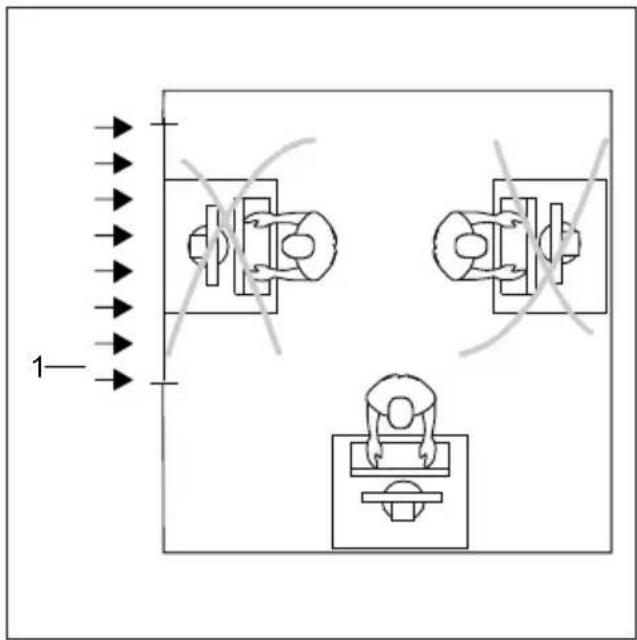
▶ Donotpositionthevideoworkstation oppositeawindow(1).
natural_image
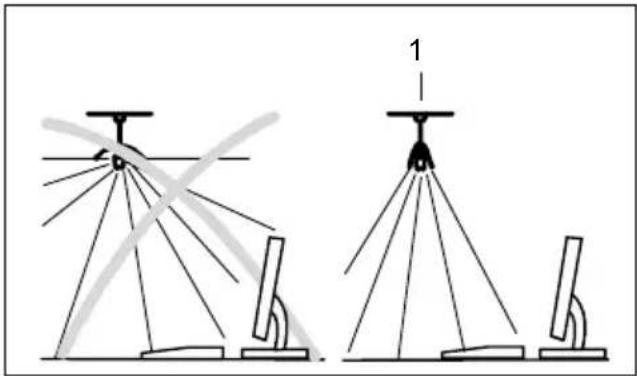
Diagram showing two configurations of a radar or surveying instrument with multiple axes and a labeled component (no text or symbols present)▶ Positionthemonitoroutsidethereach ofalightsource(1).
natural_image
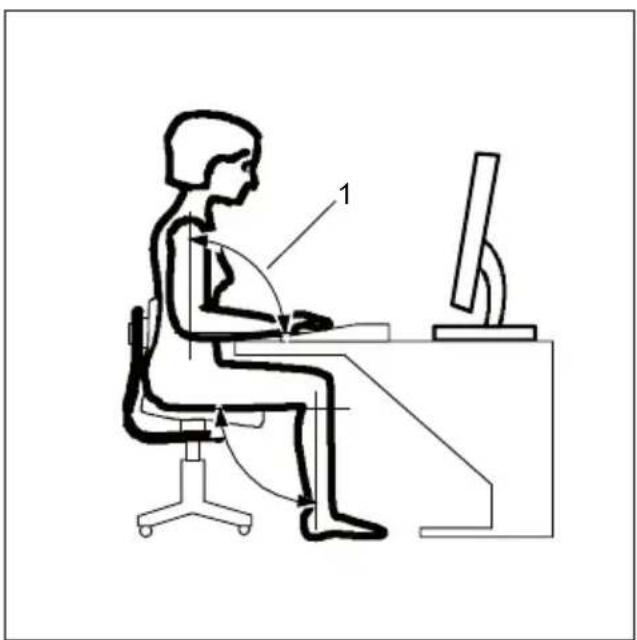
Line drawing of a person sitting at a desk using a computer (no text or symbols present)▶ Positionthekeyboardwhereitis easiesttoreach(1).
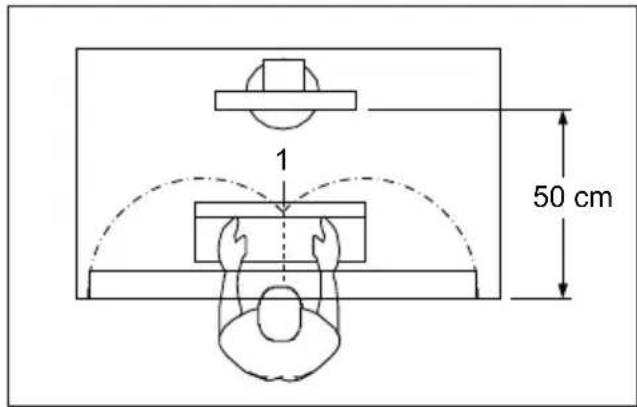
▶ Positionthemonitorsothatheeyedistance tothescreen(1)isaround50cm.
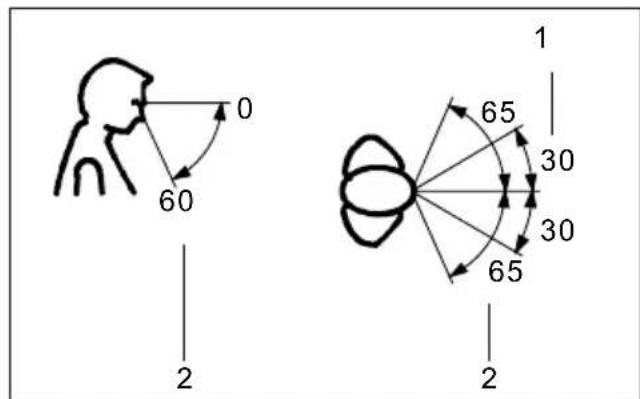
▶ Positionthemonitorforoptimumviewing (1). Themonitorshouldunderno circumstancesfalloutsidethepermissible viewingspace(2).

Depending on the situation, it may be advisable to use a swivel arm or wall bracket(VESAFPMPMI), which are available from specialist dealers. For this purpose the monitor basemust beremoved before hand as described in Chapter "Removing monitor base", Page 10.
Adjusting the inclination
Theinclinatio nothemonitorcanbeadjustedby-5°(forward)and+20°(backwards)fr omitsverticalposition.
▶ Holdthemonito rwithbothhandsontheleftandrightsidesofthecasing andmoveittoth edesiredangle.
Removingmonitorbase
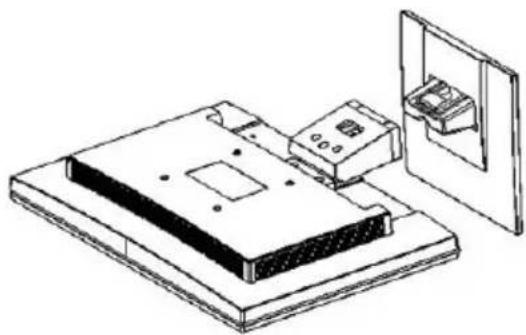
Beforeyoucanuseaswivelarmorawallbracket,youmustremovethemonitorbase.

Thedisplaysurfaceissusceptibletoscratching!
natural_image
Technical line drawing of an electronic device with a clamped unit and a separate panel (no text or symbols)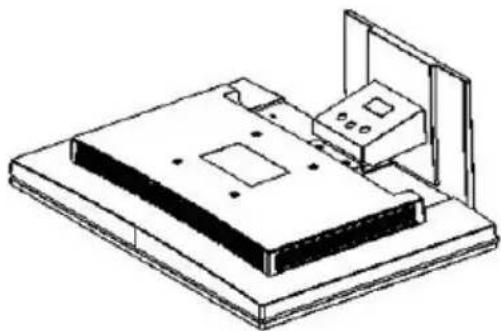
natural_image
Isometric line drawing of a mechanical device with a control panel and base plate (no text or symbols)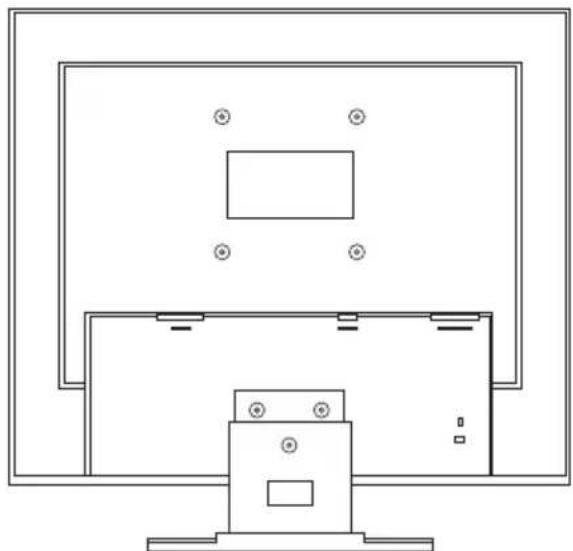
natural_image
Line drawing of a computer monitor with a front panel and control buttons (no text or symbols)▶ Switchoffthemoni torandpullthepower plugoutofthepowe r socket.
▶ Laythemonitoronitsfaceonasoftsurface.
▶ Removeallcables.
▶ Toremovethemonitorbase, undothe screwsonthemonitorbase.
→ Youcannowmountaswi velarmorawall bracketinaccorda ncewithVESAFPMPMI usingaholespacin gof100mm.
Forinstructionsonhowtomountthe swivelarmorwallbracket,please seethedocumentationfortheswivel armorwallbracket.

Forinstructionsonhowtomounttheswivelarmorwallbracket,pleaseesethedocumentationfortheswivelarmorwallbracket.
Connectingthedevice

Please observe the safety information in "Important notes", Page 3.
CEconformanceandoptimumpicturequalityareguaranteedonlyif youusethedatacablessupplied.
▶ Switchoffthemonitorandthecomputer.
▶ Disconnectthepowerplugfromthecomputer.
Connectingcablestothemonitor
Thedatacablesuppliedhastwo15-pinD-SUBconnectorsforconnection tothemonitorandtothecomputer.
Information on the computer connections and interfaces can be found in the operating manual for the computer.
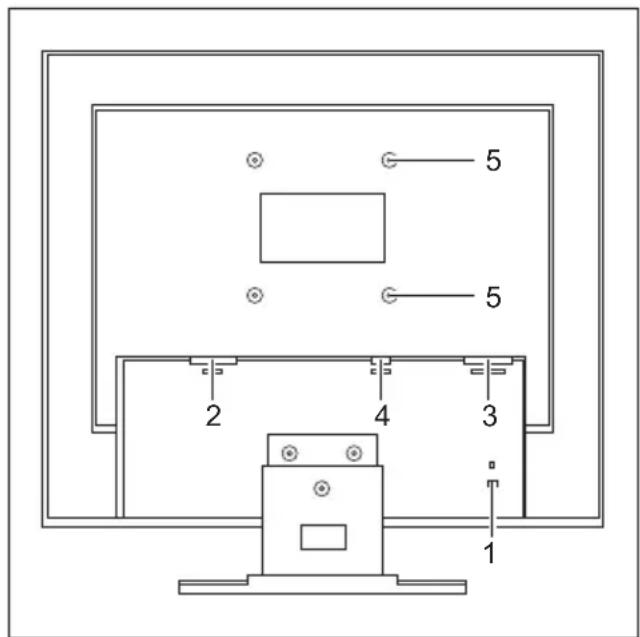
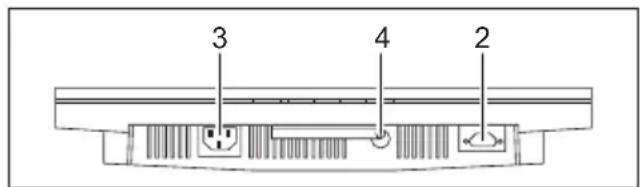
1=Securityslotforthe"KensingtonLock"
2=Powerconnectionsocket
3=D-SUBconnectionsocket(analogue)
4=AUDIOINsocket
5=Holesforsecuringtheswivelarmorwall mounting
▶ Selectthedatacablethatisappropriateforyourcomputer.
▶ Connect one of the data cable connectors to the D-SUB connector on the monitor and securetheplug-inconnectionbytighteningthesafetyscrews.
▶ InsertoneplugontheaudiocableintotheAUDIOINsocketonthemonitor, makingsureitisproperlyengaged.
▶ Plugthesuppliedpowercableintothepowerconnectoronthemonitor.

A lock (Kensington Lock) can be fitted in the security slot to protect the monitor againsttheft.AKensingtonLockisnotincludedwiththemonitoratdelivery.
Connectingcablestothecomputer
Information on the computer connections and interfaces is contained in the operating manual for your computer.
Connectthedatacabletothe(active)monitorportonthecomputerandsecure theplug-inconnectionbytighteningthesafetyscrews.
▶ Inserttheotherplugoftheaudiocableintheaudiooutputofthecomputer.
Plugthepowerconnectorofthemonitorintoaproperlygroundedmainsoutlet.
Plugthepowerconnectorofthecomputerintoaproperlygroundedmainsoutlet.

If your computer hastwomonitorports ("onboard" screen controller and separate graphics card), the monitor port for these separate graphics card is active as standard.
Operation
Switchingthedeviceonandoff
natural_image
Line drawing of a blank computer monitor with three labeled base points (1, 2, 3) at the bottom (no text or symbols on the screen)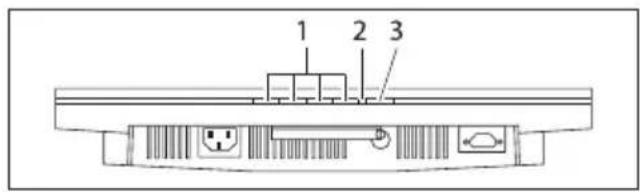
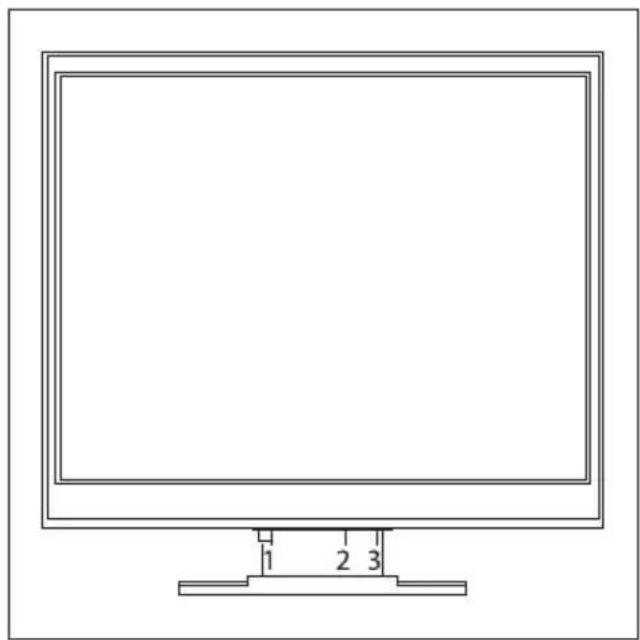
1=Button for the OSD menu (On-Screen Display)
2=Powersupplyindicator
3=ON/OFFswitch

Pressthebuttonsupwardsfrombelow.
ThecolouroftheLEDindicatorchangesasfollows:
| LEDindicatorStatus | |
| Blue | Monitorandcomputerareswitchedon(normalmode). |
| Notlit | Themonitorisswitchedoff(orisinpowersavingmode-power consumptioninstandbyandoffmode≤ 1 W). |
▶ Switch the device on using the ON/OFF switch.
Onlyswitchonthecomputerafteryouhaveswitchedonthemonitor.
Notesonpowermanagement
If the computer is equipped with power management (power-saving mode), then this function can be fully supported by the monitor. The monitor does not distinguish between the individual energy-saving modes used by the computer (standbymode, suspend mode and OFF mode), as it is capable of immediately switching into themodewith the highest energy-saving effect.
| Level | Operation | Powersavingmode |
| Normal | ||
| PowersupplyindicatorBluelight | Orangelight | |
| MonitorMax.brightnessDark | ||
| Powerconsumption(typical) | < 24 W (17" / 43 cm)< 28 W (19" / 48 cm) | Reduced<1W |
If the computer detects inactivity (noinput) its sends acorrespondings signal to the monitor to reduce the power consumption (powersaving mode). The power indicator on the monitor changes colour to show the change in status.
Thecontentsofthemonitorwillberestoredwhenthecomputerreceivesaninput.

For detailed information on how energy-saving mode operates, please refer to the operating manual or technical manual for the computer.
Changingthemonitorsettings
When putting the monitor into operation for the first time, the screen display should be optimally adapted to the display adapter used.
Changingthemonitorsettings withthebuttons ofthecontrolpanel

Thebuttonsofthecontrolpanelhavetwofunctions.WiththeOSDmenunot activated,youcanmakethefollowingsettingsdirectly:

1=ButtonsfortheOSDmenu(On ScreenDisplay)
3=ON/OFFswitch
2=Powerindicator
Performingauto-adjustmentofthemonitor
▶ Pressthe EXIT/AUTO button forabout1second.
→ TheAutoProcessingmessageappears
Picturequalitya ndpositionaresettooptimumvaluesforyoursystem.
Brightnessadjustment
▶ PresstheBACK/buttontoadjustthebrightness.
→ Thissettingchangesthebacklightbrightness.
Activating/deactivatingmuting
▶ Press the FORWARD / ✗ button to toggle sound off or on.
→ Amessagewillbed isplayed confirming that the action has been performed.
LockingtheOSDmenu
The OSD menu can be locked to prevent accidental or unauthorised changesthemonitor settings.
▶ Pressandholdthe SELECT/MENU buttonforafewsecondswhileyouswitch onthemonitorwiththeON/OFFswitch.
→ The Action was executed message appears.

Please proceed in the same manner to release the locked OSD menu again.
LockingtheON/OFFbutton
TheON/OFFswitchcanbelockedtopreventaccidentalorunauthorised changestothemonitorsettings.
▶ PressandholdtheForwards/ buttonandtheBack/buttonatthesametimeforafewseconds.
→ TheActionwasexecutedmess ageappears.

Pleaseproceedinthesamema nnertoreleasethelockedON/OFFswitchagain.
ChangingthemonitorsettingsusingtheOSDmenu
With the button on the control panel, you can call up and use the integrated OSD (On-Screen Display) menu.

The OSD menu is available in various languages. The English menu names are used in the following description (default setting). You can select another language using the OSD Language function in the OSD Setup menu.
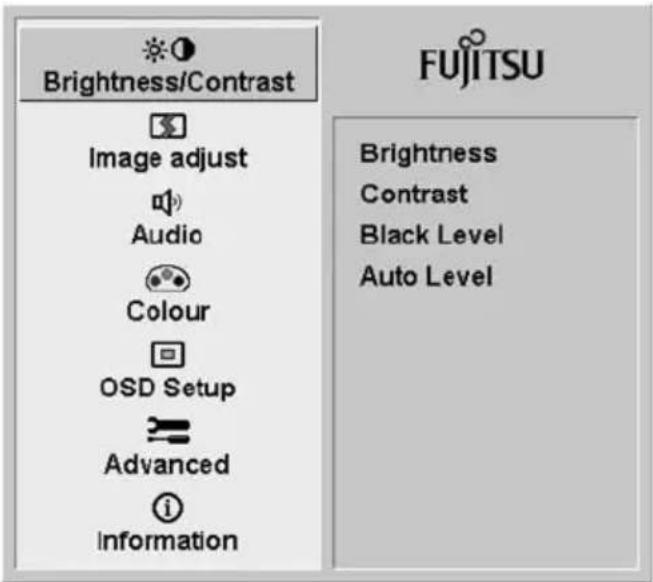
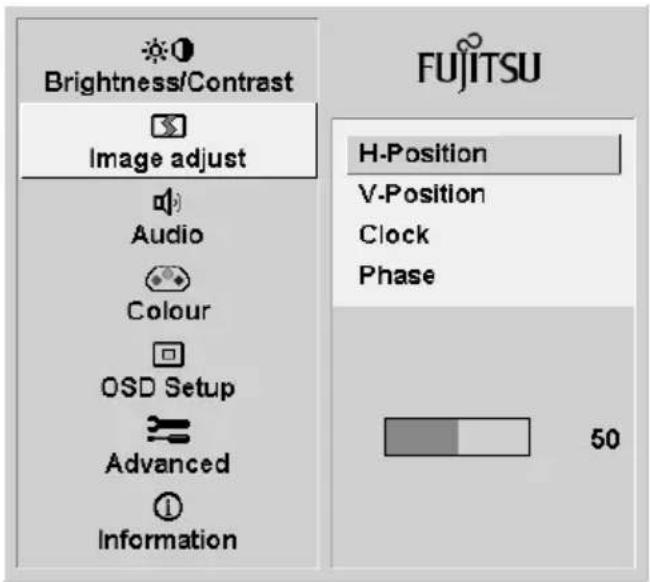
▶ Pressthe SELECT/MENU button to activate the OSDmenu.
→ Themainmenuappears, withicons forthesettingfunctions.
The first icon, (Brightness/Contrast), is highlighted and the associated functions are visible in the right-hand menu field.
▶ PresstheForwards/buttonorthe Back/ * buttontohighlightanother icon(e.g.Imageadjust).
▶ Pressthe SELECT/MENU button to select the highlighted icon.
→ TheImageadjustsetupwindowwill bedisplayed.
▶ PresstheForwards/ ✗ buttonorthe Back/ ✦ buttontohighlightanotherfunction.
▶ Pressthe SELECT/MENU button to select the highlighted function.
▶ PresstheForwards/ ✗ buttonorthe Back/ ✦ buttontohighlightanotherfunction.
▶ Pressthe EXIT/AUTO buttonto exitthefunction.
▶ PresstheForwards/ ✗ buttonorthe Back/ ✗ buttontohighlightanother functionorpressthe EXIT/AUTO button toreturntothemainmenu.
Allchangesarestoredautomatically.

If you wishto change othersettings, select the corresponding function from the OSD mainmenu. All possible adjustments of them mainmenu are described below.
OSDmenufunctions

TheOSDmenuforanaloguemonitoroperationisdescribedbelow. During digitaloperationsomefunctionsarenotavailable, they are not needed because of the digital transmission technology being used.
Adjustingthebrightnessandcontrast
| CalluptheBrightness/Contrastsettingwindow | |
| Brightness | Setthebrightnessofthedisp layWiththisfunctionyouchanget hebrightnessofthebackgroundlighting. |
| Contrast | SetthecontrastofthedisplayWiththisfunctionyoumodifythecontrastofbrightcolourtones. |
| Blacklevel | SetthebrightnessofthedisplayWiththisfunctionyoumodifythecontrastofdarkcolourtones. |
| Autolevel | AdjustthesignallevelWiththisfunctionyoucanautomaticallysetthecontrast.Thefunctionisexecutedwiththe SELECT/MENU button. |

If the contrast is set too high, bright surfaces can longer be distinguished from very bright surfaces. If the contrast is set too low, the maximum brightness will not be achieved.
Adjusting the picturesize and position
| CalltheImageadjustsettingwindow | |
| Phase | EliminatepicturedisturbanceWith this function you fine-tune your monitor to eliminate picture disturbance. |
| Clock | SetsynchronisationWiththisfunctionyouadjustthepicturewidthtoeliminateverticalpicture disturbances. |
| H-Position | AdjustthehorizontalpositionWiththisfunctionyoumovethepicturetotheleftortotheright. |
| V-Position | AdjusttheverticalpositionWiththisfunctionyoumovethepictureupordown. |
Adjustingthevolume
| CalltheAudiosettingwindow | |
| Volume | Setthevolumeforplaybackwiththeintegratedloudspeakers |
| Mute | Switchtheloudspeakersofforon |
Setting the colour temperature and colours
| CalltheColoursettingwindow | |
| SelectthecolourtemperatureThe"warmth"ofthescreencoloursissetusingthecolourtemperature.The colourtemperatureismeasuredinKelvin(K).YoucanchoosebetweensRGB, 6500 K, 7500 K, 9300 K, Native and Custom Colour.In the user-defined setting you can change the colour ratios of the basic colours(red,green,blue)asrequired. |
Adjustingthedisplayoft heOSDmenu
| CallingtheOSDSetupadjustmentwindow | |
| Language | SelectingthelanguagefortheOSDmenuWiththisfunctionyouchoosebetweenEnglish(defaultsetting),Spanish,French,Russian,German,Dutch,ItalianorSwedishasthelanguagefortheOSDmenu. |
| OSDHposition | SettingthehorizontalpositionoftheOSDmenuWiththisfunctionyoucanmovetheOSDmenutotheleftortotheright. |
| OSDVposition | SettingtheverticalpositionoftheOSDmenuWiththisfunctionyoucanmovetheOSDmenuupordown. |
| OSDTimeout | SettingthedisplaydurationoftheOSDmenuWiththisfunctionyoucanselectavaluefrom10to120seconds.Ifthesetimeexpireswithoutasettingbeingmade,theOSDmenuisautomaticallyhidden. |
ConfiguringfunctionsettingsintheAdvancedmenu
| OpentheAdvancedsettingswindow | |
| DDC/CI | Activate/deactivatetheDDC/ClfunctionOn=TheDDC/Clfunctionisactivated(standardsetting)Off=TheDDC/Clfunctionisdeactivated |
| ResolutionNotifier | Monitorinformation.Theoptimumresolutionforthismonitoris1280x1024 pixels.When the function is active (On), a message will appear on the monitor after approx.30secondsifadifferentresolutionisset.Changetheresolutionto1280x1024toachieveoptimumpicturequality.When the function is deactivated (Off), no messages will appear. |
| FactoryRecall | ActivatethefactorysettingsThisfunctionisusedtoresetallsettingstothefactorysettings.Theuseris notpromptedtoconfirmthechanges.Pressthe SELECT/MENU buttontoactivatethefunction.TheAuto Processingmessagewillbedisplayed. |
Displayinginformation
| i | CalltheInformationsettingwindowWiththisfunctionthemodeldesignation,serialnumber,resolution,H/V frequency,inputsignalandpolarityofthesynchronisationsignalare displayed. |
Notesonergonomiccolouradju stment

If you select colours forthemonitor in your application programmes, take note of the information below.
The primary colours blue and red on dark background donot produce the minimum required contrast of 3:1 and are therefore not suitable for continuous text and data entry.
When using several colours for characters and background and giving the primary colours full modulation, you can obtain very suitable colour combinations (seethefollowingtable):
| Background | Characters | |||||||
| blackwhite | purpleblue | cyangreen | yellowred | |||||
| black | + | + | - | + | + | + | - | |
| white | + | + | + | - | - | - | + | |
| purple | + | + | - | - | - | - | - | |
| blue | - | + | - | + | - | + | - | |
| cyan | + | - | - | + | - | - | - | |
| green | + | - | - | + | - | - | - | |
| yellow | + | - | + | + | - | - | + | |
| red | - | + | - | - | - | - | + | |
+Colourcombination verysuitable
-Colourcombinationnotsuitablebecausecolourhuesaretooclosetogether,thincharacters are not identifiable or rigorous focusing is demanded of the human eye.
Troubleshooting
Should an error occur, first check the following points. If the distortion is still not eliminated, the monitor should, if possible, be checked on another computer.
If you cannot solve the problem, please contact our Service Desk.
| Havingthisproblem?Checkthefollowingpoints: | |
| NoscreendisplayPowerindicatordoesnotlightup | ▶ CheckwhethertheON/OFFswitchonthe monitorisswitchedon.▶ Checkwhetherthepowercable onthe monitorisconnectedcorrect ly.▶ Checkwhetherthecomputerisswitchedon. |
| NoscreendisplayPowerindicatorislit | ▶ Checkwhetherthecomputerisswitchedon.▶ Checkwhetherthedatacableforthe monitoriscorrectlyattachedtothemonitor portonthecomputer.▶ Pressanykeyonthecomputerkeyboard. Thecomputermaybeinpowersaving mode.▶ Alterthebrightnessand/orcontrastuntilyou getapicture. |
| Message:NoSignal | ▶ Checkwhetherthedatacableforthe monitoriscorrectlyattachedtothemonitor portonthecomputer.▶ Checkwhetherthecomputerisswitchedon. |
| Message:Frequencyoutofrange:##kHz/##HzPleasechangethedisplaymode to1280x1024with60Hz | Theinputsignal(horizontalfrequency and refreshrate)atthedisplayedinputdoesnot correspondtothetechnicaldataforthemonitor.▶ Adjustthevideofrequencyrangeusingthe computersoftware(seed documentation for thecomputerordisplayadapter).▶ Setadifferentscreenre solutionusingthe computersoftware(seed ocumentation for thecomputerordisplay adapter). |
| Picturepositionnotcor rect | Themonitorrecognisesanundefinedmode(see chapter"Technicaldata",Page25).▶ PresstheEXIT/AUTO buttontopperform auto-adjustmentofthescreen. |
| Pictureisshaking | ▶ Checkwhetherthedatacableforthe monitoriscorrectlyattachedtothemonitor portonthecomputer.▶ PresstheEXIT/AUTO buttontopperform auto-adjustmentofthescreen. |
| Pictureiswronglyadjusted▶ Pressthe | SELECT/MENU buttonto activatetheFactoryRecallfunction.TheAutoProcessingmessageappears. |
| Picturedisturbances(vertical lines) | ► Pressthe EXIT/AUTO buttontoperform auto-adjustmentofthescreen. |
| Picturedisturbances(horizontallines,picture noise) | ► Pressthe EXIT/AUTO buttontoperform auto-adjustmentofthescreen. |
| Thescreenbecomesdarker | Thebackgroundlightinghasalimitedlifetime. Ifyourmonitordisplayshouldbecometoodark, thebackgroundlightingwillhavetobereplaced. ► ContactourServiceDesk. |
Explanatoryinformationabout standardISO9241-3
Brightordarkpixels
Itisnotpossibletoguaranteeanabsolutelyfault-freescreenmonitorwithcurrent productiontechnology.Afewisolatedpermanentlybrightordarkpixels(picture elements)maybepresent.Themaximumpermittednumberofsuchfaultypixelsis specifiedintheinternationalstandardISO9241-3(ClassII).
Examples:
A 43/48 m (17"/19") flat-screen monitor with a resolution of 1280 x 1024 has 1280 x 1024 = 1310720pixels. Each pixel consists of three subpixels (red, green and blue), so there are almost 3.9 millions subpixels total. According to ISO9241-3 (Class II), a maximum of 3 bright and 3 dark pixels plus an additional 6 brightor 13 dark subpixels or an equivalent mix (1 bright subpixel counts as 2 dark subpixels) are allowed to be defective.
| Pixel | Apixelconsistsof3subpixels,normallyred,greenandblue.Apixelis thesmallestelementthatcanbegeneratedbytheoverallfunctionalityof themonitor. |
| Subpixel | Asubpixelisaseparatelyaddressableinternalstructurewithinapixelthat extendsthefunctionalityofthepixel. |
Technicaldata

Condensationisnotpermitted, neitherintheratedrangeofoperation norinthelimitrangeofoperation.
A17-5ECOA19-5ECO
Dimensionsandweight
Visiblediagonals43cm48cm
Dotpitch0.264mm0.294mm
| Width337.9mm376.3mmPicturesize | |||
| Height | 270.3mm301mm | ||
| Maximumresolution | 1280x1024 | 1280x1024 | |
| Dimensions incl. monitorbase | Width373.3mm412mm | ||
| Height | 376.9mm402mm | ||
| Depth | 200.3mm200.3mm | ||
| Weight(without packaging) | Approx.4kg | Approx.4.5kg | |
| Storabledisplaymodes | 26 | 26 | |
| Pixelerrorclasses according to ISO9241-3 | Class | II | II |
Electricaldata
| Video | AnalogueDigital | Positive, 0.7 Vpp, 75 Ω- |
| Synchronisation | Separatesync.TTL, positive or negative | |
| Horizontalfrequency | 31kHz....82kHz (multi-scan) | |
| Refreshrate | 56 Hz....76Hz | |
| Maximumpixelrate | 165MHz | |
| Powersupply | Switches automatically 100 V – 240 V, 50 Hz–60 Hz | |
| Overall power consumption (without audio) | Normal operationPower saving mode | <24W <28W |
| Sound output | 1.0 W left; 1.0 W right |
Ambientconditions
Environmentclass3K2,DINIEC721
Ratedrangeofoperation 15°C.....35°C
Humidity 20%....85%
Limitrangeofoperation 5°C....35°C
Humidity 20%....85%
VESA-DDC-compatibleVGAinterface
YourmonitorisequippedwithaVESA-DDC-compatibleVGAinterface.VESA-DDC(Video Electronics Standard Association, Display Data Channel) is used as the communications interfacebetweenthemonitorandthecomputer.Ifthecomputerisequippedwitha VESA-DDC-compatibleVGAinterface,itcanautomaticallyreadthedataforensuring optimumoperationfromthemonitorandselecttheappropriatesettings.
Presetoperatingmodes

Thepicturepositionands izehavebeenoptimisedatthefactoryfortheoperating modeslistedabove.Depen dingonthegraphicscardused,itmaybenecessary toadjustthedisplayposi tionorsize.Inthiscaseyoucchangeandsavethe settings(seechapter" Changingthemonitorsettings",Page15).
Mostfrequentoperatingmodes
| HorizontalfrequencyRefreshrate$creenresolution | ||
| 31.5kHz70Hz720x400 | ||
| 31.5kHz60Hz640x480 | ||
| 37.5kHz75Hz640x480 | ||
| 37.9kHz60Hz800x600 | ||
| 46.9kHz75Hz800x600 | ||
| 48.4kHz60Hz1024x768 | ||
| 60.0kHz75Hz1024x768 | ||
| 64.0kHz60Hz1280x1024 | ||
| 80.0kHz75Hz1280x1024 | ||
Forergonomicreasons, ascreenresolutionof1280x1024pixelsisrecommended. Becauseofthetechnologyused(activematrix), anLCDmonitorprovidesatotally flicker-freepicture, evenwitharefreshrateof60Hz.
SUBDport
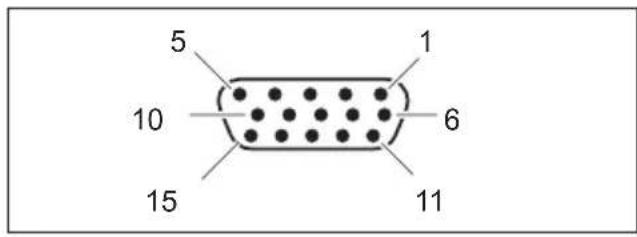
| PinMeaning | |
| 1Videoinputred | |
| 2Videoinputgreen | |
| 3Videoinputblue | |
| 4 | Ground |
| 5 | Ground |
| 6Videogroundred | |
| 7 | Videogroundgreen |
| 8Videogroundblue | |
| 9 | +5V(DDC) |
| 10 | Sync.ground |
| 11 | Ground |
| 12 | DDCData |
| 13H.sync | |
| 14V.sync | |
| 15 | DDCClock |

- A17-5 ECO / A19-5 ECO
- Doyouhave...
- FUJITSU
- Copyright
- Published by
- FUJITSUA17-5ECO/A19-5ECO
- OperatingManual
- Contents
- YourLCDscreen....1
- Important notes 3
- Getting started 7
- Operation 13
- Noteson ergonomic colour adjustment ....
- Troubleshooting 22
- Explanatory information about standard ISO 9241-3 24
- Technical data 25
- YourLCDscreen...
- Target group
- Furtherinformation
- Importantnotes
- Safetyinstructions
- Powercable
- Transportingthedevice
- Cleaningthe device
- CEmarking
- EnergyStar
- Disposalandrecycling
- Gettingstarted
- Unpackingandcheckingthedelivery
- Setting up the device
- Settingupanergonomicvideoworkstation
- Adjusting the inclination
- Removingmonitorbase
- Connectingthedevice
- Connectingcablestothemonitor
- Connectingcablestothecomputer
- Operation
- Switchingthedeviceonandoff
- Notesonpowermanagement
- Changingthemonitorsettings
- Changingthemonitorsettings withthebuttons ofthecontrolpanel
- Performingauto-adjustmentofthemonitor
- Brightnessadjustment
- Activating/deactivatingmuting
- LockingtheOSDmenu
- LockingtheON/OFFbutton
- ChangingthemonitorsettingsusingtheOSDmenu
- OSDmenufunctions
- Notesonergonomiccolouradju stment
- Troubleshooting
- Explanatoryinformationabout standardISO9241-3
- Brightordarkpixels
- Examples:
- Technicaldata
- Ambientconditions
- VESA-DDC-compatibleVGAinterface
- Presetoperatingmodes
- SUBDport
Brand : FUJITSU
Model : A19-5 ECO
Category : Screen