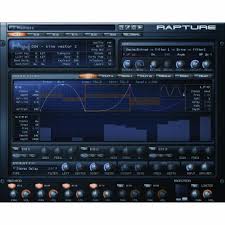
RAPTURE - Synthesizer ROLAND - Free user manual and instructions
Find the device manual for free RAPTURE ROLAND in PDF.


| Product type | Software wavetable synthesizer |
| Supported formats | VST, AU, RTAS, DXi |
| Compatible platforms | Windows and macOS |
| Number of elements per program | 6 independent elements |
| Oscillator | Wavetable synthesis with high-quality interpolation |
| DSP filters per element | 2 multimode filters (LP, HP, BP, BR, AP, PK, Comb, Pink) up to 36 dB/octave |
| Insert effects per element | Delay (12 types), Reverb (7 types), Distortion |
| Modulators per element | 1 envelope, 1 LFO, 1 step generator, 1 keytracker for each destination (Pitch, Cut1/2, Res1/2, Pan, Amp) |
| Modulation matrix | X/Y modulation, MIDI sources, up to 42 simultaneous modulators |
| Polyphony | Polyphonic per element (0 = monophonic/legato) |
| Sample management | Loads .wav, .aiff, .ogg, .sfz files (multisamples) |
| MIDI controllers | Modulation wheel, Aftertouch, Velocity, MIDI learn |
| Multitimbral modes | 6 MIDI channels (multitimbral mode) |
| Global effects | Master FX: delay, reverb, distortion, 3-band EQ |
| Special features | Ring modulation, element stacking, microtuning (Scala files) |
| Included documentation | User manual (316 pages) in PDF format |
Frequently Asked Questions - RAPTURE ROLAND
User questions about RAPTURE ROLAND
0 question about this device. Answer the ones you know or ask your own.
Ask a new question about this device
Download the instructions for your Synthesizer in PDF format for free! Find your manual RAPTURE - ROLAND and take your electronic device back in hand. On this page are published all the documents necessary for the use of your device. RAPTURE by ROLAND.
USER MANUAL RAPTURE ROLAND
Information in this document is subject to change without notice and does not represent a commitment on the part of Twelve Tone Systems, Inc. The software described in this document is furnished under a license agreement or nondisclosure agreement. The software may be used or copied only in accordance of the terms of the agreement. It is against the law to copy this software on any medium except as specifically allowed in the agreement. No part of this document may be reproduced or transmitted in any form or by any means, electronic or mechanical, including photocopying and recording, for any purpose without the express written permission of Twelve Tone Systems, Inc.
Copyright © 2006 Twelve Tone Systems, Inc. All rights reserved.
Program Copyright © 2006 Twelve Tone Systems, Inc. All rights reserved.
ACID is a trademark of Sonic Foundry, Inc.
Cakewalk is a registered trademark of Twelve Tone Systems, Inc. Project5 and the Cakewalk logo are trademarks of Twelve Tone Systems, Inc. Other company and product names are trademarks of their respective owners.
Visit Cakewalk on the World Wide Web at www.cakewalk.com.
Consultez le site web de Cakewalk: www.cakewalk.com.
Table of Contents
1 Introduction. 7
Welcome 8
Installation for Mac 8
Installation for Windows 8
Architecture of Rapture 8
MIDI Controllers 8
2 Getting Started 9
Loading Programs. 10
Loading Elements 10
Combining and Mixing Elements. 11
Saving Programs and Elements 12
Using Effects. 12
Using Rapture as a Multi-timbral Instrument. 13
The Modulation Matrix. 13
The X/Y Pad 14
3 The Interface and Controls 15
The Interface's Controls 18
4 Main Functions 21
Programs, Elements and Audio Files 22
File Organization. 22
Loading Samples 23
Editing Oscillator Controls. 24
Copying, Unloading, and Resetting Elements 26
Chaining Elements. 26
Ring Modulation. 27
The DSP Section 27
Using the Filters. 27
Using the LoFi Module. 31
Using the Drive Module 31
Using the EQ's. 32
The Insert FX Section 32
Delay Mode 32
Reverb Mode 35
Distortion Mode 35
The Modulators Section. 36
Envelope Generators 36
Low Frequency Oscillators. 40
Keytracking 42
The Step Generator 43
Modulator Copy/Paste 45
Amplitude Editing. 46
The Global Page 46
The Modulation Matrix 46
MIDI Learn 47
The Mixer. 48
Microtuning and Alternative Tunings 49
Sinc Interpolation 50
Appendix A: Parameter Reference 51
Appendix B: Modulation Matrix 57
Index 69
LICENSE AGREEMENT 71
Introduction
In This Chapter
Welcome. 8
Installation for Mac 8
Installation for Windows 8
Architecture of Rapture. 8
MIDI Controllers 8
Welcome
Thank you for purchasing Rapture!
Rapture is a wavetable synthesizer with advanced sound manipulation capabilities, well suited for electronica-related music styles. A comprehensive Modulation Matrix provides expressive control and a unique Step Generator provides an intuitive interface for the creation of rhythmic parameter changes.
Installation for Mac
To install Rapture on a Mac:
- Insert the Rapture installation CD into your CD drive.
- Double-click the CD icon that appears on your desktop.
- Double-click the "Rapture Installer" icon, and follow on-screen instructions.
The installer will give you the option of installing VST, AU, and/or RTAS formats to your system's plug-in library.
Installation for Windows
To install Rapture on Windows:
- Insert the Rapture installation CD into your CD drive.
- The Rapture installer should start automatically. If it does not, go to My Computer and double-click the CD drive icon.
- Follow the on-screen instructions provided by the installer.
The installer will give you the option of installing DXi, VST and/or RTAS formats to your system.
Architecture of Rapture
Rapture is composed of six individual sound generation components, called Elements.
A Rapture Program (stored as a file with a .PROG extension) is defined by the settings of all parameters within all Elements and the Global section. Each Element has a complete engine composed of an Oscillator, a per-voice DSP stage (Bit Reduction, Decimation, Drive and two multi-mode resonant filters), and a set of Modulators (envelope generators, low frequency oscillators and step generators) applied to the main sound generation parameters. The sound generated by the six Elements is mixed and routed to a global DSP stage (three band parametric equalizer and multi-effects section).
The Oscillator is the core of the sound manufacturing process. Each Oscillator is capable of high-quality, high-performance wavetable synthesis. This type of synthesis is an efficient method of creating sustained sounds by looping a minimal amount of audio data. In Rapture, the wavetable is defined by a single-cycle audio file.
During the wave loading procedure, Rapture creates all the sample images required for the Oscillator to play the single cycle across the whole keyboard range without any aliasing distortion. Rapture ships with over two hundred wavetable definition files, which can be expanded.
MIDI Controllers
To get the most out of Rapture, we recommend using a good MIDI controller. Many programs use the Mod Wheel, Aftertouch, and Velocity to change the sound of the program while the program is playing back.
Getting Started
In This Chapter
Loading Programs 10
Loading Elements. 10
Combining and Mixing Elements 11
Saving Programs and Elements 12
Using Rapture as a Multi-timbral Instrument 13
The Modulation Matrix 13
The X/Y Pad 14
This section provides a brief-but-useful introduction to Rapture's more significant concepts and most-used functions. More detailed information is included in later chapters of this User's Guide.
You can also access the online help topics by pressing the F1 key on your Windows keyboard or Command+?" on your Mac keyboard while the Rapture interface is launched.
Loading Programs
A Rapture program is made of up to six Elements. Each Element contains a wavetable oscillator and a chain of effects, filters, envelope generators, step generators, and LFO's. You can turn each Element off or on in the Mixer section at the bottom of Rapture's interface. If you want to use Rapture as a six-part multi-timbral synth, you can also set each Element to respond to a different MIDI channel.
To Load a Program
- Click the program window:
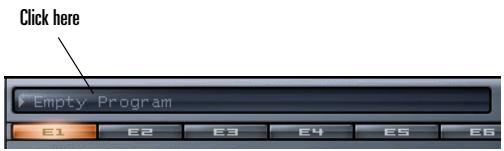
The Program Browser appears.
- Navigate to the folder where the desired program is located, and double-click the name of the program. Close the Program Browser after you double-click the program.
Rapture loads the program you double-clicked, and displays the program name in the program window.
You can also load a program by clicking the Program Handling button and choosing Load Program from the popup menu, or by drag and dropping a .PROG file into the Rapture window.
When you load a program, you load all the Elements at once, along with all the associated effects, filters, etc.
Loading Elements
Rapture allows you to create and load single element files. An element file stores a single Element's selected wavetable, modulators, EQ and insert effect settings as a disk file with an .ELEM extension. Element files can then be reloaded and recombined to create new programs.
Loading an Element file does not change any settings in the unselected Elements. If you wish to clear settings from all Elements before loading any Element files, initialize the program first by clicking the Program Handling button and choosing Initialize Program from the popup menu.
To Load an Element
- Right-click (Ctrl-click on a Mac) the Element button of the Element that you want to load a sound into (E1, E2, E3, E4, E5 or E6).

- Select Load Element from the popup menu:
The Load Element dialog appears.
- Navigate to the folder where the desired Element is located, click the name of the Element, and click the Open button.
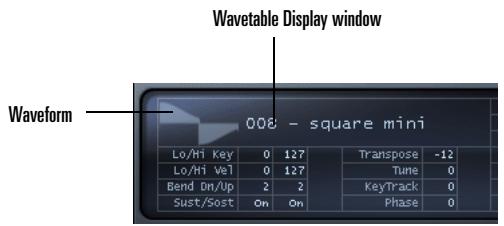
Rapture loads the Element you clicked and the Wavetable Display window shows the name of the wave file used by the wavetable oscillator. The graphic represents the single-cycle waveform used by the Oscillator to create a sustained sound.
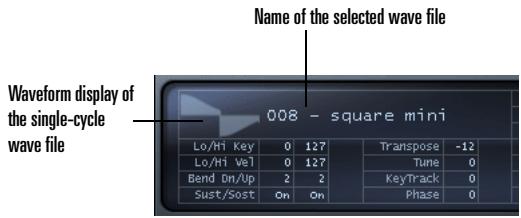
You can also load an Element by selecting any of the files in the Elements folder of the Program browser, or by drag and dropping an .ELEM file into the Rapture window
Tip: When you left-click an Element button to view that Element's settings, you can switch to another Element by pressing 1 through 6 on your computer keyboard (but not the Num Pad).
Combining and Mixing Elements
If you want to combine different Elements into a new program, simply load up to six Elements and then save a new program. This is valuable if you want to play different timbres at the same time: for example, you could double a lead and a pad.
Here's the procedure:
To Combine Elements into a New Program
- Initialize the program to clear all sounds and effects: click the Program Handling button and choose
Initialize Program from the popup menu (click Yes to the All Current Settings Will Be Discharged prompt).
Click the E1 button to display the controls for Element 1.

- Load an Element into Element 1: right-click (Ctrl-click on a Mac) the E1 button, choose Load Element from the popup menu, navigate to the desired Element, select it and click the Open button.
- Adjust any effects, filters, etc. for Element 1, and make sure Element 1's On button is enabled in the Mixer section:
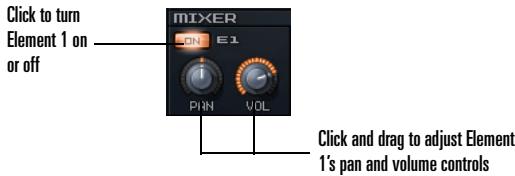
You can also adjust each Element's individual pan and volume settings in the Mixer section.
- Repeat steps 2 and 3 for any additional Elements you want to combine for this program (for Element 2, click button E2 to display the controls for Element 2, load an Element into Element 2, adjust settings for Element 2, and make sure Element 2's On button is enabled; for Element 3, click button E3, etc.).
- When you've loaded and configured up to six Elements, adjust the program's master stereo mix in the Master section.
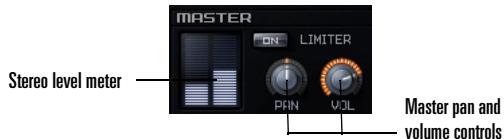
These master controls, Pan and Volume, modify the combined signal of all currently active Elements. The level meter gives a visual indication of the Rapture's stereo output.
Note: If the levels are high and you want a hard limiter applied to this program, enable the Limiter On button in the Master section. The limiter will ensure levels are always kept below digital zero (0 dB), which is very useful for highly resonant or distorted sounds.
- When the program sounds the way you want it, save the program as described in the next section.
Saving Programs and Elements
Once you've configured a Program or an Element the way you want it, you can save it to your Programs or Elements folders. Rapture also allows you to set the program it will automatically load every time a new Rapture instance is inserted.
To Save a Program
- When the program sounds the way you want it, click the Program Handling button and choose Save Program or Save Program As from the popup menu.
-
If you chose Save Program, Rapture saves the program under its current name in its current folder.
-
If you chose Save Program As, the Save Program dialog appears: navigate to the folder where you want to save the program, type a name for the program, and click the Save button.
Rapture will automatically add the '.prog' extension to the program, and the program name display will be updated to reflect the program name.
To Save an Element
- When the Element sounds the way you want it, right-click (Ctrl-click on a Mac) that Element button and choose Save Element As from the popup menu. This opens the Save Element dialog.
- Navigate to the folder where you want to save the Element, type a name for the Element, and click the Save button.
To Save the Default Program
- Load the program that you want Rapture to use when you haven't chosen a program.
- Click the Program Handling button and choose Save Default Program from the popup menu.
- Click Yes when Rapture asks you if this is what you want to do.
Rapture saves the current program as the default program.
Using Effects
Insert FX are available for each individual Element, and a Program can contain both Global and Master FX. Each category of effect (Insert, Global and Master) features the same type of menu and parameter controls.
Here's the procedure for adding a master effect to your program:
To Apply Master FX to a Program
- Display the Global page by clicking the Global button.

The Master FX section is located just above the Mixer section.
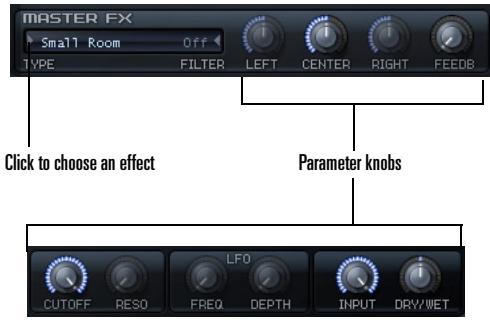
- Choose an effect type by clicking the arrow in the FX window and then choosing an effect from the popup menu that appears.
- Adjust the effect with the corresponding parameter knobs.
For more information on effects, see "The Insert FX Section" on page 32.
Using Rapture as a Multimbral Instrument
Each of the six Elements can function as a separate instrument, if you want to use a single instance of Rapture as a six-part multi-timbral instrument.
To Use Rapture as a Multi-timbral Instrument
- Load the program that you want to use as a multimbral program.
- Click the Options button . The Options dialog appears.
- Check the Set Program As Multi-timbral option, and click OK.
- Save the program, if you want to change it to a multitimbral program.
When a program is in Multi-timbral mode, the six Elements respond to MIDI channels 1-6, respectively.
The Modulation Matrix
You can use the Modulation Matrix to virtually 'connect' different modulation sources to several parameters. The Modulation Matrix expands the control and performance behavior of a program
To Assign a Modulation Source to a Rapture Parameter (Modulator Destination)
- Display the Modulation Matrix by clicking the Show/Hide Modulation Matrix button
- In the Source column, click the arrow at the left side of the column to open the Modulation Source menu.
- Pick a Modulation Source that you want to use to control a Rapture parameter.
- In the Destination column, click the arrow at the left side of the column to open the Destination menu (a list of Rapture parameters).
-
Click the Rapture parameter that you want to control with the Source you chose in the left column.
-
In the Depth column, drag up or down to enter a number that controls how strongly and in which direction the parameter responds to changes in the source (negative numbers produce an inverse relationship).
- In the Smooth column, drag upward to produce a number that smooths out the response of the Destination to the Source.
The X/Y Pad
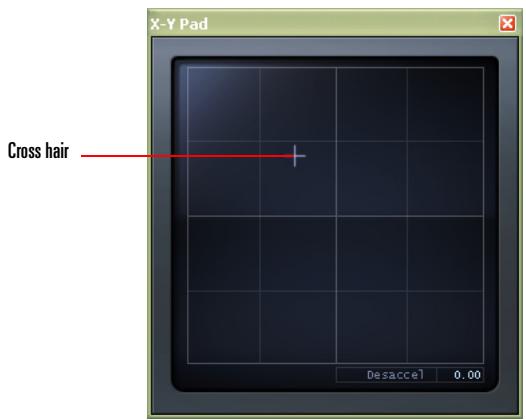
This X/Y Pad is used to adjust assigned synth parameter levels by dragging the X/Y crosshair around the pad. Parameter levels rise and fall as you move the crosshair.
The Desaccel field allows you to slow down the response of the cross hair—higher values cause a slower response.
Open the X/Y Pad by clicking the Show/Hide Vector Mixer button.
To Assign Parameters to the X/Y Pad
- Display the Modulation Matrix by clicking the Show/Hide Modulation Matrix button
- In the Source column, click the arrow at the left side of the column to open the Modulation Source menu.
- From the Source menu, select X/Y Pad X or X/Y Pad Y.
- In the Destination column, click the arrow at the left side of the column to open the Modulation Destination menu.
- From the Destination menu, select any of the available synth parameters.
The X/Y Pad will now control the selected parameters. You can assign as many parameters to the X/Y Pad as space provides in the Modulation Matrix.
The Interface and Controls
In This Chapter
The Interface. 16
The Interface's Controls 18
The Interface
The Main Interface
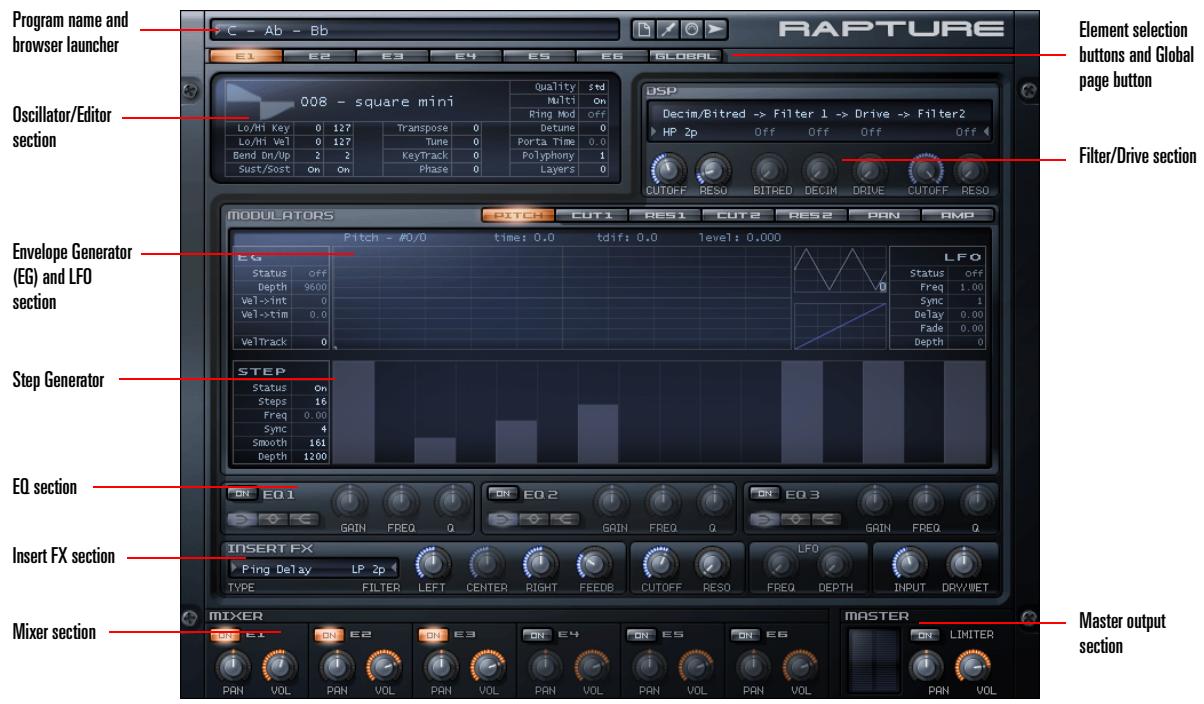
The main Rapture interface consists of three areas:
Program area (top)
In this area we can find the program selector/loader, and the buttons for Program Handling, Options, the Modulation Matrix and the X/Y Pad.
The Modulation Matrix and X/Y Pad are deployable windows. In the Modulation Matrix window, all
modulation assignments for the current preset are defined. The X/Y Pad allows you to control synth parameters .
Elements area (middle)
This area has an horizontal selector button to choose the Element for editing (1-6), plus all the Element components like the EQ and Step Generator.
- Mixer/Master area (bottom)
This area has the mixer controls for the six elements, as well as master controls to adjust the final stereo mix.
Rapture also has a Global page with settings for Global and master FX. Access the Global page by pressing the Global button next to the Element selection buttons.
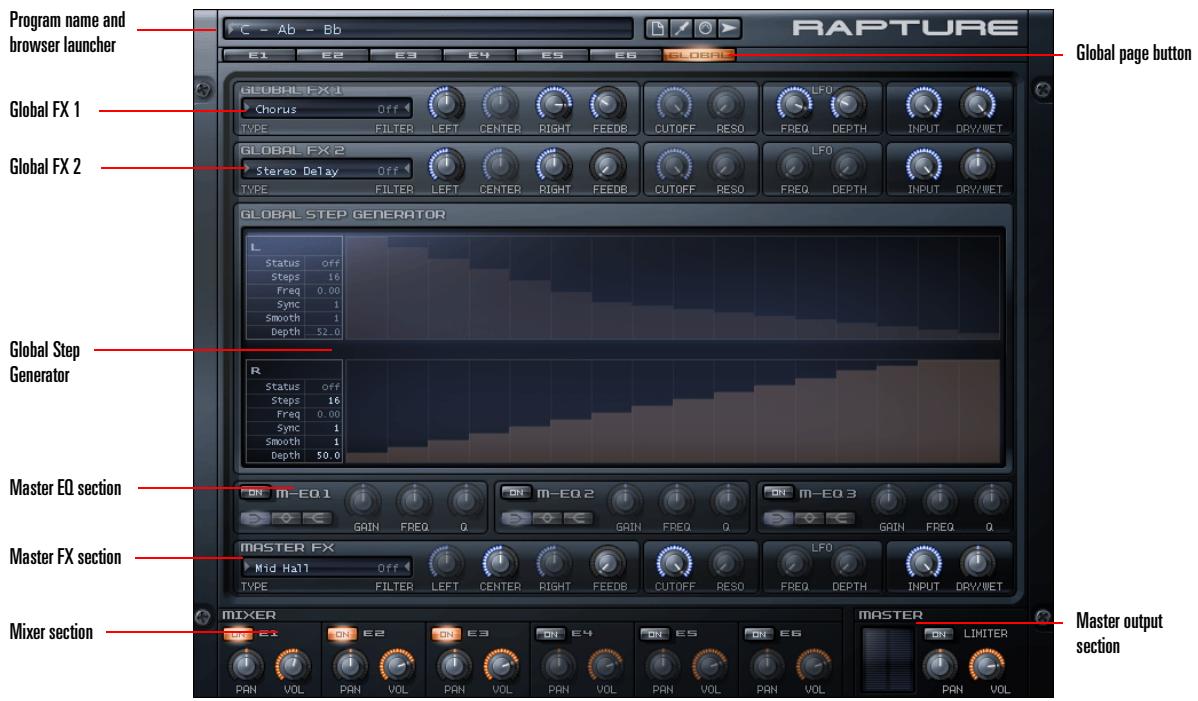
The Global Page
The Interface's Controls
All the functions in Rapture are performed by the following controls:
Horizontal Selectors
The horizontal selectors are always in the header of a section, and are used to choose a 'page' for editing in a multiple-page context.
They're used to select the main component page (Element 1-6, Global), and the Modulator page (Pitch, Cutoff 1 & 2, Resonance 1 & 2, Pan and Amplitude).


To Use Horizontal Selectors
- Direct Clicking or Clicking and Dragging can be used to select each page in the Horizontal Selectors.
- If a horizontal selector is 'active', it will receive keystrokes. Number keys can be used to select each page when active.
Knobs
Parameters that are continuously variable and suited for automation are controlled by knobs. The knobs in Rapture can be operated by mouse movements, mouse wheel, keyboard, or MIDI messages.
When a parameter is not active (if the whole section is off, for instance), the knob will become semi-transparent. If a knob is operated when in this status, the parameter will be adjusted. However, there won't be any change to the resulting sound.

To Use Knobs
- Hovering the mouse over the knob for a moment (without clicking on it) will make a tooltip appear, displaying the currently selected element, the parameter name and the current parameter value.
- Clicking on the knob, then moving the mouse vertically will adjust the parameter value. A tooltip will show the parameter value for current adjustment.
- Double-clicking on the knob will set the parameter to its default value (the 'natural' value for each parameter).
After a knob is clicked (or double-clicked), it becomes 'active'. When a knob is active, it receives mouse wheel messages and keystrokes. - The mouse wheel will change the parameter value in ± 5% steps for the active knob. If the Shift key is down while moving the wheel, the knob will move in ± 1% steps, allowing for more precise adjustment. Tooltips will display the parameter value for mouse wheel messages as long as the mouse cursor is over the knob. Knobs won't generate interpolated values on mouse wheel.
If a knob is 'active', it will receive keystrokes. The following keys can be used to change the parameter value:
Key...
Left, Right arrow
Up, Down arrow
Home
End
Change...
± 0.1%
± 1%
Minimum
Maximum
- Tooltips will display the parameter value for mouse wheel messages as long as the mouse cursor is over the knob. Knobs won't generate interpolated values on keystrokes.
Buttons
Buttons are used to turn on/off a component.

Clicking on a button will turn the component on/off, and the button image will reflect the status.
Up/Down selectors
Parameters with numerical values, not suitable for automation are controlled via Up/Down selectors. An example of this type of parameters is the Low and High Keyboard Note for any Element, in the Oscillator control display.
Lo/Hi Key 0 127
- The Up/Down selectors are controlled in the same way as the knobs: clicking on it and moving the mouse vertically. However, adjusting an Up/Down selector won't result in interpolated values. A tooltip will show the parameter value for current adjustment.
- Like the knobs, after an Up/Down selector is clicked, it becomes active. The font color will change to orange when in that status.
- When a text selector is active, it can receive mouse wheel messages and keystrokes.
- Since many parameters represented by Up/Down selectors have broad ranges, and at the same time they require precise adjustments, the following modifiers can be used to achieve different speed/resolution changes while using the mouse:
| Modifier... | Change... |
| Shift | Small steps (small parameter movements, increased resolution) |
| Control (Command on a Mac) | Big steps (big parameter changes, reduced resolution) |
-
The range and step size for each parameter is shown in the 'Parameter Ranges' table. See "Appendix A: Parameter Reference" on page 51.
-
If an Up/Down selector is active, it will receive keystrokes. The following keys can be used to change the parameter value:
| Key... | Parameter Value... |
| Up/Down Arrows | Next/Previous parameter value. Standard Steps. |
| Page Up/Down | Step forward/backward 10 steps |
Text Selectors
The text selectors are used to choose a value for parameters that have multiple options, non-numerical. An example of this kind of parameter is the Insert FX Type.
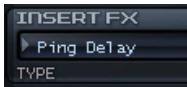
A text selector will advance to next/previous value when the display text is left/right clicked (left click/Control+click on a Mac).
When a Text Selector is clicked, it becomes active. The font color will change to orange when in that status. When a text selector is active, it can receive mouse wheel messages and keystrokes. The following keys can be used to change the parameter value:
| Key... | Change... |
| Up/Down Arrows | Next/Previous parameter value |
| Page Up/Down | Step forward/backward 10 steps |
Tip: Many text selector values can also be accessed via a menu. Click the gray triangle to the left or right of a text selector to view available options in a popup menu.
Envelope, Step Generator, LFO Waveform and Key Tracking controls
The Modulators section includes special controls to set the Envelope Generators, Step Generator, the LFO Waveforms and the Keyboard Tracking. For precise details on how to operate those controls, see "The Modulators Section" on page 36.
Main Functions
In This Chapter
Programs, Elements and Audio Files 22
Loading Samples 23
Copying, Unloading, and Resetting Elements 26
The DSP Section 27
Using the EQ's 32
The Insert FX Section 32
The Modulators Section 36
The Modulation Matrix 46
MIDI Learn 47
The Mixer 48
Microtuning and Alternative Tunings. 49
Sinc Interpolation 50
The following sections describe the advanced functionality of Rapture and other details not covered in the introductory topics.
Programs, Elements and Audio Files
As described in the Getting Started chapter, a Rapture program has six Elements at its disposal, making for sophisticated sound programming potential. A program consists of the settings for these six elements, including references to the wavetables used by all oscillators, and all global settings.
File Organization
After installation, the following folders will be created inside the Rapture folder:
| File/Folder... | Stores... |
| Documentation\ | Documentation folderRelease Notes, User Manual and Registration information. |
| Lfo Waveforms\ | Lfo Waveforms folderAll factory LFO waveforms. User-defined waveforms can be stored here as well. |
| MIDI\ | MIDI folderAll MIDI Learn data. |
| Multisamples\ | Multisamples folder All factory wavetablesmultisample definitions and sample collections. |
| Programs\ | Programs folder All factory presets/programs.Rapture will point to this folder on Save...Program. |
| Programs\Elements\ | Elements folder All factory elements. Rapture will point to this folder on Save...Element. |
| Sample Pool\ | Sample Pool folder Project/Demo song specific samples. |
| Tunings\ | Tunings folder All microtuning and alternate tuning files. |
Program Files
Program files (.prog) can be anywhere in the disk or network. The 'Programs' folder was created for organizational purposes, but the user can save a program anywhere.
Program files are not required for the Song Persistence to work. A copy of the program file is saved as persistence, and it's reloaded on song reload.
This means each song will include a 'snapshot' of the used programs in the moment the song was last saved. This allows you to preserve old songs and their settings even if factory programs are updated in the future.
Elements
Rapture can save and load individual Elements to file. The idea here is making an 'Element Set', capable of serving as 'quick construction kit' for new programs. An element file contains all settings for an element, including the wavetable and oscillator parameters, with all modulators and DSP settings applied.
Tip: Elements stored in the default Elements folder can be loaded directly via the Program Browser. Launch the Pogram Browser and navigate to the Elements folder to make your selection. Loading an Element in this way will not affect the other Elements within the program.
Audio Files
Rapture specializes in using single-cycle audio files to define wavetable, driving the Oscillator for wavetable synthesis. However, Rapture allows a variety of other audio file types to be loaded as well. Unlike Program files, audio files (.SFZ, .WAV, .AIF, .AIFF, .OGG) are not included in the Song Persistence. Therefore, songs will be affected by any changes to the original audio source.
Additionally, the samples are external standard wave files which can be edited using a standard wave editor. Consequently, this warning is here: if a multisample definition file is edited, and/or a sample file is edited, the old song might sound different after reloading it if it happens to use the edited files.
Samples
If a sample defined inside an .sfz definition file is missing, Rapture will try to load it from the original location on Program/Song reload.
If that wave file isn't in the original location, Rapture will try to find it in the Sample Pool folder. This simplifies exchanging sample files between users.
Rapture will report every sample it can't find after above attempts fail.
Loading Samples
You can load single samples (Wave or AIFF files), or multi-samples, (SFZ files) which already contain key mapping and velocity switching assignments. You can load samples in any bit depth and sample rate, in mono or stereo, in looped or unlooped format. Wave and AIFF files can be loaded directly, or as a sample inside an SFZ definition file.
Samples can be of any bit depth (8 to 32-bit), any samplerate, and either mono or stereo. Each sample in a multisample can be a standard PCM Windows wave file (.wav), an Apple audio format (.AIFF) or a compressed file in the standard, high-quality, open and royalty-free ogg-vorbis format (.OGG). Those files can also be loaded directly into an Element.
Alternatively, it is possible to open multisample definition files (.sfz) or individual samples by drag and dropping them into Rapture window. The sample will be loaded into the selected element.
Tip: If a multisample or individual sample (even samples inside a multisample) is loaded more than once, across multiple elements, or multiple instances of Rapture, the sample will exist in memory only once. The size indicated for the second and subsequent instances will be zero, which boosts memory efficiency.
Loading a sample or multisample does not clear the effects that may be patched into Rapture at the time of loading. If you want to clear all effects first, initialize the program by clicking the Program Handling button and choosing Initialize Program from the popup menu.
A multisample consists of a group of samples, their key mapping, and velocity switching. If you want to change key mapping and/or velocity switching, you can edit each multisample's .sfz file, which is found in the multisample folder along with the multisamples. You can use Notepad to edit a .sfz file. The .sfz format is explained at http://www.rgcaudio.com/sfzformat.htm.
Note: Rapture can read .sfz files in Unicode (little or big endian), UTF-8 and ANSI. Inside unicode/utf files, any character set can be used in the definition of folder and filenames. It is possible to install Rapture in a unicode-named folder.
To Load a Wavetable or Sample
- Click the Wavetable Display window to open the Load Multisample dialog, and navigate to the folder where the desired wavetable or sample is located.
Note: Rapture streams samples from RAM, so only samples under a minute in length are suitable for loading, depending on the amount of RAM in your computer. Playback of a stereo sample will use more
CPU than a mono sample, but less CPU than two mono samples.
- Click the name of the wavetable or sample, and click the Open button.
Or
- Drag a wave file from the Windows Explorer or the MacOS Finder to Rapture's Oscillator section.
Tip: You can navigate forwards and backwards through wave files in the current wave directory without opening a browse dialog by left-clicking or right-clicking (Ctrl-click on a Mac) the waveform in the Wavetable Display window.
Editing Oscillator Controls
Once the wavetable is loaded into the Element, you can adjust a number of mapping, tuning, and performance parameter. The following controls are located in the Oscillator section:
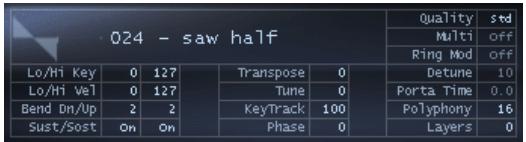
| Control... | Does This... | Value Type... |
| Lo/Hi Key | Changes the range of notes that the element will play. | Note Number |
| Lo/Hi Vel | Changes the velocity range that the element will play. | Velocity Value |
| Bend Up/Down | Changes the pitch bend range. | Semitones |
| Sust/Sost | Changes whether the element responds to MIDI Sustain data (cc # 64), or MIDI Sostenuto (cc # 66). | Off/On |
| Transpose | Changes the pitch (keyboard mapping is unaffected). | Semitones |
| Tune | Adjusts the pitch in one-cent increments, up or down. | Cents |
| Keytrack | Changes the pitch variation for each note, in cents. | Cents per Key |
| Phase | Adjusts the initial phase of the waveform, from 0 to 360 degrees, when a MIDI Note On event arrives.It is possible to create complex sound textures by combining waveforms in two oscillators with different starting phases. | Degrees |
| Quality | Defines how the wavetable rendering quality."Standard" should be used when no exposed pitch sweeps are performed with that oscillator. "High" will perform a high-order partial-level interpolation, allowing huge pitch sweeps without audible aliasing. | Std/Hi |
| Multi | Turns the currently loaded wavetable into multiple oscillators (voices), spread across the stereo field at even distributions and with different detuning levels.Note that the detuning level is regulated by the Detune control. | Off, 3v, 5v, 7v, 9v |
| Ring Mod | Changes the oscillator into TWO oscillators which ring modulate each other. For more information, see "Ring Modulation" on page 27.Note that the detune level between both oscillators is regulated by the Detune control. | On/Off |
| Detune | Applied to the most-detuned oscillators when in Multi or Ring Mod mode; the middle oscillators are interpolated from that value. The Detune range is one semitone, or 100 cents. | Cents |
| Porta Time | Forces pitch glide when polyphony is set to 0 (monophonic/legato mode).Value ranges from 0 to 10 seconds. | Seconds |
| Polyphony | Sets the polyphony for the element. Setting Polyphony to 1 puts that Element in monophonic mode, setting it to 0 puts that Element in monophonic and legato mode. | Notes |
| Layers | Shows what sample layer is currently playing. Rapture defines a Layer as the playback for one sample, either mono or stereo. | This field is display only, 0 to INF. |
Tip: The Multi and Ring Mod controls are suitable for much higher detuning factors, if extreme effects are wanted. Further detuning is available via the Modulation Matrix.
Copying, Unloading, and Resetting Elements
If you right-click (Control-click on a Mac) an Element button (E1 through E6), a popup context menu appears, which contains the following commands:
- Unload Element—removes the multisample from the multisample window without removing parameter settings.
- Reset Element—removes the multisample from the multisample window and removes all parameter settings.
- Copy Element—places all information from current Element, including multisample assignments and all parameter settings, on the clipboard.
-
Paste Element—pastes copied Element data from the clipboard to the current Element: to paste, right-click (Control-click on a Mac) the Element button of the Element that you want to paste to, and select Paste Element from the popup menu.
-
Paste Element Fx—pastes only Insert Fx settings from a copied Element to the current Element.
Remember, only one Element can be selected and edited at a time. Read on for details about the remaining Element context menu items.
Chaining Elements
Sometimes a program requires two different wavetables to be processed with their own LoFi, Filter and Drive settings, but with the same EQ and effects applied to both.
The result of that operation is the same as mixing the two elements and then applying the EQ and effects on the mix. However, the CPU usage in the latter is much lower, since only one set of effects is operational.
Rapture allows you to 'chain' the output of one element into the effects of the next, for the first five elements. Chain to Next Element is in the last section of the Element context menu. Re-select this menu item to unchain the elements.
Ring Modulation
"Modulation" in this sense means that an aspect of the audio signal is being modified in an explicit way using digital signal processing. Ring Modulation is a process in which two audio signals are used to create a new signal containing the sum and differences of those frequencies. These frequencies will typically be non-harmonic, resulting in rather disharmonic, bell-like sounds.
Mathematically, the resulting frequency is the sum and the difference of the input frequencies, or the 'sidebands' where the upper sidebands are the sums and the lower sidebands are the differences. Use Rapture's Detune parameter in either the Oscillator section or the Modulation Matrix (destination Detune), to control the modulation amount.
Rapture offers the Ring Modulate Previous Elements option in the Element context menu. When this menu item is checked, the current Element will ring-modulate the output of all previous elements.
The DSP Section
The DSP section of Rapture contains Filter, Drive and LoFi parameters. Independent controls are provided for two Filters, the LoFi module, and the Drive module. The order of these processes can be altered, thereby modifying the signal path and the resulting sound.
To Reorder the DSP Chain
- Click on the signal path above the controls to cycle through the available reordering options or to Bypass the section entirely. Left-click or right-click (Ctrl-click on a Mac) on the signal path to iterate forwards or backwards respectively.
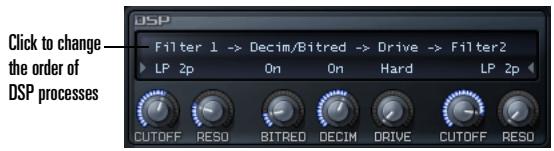
Using the Filters
The DSP section provides two multimode filters. This is useful for filter effects, such as combining low-pass and high-pass frequency filters or using two separate bandpass filters. Rapture's filters provide a wide selection of filter types, which you choose from the dropdown menu:
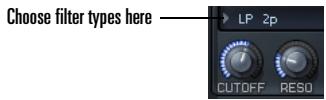
The dropdown menu has the following choices:
| Filter... | Description... |
| LP1P | Low Pass, One-Pole filter (6dB/octave roll-off). Allows passing all frequencies below the specified by the Cutoff knob. Above that frequency, there's a 6dB/octave roll-off, very gentle. This filter doesn't feature resonance. |
| HP1P | High Pass, One-Pole filter (6dB/octave roll-off). Allows passing all frequencies above the specified by the Cutoff knob. Below that frequency, there's a 6dB/octave roll-off, very gentle. This filter doesn't feature resonance. |
| BP1P | Band Pass composed of two One-Pole LP and HP filters in series (6dB/octave roll-off). Allows passing all frequencies in the neighborhood of the specified by the Cutoff knob. Above and below that frequency, there's a 6dB/octave roll-off, very gentle. |
| BR1P | Band Rejection composed of two One-Pole HP and LP filters in series (6dB/octave roll-off). Allows passing all frequencies except the ones in the neighborhood of the specified by the Cutoff knob. Surrounding that frequency, there's a 6dB/octave roll-off, very gentle. This filter doesn't feature resonance. |
| AP1P | All Pass, One-Pole filter. This filter is used to introduce sub-sample delay times. This is useful when phase aligning samples between different elements. This is a very subtle effect. |
| LP2P | Low Pass, Two-Pole filter (12dB/octave roll-off). This filter allows passing all frequencies below the specified by the Cutoff knob. Above that frequency, there's a 12dB/octave roll-off in amplitude. This filter features resonance, which is a boost of the frequencies surrounding the cutoff frequency. Resonance can dramatically increase the loudness. Please make sure you have the main Limiter turned on when editing programs with high resonance. |
| HP2P | High Pass, Two-Pole filter (12dB/octave roll-off).This filter allows passing all frequencies above the specified by the Cutoff knob. Below that frequency, there's a 12dB/octave roll-off in amplitude.This filter features resonance, which is a boost of the frequencies surrounding the cutoff frequency.Resonance can dramatically increase the loudness. Please make sure you have the main Limiter turned on when editing programs with high resonance. |
| BP2P | Band Pass, Two-Pole filter (12dB/octave roll-off).This filter allows passing all frequencies around the specified by the Cutoff knob. Below and above that frequency, there's a 12dB/octave roll-off in amplitude.This filter features resonance, which is a boost of the frequencies surrounding the cutoff frequency.High resonance settings on a band pass filter result in a narrow output bandwidth. For most sounds, this is percieved as a reduced loudness. However, if the incoming sound frequency matches the filter cutoff, a dramatically high loudness is expected. Please make sure you have the main Limiter turned on when editing programs with high resonance. |
| BR2P | Band Rejection, Two-Pole filter (12dB/octave roll-off).This filter allows passing all frequencies except the ones around the specified by the Cutoff knob. Surrounding that frequency, there's a 12dB/octave roll-off in amplitude. |
| PK2P | Peak Filter. This filter will reinforce the Cutoff frequency by 6dB, and the surrounding frequencies with a slope of 12dB/octave.The width of the peak is adjusted with the Resonance knob. |
| LP4P | Low Pass, Four-Pole filter (24dB/octave roll-off).This filter allows passing all frequencies below the specified by the Cutoff knob. Above that frequency, there's a 24dB/octave roll-off in amplitude.This filter features resonance, which is a boost of the frequencies surrounding the cutoff frequency.Resonance can dramatically increase the loudness. Please make sure you have the main Limiter turned on when editing programs with high resonance. |
| HP4P | High Pass, Four-Pole filter (24dB/octave roll-off).This filter allows passing all frequencies above the specified by the Cutoff knob. Below that frequency, there's a 24dB/octave roll-off in amplitude.This filter features resonance, which is a boost of the frequencies surrounding the cutoff frequency.Resonance can dramatically increase the loudness. Please make sure you have the main Limiter turned on when editing programs with high resonance. |
| LP6P | Low Pass, Six-Pole filter (36dB/octave roll-off).This filter allows passing all frequencies below the specified by the Cutoff knob. Above that frequency, there's a 36dB/octave roll-off in amplitude.This filter features resonance, which is a boost of the frequencies surrounding the cutoff frequency.Resonance can dramatically increase the loudness. Please make sure you have the main Limiter turned on when editing programs with high resonance. |
| HP6P | High Pass, Six-Pole filter (36dB/octave roll-off).This filter allows passing all frequencies above the specified by the Cutoff knob. Below that frequency, there's a 36dB /octave roll-off in amplitude.This filter features resonance, which is a boost of the frequencies surrounding the cutoff frequency.Resonance can dramatically increase the loudness. Please make sure you have the main Limiter turned on when editing programs with high resonance. |
| PINK | Multiple Knee filter, composed of multiple Low Pass, One-Pole filters.This is a static filter, generally used to create pink noise. When applied to sample material it has the effect of creating a slight darkening on the tone, without affecting the sound character at all. |
| COMB | Comb filter.A comb filter creates several frequency 'notches', which color the sound in a particular way. |
Using the LoFi Module
Rapture's LoFi module contains a bit reduction effect and a decimation effect that you can apply to the current Element.
The bit reduction effect emulates the sound of older, low bit-resolution samplers. The decimation effect continuously adjusts the sample rate.
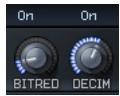
To Use Bit Reduction
- Enable the On button that's above the Bit Red knob.
- Adjust the Bit Red knob between 0 and 100% to achieve the desired sound.
To Use Decimation
- Enable the On button that's above the Decim knob.
- Adjust the Decim knob between 0 and 100% to achieve the desired sound.
Using the Drive Module
Rapture's Drive module adds various overdrive effects, which you choose from the dropdown menu. The Drive knob adjusts the shape of the selected effect.
Click here to toggle through overdrive
types or Off

Drag knob to adjust
Drive Shape
When placed after a Filter in the signal path, the Drive module allows you to 'tame' high resonance filter settings, create a broken, distorted sound, or add some character to a sound, depending which drive mode is selected:
| Mode... | Description... |
| Off | Effect bypassed. |
| Tube | Very soft effect. A shaping process like the one found in tube amplifiers is applied. |
| Soft | Slight overdrive. |
| Mid | Mid overdrive. |
| Hard | Aggressive overdrive effect, ideal to be applied on solo lead instruments |
| Asymmetric | Bright distortion effect. |
Using the EQ's
Rapture's three EQ modules give you tremendous control over the sound of each Element.
Each EQ has the following controls:
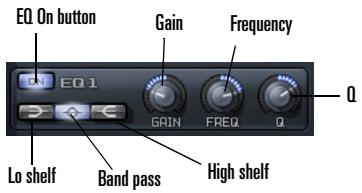
- On button—enable this button to use the EQ.
- Low shelf button—when this button is enabled, the EQ modifies all frequencies below the Freq knob value.
- Band pass button—when this button is enabled, the EQ modifies all frequencies surrounding the Freq knob value.
- High shelf button—when this button is enabled, the EQ modifies all frequencies above the Freq knob value.
- Gain knob—turn this knob to the left to cut the selected frequencies by up to 24 dB, or to the right to boost by up to 24 dB.
- Freq knob—turn this knob to select a frequency between 8 and 22480Hz .
- Q knob—turn this knob to the left to narrow the range of affected frequencies, or to the right to widen the range.
The Insert FX Section
Each element in Rapture contains an Insert FX section featuring several combinations of Delay, Filter, Modulation, Phaser, Reverb and Distortion effects.. Depending on the mode selected, the knobs control different effect parameters as described below.
Note: Knobs and the Filter are disabled (greyed-out) when not applicable to the selected mode.
Delay Mode
Rapture's Insert FX section offers many delay types in the Type menu, and has a built-in filter that you can select options for in the Filter menu.
The Delay mode has the following controls:
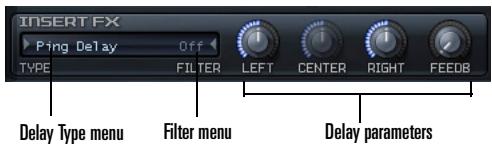
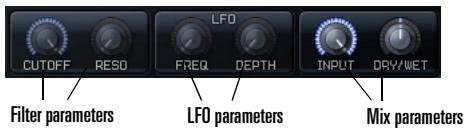
- Delay menu—choose the desired type of delay effect, defined in the following table:
| Delay Type... | Description... |
| Off | No Effect. All CPU usage is recovered. |
| Stereo Delay | A stereo delay effect, with independent delay lines for both stereo channels and output filter. The delay output is routed through the filter. |
| Cross Feedback Delay | Two independent delay lines, with the feedback of each channel routed to the input of the other. The delay output is routed through the filter. |
| Ping Delay | A delay effect where the echoes bounce in the stereo field. The delay output is routed through the filter. |
| L/R/C Delay | The first echo appears in left channel, the second in the right channel and subsequent images move gradually to the center. The delay output is routed through the filter. |
| R/L/C Delay | The first echo appears in right channel, the second in the left channel and subsequent images move gradually to the center. The delay output is routed through the filter. |
| Triple Delay | Similar to Stereo Delay, but a mono echo image with independent delay time appears centered in the stereo field. The delay output is routed through the filter. |
| Detuning Delay | A static delayed image appears, tuned differently than the original according to the Modulation Frequency and Depth settings. |
| Chorus | A standard stereo modulated delay, with feedback. This setting allows for several Chorus and Flanger effects. |
| Symphonic | A multiple voice chorus effect. |
| LFO Filter Delay | Similar to Stereo Delay, but a low frequency oscillator is used to change the filter cutoff. Filter is applied to the wet signal only. |
| Panning Delay | A delay effect where the echo image is panned in the stereo by a low frequency oscillator. |
| Auto Pan | The low frequency oscillator is used to move the sound in the stereo field cyclically. |
| LFO Filter | Signal is processed by the filter, and the filter cutoff is modulated by the Low Frequency Oscillator. |
| Phased Delay | Similar to Stereo Delay, with the output passed thru a Phaser. The CENTER, LFO FREQ and LFO DEPTH control the Phaser behavior. |
| Filter/Phaser | A combination of a Filter effect with a Phaser effect. Both effects are controlled with the same LFO, so LFO FREQ and LFO DEPTH will control the filter and phaser sweep and depth simultaneously. |
- Filter menu—choose the type of filter. Choices are Low Pass (LP), Band Pass (BP), High Pass (HP), Band Reject (BR), All Pass (AP), Peak (PK), Comb filter, and Pink. Strength choices are 6 dB(1P) up to 36 dB (6P).
- Delay parameters—Left delay: choose a tempo ratio. Center delay: choose a tempo ratio (knob is greyed-out if the delay type doesn't use a center delay). Right delay: choose a tempo ratio. Feedback: choose from 0 to 100% .
- Filter parameters—choose a cutoff frequency and resonance level. A knob is greyed-out if the chosen filter doesn't support the parameter that the knob controls.
LFO parameters-if a chosen delay type uses an LFO, set the frequency and depth with these two knobs. Knobs are greyed-out if the relevant parameter is not used.
- Mix parameters—use these knobs to control the Delay input level and dry/wet mix.
Reverb Mode
Rapture's Insert FX section also offers many reverbs in the Type menu.
The Reverb mode uses several knobs for parameter control:
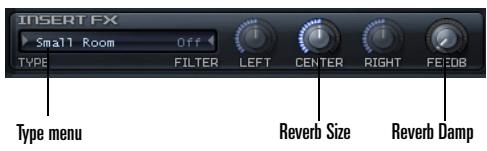
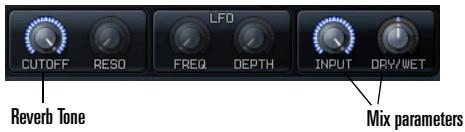
- Type menu—choose the desired type of reverb effect: Small Room, Mid Room, Large Room, Small Hall, Mid Hall, Large Hall, and Chamber.
- Reverb Size parameter—use the Center knob to adjust the size
- Reverb Damp parameter—use the Feedback knob to adjust reverb damping
- Reverb Tone parameter—use the Cutoff knob to adjust the reverb tone
- Mix parameters—use these knobs to control the Reverb input level and wet/dry mix.
Distortion Mode
Rapture's Insert FX section also includes distortion effects in the Type menu.
The Distortion mode uses several knobs for parameter control:
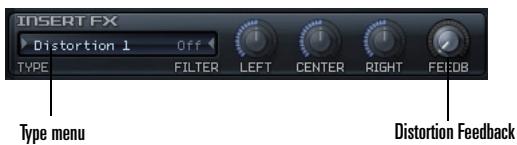
Type menu—choose the desired type of distortion effect: Distortion 1 or Distortion 2.
Distortion Feedback parameter—use the Feedback knob to adjust the distortion feedback
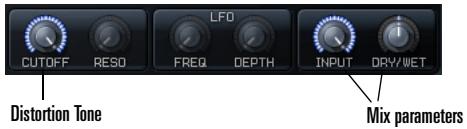
Distortion Tone parameter—use the Cutoff knob to adjust the distortion tone
- Mix parameters—use these knobs to control the Distortion input level and wet/dry mix.
Caution: Distortion effects can be very loud, so make sure you have the Limiter turned On before applying them. Use the DRY/WET knob to adjust the overall level of the distortion effect. The Limiter can be turned Off after the adjustment is complete.
The Modulators Section
Unlike other synthesizer designs where just a few Envelope Generators (EG), Low Frequency Oscillators (LFO), Keyboard Tracking generators, etc. are shared and routed to the destination parameter via a Modulation Matrix, Rapture has one set of dedicated components for each destination.
In this way, a total of forty-two Envelope Generators, forty-two Low Frequency Oscillators, forty-two Keyboard Tracking Generators, and forty-two Step Generators are available for a program, and they can be all active at once with their own settings.
The Modulators section allows you to generate envelopes to control an Element's pitch, cutoff and resonance for both filters, pan and amplitude/volume.
Envelope Generators
Rapture's Envelope Generators (EG) are possibly the most advanced EG system currently available, and provide much of the basis for Rapture's versatility. Each EG features an arbitrary amount of envelope segments, with adjustable shape, keyboard tracking and velocity tracking for each segment. The EG also allow looping, so they can be turned in a complex wave low frequency oscillator.
The EG will start working on note-on, and will follow all defined segments until the last node, if there's no loop nor sustain point defined. Once the final node is reached, the level will remain unchanged for the whole note duration.
When the Amplitude Envelope Generator reaches the last node and if no loop is defined, it will deactivate the layer (layer expired).
If a sustain point is defined, the EG will start on note on and will follow all defined segments until the sustain node is reached. Then the level will remain unchanged until the Note-Off event for the layer. Then the segments defined
after sustain point will be operational, stopping once the final node is reached.
If a loop is defined, the EG will move to the defined loop start node once it reaches the sustain node, over and over again.
Here are some procedures for generating envelopes:
To Display an Envelope
- To display the envelope for pitch, cutoff, resonance, pan, or amplitude, respectively, click the Pitch button, Cutoff 1 or 2 button, Resonance 1 or 2 button, Pan button, or Amplitude button, respectively. After you click an envelope button, you can switch between envelopes by pressing the numbers 1 through 7 on your keyboard (not the Num Pad).

To Turn On an Envelope Generator
- Display the desired envelope.
- Click the EG Status field so that it's on.
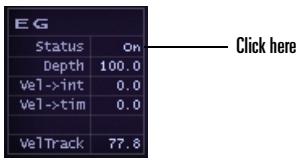
To Edit EG Depth and Velocity Response
To edit EG Depth, drag the Depth field up or down.
To edit velocity intensity, drag the Vel->int value up or down. This controls the intensity in which the Note-on velocity affects the modulation depth.
To edit how velocity affects EG times, as a multiplier of the time, drag the Vel->tim value up or down.
To edit how velocity affects the current envelope's value, drag the Vel Track field up or down.
To Graph or Edit an Envelope
- Click an envelope button to display the desired envelope, and make sure the EG Status field is On.
- Add and edit nodes according to the following table:
To Do This...
Add a node to the envelope.
Remove a node.
Move a node.
Move a node without moving other nodes.
Do This...
Right-click the envelope (Controlclick on a Mac). If the envelope does not have any line segments and nodes yet, right-click the graph where you would like to insert a line segment and a node.
Right-click the node (Control-click on a Mac).
Drag the node.
Ctrl-drag the node (Commanddrag on a Mac).
Edit a line segment.
Reset a line segment.
Adjust a line segment shape.
Remove/reset all nodes.
Display the values of a node.
Scroll the graph.
Fit the envelope to the window.
Drag the line segment.
Double-click the segment or hold the Shift key and click the segment.
Ctrl-click the segment and drag vertically (Command-click on a Mac).
Press r or right-click (Ctrl-click on a Mac) above the EG grid and choose Reset All Nodes from the context menu.
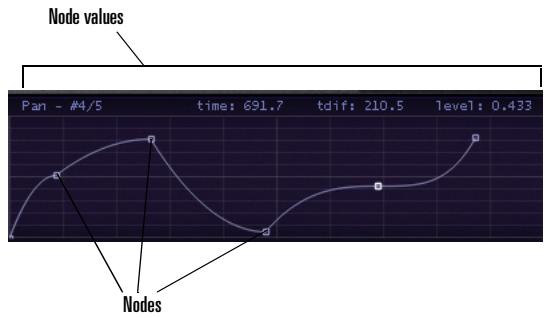
Hold the mouse over the node. The node values appear at the top of the graph, including node number, time, distance from previous node, and level.
Drag the border at the bottom of the envelope window.
- Double-click the border at the bottom of the envelope window.
or - Right-click (Ctrl-click on a Mac) above the EG grid and choose Fit from the context menu.
Zoom in on envelopes.
- Scroll the mouse wheel up; hold the Ctrl key (Command on a Mac) down for finer adjustments or
Hold the mouse over the center of the area you want to zoom in on, and press the * key on the Num Pad. or - Right-click (Ctrl-click on a Mac) above the EG grid and choose Zoom In from the context menu.
Zoom out on envelopes.
- Scroll the mouse wheel down; hold the Ctrl key (Command on a Mac) down for finer adjustments or
Hold the mouse over the center of the area you want to zoom in on, and press the / key on the Num Pad. or - Right-click (Ctrl-click on a Mac) above the EG grid and choose Zoom Out from the context menu.
Change a line segment from the default "variable power" curve to an exponential curve, or vice versa. See the tip on amplitude editing below.
Precisely move a node.
Set/Clear/
Reposition
SUSTAIN point
(loop end)
Set/Clear/
Reposition LOOP
START point
Hold your mouse over the end node of the line segment, and press N on your keyboard, or right-click (Ctrl-click on a Mac) above the EG grid and choose Toggle Envelope Shape from the context menu. The segment turns dark blue when the exponential curve is being used.
Click the node, then press any of the Arrow keys. Hold the Shift key down to move by finer increments.
Select the desired node and press S on your keyboard, or right-click (Ctrl-click on a Mac) above the EG grid and choose Set/Clear Active Node as Sustain from the context menu. Rapture adds a vertical red line under the node. Open the context menu or press S again to clear the loop point.
Select the desired node and press the key L, or right-click (Ctrl-click on a Mac) above the EG grid and choose Set/Clear Active Node as Loop from the context menu. Open the context menu or press L again to remove loop start point.
Adjust Time Velocity Tracking for a segment.
Try increasing the velocity tracking value for different parts of a sample's amplitude curve, and playing your keyboard harder or softer to hear the difference. For example, if you set a positive value for the attack segment of an amplitude curve, playing your keyboard harder increases the time that the attack segment takes.
Make the EG window active (click anywhere on it), then press the V on your keyboard (this is a toggle command), or right-click (Ctrl-click on a Mac) above the EG grid and choose Edit Segment Time Velocity Tracking from the context menu.
Orange-shaded bars appear above or below the horizontal center line of the graph, depending on each segment's velocity tracking setting.
Positive bars (above the center line of the graph) mean higher velocity = longer time.
Negative bars (below the center line of the graph) mean higher velocity = shorter time.
If there is no positive or negative value for velocity tracking in a segment, no orange bar appears.
To add or adjust a velocity tracking value to a segment, drag in the area above or below the center line of the graph within a line segment's boundaries. The tracking value works by multiplying the segment time, from 0.1x to 10x.
Adjust Time Keyboard Tracking for a segment
Try increasing the time keyboard tracking value for different parts of a sample's amplitude curve, and playing your keyboard higher or lower to hear the difference. For example, if you set a positive value for the attack segment of an amplitude curve, playing higher notes on your keyboard increases the time that the attack segment takes.
Make the EG window active (click anywhere on it), then press the K on your keyboard (this is a toggle command) or right-click (Ctrl-click on a Mac) above the EG grid and choose Edit Segment Time Keyboard Tracking from the context menu.
Blue-shaded areas appear above or below each line segment, depending on each segment's time keyboard tracking setting.
Positive bars (above the center line of the graph) mean higher range = longer time.
Negative bars (below the center line of the graph) mean higher range = shorter time.
ITo add a time keyboard tracking value to a segment, drag in the area above or below the center line of the graph within the line segment's boundaries.
To adjust a value, click between the two nodes surrounding the desired segment, drag vertically to adjust. The tracking value works by multiplying the segment time, from 0.1x to 10x.
Low Frequency Oscillators
The Low Frequency Oscillators (LFO) in Rapture are a great component to add animation and movement to the sound. Originally intended to emulate the vibrato and tremolo found in natural acoustic instruments, synthesizers have redefined their use, making them a fundamental component in the construction of evolving pads and textures.
As with the EG, one LFO is available for each destination in each element, for a total of forty-two LFOs which can be operative simultaneously.
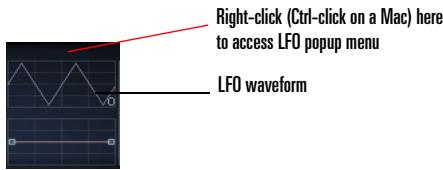
The LFO main parameter is the LFO waveform. Rapture has a graphical waveform selector, which allows selecting the wave shape and phase for the selected waveform.
| Selections... | Description... |
| Waveform | ·Left/Right-click (Left/Control-click on a Mac) on the waveform to select next/previous waveform, or ·Right-click (Ctrl-click on a Mac) above the LFO window to access all LFO options from a popup menu. |
| Phase | ·Hold the Shift key, then click on the waveform and drag horizontally to select the LFO start-up phase ·Press the Left/Right arrow keys for 1 degree adjustment ·Press Shift plus the Left/Right arrow keys for 10 degree adjustment |
Tip: Rapture allows user-defined waveforms for LFOs as well. The following requirements must be satisfied to add your own waveforms:
- User defined waveforms need to be stored in the folder \LFO Waveforms.
- Files must be named in a consecutive numbering order:
LfoWaveform030.wav
LfoWaveform031.wav
LfoWaveform032.wav
etc...
Note that the first twenty waveforms (0 to 19) are hard-coded, therefore numbering should begin at "...020."
Rapture supports up to 80 user-defined LFO wave files (020 to 099).
LFO files must be standard wav files, 8 to 32-bit mono (stereo will be converted to mono by adding both channels), any samplerate and length.
Note that waveform 100/101 is an internal random generator, unipolar/bipolar respectively.
Beyond the selected waveform, each LFO features the following parameters:
| Parameters... | Description... |
| Status | Turns the LFO on or off, or puts it in Shot mode. |
| Shot is short for “one-shot,” and means the LFO plays one cycle of the LFO shape at the beginning of the voice event and does not repeat. | |
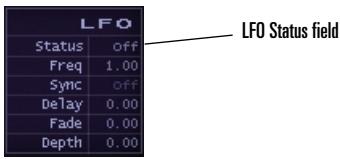
| Freq | Frequency, in Hertz. The waveform indicator will display the selected frequency, with a horizontal scale of two seconds. This is, two cycles will be shown when the frequency is set to 1Hz. |
| Sync | Synchronize to Host Tempo, in Beats. When Sync is in the Off position, the LFO will move at the frequency defined by the previous value (Freq). When a Sync value is selected, from 1/8t to 128d, the LFO will follow the host tempo and position, generating one cycle each time the host moves through the specified beat value. For instance, if Sync is set to 1, the LFO will generate one cycle in each host beat. |
| Delay | Time from Note-On message to LFO startup, in Seconds. After Note-On, the LFO will wait a time to start working, as specified by this parameter. A value of zero means instant startup. |
| Fade | Time for LFO fade-in, in seconds. Once the LFO starts working (after LFO Delay time), the LFO modulation level will rise gradually to a maximum, which will be reached after the time specified by the Fade parameter. |
| Depth | LFO modulation depth. This determines how much the LFO will affect the selected destination, expressed in the destination units. For instance, for the Pitch LFO, the depth is expressed in cents. |
To Control an Envelope's LFO
- Click the LFO Status field to turn the LFO on or off.
- Click the current waveform to select from several waveform options.
- Drag in the fields to adjust other LFO parameters as described above.
Keytracking
The keytracking control adjusts how the selected parameter changes with the keyboard (hence 'keyboard tracking'). The left node represents MIDI Note 0, the right node represents MIDI Note 127. The shape and orientation of the curve in between represents the parameter variation in the whole note range.
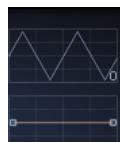
Keytrack envelope
To Control Keytracking
- Drag the nodes or curve of the Keytrack envelope where it appears under the LFO waveform. You can drag the line segment into a curve, or reset the line segment by double-clicking it. You can move both nodes by pressing the up or down Arrow keys, or by pressing the Page Up or Page Down keys for larger increments.
Keytracking maps the range of your MIDI controller to changes in the current envelope. For example, if you display the Cutoff envelope, and drag the Keytrack envelope into an upward slope, playing higher notes on your controller will raise the cutoff frequency. On the Amplitude envelope, you can actually use the Keytrack envelope as a global gain—drag both nodes of the Keytrack envelope up or down to control global output volume.
Here's another example of using Keytracking: if you load a bright waveform, for instance a saw, and apply a low-pass filter on it, then set the cutoff to 800Hz , playing high notes in the keyboard will result in a lower volume than playing low notes. This happens because higher notes will result in more-filtered notes. Here's where keytracking enters in action. Two options are available:
OR
- Adjust the CUTOFF keytracking control so the cutoff point moves together with the played note. This results in all notes having the same amount of harmonics, hence the same output level.
- Adjust the AMPLITUDE keytracking control. This will keep higher notes dull and filtered, but will raise the volume of those notes so they will better match the volume of the unfiltered low notes.
Tip: When adjusting any envelope but Pitch, you can reset the Keytrack envelope by right-clicking the Keytrack window and selecting Keyboard Tracking reset from the context menu. When in Pitch mode, this launches the Load Tuning Definition File window. See "Microtuning and Alternative Tunings" on page 49.
The Step Generator
The Step Modulator is much like an LFO, where the 'shape' can be defined by setting arbitrary values to variable range steps for Pitch, Cutoff, Resonance, Pan and Amplitude modulation at regular time intervals.

To set values in a given step, hold left-click (Ctrl-click on a Mac) and drag across the Step Generator.
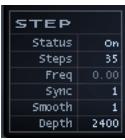
The Step Generator is affected by the following controls:
| Parameter... | Range... |
| Pitch | 0 to 9600 cents (8 octaves) |
| Cut 1 | 0 to 12000 cents |
| Res 1 | 0 to 20 dB |
| Cut 2 | 0 to 12000 cents |
| Res 2 | 0 to 20 dB |
| Pan | 0 to 100% |
| Amp | o to 100% |
Each destination parameter's range of values in the Step Generator is specified below:
| Parameters... | Description... |
| Status | Turns the Step Generator on or off. |
| Steps | Sets the number of steps in the generator, from 2 to 128. |
| Freq | Frequency, in Hertz. Defines the number of times that the drawn pattern repeats per second, from 0 to 40Hz. | Right-click (or Ctrl-click on a Mac) to access the Step Generator's context menu, which contains more helpful functions: | |
| Sync | Synchronize to Host Tempo, in Beats. When Sync is in the Off position, the Step Generator will move at the frequency defined by the previous value (Freq). When a Sync value is selected, from 1/8t to 128d, the Step Generator will follow the host tempo and position, generating one cycle each time the host moves through the specified beat value. For instance, if Sync is set to 1, the Step Generator will generate one cycle in each host beat. | Menu item... | Description... |
| Reset Steps | Reset all steps to a default value. Shortcut key: R | ||
| Randomize Steps | Sets a random value to each step. Shortcut key: N | ||
| Reverse Step Levels | Reverses the order of the values in the current sequence. | ||
| Mirror Step Levels | Repeats step levels, starting at the step after the 50% point of the sequence, iterating backwards from the last step of the first half of the sequence. | ||
| Invert Step Levels | Inverts levels by subtracting the current value from 50% the max value, then adding the difference to the 50% value. Shortcut key: I | ||
| Smooth | Controls the rate at which a step value rises or falls to meet the next value. | ||
| Depth | Variable range, dependent on modulation destination. Controls the max range for Step Generator values in the current modulation mode. | Copy/Paste Steps | Copy and paste current step values across modulation destinations, elements and the Global section |
| No Snap; Snap to 10 Levels, 12 levels, 24 levels | Subdivides the step into "n" equal values, useful for articulating step sequences | ||
MIDI Note Entry (C4 = Base)
Note: Available for Pitch Modulation only
Enter step sequence using MIDl note events starting at C4.
Default depth setting is to 2400 (two octave range), but may need to be adjusted by user. Any note lower than C4 backs up one step.
MIDI note entry mode ends by entering a note for every step in the sequence.
Here are a few additional procedures for manipulating Step Generator data:
To Reset a Step Value to Default
- Ctrl-click and Ctrl-click-drag (Command-click on a Mac).
To Snap All Steps to the Nearest Pitch or Logical Value
Press P.
To Increase/Decrease All Step Values
- Scroll the mouse wheel up/down over the active Step Generator.
Modulator Copy/Paste
Sometimes it is desirable to have identical settings for the EG, LFO or Keytrack in two different parameters or elements. Rapture offers the ability to Copy/Paste any EG, LFO, Keytrack, Step Generator or the whole Modulator to a new destination, or to the same destination in another element.
To Copy/Paste a Modulator Value
- To copy a whole Modulator, just one envelope, an LFO, a Keytrack setup, or a Step Generator, right-click (Control-click on a Mac) an envelope button and choose Copy-(name of component you want to copy) from the popup menu.

Right-click one of the seven envelope buttons, Ctrl-click on a Mac
- To paste what you just copied, right-click (Control-click on a Mac) the envelope button where you want to paste the copied data, and choose Paste-(name of component you want to paste) from the popup menu.
You can paste between instances of Rapture.
Amplitude Editing
Rapture actually uses two amplitude envelopes. If you don't turn on the Amplitude EG, Rapture uses a master envelope that makes sure the amplitude reaches zero after you stop playing the current Element. If you turn on the Amplitude EG and create an amplitude envelope, that envelope controls the amplitude, unless the envelope that you created does not eventually reach zero amplitude. If your envelope does not eventually turn the sound off, the master envelope does it for you.
Tip: If you are editing the amplitude for a sample from an acoustic source, and want a more natural release, you can change the type of envelope curve Rapture uses. The default type is variable power, which is CPU-friendly, and works well when you're using heavy reverb or delay. The optional exponential type works better with exposed acoustic sounds by creating a more natural sounding release.
To change the envelope curve to exponential:
- Display the Amplitude curve for your sample.
- Highlight the ending node for the segment by holding the mouse over the node.
- Press the N key on your keyboard.
The envelope segment turns dark blue, meaning that it is now an exponential curve. You can press the N key again to return to the default envelope type.
The Global Page
The Global page contains effects, EQ's and a Global Step Generator that adjusts Rapture's stereo output. Settings made here affect all elements within a program.
The Global page conducts the signal through the following path:
- Global FX 1 (standard insert FX menu + controls, applied to all elements)
- Global FX 2 (standard insert FX menu + controls, applied to all elements)
- Global Step Generator; a Left/Right channel Step Generator output level modulator; note that this level gates even effects tails from upstream delay lines and reverbs
- Master EQ section (3 standard multimode band EQs)
- Master FX (standard insert FX menu + controls, applied to the post Global Step Generator mix)
The Global Step Generator is controlled in the same way as the Step Generator in the Modulator section, but instead provides discrete left and right channel control of Rapture's stereo mix.
Note: You can achieve identical level patterns using the Step Generator's Copy/Paste function, available via context menu.
For more details on using Step Generators, see "The Step Generator" on page 43.
For more details on effects and EQs, see "The Insert FX Section" on page 32 and "Using the EQ's" on page 32.
The Modulation Matrix
Rapture features a very clear distinction between 'sound modulations' and 'performance modulations'. The first group is represented by the Modulators, while the second is achieved thru the Modulation Matrix.
In the Modulation Matrix it is possible to 'wire' any MIDI control or message to any sound parameter in Rapture in any program. This way each program can be perfectly adapted to the control environment from a single, unified place. The Modulation Matrix features 24 rows which can
connect any of the over 130 possible sources, to over 150 destinations. All those 'connections' can have a specified depth and a smooth value, and are stored in the program file.
To deploy/collapse the Modulation Matrix window, click on the button in the top area, marked with a MIDI connector. The Modulation Matrix features the following parameters:
| Parameter... | Description... |
| Source | The Source is the MIDI control which Rapture will use to change the parameter selected as destination. Sources can be any MIDI Control Message (CC1-CC127), Pitch Bend, Channel and Polyphonic Aftertouch, Keyboard, Keyboard Gate, Attack and Release Velocity, Unipolar and Bipolar Random and Alternate, and the X/YPad.. |
| Destination | Element Pitch, Cutoff, Resonance, Pan, Amplitude and their LFO Depth and Speed, Envelope and Step Generator parameters, plus most EQ/FX parameters can be used as destinations. |
| Depth | The depth for the modulation, in parameter units. |
| Smooth | Smooths out the response of the Destination to the Source. |
See "Appendix B: Modulation Matrix" on page 57 for more information.
MIDI Learn
In addition to the Modulation Matrix, Rapture features one of the most advanced MIDI control customization systems of any virtual synthesizer. The MIDI Learn feature allows you to assign any knob or button on the screen to any MIDI controller, even assigning multiple controllers to a single parameter or vice-versa.
To invoke the MIDI Learn menu, just right-click (Control-click on a Mac) on a knob or button. To assign a MIDI controller, select MIDI Learn from the pop-up menu.
Once you select MIDI Learn, Rapture enters a "waiting" mode, expecting a MIDI controller to be received. You can send the controller by using a physical MIDI control device or by using your sequencer to send a MIDI continuous controller (CC). Multiple knobs/bu1nons can be set to "waiting" mode at once in order to assign them to the same control.
Note: When sequencers' Start/Stop Audio Streaming functions occur, they send numerous controllers. Avoid those operations while Rapture is in "waiting" mode, as it might learn unexpected controller numbers.
As soon as MIDI controller information is received, Rapture assigns it to the selected controls. The controls will display new values according to the incoming controller values.
Once a control is assigned, you can scale it (setting the minimum and maximum) and reverse the control polarity. To perform these operations, call the MIDI Learn menu again by right-clicking (Control-click on a Mac) the control. New options will appear:
| Menu option... | Description... |
| MIDI Learn | Assigns additional controllers to the parameter. This option will always remain active since it is possible to assign multiple controllers to any parameter. |
| MIDI Forget | Removes all MIDI controller associations from the knob/ button. |
| Set Min | Sets the minimum value this control will have when the incoming MIDI control value is zero. |
| Set Max | Sets the minimum value this knob will have when the incoming MIDI control value is 127. |
| Reverse | Inverts the MIDI control polarity. |
Any MIDI controller can be learned except CC0, CC32 (bank change), CC120 (all sounds off), CC121 (all controllers off), and CC123 (all notes off).
Aftertouch and pitch bend MIDI messages can also be assigned as standard controllers. When Pitchbend is assigned, the center will be calculated according to the Min and Max settings for selected parameter.
Note: Some MIDI controllers are hard-wired in Rapture but can still be learned. This means that if an additional param
eter is assigned to a hard-wired MIDI controller, that controller will adjust both the new parameter and the hardwired one simultaneously.
The following controllers are hard-wired:
CC7 = Volume
CC11 = Expression
CC64 = Sustain (can be enabled/disabled per-element using display control)
CC66 = Sostenuto (can be enabled/disabled per-element using display control)
CC73 = Global Amplitude Attack
CC72 = Global Amplitude Release
The Mixer
The Mixer section in Rapture is defined so the volume, pan and on/off settings for the six elements are simultaneously accessible.
There are three controls for each element in the mixer:
| Control... | Description... |
| On/Off | Turns the element on or off. When an element is off, it won’t take any CPU. |
| Pan | Element stereo panoramic position. |
| Volume | Main element volume. |
Microtuning and Alternative Tunings
Microtuning has been an interesting field of research for musicians and physicists for years. Several synthesizers have included some sort of microtuning abilities to allow performers to use alternative tunings to the standard 12-tone equal-tempered system. One of the powerful features of Rapture is that it can load native ScalaTM .sCL microtuning files.
Scala is a powerful freeware software tool for experimentation with musical tunings, such as just intonation scales, equal and historical temperaments, microtonal and macrotonal scales, and non-Western scales. It supports scale creation, editing, comparison, analysis, storage, tuning of electronic instruments, and MIDI file generation and tuning conversion. All this is integrated into a single application with a wide variety of mathematical routines and scale creation methods.
Scala is ideal for the exploration of tunings and becoming familiar with the concepts involved. In addition, a very large library of scales is freely available for Scala and can be used for analysis or music creation.
Note: For more information about Scala, visit the Scala home page at http://www.xls4all.nl/~huygensf/scALA/
Rapture allows each element in a program to use a specific microtuning definition, so multiple microtuning sets can be used in a single patch.
To load a microtuning definition for any element
-
Select the Pitch Modulator for that element.
-
Click on the Keytrack window.
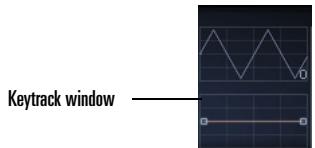
A 'File...Open' dialog box will appear.
- Select the microtuning definition file of your choice.
The Keytrack window will display a graphical representation of the selected tuning scale. A toolbar will display the currently loaded definition file.
To reset an element to standard tuning
- Select the Pitch Modulator for that element
- Shift-click on the Keytrack window.
The tuning definition file selected is remembered and reloaded with the program.
Not limited to 12-tone scales, Rapture microtuning support allows for any number of notes, including mean-tone and quarter-tone scales. Rapture includes 200 Scala tuning definition files with the default installation. A file with over 2900 tuning definition files (.scl) can be downloaded for free from:
http://www.xs4all.nl/~huygensf/doc/scales.zip
You can find a brief description of the scalar files here:
http://www.xs4all.nl/~huygensf/doc/scalesdir.txt
Sinc Interpolation
When you freeze or play back a Rapture track, you have the option to use a higher-quality algorithm called sinc interpolation. This can increase the time it takes to freeze tracks, and use a little more of your computer's resources when you play back audio. If you're using distortion, you don't need this algorithm.
To Use Sinc Interpolation
- Open the Options dialog by clicking the Options
button
- Check the Use Sinc Interpolation When Freezing/ rendering checkbox.
Appendix A: Parameter Reference
This section provides a reference for every Rapture parameter. Each parameter is described in terms of its value ranges (Min/Max/Default), increment size (Fine/Norm/Coarse) and unit type (Unit).
*Note: All Fx parameters are also applicable to Global Fx. In addition, all StepGen parameters are applicable to Global StepGen L and R.
| Number | Name | Min | Max | Default | Fine | Norm | Coarse | Unit |
| 1 | LoKey | 0 | 127 | 1 | 1 | 1 | 12 | Note |
| 2 | HiKey | 0 | 127 | 1 | 1 | 1 | 12 | Note |
| 3 | LoVel | 0 | 127 | 1 | 1 | 1 | 10 | - |
| 4 | HiVel | 0 | 127 | 1 | 1 | 1 | 10 | - |
| 5 | Bend Up | 0 | 24 | 2 | 1 | 1 | 1 | St |
| 6 | Bend Down | 0 | 24 | 2 | 1 | 1 | 1 | St |
| 7 | Sustain | Off, On | ||||||
| 8 | Sostenuto | Off, On | ||||||
| 9 | Transpose | -96 | 96 | 0 | 1 | 1 | 12 | St |
| 10 | Tune | -100 | 100 | 0 | 1 | 1 | 10 | Ct |
| 11 | KeyTrack | -200 | 200 | 100 | 1 | 1 | 10 | Ct/Key |
| 12 | Phase | 0 | 360 | 0 | 1 | 1 | 10 | Deg |
| 13 | Quality | Std, High | ||||||
| 14 | Multi | Off, 3v, 5v, 7v, 9v | ||||||
| 15 | Ringmod | Off, On | ||||||
| 16 | Detune | 0 | 100 | 10 | 1 | 1 | 10 | Ct |
| 17 | Porta Time | 0 | 10 | 0 | 0.01 | 0.1 | 1 | s |
| 18 | Polyphony | 0 | inf | 16 | 1 | 1 | 10 | Layer |
| 19 | DSP Order | Bypass, F1->LoFi->Drive->F2, F1->Drive->F2->LoFi, F1->Decim + F2->Drive | ||||||
| 20 | Filter 1Type | Off, LP1P, HP1P, BP1P, BR1P, LP2P, HP2P, BP2P, BR2P, LP4P, HP4P, LP6P, HP6P, COMB, PINK | ||||||
| 21 | Filter 1 Cutoff | 8.2 | 22350 | 8.2 | Log | Log | Log | Hz |
| 22 | Filter 1 Reso | 0 | 40 | 0 | 0.04 | 0.4 | 4 | dB |
| 23 | BitRed On/Off | - | - | Off | - | - | - | - |
| 24 | BitRed Amount | 0 | 100 | 0 | 0.1 | 1 | 5 | % |
| 25 | Decim On/Off | - | - | Off | - | - | - | - |
| 26 | Decim Amount | 0 | 100 | 0 | 0.1 | 1 | 5 | % |
| 27 | Drive Type | Off, Tube, Soft, Mid, Hard, Asymmetric | ||||||
| 28 | Drive Shape | 0 | 100 | 0 | 0.1 | 1 | 5 | % |
| 29 | Filter 2Type | Off, LP1P, HP1P, BP1P, BR1P, LP2P, HP2P, BP2P, BR2P, LP4P, HP4P, LP6P, HP6P, COMB, PINK | ||||||
| 30 | Filter 2 Cutoff | 8.2 | 22350 | 8.2 | Log | Log | Log | Hz |
| 31 | Filter 2 Reso | 0 | 40 | 0 | 0.04 | 0.4 | 4 | dB |
| 32 | EG Status | Off, On | ||||||
| 33 | EG Depth | |||||||
| 34 | Pitch | -9600 | 9600 | 0 | 1 | 10 | 50 | Ct |
| 35 | Cutoff 1/2 | -12000 | 12000 | 0 | 1 | 10 | 100 | Ct |
| 36 | Resonance 1/2 | -40 | 40 | 0 | 0.01 | 0.1 | 1 | dB |
| 37 | Pan | -100 | 100 | 0 | 0.01 | 0.1 | 1 | % |
| 38 | Amplitude | -100 | 100 | 0 | 0.01 | 0.1 | 1 | % |
| 39 | EG Vel->Int | |||||||
| 40 | Pitch | -9600 | 9600 | 0 | 1 | 10 | 50 | Ct |
| 41 | Cutoff 1/2 | -12000 | 12000 | 0 | 1 | 10 | 100 | Ct |
| 42 | Resonance 1/2 | -40 | 40 | 0 | 0.01 | 0.1 | 1 | dB |
| 43 | Pan | -100 | 100 | 0 | 0.01 | 0.1 | 1 | % |
| 44 | Amplitude | -100 | 100 | 0 | 0.01 | 0.1 | 1 | % |
| 45 | EG Vel->Tim | -1024 | 1024 | 0 | 0.01 | 0.1 | 1 | x (mul) |
| 46 | VelTrack | 0 | 100 | 100 | 0.01 | 0.1 | 1 | % |
| 47 | Pitch | -9600 | 9600 | 0 | 1 | 10 | 50 | Ct |
| 48 | Cutoff 1/2 | -13700 | 13700 | 0 | 1 | 10 | 100 | Ct |
| 49 | Resonance 1/2 | -40 | 40 | 0 | 0.01 | 0.1 | 1 | dB |
| 50 | Pan | -100 | 100 | 0 | 0.01 | 0.1 | 1 | % |
| 51 | Amplitude | -100 | 100 | 0 | 0.01 | 0.1 | 1 | % |
| 52 | LFO Status | Off, Shot, On | ||||||
| 53 | LFO Waveform | 20 internal waveforms, 80 external waveforms, random unipolar, random bipolar | ||||||
| 54 | LFO Frequency | 0 | 40 | 1 | 0.001 | 0.01 | 0.5 | Hz |
| 55 | LFO Sync | 1/8t, 1/8, 1/8d, 1/4t, 1/4, 1/4d, 1/2t, 1/2, 1/2d, 1t, 1, 1d, 2t, 2, 2d, 4t, 4, 4d, 8t, 8, 8d, 16t, 16, 16d | ||||||
| 56 | LFO Delay | 0 | 10 | 0.001 | 0.01 | 0.05 | 2 | S |
| 57 | LFO Fade | 0 | 10 | 0.001 | 0.01 | 0.05 | 2 | S |
| 58 | LFO Depth | |||||||
| 59 | Pitch | 0 | 4800 | 0 | 1 | 1 | 50 | Ct |
| 60 | Cutoff 1/2 | 0 | 6000 | 0 | 1 | 1 | 100 | Ct |
| 61 | Resonance 1/2 | 0 | 20 | 0 | 0.01 | 0.1 | 0.5 | dB |
| 62 | Pan | 0 | 100 | 0 | 0.1 | 1 | 5 | % |
| 63 | Volume | 0 | 6 | 0 | 0.1 | 1 | 2 | dB |
| 64 | StepGen Status* | Off, On | ||||||
| 65 | StepGen Steps | 2 | 128 | 16 | 1 | 1 | 4 | Step |
| 66 | StepGen Frequency | 0 | 40 | 1 | 0.001 | 0.01 | 0.5 | Hz |
| 67 | StepGen Sync | 1/8t, 1/8, 1/8d, 1/4t, 1/4, 1/4d, 1/2t, 1/2, 1/2d, 1t, 1, 1d, 2t, 2, 2d, 4t, 4, 4d, 8t, 8, 8d, 16t, 16, 16d, 32t, 32, 32d, 64t, 64, 64d, 128t, 128, 128d | ||||||
| 68 | StepGen Smooth | 1 | 1000 | 1 | 1 | 10 | 100 | ms |
| 69 | StepGen Depth | |||||||
| 70 | Pitch | 0 | 9600 | 0 | 1 | 1 | 50 | Ct |
| 71 | Cutoff 1/2 | 0 | 12000 | 0 | 1 | 1 | 100 | Ct |
| 72 | Resonance 1/2 | 0 | 20 | 0 | 0.01 | 0.1 | 0.5 | dB |
| 73 | Pan | 0 | 100 | 0 | 0.1 | 1 | 5 | % |
| 74 | Amplitude | 0 | 100 | 100 | 0.1 | 1 | 5 | % |
| 75 | Eq On/Off | Off, On | ||||||
| 76 | Eq Type | Lo Shelf, Peaking, Hi Shelf | ||||||
| 77 | Eq Gain | -24 | 24 | 0 | 0.024 | 0.24 | 2.4 | dB |
| 78 | Eq Freq | 8.2 | 22350 | 8.2 | Log | Log | Log | Hz |
| 79 | Eq Q | 0.1 | 8 | 1 | Log | Log | Log | - |
| 80 | Fx Type* | Off, Stereo Delay, Cross Feedback Delay, Ping Delay, L/R/C Delay, R/L/C Delay, Triple Delay, Detuning Delay, Chorus, Symphonic, LFO Filter Delay, Panning Delay, Autopan, LFO Filter, Phased Delay, Filter/Phaser, Small Room, Mid Room, Large Room, Small Hall, Mid Hall, Large Hall, Chamber, Distortion 1, Distortion 2 | ||||||
| 81 | Fx, Global Fx Filter Type | Off, LP1P, HP1P, BP1P, BR1P, LP2P, HP2P, BP2P, BR2P, LP4P, HP4P, LP6P, HP6P, COMB, PINK | ||||||
| 82 | Fx Delay Left | 1/8t, 1/8, 1/8d, 1/4t, 1/4, 1/4d, 1/2t, 1/2, 1/2d, 1t, 1, 1d, 2t, 2, 2d, 4t, 4, 4d, 8t, 8, 8d, 16t, 16, 16d (0 to 50ms for Chorus and Symphonic for L and R) | ||||||
| 83 | Fx Delay Center | |||||||
| 84 | Fx Delay Right | |||||||
| 85 | Fx Delay Feedback | 0 | 100 | 0 | 0.1 | 1 | 5 | % |
| 86 | Fx Filter Cutoff | 8.2 | 22350 | 8.2 | Log | Log | Log | Hz |
| 87 | Fx Filter Resonance | 0 | 40 | 0 | 0.04 | 0.4 | 4 | dB |
| 88 | Fx Lfo Freq | 0 | 10 | 0 | 0.01 | 0.1 | 0.5 | Hz |
| 89 | Fx Lfo Depth | 0 | 100 | 0 | 0.1 | 1 | 5 | % |
| 90 | Fx Input | 0 | 100 | 0 | 0.1 | 1 | 5 | % |
| 91 | Fx Dry/Wet | 100:0 | 0:100 | 50:50 | 0.1 | 1 | 5 | % |
| 92 | Mixer Element Status | Off, On | ||||||
| 93 | Mixer Pan | -100 | 100 | 0 | 0.2 | 2 | 10 | % |
| 94 | Mixer Volume | 0 | 100 | 0 | 0.1 | 1 | 5 | % |
| 95 | Mixer Volume | 0 | 100 | 0 | 0.1 | 1 | 5 | % |
Appendix B: Modulation Matrix
This section provides a reference for Modulation Matrix parameters. Of particular note is the nature of input sources, which include many different types of MIDI events and other functions.
Note about "mapped to": "Mapped to" values, such as "0 - 1" describe the mathematical product of the source function as it modulates the specified destination parameter.
Example:
If you map the cutoff frequency to a depth of 1000 cents, a value of 64 from a given MIDI controller will change the cents value to 500 (1000 * 0.5 = 500).
Modulation Matrix Sources
| Source... | Description... |
| CC 1 to CC 127 | MIDI Continuous Controllers 1 to 127 Any MIDI Controller can be used as source, mapped to 0-1.. |
| Pitch Bend | MIDI Pitch Bend messages, mapped to 0-1. |
| Channel Aftertoch | MIDI Channel Aftertouch, mapped to 0-1. |
| Polyphonic Aftertouch | MIDI Polyphonic Aftertouch messages, mapped to 0-1. |
| Attack Velocity | Incoming Note-On MIDI Velocity, mapped to 0-1. |
| Release Velocity | Incoming Note-Off MIDI Velocity, mapped to 0-1. |
| Keyboard | Incoming Note-On MIDI Note, mapped to 0-1 (Note 0 = 0, Note 127 = 1). |
| Key Gate | Digital value based on MIDI Note-On messages: 0 when no keys are depressed, 1 when there's any note depressed. |
| Random Unipolar | Random value generated on MIDI Note-On messages, 0-1. |
| Random Bipolar | Random value generated on MIDI Note-Off messages, -1-1. |
| Alternate | Alternate value generated on MIDI Note-On messages, 0 or 1 in each new note-on. |
| X/Y Pad X | Value based on user's horizontal motion over the X/Y Pad. |
| X/Y Pad Y | Value based on user's vertical motion over the X/Y Pad. |
Modulation Matrix Destinations
| Destination... | Description... | Range | Unit |
| Sample Offset 1-6, All | When loading a sample (wav/aif/ogg/sfz), offset sets the point where the playback starts. When a wavetable is loaded, it sets the startup phase (same as the main Phase control). For elements 1 to 6, and for all elements simultaneously. | ±441000 | samples |
| Sample Delay 1-6, All | Time elapsed since note-on to sample playback. For elements 1 to 6, and for all elements simultaneously. | ±100000 | ms |
| Pitch 1-6, All | Pitch for elements 1 to 6 and for all elements simultaneously. | ±2400 | cents |
| Detune 1-6, All | Detune for elements 1 to 6 and for all elements simultaneously. This setting will only effect oscillators In MULTI or RINGMOD modes. | ±4800 | cents |
| Bitred 1-6, All | Bit reduction depth for elements 1 to 6 and for all elements simultaneously. Requires the BITRED tsp component to be ON. | ±100 | % |
| Decim 1-6, All | Decimation depth for elements 1 to 6 and for all elements simultaneously. Requires the DECIM tsp component to be ON. | ±100 | % |
| Drive 1-6, All | Drive depth for elements 1 to 6 and for all elements simultaneously. Requires the DRIVE tsp component to be active, in any mode. | ±100 | % |
| F1 Cutoff 1-6, All | Filter 1 Cutoff for elements 1 to 6 and for all elements simultaneously. | ±13700 | cents |
| F1 Resonance 1-6, All | Filter 1 Resonance for elements 1 to 6 and for all elements simultaneously. | ±40 | dB |
| F2 Cutoff 1-6, All | Filter 2 Cutoff for elements 1 to 6 and for all elements simultaneously. | ±13700 | cents |
| F2 Resonance 1-6, All | Filter 2 Resonance for elements 1 to 6 and for all elements simultaneously. | ±40 | dB |
| Pan 1-6, All | Pan for elements 1 to 6 and for all elements simultaneously. | ±100 | % |
| Volume 1-6, All | Volume for elements 1 to 6 and for all elements simultaneously. | ±100 | cents |
| Pitch LFO Depth 1-6, All | Depth for the Pitch LFO added to the static depth value for elements 1 to 6 and for all elements simultaneously. | ±2400 | cents |
| F1 Cutoff LFO Depth 1-6, All | Depth for the filter 1Cutoff LFO added to the static depth value for elements 1 to 6 and for all elements simultaneously. | ±13700 | cents |
| F1 Reso LFO Depth 1-6, All | Depth for the filter 1Resonance LFO added to the static depth value for elements 1 to 6 and for all elements simultaneously. | ±40 | dB |
| F2 Cutoff LFO Depth 1-6, All | Depth for the filter 2 Cutoff LFO added to the static depth value for elements 1 to 6 and for all elements simultaneously. | ±13700 | cents |
| F2 Reso LFO Depth 1-6, All | Depth for the filter 2 Resonance LFO added to the static depth value for elements 1 to 6 and for all elements simultaneously. | ±40 | dB |
| Pan LFO Depth 1-6, All | Depth for the Pan LFO added to the static depth value for elements 1 to 6 and for all elements simultaneously. | ±100 | % |
| Volume LFO Depth 1-6, All | Depth for the Volume LFO added to the static depth value for elements 1 to 6 and for all elements simultaneously. | ±6 | DB |
| Pitch LFO Freq 1-6, All | Frequency of the Pitch LFO added to the static frequency setting for elements 1-6 and for all elements simultaneously | ±40 | Hertz |
| F1 Cutoff LFO Freq 1-6, All | Frequency of the filter 1 Cutoff LFO added to the static frequency setting for elements 1-6 and for all elements simultaneously | ±40 | Hertz |
| F1 Reso LFO Freq 1-6, All | Frequency of the filter 1 Resonance LFO added to the static frequency setting for elements 1-6 and for all elements simultaneously | ±40 | Hertz |
| F2 Cutoff LFO Freq 1-6, All | Frequency of the filter 2 Cutoff LFO added to the static frequency setting for elements 1-6 and for all elements simultaneously | ±40 | Hertz |
| F2 Reso LFO Freq 1-6, All | Frequency of the filter 2 Resonance LFO added to the static frequency setting for elements 1-6 and for all elements simultaneously | ±40 | Hertz |
| Pan LFO Freq 1-6, All | Frequency of the Pan LFO added to the static frequency setting for elements 1-6 and for all elements simultaneously | ±40 | Hertz |
| Volume LFO Freq 1-6, All | Frequency of the Volume LFO added to the static frequency setting for elements 1-6 and for all elements simultaneously | ±40 | Hertz |
| Pitch LFO Delay 1-6, All | Delay of the Pitch LFO added to the static delay setting for elements 1-6 and for all elements simultaneously | ±10000 | ms |
| F1 Cutoff LFO Delay 1-6, All | Delay of the filter 1 Cutoff LFO added to the static delay setting for elements 1-6 and for all elements simultaneously | ±10000 | ms |
| F1 Reso LFO Delay 1-6, All | Delay of the filter 1 Resonance LFO added to the static delay setting for elements 1-6 and for all elements simultaneously | ±10000 | ms |
| F2 Cutoff LFO Delay 1-6, All | Delay of the filter 2 Cutoff LFO added to the static delay setting for elements 1-6 and for all elements simultaneously | ±10000 | ms |
| F2 Reso LFO Delay 1-6, All | Delay of the filter 2 Resonance LFO added to the static delay setting for elements 1-6 and for all elements simultaneously | ±10000 | ms |
| Pan LFO Delay 1-6, All | Delay of the Pan LFO added to the static delay setting for elements 1-6 and for all elements simultaneously | ±10000 | ms |
| Volume LFO Delay 1-6, All | Frequency of the Volume LFO added to the static delay setting for elements 1-6 and for all elements simultaneously | ±10000 | ms |
| Pitch LFO Fade 1-6, All | Delay of the Pitch LFO added to the static fade setting for elements 1-6 and for all elements simultaneously | ±10000 | ms |
| F1 Cutoff LFO Fade 1-6, All | Delay of the filter 1 Cutoff LFO added to the fade delay setting for elements 1-6 and for all elements simultaneously | ±10000 | ms |
| F1 Reso LFO Fade 1-6, All | Delay of the filter 1 Resonance LFO added to the fade delay setting for elements 1-6 and for all elements simultaneously | ±10000 | ms |
| F2 Cutoff LFO Fade 1-6, All | Delay of the filter 2 Cutoff LFO added to the static fade setting for elements 1-6 and for all elements simultaneously | ±10000 | ms |
| F2 Reso LFO Fade 1-6, All | Delay of the filter 2 Resonance LFO added to the fade delay setting for elements 1-6 and for all elements simultaneously | ±10000 | ms |
| Pan LFO Fade 1-6, All | Delay of the Pan LFO added to the static fade setting for elements 1-6 and for all elements simultaneously | ±10000 | ms |
| Volume LFO Fade 1-6, All | Frequency of the Volume LFO added to the static fade setting for elements 1-6 and for all elements simultaneously | ±10000 | ms |
| Pitch StepGen Depth 1-6, All | Depth for the Pitch StepGen added to the static depth value for elements 1 to 6 and for all elements simultaneously. | ±2400 | cents |
| F1 Cutoff StepGen Depth 1-6, All | Depth for the filter 1Cutoff StepGen added to the static depth value for elements 1 to 6 and for all elements simultaneously. | ±13700 | cents |
| F1 Reso StepGen Depth 1-6, All | Depth for the filter 1Resonance StepGen added to the static depth value for elements 1 to 6 and for all elements simultaneously. | ±40 | dB |
| F2 Cutoff StepGen Depth 1-6, All | Depth for the filter 2 Cutoff StepGen added to the static depth value for elements 1 to 6 and for all elements simultaneously. | ±13700 | cents |
| F2 Reso StepGen Depth 1-6, All | Depth for the filter 2 Resonance StepGen added to the static depth value for elements 1 to 6 and for all elements simultaneously. | ±40 | dB |
| Pan StepGen Depth 1-6, All | Depth for the Pan StepGen added to the static depth value for elements 1 to 6 and for all elements simultaneously. | ±100 | % |
| Volume StepGen Depth 1-6, All | Depth for the Volume StepGen added to the static depth value for elements 1 to 6 and for all elements simultaneously. | ±6 | dB |
| Pitch StepGen Freq 1-6, All | Frequency of the Pitch StepGen added to the static frequency setting for elements 1-6 and for all elements simultaneously | ±40 | Hertz |
| F1 Cutoff StepGen Freq 1-6, All | Frequency of the filter 1 Cutoff StepGen added to the static frequency setting for elements 1-6 and for all elements simultaneously | ±40 | Hertz |
| F1 Reso StepGen Freq 1-6, All | Frequency of the filter 1 Resonance StepGen added to the static frequency setting for elements 1-6 and for all elements simultaneously | ±40 | Hertz |
| F2 Cutoff StepGen Freq 1-6, All | Frequency of the filter 2 Cutoff StepGen added to the static frequency setting for elements 1-6 and for all elements simultaneously | ±40 | Hertz |
| F2 Reso StepGen Freq 1-6, All | Frequency of the filter 2 Resonance StepGen added to the static frequency setting for elements 1-6 and for all elements simultaneously | ±40 | Hertz |
| Pan StepGen Freq 1-6, All | Frequency of the Pan StepGen added to the static frequency setting for elements 1-6 and for all elements simultaneously | ±40 | Hertz |
| Volume StepGen Freq 1-6, All | Frequency of the Volume StepGen added to the static frequency setting for elements 1-6 and for all elements simultaneously | ±40 | Hertz |
| Pitch StepGen Smooth 1-6, All | Smooth of the Pitch StepGen added to the static smooth setting for elements 1-6 and for all elements simultaneously | ±1000 | Hertz |
| F1 Cutoff StepGen Smooth 1-6, All | Smooth of the filter 1 Cutoff StepGen added to the static smooth setting for elements 1-6 and for all elements simultaneously | ±1000 | ms |
| F1 Reso StepGen Smooth 1-6, All | Smooth of the filter 1 Resonance StepGen added to the static smooth setting for elements 1-6 and for all elements simultaneously | ±1000 | ms |
| F2 Cutoff StepGen Smooth 1-6, All | Smooth of the filter 2 Cutoff StepGen added to the static smooth setting for elements 1-6 and for all elements simultaneously | ±1000 | ms |
| F2 Reso StepGen Smooth 1-6, All | Smooth of the filter 2 Resonance StepGen added to the static smooth setting for elements 1-6 and for all elements simultaneously | ±1000 | ms |
| Pan StepGen Smooth 1-6, All | Smooth of the Pan StepGen added to the static smooth setting for elements 1-6 and for all elements simultaneously | ±1000 | ms |
| Volume StepGen Smooth 1-6, All | Smooth of the Volume StepGen added to the static smooth setting for elements 1-6 and for all elements simultaneously | ±1000 | ms |
| Pitch EG Attack 1-6, All | Time for the Pitch EG Attack added to the static time value for elements 1 to 6 and for all elements simultaneously. | ±100000 | ms |
| F1 Cutoff EG Attack 1-6, All | Time for the filter 1Cutoff EG Attack added to the static time value for elements 1 to 6 and for all elements simultaneously. | ±100000 | ms |
| F1 Reso EG Attack 1-6, All | Time for the filter 1Resonance EG Attack added to the static time value for elements 1 to 6 and for all elements simultaneously. | ±100000 | ms |
| F2 Cutoff EG Attack 1-6, All | Time for the filter 2 Cutoff EG Attack added to the static time value for elements 1 to 6 and for all elements simultaneously. | ±100000 | ms |
| F2 Reso EG Attack 1-6, All | Time for the filter 2 Resonance EG Attack added to the static time value for elements 1 to 6 and for all elements simultaneously. | ±100000 | ms |
| Pan EG Attack 1-6, All | Time for the Pan EG Attack added to the static time value for elements 1 to 6 and for all elements simultaneously. | ±100000 | ms |
| Volume EG Attack 1-6, All | Time for the Volume EG Attack added to the static time value for elements 1 to 6 and for all elements simultaneously. | ±100000 | ms |
| Pitch EG Release 1-6, All | Time for the Pitch EG Release added to the static time value for elements 1 to 6 and for all elements simultaneously. | ±100000 | ms |
| F1 Cutoff EG Release 1-6, All | Time for the filter 1Cutoff EG Release added to the static time value for elements 1 to 6 and for all elements simultaneously. | ±100000 | ms |
| F1 Reso EG Release 1-6, All | Time for the filter 1Resonance EG Release added to the static time value for elements 1 to 6 and for all elements simultaneously. | ±100000 | ms |
| F2 Cutoff EG Release 1-6, All | Time for the filter 2 Cutoff EG Release added to the static time value for elements 1 to 6 and for all elements simultaneously. | ±100000 | ms |
| F2 Reso EG Release 1-6, All | Time for the filter 2 Resonance EG Release added to the static time value for elements 1 to 6 and for all elements simultaneously. | ±100000 | ms |
| Pan EG Release 1-6, All | Time for the Pan EG Release added to the static time value for elements 1 to 6 and for all elements simultaneously. | ±100000 | ms |
| Volume EG Release 1-6, All | Time for the Volume EG Release added to the static time value for elements 1 to 6 and for all elements simultaneously. | ±100000 | ms |
| Eq1 Gain 1-6, All | Gain of the first Eq band. | ±24 | dB |
| Eq1 Frequency 1-6, All | Frequency of the first Eq band. | ±12000 | cents |
| Eq1 Q 1-6, All | Q of the first Eq band. | ±1 | |
| Eq2 Gain 1-6, All | Gain of the second Eq band. | ±24 | dB |
| Eq2 Frequency 1-6, All | Frequency of the second Eq band. | ±12000 | cents |
| Eq2 Q 1-6, All | Q of the second Eq band. | ±1 | |
| Eq3 Gain 1-6, All | Gain of the third Eq band. | ±24 | dB |
| Eq3 Frequency 1-6, All | Frequency of the third Eq band. | ±12000 | cents |
| Eq3 Q 1-6, All | Q of the third Eq band. | ±1 | |
| Fx Feedback 1-6, All | Fx Delay Feedback | ±100 | % |
| Fx Cutoff 1-6, All | Fx Filter Cutoff | ±13700 | Cents |
| Fx Resonance 1-6, All | Fx Filter Resonance | ±40 | dB |
| Fx LFO Frequency 1-6, All | Fx LFO Frequency | ±10 | Hertz |
| Fx LFO Depth 1-6, All | Fx LFO Depth | ±100 | % |
| Fx Input Level 1-6, All | Fx Input Level | ±100 | % |
| Fx Dry/Wet 1-6, All | Fx Dry/Wet | ±100 | % |
Index
A
Alternative tunings 49
Amplitude editing 46
C
Chaining elements 26
D
Delay effects 32
Distortion effects 35
Drive module 31
DSP Section 27
E
Element 23
Envelope Generators 36
EQ modules 32
F
File organization 22
Filter 27
G
Global page 46
1
Insert FX 32
K
Keytracking 42
L
Limiter 12
LoFi module 31
Low Frequency Oscillators (LFO) 40
M
Master section 11
Microtuning 49
MIDI Learn 47
Mixer 48
Modulation Matrix 13, 46
Modulators Section 36
Multisamples 23
Multi-timbral mode 13
0
Oscillator Controls 24
P
Program files 22
R
Reverb effects 35
Ring Modulation 27
s
Samples 23
Saving Programs and Elements 12
Scala files 49
Sinc interpolation 50
Step Generators 43
W
Wavetable synthesis 8
X
X/Y Pad 14
YOU SHOULD CAREFULLY READ ALL OF THE FOLLOWING TERMS AND CONDITIONS BEFORE USING THIS PRODUCT. INSTALLING AND USING THE PRODUCT INDICATES YOUR ACCEPTANCE OF THESE TERMS AND CONDITIONS. IF YOU DO NOT AGREE WITH THEM, YOU SHOULD PROMPTLY RETURN THE PRODUCT UNUSED AND YOUR MONEY WILL BE REFUNDED.
- GRANT OF LICENSE. In consideration of payment of the license fee, Twelve Tone Systems, Inc., d/b/a Cakewalk ("Cakewalk" or the "Licensor") grants to you, the Licensee, a nonexclusive license to have one person use the enclosed Cakewalk software product (the "Product") on one personal computer at a time. If you want to use the Product on more than one personal computer at a time, or if you want to network the Product, you must obtain separate licenses from Cakewalk by calling (617) 423-9004. This license does not grant you any right to any enhancement or update to the Product. Enhancements and updates, if available, may be obtained by you at Cakewalk's then current standard pricing, terms and conditions.
- OWNERSHIP OF THE PRODUCT. Portions of the Product incorporate certain material proprietary to third parties. Cakewalk and licensors of Cakewalk own and will retain all title, copyright, trademark and other proprietary rights in and to the Product. This License is NOT a sale of the Product or any copy of it. You, the Licensee, obtain only such rights as are provided in this Agreement. You understand and agree as follows:
2.1. You may NOT make any copies of all or any part of the Product except for archival copies of the computer software components of the Product as permitted by law,
2.2. You may NOT reverse compile, reverse assemble, reverse engineer, modify, incorporate in whole or in part in any other product or create derivative works based on all or any part of the Product.
2.3. You may NOT remove any copyright, trademark, proprietary rights, disclaimer or warning notice included on or embedded in any part of the Product.
2.4. You may NOT transfer the Product. If transferred, the original and subsequent owners forfeit all rights to use the software.
2.5 You may not use the documentation for any purpose other than to support your use of the SOFTWARE PRODUCT.
2.6 You may not perform engineering analyses of the SOFTWARE PRODUCT, including performance analyses, or benchmark analyses, without the written permission of Cakewalk. - CONTENT RESTRICTIONS. Unless specified elsewhere in your product package, the following restrictions apply to all digitally recorded sounds, MIDI or Cakewalk-format song files or rhythm patterns, and printed or digitally reproduced sheet music contained in the product package (the "content"):
All content is protected by copyright and owned by Cakewalk or other parties that have licensed these works to Cakewalk.
Any duplication, adaptation, or arrangement of the content without written consent of the owner is an infringement of U.S. or foreign copyright law and subject to the penalties and liabilities provided therein.
You may not synchronize the content with any videotape or film, or print the content in the form of standard music notation, without the express written permission of the copyright owner.
The content may not be used for broadcast or transmission of any kind.
You may not resell or redistribute the content "as is" (i.e., stand alone) in any way, including for use in sampling or sample playback units, or in any sound library product, or in any radio or television broadcast, soundtrack, film or other commercial product in any media, whether the works remain in their original form or are reformatted, mixed, filtered, re-synthesized or otherwise edited.
- LICENSEE'S RESPONSIBILITIES FOR SELECTION AND USE OF THE PRODUCT. Cakewalk hopes the Product will be useful to your business or personal endeavors. HOWEVER, CAKEWALK DOES NOT WARRANTY THE OPERATION OF THE PRODUCT OR THE ACCURACY OR COMPLETENESS OF ANY INFORMATION CONTAINED IN THE PRODUCT. You, and not Cakewalk, are responsible for all uses of the Product.
5. WARRANTY.
5.1. Limited Warranty. Subject to the other provisions in Articles 4 and 5 of this Agreement, Cakewalk warrants to you, the original licensee, that the media on which the Product is recorded will be free of defects in material and workmanship under normal use for a period of thirty (30) days from purchase, and that the Product will perform substantially in accordance with the user guide for a period of thirty (30) days from purchase. Cakewalk's sole responsibility under this warranty will be, at its option, (1) to use reasonable efforts to correct any defects that are reported to it within the foregoing warranty period or (2) to refund the full purchase price. Cakewalk does not warrant that the Product will be error free, nor that all program errors will be corrected. In addition, Cakewalk makes no warranties if the failure of the Product results from accident, abuse or misapplication. Outside the United States, these remedies are not available without proof of purchase from an authorized international source. All requests for warranty assistance shall be directed to Cakewalk at the following address:
Cakewalk
268 Summer st.
Boston, MA 02210 U.S.A.
617 423-9004
5.2. Limitations on Warranties. THE EXPRESS WARRANTY SET FORTH IN THIS ARTICLE 4 IS THE ONLY WARRANTY GIVEN BY CAKEWALK WITH RESPECT TO THE ENTIRE PRODUCT; CAKEWALK MAKES NO OTHER WARRANTYES, EXPRESS, IMPLIED OR ARISING BY CUSTOM OR TRADE USAGE, AND SPECIFICALLY DISCLAIMS THE IMPLIED WARRANTYES OF NON-INFRINGEMENT, MERCHANTABILITY OR FITNESS FOR ANY PARTICULAR PURPOSE. CAKEWALK SHALL NOT BE HELD RESPONSIBLE FOR THE PERFORMANCE OF THE PRODUCT NOR FOR ANY LIABILITY TO ANY OTHER PARTY ARISING OUT OF USE OF THE PRODUCT.
SOME STATES DO NOT ALLOW LIMITATIONS ON HOW LONG AN IMPLIED WARRANTY LASTS, SO THE ABOVE LIMITATION MAY NOT APPLY TO YOU. THIS WARRANTY GIVES YOU SPECIFIC LEGAL RIGHTS, AND YOU MAY ALSO HAVE OTHER RIGHTS WHICH VARY FROM STATE TO STATE.
- LIMITATIONS ON REMEDIES. Cakewalk's liability in contract, tort or otherwise arising in connection with the Product shall not exceed the purchase price of the Product. IN NO EVENT SHALL CAKEWALK BE LIABLE FOR SPECIAL, INCIDENTAL, TORT OR CONSEQUENTIAL DAMAGES (INCLUDING ANY DAMAGES RESULTING FROM LOSS OF USE, LOSS OF DATA, LOSS OF
PROFITS OR LOSS OF BUSINESS) ARISING OUT OF OR IN CONNECTION WITH THE PERFORMANCE OF THE PRODUCT, EVEN IF CAKEWALK HAS BEEN ADVISED OF THE POSSIBILITY OF SUCH DAMAGES.
SOME STATES DO NOT ALLOW THE EXCLUSION OR LIMITATION OF INCIDENTAL OR CONSEQUENTIAL DAMAGES SO THE ABOVE EXCLUSION OR LIMITATION MAY NOT APPLY TO YOU.
- U.S. GOVERNMENT RESTRICTED RIGHTS. If you are a government agency, you acknowledge that the Product was developed at private expense and that the computer software component is provided to you subject to RESTRICTED RIGHTS. The rights of the government regarding its use, duplication, reproduction or disclosure by the Government is subject to the restrictions set forth in subparagraph (c)(1)(ii) of the rights in Technical Data and Computer Software clause at DFARS 252.227-7013, and (c)(1) and (2) of the Commercial Computer Software -- Restricted Rights clause at FAR 52.227-19. Contractor is Twelve Tone Systems, Inc., d/b/a Cakewalk.
- TERMINATION. This License Agreement will terminate immediately if you breach any of its terms. Upon termination, you will be required promptly to return to Cakewalk or to destroy all copies of the Product covered by this License Agreement.
- MISCELLANEOUS.
9.1. Governing Law. The terms of this License shall be construed in accordance with the substantive laws of the United States and/or Commonwealth of Massachusetts, U.S.A.
9.2. No Waiver. The failure of either party to enforce any rights granted hereunder or to take any action against the other party in the event of any breach hereunder shall not be deemed a waiver by that party as to subsequent enforcement of rights or subsequent actions in the event of future breaches.
9.3. Litigation Expenses. If any action is brought by either party to this Agreement against the other party regarding the subject matter hereof, the prevailing party shall be entitled to recover, in addition to any other relief granted, reasonable attorneys' fees and litigation expenses.
9.4. Unenforceable Terms. Should any term of this License Agreement be declared void or unenforceable by any court of competent jurisdiction, such declaration shall have no effect on the remaining terms hereof.
9.5. Certain components of this software are the property of Progressive Networks and its suppliers. You are not allowed to distribute these DLLs to others.
YOU ACKNOWLEDGE THAT YOU HAVE READ THIS LICENSE AGREEMENT, UNDERSTAND IT AND AGREE TO BE BOUND BY ITS TERMS AND CONDITIONS. YOU FURTHER AGREE THAT IT IS THE COMPLETE AND EXCLUSIVE STATEMENT OF THE LICENSE AGREEMENT BETWEEN YOU AND CAKEWALK WHICH SUPERSEDES ANY PROPOSALS, OR PRIOR AGREEMENT, ORAL OR WRITTEN, AND ANY OTHER COMMUNICATIONS BETWEEN YOU AND CAKEWALK RELATING TO THE SUBJECT MATTER OF THIS LICENSE AGREEMENT.
Inhaltsverzeichnis
1 Einführung. 77
Willkommen. 78
No Snap, Snap to 10/ 12/24 Levels
MIDI-Controller 11: "Expression"
Anhang B: Modulationsmatrix
| 024 - saw half | Quality | sted | |||||
| Multi off | |||||||
| Ring Mod off | |||||||
| Lo/Hi Key | 0 | 127 | Transpose | 0 | Detune | 10 | |
| Lo/Hi Viel | 0 | 127 | Tune | 0 | Porta Time | 0.0 | |
| Bend Dn/Up | 2 | 2 | Key/Track | 100 | Polyphony | 16 | |
| Sust/Sost | On | On | Phase | 0 | Layers | 0 | |
Durante años, la microafinación ha sido uninterestingmente. En 1980, el director de la Universidad de La Sapienza de México y su前身, el director del Instituto de Investigación y Físicos, Varios sintetizadores, had to be replaced by a new director. In 1982, he was appointed as the director of the Universidad de México. During his tenure, he worked in research on the problem of microafinación en el context of the modernization of Mexico. In 1983, he was awarded the Universidad de México's highest award for the work. During his tenure, he also served as the director of the Universidad de México's Department of Microafinación.
Mode Distorsion. 274
La section Modulators 275
Microtuning et accords non conventionnels. 290
Algorithme Sinc Interpolation 291
Zone programme (haut)
| 024 - saw half | Quality | sed | |||||
| Multi | off | ||||||
| Ring | off | ||||||
| Lo/Hi Key | 0 | 127 | Transpose | 0 | Detune | 10 | |
| Lo/Hi Val | 0 | 127 | Tune | 0 | Porta Time | 0.0 | |
| Bend On/Up | 2 | 2 | KeyTrack | 100 | Polyphony | 16 | |
| Sust/Sost | On | On | Phase | 0 | Layers | 0 | |
CC72 = Global Amplitude Release
Mixer
Accords non conventionnels 290
Mode multi-timbre 249
Section Modulators 275
Sinc Interpolation 291