
UNIVERSAL DOCK - Electronic accessory APPLE - Free user manual and instructions
Find the device manual for free UNIVERSAL DOCK APPLE in PDF.


| Product type | Universal dock |
| Brand | Apple |
| Model | Universal Dock |
| Compatibility | iPhone and iPod with Dock connector (adapters included for specific models) |
| Power | Via computer USB or Apple USB Power Adapter (input 100-240 V, 50/60 Hz, output 5 V, 1 A) |
| Connectivity | Dock port, Dock connector, 3.5 mm audio output, infrared sensor |
| Main functions | Battery charging, iTunes synchronization, audio output to speakers, video output to TV/projector (via optional adapters), remote control |
| Remote control | Apple Infrared Remote, CR2032 battery, range ~8-10 cm for pairing |
| Included adapters | 5 Dock adapters (numbered 15-20) for different iPhone/iPod models |
| Dimensions (approx.) | 10 x 8 x 2.5 cm |
| Weight (approx.) | 120 g |
| Color | White/silver |
| Materials | Plastic, metal |
| Safety | Do not use outdoors, avoid liquids, do not force connections, respect volume guidelines |
| Maintenance and cleaning | Unplug before cleaning, use a soft, dry cloth |
| Spare parts | Additional Dock adapters available, cables and AV adapters sold separately |
| Repairability | Repair by Apple or authorized service center |
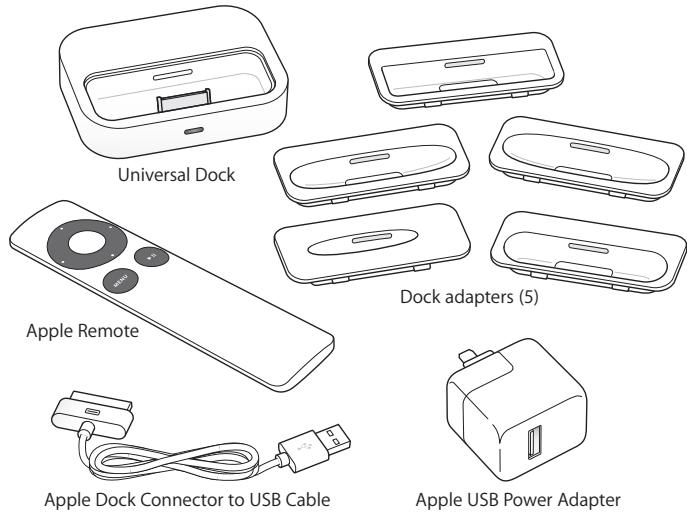
| Package contents | Dock, Apple Remote, USB cable, 5 Dock adapters, Apple USB Power Adapter |
Frequently Asked Questions - UNIVERSAL DOCK APPLE
User questions about UNIVERSAL DOCK APPLE
0 question about this device. Answer the ones you know or ask your own.
Ask a new question about this device
Download the instructions for your Electronic accessory in PDF format for free! Find your manual UNIVERSAL DOCK - APPLE and take your electronic device back in hand. On this page are published all the documents necessary for the use of your device. UNIVERSAL DOCK by APPLE.
USER MANUAL UNIVERSAL DOCK APPLE
Congratulations on purchasing your Apple Universal Dock. You can use this Dock with any iPhone and iPod model with a dock connector and adapter.
Here are the things you can do with your new Dock:
- Connect the Dock to your computer, and then place your iPod or iPhone in the Dock to charge the battery and sync content from iTunes (page 5).
- Connect the Dock to a power outlet (using the included Apple USB Power Adapter), and then place your iPod or iPhone in the Dock to charge the battery (page 7).
- Display photos on a TV or other video device (using the Apple Dock Connector to VGA Adapter, Composite AV Cable, or Component AV Cable, available separately; page 7).
- Display video on a TV or other video device (using the Apple Dock Connector to VGA Adapter, Composite AV Cable, or Component AV Cable, available separately; page 7).
- Connect the Dock to speakers or a stereo (using an audio cable, available separately) to play music from your iPod or iPhone (page 9).
- Control playback from a distance using the Apple Remote (page 10).
Important: Never force a connector into a port. If the connector and port don't join with reasonable ease, they probably don't match. Make sure that the connector matches the port and that you have positioned the connector correctly in relation to the port.
Your Universal Dock includes the following:
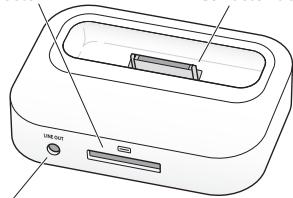
Universal Dock at a Glance
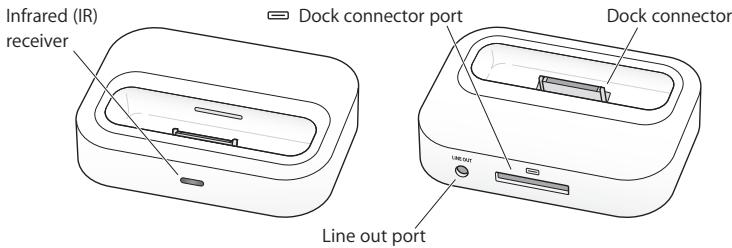
| Component | What You Can Do |
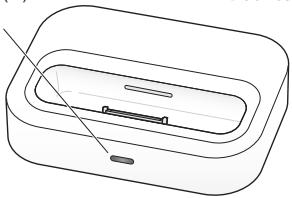
| Infrared (IR) receiver | Control playback from a distance using the Apple Remote. |
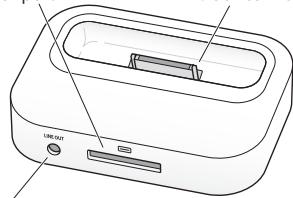
| Dock connector port | Connect the Dock to your computer or the included Apple USB Power Adapter, using the Apple Dock Connector to USB Cable. Or connect the Apple Dock Connector to VGA Adapter, Composite AV Cable, or Component AV Cable to view photos or videos on a TV or other video device (with iPhone and with iPod models that support video). |
| Dock connector | Place your iPod or iPhone in the Dock to charge the battery, sync content from iTunes, listen to music, or view photos and videos. |
| Line out port | Connect to external speakers or a stereo receiver using an audio cable with a standard 3.5 millimeter stereo miniplug. |
To use the Dock with your computer:
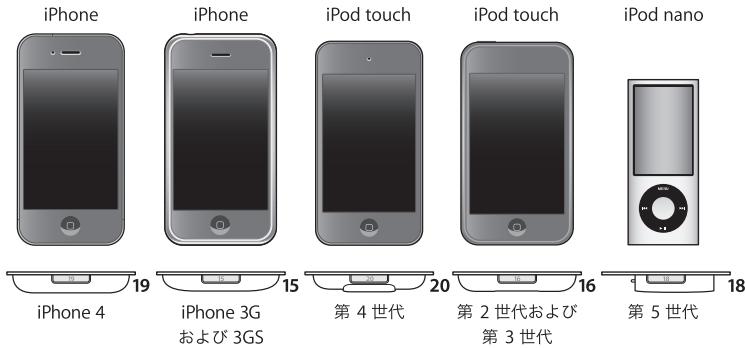
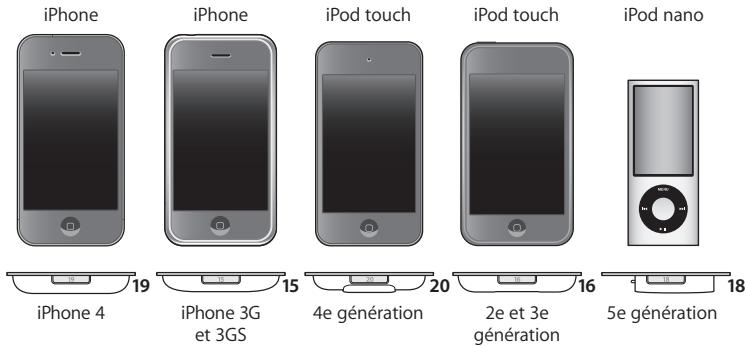
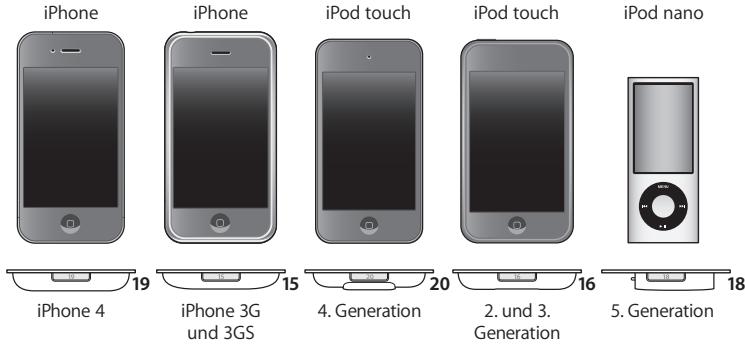
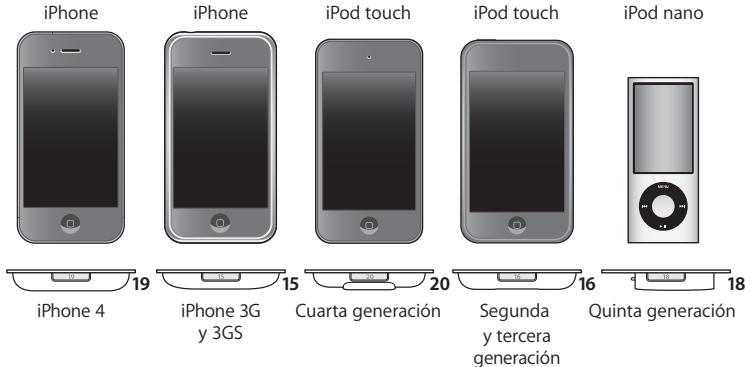
1 Attach the included Apple Dock Connector to USB Cable to your computer and connect the other end to the Dock. 2 Choose the dock adapter that fits your iPod or iPhone. Your iPod or iPhone fits snugly into the correct adapter.
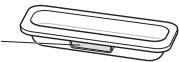
The number (15–20) shows which iPod or iPhone fits
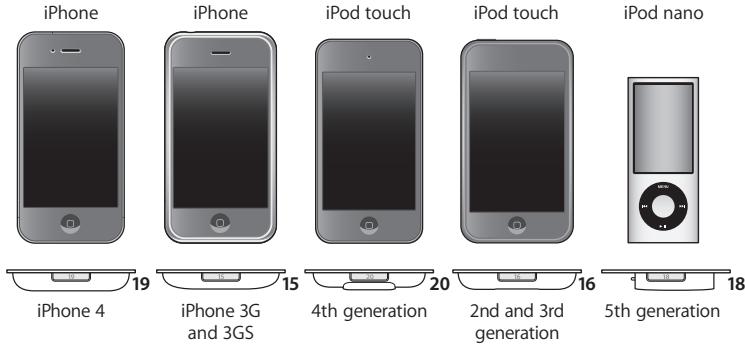
Note: If a dock adapter for your iPod or iPhone model isn't included with your Universal Dock, you can purchase one at www.apple.com/store.
3 Insert the dock adapter into the connector well of your Dock, and then put your iPod or iPhone in the Dock.
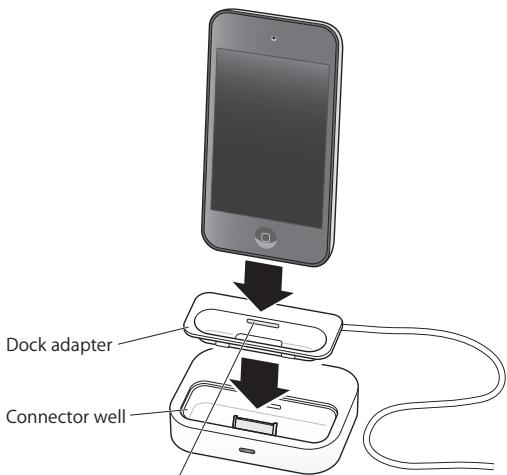
You can remove the dock adapter with your fingernail by using this slot.
If iTunes is set to sync your iPod or iPhone automatically, syncing begins as soon as you put your iPod or iPhone in the Dock.
For more information about syncing content to your iPod or iPhone and using all of its features, see the user guide for your iPod or iPhone, available on the web at support.apple.com/manuals.
To use the Dock with the Apple USB Power Adapter:
1 Connect the Apple Dock Connector to USB Cable to the power adapter, extend the electrical prongs (if necessary), and plug the power adapter into a power outlet.
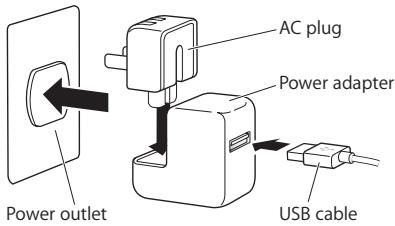
2 Connect the other end of the cable to the Dock. 3 Continue with steps 2-3 on page 5 to use your iPod or iPhone with the Dock and power adapter.
Viewing Photos and Videos on a TV or Other Video Device
With iPhone and iPod models that support video, you can use the Dock to view photos and video on a TV or other video device (such as a digital projector). The TV or other device must have a VGA connector or standard RCA connectors that support composite video signals. If you're using the Apple Dock Connector to VGA Adapter, you also need to connect the Dock to speakers or stereo (using an audio cable, available separately). The Apple Composite AV Cable and the Apple Component AV Cable will also route audio to your TV or other video device.
Choose the cable or adapter based on the inputs available on your TV or video device. AV cables and adapters are available separately at www.apple.com/store.
Important: Make sure you set your iPod or iPhone to send a video signal to your TV or receiver. For more information, see the user guide for your iPod or iPhone, available on the web at support.apple.com/manuals.
Before you begin connecting components, turn down the volume on your TV or stereo components, turn off your iPod or iPhone, and turn off the power to all your components. Make all connections firmly to avoid hum and other noise. For information about avoiding hearing damage, see page 13.
To connect the Dock to your TV or video device:
1 Connect the AV cable or adapter to the dock connector port on the Dock and to your TV or video device. See the instructions that came with your AV cable or adapter. 2 Turn on your iPod or iPhone, adjust the volume to an appropriate level, and then turn on your TV or video device to start playing.
To display photos or videos on your TV or video device:
See the user guide for your iPod or iPhone, available on the web at: support.apple.com/manuals
Playing Music Through External Speakers or a Stereo
Using the Universal Dock, you can play music from your iPod or iPhone through external speakers or a stereo receiver. Use an audio cable (available separately) with a standard 3.5 millimeter stereo miniplug (many external speakers use this type of cable). Before you connect stereo components, turn down the volume on the components.
To use your iPod or iPhone with the Dock to play music through speakers or a stereo:
1. Place your iPod or iPhone in the Dock. 2. Connect the speakers or stereo to the Dock line out port. 3. To play music, use the iPod or iPhone controls or the Apple Remote.
Use the remote or the volume controls on the speakers or stereo to change the volume. With some iPod models, you can also use the Click Wheel, volume buttons, or onscreen controls.
Note: You can play music while your iPod or iPhone is in the Dock and the Dock is connected to a power outlet (using the included Apple USB Power Adapter) or to your computer. If the Dock is connected to your computer, your iPod must not be enabled for disk use. For information about enabling iPod for disk use, see the user guide for your iPod, available on the web at support.apple.com/manuals.
To purchase external speakers or audio cables, go to www.apple.com/store.
Using the Apple Remote
You can use the included infrared (IR) remote to control playback from your iPod or iPhone when it's in the Dock. Make sure there are no obstructions between the remote and the Dock.
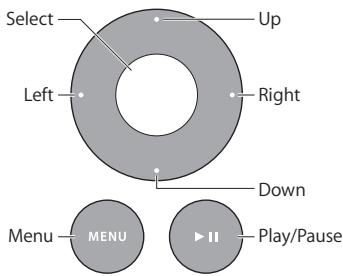
To use the Apple Remote:
| To | Do This |
| Play or pause a song or video | Press Play/Pause (▶II). |
| Change the volume | Press Up or Down. |
| Skip to the next song | Press Right. |
| Start a song or video over or play the previous song | Press Left once to start a song or video over. Press Left twice to play the previous song. |
| Fast-forward or rewind a song or video | Press and hold Right or Left. |
Note: You can't use the remote to choose a different playlist. Use the iPod or iPhone controls instead.
The Apple Remote works with other compatible Apple products that have a built-in infrared (IR) receiver. You can pair your Dock to work only with a particular remote, so remotes for your other devices don't affect the Dock.
To set the Dock to work with only a particular remote:
1. Place your iPod or iPhone in the Dock and press any button on your iPod or iPhone to turn it on. 2. Make sure other products that are compatible with the Apple Remote are out of range or powered off, and then hold the remote close to the IR receiver on the Dock (within 3 to 4 inches, or 8 to 10 cm). 3. Press and hold the Right button and Menu (MENU) button on the Apple Remote for five seconds.
Your Dock now works only with the paired remote.
Note: You may want to pair your other Apple Remote compatible devices with other remotes, so the remote you use with your Dock doesn't affect those devices. For instructions, see the documentation that came with those devices.
To reset the Dock to work with other Apple Remotes:
- Follow steps 1 and 2 above. Then press and hold the Left button and Menu (MENU) button on the Apple Remote for five seconds.
The Dock now works with any Apple Remote.
The Apple Remote includes a battery. When needed, you can replace it with a CR2032 battery.
To replace the battery:
1 Use a coin to remove the battery cover from the back of the remote.
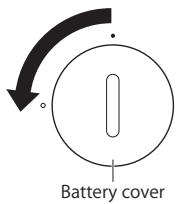
2 Insert a fresh CR2032 battery, with the positive (+) side up. 3 Replace the cover and use a coin to lock it in place.
WARNING: There is a risk of explosion if the battery is replaced with an incorrect type. Dispose of used batteries according to your local environmental laws and guidelines.
Important Safety Instructions
WARNING: Failure to follow these safety instructions could result in fire, electric shock, or other injury or damage.
Avoid Hearing Damage
Permanent hearing loss may occur if your iPod or iPhone is used at high volume. Set the volume to a safe level. You can adapt over time to a higher volume that may sound normal but can be damaging to your hearing. If you experience ringing in your ears or muffled speech, stop listening and have your hearing checked. The louder the volume, the less time is required before your hearing could be affected. Hearing experts suggest that to protect your hearing:
- Limit the amount of time you listen at high volume.
- Avoid turning up the volume to block out noisy surroundings.
- Turn down the volume if you can't hear people speaking near you.
For information about how to set a maximum volume limit, see the user guide for your iPod or iPhone, available on the web at support.apple.com/manuals.
Apple USB Power Adapter
When you use the Apple USB Power Adapter to charge your iPod or iPhone, connect the USB cable to the power adapter, and then plug the power adapter firmly into the power outlet. Do not connect or disconnect the Apple USB Power Adapter with wet hands.
The Apple USB Power Adapter may become warm during normal use. Always allow adequate ventilation around the Apple USB Power Adapter and use care when handling. Unplug the Apple USB Power Adapter if any of the following conditions exist:
- The USB cable has become frayed or damaged.
- The plug part of the adapter or the adapter case has become damaged.
- The adapter is exposed to rain, liquid, or excessive moisture.
- You suspect the adapter needs service or repair.
- You want to clean the adapter.
Specifications
- Input: AC 100–240 volts (V), 50/60 hertz (Hz)
- Output: DC, 5 V, 1 A
Service and Support
Troubleshooting, service, and support information for iPod or iPhone, the Universal Dock, the Apple Remote, the Apple USB Power Adapter, and Apple cables and adapters is available at www.apple.com/support.
Service and support
Battery compartment cover
iPhone
iPhone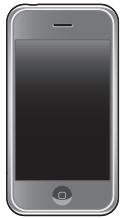
iPod touch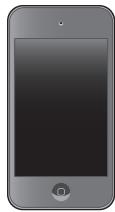
iPod touch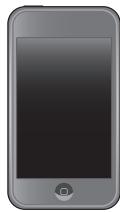
iPod nano
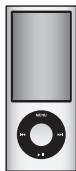
iPhone 4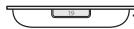
iPhone 3G and 3GS
Fourth generation
Regulatory Compliance Information
FCC Compliance Statement
This device complies with part 15 of the FCC rules. Operation is subject to the following two conditions: (1) This device may not cause harmful interference, and (2) this device must accept any interference received, including interference that may cause undesired operation. See instructions if interference to radio or television reception is suspected.
Radio and Television Interference
This computer equipment generates, uses, and can radiate radio-frequency energy. If it is not installed and used properly—that is, in strict accordance with Apple's instructions—it may cause interference with radio and television reception.
This equipment has been tested and found to comply with the limits for a Class B digital device in accordance with the specifications in Part 15 of FCC rules. These specifications are designed to provide reasonable protection against such interference in a residential installation. However, there is no guarantee that interference will not occur in a particular installation.
You can determine whether your computer system is causing interference by turning it off. If the interference stops, it was probably caused by the computer or one of the peripheral devices.
If your computer system does cause interference to radio or television reception, try to correct the interference by using one or more of the following measures:
- Turn the television or radio antenna until the interference stops.
- Move the computer to one side or the other of the television or radio.
- Move the computer farther away from the television or radio.
- Plug the computer into an outlet that is on a different circuit from the television or radio. (That is, make certain the computer and the television or radio are on circuits controlled by different circuit breakers or fuses.)
If necessary, consult an Apple Authorized Service Provider or Apple. See the service and support information that came with your Apple product. Or, consult an experienced radio/television technician for additional suggestions.
Important: Changes or modifications to this product not authorized by Apple Inc. could void the EMC compliance and negate your authority to operate the product.
This product was tested for EMC compliance under conditions that included the use of Apple peripheral devices and Apple shielded cables and connectors between system components.
It is important that you use Apple peripheral devices and shielded cables and connectors between system components to reduce the possibility of causing interference to radios, television sets, and other electronic devices.
Responsible party (contact for FCC matters only):
Apple Inc. Corporate Compliance
1 Infinite Loop, MS 26-A
Cupertino, CA 95014
Industry Canada Statements
Complies with the Canadian ICES-003 Class B specifications. This digital apparatus of Class B complies with Canadian NMB-003. This device complies with RSS 210 of Industry Canada.
European Compliance Statement
This product complies with the requirements of European Directives 72/23/EEC, 89/336/EEC, and 1999/5/EC.

VCCI Class B Statement
Voluntary Control Council for Interference by Information Technology Equipment (VCCI) Class B Statement
Korea Class B Statement
Class B equipment (home broadcasting and communication equipment)
Taiwan Class B Statement
Warning statement for Class B equipment
NIL
Apple and the Environment
Apple Inc. recognizes its responsibility to minimize the environmental impacts of its operations and products.
More information is available on the web at:
Energy Efficiency
Your power adapter was designed to exceed worldwide energy efficiency standards, including the ENERGY STAR® Program Requirements for External Power Supplies. Apple strives to design highly energy efficient products, because reducing energy consumption helps to minimize emissions, reduce pollution, and save money.
China
Disposal and Recycling Information

This symbol indicates that your product must be disposed of properly according to local laws and regulations. When your product reaches its end of life, contact Apple or your local authorities to learn about recycling options.
For information about Apple's recycling program, visit www.apple.com/environment/recycling.
Brazil—Disposal Information:

European Union—Disposal Information:

The symbol above means that according to local laws and regulations your product should be disposed of separately from household waste. When this product reaches its end of life, take it to a collection point designated by local authorities. Some collection points accept products for free. The separate collection and recycling of your product at the time of disposal will help conserve natural resources and ensure that it is recycled in a manner that protects human health and the environment.
Battery Disposal Information
Dispose of batteries according to your local environmental laws and guidelines.
California: The coin cell battery in your remote contains perchlorates. Special handling and disposal may apply. Refer to www.dts.ca.gov/hazardouswaste/perchlorate.
© 2010 Apple Inc. All rights reserved.
Apple, the Apple logo, iPhone, iPod nano, iPod touch, and iTunes are trademarks of Apple Inc., registered in the U.S. and other countries.
Portions of the Apple Software in this product may utilize the following copyrighted material, the use of which is hereby acknowledged.
Secure Hash Algorithm (SHA-1)
License terms available at http://freebsd.active-venture.com/
FreeBSD-srctree/newsrc/crypto/sha1.c.html or by contacting WIDE
Project at http://www.wide.ad.jp/index.html

- HERE ARE THE THINGS YOU CAN DO WITH YOUR NEW DOCK
- UNIVERSAL DOCK AT A GLANCE
- TO USE THE DOCK WITH YOUR COMPUTER
- TO USE THE DOCK WITH THE APPLE USB POWER ADAPTER
- VIEWING PHOTOS AND VIDEOS ON A TV OR OTHER VIDEO DEVICE
- TO CONNECT THE DOCK TO YOUR TV OR VIDEO DEVICE
- PLAYING MUSIC THROUGH EXTERNAL SPEAKERS OR A STEREO
- USING THE APPLE REMOTE
- TO SET THE DOCK TO WORK WITH ONLY A PARTICULAR REMOTE
- TO RESET THE DOCK TO WORK WITH OTHER APPLE REMOTES
- TO REPLACE THE BATTERY
- IMPORTANT SAFETY INSTRUCTIONS
- AVOID HEARING DAMAGE
- APPLE USB POWER ADAPTER
- SPECIFICATIONS
- SERVICE AND SUPPORT
- REGULATORY COMPLIANCE INFORMATION
- FCC COMPLIANCE STATEMENT
- RADIO AND TELEVISION INTERFERENCE
- INDUSTRY CANADA STATEMENTS
- EUROPEAN COMPLIANCE STATEMENT
- VCCI CLASS B STATEMENT
- KOREA CLASS B STATEMENT
- TAIWAN CLASS B STATEMENT
- APPLE AND THE ENVIRONMENT
- ENERGY EFFICIENCY
- DISPOSAL AND RECYCLING INFORMATION
- BATTERY DISPOSAL INFORMATION
Brand : APPLE
Model : UNIVERSAL DOCK
Category : Electronic accessory