
Mettler-Toledo H-5275 - Scale Uline - Free user manual and instructions
Find the device manual for free Mettler-Toledo H-5275 Uline in PDF.


User questions about Mettler-Toledo H-5275 Uline
0 question about this device. Answer the ones you know or ask your own.
Ask a new question about this device
Download the instructions for your Scale in PDF format for free! Find your manual Mettler-Toledo H-5275 - Uline and take your electronic device back in hand. On this page are published all the documents necessary for the use of your device. Mettler-Toledo H-5275 by Uline.
USER MANUAL Mettler-Toledo H-5275 Uline
natural_image
Line drawing of a rectangular electronic device with four base pins and a control panel (no text or symbols)OVERVIEW OF CONTROLS
CONTROL PANEL

text_image
1 Max 150 lb Min 1.00 lb e=0.05 lb G 0.00 lb M >0 4 5 6 2 3CONTROL PANEL PARTS
| # DESCRIPTION |
| 1 Gross Weight Indicator |
| 2 Units Indicator |
| 3 Keypad |
| 4 Mode Selection |
| 5 Units |
| 6 Zero |
CONTROL FUNCTIONS
| BUTTON |  |  | [CAEA] | [CAEA] | [CAEA] |
| PRIMARY FUNCTION | ARROWSHighlight items on display. | ENTERSelects item on screen. | [DOHD]Selection of weigh modes. | [CAEA]Switch between units. | [CAEA]Zero scale when no weight is on platter. |
SETUP
LEVELING
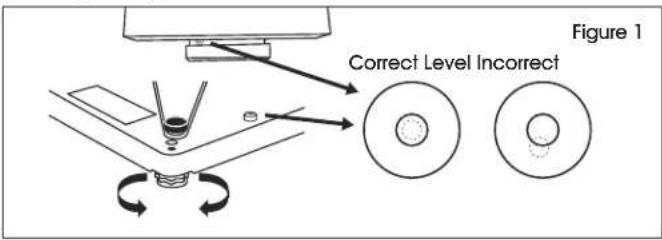
With platter off, level the scale by adjusting the feet until the scale is stable and the bubble is centered inside the reference circle. Level is located on the display bracket. (See Figure 1)
text_image
Correct Level Incorrect Figure 1PC AND POWER CONNECTIONS
- Choose one method of connecting the scale to your PC: USB or RS232. (See Figure 2)
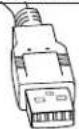
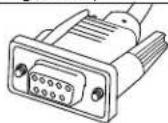
USB Cable RS232 Cable
Figure 2

NOTE: Preferred method is USB if supported in carrier or shipping software.

NOTE: USB connection must be used if scale is to communicate with multiple carrier or shipping software programs.

CAUTION! DO NOT connect both USB and RS232 cables at the same time.
- Turn scale over and make the PC connections as follows:
USB
-
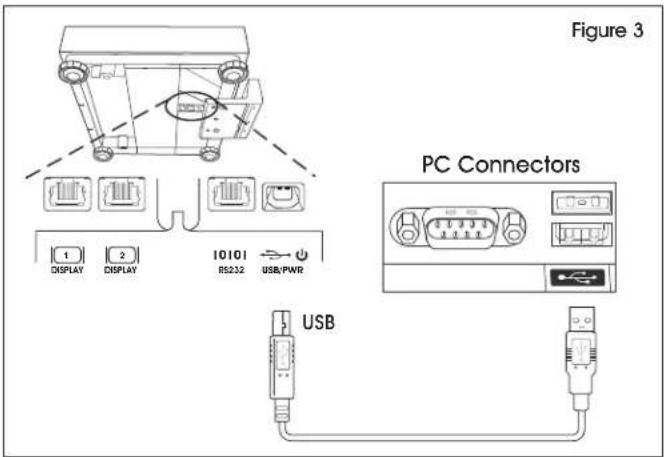
Plug small end of USB cable into the scale connector port marked "USB." (See Figure 3)
-
Plug large end of the USB cable into the PC. A direct connection to the computer is required. Do not use a USB hub.

NOTE: The scale is adequately powered by the USB port, so the power supply is not needed with a USB connection.
text_image
Figure 3 PC Connectors USB 1 DISPLAY 2 DISPLAY 10101 RS232 USB/PWR USBRS232
- Plug small end of RS232 cable into the scale connector port marked "RS232." Connect large end of the RS232 cable into the PC port (generally labeled COM 1, COM A or IOIOI). (See Figure 4)
- Plug large end of USB cable into the power supply. Plug small end into USB connector. Plug power supply into AC outlet.

NOTE: If you plugged RS232 cable into the incorrect PC port, turn off the computer, then change ports and restart your computer.

text_image
Figure 4 PC Connectors AC Outlet USBRS232 Power supply is required for RS232 connection.SETUP CONTINUED
GEOCAL LOCATION
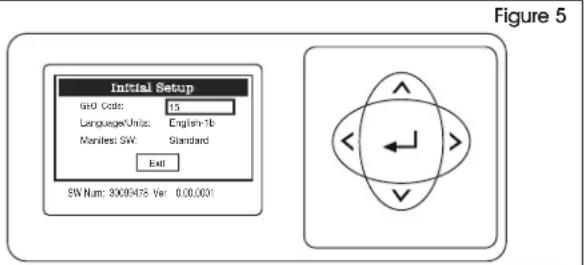
If the display shows "0•0" the first time the scale is powered up, skip to Software Configuration. If the display shows "GEo_Code" (See Figure 5), then enter the GeoCal™ Code as follows:
text_image
Initial Setup GID Code: 13 Language/Units: English-1b Manifest SW: Standard Exit SW Num: 3008478 Ver 0.00.0001 Figure 5- Choose the code from the GeoCal™ Location Codes chart on page 4 that best matches your location.
- With GEO Code box highlighted, press or to scroll to that number. Numbers will repeat.
- Use key to highlight Language/Units if enabled. Press the <or key to scroll to the proper selection. Items will repeat. Do the same for the Manifest SW if enabled.
- Press key to highlight EXIT and press . Scale will reboot.
SETUP CONTINUED
| STATE CODE STATE CODE STATE CODE | |||||
| AlabamaBirmingham & NorthSouth of Birmingham | 1312 | IndianaNorth of IndianapolisIndianapolis & South | 1615 | North CarolinaRaleigh & NorthSouth of Raleigh | 1413 |
| AlaskaAnchorage & SouthAnchorage - KotzebueNorth of Kotzebue | 232627 | IowaNorth of Des MoinesDes Moines & South | 1716 | North Dakota 18 | |
| OhioAkron & NorthSouth of Akron | 1615 | ||||
| Kansas 14 | |||||
| ArizonaPhoenix & NorthSouth of Phoenix | 1211 | Kentucky 14 | Oklahoma 13 | ||
| Louisiana 12 | OregonSalem & NorthSalem - OakridgeSouth of Oakridge | 181716 | |||
| Maine 18 | |||||
| Arkansas 13 Maryland | 15 | ||||
| CaliforniaNorth of ChicoChico - San FranciscoSan Fran BakersfieldSouth of Bakersfield | 16151413 | Massachusetts | 17 | Pennsylvania | 16 |
| MichiganNW of Lake MichiganSE of Lake Michigan | 1817 | Rhode Island | 16 | ||
| South Carolina | 13 | ||||
| Minnesota | 18 | South Dakota 17 | |||
| ColoradoDenver & NorthSouth of Denver | 1312 | MississippiKosciusko & NorthSouth of Kosciusko | 1312 | Tennessee | 13 |
| TexasNE of Colorado RiverSW of Colorado River | 1211 | ||||
| Connecticut | 16 | MissouriNorth of SpringfieldSpringfield & South | 1514 | Utah | 13 |
| Delaware | 15 | Vermont | 17 | ||
| FloridaWest Palm Beach & NorthSouth of West Palm Beach | 1110 | MontanaHelena & NorthSouth of Helena | 1817 | Virginia | 14 |
| Washington, DC | 15 | ||||
| Washington State | 18 | ||||
| Georgia | 12 | Nebraska | 15 | West Virginia | 15 |
| Hawaii | 9 | Nevada | 13 | WisconsinGreen Bay & NorthSouth of Green Bay | 1817 |
| IdahoNorth of Salmon River Mt.South of Salmon River Mt. | 1716 | New Hampshire | 17 | ||
| New Jersey | 16 | ||||
| IllinoisBloomington & NorthSouth of Bloomington | 1615 | New Mexico | 11 | WyomingNorth of CasperCasper & South | 1514 |
| New YorkAlbany & NorthSouth of Albany | 1716 | ||||
SOFTWARE CONFIGURATION
Configure your carrier, shipping or POS software to communicate with the scale. Make the proper scale selection from the pull-down list in the software setup or configuration screen, typically, a variation of "METTLER TOLEDO," "TOLEDO" or "60." For additional support, contact Uline Customer Service at 1-800-295-5510.
SETUP CONTINUED
SOFTWARE CONFIGURATION CONTINUED
UPS WORLDSHIP SOFTWARE SETUP
- Connect the scale to your computer using the USB cable and open the UPS WorldShip software.
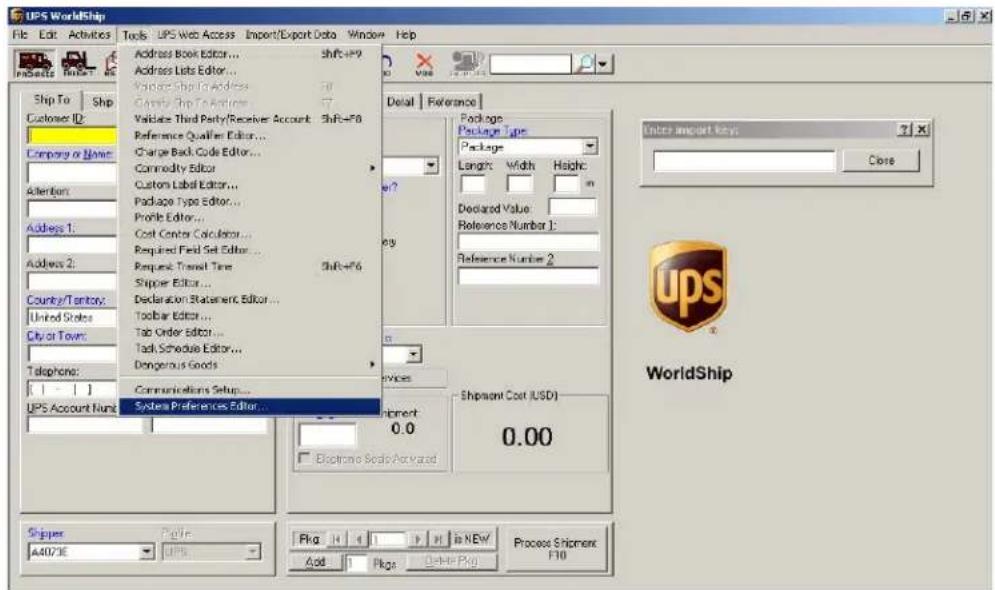
- Under the Tools menu, select System Preferences Editor. (See Figure 6)
text_image
UPS WorldShip File Edit Activities Tools UPS Web Access Import/Export Data Window Help Address Book Editor... Shift+F9 Address Lists Editor... Validate Ship to Address Apply Ship to Account Validate Third Party/Receiver Account Shift+F8 Reference Qualifier Editor... Charge Back-Code Editor... Commodity Editor Custom Label Editor... Package Type Editor... Profile Editor... Cost Center Calculation... Required Field Set Editor... Request Travel Time Shift+F6 Shipper Editor... Declaration Statement Editor... Toolbar Editor... Tab Order Editor... Tick Schedule Editor... Dangerous Goods Communications Setup... Systems Preferences Editor... Shipper 44073E IPS Delai | Reference Package Package Type: Package Length Width Hsighc Declared Value: References Number 1: Reference Number 2: Shipment Cost (USD) 0.00 Add 1 Pkgs Delete Pkg Process Shipment F10 Enter import keys Close ups WorldShipFigure 6
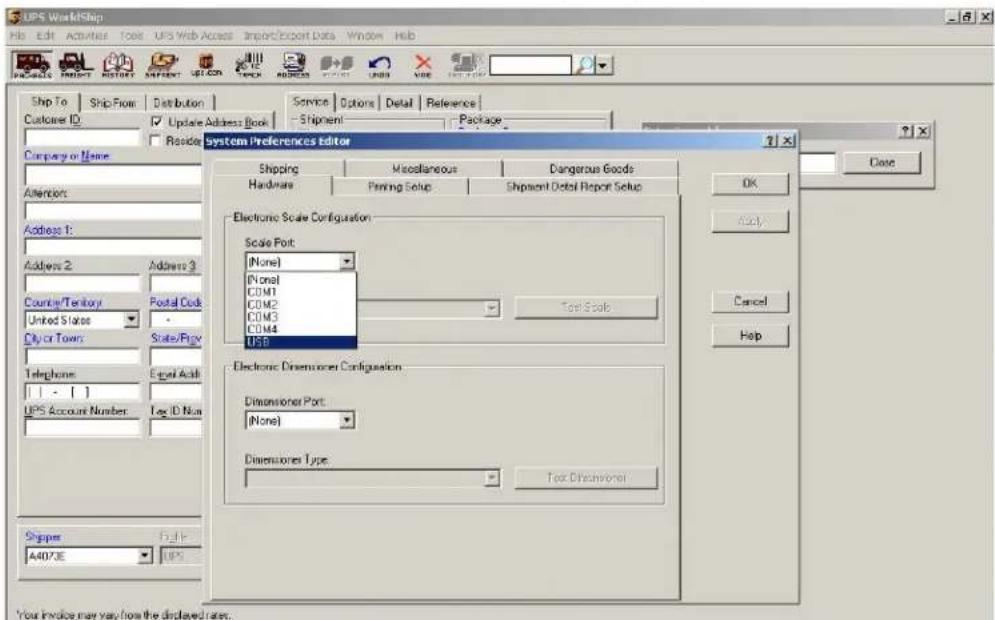
- From the Scale Port drop down menu, select USB. (See Figure 7)
text_image
UPS WorldShip File Edit Activities Tools UPS Web Access Import/Export Data Window Help Ship To Ship From Distribution Service Options Detail Reference Customer ID Update Address Book Shipment Package Resider System Preferences Editor Company or Name Shipping Miscellaneous Dangerous Goods Hardware Pending Setup Shipment Detail Report Setup Electronic Scale Configuration Scale Port (None) (None) COM1 COM2 COM3 COM4 USB Electronic Dimensioner Configuration Dimensioner Port: (None) Dimensioner Type: Text Dimensioner Address 1: Address 2: Address 3 Country/Territory Postal Dock United States City or Town State/Proxy Telephone Equal Addib UPS Account Number Leg ID Non Shipper A407JE UPS Your Invoice may vary from the displayed rates.Figure 7
SETUP CONTINUED
SOFTWARE CONFIGURATION CONTINUED
UPS WORLDSHIP SOFTWARE SETUP CONTINUED
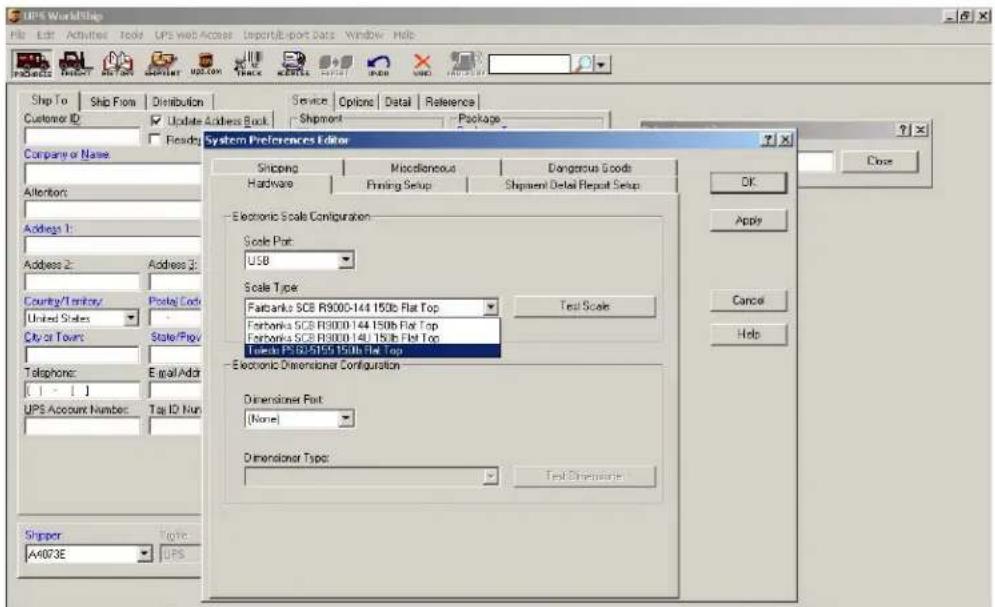
- From the Scale Type drop down menu, select the scale with a variation of "Mettler Toledo," "Mettler" or "60." (See Figure 8)
text_image
UPS WorldShip File Edit Activities Tools UPS web Access Import/Export Data Window Help Project Project Help Startbox Process Update Show Show Show Show Show Show Show Show Show Show Show Show Show Show Show Show Show Show Show Show Show Show Show Show Show Show Show Show Show Show Show Show Show Show Show Show Show Show Show Show Show Show Show Show Show Show Show Show Show Show Display Preferences Editor Company or Name: All entities: Address 1: Address 2: Couning/Territory: United States City or Towns Telephone: US Postal Address UPS Account Number: Top ID: New Shipper A4073E Topic UPS Shipping Miscellaneous Dangerous Goods Hardware Fanning Setup Shipment Detail Report Setup Electronic Scale Configuration Scale Part: USB Scale Type: Farbanks SCB R9000-144 150lb Flat Top Text Scale Electronic Dimensional Configuration Dimensional Part: None Dimensional Type: Text Dimensional... OK Apply Cancel HelpFigure 8
- Click Apply and then click OK.
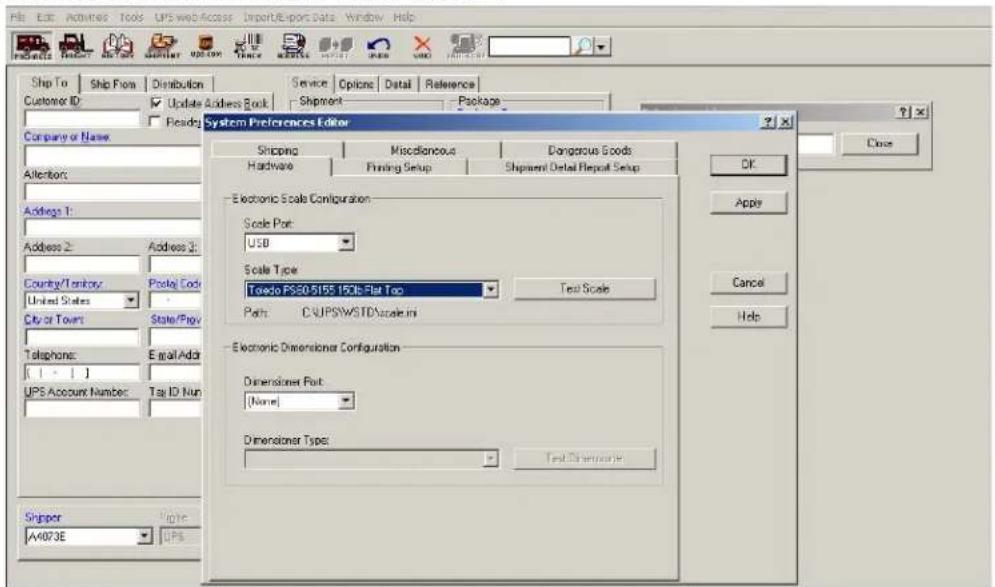
- Repeat step 3. Click "Test Scale". (See Figure 9)
- Close the System Preferences Editor window.
text_image
File Edit Activities Tools UPS web access Import/Reports Data Window Help Ship To Ship From Distribution Service Options Data Reference Customer ID Update Address Book Shipment Package Company or Name Shipping Miscellaneous Dangerous Goods Hardware Printing Setup Shipment Detail Report Setup Electronic Scale Configuration Scale Port: USB Scale Type: Toledo PS30-5155 15Gb Flat Top Test Scale Path: C:\UPSW\STD\scale.ini Electronic Dimensioner Configuration Dimensioner Port: [None] Dimensioner Types: Test Dimensioner Slipper A4073E Ups Close OK Apple Cancel HelpFigure 9
TROUBLESHOOTING
| OPERATING ISSUE CAUSES RECOMMENDATIONS | ||
| Scale is not communicating by serial. | Invalid pairing in the PC RS232 connection setting. | Select the correct scale model in the shipping software ("Toledo," "PS60" or "BC60"). |
| No weight is displayed on the scale. | Power supply may be unplugged or display cable is not attached to scale base.Something is on or touching the scale. | If using RS232, confirm power supply is plugged into working AC outlet, USB cable is plugged into power supply and USB cable is plugged properly into scale base.If using USB, ensure USB cable is pushed in all the way at both scale and PC.Unplug and reinsert the display connector into the scale base.Ensure nothing is on or touching the top of the scale when powering up. |
The scale is showing brackets at the top of display.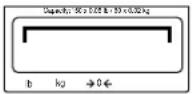 | Scale is over capacity. Too much weight is on the scale. | Reduce weight.Disconnect power by unplugging the USB cable or power supply. Remove any weight from the scale, then plug the scale back in. The scale will reboot and capture zero. |
The scale is showing brackets at the bottom of display.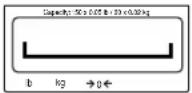 | Scale is under capacity. Weight is on the scale at power up. | Zero scale with no weight on platter.Disconnect power by unplugging the USB cable or power supply. Remove any weight from the scale, then plug the scale back in. The scale will reboot and capture zero. |
If the problem persists, or if the troubleshooting section does not resolve or describe your problem, contact Uline Customer Service at 1-800-295-5510.
ULINE
H-5275
800-295-5510
BÁSCULA PARA
uline.mx
PAQUETES 68 x .02 KG
(150 LBS. x .05 LBS.)
natural_image
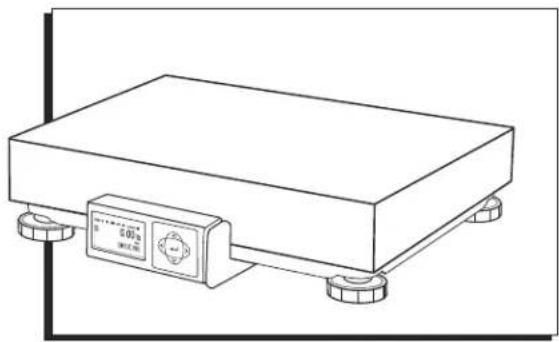
Line drawing of a rectangular electronic device with a control panel and four base legs (no text or symbols)text_image
Initial Setup GFO Code: 15 Language/Units: English-1b Manifest SW Standard Exit SW Nam: 3009478 Var 0.00.000° Diagramtext_image
UPS WorldShip File Edit Activities Tools UPS Web Access Import/Export Data Window Help Address Book Editor... Shift+F9 Address Lists Editor... Value Ship to Address Grant Ship to Address Validate Third Party/Receiver Account Shift+F6 Reference Qualifier Editor... Charge Back-Code Editor... Commodity Editor Custom Label Editor... Package Type Editor... Profile Editor... Cost Center Calculation... Required Field Set Editor... Request Travel Time Shift+F6 Shipper Editor... Declaration Statement Editor... Toolbar Editor... Tab Order Editor... Task Schedule Editor... Dangerous Goods Communications Setup... Systems Preferences Editor... Shipper A40/3E Page Add 1 Pkgs Delete Pkg Process Shipment F10 Package Package Type: Package Length Width Height: Declared Value: References Number 1: Reference Number 2: Shipment Cost (USD) 0.00 Enter import keys: Close ups WorldShipDiagrama 6
text_image
UPS Workshop File Edit Activities Tools UPS Web Access Import/Export Data Window Help Ship To Ship From Distribution Service Options Detail Reference Customer ID Update Address Book Shipment Package Company or Name System Preferences Editor Shipping Miscellaneous Dangerous Goods Hardware Pinning Setup Shipment Detail Report Setup Electronic Scale Configuration Scale Port: (None) (None) COM1 COM2 COM3 COM4 USB Electronic Dimensioner Configuration Dimensioner Port: (None) Dimensioner Type Text Dimensioner Shipses 10.16 A4073E IPS Your invoice may vary from the displayed rates.Diagrama 7
text_image
UPS WorldShip File Edit Activities Tools UPS web Access Import/Export Data Window Help Project Project Help Startbox Process Update Show Show Show Show Show Show Show Show Show Show Show Show Show Show Show Show Show Show Show Show Show Show Show Show Show Show Show Show Show Show Show Show Show Show Show Show Show Show Show Show Show Show Show Show Show Show Show Show Show Show Display Preferences Editor Company or Name: All entities: Address 1: Address 2: Couning/Territory: United States: City or Town: Telephone: E-mail Address: UPS Account Number: Top ID: Nurn: Shipper A4073E Topic UPS Shipping Miscellaneous Dangerous Goods Hardware Filling Setup Shipment Detail Repeat Setup Electronic Scale Configuration Scale Part: USB Scale Type: Farbanks SCB R9000-144 150b Flat Top Test Scale Electronic Dimensional Configuration Dimensional Part: None Dimensional Type: Test Dimensional Close OK Apply Cancel HelpFigure 8
text_image
File Edit Activities Tools UPS web access Import/Reports Data Window Help Ship To Ship From Distribution Service Options Data Reference Customer ID Update Address Book Shipment Package Company or Name Shipping Miscellaneous Dangerous Goods Hardware Printing Setup Shipment Detail Report Setup Electronic Scale Configuration Scale Port: USB Scale Type: Toledo PS30-5155 15Gb Flat Top Test Scale Path: C:\UPSW\STD\scale.ini Electronic Dimensioner Configuration Dimensioner Port: [None] Dimensioner Types: Test Dimensioner Shipper A4073E Quote UPS OK Apply Cancel HelpFigure 9
natural_image
Line drawing of a rectangular electronic device with a control panel and four base legs (no text or symbols)APERÇU DES COMMANDES
PANNEAU DE COMMANDE

text_image
Max 150 lb Min 1.00 lb e=0.05 lb G 0.00 lb M O >O< 4 5 6 2 3ÉLÉMENTS DU PANNEAU DE COMMANDE
text_image
UPS WorldShip File Edit Activities Tools UPS Web Access Import/Export Data Window Help Address Book Editor... Shift+F9 Address Lists Editor... Guide Shop to Address... Shift+F8 Guide Ship to Address... Shift+F7 Validate Third Party/Receiver Account Shift+F6 Reference Qualifier Editor... Charge Back Code Editor... Commodity Editor Custom Label Editor... Package Type Editor... Profile Editor... Cost Center Calculator... Required Field Set Editor... Request Transfer Time Shift+F6 Shipper Editor... Declaration Statement Editor... Toolbar Editor... Tab Order Editor... Task Schedule Editor... Dangerous Goods Communications Setup... UPS Account Nurs Systems Preferences Editor... Delai | Reference Package Package Type: Package Length: Width Height: in Declared Value: Reference Number 1: Reference Number 2: Shipment Cost (USD) 0.00 Shipses A40/3E Page UPS Fkg 1 1 in NEV Add 1 Pkg Delete Pkg Process Shipment F10 Enter amount key: Close ups WorldShipFigure 6
text_image
LPS WirelessShip File Edit Activities Tools UPS Web Access Import/Export Data Window Help Ship To Ship From Distribution Service Options Detail Reference Customer ID Update Address Book Shipment Package Reside System Preferences Editor Company or Name Shipping Miscellaneous Dangerous Goods Hardware Framing Setup Shipment Detail Report Setup Electronic Scale Configuration Scale Port: (None) (None) COM1 COM2 COM3 COM4 USB Electronic Dimensioner Configuration Dimensioner Port: (None) Dimensioner Type Text Dimensioner Shipses A4073E UPS Close OK Lock Cancel Help Your invoice may vary from the displayed rates.Figure 7
CONFIGURATION SUITE
CONFIGURATION DU LOGICIEL SUITE
CONFIGURATION DU LOGICIEL UPS WORLDSHIP SUITE
text_image
UPS WorldShip File Edit Activities Tools UPS web Access Import/Export Data Window Help Project Project Help Startbox Process Update Show Show Show Show Show Show Show Show Show Show Show Show Show Show Show Show Show Show Show Show Show Show Show Show Show Show Show Show Show Show Show Show Show Show Show Show Show Show Show Show Show Show Show Show Show Show Show Show Show Show Display Preferences Editor Company or Name: All entities: Address 1: Address 2: Couning/Territory: United States City or Towns Telephone: US Postal Address UPS Account Number: Top ID: New Shipper A4073E Topic UPS Shipping Miscellaneous Dangerous Goods Hardware Fanning Setup Shipment Detail Report Setup Electronic Scale Configuration Scale Part: USB Scale Type: Farbanks SCB R9000-144 150lb Flat Top Text Scale Electronic Dimensional Configuration Dimensional Part: None Dimensional Type: Text Dimensional... OK Apply Cancel HelpFigure 8
text_image
File Edit Activities Tools UPS web access Import/Reports Data Window Help Ship To Ship From Distribution Service Options Data Reference Customer ID Update Address Book Shipment Package Company or Name Shipping Miscellaneous Dangerous Goods Hardware Printing Setup Shipment Detail Report Setup Electronic Scale Configuration Scale Port: USB Scale Type: Toledo PS30-5155 15Gb Flat Top Test Scale Path: C:\UPSW\STD\scale.ini Electronic Dimensioner Configuration Dimensioner Port: [None] Dimensioner Types: Test Dimensioner Slipper A4073E Ups Close OK Apple Cancel HelpFigure 9
DÉPANNAGE


