H-1653 - Scale Uline - Free user manual and instructions
Find the device manual for free H-1653 Uline in PDF.


User questions about H-1653 Uline
0 question about this device. Answer the ones you know or ask your own.
Ask a new question about this device
Download the instructions for your Scale in PDF format for free! Find your manual H-1653 - Uline and take your electronic device back in hand. On this page are published all the documents necessary for the use of your device. H-1653 by Uline.
USER MANUAL H-1653 Uline
text_image
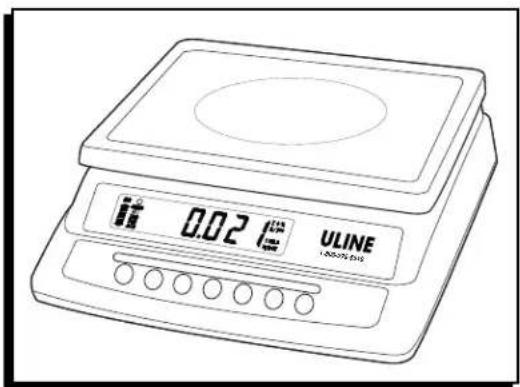
0.02 L/min ULINE 1.00-75% 5/16GENERAL INFORMATION
AVOID PLACING THE SCALE IN LOCATIONS THAT MAY HURT ACCURACY:
- Temperature extremes – Do not place in direct sunlight or near air heat/cooling vents.
- Mounting surface must be firm and level – Do not place on uneven or wobbly surfaces or near vibrating machinery.
- Unstable power sources – Keep away from big electricity-using machines, like welding equipment or large motors.
- Keep scale dry – Do not place in high humidity, damp or wet locations.
- Keep away from air movers, like fans or open doors and windows.
- Keep scale clean and dry.
- Do not stack items on the scale when not in use.

CAUTION! Scale is not waterproof. Avoid direct contact with water, high humidity and condensation. Do not spray or immerse scale in water. Data may become unstable or scale may malfunction. Turn power off and allow scale to dry before reuse.
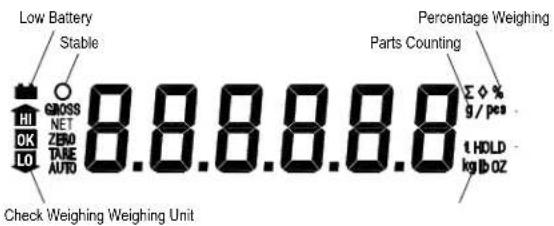
LCD DISPLAY
text_image
Low Battery Stable GROSS NET ZERO TAKE AUTO Check Weighing Weighing Unit Percentage Weighing Parts Counting Σ 0 % g / pcs t HOLD kg D OZDISPLAY CHARACTERS
| CHARACTERDISPLAY | TERDISPLAY | ||
| 0 | 0 | I | i |
| 1 | 1 | J | j |
| 2 | 2 | K | k |
| 3 | 3 | L | L |
| 4 | 4 | M | n |
| 5 | 5 | N | n |
| 6 | 6 | O | o |
| 7 | 7 | P | P |
| 8 | 8 | Q | o |
| 9 | 9 | R | r |
| A | A | S | S |
| B | b | T | t |
| C | C | U | U |
| D | d | V | v |
| E | E | W | w |
| F | F | X | x |
| G | G | Y | y |
| H | H | z | z |
SPECIFICATIONS
| MODEL # H-1653/H-1654 H-1649 | H-1650 H-1651 | |||
| MAXIMUM CAPACITY | 3kg / 6 lbs. 6kg / 12 lbs. 15kg / 30 lbs. 30kg / 60 lbs. | |||
| MINIMUM CAPACITY | 2g | 4g | 10g | 20g |
| ACCURACY (DIV) | 0.1g/.0002 lbs. | 0.2g/.0005 lbs. | 0.5g/.001 lbs. | 1g/.002 lbs. |
| RESOLUTION | 1:30.000 | |||
| TARE RANGE | -3kg | -6kg | -10kg | -30kg |
| REPEATABILITY (STD DEV) | 0.1g | 0.2g | 0.5g | 1g |
| LINEARITY ± | 0.2g | 0.4g | 1g | 2g |
| UNITS OF MEASURE | kg, g, lbs., oz | |||
| STABILIZATION TIME | 2 Seconds | |||
| OPERATING TEMPERATURE | 0°C - 40°C / 32°F - 104°F | |||
| POWER SUPPLY (EXTERNAL) | 115/230 Vac, 50/60Hz, 10 watts | |||
| CALIBRATION | Automatic external | |||
| DISPLAY | 6 digits LCD digital display | |||
| BALANCE HOUSING ABS plastic, sta | inless steel platform | |||
| PAN SIZE | 225 x 300 mm / 9 x 11.5" | |||
| OVERALL DIMENSIONS (WxDxH) | 320 x 340 x 125 mm / 12.6 x 13.4 x 4.9" | |||
| NET WEIGHT | 3.8kg/8.4lb | |||
| APPLICATIONS | General purpose scale | |||
| FUNCTIONS | Weighing, parts counting, % weight, check weighing | |||
| OTHER FEATURES AND SPECS | Internal rechargeable battery (~70 hours operation) | |||
CONTROLS

Primary Function

Secondary Function

Unit Key (UNIT) – Selects weighing units: pounds, ounces, kilograms, grams.

Accumulate Key (ACC) - Adds a value to the accumulated total if the accumulation function is not automatic.

Escape Key (ESC) - Used to return the scale to normal operating mode.

Function Key (FUNC) – Allows switching from parts weighing to parts counting.

Clear Key (C) - Used to reset parameters or other functions.

Percent Key (%) – Enters the percent weighing function. Allows weight, unit weight and count to show when counting parts.

Space Left (<) - Used to change different numbers on the display. Also used to set parameters or other functions.

Limit Key (LIMIT) – Sets limits for check weighing. Set high or low limit or both.

Space Right (>) - Used to change different numbers on the display. Also used to set parameters or other functions.

Tare Key (TARE) – Deducts the container weight from pieces' weight.

Number Key ( ^ ) – Used to set parameters and other functions.

Zero Key (ZERO) - Zeros display for next weight.

ENTER Key - Used to set parameters and other functions.
INSTALLATION
Stainless steel platform is packed separately.
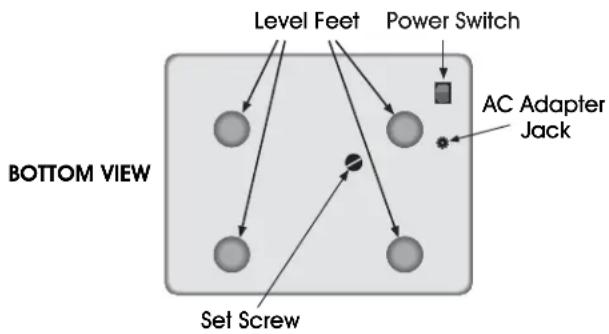
- Remove set screw on bottom of scale.
- Level the scale. Adjust the four feet and reference bubble on top of scale to level.
- Set platform in the locating holes in the top cover.

CAUTION! Do not press down with excessive force. This can damage the load cell.
-
Attach AC adapter to the power jack on the bottom of the scale.
-
Power switch is located on the bottom right side of the scale.
flowchart
graph TD
    A["Level Feet"] --> B["Power Switch"]
    C["Set Screw"] --> D["AC Adapter Jack"]
    E["BOTTOM VIEW"] --> F["Power Switch"]
    style A fill:#ccc,stroke:#333
    style B fill:#ccc,stroke:#333
    style C fill:#ccc,stroke:#333
    style D fill:#ccc,stroke:#333
    style E fill:#ccc,stroke:#333
    style F fill:#ccc,stroke:#333
OPERATION

NOTE: Do not put items on scale plate before turning scale on.
ZEROING THE DISPLAY
- Press ZERO/ENTER key to reset the display to 0 before weighing or counting.

NOTE: Scale has an automatic re-zero to handle minor drifting or material accumulation on the weighing platform. If the display shows a weight while the platform is empty, press the ZERO/ENTER key to zero the scale.
TARE
Before weighing items, weigh the container so its weight can be deducted from the accumulated item weight:
- Press ZERO/ENTER to re-zero the display.
- Place the container to be used on the weighing platform. The display will show its weight. Press the TARE key. Container weight will be stored as the tare value and is subtracted from the display. Display shows 0.
- Net indicator is on. When adding items to the platform, only the item weight will be displayed.

NOTE: Scale can be tared a second time to show only the weight of the items added after you press the TARE key again. Display will show a negative (-) value if the container is removed. ZERO indicator will also be on.
WEIGHING A SAMPLE
To determine the weight of a sample:
- Place empty container on the platform.
- Press TARE key to subtract container weight.
- Place sample in container. Display shows weight of sample less the weight of the container.
PERCENT WEIGHING
Scale allows the sample weight to be shown as 100%. Then, any other weight placed on the scale displays as a percentage of the original sample.
For example:
- 350g is placed on the scale.
- Press % key.
- Display shows 100.00%.
- Remove the 350g weight, then place a 300g weight on the platform.
- Display shows 85.71% (300g is 85.71% of 350g).
- Press FUNC key to return the scale to weighing mode.

NOTE: Scale may jump by large amounts if small weights are used to set the 100% level.
PARTS COUNTING
While the display is showing a weight, pressing the FUNC key starts the parts counting function.
- Before starting, tare the weight of container used and leave the empty container on the platform.
- Place the number of samples on the scale. The number should match the predetermined sample sizes: 10, 20, 50, 100 or 200 pieces.
- Press the FUNC key. Display shows P 10 (looking for a sample size of 10 parts.)
- To change the sample size, press the TARE key. Display will cycle through 10, 20, 50, 100, 200 and back to 10.
OPERATION CONTINUED
- Press the ZERO/ENTER key when the displayed number matches the number of items used in the sample. As more weight is added, the display shows the number of pieces (ρcs).
- Press the % key to display the unit weight (g'ρcs), total weight (H g) or the count (ρcs).
- Press the FUNC key to return to weighing mode.

NOTE: See uline.com for a parts counting instructional video.
CHECK WEIGHING
Check weighing sounds an alarm when the weight on the scale exceeds limits stored in the memory. High and low limits can be set and can be used individually or together.
Setting the High Limit:
- Press the LIMIT key. Display shows the current high limit. left most number is flashing and the HI icon is on.
- To change the high limit, press the % / < and the LIMIT/> keys to select which number to change.
- Press the TARE/ ^ key to change the flashing number.
- Press ZERO/ENTER key to set the number.
- If you need to reset the number to zero, press the FUNC/C key.
Setting the Low Limit:
- After pressing ZERO/ENTER key, display then shows the low limit, LO will be on (left side of display).
- To change the low limit, press the % / < and the LIMIT/> to select which number to change.
- Press the TARE/^ key to change the flashing number.
- Press ZERO/ENTER key to set the number.
- If you need to reset the number to zero, press the FUNC/C key.
- After pressing the ZERO/ENTER key, the scale returns to weighing mode with the check-weighing function turned on.
- When a weight is placed on the scale, arrows indicate if the weight is over or under the limits and a beeper sounds.
Both Limits Set:
- The display shows OR when the weight is within the limits.
Low Limit Set, High Limit Set to Zero:
- Display shows OH when weight is under the limit. Shows HI when above the Low Limit.
High Limit Set, Low Limit Set to Zero:
- Display shows LO when weight is less than the high limit. Above the high limit display shows OH.
Both Limits Set, Low is Set Greater than High:
- The beeper will never sound and display shows LO if the weight is less than the LO limit. Display shows HI if the weight is greater than the LO Limit.

NOTE: The weight must be greater than 20 scale divisions for check weighing to operate.
To Disable Check Weighing:
- Press the LIMIT key to display current limits.
- Press the FUNC/C key to enter zero into both limits when the current limits are shown, then press the ZERO/ENTER key to store the zero values.
ACCUMULATED TOTAL
Scale can be set to accumulate automatically or manually.
To set automatic or manual accumulation:
- Press FUNC and ACC keys simultaneously.
- Press LIMIT/> key to scroll through options until AU ON or AU OFF is displayed.
- AU ON means automatic accumulation is on.
- RU OFF means scale is set for manual accumulation.
- Press TARE/^ key to toggle between AU ON and AU OFF.
-
Press ZERO/ENTER key to set your selection.
-
Press FUNC key to exit.

NOTE: Even when the scale is set to display grams or ounces, the accumulate function still keeps weight in kilograms or pounds.
OPERATION CONTINUED
MANUAL ACCUMULATION
When the scale is set for manual accumulation:
- Press the ACC key to store the displayed weight in the memory when the weight is stable.
- Display shows RCC I and then the total stored in memory for two seconds before returning to normal.
- Remove the weight and allow the scale to return to zero, then add a second weight.
- Press ACC, the display shows ACC 2 and the new total.
- Continue to remove and add weights and press ACC until all weights have been added.
- To view the totals in memory, press ACC when the scale shows zero. The display shows the total number of items RCC_HH and the total weight and then returns to zero.
To clear the memory:
- Press ACC to display the totals.
- Press the FUNC/C key to clear the memory.

NOTE: ACC function is only available when the stable indicator "O" is on.
AUTOMATIC ACCUMULATION
When scale is set for automatic accumulation:
- Add a weight to the scale. The beeper sounds when the weight is stable to indicate the weight is added. Remove the weight.
- Display shows RCC I and totals the memory when the scale returns to zero.
- Add the next weight to continue the process.

NOTE: While a weight is on the scale, you can also press ACC to store the value immediately. In this instance, the scale will not store the value when the weight is removed.
- Press ACC to display the accumulated totals.

NOTE: The scale must return to zero or display a negative number before another sample can be added to the memory. More items can be added and ACC pressed again, up to 99 entries or until you exceed the weight capacity displayed.
- To return to normal weighing mode, turn AU off.
FUNCTIONS
To set functions, press the FUNC and ACC keys at the same time. Scroll through functions by pressing %/< or LIMIT/ – the scale will go through the functions in this order:
CHANGE SCALE WEIGHT INCREMENT
To minimize effects of vibration, wind or other conditions:
- Example: If scale normally weighs in increments of 0.5g, the value can be changed to 1.0g or 2.0g to get a more stable reading.
- Display shows Inc. The first value shown is the default weight increment.
- Press the TA RE/^ key to change the default.
- Press ZERO/ENTER to set the new weight increment.
BACKLIGHT CONTROL
Backlight is set to operate automatically, turning off when the scale is not being used. Turning the backlight off helps maximize battery life.
-
Press TARE/ ^^ to select EL On (manual on), EL Au (automatic on/off), or EL OFF (turns off backlight)
-
Press ZERO/ENTER to set your selection.
PAGE 5 OF 33 0525 IH-1649
ACCUMULATED TOTAL
Scale can be set to accumulate manually or automatically. (Refer to ACCUMULATED TOTAL in OPERATION section.)
CHANGE THE BAUD RATE
Display shows b nhh this is the current baud rate.
- Press TARE/^ to select: 600bps, 1200bps, 4800bps or 9600bps.
- Press ZERO/ENTER to set your selection.
AUTO ZERO RANGE TRACKING
Set to 0.5d, 1d, 2d and 4d.
- Press TARE/^ to select.
- Press ZERO/ENTER to set your selection.
FUNCTIONS CONTINUED
3. CHANGE UNIT OF WEIGHT DISPLAYED
Select kilograms, grams, ounces or pounds.
- Press TARE/^ to select.
- Press ZERO/ENTER to set your selection.
CHANGE CHECK-WEIGHT BEEPER ALARM
Display shows beep, select:
- Beep 1 – Beeper sounds when weight is between the high and low limit range.
- Beep 2 – Beeper sounds when weight is out of high and low limit range.
-
Beep 0 – Beeper will not sound whether in or out of high and low limit range.
-
Press TARE/^ to select.
- Press ZERO/ENTER to set your selection.
CHANGE THE AUTOMATIC POWER OFF DELAY
Display shows power auto off time, select one of the following:
- Turns off auto off function.
- Powers off after 3 minutes with no weight changes or key presses.
- Powers off after 5 minutes with no weight changes or key presses.
- Powers off after 15 minutes with no weight changes or key presses.
-
Powers off after 30 minutes with no weight changes or key presses.
-
Press TARE/ ^^ to select.
- Press ZERO/ENTER to set your selection.
RETURN TO NORMAL OPERATING MODE
Display shows return.
- Press ZERO/ENTER to return to normal operating mode
BATTERY OPERATION
BATTERY LIFE
The scale will operate on battery-only power for approximately 70 hours.
LOW BATTERY INDICATOR
When the low battery icon turns on, recharge the battery as soon as possible. To protect the battery, the scale will shut off after 30 minutes. The indicator will flash every 5 minutes.
CHARGING THE BATTERY
Plug into the AC adapter. Scale does not need to be turned on. Battery should be charged for 12 hours for full capacity.
BATTERY CHARGING STATUS
A light above the display (charging) indicates the state of the battery charge. When the scale is plugged in, the battery is charging.
The light color will change to indicate the battery status:
- Green – Battery is fully charged.
- Red – Battery needs recharging.
- Yellow – Battery is being charged.
Over time, the battery may fail to hold a full charge and eventually will need replacing.

WARNING! Never use any damaged charger or battery. Do not short circuit the battery across the + and - terminals. Do not dispose of batteries in a fire or in household waste. Check local regulations for proper disposal.
BATTERY PERFORMANCE
Always use original batteries and AC adapter. Counting scale is not intended for use with non-original batteries and/or battery chargers.
- AC adapter rating is 9V; normal output range is 11V to 15V.
- New batteries or batteries stored for long periods of time may require longer charging times.
- Keep battery at or near room temperature when charging.
- Do not expose batteries to temperatures below 14^ (-10^) or above 113^ (45^) .
BATTERY OPERATION CONTINUED
REPLACING THE BATTERY
- Lift off the stainless steel weighing pan, plastic weighing pan and dust cover.
- Slide the battery cover towards the back of the scale to remove.
-
Lift the battery out of the compartment and disconnect the red and black wires.
-
Connect the red and black wires to the new battery. Carefully place back into the compartment, ensuring the wires do not pinch.
- Slide the battery cover back into place.
- Place the stainless steel weighing pan, plastic weighing pan and dust cover back on the scale.
CALIBRATION
The scale is calibrated before leaving the manufacturer's facility. Vibrations in shipping may cause the scale to fall out of calibration. Uline recommends re-verifying calibration in the field before first use. You must use a precision calibration weight to properly calibrate the scale. The calibration weight must be at least 1/3 of the scale's capacity and cannot exceed the scale's capacity.

NOTE: Calibration can be done in English system weight (lb.) or Metric system weight (kg).
CALIBRATION WEIGHT (lb.)
| Model # 1/3 WEIGHT (Minimum) FULL CAPACITY (Maximum) | ||
| H-1654 2 lb. | 6 lb. | |
| H-1653 2 lb. | 6 lb. | |
| H-1649 4 lb. | 12 lb. | |
| H-1650 10 lb. | 30 lb. | |
| H-1651 20 lb. | 60 lb. | |
CALIBRATION WEIGHT (kg.)
| Model # 1/3 WEIGHT (Minimum) FULL CAPACITY (Maximum) | ||
| H-1654 | 1 kg. | 3 kg. |
| H-1653 | 1 kg. | 3 kg. |
| H-1649 | 2 kg. | 6 kg. |
| H-1650 | 5 kg. | 15 kg. |
| H-1651 | 10 kg. | 30 kg. |

NOTE: Calibration weights are sold separately. See uline.com for details.
SINGLE POINT CALIBRATION (SPAN)
Single point calibration uses two calibration points: zero and any weight between 1/3 of the scale's capacity and full weight of the scale capacity. Refer to the calibration weights charts above.
- Turn on the scale. In weighing mode, press the UNIT key until the desired weighing unit appears - Ib or Hg.
- Turn off the scale. Turn on the scale. During the self-test, press the % key and TARE key simultaneously and release. UnloBd will be shown on the display.
UnLoRd
-
Remove all weight from the platform.
-
Once the stable indicator O is shown on the display, press the ZERO key. The last calibration weight used will be shown on the display.
-
Use the %, LIMIT and TARE keys to enter the calibration weight you are using.
-
Press the ZERO key. LoRd will be shown on the display.
LoRd
- Place the calibration weight on the platform.
- Once the stable indicator O is shown on the display, press the ZERO key.
- Scale will enter a self-test mode. Remove weight before self-test mode is complete. After completing the self-test, the scale will enter the weighing mode.
CALIBRATION CONTINUED
MULTI-POINT CALIBRATION (LINEAR)
Multi-point calibration uses three calibration points: zero, 1/3 and full weight capacity of the scale. Refer to the calibration weights charts above.
- Turn on the scale. In weighing mode, press the UNIT key until the desired weighing unit appears - /b or Hg.
- Turn off the scale. Turn on the scale. During the self-test, press the % key and LIMIT key simultaneously and release. UniRoD will be shown on the display.
UnLoRd
-
Remove all weight from the platform.
-
Once the stable indicator O is shown on the display, press the ZERO key. The 1/3 calibration weight will be shown on the display.
-
Place the 1/3 calibration weight on the platform.
- Once the stable indicator O is shown on the display, press the ZERO key. The full capacity calibration weight will be shown on the display.
- Place the full capacity calibration weight on the platform.
- Once the stable indicator O is shown on the display, press the ZERO key.
- Scale will enter a self-test mode. Remove weight before self-test mode is complete. After completing the self-test, the scale will enter the weighing mode.
TROUBLESHOOTING
| OPERATING ISSUE CAUSES RECOMMENDATIONS | ||
| Display is blank, scale shuts off or will not turn on. | Main power is turned off.Power supply not plugged in.Power supply faulty.Internal battery not charged.Display turned off. | Check that power is going to the scale. Verify switch is turned on.Verify the voltage going to the scale matches the power supply labels on the power module or scale.Remove battery and plug the scale in. If the scale works, you will need to replace the battery. |
| Display blank after turn-on test; error message display is locked. | Pan not installed.Unstable weight.Load cell or mechanics damaged.Mechanics damaged. | 1. Check if pan is installed correctly.2. Turn the scale on again. |
| OL or FULL displayed. | Maximum capacity exceeded.Load cell or mechanics damaged.Power supply faulty. | 1. Check if pan is installed correctly.2. Turn the scale on again. |
TROUBLESHOOTING CONTINUED
| OPERATING ISSUE CAUSES RECOMMENDATIONS | ||
| UL or NULL displayed. | Weight on scale below permissible limit.Pan has been removed.Pan support not seated properly.Power supply faulty.Load cell or mechanics damaged. | 1. Check if pan is installed correctly.2. Press the ZERO/ENTER key to reset.3. Turn the scale on again. |
| Display is unstable. | Drafts or air currents.Obstruction under pan.Sample is moving (animal weighing).Vibrations through table.Temperature changed dramatically.Power supply faulty. | Verify the scale is in an acceptable location and on a stable surface.Verify the power supply is correct for the scale. |
| Scale not weighing correctly. | Calibration error.Linearity error.Unit calibrated with inaccurate weight.Balance not level.Obstruction between sample and cover.Wrong unit of weight displayed.Automatic accumulation is turned on (AU on). | Double-check unit of weight.Re-calibrate.Set linearity.Check if pan is installed correctly.Verify installation is acceptable.Turn AU off (see Operation section). |
| Cannot use full capacity. | Overload stops hitting pan support or hitting bottom of load cell.Electronic problem on A/D.Parameters set incorrectly.Load cell or mechanics. | Double-check unit of weight.Look for obstruction under pan and verify pan installation. |
TROUBLESHOOTING CONTINUED
| OPERATING ISSUE CAUSES RECOMMENDATIONS | ||
| Not linear. | Overload stops hitting too soon.Load cell or mechanics damaged.A/D damaged. | Look for obstruction under pan and verify pan installation.Set linearity. |
| Off center loading error. | Adjust mechanics.Overload stops not correct.Load cell damaged. | Look for obstruction under pan and verify pan installation. |
| Battery will not charge. | Main not present or too low.Charging circuit failure.Battery failure. | Verify the batteries are rechargeable types.Check if power supply voltage is correct. |
ERROR CODES
During the initial power-on testing or during operation, it is possible the scale may show an error message. Specific error message info is described below.
If an error message is shown, repeat the procedure that caused the message (turning the balance on, calibrating or other functions). If error messages are displayed, turn scale off, wait 3-5 minutes and then turn scale on again. If the error message is still shown, contact Uline Customer Service at 1-800-295-5510 for further support.
| ERROR CODE | DESCRIPTION CAUSES | |
| Err4 | Initial zero is greater than allowed (4% of maximum capacity) when power is turned on or when the ZERO/ENTER key is pressed. | Weight on the pan when turning the scale on.Excessive weight on the pan when zeroing the scale.Improper calibration of the scale.Damaged load cell.Damaged electronics. |
| Err5 | Keyboard error. Improper operation of the scale. | |
| Err6 | A/D count is not correct when turning the scale on. | Platform not installed.Load cell damaged.Electronics damaged. |
| Err7 | Can't set current weight as 100%. | This message only shows when you press % key in zero point. |
| Err8 | Calibrate weight error. Incorrect weight used. | |
| Err9 | Unstable, can't return to zero. (This message only displays as scale is powering on.) | Verify scale is on a stable surface.If scale was outside of operating temperature range, allow ample time for unit temperature to return to acceptable range.(See Specifications section.) |