
HL-5040 - Laser printer BROTHER - Free user manual and instructions
Find the device manual for free HL-5040 BROTHER in PDF.


| Product type | Monochrome laser printer |
| Brand | Brother |
| Model | HL-5040 |
| Print resolution | 600 x 600 dpi |
| Print speed | Up to 15 pages per minute (A4) |
| Maximum paper size | A4 |
| Input tray capacity | 250 sheets |
| Output tray capacity | 100 sheets |
| Monthly duty cycle | Up to 15,000 pages |
| Connectivity | USB 2.0 |
| Dimensions (W x D x H) | 371 x 361 x 215 mm |
| Weight | Approximately 7.2 kg |
| Power supply | 220-240 V AC, 50/60 Hz |
| Power consumption (average) | 400 W printing, 80 W standby |
| Noise level | 52 dB(A) printing, 30 dB(A) standby |
| Toner type | TN-120 (black) |
| Toner yield | Up to 2,500 pages (at 5% coverage) |
| Maintenance and cleaning | Clean the drum and rollers with a lint-free cloth |
| Safety | Automatic shutdown in case of overheating |
| Spare parts and repairability | Toner, drum, rollers available |
| General information | User manual available in PDF on notice-facile.com |
Frequently Asked Questions - HL-5040 BROTHER
User questions about HL-5040 BROTHER
0 question about this device. Answer the ones you know or ask your own.
Ask a new question about this device
Download the instructions for your Laser printer in PDF format for free! Find your manual HL-5040 - BROTHER and take your electronic device back in hand. On this page are published all the documents necessary for the use of your device. HL-5040 by BROTHER.
USER MANUAL HL-5040 BROTHER
Network User's Guide
Please read this manual thoroughly before using the printer. You can print or view this manual from the CD-ROM at any time, please keep the CD-ROM in a convenient place for quick and easy reference at all times.
The Brother Solutions Center (http://solutions.brother.com) is your one stop resource for all your printer needs. Download the latest drivers and utilities for your printers, read the FAQs and troubleshooting tips or learn about special printing solutions in the 'Solutions' and 'Customer Education' sections.
Some Brother printer models are network ready as standard. Other Brother printers can be upgraded with an optional Network Print Server.
Trademarks
Brother is a registered trademark of Brother Industries, Ltd.
HP, HP/UX, JetDirect and JetAdmin are trademarks of Hewlett-Packard Company.
DEC, DEC server, VMS, LAT, and ULTRIX are trademarks of Digital Equipment Corporation.
UNIX is a trademarks of UNIX Systems Laboratories.
Ethernet is trademark of Xerox Corporation.
Postscript is trademark of Adobe Systems Incorporated.
Netware is a trademark of Novell, Inc.
Apple, Macintosh, LaserWriter, and AppleTalk are trademarks of Apple Computer, Inc.
IBM, LAN Server, and AIX are trademarks of International Business Machines Corporation.
LAN Manager, Windows ^® , and MS-DOS are trademarks of Microsoft Corporation.
All other brand and product names mentioned in this user's guide are registered trademarks or trademarks of respective companies.
Compilation and Publication
Under the supervision of Brother Industries Ltd., this manual has been compiled and published, covering the latest product descriptions and specifications.
The contents of this manual and the specifications of this product are subject to change without notice.
Brother reserves the right to make changes without notice in the specifications and materials contained herein and shall not be responsible for any damages (including consequential) caused by reliance on the materials presented, including but not limited to typographical and other errors relating to the publication.
©2002 Brother Industries Ltd.
Shipment of the print server
If for any reason you must ship your print server, carefully package the print server to avoid any damage during transit. It is recommended that you save and use the original packaging. The print server should also be adequately insured with the carrier.
WARNING
When shipping the print server, put it into the anti-static bag to avoid damage.
IMPORTANT NOTE: For technical and operational assistance, you must call. Calls must be made from within that country.
In USA 1-800-276-7746
In Canada 1-877-BROTHER
(514) 685-6464 (In Montreal)
If you have any comments or suggestions, please write to us at:
In Europe European Technical Services
1 Tame Street
Audenshaw
Manchester, M34 5JE
UK
In USA Printer Customer Support
Brother International Corporation
15 Musick
Irvine CA 92618
In Canada Brother International Corporation (Canada), Ltd.
- Marketing Dept.
Brother fax-back system (USA)
Brother Customer Service has set up an easy-to-use fax-back system so you can get instant answers to common technical questions and information about all our products. This is available 24 hours a day, seven days a week. You can use the system to send the information to any fax machine.
Call the number below and follow the recorded instructions to receive a fax about how to use the system and an Index of the subjects you can get information about.
In USA only 1-800-521-2846
Dealers and service centers (USA)
For the name of a Brother authorized dealer or service center, call 1-800-284-4357.
Service centers (Canada)
For the address of service centers in Canada, call 1-877-BROTHER.
Internet addresses
Brother Global Web Site: http://www.brother.com
For Frequently Asked Questions (FAQs), Product Support and Technical
Questions, and Driver Updates and Utilities: http://solutions.brother.com
(In USA Only) For Brother Accessories & Supplies: http://www.brothermall.com
Federal Communications Commission (FCC) Declaration of Conformity (For U.S.A. only)
Responsible Party: Brother International Corporation 100 Somerset Corporate Boulevard Bridgewater, NJ 08807-0911, USA TEL: (908) 704-1700
declares, that the products
Product Name: Brother Network Card (BR-net) Model Number: NC-5100h
complies with Part 15 of the FCC Rules. Operation is subject to the following two conditions: (1) This device may not cause harmful interference, and (2) this device must accept any interference received, including interference that may cause undesired operation.
This equipment has been tested and found to comply with the limits for a Class B digital device, pursuant to Part 15 of the FCC Rules. These limits are designed to provide reasonable protection against harmful interference in a residential installation. This equipment generates, uses, and can radiate radio frequency energy and, if not installed and used in accordance with the instructions, may cause harmful interference to radio communications. However, there is no guarantee that interference will not occur in a particular installation. If this equipment does cause harmful interference to radio or television reception, which can be determined by turning the equipment off and on, the user is encouraged to try to correct the interference by one or more of the following measures:
- Reorient or relocate the receiving antenna.
- Increase the separation between the equipment and receiver.
- Connect the equipment into an outlet on a circuit different from that to which the receiver is connected.
- Consult the dealer or an experienced radio/TV technician for help.
Important
Changes or modifications not expressly approved by Brother Industries, Ltd. could void the user's authority to operate the equipment.
Industry Canada Compliance Statement (For Canada only)
This Class B digital apparatus complies with Canadian ICES-003.
Declaration of Conformity (Europe)
We, Brother Industries, Ltd.,
15-1, Naeshiro-cho, Mizuho-ku, Nagoya 467-8561, Japan
declare that this product is in conformity with the following normative documents.
Safety: EN 60950,
EMC: EN 55022 Class B, EN 55024
following the provisions of the Low Voltage Directive 73/23/EEC and the Electromagnetic Compatibility Directive 89/336/EEC (as amended by 91/263/EEC and 92/31/EEC).
Issued by: Brother Industries, Ltd.
Information & Document Company
Intel Copyright and License Information
This products includes object code from Intel's UPnP SDK.
The following is the copyright and licensing information for Intel UPnP SDK.
Copyright© 2000 Intel Corporation
All rights reserved.
Redistribution and use in source and binary forms, with or without modification, are permitted provided that the following conditions are met:
* Redistributions of source code must retain the above copyright notice this list of conditions and the following disclaimer.
* Redistributions in binary form must reproduce the above copyright notice, this list of conditions and the following disclaimer in the documentation and/or other materials provided with the distribution.
* Neither name of Intel Corporation nor the names of its contributors may be used to endorse or promote products derived from this software without specific prior written permission.
THIS SOFTWARE IS PROVIDED BY THE COPYRIGHT HOLDERS AND CONTRIBUTORS "AS IS" AND ANY EXPRESS OR IMPLIED WARRANTIES, INCLUDING, BUT NOT LIMITED TO, THE IMPLIED WARRANTIES OF MERCHANTABILITY AND FITNESS FOR A PARTICULAR PURPOSE ARE DISCLAIMED. IN NO EVENT SHALL INTEL OR CONTRIBUTORS BE LIABLE FOR ANY DIRECT, INDIRECT, INCIDENTAL, SPECIAL, EXEMPLARY, OR CONSEQUENTIAL DAMAGES (INCLUDING, BUT NOT LIMITED TO, PROCUREMENT OF SUBSTITUTE GOODS OR SERVICES; LOSS OF USE, DATA, OR PROFITS; OR BUSINESS INTERRUPTION) HOWEVER CAUSED AND ON ANY THEORY OF LIABILITY, WHETHER IN CONTRACT, STRICT LIABILITY, OR TORT (INCLUDING NEGLIGENCE OR OTHERWISE) ARISING IN ANY WAY OUT OF THE USE OF THIS SOFTWARE, EVEN IF ADVISED OF THE POSSIBILITY OF SUCH DAMAGE.
Table of Contents
1 Unix Printing 1-1
Printing from Unix/Linux using TCP/IP 1-1
Overview....1-1
TCP/IP 1-2
General TCP/IP UNIX Host Configuration....1-2
Linux Configuration.... 1-6
Linux Configuration using CUPS 1-6
HP/UX Configuration 1-7
IBM RS/6000 AIX Configuration 1-8
Sun Solaris 2.x Configuration....1-9
SCO UNIX Configuration....1-10
IBM AS/400 1-11
Other Systems....1-13
Other Sources of Information 1-14
2 TCP/IP Printing....2-1
Printing from Windows ^® NT, Windows ^® 2000/XP, LAN Server and Warp Server 2-1
Overview....2-1
Windows® NT 3.5x/NT 4.0/2000/XP (TCP/IP)
Configuration 2-2
Windows® 2000/XP Printing (Printer Driver not yet installed)....2-2
Standard TCP/IP Port Printing 2-2
IPP Printing from Windows® 2000/XP Clients ...... 2-4
IPP printing from Windows 95/98/Me Clients ...... 2-4
Windows® 2000/XP Printing (Printer Driver already installed)....2-5
Windows® NT 4.0 Printing 2-5
Windows® NT 4.0 Printing Installing the Brother Peer to Peer Software ....2-6
Windows® NT 4.0 Printing Associating to the Printer....2-7
Windows® NT 4.0 Printing Adding a Second Brother LPR Port....2-8
Windows® NT 3.5x Printing....2-8
Windows® NT 3.5x Printing (Printer Driver not yet installed)....2-9
LAN Server, OS/2 Warp Server Configuration ..... 2-10
Server Configuration 2-10
Configuration of an OS/2 Server 2-10
Other Sources of Information....2-13
3 Peer to Peer Printing 3-1
How to Print in a Windows® 95/98/Me Peer to Peer network....3-1
Overview....3-1
Quick Tips: 3-1
Driver Deployment Wizard....3-2
TCP/IP Printing 3-2
Installing the Brother Peer to Peer Software .... 3-3
Associating to the printer 3-4
Adding a Second Brother LPR Port 3-5
Other Sources of Information....3-5
4 NetBIOS Peer to Peer Printing 4-1
How to Print using NetBIOS in Windows® 95/98/Me/NT/2000/XP,
LAN Server and OS/2 Warp Server 4-1
Overview....4-1
Print Server Configuration 4-2
Changing the workgroup/domain name using TELNET or
BRCONFIG or a web browser 4-3
NetBIOS Port Monitor for Windows ^® 95/98/Me, NT4.0/2000/XP 4-4
Installing the Brother NetBIOS Port Monitor 4-4
Associating the printer 4-5
Windows ^® 95/98/Me 4-5
Windows NT ^® 4.0 /Windows ^® 2000/XP......4-6
Adding a Second NetBIOS Print Port 4-7
Windows® 95/98/Me 4-7
Windows NT ^® 4.0 / Windows ^® 2000/XP......4-8
LAN Server/OS/2 Warp Server Configuration ...... 4-8
Server Configuration: 4-8
Workstation Configuration: 4-9
Other Sources of Information....4-9
5 Configuring Internet Printing for Windows ^® ..... 5-1
Internet Printing Installation 5-1
Overview....5-1
Brother Internet Print General Information....5-2
Brother Internet Print
Configuring the Brother Print Server....5-3
Print Server Configuration Checklist....5-3
Brother Internet Print
Using BRAdmin to Configure the Print Server...... 5-4
Brother Internet Print
Using a Web Browser to configure the Print Server ... 5-5
Brother Internet Print
Using TELNET to Configure the Print Server 5-6
Brother Internet Print
Installing the BIP software on
Windows® 95/98/Me/NT4.0/2000/XP 5-7
Setup from CD-ROM 5-7
Adding a Second Brother Internet Port......5-10
Windows® 2000/XP IPP Printing....5-10
Specifying a different URL....5-12
Other Sources of Information 5-12
6 Novell NetWare Printing 6-1
How to configure Novell NetWare Printing 6-1
Overview....6-1
General Information....6-2
Creating a NDPS Printer Using NWADMIN for NetWare5 6-3
NDPS Manager 6-3
NDPS Broker 6-4
Creating a Printer Agent 6-5
Configuring NetWare 3 and NetWare 4 systems......6-6
Configuring the Brother Print Server
(Queue Server Mode in Bindery emulation mode) using BRAAdmin 6-6
Configuring the Brother Print Server
(Queue Server Mode in NDS mode) using BRAdmin. 6-8
Configuring the Brother Print Server
(Queue Server Mode in NDS mode) using Novell NWADMIN and BRAdmin....6-9
Configuring the Brother Print Server
(Remote Printer Mode in NDS mode) using Novell NWAdmin and BRAdmin 6-12
Configuring the Brother Print Server
(Queue Server Mode in Bindery emulation mode) using PCONSOLE and BRCONFIG....6-14
Configuring the Brother Print Server
(Queue Server Mode in NDS mode) using PCONSOLE and BRCONFIG....6-16
Configuring the Brother Print Server (Remote Printer Mode) using PCONSOLE and BRCONFIG....6-19
Other Sources of Information....6-22
7 AppleTalk (EtherTalk) TCP/IP Printing....7-1
Printing From a Macintosh....7-1
Overview....7-1
Macintosh Configuration (OS 8.5 - 9.2) ......7-2
How to Select the Print Server (AppleTalk/EtherTalk)....7-3
How to Select the Print Server (TCP/IP)....7-5
Macintosh Configuration (OS X v. 10/10.1/10.2) ......7-8
How to Select the Print Server (AppleTalk/EtherTalk)....7-8
How to Select the Print Server (TCP/IP)....7-9
Changing the Configuration....7-10
Other Sources of Information....7-10
8 DLC Printing 8-1
Printing from Windows® NT or Windows® 2000......8-1
Overview 8-1
Configuring DLC on Windows® NT/2000 8-1
Windows® 2000 Printer Setup 8-2
Windows® NT 4.0 Printer Setup....8-3
Windows® NT 3.5x Setup 8-4
Configuring DLC on Other Systems 8-5
Other Sources of Information....8-6
9 Web Based Management....9-1
How to use a Web Browser to manage your Device....9-1
Overview....9-1
How to connect to your printer using a Browser......9-2
Other Sources of Information....9-2
10 TCP/IP Configuration....10-1
Assigning TCP/IP Information....10-1
Overview....10-1
Using the printer control panel to allocate an IP address (printers with LCD panels only) ..... 10-2
Changing the IP Address using the BRAadmin application 10-2
Using BRAdmin and the IPX/SPX Protocol to set the IP address....10-3
Using BRAdmin and the TCP/IP Protocol to set the IP address....10-4
Using DHCP to Configure the IP address 10-5
Using APIPA to Configure the IP Address...... 10-5
Using ARP to Configure the Print
Server IP Address 10-6
Using RARP to Configure the IP Address 10-8
Using BOOTP to Configure the IP Address...... 10-9
Configuring the IP Address with BRCONFIG ...... 10-10
Changing the IP Address settings with
the TELNET Console....10-11
Other Sources of Information 10-13
11 Troubleshooting 11-1
Overview....11-1
Installation problems.... 11-1
Intermittent Problems 11-4
TCP/IP Troubleshooting 11-4
UNIX Troubleshooting 11-5
Windows® NT/LAN Server (TCP/IP) Troubleshooting .... 11-7
Windows® 95/98/Me Peer to Peer Print
(LPR) Troubleshooting 11-7
Windows® 95/98/Me Peer-to-Peer (HP JetAdmin
compatible method) Troubleshooting 11-8
Windows® 95/98/Me/NT 4.0 Peer-to-Peer
Print (NetBIOS) Troubleshooting.... 11-8
Brother Internet Print (TCP/IP) Troubleshooting ..... 11-9
Windows® 95/98/Me/2000/XP IPP Troubleshooting.11-9
Novell NetWare Troubleshooting.... 11-10
AppleTalk Troubleshooting.... 11-11
DLC/LLC Troubleshooting 11-12
Web Browser Troubleshooting (TCP/IP) 11-12
Appendix ...... A-1
Appendix A ......A-1
General Information......A-1
A-1
BRAdmin (Recommended) ......A-1
Web BRAadmin....A-1
HTTP (Recommended) ......A-2
WebJetAdmin ......A-2
TELNET......A-2
BRCONFIG ......A-2
Using Services....A-3
General....A-3
Reloading the Print Server Firmware.... A-4
General...... A-4
Reloading firmware using BRAdmin.... A-5
Reloading process.... A-6
Reloading using the FTP Protocol from a command prompt ...... A-7
Reloading using the FTP Protocol from a Web Browser. A-8
INDEX I-1
1 Unix Printing
Printing from Unix/Linux using TCP/IP
Overview
Brother print servers are supplied with the Transmission Control Protocol/Internet Protocol (TCP/IP) protocol suite. Since virtually all UNIX host computers support TCP/IP, this capability allows a printer to be shared on a UNIX Ethernet network. As with all protocols, TCP/IP communications can proceed concurrently while other protocols are active, this means that UNIX, NetWare, Apple, and other computers can share the same Brother print server over an Ethernet network.
The Linux operating system uses the same setup procedures as standard Berkeley UNIX systems. Refer to this chapter for a typical GUI based Linux installation.
Quick Tips:
1 The Automatic Private IP Addressing (APIPA) protocol automatically assigns an IP address from the range: 169.254.1.0 to 169.254.254.255. If you want to disable the APIPA protocol, see Chapter 3 "Network factory default setting" on page 3-11 of the User's Guide. If the APIPA protocol is disabled, the default IP address of a Brother print server is 192.0.0.192. To change it, use the printer control panel (if applicable), the BRAAdmin Professional, Web BRAAdmin software or let your DHCP server allocate an IP address to the printer.
2 Refer to chapter 10 of this user guide to learn how to configure the IP address on your printer.
3 The default password for Brother print servers is access.
4 The default name for a Brother print server is usually BRN_xxxxxx (where xxxxxx is the last six digits of the Ethernet address of the print server).
5 When configuring the PRINTCAP file, pay particular attention to the service names, BINARY_P1 and TEXT_P1.
TCP/IP
Brother print servers appear to the network as a UNIX host computer with a unique IP address running the lpd (line printer daemon) protocol. As a result, any host computer that supports the Berkeley remote LPR command can spool jobs to Brother print servers without the need for any special software on the host computer. For special applications, raw TCP ports are also available.
Brother print servers also support the FTP protocol. This protocol can be used to send print jobs from Unix systems.
The Brother print server is pre-configured to run on a TCP/IP network with a minimum of setup. The only mandatory configuration of the print server is the allocation of an IP address, which can be either automatically assigned using DHCP, BOOTP etc., or manually assigned using the ARP command, BRAmin Professional software, or the printer control panel.

For setting the IP address of the print server, refer to the Quick Setup Guide or to chapter 10 of this user guide.
General TCP/IP UNIX Host Configuration
The configuration process for most UNIX systems is described in the following steps. As this process varies, we recommend that you refer to your system documentation for additional information.
1 Configure the /etc/hosts file on each UNIX host that needs to communicate with the print server. Use your favorite editor to add an entry to the /etc/hosts file containing the IP address and node name of the device. For example:
192.189.207.3
BRN_310107
The actual format of the entry may vary depending on your system, check your system documentation and also note the format of other entries in the /etc/hosts file.

The node name in this file does not necessarily need to be the same as the one that is actually configured into the Brother print server (the name that appears on the printer configuration page), however, it is good practice to make the names the same. Some operating systems, such as HP/UX, do not accept the underscore character in the default name, for these systems you must use a different name).
In any case, the node name in the /etc/hosts file must match the node name in the /etc/printcap file.
Some systems such as HP/UX and AIX allow you to enter the IP address as the host name when setting up the print queue. If this is the case, you do not need to configure the hosts file.
2 Choose which print server service you want to use. There are several types of services available on Brother print servers. Binary services pass data through unmodified and are therefore required for PCL or PostScript rasterized graphics printouts. Text services add a carriage return at the end of each line for proper formatting of UNIX text files (which end in linefeed and do not have carriage returns). The text service can also be used for non-rasterized graphics, such as ASCII PostScript graphics or many types of PCL graphics.
Choose one of the available services (a service name will be used in step 3):
BINARY_P1 Binary data TEXT_P1 Text data (CR added)
You may set up multiple print queues on your UNIX host computer for the same print server, each one with a different service name (for example, one queue for binary graphics jobs and one for text jobs).
3 Configure the /etc/printcap file on each host computer to specify the local print queue, the print server name (also called remote machine or rm), and the print server service name (also called remote printer, remote queue, or rp), and the spool directory.

This step applies to the majority of UNIX systems, including Linux, Sun OS (but not Solaris 2.xx), Silicon Graphics (lpr/lpd option required), DEC ULTRIX, DEC OSF/1, and Digital UNIX. SCO UNIX users should follow these steps, but should also refer to the SCO UNIX Configuration section. Users of RS/6000 AIX, HP/UX, Sun Solaris 2.xx, and other systems that do not use the printcap file should skip to section 3-a. SCO user's should also skip to section 3a (SCO uses the printcap file, but this file is automatically configured via the rlpconf command).
An example of a typical printcap file:
laser1|Printer on Floor 1:\
:lp=:\
:rm=BRN_310107:\
:rp=TEXT_P1:\
:sd=/usr/spool/lpd/laser1:

Make sure this information is added to the end of the printcap file. Also make sure that the last character in the printcap file is a colon ":".
This will create a queue named laser1 on the host computer that communicates to a Brother print server with a node name (rm) of BRN_310107 and a service name (rp) of TEXT_P1 printing text files to a Brother printer through spool directory /usr/spool/lpd/laser1. If you are printing binary graphics files, you would use the service BINARY_P1 instead of TEXT_P1.

The rm and rp options are not available on some UNIX systems, so if necessary check your documentation to determine the equivalent options.
Users of Berkeley-compatible UNIX systems can use the lpc command to obtain the printer status:
%lpc status laser1: queuing is enabled printing is enabled no entries no daemon present
Users of AT&T-compatible UNIX systems can generally use the lpstat or rlpstat commands to obtain similar status information. Because this procedure varies from system to system, refer to your system documentation for the exact usage.
4 Skip this section if you have completed Step 3, unless you have an SCO UNIX system.
If you have an HP/UX system, IBM RS/6000 AIX computer, or Sun Solaris 2.xx, there is no printcap file. This is also true for some other AT&T-based UNIX systems, as well as many VMS-based TCP/IP software packages (for example, UCX, TGV Multinet, etc.). On SCO systems, there is a printcap file, but it is automatically configured by the rlpconf command. Most of these systems generally use a printer setup program to define the service name (remote printer), the print server name (remote machine) or IP address, and the local queue name (spool directory). Refer to the appropriate section depending on your version of Unix.
If you do not wish to use the command line interface to configure your Linux distribution, you may wish to use the Linux Printer System Manager application on your GUI. To do this, do the following:
1 From the Linux Printer System Manager screen, click the Add button.
2 You will now be asked to specify which Printer type you are using, select the Remote Unix (Ipd) Queue option and click OK.
3 You must now specify the remote host name, remote queue name and the input filter to use.
4 The Remote Host name is the IP address of the printer, or the name from the hosts file which corresponds to the IP address of the printer.
5 The Remote Queue name is the service name that the printer will use when processing the data. Generally we recommend that you use the name "BINARY_P1", however, if you are planning to send text documents that do not have a carriage return and a line feed, then use "TEXT_P1".
6 Select the appropriate Input Filter from the list of available printers on your particular build of Linux.
In order to make your settings work, select the Restart lpd option. As soon as the lpd server restarts, you will be able to send printed documents from your server.
Linux Configuration using CUPS
Many Linux systems support Common Unix Printing System (CUPS). CUPS typically uses PPD files are supplied on Brother's BR-Script (Brother's Postscript language emulation) ready machines. If you are using a Brother printer that does not include the BR-Script emulation you must use an alternative driver.
For more detailed information on Linux printing visit the Brother Solutions web site at: http://solutions.brother.com
In the case of HP/UX10.xx, the sam program is used to set up the remote printer. The steps are as follows:
1 Execute the sam program. From the list of options, select Printers and Plotters.
2 Select LP Spooler.
3 Select Printers and Plotters.
4 Select Actions and then Add Remote Printer/Plotter.
5 Enter any name as the Printer Name (this will be the name of the print queue).
6 Enter the IP address of the print server as the Remote System Name.
7 Enter the desired print server service name as the Remote Printer Name.
8 Check the box next to Remote Printer is on BSD system.
9 You may accept the default values for the remaining items.
10 Click OK to configure the printer.
You should now be able to print using the lp-d command with the printer name.
If you are using the HP distributed print service, the configuration procedure is slightly different because you are sending the print jobs to a file server, which in turn spools the job to the print server. You must therefore know the name of the file server (spooler host) in addition to the above information. You will add a physical and a remote printer, and then assign a logical printer to the remote printer (a unique name that does not match any other name). To print, use the lp -d command with the logical printer name.
Earlier versions of HP/UX use similar procedures to 10.xx users:
1 Enter sam and select Peripheral Devices and then Add Remote Printer (not Networked printer).
2 Enter the following remote printer settings (the other settings do not matter):
■ Line printer name (user-selectable).
Remote system name (the print server name; must match what is in hosts file or use print server IP address).
Remote printer queue (Print server binary or text service name, e.g. BINARY_P1 or TEXT_P1).
■ Remote Printer is on a BSD System (Yes).
IBM RS/6000 AIX Configuration
The RS/6000 AIX operating system uses the smit program to set up the remote printer. The procedure is as follows for AIX 4.0 and later:
1 Enter smit and select devices.
2 Select Printer/Plotter.
3 Select Print Spooling.
4 Select Add a Print Queue.
5 Select Remote.
6 Enter the following Remote Printer Settings:
Name of queue (user selectable)
Host name of Remote Printer (print server name; must match name in /etc/hosts file or use the print server IP address)
Name of queue on remote printer (print server binary or text service name, eg. BINARY_P1 or TEXT_P1).
Type of print spooler. BSD (press the LIST button and choose BSD)
The procedure for pre-V4.0 systems is as follows.
1 Enter smit and select devices.
2 Select printer/plotter.
3 Select manage remote printer subsystem.
4 Select client services.
5 Select remote printer queues.
6 Select add a remote queue.
7 Enter the following remote queue settings:
Name of queue to add (user selectable).
■ Activate the queue (Yes).
Destination host (print server name; must match name in / etc/hosts file or use the print server IP address)
Name of queue on remote printer (print server binary or text service name, eg. BINARY_P1 or TEXT_P1).
Name of device to add (user selectable; for example lp0).
Sun Solaris 2.x Configuration
Sun Solaris 2.x uses the lpsystem and lpadmin programs for remote printer configuration:
lpsystem -t bsd prnservername lpadmin -p queue -s prnservername!prnserverservice accept queue (not required on newer Solaris systems) enable queue (not required on newer Solaris systems)
Where queue is the name of the local print queue.
prnservername is the name of the print server (must match the entry in the /etc/hosts file or IP address).
prnserverservice is the print server BINARY_P1 or TEXT_P1 service.
If this is the first printer configured, you must also use the lpsched command prior to the accept command.
As an alternative, you may use Printer Manager in the Admintool utility under OpenWindows. Select Edit, Add, and Add Access to Remote Printer. Then enter the print server name in the format prnservername!\prnverservice as described above. Make sure that the printer server OS is set to BSD (the default setting), and click Add.
Note that we recommend that you use the /etc/hosts file for the printer name rather than NIS or other name services. Also note that due to a bug in the Sun lpd implementation on Solaris 2.4 and earlier releases, you may experience problems printing very long print jobs. If this is the case, a workaround is to use the raw TCP port software as described later in this chapter.
SCO UNIX Configuration
To configure a printer in version Version 5.x of SCO Unix, use the SCOADMIN program.
1 Select Printers and then Print Manager.
2 On the menu select Printer and then Add Remote followed by Unix...
3 Enter the IP address of the print server, and type in the name of the printer that will be used to spool to.
4 Deselect Use External remote Printing Protocol...
5 To eject the printed page, add the command rp=lpaf to the /etc/printcap file.
SCO UNIX requires TCP/IP V1.2 or later to work with Brother print servers. You must first configure the /etc/hosts and /etc/printcap files as described in step 2. Then run the sysadmsh program as follows:
1 Select Printers.
2 Select Configure.
3 Select Add.
4 Enter the name of the print queue you entered in the /etc/printcap file as the Printer name.
5 Enter anything as the Comment, and Class name.
6 For the Use printer interface select Existing.
7 Press the F3 key to get a list of available interfaces, and select the desired one as the Name of interface using the cursor keys (Dumb is a good choice).
8 Select Direct as the Connection.
9 Enter the desired Device name (/dev/lp generally works).
10 Select Hardwired as the Device.
11 Select No for the Require banner field.
Older SCO Unix Systems
The Brother print servers support the FTP protocol. Earlier SCO Unix systems are often configured to print using the FTP protocol.
IBM AS/400
To use a Brother print server with an IBM AS/400 running IBM's TCP/IP gateways services for OS/400 (the OS/400 system must be v3.1 or later)
Use the CFGTCP command at your OS/400 prompt to add the print server's TCP/IP address to the AS/400 host table.
Use the following one-line OS/400 command to create the LPD queue:
CRTOUTQ OUTQ(<queuename> RMSTSYS
(*INTNETADR) RMTPRTQ(<service>)
AUTOSTRWTR(1) CNNTYPE(*IP) DESTTYPE (*OTHER)
MFRTYPMDL (<driver>)
INTNETADR('<ipaddress>") TEXT
('<description>")
where
For example:
CRTOUTQ OUTQ(BR1) RMTSYS(*INTNETADR)
RMTPRTQ(BINARY_P1) AUTOSTRWTR(1) CNNTYPE(*IP)
DESTTYPE(*OTHER) MFRTYPMDL(*HP5SI)
INTNETADR('10.0.0.200') TEXT('Arnes Printer')
If you are using A4 paper, you may find that the printer page formatting is incorrect (this is probably because your AS/400 system is set to Letter sized paper), to resolve this problem, do the following:
Edit the Host Print Transform source code:
RTVWSCST DEVTYPE(*TRANSFORM) MFRTYPMDL(*HP5SI)
SRCMBR(HP5SI) SRCFILE(MYLIB/SRC)
At the paper definition, alter the existing hex codes for Letter Size, 1B 26 6C 02 41 to hex codes for A4 Size, 1B 26 6C 32 36 41.
OS/400 version 4, 5, 5.1
You can also use the following command line to create a printer definition:
CRTDEVPRT DEVD(BR2) DEVCLS(*LAN) TYPE(3812) MODEL(1) LANATTACH(*IP) PORT(9100) FONT(011) PARITY(*NONE) STOPBITS(1) TRANSFORM(*YES) MFRTYPMDL(*HP5SI) PPRSRC1(*A4) PPRSRC2(*A4) RMTLOCNAME('10.0.0.200') SYSDRVPGM(*HPPJLDRV) TEXT('Arnes Printer')
Other Systems
Other systems use similar programs to set up print servers. These programs will generally ask for the following information:
| Requested information: | You should use: |
| remote printer | Binary or Text service name |
| remote host computer name | Any name (must match the name in the printcap file, if any) or in some cases, you may enter the print server IP address here |
| remote host IP address | IP address of print server. |
Technical support specialists for these companies can usually answer configuration questions if you provide them with the equivalent UNIX configuration information (tell them that the print server looks like a remote UNIX host computer running the lpd line printer daemon).
If you have not created a spool directory for the Brother print server on your UNIX host computer, you will need to do so now (the printer setup utilities in HP/UX, AIX, Solaris 2.xx, and other systems will automatically create the spool directory). The lpd spool directory is usually located in the /usr/spool directory (check with your system manager to see if the location is different for your system). To create a new spool directory, use the mkdir command. For example, to create a spool directory for the queue laser1, you would enter:
mkdir /usr/spool/lpd/laser1
On some systems it is also necessary to start the daemon. This is done on Berkeley-compatible UNIX systems with the lpc start command as shown in the following example:
lpc start laser1
Other Sources of Information
1 Visit http://solutions.brother.com/ for more information on network printing.
2 Refer to chapter 10 of this user guide to learn how to configure the IP address of the printer.
2 TCP/IP Printing
Printing from Windows® NT, Windows® 2000/XP, LAN Server and Warp Server
Overview
Users of Windows® NT can print directly to a network-ready Brother printer using the TCP/IP protocol. Microsoft Windows® NT users must install Microsoft's "TCP/IP printing" protocol. Windows® 2000/XP users are able to send print jobs directly to the printer without installing any additional software. Brother's print server also supports transparent printing from IBM LAN Server and OS/2 Warp Server file servers, as well as from OS/2 Warp Connect workstations using the TCP/IP protocol.
Quick Tips:
1 The Automatic Private IP Addressing (APIPA) protocol automatically assigns an IP address from the range: 169.254.1.0 to 169.254.254.255. If you want to disable the APIPA protocol, see Chapter 3 "Network factory default setting" on page 3-11 of the User's Guide. If the APIPA protocol is disabled, the default IP address of a Brother print server is 192.0.0.192. To change it, use the printer control panel (if applicable), the BRAAdmin Professional, Web BRAAdmin software or let your DHCP server allocate an IP address to the printer.
2 The default password for Brother print servers is access.
3 Windows® NT users must install the "Microsoft TCP/IP printing" protocol (available through the control panel applet).
4 Windows ^® 2000/XP users can print using TCP/IP using the standard Network Printing software and IPP protocol software built into any Windows ^® 2000/XP installation.
5 Windows® 95/98/Me users can send print jobs using the IPP protocol via a Windows® 2000/XP computer providing that the Microsoft Internet Print Services software is installed on the client PC, IIS is installed and running on the Windows® 2000/XP computer and that the client PC is using version 4 or later of Microsoft Internet Explorer.
6 The default name for a Brother print server is usually BRN_xxxxxx (where xxxxxx is the last six digits of the Ethernet address of the print server).
Windows® NT 3.5x/NT 4.0/2000/XP (TCP/IP) Configuration
If you have not already done so, install the TCP/IP protocol onto your Windows® NT system. This is done via the Network icon in the Control Panel window of the Windows® NT system (the Control Panel is in the Main window on NT 3.5x systems, or use the Start button on NT 4.0 to access the Settings/Control Panel menu). The default configuration of Windows® 2000/XP automatically installs the TCP/IP protocol. Refer to the appropriate section in this chapter for more information.
Windows® 2000/XP Printing (Printer Driver not yet installed)
By default, Windows ^® 2000/XP systems install with all the necessary software required for you to be able to print. This chapter describes the two most commonly used configurations, Standard TCP/IP Port printing and IPP (Internet Printing Protocol). If you have already installed the printer driver, jump to the printer driver already installed section.
Standard TCP/IP Port Printing
1 From the Printers folder select Add Printer. The Add Printer Wizard will now start. Click on Next.
2 Now select the Local Printer option and deselect the Automatically detect and install my Plug and Play printer option.
3 Click on Next.
4 You must now select the correct Network printing port. Select a new port from the pull-down window and select Standard TCP/IP Port.
5 When you have done that click Next.
6 The Add Standard TCP/IP Port Wizard will now appear. Click the Next button.
7 Enter the IP address, or name of the printer you wish to configure. The Wizard will automatically enter the Port name information for you.
8 Click the Next button.
9 Windows® 2000/XP will now contact the printer that you specified. If you did not specify the correct IP address or name then you will receive an error message.
10 Click the Finish button to complete the Wizard.
11 Now that you have configured the port, you must specify which printer driver you wish to use. Select the appropriate driver from the list of supported printers. If you are using a driver supplied with the printer on CD-ROM then select the Have Disk option to browse to the CD-ROM. You can also click the Windows Update button to connect directly to Microsoft's support Web site to download printer drivers.
12 When the driver is installed, click the Next button.
13 Specify a name and click the Next button.
14 Now specify if you wish to share the printer, enter the share name and click Next.
15 Continue through the Wizard clicking the Finish button when complete.
If you wish to print using the IPP protocol, follow these steps:
1 From the Printers folder select Add Printer. The Add Printer Wizard will now start. Click on Next.
2 For Windows® 2000: Select Network Printer.
For Windows® XP: Select A Network Printer, or a Printer attached to another computer.
3 For Windows® 2000: Click the Connect to a printer on the Internet or on your intranet option.
For Windows® XP: Click the Connect to a printer on the Internet or on a home or office network option.
4 You must now enter a URL name. A typical example of a URL name for a printer that supports the IPP protocol is: http://ip_address:631/ipp (where ip_address is the IP address, NetBIOS name or DNS name of the print server).
5 Click the Next button.
6 Windows ^® 2000/XP will now connect to the device that you specified and determine the model number of the printer. If the appropriate driver is installed on the PC, it will be used. If the appropriate driver is not available you will be asked to insert the driver diskette that was supplied with the printer.
7 Follow the Wizard through to the end of the installation.
8 Click the Finish button to complete the Wizard.
IPP printing from Windows 95/98/Me Clients
It is also possible to send IPP print jobs from a Windows ^® 95/98/Me client PC, provided that the PC has the ability to connect to and access Windows ^® 2000/XP resources. Visit the Microsoft web site (www.microsoft.com) and download the Windows ^® Internet Print Services support software for Windows ^® systems.
Once installed, this software will allow you to connect to a Windows ^® 2000/XP system that is also running IIS and send print jobs using the IPP protocol.
By using Microsoft's IPP software you can also send jobs to other printers that do not support the IPP protocol.
Windows® 2000/XP Printing (Printer Driver already installed)
If you have already installed the printer driver and wish to configure it for network printing, follow these steps:
1 Select the printer driver you wish to configure.
2 Select File and then choose Properties.
3 Click the Ports tab of the driver and click Add Port.
4 Select the port that you wish to use. Typically this would be Standard TCP/IP Port. Then click the New Port... button.
5 The standard TCP/IP Port Wizard will start. Follow steps 6-10 of the “Standard TCP/IP Port Printing” section.
Windows® NT 4.0 Printing
If you did not install the TCP/IP protocol during the installation of your Windows® NT 4.0 system (either workstation or server) follow these steps. If you have already installed the TCP/IP protocol, proceed to the next section.
1 Go to the Start button, choose Settings, and then select Control Panel.
2 Run the Network applet by double clicking the Network icon and then click on the Protocols tab.
3 Select Add, and double click on the TCP/IP Protocol.
4 Insert the requested disk(s), or CD-ROM, to copy the required files.
5 Click the Close button. The Windows® NT system will review protocol bindings and then you will see the TCP/IP Properties dialog.
6 Configure the host IP address, subnet mask, and gateway address in that dialog. Consult your system manager for these addresses.
7 Click OK to exit (your NT workstation or server will need to be re-booted).
Windows® NT 4.0 Printing Installing the Brother Peer to Peer Software
1 Start the CD-ROM installation menu program according to the Quick Setup Guide.
2 Select the desired Language and then select Install Software. Then select the Network Print Software installation program.
3 Click on Next in response to the Welcome message.
4 Select the Brother Peer to Peer Print (LPR) button.
5 Select the desired directory to install the Brother Peer to Peer Print (LPR) files and click on Next. The installation program will create the directory for you if it does not already exist on your disk.
6 Enter the Port name that you wish to use and click OK. The default port name is BLP1. Whichever name you choose, it must be unique and it MUST begin with BLP.
7 You must now enter the actual IP address of the print server in the IP Address field. If you have edited the hosts file on your computer or are using Domain Name System, you can also enter the name of the print server. As the print server supports TCP/IP and NetBIOS names, you can also enter the NetBIOS name of the print server. The NetBIOS name can be seen in the printer configuration page. By default the NetBIOS name will appear as BRN_xxxxxx where xxxxxx is the last six digits of the Ethernet address.
8 Click the OK button. When prompted you must re-boot your computer.
You must now create a printer on your Windows ^® system using the standard Windows ^® printer setup procedure.
1 To do this, go to the Start button, select Settings and then Printers.
2 Double click the Add Printer icon to get the Add Printer Wizard.
3 Select My Computer (not Network Printer) and click on Next.
4 Select the Brother LPR Port (the port name you assigned in step 6 of the “Installing Brother Peer to Peer Software” section in this chapter) and click on Next.
5 Select the desired printer model. If the correct model is not displayed, click on the Have Disk option and insert the CD-ROM supplied with your printer.
6 If the driver already exists, select Keep Existing Driver (if it does not exist, this step will be skipped), and then click on Next.
7 If desired, change the name of the printer then click Next.
8 If desired, make the printer shared (so other user can access it), and select the operating system(s) that these other computers will be running. Click on Next.
9 Select Yes when you asked Would you like to print a test page?. Click on Finish to complete the installation. You may now print to the printer as if it were a local printer.
You do not need to re-run the install program to add a new Brother LPR port. Instead, press the Start button, select Settings, and open the Printers window. Click on the icon of the printer that you wish to configure, select File from the menu bar, and then choose
Properties. Click on the Ports tab and push the Add Port button. In the Printer Ports dialog, highlight Brother LPR Port. Click the New Port button and enter the port name. The default port name is BLP1. If you have already used this name, you will get an error message if you try to use it again, in which case use BLP2, etc... Once you have specified the port name, click the OK button. You will then see the Port Settings dialog.
Enter the IP address of the printer that you wish to print to and click OK. And then click Close in the Printer Ports dialog. You should now see the port that you have just created in the Print to the following port(s) setting of the printer driver.
Windows® NT 3.5x Printing
1 Go into the Control Panel and run the Network applet.
2 Select Add Software and TCP/IP Protocol and related components.
3 Select the TCP/IP Network Printing Support check box. And then click on the Continue button. (This option will be unavailable if the TCP/IP Network Printing Support protocol is already installed.
4 Insert the requested disk(s) to copy the required files. Your NT server will need to be re-booted when the files are copied over.
If you have Windows ^® NT 3.5 or 3.51, use the following procedure to configure the print server.
1 Go to the Main window and select the Print Manager icon.
2 Select Printer menu.
3 Select Create Printer.
4 Enter any name for the Printer Name.
5 Select Driver. Choose the appropriate driver.
6 Select Description. Enter anything for the description.
7 Select Print to and then select Other.
8 Select LPR Port.
9 Type in the IP address that you assigned to the print server in the Name or address of host server providing lpd: box. If you have edited your HOSTS file or are using Domain Name System, enter the name associated with the print server, instead of an IP address.
10 Type in the print server service name in the Name of printer on that Machine. If you do not know which service name to use, enter BINARY_P1 and then click on OK.

Refer to Appendix for more information on Service Names.

Share the printer if necessary.
Brother print servers will work with IBM LAN Server, OS/2 Warp Server networks that have IBM TCP/IP V2.0 or later installed on the file server (TCP/IP is supplied as standard with LAN Server V4.0 and later as well as Warp Server). Use the following procedure to configure the print server on an LAN Server or OS/2 Warp Server file server, or on an OS/2 Warp Connect workstation:
Server Configuration
Make sure that TCP/IP software is installed on your OS/2 file server. If you have not already done so, open the TCP/IP folder on the desktop, and double click on the TCP/IP Configuration icon to add the IP address to the OS/2 file server (consult your system manager for this address).
Refer to chapter 10 for information on how to assign an IP address to the printer.
Configuration of an OS/2 Server
1 From the OS/2 desktop open the Templates folder. Use the right mouse button to drag the Printer icon (not the Network Printer icon) onto the desktop.
2 The Create a Printer window should be open (if it is not, double click on the printer icon).
3 Type in any name for the printer.
4 Select the default printer driver. If the desired printer driver is not listed, click on the Install new Printer Driver button and add the driver.
5 Choose the output port. IBM TCP/IP automatically creates 8 named pipes called \PIPE\LPD0 through to \PIPE\LPD7. Pick an unused port and double click on it.

Early versions of Warp Server have a bug in which the named pipes do not appear (the problem does not affect Warp Connect or LAN Server). This problem is fixed via a patch available from IBM.
You will get the Settings window. Enter the following:
| LPD server | The Brother print server name (from the HOSTS file) or its IP address. |
| LPD printer | For most applications, use the Brother print server 'binary' service BINARY_P1. However, if you are printing text files from the DOS or OS/2 command prompt, you should use the text service TEXT_P1, which will add carriage returns for proper formatting of the data (but will potentially distort graphics printouts). |
| Host name | The IP name of the OS/2 file server |
| User | The IP address of the OS/2 file server |
You may leave the other entries blank. Click on the OK button. The pipe should be highlighted; if not, click on it.
Click on the Create button to create the printer.
Open the LAN Services folder and execute the LAN Requester program:
1 Select Definitions.
2 Select Aliases.
3 Select Printers.
4 Select Create. Enter the following:
| Alias | Should be same as the printer name previously defined |
| Description | Anything you want |
| Server name | Name of OS/2 server |
| Spooler queue | Name of printer as defined previously |
| Maximum number of users | Leave blank unless you want to limit the number of users |
5 Exit the LAN Requester program.
6 You should now be able to print. To test the queue, type the following from either the OS/2 command prompt or from a DOS workstation:
7 COPY C:\CONFIG.SYS \servername\alias
8 Where servername is the name of the file server and alias is the alias name that you specified during this configuration process. This should print the CONFIG.SYS file on the printer. Note that if you selected a binary service as the LPD printer name, the lines will be staggered; don't worry about this because normal DOS, Windows®, and OS/2 applications will print OK.
9 The Brother print server will appear as a standard OS/2 printer to application programs. To make the print server operate transparently with DOS programs, execute the following command on each workstation:
10 NET USE LPT1: \servername\alias
11 This will make the printer appear to the software as a printer that is directly connected to the parallel port of the workstation.
1 Visit http://solutions.brother.com/ for more information on network printing and for documents on the IPP protocol and how to configure a Windows® 2000/XP/95/98/Me System.
2 Refer to chapter 10 of this user guide to learn how to configure the IP address of the printer.
3 Peer to Peer Printing
How to Print in a Windows® 95/98/Me Peer to Peer network
Overview
Microsoft's Windows ^® 95/98/Me operating systems feature built-in networking capabilities. These capabilities allow a Windows ^® PC to be configured as a client workstation in a file server based network environment.
For smaller networks, Windows ^® 95/98/Me also allows the PC to operate in a peer-to-peer mode. In this mode, the PC can share resources with other PCs on the network without the need for a central file server.
Quick Tips:
1 The Automatic Private IP Addressing (APIPA) protocol automatically assigns an IP address from the range: 169.254.1.0 to 169.254.254.255. If you want to disable the APIPA protocol, see Chapter 3 "Network factory default setting" on page 3-11 of the User's Guide. If the APIPA protocol is disabled, the default IP address of a Brother print server is 192.0.0.192. To change it, use the printer control panel (if applicable), the BRAAdmin Professional, Web BRAAdmin software or let your DHCP server allocate an IP address to the printer.
2 Refer to chapter 10 of this user guide to learn how to configure the IP address on your printer.
3 The default password for Brother print servers is access.
4 Windows® 95/98/Me users can send print jobs using the IPP protocol via a Windows® 2000 computer providing that the Microsoft Internet Print Services software is installed on the client PC, IIS is installed and running on the Windows® 2000 and that the client PC is using version 4 or later of Microsoft Internet Explorer.
5 Brother printers are also compatible with HP JetDirect software, this means that you can use HP utilities to manage and to print to your Brother printer.
Driver Deployment Wizard
This installer includes the Windows PCL driver and Brother network port driver (LPR and NetBIOS).
If the administrator then installs the printer driver and port driver using this software, he can save the file to the File server or send the file in E-mail to users. Then, each user just clicks that file to have the printer driver, port driver, IP address, and so on, automatically copied to their PC.
For more information, see the Driver Deployment Wizard User's Guide on the CD-ROM.
TCP/IP Printing
Our Peer to Peer printing software requires the TCP/IP protocol to be installed on your Windows ^® peer-to-peer computers and an IP Address has to be defined for the print server. Refer to your Windows ^® documentation for more information on how to configure the TCP/IP protocol on your Windows ^® PC.
If you haven't already done so, configure the IP address of the printer, for more information on IP address configuration, refer to chapter 10 of this user guide.

If you already installed the driver from the printer's CD-ROM Installer and you selected "Brother Peer-to-Peer Network Printer" during the installation then you do not need to install the Brother Network Print Software again.
1 Start the CD-ROM installation menu program according to the Quick Setup Guide.
2 Select the proper model and then the Software Installation menu. Then select the appropriate menu to start the Brother Network Print Software installation program.
3 Push the Next button in response to the Welcome message.
4 Select the Brother Peer to Peer Print (LPR) button.
5 Select the desired directory to install the Brother Peer to Peer Print (LPR) files and push Next. The installation program will create the directory for you if it does not already exist on your disk.
6 Enter the Port name that you wish to use and click OK. The default port name is BLP1. Whichever name you choose, it must be unique and it MUST begin with BLP.
7 You must now enter the actual IP address of the print server in the Printer name or IP address field. If you have edited the hosts file on your computer or are using Domain Name System, you can also enter the name of the print server. As the print server supports TCP/IP and NetBIOS names, you can also enter the NetBIOS name of the print server. The NetBIOS name can be seen in your printer configuration page. By default the NetBIOS name will usually appear as BRN_xxxxxx where xxxxxx is the last six digits of the Ethernet address.

Windows® 95/98/Me store the hosts file in the default Windows® directory. By default, the Windows® hosts file is called hosts.sam. If you wish to use the hosts file you must rename the file to hosts with no extension. The .sam extension stands for sample.
8 Click the OK button. When prompted you must re-boot your computer.
Associating to the printer
You must now create a printer on your Windows ^® system using the standard Windows ^® printer setup procedure.
1 To do this, go the Start button, select Settings and then Printers.
2 Select Add Printer to begin the printer installation.
3 Click Next when you get the Add Printer Wizard window.
4 Select Local Printer when you are asked how the printers are connected to your computer, and then push Next.
5 Select the correct driver. Click Next when you are done.
6 If you have selected a printer driver that is already being used, you have the option of either keeping the existing driver (recommended) or replacing it. Select the desired option and press Next.
7 Select the Brother LPR port (the port name you assigned in step 6 of the “Installing the Brother Peer to Peer Software” section) and press Next.
8 Enter any desired name for the Brother printer and press Next. For example, you could call the printer "Networked Brother Printer".
9 Windows ^® will now ask you if you wish to print out a test page, select Yes and then select Finish.
You have now finished installing the Peer to Peer Print (LPR) software.
You do not re-run the install program to add a new Brother LPR port. Instead, press the Start button, select Settings, and open the Printers window. Click on the icon of the printer that you wish to configure, select File from the menu bar, and then choose Properties. Click on the Details tab and push the Add Port button. In the Add Port dialog, select the Other radio button and then highlight Brother LPR port. Click OK and enter the port name. The default port name is BLP1. If you have already used this name, you will get an error message if you try to use it again, in which case use BLP2, etc... Once you have specified the port name, click the OK button. You will then see the Port Properties dialog.
Enter the IP address of the printer that you wish to print to and click OK. You should now see the port that you have just created in the Print to the following port setting of the printer driver.
Other Sources of Information
1 Visit http://solutions.brother.com/ for more information on network printing.
2 Refer to chapter 10 of this user guide to learn how to configure the IP address of the printer.
How to Print using NetBIOS in Windows® 95/98/Me/NT/2000/XP, LAN Server and OS/2 Warp Server
Overview
Brother print server range supports SMB (Server Message Block) over the TCP/IP protocol via the NetBIOS interface. This means that just like regular Windows® PC's, Brother printers can appear in your network neighborhood. The main advantage of NetBIOS printing is that you are able to print from legacy DOS applications that are running on PC's that are connected to Microsoft networks.
Quick Tips:
1 The Automatic Private IP Addressing (APIPA) protocol automatically assigns an IP address from the range: 169.254.1.0 to 169.254.254.255. If you want to disable the APIPA protocol, see Chapter 3 "Network factory default setting" on page 3-11 of the User's Guide. If the APIPA protocol is disabled, the default IP address of a Brother print server is 192.0.0.192. To change it, use the printer control panel (if applicable), the BRAAdmin Professional, Web BRAAdmin software or let your DHCP server allocate an IP address to the printer.
2 Refer to chapter 10 of this user guide to learn how to configure the IP address on your printer.
3 The default password for Brother print servers is access.
4 The default domain name of the print server is WORKGROUP, to change it use your web browser or the BRAmin application.
In order for this function to work, you must correctly change the DOMAIN name or WORKGROUP name to match that of your network. Once this is done, the print server will appear automatically in your network neighborhood and you will be able to send print documents to it without having to install additional software.
However, in some instances you may find that your Windows® 95/98/Me and Windows® NT4.0/2000/XP systems may receive "Printer is busy" error messages when more than one person attempts to access the printer. In this instance Brother has provided the "Brother NetBIOS Port Monitor" software which allows users to continue spooling print jobs while the printer is busy, down or out of paper. The port monitor will hold the jobs until the printer is again available.
When you install Windows® 95/98/Me you are asked which workgroup you belong to. The default workgroup name for Windows® 95/98/Me is WORKGROUP, however you could change this to anything you want. With Windows® NT, Microsoft introduced the concept of "Domains". A domain offers centralized security management whereas a workgroup offers distributed security management. The print server does not care if your network consists of a Workgroup or a Domain, the only thing you must tell it is the name of the workgroup or domain. The Brother print server automatically has a default workgroup/domain name of WORKGROUP. If you need to change name, you can configure the Brother print server to recognize this. There are four ways of doing this. (If you are unsure about the name of your workgroup or domain, look in the identification tab in your network applet).
■ Use BRAdmin (This utility can use the TCP/IP protocol or Netware IPX protocol - no file server necessary.)
Use a Web browser (the print server must have a valid IP address and your computer must also have a valid IP address); you can configure the IP address by using BRAAdmin.
- TELNET, again your computer and printer must have a valid IP address.
■ Use BRCONFIG for DOS (this utility requires a Netware file server and the IPX protocol).

Because of the way that Microsoft networks work, the print server may take several minutes to appear in the network neighborhood. You will also find that the print server may take several minutes to disappear from the network neighborhood even if the printer is switched off. This is a feature of Microsoft workgroup and domain based networks.
Changing the workgroup/domain name using TELNET or BRCONFIG or a web browser
If you are unable to use the BRAadmin application, you can use TELNET, a web browser or the BRCONFIG Remote console program (BRCONFIG requires the IPX/SPX protocol to be installed on your PC).
When you are connected to the print server, enter the default password access in response to the # prompt. Type in anything in response to the Enter Username> prompt, you will then be at the Local> prompt.
Now enter the command:
SET NETBIOS DOMAIN domainname EXIT
Where domainname is the name of the domain or workgroup that you are on. If you are not sure what your domain name or workgroup name is, look in the Identification tab in your Windows® 95/98/Me/NT 4.0 network applet.
You can also use a standard WWW browser to change the NetBIOS name. To do this, connect to the print server using its IP address and then select the Configure NetBIOS option from the Network Configuration screen, then enter your workgroup/domain name into the Domain Name text box. Make sure you submit the changes (click on the Submit button).
This software requires the TCP/IP transport protocols to be installed on your Windows ^® 95/98/Me, NT4.0/2000/XP computer. To install those protocols refer to your Windows ^® documentation.
If you are using the TCP/IP protocol, the proper IP address should be defined on both the Brother print server and your client PC.
Installing the Brother NetBIOS Port Monitor

If you already installed the driver from the printers CD-ROM Installer and you selected "Brother Peer-to-Peer Network Printer" during the installation then you do not need to install the Brother Network Print Software again.
1 Start the CD-ROM installation menu program according to the Quick Setup guide.
2 Select the proper model and then the Software Installation menu. Then select the Network Print Software menu to start the Brother Network Print Software installation program.
3 Push the Next button in response to the Welcome message.
4 Select Brother Peer-to-Peer Print (NetBIOS) installation
5 Select the desired directory to install the Brother Network Direct Print files and push Next.
6 Enter the port name that you wish to use. The port name must start with "BNT". For example BNT1. Whichever name you choose, it must be unique. Then press OK. The name must be unique on your PC, however other computers can use the same port name as the name you specify on your PC.
7 You must now enter the server name and port name for the actual print server. You can use the Browse button to search for the print server, select the domain/workgroup name, and then the server is listed. If the print server does not automatically appear in your browse list, then you must ensure that the domain name is configured correctly. Otherwise you must enter the name manually. The name should be compliant with UNC (Universal Name Convention). For example:
\NodeName\ServiceName.
Where NodeName is the NetBIOS name of the Brother print server (the default name is usually BRN_xxxxxx, where xxxxxx is the last six digits of the Ethernet address), and ServiceName is the service name for NetBIOS of the print server. By default it is BINARY_P1. For example:
\BRN_310107\BINARY_P1

You can find the NetBIOS name and MAC address by printing out the printer configuration page. Refer to the Quick Setup Guide for information on how to print the configuration page on your print server.
8 Then press OK.
9 Click the Finish button. You must now restart your computer before you can continue.
Associating the printer
1 You must now create a printer on your Windows® 95/98/Me, Windows NT® 4.0 and Windows® 2000/XP systems using the standard Windows® printer setup procedure. To do this, go the Start button, select Setting and then Printers.
Windows® 95/98/Me
2 Select Add Printer to begin the printer installation.
3 Click Next when you get the Add Printer Wizard window.
4 Select Local Printer when you are asked how the printer is connected to your computer, and then push Next.
5 Select the correct driver. Click Next when you are done.
6 If you have selected a printer driver that is already being used, you have the option of either keeping the existing driver (recommended) or replacing it. Select the desired option and press Next.
7 Select the Brother NetBIOS Port (the port name you assigned in step 6 of the “Installing the Brother NetBIOS Port Monitor” section and press Next.
8 Enter any desired name for the Brother printer and press Next. For example, you could call the printer "Networked Brother Printer".
9 Windows® will now ask you if you wish to print out a test page, select Yes and then select Finish.
You are now ready to print. If necessary, you can share the printer on your PC so that all print jobs are routed through your computer.
Windows NT ^® 4.0 /Windows ^® 2000/XP
2 Select Add Printer to begin the printer installation.
3 Click Next when you get the Add Printer Wizard window.
4 Select Local printer (Windows® 2000) or Local printer attached to this computer (Windows® XP) when you are asked how the printer is connected to your computer, and then push Next.
5 Select the Brother NetBIOS Port (the port name you assigned in step 6 of the “Installing the Brother NetBIOS Port Monitor” section and press Next.
6 Select the correct driver. Click Next when you are done.
7 If you have selected a printer driver that is already used, you have the option of either keeping the existing driver (recommended) or replacing it. Select the desired option and press Next.
8 Enter any desired name for the Brother printer and press Next. For example, you could call the printer "Networked Brother Printer".
9 Select Not Shared or Shared and Share Name and press Next.
10 Windows ^® will now ask you if you wish to print out a test page, select Yes and then select Finish.
You are now ready to print. If necessary, you can share the printer on your PC so that all print jobs are routed through your computer.
Adding a Second NetBIOS Print Port
1 You do not need to re-run the installation program to add a new NetBIOS port. Instead, press the Start button, select Settings, and open the Printers window. Click on the icon of the printer that you wish to configure, select File from the menu bar, and then choose Properties.
Windows® 95/98/Me
2 Click on the Details tab and push the Add Port button. In the Add Port dialog, select the Other radio button and then highlight Brother NetBIOS port. Click OK and enter the port name. The default port name is BNT1. If you have already used this name, you will get an error message if you try to use it again, in which case use BNT2, etc... Once you have specified the port name, click the OK button. You will then see the Port Properties Dialog. Enter the print server and port name of the printer that you wish to print to and click OK. You should now see the port that you have just created in the Print to the following port setting of the printer driver.
Windows NT ^® 4.0 / Windows ^® 2000/XP
2 Click on the Port/s tab and push the Add Port button. In the Add Port dialog, highlight Brother NetBIOS port. Click New Port and enter the port name. The default port name is BNT1. If you have already used this name, you will get an error message if you try to use it again, in which case use BNT2, etc... Once you have specified the port name, click the OK button. You will then see the Port Properties Dialog. Enter the print server and port name of the printer that you wish to print to and click OK. You should now see the port that you have just created in the Print to the following port setting of the printer driver.
LAN Server/OS/2 Warp Server Configuration
As Brother print servers support the SMB protocol over TCP/IP via a NetBIOS interface, you can easily configure your printer to work with an IBM LAN Server and OS/2 Warp Server networks that have IBM TCP/IP V2.0 or later installed on the fileserver. Use the following procedure to configure the LAN Server, OS/2 Warp Server or OS/2 Warp connect workstation.
Server Configuration:
1 Open the Templates folder on the OS/2 desktop.
2 Using the right mouse button, drag the Printer template onto the desktop.
3 Type in any desired name for the printer from the Create a Printer window.
4 Choose an unused port (for example, LPT3) to connect to the printer.
5 Choose the appropriate printer driver from the list.
6 Click Create and then OK.
7 If desired, indicate whether you want to share the printer.
Workstation Configuration:
On each workstation that you wish to print from, execute the following step:
Go to the DOS or OS/2 command prompt and enter the command:
NET USE LPTx: \NodeName\ServiceName
Where x is the LPT port number (1 through 9), NodeName is the NetBIOS Name of the print server (usually BRN_xxxxxx by default, where xxxxxx is the last six digits of Ethernet address) and ServiceName is the service name of the print server (BINARY_P1 by default).
For example:
NET USE LPT2: \BRN_310107\BINARY_P1

You can find the NetBIOS name and MAC address by printing out the printer configuration page. Refer to the Quick Setup Guide for information on how to print the configuration page on your print server.
Other Sources of Information
1 Visit http://solutions.brother.com/ for more information on network printing.
2 Refer chapter 10 of this user guide to learn how to configure the IP address of the printer.
5 Configuring Internet Printing for Windows®
Internet Printing Installation
Overview
Brother's Brother Internet Print (BIP) software, for Windows® 95/98/Me/NT4.0, allows a PC user at one location to send a print job to a Brother Printer at a remote location via the Internet. For example, a user on a PC in New York could print a document directly from his Microsoft Excel application program to a printer in Paris.
Windows® 2000/XP users can also use this BIP software, but are recommended to use the IPP protocol support that is part of the Windows® 2000/XP operating systems. Skip to the "Windows® 2000 IPP Printing" section of this document.
Quick Tips:
1 The Automatic Private IP Addressing (APIPA) protocol automatically assigns an IP address from the range: 169.254.1.0 to 169.254.254.255. If you want to disable the APIPA protocol, see Chapter 3 "Network factory default setting" on page 3-11 of the User's Guide. If the APIPA protocol is disabled, the default IP address of a Brother print server is 192.0.0.192. To change it, use the printer control panel (if applicable), the BRAAdmin Professional, Web BRAAdmin software or let your DHCP server allocate an IP address to the printer.
2 Refer to chapter 10 of this user guide to learn how to configure the IP address on your printer.
3 The default password for Brother print servers is access.
4 Windows ^® 2000/XP users can print using TCP/IP using the standard Network Printing software and IPP protocol software built into any Windows ^® 2000/XP installation.
5 Windows® 95/98/Me users can send print jobs using the IPP protocol via Windows® 2000 computer, provided that the Microsoft Internet Print Services software is installed on the client PC, Internet Information Server (IIS) is installed and running on the server and that the client PC is using version 4 or later of Microsoft Internet Explorer.
Brother Internet Print General Information
The BIP software is installed using a standard Windows ^® 95/98/Me/NT4.0/2000/XP Installation Wizard. It creates a virtual port on the Windows ^® 95/98/Me/NT4.0/2000/XP PC that operates in a similar way to the standard LPT1 printer port from the application program point of view. The user can use the Windows ^® 95/98/MeNT4.0/2000/XP Print Manager to create a printer that uses this port along with a standard Windows ^® 95/98/Me, NT4.0/2000/XP-compatible printer. Any Windows ^® 95/98/Me/NT4.0/2000/XP applications program can therefore print to this printer (and hence to the virtual port) without modification or operational procedure.
When a job is printed to the BIP virtual port, it is actually MIME-encoded (converted to a standard Internet E-mail message) and sent out to a Brother print server at the remote location. This means that BIP is compatible with most common E-mail software packages. The only requirement is that the E-mail server be capable of sending E-mail message over the Internet.
In more detail, the procedure works in the following way:
If you are connected to a Local Area Network, the E-mail message is passed to the E-mail server, which in turn transmits the message out over the Internet using the SMTP protocol (Simple Mail Transport Protocol) to the remote print server.
If you are connecting via a modem directly to an Internet Service Provider (ISP), the ISP handles the routing of the E-mail to the remote print server.
At the remote site, an E-mail server receives the E-mail message. The remote print server, which has its own E-mail address, uses the POP3 protocol (Post Office Protocol 3) to download the E-mail message from the e-mail server. It then decodes the attachment and prints it out on the printer.

If an E-mail is received that has not been configured to use the BIP virtual port driver, the printer will print the E-mail out as a text document.
Brother Internet Print Configuring the Brother Print Server
The print server can be configured using BRAdmin, by using a web browser, or by using the TELNET command.
Print Server Configuration Checklist

Before configuring the print server to receive BIP jobs, be sure that the E-mail server at the remote site (the receiving end) is configured to handle the TCP/IP POP3, and SMTP protocols (SMTP is only required if the notification feature is enabled).
1 Configure the POP3 server on the E-mail server at the remote site with a mail account (Mailbox name) and password for the Brother print server (generally, the mail account name will be the first part of the Email address; for example, if you assign the Email address emailprinter@xyz.com, then the mail account name would be emailprinter).
2 Make sure that the print server is installed and running with TCP/IP enabled and has a valid IP address assigned to it.
Because access to the E-mail server on most networks is usually restricted, you may need to have your network administrator check the configuration and add the mail account.

Skip this section if you wish to use the print server remote console or Web Browser to configure the print server.
Using the BRAadmin application, you can configure the Brother print server using the TCP/IP protocol, or the IPX protocol.
The steps required to configure the print server to receive print jobs from a Windows ^® 95/98//Me/NT4.0/2000/XP. PC running the BIP software is as follows:
1 Start BRAAdmin.
2 Select the node name of the desired Brother print server from the list and double click on it. (the default node name is usually BRN_xxxxxx, where xxxxxx is the last six digits of the Ethernet address (MAC address)). You will be prompted for a password; the default password is access.

You can find the node name and MAC address by printing out the printer configuration page. Refer to the Quick Setup Guide for information on how to print the configuration page on your print server.
3 Click on the POP3/SMTP tab.
4 Enter the address of the POP3 server (consult your network administrator if you do not know this address).
5 Enter the mailbox name for the remote Brother print server. Usually this will be the first part of the E-mail address (for example, if the E-mail address of the print server is emailprinter@xyz, then the mailbox name would be emailprinter).
6 Enter the password for the mailbox, if any.
7 The print server is configured by default to poll the POP3 server every 30 seconds. You may change this value, if desired.
8 If you have enabled notification, enter the address of your SMTP server (consult your network administrator if you do not know this address).
9 Press the OK button and save the changes. Now exit the BRAadmin application. You have now configured the print server to receive print jobs.
Brother Internet Print Using a Web Browser to configure the Print Server
1 Connect to the printer server IP address using your web browser.
2 When you reach the network configuration screen, you will be prompted for a password. The default password is "access".
3 Select the Configure POP3/SMTP option and enter the information as described above. Refer to "Brother Internet Print Using a Web Browser to configure the Print Server".
4 You should see a Segmented Message Timeout option. If a print job is separated into multiple E-mail messages using the Partial E-mail Print feature of the BIP, this value indicates how long the print server will wait for all of the segments of the message to arrive.

Skip this section if you used BRAmin or a Web Browser to configure the remote print server.
As an alternative to BRAmin, you can use the print server remote console to configure the print server. The console can be accessed via TELNET. When you access the print server using these utilities, you will be asked for a password. The default password is access.
1 When you get the Local> prompt after connecting to the console, enter the command:
SET POP3 ADDRESS address
where ipaddress is the address of your POP3 server (consult with your network administrator if you do not know this address).
2 Enter the command:
SET POP3 NAME mailboxname SET POP3 PASSWORD emailpassword
where mailboxname is the name of the remote print server mailbox and emailpassword is the password associated with this mailbox. Usually the mailbox name is the same as the first part of the E-mail address that you defined previously (for example, usually if the E-mail address is emailprinter@xyz.com, then the mailbox name is emailprinter).
3 The print server is set by default to poll the POP3 server every 30 seconds. If you wish to change this value, enter the command:
SET POP3 POLLING rate
where rate is the polling rate in seconds.
Type EXIT to exit the console and save the changes. You have now completed configuring the print server.
To install the BIP software on a Windows ^® 95/98/NT4.0/2000/XP PC, execute the following steps:

- Be sure that the PC is running an E-mail program (for example, Microsoft Outlook) that is capable of sending E-mail message using Winsock.
- Be sure that your E-mail server is capable of sending messages across the Internet.
Setup from CD-ROM
1 Start the CD-ROM installation menu program according to the Quick Setup guide.
2 Select the proper model and Software Installation menu. Then select the Network Print Software menu to start the Brother Network Print Software installation program.
3 Push the Next button in response to the Welcome message.
4 Select the Brother Internet Print button.
5 Select the desired directory to install the BIP files and then push Next. The installation program will create the directory for you if it does not already exist.
6 You will then be asked for a port name. Enter the name of the port. The port name must begin with the BIP and end with a number, for example, BIP1.
7 You will then see a message about Partial E-mail Print. Partial E-mail Print is the ability of the Brother Internet Print software to break down E-mail Print jobs into smaller sections to prevent a mail file size limitation problem for the mail server.
8 Press OK to continue.
9 You will then be asked to enter the port settings for the remote print server:
Enter any unique legal Internet E-mail address for the remote print server (for example emailprinter@xyz.com). Note that Internet E-mail addresses cannot have spaces in them.
Enter your E-mail address and the IP address of your SMTP E-mail server (consult your network administrator if you do not know this address). Also specify if you are going to use the Partial E-mail Print option and the Notification type.
10 Press OK to continue. You will then be asked to re-start your computer.
11 Once your computer has re-started you must create a printer on your Windows® 95/98/Me/NT4.0/2000/XP system using the standard Windows® 95/98/Me/NT4.0/2000/XP printer setup procedure. To do this, go the Start button, select Settings and then Printers.
12 Select Add Printer to begin the printer installation.
13 Click Next when you get the Add Printer Wizard window.
14 Select Local Printer when you are asked how the printers are connected to your computer and push Next.
14 Select Local Printer, and then delete the check mark in Plug and Play check box.
15 Select the desired model of the remote printer (for example, Brother HL-series). If necessary, click Have Disk to load the driver from the CD-ROM. Click Next when you are done.
16 If you have selected a printer driver that is already being used, you have the option of either keeping the existing driver (recommended) or replacing it. Select the desired option and press Next.
17 Select the Brother Internet port (BIP...) which you selected in step 6 and press Next.
15 Select the Brother Internet port (BIP...) which you selected in step 6 and press Next.
16 Select the desired model of the remote printer (for example, Brother HL-series). If necessary, click Have Disk to load the driver from the CD-ROM. Click Next when you are done.
17 If you have selected a printer driver that is already being used, you have the option of either keeping the existing driver (recommended) or replacing it. Select the desired option and press Next.
18 Enter any desired name for the BIP remote printer and press Next. Note that this name does not need to match the port name that you assigned in step 6, or E-mail address that you assigned in step 9.
19 Select No when asked if you want to print a test page, unless you have already configured the remote print server to receive BIP print jobs.
You have now finished installing the BIP software. If you need to configure another remote print server, go to the next section, “Adding a Second Brother Internet Port”.
You should not re-run the install program to add a new Brother Internet Port. Instead, press the Start button, select Settings, and open the Printers window. Click on the icon of a printer that is using BIP, select File from the menu bar, and then choose Properties. Click on the Details (Ports on Windows® NT) tab and push the Add Port button.
In the Add Port dialog, select the Other radio button (Windows® 95/98/Me only) and then Brother Internet Port. Click OK (New Port on Windows® NT) and it will give you the Port Name text box. Any unique name can be given here as long as it starts with "BIP" and another port does not already exist with the same name.
Windows® 2000/XP IPP Printing
Use the following instructions if you wish to use the IPP printing capabilities of Windows ^® 2000/XP.
1 Run the Add Printer Wizard and click the Next button when you see the Welcome to the Add Printer Wizard screen.
2 You are now able to select Local Printer or Network Printer. For Windows® 2000: Make sure that you select Network Printer.
For Windows ^® XP: Make sure that you select A Network Printer, or a Printer attached to another computer.
3 You will see the Add Printer Wizard screen.
4 For Windows® 2000: Select Connect to a printer on the Internet or on your intranet and then enter the following in the URL field: http://printer_ip_address:631/ipp (Where printer_ip_address is the IP address or DNS name of your printer).
For Windows® XP: Select Connect to a printer on the Internet or on a home or office network and then enter the following in the URL field: http://printer_ip_address:631/ipp (Where printer_ip_address is the IP address or DNS name of your printer).
5 When you click Next, Windows® 2000/XP will make a connection with the URL that you specified.
IF THE PRINTER DRIVER HAS ALREADY BEEN INSTALLED
If the appropriate printer driver is already installed on your PC, Windows® 2000/XP will automatically use that driver for use. In this case, you will simply be asked if you wish to make the driver the default driver, after which the Driver installation Wizard will complete. You are now ready to print.
IF THE PRINTER DRIVER HAS NOT BEEN INSTALLED
One of the benefits of the IPP printing protocol is that it establishes the model name of the printer when you communicate with it. After successful communication you will see the model name of the printer automatically. This means that you do not need to inform Windows® 2000 the type of printer driver to be used.
6 Click OK. You will then see the printer selection screen in the Add Printer Wizard.
7 If your printer is not in the list of supported printers, click the Have Disk button. You will then be asked to insert the driver disk.
8 Click the Browse button and select the CD-ROM or network share that contains the appropriate Brother printer driver.
9 Now specify the model name of the printer.
10 If the printer driver that you are installing does not have a Digital Certificate you will see a warning message. Click Yes to continue with the installation. The Add Printer Wizard will then complete.
11 Click the Finish button and the printer is now configured and ready to print. To test the printer connection, print a test page.
Please note that there are several possible entries that you can enter for the URL field.
http://printer\_ip\_address:631/ipp
This is the default URL and we recommend that you use this URL. Please note the Get More Info option will not display any printer data.
http://printer\_ip\_address:631/ipp/port1
This is for HP JetDirect compatibility. Please note the Get More Info option will not display any printer data.
http://printer\_ip\_address:631/
If you forget the URL details, you can simply enter the above text and the printer will still receive and process data. please note the Get More Info option will not display any printer data.
If you are using the built in service names that the Brother print server supports, you can also use the following: (However, please note the Get More Info option will not display any printer data).
http://printer_ip_address:631/brn_xxxxxx_p1
http://printer_ip_address:631/binary_p1
http://printer_ip_address:631/text_p1
http://printer_ip_address:631/postscript_p1
http://printer_ip_address:631/pcl_p1
http://printer_ip_address:631/brn_xxxxxx_p1_at
Where printer_ip_address is the IP address of the printer.
Other Sources of Information
1 Visit http://solutions.brother.com/ for more information on network printing and for documents on the IPP protocol and how to configure a Windows® 2000/95/98/Me System.
2 Visit Microsoft's web site for the "Microsoft Internet Print Services" software for Windows® 95/98/Me.
3 Refer to chapter 10 of this user guide to learn how to configure the IP address of the printer.
6 Novell NetWare Printing
How to configure Novell NetWare Printing
Overview
Brother print servers allow NetWare client PCs to print jobs on the same printer as TCP/IP or other network protocol users. All NetWare jobs are spooled through the Novell server and delivered to the printer when it is available.
Quick Tips:
1 The Automatic Private IP Addressing (APIPA) protocol automatically assigns an IP address from the range: 169.254.1.0 to 169.254.254.255. If you want to disable the APIPA protocol, see Chapter 3 "Network factory default setting" on page 3-11 of the User's Guide. If the APIPA protocol is disabled, the default IP address of a Brother print server is 192.0.0.192. To change it, use the printer control panel (if applicable), the BRAdmin Professional, Web BRAdmin software or let your DHCP server allocate an IP address to the printer.
2 The default password for Brother print servers is access.
In order to use a Brother print server on a NetWare network, one or more file servers must be configured with a print queue that the print server can service. Users send their print requests to the file server's print queue, and the jobs are then spooled (either directly, or in the case of remote printer mode, via an intermediate print server) to the appropriate Brother print server.
The system administrator can create Bindery (NetWare 3), NDS (NetWare 3 and NetWare 4) based queues in a single environment without having to switch between applications by using the BRAadmin application.
NetWare 5 users wishing to configure an NDPS printer must use the NWADMIN application supplied with NetWare 5. Please note that it is possible to create IPX BINDERY or NDS based queues on a NetWare 5 system using the BRAadmin application.
You must install the Novell NetWare Client 32 if you wish to create queue information on your NetWare servers using the BRAadmin application.
If you can't use the BRAadmin application in your environment, you can create the queue using the traditional NetWare PCONSOLE utility or NWADMIN utilities, but you will then also need to use the Brother BRCONFIG utility, TELNET or a WWW browser to configure the print server as described later in this chapter.
Brother print servers can service up to 16 file servers and 32 queues.
Creating a NDPS Printer Using NWADMIN for NetWare5
With NetWare 5, Novell has released a new preferred printing system called Novell Distributed Print Services (NDPS). Before the print server can be configured, NDPS must be installed on the NetWare 5 server and an NDPS Manager configured on the server.

For further information regarding NDPS printers and printing please refer to the "Other Sources of Information" section at the end of this chapter.
NDPS Manager
This creates a NDPS manager that interacts with services running at the server and manages an unlimited number of printer agents.
You have to create an NDPS manager within an NDS tree before creating server-based printer agents. If the NDPS manager controls a printer attached directly to the server, you must load the manager on the server that the printer is attached to.
1 In NetWare administrator, navigate to the area you want the NDPS manager to reside. Select Object | Create | NDPS Manager and click OK.
2 Enter an NDPS manager name.
3 Browse to a server (which has NDPS installed but no NDPS manager installed) where you want to install the NDPS manager and then to the volume you want the NDPS manager database assigned to. Click create.
When NDPS is installed, an NDPS broker is loaded onto the network. One of the Broker services Resource Management Service allows Printer Drivers to be installed onto the server for use with Printer Agents.
To add a Printer Driver to the Broker:
1 Make sure the Resource Management Service is enabled.
2 Open the Broker Object's main window in NetWare Administrator
3 Select the Resource Management view.
4 The Resource Management dialog appears. Select the Add Resources button.
5 When the Manage Resources dialog appears, select the icon for the type of driver you want to add. This will be a 3.1x, 95/98/Me or NT4.0 driver for NetWare 5 (Additionally, a Windows® 2000 driver is available for NetWare 5.1). If you are using NDPS version 1 with NetWare 4.x, only 3.1x and 95/98/Me options will be available. NDPS version 2 for NetWare 4.x will support NT drivers automatic download.
6 A complete list of currently loaded resources of that type appears in the Current Resources window. Click the Add button.
7 The Add
8 Press the Browse button to locate the driver you want to add to the list. The driver list appears possibly showing several printers. This should be the driver in the different languages.
Follow the steps below to create a Printer Agent for the control access printer (NDS object).
1 In NetWare Administrator, select object | create | NDPS Printer. Enter the NDPS printer name.

For further information regarding NDPS printers and printing please refer to the "Other Sources of Information" section at the end of this chapter.
2 If this is a new printer select create A New Printer Agent.
3 If there is already an NDS printer and you are upgrading it to use the NDPS scheme, select Existing NDS printer object. You will then have to select which printer object you wish to upgrade.
4 Enter the name you wish the Printer Agent to be referred to by, and either type the name of the NDPS Manager or click the reference button and select a NDPS Manager. Select Novell Printer Gateway for the Gateway type and click OK.
5 Select None for the printer Type, and Novell Port Handler for the Port Handler Type. Then click OK.
6 You must now specify the type of connection that you are going to use. There are four possible options. Select the LPR over IP option.
7 Enter the relevant details of the printer, and Brother recommends typing Binary_P1 for the printer name. Click finish and wait. Select the printer drivers for the client operating systems.
Follow the steps below to create a Printer Agent for the public access printer.
1 In NetWare Administrator, double click NDPS Manager.
2 Click Printer Agent List.
3 Click New.
4 Enter the name you wish the Printer Agent to be referred to by, and select Novell Printer Gateway for the Gateway type and click OK.
5 Select None for the printer Type, and Novell Port Handler for the Port Handler Type. Then click OK.
6 You must now specify the type of connection that you are going to use. There are four possible options. Select the LPR over IP option.
7 Enter the relevant details of the printer and Brother recommends typing Binary_P1 for the printer name. Click finish and wait. Select the printer drivers for the client operating systems.
You are now ready to print.
Configuring NetWare 3 and NetWare 4 systems
Brother's BRAadmin application provides similar functionality to the NetWare PCONSOLE utility (or the NWADMIN utility in NetWare 4.1x or later). To use the BRAadmin application to configure a Brother print server under NetWare, make sure that you are logged in as SUPERVISOR (NetWare 2.xx or 3.xx) or ADMIN (NetWare 4.1x or later) and perform the appropriate steps as detailed in the following pages.

You must install the Novell NetWare Client 32 if you wish to create queue information on your NetWare servers by BRAadmin.
Configuring the Brother Print Server (Queue Server Mode in Bindery emulation mode) using BRAdmin
1 Make sure that you logged in as SUPERVISOR (NetWare 2.xx or 3.xx) or ADMIN (NetWare 4.xx or later).
2 Start BRAmin.
3 One or more print servers will appear in the list (the default node
names are BRN_xxxxxx, where xxxxxx is the last six digits of the Ethernet address (MAC address)).

You can find the node name and MAC address by printing out the printer configuration page. Refer to the Quick Setup Guide for information on how to printer the configuration page on your print server.
4 Select the print server that you wish to configure and double click it. You will be asked for a password. The default password is access.
5 Select the NetWare tab.

If necessary change the Print Server Name. The default NetWare print server name will usually be BRN_xxxxxx_P1 where xxxxxx is the Ethernet address of the print server. Be careful! Changing the name may impact the configuration of other protocols because the print server service names will be altered.
a If it is not already selected, select Queue Server as the operating mode.
b Click the Change Bindery Queues button.
c Select the NetWare server which you wish to configure.
d Select the New Queue button and type in the queue name which you wish to create.
e Once you have done that highlight the queue name you created and click on the Add button.
f Click on Close and then OK.
Now exit the BRAmin application. You are ready to print.
Configuring the Brother Print Server (Queue Server Mode in NDS mode) using BRAdmin
1 Make sure that you logged in as ADMIN in NDS mode.
2 Start BRAmin.
3 One or more print server services will appear in the list of printers (the default node names are BRN_xxxxxx, where xxxxxx is the last six digits of the Ethernet address (MAC address)).

You can find the node name and MAC address by printing out the printer configuration page. Refer to the Quick Setup Guide for information on how to print the configuration page on your print server.
4 Select the printer that you wish to configure and double click it. You will be asked for a password. The default password is access.
5 Select the NetWare tab.
a If it is not already selected, select Queue Server as the operating mode.
b Select the correct NDS tree and NDS context (you can manually enter this information, or by clicking on the down arrow by the side of NDS tree and the Change button by the side of NDS Context, you can let BRAmin display your choices automatically). Once you have specified this information, click on the Change NDS queues button.
c In the NetWare Print Queues screen select the appropriate TREE and Context and then click the New Queue button.
d Enter the queue name and specify the volume name. If you do not know the volume name, select the Browse button to browse the NetWare volumes. When the information is entered correctly, select the OK button.
e Your queue name will appear in the TREE and Context that you specified. Select the queue and click on Add. The queue name will then be transferred to the Service Print Queues Window. You will be able to see the TREE and Context information along with the queue name information in this Window.
f Click on the Close button. Your Brother print server will now log into the appropriate NetWare server.
Now exit the BRAmin application. You are ready to print.
Configuring the Brother Print Server (Queue Server Mode in NDS mode) using Novell NWADMIN and BRAmin
If you do not wish to use the Brother BRAmin application solely to configure your NetWare file server, use the following instructions for configuration using the NWADMIN application in conjunction with the BRAmin application.
1 Make sure that you are logged in as ADMIN in NDS mode on the NetWare 4.1x (or later) file server and start the NWADMIN application.
2 Select desired Context that will contain the Printer and then click on Object from the menu bar and then Create. When you get the New Object menu, select Printer and then OK.
3 Enter the name of the printer and select Create.
4 Select the desired Context that will contain the default print queue, and then click on Object and Create to get the New Object menu.
5 Select Print Queue and then OK. Make sure that Directory Service Queue is selected and then type in a name for the default print queue.
6 Click on the button to select the print queue volume. Change the directory context if necessary, then select the desired volume (from Available Objects) and click OK. Click Create to create the print queue.
7 Change context if required and then double click the name of the printer you created in step 3.
8 Click Assignments.
9 Click Add.
10 Change the context if necessary.
11 Select the print queue you created in step 5.
12 Click Configuration and set the Printer type to Other/Unknown. Click OK.
13 Change the context if required, select Object from the menu bar and then Create. When you get the New Object menu, select print server and then OK.
14 Enter the name of the print server and select Create.

Enter the NetWare print server name of the print server exactly as it appeared in the NetWare tab of the BRAdmin application (this will generally be the BRN_xxxxxx_P1 default service name, unless you changed the name).
You can find the current service name and MAC address by printing out the printer configuration page. Refer to the Quick Setup Guide for information on how to print the configuration page on your print server.
Important:
Do not assign a password to the print server or it will not log in.
15 Double click on the name of your print server. Click on Assignments and then Add...
16 If necessary, change the directory context. Select the printer you created in step 3 and click OK and then OK again.
17 Exit NWADMIN.
18 Start the appropriate BRAmin application, and select the correct print server from the list (by default, the node name is BRN_xxxxxx, where xxxxxx is the last six digits of the Ethernet address (MAC address)).
19 Double click the appropriate Brother print server. You will be prompted for a password, the default password is access. Now select the NetWare tab.
20 Select Queue Server as the operating mode.
The same service assigned by NetWare server name cannot be used for both queue server mode and remote printer mode.

If you want to enable queue server capabilities on services other than the default NetWare services, you must define new services that are enabled for NetWare and for the desired port. Refer to the Appendix in this manual for information on how to do this.
21 Enter the NDS tree name (note that a print server can service both NDS and bindery queues).
22 Type in the name of the context where the print server resides.
23 Exit the BRAmin application making sure that you save the changes that you have made. You are now ready to print.
Configuring the Brother Print Server (Remote Printer Mode in NDS mode) using Novell NWAdmin and BRAdmin
To configure a Brother print server for remote printer mode with NWADMIN (NetWare Administrator utility) and BRAdmin, you will need to perform the following steps:
1 Make sure that the PSERVER NLM (NetWare Loadable Module) is loaded on your file server and that you are logged in as ADMIN in NDS mode on the NetWare 4.1x file server.
2 Start NWADMIN by double clicking on the icon. Select the desired Context that will contain the new printer.
3 Select Object from the menu bar and then Create. When you get the New Object menu, select Printer and then OK.
4 Enter the name of the printer and select Create.
5 Double click on the print server name of your PSERVER NLM. Click on Assignments and then Add.
6 If necessary, change the directory context. Select the printer you created and click OK. Note the number of the printer, as you will use this later, then click OK.
7 Select the desired Context that will contain the default print queue, and then click on Object and Create to get New Object menu.
8 Select Print Queue and then OK. Make sure that Directory Service Queue is selected, and then type in a name for the default print queue.
9 Click on the button to select the print queue volume. Change the directory context if necessary, then select the desired volume (Objects) and click OK. Click Create to create the print queue.
10 Change context if required and then double click the name of the printer you created previously.
11 Click Assignments and then Add.
12 Change context if necessary and select the print queue you created. Click OK and then OK again, and then exit NWADMIN.
13 Start the appropriate BRAmin application, and select the correct print server you wish to configure (by default, the node names will begin with BRN_xxxxxx_P1)

You can find the NetWare server name and MAC address by printing out the printer configuration page. Refer to the Quick Setup Guide for information on how to print the configuration page on your print server.
14 Double click the appropriate print server. You will be prompted for a password, the default password is access.
15 Now select the NetWare tab.
16 Select Remote Printer as the Operating Mode, select the name of your PSERVER NLM as the print server Name and select the number of the printer from step 6 as the Printer Number.

The same service assigned by NetWare print server cannot be used for both queue server mode and remote printer mode. If you want to enable remote printer capabilities on a service other than the default NetWare service, you must define new services that are enabled for NetWare and for the desired port.
17 Click OK. And exit BRAmin.
You must now unload the PSERVER NLM from your NetWare file server console and then reload it in order for the changes to take effect.
As an alternative to Brother's BRAmin application or the Novell NWADMIN application, you can use the standard Novell PCONSOLE utility in conjunction with Brother's BRCONFIG program to set up your print queues. BRCONFIG program will be installed at the same time when you install the BRAmin and you can find the BRCONFIG in the menu Start/Program/Brother BRAmin utilities.
Configuring the Brother Print Server (Queue Server Mode in Bindery emulation mode) using PCONSOLE and BRCONFIG
1 Login as Supervisor (NetWare 3.xx) or ADMIN (NetWare 4.1x or later; be sure to specify the /b option for bindery mode).
2 Execute BRCONFIG from the Windows ^® menu.
3 Select the corresponding server name from the list of print servers.
4 When you get the message that the print server is connected, type the default password access in response to the # prompt (the password will not echo), and then press the ENTER key in response to the Enter Username> prompt.
5 When you get the Local> prompt, type:
6 SET NETWARE SERVER servername ENABLE
Where servername is the name of the file server on which the print queue will reside. If there is more than one file server that you wish to print from, repeat this command as many times as necessary.
7 Type EXIT to exit the BRCONFIG remote console program and save the changes, then start the Novell PCONSOLE utility.
8 If you have NetWare 4.xx, change the mode to Bindery Mode by pressing F4 key. Select print server Information (NetWare 3.xx) or print servers (NetWare 4.1x; ignore the warning message) from the Available Options menu.
9 You will be shown a list of current print servers. Press the INSERT key to create a new entry, type in the NetWare print server name (BRN_xxxxxx_P1 by default, where xxxxxx is the last six digits of the Ethernet address) and press ENTER. Return to the main Available Options menu by pressing ESCAPE.
10 Select the Print Queue Information (NetWare 3.xx) or Print Queues (NetWare 4.1x) menu option to see list of configured print queues.
11 Press INSERT to create a new queue on the file server, type the new queue name and press ENTER. The name does not have to be related to the name of the print server resources, but should be short and convenient for users to remember.
12 Make sure that the new queue name is highlighted, and then press ENTER to configure the queue.
13 Select Queue Servers (in NetWare 4.1x, this item is called print servers) and press ENTER to specify which network print servers can print jobs from this print queue. The list will be empty, since none have been selected yet if this is a new queue.
14 Press INSERT to get a list of the queue server candidates and select the print server service name from step 9, Press ENTER.
15 Press ESCAPE several times until you return to the Available Options menu.
Force the print server to rescan file servers for print jobs. You may either turn the printer off and on again or you may use the BRCONFIG or TELNET command SET NETWARE RESCAN to make the print server rescan for file servers.
1 Make sure that you are logged in as ADMIN in NDS mode on the NetWare 4.1x file server.
2 Run the PCONSOLE utility from PC workstation.
3 Select print servers from the Available Options menu.
4 Press INSERT and enter the print server name.

Enter the NetWare print service name of the print server exactly as it appeared in the printer configuration page (the default name is BRN_xxxxxx_P1, where xxxxxx is the last six digits of the Ethernet address (MAC address), unless you changed the name to something else). You can find the NetWare print service name and MAC address by printing out the printer configuration page. Refer to the Quick Setup Guide for information on how to print the configuration page on your print server.
Important:
Do not assign a password to the print server or it will not log in.
5 Return to the main Available Options menu by pressing ESCAPE.
6 Select Print Queues.
7 Press INSERT type in the desired print queue name (you will also be asked for a volume name. Press INSERT and select the appropriate volume), and press ESCAPE to return to the main menu.
8 Make sure that the new queue name is highlighted, and press ENTER.
9 Select print servers and press ENTER to specify which network print servers can print jobs from this print queue. The list will be empty, since none have been selected.
10 Press INSERT to get a list of the queue server candidates and select the NetWare print server name from step 4, which will then be added to the list. Press ENTER. And then, press ESCAPE several times to return to the main Available Options menu.
11 Select Printers from the Available Options menu.
12 Press INSERT and enter a descriptive name for the printer.
13 Make sure that the new printer name is highlighted, and then press ENTER. You will be shown the Printer Configuration Window.
14 Select Print Queues Assigned: (See List), and then press ENTER.
The list of print queues will be empty, since none has been selected.
15 Press INSERT to get a list of the print queues and select the print queue name which you entered in Step 7.
16 Press ESCAPE several times and go back to the Available Options menu.
17 Select print servers and select the name of the print server that you entered in Step 4.
18 Highlight the Printers option in the print server Information menu.
19 Press INSERT and select the name of the printer you entered in Step 12.
20 Press ESCAPE several times to return to DOS.
21 Execute the BRCONFIG from the Windows ^® menu.
Select the print server from the list of print servers. When you get the message that the print server is connected, press the ENTER key and type the default password of access in response to the # prompt (the password will not echo), and then press the ENTER key again in response to the ENTER
Username> prompt. When you get the Local> prompt, type:
SET SERVICE service TREE tree
SET SERVICE service CONTEXT Context
■ Where tree is the NDS tree name.
■ Where context is the name of context where the print server resides.
■ Service is the name of the service assigned by NetWare print server name (where the default services are
BRN_xxxxxx_P1 for the Brother printer, where xxxxxx is the last six digits of the Ethernet address (MAC address)).
- You can also enter the TREE and CONTEXT name using your web browser, by connecting to the Brother print server using the TCP/IP protocol and selecting the NetWare protocol configuration.
22 Use the BRCONFIG command or TELNET command: SET NETWARE RESCAN to force the print server to rescan for file servers, or power cycle the printer.

The same service assigned by NetWare print server cannot be used for both queue server mode and remote printer mode. If you want to enable remote printer capabilities on a service other than the default NetWare service, you must define new services that are enabled for NetWare and for the desired port. Refer to Appendix in this manual for information on how to do this.
1 Make sure that the PSERVER NLM (NetWare Loadable Module) is loaded on your file server.
2 Log into the file server from your PC workstation as ADMIN if you are using NetWare 4.1x (if you want NDS support, do not login under bindery mode). If you are using NetWare 2.xx or 3.xx, login as SUPERVISOR.
3 Run the PCONSOLE utility from your PC workstation.
4 If you are creating a new print queue, select Print Queue Information (NetWare 3.xx) or Print Queues (NetWare 4.1x) from the Available Options menu.
5 Press INSERT, type in the desired print queue name (with NetWare 4.1x, you will also be asked for a volume name; press INSERT and select the appropriate volume), and press ESCAPE to return to the main menu.
The following steps apply to configuring a remote printer with NDS support on NetWare 4.1x systems:
6
a Select print servers from the PCONSOLE menu and then select the print server name of the PSERVER NLM on your file server.
b Select Printers.
c Press INSERT to get Object, Class menu.
d Press INSERT and enter the Printer Name (any unique name is OK).
e Highlight the printer name and press ENTER twice to get to the Printer Configuration Menu.
f PCONSOLE will assign a Printer Number. Remember this number, since it will be used later.
g Highlight Print Queues Assigned and press ENTER and then INSERT to get a list of available queues.
h Highlight the name of the print queue you wish to assign to the remote printer and press ENTER.
i The other settings in the menu are not required. Push ESCAPE several times to exit PCONSOLE.
j Skip to the Assigning the remote printer name and number sections below.
The following steps apply to configuring a remote printer on NetWare 3.xx systems:
6
a Select print server Information from the PCONSOLE main menu and choose the name of the PSERVER NLM.
b Select print server configuration and then printer configuration. Select any Not Installed printer and press Enter. Remember the number of this printer, since it will be used later in the configuration process.
c If desired, type in a new name for the printer.
d Go to Type, press ENTER, highlight Remote Other/Unknown and press ENTER again. The other settings in this menu are not required.
e Push ESCAPE and save the changes.
f Push ESCAPE and select Queues Serviced by Printer.
g Highlight the printer name that you just configured and press ENTER.
h Press INSERT, choose the desired print queue, and press ENTER (you can accept the default priority).
i Press ESCAPE several times to exit PCONSOLE.
Assigning the Remote printer name and number using BRCONFIG
7
a Execute the BRCONFIG from the Windows® menu.
b Select the Brother print server from the list of print servers. When you get the message that the print server is connected, press the ENTER key and type the default password access in response to the # prompt (the password will not echo) and then press the ENTER key again in response to the Enter Username> prompt. When you get the Local> prompt, type:
SET NETWARE NPRINTER nlm number ON service SET NETWARE RESCAN EXIT
■ Where nlm is the name of the PSERVER NLM on your file server.
■ Number is the printer number (this must match the printer number you selected during the PCONSOLE configuration in the previous steps).
■ Service is the name of the service assigned by NetWare print server name (where the default services are BRN_xxxxxx_P1 for the Brother printer, where xxxxxx is the last six digits of the Ethernet address (MAC address)).
For example, to set up remote "Printer 3" for a Brother printer with the print server BRN_310107_P1 using the PSERVER NLM called BROTHER1PS, you would type:
SET NETWARE NPRINTER BROTHER1PS 3 ON BRN_310107_P1 SET NETWARE RESCAN EXIT
- You can also enter the remote printer name using your web browser, by connecting to the Brother print server using the TCP/IP protocol and selecting the NetWare protocol configuration.

The same services assigned by NetWare print server name cannot be used for both queue server mode and remote printer mode.
You must now unload the PSERVER NLM from your NetWare file server console and then reload it in order for the changes to take effect.
Other Sources of Information
1 Visit http://solutions.brother.com/ for more information on network printing.
2 Refer to chapter 10 of this user guide to learn how to configure the IP address of the printer.
7 AppleTalk (EtherTalk) TCP/IP Printing
Printing From a Macintosh
Overview
Brother print servers support the AppleTalk protocol running over Ethernet (also known as EtherTalk). This allows Macintosh users to print at the same time as all other Ethernet network using the AppleTalk (also referred to as EtherTalk) protocol.
With the release of System 8.6 or later, Apple introduced a TCP/IP printing capability. This allows Macintosh users to send print jobs using the TCP/IP protocol.
For updated information on printing from a Macintosh visit the Brother Solutions web site at: http://solutions.brother.com
Quick Tips:

1 The default name that will appear in the Chooser of a Macintosh will usually be BRN_xxxxxx_P1_AT (where xxxxxx is the last 6 digits of the Ethernet address)
2 From a Macintosh network, the easiest way to change this name is to assign an IP address to the printer and then use a Web browser to change the name. Connect to the printer using a web browser and then click on Network Configuration. Enter the password (the default password is access) then select Configure AppleTalk. Click on BRN_xxxxxx_P1_AT, then on Service Name. Enter the new name that you wish to appear in Chooser. Then click on Submit.
3 System 8.6 or later supports TCP/IP printing.
4 The default password for Brother print servers is access.
5 To print a printer settings page, press the Go button three times in rapid succession.
6 The default IP address of Brother print servers is 192.0.0.192. To change it, use the printer control panel, the BRAadmin application, or let your DHCP server allocate an IP address to the printer.
Macintosh Configuration (OS 8.5 - 9.2)
Your Brother Printer is compatible with the standard Apple LaserWriter 8 printer driver (earlier versions of the LaserWriter drivers may crash or cause PostScript errors on large networks). If you do not have the LaserWriter 8 driver you must install it. Consult your Macintosh documentation for instructions on how to do this.
Before you try to use the Brother print server, you must first enable the EtherTalk protocol from the Network Control Panel on the Macintosh. If the EtherTalk protocol is not selected, or the Network Control Panel does not exist, you must use Apple's Network Installer software to add these capabilities.
The appropriate PPD file supplied with your printer must first be installed. Insert the CD-ROM into the CD-ROM drive of your computer. Select the Start Here icon, select your language and follow the on-screen instructions for Install Software.
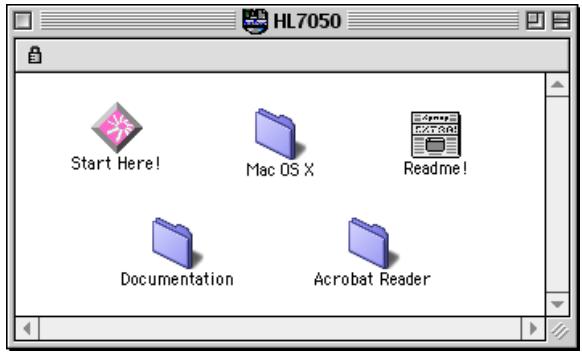
Figure 1 Typical Macintosh Installer
The above screenshot is from a Brother HL-7050 series printer driver. However, you will see a similar screen for all Brother printers that include a Macintosh printer driver.
How to Select the Print Server (AppleTalk/EtherTalk)
Once the print server is connected on your network and the printer is powered on, the Brother print server's AppleTalk service name (default is BRN_xxxxxx_P1_AT, where xxxxxx is the last six digits of the Ethernet address (MAC address) should appear in the Chooser.

You can find the service name and MAC address by printing out the printer configuration page. Refer to the Quick Setup Guide for information on how to print the configuration page on your print server.
1 Open the Chooser from the Apple Menu on the Macintosh, and then click on the LaserWriter icon (if necessary, select the appropriate AppleTalk zone from the Network Control Panel).
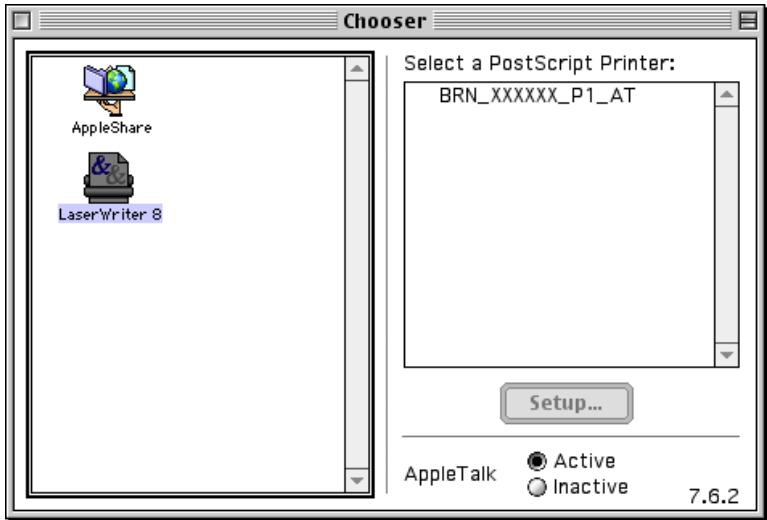
Figure 2 Macintosh Chooser
2 Click on the appropriate print server and close the Chooser program. You should now be able to print from the Macintosh.

If you cannot see the print server, first make sure that your cabling is correct and that you have enabled EtherTalk from your Macintosh Network Control Panel. You may also need to force the print server into the correct AppleTalk zone using the BRAadmin application or a web browser.
Apple has developed the "Desktop Printer" utility. This can be found from the Apple menu (this is only available from System 8.6 or later). When you run it you will see the following screen:
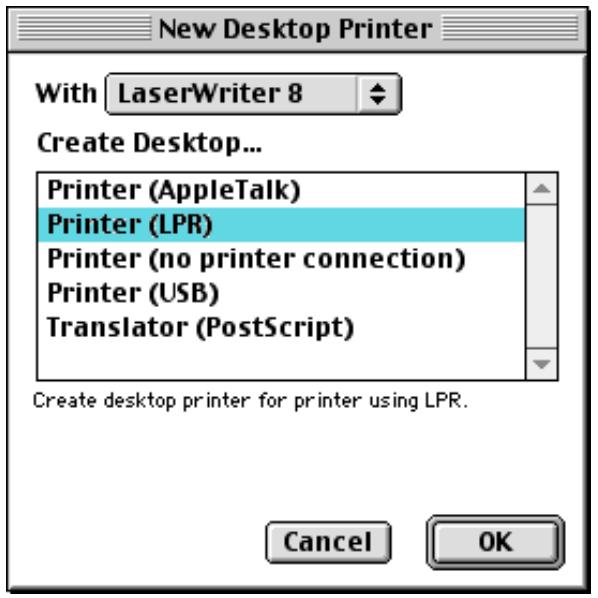
Figure 3 Selecting LPR Printing
1 Select the Printer (LPR) option and click OK. You will then see the following:
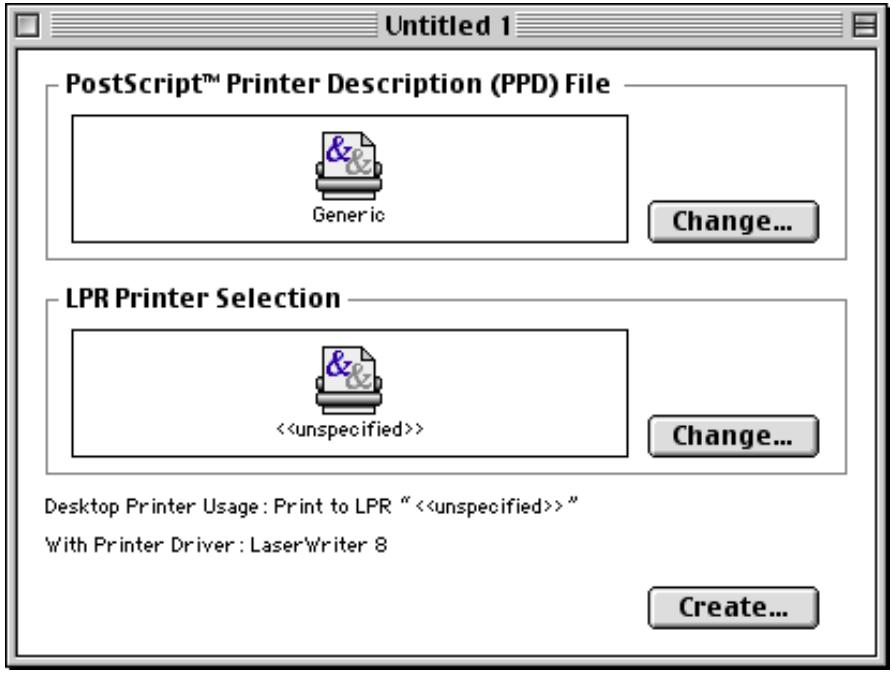
Figure 4 Selecting the PPD and LPR Configuration
2 At this point we must select the correct PPD file for the printer and also configure the correct LPR information. Click the Change button in the PostScript Printer Description (PPD) File section and select the appropriate PPD file for your model.
3 Now select the Change button below the LPR Printer Selection text.
4 You must then enter the IP address and service name details of the printer. When specifying the Queue, use the value brn_xxxxxx_p1_at where xxxxxx are the last 6 digits of the Ethernet address.
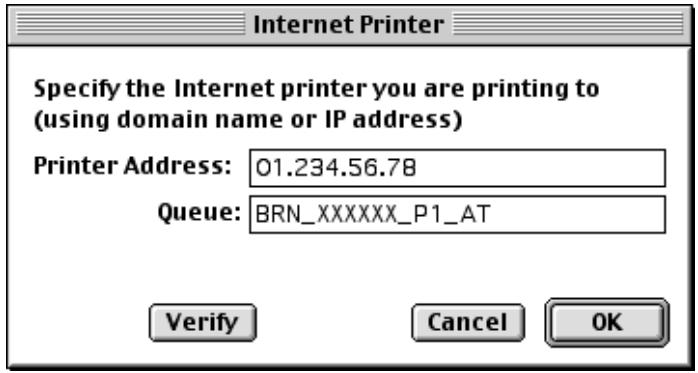
Figure 5 Entering the IP address and Queue

If you do not specify the correct value the printer may not print, or it may not print the data correctly. Please ensure that the value you enter here matches with the Service name of the printer.
5 Click OK to go back to the previous screen.
6 You are now ready to create the printer for use. To do that, click the Create button and you will see the following:
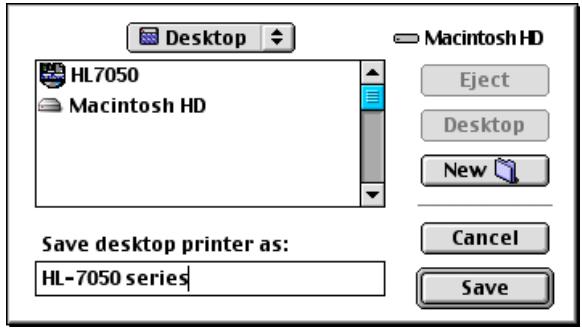
Figure 6 Saving the printer to the Desktop (screen shown is from the HL-7050)
7 Enter the name of the printer in the Save desktop printer As: option and click on Save.
8 We must now make this our default printer by clicking the printer name once and then select Printing and Set Default Printer.
Whenever you send a print job, the printer that you just created will be used.
The appropriate PPD file supplied with your printer must be installed. Insert the CD-ROM into the CD-ROM drive of your computer. Select the Mac OS X folder. Double click on the PPD_Installer.pkg icon and follow the on-screen instructions.
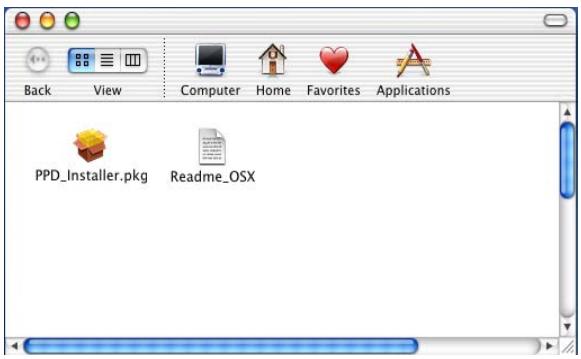
How to Select the Print Server (AppleTalk/EtherTalk)
After installing the PPD, use the following steps to select the printer driver:
1 Turn the power of the printer ON.
2 Open the Applications folder.
3 Open the Utilities folder.
4 Open the Print Center Icon.
5 Click the Add Printer button.
6 Select AppleTalk.
7 Select BRN_XXXXXX_P1_AT and click the Add button.
For AppleTalk connections, the printer's AppleTalk service name is BRN_XXXXXX_P1_AT, where XXXXXX is the last six digits of the Ethernet address.
Printing the configuration page will allow you to confirm the MAC address. Please refer to the Quick Setup Guide for information on how to print the configuration page.
8 From the Printer Model pull-down list select your model.
9 Click Add and the printer will be available from the Printer List.
How to Select the Print Server (TCP/IP)
After installing the PPD, use the following steps to select the printer driver:
1 Turn the power of the printer ON.
2 Open the Applications folder.
3 Open the Utilities folder.
4 Open the Print Center Icon.
5 Click the Add Printer button.
6 Select LPR Printers using IP.
7 Enter the TCP/IP address of the printer into the LPR Printer's Address box.
Printing the configuration page will allow you to confirm the TCP/IP address. Please refer to the Quick Setup Guide for information on how to print the configuration page.
8 If you are not using the default Queue enter the Queue name you are using.
9 From the Printer Model pull-down list select your model.
10 Click Add and the printer will be available from the Printer List.
From a Macintosh, the easiest way to change the printer or print server parameters is to use a web browser.
Simply connect to the printer using the format: http://ip_address where ip_address is the address of the printer.
Other Sources of Information
1 Visit http://solutions.brother.com/ for more information on network printing.
2 Refer to chapter 10 of this user guide to learn how to configure the IP address of the printer.
3 Refer to chapter 9 for more information on web-based management.
Printing from Windows® NT or Windows® 2000
Overview
DLC is a simple protocol that is included in Windows NT ^® and Windows ^® 2000 as standard. It can be used on other operating systems (such as Windows ^® 3.x) with the addition of vendor-supplied software that supports the Hewlett-Packard JetDirect card.
Quick Tips:
1 One way to print the details of all network settings is to print a configuration page. Refer to the Quick Setup Guide for information on how to print the configuration page.

Because DLC is a non-routable protocol, there cannot be a router between the print server and the sending computer.
Configuring DLC on Windows® NT/2000
To use DLC on Windows ^® NT, you must first install the DLC protocol.
1 Log into Windows® NT with administrative privileges. Go to the NT Control Panel and double click on the Network icon. Windows® 2000 users select the properties of the Local Area Connection.
2 On Windows ^® NT 3.5x systems, select Add Software. On Windows ^® NT 4.0 systems, click on the Protocol tab, and click Add. Windows ^® 2000 users click the Install button from the General tab.
3 Select DLC Protocol and then OK or Add if using Windows® 2000. You may be asked for the location of the files. For Intel based computers, the necessary files are stored in the i386 directory of the Windows® NT CD-ROM. If you have a non-Intel platform, specify the correct directory on your Windows® NT CD-ROM. Click Continue (for NT 3.5x systems) or Close (for NT 4.0 systems).
4 Reboot your system to make the change take effect. Windows® 2000 should not require a re-boot.
Windows® 2000 Printer Setup
1 Log into Windows® 2000 with administrative privileges. From the Start menu, select Settings and then Printers.
2 Select Add Printer (If you have already installed a Brother printer driver, double click the printer driver that you wish to configure and then select Printers/Properties, select the Ports tab, click on Add Port and continue from Step 6 (ignoring steps 11-14 about installing the correct driver)).
3 Click Next.
4 Select Local Printer and make sure that Automatically detect and install my Plug and Play printer is not checked.
5 Click Next.
6 Select the Create a new port: option and highlight Hewlett-Packard Network Port.
7 Click Next.
8 A list of available print server MAC addresses (Ethernet addresses) appears in the larger box under Card Address. Select the address of the desired print server (you can see the Ethernet address on the printer configuration page).

You can find the node name and MAC address by printing out the printer configuration page. Refer to the Quick Setup Guide for information on how to print the configuration page on your print server.
9 The selected print server address will then appear in the smaller box under Card Address.
10 Type in any desired name for the port (the name must not be the name of an existing port or DOS device, such as LPT1) and click OK then on the Printer Ports screen, click Next.
11 Select the correct driver click Next.
12 Give a name to the printer and specify if you wish to be able to print from DOS application. Then click Next.
13 Specify the share name (if you are going to share the printer).
14 Enter the Location and Comment information and click Next until you see the Completing the Add Printer Wizard screen.
15 Click Finish.
Windows® NT 4.0 Printer Setup
Log into Windows ^® NT with administrative privileges. From the Start menu, select Settings and then Printers.
1 Select Add Printer (If you have already installed a Brother printer driver, double click the printer driver that you wish to configure and then select Printers/Properties, select the Ports tab and continue from Step 4 (ignoring steps 9-11 about installing the correct driver)).
2 Select My Computer and then click Next.
3 Select Add a Port.
4 Select Hewlett-Packard Network Port and then click New Port.
5 A list of available print server MAC addresses (Ethernet addresses) appears in the larger box under Card Address. Select the address of the desired print server (you can see the Ethernet address on the printer configuration page).

You can find the node name and MAC address by printing out the printer configuration page. Refer to the Quick Setup Guide for information on how to print the configuration page on your print server.
6 The selected print server address will then appear in the smaller box under Card Address.
7 Type in any desired name for the port (the name must not be the name of an existing port or DOS device, such as LPT1) and click OK then on the Printer Ports screen, click Close.
8 The name you selected in the above step will appear as a checked port in the list of available ports. Click Next.
9 Select the correct driver. Click Next.
10 Give a name to the printer. If desired, select the printer as the default.
11 Select Shared or Not Shared. If shared, specify the share name and the operating systems that will be printing to it.
12 Select whether or not you want to print a test page, and then select Finish.
Windows® NT 3.5x Setup
1 From the Windows® NT Main group, double click on the Print Manager icon.
2 Select Printer from the menu bar and click on Create Printer.
3 Enter any desired name for the printer in the Printer Name box.
4 Select the printer model in the Driver menu.
5 Choose Other (or Network Printer for V3.1 systems) from the Print to menu.
6 Click on Hewlett-Packard Network Port.
7 Type in your desired name for the port (this name must not be an existing port or DOS device, such as LPT1).
8 The MAC addresses (Ethernet addresses) of available print servers will appear in the Card Address menu. Select the desired address (You can see the Ethernet address on the printer configuration page).

You can find the node name and MAC address by printing out the printer configuration page. Refer to the Quick Setup Guide for information on how to print the configuration page on your print server.
9 Click OK.
10 If you want to share the printer, click Share the Printer on the Network.
11 Click OK.
12 If necessary, select the appropriate printer options and then click OK.
Configuring DLC on Other Systems
To use DLC on other network systems, you will generally need vendor-supplied software. Typically such software will support the Brother print servers. Follow the vendor's instructions to install the DLC protocol on your system.
Once the protocol is installed, create a network port in the same way that you did for Windows® NT in the previous sections. The MAC address (Ethernet address) of the print server should automatically appear during the configuration process.
The final step is to create a printer using the normal operating system printer setup method. The only difference is that instead of connecting the printer to the LPT1 parallel port, you point it to the network port you just created.

Brother does not recommend using the DLC protocol with Windows® for Workgroups 3.11 in a peer-to-peer configuration if the printer will be heavily used. This is because jobs may be rejected due to print spooler timeouts. The best solution in these situations is to set up one PC as a server for handling network print jobs. All of the other PCs send their print jobs to the server PC using NetBEUI or TCP/IP, and the server PC then uses DLC to send the print jobs to the Brother print server.
Other Sources of Information
Visit http://solutions.brother.com/ for more information on network printing.
9 Web Based Management
How to use a Web Browser to manage your Device
Overview
A standard Web Browser (we recommend Netscape Navigator version 4.0 or later/Microsoft Internet Explorer version 5.0 or later) can be used to manage your printer using the HTTP (Hyper Text Transfer Protocol). You can get the following information from a printer on your network using a web browser:
1 Printer status information.
2 Take control of the printer's control panel.
3 Software version information of the printer and print server.
4 Change network and printer configuration details.
You must use the TCP/IP protocol on your network and have a valid IP address programmed into the print server and your computer.
Quick Tips:
1 The Automatic Private IP Addressing (APIPA) protocol automatically assigns an IP address from the range: 169.254.1.0 to 169.254.254.255. If you want to disable the APIPA protocol, see Chapter 3 "Network factory default setting" on page 3-11 of the User's Guide. If the APIPA protocol is disabled, the default IP address of a Brother print server is 192.0.0.192. To change it, use the printer control panel (if applicable), the BRAAdmin Professional, Web BRAAdmin software or let your DHCP server allocate an IP address to the printer.
2 Refer to chapter 10 of this user guide to learn how to configure the IP address on your printer.
3 The default password for Brother print servers is access.
4 You can use a web browser on most computing platforms, for example, Macintosh and Unix users are also able to connect to the printer and manage it.
5 You can also use the BRAmin application to manage the printer and its network configuration.
How to connect to your printer using a Browser
Type http://printer's IP Address / into your browser (you can also use the NetBIOS name of the print server, if you are in a Microsoft Windows domain/Workgroup environment). Enter the DNS name of the printer if connecting to a network that uses the DNS protocol.
Other Sources of Information
1 Visit http://solutions.brother.com/ for more information on network printing.
2 Refer to chapter 10 of this user guide to learn how to configure the IP address of the printer.
10 TCP/IP Configuration
Assigning TCP/IP Information
Overview
The TCP/IP protocol requires that each device on the network have it's own unique IP address. Use the following information to learn about IP address configuration.
The Automatic Private IP Addressing (APIPA) protocol automatically assigns an IP address from the range: 169.254.1.0 to
169.254.254.255. If you want to disable the APIPA protocol, see Chapter 3 "Network factory default setting" on page 3-11 of the User's Guide. If the APIPA protocol is disabled, the default IP address of a Brother print server is 192.0.0.192.
However, you can easily change this IP address number to match with the IP address details of your network. This can be done in any of the following ways:
From your printer's control panel settings (if your printer has an LCD panel).
■ BRAdmin application (for Windows ^® 95/98/Me, Windows NT ^® 4.0 and Windows ^® 2000/XP, using the IPX/SPX or TCP/IP protocols).
DHCP, APIPA, Reverse ARP (rarp) or BOOTP.
The ARP command.
■ Brother BRCONFIG NetWare utility (a Novell Network is necessary).
The printer's control panel.
TELNET.
- HTTP (Web browser).
■ Other SNMP based management utility.
These configuration methods are described in the following paragraphs.

The IP address you assign to the print server must be on the same logical network as your host computers. If it is not, you must properly configure the subnet mask and the router (gateway).
Using the printer control panel to allocate an IP address (printers with LCD panels only)
Refer to the Quick Setup Guide for details on how to configure IP address information using the printer control panel. By using the control panel on the printer, you can program the IP address details at the same time that other printer parameters are configured.
Changing the IP Address using the BRAmin application

Please use BRAdmin Professional version 1.59 or later.
Start the BRAmin application (from Windows ^® 95/98/Me, Windows NT ^® 4.0 and Windows ^® 2000/XP).
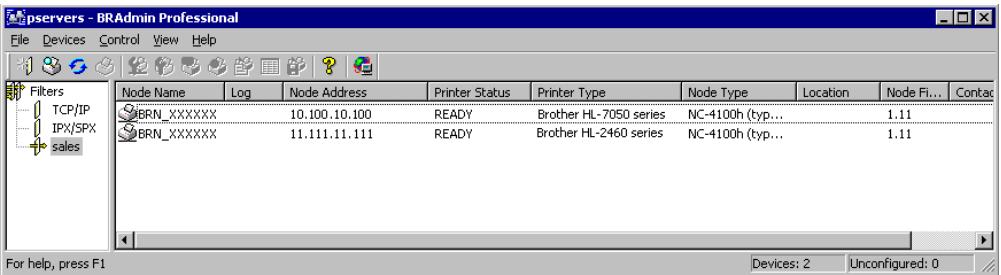
The BRAdmin application can use the IPX/SPX or TCP/IP protocols to communicate with the Brother print server.
If you wish to use the TCP/IP protocol to manage the print server make sure that the print server has a valid IP address. There are two ways to change the IP address using the BRAadmin Professional software:
■ Use the IPX/SPX protocol.
Use the TCP/IP protocol and let BRAdmin find the Brother print server as an unconfigured device.
Using BRAdmin and the IPX/SPX Protocol to set the IP address
If your PC is using the Novell Netware Client software and is using the IPX/SPX protocol, do the following:
1 Select IPX/SPX filter in the left frame of the main window.
2 Check the print server name (the default node name is BRN_xxxxxx, where xxxxxx is the last six digits of the Ethernet address (MAC address)).
If you cannot find your server name, select the Device menu and choose Search Active Devices (you can also press the F4 key) and try again.

You can find the node name and MAC address by printing out the printer configuration page. Refer to the Quick Setup Guide for information on how to print the configuration page on your print server.
3 Select the print server that you wish to configure and double click it. You will be asked for a password. The default password is access.
4 Select the TCP/IP tab and set the IP address, Subnet mask and Gateway as needed.
5 In the IP Config box, click the Static radio button.
6 Click OK.
Restart the print server by using BRAdmin, Web Browser or TELNET. If you are not sure how to restart the print server, you may simply turn the printer's power switch off, and then switch it on.
Using BRAdmin and the TCP/IP Protocol to set the IP address
If your PC is using the TCP/IP protocol, do the following:
1 Select TCP/IP filter in the left frame of the main window.
2 Select the Device menu and choose the Search Active Devices.

If the print server is set to its factory default settings, it will not appear in the BRAmin screen. However, selecting the Search Active Devices option will force the BRAmin software to find the device as an unconfigured device.
3 Select the Device menu and choose Setup Unconfigured Device.
4 Select the MAC address of your print server and click the Configure button.
You can find the node name and MAC address by printing out the printer configuration page. Refer to the Quick Setup Guide for information on how to print the configuration page on your print server.
5 Enter the IP address, Subnet mask and Gateway (if needed) of your print server.
6 Click OK then select Close.
7 With the correctly programmed IP address, you will see the Brother print server in the device list.
The Dynamic Host Configuration Protocol (DHCP) is one of several automated mechanisms for IP address allocation. If you have DHCP Server in your network (typically a Unix/Linux, Windows NT ^® 4.0, Windows ^® 2000 or Novell Netware network) the print server will automatically obtains its IP address from DHCP server and register its name with any RFC 1001 and 1002-compliant dynamic name services.

If you do not want your print server configured via DHCP, BOOTP or RARP, you must set the BOOT METHOD to static so that the print server has a static IP address. This will prevent the print server from trying to obtain an IP address from any of these systems. To change the BOOT METHOD, use the printer's control panel (for those printers that have a LCD panel), TELNET (using the SET IP METHOD command), a Web browser or by using the BRAadmin application.
Using APIPA to Configure the IP Address
With Automatic Private IP Addressing (APIPA), DHCP clients automatically configure an IP address and subnet mask when a DHCP server is not available. The device chooses it's own IP address in the range 169.254.1.0 through to 169.254.254.255. The subnet mask is automatically set to 255.255.0.0 and the gateway address is set to 0.0.0.0.
By default, the APIPA protocol is enabled.
If you are unable to use the BRAadmin application or the printer's control panel and your network does not use a DHCP server, you can also use the ARP command. The ARP command is available on Windows® systems that have TCP/IP installed as well as Unix systems. To use arp enter the following command at the command prompt:
arp -s ipaddress ethernetaddress
Where ethernetaddress is the Ethernet address (MAC address) of the print server and ipaddress is the IP address of the print server. For example:
Windows® Systems
Windows® Systems require the colon ":" character between each digit of the Ethernet address.
arp -s 192.189.207.2 00:80:77:31:01:07
Unix/Linux Systems
Typically, Unix systems require the hash "-" character between each digit of the Ethernet address.
arp -s 192.189.207.2 00-80-77-31-01-07

You must be on the same Ethernet segment (that is, there cannot be a router between the print server and operating system) to use the arp -s command.
If there is a router, you may use BOOTP or other methods described in this chapter to enter the IP address.
If your Administrator has configured the system to deliver IP addresses using BOOTP, DHCP or RARP your Brother print server can receive an IP address from any one of these IP address allocation systems. In which case, you will not need to use the ARP command. The ARP command only works once. For security reasons, once you have successfully configured the IP address of a Brother print server using the ARP command, you cannot use the ARP command again to change the address. The print server will ignore any attempts to do this. If you wish to change the IP address again, use a Web Browser, TELNET (using the SET IP ADDRESS command) the printer's control panel (if your printer has an LCD panel) or factory reset the print server (which will then allow you to use the ARP command again).
To configure the print server and to verify the connection, enter the following command ping ipaddress where ipaddress is the IP address of the print server. For example, ping 192.189.207.2.
The Brother print server's IP address can be configured using the Reverse ARP (rarp) facility on your host computer. This is done by editing the /etc/ethers file (if this file does not exist, you can create it) with an entry similar to the following:
00:80:77:31:01:07 BRN_310107
Where the first entry is the Ethernet address of the print server and the second entry is the name of the print server (the name must be the same as the one you put in the /etc/hosts file).
If the rarp daemon is not already running, start it (depending on the system the command can be rarpd, rarpd -a, in.rarpd -a or something else; type man rarpd or refer to your system documentation for additional information). To verify that the rarp daemon is running on a Berkeley UNIX-based system, type the following command:
ps -ax | grep -v grep | grep rarpd
For AT&T UNIX-based systems, type:
ps -ef | grep -v grep | grep rarpd
The Brother print server will get the IP address from the rarp daemon when the printer is powered on.
BOOTP is an alternative to rarp that has the advantage of allowing configuration of the subnet mask and gateway. In order to use BOOTP to configure the IP address make sure that BOOTP is installed and running on your host computer (it should appear in the /etc/services file on your host as a real service; type man bootpd or refer to your system documentation for information).
BOOTP is usually started up via the /etc/inetd.conf file, so you may need to enable it by removing the "#" in front of the bootp entry in that file. For example, a typical bootp entry in the /etc/inetd.conf file would be:
bootp dgram udp wait /usr/etc/bootpd bootpd -i
Depending on the system, this entry might be called "bootps" instead of "bootp".

In order to enable BOOTP, simply use an editor to delete the "#" (if there is no "#", then BOOTP is already enabled). Then edit the BOOTP configuration file (usually /etc/bootptab) and enter the name, network type (1 for Ethernet), Ethernet address and the IP address, subnet mask and gateway of the print server. Unfortunately, the exact format for doing this is not standardized, so you will need to refer to your system documentation to determine how to enter this information (many UNIX systems also have template examples in the bootptab file that you can use for reference). Some examples of typical /etc/bootptab entries include:
BRN_310107 1 00:80:77:31:01:07 192.189.207.3
and:
BRN_310107:ht=ethernet:ha=008077310107:\ip=192.189.207.3:
Certain BOOTP host software implementations will not respond to BOOTP requests if you have not included a download filename in the configuration file; if this is the case, simply create a null file on the host and specify the name of this file and its path in the configuration file.
As with rarp, the print server will load its IP address from the BOOTP server when the printer is powered on.
Configuring the IP Address with BRCONFIG
Users of Novell networks have additional alternatives for configuring the IP address of Brother print servers by using the remote console facility.
On a NetWare network, you can use the BRCONFIG utility which is included with every print server.
Execute BRCONFIG from the Windows® menu. Select the corresponding server name from the list of print servers. When you get the message that the print server is connected, type the default password access in response to the “#” prompt.
You will be prompted for a user name. Enter anything in response to this prompt.
You will then get the Local> prompt. Type SET IP ADDRESS ipaddress, where ipaddress is the desired IP address you wish to assign to the print server (check with your network manager for the IP address to use). For example:
Local> SET IP ADDRESS 192.189.207.3
You will now need to set the subnet mask by typing SET IP SUBNET subnet mask, where subnet mask is the desired subnet mask you wish to assign to the print server (check with your network manager for the subnet mask to use). For example:
Local> SET IP SUBNET 255.255.255.0
If you do not have any subnets, use one of the following default subnet masks:
| 255.255.255.0 | for class C networks |
| 255.255.0.0 | for class B networks |
| 255.0.0.0 | for class A networks |
The leftmost group of digits in your IP address can identify the type of network you have. The value of this group ranges from 192 through 255 for Class C networks (e.g., 192.189.207.3), 128 through 191 for Class B networks (e.g., 128.10.1.30), and 1 through 127 for Class A networks (e.g., 13.27.7.1).
If you have a gateway (router), enter its address with the command SET IP ROUTER routeraddress, where routeraddress is the desired IP address of the gateway you wish to assign to the print server. For example:
Local> SET IP ROUTER 192.189.207.1
Type SET IP METHOD STATIC to set the method of IP access configuration to static.
To verify that you have entered the IP information correctly, type SHOW IP.
Type EXIT or CTR-D (i.e., hold down the control key and type "D") to end the remote console session.
Changing the IP Address settings with the TELNET Console
You can also use the TELNET command to change the IP address.
Using TELNET is effective way, when you change the IP address. But a valid IP address must already be programmed into the print server.
If you are using the TELNET, you will be expected to enter the password of the print server. Press RETURN and enter the default password of access in response to the "#" prompt (it will not echo).
You will be prompted for a user name. Enter anything in response to this prompt.
You will then get the Local> prompt. Type SET IP ADDRESS ipaddress, where ipaddress is the desired IP address you wish to assign to the print server (check with your network manager for the IP address to use). For example:
Local> SET IP ADDRESS 192.189.207.3
You will now need to set the subnet mask by typing SET IP SUBNET subnet mask, where subnet mask is the desired subnet mask you wish to assign to the print server (check with your network manager for the subnet mask to use). For example:
Local> SET IP SUBNET 255.255.255.0
If you do not have any subnets, use one of the following default subnet masks:
| 255.255.255.0 | for class C networks |
| 255.255.0.0 | for class B networks |
| 255.0.0.0 | for class A networks |
The leftmost group of digits in your IP address can identify the type of network you have. The value of this group ranges from 192 through 255 for Class C networks (e.g., 192.189.207.3), 128 through 191 for Class B networks (e.g., 128.10.1.30), and 1 through 127 for Class A networks (e.g., 13.27.7.1).
If you have a gateway (router), enter its address with the command SET IP ROUTER routeraddress, where routeraddress is the desired IP address of the gateway you wish to assign to the print server. For example:
Local> SET IP ROUTER 192.189.207.1
Type SET IP METHOD STATIC to set the method of IP access configuration to static.
To verify that you have entered the IP information correctly, type SHOW IP.
Type EXIT or CTR-D (i.e., hold down the control key and type "D") to end the remote console session.
Visit http://solutions.brother.com/ for more information on TCP/IP protocol.
Overview
This chapter describes procedures for troubleshooting problems you may encounter with a Brother print server, it is divided into the following sections:
1 Installation Problems
2 Intermittent Problems
3 Protocol-Specific Troubleshooting
Installation problems
If you cannot print over the network, check the following:
1 Make sure that the printer is powered on, is on-line and ready to print.
Verify that the printer and the configuration are good by printing the printer settings page. Refer to the Quick Setup Guide. If the test fails, check:
a If the LED is not blinking after connected to the network, then the network firmware settings may be corrupted. Please refer to Step 3.
b In this event, try to restore the factory default settings of the print server. To learn how to reset the print server, see Chapter 3 "Network factory default setting" on page 3-11 of the User's Guide. Once you have done that, switch the printer off and then on again, and try to print out the configuration page.
2 If the configuration page prints but you cannot print documents, try the following

If none of the following steps are successful, there is almost certainly a hardware or network problem!
a If you are using TCP/IP:
Try pinging the print server from the host operating system command prompt with the command:
ping ipaddress
Where ipaddress is the print server IP address (note that in some instances it can take up to two minutes for the print server to load its IP address after setting the IP address). If a successful response is received, then proceed to the UNIX, TCP/IP Windows® NT/LAN Server, Windows®98/95/Me Peer to Peer (LPR), Internet Printing or Web Browser troubleshooting section. Otherwise, proceed to step 3, and then go to TCP/IP Troubleshooting section.
b If you are using Novell system:
Verify that the print server can be seen on the network. To do this, login as the SUPERVISOR (not as someone with supervisor privileges) or ADMIN (for Netware 4 or later servers), go into PCONSOLE or NWADMIN, select PRINT SERVER INFORMATION, and select the name of the print server (make sure that you have entered the print server name). If you can see Print Server Status and Control in the menu, then the Brother print server is visible to the network, proceed to the Novel NetWare Installation Troubleshooting Section. Otherwise, go to step 3.
c If you are running AppleTalk for Macintosh:
Make sure that you can see the print server name under the LaserWriter 8 icon in the Chooser. If it is visible, then the connection is good, so proceed to the AppleTalk for Macintosh Section. Otherwise, go to step 3.
If you use the Rendevous function, please visit the Brother Solutions Center web site on: http://solutions.brother.com
3 If you cannot make any of the connections in step 2, check the following:
a Make sure the printer is powered on and on-line.
b Check the cabling, network connection, and print out a configuration page in the Network STATISTICS information to see if bytes are being transmitted and received.
c Check to see if there is any LED activity.
The NC-5100h print server has two LEDs on the back panel of the printer. The upper side LED shows Link/Speed status. The lower side LED shows Activity (Receive/Transmit) status.
No light:
If the both of two LEDs are off, then the print server is not connected to the network.
■ Link/Speed LED is orange: Fast Ethernet The Link/Speed LED will be orange if the print server is connected to a 100BaseTX Fast Ethernet network.
- Link/Speed LED is green: 10BaseT Ethernet
The Link/Speed LED will blink if the print server is receiving or transmitting data.
4 If you are using a repeater or hub, make sure that SQE (heartbeat) is turned off at the hub (if applicable). Also, if you have a hub or multi-port repeater, verify that the hub or repeater port is good by trying the print server on a different port or on the other hub or multi-port repeater.
5 If you have a bridge or router located between the print server and host computer, make sure that the device is set up to allow the print server to send and receive data from the host. For example, a bridge can be set up to only allow certain types of Ethernet addresses to pass through (a process known as filtering); therefore, such a bridge must be configured to allow Brother print server addresses. Likewise, a router can be set up to pass only certain protocols, so be sure that the desired protocol can be passed through to the print server.
6 If the job exits the queue but does not print, make sure that you are not trying to print a text job to a PostScript printer. If you have a printer that is capable of automatic language switching, make sure that the printer is not forced into PostScript mode.
Intermittent Problems
If the print server and printer start up OK, but you intermittently have problems printing, check the following:
1 If you can print small jobs but large graphics jobs are distorted or incomplete, make sure that you have adequate memory in your printer and the latest printer driver installed on your computer. The latest Brother printer drivers can be downloaded from http://solutions.brother.com
2 Check the individual protocol troubleshooting sections in this chapter for additional causes of intermittent printer problems.
TCP/IP Troubleshooting
If you are using TCP/IP and cannot print to the print server and you have checked the hardware and network as described in the previous steps, then check the following:

It is always a good idea to try following in order to eliminate the possibility of setup errors.
Turning off the printer and then again, Deleting and recreating the print server and creating a new print queue in order to eliminate the possibility of setup errors.
1 The problem may be the result of mismatched or duplicate IP address. Verify that the IP address is correctly loaded into the print server (via the configuration page. Make sure that no other nodes on the network have this address (DUPLICATE IP ADDRESS ARE THE BIGGEST CAUSE OF TCP/IP PRINTING PROBLEMS).
2 If you used BRCONFIG, NCP or to enter the IP address, make sure that you exited the remote console properly with a CTRL-D or EXIT and that you turned the printer off and then again (it may take up to two minutes for the IP address to take effect).
3 Make sure that the TCP/IP protocol of the print server is enabled.
4 If you used rarp, make sure that you started the rarp daemon on any workstation using the rarpd, rarpd-a, or equivalent command. Verify that the /etc/ethers file contains the correct Ethernet address and that the print server name matches the name in the /etc/hosts file.
5 If you used bootp, make sure that you started the bootp daemon on any UNIX workstation and bootp is enabled (i.e., the "#" is removed from the bootp entry) in the /etc/bootptab file is correctly configured.
6 Also verify that host computer and the print server are either on the same subnet, otherwise that the router is properly configured to pass data between the two devices.
UNIX Troubleshooting
1 Make sure that the /etc/printcap file (if applicable) is typed in correctly. In particular, look for missing ":" and "\" characters, because a small error anywhere in the file can have major consequences. Also check the /usr/spool directory to make sure that you have created a valid spool directory.
2 If you are using a Linux operating system, the X-Window Print tool program that is included with Linux may not properly configure the etc/printcap file for lpd operation, then you might also edit the etc/printcap file and change the following line in the entry for the printer.
if
:lp = /dev/null: \
then to
:lp = :\
3 If you are using a Berkeley-based UNIX, make sure that the daemon is started on Berkeley based systems with the command lpc start printer, where printer is the name of the local print queue.
4 If you are using an AT&T-based UNIX, make sure the printer is enabled (enable printer, where printer is the name of the local print queue).
5 Make sure that the lpr/lpd remote line printer service are running on the host computer (refer to your host computer documentation for information on how to do this).
6 If you are having trouble printing more than one job at a time, try increasing the IP timeout using the SET IP TIMEOUT command or using BRAAdmin.
7 If text or PCL jobs are run together, try setting the service (remote printer) with EOT set to string number 2 (
SET SERVICE BRN_xxxxxx_P1 EOT 2
8 If PostScript jobs fail to print or are run together, try setting the service (remote printer) with EOT set to string number 3 (control-D). For example:
SET SERVICE BRN_xxxxxx_P1 EOT 3
9 If the lines of a text file are staggered, make sure that you have specified a remote printer (rp) name of TEXT in your /etc/printcap file.
10 If you are using Sun Solaris V2.4 or earlier, there is a bug which causes long print jobs to fail when using a print server. If you are having trouble printing long jobs (over 1MB), add the line mx#0 to your etc/printcap file entry.
11 If you cannot print from DEC TCP/IP Service for VMS (UCX), make sure that you have version 2.0B or later of this software, because earlier versions will not work with Brother print servers.
If you are having trouble printing with Windows ^® NT or LAN Server, check the following:
1 Make sure that TCP/IP and TCP/IP print service are installed and running on the Windows® NT system or the LAN Server file server.
2 If you are using DHCP and you have not created a reservation for the print server, make sure that you enter the NetBIOS name of the print server in the Name or address of server providing lpd box.
Windows® 95/98/Me Peer to Peer Print (LPR) Troubleshooting
If you are having trouble printing on a Windows ^® 95/98/Me Peer-to-Peer network (LPR method), check the following:
1 Make sure that the Brother LPR Port driver is correctly installed and configured according to the Windows® 95/98/Me Peer-to-Peer chapters.
2 Try to turn the Byte Count on in the Configure port area of printer driver properties.
You may find that during the installation of BLP software, the screen that prompts you for a Port name is not displayed. This may happen on some Windows ^® 95/98/Me computers. Press the ALT and TAB keys to make it appear.
Windows® 95/98/Me Peer-to-Peer (HP JetAdmin compatible method) Troubleshooting
If you are having trouble printing on a Windows® 95/98/Me Peer-to-Peer network, check the following (HP JetAdmin compatible method):
1 If the print server does not show up under JetAdmin on a Windows® 95/98/Me Peer-to-Peer network, try removing all of the Windows® 95/98/Me network software from the Network Control panel and then reinstalling them as follows:
First install the IPX/SPX-Compatible Protocol (or the TCP/IP protocol if you are using a later version of JetAdmin), the Client for Microsoft Networks, and the network adapter card driver.
■ Install the Latest HP JetAdmin software.
■ Restart the system, and then add the HP JetAdmin service.
Windows® 95/98/Me/NT 4.0 Peer-to-Peer Print (NetBIOS) Troubleshooting
If you are having trouble printing on a Windows ^® 95/98/Me/NT 4.0 (or later) Peer-to-Peer network (NetBIOS), check the following:
1 Make sure that the Brother NetBIOS Port driver is securely installed and configured according to the Windows® 95/98/Me/NT 4.0 Peer-to-Peer (NetBIOS) chapters. You may find that during the installation of the port driver, the screen that prompts you for a Port name is not displayed. This happens on some Windows® 95/98/Me/NT 4.0 computers. Press the ALT and TAB keys to make it appear.
2 Make sure that the print server is configured to be in the same workgroup or domain as the rest of your computers. It may take several minutes for the print server to appear in the network neighborhood.
1 The first step in troubleshooting is to make sure that you have a valid E-mail connection on both the sending PC and the receiving print server. Try sending an E-mail message from the PC to a user at the remote site who can receive mail via the POP3 server. If this does not work, there may be an E-mail configuration problem on the PC, on the local E-mail server, or on the remote POP3 server. Double check to make sure that the E-mail parameters that you configured on the PC and on the remote print server match those that are configured on the E-mail servers.
2 If you can print small files OK but are having problems printing large files, the problem may be in the e-mail system! Some E-mail systems have difficulties printing large files. If the file does not reach its destination intact, then the problem is with the E-mail system.
3 You can also enable the partial e-mail print facility on your client PC, this will split the e-mail up into fragments which should then not overwhelm your e-mail server. To do this, select the property dialog of the Brother Internet Print Port.
Windows® 95/98/Me/2000/XP IPP Troubleshooting
Want to use a different Port number other than 631
If you are using Port 631 for IPP printing, you may find that your firewall may not let the print data through. If this is the case, use a different port number (port 80), or configure your Firewall to allow Port 631 data through.
To send a print job using IPP to a printer using Port 80 (the standard HTTP port) enter the following when configuring your Windows® 2000/XP system.
http://ip_address/ipp
Get More Info option in Windows® 2000 not working If you are using a URL of:
http://ip_address:631 or http://ip_address:631/ipp, the Get More Info option in Windows® 2000 will not function. If you wish to use the Get More Info option use the following URL:
http://ip_address
This will then force Windows ^® 2000/XP to use Port 80 to communicate with the Brother print server.
Windows ^® 95/98/Me clients not able to get the driver from a Windows ^® 2000/XP system.
You must be using version 4.0 or later of Internet Explorer and the Microsoft Internet Print Services software must be installed on your client computers.
Novell NetWare Troubleshooting
If you cannot print from NetWare and you have checked the hardware and network as described in the previous steps, first verify that the Brother print server is attached to the server queue by going to PCONSOLE, selecting PRINT QUEUE INFORMATION, and then CURRENTLY ATTACHED SERVERS. If the print server does not appear in the list of attached servers, then check the following:

It is always a good idea to try followings in order to eliminate the possibility of setup errors.
■ Turning off the printer and then on again to force to rescan the Netware queue.
- Deleting and recreating the print server and creating a new print queue in order to eliminate the possibility of setup errors.
1 If you changed the login password, you must change the password in both the Brother print server (using the SET NETWARE PASSWORD command if you are using the BRConfig software) or by using a web browser or the BRAmin application and in the file server (using the PCONSOLE Print Server Information Change Password command).
2 If you created the print queue using PCONSOLE and instead of BRAAdmin, make sure that you have enabled at least one NetWare file server using the SET NETWARE SERVER servername ENABLED command.
3 Have you exceeded your NetWare user limit?
4 Make sure that the print server name you used in PCONSOLE exactly matches the name that is configured in the print server, and make sure it is defined as a Queue Server for the print queue.
5 If you are running both 802.3 and Ethernet II frames on different file servers on your network, there is a possibility that the print server may not make a connection to the desired file server. Try forcing the frame type to the desired one using the SET NETWARE FRAME command from the print server remote console or using BRAmin.
6 If you are using DOS CAPTURE statement and losing portions of your print job, try setting the TIMEOUT parameter in your CAPTURE statement to a higher value (at least 50 seconds for Windows®).
AppleTalk Troubleshooting
If you cannot print from an AppleTalk for Macintosh computer and you have checked the hardware and network as described in the previous steps, then check the following:
1 Make sure that you are running Phase 2 AppleTalk and that you have selected the correct network interface from the AppleTalk Control Panel on the Macintosh.
2 Make sure that the AppleTalk protocol of the print server is enabled.
3 If you have a large network, make sure that you have the Laser Writer V8.xx or equivalent driver, since earlier versions may cause PostScript errors. Also, verify that you get the correct printer information when you select Printer Info from the Setup button in the Chooser.
4 Make sure that you have selected the correct Printer Description File (PPD) from the Chooser (otherwise PostScript errors may result).
5 Verify that you have selected the correct AppleTalk zone. Because the print server gets its zone information from router broadcasts, it may not be in the zone you expect, and will therefore not show up in the Chooser. If this is the case, you may need to force the zone name using BRAdmin, a web browser or the SET APPLETALK ZONE command from TELNET.
DLC/LLC Troubleshooting
If you are having trouble printing with DLC/LLC, check the following:
1 Make sure that the DLC/LLC protocol is enabled using either BRAAdmin, a web browser or TELNET.
2 Make sure that the MAC address of the Windows® setting is the same as shown in the print configuration page printout.
Web Browser Troubleshooting (TCP/IP)
1 If you can not connect to the print server using your web browser it may be worth checking the Proxy Settings of your browser. Look in the Exceptions setting and if necessary, type in the IP address of the print server. This will stop your PC from trying to connect to your ISP or proxy server every time you wish to look at the printer server.
2 Make sure that you are using the proper Web Browser, we recommend Netscape Navigator version 4.0 or later/ Microsoft Internet Explorer version 4.0 or later.
Appendix A
General Information
You can change the configuration of your print server using any of the following methods.
- Brother BRAdmin application for Windows® 95/98/Me, Windows NT® 4.0 and Windows® 2000/XP
- Brother Web BRAmin application for IIS*
- HTTP (using a web browser)
- WebJetAdmin Software
• TELNET (command utility) - Brother BRCONFIG NetWare Utility (command utility)
BRAdmin (Recommended)
The Brother BRAadmin application can use the TCP/IP or IPX/SPX protocol. This utility allows you to graphically manage aspects of the network and printer. It can also be used to upgrade the firmware of the print server.
Web BRAadmin
The Web BRAadmin software is designed to manage all LAN/WAN Brother network connected devices. By installing the Web BRAadmin server software on a computer running IIS*, Administrators with a Web browser can connect to the Web BRAadmin server, which then communicates with the device itself. Unlike the BRAadmin Professional software - which is designed for Windows® systems only - the Web BRAadmin server software can be accessed from any client computer with a web browser that supports Java.
Please note this software may not be included on the CD-ROM that was supplied with your Brother product. If it was not, please visit http://solutions.brother.com/webbradmin to learn more about this software and to download it.
IIS* = Internet Information Server 4.0 or 5.0
HTTP (Recommended)
Use your favorite web browser to connect to the Brother print server. This will allow you to configure printer and/or print server parameters.
WebJetAdmin
Brother's print server range is HP WebJetAdmin compatible.
TELNET
To connect to the print server using TELNET on UNIX, Windows NT, or most other TCP/IP systems, type: TELNET ipaddress at the command prompt of the system prompt, where ipaddress is the IP address of the print server. When you are connected, push RETURN or ENTER to get the "#" prompt, enter the password access (the password will not appear on the screen), and type anything in response to the Enter Username> prompt. When you see the Local> prompt, you are ready to enter commands.
Enter HELP at the command prompt for a list of supported commands.
BRCONFIG
The Brother BRCONFIG utility runs from the DOS system prompt and is installed with BRAdmin. To connect the print server using the Brother BRCONFIG NetWare utility, choose the BRCONFIG utility from the Brother BRAdmin utilities menu. If you have only one print server, you will be immediately connected to that server. If you have more than one print server, you will be given a list of available print servers. Type the number of the print server to which you wish to connect. When you are connected, enter the password access (the password will not appear on the screen) at the "#" prompt, and type anything in response to the Enter Username> prompt. When you get the Local> prompt, you are ready to enter commands. To use BRCONFIG, a Novell Server (running the IPX protocol) is necessary and an active connection must be made to the server.
Enter HELP at the command prompt for a list of supported commands.
General
A service is a resource that can be accessed by computers that wish to print to the Brother print server. The Brother print server provides the following predefined services (do a SHOW SERVICE command in the Brother print server remote console to see a list of available services): Enter HELP at the command prompt for a list of supported commands.
| Service (Example) | Definition |
| BINARY_P1 | TCP/IP binary, NetBIOS service. |
| TEXT_P1 | TCP/IP text service (adds carriage return after each line feed). |
| POSTSCRIPT_P1 | PostScript service (switches PJL-compatible printer to PostScript mode). |
| PCL_P1 | PCL service (switches PJL-compatible printer to PCL mode). |
| BRN_xxxxxx_P1_AT | AppleTalk and LPD service for Mac OS 8.6 or later. |
| BRN_xxxxxx_P1 | NetWare service (TCP/IP is enabled for backwards compatibility). |
Where xxxxxx is the last six digits of the Ethernet address (for example, BRN_310107_P1).
Reloading the Print Server Firmware
General
The firmware on the print server is stored in flash memory. This means that you can upgrade the firmware by downloading the appropriate update file. To get the latest firmware update, visit the Brother Solutions web site at http://solutions.brother.com/

Some software versions that we provide will automatically factory reset your print server parameters. We try to avoid doing this. However, if we add a significant new feature to our print server, it can result in the print server being factory reset.
Because of this, we STRONGLY recommend that you make a note of the current print server configuration before you upgrade. To do this, print out a configuration page (refer to your Quick Setup Guide for information on how to print a configuration page).
There are three methods of upgrading the firmware in your Brother print server:
1 Use the BRAadmin application (Recommended)
2 Use the FTP protocol (Recommended if running on Macintosh or Unix network)
3 Use another system (such as a Novell or Unix system to send the new firmware file to the print server).
The BRAdmin application can be used to easily re-program your Brother print server.
1 Start BRAmin.
2 Highlight the appropriate print server. Then press select the Control menu and choose Load Firmware. You can select more than one print server by pressing CTRL+
There are three possible ways of sending the new software version to the print server. For whichever method you select, you must enter a password for the print server. The default password for the print server is access.
3 TFTP PUT from this host
Use this method if you have TCP/IP already installed on your PC. BRAmin will use the TFTP protocol to send the new firmware data to the print server.
4 TFTP GET from a server
If you have a TFTP server installed in your network (many Unix systems provide TFTP support), you may wish to use this option. The new firmware file must be located in the TFTP BOOT directory on your TFTP server. In this case, your PC makes the print server read the firmware data from the assigned TFTP server. If you do not provide the correct file name, then the upgrade will fail. You must also ensure that the firmware file is set so that the print server can read the file. On Unix systems you can use the chmod command to specify file attributes. For example, chmod filename 666 allows the filename to be accessed by anyone. Also make sure that the TFTP service is running on your Unix server.
5 Netware GET from a server
You must have a Netware server on your network (running IPX/SPX) and you must store the new firmware file in the SYS/Login directory of the server. In this case, your PC makes the print server read the firmware data from the assigned Netware server, the print server attaches to the Netware server and reads the firmware itself.
The Data LED on the printer control panel will blink during the firmware file loading process. During programming process, the backlight on the printer's LCD goes off, and Erase xxxxxx and Write xxxxxx will be indicated alternately on the LCD. After the firmware update is completed, the printer will re-start automatically. DO NOT TURN OFF THE PRINTER DURING THESE PROCESSES.
If the Data LED does not stop blinking after about two minutes, check to make sure that you correctly entered all parameters and that your network connections are good. Then power the print server/printer off and then on again, to retry the download.

If you encounter problems upgrading the firmware and you find that the network portion of the printer no longer functions, you should try re-programming the print server by using the COPY command from the DOS prompt of your PC. To do this, connect a parallel cable between your PC and printer and use the command COPY filename LPT1:/B (where filename is the new firmware file).
Reloading using the FTP Protocol from a command prompt
By specifying the print server PASSWORD AS THE USERNAME when logging on, it becomes possible to upgrade the firmware of the print server or printer (if supported). The following example assumes that the print server password is "cambridge"
When you see "226 Data Transfer OK/Entering FirmWareUpdate mode", you can be sure that the firmware file is being transferred to the print server. If you do not see this message, the file you are sending to the printer will either be ignored or the printer will print garbage.

You must use the "bin" command to put the FTP client into Binary communications mode. If you do not specify the bin command the upgrade process will not function correctly.
Reloading using the FTP Protocol from a Web Browser
Please visit the Brother Solutions Web site at http://solutions.brother.com for more information on upgrading the print server using a web browser.
INDEX
A
AIX 1-3
AIX 4.0 1-8
AppleTalk ...... 7-1, 7-3, 7-8, 11-2, 11-11
ARP 1-2, 10-1, 10-6
B
Berkeley UNIX 1-1
BINARY_P1 ...... 1-2, 1-3, A-3
BINDERY 6-2
BIP 5-1
BOOTP ......1-2, 10-5, 10-9
BRAdmin 10-2
Brother LPR port ...... 3-4
Brother NetBIOS Port Monitor 4-2, 4-4
Brother Peer to Peer Print ... 3-4
Browser 9-2
C
CFGTCP 1-11
Chooser 7-2
D
DEC 1-11
Desktop Printer 7-5
DHCP ......1-2, 10-1, 10-5
DLC 8-1
DLC/LLC 11-12
DNS 9-2
DOMAIN 4-2
DOS 4-1
E
E-mail 5-2
emailpassword 5-6
EtherTalk ....7-1, 7-3, 7-8
F
flash memory ...... A-4
FTP .... 1-2, 1-11, 11-9, A-4, A-7
H
hosts 3-3
HP distributed print service .1-7
HP JetDirect 3-2
HP/UX 1-3, 1-7
HTTP ......9-1, 10-1, A-1
Hyper Text Transfer Protocol 9-1
|
IBM AS/400 1-11
IBM LAN Server ......2-1
IBM RS/6000 AIX 1-8
IIS 2-2, 3-2, A-1
Internet 5-1
Internet Printing ....5-1
IPP .....2-2, 2-4, 3-2, 5-1, 5-10
IPX 6-2
IPX/SPX 10-1
ISP 5-2
J
JetAdmin 11-8
JetDirect 3-2
L
LAN Server ...... 2-10, 4-8
LED 11-3
Linux 1-1, 1-6
lpc 1-5, 1-14
Ipstat 1-5
M
Macintosh 7-2
mailboxname 5-6
Microsoft Internet Explorer ..2-2
Microsoft Internet Print Services 2-2, 3-2
Microsoft TCP/IP printing ... 2-1
MIME 5-2
N
NDPS 6-2, 6-3
NDS 6-2
NET USE 4-9
NetBIOS ..... 4-1, 4-8, 11-8
NetWare 3 6-2
Netware 3 6-6
NetWare 4 ...... 6-2, 6-6
NetWare 5 6-2
Netware GET ...... A-5
network neighborhood ..... 4-1
Novell 11-2
Novell Distributed Print Services 6-3
Novell NetWare 11-10
NWADMIN 6-2
0
OS/2 2-10
OS/2 Warp 4-8
OS/2 Warp Server ..... 2-1, 2-10
OS/400 1-11
P
password ....1-1, 2-1, 3-1, 4-1, 5-1
PCONSOLE 6-6
Peer to Peer Printing ...... 3-1
Peer-to-Peer 11-8
ping 11-2
POP3 5-3, 5-6
PPD 7-3, 7-8
PRINTCAP 1-2
printcap 1-4
Printer Agent 6-5
PSERVER NLM 6-12
R
RARP 10-8
Reloading firmware ......A-5
RFC 1001 10-5
rlpstat 1-5
S
sam 1-7
SCO UNIX Configuration .. 1-10
SCOADMIN 1-10
Server Message Block ...... 4-1
service 1-3
Simple Mail Transport Protocol 5-2
smaller networks .... 3-1
SMB 4-1, 4-8
smit 1-8
SMTP 5-2, 5-8
Sun Solaris 2.x 1-9
sysadmsh 1-11
System 8.6 ......7-2, 7-5
T
TCP/IP 1-1, 10-1
TELNET .... 4-3, 5-6, 10-1, 10-11, A-1, A-2
TEXT_P1 ...... 1-2, 1-3, A-3
TFTP GET ......A-5
TFTP PUT ......A-5
TGV's Multinet 1-11
U
UNIX 1-1
W
Web BRAadmin ......A-1
Web browser 10-1
WebJetAdmin ......A-1
Windows 2000 ......
......2-1, 3-2, 5-1, 8-1, 11-10
Windows 2000 Printing
2-2, 2-5
Windows 95/98/Me ......3-1
Windows NT 8-1
Windows NT 3.51 ......2-1
Windows NT 3.5x ......2-1
Windows NT 3.5x Printing ...2-8
Windows NT 4.0 Printing ....2-5
Windows XP ......2-1, 5-1
Windows XP printing .....2-4
Wollongong's PATHWAY ..1-11
WORKGROUP 4-2
- Network User's Guide
- Trademarks
- Compilation and Publication
- Shipment of the print server
- WARNING
- Brother fax-back system (USA)
- Dealers and service centers (USA)
- Service centers (Canada)
- Internet addresses
- Federal Communications Commission (FCC) Declaration of Conformity (For U.S.A. only)
- Important
- Industry Canada Compliance Statement (For Canada only)
- Declaration of Conformity (Europe)
- Intel Copyright and License Information
- Table of Contents
- Unix Printing 1-1
- TCP/IP Printing....2-1
- Peer to Peer Printing 3-1
- NetBIOS Peer to Peer Printing 4-1
- Configuring Internet Printing for Windows ® ..... 5-1
- Novell NetWare Printing 6-1
- AppleTalk (EtherTalk) TCP/IP Printing....7-1
- DLC Printing 8-1
- Web Based Management....9-1
- TCP/IP Configuration....10-1
- Troubleshooting 11-1
- Appendix ...... A-1
- Unix Printing
- Printing from Unix/Linux using TCP/IP
- Overview
- Quick Tips:
- TCP/IP
- General TCP/IP UNIX Host Configuration
- Linux Configuration using CUPS
- IBM RS/6000 AIX Configuration
- Sun Solaris 2.x Configuration
- SCO UNIX Configuration
- Older SCO Unix Systems
- IBM AS/400
- OS/400 version 4, 5, 5.1
- Other Systems
- Other Sources of Information
- TCP/IP Printing
- Printing from Windows® NT, Windows® 2000/XP, LAN Server and Warp Server
- Windows® NT 3.5x/NT 4.0/2000/XP (TCP/IP) Configuration
- Windows® 2000/XP Printing (Printer Driver not yet installed)
- Standard TCP/IP Port Printing
- IPP printing from Windows 95/98/Me Clients
- Windows® 2000/XP Printing (Printer Driver already installed)
- Windows® NT 4.0 Printing
- Windows® NT 4.0 Printing Installing the Brother Peer to Peer Software
- Windows® NT 3.5x Printing
- Server Configuration
- Configuration of an OS/2 Server
- Select Create. Enter the following:
- Peer to Peer Printing
- How to Print in a Windows® 95/98/Me Peer to Peer network
- Driver Deployment Wizard
- TCP/IP Printing
- Associating to the printer
- How to Print using NetBIOS in Windows® 95/98/Me/NT/2000/XP, LAN Server and OS/2 Warp Server
- Changing the workgroup/domain name using TELNET or BRCONFIG or a web browser
- Installing the Brother NetBIOS Port Monitor
- Associating the printer
- Windows® 95/98/Me
- Windows NT ® 4.0 /Windows ® 2000/XP
- Adding a Second NetBIOS Print Port
- Windows NT ® 4.0 / Windows ® 2000/XP
- LAN Server/OS/2 Warp Server Configuration
- Server Configuration:
- Workstation Configuration:
- Configuring Internet Printing for Windows®
- Internet Printing Installation
- Brother Internet Print General Information
- Brother Internet Print Configuring the Brother Print Server
- Print Server Configuration Checklist
- Brother Internet Print Using a Web Browser to configure the Print Server
- Setup from CD-ROM
- Windows® 2000/XP IPP Printing
- IF THE PRINTER DRIVER HAS ALREADY BEEN INSTALLED
- IF THE PRINTER DRIVER HAS NOT BEEN INSTALLED
- http://printer\_ip\_address:631/ipp
- http://printer\_ip\_address:631/ipp/port1
- http://printer\_ip\_address:631/
- Novell NetWare Printing
- How to configure Novell NetWare Printing
- Creating a NDPS Printer Using NWADMIN for NetWare5
- NDPS Manager
- Configuring NetWare 3 and NetWare 4 systems
- Configuring the Brother Print Server (Queue Server Mode in Bindery emulation mode) using BRAdmin
- Configuring the Brother Print Server (Queue Server Mode in NDS mode) using BRAdmin
- Configuring the Brother Print Server (Queue Server Mode in NDS mode) using Novell NWADMIN and BRAmin
- Important:
- Configuring the Brother Print Server (Remote Printer Mode in NDS mode) using Novell NWAdmin and BRAdmin
- Configuring the Brother Print Server (Queue Server Mode in Bindery emulation mode) using PCONSOLE and BRCONFIG
- Execute the BRCONFIG from the Windows ® menu.
- Use the BRCONFIG command or TELNET command: SET NETWARE RESCAN to force the print server to rescan for file servers, or power cycle the printer.
- The following steps apply to configuring a remote printer with NDS support on NetWare 4.1x systems:
- The following steps apply to configuring a remote printer on NetWare 3.xx systems:
- Assigning the Remote printer name and number using BRCONFIG
- AppleTalk (EtherTalk) TCP/IP Printing
- Printing From a Macintosh
- Macintosh Configuration (OS 8.5 - 9.2)
- How to Select the Print Server (AppleTalk/EtherTalk)
- How to Select the Print Server (TCP/IP)
- Printing from Windows® NT or Windows® 2000
- Configuring DLC on Windows® NT/2000
- Windows® 2000 Printer Setup
- Windows® NT 4.0 Printer Setup
- Windows® NT 3.5x Setup
- Configuring DLC on Other Systems
- Web Based Management
- How to use a Web Browser to manage your Device
- How to connect to your printer using a Browser
- TCP/IP Configuration
- Assigning TCP/IP Information
- Using the printer control panel to allocate an IP address (printers with LCD panels only)
- Changing the IP Address using the BRAmin application
- Using BRAdmin and the IPX/SPX Protocol to set the IP address
- Click OK.
- Using BRAdmin and the TCP/IP Protocol to set the IP address
- Using APIPA to Configure the IP Address
- Windows® Systems
- Unix/Linux Systems
- bootp dgram udp wait /usr/etc/bootpd bootpd -i
- Configuring the IP Address with BRCONFIG
- Changing the IP Address settings with the TELNET Console
- Installation problems
- a If you are using TCP/IP:
- b If you are using Novell system:
- c If you are running AppleTalk for Macintosh:
- Intermittent Problems
- TCP/IP Troubleshooting
- UNIX Troubleshooting
- Windows® 95/98/Me Peer to Peer Print (LPR) Troubleshooting
- Windows® 95/98/Me Peer-to-Peer (HP JetAdmin compatible method) Troubleshooting
- Windows® 95/98/Me/NT 4.0 Peer-to-Peer Print (NetBIOS) Troubleshooting
- Windows® 95/98/Me/2000/XP IPP Troubleshooting
- Want to use a different Port number other than 631
- Get More Info option in Windows® 2000 not working If you are using a URL of:
- Windows ® 95/98/Me clients not able to get the driver from a Windows ® 2000/XP system.
- Novell NetWare Troubleshooting
- AppleTalk Troubleshooting
- DLC/LLC Troubleshooting
- Web Browser Troubleshooting (TCP/IP)
- Appendix A
- General Information
- BRAdmin (Recommended)
- Web BRAadmin
- HTTP (Recommended)
- WebJetAdmin
- TELNET
- BRCONFIG
- General
- Reloading the Print Server Firmware
- Reloading using the FTP Protocol from a command prompt
- Reloading using the FTP Protocol from a Web Browser
- INDEX
- A
- B
- C
- D
- E
- F
- H
- |
- J
- L
- M
- N
- 0
- P
- R
- S
- T
- U
- W
Brand : BROTHER
Model : HL-5040
Category : Laser printer