
HL-1660E - Laser printer BROTHER - Free user manual and instructions
Find the device manual for free HL-1660E BROTHER in PDF.


| Product Type | Monochrome Laser Printer |
| Brand | Brother |
| Model | HL-1660E |
| Dimensions (W × D × H) | Approx. 358 × 356 × 210 mm |
| Weight | Approx. 6.8 kg |
| Power Supply | 220-240 V AC, 50/60 Hz |
| Power Consumption (max.) | Approx. 700 W |
| Print Resolution | 600 × 600 dpi |
| Print Speed | Up to 10 pages per minute (A4) |
| Input Tray Capacity | Up to 250 sheets (80 g/m²) |
| Output Tray Capacity | Up to 100 sheets (face down) |
| Supported Paper Sizes | A4, Letter, Legal, A5 |
| Toner Type | Toner cartridge TN-360 (standard) / TN-330 (high capacity) |
| Toner Yield (black page) | Approx. 2,000 pages (TN-360) / 4,500 pages (TN-330) |
| Monthly Duty Cycle | Up to 10,000 pages |
| Interface | Parallel IEEE 1284, RS-232C Serial |
| Memory | 1 MB (expandable to 9 MB) |
| Noise Level (operating) | Approx. 49 dB(A) |
| Operating Temperature | 10°C to 32.5°C |
| Operating Humidity | 20% to 80% RH |
| Drum Maintenance | Regular cleaning of the drum unit with a soft cloth |
| Available Spare Parts | Toner Cartridge, Drum Unit, Fuser, Rollers |
Frequently Asked Questions - HL-1660E BROTHER
User questions about HL-1660E BROTHER
0 question about this device. Answer the ones you know or ask your own.
Ask a new question about this device
Download the instructions for your Laser printer in PDF format for free! Find your manual HL-1660E - BROTHER and take your electronic device back in hand. On this page are published all the documents necessary for the use of your device. HL-1660E by BROTHER.
USER MANUAL HL-1660E BROTHER
Brother Laser Printer
HL-1660e
USER'S GUIDE
Trademarks
Brother is a registered trademark of Brother Industries, Ltd.
Apple and LaserWriter are registered trademarks, and TrueType is a trademark of Apple Computer, Inc.
Centronics is a trademark of Genicom Corporation.
EPSON is a registered trademark, and FX-850 and FX-80 are trademarks of Seiko Epson Corporation.
Hewlett-Packard, HP and PCL are registered trademarks, and HP LaserJet 5, HP LaserJet 4+, HP LaserJet Plus, HP LaserJet II, HP LaserJet IID, HP LaserJet IIID HP-GL, HP-GL/2, and Bi-Tronics are trademarks of Hewlett-Packard Company. IBM, Proprinter XL, Proprinter, and IBM/PC are registered trademarks of International Business Machines Corporation.
Intellifont is a registered trademark of AGFA Corporation, a division of Miles, Inc.
Microsoft and MS-DOS are registered trademarks of Microsoft Corporation.
Windows is a registered trademark of Microsoft Corporation in the United States and other countries.
PostScript is a registered trademark of Adobe Systems Incorporated.
All other brand and product names mentioned in this user's guide are registered trademarks or trademarks of respective companies.
Compilation and Publication
Under the supervision of Brother Industries Ltd., this manual has been compiled and published, covering the latest product descriptions and specifications.
The contents of this manual and the specifications of this product are subject to change without notice.
Brother reserves the right to make changes without notice in the specifications and materials contained herein and shall not be responsible for any damages (including consequential) caused by reliance on the materials presented, including but not limited to typographical and other errors relating to the publication.
©1997 Brother Industries Ltd.
Shipment of the Printer
If for any reason you must ship your Printer, carefully package the Printer to avoid any damage during transit. It is recommended that you save and use the original packaging. The Printer should also be adequately insured with the carrier.
WARNING
When shipping the Printer, the TONER CARTRIDGE must be removed from the Printer. Failure to remove the Toner Cartridge during shipping will cause severe damage to the Printer and will VOID THE WARRANTY.
brother®
Laser Printer
HL-1660e
USER'S GUIDE
(For USA & CANADA Only)
For technical and operational assistance, please call:
In USA
1-800-276-7746
(outside California)
949-859-9700 Ext. 329
(within California)
In CANADA
1-800-853-6660
514-685-6464
(within Montreal)
If you have comments or suggestions, please write us at:
In USA
Printer Customer Support
Brother International Corporation
15 Musick
Irvine, CA 92718
In CANADA
Brother International Corporation (Canada), Ltd.
- Marketing Dept.
For downloading drivers from our Bulletin Board Service, call:
In USA
1-888-298-3616
In CANADA
1-514-685-2040
Please log on to our BBS with your first name, last name and a four digit number for your password. Our BBS supports modem speeds up to 14,400, 8 bits no parity, 1 stop bit.
Fax-Back System
Brother Customer Service has installed an easy to use Fax-Back System so you can get instant answers to common technical questions and product information for all Brother products. This is available 24 hours a day, 7 days a week. You can use the system to send the information to any fax machine, not just the one you are calling from.
Please call 1-800-521-2846 (USA) or 1-800-681-9838 (Canada) and follow the voice prompts to receive faxed instructions on how to use the system and your index of Fax-Back subjects.
DEALERS/SERVICE CENTERS (USA only)
For the name of an authorized dealer or service center, call 1-800-284-4357.
SERVICE CENTERS (Canada only)
For service center addresses in Canada, call 1-800-853-6660
INTERNET ADDRESS
For technical questions and downloading drivers: http://www.brother.com
Definitions of Warnings, Cautions, and Notes
The following conventions are used in this User's Guide:

Warning
Indicates warnings that must be observed to prevent possible personal injury.

Caution
Indicates cautions that must be observed to use the printer properly or prevent damage to the printer.

Note
Indicates notes and useful tips to remember when using the printer.
To Use the Printer Safely

Warning
The fixing roller is extremely hot during operation. Remove the paper carefully.
TABLE OF CONTENTS
IMPORTANT INFORMATION: REGULATIONS......ix
CHAPTER 1 GENERAL....1-1
ABOUT THIS MANUAL ....1-1
ABOUT CHAPTERS ON THE CD-ROM....1-3
ABOUT THIS PRINTER....1-4
Features....1-4
Options....1-10
CHAPTER 2 GETTING STARTED....2-1
BEFORE USING THE PRINTER 2-1
Checking the Components....2-1
Printer Carton....2-1
Toner Cartridge 2-2
General View....2-3
Operating and Storage Environment 2-4
Power Supply 2-4
Environment....2-4
SETTING UP THE PRINTER 2-5
Opening and Closing the Printer....2-5
Removing the Protective Parts....2-6
Installing the Toner Cartridge 2-7
Loading Paper in the Paper Cassette....2-11
Connecting the Printer to Your Computer....2-17
Turning the Printer On and Off....2-19
Plugging in the Power Cord 2-19
Pressing the POWER Switch....2-20
Printing the Test Patterns or Lists ......2-21
Checking the Printed Test Pattern or Demo Page 2-24
CHAPTER 3 BEFORE WORKING WITH THE PRINTER......3-1
SOFTWARE COMPATIBILITY ....3-1
AUTOMATIC EMULATION SELECTION 3-3
AUTOMATIC INTERFACE SELECTION 3-5
ABOUT THE CONTROL PANEL....3-7
Adjusting the Control Panel Angle 3-7
Selecting the Local Language Display 3-8
Using the Panel Switches....3-9
Printer Settings....3-10
User Settings 3-10
Factory Settings....3-10
PAPER HANDLING....3-11
Print Media 3-11
Paper Size....3-11
Using Envelopes....3-13
Cassette Feed 3-15
Manual Feed 3-16
Face Down Print Delivery....3-17
Face Up Print Delivery 3-17
CHAPTER 4 CONTROL PANEL ....4-1
DISPLAY AND LAMPS 4-1
Display....4-1
Printer Status Messages....4-2
Lamps 4-4
READY 4-4
DATA....4-4
ALARM 4-4
ON LINE....4-4
SWITCHES IN NORMAL MODE 4-5
SEL Switch....4-5
SET Switch....4-6
▲ (UP) or ▼ (DOWN) Switch....4-6
MODE Switch....4-7
MODE Switch Settings in HP LaserJet, EPSON FX-850, and IBM Proprinter XL Modes....4-8
MODE Switch Settings in BR-Script Mode....4-11
MODE Switch Settings in HP-GL Mode 4-13
Basic Operation Procedures 4-15
Operation Example: Selecting the Parallel Interface....4-16
INTERFACE MODE....4-17
FORMAT MODE....4-20
ORIENTATION....4-20
AUTO MODE 4-21
PAGE FORMAT MODE 4-22
GRAPHICS MODE 4-25
RESOLUTION MODE....4-28
PAGE PROTECTION....4-31
CONTINUE MODE....4-44
BUZZER SETTING....4-45
SCALABLE FONT....4-45
PRINT DENSITY 4-46
INPUT BUFFER....4-46
SAVE SETTINGS 4-47
PAGE COUNTER 4-48
EXIT MODE....4-48
FONT Switch....4-49
Setting the Font and Symbol Set in the HP LaserJet Mode......4-49
Setting the Font and Character Set in the EPSON FX-850, or IBM Proprinter XL Mode ....4-54
List of Fonts 4-59
List of Symbol/Character Sets....4-60
FORM FEED Switch (REPRINT Switch) 4-61
Form Feed 4-61
Reprint Function 4-61
CONTINUE Switch 4-63
SWITCHES IN SHIFT MODE 4-64
SHIFT Switch 4-64
EMULATION Switch....4-65
About Emulation Modes 4-67
ECONOMY Switch....4-69
TONER SAVE MODE 4-69
POWER SAVE MODE 4-69
FEEDER Switch 4-70
FEEDER....4-70
MP FIRST 4-72
MANUAL FEED 4-73
MP TRAY SETTING 4-73
MEDIA TYPE....4-74
DUPLEX MODE 4-75
COPY Switch....4-77
RESET Switch 4-78
List of Factory Settings 4-79
TEST Switch 4-85
HEX DUMP MODE....4-88
CHAPTER 5 OPTIONS ....5-1
LOWER TRAY UNIT (LT-1200/LT-1600)....5-1
Loading Paper from the Lower Paper Cassette....5-1
FONT CARTRIDGE/CARD, FLASH MEMORY/HDD CARD ......5-2
Installing a Font Cartridge/Card, Flash Memory Card and HDD Card....5-2
Selecting the Optional Fonts....5-4
MODULAR I/O CARD....5-6
RAM EXPANSION....5-7
DUPLEX UNIT (DX-1200/DX-1600)....5-11
CHAPTER 6 MAINTENANCE ......6-1
MAINTENANCE....6-1
Toner Cartridge 6-1
Toner Empty Message....6-1
Replacing the Toner Cartridge 6-2
Cleaning....6-5
Cleaning the Printer Exterior 6-5
Cleaning the Printer Interior....6-6
CHAPTER 7 TROUBLESHOOTING....7-1
TROUBLESHOOTING....7-1
Operator Call Messages....7-1
Error Messages 7-3
Service Call Messages 7-5
Possible Troubles 7-6
Paper Jam 7-6
Unsatisfactory Printouts 7-12
APPENDICES ...... Appendix-1
PRINTER SPECIFICATIONS ...... Appendix-1
Printing ...... Appendix-1
Functions ......Appendix-2
Electrical and Mechanical....Appendix-3
PAPER SPECIFICATIONS ......Appendix-4
INTERFACE SPECIFICATIONS......Appendix-8
Bi-directional Parallel Interface ...... Appendix-8
Pin Assignment......Appendix-8
Signal Description....Appendix-9
Parallel Cable Connection for IBM-PC/AT or
Compatible Computers and IBM-PS/2 Computers ......Appendix-10
RS-232C Serial Interface ......Appendix-11
Standard Specifications ......Appendix-11
Interface Connectors ......Appendix-11
Pin Assignment....Appendix-11
Signal Description......Appendix-12
Serial Cable Connection for IBM-PC/AT or Compatible Computers and IBM-PS/2 Computers ......Appendix-13
SYMBOL/CHARACTER SETS ......Appendix-15
OCR Symbol Sets ......Appendix-15
HP LaserJet Mode....Appendix-16
EPSON Mode ......Appendix-17
IBM Mode ......Appendix-18
HP-GL Mode ......Appendix-18
Symbol Sets Supported by the Printer's Intellifont Compatible Typefaces ......Appendix-19
Symbol Sets Supported by the Printer's TrueType and Type 1 Font Compatible, and Original Typefaces......Appendix-21
QUICK REFERENCE OF COMMANDS ......Appendix-23
HP LaserJet Mode....Appendix-23
PCL Command Sets ......Appendix-23
CCITT G3/G4 and TIFF ......Appendix-36
Horizontal 1200-dpi Image Format Mode ......Appendix-39
HP-GL/2 Command Sets....Appendix-42
Printer Job Language Commands Syntax ......Appendix-44
EPSON FX-850 Mode....Appendix-45
IBM Proprinter XL Mode....Appendix-48
HP-GL Mode ......Appendix-51
Bar Code Control......Appendix-53
INDEX ......Index-1
IMPORTANT INFORMATION: REGULATIONS
Federal Communications Commission Compliance Notice (For U.S.A. only)
This equipment has been tested and found to comply with the limits for a Class B digital device, pursuant to Part 15 of the FCC Rules. These limits are designed to provide reasonable protection against harmful interference in a residential installation. This equipment generates, uses, and can radiate radio frequency energy and, if not installed and used in accordance with the instructions, may cause harmful interference to radio communications. However, there is no guarantee that interference will not occur in a particular installation. If this equipment does cause harmful interference to radio or television reception, which can be determined by turning the equipment off and on, the user is encouraged to try to correct the interference by one or more of the following measures:
☐ Reorient or relocate the receiving antenna.
☐ Increase the separation between the equipment and receiver.
☐ Connect the equipment into an outlet on a circuit different from that to which the receiver is connected.
☐ Consult the dealer or an experienced radio/TV technician for help.
Important – About the Interface Cable
This printer has been certified to comply with FCC standards, which are applied to the U.S.A. only. A shielded interface cable should be used according to FCC 15.27(C). In addition, a grounded plug should be plugged into a grounded AC outlet after checking the rating of the local power supply for the printer to operate properly and safely.
Caution
Changes or modifications not expressly approved by Brother Industries, Ltd. could void the user's authority to operate the equipment.
International Energy Star Compliance Statement (For HL-1660 series only)
The purpose of the International Energy Star Program is to promote the development and popularization of energy-efficient office equipments, which includes computers, monitors, printers, facsimile receivers and copy machines world-wide.
As an International Energy Star partner, Brother Industries, Ltd. has decided that this product meets the guideline of the program.

Canadian Department of Communications Compliance Statement (For Canada only)
This digital apparatus does not exceed the Class B limits for radio noise emissions from digital apparatus as set out in the interference- causing equipment standard entitled “Digital Apparatus”, ICES-003 of the Department of Communications.
Laser Safety (110-120 V model only)
This printer is certified as a Class I laser product under the U.S. Department of Health and Human Services (DHHS) Radiation Performance Standard according to the Radiation Control for Health and Safety Act of 1968. This means that the printer does not produce hazardous laser radiation.
Since radiation emitted inside the printer is completely confined within protective housings and external covers, the laser beam cannot escape from the machine during any phase of user operation.
CDRH Regulations (110-120 V model only)
The Center for Devices and Radiological Health (CDRH) of the U.S. Food and Drug Administration (FDA) implemented regulations for laser products on August 2, 1976. These regulations apply to laser products manufactured from August 1, 1976. Compliance is mandatory for products marketed in the United States. The label shown on the back of the printer indicates compliance with the CDRH regulations and must be attached to laser products marketed in the United States.
MANUFACTURED: BROTHER INDUSTRIES, LTD.
15-1 Naeshiro-cho Mizuho-ku Nagoya, 467 Japan This product complies with FDA radiation performance standards, 21 CFR chapter 1 subchapter J.
Caution: Use of controls, adjustments or performance of procedures other than those specified in this manual may result in hazardous radiation exposure.
Radio Interference(220-240 V model only)
This printer complies with EN55022(CISPR Publication 22)/Class B.
Before this product is used, ensure that you use a double-shielded interface cable with twisted-pair conductors and that it is marked “IEEE1284 compliant”. The cable must not exceed 1.8 metres in length.
IEC 825 (220-240 V model only)
This printer is a Class 1 laser product as defined in IEC 825 specifications. The label shown below is attached in countries where required.
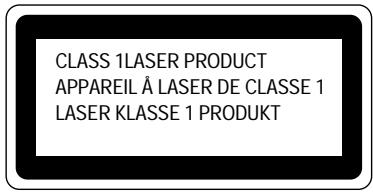
This printer has a Class 3B Laser Diode which emits invisible laser radiation in the Scanner Unit. The Scanner Unit should not be opened under any circumstances.
Caution: Use of controls, adjustments or performance of procedures other than those specified in this manual may result in hazardous radiation exposure.
The following caution label is attached on the cover of the scanner unit.
CAUTION
ADVARSEL
WARNING
VARO!
ADVARSEL
ATTENTION
VORSICHT
ATENCIÓN
INVISIBLE LASER RADIATION WHEN OPEN AND INTERLOCK DEFEATED. AVOID DIRECT EXPOSURE TO BEAM. CLASS 3B LASER PRODUCT.
USYNLIG LASER STRÅLING NÅR KABINETLÅGET STÅR ÅBENT. UNGDÅ DIREKTE UDSÄTTELSE FOR STRÅLING. KLASSE 3B LASER.
OSYNLIG LASERSTRÅLNING NÄR DENNA DEL ÄR ÖPPNAD OCH SPÄRRAR ÄR URKOPPLADE. STRÅLEN ÄR FARLIG. KLASS 3B LASER APPARAT.
AVATTAESSA JA SUOJALUKITUS OHITETTAESSA OLET ALTTIINA NÄKYMÄTTÖMÄLLE LASERSÄTEILYLLE. ÄLÄ KATSO SÄTEESEEN. LUOKAN 3B LASERLAITE.
USYNLIG LASERSTRÅLING.UNNGÅ DIREKTE KONTAKT MED LASERENHETEN NÅR TOPPDEKSELET ER ÅPENT. KLASSE 3B LASERPRODUKT.
RADIATIONS LASER INVISIBLES QUANDOUVERT ET VERROUILLAGE ENLEVE. EVITER EXPOSITIONS DIRECTES AU FAISCEAU. PRODUIT LASER CLASSE 3B.
For Finland and Sweden LUOKAN 1 LASERLAITE KLASS 1 LASER APPARAT
To ensure safe operation the three-pin plug supplied must be inserted only into a standard three-pin power point which is effectively grounded through the normal household wiring.
Extension cords used with the equipment must be three-conductor and be correctly wired to provide connection to ground. Incorrectly wired extension cords are a major cause of fatalities.
The fact that the equipment operates satisfactorily does not imply that the power is grounded and that the installation is completely safe. For your safety, if in any doubt about the effective grounding of the power, consult a qualified electrician.
Wiring Information (For U.K. only)
Important
If the mains plug supplied with this printer is not suitable for your socket outlet, remove the plug from the mains cord and fit an appropriate three pin plug. If the replacement plug is intended to take a fuse then fit the same rating fuse as the original.
If a moulded plug is severed from the mains cord then it should be destroyed because a plug with cut wires is dangerous if engaged in a live socket outlet. Do not leave it where a child might find it!
In the event of replacing the plug fuse, fit a fuse approved by ASTA to BS1362 with the same rating as the original fuse.
Always replace the fuse cover. Never use a plug with the cover omitted.
WARNING - THIS PRINTER MUST BE EARTHED
The wires in the mains cord are coloured in accordance with the following code :
| GREEN AND YELLOW | : EARTH |
| BLUE | : NEUTRAL |
| BROWN | : LIVE |
The colours of the wires in the mains lead of this printer may not correspond with the coloured markings identifying the terminals in your plug.
If you need to fit a different plug, proceed as follows.
Remove a length of the cord outer sheath, taking care not to damage the coloured insulation of the wires inside.
Cut each of the three wires to the appropriate length. If the construction of the plug permits, leave the green and yellow wire longer than the others so that, in the event that the cord is pulled out of the plug, the green and yellow wire will be the last to disconnect.
Remove a short section of the coloured insulation to expose the wires.
The wire which is coloured green and yellow must be connected to the terminal in the plug which is marked with the letter “E” or by the safety earth symbol ↓, or coloured green or green and yellow.
The wire which is coloured blue must be connected to the terminal which is marked with the letter “N” or coloured black or blue.
The wire which is coloured brown must be connected to the terminal which is marked with the letter “L” or coloured red or brown.
The outer sheath of the cord must be secured inside the plug. The coloured wires should not hang out of the plug.
DECLARATION OF CONFORMITY (EUROPE)
We, Brother International Europe Ltd., Brother House 1 tame Street, Guide Bridge, Audenshaw, Manchester M34 5JE, UK.
declare that this product is in conformity with the following normative documents:
Safety: EN 60950, EN 60825 EMC: EN 55022 Class B, EN 50082-1
following the provisions of the Low Voltage Directive 73/23/EEC and the Electromagnetic Compatibility Directive 89/336/EEC (as amended by 91/263/EEC and 92/31/EEC).
Manufacture at the following facilities is carried out under a Quality System which is registered by BSI Quality Assurance and JQA Quality Assurance.
Brother Industries, Ltd., Kariya Plant 1-5, Kitajizoyama, Noda-cho, Kariya-shi, Aichi-ken 448, Japan. BSI Certificate of Registration No. FM27391 JQA Certificate of Registration No. 0340
Issued by:
Brother International Europe Ltd. European Development and Technical Services Division
CHAPTER 1 GENERAL
ABOUT THIS MANUAL
This manual acts as your guide to the setup and operation of your printer and covers the following topics:
CHAPTER 1 GENERAL provides an overview of the printer. Read this chapter first to get familiar with the printer.
CHAPTER 2 GETTING STARTED gives you general information about this printer. Be sure to read this chapter before you use the printer.
CHAPTER 3 BEFORE WORKING WITH THE PRINTER gives you important information on the printer setup to work with your computer and software. Be sure to read this chapter before you work with the printer.
CHAPTER 4 CONTROL PANEL details the functions of the panel switches and lamps.
CHAPTER 5 OPTIONS describes the optional accessories for this printer.
CHAPTER 6 MAINTENANCE provides guidance on how to maintain your printer
CHAPTER 7 TROUBLESHOOTING helps you troubleshoot the printer in case of problems.
APPENDICES contain detailed technical information on the printer as well as the character sets and a quick reference guide to the printer control commands.
INDEX provides an alphabetical list of the contents of this manual and the floppy disk supplied with the printer.
Notes
When you read this user's guide, note the following:
- This user's guide contains instructions or steps to teach you various operations of the printer. Remember that the instructions start with the factory settings, particularly in Chapter 2 and Chapter 3. If you change the settings, particularly the emulation mode, the display messages change accordingly.
- The paper size has been factory set to letter or A4, depending upon the final destination of the printer. Some display messages appear differently in accordance with this setting.
Installing the Adobe ^O Acrobat ^O Reader Software
You need to install the Adobe ^® Acrobat ^® Reader software to view the Online User's guide.
- Close all the applications running on your PC.
- Insert the supplied compact disc into the CD-ROM drive.
- View the contents of the CD-ROM by using Explorer (Windows 95/98/NT 4.0) or File Manager (Windows 3.1/3.11).
- Open the sub-folder (sub-directory) which has the required language in the folder (directory) ‘Acrobat’.
Ar16X301.exe - Windows3.1/3.11
Ar32X301.exe - Windows95/98/NT4.0
( X stands for the language version.)
- Double click the file 'ArXXX301.exe' to run the instler.
After the installer starts, simply follow the instructions that appear on the screen.
Viewing the User's Guide and Setup Guide
- Insert the supplied compact disc into the CD-ROM drive.
- View the contents of the CD-ROM by using Explorer or File Manager.
- Open the sub-folder (sub-directory) which has the required language in the folder (directory) 'Document'.
Setupxxx.pdf - Setup Guide
Userxxx.pdf - User's Guide
( xxx stands for the language version. )
- Double click the file to be opened.
- The Acrobat Reader software is automatically launched and the required manual will be opend.
Refer to the next section ‘How to use the Adobe ^® Acrobat ^® Reader’.
How to use the Adobe ^O Acrobat ^O Reader
Bookmarks
The bookmarks contain the titles of each section.
To go to the destination specified by a bookmark, click the bookmark text or double- click the page icon to the left of the bookmark name.
The texts marked with purple color have links to the related pages. The shape of cursor pointer will be changed to the ‘finger’ when positioned over a link. To go to the destination specified by these links, click on it.
Features
This printer has the following standard features. When you need more information on how to use a particular feature, turn to the page indicated at the end of the paragraph.
High Speed and Quiet Laser Printing
This printer uses electrophotography technology by laser beam scanning so that it can print at a speed of 16 pages per minute (HL-1660e). The controller utilizes a high speed 32-bit RISC microprocessor and special hardware chips. The quiet printing will not bother you working in your office or at home: 52 dB A (printing)/45 dB A (stand-by).
600 DPI Resolution
This printer uses a print engine with a resolution of 600 dots per inch (dpi). Compared with a 300-dpi engine, the quality of the output is far superior. See page 4-28. By utilizing the 300-dpi mode, the printer can also print 300-dpi data, if necessary. (In HP emulation you can select a horizontal 1200-dpi mode by special control command.
See page Appendix-39.)
High Resolution Control
The high resolution control (HRC) technology provides clear and crisp printouts and improves even the 600-dpi resolution. See 4-30.
Maintenance-Free Toner Cartridge
The toner cartridge can print up to 9,000 single-sided pages. The one piece, easy-to-replace toner cartridge does not require difficult maintenance. Just install it. See 2-7.
Advanced Photoscale Technology
This printer can print graphics in 256 shades of gray in HP® LaserJet 5™ (HL-1660e only) / LaseJet 4+™ emulation and BR-Script level 2, producing nearly photographic quality.
Universal Paper Cassette and Manual Loading
This printer loads paper automatically from the paper cassette. Since the paper cassette is a universal type, a number of different sizes of paper can be used. Even envelopes can be loaded from the multi-purpose tray and the upper paper cassette. In addition, the multi-purpose tray allows you to load paper sheet by sheet. See 3-15 for auto loading and 3-16 for manual loading.
Four Interfaces
This printer has a high speed bi-directional parallel interface, an RS-232C serial interface, a Universal Serial Bus (USB), and a modular input/output (MIO) compatible interface.
If your application software supports the bi-directional parallel interface, you can monitor the printer status. It is fully compatible with the industry-standard bi-directional parallel interface. See page 2-17.
The RS-232C serial interface is an industry standard so that you can connect it to any computer using a standard serial cable. See page 2-17.
The Universal Serial Bus is an interface which allows the printer connect with multiple peripheral devices.
The MIO interface allows you to install a commercial MIO-compatible card. If you install the card, you can use one more interface port for features such as networking or printer sharing. See page 5-6.
Automatic Interface Selection
This printer can automatically select the bi-directional parallel, RS-232C serial, Universal Serial Bus, or MIO interface depending on the interface port through which it receives data. With this feature, the printer can be connected to more than one computer. See page 3-5.
Five Emulation Modes
This printer can emulate the Hewlett-Packard ^® laser printer-LaserJet 5 (PCL ^® 6)/ LaserJet 4+ (PCL ^® 5e), PostScript ^® Level 2 language emulation (Brother BR-Script Level 2) printers, the industry-standard HP-GL ^™ plotter as well as EPSON ^® FX-850 ^™ , and IBM ^® Proprinter XL ^® printers. You can print with all application programs that support one of these printers. See page 3-1.
Automatic Emulation Selection
This printer can automatically select the printer emulation mode depending on the print commands it receives from the computer software. With this feature, many users can share the printer on a network. See page 3-3.
Data Compression Technology
This printer can internally compress the received graphics and font data in its memory so that it can print larger graphics and more fonts without additional memory.
Memory Expansion
This printer has 8-Mbyte of RAM as standard. It can be expanded up to 72 Mbytes. The memory should be expanded to 6 Mbytes in total or more to enjoy 600-dpi or APT printouts in the BR-Script 2 mode. When you select duplex mode with an optional duplex unit installed, the memory should be expanded to 10Mbytes in total or more to enjoy 600-dpi duplex printing. See pages 4-28 and 5-7. (The standard memory fitted can vary depending on the printer model and country.)
75 Scalable and 12 Bitmapped Fonts
This printer has the following scalable fonts and bitmapped fonts. The fonts that can be used vary according to the current emulation mode.
■ HP LaserJet, EPSON FX-850, and IBM Proprinter XL Modes
Scalable Fonts:
Intellifont Compatible Fonts:
- Alaska, Extrabold
• Antique Oakland, Oblique, Bold
• Brougham, Oblique, Bold, BoldOblique
• Cleveland Condensed
- Connecticut
• Guatemala Antique, Italic, Bold, BoldItalic
• Letter Gothic, Oblique, Bold
- Maryland
- Oklahoma, Oblique, Bold, BoldOblique
• PC Brussels Light, LightItalic, Demi, DemiItalic
• PC Tennessee Roman, Italic, Bold, BoldItalic
- Utah, Oblique, Bold, BoldOblique
- Utah Condensed, Oblique, Bold, BoldOblique
Microsoft ^® Windows ^® 3.1 / Windows 95/98 TrueType ^TM
Compatible Fonts:
- BR Symbol
• Helsinki, Oblique, Bold, BoldOblique
• Tennessee Roman, Italic, Bold, BoldItalic
• W Dingbats
Type 1 Font Compatible Fonts:
- Atlanta Book, BookOblique, Demi, DemiOblique
• Calgary MediumItalic
• Copenhagen Roman, Italic, Bold, BoldItalic
• Portugal Roman, Italic, Bold, BoldItalic
Brother Original Fonts:
- Bermuda Script
- Germany
- San Diego
- US Roman
Bitmapped Fonts (Portrait and Landscape):
• LetterGothic16.66 Medium, Italic, Bold, BoldItalic
- OCR-A
- OCR-B
■ BR-Script 2 Mode
Scalable Fonts:
- Atlanta Book, BookOblique, Demi, DemiOblique
- Alaska, Extrabold
• Antique Oakland, Oblique, Bold
- Bermuda Script
- BR Dingbats
- BR Symbol
• Brougham, Oblique, Bold, BoldOblique
- Brussels Light, LightItalic, Demi, DemiItalic
• Calgary MediumItalic
• Cleveland Condensed
- Connecticut
• Copenhagen Roman, Italic, Bold, BoldItalic
- Germany
- Guatemala Antique, Italic, Bold, BoldItalic
• Helsinki, Oblique, Bold, BoldOblique
• Helsinki Narrow, Oblique, Bold, BoldOblique
• Letter Gothic, Oblique, Bold
- Maryland
• Oklahoma, Oblique, Bold, Bold Oblique
• Portugal Roman, Italic, Bold, BoldItalic
- San Diego
• Tennessee Roman, Italic, Bold, BoldItalic
• US Roman
- Utah, Oblique, Bold, BoldOblique
- Utah Condensed, Oblique, Bold, BoldOblique
High Speed Printing with Microsoft Windows 95/98/Windows 3.1
Since TrueType compatible fonts are resident in this printer, the printer can print them with Microsoft Windows 95/98/3.1 at a high speed without downloading them. Because the printer has a TrueType Font rasterizer, it can rasterize fonts at a high speed.
Bar Code Print
This printer can print the following 11 types of bar codes:
- Code 39
- Interleaved 2 of 5
• EAN-8
• EAN-13 - UPC-A
• EAN-128 - UPC-E
- Codabar
- US-PostNet
• ISBN - Code 128
CCITT G3/G4
Since this printer supports the CCITT G3/G4 format in addition to HP-compatible formats, it can quickly receive and print data compressed in this format.
Lock Panel
If the panel switch settings have been changed, the printer may not work as you expect. You can lock your settings to prevent changes from being made. See page 4-41.
Power Save Mode
This printer has a power saving mode. As laser printers consume power to keep the fixing assembly at a high temperature, this feature can save electricity when the printer is on but not being used. The factory setting of the Power Save mode is ON that complies with EPA Energy Star new specification. Compared with conventional laser printers, this printer consumes less power even when the power saving mode is turned off. See page 4-69.
Toner Save Mode
This printer has an economical toner save mode. You can cut your printer running cost substantially by using this mode in addition to the improved life expectancy of the toner cartridge. See page 4-69.
Reprint Function
You can reprint the last job printed with a touch of a panel switch which allows reprinting without sending the data again from the computer. See page 4-61.
Flash Memory Card and HDD Card
You can store fonts, macros, logos, and other print data in a commercial PCMCIA-compatible flash memory card or HDD card that is installed in the upper card slot of this printer. See pages 4-32 and 5-2.
Saving User Settings
You can operate the printer differently from other users with your own panel switch settings. Two sets of user settings can be stored. See page 4-47.
Options
The following options are available for this printer:
Lower Tray Unit
A lower tray unit expands the paper source capacity. You can load extra paper and switch between the upper and lower paper sources automatically. See page 5-1.
Duplex Unit
A duplex unit enables you to print on both sides of the paper. See page 5-11.
Technical Reference Manual
The technical reference manual contains detailed information about the printer control commands. For programming with the printer, see this manual which is available from your Brother dealer.
The following commercial products can be installed into this printer:
MIO Card
A commercial modular input/output (MIO) compatible sharing/network card gives you an additional interface port for attaching the printer to a network or sharing your printer with multiple computers. See page 5-6.
Font Cartridges
Commercial font cartridges containing additional scalable fonts or bitmapped fonts. See page 5-2.
Flash Memory Card and HDD Card
A commercial flash memory card or a HDD card can be installed. You can store fonts, macros, logos, and other print data in a commercial PCMCIA-compatible flash memory card or HDD card. See pages 4-32 and 5-2.
RAM Expansion
Installing commercial memory modules expands the memory capacity up to 72 Mbytes. See pages 5-7.
CHAPTER 2 GETTING STARTED
BEFORE USING THE PRINTER
Checking the Components
Printer Carton
When you unpack the printer, check to see that you have all of the following parts.
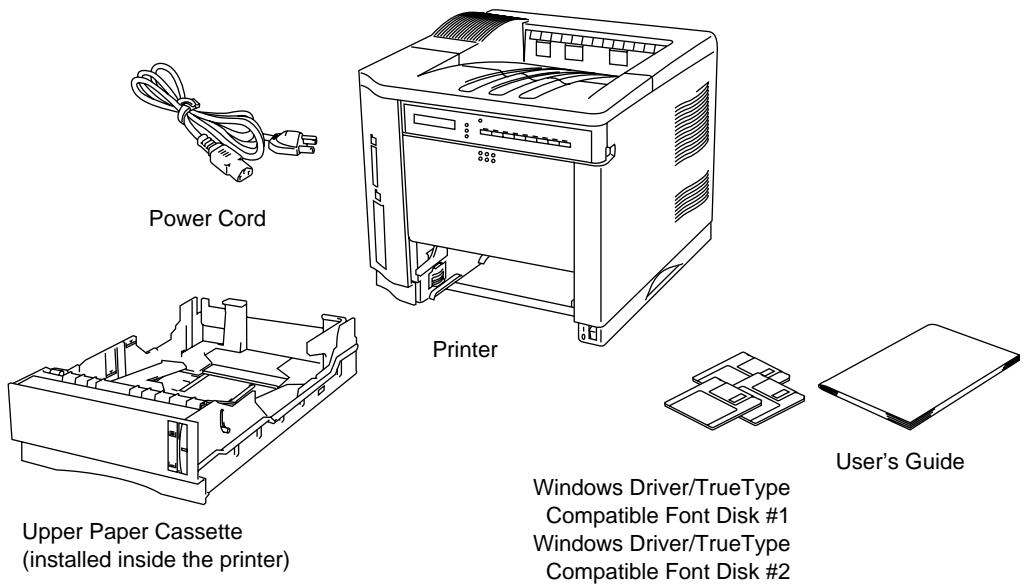
Fig. 2-1 Components in the Printer Carton
Note
An interface cable is not a standard accessory. Please purchase an appropriate cable according to the interface you intend to use. The power cord may differ slightly from this figure depending on the country where you purchased the printer.
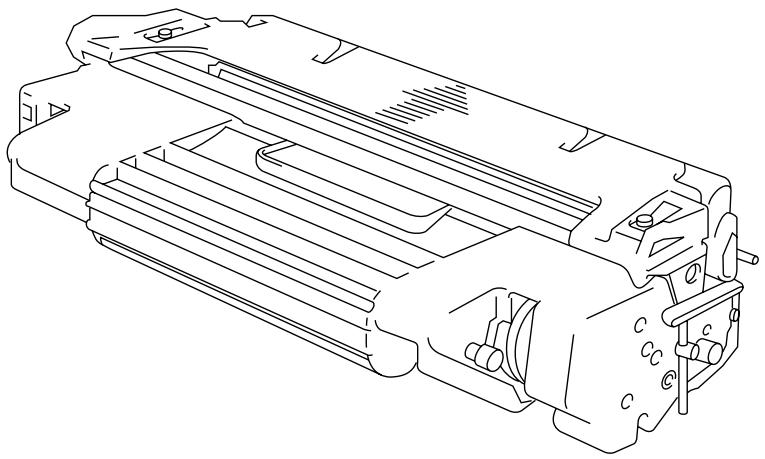
Toner Cartridge
The toner cartridge is inside the toner cartridge carton.

Caution
The toner cartridge is packed inside a bag. Do not open it now. Open it immediately before you install the toner cartridge. The toner cartridge must not be exposed to light for a long time.
natural_image
Technical line drawing of a mechanical component with internal ribs and mounting brackets (no text or symbols)Fig. 2-2 Toner Cartridge
General View
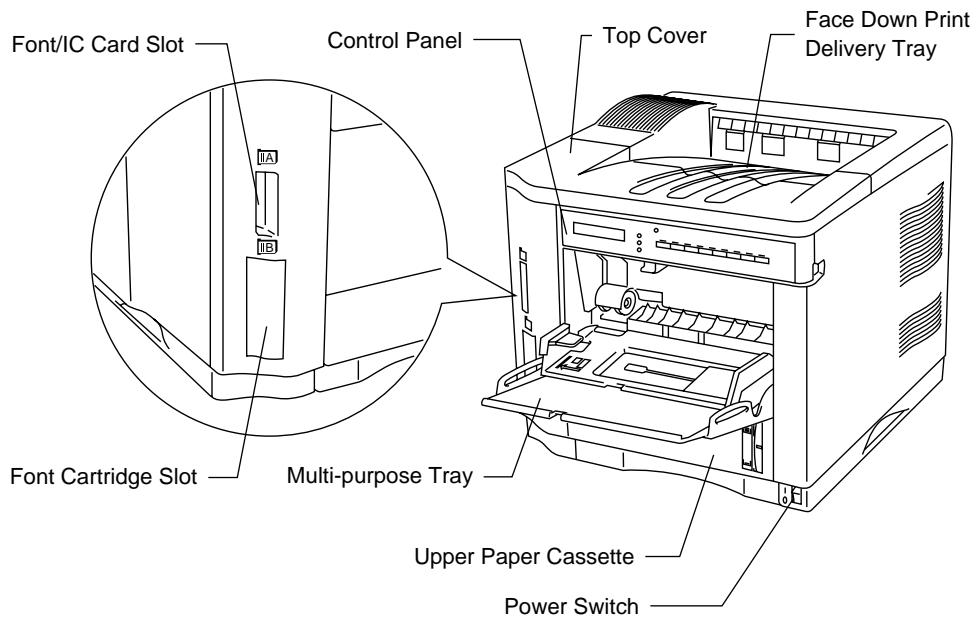
Fig. 2-3 Front View
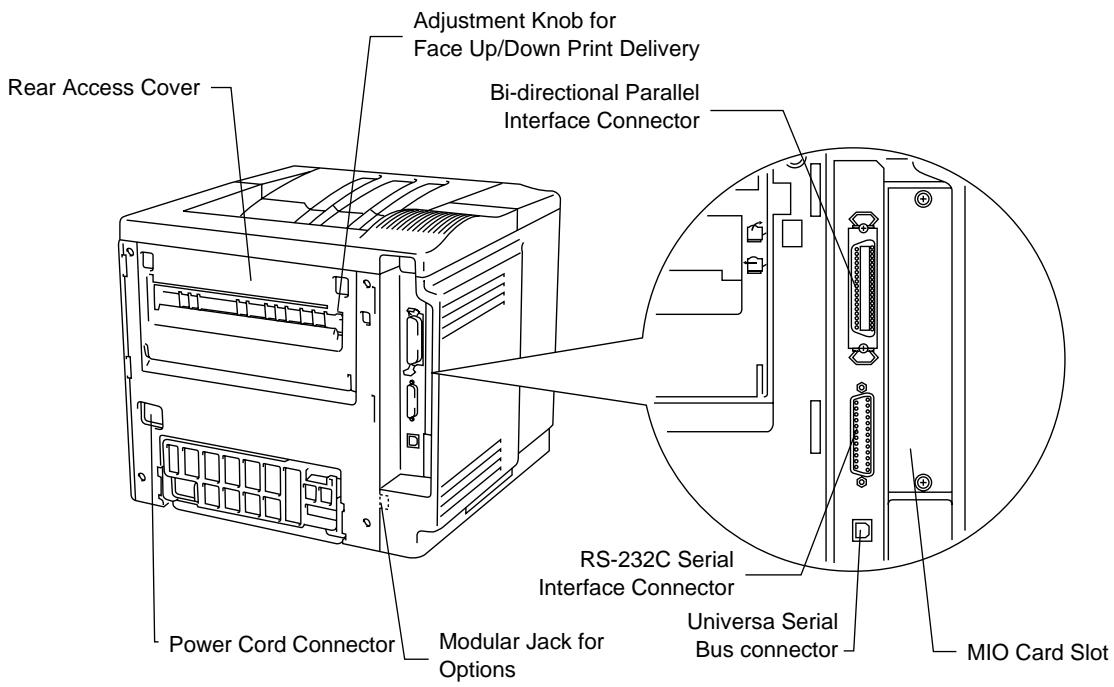
Fig. 2-4 Rear View
Operating and Storage Environment
Please take note of the following before using the printer.
Power Supply
Use the printer within the specified power range.
AC power: ±10% of the rated power voltage
Frequency: 50 Hz (220-240 V) or 60 Hz (110-120 V)
The power cord, including extensions, should not exceed 5 meters (16.5 feet).
Do not share the same power circuit with other high-power appliances, particularly an air conditioner, copier, shredder, etc. If it is unavoidable that you must use the printer with these appliances, we recommend you use a voltage transformer or a high-frequency noise filter.
Use a voltage regulator if the power source is not stable.
Environment
Use the printer only within the following ranges of temperature and humidity.
Ambient temperature: 10^ C to 32.5^ C ( 50^ F to 90.5^ F)
Ambient humidity: 20% to 80% (without condensation)
Do not block the air exit on top of the printer. Do not place objects on top of the printer, especially on the air exit.
Ventilate the room where you use the printer.
Do not place the printer where it is exposed to direct sunlight. Use a blind or a heavy curtain to protect the printer from direct sunlight if the printer is unavoidably set up near a window.
Do not install the printer near devices that contain magnets or generate magnetic fields.
Do not subject the printer to strong physical shocks or vibrations. Do not expose the printer to open flames or salty or corrosive gasses.
Place the printer on a flat, horizontal surface.
Keep the printer clean. Do not install the printer in a dusty place. Do not install the printer near an air conditioner.
Opening and Closing the Printer
To install the toner cartridge or to access the paper path, you need to open the top cover of the printer. Remember the following steps to open and close the printer.
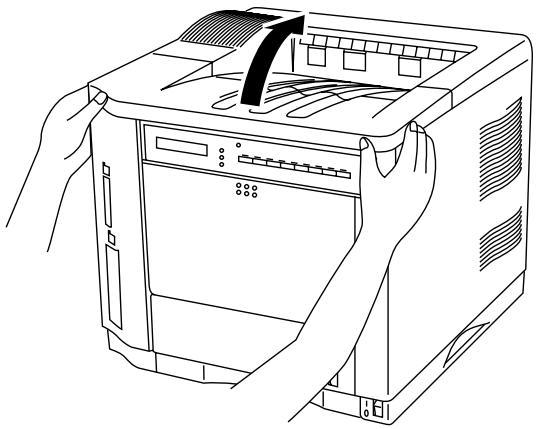
■ To open the printer, hold both sides of the top cover and raise it upwards until it latches.
natural_image
Line drawing of hands operating a computer tower with visible internal components (no text or symbols)Fig. 2-5 Opening the Top Cover
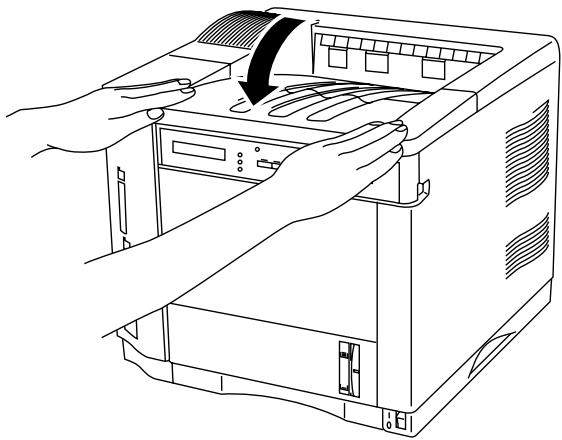
■ To close the printer, lower the top cover and push both sides gently until it latches.
natural_image
Line drawing of hands installing or adjusting a server rack device into a desktop computer case (no text or symbols present)Fig. 2-6 Closing the Top Cover
Removing the Protective Parts
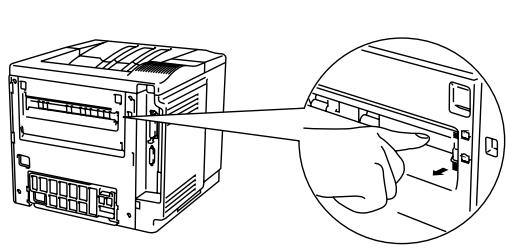
After checking that you have all of the correct parts, temporarily place the printer where you can easily reach all sides. Remove the protective parts that secure the printer against damage during transportation, as shown below:
Note
Keep all packing materials for transporting or storing the printer later.
- Open the top cover and the upper paper cassette.
- Remove the protective parts from inside the printer and the cassette.
- Remove both spacers from the fixing roller.
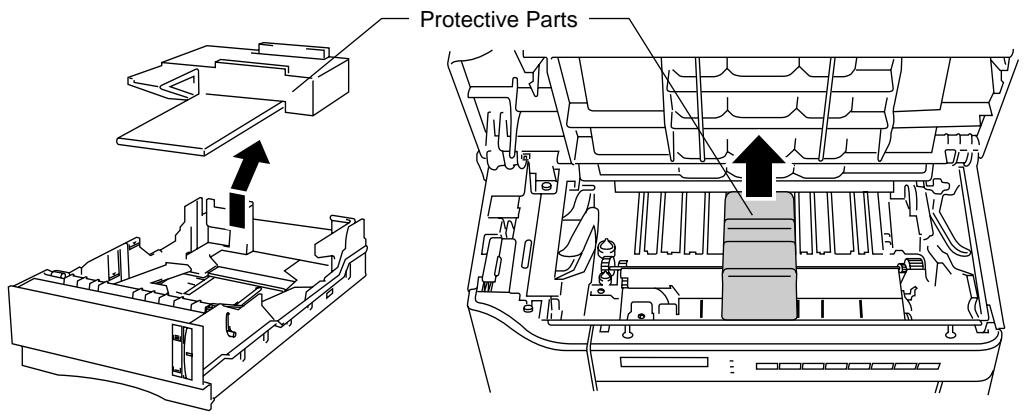
Fig. 2-7 Removing the Protective Parts
natural_image
Illustration of a computer tower with an arrow pointing to the right panel (no text or symbols present)Fig. 2-7 Removing the Protective Parts
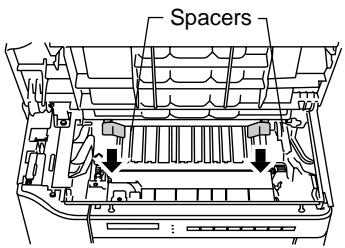
Fig. 2-8 Removing the Spacers
Installing the Toner Cartridge
This printer uses a toner cartridge to print. You have one toner cartridge as standard. A new cartridge contains enough toner to print approximately 9,000 A4 or letter-size single-sided pages at about 5% coverage (if the print density is set at level 8).
If you turn on the printer without the toner cartridge installed, the display shows the following operator call message to prompt you to install the toner cartridge.
14 NO CARTRIDGE
To install the toner cartridge, follow these steps:
- Open the top cover of the printer.
- Open the bag to unpack the toner cartridge.
Caution
- Do not expose the toner cartridge to direct light.
- Do not stand the toner cartridge on its end or turn it up-side down.
- Do not touch the shaded parts shown below.
- Do not open the drum shutter otherwise the toner or drum is adversely affected and might cause serious damage when printing.
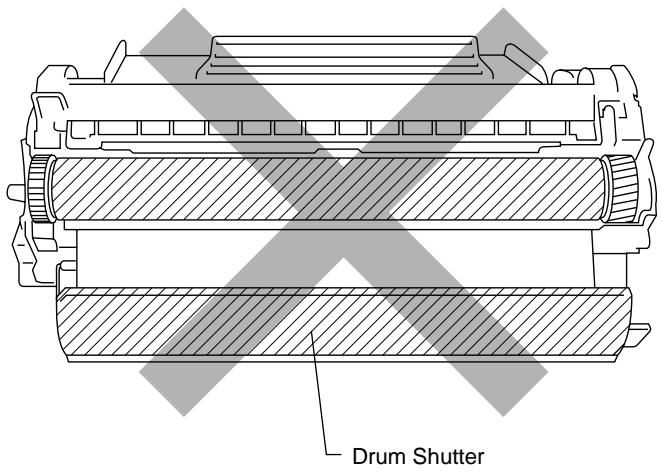
Fig. 2-9 Don'ts When Handling the Toner Cartridge
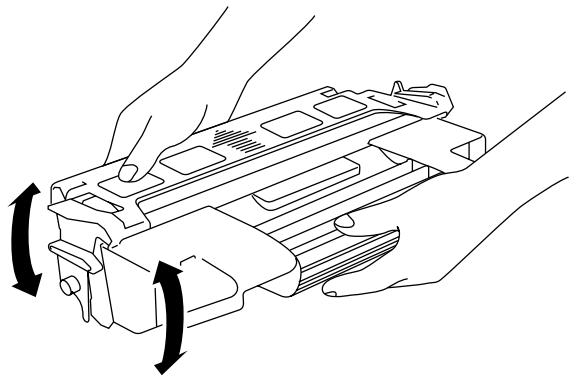
- Hold the toner cartridge with both hands. Rock it gently several times at a 45^ angle. This distributes the toner evenly inside the cartridge.
natural_image
Line drawing of hands holding a mechanical component with directional arrows indicating rotation (no text or symbols)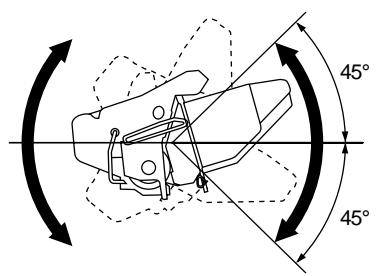
Fig. 2-10 Rocking the Toner Cartridge
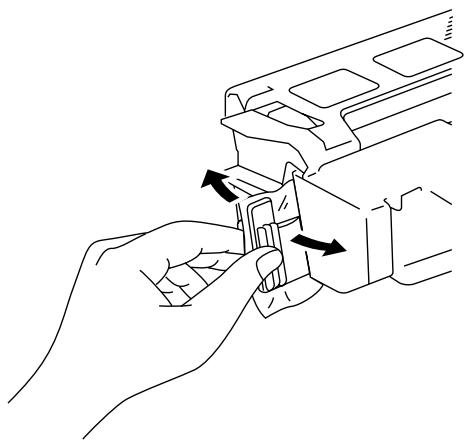
- Bend the tab up and down several times until it is detached from the toner cartridge.
natural_image
Line drawing of hands interacting with a device component (no text or symbols)Fig. 2-11 Detaching the Tab
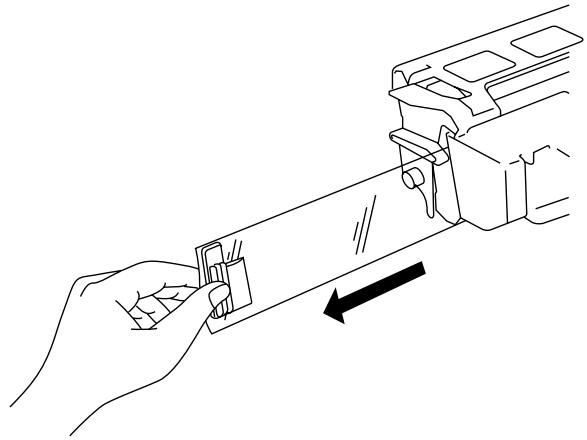
- Hold the tab firmly and pull it out until the sealing tape comes out all the way.
natural_image
Line drawing of a hand holding a small object with an arrow indicating direction (no text or symbols)Fig. 2-12 Pulling Out the Sealing Tape
Caution
If the tab breaks from the sealing tape, hold and pull out the tape. If your hands or clothes get dirty with toner, wipe or wash it off immediately with cold water.
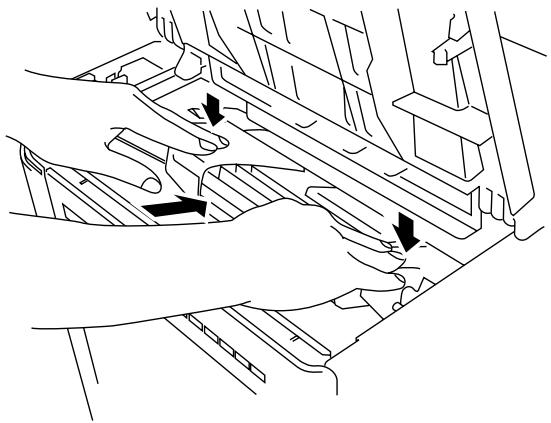
- Insert the toner cartridge in the direction of the arrows engraved on the cartridge into the side guides until it stops securely in the cartridge holder inside the printer.
Note
Push both sides of the toner cartridge gently until the cartridge is seated in its place.
natural_image
Line drawing of hands operating a vehicle intake manifold with arrows indicating direction (no text or symbols)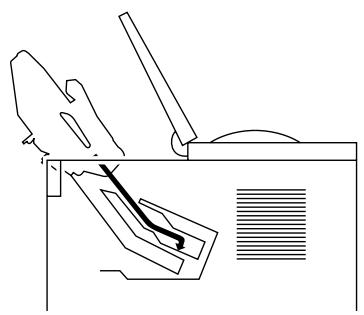
natural_image
Pure technical line drawing of mechanical components without any text, numbers, or symbolsFig. 2-13 Inserting the Toner Cartridge
- Close the top cover of the printer.
When the cartridge has almost run out of toner, the display shows the following operator call message to prompt you to replace the toner cartridge.
16 TONER EMPTY
Although you can print several pages after the toner empty message appears, be sure to replace the toner cartridge with a new one before it becomes completely empty.
Note
You can select the printer's operation when the “Toner Empty” message is displayed with the MODE switch. The printer continues or stops printing. For further information, see “Toner Low” in Chapter 4.
For toner cartridge replacement, see “Toner Cartridge” in Chapter 6.
Loading Paper in the Paper Cassette
The printer usually loads paper from the installed multi-purpose tray, upper cassette or optional lower paper cassette.
Note
The lower tray unit is an option for this printer. This section refers to the upper paper cassette. For information about the lower paper cassette, see “LOWER TRAY UNIT” in Chapter 5.
Since the paper cassette is a universal type, you can set letter, A4, legal, ISO B5, executive, A5, ISO B6, or A6 size cut sheet paper or COM10, Monarch, C5, DL, or ISO B5 size envelopes in the paper cassette. The paper sources have the following limitation. For more information about paper, see “PRINT MEDIA” in Chapter 3.
| paper source | available size | available type and capacity |
| the multi-purpose tray (MP) | cut sheet : letter, legal, A4, ISO B5, Executive, A5, ISO B6 and A6envelope: COM 10, Monarch, C5, DL and ISO B5other size: wide 90-216mm (3.5”-8.5”)long 148-356mm (5.8”-14”) | plain paper : 150 envelope : 15 OHP film : 100 label stock : 100 other type : weight = 60 to 135 g/m2(16 to 36 lbs) |
| the upper paper cassette (T1) | cut sheet : letter, legal, A4, ISO B5, Executive, A5, ISO B6 and A6envelope :COM 10, Monarch, C5, DL and ISO B5 | plain paper : 500 weight = 60 to 105 g/m2(16 to 28 lbs)envelope : 40 |
| the optional lower paper cassette (T2) | cut sheet : letter, legal, A4, Executive | plain paper : 500 weight = 60 to 90 g/m2(16 to 24 lbs) |
| all sources for duplex printing (DX) | cut sheet : letter, legal, A4, ISO B5(except T2) and Executive | * The capacity of T1 is reduced from the above specified capacities with the duplex unit installed. |
Follow these steps to set paper and install the paper cassette:
Note
Be sure to select the same paper size as the paper to be used from your application software, or correct printing cannot be obtained.
If your application software does not support paper size selection on its print menu, you can change the paper size with the MODE switch in the FORMAT MODE. For paper size change, see “MODE Switch” in
Chapter 4.
The paper size has been factory set to letter or A4, depending upon the final destination of the printer.
- 110/120V model: Letter size paper set.
- 220/240V model: A4 size paper set.
Load paper into the paper cassette as follows:
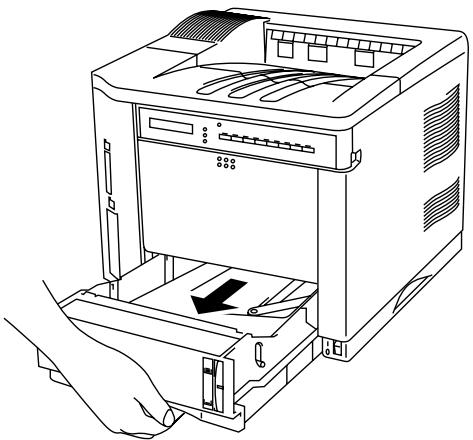
- Pull the paper cassette out of the printer.
natural_image
Line drawing of a computer printer with an open base and hand inserting a cable (no text or symbols)Fig. 2-14 Removing the Paper Cassette
- Switch the adjustment lever on the back of the paper cassette according to the paper size shown below.
I. Backwards : letter, legal, A4, ISO B5, Executive and A5
II. Forwards : ISO B6, A6, COM10, Monarch, C5 and DL
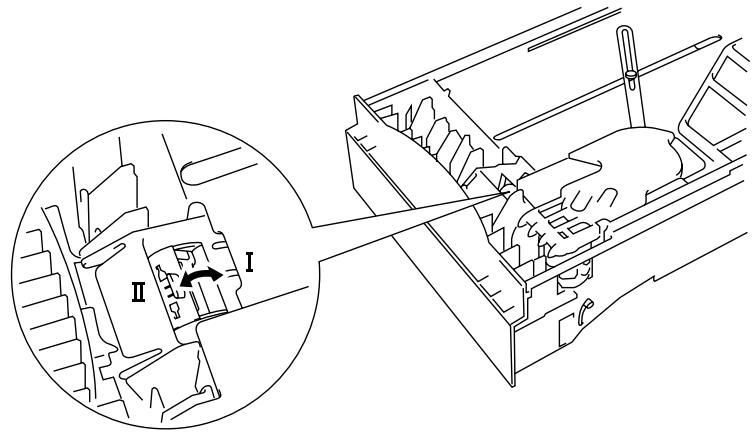
Fig. 2-15 Switching the Adjustment lever by Paper Size
- Set a side paper stop at right front corner inside the paper cassette by the paper size to be used so that 2 projectors of the side paper stop are inserted into the guide holes on the base of the paper cassette.
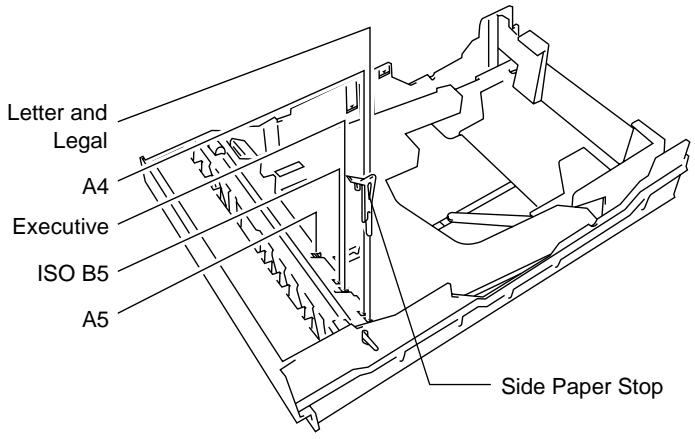
Fig. 2-16 Setting the Side Paper Stop
- Slightly lift the edge of the sliding guides and move them separately so as to match the size of paper to be used. Match the paper length first and then the paper width when setting for larger size paper. Match the paper width first and then the paper length when setting for smaller size paper.

natural_image
Technical line drawing of a mechanical assembly with internal components and directional arrows (no text or symbols)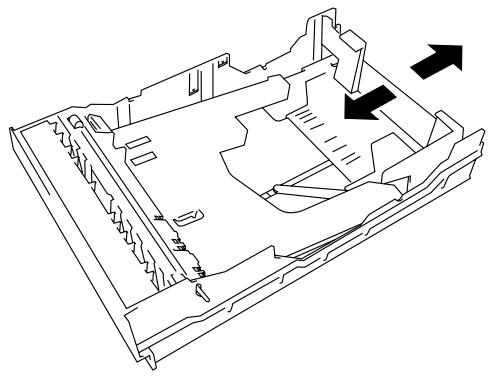
natural_image
Isometric technical line drawing of a mechanical assembly with internal components and directional arrows (no text or symbols)Fig. 2-17 Adjusting the Paper Cassette Sizes
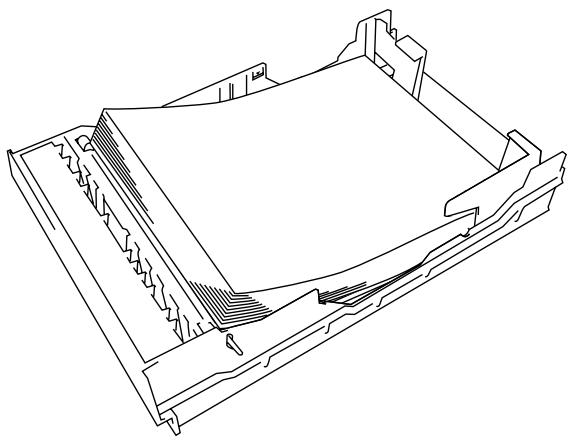
- Load paper into the paper cassette as shown below.
Note
Do not load more than 500 sheets of paper (80 g/m ^2 or 20 lbs.) in the cassette, or paper jams may occur. Paper (80 g/m ^2 or 20 lbs.) should be loaded up to the arrow head marked on the sliding guide.
natural_image
Technical line drawing of a mechanical component or housing (no text or symbols visible)Fig. 2-18 Loading Paper into the Cassette
- Install the paper cassette into the printer.
Note
You can check the remaining paper with the paper indicator located on the front right of the paper cassette.
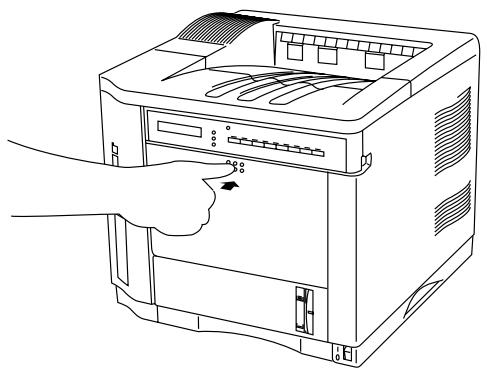
- Open the multi-purpose tray by pressing the front door of the tray lightly and lowering it gently.
Note
Pull out the extension tray of the multi-purpose tray for long paper if it is necessary.
natural_image
Line drawing of a hand inserting a device into a server rack (no text or symbols)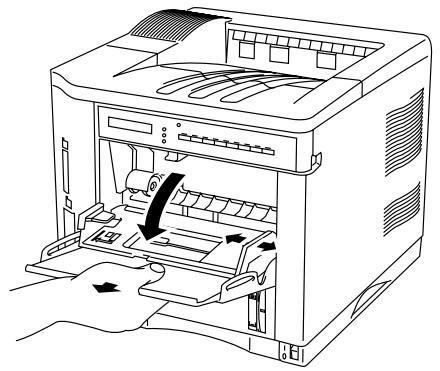
natural_image
Line drawing of a printer's internal structure showing paper feed, paper tray, and paper holder (no text or symbols)Fig. 2-19 Opening the Multi-purpose Tray and Pulling Out the Extension Tray
- Lift up and slide the paper width guide to the far right side.
- Place a stack of paper or envelopes on the tray until it is securely seated.
Notes
When you place paper on the multi-purpose tray, note the following:
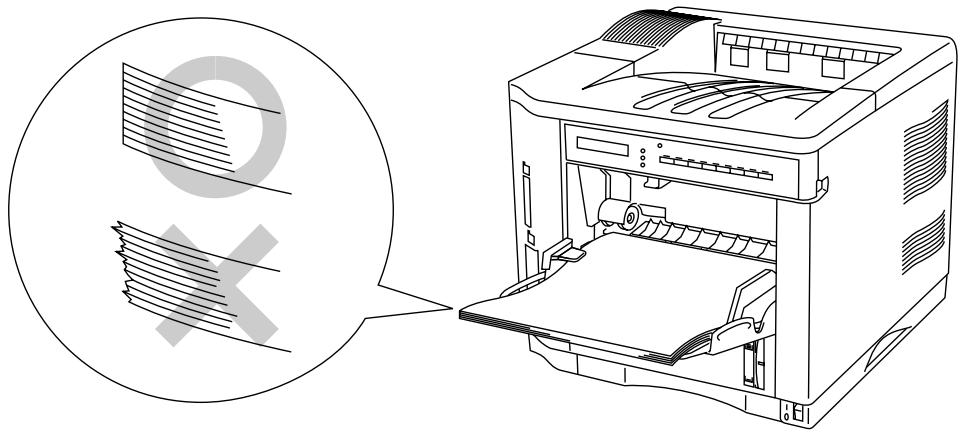
- The print surface must be face up.
- The leading edge must be placed inside first and lightly against the printer.
- The left side must be aligned with the left guide.
- The top of the paper stack must be under the holders on both sides of the tray. The maximum thickness is 16.5 mm or 0.65 inches.
natural_image
Line drawing of a printer with paper being inserted, showing internal structure and external casing (no text or symbols)Fig. 2-20 Placing Paper on the Multi-purpose Tray
- Lift up and slide the paper width guide to match the paper width, so that it lightly touches the right side of the paper stack.
Caution
- Make sure that the neatly stacked paper is correctly seated on the multi-purpose tray, otherwise paper may not be fed correctly, resulting in a skewed printout or a paper jam.
- When printing, the inside tray automatically rises to feed paper into the printer.
Connecting the Printer to Your Computer
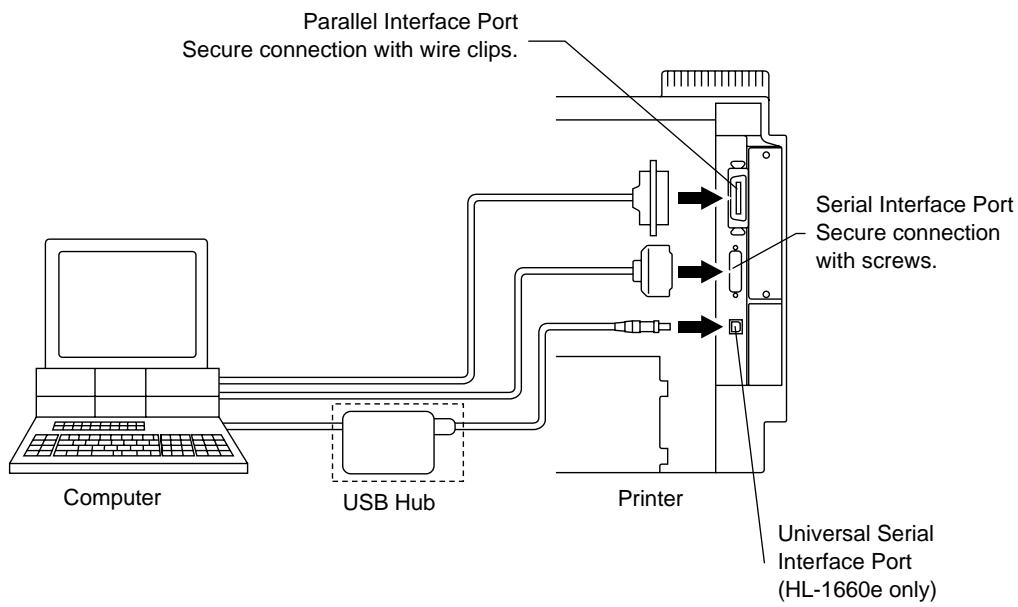
This printer has a bi-directional parallel interface, an RS-232C serial interface, and a Universal Serial Bus (USB) interface (HL-1660e only). They allow the printer to communicate with IBM/PC ^® or compatible computers. Before connecting the printer and computer, you need to purchase or make a connecting cable specifically for the interface to be used. See “INTERFACE SPECIFICATIONS” in Appendix.
Since the automatic interface selection mode has been factory set, simply connect the interface cable to the printer. In some cases, you need to turn off the high-speed and bi-directional parallel communications with the MODE switch. For further information, see “MODE Switch” in Chapter 4.
When you use the serial interface, you need to have the same communications settings on both the printer and computer. Since the automatic interface selection mode has been factory set with certain factory settings (baud rate = 9600, code type = 8 bits, parity = none, stop bit = 1, Xon/Xoff = ON, DTR (ER) = ON, and Robust Xon = ON), you may simply connect the interface cable if these are the same as the settings on your computer. When necessary, set the communications parameters with the MODE switch on the printer. For further information, see “MODE Switch” in Chapter 4. For the settings on the computer, see the manual of the computer or software you use.
Connect the printer to your computer as follows:
- Make sure that both the computer and the printer are turned off.

Caution
Always turn off the printer and computer when connecting and disconnecting the cable. When connecting and disconnecting the cable with the Universal Serial Bus interface, however, it is not necessary to turn off the printer and computer.
-
Connect one end of the interface cable to the interface connector located on the back of the printer.
-
Secure the connection with wire clips or screws on the printer.
flowchart
graph TD
    A["Computer"] --> B["USB Hub"]
    B --> C["Printer"]
    C --> D["Parallel Interface Port Secure connection with wire clips."]
    D --> E["Serial Interface Port Secure connection with screws."]
    E --> F["Universal Serial Interface Port (HL-1660e only)"]
Fig. 2-21 Connecting the Printer and Computer
- Connect the other end of the interface cable to the interface connector on your computer. Be sure to secure the connection on the computer, also.
Turning the Printer On and Off
Plugging in the Power Cord
Plug in the power cord as follows:
- Make sure that the POWER switch is OFF "O": the switch is on the front right hand side of the printer.
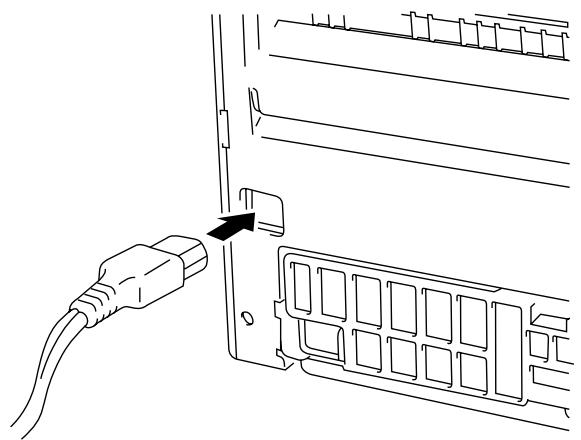
- Attach the power cord to the printer and plug it into an appropriate AC outlet.
natural_image
Line drawing of a cable inserted into a device panel with an arrow pointing to the connector (no text or symbols present)Fig. 2-22 Plugging in the Power Cord
Caution
- Check the AC voltage. This printer should be operated at the specified voltage and frequency.
• USA and Canada: AC 110 to 120 V, 60 Hz
• Europe and Australia: AC 220 to 240 V, 50 Hz
- Since this printer must be electrically grounded, the power cord should be connected to a grounded AC outlet.
- The total length of the power cord, including extension cords, should not exceed 5 meters (16.4 feet). Use of a longer power cord may result in reduced voltage or malfunctions.
- Do not unplug the power cord to turn off the printer.
- The printer should be installed near a power outlet which is easily accessible.
Pressing the POWER Switch
The POWER switch is on the front right hand side of the printer. Pressing the ON side “|” supplies power to the printer, which then performs a self test and warm up. Pressing the OFF side “O” turns the power off.

Fig. 2-23 Pressing the POWER Switch
Caution
Always wait at least 2 seconds after turning off the power before turning it back on.
Do not turn the power off while the printer is printing, as this may cause a paper jam and adversely affect the printer.
The printer performs a self-diagnosis at start-up to check its hardware and software. If the printer should find any problems, the display will show the corresponding message. See “TROUBLESHOOTING” in Chapter 7.
04 SELF TEST
The display shows several messages quickly at start-up. If the printer detects no errors, it automatically goes on-line and the message changes to show the current printer status and settings.
LJ READY 001P T1
LJ : The auto emulation selection is set and currently the HP LaserJet emulation mode is selected.
READY : The printer is ready to print.
001 : The number of copies to print is set to 1.
P : Portrait print is selected.
T1 : Paper is fed from Tray1.
Printing the Test Patterns or Lists
You can check print quality and print a list of available fonts before you actually start working with the printer. To do so, follow these steps:
- Make sure that you have already set the toner cartridge and loaded paper into the cassette or the multi-purpose tray.
2 Turn on the printer. Wait until the display shows the message as follows.
LJ READY 001P T1
or
LJ READY 001P MP
- Press the SEL switch to set the printer off-line.
The ON LINE lamp goes off. - Hold down the SHIFT switch and press the TEST switch.
- Press the ▲ or ▼ switch to scroll through the display until the desired message appears. To print your selection, press the SET switch. Choose from one of the following selections :
To print out the demo page,
DEMO PAGE
To print out the test pattern,
TEST PRINT
To print out the list of printer settings,
PRINT CONFIG
To print out the list of internal or resident fonts,
PRINT FONTS I
To print out the list of optional cartridge/card fonts,
PRINT FONTS C
To print out the list of permanent download fonts,
PRINT FONTS P
To exit from the test mode,
exit
Notes
The messages “PRINT FONTS C” or “PRINT FONTS P” appear only when an optional font cartridge/card is installed in the font slot or the permanent download fonts are stored in printer memory respectively.
- If the optional font cartridge/card is installed, you can print out a list of optional fonts. Since the list shows the ID numbers specific to each optional font, it helps you to select them with the FONT switch. For further information, see “FONT Switch” in Chapter 4 and “FONT CARTRIDGE/CARD, FLASH MEMORY/HDD CARD” in Chapter 5.
- If user-defined characters are already downloaded into the printer memory as permanent download fonts, you can print out a list of them. For further information, see “FONT Switch” in Chapter 4.
6. Press the SET switch.
The printer starts printing the selected test pattern or list. When the printer finishes printing, it automatically exits to the off-line state.
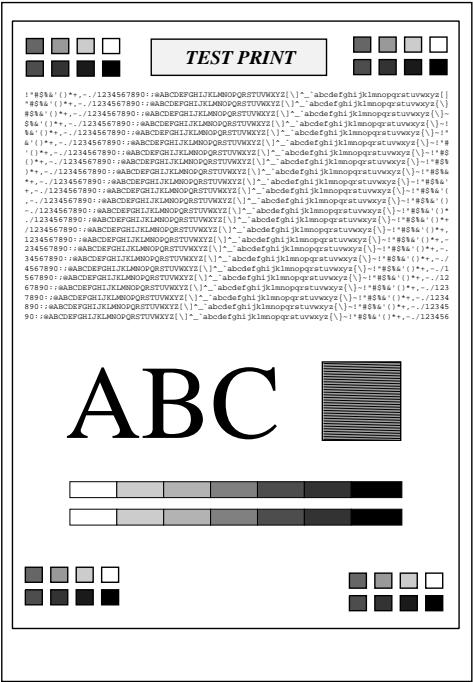
TEST PRINT
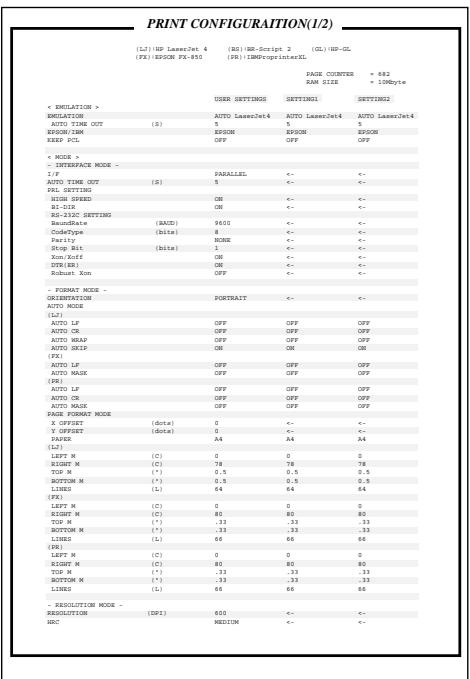
PRINT CONFIG
![PORTRAIT LIST INTERNAL FONT NUMBER SYMBOL SET (ID) PITCH SIZE STYLE WEIGHT TYPEFACE F O N T S A M P L E (60dpi) 1000 BJ ROMAN 8 ... P: Scalable Upright(0) Medium(0) PuTENNES Reg (4101) ABCDefgh123?!!"#$%&'() PRINT FONTS I Fig. 2-24 Test Pattern, Setting List, and Font List Checking the Printed Test Pattern or Demo Page After you print out the test pattern or demo page as described in the previous section, take a look at the printed sheet to check print quality. The printer has been shipped with the print density properly adjusted with the control panel switches. If you are not satisfied with the printout (too light or dark for example), adjust the print density as follows: Turn on the printer. Press the SEL switch to set the printer off-line state. Press the MODE switch. Press the ▲ or ▼ switch to scroll through the display until the “ADVANCED MODE” appears. Press the SET switch. Press the ▲ or ▼ switch to scroll through the display until the “PRINT DENSITY” appears. Press the SET switch. Press the ▲ or ▼ switch until the desired print density value appears. The value can change from 1 (light) to 15 (dark). Press the SET switch. Press the SEL switch to exit from the mode menus and set the printer on-line state. For more information, see “MODE Switch” in Chapter 4. CHAPTER 3 BEFORE WORKING WITH THE PRINTER SOFTWARE COMPATIBILITY Before working with your application software, you need to set up or install the printer driver in your software. Locate the printers that your application software supports and install the desired printer driver. Each software package differs in the way the printer driver is selected. Read the software manual and follow the setup or installation procedures. Be sure to select the printer emulation mode that matches the installed printer driver. This printer emulates particular printer models of the following manufacturers. Since this printer has been factory set with the automatic emulation selection on, you may not need to select the emulation mode. When necessary, select the appropriate printer emulation mode with the panel switches according to the printer driver installed in your application software. See “CHAPTER 4 CONTROL PANEL.” Printer DriverEmulation Mode* HL-1660eHP LaserJet 5* HL-1660HP LaserJet 5HL-1260eHP LaserJet 5HP LaserJet 5HP LaserJet 5HP LaserJet 4/4+HP LaserJet 5* HL-1660HP LaserJet 4+* HL-1260eHP LaserJet 4+HL-1260HP LaserJet 4+HL-10hHP LaserJet 4+HP LaserJet 4+HP LaserJet 4+* HL-1660e (BR-Script 2)BR-Script 2* HL-1660 (BR-Script 2)BR-Script 2* HL-1260e (BR-Script 2)BR-Script 2HL-1260 (BR-Script 2)BR-Script 2PostScript® level 2 language printerBR-Script 2HL-10h (BR-Script)BR-Script 2HL-10PS/DPSBR-Script 2HL-8PSBR-Script 2Apple® LaserWriter® II NT/NTXBR-Script 2PostScript® language printerBR-Script 2* HP 7475ATMHP-GLHP-GLTMHP-GL* EPSON FX-850EPSON FX-850EPSON FX-80TMEPSON FX-850* IBM Proprinter XLIBM Proprinter XLIBM Proprinter ®IBM Proprinter XL To get the most out of this printer, you need to install the printer driver for this printer or the HP LaserJet and select the HP LaserJet emulation mode: this is the best combination. When any other HP LaserJet series printer driver is installed, select the HP LaserJet emulation mode. When any other printer driver is installed, select the HP-GL, BR-Script 2, EPSON, or IBM emulation mode according to the installed printer driver. You may find difficulty in printing EPS file format pictures with the HP LaserJet mode. In this case, it is better to select the BR-Script 2 mode. An asterisk (*) indicates the best or recommended combination of the printer driver and emulation mode. Be sure to use any of these best or recommended combinations if circumstances permit. When an emulation mode other than the HP mode or BR-Script 2 is selected, the printout may differ slightly from the printout that the target printer produces. For Windows 95/98 or Windows 3.1 users, to get the best performance from your printer, install the driver supplied with your printer. AUTOMATIC EMULATION SELECTION This printer has an automatic emulation selection function. When the printer receives data from the computer, it automatically selects the emulation mode. This function has been factory set to ON. The printer can select the emulation among the following combinations: EPSON/IBM PriorityEPSON (default)IBMAuto Selection ModeHP LaserJetHP LaserJetBR-Script 2BR-Script 2HP-GLHP-GLEPSON FX-850IBM Proprinter XL To get the most out of this laser printer, we recommend you use the HP LaserJet emulation mode, which is a true laser printer mode. Since the HP LaserJet mode takes the highest priority in the automatic emulation selection, you can start using the printer as it is with the factory settings in most cases. When the automatic emulation selection is active, you can check the current emulation on the display. When the printer is in ready, print, or wait states, the display reads as follows: EmulationStatus Display in Ready StateHP LaserJetLJREADY001PT1BR-Script 2BSIDLE001PT1HP-GLGLREADY001PT1EPSON FX-850FXREADY001PT1IBM Proprinter XLPRREADY001PT1 To select the emulation mode manually, use the EMULATION switch. For further information, see “EMULATION Switch” in Chapter 4. Notes When you use the automatic emulation selection, note the following: Once the emulation is automatically changed, it is not changed again for a short period of time. This time period is called “Time Out” and it can be set with the EMULATION switch. The factory setting is 5 seconds. The EPSON or IBM emulation mode priority must be selected, as the printer cannot distinguish between them. Since the factory setting is the EPSON emulation mode, you might need to select the IBM emulation mode with the EMULATION switch when you need to use this emulation.. Try this function with your application software or network server. If the function does not work properly, select the required emulation mode manually using the printer panel switches or use emulation selection commands from your software. AUTOMATIC INTERFACE SELECTION This printer has an automatic interface selection function. When the printer receives data from the computer, it automatically selects the bidirectional parallel, Universal Serial Bus (USB) interface (HL-1660e only), RS-232C serial interface, or MIO interface as appropriate. When you use the parallel interface, you can turn the high-speed and bidirectional parallel communications on or off with the MODE switch. For further information, see “MODE Switch” in Chapter 4. Since the automatic interface selection mode has been factory set to ON, simply connect the interface cable to the printer. When you use the serial interface, you need to have the same communications settings on both the printer and computer. Since the automatic interface selection mode has been factory set with certain settings, you may be able to simply connect the interface cable to the printer if your computer has the settings listed below. Communications ParametersFactory SettingsBaud rate (data transfer speed)9600Code type (data length)8 bitsParity (data error check)NoneStop bit (data separator)1 stop bitXon/Xoff (handshake protocol)ONDTR (ER)ONRobust XonOFF If a commercial interface card has been installed in the MIO card slot, it can be selected automatically. When necessary, select the interface or the serial communications parameters manually with the MODE switch (INTERFACE MODE) on the printer. For further information, see “MODE Switch” in Chapter 4. For the settings on the computer, see the manual of the computer or software you are using. Notes When you use the automatic interface selection, note the following: Once the interface is automatically changed, it is not changed again for a short period of time. This time period is called “Time Out” and it can be set with the MODE switch. The factory setting is 5 seconds. The communications parameters [ baud rate, code type, parity, stop bit, Xon/Xoff, DTR(ER), and Robust Xon] must be set for the serial interface. Although they have been factory set as shown in the above table, you may need to change them with the MODE switch. This function takes a few seconds to work. If you want to speed up printing, select the required interface manually with the MODE switch. If you constantly use only one interface, we recommend that you select that interface in the interface mode. The printer allocates all of the input buffer to that interface if only one interface is selected. ABOUT THE CONTROL PANEL Adjusting the Control Panel Angle You can adjust the control panel to the desired angle, so you can easily read the display messages. To adjust the angle of control panel, gently pinch the tab on the right side of the panel and move the control panel up and down. natural_image Line drawing of a printer with a hand operating the front panel, showing internal structure and a close-up of the printer's handle (no text or symbols present)](/content/2025/01/74879/images/fd0f5f8c8086fda4901ba075e457d14676a043712a781e70b61772f2c5b3aace.jpg)
Fig. 3-1 Adjusting the Control Panel Angle
Selecting the Local Language Display
The display usually shows the current printer status. When you operate the control panel switches, it shows functions and settings. If any trouble occurs, it shows the corresponding error message. You can see these messages in several languages. The default language is English.
- English
- German
- Spanish
- Norwegian
- Danish
- French
• Dutch
- Italian
- Finnish
- Portuguese
To change to another language:
- Turn off the printer.
- Hold down the FORM FEED switch and turn on the printer.
The message “SELF TEST” appears and then the message changes to “LANG.=ENGLISH*”. - Press the ▲ or ▼ switch until your desired language appears on the display.
- Press the SET switch to make the selected language message effective.
An asterisk (*) appears at the end of the display for a short time, and then the printer automatically returns to on-line state with the selected language message on the display.
Using the Panel Switches
The printer has a versatile control panel. It has two operation modes:
When you press the switches, they work in the NORMAL mode as indicated above the switches. When you press the switches with the SHIFT switch held down, they work in the SHIFT mode as indicated below the switches. You can control the basic printer operations and make various printer settings in the NORMAL and SHIFT modes.
For further information, see “SWITCHES IN NORMAL MODE” and “SWITCHES IN SHIFT MODE” in Chapter 4.
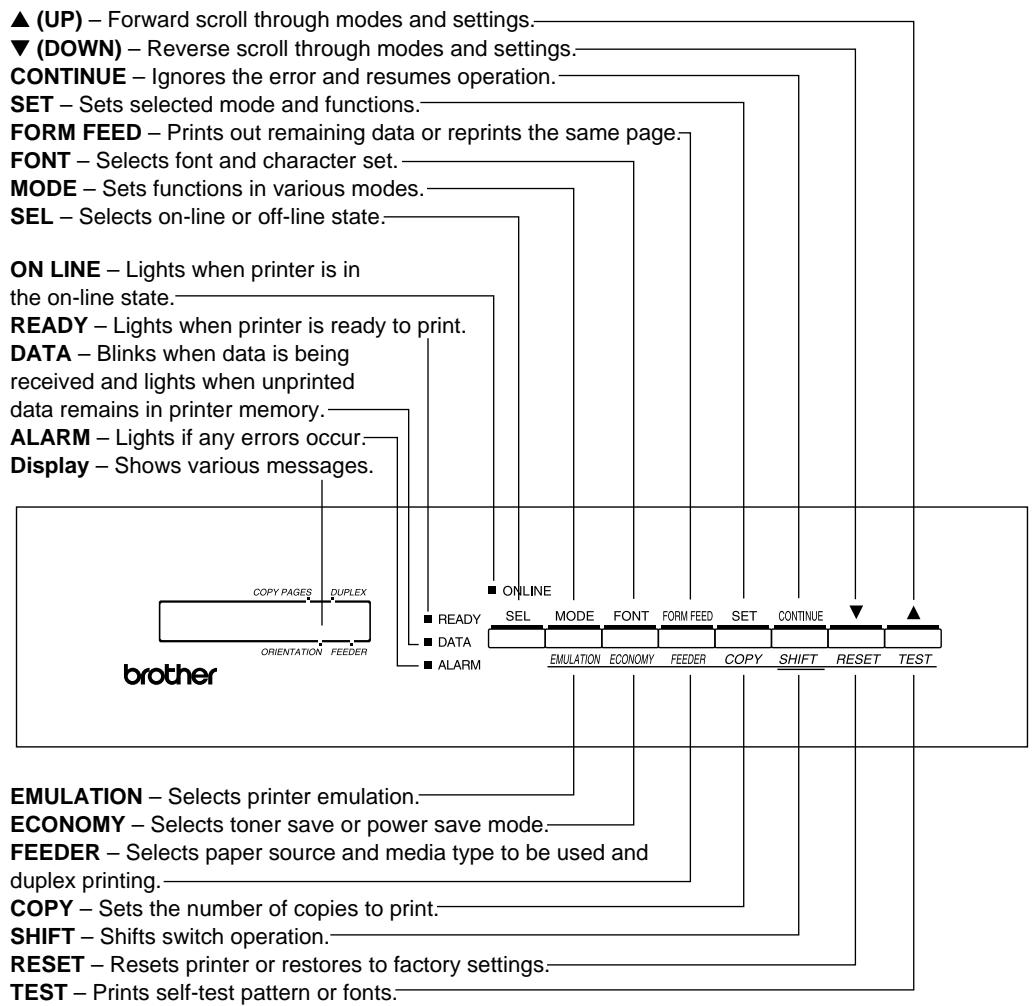
flowchart
graph TD
    A["▲ (UP) – Forward scroll through modes and settings."] --> B["▼ (DOWN) – Reverse scroll through modes and settings."]
    B --> C["CONTINUE – Ignores the error and resumes operation."]
    C --> D["SET – Sets selected mode and functions."]
    D --> E["FORM FEED – Prints out remaining data or reprints the same page."]
    E --> F["FONT – Selects font and character set."]
    F --> G["MODE – Sets functions in various modes."]
    G --> H["SEL – Selects on-line or off-line state."]
    H --> I["ON LINE – Lights when printer is in the on-line state."]
    I --> J["READY – Lights when printer is ready to print."]
    J --> K["DATA – Blinks when data is being received and lights when unprinted data remains in printer memory."]
    K --> L["ALARM – Lights if any errors occur."]
    L --> M["Display – Shows various messages."]
    M --> N["OTHER"]
    N --> O["COPY PAGES"]
    N --> P["DUPLEX"]
    N --> Q["ORIENTATION"]
    N --> R["FEEDER"]
    N --> S["ONLINE"]
    S --> T["● READY"]
    S --> U["● DATA"]
    S --> V["● ALARM"]
    T --> W["SEL"]
    U --> X["MODE"]
    V --> Y["EMULATION"]
    W --> Z["FONT"]
    X --> AA["FORM FEED"]
    Y --> AB["KEYEDER"]
    Z --> AC["SET"]
    AA --> AD["CONTINUE"]
    AB --> AE["SHIFT"]
    AC --> AF["RESET"]
    AD --> AG["TEST"]
    AE --> AH["OK"]
    AF --> AI["OK"]
    AG --> AJ["OK"]
    AH --> AK["OK"]
    AI --> AL["OK"]
Fig. 3-2 Switch Operation in NORMAL and SHIFT Modes
Note
When the printer is in use in the BR-Script 2 mode, some switches are not used.
Printer Settings
You may operate the printer with the panel switch settings unchanged. They have been factory set. When necessary, change and store them in the printer memory as user settings.
There are two types of printer settings available on this printer:
- User Settings
- Factory Settings
Remember that the user settings override the factory settings. The user settings are effective until other settings are made or they are restored to the factory settings.
User Settings
Although the printer settings have been factory set, you can change them with the control panel switches. Since this printer has a memory, you can store the panel switch settings in the memory as “User Settings.” They are recalled every time you turn on the printer.
In addition to the current settings, you can save two more sets of user settings with the MODE switch and restore to them with the RESET switch. The current settings are cleared after restoring one of the saved user settings.
Factory Settings
The printer settings have been set at the factory before shipment. They are called “Factory Settings.” Although you can operate the printer with these factory settings unchanged, you can tailor the printer by making user settings.
Note
Changing the user settings does not affect factory settings. You cannot modify the preset factory settings.
The changed user settings can be restored to the factory default settings with the RESET switch. For further information, see “RESET Switch” in Chapter 4.
Print Media
Paper Size
1. The upper paper cassette
Since the paper cassette is a universal type, you can use any of the sizes of paper in the list. The cassette can hold up to 500 sheets of paper (80 g/m ^2 or 20 lbs.) or up to 40 envelopes (Paper should only be loaded up to the arrow head marked on the sliding guide).
2. The multi-purpose tray
The multi-purpose tray is the most useful feeder for you to handle many types of paper. The multi-purpose tray can hold up to 150 sheets of paper (80 g/m ^2 or 20 lbs.) or up to 15 envelopes.
The paper types and sizes that can be fed from the multi-purpose tray are as follows:
- Plain paper from 90 mm x 148 mm (3.5" x 5.8") to 216 mm x 356 mm (8.5" x 14") [Weight = 60 to 135 g/m ^2 (16 to 36 lbs)]
• Overhead projector (OHP) films - Colored paper
- Postcards
- Label stock
- Envelopes of COM10, Monarch, C5, DL, or ISO B5 size
3. The optional lower paper cassette
The cassette can hold up to 500 sheets of paper (80 g/m ^2 or 20 lbs.). It has a limitation on the paper sizes that can be used as shown in the list.
4. The duplex unit
The duplex unit can handle letter, legal, A4, Executive and ISO B5 (except Tray 2) size papers from the feeders.
| paper source | available size | available type and capacity |
| the multi-purpose tray (MP) | cut sheet : letter, legal, A4, ISO B5, Executive, A5, ISO B6 and A6envelope: COM 10, Monarch, C5, DL and ISO B5other size: wide 90-216mm (3.5”-8.5”)long 148-356mm (5.8”-14”) | plain paper : 150 envelope : 15 OHP film : 100 label stock : 100 other type : weight = 60 to 135 g/m2(16 to 36 lbs) |
| the upper paper cassette (T1) | cut sheet : letter, legal, A4, ISO B5, Executive, A5, ISO B6 and A6envelope :COM 10, Monarch, C5, DL and ISO B5 | plain paper : 500 weight = 60 to 105 g/m2(16 to 28 lbs)envelope : 40 |
| the optional lower paper cassette (T2) | cut sheet : letter, legal, A4, Executive | plain paper : 500 weight = 60 to 90 g/m2(16 to 24 lbs) |
| all sources for duplex printing (DX) | cut sheet : letter, legal, A4, ISO B5(except T2) and Executive | * The capacity of T1 is reduced from the above specified capacities with the duplex unit installed. |
Using Envelopes
Avoid using envelopes with the following characteristics:
- Smooth or shiny surfaces
- Protection cover at envelopes' adhesive parts
- Sealing flaps that have not been folded at purchase
- Sealing flaps as shown below
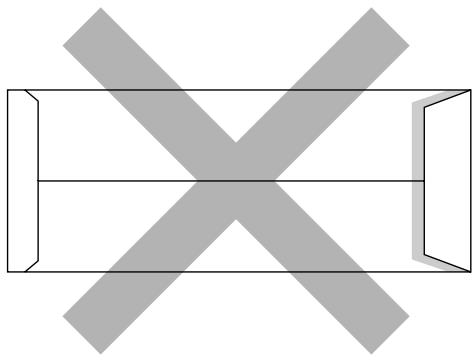
natural_image
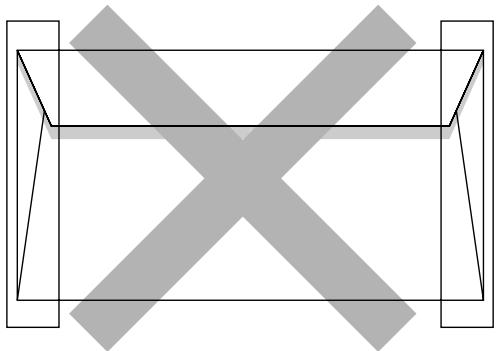
Pure geometric diagram with intersecting X and Y axes, no text or symbols present- Three or more layers of paper in the marked area
natural_image
Pure geometric diagram with intersecting lines and shaded regions, no text or symbols present• Each side folded as shown below
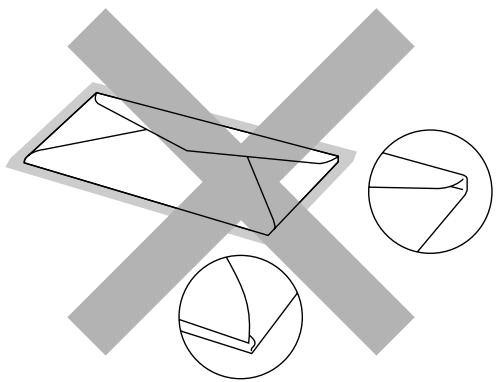
natural_image
Geometric diagram showing a 3D envelope with two circular insets highlighting different shapes (no text or symbols)Fig. 3-3 Envelope Information
Before loading envelopes in the cassette, check the following:
- Envelopes should have a lengthwise sealing flap.
- The sealing flaps should be crisply and correctly folded (irregularly cut or folded envelopes may cause paper jams).
- Envelopes should consist of two layers of paper in the following marked area.
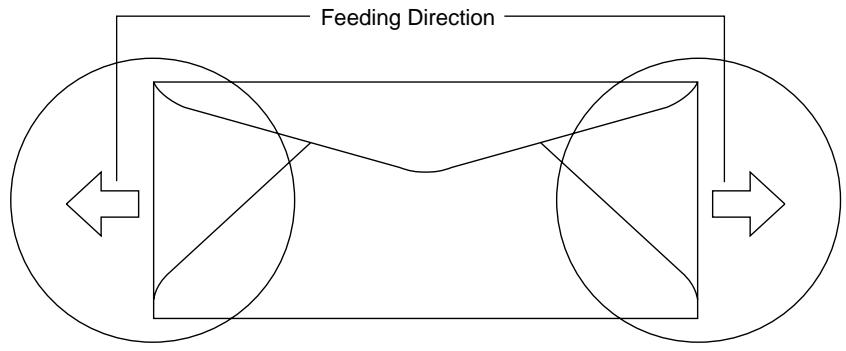
flowchart
graph TD
    A["Left Circle"] --> B["Central Box"]
    B --> C["Right Circle"]
    D["Feeding Direction"] --> B
    style A fill:#fff,stroke:#000
    style C fill:#fff,stroke:#000
    style B fill:#fff,stroke:#000
    style D fill:#fff,stroke:#000
Fig. 3-4 Envelopes
Note
If envelopes get smudged during printing, set the print density to a higher value in the ADVANCED MODE with MODE switch for darker printouts. To adjust the print density setting, see “Checking the Printed Test Pattern or Demo Page” in Chapter 2.
- Envelope joints that are sealed by the manufacturer should be secure.
- All sides should be properly folded without any wrinkles or creases.
Cassette Feed
The printer can feed paper from the multi-purpose tray, the upper or the optional lower paper cassette. You can select the multi-purpose tray as a paper cassette with the FEEDER switch. Since the auto paper feed mode has been factory set, the printer usually feeds paper from the upper paper cassette. When the optional lower paper cassette is installed and the upper paper cassette runs out of paper, the printer automatically switches to the lower paper cassette. When the lower paper cassette runs out of paper or it is not installed, the printer automatically switches to the multi-purpose tray (T1>T2>MP) and feeds from there as long as they contain paper of the same size. When necessary, select the feeder with the FEEDER switch. For further information, see “FEEDER Switch” in Chapter 4. For information about the lower paper cassette, see “LOWER TRAY UNIT” in Chapter 5.
Notes
When you load paper into the multi-purpose tray or the paper cassette, note the following:
- If you use the multi-purpose tray, the paper size has to be manually set in the MP TRAY SETTING mode with the FEEDER switch.
- If your application software supports paper size selection on the print menu, you can select it through the software. If your application software does not support it, you can set the paper size with the MODE switch.
- The paper size has been factory set to letter for 110/120V models or A4 for 220/240V models. If you want to use other sizes of paper or envelopes, change the paper size in the PAGE FORMAT MODE of the FORMAT MODE with the MODE switch. For paper size selection, see “MODE Switch” in Chapter 4.
- If you use pre-printed paper in the cassettes, please note that the paper should be loaded with the printed side face down and the top of the paper to the front of the cassette. If you use pre-printed paper in the multi-purpose tray, the paper should be loaded with the printed side face up and the top of the paper towards the printer.
You can set the paper size for the paper cassette with the MODE switch in the PAGE FORMAT mode. The printer automatically detects the paper size you set in the paper cassette. If you load a different size of paper in the paper cassette from the size selected with the MODE switch or through your application software, the printer prompts you to set the proper size of paper as follows:

(* * * * indicates the paper size you have selected with the MODE switch in the PAGE FORMAT mode or through your application software.)
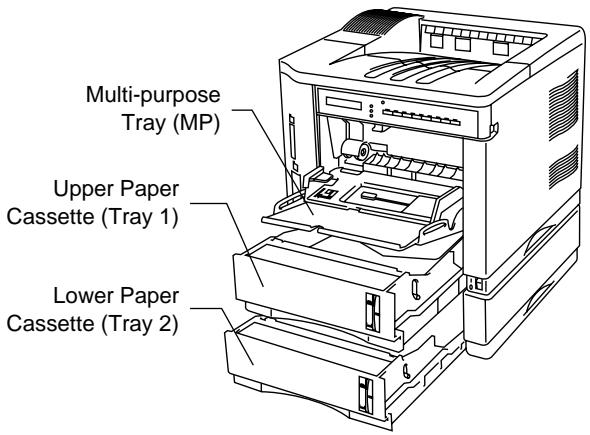
Fig. 3-5 Cassette Feed
Manual Feed
When you set paper in the multi-purpose tray with the setting MANUAL FEED = ON selected with the FEEDER switch, the printer loads paper only from the multi-purpose tray regardless of the previous feeder selection. When you select the setting PAPER IN = CONT in the MP TRAY SETTING mode, the printer loads paper automatically from the multi-purpose tray. When you select the setting PAPER IN = STOP, the printer waits for you to press the SEL key to start printing. You can set the paper feed mode and the paper size with the FEEDER switch. For further information, see “FEEDER Switch” in Chapter 4.
Notes
When you feed paper manually, note the following:
- If your application software supports a manual feed selection in the print menu, you can select it through the software. Since the software or command setting overrides the switch setting, you do not need to set the manual feed mode and the paper size with the FEEDER switch.
- If you use pre-printed paper in the multipurpose tray, please note that it is inserted with the pre-printed side face up. Insert the top of the page towards the printer in the multi-purpose tray.
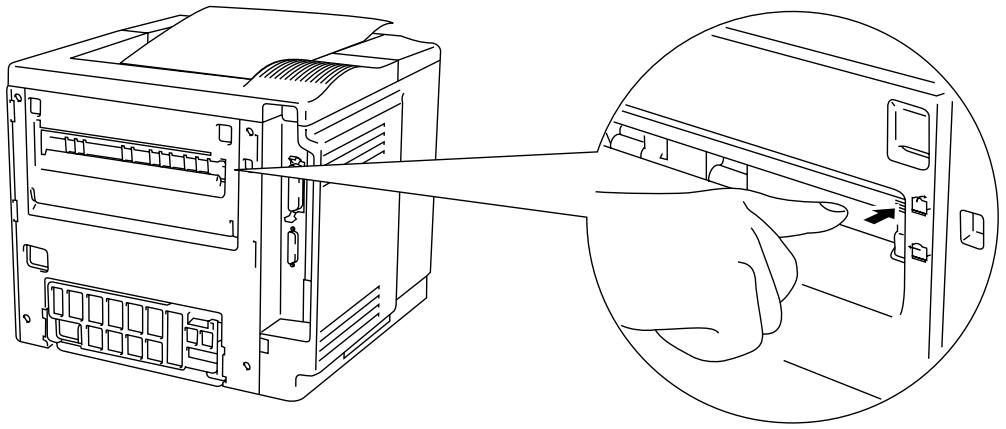
Face Down Print Delivery
The printer normally ejects paper onto the top of the printer with the printed page face down.
natural_image
Line drawing of a computer tower with an inset showing hand inserting a cable into the main panel (no text or symbols present)Fig. 3-6 Face Down Print Delivery
Face Up Print Delivery
You can change the print delivery path from the top to the rear of the printer. Push down the knob located inside the rear paper slit on the left of the paper path selector guide.
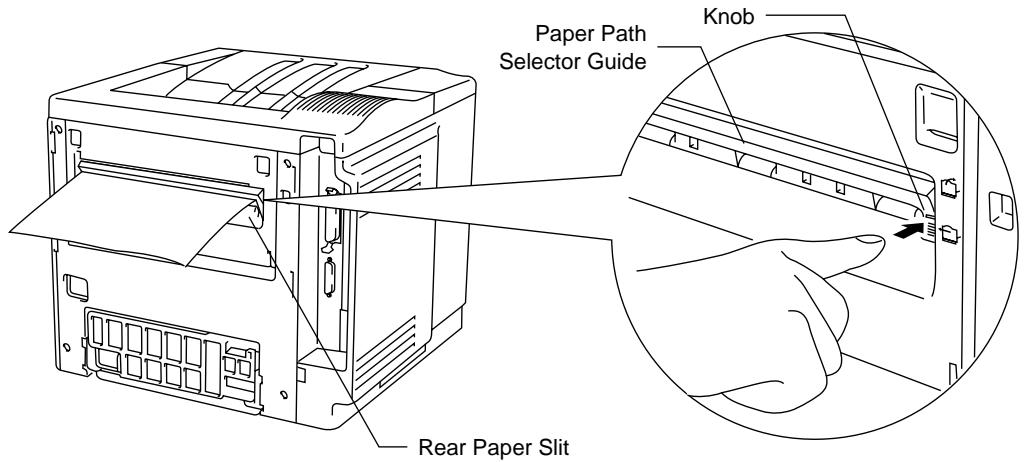
Fig. 3-7 Face Up Print Delivery
The printer ejects paper through the rear paper slit with the printed page face up.
Note
After you have finished face up print delivery, be sure to reset the knob to switch back to the face down print delivery.
CHAPTER 4 CONTROL PANEL
DISPLAY AND LAMPS
This printer has one liquid crystal display (LCD) and four lamps on the control panel. The display can show various messages with up to 16 characters. The lamps light to indicate the current printer status.

Fig. 4-1 Display and Lamps
Display
The display usually shows the current printer status. When you operate the control panel, you can change settings interactively on the display.
When you turn the printer off-line, the display changes to show the currently selected emulation and informs you that you can make settings in the current emulation.
If any problems occur, the display shows the corresponding operator call, error, or service call message to prompt you to take an action. For more information on these messages, see “TROUBLESHOOTING” in Chapter 7.
Printer Status Messages
The following table shows the printer status messages that are displayed during normal operation:
| Printer Status Message | Meaning | |||
| 00 | READY | 001P | T1 | The printer is ready to print. |
| 00 | IDLE | 001P | T1 | The printer is idle. (BR-Script 2 mode only) |
| AUTO LaserJet 5(4+) | The printer is off-line and currently in HP LaserJet mode under AUTO emulation mode selected. | |||
| HP LaserJet 5(4+) | The printer is off-line and in HP LaserJet mode under HP LaserJet emulation mode selected. | |||
| 00 | BUSY | 001P | T1 | The printer is busy. (BR-Script 2 mode only) |
| 00 | SLEEP | 001P | T1 | The printer is in sleep status (power save mode). |
| 01 | 001P | T1 | The printer is printing. | |
| 01 | PR300 | 001P | T1 | The printer is printing bydecreasing the resolution from 600 dpi to 300 dpi because of insufficient memory. |
| 01 | SX | 001P | T1 | The printer is printing in simplex mode due to insufficient memory for the selected duplex mode. |
| 02 | WAIT | 001P | T1 | The printer is warming up. |
| 04 | SELF | TEST | The printer is performing self-diagnosis. | |
| 05 | TEST | The printer is printing the test pattern. | ||
| 06 | DEMO | PAGE | The printer is printing the demonstration. | |
| 06 | CONFIG | The printer is printing the list of the current printer settings. | ||
| 06 | FONTS | I | The printer is printing the list of the internal or resident fonts. | |
| 06 | FONTS | C | The printer is printing the list of the optional fonts stored in an installed font cartridge/card. | |
| 06 | FONTS | P | The printer is printing the list of the permanent download fonts. | |
| 06 | CARD | The printer is printing the contents of a flash memory card or HDD card. | ||
| Printer Status Message | Meaning | (Continued) |
| 07 FF PAUSE | The printer has suspended feeding forms. Pressing the SEL switch resumes form feed. | |
| 08 RESET TO USER SETTINGS | The printer is restoring itself to the user settings you selected with the panel switches. (The message appears only momentarily.) | |
| 09 RESET TO FACTORY SETTINGS | The printer is restoring itself to the factory settings. (The message appears only momentarily.) | |
| Now initializing | The printer is initializing the MIO card or initializing the printer for BR-Script 2 emulation. | |
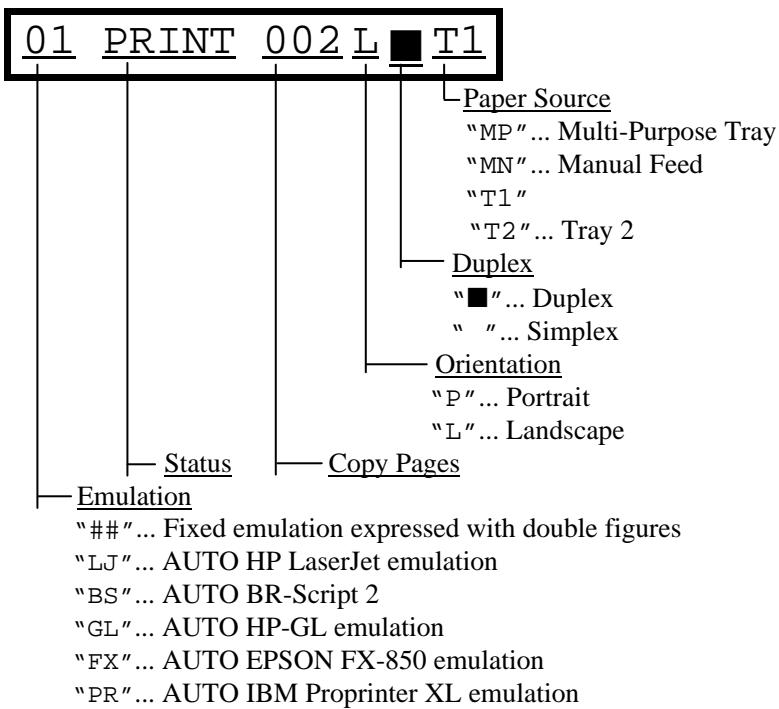
flowchart
graph TD
    A["01"] --> B["PRINT"]
    B --> C["002 L"]
    C --> D["T1"]
    D --> E["Paper Source"]
    E --> F[""MP" ... Multi-Purpose Tray"]
    E --> G[""MN" ... Manual Feed"]
    E --> H["T1"]
    H --> I[""T2" ... Tray 2"]
    D --> J["Duplex"]
    J --> K[""■" ... Duplex"]
    J --> L["... Simplex"]
    D --> M["Orientation"]
    M --> N[""P" ... Portrait"]
    M --> O[""L" ... Landscape"]
    D --> P["Status"]
    P --> Q["Copy Pages"]
    Q --> R["Emulation"]
    R --> S[""###" ... Fixed emulation expressed with double figures"]
    R --> T[""LJ" ... AUTO HP LaserJet emulation"]
    R --> U[""BS" ... AUTO BR-Script 2"]
    R --> V[""GL" ... AUTO HP-GL emulation"]
    R --> W[""FX" ... AUTO EPSON FX-850 emulation"]
    R --> X[""PR" ... AUTO IBM Proprinter XL emulation"]
Fig. 4-2 Display
Lamps
The lamps light or blink to indicate the current printer status.
READY
| LED indication | Meaning |
| On | Ready to print |
| Blinking | Warming up |
DATA
| LED indication | Meaning |
| On | Data remains in the printer buffer. Pressing the FORM FEED switch prints the data and clears the buffer. |
| Blinking | Receiving or processing data |
ALARM
| LED indication | Meaning |
| On | Some problem has occurred in the printer. |
ON LINE
| LED indication | Meaning |
| On | The printer is on-line and ready to print |
| Off | The printer is off-line and stops printing. |
You can control the basic printer operations and change various printer settings in the NORMAL mode. Functions available in the NORMAL mode are shown above the panel switches.


Fig. 4-3 Switches in NORMAL Mode
Note
The factory settings are printed in bold in this section.
SEL Switch
Pressing the SEL switch changes the state of the printer between on-line and off-line. When the printer is on-line, the ON LINE lamp lights and the printer is ready to receive data from the computer. When the printer is offline, the ON LINE lamp is off.
To receive data from the computer, set the printer on-line. To operate the control panel switches, set the printer off-line.
When you press the SEL switch when the printer is the on-line state, it turns off-line and the LCD displays the current emulation mode.
AUTO LaserJet 5
You can enter other emulations in the auto emulation mode by pressing the ▲ (UP) or ▼ (DOWN) switch.
Notes
When you press the SEL switch, remember the following:
- All other switches—except the SEL switch—are operational only when the printer is off-line.
- If the printer is not in auto emulation mode, the LCD displays the current emulation by pressing the SEL key to take it off-line, but you cannot enter other emulation modes. To make settings in other emulation modes, press the EMULATION switch and select the emulation.
- The SEL switch works as a “quick exit” switch. If you are lost in the display menus or you want to quickly exit the display menu, press the SEL switch. You can exit quickly from any depth of the display menu to the on-line ready state. If you have already made a setting effective by pressing the SET switch and then press the SEL switch to quickly exit, your setting (whether made by accident or on purpose) will remain effective. Pressing the SEL switch will not cancel any setting.
SET Switch
Pressing the SET switch allows you to select certain items on the display or make the displayed menu or setting effective. The switch also works as an execute switch to perform the displayed function.
When you press the SET switch, the printer stores the settings you have selected into the memory as “User Settings.” Every time you turn on the printer, it is reset according to these user settings. They remain effective until you make new settings or restore them to the factory settings. For factory reset, see “RESET Switch” in this chapter.
Note
When you press the SET switch to select a setting, an asterisk appears at the end of display for a short time. Since the asterisk indicates the selection, you can easily find the current setting when you scroll through the display.
▲ (UP) or ▼ (DOWN) Switch
Pressing ▲ (UP) or ▼ (DOWN) switch scrolls the menus and settings forward or backward respectively on the display. Press or keep pressing the switch until you access the desired item.
MODE Switch
Pressing the MODE switch allows you to enter modes where you change settings. The mode menus and settings vary according to the current emulation mode and options. For details, refer to the pages indicated in parentheses.
HP LaserJet, EPSON
FX-850, and IBM Proprinter XL Modes
INTERFACE MODE
Set interface, parameters. (4-17)
BR-Script Mode
INTERFACE MODE
Set interface, parameters. (4-17)
HP-GL Mode
INTERFACE MODE
Set interface, parameters. (4-17)
FORMAT MODE
Set orientation, paper size, margins, & others. (4-20)
FORMAT MODE
Set horizontal & vertical offsets. (4-20)
FORMAT MODE
Set orientation, paper size, margins, pen setting & others. (4-20)
RESOLUTION MODE
Set resolution & HRC. (4-28)
RESOLUTION MODE
Set resolution & HRC. (4-28)
RESOLUTION MODE
Set resolution & HRC. (4-28)
PAGE PROTECTION
Protect data on a page. (4-31)
Not available.
PAGE PROTECTION
Protect data on a page. (4-31)
CARD OPERATION
Set a flash memory card or a HDD card in HP mode. (4-32)
CARD OPERATION
Set a flash memory card or a HDD card. (4-32)
CARD OPERATION
Set a flash memory card or a HDD card. (4-32)
ADVANCED MODE
Set network mode, print density, & others. (4-41)
ADVANCED MODE
Set network mode, print density, & others. (4-41)
ADVANCED MODE
Set network mode, print density, & others. (4-41)
PAGE COUNTER
Show # of printed pages. (4-48)
PAGE COUNTER
Show # of printed pages. (4-48)
PAGE COUNTER
Show # of printed pages. (4-48)
exit MODE
Exit to off-line ready state. (4-48)
exit MODE
Exit to off-line ready state. (4-48)
exit MODE
Exit to off-line ready state. (4-48)
MODE Switch Settings in HP LaserJet, EPSON FX-850, and IBM Proprinter XL Modes
The following table shows all the selections you can make with the MODE switch in the HP LaserJet, EPSON FX-850, and IBM Proprinter XL modes.

Note
The mode menus and settings that can appear vary according to the current emulation mode, printer status, and any options that may be installed in the printer.
| Mode Menu | Setting Menu | Sub-Setting Menu | Setting |
| INTERFACE MODE(See 4-17.) | I/F=PARALLEL | HIGH SPEED=ON | ON or OFF |
| BI-DIR=ON | ON or OFF | ||
| I/F=RS-232C | BaudRate=9600 | 150, 300, 600, 1200, 2400, 4800, 9600, 19200, 38400, 57600, or 115200 baud | |
| CodeType=8 bits | 7 or 8 bits | ||
| Parity =NONE | NONE, EVEN, or ODD | ||
| Stop Bit=1 bits | 1 or 2 stop bits | ||
| Xon/Xoff=ON | ON or OFF | ||
| DTR (ER)=ON | ON or OFF | ||
| Robust Xon=OFF | ON or OFF | ||
| exit | Exit to INTERFACE MODE | ||
| I/F=USB (HL-1660e only) | |||
| I/F=OPTION | Available only when a commercial MIO card has been installed. | ||
| MIO Setting | The settings available on the installed MIO card can appear under the sub-setting menu. | ||
| exit | Exit to INTERFACE MODE | ||
| I/F=AUTO | TIME OUT=5s | 1 to 99 seconds | |
| PRL Setting | Bi-directional settings for AUTO | ||
| HIGH SPEED=ON | ON or OFF | ||
| BI-DIR=ON | ON or OFF | ||
| exit | Exit to PRL Setting | ||
| RS-232C Setting | Parameters for AUTO mode | ||
| BaudRate=9600 | 150, 300, 600, 1200, 2400, 4800, 9600, 19200, 38400, 57600, or 115200 baud | ||
| CodeType=8 bits | 7 or 8 bits | ||
| Purity =NONE | NONE, EVEN, or ODD | ||
| Stop Bit=1 bits | 1 or 2 stop bits | ||
| Xon/Xoff=ON | ON or OFF | ||
| DTR (ER)=ON | ON or OFF | ||
| Robust Xon=OFF | ON or OFF | ||
| exit | Exit to RS-232C Setting | ||
| Mode Menu (Continued) | Setting Menu | Sub-Setting Menu | Setting |
| INTERFACE MODE(Continued) | I/F AUTO(Continued) | MIO Setting | Available only when a commercial MIO card has been installed. The settings available on the installed MIO card can appear under the sub-setting menu. |
| FORMAT MODE(See 4-20.) | ORIENTATION | ORI=PORTRAIT | PORTRAIT or LANDSCAPE |
| AUTO MODE | AUTO LF=OFF | ON ... LF + CROFF ... CR only | |
| AUTO CR=OFF | ON ... LF, FF, or VT + CROFF ... LF, FF, or VT only | ||
| AUTO WRAP=OFF | ON ... Auto wrap onOFF ... Auto wrap off | ||
| AUTO SKIP=ON(HP mode) | ON ... Auto FF at bottom marginOFF ... No FF at bottom margin | ||
| AUTO MASK=OFF(EPSON & IBM modes) | ON ... Auto mask onOFF ... Auto mask off | ||
| exit | Exit to AUTO MODE | ||
| PAGE FORMAT MODE | PAPER =LETTER(For 110/120V model) | LETTER, LEGAL, A4, A5,A6, B5, B6, EXECUTIVE,COM10, MONARCH, C5 and DL | |
| PAPER =A4(For 220/240V model) | |||
| LEFT M = 0C | 0 to 126 columns | ||
| RIGHT M = 80C(Letter, Portrait) | 10 to 136 columns | ||
| RIGHT M = 78C(A4, Portrait) | 10 to 136 columns | ||
| TOP M =0.5" (HP mode) | 0, 0.33, 0.5, 1.0, 1.5, or 2.0" | ||
| BOTTOM M=0.5"(HP mode) | 0, 0.33, 0.5, 1.0, 1.5, or 2.0" | ||
| LINES = 60L(HP, Letter, Portrait) | 5 to 128 lines/page | ||
| LINES = 64L(HP, A4, Portrait) | 5 to 128 lines/page | ||
| X OFFSET= 0 | -500 (left) to +500 (right) dots | ||
| Y OFFSET= 0 | -500 (down) to +500 (up) dots | ||
| exit | Exit to PAGE FORMAT MODE | ||
| exit | Exit to FORMAT MODE | ||
| RESOLUTION MODE(See 4-28.) | RESOLUTION | RESOLUTION | 300 or 600 dpi |
| HRC SETTING | HRC=MEDIUM | OFF, LIGHT, MEDIUM, or DARK | |
| exit | Exit to RESOLUTION MODE | ||
| PAGE PROTECTION(See 4-31.) | PROTECT=AUTO | AUTO, OFF, LETTER, A4, or LEGAL | |
| CARD OPERATION(HP mode only)(See 4-32.) | When the commercial flash memory card or the HDD card has not been formatted: | ||
| FORMAT CARD | Format the flash memory card or the HDD card. | ||
| exit | Exit to CARD OPERATION | ||
| CARD OPERATION(HP mode only)(See 4-32.) | When the commercial flash memory card or the HDD card has been formatted: | ||
| EXECUTE DATA | Execute the data on the card. | ||
| DATA ID=##### | Execute the selected data. | ||
| exit | Exit to EXECUTE DATA | ||
| CARD LIST | Print the contents of the card. | ||
| SAVE | SAVE DATA | Send data to be saved. | |
| SET KEY--> END | End saving the data. | ||
| DATA ID=##### | Set data ID for saved data. | ||
| SAVE MACRO | Save a macro. | ||
| MACRO ID=##### | Set macro ID for saved macro. | ||
| PRIMARY FONT | Save primary font. | ||
| FONT ID=##### | Set primary font ID for saved font. | ||
| SECONDARY FONT | Save secondary font. | ||
| FONT ID=##### | Set secondary font ID for saved font. | ||
| DOWNLOAD FONT | Save download font. | ||
| FONT ID=##### | Set download font ID for saved font. | ||
| exit | Exit to CARD OPERATION | ||
| DELETE | MACRO ID=##### | Delete the selected macro. | |
| DATA ID=##### | Delete the selected data. | ||
| FONT ID=##### | Delete the selected font. | ||
| FORMAT CARD | Format the flash card. | ||
| SET--> DELETE ALL | Execute formatting the card. | ||
| exit | Exit to FORMAT CARD | ||
| exit | Exit to CARD OPERATION | ||
| ADVANCED MODE(See 4-41.) | NETWORK MODE | LOCK PANEL=OFF | ON or OFF |
| PASS NO=##### | Enter pass number. | ||
| AUTO FF=OFF | ON or OFF | ||
| WAIT TIME=5s | 1 to 99 seconds for AUTO ON | ||
| FF SUPPRESS=OFF | ON or OFF | ||
| TONER LOW=CONT | CONT or STOP | ||
| exit | exit to NETWORK MODE | ||
| CONTINUE MODE | CONTINUE=MANUAL | AUTO or MANUAL | |
| BUZZER SETTING | BUZZER=ON | ON or OFF | |
| SCALABLE FONT | FONT=ALL | ALL, LJ4 | |
| PRINT DENSITY | ■■■■■ | Increase or decrease the print density. (15 levels) | |
| INPUT BUFFER | □□□□□ | Increase or decrease the input buffer capacity. (15 levels) | |
| SAVE SETTINGS | SAVE SETTING 1 | Save the current setting as #1 | |
| SAVE SETTING 2 | Save the current settings as #2 | ||
| exit | exit to ADVANCED MODE | ||
| PAGE COUNTER(See 4-48.) | COUNT=0 | Shows the number of printed pages. | |
| exit MODE(See 4-48.) | Exit MODE. | ||
MODE Switch Settings in BR-Script 2 Mode
The following table shows all the selections you can make with the MODE switch in the BR-Script 2 mode.
Note
The mode menus and settings that can appear vary according to the current emulation mode, printer status, and any options that may be installed in the printer.
| Mode Menu | Setting Menu | Sub-Setting Menu | Setting |
| INTERFACE MODESame as HP LaserJet Mode(See 4-17.) | |||
| FORMAT MODE(See 4-20.) | X OFFSET=0 | -500 (left) to +500 (right) dots | |
| Y OFFSET=0 | -500 (up) to +500 (down) dots | ||
| exit | Exit to PAGE FORMAT MODE | ||
| RESOLUTION MODE(See 4-28.) | RESOLUTION | RESOLUTION=600 | 300 or 600 dpi |
| APT SETTING | APT=OFF | ON or OFF | |
| HRC SETTING | HRC=MEDIUM | OFF, LIGHT, MEDIUM, or DARK | |
| exit | Exit to RESOLUTION MODE | ||
| CARD OPERATION(See 4-32.) | When the commercial flash memory card or the HDD card has not been formatted: | ||
| FORMAT CARD | Format the flash memory card or the HDD card. | ||
| exit | Exit to CARD OPERATION | ||
| CARD OPERATION(See 4-32.) | When the commercial flash memory card or the HDD card has been formatted: | ||
| EXECUTE DATA | Execute the data on the card. | ||
| DATA ID=##### | Execute the selected data. | ||
| exit | Exit to EXECUTE DATA | ||
| CARD LIST | Print the contents of the card. | ||
| SAVE | SAVE DATA | Send data to be saved. | |
| SET KEY--> END | End saving the data. | ||
| DATA ID=##### | Set data ID for saved data. | ||
| exit | Exit to CARD OPERATION | ||
| DELETE | MACRO ID=##### | Delete the selected macro. | |
| DATA ID=##### | Delete the selected data. | ||
| FONT ID=##### | Delete the selected font. | ||
| FORMAT CARD | Format the card. | ||
| SET -> DELETE ALL | Execute formatting the card. | ||
| exit | Exit to FORMAT CARD OPERATION | ||
| exit | Exit to CARD OPERATION | ||
| Mode Menu (Continued) | Setting Menu | Sub-Setting Menu | Setting |
| ADVANCED MODE(See 4-41.) | NETWORK MODE | LOCK PANEL=OFF | ON or OFF |
| PASS NO=### | Enter pass number. | ||
| AUTO FF=OFF | ON or OFF | ||
| WAIT TIME=5s | 1 to 99 seconds for AUTO ON | ||
| FF SUPPRESS=OFF | ON or OFF | ||
| TONER LOW=CONT | CONT or STOP | ||
| exit | exit to NETWORK MODE | ||
| ERROR PRINT | ERROR PRINT=OFF | ON or OFF | |
| CONTINUE MODE | CONTINUE=MANUAL | AUTO or MANUAL | |
| BUZZER SETTING | BUZZER=ON | ON or OFF | |
| PRINT DENSITY | ■■■■■ | Increase or decrease the print density. (15 levels) | |
| INPUT BUFFER | □□□□□ | Increase or decrease the input buffer capacity. (15 levels) | |
| SAVE SETTINGS | SAVE SETTING 1 | Save the current setting as #1 | |
| SAVE SETTING 2 | Save the current settings as #2 | ||
| exit | exit to ADVANCED MODE | ||
| PAGE COUNTER(See 4-48.) | COUNT=0 | Shows the number of printed pages. | |
| exit MODE(See 4-48.) | Exit MODE | ||
MODE Switch Settings in HP-GL Mode
The following table shows all the selections you can make with the MODE switch in the HP-GL mode.
Note
The mode menus and settings that can appear vary according to the current emulation mode, printer status, and any options that may be installed in the printer.
| Mode Menu | Setting Menu | Sub-Setting Menu | Setting |
| INTERFACE MODESame as LaserJet Mode(See 4-17.) | |||
| FORMAT MODE(See 4-20.) | PAGE FORMAT MODE | PAPER=LETTER(For 110/120V mode) | LETTER, LEGAL, A4, A5,A6, B5, B6, EXECUTIVE,COM10, MONARCH, C5,and DL |
| X OFFSET= 0 | -500 (left) to +500 (right) dots | ||
| Y OFFSET= 0 | -500 (up) to +500 (down)dots | ||
| exit | Exit to PAGE FORMATMODE | ||
| GRAPHICS MODE | PEN SETTING | ||
| SETTING=PEN1 | PEN1 to 6(Set size and graypercentage for the selectedpen.) | ||
| SIZE #=3 dots | 1 to 10 dots (pen size indots)(# is the selected pennumber.) | ||
| GRAY #=100% | 15, 30, 45, 75, 90, or 100%(# is the selected pennumber.) | ||
| exit | Exit to SETTING=PEN1–6 | ||
| exit | Exit to GRAPHICS MODE | ||
| CHARACTER SET | |||
| STANDARD SET | Standard character set | ||
| ANSI ASCII | See character sets on page4-28. | ||
| ALTERNATE SET | Alternate character set | ||
| ANSI ASCII | See character sets on page4-28. | ||
| exit | Exit to GRAPHICS MODE | ||
| exit | Exit to FORMAT MODE | ||
| RESOLUTION MODE(See 4-28.) | RESOLUTION | RESOLUTION=600 | 300 or 600 dpi |
| HRC SETTING | HRC=MEDIUM | OFF, LIGHT, MEDIUM, orDARK | |
| exit | Exit to RESOLUTION MODE | ||
| Mode Menu (Continued) | Setting Menu | Sub-Setting Menu | Setting |
| PAGE PROTECTION(See 4-31.) | PROTECT=AUTO | AUTO, OFF, LETTER, A4, or LEGAL | |
| exit | Exit to CARD OPERATION | ||
| CARD OPERATIONSame as BR-Script mode(See 4-32.) | |||
| ADVANCED MODESame as HP LaserJet mode(See 4-41.) | |||
| PAGE COUNTER(See 4-48.) | COUNT=0 | Shows the number of printed pages. | |
| exit MODE(See 4-48.) | Exit MODE | ||
Basic Operation Procedures
When you operate the MODE switch, remember the following basic steps:
-
Press the SEL switch to set the printer off-line.
-
Press the MODE switch to enter the MODE menus.
The first mode menu appears on the display.
INTERFACE MODE
- Press the ▲ or ▼ switch to scroll through the menus forward or backward. (Pressing the MODE switch allows forward scroll.)
$$ \begin{array}{l}\text {INTERFACE MODE} \leftarrow \blacktriangledown \text {or} \blacktriangle \rightarrow \text {FORMAT MODE}\\leftarrow \blacktriangledown \text {or} \blacktriangle \rightarrow \text {RESOLUTION MODE} \leftarrow \blacktriangledown \text {or} \blacktriangle \rightarrow \dots\end{array} $$
- Press the SET switch to enter the next lower menu level of the selected menu.
Mode Menu — SET → Setting Menu — SET → Sub-Setting Menu
- Press the ▲ or ▼ switch to select the setting on the display.
$$ \begin{array}{l}\text { I / F = PARALLEL\leftarrow\blacktriangledown or \blacktriangle\rightarrow I / F = RS - 232C\leftarrow\blacktriangledown or \blacktriangle\rightarrow}\\text { I / F = OPTION\leftarrow\blacktriangledown or \blacktriangle\rightarrow\ldots}\end{array} $$
- Press the SET switch to make the selected setting effective. Then you move to the next selection or exit to the upper menu level.
When you see “exit” and press the SET switch, you can exit from the current level of menu to the next higher level of the menu.
- Advance to “exit MODE” and press the SET switch to exit from the mode menus to the off-line ready state.
Pressing the SEL switch any time in any level of the menus allows you to exit from the mode menus to the on-line state. The settings you have made with the SET switch before exit are effective.
Operation Example: Selecting the Parallel Interface
For this session, select the parallel interface manually as follows:
- Press the SEL switch to set the printer off-line.
- Press the MODE switch.
The display shows the first menu.
INTERFACE MODE
- Press the SET switch.
When you enter the interface mode, the display first shows the current interface with the asterisk.
I / F = AUTO *
- Press the ▲ or ▼ switch until the desired interface appears on the display.
I / F = PARALLEL
| Display Message | Interface Mode |
| I/F=PARALLEL | Parallel interface |
| I/F=RS-232C | Serial interface |
| I/F=USB | Universal Serial Bus interface (HL-1660e only) |
| I/F=OPTION | Optional interface for MIO card |
| I/F=AUTO | Auto interface selection |
Note
The optional interface is available only when a commercial MIO compatible sharing/network card has been installed.
- Press the SET switch to make the displayed selection effective.
An asterisk appears at the end of the display for a short time. Then the printer automatically exits from the setting menu to the interface menu.
INTERFACE MODE
- Press the ▲ or ▼ switch until the exit menu appears on the display.
exit MODE
- Press the SET switch.
Then the printer automatically returns to the off-line ready state.
INTERFACE MODE
The automatic interface selection has been factory set. If you want to select a specific interface manually, use the interface mode to set it.
| Display Message | Interface Mode |
| I/F=PARALLEL | Parallel interface |
| I/F=RS-232C | Serial interface |
| I/F=USB | Universal Serial Bus interface (HL-1660e only) |
| I/F=OPTION | Optional interface for MIO card |
| I/F=AUTO | Auto interface selection |
Select the setting menu and enter the sub-setting menu to change the setting as follows:
■ Automatic Interface Selection
When you use the automatic interface selection function, select the function on the display as follows:
I / F = AUTO
When you select this function with the SET switch, the display shows the next sub-setting menu as follows:
TIME OUT= 5s *
You need to set the time out for the auto interface selection from 1 to 99 seconds with the ▲ or ▼ switch: factory setting = 5 seconds. This time out is the duration during which the printer will not allow another automatic change to the interface.
Even if you choose the automatic interface selection, you need to set the communications parameters for the serial interface, high speed/bi-directional communications for the parallel interface, and the optional interface settings if the installed MIO card requires them. See the tables below.
For further information about automatic interface selection, see “AUTOMATIC INTERFACE SELECTION” in Chapter 3.
Parallel Interface
When you intend to use the bi-directional parallel interface, select the interface on the display as follows:
$$ I / F = \text { P A R A L L E L } $$
When you use the parallel interface, you need to set the communications mode in the following sub-setting menu.
| Display Message | High Speed and Bi-directional Parallel Communications |
| HIGH SPEED=ON | Turns on or off the high speed parallel communications. |
| BI-DIR=ON | Turns on or off the bi-directional parallel communications. |
The above high-speed and bi-directional settings are used for the bi-directional parallel interface of this printer. The bi-directional parallel interface is compatible with the IEEE 1284 standard bi-directional parallel interface. Although it uses the same cable, hardware, and software as the bi-directional parallel interface, to use its enhanced capabilities—such as bi-directional communication between the computer and printer and faster transmission of data—you need a printer driver or software that supports these features. Check with your software vendor to see if your software supports bi-directional parallel features.
Serial Interface
When you intend to use the serial interface, be sure to select the same communications parameters on both the printer and computer. You must set them for the automatic interface selection, too.
| Display Message | Parameters | Settings |
| BaudRate= 9600 | Baud rate(Data transfer speed) | 150, 300, 600, 1200, 2400, 4800, 9600, 19200, 38400, 57600, 115200 baud |
| CodeType=8 bits | Code type(Data length) | 7 bits or 8 bits |
| Parity =NONE | Parity(Data error check) | None, even, or odd |
| Stop Bit=1 bits | Stop bits(Data separator) | 1 or 2 |
| Xon/Xoff=ON | Xon/Xoff(Handshake protocol) | ON: DTR & Xon/Xoff handshakeOFF: DTR handshake only |
| DTR (ER) =ON(Effective when Xon/Xoff=ON) | Data terminal ready (ER) | ON: Makes DTR (ER) low when the buffer is full.OFF: Does not make DTR (ER) low when the buffer is full.DTR(ER) goes low only when the printer is off-line. |
| Robust Xon =OFF(Effective when Xon/Xoff=ON) | Robust Xon | ON: Sends Xon while waiting.OFF: Sends Xon once, when the printer status changes from off-line to on-line. |
■ Universal Serial Bus (USB) interface
If your computer has a USB interface, you can connect the printer and computer with the USB interface. When using the USB interface, select the interface on the display as follows;
$$ I / F = U S B $$
■ Optional Interface
If you have installed a commercial modular input/output (MIO) card in the printer, you can select the optional MIO interface in this mode. If the installed MIO card requires any optional interface settings, they appear under this menu. Set them, referring to the manual of the MIO card.
$$ I / F = O P T I O N $$
Note
This setting appears only when the MIO card has been installed. For installation of the MIO card, see “MODULAR I/O CARD” in Chapter 5.
FORMAT MODE
ORIENTATION
When you select “ORIENTATION”, you can set portrait or landscape orientation.
Note
The ORIENTATION selection is effective in the HP LaserJet, EPSON FX-850, and IBM Proprinter XL modes. It does not work in other emulation modes.
This printer can print pages in portrait or landscape orientation. You can check the current orientation on the display.

Fig. 4-4 Page Orientation
When you enter the setting mode, the display first shows the current orientation with an asterisk.

Press the ▲ or ▼ switch until the desired orientation appears on the display.
| Display Message | Orientation |
| ORI=PORTRAIT | Portrait |
| ORI=LANDSCAPE | Landscape |
Press the SET switch to make the displayed selection effective.
An asterisk appears at the end of the display for a short time. Then the printer automatically exits from the setting mode to the FORMAT MODE.
When portrait has been selected, the display may look as follows:
00 READY 001P T1
When landscape has been selected, the display may look as follows:
00 READY 001L T1
AUTO MODE
Note
The settings in this mode menu are effective in the HP LaserJet, EPSON FX-850, and IBM Proprinter XL modes. They do not appear in other emulation modes.
The page/line termination is set in this mode.
| Display Message | Setting | Auto Mode | ||
| AUTO | LF | =OFF | ON | CR → CR+LF |
| OFF | CR → CR | |||
| AUTO | CR | =OFF | ON | LF → LF+CR, FF → FF+CR, VT → VT+CR |
| OFF | LF → LF, FF → FF, VT → VT | |||
| AUTO | WRAP | =OFF | ON | Line feed and carriage return occur when the printer position reaches the right margin. |
| OFF | No line feed and carriage return occur when the printer position reaches the right margin. | |||
| AUTO | SKIP | =ON | ON | Form feed occurs when the printer position reaches the bottom margin. |
| OFF | No form feed occurs when the printer position reaches the bottom margin. | |||
| AUTO | MASK | =OFF | ON | The printer ignores the top and bottom margin settings you make with the control panel. The page length is automatically set to 11” for letter or A4-size paper and to 14” for legal-size paper. |
| OFF | The printer operates according to the margin settings you make with the control panel. | |||
Note on AUTO MASK
When you use application software in non-HP modes, be sure to set “AUTO MASK” to ON. When you use letter- or A4-size paper, the top and bottom 2 lines are masked and they do not appear on the printout.
The auto modes are subject to the current emulation mode.
O : The auto modes can be set.
X : The auto modes cannot be changed and no setting appears.
— : The auto modes are not available.
| AUTO Mode | Printer Emulation (Factory settings in bold print) | ||
| HPLaserJet | EPSONFX-850 | IBMProprinter XL | |
| AUTO LF | O OFF | O OFF | O OFF |
| AUTO CR | O OFF | X ON | O OFF (Note) |
| AUTO WRAP | O OFF | X ON | X ON |
| AUTO SKIP | O ON | — | — |
| AUTO MASK | — | O OFF | O OFF |
Note
In the IBM emulation mode, FF codes are always followed by a CR code.
PAGE FORMAT MODE
Notes
The settings in this mode menu vary as follows:
- All settings are effective in the HP LaserJet, EPSON FX-850, and IBM Proprinter XL modes.
- The X and Y (vertical and horizontal) offsets are effective in the BRScript 2 mode. Other settings are not effective and they do not appear in this mode.
- The paper size and the X and Y (vertical and horizontal) offsets are effective in the HP-GL mode. Other settings are not effective and they do not appear in this mode.
The following settings can be made in this mode:
| Display Message | Page Format Mode | |
| PAPER | =LETTER | Set cut sheet paper size to letter, A4, legal, B5, A5, B6, A6, or executive, or envelope size to COM10, Monarch, C5, or DL. |
| LEFT M | = 0C P | Set the left margin at column 0-126 at 10cpi. |
| RIGHT M | = 80C P | Set the right margin at column 10-136 at 10cpi. See “List of Factory Settings” in this chapter. |
| TOP M | =0.5" P | Set the top margin at a distance from the top edge of the paper: 0, 0.33, 0.5, 1.0, 1.5, or 2.0 inches. factory setting = 0.33 (Non-HP), 0.5 (HP) |
| BOTTOM M | =0.5" P | Set the bottom margin at a distance from the bottom edge of the paper: 0, 0.33, 0.5, 1.0, 1.5, or 2.0 inches. factory setting = 0.33 (Non-HP), 0.5 (HP) |
| LINES | = 60L P | Set the number of lines per page from 5 to 128 lines. See “List of Factory Settings” in this chapter. |
The letter “P” in the display messages indicates that the page orientation is portrait. The letter “L” is displayed when it is landscape.
| Display Message | Page Format Mode (Continued) | |
| X OFFSET= | 0 | Move the print start position (at the upper left corner on pages) horizontally up to -500 dots to the left or +500 dots to the right in 300dpi dot unit increments:factory setting = 0. |
| Y OFFSET= | 0 | Move the print start position (at the upper left corner on pages) vertically up to -500 dots downward or +500 dots upward in 300dpi dot increments:factory setting = 0. |
Notes
When you make settings in PAGE FORMAT MODE, note the following:
- The letter size has been factory set for 110/120V model. The A4 size has been factory set for 220/240V model.
- When you use a smaller size of paper than that specified in the PAGE FORMAT MODE, be sure that the print area is smaller than the paper size, or the inside of the printer will get stained with toner. It is recommended that you perform a test before actual use: for this test, you could use a letter or A4 size of paper to see the printed area is completely inside the paper size you are going to use. This simple test will help prevent toner from being incorrectly applied to the inside of your printer, which may cause later print jobs to be smudged with toner.
- The factory settings of the right/left margins and lines vary according to the paper size and orientation. See the tables below.
- The top and bottom margins have been factory set to 0.5" in the HP emulation mode and to 0.33" in the non-HP emulation modes.
- The setting margins are subject to the current page orientation. The display shows the current orientation with “P” for portrait and “L” for landscape.
- Images offset outside the print area are not printed.
■ About Right and Left Margins
The settings range of the right and left margins are subject to the page orientation as follows. The right margin should be placed 10 columns greater than the left margin: minimum text width = 10 columns.
If the orientation is changed, the margin settings are restored to the factory settings. If the paper size is changed and the right and left margins exceed the paper size, they are restored to the factory settings: if they do not exceed the paper size, they remain effective.
The following table shows the settings range in columns. The factory settings are printed in bold.
| Paper Size | Portrait | Landscape | ||
| Left Margin | Right Margin | Left Margin | Right Margin | |
| Letter | 0-70 | 10-80 | 0-96 | 10-106 |
| A4 | 0-70 | 10-78-80 | 0-103 | 10-113 |
| Legal | 0-70 | 10-80 | 0-126 | 10-136 |
■ About Line Settings
Setting the number of lines/page automatically sets the line spacing or line feed pitch. If the paper size is changed, the number of lines/page changes accordingly. The new setting is calculated with the following expression and the remainder, if any, is ignored. However, the line feed pitch and the top and bottom margins remain effective.
$$ # \text { of Lines / Page } = \frac {\text { Page Length - (Top Margin + Bottom Margin) }}{\text { Line Feed Pitch [Vertical Motion Index (VMI)] }} $$
The setting of lines/page is subject to the current paper size and orientation. For example, when letter-sized paper is used, the printer can print 60 lines per page in portrait orientation. If the orientation is changed, the line settings are restored to the factory settings in that orientation.
The following tables show the factory settings in each emulation mode.
In HP Mode
| Size | Orientation | |
| Portrait | Landscape | |
| Letter | 60 lines | 45 lines |
| A4 | 64 lines | 43 lines |
| Legal | 78 lines | 45 lines |
In Non-HP Modes
| Size | Orientation | |
| Portrait | Landscape | |
| Letter | 62 lines | 47 lines |
| A4 | 66 lines | 45 lines |
| Legal | 80 lines | 47 lines |
Note
When you use application software in the non-HP modes, the recommended settings are as follows:
- Left margin = column 0
• Right margin = Max. value - Auto MASK ON
GRAPHICS MODE
Note
The settings in this mode menu are effective only in the HP-GL mode. They do not appear in any other emulation modes.
Since the HP-GL emulation mode is for a plotter, you can select the plotter pens, the pen size and percentage of gray in this mode menu.
| Display Message | Graphics Mode |
| PEN SETTING | Set the size and percentage of gray separately for six plotter pens. |
| CHARACTER SET | Set the standard and alternate character sets. |
Note
In most cases, the application software controls the above graphics mode settings, so you do not need to set them in this menu with the MODE switch. The software or command setting overrides the switch setting.
Select the setting menu and enter the sub-setting menu to make the settings as follows:
■ Pen Setting
When you select “PEN SETTING,” you can set the size and percentage of gray for each plotter pen. You can make settings separately for six pens.
Select the pen with the ▲ or ▼ switch and enter the menu with the SET switch.
$$ \text { S E T T I N G } = \text { P E N 1 } $$
After you select the pen, advance to the sub-setting menu for size or gray-percentage selection with the ▲ or ▼ switch and enter the menu with the SET switch.
When the following message appears, the pen size can be set from 1 dot to 10 dots with the ▲ or ▼ switch:
$$ \text { SIZE } 1 = 3 \text { dots } * $$
When the following message appears, the shades of gray can be set to 15, 30, 45, 75, 90, or 100% with the ▲ or ▼ switch.
$$ \text { GRAY } 1 = 100 \% \quad * $$
Notes
- When another pen is selected, the display shows the selected pen with the number after “SIZE” or “GRAY.”
- Whichever resolution, 300 or 600 dpi, you have selected, the pen size takes effect in units of 300 dpi.
■ Character Set
When you select “CHARACTER SET,” you can select the standard and alternate character sets used in the HP-GL emulation mode.
Enter the sub-setting menu and select the menu for the standard or alternate character set with the ▲ or ▼ switch:
To set the standard character set, select the following message:
STANDARD SET
or
To set the alternate character set, select the following message:
ALTERNATE SET
Then press the SET switch to show the following message:
ANSI ASCII
*
Change the character set with the ▲ or ▼ switch and make the selection effective by pressing the SET switch. For specific character sets, see “SYMBOL/CHARACTER SETS” in Appendix.
| Character Sets in HP-GL Emulation Mode |
| ANSI ASCII (Factory setting) |
| 9825 CHR. SET |
| FRENCH/GERMAN |
| SCANDINAVIAN |
| SPANISH/LATIN |
| JIS ASCII |
| ROMAN8 EXT. |
| ISO IRV |
| ISO SWEDISH |
| ISO SWEDISH:N |
| ISO NORWAY 1 |
| ISO GERMAN |
| ISO FRENCH |
| ISO U.K. |
| ISO ITALIAN |
| ISO SPANISH |
| ISO PORTUGUESE |
| ISO NORWAY 2 |
RESOLUTION MODE
The resolution, advanced photoscale technology (APT) and high resolution control (HRC) can be set in this mode menu.
| Display Message | Resolution Mode |
| RESOLUTION | Set the resolution of the printer. |
| APT SETTING | Set the APT function. This menu appears only in the BR-Script 2 mode. |
| HRC SETTING | Set the HRC function. |
Select the setting menu and enter the sub-setting menu to make the settings as follows:
■ Resolution
When you select “RESOLUTION,” you can choose a resolution of 300 or 600 dots per inch (dpi) on this printer. You can set the resolution in this mode according to your requirement.
The printer may not be able to print large files because of the resolution and the printer's memory. The higher the resolution and file size, the more memory is required.
| Display Message | Resolution |
| RESOLUTION=600 | Set the resolution to 600 dpi. (Factory setting) |
| RESOLUTION=300 | Set the resolution to 300 dpi. |
Select the print resolution in this mode according to the resolution required for your print jobs as shown below:
| Print Jobs | Resolution Setting in Resolution Mode | |
| 300 dpi | 600 dpi | |
| 300 dpi | For optimum print quality | For mixing 300 dpi bitmaps with 600 dpi |
| 600 dpi | Not recommended | For optimum print quality |
Note
Even if you set the resolution to 600 dpi in this mode, the printer may not be able to print large files at 600 dpi because of insufficient memory. However, it automatically decreases the resolution to 300 dpi to print them. While the printer is printing, the display prompts “01 PR300 ...”
If the printer cannot print files even at 300 dpi, the “MEMORY FULL” error occurs. See “TROUBLESHOOTING” in Chapter 7.
This automatic resolution decrease function works in the BR-Script 2 mode and other emulation modes with the page protection on. See “PAGE PROTECTION” in this chapter.
When you want to print without decreasing the resolution, you must expand the memory capacity of the printer to 6-Mbytes or more.
Expand the memory capacity referring to the table below. It shows the minimum size of memory required in the BR-Script 2 mode.
| Paper Size | 300 dpi | 600 dpi |
| Letter or A4 | 4 Mbytes | 6 Mbytes |
| Legal | 4 Mbytes | 6 Mbytes |
| (Duplex printing) | 4 Mbytes | 10 Mbytes |
For memory expansion, see “RAM EXPANSION” in Chapter 5 or consult the dealer where you purchased the printer.
■ APT Setting
When you select “APT SETTING,” you can use the advanced photoscale technology (APT). This function offers photographic fine grayscale on graphics. APT setting is available only at 600 dpi resolution in BR-Script 2 mode and it requires 6 MB of RAM to enjoy APT printouts. When you set APT=ON, the setting of high resolution control (HRC) is unavailable.
| Display Message | Advanced Photoscale Technology |
| APT =OFF | Cancel the advanced photoscale technology.(factory setting) |
| APT =ON | Effectuate the advanced photoscale technology. |
■ HRC Setting
When you select “HRC SETTING,” you can set the high resolution control (HRC). This function is a special function that offers improved print quality of characters and graphics that conventional laser printers cannot attain with resolutions of 300 or 600 dpi. You can set this function in this mode.
| Display Message | High Resolution Control |
| HRC =OFF | Cancel the high resolution control. |
| HRC =LIGHT | Set the high resolution control to the light level. |
| HRC =MEDIUM | Set the high resolution control to the medium level. (Factory setting) |
| HRC =DARK | Set the high resolution control to the dark level. |
The following figures show jagged print with the high resolution control set to “OFF” on the left and clear and crisp print with the control set to “MEDIUM” on the right.

HRC = OFF
HRC = MEDIUM
Fig. 4-5 High Resolution Control
The high resolution control has been factory set to “MEDIUM.” The “LIGHT” or “DARK” setting might be better depending on the selected print density. Choose the best setting for clear and crisp printouts.
To check the printout with the high resolution control, perform the test print with the TEST switch. For operation, see “TEST Switch.”
When you perform “TEST PRINT,” the printer prints the test pattern including a block of lines. If the high resolution control is “OFF,” the lines in the test pattern are unsmoothed or stepped as shown in the left figure below. The pattern will be smoother if the high resolution control is set to LIGHT, MEDIUM, or DARK. Choose an HRC setting and perform the test print so that stepped lines become unnoticeable.
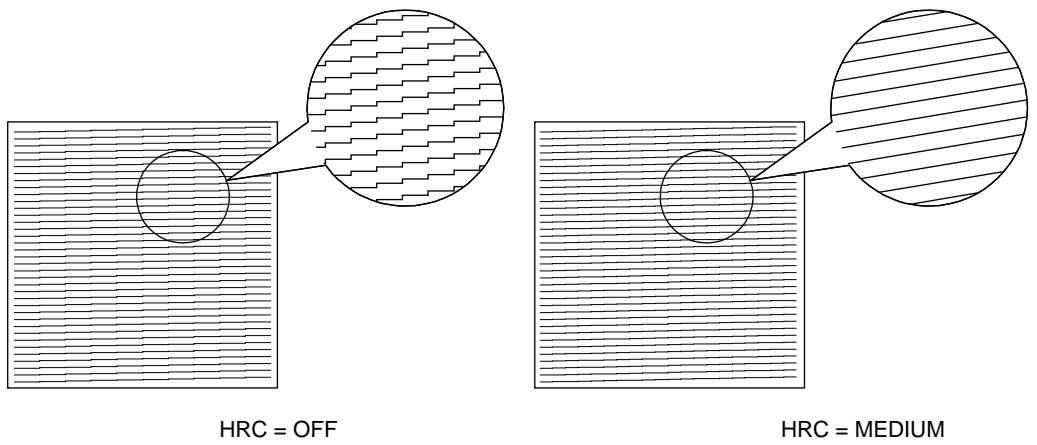
Fig. 4-6 High Resolution Control in Test Printout
PAGE PROTECTION
Note
The setting in this mode menu is effective in the HP LaserJet, EPSON FX-850, IBM Proprinter XL, and HP-GL modes. It does not appear in the BR-Script 2 mode.
If print images are too complex to print, the printer may print them out in parts or only on part of the page. If this occurs, the printer loses print data and shows the following message:
31 PRINT OVERRUN
The page protection function reserves additional memory so that the printer can create the entire page image in memory before physically printing it out. This function can be set for letter, A4, or legal size paper. Select the paper size for page protection.
| Display Message | Page Protection |
| PROTECT=AUTO | Page protection on only when it is necessary. (Factory setting) |
| PROTECT=LETTER | Page protection on for letter size paper. |
| PROTECT=A4 | Page protection on for A4 size paper. |
| PROTECT=LEGAL | Page protection on for legal size paper. |
| PROTECT=OFF | Page protection off |
To protect pages, you need the memory capacity as shown in the following table:
| Protection | 300 dpi | 600 dpi |
| Off | 2 Mbytes | 2 Mbytes |
| Letter or A4 | 2 Mbytes | 6 Mbytes |
| Legal | 3 Mbytes | 6 Mbytes |
| (Duplex) | 4 Mbytes | 10 Mbytes |
Notes
When you use the page protection function, note the following:
- When you want to print at 600 dpi with the page protection function on, be sure to expand the memory capacity to a minimum of 6 Mbytes; or the resolution is automatically reduced to 300 dpi for printouts.
- If the function setting is changed, all download fonts and macros—including permanent ones—are cleared. If the memory is too low to protect pages, page protection does not take effect.
CARD OPERATION
Notes
- BE SURE TO TURN OFF THE PRINTER POWER SWITCH BEFORE INSTALLING OR REMOVING THE FLASH MEMORY CARD OR HDD CARD, OR THE CARD WILL BE DAMAGED.
-
The settings in this mode menu are effective only when you have installed a flash memory card or a HDD card in the card slot of the printer and you have selected the HP LaserJet, HP-GL, or BR-Script 2 mode. They do not appear when the printer has no card or is in any other emulation mode.
-
If you turn the printer off or remove the flash memory card or the HDD card while data is being written onto or deleted from the card, all the data on the card may be lost.
- If the write protect switch of the flash memory card or the HDD card is on, this mode menu does not appear.
Be sure to install a commercial flash memory card or HDD card in the upper card slot of the printer. For installation, see “FONT CARTRIDGE/CARD, FLASH MEMORY/HDD CARD” in Chapter 5.
When you are in this mode menu, you can save macros and fonts in the installed flash memory card or the HDD card.
The sub-setting menus displayed in this mode menu vary according to the state of the installed card.
When the installed card is not formatted:
When you enter this mode menu with the flash memory card or the HDD card installed but not formatted by this printer, you must first format the card.
| Display Message | Card Operation |
| FORMAT CARD | Format a new flash memory card or HDD card. |
| exit | Exit to CARD OPERATION |
When the display shows “FORMAT CARD,” press the SET switch to format the installed card.
After the printer finishes formatting the card, you exit to the “CARD OPERATION” menu.
Notes
- If the card is formatted, data that has been previously written is erased.
- It takes ten or more seconds to format a 2-Mbyte flash memory card or HDD card. The more the capacity of the card, the longer time it takes to format the card.
When the installed flash memory card or HDD card is formatted:
When you enter this mode menu with the formatted flash memory card or HDD card installed, the display shows the following menus:
| Display Message | Flash Operation |
| EXECUTE DATA | Select the data ID and execute the selected data. This menu appears only when any data has been saved on the card. |
| CARD LIST | Print out the contents of the flash memory card or the HDD card. This menu appears only when anything has been saved in the card. |
| SAVE | Save received data, macros, and fonts. |
| DELETE | Delete items from the card. |
Note
A common use of the flash memory is with FORMS software packages. With these commercially available software packages you have an option to send a form to the printer without any data. After you send the form to the printer, you may save the form in the flash memory as a Macro. Then the next time you want to print this form, you would setup your FORMS software package to SEND DATA ONLY - USE FORM IN PRINTER. This process would save you anything from 1 to 4 minutes per print job.
Select the setting menu and enter the sub-setting menu to change the settings as follows:
■ Execute Data
Note
This menu appears only when data has been saved on the card.
When you select “EXECUTE DATA,” you can execute any of the data saved in the SAVE DATA mode.
When you enter this sub-setting menu with the SET switch, the printer prompts you to select the ID of the data.
DATA ID=#####
Select the ID with the ▲ or ▼ switch and press the SET switch again, so that the printer executes the selected data.
Card List
When you select “CARD LIST” and you press the SET switch, the printer automatically loads paper and starts printing the contents of the installed flash memory card or HDD card. You can check the contents and the unused capacity of the card.
■ Save
When you select “SAVE” and you press the SET switch, you can enter the following sub-setting menus to save the macros and fonts in the installed card:
| Display Message | Save Menu |
| SAVE DATA | Save data that the printer will receive and set its ID. |
| SAVE MACRO | Save a macro. This menu appears only in the HP LaserJet emulation mode. |
| PRIMARY FONT | Save the primary font selected with the FONT switch. This menu appears only in the HP LaserJet emulation mode. |
| SECONDARY FONT | Save the secondary font selected with the FONT switch. This menu appears only in the HP LaserJet emulation mode. |
| DOWNLOAD FONT | Save a download font. This menu appears only in the HP LaserJet emulation mode and BR-Script 2 mode. |
Note
If the capacity of the card becomes low while macros and fonts are being saved, the display shows the “CARD FULL” error message and they cannot be saved. Use a new card or delete unnecessary macros and fonts from the card. The CARD LIST displays the contents and the used capacity.
- Save Data
You can send data and save it on the card. In this mode, any kind of data such as PCL data, BR-Script 2 data, and command strings can be saved. When you select “SAVE DATA” and you press the SET switch, the display shows the following guide menus.
SET KEY --> END
This message prompts you to press the SET switch again so that the printer exits from the data reception status when you finish sending data.
Send data from your computer.
Notes
When you send data to be saved on the card, it is temporarily stored in the RAM of the printer. Note the following:
- If the received data exceeds the RAM capacity, a memory full error occurs. You can clear this error with the CONTINUE switch. When this error occurs, only part of the image has been stored in RAM, therefore, you cannot save the data to the card.
- The printer is reset to ensure as much capacity as possible in RAM. If any data remains, it is printed out first.
After you have finished sending data, press the SET switch again, so that the printer exits from the data reception status.
When you exit from the data reception status, you see the following message on the display:
DATA ID=#####
Select the data ID with the ▲ or ▼ switch and press the SET switch. The printer will then save the received data with the ID on the card.
Notes
- When you see an asterisk on the display, the ID number has been used for other data or a macro. If you select the used ID number, the old data or macro is erased and replaced with the new data.
- Once the data is saved, you can execute it with “EXECUTE DATA” or with a data execution command.
- The data saved in the SAVE DATA mode can not be run with the macro execution command in HP LaserJet emulation.
- Save Macro
Note
The “SAVE MACRO” menu appears only in the HP LaserJet emulation mode.
If you have downloaded a macro in the printer's memory, you can save the macro on the installed flash memory card or HDD card.
If a macro has been downloaded in the printer's memory and you press the SET switch at “SAVE MACRO,” the printer prompts you to select the ID of the macro.
MACRO ID=#####
Select the ID with the ▲ or ▼ switch and press the SET switch again, so that the printer saves the macro with the selected ID.
Note
When you see an asterisk on the display, the ID number has been used for another macro or data. If you select the used ID number, the old macro or data is erased and replaced with the new macro.
You can execute a macro with the macro execution command.
• Primary Font or Secondary Font
Note
The “PRIMARY FONT” and “SECONDARY FONT” menus appear only in the HP LaserJet emulation mode.
If you have selected the primary or secondary font with the FONT switch, you can save the font on the installed flash memory card or HDD card.
When you press the SET switch at "PRIMARY FONT" or
“SECONDARY FONT,” the printer prompts you to select the ID of the font.
FONT ID=#####
Select the ID with the ▲ or ▼ switch and press the SET switch again, so that the printer saves the font with the selected ID.
Note
When you see an asterisk on the display, the ID number has been used for another font. If you select the used ID number, the old font is erased and replaced with the new one.
Whatever font you have selected with the FONT switch, the printer saves the font as a bitmapped font as long as the print size is no more than 24 points, so that the printer can print it faster than when they are not saved. It is recommended that you save the scalable font you frequently use for faster printing.
Since the flash memory card or the HDD card is in the upper card slot A of the printer and fonts stored in the card behave in the same way as they would if they were in a dedicated Font Card, you can select the saved fonts as “SLOTFONT A” with the FONT switch or the font selection command from your software. For font selection, see “FONT Switch” in Chapter 4.
You can check the saved fonts by printing the list of fonts with the TEST switch. See “TEST Switch” in Chapter 4.
Notes
When you save the primary or secondary font, note the following:
- The font is temporarily stored in the RAM of the printer before it is saved on the card. If the font data exceeds the RAM capacity, a memory full error occurs. You can clear this error with the CONTINUE switch. As not all the font data has been stored in RAM, you cannot save the font to the card. When the font data is saved, the printer is reset to ensure as much capacity as possible in RAM. If any data remains, it is printed out.
- If you have saved the font at 600-dpi resolution and change the printer resolution to 300 dpi, the printer cannot print the saved font.
- Download Font
Notes
- The “DOWNLOAD FONT” menu appears only in the HP LaserJet emulation mode.
- Be sure to print out the list of download fonts with the TEST switch and check the download font ID on the list before you enter this menu. You need to select the font in this menu with the same number you see on the list.
If you have downloaded a font into the printer memory, you can save it on the flash memory card or the HDD card.
The printer prompts you to select the download font ID that you can find from the font list. Press the SET switch to move the cursor to the ID and select it with the ▲ or ▼ switch.
FONT ID=#####
Note
The download font IDs do not appear when fonts have not been downloaded.
After you select the download font ID, press the SET switch, so that the printer saves the selected download font. Vector or bitmapped fonts are saved in the format of the original font.
Once you save the download font in the card, you do not need to download the font every time you need it.
Since the flash memory card or the HDD card is in the upper card slot A of the printer, you can select the saved fonts as “SLOTFONT A” with the FONT switch or the font selection command from your software. For font selection, see “FONT Switch” in Chapter 4.
You can check the fonts saved on the card by printing the list of fonts with the TEST switch. See “TEST Switch” in Chapter 4.
Note
When the fonts on the HDD card are selected in a print job, they are copied into the printer RAM. It may tend to cause the printer memory full error because those fonts occupy some RAM space. It is recommended to install optional SIMM to use the downloaded fonts on the HDD card.
Delete
When you select “DELETE” and press the SET switch, you can enter the following sub-setting menus to delete macros and fonts or format the installed flash memory card or HDD card:
| Display Message | Save Menu |
| MACRO ID=##### | Delete the selected ID macro. |
| DATA ID=##### | Delete the selected ID data. |
| FONT ID=##### | Delete the selected ID font. |
| FORMAT CARD | Format the flash memory card or the HDD card. |
- Macro
When you press the SET switch at “MACRO ID=#####,” the cursor moves to the ID number. The printer prompts you to select the ID number of the macro to be deleted.
MACRO ID=#####
Select the ID number with the ▲ or ▼ switch and press the SET switch, so that the printer deletes the selected macro.
- Data
When you press the SET switch at "DATA ID=#####," the cursor moves to the ID number. The printer prompts you to select the ID number of the data to be deleted.
DATA ID=#####
Select the ID number with the ▲ or ▼ switch and press the SET switch, so that the printer deletes the selected data.
- Font
When you press the SET switch at “FONT ID=######,” the cursor moves to the ID number. The printer prompts you to select the ID number of the font to be deleted.
FONT ID=#####
Select the ID number with the ▲ or ▼ switch and press the SET switch, so that the printer deletes the selected font.
- Format Card
You can format the flash memory card or the HDD card to delete its contents. Instructions are in the following menu:
FORMAT CARD
When you press the SET switch in this menu, the printer asks if you want to delete all contents of the card:
SET-->DELETE ALL
Press the SET switch to start formatting the card.
When you want to cancel formatting, move to the following menu with the ▲ or ▼ switch and press the SET switch.
exit
ADVANCED MODE
NETWORK MODE
| Display Message | Network Mode |
| LOCK PANEL=OFF | Turns on or off lock panel function. |
| AUTO FF=ON | Turns on or off auto form feed. |
| FF SUPPRESS=OFF | Turns on or off the form feed suppress function. |
| TONER LOW=CONT | Select the printer's action when “TONER EMPTY” is detected |
■ Lock panel
If someone other than you has changed the panel switch settings and you do not know about it, the printer may not print as you expected or it may not print at all.
To cope with this problem, you can lock or unlock the panel switches with your pass number as follows:
| Display Message | Lock Panel |
| LOCK=OFF | Unlock the panel switches of the printer. (Factory setting) |
| LOCK=ON | Lock the panel switches of the printer. |
Even if you lock the panel switches, you can use the SEL, FORM FEED, COPY, CONTINUE, RESET and TEST switches. You can only check the settings of the other switches, but you cannot change them. To change them, unlock the panel switches.
When you lock or unlock the panel switches as above, you need to enter a 3-digit pass number.
PASS NO=***
Change the number with the ▲ or ▼ switch and move to the next digit with the SET switch. After you finish entering your 3-digit pass number, the panel switches are locked or unlocked.
Note
Do not forget your pass number that you have used to lock the panel switches. If you enter a wrong number, you cannot unlock them. The display shows the following message:
INCORRECT!!
■ Auto Form Feed
If unprinted data remains in the printer's memory, the DATA lamp stays on. You need to print out the remaining data with the FORM FEED switch. See “FORM FEED Switch” in Chapter 4.
The auto form feed you can set in this mode menu allows you to print out the remaining data without pressing the FORM FEED switch.
You can turn on or off the auto form feed in this mode menu as follows:
| Display Message | Auto Form Feed |
| AUTO FF=OFF | Turn off the auto form feed. You need to press the FORM FEED switch every time data remains in the printer's memory.(Factory setting) |
| AUTO FF=ON | Turn on the auto form feed. Every time data remains in the printer's memory, the auto form feed takes place after the wait time set as below. |
When you turn on the auto form feed as above, you need to set the wait time in the following sub-setting menu:
| Display Message | Wait Time |
| WAIT TIME= 1s | Set the wait time for the auto form feed. |
| • | The printer automatically prints out the remaining data after the set wait time. |
| WAIT TIME=99s | The wait time can be set from 1 to 99 seconds. |
■ Form Feed Suppress
You can turn on or off the form feed suppress function in this mode menu as follows:
| Display Message | Form Feed Suppress |
| FF SUPPRESS=OFF | Turn off the form feed suppress function. (Factory setting) |
| FF SUPPRESS=ON | Turn on the form feed suppress function. |
If pages contain no print data, the printer would normally print blank pages. When you turn this function on, you can suppress printing blank pages.
When the printer is used in the network environment, it may print a blank page at the end of each print job. When you turn on this function, the printer does not print blank pages.
■ Toner Low
You can select the printer's action when “TONER EMPTY” is detected.
| Display Message | Network Mode |
| TONER LOW=CONT | Continue printing if the “TONER EMPTY” error occurs. (Factory setting) |
| TONER LOW=STOP | Stop printing if the “TONER EMPTY” error occurs. |
ERROR PRINT
Note
The setting in this mode menu is effective only in the BR-Script 2 mode. It does not appear in any other emulation modes.
You can turn on or off the error print mode in this mode.
| Display Message | Error Mode |
| ERROR PRINT=ON | Turn on the error mode so that the printer prints an error if it occurs. |
| ERROR PRINT=OFF | Turn off the error mode so that the printer does not print an error if it occurs. (Factory setting) |
CONTINUE MODE
If any recoverable error occurs including “Toner Empty,” it can be cleared with the CONTINUE switch. The CONTINUE switch function is selected with this mode setting.
| Display Message | Continue Mode |
| CONTINUE=MANUAL | Select the manual or auto error recovery mode. Press the CONTINUE switch to clear errors. (Factory setting) |
| CONTINUE=AUTO | Select the auto error recovery mode. The printer automatically clears recoverable errors. You need not press the CONTINUE switch. |
BUZZER SETTING
You can turn the buzzer of this printer on or off. If any errors occur and the buzzer is turned on, the printer beeps to alert you. If it is turned off, it does not sound to alert you.
| Display Message | Buzzer |
| BUZZER=ON | Turn on the buzzer. (Factory setting) |
| BUZZER=OFF | Turn off the buzzer. |
SCALABLE FONT

Note
The setting in this mode menu is effective only in the HP LaserJet mode. It does not appear in any other emulation modes.
Since this printer has many scalable fonts, some application programs may not be able to handle them correctly. When the HP LaserJet emulation mode has been selected, the printer may print a different font rather than the font you have selected with your program (or the font selection command).
To cope with this font problem, you can restrict the font selection by this command as follows:
| Display Message | Scalable Font |
| FONT=ALL | All scalable fonts of this printer can be selected with the font selection command. For fonts, see “RESIDENT FONTS” in Appendix. (Factory setting) |
| FONT=LJ | Scalable fonts of this printer other than the following can be selected with the font selection command: Atlanta, Bermuda Script, PC Brussels, Copenhagen, Germany, Portugal, Calgary, San Diego, and US Roman. |
Even if you restrict the font selection as above, you can select among all the scalable fonts with the FONT switch. The setting in this mode menu merely restricts the font selection command.
PRINT DENSITY
You can increase or decrease the print density with the ▲ or ▼ switch in this mode menu as follows:
| Display Message | Print Density |
| ■■■■■■■■■■■■■■■■■■■■■■■■■■■■■■■■■■■■■■■■■■■■■■■■■■■■■■■■■■■■■■■■■■■■■■■■■■■■■■■■■■■■■■■■■■■■■■■■■■■■ | The more black squares, the darker the print density. The black squares indicate the density level. |
| ■■■■■■■■■■■■■■■■■■■■■■■■■■■■■■■■■■■■■■■■■■■■■■■■■■■■■■■■■■■■■■■■■■■■■■■■■■■■■■■■■■■■■■■■■■■■■■■■ | The density can be set to 15 levels. |
| ■■ | (Factory setting = ■■■■■■■■■■■■) |
INPUT BUFFER
You can increase or decrease the capacity of the input buffer with the ▲ or ▼ switch in this mode menu. A larger capacity allows the printer to receive data from the computer faster.
| Display Message | Input Buffer |
| ☐☐☐☐☐☐☐☐☐☐☐☐☐☐☐☐☐☐☐☐☐☐☐☐☐☐☐☐☐☐☐☐☐☐☐☐☐☐☐☐☐☐☐☐☐☐☐☐☐☐☐☐☐☐☐☐☐☐☐☐☐☐☐☐☐☐☐☐☐☐☐☐☐☐☐☐☐☐☐☐☐☐☐☐☐☐☐☐☐☐☐☐☐☐☐☐☐☐☐☐ ☐☐☐☐☐☐☐☐☐☐☐☐☐☐☐☐☐☐☐☐☐☐☐☐☐☐☐☐☐☐☐☐☐☐☐☐☐☐☐☐☐☐☐☐☐☐☐☐☐☐☐☐☐☐☐☐☐☐☐☐☐☐☐☐☐☐☐☐☐☐☐☐☐☐☐☐☐☐☐☐☐☐☐☐☐☐☐☐☐☐☐☐☐☐☐☐☐☐☐☐□☐☐☐☐☐☐☐☐☐☐☐☐☐☐☐☐☐☐☐☐☐☐☐☐☐☐☐☐☐☐☐☐☐☐☐☐☐☐☐☐☐☐☐☐☐☐☐☐☐☐☐☐☐☐☐☐☐☐☐☐☐☐☐☐☐☐☐☐☐☐☐☐☐☐☐☐☐☐☐☐☐☐☐☐☐☐☐☐☐☐☐☐☐☐☐☐☐☐☐☑☐☐☐☐☐☐☐☐☐☐☐☐☐☐☐☐☐☐☐☐☐☐☐☐☐☐☐☐☐☐☐☐☐☐☐☐☐☐☐☐☐☐☐☐☐☐☐☐☐☐☐☐☐☐☐☐☐☐☐☐☐☐☐☐☐☐☐☐☐☐☐☐☐☐☐☐☐☐☐☐☐☐☐☐☐☐☐☐☐☐☐☐☐☐☐☐☐☐☐☒☐☐☐☐☐☐☐☐☐☐☐☐☐☐☐☐☐☐☐☐☐☐☐☐☐☐☐☐☐☐☐☐☐☐☐☐☐☐☐☐☐☐☐☐☐☐☐☐☐☐☐☐☐☐☐☐☐☐☐☐☐☐☐☐☐☐☐☐☐☐☐☐☐☐☐☐☐☐☐☐☐☐☐☐☐☐☐☐☐☐☐☐☐☐☐☐☐☐☐○☐☐☐☐☐☐☐☐☐☐☐☐☐☐☐☐☐☐☐☐☐☐☐☐☐☐☐☐☐☐☐☐☐☐☐☐☐☐☐☐☐☐☐☐☐☐☐☐☐☐☐☐☐☐☐☐☐☐☐☐☐☐☐☐☐☐☐☐☐☐☐☐☐☐☐☐☐☐☐☐☐☐☐☐☐☐☐☐☐☐☐☐☐☐☐☐☐☐☐口 ☐☐☐☐☐☐☐☐☐☐☐☐☐☐☐☐☐☐☐☐☐☐☐☐☐☐☐☐☐☐☐☐☐☐☐☐☐☐☐☐☐☐☐☐☐☐☐☐☐☐☐☐☐☐☐☐☐☐☐☐☐☐☐☐☐☐☐☐☐☐☐☐☐☐☐☐☐☐☐☐☐☐☐☐☐☐☐☐☐☐☐☐☐☐☐☐☐☐ ☐ ☐ ☐ ☐ ☐ ☐ ☐ ☐ ☐ ☐ ☐ ☐ ☐ ☐ ☐ ☐ ☐ ☐ ☐ ☐ ☐ ☐ ☐ ☐ ☐ ☐ ☐ ☐ ☐ ☐ ☐ ☐ ☐ ☐ ☐ ☐ ☐ ☐ ☐ ☐ ☐ ☐ ☐ ☐ ☐ ☐ ☐ ☐ ☐ ☐ ☑ ☐ ☐ ☐ ☐ ☐ ☐ ☐ ☐ ☐ ☐ ☐ ☐ ☐ ☐ ☐ ☐ ☐ ☐ ☐ ☐ ☐ ☐ ☐ ☐ ☐ ☐ ☐ ☐ ☐ ☐ ☐ ☐ ☐ ☐ ☐ ☐ ☐ ☐ ☐ ☐ ☐ ☐ ☐ ☐ ☐ ☐ ☐ ☐ ☐ ☒ ☐ ☐ ☐ ☐ ☐ ☐ ☐ ☐ ☐ ☐ ☐ ☐ ☐ ☐ ☐ ☐ ☐ ☐ ☐ ☐ ☐ ☐ ☐ ☐ ☐ ☐ ☐ ☐ ☐ ☐ ☐ ☐ ☐ ☐ ☐ ☐ ☐ ☐ ☐ ☐ ☐ ☐ ☐ ☐ ☐ ☐ ☐ ☐ ☐ ☓ ☐ ☐ ☐ ☐ ☐ ☐ ☐ ☐ ☐ ☐ ☐ ☐ ☐ ☐ ☐ ☐ ☐ ☐ ☐ ☐ ☐ ☐ ☐ ☐ ☐ ☐ ☐ ☐ ☐ ☐ ☐ ☐ ☐ ☐ ☐ ☐ ☐ ☐ ☐ ☐ ☐ ☐ ☐ ☐ ☐ ☐ ☐ ☐ ☐ ★ ☐ ☐ ☐ ☐ ☐ ☐ ☐ ☐ ☐ ☐ ☐ ☐ ☐ ☐ ☐ ☐ ☐ ☐ ☐ ☐ ☐ ☐ ☐ ☐ ☐ ☐ ☐ ☐ ☐ ☐ ☐ ☐ ☐ ☐ ☐ ☐ ☐ ☐ ☐ ☐ ☐ ☐ ☐ ☐ ☐ ☐ ☐ ☐ ☐ ☎ ☐ ☐ ☐ ☐ ☐ ☐ ☐ ☐ ☐ ☐ ☐ ☐ ☐ ☐ ☐ ☐ ☐ ☐ ☐ ☐ ☐ ☐ ☐ ☐ ☐ ☐ ☐ ☐ ☐ ☐ ☐ ☐ ☐ ☐ ☐ ☐ ☐ ☐ ☐ ☐ ☐ ☐ ☐ ☐ ☐ ☐ ☐ ☐ ☐ ☶ ☐ ☐ ☐ ☐ ☐ ☐ ☐ ☐ ☐ ☐ ☐ ☐ ☐ ☐ ☐ ☐ ☐ ☐ ☐ ☐ ☐ ☐ ☐ ☐ ☐ ☐ ☐ ☐ ☐ ☐ ☐ ☐ ☐ ☐ ☐ ☐ ☐ ☐ ☐ ☐ ☐ ☐ ☐ ☐ ☐ ☐ ☐ ☐ ☐ ☽ ☐ ☐ ☐ ☐ ☐ ☐ ☐ ☐ ☐ ☐ ☐ ☐ ☐ ☐ ☐ ☐ ☐ ☐ ☐ ☐ ☐ ☐ ☐ ☐ ☐ ☐ ☐ ☐ ☐ ☐ ☐ ☐ ☐ ☐ ☐ ☐ ☐ ☐ ☐ ☐ ☐ ☐ ☐ ☐ ☐ ☐ ☐ ☐ ☐ ☋ ☐ ☐ ☐ ☐ ☐ ☐ ☐ ☐ ☐ ☐ ☐ ☐ ☐ ☐ ☐ ☐ ☐ ☐ ☐ ☐ ☐ ☐ ☐ ☐ ☐ ☐ ☐ ☐ ☐ ☐ ☐ ☐ ☐ ☐ ☐ ☐ ☐ ☐ ☐ ☐ ☐ ☐ ☐ ☐ ☐ ☐ ☐ ☐ ☐ ☃ ☐ ☐ ☐ ☐ ☐ ☐ ☐ ☐ ☐ ☐ ☐ ☐ ☐ ☐ ☐ ☐ ☐ ☐ ☐ ☐ ☐ ☐ ☐ ☐ ☐ ☐ ☐ ☐ ☐ ☐ ☐ ☐ ☐ ☐ ☐ ☐ ☐ ☐ ☐ ☐ ☐ ☐ ☐ ☐ ☐ ☐ ☐ ☐ ☐ ☉ ☐ ☐ ☐ ☐ ☐ ☐ ☐ ☐ ☐ ☐ ☐ ☐ ☐ ☐ ☐ ☐ ☐ ☐ ☐ ☐ ☐ ☐ ☐ ☐ ☐ ☐ ☐ ☐ ☐ ☐ ☐ ☐ ☐ ☐ ☐ ☐ ☐ ☐ ☐ ☐ ☐ ☐ ☐ ☐ ☐ ☐ ☐ ☐ ☐ ☞ ☐ ☐ ☐ ☐ ☐ ☐ ☐ ☐ ☐ ☐ ☐ ☐ ☐ ☐ ☐ ☐ ☐ ☐ ☐ ☐ ☐ ☐ ☐ ☐ ☐ ☐ ☐ ☐ ☐ ☐ ☐ ☐ ☐ ☐ ☐ ☐ ☐ ☐ ☐ ☐ ☐ ☐ ☐ ☐ ☐ ☐ ☐ ☐ ☐ ☜ ☐ ☐ ☐ ☐ ☐ ☐ ☐ ☐ ☐ ☐ ☐ ☐ ☐ ☐ ☐ ☐ ☐ ☐ ☐ ☐ ☐ ☐ ☐ ☐ ☐ ☐ ☐ ☐ ☐ ☐ ☐ ☐ ☐ ☐ ☐ ☐ ☐ ☐ ☐ ☐ ☐ ☐ ☐ ☐ ☐ ☐ ☐ ☐ ☐ ☸ ☐ ☐ ☐ ☐ ☐ ☐ ☐ ☐ ☐ ☐ ☐ ☐ ☐ ☐ ☐ ☐ ☐ ☐ ☐ ☐ ☐ ☐ ☐ ☐ ☐ ☐ ☐ ☐ ☐ ☐ ☐ ☐ ☐ ☐ ☐ ☐ ☐ ☐ ☐ ☐ ☐ ☐ ☐ ☐ ☐ ☐ ☐ ☐ ☐ ☕ ☐ ☐ ☐ ☐ ☐ ☐ ☐ ☐ ☐ ☐ ☐ ☐ ☐ ☐ ☐ ☐ ☐ ☐ ☐ ☐ ☐ ☐ ☐ ☐ ☐ ☐ ☐ ☐ ☐ ☐ ☐ ☐ ☐ ☐ ☐ ☐ ☐ ☐ ☐ ☐ ☐ ☐ ☐ ☐ ☐ ☐ ☐ ☐ ☐ ☦ | |
After you change the input buffer capacity (make sure you press SET switch), be sure to turn off the printer and then turn it on again. The setting takes effect the next time you turn on the printer.
Notes
- The set capacity is not changed even if the emulation mode is changed.
- The actual capacity of the input buffer varies according to the installed RAM. If the RAM capacity is small, the input buffer capacity may not be increased.
- When you select duplex printing, it requires more memory to run duplex printing. If you set a large input buffer and the remaining memory is not enough to run duplex printing, the print speed may decrease in duplex printing, the 600dpi resolution may decrease to 300dpi, or the printer may automatically change duplex printing to simplex printing. In such a case, you need to install optional SIMM memory or set a smaller input buffer size in this mode.
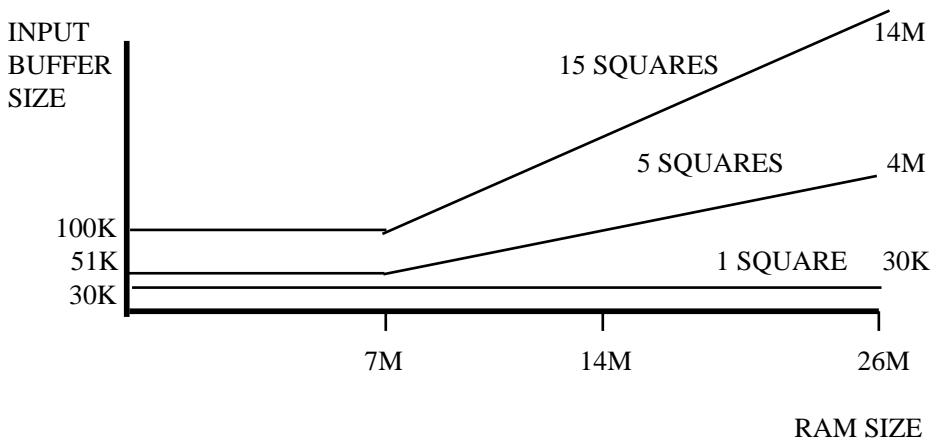
line
| RAM SIZE | INPUT BUFFER SIZE | | -------- | ----------------- | | 7M | 100K | | 14M | 15 SQUARES | | 26M | 14M | | 7M | 51K | | 14M | 4M | | 26M | 1 SQUARE | | 7M | 30K | | 14M | 30K | | 26M | 30K |Fig. 4-7 Input buffer size
SAVE SETTINGS
Suppose you share this printer with others who want different panel switch settings or you use the printer with different settings.
Since you can save the current settings in the printer's memory, you can easily reset the printer to your necessary settings after they are changed. For resetting the printer, see “RESET Switch” in Chapter 4.
Use the panel switches to set the configuration of the printer to your needs and then enter this mode menu to save your settings. Two sets of user settings can be saved in the printer as follows:
| Display Message | User Setting |
| SAVE SETTING 1 | Save the current settings as No. 1 in the printer's memory. |
| SAVE SETTING 2 | Save the current settings as No. 2 in the printer's memory. |
If you want to check the user settings, you can print out a list of the settings with the TEST switch. See “TEST Switch” in Chapter 4.
Note
No user settings have been factory set.
PAGE COUNTER
You can check the total number of printed pages with this mode. When you enter this mode, the display shows the number for a short time and automatically moves to “exit MODE” menu.
COUNT= 861
EXIT MODE
When you finish setting your desired item in the mode menus, advance to the following message:
exit MODE
Press the SET switch to exit from the mode menus to the off-line ready state.
Note
Remember that you can exit from the mode menu any time with the SEL switch. After you make a setting effective with the SET switch, press the SEL switch. You will exit from the mode menu to the on-line ready state. The settings you have changed with the SET switch are effective after a quick exit.
FONT Switch
Pressing the FONT switch allows you to select fonts and symbol/character sets.
Notes
When you use the FONT switch, note the following:
- The FONT switch is effective in the HP LaserJet, EPSON FX-850, and IBM Proprinter XL modes. However the settings are subject to the current emulation mode. Note that the FONT switch does not work in the BR-Script 2 mode.
- If the application software supports font and symbol/character set selection, you do not need to set them with the FONT switch. The software or command setting overrides the switch setting.
- If you want to use optional fonts other than the printer's resident fonts, be sure to install a font cartridge/card that has your desired fonts. The printer automatically selects the font that has exactly the same or similar characteristics as those you set through the software or with a command. If the installed font cartridge/card happens to have a font of similar characteristics, the printer will print with an unexpected font.
- You can store the fonts you require on a flash memory card or HDD card only in the HP LaserJet mode or BR-Script 2 mode when one is installed. See “CARD OPERATION.”
Setting the Font and Symbol Set in the HP LaserJet Mode
When the HP LaserJet emulation mode has been selected, the font and symbol set can be set separately as the primary or secondary font.
The display shows the following setting menus:
PRIMARY FONT
SELECT FONT p
Set the primary font.
SYMBOL SET p
Set the symbol set.
TABLE PRINT p
Print the code table.
exit
Exit
SECONDARY FONT
SELECT FONT S
Set the secondary font.
SYMBOL SET S
Set the symbol set.
TABLE PRINT S
Print the code table.
exit
Exit
To select the font and symbol set in the HP LaserJet mode, follow these steps:
- Press the SEL switch to set the printer off-line.
- Press the FONT switch.
The display shows the following menu.
PRIMARY FONT
- Press the ▲ or ▼ switch to select the primary or secondary font setting menu.
PRIMARY FONT
SECONDARY FONT
For this session, select the primary font setting menu.
- Press the SET switch.
The display shows the font setting menu. You can skip the font setting menu and advance to the symbol set setting menu with the ▲ or ▼ switch. For this session, go to the next step.
SELECT FONT p
Note
The last lowercase letter “p” or “s” indicates the primary or secondary font setting mode. If you select the secondary font setting mode, the display shows “s” in the following messages.
5. Press the SET switch.
When you enter the “SELECT FONT” menu, you can select the internal font, optional slot font, or permanent download font. The display shows the following message.
INTERNAL FONT p*
Press the ▲ or ▼ switch until the desired font source appears on the display.
| Display Message | Font Source |
| INTERNAL FONT | Internal font of the printer |
| SLOTFONT A | Optional card font in the upper slot A |
| SLOTFONT B | Optional cartridge font in the lower slot B |
| PERMANENT FONT | Permanent download font defined in the HP emulation mode |
Since these steps instruct you to select the standard font, select the "INTERNAL FONT" message.
Notes
When you select the optional fonts or permanent download fonts, note the following:
- If the optional font cartridge/card is not installed, the optional font cannot be selected. No selection appears on the display.
- If permanent fonts are not downloaded in the HP emulation mode or another emulation mode is selected, they cannot be selected. No selection appears on the display.
- The list you can print out with the TEST switch helps you to select the optional fonts or permanent download fonts. See “TEST switch” in this chapter or “Selecting the Optional Fonts” in Chapter 5.
6. Press the SET switch.
When you enter the font setting mode, the display first shows the current font with an asterisk.
BROUGHAM p*
- Press the ▲ or ▼ switch until the desired font appears on the display.
See “List of Fonts” on page 4-59.
- Press the SET switch to make the displayed selection effective.
The steps you follow vary according to the font type, scalable or bitmapped.
■ If you select a resident bitmapped font (Letter Gothic 16.66) or optional bitmapped fonts, the display shows the symbol set setting menu.
SYMBOL SET p
Go to step 9.
■ If you select resident scalable fonts or optional scalable fonts, the display shows the font style setting menu.
BROUGHAM p
The display changes to the font style menu.
BROUGHAM Reg p*
Press the ▲ or ▼ switch until the desired style appears on the display.
| Display Message | Font Style |
| ...... Lt | Light |
| ...... Reg | Regular, Roman, Book, or Antique |
| ...... Bd | Bold or Demi |
| ...... Xb | Extrabold |
| ...... It | Italic or Oblique |
Note
The style indication appears after the font name and the style name differs according to the font name. The italic or oblique indication can appear after other style indication: “BdIt” indicates a bold italic font, “LtIt” indicates a light italic font, etc.
Press the SET switch to make the displayed selection effective, then the display shows the font size setting menu.
Note
When you have selected fixed-pitch fonts, you set the font size by the character pitch (width). When you have selected proportional spacing fonts, you set the font size in points (height). The display shows “PITCH” or “POINT” accordingly. The following displays show “PITCH” to simplify instructions.
PITCH= 10.00 *
Press the ▲ or ▼ switch until the desired font size appears on the display.
Press the SET switch to make the displayed selection effective. The blinking cursor then moves to the decimal part of the number.
Press the ▲ or ▼ switch until the desired decimal number appears on the display.
PITCH= 16.66
Press the SET switch to make the displayed selection effective. The display then shows the symbol set setting menu.
SYMBOL SET p
9. Press the SET switch.
When you enter the symbol set setting mode, the display first shows the current symbol set with an asterisk.
ROMAN 8 p*
- Press the ▲ or ▼ switch until the desired symbol set appears on the display.
See “List of Symbol/Character Sets” on page 4-60.
- Press the SET switch to make the displayed selection effective.
The display then shows the next menu.
TABLE PRINT p
- Press the SET switch to start printing the code table of the selected font, or press the ▲ or ▼ switch to skip this menu.
The display shows the exit menu.
exit
- Press the SET switch to exit from the setting mode.
The printer returns to the off-line state.
Setting the Font and Character Set in the, EPSON FX-850, or IBM Proprinter XL Mode
When the EPSON FX-850 or IBM Proprinter XL mode has been selected, the font and character set can be selected.
The display shows the following setting menus.
SELECT FONT
Select the font.
CHARACTER SET
Select the character set.
TABLE PRINT
Print the code table.
exit
Exit
To select the font and character set in the EPSON FX-850 or IBM Proprinter XL mode, follow these steps:
- Press the SEL switch to set the printer off-line.
- Press the FONT switch.
The display shows the font setting menu. You can skip the font setting menu and advance to the character set setting menu with the ▲ or ▼ switch. For this session, go to the next step.
SELECT FONT
3. Press the SET switch.
When you enter the “SELECT FONT” menu, you can select the internal font, optional slot font, or permanent download font. The display shows the following message.
INTERNAL FONT *
Press the ▲ or ▼ switch until the desired font source appears on the display.
| Display Message | Font Source |
| INTERNAL FONT | Internal font of the printer |
| SLOTFONT A | Optional card font in the upper slot A |
| SLOTFONT B | Optional cartridge font in the lower slot B |
| PERMANENT FONT | Permanent download font defined in the HP emulation mode |
Since these steps instruct you to select the standard font, select the "INTERNAL FONT" message.
Notes
When you select the optional fonts or permanent download fonts, note the following:
- If the optional font cartridge/card is not installed, the optional font cannot be selected. No selection appears on the display.
- If permanent fonts are not downloaded in the HP emulation mode or another emulation mode is selected, the permanent fonts cannot be selected. No selection appears on the display.
- When you select the optional font or download font, press the SET switch to enter the sub-menu. After you select your desired one with the ▲ or ▼ switch, press the SET switch again. The list you can print out with the TEST switch helps you to select the optional fonts or permanent download fonts. See “TEST switch” in this chapter or “Selecting the Optional Fonts” in Chapter 5.
4. Press the SET switch.
When you enter the font setting mode, the display first shows the current font with an asterisk.
BROUGHAM
*
- Press the ▲ or ▼ switch until the desired font appears on the display.
See “List of Fonts” on page 4-59.
- Press the SET switch to make the displayed selection effective.
The steps you follow vary according to the font type, scalable or bitmapped.
■ If you select a resident bitmapped font (Letter Gothic 16.66) or optional bitmapped fonts, the display shows the character set setting menu.
CHARACTER SET
Go to step 7.
■ If you select the resident scalable fonts or optional scalable fonts, the display shows the font style setting menu.
BROUGHAM
The display changes to the font style menu.
BROUGHAM Reg *
Press the ▲ or ▼ switch until the desired style appears on the display.
| Display Message | Font Style |
| ...... Lt | Light |
| ...... Reg | Regular, Roman, Book, or Antique |
| ...... Bd | Bold or Demi |
| ...... Xb | Extrabold |
| ...... It | Italic or Oblique |
Note
The style indication appears after the font name and the style name differs according to the font name. The italic or oblique indication can appear after any style indication: “BdIt” indicates a bold italic font, “LtIt” indicates a light italic font, etc.
Press the SET switch to make the displayed selection effective, then the display shows the font size setting menu.
Note
When you have selected fixed-pitch fonts, you set the font size by the character pitch (width). When you have selected proportional spacing fonts, you set the font size in points (height). The display shows “PITCH” or “POINT” accordingly. The following displays show “PITCH” to simplify instructions.
PITCH= 10.00 *
Press the ▲ or ▼ switch until the desired font size appears on the display.
Press the SET switch to make the displayed selection effective. Then the blinking cursor moves to the decimal part of the number.
Press the ▲ or ▼ switch until the desired decimal number appears on the display.
PITCH= 16.66
Press the SET switch to make the displayed selection effective. The display then shows the character set setting menu.
CHARACTER SET
7. Press the SET switch.
When you enter the character set setting mode, the display first shows the current character set with an asterisk.
US ASCII
*
Note
The character set varies according to the current emulation mode. The above display shows the factory setting in the EPSON FX-850 emulation mode.
- Press the ▲ or ▼ switch until the desired character set appears on the display.
See “List of Symbol/Character Sets” on page 4-60.
- Press the SET switch to make the displayed selection effective.
Then the display shows the next menu.
TABLE PRINT
- Press the SET switch to start printing the code table of the selected font, or press the ▲ or ▼ switch to skip this menu.
Then the display shows the exit menu.
exit
- Press the SET switch to exit from the setting mode.
The printer returns to the off-line state.
List of Fonts
For specific characters in resident bitmapped and scalable fonts, see “SYMBOL/CHARACTER SETS” in Appendix.
| Display Message | Font |
| BROUGHAM | Scalable Brougham |
| LETTERGOTHIC | Scalable LetterGothic |
| OCR-A | Bitmapped OCR-A 12 cpi |
| OCR-B | Bitmapped OCR-B 12 cpi |
| LETTERGOTH16.6 | Bitmapped Letter Gothic 16.66 cpi |
| LTRGOTH16 LTN2 | Bitmapped Letter Gothic 16.66 cpiISO 8859-1 Latin2 |
| LTRGOTH16 LTN5 | Bitmapped Letter Gothic 16.66 cpiISO 8859-1 Latin5 |
| LTRGOTH16 LTN6 | Bitmapped Letter Gothic 16.66 cpiISO 8859-1 Latin6 |
| PcTENNESSEE | Scalable PC Tennessee |
| OKLAHOMA | Scalable Oklahoma |
| CONNECTICUT | Scalable Connecticut |
| CLEVELAND Cd | Scalable Cleveland Condensed |
| PcBRUSSELS | Scalable PC Brussels |
| UTAH | Scalable Utah |
| UTAH CONDENSED | Scalable Utah Condensed |
| AntiqueOAKLAND | Scalable Antique Oakland |
| GUATEMALA | Scalable Guatemala Antique |
| MARYLAND | Scalable Maryland |
| ALASKA | Scalable Alaska |
| HELSINKI | Scalable Helsinki |
| BR SYMBOL | Scalable BR Symbol |
| TENNESSEE | Scalable Tennessee |
| W DINGBATS | Scalable W Dingbats |
| GERMANY | Scalable Germany |
| SAN DIEGO | Scalable San Diego |
| BERMUDA SCRIPT | Scalable Bermuda Script |
| US ROMAN | Scalable US Roman |
| ATLANTA | Scalable Atlanta |
| COPENHAGEN | Scalable Copenhagen |
| PORTUGAL | Scalable Portugal |
| CALGARY | Scalable Calgary |
List of Symbol/Character Sets
The symbol sets and character sets are subject to the current emulation mode. For specific symbol/character sets, see “SYMBOL/CHARACTER SETS” in Appendix.
| HP LaserJet | EPSON | IBM |
| ROMAN 8 | US ASCII * | PC-8 * |
| ISO LATIN1 | GERMAN | PC-8 D/N |
| ISO LATIN2 | UK ASCII I | PC-850 |
| ISO LATIN5 | FRENCH I | PC-852 |
| ISO LATIN6 | ||
| PC-775 | ||
| PC-8 * | DANISH I | PC-860 |
| PC-8 D/N | ITALY | PC-863 |
| PC-850 | SPANISH | PC-865 |
| PC-852 | SWEDISH | PC-8 TURKISH |
| PC-8 TURKISH | JAPANESE | |
| PC-1004 | ||
| WINDOWS LATIN1 | NORWEGIAN | |
| WINDOWS LATIN2 | DANISH II | |
| WINDOWS LATIN5 | UK ASCII II | |
| WINDOWS BALTIC | ||
| LEGAL | FRENCH II | |
| ISO 2 IRV | DUTCH | |
| ISO 4 UK | SOUTH AFRICAN | |
| ISO 6 ASCII | PC-8 | |
| ISO10 SWE/FIN | PC-8 D/N | |
| ISO11 SWEDISH | PC-850 | |
| ISO14 JISASCII | PC-852 | |
| ISO15 ITALIAN | PC-860 | |
| ISO16 POR | PC-863 | |
| ISO17 SPANISH | PC-865 | |
| ISO21 GERMAN | PC-8 TURKISH | |
| ISO25 FRENCH | ||
| ISO57 CHINESE | ||
| ISO60 NOR v1 | ||
| ISO61 NOR v2 | ||
| ISO69 FRENCH | ||
| ISO84 POR | ||
| ISO85 SPANISH | ||
| HP GERMAN | ||
| HP SPANISH | ||
| VENTURA MATH | ||
| VENTURA INTL | ||
| VENTURA US | ||
| PS MATH | ||
| PS TEXT | ||
| MATH-8 | ||
| PI FONT | ||
| MS PUBLISHING | ||
| WINDOWS 3.0 | ||
| MC TEXT | ||
| DESKTOP |
FORM FEED Switch (REPRINT Switch)
The FORM FEED switch works in two ways according to the DATA lamp status.
Form Feed
When the printer is off-line and there is data remaining in the printer memory, the DATA lamp comes on. Pressing the FORM FEED switch executes a form feed and prints out the remaining data. The display may look as follows:
01 PRINT 001P T1
If you set the number of copies with the COPY switch and press the FORM FEED switch during copy printing, the printer suspends the form feed operation and the display shows the following message:
07 FF PAUSE
Pressing the SEL switch again resumes the form feed operation.
When no data remains in the printer memory and you press the FORM FEED switch, the printer ignores this switch operation and the display shows the following message:
No Data !!!
Note
If you want the printer to print out the remaining data automatically, you can set the auto form feed function with the MODE switch.
See “AUTO FORMFEED” in Chapter 4.
Reprint Function
You can reprint the last job of data without sending it from the computer again. When you press the FORM FEED switch with the DATA lamp off, the printer reprints the same job with the one you printed last time. You can use this function in order to recover printing when a paper jam has occurred.
After printing is finished, set the printer off-line and press the FORM FEED switch once, so that the printer prints the last job of data.
The display shows the following message during reprinting;
REPRINT 1 JOB
If the printer does not have enough memory to reprint the entire job, it reprints the last page only, and the display shows the following message during reprinting;
REPRINT 1 PAGE
When you press the FORM FEED switch one or more times during reprinting, you can set the number of pages to reprint. The printer reprints the same job the number of times you press the switch.
Notes
- The reprint data remains in the printer's memory until the printer is reset or the emulation, or some settings are changed. After you have reprinted confidential data, be sure to reset the printer to clear it from the printer's memory.
- If the printer cannot distinguish the job unit, it prints the last page only. You can reprint the job unit with using the attached printer driver.
- You cannot use the reprint function in the BR-Script 2 emulation mode.
CONTINUE Switch
If there is a problem with the printer, it automatically suspends printing and goes off-line. Pressing the CONTINUE switch may ignore the error and resume printer operation.
The function of this switch varies according to the CONTINUE mode set with the MODE switch.
Since the CONTINUE mode has been factory set to MANUAL, you need to press the CONTINUE switch to recover from a printer error message. If you set the mode to AUTO, the printer attempts to resume the operation without pressing the CONTINUE switch.
For further information, see “CONTINUE MODE” in Chapter 4.
Note
The CONTINUE switch is not a cure-all. The printer cannot recover from some errors. Take corrective action, referring to the error message. See “TROUBLESHOOTING” in Chapter 7.
SWITCHES IN SHIFT MODE
You can control the basic printer operations and make various printer settings also in the SHIFT mode. Functions available in the SHIFT mode are labeled with the indications just below the panel switches.
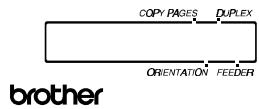

Fig. 4-8 Switches in SHIFT Mode
Note
The factory settings are printed in bold in this section.
SHIFT Switch
When you hold the SHIFT switch down with the printer off-line, you can change settings with the panel switches in the SHIFT mode. Since the shift state is not locked, you need to hold it down and press the switch to get access to the corresponding shifted function labeled under the switch.
EMULATION Switch
This printer has been factory set with the automatic emulation selection function on. The printer can select the emulation mode automatically when it receives data from the computer.
When you want to set the emulation mode manually, hold down the SHIFT switch and press the EMULATION switch. Then you enter the setting mode where you change the emulation.
To set the emulation mode, follow these steps:
-
Press the SEL switch to set the printer off-line.
-
Hold down the SHIFT switch and press the EMULATION switch.
When you enter the setting mode, the display first shows the current emulation mode with an asterisk.
AUTO
*
- Press the ▲ or ▼ switch until the desired emulation mode appears on the display.
| Display Message | Emulation Mode |
| HP LaserJet 5(4+) | HP LaserJet |
| BR-Script 2 | BR-Script level 2 mode |
| HP-GL | HP-GL Plotter Mode |
| EPSON FX-850 | EPSON FX-850 |
| IBMProprinterXL | IBM Proprinter XL |
| AUTO | Auto Emulation Selection |
- Press the SET switch to make the displayed selection effective.
When you select any specific emulation mode other than “AUTO,” an asterisk appears at the end of the display for a short time. Then the printer automatically exits from the setting mode to the off-line state.
When you select “AUTO,” the sub-item “Time Out” for the automatic emulation selection appears on the display. Go to the next step.
- Set "Time Out" with the ▲ or ▼ switch.
TIME OUT= 5s *
This time out is the duration during which the printer will not allow an automatic emulation change. You can set it from 1 second to 99 seconds: the factory setting is 5 seconds.
- Press the SET switch.
The next sub-item “EPSON/IBM” appears on the display.
EPSON/IBM=EPSON*
- Select EPSON or IBM with the ▲ or ▼ switch.
Since the printer cannot distinguish between the EPSON and IBM emulation modes, you need to select the EPSON or IBM emulation even in the AUTO mode.
When the printer receives data from the computer, it automatically selects the emulation mode in any of the following combinations:
| EPSON/IBM Priority | EPSON | IBM |
| Auto Selection Mode | HP LaserJet | HP LaserJet |
| BR-Script 2 | BR-Script 2 | |
| HP-GL | HP-GL | |
| EPSON FX-850 | IBM Proprinter XL |
- Press the SET switch.
The next sub-item “KEEP PCL” appears on the display.
KEEP PCL=OFF
This function is for permanent macros and fonts downloaded in the HP LaserJet mode.
- Turn on or off the “KEEP PCL” function with the ▲ or ▼ switch.
When you do not need to use the permanent macros and fonts in the HP LaserJet mode, turn this function off. When you use them, you can turn it on.
If the function is turned on, the downloaded macros and fonts are kept in the printer's memory until the printer is turned off, so that they are not cleared by switching the emulation to the BR-Script 2 mode.
Note
The “KEEP PCL” function reserves free space in the printer’s memory and may cause a memory full error. If a memory full error occurs, expand the memory capacity or turn off this function.
- Press the SET switch.
The “exit” message appears on the display.
- Press the SET switch again.
The printer exits from the setting mode to the off-line state.
Note
When you use the automatic emulation selection, try it with your application software or network server. If the function does not work properly, select a particular emulation mode manually. You can use the following commands to select the emulation on the network.
| Commands | Hex | Emulation |
| ESC CR H | 1B 0D 48 | HP LaserJet |
| ESC CR AB | 1B 0D 41 42 | BR-Script 2 |
| ESC CR GL | 1B 0D 47 4C | HP-GL |
| ESC CR E | 1B 0D 45 | EPSON FX-850 |
| ESC CR I | 1B 0D 49 | IBM Proprinter XL |
About Emulation Modes
This printer has the following emulation modes:
■ HP LaserJet Mode
The HP LaserJet mode (or HP mode) is the emulation mode where this printer emulates the Hewlett-Packard LaserJet laser printer. Since a large number of application software packages support this type of laser printer, your printer will operate at its optimum performance in this mode.
■ BR-Script 2 Mode
BR-Script is a Brother original page description language and it is a PostScript® language emulation interpreter. This printer supports level 2. The BR-Script interpreter of this printer can control text and graphics on pages completely and satisfactorily.
Average users do not need to know much about PostScript ^® language. If you want to obtain technical information about PostScript ^® commands, see the following commercial manuals:
- Adobe Systems Incorporated. PostScript® Language Reference Manual, 2nd Edition. Menlo Park: Addison-Wesley Publishing Company, Inc., 1990.
- Adobe Systems Incorporated. PostScript® Language Program Design. Menlo Park: Addison-Wesley Publishing Company, Inc., 1988.
- Adobe Systems Incorporated. PostScript® Language Reference Manual. Menlo Park: Addison-Wesley Publishing Company, Inc., 1985.
- Adobe Systems Incorporated. PostScript® Language Tutorial and Cookbook. Menlo Park: Addison-Wesley Publishing Company, Inc., 1985.
HP-GL Mode
The HP-GL mode is the emulation mode where this printer emulates the Hewlett-Packard plotter model HP-7475A. Since many graphics and CAD applications support this type of plotter, you can get more out of this printer working with your application software.
■ EPSON FX-850 and IBM Proprinter XL Mode
The EPSON FX-850 and IBM Proprinter XL modes are the emulation modes where this printer emulates the industry-standard dot matrix printers of respective manufacturers. Since most applications support these printers, you do not have to be concerned about compatibility.
ECONOMY Switch
TONER SAVE MODE
You can turn on or off the toner save mode as follows:
| Display Message | Toner Save Mode |
| TONER SAVE=OFF | Turn off the toner save mode.(Factory setting) |
| TONER SAVE=ON | Turn on the toner save mode. The amount of toner on the paper decreases and the printed image may look light gray. |
POWER SAVE MODE
You can turn on or off the power save mode as follows:
| Display Message | Power Save Mode |
| POWER SAVE=ON | Turn on the power save mode. The fixing assembly of the print engine is turned off after the specified time to save power.(Factory setting) |
| POWER SAVE=OFF | Turn off the power save mode. The fixing assembly of the print engine is always powered on to keep its temperature at the specified level. |
When you turn on the power save mode with the SET switch, the display shows the next sub-setting menu as follows:
TIME OUT=30m *
You need to set the time out for the power save mode from 1 to 99 minutes with the ▲ or ▼ switch: factory setting =30 minutes. The time out is the duration after which the fixing assembly of the print engine is turned off (“SLEEP”) to save power.
When the power save mode is turned on, the printer turns on the fixing assembly again after it receives data from the computer. Since the fixing assembly must reach the specified high temperature, it takes a little longer time to start printing the first page.
FEEDER Switch
You can select the feeder, manual feed mode, or MP tray settings with the FEEDER switch, and also select the duplex printing mode if the optional duplex printing unit is installed.
| Display Message | Feeder |
| FEEDER=AUTO | Select a feeder or auto paper feed. |
| MP FIRST=OFF | Turns MP first on or off. |
| MANUAL FEED=OFF | Turns manual feed on or off. |
| MP TRAY SETTING | MP tray settings |
| MEDIA TYPE | Select print media |
| DUPLEX MODE | Selects duplex printing mode (only with the duplex option installed.) |
You can check the current feeder and the duplex mode on the display.
When tray 1 has been selected, the display may look as follows:
00 READY 001P T1
When the multi-purpose tray and the duplex printing mode have been selected, the display may look as follows:
00 READY 001P■MP
The black square ■ indicates that duplex printing mode is selected.
When you want to change settings with the FEEDER switch, hold down the SHIFT switch and press the FEEDER switch. You will then enter the setting mode where you change the feeder, manual feed mode, etc.
FEEDER
To select the feeder, follow these steps:
- Press the SEL switch to set the printer off-line.
- Hold down the SHIFT switch and press the FEEDER switch.
When you enter the setting mode, the display first shows the current feeder setting with the asterisk.
FEEDER=AUTO *
- Press the ▲ or ▼ switch until the desired feeder appears on the display.
| Display Message | Paper Feed Method/Paper Source |
| FEEDER=AUTO | Auto paper feed |
| FEEDER=MP TRAY | Cassette feed from multi-purpose tray (MP tray) |
| FEEDER=TRAY1 | Upper paper cassette (Tray 1) |
| FEEDER=TRAY2 | Lower paper cassette (Tray 2) |
Notes
When you select a feeder, note the following:
- The “FEEDER=TRAY2” message appears only when the optional lower tray unit has been installed.
- The FEEDER=AUTO setting allows you to optimize your printing environment. This setting allows a print job to continue uninterrupted when a paper out condition occurs. The default setting is AUTO. This setting allows a common printing situation: Loading the same size and type of paper in all paper trays. This allows your print job to continue without error if one of the paper trays becomes empty. The printer will automatically select another tray if one tray becomes empty.
- When you select the FEEDER=AUTO, the printer automatically searches for the paper size you set with the MODE switch in the PAGE FORMAT mode and loads the paper from the paper source that contains the selected size of paper. If all of the upper and lower paper cassettes and the multi-purpose tray contain different sizes of paper and one paper cassette runs out of paper, the printer stops printing without automatically changing to the other paper source to feed paper. It prevents a different size of paper from being printed by mistake.
-
If you have the same size of paper loaded but of different type (i.e.: FORM “A” in Tray 1, Form “B” in Multi-purpose Tray) it is recommended to change the feeder setting from AUTO to Tray 1. This setting will allow the printer to pause when a paper empty condition occurs, allowing you to load the correct type of paper, then press SEL to finish to print job.
-
Press the SET switch to make the displayed selection effective.
When you select “MP TRAY”, “TRAY1,” or “TRAY2,” an asterisk appears at the end of the display for a short time. Then the “exit” message appears on the display. Press the SET switch again, so that the printer exits from the setting mode to the off-line state.
When you select “AUTO”, the tray selection menu for the auto paper feed appears on the display. Go to the next step.
- Change the tray combination and priority with the ▲ or ▼ switch. For example:
$$ \mathrm{AUTO} = \mathrm{T1} > \mathrm{MP} \quad * $$
When “AUTO=T1>MP” is set, both tray 1 and the multi-purpose tray are selected but tray 1 will be selected first if the paper size in tray 1 and the page size for the printing job match each other.
- Press the SET switch.
MP FIRST
The display shows the current setting for the MP FIRST mode for the multi-purpose tray with an asterisk.
$$ \mathrm{MPFIRST=OFF} \quad * $$
- Press the ▲ or ▼ switch to select on or off for the MP FIRST mode in the multi-purpose tray.
Notes
- When you want to print the first page on paper such as letterhead in the multi-purpose tray, and the following pages on paper such as plain paper in another tray, place a sheet for the first page on the multi-purpose tray and select “MP FIRST=ON” in this menu. Then the printer first selects the multi-purpose tray regardless of the “FEEDER=#####” setting and then automatically switches to the feeder selected in the “FEEDER=#####” menu after the multi-purpose tray becomes empty.
- You can use the MP tray as a convenient temporary feeder by setting MP FIRST=ON. When MP FIRST=ON is set, if you place paper on MP tray, this paper will be printed, and if you do not place paper on MP tray, another tray will be selected according to the command or the “FEEDER=#####” setting.
- You can set “MP FIRST=ON” so that you can use the MP tray paper first until it becomes empty and then switch to other paper sources which hold the same size of paper. You can set “MP FIRST=ON” for this purpose only when all the trays hold the same type and size of paper. When the MP tray paper size is different from paper in other trays, you must not select “ON” if you do not want to use MP tray paper.
- Press the SET switch.
MANUAL FEED
The display shows manual feed mode with an asterisk as follows:
MANUAL FEED=OFF*
- Press the ▲ or ▼ switch to turn the manual feed mode on or off.
- Press the SET switch to make the setting effective.
Note
When you select the “MANUAL FEED=ON”, note that the feeder set in the “FEEDER=#####” menu is ignored and the manual feed mode from the multi-purpose tray is selected. You must set “MANUAL FEED=OFF” so that the feeder selection in the “FEEDER=#####” menu can be effective.
MP TRAY SETTING
- The display then shows the MP tray setting menu. Press the SET switch to enter this menu.
Then the display shows the current paper size setting for the multi-purpose tray with an asterisk.
MP SIZE=LETTER *
- Press the ▲ or ▼ switch to select the paper size in the multi-purpose tray.
Note
When you select the multi-purpose tray as a paper source, you must set the “MP SIZE” manually since the tray cannot sense the size automatically.
- Press the SET switch to make the displayed setting effective.
Then the display shows the current “PAPER IN” setting with the asterisk as follows:
PAPER IN=CONT *
- Press the ▲ or ▼ switch to select the printer action to continue or stop during manual feed.
Note
You can select the printer action either to continue or to stop printing when you select the manual feed with this switch or by a command. When you set “PAPER IN=CONTINUE”, the printer feeds paper from the multi-purpose tray. When you set “PAPER IN=STOP”, the printer stops feeding paper until the SEL key is pressed. If you want to place the paper on the multi-purpose tray after you make a print request from the PC, select the “PAPER IN=STOP” so that the printer waits for the paper.
- Press the SET switch to make the setting effective.
MEDIA TYPE
When you use any paper other than ordinary plain paper, such as thick bond paper, envelope, or transparency, the appropriate media type must be selected in the media type mode in order to get the best print quality.
To select a media type, follow these steps:
- The display shows the following message:
MEDIA TYPE
- Press the SET switch to enter the media type mode. The display then shows the current setting with an asterisk:
REGULAR
*
- Press the ▲ or ▼ switch to select regular, thick paper, or transparency.
- Press the SET switch to make the setting effective.
Notes
- Please do not forget to change the setting back after you print your special media with the setting changed.
- Envelopes cannot be fed from Tray 2 although you can set them in it.
- You must not load transparencies into Tray 1 or Tray 2. Please use the multi-purpose tray.
DUPLEX MODE
If the optional duplex printing unit has been installed, the duplex mode appears on the display as follows:
DUPLEX MODE
- Press the SET switch to enter the duplex mode menu.
Then the display shows the current selection for the duplex printing or simplex printing (duplex off) with an asterisk as follows:
DUPLEX=OFF
*
- Press the ▲ or ▼ switch to select the duplex or simplex (duplex off), and press the SET switch.
When you set “DUPLEX=ON”, the display shows the current bind setting with an asterisk as follows:
BIND=LONG
*
- Press the ▲ or ▼ switch to select long edge binding or short edge binding.
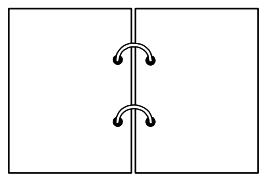
natural_image
Pure diagram of two vertical panels with curved arrows, no text or symbols presentBIND=LONG

natural_image
Simple line drawing of a rectangular frame with two vertical connectors and a central horizontal line (no text or symbols)BIND=SHORT
Fig. 4-9 Binding
- Press the SET switch to exit the DUPLEX MODE.
The printer exits from the setting mode to the off-line state. - Press the SET switch again to exit the FEEDER switch setting mode to the printer off-line state.
Note
The duplex printing unit can handle letter, A4, legal, executive, and B5 sizes of paper. It can not handle shorter sizes of paper than B5 (250mm-9.8 inches long).
COPY Switch
You can set the number of copies to print of the same page with the COPY switch. The computer will release from a printing job in a shorter time if you use this feature than when you set the copy print quantity with your application software. Check the current setting on the display.
When the number of copies has been set at 1, the display may look as follows:
00 READY 001P T1
When the number of copies has been set at 3, the display may look as follows:
00 READY 003P T1
Note
If you send too many pages to be stored in the printer memory, part or all of the set pages or copies may not be printed.
To set the number of copies, follow these steps:
- Press the SEL switch to set the printer off-line.
- Hold down the SHIFT switch and press the COPY switch.
When you enter the setting mode, the display first shows the current setting with the asterisk.
COPY PAGES= 1 *
- Press the ▲ or ▼ switch until the desired number appears on the display.
| Display Message | # of Copies to Print Same Pages | ||
| COPY | PAGES= | 1 | 1 page |
| COPY | PAGES= | 2 | 2 pages |
| ... | ... | ||
| COPY | PAGES=999 | 999 pages (max.) | |
- Press the SET switch to make the displayed selection effective.
An asterisk appears at the end of the display for a short time. Then the printer automatically exits from the setting mode to the off-line state.
RESET Switch
You can reset the printer with the RESET switch. The print data that the printer has already received from the computer is cleared and the printer settings are restored to the user settings or factory settings.
The temporary download fonts and macro settings you set with commands in the HP LaserJet mode are also cleared.
When you want to reset the printer, hold down the SHIFT switch and press the RESET switch. You then enter the reset mode where you reset the printer.
To reset the printer, follow these steps:
-
Press the SEL switch to set the printer off-line.
-
Hold down the SHIFT switch and press the RESET switch.
When you enter the reset mode, the display shows the first reset mode item.
RESET PRINTER
- Press the ▲ or ▼ switch until the desired reset mode appears on the display.
| Display Message | Reset Mode |
| RESET PRINTER | Resets the printer and restores all printer settings—including command settings—to settings you have previously made with the panel switches. |
| RESET SETTING 1 | Resets the printer and restores all printer settings—including command settings—to the selected number (1-2) of user settings you have previously made with the MODE switch. |
| RESET SETTING 2 | |
| FACTORY SETTINGS | Resets the printer and restores all printer settings—including command settings—to the factory settings. See “List of Factory Settings.” |
| exit | Exits from the reset mode. The printer is not reset. |
- Press the SET switch to make the displayed selection effective.
The printer is reset according to the selected reset mode.
When the “RESET PRINTER” mode has been selected, the printer is reset showing the message alternately as follows:

flowchart
graph LR
    A["08 RESET TO"] --> B["USER SETTINGS"]
When the “RESET SETTING 1-2” mode has been selected, the printer is reset showing the message alternately as follows (# indicates the selected number of saved settings):

flowchart
graph LR
    A["08 RESET TO"] --> B["SETTING #"]
When the “FACTORY SETTINGS” mode has been selected, the printer is reset showing the message alternately as follows:

flowchart
graph LR
    A["09 RESET TO"] --> B["FACTORY SETTINGS"]
Then the printer automatically exits from the reset mode to the on-line state.
List of Factory Settings
The following table shows the factory settings initially set before shipment.
Notes
- The settings are subject to the emulation mode. Effective modes are indicated in parentheses in the following table.
- The following settings cannot be restored to the factory settings with the RESET switch in the “FACTORY SETTINGS” mode: INTERFACE MODE, HRC SETTING, PAGE PROTECTION, SCALABLE FONT, LOCK PANEL, and PAGE COUNTER, and local language for display messages.
- The COPY setting is always restored to the factory setting when the printer is turned off and on again.
- The user settings are overwritten after resetting to setting 1 or 2.
| Switch | Item | Sub-Item | Factory Setting |
| MODE | INTERFACE MODE | - | I/F=AUTO |
| For AUTO mode | |||
| TIME OUT | TIME OUT= 5s | ||
| For bi-directional PARALLEL interface | |||
| HIGH SPEED | HIGH SPEED=ON | ||
| BI-DIR | BI-DIR=ON | ||
| For RS-232C serial interface | |||
| Baud Rate | BaudRate= 9600 | ||
| Code Type | CodeType=8 bits | ||
| Parity | Parity =NONE | ||
| Stop Bit | Stop Bit= 1 bits | ||
| Xon/Xoff | Xon/Xoff=ON | ||
| DTR (ER) | DTR (ER)=ON | ||
| Robust Xon | Robust Xon=OFF | ||
| FORMAT MODE | ORIENTATION (Except for BR-Script 2) | ORI=PORTRAIT | |
| AUTO MODE (HP LaserJet) | |||
| AUTO LF | OFF | ||
| AUTO CR | OFF | ||
| AUTO WRAP | OFF | ||
| AUTO SKIP | ON | ||
| AUTO MODE (EPSON) | |||
| AUTO LF | OFF | ||
| AUTO CR | ON (No indication) | ||
| AUTO WRAP | ON (No indication) | ||
| AUTO MASK | OFF | ||
| AUTO MODE (IBM) | |||
| AUTO LF | OFF | ||
| AUTO CR | OFF | ||
| AUTO WRAP | ON (No indication) | ||
| AUTO MASK | OFF | ||
| Switch Item | Sub-Item | Factory Setting |
| MODE (continued) | ||
| FORMAT MODE (continued) | ||
| PAGE FORMAT MODE (HP LaserJet, EPSON, & IBM) | ||
| PAPER | LETTER(For 110/120V model)A4 (For 220/240V model) | |
| LEFT M | 0 (LETTER, PORTRAIT)0 (LEGAL, PORTRAIT)0 (A4, PORTRAIT)0 (LETTER, LANDSCAPE)0 (LEGAL, LANDSCAPE)0 (A4, LANDSCAPE)0 (A5, LANDSCAPE)0 (A6, LANDSCAPE) | |
| RIGHT M | 80 (LETTER, PORTRAIT)80 (LEGAL, PORTRAIT)78 (A4, PORTRAIT)106 (LETTER, LANDSCAPE)136 (LEGAL, LANDSCAPE)113 (A4, LANDSCAPE)113 (A5, LANDSCAPE)113 (A6, LANDSCAPE) | |
| TOP M | 0.5” (HP)0.33” (Non-HP) | |
| BOTTOM M | 0.5” (HP)0.33” (Non-HP) |
| Switch | Item | Sub-Item | Factory Setting |
| MODE(continued) | PAGE FORMAT(continued) | LINES (HP) | 60 (LETTER, PORTRAIT)78 (LEGAL, PORTRAIT)64 (A4, PORTRAIT)64 (A5, PORTRAIT)64 (A6, PORTRAIT)45 (LETTER, LANDSCAPE)45 (LEGAL, LANDSCAPE)43 (A4, LANDSCAPE)43 (A5, LANDSCAPE)43 (A6, LANDSCAPE) |
| LINES (Non-HP) | 62 (LETTER, PORTRAIT)80 (LEGAL, PORTRAIT)66 (A4, PORTRAIT)66 (A5, PORTRAIT)66 (A6, PORTRAIT)47 (LETTER, LANDSCAPE)47 (LEGAL, LANDSCAPE)45 (A4, LANDSCAPE)45 (A5, LANDSCAPE)45 (A6, LANDSCAPE) | ||
| X OFFSET | X OFFSET=0 | ||
| Y OFFSET | Y OFFSET=0 | ||
| FORMAT MODE (BR-Script 2) | X OFFSET | X OFFSET=0 | |
| Y OFFSET | Y OFFSET=0 | ||
| FORMAT MODE (HP-GL) | PAGE FORMAT MODEPAPER | LETTER(For 110/120V model)A4 (For 220/240V model) | |
| X OFFSET | X OFFSET=0 | ||
| Y OFFSET | Y OFFSET=0 | ||
| GRAPHICS MODE (HP-GL)PEN SETTING | SIZE: 3 dotsGRAY: 100% | ||
| MODE (continued) | |||
| RESOLUTION MODE | RESOLUTION | RESOLUTION=600 | |
| APT SETTING | APT=OFF | ||
| HRC SETTING | HRC=MEDIUM | ||
| PAGE PROTECTION(Non-BR-Script2) | - | PROTECT=AUTO | |
| ADVANCED MODE | NETWORK MODE | ||
| LOCK PANEL | LOCK PANEL=OFF | ||
| AUTO FF | AUTO FF=OFF | ||
| For AUTO FF=ON | WAIT TIME=5s | ||
| WAIT TIME | |||
| FF SUPPRESS | FF SUPPRESS=OFF | ||
| TONER LOW | TONER LOW=CONT | ||
| ERROR PRINT (BR-Script2) | ERROR PRINT=OFF | ||
| CONTINUE MODE | CONTINUE=MANUAL | ||
| BUZZER SETTING | BUZZER=ON | ||
| SCALABLE FONT(HP, EPSON, & IBM) | FONT=ALL | ||
| PRINT DENSITY | ■■■■■■■■ | ||
| For any interfaces | □□□□□ | ||
| INPUT BUFFER | |||
| PAGE COUNTER | - | 0 | |
| FONT (HP) | |||
| PRIMARY FONT | SELECT FONT | BROUGHAM | |
| SYMBOL SET | PC-8(HL-1660e)/ROMAN(HL-1260/1660) | ||
| SECONDARY FONT | SELECT FONT | BROUGHAM | |
| SYMBOL SET | PC-8(HL-1660e)/ROMAN(HL-1260/1660)ROMAN8 | ||
| FONT (EPSON) | |||
| FONT | - | BROUGHAM | |
| CHARACTER SET | - | US ASCII | |
| FONT (IBM) | |||
| FONT | - | BROUGHAM | |
| CHARACTER SET | - | PC-8 | |
| EMULATION | |||
| - | - | AUTO | |
| For AUTO mode | TIME OUT | TIME OUT=5s | |
| EPSON/IBM | EPSON/IBM=EPSON | ||
| KEEP PCL | KEEP PCL=OFF | ||
| ECONOMY | - | ||
| TONER SAVE MODE | - | TONER SAVE=OFF | |
| POWER SAVE MODE | - | POWER SAVE=ON | |
| For POWER SAVE=ON | |||
| TIME OUT | TIME OUT=30m | ||
| FEEDER | |||
| FEEDER | - | FEEDER=AUTO | |
| For FEEDER=AUTO | |||
| AUTO=T1>T2>MP | |||
| MP FIRST | MP FIRST=OFF | ||
| MANUAL FEED | - | MANUAL FEED=OFF | |
| MP TRAY SETTING | MP SIZE | MP SIZE=LETTER(For 110/120V model) | |
| MP SIZE=A4(For 220V/240V model) | |||
| PAPER IN | PAPER IN=CONT | ||
| MEDIA TYPE | - | REGULAR | |
| DUPLEX MODE | DUPLEX | DUPLEX=OFF | |
| BIND | BIND=LONG | ||
| COPY | - | - | COPY PAGES=1 |
| LANGUAGE (FORM FEED + POWER ON) | - | LANG=ENGLISH | |
TEST Switch
You can test the printer or print out the list of fonts with the TEST switch. To do so, hold down the SHIFT switch and press the TEST switch. You will then enter the test mode where you may test the printer or print out the list of fonts.
To test the printer, follow these steps:
-
Press the SEL switch to set the printer off-line.
-
Hold down the SHIFT switch and press the TEST switch.
When you enter the test mode, the display shows the first test mode item.
DEMO PAGE
- Press the ▲ or ▼ switch until the desired test mode appears on the display.
| Display Message | Test Mode |
| DEMO PAGE | Prints out the demonstration. |
| TEST PRINT | Performs the printer test and prints out the test pattern. |
| PRINT CONFIG | Prints out the list of panel switch settings you have configured for the printer as user settings. |
| PRINT FONTS I | Prints out the list of internal or resident fonts. |
| PRINT FONTS C | Prints out the list of optional fonts stored in the font cartridge/card. |
| PRINT FONTS P | Prints out the list of permanent download fonts. |
| exit | Exits from the test mode. The printer does not perform the test. |
Notes
The message “PRINT FONTS C” or “PRINT FONTS P” appears only when the optional font cartridge/card is installed in the font slot or permanent download fonts are stored in printer memory.
- If the optional font cartridge/card is installed, you can print out the list of optional fonts. Since the list shows the ID numbers specific to each optional font, it helps you to select them with the FONT switch. For further information, see “FONT Switch” in Chapter 4 and “FONT CARTRIDGE/CARD, FLASH MEMORY/HDD CARD” in Chapter 5.
-
If user-defined characters are already downloaded into the printer memory as permanent download fonts, you can print out the list of them. For further information, see “FONT Switch” in Chapter 4 and Technical Reference Manual that is optionally available.
-
Press the SET switch to make the displayed selection effective.
The printer prints out the test patterns or lists according to the selected test mode.
- When the “DEMO PAGE” mode has been selected, the display shows the following message and the printer starts printing out the demonstration pattern.
06 DEMO PAGE
- When the “TEST PRINT” mode has been selected, the display shows the following message and the printer starts printing out the test pattern.
05 TEST PRINT
■ When the “PRINT CONFIG” mode has been selected, the display shows the following message and the printer starts printing out the list of printer settings.
06 PRINT CONFIG
Note
The printed list shows the panel switch settings you have made as user settings with the MODE switch. See “SAVE SETTINGS” in Chapter 4.
■ When the “PRINT FONTS” mode has been selected, the display shows the selected mode and the printer starts printing out the font list. The display may look like this:
06 PRINT FONTS I
When the printer finishes printing, it automatically exits from the test mode to the off-line state.
This printer has a useful hex dump mode for checking the print data sent from your computer. The printer lists the print data in hexadecimal form.
To enter the hex dump mode, follow these steps:
- Check the power state.
- Operate the switches according to the power state.
- If the printer has been turned off, turn on the printer.
The printer starts the self-test and the display shows the following message.
04 SELF TEST
- If the printer has been turned on, reset the printer with the RESET switch.
1) Press the SEL switch to set the printer off-line.
2) Hold down the SHIFT switch and press the RESET switch. The display will show “RESET PRINTER”.
3) Press the SET switch with the “RESET PRINTER” selected.
The printer begins its reset and the display shows the following message alternately.
08 RESET TO
USER SETTINGS
3. Press the CONTINUE/SHIFT switch.
The printer checks the CONTINUE/SHIFT switch at the end of self-test or printer reset. If the switch is held down, the printer enters the hex dump mode and goes on-line. The display will show the message “HEX DUMP MODE” and the printer will return to the on-line state.
Note
If the printer returns to the on-line state without displaying the message “HEX DUMP MODE”, you did not press the CONTINUE/SHIFT switch immediately after pressing the SET switch. Try the above steps once again.
- Send data from your computer.
When the printer receives data, it starts printing hexadecimal values of the received data.
To exit from the hex dump mode, follow these basic steps:
-
Press the SEL switch to set the printer off-line.
-
Reset the printer with the RESET switch.
Or turn off the printer, wait for a few seconds, and turn it on again.
CHAPTER 5 OPTIONS
LOWER TRAY UNIT (LT-1200/LT-1600)
Loading Paper from the Lower Paper Cassette
The lower tray unit is a device that functions as a third paper source which can contain a maximum of 500 sheets of paper (80 g/m ^2 or 20 lbs). For the optional lower tray unit, consult the dealer where you purchased the printer.
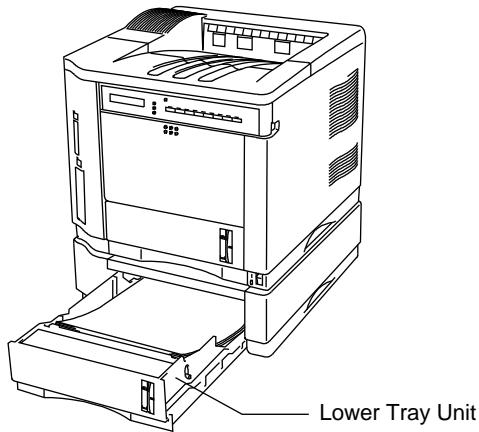
Fig. 5-1 Loading Paper in the Lower Tray Unit
With the lower tray unit installed, load paper into the lower paper cassette in the same way as you do the upper paper cassette.
See “Installing the Paper Cassette” in Chapter 2.
The paper sizes available for the lower paper cassette are not the same for the upper paper cassette as shown below.
| paper source | available size |
| the optional lower paper cassette (T2) | cut sheet : letter, legal, A4 and Executive |
| the multi-purpose tray (MP) and the upper paper cassette (T1) | cut sheet : letter, legal, A4, ISO B5, Executive, A5, ISO B6 and A6 envelope : COM 10 , Monarch, C5, DL and ISO B5 |
| all sources for duplex printing (DX) | cut sheet : letter, legal, A4, ISO B5(except T2) and Executive |
FONT CARTRIDGE/CARD, FLASH MEMORY/HDD CARD
Installing a Font Cartridge/Card, Flash Memory Card and HDD Card
This printer has one slot for an optional font cartridge and one slot for an optional font card, flash memory card or HDD card.
If you install the optional font cartridge/card, you can use the fonts stored in them as well as resident fonts. For optional font cartridges/cards, consult the dealer where you purchased the printer.
If you install the optional flash memory card or HDD card, you can save macros and fonts on it. For flash memory card and HDD card operation and information, see “CARD OPERATION” in Chapter 4.
Notes
- Do not install or remove cards with the printer power on, or you may lose all data from the card, or may seriously damage the card if you do this.
- For more information about the cards, consult the dealer where you purchased the printer.
Follow these steps to install or remove a cartridge/card:
- Make sure that the printer is turned off.
If the printer is turned on, be sure to press the SEL switch to set the printer off-line. If data remains in the printer memory, the DATA lamp stays on. Press the FORM FEED switch to print out the remaining data, then the DATA lamp goes off. Turn off the printer.
- Insert the font card, flash memory card or HDD card into the upper slot A and the font cartridge into the lower slot B with the cartridge/card label facing to the left. Make sure they fit securely.
To remove the cartridge/card, pull them out of the slot with the printer turned off.
The following type of flash memory card can be installed:
• 4 Mbyte: MB98A81273
• 8 Mbyte: MB98A81373
• 16 Mbyte: MB98A81473
• 32 Mbyte: MB98A81573
• 1 Mbyte: AMC001CFLKA
• 2 Mbyte: AMC002CFLKA
• 4 Mbyte: AMC004CFLKA
• 10 Mbyte: AMC010CFLKA
• 4 Mbyte: AMC004DFLKA
• 8 Mbyte: AMC008DFLKA
• 20 Mbyte: AMC020DFLKA
• 2 to 85 Mbyte: PCMCIA PC Card ATA
The following type of HDD card can be installed:
Intégral Peripherals Inc.
• 170 Mbyte: VIPER 170E

Fig. 5-2 Installing or Removing the Cartridge or Card
Selecting the Optional Fonts
After you have installed the optional font cartridge/card, you can select optional fonts by any of the following methods:
1. Through your application software
2. With a font selection command
3. With the FONT switch
When you select fonts through your application software, follow the instructions specific to your software. Refer to your software manual if you need assistance. When you select fonts with a font selection command, embed the font selection command in your program. See the Technical Reference Manual, which is optionally available for this printer.
Notes
When you select the fonts through your software or with a command, note the following:
- You do not need to be concerned about the FONT switch setting. The software or command setting overrides the switch setting.
- Be sure to install the font cartridge/card that has your desired fonts. The printer automatically selects the font that has exactly the same or similar characteristics as those you set through the software or with a command. If the installed font cartridge/card happens to have a font of similar characteristics, the printer will print in an unexpected font.
To select fonts with the FONT switch, follow these basic steps:
1. Print out the list of optional fonts in the PRINT FONTS C mode with the SHIFT and TEST switches.
See “Printing the Test Pattern or Font List” in Chapter 2.
2. Find the font slot and font ID number on the list.

Fig. 5-3 Font ID Numbers on the Font List
3. Select the font with the FONT switch.
See “FONT Switch” in Chapter 4.
This printer has a modular input/output (MIO) interface slot on the rear panel. This slot allows you to install a commercial MIO-compatible sharing/network card.
For more information about MIO cards, consult the dealer where you purchased this printer.
When you install the MIO card, follow these steps:
1. Turn off the printer and unplug the power cord from the wall socket.
Note
Be sure to turn off the power to the printer before installing or removing the MIO card.
2. Remove the two screws and cover plate from the MIO interface slot.
3. Unpack the MIO card and hold it on its edge.
Note
Do not touch the card surface. If static electricity collects, it damages the card.
4. Insert the card until it is securely seated.
5 Secure the MIO card with the two captive screws on the card
6. Retain the cover plate and two screws removed in 2 in case you want to remove the MIO card later.

Fig. 5-4 Installing the MIO Card
This printer has 8 Mbytes of memory standard and 2 slots for optional expansion memory. The memory can be expanded up to 72 Mbytes by installing commercially available single in-line memory modules (SIMMs). (The standard memory fitted can vary depending on the printer model and country.)
Minimum Memory Recommendation (Including 2/4/8 Mbytes of internal memory)
■ HP LaserJet, HP-GL, EPSON FX-850, and IBM Proprinter XL emulation modes
Page Protect = Off
300 dpi 600 dpi Letter/A4 2 Mbytes 2 Mbytes Legal 2 Mbytes 2 Mbytes
Page Protect = On
300 dpi 600 dpi Letter/A4 2 Mbytes 6 Mbytes Legal 3 Mbytes 6 Mbytes
■ BR-Script 2 mode
300 dpi 600 dpi Letter/A4 4 Mbytes 6 Mbytes Legal 4 Mbytes 6 Mbytes
■ Duplex printing
300 dpi 600 dpi HP LaserJet 4 Mbytes 10 Mbytes BR-Script 2 4 Mbytes 10 Mbytes
The following capacity of SIMM can be installed:
• 1 Mbyte HITACHI HB56D25632B-6A, -7A, -8A
MITSUBISHI MH25632BJ-7, -8
• 2 Mbyte HITACHI HB56D51232B-6A, -7A, -8A
MITSUBISHI MH51232BJ-7, -8
- 4 Mbyte HITACHI HB56A132BV-7A, -7AL, -7B, -7BL, -8AL, -8B, -8BL
MITSUBISHI MH1M32ADJ-7, -8
- 8 Mbyte HITACHI HB56A232BT-7A, -7AL, -7B, -7BL
MITSUBISHI MH2M32EJ-7, -8, MH2M32DJ-7, -8
• 16 Mbyte TOSHIBA THM324000BSG-60, -70, -80
• 32 Mbyte TOSHIBA THM328020BSG-60, -70, -80
In general, the SIMM must have the following specifications:
Type: 72 pin and 32 bit or 36 bit output
Access Time: 80 nsec. or less
Capacity: 1, 2, 4, 8, 16 or 32 Mbyte
Height: 46mm (1.8 inches) or less
There are 40 bit output SIMMs for workstations. Such SIMMs do not fit this printer.
For SIMMs and installation, consult the dealer where you purchased the printer.
When you install SIMMs, follow these steps:
1. Turn off the printer and unplug the power cord from the wall socket.
Note
Be sure to turn off the power to the printer before installing or removing the SIMMs.
2. Open the top cover of the printer.
3. Push the tab located on the left inside the printer to unlock the left side cover.

natural_image
Line drawing of hands using a tool to adjust or install electronic components on a circuit board (no text or symbols)
Fig. 5-5 Unlocking the Left Side Cover
4. Remove the left side cover by sliding it to the rear of the printer.

natural_image
Line drawing of hands inserting a device into a computer case (no text or symbols)
Fig. 5-6 Removing the Left Side Cover
5. Loosen the screws and then slide and remove the metal cover.

Fig. 5-7 Removing the Metal Cover
6. Unpack a SIMM and hold it on its edge.

Caution
SIMM boards may be damaged by even a small amount of static electricity. Do not touch the memory chips or the board surface. When handling the board and before installing or removing it, wear an antistatic wrist strap, or frequently touch the surface of the antistatic package or bare metal on the printer.
7. Install as many SIMMs as you need.
- Set a SIMM into the slot at an angle.
- Push the tip gently towards the vertical until it clicks into place.
Notes
- When you install less than two SIMMs, be sure to install them in the order of slots 1 and 2.
- When you install different capacities of SIMMs, be sure to install the larger capacity SIMMs in the lower socket and smaller capacity SIMMs in order in the upper sockets.
- Be careful not to connect the network interface cable into the modular jack for options located inside the left side cover, or it may damage the printer.

Fig. 5-8 Installing the SIMMs
8. Refit the metal plate and secure it with the screws.
9. Refit the left side cover to the printer.
10. Plug in the power cord and turn on the printer.
If you have installed the SIMMs incorrectly, the printer prints a report to alert you.
The duplex unit is an optional device that allows printing on both sides of pages. When it is installed, you can select either duplex printing or simplex printing from the control panel or by software command. For more information about the control panel, see “FEEDER switch” in Chapter 4.
Be sure to install the following capacity of RAM to enjoy duplex printing, or the printer cannot manage all the data for duplex printing at 600 dpi resolution and automatically switches to simplex printing or decrease the resolution from 600 dpi to 300 dpi.
■ Duplex printing
300 dpi 600 dpi HP LaserJet 4 Mbytes 10 Mbytes BR-Script 2 4 Mbytes 10 Mbytes
Notes
- The Duplex unit can handle cut sheet paper of the sizes shown below [Weight = 60 to 105 g/m ^2 (16 to 28 lbs)].
- When the duplex unit is installed, the capacity of the upper paper cassette decreases as shown below.
- When the duplex unit is installed, legal size paper can not be loaded into the upper paper cassette with the standard paper guide. Be sure to replace it with the duplex paper guide for the both simplex and duplex printing.
- When the printer automatically changes the setting to the 300 dpi resolution, the display temporarily shows “02 PR300” during printing.
When the printer automatically changes the setting to the simplex printing, the display temporarily shows “02 SX” during printing.
When the duplex unit is installed, paper handling and capacity of the upper paper cassette changes as follows:
For Duplex
paper source available size all sources for duplex printing (DX) cut sheet : letter, legal, A4, ISOB5(except T2) and Executive
The upper paper cassette with duplex installed
paper source available size capacity the upper paper cassette (T1) cut sheet : letter, legal, A4,ISO B5, ExecutiveA5ISO B6A6envelope : COM 10MonarchC5DLISO B5 :250 sheets/27.5mm:250 sheets/27.5mm:200 sheets/24.5mm:140 sheets/17.5mm:80 sheets/10.0mm:15 sheets/20.5mm:15 sheets/20.5mm:15 sheets/20.5mm:15 sheets/20.5mm
CHAPTER 6 MAINTENANCE
MAINTENANCE
Toner Cartridge
A new toner cartridge contains enough toner to print approximately 9,000 A4/Letter-size single-sided pages at about 5% coverage (if the print density is set at level 8).
You can check the current page count or the number of printed pages with the MODE switch (PAGE COUNTER). For further information, see “MODE Switch” in Chapter 4.
Notes
Toner consumption varies according to the image coverage on the page and the print density setting.
- The greater the image coverage, the greater the toner consumption.
- If you change the print density setting for lighter or darker printing, toner consumption varies accordingly. To adjust print density setting, see “Checking the Printed Test Pattern or Demo Page” in Chapter 2.
Toner Empty Message
Check printed pages, page counter, and display messages periodically. If the display shows the following message, the printer has almost run out of toner or the toner is not evenly distributed inside the cartridge.
16 TONER EMPTY
Although you can print between 30 and 100 additional pages after the toner empty message first appears, be sure to replace the toner cartridge with a new one before it becomes completely empty.
You can select the printer's action when the “TONER EMPTY” message appears, whether to stop or continue printing.
See "ADVANCED MODE" in Chapter 4.
Follow these steps to check the toner cartridge:
1. Remove the toner cartridge from the printer.
If you turn on the printer without a toner cartridge installed, the display shows the following operator call message to prompt you to install the toner cartridge.
14 NO CARTRIDGE
2. Rock the toner cartridge gently several times at a 45^ angle to distribute the toner evenly inside the cartridge.
3. Install the toner cartridge again.
4. Try printing and check the printed page.
If you are not satisfied with it or the display still shows the toner empty message, replace the old toner cartridge with a new one.
Replacing the Toner Cartridge
Every time you replace the toner cartridge, you need to clean the inside of the printer. For further information on cleaning, see “Cleaning” in this chapter.
Note
To ensure optimum print quality, be sure to use quality toner cartridges. To obtain toner cartridges, consult the dealer where you purchased the printer.
Before you begin the following steps, refer to “Installing the Toner Cartridge” in Chapter 2. Be sure to review the instructive diagrams.
To replace the toner cartridge, follow these steps:
1. Turn off the printer.
2 Open the top cover of the printer.
3. Lift the top of the toner cartridge slightly and pull it out of the printer.
4. Clean the anti-static teeth with a clean brush.

Note
Never touch or clean the transfer roller, or print quality may deteriorate.

Fig. 6-1 Cleaning the Anti-Static Teeth
5. Clean the transfer guide, referring to “Cleaning the Printer Interior” in this chapter.
6. Open the bag to unpack a new toner cartridge.
Handle the toner cartridge with care.
7. Hold the toner cartridge with both hands. Rock it gently several times at a 45^ angle. This distributes the toner evenly inside the cartridge.

natural_image
Line drawing of hands holding a mechanical component with directional arrows indicating rotation (no text or symbols)

Fig. 6-2 Rocking the Toner Cartridge
8. Bend the tab up and down several times until it is detached from the toner cartridge.
9. Hold the tab firmly and pull it until the sealing tape comes out all the way.
10. Insert the toner cartridge in the direction of the arrows engraved on the cartridge into the side guides until it stops securely in the cartridge holder inside the printer.
Note
Push both sides of the toner cartridge gently until the cartridge is seated correctly in place.
11. Close the top cover of the printer.
Cleaning
Clean the printer exterior and interior periodically with a dry soft cloth. When you replace the toner cartridge, be sure to clean the printer interior with a dry soft cloth. If the printed page gets stained with toner, clean the printer interior with a dry soft cloth.
Cleaning the Printer Exterior
Clean the printer exterior as follows:
1. Turn off the printer and unplug the power cord.
2. Remove the paper cassette and optional font cartridge/card.
3. Open the multi-purpose tray.
4. Wipe the printer body with a soft cloth to remove dust from it.
Dip the cloth in water and wring it out thoroughly for cleaning.
Note
Use water or neutral detergents for cleaning. Cleaning with volatile liquids such as thinner or benzine damages the surface of the printer. Do not use cleaning materials that contain ammonia. It might damage the printer, particularly the toner cartridge.

natural_image
Line drawing of a hand inserting a component into a computer tower (no text or symbols)
Fig. 6-3 Cleaning the Printer Exterior
5. If paper or foreign objects are stuck in the paper cassettes, remove them.

natural_image
Line drawing of a hand inserting into a device into a plastic housing (no text or symbols)
Fig. 6-4 Cleaning the Paper Cassette
6. Replace the paper cassette and the optional font cartridge/card.
Cleaning the Printer Interior
Dip a soft cloth in water and wring it out thoroughly for cleaning the printer interior.
Notes
When you clean the printer interior, pay attention to the following:
- If your clothes are smeared with toner, wipe off toner with a dry cloth and wash clothes in cold water. If you wash them in hot water, toner gets dissolved inside the material and it will not come out.
- Never touch the hot fuser.
- Never touch or clean the transfer roller, or print quality may be adversely affected.
- Be careful not to inhale the toner.

Fig. 6-5 Fuser and Transfer Roller
Clean the printer interior as follows:
1. Turn off the printer and unplug the power cord.
2. Open the top cover of the printer and remove the toner cartridge.
3. Clean both sides of the paper access cover and transfer guide by wiping off toner and paper particles with a dry, soft cloth. The paper access cover can be lifted up to allow easier access for cleaning.

Fig. 6-6 Cleaning the Paper Access Cover and Transfer Guide
4. Wipe off toner and paper particles from the top surface of the black plastic paper guide with a dry, soft cloth.

Fig. 6-7 Cleaning the Paper Guide
5. Detach the cleaning brush from the top cover and clean the anti-static teeth by sliding the brush several times. After cleaning, replace the brush in its slot.
6. Refit the toner cartridge as described in REPLACING THE TONER CARTRIDGE.
7. Close the top cover of the printer and plug in the power cord.
CHAPTER 7 TROUBLE SHOOTING
TROUBLESHOOTING
If any problems occur, the printer automatically stops printing, diagnoses the problem, and displays the corresponding message to alert you. Take the appropriate action, referring to the following tables. If you cannot clear the problem, consult the dealer where you purchased the printer. Inform the dealer of the message number for quick troubleshooting.
Operator Call Messages
Operator Call Message Meaning Action CHECK XXXXXXX Check the paper tray.XXXXXXX is MP TRAY/TRAY 1/ TRAY 2. Check the adjustment lever at the bottom of the upper paper cassette and adjust to the correct setting in case of CHECK TRAY 1.See page 7-6.Load a stack of paper into the cassette. 12 COVER OPEN The upper cover of the printer is open. Close the cover. 13 JAM XXXXXX Paper is jammed in the printer. XXXXXX is TRAYS/INSIDE/ REAR/ DUPLEX. Remove the jammed paper from the indicated area.See page 7-6. 14 NO CARTRIDGE The toner cartridge is not installed in the printer. Install a toner cartridge. XX NO CASSETTE The paper cassette is not installed. XX is T1/ T2. Install the paper cassette. 16 TONER EMPTY The printer has almost run out of toner: you may print another 30 to 100 pages. (The ALARM lamp lights at the same time.) Remove the toner cartridge, rock it several times at 45°, and install it again. Or replace the toner cartridge with a new one. XX LOAD PAPER ***** SIZE The wrong size of paper was loaded in the paper cassette XX. XX is MP/ T1/ T2.(The message appears alternately to show a particular size.) Load the requested size of paper in the paper cassette, or load it on the manual feed tray and press the FORM FEED switch. 18 MANUAL FEED ***** SIZE The printer requests you to load paper manually. (The message appears alternately to show a particular size.) Load the requested size of paper on the multi-purpose tray and press the SEL switch. 19 CHECK FONT An error occurred in the optional font cartridge/card. Turn off the printer, and re-install or replace the optional font cartridge/card. 20 FONT REMOVAL The font cartridge/card was removed while the printer is on-line. Turn off the printer, install the font cartridge/card, and turn on the printer. The CONTINUE switch will allow you to temporarily ignore this message. 27 NO DX UNIT The duplex unit is not installed with the printer when the duplex printing mode is selected. Install the duplex unit correctly. See the DX-1200/DX-1600 user's guide. 27 NO DX TRAY The duplex paper guide tray is not installed in T1 when duplex printing mode is selected. Install the duplex paper guide tray into T1. See the DX-1200/DX-1600 user's guide. 27 DX OPEN The cover of the duplex unit is open. Close the cover. See the DX-1200/DX-1600 user's guide.
Error Messages
Error Message Meaning Action 31 PRINT OVERRUN Print overrun Press the CONTINUE switch to start printing the next page. Data which overran the print area on the page cannot be printed. Check your page protection setting with the MODE switch. Setting page protection to the correct size could solve this problem. If printing at 600 dpi, you may need to add optional SIMM memory. See page 5-7. 32 BUFFER ERROR Input buffer overflow Press the CONTINUE switch to resume printing. Data lost in overflow cannot be printed. See page 4-46. 34 MEMORY FULL Work memory overflow Press the CONTINUE switch to resume printing. If the same error should occur after you press the CONTINUE switch, turn off the printer. Wait a few seconds, then turn it on again. Reduce the input buffer size. See page 4-46. Turn off “KEEP PCL.” Add SIMM memory with power off. Download font and the fonts saved in the HDD card might cause the error, for it occupies the same work area as the RAM. Memory expansion is recommended in that case. See page 5-7. 40 LINE ERROR Error in the communications circuit When the serial interface is used, check the communications parameters such as baud rate, code type, parity, and handshake protocols. When the parallel interface is used, check the interface cable connection. 41 PRINT CHECK Error in communication with the engine controller Turn off the printer. Wait a few seconds, then turn it on again.
Error Message Meaning Action 42 CARD FULL Card overflow Delete unnecessary macros or fonts, or use a new card.See page 4-32. 43 CARD W ERROR Card write error Set the write protect switch of the card to OFF if it has been set to ON. Use a new card. If the same error occurs, consult your dealer or service personnel. 44 SIMM ERROR Incorrect installation of SIMMs Install SIMMs correctly, referring to the printed error message.See page 5-7. 45 MIO ERROR Error in communication with the MIO card Install the MIO card correctly.See page 5-6. 46 OPT IO ERROR Connection error with optional feeders and duplex unit. Check the interface cable connection between the printer and the fitted option. 47 CARD R ERROR Card read error Use a new card. If the same error occurs, consult your dealer or service personnel. XX SIZE ERROR Paper of incorrect size is loaded into XX. XX is T2/ DX. Set the correct size of paper in T2 or for duplex printing.See “Paper Handling” in Chapter 3. IGNORE DATA (BR-Script 2 mode only) Data is ignored because of an error in the PostScript® language program. Press the RESET switch.If the same error occurs, you may need to add optional SIMM memory.See page 5-7.
Service Call Messages
Service Call Message Meaning Action 50 FUSER MALF Malfunction of fuser Turn off the printer. Wait 15 minutes, then turn it on again. 51 LASER BD MALF Malfunction of laser beam detector Turn off the printer. Wait a few seconds, then turn it on again. 52 SCANNER MALF Malfunction of laser scanner motor Turn off the printer. Wait a few seconds, then turn it on again. 53 DX FAN MALF Malfunction of fan motor in the duplex unit Turn off the printer. Wait a few seconds, then turn it on again. 54 MOTOR MALF Malfunction of main motor Turn off the printer. Wait a few seconds, then turn it on again. 55 HIGH VOL MALF Malfunction of high voltage power supply Turn off the printer. Wait a few seconds, then turn it on again. 61 PROG ERROR Program ROM checksum error Turn off the printer. Wait a few seconds, then turn it on again. 62 FONT ERROR Font ROM checksum error Turn off the printer. Wait a few seconds, then turn it on again. 63 D-RAM ERROR D-RAM error Turn off the printer. Wait a few seconds, then turn it on again. 66 NV-W ERROR NV-RAM error Turn off the printer. Wait a few seconds, then turn it on again. 67 NV-R ERROR NV-RAM error Turn off the printer. Wait a few seconds, then turn it on again. 68 NV-B ERROR NV-RAM error Turn off the printer. Wait a few seconds, then turn it on again. 99 SERVICE System error Turn off the printer. Wait a few seconds, then turn it on again. 48 INCORRECT LT Your lower tray is an LT-1200, and it is not the correct tray for your 16/17 ppm printer. Change LT-1200 to LT-1600 49 INCORRECT DX Your duplex unit is a DX-1200, and it is not correct for your 16/17 ppm printer. Change DX-1200 to DX-1600
Possible Problems
This printer has been designed to be trouble free. However, if any problem should occur, note the display message and take the appropriate action. This section describes the actions to be taken against paper jams and unsatisfactory printouts.
Paper Jam
If paper jams in the printer, it stops printing and displays the following message.
13 JAM XXXXXX
Notes
If paper jams frequently occur, check the adjustment lever located in the bottom of the paper cassette or clean the printer interior and check the paper quality.
About the Adjustment Lever
If paper is misfeeding or doublefeeding frequently, set the adjustment lever according to the table below.
Recommended Paper Size
I. Backwards : letter, legal, A4, ISO B5, Executive and A5
II. Forwards : ISO B6, A6, COM10, Monarch, C5 and DL
If CHECK TRAY is shown when the paper cassette is filled with paper, check the adjustment lever and adjust to the correct setting.

Fig. 7-1 Adjustment Lever
Do not use the following paper:
- Bent paper
- Moist paper
• Paper that does not meet specifications
Paper may jam in the paper cassette, inside the printer, at the rear access cover or at the paper exit. Check the jam location and follow the instructions below to remove the jammed paper.
After you have followed the instructions, the printer automatically resumes printing. However, the DATA lamp may come on and the following message may appear on the display.
07 FF PAUSE
After a paper jam has occurred, data usually remains in the printer memory. The message prompts you to execute a form feed and print out the remaining data. Press the SEL switch to continue.
■ Paper Jam at Paper Exit
13 JAM REAR
If paper has passed behind the rear access cover and a paper jam has occurred at the paper exit, remove the jammed paper by pulling it slowly from the exit as shown below:

natural_image
Line drawing of a printer with a hand operating the top panel (no text or symbols present)
Fig. 7-2 Paper Jam at Paper Exit
■ Paper Jam at Rear Access Cover
13 JAM REAR
If a paper jam occurs behind the rear access cover before the paper exit, remove the jammed paper as follows:
1. Open the rear access cover.
2. Pull out the jammed paper slowly in direction A or B.


Fig. 7-3 Paper Jam at Rear Access Cover
3. Close the rear access cover.
■ Paper Jam at Fixing Roller inside the printer
13 JAM INSIDE
If a paper jam occurs at the fixing roller, follow these steps to remove the jammed paper:
1. Open the top cover and remove the toner cartridge.
2. Remove the jammed paper by holding it with both hands and pulling it slowly towards you.

Warning
The fixing roller is extremely hot during operation. Remove the paper carefully.

Caution
- After having removed the jammed paper, if the printed paper has a stain, print several pages before restarting your printing.
- Remove the jammed paper carefully so as not to spread toner.
- Take care not to stain your hands and clothes with toner. Wash toner stains immediately with cold water.
- Never touch the transfer roller.

natural_image
Line drawing of a hand pressing down on a mechanical component with a black arrow indicating direction (no text or symbols)

natural_image
Pure mechanical diagram showing a lever and inclined plane without any text, numbers, or symbols
Fixing Roller
Fig. 7-4 Paper Jam at Fixing Roller
3. Install the toner cartridge and close the top cover.
■ Paper Jam at the Paper Access Cover Inside the Printer
13 JAM INSIDE
If a paper jam occurs at the paper access cover, follow these steps to remove the jammed paper:
1. Pull the upper paper cassette out of the printer to release the edge of the paper from the paper feed roller, or the paper might be torn and difficult to remove.
2. Open the top cover and remove the toner cartridge.
3. Raise the paper access cover.
4. Remove the jammed paper using the following methods:
If paper has passed through the paper access cover and toner is on the paper, pull it with making paper edge round in direction A (toward the upper side of the printer).

Caution
Take care not to stain your hands and clothes with toner. Wash out toner stains immediately with cold water.


Fig. 7-5 Paper Jam at Paper Access Cover
5. Close the paper access cover.
6. Install the toner cartridge and close the top cover.
■ Paper Jam in the Paper Cassette
13 JAM TRAYS
If a paper jam occurs inside the paper cassette, follow these steps:
1. Pull out the paper cassette.
2. Remove the jammed paper.

natural_image
Technical line drawing of a printer with an open base and internal compartments, showing part assembly (no text or symbols)
Fig. 7-6 Paper Jam at Paper Cassette
3. Install the paper cassette.

Caution
Do not pull out the upper paper cassette while paper is being fed from the lower paper cassette, or it causes a paper jam.
■ Paper Jam in the Multi-purpose Tray
13 JAM TRAYS
If a paper jam occurs in the multi-purpose tray, follow these steps:
1. Remove the jammed paper in the multi-purpose tray.
2. Reset all the paper on the multi-purpose tray correctly.
3. Open and close the top cover.
Unsatisfactory Printouts
If you are not satisfied with the printout quality, check the problem and take the necessary action to clear it.
Note
It is possible that paper could meet all of the guidelines listed in the specifications and still not print satisfactorily. This may be due to temperature, humidity or other variables over which the printer has no control. If you cannot clear print problems, consult the dealer where you purchased the printer.
■ Unclear Printouts
The printed page may have white stripes or faint images.

Fig. 7-7 White Stripes or Faint Images
If you see these print problems, check for the toner empty message. The toner may not be distributed evenly in the cartridge or the toner cartridge may be empty.
16 TONER EMPTY
Follow these steps to clear the problem:
1. Open the top cover of the printer.

natural_image
Line drawing of hands operating a computer tower with an open panel and ventilation slots (no text or symbols)
Fig. 7-8 Opening the Top Cover
2. Remove the toner cartridge from the printer.

natural_image
Line drawing of hands operating a vehicle intake manifold (no text or symbols)
Fig. 7-9 Removing the Toner Cartridge
3. Rock the cartridge gently several times at a 45^ angle.
This distributes the toner evenly inside the cartridge.

natural_image
Line drawing of hands holding a mechanical device with directional arrows indicating rotation (no text or symbols)

Fig. 7-10 Distributing the Toner Evenly
4. Install the toner cartridge and close the top cover of the printer.
5. Print out several pages.
If you are still not satisfied with the printout, replace the toner cartridge with a new one.
■ Stains and Stripes
If the printed page is stained with toner or has vertical stripes, clean the printer interior. See “Cleaning” in Chapter 6.

Stains

Stripes

Stains at Fixed Intervals
Fig. 7-11 Dark Stripes or Toner Stains
If the same print problem occurs after cleaning, take any of the following actions:
- Make sure that you use paper or OHP films that meet specifications and have the correct printing surface.
- Check that the toner cartridge is not damaged. If it is damaged, replace it with a new one.
If the stripes or stains are vertically repetitive on a page, take the following action in accordance with the intervals of the stripes or stains.
Interval Action 95 mm or 3.7” Replace the toner cartridge. 53 mm or 2.1” Print several pages. * 51 mm or 2.0” Replace the toner cartridge. 38 mm or 1.5” Replace the toner cartridge.
\* If the problem occurs repeatedly, the transfer roller needs to be replaced with a new one. Consult your dealer or sales personnel.
■ White Spots
The printed page may have white spots in black text and graphics areas. Make sure that you use paper or OHP films that meet specifications and have the correct printing surface.

Fig. 7-12 White Spots
■ Toner Scatter
If toner scatters around printed characters and stains the printed page, clean the printer interior. See “Cleaning” in Chapter 6.

Fig. 7-13 Toner Scatter
If the same print problem occurs after cleaning, take any of the following actions:
- Make sure that you use paper, OHP films, or envelopes that meet specifications.
- Check for glue on the paper. Glue causes toner to scatter.
- If toner scatters over the entire printing surface, adjust the print density.
See “Checking the Printed Test Pattern or Font List” in Chapter 2.
■ Black Page
If an entire page is printed in black, make sure that the toner cartridge is properly installed. Never use heat-sensitive paper, or it may cause this problem.

natural_image
Blank black image with a white curled corner on the top right corner (no text or symbols)
Fig. 7-14 Black Page
■ White Page
If nothing is printed on pages, make sure that the toner cartridge is not empty, the sealing tape is removed from the toner cartridge, or you use paper, OHP films, or envelopes that meet specifications.
If a stack of paper is not fanned, more than one sheet may be loaded at a time, which may cause blank pages to be ejected.

natural_image
Blank white page with a curled corner corner (no text or symbols)
Fig. 7-15 White Page
■ Dropout
If nothing or part of a page is printed, make sure that the toner cartridge is not empty or the toner is evenly distributed in the cartridge. Take the proper action, referring to “Unclear Printouts” in this section.
Also, make sure that you use paper, OHP films or envelopes that meet specifications. Moist paper causes this problem.
If the print density is set too low, this problem may occur. Adjust the print density to the proper setting.
See “Checking the Printed Test Pattern or Font List” in Chapter 2.

Fig. 7-16 Dropout
■ Poor Halftone or Grayscale Transitions
If images do not have smooth transitions as gray shades gradually change, turn off the high resolution control (HRC SETTING) in “RESOLUTION MODE” with the MODE switch.

HRC = OFF

HRC = MEDIUM
Fig. 7-17 Adjustment of High Resolution Control

Caution
Operation of the printer outside the specifications shall be deemed abuse and all repairs thereafter shall be the sole liability of the end user/purchaser.
(For USA & CANADA Only)
For technical and operational assistance, please call: In USA 1-800-276-7746 (outside California) 949-859-9700 Ext. 329 (within California) In CANADA 1-800-853-6660 514-685-6464 (within Montreal) If you have comments or suggestions, please write us at: In USA Printer Customer Support Brother International Corporation 15 Musick Irvine, CA 92718 In CANADA Brother International Corporation (Canada), Ltd. - Marketing Dept. 1, rue Hôtel de Ville Dollard-des-Ormeaux, PQ, Canada H9B 3H6 BBS For downloading drivers from our Bulletin Board Service, call: In USA 1-800-298-3616 In CANADA 1-514-685-2040 Please log on to our BBS with your first name, last name and a four digit number for your password. Our BBS supports modem speeds up to 14,400, 8 bits no parity, 1 stop bit. Fax-Back System (For USA only) Brother Customer Service has installed an easy to use Fax-Back System so you can get instant answers to common technical questions and product information for all Brother products. This is available 24 hours a day, 7 days a week. You can use the system to send the information to any fax machine, not just the one you are calling from. Please call 1-800-521-2846 and follow the voice prompts to receive faxed instructions on how to use the system and your index of Fax-Back subjects. DEALERS/SERVICE CENTERS (USA only) For the name of an authorized dealer or service center, call 1-800-284-4357. SERVICE CENTERS (Canada only) For service center addresses in Canada, call 1-800-853-6660
INTERNET ADDRESS
For technical questions and downloading drivers: http://www.brother.com
APPENDICES
PRINTER SPECIFICATIONS
Printing
Print Method Electrophotography by semiconductor laser beam scanning Laser Wavelength: 780 nmPulse duration: 80 nsOutput: 5 mW max. Resolution 600 dots per inch (The resolution can be enhanced by using high resolution control feature.) Print Speed 16 pages per minute (A4 size)17 pages per minute (Letter size) Warm Up Max. 1 minute at 20°C (68°F) First Print 16 seconds or less(A4 size by face down print delivery from cassette feed)Prestart by software command for 10 second first print Print Media Toner in a single-component cartridgeLife Expectancy: 9,000 single-sided pages/cartridge(A4 or letter size paper with about 5% coverage). Resident Printer Fonts HP LaserJet, EPSON FX-850, and IBM Proprinter XL modes 66 scalable fonts and 12 bitmapped fontsBR-Script Level 2 mode 66 scalable fonts
Functions
CPU MB86832 100 MHz (SPARC architecture) Emulation Automatic emulation selectionHP LaserJet 5 (PCL 6)/ LaserJet 4+ (PCL 5e)BR-Script Level 2HP-GLEPSON FX-850IBM Proprinter XL Interface Automatic interface selection among bi-directional parallel, RS-232C serial, Universal Serial Bus, and MIO interface.For further information, see the section “INTERFACE SPECIFICATIONS” in Appendix. RAM 8 Mbyte(expandable to 72 Mbytes with SIMMs)The standard memory fitted can vary depending on the printer model and country. Font Cartridge/Card Slots 2 slots1 font cartridge slot: HP LaserJet Compatible1 card slot: PCMCIA Type III Compatible Control Panel 8 switches, 4 lamps, and 16-column liquid crystal display Diagnostics Self-diagnostic program
Electrical and Mechanical
Power Source U.S.A. and Canada: AC 110 to 120 V, 60 Hz Europe and Australia: AC 220 to 240 V, 50 Hz
Power Consumption Printing: 340 W or lessStand-by: 75 W or lessStand-by in sleep mode: 16 W or less
Noise Printing: 52 dB A or lessStand-by: 45 dB A or less
Temperature Operating: 10 to 32.5°C (50°F to 90.5°F) Storage: 0 to 35°C (38°F to 95°F)
Humidity Operating: 20 to 80% (without condensation) Storage: 10 to 80% (without condensation)
Dimensions (W x H x D) 371.6 x 326.5 x 393 mm (14.8 x 12.9 x 15.5 inches) 371.6 x 446.5 x 393 mm (14.8 x 17.6 x 15.5 inches) with an optional lower tray unit fitted
Weight Approx. 15 kg (33 lbs.) Approx. 21.0 kg (46.3 lbs.) with optional lower tray unit and toner cartridge fitted .
PAPER SPECIFICATIONS
Paper Input
Cassettes :
• Standard upper cassette (Tray 1)
- Optional lower cassette (Tray 2)
- Paper size:
TRAY 1: Letter, legal, A4, ISO B5, Executive, A5, ISO B6, A6, COM10, Monarch, C5 and DL
TRAY 2: Letter, legal, A4 and Executive (OPTION)
- Max. stacking height in the cassette = 55 mm(2.1")
- Max. paper cassette capacity = Approx. 500 sheets of 80 ~g / m^2 (20 lbs)
when duplex unit installed = Approx. 250 sheets of 80 g/m ^2 (20 lbs) A4/letter (Tray 1)
Multi-purpose tray :
Multi-purpose tray capacity = Approx. 150 sheets of 80 g/m^2 (20 lbs)
Printed Output
Face down print delivery: Approx. 250 sheets
Face up output delivery
Paper Type
Cassette Feed:
Standard upper cassette (Tray 1):
- Plain paper of letter, legal, A4, ISO B5, A5, ISO B6, A6 and Executive sizes [60 to 105 g/m² (16 to 28 lbs)]
- Envelopes of COM10, Monarch, C5, DL and ISO B5 sizes
Multi-purpose tray (MP tray) :
- Plain paper from 90 x 148 mm to 216 x 356 mm (from 3.5" x 5.8" to 8.5" x 14")
[60 to 135 g/m² (16 to 36 lbs)]
• Overhead projector (OHP) films
- Colored paper
- Postcards
- Label stock
- Envelopes of COM10, Monarch, C5, DL and ISO B5 sizes
Optional lower cassette (Tray 2):
Plain paper of letter, legal, A4 and Executive sizes [60 to 90 g/m ^2 (16 to 24 lbs)]
Test printing on paper, especially envelopes, is recommended before making a large purchase. The following types of envelopes are not recommended for use.
- Envelopes with thick and/or crooked edges
- Damaged, curled, wrinkled, or irregularly shaped envelopes
- Extremely shiny or highly textured envelopes
- Envelopes with clasps
- Envelopes of baggy construction
• Envelopes not sharply creased
- Embossed envelopes
- Envelopes already printed with a laser printer
- Envelopes pre-printed on the inside
- Envelopes that cannot be arranged uniformly when placed in a pile
Notes
- An area 15 mm (0.6") from the edges of the envelope will not be printed.
- Avoid feeding labels with the carrier sheet exposed. Otherwise, your printer will be damaged.
- When feeding OHP film, the use of a recommended type for laser printers will ensure optimum printing. For detailed information on the specification or purchase, please contact your nearest authorized sales representative or the place of purchase.
■ PAPER
The printer is designed to work well with most types of xerographic and bond paper. However, some paper variables may have an effect on print quality or handling reliability. Always test samples of paper before buying to ensure that it provides desirable performance. Some important guidelines when selecting paper are:
1. Supplier should be informed that the paper or envelopes will be used in a laser printer.
2. Preprinted papers must use inks that can withstand the temperature of the printers fusing process. (200 degrees centigrade)
3. If selecting a cotton bond paper, paper having a rough surface such as cockle or laid finished paper, or paper that is wrinkled or puckered may exhibit degraded performance.
Note
The manufacturer neither warrants or recommends the use of any particular paper. The operator is responsible for the quality of paper used with the printer.
Paper Types to Avoid
Some types of paper might not perform well or may cause damage to your printer.
Types of paper to avoid are:
1. Highly textured paper.
2. Smooth or shiny paper.
3. Paper that is coated or has a chemical finish.
4. Damaged, wrinkled or prefolded paper.
5. Paper exceeding the recommend weight specification specified in the manual.
6. Paper with tabs and staples.
7. Letterheads using low temperature dyes or thermography.
8. Multipart or carbonless paper.
DAMAGE OR OTHER DEFECTS CAUSED BY THE USE OF PAPERS LISTED UNDER PAPER TYPES TO AVOID WILL NOT BE COVERED UNDER ANY WARRANTY OR SERVICE AGREEMENTS.
■ ENVELOPES
Most envelopes will perform acceptably on your printer. However; some envelopes will have feeding and print quality problems because of their construction. A suitable envelope should have edges with a straight, well creased folds and should not have more than two thickness of paper along the lead edge. The envelope should lie flat and not have baggy or flimsy construction. Purchase quality envelopes only from a supplier who understands that the envelopes will be used in a laser printer. All envelopes should be tested prior to use to ensure desirable print results.
Envelope Types to Avoid
1. Envelopes constructed with a paper with a weight that exceeds the paper weight specifications for the printer.
2. Poorly manufactured envelopes with edges that are not straight or consistently square.
3. Envelopes with “baggy” construction or folds that are not sharply creased.
4. Envelopes with transparent windows, holes, cutouts or perforations.
5. Envelopes with clasps, snaps or tie strings.
6. Envelopes made with smooth or shiny paper.
7. Envelopes that are rough, highly textured, or deeply embossed.
8. Envelopes which do not lie flat or that are curled, wrinkled, or irregularly shaped.
9. Envelopes having an open flap with an adhesive that seals the envelope.
USE OF ANY OF THE ENVELOPES LISTED ABOVE MAY CAUSE DAMAGE TO YOUR PRINTER. SUCH DAMAGE IS NOT COVERED UNDER ANY WARRANTY OR SERVICE AGREEMENT.
Note
The manufacturer neither warrants nor recommends the use of a particular envelope because envelope properties are subject to change by the envelope manufacturer. The entire responsibility for the quality and performance of the envelope lies with the customer.
■ LABELS AND OVERHEAD TRANSPARENCIES
The printer will print on most type of labels and transparencies designed for use with a laser printer. Labels should have an adhesive that is acrylic-based since such material is more stable at the high temperatures in the fusing unit. Adhesives should not come in contact with any part of the printer, because the label stock may stick to the drum or rollers and cause jams and print quality problems. No adhesive should be exposed between the labels. Labels should be arranged so that they cover the entire page with the only exposed spaces being lengthwise down the sheet. Using labels with spaces may result in labels peeling off and causing serious jam or print problems.
All labels and transparencies used in this printer must be able to withstand a temperature of 200 degrees centigrade (392 degrees Fahrenheit) for a period of 0.1 seconds.
Label and transparency sheets should not exceed the paper weight specifications described in the User's Guide. Labels and transparencies exceeding this specification may not feed or print properly and cause damage to your printer.
The entire responsibility for the quality and performance of labels and transparencies lies with the customer.
DAMAGE CAUSED BY THE USE OF UNSATISFACTORY LABELS OR TRANSPARENCIES IS NOT COVERED UNDER ANY WARRANTY OR SERVICE AGREEMENTS.
Bi-directional Parallel Interface
Interface Connector
A shielded cable that is IEEE 1284 compliant with the following pin assignment should be used. Most existing parallel cables support bidirectional communication, but some might have incompatible pin assignments or may not be IEEE 1284 compliant.

Fig. A-1 Parallel Interface Connector
Pin Assignment
Pin No. Signal Pin No. Signal 1 DATA STROBE 19 Twisted pair ground 2 DATA 0 20 Twisted pair ground 3 DATA 1 21 Twisted pair ground 4 DATA 2 22 Twisted pair ground 5 DATA 3 23 Twisted pair ground 6 DATA 4 24 Twisted pair ground 7 DATA 5 25 Twisted pair ground 8 DATA 6 26 Twisted pair ground 9 DATA 7 27 Twisted pair ground 10 ACKNLG 28 Twisted pair ground 11 BUSY 29 Twisted pair ground 12 PE 30 INPUT PRIME RET 13 SLCT 31 INPUT PRIME 14 AUTO FEED 32 FAULT 15 N.C. 33 N.C. 16 0V 34 N.C. 17 0V 35 N.C. 18 +5V 36 SELECT IN
Signal Description
Pin No. Signal Name IN/OUT Explanation 1 DATA STROBE IN Data is latched at the leading edge of this signal. 2 - 9 DATA 0 - 7 IN Parallel 8 bit data 10 ACKNLG OUT Data reception is completed and the printer is ready for the next data reception when this signal becomes low. 11 BUSY OUT The printer cannot receive data when this signal is high. The signal becomes high under data receiving, off-line, or error states. 12 PE OUT This signal becomes high when a paper empty state is detected. 13 SLCT OUT This signal becomes high when the printer is selected and low when it is deselected. 14 AUTO FEED IN This signal is used only for the bi-directional interface. 31 INPUT PRIME IN This signal is used only for the bi-directional interface. 32 FAULT OUT This signal becomes low when the printer is in the paper empty, off-line, or error states. 36 SLCT IN IN This signal is used only for the bi-directional interface.
Parallel Cable Connection for IBM-PC/AT or Compatible Computers and IBM-PS/2 Computers
Signal Printer Pin No. Computer Pin No. DATA STROBE 1 1 DATA 0 2 2 DATA 1 3 3 DATA 2 4 4 DATA 3 5 5 DATA 4 6 6 DATA 5 7 7 DATA 6 8 8 DATA 7 9 9 ACKNLG 10 10 BUSY 11 11 PE 12 12 SLCT 13 13 AUTO FEED 14 14 GND 19 - 30 18 - 25 FAULT 32 15 SLCT IN 36 17
RS-232C Serial Interface
Standard Specifications
1) Baud rate: 150, 300, 600, 1200, 2400, 4800, 9600, 19200, 38400, 57600 or 115200 baud
2) Synchronization: Start-stop
3) Communications control: No protocol
4) Data length: Serial 7 bits or 8 bits
5) Parity: Odd, even, or none
6) Stop bit: 1 or 2 stop bits
7) Protocol: Xon/Xoff or DTR
Interface Connectors
A shielded cable should be used.

Fig. A-2 Serial Interface Connector
Pin Assignment
Pin No. Signal IN/OUT Pin No. Signal IN/OUT Printer Controller Printer Controller 1 FG ←→ 14 NC 2 SD → 15 NC 3 RD ←→ 16 NC 4 RS → 17 NC 5 NC 18 NC 6 DR ←→ 19 NC 7 SG ←→ 20 ER → 8 NC 21 NC 9 NC 22 NC 10 NC 23 NC 11 NC 24 NC 12 NC 25 NC 13 NC
Signal Description
Signal Name IN/OUT Explanation FG - Frame Ground SD OUT Send Data. RD IN Receive Data. Receives data transmitted from the computer. RS OUT Request To Send. “SPACE” level when the printer is ready to send data to the computer. DR IN Data Set Ready. When DSR is at “SPACE” level, data can be accepted. SG - Signal Ground ER OUT Data Terminal Ready. “MARK” level when the printer is Busy.
Serial Cable Connection for IBM-PC/AT or Compatible Computers and IBM-PS/2 Computers
The following diagrams show the pin connections for the most common serial communications.
■ DB-9 Serial Connection
When you use a computer with a 9-pin serial port, use a cable with the following pin configurations.
Printer (Male) Computer (Female) SD 2 —— 2 RD RD 3 —— 3 SD DR (DSR) 6 —— 4 ER (DTR) SG 7 —— 5 SG ER (DTR) 20 —— 6 DR (DSR) 8 CS (CTS)
■ DB-25 Serial Connection
When you use a computer with a 25-pin serial port, use a cable with the following pin configurations.
Printer (Male) Computer (Female) FG 1 1 FG SD 2 3 RD RD 3 2 SD DR (DSR) 6 20 ER (DTR) SG 7 7 SG ER (DTR) 20 5 CS (CTS) 6 DR (DSR)
Note
Any pins not shown in the figures above are not connected.
■ Universal Serial Bus (USB) Interface
Interface Connector

Pin Assignment
Pin No. Signal 1 Vcc (+5V) 2 - Data Serial Data - 3 + Data Serial Data + 4 Ground
SYMBOL/CHARACTER SETS
You can select the symbol and character sets with the FONT switch in the HP LaserJet, EPSON FX-850, and IBM Proprinter XL emulation modes. See “FONT Switch” in Chapter 4.
When you have selected the HP-GL emulation mode, you can select the standard or alternate character set with the MODE switch. See “GRAPHICS MODE” in Chapter 4.
OCR Symbol Sets
When the OCR-A or OCR-B font is selected, the corresponding symbol set is always used.
- OCR-A
OCR-B
HP LaserJet Mode
Roman 8 (8U) Ventura Math (6M) ISO Latin1 (0N) Ventura Intl (13J) ISO Latin2 (2N) Ventura US (14J) ISO Latin5 (5N) PS Math (5M) PC-8 (10U) PS Text (10J) PC-8 D/N (11U) Math-8 (8M) PC-850 (12U) Pi Font (15U) PC-852 (17U) MS Publishing (6J) PC-8 Turkish (9T) Windows 3.0 (9U) Windows Latin1 (19U) Desktop (7J) Windows Latin2 (9E) MC Text (12J) Windows Latin5 (5T) Symbol (19M) Legal (1U) Windings (579L)
The following table shows characters available only in the corresponding character set. The numbers at the top of the table are hexadecimal code values with which characters are to be replaced in the Roman 8 character set. For other characters, see the Roman 8 character set.
SYMBOL SET 23 24 40 5B 5C 5D 5E 60 7B 7C 7D 7E ISO2 IRV (2U # α @ [ \ ] ^ ` { | } - ISO4 UK (1E £ @ [ \ ] ^ ` | - ISO6 ASCII (0U # @ [ \ ] ^ ` { | } ~ ISO10 Swedish (3S # α @ Ä Ö Å ^ ` ä ö å ISO11 Swedish (0S # α É Ä Ö Å Ü é ä ö å ü ISO14 JIS ASCII (0K # @ [ ¥ ] ^ ` | ISO15 Italian (0I £ S ° ç é ^ ü à ö è i ISO16 Portuguese (4S # S Ä ç Ö ^ ` ä ç õ ° ISO17 Spanish (2S £ S ¡ Ñ ¿ ^ ` ° ñ ç ~ ISO21 German (1G # S Ä Ö Ü ^ ` ä ö ü β ISO25 French (0F £ à ° ç S ^ ` é ü è .. ISO57 Chinese (2K # ¥ @ [ \ ] ^ ` { | } - ISO60 Norwegian1 (0D # @ Æ ∅ Å ^ ` æ ø å ISO61 Norwegian2 (1D S @ Æ ∅ Å ^ ` æ ø å | ISO69 French (1F £ à ° ç S ^ μ é ü è .. ISO84 Portuguese (5S # ` Ä ç Ö ^ ` ä ç õ ~ ISO85 Spanish (6S # ` ¡ Ñ ç ¿ ` ` ñ ç .. HP German (0G £ S Ä Ö Ü ^ ` ä ö ü β HP Spanish (1S # $ @ ¡ Ñ ¿ ° ` { ñ } ~
EPSON Mode
US ASCII
0 1 2 3 4 5 6 7 8 9 A B C D E F 0 0 @ P ` p 0 @ P ` p 1 ! 1 A Q a q ! 1 A Q a q 2 " 2 B R b r " 2 B R b r 3 # 3 C S c s # 3 C S c s 4 4 D T d t 4 D T d t 5 % 5 E U e u % 5 E U e u 6 & 6 F V f v & 6 F V f v 7 ' 7 G W g w ' 7 G W g w 8 ( 8 H X h x ( 8 H X h x 9 ) 9 I Y i y ) 9 I Y i y A * : J Z j z * : J Z j z B + ; K [ k { + ; K [ k { C , < L \ l | , < L \ l | D - = M ] m } - = M ] m } E . > N ^ n ~ . > N ^ n ~ F / ? O _ o / ? O _ o
The following table shows characters available only in the corresponding character set. The numbers at the top of the table are hexadecimal code values with which characters are to be replaced in the US ASCII character set. For other characters, see the US ASCII character set.
CHARACTER SET 23 24 40 5B 5C 5D 5E 60 7B 7C 7D 7E German # S Ä Ö Ü ^ ` ä ö ü β UK ASCII I £ @ [ \ ] ^ ` { | } ~ French I # à ° ç S ^ ` é ù è ` Danish I # @ Æ ∅ Å ^ ` æ ø å ~ Italy # @ ° \ é ^ ù à ò è ì Spanish Pt @ ¡ Ñ ¿ ^ ` .. ñ } ~ Swedish # α É Ä Ö Å Ü é ä ö å ü Japanese # @ [ ¥ ] ^ ` | ~ Norwegian # α É Æ ∅ Å Ü é æ ø å ü Danish II # É Æ ∅ Å Ü é æ ø å ü UK ASCII II # £ @ [ \ ] ^ ` { | } ~ French II # â à î ç ê û ô é ú è ì Dutch # $ @ [ ] f ^ ` é ij è ` South African # ê É Ê Ö è Ü é ë ö ô ü
- PC-8
- PC-8 D/N
- PC-850
- PC-852
- PC-860
- PC-863
- PC-865
- PC-8 Turkish
IBM Mode
- PC-8
- PC-8 D/N
- PC-850
- PC-852
- PC-860
- PC-863
- PC-865
- PC-8 Turkish
HP-GL Mode
• ANSI ASCII
• 9825 CHR. SET
- FRENCH/GERMAN
• SCANDINAVIAN
- SPANISH/LATIN
- JIS ASCII
- ROMAN8 EXT.
- ISO IRV
- ISO SWEDISH
• ISO SWEDISH:N
- ISO NORWAY 1
- ISO GERMAN
- ISO FRENCH
- ISO U.K.
- ISO ITALIAN
- ISO SPANISH
• ISO PORTUGUESE
- ISO NORWAY 2
Symbol Sets Supported by the Printer s Intellifont Compatible Typefaces
PCL Symbol Set Typeface Set ID Symbol Set Alaska Antique Oakland Brougham Cleveland Cond. Connecticut Guatemala Antique Letter Gothic 8U Roman-8 • • • • • • • 0N ISO 8859-1 Latin1 • • • • • • • 2N ISO 8859-2 Latin2 • • • • • • • 5N ISO 8859-9 Latin5 • • • • • • • 6N ISO 8859-10 Latin6 • • • • • • • 10U PC-8 • • • • • • • 11U PC-8 D/N • • • • • • • 12U PC-850 • • • • • • • 17U PC-852 • • • • • • • 26U PC-775 • • • • • • • 9T PC-Turk • • • • • • • 19U Windows 3.1 Latin1 • • • • • • • 9E Windows 3.1 Latin2 • • • • • • • 5T Windows 3.1 Latin5 • • • • • • • 7J DeskTop • • • • • • • 9J PC-1004 (OS/2) • • • • • • • 10J PS Text • • • • • • • 13J Ventura International • • • • • • • 14J Ventura US • • • • • • • 6J Microsoft Publishing • • • • • • • 8M Math-8 • • • • • • • 5M PS Math • • • • • • • 6M Ventura Math • • • • • • • 15U PI Font • • • • • • • 1U Legal • • • • • • • 1E ISO 4: United Kingdom* • • • • • • • 0U ISO 6: ASCII* • • • • • • • 2U ISO 2: IRV* • • • • • • • 0S ISO 11: Swedish: names* • • • • • • • 0I ISO 15: Italian* • • • • • • • 1S HP Spanish* • • • • • • • 2S ISO 17: Spanish* • • • • • • • 3S ISO 10: Swedish* • • • • • • • 4S ISO 16: Portuguese* • • • • • • • 5S ISO 84: Portuguese* • • • • • • • 6S ISO 85: Spanish* • • • • • • • 0G HP German* • • • • • • • 1G ISO 21: German* • • • • • • • 0D ISO 60: Norwegian 1* • • • • • • • 1D ISO 61: Norwegian 2* • • • • • • • 0F ISO 25: French* • • • • • • • 1F ISO 69: French* • • • • • • • 0K ISO 14: JIS ASCII* • • • • • • • 2K ISO 57: Chinese* • • • • • • • 9U Windows 3.0 Latin1 • • • • • • • 12J MC Text • • • • • • • 19M Symbol 19L Windows Baltic • • • • • • • 579L Wingdings
\*These symbol sets are variations of the Roman-8 symbol set.
PCL Symbol Set Typeface(Continued) Set ID Symbol Set LetterGothic 16.66** Mary-land Oklahoma PC Brussels PC Tennessee Utah Utah Cond. 8U Roman-8 • • • • • • • 0N ISO 8859-1 Latin1 • • • • • • • 2N ISO 8859-2 Latin2 • • • • • • • 5N ISO 8859-9 Latin5 • • • • • • • 6N ISO 8859-10 Latin6 • • • • • • 10U PC-8 • • • • • • • 11U PC-8 D/N • • • • • • • 12U PC-850 • • • • • • • 17U PC-852 • • • • • • 26U PC-775 • • • • • 9T PC-Turk • • • • • • 19U Windows 3.1 Latin1 • • • • • • 9E Windows 3.1 Latin2 • • • • • • 5T Windows 3.1 Latin5 • • • • • • 7J DeskTop • • • • • • 9J PC-1004(OS/2) • • • • • 10J PS Text • • • • • • 13J Ventura International • • • • • • 14J Ventura US • • • • • • 6J Microsoft Publishing • • • • • • 8M Math-8 • • 5M PS Math • • 6M Ventura Math • • 15U PI Font • • 1U Legal • • • • • • • 1E ISO 4: United Kingdom* • • • • • • • 0U ISO 6: ASCII* • • • • • • • 2U ISO 2: IRV* • • • • • • • 0S ISO 11: Swedish: names* • • • • • • • 0I ISO 15: Italian* • • • • • • • 1S HP Spanish* • • • • • • • 2S ISO 17: Spanish* • • • • • • • 3S ISO 10: Swedish* • • • • • • • 4S ISO 16: Portuguese* • • • • • • • 5S ISO 84: Portuguese* • • • • • • • 6S ISO 85: Spanish* • • • • • • • 0G HP German* • • • • • • • 1G ISO 21: German* • • • • • • • 0D ISO 60: Norwegian 1* • • • • • • • 1D ISO 61: Norwegian 2* • • • • • • • 0F ISO 25: French* • • • • • • • 1F ISO 69: French* • • • • • • • 0K ISO 14: JIS ASCII* • • • • • • • 2K ISO 57: Chinese* • • • • • • • 9U Windows 3.0 Latin1 • • • • • • 12J MC Text • • • • • • 19M Symbol 19L Windows Baltic • • • • • 579L Wingdings
\*These symbol sets are variations of the Roman-8 symbol set.
\*\*LetterGothic 16.66 is a bitmapped font.
Symbol Sets Supported by the Printer's TrueType™ and Type 1 Font Compatible, and Original Typefaces
PCL Symbol Set TypefaceAtlanta BRSymbol Copenhagen Calgary Helsinki Portugal Tennessee W Dingbats Set ID Symbol Set 8U Roman-8 • • • • • • 0N ISO 8859-1 Latin1 • • • • • • 2N ISO 8859-2 Latin2 • • 5N ISO 8859-9 Latin5 • • 6N ISO 8859-10 Latin6 • • 10U PC-8 • • • • • • 11U PC-8 D/N • • • • • • 12U PC-850 • • • • • • 17U PC-852 • • 26U PC-775 • • 9T PC-Turk • • 19U Windows 3.1 Latin1 • • • • • • 9E Windows 3.1 Latin2 • • 5T Windows 3.1 Latin5 • • 7J DeskTop • • • • • • 9J PC-1004 (OS/2) • • 10J PS Text • • • • • • 13J Ventura International • • • • • • 14J Ventura US • • • • • • 6J Microsoft Publishing • • • • • • 8M Math-8 • • 5M PS Math • • 6M Ventura Math • • 15U PI Font • • 1U Legal • • • • • • 1E ISO 4: United Kingdom* • • • • • • 0U ISO 6: ASCII* • • • • • • 2U ISO 2: IRV* • • • • • • 0S ISO 11: Swedish: names* • • • • • • 0I ISO 15: Italian* • • • • • • 1S HP Spanish* • • • • • • 2S ISO 17: Spanish* • • • • • • 3S ISO 10: Swedish* • • • • • • 4S ISO 16: Portuguese* • • • • • • 5S ISO 84: Portuguese* • • • • • • 6S ISO 85: Spanish* • • • • • • 0G HP German* • • • • • • 1G ISO 21: German* • • • • • • 0D ISO 60: Norwegian 1* • • • • • • 1D ISO 61: Norwegian 2* • • • • • • 0F ISO 25: French* • • • • • • 1F ISO 69: French* • • • • • • 0K ISO 14: JIS ASCII* • • • • • • 2K ISO 57: Chinese* • • • • • • 9U Windows 3.0 Latin1 • • • • • • 12J MC Text • • • • • • 19M Symbol • 19L Windows Baltic • • 579L Wingdings •
\*These symbol sets are variations of the Roman-8 symbol set.
PCL Symbol Set Typeface Bermuda Script Germany San Diego US Roman Set ID Symbol Set 8U Roman-8 • • • • 0N ISO 8859-1 Latin1 • • • • 2N ISO 8859-2 Latin2 5N ISO 8859-9 Latin5 6N ISO 8859-10 Latin6 10U PC-8 • • • • 11U PC-8 D/N • • • • 12U PC-850 • • • • 17U PC-852 26U PC-775 9T PC-Turk 19U Windows 3.1 Latin1 • • • • 9E Windows 3.1 Latin2 5T Windows 3.1 Latin5 7J DeskTop • • • • 9J PC-1004 (OS/2) 10J PS Text • • • • 13J Ventura International • • • • 14J Ventura US • • • • 6J Microsoft Publishing • • • • 8M Math-8 5M PS Math 6M Ventura Math 15U PI Font 1U Legal • • • • 1E ISO 4: United Kingdom* • • • • 0U ISO 6: ASCII* • • • • 2U ISO 2: IRV* • • • • 0S ISO 11: Swedish: names* • • • • 0I ISO 15: Italian* • • • • 1S HP Spanish* • • • • 2S ISO 17: Spanish* • • • • 3S ISO 10: Swedish* • • • • 4S ISO 16: Portuguese* • • • • 5S ISO 84: Portuguese* • • • • 6S ISO 85: Spanish* • • • • 0G HP German* • • • • 1G ISO 21: German* • • • • 0D ISO 60: Norwegian 1* • • • • 1D ISO 61: Norwegian 2* • • • • 0F ISO 25: French* • • • • 1F ISO 69: French* • • • • 0K ISO 14: JIS ASCII* • • • • 2K ISO 57: Chinese* • • • • 9U Windows 3.0 Latin1 • • • • 12J MC Text • • • • 19M Symbol 19L Windows Baltic 579L Wingdings
\*These symbol sets are variations of the Roman-8 symbol set.
QUICK REFERENCE OF COMMANDS
The following tables show commands sorted by function. For further information about commands, refer to the “Technical Reference Manual,” which is optionally available.
Note
l represents the lowercase l letter. Script notation is used because lowercase l and the number 1 can be easily confused with each other.
HP LaserJet Mode
PCL Command Sets
Function Command Decimal Hexadecimal CONTROL CODE Backspace BS 08 08 Horizontal Tab HT 09 09 Line Feed LF 10 0A Form Feed FF 12 0C Carriage Return CR 13 0D Secondary Font Select SO 14 0E Primary font Select SI 15 0F Escape ESC 27 1B PAGE FORMAT Page Length ESC & l # P(# lines) 27 38 108 ## 80 1B 26 6C ## 50 Top Margin ESC & l # E(# lines) 27 38 108 ## 69 1B 26 6C ## 45 Text Length ESC & l # F(# lines) 27 38 108 ## 70 1B 26 6C ## 46 Left Margin ESC & a # L(# column) 27 38 97 ## 76 1B 26 61 ## 4C Right Margin ESC & a # M(# column) 27 38 97 ## 77 1B 26 61 ## 4D Clear Side Margin ESC 9 27 57 1B 39 Line Pitch ESC & l # C(# /48 inch) 27 38 108 ## 67 1B 26 6C ## 43 Line Spacing ESC & l # D 27 38 108 ## 68 1B 26 6C ## 44 1 line/inch ESC & l 1 D 27 38 108 49 68 1B 26 6C 31 44 2 lines/inch ESC & l 2 D 27 38 108 50 68 1B 26 6C 32 44 3 lines/inch ESC & l 3 D 27 38 108 51 68 1B 26 6C 33 44 4 lines/inch ESC & l 4 D 27 38 108 52 68 1B 26 6C 34 44 6 lines/inch ESC & l 6 D 27 38 108 54 68 1B 26 6C 36 44 8 lines/inch ESC & l 8 D 27 38 108 56 68 1B 26 6C 38 44 12 lines/inch ESC & l 12 D 27 38 108 49 50 68 1B 26 6C 31 32 44 16 lines/inch ESC & l 16 D 27 38 108 49 54 68 1B 26 6C 31 36 44 24 lines/inch ESC & l 24 D 27 38 108 50 52 68 1B 26 6C 32 34 44 48 lines/inch ESC & l 48 D 27 38 108 52 56 68 1B 26 6C 34 38 44 Character Pitch ESC & k # H(# /120 inch) 27 38 107 ## 72 1B 26 6B ## 48 ex. 10 pitch ESC & k 12 H 27 38 107 49 50 72 1B 26 6B 31 32 48 Paper Size ESC & l # A 27 38 108 ## 65 1B 26 6C ## 41 Executive ESC & l 1 A 27 38 108 49 65 1B 26 6C 31 41 Letter ESC & l 2 A 27 38 108 50 65 1B 26 6C 32 41 Legal ESC & l 3 A 27 38 108 51 65 1B 26 6C 33 41 A4 ESC & l 26 A 27 38 108 50 54 65 1B 26 6C 32 36 41 B5 ESC & l 100 A 27 38 108 49 48 48 65 1B 26 6C 31 30 30 41 B6 ESC & l 1024 A 27 38 108 49 48 50 52 65 1B 26 6C 31 30 32 34 41 A5 ESC & l 1025 A 27 38 108 49 48 50 53 65 1B 26 6C 31 30 32 35 41 A6 ESC & l 1026 A 27 38 108 49 48 50 54 65 1B 26 6C 31 30 32 36 41 Envelopes Monarch ESC & l 80 A 27 38 108 56 48 65 1B 26 6C 38 30 41 COM 10 ESC & l 81 A 27 38 108 56 49 65 1B 26 6C 38 31 41 DL ESC & l 90 A 27 38 108 57 48 65 1B 26 6C 39 30 41 C5 ESC & l 91 A 27 38 108 57 49 65 1B 26 6C 39 31 41 CURSOR POSITIONING Horizontal Position ESC & a # C(# column) 27 38 97 ## 67 1B 26 61 ## 43 Horizontal Position ESC & a # H(# decipoint) 27 38 97 ## 72 1B 26 61 ## 48 Horizontal Position ESC * p # X(# dot) 27 42 112 ## 88 1B 2A 70 ## 58 Vertical Position ESC & a # R(# line) 27 38 97 ## 82 1B 26 61 ## 52 Vertical Position ESC & a # V(# decipoint) 27 38 97 ## 86 1B 26 61 ## 56 Vertical Position ESC * p # Y(# dot) 27 42 112 ## 89 1B 2A 70 ## 59 VECTOR GRAPHICS Enter HP-GL/2 Mode Use Previous HP-GL/2 Pen Position ESC % 0 B 27 37 48 66 1B 25 30 42 Use Current PCL CAP ESC % 1 B 27 37 49 66 1B 25 31 42 HP-GL/2 Plot Horizontal Size ESC * c # K(# inch) 27 42 99 # ... # 75 1B 2A 63 # ... # 4B HP-GL/2 Plot Vertical Size ESC * c # L(# inch) 27 42 99 # ... # 76 1B 2A 63 # ... # 4C Set Picture Frame Anchor Point ESC * c 0 T 27 42 99 48 84 1B 2A 63 50 54 Picture Frame Horizontal Size ESC * c # X(# decipoint) 27 42 99 # ... # 88 1B 2A 63 # ... # 58 Picture Frame Vertical Size ESC * c # Y(# decipoint) 27 42 99 # ... # 89 1B 2A 63 # ... # 59 RASTER GRAPHICS Resolution Setting 75 dpi ESC * t 75 R 27 42 116 55 53 82 1B 2A 74 37 35 52 100 dpi ESC * t 100 R 27 42 116 49 48 48 82 1B 2A 74 31 30 30 52 200 dpi ESC * t 200 R 27 42 116 50 48 48 82 1B 2A 74 32 30 30 52 150 dpi ESC * t 150 R 27 42 116 49 53 48 82 1B 2A 74 31 35 30 52 300 dpi ESC * t 300 R 27 42 116 51 48 48 82 1B 2A 74 33 30 30 52 600 dpi ESC * t 600 R 27 42 116 54 48 48 82 1B 2A 74 36 30 30 52 Raster Graphics Presentation Orientation Oriented ESC * r 0 F 27 42 114 48 70 1B 2A 72 30 46 Raster Oriented ESC * r 3 F 27 42 114 51 70 1B 2A 72 33 46 Begin Raster Graphics Left-most Position ESC * r 0 A 27 42 114 48 65 1B 2A 72 30 41 Current Position ESC * r 1 A 27 42 114 49 65 1B 2A 72 31 41 Transfer Data ESC * b # W [data] (# byte) 27 42 98 ## 87 1B 2A 62 ## 57 Set Compression Mode Uncoded ESC * b 0 M 27 42 98 48 77 1B 2A 62 30 4D Run-Length Encoded ESC * b 1 M 27 42 98 49 77 1B 2A 62 31 4D Tagged Image File Format ESC * b 2 M 27 42 98 50 77 1B 2A 62 32 4D Delta Row ESC * b 3 M 27 42 98 51 77 1B 2A 62 33 4D Mode 5 ESC * b 5 M 27 42 98 53 77 1B 2A 62 35 4D Mode 9 ESC * b 9 M 27 42 98 57 77 1B 2A 62 39 4D CCITT G3/G4 (original) ESC * b 1152 M 27 42 98 49 49 53 50 77 1B 2A 62 31 31 35 32 4D TIFF (for 600 dpi only, original) ESC * b 1024 M 27 42 98 49 48 50 52 77 1B 2A 62 31 30 32 34 4D 1200 dpi Image Format (for 1200 dpi only, original) ESC * b 1027 M 27 42 98 49 48 50 55 77 1B 2A 62 31 30 32 37 4D Compress Transfer ESC * b # C [data] (# byte) 27 42 98 ## 67 1B 2A 62 ## 43 Raster Y Offset ESC * b # Y (# Line) 27 42 98 # ... # 89 1B 2A 62 # ... # 59 Raster Height ESC * r # T (# Row) 27 42 114 # ... # 84 1B 2A 72 # ... # 54 Raster Width ESC * r # S (# Pixel) 27 42 114 # ... # 83 1B 2A 72 # ... # 53 End Raster Graphics ESC * r B 27 42 114 66 1B 2A 72 42 PRINT MODEL Select Pattern Solid Black (default) ESC * v 0 T 27 42 118 48 84 1B 2A 76 30 54 Solid White ESC * v 1 T 27 42 118 49 84 1B 2A 76 31 54 HP-defined Shading Pattern ESC * v 2 T 27 42 118 50 84 1B 2A 76 32 54 HP-defined Cross-Hatched Pattern ESC * v 3 T 27 42 118 51 84 1B 2A 76 33 54 User defined ESC * v 4 T 27 42 118 52 84 1B 2A 76 34 54 Brother-defined Shading Pattern (64 steps, original) ESC * v 130 T 27 42 118 49 51 48 84 1B 2A 76 31 33 30 54 Select Source Transparency Mode Transparent ESC * v 0 N 27 42 118 48 78 1B 2A 76 30 42 Opaque ESC * v 1 N 27 42 118 49 78 1B 2A 76 31 42 Select Pattern Transparency Mode Transparent ESC * v 0 O 27 42 118 48 79 1B 2A 76 30 43 Opaque ESC * v 1 O 27 42 118 49 79 1B 2A 76 31 43 PATTERN Horizontal Size ESC * c # A(# dot) 27 42 99 ## 65 1B 2A 63 ## 41 Horizontal Size ESC * c # H(# decipoint) 27 42 99 ## 72 1B 2A 63 ## 48 Vertical Size ESC * c # B(# dot) 27 42 99 ## 66 1B 2A 63 ## 42 Vertical Size ESC * c # V(# decipoint) 27 42 99 ## 86 1B 2A 63 ## 56 Pattern ID Setting(See note below.) ESC * c # G(#: ID) 27 42 99 ## 71 1B 2A 63 ## 71 2% Gray ESC * c 2 G 27 42 99 50 71 1B 2A 63 32 47 10% Gray ESC * c 10 G 27 42 99 49 48 71 1B 2A 63 31 30 47 15 % Gray ESC * c 15 G 27 42 99 49 53 71 1B 2A 63 31 35 47 30% Gray ESC * c 30 G 27 42 99 51 48 71 1B 2A 63 33 30 47 45% Gray ESC * c 45 G 27 42 99 52 53 71 1B 2A 63 34 35 47 70% Gray ESC * c 70 G 27 42 99 55 48 71 1B 2A 63 37 30 47 90% Gray ESC * c 90 G 27 42 99 57 48 71 1B 2A 63 39 30 47 100% Gray ESC * c 100 G 27 42 99 49 48 48 71 1B 2A 63 31 30 30 47
Note
These gray settings can be expressed in 64 shades with ESC \* v 130T and ESC \* c 130 P.
Function Command Decimal Hexadecimal 1 Horiz. Line ESC * c 1 G 27 42 99 49 71 1B 2A 63 31 47 2 Vert. Lines ESC * c 2 G 27 42 99 50 71 1B 2A 63 32 47 3 Diagonal Lines ESC * c 3 G 27 42 99 51 71 1B 2A 63 33 47 4 Diagonal Lines ESC * c 4 G 27 42 99 52 71 1B 2A 63 34 47 5 Square Grid ESC * c 5 G 27 42 99 53 71 1B 2A 63 35 47 6 Diagonal Grid ESC * c 6 G 27 42 99 54 71 1B 2A 63 36 47 Print pattern Solid Black ESC * c 0 P 27 42 99 48 80 1B 2A 63 30 50 Erase (Solid White Area Fill) ESC * c 1 P 27 42 99 49 80 1B 2A 63 31 50 Shaded Fill ESC * c 2 P 27 42 99 50 80 1B 2A 63 32 50 Cross-hatched Fill ESC * c 3 P 27 42 99 51 80 1B 2A 63 33 50 User defined ESC * c 4 P 27 42 99 52 80 1B 2A 63 34 50 Current Pattern ESC * c 5 P 27 42 99 53 80 1B 2A 63 35 50 Brother-defined Shading Fill(64 steps, original) ESC * c 130 P 27 42 99 49 51 48 80 1B 2A 63 31 33 30 50 Define Pattern ESC * c # W(#: byte) 1B 2A 63 ## 51 27 42 99 ## 87 User-defined Pattern Control Delete All ESC * c 0 Q 1B 2A 63 30 51 27 42 99 48 81 Delete Temporary ESC * c 1 Q 1B 2A 63 31 51 27 42 99 49 81 Delete Current Pattern ESC * c 2 Q 1B 2A 63 32 51 27 42 99 50 81 Make Temporary ESC * c 4 Q 1B 2A 63 34 51 27 42 99 52 81 Make Permanent ESC * c 5 Q 1B 2A 63 35 51 27 42 99 53 81 Set Pattern Reference Point Print Direction Oriented ESC * p 0 R 1B 2A 70 30 52 27 42 112 48 82 Logical Page Oriented ESC * p 1 R 1B 2A 70 31 52 27 42 112 49 82 DOWNLOAD FONT Font ID Set ESC * c # D(#: ID) 27 42 99 ## 68 1B 2A 63 ## 44 Character Code Set ESC * c # E(##: chara. code) 27 42 99 ## 69 1B 2A 63 ## 45 Download Control Delete All ESC * c 0 F 27 42 99 48 70 1B 2A 63 30 46 Delete Temporary ESC * c 1 F 27 42 99 49 70 1B 2A 63 31 46 Delete Current ID ESC * c 2 F 27 42 99 50 70 1B 2A 63 32 46 Delete Current Character Code ESC * c 3 F 27 42 99 51 70 1B 2A 63 33 46 Make Temporary ESC * c 4 F 27 42 99 52 70 1B 2A 63 34 46 Make Permanent ESC * c 5 F 27 42 99 53 70 1B 2A 63 35 46 Copy Assign ESC * c 6 F 27 42 99 54 70 1B 2A 63 36 46 Download Font/Flash Memory Card (original) Delete One from Card ESC * c 1026 F 27 42 99 49 48 50 54 70 1B 2A 63 31 30 32 36 46 Delete All from Card ESC * c 1028 F 27 42 99 49 48 50 56 70 1B 2A 63 31 30 32 38 46 Save Current Font into Card ESC * c 1029 F 27 42 99 49 48 50 57 70 1B 2A 63 31 30 32 39 46 Set to Primary Font ESC (# X(#: font ID) 27 40 ## 88 1B 28 ## 58 Set to Secondary Font ESC ) # X(#: font ID) 27 41 ## 88 1B 29 ## 58 Font Default Setting Primary ESC (# @(#: control) 27 40 ## 64 1B 28 ## 40 Secondary ESC ) # @(#: control) 27 41 ## 64 1B 29 ## 40 Download Font Header ESC ) s # W(#: byte) 27 41 115 ## 87 1B 29 73 ## 57 Download Character ESC (s # W(#: byte) 27 40 115 ## 87 1B 28 73 ## 57 USER-DEFINED SYMBOL SET Symbol Set ID Set ESC * c # R(#: ID) 27 42 99 ## 82 1B 2A 63 ## 52 Define Symbol Set ESC ( f # W(#: byte) 27 40 102 ## 87 1B 28 66 ## 46 Symbol Set Control Delete All ESC * c 0 S 27 42 99 48 83 1B 2A 63 30 53 Delete Temporary ESC * c 1 S 27 42 99 49 83 1B 2A 63 31 53 Delete Current ID ESC * c 2 S 27 42 99 50 83 1B 2A 63 32 53 Make Temporary ESC * c 4 S 27 42 99 52 83 1B 2A 63 34 53 Make Permanent ESC * c 5 S 27 42 99 53 83 1B 2A 63 35 53 MACRO Macro ID Set ESC & f # Y(#: ID) 27 38 102 ## 89 1B 26 66 ## 59 Macro Control Start Macro Definition ESC & f 0 X 27 38 102 48 88 1B 26 66 30 58 End Macro Definition ESC & f 1 X 27 38 102 49 88 1B 26 66 31 58 Execute Macro ESC & f 2 X 27 38 102 50 88 1B 26 66 32 58 Call Macro ESC & f 3 X 27 38 102 51 88 1B 26 66 33 58 Macro Overlay ON ESC & f 4 X 27 38 102 52 88 1B 26 66 34 58 Macro Overlay OFF ESC & f 5 X 27 38 102 53 88 1B 26 66 35 58 Delete All Macros ESC & f 6 X 27 38 102 54 88 1B 26 66 36 58 Delete Temporary Macro ESC & f 7 X 27 38 102 55 88 1B 26 66 37 58 Delete Current Macro ESC & f 8 X 27 38 102 56 88 1B 26 66 38 58 Make Temporary Macro ESC & f 9 X 27 38 102 57 88 1B 26 66 39 58 Make Permanent Macro ESC & f 10 X 27 38 102 49 48 88 1B 26 66 31 30 58 Macro/Card (original) Delete All Macros from Card ESC & f 1030 X 27 38 102 49 48 51 48 88 1B 26 66 31 30 33 30 58 Delete Current Macrofrom Card ESC & f 1036 X 27 38 102 49 48 51 54 88 1B 26 66 31 30 33 36 58 Save Current Macro into Card ESC & f 1038 X 27 38 102 49 48 51 56 88 1B 26 66 31 30 33 38 58 STATUS READBACK Set Status Readback Location Type Invalid Location ESC * s 0 T 27 42 115 48 84 1B 2A 73 30 54 Currently Selected ESC * s 1 T 27 42 115 49 84 1B 2A 73 31 54 All Locations ESC * s 2 T 27 42 115 50 84 1B 2A 73 32 54 Internal ESC * s 3 T 27 42 115 51 84 1B 2A 73 33 54 Downloaded ESC * s 4 T 27 42 115 52 84 1B 2A 73 34 54 Cartridge ESC * s 5 T 27 42 115 53 84 1B 2A 73 35 54 Option ROM Socket ESC * s 7 T 27 42 115 55 84 1B 2A 73 37 54 Set Status Readback Location Unit All Entities of Location Type ESC * s 0 U 27 42 115 48 85 1B 2A 73 30 55 Entity 1 or Temporary ESC * s 1 U 27 42 115 49 85 1B 2A 73 31 55 Entity 2 or Permanent ESC * s 2 U 27 42 115 50 85 1B 2A 73 32 55 Entity 3 ESC * s 3 U 27 42 115 51 85 1B 2A 73 33 55 Entity 4 ESC * s 4 U 27 42 115 52 85 1B 2A 73 34 55 Inquire Status Readback Entity Font ESC * s 0 I 27 42 115 48 73 1B 2A 73 30 49 Macro ESC * s 1 I 27 42 115 49 73 1B 2A 73 31 49 User-defined Pattern ESC * s 2 I 27 42 115 50 73 1B 2A 73 32 49 Symbol Set ESC * s 3 I 27 42 115 51 73 1B 2A 73 33 49 Font Extended ESC * s 4 I 27 42 115 52 73 1B 2A 73 34 49 Flush All Pages Flush All Complete Pages ESC & r 0 F 27 38 114 48 70 1B 26 72 30 46 Flush All Page Data ESC & r 1 F 27 38 114 49 70 1B 26 72 31 46 Free Memory Space ESC * s 1 M 27 42 115 49 77 1B 2A 73 31 4D Echo ESC * s # X# = Echo value(-32767 to 32767) 27 42 115 # ... # 88 1B 2A 73 # ... # 58 OTHER COMMANDS Push Cursor Position ESC & f 0 S 27 38 102 48 83 1B 26 66 30 53 Pop Cursor Position ESC & f 1 S 27 38 102 49 83 1B 26 66 31 53 Display Function ON ESC Y 27 89 1B 59 OFF ESC Z 27 90 1B 5A Transparent Print ESC & p # X(# byte) 27 38 112 ## 88 1B 26 70 ## 58 Perforation Skip ON ESC & l 1 L 27 38 108 49 76 1B 26 6C 31 4C OFF ESC & l 0 L 27 38 108 48 76 1B 26 6C 30 4C End of Line Wrap ON ESC & s 0 C 27 38 115 48 67 1B 26 73 30 43 OFF ESC & s 1 C 27 38 115 49 67 1B 26 73 31 43 Auto Underline ON ESC & d # D 27 38 100 ## 68 1B 26 64 ## 44 Fix ESC & d 0 D 27 38 100 48 68 1B 26 64 30 44 Float ESC & d 3 D 27 38 100 51 68 1B 26 64 33 44 OFF ESC & d @ 27 38 100 64 1B 26 64 40 Half Line Feed ESC = 27 61 1B 3D Line Termination CR=CR, LF=LF, FF=FF ESC & k 0 G 27 38 107 48 71 1B 26 6B 30 47 CR=CR+LF, LF=LF, FF=FF ESC & k 1 G 27 38 107 49 71 1B 26 6B 31 47 CR=CR, LF=LF+CR,FF=FF+CR ESC & k 2 G 27 38 107 50 71 1B 26 6B 32 47 CR=CR+LF, LF=LF+CR,FF=FF+CR ESC & k 3 G 27 38 107 51 71 1B 26 6B 33 47 Print Orientation Portrait ESC & l 0 O 27 38 108 48 79 1B 26 6C 30 4F Landscape ESC & l 1 O 27 38 108 49 79 1B 26 6C 31 4F Reverse Portrait ESC & l 2 O 27 38 108 50 79 1B 26 6C 32 4F Reverse Landscape ESC & l 3 O 27 38 108 51 79 1B 26 6C 33 4F Print Direction ESC & a # P(# degree) 27 38 97 # ... # 80 1B 26 61 # ... # 50 Copy Volume ESC & l # X 27 38 108 ## 88 1B 26 6C ## 58 Paper Input Control Paper Eject ESC & l 0 H 27 38 108 48 72 1B 26 6C 30 48 Feed From Upper Cassette(TRAY 1) ESC & l 1 H 27 38 108 49 72 1B 26 6C 31 48 Manual Feed ESC & l 2 H 27 38 108 50 72 1B 26 6C 32 48 Envelope ESC & l 3 H 27 38 108 51 72 1B 26 6C 33 48 Feed From MP Tray ESC & l 4 H 27 38 108 52 72 1B 26 6C 34 48 Feed From Lower Cassette(TRAY 2 or Option) ESC & l 5 H 27 38 108 53 72 1B 26 6C 35 48 Simplex/Duplex Print (Available when Duplex Unit is installed) Simplex ESC & l 0 S 27 38 108 48 83 1B 26 6C 30 53 Duplex & Long-Edge Binding ESC & l 1 S 27 38 108 49 83 1B 26 6C 31 53 Duplex & Short-Edge Binding ESC & l 2 S 27 38 108 50 83 1B 26 6C 32 53 Paper Side Selection (Available when Duplex Unit is installed) Next Side ESC & a 0 G 27 38 97 48 71 1B 26 61 30 47 Front Side ESC & a 1 G 27 38 97 49 71 1B 26 61 31 47 Back Side ESC & a 2 G 27 38 97 50 71 1B 26 61 30 47 Long-edge Offset ESC & l # U(#/720 inch) 27 38 108 ## 85 1B 26 6C ## 55 Short-edge Offset ESC & l # Z(#/720 inch) 27 38 108 ## 90 1B 26 6C ## 5A Printer Reset ESC E 27 69 1B 45 Self-test ESC z 27 122 1B 7A Job Separation ESC & l # T 27 38 108 ## 84 1B 26 6C ## 54 Unit of Measure ESC & u # D(# = Units/inch) 27 38 117 # ... # 68 1B 26 75 # ... # 44 Go to Other Emulations (original) BR-Script 2 Batch Mode ESC CR A B 27 13 65 66 1B 0D 41 42 BR-Script 2 Interactive Mode ESC CR A I 27 13 65 73 1B 0D 41 49 HP-GL ESC CR G L 27 13 71 76 1B 0D 47 4C IBM Proprinter XL ESC CR I 27 13 73 1B 0D 49 EPSON FX-850 ESC CR E 27 13 69 1B 0D 45 High Resolution Control (HRC) (original) Set HRC Off ESC CR R O 27 13 82 79 1B 0D 52 4F Set HRC to Light Level ESC CR R L 27 13 82 76 1B 0D 52 4C Set HRC to Medium Level ESC CR R M 27 13 82 77 1B 0D 52 4D Set HRC to Dark Level ESC CR R D 27 13 82 68 1B 0D 52 44 User Reset (original) Restore to User Settings ESC CR ! # R# = 0 to 2 27 13 33 # 82 1B 0D 21 # 52 Factory Reset (original) Restore to Factory Settings ESC CR F D 27 13 70 68 1B 0D 46 44 Execute Card Data (original) Execute saved card data ESC CR ! # E 27 13 33 # 69 1B 0D 21 # 45 FONT SELECTION Symbol Set ISO 60: Norwegian 1 ESC (0 D 27 40 48 68 1B 28 30 44 ISO 61: Norwegian 2 ESC (1 D 27 40 49 68 1B 28 31 44 ISO 4: United Kingdom ESC (1 E 27 40 49 69 1B 28 31 45 Windows 3.1 Latin1 ESC (9 E 27 40 57 69 1B 28 39 45 ISO 25: French ESC (0 F 27 40 48 70 1B 28 30 46 ISO 69: French ESC (1 F 27 40 49 70 1B 28 31 46 HP German ESC (0 G 27 40 48 71 1B 28 30 47 ISO 21: German ESC (1 G 27 40 49 71 1B 28 31 47 ISO 15: Italian ESC (0 I 27 40 48 73 1B 28 30 49 Microsoft Publishing ESC (6 J 27 40 54 74 1B 28 36 4A Desk Top ESC (7 J 27 40 55 74 1B 28 37 4A PS Text ESC (10 J 27 40 49 48 74 1B 28 31 30 4A MC Text ESC (12 J 27 40 49 50 74 1B 28 31 32 4A Ventura International ESC (13 J 27 40 49 51 74 1B 28 31 33 4A Ventura US ESC (14 J 27 40 49 52 74 1B 28 31 34 4A ISO 14: JIS ASCII ESC (0 K 27 40 48 75 1B 28 30 4B ISO 57: Chinese ESC (2 K 27 40 50 75 1B 28 32 4B ISO 8859-1 (ECMA-94) Latin1 ESC (0 N 27 40 48 78 1B 28 30 4E Wingdings ESC (579 L) 27 40 53 55 57 76 1B 28 35 37 39 4C PS Math ESC (5 M) 27 40 53 77 1B 28 35 4D Ventura Math ESC (6 M) 27 40 54 77 1B 28 36 4D Math-8 ESC (8 M) 27 40 56 77 1B 28 38 4D Symbol ESC (19 M) 27 40 49 57 77 1B 28 31 39 4D ISO 8859-2 Latin2 ESC (2 N) 27 40 50 78 1B 28 32 4E ISO 8859-5 Latin5 ESC (5 N) 27 40 53 78 1B 28 35 4E ISO 11: Swedish ESC (0 S) 27 40 48 83 1B 28 30 53 HP Spanish ESC (1 S) 27 40 49 83 1B 28 31 53 ISO 17: Spanish ESC (2 S) 27 40 50 83 1B 28 32 53 ISO 10: Swedish ESC (3 S) 27 40 51 83 1B 28 33 53 ISO 16: Portuguese ESC (4 S) 27 40 52 83 1B 28 34 53 ISO 84: Portuguese ESC (5 S) 27 40 53 83 1B 28 35 53 ISO 85: Spanish ESC (6 S) 27 40 54 83 1B 28 36 53 Windows 3.1 Latin5 ESC (5 T) 27 40 53 84 1B 28 35 54 PC Turkish ESC (9 T) 27 40 57 84 1B 28 39 54 ISO 6: ASCII ESC (0 U) 27 40 48 85 1B 28 30 55 Legal ESC (1 U) 27 40 49 85 1B 28 31 55 ISO 2: IRV ESC (2 U) 27 40 50 85 1B 28 32 55 Roman 8 ESC (8 U) 27 40 56 85 1B 28 38 55 Windows 3.0 Latin1 ESC (9 U) 27 40 57 85 1B 28 39 55 PC-8 ESC (10 U) 27 40 49 48 85 1B 28 31 30 55 PC-8 D/N ESC (11 U) 27 40 49 49 85 1B 28 31 31 55 PC 850 ESC (12 U) 27 40 49 50 85 1B 28 31 32 55 Pi Font ESC (15 U) 27 40 49 53 85 1B 28 31 35 55 PC-852 ESC (17 U) 27 40 49 55 85 1B 28 31 37 55 Windows 3.1 Latin1 ESC (19 U) 27 40 49 57 85 1B 28 31 39 55 Character Set (original) ROMAN 8 ESC (s 1 C) 27 40 115 49 67 1B 28 73 31 43 US ASCII ESC (s 2 C) 27 40 115 50 67 1B 28 73 32 43 GERMAN ESC (s 3 C) 27 40 115 51 67 1B 28 73 33 43 UK ENGLISH ESC (s 4 C) 27 40 115 52 67 1B 28 73 34 43 FRENCH ESC (s 5 C) 27 40 115 53 67 1B 28 73 35 43 DUTCH ESC (s 6 C) 27 40 115 54 67 1B 28 73 36 43 ITALIAN ESC (s 7 C) 27 40 115 55 67 1B 28 73 37 43 S. SPANISH ESC (s 8 C) 27 40 115 56 67 1B 28 73 38 43 A. ENGLISH W.P. ESC (s 9 C) 27 40 115 57 67 1B 28 73 39 43 U.K. ASCII/2 ESC (s 10 C) 27 40 115 49 48 67 1B 28 73 31 30 43 SYMBOL* ESC (s 11 C) 27 40 115 49 49 67 1B 28 73 31 31 43 INTERNATIONAL ESC (s 12 C) 27 40 115 49 50 67 1B 28 73 31 32 43 AMERICAN ENGLISH ESC (s 13 C) 27 40 115 49 51 67 1B 28 73 31 33 43 U.K. ASCII ESC (s 14 C) 27 40 115 49 52 67 1B 28 73 31 34 43 PORTUGUESE ESC (s 15 C) 27 40 115 49 53 67 1B 28 73 31 35 43 SWISS GERMAN ESC (s 16 C) 27 40 115 49 54 67 1B 28 73 31 36 43 AMERICAN SPANISH ESC (s 17 C) 27 40 115 49 55 67 1B 28 73 31 37 43 NORWEGIAN ESC (s 18 C) 27 40 115 49 56 67 1B 28 73 31 38 43 CANADIAN ESC (s 19 C) 27 40 115 49 57 67 1B 28 73 31 39 43 FINNISH/SWEDISH ESC (s 20 C) 27 40 115 50 48 67 1B 28 73 32 30 43 SOUTH AFRICA ESC (s 21 C) 27 40 115 50 49 67 1B 28 73 32 31 43 JAPANESE ENGLISH ESC (s 37 C) 27 40 115 51 55 67 1B 28 73 33 37 43
\*The symbol character set is not available for Tennessee and Helsinki fonts.
USER S GUIDE
Function Command Decimal Hexadecimal PC-8 ESC (s 25 C) 27 40 115 50 53 67 1B 28 73 32 35 43 PC-8 D/N ESC (s 23 C) 27 40 115 50 51 67 1B 28 73 32 33 43 PC-850 ESC (s 26 C) 27 40 115 50 54 67 1B 28 73 32 36 43 PC-860 ESC (s 27 C) 27 40 115 50 55 67 1B 28 73 32 37 43 PC-863 ESC (s 28 C) 27 40 115 50 56 67 1B 28 73 32 38 43 PC-865 ESC (s 29 C) 27 40 115 50 57 67 1B 28 73 32 39 43 Fixed Pitch or P.S. Fixed ESC (s 0 P) 27 40 115 48 80 1B 28 73 30 50 P.S. ESC (s 1 P) 27 40 115 49 80 1B 28 73 31 50 Character Pitch Selection 1 ESC (s # H(#: char./inch) 27 40 115 ## 72 1B 28 73 ## 48 Character Pitch Selection 2 10 Pitch ESC & k 0 S 27 38 107 48 83 1B 26 6B 30 53 16.6 Pitch ESC & k 2 S 27 38 107 50 83 1B 26 6B 32 53 12 Pitch ESC & k 4 S 27 38 107 52 83 1B 26 6B 34 53 Point Size ESC (s # V(#: point size) 27 40 115 ## 86 1B 28 73 ## 56 Italics or upright Italics ESC (s 1 S) 27 40 115 49 83 1B 28 73 31 53 Upright ESC (s 0 S) 27 40 115 48 83 1B 28 73 30 53 Condensed ESC (s 4 S) 27 40 115 52 83 1B 28 73 34 53 Condensed Italic ESC (s 5 S) 27 40 115 53 83 1B 28 73 35 53 Compressed (Extra Condensed) ESC (s 8 S) 27 40 115 56 83 1B 28 73 38 53 Expanded ESC (s 24 S) 27 40 115 50 52 83 1B 28 73 32 34 53 Outline ESC (s 32 S) 27 40 115 51 50 83 1B 28 73 33 32 53 Inline ESC (s 64 S) 27 40 115 54 52 83 1B 28 73 36 34 53 Shadowed ESC (s 128 S) 27 40 115 49 50 56 83 1B 28 73 31 32 38 53 Outline Shadowed ESC (s 160 S) 27 40 115 49 54 48 83 1B 28 73 31 36 30 53 Stroke Weight ESC (s # B) 27 40 115 ## 66 1B 28 73 ## 42 Ultra Thin ESC (s-7B) 27 40 115 2D 55 66 1B 28 73 45 37 42 Extra Thin ESC (s-6B) 27 40 115 2D 54 66 1B 28 73 45 36 42 Thin ESC (s-5B) 27 40 115 2D 53 66 1B 28 73 45 35 42 Extra Light ESC (s-4B) 27 40 115 2D 52 66 1B 28 73 45 34 42 Light ESC (s-3B) 27 40 115 2D 51 66 1B 28 73 45 33 42 Demi Light ESC (s-2B) 27 40 115 2D 50 66 1B 28 73 45 32 42 Semi Light ESC (s-1B) 27 40 115 2D 49 66 1B 28 73 45 31 42 Medium (Normal) ESC (s 0 B) 27 40 115 48 66 1B 28 73 30 42 Semi Bold ESC (s 1 B) 27 40 115 49 66 1B 28 73 31 42 Demi Bold ESC (s 2 B) 27 40 115 50 66 1B 28 73 32 42 Bold ESC (s 3 B) 27 40 115 51 66 1B 28 73 33 42 Extra Bold ESC (s 4 B) 27 40 115 52 66 1B 28 73 34 42 Black ESC (s 5 B) 27 40 115 53 66 1B 28 73 35 42 Extra Black ESC (s 6 B) 27 40 115 54 66 1B 28 73 36 42 Ultra Black ESC (s 7 B) 27 40 115 55 66 1B 28 73 37 42 Scalable Font Ratio (original) Set horizontal ratio(#=0.25 to 3 step 0.01) ESC CR ! # H 27 13 33 # 72 1B 0D 21 # 48 Set vertical ratio(#=0.25 to 3 step 0.01) ESC CR ! # V 27 13 33 # 86 1B 0D 21 # 56
Function Command Scalable Fonts Intellifont-compatible Fonts (##: point size) Alaska ESC (s 1 p ## v 0 s 1 b 4 3 6 2 T Alaska Extrabold ESC (s 1 p ## v 0 s 4 b 4 3 6 2 T Antique Oakland ESC (s 1 p ## v 0 s 0 b 4 1 6 8 T Antique Oakland Bold ESC (s 1 p ## v 0 s 3 b 4 1 6 8 T Antique Oakland Oblique ESC (s 1 p ## v 1 s 0 b 4 1 6 8 T Brougham ESC (s 0 p ## h 0 s 0 b 4 0 9 9 T Brougham Bold ESC (s 0 p ## h 0 s 3 b 4 0 9 9 T Brougham Oblique ESC (s 0 p ## h 1 s 0 b 4 0 9 9 T Brougham BoldOblique ESC (s 0 p ## h 1 s 3 b 4 0 9 9 T Cleveland Condensed ESC (s 1 p ## v 4 s 3 b 4 1 4 0 T Connecticut ESC (s 1 p ## v 1 s 0 b 4 1 1 6 T Guatemala Antique ESC (s 1 p ## v 0 s 0 b 4 1 9 7 T Guatemala Italic ESC (s 1 p ## v 0 s 3 b 4 1 9 7 T Guatemala Bold ESC (s 1 p ## v 1 s 0 b 4 1 9 7 T Guatemala BoldItalic ESC (s 1 p ## v 1 s 3 b 4 1 9 7 T LetterGothic ESC (s 0 p ## h 0 s 0 b 4 1 0 2 T LetterGothic Bold ESC (s 0 p ## h 0 s 3 b 4 1 0 2 T LetterGothic Oblique ESC (s 0 p ## h 1 s 0 b 4 1 0 2 T Maryland ESC (s 1 p ## v 0 s 0 b 4 2 9 7 T Oklahoma ESC (s 1 p ## v 0 s 0 b 4 1 1 3 T Oklahoma Bold ESC (s 1 p ## v 0 s 3 b 4 1 1 3 T Oklahoma Oblique ESC (s 1 p ## v 1 s 0 b 4 1 1 3 T Oklahoma BoldOblique ESC (s 1 p ## v 1 s 3 b 4 1 1 3 T PC Brussels Light ESC (s 1 p ## v 0 s - 3 b 4 1 4 3 T PC Brussels Demi ESC (s 1 p ## v 0 s 2 b 4 1 4 3 T PC Brussels LightItalic ESC (s 1 p ## v 1 s - 3 b 4 1 4 3 T PC Brussels DemiItalic ESC (s 1 p ## v 1 s 2 b 4 1 4 3 T PC Tennessee Roman ESC (s 1 p ## v 0 s 0 b 4 1 0 1 T PC Tennessee Bold ESC (s 1 p ## v 0 s 3 b 4 1 0 1 T PC Tennessee Italic ESC (s 1 p ## v 1 s 0 b 4 1 0 1 T PC Tennessee BoldItalic ESC (s 1 p ## v 1 s 3 b 4 1 0 1 T Utah ESC (s 1 p ## v 0 s 0 b 4 1 4 8 T Utah Bold ESC (s 1 p ## v 0 s 3 b 4 1 4 8 T Utah Oblique ESC (s 1 p ## v 1 s 0 b 4 1 4 8 T Utah BoldOblique ESC (s 1 p ## v 1 s 3 b 4 1 4 8 T Utah Condensed ESC (s 1 p ## v 4 s 0 b 4 1 4 8 T Utah Condensed Bold ESC (s 1 p ## v 4 s 3 b 4 1 4 8 T Utah Condensed Oblique ESC (s 1 p ## v 5 s 0 b 4 1 4 8 T Utah Condensed BoldOblique ESC (s 1 p ## v 5 s 3 b 4 1 4 8 T TrueType-compatible Fonts (##: point size) BR Symbol ESC (19 M ESC (s 1 p ## v 0 s 0 b 1 6 6 8 6 T Helsinki ESC (s 1 p ## v 0 s 0 b 1 6 6 0 2 T Helsinki Bold ESC (s 1 p ## v 0 s 3 b 1 6 6 0 2 T Helsinki Oblique ESC (s 1 p ## v 1 s 0 b 1 6 6 0 2 T Helsinki BoldOblique ESC (s 1 p ## v 1 s 3 b 1 6 6 0 2 T Tennessee Roman ESC (s 1 p ## v 0 s 0 b 1 6 9 0 1 T Tennessee Bold ESC (s 1 p ## v 0 s 3 b 1 6 9 0 1 T Tennessee Italic ESC (s 1 p ## v 1 s 0 b 1 6 9 0 1 T Tennessee BoldItalic ESC (s 1 p ## v 1 s 3 b 1 6 9 0 1 T W Dingbats ESC (579 L ESC (s 1 p ## v 0 s 0 b 3 1 4 0 2 T Type 1 Font Compatible Fonts (##: point size) Atlanta Book ESC (s 1 p ## v 0 s 0 b 1 5 5 T Atlanta Demi ESC (s 1 p ## v 0 s 3 b 1 5 5 T Atlanta BookOblique ESC (s 1 p ## v 1 s 0 b 1 5 5 T Atlanta DemiOblique ESC (s 1 p ## v 1 s 3 b 1 5 5 T Calgary MediumItalic ESC (s 1 p ## v 1 s 0 b 1 5 9 T Copenhagen Roman ESC (s 1 p ## v 0 s 0 b 1 5 7 T Copenhagen Bold ESC (s 1 p ## v 0 s 3 b 1 5 7 T Copenhagen Italic ESC (s 1 p ## v 1 s 0 b 1 5 7 T Copenhagen BoldItalic ESC (s 1 p ## v 1 s 3 b 1 5 7 T Portugal Roman ESC (s 1 p ## v 0 s 0 b 1 5 8 T Portugal Bold ESC (s 1 p ## v 0 s 3 b 1 5 8 T Portugal Italic ESC (s 1 p ## v 1 s 0 b 1 5 8 T Portugal BoldItalic ESC (s 1 p ## v 1 s 3 b 1 5 8 T Bitmapped Fonts LetterGothic16.66 ESC (s 0 p 16.67 h 8.5 v 0 s 0 b 1 3 0 T OCR-A ESC (0 O ESC (s 0 p 10 h 12 v 0 s 0 b 1 0 4 T OCR-B ESC (1 O ESC (s 0 p 10 h 12 v 0 s 0 b 1 1 0 T Brother Original Fonts Bermuda Script ESC (s 1 p ## v 0 s 3 b 1 3 4 T Germany ESC (s 1 p ## v 0 s 3 b 1 3 2 T San Diego ESC (s 1 p ## v 0 s 5 b 1 3 3 T US Roman ESC (s 1 p ## v 0 s 0 b 1 3 5 T
CCITT G3/G4 and TIFF (original command)
One of the unique features of the PCL mode of this printer is it supports CCITT G3/G4 type data compression and TIFF format.
■ CCITT G3/G4 (Raster Graphic Mode 1152)
The printer's PCL mode supports CCITT G3/G4 type graphic data compression.
This format is popular in optical document storage area as this compression is effective to store black and white type pictures.
Compression mode for CCITT G3/G4 is 1152 and the command becomes ESC \* b 1152 M.
As G3/G4 format does not have picture size/resolution information, the printer requires a header at the beginning of the picture data. The header size is 94 byte. Both the header and the picture data are transferred by one transfer graphics data command (ESC \* b ### W). Normal PCL transfer graphics data command has a limitation of the data size and ### should not exceed 32767. Unlike other mode, mode 1152 is special and this mode does not have 32767 byte size limitation.
Print model is not applied to this type of raster graphics.
The mode 1152 graphic data consists of the following data structure. The picture data follows the header.

flowchart
graph TD
    A["Header"] --> B["94 bytes"]
    C["CCITT G3/G4 Picture Data"] --> D["Picture data length"]
    E["File length = #### of ESC*b###W"] --> F["End"]
Header format is described on the next page.
You have to specify mode 1152 by sending ESC \*b1152M command for each graphic data transfer.
About CCITT G3/G4 data format, please refer to CCITT (THE INTERNATIONAL TELEGRAPH AND TELEPHONE CONSULTATIVE COMMITTEE) BLUE BOOK Volume VII.
Mode 1152 graphic data header data structure
Position Data Description 0-1 6E 6E ‘nn’ This is header ID. 2-3 0A 00 reserved (Header Version) 4-7 5E 00 00 00 Picture data start offset from header top 8-11 File Length File length including 94 byte header. If file length is 65,536 byte, these 4 bytes become “00 00 01 00”. 12-13 01 00 reserved 14-15 01 00 reserved 16-19 4A 00 00 00 reserved 20-21 compression 02 00: Fax MH format03 00: Fax MR format04 00: Fax G4 format 22-55 00....00 All zero 56-59 Picture Data Length If picture data length is 65,442 (65,536 - 94) byte, these 4 bytes become “A2 FF 00 00”. 60-61 01 00 bit/pixel 62-63 01 00 bit/pixel 64-65 Pixels/line If picture dot width = 2400, these 2 bytes become “60 09”. 66-67 Pixels/line Same as 64-65 68-69 Lines/picture If picture line count = 3100, these 2 bytes become “1C 0C”. 70-71 Lines/picture Same as 70-71 72-73 00 00 reserved 74-75 Photo metrics 00 00: data 0 = white 01 00: data 0 = black 76-77 02 00 reserved (Endian format) 78-79 Bit Fill Order 01 00: filled from MSB02 00: filled from LSB 80-81 01 00 reserved 82-83 00 00 reserved (min. pixel value) 84-85 01 00 reserved (max pixel value) 86-87 horizontal resolution (200,300,400,600) C8 00 00 00 : 200 dpi 2C 01 00 00 : 300 dpi 90 01 00 00 : 400 dpi 58 02 00 00 : 600 dpi 400 and 600 dpi are available when printer operates in 600 dpi. 88-89 vertical resolution (200,300,400,600) C8 00 00 00 : 200 dpi 2C 01 00 00 : 300 dpi 90 01 00 00 : 400 dpi 58 02 00 200 dpi : 600 dpi The printer accepts different values for vertical and horizontal resolutions. 400/600 dpi are available when printer operates in 600 dpi. 90-91 02 00 reserved (resolution unit = inch) 92-93 00 00 reserved (error code)
■ TIFF Format (Raster Graphic Mode 1024) & Advanced Photoscale Technology
The printer's PCL mode supports TIFF Version 5.0 file format as a format to transfer raster graphics data.
Mode set command for TIFF file format is ESC \*b1024M.
One transfer graphics data command (ESC\*b###W) should contain whole TIFF file.
In mode 1024, transfer graphics data command byte count does not have a limitation of 32,767 byte.
The printer supports both ‘MM’ (big endian) format and ‘II’ (little endian) format.
Print model is not applied to this type of data transfer.
The printer has some limitations on the TIFF file format.
1. Tags position has to be prior to the picture (strip) data.
2. Compression tag --- Tag ID:259
The printer supports 1, 2, 3, 4 and 32773.
1: no compression (Bits/Sample=1,4,8)
2: CCITT G3 MH (Bits/Sample=1)
3: CCITT G3 MR (Bits/Sample=1)
4: CCITT G4 (Bits/Sample=1)
32773: Pack Bit (Bits/Sample=1)
3. Sample/pixel --- Tag ID:277
This value should be 1. This means the printer accepts only monochrome TIFF file.
4. Bits/Sample --- Tag ID:258
The printer supports 1, 4 and 8.
If you specify 4 or 8 and the printer resolution is 600 dpi, the printer prints that page utilizing APT.
5. Horizontal resolution (Tag ID=282) and Vertical resolution (Tag ID=283)
Compression type Bits/Sample Available Resolution APT No Compression 4, 8 From 1 dpi to 300 dpi ON No Compression Pack Bit 1 Printer's Resolution (300 or 600 dpi) OFF CCITT G3 & G4 1 200,300,400,600 dpi 400 & 600 dpi are only when printer operates in 600 dpi. OFF
We recommend 150 dpi or less resolution for APT to reduce data size.
Horizontal 1200-dpi Image Format Mode(Raster Graphic Mode 1027)
The printer supports 1200 dpi printing for special image formats in 1200 dpi mode.
We recommend that the installed printer memory is 10 Mbytes or more for 1200 dpi printing.
To set 1200 dpi mode,
1. Set 1200 dpi printing mode by using the following PJL command:
$$
@ \text { PJL SET RAS1200MODE } = \text { ON }
$$
2. Choose PCL mode with the following PJL command:
$$
@ \text { PJL ENTER LANGUAGE } = \text { PCL }
$$
(If you select a mode other than PCL mode, 1200 dpi printing mode cannot be selected.)
The PCL Mode set command for 1200 dpi Image Format is ESC \*b1027M.
The transfer raster data command (ESC\*b###W) then transfers horizontal 1200 dpi data.
<1200 dpi Graphic Data Compression Format>
This compression format consists of blocks of data 64 dots down the page starting from the leading edge of the paper.
Ex.) If the graphic data extends over three bands as shown in the following diagram, it transfers the data as three blocks of data:
$$
\mathrm{ESC} ^ {*} \mathrm{b} \# \# \mathrm{W} < \text {Block 1} > < \text {Block 2} > < \text {Block 3} >
$$

line
| Band | Value |
| :--- | :--- |
| Band 1 | 64 |
| Band 2 | 128 |
| Band 3 | 192 |
| Band 4 | 256 |
| Band 5 | 320 |
In mode 1027, the transfer graphic data command byte count does not have a limitation of 32,767 bytes.
The block data is composed as follows:
Position Data Description 0 - 1 Block length n - 2 2 - 3 Horizontal position dots from the left of the page 4 - 5 Vertical position dots from the leading edge of the page 6 Height dots number of image vertical dots 7 - 8 Width words number of image horizontal 16 bit words 9 - (n - 1) Compression data compression image data
Ex.) Data is at horizontal position = 256, vertical position = 64, height = 32 dots, width = 100 x 16 bit words (1600 dots), and compression data is 800 bytes;
ESC\*b809W 03h 27h 01h 00h 00h 40h 20h 00h 64h [Data800Byte]


other
| Label | Value |
|---|---|
| (256, 64) Band 1 | 0 |
| 1600 | 64 |
| 32 | 64 |
| Band 2 | 64 |
| Band 1 | 1 |
| Width words | 100 |
| Compression image data | f |
Data compression compresses the original image data word by word (16 bits).
The compressed data consists of both horizontal compression which uses 16 bit, 8 bit and 4 bit repeating patterns within 1 word or 2 words of data, and vertical compression which indicates to repeat the same data as in the previous line with 1 word of data.
• Non-compressed data
When the most significant bit in the first 2 bytes is 0, the printer goes into non-compression mode. The following 11 bits then indicate the number of words of data, and the least significant 4 bits are not used. After that, the image data follows word by word.

• 16 bit repeating compressed data
When the most significant 3 bits in the first 2 bytes are in the order 1, 0, 0, the remaining 13 bits indicate the number of times to repeat 16 bit data.
The following 2 bytes should be the 16 bit data to repeat.
15 14 13 12 0 1 0 0 number of repeats(13 bits) data to repeat(16 bits)
\- 8 bit repeating compressed data
When the most significant 3 bits in the first 2 bytes are in the order 1, 1, 0, the following 5 bits indicate the number of times to repeat 16 bits (two by 8 bits) data. The remaining 8 bits should be the 8 bit data to repeat.
15 14 13 12 8 7 0 1 1 0 number of repeats data to repeat(8 bits) (5 bits)
• 4 bit repeating compression data
When the most significant 3 bits in the first 2 bytes are in the order 1, 0, 1, the following 4 bits indicate 4 bit data to repeat. The remaining 9 bits indicate the number of times to repeat the 16 bit (4 by 4 bits) data.
15 14 13 12 9 8 0 1 0 1 data to repeat number or repeats(9 bits) (4 bits)
• Vertical repeating compressed data
When the most significant 3 bits in the first 2 bytes are in the order 1, 1, 1, the remaining 13 bits indicate the same data words as in the previous line.
15 14 13 12 0 1 1 1 the same data words as in the previous line (13 bits)
The printer can not support the APT and HRC function in the 1200 dpi printing mode.
HP-GL/2 Command Sets
Command Mnemonic Parameters Dual Context Extensions ENTER PCL MODE ESC % # A 0-Retain previous PCL cursor position and palette1-Use current HP-GL/2 pen position and palette RESET ESC E None PRIMARY FONT FI Font_ID SECONDARY FONT FN Font_ID SCALABLE OR BITMAPPED FONTS SB 0-Scalable fonts only1-Bitmapped fonts allowed Palette Extensions TRANSPARENCY MODE TR 0-Off (opaque)1-On (transparent) SCREENED VECTORS SV [screen_type [, shading [, index]]] Vector Group ARC ABSOLUTE AA x_center, y_center, sweep_angle[, chord_angle]; ARC RELATIVE AR x_increment, y_increment, sweep_angle[, chord_angle]; ABSOLUTE ARC THREE POINT AT x_inter, y_inter, x_end, y_end[, chord_angle]; BEZIER ABSOLUTE BZ x1_control_pt, y1_control_ptx2_control_pt, y2_control_ptx3_control_pt, y3_control_pt[, params ... [, parms]]. BEZIER RELATIVE BR x1_control_pt_increments,y1_control_pt_increments,x2_control_pt_increments,y2_control_pt_increments,x3_control_pt_increments,y3_control_pt_increments[, params ... [, parms]]; PLOT ABSOLUTE PA [x, y ... [, x, y]]; PLOT RELATIVE PR [x, y ... [, x, y]]; PEN DOWN PD [x, y ... [, x, y]]; PEN UP PU [x, y ... [, x, y]]; RELATIVE ARC THREE POINT RT x_incr_inter, y_incr_inter, x_incr_end,y_incr-end [, chord_angle]; POLYLINE ENCODED PE [flag [val]|coord_pair ...[flag[val]|coord_pair]]; Polygon Group CIRCLE CI radius [, chord_angle]; FILL RECTANGLE ABSOLUTE RA x_coordinate, y_coordinate; FILL RECTANGLE RELATIVE RR x_increment, y_increment; EDGE RECTANGLE ABSOLUTE EA x_coordinate, y_coordinate; EDGE RECTANGLE RELATIVE ER x_increment, y_increment; FILL WEDGE WG radius, start_angle, sweep_angle[, chord_angle]; EDGE WEDGE EW radius, start_angle, sweep_angle [, chord_angle]; POLYGON MODE PM polygon_definition; FILL POLYGON FP 0 Odd/Even fill EDGE POLYGON EP 1 non-zero winding fill Character Group SELECT STANDARD FONT SS SELECT ALTERNATE FONT SA ABSOLUTE DIRECTION DI [run, rise]; RELATIVE DIRECTION DR [run, rise]; ABSOLUTE CHARACTER SIZE SI [width, height]; RELATIVE CHARACTER SIZE SR [width, height]; CHARACTER SLANT SL [tangent_of_angle]; EXTRA SPACE ES [width [, height]] STANDARD FONT DEFINITION SD [kind, value ... [, kind, value]]; ALTERNATE FONT DEFINITION AD [kind, value ... [, kind, value]]; CHARACTER FILL MODE CF [fill_mode [, edge_pen]]; LABEL ORIGIN LO [position]; LABEL LB [char ... [char]] l bterm DEFINE LABEL TERMINATOR DT [l bterm [, mode]]; CHARACTER PLOT CP [spaces, lines]; TRANSPARENT DATA TD [mode]; DEFINE VARIABLE TEXT PATH DV [path [, line]]; Line and Fill Attributes Group LINE TYPE LT [line_type [, pattern_length [, mode]]]; LINE ATTRIBUTES LA [kind, value ... [, kind, value]]; PEN WIDTH PW [width [, pen]]; PEN WIDTH UNIT SELECTION WU [type]; SELECT PEN SP [pen]; SYMBOL MODE SM [char]; FILL TYPE FT [fill_type [, option 1 [, option 2]]]; ANCHOR CORNER AC [x_coordinate, y_coordinate]; RASTER FILL DEFINITION RF [index, width, height, pen_nbr [, ... pen_nbr]]; USER DEFINED LINE TYPE UL [index [, gap 1 ... gap 20]]; Configuration and Status Group COMMENT CO SCALE SC [x 1, x 2, y 1, y 2 [, type [, left, bottom]]]; or [x 1, x factor, y 1, y factor, 2]; INPUT WINDOW IW [x L L, y L L, x U R, y U R]; INPUT P1 AND P2 IP [p 1 x, p 1 y [, p 2 x, p 2 y]]; INPUT RELATIVE P1 AND P2 IR [p 1 x, p 1 y [, p 2 x, p 2 y]]; DEFAULT VALUES DF INITIALIZE IN ROTATE COORDINATE SYSTEM RO [angle];
Printer Job Language Commands Syntax
Command Function and Syntax Syntax Rules [ ] Brackets indicate optional parameters. <> Indicates special characters and items Special Characters and Items DEC. HEX. Horizontal Tab (element of white space) 09 09 Line Feed (PJL command terminator) 10 0A Carriage Return (optional parameter) 13 0D Space (element of white space) 32 20 Escape (used only for UEL/SPJL) 27 1B Form Feed(terminator for multiple line reply) 12 0C White Spaceor or combination ofandPrintable Characters (character code 33 through 126, and 161 through 254) and Beginning with,and combination ofand Printer Job Language Commands Syntax COMMENT @PJL COMMENT[] DEFAULT @PJL DEFAULT [LPARM: emulation] variable=value[] DINQUIRE @PJL DINQUIRE [LPARM: emulation] variable[] Reply @PJL DINQUIRE [LPARM: emulation] variablevalue ECHO @PJL ECHO[] Reply @PJL ECHO[] ENTER @PJL ENTER LANGUAGE = emulation[] EOJ @PJL EOJ [NAME = job name][] INFO @PJL INFO read only variable[] Reply @PJL INFO read only variable[1 or more lines of printable characters orfollowed by] INITIALIZE @PJL INITIALIZE[] INQUIRE @PJL INQUIRE [LPARM: emulation] variable[] Reply @PJL INQUIRE [LPARM: emulation] variablevalue JOB @PJL JOB [NAME = “job name”] [START = first page][END = last page] OPMSG @PJL OPMSG DISPLAY = “message”[] RDYMSG @PJL RDYMSG DISPLAY = “message”[] RESET @PJL RESET[] SET @PJL SET [LPARM: emulation] variable=value[] STMSG @PJL STMSG DISPLAY = “message”[] Reply @PJL STMSG DISPLAY = “message”key Exit Current Emulation/Start PJL(UEL/SPJL) % - 12345X USTATUS @PJL USTATUS variable=value[] Reply @PJL USTATUS variable[1 or more lines of printable characters orfollowed by] USTATUSOFF @PJL USTATUSOFF[] (No Operation) @PJL[]
EPSON FX-850 Mode
Command name Function Sequence Decimal Hexadecimal Null Ignored NUL 0 00 Bell Ignored BEL 7 07 Space Moves the cursor one position to the right SP 32 20 Backspace Moves the cursor one position to the left BS 8 08 Line Feed Moves down one line LF 10 0A Form Feed Ejects a page (if data has been printed on it) FF 12 0C Carriage Return Moves cursor to left margin CR 13 0D Home Positioning Moves the cursor to the home position ESC < 27 60 1B 3C Select Printer Ignored DC1 17 11 Deselect Printer Ignored DC3 19 13 Set MSB=0 Sets most significant bit to zero ESC= 27 61 1B 3D Set MSB=1 Sets most significant bit to one ESC > 27 62 1B 3E Cancel MSB Settings Cancels MSB settings ESC # 27 35 1B 23 Expand Printable Code Area Allows characters 128 (d) through 159 (d) and 255 (d) to be printed ESC 6 27 54 1B 36 Cancel Expanded Printable Code Area Cancels printing of characters 128 (d) through 159 (d) and 255 (d) ESC 7 27 55 1B 37 Expand Printable Code Area Allows characters 0 (d) through 31 (d) and 128 (d) through 159 (d) to be printed ESC I 1 27 73 49 1B 49 31 Cancel Expand Printable Code Area Cancels printing of characters 0 (d) through 31 (d) and 129 (d) through 159 (d) ESC I 0 27 73 48 1B 49 30 Change Emulation (original) Changes the emulation of the printer. All data received so far will be printed and the page ejected. m is an ASCII code.m=AB - BR-Script 2 Batch Modem=AI - BR-Script 2 Interactive Modem=E - Reset Epson Modem=GL - HP-GL Modem=H - HP LaserJet Modem=I - IBM Proprinter Mode ESC CR m 27 13 m 1B 0D m User Reset Restore to User Settings(n=0 to 2) ESC CR !n R 27 13 33n 82 1B 0D 21n 52 Paper Input Control Controls the paper inputn=0 - Initialize Feeder Moden=1 - Feed From MP Trayn=2 - Feed From Upper Cassette (Tray 1)n=3 - Feed From Lower Cassette (Tray 2)n=R - Eject Paper ESC EM n 27 25 n 1B 19 n Duplex/Simplex Print (available when duplex unit is installed)(original) Sets simplex or duplex print moden=0 - Simplexn=1 - Duplex & long edge bindingn=2 - Duplex & short edge binding ESC CR !n D 27 13 33n 68 1B 0D 21n 44 Page Side Selection (available when duplex unit is installed)(original) Sets page side selectionn=0 - Next siden=1 - Front siden=2 - Back side ESC CR !n S 27 13 33n 83 1B 0D 21n 53 Initialize Printer Initializes printer and clears print buffer (prints data) ESC @ 27 64 1B 40 Set Form Length Sets page length in current line spacing(1≤n≤127) ESC C n 27 67 n 1B 43 n Set Left Margin Sets left margin n characters from home position (range depends on type size and paper size) ESC / n 27 108 n 1B 6C n Set Right Margin Sets right margin n columns from the left margin (range depends on type size and paper size) ESC Q n 27 81 n 1B 51 n Set Skip-over Perforation Sets bottom margin at the n-th line, counting from the bottom ESC N n 27 78 n 1B 4E n Cancel Skip-over Perforation Cancels the setting of the bottom margin ESC O 27 79 1B 4F Set 1/6” Line Spacing Line spacing is set to 1/6 inch ESC 2 27 50 1B 32 Set 1/8” Line Spacing Line spacing is set to 1/8 inch ESC 0 27 48 1B 30 Set 7/72” Line Spacing Line spacing is set to 7/72 inch ESC 1 27 49 1B 31 Set n/72” Line Spacing Line spacing is set to n/72 inch (0≤n≤85) ESC A n 27 65 n 1B 41 n Set n/216” Line Spacing Line spacing is set to n/216 inch (0≤n≤255) ESC 3 n 27 51 n 1B 33 n Perform n/216” Paper Feed Advances paper (moves cursor) by n/216 inch ESC J n 27 74 n 1B 4A n Perform n/216” Reverse Paper Feed Reverse feeds paper (moves cursor) by n/216 inch ESC j n 27 106 n 1B 6A n Set Horizontal Tab Sets up to 32 horizontal tab stops ESC D n1 ... 27 68 n1 ... 1B 44 n1 ... Stops (terminated by a NUL) nk NUL nk 0 nk 00 Horizontal Tab Moves to next horizontal tab HT 9 09 Set Vertical Tab Sets up to 16 vertical tab stops ESC b n1 ... 27 98 n1 ... 1B 62 n1 ... Stops (terminated by a NUL) nk NUL nk 0 nk 00 Vertical Tab Moves to next vertical tab stop VT 11 0B Select VFU Selects Vertical Format Unit ESC / n 27 47 n 1B 2F n Set Vertical Tab Sets up to 16 vertical tab stops in selected ESC B n1 ... 27 66 n1 ... 1B 42 n1 ... Stops (VFU Channel) Vertical Format Unit (selected by previous command). Terminated by NUL nk NUL nk 0 nk 00 Set Absolute Print Position Moves (n1 + n2 x 256)/60” from left margin ESC $ n1 n2 27 36 n1 n2 1B 24 n1 n2 Set Relative Print Position Moves (n1 + n2 x 256)/120” from current position ESC \ n1 n2 27 92 n1 n2 1B 5C n1 n2 Set Pica Pitch Selects 10 cpi printing ESC P 27 80 1B 50 Set Elite Pitch Selects 12 cpi printing ESC M 27 77 1B 4D Set Proportional Spacing Mode Selects proportional spacing mode and fonts (BS disabled) ESC p 1 27 112 49 1B 70 31 Disable Proportion- al Spacing Mode Disables proportional spacing mode ESC p 0 27 112 48 1B 70 30 Set Condensed Mode Sets condensed printing SI or ESC SI 15 or 27 15 0F or 1B 0F Cancel Condensed Mode Cancels condensed printing mode DC2 18 12 Set Emphasized Mode Selects boldface printing ESC E or 27 69 or 27 1B 45 or 1B ESC G 71 47 Cancel Emphasized Mode ESC F cancels ESC E boldface and ESC H cancels ESC G boldface ESC F or 27 70 or 27 1B 46 or 1B ESC H 72 48 Set Enlarged Character Mode Selects enlarged characters for one line only SO or 14 or 0E or ESC SO or 27 14 or 1B 0E or ESC W 1 27 87 49 1B 57 31 Cancel Enlarged Character Mode Cancels above settings (CAN cancels SO only, and DC4 cancels SO and ESC SO only) DC4 or 20 or 24 or 14 or 18 or CAN or 27 87 48 1B 57 30 ESC W 0 Set/Cancel Double-High Mode Sets (n = 1) or cancels (n = 0) double-high mode ESC w n 27 119 n 1B 77 n Set Italic Print Mode Selects italic printing ESC 4 27 52 1B 34 Cancel Italic Print Mode Cancels italic printing ESC 5 27 53 1B 35 Set Super/Subscript Print Mode Sets either superscript (n=0) or subscript (n=1) printing ESC S n 27 83 n 1B 53 n Cancel Super/Subscript Print Mode Cancels effect superscript or subscript printing ESC T 27 84 1B 54 Set/Cancel Underline Print Mode Sets (n=1) or cancels (n=0) underlined printing (including spaces) ESC - n 27 45 n 1B 2D n Select Justification n=0: Left justify, n=1: Centering n=2: Right justify, n=3: Fully justify ESC a n 27 97 n 1B 61 n Set Intercharacter Space Adds n/120" space to each character ESC SP n 27 32 n 1B 20 n Select Print Mode Allows combinations of attributes to be added to following text ESC ! n 27 33 n 1B 21 n Select Epson/IBM character set Selects either Epson (n=0) or IBM (n=1) character set ESC t n 27 116 n 1B 74 n Select International Character Set Selects character set ESC R n 27 82 n 1B 52 n Define Download Characters Defines downloaded characters ESC & NUL n m a {data} 27 38 0 n m a {data} 1B 26 00 n m a {data} Select Download Character Mode Selects either downloaded (n=1) or internal (n=0) character set ESC % n 27 37 n 1B 25 n Copy ROM Copies internal character data to download RAM area ESC : 0 0 0 27 58 48 48 48 1B 3A 30 30 30 Characters to Download RAM Select Bit Image Mode Selects and prints bit image data ESC * m n1 n2 {data} 27 42 m n1 n2 {data} 1B 2A m n1 n2 {data} Set 9-dot Bit Image Mode Selects and prints "9-dot" bit image data ESC ^ a n1 n2 {data} 27 94 a n1 n2 {data} 1B 5E a n1 n2 {data} Set Single-Density Bit Image Mode Selects and prints single-density bit image data ESC K n1 n2 {data} 27 75 n1 n2 {data} 1B 4B n1 n2 {data} Set Double-Density Bit Image Mode Selects and prints double-density bit image data ESC L n1 n2 {data} 27 76 n1 n2 {data} 1B 4C n1 n2 {data} Set Double-Speed Double-Density Bit Image Mode Selects and prints "double-speed" double-density bit image data ESC Y n1 n2 {data} 27 89 n1 n2 {data} 1B 59 n1 n2 {data} Set Quadruple-Density Bit Image Mode Selects and prints quadruple-density bit image data ESC Z n1 n2 {data} 27 90 n1 n2 {data} 1B 5A n1 n2 {data} Reassign Graphics Mode Changes bit image density ESC ? n m 27 63 n m 1B 3F n m Set Scalable Font Ratio (original) Selects horizontal ratio (n=0.25 to 3 step 0.01) ESC CR ! n H 27 13 33 n 72 1B 0D 21 n 48 Selects vertical ratio (n=0.25 to 3 step 0.01) ESC CR ! n V 27 13 33 n 86 1B 0D 21 n 56 Execute Card Data (original) Execute saved card data ESC CR ! n E 27 13 33 n 69 1B 0D 21 n 45
IBM Proprinter XL Mode
Command name Function Sequence Decimal Hexadecimal Null Ignored NUL 0 00 Bell Ignored BEL 7 07 Space Moves the cursor one character to the right SP 32 20 Backspace Moves the cursor one character to the left BS 8 08 Line Feed Moves the cursor to the next line LF 10 0A Form Feed Prints the data in the buffer and ejects the page (if the buffer is empty, this command is ignored) FF 12 0C Carriage Return Moves the cursor to the left margin on the current line. If Auto LF has been set from the front panel or by software (ESC 5 1), the cursor will move down one line CR 13 0D Set/Cancel Auto Line Feed Mode Sets (n=1) or cancels (n=0) auto line feed ESC 5 n 27 53 n 1B 35 n Overrides the front panel setting Select Printer Selects printer following deselection (ESC Q) DC1 17 11 Deselect Printer Ignored DC3 19 13 Deselect Printer Deselects printer, which will not accept data until a DC1 is received ESC Q 2 2 27 81 50 50 1B 51 32 32 ESC Q 3 27 51 51 1B 51 33 Set Epson Emulation Mode Selects Epson FX-850 emulation mode. All data in the buffer is printed and the page ejected ESC @ 27 64 1B 40 Change Emulation (original) Changes the emulation of the printer. All data received so far will be printed and the page ejected. m is an ASCII code. m=AB - BR-Script 2 Batch Mode m=AI - BR-Script 2 Interactive Mode m=E - Epson Mode m=GL - HP-GL Mode m=H - HP LaserJet Mode m=I - Reset IBM Proprinter Mode ESC CR m 27 13 m 1B 0D m User Reset Restore to User Settings (n=0 to 2) ESC CR ! n R 27 13 33 n 82 1B 0D 21 n 52 Paper Input Control Controls the paper input n=0 - Feed From Manual Feed Slot n=1 - Feed From MP Tray n=2 - Feed From Upper Cassette (Tray 1) n=3 - Feed From Lower Cassette (Tray 2) n=R - Eject Paper ESC EM n 27 25 n 1B 19 n Duplex/Simplex Print (available when duplex unit is installed) (original) Sets simplex or duplex print mode n=0 - Simplex n=1 - Duplex & long edge binding n=2 - Duplex & short edge binding ESC CR ! n D 27 13 33 n 68 1B 0D 21 n 44 Page Side Selection (available when duplex unit is installed) (original) Sets page side selection n=0 - Next side n=1 - Front side n=2 - Back side ESC CR ! n S 27 13 33 n 83 1B 0D 21 n 53 Set Form Length Sets form length to n lines at current spacing (1≤n≤255) ESC C n 27 67 n 1B 43 n Sets from length to n inches at current spacing (0≤n≤15) ESC C 0 n 27 67 48 n 1B 43 30 n Set Right and Left Margins n1 is used to set the left margin, and n2 the right margin (1≤n1≤n2≤255) ESC X n1 n2 27 88 n1 n2 1B 58 n1 n2 Set Skip-over Perforation Sets bottom margin at n-th line, counting from the bottom (1≤n≤255) ESC N n 27 78 n 1B 4E n Cancel Skip-over Perforation Cancels the bottom margin setting ESC O 27 79 1B 4F Set 1/8” Line Spacing Mode Sets line spacing to 1/8 inch ESC 0 27 48 1B 30 Set 7/72” Line Spacing Mode Sets line spacing to 7/72 inch ESC 1 27 49 1B 31 Save n/72” Line Spacing Mode Sets line spacing mode to n/72 inch (1≤n≤85). Activated by ESC 2 command ESC A n 27 65 n 1B 41 n Activate n/72” Line Spacing Mode set by ESC A Activates line spacing mode set by ESC A ESC 2 27 50 1B 32 Set n/216” Line Spacing Sets line spacing to n/216 inch (1≤n≤255) ESC 3 n 27 51 n 1B 33 n Execute n/216” Line Spacing Advances the cursor by n/216 inch ESC J n 27 74 n 1B 4A n Set Horizontal Tab Stops Sets up to 28 horizontal tab stops (terminated by NUL) ESC D n1 ... nk NUL 27 68 n1 ... nk NUL 1B 44 n1 ... nk NUL Horizontal Tab Advances to next horizontal tab (if none have been defined, default tab stops are set every 8 columns) HT 9 09 Set Vertical Tab Stops Sets up to 64 vertical tab stops (terminated by NUL) ESC B n1 ... nk NUL 27 66 n1 ... nk NUL 1B 42 n1 ... nk NUL Vertical Tab Advances to next vertical tab stops (or LF if none have been defined) VT 11 0B Restore to Default Tab Settings Clears any vertical tab stops, and sets default horizontal tab stops every 8 columns ESC R 27 82 1B 52 Set Pica Pitch Selects 10 cpi printing DC2 18 12 Set Elite Pitch Selects 12 cpi printing ESC : 27 58 1B 3A Set/Cancel Proportional Spacing Mode Sets (n=1) or cancels (n=0) proportionally-spaced printing ESC P n 27 80 n 1B 50 n Set Condensed Character Mode Selects condensed characters (canceled by DC2) SI 15 0F Set Emphasized Character Mode Selects emphasized printing (canceled by ESC F) ESC E 27 69 1B 45 Cancel Emphasized Character Mode Cancels emphasized printing ESC F 27 70 1B 46 Set Enlarged Character Mode Selects enlarged characters for one line only SO 14 0E Cancel Enlarged Character Mode Cancels one-line enlarged character printing DC4 or CAN 20 or 24 14 or 18 Set/Cancel Enlarged Character Mode Sets (n=1) or cancels (n=0) enlarged character printing. When n=0, SO enlarged printing will also be canceled ESC W n 27 87 n 1B 57 n Set Super/Subscript Print Mode Sets superscript (n=0) or subscript (n=1) printing ESC S n 27 83 n 1B 53 n Cancel Super/Subscript Print Mode Cancels superscript or subscript printing ESC T 27 84 1B 54 Set/Cancel When n=1, subsequent characters (including spaces, but excluding horizontal tabs) are underlined. ESC - n 27 45 n 1B 2D n Underline Print Mode When n=0, this effect is canceled Set/Cancel When n=1, subsequent characters (including spaces, but excluding horizontal tabs) are overlined. ESC _ n 27 95 n 1B 5F n Overline Print Mode When n=0, this effect is canceled Select Double- Depending on the values of m3 and m4, ESC [ @ 4 27 91 64 4 1B 5B 40 04 High/Double- double-height and/or double-width 0 0 0 0 0 0 00 00 00 Width Mode printing is enabled or disabled m3 m4 m3 m4 m3 m4 Select Character Set II Allows printing of the symbols in Character Set II ESC 6 27 54 1B 36 Select Character Set I Allows printing of the symbols in Character Set I ESC 7 27 55 1B 37 Select Characters from All Character Table Allows (n1 + (n2 x 256)) characters to be printed from the All Characters Table. Control codes in the data are ignored ESC \ n1 n2 {data} 27 92 n1 n2 {data} 1B 5C n1 n2 {data} Select a Character from All Character Table Prints one character (c) from the All Character Table ESC ^ c 27 94 c 1B 5E c Define 8-dot Allows definition of user-defined characters ESC = n1 n2 27 61 n1 n2 1B 3D n1 n2 Download Characters sp m a1 a2 {data} 32 m a1 a2 {data} 20 m a1 a2 {data} Select Download Font Selects font and print quality (n=0 or 2 - internal fonts, n=4 or 6 - downloaded fonts) ESC I n 27 73 n 1B 49 n Set Single-Density Bit Image Mode Selects and prints single-density bit-image data ESC K n1 n2 {data} 27 75 n1 n2 {data} 1B 4B n1 n2 {data} Set Double-Density Bit Image Mode Selects and prints double-density bit image data ESC L n1 n2 {data} 27 76 n1 n2 {data} 1B 4C n1 n2 {data} Set Double-Speed Double-Density Bit Image Mode Selects and prints “double speed” double-density bit image data ESC Y n1 n2 {data} 27 89 n1 n2 {data} 1B 59 n1 n2 {data} Set Quadruple-Density Bit Image Mode Selects and prints quadruple-density bit image data ESC Z n1 n2 {data} 27 90 n1 n2 {data} 1B 5A n1 n2 {data} Set Scalable Font Ratio (original) Selects horizontal ratio (n=0.25 to 3 step 0.01) ESC CR ! 27 13 33 1B 0D 21 Selects vertical ratio (n-0.25 to 3 step 0.01) ESC CR ! n 72 n 48 ESC CR ! 27 13 33 1B 0D 21 n V n 86 n 56 Execute Card Data (original) Execute saved card data ESC CR ! 27 13 33 1B 0D 21 n E n 69 n 45
HP-GL Mode
Command Mnemonic Parameters Vector Group ARC ABSOLUTE AA x_center, y_center, sweep_angle [, chord_angle]; ARC RELATIVE AR x_increment, y_increment, sweep_angle [, chord_angle]; PLOT ABSOLUTE PA [x, y ... [, x, y]]; PLOT RELATIVE PR [x, y ... [, x, y]]; PEN DOWN PD [x, y ... [, x, y]]; PEN UP PU [x, y ... [, x, y]]; Polygon Group CIRCLE CI radius [, chord_angle]; SHADE RECTANGLE ABSOLUTE RA x_coordinate, y_coordinate; SHADE RECTANGLE RELATIVE RR x_increment, y_increment; EDGE RECTANGLE ABSOLUTE EA x_coordinate, y_coordinate; EDGE RECTANGLE RELATIVE ER x_increment, y_increment; SHADE WEDGE WG radius, start_angle, sweep_angle [, chord_angle]; EDGE WEDGE EW radius, start_angle, sweep_angle [, chord_angle]; Character Group SELECT STANDARD SET SS SELECT ALTERNATE SET SA ABSOLUTE DIRECTION DI [run, rise]; RELATIVE DIRECTION DR [run, rise]; ABSOLUTE CHARACTER SIZE SI [width, height]; RELATIVE CHARACTER SIZE SR [width, height]; CHARACTER SLANT SL [tangent_of_angle]; STANDARD SET DEFINITION CS [Designate_standard_character_set]; ALTERNATE SET DEFINITION CA [Designate_alternate_character_set]; LABEL LB [char ... [char]] l bterm DEFINE LABEL TERMINATOR DT [l bterm]; CHARACTER PLOT CP [spaces, lines]; USER DEFINED CHARACTER UC [[pen_control], x_increment, y_increment [, ...] [, pen_control][, ...]]; Line and Fill Attributes Group LINE TYPE LT [line_type [, pattern_length]]; PEN WIDTH PW [width [, pen]]; SELECT PEN SP [pen]; SYMBOL MODE SM [char]; FILL TYPE FT [fill_type [, option 1 [, option 2]]]; TICK LENGTH TL [tick_p [, tick_n]]; X TICK XT Y TICK YT PEN THICKNESS PT [fill_line_interval]; Configuration and Status Group SCALE SC [x 1, x 2, y 1, y 2]; INPUT WINDOW IW [x L L, y L L, x U R, y U R]; INPUT P1 AND P2 IP [p 1 x, p 1 y [, p 2 x, p 2 y]]; DEFAULT VALUES DF ; INITIALIZE IN ; ROTATE COORDINATE SYSTEM RO [angle]; PAGE OUTPUT PG [copy_number];
Function Command Decimal Hexadecimal Go to Other Emulations BR-Script 2 Batch Mode ESC CR AB 27 13 65 66 1B 0D 41 42 BR-Script 2 Interactive Mode ESC CR AI 27 13 65 73 1B 0D 41 49 HP LaserJet ESC CR H 27 13 72 1B 0D 48 IBM Proprinter XL ESC CR I 27 13 73 1B 0D 49 EPSON FX-850 ESC CR E 27 13 69 1B 0D 45 High Resolution Control (HRC) Set HRC Off ESC CR R O 27 13 82 79 1B 0D 52 4F Set HRC to Light Level ESC CR R L 27 13 82 76 1B 0D 52 4C Set HRC to Medium Level ESC CR R M 27 13 82 77 1B 0D 52 4D Set HRC to Dark Level ESC CR R D 27 13 82 68 1B 0D 52 44 User Reset Restore to User Settings ESC CR ! n Rn = 0 to 2 27 13 33 n 82 1B 0D 21 n 52 Factory Reset Restore to Factory Settings ESC CR F D 27 13 70 68 1B 0D 46 44 Duplex/Simplex Print (available when duplex unit is installed) (original) Set Simplex ESC CR ! 0 D 27 13 33 48 68 1B 0D 21 30 44 Set Duplex & long edge binding ESC CR ! 1 D 27 13 33 49 68 1B 0D 21 31 44 Set Duplex & short edge binding ESC CR ! 2 D 27 13 33 50 68 1B 0D 21 32 44 Page Side Selection (available when duplex unit is installed) (original) Set next side ESC CR ! 0 S 27 13 33 48 83 1B 0D 21 30 53 Set front side ESC CR ! 1 S 27 13 33 49 83 1B 0D 21 31 53 Set back side ESC CR ! 2 S 27 13 33 50 83 1B 0D 21 32 53 Scalable Font Ratio (original) Set horizontal ratio(n=0.25 to 3 step 0.01) ESC CR ! n H 27 13 33 n 72 1B 0D 21 n 48 Set vertical ratio(n=0.25 to 3 step 0.01) ESC CR ! n V 27 13 33 n 86 1B 0D 21 n 56 Execute Card Data (original) Execute saved card data ESC CR ! n E 27 13 33 n 69 1B 0D 21 n 45
Bar Code Control
The printer can print bar codes in the HP LaserJet, EPSON FX-850, and IBM Proprinter XL emulation modes.
Print Bar Codes or Expanded Characters
Code ESC i
Dec 27 105
Hex 1B 69
Format: ESC i n ... n \
Creates bar codes or expanded characters according to the segment of parameters “n ... n”. For further information about parameters, see the following “Definition of Parameters.” This command must end with the “\” code (5CH).
[Definition of Parameters]
This bar code command can have the following parameters in the parameter segment (n ... n). Since parameters are effective within the single command syntax ESC i n ... n \, they don't take effect in the subsequent bar code commands. If certain parameters are not specified, they take the default settings. The last parameter must be the bar code data start ("b" or "B") or the expanded character data start ("l" or "L"). Other parameters can be specified in any sequence. The prefix of each parameter can be a lower-case or upper-case character: for example, "t0" or "T0", "s3" or "S3", etc.
■ Bar Code Mode
n = “t0” or “T0” CODE 39 (default) n = “t1” or “T1” Interleaved 2 of 5 n = “t3” or “T3” FIM (US-Post Net) n = “t4” or “T4” Post Net (US-Post Net) n = “t5” or “T5” EAN 8, EAN 13, or UPC A n = “t6” or “T6” UPC E n = “t9” or “T9” Codabar n = “t12” or “T12” Code 128 set A n = “t13” or “T13” Code 128 set B n = “t14” or “T14” Code 128 set C n = “t130” or “T130” ISBN (EAN) n = “t131” or “T131” ISBN (UPC-E) n = “t132” or “T132” EAN 128 set A n = “t133” or “T133” EAN 128 set B n = “t134” or “T134” EAN 128 set C
This parameter selects the bar code mode as above. When n is “t5” or “T5”, the bar code mode (EAN 8, EAN 13, or UPC A) varies according to the number of characters in the data.
■ Bar Code, Expanded Character, Line Block Drawing & Box Drawing
n = “s0” or “S0” 3 : 1 (default)
n = “s1” or “S1” 2 : 1
n = “s3” or “S3” 2.5 : 1
This parameter selects the bar code style as above. When the EAN 8, EAN 13, UPC-A, Code 128 or EAN 128 bar code mode is selected, this bar code style parameter is ignored.
Expanded Character
“S” 0 = White
1 = Black
2 = Vertical stripes
3 = Horizontal stripes
4 = Cross hatch

eg. “S” n1 n2
n1 = Background fill pattern
n2 = Foreground fill pattern

If “S” is followed by only one parameter, the parameter is a foreground fill pattern.
Line Block Drawing & Box Drawing
“S” 1 = Black
2 = Vertical stripes
3 = Horizontal stripes
4 = Cross hatch
Bar Code
n = "mnnn" or "Mnnn" (nnn = 0 ~ 32767)
This parameter specifies the bar code width. The unit of "nnn" is %.
■ Bar Code Human Readable Line On or Off
$$
\begin{array}{l} \mathrm{n} = \text { "r0" or "R0" } \quad \text { Human readable line OFF } \\ \mathrm{n} = \text { ``r1'' or ``R1'' } \quad \text { Human readable line ON } \\ \end{array}
$$
Default: Human readable line ON
(1) “T5” or “t5”
(2) “T6” or “t6”
(3) “T130” or “t130”
(4) “T131” or “t131”
Default: Human readable line OFF
All others
This parameter specifies whether or not the printer prints the human readable line below the bar code. Human readable characters are always printed with OCR-B font of 10 pitch and all the current character style enhancements are masked. Note that the default setting is subject to the bar code mode selected by “t” or “T”.
■ Quiet Zone
$$
\mathrm{n} = \text { "onnn" } \text { or "Onnn" } (\mathrm{nnn} = 0 \sim 3 2 7 6 7)
$$
Quiet Zone is the space on both side of the bar codes. Its width can be specified using the units which are set by the “u” of “U” parameter. (For the description of “u” or “U” parameter, see the next section.) The default setting of Quiet Zone width is 1 inch.
■ Bar Code, Expanded Character Unit, Line Block Drawing & Box Drawing
$$
\begin{array}{l} \mathrm{n} = \text { ``u0'' or ``U0'' } \quad \text { Millimeters (default) } \\ \mathrm{n} = \text { ``u1'' or ``U1'' } \quad 1 / 1 0 ^ {\prime \prime} \\ \mathrm{n} = \text { ``u2'' or ``U2'' } \quad 1 / 1 0 0 ^ {\prime \prime} \\ \mathrm{n} = \text { ``u3'' or ``U3'' } \quad 1 / 1 2 ^ {\prime \prime} \\ \mathrm{n} = \text { ``u4'' or ``U4'' } \quad 1 / 1 2 0 ^ {\prime \prime} \\ \mathrm{n} = \text { ``u5'' or ``U5'' } \quad 1 / 1 0 \text { Millimeters } \\ \mathrm{n} = \text { ``u6'' or ``U6'' } \quad 1 / 3 0 0 ^ {\prime \prime} \\ \mathrm{n} = \text { ``u7'' or ``U7'' } \quad 1 / 7 2 0 ^ {\prime \prime} \\ \end{array}
$$
This parameter specifies the measurement units of X-axis offset, Y-axis offset, and bar code height.
■ Bar Code, Expanded Character, Line Block Drawing & Box Drawing Offset in X-axis
$$
n = \text { ``xnnn'' } o r \text { ``Xnnn'' }
$$
This parameter specifies the offset from the left margin in the “u”- or “U”-specified unit.
■ Bar Code & Expanded Character Offset in Y-axis
$$
\mathrm{n} = \text { "ynnn" } \text { or "Ynnn" }
$$
This parameter specifies the downward offset from the current print position in the “u”- or “U”-specified unit.
■ Bar Code, Expanded Character, Line Block Drawing & Box Drawing Height
$$
n = \text { ``hnnn'' }, \text { ``Hnnn'' }, \text { ``dnnn'' }, \text { or ``Dnnn'' }
$$
(1) EAN13, EAN8, UPC-A, ISBN (EAN13, EAN8, UPC-A), ISBN (UPC-E): 22 mm
(2) UPC-E: 18 mm
(3) Others: 12 mm
Expanded characters 2.2 mm (default)
Line Block Drawing & Box Drawing → 1 dot
This parameter specifies the height of bar codes or expanded characters as above. It can take the prefix “h”, “H”, “d”, or “D”. The height of bar codes is specified in the “u”- or “U”-specified unit. Note that the default setting of the bar code height (12 mm, 18 mm or 22 mm) is subject to the bar code mode selected by “t” or “T”.
■ Expanded Character Width, Line Block Drawing & Box Drawing
$$
\mathrm{n} = \text { ``wnnn'' } \text { or ``Wnnn'' }
$$
Expanded character 1.2 mm
Line Block Drawing & Box Drawing → 1 dot
This parameter specifies the width of expanded characters as above.
■ Expanded Character Rotation
$$
\mathrm{n} = \text { ``a0'' or ``A1'' }
$$
Upright (default)
$$
\mathrm{n} = \text { ``a1'' } \text { or ``A1'' }
$$
Rotated 90 degrees
$$
\mathrm{n} = \text {``a2'' or ``A2''}
$$
Upside down, rotated 180 degrees
$$
\mathrm{n} = \text {“a3”or“A3”}
$$
Rotated 270 degrees
■ Bar Code Data Start
$$
\mathrm{n} = \text {``b'' or ``B''}
$$
Data that follows “b” or “B” is read in as bar code data. Bar code data must end with the “\” code (5CH), which also terminates this command. The acceptable bar code data is subject to the bar code mode selected by “t” or “T”.
\- When CODE 39 is selected with the parameter “t0” or “T0”:
Forty three characters “0” to “9”, “A” to “Z”, “-”, “.”, “(space)”, “\$”, “/”, “+”, and “%” can be accepted as bar code data. Other characters cause data error. The number of characters for bar codes is not limited. The bar code data automatically starts and ends with an asterisk “\*” (start character and stop character). If the received data has an asterisk “\*” at its beginning or end, the asterisk is regarded as a start character or stop character.
\- When Interleaved 2 of 5 is selected with the parameter “t1” or “T1”:
Ten numerical characters “0” to “9” can be accepted as bar code data. Other characters cause data error. The number of characters for bar codes is not limited. Since this mode of bar codes require even characters, if the bar code data has odd characters, the zero character “0” is automatically added to the end of the bar code data.
\- When FIM (US-Post Net) is selected with the parameter “t3” or “T3”:
Characters “A” to “D” are valid and 1 digit of data can be printed. Uppercase and lowercase alphabet characters can be accepted.
\- When Post Net (US-Post Net) is selected with the parameter “t4” or “T4”:
Characters “0” to “9” can be data and it must be terminated by a check digit. “?” can be used in place of the check digit.
\- When EAN 8, EAN 13, or UPC A is selected with the parameter "t5" or "T5":
Ten numerical characters “0” to “9” can be accepted as bar code data. The number of characters for bar codes is limited as follows.
EAN 8: Total 8 digits (7 digits + 1 check digit)
EAN 13: Total 13 digits (12 digits + 1 check digit)
UPC A: Total 12 digits (11 digits + 1 check digit)
A number of characters other than above causes data error and the bar code data is printed as normal print data. If the check digit is incorrect, the printer calculates the correct check digit automatically so that the correct bar code data will be printed. When EAN13 is selected, adding “+” and a 2-or 5-digit number after the data can create an add-on code.
\- When UPC-E is selected with the parameter “t6” or “T6”:
The numerical characters “0” to “9” can be accepted as bar code data.
(1) 8 digits Standard format. The first character must be “0” and the data must be terminated by a check digit.
$$
\text { Total 8 digits } = \text {"0"} + 6 \text { digits } + 1 \text { check digit. }
$$
(2) 6 digits The first character and the last check digit are removed from the 8 digit data.
\*1: For 8 digits, “?” can be used in place of a check digit.
\*2: Adding “+” and 2- or 5-digit number after the data creates an add-on code for all 6 and 8 digit formats.
\- When Codabar is selected with the parameter “t9” or “T9”:
Characters “0” to “9”, “-”, “.”, “\$”, “/”, “+”, “:” can be printed. Characters “A” to “D” can be printed as a start-stop code, which can be uppercase or lowercase. If there is no start-stop code, errors occur. A check digit cannot be added and using “?” causes errors.
\- When Code 128 Set A, Set B, or Set C is selected with the parameter “t12” or “T12,” “t13” or “T13,” or “t14” or “T14” respectively:
Code 128 sets A, B and C are individually selectable. Set A encodes characters Hex 00 ... 5F. Set B encodes characters Hex 20 ... 7F. Set C encodes numeric pairs 00 ... 99. Switching is allowed between the code sets by sending %A, %B, or %C. FNC 1, 2, 3, and 4 are produced with %1, %2, %3, and %4. The SHIFT code, %S, allows temporary switching (for 1 character only) from set A to set B and vice versa. The “%” character can be encoded by sending it twice.
\- When ISBN (EAN) is selected with the parameter “t130” or “T130”:
Same rules apply as for “t5” or “T5”
\- When ISBN (UPC-E) is selected with the parameter “t131” or “T131”:
Same rules apply as for “t6” or “T6”
\- When EAN 128 set A, set B or set C is selected with the parameter “t132” or “T132”, “t133” or “T133” or “t134” or “T134” respectively:
Same rules apply as for “t12” or “T12”, “t13” or “T13”, or “t14” or “T14”.
■ Box Drawing
ESC i ... E (or e)
“E” or “e” is a terminator.
■ Line Block Drawing
ESC i ... V (or v)
“V” or “v” is a terminator.
■ Expanded Character Data Start
$$
\mathrm{n} = \text { “l” } \text { or } \text { “L” }
$$
Data that follows “I” or “L” is read in as expanded character data (or labeling data). Expanded character data must end with the “\” code (5CH), which also terminates this command.
[Example Program Listings]
WIDTH "LPT1:", 255
'CODE 39
LPRINT CHR$(27); "it0r1s0o0x00y00bCODE39?\n";
'Interleaved 2 of 5
LPRINT CHR$(27); "it1r1s0o0x00y20b123456?\n";
'FIM
LPRINT CHR$(27); "it3r1o0x00y40bA\n";
'Post Net
LPRINT CHR$(27); "it4r1o0x00y60b1234567890?\n";
'EAN-8
LPRINT CHR$(27);"it5r1o0x00y70b1234567?\";
'UPC-A
LPRINT CHR$(27);"it5r1o0x50y70b12345678901?\";
'EAN-13
LPRINT CHR$(27);"it5r1o0x100y70b123456789012?\";
'UPC-E
LPRINT CHR$(27);"it6r1o0x150y70b0123456?\";
'Codabar
LPRINT CHR$(27);"it9r1s0o0x00y100bA123456A\";
'Code 128 set A
LPRINT CHR$(27);"it12r1o0x00y120bCODE128A12345?\";
'Code 128 set B
LPRINT CHR$(27);"it13r1o0x00y140bCODE128B12345?\";
'Code 128 set C
LPRINT CHR(27);"it14r1o0x00y160b";CHR(1);CHR$(2);"?\";
'ISBN(EAN)
LPRINTCHR$(27);"it130r1o0x00y180b123456789012?+12345\";
'EAN 128 set A
LPRINT CHR$(27);"it132r1o0x00y210b1234567890?\";
LPRINT CHR$(12)
END
INDEX
▼ (DOWN) switch: 4-6
▲ (UP) switch: 4-6
A
adjustment knob for face up/down print delivery: 2-3
adjustment lever: 2-13
advanced photoscale technology (APT): 1-4, 4-30
ALARM lamp: 4-4
angle of control panel: 3-7
anti-static teeth: 6-3
application software: 3-1
AUTO CR: 4-21
auto form feed: 4-42
AUTO LF: 4-21
AUTO MASK: 4-21
auto mode: 4-21
AUTO SKIP: 4-21
AUTO WRAP: 4-21
automatic emulation selection: 3-3
automatic interface selection: 3-5, 4-17
B
bar codes: 1-8, Appendix-53
baud rate: 4-19
bi-directional parallel communications: 4-18
bi-directional parallel interface
connector: 2-3
bottom margin: 4-23
BR-Script 2 mode: 4-68
buzzer: 4-45
C
card operation: 4-32
CCITT: 1-8, Appendix-36
character set: 4-27, 4-56, 4-57, 4-60, Appendix-15
character sets in HP-GL emulation
mode: 4-28
code table: 4-54, 4-58
code type: 4-19
commands: Appendix-23
communications parameters: 4-19
computer: 2-18
continue mode: 4-44
CONTINUE switch: 4-63
control panel: 2-3, 3-7
COPY switch: 4-77
cut sheet paper size: 4-23
D
data compression: Appendix-36
DATA lamp: 4-4
data terminal ready: 4-19
demonstration pattern: 4-86
display: 4-1
download font: 4-39
drum shutter: 2-7
DTR: 4-19
duplex mode: 4-75
duplex printing: 4-75
duplex unit: 1-10, 3-11, 5-11
E
ECONOMY switch: 4-69
emulation: 1-5
emulation mode: 3-1, 4-65
EMULATION switch: 4-65
envelope: 3-13
EPSON FX-850 mode: 4-68
ER: 4-19
error message: 7-3
error mode: 4-44
error recovery: 4-44
expansion memory: 5-7
F
face down print delivery: 3-17
face down print delivery tray: 2-3
face up print delivery: 3-17
factory settings: 3-10, 4-79
FEEDER switch: 4-70
fixing roller: 7-9
flash memory card: 1-10, 5-2
flash operation: 4-34
floppy disk: 2-1
fonts: 1-6, 4-59
font card: 5-2
font cartridge: 1-10, 5-2
font cartridge slot: 2-3
font/IC card slot: 2-3
font ID number: 5-5
font list: 4-87
font size: 4-53, 4-57
font source: 4-51, 4-55
font style: 4-52, 4-56
FONT switch: 4-49
form feed: 4-61
form feed suppress: 4-43
FORM FEED switch: 4-61
fuser: 6-6
G
G3/G4: 1-8
G3/G4 format: Appendix-36
graphics mode: 4-26
H
HDD card: 1-10, 5-2
hex dump mode: 4-88
high resolution control (HRC): 1-4, 4-30
high speed parallel communications: 4-18
HP-GL mode: 4-68
HP LaserJet mode: 4-67
HP mode: 4-67
I
IBM Proprinter XL mode: 4-68
input buffer: 4-46
interface: 1-5
interface mode: 4-17
K
KEEP PCL function: 4-66
L
lamps: 4-4
landscape: 4-20
language: 3-8
LaserJet mode: 4-67
left margin: 4-23
left side cover: 5-8
line feed pitch: 4-25
line spacing: 4-25
lines/page: 4-25
lines per page: 4-23
list of optional fonts: 4-85
list of panel switch settings: 4-85
list of permanent download fonts: 4-85
list of resident fonts: 4-85
lock panel: 4-42
lock your settings: 1-8
lower paper cassette: 3-11
lower tray unit: 1-10, 5-1
M
macro: 4-37
manual feed: 3-16
manual feed mode: 4-73
margin: 4-24
media type: 4-74
memory: 1-6, 5-7
memory modules: 1-10
MIO card: 1-10, 4-19, 5-6
MIO card slot: 2-3
MIO interface: 1-5, 4-19
MIO interface slot: 5-6
MODE switch: 4-7
modular input/output (MIO) interface: 5-6
modular jack for options: 2-3
MP FIRST mode: 4-72
MP tray setting: 4-73
multi-purpose tray: 2-3, 2-15, 3-11
N
network mode: 4-41
NORMAL mode: 3-9, 4-5
number of copies: 4-77
number of printed pages: 4-48
0
off-line: 4-5
on-line: 4-5
ON LINE lamp: 4-4
operator call message: 7-1
optional fonts: 5-4
optional interface: 4-19
options: 1-10
orientation: 4-20
P
page format mode: 4-23
page protection: 4-32
paper access cover: 6-7, 7-10
paper capacity: 3-12
paper cassette: 1-5, 2-11, 3-15
paper exit: 7-7
paper feed method: 4-71
paper guide: 6-7
PAPER IN setting: 4-74
paper jam: 7-6
paper path selector guide: 3-17
paper size: 3-12
paper source: 3-12, 4-71
paper type: 3-12
paper width guide: 2-15
parallel interface: 1-5, 4-18
parallel interface port: 2-18
parity: 4-19
pass number: 4-42
PCMCIA-compatible flash memory card: 1-9
pen setting: 4-26
pen size: 4-26
portrait: 4-20
PostScript® language emulation: 4-68
power cord: 2-19
power cord connector: 2-3
power save mode: 4-69
power saving mode: 1-8
power switch: 2-3, 2-20
primary font: 4-50
print density: 4-46
print start position: 4-23
printer driver: 3-1
printer emulation: 3-1
printer settings: 3-10, 4-86
printer status message: 4-2
printer test: 4-86
protective parts: 2-6
Q
quick exit switch: 4-6
R
READY lamp: 4-4
rear access cover: 2-3, 7-8
rear paper slit: 3-17
reprint: 1-9, 4-61
reset mode: 4-78
RESET switch: 4-78
resolution: 1-4, 4-29
resolution mode: 4-28
right margin: 4-23
robust Xon: 4-19
RS-232C interface: 1-5
RS-232C serial interface connector: 2-3
S
scalable font: 4-45
secondary font: 4-50
SEL switch: 4-5
self-diagnosis: 2-20
serial interface: 1-5, 4-18
serial interface port: 2-18
service call message: 7-5
SET switch: 4-6
shades of gray: 1-4, 4-26
SHIFT mode: 3-9
SHIFT switch: 4-64
side paper stop: 2-13
SIMM: 5-8
simplex printing: 4-75
single in-line memory modules
(SIMMs): 5-7
sizes of paper: 3-11
sleep: 4-69
sliding guide: 2-14
slot: 5-3
software: 3-1
spacers: 2-6
USER'S GUIDE
stop bit: 4-19
switch: 3-9
symbol set: 4-60, Appendix-15
T
table print: 4-54, 4-58
technical reference manual: 1-10
test mode: 4-85
test pattern: 4-86
TEST switch: 4-85
TIFF Format: Appendix-38
time out for the auto interface selection: 4-17
time out for the automatic emulation change: 4-65
time out for the power save mode: 4-69
toner cartridge: 1-4, 2-2, 2-7, 6-1
toner empty: 6-1
toner low: 4-44
toner save mode: 1-8, 4-69
top cover: 2-3, 2-5
top margin: 4-23
transfer guide: 6-7
transfer roller: 6-3
tray 1: 3-16
tray 2: 3-16
U
upper paper cassette: 2-3, 3-11
user settings: 3-10, 4-47
W
wait time: 4-43
Windows: 1-8
X
X offset: 4-23
Xon/Xoff: 4-19
Y
Y offset: 4-23
Selecting the Optional Fonts
After you have installed the optional font cartridge/card, you can select optional fonts by any of the following methods: 1. Through your application software 2. With a font selection command 3. With the FONT switch When you select fonts through your application software, follow the instructions specific to your software. Refer to your software manual if you need assistance. When you select fonts with a font selection command, embed the font selection command in your program. See the Technical Reference Manual, which is optionally available for this printer.Notes
When you select the fonts through your software or with a command, note the following: - You do not need to be concerned about the FONT switch setting. The software or command setting overrides the switch setting. - Be sure to install the font cartridge/card that has your desired fonts. The printer automatically selects the font that has exactly the same or similar characteristics as those you set through the software or with a command. If the installed font cartridge/card happens to have a font of similar characteristics, the printer will print in an unexpected font. To select fonts with the FONT switch, follow these basic steps: 1. Print out the list of optional fonts in the PRINT FONTS C mode with the SHIFT and TEST switches. See “Printing the Test Pattern or Font List” in Chapter 2. 2. Find the font slot and font ID number on the list.  Fig. 5-3 Font ID Numbers on the Font List 3. Select the font with the FONT switch. See “FONT Switch” in Chapter 4. This printer has a modular input/output (MIO) interface slot on the rear panel. This slot allows you to install a commercial MIO-compatible sharing/network card. For more information about MIO cards, consult the dealer where you purchased this printer. When you install the MIO card, follow these steps: 1. Turn off the printer and unplug the power cord from the wall socket.Note
Be sure to turn off the power to the printer before installing or removing the MIO card. 2. Remove the two screws and cover plate from the MIO interface slot. 3. Unpack the MIO card and hold it on its edge.Note
Do not touch the card surface. If static electricity collects, it damages the card. 4. Insert the card until it is securely seated. 5 Secure the MIO card with the two captive screws on the card 6. Retain the cover plate and two screws removed in 2 in case you want to remove the MIO card later.  Fig. 5-4 Installing the MIO Card This printer has 8 Mbytes of memory standard and 2 slots for optional expansion memory. The memory can be expanded up to 72 Mbytes by installing commercially available single in-line memory modules (SIMMs). (The standard memory fitted can vary depending on the printer model and country.) Minimum Memory Recommendation (Including 2/4/8 Mbytes of internal memory) ■ HP LaserJet, HP-GL, EPSON FX-850, and IBM Proprinter XL emulation modes Page Protect = Off| 300 dpi | 600 dpi | |
| Letter/A4 | 2 Mbytes | 2 Mbytes |
| Legal | 2 Mbytes | 2 Mbytes |
| 300 dpi | 600 dpi | |
| Letter/A4 | 2 Mbytes | 6 Mbytes |
| Legal | 3 Mbytes | 6 Mbytes |
| 300 dpi | 600 dpi | |
| Letter/A4 | 4 Mbytes | 6 Mbytes |
| Legal | 4 Mbytes | 6 Mbytes |
| 300 dpi | 600 dpi | |
| HP LaserJet | 4 Mbytes | 10 Mbytes |
| BR-Script 2 | 4 Mbytes | 10 Mbytes |
Note
Be sure to turn off the power to the printer before installing or removing the SIMMs. 2. Open the top cover of the printer. 3. Push the tab located on the left inside the printer to unlock the left side cover. natural_image
Line drawing of hands using a tool to adjust or install electronic components on a circuit board (no text or symbols)natural_image
Line drawing of hands inserting a device into a computer case (no text or symbols)Caution
SIMM boards may be damaged by even a small amount of static electricity. Do not touch the memory chips or the board surface. When handling the board and before installing or removing it, wear an antistatic wrist strap, or frequently touch the surface of the antistatic package or bare metal on the printer. 7. Install as many SIMMs as you need. - Set a SIMM into the slot at an angle. - Push the tip gently towards the vertical until it clicks into place.Notes
- When you install less than two SIMMs, be sure to install them in the order of slots 1 and 2. - When you install different capacities of SIMMs, be sure to install the larger capacity SIMMs in the lower socket and smaller capacity SIMMs in order in the upper sockets. - Be careful not to connect the network interface cable into the modular jack for options located inside the left side cover, or it may damage the printer.  Fig. 5-8 Installing the SIMMs 8. Refit the metal plate and secure it with the screws. 9. Refit the left side cover to the printer. 10. Plug in the power cord and turn on the printer. If you have installed the SIMMs incorrectly, the printer prints a report to alert you. The duplex unit is an optional device that allows printing on both sides of pages. When it is installed, you can select either duplex printing or simplex printing from the control panel or by software command. For more information about the control panel, see “FEEDER switch” in Chapter 4. Be sure to install the following capacity of RAM to enjoy duplex printing, or the printer cannot manage all the data for duplex printing at 600 dpi resolution and automatically switches to simplex printing or decrease the resolution from 600 dpi to 300 dpi. ■ Duplex printing| 300 dpi | 600 dpi | |
| HP LaserJet | 4 Mbytes | 10 Mbytes |
| BR-Script 2 | 4 Mbytes | 10 Mbytes |
Notes
- The Duplex unit can handle cut sheet paper of the sizes shown below [Weight = 60 to 105 g/m ^2 (16 to 28 lbs)]. - When the duplex unit is installed, the capacity of the upper paper cassette decreases as shown below. - When the duplex unit is installed, legal size paper can not be loaded into the upper paper cassette with the standard paper guide. Be sure to replace it with the duplex paper guide for the both simplex and duplex printing. - When the printer automatically changes the setting to the 300 dpi resolution, the display temporarily shows “02 PR300” during printing. When the printer automatically changes the setting to the simplex printing, the display temporarily shows “02 SX” during printing. When the duplex unit is installed, paper handling and capacity of the upper paper cassette changes as follows: For Duplex| paper source | available size |
| all sources for duplex printing (DX) | cut sheet : letter, legal, A4, ISOB5(except T2) and Executive |
| paper source | available size | capacity |
| the upper paper cassette (T1) | cut sheet : letter, legal, A4,ISO B5, ExecutiveA5ISO B6A6envelope : COM 10MonarchC5DLISO B5 | :250 sheets/27.5mm:250 sheets/27.5mm:200 sheets/24.5mm:140 sheets/17.5mm:80 sheets/10.0mm:15 sheets/20.5mm:15 sheets/20.5mm:15 sheets/20.5mm:15 sheets/20.5mm |
CHAPTER 6 MAINTENANCE
MAINTENANCE
Toner Cartridge
A new toner cartridge contains enough toner to print approximately 9,000 A4/Letter-size single-sided pages at about 5% coverage (if the print density is set at level 8). You can check the current page count or the number of printed pages with the MODE switch (PAGE COUNTER). For further information, see “MODE Switch” in Chapter 4.Notes
Toner consumption varies according to the image coverage on the page and the print density setting. - The greater the image coverage, the greater the toner consumption. - If you change the print density setting for lighter or darker printing, toner consumption varies accordingly. To adjust print density setting, see “Checking the Printed Test Pattern or Demo Page” in Chapter 2.Toner Empty Message
Check printed pages, page counter, and display messages periodically. If the display shows the following message, the printer has almost run out of toner or the toner is not evenly distributed inside the cartridge.16 TONER EMPTY
Although you can print between 30 and 100 additional pages after the toner empty message first appears, be sure to replace the toner cartridge with a new one before it becomes completely empty. You can select the printer's action when the “TONER EMPTY” message appears, whether to stop or continue printing. See "ADVANCED MODE" in Chapter 4. Follow these steps to check the toner cartridge: 1. Remove the toner cartridge from the printer. If you turn on the printer without a toner cartridge installed, the display shows the following operator call message to prompt you to install the toner cartridge.14 NO CARTRIDGE
2. Rock the toner cartridge gently several times at a 45^ angle to distribute the toner evenly inside the cartridge. 3. Install the toner cartridge again. 4. Try printing and check the printed page. If you are not satisfied with it or the display still shows the toner empty message, replace the old toner cartridge with a new one.Replacing the Toner Cartridge
Every time you replace the toner cartridge, you need to clean the inside of the printer. For further information on cleaning, see “Cleaning” in this chapter.Note
To ensure optimum print quality, be sure to use quality toner cartridges. To obtain toner cartridges, consult the dealer where you purchased the printer. Before you begin the following steps, refer to “Installing the Toner Cartridge” in Chapter 2. Be sure to review the instructive diagrams. To replace the toner cartridge, follow these steps: 1. Turn off the printer. 2 Open the top cover of the printer. 3. Lift the top of the toner cartridge slightly and pull it out of the printer. 4. Clean the anti-static teeth with a clean brush. Note
Never touch or clean the transfer roller, or print quality may deteriorate.  Fig. 6-1 Cleaning the Anti-Static Teeth 5. Clean the transfer guide, referring to “Cleaning the Printer Interior” in this chapter. 6. Open the bag to unpack a new toner cartridge. Handle the toner cartridge with care. 7. Hold the toner cartridge with both hands. Rock it gently several times at a 45^ angle. This distributes the toner evenly inside the cartridge. natural_image
Line drawing of hands holding a mechanical component with directional arrows indicating rotation (no text or symbols)Note
Push both sides of the toner cartridge gently until the cartridge is seated correctly in place. 11. Close the top cover of the printer.Cleaning
Clean the printer exterior and interior periodically with a dry soft cloth. When you replace the toner cartridge, be sure to clean the printer interior with a dry soft cloth. If the printed page gets stained with toner, clean the printer interior with a dry soft cloth.Cleaning the Printer Exterior
Clean the printer exterior as follows: 1. Turn off the printer and unplug the power cord. 2. Remove the paper cassette and optional font cartridge/card. 3. Open the multi-purpose tray. 4. Wipe the printer body with a soft cloth to remove dust from it. Dip the cloth in water and wring it out thoroughly for cleaning.Note
Use water or neutral detergents for cleaning. Cleaning with volatile liquids such as thinner or benzine damages the surface of the printer. Do not use cleaning materials that contain ammonia. It might damage the printer, particularly the toner cartridge. natural_image
Line drawing of a hand inserting a component into a computer tower (no text or symbols)natural_image
Line drawing of a hand inserting into a device into a plastic housing (no text or symbols)Cleaning the Printer Interior
Dip a soft cloth in water and wring it out thoroughly for cleaning the printer interior.Notes
When you clean the printer interior, pay attention to the following: - If your clothes are smeared with toner, wipe off toner with a dry cloth and wash clothes in cold water. If you wash them in hot water, toner gets dissolved inside the material and it will not come out. - Never touch the hot fuser. - Never touch or clean the transfer roller, or print quality may be adversely affected. - Be careful not to inhale the toner.  Fig. 6-5 Fuser and Transfer Roller Clean the printer interior as follows: 1. Turn off the printer and unplug the power cord. 2. Open the top cover of the printer and remove the toner cartridge. 3. Clean both sides of the paper access cover and transfer guide by wiping off toner and paper particles with a dry, soft cloth. The paper access cover can be lifted up to allow easier access for cleaning.  Fig. 6-6 Cleaning the Paper Access Cover and Transfer Guide 4. Wipe off toner and paper particles from the top surface of the black plastic paper guide with a dry, soft cloth.  Fig. 6-7 Cleaning the Paper Guide 5. Detach the cleaning brush from the top cover and clean the anti-static teeth by sliding the brush several times. After cleaning, replace the brush in its slot. 6. Refit the toner cartridge as described in REPLACING THE TONER CARTRIDGE. 7. Close the top cover of the printer and plug in the power cord.CHAPTER 7 TROUBLE SHOOTING
TROUBLESHOOTING
If any problems occur, the printer automatically stops printing, diagnoses the problem, and displays the corresponding message to alert you. Take the appropriate action, referring to the following tables. If you cannot clear the problem, consult the dealer where you purchased the printer. Inform the dealer of the message number for quick troubleshooting. Operator Call Messages| Operator Call Message | Meaning | Action |
| CHECK XXXXXXX | Check the paper tray.XXXXXXX is MP TRAY/TRAY 1/ TRAY 2. | Check the adjustment lever at the bottom of the upper paper cassette and adjust to the correct setting in case of CHECK TRAY 1.See page 7-6.Load a stack of paper into the cassette. |
| 12 COVER OPEN | The upper cover of the printer is open. | Close the cover. |
| 13 JAM XXXXXX | Paper is jammed in the printer. XXXXXX is TRAYS/INSIDE/ REAR/ DUPLEX. | Remove the jammed paper from the indicated area.See page 7-6. |
| 14 NO CARTRIDGE | The toner cartridge is not installed in the printer. | Install a toner cartridge. |
| XX NO CASSETTE | The paper cassette is not installed. XX is T1/ T2. | Install the paper cassette. |
| 16 TONER EMPTY | The printer has almost run out of toner: you may print another 30 to 100 pages. (The ALARM lamp lights at the same time.) | Remove the toner cartridge, rock it several times at 45°, and install it again. Or replace the toner cartridge with a new one. |
| XX LOAD PAPER ***** SIZE | The wrong size of paper was loaded in the paper cassette XX. XX is MP/ T1/ T2.(The message appears alternately to show a particular size.) | Load the requested size of paper in the paper cassette, or load it on the manual feed tray and press the FORM FEED switch. |
| 18 MANUAL FEED ***** SIZE | The printer requests you to load paper manually. (The message appears alternately to show a particular size.) | Load the requested size of paper on the multi-purpose tray and press the SEL switch. |
| 19 CHECK FONT | An error occurred in the optional font cartridge/card. | Turn off the printer, and re-install or replace the optional font cartridge/card. |
| 20 FONT REMOVAL | The font cartridge/card was removed while the printer is on-line. | Turn off the printer, install the font cartridge/card, and turn on the printer. The CONTINUE switch will allow you to temporarily ignore this message. |
| 27 NO DX UNIT | The duplex unit is not installed with the printer when the duplex printing mode is selected. | Install the duplex unit correctly. See the DX-1200/DX-1600 user's guide. |
| 27 NO DX TRAY | The duplex paper guide tray is not installed in T1 when duplex printing mode is selected. | Install the duplex paper guide tray into T1. See the DX-1200/DX-1600 user's guide. |
| 27 DX OPEN | The cover of the duplex unit is open. | Close the cover. See the DX-1200/DX-1600 user's guide. |
| Error Message | Meaning | Action | ||
| 31 | OVERRUN | Print overrun | Press the CONTINUE switch to start printing the next page. Data which overran the print area on the page cannot be printed. Check your page protection setting with the MODE switch. Setting page protection to the correct size could solve this problem. If printing at 600 dpi, you may need to add optional SIMM memory. See page 5-7. | |
| 32 | BUFFER | ERROR | Input buffer overflow | Press the CONTINUE switch to resume printing. Data lost in overflow cannot be printed. See page 4-46. |
| 34 | MEMORY | FULL | Work memory overflow | Press the CONTINUE switch to resume printing. If the same error should occur after you press the CONTINUE switch, turn off the printer. Wait a few seconds, then turn it on again. Reduce the input buffer size. See page 4-46. Turn off “KEEP PCL.” Add SIMM memory with power off. Download font and the fonts saved in the HDD card might cause the error, for it occupies the same work area as the RAM. Memory expansion is recommended in that case. See page 5-7. |
| 40 | LINE | ERROR | Error in the communications circuit | When the serial interface is used, check the communications parameters such as baud rate, code type, parity, and handshake protocols. When the parallel interface is used, check the interface cable connection. |
| 41 | CHECK | Error in communication with the engine controller | Turn off the printer. Wait a few seconds, then turn it on again. | |
| Error Message | Meaning | Action |
| 42 CARD FULL | Card overflow | Delete unnecessary macros or fonts, or use a new card.See page 4-32. |
| 43 CARD W ERROR | Card write error | Set the write protect switch of the card to OFF if it has been set to ON. Use a new card. If the same error occurs, consult your dealer or service personnel. |
| 44 SIMM ERROR | Incorrect installation of SIMMs | Install SIMMs correctly, referring to the printed error message.See page 5-7. |
| 45 MIO ERROR | Error in communication with the MIO card | Install the MIO card correctly.See page 5-6. |
| 46 OPT IO ERROR | Connection error with optional feeders and duplex unit. | Check the interface cable connection between the printer and the fitted option. |
| 47 CARD R ERROR | Card read error | Use a new card. If the same error occurs, consult your dealer or service personnel. |
| XX SIZE ERROR | Paper of incorrect size is loaded into XX. XX is T2/ DX. | Set the correct size of paper in T2 or for duplex printing.See “Paper Handling” in Chapter 3. |
| IGNORE DATA (BR-Script 2 mode only) | Data is ignored because of an error in the PostScript® language program. | Press the RESET switch.If the same error occurs, you may need to add optional SIMM memory.See page 5-7. |
| Service Call Message | Meaning | Action |
| 50 FUSER MALF | Malfunction of fuser | Turn off the printer. Wait 15 minutes, then turn it on again. |
| 51 LASER BD MALF | Malfunction of laser beam detector | Turn off the printer. Wait a few seconds, then turn it on again. |
| 52 SCANNER MALF | Malfunction of laser scanner motor | Turn off the printer. Wait a few seconds, then turn it on again. |
| 53 DX FAN MALF | Malfunction of fan motor in the duplex unit | Turn off the printer. Wait a few seconds, then turn it on again. |
| 54 MOTOR MALF | Malfunction of main motor | Turn off the printer. Wait a few seconds, then turn it on again. |
| 55 HIGH VOL MALF | Malfunction of high voltage power supply | Turn off the printer. Wait a few seconds, then turn it on again. |
| 61 PROG ERROR | Program ROM checksum error | Turn off the printer. Wait a few seconds, then turn it on again. |
| 62 FONT ERROR | Font ROM checksum error | Turn off the printer. Wait a few seconds, then turn it on again. |
| 63 D-RAM ERROR | D-RAM error | Turn off the printer. Wait a few seconds, then turn it on again. |
| 66 NV-W ERROR | NV-RAM error | Turn off the printer. Wait a few seconds, then turn it on again. |
| 67 NV-R ERROR | NV-RAM error | Turn off the printer. Wait a few seconds, then turn it on again. |
| 68 NV-B ERROR | NV-RAM error | Turn off the printer. Wait a few seconds, then turn it on again. |
| 99 SERVICE | System error | Turn off the printer. Wait a few seconds, then turn it on again. |
| 48 INCORRECT LT | Your lower tray is an LT-1200, and it is not the correct tray for your 16/17 ppm printer. | Change LT-1200 to LT-1600 |
| 49 INCORRECT DX | Your duplex unit is a DX-1200, and it is not correct for your 16/17 ppm printer. | Change DX-1200 to DX-1600 |
Possible Problems
This printer has been designed to be trouble free. However, if any problem should occur, note the display message and take the appropriate action. This section describes the actions to be taken against paper jams and unsatisfactory printouts.Paper Jam
If paper jams in the printer, it stops printing and displays the following message. 13 JAM XXXXXXNotes
If paper jams frequently occur, check the adjustment lever located in the bottom of the paper cassette or clean the printer interior and check the paper quality. About the Adjustment Lever If paper is misfeeding or doublefeeding frequently, set the adjustment lever according to the table below. Recommended Paper Size I. Backwards : letter, legal, A4, ISO B5, Executive and A5 II. Forwards : ISO B6, A6, COM10, Monarch, C5 and DL If CHECK TRAY is shown when the paper cassette is filled with paper, check the adjustment lever and adjust to the correct setting.  Fig. 7-1 Adjustment Lever Do not use the following paper: - Bent paper - Moist paper • Paper that does not meet specifications Paper may jam in the paper cassette, inside the printer, at the rear access cover or at the paper exit. Check the jam location and follow the instructions below to remove the jammed paper. After you have followed the instructions, the printer automatically resumes printing. However, the DATA lamp may come on and the following message may appear on the display.07 FF PAUSE
After a paper jam has occurred, data usually remains in the printer memory. The message prompts you to execute a form feed and print out the remaining data. Press the SEL switch to continue.■ Paper Jam at Paper Exit
13 JAM REAR
If paper has passed behind the rear access cover and a paper jam has occurred at the paper exit, remove the jammed paper by pulling it slowly from the exit as shown below: natural_image
Line drawing of a printer with a hand operating the top panel (no text or symbols present)13 JAM REAR
If a paper jam occurs behind the rear access cover before the paper exit, remove the jammed paper as follows: 1. Open the rear access cover. 2. Pull out the jammed paper slowly in direction A or B.   Fig. 7-3 Paper Jam at Rear Access Cover 3. Close the rear access cover. ■ Paper Jam at Fixing Roller inside the printer13 JAM INSIDE
If a paper jam occurs at the fixing roller, follow these steps to remove the jammed paper: 1. Open the top cover and remove the toner cartridge. 2. Remove the jammed paper by holding it with both hands and pulling it slowly towards you. Warning
The fixing roller is extremely hot during operation. Remove the paper carefully. Caution
- After having removed the jammed paper, if the printed paper has a stain, print several pages before restarting your printing. - Remove the jammed paper carefully so as not to spread toner. - Take care not to stain your hands and clothes with toner. Wash toner stains immediately with cold water. - Never touch the transfer roller. natural_image
Line drawing of a hand pressing down on a mechanical component with a black arrow indicating direction (no text or symbols)natural_image
Pure mechanical diagram showing a lever and inclined plane without any text, numbers, or symbols13 JAM INSIDE
If a paper jam occurs at the paper access cover, follow these steps to remove the jammed paper: 1. Pull the upper paper cassette out of the printer to release the edge of the paper from the paper feed roller, or the paper might be torn and difficult to remove. 2. Open the top cover and remove the toner cartridge. 3. Raise the paper access cover. 4. Remove the jammed paper using the following methods: If paper has passed through the paper access cover and toner is on the paper, pull it with making paper edge round in direction A (toward the upper side of the printer). Caution
Take care not to stain your hands and clothes with toner. Wash out toner stains immediately with cold water.   Fig. 7-5 Paper Jam at Paper Access Cover 5. Close the paper access cover. 6. Install the toner cartridge and close the top cover. ■ Paper Jam in the Paper Cassette13 JAM TRAYS
If a paper jam occurs inside the paper cassette, follow these steps: 1. Pull out the paper cassette. 2. Remove the jammed paper. natural_image
Technical line drawing of a printer with an open base and internal compartments, showing part assembly (no text or symbols)Caution
Do not pull out the upper paper cassette while paper is being fed from the lower paper cassette, or it causes a paper jam. ■ Paper Jam in the Multi-purpose Tray13 JAM TRAYS
If a paper jam occurs in the multi-purpose tray, follow these steps: 1. Remove the jammed paper in the multi-purpose tray. 2. Reset all the paper on the multi-purpose tray correctly. 3. Open and close the top cover.Unsatisfactory Printouts
If you are not satisfied with the printout quality, check the problem and take the necessary action to clear it.Note
It is possible that paper could meet all of the guidelines listed in the specifications and still not print satisfactorily. This may be due to temperature, humidity or other variables over which the printer has no control. If you cannot clear print problems, consult the dealer where you purchased the printer.■ Unclear Printouts
The printed page may have white stripes or faint images.  Fig. 7-7 White Stripes or Faint Images If you see these print problems, check for the toner empty message. The toner may not be distributed evenly in the cartridge or the toner cartridge may be empty. 16 TONER EMPTY Follow these steps to clear the problem: 1. Open the top cover of the printer. natural_image
Line drawing of hands operating a computer tower with an open panel and ventilation slots (no text or symbols)natural_image
Line drawing of hands operating a vehicle intake manifold (no text or symbols)natural_image
Line drawing of hands holding a mechanical device with directional arrows indicating rotation (no text or symbols)■ Stains and Stripes
If the printed page is stained with toner or has vertical stripes, clean the printer interior. See “Cleaning” in Chapter 6.  Stains  Stripes  Stains at Fixed Intervals Fig. 7-11 Dark Stripes or Toner Stains If the same print problem occurs after cleaning, take any of the following actions: - Make sure that you use paper or OHP films that meet specifications and have the correct printing surface. - Check that the toner cartridge is not damaged. If it is damaged, replace it with a new one. If the stripes or stains are vertically repetitive on a page, take the following action in accordance with the intervals of the stripes or stains.| Interval | Action |
| 95 mm or 3.7” | Replace the toner cartridge. |
| 53 mm or 2.1” | Print several pages. * |
| 51 mm or 2.0” | Replace the toner cartridge. |
| 38 mm or 1.5” | Replace the toner cartridge. |
■ White Spots
The printed page may have white spots in black text and graphics areas. Make sure that you use paper or OHP films that meet specifications and have the correct printing surface.  Fig. 7-12 White Spots■ Toner Scatter
If toner scatters around printed characters and stains the printed page, clean the printer interior. See “Cleaning” in Chapter 6.  Fig. 7-13 Toner Scatter If the same print problem occurs after cleaning, take any of the following actions: - Make sure that you use paper, OHP films, or envelopes that meet specifications. - Check for glue on the paper. Glue causes toner to scatter. - If toner scatters over the entire printing surface, adjust the print density. See “Checking the Printed Test Pattern or Font List” in Chapter 2.■ Black Page
If an entire page is printed in black, make sure that the toner cartridge is properly installed. Never use heat-sensitive paper, or it may cause this problem. natural_image
Blank black image with a white curled corner on the top right corner (no text or symbols)■ White Page
If nothing is printed on pages, make sure that the toner cartridge is not empty, the sealing tape is removed from the toner cartridge, or you use paper, OHP films, or envelopes that meet specifications. If a stack of paper is not fanned, more than one sheet may be loaded at a time, which may cause blank pages to be ejected. natural_image
Blank white page with a curled corner corner (no text or symbols)■ Dropout
If nothing or part of a page is printed, make sure that the toner cartridge is not empty or the toner is evenly distributed in the cartridge. Take the proper action, referring to “Unclear Printouts” in this section. Also, make sure that you use paper, OHP films or envelopes that meet specifications. Moist paper causes this problem. If the print density is set too low, this problem may occur. Adjust the print density to the proper setting. See “Checking the Printed Test Pattern or Font List” in Chapter 2.  Fig. 7-16 Dropout■ Poor Halftone or Grayscale Transitions
If images do not have smooth transitions as gray shades gradually change, turn off the high resolution control (HRC SETTING) in “RESOLUTION MODE” with the MODE switch.  HRC = OFF  HRC = MEDIUM Fig. 7-17 Adjustment of High Resolution Control Caution
Operation of the printer outside the specifications shall be deemed abuse and all repairs thereafter shall be the sole liability of the end user/purchaser. (For USA & CANADA Only)| For technical and operational assistance, please call: | ||
| In USA | 1-800-276-7746 | (outside California) |
| 949-859-9700 Ext. 329 | (within California) | |
| In CANADA | 1-800-853-6660 | |
| 514-685-6464 | (within Montreal) | |
| If you have comments or suggestions, please write us at: | ||
| In USA | Printer Customer Support | |
| Brother International Corporation | ||
| 15 Musick | ||
| Irvine, CA 92718 | ||
| In CANADA | Brother International Corporation (Canada), Ltd. | |
| - Marketing Dept. | ||
| 1, rue Hôtel de Ville | ||
| Dollard-des-Ormeaux, PQ, Canada H9B 3H6 | ||
| BBS | ||
| For downloading drivers from our Bulletin Board Service, call: | ||
| In USA | 1-800-298-3616 | |
| In CANADA | 1-514-685-2040 | |
| Please log on to our BBS with your first name, last name and a four digit number for your password. Our BBS supports modem speeds up to 14,400, 8 bits no parity, 1 stop bit. | ||
| Fax-Back System (For USA only) | ||
| Brother Customer Service has installed an easy to use Fax-Back System so you can get instant answers to common technical questions and product information for all Brother products. This is available 24 hours a day, 7 days a week. You can use the system to send the information to any fax machine, not just the one you are calling from. | ||
| Please call 1-800-521-2846 and follow the voice prompts to receive faxed instructions on how to use the system and your index of Fax-Back subjects. | ||
| DEALERS/SERVICE CENTERS (USA only) | ||
| For the name of an authorized dealer or service center, call 1-800-284-4357. | ||
| SERVICE CENTERS (Canada only) | ||
| For service center addresses in Canada, call 1-800-853-6660 | ||
APPENDICES
PRINTER SPECIFICATIONS
Printing| Print Method | Electrophotography by semiconductor laser beam scanning |
| Laser | Wavelength: 780 nmPulse duration: 80 nsOutput: 5 mW max. |
| Resolution | 600 dots per inch (The resolution can be enhanced by using high resolution control feature.) |
| Print Speed | 16 pages per minute (A4 size)17 pages per minute (Letter size) |
| Warm Up | Max. 1 minute at 20°C (68°F) |
| First Print | 16 seconds or less(A4 size by face down print delivery from cassette feed)Prestart by software command for 10 second first print |
| Print Media | Toner in a single-component cartridgeLife Expectancy: 9,000 single-sided pages/cartridge(A4 or letter size paper with about 5% coverage). |
| Resident Printer Fonts | HP LaserJet, EPSON FX-850, and IBM Proprinter XL modes 66 scalable fonts and 12 bitmapped fontsBR-Script Level 2 mode 66 scalable fonts |
| CPU | MB86832 100 MHz (SPARC architecture) |
| Emulation | Automatic emulation selectionHP LaserJet 5 (PCL 6)/ LaserJet 4+ (PCL 5e)BR-Script Level 2HP-GLEPSON FX-850IBM Proprinter XL |
| Interface | Automatic interface selection among bi-directional parallel, RS-232C serial, Universal Serial Bus, and MIO interface.For further information, see the section “INTERFACE SPECIFICATIONS” in Appendix. |
| RAM | 8 Mbyte(expandable to 72 Mbytes with SIMMs)The standard memory fitted can vary depending on the printer model and country. |
| Font Cartridge/Card Slots | 2 slots1 font cartridge slot: HP LaserJet Compatible1 card slot: PCMCIA Type III Compatible |
| Control Panel | 8 switches, 4 lamps, and 16-column liquid crystal display |
| Diagnostics | Self-diagnostic program |
| Power Source | U.S.A. and Canada: | AC 110 to 120 V, 60 Hz |
| Europe and Australia: | AC 220 to 240 V, 50 Hz |
| Power Consumption | Printing: 340 W or lessStand-by: 75 W or lessStand-by in sleep mode: 16 W or less |
| Noise | Printing: 52 dB A or lessStand-by: 45 dB A or less |
| Temperature | Operating: | 10 to 32.5°C (50°F to 90.5°F) |
| Storage: | 0 to 35°C (38°F to 95°F) |
| Humidity | Operating: | 20 to 80% (without condensation) |
| Storage: | 10 to 80% (without condensation) |
| Dimensions (W x H x D) | 371.6 x 326.5 x 393 mm (14.8 x 12.9 x 15.5 inches) |
| 371.6 x 446.5 x 393 mm (14.8 x 17.6 x 15.5 inches) | |
| with an optional lower tray unit fitted |
| Weight | Approx. 15 kg (33 lbs.) |
| Approx. 21.0 kg (46.3 lbs.) with optional lower tray unit and toner cartridge fitted . |
PAPER SPECIFICATIONS
Paper Input
Cassettes :
• Standard upper cassette (Tray 1) - Optional lower cassette (Tray 2) - Paper size: TRAY 1: Letter, legal, A4, ISO B5, Executive, A5, ISO B6, A6, COM10, Monarch, C5 and DL TRAY 2: Letter, legal, A4 and Executive (OPTION) - Max. stacking height in the cassette = 55 mm(2.1") - Max. paper cassette capacity = Approx. 500 sheets of 80 ~g / m^2 (20 lbs) when duplex unit installed = Approx. 250 sheets of 80 g/m ^2 (20 lbs) A4/letter (Tray 1)Multi-purpose tray :
Multi-purpose tray capacity = Approx. 150 sheets of 80 g/m^2 (20 lbs)Printed Output
Face down print delivery: Approx. 250 sheets Face up output deliveryPaper Type
Cassette Feed:
Standard upper cassette (Tray 1): - Plain paper of letter, legal, A4, ISO B5, A5, ISO B6, A6 and Executive sizes [60 to 105 g/m² (16 to 28 lbs)] - Envelopes of COM10, Monarch, C5, DL and ISO B5 sizes Multi-purpose tray (MP tray) : - Plain paper from 90 x 148 mm to 216 x 356 mm (from 3.5" x 5.8" to 8.5" x 14") [60 to 135 g/m² (16 to 36 lbs)] • Overhead projector (OHP) films - Colored paper - Postcards - Label stock - Envelopes of COM10, Monarch, C5, DL and ISO B5 sizes Optional lower cassette (Tray 2): Plain paper of letter, legal, A4 and Executive sizes [60 to 90 g/m ^2 (16 to 24 lbs)] Test printing on paper, especially envelopes, is recommended before making a large purchase. The following types of envelopes are not recommended for use. - Envelopes with thick and/or crooked edges - Damaged, curled, wrinkled, or irregularly shaped envelopes - Extremely shiny or highly textured envelopes - Envelopes with clasps - Envelopes of baggy construction • Envelopes not sharply creased - Embossed envelopes - Envelopes already printed with a laser printer - Envelopes pre-printed on the inside - Envelopes that cannot be arranged uniformly when placed in a pileNotes
- An area 15 mm (0.6") from the edges of the envelope will not be printed. - Avoid feeding labels with the carrier sheet exposed. Otherwise, your printer will be damaged. - When feeding OHP film, the use of a recommended type for laser printers will ensure optimum printing. For detailed information on the specification or purchase, please contact your nearest authorized sales representative or the place of purchase.■ PAPER
The printer is designed to work well with most types of xerographic and bond paper. However, some paper variables may have an effect on print quality or handling reliability. Always test samples of paper before buying to ensure that it provides desirable performance. Some important guidelines when selecting paper are: 1. Supplier should be informed that the paper or envelopes will be used in a laser printer. 2. Preprinted papers must use inks that can withstand the temperature of the printers fusing process. (200 degrees centigrade) 3. If selecting a cotton bond paper, paper having a rough surface such as cockle or laid finished paper, or paper that is wrinkled or puckered may exhibit degraded performance.Note
The manufacturer neither warrants or recommends the use of any particular paper. The operator is responsible for the quality of paper used with the printer.Paper Types to Avoid
Some types of paper might not perform well or may cause damage to your printer.Types of paper to avoid are:
1. Highly textured paper. 2. Smooth or shiny paper. 3. Paper that is coated or has a chemical finish. 4. Damaged, wrinkled or prefolded paper. 5. Paper exceeding the recommend weight specification specified in the manual. 6. Paper with tabs and staples. 7. Letterheads using low temperature dyes or thermography. 8. Multipart or carbonless paper.DAMAGE OR OTHER DEFECTS CAUSED BY THE USE OF PAPERS LISTED UNDER PAPER TYPES TO AVOID WILL NOT BE COVERED UNDER ANY WARRANTY OR SERVICE AGREEMENTS.
■ ENVELOPES
Most envelopes will perform acceptably on your printer. However; some envelopes will have feeding and print quality problems because of their construction. A suitable envelope should have edges with a straight, well creased folds and should not have more than two thickness of paper along the lead edge. The envelope should lie flat and not have baggy or flimsy construction. Purchase quality envelopes only from a supplier who understands that the envelopes will be used in a laser printer. All envelopes should be tested prior to use to ensure desirable print results.Envelope Types to Avoid
1. Envelopes constructed with a paper with a weight that exceeds the paper weight specifications for the printer. 2. Poorly manufactured envelopes with edges that are not straight or consistently square. 3. Envelopes with “baggy” construction or folds that are not sharply creased. 4. Envelopes with transparent windows, holes, cutouts or perforations. 5. Envelopes with clasps, snaps or tie strings. 6. Envelopes made with smooth or shiny paper. 7. Envelopes that are rough, highly textured, or deeply embossed. 8. Envelopes which do not lie flat or that are curled, wrinkled, or irregularly shaped. 9. Envelopes having an open flap with an adhesive that seals the envelope.USE OF ANY OF THE ENVELOPES LISTED ABOVE MAY CAUSE DAMAGE TO YOUR PRINTER. SUCH DAMAGE IS NOT COVERED UNDER ANY WARRANTY OR SERVICE AGREEMENT.
Note
The manufacturer neither warrants nor recommends the use of a particular envelope because envelope properties are subject to change by the envelope manufacturer. The entire responsibility for the quality and performance of the envelope lies with the customer.■ LABELS AND OVERHEAD TRANSPARENCIES
The printer will print on most type of labels and transparencies designed for use with a laser printer. Labels should have an adhesive that is acrylic-based since such material is more stable at the high temperatures in the fusing unit. Adhesives should not come in contact with any part of the printer, because the label stock may stick to the drum or rollers and cause jams and print quality problems. No adhesive should be exposed between the labels. Labels should be arranged so that they cover the entire page with the only exposed spaces being lengthwise down the sheet. Using labels with spaces may result in labels peeling off and causing serious jam or print problems. All labels and transparencies used in this printer must be able to withstand a temperature of 200 degrees centigrade (392 degrees Fahrenheit) for a period of 0.1 seconds. Label and transparency sheets should not exceed the paper weight specifications described in the User's Guide. Labels and transparencies exceeding this specification may not feed or print properly and cause damage to your printer. The entire responsibility for the quality and performance of labels and transparencies lies with the customer.DAMAGE CAUSED BY THE USE OF UNSATISFACTORY LABELS OR TRANSPARENCIES IS NOT COVERED UNDER ANY WARRANTY OR SERVICE AGREEMENTS.
Bi-directional Parallel Interface
Interface Connector
A shielded cable that is IEEE 1284 compliant with the following pin assignment should be used. Most existing parallel cables support bidirectional communication, but some might have incompatible pin assignments or may not be IEEE 1284 compliant.  Fig. A-1 Parallel Interface Connector Pin Assignment| Pin No. | Signal | Pin No. | Signal |
| 1 | DATA STROBE | 19 | Twisted pair ground |
| 2 | DATA 0 | 20 | Twisted pair ground |
| 3 | DATA 1 | 21 | Twisted pair ground |
| 4 | DATA 2 | 22 | Twisted pair ground |
| 5 | DATA 3 | 23 | Twisted pair ground |
| 6 | DATA 4 | 24 | Twisted pair ground |
| 7 | DATA 5 | 25 | Twisted pair ground |
| 8 | DATA 6 | 26 | Twisted pair ground |
| 9 | DATA 7 | 27 | Twisted pair ground |
| 10 | ACKNLG | 28 | Twisted pair ground |
| 11 | BUSY | 29 | Twisted pair ground |
| 12 | PE | 30 | INPUT PRIME RET |
| 13 | SLCT | 31 | INPUT PRIME |
| 14 | AUTO FEED | 32 | FAULT |
| 15 | N.C. | 33 | N.C. |
| 16 | 0V | 34 | N.C. |
| 17 | 0V | 35 | N.C. |
| 18 | +5V | 36 | SELECT IN |
| Pin No. | Signal Name | IN/OUT | Explanation |
| 1 | DATA STROBE | IN | Data is latched at the leading edge of this signal. |
| 2 - 9 | DATA 0 - 7 | IN | Parallel 8 bit data |
| 10 | ACKNLG | OUT | Data reception is completed and the printer is ready for the next data reception when this signal becomes low. |
| 11 | BUSY | OUT | The printer cannot receive data when this signal is high. The signal becomes high under data receiving, off-line, or error states. |
| 12 | PE | OUT | This signal becomes high when a paper empty state is detected. |
| 13 | SLCT | OUT | This signal becomes high when the printer is selected and low when it is deselected. |
| 14 | AUTO FEED | IN | This signal is used only for the bi-directional interface. |
| 31 | INPUT PRIME | IN | This signal is used only for the bi-directional interface. |
| 32 | FAULT | OUT | This signal becomes low when the printer is in the paper empty, off-line, or error states. |
| 36 | SLCT IN | IN | This signal is used only for the bi-directional interface. |
| Signal | Printer Pin No. | Computer Pin No. |
| DATA STROBE | 1 | 1 |
| DATA 0 | 2 | 2 |
| DATA 1 | 3 | 3 |
| DATA 2 | 4 | 4 |
| DATA 3 | 5 | 5 |
| DATA 4 | 6 | 6 |
| DATA 5 | 7 | 7 |
| DATA 6 | 8 | 8 |
| DATA 7 | 9 | 9 |
| ACKNLG | 10 | 10 |
| BUSY | 11 | 11 |
| PE | 12 | 12 |
| SLCT | 13 | 13 |
| AUTO FEED | 14 | 14 |
| GND | 19 - 30 | 18 - 25 |
| FAULT | 32 | 15 |
| SLCT IN | 36 | 17 |
RS-232C Serial Interface
Standard Specifications
1) Baud rate: 150, 300, 600, 1200, 2400, 4800, 9600, 19200, 38400, 57600 or 115200 baud 2) Synchronization: Start-stop 3) Communications control: No protocol 4) Data length: Serial 7 bits or 8 bits 5) Parity: Odd, even, or none 6) Stop bit: 1 or 2 stop bits 7) Protocol: Xon/Xoff or DTRInterface Connectors
A shielded cable should be used.  Fig. A-2 Serial Interface Connector Pin Assignment| Pin No. | Signal | IN/OUT | Pin No. | Signal | IN/OUT | ||
| Printer | Controller | Printer | Controller | ||||
| 1 | FG | ←→ | 14 | NC | |||
| 2 | SD | → | 15 | NC | |||
| 3 | RD | ←→ | 16 | NC | |||
| 4 | RS | → | 17 | NC | |||
| 5 | NC | 18 | NC | ||||
| 6 | DR | ←→ | 19 | NC | |||
| 7 | SG | ←→ | 20 | ER | → | ||
| 8 | NC | 21 | NC | ||||
| 9 | NC | 22 | NC | ||||
| 10 | NC | 23 | NC | ||||
| 11 | NC | 24 | NC | ||||
| 12 | NC | 25 | NC | ||||
| 13 | NC | ||||||
| Signal Name | IN/OUT | Explanation |
| FG | - | Frame Ground |
| SD | OUT | Send Data. |
| RD | IN | Receive Data. Receives data transmitted from the computer. |
| RS | OUT | Request To Send. “SPACE” level when the printer is ready to send data to the computer. |
| DR | IN | Data Set Ready. When DSR is at “SPACE” level, data can be accepted. |
| SG | - | Signal Ground |
| ER | OUT | Data Terminal Ready. “MARK” level when the printer is Busy. |
Serial Cable Connection for IBM-PC/AT or Compatible Computers and IBM-PS/2 Computers
The following diagrams show the pin connections for the most common serial communications.■ DB-9 Serial Connection
When you use a computer with a 9-pin serial port, use a cable with the following pin configurations.| Printer (Male) | Computer (Female) | |||
| SD | 2 | —— | 2 | RD |
| RD | 3 | —— | 3 | SD |
| DR (DSR) | 6 | —— | 4 | ER (DTR) |
| SG | 7 | —— | 5 | SG |
| ER (DTR) | 20 | —— | 6 | DR (DSR) |
| 8 | CS (CTS) | |||
■ DB-25 Serial Connection
When you use a computer with a 25-pin serial port, use a cable with the following pin configurations.| Printer (Male) | Computer (Female) | |||
| FG | 1 | 1 | FG | |
| SD | 2 | 3 | RD | |
| RD | 3 | 2 | SD | |
| DR (DSR) | 6 | 20 | ER (DTR) | |
| SG | 7 | 7 | SG | |
| ER (DTR) | 20 | 5 | CS (CTS) | |
| 6 | DR (DSR) | |||
Note
Any pins not shown in the figures above are not connected. ■ Universal Serial Bus (USB) Interface Interface Connector  Pin Assignment| Pin No. | Signal | |
| 1 | Vcc (+5V) | |
| 2 | - Data | Serial Data - |
| 3 | + Data | Serial Data + |
| 4 | Ground | |
SYMBOL/CHARACTER SETS
You can select the symbol and character sets with the FONT switch in the HP LaserJet, EPSON FX-850, and IBM Proprinter XL emulation modes. See “FONT Switch” in Chapter 4. When you have selected the HP-GL emulation mode, you can select the standard or alternate character set with the MODE switch. See “GRAPHICS MODE” in Chapter 4.OCR Symbol Sets
When the OCR-A or OCR-B font is selected, the corresponding symbol set is always used. - OCR-A OCR-B HP LaserJet Mode| Roman 8 (8U) | Ventura Math (6M) |
| ISO Latin1 (0N) | Ventura Intl (13J) |
| ISO Latin2 (2N) | Ventura US (14J) |
| ISO Latin5 (5N) | PS Math (5M) |
| PC-8 (10U) | PS Text (10J) |
| PC-8 D/N (11U) | Math-8 (8M) |
| PC-850 (12U) | Pi Font (15U) |
| PC-852 (17U) | MS Publishing (6J) |
| PC-8 Turkish (9T) | Windows 3.0 (9U) |
| Windows Latin1 (19U) | Desktop (7J) |
| Windows Latin2 (9E) | MC Text (12J) |
| Windows Latin5 (5T) | Symbol (19M) |
| Legal (1U) | Windings (579L) |
| SYMBOL SET | 23 | 24 | 40 | 5B | 5C | 5D | 5E | 60 | 7B | 7C | 7D | 7E | |
| ISO2 IRV | (2U | # | α | @ | [ | \ | ] | ^ | ` | { | | | } | - |
| ISO4 UK | (1E | £ | @ | [ | \ | ] | ^ | ` | | | - | |||
| ISO6 ASCII | (0U | # | @ | [ | \ | ] | ^ | ` | { | | | } | ~ | |
| ISO10 Swedish | (3S | # | α | @ | Ä | Ö | Å | ^ | ` | ä | ö | å | |
| ISO11 Swedish | (0S | # | α | É | Ä | Ö | Å | Ü | é | ä | ö | å | ü |
| ISO14 JIS ASCII | (0K | # | @ | [ | ¥ | ] | ^ | ` | | | ||||
| ISO15 Italian | (0I | £ | S | ° | ç | é | ^ | ü | à | ö | è | i | |
| ISO16 Portuguese | (4S | # | S | Ä | ç | Ö | ^ | ` | ä | ç | õ | ° | |
| ISO17 Spanish | (2S | £ | S | ¡ | Ñ | ¿ | ^ | ` | ° | ñ | ç | ~ | |
| ISO21 German | (1G | # | S | Ä | Ö | Ü | ^ | ` | ä | ö | ü | β | |
| ISO25 French | (0F | £ | à | ° | ç | S | ^ | ` | é | ü | è | .. | |
| ISO57 Chinese | (2K | # | ¥ | @ | [ | \ | ] | ^ | ` | { | | | } | - |
| ISO60 Norwegian1 | (0D | # | @ | Æ | ∅ | Å | ^ | ` | æ | ø | å | ||
| ISO61 Norwegian2 | (1D | S | @ | Æ | ∅ | Å | ^ | ` | æ | ø | å | | | |
| ISO69 French | (1F | £ | à | ° | ç | S | ^ | μ | é | ü | è | .. | |
| ISO84 Portuguese | (5S | # | ` | Ä | ç | Ö | ^ | ` | ä | ç | õ | ~ | |
| ISO85 Spanish | (6S | # | ` | ¡ | Ñ | ç | ¿ | ` | ` | ñ | ç | .. | |
| HP German | (0G | £ | S | Ä | Ö | Ü | ^ | ` | ä | ö | ü | β | |
| HP Spanish | (1S | # | $ | @ | ¡ | Ñ | ¿ | ° | ` | { | ñ | } | ~ |
EPSON Mode
US ASCII| 0 | 1 | 2 | 3 | 4 | 5 | 6 | 7 | 8 | 9 | A | B | C | D | E | F | |
| 0 | 0 | @ | P | ` | p | 0 | @ | P | ` | p | ||||||
| 1 | ! | 1 | A | Q | a | q | ! | 1 | A | Q | a | q | ||||
| 2 | " | 2 | B | R | b | r | " | 2 | B | R | b | r | ||||
| 3 | # | 3 | C | S | c | s | # | 3 | C | S | c | s | ||||
| 4 | 4 | D | T | d | t | 4 | D | T | d | t | ||||||
| 5 | % | 5 | E | U | e | u | % | 5 | E | U | e | u | ||||
| 6 | & | 6 | F | V | f | v | & | 6 | F | V | f | v | ||||
| 7 | ' | 7 | G | W | g | w | ' | 7 | G | W | g | w | ||||
| 8 | ( | 8 | H | X | h | x | ( | 8 | H | X | h | x | ||||
| 9 | ) | 9 | I | Y | i | y | ) | 9 | I | Y | i | y | ||||
| A | * : | J | Z | j | z | * : | J | Z | j | z | ||||||
| B | + ; | K | [ | k | { | + ; | K | [ | k | { | ||||||
| C | , < L \ l | | , < L \ l | | ||||||||||||||
| D | - = M ] m } | - = M ] m } | ||||||||||||||
| E | . > N ^ n ~ | . > N ^ n ~ | ||||||||||||||
| F | / ? O _ o | / ? O _ o | ||||||||||||||
| CHARACTER SET | 23 | 24 | 40 | 5B | 5C | 5D | 5E | 60 | 7B | 7C | 7D | 7E |
| German | # | S | Ä | Ö | Ü | ^ | ` | ä | ö | ü | β | |
| UK ASCII I | £ | @ | [ | \ | ] | ^ | ` | { | | | } | ~ | |
| French I | # | à | ° | ç | S | ^ | ` | é | ù | è | ` | |
| Danish I | # | @ | Æ | ∅ | Å | ^ | ` | æ | ø | å | ~ | |
| Italy | # | @ | ° | \ | é | ^ | ù | à | ò | è | ì | |
| Spanish | Pt | @ | ¡ | Ñ | ¿ | ^ | ` | .. | ñ | } | ~ | |
| Swedish | # | α | É | Ä | Ö | Å | Ü | é | ä | ö | å | ü |
| Japanese | # | @ | [ | ¥ | ] | ^ | ` | | | ~ | |||
| Norwegian | # | α | É | Æ | ∅ | Å | Ü | é | æ | ø | å | ü |
| Danish II | # | É | Æ | ∅ | Å | Ü | é | æ | ø | å | ü | |
| UK ASCII II | # | £ | @ | [ | \ | ] | ^ | ` | { | | | } | ~ |
| French II | # | â | à | î | ç | ê | û | ô | é | ú | è | ì |
| Dutch | # | $ | @ | [ | ] | f | ^ | ` | é | ij | è | ` |
| South African | # | ê | É | Ê | Ö | è | Ü | é | ë | ö | ô | ü |
IBM Mode
- PC-8 - PC-8 D/N - PC-850 - PC-852 - PC-860 - PC-863 - PC-865 - PC-8 TurkishHP-GL Mode
• ANSI ASCII • 9825 CHR. SET - FRENCH/GERMAN • SCANDINAVIAN - SPANISH/LATIN - JIS ASCII - ROMAN8 EXT. - ISO IRV - ISO SWEDISH • ISO SWEDISH:N - ISO NORWAY 1 - ISO GERMAN - ISO FRENCH - ISO U.K. - ISO ITALIAN - ISO SPANISH • ISO PORTUGUESE - ISO NORWAY 2 Symbol Sets Supported by the Printer s Intellifont Compatible Typefaces| PCL Symbol Set | Typeface | |||||||
| Set ID | Symbol Set | Alaska | Antique Oakland | Brougham | Cleveland Cond. | Connecticut | Guatemala Antique | Letter Gothic |
| 8U | Roman-8 | • | • | • | • | • | • | • |
| 0N | ISO 8859-1 Latin1 | • | • | • | • | • | • | • |
| 2N | ISO 8859-2 Latin2 | • | • | • | • | • | • | • |
| 5N | ISO 8859-9 Latin5 | • | • | • | • | • | • | • |
| 6N | ISO 8859-10 Latin6 | • | • | • | • | • | • | • |
| 10U | PC-8 | • | • | • | • | • | • | • |
| 11U | PC-8 D/N | • | • | • | • | • | • | • |
| 12U | PC-850 | • | • | • | • | • | • | • |
| 17U | PC-852 | • | • | • | • | • | • | • |
| 26U | PC-775 | • | • | • | • | • | • | • |
| 9T | PC-Turk | • | • | • | • | • | • | • |
| 19U | Windows 3.1 Latin1 | • | • | • | • | • | • | • |
| 9E | Windows 3.1 Latin2 | • | • | • | • | • | • | • |
| 5T | Windows 3.1 Latin5 | • | • | • | • | • | • | • |
| 7J | DeskTop | • | • | • | • | • | • | • |
| 9J | PC-1004 (OS/2) | • | • | • | • | • | • | • |
| 10J | PS Text | • | • | • | • | • | • | • |
| 13J | Ventura International | • | • | • | • | • | • | • |
| 14J | Ventura US | • | • | • | • | • | • | • |
| 6J | Microsoft Publishing | • | • | • | • | • | • | • |
| 8M | Math-8 | • | • | • | • | • | • | • |
| 5M | PS Math | • | • | • | • | • | • | • |
| 6M | Ventura Math | • | • | • | • | • | • | • |
| 15U | PI Font | • | • | • | • | • | • | • |
| 1U | Legal | • | • | • | • | • | • | • |
| 1E | ISO 4: United Kingdom* | • | • | • | • | • | • | • |
| 0U | ISO 6: ASCII* | • | • | • | • | • | • | • |
| 2U | ISO 2: IRV* | • | • | • | • | • | • | • |
| 0S | ISO 11: Swedish: names* | • | • | • | • | • | • | • |
| 0I | ISO 15: Italian* | • | • | • | • | • | • | • |
| 1S | HP Spanish* | • | • | • | • | • | • | • |
| 2S | ISO 17: Spanish* | • | • | • | • | • | • | • |
| 3S | ISO 10: Swedish* | • | • | • | • | • | • | • |
| 4S | ISO 16: Portuguese* | • | • | • | • | • | • | • |
| 5S | ISO 84: Portuguese* | • | • | • | • | • | • | • |
| 6S | ISO 85: Spanish* | • | • | • | • | • | • | • |
| 0G | HP German* | • | • | • | • | • | • | • |
| 1G | ISO 21: German* | • | • | • | • | • | • | • |
| 0D | ISO 60: Norwegian 1* | • | • | • | • | • | • | • |
| 1D | ISO 61: Norwegian 2* | • | • | • | • | • | • | • |
| 0F | ISO 25: French* | • | • | • | • | • | • | • |
| 1F | ISO 69: French* | • | • | • | • | • | • | • |
| 0K | ISO 14: JIS ASCII* | • | • | • | • | • | • | • |
| 2K | ISO 57: Chinese* | • | • | • | • | • | • | • |
| 9U | Windows 3.0 Latin1 | • | • | • | • | • | • | • |
| 12J | MC Text | • | • | • | • | • | • | • |
| 19M | Symbol | |||||||
| 19L | Windows Baltic | • | • | • | • | • | • | • |
| 579L | Wingdings | |||||||
| PCL Symbol Set | Typeface(Continued) | |||||||
| Set ID | Symbol Set | LetterGothic 16.66** | Mary-land | Oklahoma | PC Brussels | PC Tennessee | Utah | Utah Cond. |
| 8U | Roman-8 | • | • | • | • | • | • | • |
| 0N | ISO 8859-1 Latin1 | • | • | • | • | • | • | • |
| 2N | ISO 8859-2 Latin2 | • | • | • | • | • | • | • |
| 5N | ISO 8859-9 Latin5 | • | • | • | • | • | • | • |
| 6N | ISO 8859-10 Latin6 | • | • | • | • | • | • | |
| 10U | PC-8 | • | • | • | • | • | • | • |
| 11U | PC-8 D/N | • | • | • | • | • | • | • |
| 12U | PC-850 | • | • | • | • | • | • | • |
| 17U | PC-852 | • | • | • | • | • | • | |
| 26U | PC-775 | • | • | • | • | • | ||
| 9T | PC-Turk | • | • | • | • | • | • | |
| 19U | Windows 3.1 Latin1 | • | • | • | • | • | • | |
| 9E | Windows 3.1 Latin2 | • | • | • | • | • | • | |
| 5T | Windows 3.1 Latin5 | • | • | • | • | • | • | |
| 7J | DeskTop | • | • | • | • | • | • | |
| 9J | PC-1004(OS/2) | • | • | • | • | • | ||
| 10J | PS Text | • | • | • | • | • | • | |
| 13J | Ventura International | • | • | • | • | • | • | |
| 14J | Ventura US | • | • | • | • | • | • | |
| 6J | Microsoft Publishing | • | • | • | • | • | • | |
| 8M | Math-8 | • | • | |||||
| 5M | PS Math | • | • | |||||
| 6M | Ventura Math | • | • | |||||
| 15U | PI Font | • | • | |||||
| 1U | Legal | • | • | • | • | • | • | • |
| 1E | ISO 4: United Kingdom* | • | • | • | • | • | • | • |
| 0U | ISO 6: ASCII* | • | • | • | • | • | • | • |
| 2U | ISO 2: IRV* | • | • | • | • | • | • | • |
| 0S | ISO 11: Swedish: names* | • | • | • | • | • | • | • |
| 0I | ISO 15: Italian* | • | • | • | • | • | • | • |
| 1S | HP Spanish* | • | • | • | • | • | • | • |
| 2S | ISO 17: Spanish* | • | • | • | • | • | • | • |
| 3S | ISO 10: Swedish* | • | • | • | • | • | • | • |
| 4S | ISO 16: Portuguese* | • | • | • | • | • | • | • |
| 5S | ISO 84: Portuguese* | • | • | • | • | • | • | • |
| 6S | ISO 85: Spanish* | • | • | • | • | • | • | • |
| 0G | HP German* | • | • | • | • | • | • | • |
| 1G | ISO 21: German* | • | • | • | • | • | • | • |
| 0D | ISO 60: Norwegian 1* | • | • | • | • | • | • | • |
| 1D | ISO 61: Norwegian 2* | • | • | • | • | • | • | • |
| 0F | ISO 25: French* | • | • | • | • | • | • | • |
| 1F | ISO 69: French* | • | • | • | • | • | • | • |
| 0K | ISO 14: JIS ASCII* | • | • | • | • | • | • | • |
| 2K | ISO 57: Chinese* | • | • | • | • | • | • | • |
| 9U | Windows 3.0 Latin1 | • | • | • | • | • | • | |
| 12J | MC Text | • | • | • | • | • | • | |
| 19M | Symbol | |||||||
| 19L | Windows Baltic | • | • | • | • | • | ||
| 579L | Wingdings | |||||||
| PCL Symbol Set | TypefaceAtlanta | BRSymbol | Copenhagen | Calgary | Helsinki | Portugal | Tennessee | W Dingbats | |
| Set ID | Symbol Set | ||||||||
| 8U | Roman-8 | • | • | • | • | • | • | ||
| 0N | ISO 8859-1 Latin1 | • | • | • | • | • | • | ||
| 2N | ISO 8859-2 Latin2 | • | • | ||||||
| 5N | ISO 8859-9 Latin5 | • | • | ||||||
| 6N | ISO 8859-10 Latin6 | • | • | ||||||
| 10U | PC-8 | • | • | • | • | • | • | ||
| 11U | PC-8 D/N | • | • | • | • | • | • | ||
| 12U | PC-850 | • | • | • | • | • | • | ||
| 17U | PC-852 | • | • | ||||||
| 26U | PC-775 | • | • | ||||||
| 9T | PC-Turk | • | • | ||||||
| 19U | Windows 3.1 Latin1 | • | • | • | • | • | • | ||
| 9E | Windows 3.1 Latin2 | • | • | ||||||
| 5T | Windows 3.1 Latin5 | • | • | ||||||
| 7J | DeskTop | • | • | • | • | • | • | ||
| 9J | PC-1004 (OS/2) | • | • | ||||||
| 10J | PS Text | • | • | • | • | • | • | ||
| 13J | Ventura International | • | • | • | • | • | • | ||
| 14J | Ventura US | • | • | • | • | • | • | ||
| 6J | Microsoft Publishing | • | • | • | • | • | • | ||
| 8M | Math-8 | • | • | ||||||
| 5M | PS Math | • | • | ||||||
| 6M | Ventura Math | • | • | ||||||
| 15U | PI Font | • | • | ||||||
| 1U | Legal | • | • | • | • | • | • | ||
| 1E | ISO 4: United Kingdom* | • | • | • | • | • | • | ||
| 0U | ISO 6: ASCII* | • | • | • | • | • | • | ||
| 2U | ISO 2: IRV* | • | • | • | • | • | • | ||
| 0S | ISO 11: Swedish: names* | • | • | • | • | • | • | ||
| 0I | ISO 15: Italian* | • | • | • | • | • | • | ||
| 1S | HP Spanish* | • | • | • | • | • | • | ||
| 2S | ISO 17: Spanish* | • | • | • | • | • | • | ||
| 3S | ISO 10: Swedish* | • | • | • | • | • | • | ||
| 4S | ISO 16: Portuguese* | • | • | • | • | • | • | ||
| 5S | ISO 84: Portuguese* | • | • | • | • | • | • | ||
| 6S | ISO 85: Spanish* | • | • | • | • | • | • | ||
| 0G | HP German* | • | • | • | • | • | • | ||
| 1G | ISO 21: German* | • | • | • | • | • | • | ||
| 0D | ISO 60: Norwegian 1* | • | • | • | • | • | • | ||
| 1D | ISO 61: Norwegian 2* | • | • | • | • | • | • | ||
| 0F | ISO 25: French* | • | • | • | • | • | • | ||
| 1F | ISO 69: French* | • | • | • | • | • | • | ||
| 0K | ISO 14: JIS ASCII* | • | • | • | • | • | • | ||
| 2K | ISO 57: Chinese* | • | • | • | • | • | • | ||
| 9U | Windows 3.0 Latin1 | • | • | • | • | • | • | ||
| 12J | MC Text | • | • | • | • | • | • | ||
| 19M | Symbol | • | |||||||
| 19L | Windows Baltic | • | • | ||||||
| 579L | Wingdings | • | |||||||
| PCL Symbol Set | Typeface Bermuda Script | Germany | San Diego | US Roman | |
| Set ID | Symbol Set | ||||
| 8U | Roman-8 | • | • | • | • |
| 0N | ISO 8859-1 Latin1 | • | • | • | • |
| 2N | ISO 8859-2 Latin2 | ||||
| 5N | ISO 8859-9 Latin5 | ||||
| 6N | ISO 8859-10 Latin6 | ||||
| 10U | PC-8 | • | • | • | • |
| 11U | PC-8 D/N | • | • | • | • |
| 12U | PC-850 | • | • | • | • |
| 17U | PC-852 | ||||
| 26U | PC-775 | ||||
| 9T | PC-Turk | ||||
| 19U | Windows 3.1 Latin1 | • | • | • | • |
| 9E | Windows 3.1 Latin2 | ||||
| 5T | Windows 3.1 Latin5 | ||||
| 7J | DeskTop | • | • | • | • |
| 9J | PC-1004 (OS/2) | ||||
| 10J | PS Text | • | • | • | • |
| 13J | Ventura International | • | • | • | • |
| 14J | Ventura US | • | • | • | • |
| 6J | Microsoft Publishing | • | • | • | • |
| 8M | Math-8 | ||||
| 5M | PS Math | ||||
| 6M | Ventura Math | ||||
| 15U | PI Font | ||||
| 1U | Legal | • | • | • | • |
| 1E | ISO 4: United Kingdom* | • | • | • | • |
| 0U | ISO 6: ASCII* | • | • | • | • |
| 2U | ISO 2: IRV* | • | • | • | • |
| 0S | ISO 11: Swedish: names* | • | • | • | • |
| 0I | ISO 15: Italian* | • | • | • | • |
| 1S | HP Spanish* | • | • | • | • |
| 2S | ISO 17: Spanish* | • | • | • | • |
| 3S | ISO 10: Swedish* | • | • | • | • |
| 4S | ISO 16: Portuguese* | • | • | • | • |
| 5S | ISO 84: Portuguese* | • | • | • | • |
| 6S | ISO 85: Spanish* | • | • | • | • |
| 0G | HP German* | • | • | • | • |
| 1G | ISO 21: German* | • | • | • | • |
| 0D | ISO 60: Norwegian 1* | • | • | • | • |
| 1D | ISO 61: Norwegian 2* | • | • | • | • |
| 0F | ISO 25: French* | • | • | • | • |
| 1F | ISO 69: French* | • | • | • | • |
| 0K | ISO 14: JIS ASCII* | • | • | • | • |
| 2K | ISO 57: Chinese* | • | • | • | • |
| 9U | Windows 3.0 Latin1 | • | • | • | • |
| 12J | MC Text | • | • | • | • |
| 19M | Symbol | ||||
| 19L | Windows Baltic | ||||
| 579L | Wingdings | ||||
QUICK REFERENCE OF COMMANDS
The following tables show commands sorted by function. For further information about commands, refer to the “Technical Reference Manual,” which is optionally available.Note
l represents the lowercase l letter. Script notation is used because lowercase l and the number 1 can be easily confused with each other.HP LaserJet Mode
PCL Command Sets| Function | Command | Decimal | Hexadecimal |
| CONTROL CODE | |||
| Backspace | BS | 08 | 08 |
| Horizontal Tab | HT | 09 | 09 |
| Line Feed | LF | 10 | 0A |
| Form Feed | FF | 12 | 0C |
| Carriage Return | CR | 13 | 0D |
| Secondary Font Select | SO | 14 | 0E |
| Primary font Select | SI | 15 | 0F |
| Escape | ESC | 27 | 1B |
| PAGE FORMAT | |||
| Page Length | ESC & l # P(# lines) | 27 38 108 ## 80 | 1B 26 6C ## 50 |
| Top Margin | ESC & l # E(# lines) | 27 38 108 ## 69 | 1B 26 6C ## 45 |
| Text Length | ESC & l # F(# lines) | 27 38 108 ## 70 | 1B 26 6C ## 46 |
| Left Margin | ESC & a # L(# column) | 27 38 97 ## 76 | 1B 26 61 ## 4C |
| Right Margin | ESC & a # M(# column) | 27 38 97 ## 77 | 1B 26 61 ## 4D |
| Clear Side Margin | ESC 9 | 27 57 | 1B 39 |
| Line Pitch | ESC & l # C(# /48 inch) | 27 38 108 ## 67 | 1B 26 6C ## 43 |
| Line Spacing | ESC & l # D | 27 38 108 ## 68 | 1B 26 6C ## 44 |
| 1 line/inch | ESC & l 1 D | 27 38 108 49 68 | 1B 26 6C 31 44 |
| 2 lines/inch | ESC & l 2 D | 27 38 108 50 68 | 1B 26 6C 32 44 |
| 3 lines/inch | ESC & l 3 D | 27 38 108 51 68 | 1B 26 6C 33 44 |
| 4 lines/inch | ESC & l 4 D | 27 38 108 52 68 | 1B 26 6C 34 44 |
| 6 lines/inch | ESC & l 6 D | 27 38 108 54 68 | 1B 26 6C 36 44 |
| 8 lines/inch | ESC & l 8 D | 27 38 108 56 68 | 1B 26 6C 38 44 |
| 12 lines/inch | ESC & l 12 D | 27 38 108 49 50 68 | 1B 26 6C 31 32 44 |
| 16 lines/inch | ESC & l 16 D | 27 38 108 49 54 68 | 1B 26 6C 31 36 44 |
| 24 lines/inch | ESC & l 24 D | 27 38 108 50 52 68 | 1B 26 6C 32 34 44 |
| 48 lines/inch | ESC & l 48 D | 27 38 108 52 56 68 | 1B 26 6C 34 38 44 |
| Character Pitch | ESC & k # H(# /120 inch) | 27 38 107 ## 72 | 1B 26 6B ## 48 |
| ex. 10 pitch | ESC & k 12 H | 27 38 107 49 50 72 | 1B 26 6B 31 32 48 |
| Paper Size | ESC & l # A | 27 38 108 ## 65 | 1B 26 6C ## 41 |
| Executive | ESC & l 1 A | 27 38 108 49 65 | 1B 26 6C 31 41 |
| Letter | ESC & l 2 A | 27 38 108 50 65 | 1B 26 6C 32 41 |
| Legal | ESC & l 3 A | 27 38 108 51 65 | 1B 26 6C 33 41 |
| A4 | ESC & l 26 A | 27 38 108 50 54 65 | 1B 26 6C 32 36 41 |
| B5 | ESC & l 100 A | 27 38 108 49 48 48 65 | 1B 26 6C 31 30 30 41 |
| B6 | ESC & l 1024 A | 27 38 108 49 48 50 52 65 | 1B 26 6C 31 30 32 34 41 |
| A5 | ESC & l 1025 A | 27 38 108 49 48 50 53 65 | 1B 26 6C 31 30 32 35 41 |
| A6 | ESC & l 1026 A | 27 38 108 49 48 50 54 65 | 1B 26 6C 31 30 32 36 41 |
| Envelopes | |||
| Monarch | ESC & l 80 A | 27 38 108 56 48 65 | 1B 26 6C 38 30 41 |
| COM 10 | ESC & l 81 A | 27 38 108 56 49 65 | 1B 26 6C 38 31 41 |
| DL | ESC & l 90 A | 27 38 108 57 48 65 | 1B 26 6C 39 30 41 |
| C5 | ESC & l 91 A | 27 38 108 57 49 65 | 1B 26 6C 39 31 41 |
| CURSOR POSITIONING | |||
| Horizontal Position | ESC & a # C(# column) | 27 38 97 ## 67 | 1B 26 61 ## 43 |
| Horizontal Position | ESC & a # H(# decipoint) | 27 38 97 ## 72 | 1B 26 61 ## 48 |
| Horizontal Position | ESC * p # X(# dot) | 27 42 112 ## 88 | 1B 2A 70 ## 58 |
| Vertical Position | ESC & a # R(# line) | 27 38 97 ## 82 | 1B 26 61 ## 52 |
| Vertical Position | ESC & a # V(# decipoint) | 27 38 97 ## 86 | 1B 26 61 ## 56 |
| Vertical Position | ESC * p # Y(# dot) | 27 42 112 ## 89 | 1B 2A 70 ## 59 |
| VECTOR GRAPHICS | |||
| Enter HP-GL/2 Mode | |||
| Use Previous HP-GL/2 Pen Position | ESC % 0 B | 27 37 48 66 | 1B 25 30 42 |
| Use Current PCL CAP | ESC % 1 B | 27 37 49 66 | 1B 25 31 42 |
| HP-GL/2 Plot Horizontal Size | ESC * c # K(# inch) | 27 42 99 # ... # 75 | 1B 2A 63 # ... # 4B |
| HP-GL/2 Plot Vertical Size | ESC * c # L(# inch) | 27 42 99 # ... # 76 | 1B 2A 63 # ... # 4C |
| Set Picture Frame Anchor Point | ESC * c 0 T | 27 42 99 48 84 | 1B 2A 63 50 54 |
| Picture Frame Horizontal Size | ESC * c # X(# decipoint) | 27 42 99 # ... # 88 | 1B 2A 63 # ... # 58 |
| Picture Frame Vertical Size | ESC * c # Y(# decipoint) | 27 42 99 # ... # 89 | 1B 2A 63 # ... # 59 |
| RASTER GRAPHICS | |||
| Resolution Setting | |||
| 75 dpi | ESC * t 75 R | 27 42 116 55 53 82 | 1B 2A 74 37 35 52 |
| 100 dpi | ESC * t 100 R | 27 42 116 49 48 48 82 | 1B 2A 74 31 30 30 52 |
| 200 dpi | ESC * t 200 R | 27 42 116 50 48 48 82 | 1B 2A 74 32 30 30 52 |
| 150 dpi | ESC * t 150 R | 27 42 116 49 53 48 82 | 1B 2A 74 31 35 30 52 |
| 300 dpi | ESC * t 300 R | 27 42 116 51 48 48 82 | 1B 2A 74 33 30 30 52 |
| 600 dpi | ESC * t 600 R | 27 42 116 54 48 48 82 | 1B 2A 74 36 30 30 52 |
| Raster Graphics Presentation | |||
| Orientation Oriented | ESC * r 0 F | 27 42 114 48 70 | 1B 2A 72 30 46 |
| Raster Oriented | ESC * r 3 F | 27 42 114 51 70 | 1B 2A 72 33 46 |
| Begin Raster Graphics | |||
| Left-most Position | ESC * r 0 A | 27 42 114 48 65 | 1B 2A 72 30 41 |
| Current Position | ESC * r 1 A | 27 42 114 49 65 | 1B 2A 72 31 41 |
| Transfer Data | ESC * b # W [data] (# byte) | 27 42 98 ## 87 | 1B 2A 62 ## 57 |
| Set Compression Mode | |||
| Uncoded | ESC * b 0 M | 27 42 98 48 77 | 1B 2A 62 30 4D |
| Run-Length Encoded | ESC * b 1 M | 27 42 98 49 77 | 1B 2A 62 31 4D |
| Tagged Image File Format | ESC * b 2 M | 27 42 98 50 77 | 1B 2A 62 32 4D |
| Delta Row | ESC * b 3 M | 27 42 98 51 77 | 1B 2A 62 33 4D |
| Mode 5 | ESC * b 5 M | 27 42 98 53 77 | 1B 2A 62 35 4D |
| Mode 9 | ESC * b 9 M | 27 42 98 57 77 | 1B 2A 62 39 4D |
| CCITT G3/G4 (original) | ESC * b 1152 M | 27 42 98 49 49 53 50 77 | 1B 2A 62 31 31 35 32 4D |
| TIFF (for 600 dpi only, original) | ESC * b 1024 M | 27 42 98 49 48 50 52 77 | 1B 2A 62 31 30 32 34 4D |
| 1200 dpi Image Format (for 1200 dpi only, original) | ESC * b 1027 M | 27 42 98 49 48 50 55 77 | 1B 2A 62 31 30 32 37 4D |
| Compress Transfer | ESC * b # C [data] (# byte) | 27 42 98 ## 67 | 1B 2A 62 ## 43 |
| Raster Y Offset | ESC * b # Y (# Line) | 27 42 98 # ... # 89 | 1B 2A 62 # ... # 59 |
| Raster Height | ESC * r # T (# Row) | 27 42 114 # ... # 84 | 1B 2A 72 # ... # 54 |
| Raster Width | ESC * r # S (# Pixel) | 27 42 114 # ... # 83 | 1B 2A 72 # ... # 53 |
| End Raster Graphics | ESC * r B | 27 42 114 66 | 1B 2A 72 42 |
| PRINT MODEL | |||
| Select Pattern | |||
| Solid Black (default) | ESC * v 0 T | 27 42 118 48 84 | 1B 2A 76 30 54 |
| Solid White | ESC * v 1 T | 27 42 118 49 84 | 1B 2A 76 31 54 |
| HP-defined Shading Pattern | ESC * v 2 T | 27 42 118 50 84 | 1B 2A 76 32 54 |
| HP-defined Cross-Hatched Pattern | ESC * v 3 T | 27 42 118 51 84 | 1B 2A 76 33 54 |
| User defined | ESC * v 4 T | 27 42 118 52 84 | 1B 2A 76 34 54 |
| Brother-defined Shading Pattern (64 steps, original) | ESC * v 130 T | 27 42 118 49 51 48 84 | 1B 2A 76 31 33 30 54 |
| Select Source Transparency Mode | |||
| Transparent | ESC * v 0 N | 27 42 118 48 78 | 1B 2A 76 30 42 |
| Opaque | ESC * v 1 N | 27 42 118 49 78 | 1B 2A 76 31 42 |
| Select Pattern Transparency Mode | |||
| Transparent | ESC * v 0 O | 27 42 118 48 79 | 1B 2A 76 30 43 |
| Opaque | ESC * v 1 O | 27 42 118 49 79 | 1B 2A 76 31 43 |
| PATTERN | |||
| Horizontal Size | ESC * c # A(# dot) | 27 42 99 ## 65 | 1B 2A 63 ## 41 |
| Horizontal Size | ESC * c # H(# decipoint) | 27 42 99 ## 72 | 1B 2A 63 ## 48 |
| Vertical Size | ESC * c # B(# dot) | 27 42 99 ## 66 | 1B 2A 63 ## 42 |
| Vertical Size | ESC * c # V(# decipoint) | 27 42 99 ## 86 | 1B 2A 63 ## 56 |
| Pattern ID Setting(See note below.) | ESC * c # G(#: ID) | 27 42 99 ## 71 | 1B 2A 63 ## 71 |
| 2% Gray | ESC * c 2 G | 27 42 99 50 71 | 1B 2A 63 32 47 |
| 10% Gray | ESC * c 10 G | 27 42 99 49 48 71 | 1B 2A 63 31 30 47 |
| 15 % Gray | ESC * c 15 G | 27 42 99 49 53 71 | 1B 2A 63 31 35 47 |
| 30% Gray | ESC * c 30 G | 27 42 99 51 48 71 | 1B 2A 63 33 30 47 |
| 45% Gray | ESC * c 45 G | 27 42 99 52 53 71 | 1B 2A 63 34 35 47 |
| 70% Gray | ESC * c 70 G | 27 42 99 55 48 71 | 1B 2A 63 37 30 47 |
| 90% Gray | ESC * c 90 G | 27 42 99 57 48 71 | 1B 2A 63 39 30 47 |
| 100% Gray | ESC * c 100 G | 27 42 99 49 48 48 71 | 1B 2A 63 31 30 30 47 |
Note
These gray settings can be expressed in 64 shades with ESC \* v 130T and ESC \* c 130 P.| Function | Command | Decimal | Hexadecimal |
| 1 Horiz. Line | ESC * c 1 G | 27 42 99 49 71 | 1B 2A 63 31 47 |
| 2 Vert. Lines | ESC * c 2 G | 27 42 99 50 71 | 1B 2A 63 32 47 |
| 3 Diagonal Lines | ESC * c 3 G | 27 42 99 51 71 | 1B 2A 63 33 47 |
| 4 Diagonal Lines | ESC * c 4 G | 27 42 99 52 71 | 1B 2A 63 34 47 |
| 5 Square Grid | ESC * c 5 G | 27 42 99 53 71 | 1B 2A 63 35 47 |
| 6 Diagonal Grid | ESC * c 6 G | 27 42 99 54 71 | 1B 2A 63 36 47 |
| Print pattern | |||
| Solid Black | ESC * c 0 P | 27 42 99 48 80 | 1B 2A 63 30 50 |
| Erase (Solid White Area Fill) | ESC * c 1 P | 27 42 99 49 80 | 1B 2A 63 31 50 |
| Shaded Fill | ESC * c 2 P | 27 42 99 50 80 | 1B 2A 63 32 50 |
| Cross-hatched Fill | ESC * c 3 P | 27 42 99 51 80 | 1B 2A 63 33 50 |
| User defined | ESC * c 4 P | 27 42 99 52 80 | 1B 2A 63 34 50 |
| Current Pattern | ESC * c 5 P | 27 42 99 53 80 | 1B 2A 63 35 50 |
| Brother-defined Shading Fill(64 steps, original) | ESC * c 130 P | 27 42 99 49 51 48 80 | 1B 2A 63 31 33 30 50 |
| Define Pattern | ESC * c # W(#: byte) | 1B 2A 63 ## 51 | 27 42 99 ## 87 |
| User-defined Pattern Control | |||
| Delete All | ESC * c 0 Q | 1B 2A 63 30 51 | 27 42 99 48 81 |
| Delete Temporary | ESC * c 1 Q | 1B 2A 63 31 51 | 27 42 99 49 81 |
| Delete Current Pattern | ESC * c 2 Q | 1B 2A 63 32 51 | 27 42 99 50 81 |
| Make Temporary | ESC * c 4 Q | 1B 2A 63 34 51 | 27 42 99 52 81 |
| Make Permanent | ESC * c 5 Q | 1B 2A 63 35 51 | 27 42 99 53 81 |
| Set Pattern Reference Point | |||
| Print Direction Oriented | ESC * p 0 R | 1B 2A 70 30 52 | 27 42 112 48 82 |
| Logical Page Oriented | ESC * p 1 R | 1B 2A 70 31 52 | 27 42 112 49 82 |
| DOWNLOAD FONT | |||
| Font ID Set | ESC * c # D(#: ID) | 27 42 99 ## 68 | 1B 2A 63 ## 44 |
| Character Code Set | ESC * c # E(##: chara. code) | 27 42 99 ## 69 | 1B 2A 63 ## 45 |
| Download Control | |||
| Delete All | ESC * c 0 F | 27 42 99 48 70 | 1B 2A 63 30 46 |
| Delete Temporary | ESC * c 1 F | 27 42 99 49 70 | 1B 2A 63 31 46 |
| Delete Current ID | ESC * c 2 F | 27 42 99 50 70 | 1B 2A 63 32 46 |
| Delete Current Character Code | ESC * c 3 F | 27 42 99 51 70 | 1B 2A 63 33 46 |
| Make Temporary | ESC * c 4 F | 27 42 99 52 70 | 1B 2A 63 34 46 |
| Make Permanent | ESC * c 5 F | 27 42 99 53 70 | 1B 2A 63 35 46 |
| Copy Assign | ESC * c 6 F | 27 42 99 54 70 | 1B 2A 63 36 46 |
| Download Font/Flash Memory Card (original) | |||
| Delete One from Card | ESC * c 1026 F | 27 42 99 49 48 50 54 70 | 1B 2A 63 31 30 32 36 46 |
| Delete All from Card | ESC * c 1028 F | 27 42 99 49 48 50 56 70 | 1B 2A 63 31 30 32 38 46 |
| Save Current Font into Card | ESC * c 1029 F | 27 42 99 49 48 50 57 70 | 1B 2A 63 31 30 32 39 46 |
| Set to Primary Font | ESC (# X(#: font ID) | 27 40 ## 88 | 1B 28 ## 58 |
| Set to Secondary Font | ESC ) # X(#: font ID) | 27 41 ## 88 | 1B 29 ## 58 |
| Font Default Setting | |||
| Primary | ESC (# @(#: control) | 27 40 ## 64 | 1B 28 ## 40 |
| Secondary | ESC ) # @(#: control) | 27 41 ## 64 | 1B 29 ## 40 |
| Download Font Header | ESC ) s # W(#: byte) | 27 41 115 ## 87 | 1B 29 73 ## 57 |
| Download Character | ESC (s # W(#: byte) | 27 40 115 ## 87 | 1B 28 73 ## 57 |
| USER-DEFINED SYMBOL SET | |||
| Symbol Set ID Set | ESC * c # R(#: ID) | 27 42 99 ## 82 | 1B 2A 63 ## 52 |
| Define Symbol Set | ESC ( f # W(#: byte) | 27 40 102 ## 87 | 1B 28 66 ## 46 |
| Symbol Set Control | |||
| Delete All | ESC * c 0 S | 27 42 99 48 83 | 1B 2A 63 30 53 |
| Delete Temporary | ESC * c 1 S | 27 42 99 49 83 | 1B 2A 63 31 53 |
| Delete Current ID | ESC * c 2 S | 27 42 99 50 83 | 1B 2A 63 32 53 |
| Make Temporary | ESC * c 4 S | 27 42 99 52 83 | 1B 2A 63 34 53 |
| Make Permanent | ESC * c 5 S | 27 42 99 53 83 | 1B 2A 63 35 53 |
| MACRO | |||
| Macro ID Set | ESC & f # Y(#: ID) | 27 38 102 ## 89 | 1B 26 66 ## 59 |
| Macro Control | |||
| Start Macro Definition | ESC & f 0 X | 27 38 102 48 88 | 1B 26 66 30 58 |
| End Macro Definition | ESC & f 1 X | 27 38 102 49 88 | 1B 26 66 31 58 |
| Execute Macro | ESC & f 2 X | 27 38 102 50 88 | 1B 26 66 32 58 |
| Call Macro | ESC & f 3 X | 27 38 102 51 88 | 1B 26 66 33 58 |
| Macro Overlay ON | ESC & f 4 X | 27 38 102 52 88 | 1B 26 66 34 58 |
| Macro Overlay OFF | ESC & f 5 X | 27 38 102 53 88 | 1B 26 66 35 58 |
| Delete All Macros | ESC & f 6 X | 27 38 102 54 88 | 1B 26 66 36 58 |
| Delete Temporary Macro | ESC & f 7 X | 27 38 102 55 88 | 1B 26 66 37 58 |
| Delete Current Macro | ESC & f 8 X | 27 38 102 56 88 | 1B 26 66 38 58 |
| Make Temporary Macro | ESC & f 9 X | 27 38 102 57 88 | 1B 26 66 39 58 |
| Make Permanent Macro | ESC & f 10 X | 27 38 102 49 48 88 | 1B 26 66 31 30 58 |
| Macro/Card (original) | |||
| Delete All Macros from Card | ESC & f 1030 X | 27 38 102 49 48 51 48 88 | 1B 26 66 31 30 33 30 58 |
| Delete Current Macrofrom Card | ESC & f 1036 X | 27 38 102 49 48 51 54 88 | 1B 26 66 31 30 33 36 58 |
| Save Current Macro into Card | ESC & f 1038 X | 27 38 102 49 48 51 56 88 | 1B 26 66 31 30 33 38 58 |
| STATUS READBACK | |||
| Set Status Readback Location Type | |||
| Invalid Location | ESC * s 0 T | 27 42 115 48 84 | 1B 2A 73 30 54 |
| Currently Selected | ESC * s 1 T | 27 42 115 49 84 | 1B 2A 73 31 54 |
| All Locations | ESC * s 2 T | 27 42 115 50 84 | 1B 2A 73 32 54 |
| Internal | ESC * s 3 T | 27 42 115 51 84 | 1B 2A 73 33 54 |
| Downloaded | ESC * s 4 T | 27 42 115 52 84 | 1B 2A 73 34 54 |
| Cartridge | ESC * s 5 T | 27 42 115 53 84 | 1B 2A 73 35 54 |
| Option ROM Socket | ESC * s 7 T | 27 42 115 55 84 | 1B 2A 73 37 54 |
| Set Status Readback Location Unit | |||
| All Entities of Location Type | ESC * s 0 U | 27 42 115 48 85 | 1B 2A 73 30 55 |
| Entity 1 or Temporary | ESC * s 1 U | 27 42 115 49 85 | 1B 2A 73 31 55 |
| Entity 2 or Permanent | ESC * s 2 U | 27 42 115 50 85 | 1B 2A 73 32 55 |
| Entity 3 | ESC * s 3 U | 27 42 115 51 85 | 1B 2A 73 33 55 |
| Entity 4 | ESC * s 4 U | 27 42 115 52 85 | 1B 2A 73 34 55 |
| Inquire Status Readback Entity | |||
| Font | ESC * s 0 I | 27 42 115 48 73 | 1B 2A 73 30 49 |
| Macro | ESC * s 1 I | 27 42 115 49 73 | 1B 2A 73 31 49 |
| User-defined Pattern | ESC * s 2 I | 27 42 115 50 73 | 1B 2A 73 32 49 |
| Symbol Set | ESC * s 3 I | 27 42 115 51 73 | 1B 2A 73 33 49 |
| Font Extended | ESC * s 4 I | 27 42 115 52 73 | 1B 2A 73 34 49 |
| Flush All Pages | |||
| Flush All Complete Pages | ESC & r 0 F | 27 38 114 48 70 | 1B 26 72 30 46 |
| Flush All Page Data | ESC & r 1 F | 27 38 114 49 70 | 1B 26 72 31 46 |
| Free Memory Space | ESC * s 1 M | 27 42 115 49 77 | 1B 2A 73 31 4D |
| Echo | ESC * s # X# = Echo value(-32767 to 32767) | 27 42 115 # ... # 88 | 1B 2A 73 # ... # 58 |
| OTHER COMMANDS | |||
| Push Cursor Position | ESC & f 0 S | 27 38 102 48 83 | 1B 26 66 30 53 |
| Pop Cursor Position | ESC & f 1 S | 27 38 102 49 83 | 1B 26 66 31 53 |
| Display Function | |||
| ON | ESC Y | 27 89 | 1B 59 |
| OFF | ESC Z | 27 90 | 1B 5A |
| Transparent Print | ESC & p # X(# byte) | 27 38 112 ## 88 | 1B 26 70 ## 58 |
| Perforation Skip | |||
| ON | ESC & l 1 L | 27 38 108 49 76 | 1B 26 6C 31 4C |
| OFF | ESC & l 0 L | 27 38 108 48 76 | 1B 26 6C 30 4C |
| End of Line Wrap | |||
| ON | ESC & s 0 C | 27 38 115 48 67 | 1B 26 73 30 43 |
| OFF | ESC & s 1 C | 27 38 115 49 67 | 1B 26 73 31 43 |
| Auto Underline | |||
| ON | ESC & d # D | 27 38 100 ## 68 | 1B 26 64 ## 44 |
| Fix | ESC & d 0 D | 27 38 100 48 68 | 1B 26 64 30 44 |
| Float | ESC & d 3 D | 27 38 100 51 68 | 1B 26 64 33 44 |
| OFF | ESC & d @ | 27 38 100 64 | 1B 26 64 40 |
| Half Line Feed | ESC = | 27 61 | 1B 3D |
| Line Termination | |||
| CR=CR, LF=LF, FF=FF | ESC & k 0 G | 27 38 107 48 71 | 1B 26 6B 30 47 |
| CR=CR+LF, LF=LF, FF=FF | ESC & k 1 G | 27 38 107 49 71 | 1B 26 6B 31 47 |
| CR=CR, LF=LF+CR,FF=FF+CR | ESC & k 2 G | 27 38 107 50 71 | 1B 26 6B 32 47 |
| CR=CR+LF, LF=LF+CR,FF=FF+CR | ESC & k 3 G | 27 38 107 51 71 | 1B 26 6B 33 47 |
| Print Orientation | |||
| Portrait | ESC & l 0 O | 27 38 108 48 79 | 1B 26 6C 30 4F |
| Landscape | ESC & l 1 O | 27 38 108 49 79 | 1B 26 6C 31 4F |
| Reverse Portrait | ESC & l 2 O | 27 38 108 50 79 | 1B 26 6C 32 4F |
| Reverse Landscape | ESC & l 3 O | 27 38 108 51 79 | 1B 26 6C 33 4F |
| Print Direction | ESC & a # P(# degree) | 27 38 97 # ... # 80 | 1B 26 61 # ... # 50 |
| Copy Volume | ESC & l # X | 27 38 108 ## 88 | 1B 26 6C ## 58 |
| Paper Input Control | |||
| Paper Eject | ESC & l 0 H | 27 38 108 48 72 | 1B 26 6C 30 48 |
| Feed From Upper Cassette(TRAY 1) | ESC & l 1 H | 27 38 108 49 72 | 1B 26 6C 31 48 |
| Manual Feed | ESC & l 2 H | 27 38 108 50 72 | 1B 26 6C 32 48 |
| Envelope | ESC & l 3 H | 27 38 108 51 72 | 1B 26 6C 33 48 |
| Feed From MP Tray | ESC & l 4 H | 27 38 108 52 72 | 1B 26 6C 34 48 |
| Feed From Lower Cassette(TRAY 2 or Option) | ESC & l 5 H | 27 38 108 53 72 | 1B 26 6C 35 48 |
| Simplex/Duplex Print (Available when Duplex Unit is installed) | |||
| Simplex | ESC & l 0 S | 27 38 108 48 83 | 1B 26 6C 30 53 |
| Duplex & Long-Edge Binding | ESC & l 1 S | 27 38 108 49 83 | 1B 26 6C 31 53 |
| Duplex & Short-Edge Binding | ESC & l 2 S | 27 38 108 50 83 | 1B 26 6C 32 53 |
| Paper Side Selection (Available when Duplex Unit is installed) | |||
| Next Side | ESC & a 0 G | 27 38 97 48 71 | 1B 26 61 30 47 |
| Front Side | ESC & a 1 G | 27 38 97 49 71 | 1B 26 61 31 47 |
| Back Side | ESC & a 2 G | 27 38 97 50 71 | 1B 26 61 30 47 |
| Long-edge Offset | ESC & l # U(#/720 inch) | 27 38 108 ## 85 | 1B 26 6C ## 55 |
| Short-edge Offset | ESC & l # Z(#/720 inch) | 27 38 108 ## 90 | 1B 26 6C ## 5A |
| Printer Reset | ESC E | 27 69 | 1B 45 |
| Self-test | ESC z | 27 122 | 1B 7A |
| Job Separation | ESC & l # T | 27 38 108 ## 84 | 1B 26 6C ## 54 |
| Unit of Measure | ESC & u # D(# = Units/inch) | 27 38 117 # ... # 68 | 1B 26 75 # ... # 44 |
| Go to Other Emulations (original) | |||
| BR-Script 2 Batch Mode | ESC CR A B | 27 13 65 66 | 1B 0D 41 42 |
| BR-Script 2 Interactive Mode | ESC CR A I | 27 13 65 73 | 1B 0D 41 49 |
| HP-GL | ESC CR G L | 27 13 71 76 | 1B 0D 47 4C |
| IBM Proprinter XL | ESC CR I | 27 13 73 | 1B 0D 49 |
| EPSON FX-850 | ESC CR E | 27 13 69 | 1B 0D 45 |
| High Resolution Control (HRC) (original) | |||
| Set HRC Off | ESC CR R O | 27 13 82 79 | 1B 0D 52 4F |
| Set HRC to Light Level | ESC CR R L | 27 13 82 76 | 1B 0D 52 4C |
| Set HRC to Medium Level | ESC CR R M | 27 13 82 77 | 1B 0D 52 4D |
| Set HRC to Dark Level | ESC CR R D | 27 13 82 68 | 1B 0D 52 44 |
| User Reset (original) | |||
| Restore to User Settings | ESC CR ! # R# = 0 to 2 | 27 13 33 # 82 | 1B 0D 21 # 52 |
| Factory Reset (original) | |||
| Restore to Factory Settings | ESC CR F D | 27 13 70 68 | 1B 0D 46 44 |
| Execute Card Data (original) | |||
| Execute saved card data | ESC CR ! # E | 27 13 33 # 69 | 1B 0D 21 # 45 |
| FONT SELECTION | |||
| Symbol Set | |||
| ISO 60: Norwegian 1 | ESC (0 D | 27 40 48 68 | 1B 28 30 44 |
| ISO 61: Norwegian 2 | ESC (1 D | 27 40 49 68 | 1B 28 31 44 |
| ISO 4: United Kingdom | ESC (1 E | 27 40 49 69 | 1B 28 31 45 |
| Windows 3.1 Latin1 | ESC (9 E | 27 40 57 69 | 1B 28 39 45 |
| ISO 25: French | ESC (0 F | 27 40 48 70 | 1B 28 30 46 |
| ISO 69: French | ESC (1 F | 27 40 49 70 | 1B 28 31 46 |
| HP German | ESC (0 G | 27 40 48 71 | 1B 28 30 47 |
| ISO 21: German | ESC (1 G | 27 40 49 71 | 1B 28 31 47 |
| ISO 15: Italian | ESC (0 I | 27 40 48 73 | 1B 28 30 49 |
| Microsoft Publishing | ESC (6 J | 27 40 54 74 | 1B 28 36 4A |
| Desk Top | ESC (7 J | 27 40 55 74 | 1B 28 37 4A |
| PS Text | ESC (10 J | 27 40 49 48 74 | 1B 28 31 30 4A |
| MC Text | ESC (12 J | 27 40 49 50 74 | 1B 28 31 32 4A |
| Ventura International | ESC (13 J | 27 40 49 51 74 | 1B 28 31 33 4A |
| Ventura US | ESC (14 J | 27 40 49 52 74 | 1B 28 31 34 4A |
| ISO 14: JIS ASCII | ESC (0 K | 27 40 48 75 | 1B 28 30 4B |
| ISO 57: Chinese | ESC (2 K | 27 40 50 75 | 1B 28 32 4B |
| ISO 8859-1 (ECMA-94) Latin1 | ESC (0 N | 27 40 48 78 | 1B 28 30 4E |
| Wingdings | ESC (579 L) | 27 40 53 55 57 76 | 1B 28 35 37 39 4C |
| PS Math | ESC (5 M) | 27 40 53 77 | 1B 28 35 4D |
| Ventura Math | ESC (6 M) | 27 40 54 77 | 1B 28 36 4D |
| Math-8 | ESC (8 M) | 27 40 56 77 | 1B 28 38 4D |
| Symbol | ESC (19 M) | 27 40 49 57 77 | 1B 28 31 39 4D |
| ISO 8859-2 Latin2 | ESC (2 N) | 27 40 50 78 | 1B 28 32 4E |
| ISO 8859-5 Latin5 | ESC (5 N) | 27 40 53 78 | 1B 28 35 4E |
| ISO 11: Swedish | ESC (0 S) | 27 40 48 83 | 1B 28 30 53 |
| HP Spanish | ESC (1 S) | 27 40 49 83 | 1B 28 31 53 |
| ISO 17: Spanish | ESC (2 S) | 27 40 50 83 | 1B 28 32 53 |
| ISO 10: Swedish | ESC (3 S) | 27 40 51 83 | 1B 28 33 53 |
| ISO 16: Portuguese | ESC (4 S) | 27 40 52 83 | 1B 28 34 53 |
| ISO 84: Portuguese | ESC (5 S) | 27 40 53 83 | 1B 28 35 53 |
| ISO 85: Spanish | ESC (6 S) | 27 40 54 83 | 1B 28 36 53 |
| Windows 3.1 Latin5 | ESC (5 T) | 27 40 53 84 | 1B 28 35 54 |
| PC Turkish | ESC (9 T) | 27 40 57 84 | 1B 28 39 54 |
| ISO 6: ASCII | ESC (0 U) | 27 40 48 85 | 1B 28 30 55 |
| Legal | ESC (1 U) | 27 40 49 85 | 1B 28 31 55 |
| ISO 2: IRV | ESC (2 U) | 27 40 50 85 | 1B 28 32 55 |
| Roman 8 | ESC (8 U) | 27 40 56 85 | 1B 28 38 55 |
| Windows 3.0 Latin1 | ESC (9 U) | 27 40 57 85 | 1B 28 39 55 |
| PC-8 | ESC (10 U) | 27 40 49 48 85 | 1B 28 31 30 55 |
| PC-8 D/N | ESC (11 U) | 27 40 49 49 85 | 1B 28 31 31 55 |
| PC 850 | ESC (12 U) | 27 40 49 50 85 | 1B 28 31 32 55 |
| Pi Font | ESC (15 U) | 27 40 49 53 85 | 1B 28 31 35 55 |
| PC-852 | ESC (17 U) | 27 40 49 55 85 | 1B 28 31 37 55 |
| Windows 3.1 Latin1 | ESC (19 U) | 27 40 49 57 85 | 1B 28 31 39 55 |
| Character Set (original) | |||
| ROMAN 8 | ESC (s 1 C) | 27 40 115 49 67 | 1B 28 73 31 43 |
| US ASCII | ESC (s 2 C) | 27 40 115 50 67 | 1B 28 73 32 43 |
| GERMAN | ESC (s 3 C) | 27 40 115 51 67 | 1B 28 73 33 43 |
| UK ENGLISH | ESC (s 4 C) | 27 40 115 52 67 | 1B 28 73 34 43 |
| FRENCH | ESC (s 5 C) | 27 40 115 53 67 | 1B 28 73 35 43 |
| DUTCH | ESC (s 6 C) | 27 40 115 54 67 | 1B 28 73 36 43 |
| ITALIAN | ESC (s 7 C) | 27 40 115 55 67 | 1B 28 73 37 43 |
| S. SPANISH | ESC (s 8 C) | 27 40 115 56 67 | 1B 28 73 38 43 |
| A. ENGLISH W.P. | ESC (s 9 C) | 27 40 115 57 67 | 1B 28 73 39 43 |
| U.K. ASCII/2 | ESC (s 10 C) | 27 40 115 49 48 67 | 1B 28 73 31 30 43 |
| SYMBOL* | ESC (s 11 C) | 27 40 115 49 49 67 | 1B 28 73 31 31 43 |
| INTERNATIONAL | ESC (s 12 C) | 27 40 115 49 50 67 | 1B 28 73 31 32 43 |
| AMERICAN ENGLISH | ESC (s 13 C) | 27 40 115 49 51 67 | 1B 28 73 31 33 43 |
| U.K. ASCII | ESC (s 14 C) | 27 40 115 49 52 67 | 1B 28 73 31 34 43 |
| PORTUGUESE | ESC (s 15 C) | 27 40 115 49 53 67 | 1B 28 73 31 35 43 |
| SWISS GERMAN | ESC (s 16 C) | 27 40 115 49 54 67 | 1B 28 73 31 36 43 |
| AMERICAN SPANISH | ESC (s 17 C) | 27 40 115 49 55 67 | 1B 28 73 31 37 43 |
| NORWEGIAN | ESC (s 18 C) | 27 40 115 49 56 67 | 1B 28 73 31 38 43 |
| CANADIAN | ESC (s 19 C) | 27 40 115 49 57 67 | 1B 28 73 31 39 43 |
| FINNISH/SWEDISH | ESC (s 20 C) | 27 40 115 50 48 67 | 1B 28 73 32 30 43 |
| SOUTH AFRICA | ESC (s 21 C) | 27 40 115 50 49 67 | 1B 28 73 32 31 43 |
| JAPANESE ENGLISH | ESC (s 37 C) | 27 40 115 51 55 67 | 1B 28 73 33 37 43 |
| Function | Command | Decimal | Hexadecimal |
| PC-8 | ESC (s 25 C) | 27 40 115 50 53 67 | 1B 28 73 32 35 43 |
| PC-8 D/N | ESC (s 23 C) | 27 40 115 50 51 67 | 1B 28 73 32 33 43 |
| PC-850 | ESC (s 26 C) | 27 40 115 50 54 67 | 1B 28 73 32 36 43 |
| PC-860 | ESC (s 27 C) | 27 40 115 50 55 67 | 1B 28 73 32 37 43 |
| PC-863 | ESC (s 28 C) | 27 40 115 50 56 67 | 1B 28 73 32 38 43 |
| PC-865 | ESC (s 29 C) | 27 40 115 50 57 67 | 1B 28 73 32 39 43 |
| Fixed Pitch or P.S. | |||
| Fixed | ESC (s 0 P) | 27 40 115 48 80 | 1B 28 73 30 50 |
| P.S. | ESC (s 1 P) | 27 40 115 49 80 | 1B 28 73 31 50 |
| Character Pitch Selection 1 | ESC (s # H(#: char./inch) | 27 40 115 ## 72 | 1B 28 73 ## 48 |
| Character Pitch Selection 2 | |||
| 10 Pitch | ESC & k 0 S | 27 38 107 48 83 | 1B 26 6B 30 53 |
| 16.6 Pitch | ESC & k 2 S | 27 38 107 50 83 | 1B 26 6B 32 53 |
| 12 Pitch | ESC & k 4 S | 27 38 107 52 83 | 1B 26 6B 34 53 |
| Point Size | ESC (s # V(#: point size) | 27 40 115 ## 86 | 1B 28 73 ## 56 |
| Italics or upright | |||
| Italics | ESC (s 1 S) | 27 40 115 49 83 | 1B 28 73 31 53 |
| Upright | ESC (s 0 S) | 27 40 115 48 83 | 1B 28 73 30 53 |
| Condensed | ESC (s 4 S) | 27 40 115 52 83 | 1B 28 73 34 53 |
| Condensed Italic | ESC (s 5 S) | 27 40 115 53 83 | 1B 28 73 35 53 |
| Compressed (Extra Condensed) | ESC (s 8 S) | 27 40 115 56 83 | 1B 28 73 38 53 |
| Expanded | ESC (s 24 S) | 27 40 115 50 52 83 | 1B 28 73 32 34 53 |
| Outline | ESC (s 32 S) | 27 40 115 51 50 83 | 1B 28 73 33 32 53 |
| Inline | ESC (s 64 S) | 27 40 115 54 52 83 | 1B 28 73 36 34 53 |
| Shadowed | ESC (s 128 S) | 27 40 115 49 50 56 83 | 1B 28 73 31 32 38 53 |
| Outline Shadowed | ESC (s 160 S) | 27 40 115 49 54 48 83 | 1B 28 73 31 36 30 53 |
| Stroke Weight | ESC (s # B) | 27 40 115 ## 66 | 1B 28 73 ## 42 |
| Ultra Thin | ESC (s-7B) | 27 40 115 2D 55 66 | 1B 28 73 45 37 42 |
| Extra Thin | ESC (s-6B) | 27 40 115 2D 54 66 | 1B 28 73 45 36 42 |
| Thin | ESC (s-5B) | 27 40 115 2D 53 66 | 1B 28 73 45 35 42 |
| Extra Light | ESC (s-4B) | 27 40 115 2D 52 66 | 1B 28 73 45 34 42 |
| Light | ESC (s-3B) | 27 40 115 2D 51 66 | 1B 28 73 45 33 42 |
| Demi Light | ESC (s-2B) | 27 40 115 2D 50 66 | 1B 28 73 45 32 42 |
| Semi Light | ESC (s-1B) | 27 40 115 2D 49 66 | 1B 28 73 45 31 42 |
| Medium (Normal) | ESC (s 0 B) | 27 40 115 48 66 | 1B 28 73 30 42 |
| Semi Bold | ESC (s 1 B) | 27 40 115 49 66 | 1B 28 73 31 42 |
| Demi Bold | ESC (s 2 B) | 27 40 115 50 66 | 1B 28 73 32 42 |
| Bold | ESC (s 3 B) | 27 40 115 51 66 | 1B 28 73 33 42 |
| Extra Bold | ESC (s 4 B) | 27 40 115 52 66 | 1B 28 73 34 42 |
| Black | ESC (s 5 B) | 27 40 115 53 66 | 1B 28 73 35 42 |
| Extra Black | ESC (s 6 B) | 27 40 115 54 66 | 1B 28 73 36 42 |
| Ultra Black | ESC (s 7 B) | 27 40 115 55 66 | 1B 28 73 37 42 |
| Scalable Font Ratio (original) | |||
| Set horizontal ratio(#=0.25 to 3 step 0.01) | ESC CR ! # H | 27 13 33 # 72 | 1B 0D 21 # 48 |
| Set vertical ratio(#=0.25 to 3 step 0.01) | ESC CR ! # V | 27 13 33 # 86 | 1B 0D 21 # 56 |
| Function | Command |
| Scalable Fonts | |
| Intellifont-compatible Fonts (##: point size) | |
| Alaska | ESC (s 1 p ## v 0 s 1 b 4 3 6 2 T |
| Alaska Extrabold | ESC (s 1 p ## v 0 s 4 b 4 3 6 2 T |
| Antique Oakland | ESC (s 1 p ## v 0 s 0 b 4 1 6 8 T |
| Antique Oakland Bold | ESC (s 1 p ## v 0 s 3 b 4 1 6 8 T |
| Antique Oakland Oblique | ESC (s 1 p ## v 1 s 0 b 4 1 6 8 T |
| Brougham | ESC (s 0 p ## h 0 s 0 b 4 0 9 9 T |
| Brougham Bold | ESC (s 0 p ## h 0 s 3 b 4 0 9 9 T |
| Brougham Oblique | ESC (s 0 p ## h 1 s 0 b 4 0 9 9 T |
| Brougham BoldOblique | ESC (s 0 p ## h 1 s 3 b 4 0 9 9 T |
| Cleveland Condensed | ESC (s 1 p ## v 4 s 3 b 4 1 4 0 T |
| Connecticut | ESC (s 1 p ## v 1 s 0 b 4 1 1 6 T |
| Guatemala Antique | ESC (s 1 p ## v 0 s 0 b 4 1 9 7 T |
| Guatemala Italic | ESC (s 1 p ## v 0 s 3 b 4 1 9 7 T |
| Guatemala Bold | ESC (s 1 p ## v 1 s 0 b 4 1 9 7 T |
| Guatemala BoldItalic | ESC (s 1 p ## v 1 s 3 b 4 1 9 7 T |
| LetterGothic | ESC (s 0 p ## h 0 s 0 b 4 1 0 2 T |
| LetterGothic Bold | ESC (s 0 p ## h 0 s 3 b 4 1 0 2 T |
| LetterGothic Oblique | ESC (s 0 p ## h 1 s 0 b 4 1 0 2 T |
| Maryland | ESC (s 1 p ## v 0 s 0 b 4 2 9 7 T |
| Oklahoma | ESC (s 1 p ## v 0 s 0 b 4 1 1 3 T |
| Oklahoma Bold | ESC (s 1 p ## v 0 s 3 b 4 1 1 3 T |
| Oklahoma Oblique | ESC (s 1 p ## v 1 s 0 b 4 1 1 3 T |
| Oklahoma BoldOblique | ESC (s 1 p ## v 1 s 3 b 4 1 1 3 T |
| PC Brussels Light | ESC (s 1 p ## v 0 s - 3 b 4 1 4 3 T |
| PC Brussels Demi | ESC (s 1 p ## v 0 s 2 b 4 1 4 3 T |
| PC Brussels LightItalic | ESC (s 1 p ## v 1 s - 3 b 4 1 4 3 T |
| PC Brussels DemiItalic | ESC (s 1 p ## v 1 s 2 b 4 1 4 3 T |
| PC Tennessee Roman | ESC (s 1 p ## v 0 s 0 b 4 1 0 1 T |
| PC Tennessee Bold | ESC (s 1 p ## v 0 s 3 b 4 1 0 1 T |
| PC Tennessee Italic | ESC (s 1 p ## v 1 s 0 b 4 1 0 1 T |
| PC Tennessee BoldItalic | ESC (s 1 p ## v 1 s 3 b 4 1 0 1 T |
| Utah | ESC (s 1 p ## v 0 s 0 b 4 1 4 8 T |
| Utah Bold | ESC (s 1 p ## v 0 s 3 b 4 1 4 8 T |
| Utah Oblique | ESC (s 1 p ## v 1 s 0 b 4 1 4 8 T |
| Utah BoldOblique | ESC (s 1 p ## v 1 s 3 b 4 1 4 8 T |
| Utah Condensed | ESC (s 1 p ## v 4 s 0 b 4 1 4 8 T |
| Utah Condensed Bold | ESC (s 1 p ## v 4 s 3 b 4 1 4 8 T |
| Utah Condensed Oblique | ESC (s 1 p ## v 5 s 0 b 4 1 4 8 T |
| Utah Condensed BoldOblique | ESC (s 1 p ## v 5 s 3 b 4 1 4 8 T |
| TrueType-compatible Fonts (##: point size) | |
| BR Symbol | ESC (19 M ESC (s 1 p ## v 0 s 0 b 1 6 6 8 6 T |
| Helsinki | ESC (s 1 p ## v 0 s 0 b 1 6 6 0 2 T |
| Helsinki Bold | ESC (s 1 p ## v 0 s 3 b 1 6 6 0 2 T |
| Helsinki Oblique | ESC (s 1 p ## v 1 s 0 b 1 6 6 0 2 T |
| Helsinki BoldOblique | ESC (s 1 p ## v 1 s 3 b 1 6 6 0 2 T |
| Tennessee Roman | ESC (s 1 p ## v 0 s 0 b 1 6 9 0 1 T |
| Tennessee Bold | ESC (s 1 p ## v 0 s 3 b 1 6 9 0 1 T |
| Tennessee Italic | ESC (s 1 p ## v 1 s 0 b 1 6 9 0 1 T |
| Tennessee BoldItalic | ESC (s 1 p ## v 1 s 3 b 1 6 9 0 1 T |
| W Dingbats | ESC (579 L ESC (s 1 p ## v 0 s 0 b 3 1 4 0 2 T |
| Type 1 Font Compatible Fonts (##: point size) | |
| Atlanta Book | ESC (s 1 p ## v 0 s 0 b 1 5 5 T |
| Atlanta Demi | ESC (s 1 p ## v 0 s 3 b 1 5 5 T |
| Atlanta BookOblique | ESC (s 1 p ## v 1 s 0 b 1 5 5 T |
| Atlanta DemiOblique | ESC (s 1 p ## v 1 s 3 b 1 5 5 T |
| Calgary MediumItalic | ESC (s 1 p ## v 1 s 0 b 1 5 9 T |
| Copenhagen Roman | ESC (s 1 p ## v 0 s 0 b 1 5 7 T |
| Copenhagen Bold | ESC (s 1 p ## v 0 s 3 b 1 5 7 T |
| Copenhagen Italic | ESC (s 1 p ## v 1 s 0 b 1 5 7 T |
| Copenhagen BoldItalic | ESC (s 1 p ## v 1 s 3 b 1 5 7 T |
| Portugal Roman | ESC (s 1 p ## v 0 s 0 b 1 5 8 T |
| Portugal Bold | ESC (s 1 p ## v 0 s 3 b 1 5 8 T |
| Portugal Italic | ESC (s 1 p ## v 1 s 0 b 1 5 8 T |
| Portugal BoldItalic | ESC (s 1 p ## v 1 s 3 b 1 5 8 T |
| Bitmapped Fonts | |
| LetterGothic16.66 | ESC (s 0 p 16.67 h 8.5 v 0 s 0 b 1 3 0 T |
| OCR-A | ESC (0 O ESC (s 0 p 10 h 12 v 0 s 0 b 1 0 4 T |
| OCR-B | ESC (1 O ESC (s 0 p 10 h 12 v 0 s 0 b 1 1 0 T |
| Brother Original Fonts | |
| Bermuda Script | ESC (s 1 p ## v 0 s 3 b 1 3 4 T |
| Germany | ESC (s 1 p ## v 0 s 3 b 1 3 2 T |
| San Diego | ESC (s 1 p ## v 0 s 5 b 1 3 3 T |
| US Roman | ESC (s 1 p ## v 0 s 0 b 1 3 5 T |
CCITT G3/G4 and TIFF (original command)
One of the unique features of the PCL mode of this printer is it supports CCITT G3/G4 type data compression and TIFF format. ■ CCITT G3/G4 (Raster Graphic Mode 1152) The printer's PCL mode supports CCITT G3/G4 type graphic data compression. This format is popular in optical document storage area as this compression is effective to store black and white type pictures. Compression mode for CCITT G3/G4 is 1152 and the command becomes ESC \* b 1152 M. As G3/G4 format does not have picture size/resolution information, the printer requires a header at the beginning of the picture data. The header size is 94 byte. Both the header and the picture data are transferred by one transfer graphics data command (ESC \* b ### W). Normal PCL transfer graphics data command has a limitation of the data size and ### should not exceed 32767. Unlike other mode, mode 1152 is special and this mode does not have 32767 byte size limitation. Print model is not applied to this type of raster graphics. The mode 1152 graphic data consists of the following data structure. The picture data follows the header. flowchart
graph TD
A["Header"] --> B["94 bytes"]
C["CCITT G3/G4 Picture Data"] --> D["Picture data length"]
E["File length = #### of ESC*b###W"] --> F["End"]
| Position | Data | Description |
| 0-1 | 6E 6E | ‘nn’ This is header ID. |
| 2-3 | 0A 00 | reserved (Header Version) |
| 4-7 | 5E 00 00 00 | Picture data start offset from header top |
| 8-11 | File Length | File length including 94 byte header. If file length is 65,536 byte, these 4 bytes become “00 00 01 00”. |
| 12-13 | 01 00 | reserved |
| 14-15 | 01 00 | reserved |
| 16-19 | 4A 00 00 00 | reserved |
| 20-21 | compression | 02 00: Fax MH format03 00: Fax MR format04 00: Fax G4 format |
| 22-55 | 00....00 | All zero |
| 56-59 | Picture Data Length | |
| If picture data length is 65,442 (65,536 - 94) byte, these 4 bytes become “A2 FF 00 00”. | ||
| 60-61 | 01 00 | bit/pixel |
| 62-63 | 01 00 | bit/pixel |
| 64-65 | Pixels/line | If picture dot width = 2400, these 2 bytes become “60 09”. |
| 66-67 | Pixels/line | Same as 64-65 |
| 68-69 | Lines/picture | If picture line count = 3100, these 2 bytes become “1C 0C”. |
| 70-71 | Lines/picture | Same as 70-71 |
| 72-73 | 00 00 | reserved |
| 74-75 | Photo metrics | 00 00: data 0 = white 01 00: data 0 = black |
| 76-77 | 02 00 | reserved (Endian format) |
| 78-79 | Bit Fill Order | 01 00: filled from MSB02 00: filled from LSB |
| 80-81 | 01 00 | reserved |
| 82-83 | 00 00 | reserved (min. pixel value) |
| 84-85 | 01 00 | reserved (max pixel value) |
| 86-87 | horizontal resolution (200,300,400,600) | |
| C8 00 00 00 : 200 dpi | ||
| 2C 01 00 00 : 300 dpi | ||
| 90 01 00 00 : 400 dpi | ||
| 58 02 00 00 : 600 dpi | ||
| 400 and 600 dpi are available when printer operates in 600 dpi. | ||
| 88-89 | vertical resolution (200,300,400,600) | |
| C8 00 00 00 : 200 dpi | ||
| 2C 01 00 00 : 300 dpi | ||
| 90 01 00 00 : 400 dpi | ||
| 58 02 00 200 dpi : 600 dpi | ||
| The printer accepts different values for vertical and horizontal resolutions. | ||
| 400/600 dpi are available when printer operates in 600 dpi. | ||
| 90-91 | 02 00 | reserved (resolution unit = inch) |
| 92-93 | 00 00 | reserved (error code) |
| Compression type | Bits/Sample | Available Resolution | APT |
| No Compression | 4, 8 | From 1 dpi to 300 dpi | ON |
| No Compression Pack Bit | 1 | Printer's Resolution (300 or 600 dpi) | OFF |
| CCITT G3 & G4 | 1 | 200,300,400,600 dpi 400 & 600 dpi are only when printer operates in 600 dpi. | OFF |
Horizontal 1200-dpi Image Format Mode(Raster Graphic Mode 1027)
The printer supports 1200 dpi printing for special image formats in 1200 dpi mode. We recommend that the installed printer memory is 10 Mbytes or more for 1200 dpi printing. To set 1200 dpi mode, 1. Set 1200 dpi printing mode by using the following PJL command: $$ @ \text { PJL SET RAS1200MODE } = \text { ON } $$ 2. Choose PCL mode with the following PJL command: $$ @ \text { PJL ENTER LANGUAGE } = \text { PCL } $$ (If you select a mode other than PCL mode, 1200 dpi printing mode cannot be selected.) The PCL Mode set command for 1200 dpi Image Format is ESC \*b1027M. The transfer raster data command (ESC\*b###W) then transfers horizontal 1200 dpi data. <1200 dpi Graphic Data Compression Format> This compression format consists of blocks of data 64 dots down the page starting from the leading edge of the paper. Ex.) If the graphic data extends over three bands as shown in the following diagram, it transfers the data as three blocks of data: $$ \mathrm{ESC} ^ {*} \mathrm{b} \# \# \mathrm{W} < \text {Block 1} > < \text {Block 2} > < \text {Block 3} > $$ line
| Band | Value | | :--- | :--- | | Band 1 | 64 | | Band 2 | 128 | | Band 3 | 192 | | Band 4 | 256 | | Band 5 | 320 || Position | Data | Description |
| 0 - 1 | Block length | n - 2 |
| 2 - 3 | Horizontal position | dots from the left of the page |
| 4 - 5 | Vertical position | dots from the leading edge of the page |
| 6 | Height dots | number of image vertical dots |
| 7 - 8 | Width words | number of image horizontal 16 bit words |
| 9 - (n - 1) | Compression data | compression image data |
other
| Label | Value | |---|---| | (256, 64) Band 1 | 0 | | 1600 | 64 | | 32 | 64 | | Band 2 | 64 | | Band 1 | 1 | | Width words | 100 | | Compression image data | f |• Non-compressed data
When the most significant bit in the first 2 bytes is 0, the printer goes into non-compression mode. The following 11 bits then indicate the number of words of data, and the least significant 4 bits are not used. After that, the image data follows word by word.  • 16 bit repeating compressed data When the most significant 3 bits in the first 2 bytes are in the order 1, 0, 0, the remaining 13 bits indicate the number of times to repeat 16 bit data. The following 2 bytes should be the 16 bit data to repeat.| 15 | 14 | 13 | 12 | 0 | |
| 1 | 0 | 0 | number of repeats(13 bits) | ||
| data to repeat(16 bits) | |||||
| 15 | 14 | 13 | 12 | 8 | 7 | 0 |
| 1 | 1 | 0 | number of repeats | data to repeat(8 bits) | ||
| (5 bits) | ||||||
| 15 | 14 | 13 | 12 | 9 | 8 | 0 |
| 1 | 0 | 1 | data to repeat | number or repeats(9 bits) | ||
| (4 bits) | ||||||
| 15 | 14 | 13 | 12 | 0 | |
| 1 | 1 | 1 | the same data words as in the previous line (13 bits) | ||
| Command | Mnemonic | Parameters |
| Dual Context Extensions | ||
| ENTER PCL MODE | ESC % # A | 0-Retain previous PCL cursor position and palette1-Use current HP-GL/2 pen position and palette |
| RESET | ESC E | None |
| PRIMARY FONT | FI | Font_ID |
| SECONDARY FONT | FN | Font_ID |
| SCALABLE OR BITMAPPED FONTS | SB | 0-Scalable fonts only1-Bitmapped fonts allowed |
| Palette Extensions | ||
| TRANSPARENCY MODE | TR | 0-Off (opaque)1-On (transparent) |
| SCREENED VECTORS | SV | [screen_type [, shading [, index]]] |
| Vector Group | ||
| ARC ABSOLUTE | AA | x_center, y_center, sweep_angle[, chord_angle]; |
| ARC RELATIVE | AR | x_increment, y_increment, sweep_angle[, chord_angle]; |
| ABSOLUTE ARC THREE POINT | AT | x_inter, y_inter, x_end, y_end[, chord_angle]; |
| BEZIER ABSOLUTE | BZ | x1_control_pt, y1_control_ptx2_control_pt, y2_control_ptx3_control_pt, y3_control_pt[, params ... [, parms]]. |
| BEZIER RELATIVE | BR | x1_control_pt_increments,y1_control_pt_increments,x2_control_pt_increments,y2_control_pt_increments,x3_control_pt_increments,y3_control_pt_increments[, params ... [, parms]]; PLOT |
| ABSOLUTE | PA | [x, y ... [, x, y]]; |
| PLOT RELATIVE | PR | [x, y ... [, x, y]]; |
| PEN DOWN | PD | [x, y ... [, x, y]]; |
| PEN UP | PU | [x, y ... [, x, y]]; |
| RELATIVE ARC THREE POINT | RT | x_incr_inter, y_incr_inter, x_incr_end,y_incr-end [, chord_angle]; |
| POLYLINE ENCODED | PE | [flag [val]|coord_pair ...[flag[val]|coord_pair]]; |
| Polygon Group | ||
| CIRCLE | CI | radius [, chord_angle]; |
| FILL RECTANGLE ABSOLUTE | RA | x_coordinate, y_coordinate; |
| FILL RECTANGLE RELATIVE | RR | x_increment, y_increment; |
| EDGE RECTANGLE ABSOLUTE | EA | x_coordinate, y_coordinate; |
| EDGE RECTANGLE RELATIVE | ER | x_increment, y_increment; |
| FILL WEDGE | WG | radius, start_angle, sweep_angle[, chord_angle]; |
| EDGE WEDGE | EW | radius, start_angle, sweep_angle [, chord_angle]; |
| POLYGON MODE | PM | polygon_definition; |
| FILL POLYGON | FP | 0 Odd/Even fill |
| EDGE POLYGON | EP | 1 non-zero winding fill |
| Character Group | ||
| SELECT STANDARD FONT | SS | |
| SELECT ALTERNATE FONT | SA | |
| ABSOLUTE DIRECTION | DI | [run, rise]; |
| RELATIVE DIRECTION | DR | [run, rise]; |
| ABSOLUTE CHARACTER SIZE | SI | [width, height]; |
| RELATIVE CHARACTER SIZE | SR | [width, height]; |
| CHARACTER SLANT | SL | [tangent_of_angle]; |
| EXTRA SPACE | ES | [width [, height]] |
| STANDARD FONT DEFINITION | SD | [kind, value ... [, kind, value]]; |
| ALTERNATE FONT DEFINITION | AD | [kind, value ... [, kind, value]]; |
| CHARACTER FILL MODE | CF | [fill_mode [, edge_pen]]; |
| LABEL ORIGIN | LO | [position]; |
| LABEL | LB | [char ... [char]] l bterm |
| DEFINE LABEL TERMINATOR | DT | [l bterm [, mode]]; |
| CHARACTER PLOT | CP | [spaces, lines]; |
| TRANSPARENT DATA | TD | [mode]; |
| DEFINE VARIABLE TEXT PATH | DV | [path [, line]]; |
| Line and Fill Attributes Group | ||
| LINE TYPE | LT | [line_type [, pattern_length [, mode]]]; |
| LINE ATTRIBUTES | LA | [kind, value ... [, kind, value]]; |
| PEN WIDTH | PW | [width [, pen]]; |
| PEN WIDTH UNIT SELECTION | WU | [type]; |
| SELECT PEN | SP | [pen]; |
| SYMBOL MODE | SM | [char]; |
| FILL TYPE | FT | [fill_type [, option 1 [, option 2]]]; |
| ANCHOR CORNER | AC | [x_coordinate, y_coordinate]; |
| RASTER FILL DEFINITION | RF | [index, width, height, pen_nbr [, ... pen_nbr]]; |
| USER DEFINED LINE TYPE | UL | [index [, gap 1 ... gap 20]]; |
| Configuration and Status Group | ||
| COMMENT | CO | |
| SCALE | SC | [x 1, x 2, y 1, y 2 [, type [, left, bottom]]]; or [x 1, x factor, y 1, y factor, 2]; |
| INPUT WINDOW | IW | [x L L, y L L, x U R, y U R]; |
| INPUT P1 AND P2 | IP | [p 1 x, p 1 y [, p 2 x, p 2 y]]; |
| INPUT RELATIVE P1 AND P2 | IR | [p 1 x, p 1 y [, p 2 x, p 2 y]]; |
| DEFAULT VALUES | DF | |
| INITIALIZE | IN | |
| ROTATE COORDINATE SYSTEM | RO | [angle]; |
| Command | Function and Syntax | ||
| Syntax Rules | |||
| [ ] | Brackets indicate optional parameters. | ||
| <> | Indicates special characters and items | ||
| Special Characters and Items | DEC. | HEX. | |
| Horizontal Tab (element of white space) | 09 | 09 | |
| Line Feed (PJL command terminator) 10 | 0A | ||
| Carriage Return (optional parameter) 13 | 0D | ||
| Space (element of white space) | 32 | 20 | |
| Escape (used only for UEL/SPJL) | 27 | 1B | |
| Form Feed(terminator for multiple line reply) | 12 | 0C | |
| White Spaceor or combination ofandPrintable Characters (character code 33 through 126, and 161 through 254) | and | ||
| Beginning with,and combination ofand | |||
| Printer Job Language Commands Syntax | |||
| COMMENT | @PJL COMMENT[] | ||
| DEFAULT | @PJL DEFAULT [LPARM: emulation] variable=value[] | ||
| DINQUIRE | @PJL DINQUIRE [LPARM: emulation] variable[] | ||
| Reply | @PJL DINQUIRE [LPARM: emulation] variablevalue | ||
| ECHO | @PJL ECHO[] | ||
| Reply | @PJL ECHO[] | ||
| ENTER | @PJL ENTER LANGUAGE = emulation[] | ||
| EOJ | @PJL EOJ [NAME = job name][] | ||
| INFO | @PJL INFO read only variable[] | ||
| Reply | @PJL INFO read only variable[1 or more lines of printable characters orfollowed by] | ||
| INITIALIZE | @PJL INITIALIZE[] | ||
| INQUIRE | @PJL INQUIRE [LPARM: emulation] variable[] | ||
| Reply | @PJL INQUIRE [LPARM: emulation] variablevalue | ||
| JOB | @PJL JOB [NAME = “job name”] [START = first page][END = last page] | ||
| OPMSG | @PJL OPMSG DISPLAY = “message”[] | ||
| RDYMSG | @PJL RDYMSG DISPLAY = “message”[] | ||
| RESET | @PJL RESET[] | ||
| SET | @PJL SET [LPARM: emulation] variable=value[] | ||
| STMSG | @PJL STMSG DISPLAY = “message”[] | ||
| Reply | @PJL STMSG DISPLAY = “message”key | ||
| Exit Current Emulation/Start PJL(UEL/SPJL) | % - 12345X | ||
| USTATUS | @PJL USTATUS variable=value[] | ||
| Reply | @PJL USTATUS variable[1 or more lines of printable characters orfollowed by] | ||
| USTATUSOFF | @PJL USTATUSOFF[] | ||
| (No Operation) | @PJL[] | ||
| Command name | Function | Sequence | Decimal | Hexadecimal |
| Null | Ignored | NUL | 0 | 00 |
| Bell | Ignored | BEL | 7 | 07 |
| Space | Moves the cursor one position to the right | SP | 32 | 20 |
| Backspace | Moves the cursor one position to the left | BS | 8 | 08 |
| Line Feed | Moves down one line | LF | 10 | 0A |
| Form Feed | Ejects a page (if data has been printed on it) | FF | 12 | 0C |
| Carriage Return | Moves cursor to left margin | CR | 13 | 0D |
| Home Positioning | Moves the cursor to the home position | ESC < | 27 60 | 1B 3C |
| Select Printer | Ignored | DC1 | 17 | 11 |
| Deselect Printer | Ignored | DC3 | 19 | 13 |
| Set MSB=0 | Sets most significant bit to zero | ESC= | 27 61 | 1B 3D |
| Set MSB=1 | Sets most significant bit to one | ESC > | 27 62 | 1B 3E |
| Cancel MSB Settings | Cancels MSB settings | ESC # | 27 35 | 1B 23 |
| Expand Printable Code Area | Allows characters 128 (d) through 159 (d) and 255 (d) to be printed | ESC 6 | 27 54 | 1B 36 |
| Cancel Expanded Printable Code Area | Cancels printing of characters 128 (d) through 159 (d) and 255 (d) | ESC 7 | 27 55 | 1B 37 |
| Expand Printable Code Area | Allows characters 0 (d) through 31 (d) and 128 (d) through 159 (d) to be printed | ESC I 1 | 27 73 49 | 1B 49 31 |
| Cancel Expand Printable Code Area | Cancels printing of characters 0 (d) through 31 (d) and 129 (d) through 159 (d) | ESC I 0 | 27 73 48 | 1B 49 30 |
| Change Emulation (original) | Changes the emulation of the printer. All data received so far will be printed and the page ejected. m is an ASCII code.m=AB - BR-Script 2 Batch Modem=AI - BR-Script 2 Interactive Modem=E - Reset Epson Modem=GL - HP-GL Modem=H - HP LaserJet Modem=I - IBM Proprinter Mode | ESC CR m | 27 13 m | 1B 0D m |
| User Reset | Restore to User Settings(n=0 to 2) | ESC CR !n R | 27 13 33n 82 | 1B 0D 21n 52 |
| Paper Input Control | Controls the paper inputn=0 - Initialize Feeder Moden=1 - Feed From MP Trayn=2 - Feed From Upper Cassette (Tray 1)n=3 - Feed From Lower Cassette (Tray 2)n=R - Eject Paper | ESC EM n | 27 25 n | 1B 19 n |
| Duplex/Simplex Print (available when duplex unit is installed)(original) | Sets simplex or duplex print moden=0 - Simplexn=1 - Duplex & long edge bindingn=2 - Duplex & short edge binding | ESC CR !n D | 27 13 33n 68 | 1B 0D 21n 44 |
| Page Side Selection (available when duplex unit is installed)(original) | Sets page side selectionn=0 - Next siden=1 - Front siden=2 - Back side | ESC CR !n S | 27 13 33n 83 | 1B 0D 21n 53 |
| Initialize Printer | Initializes printer and clears print buffer (prints data) | ESC @ | 27 64 | 1B 40 |
| Set Form Length | Sets page length in current line spacing(1≤n≤127) | ESC C n | 27 67 n | 1B 43 n |
| Set Left Margin | Sets left margin n characters from home position (range depends on type size and paper size) | ESC / n | 27 108 n | 1B 6C n |
| Set Right Margin | Sets right margin n columns from the left margin (range depends on type size and paper size) | ESC Q n | 27 81 n | 1B 51 n |
| Set Skip-over Perforation | Sets bottom margin at the n-th line, counting from the bottom | ESC N n | 27 78 n | 1B 4E n |
| Cancel Skip-over Perforation | Cancels the setting of the bottom margin | ESC O | 27 79 | 1B 4F |
| Set 1/6” Line Spacing | Line spacing is set to 1/6 inch | ESC 2 | 27 50 | 1B 32 |
| Set 1/8” Line Spacing | Line spacing is set to 1/8 inch | ESC 0 | 27 48 | 1B 30 |
| Set 7/72” Line Spacing | Line spacing is set to 7/72 inch | ESC 1 | 27 49 | 1B 31 |
| Set n/72” Line Spacing | Line spacing is set to n/72 inch (0≤n≤85) | ESC A n | 27 65 n | 1B 41 n |
| Set n/216” Line Spacing | Line spacing is set to n/216 inch (0≤n≤255) | ESC 3 n | 27 51 n | 1B 33 n |
| Perform n/216” Paper Feed | Advances paper (moves cursor) by n/216 inch | ESC J n | 27 74 n | 1B 4A n |
| Perform n/216” Reverse Paper Feed | Reverse feeds paper (moves cursor) by n/216 inch | ESC j n | 27 106 n | 1B 6A n |
| Set Horizontal Tab | Sets up to 32 horizontal tab stops | ESC D n1 ... | 27 68 n1 ... | 1B 44 n1 ... |
| Stops | (terminated by a NUL) | nk NUL | nk 0 | nk 00 |
| Horizontal Tab | Moves to next horizontal tab | HT | 9 | 09 |
| Set Vertical Tab | Sets up to 16 vertical tab stops | ESC b n1 ... | 27 98 n1 ... | 1B 62 n1 ... |
| Stops | (terminated by a NUL) | nk NUL | nk 0 | nk 00 |
| Vertical Tab | Moves to next vertical tab stop | VT | 11 | 0B |
| Select VFU | Selects Vertical Format Unit | ESC / n | 27 47 n | 1B 2F n |
| Set Vertical Tab | Sets up to 16 vertical tab stops in selected | ESC B n1 ... | 27 66 n1 ... | 1B 42 n1 ... |
| Stops (VFU Channel) | Vertical Format Unit (selected by previous command). Terminated by NUL | nk NUL | nk 0 | nk 00 |
| Set Absolute Print Position | Moves (n1 + n2 x 256)/60” from left margin | ESC $ n1 n2 | 27 36 n1 n2 | 1B 24 n1 n2 |
| Set Relative Print Position | Moves (n1 + n2 x 256)/120” from current position | ESC \ n1 n2 | 27 92 n1 n2 | 1B 5C n1 n2 |
| Set Pica Pitch | Selects 10 cpi printing | ESC P | 27 80 | 1B 50 |
| Set Elite Pitch | Selects 12 cpi printing | ESC M | 27 77 | 1B 4D |
| Set Proportional Spacing Mode | Selects proportional spacing mode and fonts (BS disabled) | ESC p 1 | 27 112 49 | 1B 70 31 |
| Disable Proportion- al Spacing Mode | Disables proportional spacing mode | ESC p 0 | 27 112 48 | 1B 70 30 |
| Set Condensed Mode | Sets condensed printing | SI or ESC SI | 15 or 27 15 | 0F or 1B 0F |
| Cancel Condensed Mode | Cancels condensed printing mode | DC2 | 18 | 12 |
| Set Emphasized Mode | Selects boldface printing | ESC E or | 27 69 or 27 | 1B 45 or 1B |
| ESC G | 71 | 47 | ||
| Cancel Emphasized Mode | ESC F cancels ESC E boldface and ESC H cancels ESC G boldface | ESC F or | 27 70 or 27 | 1B 46 or 1B |
| ESC H | 72 | 48 | ||
| Set Enlarged Character Mode | Selects enlarged characters for one line only | SO or | 14 or | 0E or |
| ESC SO or | 27 14 or | 1B 0E or | ||
| ESC W 1 | 27 87 49 | 1B 57 31 | ||
| Cancel Enlarged Character Mode | Cancels above settings (CAN cancels SO only, and DC4 cancels SO and ESC SO only) | DC4 or | 20 or 24 or | 14 or 18 or |
| CAN or | 27 87 48 | 1B 57 30 | ||
| ESC W 0 | ||||
| Set/Cancel Double-High Mode | Sets (n = 1) or cancels (n = 0) double-high mode | ESC w n | 27 119 n | 1B 77 n |
| Set Italic Print Mode | Selects italic printing | ESC 4 | 27 52 | 1B 34 |
| Cancel Italic Print Mode | Cancels italic printing | ESC 5 | 27 53 | 1B 35 |
| Set Super/Subscript Print Mode | Sets either superscript (n=0) or subscript (n=1) printing | ESC S n | 27 83 n | 1B 53 n |
| Cancel Super/Subscript Print Mode | Cancels effect superscript or subscript printing | ESC T | 27 84 | 1B 54 |
| Set/Cancel Underline Print Mode | Sets (n=1) or cancels (n=0) underlined printing (including spaces) | ESC - n | 27 45 n | 1B 2D n |
| Select Justification | n=0: Left justify, n=1: Centering n=2: Right justify, n=3: Fully justify | ESC a n | 27 97 n | 1B 61 n |
| Set Intercharacter Space | Adds n/120" space to each character | ESC SP n | 27 32 n | 1B 20 n |
| Select Print Mode | Allows combinations of attributes to be added to following text | ESC ! n | 27 33 n | 1B 21 n |
| Select Epson/IBM character set | Selects either Epson (n=0) or IBM (n=1) character set | ESC t n | 27 116 n | 1B 74 n |
| Select International Character Set | Selects character set | ESC R n | 27 82 n | 1B 52 n |
| Define Download Characters | Defines downloaded characters | ESC & NUL n m a {data} | 27 38 0 n m a {data} | 1B 26 00 n m a {data} |
| Select Download Character Mode | Selects either downloaded (n=1) or internal (n=0) character set | ESC % n | 27 37 n | 1B 25 n |
| Copy ROM | Copies internal character data to download RAM area | ESC : 0 0 0 | 27 58 48 48 48 | 1B 3A 30 30 30 |
| Characters to Download RAM | ||||
| Select Bit Image Mode | Selects and prints bit image data | ESC * m n1 n2 {data} | 27 42 m n1 n2 {data} | 1B 2A m n1 n2 {data} |
| Set 9-dot Bit Image Mode | Selects and prints "9-dot" bit image data | ESC ^ a n1 n2 {data} | 27 94 a n1 n2 {data} | 1B 5E a n1 n2 {data} |
| Set Single-Density Bit Image Mode | Selects and prints single-density bit image data | ESC K n1 n2 {data} | 27 75 n1 n2 {data} | 1B 4B n1 n2 {data} |
| Set Double-Density Bit Image Mode | Selects and prints double-density bit image data | ESC L n1 n2 {data} | 27 76 n1 n2 {data} | 1B 4C n1 n2 {data} |
| Set Double-Speed Double-Density Bit Image Mode | Selects and prints "double-speed" double-density bit image data | ESC Y n1 n2 {data} | 27 89 n1 n2 {data} | 1B 59 n1 n2 {data} |
| Set Quadruple-Density Bit Image Mode | Selects and prints quadruple-density bit image data | ESC Z n1 n2 {data} | 27 90 n1 n2 {data} | 1B 5A n1 n2 {data} |
| Reassign Graphics Mode | Changes bit image density | ESC ? n m | 27 63 n m | 1B 3F n m |
| Set Scalable Font Ratio (original) | Selects horizontal ratio (n=0.25 to 3 step 0.01) | ESC CR ! n H | 27 13 33 n 72 | 1B 0D 21 n 48 |
| Selects vertical ratio (n=0.25 to 3 step 0.01) | ESC CR ! n V | 27 13 33 n 86 | 1B 0D 21 n 56 | |
| Execute Card Data (original) | Execute saved card data | ESC CR ! n E | 27 13 33 n 69 | 1B 0D 21 n 45 |
| Command name | Function | Sequence | Decimal | Hexadecimal |
| Null | Ignored | NUL | 0 | 00 |
| Bell | Ignored | BEL | 7 | 07 |
| Space | Moves the cursor one character to the right | SP | 32 | 20 |
| Backspace | Moves the cursor one character to the left | BS | 8 | 08 |
| Line Feed | Moves the cursor to the next line | LF | 10 | 0A |
| Form Feed | Prints the data in the buffer and ejects the page (if the buffer is empty, this command is ignored) | FF | 12 | 0C |
| Carriage Return | Moves the cursor to the left margin on the current line. If Auto LF has been set from the front panel or by software (ESC 5 1), the cursor will move down one line | CR | 13 | 0D |
| Set/Cancel Auto Line Feed Mode | Sets (n=1) or cancels (n=0) auto line feed | ESC 5 n | 27 53 n | 1B 35 n |
| Overrides the front panel setting | ||||
| Select Printer | Selects printer following deselection (ESC Q) | DC1 | 17 | 11 |
| Deselect Printer | Ignored | DC3 | 19 | 13 |
| Deselect Printer | Deselects printer, which will not accept data until a DC1 is received | ESC Q 2 2 | 27 81 50 50 | 1B 51 32 32 |
| ESC Q 3 | 27 51 51 | 1B 51 33 | ||
| Set Epson Emulation Mode | Selects Epson FX-850 emulation mode. All data in the buffer is printed and the page ejected | ESC @ | 27 64 | 1B 40 |
| Change Emulation (original) | Changes the emulation of the printer. All data received so far will be printed and the page ejected. m is an ASCII code. m=AB - BR-Script 2 Batch Mode m=AI - BR-Script 2 Interactive Mode m=E - Epson Mode m=GL - HP-GL Mode m=H - HP LaserJet Mode m=I - Reset IBM Proprinter Mode | ESC CR m | 27 13 m | 1B 0D m |
| User Reset | Restore to User Settings (n=0 to 2) | ESC CR ! n R | 27 13 33 n 82 | 1B 0D 21 n 52 |
| Paper Input Control | Controls the paper input n=0 - Feed From Manual Feed Slot n=1 - Feed From MP Tray n=2 - Feed From Upper Cassette (Tray 1) n=3 - Feed From Lower Cassette (Tray 2) n=R - Eject Paper | ESC EM n | 27 25 n | 1B 19 n |
| Duplex/Simplex Print (available when duplex unit is installed) (original) | Sets simplex or duplex print mode n=0 - Simplex n=1 - Duplex & long edge binding n=2 - Duplex & short edge binding | ESC CR ! n D | 27 13 33 n 68 | 1B 0D 21 n 44 |
| Page Side Selection (available when duplex unit is installed) (original) | Sets page side selection n=0 - Next side n=1 - Front side n=2 - Back side | ESC CR ! n S | 27 13 33 n 83 | 1B 0D 21 n 53 |
| Set Form Length | Sets form length to n lines at current spacing (1≤n≤255) | ESC C n | 27 67 n | 1B 43 n |
| Sets from length to n inches at current spacing (0≤n≤15) | ESC C 0 n | 27 67 48 n | 1B 43 30 n | |
| Set Right and Left Margins | n1 is used to set the left margin, and n2 the right margin (1≤n1≤n2≤255) | ESC X n1 n2 | 27 88 n1 n2 | 1B 58 n1 n2 |
| Set Skip-over Perforation | Sets bottom margin at n-th line, counting from the bottom (1≤n≤255) | ESC N n | 27 78 n | 1B 4E n |
| Cancel Skip-over Perforation | Cancels the bottom margin setting | ESC O | 27 79 | 1B 4F |
| Set 1/8” Line Spacing Mode | Sets line spacing to 1/8 inch | ESC 0 | 27 48 | 1B 30 |
| Set 7/72” Line Spacing Mode | Sets line spacing to 7/72 inch | ESC 1 | 27 49 | 1B 31 |
| Save n/72” Line Spacing Mode | Sets line spacing mode to n/72 inch (1≤n≤85). Activated by ESC 2 command | ESC A n | 27 65 n | 1B 41 n |
| Activate n/72” Line Spacing Mode set by ESC A | Activates line spacing mode set by ESC A | ESC 2 | 27 50 | 1B 32 |
| Set n/216” Line Spacing | Sets line spacing to n/216 inch (1≤n≤255) | ESC 3 n | 27 51 n | 1B 33 n |
| Execute n/216” Line Spacing | Advances the cursor by n/216 inch | ESC J n | 27 74 n | 1B 4A n |
| Set Horizontal Tab Stops | Sets up to 28 horizontal tab stops (terminated by NUL) | ESC D n1 ... nk NUL | 27 68 n1 ... nk NUL | 1B 44 n1 ... nk NUL |
| Horizontal Tab | Advances to next horizontal tab (if none have been defined, default tab stops are set every 8 columns) | HT | 9 | 09 |
| Set Vertical Tab Stops | Sets up to 64 vertical tab stops (terminated by NUL) | ESC B n1 ... nk NUL | 27 66 n1 ... nk NUL | 1B 42 n1 ... nk NUL |
| Vertical Tab | Advances to next vertical tab stops (or LF if none have been defined) | VT | 11 | 0B |
| Restore to Default Tab Settings | Clears any vertical tab stops, and sets default horizontal tab stops every 8 columns | ESC R | 27 82 | 1B 52 |
| Set Pica Pitch | Selects 10 cpi printing | DC2 | 18 | 12 |
| Set Elite Pitch | Selects 12 cpi printing | ESC : | 27 58 | 1B 3A |
| Set/Cancel Proportional Spacing Mode | Sets (n=1) or cancels (n=0) proportionally-spaced printing | ESC P n | 27 80 n | 1B 50 n |
| Set Condensed Character Mode | Selects condensed characters (canceled by DC2) | SI | 15 | 0F |
| Set Emphasized Character Mode | Selects emphasized printing (canceled by ESC F) | ESC E | 27 69 | 1B 45 |
| Cancel Emphasized Character Mode | Cancels emphasized printing | ESC F | 27 70 | 1B 46 |
| Set Enlarged Character Mode | Selects enlarged characters for one line only | SO | 14 | 0E |
| Cancel Enlarged Character Mode | Cancels one-line enlarged character printing | DC4 or CAN | 20 or 24 | 14 or 18 |
| Set/Cancel Enlarged Character Mode | Sets (n=1) or cancels (n=0) enlarged character printing. When n=0, SO enlarged printing will also be canceled | ESC W n | 27 87 n | 1B 57 n |
| Set Super/Subscript Print Mode | Sets superscript (n=0) or subscript (n=1) printing | ESC S n | 27 83 n | 1B 53 n |
| Cancel Super/Subscript Print Mode | Cancels superscript or subscript printing | ESC T | 27 84 | 1B 54 |
| Set/Cancel | When n=1, subsequent characters (including spaces, but excluding horizontal tabs) are underlined. | ESC - n | 27 45 n | 1B 2D n |
| Underline Print Mode | ||||
| When n=0, this effect is canceled | ||||
| Set/Cancel | When n=1, subsequent characters (including spaces, but excluding horizontal tabs) are overlined. | ESC _ n | 27 95 n | 1B 5F n |
| Overline Print Mode | ||||
| When n=0, this effect is canceled | ||||
| Select Double- | Depending on the values of m3 and m4, | ESC [ @ 4 | 27 91 64 4 | 1B 5B 40 04 |
| High/Double- | double-height and/or double-width | 0 0 0 | 0 0 0 | 00 00 00 |
| Width Mode | printing is enabled or disabled | m3 m4 | m3 m4 | m3 m4 |
| Select Character Set II | Allows printing of the symbols in Character Set II | ESC 6 | 27 54 | 1B 36 |
| Select Character Set I | Allows printing of the symbols in Character Set I | ESC 7 | 27 55 | 1B 37 |
| Select Characters from All Character Table | Allows (n1 + (n2 x 256)) characters to be printed from the All Characters Table. Control codes in the data are ignored | ESC \ n1 n2 {data} | 27 92 n1 n2 {data} | 1B 5C n1 n2 {data} |
| Select a Character from All Character Table | Prints one character (c) from the All Character Table | ESC ^ c | 27 94 c | 1B 5E c |
| Define 8-dot | Allows definition of user-defined characters | ESC = n1 n2 | 27 61 n1 n2 | 1B 3D n1 n2 |
| Download Characters | sp m a1 a2 {data} | 32 m a1 a2 {data} | 20 m a1 a2 {data} | |
| Select Download Font | Selects font and print quality (n=0 or 2 - internal fonts, n=4 or 6 - downloaded fonts) | ESC I n | 27 73 n | 1B 49 n |
| Set Single-Density Bit Image Mode | Selects and prints single-density bit-image data | ESC K n1 n2 {data} | 27 75 n1 n2 {data} | 1B 4B n1 n2 {data} |
| Set Double-Density Bit Image Mode | Selects and prints double-density bit image data | ESC L n1 n2 {data} | 27 76 n1 n2 {data} | 1B 4C n1 n2 {data} |
| Set Double-Speed Double-Density Bit Image Mode | Selects and prints “double speed” double-density bit image data | ESC Y n1 n2 {data} | 27 89 n1 n2 {data} | 1B 59 n1 n2 {data} |
| Set Quadruple-Density Bit Image Mode | Selects and prints quadruple-density bit image data | ESC Z n1 n2 {data} | 27 90 n1 n2 {data} | 1B 5A n1 n2 {data} |
| Set Scalable Font Ratio (original) | Selects horizontal ratio (n=0.25 to 3 step 0.01) | ESC CR ! | 27 13 33 | 1B 0D 21 |
| Selects vertical ratio (n-0.25 to 3 step 0.01) | ESC CR ! | n 72 | n 48 | |
| ESC CR ! | 27 13 33 | 1B 0D 21 | ||
| n V | n 86 | n 56 | ||
| Execute Card Data (original) | Execute saved card data | ESC CR ! | 27 13 33 | 1B 0D 21 |
| n E | n 69 | n 45 |
| Command | Mnemonic | Parameters |
| Vector Group | ||
| ARC ABSOLUTE | AA | x_center, y_center, sweep_angle [, chord_angle]; |
| ARC RELATIVE | AR | x_increment, y_increment, sweep_angle [, chord_angle]; |
| PLOT ABSOLUTE | PA | [x, y ... [, x, y]]; |
| PLOT RELATIVE | PR | [x, y ... [, x, y]]; |
| PEN DOWN | PD | [x, y ... [, x, y]]; |
| PEN UP | PU | [x, y ... [, x, y]]; |
| Polygon Group | ||
| CIRCLE | CI | radius [, chord_angle]; |
| SHADE RECTANGLE ABSOLUTE | RA | x_coordinate, y_coordinate; |
| SHADE RECTANGLE RELATIVE | RR | x_increment, y_increment; |
| EDGE RECTANGLE ABSOLUTE | EA | x_coordinate, y_coordinate; |
| EDGE RECTANGLE RELATIVE | ER | x_increment, y_increment; |
| SHADE WEDGE | WG | radius, start_angle, sweep_angle [, chord_angle]; |
| EDGE WEDGE | EW | radius, start_angle, sweep_angle [, chord_angle]; |
| Character Group | ||
| SELECT STANDARD SET | SS | |
| SELECT ALTERNATE SET | SA | |
| ABSOLUTE DIRECTION | DI | [run, rise]; |
| RELATIVE DIRECTION | DR | [run, rise]; |
| ABSOLUTE CHARACTER SIZE | SI | [width, height]; |
| RELATIVE CHARACTER SIZE | SR | [width, height]; |
| CHARACTER SLANT | SL | [tangent_of_angle]; |
| STANDARD SET DEFINITION | CS | [Designate_standard_character_set]; |
| ALTERNATE SET DEFINITION | CA | [Designate_alternate_character_set]; |
| LABEL | LB | [char ... [char]] l bterm |
| DEFINE LABEL TERMINATOR | DT | [l bterm]; |
| CHARACTER PLOT | CP | [spaces, lines]; |
| USER DEFINED CHARACTER | UC | [[pen_control], x_increment, y_increment [, ...] [, pen_control][, ...]]; |
| Line and Fill Attributes Group | ||
| LINE TYPE | LT | [line_type [, pattern_length]]; |
| PEN WIDTH | PW | [width [, pen]]; |
| SELECT PEN | SP | [pen]; |
| SYMBOL MODE | SM | [char]; |
| FILL TYPE | FT | [fill_type [, option 1 [, option 2]]]; |
| TICK LENGTH | TL | [tick_p [, tick_n]]; |
| X TICK | XT | |
| Y TICK | YT | |
| PEN THICKNESS | PT | [fill_line_interval]; |
| Configuration and Status Group | ||
| SCALE | SC | [x 1, x 2, y 1, y 2]; |
| INPUT WINDOW | IW | [x L L, y L L, x U R, y U R]; |
| INPUT P1 AND P2 | IP | [p 1 x, p 1 y [, p 2 x, p 2 y]]; |
| DEFAULT VALUES | DF | ; |
| INITIALIZE | IN | ; |
| ROTATE COORDINATE SYSTEM | RO | [angle]; |
| PAGE OUTPUT | PG | [copy_number]; |
| Function | Command | Decimal | Hexadecimal |
| Go to Other Emulations | |||
| BR-Script 2 Batch Mode | ESC CR AB | 27 13 65 66 | 1B 0D 41 42 |
| BR-Script 2 Interactive Mode | ESC CR AI | 27 13 65 73 | 1B 0D 41 49 |
| HP LaserJet | ESC CR H | 27 13 72 | 1B 0D 48 |
| IBM Proprinter XL | ESC CR I | 27 13 73 | 1B 0D 49 |
| EPSON FX-850 | ESC CR E | 27 13 69 | 1B 0D 45 |
| High Resolution Control (HRC) | |||
| Set HRC Off | ESC CR R O | 27 13 82 79 | 1B 0D 52 4F |
| Set HRC to Light Level | ESC CR R L | 27 13 82 76 | 1B 0D 52 4C |
| Set HRC to Medium Level | ESC CR R M | 27 13 82 77 | 1B 0D 52 4D |
| Set HRC to Dark Level | ESC CR R D | 27 13 82 68 | 1B 0D 52 44 |
| User Reset | |||
| Restore to User Settings | ESC CR ! n Rn = 0 to 2 | 27 13 33 n 82 | 1B 0D 21 n 52 |
| Factory Reset | |||
| Restore to Factory Settings | ESC CR F D | 27 13 70 68 | 1B 0D 46 44 |
| Duplex/Simplex Print (available when duplex unit is installed) (original) | |||
| Set Simplex | ESC CR ! 0 D | 27 13 33 48 68 | 1B 0D 21 30 44 |
| Set Duplex & long edge binding | ESC CR ! 1 D | 27 13 33 49 68 | 1B 0D 21 31 44 |
| Set Duplex & short edge binding | ESC CR ! 2 D | 27 13 33 50 68 | 1B 0D 21 32 44 |
| Page Side Selection (available when duplex unit is installed) (original) | |||
| Set next side | ESC CR ! 0 S | 27 13 33 48 83 | 1B 0D 21 30 53 |
| Set front side | ESC CR ! 1 S | 27 13 33 49 83 | 1B 0D 21 31 53 |
| Set back side | ESC CR ! 2 S | 27 13 33 50 83 | 1B 0D 21 32 53 |
| Scalable Font Ratio (original) | |||
| Set horizontal ratio(n=0.25 to 3 step 0.01) | ESC CR ! n H | 27 13 33 n 72 | 1B 0D 21 n 48 |
| Set vertical ratio(n=0.25 to 3 step 0.01) | ESC CR ! n V | 27 13 33 n 86 | 1B 0D 21 n 56 |
| Execute Card Data (original) | |||
| Execute saved card data | ESC CR ! n E | 27 13 33 n 69 | 1B 0D 21 n 45 |
Bar Code Control
The printer can print bar codes in the HP LaserJet, EPSON FX-850, and IBM Proprinter XL emulation modes.Print Bar Codes or Expanded Characters
Code ESC i Dec 27 105 Hex 1B 69 Format: ESC i n ... n \ Creates bar codes or expanded characters according to the segment of parameters “n ... n”. For further information about parameters, see the following “Definition of Parameters.” This command must end with the “\” code (5CH).[Definition of Parameters]
This bar code command can have the following parameters in the parameter segment (n ... n). Since parameters are effective within the single command syntax ESC i n ... n \, they don't take effect in the subsequent bar code commands. If certain parameters are not specified, they take the default settings. The last parameter must be the bar code data start ("b" or "B") or the expanded character data start ("l" or "L"). Other parameters can be specified in any sequence. The prefix of each parameter can be a lower-case or upper-case character: for example, "t0" or "T0", "s3" or "S3", etc.■ Bar Code Mode
| n = “t0” or “T0” | CODE 39 (default) |
| n = “t1” or “T1” | Interleaved 2 of 5 |
| n = “t3” or “T3” | FIM (US-Post Net) |
| n = “t4” or “T4” | Post Net (US-Post Net) |
| n = “t5” or “T5” | EAN 8, EAN 13, or UPC A |
| n = “t6” or “T6” | UPC E |
| n = “t9” or “T9” | Codabar |
| n = “t12” or “T12” | Code 128 set A |
| n = “t13” or “T13” | Code 128 set B |
| n = “t14” or “T14” | Code 128 set C |
| n = “t130” or “T130” | ISBN (EAN) |
| n = “t131” or “T131” | ISBN (UPC-E) |
| n = “t132” or “T132” | EAN 128 set A |
| n = “t133” or “T133” | EAN 128 set B |
| n = “t134” or “T134” | EAN 128 set C |
n = “s0” or “S0” 3 : 1 (default)
n = “s1” or “S1” 2 : 1
n = “s3” or “S3” 2.5 : 1
“S” 0 = White
1 = Black
2 = Vertical stripes
3 = Horizontal stripes
4 = Cross hatch
eg. “S” n1 n2
n1 = Background fill pattern
n2 = Foreground fill pattern
If “S” is followed by only one parameter, the parameter is a foreground fill pattern.
“S” 1 = Black
2 = Vertical stripes
3 = Horizontal stripes
4 = Cross hatch
n = "mnnn" or "Mnnn" (nnn = 0 ~ 32767)
WIDTH "LPT1:", 255
'CODE 39
LPRINT CHR$(27); "it0r1s0o0x00y00bCODE39?\n";
'Interleaved 2 of 5
LPRINT CHR$(27); "it1r1s0o0x00y20b123456?\n";
'FIM
LPRINT CHR$(27); "it3r1o0x00y40bA\n";
'Post Net
LPRINT CHR$(27); "it4r1o0x00y60b1234567890?\n";
'EAN-8
LPRINT CHR$(27);"it5r1o0x00y70b1234567?\";
'UPC-A
LPRINT CHR$(27);"it5r1o0x50y70b12345678901?\";
'EAN-13
LPRINT CHR$(27);"it5r1o0x100y70b123456789012?\";
'UPC-E
LPRINT CHR$(27);"it6r1o0x150y70b0123456?\";
'Codabar
LPRINT CHR$(27);"it9r1s0o0x00y100bA123456A\";
'Code 128 set A
LPRINT CHR$(27);"it12r1o0x00y120bCODE128A12345?\";
'Code 128 set B
LPRINT CHR$(27);"it13r1o0x00y140bCODE128B12345?\";
'Code 128 set C
LPRINT CHR(27);"it14r1o0x00y160b";CHR(1);CHR$(2);"?\";
'ISBN(EAN)
LPRINTCHR$(27);"it130r1o0x00y180b123456789012?+12345\";
'EAN 128 set A
LPRINT CHR$(27);"it132r1o0x00y210b1234567890?\";
LPRINT CHR$(12)
END
INDEX
▼ (DOWN) switch: 4-6 ▲ (UP) switch: 4-6A
adjustment knob for face up/down print delivery: 2-3 adjustment lever: 2-13 advanced photoscale technology (APT): 1-4, 4-30 ALARM lamp: 4-4 angle of control panel: 3-7 anti-static teeth: 6-3 application software: 3-1 AUTO CR: 4-21 auto form feed: 4-42 AUTO LF: 4-21 AUTO MASK: 4-21 auto mode: 4-21 AUTO SKIP: 4-21 AUTO WRAP: 4-21 automatic emulation selection: 3-3 automatic interface selection: 3-5, 4-17B
bar codes: 1-8, Appendix-53 baud rate: 4-19 bi-directional parallel communications: 4-18 bi-directional parallel interface connector: 2-3 bottom margin: 4-23 BR-Script 2 mode: 4-68 buzzer: 4-45C
card operation: 4-32 CCITT: 1-8, Appendix-36 character set: 4-27, 4-56, 4-57, 4-60, Appendix-15 character sets in HP-GL emulation mode: 4-28 code table: 4-54, 4-58 code type: 4-19 commands: Appendix-23 communications parameters: 4-19 computer: 2-18 continue mode: 4-44 CONTINUE switch: 4-63 control panel: 2-3, 3-7 COPY switch: 4-77 cut sheet paper size: 4-23D
data compression: Appendix-36 DATA lamp: 4-4 data terminal ready: 4-19 demonstration pattern: 4-86 display: 4-1 download font: 4-39 drum shutter: 2-7 DTR: 4-19 duplex mode: 4-75 duplex printing: 4-75 duplex unit: 1-10, 3-11, 5-11E
ECONOMY switch: 4-69 emulation: 1-5 emulation mode: 3-1, 4-65 EMULATION switch: 4-65 envelope: 3-13 EPSON FX-850 mode: 4-68 ER: 4-19 error message: 7-3 error mode: 4-44 error recovery: 4-44 expansion memory: 5-7F
face down print delivery: 3-17 face down print delivery tray: 2-3 face up print delivery: 3-17 factory settings: 3-10, 4-79 FEEDER switch: 4-70 fixing roller: 7-9 flash memory card: 1-10, 5-2 flash operation: 4-34 floppy disk: 2-1 fonts: 1-6, 4-59 font card: 5-2 font cartridge: 1-10, 5-2 font cartridge slot: 2-3 font/IC card slot: 2-3 font ID number: 5-5 font list: 4-87 font size: 4-53, 4-57 font source: 4-51, 4-55 font style: 4-52, 4-56 FONT switch: 4-49 form feed: 4-61 form feed suppress: 4-43 FORM FEED switch: 4-61 fuser: 6-6G
G3/G4: 1-8 G3/G4 format: Appendix-36 graphics mode: 4-26H
HDD card: 1-10, 5-2 hex dump mode: 4-88 high resolution control (HRC): 1-4, 4-30 high speed parallel communications: 4-18 HP-GL mode: 4-68 HP LaserJet mode: 4-67 HP mode: 4-67I
IBM Proprinter XL mode: 4-68 input buffer: 4-46 interface: 1-5 interface mode: 4-17K
KEEP PCL function: 4-66L
lamps: 4-4 landscape: 4-20 language: 3-8 LaserJet mode: 4-67 left margin: 4-23 left side cover: 5-8 line feed pitch: 4-25 line spacing: 4-25 lines/page: 4-25 lines per page: 4-23 list of optional fonts: 4-85 list of panel switch settings: 4-85 list of permanent download fonts: 4-85 list of resident fonts: 4-85 lock panel: 4-42 lock your settings: 1-8 lower paper cassette: 3-11 lower tray unit: 1-10, 5-1M
macro: 4-37 manual feed: 3-16 manual feed mode: 4-73 margin: 4-24 media type: 4-74 memory: 1-6, 5-7 memory modules: 1-10 MIO card: 1-10, 4-19, 5-6 MIO card slot: 2-3 MIO interface: 1-5, 4-19 MIO interface slot: 5-6 MODE switch: 4-7 modular input/output (MIO) interface: 5-6 modular jack for options: 2-3 MP FIRST mode: 4-72 MP tray setting: 4-73 multi-purpose tray: 2-3, 2-15, 3-11N
network mode: 4-41 NORMAL mode: 3-9, 4-5 number of copies: 4-77 number of printed pages: 4-480
off-line: 4-5 on-line: 4-5 ON LINE lamp: 4-4 operator call message: 7-1 optional fonts: 5-4 optional interface: 4-19 options: 1-10 orientation: 4-20P
page format mode: 4-23 page protection: 4-32 paper access cover: 6-7, 7-10 paper capacity: 3-12 paper cassette: 1-5, 2-11, 3-15 paper exit: 7-7 paper feed method: 4-71 paper guide: 6-7 PAPER IN setting: 4-74 paper jam: 7-6 paper path selector guide: 3-17 paper size: 3-12 paper source: 3-12, 4-71 paper type: 3-12 paper width guide: 2-15 parallel interface: 1-5, 4-18 parallel interface port: 2-18 parity: 4-19 pass number: 4-42 PCMCIA-compatible flash memory card: 1-9 pen setting: 4-26 pen size: 4-26 portrait: 4-20 PostScript® language emulation: 4-68 power cord: 2-19 power cord connector: 2-3 power save mode: 4-69 power saving mode: 1-8 power switch: 2-3, 2-20 primary font: 4-50 print density: 4-46 print start position: 4-23 printer driver: 3-1 printer emulation: 3-1 printer settings: 3-10, 4-86 printer status message: 4-2 printer test: 4-86 protective parts: 2-6Q
quick exit switch: 4-6R
READY lamp: 4-4 rear access cover: 2-3, 7-8 rear paper slit: 3-17 reprint: 1-9, 4-61 reset mode: 4-78 RESET switch: 4-78 resolution: 1-4, 4-29 resolution mode: 4-28 right margin: 4-23 robust Xon: 4-19 RS-232C interface: 1-5 RS-232C serial interface connector: 2-3S
scalable font: 4-45 secondary font: 4-50 SEL switch: 4-5 self-diagnosis: 2-20 serial interface: 1-5, 4-18 serial interface port: 2-18 service call message: 7-5 SET switch: 4-6 shades of gray: 1-4, 4-26 SHIFT mode: 3-9 SHIFT switch: 4-64 side paper stop: 2-13 SIMM: 5-8 simplex printing: 4-75 single in-line memory modules (SIMMs): 5-7 sizes of paper: 3-11 sleep: 4-69 sliding guide: 2-14 slot: 5-3 software: 3-1 spacers: 2-6USER'S GUIDE
stop bit: 4-19 switch: 3-9 symbol set: 4-60, Appendix-15T
table print: 4-54, 4-58 technical reference manual: 1-10 test mode: 4-85 test pattern: 4-86 TEST switch: 4-85 TIFF Format: Appendix-38 time out for the auto interface selection: 4-17 time out for the automatic emulation change: 4-65 time out for the power save mode: 4-69 toner cartridge: 1-4, 2-2, 2-7, 6-1 toner empty: 6-1 toner low: 4-44 toner save mode: 1-8, 4-69 top cover: 2-3, 2-5 top margin: 4-23 transfer guide: 6-7 transfer roller: 6-3 tray 1: 3-16 tray 2: 3-16U
upper paper cassette: 2-3, 3-11 user settings: 3-10, 4-47W
wait time: 4-43 Windows: 1-8X
X offset: 4-23 Xon/Xoff: 4-19Y
Y offset: 4-23- HL-1660e
- Trademarks
- Compilation and Publication
- Shipment of the Printer
- WARNING
- brother®
- (For USA & CANADA Only)
- Fax-Back System
- DEALERS/SERVICE CENTERS (USA only)
- SERVICE CENTERS (Canada only)
- INTERNET ADDRESS
- Definitions of Warnings, Cautions, and Notes
- Caution
- Note
- To Use the Printer Safely
- TABLE OF CONTENTS
- CHAPTER 3 BEFORE WORKING WITH THE PRINTER......3-1
- CHAPTER 4 CONTROL PANEL ....4-1
- CHAPTER 5 OPTIONS ....5-1
- CHAPTER 6 MAINTENANCE ......6-1
- CHAPTER 7 TROUBLESHOOTING....7-1
- APPENDICES ...... Appendix-1
- IMPORTANT INFORMATION: REGULATIONS
- Federal Communications Commission Compliance Notice (For U.S.A. only)
- Important – About the Interface Cable
- International Energy Star Compliance Statement (For HL-1660 series only)
- Canadian Department of Communications Compliance Statement (For Canada only)
- Laser Safety (110-120 V model only)
- CDRH Regulations (110-120 V model only)
- Radio Interference(220-240 V model only)
- IEC 825 (220-240 V model only)
- For Finland and Sweden LUOKAN 1 LASERLAITE KLASS 1 LASER APPARAT
- Wiring Information (For U.K. only)
- Important
- WARNING - THIS PRINTER MUST BE EARTHED
- DECLARATION OF CONFORMITY (EUROPE)
- CHAPTER 1 GENERAL
- ABOUT THIS MANUAL
- Notes
- Installing the Adobe O Acrobat O Reader Software
- Viewing the User's Guide and Setup Guide
- How to use the Adobe O Acrobat O Reader
- Bookmarks
- Features
- High Speed and Quiet Laser Printing
- DPI Resolution
- High Resolution Control
- Maintenance-Free Toner Cartridge
- Advanced Photoscale Technology
- Universal Paper Cassette and Manual Loading
- Four Interfaces
- Automatic Interface Selection
- Five Emulation Modes
- Automatic Emulation Selection
- Data Compression Technology
- Memory Expansion
- Scalable and 12 Bitmapped Fonts
- Scalable Fonts:
- High Speed Printing with Microsoft Windows 95/98/Windows 3.1
- Bar Code Print
- CCITT G3/G4
- Lock Panel
- Power Save Mode
- Toner Save Mode
- Reprint Function
- Flash Memory Card and HDD Card
- Saving User Settings
- Options
- Lower Tray Unit
- Duplex Unit
- Technical Reference Manual
- MIO Card
- Font Cartridges
- RAM Expansion
- CHAPTER 2 GETTING STARTED
- BEFORE USING THE PRINTER
- Checking the Components
- Printer Carton
- Toner Cartridge
- Operating and Storage Environment
- Power Supply
- Environment
- Opening and Closing the Printer
- Removing the Protective Parts
- Installing the Toner Cartridge
- NO CARTRIDGE
- TONER EMPTY
- Loading Paper in the Paper Cassette
- Chapter 4.
- Connecting the Printer to Your Computer
- Turning the Printer On and Off
- Plugging in the Power Cord
- Pressing the POWER Switch
- SELF TEST
- LJ READY 001P T1
- Printing the Test Patterns or Lists
- PRINT FONTS C
- PRINT FONTS P
- exit
- Press the SET switch.
- Checking the Printed Test Pattern or Demo Page
- CHAPTER 3
- BEFORE WORKING WITH THE PRINTER
- SOFTWARE COMPATIBILITY
- ABOUT THE CONTROL PANEL
- Adjusting the Control Panel Angle
- Selecting the Local Language Display
- Using the Panel Switches
- Printer Settings
- User Settings
- Factory Settings
- Print Media
- Paper Size
- The upper paper cassette
- The multi-purpose tray
- The optional lower paper cassette
- The duplex unit
- Using Envelopes
- Cassette Feed
- Manual Feed
- Face Down Print Delivery
- Face Up Print Delivery
- CHAPTER 4 CONTROL PANEL
- DISPLAY AND LAMPS
- Display
- Printer Status Messages
- Lamps
- SEL Switch
- AUTO LaserJet 5
- SET Switch
- ▲ (UP) or ▼ (DOWN) Switch
- MODE Switch
- MODE Switch Settings in HP LaserJet, EPSON FX-850, and IBM Proprinter XL Modes
- MODE Switch Settings in BR-Script 2 Mode
- MODE Switch Settings in HP-GL Mode
- Basic Operation Procedures
- INTERFACE MODE
- Operation Example: Selecting the Parallel Interface
- Parallel Interface
- Serial Interface
- ■ Universal Serial Bus (USB) interface
- ■ Optional Interface
- FORMAT MODE
- ORIENTATION
- AUTO MODE
- Note on AUTO MASK
- PAGE FORMAT MODE
- ■ About Right and Left Margins
- ■ About Line Settings
- GRAPHICS MODE
- ■ Pen Setting
- ■ Character Set
- RESOLUTION MODE
- ■ Resolution
- ■ APT Setting
- ■ HRC Setting
- PAGE PROTECTION
- PRINT OVERRUN
- CARD OPERATION
- Card List
- ■ Save
- Delete
- - Macro
- - Data
- - Font
- ADVANCED MODE
- ■ Lock panel
- ■ Auto Form Feed
- ■ Form Feed Suppress
- ■ Toner Low
- ERROR PRINT
- CONTINUE MODE
- BUZZER SETTING
- SCALABLE FONT
- PRINT DENSITY
- INPUT BUFFER
- SAVE SETTINGS
- PAGE COUNTER
- EXIT MODE
- FONT Switch
- Setting the Font and Symbol Set in the HP LaserJet Mode
- Press the SET switch.
- Press the SET switch.
- TABLE PRINT p
- Setting the Font and Character Set in the, EPSON FX-850, or IBM Proprinter XL Mode
- Press the SET switch.
- Press the SET switch.
- Press the SET switch.
- TABLE PRINT
- List of Fonts
- List of Symbol/Character Sets
- FORM FEED Switch (REPRINT Switch)
- Form Feed
- REPRINT 1 JOB
- REPRINT 1 PAGE
- CONTINUE Switch
- SWITCHES IN SHIFT MODE
- SHIFT Switch
- EMULATION Switch
- About Emulation Modes
- ■ HP LaserJet Mode
- ■ BR-Script 2 Mode
- HP-GL Mode
- ■ EPSON FX-850 and IBM Proprinter XL Mode
- ECONOMY Switch
- FEEDER Switch
- FEEDER
- MP FIRST
- MP TRAY SETTING
- MEDIA TYPE
- DUPLEX MODE
- COPY Switch
- RESET Switch
- RESET PRINTER
- List of Factory Settings
- TEST Switch
- PRINT FONTS I
- Press the CONTINUE/SHIFT switch.
- CHAPTER 5 OPTIONS
- LOWER TRAY UNIT (LT-1200/LT-1600)
- Loading Paper from the Lower Paper Cassette
- FONT CARTRIDGE/CARD, FLASH MEMORY/HDD CARD
- Installing a Font Cartridge/Card, Flash Memory Card and HDD Card
- CHAPTER 6 MAINTENANCE
- MAINTENANCE
- Toner Empty Message
- Replacing the Toner Cartridge
- Cleaning
- Cleaning the Printer Exterior
- Cleaning the Printer Interior
- CHAPTER 7 TROUBLE SHOOTING
- TROUBLESHOOTING
- Possible Problems
- Paper Jam
- FF PAUSE
- ■ Paper Jam at Paper Exit
- JAM REAR
- JAM INSIDE
- JAM TRAYS
- Unsatisfactory Printouts
- ■ Unclear Printouts
- ■ Stains and Stripes
- ■ White Spots
- ■ Toner Scatter
- ■ Black Page
- ■ White Page
- ■ Dropout
- ■ Poor Halftone or Grayscale Transitions
- APPENDICES
- PRINTER SPECIFICATIONS
- PAPER SPECIFICATIONS
- Paper Input
- Cassettes :
- Multi-purpose tray :
- Printed Output
- Paper Type
- Cassette Feed:
- ■ PAPER
- Paper Types to Avoid
- Types of paper to avoid are:
- DAMAGE OR OTHER DEFECTS CAUSED BY THE USE OF PAPERS LISTED UNDER PAPER TYPES TO AVOID WILL NOT BE COVERED UNDER ANY WARRANTY OR SERVICE AGREEMENTS.
- ■ ENVELOPES
- Envelope Types to Avoid
- USE OF ANY OF THE ENVELOPES LISTED ABOVE MAY CAUSE DAMAGE TO YOUR PRINTER. SUCH DAMAGE IS NOT COVERED UNDER ANY WARRANTY OR SERVICE AGREEMENT.
- ■ LABELS AND OVERHEAD TRANSPARENCIES
- DAMAGE CAUSED BY THE USE OF UNSATISFACTORY LABELS OR TRANSPARENCIES IS NOT COVERED UNDER ANY WARRANTY OR SERVICE AGREEMENTS.
- Bi-directional Parallel Interface
- Interface Connector
- RS-232C Serial Interface
- Standard Specifications
- Interface Connectors
- Serial Cable Connection for IBM-PC/AT or Compatible Computers and IBM-PS/2 Computers
- ■ DB-9 Serial Connection
- ■ DB-25 Serial Connection
- SYMBOL/CHARACTER SETS
- OCR Symbol Sets
- EPSON Mode
- IBM Mode
- QUICK REFERENCE OF COMMANDS
- HP LaserJet Mode
- CCITT G3/G4 and TIFF (original command)
- Horizontal 1200-dpi Image Format Mode(Raster Graphic Mode 1027)
- • Non-compressed data
- Bar Code Control
- Print Bar Codes or Expanded Characters
- [Definition of Parameters]
- ■ Bar Code Mode
- INDEX
- A
- B
- C
- D
- E
- F
- G
- H
- I
- K
- L
- M
- N
- 0
- P
- Q
- R
- S
- USER'S GUIDE
- T
- U
- W
- X
- Y
Brand : BROTHER
Model : HL-1660E
Category : Laser printer