
HL-1070 - Laser printer BROTHER - Free user manual and instructions
Find the device manual for free HL-1070 BROTHER in PDF.


| Product type | Monochrome laser printer |
| Brand | BROTHER |
| Model | HL-1070 |
| Printing technology | Laser |
| Print resolution | 600 x 600 dpi |
| Print speed | Up to 12 pages per minute |
| Supported paper sizes | A4, Letter, Legal, Envelopes |
| Input tray capacity | 150 sheets |
| Output tray capacity | 50 sheets |
| Connectivity | USB 2.0 |
| Dimensions (W x D x H) | 371 x 361 x 232 mm |
| Weight | 6.4 kg |
| Power supply | 110-120V AC, 50/60 Hz |
| Power consumption | 480 W (printing), 70 W (standby), 8 W (power save) |
| Noise level | Less than 53 dB(A) during printing |
| Memory | 2 MB |
| Toner cartridge | TN-130 |
| Display | LED indicators |
| Main functions | Printing professional black and white documents |
| Recommended maintenance | Regularly clean the drum and interior |
| Safety | Automatic shutdown in case of jam, compliance with standards |
| Main spare parts | Toner cartridge, drum, fuser, rollers |
| Repairability | Easy replacement of consumables, Brother support |
Frequently Asked Questions - HL-1070 BROTHER
User questions about HL-1070 BROTHER
0 question about this device. Answer the ones you know or ask your own.
Ask a new question about this device
Download the instructions for your Laser printer in PDF format for free! Find your manual HL-1070 - BROTHER and take your electronic device back in hand. On this page are published all the documents necessary for the use of your device. HL-1070 by BROTHER.
USER MANUAL HL-1070 BROTHER
Please read this manual thoroughly before using the printer.
Brother Laser Printer
HL-1070
User's Guide
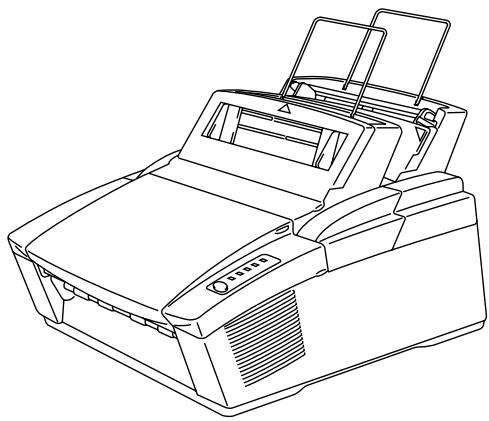
natural_image
Line drawing of a printer with front panel and side ports (no text or symbols)Keep this manual in a convenient place for quick and easy reference at all times.
Shipment of the Printer
If for any reason you must ship your printer, carefully package the printer to avoid any damage during transit. It is recommended that you save and use the original packaging. The printer should also be adequately insured with your carrier.
Warning
When shipping the printer, the DRUM UNIT assembly including the TONER CARTRIDGE must be removed from the printer and placed in the plastic bag. Failure to remove and place it in the plastic bag during shipping will cause severe damage to the printer and will VOID THE WARRANTY.
1 Remove the drum unit.
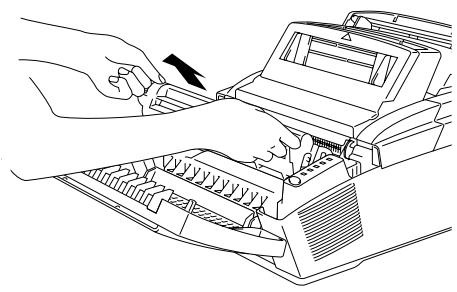
natural_image
Line drawing of hands inserting a typewriter into a machine (no text or symbols)2 Place it in the plastic bag and seal the bag completely.
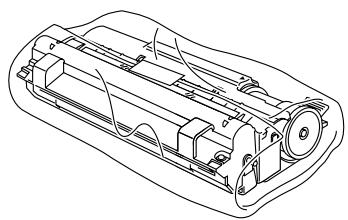
natural_image
Technical line drawing of a mechanical component with no visible text or symbols3 Re-pack the printer.
See “REPACKING THE PRINTER”
in Chapter 5.
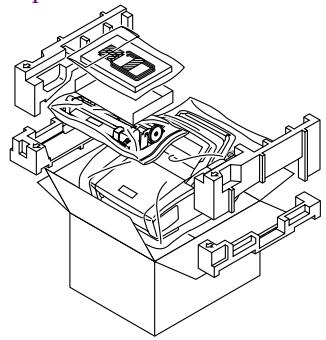
natural_image
Isometric technical line drawing of a mechanical assembly with no visible text or symbols(For USA & CANADA Only)
For technical and operational assistance, please call:
In USA
1-800-276-7746
(outside California)
714-859-9700 Ext. 329
(within California)
In CANADA
1-800-853-6660
514-685-6464
(within Montreal)
If you have comments or suggestions, please write us at:
In USA
Printer Customer Support
Brother International Corporation
15 Musick
Irvine, CA 92718
In CANADA
Brother International Corporation (Canada), Ltd.
- Marketing Dept.
For downloading drivers from our Bulletin Board Service, call:
In USA
1-888-298-3616
In CANADA
1-514-685-2040
Please log on to our BBS with your first name, last name and a four digit number for your password. Our BBS supports modem speeds up to 14,400, 8 bits, no parity, 1 stop bit.
Fax-Back System
Brother Customer Service has installed an easy to use Fax-Back System so you can get instant answers to common technical questions and product information for all Brother products. This is available 24 hours a day, 7 days a week. You can use the system to send the information to any fax machine, not just the one you are calling from. Please call 1-800-521-2846 (USA) or 1-800-681-9838 (Canada) and follow the voice prompts to receive faxed instructions on how to use the system and your index of Fax-Back subjects.
DEALERS/SERVICE CENTERS (USA only)
For the name of an authorized dealer or service center, call 1-800-284-4357.
SERVICE CENTERS (Canada only)
For service center addresses in Canada, call 1-800-853-6660
INTERNET ADDRESS
For technical questions and downloading drivers: http://www.brother.com
Trademarks
The Brother logo is a registered trademark of Brother Industries, Ltd.
Apple, the Apple Logo, AppleTalk, and Macintosh are trademarks, registered in the United States and other countries, and TrueType is a trademark of Apple Computer, Inc.
Epson is a registered trademark and FX-80 and FX-850 are trademarks of Seiko Epson Corporation.
Hewlett Packard is a registered trademark and HP LaserJet 6L, 6P, 5L, 5P, 4, 4L and 4P are trademarks of Hewlett-Packard Company.
IBM, IBM PC, and Proprinter are registered trademarks of International Business Machines Corporation.
Microsoft and MS-DOS are registered trademarks of Microsoft Corporation. Windows is a registered trademark of Microsoft Corporation in the U.S. and other countries.
All other brand and product names mentioned in this User's Guide are registered trademarks of their respective companies.
ENERGY STAR is a U. S. registered mark.
Compilation and Publication Notice
Under the supervision of Brother Industries Ltd., this manual has been compiled and published, covering the latest product's descriptions and specifications.
The contents of this manual and the specifications of this product are subject to change without notice.
Brother reserves the right to make changes without notice in the specifications and materials contained herein and shall not be responsible for any damages (including consequential) caused by reliance on the materials presented, including but not limited to typographical and other errors relating to the publication.
This product is designed for use in a Professional Environment.
©1998 Brother Industries Ltd.
Definitions of Warnings, Cautions, and Notes
The following conventions are used in this User's Guide:

Warning
Indicates warnings that must be observed to prevent possible personal injury.

Caution
Indicates cautions that must be observed to use the printer properly or prevent damage to the printer.

Note
Indicates notes and useful tips to remember when using the printer.
To Use the Printer Safely

Warning
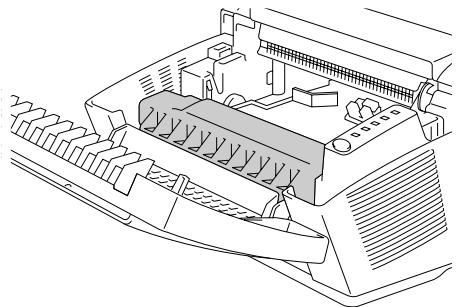
After you have just used the printer, some internal parts of the printer are extremely hot. When you open the top cover of the printer, never touch the shaded parts shown in the following illustration.
natural_image
Technical line drawing of a mechanical device with internal components and no visible text or symbols
High Temperature
Inside the Printer

Warning
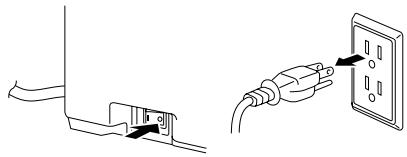
There are high voltage electrodes inside the printer. Before cleaning the printer, make sure to turn off the power switch and unplug the power cord from the power outlet.
natural_image
Diagram showing two electrical connections: a cable with a plug inserted into a socket and a plug inserted into a wall-mounted socket (no text or symbols present)Turning off the Switch and Unplugging the Printer
TABLE OF CONTENTS
CHAPTER 1 INTRODUCTION....1-1
ABOUT THE GUIDEBOOKS 1–1
Finding Out How to Use the Printer 1-1
ABOUT YOUR PRINTER.... 1-2
Printer Overview.... 1–2
System Requirements in the Brother Printing Solution for Windows 1-3
Features.... 1-3
OPERATING AND STORAGE ENVIRONMENT.... 1–6
Power Supply.... 1–6
Environment 1-6
CHAPTER 2 PAPER HANDLING.... 2–1
PAPER SPECIFICATIONS 2–1
MULTI-PURPOSE SHEET FEEDERS 2–4
Loading Paper into the Feeder 2-5
Two Side Printing (Manual Duplexing) 2-8
MANUAL FEED SLOT 2-9
OUTPUT TRAY AND PAPER SUPPORT WIRE 2–11
CHAPTER 3 CONTROL PANEL .... 3-1
LAMPS AND SWITCH 3-1
Ready (Paper) Lamp 3-1
Data (Toner) Lamp 3-2
Drum Lamp....3-2
Feeder Lamp 3-2
Alarm Lamp....3-3
Switch 3-3
Other Control Features 3–4
Sleep Mode 3-4
Test Print Mode 3-4
Control Features Set by the Brother Driver 3-5
Page Protection 3-5
APT (Advanced Photoscale Technology).... 3–6
CHAPTER 4 OPTIONS....4-1
SERIAL INTERFACE BOARD RS100M.... 4-1
Selecting the RS-422A (Apple) or RS-232C (IBM) Serial Interface 4–1
Setting the Serial Interface Parameters 4-2
Connecting the Serial Interface Cable 4-4
ADDITIONAL MEMORY 4–6
Installing the SIMM.... 4–7
CHAPTER 5 MAINTENANCE .... 5–1
REPLACING THE TONER CARTRIDGE 5-1
REPLACING THE DRUM UNIT 5-6
ADJUSTING THE PRINT DENSITY 5-10
CLEANING THE PRINTER....5-11
Cleaning the Printer Exterior 5-11
Cleaning the Printer Interior and Drum Unit 5-12
Cleaning the Paper Feed Rollers.... 5–15
RE-PACKING THE PRINTER....5-16
CHAPTER 6 TROUBLESHOOTING....6-1
ALARM INDICATIONS AT A GLANCE 6-1
Operator Calls....6-1
Service Calls 6–4
PAPER JAMS....6-5
Q & A 6-9
Setting Up the Printer Hardware....6-9
Setting Up the Printer for Windows 6-10
Setting Up the Printer for DOS....6-11
Setting Up the Printer for Apple Macintosh Computers....6-12
When Using the Optional RS-100M Serial Interface 6–12
Paper Handling 6–13
Printing 6-14
Print Quality 6–15
APPENDIX A ...... A-1
PRINTER SPECIFICATIONS ...... A-1
Printing ...... A–1
Functions ...... A-2
Electrical and Mechanical....A-3
PARALLEL INTERFACE SPECIFICATIONS...... A-4
UNIVERSAL SERIAL (USB) INTERFACE....A-6
RESIDENT FONTS ...... A–7
75 Scalabele and 12 Bitmapped Fonts....A-7
SYMBOL SETS/CHARACTER SETS ...... A–9
OCR Symbol Sets A-9
HP LaserJet 6P Mode A-9
EPSON Mode A-9
IBM Mode ...... A–9
INDEX ......Index-1
REGULATIONS
Federal Communications Commission(FCC) Declaration of Conformity (For USA Only)
Responsible Party : Brother International Corporation 100 Somerset Corporate Boulevard Bridgewater, NJ 08807-0911, USA TEL : (908) 704-1700
declares, that the products
Product Name : Brother Laser Printer HL-1070
Model Number : HL-1060
Product Options : ALL
complies with Part 15 of the FCC Rules. Operation is subject to the following two conditions: (1) This device may not cause harmful interference, and (2) this device must accept any interference received, including interference that may cause undesired operation.
This equipment has been tested and found to comply with the limits for a Class B digital device, pursuant to Part 15 of the FCC Rules. These limits are designed to provide reasonable protection against harmful interference in a residential installation. This equipment generates, uses, and can radiate radio frequency energy and, if not installed and used in accordance with the instructions, may cause harmful interference to radio communications. However, there is no guarantee that interference will not occur in a particular installation. If this equipment does cause harmful interference to radio or television reception, which can be determined by turning the equipment off and on, the user is encouraged to try to correct the interference by one or more of the following measures:
- Reorient or relocate the receiving antenna.
- Increase the separation between the equipment and receiver.
- Connect the equipment into an outlet on a circuit different from that to which the receiver is connected.
- Consult the dealer or an experienced radio/TV technician for help.
Important
A shielded interface cable should be used in order to ensure compliance with the limits for a Class B digital device.
Changes or modifications not expressly approved by Brother Industries, Ltd. could void the user's authority to operate the equipment.
Industry Canada Compliance Statement (For Canada Only)
This Class B digital apparatus meets all requirements of the Canadian Interference-Causing Equipment Regulations.
International Energy Star Compliance Statement
The purpose of the International Energy Star Program is to promote the development and popularization of energy-efficient office equipments, which includes computers, monitors, printers, facsimile receivers and copy machines world-wide.
As an International Energy Star partner, Brother Industries, Ltd. has decided that this product meets the guideline of the program.

Radio Interference (220-240 V Model Only)
This printer complies with EN55022(CISPR Publication 22)/Class B.
Before this product is used, ensure that you use a double-shielded cable with twisted-pair conductors and that it is marked “IEEE 1284 compliant”. The cable must not exceed 1.8 meters in length.
Laser Safety (For 110–120 V Model Only)
This printer is certified as a Class I laser product under the U.S. Department of Health and Human Services (DHHS) Radiation Performance Standard according to the Radiation Control for Health and Safety Act of 1968. This means that the printer does not produce hazardous laser radiation.
Since radiation emitted inside the printer is completely confined within protective housings and external covers, the laser beam cannot escape from the machine during any phase of user operation.
FDA Regulations (For 110-120 V Model Only)
U.S. Food and Drug Administration (FDA) has implemented regulations for laser products manufactured on and after August 2, 1976. Compliance is mandatory for products marketed in the United States. One of the following labels on the back of the printer indicates compliance with the FDA regulations and must be attached to laser products marketed in the United States.
MANUFACTURED:
BROTHER INDUSTRIES (USA) INC.
2950 Brother Blvd., Bartlett, TN 38133, U.S.A.
This product complies with FDA radiation performance standards, 21 CFR Subchapter J
MANUFACTURED:
BROTHER INDUSTRIES LTD.
15-1 Naeshiro-cho Mizuho-ku Nagoya, 467-8561 Japan
This product complies with FDA radiation performance standards, 21 CFR Subchapter J
Caution
Use of controls, adjustments or performance of procedures other than those specified in this manual may result in hazardous radiation exposure.
Declaration of Conformity (For Europe)
We, Brother International Europe Ltd.,
Brother House 1 Tame Street, Guide Bridge, Audenshaw, Manchester M34 5JE, UK.
declare that this product is in conformity with the following normative documents.
Safety: EN 60950,
EN 60825
EMC: EN 55022 Class B,
EN 50082-1
following the provisions of the Low Voltage Directive 73/23/EEC and the Electromagnetic Compatibility Directive 89/336/EEC (as amended by 91/263/EEC and 92/31/EEC).
Issued by:
Brother International Europe Ltd.
European Technical Services Division
IEC 825 Specification (For 220–240 V Model Only)
This printer is a Class 1 laser product as defined in IEC 825 specifications. The label shown below is attached in countries where required.
CLASS 1 LASER PRODUCT APPAREIL À LASER DE CLASSE 1 LASER KLASSE 1 PRODUKT
This printer has a Class 3B Laser Diode which emits invisible laser radiation in the Scanner Unit. The Scanner Unit should not be opened under any circumstances.
Caution
Use of controls, adjustments or performance of procedures other than those specified in this manual may result in hazardous radiation exposure.
The following caution label is attached near the scanner unit.
CAUTION
INVISIBLE LASER RADIATION WHEN OPEN AND INTERLOCK DEFEATED. AVOID DIRECT EXPOSURE TO BEAM. CLASS 3B LASER PRODUCT.
ADVARSEL
USYNLIG LASER STRÅLING NÅR KABINETLÅGET STÅR ÅBENT. UNGDÅ DIREKTE UDSÄTTELSE FOR STRÅLING. KLASSE 3B LASER.
WARNING
OSYNLIG LASERSTRÅLNING NÄR DENNA DEL ÄR ÖPPNAD OCH SPÄRRAR ÄR URKOPPLADE. STRÅLEN ÄR FARLIG. KLASS 3B LASER APPARAT.
VARO!
AVATTAESSA JA SUOJALUKITUS OHITETTAESSA OLET ALTTIINA NÄKYMÄTTÖMÄLLE LASERSÄTEILYLLE. ÄLÄ KATSO SÄTEESEEN. LUOKAN 3B LASERLAITE.
ADVARSEL
USYNLIG LASERSTRÅLING.UNNGÅ DIREKTE KONTAKT MED LASERENHETEN NÅR TOPPDEKSELET ER ÅPENT. KLASSE 3B LASERPRODUKT.
ATTENTION
RADIATIONS LASER INVISIBLES QUANDOUVERT ET VERROUILLAGE ENLEVE. EVITER EXPOSITIONS DIRECTES AU FAISCEAU. PRODUIT LASER CLASSE 3B.
VORSICHT
For Finland and Sweden
LUOKAN 1 LASERLAITE
KLASS 1 LASER APPARAT
IMPORTANT - For Your Safety
To ensure safe operation the three-pin electrical plug supplied must be inserted only into a standard three-pin power point which is properly grounded through normal household wiring.
Extension cords used with the equipment must be three-pin plug type and correctly wired to provide proper grounding. Incorrectly wired extension cords may cause personal injury and equipment damage.
The fact that the equipment operates satisfactorily does not imply that the power is grounded and that the installation is completely safe. For your safety, if in any doubt about the effective grounding of the power, consult a qualified electrician.
Disconnect device
This printer must be installed near a power outlet, which is easily accessible. In case of emergencies, you must disconnect the power cord from the power outlet in order to shut off power completely.
Geräuschemission / Acoustic Noise Emission (For Germany Only)
Lpa < 70 dB (A) DIN 45635-19-01-KL2
IMPORTANT - Wiring Information (For U.K. only)
If the power cord supplied with this printer is not suitable for your electrical outlet, remove the plug from the mains cord and fit an appropriate three pin plug. If the replacement plug is intended to take a fuse then fit the same fuse as the original.
If a moulded plug is severed from the power cord then it should be destroyed because a plug with cut wires is dangerous if plugged into a live socket outlet. Do not leave it where a child might find it.
In the event of replacing the plug fuse, fit a fuse approved by ASTA to BS1362 with the same rating as the original fuse.
Always replace the fuse cover. Never use a plug with the cover omitted.
WARNING - THIS PRINTER MUST BE PROPERLY EARTHED.
The wires in the mains cord are coloured in accordance with the following code:
Green and yellow: Ground
Blue: Neutral
Brown: Live
The colours of the wiring in the power lead of this printer may not correspond with the markings which identify the terminals in your plug. If you need to fit a different plug, proceed as follows.
Remove a length of the cord outer sheath, taking care not to damage the coloured insulation of the wires inside.
Cut each of the three wires to the appropriate length. If the construction of the plug permits, leave the green and yellow wire longer than the others so that, in the event that the cord is pulled out of the plug, the green and yellow wire will be the last to disconnect.
Remove a short section of the coloured insulation to expose the wires.
The wire which is coloured green and yellow must be connected to the terminal in the plug which is marked with the letter “E” or by the earth symbol or coloured green or green and yellow.
The wire which is coloured blue must be connected to the terminal which is marked with the letter “N” or coloured black or blue.
The wire which is coloured brown must be connected to the terminal which is marked with the letter “L” or coloured red or brown.
The outer sheath of the cord must be secured inside the plug. The coloured wires should not hang out of the plug.
CHAPTER 1 INTRODUCTION
ABOUT THE GUIDEBOOKS
Finding Out How to Use the Printer
You have two guidebooks for this printer. Read each guidebook in the following order:
- Read the Quick Setup Guide to set up your printer and to ensure proper connection with your computer. It also contains information for installing the printer driver, fonts and Remote Printer Console Program.
-
Read the User's Guide to get information about the following.
-
Features and operating environment requirements of your printer – Chapter 1
• Paper Handling – Chapter 2
• Control Panel – Chapter 3 - Options – Chapter 4
- Maintenance – Chapter 5
- Troubleshooting – Chapter 6
- Specifications – Appendices
- Index
ABOUT YOUR PRINTER
Printer Overview
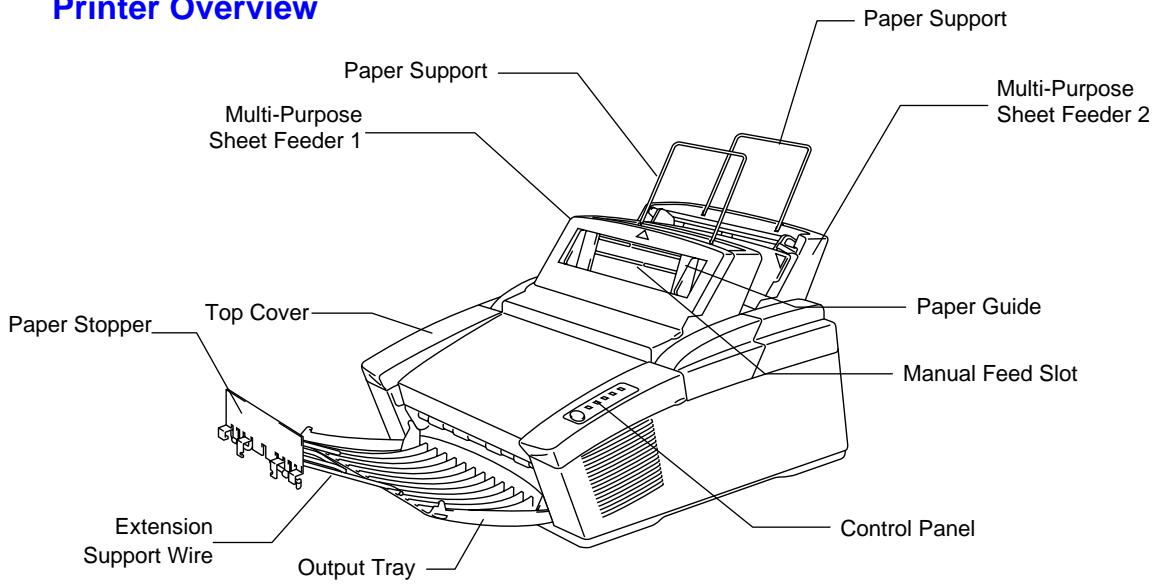
Fig. 1-1 Front View
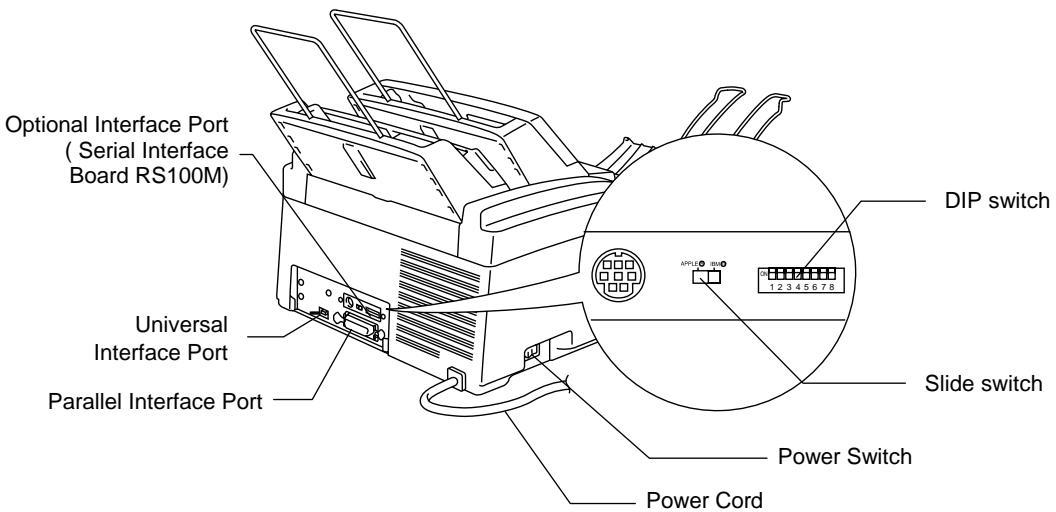
Fig. 1-2 Rear View
System Requirements in the Brother Printing Solution for Windows
Check the following system requirements to setup and operate the printer in the Brother Printing Solution for Windows environment:
- IBM PC or compatible with 80486 SX or higher microprocessor
- Parallel interface (or printer port)
- 4 MB or more of memory (8 MB recommended)
- 10 MB of space available on your hard disk for the printer driver and all fonts
- Microsoft Windows 95/98, Windows NT 4.0 or Windows 3.1/3.11
Features
This printer has the following features:
☐ Up to 1200 (H) x 600 (V) dpi Resolution and 10 ppm Printing Speed
True 600 dots per inch (dpi) with microfine toner and ten pages per minute (ppm) printing speed (A4 or Letter paper). This printer also supports 1200 (H) x 600(V) dots per inch (dpi) resolution for Windows DIB (Device Independent Bitmap) graphics. (It is recommended to add memory when printing in 1200 x 600 dpi mode.)
□ Versatile Paper Handling
The printer has two multi-purpose sheet feeders and a straight paper path mechanism.
From the front Feeder 1 you can load A4, letter, legal, B5, A5, A6 and executive sizes of paper, and various types of paper including envelopes, postcards, organizer paper, and your custom paper size.
From the rear Feeder 2 you can load A4, letter, legal, B5, and executive sizes of paper. The front Feeder 1 also allows manual paper loading, so you can also use labels and transparencies.
☐ Enhanced Printing Performance and User-Friendly Operation for Windows
The dedicated printer driver and TrueType-compatible fonts for Microsoft Windows 95/98 and Windows 3.1 are available on the floppy disk supplied with your printer. You can easily install them into your Windows system using our installer program. The driver supports our unique compression mode to enhance printing speed in Windows applications and allows you to choose various printer settings including toner saving mode, custom paper size, sleep mode, gray scale adjustment, resolution and so forth. You can easily set these print options through the Printer Setup Menu within the Windows Control Panel.
☐ Remote Printer Console Program for DOS
The utility program, Remote Printer Console (RPC), is available on a floppy disk supplied with your printer. When you operate your computer in the DOS (Disk Operating System) environment, this program allows you to easily change the default settings of the printer such as fonts, page setup, emulations and so on.
This program also provides a status monitor program, which is a Terminate-and-Stay Resident (TSR) program. It can monitor the printer status while running in the background and report the current status or errors on your computer screen.
☐ Popular Printer Emulation Support
This printer supports four popular printer emulation modes, HP LaserJet 6P, Brother BR-Script Level 2, Epson FX-850 and IBM Proprinter XL. When you use DOS application software or Windows version 3.0 or earlier, you can use any of these emulations to operate the printer. The printer also supports auto-emulation switching between HP, BR-Script 2 and Epson or HP, Brother BR-Script 2 and IBM. If you want to select the printer emulation, you can do it using the Remote Printer Console Program.
□ Two Interfaces
This printer has a high speed bi-directional parallel interface, and a Universal Serial Bus (USB).
If your application software supports the bi-directional parallel interface, you can monitor the printer status. It is fully compatible with the industry-standard bi-directional parallel interface.
The Universal Serial Bus is an interface which allows the printer to be connected to multiple peripheral devices.
The printer status monitor program can show the current status of your printer. When printing, the animated dialog box appears on your computer screen to show the current printing process. If an error occurs, a dialog box will appear to let you know what to correct. For example: when your printer is out of paper, the dialog box will display “Paper Empty” and instructions for the proper corrective action.
☐ High Resolution Control & Advanced Photoscale Technology
High resolution control (HRC) technology provides clear and crisp printouts. Use this function to get smooth text print quality. Advanced Photoscale Technology enables the printer to print graphics in 256 grayscale levels, producing nearly photographic quality. Use this function when you want to print photographic images.
□ Enhanced Memory Management
The printer provides its own data compression technology in the printer hardware and the supplied printer driver software, which can automatically compress graphic data and font data efficiently into the printer's memory. You can avoid memory errors and print most full page 600 dpi graphic and text data, including larger fonts, with the printer's standard memory.
Environment-Friendly
Economy Printing Mode
This feature will cut your printing cost by saving toner. It is useful when you want to obtain draft copies for proof-reading. You can select from two economy modes — 25% toner saving and 50% toner saving — through the Windows printer driver supplied with your printer.
Sleep Mode (Power Save Mode)
When the printer is not used for a certain amount of time, sleep mode automatically reduces power consumption. The printer consumes less than 13 W when in sleep mode.
Low Running Cost
Since the toner cartridge is separate from the drum unit, you need to replace only the toner cartridge after approximately 2,400 pages, which is cost effective and ecologically friendly.
The actual number of pages printed with each toner cartridge may vary depending on your average type of print job.
OPERATING AND STORAGE ENVIRONMENT
Please take note of the following before using the printer.
Power Supply
Use the printer within the specified power range.
AC power: ±10% of the rated power voltage in your country
Frequency: 50 Hz (220 V–240 V) or 50/60 Hz (110–120 V)
The power cord, including extensions, should not exceed 5 meters (16.5 feet).
Do not share the same power circuit with other high-power appliances, particularly an air conditioner, copier, shredder and so on. If it is unavoidable that you must use the printer with these appliances, it is recommended that you use an isolation transformer or a high-frequency noise filter.
Use a voltage regulator if the power source is not stable.
Environment
The printer should be installed near a power outlet, which is easily accessible.
Use the printer only within the following ranges of temperature and humidity.
Ambient temperature: 10^ C to 32.5^ C ( 50^ F to 90.5^ F)
Ambient humidity: 20% to 80% (without condensation)
The printer should be used in a well ventilated room.
Place the printer on a flat, horizontal surface.
Keep the printer clean. Do not place the printer in a dusty place.
Do not place the printer where the ventilation hole on the right hand side of the printer is blocked.
Do not place the printer where it is exposed to direct sunlight. Use a blind or a heavy curtain to protect the printer from direct sunlight when the printer is unavoidably set up near a window.
Do not place the printer near devices that contain magnets or generate magnetic fields.
Do not subject the printer to strong physical shocks or vibrations.
Do not expose the printer to open flames or salty or corrosive gases.
Do not place objects on top of the printer.
Do not place the printer near an air conditioner.
Keep the printer horizontal when carrying.
Do not cover the slots in the top cover.
CHAPTER 2 PAPER HANDLING
PAPER SPECIFICATIONS
The multi-purpose sheet feeders can handle paper that has the following specifications.
☐ Sheet Feeder 1 (Front) / Manual slot
| Paper Type | Paper Size |
| Cut sheet | A4, Letter, Legal, B5, A5, A6, Executive, Custom size(70-216 x 127-356 mm, 2.75-8.5 x 5-14 inches) |
| Envelopes | DL, C5, COM-10, Monarch, 9” x 12”, C4 |
| Post Card | 70-216 x 127-356 mm, 2.75-8.5 x 5-11 inches |
| Organizer | Day-Timer® J, K, L, M70-216 x 127-356 mm, 2.75-8.5 x 5-11 inches |
| Labels and Transparencies | 70-216 x 127-356 mm, 2.75-8.5 x 5-14 inches |
□ Sheet Feeder 2 (Rear)
| Paper Type | Paper Size | |
| Cut sheet | A4, Letter, Legal, B5, Executive | |
| Cut Sheet | Envelope | |
| Basis Weight | 60 to 157 g/m2(16 to 42 lb.) | 75 to 90 g/m2(20 to 24 lb.)single thickness |
| Caliper | ±0.03 to ±0.08 in.(0.08 to 0.2 mm) | 0.0033 to 0.0058 in.(0.084 to 0.14 mm)single thickness |
| Moisture Content | 4% to 6% by weight | 4% to 6% by weight |
Paper Capacity in Feeder
Multi-purpose
Sheet Feeder: Up to 22 mm (0.87 inch) in height (up to the mark)
Approx. 200 sheets of 80g / m^2 (20 lb.) or 30 sheets of 157g / m^2 (42 lb.) A4/Letter paper, or 10 envelopes
Output Tray: Approx. 100 sheets of 80 g/m ^2 (20 lb.) A4/Letter paper
Recommended paper
Cut sheet: Xerox 4200 (in USA) / Xerox 80 Premier Paper (in Europe) or equivalent
Label: Avery laser label or equivalent
Transparency: 3M PP2500 / Avery 5282 (in USA) / STABILO 7250 (in Europe) or equivalent
Remarks
It is recommended that you test paper, especially special sizes and types of paper, on this printer before purchasing large quantities.
Avoid feeding labels with carrier sheets exposed (sheets with labels previously removed), or your printer will be damaged.
Avoid using coated paper, such as vinyl coated paper.
Avoid using preprinted or highly textured paper.
Use a recommended type of paper, especially plain paper and transparencies, for optimum printing. For more information on paper specifications, consult your nearest authorized sales representative or the place of purchase of your printer.
We recommend you use label or transparencies which are designed for use in laser printers.
We recommend you use long-grained paper for the best print quality.
If the paper has problems feeding from the multi-purpose sheet feeder, use the manual feed slot and try again.
You can use recycled paper in this printer.
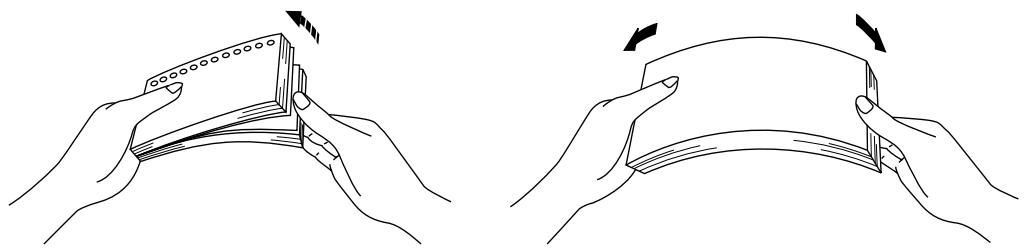
Before using paper with holes such as organizer sheets, you must fan the stack well to avoid paper jams and misfeeds.
Before using any paper, make sure that it is not curled. If it is, you should straighten the paper as much as possible. Feeding curled paper can cause paper jams and misfeeds.
natural_image
Two line drawings showing hands folding a card into a holder, with arrows indicating fold direction (no text or symbols)Fig. 2-1 Fan the Paper and Straighten the Paper
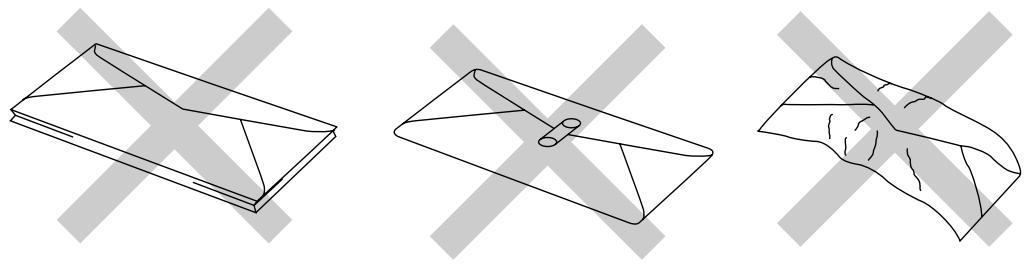
The following types of envelopes are not recommended for use.
- Damaged, curled, wrinkled, or irregularly shaped envelopes
- Extremely shiny or highly textured envelopes
- Envelopes with clasps
- Envelopes with self-adhesive closures
• Envelopes of baggy construction - Envelopes not sharply creased
- Embossed envelopes
- Envelopes already printed by a laser printer
- Envelopes pre-printed on the inside
- Envelopes that cannot be arranged uniformly when placed in a pile
natural_image
Three line drawings of folded paper sheets with geometric cutouts, no text or symbols presentFig. 2-2 Envelopes
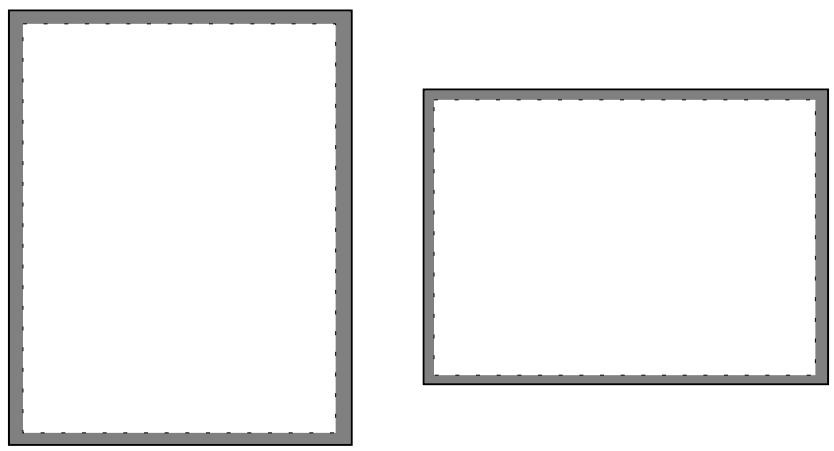
Printable Area The figure below shows the physically printable area. (Except 9"x12" envelope)
natural_image
Two empty rectangular frames with dashed border, no text or symbols presentUnprintable area
Approximately 4 mm(0.16 inch) for any sizes of paper
Fig. 2-3 Printable Area
The printer has two multi-purpose sheet feeders that can feed plain paper, envelopes, transparencies and organizer paper.
To use the multi-purpose sheet feeders, follow these steps:
- Make sure that you have selected the proper paper source, paper size and orientation.
Note
- You may select the proper paper source, paper size, and orientation in your application software.
-
If your application software does not support your custom paper size, select the next paper size up that is closest but larger than the custom size. Then adjust the print area by changing the right and left margins in your application software.
-
Make sure that the multi-purpose sheet feeder contains the selected size of paper in the selected orientation. If necessary, change the paper in the feeder.
- Send your file or document to the printer.
When the printer receives data, it begins the print process by loading paper from the multi-purpose sheet feeder. If the printer is in sleep mode when it receives data, it will wake up and start the printing process automatically.
Loading Paper into the Feeder
To load paper into the feeder, follow these steps.
Note
This section describes loading paper into the front multi-purpose sheet feeder 1. Load paper into the rear sheet feeder 2 in the same way as described here. Remember, however, that paper sizes vary for Feeder 1 and Feeder 2. For paper sizes, see “PAPER SPECIFICATIONS” in Chapter 2.
- Open the multi-purpose sheet feeder by gently pulling the tabs forward towards you. (①)
- Move the paper guides horizontally to the widest position. (②)
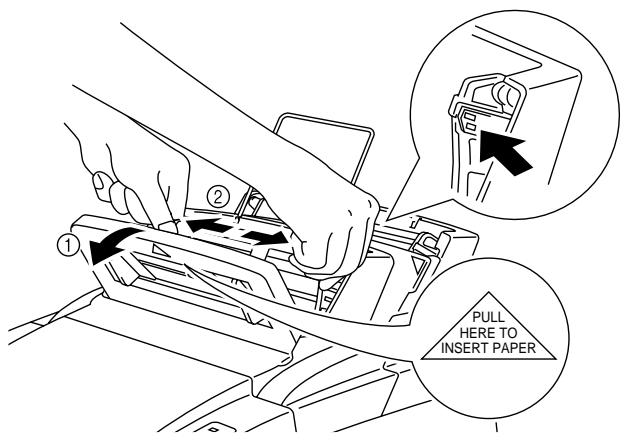
Fig.2-4 Opening the Feeder and Moving the Paper Guides
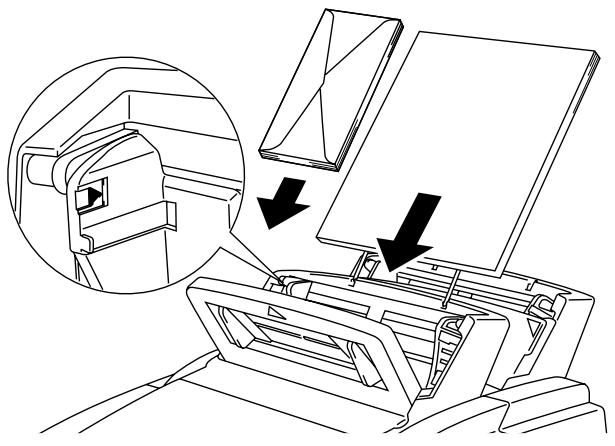
- Load paper into the multi-purpose sheet feeder with the printing surface face down.
natural_image
Technical line drawing of a mechanical device with an inset showing a close-up of a component (no text or symbols present)Fig. 2-5 Loading Paper or Envelopes in the Feeder

Note
If you load envelopes in Feeder 1, make sure they are inserted in the direction shown on the previous page.

Caution
- If you print transparencies, load them sheet by sheet. Failure to do so may cause a double feed error.
- The feeder can hold up to 200 sheets of plain paper (80 g/m ^2 , 20 lb.). If you load too many sheets, paper jams could occur.
• Make sure that the paper is stacked below the ▼ mark. -
If there is still some paper in the feeder, you must first remove it, put it together with the new paper and then insert the stack in the feeder.
-
Move the paper guide to the appropriate paper width (①) and close the multi-purpose sheet feeder. (②)

Caution
Failure to set the paper guides to the paper size may cause paper skew or jams.
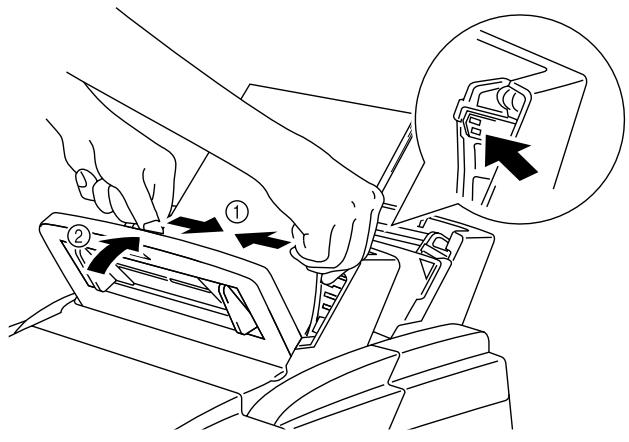
Fig. 2-6 Moving the Paper Guides and Closing the Feeder
Note
- If the multi-purpose sheet feeder runs out of paper when you try to print, the Alarm and Paper lamps blink to alert you. You have to load paper in the feeder and push the panel switch to cancel the alarm and continue printing. If paper jams in the printer, the Alarm and Paper lamps also blink. If the error is a paper jam, clear it referring to “PAPER JAMS” in Chapter 6.
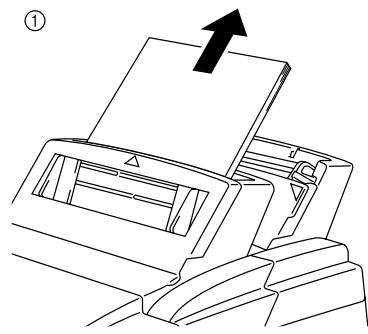
- When the rear sheet feeder 2 runs out of paper and there is paper loaded in the front sheet feeder 1, be sure to remove paper from Feeder 1 temporarily (①) and load paper in Feeder 2. (②)
natural_image
Line drawing of a printer with an arrow indicating upward motion (no text or symbols)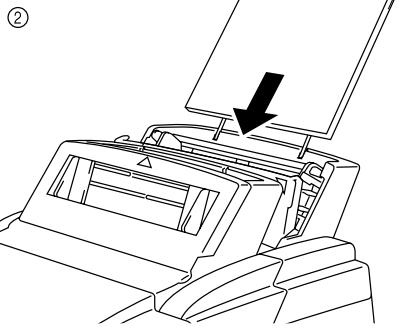
natural_image
Technical line drawing of a printer or printer with a black arrow pointing to the cover (no text or symbols present)Fig. 2-7 Loading Paper in Feeder 2
Two Side Printing (Manual Duplexing)
The supplied printer driver for Windows 95/98 or Windows 3.1 allows for manual duplex printing from both Feeder 1 and Feeder 2. For more information about settings, see the help text in the printer driver.
The printer prints all the even numbered pages on one side of the paper first, and then prints all the odd pages on the reverse side of the paper.
When you have finished printing the even numbered sides of the paper, the driver instructs you to re-insert the paper by a pop-up message on your computer screen. Follow the instructions on how to reinsert the paper.
Note
- Before re-inserting the sheets, you have to straighten them, or you will get paper handling errors.
- The use of very thin or very thick paper is not recommended.
- If you encounter a double feeding error, we recommend that you hold all sheets of paper except the front sheet while the paper is feeding.
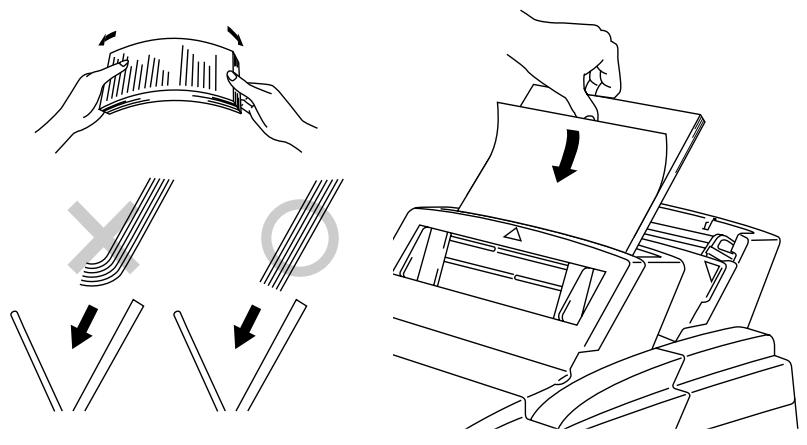
Fig. 2-8 Notes for Manual Duplexing
Note
When you use the Manual Duplex function, it is possible that paper jams may occur or print quality might not be satisfactory.
The front multi-purpose sheet feeder 1 also has a manual feed slot. You can manually load paper sheet by sheet from this slot. You do not need to remove paper from the multi-purpose sheet feeder when using the manual feed slot.
☐ When you load one sheet of paper manually:
You do not need to choose manual feed in the Setup dialog box of your printer driver. While holding the selected size of paper in the proper orientation (Portrait or Landscape), place the side of the paper you wish to print on face down into the manual feed slot. Align the paper at the center of the manual feed slot, and be sure to insert it all the way. (①) Move the paper guide of the manual feed slot to the paper width you are using. (②)
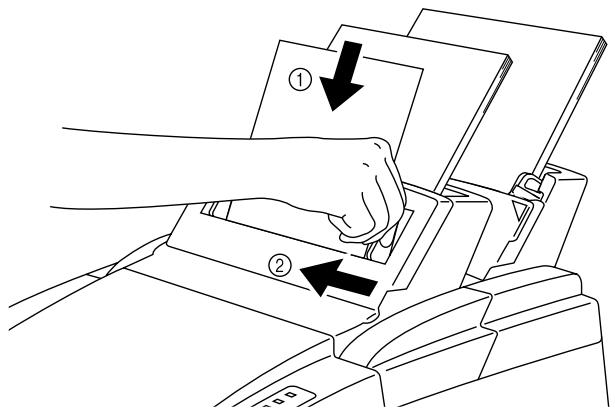
Fig. 2-9 Moving the Paper Guide
☐ When you load more than one sheet of paper manually:
Open the Setup dialog box of the supplied Windows printer driver and choose Manual Feed in the Paper Source section. Follow the above instructions to load the first page. The printer automatically starts printing. After the first page is printed, the dialog box appears and prompts you to load the next page. Load a sheet and choose OK to resume printing. Repeat these steps until you have finished printing all the pages.
Caution
If bi-directional communications are not operational between the printer and the computer, such as when the printer is shared on a network, the dialog box will not appear to load the next page. Manual paper feeding is not recommended when your printer is attached to a network.
Note
- Insert paper firmly into the manual feed slot.
- Be sure to load sheet by sheet when using the manual feed slot.
OUTPUT TRAY AND PAPER SUPPORT WIRE
The printer ejects paper with the printed surface face down into the output tray at the front of the printer.
When the output tray is closed, the ejected paper comes out sheet by sheet through the slit at the front. When you open the tray, sheets can be stacked on the tray.
Follow these steps to open the output tray:
- Pull the top of the tray down (①).
- Extend the extension support wire (②) and set the paper stopper (③).
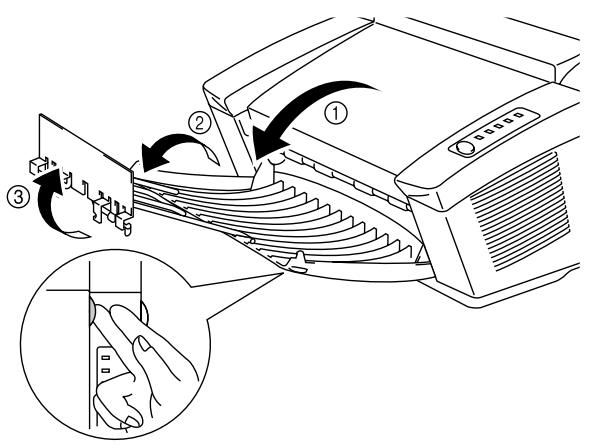
Fig. 2-10 Opening the Output Tray and Extending the Extension Support Wire
You can stack up to 100 sheets in the output tray.

Caution
- Use the paper stopper only when printing A4 or Letter size paper. Failure to set the paper stopper may cause output stack sheets to scatter.
- When you use transparencies, remove each sheet immediately after printing. Stacking sheets may cause the transparency to curl or jams
- Continuous printing with the output tray closed may cause condensation inside the output tray.
CHAPTER 3 CONTROL PANEL
LAMPS AND SWITCH
This section refers to the following lamps and switch on the printer control panel.
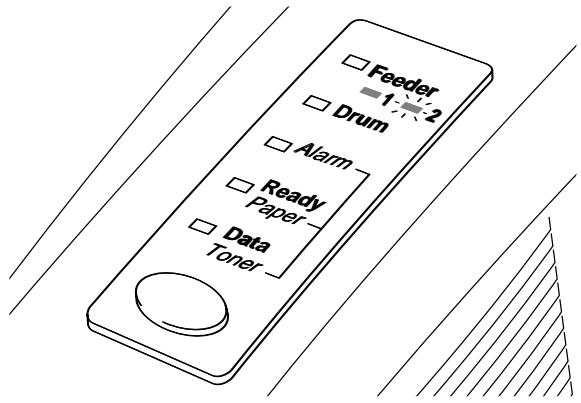
Fig. 3-1 Lamps and Switch on Control Panel
Note
When the power switch is off or the printer is in sleep mode, all lamps including the Ready lamp are off.
Ready (Paper) Lamp
The Ready lamp indicates the current status of the printer.
| Lamp | Printer status |
| Off | The power switch is off or the printer is in sleep mode. If the printer is in sleep mode, it will wake up automatically when it receives data or you press the control panel switch. |
| Blinking | The printer is warming up.(Blinking at 1 second intervals) |
| Blinking | The printer is cooling down and pauses printing until the printers internal temperature is lowered.(Blinking at 2 seconds intervals) |
| On | The printer is ready to print. |
This lamp also works as the Paper lamp with the Alarm lamp. They blink simultaneously to indicate a paper error. See “Operator Calls” in Chapter 6.
Data (Toner) Lamp
The Data lamp indicates the current status of the print data process.
| Lamp | Printer status |
| Off | The printer has no print data. |
| ○ | |
| Blinking | The printer is receiving data from the computer or the printer is processing data in memory. |
| ○↔● | |
| On | Print data remains in the printer memory. If the Data lamp is on for a long period of time and nothing has printed, you need to press the switch to print the remaining data. |
This lamp also works as the Toner lamp with the Alarm lamp. They blink simultaneously to indicate a toner error. See “REPLACING THE TONER CARTRIDGE” in Chapter 5 and “Operator Calls” in Chapter 6.
Drum Lamp
The Drum lamp indicates the drum unit is nearly at the end of its life.
| Lamp | Printer status |
| Off | The drum unit can be used. |
| ○ | |
| On | The drum unit is nearly at the end of its life. |
| ● | Installing a new drum unit turns off this lamp. See “REPLACING THE DRUM UNIT” in Chapter 5. |
Feeder Lamp
The Feeder lamp indicates that the rear sheet feeder 2 is selected through your software. When the front sheet feeder 1 is selected, the lamp is turned off.
| Lamp | Printer status |
| Off | Feeder 1 is selected. |
| ○ | |
| On | Feeder 2 is selected. |
| ● |
Alarm Lamp
The Alarm lamp blinks to indicate a printer error status such as “Cover Open” and “Memory Full.” If any other error occurs, the printer indicates the error by blinking the Alarm lamp with another lamp or by printing an error report.
Note
The Ready, Data and Drum lamps are used to indicate printer errors with the Alarm lamp. See “ALARM INDICATIONS AT A GLANCE” in Chapter 6 and take corrective action for the error.
Switch
This switch will be used as the following purpose depending on the situation.
Cancel Printing
If you press the switch during printing, the printer immediately stops printing and ejects the paper.
Wake-up
If the printer is in sleep mode, pressing the switch wakes it up into the ready state.
Form Feed
If the Data lamp is on, press the switch. The printer prints any data remaining in the printer memory: this operation is called “Form Feed.”
Error Recover
If an error occurs, the printer will recover from some errors automatically. If the error does not clear automatically, press the switch to clear the error and continue printer operation.
Select Feeder
If the Ready lamp is on, press the switch. You can select Feeder 1 or Feeder 2.
Other Control Features
The printer has the following useful features:
Sleep Mode
When the printer does not receive data for a certain period of time (timeout), it enters sleep mode. Sleep mode acts as though the printer was turned off. The default time-out is 5 minutes. While the printer is in sleep mode, all the lamps are off and it is as if it was turned off, but the printer can still receive data from the computer. Receiving a print file or document automatically wakes up the printer to start printing. Pressing the switch also wakes up the printer.
Note
- When the printer goes into sleep mode, the fan will not stop until the printer engine has cooled down.
- Sleep mode allows the print engine to cool, so the temperature of your room and how long the printer has been in sleep mode affects the warm-up time. This warm-up time can take up to 30 seconds. The Ready lamp blinks to indicate that the printer is warming up.
- You can change the time out for the sleep mode with the supplied printer driver or Remote Printer Console program. Refer to the Help section in the printer driver or RPC program for more information about the sleep mode setting.
Test Print Mode
The printer has the following test print mode. Follow these steps:
- Make sure that the top cover is closed.
- Hold down the switch and turn on the power switch. Keep the switch depressed until the Drum lamp comes on.
The Drum lamp lights to indicate that the printer is in the test print mode. - Press the switch again to execute the test print or hold down the switch to select another option and release the switch to execute the selected option.
The test print mode varies depending upon the printer model as follows:
| Lamp Lit | Choice | Function |
| Drum | Test sample page | The printer prints a test sample page.The printer returns to the ready status after printing. |
| Alarm | Print Config & Print Fonts I | The printer prints the current configuration of the printer and a list of the internal fonts.The printer returns to the ready status after printing. |
| Ready | Factory Reset | The printer is restored to the factory setting and permanent fonts and macros are cleared.The printer returns to the ready status after printing. |
| Data | Hex Dump Print | The printer can print data as hexadecimal values, so that you can check data errors and problems.To exit from this mode, you have to turn off the printer. |
Control Features Set by the Brother Driver
Page Protection
If the printed images are too complex to print, the printer may print a partial image on the page. If this occurs, the printer has lost some print data and will indicate a “print overrun” error by printing an error report.
The page protection feature allows the printer to create the image to be printed in memory before physically moving the paper through the printer. Therefore, setting page protection to ON may eliminate the “PRINT OVERRUN” error.
The “AUTO” setting does not require additional memory and automatically uses page protection only when it is necessary. Occasionally, when AUTO page protection is on, processing complex print data may be slightly delayed.
Note
To set the Page Protection to A4, Letter or Legal paper sizes, the following total capacity of memory is required.
| 300 dpi | 600 dpi | |
| Letter/A4 | 2 Mbytes | 6 Mbytes |
| Legal | 3 Mbytes | 6 Mbytes |
If your printer does not have enough memory for page protection, your document may be printed at 300 dpi.
You can set this function in the following ways.
• The supplied printer driver for Windows 95/98/3.1
• The supplied RPC program for DOS
For details of the settings, see the relevant help screen.
APT (Advanced Photoscale Technology)
APT allows your printer to produce fine gray scales to improve the appearance of documents containing photographic images.
Using this feature, the image is printed in 256 shades of gray at near photographic quality.
This setting can be made by using the supplied Windows driver. Also, a demo file which can be opened within Windows Write is included on the supplied disk. Try printing it with the APT feature.
For details of the settings, see the relevant help screen of the RPC or Windows driver.
Note
APT is a simpler feature than 1200 x 600 dpi for Windows DIB graphics. APT does not require so much memory as the 1200 x 600 dpi resolution setting.
CHAPTER 4 OPTIONS
SERIAL INTERFACE BOARD RS100M
To connect the printer to a DOS computer with a serial interface or to an Apple Macintosh computer, you need to install the optional serial interface board. When you have installed the serial interface board, you can share the printer between two computers (two IBM compatible PCs or one IBM compatible PC and one Apple Macintosh) using the parallel and serial interfaces at the same time. Automatic interface selection is a standard feature.
Note
- The serial interface board for this printer is optional, but in some countries the serial interface board may have been installed by either the factory or dealer.
- The serial interface for Apple Macintosh (RS-422A) will only print at 300 dpi.
The serial interface board is installed onto the main controller board inside the printer. For the details about installation, see the instruction guide which was provided with the serial interface board.
Selecting the RS-422A (Apple) or RS-232C (IBM) Serial Interface
Note
This section is only for printer models which have had the serial interface installed.
Caution
Be sure to select the serial interface type to match your computer as follows:
- For Apple Macintosh computers: you should not have to change any settings because the Apple (RS-422A) setting is factory selected (default).
- For IBM compatible PCs you should move the switch to the IBM (RS-232C) setting.
- If you are using an Apple Macintosh on the RS-422A port and an IBM compatible PC on the parallel port, it is not necessary to make any changes to the switch setting.
If necessary, select the interface type as follows:
- Make sure that the printer is in the off-line state.
- Select the RS-422A(Apple) or RS-232C(IBM) interface by changing the serial interface slide switch to the right for IBM(RS-232C) or to the left side for Apple(RS-422A).
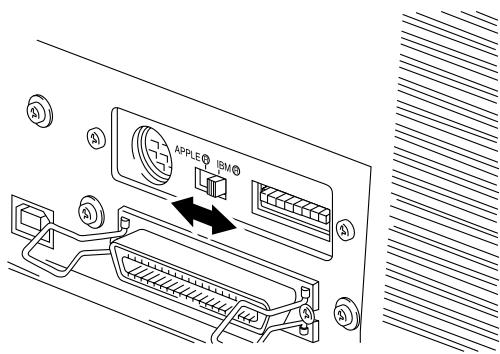
Fig. 4-1 Selecting the RS-422A (Apple) or RS-232C (IBM) Serial Interface
Setting the Serial Interface Parameters
Note
This section is only for printer models which have had the serial interface installed.

Caution
Be sure to set the parameters to match your computer as follows:
- Never change the RS-422A parameters for Apple Macintosh computers. Because the RS-422A parameters have been correctly set at the factory for Apple Macintosh computers, you do not need to change the settings. You may skip this section. If you change parameters for the RS-232C serial interface and you switch back to RS-422A for Apple Macintosh computers, be sure to restore the parameters to the factory settings.
- Set the RS-232C parameters to match your computer. You can set serial settings in several different places, within your DOS application, within the Windows Printer Icon (for Windows application software only), or within your AUTOEXEC . BAT file using MODE commands. For information on serial interface parameters, see the user's guide of your computer or software.
If necessary, set the serial interface parameters as follows:
- Make sure that the printer is in the off-line state.
- Set the serial interface parameters by moving up (on) or down (off) the selectors of the dual in-line package (DIP) switch.
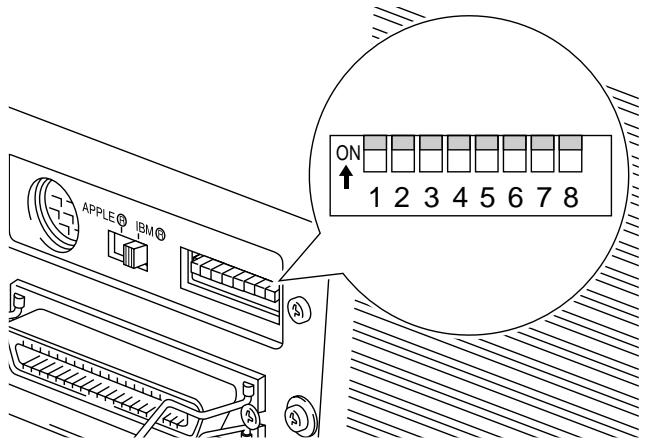
Fig. 4-2 Setting the Serial Interface Parameters
Table 1: Serial Interface Parameter Settings
| Selector | Parameters | On (up) | Off (down) |
| 1 | Baud Rate | — See Table 2. | — |
| 2 | Baud Rate | — See Table 2. | — |
| 3 | Data Length | 7 bits | 8 bits |
| 4 | Stop Bit | 2 bits | 1 bit |
| 5 | Parity | — See Table 3. | — |
| 6 | Parity | — See Table 3. | — |
| 7 | Protocol | Xon/Xoff + DTR | DTR only |
| 8 | Robust Xon | On | Off |
Table 2: Baud Rate Settings
| Selector 1 | Selector 2 | For RS-422A | For RS-232C |
| Off | Off | 57600 | 9600 |
| On | Off | 9600 | 4800 |
| Off | On | 1200 | 1200 |
| On | On | 19200 | 19200 |
Table 3: Parity Settings
| Selector 5 | Selector 6 | Parity |
| On | On | Odd |
| On | Off | Even |
| Off | — | None |
Note
- The factory settings are indicated in bold.
- If the robust Xon setting is turned on with selector 8, the printer sends Xon signals at one second intervals to the connected computer until it receives data. It is effective only if selector 7 is set to the On position for the Xon/Xoff plus DTR setting.
Connecting the Serial Interface Cable
Note
This section is only for printer models which have had the serial interface installed.
You need a serial interface cable with an 8-pin, DIN-type connector to connect your printer and computer.
Note
- Consult your dealer for a serial interface cable.
- If you are a Macintosh user, you can easily find the necessary cable at a local computer store. Look for Apple serial cables labeled as “Macintosh to ImageWriter II™ or “Macintosh to Personal LaserWriter™ 300” or the “Apple System Peripheral 8 Cable”. Do not purchase a serial cable labeled as “Straight-through” or “LocalTalk.”
- If you are a PC user, you need to purchase a special serial cable from your dealer. If you have a 9-pin connector on your computer, look for a cable labeled “IBM AT to ImageWriter II” cable. If you have a 25-pin connector, look for a cable labeled “DB25 to ImageWriter II.” These cables most likely would be found in the Apple Macintosh section at your computer dealer. For more information about the interface specification, consult your dealer.
You can connect a parallel and a serial interface cable at the same time. The auto interface selection function allows you to share the printer with two computers. To do this, connect the parallel interface cable and then connect the serial interface cable as follows:
- Make sure that the power switch is turned off.

Caution
Be sure to turn off the power switch before connecting or disconnecting the interface cables, or the printer may be damaged.
- Insert and secure the parallel interface connector into the parallel interface port of your printer.
- Insert and secure the serial interface connector into the serial interface port of your printer.
- Turn on the power switch.
This printer has 4.0 MByte of standard memory and has one slot for optional additional memory. The memory can be expanded up to 36 MBytes by installing a commercially available single in-line memory module (SIMM).
Additional memory is useful and may be necessary if you are using the BR-Script 2 emulation, or the Page Protection function, full page graphics with APT or 1200 x 600 dpi resolution set to on. (For details about Page Protection, see Chapter 3 “Other Features”.)
Minimum Memory Recommendation (including resident memory)
■ HP LaserJet 6P, EPSON FX-850, and IBM Proprinter XL
Page Protect = AUTO or Off
| 300 dpi | 600 dpi | |
| Letter/A4 | 2 MB | 2 MB |
| Legal | 2 MB | 2 MB |
Page Protect = Letter, A4, or Legal
| 300 dpi | 600 dpi | |
| Letter/A4 | 2 MB | 6 MB |
| Legal | 3 MB | 6 MB |
Note
This printer can also support DIB graphics with a resolution of 1200 x 600 dpi under Windows 95/98/3.1 with the supplied printer driver. We recommend to expand the printer memory to avoid any memory full errors that may occur at this high resolution.
■ BR-Script 2
| 300 dpi | 600 dpi | |
| Letter/A4 | 2 MBytes | 6 MBytes |
| Legal | 3 MBytes | 6 MBytes |
The following type of SIMMs can be installed:
• 1 MByte HITACHI HB56D25632B-6A, -7A
• 2 MByte HITACHI HB56D51232B-6A, -7A
• 4 MByte HITACHI HB56A132BV-7A, 7AL, -7B, -7BL
- 8 MByte HITACHI HB56A232BT-7A, -7AL, -7B, -7BL
• 16 MByte TOSHIBA THM324000BSG-70
• 32 MByte TOSHIBA THM328020BSG-70
This printer can accept the following types of SIMMs;
Speed 60 nsec - 80 nsec
Pin Type 72 pin
Height 25.4 mm (1") or less
Output 32 bit or 36 bit
Note
The printer has only one slot for a SIMM upgrade. If you want to increase your printer memory again after you have installed a SIMM module into the slot, you will need to remove the previously installed SIMM first. For example if you have previously increased your memory from the standard 4 MB to 8 MB by adding a 4 MB SIMM and you wish to increase your total memory to 12 MB, you need to remove the installed 4 MB SIMM and install the new 8 MB SIMM into the printer.
Installing the SIMM
When you install the SIMM, follow these steps:
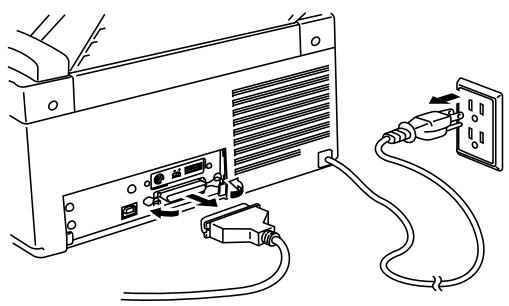
- Turn off the power switch and unplug the power cord from the AC outlet. Then, disconnect the interface cable from the printer.
natural_image
Line drawing of a device with cables and connectors, no text or symbols presentFig. 4-3 Unplug the power cord and disconnect the interface cable
Note
Be sure to unplug the power cord to the printer before installing or removing the SIMM and the main controller board.
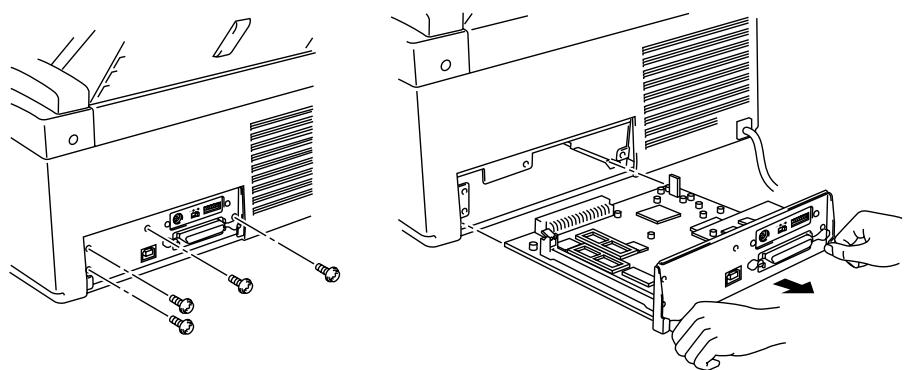
- Unscrew the four screws securing the rear plate of the main controller board and pull out the main controller board.
natural_image
Technical line drawing showing two views of a computer monitor with cable and drive components (no text or symbols)Fig. 4-4 Remove the main controller board
- Unpack the SIMM and hold it on its edge.
Note
Do not touch the memory chips and the surface of the main controller board. If static electricity collects, it damages the memory.
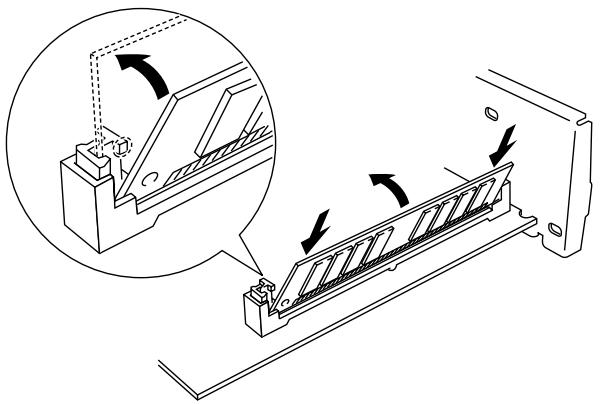
- Install the desired size of SIMM into the slot and push gently until it clicks into place.
natural_image
Technical line drawing of a mechanical assembly with an inset showing a close-up of a component being turned, no text or symbols present.Fig. 4-5 Install the SIMM
- Install the main controller board into the printer by sliding it into the guide rails.
- Secure the main controller board with the four screws.
- Reconnect the interface cable from your computer and plug the power cord into the AC outlet.
CHAPTER 5 MAINTENANCE
REPLACING THE TONER CARTRIDGE
The printer can print approximately 2,400 pages with one toner cartridge. When the toner cartridge is running low, the Alarm and Data (Toner) lamps blink once every 5 seconds to indicate toner low.
Note
- Actual page count will vary depending on your average document type. (i.e.: standard letter, detailed graphics, etc.)
- It is recommended that you always keep a new toner cartridge ready for use for when you get the toner low warning.
- Discard the used toner cartridge according to local regulations. If you are not sure of them, consult your local dealer. Be sure to seal the toner cartridge tightly so that toner powder does not spill out of the cartridge. Do not discard used toner cartridges with domestic rubbish.
- It is recommended that you clean the printer when you replace the toner cartridge. See “CLEANING THE PRINTER” in this chapter.
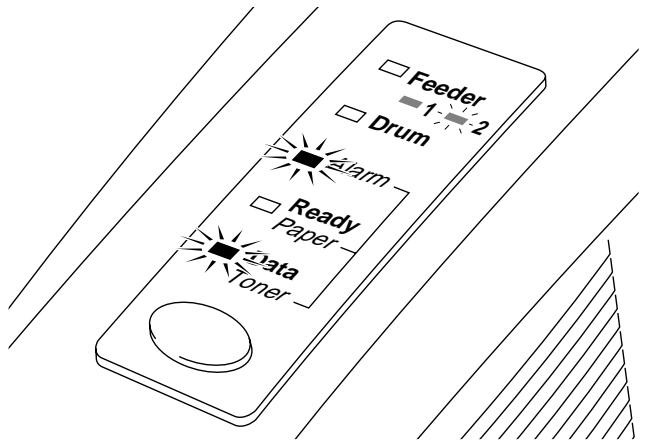
Fig. 5-1 Toner Low and Empty Indication
Caution
You may print approximately 100 pages after the first toner low indication. Both Alarm and Data (Toner) lamps will blink continuously to indicate that the toner is empty. Once this indication appears, your printer cannot resume printing until you have installed a new toner cartridge.

Caution
Keep the drum unit level after removing the toner cartridge, to avoid possible toner spill or scatter.
Follow these steps to replace the toner cartridge:
- Turn off the power switch.
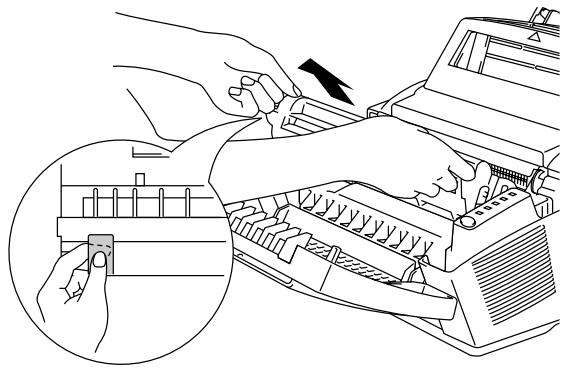
- Open the top cover. Remove the drum unit by holding each side of the drum and gently lifting the drum towards you (up and out).

Note
Make sure that the top cover is correctly latched open, indicated by a click
natural_image
Line drawing of hands operating a device with a magnified inset showing a component (no text or symbols)Fig. 5-2 Removing the Drum Unit

Note
It is recommended to put the drum unit on a piece of disposable paper or cloth in case of accidental toner spill or scatter.
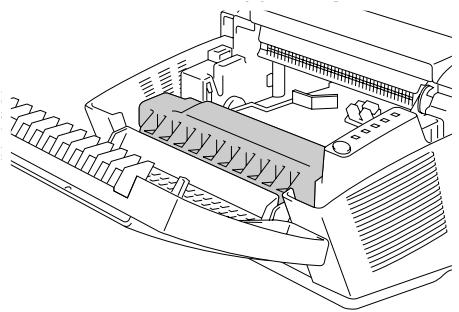
Warning
After you have just used the printer, some internal parts of the printer are extremely hot. When you open the top cover of the printer, never touch the shaded parts shown in the following illustration.
natural_image
Line drawing of a computer monitor with ventilation slots and scrollbars (no text or symbols)
High Temperature
Fig. 5-3 Inside the Printer
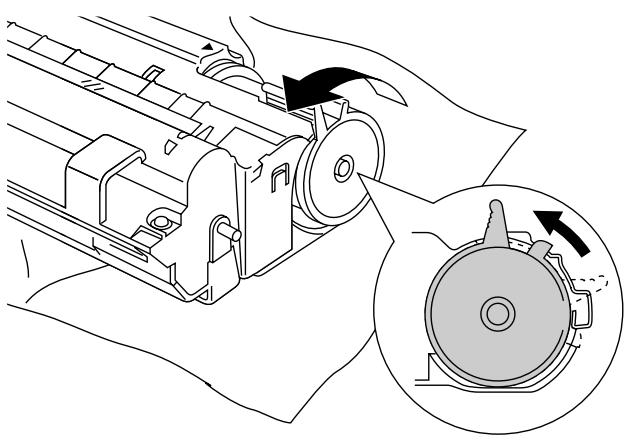
- Gently turn the lever on the toner cartridge forward until it stops.
Note
The toner cartridge cannot be removed unless the shutter is completely closed by turning the lever fully to the front.
natural_image
Mechanical assembly diagram showing a rotating component with directional arrows, including a magnified inset of the internal structure (no text or symbols present)Fig. 5-4 Turning the Lever to Close the Shutter
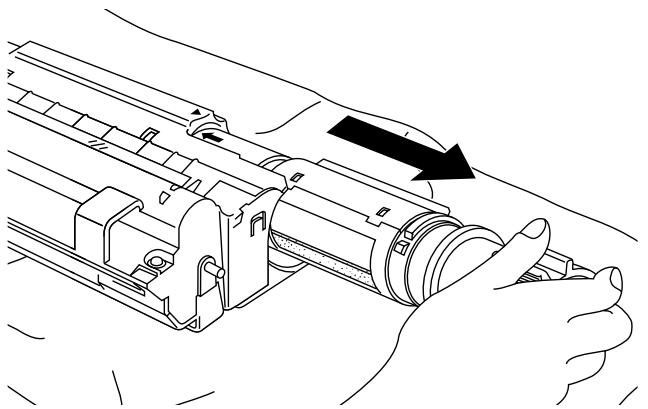
- Remove the old toner cartridge from the drum unit by pulling it out gently.
natural_image
Technical line drawing of a mechanical assembly with a hand operating a tool (no text or symbols present)Fig. 5-5 Removing the Old Toner Cartridge

Caution
Handle the toner cartridge carefully. If toner scatters on your hands or clothes, wipe or wash it off with cold water immediately.
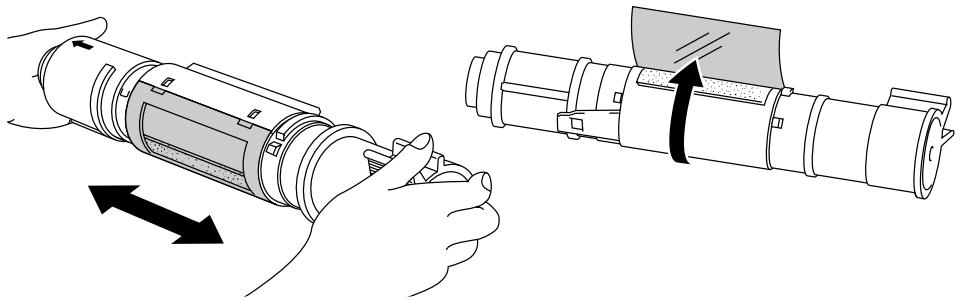
- Unpack the new toner cartridge, gently shake it five or six times and then remove the protective part.

Caution
- Only unpack the toner cartridge immediately before installing it into the printer. If toner cartridges are left unpacked for a long period of time, the toner life is shortened.
- Never turn the black ring of the toner cartridge.
- You can only use a Brother genuine toner cartridge which is specially formulated to ensure top print quality. Using another brand of toner cartridge could void your printer's warranty.
natural_image
Illustration of a hand holding a cylindrical device with an arrow indicating direction, next to a separate cylindrical device (no text or symbols present)Fig. 5-6 Shaking the Toner Cartridge and Remove the Protective Part
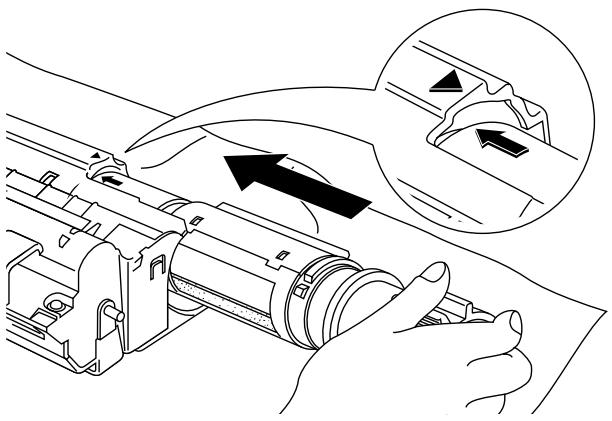
- Install the new toner cartridge into the right hand side of the drum unit. Make sure that the toner cartridge guide bar is exactly aligned with the guide slot in the drum unit to ensure that the toner cartridge and the drum unit fit together correctly.
natural_image
Technical illustration of a mechanical assembly with hand operating a tool, showing motion direction and component placement (no text or symbols)Fig. 5-7 Installing the Toner Cartridge into the Drum Unit
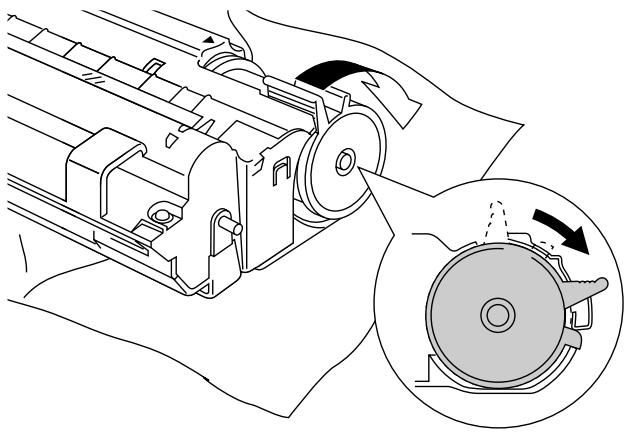
- Gently turn the lever on the toner cartridge backward until it stops.
natural_image
Technical diagram of a mechanical assembly with an inset showing a circular component with arrows indicating motion (no text or symbols present)Fig. 5-8 Turning the Lever to Open the Shutter
- Re-install the drum unit into the printer and close the top cover. Then, turn on the power switch.
REPLACING THE DRUM UNIT
The printer uses a drum unit to create the print images on paper. If the Drum lamp is on, it indicates the drum unit is nearly at the end of its life. We recommend you prepare a new drum unit to replace the current one. Even if the Drum lamp is on, you may be able to continue to print without replacing the drum unit for a while. If there is a noticeable deterioration in the output print quality even before the Drum lamp lights, then the drum unit should be replaced.
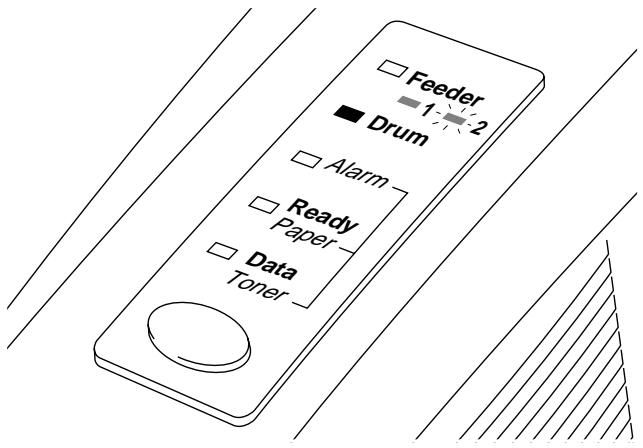
Fig. 5-9 Drum Unit Nearly at the End of its Life
Caution
- When removing the drum unit, handle it carefully as it may contain toner.
- You should clean the printer when you replace the drum unit. See “CLEANING THE PRINTER” in this chapter.
Note
The drum unit is a consumable, and it is necessary to replace it periodically.
There are many factors that determine the actual drum life, such as temperature, humidity, type of paper and toner that you use, the number of pages per print job, etc.. The drum life is estimated at approximately 20,000 pages at 20 pages per job and 8,000 pages at 1 page per job. The actual number of pages that your drum will print may be significantly less than these estimates. Because we have no control over the many factors that determine the actual drum life, we cannot guarantee a minimum number of pages that will be printed by your drum.
For best performance, use only genuine Brother toner, and the product should only be used in a clean, dust-free environment with adequate ventilation.
Follow these steps to replace the drum unit:
- Turn off the power switch.
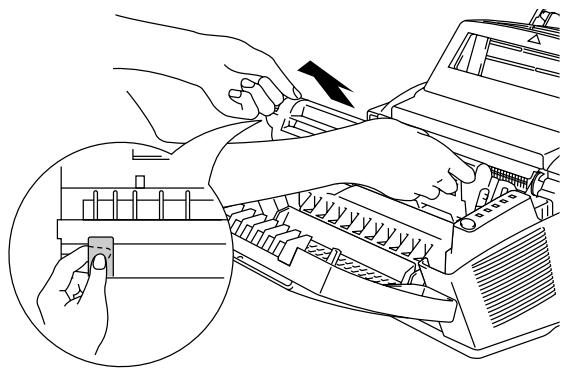
- Open the top cover and remove the old drum unit.
natural_image
Line drawing of hands operating a mechanical device with a magnified inset showing a component (no text or symbols)Fig. 5-10 Removing the Drum Unit
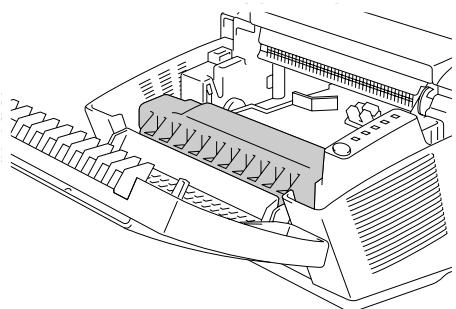
Warning
After you have just used the printer, some internal parts of the printer are extremely hot. When you open the top cover of the printer, never touch the shaded parts shown in the following illustration.
natural_image
Line drawing of an electronic device with ports and a central connector (no text or symbols)
High Temperature
Fig. 5-11 Inside the Printer
- Remove the toner cartridge from the drum unit and keep it in a safe place. For more information, see “REPLACING THE TONER CARTRIDGE” in this chapter.
Note
- Discard the used drum unit according to local regulations. If you are not sure of them, consult your local dealer/retailer. Be sure to seal the drum unit tightly so that toner powder does not spill out of the unit. Do not discard used drum units with domestic rubbish.
- It is recommended to put the drum unit on a piece of disposable paper or cloth in case of accidental toner spill or scatter.
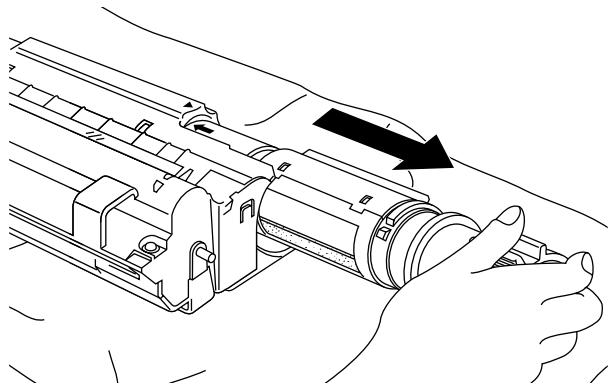
natural_image
Line drawing of a hand operating a mechanical component with an arrow indicating direction (no text or symbols present)Fig. 5-12 Removing the Toner Cartridge
- Unpack the drum unit and gently shake it five or six times horizontally.
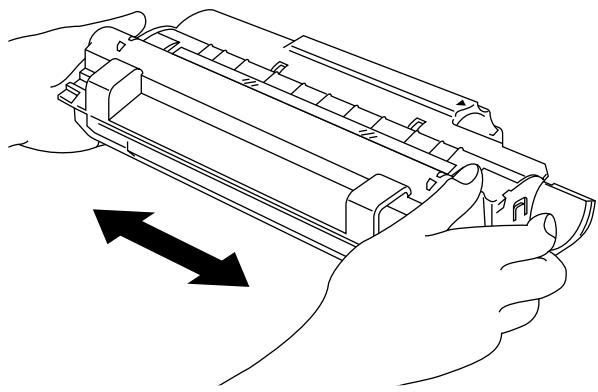
natural_image
Line drawing of hands holding a mechanical component with an arrow indicating direction (no text or symbols)Fig. 5-13 Shaking the Drum Unit
Caution
- Do not remove the starter sheet.
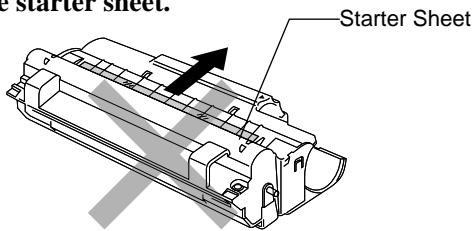
Fig. 5-14 Do Not Remove the Starter Sheet
- Only unpack a drum unit immediately before installing it into the printer. If an unpacked drum unit is subjected to excessive direct sunlight or room light, the unit may be damaged.
-
Handle the toner cartridge and the drum unit carefully as it contains toner. If toner scatters and your hands or clothes get dirty, wipe or wash it off with cold water immediately.
-
Install the toner cartridge into the new drum unit. For more information, see “REPLACING THE TONER CARTRIDGE” in this chapter.
- Install the new drum unit into the printer.
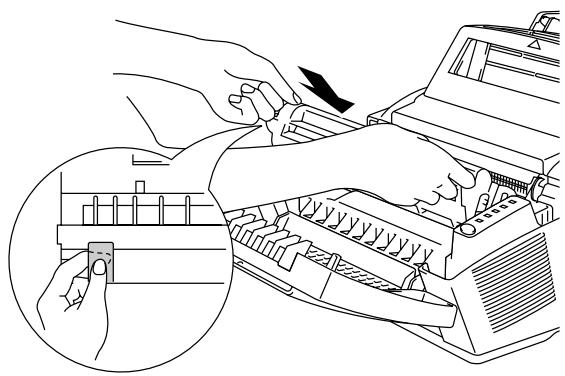
natural_image
Line drawing of hands operating a printer with a magnified inset showing the same device (no text or symbols present)Fig. 5-15 Installing the Drum Unit
- Close the top cover.
- Turn on the power switch. The printer automatically ejects the starter sheet. Ejecting this sheet resets the drum life alarm.
Caution
Do not open the top cover until the printer ejects the starter sheet completely. It may cause the starter sheet to jam.
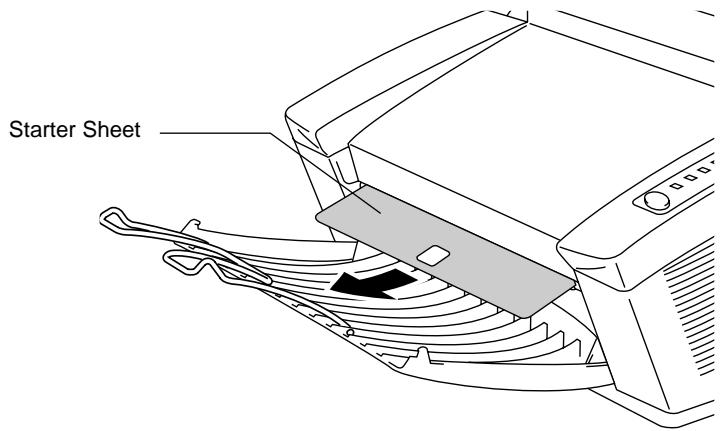
Fig. 5-16 Ejecting the Starter Sheet
The print density dial is located inside the printer. You can use it to adjust the amount of toner applied to the paper.
When the toner cartridge and drum unit are replaced, or if the operating temperature and humidity are high or low, print conditions may change causing darker or lighter printouts.
Use a screwdriver to turn the print density dial gently clockwise for darker printouts and counterclockwise for lighter printouts. The dial has been factory set to the middle position.
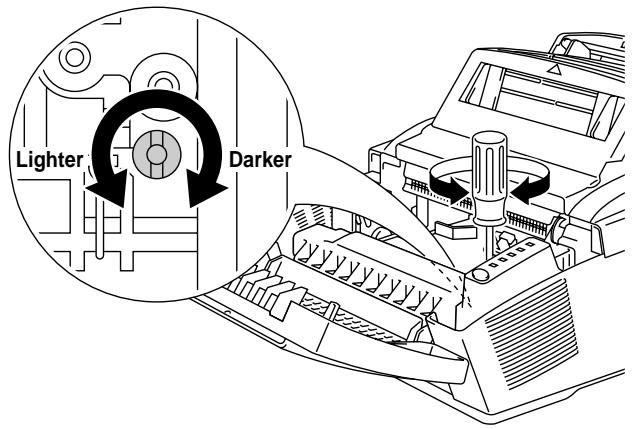
Fig. 5-17 Adjusting the Print Density Dial
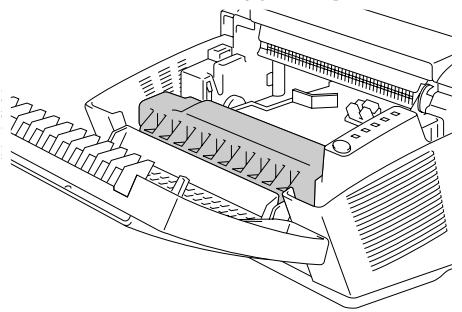
⚠ Warning
After you have just used the printer, some internal parts of the printer are extremely hot. When you open the top cover of the printer, never touch the shaded parts shown in the following illustration.
natural_image
Line drawing of a mechanical device with internal components and a handle (no text or symbols)
High Temperature
Fig. 5-18 Inside the Printer
Clean the printer exterior and interior periodically. If printed pages get stained with toner, clean the printer interior and drum unit.
Cleaning the Printer Exterior
Clean the printer exterior as follows:
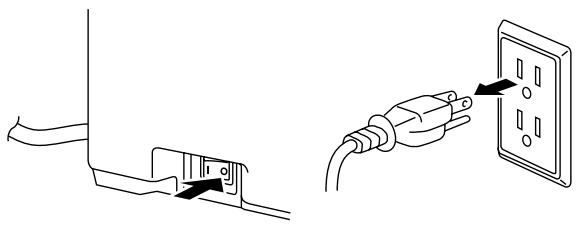
- Turn off the power switch and unplug the power cord.

Warning
There are high voltage electrodes inside the printer. Before cleaning the printer, make sure to turn off the power switch and unplug the power cord from the power outlet
natural_image
Line drawing showing two electrical connections: a cable being inserted into a socket and a plug being inserted into a wall-mounted socket (no text or symbols present)Fig. 5-19 Turning off the Switch and Unplugging
- Remove the paper in the multi-purpose sheet feeders.
- Use a damp cloth for cleaning.

Caution
Use water or neutral detergents for cleaning. Cleaning with volatile liquids such as thinners or benzene will damage the surface of the printer.
- Wipe dirt and dust away from the printer exterior and feeders with a cloth.
- Load paper into the multi-purpose sheet feeders, and plug in the power cord.
Cleaning the Printer Interior and Drum Unit
Clean the printer interior and the drum unit as follows:
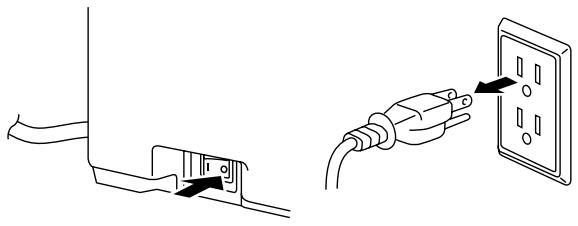
- Turn off the power switch and unplug the power cord.
Warning
There are high voltage electrodes inside the printer. Before cleaning the printer, make sure to turn off the power switch and unplug the power cord from the outlet.
natural_image
Line drawing showing two electrical connections: a cable being inserted and a plug inserted into a wall socket (no text or symbols)Fig. 5-20 Turning off the Switch and Unplugging
- Open the top cover of the printer.
- Take the drum unit out of the printer and put it aside on a piece of disposable paper.
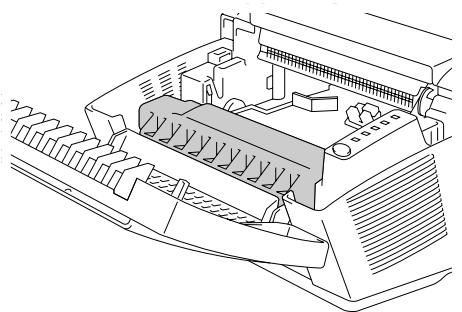
Warning
After you have just used the printer, some internal parts of the printer are extremely hot. When you open the top cover of the printer, never touch the shaded parts shown in the following illustration.
natural_image
Line drawing of a computer printer internal structure with no visible text or symbols
High Temperature
Fig. 5-21 Inside the Printer
- Gently wipe the scanner window with a soft dry cloth.
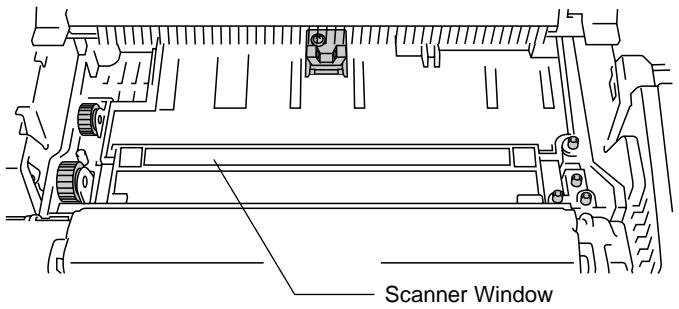
Fig. 5-22 Cleaning the Scanner Window

Caution
- Do not touch the scanner window with your finger.
-
Do not wipe the scanner window with cleaning alcohol (isopropyl).
-
Turn the drum unit upside down carefully.

Caution
Handle the drum unit carefully as it contains toner. If toner scatters and your hands or cloths get dirty, wipe or wash it off with cold water immediately.

Note
It is recommended to put the drum unit on a piece of disposable paper or cloth in case of accidental toner spill or scatter.
- Clean the primary corona wire inside the drum unit by gently sliding the tab to the right and left several times.
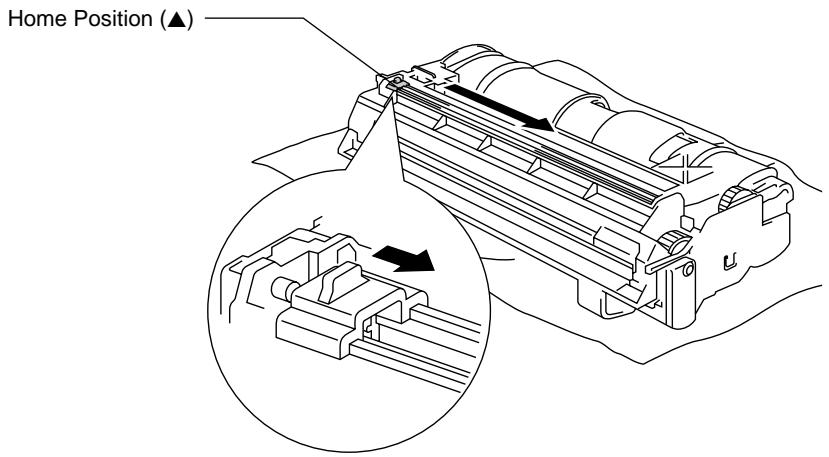
Fig. 5-23 Cleaning the Primary Corona Wire
- Return the tab to the home position (▲ mark position) before reinstalling drum unit.
Caution
Be sure to position the tab at the home position, or printed pages may have vertical stripes.
- Install the drum unit into the printer.
See the section “REPLACING THE DRUM UNIT” in Chapter 5.
-
Close the top cover.
-
Plug in the power cord and turn on the power switch.
Cleaning the Paper Feed Rollers
Clean the paper feed rollers inside the multi-purpose sheet feeders with a clean cloth as shown below:.
- Cleaning the Feeder 1 paper feed rollers.
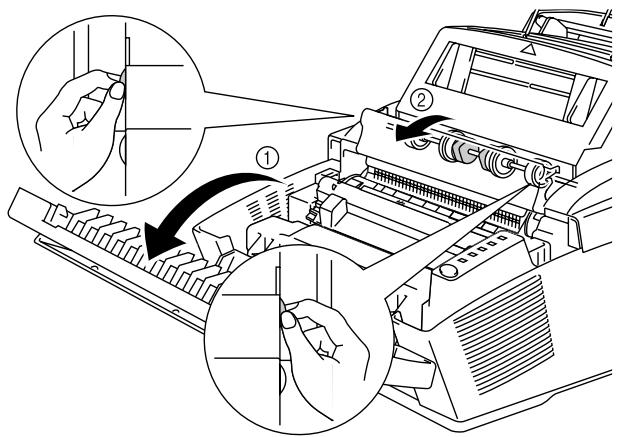
Fig. 5-24 Cleaning the Feeder 1 Paper Feed Rollers
- Cleaning the Feeder 2 paper feed rollers.
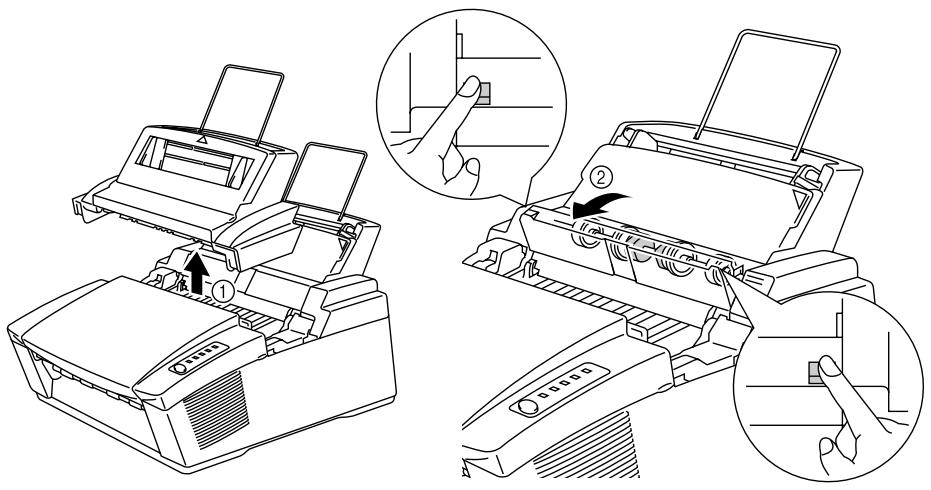
Fig. 5-25 Cleaning the Feeder 2 Paper Feed Rollers
Caution
Whenever you transport the printer, use the packing materials which are provided with your printer. Also, follow the steps below to re-pack the printer, or the printer may be damaged which will void the printer's warranty.
- Turn off the power switch and unplug the printer from the AC outlet.
- Open the top cover.
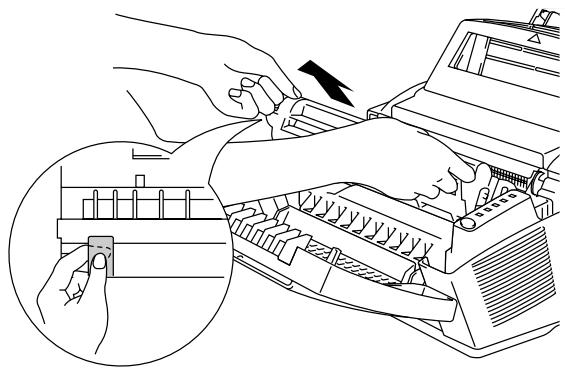
- Remove the drum unit assembly, referring to the previous section.
Note
Remove the drum unit assembly with the toner cartridge included.
natural_image
Line drawing of hands inserting a component into a device, showing internal structure and assembly (no text or symbols)Fig. 5-26 Removing the Drum Unit Assembly
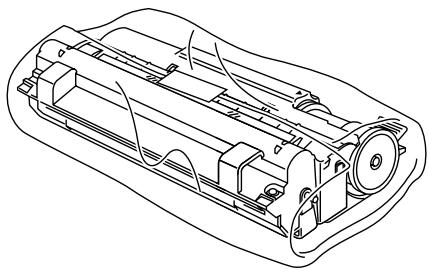
- Place the drum unit assembly in the plastic bag and seal the bag completely.
natural_image
Technical line drawing of a mechanical device with internal components (no text or symbols)Fig. 5-27 Placing the Drum Unit in the Plastic Bag
- Close the top cover, the extension wire, and the output tray.
- Wrap the printer in the plastic bag and place it in the original carton box with the original Styrofoam packing material.
- Place any documents (manual and any documentation describing the reason for repacking printer), and drum unit assembly in the carton box as shown below.
- Close the carton box and tape it.
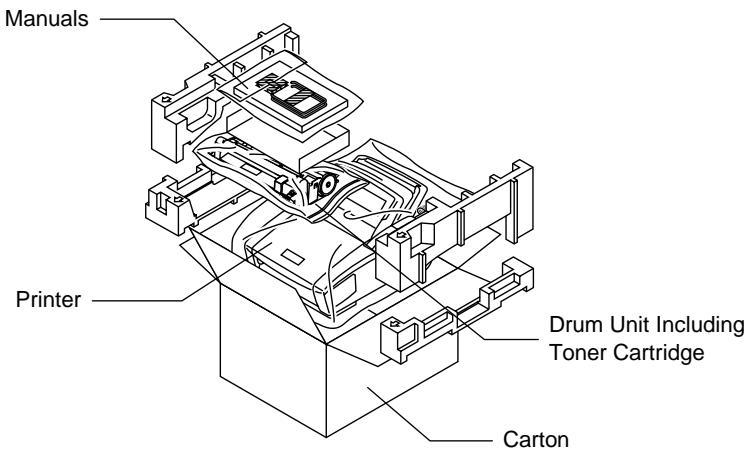
Fig. 5-28 Repacking the Printer
CHAPTER 6 TROUBLESHOOTING
ALARM INDICATIONS AT A GLANCE
Operator Calls
If a recoverable error occurs, the printer indicates an ‘operator call’ by blinking the Alarm lamp and any of the following lamps.
Find the error and take the proper action to correct it. The printer automatically recovers from most errors, but you may need to reset the printer with the panel switch as described below.
| Blinking Lamp | Error | Action |
| Paper Alarm | Paper jam | Clear the paper jam referring to the next section “PAPER JAMS” and press the panel switch if the printer does not automatically resume printing. |
| Paper empty | Load paper in the printer referring to Chapter 2 and press the panel switch. | |
| Misfeed | Reinstall the paper and press the panel switch. | |
| Toner Alarm (every 5 seconds) | Toner low | Indicates that the printer has approximately 100 pages of printing left before the toner cartridge is empty. Prepare a new toner cartridge. |
| Toner Alarm (Fast blinking) | Toner Empty | Replace the toner cartridge with a new one referring to Chapter 5. |
For errors shown below, the printer indicates an operator call by blinking the Alarm lamp. If you use the printer with the supplied Windows driver, the status monitor will appear to indicate the error on your computer screen. The printer also prints some error messages on paper.
| Error | Action |
| Cover Open | Close the top cover of the printer. |
| Print Overrun | Press the panelswitchto print the data remaining in the printer.If you are using the supplied Windows driver, try again after changing the following settings. The best combination of the settings below will vary depending on your document.Graphics ModeTrueType ModeUse Printer True Type FontsPage ProtectionIf this does not clear the error, reduce the complexity of your document or reduce the print resolution.Expand the printer memory by installing a SIMM and set page protection to ON by using the supplied Windows driver or RPC program. |
| Memory Full | Press the panelswitchto print the data remaining in the printer.If you are using the supplied Windows driver, try again after changing the following settings. The best combination of the settings below will vary depending on your document.Graphics ModeTrueType ModeUse Printer True Type FontsPage ProtectionExpand the printer memory by adding a commercially available SIMM.Reduce the print resolution or reduce the complexity of your document. |
| Parallel Interface Line Error | Press the panelswitchto resume printing.Check that the connection between your computer and printer is secure and correct, and check the interface cable. |
| Serial Interface Framing Error | Press the panelswitchto resume printing.Check the communication parameters such as baud rate and stop bit on both your computer and printer. |
| Serial Interface Parity Error | Press the panelswitchto resume printing.Check the communication parameters such as bit length and parity on both your computer and printer. |
| Serial Interface Overrun Error | Press the panelswitchto resume printing.The interface hardware may be damaged. Consult your dealer. |
| Serial Interface Input Buffer Overflow | Press the panel switch to resume printing.Check the communication parameters such as the handshake protocols on both your computer and printer.If the error occurs again, the interface hardware may be damaged. Consult your dealer. |
Note
If the printer does not operate as you expect it to, it is recommended that you turn off the power switch, wait a few seconds and then turn it on again. If you still have problems, consult your dealer or our authorized service representative.
Service Calls
If an unrecoverable error occurs, the printer indicates the need for a service call by lighting all the lamps and then the following combination of lamps alternately:
| Service Call | Fuser malfunction | Laser BD malfunction | Scanner malfunction | ROM error |
| Feeder | ○ | ○ | ○ | ○ |
| Drum | ● | ○ | ● | ○ |
| Alarm | ○ | ● | ● | ○ |
| Ready | ○ | ○ | ○ | ● |
| Data | ○ | ○ | ○ | ○ |
| Service Call | D-RAM error | Service A | Service B | CPU Runtime error |
| Feeder | ○ | ○ | ○ | ○ |
| Drum | ● | ○ | ● | ● |
| Alarm | ○ | ● | ● | ● |
| Ready | ● | ● | ● | ● |
| Data | ○ | ○ | ○ | ● |
| Service Call | NV-RAM error |
| Feeder | ○ |
| Drum | ● |
| Alarm | ○ |
| Ready | ● |
| Data | ● |
● ON ○ OFF
If you see any of these service call indications, turn off the power switch, wait a few seconds and then turn it on and try to print again.
If you cannot clear the error and see the same service call indication after turning on the printer, consult your dealer or our authorized service representative. Report the error status and situation referring to the above table.
Note
Ensure that the top cover is properly closed and the main controller board is correctly installed.
Before you can clear a paper jam error, you need to find the location of the paper jam. Locate the position referring to the following figure.
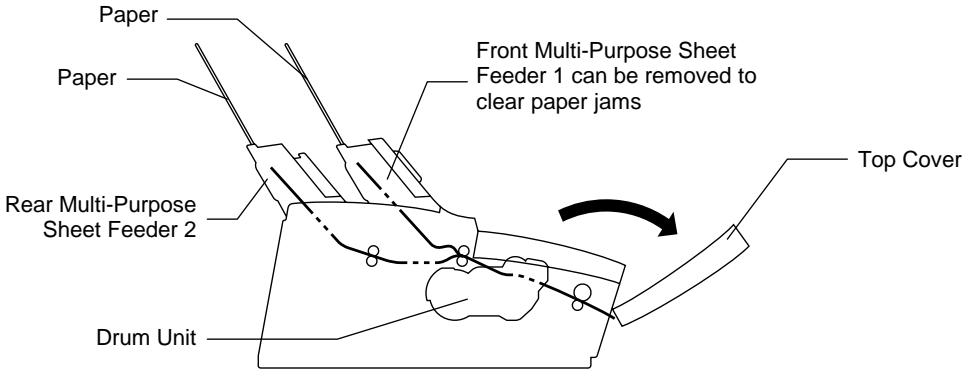
Fig. 6-1 Locating Paper Jam Position
After locating the position, clear the jammed paper referring to the following descriptions. If the jammed paper is removed completely and the top cover is closed, the printer may resume printing automatically. If the printer does not resume printing, press the control panel switch.
Warning
After you have just used the printer, some internal parts of the printer are extremely hot. When you open the top cover of the printer, never touch the shaded parts shown in the following diagram.
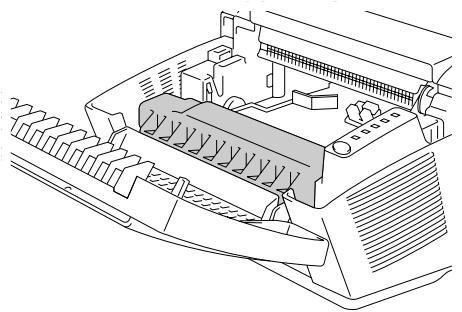
natural_image
Technical line drawing of a mechanical device with internal components and no visible text or symbols
High Temperature
Fig. 6-2 Inside the Printer
□ Paper Jam in the Multi-Purpose Sheet Feeder
If a paper jam has occurred inside the multi-purpose sheet feeder 1 or 2, pull the jammed paper upwards out of the feeder. Also, remove Feeder 1 and open the top cover to check that a torn piece of paper does not remain inside the printer: refer to the following sections.
Feeder 1
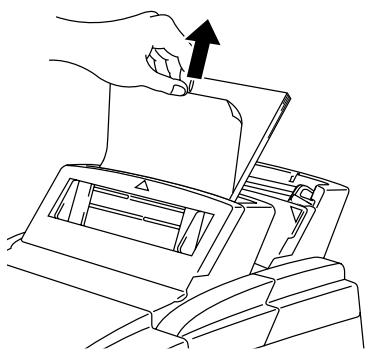
natural_image
Line drawing of a hand pressing down on a printer with an arrow indicating the press (no text or symbols present)Feeder 2
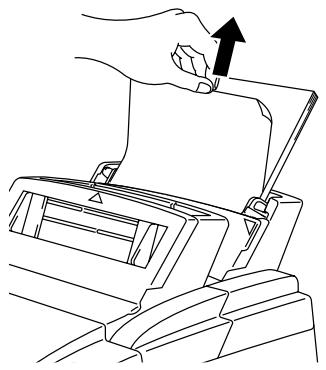
natural_image
Line drawing of a hand pressing down on a mechanical device with an arrow indicating motion (no text or symbols)Fig. 6-3 Paper Jam in the Feeders
If the paper cannot be pulled up, see the next sections “Paper Jam under Feeder 1” and “Paper Jam near the Drum Unit.”
□ Paper Jam under Feeder 1
If a paper jam has occurred under the front multi-purpose sheet feeder 1, remove the feeder. (①) Then, pull the jammed paper upwards and out of the printer. (②) Re-install the feeder.
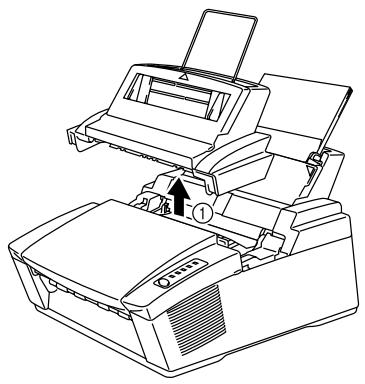
natural_image
Line drawing of a printer with paper feed and paper holder, showing internal components (no text or symbols)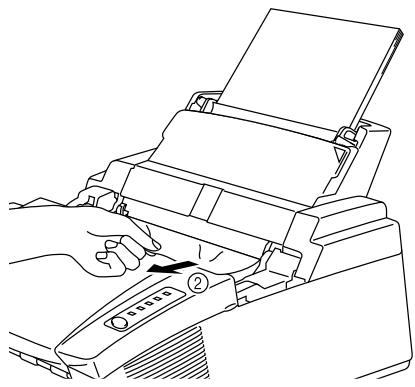
natural_image
Line drawing of a printer with a hand operating the paper (no text or symbols present)Fig. 6-4 Paper Jam under Feeder 1
□ Paper Jam near the Drum Unit
If a paper jam has occurred near the drum unit, open the top cover and remove the drum unit. (①) Then, pull the jammed paper upwards slowly and out of the printer. (②) Install the drum unit and close the top cover.
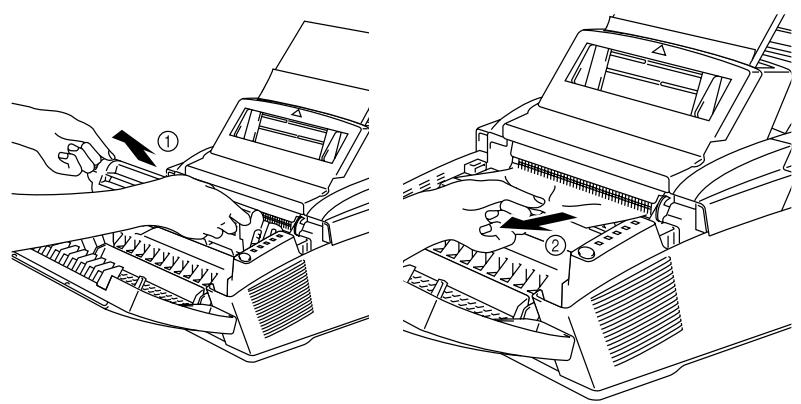
Fig. 6-5 Paper Jam near the Drum Unit
☐ Paper Jam in the Fuser Unit or at the Paper Output Tray
If a paper jam has occurred in the fuser unit or at the paper output tray, open the top cover and remove the drum unit. (①) Then, pull the jammed paper slowly out of the fuser. (②) Install the drum unit and close the top cover.
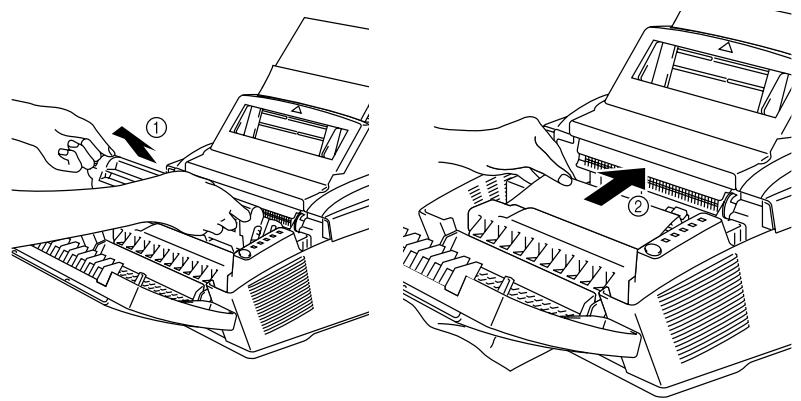
Fig. 6-6 Paper Jam Inside the Printer

Caution
Do not pull jammed paper from the output tray. Be sure to open the top cover to remove the jam, or the fuser may get dirty with toner powder and may result in toner scatter on the next printed page or pages.
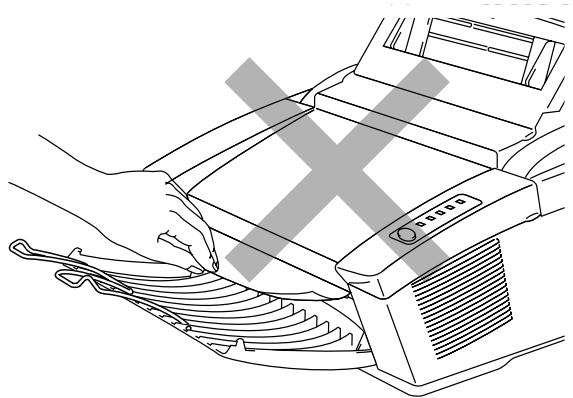
natural_image
Line drawing of hands operating a printer with a large X mark overlay (no text or symbols)Fig. 6-7 Do Not Pull the Jammed Paper from the Output Tray
This section contains questions and answers for using your printer. If you have encountered a problem, find the question relating to your problem and take the steps recommended to correct the problem.
Setting Up the Printer Hardware
| Question | Recommendation |
| The printer does not work. All lamps are off. | The printer may be in sleep mode. Press the panel switch to wake up the printer. Check to see if the printer is plugged into a live power source and the power switch is on. |
| The printer does not print. | Check the following:• The printer is turned on.• All of the protective parts have been removed.• The toner cartridge and drum unit are installed properly.• The interface cable is securely connected between the printer and computer.• Check to see if the Alarm lamp is blinking. If the lamp is blinking, refer to the Operator Call section of this manual.• Check to see if the Ready lamp is blinking. If the lamp is blinking fast, the printer might be cooling down to lower the printers internal temperature. Open the top cover of the printer to lower the temperature. |
Setting Up the Printer for Windows
| Question | Recommendation |
| I cannot print from my application software. | Make sure the supplied Windows printer driver is installed and selected with your application software.If you use the serial interface, make sure that the serial slide switch of the serial interface is in the correct position and the interface settings are correctly set up with the DIP switches. |
| Sometimes I get a Print Overrun error when printing certain documents from Windows. | Change the following settings in the driver and try again.Page ProtectionGraphics ModeTrueType ModeUse Printer TrueType FontsReduce the print resolution or reduce the complexity of your document and try again.Expand the printer memory by installing SIMM and turn page protection A4, Letter or Legal to ON through the supplied Windows driver or RPC. |
| Sometimes I get the Memory Full message. How can I correct this? | Change the following settings in the driver and try again.Page ProtectionGraphics ModeTrueType ModeUse Printer TrueType FontsAnother solution is to purchase more memory.Reduce the print resolution or reduce the complexity of your document and try again. |
Setting Up the Printer for DOS
| Question | Recommendation |
| I cannot print from my application software. | Check if the DOS application software interface settings match that of your printer: for example, if you are using a parallel printer cable, you would most likely set your DOS software printer port to LPT1.Check to see if the printer has any printer alarms active.If the serial interface is used, make sure that the RS-232C serial interface is selected with the slide switch. Make sure that the interface settings are correctly set up with the proper DIP switches. Make sure the serial parameters of baud rates, parity and stop bits match between your application software and the printer. |
| The printer prints, but it prints incorrect information.Sometimes it prints a couple of characters and then ejects the page, etc. | This is an indication that your application printer emulation setting and the printer's emulation do not match. Check in your application software which printer you have selected to make sure the printer is set up correctly. Remember this printer emulates three widely used printer selections: HP LaserJet 6P, Brother BR-Script Level 2, Epson FX-850, and IBM Proprinter XL. Try setting the printer into HP emulation and then select the HP LaserJet 6P printer in your application software. |
| The printer does not print when I press the Print Screen Key. (Data lamp On) | Press the panel switch. The data has been sent to the printer but the printer did not receive the Page Eject command: print screens do not send this command. |
| The printer prints the first part of my document but does not print the last page. (Data lamp On) | This was a common problem with database software and spreadsheet software when not correctly set up. The data has been sent to the printer but the printer did not receive the Page Eject command. Press the panel switch to eject the page. Then check with your software supplier on how to add a Page Eject (or Form Feed) command to the end of your print job. |
| How can I change the User settings or default settings of the printer? | Use the remote printer console (RPC) program. |
Setting Up the Printer for Apple Macintosh Computers
When Using the Optional RS-100M Serial Interface
| Question | Recommendation |
| I cannot print from my application software. | Make sure that the supplied Macintosh printer driver is installed in the System Folder and it is selected with Chooser.Check the PORT selection within the Chooser: it should match the port to which you physically attached the printer cable.The serial slide switch of the optional interface board should be in the Apple (RS-422A) position.Check the printer cable type: you cannot use a LocalTalk or straight-through cable. Refer to Chapter 4 for details on printer cable type. |
Paper Handling
| Question | Recommendation |
| The printer does not load paper. | Check to see if the “Paper Empty” message appears on your computer screen or the Alarm and Paper lamps are blinking on the printer control panel. If so, the multi-purpose sheet feeder may be out of paper or not properly installed. If it is empty, load a new stack of paper into the feeder.If there is paper in the multi-purpose sheet feeder, make sure it is straight. If the paper is curled, you should straighten it before printing. Sometimes it is helpful to remove the paper, turn the stack over and put it back into the paper tray.Reduce the amount of paper in the multi-purpose sheet feeder, then try again.Clean the paper feed rollers. See “Cleaning the Paper Feed Rollers” in Chapter 5. |
| The printer does not load paper from the manual feed slot. | Re-insert the paper firmly, one sheet at a time. |
| How can I load envelopes? | You can load envelopes from either the multi-purpose sheet feeder 1 or the manual feed slot. Your application software must be set up correctly to print on the envelope size you are using. This is usually done in the page setup or document setup menu of your software. Refer to your application manual. |
| What paper can I use? | You can use plain paper, envelopes, transparencies, labels, and organizer paper. For information on loading paper, see “Paper Handling” in Chapter 2. |
| How can I clear paper jams? | See “PAPER JAMS” in this chapter. |
Printing
| Question | Recommendation |
| The printer prints unexpectedly or it prints garbage. | Turn on and off the printer or reset the printer.Make sure your application software is correctly set up to use this printer by checking the printer settings in your application software.Check the printer emulation settings. If you can use the supplied RPC program, use it to change the settings as required. Also, you can print the current setting list from the RPC program or Printer Control Panel.Make sure that the correct interface type and settings are set up to match your computer. Be sure to use the RS-422A serial interface for Macintosh computers and the RS-232C serial interface for PCs. Refer to “SERIAL INTERFACE BOARD RS100M” in Chapter 4. |
| The printer cannot print full pages of a document. An error message “Print Overrun” occurs. | The printer received a very complex print job and could not process part of the page. This may be solved by the following ways.If you are using Windows 3.1/95/98 with the supplied printer driver, change the following settings in the driver and try again.Graphics ModeTrueType ModeUse Printer TrueType FontSet the page protection mode to "AUTO" or your document size.Reduce the print resolution or reduce the complexity of your document and try again. |
| The printer prints the first couple of pages correctly, then some pages have text missing. | This is a problem usually relating to serial interface settings. Your computer is not recognizing the printer's input buffer full signal. Causes could be incorrect serial cable (incorrectly wired or too long) or incorrect setting of your computer serial interface. |
| The printer cannot print full pages of a document. A "Memory Full" error message occurs. | Some applications download several types and sizes of fonts. This can use up your printer memory very quickly. Set the Page Protection to AUTO, reduce the number of font sizes within your application, reduce the resolution, or purchase additional SIMM for the printer. |
| My headers or footers appear when I view my document on screen but do not show up when I print them. | Most laser printers have a restricted area that cannot be printed on. Usually the first two lines and last two lines of text cannot print (leaving 62 printable lines). Adjust the top and bottom margins in your document to allow for this. |
Print Quality

Caution
You may clear a print quality problem by replacing the drum unit with a new one if the Drum lamp is on. The drum unit is at the end of its life.
| Question | Recommendation |
| Printouts are too dark or light. | Turn the print density dial counterclockwise for lighter images and clockwise for darker images. It has been factory set to the middle position. See “ADJUSTING THE PRINT DENSITY” in Chapter 5. |
Printed pages contain white stripes.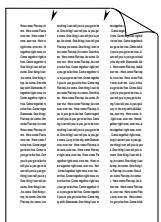 Fig. 6-8 White Stripes or Faint Images Fig. 6-8 White Stripes or Faint Images | You may clear the problem by wiping the scanner windows with a soft cloth. (See “Cleaning the printer interior and Drum unit.” in Chapter 5.)If you still have the same problem and theDrumlamp is on after cleaning, replace the drum unit with a new one. |
Printed pages are stained with toner or have vertical stripes.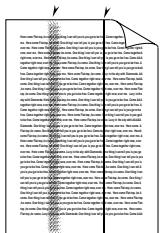 Fig. 6-9 Dark Stripes or Toner Stains Fig. 6-9 Dark Stripes or Toner Stains | Clean the printer interior and the primary corona wire of the toner cartridge. See “Cleaning the Printer Interior and Drum Unit” in Chapter 5.Make sure that the tab of the corona wire is at the home position.If you still have the same problem and theDrumlamp is on after cleaning, replace the drum unit with a new one. |
Printed pages have white spots in black text and graphics area. Fig. 6-10 White Spots Fig. 6-10 White Spots | Make sure that you use paper that meets the specifications. Rough surface or thick media can cause the problem.If you still have the same problem and theDrumlamp is on, replace the drum unit with a new one. |
Toner scatters and stains the printed page.  Fig. 6-11 Scattering Toner Fig. 6-11 Scattering Toner | ·If toner scatters over the whole printing surface, adjust the print density dial inside the printer counter clockwise. See “ADJUSTING THE PRINT DENSITY” in Chapter 5.·Clean the printer interior. See “Cleaning the Printer Interior and Drum Unit” in Chapter 5.·Make sure that you use paper that meets specifications.If you still have the same problem and theDrumlamp is on, replace the drum unit with a new one. |
The whole page is printed in black. Fig. 6-12 Black Page Fig. 6-12 Black Page | Wipe the electric terminals referring to “Cleaning the Printer Interior and Drum Unit” in Chapter 5. Never use heat-sensitive paper as it will cause this problem.If you still have the same problem and theDrumlamp is on after cleaning, replace the drum unit with a new one. |
Nothing is printed on the page. Fig. 6-13 White Page Fig. 6-13 White Page | ·Make sure that the toner cartridge is not empty.·Wipe the electric terminals referring to “Cleaning the Printer Interior and Drum Unit” in Chapter 5.·Make sure that a torn piece of paper does not remain on the scanner window. |
Printed pages are marked at regular intervals.  Fig. 6-14 Example of Regular Marking Fig. 6-14 Example of Regular Marking | The problem may disappear by itself. Try printing multiple pages to clear this problem especially if the printer has not been used for a long time.If the surface of the drum has been scratched, replace the drum unit with a new one.If the problem does not disappear, it may be that the drum has been marked or damaged due to excessive exposure to light. In this case, replace the drum unit with a new one.If you still have the same problem after replacing the drum unit, consult your dealer or our authorized service representative. |
Printed pages are blurred at the center or either edge. Fig. 6-15 Blurred Page Fig. 6-15 Blurred Page | Certain environmental conditions such as humidity, high temperatures, etc. may cause this situation to occur.Make sure that the printer is placed on a flat, horizontal surface.Remove the drum unit with the toner cartridge installed. Try shaking them from side to side.You may clear the problem by wiping the scanner windows with a soft cloth. (See “Cleaning the Printer Interior and Drum Unit.”)If the same problem occurs after cleaning andDrumlamp is still on, replace the drum unit with a new one. |
Ghost images show up on printed pages. Fig. 6-16 Ghost Images Fig. 6-16 Ghost Images | Turn the print density dial counterclockwise for lighter images. See “ADJUSTING THE PRINT DENSITY” in Chapter 5.Make sure that you use paper that meets the specifications. Rough surface or thick media can cause the problem.If you still have the same problem, consult your dealer or our authorized service representative. |
Note
The drum unit is a consumable, and it is necessary to replace it periodically.
APPENDIX A
PRINTER SPECIFICATIONS
| Printing | |
| Print Method | Electrophotography by semiconductor laser beam scanning |
| Laser | Wavelength: 780 nmOutput: 5 mW max |
| Resolution | 1200 (H) x 600 (V) dots/inch(for Windows DIB graphics)600 x 600 dots/inch(for Windows and DOS)300 x 300 dots/inch(under Apple Macintosh using the optional RS-100M) |
| Print Quality | Normal printing modeEconomy printing mode (up to 25% and 50% toner saving) |
| Print Speed | Up to 10 pages/minute (when loading A4 or letter-size paper from a multi-purpose sheet feeder)NOTE: Maximum print speed is obtained by printing several copies of the same page. Print speed may vary depending on interface type, emulation, processing power of the computer, memory allocated to the print job, paper size and graphic quality. |
| Warm-Up | Max. 30 seconds at 23°C (73.4°F)(The warm up time depends on the ambient temperature and humidity.) |
| First Print | 15 seconds (when loading A4 or letter-size paper from the multi-purpose sheet feeder 1) |
| Print Media | Toner cartridge:Life Expectancy: 2,400 pages/new toner cartridge(when printing A4- or letter-size paper at 5% print coverage)NOTE: Toner life expectancy will vary depending on the type of average print job printed. |
Drum Unit:
Life Expectancy: 20,000 pages at 20 pages per job
8,000 pages at 1 page per job
NOTE: There are many factors that determine the actual drum life, such as temperature, humidity, type of paper and toner that you use, the number of pages per print job, etc..
Functions
| Emulation | Brother Printing Solution for WindowsAutomatic emulation selection among HP LaserJet 6P, BR-Script Level 2, EPSON FX-850 or IBM Proprinter XL |
| Printer Driver | Windows 3.1/3.11, Windows 95/98, and Windows NT 4.0 driver, supporting Brother Printing Solution for Windows, Brother Native Compression mode and bi-directional capabilityOptional Macintosh driver available for System 6.0.7 or higher |
| TrueType Fonts on disks | TrueType-compatible soft-fonts for Windows on the supplied disk |
| Interface | Bi-directional parallelUniversal Serial Bus (USB)RS-422A/RS-232C serial interface RS-100M is optionally available. |
| Memory | 4.0 MBExpandable up to 36 MB with one SIMM |
| Diagnostics | Self-diagnostic program |
Electrical and Mechanical
| Power Source | U.S.A. and Canada: Europe and Australia: | AC 110 to 120 V, 50 / 60 Hz AC 220 to 240 V, 50 Hz |
| Power Consumption | Printing: Stand-by: Sleep: | 280 W or less 60 W or less 13 W or less |
| Noise | Printing: Stand-by: | 49 dB A or less 38 dB A or less |
| Temperature | Operating: Storage: | 10 to 32.5°C (50 to 90.5°F) 0 to 40°C (38 to 104°F) |
| Humidity | Operating: Storage: | 20 to 80% (without condensation) 10 to 85% (without condensation) |
| Dimensions (W x D x H) | 402 x 439 x 274 mm (15.8 x 17.3 x 10.8 inches) (when the output tray is closed.) | |
| Weight | Approx. 9.6 kg (21.2 lb.) including the drum unit and toner cartridge | |
PARALLEL INTERFACE SPECIFICATIONS
Note
To ensure the highest quality performance, it is recommended that you use an IEEE 1284 compliant parallel cable between the printer and your computer. Only IEEE 1284 cables support all of the advanced printing capabilities, such as bi-directional communication. These cables will be clearly marked with “IEEE-1284”.
Interface Connector
Printer Side: Amphenol FCN-685J036-L/X or equivalent A shielded cable should be used.
Pin Assignment
| Pin No. | Signal | Direction | Pin No. | Signal | Direction |
| 1 | DATA STROBE | Input | 19 | 0V (S.G.) | - |
| 2 | DATA 1 | Input | 20 | 0V (S.G.) | - |
| 3 | DATA 2 | Input | 21 | 0V (S.G.) | - |
| 4 | DATA 3 | Input | 22 | 0V (S.G.) | - |
| 5 | DATA 4 | Input | 23 | 0V (S.G.) | - |
| 6 | DATA 5 | Input | 24 | 0V (S.G.) | - |
| 7 | DATA 6 | Input | 25 | 0V (S.G.) | - |
| 8 | DATA 7 | Input | 26 | 0V (S.G.) | - |
| 9 | DATA 8 | Input | 27 | 0V (S.G.) | - |
| 10 | ACKNLG | Output | 28 | 0V (S.G.) | - |
| 11 | BUSY | Output | 29 | 0V (S.G.) | - |
| 12 | PE | Output | 30 | 0V (S.G.) | - |
| 13 | SLCT | Output | 31 | INPUT PRIME | Input |
| 14 | AUTO FEED | Input | 32 | FAULT | Output |
| 15 | N.C. | - | 33 | N.C. | - |
| 16 | 0V (S.G.) | - | 34 | N.C. | - |
| 17 | 0V (S.G.) | - | 35 | N.C. | - |
| 18 | +5V | - | 36 | SLCT IN | Input |
Note
To use bi-directional communication, an interface cable which has the pin connections above must be used.
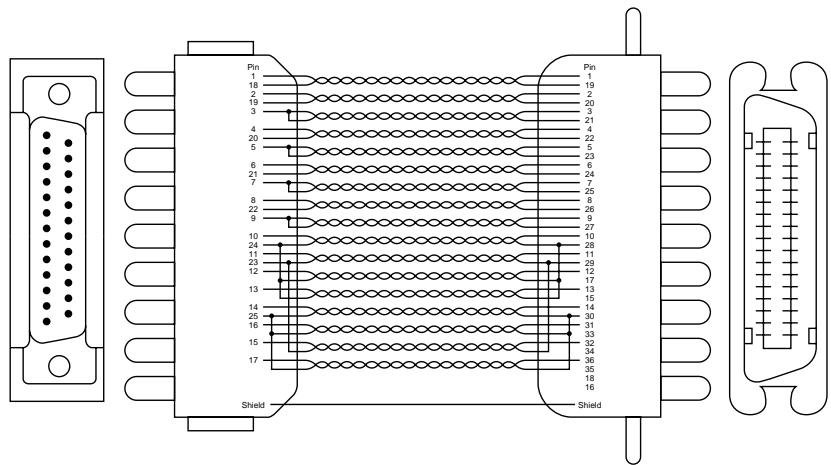
Fig. A-1 Parallel Interface Cable
Interface Connector
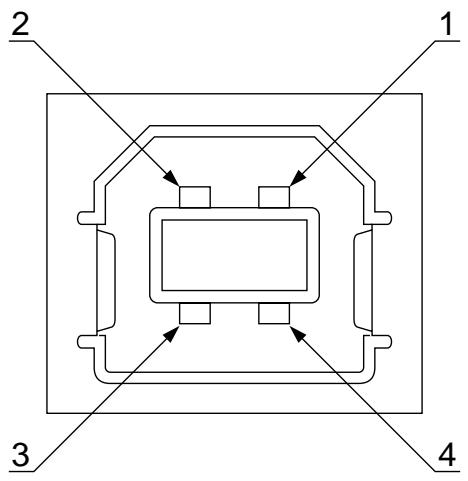
Pin Assignment
| Pin No. | Signal | |
| 1 | Vcc (+5V) | |
| 2 | - Data | Serial Data - |
| 3 | + Data | Serial Data + |
| 4 | Ground | |
75 Scalable and 12 Bitmapped Fonts
This printer has the following scalable fonts and bitmapped fonts. The fonts that can be used vary according to the current emulation mode.
■ HP LaserJet, EPSON FX-850, and IBM Proprinter XL Modes
Scalable Fonts:
Intellifont Compatible Fonts:
- Alaska, Extrabold
• Antique Oakland, Oblique, Bold
• Brougham, Oblique, Bold, BoldOblique
• Cleveland Condensed
- Connecticut
• Guatemala Antique, Italic, Bold, BoldItalic
• Letter Gothic, Oblique, Bold
- Maryland
- Oklahoma, Oblique, Bold, BoldOblique
• PC Brussels Light, LightItalic, Demi, DemiItalic
• PC Tennessee Roman, Italic, Bold, BoldItalic
- Utah, Oblique, Bold, BoldOblique
- Utah Condensed, Oblique, Bold, BoldOblique
Microsoft Windows 3.1/95/98 TrueType
Compatible Fonts:
- BR Symbol
• Helsinki, Oblique, Bold, BoldOblique
• Tennessee Roman, Italic, Bold, BoldItalic
• W Dingbats
Type 1 Font Compatible Fonts:
- Atlanta Book, BookOblique, Demi, DemiOblique
• Calgary MediumItalic
• Copenhagen Roman, Italic, Bold, BoldItalic
• Portugal Roman, Italic, Bold, BoldItalic
Brother Original Fonts:
- Bermuda Script
- Germany
- San Diego
- US Roman
Bitmapped Fonts (Portrait and Landscape):
- LetterGothic16.66 Medium, Italic, Bold, BoldItalic
• OCR-A - OCR-B
■ BR-Script 2 Mode
Scalable Fonts:
- Atlanta Book, BookOblique, Demi, DemiOblique
- Alaska, Extrabold
• Antique Oakland, Oblique, Bold - Bermuda Script
- BR Dingbats
- BR Symbol
• Brougham, Oblique, Bold, BoldOblique - Brussels Light, LightItalic, Demi, DemiItalic
• Calgary MediumItalic
• Cleveland Condensed - Connecticut
• Copenhagen Roman, Italic, Bold, BoldItalic - Germany
- Guatemala Antique, Italic, Bold, BoldItalic
• Helsinki, Oblique, Bold, BoldOblique
• Helsinki Narrow, Oblique, Bold, BoldOblique - Letter Gothic, Oblique, Bold
- Maryland
- Oklahoma, Oblique, Bold, Bold Oblique
• Portugal Roman, Italic, Bold, BoldItalic - San Diego
• Tennessee Roman, Italic, Bold, BoldItalic
• US Roman - Utah, Oblique, Bold, BoldOblique
- Utah Condensed, Oblique, Bold, BoldOblique
SYMBOL SETS/ CHARACTER SETS
OCR Symbol Sets
When the OCR-A or OCR-B font is selected, the corresponding symbol set is always used.
OCR-A
OCR-B
HP LaserJet 6P Mode
- Roman 8 (8U)
• ISO Latin1 (0N)
• ISO Latin2 (2N)
• ISO Latin5 (5N)
• ISO Latin6 (6N)
• PC-8 (10U)
• PC-8 D/N (11U)
• PC-850 (12U)
• PC-852 (17U)
• PC-775 (26U)
• PC-1004 (9J)
• PC-8 Turkish (9T)
• Windows Latin1 (19U)
• Windows Latin2 (9E)
• Windows Latin5 (5T)
• Windows Baltic (19L)
- Legal (1U)
- Ventura Math (6M)
- Ventura Intl (13J)
- Ventura US (14J)
• PS Math (5M)
- PS Text (10J)
- Math-8 (8M)
• Pi Font (15U)
• MS Publishing (6J)
- Windows 3.0 (9U)
- Desktop (7J)
• MC Text (12J)
- Symbol (19M)
• Windings (579L)
- ISO2 IRV
- ISO4 UK
- ISO6 ASCII
- ISO10 Swedish
- ISO11 Swedish
• ISO14 JIS ASCII
- ISO15 Italian
- ISO16 Portuguese
- ISO17 Spanish
- ISO21 German
- ISO25 French
- ISO57 Chinese
• ISO60 Norwegian1
• ISO61 Norwegian2
- ISO69 French
• ISO84 Portuguese
- ISO85 Spanish
- HP German
- HP Spanish
EPSON Mode
• US ASCII
PC-8
- PC-8 D/N
- PC-850
- PC-852
- PC-860
PC-863
PC-865
• PC-8 Turkish
- German
- UK ASCII I
- French I
- Danish I
- Italy
- Spanish
- Swedish
- Japanese
- Norwegian
- Danish II
- UK ASCII II
- French II
- Dutch
- South African
IBM Mode
• PC-8
- PC-8 D/N
PC-850
PC-852
- PC-860
PC-863
PC-865
• PC-8 Turkish
Note
If you want to know what characters are in each symbol/character set, print CHARASET.PRN file from the "Print form" option in the Direct Access Menu of the Remote Printer Console Program.
HP LaserJet 6P
| 0 | 1 | 2 | 3 | 4 | 5 | 6 | 7 | 8 | 9 | A | B | C | D | E | F | 0 | 1 | 2 | 3 | 4 | 5 | 6 | 7 | 8 | 9 | A | B | C | D | E | F | ||
| 0 | 0 | @ | P | ` | p | - | P | 0 | 0 | @ | P | ` | p | ° | D | ||||||||||||||||||
| 1 | ! | 1 | A | Q | a | q | b | 1 | ! | 1 | A | Q | a | q | ± | ||||||||||||||||||
| 2 | " | 2 | B | R | b | r | . | 2 | " | 2 | B | R | b | r | ^2 | ||||||||||||||||||
| 3 | # | 3 | C | S | c | s | ° | D | 3 | # | 3 | C | S | c | s | ^3 | |||||||||||||||||
| 4 | 4 | D | T | d | t | \dot{\mathsf{E}} | \mathsf{C} | \acute{a} | \acute{a} | \tilde{o} | \mathbb{I} | 4 | 4 | D | T | d | t | ` | |||||||||||||||
| 5 | % | 5 | E | U | e | u | c | 34 | 5 | % | 5 | E | U | e | u | ¥ | |||||||||||||||||
| 6 | & | 6 | F | V | f | v | - | 6 | & | 6 | F | V | f | v | | | ¶ | |||||||||||||||||
| 7 | ' | 7 | G | W | g | w | 14 | 7 | ' | 7 | G | W | g | w | S | · | C | × | c | ÷ | |||||||||||||
| 8 | ( | 8 | H | X | h | x | ` | i | à | 12 | 8 | ( | 8 | H | X | h | x | ` | |||||||||||||||
| 9 | ) | 9 | I | Y | i | y | ` | ¿ | è | i | a | 9 | ) | 9 | I | Y | i | y | ` | ||||||||||||||
| A | * : | J | Z | j | z | ^ | n | ò | ° | A | * : | J | Z | j | z | a | ° | ||||||||||||||||
| B | + ; | K | [ | k | { | ` ` | £ | ù | « | B | + ; | K | [ | k | { | « » | » | ||||||||||||||||
| C | , | < | L | \ | l | | | ~ | ¥ | ä | ■ | C | ,< | L | \ | l | | | ¬ | 14 | i | ü | |||||||||||||
| D | - = | M ] | |||||||||||||||||||||||||||||||
| E | . > | ||||||||||||||||||||||||||||||||
| F | / ? | ||||||||||||||||||||||||||||||||
The following table shows characters available only in the corresponding character set. The numbers at the top of the table are code values with which characters are to be replaced in the Roman 8 character set. For other characters, see the Roman 8 character set.
| SYMBOL | SET | 23 | 24 | 40 | 5B | 5C | 5D | 5E | 60 | 7B | 7C | 7D | 7E |
| ISO2 | IRV | # | $ | @ | [ | \ | ] | ^ | ` | | | - | ||
| ISO4 | UK | £ | @ | [ | \ | ] | ^ | ` | { | | | } | ||
| ISO6 | ASCII | # | @ | [ | \ | ] | ^ | ` | | | ~ | |||
| ISO10 | Swedish | # | @ | Ä | Ö | Å | ^ | ` | ä | ö | å | ||
| ISO11 | Swedish | # | É | Ä | Ö | Å | Ü | é | ä | ö | å | ü | |
| ISO14 | JIS ASCII | # | @ | [ | ¥ | ] | ^ | ` | { | | | } | - | |
| ISO15 | Italian | £ | § | ° | ç | é | ^ | ù | à | ò | è | ì | |
| ISO16 | Portuguese | # | § | Ä | Ç | Ö | ^ | ` | ä | ç | õ | ° | |
| ISO17 | Spanish | £ | § | ¡ | Ñ | ¿ | ^ | ` | ° | ñ | ç | ` | |
| ISO21 | German | # | § | Ä | Ö | Ü | ^ | ` | ä | ö | ü | ß | |
| ISO25 | French | £ | à | ° | ç | § | ^ | ` | é | ù | è | ` | |
| ISO57 | Chinese | # | ¥ | @ | [ | \ | ] | ^ | ` | | | - | ||
| ISO60 | Norwegian1 | # | @ | € | ∅ | Å | ^ | ` | æ | ø | å | ||
| ISO61 | Norwegian2 | § | @ | € | ∅ | Å | ^ | ` | æ | ø | å | | | |
| ISO69 | French | £ | à | ° | ç | § | ^ | μ | é | ù | è | ` | |
| ISO84 | Portuguese | # | ` | Ä | Ç | Ö | ^ | ` | ä | ç | õ | ` | |
| ISO85 | Spanish | # | ` | ¡ | Ñ | Ç | ¿ | ` | ` | ñ | ç | ` | |
| HP | German | £ | § | Ä | Ö | Ü | ^ | ` | ä | ö | ü | ß | |
| HP | Spanish | # | @ | ¡ | Ñ | ¿ | ° | ` | { | ñ | } | ` |
☐ HP LaserJet 6P, EPSON FX-850, IBM Proprinter XL
| PC-8 | ||||||||||||||||||||||||||||||||||||||||||||||||||||||||||||||||||||||||||||||||||||||||||||||||||||||||||||||||||||||||||||||||||||||||||||||||||||||||||||||||||||||||||||||||||||||||||||||||||||||||||||||||||||||||||||||||||||||||||||||||||||||||||||||||||||||||||||||||||||||||||||||||||||||||||||||||||||||||||||||||||||||||||||||||||||||||||||||||||||||||||||||||||||||||||||||||||||||||||||||||||||||||||||||||||||||||||||||||||||||||||||||||||||||||||||||||||||||||||||||||||||||||||||||||||||||||||||||||||||||||||||||||||||||||||||||||||||||||||||||||||||||||||||||||||||||||||||||||||||||||||||||||||||||
| 0 | 1 | 2 | 3 | 4 | 5 | 6 | 7 | 8 | 9 | A | B | C | D | E | F | |||||||||||||||||||||||||||||||||||||||||||||||||||||||||||||||||||||||||||||||||||||||||||||||||||||||||||||||||||||||||||||||||||||||||||||||||||||||||||||||||||||||||||||||||||||||||||||||||||||||||||||||||||||||||||||||||||||||||||||||||||||||||||||||||||||||||||||||||||||||||||||||||||||||||||||||||||||||||||||||||||||||||||||||||||||||||||||||||||||||||||||||||||||||||||||||||||||||||||||||||||||||||||||||||||||||||||||||||||||||||||||||||||||||||||||||||||||||||||||||||||||||||||||||||||||||||||||||||||||||||||||||||||||||||||||||||||||||||||||||||||||||||||||||||||||||||||||||||||||||
| 0 | 0 | @ | P | ` | p | Ç | É | á | ☒ | L | ⊥ | α | ≡ | PC-850 | 0 | 1 | 2 | 3 | 4 | 5 | 6 | 7 | 8 | 9 | A | B | C | D | E | F | ||||||||||||||||||||||||||||||||||||||||||||||||||||||||||||||||||||||||||||||||||||||||||||||||||||||||||||||||||||||||||||||||||||||||||||||||||||||||||||||||||||||||||||||||||||||||||||||||||||||||||||||||||||||||||||||||||||||||||||||||||||||||||||||||||||||||||||||||||||||||||||||||||||||||||||||||||||||||||||||||||||||||||||||||||||||||||||||||||||||||||||||||||||||||||||||||||||||||||||||||||||||||||||||||||||||||||||||||||||||||||||||||||||||||||||||||||||||||||||||||||||||||||||||||||||||||||||||||||||||||||||||||||||||||||||||||||||||||||||||||||||||||||||||||||||||||
| 1 | ☉ | ◀ | ! | 1 | A | Q | a | q | ü | æ | í | ☒ | ⊥ | 〒 | β | ± | 1 | ☉ | ◀ | ! | 1 | A | Q | a | q | ü | æ | í | ☒ | ⊥ | D | ß | ± | |||||||||||||||||||||||||||||||||||||||||||||||||||||||||||||||||||||||||||||||||||||||||||||||||||||||||||||||||||||||||||||||||||||||||||||||||||||||||||||||||||||||||||||||||||||||||||||||||||||||||||||||||||||||||||||||||||||||||||||||||||||||||||||||||||||||||||||||||||||||||||||||||||||||||||||||||||||||||||||||||||||||||||||||||||||||||||||||||||||||||||||||||||||||||||||||||||||||||||||||||||||||||||||||||||||||||||||||||||||||||||||||||||||||||||||||||||||||||||||||||||||||||||||||||||||||||||||||||||||||||||||||||||||||||||||||||||||||||||||||||||||||||||||||||||||
| 2 | ⊗ | ‡ | " | 2 | B | R | b | r | é | É | ó | ☒ | 〒 | 〒 | Γ | ≥ | 2 | ⊗ | ‡ | " | 2 | B | R | b | r | é | É | ó | ☒ | 〒 | Ê | Ô | — | 3 | ♥ | ∥ | # | 3 | C | S | c | s | â | ô | ú | | | 〒 | 〒 | π | ≤ | 4 | ♦ | ¶ | 4 | D | T | d | t | ä | ö | ñ | + | — | 〒 | Σ | 「 | 5 | ♣ | § | % | 5 | E | U | e | u | à | ò | Ñ | = | + | 〒 | σ | 」 | 6 | ♠ | - | & | 6 | F | V | f | v | å | û | a | ∥ | 〒 | 〒 | μ | ÷ | 7 | • | ‡ | ' | 7 | G | W | g | w | ç | ù | ° | 〒 | ∥ | 〒 | τ | ≈ | 8 | ☐ | ↑ | ( 8 | H | X | h | x | ê | ÿ | ¿ | 〒 | 〒 | 〒 | Φ | ° | 9 | ○ | ↓ | ) | 9 | I | Y | i | y | ë | Ö | ¬ | ∥ | 〒 | 」 | Θ | . | A | ☒ | → | * : | J | Z | j | z | è | Ü | ¬ | ∥ | ⊥ | Γ | Ω | . | B | ♂ | ← | + ; K [ k i | ¢ | \frac{1}{2} | 〒 | 〒 | ■ | δ | √ | C | ♀ | └ , < L l | i | £ | \frac{1}{4} | 〒 | ∥ | ■ | ∞ | n | D | ♪ | ⇔ - = M ] m i | ¥ | i | 〒 = | φ | 2 | E | ヵ ▲ . > N ^ n ~ Ä Pt « ♣ ‡ | ε | ▪ | F * ▼ / ? O _ o △ Å f » ▼ ⊥ ∩ | F * ▼ / ? O _ o △ Å f » ▼ ∩ | F * ▼ / ? O _ o △ Å f » ▼ ∩ | F * ▼ / ? O _ o △ Å f » ▼ ∩ | F * ▼ / ? O _ o △ Å f » ▼ ∩ | F * ▼ / ? O _ o △ Å f » ▼ ∩ | F * ▼ / ? O _ o △ Å f » ▼ ∩ | F* ▼ / ? O _ o △ Å f » ▼ ∩ | F* ▼ / ? O _ o △ Å f » ▼ ∩ | F* ▼ / ? O _ o △ Å f » ▼ ∩ | F* ▼ / ? O _ o △ Å f » ▼ ∩ | F* ▼ / ? O _ o △ Å f » ▼ ∩ | F* ▼ / ?O _ o △ Å f » ▼ ∩ | F* ▼ / ?O _ o △ Å f » ▼ ∩ | F* ▼ / ?O _ o △ Å f » ▼ ∩ | F* ▼ / ?O _ o △ Å f » ▼ ∩ | F* ▼ / ?O _ o △ Å f » ▼ ∩ | F* ▼ / ?O _ o △Å f » ▼ ∩ | F* ▼ / ?O _ o △ Å f » ▼ ∩ | F* ▼ / ?O _ o △Å f » ▼ ∩ | F* ▼ / ?O _ o △Å f » ▼ ∩ | F* ▼ / ?O _ o △Å f » ▼ ∩ | F* ▼ / ?O _ o △Å f » ▼ ∩ | F* ▼ / ?O _ o △Å f » ▼ ∩ | F* ▼ / ?O _ o △Å f » ▼ (∩ | F* ▼ / ?O _ o △Å f » ▼ ∩ | F* ▼ / ?O _ o △Å f » ▼ ∩ | F* ▼ / ?O _ o △Å f » ▼ ∩ | F* ▼ / ?O _ o △Å f » ▼ ∩ | F* ▼ / ?O _ o △Å f » ▼ ∩ | F*□ ← + ; K [ k i | ¢ | \frac{1}{2} | 〒 | 〒 | ■ | δ | √ | B ♂ ← + ; K [ k i | ¢ | \frac{1}{2} | 〒 | 〒 | ■ | δ | √ | C ♀ ← , < L l | i | £ | \frac{1}{4}$ | 〒 | ∥ | ■ | ∞ | n | D ♪ ⇔ - = M ] m } i | ¥ | i | 〒 = | φ | 2 | E ♂ ▲ . > N ^ n ~ Ä Pt « ♣ ‡ | ε | ▪ | F * ▼ / ? O _ o △ Å f » ▼ ∩ | F * ▼ / ? O _ o △ Å f » ▼ ∩ | F* ▼ / ? O _ o △ Å f » ▼ ∩ | F* ▼ / ? O _ o △ Å f » ▼ ∩ | F* ▼ / ? O _ o △ Å f » ▼ ∩ | F* ▸ ▼ / ? O _ o △ Å f » ▼ ∩ | F* ▸ ▼ / ? O _ o △ Å f » ▼ ∩ | F* ▸ ▼ / ? O _ o △ Å f » ▼ ∩ | F* ▸ ▼ / ? O _ o △ Å f » ▼ ∩ | F* ▸ ▼ / ? O _ o △ Å f » ▼ ∪ | F* ▸ ▼ / ? O _ o △ Å f » ▼ ∪ | F* ▸ ▼ / ? O _ o △ Å f » ▼ ∪ | F* ▸ ▼ / ? O _ o △ Å f » ▼ ∪ | F* ▸ ▼ / ? O _ o △ Å f » ▼ ∪ | F* ▸ ▼ / ? O _ o △ Å F » ▼ ∪ | F* ▸ ▼ / ? O _ o △ Å F » ▼ ∪ | F* ▸ ▼ / ? O _ o △ Å F » ▼ ∪ | F* ▸ ▼ / ? O _ o △ Å F » ▼ ∪ | F* ▸ ▼ / ? O _ o △ Å F » ▼ ∪ | F* ▸ ▼ / ? O_ ○ △ Å F » ▼ ∪ | F* ▸ ▼ / ? O _ o △ Å F » ▼ ∪ | F* ▸ ▼ / ? O _ o △ Å F » ▼ ∪ | F* ▸ ▼ / ? O _ o △ Å F » ▼ ∪ | F* ▸ ▼ / ? O _ o △ Å F » ▼ ∪ | F* ▸ ▸ ▼ / ? O _ o △ Å F » ▼ ∪ | F* ▸ ▼ / ? O _ o △ Å F » ▼ ∪ | F* ▸ ▼ / ? O _ o △ Å F » ▼ ∪ | F* ▸ ▼ / ? O _ o △ Å F » ▼ ∪ | F* ▸ ▼ / ? O _ o △ Å F » ▴ ∪ | F* ▸ ▼ / ? O _ o △ Å F » ▴ ∪ | F* ▸ ▼ / ? O _ o △ Å F » ▴ ∪ | F* ▸ ▼ / ? O _ o △ Å F » ▴ ∪ | F* ▸ ▼ / ? O _ o △ Å F » ▴ ∪ | F* ▸ ▼ / ? O _ o ▶ Å F » ▴ ∪ | F* ▸ ▼ / ? O _ o ▶ Å F » ▴ ∪ | F* ▸ ▼ / ? O _ o ▶ Å F » ▴ ∪ | F* ▸ ▼ / ? O _ o ▶ Å F » ▴ ∪ | F* ▸ ▼ / ? O _ o ▶ Å F » ▴ ∪ | F* ▸ ▼ /? O _ o ▶ Å F » ▴ ∪ | F* ▸ ▼ / ? O _ o ▶ Å F » ▴ ∪ | F* ▸ ▼ / ? O _ o ▶ Å F » ▴ ∪ | F* ▸ ▼ / ? O _ o ▶ Å F » ▴ ∪ | F* ▸ ▼ / ? O _ o ▶ Å F » ▴ ∪ | F*△□ ▼ / ? O _ × √ ¥ ∥ ∥ I | F*△□ ▼ / ? O _ × √ ¥ ∥ ∥ I | F*△□ ▼ / ? O _ × √ ¥ ∥ ∥ I | F*△□ ▼ / ? O _ × √ ¥ ∥ ∥ I | F*△□ ▼ / ? O _ × √ ¥ ∥ ∥ I | F*△□ ▼ / ? O _ × √ ¥ ∥ ∥I | F*△□ ▼ / ? O _ × √ ¥ ∥ ∥I | F*△□ ▼ / ? O _ × √ ¥ ∥ ∥I | F*△□ ▼ / ? O _ × √ ¥ ∥ ∥I | F*△□ ▼ / ? O _ × √ ¥ ∥ ∥I | F*△□ ▼ / ? O _ × √ ¥ ∥ ∥ I | F*△□ ▼ / ? O _ × √ ¥ ∥ ∥I | F*△□ ▼ / ? O _ × √ ¥ ∥ ∥I | F*△□ ▼ / ? O _ × √ ¥ ∥ ∥I | F*△□ ▼ / ? O _ × √ ¥ ∥ ∥ I | F*△□ ▼ / ? O _ × √ ¥ ∥ ∥ I | F*△□ ▼ / ? O _ × √ ¥ ∥ ∥I | F*△□ ▼ / ? O _ × √ ¥ ∥ ∥I | F*△□ ▼ / ? O _ × √ ¥ ∥ ∥ I | F*△□ ▼ / ? O _ × √ ¥ ∥ ∥I | F*△□ ▼ / ? O _ × √ ¥ ∥ ∥ I | F*△□ ▼ / ? O _ × √ ¥ ∥ ∥I | F*△□ ▼ / ? O _ × √ ¥ ∥ ∥I | F*△□ ▼ / ? O _ × √ ¥ ∥ ∥ I | F*△□ ▼ / ? O _ × √ ¥ ∥ ∥ I | F*△□ ▼ / ? O _ × √ ¥ ∥ ∥ I | F*△□ ▼ / ? O _ × √ ¥ ∥ ∥I | F*△□ ▼ / ? O _ × √ ¥ ∥ ∥ I | F*△□ ▼ / ? O _ × √ ¥ ∥ ∥I | F*△□ ▼ / ? O _ × √ ¥ ∥ ∥ I | F*△□ ▼ / ? O _ × √ ¥ ∥ ∥ I | F*△□ ▼ / ? O _ × √ ¥ ∥ ∥ I | F*△□ ▼ / ? O _ × √ ¥ ∥ ∥ I | F*△□ ▼ / ? O _ × √ ¥ ∥ ∥II | F*△□ ▼ / ? O _ × √ ¥ ∥ ∥I | F*△□ ▼ / ? O _ × √ ¥ ∥ ∥I | F*△□ ▼ / ? O _ × √ ¥ ∥ ∥I | F*△□ ▼ / ? O _ × √ ¥ ∥ ∥I | F*△□ ▼ / ? O _ × √ ¥ ∥ ∥II | F*△□ ▼ / ? O _ × √ ¥ ∥ ∥I | F*△□ ▼ / ? O _ × √ ¥ ∥ ∥I | F*△□ ▼ / ? O _ × √ ¥ ∥ ∥I | F*△□ ▼ / ? O _ × √ ¥ ∥ ∥II | F*△□ ▼ / ? O _ × √ ¥ ∥ ∥II | F*△□ ▼ / ? O _ × √ ¥ ∥ ∥I | F*△□ ▼ / ? O _ × √ ¥ ∥ ∥II | F*△□ ▼ / ? O _ × √ ¥ ∥ ∥II | F*△□ ▼ / ? O _ × √ ¥ ∥ ∥II | F*△□ ▼ / ? O _ × √ ¥ ∥ ∥II | F*△□ ▼ / ? O _ × √ ¥ ∥ ∥II | F*△□ ▼ / ? O _ × √ ¥ ∥ ∥III | F*△□ ▼ / ? O _ × √ ¥ ∥ ∥III | F*△□ ▼ / ? O _ × √ ¥ ∥ ∥III | F*△□ ▼ / ? O _ × √ ¥ ∥ ∥III | F*△□ ▼ / ? O _ × √ ¥ ∥ ∥III | F*△□ ▼ / ? O _ × √ ¥ ∥ ∥II | F*△□ ▼ / ? O _ × √ ¥ ∥ ∥III | F*△□ ▼ / ? O _ × √ ¥ ∥ ∥III | F*△□ ▼ / ? O _ × √ ¥ ∥ ∥III | F*△□ ▼ / ? O _ × √ ¥ ∥ ∥II | F*△□ ▼ / ? O _ × √ ¥ ∥ ∥II | F*△□ ▼ / ? O _ × √ ¥ ∥ ∥III | F*△□ ▼ / ? O _ × √ ¥ ∥ ∥III | F*△□ ▼ / ? O _ × √ ¥ ∥ ∥II | F*△□ ▼ / ? O _ × √ ¥ ∥ ∥III | F*△□ ▼ / ? O _ × √ ¥ ∥ ∥II | F*△□ ▼ / ? O _ × √ ¥ ∥ ∥III | F*△□ ▼ / ? O _ × √ ¥ ∥ ∥III | F*△□ ▼ / ? O _ × √ ¥ ∥ ∥II | F*△□ ▼ / ? O _ × √ ¥ ∥ ∥II | F*△□ ▼ / ? O _ × √ ¥ ∥ ∥II | F*△□ ▼ / ? O _ × √ ¥ ∥ ∥III | F*△□ ▼ / ? O _ × √ ¥ ∥ ∥II | F*△□ ▼ / ? O _ × √ ¥ ∥ ∥III | F*△□ ▼ / ? O _ × √ ¥ ∥ ∥II | F*△□ ▼ / ? O _ × √ ¥ ∥ ∥II | F*△□ ▼ / ? O _ × √ ¥ ∥ ∥III | F*△□ ▼ / ? O _ × √ ¥ ∥ ∥II | F*△□ ▼ / ? O _ × √ ¥ ∥ ∥II | F*△□ ▼ / ? O _ × √ ¥ ∥ ∥II | F*△□ ▼ / ? O _ × √ ¥ ∥ ∥II | F*△□ ▼ / ? O _ × √ ¥ ∥ ∥ III | F*△□ ▼ / ? O _ × √ ¥ ∥ ∥II | F*△□ ▼ / ? O _ × √ ¥ ∥ ∥III | F*△□ ▼ / ? O _ × √ ¥ ∥ ∥II | F*△□ ▼ / ? O _ × √ ¥ ∥ ∥III | F*△□ ▼ / ? O _ × √ ¥ ∥ ∥I | F*△□ ▼ / ? O _ × √ ¥ ∥ ∥II | F*△□ ▼ / ? O _ × √ ¥ ∥ ∥II | F*△□ ▼ / ? O _ × √ ¥ ∥ ∥III | F*△□ ▼ / ? O _ × √ ¥ ∥ ∥II | F*△□ ▼ / ? O _ × √ ¥ ∥ ∥I | F*△□ ▼ / ? O _ × √ ¥ ∥ ∥II | F*△□ ▼ / ? O _ × √ ¥ ∥ ∥II | F*△□ ▼ / ? O _ × √ ¥ ∥ ∥III | F*△□ ▼ / ? O _ × √ ¥ ∥ ∥I | F*△□ ▼ / ? O _ × √ ¥ ∥ ∥II | F*△□ ▼ / ? O _ × √ ¥ ∥ ∥III | F*△□ ▼ / ? O _ × √ ¥ ∥ ∥II | F*△□ ▼ / ? O _ × √ ¥ ∥ ∥III | F*△□ ▼ / ? O _ × √ ¥ ∥ ∥IV | F*△□ ▼ / ? O _ × √ ¥ ∥ ∥II | F*△□ ▼ / ? O _ × √ ¥ ∥ ∥II | F*△□ ▼ / ? O _ × √ ¥ ∥ ∥II | F*△□ ▼ / ? O _ × √ ¥ ∥ ∥II | F*△□ ▼ / ? O _ × √ ¥ ∥ ∥I | F*△□ ▼ / ? O _ × √ ¥ ∥ ∥II | F*△□ ▼ / ? O _ × √ ¥ ∥ ∥I | F*△□ ▼ / ? O _ × √ ¥ ∥ ∥II | F*△□ ▼ / ? O _ × √ ¥ ∥ ∥II | F*△□ ▼ / ? O _ × √ ¥ ∥ ∥I | F*△□ ▼ / ? O _ × √ ¥ ∥ ∥I | F*△□ ▼ / ? O _ × √ ¥ ∥ ∥II | F*△□ ▼ / ? O _ × √ ¥ ∥ ∥II | F*△□ ▼ / ? O _ × √ ¥ ∥ ∥II | F*△□ ▼ / ? O _ × √ ¥ ∥ ∥I | F*△□ ▼ / ? O _ × √ ¥ ∥ ∥I | F*△□ ▼ / ? O _ × √ ¥ ∥ ∥I | F*△□ ▼ / ? O _ × √ ¥ ∥ ∥III | F*△□ ▼ / ? O _ × √ ¥ ∥ ∥II | F*△□ ▼ / ? O _ × √ ¥ ∥ ∥II | F*△□ ▼ / ? O _ × √ ¥ ∥ ∥II | F*△□ ▼ / ? O _ × √ ¥ ∥ ∥I | F*△□ ▼ / ? O _ × √ ¥ ∥ ∥III | F*△□ ▼ / ? O _ × √ ¥ ∥ ∥II | F*△□ ▼ / ? O _ × √ ¥ ∥ ∥II | F*△□ ▼ / ? O _ × √ ¥ ∥ ∥III | F*△□ ▼ / ? O _ × √ ¥ ∥ ∥I | F*△□ ▼ / ? O _ × √ ¥ ∥ ∥I | F*△□ ▼ / ? O _ × √ ¥ ∥ ∥II | F*△□ ▼ / ? O _ × √ ¥ ∥ ∥II | F*△□ ▼ / ? O _ × √ ¥ ∥ ∥III | F*△□ ▼ / ? O _ × √ ¥ ∥ ∥III | F*△□ ▼ / ? O _ × √ ¥ ∥ ∥I | F*△□ ▼ / ? O _ × √ ¥ ∥ ∥II | F*△□ ▼ / ? O _ × √ ¥ ∥ ∥II | F*△□ ▼ / ? O _ × √ ¥ ∥ ∥I | F*△□ ▼ / ? O _ × √ ¥ ∥ ∥III | F*△□ ▼ / ? O _ × √ ¥ ∥ ∥I | F*△□ ▼ / ? O _ × √ ¥ ∥ ∥II | F*△□ ▼ / ? O _ × √ ¥ ∥ ∥II | F*△□ ▼ / ? O _ × √ ¥ ∥ ∥II | F*△□ ▼ / ? O _ × √ ¥ ∥ ∥III | F*△□ ▼ / ? O _ × √ ¥ ∥ ∥I | F*△□ ▼ / ? O _ × √ ¥ ∥ ∥III | F*△□ ▼ / ? O _ × √ ¥ ∥ ∥II | F*△□ ▼ / ? O _ × √ ¥ ∥ ∥III | F*△□ ▼ / ? O _ × √ ¥ ∥ ∥I | F*△□ ▼ / ? O _ × √ ¥ ∥ ∥III | F*△□ ▼ / ? O _ × √ ¥ ∥ ∥I | F*△□ ▼ / ? O _ × √ ¥ ∥ ∥II | F*△□ ▼ / ? O _ × √ ¥ ∥ ∥III | F*△□ ▼ / ? O _ × √ ¥ ∥ ∥I | F*△□ ▼ / ? O _ × √ ¥ ∥ ∥III | F*△□ ▼ / ? O _ × √ ¥ ∥ ∥III | F*△□ ▼ / ? O _ × √ ¥ ∥ ∥I | F*△□ ▼ / ? O _ × √ ¥ ∥ ∥III | F*△□ ▼ / ? O _ × √ ¥ ∥ ∥II | F*△□ ▼ / ? O _ × √ ¥ ∥ ∥I | F*△□ ▼ / ? O _ × √ ¥ ∥ ∥III | F*△□ ▼ / ? O _ × √ ¥ ∥ ∥II | F*△□ ▼ / ? O _ × √ ¥ ∥ ∥III | F*△□ ▼ / ? O _ × √ ¥ ∥ ∥II | F*△□ ▼ / ? O _ × √ ¥ ∥ ∥I | F*△□ ▼ / ? O _ × √ ¥ ∥ ∥III | F*△□ ▼ / ? O _ × √ ¥ ∥ ∥I | F*△□ ▼ / ? O _ × √ ¥ ∥ ∥III | F*△□ ▼ / ? O _ × √ ¥ ∥ ∥II | F*△□ ▼ / ? O _ × √ ¥ ∥ ∥II | F*△□ ▼ / ? O _ × √ ¥ ∥ ∥I | F*△□ ▼ / ? O _ × √ ¥ ∥ ∥III | F*△□ ▼ / ? O _ × √ ¥ ∥ ∥III | F*△□ ▼ / ? O _ × √ ¥ ∥ ∥I | F*△□ ▼ / ? O _ × √ ¥ ∥ ∥II | F*△□ ▼ / ? O _ × √ ¥ ∥ ∥I | F*△□ ▼ / ? O _ × √ ¥ ∥ ∥III | F*△□ ▼ / ? O _ × √ ¥ ∥ ∥II | F*△□ ▼ / ? O _ × √ ¥ ∥ ∥I | F*△□ ▼ / ? O _ × √ ¥ ∥ ∥II | F*△□ ▼ / ? O _ × √ ¥ ∥ ∥I | F*△□ ▼ / ? O _ × √ ¥ ∥ ∥III | F*△□ ▼ / ? O _ × √ ¥ ∥ ∥I | F*△□ ▼ / ? O _ × √ ¥ ∥ ∥I | F*△□ ▼ / ? O _ × √ ¥ ∥ ∥II | F*△□ ▼ / ? O _ × √ ¥ ∥ ∥I | F*△□ ▼ / ? O _ × √ ¥ ∥ ∥II | F*△□ ▼ / ? O _ × √ ¥ ∥ ∥I | F*△□ ▼ / ? O _ × √ ¥ ∥ ∥I | F*△□ ▼ / ? O _ × √ ¥ ∥ ∥II | F*△□ ▼ / ? O _ × √ ¥ ∥ ∥I | F*△□ ▼ / ? O _ × √ ¥ ∥ ∥III | F*△□ ▼ / ? O _ × √ ¥ ∥ ∥ I | F*△□ ▼ / ? O _ × √ ¥ ∥ ∥II | F*△□ ▼ / ? O _ × √ ¥ ∥ ∥I | F*△□ ▼ / ? O _ × √ ¥ ∥ ∥II | F*△□ ▼ / ? O _ × √ ¥ ∥ ∥I | F*△□ ▼ / ? O _ × √ ¥ ∥ ∥ II | F*△□ ▼ / ? O _ × √ ¥ ∥ ∥I | F*△□ ▼ / ? O _ × √ ¥ ∥ ∥II | F*△□ ▼ / ? O _ × √ ¥ ∥ ∥I | F*△□ ▼ / ? O _ × √ ¥ ∥ ∥II | F*△□ ▼ / ? O _ × √ ¥ ∥ ∥ I | F*△□ ▼ / ? O _ × √ ¥ ∥ ∥II | F*△□ ▼ / ? O _ × √ ¥ ∥ ∥I | F*△□ ▼ / ? O _ × √ ¥ ∥ ∥II | F*△□ ▼ / ? O _ × √ ¥ ∥ ∥II | F*△□ ▼ / ? O _ × √ ¥ ∥ ∥ I | F*△□ ▼ / ? O _ × √ ¥ ∥ ∥II | F*△□ ▼ / ? O _ × √ ¥ ∥ ∥I | F*△□ ▼ / ? O _ × √ ¥ ∥ ∥I | |||||||||||||||||||||||||||||||||||||||||||||||||||||||||||||||||||||||||||||||||||||||||||||||||||||
□ EPSON FX-850
US ASCII
| 0 | 1 | 2 | 3 | 4 | 5 | 6 | 7 | 8 | 9 | A | B | C | D | E | F | |
| 0 | 0 | @ | P | ` | p | 0 | @ | P | ` | p | ||||||
| 1 | ! | 1 | A | Q | a | q | ! | 1 | A | Q | a | q | ||||
| 2 | " | 2 | B | R | b | r | " | 2 | B | R | b | r | ||||
| 3 | # | 3 | C | S | c | s | # | 3 | C | S | c | s | ||||
| 4 | 4 | D | T | d | t | 4 | D | T | d | t | ||||||
| 5 | % | 5 | E | U | e | u | % | 5 | E | U | e | u | ||||
| 6 | & | 6 | F | V | f | v | & | 6 | F | V | f | v | ||||
| 7 | ' | 7 | G | W | g | w | ' | 7 | G | W | g | w | ||||
| 8 | ( | 8 | H | X | h | x | ( | 8 | H | X | h | x | ||||
| 9 | ) | 9 | I | Y | i | y | ) | 9 | I | Y | i | y | ||||
| A | * : | J | Z | j | z | * : | J | Z | j | z | ||||||
| B | + ; | K | [ | k | { | + ; | K | [ | k | { | ||||||
| C | , | < | L | \ | l | | | , | < | L | \ | l | / | ||||
| D | - = | M ] | m | } | - = | M ] | m | } | ||||||||
| E | . > | N | ^ | n | ~ | . > | N | ^ | n | ~ | ||||||
| F | / ? | O _ o | / ? | O _ o | ||||||||||||
The following table shows characters available only in the corresponding character set. The numbers at the top of the table are code values with which characters are to be replaced in the US ASCII character set. For other characters, see the US ASCII character set.
| SYMBOL | SET | 23 | 24 | 40 | 5B | 5C | 5D | 5E | 60 | 7B | 7C | 7D | 7E |
| German | # | S | Ä | Ö | Ü | ^ | ` | ä | ö | ü | β | ||
| UK ASCII I | £ | @ | [ | \ | ] | ^ | ` | { | | | } | ~ | ||
| French I | # | à | ° | ç | S | ^ | ` | é | ù | è | .. | ||
| Danish I | # | @ | € | ∅ | Å | ^ | ` | æ | ø | å | - | ||
| Italy | # | @ | ° | \ | é | ^ | ù | à | ò | è | ì | ||
| Spanish | Pt | @ | † | Ñ | ¿ | ^ | ` | .. | ñ | } | ~ | ||
| Swedish | # | ¤ | É | Ä | Ö | Å | Ü | é | ä | ö | å | ü | |
| Japanese | # | @ | [ | ¥ | ] | ^ | ` | | | ~ | ||||
| Norwegian | # | ¤ | É | € | ∅ | Å | Ü | é | æ | ø | å | ü | |
| Danish II | # | É | € | ∅ | Å | Ü | é | æ | ø | å | ü | ||
| UK ASCII II | # | £ | @ | [ | \ | ] | ^ | ` | { | | | } | ~ | |
| French II | # | â | à | î | ç | ê | û | ô | é | ú | è | ï | |
| Dutch | # | $ | @ | [ | ] | f | ^ | ` | é | ij | è | .. | |
| South African | # | ê | É | Ê | Ö | è | Ü | é | ë | ö | ô | ü |
INDEX
A
Alarm lamp....3-3, 6-1
APT.... 3-6
auto-emulation switching....1–4
B
baud rate 4-3
bitmapped font......A-7
C
character set....A-9
control panel 1–2, 3–1
cover open 6-2
cut sheet....2-1
D
data compression technology....1–5
Data lamp....3-2
data length 4-3
DIP switch 1-2, 4-3
DOS 6-11
dpi....1-3
Drum lamp....3-2
drum unit 5–6
life....A-2
DTR 4-3
duplex printing....2–8
E
economy mode....1–5
emulation 1-4, A-2
envelope....2-1
error
message....6-2
recoverable....6–1
unrecoverable....6–4
extension support wire....1–2
F
Feeder 2 lamp 3–2
H
hex dump print....3–5
I
interface......A-2
error 6-2
J
jammed paper 6–5
L
label 2-1
M
Macintosh 6–12
manual feed slot....1–2, 2–9
memory....A-2
full 6-2
SIMM 4-7
misfeed 6–1
multi-purpose sheet feeder ...... 1–2, 2–5
capacity....2-1
o
operator call....6-1,6-2
organizer....2-1
output tray....1–2, 2–11
capacity....2-1
P
page protection 3-5
paper
capacity....2-1
empty 6-1
jam....6–1, 6–5
recommended 2–2
size....2-1
type 2-1
paper feed roller....5–15
paper guide ...... 1–2
Paper lamp 3-1, 6-1
paper stopper 1-2
paper support 1–2
parallel interface pin assignment....A-4
port....1-2
parity....4-4
post card....2-1
power cord....1-2
power switch....1-2
ppm....1-3
primary corona wire....5–14
print density....5–10
method ......A-1
overrun....6-2
quality....A-1
speed....A-1
Print Config 3-5
Print Fonts I....3-5
printable area 2-3
printer driver....A-2
printer status monitor....1-4
protocol....4-3
R
Ready lamp....3-1
Remote Printer Console....1-4
resolution 1-3, A-1
robust 4-3
RPC....1-4
RS-232C 4-2
RS-422A 4–2
S
scalable font....A-7
scanner window....5-13
serial interface....4-1
cable....4-4
parameter 4-3
RS-422A/RS-232C port....1–2
service call 6-4
SIMM 4-7
sleep mode....1–5, 3–4
slide switch 1-2,4-2
starter sheet....5–9
stop bit 4-3
switch....3-3
symbol set......A-9
T
test print mode 3-4
test sample page....3-5
time-out 3-4
toner empty 6–1
low....6-1
toner cartridge....5–1
life....A-1
Toner lamp 3-2, 6-1
top cover....1-2
transparency....2–1
U
universal serial bus pin assignment ...A-6
W
warm-up....A-1
Windows....6–10
X
Xon/Xoff 4-3
- HL-1070
- Shipment of the Printer
- Warning
- (For USA & CANADA Only)
- Fax-Back System
- DEALERS/SERVICE CENTERS (USA only)
- SERVICE CENTERS (Canada only)
- INTERNET ADDRESS
- Trademarks
- Compilation and Publication Notice
- Definitions of Warnings, Cautions, and Notes
- Caution
- Note
- To Use the Printer Safely
- High Temperature
- TABLE OF CONTENTS
- CHAPTER 1 INTRODUCTION....1-1
- CHAPTER 2 PAPER HANDLING.... 2–1
- CHAPTER 3 CONTROL PANEL .... 3-1
- CHAPTER 4 OPTIONS....4-1
- CHAPTER 5 MAINTENANCE .... 5–1
- CHAPTER 6 TROUBLESHOOTING....6-1
- APPENDIX A ...... A-1
- INDEX ......Index-1
- REGULATIONS
- Federal Communications Commission(FCC) Declaration of Conformity (For USA Only)
- Important
- Industry Canada Compliance Statement (For Canada Only)
- International Energy Star Compliance Statement
- Radio Interference (220-240 V Model Only)
- Laser Safety (For 110–120 V Model Only)
- FDA Regulations (For 110-120 V Model Only)
- Declaration of Conformity (For Europe)
- IEC 825 Specification (For 220–240 V Model Only)
- ADVARSEL
- VARO!
- ATTENTION
- VORSICHT
- For Finland and Sweden
- LUOKAN 1 LASERLAITE
- KLASS 1 LASER APPARAT
- IMPORTANT - For Your Safety
- Disconnect device
- Geräuschemission / Acoustic Noise Emission (For Germany Only)
- IMPORTANT - Wiring Information (For U.K. only)
- CHAPTER 1 INTRODUCTION
- ABOUT THE GUIDEBOOKS
- Finding Out How to Use the Printer
- ABOUT YOUR PRINTER
- System Requirements in the Brother Printing Solution for Windows
- Features
- ☐ Up to 1200 (H) x 600 (V) dpi Resolution and 10 ppm Printing Speed
- □ Versatile Paper Handling
- ☐ Enhanced Printing Performance and User-Friendly Operation for Windows
- ☐ Remote Printer Console Program for DOS
- ☐ Popular Printer Emulation Support
- □ Two Interfaces
- ☐ High Resolution Control & Advanced Photoscale Technology
- □ Enhanced Memory Management
- Environment-Friendly
- Economy Printing Mode
- Sleep Mode (Power Save Mode)
- Low Running Cost
- OPERATING AND STORAGE ENVIRONMENT
- Power Supply
- Environment
- CHAPTER 2 PAPER HANDLING
- PAPER SPECIFICATIONS
- Recommended paper
- Remarks
- Loading Paper into the Feeder
- Two Side Printing (Manual Duplexing)
- ☐ When you load one sheet of paper manually:
- ☐ When you load more than one sheet of paper manually:
- OUTPUT TRAY AND PAPER SUPPORT WIRE
- CHAPTER 3 CONTROL PANEL
- LAMPS AND SWITCH
- Ready (Paper) Lamp
- Data (Toner) Lamp
- Drum Lamp
- Feeder Lamp
- Alarm Lamp
- Switch
- Cancel Printing
- Wake-up
- Form Feed
- Error Recover
- Select Feeder
- Other Control Features
- Sleep Mode
- Test Print Mode
- Control Features Set by the Brother Driver
- Page Protection
- APT (Advanced Photoscale Technology)
- CHAPTER 4 OPTIONS
- SERIAL INTERFACE BOARD RS100M
- Selecting the RS-422A (Apple) or RS-232C (IBM) Serial Interface
- Setting the Serial Interface Parameters
- Connecting the Serial Interface Cable
- Minimum Memory Recommendation (including resident memory)
- Installing the SIMM
- CHAPTER 5 MAINTENANCE
- REPLACING THE TONER CARTRIDGE
- REPLACING THE DRUM UNIT
- ⚠ Warning
- Cleaning the Printer Exterior
- Cleaning the Printer Interior and Drum Unit
- Cleaning the Paper Feed Rollers
- CHAPTER 6 TROUBLESHOOTING
- ALARM INDICATIONS AT A GLANCE
- Operator Calls
- Service Calls
- □ Paper Jam in the Multi-Purpose Sheet Feeder
- □ Paper Jam under Feeder 1
- □ Paper Jam near the Drum Unit
- ☐ Paper Jam in the Fuser Unit or at the Paper Output Tray
- Setting Up the Printer for Apple Macintosh Computers
- Print Quality
- APPENDIX A
- PARALLEL INTERFACE SPECIFICATIONS
- Scalable and 12 Bitmapped Fonts
- Scalable Fonts:
- Microsoft Windows 3.1/95/98 TrueType
- Type 1 Font Compatible Fonts:
- Brother Original Fonts:
- Bitmapped Fonts (Portrait and Landscape):
- ■ BR-Script 2 Mode
- SYMBOL SETS/ CHARACTER SETS
- OCR Symbol Sets
- HP LaserJet 6P Mode
- EPSON Mode
- IBM Mode
- INDEX
- A
- B
- C
- D
- E
- F
- H
- I
- J
- L
- M
- o
- P
- R
- S
- T
- U
- W
- X
Brand : BROTHER
Model : HL-1070
Category : Laser printer