
TAW15CRW0W - Air Conditioning TCL - Free user manual and instructions
Find the device manual for free TAW15CRW0W TCL in PDF.


User questions about TAW15CRW0W TCL
0 question about this device. Answer the ones you know or ask your own.
Ask a new question about this device
Download the instructions for your Air Conditioning in PDF format for free! Find your manual TAW15CRW0W - TCL and take your electronic device back in hand. On this page are published all the documents necessary for the use of your device. TAW15CRW0W by TCL.
USER MANUAL TAW15CRW0W TCL
Hi! Let's Get Started.
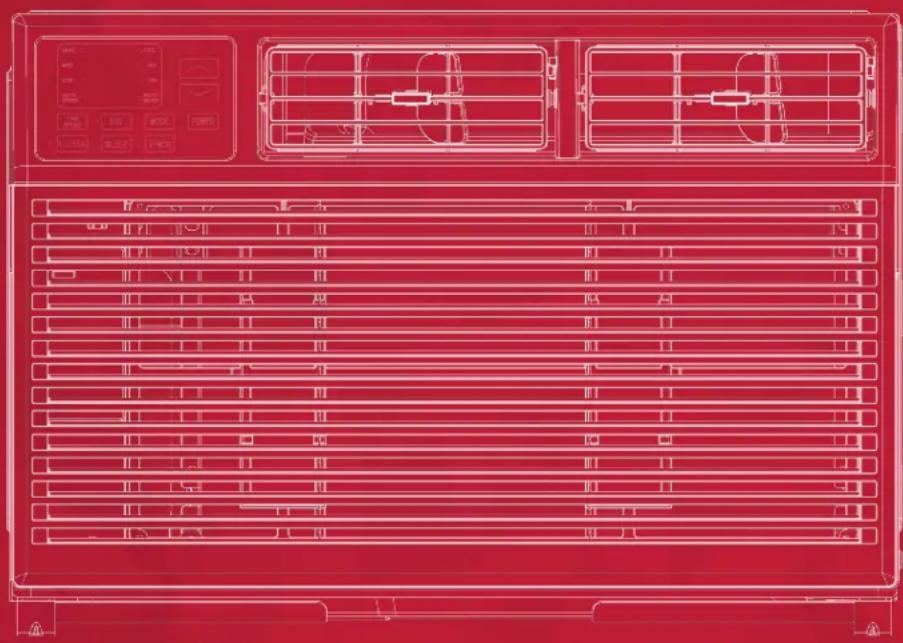
natural_image
Red technical line drawing of a front panel with ventilation grilles and control panels (no text or symbols)IMPORTANT SAFETY INSTRUCTIONS
Before installing and using your air conditioner, please read this owner's manual carefully. Store this manual in a safe place for future reference. Your safety and the safety of others is very important to us. Please pay attention to all safety messages outlined in this owner's manual.
WARNING: To reduce the risk of fire, electrical shock or injury when using your air conditioner, follow the following basic precautions:
ELECTRICAL REQUIREMENTS
The electrical ratings for your air conditioner are listed on the model and serial number label located on the front right side of the unit (when facing the front).
REGISTER YOUR APPLIANCE
You can register your appliance online by going to tclusa.com/registration
Be sure to retain your original sales receipt. A valid proof of purchase is required for all warranty claims.
BATTERY WARNING STATEMENT
Do not mix old and new batteries and do not mix alkaline, standard (carbon-zinc) or rechargeable (ni-cad, ni-mh, etc.) batteries
Document your model and serial numbers here:
Model #
Serial #
You can locate your 20 digit serial number underneath the bar code (right hand side of the AC).
WARNING
Electrical Shock Hazard
Plug into a grounded 3 prong outlet.
Do not remove the ground prong.
Do not use an adapter
Do not use an extension cord.
Failure to follow these instructions can result in death, fire, or electrical shock
Specific electrical requirements are shown in the diagram below. Follow the requirements below for the type of plug on the power supply cord.
Wiring Requirements Power Supply Cord
• (15K) 115 Volts
(103 min - 127 max)
(18K - 24K) 230 Volts
(187 min - 253 max)
• (15K) 0-11 amps
(18K) 7.1 amps
(24K) 11.0 amps
(15K) 3.15 amp time-delay fuse or circuit breaker
(18K-24K) 3.15 amp time-delay fuse or circuit breaker
- Use on single outlet circuit only on all sizes
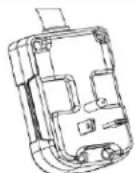
15K BTU
PREFERRED
GROUNDING METHOD
18K - 24K BTU
208/230 Volt
RECOMMENDED GROUND METHOD
For your personal safety, this air conditioner must be grounded. This air conditioner is equipped with a grounded plug. To minimize the possibility of electrical shock, the cord must be plugged into a 3-prong outlet and grounded in accordance with all local codes and ordinances. If a 3-prong outlet is not available, it is the customer's responsibility to have a properly grounded 3-prong outlet installed by a qualified electrician. Ensure proper ground exists
FCC CAUTION
This device complies with part 15 of the FCC Rules. Operation is subject to the following two conditions: (1) This device may not cause harmful interference, and (2) this device must accept any interference received, including interference that may cause undesired operation. Any Changes or modifications not expressly approved by the party responsible for compliance could void the user's authority to operate the equipment.
Note: This equipment has been tested and found to comply with the limits for a Class B digital device, pursuant to part 15 of the FCC Rules. These limits are designed to provide reasonable protection against harmful interference in a residential installation. This equipment generates uses and can radiate radio frequency energy and, if not installed and used in accordance with the instructions, may cause harmful interference to radio communications. However, there is no guarantee that interference will not occur in a particular installation. If this equipment does cause harmful interference to radio or television reception, which can be determined by turning the equipment off and on, the user is encouraged to try to correct the interference by one or more of the following measures:
-Reorient or relocate the receiving antenna.
-Increase the separation between the equipment and receiver.
DO NOT RETURN TO STORE
WE ARE
READY TO
HELP
contact us first
with any questions

TCL SUPPORT:
www.tclusa.com/support
1-800-825-6747

TAKE CARE WHEN REMOVING
THE AIR CONDITIONING UNIT
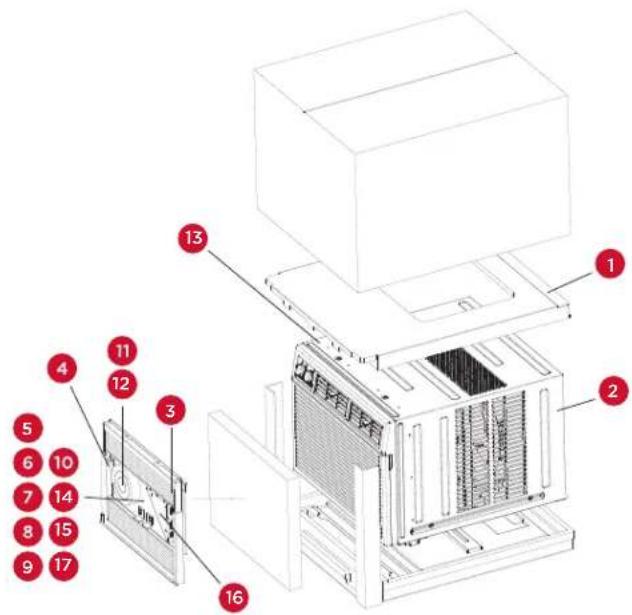
What's in the box
| NO. APPEARANCE PART NAME QUANTITY | |||
| 1 | 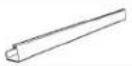 | Top Rail 1 | |
| 2 | 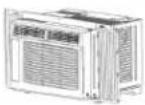 | AC Unit 1 | |
| 3 | 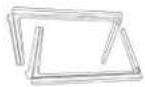 | Filler Panels (with “Left” & “Right” remark) | 2 |
| 4 | [TXXH] | Remote Control 1 | |
| 5 |  | Sash Lock 2 | |
| 6 | [CBZT] | 5/16" Long Hex-head Screw 4 | |
| 7 | ### | 5/8" Long Hex-head Screw 3 | |
| 8 | ### | 1/2" Long Hex-head Screw 4 | |
| 9 | ### | 5/8" Long Flat Head Bolt and Locknut | 1 |
| 10 | ### | Sill Angle Bracket | 1 |
| 11 | ### | Window Sash Seal | 1 |
| 12 | ### | Foam Top Window Gasket (Thin sponge for back-up using) | 1 |
| 13 | ### | Foam Insulation | 2 |
| 14 | ### | 1/2" Long Flat Head Bolt and Locknut | 4 |
| 15 | ### | Gasket | 2 |
| 16 | ### | Support Bracket (with R and L remark) | 2 |
| 17 |  | Battery (AAA) | 2 |
Tools needed: Phillips Screw Driver
Tip! Before unboxing, cut the tape along the top of the box to loosen contents inside. Once you lift and remove the box, check the inside of the box as some parts may be stuck at the top. You can find the screws and other parts located in the tray beneath the AC unit.
text_image
Technical diagram of a server rack with numbered components for identificationLet's get started!
Step 1: Testing
Before you install the AC, let's test it to make sure it made it safely to your home and your outlet is proving proper power. Place it on a flat surface, plug it directly into a wall outlet, and turn it on. Next, put the mode to cool and change the temperature setting to the max cool setting. After 3 minutes, the AC should be blowing cool air. If so, please continue on to the next step. If not, see detailed troubleshooting tips at tclusa.com/support.
Step 2: Installation
A few quick notes before installing:
- This unit is made to fit inside a standard double-hung window.
- Check the size of your window before installing.
WINDOW MOUNTING
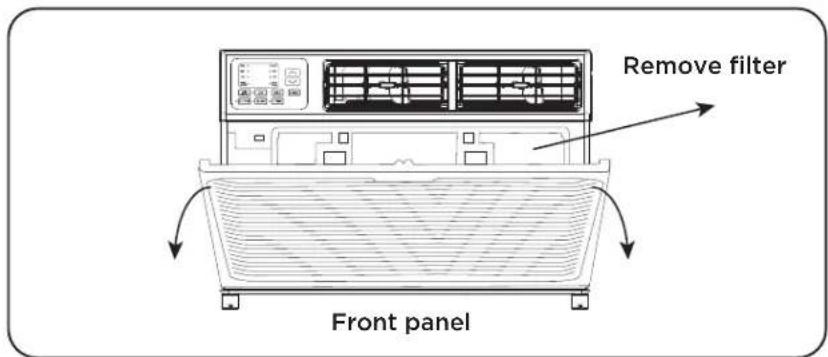
- Pull down the front panel and lift upwards. Place to the side.
- Remove the filter.
text_image
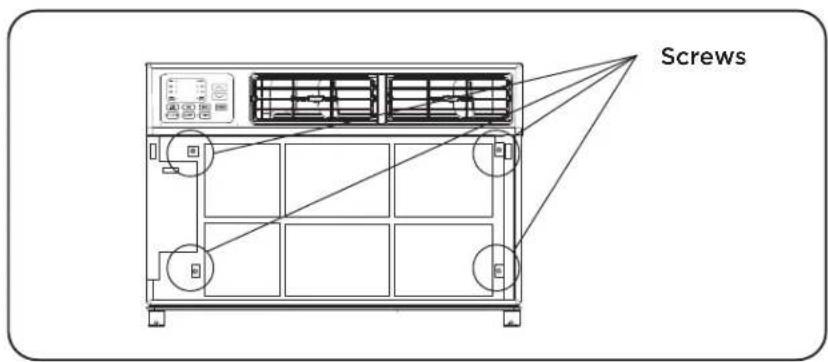
Remove filter Front panel- Locate the four faceplate screws and remove. These screws will need to be re-installed prior to mounting the air conditioner.
text_image
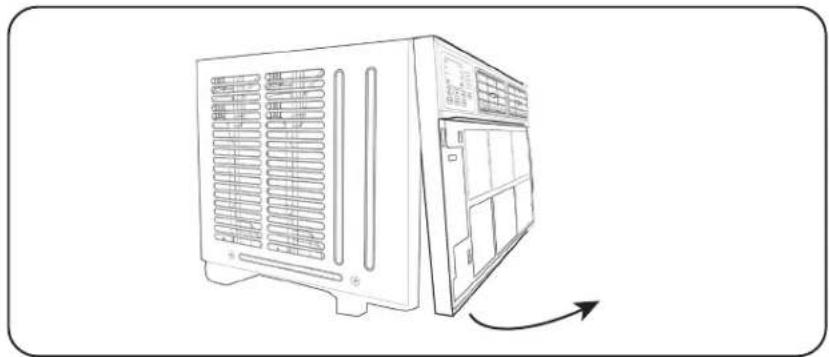
Screws- After removing the screws, gently pull away the faceplate from the air conditioner cabinet
natural_image
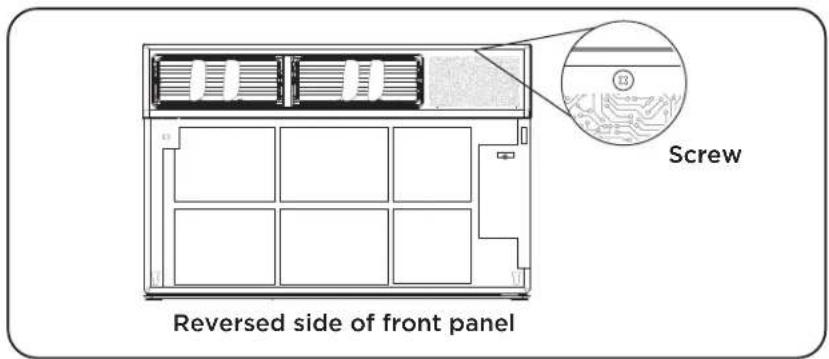
Line drawing of a server rack unit with ventilation grilles and a door, showing an arrow indicating rotation (no text or symbols)- Rotate the detached faceplate to expose the backside of the front panel. Remove the control panel screw and set aside the faceplate.
text_image
Screw Reversed side of front panelREMOVE CHASSIS
- Remove the six screws from the cabinet. (There are two screws on the top, left and right.)
natural_image
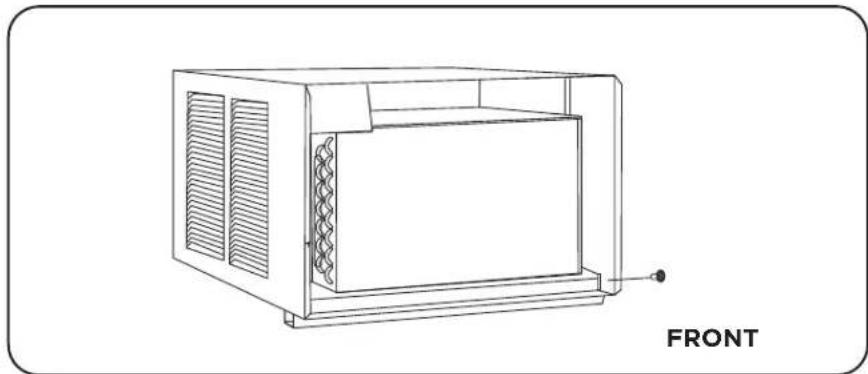
Line drawing of a portable air conditioner unit with ventilation slots and a front-mounted panel (no text or symbols on the device itself)- Hold the cabinet while pulling on the base handle to carefully remove the unit. Do not pull or lift near the top of the unit.
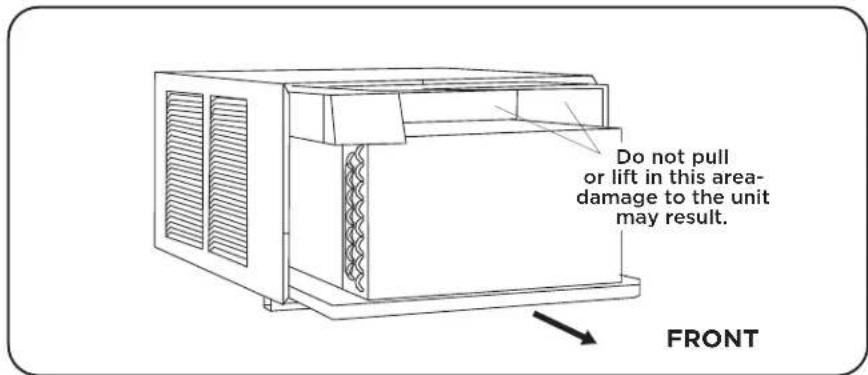
text_image
Do not pull or lift in this area- damage to the unit may result. FRONTAssembly and Installation
Step 3: Top Angle Rail and Side Bracket Installation
The top rail must be assembled prior to installing the air conditioner in the window
- Place the air conditioner on a flat hard surface.
- Remove top rail from the bottom of the packaging material as shown.
- Secure the top rail to the unit with the 5/16" screws as shown in (Fig. 1).
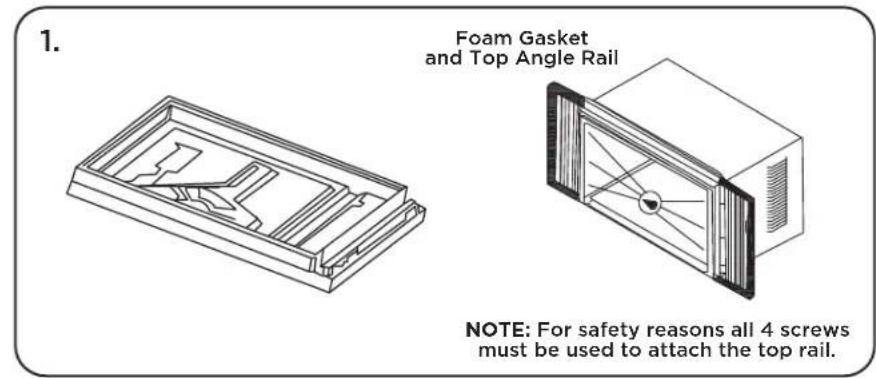
text_image
Foam Gasket and Top Angle Rail NOTE: For safety reasons all 4 screws must be used to attach the top rail.- Slide the "I" section of the window panel into the side bracket of the cabinet. Do this for both sides.
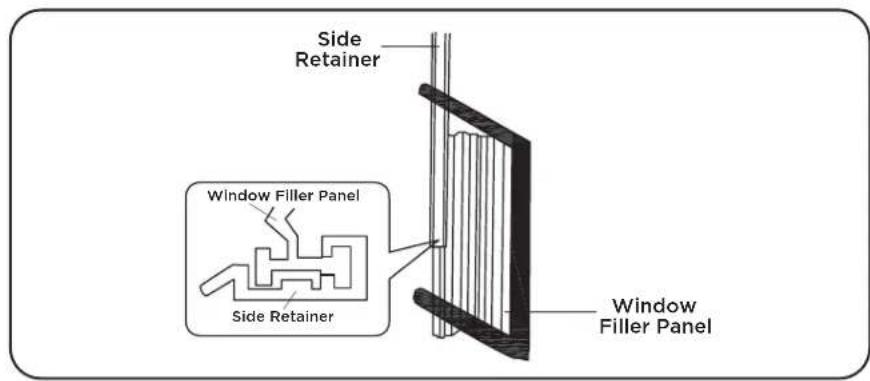
text_image
Side Retainer Window Filler Panel Side Retainer Window Filler Panel- Insert top and bottom legs of window filler panel frame into channel in the top angle and bottom rail. Do both sides. Install side retainer to cabinet as shown.
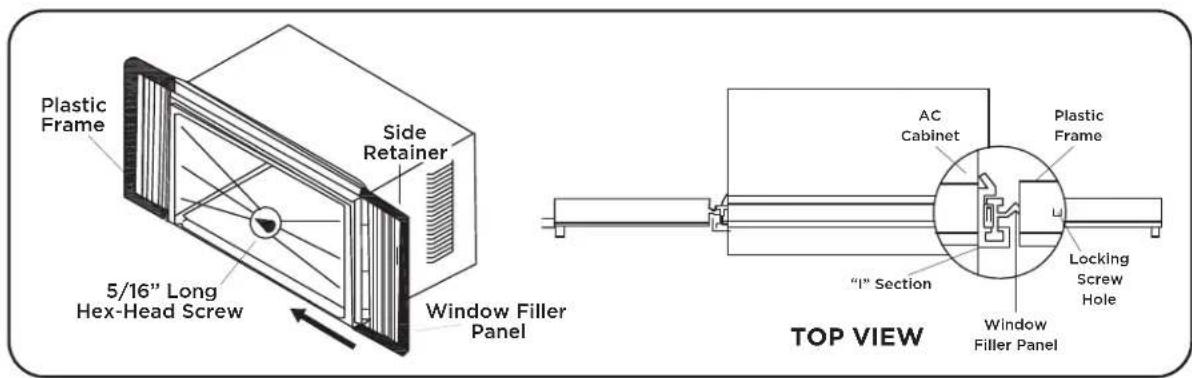
text_image
Plastic Frame Side Retainer 5/16" Long Hex-Head Screw Window Filler Panel AC Cabinet Plastic Frame "1" Section Locking Screw Hole Window Filler Panel TOP VIEWStep 4: Placing the Cabinet Inside the Window
-
Open the window and place the cabinet in the middle of the window sill.
-
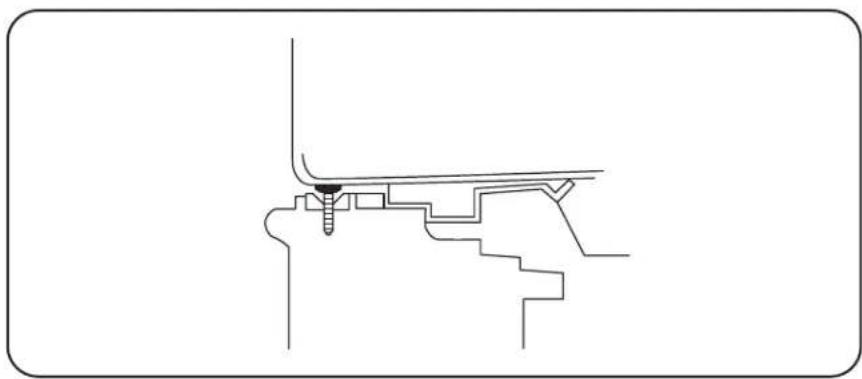
Make sure the bottom rail is seated over the window sill as shown below. Bring the window down temporarily behind the top angle rail to hold the cabinet in place. (It is suggested to keep a downward angle so accumulated rain water can drain out from the backside of the unit).
natural_image
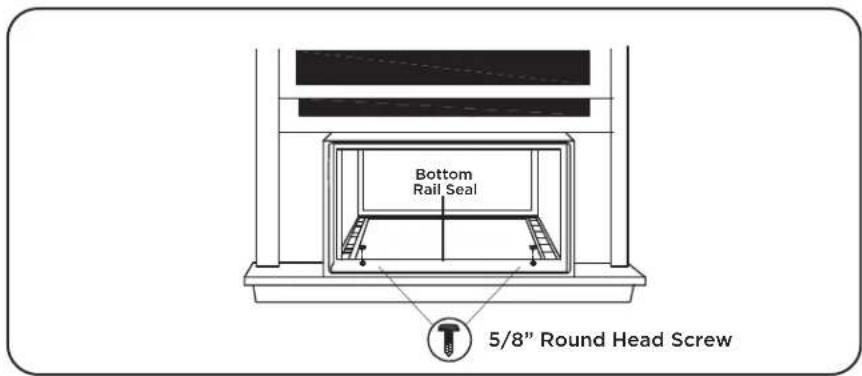
Pure technical line drawing of a mechanical assembly without any text, numbers, or symbols- Fasten the cabinet to the window sill using two 5/8" round head screws. Pre-drill holes if needed. Add the bottom rail seal over the screws.
text_image
Bottom Rail Seal 5/8" Round Head ScrewStep 5: Install Support Brackets
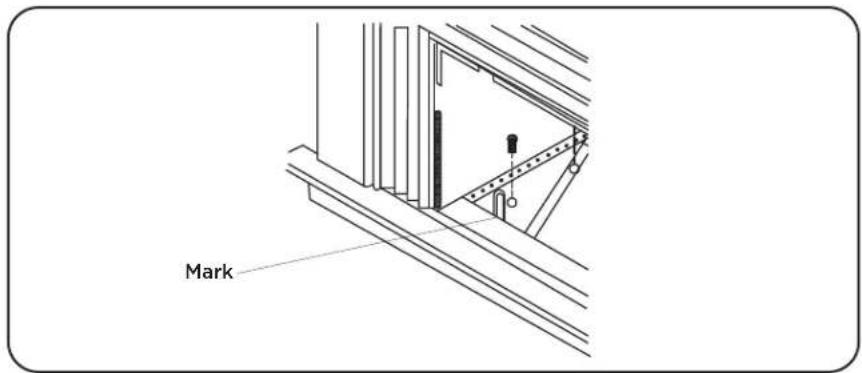
- Hold each support bracket flush against the outside of the window sill. Tighten each bracket to the bottom of the cabinet as shown below. Mark the brackets at the top level of the window sill and then remove.
text_image
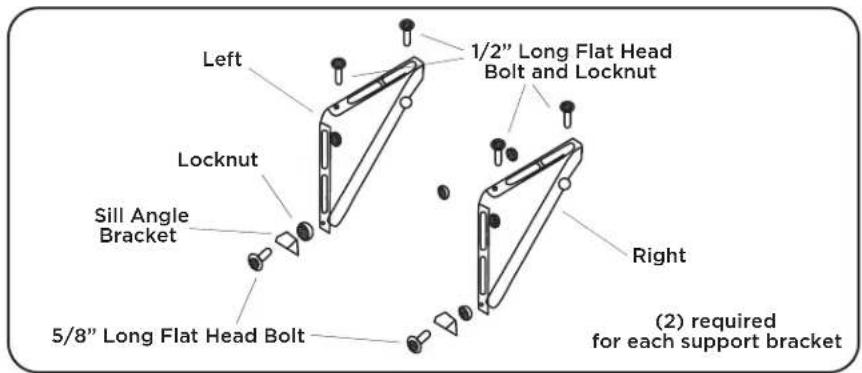
Mark- Assemble the sill angle brackets to the support brackets at the marked position as shown below. Hand tighten, but not all the way for any changes that may be needed to be made later during the installation.
text_image
Left Locknut Sill Angle Bracket 5/8" Long Flat Head Bolt 1/2" Long Flat Head Bolt and Locknut Right (2) required for each support bracket-
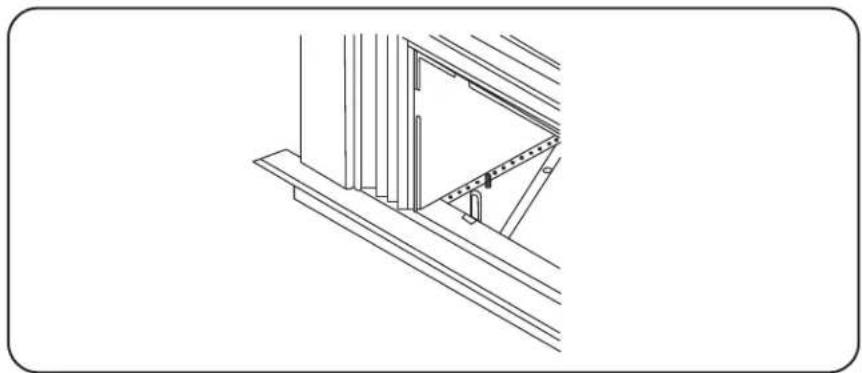
Install the support brackets (with sill angle brackets attached) to the bottom of the cabinet as shown below.
-
Tighten all 6 bolts securely.
natural_image
Line drawing of a structural frame with diagonal beams and a central opening (no text or symbols)Step 6: Extend the Accordion Panels
-
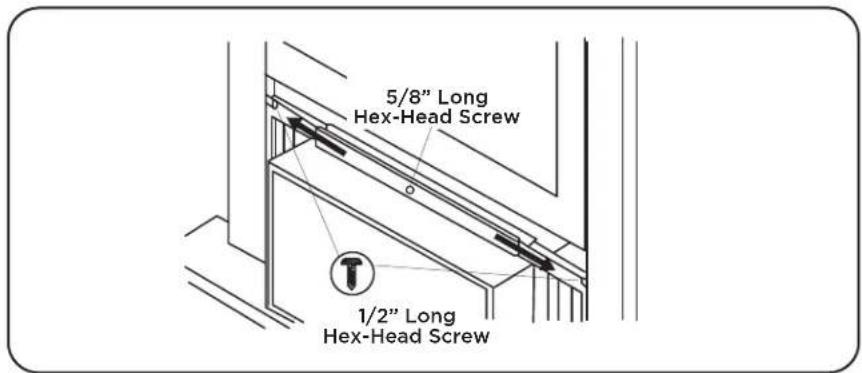
Carefully raise the window to expose the accordion panel and panel frame. Loosen the locking screws so the accordion panels slide easily.
-
Extend each panel to completely fill the width of the window. Tighten the locking screws when the panels are fully extended.
text_image
5/8" Long Hex-Head Screw 1/2" Long Hex-Head ScrewStep 7: Install the Window Lock and Sash Seal
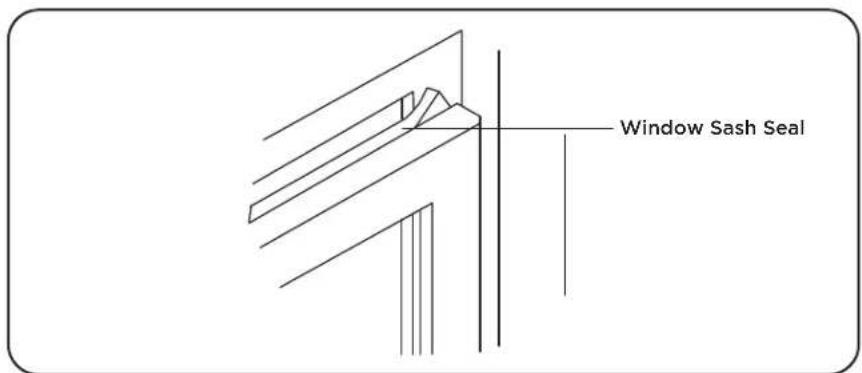
- Trim the sash seal to fit the width of the window. Insert the sash seal into the space between the upper and lower sashes.
text_image
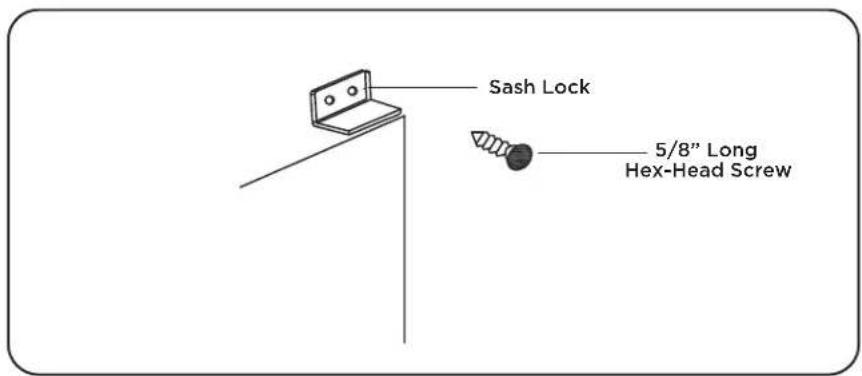
Window Sash Seal- Attach the right angle sash lock as shown below.
text_image
Sash Lock 5/8" Long Hex-Head ScrewStep 8: Installing the Chassis into the Cabinet
- Team lift (with 2 people) the air conditioner chassis and carefully slide it into the cabinet. Let the front of the air conditioner hang out approximately 6 inches.
- CAUTION! Do not push on the CONTROLS OR FINNED COILS!
- Be sure the chassis is firmly seated in the back of the cabinet.
- Insert all screws removed during the window installation and reattach the front face plate, front panel, and the air filter.
For through the wall installation, please refer to the online user manual.
How to Control Your AC
All the basics you need to know to stay cool!
- Power - turn the air conditioner on and off.
- and Buttons - use these buttons on the control panel or remote control to increase or decrease the desired temperature, or time using the Timer. The temperature range is: 61°-88° Fahrenheit, or 16°-31° Celsius.
- Display - By pressing the Display button on the remote, it can switch off/on all lights and LED Display. When the timer is not in use, the operation mode and the set temperature will be displayed. Time will be displayed under the timer setting.
- Modes - Press the mode button on the control panel to cycle and select a MODE, or select a MODE by pressing the desired button the remote.
- Auto Mode - press the MODE button on the panel or the Auto Mode button on the remote - In AUTO mode the unit automatically chooses the mode of operation (COOL, DRY or FAN). In this mode the temperature will be set according to the room temperature (tested by the temperature sensor which is incorporated in the indoor unit.).
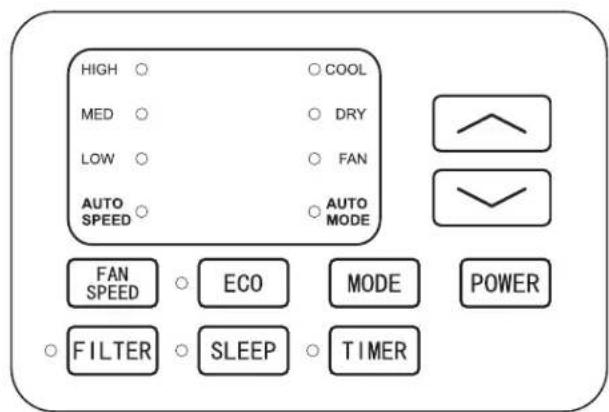
- Cool Mode - press the MODE button on the panel or the Cool button on the remote - The cooling function allows the air conditioner to cool the room and at the same time reduces air humidity. Adjust the fan speed and air temperate to your desired comfort level. In this mode, if Eco is not enabled, the fan may continue to run after reaching the desired temperature.
- Eco Mode - press the ECO MODE button on the panel or the ECO button on the remote - When the unit is in ECO mode, the light will turn on. In ECO mode, the unit will turn off once the room is cooled to the user-set temperature. The unit will turn back on when the room temperature rises above the user-set temperature. While in ECO mode the fan will occasionally turn on for a few seconds in order to take an accurate temperature reading.
- Fan Mode - press the MODE button on the panel or the Fan Only button on the remote. This fan only mod only works when the air conditioner is vented.
- Fan Speed – press the FAN SPEED button on the panel or the Fan Speed button on the remote - Press the FAN SPEED button to choose the fan speed options. You can choose Hi, Med, Low or auto speed in COOL mode and choose Hi, Med, Lo in FAN mode
- Dry Mode - available only by pressing MODE button on the panel - This function reduces the humidity of the air to make the room more comfortable. Press the MODE button to set the DRY mode. An automatic function of alternating cooling cycles and air fan is activated.
- Timer Button - press the TIMER button on the panel or the Timer button on the remote to set the timer.
- Set Timer On: With the AC off, press the Timer button and then use the and buttons to set the desired temperature. Press the Timer button again and use the and buttons to set the desired amount of time before the AC turns on. Press the timer button again to start the countdown.
- Set Timer Off: With the AC on, press the Timer button and then use the and buttons to set the length of time before the AC will turn off. Press the timer button again to start the countdown.
Note: It can be set to automatically turn off or on in 0.5-24 hours. Each press of the buttons will increase or decrease the timer. The Timer can be set in 0.5 hour increments below 10 hours and 1 hour increments for 10 hours or above.
The SET light will turn on while setting. To cancel the set function, press the TIMER button again.
-
Sleep Button – press the SLEEP button on the panel or the Sleep button on the remote – by doing so, all of the display lights will turn off after a while, but the Sleep light is always on. In SLEEP mode, the air conditioner will automatically adjust the temperature and fan speed to make the room more comfortable during the night. The set temperature will automatically raise every 30-60 minutes, and at most change six times until the set temperature is 81° or 82° F.
-
Filter Button - After the fan motor has run for 500 total hours, the Filter Check light will turn on to remind the user to clean the filter. After you clean the filter, you can turn off the light by pressing the Filter button.
Normal Operating Sounds
You may hear a pinging noise, caused by the water hitting the condenser on rainy days, or when the humidity is high. This design feature helps remove moisture and increase efficiency.
You may hear the thermostat click when the compressor cycles on and off. Water will collect in the base pan on rainy days, or high humidity days. The water may overflow and drip from the unit on the outside. The fan may run, even when the compressor is not on.
Troubleshooting
Having trouble completing installation? Don't worry, it's usually an easy fix.
| PROBLEM POSSIBLE CAUSES SOLUTIONS | ||
| Air Conditioner will not start | The air conditioner is unplugged | Make sure the air conditioner is plug is pushed completely into the outlet |
| The fuse is blown/circuit breaker is tripped | Check the house fuse/circuit breaker box and replace the fuse or reset the breaker | |
| Power Failure | The unit will automatically re-start when power is restoredThere is a protective time delay (approx. 3 minutes) to prevent damage to the compressor. For this reason, the unit may not start normal cooling for 3 minutes after it is turned back on. | |
| The current interrupter device is tripped | Press the RESET button located on the power cord plugIf the RESET button will not stay engaged, discontinue use of the air conditioner and contact a qualified service technician | |
| Air Conditioner does not cool as it should | Airflow is restricted | Make sure there are no curtains, blinds, or furniture blocking the front of the air conditioner |
| The temperature control may not be set correctly | Lower the set thermostat tempera ture | |
| The air filter is dirty | Clean the filter. See the Cleaning and Care Section of the manual | |
| The room may be too warm | Please allow time for the room to cool down after turning on the air conditioner | |
| Cold air is escaping | Check for open furnace registers and cold air returns | |
| The Cooling Coils are frozen • See “Air Conditioner Freezing Up” below | ||
| Air Conditioner is freezing up | Ice blocks the air flow and stops the air conditioner from cooling the room | Set the MODE to HIGH FAN or HIGH COOL and set the thermostat to a higher temperature |
| Remote Control is not working | The batteries are inserted incorrectly • Check the position of the batteries | |
| The batteries may be dead • Replace the batteries | ||
| Water is dripping outside Hot and humid weather • This is normal | ||
| Water is dripping inside the room | The air conditioner is not correctly tilted outside | For proper water drainage, make sure the air conditioner is slightly tilted downward from the front of the unit to the rear |
| Water collects in the base pan | Moisture removed from the air is draining into the base pan. | This is normal for a short period in areas with low humidity and nor mal for a longer period in areas with high humidity |
| Digital Display reads “E1”, “E2” | A sensor has failed • Contact customer service | |
Wi-Fi App Installation and Instruction Manual
(for wifi models only)
Step 1: Download and Install the TCL Home Comfort App
- Using your camera function on your smartphone, please scan the QR code below to be directed to download the latest App for your TCL branded air conditioner. If your phone does not currently have a QR scanner installed you can download and install one from your App store.

text_image
Download on the App Store GET IT ON Google Play
https://smartapp.tuya.com/tcl
Note: The TCL Home Comfort App is supported on 2.4 GHZ Wi-Fi Channels only. Please be sure your connection is using a Wireless channel broadcasting in 2.4GHZ
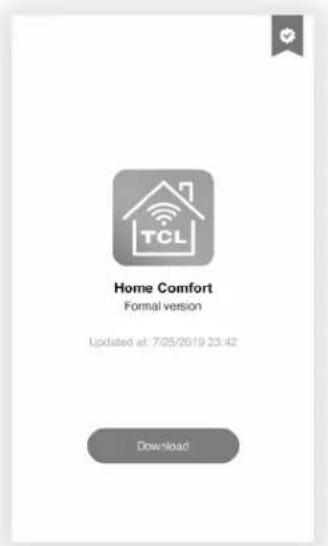
- After navigating to the TCL Home Comfort App select DOWNLOAD, INSTALL, and then OPEN.
text_image
Home Comfort Formal version Updated at: 7/25/2019:23:42 Download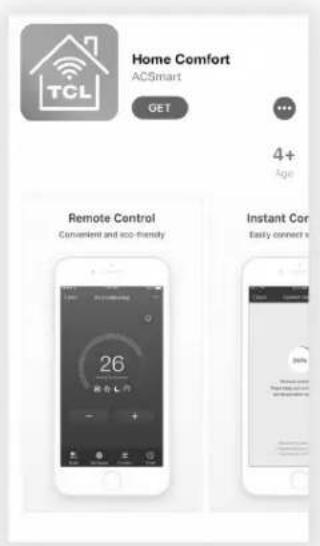
text_image
Home Comfort ACSmart GET 4+ Age Remote Control Convenient and eco-friendly 26 安全 L 作 Instant Cor Easy connect a 30%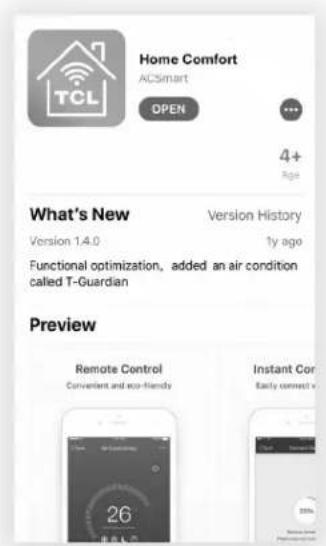
text_image
Home Comfort ACSmart OPEN 4+ Age What's New Version History Version 1.4.0 1y ago Functional optimization, added an air condition called T-Guardian Preview Remote Control Convenient and eco-friendly Instant Cor Easily connect v 26Step 2: Activate the TCL Home Comfort App
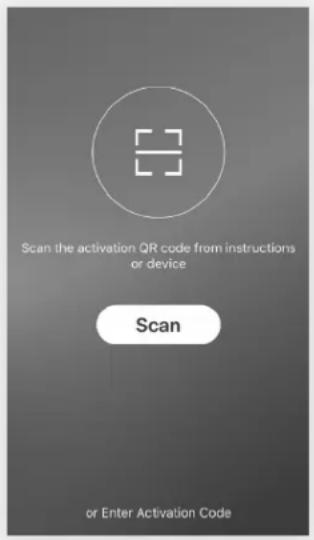
- The first time you access the App after downloading, an activation screen will appear. Scan the activation QR code using your phones camera (click the "Scan" button and scan the QR code below).
text_image
Scan the activation QR code from instructions or device Scan or Enter Activation Code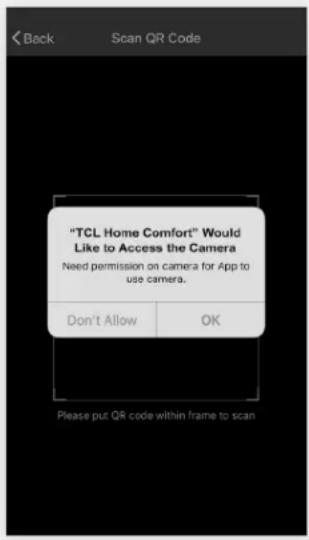
text_image
"TCL Home Comfort" Would Like to Access the Camera Need permission on camera for App to use camera. Don't Allow OK Please put QR code within frame to scan
text_image
QR code image containing encoded data, no visible human-readable textNote: If scanning the QR code, TCL Home Comfort must be provided permission to access the camera.
If permission is not granted, the alternative method of entering the TCL activation code is still available.
- You can also type in the activation code TCL after clicking on the Enter Activation Code prompt at the bottom of the screen.
Step 3: Register Your Account
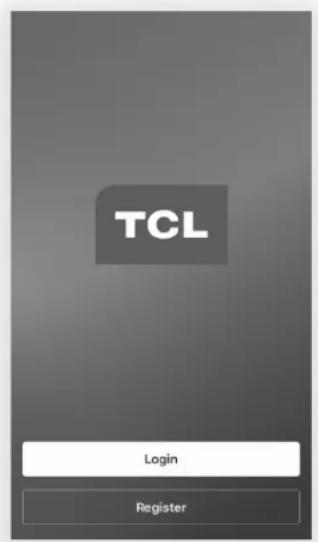
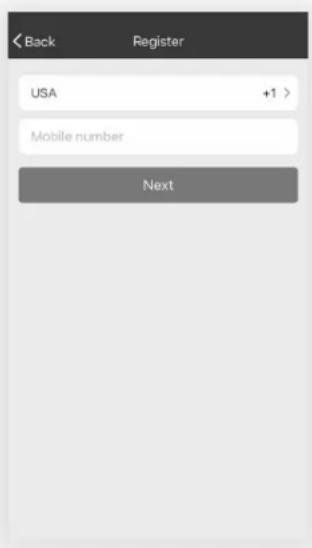
- Once you download the App, you will need to create an account. Click the "Register" button to begin the registration process. You can register with your email address OR with a mobile phone number.
Register with an email address:
text_image
TCL Login Register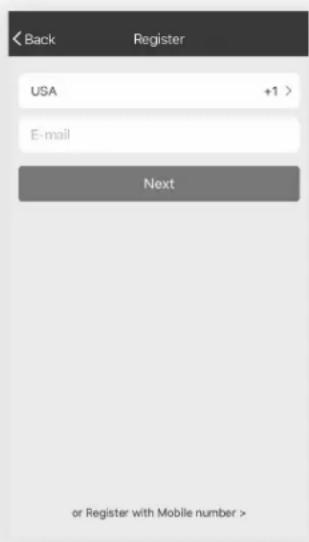
text_image
< Back Register USA +1 > E-mail Next or Register with Mobile number >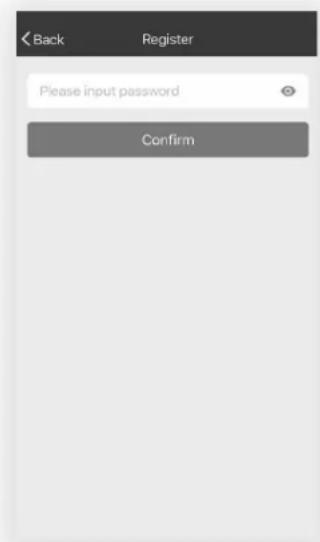
text_image
< Back Register Please input password ConfirmRegister with a mobile phone number: Select "or Register with Mobile number" on the bottom of the screen. You will be sent a verification code via text to complete the registration process.
text_image
Back Register USA +1 > Mobile number Next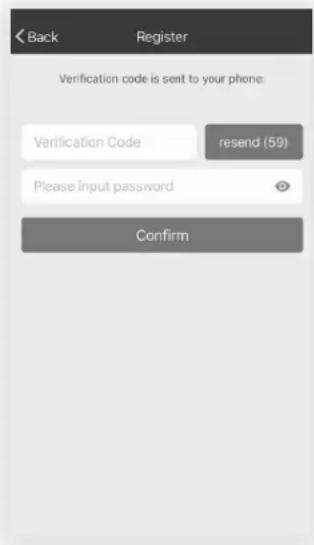
text_image
Back Register Verification code is sent to your phone: Verification Code resend (59) Please input password ConfirmStep 4: Login to Your User Account
- Once you have registered and created an account, click the "Login" button. You will be able to login with either the email account or mobile phone number you registered with.
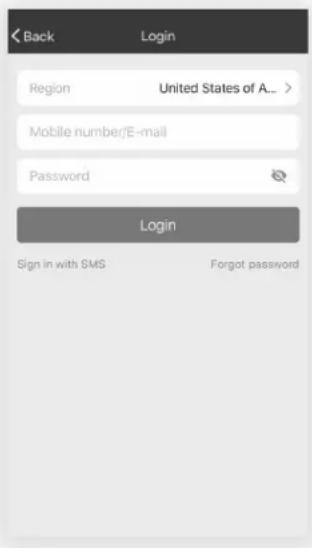
- For phone number login: You will be requested each time to validate login with a login code sent via text. Press the "Sign In with SMS" button to enter the login screen. Type in your phone number and press "Get" to receive a verification code. Once the verification code is received, type it into the login screen and press "Login".
text_image
Back Login Region United States of A... Mobile number/E-mail Password Login Sign in with SMS Forgot password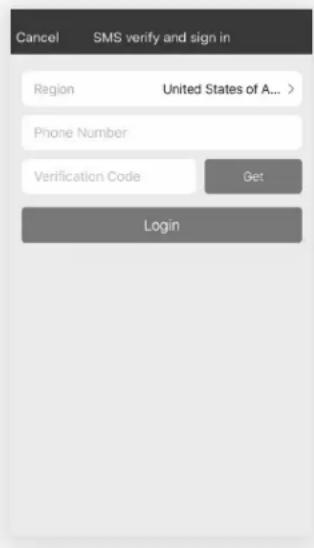
text_image
Cancel SMS verify and sign in Region United States of A... Phone Number Verification Code Get LoginForgot Password?
If you forget your password, you can retrieve it by following these instructions:
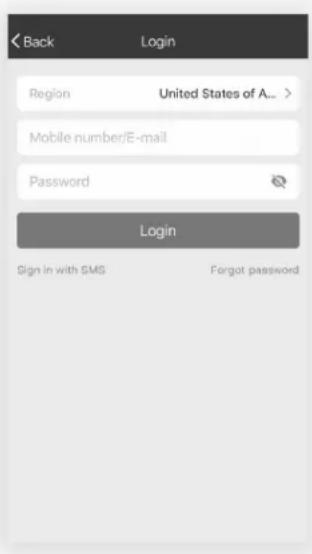
- Press the "Forgot password" button to enter the next page.
-
Type in the registered phone number or email address and press the "Next" button to continue.
-
You will receive a verification code to continue. Type in the code received and set a new password. Press the "Confirm" button to finish.
text_image
Back Login Region United States of A... Mobile number/E-mail Password Login Sign in with SMS Forgot password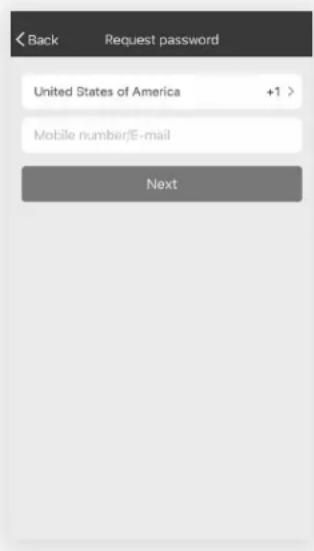
text_image
< Back Request password United States of America +1 > Mobile number/E-mail NextStep 5: Add Your AC Unit
After installing the TCL Home Comfort App on your mobile device, you must then add your AC unit to be controlled by your installed app. Follow the directions below:
- Press the "Add Device" and click the type of product you are connecting to.
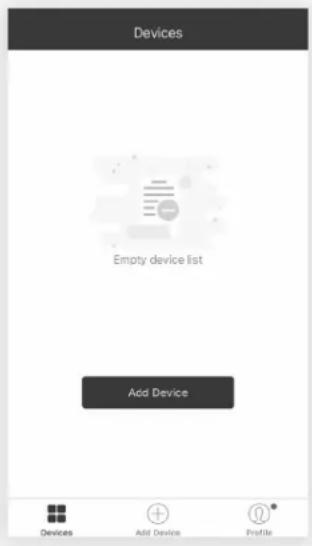
text_image
Devices Empty device list Add Device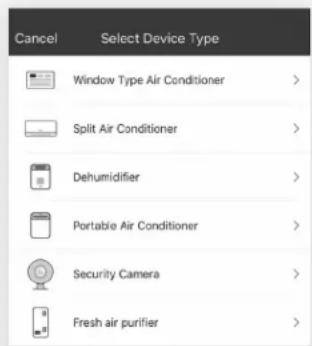
text_image
Cancel Select Device Type Window Type Air Conditioner > Split Air Conditioner > Dehumidifier > Portable Air Conditioner > Security Camera > Fresh air purifier >Step 6: Connect Your AC Unit to the Wireless Network
There are two setup Modes/Methods to connect the AC unit to the wireless network.
Reminder: The TCL Home Comfort App only works on 2.4 GHZ networks.
Note: The default set-up mode will be CF mode when first starting the AC unit.
CF Mode - When setting up your AC unit using a Wi-Fi connection using the CF mode, the AC unit being connected for Wi-Fi operation will automatically search for an available wireless network and connects automatically when the setup directions are followed. The unit and device will be synced together afterwards.
AP Mode - If your AC unit does not connect to the mobile device through the wireless network using the setup instruction in CF mode, you can connect the mobile device to the AC unit using the air conditioner's Wi-Fi adapter or "Device hotspot". The AC unit will show as a wireless network under the mobile devices Wi-Fi connections as "Home Comfort-xxxx". You can then connect the mobile device from the AC unit's hotspot. After the AC unit is turned off/on the next time you use it, the AC unit will connect to the wireless network the phone is connected to.
Add the AC Unit to the Wireless Network using "CF Mode"
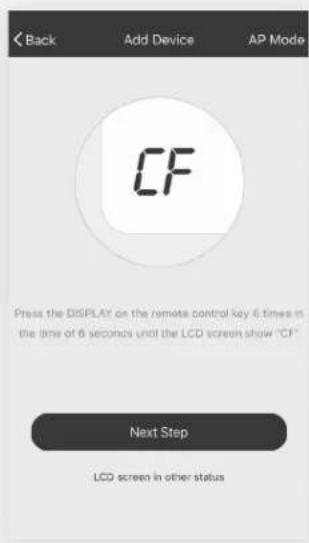
- The App and AC unit automatically defaults to CF mode upon start up. Follow the prompts on the screen and then press “Next Step” to continue.
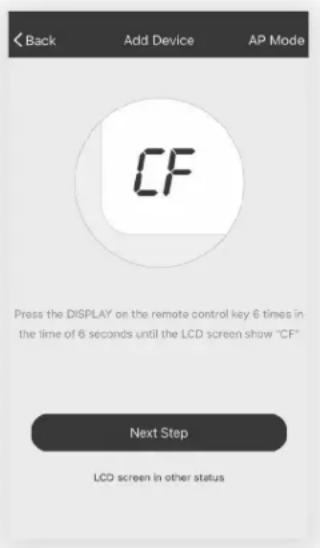
text_image
Back Add Device AP Mode CF Press the DISPLAY on the remote control key 6 times in the time of 6 seconds until the LCD screen show "CF" Next Step LCD screen in other statusNote: If the AC unit is not in CF mode, press Display on the remote 6 times. After 8 to 10 seconds your will hear two beeps and the AC will display CF.
- Select the network you wish to connect to, enter the router password and press "Next" to continue.
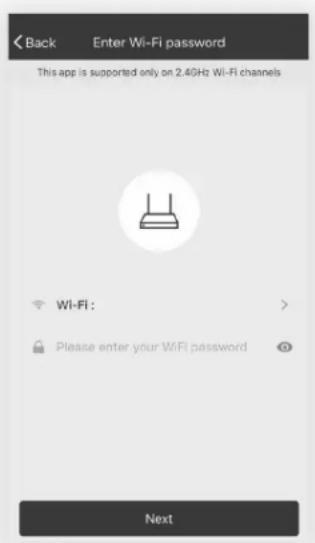
text_image
Back Enter Wi-Fi password This app is supported only on 2.4GHz Wi-Fi channels WI-FI: Please enter your WiFi password NextNote: If having difficulties finding or joining your wireless network you may need to give the TCL Home Comfort App permission to enable Location. This setting can typically be found by going to Settings > Apps > TCL Home Comfort and then select to enable Location. The exact location and method to enable this setting varies by phone OS and version.
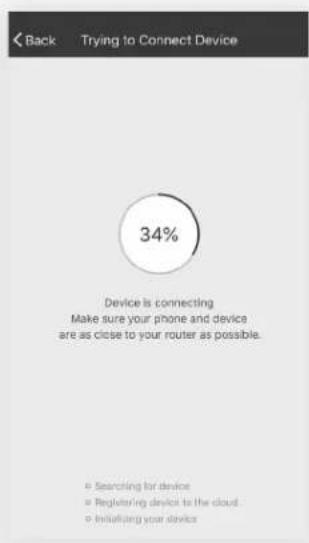
- After connecting to the wireless network, The TCL Home Comfort App software will automatically try to pair with the AC unit. The AC unit's LED screen may display "PP" or "SA", indicating it is searching for the network signal. This may take 10-15 seconds to connect the AC to the network.
text_image
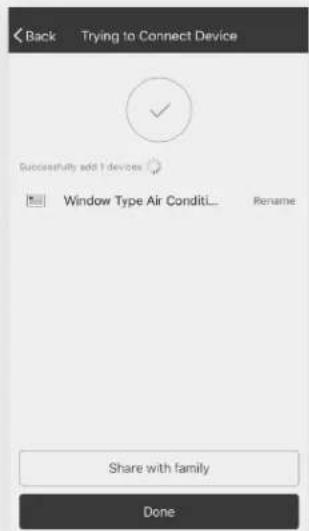
Back Trying to Connect Device 34% Device is connecting Make sure your phone and device are as close to your router as possible. ● Searching for device ● Registering device to the cloud ● Initiating your device- After successfully pairing the AC unit to the network, the page will display as below. You can "Rename" the AC unit as you like, share with family, or press "Done" to start to controlling the device.
text_image
Back Trying to Connect Device Successfully add 1 devices Window Type Air Condit... Rename Share with family DoneNote: If at any time you need to start over, pressing "Display" on the remote control 6 times will reset the wireless setup configuration on the AC unit back to CF mode. Pressing the "Display" button an additional 6 times after CF mode appears will switch the unit to AP mode. Please allow the unit 10-15 seconds to switch modes if toggling from CF to AP modes.
Add the AC Unit to the Wireless Network using "AP Mode"
If connections to the wireless network fail using the “CF mode”, you can connect using the “AP mode” (using the AC unit as a mobile hotspot).
- On the App page indicating CF mode, click "AP mode" in the top, right-hand corner as illustrated.
text_image
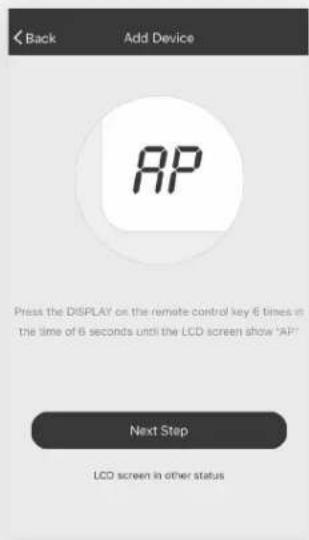
Back Add Device AP Mode CF Press the DISPLAY on the remote control key 6 times in the time of 6 seconds until the LCD screen show "CF" Next Step LCD screen in other status- AP should show on the page as illustrated below. Press "Next Step" to continue.
text_image
Back Add Device AP Press the DISPLAY on the remote control key 6 times in the time of 6 seconds until the LCD screen show "AP" Next Step LCD screen in other status-
To the switch the AC unit over to AP mode - Press "Display" on the remote control 6 times within 6 seconds so the AC unit switches from "CF mode" to "AP mode". Allow the unit 10-15 seconds to switch modes and AP will flash on the AC unit display screen when complete.
-
Select the Wi-Fi network you are trying to connect to, type in the password, and press "Next" to continue.
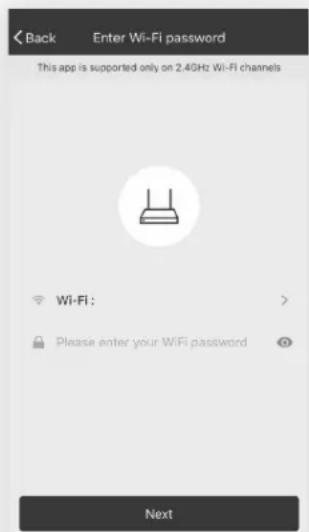
text_image
Back Enter Wi-Fi password This app is supported only on 2.4GHz Wi-Fi channels Wi-Fi ; Please enter your WiFi password Next- Open your mobile device settings to get to Wi-Fi connections.
- "TCLHOMECOMFORT-XXXX" should show as an available network connection option. Connect to the TCLHOMECOMFORT-XXXX network.
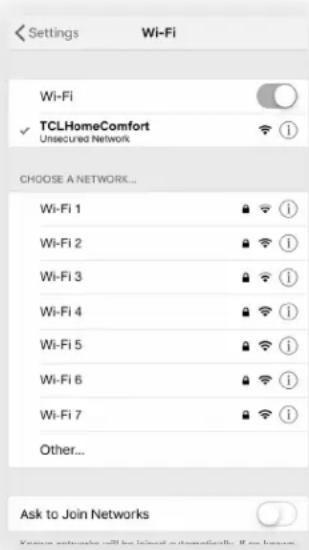
text_image
Settings Wi-Fi Wi-Fi ✓ TCLHomeComfort Unsecured Network CHOOSE A NETWORK... Wi-Fi 1 Wi-Fi 2 Wi-Fi 3 Wi-Fi 4 Wi-Fi 5 Wi-Fi 6 Wi-Fi 7 Other... Ask to Join Networks- After connecting to "TCLHOMECOMFORT -XXXX" network using the AC unit's Wi-Fi adapter, return to the TCL Home Comfort App to resume setup.
Note: You may need to manually navigate back to the TCL Home Comfort App.
- The AC unit will automatically begin installing/syncing on the mobile device.
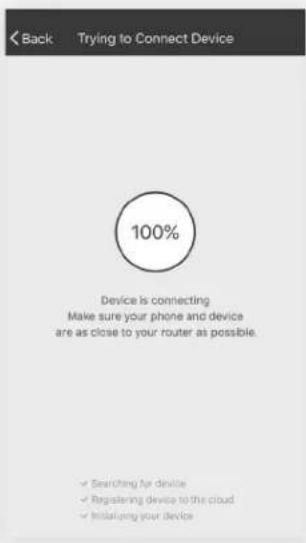
text_image
Back Trying to Connect Device 100% Device is connecting Make sure your phone and device are as close to your router as possible. ✓ Searching for devices ✓ Registering device to the cloud ✓ Initialize your device-
The AC unit's LED screen may display "PP" or "SA", indicating it is searching for the network signal. This may take 10-15 seconds to connect the AC to the network.
-
When the connection is complete, the TCL Home Comfort App on your mobile device will show the unit as connected with a check mark as illustrated. If the setup connection fails, the App will display a warning. Press "Retry" to try the connection again or "View help".
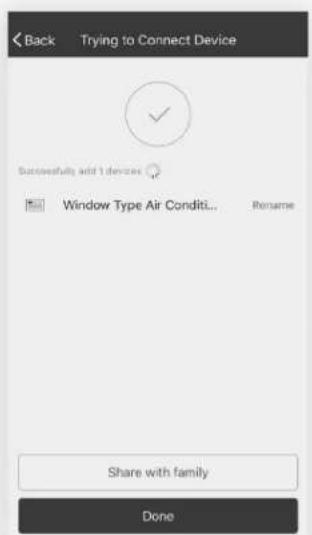
text_image
Back Trying to Connect Device Successfully add 1 device Window Type Air Condit... Rename Share with family Done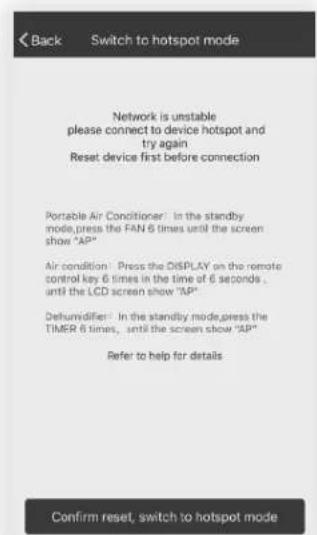
text_image
Back Switch to hotspot mode Network is unstable please connect to device hotspot and try again Reset device first before connection Portable Air Conditioner: In the standby mode, press the FAN 6 times until the screen show "AP" Air condition: Press the DISPLAY on the remote control key 6 times in the time of 6 seconds, until the LCD screen show "AP" Dehumidifier: In the standby mode, press the TIMER 6 times, until the screen show "AP" Refer to help for details Confirm reset, switch to hotspot modeConnection FailedConnection Successful
- Once connected, you are ready to begin controlling your AC unit from your mobile device. Once your unit cycles on and off after using the AC unit's Wi-Fi adapter to connect, the AC unit will automatically pair with the network your phone is connected to.
Note: If at any time you need to start over, pressing "Display" on the remote control 6 times will reset the wireless setup configuration on the AC unit back to CF mode. Pressing the "Display" button an additional 6 times after CF mode appears will switch the unit to AP mode. Please allow the unit 10-15 seconds to switch modes if toggling from CF to AP modes.
Step 7: Controlling Your AC Unit
- Click the air conditioner name to enter the App control panel. Click the ON/OFF button to adjust the settings.
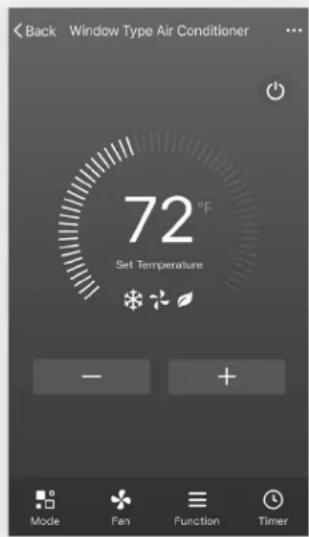
text_image
Back Window Type Air Conditioner 72 °F Set Temperature - + Mode Fan Function Timer- You can adjust the settings for the operating mode you want to use: Cool, Heat, Dry, Fan, Auto. Click the "Mode" button and choose the mode you would like to change.
Note: Some units also have a heat function. The Heat mode on the App will not be functional or change any settings on AC units that are cool only.
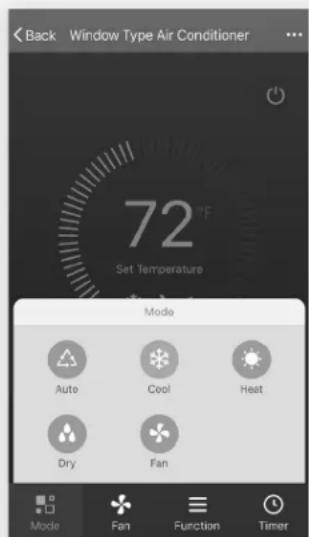
text_image
Back Window Type Air Conditioner 72 °F Set Temperature Mode Auto Cool Heat Dry Fan Mode Fan Function Timer- For Fan mode, click the "Fan" button and choose the speed you want: Low, Med, High, Auto.
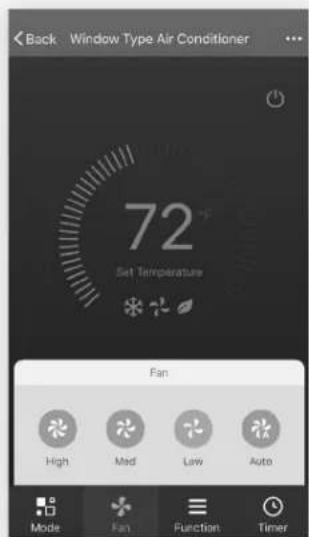
text_image
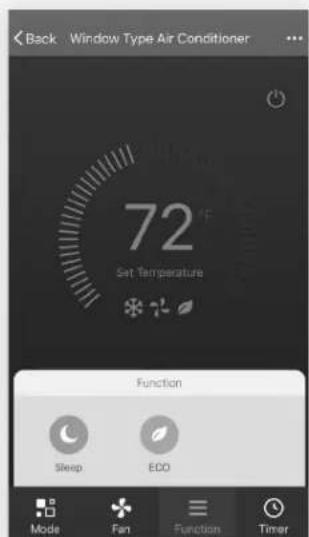
Back Window Type Air Conditioner 72 Set Temperature Fan High Mad Low Auto Mode Fan Function Timer- Other unit controls can be changed by selecting the "Function" button. By selecting the Function control, you can select the Sleep or Eco modes. In Sleep mode, the fan speed will be set to low only.
text_image
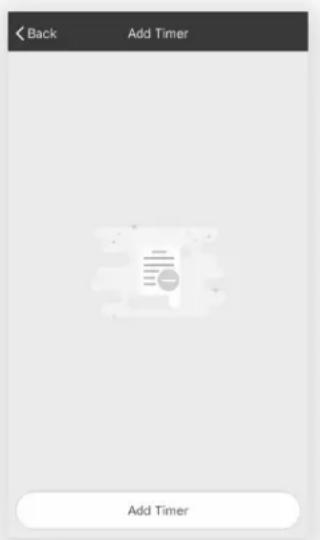
Back Window Type Air Conditioner 72 Set Temperature Function Sleep ECO Mode Fan Function Timer- To set the Timer function: Click the "Timer" button. The App will enter the timer setting screen. It will display times that were previously scheduled. You can press to edit the timer or create a new timer by clicking the "Add Timer" button.
text_image
Back Add Timer Add Timer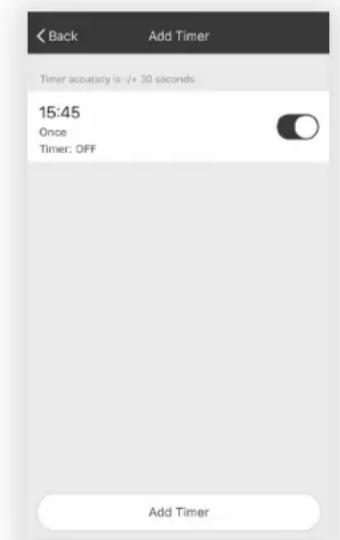
text_image
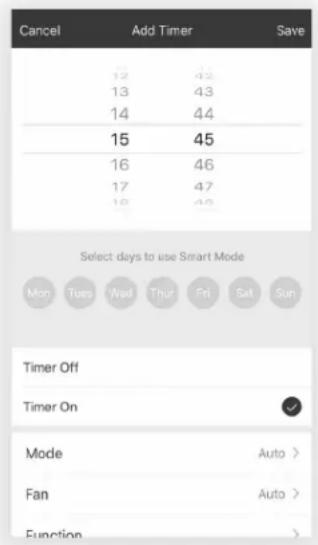
Back Add Timer Timer accuracy is -/+ 30 seconds 15:45 Once Timer: OFF Add Timer- Click "ON" or "OFF" button to set Timer ON or Timer OFF.
You can set the: Hour, Minute, Operate Mode, Operate Fan Speed, Operate Temperature. You can also set a weekly timer. After you're finished setting the timer, click the button to Cancel or Confirm.
text_image
Cancel Add Timer Save 12 43 13 43 14 44 15 45 16 46 17 47 18 48 Select days to use Smart Mode Mon Tues Wed Thur Fri Sat Sun Timer Off Timer On Mode Auto > Fan Auto > Function >Notes:
Dry Mode - temperature is preset at and cannot be changed up or down.
Heat Mode - does not apply to all units. If your AC unit does not have a heat function, the heat mode on the App will not change anything on the AC unit for cooling only models. If your unit has a heater function, you will be able to adjust the temperature up or down.
Fan Mode - temperature is preset and cannot be adjusted up or down.
Auto Mode - temperature is preset and cannot be adjusted up or down.
Cool mode - temperature settings can be adjusted to the desired temperature.
- More Options- From the upper, right-hand corner, you can view or change the following options: Modify Device Name, Device Sharing, Device Info, Feedback, Check for Updates, Remove the Device or Restore Defaults.
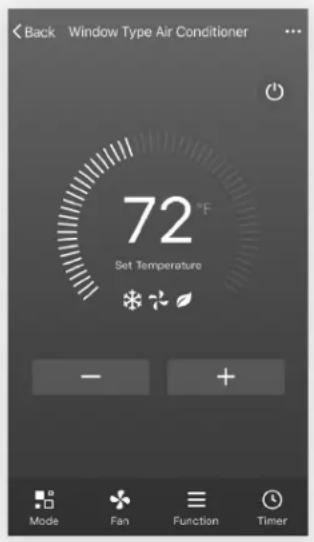
text_image
Back Window Type Air Conditioner 72 °F Set Temperature - + Mode Fan Function Timer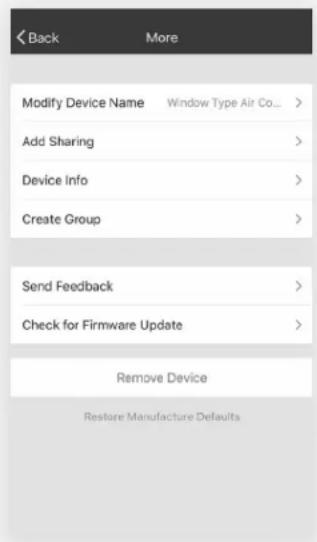
text_image
Back More Modify Device Name Window Type Air Co... Add Sharing > Device Info > Create Group > Send Feedback > Check for Firmware Update > Remove Device Restore Manufacture Defaults- Manage the information in your profile. It includes:
a. Account information.
b. Scan QR code: Opens a QR code reader within the App
c. Share Device: Display user's device sharing information
d. Message Center: Displays all messages that the system sent to the user
e. Feedback: Where users could submit feedback online
f. About: Displays the current App version information
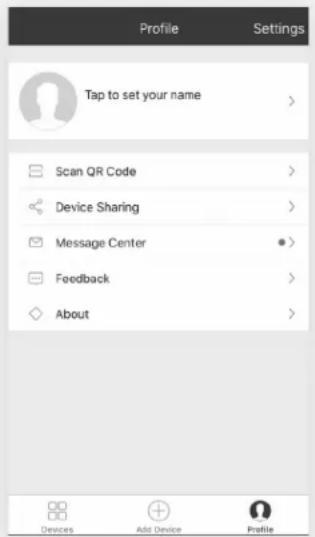
text_image
Profile Settings Tap to set your name Scan QR Code Device Sharing Message Center Feedback About Devices Add Device ProfileNote: The first registered mobile device is the main control and other devices can only be shared through the primary device. Shared accounts need to be setup for the same country.
- Tap "Pattern unlock" under the Profile section where you set your name. You can then set up your App unlock pattern. After it is enabled, you need to draw the pattern to unlock the App.
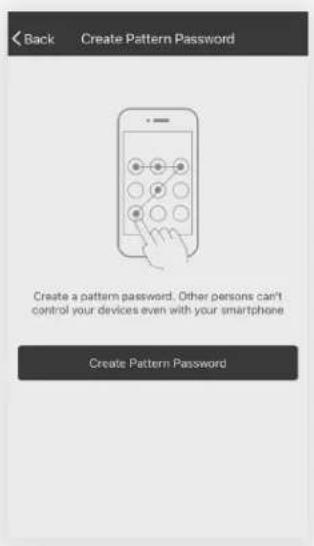
text_image
Back Create Pattern Password Create a pattern password. Other persons can't control your devices even with your smartphone Create Pattern Password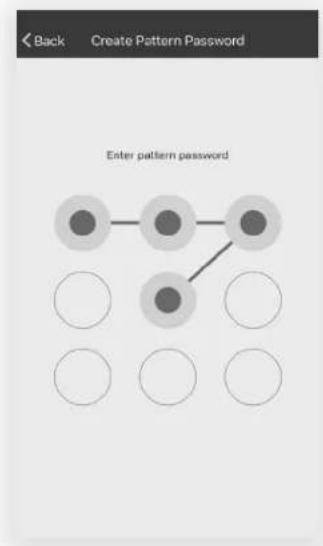
flowchart
graph TD
    A["●"] --> B["●"]
    B --> C["●"]
    C --> D["●"]
    D --> E["●"]
    E --> F["●"]
    style A fill:#ccc,stroke:#333
    style B fill:#ccc,stroke:#333
    style C fill:#ccc,stroke:#333
    style D fill:#ccc,stroke:#333
    style E fill:#ccc,stroke:#333
    style F fill:#ccc,stroke:#333
Troubleshooting
Having trouble completing installation? Don't worry, it's usually an easy fix.
| PROBLEM POSSIBLE CAUSES SOLUTIONS | ||
| TCL Home Comfort App loses connectivity to AC during setup | Wireless router may be too far from AC | • Relocate wireless router closer to AC. |
| Network error | • Restart wireless router, AC, and restart mobile device with TCL Home Comfort App installed. | |
| TCL Home Comfort App cannot find AC | Network error | • Restart wireless router, AC, and restart mobile device with TCL Home Comfort App installed. |
| App & AC are not on the same 2.4GHz channel | • Confirm your device is connected to the 2.4GHz channel. | |
| Router blocking TCL Home Comfort App | • Verify App is not being blocked by router firewall. | |
| Failed to connect using CF mode | Unknown connectivity or network error | • Follow the instructions to Add the AC unit to the wireless network using "AP MODE". |
| Unable to find or connect to Wireless Network | App may need permission to location | • Give TCL Home Comfort App permission to Location in phone settings. |
¡Hola! Comencemos.
natural_image
Red technical line drawing of a front panel with internal compartments and control buttons (no text or symbols)PREFERRED
GROUNDING METHOD
Ensure proper ground exists before use.
www.tclusa.com/support
1-800-825-6747

text_image
Technical diagram of a server rack with numbered components and exploded view, likely for assembly or maintenance instructions.iComencemos!
Paso 1: Pruebas
natural_image
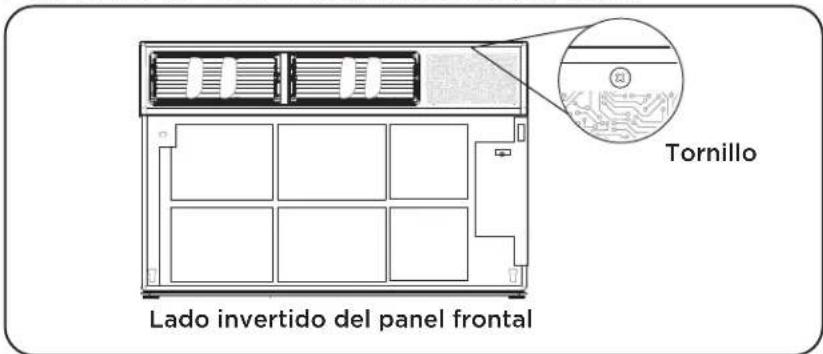
Line drawing of a server rack unit with ventilation grilles and a side panel, showing an arrow indicating rotation (no text or symbols)- Retire el tornillo del panel de control del panel frontal (FIG. 6)
text_image
Tornillo Lado invertido del panel frontalQUITAR EL CHASIS
natural_image
Line drawing of a Delantero air conditioner unit with ventilation slots and cooling fins (no text or symbols on the device itself)natural_image
Pure technical line drawing of a mechanical assembly without any text, numbers, or symbolsnatural_image
Architectural line drawing of a window frame structure with diagonal braces and a central door (no text or symbols)natural_image
Technical line drawing of a structural frame or panel assembly (no text or symbols)text_image
Download on the App Store

https://smartapp.tuya.com/tcl
text_image
Home Comfort Formal version Updated at: 7/25/2019 23:42 Download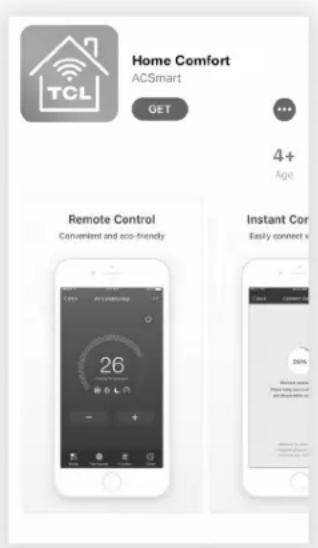
text_image
Home Comfort ACSmart GET 4+ Age Remote Control Convenient and eco-friendly Instant Cor- Easily connect v 26 30%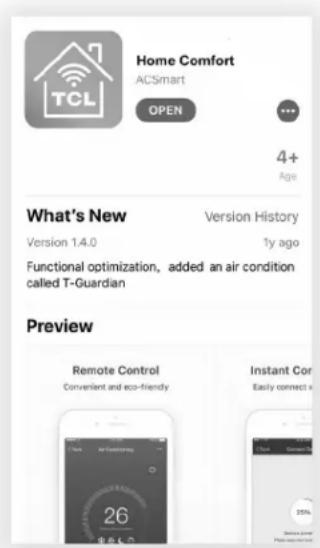
text_image
Home Comfort ACSmart OPEN ... 4+ Age What's New Version History Version 1.4.0 1y ago Functional optimization, added an air condition called T-Guardian Preview Remote Control Convenient and eco-friendly Instant Cor Easily connect i 26 35%text_image
Scan the activation QR code from instructions or device Scan or Enter Activation Code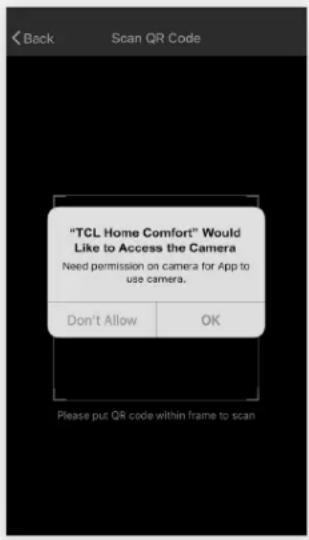
text_image
"TCL Home Comfort" Would Like to Access the Camera Need permission on camera for App to use camera. Don't Allow OK Please put QR code within frame to scan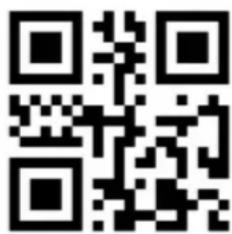
text_image
QR code image containing encoded data, no visible human-readable texttext_image
< Back Register USA +1 > E-mail Next or Register with Mobile number >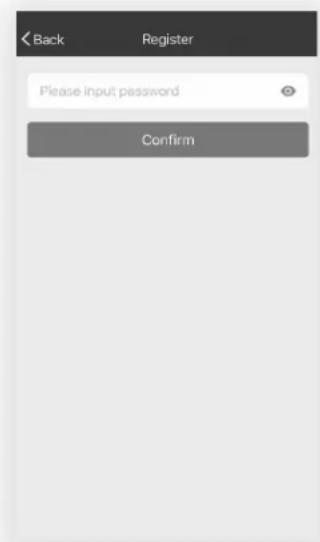
text_image
< Back Register Please input password Confirmtext_image
Back Register USA +1 > Mobile number Next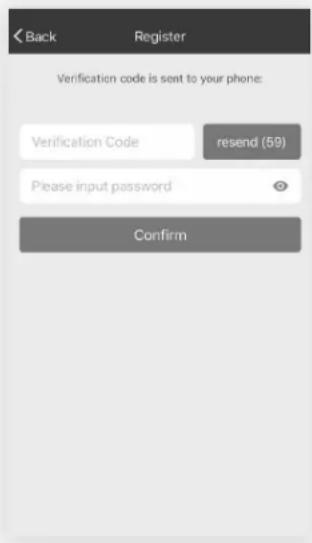
text_image
Back Register Verification code is sent to your phone: Verification Code resend (59) Please input password Confirmtext_image
< Back Login Region United States of A... Mobile number\E-mail Password Login Sign in with SMS Forgot password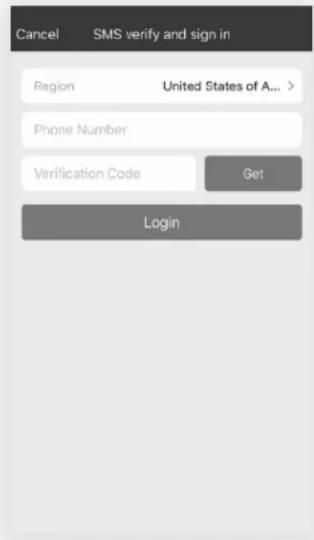
text_image
Cancel SMS verify and sign in Region United States of A... Phone Number Verification Code Get Logintext_image
Back Login Region United States of A_ > Mobile number/E-mail Password Login Sign in with SMS Forgot password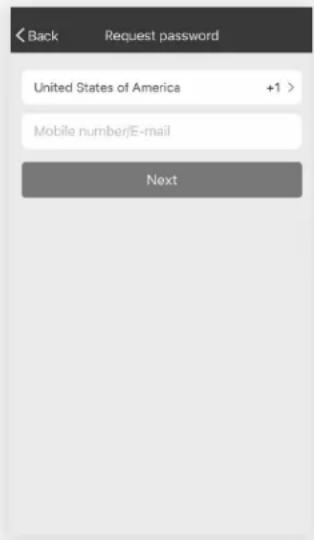
text_image
Back Request password United States of America +1 > Mobile number/E-mail Nexttext_image
Devices Empty device list Add Device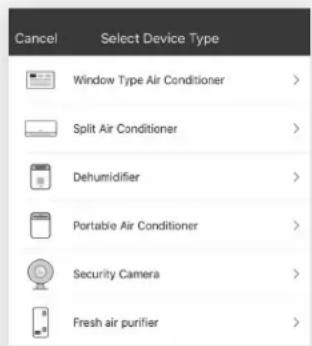
text_image
Cancel Select Device Type Window Type Air Conditioner > Split Air Conditioner > Dehumidifier > Portable Air Conditioner > Security Camera > Fresh air purifier >text_image
Back Add Device AP Mode CF Press the DISPLAY on the remote control key 6 times in the time of 6 seconds until the LCD screen show "CF" Next Step LCD screen in other statustext_image
Back Enter Wi-Fi password This app is supported only on 2.4GHz Wi-Fi channels Wi-Fi; Please enter your WiFi password Nexttext_image
Back Trying to Connect Device 34% Device is connecting Make sure your phone and device are as close to your router as possible. ● Searching for device ● Registering device to the cloud ● Initiating your devicetext_image
Back Trying to Connect Device Successfully add 1 devices Window Type Air Condit... Rename Share with family Donetext_image
Back Add Device AP Mode CF Press the DISPLAY on the remote control key 6 times in the time of 6 seconds until the LCD screen show "CF" Next Step LCD screen in other statustext_image
Back Add Device AP Press the DISPLAY on the remote control key 6 times in the time of 6 seconds until the LCD screen show "AP" Next Step LCD screen in other statustext_image
Back Enter Wi-Fi password This app is supported only on 2.4GHz Wi-Fi channels Wi-Fi ; Please enter your WiFi password Nexttext_image
Settings Wi-Fi Wi-Fi ✓ TCLHomeComfort Unsecured Network CHOOSE A NETWORK... Wi-Fi 1 Wi-Fi 2 Wi-Fi 3 Wi-Fi 4 Wi-Fi 5 Wi-Fi 6 Wi-Fi 7 Other... Ask to Join Networkstext_image
Back Trying to Connect Device 100% Device is connecting Make sure your phone and device are as close to your router as possible. ✓ Searching for device ✓ Registering device to the cloud ✓ Installing your devicetext_image
Back Trying to Connect Device Successfully add 1 devices Window Type Air Conditi... Rename Share with family Done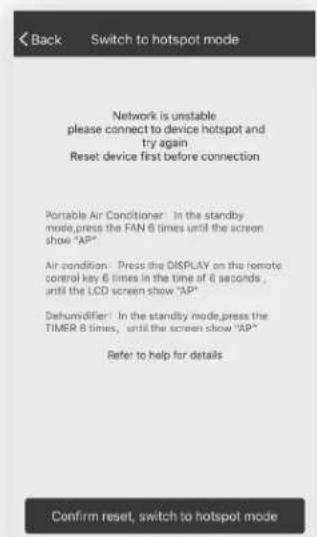
text_image
Back Switch to hotspot mode Network is unstable please connect to device hotspot and try again Reset device first before connection Portable Air Conditioner: In the standby mode, press the FAN 6 times until the screen show "AP" Air condition: Press the DISPLAY on the remote control key 6 times in the time of 6 seconds, until the LCD screen show "AP" Dehumidifier: In the standby mode, press the TIMER 6 times, until the screen show "AP" Refer to help for details Confirm reset, switch to hotspot modeConnection FailedConnection Successful
text_image
Back More Modify Device Name Window Type Air Co... > Add Sharing > Device Info > Create Group > Send Feedback > Check for Firmware Update > Remove Device Restore Manufacture Defaultstext_image
Profile Settings Tap to set your name > Scan QR Code > Device Sharing > Message Center Feedback > About > Devices Add Device Profiletext_image
Back Create Pattern Password Create a pattern password. Other persons can't control your devices even with your smartphone Create Pattern Password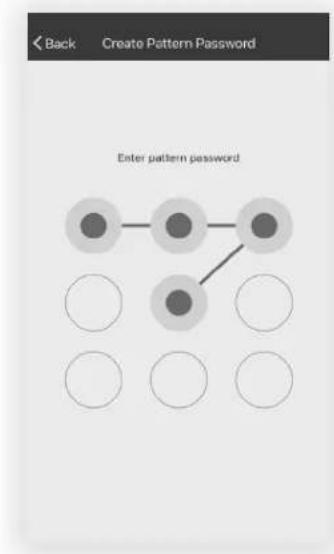
flowchart
graph TD
    A["●"] --> B["●"]
    B --> C["●"]
    C --> D["●"]
    D --> E["●"]
    E --> F["●"]
    style A fill:#ccc,stroke:#333
    style B fill:#ccc,stroke:#333
    style C fill:#ccc,stroke:#333
    style D fill:#ccc,stroke:#333
    style E fill:#ccc,stroke:#333
    style F fill:#ccc,stroke:#333
natural_image
Red technical line drawing of a front panel with ventilation grilles and control panels (no text or symbols)CONSIGNES DE SÉCURITÉ IMPORTANTES
www.tclusa.com/support
1-800-825-6747

text_image
Technical diagram of an air conditioner unit with numbered components and exploded viewnatural_image
Line drawing of a server rack unit with ventilation grilles and a side panel, showing an arrow indicating rotation (no text or symbols)natural_image
Line drawing of a Devant air conditioner unit with ventilation grilles and cooling fins (no text or symbols on the device itself)natural_image
Pure technical line drawing of a mechanical assembly without any text, numbers, or symbolsnatural_image
Technical line drawing of a structural frame or panel assembly (no text or symbols)text_image
Download on the App Store GET IT ON Google Play
https://smartapp.tuya.com/tcl
text_image
Home Comfort Formal version Updated at 7/25/2019 23:42 Download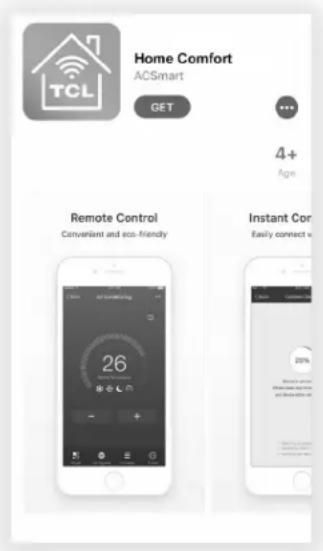
text_image
Home Comfort ACSmart GET 4+ Age Remote Control Convenient and eco-friendly Instant Cor- Easily connect v 26% 20%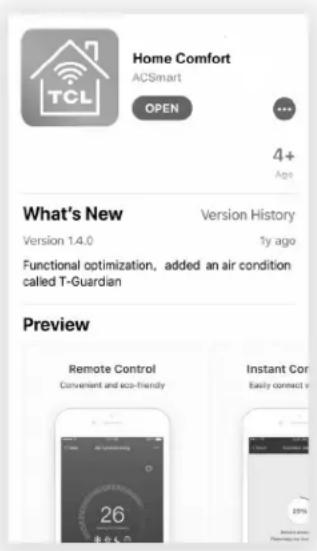
text_image
Home Comfort ACSmart OPEN 4+ Age What's New Version History Version 1.4.0 1y ago Functional optimization, added an air condition called T-Guardian Preview Remote Control Convenient and eco-friendly Instant Cor Easily connect v 26 25%text_image
Scan the activation QR code from instructions or device Scan or Enter Activation Code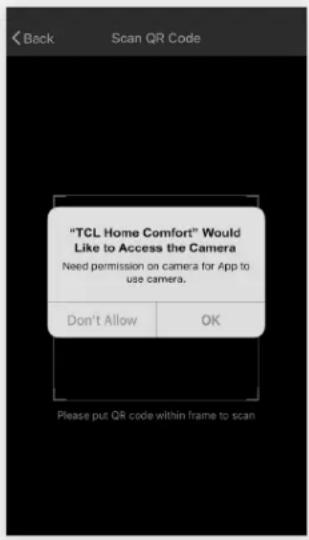
text_image
"TCL Home Comfort" Would Like to Access the Camera Need permission on camera for App to use camera. Don't Allow OK Please put QR code within frame to scan
text_image
QR code image containing encoded data, no visible human-readable texttext_image
< Back Register USA +1 > E-mail Next or Register with Mobile number >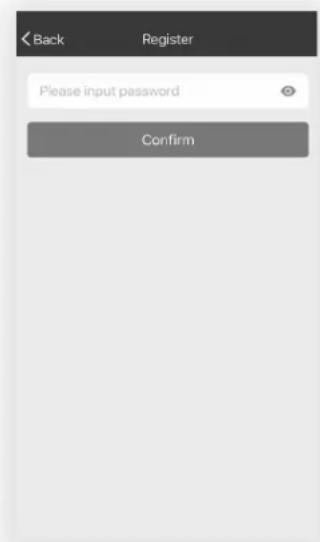
text_image
< Back Register Please input password Confirmtext_image
Back Register USA +1 > Mobile number Next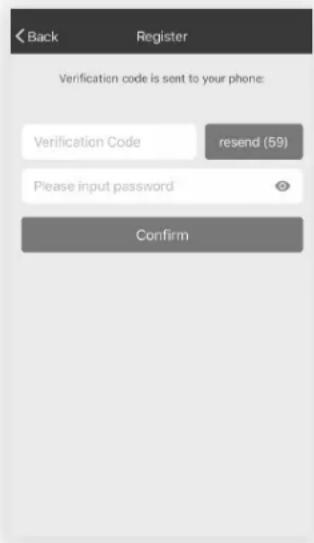
text_image
Back Register Verification code is sent to your phone: Verification Code resend (59) Please input password Confirmtext_image
< Back Login Region United States of A... Mobile number\E-mail Password Login Sign in with SMS Forgot password
text_image
Cancel SMS verify and sign in Region United States of A... Phone Number Verification Code Get Logintext_image
Back Login Region United States of A... Mobile number\E-mail Password Login Sign in with SMS Forgot password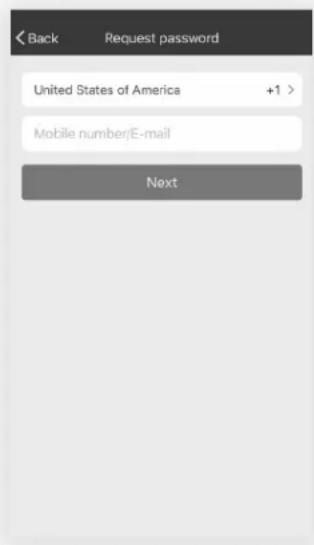
text_image
Back Request password United States of America +1 > Mobile number/E-mail Nexttext_image
Devices Empty device list Add Device Devices Add Device Profile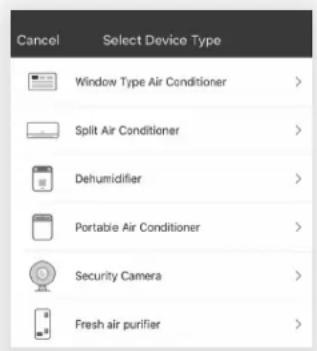
text_image
Cancel Select Device Type Window Type Air Conditioner > Split Air Conditioner > Dehumidifier > Portable Air Conditioner > Security Camera > Fresh air purifier >text_image
Back Add Device AP Mode CF Press the DISPLAY on the remote control key 6 times in the time of 6 seconds until the LCD screen show "CF" Next Step LCD screen in other statustext_image
Back Enter Wi-Fi password This app is supported only on 2.4GHz Wi-Fi channels Wi-Fi : Please enter your WiFi password Nexttext_image
Back Trying to Connect Device 34% Device is connecting Make sure your phone and device are as close to your router as possible. ● Searching for device ● Registering device to the cloud ● Initiating your devicetext_image
Back Trying to Connect Device Successfully add 1 devices Window Type Air Condit... Rename Share with family Donetext_image
Back Add Device AP Mode CF Press the DISPLAY on the remote control key 6 times in the time of 6 seconds until the LCD screen show "CF" Next Step LCD screen in other statustext_image
Back Add Device AP Press the DISPLAY on the remote control key 6 times in the time of 6 seconds until the LCD screen show "AP" Next Step LCD screen in other statustext_image
Back Enter Wi-Fi password This app is supported only on 2.4GHz Wi-Fi channels Wi-Fi ; Please enter your WiFi password Nexttext_image
Settings Wi-Fi Wi-Fi ✓ TCLHomeComfort Unsecured Network CHOOSE A NETWORK... Wi-Fi 1 Wi-Fi 2 Wi-Fi 3 Wi-Fi 4 Wi-Fi 5 Wi-Fi 6 Wi-Fi 7 Other... Ask to Join Networkstext_image
Back Trying to Connect Device 100% Device is connecting Make sure your phone and device are as close to your router as possible. ✓ Searching for device ✓ Registering device to the cloud ✓ Initiating your devicetext_image
Back Trying to Connect Device Successfully add 1 devices Window Type Air Condition... Rename Share with family Done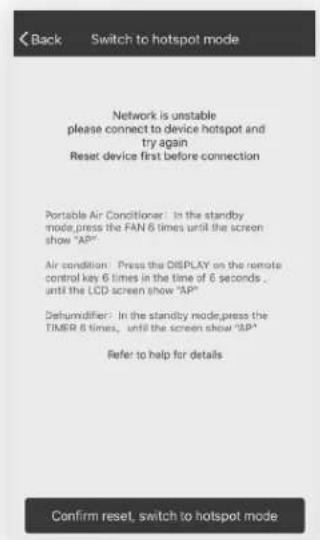
text_image
Back Switch to hotspot mode Network is unstable please connect to device hotspot and try again Reset device first before connection Portable Air Conditioner: In the standby mode, press the FAN 6 times until the screen show "AP" Air condition: Press the DISPLAY on the remote control key 6 times in the time of 6 seconds, until the LCD screen show "AP" Dehumidifier: In the standby mode, press the TIMER 6 times, until the screen show "AP" Refer to help for details Confirm reset, switch to hotspot modeConnection FailedConnection Successful
text_image
Back More Modify Device Name Window Type Air Co... > Add Sharing > Device Info > Create Group > Send Feedback > Check for Firmware Update > Remove Device Restore Manufacture Defaultstext_image
Profile Settings Tap to set your name Scan QR Code Device Sharing Message Center Feedback About Devices Add Device Profiletext_image
Back Create Pattern Password Create a pattern password. Other persons can't control your devices even with your smartphone Create Pattern Password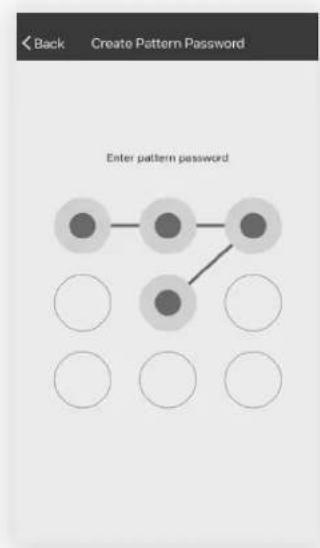
text_image
< Back Create Pattern Password Enter pattern passwordwww.TCLUSA.com/support
1-800-825-6747
TCL
Copyright © 2019 by TCL. All rights reserved.
TCL and the TCL Logo are owned by TCL
Corporation and under license to TTE Technology, Inc.
Part No.:XXXXX